
C199 - Smartphone LG - Free user manual and instructions
Find the device manual for free C199 LG in PDF.
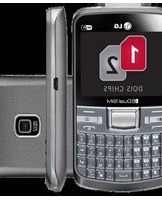


| Product Type | Feature phone |
| Model | C199 |
| Brand | LG |
| Dimensions (H x W x D) | 105 x 50 x 15 mm |
| Weight | 85 g |
| Display Size | 2.0 inches |
| Display Resolution | 176 x 220 pixels |
| Camera | 0.3 MP VGA |
| Battery Type | Li-Ion 1000 mAh |
| Power Supply | Rechargeable via micro USB |
| Main Functions | Call, SMS, FM radio, MP3 player, Bluetooth |
| Memory | microSD slot (up to 16 GB) |
| Connectivity | Bluetooth 2.1, USB 2.0 |
| Network | GSM 850/900/1800/1900 |
| SIM Card | Mini-SIM (single SIM) |
| Audio Jack | 3.5 mm |
| Maintenance and Cleaning | Wipe with dry cloth; avoid liquids |
| Safety Features | Low SAR value; avoid overheating |
| Spare Parts and Repairability | Battery, charger, and cable available; limited repair options |
| General Information | User manual provided; warranty 12 months |
Frequently Asked Questions - C199 LG
User questions about C199 LG
0 question about this device. Answer the ones you know or ask your own.
Ask a new question about this device
Download the instructions for your Smartphone in PDF format for free! Find your manual C199 - LG and take your electronic device back in hand. On this page are published all the documents necessary for the use of your device. C199 by LG.
USER MANUAL C199 LG
软键(左软键/右软键)
- 这些按键执行显示屏底部所示的功能。
结束键
5 合上后盖
6 充电
警告:外部存储器不得超过 8GB。
拔出存储卡
数据线 用户手册

用户手册

立体声耳机


备注
Declaration of Conformity

LG Electronics
Suppliers Details
Name
LG Electronics Inc
Address
LG Twin Tower 20, Yeouido-dong, Yeongdeungpo-gu Seoul, Korea 150-721
Product Details
Product Name
GSM 850 / E-GSM 900 / DCS 1800 / PCS 1900 Quad Band Terminal Equipment
Model Name
LG-C199
Trade Name
LG
CE 0168①
Applicable Standards Details
R&TTE Directive 1999/5/EC
EN 301 489-01 V1.8.1 / EN 301 489-07 V1.3.1 / EN 301 489-17 V2.1.1
EN 300 328 V1.7.1
EN 60950-1:2006+A11:2009
EN 50360:2001 / AC:2006
EN62209-1:2006
EN 301 511 V9.0.2
Supplementary Information
The conformity to above standards is verified by the following Notified Body(BABT)
BABT, Forsyth House, Churchfield Road, Walton-on-Thames, Surrey, KT12 2TD, United Kingdom Notified Body Identification Number : 0168
Declaration
I hereby declare under our sole responsibility that the product mentioned above to which this declaration relates complies with the above mentioned standards, regulation and directives
LG Electronics Inc. – EU Representative
Krijgsman 1, 1186 DM Amstelveen, The Netherlands
Name
Issued Date
Doo Haeng Lee / Director
29, March, 2012

Signature of representative
故障排除
Kekunci lembut (Kekunci lembut kiri/ Kekunci lembut kanan)
2 Keluarkan bateri.

AMARAN: Jangan
4 Pasang bateri
5 Tutup penutup belakang

6 Mengecas telefon anda
Slide the memory card into the slot until it clicks into place. Make sure that the gold contact area is facing downwards.


Alat dengar Stereo

NOTA
Declaration of Conformity

LG Electronics
Suppliers Details
Name
LG Electronics Inc
Address
LG Twin Tower 20, Yeouido-dong, Yeongdeungpo-gu Seoul, Korea 150-721
Product Details
Product Name
GSM 850 / E-GSM 900 / DCS 1800 / PCS 1900 Quad Band Terminal Equipment
Model Name
LG-C199
Trade Name
LG
CE 0168①
Applicable Standards Details
R&TTE Directive 1999/5/EC
EN 301 489-01 V1.8.1 / EN 301 489-07 V1.3.1 / EN 301 489-17 V2.1.1
EN 300 328 V1.7.1
EN 60950-1:2006+A11:2009
EN 50360:2001 / AC:2006
EN62209-1:2006
EN 301 511 V9.0.2
Supplementary Information
The conformity to above standards is verified by the following Notified Body(BABT)
BABT, Forsyth House, Churchfield Road, Walton-on-Thames, Surrey, KT12 2TD, United Kingdom Notified Body Identification Number : 0168
Declaration
I hereby declare under our sole responsibility that the product mentioned above to which this declaration relates complies with the above mentioned standards, regulation and directives
LG Electronics Inc. – EU Representative
Krijgsman 1, 1186 DM Amstelveen, The Netherlands
Name
Issued Date
Doo Haeng Lee / Director
29, March, 2012

Signature of representative
LG-C199 User Guide - English
This guide will help you understand your new mobile phone. It will provide you with useful explanations of features on your phone.
Some of the content of this manual may differ from your phone depending on the software of the phone or your service provider.

Contents
Guidelines for safe and efficient use ....4
Getting to Know Your Phone .....9
Installing the SIM and battery .11
Using Dual SIM-card ....13
Memory card ......14
Calling......15
Making a call 15
Making a call from your Contacts ....15
Answering and rejecting a call .15
Speed dialing .....15
Games & apps. 16
Logs 16
Camera 17
Camera 17
Video camera .....17
Album 17
Internet 17
SNS
(Social network services) ....18
Facebook 18
Twitter 18
Messaging ....19
Messaging 19
Sending a message .....19
Entering text ......19
Text input mode using the keypad ....20
Music 21
MP3 Player 21
FM Radio 21
E-mail 23
Sending an email using your new account ....23
My stuff ....23
Phonebook 23
Searching for a contact ......23
Adding a new contact ......23
Tools 24
Quick menu 24
Organiser 24
Alarm clock 24
Calculator 24
Voice recorder 24
Stopwatch 24
Unit converter 24
World clock 24
USIM services 24
Settings ......25
Dual SIM 25
Profiles 25
Device 25
Display 25
Call 25
Connectivity 26
Wi-Fi 26
Installing "LG PC Suite IV" PC application 26
Phone Software update......27
Synchronise your phone with your PC 27
Backing up and restoring your phone's information 27
Viewing your phone files on your PC 28
Accessories ......29
Technical Data ....30
Troubleshooting ....31
Guidelines for safe and efficient use
Please read these simple guidelines. Not following these guidelines may be dangerous or illegal.
Exposure to radio frequency energy
Radio wave exposure and Specific Absorption Rate (SAR) information This mobile phone model LG-C199 has been designed to comply with applicable safety requirements for exposure to radio waves. These requirements are based on scientific guidelines that include safety margins designed to assure the safety of all persons, regardless of age and health.
- The radio wave exposure guidelines employ a unit of measurement known as the Specific Absorption Rate, or SAR. Tests for SAR are conducted using standardised methods with the phone transmitting at its highest certified power level in all used frequency bands.
-
While there may be differences between the SAR levels of various LG phone models, they are all designed to meet the relevant guidelines for exposure to radio waves.
-
The SAR limit recommended by the International Commission on Non-Ionizing Radiation Protection (ICNIRP) is 2 W/Kg averaged over 10g of tissue.
- The highest SAR value for this model phone tested by DASY4 for use at the ear is 0.898 W/Kg (10g).
Product care and maintenance

WARNING: Only use
batteries, chargers and accessories approved for use with this particular phone model. The use of any other types may invalidate any approval or warranty applying to the phone, and may be dangerous.
- Do not disassemble this unit. Take it to a qualified service technician when repair work is required.
-
Repairs under warranty, at LG's option, may include replacement parts or boards that are either new or reconditioned, provided that they have functionality equal to that of the parts being replaced.
-
Keep away from electrical appliances such as TVs, radios, and personal computers.
- The unit should be kept away from heat sources such as radiators or cookers.
- Do not drop.
- Do not subject this unit to mechanical vibration or shock.
- Switch off the phone in any area where you are required by special regulations. For example, do not use your phone in hospitals as it may affect sensitive medical equipment.
- Do not handle the phone with wet hands while it is being charged. It may cause an electric shock and can seriously damage your phone.
- Do not charge a handset near flammable material as the handset can become hot and create a fire hazard.
- Use a dry cloth to clean the exterior of the unit (do not use solvents such as benzene, thinner or alcohol).
-
Do not charge the phone when it is on soft furnishings.
-
The phone should be charged in a well ventilated area.
- Do not subject this unit to excessive smoke or dust.
- Do not keep the phone next to credit cards or transport tickets; it can affect the information on the magnetic strips.
- Do not tap the screen with a sharp object as it may damage the phone.
- Do not expose the phone to liquid or moisture.
- Use the accessories like earphones cautiously. Do not touch the antenna unnecessarily.
- Your phone is an electronic device that generates heat during normal operation. Extremely prolonged, direct skin contact in the absence of adequate ventilation may result in discomfort or minor burns. Therefore, use care when handling your phone during or immediately after operation.
Guidelines for safe and efficient use
Efficient phone operation Electronic devices
All mobile phones may get interference, which could affect performance.
- Do not use your mobile phone near medical equipment without requesting permission. Avoid placing the phone over pacemakers, for example, in your breast pocket.
- Some hearing aids might be disturbed by mobile phones.
- Minor interference may affect TVs, radios, PCs, etc.
Road safety
Check the laws and regulations on the use of mobile phones in the area when you drive.
- Do not use a hand-held phone while driving.
• Give full attention to driving.
• Use a hands-free kit, if available. - Pull off the road and park before making or answering a call if driving conditions so require.
-
RF energy may affect some electronic systems in your vehicle such as car stereos and safety equipment.
-
When your vehicle is equipped with an air bag, do not obstruct with installed or portable wireless equipment. It can cause the air bag to fail or cause serious injury due to improper performance.
- If you are listening to music whilst out and about, please ensure that the volume is at a reasonable level so that you are aware of your surroundings. This is particularly imperative when near roads.
Avoid damage to your hearing
Damage to your hearing can occur if you are exposed to loud sound for long periods of time. We therefore recommend that you do not turn on or off the handset close to your ear. We also recommend that music and call volumes are set to a reasonable level.
Note: Excessive sound pressure from earphones can cause hearing loss.
Blasting area
Do not use the phone where blasting is in progress. Observe restrictions, and follow any regulations or rules.
Potentially explosive atmospheres
- Do not use the phone at a refueling point.
- Do not use near fuel or chemicals.
- Do not transport or store flammable gas, liquid, or explosives in the same compartment of your vehicle with your mobile phone and accessories.
In aircraft
Wireless devices can cause interference in aircraft.
- Turn your mobile phone off before boarding any aircraft.
- Do not use it on the aircraft without permission from the crew.
Children
Keep the phone in a safe place out of the reach of small children. It includes small parts which may cause a choking hazard if detached.
Emergency calls
Emergency calls may not be available under all mobile networks. Therefore, you should never depend solely on the phone for emergency calls. Check with your local service provider.
Battery information and care
- You do not need to completely discharge the battery before recharging. Unlike other battery systems, there is no memory effect that could compromise the battery's performance.
- Use only LG batteries and chargers. LG chargers are designed to maximise the battery life.
- Do not disassemble or short-circuit the battery pack.
- Keep the metal contacts of the battery pack clean.
Guidelines for safe and efficient use
- Replace the battery when it no longer provides acceptable performance. The battery pack maybe recharged hundreds of times until it needs replacing.
- Recharge the battery if it has not been used for a long time to maximise usability.
- Do not expose the battery charger to direct sunlight or use it in high humidity, such as in the bathroom.
- Do not leave the battery in hot or cold places, this may deteriorate the battery performance.
- There is risk of explosion if the battery is replaced by an incorrect type.
- Dispose off used batteries according to the manufacturer's instructions. Please recycle when possible. Do not dispose as household waste.
-
If you need to replace the battery, take it to the nearest authorised LG Electronics service point or dealer for assistance.
-
Always unplug the charger from the wall socket after the phone is fully charged to save unnecessary power consumption of the charger.
- Actual battery life will depend on network configuration, product settings, usage patterns, battery and environmental conditions.
- Make sure that no sharp-edged items such as animal's teeth or nails, come into contact with the battery. This could cause a fire.
Getting to Know Your Phone
Earpiece
Main LCD
Send key
• Dials a phone number and answers a call.
• In standby mode: Shows the history of calls.
SIM Switching Key
(SIM1 and SIM2 selection)
Alpha numeric keys
• In standby mode: Input numbers to dial. Hold down below keys.
- Insert ‘+’ symbol to make international calls.
- Connect voice Mail centre.
To - Speed dials.
- SOS Mode.
- Hold the key down to Activate or deactivate silent mode.
• In editing mode: Enter numbers & characters.

Soft keys (Left soft key / Right soft key)
• These keys perform the function Indicated in the bottom of the display in screen.
End key
- Switch on/off (hold down)
• End or reject a call.
Confirm key / OK key
- Selects menu options and confirms actions.
Lock / Customise key
- Short press to access Customise Key.
- Long press to Lock/Unlock in any screen.
Navigation key
- In standby mode:
Press Up Navigation Key: Widget when it was set.
(Menu >Settings > Display > Homescreen > Widget settings)
Press Down Navigation Key: MP3/Music Player
Press Right Navigation Key: Messaging Press Left Navigation Key: My stuff
- In menu: Scroll up, down, right & left.
Getting to Know Your Phone


Installing the SIM and battery
1 Remove the back cover
Lift the back cover upwards.

2 Remove the battery
Lift the top edge of the battery and remove it carefully from the battery compartment.


WARNING: Do not remove the battery when the phone is switched on, as this may damage the phone.
3 Install the SIM card
Slide the SIM card into the SIM card holder. Make sure that the gold contact area on the card is facing downwards. To remove the SIM card, pull it gently in the reverse direction.

4 Install the battery
First insert the bottom of the battery into the bottom edge of the battery compartment. Ensure that the battery contacts align with the terminals on the phone. Press top of the battery until it clips into place.

Installing the SIM and battery
5 Insert the back cover

6 Charging your phone
Insert the charger socket on the left of your LGC199 and plugin the other end to a mains electricity socket. Your LG-C199 will need to be charged until a message reading “Battery full” appears on screen.

Using Dual SIM-card
You can see two Network Signal icons on the left-top of the screen when you insert two SIM-Card.
Activating and switching SIM cards
The SIM Switching key allows you to select the default SIM card for call or message in Contact, Call logs and Message box in standby mode.
User can also press SIM switching key simply on the left below Left soft key of the LG-C199. Dual SIM key makes it easy for you to switch SIM-card whenever you call, send messages and so on.
Note: If there is only one SIM card installed, this SIM card would be activated as default
TIP!
-
You can see the network signals highlighted by background colour when you switch them. It makes you easily identify the strength of your signal of the selected SIM-card.
-
You can choose SIM1 or SIM2 in some function. For example: In function like call, messaging, phonebook.
Memory card
Installing a memory card
You can expand the memory available on your phone using a memory card.
Note: A memory card is an optional accessory.
Slide the memory card into the slot until it clicks into place. Make sure that the gold contact area is facing downwards.


WARNING: External
memory cannot be exceeded 8GB.
Removing a memory card
Carefully remove the memory card by gently pushing it into the phone and quickly releasing it.
Formatting the memory card
Your memory card may already be formatted. If your memory card isn't formatted, you will need to format it before you can begin using it.
1 From the home screen press Menu then select Settings.
2 Choose Device then Memory info and select External memory.
3 Press Format and enter the password, which is set to 0000 as default. Your memory card will be formatted and ready to use.
4 To view the new formatted folders on your LG-C199 press Menu and select My stuff. Press right navigation key two times to choose memory card.

WARNING: When you at your memory card, all content will be deleted. If do not want to lose the on your memory card, backup first.

WARNING: Do not love your MicroSD card ng the data transfer.
Calling
Making a call
1 Make sure your phone is on.
2 You can use the keypad. To delete a digit press back arrow on keyboard
3 Press to begin the call.
4 To end the call, press .
TIP! To enter + when making an international call, press and hold 0.
Making a call from your Contacts
It's easy to call anyone whose number you have stored in your Phonebook.
1 Press Menu to open the main menu. Select Phonebook.
2 Using the keypad, enter the first letter of the contact you want to call and scroll to the Contacts.
3 Press to begin the call.
Answering and rejecting a call
When your phone rings, press to answer the call.
While your phone is ringing you can press Silent to mute the ringing.
This is useful if you have forgotten to change your profile to silent for a meeting.
Press or select Reject in order to reject an incoming call.
Note: In call when speaker is activated, the speaker icon is displayed with red colour cross, when the speaker is deactivated speaker icon is displayed without red colour cross.
Speed dialing
You can assign a speed dial number to a contact you call frequently.
Games & apps.
You can install new games and applications on your phone to keep you amused when you have spare time.
Logs
You can check the record of all, calls only, missed, outgoing, incoming logs and messages only. The number and name (if available) are displayed together with the date and time at which the call was made. You can also view the number of times you have called.
All logs: View a complete list of all your dialed, received and missed calls and also sent and received messages.
Calls Only: View a list of all the numbers you have called, received calls and missed calls.
Messages Only: View a list of all the numbers you have sent or received messages.
Missed logs: View a list of any calls you have missed.
Outgoing logs: View a list of all the numbers you have called.
Incoming logs: View a list of all the numbers you have received.
Call duration: View the total time spent on Last call, Outgoing calls, Incoming calls and All calls.
Data Volume: View the total data amount spent on Sent data, Recieved data and All data.
Camera
Camera
1 Press Menu and select Camera and choose Camera.
2 When the camera has focused on your subject, select the Capture icon on the bottom-centre of the screen and press OK key to take a photo.
Video camera
1 Press Menu and select Camera and choose Video camera. The video camera's viewfinder will appear on screen.
2 Focus the Video camera on what to record.
3 Select the Rec. icon on the bottom-centre of the screen and press OK Key to take a video. Rec will appear at the bottom of the viewfinder. Press Stop to stop recording.
Album
View the pictures and videos you have taken in your Album.
Internet
You can launch the internet browser and access the homepage of the activated profile on web settings. You can also manually enter a URL address and access the associated Web page.
1 In Menu mode, select Internet to launch your service provider's homepage.
2 Navigate web pages using the following keys:
Navigation - Scroll up or down on a web page.
OK Key - Select an item.
Back - Return to the previous page. Options - Access a list of browser options.
Note: You will take extra cost by connecting to these services and downloading content. Check data charges with your network provider.
SNS (Social network services)
Your LG-C199 has SNS that lets you enjoy and manage your social network. You can update your own SN place status and view your friend's SN updates.
Note: SNS feature is a data intensive application. An additional cost may be incurred when connecting and using online services. Check your data charges with your network provider.
Home: Log in and you will see your friend's updated status. Input your comment about new status or check others. Select Options to choose Refresh and main menu.
Twitter is a micro blogging service that enables its users to send and read messages known as tweets.
Note: Please ensure Auto Update is On before using this Applications.
Messaging
Messaging
Your LG-C199 includes functions related to SMS (Short Message Service), MMS (Multimedia Message Service) as well as the network's service messages.
Sending a message
1 Press Menu, select Messaging and choose Write message.
2 A new message editor will open. Message editor combines SMS and MMS in one intuitive mode that is easy to switch between. The default setting of the message editor is SMS mode.
3 Enter your message using the keypad.
4 Select Options and choose Insert to add an Image, Video, Sound, Text template, Multimedia template, Emoticon, Name & Number, Slide, Subject or More (Business card/Schedule/Memo/Task/My profile).
5 Choose Send to.
6 Choose a contact from the list of contacts or enter the phone number.
7 Select Send.

WARNING: Image,
Sound, Video, Slide, Subject, Business card, Schedule or My profile is added to the message editor, it will be automatically converted to MMS mode and you will be charged accordingly.
Entering text
You can enter alphanumeric characters using the phone's keypad. For example, storing names in contacts, writing a message and creating scheduling events in the calendar all require entering text. The following text input methods are available in the phone: Abc mode, and 123 mode.
Note: Some fields may allow only one input mode (e.g. telephone number in contact fields).
Messaging
Text input mode using the keypad
When you want to enter text, for example when writing a message, the keypad will default be set to Abc mode. If you are entering a number, for example when making a call, the keypad number keys will default be set to 123 mode. To enter the small symbol (such as @) or the number (such as 0) at lower left of the keys, press the Fn Key ☐. Press it once for just the next letter, or twice quickly for all letters.
Note: Info message will display only for slot 1.
TIP! While viewing the received message, press Options and select Quick reply. This is useful if you need to reply the message during a meeting.
TIP! While you see the message, press Options and select Extract. You can extract the information such as a number, email address or web address from the selected message.
Music
MP3 Player
Your LG-C199 has a built-in music player so you can play all your favourite music.
Note:
- Before using music player, you will need to transfer music file onto your phone.
- Music player supports codec types as follows: MP3, WMA, AAC. Music player does not necessarily support all features and variations of file formats.
Playing a song
1 Press Menu and select Music, then choose MP3 player.
2 Choose All songs then select the song you want to play. Select
3 Select to pause the song.
4 Select▶to skip to the next song.
5 Select◀◀ to skip to the previous song.
TIP! To change the volume while listening to music, press Up / Down Navigation Key of your phone.
Note:
The copyright of music files can be protected in international treaties and national copyright laws.
Therefore, it may be necessary to obtain a permission or a license to reproduce or copy music. In some countries national law prohibits private copying of copyrighted material. Before downloading or copying the file, please check the national legislation of the applicable country concerning the use of such material.
FM Radio
Your LG-C199 supports FM radio feature so you can tune into your favorite stations and listen on the move.
Music
Listening to the radio
1 Press Menu, select Music and choose FM radio.
2 Select the channel number of the station you would like to listen to.
Recording the Radio
1 Press Rec. during listening to the radio.
2 The recording time is displayed on your phone.
If you want to stop the recording, press Stop. If recording is done, the recorded contents will be saved in Menu -> My stuff -> Sounds as mp3 file.
TIP! To configure your recording settings such as the storage, recording type or pre-recording, press Option and select Recording settings.
Sending an email using your new account
To send/receive an email, you should set up an email account.
1 Press Menu, select E-mail and choose the account you want to use.
2 From Options choose Write e-mail and a new email window will open.
3 Enter address in To field then write a subject line and press down navigation key.
4 Enter your message using the keypad then Press OK Key to send the email.
My stuff
View the images, sounds, videos and others in your My stuff.
Phonebook
Searching for a contact
1 Press Menu and select Phonebook.
2 Using the keypad enter the first letter of the name of the contact you want to call.
3 To scroll through the contacts and their different numbers use the navigation keys.
Adding a new contact
1 Press Menu and select Phonebook.
2 Press Options and select New contact.
3 Enter the information you want in the fields provided and press Done.
Tools
Quick menu
1 Press Menu and select Tools, then choose Quick menu.
2 Press Add and choose the menu you want to quickly approach.
Organiser
You can access calendar, tasks, memo and calculate date.
Alarm clock
You can set up to 5 alarm clocks to go on at a specified time.
Calculator
This contains the standard functions such as Addition, Subtraction, Multiplication and Division.
Voice recorder
Use your Voice recorder to record voice memos or other sounds.
Stopwatch
This option allows you to use the function of a stopwatch.
Unit converter
This converts many measurement into a unit you want.
World clock
Allows you to determine the current time in another time zone or country.
USIM services
This feature depends on SIM and the network services. In case the SIM card supports SAT (i.e. SIM Application Toolkit) services, this menu will be the operator specific service name stored on the SIM card.
Settings
Dual SIM
You can make SIM Active On/Off and SIM icon can be changed.
Profiles
Choose the profile you want to edit.
Flight mode: Flight mode will not allow you to make calls, connect to the internet or send message.
Device
Date and time: In date and time settings select Auto update On and the phone will automatically update the date and time.
Battery status: Choose to switch the factory set power save settings On or Off.
Languages: Change the language of your LG-C199 display.
Auto key lock: Lock the keypad automatically in standby screen.
Security: Change your security to keep your LG-C199 important information to be protected.
and configure the ATMT settings with sender name and sending number list. Default ATMT Code is "0000".
- Application lock - To prevent unauthorized use of phone applications, you can enable application lock which requires user to enter a password when accessing applications. Password is the same as the security code (Default password is 0000).
Reset device: Use reset device to reset settings only or data & settings. You need the security code to activate this function. The default number is "0000".
Memory info: You can check free space and memory usage of each repository.
Display
You can adjust settings for the phone display.
Call
- Anti-theft mobile tracker: When You can set the menu relevant to the handset is stolen, handset a call.
Settings
Connectivity
Bluetooth: Set up your LG-C199 for Bluetooth use. You can adapt your visibility to other devices or search through devices your phone is paired with.
NOTE: Pair LG-C199 with any device supporting BT version above 2.0, then passcode is not asked, since pass code is auto generated. Pair LG-C199 with any device supporting lesser BT versions such as 1.2 etc, then pass code is asked.
USB connection mode: You can select the USB connection mode on your phone for several uses.
Wi-Fi
Wireless Manager allows you to manage Internet connections via Wi-Fi (Wireless LAN) on your device. It allows the phone to connect to local wireless networks or access the Internet wirelessly.
NOTE: The LG-C199
supports WEP and WPAPSK/2 encryption, but not EAP or WPS encryption. If your Wi-Fi service provider or network administrator sets encryption for network security, fill in the key in the pop-up window. If encryption is not set, this popup window will not be shown. You can obtain the key from your Wi-Fi service provider or network administrator.
Installing "LG PC Suite IV" PC application
“LG PC Suite IV” PC application can be downloaded from the webpage of LG.
1 Go to www.lg.com and select a country of your choice.
2 Go to Support > Mobile Phone Support > Select the Model (LG-C199).
3 Click PC Sync from Download, and click WINDOW PC Sync Download to download "LG PC Suite IV" PC software.
Phone Software update LG Mobile Phone Software update from internet
For more information on using this function, please visit the http://update.lgmobile.com or http://www.lg.com/common/index.jsp → select country.
This feature allows you to update the Software of your phone to the latest version conveniently from the internet without the need to visit a service centre.
As the mobile phone Software update requires the user's full attention for the duration of the update process, please make sure to check all instructions and notes that appear at each step before proceeding. Please note that removing the USB data cable or battery during the upgrade may seriously damage your mobile phone.
Synchronise your phone with your PC
You can synchronise your phone with your PC to make sure all your important details and dates match, but also to backup your files to put your mind at ease.
Backing up and restoring your phone's information
1 Connect the USB cable to your phone and your PC.
2 Select the PC suite from the popup menu in your phone and run PC Suite Program in your PC.
3 Click the "Phone Backup & Restore" in PC suite (Tools > Phone Backup & Restore), and select Backup or Restore.
4 Mark the contents you would like to back up or restore. Select the location you would like to backup information to, or restore information from. Now select Backup or Restore and Click Finish.
5 Your information will be Backed up or Restored.
Settings
Viewing your phone files on your PC
1 Connect the USB cable to your phone and your PC.
2 Select the PC suite from the popup menu in your phone and run PC Suite Program in your PC.
3 Open LG PC Suite icon in your PC which is already installed, after searching the phone it will be connected automatically.
TIP! Viewing the contents of your phone on your PC helps you to arrange files, organise documents and remove contents you no longer need.
Accessories
Various accessories are available for your mobile phone. These are detailed below.
Charger Battery


Data cable User Guide


Stereo headset

NOTE
• Always use genuine LG accessories.
- Failure to do so may invalidate your warranty.
• Accessories may be different in different regions. Please check with our regional service company or agent for further enquires.
Technical Data
Ambient Temperatures
Max.: +55°C (discharging) +45°C (charging)
Min.: -10°C
Declaration of Conformity

LG Electronics
Suppliers Details
Name
LG Electronics Inc
Address
LG Twin Tower 20, Yeouido-dong, Yeongdeungpo-gu Seoul, Korea 150-721
Product Details
Product Name
GSM 850 / E-GSM 900 / DCS 1800 / PCS 1900 Quad Band Terminal Equipment
Model Name
LG-C199
Trade Name
LG
CE 0168①
Applicable Standards Details
R&TTE Directive 1999/5/EC
EN 301 489-01 V1.8.1 / EN 301 489-07 V1.3.1 / EN 301 489-17 V2.1.1
EN 300 328 V1.7.1
EN 60950-1:2006+A11:2009
EN 50360:2001 / AC:2006
EN62209-1:2006
EN 301 511 V9.0.2
Supplementary Information
The conformity to above standards is verified by the following Notified Body(BABT)
BABT, Forsyth House, Churchfield Road, Walton-on-Thames, Surrey, KT12 2TD, United Kingdom Notified Body Identification Number : 0168
Declaration
I hereby declare under our sole responsibility that the product mentioned above to which this declaration relates complies with the above mentioned standards, regulation and directives
LG Electronics Inc. – EU Representative
Krijgsman 1, 1186 DM Amstelveen, The Netherlands
Kerné
Issued Date
Doo Haeng Lee / Director
29, March, 2012

Signature of representative
Troubleshooting
This section lists some problems that you might encounter while using your phone. Some problems require that you call your service provider, but most of problems you encounter are easy to correct yourself.
| Symptom Possible causes | Possible Corrective measures | |
| No connection to the network | Signal is weak or you're outside of the carrier network. | Move to a window or open space.Check service provider coverage map. |
| Codes do not match | When you want to change a security code you have to confirm the new code by entering it again.The two codes that you have entered do not match. | Contact your Service Provider. |
| Function cannot be set | Not supported by Service Provider or registration required. | Contact your Service Provider. |
| Calls not available | Dialing error or service limitations. Check the number dialed and check the reception. Contact your service provider. | |
| Calls not available | Dialing error New SIM card inserted Prepaid Charge limit reached | New network not authorized.Check for new restrictions.Contact Service Provider or reset limit with PIN 2. |
| Phone cannot be switched on | On/Off key pressed too briefly.Battery is not charged.Battery contacts are dirty. | Press On/Off key for at least two seconds.Charge battery. Check charging indicator in the display.Clean the battery contacts. |
Troubleshooting
| Symptom Possible causes | Possible Corrective measures | |
| Charging error Battery totally empty. | Charge battery. | |
| Contact problem. | Check power supply and connection to the phone. Check the battery contacts, clean them if necessary. | |
| No power from outlet. | Plug in to a different socket or check voltage. | |
| Charger defective. | Test with another charger. | |
| Wrong charger. | Only use original LG accessories. | |
| Battery defective. | Replace battery. | |
| Network connection is lost. | Signal too weak. Reconnection to another service provider if network mode is automatic. | |
| Number not permitted | The Fixed Dial Number function is on. | Check the Settings menu and turn the function off. |
- 软键(左软键/右软键)
- 结束键
- 合上后盖
- 充电
- 拔出存储卡
- 备注
- DECLARATION OF CONFORMITY
- SUPPLIERS DETAILS
- PRODUCT DETAILS
- APPLICABLE STANDARDS DETAILS
- SUPPLEMENTARY INFORMATION
- DECLARATION
- 故障排除
- KEKUNCI LEMBUT (KEKUNCI LEMBUT KIRI/ KEKUNCI LEMBUT KANAN)
- KELUARKAN BATERI
- AMARAN: JANGAN
- PASANG BATERI
- TUTUP PENUTUP BELAKANG
- MENGECAS TELEFON ANDA
- ALAT DENGAR STEREO
- NOTA
- LG-C199 USER GUIDE - ENGLISH
- CONTENTS
- SETTINGS
- ACCESSORIES
- TECHNICAL DATA
- TROUBLESHOOTING
- GUIDELINES FOR SAFE AND EFFICIENT USE
- EXPOSURE TO RADIO FREQUENCY ENERGY
- PRODUCT CARE AND MAINTENANCE
- WARNING: ONLY USE
- EFFICIENT PHONE OPERATION ELECTRONIC DEVICES
- ROAD SAFETY
- AVOID DAMAGE TO YOUR HEARING
- BLASTING AREA
- POTENTIALLY EXPLOSIVE ATMOSPHERES
- IN AIRCRAFT
- CHILDREN
- EMERGENCY CALLS
- BATTERY INFORMATION AND CARE
- GETTING TO KNOW YOUR PHONE
- EARPIECE
- MAIN LCD
- SEND KEY
- SIM SWITCHING KEY
- ALPHA NUMERIC KEYS
- SOFT KEYS (LEFT SOFT KEY / RIGHT SOFT KEY)
- END KEY
- CONFIRM KEY / OK KEY
- LOCK / CUSTOMISE KEY
- NAVIGATION KEY
- INSTALLING THE SIM AND BATTERY
- REMOVE THE BACK COVER
- REMOVE THE BATTERY
- INSTALL THE SIM CARD
- INSTALL THE BATTERY
- INSERT THE BACK COVER
- CHARGING YOUR PHONE
- USING DUAL SIM-CARD
- ACTIVATING AND SWITCHING SIM CARDS
- TIP
- MEMORY CARD
- INSTALLING A MEMORY CARD
- REMOVING A MEMORY CARD
- FORMATTING THE MEMORY CARD
- CALLING
- MAKING A CALL
- MAKING A CALL FROM YOUR CONTACTS
- ANSWERING AND REJECTING A CALL
- SPEED DIALING
- GAMES & APPS
- LOGS
- CAMERA
- VIDEO CAMERA
- ALBUM
- INTERNET
- SNS (SOCIAL NETWORK SERVICES)
- MESSAGING
- SENDING A MESSAGE
- ENTERING TEXT
- TEXT INPUT MODE USING THE KEYPAD
- MUSIC
- MP3 PLAYER
- NOTE
- PLAYING A SONG
- FM RADIO
- LISTENING TO THE RADIO
- RECORDING THE RADIO
- SENDING AN EMAIL USING YOUR NEW ACCOUNT
- MY STUFF
- PHONEBOOK
- SEARCHING FOR A CONTACT
- ADDING A NEW CONTACT
- TOOLS
- QUICK MENU
- ORGANISER
- ALARM CLOCK
- CALCULATOR
- VOICE RECORDER
- STOPWATCH
- UNIT CONVERTER
- WORLD CLOCK
- USIM SERVICES
- DUAL SIM
- PROFILES
- DEVICE
- DISPLAY
- CALL
- CONNECTIVITY
- WI-FI
- NOTE: THE LG-C
- INSTALLING "LG PC SUITE IV" PC APPLICATION
- PHONE SOFTWARE UPDATE LG MOBILE PHONE SOFTWARE UPDATE FROM INTERNET
- SYNCHRONISE YOUR PHONE WITH YOUR PC
- BACKING UP AND RESTORING YOUR PHONE'S INFORMATION
- VIEWING YOUR PHONE FILES ON YOUR PC
- CHARGER BATTERY
- DATA CABLE USER GUIDE
- STEREO HEADSET
- AMBIENT TEMPERATURES
Brand : LG
Model : C199
Category : Smartphone