ManualGo.com
 T-4555 - Récepteur audio ONKYO - Free user manual and instructions
Find the device manual for free T-4555 ONKYO in PDF.
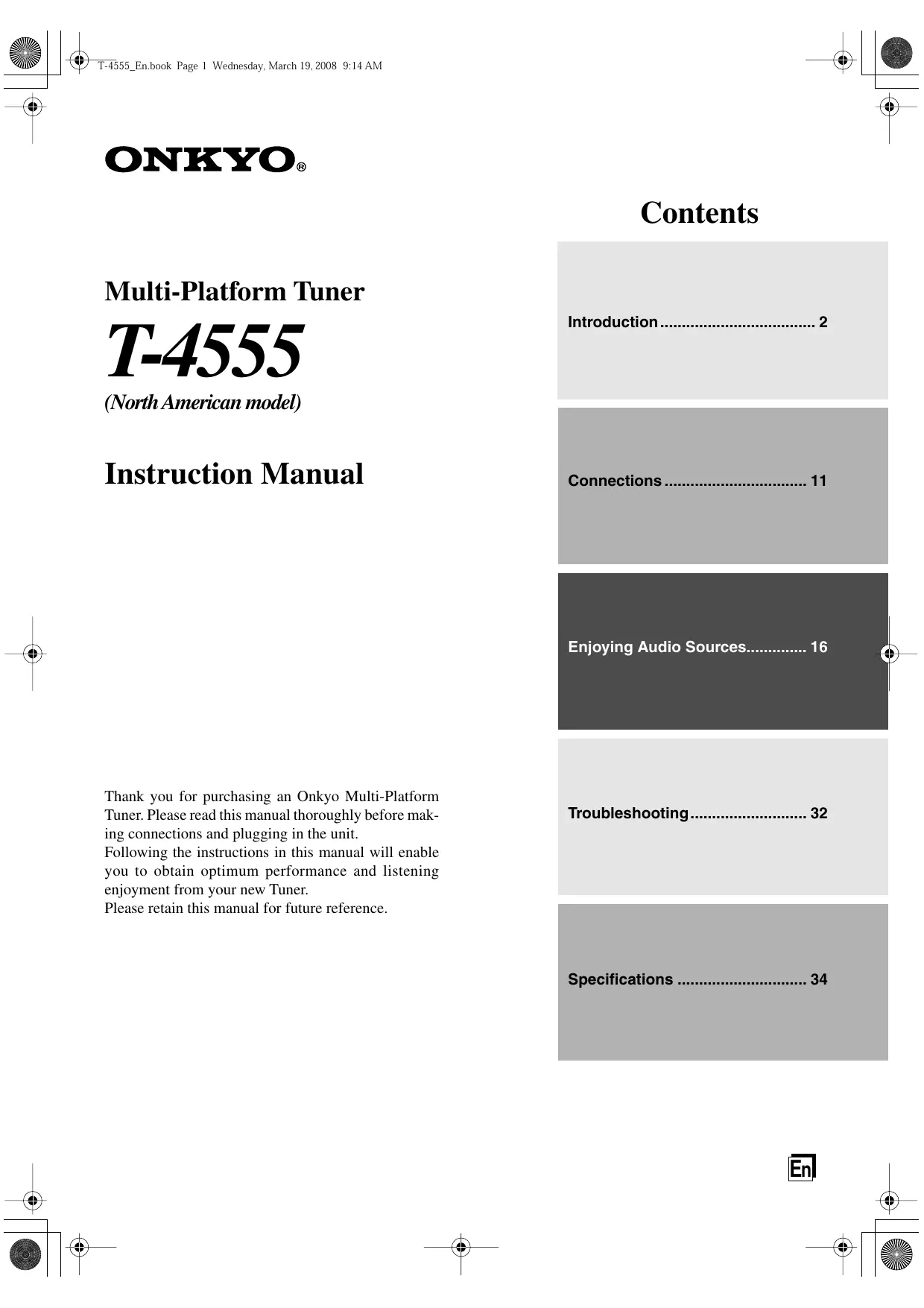


Download the instructions for your Récepteur audio in PDF format for free! Find your manual T-4555 - ONKYO and take your electronic device back in hand. On this page are published all the documents necessary for the use of your device. T-4555 by ONKYO.
USER MANUAL T-4555 ONKYO
SP) T-1555_En.book Page 1 Wednesday, March 19, 2008 9:14 AM ONKYO.:.
Multi-Platform Tuner
(North American model)
Thank you for purchasing an Onkyo Multi-Platform Tuner. Please read this manual thoroughly before mak- ing connections and plugging in the unit.
Following the instructions in this manual will enable you to obtain optimum performance and listening enjoyment from your new Tuner.
Please retain this manual for future reference.
Enjoying Audio Sources.
SP) T-1555_En.book Page 2 Wednesday, March 19, 2008 9:14 AM WARNING:
CAUTION: TO REDUCE THE RISK OF ELECTRIC SHOCK, DO NOT REMOVE COVER (OR BACK). NO USER-SERVICEABLE PARTS INSIDE. REFER SERVICING TO QUALIFIED SERVICE PERSONNEL.
RISK OF ELECTRIC SHOCX jai
DO HOT OP The lighining flash with arrowhead symbol, within an equilateral triangle, is intended to alert the user to the LN presence of uninsulated “dangerous voltage” within the products enclosure that may be of sufficient
magnitude to constitute a risk of electric shock 10 persons.
The exclamation point within an equilateral triangle is intended to alert the user to the presence of important operating and maintenance (servicing) instructions in
the literature accompanying the appliance.
Important Safety Instructions
Read these instructions.
Keep these instructions.
Follow all instructions.
Do not use this apparatus near water.
Clean only with dry cloth.
Do not block any ventilation openings. Install in
accordance with the manufacturer’s instructions.
. Do not install near any heat sources such as radia- tors, heat registers, stoves, or other apparatus (including amplifiers) that produce heat.
. Do not defeat the safety purpose of the polarized or grounding-type plug. A polarized plug has two blades with one wider than the other. A grounding type plug has two blades and a third grounding prong. The wide blade or the third prong are pro- vided for your safety. If the provided plug does not fit into your outlet, consult an electrician for replacement of the obsolete outlet.
10. Protect the power cord from being walked on or
pinched particularly at plugs, convenience recepta- cles, and the point where they exit from the appara- tus.
. Only use attachments/accessories specified by the manufacturer.
12. Use only with the cart, stand, tripod, bracket, or table spec- ified by the manufacturer, or sold with the apparatus. When a cart is used, use cau- tion when moving the cart/ apparatus combination to avoid injury from tip-over. Pen
. Unplug this apparatus during lightning storms or when unused for long periods of time.
14. Refer all servicing to qualified service personnel. Servicing is required when the apparatus has been damaged in any way, such as power-supply cord or plug is damaged, liquid has been spilled or objects have fallen into the apparatus, the apparatus has been exposed to rain or moisture, does not operate normally, or has been dropped.
15. Damage Requiring Service Unplug the apparatus from the wall outlet and refer servicing to qualified service personnel under the following conditions:
A. When the power-supply cord or plug is damaged,
B. If liquid has been spilled, or objects have fallen into the apparatus,
C. If the apparatus has been exposed to rain or water,
D. If the apparatus does not operate normally by following the operating instructions. Adjust only those controls that are covered by the operating instructions as an improper adjustment of other controls may result in damage and will often require extensive work by a qualified technician to restore the apparatus to its normal operation,
E. If the apparatus has been dropped or damaged in any way, and
FE When the apparatus exhibits a distinct change in performance this indicates a need for service.
16. Object and Liquid Entry Never push objects of any kind into the apparatus through openings as they may touch dangerous volt- age points or short-out parts that could result in a fire or electric shock.
The apparatus shall not be exposed to dripping or
splashing and no objects filled with liquids, such as
vases shall be placed on the apparatus.
Don't put candles or other burning objects on top of
17. Batteries Always consider the environmental issues and fol- low local regulations when disposing of batteries.
18. If you install the apparatus in a built-in installation, such as a bookcase or rack, ensure that there is ade- quate ventilation.
Leave 20 cm (8") of free space at the top and sides
and 10 cm (4") at the rear. The rear edge of the shelf
or board above the apparatus shall be set 10 cm (4")
away from the rear panel or wall, creating a flue-like
gap for warm air to escape.
SP T-1555_En.book Page 3 Wednesday, March 19, 2008 9:14 AM Precautions Î
1. Recording Copyright—Unless its for personal use For U.S. models only, recording copyrighted material is illegal with- FCC Information for User out the permission of the copyright holder.
2. AC Fuse—The AC fuse inside the unit is not user- serviceable. If you cannot turn on the unit, contact your Onkyo dealer.
3. Care—Occasionally you should dust the unit all over with a soft cloth. For stubborn stains, use a soft cloth dampened with a weak solution of mild detergent and water. Dry the unit immediately afterwards with a clean cloth. Don't use abrasive cloths, thinners, alco- hol, or other chemical solvents, because they may damage the finish or remove the panel lettering.
4. Power WARNING BEFORE PLUGGING IN THE UNIT FOR THE FIRST TIME, READ THE FOLLOWING SEC- TION CAREFULLY.
AC outlet voltages vary from country to country. Make sure that the voltage in your area meets the voltage requirements printed on the unit's rear panel
The user changes or modifications not expressly approved by the party responsible for compliance could void the user’s authority to operate the equipment.
This equipment has been tested and found to comply with the limits for a Class B digital device, pursuant to Part 15 of the FCC Rules. These limits are designed to provide reasonable protection against harmful interfer- ence in a residential installation.
This equipment generates, uses and can radiate radio frequency energy and, if not installed and used in accor- dance with the instructions, may cause harmful interfer- ence to radio communications. However, there is no guarantee that interference will not occur in a particular installation. If this equipment does cause harmful inter- ference to radio or television reception, which can be determined by turning the equipment off and on, the (e.8., AC 230 V, 50 Hz or AC 120 V, 60 Hz). user is encouraged to try to correct the interference by The power cord plug is used to disconnect this unit one or more of the following measures:
from the AC power source. Make sure that the plug + Reorient or relocate the receiving antenna.
is readily operable (easily accessible) at all times. + Increase the separation between the equipment and
For American Models Pressing the [STANDBY/ON] button to select Standby mode does not fully shutdown the unit. If
receiver. Connect the equipment into an outlet on a circuit dif- ferent from that to which the receiver is connected.
you do not intend to use the unit for an extended . period, remove the power cord from the AC outlet. Never Touch this Unit with Wet Hands—Never handle this unit or its power cord while your hands are wet or damp. If water or any other liquid gets inside this unit, have it checked by your Onkyo dealer.
If you need to transport this unit, use the original packaging to pack it how it was when you origi- nally bought it.
Do not leave rubber or plastic items on this unit for a long time, because they may leave marks on the case.
This unit’s top and rear panels may get warm after prolonged use. This is normal.
If you do not use this unit for a long time, it may not work properly the next time you turn it on, so be sure to use it occasionally.
Consult the dealer or an experienced radio/TV tech- nician for help.
NOTE: THIS CLASS B DIGITAL APPARATUS COMPLIES WITH CANADIAN ICES-003.
For models having a power cord with a polarized plug: CAUTION: TO PREVENT ELECTRIC SHOCK, MATCH WIDE BLADE OF PLUG TO WIDE SLOT, FULLY INSERT.
The T-4555 uses a battery-less memory backup system in order to retain radio presets and other settings when it's unplugged or in the case of a power failure. Although no batteries are required, the T-4555 must be plugged into an AC outlet in order to charge the backup system.
Once it has been charged, the T-4555 will retain the set- tings for several weeks, although this depends on the environment and will be shorter in humid climates.
à Cl | SP T-555_En.book Page 4 Wednesday, March 19, 2008 9:14 AM @
Features Supplied Accessories |
General Make sure you have the following accessories:
Q 12V trigger IN/OUT Q IR IN/OUT Q RS232 port for interface control Q Hi-rigidity, anti-resonant ch: Q Aluminum front panel
Q RI (Remote Interactive) capable
HD Radio and Satellite Radio Capability Remote controller and two batteries (AA/R6)
HD Radio reception XM Satellite Radio
Radio "rer Uner Ai cable (1)
License From iBiquity To use 1, the T-4555 must be connected with an R1 Digital Corporation. cable and an audio cable. d “iBiquity Digital” and the “HD Radio” and “HD” Symbols are registered trademarks of iBiquity Digital Corporation. “HD Radio” is a trademark of iBiquity Digital Corporation. U.S. and Foreign Patents. The XM name and related logos É = are registered trademarks of XM (mi) Satellite Radio Inc. READY Indoor FM antenna XM Ready®, XM Public Radio!" are trademarks of XM Satellite Radio Inc. ©2006 XM Satellite Radio
Inc. AI rights reserved. AIl other trademarks are the property of their respective owners.
“SIRIUS” and the SIRIUS dog logo are registered trademarks of SIRIUS SIRIUS Satellite Radio Inc.
Power cord Plug type varies from country to country.)
* In catalogs and on packaging, the letter added to the end of the product name indicates the color of the T-4555. Specifi- cations and operation are the same regardless of color.
SP T-555_En.book Page 5 Wednesday, March 19, 2008 9:14 AM Contents
Important Safety Instructions Precautions Feature Supplied Accessories Getting to Know the T-4555 Front Panel Display … Rear Panel … Remote Controller . Remote Controller Before Using the T-4555. Connecting the Supplied Power Cord..10 Installing the Batteries … Aiming the Remote Controller .
Connecting Antennas.….. Connecting the Indoor FM Antenna Connecting the AM Loop Antenna
Connecting the T-4555 . Connecting to an Amplifier About the System Functions Connecting the 12V Trigger Jacks Controlling Components That Are Out
Turni Radio Turning On the T-4555 Listening to AM and FM Radio. Tuning into Stations by Frequency Listening to XM Satellite Radi Listening to XM Satellite Radio®. Setting the Satellite Radio Mode Selecting XM Satellite Radio Signing Up for XM Satellite Radio . Selecting XM Radio Channels … Displaying XM Radio Information Positioning the XM antenna . Listening to SIRIUS Satellite Ra Listening to SIRIUS Satellite Radio® Setting the Satellite Radio Mode Selecting SIRIUS Satellite Radio Signing Up for SIRIUS Satellite Radio .23 Selecting SIRIUS Satellite Radio Channels
Enjoying Audio Sources
On and Listening to AM and FM Displaying SIRIUS Satellite Radio Information . . Positioning the SiriusConnect Home Tuner. Parental Lock . Changing the PIN Number. Listening to HD Radio" Stations About HD Radio Stations … Selecting Multicast Channels. Selecting the Audio Format (Blend Mode) .. Displaying HD Radio Information Using RDS... Displaying RDS Informatioi Using Presets … Presetting Your Favorite Stations Selecting Presets Deleting Presets Changing the Remote ID.
Troubleshooting.. 32
If you can't resolve an issue, try resetting the 4555 by holding down the [MEMORY] button and pressing the [STANDBY/ON] button.
SP T-555_En.book Page 6 Wednesday, March 19, 2008 9:14 AM Getting to Know the T-4555
For detailed information, refer to the pages in parentheses.
@ STANDBY/ON button (16) Sets the T-4555 to On or Standby. @ STANDBY indicator (16) Lights up when the T-4555 is on Standby. @ CATEGORY [A]/[v] buttons (20, 24, 29) Used to select categories for satellite radio. With HD Radio stations, they’re used to select multicast channels. @ PRESET [4]/{v] buttons (30) Used to select radio presets. @® DIMMER button (7) Adjusts the display brightness. © DISPLAY button (21, 25, 29) Used to view various information on the display. @ BAND button (16, 19, 23) Used to select radio bands, AM, FM, and so on. © TUNING/CH [-4]/L»>] buttons (16, 20, 24) With AM and FM, these buttons are used for tuning. With Satellite Radio, they're used to select stations.
© AUTO SCAN button (29, 30) Starts the Auto Scan function, which selects and outputs each radio preset in turn for 5 seconds. 4 Remote control sensor (10) Receives control signals from the remote controller. @ Display See the next page. @ MEMORY button (30) Used to store and delete radio presets. @ TUNING MODE button (16, 20, 24) With AM and FM, this button selects the Auto or Manual tuning mode. With Satellite Radio, it selects the search modes.
SP T-A555_En.book Page 7 Wednesday, March 19, 2008 9:14 AM Getting to Know the T-4555—Continued
Display D DOG © © © ®6 LI | Sono IE @ SIRIUS € Message area
A box appears around this indicator when SIRIUS Satellite Radio is selected.
© xM A box appears around this indicator when XM Sat- ellite Radio is selected.
© FM A box appears around this indicator when FM is selected.
@ AM A box appears around this indicator when AM is selected.
@ HD Radio A box appears around this indicator when the HD Radio band is selected.
© RDS Lights up when tuned to an FM radio station that supports RDS (Radio Data System).
@ STEREO Lights up when radio reception is in stereo.
© MONO Lights up when radio reception is in mono.
@) HD Radio indicators
DIGITAL: Lights up when a digital HD Radio transmission is being received.
ANALOG: Lights up when an analog HD Radio transmission is being received. © > HD TUNED « The» TUNED 4 indicator lights up when prop- erly tuned to a radio station. During Auto Tuning, the Tuning Arrows flash. When tuned to an HD Radio station, the indicator appears as > HD TUNED «4. @ AUTO Lights up when Auto Tuning mode is selected. @ MEMORY Lights up when presetting radio stations.
Various information is displayed here, including radio preset numbers, tuning frequency, and so on.
Setting the Display Brightness
With this function, you can adjust the brightness of the display.
me Press the [DIMMER] button repeatedly to select: dim, dim- mer, or normal brightness. Alternatively, you can use the [DIM-
Remote controller MER] button on the tuner.
SP T-4555_En.book Page 8 Wednesday, March 19, 2008 9:14 AM Getting to Know the T-4555—Continued
For detailed information, refer to the pages in parentheses.
@ SIRIUS ANTENNA (22) This jack is for connecting the SiriusConnect receiver (not supplied). © XM ANTENNA (18) This jack is for connecting the XM Mini-Tuner (not supplied). FM 75Q ANTENNA (11) This jack is for connecting the supplied indoor FM antenna or an outdoor FM antenna. @ AM ANTENNA (11) These terminals are for connecting the supplied AM loop antenna or an outdoor AM antenna. @ AUDIO OUTPUT (13) Using the supplied audio cable, connect these out- put jacks to an analog audio input on your amp.
@ R1 REMOTE CONTROL (13)
These two identical R1 (Remote Interactive) jacks can be connected to the fR1 jacks on your other Onkyo components for interactive control. To use Ri, the T-4555 must be connected with an R1 cable and an audio cable.
12V TRIGGER IN/OUT (14)
The 12V TRIGGER IN jack can be connected to the 12-volt trigger output on another component, so that when the other component is turned on, the T-4555 turns on as well.
The 12V TRIGGER OUT jack can be connected to the 12-volt trigger input on another component, so that when the T-4555 is turned on, the other compo- nent turns on as well.
A commercially available IR receiver can be con- nected to the IR IN jack, allowing you to control the T-4555 while you're in another room, or control it when is out of sight, for example, installed in a cabinet.
À commercially available IR emitter can be con- nected to the IR OUT jack to pass IR (infrared) remote control signals through to other components. RS232
This port is for connecting the T-4555 to home automation equipment and external controllers.
The power cord should be connected to a suitable wall outlet.
(see pages 13-15 for connection information. )
à Cl | SP) T-555_En.book Page 9 Wednesday, March 19, 2008 9:14 AM @
@ STANDBY/ON button (16) F7 Sets the T-4555 to On or Standby. @) Number buttons (17, 20, 24, 31) Eæ Used to select radio presets by number, and to enter O! +) AM/FM station frequencies and Satellite Radio
channel numbers in Direct Tuning mode.
© DIRECT TUNING button (17, 20, 24)
Selects the Direct Tuning mode. With AM and FM, you can select a station directly by entering its fre- quency. With Satellite Radio, you can select a sta- tion directly by entering its channel number.
@ RETURN button Returns to the previous display.
@ Arrow [aV/[v]/[<}J/H>] buttons (19-28, 31)
With AM and FM, the Up and Down [AJ/v] but-
tons are used for tuning. With Satellite Radio, the
Up and Down [4 J/[v] buttons are used to select
The Left and Right [4]/[&] buttons are used to
© PRESET [+}/[-] buttons (30)
Used to select radio presets.
@ AUTO SCAN button (29, 30) & Starts the Auto Scan function, which selects and outputs each radio preset in turn for 5 seconds.
@) BAND button (16, 19)
ONKYO Used to select radio bands, AM, FM, and so on. RGS7IT © DISPLAY button (21, 25, 29)
Used to view various information on the display.
LOT) Lo D © DIMMER button (7) Adjusts the display brightness.
@) ENT and ENTER buttons (19-28, 31) Used to confirm various functions and settings. Also used to select secondary multicast channels with HD Radio stations. @ SETUP button (19, 21, 23, 25-27, 31) Selects Setup mode. € TUNING/CH [<4J/f>] buttons (16) With AM and FM, these buttons are used for tuning. With Satellite Radio, they're used to select stations. @ TUNING MODE button (16, 20, 24) With AM and FM, this button selects the Auto or
Manual tuning mode. With Satellite Radio, it selects the search modes.
SP T-1555_En.book Page 10 Wednesday, March 19, 2008 9:14 AM Before Using the T-4555
Connecting the Supplied Power Cord
Plug the supplied power cord into this AC INLET.
+ Do not use a power cord other than the one supplied with this tuner. It's designed exclusively for use with this tuner and should not be used with any other com- ponent.
Never disconnect the power cord from the tuner while the other end is still plugged into a wall outlet. Doing so may cause an electric shock. Always disconnect the power cord from the wall outlet first.
DO NOT connect the power cord at this time.
(FE Power cord (supplied)
Installing the Batteries
1 Openthe battery compartment, as shown.
2 Insert the two supplied batteries (AA) in accordance with the polarity diagram inside the battery compartment.
If the remote controller doesn’t work reliably, try replacing the batteries.
Don't mix new and old batteries or different types of batteries.
If you intend not to use the remote controller for a long time, remove the batteries to prevent damage from leakage and corrosion.
Flat batteries should be removed as soon as possible 10 prevent damage from leakage and corrosion.
Aiming the Remote Controller
When using the remote controller, point it toward the T-4555’s remote control sensor, as shown below.
Remote control sensor
+ The remote controller may not work reliably if the T-4555 is subjected to bright light, such as direct sun- light or inverter-type fluorescent lights. Keep this in mind when installing.
If another remote controller of the same type is used in the same room, or the T-4555 is installed close to equipment that uses infrared rays, the remote control- ler may not work reliably.
Don't put anything, such as a book, on the remote controller because the buttons may be pressed inad- vertently, thereby draining the batteries.
The remote controller may not work reliably if the T-4555 is installed in a rack behind colored glass doors. Keep this in mind when installing.
The remote controller will not work if there's an obstacle between it and the T-4555’s remote control sensor.
à Cl | SP T-555_En.book Page 11 Wednesday, March 19, 2008 9:14 AM @
This section explains how to connect the supplied ñ indoor FM antenna and AM loop antenna, and how to Connecting the AM Loop Antenna connect commercially available outdoor FM and AM The supplied indoor AM loop antenna is for indoor use antennas. only.
FM antenna jack 1 Assemble the AM loop antenna, inserting
the tabs into the base, as shown.
AM antenna terminals
2 Connect both wires of the AM loop = antenna to the AM terminals, as shown. Connecting the Indoor FM Antenna (The antenna’s wires are not polarity sensitive, so they can be connected either way around). Make sure that the wires are attached securely and
1 Attach the FM antenna, as shown. that the terminals are gripping the bare wires, not the insulation.
The supplied indoor FM antenna is for indoor use only.
Insert the plug fully [ [ ii ie jack > D Once the T-455$ is ready for use, you’Il need to 1.Openthe 2.Insertthe 3. Close the tune into an FM radio station and adjust the posi- lever. wire. lever. & tion of the FM antenna to achieve the best possi- Ÿ ») ble reception. 2 Use thumbtacks or something similar to (se
fix the FM antenna into position.
Once the T-4555 is ready for use, you’Il need to tune into an AM radio station and adjust the posi- tion of the AM antenna to achieve the best possi- ble reception.
Keep the antenna as far away as possible from the Thumblacks, etc. T-4555, TV, speaker cables, and power cords.
If you cannot achieve good reception with the supplied indoor AM loop antenna, try using it with a commer- cially available outdoor AM antenna.
Caution: Be careful that you don’t injure your- self when using thumbtacks.
If you cannot achieve good reception with the supplied indoor FM antenna, try using a commercially available outdoor FM antenna instead.
SP T-1555_En.book Page 12 Wednesday, March 19, 2008 9:14 AM Connecting Antennas—Continued
Connecting an Outdoor FM Antenna
Connecting an Outdoor AM Antenna
If you cannot achieve good reception with the supplied indoor FM antenna, try a commercially available out- door FM antenna instead.
Outdoor FM antennas work best outside, but usable
results can sometimes be obtained when installed in
For best results, install the outdoor FM antenna well away from tall buildings, preferably with a clear line of sight to your local FM transmitter.
Outdoor antenna should be located away from possi-
ble noise sources, such as neon signs, busy roadk, etc.
For safety reasons, outdoor antenna should be situ- ated well away from power lines and other high-volt- age equipment.
Outdoor antenna must be grounded in accordance with local regulations to prevent electrical shock haz- ards.
Æ Using a TV/FM Antenna Splitter IEs best not to use the same antenna for both FM and TV reception, as this can cause interference problems. If
circumstances demand it, use a TV/FM antenna splitter, as shown.
TV/FM antenna splitter
To T-4555 To TV (or VCR)
If good reception cannot be achieved using the supplied AM loop antenna, an outdoor AM antenna can be used in addition to the loop antenna, as shown.
À Insulated antenna cable AM loop antenna
Outdoor AM antennas work best when installed hori- zontally outside, but good results can sometimes be obtained indoors by mounting horizontally above a win- dow. Note that the AM loop antenna should be left con- nected.
Outdoor antenna must be grounded in accordance with local regulations to prevent electrical shock hazards.
à Cl | SP T-1555_En.book Page 13 Wednesday, March 19, 2008 9:14 AM @
Connecting the T-4555 |
[ ; . à Before Making Any Connections RCA Audio Connection Color Coding + _Refer to the instructions that came with the com- + Red plugs are used for the right channel, white ponent you are connecting. plugs are used for the left channel. + Do not plug in the power cord until all other con- : nections are complete. Left (white) L + Do not bind audio cables with power cords and > —<. speaker cables. Doing so may adversely affect the
sound quality. ght (red) R To prevent interference, keep power cords and speaker cables as far away as possible from the
Push each plug in all the way to make a good con- antennas. nection (loose connections can cause noise or mal- functions).
Connecting to an Amplifier About the System Functions Use the supplied audio cable to connect the T-4555's If you connect the T-4555 to another Onkyo R1-capa- AUDIO OUTPUT L/R jacks to the TUNER IN jacks on ble component with the supplied R1 cable and audio | your amplifier, as shown. cable, you can use the following system functions. RI & To use the A1 system functions, use the supplied 1 cables are special cables solely for use with Onkyo Î cable to make an 1 connection (see the next column). products.
When you turn on the T-4555, your Onkyo amplifier will turn on automatically. (The amplifier”s POWER switch must be set to ON for this to work.)
When you select a radio preset or change the band (AM, FM, etc.), your Onkyo amplifier will automatically select the T-4555 as the input source.
Remote Control Operation
You can control the T-4555 by using your Onkyo ampli- fiers remote controller. See the amplifier’s instruction manual for details.
cable Supplied R1 cable
+_Ifthe T-4555 is used with another Onkyo component, such as the A-9555, refer to its instruction manual as well.
SP T-1555_En.book Page 14 Wednesday, March 19, 2008 9:14 AM Connecting the T-4555—Continued
With R1 (Remote Interactive), you can control your R1-capable Onkyo CD player, T-4555, and so on with your amp’s remote controller.
To use R1, you must make an analog audio con- nection between your amplifier and each audio component.
Onkyo amplifier (A-9555), etc.
Onkyo CD player | F1 jack (DX-7555), etc.
Connecting the 12V Trigger Jacks
To have the T-4555 turn on automatically when another component is turned on, connect the T-4555°s 12V TRIGGER IN jack to a 12-volt trigger output on the other component with a miniplug cable.
Likewise, to have another component turn on automati- cally when the T-4555 is turned on, connect the T-4555* 12V TRIGGER OUT jack to a 12-volt trigger input on the other component with a miniplug cable.
Amplifier, AV receiver, etc.
Push each plug in all the way to make a good connec- tion.
Use only dedicated R1 cables for R1 connections. A1 cables are supplied with Onkyo tuners and play- ers (DVD, CD, etc.). Some components, including the T-4555, have two fRI jacks. They're both the same, so use either one. 1 jacks should be connected only to Onkyo compo- nents. Connecting them to another manufacturer’s component may cause a malfunction.
Some components may not support all F1 functions. See the manuals supplied with your other Onkyo components for more information.
SP T-1555_En.book Page 15 Wednesday, March 19, 2008 9:14 AM Connecting the T-4555—Continued
Controlling Components That Are Out of Range
You can use the following multiroom kits to control the T-4555 when it's out of range of the remote controller:
+ Multiroom kits such as those made by Niles® and Xantech®.
Controlling the T-4555 When It's Out of Range
If the T-4555 is located in another room, installed in a
cabinet, or out of range of its remote controller, you can
use a commercially available IR receiver to pickup the remote controller signals and feed them to the T-4555, as shown below.
Connect the IR receiver to the T-4555 as shown below.
From the connecting block
Controlling Other Out-of-range Components
If another component is out of range of its remote con- troller, you can use a commercially available IR emitter 10 retransmit the remote controller signals received at the T-4555°s IR IN, as shown below.
Connect the IR emitter to the T-4555°s IR OUT, and place the IR emitter in front of the other component’s remote control sensor (usually located on its front panel), as shown below. See the instructions supplied with the IR emitter.
Other component Remote
From the connecting block
{ IR Emitter = Miniplug cable L Miniplug | Eu Π"TR Emitter
T-4555 = Signal flow
Only remote controller signals received by the T-4555°s IR IN are fed through to the IR OUT. Signals picked up by the T-4555’s remote control sensor are not output.
SP T-1555_En.book Page 16 Wednesday, March 19, 2008 9:14 AM Turning On and Listening to AM and FM Radio
STANDBY/ON — TUNING/CH »-
Listening to AM and FM Radio
Press the [BAND] button repeat-
1 Connect the power cord to a suit- able wall outlet.
Press the [STANDBY/ON] button on the T-4555 or remote control- ler.
The T-4555 turns on, and the STANDBY indicator goes off.
ISTANDB Y/ON] button. The T-4555 will enter Standby mode.
Note that the T-4555 is not completely shutdown in Standby mode.
edly to select AM or FM. The (FI or [F1] indicator lights up.
Press the [TUNING MODE] but- De ton repeatedly to select Auto or
Manual Tuning mode. + Auto Tuning Mode The AUTO indicator appears and
stereo radio reception is possible. Manual Tuning Mode
The AUTO indicator disappears and radio reception will be in mono.
Remote controller TUMNGMODE .
Use the TUNING/CH [-«]/[b>] but- tons to tune into a station.
In Auto Tuning mode, once a station is found, tuning stops automatically. This model changes FM frequency in 0.2 MHz steps, 10 kHz steps for AM. In Manual Tuning mode, the frequency stops changing when you release the buttons. Press the buttons repeatedly to change the frequency one step at a time.
TUNING/CH When tuned into a station, the > TUNED 4 indicator appears.
Tuning into weak stereo FM stations
If the signal from a stereo FM station is weak, it may be impossible to get good reception. In this case, switch to Manual Tuning mode and listen to the station in mono.
à Cl | SP T-1555_En.book Page 17 Wednesday, March 19, 2008 9:14 AM @
Turning On and Listening to AM and FM Radio—Continued
Tuning into Stations by Frequency
You can tune into AM and FM stations directly by entering the appropriate frequency.
Number buttons 1 Press the [DIRECT TUNING] but-
2 Within 8 seconds, use the num- ber buttons to enter the fre- quency of the radio station.
ee For example, to tune into an FM sta- DOC ionat 87.5 MHz, press [8], [7], and OS (65! (a) CN Adjusting the Antennas
Adjusting and installing the FM antenna Adjusting the AM antenna
Choose a location for the FM antenna while Adjust the location and position of the
listening to an FM station. AM antenna while listening to an AM sta-
tion to achieve the best possible reception.
Change the direction of the Affix the antenna with a thumbtack. (Do not antenna to achieve the best push the thumbtack through the antenna.) 27 possible reception. Caution: Be careful not to prick your finger!
à Cl | SP T-1555_En.book Page 18 Wednesday, March 19, 2008 9:14 AM @
Listening to XM Satellite Radio Ï
Connecting the XM Mini-Tuner and Home Dock
To receive XM Satellite Radio, you need an XM Mini- Tuner and Home Dock, which includes a home antenna. These are sold separately. For connection information, refer to the instruction manual supplied with the XM Mini-Tuner and Home Dock.
Listening to XM Satellite Radio®
(important XM Radio Information à XM Satellite Radio offers an extraordinary variety of commercial-free music, plus the best in sports, news, talk and entertainment. XM is broadcast in superior digital audio from coast to coast. From rock to reggae, from classical to hip hop, XM has something for every music fan, XM's dedication to playing the richest selection of music is matched by its passion for live sporting events, talk radio, up-to- the-minute news, stand-up comedy, children’s pro- gramming, and much more. For US. customers, information about XM Satellite Radio is available online at www.xmradio.com. For Canadian custom- ers, information about XM Canada is online at
www.xmradio.ca. L ) /
Note: Hardware and required monthly subscription sold sepa- rately. Other fees and taxes, including a one-time activa- tion fee may apply. Subscription fee is consumer only. All fees and programming subject to change. Channels with frequent explicit language are indicated with an XL. Channel blocking is available for XM radio receiv- ers by calling 1-800-XMRADIO (US residents) and & 1-877-GET-XMSR (Canadian residents). 7 For a full listing of the XM commercial-free channels and advertising-supported channels, visit lineup.xmra- dio.com (US residents) or xmradio.ca (Canadian resi- dents). Subscriptions subject to Customer Agreement available at xmradio.com (US residents) and xmradio.ca (Cana- dian residents). Only available in the 48 contiguous United States and Canada. ©2006 XM Satellite Radio Inc. All rights reserved. AII other trademarks are the property of their respective owners A warning against reverse engineering: Itis prohibited to copy, decompile, disassemble, reverse engineer, or manipulate any technology incorporated in receivers compatible with the XM Satellite Radio sys- tem. Furthermore, the AMBE® voice compression soft- ware included in this product is protected by intellectual property rights including patent rights, copyrights, and trade secrets of Digital Voice Systems, Inc. The user of this or any other software contained in an XM Radio is explicitly prohibited from attempting to copy, decom- pile, reverse engineer, or disassemble the object code, or in any other way convert the object code into human- readable form. The software is licensed solely for use within this product.
SP T-1555_En.book Page 19 Wednesday, March 19, 2008 9:14 AM Listening to XM Satellite Radio—Continued
BAND SETUP ENTER SUVALS Selecting XM Satellite Radio
Press the [BAND] button repeat- edly to select XM.
If “CHECK ANTENNA” appears on the display, make sure the XM Mini- Tuner is connected properly.
SETUP Press the [SETUP] button.
Use the Left and Right Arrow [-@Y/»] buttons to select “XM" If you”ve not using satellite radio, select None.
SETUP Press the [SETUP] button.
Signing Up for XM Satellite Radio
Once you have installed the XM Mini-Tuner and Home
Dock, you are ready to subscribe to XM Satellite Radio.
You’Il need a major credit card and your XM Radio ID. There are three places you can find your 8-character XM Radio ID:
1. On the XM Mini-Tuner
2. On the XM Mini-Tuner packaging
3. On XM Channel 0, as explained below
1 Use the Up and Down Arrow [AYIW] buttons to select “RADIO ID”
Alternatively, press the [DIRECT TUNING] button, followed within 8 seconds by the [0] button and [ENTER] button.
Your XM Satellite Radio ID number is displayed. Write it below.
For XM Canada, go to:
+ RADIO ID cannot be selected in Category Search mode. You must select Channel Search mode (see page 20).
The following letters are not used in XM Satellite Radio IDs: I, O,S,F.
XM Satellite Radio will transmit a special signal to the T-4555 to activate the full channel lineup. Activa- tion normally takes between 10 and 15 minutes, but during busy peak periods, you may need to leave the T-4555 turned on for up to an hour.
à Cl | SP T-1555_En.book Page 20 Wednesday, March 19, 2008 9:14 AM @
Listening to XM Satellite Radio—Continued
Category Search Mode
crcorr Use the T-4555’s [CATEGORY] =) [AW] buttons, or remote con- Number buttons 5 troller's Left and Right [-{]/[b-] buttons to select a category, and DIRECT TUNING = nm > use the T-4555’s TUNING/CH RETURN [-@}/D»-] button, or remote con- [-—- ENTER troller’s Up and Down Arrow PT VAL [A YTW] buttons to select a chan- ES TUNING/CH -«/ > Remote controller nel in that category. "11- TUNING MODE en 0 û)
CT Selecting XM Radio Channels
There are three ways to select XM Radio channels: 7 + Channel Search mode: select any channel.
+ Category Search mode: select channels by category. Direct Tuning + Direct tuning: enter channel number. You can select an XM Radio channel directly by enter- ing its number with the remote controller. Channel Search Mode 1 Press the [DIRECT TUNING] but- Remote controller ON. 1 sw | Press the [TUNING MODE] but- ener ton to select Channel Search mode. Hi Remote controller TUNING MODE … : : Within 8 seconds, use the num- , ii = ber buttons to enter the channel number. For example, to select channel #20, 2 Use the T-4555's TUNING/CH press [OI, [2], and [0], or press [2], [0], nn — [7/1] button, or remote con- and [ENTER]. troller’s Up and Down Arrow où Se LAYLY] buttons to select a chan-
nel. Remote controller You can also use the remote control- Gr) (ae) ler’s Left and Right Arrow [-@{]/[b>]
0 f) buttons to select a category.
Selecting the Previous Channel To listen to the previously selected XM channel, press the [RETURN] button.
à Cl | SP T-1555_En.book Page 21 Wednesday, March 19, 2008 9:14 AM @
Listening to XM Satellite Radio—Continued
NO SIGNAL DISPLAY DISPLAY The signal is too weak. Check the XM Mini-Tuner and/or antenna connection and reposition it for the best reception. LOADING The T-4555 is tuning or decoding audio or text data. Please wait. OFF AIR The XM channel you selected is not currently broad- casting. Select another channel.
Positioning the XM antenna
You can check the signal strength of the XM Radio sig- nal and adjust the position of the XM antenna accord- ingly.
Displaying XM Radio Information LS Press the [SETUP] button.
Press the [DISPLAY] button repeatedly to cycle Er through the available information.
Channel name E L Fe 2 Use the Up and Down Arrow Ÿ Channel number Remote controller [ À ]/[ W] buttons to select ( “Antenna Aiming;’ and then } Channelnumber € n > d @ & preset number ï û press [ENTER]. rs ” : Category L . 3 Adjust the position of the XM : antenna so that the satellite Artist name (SAT) signal strength bar is as long as possible. Song title _. k 1
If you can't receive the satellite (SAT) Note: signal, adjust your XM antenna so that the terrestrial (TER) signal strength bar is as long as possible. Press the Down Arrow [ #] button to display the terrestrial (TER) signal bar. Terrestrial signals are only available in certain areas.
If the category, artist, or song title is not available,
“- -" will be displayed instead.
The following messages may appear while using XM Radio.
CHECK ANTENNA The XM Mini-Tuner and/or antenna is not connected properly. Check the connection.
UPDATING - The XM user encryption code is being updated. Please So long as the signal strength is good, wait. you can enjoy XM Radio by using
either satellite or terrestrial reception.
SP T-1555_En.book Page 22 Wednesday, March 19, 2008 9:14 AM Listening to SIRIUS Satellite Radio
Listening to SIRIUS Satellite Radio®
Important SIRIUS Satellite Radio Information SIRIUS is available in the US for subscribers with addresses in the continental US and is available in Canada for subscribers with a Canadian address. To Get SIRIUS Satellite Radio a subscription and com- patible tuner and antenna are required and sold sep- arately. Visit sirius.com for the most complete and up-to-date channel lineup and information.
Hardware and required basic monthly subscription sold separately. Installation costs and other fees and taxes, including a one-time activation fee may apply. Sub- scription fee is consumer only. All fees and program- ming subject to change.
What is SIRIUS Satellite Radio?
Simply The Best Radio on RadioTM with all your favor- ite entertainment including 100% commercial-free music, plus superior sports coverage, uncensored talk and comedy, world-class entertainment, news, weather and more for your car, home or office. For more infor- mation visit sirius.com or siriuscanada.ca
A warning against reverse engineering:
Itis prohibited to copy, decompile, disassemble, reverse engineer, or manipulate any technology incorporated in receivers compatible with the SIRIUS Satellite Radio system.
SSIRIUS” and the SIRIUS dog logo are registered trademarks of SIRIUS SIRIUS Satellite Radio Inc.
Setting Up the SiriusConnect"" Home Tuner
The optional SiriusConnect Home tuner kit includes everything for easy home installation, including the Sir- iusConnect receiver, indoor/outdoor antenna with 21- foot cable, 8-pin mini DIN connector cable, and an AC power adapter. See the SiriusConnect Home tuner's instructions for more information.
Use the 8-pin mini DIN connector cable to connect the SiriusConnect receiver to the SIRIUS antenna jack on the rear of the T-4555.
Indoor/outdoor antenna J with 21-foot cable SiriusConnect
receiver j” AC power /
8-pin mini DIN connector cable
To use the included antenna indoors, you must place it at a north-, west-, or east-facing window, depending on where you live. If this isn’t possible, you’ll need to install it outside, away from any overhead obstructions.
Positioning the Antenna
For a consistent satellite signal, the antenna must be positioned correctly. Use the following map to deter- mine which area you are in and position the antenna accordingly.
WEST Re HORIZON SOUTH Area 1: Point the antenna toward the sky in the east, northeast, or southeast, either through a window or outside.
Area 2: Point the antenna toward the sky in the north or northeast, either through a window or outside.
Area 3: Point the antenna toward the sky in the north or northwest, either through a window or outside.
Area 4: Point the antenna toward the sky in the west, northwest, or southwest, either through a window or outside.
Area 5: Put the antenna outside and point it straight up. The antenna cannot be used indoors.
SP T-555_En.book Page 23 Wednesday, March 19, 2008 9:14 AM Listening to SIRIUS Satellite Radio —Continued
BAND SETUP ENTER SUVALS Press the [BAND] button repeat-
Selecting SIRIUS Satellite Radio edly to select SIRIUS. If “CHECK SR TUNER” appears on
the display, make sure the SiriusCon-
Remote controller. nect Receiver is connected properly.
BAND Setting the Satellite Radio Mode
1 Press the [SETUP] button.
SETUP Use the Up and Down Arrow Remote controller [A ]/[W] buttons to select “SAT Radio Mode,” and then press CD p
Use the Left and Right Arrow Remote controller [-@]/[b-] buttons to select “SIR-
SETUP Signing Up for SIRIUS Satellite Radio
Before you can use SIRIUS Satellite Radio, you must first sign up for an account, You’Il need a major credit card and your SIRIUS Satellite Radio ID, which you can get from the T-4555, as explained below, or from the SiriusConnect Home tuner package.
1 Use the Up and Down Arrow [AYIW] buttons to select “RADIO ID”
Alternatively, press the [DIRECT TUNING] button, followed within 8 seconds by the [0] button and ENTER] button.
Your SIRIUS Satellite Radio ID num- ber is displayed. Write it below.
2 To sign up, go to: http://activate.siriusradio.com Or call: 1-888-539-SIRIUS (7474)
Note: +_ After you”ve activated your subscription with SIRIUS Satellite Radio, your SIRIUS Satellite Radio ID num- ber will no longer be displayed when you select chan- nel 0. To check your ID, you’Il need to; press the [SETUP] button, select “SiriusID” with the Up and Down [A J/[ ] buttons, and then press [ENTER]. Press the [SETUP] button when you've finished.
SP T-1555_En.book Page 24 Wednesday, March 19, 2008 9:14 AM Listening to SIRIUS Satellite Radio—Continued
— TUNING/CH D TUNNG MODE
Remote controller TUMNGUODE
[-@}/D»-] button, or remote con-
[-—- ENTER troller’s Up and Down Arrow CT VILS LA Y[W] buttons to select a chan- — TUNING/CH -«/» Remote controller nel in that category. | TUNING MODE = 0 û) CT Selecting SIRIUS Satellite Radio Channels | @ There are three ways to select SIRIUS Satellite Radio Di Tuni Î channels: irect Tuning
+ Channel Search mode: select any channel. + Category Search mode: select channels by category. + Direct tuning: enter channel number.
You can select a SIRIUS Satellite Radio channel directly by entering its number with the remote control- ler.
Remote controller ON.
1 ww" Press the [TUNING MODE] but- ton to select Channel Search ” mode. Remote controller 2 Within 8 seconds, use the num- (run AE, Remote controller ber buttons to enter the channel
Use the T-4555’s TUNING/CH
[7/0] button, or remote con- troller’s Up and Down Arrow
[AY W] buttons to select a chan- nel.
You can also use the remote control- ler’s Left and Right Arrow [<{J/[B>] buttons to select a category.
For example, to select channel #20, press [0], [2], and [0], or press [2], [0], and [ENTER].
Q Selecting the Previous Channel To listen to the previously selected SIRIUS Satellite channel, press the [RETURN] button.
SP T-1555_En.book Page 25 Wednesday, March 19, 2008 9:14 AM Listening to SIRIUS Satellite Radio —Continued
DISPLAY DISPLAY Displaying SIRIUS Satellite Radio Information
Press the [DISPLAY] button repeatedly to cycle through the available information.
If the category, artist, or song title is not available, “__" will be displayed instead,
= SIRIUS Satellite Radio Messages
The following messages may appear while using SIRIUS Satellite Radio.
ACQUIRING The SiriusConnect receiver is acquiring the signal or no signal is present. Make sure the SiriusConnect Home tuner is connected properly and that there are no obsta- cles close by.
ANTENNA ERROR Make sure the SiriusConnect Home tuner is connected properly.
SUB UPDATED Displayed while your subscription is being updated. No
operations can be performed until this message has cleared.
Displayed while the channel map is being updated. Wait
until the updating is complete.
UPDATING Displayed while the SiriusConnect receiver’s firmware is being updated.
INVALID CHANNEL Displayed if you select an unavailable channel.
CALL SIRIUS Displayed when you select a channel to which you are not subscribed. Call SIRIUS if you want to subscribe.
CHECK SR TUNER Displayed if the SiriusConnect receiver is not con- nected. Make sure the SiriusConnect receiver is con- nected properly, and make sure its AC adapter is plugged in.
Positioning the SiriusConnect Home Tuner
You can check the signal strength of the SIRIUS Satel- lite Radio signal and adjust the position of the Sirius- Connect Home antenna accordingly.
1 Press the [SETUP] button. Remote controller
SETUP 2 Use the Up and Down Arrow
Remote controller [ À ]/[ W] buttons to select “Antenna Aiming;’ and then
3 Adjust the position of the indoor/outdoor antenna con- nected to the SiriusConnect receiver so that the satellite (SAT) signal strength bar is as long as possible.
à Cl | SP T-1555_En.book Page 26 Wednesday, March 19, 2008 9:14 AM @
Listening to SIRIUS Satellite Radio—Continued
If you cannot receive a satellite signal, 3 Press the [DIRECT TUNING] but-
press the Down [ W] button to display Remote controller 21» and then use the number
the terrestrial (TER) signal strength Dncer buttons to enter the PIN number. RENE
meter and adjust your antenna so that the bar is as long as possible.
Terrestrial signals are only available in certain areas.
(>) So long as the signal strength is good,
you can enjoy SIRIUS Satellite Radio
Use the Left and Right [-«]/[b-] by using either satellite or terrestrial ED butons “ grange “e number ï isplaye ween the angle tion. FESpEor 0 f) brackets < >, and then press [ENTER]. Repeat this for each digit in the PIN number.*
4 Use the Up and Down Arrow Remote controller [ À J/[ W] buttons to select the ES channel that you want to lock
Number buttons {) out, for example:
DIRECT TUNING SETUP à ou Tr ! ENTER &
5 Press the Left and Right Arrow Remote controller [-@]/[B-] buttons so that an aster- =S isk appears next to the name, as {) Shown below, and then press
You can lock out channels that you do not want to
receive. The message “Locked” will appear on
the display. 1 Press the [SETUP] button. Cher Press the [SETUP] button. SETUP Remote controller. Setup closes. sETuP Use the Up and Down Arrow Remote controller [ À JW] buttons to select * The default number is “0000.” If you want to change the “Parental Lock,’ and then press default setting, see “Changing the PIN Number” (=) [ENTERI. below. û ©) f “Lock: <0>" appears on the dis- play. To unlock a previously locked channel, select the
locked channel (see step 1-4), press the Left and Right [-@]/D] buttons so that the asterisk disappears (see
- step 5), and then press [ENTER]. The message ei “Unlocked” will appear on the display.
à Cl | SP T-1555_En.book Page 27 Wednesday, March 19, 2008 9:14 AM @
Listening to SIRIUS Satellite Radio —Continued
4 Press the [DIRECT TUNING] but- ton, and then use the number Fentis cenorer buttons to enter the old PIN num- FRE ber.
If you enter the wrong PIN number,
Number buttons “Wrong Code!” appears on the display.
DIRECT TUNING You’!l be returned to step 2, “8. Paren- SL rue DD 1 Lock; and will need to start again. ENTER Im DOC «New : <0>” appears on the dis- Y DS pay. ©
5 Use the number buttons to enter
the new PIN number. Remote controller
Changing the PIN Number “Confirm: _<0>” appears on the dis-
play. 1 Press the [SETUP] button. Remote controller 3 SETUP 6 Enter the new PIN number again. If you enter the wrong PIN number, | “Wrong Code!” appears on the display. O) Dee than Down Arrow You’Il be returned to step 2, “Parental Remote controler [A T/T W] buttons to sele Lock? and will need to start again. “Parental Lock’ and then press CID ENTER] Fe 7 Press the [SETUP] button. Remote controller Setup closes. Ù SETuP 3 Use the Up and Down Arrow
Remote controller [ À J/[ W] buttons to select “Edit <S Code,” and then press [ENTER].
Ê of) “Enter : _<0>” appears on the display.
SP T-1555_En.book Page 28 Wednesday, March 19, 2008 9:14 AM Listening to HD Radio'" Stations
HD Radio technology brings digital radio to conven- tional analog AM and FM radio stations, with improved sound quality, better reception, and new data services HD Radio technology provides CD-quality sound for FM stations, and FM-quality sound for AM stations. In addition, FM HD Radio stations can transmit multiple programs on the same frequency by using multicast channels. Text data display incudes station name, song title, artist name, and so on.
Libiquity.com www.hdradio.com
About HD Radio Stations
HD Radio stations broadcast on the same AM and FM frequencies they"ve always used, and you can receive them by tuning into your favorite station as normal (see pages 16, 17). If the current AM or FM station supports HD Radio technology, the HD Radio indicator lights up. When an HD Radio transmission is received, a box appears around the HD Radio indicator, and “HD” appears in the right corner of the message area.
Light up with HD HD Radio indicator Radio reception.
Band HD Radio channel number + _Ifthe current AM or FM station supports HD Radio technology, the station’s name will be displayed instead of the band and frequency.
When music data is received, song title and artist name information will be displayed next to the HD indicator.
If the current HD Radio station supports multicast channels, the currently selected multicast channel will be displayed to the right of the HD indicator.
CATEGORY 4/Y DISPLAY
FM HD Radio stations can transmit multiple programs on the same frequency by using what are called multi- cast channels.
M Using the remote controller:
1 Use the Up and Down Arrow [AYIW] buttons to select a multi- cast channel.
If you select a multicast channel that is not currently broadcasting, a plus [+] symbol will appear next to the HD indicator, indicating that the channel has been reserved. When broadcasting commences, hat channel will be selected automatically.
LT Reserved channel indication
HD Radio channel number
Note: Multicast channels are not available on AM.
SP T-4555_En.book Page 29 Wednesday, March 19, 2008 9:14 AM Listening to HD RadioT" Stations — Continued
Selecting the Audio Format (Blend Mode)
HD Radio stations transmit both analog and digital ver-
sions of their programs and you can choose which one you want to listen to.
Press the [CATEGORY] [AJ/[V] buttons.
Anlg (Analog): Select to use the ana- log signal.
+ Multicast channels 2 through 8 only carry a digital signal, so to select an audio format, you must select multicast channel #1 first.
Displaying HD Radio Information
Press the [DISPLAY] button repeatedly to cycle through the available information.
HD Radio Frequency channel number | Frequency & HD Radio . . channel number LE ©E, SHHHEIHDE + Scrolling station information Station information THERS Artist 1] information HOHESToh# à + Song title Song title information FITLI pod dev
Using RDS RDS stands for Radio Data System and is a method of transmitting data in FM radio signals. RDS is approved by the National Radio Systems Committee (NRSC) and is available in North America.
Many FM stations use it these days. In addition to dis- playing text information, RDS can also help you find radio stations by type (e.g., news, sport, rock, etc.). This product supports the following types of RDS infor- mation: Program Service Name (PS), Radio Text (RT), and Program Type (PTY).
Displaying RDS Information
The RDS indicator lights up when tuned to an FM radio Station that supports RDS.
Press the [DISPLAY] button repeatedly to cycle through the available information.
1. Program Service Name ‘When tuned to an RDS station that's broadcasting PS information, the stations name will be dis- played.
2. Radio Text ‘When tuned to an RDS station that's broadcasting RT text information, the text will be shown on the display.
3. Program Type ‘When tuned to an RDS station that's broadcasting PTY information, the type of program will be dis- played.
Note: If the signal from an RDS station is weak, RDS data may be displayed intermittently or not at all.
SP T-1555_En.book Page 30 Wednesday, March 19, 2008 9:14 AM Using Presets
You can store any combination of up to 40 of your favorite AM, FM, and XM/SIRIUS Satellite radio sta- tions as presets.
1 Tune into the station that you want to store as a preset.
Press the [MEMORY] button. The MEMORY indicator appears and the preset number flashes.
EE MEMORY While the MEMORY indicator is displayed (about 8 seconds), use the PRESET [AJ/[v] buttons to select a preset from 1 through 40.
Press the [MEMORY] button again to store the station or channel.
The station or channel is stored and the preset number stops flashing.
Repeat this procedure for all of your favorite radio stations.
eo T-4555's PRESET [A]/{v] buttons, " Ÿ N orthe remote controller's PRE-
SET [+]/[-] buttons.
Remote controller PRESET
= Using the Auto Scan function:
Press the [AUTO SCAN] button. The Auto Scan function automatically selects and outputs each radio preset in turn for 5 seconds.
‘When you hear the station that you want to listen to, press the [AUTO SCAN] button again to stop auto scan- ning.
1 Select the preset that you want to delete.
See the previous section.
While holding down the [MEM- ORY] button, press the [TUNING MODE] button.
The preset is deleted and its number disappears from the display.
MEMORY TUNNGMODE PS —_&—
à Cl | SP T-555_En.book Page 31 Wednesday, March 19, 2008 9:14 AM @
Changing the Remote ID |
If the T-4555's remote controller interferes with other
Onkyo components located in the same room, you can 5 Press the [SETUP] button. N change the remote control ID. You can select remote cms) Once you've changed the T-4555"s Sr | remote ID, the remote controller will
control ID #1, #2, or #3. By default, the remote control ID is set to #1. If you change the ID, you must also change the ID on the remote controller to match, as explained below, otherwise, the remote controller won't work.
no longer control the T-4555, so you must change the remote controller’s ID to match, as explained below.
Changing the Remote Controller's ID
1 Before changing the remote con- troller’s ID, change the T-4555's ID first (see above).
RETURN SETUP 2 Press the remote controller's ENTER Remote controller. [RETURN] button. SUVLS EC 3 While pressing and holding Remote controller dOWN the remote controller's hanging the T4, ’s Remi ID RETURN [RETURN] button, press number
Changing the T-4555's Remote button [1], [2], or [3] for 3 sec-
onds to select ID #1, #2, or #3 & 1 Press the [SETUP] button. respectively. @ Remote controller SETUP ee eJeke) (Je) (a)
2 Press the [ENTER] button.
RENE 4 Check whether the remote con- troller operates the T-4555 prop- erly.
Note: + The remote controller and T-4555 must be set to the
3 Use the Up and Down Arrow same remote control ID. Otherwise, you won't be
Remote controller [A J/[W] buttons to select able to control the T-4555 with the remote controller.
4 Use the Left and Right Arrow Remote controlier [-@]/[B-] buttons to change the ÆS remote ID. () You can select ID #1 (default), #2, or #3.
à Cl | SP T-1555_En.book Page 32 Wednesday, March 19, 2008 9:14 AM @
If you have any trouble using the T-4555, look for a solution in this section.
If you can't resolve the issue yourself, try resetting the T-4555 before contacting your Onkyo dealer. To reset the T-4555 to its factory defaults, turn it on and, while holding down the SsraDavion
IMEMORY] button, press the [STANDBY/ON] button. “Clear” will appear on the pou display and the T-4555 will enter Standby mode. À +
Note that resetting the T-4555 will delete your radio presets and custom settings.
Can't turn on the T-4555.
+ Make sure that the power cord is properly plugged into the wall outlet. And also, make sure that the other end of the power cord is properly connected to the T-4555°s AC INLET (see page 10). + Unplug the power cord from the wall outlet, wait 5 seconds or more, then plug it in again. Audio
+ Make sure your amplifier’s volume control is not set to minimum. + Check all connections and correct as necessary (see pages 11 to 15). Tuner
Reception is noisy, stereo FM reception suffers from hiss, or the STEREO indicator doesn't light up when tuned to a stereo FM station. «4
Check the antenna connections (see page 11). + Change the position of the antenna (see page 17). + Move the T-4555 away from a nearby TV or computer. + Cars or airplanes can cause noisy interference. + The radio signal will be weakened if it has to pass through a concrete wall before reaching the antenna. + Try selecting Manual Tuning mode (see page 16). + Move power cords and speaker cables as far away as possible from the antenna. + When listening to an AM station, noise may be heard when you operate the remote controller. +_If none of the above improves the reception, install an outdoor antenna (see page 12).
If a power outage occurs or the power cable is disconnected:
+_Ifthe preset stations are lost, preset them again (see page 30).
Can't adjust the frequency of the radio.
+ Use the TUNING/CH [@J/1B>-] buttons to change the frequency of the radio (see page 16). RDS doesn't work.
+ The FM station you are tuned to doesn't support RDS.
+_Install an outdoor FM antenna (see page 12).
+ Change the position or direction of your outdoor FM antenna (see page 12).
+ Move the FM antenna as far away as possible from fluorescent lights (see page 12).
à Cl | SP T-A555_En.book Page 33 Wednesday, March 19, 2008 9:14 AM @
Troubleshooting—Continued Ï
The remote controller doesn't work properly.
Make sure the batteries have been installed with the correct polarity (+/-) (see page 10).
Replace both batteries with new ones. (Do not mix different types of batteries or new and old batteries.)
The remote controller is too far away from the T-4555, or there's an obstacle between them (see page 10).
The T-4555's remote control sensor is being subjected to bright light (inverter-type fluorescent light or sunlight). The T-4555 is located behind the glass doors of a audio rack or cabinet.
The T-4555 and remote controller may be set to different remote control IDs. Set the T-4555°s remote control ID first, and then set the remote controller to the same ID (see page 31).
Interactive control with other Onkyo RI-capable components is not working.
+ Make sure the FRI cables and analog audio cables are connected correctly (see page 13). Connecting only an RI cable won’t work.
The T-4555 contains a microcomputer for signal processing and control functions. In very rare situations, severe interference, noise from an external source, or static electricity may cause it to lock up. In the unlikely event that this should happen, unplug the power cord, wait at least 5 seconds, and then plug it again.
4 &l@ & T-4555_En.book Page 34 Wednesday, March 19, 2008 9:14 AM @r
Power Consumption: 3W Stand-by Power Consumption: 02W Dimensions (W X H x D): 435 x 81 x 311 mm (17-1/8" x 3-3/16" x 12-1/4")
FM Tuning frequency range: 87.5-107.9MHz
Usable sensitivity: Stereo: 22.2 dBf (IHF) Mono: 15.2 dBf (IHF)
Signal-to-noise ratio: Stereo: 67 dB (IHF-A) Mono: 73 dB (IHF-A)
THD (total harmonic distortion): analog Stereo: 0.5% (IKHz) Mono: 0.3% (IKHz)
THD (total harmonic distortion): digital Stereo: 0.01% (IKHz)
Stereo separation: 40 dB (IKHz)
AM | Tuning frequency range: 530-1710kHz 10) Usable sensitivity: 300 av Î
Signal-to-noise ratio: 40 dB THD (total harmonic distortion): 0.7%
Specifications and features are subject to change without notice.
à + |@ & 7° T-4555_En.book Page 35 Wednesday, March 19, 2008 9:14 AM @7
ONKYO CORPORATION Sales & Product Planning Div. : 2-1, Nisshin-cho, Neyagawa-shi, OSAKA 572-8540, JAPAN Tel: 072-831-8023 Fax: 072-831-8124
18 Park Way, Upper Saddle River, N.J. 07458, U.S.A.
(C) Copyright 2008 ONKYO CORPORATION Japan. All rights reserved l gun