USER MANUAL DS PERSONAL TRAINER MATH NINTENDO
NEED HELP WITH INSTALLATION, MAINTENANCE OR SERVICE?
NINTENDOCUSTOMER SERVICE
SUPPORT.NINTENDO.COM
or call 1-800-255-3700
MON.-SUN., 6:00 a.m. to 7:00 p.m., Pacific Time
(Times subject to change)
BESOIN D'AIDE POUR L'INSTALLATION, L'ENTRETIEN OU LA RÉPARATION?
SERVICE À LA CLIENTÉLE DE NINTENDO SUPPORT.NINTENDO.COM
Nintendo of America Inc. P.O.Box 957, Redmond, WA 98073-0957 U.S.A. www.nintendocom.
PRINTED IN USA IMPRIME AUX E.-U.
W1 S

INSTRUCTION BOOKLET / MODE D'EMPLOI
Personal Trainer
WARNING - Seizures
- Some people (about 1 in 4000) may have seizures or blackouts triggered by light flashes or patterns, and this may occur while they are watching TV or playing video games, even if they have never had a seizure before.
- Anyone who has had a seizure, loss of awareness, or other symptom linked to an epileptic condition should consult a doctor before playing a video game.
- Parents should watch their children play video games. Stop playing and consult a doctor if you or your child has any of the following symptoms:
Convulsions Altered vision
Eye or muscle twitchings Involuntary movements
Loss of awareness Disorientation
To reduce the likelihood of a seizure when playing video games:
- Sit or stand as far from the screen as possible.
- Play video games on the smallest available television screen.
- Do not play if you are tired or need sleep.
- Play in a well-lit room.
- Take a 10 to 15 minute break every hour.
WARNING - Radio Frequency Interference
The Nintendo DS can emit radio waves that can affect the operation of nearby electronics, including cardiac pacemakers.
- Do not operate the Nintendo DS within 9 inches of a pacemaker while using the wireless feature.
- If you have a pacemaker or other implanted medical device, do not use the wireless feature of the Nintendo DS without first consulting your doctor or the manufacturer of your medical device.
- Observe and follow all regulations and rules regarding use of wireless devices in locations such as hospitals, airports, and on board aircraft. Operation in those locations may interfere with or cause malfunctions of equipment, with resulting injuries to persons or damage to property.
WARNING - Repetitive Motion Injuries and Eyestrain
Playing video games can make your muscles, joints, skin or eyes hurt. Follow these instructions to avoid problems such as tendinitis, carpal tunnel syndrome, skin irritation or eyestrain:
- Avoid excessive play. Parents should monitor their children for appropriate play.
Take a 10 to 15 minute break every hour, even if you don't think you need it.
- If your hands, wrists, arms or eyes become tired or sore while playing, or if you feel symptoms such as tingling, numbness, burning or stiffness, stop and rest for several hours before playing again.
- If you continue to have any of the above symptoms or other discomfort during or after play, stop playing and see a doctor.
WARNING - Battery Leakage
The Nintendo DS contains a rechargeable lithium ion battery pack. Leakage of ingredients contained within the battery pack, or the combustion products of the ingredients, can cause personal injury as well as damage to your Nintendo DS.
If battery leakage occurs, avoid contact with skin. If contact occurs, immediately wash thoroughly with soap and water. If liquid leaking from a battery pack comes into contact with your eyes, immediately flush thoroughly with water and see a doctor.
To avoid battery leakage:
- Do not expose battery to excessive physical shock, vibration, or liquids.
- Do not disassemble, attempt to repair or deform the battery.
- Do not dispose of battery pack in a fire.
- Do not touch the terminals of the battery, or cause a short between the terminals with a metal object.
- Do not peel or damage the battery label.
This Nintendo game is not designed for use with any unauthorized device. Use of any such device will invalidate your Nintendo product warranty. Copying of any Nintendo game is illegal and is strictly prohibited by domestic and international intellectual property laws. "Back-up" or "archival" copies are not authorized and are not necessary to protect your software. Violators will be prosecuted.
REV-E
The official seal is your assurance that this product is licensed or manufactured by Nintendo. Always look for this seal when buying
video game systems, accessories, games and related products.
Nintendo does not license the sale or use of products without the Official Nintendon Seal.

THIS GAME CARD WILL WORK ONLY WITH THE NINTENDO DS^TM VIDEO GAME SYSTEM.

Wireless DS Single-Card Downloaded PD
THIS GAME ALLOWS WIREFLESS MULTIPLAYER GAMES DOWNLOADED FROM ONE GAME CARD.

Wireless DS Multi-Card Play
THIS GAME ALLOWS WIRELESS MULTIPLAYER GAMES WITH EACH DS SYSTEM CONTAINING A SEPARATE GAME CARD.
Recorded tips for many titles are available on Nintendo's Power Line at (425) 885-7529. This may be a long-distance call, so please ask permission from whoever pays the phone bill.
If the information you need is not on the Power Line, you may want to try using your favorite Internet search engine to find tips for the game you are playing. Some helpful words to include in the search, along with the game's title, are: "walk through," "FAQ," "codes," and "tips."
(NiTnD)
© 2009 HIDEO KAGEYAMA / SHOGAKUKAN. All rights, including the copyrights of Game, Scenario, Music and Program, reserved by SHOGAKUKAN. TM, © and the Nintendo DS logo are trademarks of Nintendo. © 2009 Nintendo.
This product uses the LC Font by Sharp Corporation.
LCFONT, LC Font and the LC logo mark are trademarks of Sharp Corporation.
This product employs the Decuma Handwriting Recognition Engine from Zi Corporation.
Decuma is a trademark of Zi Corporation.



Foreword 6
What is 100-Cell Math? 7
How to Write Numbers on the Touch Screen 8
Starting Your Math Training 9
Controls 10
Registering and Deleting Users 11
Main Menu 13
Options 14
Daily Test 15
Buttons and Symbols 18
Kageyama Method - Study Alone 20
Kageyama Method - Study Together 27
(DS Wireless Communications) Exercises by Level 30
DS Wireless Communications (Single-Card Play) 36
DS Wireless Communications (Multi-Card Play) 37
Notes 38
Foreword What is 100-Cell Math?
The 100-Cell Calculation Method, or 100-Cell Math, is a method for practicing math using a 10x10 grid and repetition of basic arithmetic. To be effective, this method needs certain procedures to be followed. These include practicing regularly, recording your times to keep track of your progress, and gradually increasing the difficulty of the problems you solve. I was wracking my brains over how to get people to practice the 100-Cell Math method in an easy-to-use and effective way when I discovered the Nintendo DS™. Immediately, I knew that this was what I was looking for. It offered the possibility of self-assessment, saving and displaying one's records, setting puzzle difficulties, and providing the fun that would motivate users to keep coming back. I am absolutely delighted to be able to present PERSONAL TRAINER™: MATH, a piece of software that contains both an enhanced form of 100-Cell Math as well as all the basic math training needed to help anyone improve their math skills. All it takes is ten minutes a day, and because it's so much fun, you'll keep coming back for more!
Hideo Kageyama
Profile: Hideo Kageyama
Hideo Kageyama is a professor of the Center for Research and Educational Development in Higher Education at Ritsumeikan University in Kyoto, Japan. He is also the deputy headmaster of Ritsumeikan Primary School and a member of the Central Education Council of the Japanese Ministry of Education.
100-Cell Math is a teaching method used across Japan to help students learn fundamental arithmetic calculations. This simple learning method involves adding, subtracting, or multiplying the numbers along the sides of a 10 × 10 grid and placing those answers in each of the 100 cells that make up that grid.
100-Cell Addition
Add each of the numbers in the left column to the numbers in the top row and write the answer in the corresponding cells in order. Some problems may require carrying, making this exercise suitable for students who have already learned how to perform addition with carrying.
100-Cell Subtraction
Subtract the number in the left column from the number in the top row and write the answer in the corresponding cells in order. Some problems may require borrowing, making this exercise suitable for students who have already learned how to perform subtraction with borrowing.
100-Cell Multiplication
Multiply the number in the left column by the number in the top row and write the answer in the corresponding cells in order. The answers are based on basic multiplication tables, so this exercise may be used by students of approximately age 7 or higher.
To Parents or Guardians...
"The time taken to complete a 100-Cell Math exercise is just as important as getting the correct answer. For a 100-cell exercise, I suggest a target time of two minutes or less to complete the exercise, but calculation ability required to achieve this time varies for each individual. For younger students, try to promote steady improvement over time by starting off with fewer cells, and emphasize performing the exercises without worrying about the time taken."
How to Write Numbers on the Touch Screen


Starting Your Math Training
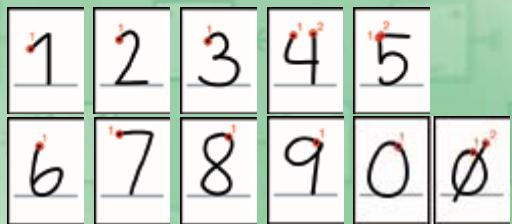
The primary goal of this software is to help you learn. If you do not input numbers in the correct shape and with the correct stroke order, they may not be recognized correctly or may be mistaken for different numbers, leading to your answer being marked as a mistake. Let's take a look at the correct shape and stroke order for the numbers 0 to 9.
Please be aware of the following Dos and Don'ts when writing numbers.
| DO | DON'T |
| • Write large numbers
• Write using continuous, unbroken strokes
• Write the digits of multi digit numbers the same size as each other | • Add unnecessary curves or strokes
• Write numbers that lean to one side
• Write the digits of multi digit numbers on top of each other |
Note: Do not write anything other than the numbers that make up your answer onto the Touch Screen! The handwriting recognition is very sensitive, so even a small dot or a short line may be interpreted as a number and affect your answer.
1 Check that your Nintendo DS system is switched off and insert the PERSONAL TRAINER: MATH Game Card firmly into the Nintendo DS Game Card slot on your Nintendo DS system until it clicks into place.
2 When you turn on the Power Button, the Health and Safety Screen (shown to the right) will be displayed. Once you have read and understood the content of this screen, tap the Touch Screen to continue.
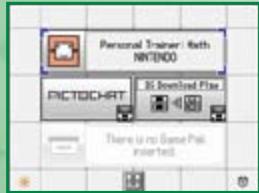
Now tap the PERSONAL TRAINER: MATH panel on the Nintendo DS Menu Screen to start the game. The Title Screen will then be displayed. If the Start Mode on your Nintendo DS system is set to Auto Mode, this last step will not be required. See the Nintendo DS Instruction Booklet supplied with your Nintendo DS system for details.
4 For further instructions, please refer to page 11 of this manual.
| WARNING - HEALTH AND SAFETY
BEFORE PLANNING, READ THE HEALTH
AND SAFETY PRECAUTIONS BOOKLET
FOR INHORANT INFORMATION
ABOUT YOUR HEALTH AND SAFETY,
TO GET AN EXTER CAPY FOR YOUR RESEARCH, GO ONLINE AT
www.rnttendo.com/health/safety/
Touch the Touch Screen to continue. |
I'm Professor Kageyama. I will be your new math teacher. I will introduce you to the 100-Cell Math method, help you practice your math skills, and give you daily words of encouragement.

PERSONAL TRAINER: MATH is played by turning your Nintendo DS system vertically. All actions within the game are performed on the Touch Screen using the stylus.
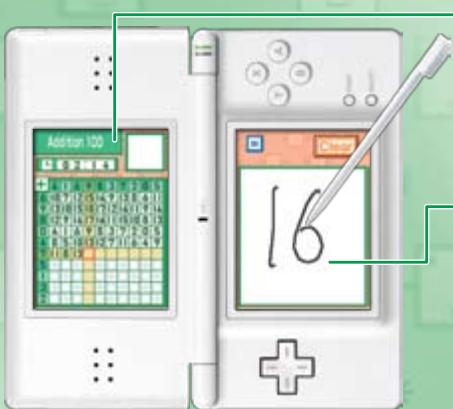
Display Screen
This screen displays problems, exercise results, menu guidance, and other information. The stylus is not used on this screen. The Display Screen will be on the left for right-handed users and on the right for left-handed users.
Touch Screen
This screen is used for making menu selections and inputting answers to problems with the stylus. The Touch Screen will be on the right for righthanded users and on the left for left-handed users.
PERSONAL TRAINER: MATH provides support for both right- and left-handed users. The screens shown in this Instruction Booklet use the right-handed layout. [If you use the left-handed setting (see page 11), the left and right screens will be opposite to those shown here.]
Note: In this Instruction Booklet, pictures of screens with a red frame refer to the Display Screen (top screen), and those with a green frame refer to the Touch Screen.
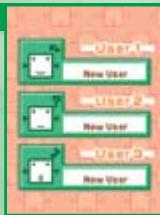
First, let's register a new user. The results of your studies will automatically be saved, and you will be able to continue your studies from where you left off at any time. You can register up to three different users.
Registering a User (Training for the First Time)
Tap the Title Screen to display the User Selection Screen. Then tap NEW USER to proceed to the Name Entry Screen.
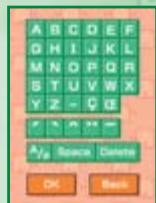
You may enter up to seven letters for your name. The name you enter will be shown on the Display Screen. Once you have entered your name, tap OK to continue to the Writing Hand Selection Screen.
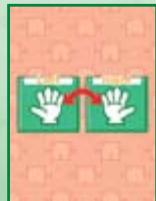
On the Writing Hand Selection Screen, tap RIGHT or LEFT to set which hand you will write with. Confirm all of your selections on the next screen to continue on to an explanation of how this software works. (See page 13 for more information about this software.)
Using a Previously Registered User
Tap the Title Screen to display the User Selection Screen. Tap a previously registered user to continue studying as that user.
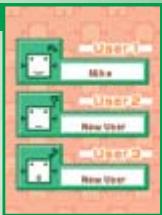
Deleting a User
- Tap the Title Screen to display the User Selection Screen.
- Tap the name of the user you want to delete. Once the Main Menu is displayed, tap OPTIONS.
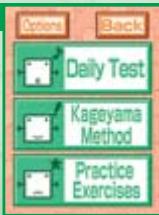

On the Options Screen, tap ERASE DATA to delete the user.
Important! Deleting a user will not only delete that user's name, it will also delete all of the records saved from their study sessions! Once you delete a user, you will not be able to retrieve any of that user's records ever again, so be careful!

Main Menu
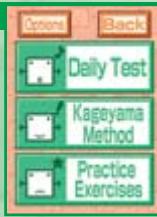
This game features three main study modes. The best way to train your arithmetic ability is to practice for a short amount of time every day and continue doing so over a long period of time. With this in mind, Daily Test is a short study session that should take around 10 minutes to complete. Kageyama Method and Practice Exercises are modes that allow you to freely practice exactly what you want to work on.
Daily Test
In this mode you will be given three different exercises to complete, based on your current level of study. As you improve in these exercises, your rank will increase. You start at Level 1 and work your way toward the highest level. (See page 15 for details.)
Kageyama Method
In this mode, you can solve either a grid of addition, subtraction, or multiplication problems or a series of division problems. You can choose between 10, 30, 50, or 100 cells to solve (or problems to solve for division). (See page 20 for details.) You can also study with up to 15 of your friends using the local wireless communication capabilities of your Nintendo DS. (See page 27 for details.)
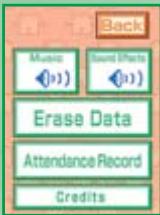
On the Options Screen you can turn music and sound effects on and off, delete the current user, or view a record of your Daily Test attendance.
MUSIC
Turn the in-game music on or off.
SOUND EFFECTS
Turn the sound effects that are played when you tap something or when the screen changes on or off.
ERASE DATA
Delete a registered user and all of the saved data recorded by that user.
(See page 12 for details.)
ATTENDANCE RECORD
View up to one year of attendance data on a calendar. Days that you completed the Daily Test will be marked with a . (See page 17 for details.)
CREDITS
View the names of the people who worked to create PERSONAL TRAINER: MATH.
Selecting DAILY TEST allows you to try three exercises chosen to match your current level of study. You can only complete the test once per day. If you take the test every day and earn good marks, you will be able to move up to the next level. If you seem to require a little more practice, then you will be presented with the same exercises the next day (although the questions will be different). There are 20 levels of study. For more detailed information about the different exercises available, see "Exercises by Level" on page 30.
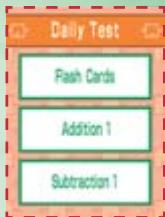
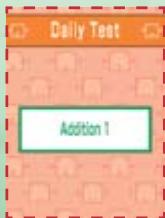
When you select Daily Test, three different exercises will be shown.
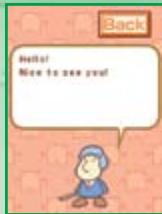
Tap the speech bubble to advance through Professor Kageyama's message to you.
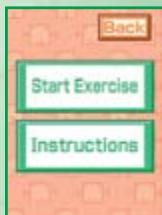
2 To see an explanation of how each exercise works, select INSTRUCTIONS. To get started right away, select START EXERCISE. (If it is your first time doing a certain exercise, you will not be given this option and the instructions will be displayed automatically.)
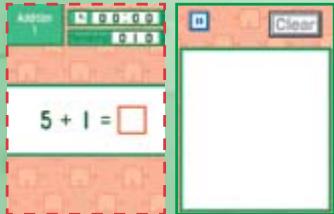
3 You will start the exercise when Professor Kageyama gives the signal to GO! Write the answer to the problem given to you or the number that fits into the red cell (see page 19) on the Touch Screen. Repeat this process until all the problems are completed. The total number of questions varies with each different exercise.
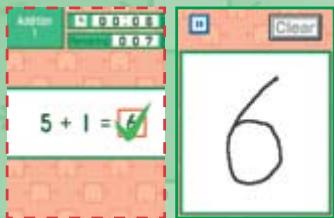
4 The answer you enter will be checked and shown as right (a check) or wrong (an X), and the next problem will be displayed. Most of the time, you will move on to the next question even if you make a mistake, but you may not be able to continue until you answer the question correctly. However, if you do not write your numbers with the correct stroke order or in the correct shape, it may be recognized incorrectly, resulting in a wrong answer. For more information, see "How to Write Numbers on the Touch Screen" on page 8.
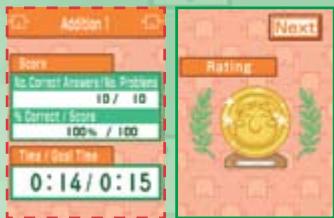
5 Once you have completed all of the problems, the exercise will come to an end. At this time your SCORE and your TIME/GOAL TIME will be displayed. You will also receive a medal based on the number of questions you've answered correctly.
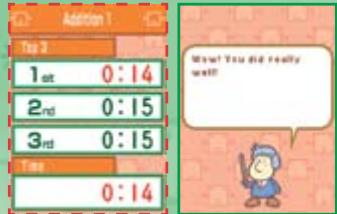
6 Tap NEXT to view the Top 3 Screen for the exercise you just completed. On this screen you will be able to see the top three best times, your time, and a message from Professor Kageyama. Tap the speech bubble to read his message or to continue on to the next exercise. (The next two exercises will follow the same process as outlined here for the first exercise.)
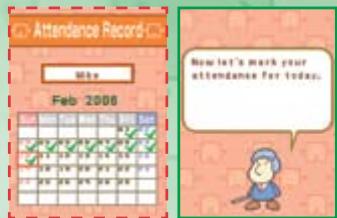
Once you have completed all three exercises, your ATTENDANCE RECORD will be displayed, and you can receive a stamp for completing your study session for the day.
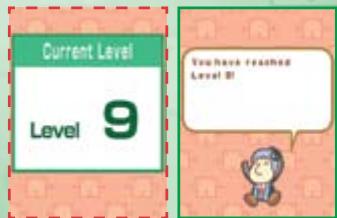
The three exercises for each individual level are designed to be done repeatedly over a number of days (the questions will be different). If you continuously get good results, you will be able to challenge the next level's exercises the next day. If you seem to need a little more practice, then you will be given the same exercises again the next day (the questions will be different). You can only challenge the Daily Test once per day.
This section will explain the various buttons and marks that you will see and use while solving questions. Buttons can be used if they are orange or blue. If a button is gray, that means you cannot use it at that time.

This button can be found in the upper right corner of the Touch Screen. Use this button to delete a number you have written when you make a mistake or if the number you wrote is recognized incorrectly. (Sometimes you may not be able to use this button immediately after removing the stylus from the Touch Screen, because the number is still in the process of being recognized.)

Tap this button to proceed to the next screen.

When you are in 100-Cell Math or any other mode that requires you to write a series of answers, you can press this button to move the red cell backward so that you can correct one of your previous answers. The number in the cell you return to, including all numbers in between, will be deleted. You may not return to a cell after the answer entered into it has already been scored. You can also use this button to close the current screen and return to the previous screen or menu.

Use this button to pause the exercise. While paused, the message RETURN TO THE MENU SCREEN? is displayed. Tap YES to return to the Menu Screen or NO to continue the exercise.

Question Mark
This will be displayed if the number you have written cannot be recognized.
Tap CLEAR and try rewriting your answer.

Red Cell
In this game, the answers you write go in the red cell. In exercises where there are multiple cells for your answers, the red cell will automatically move along to each one in order. If you make a mistake, you can use the BACK button to move the red cell back to a previous cell and change your answer.
Pausing and Sleep Mode
There are two ways to temporarily pause the current exercise and continue again later.

The timer will be stopped and the message RETURN TO THE MENU SCREEN? displayed. To return to the exercise, simply tap NO.

Use Sleep Mode
Close your Nintendo DS system. While the system is closed, the screen will be turned off, and the timer will be stopped. When you want to return to the exercise, open the system.
Important! Battery power is still consumed while the game is paused or the Nintendo DS system is in Sleep Mode. Be careful not to let the battery run out before you can continue.
Kageyama Method - Study Alone

You can practice a grid of addition, subtraction, or multiplication problems or a series of basic division problems by selecting KAGEYAMA METHOD from the Main Menu.
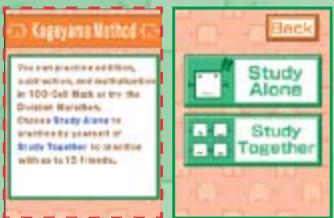
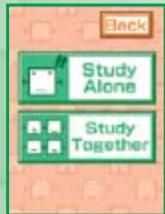
1 Select STUDY ALONE to study by yourself or STUDY TOGETHER to play with up to 15 other people. This section will explain what happens when you select STUDY ALONE. For more information about the Study Together Mode, see page 27.
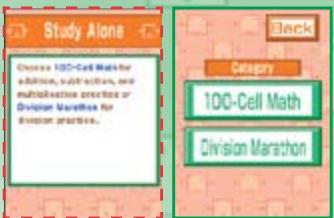
2 Select 100-Cell Math (see page 21) to solve a grid of addition, subtraction, or multiplication problems. Select DIVISION MARATHON (see page 24) to solve division problems.
100-Cell Math

3 Select the type of calculation you want to practice. You can choose from ADDITION, SUBTRACTION, or MULTIPLICATION.
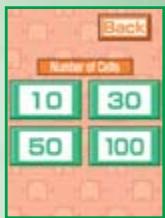
4 Select the number of problems (or number of cells in the grid) you want to challenge by tapping the 10, 30, 50, or 100 button.
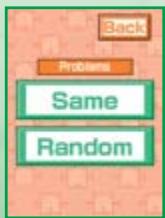
5 If you select SAME, the same questions will always be asked (see page 23).
If you select RANDOM, you will be able to challenge a new grid or a new set of problems every time you play.
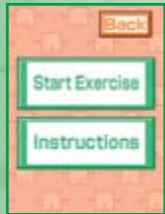
6 Select INSTRUCTIONS to view an explanation of the exercise, or select START EXERCISE to get started right away.
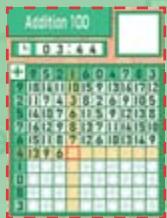
You will start the exercise when Professor Kageyama gives the signal to GO! Write the answer to the problem on the Touch Screen so that the correct number will be entered into the red cell on the message panel. The red cell will then move on to the next question automatically and you will repeat this process until you have completed all the problems.
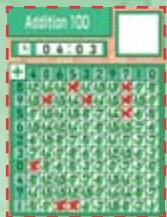
When you have finished answering all the questions, the exercise will end and your answers will be graded automatically. Once you have looked over your answers, tap the screen to continue.
9 Your final SCORE and TIME/GOAL TIME will be displayed automatically, and you will receive a medal based on how many questions you answered correctly.
10 Tap NEXT to view the Top 3 Screen. The top three times will be shown, along with the time you just recorded. If you tap the speech bubble, you will return to the Study Alone screen (see page 20).
Notes: In 100-Cell Math, you will incur a time penalty if you enter a wrong answer. If the red cell does not move to the next question smoothly, look back over your answer one more time.
About Same and Random Grids
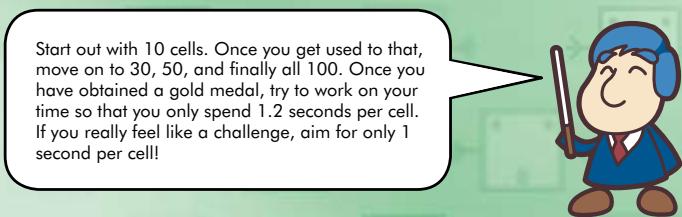
In 100-Cell Math, you can work with the same grid over and over again without changing the order or value of the numbers on the grid. By practicing the same grid again and again, you will gain valuable experience and your completion time will become faster and faster. This is a very effective learning method. On the other hand, choosing to challenge random grids will help improve your overall calculation abilities. Use both of these methods in conjunction with each other for the best results.
Division Marathon
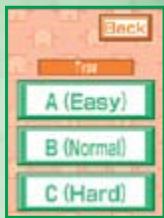
3 Select the type of division you want to practice. The division problems (a total of 450) are separated into three types: A (EASY), B (NORMAL), and C (HARD).
Type A (Easy) Division problems without a remainder (total 90 problems)
Type B (Normal) Division problems with a remainder (total 260 problems)
Type C (Hard) Division problems that require carrying to work out the remainder (total 100 problems)
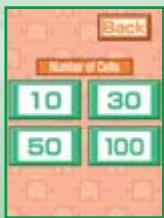
4 Select the number of problems you want to challenge: up to 90 problems in one session for Type A (Easy), and up to 100 problems in one session for Type B (Normal) and Type C (Hard).
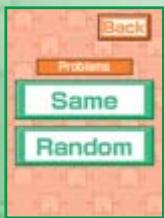
5 If you select SAME, the same problems will always be asked. If you select RANDOM, then you will be able to challenge new problems every time you play.
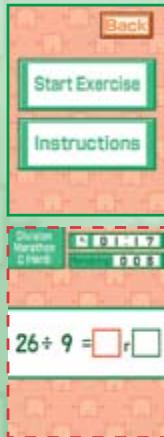
6 Select INSTRUCTIONS to view an explanation of the exercise, or select START EXERCISE to get started right away.
You will start the exercise when Professor Kageyama gives the signal to GO! Write the answer to the problem on the Touch Screen so that the correct number will be entered into the red cell on the message panel. The red cell will then move on to the next question automatically, and you will repeat this process until you have completed all the problems. For Type A (Easy) problems, you only need to write the quotient. For Type B (Normal) and Type C (Hard), you will need to write the quotient and then the remainder. When you have finished writing your answer, it will be graded immediately.
When you have finished answering all the questions, the exercise will end and your answers will be graded automatically. Your SCORE and TIME/GOAL TIME will be displayed automatically and you will receive a medal based on how many questions you answered correctly.
9 Tap NEXT to proceed to the Top 3 Screen. The top three times will be shown, along with the time you just recorded. If you tap the speech bubble, you will return to the Study Alone screen (see page 20).
More about Division Marathon
While it is important to focus on getting the answers correct in Division Marathon, you also need to focus on the time it takes you to finish. Keep track of how your times are improving every day.
In Division Marathon, you will incur a time penalty if you enter a wrong answer. Also, once a problem has been checked and graded, you may not return to it.
Kageyama Method- Study Together

(DS Wireless Communications)
You can use the local wireless communication functionality of the Nintendo DS to challenge 100-Cell Math or Division Marathon with up to 15 friends. This is also called DS Wireless Communications (see pages 36 - 37).
How to Connect
1 First decide on which system will be the host system (one player) and which system(s) will be the client system(s) (all other players). All players should turn on their Nintendo DS or Nintendo DS systems with their PERSONAL TRAINER: MATH Game Cards inserted, and navigate to the Main Menu. Tap KAGEYAMA METHOD and then tap STUDY TOGETHER.
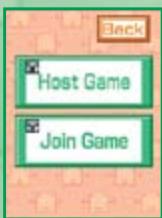
2 Host System: Select HOST GAME. Client System(s): Select JOIN GAME.
3
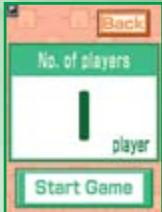
Host System: The number of players that have joined your game will be displayed.
Client System(s): After SEARCHING... appears, you will see the name of the host system. Tap this, and tap YES when the message CONNECT TO THIS HOST DS? appears to connect to the host system.
4
Host System: Once all the players have entered the game, tap START GAME and then select which hand you'll write with.
Client System(s): Select which hand you'll write with.
5
Host System: Decide on what type of problems you and your friends want to challenge (for example, 100-Cell Math or Division Marathon, the number of problems, etc.) (see pages 21 and 24).
6
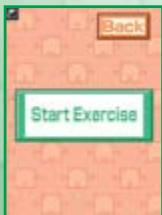
Host System: When you tap START EXERCISE, the same problem will be displayed on both the host system and all client systems and the exercise will begin.
7
Host & Client Answer all the questions, receive your grade, and System(s): proceed automatically to the next screen.
8
Host & Client System(s):
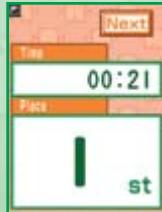
Your time and rank will be displayed. In Wireless Play your rank is determined by your completion time only (if multiple players have the same completion time, they will receive the same rank). Once everyone has checked their time and rank, all players should tap NEXT.
9
Host System: If you want to challenge the same questions you just completed with everyone again, tap PLAY AGAIN. If you want to challenge different questions, select NEW GAME. If you are finished playing, select QUIT.
Client System(s): After the message PLEASE WAIT UNTIL THE OTHER PLAYERS ARE READY disappears, the screen selected by the host system will be displayed.
Challenging 100-Cell Math and Division Marathon with your friends and family may make you a little nervous, but your completion time will improve faster and you will learn more effectively! Remember, you aren't competing against other players' times; you are competing against your own times! Don't think of it as competing against your friends, think of it as helping to improve each other's times. Your rank is simply a goal to work toward, not a measure of competition. Promise me you won't forget this rule!
See page 36 for more information about using Single-Card Play to allow players that do not have a PERSONAL TRAINER: MATH Game Card to enjoy the Kageyama Method.
The ranking given during DS Wireless Single-Card and Multi-Card Play is based only on completion time. A time penalty will be incurred if you enter an incorrect answer, which makes it difficult to achieve a fast time.
Exercises by Level

The exercises presented in Daily Test are organized according to level (you start at Level 1 and work your way up to Master level).
Level 1 - Level 6
Starting with Flash Cards to learn number recognition, you will practice everything from addition problems without carrying and subtraction problems without borrowing (Level 1), to 50-Cell Addition and 100-Cell Addition (Level 5) and 50-Cell Subtraction and 100-Cell Subtraction (Level 6). At this stage, we will mainly focus on the fundamentals of addition and subtraction.
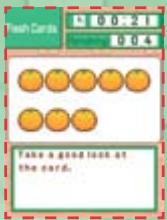
Flash Cards (Level 1)
Basic training that teaches you how to recognize 1 to 10 objects as a number.
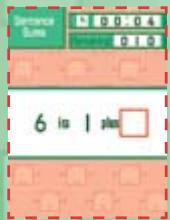
Sentence Sums (Level 2)
This training teaches how to combine and break numbers down, which is a fundamental aspect of addition and subtraction.
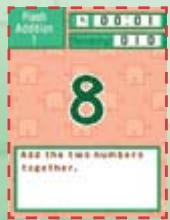
Flash Addition 1 & 2 (Level 3 and Level 5)
This exercise asks you to find the sum of two numbers as quickly as you can. Flash Addition 1 does not contain any problems that require carrying, while Flash Addition 2 does.
| Rank | Exercise 1 | Exercise 2 | Exercise 3 |
| Level 1 | Flash Cards | Addition 1
(No Carrying) | Subtraction 1
(No Borrowing) |
| Level 2 | Sums of 10 | Sentence Sums | Addition 2 and Subtraction 2
(With Carrying/Borrowing) |
| Level 3 | Flash Addition 1
(No Carrying) | 10-Cell Addition | 30-Cell Addition |
| Level 4 | Flash Subtraction 1
(No Borrowing) | 10-Cell Subtraction | 30-Cell Subtraction |
| Level 5 | Flash Addition 2
(With Carrying) | 50-Cell Addition | 100-Cell Addition |
| Level 6 | Flash Subtraction 2
(With Borrowing) | 50-Cell Subtraction | 100-Cell Subtraction |
You can practice 10-, 30-, 50-, and 100-Cell Addition and Subtraction at any time by selecting KAGEYAMA METHOD from the Main Menu and then 100-Cell Math, or practice any other exercise by selecting PRACTICE EXERCISES.
Level 7 - Level 14
At this level you will first begin by memorizing multiplication tables through the 5 Times Table (Level 7) and 9 Times Table up to 1 Times Table (Level 9) exercises. You will then polish those skills through the Flash Multiplication (Level 10) exercise and the 50-Cell Multiplication and 100-Cell Multiplication (Level 11) exercises. After that, you will work on more difficult manual addition and subtraction calculations through the Ladder Addition and Ladder Subtraction (Level 12 to Level 14) exercises.
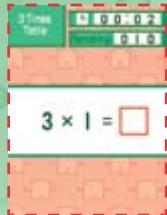
Times Tables (Level 7 to Level 10)
This exercise teaches multiplication tables by starting with the fives, then teaching two through four, six through nine, and finally the ones tables. The Flash Multiplication exercise combines all of these into one review.
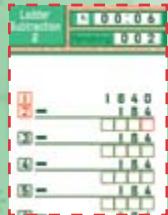
Ladder Subtraction (Level 12 and Level 14)
In this exercise you will start with a number that is 10 times its original self. You will then subtract that original number from the starting number 9 times until you end up with the original number.
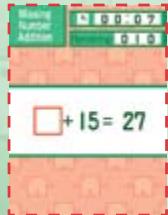
Missing Number Addition (Level 13)
This exercise consists of problems such as
"A + () = C" or "A + B = (). It's your job to find the missing number that will make the problem correct.
| Rank | Exercise 1 | Exercise 2 | Exercise 3 |
| Level 7 | 5 Times Table | 2 Times Table | 3 Times Table |
| Level 8 | 4 Times Table | 6 Times Table | 7 Times Table |
| Level 9 | 8 Times Table | 9 Times Table | 1 Times Table |
| Level 10 | Flash Multiplication | 10-Cell Multiplication | 30-Cell Multiplication |
| Level 11 | 50-Cell Multiplication | 100-Cell Multiplication | 2-Digit Addition |
| Level 12 | 2-Digit Subtraction | Ladder Addition 1 | Ladder Subtraction 1 |
| Level 13 | Missing Number Addition | Missing Number Subtraction | Ladder Addition 2 |
| Level 14 | Fill the Blanks Addition 1 | Fill the Blanks Subtraction 1 | Ladder Subtraction 2 |
You can practice 10-, 30-, 50-, and 100-Cell Multiplication at any time by selecting KAGEYAMA METHOD from the Main Menu and then 100-Cell Math, or practice any other exercises by selecting PRACTICE EXERCISES.
Level 15 - Level 19
After reviewing your multiplication tables (which are fundamental for division) through the Missing Number Multiplication exercise, you will practice Type A (Easy), Type B (Normal), and Type C (Hard) division problems in that order. Once you have finished practicing calculating more difficult multiplication problems, along with more Fill the Blanks exercises, all that's left to clear are the Ladder Addition 3, Ladder Subtraction 3, and Division Marathon Type C (Hard) exercises before you are a master mathematician!
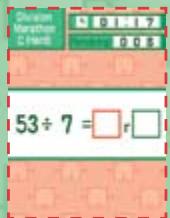
Division Marathon Type C (Hard) (Level 16)
Type C (Hard) division problems are ones that can be solved by using a single multiplication from the standard multiplication tables, but require borrowing to determine the remainder.
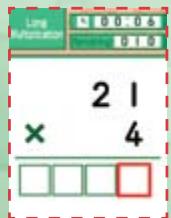
Long Multiplication (Level 17)
In this exercise you will multiply a two-digit or three-digit number with a one-digit number. The main point here is how to deal with carrying in your calculations.
| Rank | Exercise 1 | Exercise 2 | Exercise 3 |
| Level 15 | 3-Digit Addition | Missing Number Multiplication | Division Marathon Type A (Easy) |
| Level 16 | 3-Digit Subtraction | Division Marathon Type B (Normal) | Division Marathon Type C (Hard) |
| Level 17 | 3-Digit Addition & Subtraction | Long Multiplication | Fill the Blanks Multiplication |
| Level 18 | Fill the Blanks Addition 2 | Fill the Blanks Subtraction 2 | Missing Number Multiplication |
| Level 19 | Ladder Addition 3 | Ladder Subtraction 3 | Division Marathon Type C (Hard) |
You can practice all types of division problems at any time by selecting KAGEYAMA METHOD from the Main Menu, then DIVISION MARATHON, then A (EASY), B (NORMAL), or C (HARD). You can also practice any other exercise by selecting PRACTICE EXERCISES from the Main Menu.
You will be given 50 problems each for all types of Division Marathon exercises during the Daily Test. If you select KAGEYAMA METHOD from the Main Menu, then DIVISION MARATHON, you can practice up to 90 problems in one session for Type A (Easy), and up to 100 problems in one session for Type B (Normal) and Type C (Hard).
If you can clear all of the Level 19 Daily Test exercises, your rank will change to Master. As a Master, you will be given three of each type of exercise, such as 100-Cell Math, Division Marathon, or Fill the Blanks Multiplication. Try to answer all the questions correctly and record a top time!
Here is an explanation of how to play using Single-Card Play.
The Things You'll Need
Nintendo DS system . . . One for each player
PERSONAL TRAINER: MATH Game Card . . . . . . . . . . . . . . . . . . . . . . . . . . . . . . . . . . . . . . . . . . . . . . .
Connection Procedures
Host System:
- Make sure that the power is turned off on all systems, and insert the Game Card into the system.
- Turn the power on. If the Start Mode of your system is set to MANUAL MODE, the Nintendo DS Menu Screen will be displayed. In case it is set to AUTO MODE, skip the next step and go on with step 4.
- Touch the PERSONAL TRAINER: MATH panel.
- Now, follow the instructions on page 27 (part 1).
Client System:
- Turn the power on. The Nintendo DS Menu Screen will be displayed.
NOTE: Make sure the Start Mode of your system is set to MANUAL MODE.
For further details on how to set up the Start Mode, please refer to the Instruction Booklet of your Nintendo DS system.
- Touch DS DOWNLOAD PLAY. The Game List Screen will appear.
- Touch the PERSONAL TRAINER: MATH panel.
- You will be asked to confirm your choice. Touch YES to download game information from the Host System.
- Now, follow the instructions on page 28 (part 4).
Here is an explanation of how to play using Multi-Card Play.
The Things You'll Need
Nintendo DS system . One for each player
PERSONAL TRAINER: MATH Game Card . . . . . . . . . . . . . . . . . . . . . . . . . . . . . . . . . . . . . . . . . . . . . . . . . . . . . .
Connection Procedures
- Make sure that the power is turned off on all systems, and insert the Game Card into each system.
- Turn the power on. If the Start Mode of your system is set to MANUAL MODE, the Nintendo DS Menu Screen will be displayed. In case it is set to AUTO MODE, skip the next step and go on with step 4.
- Touch the PERSONAL TRAINER: MATH panel.
- Now, follow the instructions on page 28 (part 4).
You may need only simple instructions to correct a problem with your product. Try our website at support.nintendo.com or call our Consumer Assistance Hotline at 1-800-255-3700, rather than going to your retailer. Hours of operation are 6 a.m. to 7 p.m., Pacific Time, Monday - Sunday (times subject to change). If the problem cannot be solved with the troubleshooting information available online or over the telephone, you will be offered express factory service through Nintendo. Please do not send any products to Nintendo without contacting us first.
HARDWARE WARRANTY
Nintendo of America Inc. ("Nintendo") warrants to the original purchaser that the hardware product shall be free from defects in material and workmanship for twelve (12) months from the date of purchase. If a defect covered by this warranty occurs during this warranty period, Nintendo will repair or replace the defective hardware product or component, free of charge. The original purchaser is entitled to this warranty only if the date of purchase is registered at a point of sale or the consumer can demonstrate, to Nintendo's satisfaction, that the product was purchased within the last 12 months.
GAME & ACCESSORY WARRANTY
Nintendo warrants to the original purchaser that the product (games and accessories) shall be free from defects in material and workmanship for a period of three (3) months from the date of purchase. If a defect covered by this warranty occurs during this three (3) month warranty period, Nintendo will repair or replace the defective product, free of charge."
SERVICE AFTER EXPIRATION OF WARRANTY
Please try our website at support.nintendo.com or call the Consumer Assistance Hotline at 1-800-255-3700 for troubleshooting information and repair or replacement options and pricing.
*In some instances, it may be necessary for you to ship the complete product, FREIGHT PREPAID AND INSURED FOR LOSS OR DAMAGE, to Nintendo. Please do not send any products to Nintendo without contacting us first.
WARRANTY LIMITATIONS
THIS WARRANTY SHALL NOT APPLY IF THIS PRODUCT: (a) IS USED WITH PRODUCTS NOT SOLD OR LICENSED BY NINTENDO (INCLUDING, BUT NOT LIMITED TO, NON-LICENSED GAME ENHANCEMENT AND COPIER DEVICES, ADAPTERS, AND POWER SUPPLIES); (b) IS USED FOR COMMERCIAL PURPOSES (INCLUDING RENTAL); (c) IS MODIFIED OR TAMPERED WITH; (d) IS DAMAGED BY NEGLIGENCE, ACCIDENT, UNREASONABLE USE, OR BY OTHER CAUSES UNRELATED TO DEFECTIVE MATERIALS OR WORKMANSHIP; or (e) HAS HAD THE SERIAL NUMBER ALTERED, DEFACED OR REMOVED.
ANY APPLICABLE IMPLIED WARRANTY, INCLUDING WARRANTY OF MERCHANTABILITY AND FITNESS FOR A PARTICULAR PURPOSE, ARE HEREBY LIMITED IN DURATION TO THE WARRANTY PERIODS DESCRIBED ABOVE (12 MONTHS OR 3 MONTHS, AS APPLICABLE). IN NO EVENT SHALL NINTENDO BE LIABLE FOR CONSEQUENTIAL OR INCIDENTAL DAMAGES RESULTING FROM THE BREACH OF ANY IMPLIED OR EXPRESS WARRANTY. SOME STATES DO NOT ALLOW LIMITATIONS ON HOW LONG AN IMPLIED WARRANTY LASTS OR EXCLUSION OF CONSEQUENTIAL OR INCIDENTAL DAMAGES, SO THE ABOVE LIMITATIONS MAY NOT APPLY TO YOU.
This warranty gives you specific legal rights. You may also have other rights which vary from state to state or province to province.
Nintendo's address is: Nintendo of America Inc., P.O. Box 957, Redmond, WA 98073-0957 U.S.A.
This warranty is only valid in the United States and Canada.
AVERTISSEMENT: VEUILLEZ LIRE ATTENTIVEMENT LE MANUEL SPECIFIQUE DE PRECAUTIONS COMPRIS AVEC CE PRODUIT, AVANT D'UTILISER VOITE APPAREIL NINTENDO®, UNE CARTE DE JEU OU UN ACCESSOIRE. IL CONTIENT DES RENSEIGNements IMPORTANTS CONCERNANT LA SANTÉ ET LA SECURITE.
RENSEIGNEMENTS IMPORTANTS SUR LA SÉCURITÉ - VEUILLEZ LIRE ATTENTIVÉMENT LES AVERTISSEMENTS SUIVANTS AVANT QUE VOUS OU VOTRE ENFANT NE JOUIEZ À DES JEux VIDÉO.

All rights, including the copyrights of Game,
Scenario, Music and Program, reserved by SHOGAKUKAN.
TM, and the Nintendo DS logo are trademarks of Nintendo.
© 2009 Nintendo.
This product uses the LC Font by Sharp Corporation.
LCFONT, LC Font and the LC logo mark are trademarks of Sharp Corporation.
This product employs the Decuma Handwriting Recognition Engine from Zi Corporation.
Decuma is a trademark of Zi Corporation.



Table des matieres
Avant-propos 46