
ROADMATE 2200T - Navigation GPS MAGELLAN - Free user manual and instructions
Find the device manual for free ROADMATE 2200T MAGELLAN in PDF.


| Product type | Navigation GPS |
| Brand | MAGELLAN |
| Model | ROADMATE 2200T |
| Dimensions | Approximately 120 x 80 x 20 mm |
| Weight | Approximately 200 g |
| Screen | 4.3 inch TFT color touch screen |
| Power source | Rechargeable lithium-ion battery, 5V AC adapter |
| Battery life | Approximately 2 to 3 hours |
| GPS receiver | Built-in, 20 channels |
| Maps | Preloaded Europe maps, updates via SD card |
| Main functions | Road navigation, points of interest, routes, route calculation |
| Memory | SD card slot (not included) |
| Connectivity | Mini-B USB |
| Languages | Multilingual (French, English, etc.) |
| Speaker | Built-in for voice instructions |
| Included accessories | Windshield mount, USB cable, cigarette lighter adapter |
| Maintenance and cleaning | Clean with a soft dry cloth, avoid solvents |
| Safety | Do not expose to moisture, extreme temperatures, or shocks |
| Spare parts and repairability | Not available, device not user-repairable |
| Warranty | 1 year |
| Standards | Compliant with Class B of the Canadian Interference-Causing Equipment Regulations |
Frequently Asked Questions - ROADMATE 2200T MAGELLAN
User questions about ROADMATE 2200T MAGELLAN
0 question about this device. Answer the ones you know or ask your own.
Ask a new question about this device
Download the instructions for your Navigation GPS in PDF format for free! Find your manual ROADMATE 2200T - MAGELLAN and take your electronic device back in hand. On this page are published all the documents necessary for the use of your device. ROADMATE 2200T by MAGELLAN.
USER MANUAL ROADMATE 2200T MAGELLAN
Instructions for Operating the Magellan RoadMate 2200T
IMPORTANT SAFETY WARNINGS
The Magellan RoadMate 2200T is a vehicle-navigation aid designed to assist you in arriving to your selected destinations. When using the Magellan RoadMate 2200T, these safety rules must be followed to prevent accidents that can result in injury or death to yourself or others:
- California and Minnesota law prohibits mounting any item to your windshield. Please check with your state or local law enforcement for applicable regulations regarding windshield mounting. Go to www.magellanGPS.com for alternate mounting solutions. An adhesive disk is supplied with the Magellan RoadMate for use as an alternate mounting solution to the dashboard.
- When driving, the need to view the display is minimal. Voice prompts will guide you to your destination. The driver should enter data or program the Magellan RoadMate 2200T only when the vehicle is stopped. Only a vehicle passenger should enter data or program the Magellan RoadMate 2200T while the vehicle is moving.
It is your responsibility to comply with all traffic laws. - Every attempt is made to ensure that the database is accurate. However, roadways, points of interest (POIs), and business and service locations may change over time. The database does not include, analyze, process, consider, or reflect any of the following: legal restrictions (such as vehicular type, weight, height, width, load and speed restrictions); road slope or grade; bridge height, width, weight, or other limits; population density; neighborhood quality or safety; availability or proximity of law enforcement, emergency rescue, medical, or other assistance; construction work zones or hazards; road or lane closures; road, traffic, or traffic facilities' safety or condition; weather conditions; pavement characteristics or conditions; special events; traffic congestion. It is your responsibility to disregard any unsafe, hazardous, or illegal route suggestions.
- Keep the Magellan RoadMate 2200T safe from extreme temperature conditions. For example, do not leave it exposed to direct sunlight for an extended period of time.
Take care when mounting the Magellan RoadMate 2200T in your vehicle, whether using the windshield mount or other mount or accessories, that it does not obstruct the driver's view of the road, interfere with the operation of the vehicle's safety devices such as air bags, or present a hazard to occupants of the vehicle should the Magellan RoadMate 2200T be dislodged while driving. You assume the risks associated with damage to your vehicle or vehicle occupants as the result of your choices in mounting the Magellan RoadMate 2200T. - Laws in some states prohibit wearing stereo headphones while operating a motor vehicle. Please contact your state's Department of Motor Vehicles for information.
The battery in the Magellan RoadMate 2200T is rechargeable and should not be removed. In the event it should need to be replaced, please contact Magellan Technical Support.
About Charging the Magellan RoadMate 2200T
- Use only the AC adapter approved for your Magellan RoadMate 2200T. Use of another type of AC adapter can result in malfunction and/or possible fire hazard due to battery over heating.
- Use only the car charger approved for / supplied with your Magellan RoadMate 2200T. Use of another type of car charger will result in malfunction and/or damage to the receiver.
- The Magellan RoadMate 2200T is intended to be supplied with a LISTED Power Unit marked with "LPS", "Limited Power Source" and output rated +5V dc / 2.0 A".
- Use the USB cable approved for / supplied with your Magellan RoadMate 2200T.
- For safety reasons, the battery in your Magellan RoadMate 2200T will stop charging when the ambient temperature is less than 32^ (0^) or more than 113^ (45^)
IMPORTANT SAFETY WARNINGS
About the AC Adapter
-
Do not use the adapter in a high moisture environment. Never touch the adapter when your hands or feet are wet.
-
Allow adequate ventilation around the adapter when using it to operate the device or charging the battery. Do not cover the AC adapter with paper or other objects that will reduce cooling. Do not use the AC adapter while it is inside a carrying case.
-
Connect the adapter to a proper power source. The voltage and grounding requirements are found on the product case and/or packaging.
-
Do not use the adapter if the cord becomes damaged.
-
Do not attempt to service the Magellan RoadMate 2200T. There are no serviceable parts inside. Replace the Magellan RoadMate 2200T if it is damaged or exposed to excess moisture.
About the Battery
- Do not attempt to replace the battery. Please contact Magellan Technical Support for issues related to the battery.
Use the charger approved for your Magellan RoadMate 2200T.
IMPORTANT SAFETY WARNINGS
Federal Communication Commission Interference Statement
This equipment has been tested and found to comply with the limits for a Class B digital device, pursuant to Part 15 of the FCC Rules. These limits are designed to provide reasonable protection against harmful interference in a residential installation. This equipment generates, uses and can radiate radio frequency energy and, if not installed and used in accordance with the instructions, may cause harmful interference to radio communications. However, there is no guarantee that interference will not occur in a particular installation. If this equipment does cause harmful interference to radio or television reception, which can be determined by turning the equipment off and on, the user is encouraged to try to correct the interference by one of the following measures:
- Reorient or relocate the receiving antenna.
- -Increase the separation between the equipment and receiver.
- Connect the equipment into an outlet on a circuit different from that to which the receiver is connected.
- Consult the dealer or an experienced radio/TV technician for help.
This device complies with Part 15 of the FCC Rules. Operation is subject to the following two conditions: (1) This device may not cause harmful interference, and (2) this device must accept any interference received, including interference that may cause undesired operation.
FCC Caution: Any changes or modifications not expressly approved by the party responsible for compliance could void the user's authority to operate this equipment.
IMPORTANT NOTE:
FCC Radiation Exposure Statement:
This equipment complies with FCC radiation exposure limits set forth for an uncontrolled environment. End users must follow the specific operating instructions for satisfying RF exposure compliance.
This transmitter must not be co-located or operating in conjunction with any other antenna or transmitter.
In order to maintain compliance with FCC regulations, shielded cables must be used with this equipment. Operation with non-approved equipment or unshielded cables is likely to result in interference to radio and TV reception. The user is cautioned that changes and modifications made to the equipment without the approval of manufacturer could void the user's authority to operate this equipment.

The Magellan RoadMate 2200T must be installed and operated at a distance no closer then 8 inches (20 cm) from the user.
This Class B digital apparatus meets all requirements of the Canadian Interference-Caising Equipment Regulations.
Operation is subject to the following two conditions:
- This device may not cause interference and
- This device must accept any interference, including interference that may cause undesired operation of the device.
IMPORTANT NOTE:
IC Radiation Exposure Statement:
This equipment complies with IC radiation exposure limits set forth for an uncontrolled environment. End users must follow the specific operating instructions for satisfying RF exposure compliance.
This transmitter must not be co-located or operating in conjunction with any other antenna or transmitter.
© 2006 Magellan Navigation, Inc. All rights reserved. The Magellan Logo, Magellan, Magellan RoadMate 2200T, Turn it on and go, TrueView, QuickSpell, SmartDetour, and SmartVolume are trademarks of Magellan Navigation, Inc. No part of this user manual may be reproduced or transmitted in any form or by any means, electronic or mechanical, including photocopying and recording, for any purpose other than the purchaser's personal use, without the prior written permission of Magellan Navigation, Inc.
631401-01 A
Magellan RoadMate 2200T 1
What the Magellan RoadMate can do for you... 1
Magellan RoadMate Reference Manual 1
Magellan RoadMate 2200T 2
Magellan RoadMate 2200T Right Side View 3
Magellan RoadMate 2200T Left Side View 3
Magellan RoadMate 2200T Screens 4
Map Screen 4
Main Menu Screens 5
Main Menu - Active Route 5
Main Menu - No Active Route 7
Locate Screen (Tap the top bar on the Map screen) 8
Maneuver List Screen (Tap the next maneuver bar on the Map screen) 8
Application Menu Screen 9
Creating Routes 10
Overview 10
Creating a route to a street address 10
Creating a route using POIs 11
Creating a route to a POI by name 11
Creating a route to a nearest POI 12
Creating a route to a POI from an upcoming freeway exit 12
Creating a route to go home 13
Setting the home address 13
Changing the home address 13
Create a route to the home address 14
Using the address book 14
Creating a route to a previous destination 14
Adding a previous destination to your address book 14
Creating a route to a favorite destination 15
Creating a route to an address in the address book 15
Editing an address in the address book 15
Deleting an address from the address book 16
Creating a new address 16
Creating a route to an intersection 17
Using the Trip Planner 19
Overview 19
Creating a multiple destination trip 19
Activating a multiple destination trip 19
Editing a multiple destination trip 20
Deleting a multiple destination trip 21
Renaming a multiple destination trip 21
Magellan RoadMate Enhanced POIs 22
Overview 22
Accessing the Enhanced POI Menu 22
Loading an Enhanced POI file 22
Displaying/Selecting Categories 22
Setting Alarms 22
Setting Alert Parameters 22
Creating a Route Using Enchanced POIs 23
Saving a POI to your Address Book from Enchanced POIs 23
Setting User Options 24
Overview 24
POI Selection 24
Address Book Options 24
Map Options 24
Map Colors 25
Route Preferences 25
Detour Options 25
Simulator Mode 26
Menu Colors 26
Tone Options 26
Navigation Instruction 26
GPS Options 26
Backup and Restore 27
System Settings 28
Overview 28
Volume 28
Brightness 28
Power 28
Language 28
Time Zone 28
Unit of Measure 29
Product Information 29
Diagnosis 29
Additional Items 29
Battery Life 29
Contact Us 29
Magellan RoadMate Tools Installation 30
Installing the Software 30
Magellan RoadMate POI Manager 31
Latitude 31
Longitude 31
Altitude 32
Opening a POI File 32
Creating a New POI File 33
Adding Individual POI's 33
Importing a Data File 35
Magellan RoadMate Music Manager 36
Magellan RoadMate Photo Manager 37
Music Player 38
Single Song Play 38
Multiple Song Play 39
Play 39
Create 39
Modify 39
Delete 39
Rename 40
Play Mode 40
List Songs 40
Equalizer 40
Help 40
Photo Viewer 41
View Single Photo 41
Previous Image (left arrow) 41
Zoom 41
Slideshow 42
Pan 42
Rotate Image 42
Next Image (right arrow) 42
ESC 42
Manage Photos 42
List View 42
Thumbnail 42
Rename 42
Properties 42
Tools 43
Preferences 43
Delete Files 43
About 43
Magellan RoadMate 2200T
NOTICE: If this is the first time you are using the Magellan RoadMate you must follow the instructions provided in the Getting Started document to set the reset switch in the up position.
Thank you for your purchase of the Magellan RoadMate 2200T. The Magellan RoadMate 2200T will be your perfect driving companion for all your trips, from a trip to the grocery store or a week's vacation.
What the Magellan RoadMate can do for you...
- Provide turn-by-turn driving instructions to any address you enter.
- Contains an address book that you can save addresses that you commonly need to go to. You can even marked an address as a favorite to make it easier to find.
- Comes preloaded with a large, easily accessible points of interest (POI) database that can be used to quickly find a restaurant, gas station, bank or other popular destinations.
- The Magellan RoadMate includes a SmartDetour™ tool that will automatically ask you if you want to detour around those stubborn traffic jams.
- Includes a trip planner that provides you with the ability to create a trip with multiple destinations.
A trip computer that provides a record of your trip that can be saved. - You can even route to an intersection when you are unsure of the exact address but you are familiar with the cross streets.
- Small and portable, the Magellan RoadMate fits in your pocket and is ready to go with you anywhere.
The interface of the Magellan RoadMate is smart and easy-to-use. Every function is just a tap away using the touchscreen of the Magellan RoadMate.
Magellan RoadMate Reference Manual
It is not necessary to read this entire document to begin using the Magellan RoadMate. Most users will find that they can use the Magellan RoadMate right out of the box and just refer to this manual on those rare occasions when a little help on a function is needed.
Magellan RoadMate 2200T
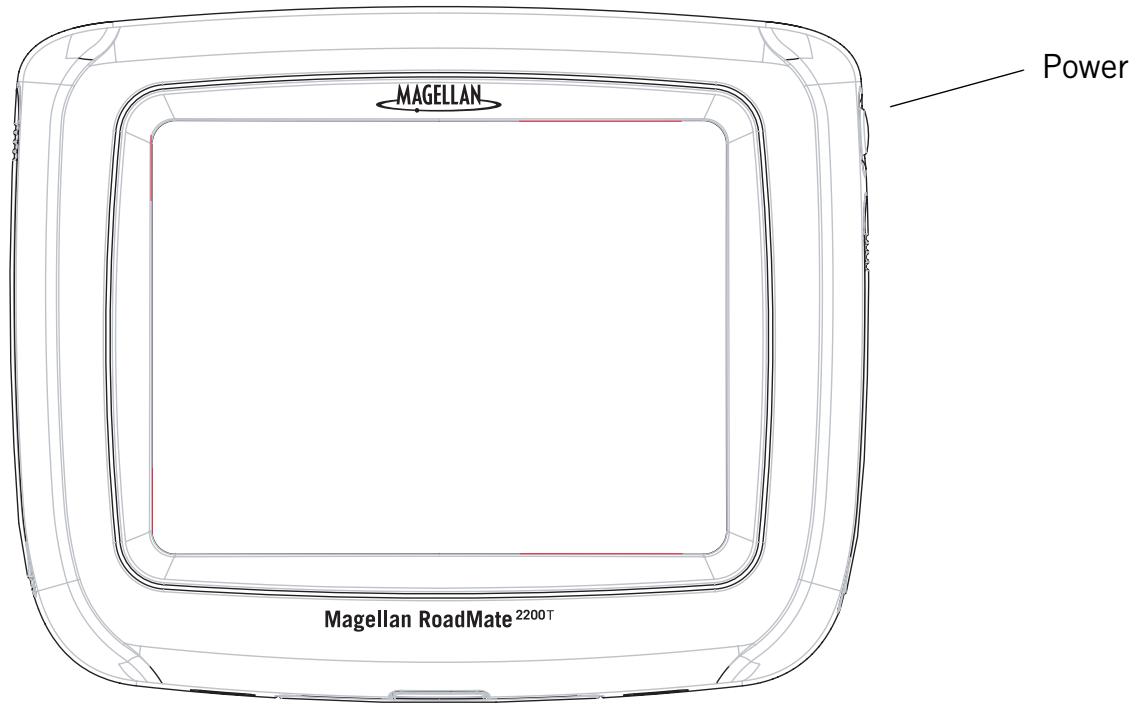
The Magellan RoadMate 2200T uses a touchscreen display for all user inputs. The only readily accessible button that is normally used is the power button located on the right side of the unit. To prevent accidental turn on, you need to press and hold the power button for a few seconds to turn the Magellan RoadMate on. [Note: The reset switch must be on (in the up position) before the Magellan RoadMate can be turned on.]
All connections to the Magellan RoadMate are located on the left and right sides of the unit, protected by a rubber covering to keep out moisture. When you need to access the connectors, simply lift the protective cover from the bottom.
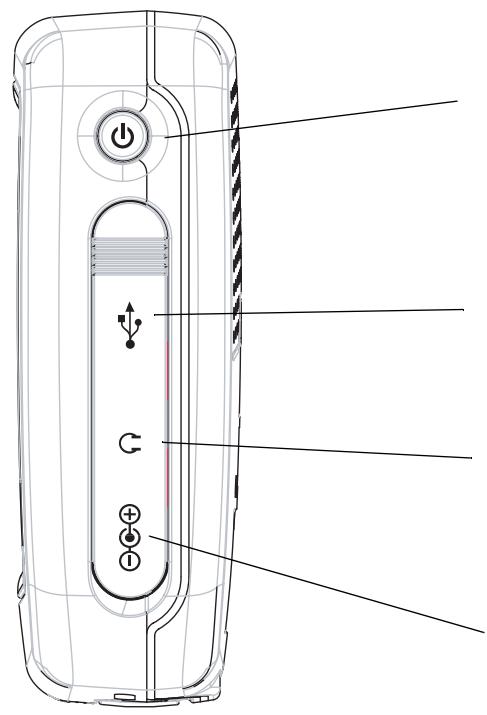
Power - Press and hold to turn the Magellan RoadMate on or off. (Note: The reset switch MUST be in the up position.)
USB Connection - (under protective cover) Used for connecting to a personal computer to upgrade the firmware.
Headphone Connector - (under protective cover) Please check local laws for use of headphones while driving.
External Power Input - (under protective cover) Connects power to the Magellan RoadMate from a cigarette lighter adapter or an approved AC adapter.
Magellan RoadMate 2200T Left Side View
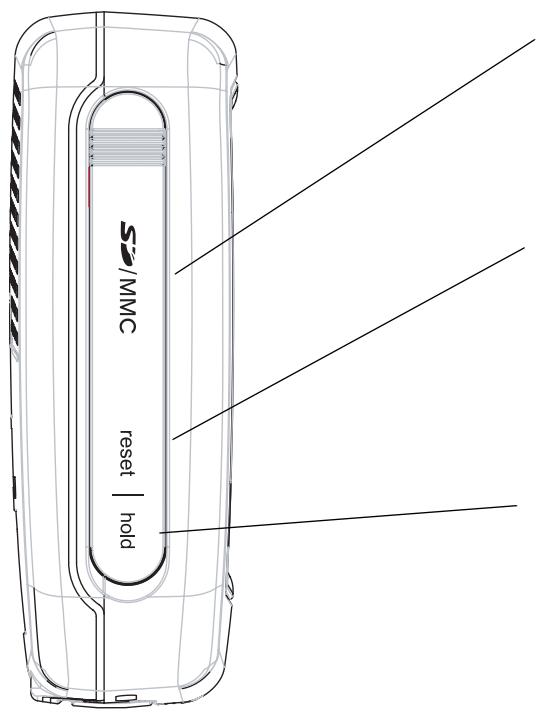
SD Card Slot - (under protective cover) Used to accept an optional SD card. The SD card can be used to store music and photos as well as optional region maps.
Reset - (under protective cover) Should the Magellan RoadMate not function or during firmware updates you may be required to reset the unit. (The Magellan RoadMate will operate only if the reset switch is in the up position.)
Hold Button - (under protective cover) Used to turn off the touchscreen portion of the display and sets the receiver into a power saving mode. Primarily used for outdoor use where the Magellan RoadMate might be in a pocket or backpack.
Magellan RoadMate 2200T Screens
Map Screen
The Map Screen is the most commonly used screen on the Magellan RoadMate. Whether you are getting directions or just driving around town, the Map screen will give you the peace of mind of knowing where you are.
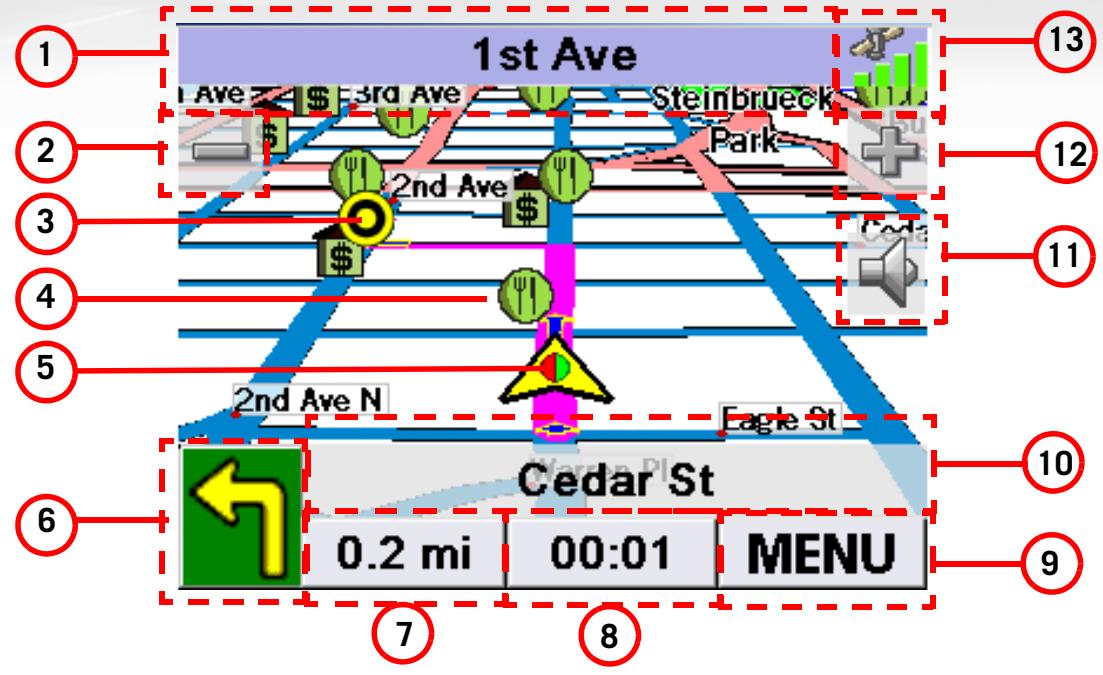
| 1 | Current Street Name | Name of street you are currently on. | When tapped, displays the Locate screen |
| 2 | Zoom out | When tapped, zooms out the map display. | |
| 3 | Destination Icon | Provides a visual indication of your destination. | |
| 4 | POI Icon | Sample indicated is the icon for a restaurant. | When tapped, offers you the option of setting a trip to that POI. |
| 5 | Location Icon | Provides visual indication of your current position. | |
| 6 | Next Maneuver | Indicates what type of maneuver you will need to perform when directed. | When tapped displays your heading as N, NE, NW, W, etc. |
| 7 | Distance to Next Maneuver | Displays the computed distance to your next maneuver in the unit of measure chosen. | When tapped repeats the last verbal instruction. |
| 8 | Time to Next Maneuver | Displays the computed time to your next maneuver. | When tapped, displays the total remaining distance of the trip. |
| 9 | Menu Button | When tapped, brings up the main menu. | |
| 10 | Next Maneuver Street Name | Displays the name of the street that the next maneuver will occur. | When tapped, displays the maneuver list screen. |
| 11 | Mute | When tapped, mutes the volume. | |
| 12 | Zoom In | When tapped, zooms in the map display. | |
| 13 | Satellite Status | Displays a bar graph indicating satellite signal strength. | When tapped displays the Satellite Status screen. |
Main Menu Screens
The Main Menu has two modes; active route and normal. When a route is active the Main Menu provides functions that pertain to the route. With no active route, the Main Menu provides access to functions that are used to create a route.
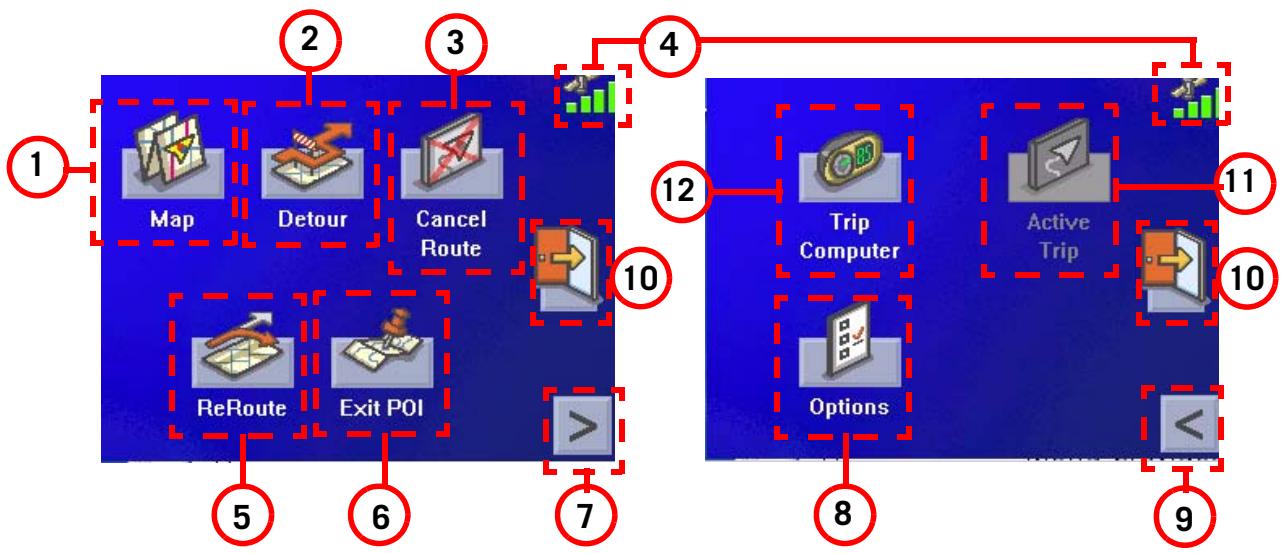
Main Menu - Active Route
| 1 | Map Button | Used to access the Map Screen | |
| 2 | Detour Button | Detour gives you the option of re-routing the trip around traffic problems ahead of you. | |
| 3 | Cancel Route Button | Cancels the route you are travelling on. | |
| 4 | Satellite Status | Displays a bar graph indicating satellite signal strength. | When tapped displays the Satellite Status screen. |
| 5 | Re-route Button. | Provides a way to re-calculate the route you are on. Useful when you have veered off the route and need it re-calculated. | The Magellan RoadMate will automatically attempt to re-route you when you are off course or you can use this button. |
| 6 | Exit POI Button | This function provides you access to a listing of common POI categories that are near upcoming freeway exits. (Only used while travelling on a freeway.) | |
| 7 | Menu Page 2 | Accesses the second page of the route main menu. | |
| 8 | Options Button | Accesses the options menu. | |
| 9 | Menu Page 1 | Accesses the first page of the route main menu. | |
| 10 | Application Menu | Accesses the Application Menu for additional applications and system settings. | |
| 11 | Active Trip Button | Functional only when travelling on a multidestination trip. Provides access to tools to modify the trip you are on. | |
| 12 | Trip Computer | Accesses the trip computer feature providing information about the trip that can be saved. |
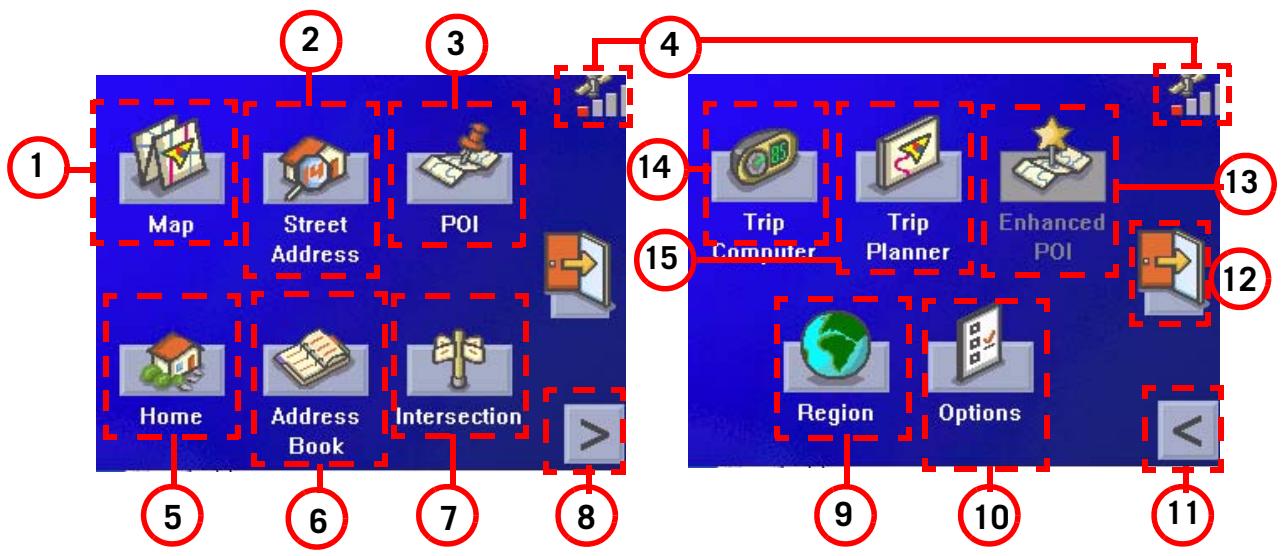
Main Menu - No Active Route
| 1 | Map Button | Used to access the Map Screen | |
| 2 | Street Address Button | Create a trip using a street address as the destination. | |
| 3 | POI Button | Create a trip using a point of interest from the POI database as the destination. | |
| 4 | Satellite Status | Displays a bar graph indicating satellite signal strength. | When tapped displays the Satellite Status screen. |
| 5 | Home Button. | Save your home address in the Magellan RoadMate 2200T and easily create a trip with your home as the destination. | |
| 6 | Address Book Button | Access addresses saved to the address book. Can also be to re-route to a previous destination. | |
| 7 | Intersection Button | Create a route to an intersection. | |
| 8 | Menu Page 2 | Accesses the second page of the route main menu. | |
| 9 | Region | Used to access additional map regions stored in the Magellan RoadMate. | |
| 10 | Options Button | Accesses the options menu. | |
| 11 | Menu Page 1 | Accesses the first page of the route main menu. | |
| 12 | Application Menu | Accesses the Application Menu for additional applications and system settings. | |
| 13 | Enhanced POIs | Used to access personal POIs created with the Magellan PC Toolkit | |
| 14 | Trip Planner | Used to create a multidestination trip that can be travelled or saved. | |
| 15 | Trip Computer | Accesses the trip computer feature providing information about previous trips that can be saved. |
Locate Screen (Tap the top bar on the Map screen)
The Locate screen displays information about your present position and provides access to saving your present position in your address book.
The left side of the screen indicates your heading, an address for your present position (if able to calculate), the next and previous street, as well as the latitude/longitude of your present position.
The right side of the screen shows a compass, the elevation (if able to compute) and the speed you are travelling.
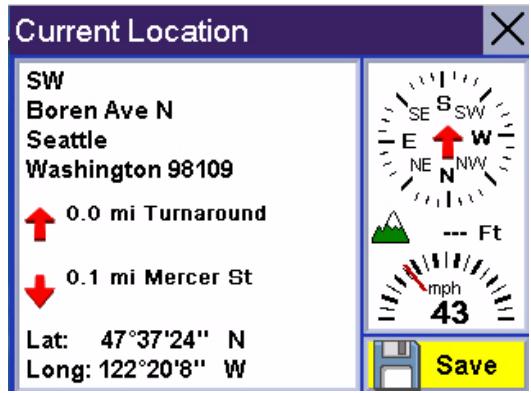
Use the Save button to store your current position into your address book. Tap the “X” in the upper right corner to return to the Map screen.
Maneuver List Screen (Tap the next maneuver bar on the Map screen)
The Maneuver List screen displays all of the maneuvers remaining to do to reach your destination.
Tap on one of the maneuvers to exclude that maneuver from the route. The maneuver will be excluded and the route re-calculated.
The bottom of the screen displays the heading, distance to next maneuver, time to next maneuver and distance for the entire route.
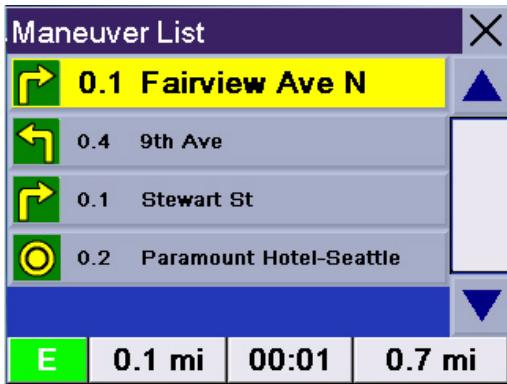
Tap the "X" in the upper right corner to return to the Map screen.
Application Menu Screen
From the Application Menu you can select additional applications for your Magellan RoadMate. Preloaded into the Magellan RoadMate is an MP3 player and an image viewer. Additionally, information about your battery life and changing your system settings can be found on the Application Menu.
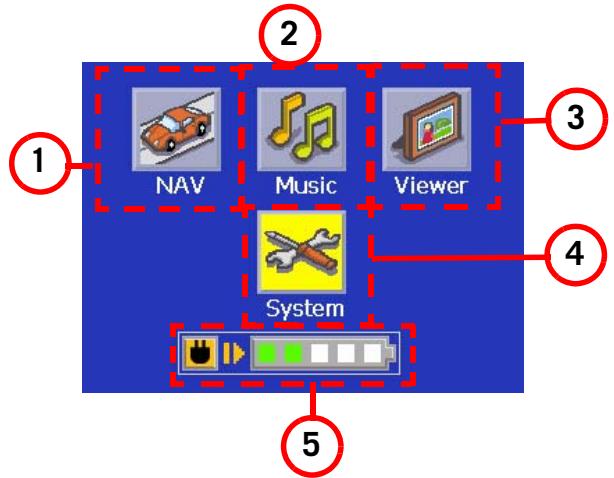
To access the Application screen, tap the

button on the Main Menu screen.
| 1 | Nav Button | Used to access the navigation application. | When tapped displays the Navigation Main Menu. |
| 2 | Music | Used to access the internal MP3 player | When tapped displays the MP3 player. |
| 3 | Viewer | Used to access internal image viewer application | When tapped displays the image viewer file selection page |
| 4 | System Settings | Used to access system settings for your Magellan RoadMate. | When tapped displays the System Settings Main Menu. |
| 5 | Battery Status | Displays a slider bar indicating the battery life available. (All green indicates a fully charged battery.) indicates that the Magellan RoadMate is connected to external power (optional AC adapter or +12vdc from the cigarette lighter adapter) and the battery is being charged. |
Creating Routes
Overview
Creating a route involves selecting a destination and choosing how you would like the route calculated. Once this is done, the Magellan RoadMate will calculate the route using the guidelines you provide and displays the Map screen with information guiding you to your destination.
Creating a route to a street address
- From the Main Menu, tap Street Address.
- Select Search By City, Search by Zip Code or Previous City.
- Input the information as requested depending upon your selection in step 2.
If using Search By City: Spell the city name and select the city from the list, spell the name of the street and select from the available street list, and enter the address number for the street. (If the address you want to enter does not fall within the acceptable range displayed, enter the closest possible address.)
If using Search by Zip Code: Enter the zip code for the address and select the city from the list of available cities. Spell the name of the street and select from the available street list, and enter the address number for the street (it must fall within the street number range displayed at the top of the screen).
If using Previous City: Select a city from the list of previously used cities. Spell the name of the street and select from the available street list, and enter the address number for the street (it must fall within the street number range displayed at the top of the screen).
- Select the method to be used to calculate the route.
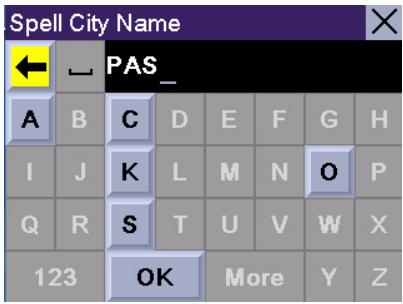
Using the keyboard to enter information. The keyboard will display only those letters that spell an item in the database. This provides a quick and easy tool to enter city and street information.
Use the "123" button to enter numbers and the "More" button to access symbols.
NOTE: When entering street names, do not use the prefix for the street. If you are creating a destination to W. Main, enter just Main. You will be given the opportunity to select W. Main from the list of available streets.
Creating a route using POIs
POIs (points of interest) have been preloaded into the Magellan RoadMate for commonly used categories such as banks, restaurants, gas stations, etc. Following the steps provided you will be able to create a route to any of these destinations.
Creating a route to a POI by name
- From the Main Menu, tap POI.
- Select the category of the POI and, if displayed, the subcategory.
- Tap Spell Name.
- Spell out the POI name. You do not need to spell out the complete name. However, the more letters you enter, the narrower the search will be. If you entered 'Star' looking for Starbucks you might see China Star or other POI names that have a word beginning with 'Star'
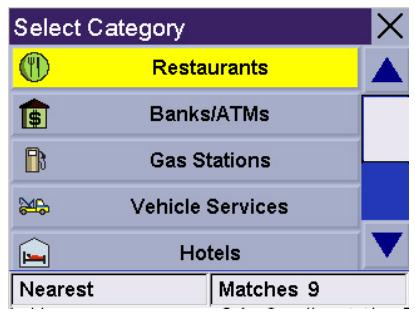
Scroll down the list of available categories to select the one you are looking for. Select 'Other' for additional categories.
- Select Current Position, Address or City Center.
The most common will be Current Position or City Center. In this case you could be looking for the Starbuck's nearest to where you are or or possibly nearest to the center of a city you are planning on going to.
If you select city center, airport or address, you will need to input the name and select from the list of available items before continuing.
- Select the POI from the list of POIs that you are looking for.
- Once the POI has been selected from the available list, select the routing method you want to use and the Magellan RoadMate will begin calculating the route.
Creating a route to a nearest POI
- From the Main Menu, tap POI.
- Tap Basic POI.
- Tap Search Search Nearest POI.
- Select Current Position, By City Center, By Airport or By Address.
The most common will be Current Position. In this case you could be looking for the nearest gas station to your current position.
- Select the category for the POI. Note that some POIs have a subcategory that will need to be selected as well.
- A list of POIs for that category nearest to the criteria you selected in step 4 will be presented. Tap on the POI you wish to go to.
- Once the POI has been selected from the available list, select the routing method you want to use and the Magellan RoadMate will begin calculating the route.
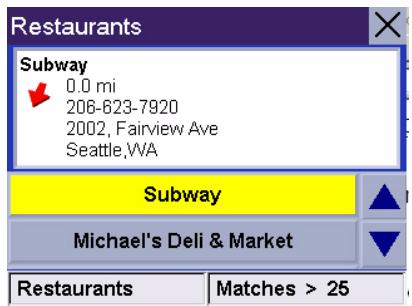
This is a sample list of POIs that meet the criteria set. The address and phone number is displayed to help you select the right POI. The red arrow indicates the approximate direction of the POI from your current position.
Creating a route to a POI from an upcoming freeway exit
This feature functions only if you are travelling on a freeway. If you try to access it while not on a freeway, an alert is displayed indicating that it is not available.
- From the Main Menu, tap POI.
- Tap POI Near Exit.
- Select the exit you would like the POI displayed for to see all four of the categories for that exit or select the icon of the category just to see those POIs for that category for that exit
- Select a POI from the list of available POIs.
- Once the POI has been selected, select the routing method you want to use and the Magellan RoadMate will begin calculating the route.
This function is available whether you are operating on a route or just travelling without a selected destination as long as you are on a freeway. Please note that if you are travelling on a route, selecting this will cancel the route and create a new one. You will then need to redo the route, using Previous Destinations in the address book, to finish the original route.
Creating a route to go home
Setting the home address
- From the Main Menu, tap Home.
- If you have not entered a home address previously, tap Yes to enter your home address.
- Select Search By City, Search by Zip Code or Previous City.
- Input the information as requested depending upon your selection in step 3.
If using Search By City: Spell the city name and select the city from the list, spell the name of the street and select from the available street list, and enter the address number for the street (it must fall within the street number range displayed at the top of the screen).
If using Search by Zip Code: Enter the zip code for the address and select the city from the list of available cities. Spell the name of the street and select from the available street list, and enter the address number for the street (it must fall within the street number range displayed at the top of the screen).
If using Previous City: Select a city from the list of previously used cities. Spell the name of the street and select from the available street list, and enter the address number for the street (it must fall within the street number range displayed at the top of the screen).
- Tap Save to store the home address.
Changing the home address
- From the Main Menu, tap Home.
- Tap Change to change your home address.
- Confirm the change by tapping Yes.
-
Select Search By City, Search by Zip Code or Previous City.
-
Input the information as requested depending upon your selection in step 4.
If using Search By City: Spell the city name and select the city from the list, spell the name of the street and select from the available street list, and enter the address number for the street (it must fall within the street number range displayed at the top of the screen).
If using Search by Zip Code: Enter the zip code for the address and select the city from the list of available cities. Spell the name of the street and select from the available street list, and enter the address number for the street (it must fall within the street number range displayed at the top of the screen).
If using Previous City: Select a city from the list of previously used cities. Spell the name of the street and select from the available street list, and enter the address number for the street (it must fall within the street number range displayed at the top of the screen).
- Tap Save to store the home address.
Create a route to the home address
- From the Main Menu, tap Home.
- Tap Route.
- Select the routing method you want to use and the Magellan RoadMate will begin calculating the route home.
Using the address book
Creating a route to a previous destination
- From the Main Menu, tap Address Book.
- Tap Previous Destinations.
- Select the desired destination from the list of previous destinations.
- Tap Route.
- Select the desired route method.
Adding a previous destination to your address book
- From the Main Menu, tap Address Book.
-
Tap Previous Destinations.
-
Select the desired destination from the list of previous destinations.
- Tap Edit.
- (Optional) Edit the name of the address by tapping on top line of the address.
- (Optional) Tap the Favorite check box to add this address to your list of favorite addresses.
- Tap Save.
- Tap Route to begin routing to the destination or tap the 'X' multiple times to exit out and return to the Main Menu.
Creating a route to a favorite destination
- From the Main Menu, tap Address Book.
- Tap Favorites.
- Select the desired destination from the list of favorite destinations.
- Tap Route. (You also have the option of editing or deleting this destination.)
- Select the desired route method.
Creating a route to an address in the address book
- From the Main Menu, tap Address Book.
- Tap List Addresses
- Select List All or Search Address Book.
If you do a search, you will be asked to enter the first few characters on the address name.
- Select the desired destination from the list of addresses in your address book.
- Tap Route. (You also have the option of editing or deleting this address.)
- Select the desired route method.
Editing an address in the address book
- From the Main Menu, tap Address Book.
- Tap List Addresses
- Select List All or Search Address Book.
If you do a search, you will be asked to enter the first few characters on the address name.
-
Select the desired address from the list of addresses in your address book.
-
Tap Edit.
- Tap on the top line to change the name or the bottom line to change the address information. Use the keyboard to enter the new text.
- Tap on the Favorite check box if you want to add this address to your favorites list.
- Tap Save to store the changes into your address book.
- Tap the “X” in the upper right corner a few times to return to the Main Menu if you are done.
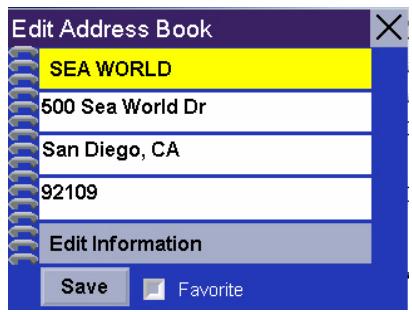
You can change the name or add information (phone number, etc.) by tapping on the top or bottom line and use the keyboard to enter new text.
Deleting an address from the address book
- From the Main Menu, tap Address Book.
- Tap List Addresses
- Select List All or Search Address Book.
If you do a search, you will be asked to enter the first few characters on the address name.
- Select the desired address from the list of addresses in your address book.
- Tap Delete.
- Confirm the deletion by tapping Yes.
- Tap the "X" in the upper right corner a few times to return to the Main Menu if you are done.
Creating a new address
- From the Main Menu, tap Address Book.
- Tap Create New Entry
- Select Select on Map, Select Address, Dining, ATM, Gas.. or Intersection.
Select on Map: The Map screen is displayed. Use your finger or stylus to pan the crosshair cursor around the map. When the crosshair cursor is over the point on the map you want, tap on the crosshair cursor.
Select Address: Follow the instructions for selecting an address, either by city, zip code or previous cities.
Dining, ATM, Gas....: Follow the instructions previously mentioned in selecting a POI.
Intersection: Follow the instructions provided later in this chapter for intersections. (Setting a destination as an intersection will provide you with instructions to travel to two cross streets you have selected.)
- The Edit Address Book screen is displayed. Edit the name or information line if desired. If this address is to be added to your favorites list, tap on the check box for Favorite.
- Tap Save.
Creating a route to an intersection
- From the Main Menu, tap Intersection.
- Select Search By City, Search by Zip Code or Previous City.
- Input the information as requested depending upon your selection in step 3.
If using Search By City: Spell the city name and select the city from the list, spell the name of the street and select from the available street list, and enter the address number for the street (it must fall within the street number range displayed at the top of the screen).
If using Search by Zip Code: Enter the zip code for the address and select the city from the list of available cities. Spell the name of the street and select from the available street list, and enter the address number for the street (it must fall within the street number range displayed at the top of the screen).
If using Previous City: Select a city from the list of previously used cities. Spell the name of the street and select from the available street list, and enter the address number for the street (it must fall within the street number range displayed at the top of the screen).
-
With the city selected, enter the name of the first street. When given the list of streets, select the desired one from the list of available streets.
-
Enter the name of the second street. When given the list of streets, select the desired one from the list of available streets.
- Select the desired route method.
Using the Trip Planner
Overview
Normal routes are calculated from your present position to a single destination. It is sometimes beneficial to have a trip that goes to multiple destinations. The Trip Planner gives you the means to create and save multiple destination trips.
Creating a multiple destination trip
- From the Main Menu, tap > to go to page 2 of the Menu.
- Select Trip Planner.
- Select New.
- Use the keyboard to enter a name for the trip. Tap OK when done.
- Select Add from the list of available options.
- Using the instructions found in Creating a Route, enter the first destination in the trip.
- With the address selected, tap Save on the Add address to Trip screen.
- The first destination has been added to the trip. To add more destinations, tap on the destination in the Trip List and select Add. Using the instructions found in Creating a Route, add the second destination to the list.
- Continue adding destinations by tapping on the last listed destination and selecting Add until you have entered all of the destinations desired for your trip.
- With the trip complete, tap on Save.
Activating a multiple destination trip
- From the Main Menu, tap > to go to page 2 of the Menu.
- Select Trip Planner.
- Select Guide Me.
-
Select the Trip to be activated from the list of saved trips.
-
A list of the individual destinations is displayed. Tap on the first destination on the list to activate the trip.
- Select the routing method to compute the trip.
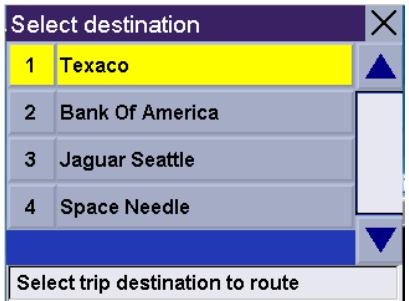
You can also pick which destination to begin the trip on, skipping over destinations prior to it, by tapping on the first destination you want to go to. In this example, tapping on 'Texaco' will go to all four destinations in the trip. If you tapped on 'Jaguar Seattle' the trip would be to 'Jaguar Seattle' and then to the Space Needle, skipping Texaco and the Bank of America.
Editing a multiple destination trip
- From the Main Menu, tap > to go to page 2 of the Menu.
- Select Trip Planner.
- Select Edit.
- Select the Trip to be edited from the list of saved trips.
- Select the destination from the list of available destinations that is to be edited.
- Select the action required from the list of available actions. You can select Add, Move Up, Move Down, Delete or Cancel.
Add: Using the standard methods of selecting a destination, a new destination can be selected and added to the trip after the destination selected in step 5.
Move Up: Moves the destination selected up one level in the trip list.
Move Down: Moves the destination selected down one level in the trip list.
Delete: Removes the destination selected from the trip list.
Cancel: Makes no changes and returns to the trip list.
- With the trip edits complete, tap on Save.
Deleting a multiple destination trip
- From the Main Menu, tap > to go to page 2 of the Menu.
- Select Trip Planner.
- Select Delete, Rename.
- Select Delete.
- Select the Trip to be deleted from the list of saved trips.
- Confirm the deletion by tapping Yes.
Renaming a multiple destination trip
- From the Main Menu, tap > to go to page 2 of the Menu.
- Select Trip Planner.
- Select Delete, Rename.
- Select Rename.
- Select the Trip to be deleted from the list of saved trips.
- Using the keyboard, enter a new name for the trip. Tap OK when done.
Magellan RoadMate Enhanced POIs
Overview
Personal POIs can be created using the Magellan RoadMate PC Toolkit and loaded into your Magellan RoadMate using an optional SD card. The Enhanced POI option provides a way of loading these POIs into the receiver and can then be used to create a route.
Accessing the Enhanced POI Menu
- From the Main Menu, tap > to get to the second page of the Main Menu.
- Tap the Enhanced POI icon.
Loading an Enhanced POI file
- Install an SD card with POIs you've created using the Magellan PC Toolkit.
- Access the Enhanced POI menu.
- Tap Change My POI file.
- Tap Select a POI File.
- Tap on the desired POI file from the list of POI files available.
Displaying/Selecting Categories
- Load a POI file as described in 'Loading an Enhanced POI file'.
- Tap Display Categories.
- Select categories you want displayed or not displayed went selecting a POI to route to. ('X' will be shown.)
Setting Alarms
- Load a POI file as described in 'Loading an Enhanced POI file'.
- Tap Set Alarms.
- Tap on those categories you want to be alerted to when approaching. (See Setting Alert Parameters.)
Setting Alert Parameters
- Load a POI file as described in 'Loading an Enhanced POI file'.
- Tap Alert Parameters.
-
Tap on the category you want set the parameters for.
-
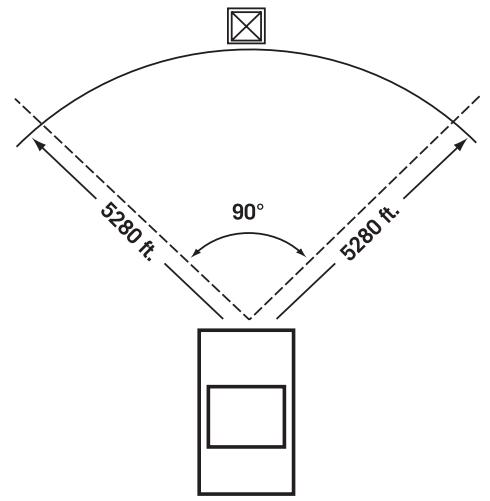
Select the Detection angle by tapping on the detection angle button and entering a new angle [default is 45 degrees]. (This is the area in front of you that will be used to see if one of your POIs is in front of you.)
- Set the distance for the first and last warning by tapping on their respective buttons and enter the distance desired.
- Tap Save when complete.
Creating a Route Using Enchanced POIs
- With an enhance POI file loaded, access the Enhanced POI menu.
- Tap Select category.
- Select the category that the POI is in.
- Select Nearest (closest to your present position) or Spell POI Name.
- If you selected Nearest, select the destination from the Select POI list. If you selected Spell POI Name, enter the first few letters for the desired POI and tap OK. Select the desired POI from the list.
- Tap Route.
- Select routing method.
Saving a POI to your Address Book from Enchanced POIs
- With an enhance POI file loaded, access the Enhanced POI menu.
- Tap Select category.
- Select the category that the POI is in.
- Select Nearest (closest to your present position) or Spell POI Name.
- If you selected Nearest, select the destination from the Select POI list. If you selected Spell POI Name, enter the first few letters for the desired POI and tap OK. Select the desired POI from the list.
- Tap Save.
- Edit the POI as needed by tapping on the desired field and entering the information.
- Add the POI to your favorites list if desired by checking the Favoitie checkbox.
- Tap Save.
- You can now route to this POI by tapping Route or return to the main menu by tapping Cancel.
Setting User Options
Overview
Portions of the Magellan RoadMate are customizable to your needs. To access the User Options menu, select Options from page 2 of the Main Menu and select the option you want to change.
POI Selection
In POI Selection you can select which POI icons will be displayed on the Map screen Check the POI category name to select or deselect it. POI's with an “X” will be displayed on the screen. Use ‘Mark All’ or ‘Clear All’ for global selections.
Address Book Options
This option provides a way to quickly clear addresses from your address book.
Clear Addresses clears all of the addresses in your address book.
Clear Favorites clears the addresses marked as favorites from your address book.
Clear Previous clears the previous destinations list.
Map Options
Provides access to customizing how the Map screen functions.
3D / 2D: Changes the display of the map to be a 3D (forward looking display) or 2D (overhead display).
Heading Up / North Up: Sets the top of the map display to be either the direction you are heading or North. Note that 'North Up' is only available when the map is set to 2D mode.
TrueView: As you approach a maneuver, the map screen changes to a TrueView display and then back to the map display just prior to the maneuver. This is the default setting. You can turn this feature off by unchecking 'Auto TrueView'. TrueView can also be selected to view Split TrueView (default where half the display is the map and the other half an arrow indicating the maneuver requirements) or a Single TrueView (only the arrow is displayed).
Map Colors
You can select from nine different combination of colors for the map display.
Auto Night Mode: Changes the colors of the display to the one chosen for 'Night Screen' during evening hours. With Auto Night Mode off, only the Day Screenshot are used.
Day Screen / Night Screen: Tap on these buttons to go to the map color selection screen. Select the desired color from the list on the left.
Route Preferences
You can turn automatic re-routing on or off. With automatic re-routing on, the receiver will automatically recalculate the route whenever you leave the planned route.
Automatic Re-Route: When checked, automatic re-routing is on.
Detour Options
The Magellan RoadMate detects when you are on a route and you are moving slowly or not moving at all on a freeway. It then provides you with the option of detouring around the problem area. It can alert you visually on the map by displaying the detour icon or you can set it to not alert you and you'll select detour from the main menu.
3 mi / 5 mi / 10 mi or Custom: This setting determines the distance that detour will take you around. (If you are on stopped on a freeway and select to detour, the Magellan RoadMate will calculate the detour and try to get you back on the original route in the distance specified.)
Enable automatic detour: This defines if the detour icon will be shown on the map when the Magellan RoadMate determines that a detour should be used.
Alert After: This sets the duration that you are stopped or moving slowly on the freeway before a detour icon is displayed.
Example: Settings of '3 mi', 'Enable automatic detour' on, and 'Alert After' set to 1 min. You are being routed on a freeway and have been moving at 10 mph due to a traffic jam ahead. After 1 minute of moving slowly, the detour icon will be displayed on the left side of the map indicating that a detour should be used. If you want to activate the detour, press MENU and select 'Detour'. Press 'Route' and the Magellan RoadMate will calculate a new route, detouring around the next 3 miles.
Simulator Mode
This option provides a way to set the Magellan RoadMate into simulation mode. In simulation mode you can create a route and observe the Magellan RoadMate in action as it simulates travelling along the route.
Simulation: Check "Propose simulator mode when calculating a route." to turn the simulator on. When on, you will be asked each time you create a route if you want it to be simulated.
Menu Colors
The Magellan RoadMate has four color schemes built in; Default, Pastel, Forest and Desert.
Menu Colors: Tap on the desired color theme.
Tone Options
The Magellan RoadMate uses an alert tone to indicate that a maneuver is upcoming or been completed. You can select the type of alert tone to be used.
Tone Options: Tap on Bell, Chime or Beep.
Navigation Instruction
You can select what will be announced while routing. You may turn 'Announce street name" on (checked) or off and you may turn "Announce exit ramp name" on (checked) or off.
GPS Options
You can check the status of the GPS signals or set a starting location for the GPS receiver.
GPS Status: Displays high-level information about the satellite and the signal it is transmitting.
Set GPS Position: This is only useful if you have travelled a great distance with the Magellan RoadMate off and it is having problems getting GPS signals. You will be prompted to enter an address for your present location that the Magellan RoadMate can base its satellite search from. (It is extremely unlikely that you will ever need to use this option unless instructed to do so by a service technician if you are experiencing difficulties.)
Backup and Restore
Backup and Restore will save (backup) all of your address, trips, and option settings to an SD card installed in the Magellan RoadMate. You can then upload (restore) this information in the future should you lose the information or accidentally clear the addresses.
System Settings
Overview
System settings provide access to some global settings for the Magellan RoadMate. The following is a listing of the accessible settings. From the Main Menu screen, tap on the Application Menu icon and then the System icon.
Volume
A slider bar is displayed that can be tapped on to raise or lower the volume of alerts. Tapping on the speaker icon (above the slider) will mute or unmute the speaker.
Brightness
The top of the display is a slider bar that can be tapped to increase or decrease the brightness of the display.
'On-battery dimming (80%)' should be checked if you want the display dimmed while operating on the internal battery only. This will lengthen the usable battery life between battery charging.
Power
This setting tells the Magellan RoadMate how long it should stay on while there is no noticeable activity. (Noticable activity would include button presses and the location of the Magellan RoadMate not changing.)
Language
Changes the language used for voice alerts as well as menu items in to one of five languages.
Time Zone
Use the +^ and - buttons to change the time zone to your local area. Check the Daylight Savings box if you want the time automatically changed for daylight savings.
Unit of Measure
You can set distances to be displayed as Miles/Feet or Kilometers/Meters.
Page 2 (tap >)
Product Information
Provides detailed information about the software and firmware installed in the Magellan RoadMate. Also shown is the unique serial number for the receiver.
Diagnosis
Provides a way to diagnose the audio, touchscreen or video portions of the Magellan RoadMate.
Additional Items
Battery Life
A battery charge indicator is shown at the bottom of the display. When the Magellan RoadMate is charging, the green bars will sequence from left to right. Remove the power cable and the green lights will display the approximate battery charge.
Contact Us
Tap the question mark in the bottom left corner and then "Contact Us" to display a screen with telephone and e-mail information for contacting Magellan about your Magellan RoadMate.
Magellan RoadMate PC Tools Installation
The Magellan RoadMate Tools application enables you to create custom POI's and load them onto the SD card in your Magellan RoadMate 2200T.
Installing the Software
- Insert the Magellan RoadMate Tools PC Application CD into your PC's CD drive.
- The setup application will begin automatically. If it does not, browse your computer's CD drive and double-click on the setup.exe file.
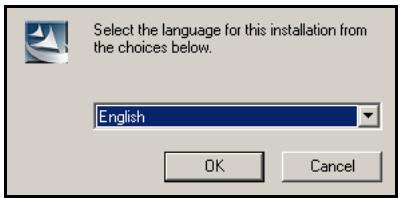
- Select a default language for the Application.
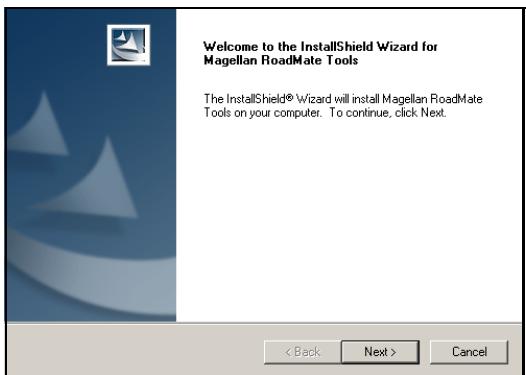
- The Welcome screen will appear to begin the installation process.
- Choose a destination for the application. Select Next to use the default location, or select Browse to choose a custom destination.
- Next, choose a Program Folder to place the application icons.
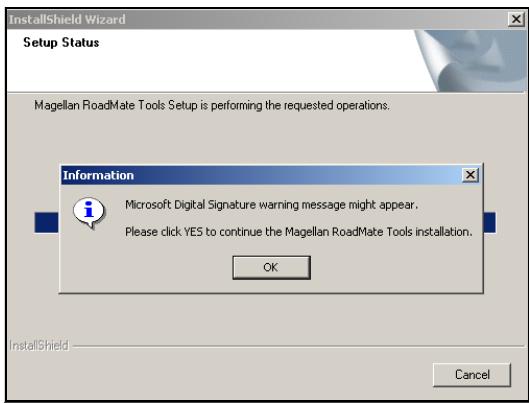
- The Magellan RoadMate Tools software will be installed. After it has finished installing, a dialog box pertaining to Microsoft Dlgital Signatures may appear, select OK
- When it has finished, to can have the installer launch the application automatically, or deselect to exit without launching the application. Select Finish.
Magellan RoadMate POI Manager
The Magellan RoadMate POI Manager enables you to transfer custom points of interest files from your computer to your Magellan RoadMate 2200T.
Before we add any custom POI's to the Magellan RoadMate 2200T, you should understand how the POI Manager plots POIs.
Latitude
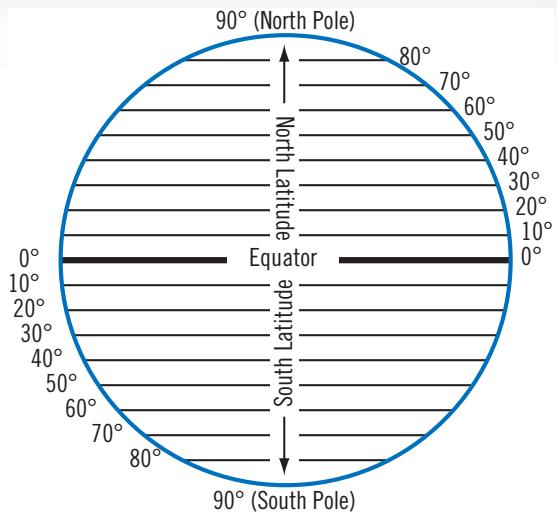
Latitude can be expressed by dividing Earth into horizontal segments totalling 180 degrees. Starting at the Equator, or zero degrees Latitude, lines (or Parallels) are drawn in 10-degree increments 90 degrees to the north and 90 degrees to the south. If your location is below the Equator, you are at a South Latitude.
Longitude
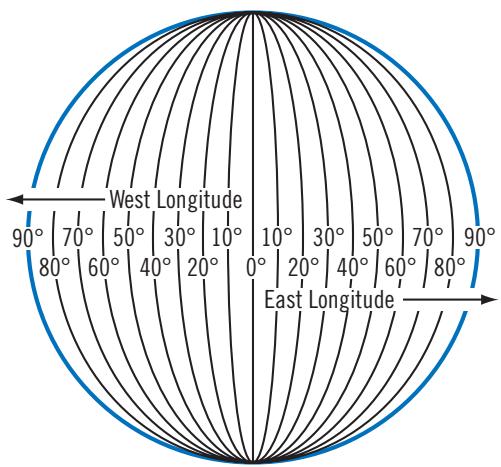
Conversely, longitude lines can be expressed by dividing Earth into vertical segments totalling 360 degrees. Starting at the Prime Meridian (which is The Royal Observatory in Greenwich, England), or zero degrees Longitude, lines are drawn in 10-degree increments 180 degrees to the West and 180 degrees to the East. If your location is on the western hemisphere, you are at a West Longitude.
Additionally, to narrow down your location
further, each 10-degree segment is divided into 60 smaller segments called minutes and, still further, each minute is divided into 60 segments called seconds.
To express this in coordinates, the city of Los Angeles is located at 34^ (degrees) 03' (minutes) and 08 (seconds) North of the Equator, and 118^ (degrees) 14' (minutes) and 42 (seconds) West of the Prime Meridian.
Altitude
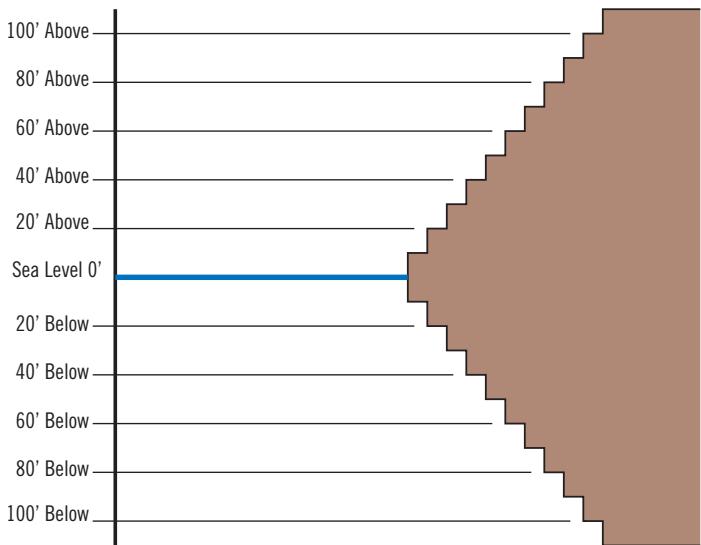
Each location can also have an Altitude. Altitude is expressed by how far the point is above or below the level of the ocean, or Sea Level. For example, Los Angeles, California is about 300 feet above sea level. Death Valley, California is about 270 feet below sea level.
Turn on your Magellan RoadMate 2200T by pressing and holding the Power button for approximately 2-3 seconds, 10 seconds if not in sleep mode. When the Warning screen appears, insert the small end of the USB cable into the USB port on your Magellan RoadMate 2200T, and the large end into an available USB port on your computer.
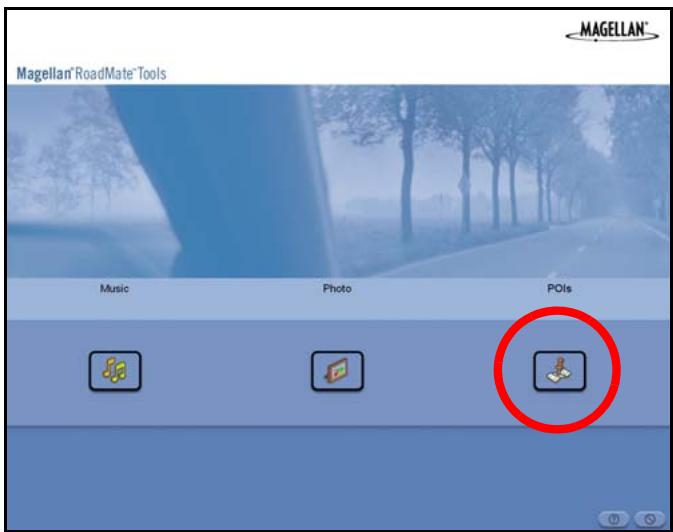
Launch the Magellan RoadMate PC Tools application. From the Magellan RoadMate Tools screen, click on POI.
The left side of the window shows the contents of your computer and the right side of the window shows the contents of the Magellan RoadMate 2200T.
Opening a POI File
When you start the POI Manager the contents of your "My POI's" folder will be displayed. This is the default location for storing custom POI files.
Locate the POI files you wish to load. When you have selected a file, the Copy To Unit arrow will turn green. Click on the arrow to copy the file to your Magellan RoadMate 2200T.
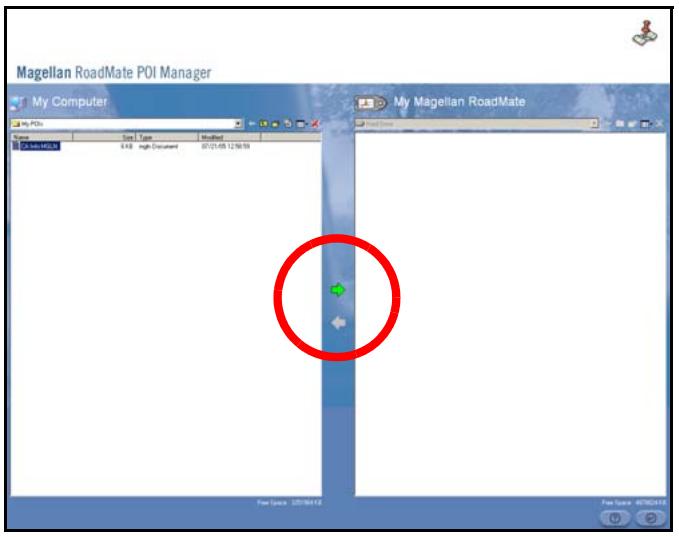
When you have finished copying files, remove the USB cable from the Magellan RoadMate 2200T.
Creating a New POI File
There are two ways to create a POI file. You can either add POI's individually, or you can import a character delimited file containing the information need to plot the POI's. To plot a POI, each item must have a name, longitude, and latitude. Longitude and latitude must be in decimal format.
Adding Individual POI's
Click on the New POI File Button to launch the POI Editor.
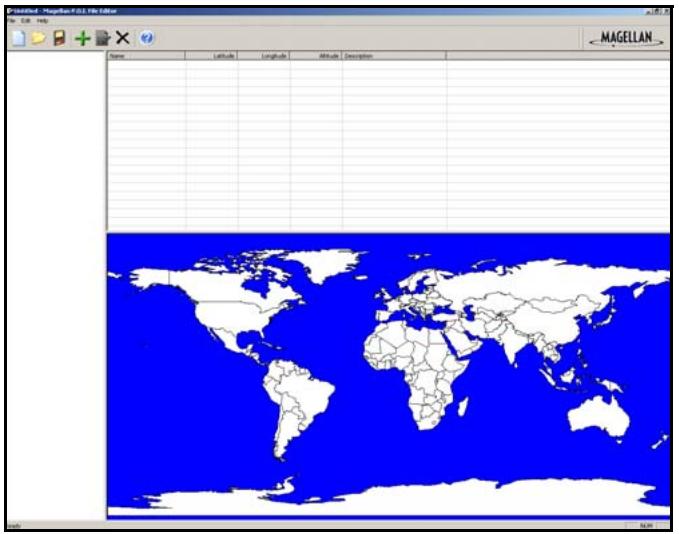
Click on the Add button

Enter the Name, the Latitude, and the Longitude. The Altitude and Description fields are optional.
Select the Category field and select New. A dialog box will appear to create a new POI category. Enter the Name and assign an Image (icon) for the POI. The Description field is optional.
The Alert feature is an audible alarm that lets you know when you are within a certain distance from the POI. You can set an initial reminder (Distance 1), a secondary reminder (Distance 2).
Distance 1
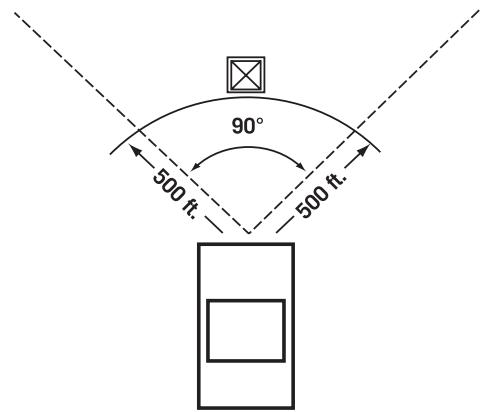
Distance 2
Select your preferred unit or measure (Meters or Feet).
The Detection angle sets the range of alert in degrees from the POI.
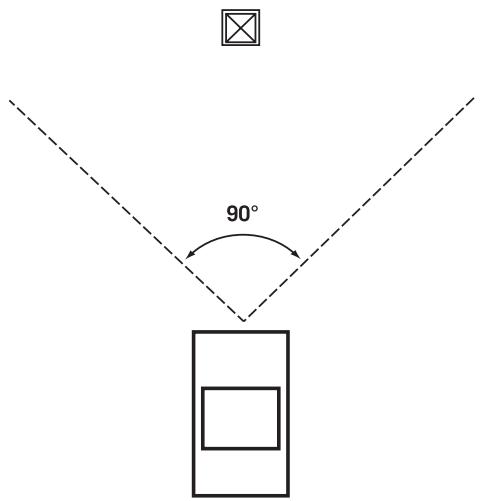
Select Activate alert for this category to enable the alert settings.
When you have finished, select OK.
Importing a Data File
The POI Manager software supports ASCII file format (.ASC,.CSV,.TXT); GPS Exchange file format (.GPS,.XML); Magellan Waypoint file format (.WPT,.RTE); and Garmin PCX5 Waypoint file format (.WPT,.RTE).
Click on the Open button

Select the file you wish to import and click Open.
Start by choosing which line in the data file to start importing data. If your data file has a header row, this row will generate an error so you should start at line two or below.
Next, choose how the data is separated and click on Next.
You now need to define the data columns. Click on the pull down menu and assign a field name to the appropriate column. Click on Finish.
Click on The Save POI file button. Assign a name to your file and click on Save.
Close the POI File Editor. Select the POI file you just created and click on the transfer button (right arrow) to upload the file to your Magellan RoadMate 2200T.
Magellan RoadMate Music Manager
The Magellan RoadMate Music Manager enables you to transfer song files in MP3 or WMA format from your computer to an optional SD memory card installed in your Magellan RoadMate 2200T. The amount of music you can load depends on the size of the card.
Insert the memory card into the memory card slot. Turn on your Magellan RoadMate 2200T by pressing and holding the Power button for approximately 2-3 seconds if in sleep mode. (Ten seconds if not in sleep mode.) When the Warning screen appears, insert the small end of the USB cable into the USB port on your Magellan RoadMate 2200T and the large end into an available USB port on your computer.
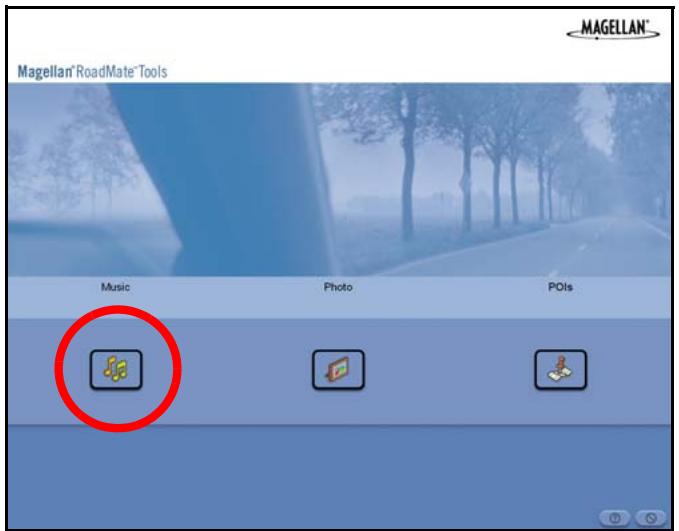
Launch the Magellan RoadMate Tools application. From the Magellan RoadMate Tools screen, click on Music.
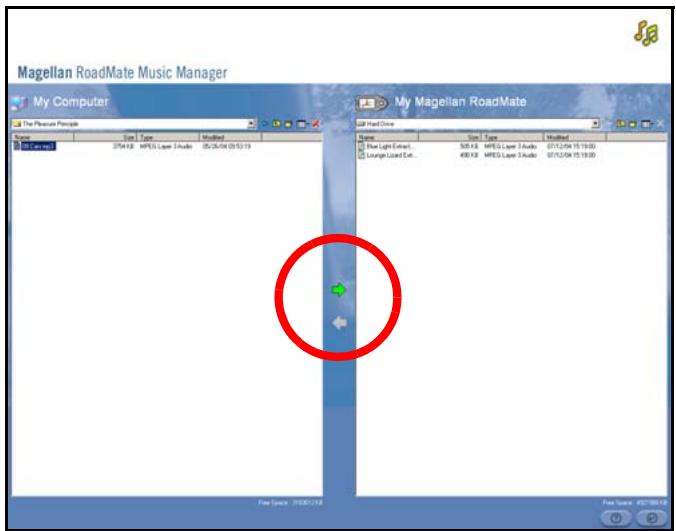
The left side of the window shows the contents of your computer and the right side of the window shows the contents of the memory card installed in your Magellan RoadMate 2200T.
Locate the song files you wish to load. When you have selected a file, the Transfer arrow will turn green. Click on the Transfer arrow to copy the file(s) to the memory card.
In the same way, if you have loaded song files onto a memory card from another computer, you can copy the files from the memory card to your computer.
When you have finished copying files, remove the USB cable from the Magellan RoadMate 2200T.
Magellan RoadMate Photo Manager
The Magellan RoadMate Photo Manager enables you to transfer image files in multiple formats from your computer to an optional memory card installed in your Magellan RoadMate 2200T. The number of images you can load depends on the size of the card.
Insert the memory card into the memory card slot. Turn on your Magellan RoadMate 2200T by pressing and holding the Power button for approximately 2-3 seconds (TensecondstheMagellanRoadMate2200Tisnot in sleep mode.)When the Warning screen appears, insert the small end of the USB cable into the USB port on your Magellan RoadMate 2200T, and the large end into an available USB port on your computer.
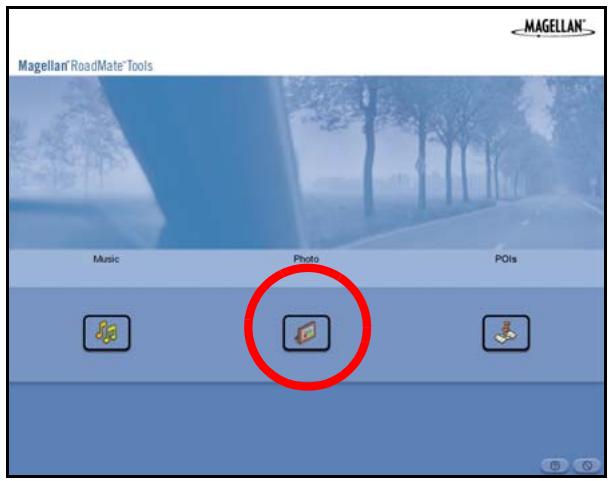
Launch the Magellan RoadMate Tools application. From the Magellan RoadMate Tools screen, click on Photo.
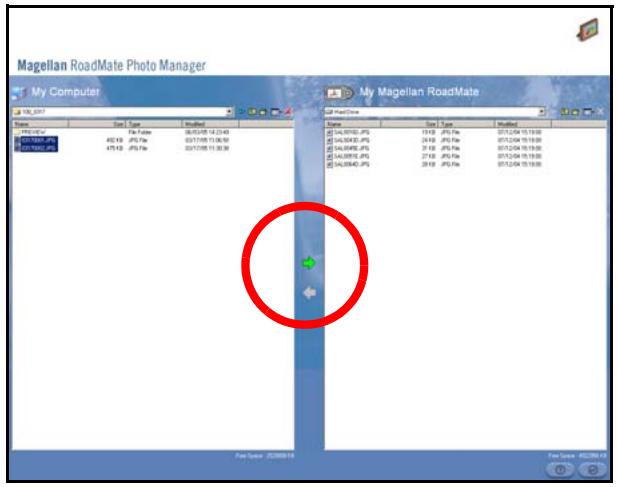
The left side of the window shows the contents of your computer and the right side of the window shows the contents of the memory card installed in your Magellan RoadMate 2200T.
Locate the image files you wish to load. When you have selected a file, the Transfer arrow will turn green. Click on the Transfer arrow to copy the file(s) to the memory card. In the same way, if you have loaded image files onto a memory card from another computer, you can copy the files from the card to your computer.
When you have finished copying files, remove the USB cable from the Magellan RoadMate 2200T.
Music Player
The Magellan RoadMate 2200T Music Player enables you to play music files in MP3, or WMA format, stored on an optional memory card installed in your Magellan RoadMate 2200T. If you have not already done so, you must install the Magellan RoadMate Tools application and transfer files onto the card using the Magellan RoadMate Music Manager.
Note: You must use the Magellan RoadMate PC Toolkit to load music files onto the SD Card.
Press the MENU key on the Magellan RoadMate 2200T and select the Music Player.

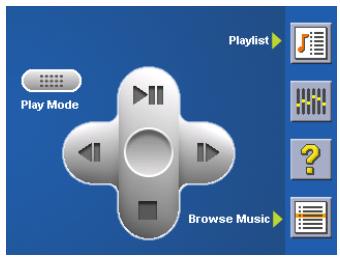
The Music Player control pad will appear.
Single Song Play
Select Browse Music

Use the Navigation key or the Down arrow

to select the song file you
wish to play and press OK.
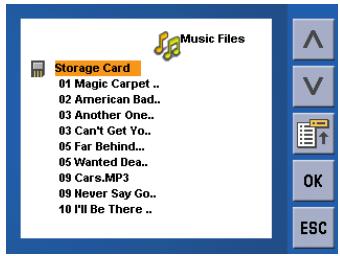
The song will begin playing automatically.
At the top of the screen is displayed the name of the song, the artist (if available), the selected play mode, the elapsed time, and the song duration.
Press the Play/Pause button to suspend song play. To resume song play, press the Play/Pause button again.
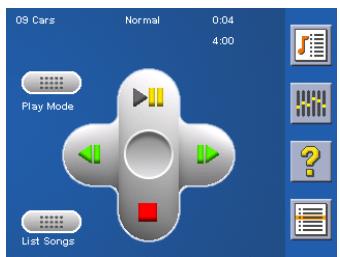
Press the Stop button to stop song play. Once a song has been stopped, pressing the Play/Pause button will start the song from the beginning.
Multiple Song Play
Multiple song play enables you to create a " playlist". A playlist consists of one or more songs in a group that can be played continuously.
Select Playlist

The Playlist menu will appear. To exit from the playlist menu, select ESC.
Play
To hear a previously created playlist, select Play.
Use the Up or Down arrow to select the desired playlist. Select OK.
The songs will begin playing automatically in order.
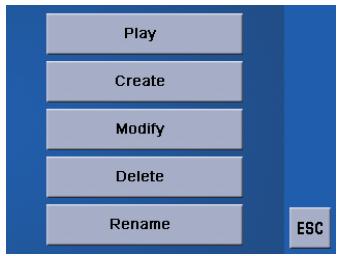
Create
To make a new playlist, select Create.
Use the backspace key (< -) to erase the default name; and the keypad to enter a new name for your playlist. When you have finished, select OK.
The next screen to appear shows the song files stored on the memory card on the left side, and the playlist on the right side.
Use the arrow buttons on the left side of the screen to highlight the Music folder and then, select List Files.
Use the arrow buttons to highlight the song files you wish to add to the playlist. Select Add to Playlist (right arrow) to add the highlighted song to the playlist.
Continue adding files to the playlist. When you have finished, select OK.
Modify
Modify enables you to add or remove songs from the selected playlist. Select Modify.
To remove a song from the playlist, use the arrow keys on the right side of the screen to highlight the desired song and then select Remove From Playlist (left arrow).
Use the arrow buttons on the left side of the screen to highlight the song files you wish to add to the playlist. Select Add to Playlist (right arrow) to add the highlighted song to the playlist.
Continue adding files to the playlist. When you have finished, select OK.
Delete
To remove a playlist, select Delete.
Select the playlist you wish to delete and select OK.
A dialog box will appear asking to confirm your selection. Select Yes to delete the playlist.
Rename
If you want to change the name of a playlist, select Rename.
Select the playlist you wish to rename and then, select OK.
Use the backspace key (<-) to erase the name; and the keypad to enter a new name for your playlist. When you have finished, select OK.
Play Mode
While in single song play, select Play Mode for song play options.
Repeat All - Repeats all the songs in the current playlist starting at the beginning of the order. This function works only if there are two or more songs in the playlist.
Repeat - repeats the song that is currently playing.
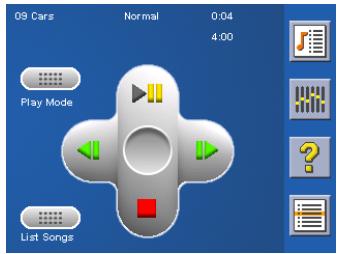
Preview - Plays the first five seconds of each song in the current playlist.
Normal - Plays all songs in the current playlist in order.
Random - Plays the songs in the current playlist in random order.
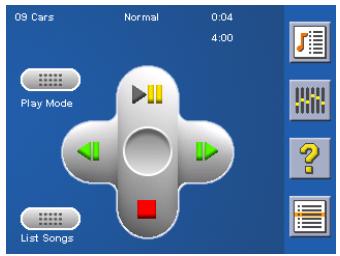
List Songs
Select List Songs to view the current playlist.
Equalizer
The Equalizer provides advanced sound options so you can customize the quality of the playback. The equalizer will only be available for MP3 format sound files. Select an equalizer preset from the following preconfigured options: Default (flat), Jazz, Classical, Rock, Techno, Dance Hall, Live, Full Bass, Full Treble, and Full Bass & Treble. You are not able to however, manually set the equalizer.
Select the Equalizer

Select the equalizer preset by pressing the button at the top of the screen
When you are satisfied with your selection, select OK. To exit without setting the equalizer, select ESC.
Help
Select Help

for descriptions of the Music Player buttons.
Photo Viewer
The Magellan RoadMate Photo Viewer enables you to view image files in JPG and BMP format, stored on an optional memory card installed in your Magellan RoadMate 2200T. If you have not already done so, you must install the Magellan RoadMate Tools application and transfer files onto the card using the Magellan RoadMate Photo Manager.
Press the MENU key on the Magellan RoadMate 2200T. Select the Photo Viewer

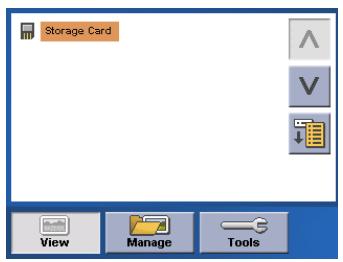
The Photo Viewer screen will appear. The Photo viewer will show the contents of the SD or MMC card installed in your Magellan RoadMate 2200T.
View Single Photo
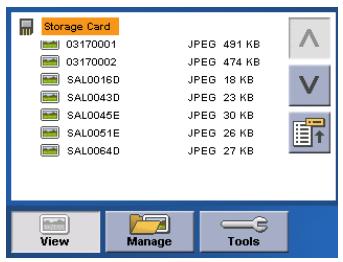
The next screen to appear shows the file structure of the memory card. Select List Files

Use the Navigation key or the Down arrow

to highlight the photo you wish to
view and select View.
While viewing the image, double clicking on the image (that is tapping twice on the screen) will show the image in full screen. You can then cycle through the images by pressing left or right on the Navigation key.
Previous Image (left arrow)

Press the right arrow button to view the previous image in the folder. This button is grayed out (not functional) when viewing the first image in the folder.
Zoom

Press the Zoom button to reduce or enlarge the current photo. The top of the zoom menu shows the current zoom level. Select another zoom level from the list of presets. Select Best Fit to adjust the zoom to fit within the display boundaries; select Actual Size to display the image at 100% ; select 25% to 150% to reduce or enlarge the image to the preset level.
Slideshow

Press the Slideshow button to cycle through all the photos in the Pictures folder automatically.
Pan

If you enlarge an image beyond the screen boundaries, press the Pan button to enable image scrolling. While enabled, you can drag the image in any direction to view other areas of the image. Press the Pan button again to disable Pan mode.
Rotate Image

Press the Rotate Image button to rotate the image 90^ counterclockwise, 90^ clockwise, or 180^ .
Next Image (right arrow)

Press the right arrow button to view the next image in the folder. This button is grayed out (not functional) when viewing the last image in the folder.
ESC
ESC
Press ESC to return to the folder list.
Manage Photos
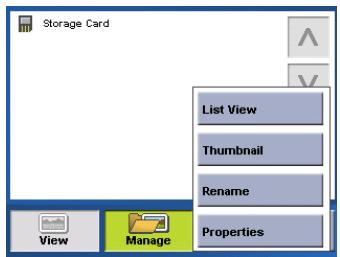
List View
Press List view to show the files in a hierarchical list view.
Thumbnail
Press Thumbnail to show the files as thumbnails.
Rename
To change the name of the selected file or folder, press Rename.
Use the backspace key (<-) to erase the name; and the keypad to enter a new name for your file. When you have finished, select OK.
Properties
To view information on the selected file or folder, press Properties. A thumbnail of the image will be displayed along with the width and height in pixels, the size, and the format
(image type). When viewing the properties for folders, width, height, and format are not shown. Size shown is the combined size of all images in the selected folder.
When you are finished viewing the properties, select OK.
Tools
Preferences
General - The General preferences, you can set the default file view to either thumbnail or file list view.
Slideshow - The slideshow preferences enable you to set the view properties, the sequence of photos, the transition between photos, and the duration between photos.
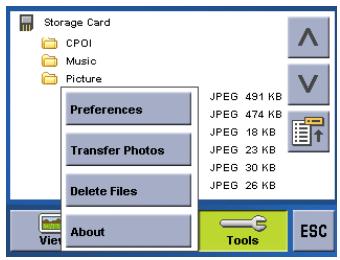
Background - The background preferences enable you to set the color of the background behind the photo being viewed.
Delete Files
Use the arrow keys to select the file or folder you wish to delete. Press the Delete button (trash can).
A dialog box will appear asking to confirm your selection. Select Yes to delete the file.
About
This option will display the current version of the Photo Viewer software.
Contact Information
If you need support for your Magellan RoadMate 2200T and you wish to contact Magellan, please use the following information to direct your questions/comments to the proper person.
Technical Support
If you need technical assistance or "how-to" help, or if you have a technical question about the functionality of your Magellan product, please contact us on the Internet at www.magellanGPS.com or reach us by fax or by phone.
Our Technical Support phone representatives are available Monday through Friday, 6:00 a.m. to 5:00 p.m. PST/PDT. After hours, you may leave a detailed voice mail message that will be returned within the next business day.
Telephone: (866) 868-2259 or (909) 394-5000 (outside the United States)
You may also reach Technical Support by Fax: (909) 494-7777 [Attn: Tech. Support]; or E-Mail: magellansupport@magellanGPS.com
Warranty Service
To obtain warranty service on your Magellan RoadMate 2200T, you must contact us for a return authorization (RA) before you ship the product. Packages arriving at our dock without an RA will be refused.
To obtain an RA, simply contact our Technical Support group at: Telephone: (866) 868-2259 or (909) 394-5000 (outside the United States); Fax: (909) 394-7050 [Attn: Tech. Support]; or E-Mail: magellansupport@magellanGPS.com
Customer Service
If you need to order accessories or obtain unlock codes, you can call our Customer Service Department Monday through Friday, 6:00 a.m. to 5:00 p.m. PST/PDT, or visit our Web site at www MAGELLANGPS.com.
Telephone: (866) 339-0488 or (909) 394-5000 (outside the United States); Fax: (909) 394-7078.
Registration
Please make sure to register your Magellan RoadMate 2200T at www.magellanGPS.com. By registering, you will be informed of the latest product updates.
- Instructions for Operating the Magellan RoadMate 2200T
- IMPORTANT SAFETY WARNINGS
- About Charging the Magellan RoadMate 2200T
- About the AC Adapter
- About the Battery
- Federal Communication Commission Interference Statement
- IMPORTANT NOTE:
- FCC Radiation Exposure Statement:
- IC Radiation Exposure Statement:
- Magellan RoadMate 2200T 1
- Magellan RoadMate 2200T Screens 4
- Creating Routes 10
- Using the Trip Planner 19
- Magellan RoadMate Enhanced POIs 22
- Setting User Options 24
- System Settings 28
- Magellan RoadMate Tools Installation 30
- Magellan RoadMate POI Manager 31
- Magellan RoadMate Music Manager 36
- Magellan RoadMate Photo Manager 37
- Magellan RoadMate 2200T
- What the Magellan RoadMate can do for you...
- Magellan RoadMate Reference Manual
- Magellan RoadMate 2200T Left Side View
- Magellan RoadMate 2200T Screens
- Map Screen
- Main Menu Screens
- Locate Screen (Tap the top bar on the Map screen)
- Maneuver List Screen (Tap the next maneuver bar on the Map screen)
- Application Menu Screen
- Creating Routes
- Overview
- Creating a route to a street address
- Creating a route using POIs
- Creating a route to a POI by name
- Creating a route to a nearest POI
- Creating a route to a POI from an upcoming freeway exit
- Creating a route to go home
- Setting the home address
- Changing the home address
- Create a route to the home address
- Using the address book
- Creating a route to a previous destination
- Adding a previous destination to your address book
- Creating a route to a favorite destination
- Creating a route to an address in the address book
- Editing an address in the address book
- Deleting an address from the address book
- Creating a new address
- Creating a route to an intersection
- Using the Trip Planner
- Creating a multiple destination trip
- Activating a multiple destination trip
- Editing a multiple destination trip
- Deleting a multiple destination trip
- Renaming a multiple destination trip
- Magellan RoadMate Enhanced POIs
- Accessing the Enhanced POI Menu
- Loading an Enhanced POI file
- Displaying/Selecting Categories
- Setting Alarms
- Setting Alert Parameters
- Creating a Route Using Enchanced POIs
- Saving a POI to your Address Book from Enchanced POIs
- Setting User Options
- POI Selection
- Address Book Options
- Map Options
- Map Colors
- Route Preferences
- Detour Options
- Simulator Mode
- Menu Colors
- Tone Options
- Navigation Instruction
- GPS Options
- Backup and Restore
- System Settings
- Volume
- Brightness
- Power
- Language
- Time Zone
- Unit of Measure
- Page 2 (tap >)
- Product Information
- Diagnosis
- Additional Items
- Battery Life
- Contact Us
- Magellan RoadMate PC Tools Installation
- Installing the Software
- Magellan RoadMate POI Manager
- Latitude
- Longitude
- Altitude
- Opening a POI File
- Creating a New POI File
- Adding Individual POI's
- Importing a Data File
- Magellan RoadMate Music Manager
- Magellan RoadMate Photo Manager
- Music Player
- Single Song Play
- Multiple Song Play
- Select Playlist
- Play
- Create
- Modify
- Delete
- Rename
- Play Mode
- List Songs
- Equalizer
- Help
- Photo Viewer
- View Single Photo
- Previous Image (left arrow)
- Zoom
- Slideshow
- Pan
- Rotate Image
- Next Image (right arrow)
- ESC
- Manage Photos
- List View
- Thumbnail
- Properties
- Tools
- Preferences
- Delete Files
- About
- Contact Information
- Technical Support
- Warranty Service
- Customer Service
- Registration
Brand : MAGELLAN
Model : ROADMATE 2200T
Category : Navigation GPS