
CLOUDBOX - Network Storage LACIE - Free user manual and instructions
Find the device manual for free CLOUDBOX LACIE in PDF.


| Brand | LACIE |
| Model | CLOUDBOX |
| Product type | Network Attached Storage (NAS) |
| Storage capacity | Varies by model |
| Network connectivity | Gigabit Ethernet |
| Supported protocols | SMB, AFP, NFS, FTP |
| Online backup function | Automatic backup over the Internet |
| Included software | LaCie Network Assistant, Backup Assistant |
| Administration interface | Web dashboard |
| Number of users | Multi-user with quotas |
| Power supply | External power adapter |
| Power consumption | Approximately 15 W operation |
| Dimensions (L x W x H) | Approximately 200 x 150 x 50 mm |
| Weight | Approximately 1 kg |
| Operating temperature | 5 °C to 35 °C |
| Operating humidity | 10% to 80% (non-condensing) |
| LED indicator | Power and activity light |
| Power button | Push button (long press to turn off) |
| Cooling | Passive (fanless) |
| Maintenance and cleaning | Wipe with a dry soft cloth |
| Security | Administrator password required |
| Repairability | Hard drive accessible from the bottom |
| Package contents | CloudBox, power adapter, Ethernet cable, CD-ROM, quick start guide |
Frequently Asked Questions - CLOUDBOX LACIE
User questions about CLOUDBOX LACIE
0 question about this device. Answer the ones you know or ask your own.
Ask a new question about this device
Download the instructions for your Network Storage in PDF format for free! Find your manual CLOUDBOX - LACIE and take your electronic device back in hand. On this page are published all the documents necessary for the use of your device. CLOUDBOX by LACIE.
USER MANUAL CLOUDBOX LACIE
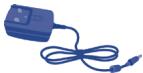
External power supply
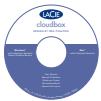
LaCie Utilities CD-ROM:
LaCie Network Assistant
-LaCie Backup Assistant
-User Manual
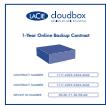
Leaflet with your
1-Year Online
Backup Contract
Rear View
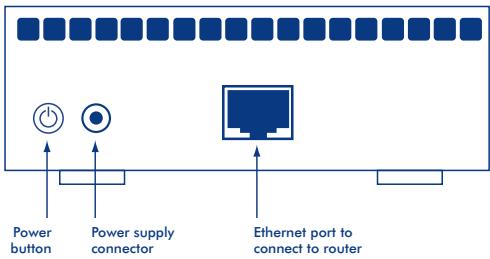
Installation

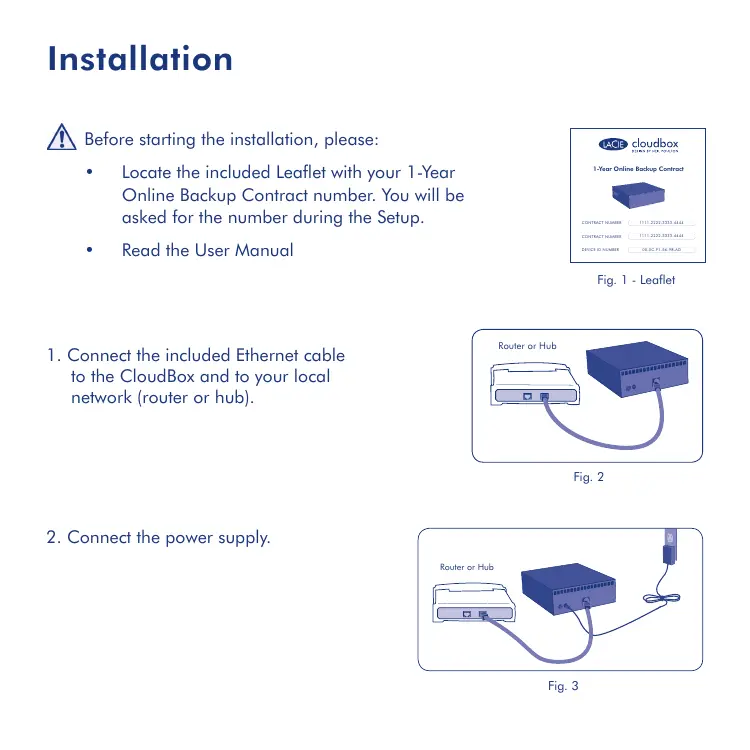
Before starting the installation, please:
- Locate the included Leaflet with your 1-Year Online Backup Contract number. You will be asked for the number during the Setup.
Read the User Manual
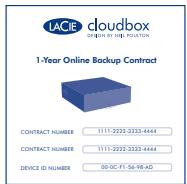
Fig.1 - Leaflet
- Connect the included Ethernet cable to the CloudBox and to your local network (router or hub).
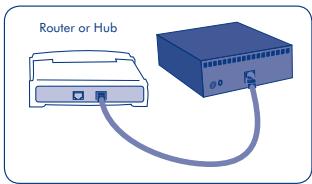
Fig. 2
- Connect the power supply.
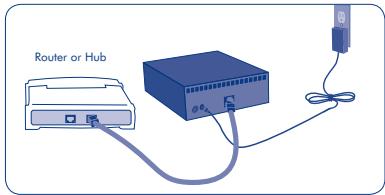
Fig. 3
- Turn on the CloudBox by pushing and holding the power button for 2 seconds. When the front light stops blinking, the CloudBox is ready for use.
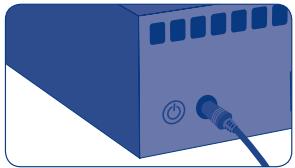
Fig. 4
Note: If you want to turn off the drive, press and hold the power button for 5 seconds until the LED blinks. When the LED turns off, the drive has shut down.
Setup

VERY IMPORTANT:
- Your network must have access to the Internet to complete the CloudBox Setup Wizard.
- The CloudBox Setup Wizard will guide you through the installation in a few easy steps.
-
The CloudBox will be available for use once the Setup Wizard is complete and your online account has been verified.
-
Install and run LaCie Network Assistant, located on the LaCie Utilities CD-ROM. LaCie Network Assistant can help you launch the CloudBox Setup Wizard.
- There are two options for launching the CloudBox Setup Wizard: a. LaCie Network Assistant; and b. From your Internet browser.
a. LaCie Network Assistant (preferred)
Windows®:
Click the LaCie Network Assistant icon located in the system tray (bottom right of the screen) and select CloudBox > Web Access...
Mac®:
Click the LaCie Network Assistant icon located in the menu bar (top right of the screen) and select CloudBox > Web Access...
Fig. 5
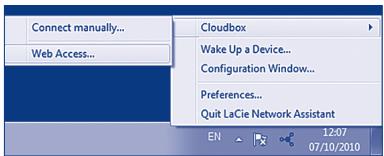
Fig. 6 - LaCie Network Assistant (Windows)
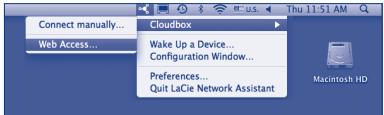
Fig. 7 - LaCie Network Assistant (Mac)
Setup
b. To launch the Setup Wizard in your web browser, type the name of your CloudBox in the address bar (the default address is http://cloudbox or http://cloudbox.local, depending upon your browser).
3. The Setup Wizard will load in your browser. Complete the Wizard and make note of your username and password for subsequent logins. You will be asked for your contract number during the setup. Please find the contract number on the leaflet shipped with your product.
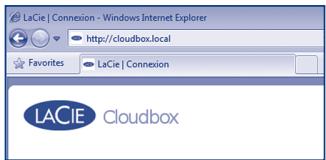
Fig. 8
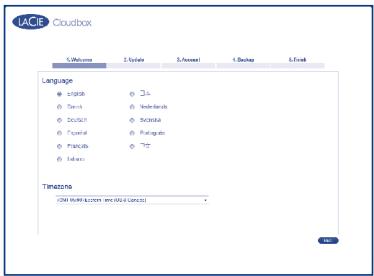
Fig. 9 - CloudBox Setup Wizard

THE ADMINISTRATOR LOGIN AND PASSWORD CANNOT BE RECOVERED.
LaCie highly recommends that you write your administrator username and password for your records since they cannot be recovered.
Note: Please create an administration password that is not easy to guess.
Transfer Files and Backup
Now you can keep your important files secure by storing them on the CloudBox. Your data will be automatically backed up online. To begin storing files on your CloudBox:
- Copy files manually from your computer to the CloudBox.
- Copy files automatically from your computer to the CloudBox using backup software. You can run the LaCie Backup Assistant on the included LaCie Utilities CD-ROM to configure your backup.
Note: Please see the User Manual for more information on how to copy files to your LaCie CloudBox.
LaCie Dashboard
Use the Dashboard administration tool to manage your LaCie CloudBox. You can create user folders, set storage quotas for each user, change the device network settings, restore data from online backups, and much more. See the User Manual for further information on how to launch the Dashboard and manage your LaCie CloudBox.

Fig. 10 - LaCie CloudBox Dashboard
NIE MOZNA ODZYSKAC LOGINU I HASLA ADMINISTRATORA.
IMMPOJIb3OBATEJN IAPOJIb ADMHHCTPATOPA HE MOYt BbITb BOCCTAHOBIEHbl.
IockoBky IIMNpOb3ObaTeTnI napOJIb aDMNHcTpaTopa He npDJIeXaT BOCCTAHOBNeHIO, KOMNaHnLaCie NaCToRteHbNO peKoMeHdyET 3aIIncatb IV.
Ipehenoc faiJIOB n pe3epBHOe KOnIpObaHne
CoXpaHnB aKbHbIe FaiNbI hNcKBe ClOuBx, bbl o6ceNueBaete IN nonHyIO 6e3oNaCHocTb, nocKOBky Ia HIX abOMatunueckn coZdAOTn pezeBPhNke KIN B INtpeHete. YToMbI coXpaHnTb faiNbI h Da NcKe ClOuBx, bblONPiHTE ONO h 3ykaz3aHHbx HNke DeiCTBn.
- BpyHyIO ckOnIpyNe foaiNbIC kmNbIepeHa nDCK CloudBox.
BbInonHnite abOMatuueckoe pe3epBHOe konipOBaHne faiNob C kOMMbtepeHa nDcK CloudBox c nmooubIO coOTBeTCTByUoE npORpAMMHOO o6ecneYENI. B cStEmE IJn 3ToI nei moXHO hCNIOJIb3OBaT bnpORpAMMy LaCie BackUp Assistant, KOTOPa COepKHTca H BXODaIeB K OMnIeKT NocTbKN KOMNaKT-dIcke C yTuNTaMI LaCie.
PImeauHue. DOnONnHTenBHyO INhOFmaUaIO O KOniUPoBaHmN PAnIOB NaIck LaCie CloudBox cM. B yPKOBODCTBE nOblO3BATEJIa.
PanhelbynpablenyaCie
AdmHnHCTpnpOBAHn DnCKa LoCie CloudBox npOn3BODnTcpe3 naneh b npApBneHn. C ee nomOJIb moKHO co3dAbTaB napKn dnn non3B0atenei, yctahabnBaBt orpaHnueHa 3aHHMaEOM mIM npocTpaHCTBO dI xpaHnE HnHbXb, n3MeHn CeTeBbHe hactPONk YcTPOCTBa, BOCCTaHabNtBaD aeHbIe n3pe3EBhX konM BV INHTepHe n pa6oTbC mHOKeCTBOM dpyrNf yHKnI. DonoHNHtEnBHyIO IHOpMAuIIO o zaryCe naneHn ynpABHeHn n A dmHnHCTpnpOBAHm DnCKa LoCie Cloud Box C. By pkoBDCTBe nOb3bOteIa (pnc.10).
EL
Eykataotaon
A Pniv apxioeTe nV yKATaOtaon, npakaaloue:
- Evtoniote to oujneipaiaibavoe puaiaidioe tov apiog ouibetaiaiou 1-Year Online Backup. O apiogoc ta aoc nTnIe kata n diapkeia nC ekyataotaanC. (x1.
- Diαβασετο Τουχερίδιο Xρήσος
(5 LaCie Utilities LLaCie Network Assistant 1
CloudBox LaCie Network Assistant
C. B, C . CloudBox: A. LaCie Network Assistant
(Jia) LaCie Network Assistant
:Windows
...<CloudBox 一 _ 一 (aLaiJzj 10 LaCie Network Assistant
(6)
:Mac
<CloudBox 20000000000000000000000000000000000000000000000000000000000000000000
(7)
http://cloudboxgjg jg jg CloudBox
.8 (zai) (zaii) dli, http://cloudbox.local
yall ylll lgluiuui iuiiui

Jiai jai jai jai jai jai jai jai jai jai jai jai LaCie
auii iui jao ciieai jai
Clll l 1000
:CloudBox
CloudBox
LaCie Backup Assistant CloudBox all
.LaCie CloudBox JI Clllki cai aai 1000 Cilgblal jn 2000 JU Gcull pdozulj Doo
LaCie 1
a 1
Jusl aal j 1jall g Juslln lgl j 1jll j jll j jll
(10)LaCie CloudBox 3, 4, 5, 6, 7, 8, 9, 10, 11, 12, 13, 14, 15, 16, 17, 18, 19, 20, 21, 22, 23, 24, 25, 26, 27, 28, 29, 30, 31, 32, 33, 34, 35, 36, 37, 38, 39, 40, 41, 42, 43, 44, 45, 46, 47, 48, 49, 50,
Contact Us
LaCie Asia
25/F Winsan Tower
98 Thomson Road
Wanchai, Hong-Kong, China
info.asia@lacie.com
LaCie Australia
458 Gardeners Rd.
Alexandria, NSW 2015
info.au@lacie.com
LaCie Benelux
Vorstlaan / 165 Bld du Souverain
B-1160 Brussels, Belgium
info.benelux@lacie.com
LaCie Canada
235 Dufferin St.
Toronto, Ontario M6K 1Z5
info.ca@lacie.com
LaCie France
17, rue Ampère
91349 Massy Cedex
info.fr@lacie.com
LaCie Germany
Am Kesselhaus 5
D-79576 Weil Am Rhein
info.de@lacie.com
LaCie Italy
Milano Business Park
Edificio B1
(Sweden, Denmark, Norway, Finland)
Sveavagen 90,5tr
113 59 Stockholm, Sweden
info.nordic@lacie.com
LaCie Spain
C/NunezMorgado,3,5a pl.
28036 Madrid
info.es@lacie.com
LaCie Switzerland
Davidsbodenstrasse 15 A
4004 Basel
info.ch@lacie.com
LaCie United Kingdom and Ireland
LaCie Ltd, Power Road Studios
114 Power Road
Chiswick, London, UK W4 5PY
UK: info.uk@lacie.com
Ireland: info.ie@lacie.com
LaCie USA
22985 NW Evergreen Pkwy
Hillsboro, OR 97124
sales@lacie.com
LaCie Worldwide Export
17, rue Ampère
91349 Massy Cedex, France
sales.intl@lacie.com
support.intl@lacie.com
Brand : LACIE
Model : CLOUDBOX
Category : Network Storage