
HK 3470 - Audio Receiver HARMAN KARDON - Free user manual and instructions
Find the device manual for free HK 3470 HARMAN KARDON in PDF.


| Product type | Stereo audio receiver |
| Brand | Harman Kardon |
| Model | HK 3470 |
| Dimensions (W x H x D) | 442 x 156 x 415 mm |
| Weight | 12.1 kg |
| Power supply | 230 V AC, 50 Hz |
| Power consumption | 72 W (standby), 470 W (max) |
| Output power (FTC) | 100 W per channel (8 ohms, 20 Hz-20 kHz, <0.07% THD) |
| Frequency response | 10 Hz - 110 kHz (+0 dB, -3 dB) |
| Signal-to-noise ratio (IHF-A) | 95 dB |
| Line input sensitivity | 200 mV / 47 kΩ |
| FM tuner | 87.5 - 108 MHz, sensitivity 1.12 µV / 13.5 dBf |
| AM tuner | 520 - 1710 kHz |
| Audio inputs | Phono (MM), CD, Aux, Tape 1, Tape 2 |
| Audio outputs | Speakers (2 pairs), Subwoofer, Headphones (6.3 mm), Pre-out / Main-in |
| Special features | VMAX, RDS, programmable remote, programmable standby |
| Cleaning | Soft, dry cloth; mild soapy water, wipe immediately |
| Safety | Do not open the case; avoid moisture; unplug before moving |
| Supplied accessories | Remote control, AM loop antenna, FM 300/75 Ω adapter, AAA batteries |
Frequently Asked Questions - HK 3470 HARMAN KARDON
User questions about HK 3470 HARMAN KARDON
0 question about this device. Answer the ones you know or ask your own.
Ask a new question about this device
Download the instructions for your Audio Receiver in PDF format for free! Find your manual HK 3470 - HARMAN KARDON and take your electronic device back in hand. On this page are published all the documents necessary for the use of your device. HK 3470 by HARMAN KARDON.
USER MANUAL HK 3470 HARMAN KARDON
HK 3470 Stereo Receiver
OWNER'S MANUAL
harman/kardon
Power for the Digital Revolution™
Table of Contents
3 Introduction
4 Important Information
5 Front Panel Controls
7 Front Panel Information Display
8 Rear Panel Connections
10 Remote Control Functions
12 Installation and Connections
14 Operation
14 Basic Operation
14 Source Selection
15 Tuner Operation
15 Tape Recording
16 Remote Control Operation
17 Programming the Remote
19 Memory Backup
19 Processor Reset
20 Troubleshooting Guide
21 Technical Specifications
Declaration of Conformity

We, Harman Consumer International
2, route de Tours
72500 Château-du-Loir,
FRANCE
declare in own responsibility, that the product described in this owner's manual is in compliance with technical standards:
EN 55013/6.1990
EN 55020/12.1994
EN 60065:1993
EN 61000-3-2/4.1995
Carsten Olesen
Harman Kardon Europe A/S
11/00
Typographical Conventions
In order to help you use this manual with the remote control, front-panel controls and rear-panel connections, certain conventions have been used.
EXAMPLE - (bold type) indicates a specific remote control or front-panel button, or rear-panel connection jack
EXAMPLE - (OCR type) indicates a message that is visible on the front-panel information display
1 - (number in a square) indicates a specific front panel control
A - (letter in a circle) indicates a button or indicator on the remote
1 - (number in a circle) indicates a rear panel connection
A - (letter in a square) indicates an indicator in the front-panel display
Congratulations! With the purchase of the Harman Kardon HK 3470 you are about to begin many years of listening enjoyment. The HK 3470 has been custom designed to provide all the excitement and power of rock, jazz and popular music, and every nuance of classical selections.
While sophisticated systems are hard at work within the HK 3470 to make all of this happen, hookup and operation are simple. Color-keyed connections and a comprehensive remote control make the HK 3470 easy to use.
To obtain maximum enjoyment from your new receiver, we urge you to take a few minutes to read through this manual. This will ensure that connections to speakers, source playback units and other external devices are made properly. In addition, a few minutes spent learning the functions of the various controls will enable you to take advantage of all the power the HK 3470 is able to deliver.
If you have any questions about this product, its installation or operation, please contact your dealer. He is your best local source of information.
Description and Features
Harman Kardon's HK 3470 is the world's first stereo receiver to offer VMAX. VMAX is a proprietary signal-processing technique that creates an open, spacious sound field when only two loudspeakers are available. VMAX circuitry is able to decode the ambience of a concert hall or theater from a stereo recording.
The HK 3470 is a full-featured Stereo receiver, with five inputs and an FM stereo/ FM/AM tuner with RDS capabilities that provide for the utmost flexibility. A high-quality phono input is available so that you may continue to enjoy your existing record collection as well as the latest CD recordings.
The HK 3470's powerful amplifier uses traditional Harman Kardon High-Current Design philosophies to meet the wide dynamic range of any program selection.
Harman Kardon invented the high-fidelity receiver more than forty-seven years ago. With state-of-the-art features and time-honored circuit designs, the HK 3470 is one of the finest receivers ever offered by Harman Kardon.
Harman Kardon Designed High-Current, Ultrawide Bandwidth Amplifier
VMAx Processing Mode - Exclusive to Harman Kardon Receivers
Phono Input Section
■ Speaker 1/Speaker 2 Outputs for High-Quality Sound in Two Locations
Pre-Out/Main-In jacks for use with External Amplifiers, Equalizers or Speaker Processors
Programmable Learning Remote Control
Subwoofer Output
Tuner with RDS Data Program Information Displays
CAUTION
RISK OF ELECTRIC SHOCK DO NOT OPEN

CAUTION: TO REDUCE THE RISK OF ELECTRIC SHOCK, DO NOT REMOVE COVER (OR BACK). NO USER-SERVICEABLE PARTS INSIDE. REFER SERVICING TO QUALIFIED SERVICE PERSONNEL.
The lightning flash with arrowhead symbol, within an equilateral triangle, is intended to alert the user to the presence of uninsulated "dangerous voltage" within the product's enclosure that may be of sufficient magnitude to constitute a risk of electric shock to persons.

The exclamation point within an equilateral triangle is intended to alert the user to the presence of important operating and maintenance (servicing) instructions in the literature accompanying the appliance.
WARNING: TO REDUCE THE RISK OF FIRE OR ELECTRIC SHOCK, DO NOT EXPOSE THIS APPLIANCE TO RAIN OR MOISTURE.
Important Safety Information
Verify Line Voltage Before Use
Your HK 3470 has been designed for use with 220-240-volt AC current. Connection to a line voltage other than that for which it is intended can create a safety and fire hazard, and may damage the unit.
If you have any questions about the voltage requirements for your specific model, or about the line voltage in your area, contact your selling dealer before plugging the unit into a wall outlet.
Do Not Use Extension Cords
To avoid safety hazards, use only the power cord attached to your unit. We do not recommend that extension cords be used with this product. As with all electrical devices, do not run power cords under rugs or carpets or place heavy objects on them. Damaged power cords should be replaced immediately with cords meeting factory specifications.
Handle the AC Power Cord Gently
When disconnecting the power cord from an AC outlet, always pull the plug, never pull the cord. If you do not intend to use the unit for any considerable length of time, disconnect the plug from the AC outlet.
Do Not Open the Cabinet
There are no user-serviceable components inside this product. Opening the cabinet may present a shock hazard, and any modification to the product will void your guarantee. If water or any metal object such as a paper clip, wire or staple accidentally falls inside the unit, disconnect it from the AC power source immediately, and consult an authorized service station.
Installation Location
To assure proper operation, and to avoid the potential for safety hazards, place the unit on a firm and level surface. When placing the unit on a shelf, be certain that the shelf and any mounting hardware can support the weight of the product.
Make certain that proper space is provided both above and below the unit for ventilation. If this product will be installed in a cabinet or other enclosed area, make certain that there is sufficient air movement within the cabinet. Under some circumstances a fan may be required.
- Do not place the unit directly on a carpeted surface.
Avoid installation in extremely hot or cold locations, or an area that is exposed to direct sunlight or heating equipment.
Avoid moist or humid locations.
- Do not obstruct the ventilation slots on the top of the unit, or place objects directly over them.
Cleaning
When the unit gets dirty, wipe it with a clean, soft, dry cloth. If necessary, wipe it with a soft cloth dampened with mild soapy water, then a fresh cloth with clean water. Wipe dry immediately with a dry cloth. NEVER use benzene, aerosol cleaners, thinner, alcohol or any other volatile cleaning agent. Do not use abrasive cleaners, as they may damage the finish of metal parts. Avoid spraying insecticide near the unit.
Moving the Unit
Before moving the unit, be certain to disconnect any interconnection cords with other components, and make certain that you disconnect the unit from the AC outlet.
Unpacking
The carton and shipping materials used to protect your new receiver during shipment were specially designed to cushion it from shock and vibration. We suggest that you save the carton and packing materials for use in shipping if you move, or should the unit ever need repair.
To minimize the size of the carton in storage, you may wish to flatten it. This is done by carefully slitting the tape seams on the bottom and collapsing the carton down to a more two-dimensional appearance. Other cardboard inserts may be stored in the same manner. Packing materials that cannot be collapsed should be saved along with the carton in a plastic bag.
If you do not wish to save the packaging materials, please note that the carton and other sections of the shipping protection are recyclable. Please respect the environment and discard those materials at a local recycling center.
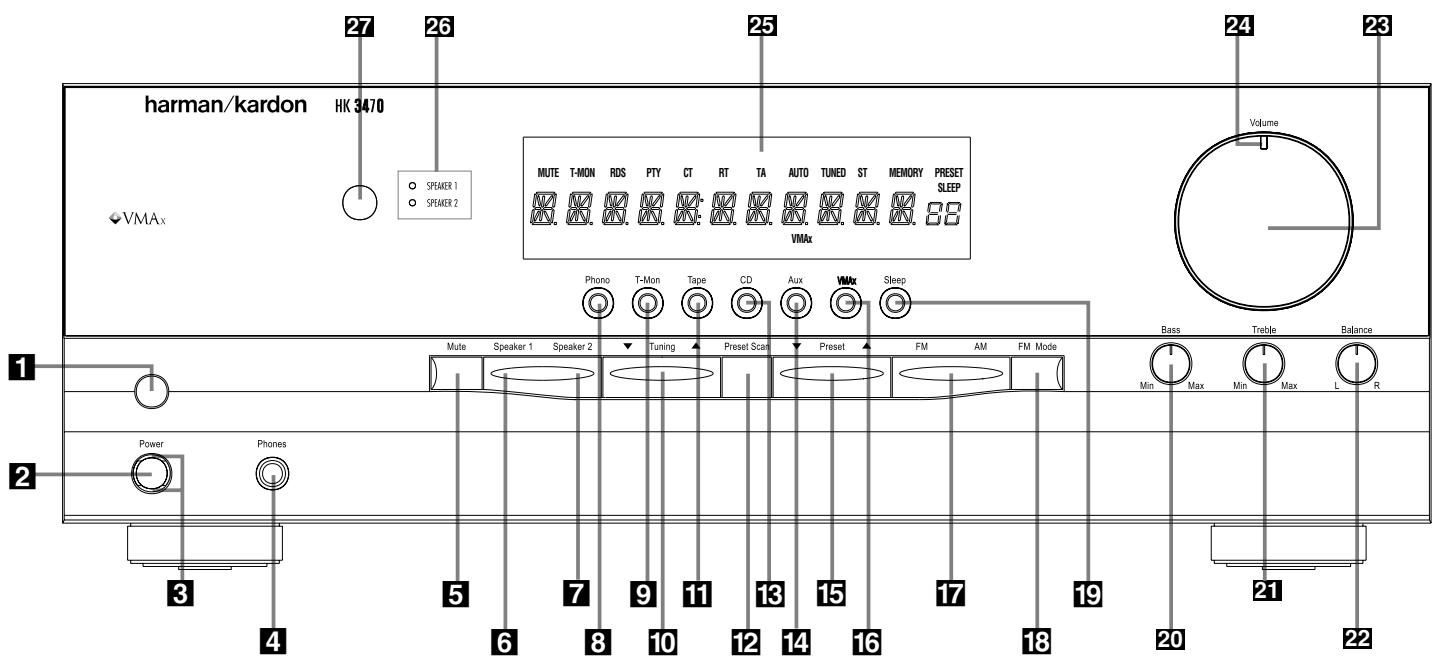
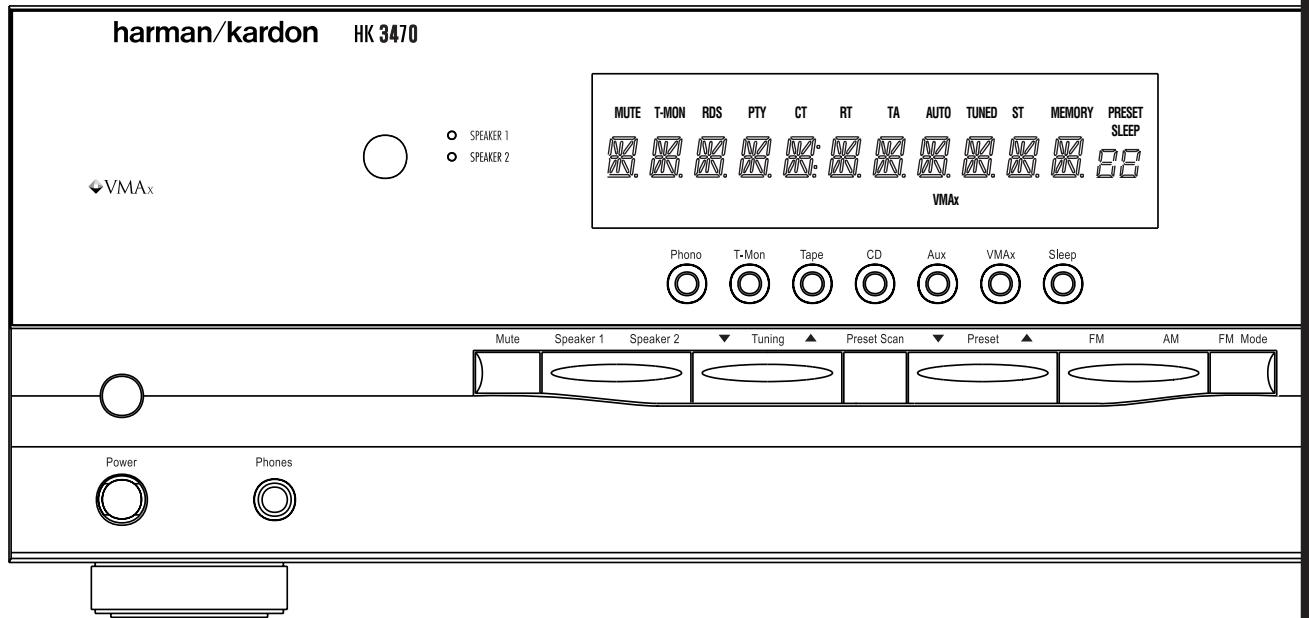
1 Main Power Switch
2 System Power Control
3 Power Indicator
4 Headphone Jack
5 Mute
6 Speaker 1 Selector
7 Speaker 2 Selector
8 Phone Input Selector
9 T-Mon Input Selector
10 Tuning Button
11 Tape Input Selector
12 Preset Scan
CD Input Selector
14 Aux Input Selector
15 Preset Selector
16 VMAX Selector
FM/AM Selector
FM Mode Selector
19 Sleep Button
20 Bass Control
21 Treble Control
22 Balance Control
Volume Control
24 Volume/Mute Indicator
25 Information Display
26 Speaker Selection Indicators
Remote Sensor Window
1 Main Power Switch: Press this button to apply power to the HK 3470. When the switch is pressed in the unit is placed in a Standby mode, as indicated by the amber LED 3 surrounding the System Power Control 2. This button MUST be pressed in to operate the unit. To turn the unit off completely and prevent the use of the remote control, this switch should be pressed until it pops out from the front panel so that the word "OFF" may be read at the top of the switch.
NOTE: In normal operation this switch is left in the "ON" position.
2 System Power Control: When the Main Power Switch 1 is "ON," press this button to turn on the HK 3470; press it again to turn the unit off (to Standby). Note that the Power Indicator surrounding the switch 3 will turn green when the unit is on.
3 Power Indicator: This LED will illuminate in amber when the unit is in the Standby mode to signal that the unit is ready to be turned on. When the unit is in operation, the indicator will turn green. A red indicator means that the unit is in the Protect mode, and should be turned off and then checked for a possible speaker wire short circuit.
4 Headphone Jack: This jack may be used to listen to the HK 3470's output through a pair of headphones. Be certain that the headphones have a standard 6,3 mm stereo phone plug.
5 Mute: Press this button to momentarily silence the speaker and preamp output of the HK 3470.
6 Speakers 1 Selector: Press this button to turn the speakers connected to the Speaker 1 output terminals 17 on or off.
7 Speakers 2 Selector: Press this button to turn the speakers connected to the Speaker 2 output terminals 13 on or off.
8 Phono Input Selector: Press this button to select the output of a turntable that is connected to the Phono inputs 6.
9 T-Mon Input Selector: Press this button to listen to the output of a tape recorder connected to the Tape Monitor inputs ⑨. The T-Mon ① indicator will illuminate to indicate that the input source is being monitored when the HK 3470 is connected to a three-head tape deck or another unit with off-head playback. Note, that in contrast to other input selectors activated the previously selected input source remains routed to the Tape 2 Record Outs ②. Press the button again to listen to the input source directly again.
10 Tuning Button: Press the left side of the button to tune lower frequency stations and the right side of the button to tune higher frequency stations. When a station with a strong signal is tuned, the TUNED indicator G will illuminate in the Information Display 25. A brief press of the button will manually tune to the next frequency increment, while pressing and holding the button for a longer period ( >0.5 sec) will step quickly through the frequencies. As soon as the button is released the unit will automatically tune to the next station with a signal strong enough for acceptable reception.
11 Tape Input Selector: Press this button to listen to the output of a tape recorder or other device connected to the Tape 2 inputs 1.
12 Preset Scan: Press this button to automatically scan through the stations that have been programmed in the HK 3470's memory. The tuner will play five seconds of each station before moving to the next preset station. To stop the scan when the desired station is heard, press the button again. (See page 15 for more information on the tuner memory system.)
CD Input Selector: Press this button to listen to the output of a CD player connected to the CD inputs 7.
14 Aux Input Selector: Press this button to listen to the output of a device connected to the Aux inputs 8.
15 Preset Selector: Press this button to step up or down through the list of stations that has been entered into the preset memory. (See page 15 for more information on tuner programming.)
16 VMAx Selector: Press this button to engage VMAx processing of a stereo input. The VMAx indicator A will light, and you will notice a wider, more spacious field. In order to obtain maximum benefit, you should be seated midway between the two loudspeakers, and the same distance from the speakers as the speakers are from each other. The speakers must be placed facing parallel and evenly with each other so that their baffles are in the same plane. Press the button again to return to Stereo mode.
17 FM/AM Selector: Press this button to select the tuner as the input to the receiver. When the tuner is in use, press this button to change between the AM and FM frequency bands.
18 FM Mode Selector: Press this button to select the stereo or mono mode for FM tuning. In the STEREO mode, a Stereo Indicator F will illuminate in the Information Display 25, and stereo reception will be provided when stations are transmitting stereo signals. In the MONO mode, the left and right signals from stereo broadcasts will be mixed together and repro-duced through all channels. Select MONO for better reception of weak signals. VMAX will have no effect in MONO mode.
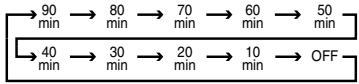
19 Sleep Button: Press this button to place the unit in the Sleep mode. Each press of the button selects the amount of time that will remain before the unit automatically goes into the Standby mode, as shown in the Information Display 25, in the following order:
20 Bass Control: Turn this control to modify the low-frequency output of the left/right channels by as much as ± 10dB . Set this control to a suitable position for your taste and room acoustics.
21 Treble Control: Turn this control to modify the high-frequency output of the left/right channels by as much as ± 10dB . Set this control to a suitable position for your taste and room acoustics.
22 Balance Control: Turn this control to change the relative volume for the front left/right channels.
28 Volume Control: Turn the knob clockwise to increase volume, counterclockwise to decrease the volume.
24 Volume/Mute Indicator: This indicator will glow green when the HK 3470 is turned on. Its position will enable you to judge the relative volume of the unit even when the speakers are muted or turned off. When the indicator is pointing towards the left, at an "8 o'clock" position, the volume is low; when it is pointing to the right, as in a "3 o'clock" position, the volume is loud. When the unit has been muted, pressing the Mute button 5, the indicator will flash.
25 Information Display: This display delivers messages and status indications to help you operate the receiver.
26 Speaker Selection Indicators: These indicators light as a green LED next to the designation for each speaker pair to show when they are active. Press the Speaker 1 6 or Speaker 2 7 Selectors to activate either pair of speakers. Both sets of speakers may be selected simultaneously as long as all speakers are nominally rated at an impedance of 8 ohms or greater. However, occasionally the actual impedance will vary, depending upon the program material. When the impedance drops too low, the HK 3470 will go into protect mode in order to prevent damage to the equipment. If this should occur frequently, be sure to select only one set of speakers at a time until you are able to obtain speakers with a higher nominal impedance.
27 Remote Sensor Window: The sensor behind this window receives infrared signals from the remote control. Aim the remote at this area and do not block or cover it unless an external remote sensor is installed.
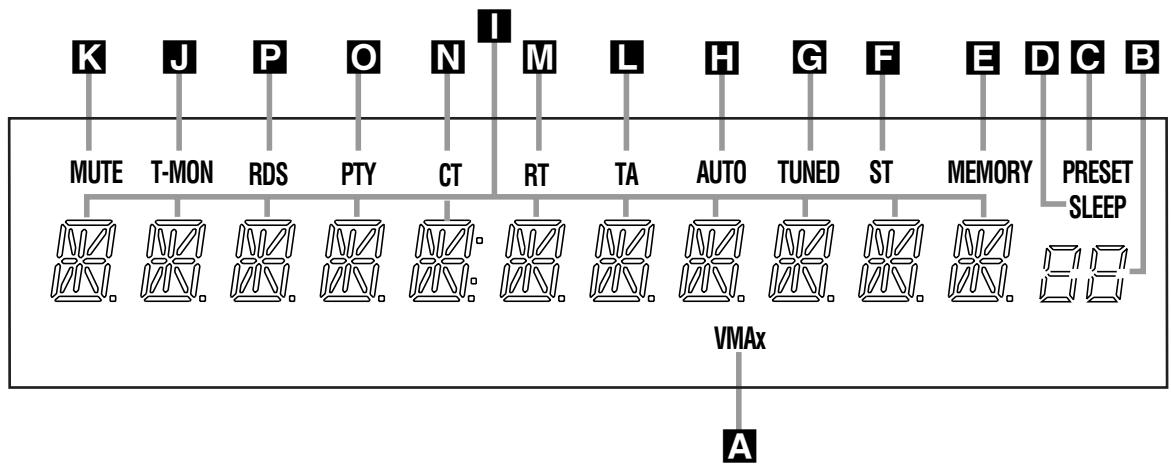
A VMAx Mode Indicator
B Preset Number/Sleep Timer
C Preset Indicator
D Sleep Indicator
Memory Indicator
F Stereo Indicator
G Tuned Indicator
Auto Indicator
Main Information Display
J Tape Monitor (T-Mon) Indicator
Mute Indicator
Traffic Indicator
M Radiotext Indicator
N Clock Time Indicator
Program Type Indicator
P RDS Indicator
A VMAX Mode Indicator: This indicator lights when the VMAX mode is in use. (See page 14 for a description of the VMAX Mode.)
B Preset Number/Sleep Timer: When the timer is in use, these numbers indicate the specific preset memory location in use. (See page 15 for more information on preset stations.) When the Sleep function is in use, these numbers show how many minutes remain before the unit goes into the Standby mode.
Preset Indicator: This indicator lights when the tuner is in use to show that the Preset Number/Sleep Timer is showing the station's preset memory number. (See page 15 for more information on tuner presets.)
D Sleep Indicator: This indicator lights when the Sleep function is in use. The numbers in the Preset Number/Sleep Timer Indicators will show the minutes remaining before the HK 3470 goes into the Standby mode. (See page 14 for more information on the Sleep function.)
Memory Indicator: This indicator flashes when entering presets and other information into the tuner's memory.
F Stereo Indicator: This indicator lights when an FM station is being tuned in stereo.
Tuned Indicator: This indicator lights when a station is being received with sufficient signal strength to provide acceptable listening quality.
Auto Indicator: This indicator lights when the tuner's Auto mode is in use.
Main Information Display: This display shows messages relating to the status, input source, tuner or other aspects of the HK 3470's operation.
Tape Monitor (T-Mon) Indicator: When used with three-head cassette decks, or other recording devices that offer immediate playback of the recording as it is being made, the HK 3470 allows you to monitor a recording rather than merely listening to the input source, or waiting until the recording session is complete in order to hear the recording. Press the Tape Monitor Input Selector 96 , and the T-Mon Indicator will light to remind you that you are monitoring the recording. Note, that in contrast to other input selectors activated the previously selected input source remains routed to the Tape 2 Record Outs 12 . Press the Tape Monitor Input Selector 96 again to hear the input source.
K Mute Indicator: This indicator lights to remind you that the HK 3470's output has been silenced by pressing the Mute button F. Press the Mute button again to return to the previously selected output level.
Traffic Announcement Indicator: This indicator illuminates if the RDS station tuned occasionally transmits traffic information (see page 16 for more information on RDS).
Radio Text Indicator: This indicator illuminates when the RDS station tuned is transmitting radiotext (RT) data.
N Clock Time Indicator: This indicator illuminates when the RDS station tuned is transmitting the CT (clock time) code, indicating the current time of day.
- PTY Indicator: This indicator illuminates when the RDS station tuned is transmitting program type data, or during a PTY search.
RDS Indicator: This indicator illuminates when the station tuned is transmitting RDS data.
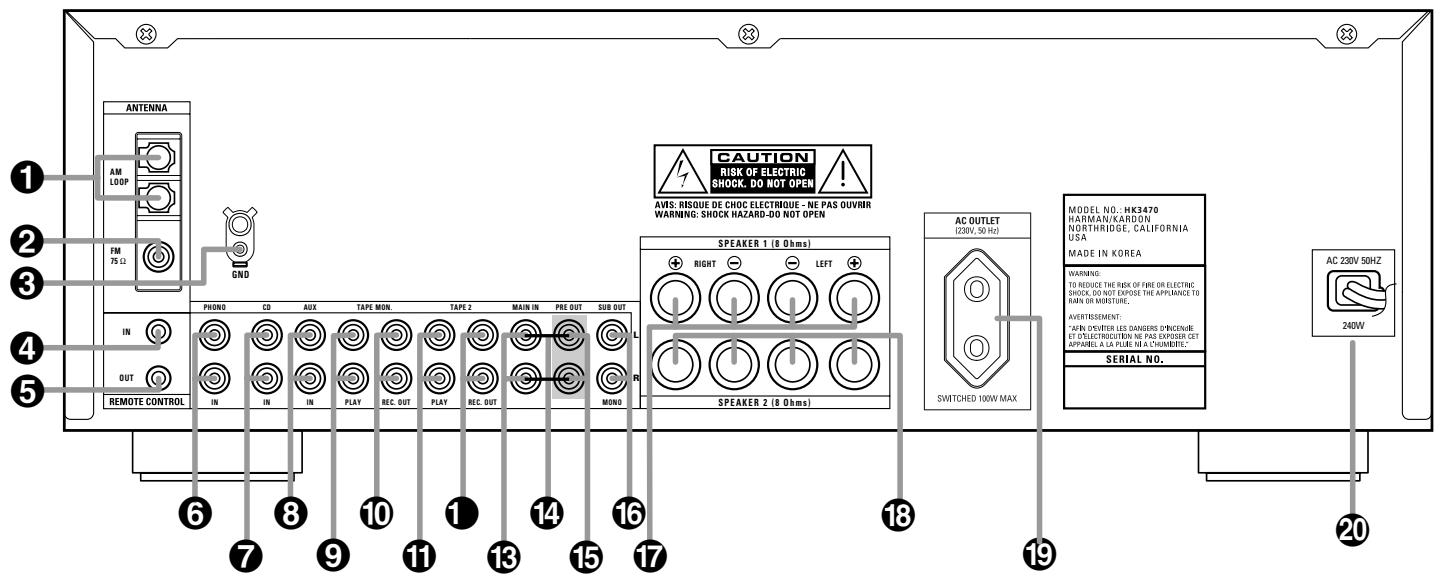
1 AM Antenna
FM Antenna
3 Phono Ground
4 Remote IR In
Remote IR Out
6 Phono Inputs
7 CD Inputs
Aux Inputs
9 Tape Monitor Play/In
10 Tape Monitor Record/Out
1 Tape 2 Play/In
12 Tape 2 Record/Out
3 Main In
14 Pre-Out/Main-In Jumper Pins
15 Preamp Out
16 Subwoofer Out
17 Speaker 1 Terminals
18 Speaker 2 Terminals
Switched AC Outlet
20 Power Cable
1 AM Antenna: Connect the AM loop antenna supplied with the receiver to these terminals. If an external AM antenna is used, make connections to the AM and GND terminals in accordance with the instructions supplied with the antenna.
FM Antenna: Connect an indoor or external FM antenna to this terminal.
3 Phono Ground: Connect the ground wire from a turntable to this terminal to reduce system hum.
Remote IR In: If the HK 3470's front panel IR sensor is blocked due to cabinet doors or other obstructions, an external IR sensor may be used. Connect the output of the sensor to this jack.
Remote IR Out: This connection permits the IR sensor in the receiver to serve other remote controlled devices. Connect this jack to the "IR IN" jack on Harman Kardon or other compatible equipment.
Phono Inputs: Connect the outputs of your turntable or tone arm to these jacks. Note that only Moving Magnet (MM) type cartridges may be used.
CD Inputs: Connect these jacks to the output of a compact disc player or CD changer.
Aux Inputs: Connect these jacks to the line-level audio output of any device such as a TV, cable converter or portable audio player.
Tape Monitor Play/In: Connect these jacks to the Play/Out jacks of an audio recorder.
10 Tape Monitor Record/Out: Connect these jacks to the Rec/In jacks of an audio recorder.
NOTE: When these jacks are connected to a three-head recorder or another device with offhead playback, it will be possible to monitor the source being recorded.
1 Tape 2 Play/In: Connect these jacks to the PLAY/OUT jacks of a second audio recorder.
Tape 2 Record/Out: Connect these jacks to the Rec/In jacks of a second audio recorder.
13 Main In: These jacks are the input to the HK 3470's power amplifier. Unless an external power amplifier is used, the jumper pins should remain connected to the Preamp Out jacks 15.
14 Pre-Out/Main-In Jumper Pins: These pins connect the receiver's preamp and amplifier sections. Unless an external amplifier, equalizer or speaker processor is used, they should be left connected. See page 13 for more information on external amplifier connections.
15 Preamp Out: These jacks provide an output for the left and right channels to an optional external amplifier. In normal operation, unless an external power amplifier is used, the jumper pins should remain connected to the Main In jacks 13.
Subwoofer Out: Connect these jacks to the line-level input of a powered subwoofer. If an external subwoofer amplifier is used, connect this jack to the subwoofer amplifier input. When a single, mono subwoofer is used, make the connection to the bottom jack.
Speaker 1 Terminals: Connect these terminals to the appropriate terminals on your speakers.
18 Speaker 2 Terminals: Connect these terminals to the appropriate terminals on your speakers.
Switched AC Outlet: These outlets may be used to power low-current draw devices such as CD players or cassette decks. The power to these outlets remains on as long as the receiver itself is on. When the receiver is turned off, or placed in the Standby mode, power to these outlets is removed.
NOTE: The power consumption of the devices plugged into these outlets should not exceed 100 watts.
20 Power Cable: Connect the AC plug to a nonswitched AC wall output.
A Main Power On
3 Main Power Off
Source Selectors
D Preset Up/Down
Transport Controls
F Disc Skip
G Sleep Button
Dimmer Button
1 Main Tuning Buttons
D Direct Button
Numeric Keys
Auto Preset
Secondary Control Cover
N Clear Button
Memory Button
Master Volume
P. Scan Button
Mute Button
FM Mode Button
VMAXx Selector
Tuning Up/Down
Learn Button
Speaker 1 Selector
Speaker 2 Selector
Transmitter Window
LED Indicator
AA RDS Display Button
AB RDS PTY Button
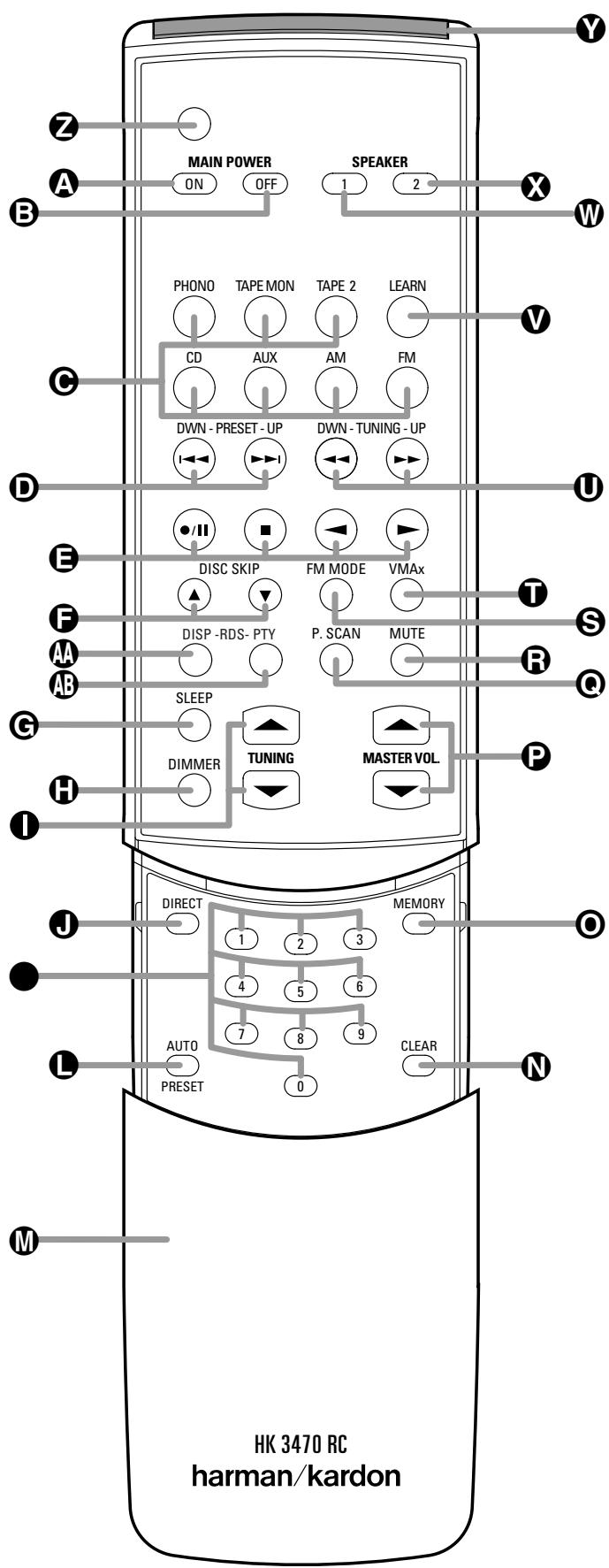
The remote is capable of operating the HK3470 and most Harman Kardon CD changers or players, CD Recorders and Tape decks, using the control codes that are part of the remote or by learning commands from other codes. Before using the remote with other products, follow the instructions on pages 17 and 18.
A Main Power On: When the HK 3470 is in the Standby mode, as indicated by the Power Indicator 3 glowing amber, press this button to turn the HK 3470 on.
3 Main Power Off: When the HK 3470 is turned on, press this button to place it in the Standby mode. Note that in this condition, the unit is still connected to AC Power.
Source Selectors: Press these buttons to select an input source for the HK 3470 (for specifics of Tape Monitor see item 9 on page 6).
Preset Up/Down: When the tuner is in use, these buttons scroll through the stations that have been programmed into the HK 3470's memory. These buttons also control the track Skip Up and Down on compatible Harman Kardon compact disc players/changers, CD-Recorders and cassette decks (with that function).
Transport Controls: These buttons are used to control Play, Play Forward, Play Reverse, Stop, Pause and Record functions on compatible Harman Kardon compact disc players/changers and cassette tape decks. Also, when a compatible Harman Kardon compact disc player or changer, or cassette deck, has been selected using the Source Selectors , additional transport control functions are available using the Preset Up/Down and Tuning Up/Down buttons.
Disc Skip: These buttons do not have any functions when controlling the HK 3470, but they operate the Disc Skip functions of compatible Harman Kardon compact disc changers.
Sleep Button: Press this button to place the unit in the Sleep mode. Each press of the button selects the amount of time that will remain before the unit will automatically go into the Standby mode, as shown in the Main Information Display 25, in the following order:
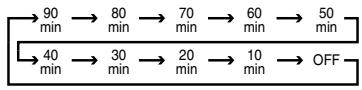
Holding the button pressed for some seconds will directly turn off the Sleep time selection.
Dimmer Button: Press this button once to reduce the brightness of the front panel display to half the normal intensity. Press it again to turn the front panel display completely off. When the display is completely off, press the button to return to normal brightness.
1 Main Tuning Buttons: When the tuner is in use, these buttons will tune up or down through the selected frequency band. A brief press of the button will manually tune to the next frequency increment, while pressing and holding the button for a longer period (>0.5 sec) will step quickly through the frequencies. As soon as the button is released the unit will automatically tune to the next station with a signal strong enough for acceptable reception. When a HK CD Recorder is in use these buttons will select the transport (Play or Record Deck).
Direct Button: Press this button to select a radio station by entering its frequency using the Numeric Keys K. (See page 15 for more information.)
- Numeric Keys: These buttons serve as a ten-button numeric keypad to enter tuner preset positions or track numbers with CD players/ changers or to tune stations directly.
Auto Preset: When the tuner and FM band have been selected, this button may be used to automatically program the tuner presets for all stations with acceptable signal strength (see page 15 for more information).
Secondary Control Cover: This sliding cover normally is in the "up" position so that it hides the secondary controls (the Direct button, Numeric Keys, Auto Preset button, Clear button and Memory button) LNO. To access these controls, place your thumb on the small recessed area at the top center of the control, and gently press the cover down and towards you.
N Clear Button: This button is used to clear preset memory information for the HK 3470's tuner. (See page 15 for more information on tuner presets.)
Memory Button: Press this button to open a memory position that stores a preset location for the HK 3470's tuner. (See page 15 for more information on tuner presets.)
Master Volume: Press these buttons to raise or lower the HK 3470's volume.
P. Scan Button: Press this button to automatically scan through the list of stations that are programmed into the HK 3470's tuner memory. When the button is pressed, each preset station will play for five seconds before the next station is selected. Press the button again when the desired station is heard to stop the preset scan.
Mute Button: Press this button to momentarily silence the HK 3470.
FM Mode Button: Press this button when the tuner is in use in the FM band to switch to monaural reception if the stereo station is weak and noisy. (See page 15 for more information.)
VMAx Selector: Press this button to engage VMAx processing of a stereo input. The VMAx Mode Indicator A will light, and you will notice a wider, more spacious sound field. In order to obtain maximum benefit, you should be seated midway between the two loudspeakers, and the same distance from the speakers as the speakers are from each other. The speakers must be placed facing parallel and evenly with each other so that their baffles are in the same plane. Press the button again to return to Stereo mode.
Tuning Up/Down: When the tuner is in use, these buttons work in the same way as the Main Tuning buttons described above. But if CD or Tape is in use, these buttons will also control Fast Forward and Fast Reverse (or Rewind) for compatible Harman Kardon compact disc players/changers and cassette tape decks.
V Learn Button: This button is used when you wish to program codes from another device's remote control into the HK 3470 remote. The simple procedure is described on page 18.
Speaker 1 Selector: Press this button to turn the speakers connected to the Speaker 1 Output terminals on or off.
Speaker 2 Selector: Press this button to turn the speakers connected to the Speaker 2 Output terminals on or off.
Transmitter Window: Point this area of the remote toward the receiver when using the remote.
LED Indicator: This indicator will light or blink to confirm various steps in the learning process as the HK 3470 remote is programmed. It will also flicker when a key is pressed during normal operation to indicate that it is transmitting an infrared code.
RDS Display Button: Press this button to view the various displays of the RDS options that are available when a station is transmitting RDS data. (See pages 15-16 for more information on RDS tuning.)
RDS PTY Button: Press this button to start a search for a specific PTY type using the RDS capabilities of the HK3470 RDS. (See pages 15-16 for more information on RDS tuning.)
Audio and Speaker Connections
After unpacking the unit and placing it on a solid surface capable of supporting its weight, you will need to make the connections to your audio and video equipment. These steps need to be done only when the receiver is first installed or when a change is made to the input source equipment.
Audio Equipment Connections
We recommend that you use high-quality interconnect cables when making connections to source equipment and recorders to preserve the quality of the signals.
When making connections to audio source equipment or speakers it is always a good practice to unplug the unit from the AC wall outlet. This prevents any possibility of accidentally sending audio or transient signals to the speakers that may damage them.
- Connect the analog output of a CD player to the CD inputs ⑦.
NOTE: When the CD player has both fixed and variable audio outputs, it is best to use the fixed output unless you find that the input to the receiver is so low that the sound is noisy, or so high that the signal is distorted. - Connect the Play/Out jacks of a cassette deck, CDR, MD or other audio recorder to the Tape Monitor Play jacks ⑨ . Connect the Record/In jacks on the recorder to the Tape Monitor Rec. Out jacks ⑩ on the HK 3470. When the tape deck connected to these jacks is a threehead unit or has off-head playback, it will be possible to monitor the output of the source being recorded.
- Connect the output of a second audio recorder, CDR, MD or other line-level audio device to the Tape 2 Play jacks If a recorder is used, connect its Rec/In jacks to the matching Tape 2 Record outputs
- The audio output of any electronics product with a line-level output, such as a TV set, satellite receiver or DVD, may be connected to the Aux jacks 8.
-
Connect the outputs of a turntable with a moving magnet cartridge to the Phono inputs ⑥. To insure that the phono playback is noise-free, connect the ground wire from the tone-arm to the Phono Ground terminal ③.
-
Assemble the AM Loop Antenna supplied with the unit as shown below. Connect it to the AM screw terminals 1.
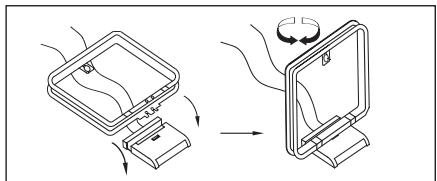
- Connect an FM antenna to the FM Antenna connection ② . The FM antenna may be an external roof antenna, an inside powered or wire lead antenna or a connection from a cable system. Note that if the antenna or connection uses 300-ohm twin-lead cable, you must use the 300-ohm-to-75-ohm adapter supplied with the unit to make the connection.
Speaker Connections
To ensure that all the audio signals are carried to your speakers without loss of clarity or resolution, we suggest that you use high-quality speaker cable. Many brands of cable are available, and the choice of cable may be influenced by the distance between your speakers and the receiver, the type of speakers you use, personal preferences and other factors. Your dealer or installer is a valuable resource for help in selecting the proper cable.
Regardless of the brand of cable selected, we recommend that you use a cable constructed of fine, multistrand copper with an area of min. 2mm^2
Cable with 1.5mm^2 may be used for short runs of less than 3 meters. We do not recommend that you use cables with an area of 0.8mm^2 or smaller due to the power loss and degradation in performance that will occur.
Cables that are run inside walls should have the appropriate markings to indicate listing with the appropriate testing agency standards. Questions about running cables inside walls should be referred to an installer or a licensed electrical contractor who is familiar with applicable local building codes in your area.
When connecting wires to the speakers, be certain to observe proper polarity. Remember to connect the "negative" or "black" wire to the same terminal on the receiver and the speaker. Similarly, the "positive" or "red" wire should be connected to the like terminals on the HK 3470 and speaker.
We also recommend that the length of cable used to connect speaker pairs be identical. For example, use the same length piece of cable to connect the Speaker 1 left and right or Speaker 2 left and right speakers, even if the speakers are a different distance from the HK 3470.
NOTE: While most speaker manufacturers adhere to an industry convention of using black terminals for negative and red ones for positive, some manufacturers may vary from this configuration. To assure proper phase, and optimal performance, consult the identification plate on your speaker, or the speaker's manual to verify polarity. If you do not know the polarity of your speaker, ask your dealer for advice before proceeding, or consult the speaker's manufacturer.
Connect the speakers using the following steps:
- Connect the main speakers to the Speaker 1 terminals ⑦.
- Connect a second set of speakers, or speakers that are in a second room location, to the Speaker 2 terminals 1B.
- When an optional, powered subwoofer is used, connect the outputs of the left and right Subwoofer Out jacks to the line-level inputs of the subwoofer. When the subwoofer's amplifier has stereo inputs, run interconnects from both jacks. When the subwoofer has a mono input only, use the bottom output jack for the connection. When a separate passive subwoofer is used, these connections will be made to the optional amplifier that powers the subwoofer. If the (passive) subwoofer or Sub/Sat system has only speaker-level inputs and outputs, connect the Speaker 1 terminals to the speaker-level inputs on the subwoofer, and then connect the speaker-level outputs on the subwoofer to your main left and right speakers, following the instructions provided with the subwoofer.
System and Power Connections
The HK 3470 is designed for flexible use with external control components and power amplifiers. These connections are easy to make during an initial installation, or at a later date should you choose to upgrade your system.
Remote Control Extension
If the receiver is placed behind a solid or smoked glass cabinet door, the obstruction may prevent the remote sensor from receiving commands. In this event, an optional remote sensor may be used. Connect the output of the remote sensor to the Remote IR In jack 4.
If other components are also prevented from receiving remote commands, only one sensor is needed. They may use this unit's sensor or a remote eye by running a connection from the Remote IR Out jack ⑤ to the Remote In jack on Harman Kardon or other compatible equipment.
External Audio Power Amplifier Connections
If desired, an optional, external amplifier may be used in place of the HK 3470's internal power amplifier.
To connect an external power amplifier, first remove the Pre-Out/Main-In Jumper Pins 14 that connect the Preamp Out 15 and Main In 13 jacks on the rear panel. Keep the jumpers in a safe place should they be needed at a later time.
Using high-quality audio interconnect cables, connect the Preamp Out jacks ⑤ to the input jacks on your power amplifier. Make certain to match the right output to the right input and the left output to the left input.
Note that when an external power amplifier is used, no special adjustments are required. All volume and other control adjustments are made using the standard front panel or remote controls.
If you wish to use external processing equipment, such as an equalizer, you may connect the device to the preamp-out and main-in jacks by removing the Preamp-Out/Main-In Jumper Pins 14 and connecting the Preamp Out 15 jacks to the inputs of the external device, and the outputs of the device to the Main In 18 jacks.
Alternatively, you may connect the external device to the Tape Monitor Loop. Connect the Tape Monitor Record/Out jacks 10 to the inputs of the external device, and connect the outputs of the device to the Tape Monitor Play/In jacks 9.
AC Power Connections
This unit is equipped with an accessory AC outlet. It may be used to power accessory devices, but it should not be used with high-current draw equipment such as power amplifiers. The total power draw may not exceed 100W at this outlet.
This Switched AC Outlet will receive power only when the unit is on. This is recommended for devices that have no power switch, or those with a mechanical power switch that may be left in the "ON" position.
NOTE: Devices with electronic power switches may only go into a Standby mode when plugged in here.
Power to this outlet is removed when the unit is in the Standby mode, or when the Main Power Switch 1 is in the "OFF" position.
Speaker Placement
For optimal listening enjoyment, and for soundfield reproduction that best re-creates the original recording, it is good practice to place the speakers so that they form a triangle with the speakers at the front of the room, and the preferred listening spot at the third point of the triangle. The distance between each speaker and the listener should be identical.
For example, if the speakers are 2,5 meters from one another, each of the speakers should optimally be placed so that they are also 2,5 meters from the listener. It is also desirable to place speakers so that their tweeters, or highfrequency drivers, are aimed at ear height when you are seated in the listening position.
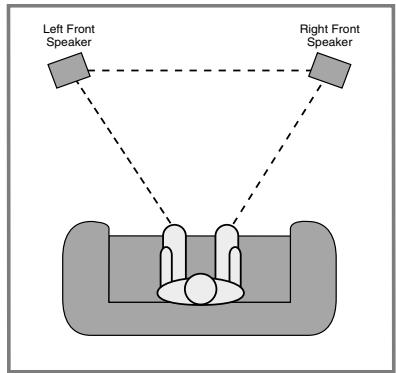
A good starting point for speaker placement is to make the distance between the two speakers and the distance between either speaker and the listener identical.
To optimize the sound field, or to suit your listening room environment, you may find that some experimentation is required to find the correct location. Ideally, pans from left to right across the front of the room should sound smooth, and instruments should appear to be coming from the proper location within an orchestra.
The placement of subwoofoers should be done as suggested in the manufacturer's instructions. In general, subwoofoers often produce best results when they are placed in the corner of a room, along the same wall as the speakers, but optimal placement will vary widely depending on room size, the subwoofer type and the placement of rugs and furniture in a room. It may be helpful to temporarily position the subwoofer in the usual listening position, then walk around the room while program material is playing until the bass reproduction sounds best to your ears. That location is likely to be the optimum position for the subwoofer.
Finally, when all connections are complete, plug the power cord into a nonswitched 230-volt AC wall outlet. You're ready to enjoy the HK 3470!
Basic Operation
The HK 3470 is simple to operate, and very similar to stereo receivers you may have used in the past. This section will explain the use of several features that may be new to you.
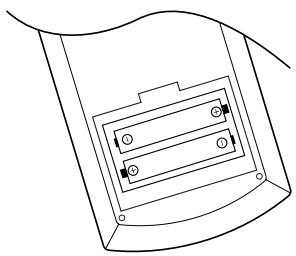
- Install the two supplied AAA batteries in the remote as shown. Be certain to observe the (+) and (-) polarity indicators shown in the bottom of the battery compartment.
- When using the HK 3470 for the first time, it will be necessary to press the Main Power button 1 on the front panel to turn the unit on. This places the unit in a standby mode, as indicated by the amber color of the Power Indicator 3. Once the unit is in standby, you may begin a listening session by pressing the System Power Control 2 on the front panel or the Main Power On button A on the remote. Note that the Power Indicator 3 will turn red, then green. This will turn the unit on and return it to the input source that was last used. The unit may also be turned on from standby by pressing any of the Source Selector buttons on the front panel 8 9 11 13 14 17 or remote C.
To turn the unit off at the end of a listening session simply press the System Power Control 2 on the front panel or the Main Power Off button 3 on the remote. This places the unit in the Standby mode, and the Power Indicator 3 will turn amber to remind you that the unit is ready for operation when a power command is received from the remote.
Power to any equipment plugged into the rear panel Switched AC Outlet 9 will be shut off and the Power Indicator 3 will turn amber.
When the remote is used to turn the unit "off", it is actually placing the system in a standby mode, as indicated by the amber color of the Power Indicator 3.
When you will be away from home for an extended period of time it is always a good idea to completely turn the unit off using the front panel Main Power Switch 1.
Note that due its EEPROM backup system the HK3470 will retain information such as programmed presets virtually indefinitely (see "Memory Backup", page 19).
- To dim the brightness of the front panel display, press the Dimmer button H on the remote. The first press will dim the lights to half normal. A second press will turn the display completely off. Press the Dimmer button H again to restore the display to normal brightness.
Source Selection
-
To select a source at any time, press any of the Source Selector buttons on the remote or front panel 8 9 11 13 14 17.
-
During a listening session you may wish to adjust the Bass 20, Treble 21 and Balance 22 controls to suit your listening tastes.
-
Adjust the volume to a comfortable level using the front panel Volume Control 23 or remote Master Volume Up/Down P buttons. The volume level is displayed by the position of the Volume Indicator 24. Think of the Volume Control knob 23 as the face of a clock, with the Volume Indicator 24 indicating the hour. The HK 3470 is playing at the minimum volume level when the Volume Indicator 24 points to 7 o'clock; when the Volume Indicator 24 points to 5 PM, the HK 3470 is playing at the maximum volume level. It is important that you make sure never to exceed this maximum volume level at any time, in order to avoid possible damage to your loudspeakers due to "clipping", a type of distortion that is not audible to the human ear until it is severe enough to permanently damage most loudspeakers. It is also possible, depending upon the program material, for clipping to occur at volumes below the maximum volume level.
-
To temporarily silence all speaker outputs, press the Mute button 5 . This will cut the output to all Pre and Sub Outs and to all speakers, but it will not affect any recording or dubbing that may be in progress. When the system is muted, the MUTE indicator K will light in the Main Information Display 25 and the Volume/Mute indicator 24 will flash. Press the Mute button 5 again to return to normal operation.
-
For private listening, plug the 6,3 mm stereophone plug from a pair of stereo headphones into the front panel Headphone jack 4.
- One or two separate sets of speakers may be connected to the HK 3470. To listen to one of the speaker sets, press the Speaker button 6 or 7 on the front panel corresponding to the desired speakers or press them both to listen to both speakers pairs. The active speakers will be indicated by a lit green LED in the Speaker Indicators 26 display. Both sets of speakers may be turned off for private headphone listening.
IMPORTANT NOTE: When two speaker pairs are connected to the HK3470RDS and are to be used simultaneously, the impedance of each speaker must not be lower than 8 Ohms.
- To program the HK 3470 for automatic turnoff, press the Sleep button on the front panel or remote. Each press of the button will increase the time before shutdown in the following sequence:
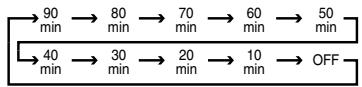
The sleep time will be displayed in the Main Information Display 25 and it will count down until the time has elapsed.
When the programmed time has elapsed, the unit will automatically turn off (to Standby mode). Note that the front panel display will dim to one-half brightness when the Sleep function is programmed. To cancel the Sleep function, press the Sleep button or simply hold it pressed for some seconds until the Sleep indicator numbers disappear and the Main Information Display shows the current source. Pressing any control button while the Sleep control is activated will momentarily return the Main Information Display to full brightness for increased legibility without interrupting the Sleep function.
To take advantage of Harman Kardon's exclusive VMAX mode, Press the VMAX button 16. When the VMAX circuits are engaged, patented processing algorithms are used to create a three-dimensional sound space with the illusion of "phantom" speakers at center and surround positions. This spacious sound will simulate a surround-sound presentation without the need to add additional speakers. To return to standard stereo listening, press the VMAX button 16 again and note that the VMAX Mode
Indicator A will go out. (For more information on maximum benefit with VMAX see page 11, item T).
Tuner Operation
The HK 3470's tuner is capable of tuning AM, FM and FM Stereo broadcast stations. Stations may be tuned manually or automatically, or they may be stored as favorite station presets and recalled from a 30-position memory.
Station Selection
- Press the AM/FM 17 buttons on the front panel or on the remote to select the tuner as an input.
- Press these buttons again at any time to switch between AM and FM.
- To automatically search for the next higher- or lower-frequency station that has an acceptable signal hold the Tuning or button 10 on the front or 1 or 0 on the remote pressed and release it as soon as the tuner starts the frequency search. To tune to the next station, press the button again. Tap the Tuning button 10 to advance one frequency increment at a time, or press and hold it to locate a specific station.
When the TUNED indicator G lights, the station is properly tuned and should be heard with clarity.
- Stations may also be tuned directly by pressing the Direct button ①, and then pressing the Numeric Keys ② that correspond to the station's frequency. The desired station will automatically be tuned.
NOTE: When the FM reception of a stereo station is weak, audio quality will be increased by switching to Mono mode by pressing the FM Mode button 18 S until the STEREO indicator F goes out.
Preset Tuning
Up to 30 stations may be stored in the HK 3470's memory for easy recall using the front panel controls or the remote. In order to program preset stations into memory, you must use the remote control.
To enter a station into the memory, first tune the station using the steps outlined above. Then:
- Press the Memory button on the remote. Note that the MEMO E and PRESET C indicators will light and flash in the Main Information Display.
- Within five seconds, press the Numeric Keys corresponding to the location where you wish to store this station's frequency.
For all preset numbers above "3" the station will be stored directly. Note that for the presets 1, 2 or 3 either you press the corresponding number and wait for 5 seconds or you press a "0" before you press the 1, 2 or 3, then the station will be stored at once.
- Repeat the process after tuning any additional stations to be preset.
Auto Preset
- Preset stations may also be programmed automatically for the entire FM band. To automatically enter each station that may be tuned with acceptable quality into the HK 3470's preset memories, first select the FM band. Next, press and hold the Auto Preset button until the MEMO E and PRESET C indicators begin to flash, hold on until the station frequency indication begins to increase. Release the button and note that the tuner will search the entire FM band, and stop briefly at each station that has acceptable signal strength. The HK 3470 will automatically assign a preset number to each station, and then search for the next station. If the FM tuner find fewer than 30 FM stations with acceptable signal strength, the Auto Preset tuning will scan two more cycles or until the remaining vacant preset memory spaces have been filled with those found in the first scan. The automatic scan process will stop when all 30 preset memory locations have been filled or the entire FM band has been scanned three times or the Auto Preset button is pressed again.
NOTE: Using the automatic tuning mode in areas with more than 30 FM stations will completely fill the preset memories, and overwrite any previously memorized presets for either AM or FM stations.
TIP: The automatic scan process may enter stations that you do not wish to retain in the memory, or it may enter the same station on more than one frequency. These unwanted stations may be removed from the memory using the Preset Clear function outlined below.
Recalling Preset Stations
- To manually select a station previously entered in the preset memory, press the Numeric Keys
that correspond to the desired station's memory location. - To manually tune through the list of stored preset stations one by one, press the Preset buttons 15 D on the front panel or remote.
- To automatically scan through the stations entered in the preset memory, press the Preset Scan button on the front panel or remote. The tuner will cycle through the list of preset stations, stopping for five seconds at each one. Press the button again to stop the scan at your desired station.
Clearing Preset Stations
Unwanted preset stations may be erased from the unit's memory to make it easier to tune only those stations you want.
To remove a preset station from the HK 3470's tuner memory, first tune to the station using the Preset buttons on the front panel or remote, or by entering the preset number directly, using the Numeric Keys.
When the preset station to be removed has been tuned, first press the Memory button ⑨ . The MEMO and PRESET indicators in the Main Information Display will flash, and the actual preset number will disappear from the display. Next, press the Clear button within five seconds.
The preset station will be removed from the memory, and the action will be confirmed by the brief appearance of the word CLEAR and the preset number location in the Main Information Display. That memory location will now be empty, and you may program a different station to that location, or leave it empty.
RDS Operation
The HK 3470 RDS is equipped with RDS (Radio Data System), which brings a wide range of information to FM radio. Now in use in many countries, RDS is a system for transmitting station call signs or network information, a description of station program type, text messages about the station or specifics of a musical selection and the correct time.
As more FM stations become equipped with RDS capabilities, the HK3470 RDS will serve as an easy-to-use center for both information and entertainment. This section will help you take maximum advantage of the RDS system.
RDS Tuning
When an FM station is tuned in and it contains RDS data, the HK 3470 RDS will automatically display the station's call sign and the RDS indicator P will light in the Information Display as well as indicators for the RDS services program type PTY (see below) and traffic announcement TA L (see page 16) if transmitted by the station. As soon as a radiotext message is received completely the radiotext indicator RT M will turn on too.
RDS Display Options
The RDS system is capable of transmitting a wide variety of information in addition to the initial station call sign that appears when a station is first tuned. In normal RDS operation the display will indicate the station name, broadcast network or call letters, with some private stations also other information, changing every 2 to 5 seconds. Pressing the RDS Display button enables you to cycle through the various data types in the following sequence:
Operation
- The Station name (or other Program information with some private stations).
The station's frequency. - The Program Type (PTY) as shown in the following list in this manual.
- A "text" message (RT) containing special information from the broadcast station. Note that this message will scroll across the display to permit messages longer than the eight positions in the display. Depending on signal quality it may take up to 30 seconds for the text message to appear, in the meantime the word TEXT will flash in the display when RT is selected.
- The current time of day (CT) as transmitted by the station. It may take up to two minutes for the time to appear, in the meantime the word TIME will flash in the display when CT is selected. Note that the accuracy of the time message is set by the radio station, not the HK 3470 RDS.
- Some RDS stations may not choose to include some of these additional features. If the data required for the selected mode is not being transmitted, the Information Display will show a NOPTY, NOTEXT or NOTIME message after the individual time out.
- In any FM mode the RDS function requires a strong enough signal for proper operation. If you receive a partial message or see any RDS indicator going on and off, try slowly adjusting the antenna to improve the signal strength or tune to another, stronger, RDS station.
Program Search (PTY)
A major benefit of RDS is its ability to encode broadcasts with Program Type (PTY) codes that indicate the type of material being broadcast. The following list shows the abbreviations used to indicate each PTY along with an explanation of the PTY:
- RDS ONLY: (see item 3 below)
- TRAFFIC: Traffic Information and Road Conditions (see Note below)
- P O P M: Popular Music
- ROCK M: Rock Music
M. O. R M: Middle-of-the-Road Music - LIGHT M: Classical Music
- CLASSICS: Serious Classical Music
OTHER M: Other Music
NEWS: News - INFO: Information
-
SPORT: Sports
-
AFFAIRS: Current Affairs
EDUCATE: Educational - DRAMA: Drama
CULTURE:Culture
SCIENCE: Science
VARIED:Varied Speech Programs
WEATHER: Weather Information
FINANCE: Financial Programs - CHILDREN: Children's Programs
SOCIAL: Social Affairs Programs - RELIGION: Religious Broadcasts
- PHONE IN: Phone-In Programs
- TRAVEL: Travel and Touring
- LEISURE: Leisure and Hobby
JAZZ: Jazz Music
COUNTRY: Country Music
NATION M: National Music - OLDIES: Oldies Music
FOLK M: Folk Music - DOCUMENT: Documentary Programs
- TEST: Station Alarm Test Message
ALARM: Emergency Broadcast Information
You may search for a specific Program Type (PTY) by following these steps:
- Press the RDS PTY button and note that the Information Display will show SELECT PTY.
- After three seconds, the display will show the PTY that was selected for the last PTY search. If you wish to use the same PTY, press the RDS PTY button again within six seconds, and the tuner will begin to search for the first station with the appropriate PTY and acceptable signal strength.
- To search for a different PTY, press the Tuning Up/Down buttons 10 while the last PTY selected is still displayed to scroll through the list of available PTY types. To search for the next available station with any RDS data, select RD S ONLY as the PTY type.
- When the PTY is selected, press the RDS PTY button within six seconds, and note the PTY indicator will flash in the Information Display. The HK 3470 RDS will go into an automatic search mode and attempt to find the next station with acceptable signal strength that matches the desired PTY type. Press the RDS PTY button twice again to find another matching station.
When a station is tuned, the search will stop, a message R D S will blink in the Information Display 1 and then the Display will show the station's "Call Letters" or other "Program Service" information.
- While the PTY Indicator flashes in the display the tuner will make one complete scan of the entire FM band for the text station that matches the desired PTY type and has acceptable reception quality. If no such station is found, the word NONE will appear briefly in the Information Display, and the tuner will return to the last FM station in use before the search.
NOTE: Many stations do not transmit a specific PTY. The display will show NONE, when such a station is selected and PTY is active.
NOTE: Some stations transmit constant traffic information. To identify as traffic station, they transmit a specific traffic code constantly, which causes the TA Indicator to light in the display. These stations can be found by selecting TRAFFIC, the second option in the PTY list. The HK 3470 will find the appropriate station, even if it is not broadcasting traffic information when the search is made.
Tape Recording
In normal operation, the audio source selected for listening through the HK 3470 is sent to the Tape Mon Out 10 and Tape 2 Rec Out 12 outputs. This means that any program you are listening to may be recorded simply by placing machines connected to the outputs for Tape Monitor 10 or Tape 2 12 in the record mode.
When a tape recorder with separate record and playback heads is used, you may monitor the output of the recording by selecting the Tape Monitor Input Selector 9. Note that the T-Mon Indicator will light in the Main Information Display to remind you that you are listening to the record playback instead of the actual input source being recorded.
As long as Tape Monitor 9 is selected the previously selected input source remains routed to the Record Outputs 10. Press the Tape Monitor Input Selector 9 again to turn the monitoring off and listen to the actual input source. Note that changing the Bass, Treble or Balance control will not affect the recordings, only the preamp and speaker outputs.
Using the Remote Control
It is convenient to think of the functions of the remote control buttons in terms of "pages", where each source device (e.g., CD player) represents its own page of remote functions. The result is that some of the keys will perform different functions depending upon which device page has been selected prior to pressing the key. Device pages are selected by pressing the
Source Selectors , which also changes the input source selection on the HK 3470.
Three of the device pages are factory-programmed to operate compatible Harman Kardon products. The Tape Monitor device page is programmed as a factory default to operate Harman Kardon cassette decks. The Tape 2 page defaults to Harman Kardon CD-R
control codes. The CD page defaults to Harman Kardon CD player or changer control codes. Note that all of these keys may be programmed in the learning mode to transmit different remote codes to perform other functions and/or operate other devices. Please refer to the table below for specific information on the default functions of the affected keys for these devices.
REMOTE BUTTON FUNCTIONS
| BUTTON | TAPE MON Cassette deck control codes | TAPE 2 CD Recorder control codes | CD CD player/changer control codes |
| PRESET DWN | REV. SKIP | SKIP BACK | REV. SKIP |
| PRESET UP | FWD. SKIP | SKIP FORWARD | FWD. SKIP |
| TUNING DWN← | REW | REV SEARCH | REV SEARCH |
| TUNING UP | FF | FWD SEARCH | FWD SEARCH |
| Rec./Pause •/11 | REC / PAUSE | RECORD | PAUSE |
| Stop■ | STOP | STOP | STOP |
| Rev. Play▲ | REV. PLAY | RANDOM PLAY | |
| Fwd. Play▲ | FWD. PLAY | PLAY | PLAY |
| DISK SKIP Up | DISC SKIP UP | ||
| DISK SKIP Down | DISC SKIP DOWN | ||
| FM MODE | TIME Display (Record Drive) | ||
| PRESET SCAN | INTRO SCAN | INTRO SCAN | |
| TUNING Up▲ | CDP SELECT | ||
| TUNING Down▼ | CDR SELECT | ||
| MEMORY | PROGRAM | PROGRAM | |
| AUTO PRESET | FINALIZE | ||
| CLEAR | CLEAR | CLEAR | |
Programming the Remote Control
Although the remote control is preprogrammed at the factory to operate compatible Harman Kardon CD recorders, players and changers, and cassette decks, you may program the remote with control codes that operate other devices.
Not all of the buttons on the HK 3470 remote control may be programmed. If you attempt to "learn" a code into a button not shown in the table below, you may experience undesired responses to remote commands, or lose the ability to perform some functions using the remote control.
You may program remote buttons only on these pages: AUX, TAPE 2, TAPE MON, and CD. Codes may not be programmed to the pages for Phono, AM or FM.
Only the buttons shown in this table with an "X" may be programmed.
PROGRAMMABLE REMOTE BUTTONS
| FUNCTION | AUX | TAPE 2 | TAPE MON | CD |
| MAIN POWER ON | ||||
| MAIN POWER OFF | ||||
| SPEAKERS 1 | ||||
| SPEAKERS 2 | ||||
| PHONO | ||||
| TAPE MON | ||||
| TAPE 2 | ||||
| LEARN | ||||
| CD | ||||
| AUX | ||||
| AM | ||||
| FM | ||||
| PRESET DOWN I← | X | X | X | X |
| PRESET UP ▶I | X | X | X | X |
| TUNING DOWN ← | X | X | X | X |
| TUNING UP ▶ | X | X | X | X |
| RECORD/PAUSE ·/· | X | X | X | X |
| STOP ■ | X | X | X | X |
| REVERSE PLAY ↓ | X | X | X | |
| FORWARD PLAY ▶ | X | X | X | X |
| DISC SKIP UP | X | X | X | X |
| DISC SKIP DOWN | X | X | X | X |
| FM MODE | X | X | X | X |
| VMAX | ||||
| P. SCAN | X | X | X | X |
| MUTE | ||||
| SLEEP | ||||
| TUNING UP ▲ | X | X | ||
| MASTER VOL. UP | ||||
| DIMMER | ||||
| TUNING ▼ | X | X | ||
| MASTER VOL. DOWN | ||||
| DIRECT | X | X | X | |
| 1 | X | X | X | |
| 2 | X | X | X | |
| 3 | X | X | X | |
| MEMORY | X | X | X | |
| 4 | X | X | X | |
| 5 | X | X | X | |
| 6 | X | X | X | |
| 7 | X | X | X | |
| 8 | X | X | X | |
| 9 | X | X | X | |
| AUTO PRESET | X | X | ||
| 0 | X | X | X | |
| CLEAR | X | X | X |
Programming the Remote Buttons Is a Simple Procedure
Step 1: Place the HK 3470 remote control and the remote control for the other device (e.g., compact disc player) so that their infrared transmitter windows face each other at a distance of about 0.5 to 1 cm.
Step 2: Simultaneously press the Learn button v and the Source Selector that corresponds to the device whose codes you are trying to program (e.g., press the CD button along with the Learn button). The LED Indicator z will blink twice and remain lit.
Step 3: Press and release the button on the HK 3470 remote that you wish to program. Make sure that it is one of the programmable buttons listed in the table on page 18. The LED Indicator 2 will blink once and remain lit.
Step 4: Press and hold the button on the other device's remote whose code you wish to program into the HK 3470 remote until the LED Indicator blinks three times and remains lit, then release the button on the other remote.
If the LED Indicator ② flickers for five seconds instead of blinking three times and remaining lit, the learning operation was unsuccessful. Try the procedure again, starting from Step 2, making sure that the transmitter windows of the two remotes face each other, and that the button you are trying to program on the HK 3470 remote is listed in the table on page 18. Also varying the distance between both remotes may help.
Step 5: To program additional buttons, repeat Steps 2 through 4.
Step 6: To exit the learning mode, either press the Learn button v once, or wait 20 seconds for the remote to automatically return to normal operation.
Resetting One Key to Default Setting
When a new code is programmed into the remote, it overwrites the previous code for that button on that page. However, should you make a mistake, it is possible to reset any button to its factory default using the following procedure:
Step 1: Enter the learning mode by simultaneously pressing any of the Device buttons and the Learn button V .
Step 2: Press and release the particular device button for the page containing the key you wish to reset. The LED Indicator will blink once and remain on.
Step 3: Use the Numeric Keys to enter the numbers "777". The LED Indicator will blink for each entry.
Step 4: Press and release the button that you wish to reset. The LED Indicator Z will blink three times to indicate that the button has been reset to the factory default code.
Step 5: You may repeat Step 4 to reset the codes for other keys. If you wish to reset the codes for an entire device page, see below.
Step 6: To exit the learning mode, either press the Learn button v once, or wait 20 seconds for the remote to automatically return to normal operation.
Resetting an Entire Device Page
If you wish to reset all of the codes for a particular device, you need not individually reset every button on that page of the remote. This is the procedure for resetting the codes on a particular page.
Step 1: Enter the learning mode by simultaneously pressing any of the Device buttons G and the Learn button V .
Step 2: Press and release the particular device button for the page you wish to reset. The LED Indicator z will blink once and remain on.
Step 3: Use the Numeric Keys to enter the numbers "888". The LED Indicator will blink for each entry.
Step 4: The LED Indicator z will remain on for one second, and then blink three times to indicate that it has reset the group of keys for the selected device page. That device page will now operate the factory default set of codes.
Resetting the Entire Remote
It is also possible to completely reset all of the programmed codes in the remote to the factory default settings. Use the following procedure:
Step 1: Enter the learning mode by simultaneously pressing any of the Device buttons and the Learn button V.
Step 2: Press and release any device button other than PHONO, AM or FM. The LED Indicator will blink once and remain on.
Step 3: Use the Numeric Keys to enter the numbers "999". The LED Indicator will blink for each entry.
Step 4: The LED Indicator will remain on for five seconds, and then blink three times to indicate that it has reset all of the keys on the remote. The entire remote will now operate the factory default set of codes.
Memory Backup
This product is equipped with a memory backup system that preserves tunes preset if the unit is accidentally unplugged, turned off completely with the Main Power switch 1 or subjected to a power outage. The unit's memory is stored in an EEPROM, and thus the HK 3470 will retain information such as programmed preset without being connected to a main power source virtually indefinitely.
Processor Reset
In the rare case where the unit's operation or the displays seem abnormal, the cause may involve the erratic operation of the system's memory or microprocessor.
To correct this problem, first unplug the unit from the AC wall outlet and wait at least three minutes. After the pause, reconnect the AC power cord and check the unit's operation. If the system still malfunctions, a system reset may clear the problem.
To reset the system, first turn the HK 3470 off by pressing the Main Power Switch 1 and then releasing it so that it extends out beyond the front panel and the word "OFF" is visible in red at the top of the switch.
Next, press and hold the T-Mon and CD Input Selector buttons 913 on the front panel ONLY. While holding these buttons in, press the Main Power Switch 1 in until it latches, so that the button is flush with the front panel.
The Main Information Display will briefly show the word RESET, you can release the buttons pressed now, the unit will return to Standby mode.
Note that when the system is reset in this fashion, all tuner presets will be lost and must be reentered.
If the system is still operating incorrectly, there may have been an electronic discharge or severe AC line interference that has corrupted the memory or microprocessor.
If these steps do not solve the problem, consult your dealer or an authorized Harman Kardon service center.
This unit is designed for trouble-free operation. Most problems users encounter are due to operating errors. If you have a problem, first check this list for a possible solution. If the problem persists, consult your authorized Harman Kardon Service Center.
| If the problem is... | Make sure that the... |
| No lights appear when System Power 2 button is pressed | Unit is plugged into a live outlet. Main power switch 1 is pressed in. |
| No sound is heard | Unit has not been muted. Correct input function selector button has been pressed. Volume is turned up. Speakers have been turned on using the Speaker Selectors 67×W. |
| No output from one or more channels | Cables are not defective: check/replace speaker cables. |
| Tuner sound has a large amount of interference, or the "Stereo" display is not illuminated, or Tuner sound distorts and/or is noisy | Antenna is properly connected. Antenna is properly located. Antenna is set in the proper direction. Antenna is adequate to receive the desired station. |
| Tuner is intermittent or continuously buzzing or hissing | Unit is away from fluorescent lights, TVs, motors and other electrical appliances. |
| Remote does not function correctly | Batteries are not weak, and replace them if necessary. Correct device page has been selected by pressing the Source Selector key ⑥. Remote sensor is not obstructed, and remote is pointing directly at sensor at an angle of no more than 30 degrees. Also, check for fluorescent lighting, which may be interfering with the IR transmission. Remote has been reprogrammed correctly. If you are in doubt, reset the remote to the factory default programming using the procedure outlined on page 19. |
| Cassette or CD sounds distorted | Cassette deck or CD player has not been plugged into the Phono input. (Only use the outputs of a turntable or tonearm with the Phono input.) |
Audio Section
Stereo Mode
Continuous Average Power (FTC)
100 Watts per channel, 20Hz-20kHz
@ < 0.07% THD, both channels driven into 8 ohms
135 Watts per channel, 20Hz-20kHz
@ < 0.2% THD, both channels driven into 4 ohms
Input Sensitivity/Impedance
Linear (High Level) 200mV/47kohms
Signal-to-Noise Ratio (IHF-A) 95dB
Frequency Response
@ 1W (+0dB, -3dB) 10Hz - 110kHz
High Instantaneous
Current Capability (HCC) ±40 Amps
Transient Intermodulation
Distortion (TIM) Unmeasurable
Rise Time
Slew Rate 40V/μsec
FM Tuner Section
Frequency Range
87.5-108MHz
Usable Sensitivity
IHF: 1.12 V / 13.5dBf
Signal-to-Noise Ratio
Mono/Stereo: 71/67dBA (DIN)
Distortion
Mono/Stereo: 0.3 / 0.4%
Stereo Separation
40dB @ 1kHz
Selectivity
±300kHz, 60dB
Image Rejection
80dB
IF Rejection
100dB
AM Tuner Section
Frequency Range
520-1710kHz
Signal-to-Noise Ratio
40dB
Usable Sensitivity
Loop: 500 V / M
Distortion
1kHz, 50% Mod: 0.8%
Selectivity
±9kHz: >25dB
General
Power Requirement
AC 230V/50Hz
Power Consumption
72W idle, 470W maximum
(both channels driven)
Dimension (Max)
Width
442mm
Height
156mm
Depth
415mm
Weight
12.1kg
Depth measurement includes knobs, buttons and terminal connections. Height measurement includes feet and chassis.
All features and specifications are subject to change without notice.
Harman Kardon is a registered trademark, and Power for the digital revolution is a trademark, of Harman Kardon, Inc.
VMax is a registered trademark of Harman International Industries, Inc., and is an implementation of Cooper Bausk Transaural Stereo under patent license.
- HK 3470 Stereo Receiver
- Table of Contents
- Declaration of Conformity
- Typographical Conventions
- Description and Features
- CAUTION
- RISK OF ELECTRIC SHOCK DO NOT OPEN
- Important Safety Information
- Verify Line Voltage Before Use
- Do Not Use Extension Cords
- Handle the AC Power Cord Gently
- Do Not Open the Cabinet
- Installation Location
- Cleaning
- Moving the Unit
- Unpacking
- Audio and Speaker Connections
- Audio Equipment Connections
- Speaker Connections
- System and Power Connections
- Remote Control Extension
- External Audio Power Amplifier Connections
- AC Power Connections
- Speaker Placement
- Basic Operation
- Source Selection
- Tuner Operation
- Station Selection
- Preset Tuning
- Auto Preset
- Recalling Preset Stations
- Clearing Preset Stations
- RDS Operation
- RDS Tuning
- RDS Display Options
- Operation
- Program Search (PTY)
- Tape Recording
- Using the Remote Control
- Programming the Remote Control
- Programming the Remote Buttons Is a Simple Procedure
- Resetting One Key to Default Setting
- Resetting an Entire Device Page
- Resetting the Entire Remote
- Memory Backup
- Processor Reset
- Audio Section
- FM Tuner Section
- AM Tuner Section
- General
Brand : HARMAN KARDON
Model : HK 3470
Category : Audio Receiver