
FL 8380 - Pregnant HARMAN KARDON - Free user manual and instructions
Find the device manual for free FL 8380 HARMAN KARDON in PDF.


| Brand | HARMAN KARDON |
| Model | FL 8380 |
| Product Type | 5-Disc CD Changer |
| Dimensions (W x H x D) | 440 x 129 x 386 mm |
| Weight | 7.6 kg |
| Power Supply | 230 V AC, 50 Hz |
| Power Consumption | 14 W (max) |
| Supported Formats | CD, CD-R, CD-RW |
| Frequency Response | 20 Hz - 20 kHz (+0/-1 dB) |
| Total Harmonic Distortion | <0.008% at 1 kHz |
| Signal-to-Noise Ratio | >100 dB |
| Dynamic Range | >97 dB |
| Channel Separation | 80 dB |
| Audio Outputs | Stereo analog (RCA), coaxial digital |
| Headphone Output | Yes, 6.35 mm jack with volume control |
| Remote Control | Yes, with AA batteries |
| Main Functions | Programmed playback (32 tracks), random playback (3 modes), repeat (track, disc, all), intro search (10 s), disc change during playback (Play Exchange), HDCD decoding |
| Care and Cleaning | Clean with a soft, dry cloth. For stains, use a slightly damp cloth with mild soapy water, then wipe with a dry cloth. Never use benzene, thinner, alcohol, or abrasive cleaners. |
| Safety | Do not open the casing (laser radiation). Do not expose to moisture. Disconnect before moving. Use only on a stable, ventilated surface. |
| Spare Parts and Repairability | No user-serviceable parts. Contact an authorized Harman Kardon service center for repairs. |
Frequently Asked Questions - FL 8380 HARMAN KARDON
User questions about FL 8380 HARMAN KARDON
0 question about this device. Answer the ones you know or ask your own.
Ask a new question about this device
Download the instructions for your Pregnant in PDF format for free! Find your manual FL 8380 - HARMAN KARDON and take your electronic device back in hand. On this page are published all the documents necessary for the use of your device. FL 8380 by HARMAN KARDON.
USER MANUAL FL 8380 HARMAN KARDON
FL 8380 Compact Disc Changer
OWNER'S MANUAL
harman/kardon
Power for the Digital Revolution™
Table of Contents
3 Introduction
4 Information
5 Front Panel Controls
6 Rear Panel Connections
7 Remote Control Functions
9 Installation and Connections
10 Operation
10 Loading Discs
10 Normal Play
11 Random Play
11 HDCD
11 Play Exchange
11 Time Display
11 Headphone Listening
12 Search
12 Skip
12 Intro Search
13 Programmed-Play Operation
13 Programmed Play
13 Checking Program Contents
13 Clearing Programs
13 Repeat Play
14 Troubleshooting Guide
15 Technical Specifications
Declaration of Conformity

We, Harman Consumer International
2, route de Tours
72500 Chateau-du-Loir
FRANCE
declare in own responsibility, that the product described
in this owner's manual is in compliance with technical
standards:
EN 60065:1993
EN 55013/A12/8.1994
EN 55022/5.1995
EN 55020/12.1994
EN 61000-3-2/4.1995
EN 61000-3-3/1.1995
Carsten Olesen
Harman Consumer International
Chateau-du-Loir, FRANCE. 09/00
Typographic Conventions
In order to help you use this manual with the remote control, front panel controls, rear panel connections and front panel displays, certain conventions have been used.
EXAMPLE - (bold type) indicates a specific remote control or front panel button, or rear panel connection jack
EXAMPLE - (OCR type) indicates a message that is visible on the front panel information display
EXAMPLE - (bold type) indicates a lit indicator in the front panel information display
1 - (number in a square) indicates a specific front-panel control
1 - (number in an oval) indicates a button or indicator on the remote
1 - (number in a circle) indicates a rear-panel connection
HDCD, HDCD, High Definition Compatible Digital and Pacific Microsonics are either registered trademarks or trademarks of Pacific Microsonics, Inc., in the United States and/or other countries. HDCD system manufactured under license from Pacific Microsonics, Inc.
Thank you for choosing Harman Kardon.
The FL 8380 CD changer is an exceptionally well-engineered product that offers high performance and ease of use.
We ask that you take a few minutes to read through this Owner's Manual to familiarize yourself with its controls and functions. This brief investment of time will yield dividends in the form of years of listening pleasure.
If you have any questions about this product – its installation or operation – please contact your dealer, who is your best local source of information.
Description and Features
Five-Disc CD Changer with Advanced Programming Features That Create Play Lists of Selected Tracks, or Play Discs and Tracks in Random Order, for Hours of Uninterrupted Play
Plays CD, CD-R and CD-RW Discs
HDCD® Decoding Provides Superior Reproduction of All CDs, Whether HDCD-Encoded or Not. When HDCD-Encoded Discs Are Played, Special Circuitry Reveals Detail and Fidelity Not Possible in Ordinary CDs
Coax Output for Direct Connection to Outboard Digital-to-Analog Converters or Digital Receivers
Intro Search to Automatically Scan a Brief Portion of Each Track to Quickly Locate Your Favorite Selections
Play-Exchange Feature Allows Discs to Be Changed While Another Disc is Playing
Discrete Power On and Off Buttons on the Remote Control Facilitate Compatibility With Custom Home Control Systems
CAUTION
RISK OF ELECTRIC SHOCK DO NOT OPEN

CAUTION: TO REDUCE THE RISK OF ELECTRIC SHOCK, DO NOT REMOVE COVER (OR BACK), NO USER-SERVICEABLE PARTS INSIDE, REFER SERVICING TO QUALIFIED SERVICE PERSONNEL.

The lightning flash with arrowhead symbol, within an equilateral triangle, is intended to alert the user to the presence of uninsulated "dangerous voltage" within the product's enclosure that may be of sufficient magnitude to constitute a risk of electric shock to persons.

The exclamation point within an equilateral triangle is intended to alert the user to the presence of important operating and maintenance (servicing) instructions in the literature accompanying the appliance.
WARNING: TO REDUCE THE RISK OF FIRE OR ELECTRIC SHOCK, DO NOT EXPOSE THIS APPLIANCE TO RAIN OR MOISTURE.
Important Safety Information
Verify Line Voltage Before Use
Your FL 8380 has been designed for use with 230-volt AC current. Connection to a line voltage other than that for which it is intended can create a safety and fire hazard, and may damage the unit.
If you have any questions about the voltage requirements for your specific model, or about the line voltage in your area, contact your dealer before plugging the unit into a wall outlet.
Do Not Use Extension Cords
We do not recommend that extension cords be used with this product. As with all electrical devices, do not run power cords under rugs or carpets or place heavy objects on them. Damaged power cords should be replaced immediately by an authorized service depot with cords meeting factory specifications.
Handle the AC Power Cord Gently
When disconnecting the power cord from an AC outlet, always pull the plug, never pull the cord. If you do not intend to use the unit for any considerable length of time, disconnect the plug from the AC outlet.
Do Not Open the Cabinet
There are no user-serviceable components inside this product. Opening the cabinet may present a shock hazard, and any modification to the product will void your guarantee. If water or any metal object such as a paper clip, wire or a staple accidentally falls inside the unit, disconnect it from the AC power source immediately, and consult an authorized service station.
CAUTION: The FL 8380 uses a laser system. To prevent direct exposure to the laser beam, do not open the cabinet enclosure or defeat any of the safety mechanisms provided for your protection. DO NOT STARE INTO THE LASER BEAM. To ensure proper use of this product, please read this owner's manual carefully and retain it for future use. Should the unit require maintenance or repair, please contact your local Harman Kardon service station. Refer servicing to qualified personnel only.
Installation Location
To assure proper operation and to avoid the potential for safety hazards, place the unit on a firm and level surface. When placing the unit on a shelf, be certain that the shelf and any mounting hardware can support the weight of the product.
Make certain that proper space is provided both above and below the unit for ventilation. If this product will be installed in a cabinet or other enclosed area, make certain that there is sufficient air movement within the cabinet.
- Do not place the unit directly on a carpeted surface.
- Avoid installation in extremely hot or cold locations, or an area that is exposed to direct sunlight or heating equipment.
Avoid moist or humid locations.
Cleaning
When the unit gets dirty, wipe it with a clean, soft dry cloth. If necessary, wipe it with a soft cloth dampened with mild soapy water, then a fresh cloth with clean water. Wipe dry immediately with a dry cloth. NEVER use benzene, aerosol cleaners, thinner, alcohol or any other volatile cleaning agent. Do not use abrasive cleaners, as they may damage the finish of metal parts. Avoid spraying insecticide near the unit.
Moving the Unit
Before moving the unit, be certain to disconnect any interconnection cords with other components, and make certain that you disconnect the unit from the AC outlet.
IMPORTANT NOTE: To avoid damage to the FL 8380 which may not be covered by the warranty, be certain that all discs are removed from the unit before it is moved. Once the FL 8380 is installed, discs may be left in the unit when it is turned off, but the unit should NEVER be moved with discs left in either deck.
Important Information for the User
This equipment generates, uses and can radiate radio frequency energy and, if not installed and used in accordance with the instructions, may cause harmful interference to radio communication. However, there is no guarantee that harmful interference will not occur in a particular installation. If this equipment does cause harmful interference to radio or television reception, which can be determined by turning the equipment off and on, the user is encouraged to try to correct the interference by one or more of the following measures:
Reorient or relocate the receiving antenna.
■ Increase the distance between the equipment and receiver.
Connect the equipment to an outlet on a circuit different from that to which the receiver is connected.
■ Consult the dealer or an experienced radio/TV technician for help.
Unpacking
The carton and shipping materials used to protect your new CD changer during shipment were specially designed to cushion it from shock and vibration. We suggest that you save the carton and packing materials for use in shipping if you move, or should the unit ever need repair.
To minimize the size of the carton in storage, you may wish to flatten it. This is done by carefully slitting the tape seams on the bottom and collapsing the carton down to a more two-dimensional appearance. Other cardboard inserts may be stored in the same manner. Packing materials that cannot be collapsed should be saved along with the carton in a plastic bag.
If you do not wish to save the packaging materials, please note that the carton and other sections of the shipping protection are recyclable. Please respect the environment and discard those materials at a local recycling center.
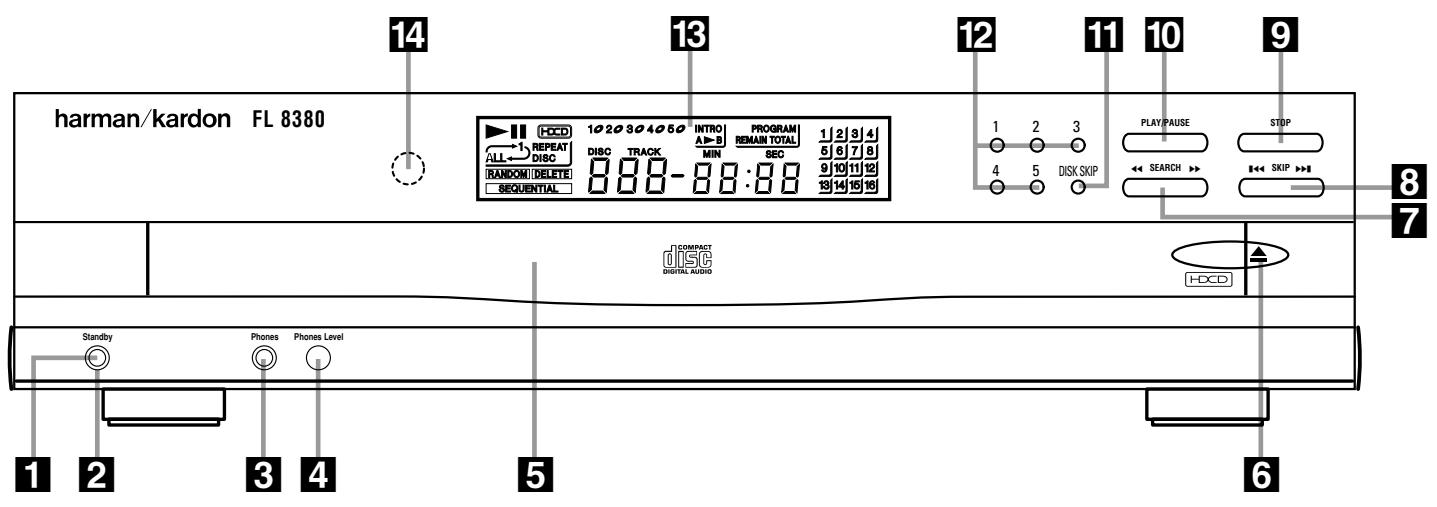
1 Standby
Status Mode Indicator
3 Headphones Jack
4 Headphones Level Control
5 CDDrawer
6 Open/Close Button
7 Search Button
8 Skip Button
9 Stop Button
10 Play/Pause Button
11 Disc Skip Button
12 Disc Select Button
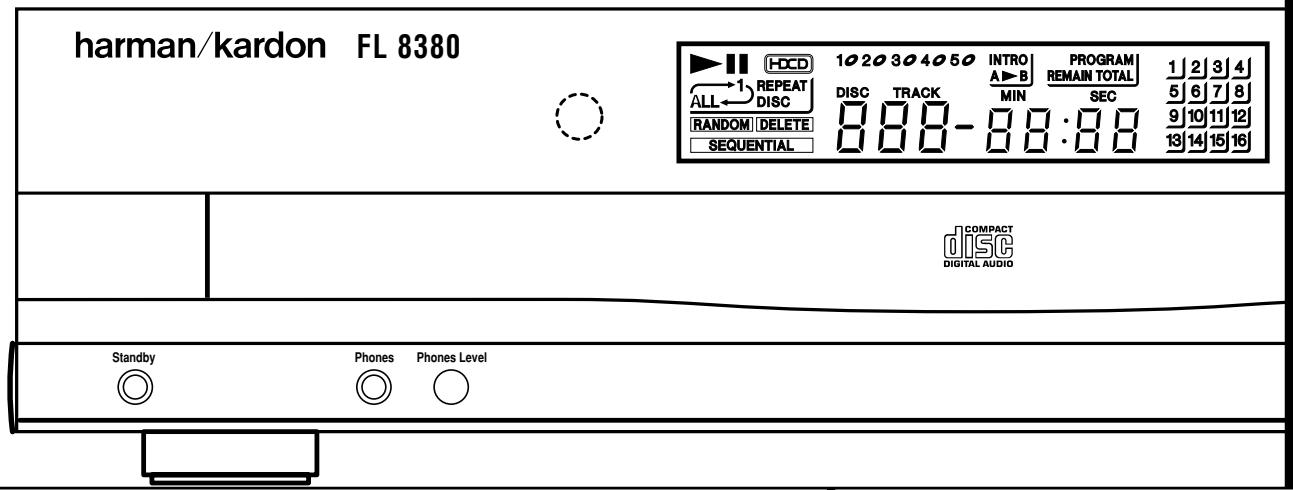
13 Information Display
Remote Sensor
1 Standby: Press this switch to apply power to the FL 8380. Then the Status-Mode Indicator 2 will turn green, the Information Display 18 will illuminate and all trays will be checked automatically for discs. Press the switch again to turn the unit off; the Status-Mode Indicator 2 will turn amber, indicating that the unit is in Standby. When the FL 8380 is connected to a switched AC outlet, such as those found on the back of many audio products, and the AC outlet will be turned on, the unit will turn to Standby mode only.
2 Status-Mode Indicator: When the FL 8380 is in the On mode, this indicator will glow green. When the unit is off, the indicator will glow amber, indicating that the unit is still connected to AC power.
3 Headphones Jack: Connect a set of standard headphones to this jack for private listening.
4 Headphones Level Control: Turn this knob to increase or decrease the volume level for headphones connected to the FL 8380's
Headphones Jack 3. Note that changing this level will not change the sound level for the unit's main output, as that remains constant.
CD Worker: This drawer holds the discs that will be played. Press the Open/Close button to open the drawer so that discs may be inserted.
6 Open/Close: Press this button to open or close the disc drawer. DO NOT push the drawer to close it or damage to the transport mechanism may result.
Search: Press one side of this button to search forward or the other side of the button to search backwards through a disc to locate a particular portion of the disc being played.
8 Skip: Press the right side of this button to move to the next track or the left side of the button to move back to the previous track on the disc being played.
9 Stop: Press this button to stop the disc currently being played. (See page 11 for more information.)
10 Play/Pause Button: Press this button to start the playback of a CD. If the CD drawer is open, pressing this button will automatically close the drawer. Press this button once during play to momentarily pause a disc. When the button is pressed again, the disc will resume play at the point it was paused.
11 Disc-Skip: Press this button to change to the next disc. If a disc position is empty, the FL 8380 will automatically search for the next position that contains a disc unless the disc drawer is open.
12 Disc-Select: Press one of these buttons to select the disc in a specific position in the CD drawer.
18 Information Display: This display provides details about the operation of the FL 8380.
Remote Sensor: The sensor behind this window receives commands from the remote control. Keep this area clear if you wish to use the FL 8380 with a remote control.
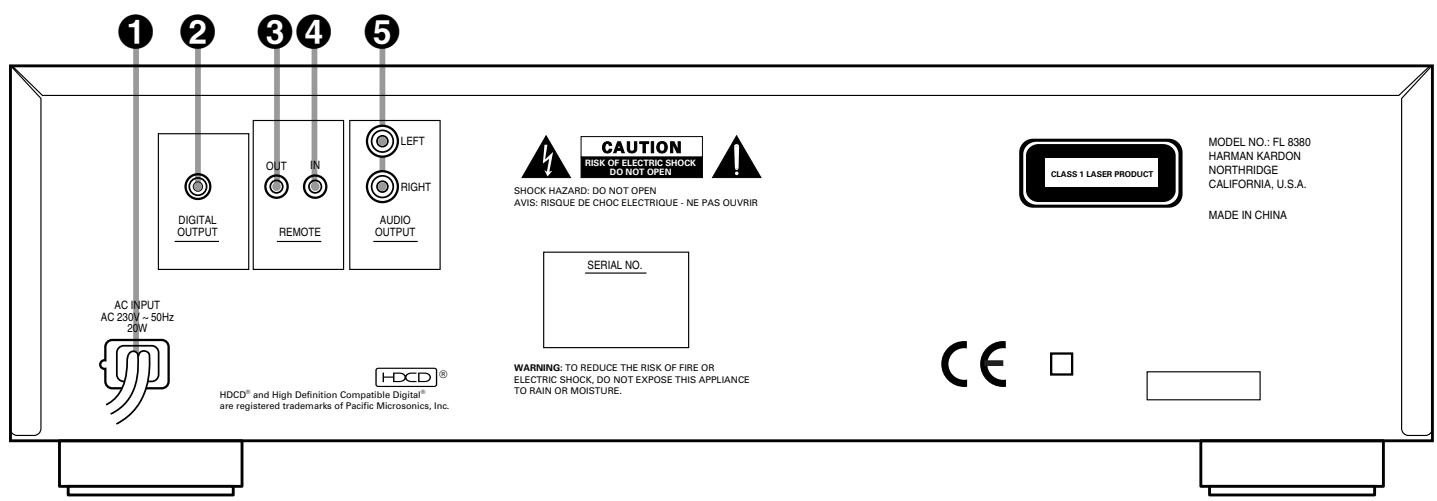
1 AC Power Cord
Coaxial Digital Output
Remote Control Output
4 Remote Control Input
Analog Audio Outputs
AC Power Cord: Connect this plug to an AC outlet. If the outlet is switch controlled, make certain that the switch is in the ON position.
Coaxial-Digital Output: Connect this jack to the coaxial-digital input of a digital audio/video receiver or an external digital-to-analog converter for direct access to the digital signals of the FL 8380. DO NOT connect this jack to the standard audio inputs of any device.
Remote Control Output: Connect this jack to the input of another compatible Harman Kardon remote controlled device to have the remote sensor on the FL 8380 provide signals to other products.
Remote Control Input: Connect the output of a remote infrared sensor or the remote control output of another compatible Harman Kardon product. This will enable the remote control system to operate even when the front panel Remote Sensor 14 is blocked. It will also allow use of the FL 8380 with optional, external control systems.
⑤ Analog Audio Outputs: Connect these jacks to the analog CD audio inputs of your receiver, surround processor or preamplifier.
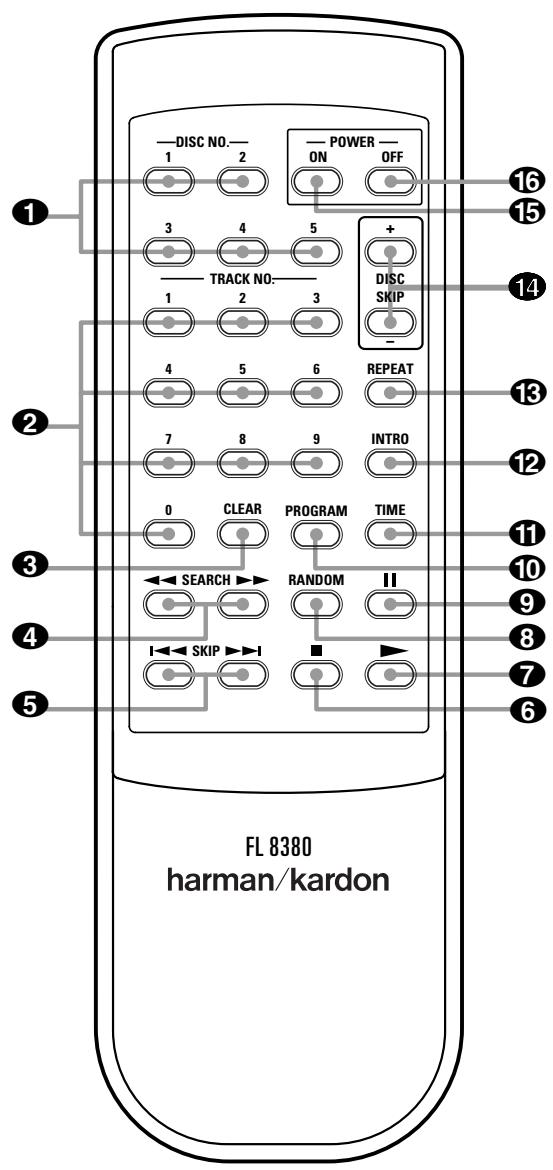
1 Disc-Select
Numeric Buttons
Clear
4 Search
Skip
6 Stop
Play
8 Random
9 Pause
10 Program
Time
12 Intro
13 Repeat
14 Disc-Skip
15 Power On
16 Power Off
1 Disc-Select: Press one of these buttons to select the disc in a specific position in the CD drawer.
2 Numeric Buttons: Press these buttons to select a specific track on a disc. The FL 8380 will immediately go to the track and begin to play it. These buttons are also used to enter track numbers into the memory for preprogrammed-play lists. (See page 13 for complete information on programming the FL 8380.)
3 Clear: Press this button to remove tracks from a programmed sequence. Each press of the button will remove one track, starting with the last track programmed to play. (See page 13 for complete information on programming the FL 8380.)
Search: Press these buttons to search forward or backwards through a disc to locate a particular portion of the selection being played.
Skip: Press one of these buttons to move to the next track or to move back to the previous track on the disc being played.
Stop: Press this button to stop the disc currently being played.
Play: Press this button to start the playback of a CD. If the CD drawer is open, pressing this button will automatically close the drawer.
8 Random: Press this button to play all tracks on one or more CD's in random order. (See page 11 for more information.)
9 Pause: Press this button once to momentarily pause a disc. When the button is pressed again, the disc will resume play from the point at which it was paused.
10 Program: This button is used to program the playback of discs and tracks in a particular order. (See page 13 for complete instructions on programming the FL 8380.)
Time: In normal operation, the display will show the running time of the track being played. Press the button once to check the time remaining for the track in play. Press the button again to view the total play time remaining for the disc in play.
12 Intro: Press this button to put the FL 8380 into the Intro Scan mode. When you press this button, the unit will play the first 10 seconds of each track on the disc, and then move to the next track. Press the button again to defeat the function and continue full play of the current track. (See page 12 for more information.)
13 Repeat: Press this button once to continuously repeat the track currently being played. Press it a second time to repeat the entire disc and a third time to repeat all discs. (See page 13 for more information).
14 Disc-Skip: Press these buttons to change to the next or former disc. If a disc position is empty, the FL 8380 will automatically search for the next position that contains a disc unless the disc drawer is open.
15 Power On Button: When the FL 8380 is plugged into an active AC outlet, press this button to turn the unit on. The Status Mode Indicator
2 will turn green. If the unit is plugged into a switched outlet, power must be applied to the switched outlet in order for the Power On button 15 to be effective.
16 Power Off Button: Press this button to turn the unit off; the Status Mode Indicator 2 will turn amber, indicating that the unit is in a Standby mode.
To prevent possible damage to your speakers and other components in your audio system, it is important that ALL components, including the FL 8380 and your receiver or preamp and amplifiers, are turned off and unplugged from their AC power source when installing any new component.
Connecting the FL 8380 to your audio system is simple. Using standard RCA-to-RCA interconnect cords, connect the left and right Audio Output jacks ⑤ on the rear panel to the CD input jacks on your receiver, surround processor or preamplifier.
If your system includes an optional external digital-to-analog converter, or if you are using a receiver or other processor that has the capability to decode PCM digital input signals, connect the Coaxial Digital Output jack 2 to the Coaxial Digital input on the decoder. Make certain to use a coaxial-style interconnect cable, as standard audio cables will not perform as well.
Install two AA batteries by turning the remote over so that you are holding the bottom side up. Press lightly on the embossed arrow on the cover and gently slide the cover towards you in the direction of the arrow. Insert the batteries inside the compartment, being careful to follow the + and - polarity indications at the bottom of the compartment. Replace the cover by placing it on the remote and sliding it back towards the top of the remote.
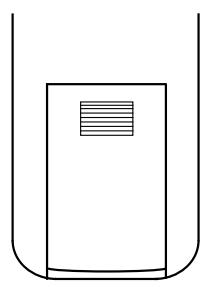
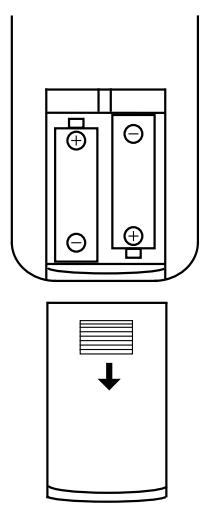
NOTE: When replacing batteries, always replace both at the same time. When the unit will not be used for an extended period of time, it is also a good idea to remove the batteries so that the potential for corrosion or damage is avoided.
If the FL 8380 is installed behind a cabinet or other obstruction that may block the path between the front-panel Remote Sensor 14 and the location of the remote, an optional external IR sensor may be used. Connect the sensor to the Remote IR-In Jack 4 on the rear panel. This jack may also be connected to the IR-Output jack of another compatible Harman Kardon component or a compatible IRsystem-remote product.
You may also use the IR Sensor in the FL 8380 to send commands to other compatible remote controlled products. Connect the Remote IR-Out jack ③ to the input of the other product or system.
Connect the power to a nonswitched AC wall outlet or to the accessory outlet on the rear of another audio device in your system and you are ready to go!
NOTE: When using the accessory outlet on another product to power the FL 8380 make certain that it has the compatibility to power a device that draws at least 20 watts of current in addition to being able to handle the requirements of the other devices that may be plugged into the accessory outlets. If you use a "switched" outlet, it is important to remember that the host product must be turned on in order for the FL 8380 to operate.
Loading Discs
To load a disc, first turn the FL 8380 on, using the Standby Switch 1. or the Power On 15 button on the remote. Note that the Status-Mode Indicator 2 will turn green and the Information Display 13 will illuminate. The word d i s c will flash in the Information Display, and the disc tray will automatically turn clockwise so that the FL 8380 can sense which, if any, of the disc positions already have a disc.
To load a disc, first press the Open/Close button 6, taking care to make certain that the space in front of the drawer is not obstructed. Note that if the drawer is blocked when you attempt to open it, it will automatically close within five seconds to protect the mechanism.
Load discs in the tray with the printed (label) side facing up toward you. Make certain that the disc is centered in the tray. Either 12cm (5") or 8cm (3") discs may be used. When a 8cm (3") disc is played, it should be carefully centered within the smaller ridges on the tray. Only one CD can be placed in any position at a time. When a 8cm (3") disc is played, DO NOT place a standard 12cm (5") disc over the smaller disc.
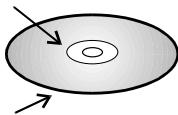
Labeled surface
Recorded surface
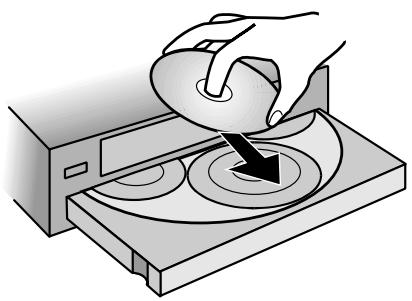
Note that each disc position has a number embossed in the plastic tray. This corresponds to the position this disc will occupy for playback and programming. To make it easier to identify each disc's position, the disc position number for the holder space that is in the center of the disc tray will also appear in the Information Display when the disc drawer is open.
To rotate the disc tray to another position, press the Disc-Skip button 11 14. The tray will revolve to the next slot and the Information Display will indicate the position number for the slot in the middle of the tray.
To close the disc drawer, press the Open/
Close button 6. When the drawer closes all trays will be checked for discs and the disc that was last in the center position on the tray will be readied for play. Its number will appear in the Information Display and a red icon will light to the right of the disc number. The numbers for all other tray positions that have a disc will also light in the upper part of the display. If the center disc position is empty when the drawer is closed, the unit will search for the next position with a loaded disc, and place it in the ready mode.
The drawer may also be closed and the FL 8380 put into play by pressing the Play/Pause button
10 7. This will put the disc in the center position into the Play mode.
To close the drawer and play a specific disc, press the Disc Select button 12 corresponding to the tray position number for the disc you wish to play.
When the disc drawer is closed, the Information Display will display the number of the disc selected, the total number of tracks on the disc and the disc's total running time. In the upper area of the display the numbers of all loaded trays will be shown, with a red icon to the right of the selected disc's number. The total number of tracks on the disc selected will illuminate at the far right side of the display.
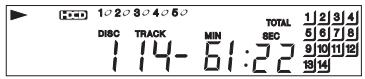
To remove a disc from the player, press the Open/Close button 6. The drawer will open, allowing the disc to be removed. Press the Disc-Skip button 11 4 to rotate the disc carousel tray to reach discs that may be covered.
Upon placing a disc in a tray, the disc number will appear when detected by the sensor mechanism after the drawer has closed.
Disc Handling Notes
When loading or unloading discs, it is best to hold them by the edges.
While compact discs are very reliable, rough handling may damage them. Avoid scratching the bottom (nonprinted) side of discs, and any handling that will leave fingerprints.
To avoid damage to the disc and player, always seat discs so that they are centered in the tray.
Do not lift the player while the disc tray is opening or closing, as this may cause the discs to unseat from the tray and possibly jam.
Note: Always remember to remove all discs from the player before moving or repacking it.
Normal Play
The FL 8380 provides a variety of ways to select discs for playback.
To play all of the tracks on each disc in order, starting with the first track on the disc currently in the play position, and proceeding through each disc that has been loaded, press the Play/Pause button 10 on the front panel, or the Play 7 button on the remote.
To start play on a specific disc, press the Disc-Select button 12 1 that corresponds to the desired disc's position in the disc tray.
When a disc is in play, the Information Display will show a play indication . The track being played will show both as a large number in the middle of the display and as a smaller, flashing number at the right side of the display. The elapsed time of the track being played will appear in the display.
As the disc plays, the track numbers will change, and the time will reset to 0. At the start of each new track. To momentarily pause the play of a disc, press the Play/Pause button on the front panel, or the Pause 9 button on the remote. Note that a Pause indication will appear in the display to remind you that the disc is paused. Press either the Play button (Play/Pause on front panel) 10 or the Pause button 9 to resume normal play.
You may also select a track on the disc in play by entering the desired track number directly using the Numeric buttons 2. You can always select a track by pressing the two-digit number corresponding to the number of the track. Both digits must be pressed within 5 seconds. For track 1-9, press "0" followed by the track number.
Note: If the CD has less than 10 tracks, it is not necessary to press "0" first. If the CD has between 10 and 19 tracks, it is only necessary to press "0" first when selecting track 1. If the CD has between 20 and 29 tracks, it is only necessary to press "0" first when selecting track 1 or 2.
In short, you only need to press "0" first, if there are two-digit track numbers on the CD which begin with the same number as the single-digit track number that you wish to play.
To stop the disc, press the Stop button 9 6. When the stop button is pressed the display will again show the total number of tracks and total running time of the last disc played.
Random Play
The FL 8380 includes three random play modes that enable you to let the machine select the tracks to be played in random order. The random modes may be started at any time by pressing Random ⑧ when the unit is already in Play mode or by pressing Play 10 after Random ⑧ when it is in Stop mode.
Random 1: To play all the tracks on the current disc in random order, press the Random button once so that the RANDOM indicator illuminates. The FL 8380 will play the tracks on the disc in an order selected by the unit's microprocessor and stop play when all of the tracks have been played once.
Random, All, Sequential: When the Random button 8 is pressed twice, the RANDOM and SEQUENTIAL indicators will illuminate. In this mode, all tracks on the current disc will be played in random order, and then the unit will advance to the next disc in order and play all tracks on that disc randomly. When each disc is finished the next disc will play its tracks in random order until all discs have been played. After the last disc plays, the unit will stop.
Random, All Tracks/Discs: When the Random button 8 is pressed three times, the RANDOM, ALL and DISC indicators will illuminate. In this mode, the FL 8380 will select two tracks randomly from the disc in use and play them. After these two tracks play, another disc will be randomly selected and two tracks will play from that disc. This pattern of a randomly selected disc, and the play of two random tracks from each disc, will continue until all tracks on all discs have been played. At that point the unit will stop.
HDCD, HDCD
HDCD, which stands for High Definition Compatible Digital®, is a sophisticated process that enables the FL 8380 to deliver outstanding digital-to-analog decoding no matter what type of CD is played.
When a disc with the HDCD logo is played, the FL 8380 is able to take advantage of the special recording process that is used in the creation of HDCD discs. Although HDCD discs are playable on any CD player, when they are played on a unit such as the FL 8380, the special circuitry delivers audio with extraordinary fidelity, stunning resolution and the highest possible overall quality. The HDCD process effectively cancels the additive distortions, caused by artifacts of the A/D and D/A conversion processes, and simultaneously provides additional data to reduce the subtractive distortions resulting from insufficient data present in the 44.1kHz , 16-bit PCM sampling standard of the compact disc format.
No special adjustment is required to play an HDCD disc. Simply play the disc as you would any other CD, and the FL 8380 will automatically sense that it is an HDCD recording. The HDCD indicator will light in the Information Display on the front panel to remind you that an HDCD disc is playing.
It is important to note that the HDCD process is completely compatible with standard recordings. Its high-quality digital-to-analog circuitry provides enhanced playback even from all standard CD audio discs
Play Exchange
The FL 8380's Play Exchange feature allows you to change discs while the machine is playing. Using this feature, you can have uninterrupted play of an unlimited number of discs, since the drawer may be opened and discs changed while another disc is playing.
To use the Play Exchange function, simply press the Open/Close button 6 at any time while the unit is in the Play mode. The disc drawer will open and two discs will be available for change. Replace either disc, or both, as desired. To reach the other two discs, press the Disc-Skip button 11 14. You may now remove and change either of these two discs.
When you have finished making any disc changes, press the Open/Close button 6. The drawer will close and play will continue with normal functions.
Time Display
The FL 8380's time display is capable of showing a wide range of information about a CD.
In normal operation the display will show the running time of the track that is currently being played. Each time the track changes, the time display will reset to : and begin to increase again as the disc plays.
To view the time remaining on an individual track, press the Time button 11 on the remote control ONCE. The display will now show the time left in the track currently playing.
To view the total playing time remaining on a disc, press the Time button 11 on the remote control TWICE. In this Time Display mode the TRACK indicator will show the tracks remaining, differing from the usual display of the track being played.
Headphone Listening
You may listen to the output of the FL 8380 through headphones by plugging any headphones with a 6,3mm standard plug or adapter into the front-panel Headphones Jack 3. The volume of the headphone output can be adjusted with the Headphones Level Control 4. Note that changing the headphone level will not change the volume for the main audio output. This is a fixed output and it is changed using the volume control on your receiver, preamplifier or surround processor.
Search
If you wish to quickly scan through a disc to locate a particular passage or program, press the Search buttons 7 4. The Forward-Search button plays the disc forward at high speed, while the Reverse-Search button plays the disc backwards at high speed. The front panel features a single Search button 7; press the right side for forward search , or the left side for reverse search . The forward and reverse search functions may also be performed using the separate Search buttons 4 on the remote. When the desired part of the disc is heard, release the Search button to resume normal play speed.
Skip
To move from one track on a disc to another, press one of the Skip buttons 8 5. Pressing the Forward-Skip button will move you forwards through the disc one track at a time, while pressing the Reverse-Skip button will move you back to the start of the current track and, if pressed again within two seconds, back one track at a time. Holding any of the buttons pressed, will fastly skip through all tracks. The front panel features a single Skip button 3; press the right side for Forward Skip or the left side for Reverse Skip 4. The forward and reverse skip functions can be performed using separate Skip buttons 5 on the remote.
The Skip buttons may be used when the FL 8380 is either playing or stopped. If the unit is stopped, the Skip buttons may be used to locate the first track to be played. The Play button (Play/Pause on the front panel 10) must be pressed to begin play. If the Skip buttons are used while the unit is already playing, the audio output will stop while the new track is located, and play will automatically resume after the Skip button is released.
Intro Search
This feature lets you locate a track by playing the first 10 seconds of each track. When the Intro button on the remote control is pressed, the unit will play only 10 seconds of each track and then automatically move to the next track. When you have reached a track that you wish to listen to in its entirety, press the Intro button again to resume normal operation. When the Intro feature is activated, the INTRO indicator will illuminate in the Information Display to remind you that Intro Search is in use.
When the Intro button is pressed, the FL 8380 will first play through the disc that is currently in the play position and then move on to each disc position that is loaded.
The FL 8380's advanced programming capability enables you to preset specific tracks of any CD and the order in which tracks play, repeat specific discs or tracks or repeat all discs and tracks.
Programmed Play
Programmed play allows you to program up to 32 tracks (from one or more CD's) or complete-disc play-through into the FL 8380's memory. To begin programming the FL 8380, press the Program button on the remote control. The PROGRAM indicator will light in the Information Display 13.
You may now begin to enter the discs and tracks in the order in which you wish to have them play. Once the PROGRAM indicator is lit, P - D ] will appear in the Information Display, replacing the track time. This indicates that you are about to program the first track.
Press the Disc-Select button 12 to choose the first disc to be programmed (unless you choose the current disc), and note that A L will flash in the Information Display. To have all tracks on the disc play in order as the first program step, press the Program button 10 again. To select a single track on the disc, press the Numeric buttons 2 corresponding to the desired track (see page 10 how track numbers must be entered). You may also use the Skip buttons 8 5 to select a track. When the disc and track are selected, press the Program button 10. Note that the program-step indication on the right side of the Information Display will change to P - O 2.
You may now select another disc and/or track for the next program step, following the instruction shown above. When the program step is selected, press the Program button 10. Repeat this procedure for each program step until you have completed the desired programming. Press the Stop button 9 6 once to complete a program sequence, or press Play 7 (Play/Pause 10 on the front panel) to begin immediate play of a program sequence. If the maximum of 32 program steps is reached, the program-step indication at the right side of the Information Display will go out, and the disc and track that have been programmed as the first program step will be shown.
Once a program list has been entered, press the Play button (Play/Pause on the front panel) to begin listening to the sequence. After the entire program has been played, the FL 8380 will stop. As long as the Stop button has not been pressed twice and the PROGRAM indicator remains lit, you may repeat the programmed-play sequence again by pressing the Play button (Play/Pause on the front panel).
Pressing Stop button ⑨ ⑥ twice will return to normal mode and the PROGRAM indicator will delete, but the program will stay in memory and can be recalled easily by pressing the Program ⑩ button. But pressing the Clear button ③ (see below), opening the disc drawer by pressing Open/Close ⑥, or turning the FL 8380 off will erase the program information from the unit's memory.
Checking Program Contents
To check the contents of a program while the unit is stopped at first note that the PROGRAM indicator is lit (otherwise press Program 10) and the program step indication P - is not lit (otherwise press Stop 6 once). Each time you press the Skip buttons 8 5 the Information Display will step through each of the programmed discs and tracks.
Clearing Programs
To clear a single track from the program list, press the Program button 10 on the remote until the track to be deleted from the program sequence appears in the Information Display 13. When the track number appears, press the Clear 3 on the remote once, then Stop 6, the track selected will be deleted from the title calendar at the right of the display. Now you can press the Program 10 to select other items to be deleted.
When the unit is stopped and the program step indication P - OI is not lit (otherwise press Stop 6 once), but the PROGRAM indicator is still lit, you may clear the entire contents of a program by pressing the Clear button 3.
Repeat Play
The FL 8380's programming system enables you to repeat all of the tracks on all of the discs, a complete single disc, or a single track.
Repeat Track Play
To repeat a single track, press the Repeat button on the remote control while the desired track is playing so that the REPEAT and 1 indicators are lit. The Repeat Track mode may also be activated while the unit is stopped by selecting the desired track using the Disc-Select buttons 12 1 and then the Skip buttons 8 5 or the Numeric buttons 2 as outlined on page 11. When the track is chosen, press the Repeat button 13 on the remote control and the Play button (Play/Pause 10 on the front panel). The track will play until the Stop button 9 6 is pressed.
Repeat Disc Play
To repeat an entire disc, press the Repeat button twice so that the REPEAT and DISC indicators are lit. Press the appropriate Disc Select button 121, the desired disc's icon lights and the disc number appears in the Information Display 13. The selected disc will play through to the end and then continue to repeat until the Stop button 9 6 is pressed.
Repeat All Discs
To repeat all of the discs that have been loaded into the FL 8380, press the Repeat button 13 three times so that the REPEAT, ALL and DISC indicators are lit. Press the Play button 7, (Play/Pause 10 on the front panel) and the unit will play all tracks on all discs, starting with the disc that has been loaded in the play position. When all discs have played through, the sequence will repeat and the discs will continue to play until the Stop button 9 6 is pressed.
NOTE: You may cancel a repeat function any time by pressing the Repeat button 13 until the REPEAT indicators go out. The player will continue with normal play.
IMPORTANT Note: Tracks programmed as described above in chapter "Programmed Play" can be repeated too: When you press Repeat 13 once after a program is created (the PROGRAM indicator must be lit, (otherwise press Program 10) and the program step indication P - D ] is not lit (otherwise press Stop 6 once), the REPEAT 1 indicator will light and the track currently selected or playing will be repeated continuously. If Repeat is pressed twice REPEAT ALL will be displayed, all programmed tracks on all discs will be played subsequently and the sequence will be repeated continuously until Stop 6 is pressed.
Troubleshooting Guide
| SYMPTOM | POSSIBLE CAUSE | SOLUTION |
| No lights on front panel | • No AC power | • Make certain that the AC power cord is plugged into a live outlet |
| Remote does not appear to operate | • Weak batteries • Linked sensor | • Install fresh batteries, observing polarity indications • Remove obstructions from the front-panel sensor, or connect a remote sensor to the Remote-In jack on the rear panel |
| Front panel lights but CD does not play | • Disc upside down • Moisture inside unit | • Turn CD over so that label side faces up • Leave the unit turned ON for 30 minutes to allow moisture to evaporate |
| Play indicator lights but no sound is heard | • Receiver or preamp and amp not turned on • Poor connections • Wrong source selected | • Turn on all necessary equipment • Make sure certain connections are secure and made to the correct (e.g., CD) input • Select CD source on receiver or preamp |
| Sound skips or stutters during play | • Disc may be damaged • Surface vibrations | • Try another disc • Isolate the unit from vibration by placing it on a firm surface or move it further away from speakers |
| Sound is continually distorted | • Incorrect input | • Make certain that the Analog Audio Outputs ⑤ of the FL 8380 are connected to a line-level audio input, NOT to a digital audio or phono input |
Signal Format
Sampling Frequency 44.1kHz
HDCD Processing Burr Brown PCM1732
D/A Conversion up to 24 Bit/96 kHz
Oversampling 8 Times
Discrete Analog Output Section
Error Correction CIRC System
Frequency Response 20 Hz - 20 kHz +0/-1dB
Total Harmonic Distortion (THD) <0.008% @1kHz
Dynamic Range >97 dB
Signal-to-Noise Ratio >100 dB
Channel Separation 80 dB
Line-Output Level 2.0V RMS
Digital Output Coax
General
Power Requirement AC 230/50 Hz
Power Consumption 14 Watts (max)
Dimensions
Height 129mm (5.1")
Width 440mm (17.3")
Depth 386mm (15.2")
Weight 7.6 kg (16.7 lbs.)
Depth measurement includes knobs and buttons.
Height measurement includes feet and chassis.
All features and specifications are subject to change without notice.
Harman Kardon is a registered trademark, and Power for the digital revolution is a trademark, of Harman Kardon, Inc.
HDCD, High Definition Compatible Digital® and Pacific Microsonics™ are either registered trademarks or trademarks of Pacific Microsonics, Inc., in the United States and/or other countries. HDCD system manufactured under license
from Pacific Microsonics, Inc. This product is covered by one or more of the following: In the USA: 5,479,168; 5,638,074; 5,640,161; 5,808,574; 5,838,274; 5,854,600; 5,864,311; 5,872,531; and in Australia: 669114. Other patents pending.