
CDR 25 - CD Player HARMAN KARDON - Free user manual and instructions
Find the device manual for free CDR 25 HARMAN KARDON in PDF.


User questions about CDR 25 HARMAN KARDON
0 question about this device. Answer the ones you know or ask your own.
Ask a new question about this device
Download the instructions for your CD Player in PDF format for free! Find your manual CDR 25 - HARMAN KARDON and take your electronic device back in hand. On this page are published all the documents necessary for the use of your device. CDR 25 by HARMAN KARDON.
USER MANUAL CDR 25 HARMAN KARDON
3 Introduction
3 Important Information on CD Recording
4 Safety Information
5 Front-Panel Controls
7 Front-Panel Information Display
9 Rear-Panel Connections
10 Remote Control Functions
12 Installation and Connections
14 CD Recording Basics
14 Disc Types
14 CDR Terminology and Display Messages
15Playback Basics
15 Loading and Unloading Discs
15 Using the Remote
16 Normal Play
16 Search
16 Track Skip
17 Continuous Play
17 Time Display
17 Headphone Listening
18 Program Play
18 Programming Play Lists
18 Repeat Play
19 CD Recording
19 Disc Dubbing
20 CD Sync Recording
21 Recording from an External Source
22 Finalizing CD-R and CD-RW Discs
22 Unfinalizing and Erasing CD-RW Discs
23 Troubleshooting Guide and Error Messages
24 Technical Specifications
Declaration of Conformity
CE
We, Harman Consumer International
2, route de Tours
72500 Château-du-Loir,
FRANCE
declare in own responsibility, that the product described in this owner's manual is in compliance with technical standards:
EN 60065:1993
EN 55013/A12/8.1994
EN 55022/5.1995
EN 55020/12.1994
EN 61000-3-2/4.1995
EN 61000-3-3/1.1995
Carsten Olesen
Harman Consumer International
07/02
Typographical Conventions
In order to help you use this manual with the remote control, front-panel controls and rear-panel connections, certain conventions have been used.
EXAMPLE - (bold type) indicates a specific remote control or front-panel button, or rear-panel connection jack
EXAMPLE - (OCR type) indicates a message that is visible on the front-panel information display
EXAMPLE - (outlined type) indicates a lit indicator in the front-panel information display
1 - (number in a square) indicates a specific front-panel control
1 - (number in an oval) indicates a button or indicator on the remote
1 - (number in a circle) indicates a rear-panel connection
A - (letter in a square) indicates an indicator in the front-panel display
Thank you for choosing Harman Kardon. The CDR 25 Dual-Deck CD Player/Recorder is a unique product, designed not only to play back your existing library of compact discs, but also record compact discs from either analog or digital programs. You may feed signals (for recording) to the CDR 25 from external sources such as an A/V receiver, a tuner, a tape deck or a CD player, or you may simply place a CD in one deck, and make a copy using a recordable CD in the other deck.
Designed and engineered by Harman Kardon, the CDR 25 is the world's first audio CD recorder with 4x speed capability. This means that it will take only 15 minutes to copy a 60-minute disc.
The CDR 25 not only records with the highest speed and quality available but it is also an audiophile CD player. Through the use of audiophile-grade digital-to-analog converters (DACs), the CDR 25's performance rivals the most sophisticated high-end players. Should you wish to bypass the internal DACs and use an external digital processor, a coax-digital output is available. To make CD playback more enjoyable, the CDR 25 also features a wide range of program and repeat functions.
Since CD recorders are a relatively new technology, this may be your first CD-R product. Although CD recorders resemble play-only CD machines in many ways, there are some important differences between a standard CD and a CD-R. In addition, making a CD-R recording is also a different process than what you may be familiar with for making audio tape or cassette recordings. For that reason, we encourage you to read through this manual so that you are fully acquainted with the way CD recording works. This small investment in your time will pay major dividends in the enjoyment that will result from proper use of the CDR 25.
If you have additional questions about this product - its installation or operation - that are not answered in this manual, please contact your dealer, who is your best source of local information. You may also contact Harman Kardon via e-mail through our Web site at www.harmankardon.com.
Special Features
Dual-Deck CD Player and CD-R/CD-RW Recorder
4x Dub Speed for Both CD-R and Erasable CD-RW Disks
■ Audiophile-Grade Digital-to-Analog Converters for Highest Audio Quality
Continuous Play Capability
Extensive Playback Programming Capabilities
Coaxial and Optical Digital Inputs and Outputs
■ Front-Panel Coaxial and Optical Digital Input for Use with Portable Devices
Sample-Rate Converter Allows Use of DAT Players as Digital Source
Ergonomic Remote Control
Important Information About CD Recording
In order to get the most enjoyment from your new CD-R recorder, please pay special attention to the following sections of the manual that provide information about the special features and capabilities of CD Recorders.
The CDR 25 plays all standard CD audio,CD-R and CD-RW discs but for recording, the CDR 25 uses special CD-R and CD-RW discs designed only for audio use. CD-R discs designed for computer use will not work in the CDR 25. See page 14 for more information on which types of discs are used with the CDR 25.
The last step in making a CD-R and CD-RW recording is the finalization process. Unless this step is properly done, the disc will not work in other players. See page 22 for information on finalizing discs.
Once finalized, CD-R discs will play in any CD player, but CD-RW discs will only play in the CDR 25 and certain other machines. Check the specifications of your CD player if you have questions about compatibility with CD-RW discs.
As with all CD players, except those designed specifically for portable use, you should never move a CD player while there is a disc inside one of the decks. NEVER move the CDR 25 until discs have been removed from both decks.
CAUTION
RISK OF ELECTRIC SHOCK DO NOT OPEN

CAUTION: TO REDUCE THE RISK OF ELECTRIC SHOCK, DO NOT REMOVE COVER (OR BACK). NO USERSERVICEABLE PARTS INSIDE. REFER SERVICING TO QUALIFIED SERVICE PERSONNEL.

The lightning flash with arrowhead symbol, within an equilateral triangle, is intended to alert the user to the presence of uninsulated "dangerous voltage" within the product's enclosure that may be of sufficient magnitude to constitute a risk of electric shock to persons.

The exclamation point within an equilateral triangle is intended to alert the user to the presence of important operating and maintenance (servicing) instructions in the literature accompanying the appliance.
WARNING: TO REDUCE THE RISK OF FIRE OR ELECTRIC SHOCK, DO NOT EXPOSE THIS APPLIANCE TO RAIN OR MOISTURE.
Important Safety Information
Verify Line Voltage Before Use
Your CDR 25 has been designed for use with 100- to 240 Volt AC current. Connection to a line voltage other than that for which it is intended can create a safety and fire hazard and may damage the unit.
If you have any questions about the voltage requirements for your specific model, or about the line voltage in your area, contact your selling dealer before plugging the unit into a wall outlet.
Do Not Use Extension Cords
We do not recommend that extension cords be used with this product. As with all electrical devices, do not run power cords under rugs or carpets or place heavy objects on them. Damaged power cords should be replaced immediately by an authorized service depot with cords meeting factory specifications.
Handle the AC Power Cord Gently
When disconnecting the power cord from an AC outlet, always pull the plug, never pull the cord. If you do not intend to use the unit for any considerable length of time, disconnect the plug from the AC outlet.
Do Not Open the Cabinet
There are no user-serviceable components inside this product. Opening the cabinet may present a shock hazard, and any modification to the product will void your guarantee. If water or any metal object such as a paper clip, wire or a staple accidentally falls inside the unit, disconnect it from the AC power source immediately, and consult an authorized service station.
CAUTION: The CDR 25 uses a laser system. To prevent direct exposure to the laser beam, do not open the cabinet enclosure or defeat any of the safety mechanisms provided for your protection. DO NOT STARE INTO THE LASER BEAM. To ensure proper use of this product, please read this owner's manual carefully and retain it for future use. Should the unit require maintenance or repair, please contact your local Harman Kardon service station. Refer servicing to qualified personnel only.
Installation Location
To assure proper operation and to avoid the potential for safety hazards, place the unit on a firm and level surface. When placing the unit on a shelf, be certain that the shelf and any mounting hardware can support the weight of the product.
Make certain that proper space is provided both above and below the unit for ventilation. If this product will be installed in a cabinet or other enclosed area, make certain that there is sufficient air movement within the cabinet.
- Do not place the unit directly on a carpeted surface.
- Avoid installation in extremely hot or cold locations, or an area that is exposed to direct sunlight or heating equipment.
Avoid moist or humid locations.
- Do not obstruct the ventilation slots on the top of the unit, or place objects directly over them.
Cleaning
When the unit gets dirty, wipe it with a clean, soft dry cloth. If necessary, wipe it with a soft cloth dampened with mild soapy water, then a fresh cloth with clean water. Wipe dry immediately with a dry cloth. NEVER use benzene, aerosol cleaners, thinner, alcohol or any other volatile cleaning agent. Do not use abrasive cleaners, as they may damage the finish of metal parts. Avoid spraying insecticide near the unit.
Moving the Unit
Before moving the unit, be certain to disconnect any interconnection cords with other components, and make certain that you disconnect the unit from the AC outlet.
IMPORTANT NOTE: To avoid damage to the CDR 25 which may not be covered by the warranty, be certain that all discs are removed from the unit before it is moved. Once the CDR 25 is placed installed, discs may be left in the unit when it is turned off, but the unit should NEVER be moved with discs left in either deck.
Important Information for the User
This equipment generates, uses and can radiate radio frequency energy and, if not installed and used in accordance with the instructions, may cause harmful interference to radio communication. However, there is no guarantee that harmful interference will not occur in a particular installation. If this equipment does cause harmful interference to radio or television reception, which can be determined by turning the equipment off and on, the user is encouraged to try to correct the interference by one or more of the following measures:
Reorient or relocate the receiving antenna.
■ Increase the separation between the equipment and receiver.
Connect the equipment into an outlet on a circuit different from that to which the receiver is connected.
■ Consult the dealer or an experienced radio/TV technician for help.
Unpacking
The carton and shipping materials used to protect your new receiver during shipment were specially designed to cushion it from shock and vibration. We suggest that you save the carton and packing materials for use in shipping if you move, or should the unit ever need repair.
To minimize the size of the carton in storage, you may wish to flatten it. This is done by carefully slitting the tape seams on the bottom and collapsing the carton down to a more two-dimensional appearance. Other cardboard inserts may be stored in the same manner. Packing materials that cannot be collapsed should be saved along with the carton in a plastic bag.
If you do not wish to save the packaging materials, please note that the carton and other sections of the shipping protection are recyclable. Please respect the environment and discard those materials at a local recycling center.
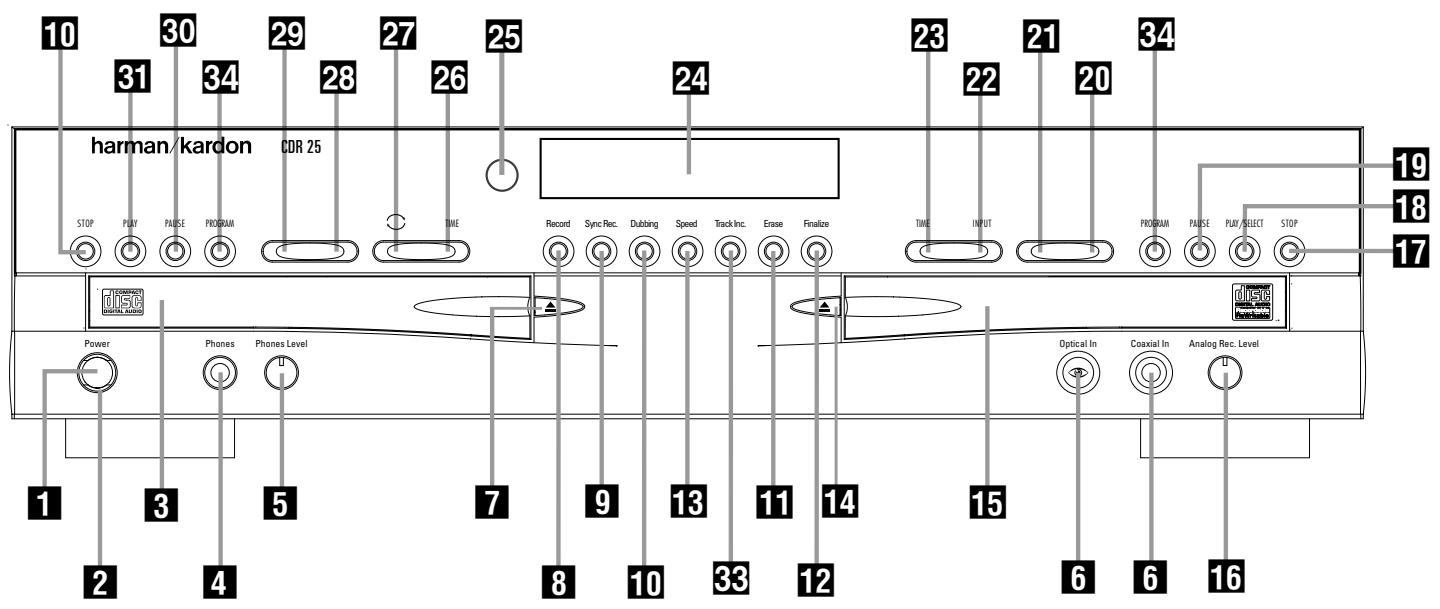
1 Power Switch
2 Status-Mode Indicator
3 Play Deck
4 Headphone Jack
5 Headphone Level Control
6 Coaxial and Optical Digital Inputs
Play-Deck Open
8 Record Button
9 CD Sync
10 Dubbing
Erase
12 Finalize
13 Speed
14 Record-Deck Open
15 Record Deck
16 Analog-Record Level Control
17 Record-Deck Stop
18 Record-Deck Play/Select
19 Record-Deck Pause
20 Record-Deck Next
21 Record-Deck Previous
22 Input Select
23 Record-Deck Time
24 Information Display
Remote Sensor
26 Play-Deck Time
27 Continuous Play
28 Play-Deck Next
29 Play-Deck Previous
30 Play-Deck Pause
31 Play-Deck Play
32 Play-Deck Stop
33 Track Increment
34 Program Button
1 Power Switch: Press this switch to apply power to the CDR 25. When the unit is first turned on, the Status-Mode Indicator 2 surrounding the switch will turn green. Once the unit has been turned on with this switch, it may be operated from either the front panel or remote control. Press the switch again to turn the unit completely off.
2 Status-Mode Indicator: When the CDR 25 is in the ON mode, this indicator will glow green. When the unit has been placed in the Standby mode by pressing the Power-Off button on the remote, the indicator will glow amber, indicating that the unit is still connected to the AC main supply and is ready to be turned on from the remote control.
3 Play Deck: This disc deck is used to play back conventional CD discs and CD-R or CD-RW discs that have been finalized.
4 Headphone Jack: Connect standard headphones to this jack for private listening.
5 Headphone Level Control: Turn this control to adjust the volume level to the headphones. Note that the use of this control will not change the analog output levels at the rear-panel audio outputs 3.
6 Coaxial and Optical Digital Inputs: These inputs may be used to connect any digital audio player to the CDR 25 for digital recording.
7 Play-Deck Open: Press this button to open the Play Deck 3.
8 Record Button: Press this button to begin the recording process. See pages 19-21 for more information on CD recording.
CD Sync: Press this button once to begin an automated recording of a single track from an external CD player when a digital connection is used. Press it twice to begin automated recording of an entire disc. See page 20 for more information on CD Sync recording.
10 Dubbing: Press this button to begin the process of making a complete copy of the disc in the Play Deck 3 to a CD-R or CD-RW disc in the Record Deck 15. See page 19 for more information on dubbing.
11 Erase: Press this button to erase one or more tracks or the entire contents of an unfinalized CD-RW disc. When a CD-RW disc has already been finalized you may erase the entire disc or you may "uninitialize" the disc by erasing the TOC data. See page 22 for more information on erasing CD-RW discs.
12 Finalize: Press this button when a recording is complete to initiate the finalization process.
The Play/Select Button 18-10 must be pressed within three seconds to activate finalization. Until this button is pressed and the finalization process is complete, CD-R discs may not be played on conventional CD machines. See page 22 for more information on finalization.
13 Speed: Press this button to select the recording speed for internal dubs. See page 19 for more information on selecting the proper speed.
14 Record-Deck Open: Press this button to open the Record Deck 15.
15 Record Deck: This Disc Deck is used to play back CD, CD-R and CD-RW discs; it is also used for recording CDs.
16 Analog-Record Level Control: The control is used to adjust the input level when making recordings from analog sources such as cassettes, or when CDs are recorded in an analog mode. See page 21 for more information on record levels.
17 Record-Deck Stop: Press this button to stop the CD in the Record Deck.
18 Record-Deck Play/Select: This button has two functions. It may be pressed when a standard CD is in the Record Deck to put the machine in play, or it may be used to enter a selection or start certain record functions.
19 Record-Deck Pause: When the Record Deck is in the Play mode, pressing this button will pause the disc. If the disc has previously been paused, pressing this button will restart the playback.
20 Record-Deck Next: This button has two functions. When a disc is playing in the Record Deck 15, press and hold this button to play the disc in a fast-forward mode to quickly locate a desired passage. At any time, tapping the button and quickly releasing it will move to the next track on a disc in play.
21 Record Deck Previous: This button has two functions. When a disc is playing in the Record Deck 15, press and hold this button to play the disc in a fast reverse mode to quickly locate a desired passage. At any time, tapping the button and quickly releasing it will move to the beginning of the current track, and the next press will move to the previous track. When a disc is stopped, each press will move back one for programming or play when the disc is stopped. Once a track is entered, it may be played by simply pressing the Play button
1810
22 Input Select: Press this button to select the input source (analog or digital) for recording. See page 21 for more information on input selection.
23 Record-Deck Time: Press this button to cycle through the time display options for the Record Deck. See page 17 for more information on the time display.
24 Information Display: The indicators in the Information Display provide status reports on the operation of the CDR 25. See page 7 for complete explanations of each indicator.
25 Remote Sensor: The IR sensor that receives the commands from the remote control is behind this area. Do not cover or obscure this part of the front panel to avoid any malfunction with the remote.
26 Play-Deck Time: Press this button to cycle through the time display options for the Play Deck. See page 17 for more information on the time display.
27 Continuous Play: Press this button to place the CDR 25 in Continuous Play mode, which causes it to alternate play between the discs in each deck continuously, so long as the next deck to be played contains a disc and play has not been stopped. To return to the default Single Play mode, in which play stops after the disc in the selected deck has played once, press this button again.
28 Play-Deck Next: This button has two functions. When a disc is playing in the Play Deck 3, press and hold this button to play the disc in a fast-forward mode to quickly locate a desired passage. At any time, tapping the button and quickly releasing it will move to the next track on a disc in play.
29 Play-Deck Previous: This button has two functions. When a disc is playing in the Play Deck 3, press and hold this button to play the disc in a fast-reverse mode to quickly locate a desired passage. At any time, tapping the button and quickly releasing it will move to the beginning of the current track, and the next press will move to the previous track. When a disc is stopped, each press will move back one for programming or play when the disc is stopped. Once a track is entered, it may be played by simply pressing the Play button 31 10.
30 Play-Deck Pause: When the Play Deck is running, pressing this button will pause the disc. If the disc has previously been paused, pressing this button will restart the playback.
31 Play-Deck Play: Press this button to begin playback of a CD in the Play Deck or the dubbing process.
32 Play-Deck Stop: Press this button to stop the CD in the Play Deck.
38 Track Increment: Press this button during recording to insert a new track marker at that point in the recording. The current track number will be incremented by one.
34 Program Button: Press this button to begin the programming sequence for the Play Deck or Record Deck. See page 18 for more information on programming playlists on the CDR 25.
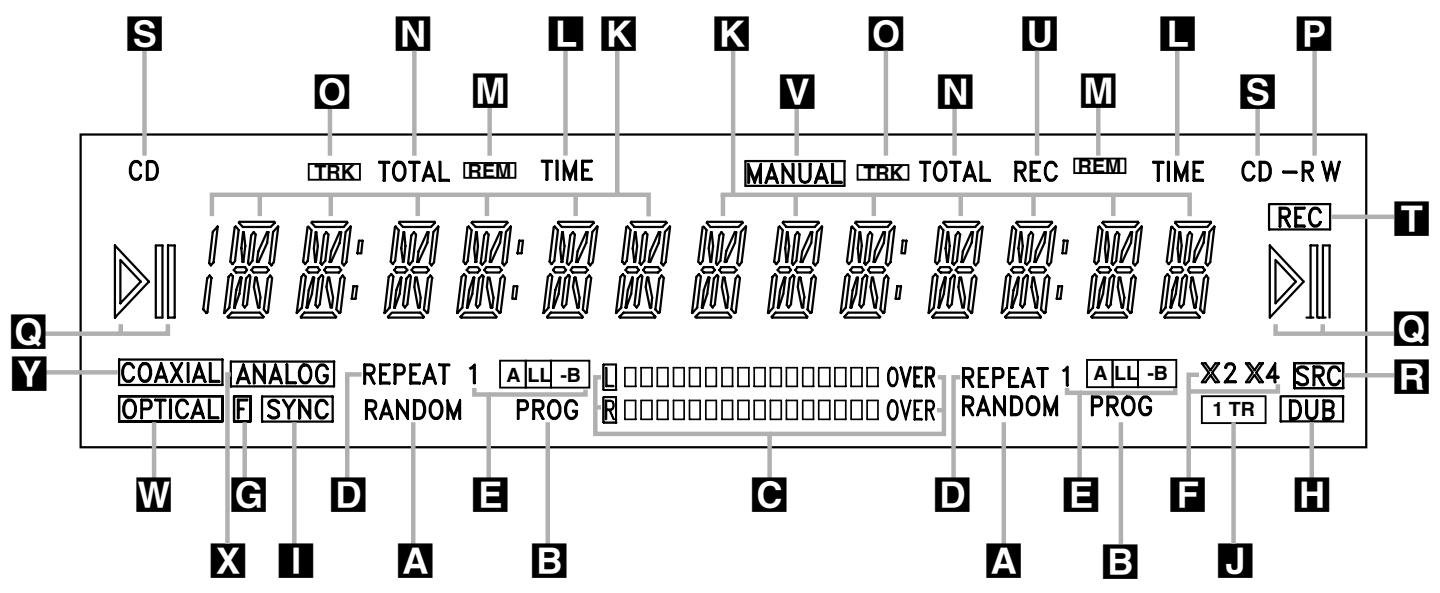
A Random Indicators
B Program Indicators
C Level Indicators
D Repeat Indicators
Repeat-Status Indicators
F Speed Indicators
G Front Panel Input
H Dubbing Indicator
1 Sync Indicator
J 1-Track Dubbing Indicator
K Information Displays
Time Indicators
M Remaining-Time Indicators
N Total-Time Indicators
Track-Time Indicators
P R/RW Indicator
Play/Pause Indicators
R Sample-Rate Converter
S CD Indicators
T Record Indicator
U Recorded Time Indicator
V Manual Indicator
W Optical Digital Indicator
X Analog Indicator
Y Coaxial Digital Indicator
Important Note: Since the CDR 25 is a dual-deck player/ recorder, there are two separate sets of indicators for the Random, Program, Repeat Status, Remain Time, Total Time and Track Time. In addition, there is a separate Information Display, Play/Pause Indicator and CD Indicator for each deck. As the function of these indicators is identical for both decks, they are described in this manual with a common letter. When the CDR 25 is playing or recording a disc, any indicators that light on the left side of the display describe to the status of the Play Deck, while those that light on the right side of the display describe the status of the Record Deck. Depending on the activity of the unit and the settings you select, different indicators may light on the two sides at the same time.
A Random Indicators: These indicators light when random playback has been programmed for one of the CD decks. See page 16 for more information on random play.
B Program Indicators: These indicators light when one of the CD decks is being programmed for playback options. See page 16 for more information on programmed play.
Level Indicators: These LEDs display the input level during an analog recording, the signal level during digital recording or dubbing and the output level during playback. See page 21 for more information on record levels.
D Repeat Indicator: This indicator lights when a repeat function is being used. See page 18 for more information on repeat play.
Repeat-Status Indicator: These indicators display the type of repeat function being used. See page 18 for more information on repeat status.
F Speed Indicators: These indicators show which record speed has been selected for dub recordings. See page 19 for more information on record-speed selection.
G Front-Panel Input Indicator: This indicator lights in conjunction with the Coaxial Digital Y or Optical Digital Indicator W when either the front-panel coaxial or optical input has been selected. See page 21 for more information on selecting an external source.
H Dubbing Indicator: This indicator lights when a dub is in progress between the two CD Decks. See page 19 for more information on CD dubbing.
Sync Indicator: This indicator lights when the unit has been programmed for a CD Sync recording. See page 20 for more information on CD Sync recordings.
1 Track Dubbing Indicator: This indicator lights when a single track is being dubbed by itself, as opposed to the entire disc or a programmed playlist. See page 19 for more information on dubbing.
K Information Display: This display serves two functions, showing the time displays for discs playing, as well as displaying messages about discs or recordings.
L Time Indicator: This indicator lights in conjunction with one of the time indicators M N O U to show which of the time status modes is active.
W Remaining-Time Indicator: This indicator lights when the Information Display K shows the time remaining on a disc.
N Total Time: This indicator lights when the Information Display K shows the total time of all tracks on a disc.
- Track Time: This indicator lights when the Information Display K shows the running time of the individual track being played.
R/RW Indicator: This indicator shows which type of recordable disc is present in the Record Deck 15. When a CD-R disc is present, only the R is lit. The RW lights when an erasable CD-RW disc is in use.
Play/Pause Indicator: These indicators show the status of the individual CD Decks. The lights when the CD is playing, and the lights when the unit is in a Pause mode.
Sample-Rate Converter: This indicator lights when the Sample-Rate Converter is in use to change the digital sample rate when the incoming signal is not the standard 44.1kHz used by standard CDs. This is an automatic function and does not require any user intervention.
CD Indicator: This indicator lights when a standard CD is playing in either deck 3 or 15.
1 Record Indicator: This indicator lights when the unit is making a recording and flashes during the preparations for recording.
Recorded-Time Indicator: While a recording is in progress, and up until a CD-R or CD-RW disc in the Record Deck has been finalized, this indicator will light, and the Information Display will indicate the total amount of time recorded on the disc thus far.
V Manual Indicator: This indicator lights when the manual method of incrementing tracks is selected for a recording session. See page 21 for more information on track increments.
W Optical Digital Indicator: This indicator lights when an digital source connected to one of the optical digital inputs is being recorded. See page 20 for more information on source selection.
X Analog Indicator: This indicator lights when an analog source is being recorded. See page 20 for more information on source selection.
Coaxial Digital Indicator: This indicator lights when a digital source connected to one of the coaxial digital inputs is being recorded. See page 20 for more information on source selection.
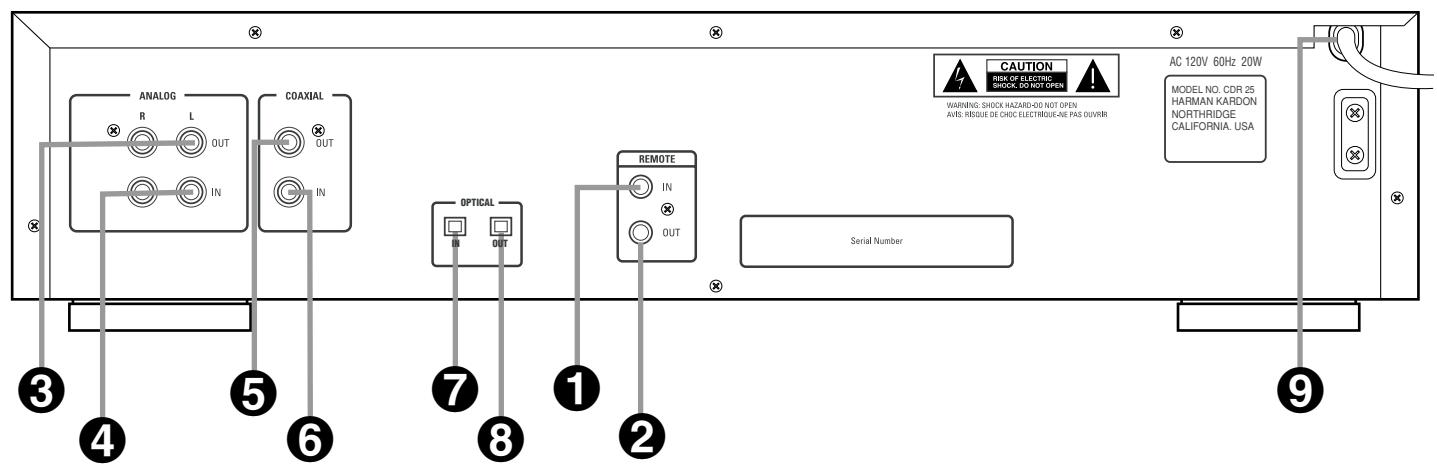
Remote IR Input
Remote IR Output
3 Analog Output
4 Analog Input
Coaxial-Digital Output
Coaxial-Digital Input
Optical-Digital Input
3 Optical-Digital Output
9 AC Power Cord
Remote IR Input: Connect the output of a remote infrared sensor or the remote control output of another compatible Harman Kardon product to this jack. This will enable the remote control to operate even when the front-panel Remote Sensor 25 is blocked. This jack may also be used with compatible IR remote control based automation systems.
Remote IR Output: Connect this jack to the IR input jack of another compatible Harman Kardon remote controlled product to have the built-in remote sensor 25 on the CDR 25 provide IR signals to other compatible products.
3 Analog Output: These jacks carry the output signal from the deck currently playing. Connect them to the Tape Play/In input jacks on a receiver, preamp or processor.
4 Analog Input: These jacks accept the analog signals that are used for CD recordings. Connect them to the Tape Rec outputs on a receiver, preamp or processor.
Coaxial-Digital Output: This jack carries the coaxial digital-audio output signal from the deck currently playing. Connect it to a coaxial-digital input on a receiver, processor or digital decoder.
Coaxial-Digital Input: This jack accepts the digital-audio input signal from a compatible digital audio product and should be connected to a coaxial-digital output on a CD, MD or DVD player or an A/V receiver or processor.
IMPORTANT NOTE: The coaxial digital outputs and inputs should only be connected to digital input or output jacks. Even though they use the same RCA type connector as standard analog audio connections, DO NOT connect them to conventional analog input or output jacks.
Optical-Digital Input: This jack accepts the digital-audio input signal from a compatible digital audio product, and should be connected directly to the optical-digital output on a CD, MD or DVD player or an A/V receiver or processor.
Optical-Digital Output: This jack carries the optical digital audio output signal from the desk currently playing. Connect it to an optical-digital input on a receiver, processor or digital decoder.
AC Power Cord: Connect this plug to an AC outlet. If the outlet is switch controlled, make certain that it is in the ON position.
Power-On Button
Play Deck (CDP) Display Control
3 Play Deck (CDP) Open
4 Play Deck (CDP)Select
5 Program
Previous-Track Skip
7 Repeat
Clear
9 Reverse Search
10 Play/Select
1 Random Play
12 Dub
Automatic/Manual Track Increment Selector
14 Track Increment
15 Finalize
16 Numeric Keys
17 Continuous Play
18 Power Off
19 Speed Select
20 Record Button
21 Erase Button
22 Input Select
CD Sync
24 Stop
25 P
26 Forward Search
A-B Repeat
Next Track/Skip
29 Record Deck (CDR) Select
30 Record Deck (CDR) Open
3 Record Deck (CDR) Display Control
IMPORTANT NOTE: Some of the remote's functions including Play, Pause, Stop, Search, Next and Previous Track, are shared between the two decks. Always remember to press the CDP
Select button 4 to use the remote to control the Play Deck or press the CDR Select
button 29 to control the Record Deck.
When you press one of these buttons, an indication of CDP or CDR will appear in the appropriate Information Display K.
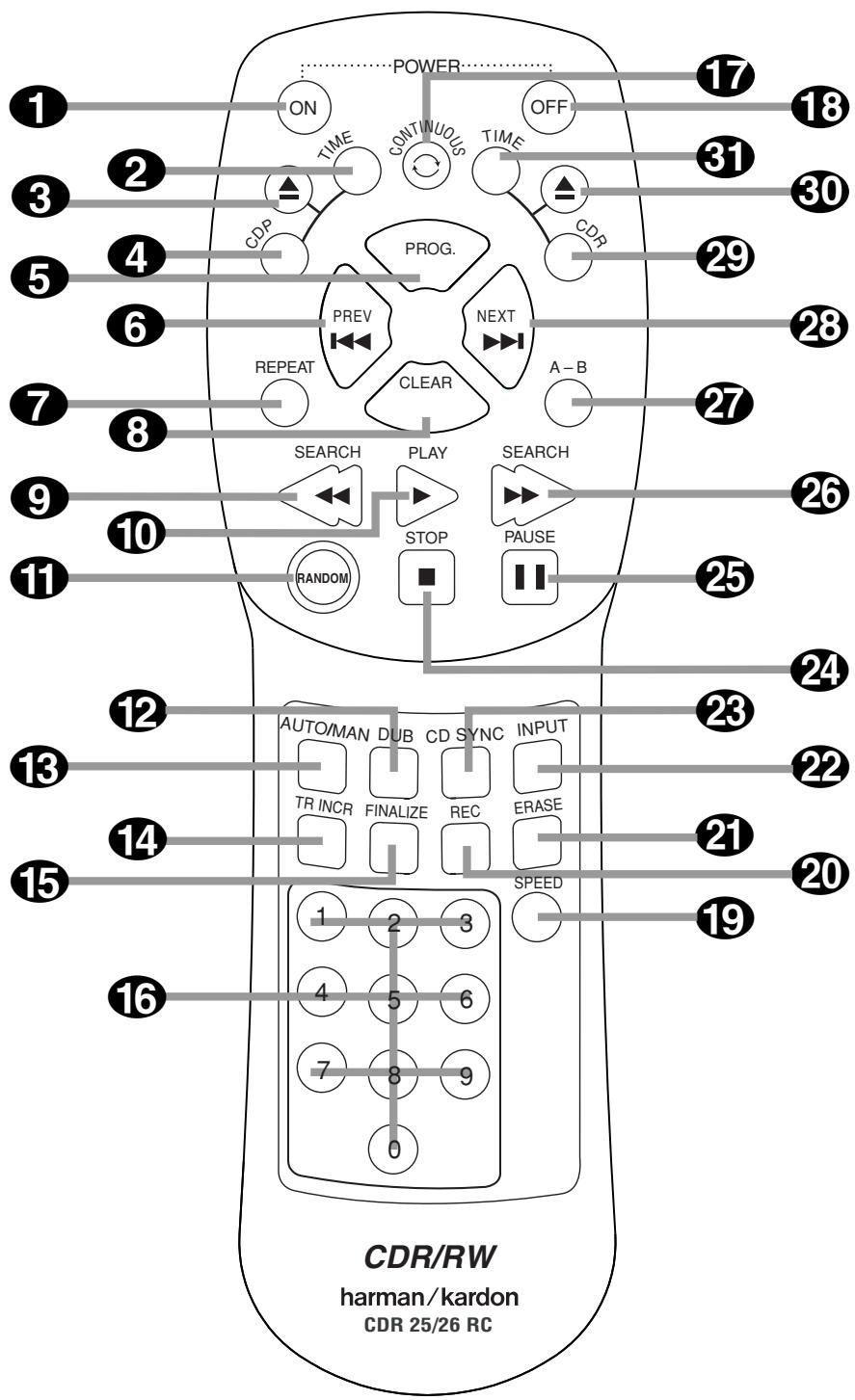
Power-On Button: Press this button to turn the CDR 25 on. Note that in order for this control to function, the Front-Panel Power Switch must first be pressed so that the unit is in the Standby mode.
2 Play Deck (CDP) Display Control: Press this button to cycle through the various time display options for the disc in the Play Deck 3. See page 17 for more information on time-display options.
3 Play Deck (CDP) Open: Press this button to open the Play Deck 3.
4 Play Deck (CDP) Select: Press this button to control or program the functions of the disc in the Play Deck 3.
5 Program: Press this button to begin the programming sequence for one of the CD decks. See page 18 for more information on programming the CDR 25.
Previous-Track Skip: Press this button to skip backwards to the beginning of the track currently being played. Press it a second time to move back to the beginning of each previous track.
Repeat: Press this button once to repeat the current track. To repeat an entire disc, press the button twice.
8 Clear: Press this button to clear an item in a program sequence. See page 18 for more information.
Reverse Search: Press this button to play the selected disc in reverse to locate a desired passage.
10 Play/Select: This button has two functions. It will most often be used as a standard play button, but when setting up certain record functions, it is also used as an Enter or Select button.
11 Random Play: When the CD Deck is stopped, press this button to begin random play of all tracks on a disc.
12 Dub: Press this button to begin a dub. See page 19 for more information on dubbing.
Automatic/Manual Track Increment Selector: Press this button to select between automatic and manual track increments during a recording session. See page 21 for more information on track increments.
14 Track Increment: When the Manual mode for track increments is selected during recording, press this button to increase the track number. NOTE: This function does not operate during CD Sync or dub recording.
15 Finalize: Press this button when a recording is complete to initiate the finalization process. The Play/Select button 18 must be pressed within three seconds to activate finalization. Until this button is pressed and the finalization process is complete, CD-R or CD-RW discs may not be played on conventional CD machines. See page 22 for more information on Finalization.
Numeric Keys: Press these buttons to access a specific track for playback or during the programming process. See page 18 for more information on programmed playback.
17 Continuous Play Button: Press this button to place the CDR 25 in the Continuous Play mode. In that mode the unit will play all tracks on the disc in one tray, switch to the second tray and play all tracks, and then continuously alternate between the two discs until the unit is stopped or the button is pressed again to return to the Single Play mode.
18 Power-Off: Press this button to place the unit in a Standby mode.
19 Speed Select: Press this button to select the recording speed for internal dubs. See page 20 for more information on selecting the proper speed.
20 Record Button: Press this button to begin a manual recording.
Erase Button: Press this button to initiate the erasure of a track or of an entire CD-RW disc or to Uninitialize a disc. Note that erasure is only possible on CD-RW discs. See page 22 for more information on erasing discs.
Input Select: Press this button to select the input source (analog or digital-coax) for recording. See page 20 for more information on input selection.
CD Sync: Press this button once to begin an automated recording of a single track from an external CD player when a digital connection is used. Press it twice to begin automated recording of an entire disc. See page 20 for more information on CD Sync recording.
24 Stop: Press this button to stop playback or recording.
Pause: Press this button to momentarily pause playback. Press it again to resume playback.
Forward Search: Press this button to play a disc in a fast-forward mode.
A-B Repeat: Press this button to specify a segment of a disc for repeat play. See page 18 for more information on repeat play.
Next Track/Skip: Press this button to skip forward to the next track on a disc.
29 Record Deck (CDR) Select: Press this button to control or program the functions of the disc in the Record Deck 15.
30 Record Deck (CDR) Open: Press this button to open the Record Deck 15.
31 Record Deck (CDR) Display Control: Press this button to cycle through the various time-display options for the disc in the Record Deck 15. See page 17 for more information on time-display options.
Important Note: To prevent possible damage to your speakers or other components in your audio system, we strongly recommend that ALL system components, including the CDR 25, be turned off and unplugged from their AC power source when any connections are made or a new component is installed.
Locating the CDR 25
Since the CD transports in the CDR 25 are precision instruments, they are subject to interference from vibration. To minimize the possibility of skipping during playback or recording, it is recommended that the unit be placed on a level, solid, vibration-free surface.
When installing the CDR 25 in a cabinet or tight space, always make certain that there is enough room in front of the unit for the disc drawers to open fully, and that there is enough space above the unit so that discs may easily be inserted in the disc drawers.
In addition to the safety considerations outlined on page 4, it is also recommended that the CDR 25 not be placed in a location that is subject to direct sunlight or extreme heat or cold, as these conditions may damage the discs used in the player, or the player itself. Note that audio amplifiers or high-power receivers, as well as certain other electronic products, may generate significant heat. For that reason, do not place the CDR 25 directly on top of an amplifier, receiver, or other heat source. Always allow at least 2cm of free space on all sides of the CDR 25, as well as other electronic products, to allow for proper ventilation.
The unit should also be kept away from sources of water or damp conditions.
Connections to Your Audio System
When connecting the CDR 25, think of the process as if your were connecting a standard CD player and a tape or cassette recorder, with the addition of the digital connections.
Depending on the capabilities of your receiver, preamp or processor, you may find it convenient to connect the analog inputs and outputs to the jacks marked for a tape recorder. As the CDR 25's functions resemble those of a standard tape recorder, this might make it easier to select it as an input on your receiver or preamp. Connect the analog Output jacks ③ to the Play/In jacks of a Tape or Aux input on your receiver or preamp. Connect the Analog Input jacks ④ to the Tape Rec/Out jacks on your receiver or preamp.
To play the output of the Record Deck through the digital decoder in your receiver or an external processor, connect the Coaxial-Digital Output jacks ⑤ or the Optical-Digital Output Jacks ⑧ to the matching digital-input jacks on your receiver or processor. Note that you may have to change a setting on the receiver or processor to link the digital input to the "Tape" button or the specific input selector associated with the digital inputs. Consult the owner's manual on your receiver or processor for details, as this configuration may vary from unit to unit.
To make recordings from external digital sources, such as a CD, DVD or MD player, connect the Coaxial Digital Input Jacks ⑥ or the Optical-Digital Input Jacks ⑦ on the CDR to the digital output jacks on your receiver or processor. If your receiver does not have digital-output jacks, you may connect the Coaxial Digital Input Jacks ⑥ or the Optical-Digital Input Jacks ⑦ on the CDR 25 directly to the digital outputs on your CD player or other digital device.
Connections to a portable digital CD or MD player may also be made by connecting the Coax or Optical Digital Output of the player to the Front-Panel Digital Input 6 on the CDR 25. Note that when both digital inputs are connected, the CDR 20 will give priority to the Front-panel input 6.
If it is impractical to disconnect the front-panel input when you need to use the rear-panel jack, simply turn off the device connected to the front-panel input. This will stop the digital signal, and permit the rear-panel jack to be used.
IMPORTANT NOTES ON DIGITAL CONNECTIONS:
COAX CONNECTIONS: Although digital-coax connections use the same type of "RCA" phono jack as standard analog signals, please take special care to connect digital signals only to digital jacks. In many cases, the digital jacks may be identified by an orange colored insert ring around the center of the jack. When making digital connections, be sure to use coax-interconnect cables, such as the one supplied with the CDR 25 or cables intended for video applications. Even though they have the correct type of RCA connector, do not use audio-interconnect cables that have twisted pair construction, as they are not appropriate for digital signal use. If you have any questions about the type of cables to use with the CDR 25, consult your dealer.
OPTICAL CONNECTIONS: There are a number of different types of optical connections, so make certain that you use only "TOS" type optical cables with the CDR 25. To ensure proper connection of optical cables, fully insert them into the jack until there is an audible click. This tells you that the connector has been completely inserted. Remember to save the plastic dust caps that cover the optical jacks, and replace them when a jack is not in use to prevent dust from entering the connection point.
Batteries
Insert the two AA batteries supplied with the CDR 25's remote by turning the remote over so that the bottom of the remote is facing towards you. Gently lift the plastic tab on the battery cover up and away from you, and lift the lid off. Insert the batteries in the remote, being careful to follow the + and - polarity indications in the bottom of the compartment. Replace the cover by first seating the two small tabs into the mating holes at the top of the remote, and then gently push the cover down until the latch snaps into place with an audible click.
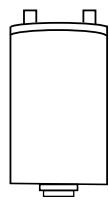
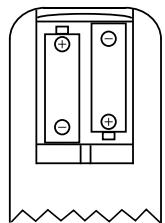
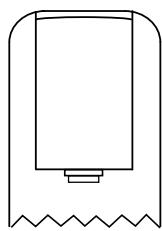
NOTE: When replacing batteries, it always a good idea to replace both at the same time. When the remote will not be used for an extended period of time, it is also a good idea to remove the batteries to avoid the possibility of damage due to corrosion. Batteries contain chemical substances and we recommend that you dispose of them properly and in compliance with any local regulations.
IR Remote Connections
If the CDR 25 is installed behind a cabinet or other obstruction that may block the path between the front-panel Remote Sensor 25 and the location where you will use the remote, an optional external IR sensor may be used. Connect the sensor to the Remote IR In Jack 1 on the rear-panel. This jack may also be connected to the IR Output jack of another compatible Harman Kardon component or a compatible IR system remote product.
You may also use the IR Sensor in the CDR 25 to send commands to other compatible remote products. Connect the Remote IR Out Jack ② to the input of the other product or system.
Power Connections
Connect the AC Power Cord to an AC power source. The CDR 25 uses sensitive, high-performance computer-grade CD drives, and to protect them we recommend that you consider the use of a surge protector, just as you would for a computer.
If the rear-panel AC outlet on a receiver or other product is used, make certain that it provides at least 20 watts, and that the total power of all products connected does not exceed the maximum rated output of the product containing the outlets. If the CDR 25 is connected to a switched outlet, remember to turn on the outlet or product controlling it in order for the CDR 25 to operate.
CD Recorders (CDRs) are similar to standard CD players, with the addition of the features and controls needed for recording. Functions such as play, search and programming for playback will be familiar, but the recorder will function slightly differently than what you may be used to for magnetic tape recorders.
Disc Types
Unlike a conventional CD player, the CDR 25 uses three types of discs, and it is important to understand how each one plays.

Digital Audio Both decks in the CDR 25 will play back any conventional CD that bears this logo.

Digital Audio Recordable Discs that bear this logo or whose packaging is labeled with "Digital Audio" and "CD-R" or "CD Recordable" may be recorded on one time, and when they are finalized they will play in either deck in the CDR 25 or in any conventional CD player, including home, car and portable models. The Record Deck 15 on the CDR 25 may also be used to record on these discs, and it will play CD-R/Audio discs even if they have not been finalized.

Digital Audio ReWritable Discs that bear this logo or whose packaging is labeled with "Digital Audio" and "CD-RW" or "CD Rewritable" may be recorded, and they may also be erased and reused. They may be recorded on or played on the Record Deck 15 of the CDR 25 and in other CD-RW recorders or CD-RW compatible players. CD-RW Audio discs will play on most DVD players once they have been finalized.
NOTE: To avoid the confusion between recordable discs that are formatted for use with consumer CD recorders such as the CDR 25 and standard CD-R/RW discs which are meant only for use in computers, some manufacturers or retailers will add a "For Music Use" icon to their discs. However, to be assured of complete compatibility with the CDR 25, always look for the words "DIGITAL AUDIO" in the compact disc logo when purchasing blank discs for use with your CDR 25.


. Discs designed for use inits may not be used for25 . Only discs specificallyconsumer CD audioed . If you attempt to use arecordable disc for recordingwill see a NO AUDIOInformation Display K if
Record 8 or Dubbing 10 button is pressed and recording will not be possible. However, discs that have been recorded in the CD-R drive of a computer may be played in the CDR 25, provided that they have been properly finalized in accordance with audio standard IEC958.
Note that the CDR 25 is specifically designed for the recording and playback of consumer audio discs, and cannot be used to copy data discs, DVD discs, or other optical discs used by video- or computer-game systems.
CDR Terminology and Display Messages
Compact disc recording has its own special terminology, and some of the messages you will see when using the CDR 25 may be new to you. Before using the CDR 25, you may wish to familiarize yourself with some of the terms used by the CDR 25. Additional error message displays may occasionally appear. Please see page 23 for a complete explanation of those messages.
Finalize: This term refers to the process that completes the recording of a disc by recording a final Table of Contents and preparing the disc so that it may be played on other machines. A CD-R disc may not be played on other CD players until it is finalized. However, once the finalization process is complete, a CD-R disc may not be recorded on again. CD-RW discs only may be "Unfinalized," so that additional tracks may be recorded on a disc.
TOC: Stands for Table of Contents and it refers to the data recorded on each CD that tells the player how many tracks are on the disc, the total time of the disc and the running time of each individual track. Each time a disc of any sort is placed in the CDR 25, you will see a TOC to indicate that the unit is reading this data from the disc. This is required to copy the track information to any recording.
OPC: Stands for Optical Processing Calibration. When you see this message in the Information Display for the Record Deck K, it means that the laser transport inside the unit is making the calibrations and adjustments needed so that the recording process is optimized for the specific disc in use.
BUSY: When you see this message, it means that the Record Deck is completing part of the record operation. When you see this message, do not press any buttons; simply wait until the message clears from the display.
DISC FULL: When there are only four seconds of record time remaining on a blank disc, a DISC FULL message will appear in the Information Display K. When you see this message, you will need to stop the recording process and, when a CD-R is being recorded, insert a new blank disc or, when a CD-RW is in use, either use a new disc or erase existing tracks following the instructions on page 22.
Playback of CDs on the CDR 25 resembles that for traditional CD players with a few exceptions to accommodate the availability of two separate playback decks. Before using the CDR 25, power-up the unit by pressing in the Main
Power Switch 1 until it latches. Note that the Status-Mode Indicator 2 will turn green, indicating that the unit is on and functioning. At the same time, the Information Display 24 will illuminate and the legends behind the front-panel controls will also light up.
Once the Main Power Switch 1 has been turned on, the CDR 25 may be powered-on or - off using the remote control. Pressing the Power-Off button 13 on the remote will place the unit in a Standby mode, as indicated by the amber color of the Status-Mode Indicator 2. To turn the unit on using the remote, simply press the Power-On button 1.
Note that when the unit is in the Standby mode, it is still drawing power from the AC main outlets. To turn the unit completely off, press in the Main Power Switch 1 slightly, and then release it so that it pops forward. When the Status-Mode Indicator 2 goes out, the CDR 25 is off and not drawing any power. When you will not be using the unit for an extended period of time, such as during a vacation, we recommend using the Main Power Switch 1 to turn the unit completely off.
Although compact discs are very reliable, rough handling may damage them. Avoid scratching the bottom (nonprinted) side of the discs, as this will affect playback of standard CDs and interfere with the recording of CD-R and CD-RW discs. It is also a good idea to always handle discs by their edges to avoid fingerprints which may also interfere with playback quality and possibly cause damage to the laser and lens assembly.
Loading and Unloading Discs
To load a disc, first open the desired CD deck by pressing the appropriate Open/Close button 714330. The word OPEN will appear in the Information Display K. Always make certain that there is sufficient room in front of the unit for the disc drawers to open. Note that if either disc drawer is blocked, the drawer will stop at the blocked position and an ERROR message will appear. Press the appropriate
Open/Close button 7 14 3 30 to reopen the drawer.
Load a disc in the tray with the printed (label) side facing up. Once the disc is seated, make certain that it is properly centered within the tray. When using 8cm (3^ ) single discs, take extra care to make certain that the disc is carefully centered within the smaller ridges in the disc tray.
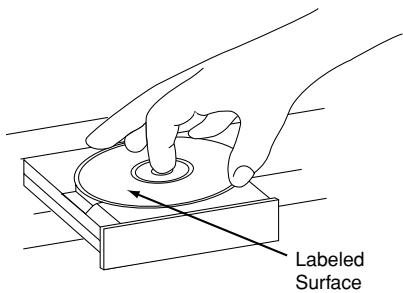
To close the drawer, press the appropriate Open/Close button 7 14 3 30 or gently press on the outside of the front cover of the disc tray. When the drawer is closed the word CLOSE will appear momentarily in the Information Display K, and the letters T O C will begin to flash in the display once the drawer is completely closed.
If the disc is a standard CD or a finalized CD-R or CD-RW disc, TOC will flash while the unit reads the disc's Table of Contents information. Once that data is read, the Information Display K will show the total number of tracks and the total time of all tracks on the disc. The CD Indicator S will also light to indicate that a standard CD is in use.
When an unfinalized CD-R or CD-RW disc is placed in the Record Deck 15, the letters OPC will flash once the Table of Contents has been read. This indicates that the unit is optimizing its circuits for maximum compatibility with the specific recordable disc in use. The number and total running time of any tracks that have already been recorded will appear in the Information Display K, and the appropriate indicator S P will light to tell you if a CD-R or CD-RW disc is in use.
If a computer data disc is placed in the CDR 25, a DATA DISC or DISC ERROR message will appear, depending on if the data disc is finalized or not. Data discs will not play, and may not be recorded or dubbed on the CDR 25.
Using The Remote
The CDR 25's infrared remote control is designed to operate both CD decks, as well as control the playback programming and record functions. To allow for efficient use of the remote, it's operation is different from standard CD players. Some buttons are dedicated to one specific CD deck, while others are shared between the two decks.
No matter which deck is playing, the Play Deck (CDP) and Record Deck (CDR) Display
2 31 and Open/Close buttons 3 30 will always send a command to their respective deck. The other transport and programming functions, however, are shared. To use any of the transport controls, such as Play 10, Stop 24, Pause 25 or the Search and Skip buttons 6 9 26 28, the Numeric Keys 16 or the Programming Keys 5 7 11 27, first press either the CDP button 4 to command the Play Deck 3 or the CDR button 29 to command the Record Deck 15. When the button is pressed, a message reading CDP or CDR will appear in the appropriate Information Display K to confirm the selection.
To switch the remote from controlling one deck to controlling the other, simply press the Select button 4 29 for the deck you wish to control at any time.
Note that features relating to the recording process, such as Speed 19 and the double row of record-function buttons in the center of the remote 12 13 14 15 20 21 22 23 are dedicated feature buttons that do not require any special selection.
Normal Play
To play a disc, first make certain that the unit is properly installed and that the Main Power Switch 1 is turned on. Turn the CDR 25 on by pressing the Power-On button 1 on the remote and note that the front-panel display will illuminate.
Insert a disc following the instructions shown on the previous page. To start the playback, press the Play button on the front panel for the appropriate deck 18 31 or press the Select button on the remote for the desired deck 4 29 and then press the Play button on the remote 10. The Play/Pause Indicator will show a right pointing triangle and the Information Display K will show the track number being played and the running time of the track. As each new track begins to play, the track time will reset to 00:00 and begin to count up for the new track.
NOTE: Remember that Unfinalized CD-R or CD-RW discs will only play in the Record Deck 15. If you attempt to play an Unfinalized disc in the Play Deck 3, a DISC ERROR message will appear to remind you to play the disc in the other deck.
To go directly to a specific track on a disk, enter the track number using the Numeric Keys 16. Note that when selecting a two digit track number, the second digit must be entered within three seconds after the first Numeric Key is pressed.
To momentarily stop the disc at any time, press the Pause button 25 19 30. When a disc is paused, the Play/Pause Indicator Q will add two vertical lines to indicate a paused disc. Press either the Play button 10 18 31 or the Pause button 25 19 30 to resume playback at the point where the disc was paused.
In normal operation, the CDR 25 will automatically stop when all tracks on a disc have played through. To stop playback at any time, press the Stop button 24 17 32 for the deck in use.
At the end of a listening session, remove the discs from the decks by following the instructions shown on the previous page. Do not leave the disc drawers open when the unit is not in use to prevent dust and dirt from entering the unit and to prevent damage to the shredder tray.
To place the unit in a Standby mode at the end of a listening session, press the Power-Off button 18. The word OFF will appear briefly in the Information Display K, any open disc trays will automatically close, and the Status-Mode Indicator 2 will turn amber.
Random Play
To play all of the tracks on a disc in random order, press the Select Button 4 29 for the desired deck, and then press the Random button 11 . The Random Indicator A will illuminate and each track will be played in a random order until all tracks on the disc have been played.
Search
You may quickly scan through the contents of a disc while listening to the playback at high speed in forward or reverse. To move forward through a disc, press the Forward Search button 26 on the remote or press and hold the Next button 20 28 on the front panel that is appropriate for the deck in use. To move backwards through a disc, press the Reverse Search button 9 on the remote, or press and hold the Previous button 21 29 on the front panel that is appropriate for the deck in use. When using the remote, always remember to make certain that you have selected the deck you wish to control by pressing the appropriate selector button 4 29 before entering the desired remote command.
Track Skip
To move from one track on a disc directly to another, enter the number for the desired track with the Numeric Keys 16. The disc will pause briefly to locate the track, and then immediately play it. When entering a two digit track number, the second digit must be entered within two seconds of the first digit.
To move to the next track on a disc by cycling through the individual tracks, press the Next button 23 on the remote, or the appropriate front-panel Next button 20 28 for the deck in use. Additional presses of the button will move forward through the tracks on the disc.
When a disc is playing, press the Previous button 62129 to return to the beginning of the track being played. Additional presses of the Previous button will move backwards through the tracks on the disc.
When a disc is stopped, you may press the Next or Previous buttons to locate a specific track that you wish to play. When the desired track number appears at the left side of the appropriate Information Display K, press the Play button 10 18 31 to hear that track.
Continuous Play
Since the CDR 25 has more than one CD deck, you may play a disc in either drawer. In normal operation the selected disc will be played once, then play will stop automatically.
However, you may also use the Continuous Play mode to use the CDR 25 for extended play by playing through all the tracks of the disc in one tray, automatically switching to the disc in the second tray, and then continually playing each disc in sequence until the Stop Button is pressed.
To initiate continuous play, first press the Continuous Play Button 27 and note that the Information Display 24 will show the current state of the mode. If the readout displays CONTINUE OFF press the Continuous Play Button 27 again so that the message changes to CONTINUE ON. Next, press the front panel play button 18 that you wish to play first, or press the CDP Select 4 or CDR Select 29 on the remote and then press the Play Button 10.
Continuous playback may be stopped at any time by pressing a Stop Button 1732. To cancel continuous play after the current disc is playing, press the Continuous Play Button 27 twice so that CONTINUE OFF appears in the Information Display 24.
Time Display
The CDR 25's time display is capable of showing a wide range of information about the contents of a CD.
Once the disc's Table of Contents or TOC data has been read, the Information Display K for any deck that has a CD inside will show the number of tracks on the disc in the two left digits of the display, and the total running time of the disc. When the disc is playing, the tracks will count up as each new track is reached, and time display will show the elapsed time for the track being played.
To view the time remaining in the track being played, press the Display button 231 2826 for the deck in use so that the REMAINING TIME Indicators ML illuminate. The Information Display K will count down the time remaining in the track, at the start of the next track the counter will start to count down the running time of that track.
To view the total time remaining on the disc, press the Display Button 2 31 23 26 for the deck in use so that the Total Time Indicators NL illuminate. The Information Display K will show the total time remaining for all tracks on the disc and count down until the disc has finished playing. When the disc has played all the way through, the total number of tracks and the total running time of the disc will be displayed.
Headphone Listening
You may listen to the output of the CDR 25 through headphones at any time by simply plugging the headphones into the Front-Panel Jack 4. The volume of the headphone output may be adjusted with the Headphones Level Control 5. Note that changes to the head-. phone level will not alter the output settings to the analog outputs. Those levels are fixed, and the volume should be adjusted using your receiver, preamp or processor..
The CDR 25's advanced programming system enables you to preset the order in which tracks are played, to repeat one track or all tracks, or to repeat any segment of a disc without regard to track numbers.
Programming Playlists
To program the order of playback for the tracks on a disc, insert the disc, let the unit read the Table of Contents information, and wait until the disc has stopped and the number of tracks and total running time is displayed. Next, select the deck that will be programmed by pressing the CDP Select button 4 on the remote for the Play Deck 3 or the CDR Select button 29 on the remote for the Record Deck 15.
To begin the programming sequence, press the Program button 345 and note that the PROG Indicator B will illuminate and the Information Display K will show :
Next, enter the track numbers to be played by pressing the Numeric Keys 16. For two-digit track numbers, be certain to enter the second digit within three seconds after the first number is entered. As each track is entered, the display will blink three times, alternating between two displays. The first display will show the track number just entered on the left side of the Information Display K under the Track Indicator 0, while the right side will flash the number of steps that have been programmed. For example, after programming the first step to be track number 3, the display will flash P-01.
Alternating with the track number and program step will be a display of the track and the total running time of all tracks that have been programmed so far. For example, a display of 0611:25 will indicate that track number six was the last track programmed, and that the total time of all tracks so far is 11 minutes and 25 seconds.
These displays will alternate three times, and then show a steady display of the total time and last track programmed.
Now you can continue to add tracks in the order you wish to have them played until the programming session is complete. You may add up to 20 tracks, repeating a track if desired, as long as the total number does not exceed 20. If you exceed the 20 track limit, the display will read F U L L. Tracks may also be added using the Next 23 20 28 and Previous buttons 6 21 29 to locate the track, and the Program button 34 5 to enter that track to the programmed sequence. In that case you've not to wait until the steady display is shown before the next track can be programmed.
When the complete list of tracks has been entered, press the Play button 101831. The tracks will then play in the order they have been entered. Note that a programmed list of tracks may also be recorded if the disc being programmed is in the Play Deck 3. Follow the instructions on page 20 for complete information on recording and dubbing.
Once you have entered a program list it will remain in the unit's memory until the disc is removed or the unit is turned off. Thus, if you play through a program list, simply press the Play button 101831 again to replay the list.
To cancel an entire program list while the program is playing, press the Program button 345 and note that the Program Indicator B will go out. To remove a total program list when the disc is stopped, simply open and close the disc drawer. Whenever a disc is removed or the unit is turned off, the program list is erased.
Repeat Play
The CDR 25's programming system enables you to repeat either a single track on a disc, the entire disk (or all programmed tracks), or a specially programmed passage that you select.
Repeat One Track
To repeat the track you are currently listening to, press the Repeat button 7 and note that the
Repeat Indicator D and the 1 Repeat-Status Indicator E will both light. If the track is changed by using the Next/Previous Skip button 6 28 20 21 28 29 while the Repeat 1 mode is active, the new track will now be repeated.
Once Repeat 1 playback has been started, it will continue until the unit is stopped by pressing the Stop button 241732, or the disc deck is opened by pressing the appropriate
Open/Close button 71430. When playback is stopped, the Repeat sequence is erased and must be reentered if you wish to repeat a track on another disc.
Repeat All Tracks
To repeat all the tracks on a disc (or all programmed tracks) in order, press the Repeat button twice while the disc is playing and note that the Repeat Indicator D and the A11 Repeat-Status Indicator E will light. Once the Play button 101831 is pressed, the disc will play through from beginning to end continually, until the Stop button 241732 is pressed. The Repeat All function may be cancelled at any time by pressing the Repeat button 7 once until both the Repeat Indicator D and A11 Repeat-Status Indicators E go out. The Repeat All Function is also canceled when the disc drawer is opened.
Repeat A-B
The CDR 25 may be programmed to repeat any section within a track, or a complete passage that includes material from a series of consecutive tracks.
To program the unit for A-B Repeat play, first play the disc and locate the point where you wish to begin the repeated section. At the start point, press the A-B Repeat button 27 and note that the Repeat Indicator D goes on and the Repeat-Status Indicator E will show an A and flash. Let the disc play until the point at which the section to be repeated will end. At that end point, press the A-B Repeat button 2 again and note that the Repeat-Status Indicator E will stop flashing and will light showing Repeat A-B.
The unit will immediately begin to play the section you have programmed, and continually repeat it.
To resume normal play, press the A-B Repeat button 27. The Repeat A-B Indicators D E will go out, and the disc will continue playing through to the end. Stopping the disc or opening the disc drawer will automatically cancel the Repeat A-B programming.
Making recordings on the CDR 25 is simple and easy once you become accustomed to the basics of CD Recording. Before making your first recording, please take a moment to review the CDR Basics on page 14. In particular, you will need to become familiar with the types of discs that may or may not be used in the CDR 25. In addition, some terms used in the following pages may be new to you. The following definitions and information will help you to make CD recordings using the CDR 25's many features:
- The CDR 25 accepts analog inputs and digital coax or optical inputs. Before making a recording, be certain that you have selected the correct input.
After a disc is recorded, it must be finalized. This process adds the final table of contents data to the disc and makes it playable on other machines. Until a disc is properly finalized, it may not be played on any other machine or the Play Deck 3 of the CDR 25. - The CDR 25 may record on either CD-R or CD-RW discs, but they must be of the type specifically designed for use in consumer-audio CD recorders. These discs may be recognized by looking for the words "Digital Audio" in the compact disc logo on the blank disc or its packaging. Discs with the logo reading only "Compact Disc/Recordable" are designed for computer data recording, and they will NOT work in the CDR 25.
- CD-R discs may not be erased or have material added to them once they have been finalized.
- At least four (4) seconds of blank recording time must remain on an unfinalized disc for recording to take place.
- The maximum number of tracks that may be recorded on a disc is 99.
Note that some CD-R/CD-RW audio recording discs may be used for single-speed recordings only. If you use a disc with such a warning, make certain not to dub at that 2x or 4x speed. However, the CDR 25 has been tested for compatibility with a wide range of blank discs from manufacturers throughout the world. In most cases, blank discs will produce high-quality recordings at any dub speed. - In some rare cases, a CD player may not be compatible with CD-R discs. If you find that a CD-R disc plays in some players but not in others, the fault is most likely with the player, not with the recorded disc or the CDR 25. Remember that CD-RW discs made in the CDR 25 will play only in CD players that are specially designed to accommodate CD-RW discs. Note that most DVD players are compatible with finalized CD-RW discs.
-
Some commercial CD discs may contain a copy protection data bit that will prevent a digital copy of the disc to be dubbed. In that case, the CDR 25 will attempt to make an analog dub.
-
This product is equipped with the Serial Copy Management System (SCMS) to protect the rights of copyright owners. As a part of this system, it is possible to make a copy of most CDs for your own personal use. However, it is not possible to make a digital copy from another digital copy. It is possible to make an analog copy of a digital copy (see page 21).
- The CDR 25 will not copy DVD discs, computer-data discs, CD-based computer or video-game discs, or digital audio discs with a sample rate that is not compatible with the range of the CDR 25s sample-rate converter.
Recordings on the CDR 25 may be made in a number of ways:
- Discs may be dubbed using the playback deck on the CDR 25 as a source. These copies may be made in real time, at twice normal speed, or at four times normal playback speed.
- Recordings may be made from an external CD player or other digital source that is synchronized with the dub being made in the CDR 25.
- Recordings may be made from any compatible external digital source.
- Recordings may be made from an external analog source.
- CD-RW discs may not be erased and reused more than 99 times. This is a limitation of the CD-RW format, not a fault of the CDR 25.
Disc Dubbing
The easiest way to make a copy of an entire disc is to use the CDR 25's internal dub capability.
- First, insert a blank or unformatted disc in the Record Printer 5. When the disc is inserted, the CDR 25 will examine it to determine if it is a CD-R or CD-RW disc, and optimize itself for the best possible recording. This is indicated by OPC message in the Information Display K.
- Place the disc to be dubbed in the Play
Drawer 3 and wait until the Table of Contents data is read and the Information Display K shows the track and running time data for the disc. -
Next, select a dub speed. The default speed is x4 dub, where the recording takes only 1/4th of the actual running time of the disc. However, with the CDR 25 you may also select 2x dubbing or real-time dubbing. Press the Speed button to select a speed as indicated by the 2x/4x Indicators F. When no Speed Indicator lights, the unit is set to real-time recording. Note that the slower the record-dub speed, the more tolerant the unit is of errors on the blank or played disc. However, with most high-quality blank discs, the 2x and 4x speeds should not present a problem.
-
Before beginning a dub, make certain that there is sufficient blank space on the record disc. To do this, first determine the time available on the blank disc by subtracting the time of previously recorded material, if any, that is shown in the record side Information Display K from the total time available on the disc. That number should be greater than the total time of the disc to be dubbed, which is shown in the play side Information Display K.
- When you are ready to start the dub, press the Dubbing Button 120. During this process the Dubbing Indicator H will light, the Record Indicator T will flash and a BUSY message will flash in the Record Deck's Information Display K.
- When both Information Display Indicators return to normal, with indications of 1. : , press the Play/Select Button 10 18 31 to start the dub.
While the dub is in progress, you will see the track numbers and running time increase as the disc is copied. The Level Indicators will also flash but this is only for your reference, as record levels may not be adjusted during digital recordings. It is possible to listen to the source disc while it is being dubbed by selecting the appropriate input on your receiver, preamp or processor.
Important Note: When a high-speed (2x or 4x) dub is being made, you will hear the playback from the CDP outputs 358 at the faster speed. Fast speed playback increases the pitch of a sound, and when played back at high volume levels this may damage your speakers. DO NOT use high volume levels when listening to high-speed dubs while they are in progress.
The dub will stop automatically when the source disc has played through to the end. If you are adding additional tracks to a disc that has not yet been finalized, UPDATE will flash in the Information Display K. After the dub is finished, the CDR 25 will return to normal operation. To manually stop a dubbing operation, press the Stop button 241732 for either deck.
- As with all recorded CD-R/CD-RW discs, the disc must be finalized before it can be played in other machines. See page 22 for instructions on disc finalization.
Notes on Dubbing:
- To dub just a single track: After you have inserted the source disc into the Play Deck Printer 3, use the Previous or Next Buttons 6 28 29 28 to select the desired track. (When using the remote, remember to first select the play deck by pressing the Play Deck (CDP) Select Button 4). You may then select a dub speed, and press the Dubbing Button 12 10 followed by the Play/Select Button 10 18 to make the dub.
- If you wish to make a dub with the tracks in a different order from the original disc, omit tracks on a disc, or make a dub that mixes tracks from different discs, create a Program-Playback List before pressing the Play/Select button 1018 to start the dub. Instructions for creating a Program List may be found on page 18. If you will be combining tracks from more than one CD, keep in mind that you may only dub tracks from one CD at a time, although you may switch source CDs as many times as needed, so long as the total time does not exceed the recording time available on the disc in the Record Deck 15. NOTE: Dubs containing Program Lists may only be made at the 2x speed. If you attempt to make a Programmed Dub at the x2 or x4 speed, the unit will automatically select the x2 speed.
- The Pause buttons do not operate while a dub is in progress.
- Tracks will be added automatically to mirror the track structure of the original disc.
- The Total Time indication of the recorded CD may vary slightly from the original due to variations in the spin speed of each drive, but this is normal. No information has been lost in the recording process.
- If the original disc being dubbed is a digital copy or if it contains copy-prohibit signals, the unit will automatically make a copy using an analog output from the disc.
CD Sync Recording
CD Sync recording allows you to make an automatic digital recording from an external CD player or MD. During CD Sync Recording, the record unit starts in sync with the source, and tracks are added automatically.
- To make a CD Sync recording: First, make certain your playback source is selected and cued to the correct starting point.
- Next, select the appropriate digital input by pressing the Input button 22 22 until the desired COAX or OPTICAL indication appears in the Information Display 24. CD Sync recordings may not be made from an analog input.
- Next, make certain that there is a fresh disc in the Record Printer for the recording.
- Press the CD Sync button 239 and note that the Sync Indicator I will light and the Record Indicator T will flash. Select the type of recording to be made:
To record only the first track from the source player, press the CD Sync Button so that 1. TRK appears in the Record Deck Information Display K. - To record the entire disc, press the CD Sync Button so that ALL appears in the Record Deck Information Display K.
When the desired mode has been selected, start the playback from the source machine. The CDR 25 will automatically recognize the incoming digital data and begin recording, while the track numbering from the original disc will be carried over to the dub.
If the playback source is NOT a CD, you will have to increment the tracks manually.
The recording will continue until the CDR 25 senses that the playback is finished when there is no incoming signal for more than three seconds. At that point the recording will stop. You may also stop the recording at any time by pressing the Record Deck Stop button
24 17. When there are only four seconds remaining on a blank disc, DISC FULL message will appear in the Information Display K. When you see this message, you will need to stop the recording process and, when a CD-R is being recorded, insert a new blank disc or, when a CD-RW is in use, either use a new disc or erase existing tracks following the instructions on page 22.
- After the recording is complete, the unit will then return to normal operation. Remember to Finalize the recorded disc so that it may be used in other machines.
Recording from an External Source
- To record from any external source, first place a CD-R or CD-RW audio disc in the Record Deck 15.
- Next, select the input to be used by pressing the Input button 22. Pressing the button will cycle between the input choices, which will be shown in the Information Display K as COAX, OPTICAL or ANALOG. In addition, one of the Digital Indicator W or Y will light when the coax inputs is selected, and the Analog Indicator X will light when the analog inputs are selected.
Note that when the digital input is selected, the connection may be made to either the rear panel Coax or Optical Input 67 or the Front-Panel Digital Inputs 6. If a signal is present at the same digital input on the front or rear panel (both coax or both optical), the frontpanel input will be used as the source for any recordings.
-
Press the Auto/Manual button to select how tracks will be numbered on the recorded disc.
-
The default mode is Manual, as indicated by the Manual Indicator V being lit. In that mode for either digital or analog recordings, you must add track numbers manually by pressing the Track Increment button 3314 when you wish to increase the track number. This mode is recommended for recordings made from analog sources.
- The Auto mode will add track numbers automatically, in one of two ways: When track data is present from a digital recording, it will be carried over to the new copy disc. Thus, when the CD being played moves from one track to the next track, the copy disc will also increase the track number by one. Activate the Auto mode by pressing the Auto/Manual button once and note that the Manual Indicator will go out.
- In the Auto mode for recordings from an analog source or a digital source with no track data, the track number will be increased when the CDR 25 receives silence for 3 seconds. After 5 seconds of silence, the recording will stop. To activate the Auto mode, press the Auto/Manual button once and note that the Manual Indicator will go out.
-
To prepare for a recording, press the Record button 208. The Record Indicator T will flash, and the word BUSY will briefly appear in the Information Display K. When the Display returns to the track and running-time information, the unit is ready to record.
-
Once the source material is playing, start the actual recording by pressing the Play/Select button 1018.Note that the Record Indicator T will stop flashing and the Information Display K will begin to show the running time of the recording and the track data. Depending on which mode of track increment has been selected as described above, track numbers must be increased manually or they will be added automatically. Regardless of which mode has been selected, a track may be added at any time by pressing the Track Increment button 3314.
Note: If there is a pause in the playback signal for more than 5 seconds for digital recordings or 10 seconds for analog recordings, the CDR 25 will stop the recording. Also, when the Pause button is pressed during a recording, the track number will increase by one number and the recording will stop and must be restarted by pressing the Play/Select button 1018. When the recording is finished, press the Stop button 1724.
Unlike conventional analog tape recorders, the CDR 25 does not require level setting when recordings are made from a digital source. Although the Level Indicator C will operate, this is only informative and the level may not be changed or adjusted. However, when you are making a recording from an external analog source such as a cassette recorder or the analog output of a receiver or preamp, you should adjust the input levels using the Record-Level Control 16 . Adjust the levels so that the blue/white segments of the display are almost all lit, and the red segments flash only occasionally. If the red segments are constantly lit, the recording will be distorted and produce unacceptable quality.
To stop the recording, press the Stop button 2417. The recording will automatically stop if it takes more space than is available on the CD-R/RW disc. A DISC FULL message will appear to remind you that a new disc is needed.
6. At the end of a recording, a BUSy message will appear briefly and an UPDATE message might appear. The unit will return to normal operation. Remember to Finalize the disc after recording so that it may be used in other players.
Finalizing CD-R and CD-RW Discs
Finalizing is a simple process that completes the recording of a disc so that it may be used in other players. When a recording is finished, a disc must be Finalized. Once that is done, a CD-R disc may not be changed or added to. CDRW discs are "locked" once they are Finalized, and they must be Unfinalized to permit additional recording or erasure.
Once all recording is completed on a disc, make certain that it is in the Record Deck 15 to be finalized. If the disc has just been put in the Deck the CDR 25 will first read the Table of Contents data before displaying the number of tracks and the total time of the disc in the Record Side Information Display K.
To finalize the disc, first press the Finalize Button 15 and note that FINALIZE will flash in the Information Display K and the Record Indicator T will light. Within eight seconds press the Play/Select Button 10 and note that the FINALIZE message will stop flashing and immediately be replaced by a TOC WRITE 1:1 message. The 1:11 part of the message is the start of a countdown clock that will tell you how much time is remaining in the finalization process. When the display counts down to 0 : 00 and the Record Indicator T goes out, the Information Display K will return to its normal indications and the finalization process is complete. The disc is now ready to be played in any compatible CD or DVD player. The CD Indicator S will remain lit to remind you that the disc is now a standard CD.
Unfinalizing and Erasing CD-RW Discs
CD-RW discs are unique in that they are both recordable and rewritable. This means that you may use them over again like a cassette tape. However, the process of reusing a CD-RW disc is slightly different from that used with tapes.
Unfinalizing a CD-RW Disc
To keep the material that is already recorded on a finalized CD-RW disc but to add an additional track and erase single tracks, you must first unfinish the disc. To do that, place the CD-RW disc in the Record Deck 15 and wait until the Table of contents data has been read.
To uninitialize a disc, first press the Erase Button 211 and note that UNFINALIZE will flash in the Information Display K and the Record Indicator T will light. Within eight seconds press the Play/Select Button 1018 and note that a TOC ERASE message will appear in the Information Display K followed by a three-digit time indication (e.g. 1:1). The time indication part of the message is the start of a countdown clock that will tell you how much time is remaining in the unfinalization process. When the display counts down to 0 : 00 and the Record Indicator T goes out, the Information Display K will return to its normal indications and the finalization process is complete. Note that the CD-RW indicator P S will light to remind you that the disc is now ready to have tracks removed or added.
Erasing an Entire CD-RW Disc
To erase the entire contents of a CD-RW disc it does not matter if the disc has been finalized or not. To erase the disc, first press the Erase Button 211 so that DISC ERASE flashes in the Information Display K and the Record Indicator T lights. Depending on whether or not the disc has been finalized, you may have to press the Erase Button 211 a second time to display the DISC ERASE message. Within eight seconds press the Play/Select Button 1018 and note that a DISC ERASE message will appear in the Information Display K followed by a three digit time indication (e.g. : ). The time indication part of the message is the start of a countdown clock that will tell you how much time is remaining in the erasure process. When the display counts down to 0:00 and the Record Indicator T goes out, the Information Display K will return to its normal indications and the erasure process is complete. The disc is now totally erased and may be reused.
Erasing a Single Track
The individual tracks on a CD-RW disc may be erased one at a time in reverse order, starting with the last track on the disk. Note that before individual tracks may be erased the disc must be unfinalized. If the disc is finalized, follow the instructions above for unfinalizing before proceeding with these steps.
To erase the last track on a disc (remembering that it must first be unfinalized), first press the Erase Button 211 so that D1 TR ERASE flashes in the Information Display K and the Record Indicator T lights. Within eight seconds press the Play/Select Button 1018 and note that the D1 TR ERASE message will stop flashing and it will be followed by a three-digit time indication (e.g. 0:03). The time indication part of the message is the start of a countdown clock that will tell you how much time is remaining in the erasure process. When the display counts down to 0:00 and the Record Indicator T goes out, the Information Display K will return to its normal indications and the track has been erased. You may now repeat the procedure to erase additional tracks, working backwards from the last track on the disc to the first, or return to normal operation.
Important Note on Erasure and
Finalization Times: Regardless of the speed at which a disc was recorded, the CDR 25 will erase and finalize discs at the x4 speed to minimize the length of the process. However, in some cases it may be necessary for the unit to repeat the erasure or finalization due to the nature of an individual disc. For that reason, it is normal for the time required to complete these steps to vary from one disc to another.
TROUBLE SHOOTING GUIDE
| SYMPTOM | POSSIBLE CAUSE | SOLUTION |
| Unit does not operate when Standby switch or remote Power-On is pressed | • No AC power • Main Power Switch is off | • Make certain AC power cord is plugged into a live outlet. • Check to see if AC outlet is switch controlled. • Turn on Main Power |
| Remote does not function | • Wrong deck selected • Dead batteries • Sensor blocked | • Press the CDP button to control the Play Deck; press the CDR button to control the Record Deck • Replace both batteries • Remove obstructions from front panel or connect a remote sensor to the Remote-In Jack |
| Disc does not erase | • CD-R disc in use | • CD-R discs do not erase. Use a CD-RW disc |
| Recorded CD-R disc does not play in another CD player or DISC ERROR message appears in Play Deck | • CD-R disc not finalized | • Finalize the CD-R disc in the CDR 25's Record Deck (see page 22) |
| Recording suddenly stops | • Input source stopped or paused | • In the Auto mode recordings will always stop when the input source is paused for more than 3 seconds for digital recordings and 10 seconds for analog recordings |
ERROR MESSAGES
| ERRORMESSAGE | EXPLANATION AND PROBABLE CAUSE | SOLUTION |
| CHECK DISC | ·A record-related button has been pressed when a Finalized disc is in the Record Deck 15 ·A record-related button has been pressed when a standard CD is in the Record Deck 15 | ·Uninitialize the disc to add tracks to a CD-RW disc ·Replace the disc with a blank CD-R or CD-RW disc ·Replace the disc with a blank CD-R or blank or unfinalized CD-RW disc |
| DATA DISC | ·A non-audio CD-ROM or a CD-Video disc has been placed in the machine | ·Only CD Audio and DTS discs will play in the CDR 25; replace the disc |
| DISC ERROR | ·An Unfinalized disc has been placed in the Play Deck 3 ·A DVD disc has been placed in the unit | ·Finalize the disc (see page 22) ·Replace the disc. The CDR 25 does not play or dub DVD discs |
| DISC FULL | ·There are only four seconds of record time remaining on the disc being recorded | ·Use another blank CD-R or CD-RW disc ·Erase one or more tracks on a CD-RW disc |
| ERROR | ·The disc is not seated properly ·There is a problem with the disc | ·Open the drawer and check to see that the disc is properly seated ·Try another disc |
| FAILED | ·A dub has not been completed properly | ·Check the play disc ·Repeat the dub process |
| FULL | ·More than 20 tracks have been programmed | ·The CDR 25 does not record more than 99 tracks on a disc |
| NO AUDIO | ·A record-related button has been pressed when a non-audio disc is in the Record Printer 15 | ·Replace the disc with a blank CD-R or blank or unfinalized CD-RW Audio disc |
| SVC-1 | ·There is an internal problem with the CDR 25 | ·Contact an authorized Harman Kardon service depot |
Technical Specifications
Signal Format
Playback Sampling Frequency
D/A Conversion
Oversampling
44.1 kHz
96kHz, Multi-Bit Delta-Sigma Conversion
128 Times
Playback Specifications
Frequency Response
Playback S/N
Playback Dynamic Range
Playback THD
Analog Audio Output
Digital-Coaxial Output
Headphone Output
2Hz-20.050Hz
100dB
95dB
0.01% /0dB
2V RMS, ± 2dB
0.5Vpp/75Ω
1V RMS/32Ω Load
Record Specifications
Digital Input Sample Rates
Recording S/N: Analog
Recording S/N: Digital Dub Mode
Recording S/N: Digital External Source
Recording Dynamic Range
Recording THD
Analog Input Sensitivity
Digital Inputs (Direct Recording)
32kHz-96kHz
80dB
Equal to Source
Source -10dB
90dB
0.01%/0dB
330 mV RMS 47kΩ = 0dB
44.1kHz, ±100 ppm/min.
General
Power Requirement
Power Consumption
Dimensions
Width
Height
Depth
Weight
110~240 VAC/50~60Hz
20 Watts
17.3"/440mm
4.4"112mm
13 15/16"/355mm
13 lb/5.8 kg
Depth measurement includes knobs, buttons and connection jacks.
Height measurement includes feet and chassis.
All features and specifications are subject to change without notice.
Harman Kardon is a registered trademark, and
Power for the digital revolution is a trademark, of Harman Kardon, Inc.