USER MANUAL AVR 130 HARMAN KARDON
Power for the Digital Revolution.
AVR 130
3 Introduction
4 Safety Information
4 Unpacking
5 Front-Panel Controls
7 Rear-Panel Connections
9 Remote Control Functions
13 Installation and Connections
System Installation
Audio Equipment Connections
Video Equipment Connections
Power Connections
System Configuration
Speaker Selection and Placement
System Setup
Speaker Setup
Triple Crossover Setting
Global/Independent Bass Manager Memory
Configuring the Surround Off (Stereo) Modes
Output Level Adjustment
Delay Settings
Additional Input Adjustments
Operation
Basic Operation
Source Selection
Volume Control
Surround Mode Chart
Surround Mode Selection
Digital Audio Playback
Selecting a Digital Source
Digital Bitsstream Indications
Night Mode
Tuner Operation
Tape Recording
Output Level Trim Adjustment
6-Channel Direct Input
Display Brightness
Programming the Remote
Direct Code Entry
Auto Search Method
Code Readout
Macro Programming
Programmed Device Functions
Punch-Through Programming
Volume Punch-Through
Channel Control Punch-Through
Transport Control Punch-Through
Resetting the Remote Memory
Function List
Setup Code Tables
Bleshooting Guide
Processor Reset
Inical Specifications
remark Acknowledgements
Typographical Conventions
In order to help you use this manual with the remote control, front-panel controls and rear-panel connections, certain conventions have been used.
EXAMPLE - (bold type) indicates a specific remote control or front-panel button, or rear-panel connection jack
EXAMPLE - (OCR type) indicates a message that is visible on the front-panel information display
1 - (number in a square) indicates a specific front-panel control.
1 - (number in a circle) indicates a rear-panel connection
1 - (number in an oval) indicates a button or indicator on the remote
Thank you for choosing Harman Kardon®! With the purchase of a Harman Kardon AVR 130 you are about to begin many years of listening enjoyment. The AVR 130 has been custom-designed to provide all the excitement and detail of movie soundtracks and every nuance of musical selections. Dolby* Digital and DTS® decoding allows you to take advantage of digital soundtracks from the latest DVD releases and Digital Television broadcasts.
While complex digital systems are hard at work within the AVR 130 to make all of this happen, hookup and operation are simple. Color-keyed connections and a programmable remote control make the AVR 130 easy to use. To obtain the maximum enjoyment from your new receiver, we urge you to take a few minutes to read through this manual. This will ensure that connections to speakers, source playback units and other external devices are made properly. In addition, a few minutes spent learning the functions of the various controls will enable you to take advantage of all the power the AVR 130 is able to deliver.
If you have any questions about this product, its installation or its operation, please contact your retailer or custom installer. They are your best local sources of information.
TO THE USER
This equipment has been tested and found to comply with the limits for a Class B digital device, pursuant to Part 15 of the FCC Rules. These limits are designed to provide reasonable protection against interference in a residential area. This device generates and uses radio frequency energy and if not installed and used in accordance with the instructions, it may cause interference to radio or TV reception.
If this unit does cause interference with TV or radio reception, you can try to correct the interference by one or more of the following measures:
A. Reorient or relocate the receiving antenna.
B. Increase the separation between the equipment and the receiver.
C. Plug the equipment into a different outlet so that it is not on the same circuit as the receiver. If necessary, consult the dealer or an experienced radio/TV technician for additional suggestions.
CAUTION:
Changes or modifications to this equipment not expressly approved by Harman Consumer Group for compliance could void the user's authority to operate this equipment.
Description and Features
The AVR 130 is a versatile and multif featured A/V receiver, incorporating a wide range of listening options. In addition to Dolby Digital and DTS decoding for digital sources, a broad choice of analog surround modes are available for use with sources such as CD, VCR, TV broadcasts and the AVR 130's own FM/AM tuner. Along with Dolby Pro Logic* II decoding technology, Dolby 3 Stereo and custom Hall and Theater modes, only Harman Kardon receivers offer Logic 7^® to create a wider, more enveloping field environment and more defined fly-overs and pans. Another feature exclusive to Harman Kardon receivers is VMAX, which uses proprietary processing to create an open, spacious sound field even when only two front speakers are available.
In addition to providing a wide range of listening options, the AVR 130 is easy to configure so that it provides the best results with your speakers and specific listening-room environment. A Stereo-Direct mode bypasses the digital processor to preserve all of the subtleties of older analog, two-channel materials, while bass management, available in the surround and Stereo-Digital modes, improves your ability to tailor the sound to suit your room acoustics or taste.
For the ultimate in flexibility, the AVR 130 features connections for four video devices, all with both composite and S-Video inputs, including the front-panel inputs. Two additional audio inputs are available, and a total of six digital inputs make the AVR 130 capable of handling all the latest digital audio sources. Coax and optical digital audio outputs are also available for direct connection to digital recorders. A video recording output and a six-channel input make the AVR 130 virtually future-proof, with everything needed to accommodate tomorrow's new formats right on board. The AVR 130's powerful amplifier uses traditional Harman Kardon high-current, ultrawide bandwidth design technologies.
Harman Kardon invented the high-fidelity receiver fifty years ago. With state-of-the-art circuitry and time-honored circuit designs, the AVR 130 is one of the finest receivers ever offered by Harman Kardon.
Pour le CANADA
CORDE DE CONNXION CA ATTENTION: POUR EVITER LES CHOCS ELECTRIQUES, INTRODUIRE LA LAME LA PLUS LARGE DE LA FICHE DANS LA BORNE CORRESPONDANTE DE LA PRESE ET POUSSER JUSQU'AU FOND.
For CANADA
AC POWER CORD CONNECTION CAUTION: TO PREVENT ELECTRIC SHOCK, MATCH WIDE BLADE OF PLUG TO WIDE SLOT, FULLY INSERT.
Onboard Dolby Digital and DTS® Decoding Using Cirrus® Chip Technology
Harman Kardon's Exclusive Logic 7^® and VMAx Modes
Dolby Laboratories' Pro Logic* II Processing Technology
- Stereo-Direct Mode for Two-Channel Sources Bypasses DSP Processing to Preserve the Integrity of Analog Materials
- Stereo-Digital Mode for Programmable Bass Management of Low Frequencies Between Main Speakers and Subwoofer
■ Front-Panel Digital Inputs for Easy Connection to Portable Digital Devices and Video Game Consoles
Multiple Digital Inputs and Outputs
6-Channel Direct Input for Use With DVD-Audio or SACD Players and Other Products With Internal Surround Decoders
Color-Coded Input, Output and Speaker Terminals Comply With CEA Standards for Easy Installation

CAUTION
RISK OF ELECTRIC SHOCK DO NOT OPEN

CAUTION: To reduce the risk of electric shock, do not remove cover (or back) to user-serviceable parts inside Refer servicing to qualified service personnel.

The lightning flash with arrowhead symbol, within an equilateral triangle, is intended to alert the user to the presence of uninsulated "dangerous voltage" within the product's
enclosure that may be of sufficient magnitude to constitute a risk of electric shock to persons.

The exclamation point within an equilateral triangle is intended to alert the user to the presence of important operating and maintenance (servicing) instructions in the
literature accompanying the appliance.
Verify Line Voltage Before Use
Your AVR 130 has been designed for use with 120-volt AC current. Connection to a line voltage other than that for which it is intended can create a safety and fire hazard and may damage the unit.
If you have any questions about the voltage requirements for your specific model, or about the line voltage in your area, contact your selling dealer before plugging the unit into a wall outlet.
Do Not Use Extension Cords
To avoid safety hazards, use only the power cord attached to your unit. We do not recommend that extension cords be used with this product. As with all electrical devices, do not run power cords under rugs or carpets or place heavy objects on them. Damaged power cords should be immediately replaced by an authorized service center with a cord meeting factory specifications.
Handle the AC Power Cord Gently
When disconnecting the power cord from an AC outlet, always pull the plug, never pull the cord. If you do not intend to use the unit for any considerable length of time, disconnect the plug from the AC outlet.
Do Not Open the Cabinet
There are no user-serviceable components inside this product. Opening the cabinet may present a shock hazard, and any modification to the product will void your guarantee. If water or any metal object such as a paper clip, wire or a staple accidentally falls inside the unit, disconnect it from the AC power source immediately, and consult an authorized service station.
CATV or Antenna Grounding
If an outside antenna or cable system is connected to this product, be certain that it is grounded so as to provide some protection against voltage surges and static charges. Section 810 of the National Electrical Code, ANSI/NFPA No. 70-1984, provides information with respect to proper grounding of the mast and supporting structure, grounding of the lead-in wire to an antenna discharge unit, size of grounding conductors, location of antenna discharge unit, connection to grounding electrodes and requirements of the grounding electrode.
NOTE TO CATV SYSTEM INSTALLER: This reminder is provided to call the CATV (Cable TV) system installer's attention to article 820-40 of the NEC that provides guidelines for proper grounding and, in particular, specifies that the cable ground shall be connected to the grounding system of the building, as close to the point of cable entry as possible.
Installation Location
To ensure proper operation and to avoid the potential for safety hazards, place the unit on a firm and level surface. When placing the unit on a shelf, be certain that the shelf and any mounting hardware can support the weight of the product.
Make certain that proper space is provided both above and below the unit for ventilation. If this product will be installed in a cabinet or other enclosed area, make certain that there is sufficient air movement within the cabinet. Under some circumstances a fan may be required.
Do not place the unit directly on a carpeted surface.
- Avoid installation in extremely hot or cold locations, or an area that is exposed to direct sunlight or heating equipment.
Avoid moist or humid locations.
- Do not obstruct the ventilation slots on the top of the unit, or place objects directly over them.
Cleaning
When the unit gets dirty, wipe it with a clean, soft, dry cloth. If necessary, wipe it with a soft cloth dampened with mild soapy water, then a fresh cloth with clean water. Wipe dry immediately with a dry cloth. NEVER use benzene, aerosol cleaners, thinner, alcohol or any other volatile cleaning agent. Do not use abrasive cleaners, as they may damage the finish of metal parts. Avoid spraying insecticide near the unit.
Moving the Unit
Before moving the unit, be certain to disconnect any interconnection cords with other components, and make certain that you disconnect the unit from the AC outlet.
This equipment has been tested and found to comply with the limits for a Class-B digital device, pursuant to Part 15 of the FCC Rules. The limits are designed to provide reasonable protection against harmful interference in a residential installation. This equipment generates, uses and can radiate radio-frequency energy and, if not installed and used in accordance with the instructions, may cause harmful interference to radio communication. However, there is no guarantee that harmful interference will not occur in a particular installation. If this equipment does cause harmful interference to radio or television reception, which can be determined by turning the equipment off and on, the user is encouraged to try to correct the interference by one or more of the following measures:
Reorient or relocate the receiving antenna
■ Increase the separation between the equipment and receiver.
Connect the equipment into an outlet on a circuit different from that to which the receiver is connected.
■ Consult the dealer or an experienced radio/TV technician for help.
This device complies with Part 15 of the FCC Rules. Operation is subject to the following two conditions: (1) this device may not cause harmful interference, and (2) this device must accept interference received, including interference that may cause undesired operation.
NOTE: Changes or modifications may cause this unit to fail to comply with Part 15 of the FCC Rules and may void the user's authority to operate the equipment.
Unpacking
The carton and shipping materials used to protect your new receiver during shipment were specially designed to cushion it from shock and vibration. We suggest that you save the carton and packing materials for use in shipping if you move, or should the unit ever need repair.
To minimize the size of the carton in storage, you may wish to flatten it. This is done by carefully slitting the tape seams on the bottom and collapsing the carton. Other cardboard inserts may be stored in the same manner. Packing materials that cannot be collapsed should be saved along with the carton in a plastic bag.
If you do not wish to save the packaging materials, please note that the carton and other sections of the shipping protection are recyclable. Please respect the environment and discard those materials at a local recycling center.
It is important that you remove the protective plastic film from the front-panel lens. Leaving the film in place will affect the performance of your remote control.
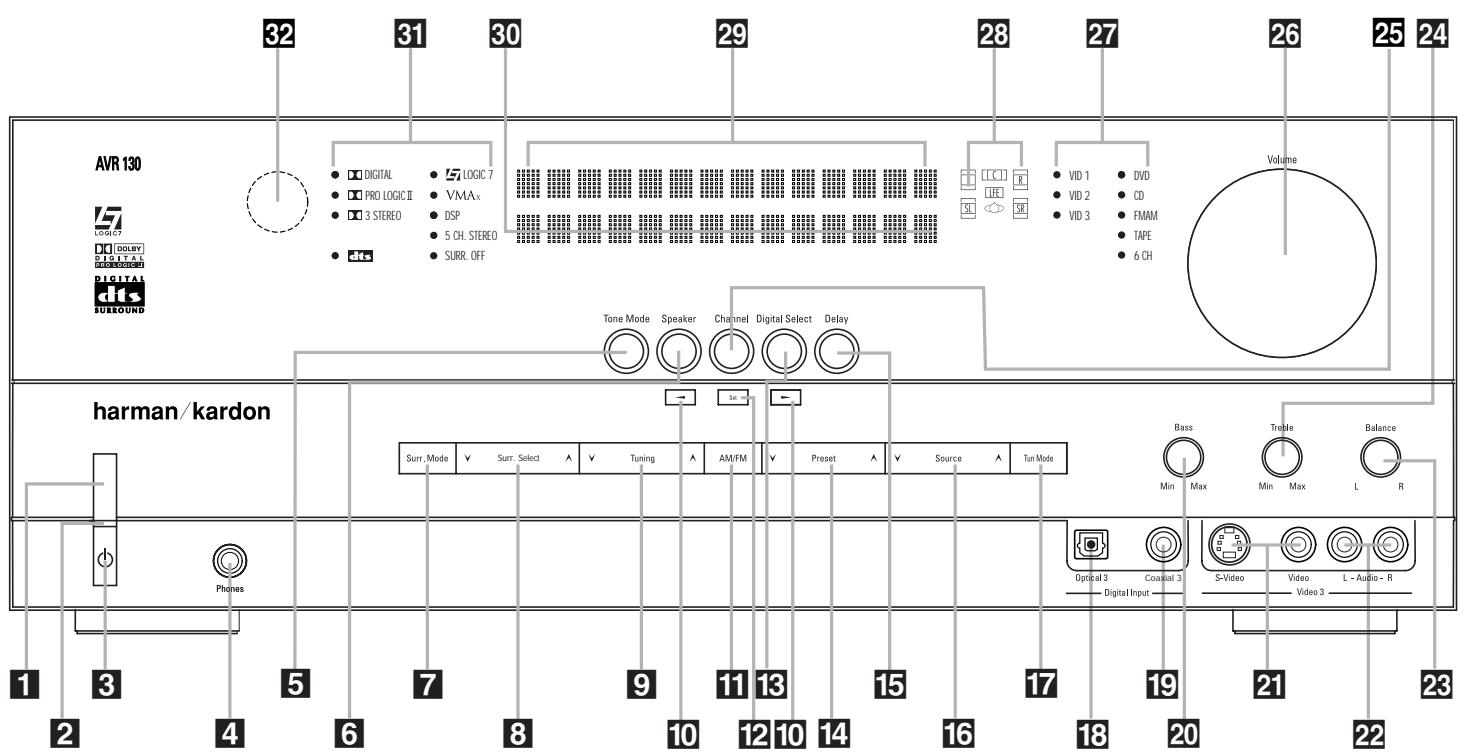
NOTE: To make it easier to follow the instructions that refer to this illustration, a larger copy may be downloaded from the Product Support section for this product at www.harmankardon.com.
1 Main Power Switch
2 Power Indicator
3 Standby/On Switch
4 Headphone Jack
5 Tone Mode Selector Buttons
6 Speaker Selector
7 Surround Mode Group Selector
8 Surround Mode Selector
9 Tuning Selector
10 Buttons
11 Tuner Band Selector
12 Set Button
13 Digital Input Selector
14 Preset Stations Selector
15 Delay Adjust Selector
16 Input Source Selector
17 Tuner Mode Selector
18 Optical 3 Digital Input
19 Coaxial 3 Digital Input
20 Bass Control
21 Video 3 Video Input Jacks
22 Video 3 Audio Input Jacks
Balance Control
24 Treble Control
25 Channel Adjust Selector
26 Volume Control
27 Input Indicators
28 Speaker/Channel Input Indicators
29 Upper Display Line
30 Lower Display Line
31 Surround Mode Indicators
32 Remote Sensor Window
1 Main Power Switch: Press this button to apply power to the AVR 130. When the switch is pressed in, the unit is in a Standby mode, as indicated by the amber LED 2 above the Standby/On Switch 3. This button MUST be pressed in to operate the unit. To turn the unit off and prevent the use of the remote control, this switch should be pressed until it pops out from the front panel and the word "OFF" is seen at the top of the switch.
NOTE: This switch is normally left in the "ON" position.
2 Power Indicator: This LED lights amber when the unit is in the Standby mode to signal that the AVR is ready to be turned on. When the unit is in operation, the indicator is blue.
3 Standby/On Switch: When the Main Power Switch 1 is "ON," press this button to turn on the
AVR 130; press it again to turn the unit off. The Power Indicator 3 turns blue when the unit is on.
4 Headphone Jack: This jack may be used to listen to the AVR 130's output through a pair of headphones. The speakers will automatically be turned off when the headphone jack is in use.
5 Tone Mode Selector Buttons: Pressing this button enables or disables the Bass and Treble tone controls. When the button is pressed so that TONE IN appears in the Lower Display Line 30, the Bass 20 and Treble 24 controls may be used to adjust the output signals. When the button is pressed once or twice so that the words TONE OUT appear in the Lower Display Line 30, the output signal will be "flat," no matter how the actual Bass and Treble Controls 2024 are adjusted.
6 Speaker Selector: Press this button to begin the process of configuring the unit to match the type of
speakers used in your listening room. (See pages 16-19 for more information on speaker setup and configuration.)
7 Surround Mode Group Selector: Press this button to select the top-level group of surround modes. Each press of the button will select the current mode in each of the major groupings (e.g., Dolby, DTS, Logic 7, DSP, Stereo).
When the button is pressed so that the name of a mode in the desired surround-mode group appears in the on-screen display and in the Lower Display Line 30, press the Surround Mode Selector 8 to cycle through the individual modes available. For example, press this button to select Dolby modes, and then press the Surround Mode Selector 8 to choose from the various mode options.
8 Surround Mode Selector: Press this button to select from among the available surround mode options for the mode group selected. The specific modes will vary based on the number of speakers available, the mode group and if the input source is digital or analog. For example, press the Surround Mode Group Selector 7 to select a mode grouping such as Dolby or Logic 7, and then press this button to see the available mode choices. For more information on mode selection, see pages 22 and 23.
9 Tuning Selector: Press the left side of the button to tune lower-frequency stations and the right side of the button to tune higher-frequency stations. When the tuner is in the MANUAL mode, each tap will increase or decrease the frequency by one increment. When the tuner receives a strong enough signal for adequate reception, MANUAL TUNED will appear in the Lower Display Line 30. When the tuner is in the AUTO mode, press the button once, and the tuner will scan for a station with acceptable signal strength. When the next station with a strong signal is tuned, the scan will stop and the Lower Display Line 30 will indicate AUTO TUNED. When an FM Stereo station is tuned, the display will read AUTO ST TUNED.
To switch back and forth between the Auto and Manual tuning modes, press the Tuner Mode Selector 17.
10 Buttons: When configuring the AVR 130's settings, use these buttons to select from the choices available, as shown in the Upper or Lower Display Lines 2930.
11 Tuner Band Selector: Press this button to turn the AVR on and switch to select the Tuner as the input source. Press it again to switch between the AM and FM frequency bands. (See page 25 for more information on the tuner.)
12 Set Button: When making choices during the setup and configuration process, press this button to enter the desired setting into the AVR 130's memory.
13 Digital Input Selector: Press this button to select one of the digital inputs or the analog input for any source. (See pages 23-25 for more information on digital audio.)
14 Preset Stations Selector: Press this button to scroll up or down through the list of stations that have been entered into the preset memory. (See page 25 for more information on tuner presets.)
15 Delay Adjust Selector: Press this button to begin the steps required to enter delay settings. (See page 19 for more information on delay times.)
16 Input Source Selector: Press this button to change the input by scrolling up or down through the list of Input Indicators 27.
17 Tuner Mode Selector: Press this button to select Auto or Manual tuning. When the button is pressed so that AUTO appears in the Lower Display Line 30, the tuner will search for the next station with an acceptable signal when the Tuning Selector 921 is pressed. When the button is pressed so that MANUAL appears in the Lower Display Line 30, each press of the Tuning Selector 921 will increase the frequency. This button may also be used to switch between Stereo and Mono modes for FM radio reception. When weak reception is encountered, press the button so that MANUAL appears in the Lower Display Line 30 to switch to Mono reception. Press it again to switch back to STEREO mode. (See page 25 for more information on using the tuner.)
18 Optical 3 Digital Input: Connect the optical digital audio output of an audio or video product to this jack. When the input is not in use, be certain to keep the plastic cap installed to avoid dust contamination that might degrade future performance.
19 Coaxial 3 Digital Input: This jack is used for connection to the output of portable audio devices, video game consoles or other products that have a coax digital audio jack.
20 Bass Control: Turn this control to modify the low-frequency output of the left/right channels by as much as ± 10dB , when the unit is in the "Surround Off" mode.
21 Video 3 Video Input Jacks: These jacks may be used for temporary connection to the composite or S-Video output of video games, camcorders or other portable video products. You may make a connection to either jack at any time, but not both simultaneously.
22 Video 3 Audio Input Jacks: These audio jacks may be used for temporary connection to video games or portable audio/video products such as cam-corders and portable audio players.
23 Balance Control: Turn this control to change the relative volume for the front left/right channels.
NOTE: For proper operation of the surround modes this control should be at the midpoint or "12 o'clock" position.
24 Treble Control: Turn this control to modify the high frequency output of the left/right channels by as much as ± 10dB , when the unit is in the "Surround Off" mode.
25 Channel Adjust Selector: Press this button to begin the process of trimming the channel output levels using an external audio source. (For more information on output level trim adjustment, see page 26.)
26 Volume Control: Turn this knob clockwise to increase the volume, counterclockwise to decrease the volume. If the AVR 130 is muted, adjusting the Volume Control 26 will automatically release the unit from the silenced condition.
27 Input Indicators: The name of the selected input will appear here.
28 Speaker/Channel Input Indicators: These indicators are multipurpose, indicating both the speaker type selected for each channel and the incoming data-signal configuration. The left, center, right, right surround and left surround speaker indicators are composed of three boxes, while the subwoofer is a single box. The center box lights when a "small" speaker is selected, and the two outer boxes light when "large" speakers are selected. When none of the boxes are lit for the center, surround or subwoofer channels, no speaker has been assigned that position. (See page 16 for more information on configuring speakers.) The letters inside each box display the active input channels. For standard analog inputs, only the L and R will light, indicating a stereo input. For a digital source, the indicators will light to display the channels being received at the digital input. When the letters flash, the digital input has been interrupted. (See pages 18-19 for more information on the Channel Indicators.)
29 Upper Display Line: Depending on the unit's status, a variety of messages will appear here. In normal operation, this line will show the current input source and which analog or digital input is in use. When the tuner is the input, this line will identify the station as AM or FM and show the frequency and preset number, if any.
30 Lower Display Line: Depending on the unit's status, a variety of messages will appear here. In normal operation, the current surround mode will show here.
31 Surround Mode Indicators: The name of the selected surround mode will appear here.
32 Remote Sensor Window: The sensor behind this window receives infrared signals from the remote control. Aim the remote at this area and do not block or cover it.
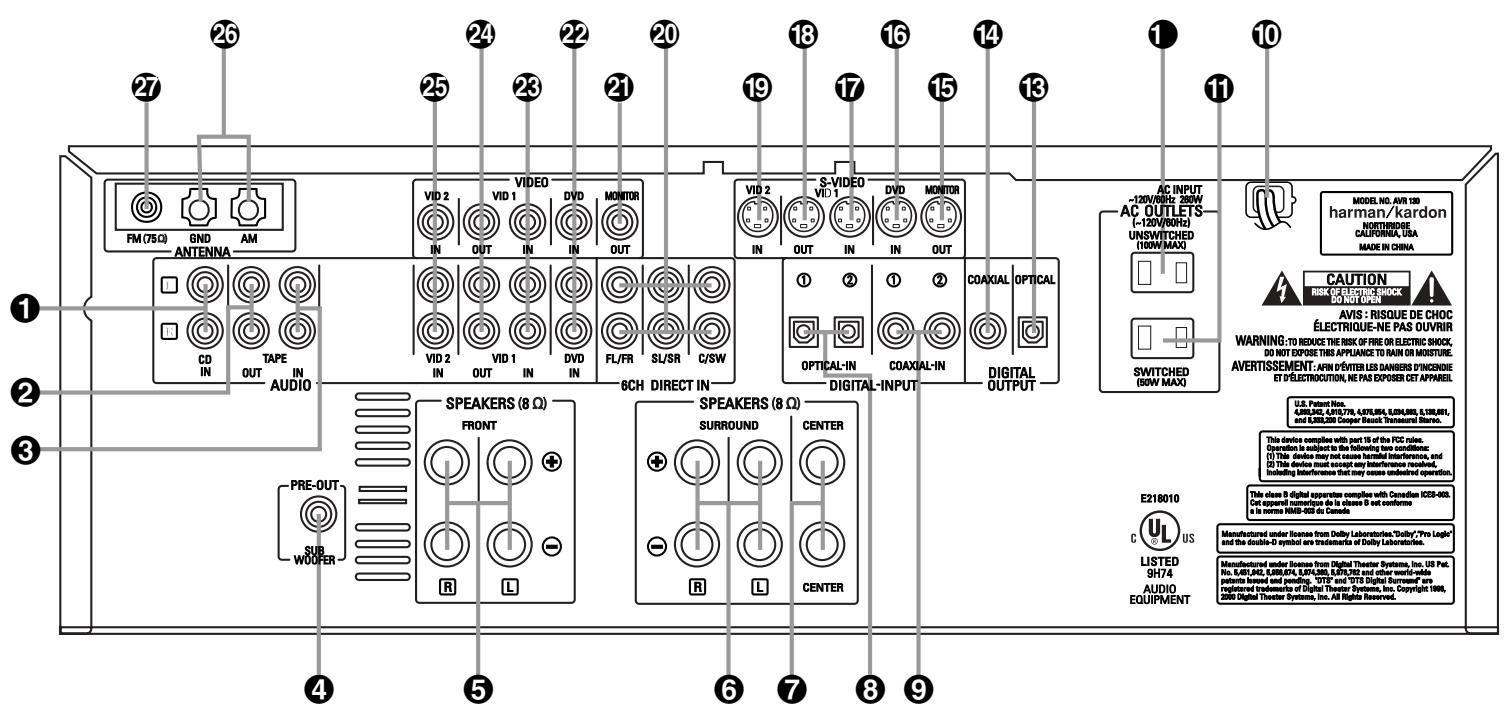
CD Audio Inputs
2 Tape Outputs
3 Tape Inputs
4 Subwoofer Output
5 Front Speaker Outputs
Surround Speaker Outputs
Center Speaker Outputs
Optical Digital Inputs
Coaxial Digital Inputs
10 AC Power Cord
Switched AC Accessory Outlet
Unswitched AC Accessory Outlet
Optical Digital Output
14 Coaxial Digital Output
15 S-Video Monitor Output
DVD S-Video Input
17 Video 1 S-Video Input
13 Video 1 S-Video Output
Video 2 S-Video Input
20 6-Channel Direct Inputs
21 Video Monitor Output
DVD Audio/Video Inputs
23 Video 1 Audio/Video Inputs
24 Video 1 Audio/Video Outputs
Video 2 Audio/Video Inputs
26 AM Antenna Terminals
2 FM Antenna Jack
NOTE: To make it easier to follow the instructions that refer to this illustration, a larger copy may be downloaded from the Product Support section for this product at www.harmarkardon.com.
NOTE: To assist in making the correct connections for multichannel input, output and speaker connections, all connection jacks and terminals are color-coded in conformance with the CEA standards as follows:
Front Left: White
Front Right: Red
Center: Green
Surround Left: Blue
Surround Right: Gray
Subwoofer: Purple
Coaxial Digital Audio: Orange
Composite Video: Yellow
CD Audio Inputs: Connect these jacks to the output of a Compact Disc player or changer.
2 Tape Outputs: Connect these jacks to the RECORD/INPUT jacks of an audio recorder.
3 Tape Inputs: Connect these jacks to the PLAY/OUT jacks of an audio recorder.
4 Subwoofer Output: Connect this jack to the line-level input of a powered subwoofer. If an external subwoofer amplifier is used, connect this jack to the subwoofer amplifier input.
5 Front Speaker Outputs: Connect these outputs to the matching + and - terminals on your front speakers.
Surround Speaker Outputs: Connect these outputs to the matching ^+ or - terminals on your left and right surround speakers.
7 Center Speaker Outputs: Connect these speaker outputs to the matching (+) and (-) terminals on your center channel speaker.
NOTE ON ALL SPEAKER CONNECTIONS: When making speaker connections always make certain to
maintain correct polarity by connecting the black terminal to the negative (-) terminal on the speakers. Connect the blue terminal to the positive (+) terminal on the left surround speaker and the gray terminal to the positive (+) terminal on the right surround speaker. When a newer complete 5-piece speaker system is used, the individual speakers may have matching color terminals in accordance with CEA specifications, while existing speakers typically use a red terminal for the positive (+) speaker wire connection. (See page 13 for more information on speaker polarity.)
Optical Digital Inputs: Connect the optical digital audio output from a DVD player, HDTV receiver, LD player, satellite receiver, cable box, MiniDisc player or recorder, or CD player to these jacks. The signal may be either a Dolby Digital signal, a DTS signal or a standard PCM digital source.
Coaxial Digital Inputs: Connect the coax digital audio output from a DVD player, HDTV receiver, LD player, satellite receiver, cable box, MiniDisc recorder or CD player to these jacks. The signal may be either a Dolby Digital signal, DTS signal or a standard PCM digital source. Do not connect the RF digital output of an LD player to these jacks.
NOTE: The default setting for the audio input associated with DVD is the Coaxial Digital Input 1 ⑨. If you connect the audio outputs of a DVD player to another digital or analog audio jack, change the input setting as shown on page 19.
10 AC Power Cord: Connect the AC plug to an unswitched AC wall outlet.
Switched AC Accessory Outlet: This outlet may be used to power any device you wish to have turned on or off at the same time as the AVR 130. Any device connected to this outlet will be off when the AVR 130 is in the Standby mode, and power will be supplied to the outlet when the AVR 130 is turned on.
1 Unswitched AC Accessory Outlet: This outlet may be used to power any AC device. The power will remain on at this outlet regardless of whether the AVR 130 is on or off.
IMPORTANT NOTE: The total power consumption of all devices connected to the accessory outlets should not exceed 100 watts. Do not connect power amplifiers or other high-current-draw devices to these outlets.
Optical Digital Output: Connect this jack to the matching digital audio input connector on a digital recorder such as a CD-R or MiniDisc recorder.
Coaxial Digital Output: Connect this jack to the matching digital audio input connector on a digital recorder such as a CD-R or MiniDisc recorder.
15 S-Video Monitor Output: When your television or other video display is equipped with an S-Video input and you are using at least one video source with S-Video capability, connect this jack to the S-Video input on the video display.
DVD S-Video Input: If you are not making a direct connection from the component video outputs of your DVD player to a television or other video display, connect the S-Video output of the DVD player to
this jack and then make certain that the S-Video Monitor Output 15 is also connected as described above.
Video 1 S-Video Input: If the product connected to the Video 1 Audio Inputs has S-Video capability, connect this jack to the PLAY/OUT S-Video jack on that unit and then make certain that the S-Video Monitor Output is also connected as described above.
18 Video 1 S-Video Output: If the product connected to the Video 1 Audio Outputs 24 has S-Video capability, connect this jack to the REC/IN S-Video jack on that unit.
Video 2 S-Video Input: If the product connected to the Video 2 Audio Inputs has S-Video capability, connect this jack to the PLAY/OUT S-Video jack on that unit and then make certain that the S-Video Monitor Output is also connected as described above.
20 6-Channel Direct Inputs: Connect the outputs of a DVD Audio or SACD player,or another product with built-in multichannel decoding, to these jacks.
These jacks have been color-coded as follows to assist you in making correct channel connections:
Front Left White
Front Right Red
Center Green
Surround Left Blue
Surround Right Gray
Subwoofer Purple
21 Video Monitor Output: Connect this jack to the composite video input of a TV monitor or video projector to view the output of any standard video source selected by the receiver's video switcher.
DVD Audio/Video Inputs: Connect one of these jacks to the composite video and L/R analog audio output jacks on a DVD or other video source.
NOTE: The default setting for the audio input associated with DVD is the Coaxial Digital Input 1 ⑨. If you connect the audio outputs of a DVD player to another digital or analog audio jack, change the input setting as shown on page 19.
Video 1 Audio/Video Inputs: Connect these jacks to the PLAY/OUT composite video jacks and L/R audio jacks on a VCR or other video source.
24 Video 1 Audio/Video Outputs: Connect these jacks to the RECORD/INPUT composite video and L/R audio jacks on a VCR.
Video 2 Audio/Video Inputs: Connect these jacks to the PLAY/OUT composite video and L/R audio jacks on a TV, VCR or other video source.
26 AM Antenna Terminals: Connect the AM loop antenna supplied with the receiver to these terminals. If an external AM antenna is used, make connections to the AM and GND terminals in accordance with the instructions supplied with the antenna.
FM Antenna Jack: Connect the supplied indoor or an optional external FM antenna to this jack.
Note on Video Connections: When connecting a source device such as a VCR, DVD Player, cable or satellite set top box or video game to the AVR, use either a composite or S-Video connection for each input, but not both.
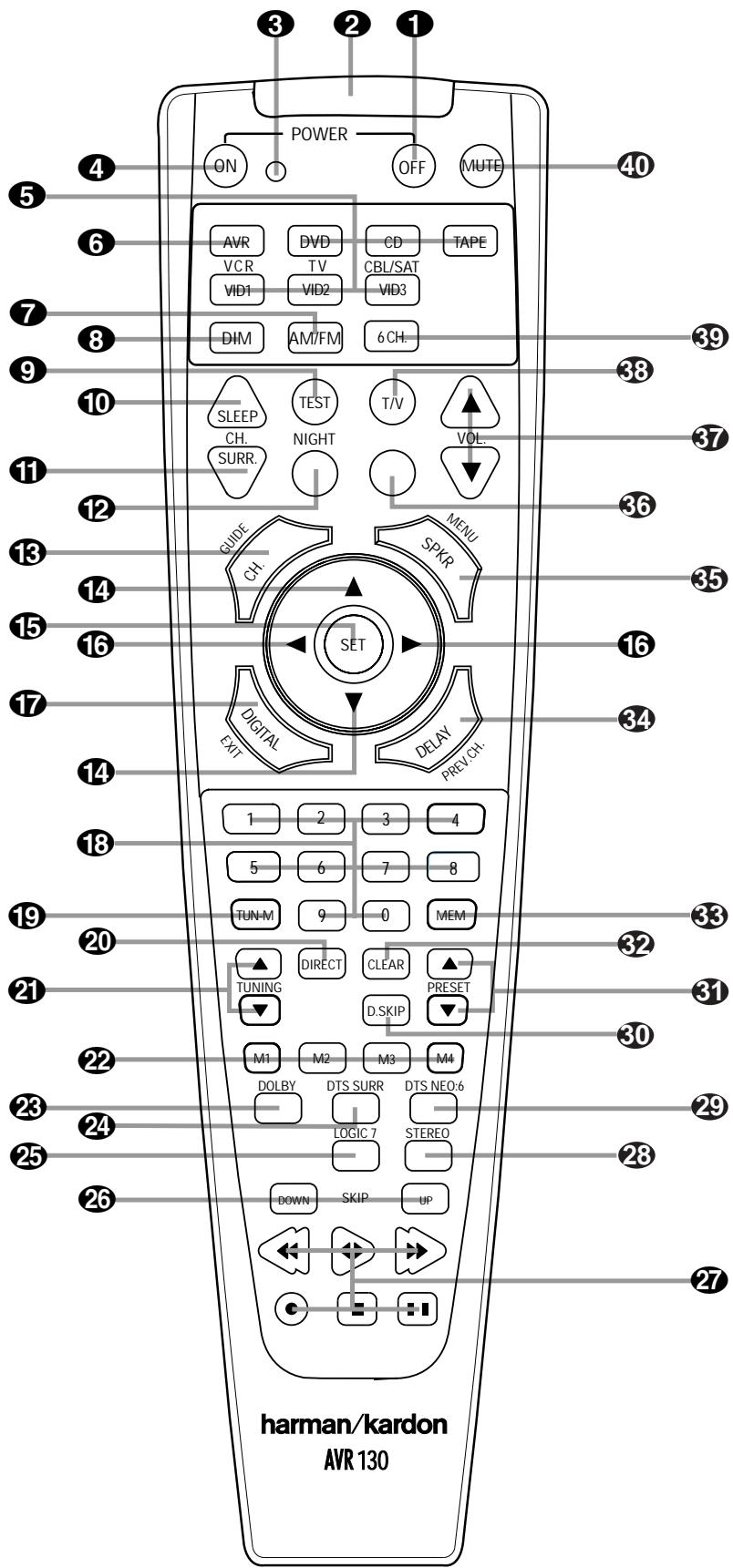
Power Off Button
IR Transmitter Window
3 Program Indicator
4 Power On Button
5 Input Selectors
6 AVR Selector
AM/FM Tuner Select
Dim Button
Test Button
10 Sleep Button
DSP Surround Mode Selector
Night Mode Button
13 Channel Select Button
14 ▲▼ Buttons
15 Set Button
16 Buttons
17 Digital Select Button
18 Numeric Keys
19 Tuner Mode Button
20 Direct Button
21 Tuning Up/Down Buttons
2 Macro Buttons
23 Dolby Mode Select Button
24 DTS Digital Mode Select Button
25 Logic 7 Mode Select Button
26 Track Skip Up/Down Buttons
Transport Controls
28 Stereo Mode Selector Button
DTS Neo:6 Mode Select Button
30 Disc Skip Button
31 Preset Up/Down Buttons
32 Clear Button
33 Memory Button
34 Delay Button
35 Speaker Select Button
36 Spare Button
37 Volume Up/Down Button
38 TV/Video Button
39 6-Channel Direct Input Button
40 Mute
NOTES:
- The function names shown here refer to each button's feature when used with the AVR 130. Most buttons have additional functions when used with other devices. See pages 31-32 for a list of these functions.
To make it easier to follow the instructions that refer to this illustration, a larger copy may be downloaded from the Product Support section for this product at www.harmankardon.com.
IMPORTANT NOTE: The AVR 130's remote may be programmed to control up to seven devices, including the AVR 130. Before using the remote, remember to press the Input Selector Button that corresponds to the unit you wish to operate. In addition, the AVR 130's remote is shipped from the factory to operate the AVR 130 and most recent Harman Kardon products. The remote is also capable of operating a wide variety of other products using the control codes that are part of the remote. Before using the remote with other products, follow the instructions on pages 27-29 to program the proper codes for the products in your system.
It is also important to remember that many of the buttons on the remote take on different functions, depending on the product selected using the Device Control Selectors. The descriptions shown here primarily detail the functions of the remote when it is used to operate the AVR 130. (See pages 31-32 for information about alternate functions for the remote's buttons.)
1 Power Off Button: Pressing this button turns off (places in the Standby mode) the device that was last selected by pressing one of the Input Selectors 5. To place the AVR 130 in the Standby mode, first press the AVR Selector Button 6 and then press this button.
IR Transmitter Window: Point this window towards the AVR 130 when pressing buttons on the remote to make certain that infrared commands are properly received.
3 Program Indicator: This three-color indicator is used to guide you through the process of programming the remote. (See pages 27-29 for information on programming the remote.)
4 Power On Button: After selecting a device by pressing one of the Input Selectors 5, press this button to turn the device on. To turn on the AVR 130, press the AVR Selector Button 6
Input Selectors: Pressing one of these buttons will perform three actions at the same time. First, if the AVR 130 is not turned on, this will power up the unit. Next, it will select the source shown on the button as the input to the AVR 130. Finally, it will change the remote control so that it controls the device selected. After pressing one of these buttons you must press the AVR Selector Button again to operate the AVR 130's functions with the remote.
AVR Selector: Pressing this button will switch the remote so that it will operate the AVR 130's functions. If the AVR 130 is in the Standby mode, it will also turn the AVR 130 on.
AM/FM Tuner Select: Press this button to select the AVR 130's tuner as the listening choice. Pressing this button when the tuner is already in use will switch between the AM and FM bands.
Dimmer function, which reduces the brightness of the front-panel display, or turns it off entirely. The first press of the button shows the default state, which is full brightness, by indicating DIMMER FULL in the Lower Display Line 30. Press the button again within five seconds to reduce the brightness by 50% , as indicated by DIMMER HALF showing in the Lower Display Line 30. Press the button again within five seconds and the main display will go completely dark. Note that this setting is temporary, in that, regardless of any changes, the display will always return to full brightness when the AVR is turned on. In addition, the Power Indicator 2 will always remain at full brightness regardless of the setting. This is to remind you that the AVR is still turned on.
Test Button: Press this button to begin the sequence used to calibrate the AVR 130's output levels. (See pages 18-19 for more information on calibrating the AVR 130.)
10 Sleep Button: Press this button to place the unit in the Sleep mode. After the time shown in the display, the AVR 130 will automatically go into the Standby mode. Each press of the button changes the time until turn-off in the following order:
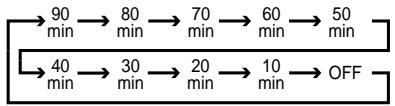
Note that when the Sleep function is in use, the display will dim to half brightness. This button is also used to change channels on your TV when the TV is selected, and it is also used to end the process of creating a macro command. (See page 28 for more information on creating macros.)
DSP Surround Mode Selector: Press this button to select one of the DSP surround modes, such as VMAX, Hall or Theater. Each press of the button selects another mode. (See page 22 for more information on surround modes.)
NOTE: The Sleep Button 10 and DSP Surround Mode Selector 11 may also function as the Channel + and - keys when the remote is programmed for use with TVs, cable boxes, VCRs, satellite receivers or other video devices with tuners. See page 29 for information on programming the remote for Channel Control Punch-Through capability so that you may change channels on a separate device when the remote is in AVR mode.
Night Mode Button: Press this button to activate the Night mode. This mode is available in specially encoded digital sources to preserve dialogue (center channel) intelligibility at low volume levels.
13 Channel Select Button: This button is used to start the process of setting the AVR 130's output levels to an external source. Once this button is pressed, use the / Buttons 14 to select the channel being adjusted, then press the Set Button 15, followed by the / Buttons 14 again, to change the level setting. (See page 26 for more information.)
14 Buttons: These multipurpose buttons are used to change configuration settings, such as output levels. When changing an item such as the surround mode or digital input directly, first press the function or mode to be changed (e.g., press the Digital Select Button 17 to change the digital input) and then press this button to scroll through the list of available choices.
15 Set Button: This button is used to enter settings into the AVR 130's memory. It is also used in the setup procedures for delay time, speaker configuration and channel output level adjustment.
16 Buttons: Thess buttons are not used to operate or configure the AVR 130's settings, but they are used as part of the navigation system for other devices you may operate with the remote, such as DVD players, video displays and cable or satellite set top boxes. (See pages 28 and 30-32 for more information on using the AVR's remote with other products.)
17 Digital Select Button: Press this button to assign one of the digital inputs 891819 to the source currently in use. (See page 23 for more information on using digital inputs.)
18 Numeric Keys: These buttons serve as a ten按钮 numeric keypad to enter tuner preset positions. They are also used to select channel numbers when TV has been selected on the remote, or to select track numbers on a CD, DVD or LD player, depending on how the remote has been programmed.
19 Tuner Mode Button: Press this button to change the tuner mode between manual and automatic. When the button is pressed so that AUTO appears at the left side of the Lower Display Line 30, only stations with acceptable signal quality will be tuned, and the tuner will play FM stations in stereo, when available. In the AUTO mode, when the Tuning Up/Down Buttons 921 are pressed, the unit will automatically search for the next available station with good signal strength. When this button is pressed so that MANUAL appears on the left side of the Lower Display Line 30 each press of the Tuning Up/Down Buttons 921 will move the frequency up or down in single-step increments. When the FM band is in use, pressing this button so that the MANUAL mode is activated will enable you to tune stations with weak signals by changing to monaural reception. (See page 25 for more information.)
20 Direct Button: When the tuner is in use, press this button to start the sequence for direct entry of a station's frequency. After pressing the button simply press the proper Numeric Keys 18 to select a station. (See page 25 for more information on the tuner.)
21 Tuning Up/Down Buttons: When the tuner is in use, these buttons will tune up or down through the selected frequency band. If the Tuner Mode Button 1917 has been pressed so that the word AUTO appears in the Lower Display Line 30, pressing either of the buttons will cause the tuner to seek the next station with acceptable signal strength for quality reception. When the word MANUAL appears in the Lower Display Line 30, pressing these buttons will tune stations in single-step increments. (See page 25 for more information.)
22 Macro Buttons: Press these buttons to store or recall a "Macro", which is a preprogrammed sequence of commands stored in the remote. (See page 28 for more information on storing and recalling macros.)
23 Dolby Mode Select Button: This button is used to select from among the available Dolby Surround processing modes. Each press of this button will select one of the Dolby Pro Logic II modes or Dolby 3 Stereo. When a Dolby Digital-encoded source is in use, the Dolby Digital mode may also be selected. (See page 22 for the available Dolby surround mode options.)
DTS Digital Mode Select Button: Although the AVR 130 will automatically select DTS processing when the digital audio input source is a DTS data stream, you may also press this button to select DTS playback.
25 Logic 7 Mode Select Button: Press this button to seeclct from among the available Logic 7 surround modes. (See page 22 for available Logic 7 options.)
26 Track Skip Up/Down Buttons: These buttons have no direct function with the AVR 130, but when used with a compatibly programmed CD or DVD changer, they will change the track or chapter of the disc currently being played in the changer.
27 Transport Controls: These buttons do not have any functions for the AVR 130, but they may be programmed for the forward/ reverse play operation of a wide variety of CD or DVD players, and audio or video cassette recorders. (See page 29 for more information on programming the Transport Control Punch-Through capability of the remote.)
28 Stereo Mode Select Button: Press this button to select a stereo playback mode. When the button is pressed so that DSP SURR OFF appears in the Lower Display Line 30, the AVR will operate in a bypass mode with true fully analog, two-channel left/right stereo mode with no surround processing or bass management as opposed to other modes where digital processing is used. When the button is pressed so that SURROUND OFF appears in the Lower Display Line 30, you may enjoy a two-channel presentation of the sound along with the benefits of bass management. When the button is pressed so that 5 CHSTEREO appears, the stereo signal is routed to all five speakers, if installed. (See page 22 for more information on stereo playback modes.)
DTS Neo:6 Mode Select Button: Press this button to select a DTS Neo:6 mode. These modes take a two-channel stereo- or matrix surround-encoded source and create a full five-channel sound field. (See page 22 for the available DTS Neo:6 options.)
30 Disc Skip Button: This button has no direct function for the AVR 130, but when used with a compatibly programmed CD or DVD changer, it will change the disc currently being played in the changer. (See page 28 for more information on using the remote with other devices.)
31 Preset Up/Down Buttons: When the tuner is in use, press these buttons to scroll through the stations programmed into the AVR 130's memory. When some source devices, such as CD players, VCRs and cassette decks, are selected using the device Input Selectors 5, these buttons may function as Chapter Step or Track Advance.
Clear Button: Press this button to clear incorrect entries when using the remote to directly enter a radio station's frequency.
33 Memory Button: Press this button to enter a radio station into the AVR 130's preset memory. First, tune the desired station, and then press this button. When two underline indicators flash at the right side of the Upper Display Line 29, press the numeric keys for the preset number between 01 and 30 that you wish to assign to the station within five seconds. (See page 25 for more information.)
34 Delay Button: Press this button to begin the process for setting the delay times used by the AVR 130 when processing surround sound. After pressing this button, the delay times are entered by pressing the Set Button 15 and then using the / Buttons 14 to change the setting. Press the Set Button 15 again to complete the process. (See page 19 for more information.)
Speaker Select Button: Press this button to begin the process of configuring the AVR 130's bass management system for use with the type of speakers used in your system. Once the button has been pressed, use the / Buttons 14 to select the channel you wish to set up. Press the Set Button 15 and then select another channel to configure. When all adjustments have been completed, press the Set Button 15 twice to exit the settings and return to normal operation. (See page 16 for more information.)
36 Spare Button: This button does not have any function for the operation of the AVR 130, but it is available for use when programmed with the code from another remote. (See page 27 for information on programming the remote with codes for other devices.)
37 Volume Up/Down: Press these buttons to raise or lower the system volume. (See page 29 for more information on programming the Volume Punch-Through capability of the remote, which allows you to change the AVR 130's volume while the remote is set to control another device.)
33 TV/Video Selector: This button does not have a direct function on the AVR 130, but when used with a compatibly programmed VCR, DVD or satellite receiver that has a "TV/Video" function, pressing this button will switch between the output of the player or receiver and the external video input to that player. Consult the owner's manual for your specific player or receiver for the details of how it implements this function.
39 6-Channel Direct Input: Press this button to select the component connected to the 6-Channel Direct Input 20 as the audio source. Note that when you wish to use the 6-Channel Direct Input in conjunction with a video source, you must first select the video source by pressing one of the Input Selectors 5. Then press this button to choose the 6-Channel Direct Input 20 as the audio source.
40 Mute: Press this button to momentarily silence the AVR 130 or TV set being controlled, depending on which device has been selected. When the AVR 130 is muted, press this button or use the Volume Control 26 37 to return to the previous volume level. When the AVR 130 remote is being programmed to operate another device or when a macro command is being programmed, this button is pressed with the Input Selector Button 5 to begin the programming process. (See page 27 for more information on programming the remote.)
System Installation
After unpacking the unit, and placing it on a solid surface capable of supporting its weight, you will need to make the connections to your audio and video equipment.
Audio Equipment Connections
We recommend that you use high-quality interconnect cables when making connections to source equipment and recorders to preserve the integrity of the signals.
When making connections to audio source equipment or speakers it is always a good practice to unplug the unit from the AC wall outlet. This prevents any possibility of accidentally sending audio or transient signals to the speakers that may damage them.
- Connect the analog output of a CD player to the CD Audio Inputs ①.
NOTE: When the CD player has both fixed and variable audio outputs it is best to use the fixed output unless you find that the input to the receiver is so low that the sound is noisy, or so high that the signal is distorted.
- Connect the analog Play/Out jacks of a cassette deck, MD, CD-R or other audio recorder to the Tape Input Jacks 3. Connect the analog Record/In jacks on the recorder to the Tape Output Jacks 2 on the AVR 130.
- Connect the output of any digital sources to the appropriate input connections on the AVR 130 rear panel. Note that the Optical and Coaxial Digital Inputs 891819 may be used with a Dolby Digital or DTS source, such as a DVD player, or the output of a conventional CD or LD player's PCM (S/P-DIF) output.
- Connect the Optical Digital Output 13 or Coaxial Digital Output 14 on the rear panel of the AVR 130 to the matching digital input connections on a CD-R or MiniDisc recorder.
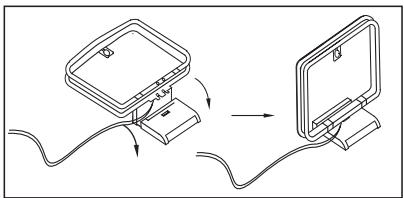
- Assemble the AM Loop Antenna supplied with the unit so that the tabs at the bottom of the antenna loop snap into the holes in the base. Connect it to the AM and GND Screw Terminals 26.
-
Connect the supplied FM antenna to the FM Antenna (75 ohm) Connection ⑦. The FM antenna may also be an external roof antenna, an inside powered or wire lead antenna or a connection from a cable TV system. Note that if the antenna or connection uses 300-ohm twin-lead cable, you must use the 300-ohm-to-75-ohm adapter supplied with the unit to make the connection.
-
Connect the front, center and surround Speaker Outputs 567 to the respective speakers.
To ensure that all the audio signals are carried to your speakers without loss of clarity or resolution, we suggest that you use high-quality speaker cable. Many brands of cable are available and the choice of cable may be influenced by the distance between your speakers and the receiver, the type of speakers you use, personal preferences and other factors. Your dealer or installer is a valuable resource to consult in selecting the proper cable.
Regardless of the brand of cable selected, we recommend that you use a cable constructed of fine, multistrand copper with a gauge of 14 or smaller. Remember that in specifying cable, the lower the number, the thicker the cable.
Cable with a gauge of 16 may be used for short runs of less than ten feet. We do not recommend that you use cables with an AWG equivalent of 18 or higher due to the power loss and degradation in performance that will occur.
Cables that are run inside walls should have the appropriate markings to indicate listing with UL, CSA or other appropriate testing agency standards. Questions about running cables inside walls should be referred to your installer or a licensed electrical contractor who is familiar with the NEC and/or the applicable local building codes in your area.
When connecting wires to the speakers, be certain to observe proper polarity. Remember to connect the "negative" or "black" wire to the same terminal on both the receiver and the speaker. The AVR 130 conforms to the CEA-recommended color-coding for speaker terminals. Accordingly, the positive (+) terminal, which was previously red, is now a specific color to assist you in making the correct connections. If your speakers have color-coded connections, match the terminal on the AVR 130 to the like terminal on your speakers. For existing speakers with a red terminal for the positive connection, the connections on the AVR 130 are as follows:
Front Left = White Front Right = Red
Center = Green
Surround Left = Blue Surround Right = Gray
While most speaker manufacturers adhere to an industry convention of using black terminals for negative and red ones for positive, some manufacturers may vary from this configuration. To ensure proper phase and optimal performance, consult the identification plate on your speaker or the speaker's manual to verify polarity. If you do not know the polarity of your speaker, ask your dealer for advice before proceeding, or consult the speaker's manufacturer.
We also recommend that the length of cable used to connect speaker pairs be identical. For example, use the same length piece of cable to connect the front-left and front-right or surround-left and surround-right speakers, even if the speakers are a different distance from the AVR 130.
- Connections to a subwoofer are normally made via a line-level audio connection from the Subwoofer Output 4 to the line-level input of a subwoofer with a built-in amplifier. When a passive subwoofer is used, the connection first goes to a power amplifier, which will be connected to one or more subwoofer speakers. If you are using a powered subwoofer that does not have line-level input connections, follow the instructions furnished with the speaker for connection information.
Video Equipment Connections
Video equipment is connected in the same manner as audio components. Again, the use of high-quality interconnect cables is recommended to preserve signal quality.
Although any compatible video device may be connected to any video input or output, to make programming device codes into the remote control easier, we recommend that you connect your VCR or DVD recorder or a personal video recorder (PVR) to the Video 1 Audio/Video and S-Video Inputs [723], your television to the Video 2 Audio/Video Input [925], and your cable-TV converter or satellite receiver to the Video 3 Connectors [2122].
- Connect a VCR's audio and video Play/Out jacks to the Video 1 Audio/Video and S-Video Input Jacks 1723 on the rear panel. The Audio and Video Record/In jacks on the VCR should be connected to the Video 1 Audio/Video and S-Video Output Jacks 1824 on the AVR 130.
- Connect the analog audio and video outputs of a television set or any other video source to the Video 2 Audio/Video and S-Video Jacks 1925.
-
Connect the analog audio and video outputs of a cable TV converter or satellite receiver, or any other video source, to the Video 3 Jacks 2122 on the front panel of the AVR 130.
-
Connect the left/right analog audio outputs of a DVD or laser disc player to the DVD Audio Inputs 2. Connect the composite video output of your DVD player to the DVD Video Input 2 or the DVD player's S-Video output to the DVD S-Video Input 16. However, if your DVD player and video display both support component video, you should make that connection directly.
When a digital audio connection is used for your DVD player, the default connection is the Coaxial Digital Input 1 Jack ⑨ . However, the connection may also be made to any of the Optical ⑧ or Coaxial ⑨ Digital Inputs, provided that the digital input source selection is changed as shown on page 23.
For DVD players with DVD-Audio or SACD playback capability, connect the 6-channel line-level audio outputs to the 6-Channel Direct Inputs 20. When you wish to hear the DVD-Audio or SACD playback, first select the DVD Input on the AVR in order to select the video signal from the DVD player, then select the 6-Channel Direct Input source for the audio.
-
Connect the digital audio outputs of a DVD player, satellite receiver, cable box or HDTV converter to the appropriate Optical or Coaxial Digital Inputs 891819
-
Connect the Video Monitor Output 1521 jacks on the receiver to the composite or S-Video input of your television monitor or video projector.
VIDEO CONNECTION NOTE:
- Composite and S-Video signals may only be viewed in their native formats. The AVR 130 will not convert signals from composite to S-Video, or vice versa. S-Video inputs may only be viewed when the AVR 130 is connected to a TV set or video display with S-Video capability. If you use both standard composite video and S-Video sources in your system, it is important that you connect both an S-Video cable and a standard composite video cable (a coax cable with an RCA plug on both ends) between the AVR 130 and your TV or projector. When it is necessary to make both types of connections to your TV set, use different inputs if possible. Consult the instructions for your TV set or projector for more information on connecting both types of signals.
Power Connections
This unit is equipped with two accessory AC outlets. They may be used to power accessory devices, but they should not be used with high-current draw equipment such as power amplifiers. The total power draw to each outlet may not exceed 100 watts.
The Switched AC Accessory Outlet f will receive power only when the unit is on. This is recommended for devices that have no power switch or a mechanical power switch that may be left in the "ON" position.
NOTE: Many audio and video products go into a Standby mode when they are used with switched outlets, and cannot be fully turned on using the outlet alone without a remote control command.
The Unswitched AC Accessory Outlet 1 will receive power as long as the unit is plugged into a powered AC outlet.
Finally, when all connections are complete, plug the Power Cord 10 into a non-switched 120-volt AC wall outlet. You're almost ready to enjoy the AVR 130!
When all audio, video and system connections have been made, there are a few configuration adjustments that must be made. A few minutes spent to correctly configure and calibrate the unit will greatly add to your listening experience.
Speaker Selection and Placement
The placement of speakers in a multichannel home theater system can have a noticeable impact on the quality of sound reproduced. No matter which type or brand of speakers is used, the same model or brand of speaker should be used for the left front, center and right front speakers. This creates a seamless front soundstage and eliminates the possibility of distracting sonic disturbances that occur when a sound moves across mismatched front-channel speakers.
Speaker Placement
Depending on the type of center channel speaker in use and your viewing device, place the center speaker either directly above or below your TV, or in the center behind a perforated front projection screen.
Once the center channel speaker is installed, position the left front and right front speakers so that they are as far away from one another as the center channel speaker is from the preferred listening position. Ideally, the front-channel speakers should be placed so that their tweeters are no more than 24" above or below the tweeter in the center channel speaker.
Depending on the specifics of your room acoustics and the type of speakers in use, you may find that imaging is improved by moving the left front and right front speakers slightly forward of the center channel speaker. If possible, adjust all front loudspeakers so that they are aimed at ear height when you are seated in the listening position.
Using these guidelines, you'll find that it takes some experimentation to find the correct location for the front speakers in your particular installation. Don't be afraid to move things around until the system sounds correct. Optimize your speakers so that audio transitions across the front of the room sound smooth, and that sounds from all speakers appear to arrive at the listening position at the same time (without delay from the center speaker compared to the left and right speakers).
Surround speakers should be placed on the side walls of the room, at or slightly behind the listening position. The center of the speaker should face into the room. The speakers should be located so that the bottom of the cabinet is at least two feet higher than the listeners' ears when the listeners are seated in the desired area.
If side-wall mounting is not practical, the speakers may be placed on a rear wall, behind the listening position.
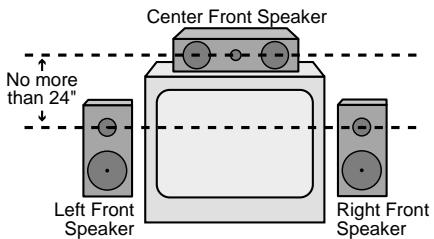
A) Front-Channel Speaker Installation with Direct-View TV Sets or Rear-Screen Projectors
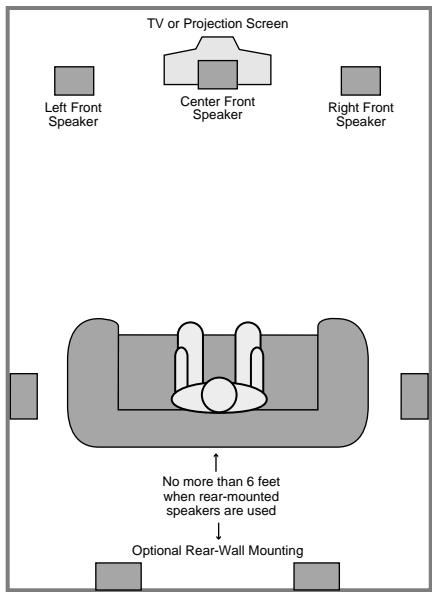
B) The distance between the left and right speakers should be equal to the distance from the seating position to the viewing screen. You may also experiment with placing the left and right speakers slightly forward of the center speaker.
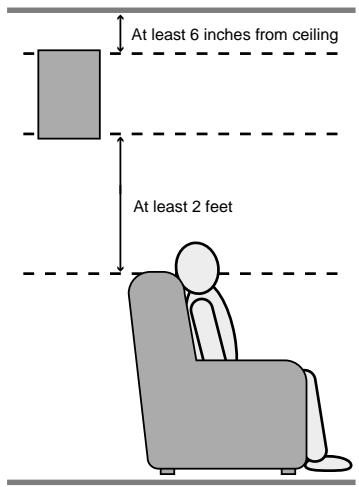
C) Optimal placement of surround speaker
Again, they should be located so that the bottom of the cabinet is at least two feet higher than the listeners' ears. The speakers should be no more than six feet behind the rear of the seating area.
Subwoofer produces nondirectional sound, so they may be placed almost anywhere in a room. Actual placement should be based on room size and shape and the type of subwoofer used. One method of finding the optimal location for a subwoofer is to begin by placing it in the front of the room, about six inches from a wall, or near the front corner of the room. Another method is to temporarily place the subwoofer at your normal listening position, and then walk around the room until you find a spot where the subwoofer sounds best. Place the subwoofer in that spot. You should also follow the instructions of the subwoofer's manufacturer, or you may wish to experiment with the best location for a subwoofer in your listening room.
Once the speakers have been placed in the room and connected, the remaining steps in the setup process are to program the AVR 130's bass management system for the type of speakers used in your system, calibrate the output levels, and set the delay times used by the surround sound processor.
You are now ready to power up the AVR 130 to begin these final adjustments.
- Plug the Power Cord ⑩ into an unswitched AC outlet.
- Press the Main Power Switch 1 in until it latches and the word "OFF" on the top of the switch disappears inside the front panel. Note that the Power Indicator 2 will turn amber, indicating that the unit is in the Standby mode.
- Remove the protective plastic film from the frontpanel lens. If left in place, it will affect the performance of your remote control.
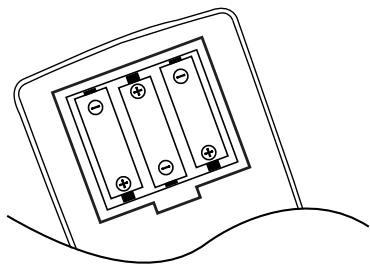
- Install the three supplied AAA batteries in the remote as shown. Be certain to follow the (+) and (-) polarity indicators that are on the bottom of the battery compartment.
- Turn the AVR 130 on either by pressing the System Power Control 3 on the front panel, or via the remote by pressing the AVR Selector 6 or any of the Input Selectors 5 7 39 on the remote. The Power Indicator 3 will turn blue to confirm that the unit is on, and the front-panel display will illuminate.
System Setup
The AVR 130 features an advanced memory system that enables you to establish different configurations for the bass management, digital input, surround mode and output levels for each input source. This flexibility enables you to custom-tailor the way in which you listen to each source and have the AVR 130 memorize those settings. This means, for example, that you may use different modes or output levels and trims for different sources. When the Bass Management System is set to Independent, you may also set different speaker configurations and crossover points for each input. Once these settings are made, they will automatically be recalled whenever you select that input.
The factory default settings for the AVR 130 have all inputs configured for an analog source (except for the DVD input, which has the Coaxial Digital Input 1 9 as the default), Logic 7 Music as the surround mode, when an analog or PCM digital source is in use, all speaker positions set to "small," and a subwoofer connected. Before using the unit, you will probably want to change the settings for most inputs so that they are properly configured to reflect the use of digital or analog inputs, the type of speakers installed and the surround mode specifics.
Speaker Setup
These adjustments tell the AVR 130 which type of speakers are in use. This is important as it adjusts the settings that determine which speakers receive low-frequency (bass) information. For each of these settings use the LARGE setting if the speakers for a particular position are traditional full-range loudspeakers that are capable of reproducing sounds below 100Hz . Use the SMALL setting for smaller, frequency-limited satellite speakers that do not reproduce sounds below 100Hz . Note that when "small" speakers are used, a subwoofer is required to reproduce low-frequency sounds. Remember that the "large" and "small" descriptions do not refer to the actual physical size of the speakers, but to their ability to reproduce low-frequency sounds. If you are in doubt as to which category describes your speakers, consult the specifications in the speakers' owner's manual, or ask your dealer.
The factory default setting for the speaker configuration is to have "small" speakers at all positions with a subwoofer installed. If you have this type of "sub/ satellite" speaker system, no further configuration is needed and you may skip to the next section.
With the AVR 130 turned on, follow these steps to configure the speakers:
- Press the Speaker Select Button 6 35 . When SPEAKER SIZE appears in the Lower Display Line 30 press the Set Button 15 12
- When FRONT SPEAKER appears in the Lower Display Line 30 press the Set Button 1512 to continue.
- Press the / Buttons 14 on the remote or the / Buttons 10 on the front panel to select either FRONT LARGE or FRONT SMALL, as described by the definitions shown above. When the desired selection appears, press the Set Button 15 12.
When FRONT SMALL is selected, low-frequency sounds will be sent to the subwoofer output only. Note that if you choose this option and there is no subwoofer connected, you will not hear any low-frequency sounds from the front channels.
When FRONT LARGE is selected, a full-range output will be sent to the front-left and front-right outputs, and NO low-frequency signals will be sent to the subwoofer output.
- When CENTER SPEAKER appears in the Lower Display Line 30 press the Set Button 1512
- Press the / Buttons 14 on the remote or the Buttons 10 on the front panel to select either CENTER LARGE, CENTER SMALL or CENTER NONE, using the same guidelines as above for Large and Small. When the desired selection appears, press the Set Button 15 12.
When CENTER SMALL is selected, low-frequency center channel sounds will be sent to the subwoofer output only. Note that if you choose this option and there is no subwoofer connected, you will not hear any low-frequency sounds from the center channel speaker.
When CENTER LARGE is selected, a full-range output will be sent to the center speaker output, and NO center channel low-frequency information will be sent to the subwoofer output.
NOTE: If you choose Logic 7 as the surround mode, the AVR 130 will not make the LARGE option available for the center speaker. This is due to the requirements of Logic 7 processing, and does not indicate a problem with your receiver.
When CENTER NONE is selected, no signals will be sent to the center channel output.
-
When SURR SPEAKER appears in the Lower Display Line 30 press the Set Button 1512
-
Press the / Buttons 14 on the remote or the / Buttons 10 on the front panel to select either SURR LARGE, SURR SMALL or SURR NONE, using the same guidelines as above for Large and Small. When the desired selection appears, press the Set Button 15 12.
When SURR SMALL is selected, low-frequency surround-channel sounds will be sent to the subwoofer output only. Note that if you choose this option and there is no subwoofer connected, you will not hear any low-frequency sounds from the surround speaker.
When SURR LARGE is selected, a full-range output will be sent to the surround-channel outputs, and NO surround-channel signals will be sent to the subwoofer output.
When SURR NONE is selected, surround sound information will be split between the front-left and front-right outputs. Note that for optimal performance when no surround speakers are in use, the Dolby 3 Stereo mode should be used instead of Dolby Pro Logic II.
-
When S - W SPEAKER appears in the Lower Display Line 30, press the Set Button 15 12.
-
Press the / Buttons 14 on the remote or the Buttons 10 on the front panel to select the option described below that best describes your system. When the desired selection appears, press the Set Button 15 12.
The choices available for the subwoofer position will depend on the settings for the other speakers, particularly the front left/right positions.
If the front left/right speakers are set to FRONT SMALL, the subwoofer will automatically be set to SUB, which is the "ON" position.
If the front left/right speakers are set to FRONT LARGE, three options are available:
- If no subwoofer is connected to the AVR 130, press the / Buttons 14 on the remote so that SUB NONE appears in the Lower Display Line 30. When this option is selected,
all bass information will be routed to the front left/right "main" speakers.
- If a subwoofer is connected to the AVR 130, you have the option to have the front left/right "main" speakers reproduce bass frequencies at all times, and have the subwoofer operate only when the AVR 130 is being used with a digital source that contains a dedicated Low-Frequency Effects, or LFE, soundtrack. This allows you to use both your main and subwoofer speakers to take advantage of the special bass created for certain movies. Press / Buttons 14 on the remote so that SUB LFE appears in the Lower Display Line 30.
-
If a subwoofer is connected and you wish to use it for bass reproduction in conjunction with the main front left/right speakers, regardless of the type of program source or surround mode you are listening to, press the / Buttons 14 on the remote so that SUB L/R+LFE appears in the Lower Display Line 30. When this option is selected, a "complete" feed will be sent to the front left/right "main" speakers, and the subwoofer will receive bass frequencies below 100Hz .
-
When all speaker setup selections have been made, simply wait five seconds and the AVR will return to normal operation.
Triple Crossover Setting
The AVR 130 is unique among all receivers in its price class to provide Triple Crossover functionality. Where conventional bass-management systems only accommodate a global crossover setting, Harman Kardon's Triple Crossover system allows you to set a different crossover point for the front left/right, center and surround speakers. This is key to creating a seamless soundfield when a system uses different brands or models of speakers from one of these three groupings to another.
If you are not familiar with what the crossover point is, the term refers to the frequency at which the full-range signal is divided between your main speakers and the subwoofer. Since the subwoofer is specially designed for low-frequency reproduction, it isn't able to reproduce high frequencies. Conversely, by relieving the main speakers of the requirement to reproduce bass frequencies, it is possible to build smaller, more efficient "satellite" style speakers. Setting the crossover frequency properly means that each speaker does the job it was intended to do, without the strain or possible damage caused by being fed the wrong signals. In order to properly take advantage of the Triple Crossover function, we encourage you to consult the owner's manual for your speakers to determine the lowest frequency they are designed for, which will be
the number that will be used in making the settings in this section.
Note that the factory default setting is a crossover point of 100Hz for all speakers. If your speakers have a crossover at that setting you do not need to make any of these adjustments and you should proceed to the next step. However, if, for example, your front speakers have a crossover point of 80Hz , your center speaker crosses over at 120Hz and your surround speakers crossover at yet a different point, adjusting these settings will help establish the proper relationship between the low-frequency sound that is sent to your subwoofer and the balance of the sound that is reproduced by your main speakers.
If your speaker complement does require a change to the crossover settings, proceed as follows:
- Press the Speaker Button 6 45
- Press the / Buttons 14 on the remote or the / Buttons 10 on the front panel so that SPEAKER XOVER appears in the Lower Display Line 30 and press the Set Button 15 to enter the crossover menu tree.
- When FRONT X - F R E Q appears in the Lower Display Line 30, press the Set Button 1512 to change the setting for the front left/right speakers.
- Press the / Buttons 14 on the remote or the / Buttons 10 on the front panel to scroll through the available choices, and when the crossover frequency that matches your speakers appears in the Lower Display Line 30, press the Set Button 15 12 to return to the speaker group selection.
- Press the / Buttons 14 on the remote or the / Buttons 10 on the front panel again to select another speaker group, either CENTER 3X-FREQ to adjust the crossover for the center channel speaker, or SURR 3X-FREQ to adjust the crossover for the surround speakers, and press the Set Button 15 12 when the desired speaker group appears to change the setting as needed, following the instructions in Step 4, above.
- When all required crossover settings have been entered, press the Set Button 15 to return to normal operation.
Global/Independent Bass Manager Memory
A feature unique to the AVR 130 in its class allows the storage of different speaker size settings and crossover points for each input source. In most cases, you will not need to take advantage of this capability,
particularly when the speakers used are all frequency-limited "satellite" type models. However, when a system's front speakers are large full-range models, you may wish to use different "large" or "small" settings for inputs such as the tuner or CD, where two-channel stereo music may be the desired listening mode, as opposed to the DVD or other video-related inputs where a subwoofer will be used.
If you do not need to create different speaker configuration settings for each input, skip to the next section. To take advantage of this capability, follow these steps:
- Configure the speaker size information as described on page 16. This sets the common baseline for all inputs.
- Select the input for which you wish to have a setting other than the original one by pressing the appropriate Input Selector 6
- Press the Speaker Button 635 and then press the / Buttons 14 on the remote or the Buttons 10 on the front panel so that BASS MANAGER appears in the Lower Display Line 30. Press the Set Button 1512.
- When GLOBAL appears in the Lower Display Line 30 press the / Buttons 14 on the remote or the / Buttons 10 on the front panel to select INDEPENDENT. Press the Set Button 15 12 to enter the request into the AVR's memory.
- Once the BASS MANAGER message reappears in the Lower Display Line 30 you have configured the AVR so that different speaker size and crossover settings may be chosen for each input. To enter these settings, first wait five seconds until the unit returns to normal operation. At that time, select another input and repeat the instruction steps for Speaker Setup and Triple Crossover Setting as shown on the previous pages.
Configuring the Surround Off (Stereo) Modes
For superior reproduction of two-channel program materials, the AVR 130 offers two Stereo modes: an analog Stereo-Direct mode that bypasses the digital signal processing circuitry for a completely analog signal path that preserves the purity of the original signal, and a digital mode that is capable of providing bass management for optimal distribution of the low frequencies between smaller speakers and a subwoofer.
Stereo-Direct (Bypass) Mode
When the analog Stereo-Direct mode is selected by pressing the Stereo Mode Selector 23 until SURROUND OFF appears in the Lower Display Line 30 and the Surround Mode Indicator 31 for Surr Off is lit, the AVR 130 will pass the analog source material directly through to the front left and right speakers, bypassing the digital-processing circuitry.
In this mode, the front left and right speakers will automatically be configured as LARGE; it is not possible to configure these speakers as SMALL.
When the AVR 130 is in the Stereo Bypass mode, you may still configure the subwoofer output so that it is either turned off, with a full-range signal going to the front left/right speakers, or you may configure it so that the subwoofer feed is activated. The factory default setting is to have the subwoofer turned off for this mode, but you may change that setting by following these steps:
- Press the Speaker Button 635
- Press the Set Button 15 to activate the configuration menu.
- Press the / Buttons 14 on the remote or the / Buttons 10 on the front panel to select the desired option. SUB NONE turns off the feed to the subwoofer, while SUB < L + R> turns it on.
- When the desired setting has been entered, press the Set Button 15 12 to return to normal operation.
Stereo-Digital Mode
When the Stereo-Direct (Bypass) mode is in use, a full-range signal is always sent to the front left/right speakers. By its nature, that option does not pass the signal through the AVR's digital-signal processing, creating the requirement for full-range speakers. If your front speakers are bandwidth-limited, "satellite" speakers, we recommend that you do NOT use the Bypass mode, but rather use the DSP SUR-ROUND OFF mode for stereo listening.
To listen to programs in the two-channel stereo mode while taking advantage of the bass management system, press the Stereo Mode Selector 28 until SURROUND OFF appears in the Lower Display Line 30 and the DSP and SURR OFF Surround Mode Indicators 31 both light up. When only the SURR OFF Surround Mode Indicator 31 is lit, you are in the Stereo-Direct (Bypass) mode.
When this mode is in use, the front left/right speakers and subwoofer may be configured to meet the
requirements of your specific speakers using the steps shown in the Speaker Setup section on page 16.
Output Level Adjustment
Output level adjustment is a key part of the configuration process for any surround sound product. It is particularly important for a Dolby Digital receiver such as the AVR 130, as correct output levels will ensure that you hear sound tracks in their proper place with the proper directionality and intensity.
IMPORTANT NOTE: Listeners are often confused about the operation of the surround channels. While some assume that sound should always be coming from each speaker, most of the time there will be little or no sound in the surround channels. This is because they are only used when a movie director or sound mixer specifically places sound there to create ambience, a special effect or to continue action from the front of the room to the rear. When the output levels are properly set, it is normal for surround speakers to operate only occasionally. Artificially increasing the volume to the rear speakers may destroy the illusion of an enveloping sound field that duplicates the way you hear sound in a movie theater or concert hall.
Before beginning the adjustment process, make certain that all speaker connections have been properly made. The system volume should be set to the level that you will use during a typical listening session. Finally, make certain that the Balance Control 23 is set to the center "12 o'clock" position.
To assist in making speaker configuration settings, the icons in the Speaker/Channel Input Indicators 28 will change as the speaker type is selected at each position. When only the center icon box containing the abbreviation for the speaker position is lit, the speaker is set for "small." When the inner box and the two outer boxes are lit, the speaker is set for "large." When no indicator appears at a speaker location, that position is set for "none" or "no" speaker.
For example, in the following figure, the left front and right front speakers are set for "large," the center, surround left (SL) and surround right (SR) speakers are set for small, and a subwoofer is set, as shown by the box with the abbreviation "LFE", which stands for "low-frequency effects."
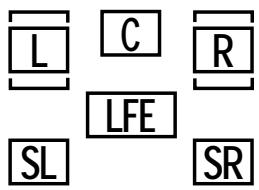
To adjust and calibrate the output levels, follow these steps. For accurate calibration, it is a good idea to make these adjustments while seated in your favorite listening position:
- Put the AVR 130 in the Dolby Pro Logic II mode by pressing the Dolby Mode Selector on the remote, until one of the Dolby mode names appears in the Lower Display Line 30. Output level adjustment using the test tone is not available in the Stereo modes. However, in the Stereo-Digital mode, you may trim the output levels using program material, as described on page 26.
- Press the Test Button 9 on the remote. TEST-TFLdB will appear in the Lower Display Line 30.
- The test noise will immediately begin to circulate among the speakers in a clockwise rotation, pausing at each position for three seconds. As the test noise rotates, the speaker position will be shown in the Lower Display Line 30.
NOTE: This is a good time to verify that the speakers have been properly connected. As the test noise circulates, listen to make certain that the sound comes from the speaker position shown in the Main Information Display. If the sound from a speaker location does NOT match the position indicated in the display, turn the AVR 130 off using the Main Power Switch and check the speaker wiring to make certain that each speaker is connected to the correct output terminal.
-
After checking for speaker placement, let the test noise circulate, and listen to see which channels sound louder than the others. Using the front left (FL in the display) speaker as a reference, press the / Buttons 14 on the remote for each channel to begin to bring them to the same level. Note that when one of the buttons is pushed, the test noise circulation will pause on the channel being adjusted to give you time to make the adjustment. When you release the button, the circulation will resume after 15 seconds.
-
Continue to adjust the individual speakers until they all have the same volume. Note that adjustments should be made with the / Buttons 14 on the remote, NOT the main volume controls. Then press the Set Button 15 to memorize the change. If you are using a sound-pressure (SPL) meter for precise level adjustment, set the volume so that the meter reads 75dB, C-Weighting Slow.
NOTE: The subwoofer output level is not adjustable using the test tone. To change the subwoofer level, follow the steps for Output Level Trim Adjustment on page 26.
- When you have adjusted the output so that all channels have the same level, press the Test Button 9 on the remote to complete the adjustment.
Delay Settings
Due to the different distances between the front-channel speakers and the listening position compared to the surround speakers and the listening position, the amount of time it takes for sound to reach your ears from the front or surround speakers may differ. You may compensate for this difference through the use of the delay settings to adjust the timing to tailor the specific speaker placement and acoustic conditions in your listening room or home theater.
The AVR 130's advanced software enables you to quickly and easily set delay times without using a complex formula to calculate them. Instead, all you need to do is measure the approximate distance between your listening position and the front, center and surround speakers. When you enter those distances into the AVR's memory as shown below, the AVR's microprocessor does the rest of the work, calculating the proper display time. The measurements need not be accurate to the inch, as the system is designed to accommodate a typical listening area rather than require precise measurement to one "sweet spot" position.
The factory setting of 10 feet is appropriate for most rooms, but some installations create an uncommon distance between the front and surround speakers that may cause the arrival of front-channel sounds to become disconnected from surround-channel sounds.
Note that delay settings are only adjustable for the Dolby and DTS modes, and they are fixed with all other processing. For that reason, you can only adjust the delay settings when any Dolby Surround or DTS Digital mode is in use. To simplify this setting, we recommend that you activate the Dolby Digital mode by playing a DVD disc with a 5.1 soundtrack and verifying that the unit has automatically selected Dolby
Digital by checking the readout in the Lower Display Line 30. This will enable you to configure all three delay settings once, and then not have to change them again unless your speakers or main listening position have moved.
To set the delay times, play a Dolby Digital source as noted above, and then follow these steps:
- Press the Delay Button 15
- When FRONT DELAY appears in the Lower Display Line 30 press the Set Button 1512.
- Press the / Buttons 14 on the remote or the / Buttons 10 on the front panel to enter the distance from the front left/right speakers to your listening position. Press the Set Button 15 12 when this is complete.
- Press the / Buttons 14 on the remote or the / Buttons 10 on the front panel so that CENTER DELAY appears in the Lower Display Line 30, then press the Set Button 15 12.
- Press the / Buttons 14 on the remote or the / Buttons 10 on the front panel to enter the distance from the center speaker to your listening position. Press the Set Button 15 12 when this is complete.
- Press the / Buttons 14 on the remote or the Buttons 10 on the front panel so that SURR DELAY appears in the Lower Display Line 30 and press the Set Button 15 12.
- Press the / Buttons 14 on the remote or the Buttons 10 on the front panel to enter the distance from the surround speakers to your listening position. Press the Set Button 15 12 when this is complete.
- When all adjustments have been made, the unit will return to normal operation in five seconds.
In addition to the major adjustments described in the preceding pages, you may also wish to set the type of audio source (analog or digital) to be used with an input at this time. Once a specific audio source type is associated with any of the inputs, it will remain in the memory until it is changed, even when another input is selected. To attach one of the digital inputs to a specific source, follow these steps:
-
Press the Digital Button 17 18.
-
Immediately press the / Buttons 14 or / Buttons 10 to scroll through the list of available digital inputs or the analog input.
- When the desired input type is shown on the right side of the Upper Display Line 29, press the Set Button 15 to enter the setting into the unit's memory.
When the Stereo-Direct (Surround Off) mode is in use, you may only select the analog input for a source. When the Stereo-Digital mode is in use, you may select a digital or analog source.
You may also "memorize" a specific surround mode so that it will always be used when an input is selected. The AVR 130 always remembers the last surround mode used with any input, but during the setup process you may wish to preset the modes for each source.
Note that the default surround mode for all analog inputs is the Logic 7 Music mode, and the unit will automatically select Dolby Digital or DTS, as appropriate, when either of those bitstream types is detected. When a 2-channel Dolby Digital source is present, Dolby Pro Logic II will also be selected automatically.
To assign a specific surround mode to an input, follow these steps:
- Select an input by pressing one of the Input Selectors 5 39 16 or the Tuner Band Selector 11
- Select a surround mode from either the front panel or remote.
a. To select a surround mode from the front panel, press the Surround Mode Group Selector Button 7 until a mode within the desired group appears. (For example, any Dolby, DTS or Logic 7 mode, or one of the DSP modes such as Theater, Hall or VMAX.) Next, press the Surround Mode Selector Button 8 to choose the specific mode within the desired group. (For example, within the Dolby mode group the options are Dolby Pro Logic, Dolby Pro Logic II Music, Dolby Pro Logic II Movies and Dolby 3 Stereo.)
b. To select a mode from the remote, press any one of the surround mode selector buttons 112324252829 until the desired mode within that group appears in the Lower Display Line 30.
- When the desired mode name appears in the Lower Display Line 30, press the Set Button 1512.
- Pause five seconds until the unit "times out" and returns to normal operation. This is your indication that the connection between the input source and processing mode has been entered into the system memory.
- Repeat the process as shown in steps 1 through 4 for any additional inputs you wish to program for a specific surround or processing mode.
Once the settings outlined on the previous pages have been made, the AVR 130 is ready for operation. There are some additional settings that may be made if desired, but these are best done after you have had an opportunity to listen to a variety of sources and different kinds of program material. These adjustments are described on page 26 of this manual. In addition, you may change any of the settings made in the initial configuration at any time. As you add new or different sources or speakers, or if you wish to change a setting to better reflect your listening tastes, simply follow the instructions for changing the settings for that parameter, as shown in this section.
Having completed the setup and configuration process for your AVR 130, you are about to experience the finest in music and home theater listening. Enjoy!
Basic Operation
Once you have completed the setup and configuration of the AVR 130, it is simple to operate and enjoy. The following instructions will help you maximize the enjoyment of your new receiver:
Turning the AVR 130 On or Off
- When using the AVR 130 for the first time, you must press the Main Power Switch 1 on the front panel to turn the unit on. This places the unit in a Standby mode, as indicated by the amber color of the Power Indicator 2. Once the unit is in Standby, you may begin a listening session by pressing the Standby/On Switch 3 on the front panel or the AVR Selector 6. Note that the Power Indicator 2 will turn blue. This will turn the unit on and return it to the input source that was last used. The unit may also be turned on from Standby by pressing any of the Input Selector Buttons 5 7 39 on the remote or the Input Source Selector 16 on the front panel.
NOTE: After pressing one of the Input Selector Buttons 5 7 39 to turn the unit on, press the AVR Selector 6 to set the remote control to the AVR 130's functions.
To turn the unit off at the end of a listening session, simply press the Standby/On Switch 3 on the front panel or the Power Off Button 1 on the remote. Power will be shut off to any equipment plugged into the rear-panel Switched AC Outlet 1 and the Power Indicator 2 will turn amber.
When the remote is used to turn the unit "off" it is actually placing the system in a Standby mode, as indicated by the amber color of the Power Indicator 2.
- To program the AVR 130 for automatic turn-off, press the Sleep Button 10 on the remote. Each press of the button will decrease the time before shutdown in the following sequence, as shown in the Lower Display Line 30:
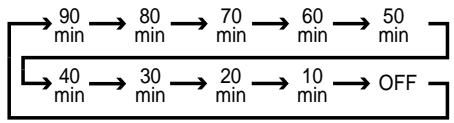
When the programmed sleep time has elapsed, the unit will automatically turn off. Note that the front panel indicators and displays will dim to one-half brightness when the Sleep function is programmed. To cancel the Sleep function, press the Sleep Button 10 as many times as needed for the Lower Display Line 30 to display the SLEEP OFF message, at which time the front panel displays will return to normal brightness..
When you will be away from home for an extended period of time it is always a good idea to completely turn the unit off with the front-panel Main Power Switch 1.
NOTE: All preset memories are lost if the unit is left turned off by using the Main Power Switch 1 for more than four weeks.
Source Selection
To select a source, press any of the Source Selector Buttons 5 7 39 on the remote.
-
The input source may also be changed by pressing the front-panel Input Source Selector 16. Each press of the button will move the input selection through the list of available inputs.
-
As the input is changed, the AVR 130 will automatically switch to the digital input (if selected), surround mode, output levels and night mode status that were entered during the configuration process for that source, as well as any speaker settings established by using the INDIVIDUAL Bass Management setting.
-
The front-panel Video 3 Inputs 2122 may be used to connect your cable television converter or satellite receiver, or you may connect a device such as a video game or camcorder to your home entertainment system on a temporary basis.
-
When the input is changed to one with a digital audio source, the Lower Display Line 30 will temporarily display detailed information regarding the bitstream data for the source in use. For PCM sources, the message will show the bit rate, while for Dolby Digital and DTS sources the display will show the channel information data for the number of front/surround/LFE channels present in the incoming data.
-
When an audio source is selected, the last video input used remains routed to the Video 1 Audio/Video 24 and S-Video Outputs 18. This allows you to listen to an audio input such as the tuner while watching one of the video inputs. This also allows you to choose a video source and then select the 6-Channel Direct Input 20 as the audio source.
-
When a Video source is selected, the video signal for that input will be routed to the Video Monitor 21 and S-Video Monitor 15 Outputs, as well as to the Video 1 Audio/Video 24 and S-Video Outputs 13 and will be viewable on a TV monitor connected to the AVR 130.
Volume Control
- Adjust the volume to a comfortable level using the front-panel Volume Control 26 or remote Volume Up/Down 37 buttons.
- When listening in one of the Stereo modes with the surround circuits off, the Balance Control 23 may be used to adjust the relative sound output between the front left and right speakers. For all other modes it is important that the Balance Control remain in the "12 o'clock" position in order to assure a proper sound field presentation.
- To temporarily silence all speaker outputs press the Mute Button 40. This will interrupt the output to all speakers and the headphone jack, but it will not affect any recording or dubbing that may be in progress. Press the Mute Button 40 again or adjust the volume to return to normal operation.
- During a listening session you may wish to adjust the Bass Control 20 and Treble Control 24 to suit your listening tastes or room acoustics.
- To set the output of the AVR 130 so that the output is "flat," with the tone controls deactivated, press the Tone Mode Button 5 until the words Tone Out appear momentarily in the Lower Display Line 30. To return the tone controls to an active condition, press the Tone Mode Button 5 until the words Tone In momentarily appear in the Lower Display Line 30.
- For private listening, plug the 1/4 stereo phone plug from a pair of stereo headphones into the front panel Headphone Jack 4. Note that when the headphone's plug is connected, the word HEADPHONE IN will scroll once across the Lower Display Line 30 and all speakers will be silenced. When the headphone plug is removed, the audio feed to the speakers will be restored.
Surround Mode Chart
| MODE | FEATURES |
| Dolby Digital | Available only with digital input sources encoded with Dolby Digital data. It provides up to five separate main audio channels and a special dedicated Low-Frequency Effects channel. |
| DTS | Available only with digital input sources encoded with DTS data. Available on special DVD, LD and audio-only discs, DTS provides up to five separate main audio channels and a special dedicated low-frequency channel. |
| Dolby Pro Logic II Movies Music Pro Logic | Dolby Pro Logic II is the latest version of Dolby Laboratories' benchmark surround technology that decodes full-range, discrete left, center, right, right surround and left surround channels from either matrix surround-encoded programs or conventional stereo sources. The Dolby Pro Logic II Movies mode is optimized for movie soundtracks, while the Pro Logic II Music mode should be used with musical selections. The Dolby Pro Logic mode provides decoding that is identical to the original Dolby Pro Logic processing for those who prefer that presentation. In this mode, the surround channels are fed an identical monaural signal. |
| Logic 7 C Logic 7 M | Logic 7 is an advanced mode that extracts the maximum surround information from either surround-encoded programs or conventional stereo material. The Logic 7 C, or Cinema, mode should be used with any source that contains Dolby Surround or similar matrix encoding. Logic 7 C delivers increased center channel intelligibility, and more accurate placement of sounds with fades and pans that are much smoother and more realistic than with other decoding techniques. The Logic 7 M, or Music, mode should be used with analog or PCM stereo sources. Logic 7 M enhances the listening experience by presenting a wider front soundstage and greater rear ambience. Both Logic 7 modes also direct low-frequency information to the subwoofer (if installed and configured) to deliver maximum bass impact. |
| Dolby 3 Stereo | Uses the information contained in a surround-encoded or two-channel stereo program to create center channel information. In addition, the information that is normally sent to the rear-channel surround speakers is carefully mixed in with the front-left and front-right channels for increased realism. Use this mode when you have a center channel speaker but no surround speakers. |
| Theater | The Theater mode creates a sound field that resembles the acoustic feeling of a standard live-performance theater. |
| Hall 1 Hall 2 | The two Hall modes create sound fields that resemble a small (Hall 1) or medium-sized (Hall 2) concert hall. |
| VMAx Near VMAx Far | When only the two front-channel loudspeakers are used, Harman's patented VMAx mode delivers a three-dimensional sound space with the illusion of "phantom speakers" at the center and surround positions. The VMAx N, or Near Field, mode should be selected when your listening position is less than five feet from the speakers. The VMAx F, or Far Field, mode should be selected when your listening position is greater than five feet from the speakers. The VMAx modes are also available using the Headphone Jack 4 When headphones are being used, we recommend the Far Field mode to push the sound field away from your ears, reducing the "inside the head" sensation often experienced when using headphones. |
| 5-Channel Stereo | This mode takes advantage of multiple speakers to place a stereo signal at both the front and back of a room. Ideal for playing music in situations such as a party, it places the same signal at the front-left and surround-left, and front-right and surround-right speakers. The center channel is fed a summed mono mix of the in-phase material of the left and right channels. |
| Surround Off (Stereo) Surround Off (Bypass) DSP Surround Off | These modes turn off all surround processing and present the pure left- and right-channel presentation of two-channel stereo programs. The Surround Off (Bypass) mode may only be used with analog source inputs, as it preserves the analog format of the audio signal for its entire path of travel through the receiver to the speaker and subwoofer outputs, bypassing all digital processing. Digital bass management is not available in Surround Off mode. The DSP Surround Off mode can be used with either an analog or digital input, as the signal undergoes digital bass management to optimize the distribution of the low frequencies between the main speakers and a subwoofer. |
Surround Mode Selection
One of the most important features of the AVR 130 is its ability to reproduce a full multichannel surround sound field from digital sources, analog matrix surround-encoded programs and standard stereo programs. In all, a total of 16 listening modes are available on the AVR 130.
Selection of a surround mode is based on personal taste, as well as the type of program source material being used. For example, motion pictures or TV programs bearing the logo of one of the major surround-encoding processes, such as Dolby Surround or Dolby Stereo may be played in either the Dolby Digital, Dolby Pro Logic II or Logic 7 Cinema surround modes depending on the source material.
NOTE: Once a program has been encoded with matrix surround information, it retains the surround information as long as the program is broadcast in stereo. Thus, movies with surround sound may be decoded via any of the analog surround modes such as Pro Logic II or Logic 7, when they are broadcast via conventional TV stations, cable, pay TV and satellite transmission. In addition, a number of made-for-television programs, sports broadcasts, radio dramas and music CDs are also recorded in surround sound. You may view a list of these programs at the Dolby Laboratories Web site at www.dolby.com.
Even when a program is not listed as carrying matrixed surround information, you may find that the Pro Logic II, Logic 7, VMAX and the Hall or Theater modes often deliver enveloping surround presentations through the use of the natural information present in all stereo recordings. For stereo, but not surround programs, we suggest that you experiment with these modes.
Surround modes may be selected from either the front panel or remote.
-
To select a surround mode from the front panel, press the Surround Mode Group Selector Button 7 until the desired group appears. (For example, any Dolby, DTS or Logic 7 mode, or one of the DSP modes such as Theater, Hall or VMAX.) Next, press the Surround Mode Selector Button 8 to choose the specific mode within the desired group. (For example, within the Dolby mode group the options are Dolby Pro Logic, Dolby Pro Logic II Music, Dolby Pro Logic II Movies and Dolby 3 Stereo.)
-
To select a mode from the remote, press any one of the surround mode selector buttons 11232425 28 29 until the desired mode within that group appears in the Lower Display Line 30.
As you select a new surround mode, the choice will appear in both the Lower Display Line 30 and the Surround Mode Indicators 31.
The Dolby Digital and DTS modes may only be selected when a digital input is in use. In addition, when a digital source is present, the AVR 130 will automatically select and switch to the correct mode (Dolby Digital or DTS), regardless of the mode that has been previously selected. For more information on selecting digital sources, see the following section of this manual.
To listen to a program in traditional two-channel stereo, using the front-left and front-right speakers only (plus the subwoofer if installed and configured), follow the instructions shown above for using the remote until SURR OFF appears in the Lower Display Line 30 and both the DSP and Surr Off Surround Mode Indicators 31 are lit. The Stereo-Direct (Bypass) mode is indicated by SURROUND OFF in the Lower Display Line 30 and the Surround Mode Indicators 31 and may only be selected when an analog input is in use.
Digital Audio Playback
Digital audio is a major advancement over older analog matrix surround systems. It delivers five discrete channels: left-front, center, right-front, left-surround and right-surround. Each channel reproduces full frequency range (20Hz to 20kHz) and offers dramatically improved dynamic range and significant improvements to signal-to-noise ratios. In addition, digital systems have the capability to deliver an additional channel that is specifically devoted to low-frequency information. This is the .1" channel referred to when you see these systems described as "5.1". The bass channel is separate from the other channels, but since it is intentionally bandwidth-limited, sound designers have given it that unique designation.
Dolby Digital
Dolby Digital is a standard part of the DVD format. It is also part of the digital broadcasting standard, and is available with most satellite receivers and digital cable boxes, as well as with specially encoded LD discs.
An optional, external RF demodulator is required to use the AVR 130 to listen to the Dolby Digital sound tracks available on laser discs. Connect the RF output of the LD player to the demodulator and then connect the digital output of the demodulator to the Optical or Coaxial Inputs 891819 of the AVR 130. A demodulator is not required for use with DVD players or DTS-encoded laser discs.
DTS
DTS is another digital audio system that is capable of delivering 5.1 audio. Although both DTS and Dolby Digital are digital, they use different methods of encoding the signals, and thus they require different decoding circuits to convert the digital signals back to analog.
DTS-encoded sound tracks are available on select DVD and LD discs, as well as on special audio-only DTS discs. You may use any LD or CD player equipped with a digital output to play DTS-encoded discs with the AVR 130. All that is required is to connect the player's output to either the Optical or Coaxial input on the rear panel 89 or front panel 1819.
In order to listen to DVDs encoded with DTS sound tracks, the DVD player must be compatible with the DTS signal as indicated by a DTS logo on the player's front panel. Early DVD players may not be able to play DTS-encoded DVDs. This does not indicate a problem with the AVR 130, as some players cannot pass the DTS signal through to the digital outputs. If you are in doubt as to the capability of your DVD player to handle DTS discs, consult the player's owner's manual. Some DVD players are shipped with their output set for Dolby Digital only. To ensure that DTS data is being sent to the AVR, please check the setup menu system on your DVD player to make certain that DTS data output is enabled.
Selecting a Digital Source
To utilize either digital mode you must have properly connected a digital source to the AVR 130. Connect the digital outputs from DVD players, HDTV receivers, satellite systems or CD players to the Optical or Coaxial Inputs 891819. In order to provide a backup signal and a source for analog stereo recording, the analog outputs provided on digital source equipment should also be connected to their appropriate inputs on the AVR 130 rear panel (e.g., connect the analog stereo audio output from a DVD to the DVD Audio/Video Inputs 22 on the rear panel when you connect the source's digital outputs).
When playing a digital source such as DVD, first select the source input using the remote or front-panel controls as described on page 21. Next, select the digital source by pressing the Digital Input Selector Button 17 and then using the / Buttons 14 on the remote or the / Buttons 10 on the front panel to choose any of the OPTICAL or COAXIAL inputs, as they appear in the Upper Display Line 29. When the digital source is playing, the AVR 130 will automatically detect whether it is a multichannel Dolby Digital or DTS source, or a conventional PCM signal, which is the standard output from CD players.
Digital Bitstream Indications
When a digital source is playing, the AVR 130 senses the type of bitstream data that is present. Using this information, the correct surround mode will automatically be selected. For example, DTS bitstreams will cause the unit to switch to DTS decoding, and Dolby
Digital bitstreams will enable Dolby Digital decoding. When the unit senses PCM data from CDs or LDs, you may select any of the standard surround modes, including Dolby Pro Logic II or Logic 7. Since the range of available surround modes is dependent on the type of digital data that is present, the AVR 130 uses a variety of indicators to let you know what type of signal is present. These messages will appear shortly after an input or surround mode is changed, and they will remain in the Lower Display Line 30 for about five seconds before that portion of the display returns to the normal surround mode indication.
Surround Mode Types
For Dolby Digital and DTS sources, a three-digit indication will appear, showing the number of channels present in the data. An example of this type of display is 3/2/.1.
The first number indicates how many discrete front-channel signals are present.
- A "3" tells you that separate front-left, center and front-right signals are available. This will be displayed for Dolby Digital 5.1 and DTS 5.1 programs.
- A "2" tells you that separate front-left and -right signals are available, but there is no discrete center channel signal. This will be displayed for Dolby Digital bitstreams that have stereo program material.
- A "1" tells you that there is only a mono channel available in the Dolby Digital bitstream.
The middle number indicates how many discrete surround channel signals are present.
- A "2" tells you that separate surround-left and -right signals are available. This will be displayed for Dolby Digital 5.1 and DTS 5.1 programs.
- A "1" tells you that there is only a single surround-encoded surround channel. This will appear for Dolby Digital bitstreams that have matrix encoding.
- A "0" indicates that there is no surround channel information. This will be displayed for two-channel stereo programs.
The last number indicates if there is a discrete Low-Frequency Effects (LFE) channel. This is the ".1" in the common abbreviation of "5.1" sound; it is a special channel that contains only bass frequencies.
- A ".1" tells you that an LFE channel is present. This will be displayed for Dolby Digital 5.1 and DTS 5.1 programs, as available.
- A "0" indicates that there is no LFE channel information available. However, even when there is no dedicated LFE channel, low-frequency sound will be present at the subwoofer output when the speaker configuration is set to show the presence of subwoofer.
When Dolby Digital 3/2/.1 or DTS 3/2/.1 signals are
being played, the AVR will automatically switch to the proper surround mode, and no other processing may be selected. When a Dolby Digital signal with a 3/1/0 or 2/0/0 signal is detected, you may select any of the Dolby surround modes.
It is always a good idea to check the readout for the channel data to make certain that it matches the audio logo information shown on the back of a DVD package. In some cases you will see an indication for "2/0/0" even when the disc contains a full 5.1, or 3/2/.1, signal. When this happens, check the audio output settings for your DVD player or the audio menu selections for the specific disc being played to make certain that the player is sending the correct signal to the AVR.
PCMPlaybackIndications
PCM is the abbreviation for Pulse Code Modulation, which is the type of digital signal used for standard CD playback, and other non-Dolby Digital and non-DTS digital sources such as Mini-Disc. When a PCM signal is detected, the Lower Display Line 30 will briefly show a message with the letters PCM, in addition to a readout of the sampling frequency of the digital signal.
In most cases this will be 48kHz , though in the case of specially mastered, high-resolution audio discs you will see a 96kHz indication.
The AVR 130 also features channel-input indicators that tell you how many channels of digital information are being received and/or whether the digital signal is interrupted.
These indicators are the L/C/R/SL/SR/LFE letters that are inside the center boxes of the Speaker/Channel Input Indicators 28 on the front panel. When a standard analog signal is in use, only the "L" and "R" indicators will light, as analog signals have only left and right channels, respectively.
Digital signals, however, may have two, five or six separate channels, depending on the program material, the method of transmission and the way in which it was encoded. When a digital signal is playing, the letters in these indicators will light in response to the specific signal being received. It is important to note that although Dolby Digital, for example, is referred to as a "5.1" system, not all Dolby Digital DVDs or programs are encoded with 5.1 channels. Thus, it is sometimes normal for a DVD with a Dolby Digital soundtrack to trigger only the "L" and "R" indicators.
Again, remember that some DVD discs are recorded with both "5.1" and "2.0" versions of the same soundtrack. When playing a DVD, always be certain to check the type of material on the disc. Most discs show this information in the form of a listing or icon on the back of the disc jacket. When a disc does offer multiple soundtrack choices, you may have to make some adjustments to your DVD player (usually with the "Audio Select" button or in a menu screen on the disc) to send a full 5.1 feed to the AVR 130. It is also possible for the type of signal feed to change during the course of a DVD playback. In some cases, the previews of special material will only be recorded in 2.0 audio, while the main feature is available in 5.1 audio. As long as your DVD player is set for 6-channel output, the AVR 130 will automatically sense changes to the bitstream and channel count and reflect them in these indicators.
The letters used by the Speaker/Channel Input Indicators 28 also flash to indicate when a bitstream has been interrupted. This will happen when a digital input source is selected before the playback starts, or when a digital source such as a DVD is paused. The flashing indicators remind you that the playback has stopped due to the absence of a digital signal and not through any fault of the AVR 130. This is normal, and the digital playback will resume once the playback is started again.
Night Mode
A special feature of Dolby Digital is the Night mode, which enables Dolby Digital input sources to be played back with full dialogue intelligibility while reducing the minimum peak level by 1/4 to 1/3 . This prevents abruptly loud transitions from disturbing others, without reducing the impact of the digital source. The Night mode is available only when Dolby Digital signals with special data are being played.
The Night Mode may be engaged when a properly encoded Dolby Digital DVD is in use by pressing the Night Mode Button 12. When the button is first pressed, a D-RANGE OFF message will appear in the Lower Display Line 30 to show the current status of the mode.
To change the Night Mode setting, press the Night Mode Button 12 or the / Buttons 14 to scroll through the choices of MID or MAX compression. Choose the setting that provides the best dynamic range, which is to say, the one that retains the best difference between the loudest and softest sounds without compromising either intelligibility at a given low volume level.
IMPORTANT NOTES ON DIGITAL PLAYBACK:
- When the digital playback source is stopped, or in a Pause, Fast Forward or Chapter Search mode, the digital audio data will momentarily stop, and the channel position letters inside the Speaker/ Channel Input Indicators 28 will flash. This is normal and does not indicate a problem with either the AVR 130 or the source machine. The AVR 130 will return to digital playback as soon as the data is available and when the machine is in a standard play mode.
- Although the AVR 130 will decode the digital audio tracks on most DVD movies, CDs and HDTV sources, some digital sources or surround techniques may not be compatible with the AVR 130.
- Not all digitally encoded programs contain full 5.1-channel audio. Consult the program guide that accompanies the DVD or laser disc to determine which type of audio has been recorded on the disc. The AVR 130 will automatically sense the type of digital surround encoding used and adjust to accommodate it.
- When some digital sources are playing, you may not be able to select some of the analog surround modes such as Dolby Pro Logic II, Dolby 3 Stereo, Hall, Theater or Logic 7.
- When a Dolby Digital or DTS source is playing, it is not possible to make an analog recording using the Tape 2 and Video 1 Audio Outputs 24. However, the digital signals will be passed through to the Optical 13 and Coaxial 14 Digital Audio Outputs.
- Playback from PCM sources may also benefit from the Logic 7 Mode. When playing back a surround-encoded PCM source, such as an LD or surround-encoded CD, use the Logic 7 C or Cinema mode. When playing true stereo recordings, use the Logic 7 M or Music mode for a wider soundstage and increased rear-channel ambience.
Tuner Operation
The AVR 130's tuner is capable of tuning AM, FM and FM Stereo broadcast stations. Stations may be tuned manually, or they may be stored as favorite station presets and recalled from a 30-position memory.
Station Selection
- Press the AM/FM Tuner Select Button 7 on the remote to select the tuner as an input. The tuner may be selected from the front panel by either pressing the Input Source Selector 16 until the tuner is active or by pressing the Tuner Band Selector 11.
- Press the AM/FM Tuner Select Button 7 or Tuner Band Selector 11 again to switch between AM and FM so that the desired frequency band is selected.
- Press the Tuner Mode Button 17 to select manual or automatic tuning.
When the button is pressed so that AUTO appears in the Lower Display Line 30, each press of the Tuning Selectors 921 will put the tuner in a scan mode that seeks the next higher or lower frequency station with acceptable signal strength. An AUTO ST TUNED indication will momentarily appear when the station stops at a stereo FM station, and an AUTO TUNED indication will momentarily appear when an AM or monaural FM station is tuned. Press the Tuning buttons again to scan to the next receivable station.
When the button is pressed so that MANUAL appears in the Lower Display Line 30, each tap of the Selector will increase or decrease the frequency by one increment. When the tuner receives a strong enough signal for adequate reception, MANUAL TUNED will appear in the Lower Display Line 30.
- Stations may also be tuned directly in either the automatic or manual mode. To enter a station's frequency directly, first select the AM or FM band as desired by pressing the Tuner Band Select Button 711. Next, press the Direct Button 20. Within five seconds of when DIRECT IN scrolls in the Upper Display Line 29, enter the station frequency by pressing the Numeric Keys 13. If you press an incorrect button while entering a direct frequency, press the Clear Button 32 to start over.
NOTE: When the FM reception of a station is weak, audio quality will be increased by switching to Mono mode by pressing the Tuner Mode Button 1719 so that MANUAL appears momentarily in the Lower Display Line 30. This will also activate manual tuning mode.
Preset Tuning
Using the remote, up to 30 stations may be stored in the AVR 130's memory for easy recall using the frontpanel controls or the remote.
To enter a station into the memory, first tune the station using the steps outlined above. Then:
- Press the Memory Button 33 on the remote. Two underscore lines will appear at the far right side of the Upper Display Line 29 will flash.
- Within five seconds, press the Numeric Keys corresponding to the location where you wish to store this station's frequency. Once entered, the preset number will appear in the Upper Display Line 29.
- Repeat the process after tuning any additional stations to be preset.
Recalling Preset Stations
- To manually select a station previously entered in the preset memory, press the Numeric Keys 18 that correspond to the desired station's memory location.
- To manually tune through the list of stored preset stations one by one, press the Preset Stations Selector Buttons 14 31 on the front panel or remote.
Tape Recording
In normal operation, the audio or video source selected for listening through the AVR 130 is sent to the record outputs. This means that any program you are watching or listening to may be recorded simply by placing machines connected to the Tape Outputs 2 or Video 1 Audio/Video or S-Video Outputs 1824 in the Record mode.
When a digital audio recorder is connected to the Optical 13 or Coaxial 14 Digital Audio Outputs, you may record the digital signal using a CD-R, MiniDisc or other digital recording system.
NOTES ON RECORDING:
- The AVR 130 converts analog inputs to a PCM digital signal, enabling you to record the material on a CD or MD recorder connected to one of the AVR 130's Digital Audio Outputs 134. The digital recorder must be compatible with the output signal. For example, the PCM digital input from a CD player may be recorded on a CD-R or MiniDisc, but Dolby Digital or DTS signals may not.
- Please make certain that you are aware of any copyright restrictions on any material you copy. Unauthorized duplication of copyrighted materials is prohibited by federal law.
Output Level Trim Adjustment
Normal output level adjustment for the AVR 130 is established using the test tone, as outlined on pages 18 and 19. In some cases, however, it may be desirable to adjust the output levels using program material such as a test disc, or a selection you are familiar with. Additionally, the output level for the subwoofer can only be adjusted using this procedure.
To adjust the output levels using program material, first set the reference volume for the front-left and front-right channels using the Volume Control 2637
Once the reference level has been set, press the Channel Select Button 25 13 and note that FRONT L LEVEL will appear in the Lower Display Line 30. To adjust the front left channel level, press the Set Button 15 12 and then press the / Buttons 14 to raise or lower the level as necessary. Press the Set Button 15 12 again to enter the level into the AVR's memory.
To adjust another channel position, press the / Buttons 14 until the channel position name appears in the Lower Display Line 30 and then repeat the process shown above.
Repeat the procedure as needed until all channels requiring adjustment have been set. When no further adjustments are made for five seconds, the AVR 130 will return to normal operation.
NOTES:
- The output levels may be separately trimmed for each digital and analog surround mode. If you wish to have different trim levels for a specific mode, select that mode and then follow the instructions in the steps shown earlier.
- In Surround Off DSP mode, only the front-left, front-right and subwoofer channels may be trimmed. It is not possible to trim the output levels in the Surround Off (Bypass) mode, since the digital circuitry used for output-level trimming are not available in that mode.
The AVR 130 is equipped for use with DVD-Audio or SACD Players, or other products that include their own onboard digital decoders for formats that the AVR 130 may not be capable of processing. When connections are made to the 6-Channel Direct Inputs 20, you may select that device by pressing the 6-Ch Direct Input Selector 39 The 6-Channel Direct input may also be selected by pressing the Input Source Selector Button 16 on the front panel until CH DIRECT appears in the Upper Display Line 29, and the Input Indicator 27 for 6 CH lights.
When the 6-Channel Direct input is in use, you may not select a surround mode, as the external decoder determines processing. In addition, there is no signal at the record outputs when the 6-Channel Direct input is in use.
Memory Backup
This product is equipped with a memory backup system that preserves the system configuration information and tunes preset if the unit is accidentally unplugged or subjected to a power outage. This memory will last for approximately four weeks, after which time all information must be reentered.
Display Brightness
The AVR 130's front-panel display lines and indicators are set at a default brightness that is sufficient for viewing in a normally lit room. However, in some home theater installations, you may wish to occasionally lower the brightness of the display or turn it off completely.
To change the display brightness, press the Dim Button 8. The display lines and indicators will dim to half brightness, and then go completely off. Note that the Power Indicator 2 will remain lit at normal brightness to remind you that the unit is still turned on.
Once the desired brightness level is selected, it will remain in effect until it is changed again or until the unit is turned off.
The AVR 130 is equipped with a powerful remote control that will control both the receiver's functions and most popular brands of audio and video equipment, including CD players, cassette decks, TV sets, cable boxes, VCRs, satellite receivers and other home theater equipment. Once the AVR 130's remote is programmed with the codes for the products you own, it is possible to eliminate most other remotes and replace them with the convenience of a single, universal remote control.
As shipped from the factory, the remote is fully programmed for all AVR 130 functions, as well as those of most Harman Kardon CD changers, DVD players, CD recorders, CD players and cassette decks. In addition, by following one of the methods below, you may program the remote to operate a wide range of devices from other manufacturers.
Direct Code Entry
This method is the easiest way to program your remote to work with different products.
- Use the tables in the following pages to determine the three-digit code or codes that match both the product type printed on the remote above the Input Selector (e.g., VCR, TV), and the specific brand name. If there is more than one number for a brand, make note of the different choices.
- Turn on the unit you wish to program into the AVR 130 remote.
- Press and hold both the Input Selector 5 for the product you wish to control (e.g., VCR, TV) and the Mute Button 40 at the same time. When the Program Indicator 3 turns amber and begins flashing, and the Input Selector 5 turns red, release the buttons. It is important that you begin the next step within 20 seconds.
NOTE: Be certain that the device you are attempting to program is connected to the corresponding input jacks. For example, you may only program the codes for a VCR or PVR device such as a TiVo® to the VID1/VCR Input Selector 5, only TVs and projectors to the VID2/TV Input Selector 5, only cable and satellite set-tops to the VID3/CBL/SAT Input Selector 5, and so forth.
- Point the AVR 130's remote towards the unit to be programmed and enter the first three-digit code number using the Numeric Keys 18. The Program Indicator 3 will change to a flashing green to indicate that a code has been entered. If the unit turns off, the correct code has been
entered. Press the Input Selector 5 again, and note that the red light will flash three times before going dark to confirm the entry.
- If the device to be programmed into the remote does NOT turn off, continue to enter three-digit code numbers until the equipment turns off. At this point, the correct code has been entered. Press the Input Selector 5 again and note that the red light under the Input Selector 5 will flash three times before going dark to confirm the entry.
- Try all of the functions on the remote to make certain that the product operates properly. Keep in mind that many manufacturers use a number of different combinations of codes, so it is a good idea to make certain that not only the power control, but the volume, channel and transport controls work as they should. If functions do not work properly, you may need to use a different remote code.
- If a code cannot be entered to turn the unit off, if the code for your product does not appear in the tables in this manual, or if not all functions operate properly, try programming the remote with the Auto Search Method.
Auto Search Method
If the unit you wish to include in the AVR 130's remote is not listed in the code tables in this manual or if the code does not seem to operate properly, you may wish to program the correct code using the Auto Search method that follows:
- Turn on the unit that you wish to include in the AVR 130 remote.
-
Press the Input Selector 5 for the type of product to be entered (e.g., VCR, TV) and the Mute Button 40 at the same time. Hold both buttons until the red light under the Input Selector 5 stays lit and the Program Indicator 3 turns amber and begins flashing. Note that the next step must take place while the red light is on, and it must begin within 20 seconds after the light appears.
-
Point the AVR 130 remote toward the unit to be programmed and press either the or Button 14. The Program Indicator ③ will change to a flashing green to indicate that a code has been entered. Each press will send out a three-digit code from the remote's built-in database. When the unit being programmed turns off, release the or Button 14, as that is your indication that the correct code is in use.
-
Press the Input Selector 5, and note that the red light under the Input Selector will flash three times before going dark to confirm the entry.
- Try all of the functions on the remote to make certain that the product operates. Keep in mind that many manufacturers use a number of different combinations of codes, and it is a good idea to make certain that not only the power control works, but also that the volume, channel and transport controls function properly. If all functions do not work properly, you may need to Auto-Search for a different code, or enter a code via the Direct Code Entry method.
Code Readout
When the code has been entered using the Auto Search method, it is always a good idea to find out the exact code so that it may be easily reentered if necessary. You may also read the codes to verify which device has been programmed to a specific Control Selector button.
- Press and hold both the Input Selector 5 for the device for which you wish to find the code and the Mute Button 40 at the same time. Note that the Program Indicator 3 will initially turn amber. Release the buttons and begin the next step within 20 seconds.
- Press the Set Button 15. The Program Indicator 3 will then blink green in a sequence that corresponds to the three-digit code, with a one-second pause between digits. Count the number of blinks between pauses to determine the digit of the code. One blink is the number 1, two blinks indicate the number 2, and so forth, while 10 blinks are used to indicate a "0."
Example: One blink, followed by a one-second pause, followed by six blinks, followed by a one-second pause, followed by 10 blinks indicates that the code has been set to 160.
For future reference, enter the Setup Codes for the equipment in your system here:
DVD CD
VID1/VCR VID2/TV
VID3/CBL/SAT TAPE
Macro Programming
Macros enable you to easily repeat frequently used combinations of commands with the press of a single button on the AVR 130 remote control. Once programmed, a macro will send out up to 19 different remote codes in a predetermined sequential order, enabling you to automate the process of turning on your system, changing devices, or other common tasks. The AVR 130 remote can store up to five separate macro command sequences: one that is associated with the Power On Button 4, and four more that are accessed by pressing the Macro Buttons 22.
- Press the Mute Button 40 and the Macro Button 22 to be programmed or the Power On Button 4 at the same time. Note that the last Input Selector 5 pressed will light red, and the Program Indicator 3 will flash amber.
- Enter the steps for the macro sequence by pressing the button for the actual command step. Although the macro may contain up to 19 steps, each button press, including those used to change devices, counts as a step. The Program Indicator will flash green to confirm each button press as you enter commands.
NOTE: When entering commands for Power On/Off of any device during a macro sequence, press the Mute Button 40 for a Power On command. The Power Off Button 1 should be used for Power Off commands.
3. When all the steps have been entered, press the Sleep Button to enter the commands. The Program Indicator will flash green three times and then turn off.
Example: To program the Macro 1 Button 22 so that it turns on the AVR 130, TV and a Cable Box, follow these steps:
After following these steps, each time you press the Macro 1 Button 22 , the remote will send the Power On/Off command to the AVR 130, the television and the cable box with a single button press.
Erasing Macro Commands
To erase the commands that have been programmed into one of the Macro buttons, follow these steps:
- Press the Mute Button 40 and the Macro Button 22 that contains the commands you wish to erase.
- The Program Indicator 3 will flash amber, and the LED under the AVR Selector 6 will turn red.
- Within 10 seconds, press the Surround Mode Selector/Channel Down Button
- The red LED under the AVR Selector 6 will go out, and the Program Indicator 3 will turn green and flash three times before it goes out.
- When the Program Indicator 3 goes out, the Macro has been erased.
Programmed Device Functions
Once the AVR 130's remote has been programmed for the codes of other devices, press the appropriate Input Selector to change the remote from controlling the AVR 130 to controlling the additional product. When you press any one of the selectors, it will briefly flash in red to indicate that you have changed the device being controlled.
When operating a device other than the AVR 130, the controls may not correspond exactly to the function printed on the remote or button. Some commands, such as the Volume Control, are the same as they are with the AVR 130. Other buttons will change their function so that they correspond to a secondary label on the remote. For example, the Sleep and Surround mode selector buttons also function as the Channel Up and Channel Down buttons when operating most TV sets, VCRs or cable boxes. The Channel Up/Down indication is printed directly on the remote. For many standard CD players, cassette decks, VCRs and DVD functions, the standard function icons are printed on top of the buttons.
For some products, however, the function of a particular button does not follow the command printed on the remote. In order to see which function a button
controls, consult the Function List tables on pages 31 and 32 To use those tables, first check the type of device being controlled (e.g., TV, VCR). Next, look at the remote control diagram pictured just before the Function List tables. Note that each button has a number on it.
To find out what function a particular button has for a specific device, find the button number on the Function List and then look in the column for the device you are controlling. For example, button number 51 is the Macro 2 button for the AVR 130, but it is the "Favorite" button for many cable television boxes and satellite receivers. Button number 30 is the Delay button for the AVR 130, but the Time Display button for CD players.
NOTE: The numbers used to describe the button functions in the diagram on page 30 for the purposes of describing how a button operates are a different set of numbers than those used in the rest of this manual to describe the button functions for the AVR 130.
Notes on Using the AVR 130 Remote With Other Devices
- Manufacturers may use different code sets within the same product category, such as TV sets or VCRs. They may also change codes for a certain category from one model year to the next. For that reason, it is important that you check to see whether the code set you have entered operates as many controls as possible. If it appears that only a few functions operate, check to see whether another code set will work with more buttons.
- When a button is pressed on the AVR 130 remote, the red light under the Input Selector for the product being operated should flash briefly. If the Device Control Selector flashes for some but not all buttons for a particular product, it does NOT indicate a problem with the remote but rather that no function is programmed for the button being pushed.
Punch-Through Programming
The AVR 130's remote may be programmed to control one device, such as a TV, while simultaneously directing only certain functions to another device, such as the transport controls of a DVD player, without having to switch back and forth between inputs. You may also use the remote to control the system volume on the AVR without the need to switch between different devices. This is called "Punch-Through," and this section will show you how to program the remote for these functions.
NOTE: All programming for the remote codes needed to operate specific devices, such as a TV, DVD, cable box, satellite receiver or VCR, should be completed before programming punch-through commands.
Volume Punch-Through
The AVR 130's remote may be programmed to operate the Volume Control 37 and Mute 40 functions of either the TV or the AVR 130 in conjunction with any of the devices controlled by the remote. For example, since the AVR 130 will likely be used as the sound system for TV viewing, you may wish to have the AVR 130's volume activated, although the remote is set to run the TV. Either the AVR 130 or TV volume control may be associated with any of the remote's devices. To program the remote for Volume Punch-Through, follow these steps:
- Press the Input Selector ⑤ for the unit you will be using (e.g., TV) when you wish to have Volume Punch-Through to your audio system active and the Mute Button ④ at the same time until the red light appears under the Input Selector ⑤ and note that the Program Indicator ③ will flash amber.
- Press the Volume Up Button 37 and note that the Program Indicator 3 will stop flashing and stay amber.
- Press either the AVR Selector 6 or the Input Selector 5, depending on which system's volume control you wish to have attached for the punch-through mode. The Program Indicator 3 will blink green three times and then go out to confirm the data entry.
Example: To have the AVR 130's volume control activated even though the remote is set to control the TV, first press the VID2/TV Input Selector and the Mute Button at the same time. Next, press the Volume Up Button, followed by the AVR Input Selector
NOTE: Should you wish to return the remote to the original configuration after entering a Volume Punch-Through, you will need to repeat the steps shown above. However, press the same Input Selector in Steps 1 and 3.
Channel Control Punch-Through
The AVR 130's remote may be programmed to operate so that the channel control function for either the TV, cable or satellite receiver used in your system may be used in conjunction with one of the other devices controlled by the remote. For example, while using and controlling the VCR, you may wish to change channels on a cable box or satellite receiver without having to change
the device selected by the AVR 130 or the remote. To program the remote for Channel Control Punch-Through, follow these steps:
- Press the Input Selector Button 5 for the device you will be using (e.g., VCR) when you wish to have Channel Punch-Through active and the Mute Button 40 at the same time until the red light appears under the Input Selector 5 and the Program Indicator 3 flashes amber.
- Press the Volume Down Button 37 . The Program Indicator 3 will stop flashing and stay amber.
- Press and release the Input Selector Button 5 for the device that will be used to change the channels. The Program Indicator 3 will blink green three times and then go out to confirm the data entry.
Example: To control the channels using your Cable Box or Satellite Receiver while the remote is set to control the VCR, first press the VID1/VCR Input Selector Button 5 and the Mute Button 40 at the same time. Next, release them and press the Volume Down Button 37, followed by the VID2/TV Input Selector Button 5.
NOTE: To remove the Channel Control Punch-Through and return the remote to its original configuration, repeat the steps shown above. However, press the same button in Steps 1 and 3.
Transport Control Punch-Through
The AVR 130's remote may be programmed to operate so that the Transport Control Functions (Play, Stop, Fast Forward, Rewind, Pause and Record) for a VCR, cassette deck, DVD or CD will operate in conjunction with one of the other devices controlled by the remote. For example, while using and controlling the TV, you may wish to start or stop your VCR without having to change the device selected by the AVR 130 or the remote. Note, however, that the remote is factory preset so that the Transport Controls are programmed with the codes for Harman Kardon DVD players, and no further programming is required to use a Harman Kardon DVD player when the AVR controls are active after the AVR Selector has been pressed. To program the remote for Transport Control Punch-Through, follow these steps:
-
Press the Input Selector ⑤ for the device you will be using (e.g., TV) when you wish to have Transport Control Punch-Through active and the Mute Button ④ at the same time until the red light appears under the Input Selector ⑤ and the Program Indicator ③ flashes amber.
-
Press the Play Button 27. The Program Indicator 3 will stop flashing and stay amber.
- Press and release the Input Selector Button 5 for the device whose transport mechanism will be controlled (e.g., DVD, CD). The Program Indicator ③ will blink green three times and then go out to confirm the data entry.
Example: To control the transport of a VCR while the remote is set to control the TV, first press the VID2/TV Input Selector 5 and the Mute Button 40 at the same time. Next, release them and press the Play Button 27, followed by the VID1/VCR Input Selector 5.
NOTE: To remove the Channel Control Punch-Through and return the remote to its original configuration, repeat the steps shown above. However, press the same button in Steps 1 and 3.
Resetting the Remote Memory
As you add components to your home theater system, occasionally you may wish to totally reprogram the remote control without the confusion of any commands, macros or "Punch-Through" programming that you may have done. To do this, it is possible to reset the remote to the original factory defaults and command codes by following these steps. Note, however, that once the remote is reset, all commands or codes that you have entered will be erased and will need to be reentered:
- Press any of the Input Selector Buttons 5 and the "O" Button 18 at the same time until the Program Indicator 3 begins to flash amber.
- Press the "3" Button 18 three times.
- The red LED under the Input Selector 5 will go out and the Program Indicator 3 will stop flashing and turn green.
- The Program Indicator 3 will remain green until the remote is reset. Note that this may take a while, depending on how many commands are in the memory and need to be erased.
- When the Program Indicator 3 goes out, the remote has been reset to the factory settings.
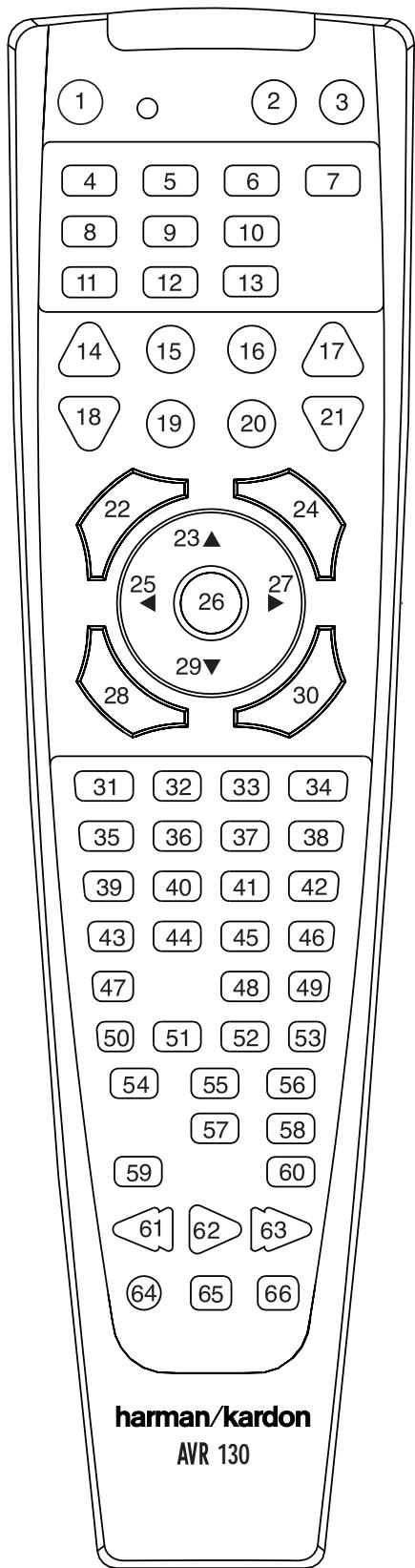
The diagram on this page shows the button numbers used in the Function List tables on pages 31-32. Do not confuse these numbers with those used throughout the rest of this manual to indicate the specific buttons used to operate the AVR 130's functions. The key to those button numbers, which are shown inside an oval, is found on page 9.
| No. | Button Name | AVR Function | DVD | CD/CD-R | Tape | VCR (VID1) | TV (VID1) | CBL (VID3) | SAT (VID3) |
| 1 | Power On | Power On | Power On | Power On | Power On | Power On | Power On | Power On | Power On |
| 2 | Power Off | Power Off | Power Off | Power Off | Power Off | Power Off | Power Off | Power Off | Power Off |
| 3 | Mute | Mute | Mute | Mute | Mute | Mute | Mute | Mute | Mute |
| 4 | AVR | AVR Select | | | | | | | |
| 5 | DVD | DVD Input Select | DVD Select | | | | | | |
| 6 | CD | CD Input Select | | CD Select | | | | | |
| 7 | Tape | Tape Input Select | | | Tape Select | | | | |
| 8 | VID1 | Video 1 Select | | | | VCR Select | | | |
| 9 | VID2 | Video 2 Select | | | | | TV Select | | |
| 10 | VID3 | Video 3 Select | | | | | | VID3 Select | |
| 11 | Dim | Dim | | | | | | | |
| 12 | AM/FM | Tuner Select | | | | | | | |
| 13 | 6 CH Input Select | 6 Ch Input Selector | | | | | | | |
| 14 | Sleep | Sleep | | | | | Channel + | Channel + | Channel + |
| 15 | Test | Test Tone | | Input Select | | | | | |
| 16 | T/V | | TV/DVD | CDP Select | | TV/VCR | TV/VCR | TV/Cable | TV/Sat |
| 17 | Volume Up | Volume Up | | Input Level Up | | Volume Up | Volume Up | Volume Up | Volume Up |
| 18 | Surround Select | Surround Mode Select | | CDR Select | | Channel - | | Channel - | Channel - |
| 19 | Night | Night Mode Select | | | | | | | |
| 20 | Spare | | | | | | | | |
| 21 | Volume Down | Volume Down | | Input Level Down | | | Volume Down | Volume Down | Volume Down |
| 22 | Channel/Guide | Channel Trim | Title | | | | | Info/Guide | Info/Guide |
| 23 | ▲ | Move/Adjust Up | Up | | | Up | Up | Up | Up |
| 24 | Speaker/Menu | Speaker Adjust | Menu | | | Menu | Menu | Menu | Menu |
| 25 | ← | Move/Adjust Left | Left | | | Left | Left | Left | Left |
| 26 | Set | Set | Enter | | | Enter | Enter | Enter | Enter |
| 27 | ▶ | Move/Adjust Right | Right | | | Right | Right | Right | Right |
| 28 | Digital/Exit | Digital Input Select | Subtitle | | | Exit | Exit | Exit | Exit |
| 29 | ▼ | Move/Adjust Down | Down | | | Down | Down | Down | Down |
| 30 | Delay/Prev. Ch. | Delay Adjust | Return | Time | | | Prev Channel | Prev Channel | Prev Channel |
| 31 | 1 | 1 | 1 | 1 | | 1 | 1 | 1 | 1 |
| 32 | 2 | 2 | 2 | | | 2 | 2 | 2 | 2 |
| 33 | 3 | 3 | 3 | | | 3 | 3 | 3 | 3 |
| 34 | 4 | 4 | 4 | | | 4 | 4 | 4 | 4 |
| 35 | 5 | 5 | 5 | | | 5 | 5 | 5 | 5 |
| 36 | 6 | 6 | 6 | | | 6 | 6 | 6 | 6 |
| 37 | 7 | 7 | 7 | | | 7 | 7 | 7 | 7 |
| 38 | 8 | 8 | 8 | | | 8 | 8 | 8 | 8 |
| 39 | Tun-M | Tuner Mode | | | | | | | |
| 40 | 9 | 9 | 9 | | | 9 | 9 | 9 | 9 |
| 41 | 0 | 0 | 0 | | | 0 | 0 | 0 | 0 |
| 42 | Memory | Memory | | | | | | | |
| 43 | Tune Up | Tune Up | Next Chapter | | | | | | |
| 44 | Direct | Direct Tuner Entry | | Track Direct | | | | | |
| 45 | Clear | Clear | Clear | Clear | | Clear | Clear | Clear | Clear |
| 46 | Preset Up | Preset Tune Up | Slow Forward | | | | | | |
| 47 | Tune Down | Tune Down | Prev Chapter | Track Increment | | | | | |
| 48 | D. Skip | | Disc Skip | Disc Skip | | | | | |
| 49 | Preset Down | Preset Tune Down | Slow Rev | Intro Scan | | | | | |
| 50 | M1 | | Open/Close | Open/Close | | Cancel | Sleep | PPV | Cancel |
| 51 | M2 | | Subtitle On/Off | Repeat | | | | Fav | Fav |
| 52 | M3 | | Audio Select | Random Play | | | | Bypass | Next |
| 53 | M4 | | Angle Select | | | | | Music | Alt |
| 54 | Dolby | Dolby Mode Select | | | | | | | |
| 55 | DTS Surr | DTS 5.1 Select | | | | | | | |
| 56 | DTS Neo:6 | DTS Neo:6 Select | | | | | | | |
| 57 | Logic 7 | Logic 7 Select | | | | | | | |
| 58 | Stereo | Stereo Mode Select | | | | | | | |
| 59 | Skip Down | | Skip - | Skip - | | Scan - | | Page - | Page - |
| 60 | Skip Up | | Skip + | Skip + | | Scan + | | Page + | Page + |
| 61 | Rewind | | R. Search | R. Search | Rewind | Rewind | | Day - | Day - |
| 62 | Play | | Play | Play | Play | Play | | | |
| 63 | Fast Forward | | F. Search | F. Search | Fast Fwd | Fast Fwd | | Day + | Day + |
| 64 | Record | | | Record | Record | Record | | | |
| 65 | Stop | | Stop | Stop | Stop | Stop | | | |
| 66 | Pause | | Pause | Pause | Pause | Pause | | | |
| Manufacturer/Brand | Setup Code Number |
| AIWA | 027 | | | | | | | | | | |
| A MARK | 122 | 132 | | | | | | | | | |
| ADMIRAL | 192 | | | | | | | | | | |
| AKAI | 123 | 160 | | | | | | | | | |
| AMPRO | 164 | | | | | | | | | | |
| ANAM | 045 | 106 | 109 | 112 | 122 | | | | | | |
| AOC | 122 | 123 | 128 | | | | | | | | |
| BLAUPUNKT | 084 | | | | | | | | | | |
| BROKSONIC | 205 | 206 | | | | | | | | | |
| CANDLE | 123 | 128 | | | | | | | | | |
| CAPEHART | 059 | | | | | | | | | | |
| CENTURION | 123 | 171 | | | | | | | | | |
| CENTRONIC | 045 | | | | | | | | | | |
| CITIZEN | 045 | 123 | 128 | 132 | | | | | | | |
| CLASSIC | 045 | | | | | | | | | | |
| CONCERTO | 128 | | | | | | | | | | |
| CONTEC | 045 | | | | | | | | | | |
| CORANDO | 172 | | | | | | | | | | |
| CORONADO | 132 | | | | | | | | | | |
| CRAIG | 045 | 157 | 158 | 159 | | | | | | | |
| CROWN | 045 | 132 | | | | | | | | | |
| CURTIS MATHES | 123 | 128 | 132 | | | | | | | | |
| CXC | 045 | | | | | | | | | | |
| DAEWOO | 045 | 087 | 102 | 105 | 106 | 108 | 111 | 114 | 116 | 119 | 127 128 132 |
| DAYTRON | 128 | 132 | | | | | | | | | |
| DIGI LINK | 200 | | | | | | | | | | |
| DYNASTY | 045 | | | | | | | | | | |
| DYNATECH | 063 | | | | | | | | | | |
| ELECTROHOME | 115 | 132 | | | | | | | | | |
| EMERSON | 045 | 123 | 128 | 132 | 139 | 157 | 158 | 159 | 162 | 205 | |
| FUNAI | 045 | | | | | | | | | | |
| FUTURETECH | 045 | | | | | | | | | | |
| GE | 029 | 087 | 121 | 123 | 128 | 133 | 145 | 159 | 163 | | |
| GOLD STAR/LG | 101 | 110 | 122 | 128 | 132 | | | | | | |
| GRUNDIG | 193 | | | | | | | | | | |
| HALL MARK | 128 | | | | | | | | | | |
| HARMAN KARDON | 201 | | | | | | | | | | |
| HITACHI | 123 | 128 | 132 | 144 | 147 | | | | | | |
| INFINITY | 148 | | | | | | | | | | |
| INKEL | 120 | | | | | | | | | | |
| JBL | 148 | | | | | | | | | | |
| JC PENNEY | 115 | 123 | 128 | 132 | 145 | | | | | | |
| JENSEN | 019 | | | | | | | | | | |
| JVC | 079 | 087 | 134 | | | | | | | | |
| KAWASHO | 173 | | | | | | | | | | |
| KEC | 045 | | | | | | | | | | |
| KENWOOD | 123 | 204 | | | | | | | | | |
| KMC | 132 | | | | | | | | | | |
| KTV | 045 | 123 | 132 | 162 | | | | | | | |
| LLOYTRON | 172 | 173 | | | | | | | | | |
| LODGENET | 069 | | | | | | | | | | |
| Manufacturer/Brand | Setup Code Number |
| LOGIK | 069 | | | | | | | |
| LUXMAN | 128 | | | | | | | |
| LXI | 077 145 148 | | | | | | | |
| MAGNAVOX | 030 123 128 132 145 148 | | | | | | | |
| MARANTZ | 115 123 148 | | | | | | | |
| MATSUI | 148 | | | | | | | |
| MEMOREX | 069 128 | | | | | | | |
| METZ | 084 | | | | | | | |
| MGA | 115 123 128 | | | | | | | |
| MINERVA | 084 | | | | | | | |
| MITSUBISHI | 077 115 123 128 160 167 168 | | | | | | | |
| MTC | 175 176 | | | | | | | |
| NATIONAL | 148 177 179 180 181 182 | | | | | | | |
| NEC | 115 121 123 125 | | | | | | | |
| NIKEI | 045 | | | | | | | |
| ONKING | 045 | | | | | | | |
| ONWA | 045 | | | | | | | |
| OPTONICA | 077 | | | | | | | |
| ORION | 207 208 209 210 211 | | | | | | | |
| PANASONIC | 087 148 169 | | | | | | | |
| PHILCO | 045 115 123 128 132 148 | | | | | | | |
| PHILIPS | 033 034 035 036 123 128 132 145 148 | | | | | | | |
| PIONEER | 024 123 128 | | | | | | | |
| PORTLAND | 128 132 | | | | | | | |
| PROSCAN | 133 | | | | | | | |
| PROTON | 059 122 128 132 165 | | | | | | | |
| QUASAR | 032 087 | | | | | | | |
| RADIO SHACK | 045 128 132 180 196 197 | | | | | | | |
| RCA | 021 115 123 128 133 145 161 163 | | | | | | | |
| REALISTIC | 045 167 196 | | | | | | | |
| RUNCO | 152 153 | | | | | | | |
| SAA | 183 | | | | | | | |
| SAMPO | 059 123 128 | | | | | | | |
| SAMSUNG | 020 022 124 128 132 145 | | | | | | | |
| SANYO | 026 054 | | | | | | | |
| SCOTT | 045 128 132 | | | | | | | |
| SEARS | 128 132 145 | | | | | | | |
| SHARP | 077 128 132 | | | | | | | |
| SIEMENS | 084 | | | | | | | |
| SIGNATURE | 069 | | | | | | | |
| SONY | 028 031 117 130 136 194 212 | | | | | | | |
| SOUNDESIGN | 045 128 | | | | | | | |
| SPECTRICON | 122 | | | | | | | |
| SSS | 045 | | | | | | | |
| SYLVANIA | 025 123 128 145 148 | | | | | | | |
| SYMPHONIC | 184 | | | | | | | |
| TANDY | 077 | | | | | | | |
| TATUNG | 063 | | | | | | | |
| TECHNICS | 181 | | | | | | | |
| TECHWOOD | 128 | | | | | | | |
| Manufacturer/Brand | Setup Code Number |
| TEKNIKA | 045 | 069 | 115 | 123 | 128 | 132 |
| TELERENT | 069 | | | | | |
| TERA | 156 | | | | | |
| THOMSON | 190 | 191 | | | | |
| TMK | 128 | | | | | |
| TOSHIBA | 063 | 129 | 202 | | | |
| TOTEVISION | 132 | | | | | |
| VIDEO CONCEPTS | 160 | | | | | |
| VIDTECH | 128 | | | | | |
| WARD | 069 | 128 | 132 | 148 | | |
| YAMAHA | 123 | 128 | | | | |
| YORK | 128 | | | | | |
| YUPITERU | 045 | | | | | |
| ZENITH | 069 | 090 | | | | |
| ZONDA | 122 | | | | | |
SETUP CODE TABLE: VCR
| Manufacturer/Brand | Setup Code Number |
| AIWA | 040 |
| AKAI | 048 108 109 126 |
| AMPRO | 076 |
| ASA | 134 |
| AUDIO DYNAMICS | 018 048 |
| BROKSONIC | 110 147 |
| CANDLE | 134 135 |
| CANON | 135 140 |
| CAPEHART | 094 |
| CITIZEN | 134 |
| CRAIG | 045 116 |
| DAEWOO | 017 094 104 |
| DAYTRON | 094 |
| DBX | 018 048 |
| DYNATECH | 040 |
| EMERSON | 013 040 042 110 112 |
| FISHER | 017 |
| FUNAI | 040 |
| GE | 076 095 124 |
| GO VIDEO | 113 |
| GOLD STAR/LG | 018 107 |
| HARMAN KARDON | 018 049 |
| HITACHI | 040 048 |
| JC PENNEY | 018 045 |
| JENSEN | 048 |
| JVC | 018 048 111 132 |
| KENWOOD | 020 048 |
| LLOYD | 040 |
| LXI | 020 040 |
| MAGIN | 045 |
| MAGNAVOX | 040 |
| Manufacturer/Brand | Setup Code Number |
| MARANTZ | 018 | | | | | | |
| MEMOREX | 017 | 020 | 040 | 052 | 053 | 054 | 076 |
| MGA | 049 | | | | | | |
| MITSUBISHI | 049 | 131 | | | | | |
| MULTITECH | 040 | | | | | | |
| NAD | 139 | | | | | | |
| NATIONAL | 140 | | | | | | |
| NEC | 018 | 048 | | | | | |
| NORDMENDE | 048 | | | | | | |
| OPTIMUS | 159 | | | | | | |
| ORION | 147 | | | | | | |
| PANASONIC | 125 | 150 | 167 | 172 | | | |
| PHILCO | 040 | | | | | | |
| PHILIPS | 040 | 075 | | | | | |
| PORTLAND | 094 | | | | | | |
| PULSAR | 076 | | | | | | |
| OUASAR | 001 | 125 | | | | | |
| RADIO SHACK | 055 | 134 | 140 | 142 | 158 | 159 | |
| RCA | 095 | 124 | 125 | 157 | 172 | | |
| REALISTIC | 017 | 020 | 040 | 045 | 159 | | |
| SALORA | 020 | | | | | | |
| SAMSUNG | 045 | 051 | 095 | 105 | 109 | | |
| SANSUI | 048 | 116 | 147 | | | | |
| SANYO | 017 | 020 | | | | | |
| SCOTT | 110 | 112 | | | | | |
| SEARS | 017 | 020 | | | | | |
| SHARP | 129 | 156 | | | | | |
| SONY | 080 | 129 | | | | | |
| SOUNDESIGN | 040 | | | | | | |
| SYLVANIA | 040 | | | | | | |
| SYMPHONIC | 040 | | | | | | |
| TANDY | 017 | 040 | | | | | |
| TASHICO | 134 | | | | | | |
| TATUNG | 048 | | | | | | |
| TEAC | 040 | 048 | | | | | |
| TEKNIKA | 040 | | | | | | |
| THOMAS | 040 | | | | | | |
| TIVO | 012 | | | | | | |
| TMK | 013 | | | | | | |
| TOSHIBA | 112 | 155 | | | | | |
| TOVEVISION | 045 | | | | | | |
| UNITECH | 045 | | | | | | |
| VECTOR RESEARCH | 018 | | | | | | |
| VIDEO CONCEPTS | 018 | 040 | | | | | |
| VIDEOSONIC | 045 | | | | | | |
| WARDSS | 040 | 045 | 112 | | | | |
| YAMAHA | 018 | 040 | 048 | | | | |
| ZENITH | 040 | 050 | 076 | 083 | | | |
| Manufacturer/Brand | Setup Code Number |
| ADCOM | 063 | 069 | | | | | | |
| AIWA | 072 | 111 | 118 | 156 | 170 | | | |
| AKAI | 050 | 177 | 184 | | | | | |
| AUDIO TECHNICA | 053 | | | | | | | |
| AUDIOACCESS | 125 | | | | | | | |
| AUDIOFILE | 211 | | | | | | | |
| BSR | 044 | | | | | | | |
| CALIFORNIA AUDIO | 109 | | | | | | | |
| CAPETRONIC | 070 | | | | | | | |
| CARRERA | 087 | | | | | | | |
| CARVER | 136 | 140 | 141 | 143 | 144 | 145 | 185 | 186 |
| CASIO | 117 | 166 | | | | | | |
| CLARINETTE | 166 | | | | | | | |
| DENON | 187 | 188 | 213 | | | | | |
| EMERSON | 052 | 093 | 108 | | | | | |
| FISHER | 055 | 095 | | | | | | |
| FRABA | 117 | | | | | | | |
| FUNAI | 126 | | | | | | | |
| GE | 164 | | | | | | | |
| GENEXXA | 108 | | | | | | | |
| GOLD STAR/LG | 016 | 087 | | | | | | |
| HAITAI | 099 | 214 | | | | | | |
| HARMAN KARDON | 001 | 002 | 025 | 054 | 190 | | | |
| HITACHI | 093 | | | | | | | |
| INKEL | 216 | | | | | | | |
| JC PENNEY | 098 | 147 | | | | | | |
| JENSEN | 153 | | | | | | | |
| JVC | 176 | 195 | 196 | | | | | |
| KENWOOD | 030 | 062 | 078 | 079 | 148 | 151 | 176 | 178 181 |
| LOTTE | 108 | | | | | | | |
| LUXMAN | 077 | 102 | | | | | | |
| LXI | 164 | | | | | | | |
| MAGNAVOX | 039 | 113 | | | | | | |
| MARANTZ | 058 | 084 | 191 | 192 | 193 | | | |
| MCINTOSH | 194 | | | | | | | |
| MCS | 080 | 098 | | | | | | |
| MITSUMI | 152 | | | | | | | |
| MODULAIRE | 166 | | | | | | | |
| NAD | 013 | 074 | 197 | 198 | | | | |
| NAKAMICHI | 199 | 200 | 201 | | | | | |
| NEC | 069 | | | | | | | |
| NIKKO | 053 | 055 | | | | | | |
| ONKYO | 037 | 038 | 045 | 046 | 171 | 175 | 202 | 203 |
| OPTIMUS | 065 | 089 | 091 | 092 | 099 | 104 | 212 | |
| PANASONIC | 075 | 109 | 119 | 158 | 183 | 204 | | |
| PHILIPS | 039 | 138 | 149 | 209 | | | | |
| PIONEER | 071 | 094 | 100 | 112 | 123 | 131 | 161 | 162 215 |
| PROTON | 210 | | | | | | | |
| QUASAR | 109 | | | | | | | |
| RADIO SHACK | 126 | 166 | 213 | | | | | |
| RCA | 024 | 081 | 093 | 150 | | | | |
| Manufacturer/Brand | Setup Code Number |
| RCX | 169 | | | | | | | | | | | |
| REALISTIC | 058 | 093 | 095 | 104 | 105 | 108 | 164 | 166 | | | | |
| SANSUI | 047 | 081 | 134 | 157 | 172 | | | | | | | |
| SANYO | 033 | 082 | 095 | | | | | | | | | |
| SCOTT | 108 | | | | | | | | | | | |
| SHARP | 058 | 105 | 114 | 151 | 159 | 167 | 180 | 181 | | | | |
| SHERWOOD | 003 | 041 | 058 | 105 | 133 | | | | | | | |
| SONY | 103 | 115 | 116 | 118 | 132 | 139 | 163 | 205 | 206 | 207 | 208 | 212 |
| SOUNDSTREAM | 124 | | | | | | | | | | | |
| SYMPHONIC | 059 | 110 | | | | | | | | | | |
| TAEKWANG | 177 | | | | | | | | | | | |
| TEAC | 011 | 058 | 085 | 086 | 106 | 107 | 110 | 121 | 137 | 146 | 154 | |
| THETA DIGITAL | 039 | | | | | | | | | | | |
| TOSHIBA | 013 | 074 | 097 | 151 | 155 | 173 | | | | | | |
| VECTOR RESEARCH | 087 | | | | | | | | | | | |
| VICTOR | 120 | 130 | | | | | | | | | | |
| WARD5 | 095 | | | | | | | | | | | |
| YAMAHA | 019 | 031 | 053 | 061 | 135 | 169 | | | | | | |
| YORK | 166 | | | | | | | | | | | |
SETUP CODE TABLE: DVD
| Manufacturer/Brand | Setup Code Number |
| APEX DIGITAL | 061 |
| DENON | 019 051 |
| GE | 003 004 |
| GOLD STAR/LG | 005 |
| HARMAN KARDON | 001 |
| JVC | 006 |
| LG | 005 055 064 066 |
| MAGNAVOX | 056 |
| MARANTZ | 059 |
| MITSUBISHI | 023 |
| NAD | 062 |
| ONKYO | 009 048 |
| PANASONIC | 024 030 044 |
| PHILIPS | 056 |
| PIONEER | 041 065 |
| PROCEED | 060 |
| PROSCAN | 003 004 |
| RCA | 003 004 |
| SAMSUNG | 053 054 |
| SHARP | 028 |
| SONY | 043 045 |
| THOMSON | 003 004 |
| TOSHIBA | 009 058 067 |
| YAMAHA | 030 063 |
| ZENITH | 005 055 064 |
| Manufacturer/Brand | Setup Code Number | | | |
| ALPHASTAR | 472 | | | | | | | | | | | | | | |
| ALPHASTAR DBS | 450 | | | | | | | | | | | | | | |
| ALPHASTAR DSR | 442 | | | | | | | | | | | | | | |
| BIRDVIEW | 425 | | | | | | | | | | | | | | |
| CHANNEL MASTER | 320 | 321 | 325 | 361 | | | | | | | | | | | |
| CHAPARRAL | 315 | 316 | 451 | | | | | | | | | | | | |
| CITOH | 360 | | | | | | | | | | | | | | |
| DRAKE | 313 | 317 | 318 | 413 | 481 | | | | | | | | | | |
| DX ANTENNA | 331 | 352 | 362 | 379 | 483 | | | | | | | | | | |
| ECHOSTAR | 395 | 397 | 452 | 453 | 463 | 477 | 478 | 484 | 485 | | | | | | |
| ELECTRO HOME | 392 | | | | | | | | | | | | | | |
| FUJITSU | 324 | 329 | 334 | | | | | | | | | | | | |
| GENERAL INSTRUMENT | 303 | 311 | 323 | 365 | 403 | 454 | 468 | 474 | | | | | | | |
| HITACHI DBS | 455 | | | | | | | | | | | | | | |
| HOUSTON TRACKER | 463 | | | | | | | | | | | | | | |
| HUGHS | 437 | 489 | | | | | | | | | | | | | |
| JANIEL | 366 | | | | | | | | | | | | | | |
| JERROLD | 454 | 468 | 484 | | | | | | | | | | | | |
| KATHREIN | 410 | | | | | | | | | | | | | | |
| LEGEND | 453 | | | | | | | | | | | | | | |
| MACOM | 317 | 365 | 369 | 370 | 371 | | | | | | | | | | |
| MAGNAVOX | 461 | 473 | | | | | | | | | | | | | |
| MEMOREX | 453 | | | | | | | | | | | | | | |
| NEXTWAVE | 423 | | | | | | | | | | | | | | |
| NORSAT | 373 | | | | | | | | | | | | | | |
| OPTIMUS | 466 | | | | | | | | | | | | | | |
| PACE DSS | 487 | | | | | | | | | | | | | | |
| PANASONIC | 366 | 469 | | | | | | | | | | | | | |
| PANASONIC DBS | 457 | | | | | | | | | | | | | | |
| PANSAT | 420 | | | | | | | | | | | | | | |
| PERSONAL CABLE | 418 | | | | | | | | | | | | | | |
| PHILIPS | 375 | | | | | | | | | | | | | | |
| PICO | 407 | | | | | | | | | | | | | | |
| PRESIDENT | 381 | 404 | | | | | | | | | | | | | |
| PRIMESTAR | 412 | 454 | 468 | 475 | | | | | | | | | | | |
| RCA | 301 | 439 | 465 | 490 | | | | | | | | | | | |
| RCA DSS | 458 | | | | | | | | | | | | | | |
| REALISTIC | 349 | 480 | | | | | | | | | | | | | |
| SAMSUMG | 442 | | | | | | | | | | | | | | |
| SATELLITE SERVICE CO | 335 | 388 | | | | | | | | | | | | | |
| SCIENTIFIC ATLANTA | 339 | | | | | | | | | | | | | | |
| SONY | 405 | | | | | | | | | | | | | | |
| STAR CHOICE DBS | 459 | | | | | | | | | | | | | | |
| STARCAST | 347 | | | | | | | | | | | | | | |
| SUPER GUIDE | 327 | 423 | | | | | | | | | | | | | |
| TEECOM | 330 | 333 | 390 | 391 | 393 | 409 | | | | | | | | | |
| TOSHIBA | 302 | 426 | 460 | 461 | 462 | 470 | | | | | | | | | |
| UNIDEN | 323 | 332 | 348 | 349 | 350 | 351 | 354 | 355 | 381 | 383 | 389 | 403 | 466 | 479 | 480 |
| ZENITH | 384 | 385 | 387 | 394 | 419 | 488 | | | | | | | | | |
Manufacturer/Brand Setup Code Number
SETUP CODE TABLE: CBL
| Manufacturer/Brand | Setup Code Number |
| ABC | 001 011 |
| ALLEGRO | 111 |
| AMERICAST | 212 |
| ARCHER | 112 |
| BELCOR | 113 |
| CABLE STAR | 033 113 |
| CITIZEN | 111 |
| COLOUR VOICE | 085 090 |
| DIGI | 114 |
| EAGLE | 186 |
| EASTERN | 066 070 |
| ELECTRICORD | 039 |
| EMERSON | 112 |
| FOCUS | 116 |
| G.I. | 001 011 017 096 097 |
| GC ELECTRONICS | 113 |
| GEMINI | 032 060 |
| GENERAL | 210 |
| GENERAL INSTRUMENT | 210 |
| GOODMIND | 112 |
| HAMILIN | 056 099 100 101 117 175 208 |
| HITACHI | 001 188 |
| JASCO | 111 |
| JERROLD | 001 002 011 017 073 096 097 162 188 210 |
| LINDSAY | 118 |
| MACOM | 191 |
| MAGNAVOX | 017 019 068 |
| MOVIE TIME | 035 039 |
| NSC | 035 190 |
| OAK | 197 220 |
| PACE | 179 |
| PANASONIC | 053 176 177 189 214 |
| PANTHER | 114 |
| PHILIPS | 013 019 020 085 090 |
| PIONEER | 001 041 119 171 209 215 216 |
| POPULAR MECHANICS | 116 |
| PRELUDE | 120 |
| PRIMESTAR | 162 |
| RADIO SHACK | 111 112 213 |
| RCA | 053 214 |
| RECOTON | 116 |
| REGAL | 056 099 100 101 208 |
| REMBRANT | 032 |
| SAMSUNG | 072 186 |
| SCIENTIFIC ATLANTA | 183 203 221 222 |
| SEAM | 121 |
| SIGNATURE | 001 188 |
| SPRUCER | 053 081 177 189 |
| STARCOM | 002 011 163 |
| STARGATE | 120 |
| TANDY | 024 |
| TELECAPATION | 028 |
| TEXSCAN | 036 |
| TFC | 122 |
| TIMELESS | 123 |
| TOCOM | 170 205 |
| UNITED CABLE | 011 |
| UNIVERSAL | 033 034 039 042 113 |
| VIDEOWAY | 124 211 |
| VIEWSTAR | 019 025 086 089 190 |
| ZENITH | 065 125 211 219 |
| ZENTEK | 116 |
Your AVR 130 receiver has been designed to provide many years of trouble-free service. In the event that you are experiencing difficulties, please check the suggestions below for a possible solution to your problem. Additional information on the AVR 130, including updated information and user hints, is available from our Web site at www.harmankardon.com.
| SYMPTOM | CAUSE | SOLUTION |
| Unit does not function when Main Power Switch 1 is pushed | • No AC Power | • Make certain AC Power Cord 10 is plugged into a live outlet
• Check to see whether outlet is switch-controlled |
| Display lights, but no sound or picture | • Intermittent input connections
• Mute is on
• Volume control is down | • Make certain that all input and speaker connections are secure
• Press Mute Button 40
• Turn up volume control |
| No sound from any speakers | • Amplifier is in protection mode due to possible short
• Amplifier is in protection mode due to internal problems | • Unplug the AC Power Cord 10 and check speaker wire connections for shorts at receiver and speaker ends
• Contact your local Harman Kardon service center, which you can locate by visiting our Web site at www.harmankardon.com |
| No sound from surround or center speakers | • Incorrect surround mode
• Input is monaural
• Incorrect speaker configuration
• Stereo or Mono program material | • Select a mode other than Stereo or Dolby 3 Stereo
• There is no surround information from mono sources
• Check speaker mode configuratioin
• The surround decoder may not create center- or rear-channel information from nonencoded programs |
| Unit does not respond to remote commands | • Weak batteries in remote
• Wrong device selected
• Remote sensor is obscured | • Change remote batteries
• Press the AVR Selector 6
• Make certain front-panel sensor is visible to remote |
| Intermittent buzzing in tuner | • Local interference | • Move unit or antenna away from computers, fluorescent lights, motors or other electrical appliances |
| Letters flash in the channel indicator display and digital audio stops | • Digital audio feed paused | • Resume play for DVD
• Check that appropriate Digital Input is selected |
Processor Reset
In the rare case where the unit's operation or the displays seem abnormal, the cause may involve the erratic operation of the system's memory or microprocessor.
To correct this problem, first unplug the unit from the AC wall outlet and wait at least three minutes. After the pause, reconnect the AC power cord and check the unit's operation. If the system still malfunctions, a system "reset" may clear the problem.
To clear the AVR 130's entire system memory including the tuner presets, output level settings, delay times and speaker configuration data, first put the unit in Standby by pressing the Standby/On Switch 3 so that the Power Indicator 2 turns amber. Next,
press and hold the Tone Mode Button 6 for three seconds.
The unit will reset and then turn on automatically. Once you have cleared the memory in this manner, it is necessary to reestablish all system configuration settings and tuner presets.
The reset will not affect settings that were programmed into the remote control. To reset the remote control and restore it to the factory default settings, please follow the instructions on page 29.
If these steps do not solve the problem, consult an authorized Harman Kardon service center. You can locate the service center nearest to you by visiting our Web site at www.harmankardon.com.
Memory Backup
This product is equipped with a memory backup system that preserves the system configuration information and tunes preset if the unit is accidentally unplugged or subjected to a power outage. This memory will last for approximately four weeks, after which time all information must be reentered.
Audio Section
Stereo Mode
Continuous Average Power (FTC)
55 Watts per channel, @ < 0.07% THD, 20Hz - 20kHz, both channels driven into 8 ohms
Five Channel Surround Modes
Power Per Individual Channel
Front L&R channels:
45 Watts per channel
@ < 0.07% THD, 20Hz-20kHz into 8 ohms
Center channel:
45 Watts @ < 0.07% THD, 20Hz-20kHz into 8 ohms
Surround channels:
45 Watts per channel
@ < 0.07% THD, 20Hz-20kHz into 8 ohms
Input Sensitivity/Impedance
Linear (High-Level) 200mV/47k ohms
Signal-to-Noise Ratio (IHF-A) 100dB
Surround System Adjacent Channel Separation
Pro Logic II 45dB
Dolby Digital (AC-3) 55dB
DTS 55dB
Frequency Response
@1W(+0dB,-3dB) 10Hz-130kHz
High Instantaneous
Current Capability (HCC) ±25 Amps
Transient Intermodulation
Distortion (TIM) Unmeasurable
Slew Rate 40V/μsec
FM Tuner Section
Frequency Range 87.5-108.0MHz
Useable Sensitivity IHF 1.3 V / 13.2dBf
Signal-to-Noise Ratio Mono/Stereo 70dB/68dB
Distortion
Stereo Separation
Selectivity
Image Rejection
IF Rejection
Mono/Stereo 0.2% / 0.3%
40dB @ 1kHz
± 400kHz ,70dB
80dB
90dB
AM Tuner Section
Frequency Range 520-1720kHz
Signal-to-Noise Ratio 45dB
Usable Sensitivity Loop 500 V
Distortion
Selectivity
Video Section
Television Format NTSC
Input Level/Impedance 1Vp-p/75 ohms
Output Level/Impedance 1Vp-p/75 ohms
Video Frequency
Response
10Hz-8MHz (-3dB)
General
Power Requirement AC 120V/60Hz
Power Consumption 68W idle, 540W maximum
(2 channels driven)
Dimensions (Product)
Width 17.3 inches (440mm)
Height 6.6 inches (168mm)
Depth 15 inches (382mm)
(Shipping)
21.5 inches (545mm)
9.9 inches (251mm)
17.9 inches (455mm)
(Product)
Weight 23.8 lb (10.8kg)
(Shipping)
28.2 lb (12.8kg)
Depth measurement includes knobs, buttons and terminal connections.
Height measurement includes feet and chassis.
All features and specifications are subject to change without notice.
Harman Kardon, Power for the Digital Revolution and Logic 7 are registered trademarks of Harman International Industries, Incorporated.
- Manufactured under license from Dolby Laboratories. "Dolby," "Pro Logic" and the Double-D symbol are registered trademarks of Dolby Laboratories. Confidential Unpublished Works.
©1992-1999 Dolby Laboratories, Inc. All rights reserved.
"DTS," "DTS Digital Surround" and "DTS Stereo" are registered trademarks of Digital Theater Systems, Inc.
VMAx is a registered trademark of Harman International Industries, Inc., and is an implementation of Cooper Bauck Transaural Stereo under patent license.
Cirrus is a registered trademark of Cirrus Logic Corp.
TiVo is a registered trademark of TiVo Inc.