
EASYSHARE 5300 - All-in-One Printer KODAK - Free user manual and instructions
Find the device manual for free EASYSHARE 5300 KODAK in PDF.


| Product Type | All-in-one multifunction printer |
| Brand | Kodak |
| Model | EasyShare 5300 |
| Main Functions | Print, scan, copy |
| Print Technology | Thermal inkjet |
| Network | Wi-Fi 802.11 b/g, Ethernet 10/100 |
| Connectivity | USB 2.0, PictBridge, memory card reader |
| Paper Sizes | A4, A5, 10x15 cm, envelopes |
| Power Supply | 220-240 V, 50/60 Hz |
| Power Consumption | 20 W in standby, 70 W while printing |
| Dimensions (WxDxH) | 460 x 380 x 220 mm |
| Weight | 7.5 kg |
| Paper Tray Capacity | 100 sheets |
| Print Resolution | Up to 4800 x 1200 dpi |
| Scan Resolution | 1200 x 2400 dpi |
| Maintenance and Cleaning | Clean print heads using the built-in software; use a soft, dry cloth for the casing |
| Safety | Do not block ventilation openings; unplug before cleaning |
| Spare Parts and Repairability | Kodak ink cartridges, paper tray, power cord |
| General Information | Class B, complies with Canadian ICES-003 |
Frequently Asked Questions - EASYSHARE 5300 KODAK
User questions about EASYSHARE 5300 KODAK
0 question about this device. Answer the ones you know or ask your own.
Ask a new question about this device
Download the instructions for your All-in-One Printer in PDF format for free! Find your manual EASYSHARE 5300 - KODAK and take your electronic device back in hand. On this page are published all the documents necessary for the use of your device. EASYSHARE 5300 by KODAK.
USER MANUAL EASYSHARE 5300 KODAK
Eastman Kodak Company
Rochester, New York 14650
© Eastman Kodak Company, 2007
Kodak and EasyShare are trademarks of Eastman Kodak Company.
Windows is a registered trademark of Microsoft Corporation in the United States and other countries.
The Bluetooth word mark and logos are owned by the Bluetooth SIG, Inc. and any use of such marks is under license.
Wi-Fi® is a registered trademark of the Wi-Fi Alliance.
©1989-2007 I.R.I.S. (Image Recognition Integrated Systems), All Rights Reserved
P/N 1K2099
Table of Contents
Product Overview 1
Main Components 1
Control Panel Layout 2
Status Lights 3
LCD Display Screen 8
Memory Card Slots and USB Port 9
Home Center Software 11
Getting Started 13
Connect Power 13
Install the Printhead 13
Install Ink Cartridges 15
Install the Duplexer 16
Startup 17
18
Demo Sheet 21
Transfer Photos 22
Printer Status 22
Configuring Settings. 24
Handling and Loading Paper 31
The Scanner Glass 31
Load Main Tray 32
Load Photo Tray 34
Load Envelopes 35
Load Labels 36
Print 37
Print Photos from a Camera 38
Print Photos from the Control Panel 38
Index Print 39
Print Photos from a Proofsheet 40
Tagged Photos (DPOF) 40
Bluetooth Printing 41
Panoramic photos 42
Print with Computer. 42
Layouts 42
Setting Print Options 57
Previewing Photos 61
Copy 65
Copy with Control Panel 65
Copy with Computer 73
Scan 77
Scan with Control Panel 77
Scan with Computer 80
Maintenance 109
General Care 109
Clean the Scanner Glass 109
Clean the Scanner Lid. 110
Format Memory Card. 110
Print Diagnostic Sheet 110
Firmware Upgrade 111
Ink Cartridges 111
Printhead 114
Support 119
Contact Kodak. 119
Limited Warranty 119
Telephone Customer Support 121
Messages 123
Troubleshooting 126
Appendix 137
Computer Requirements 137
Paper Types 137
Safety 139
Regulatory Compliance. 140
Glossary 143
Index 145
1 Product Overview
The Kodak EasyShare 5300 All-in-One (AiO) Printer allows you to print, copy, and scan photos or documents. Many functions can be operated directly from the Control Panel. You can print, store, manage, and share your digital photos with family members and friends with the Kodak EasyShare software. You can buy optional accessories to enhance your Kodak EasyShare AiO experience.
Main Components
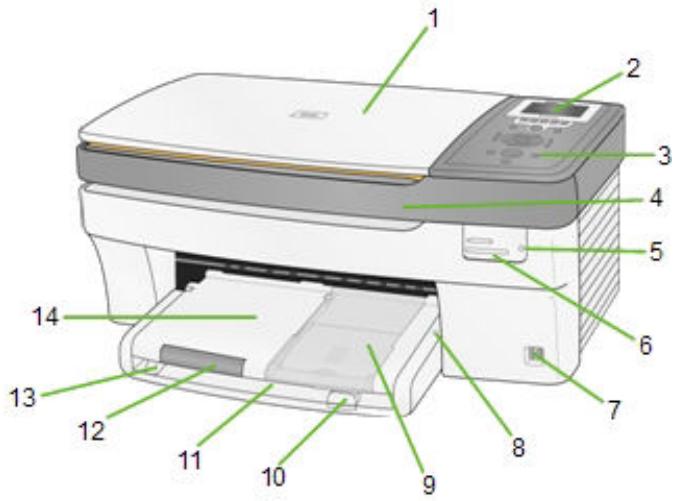
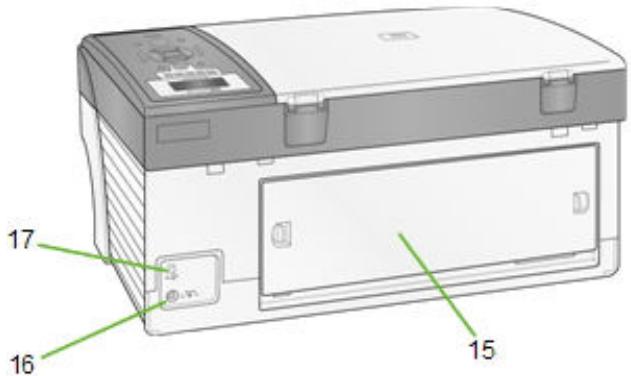
1 Scanner lid
2 LCD display
3 Control panel
4 Printer access door
5 Memory card indicator
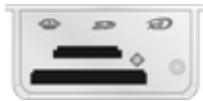
6 Memory card slots
7 USB port
8 Photo tray Light
9 Photo tray
10 Paper-length guide
11 Main tray
12 Output tray extender
13 Paper-width guide
14 Output tray
15 Rear access door
16 Power connector
17 USB port
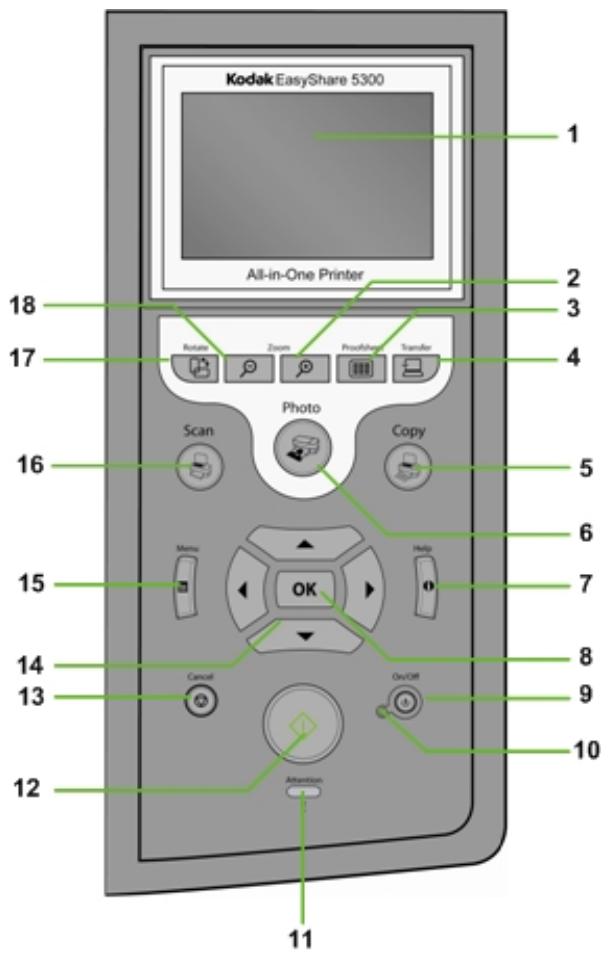
Control Panel Layout
| Number | Name | Description |
| 1 | LCD display | Displays photos, messages, status, and menus. |
| 2 | Zoom + button | When in Photo Preview mode, magnifies the photo to 1.5X. Subsequent presses zoom in 0.5X increments to a maximum of 5X. When in Multiview, displays the current photo in preview mode. |
| 3 | Proofsheet button | When there are pictures on an inserted memory card or connected USB host device, pressing Proofsheet displays the Proofsheet menu. |
| 4 | Transfer button | Transfers images from device connected to a USB host port, PictBridge, or Picture Transfer Protocol (PTP). |
| 5 | Copy button | Press to enter Copy mode. Lit when in Copy mode. |
| 6 | Photo button | Press to enter Print mode. Lit when in Print mode. |
| 7 | Help button | Displays the Help menu. |
| 8 | OK button | Used for selection in conjunction with the 4-way Navigation button. |
| 9 | On/Off button | Turns your EasyShare AiO on or off. |
| 10 | On/Off Light | Green when Starting Up, Ready, or in Standby mode. Flashes red when in an error state. Is not lit when in Sleep mode. |
| 11 | Attention Light | On or flashing for an error or warning condition. |
| 12 | Start button | Starts a copy, print, or scan operation. Flashes when busy. |
| 13 | Cancel button | Cancel the current operation. Lit when Cancel or Setup in progress. |
| 14 | 4-way Navigation button | Used to navigate Up ▲, Down ▼, Left ▏, and Right ▷. |
| 15 | Menu button | Displays the main menu screen. |
| 16 | Scan button | Press to enter Scan mode. Lit when in Scan mode. |
| 17 | Rotate button | Rotates picture on the display, clockwise, 90 degrees. |
| 18 | Zoom — button | When the EasyShare AiO is in Photo Preview mode, pressing enters Multiview. When a photo has been magnified with the Zoom + button, pressing decreases the magnification in 0.5X increments. |
Status Lights
The following tables contain information on the EasyShare AiO lights.
| All Lights on Control Panel | ||
| Light Status | Cause | Action/Solution |
| All lights are off. | The printer is turned off. | Press the On/Off button to turn the printer on. |
| The Printer does not have power applied. | Check the light on the power cord. | |
| The On/Off Light is flashing and the Display has the following message: Kodak EasyShare System Starting Up (Please Wait) The five boxes at the bottom are flash walking left to right. | The Printer is Initializing. | None: Allow the Printer to complete the initialization process. |
| Power Light on Power Cord | ||
| Light Status | Cause | Action/Solution |
| Power cord light is off. | The printer to power supply cord is not properly connected to the Power Supply. | Reseat the printer to power supply cord. |
| The power supply to your wall outlet cord is not properly connected to your wall outlet. | Reseat the Power Supply to your Wall Outlet Cord. | |
| You do not have the appropriate power available at your wall outlet. | Test your wall outlet by plugging a known working device into you wall outlet. Have your wall outlet checked by a qualified electrician. | |
| There may be an issue with the power supply. | Visit Kodak.com for additional troubleshooting steps or contact your local Kodak Call Center. | |
| Power cord light is on. | The power cord and power supply are properly connected and ready to supply power to the printer. | Ensure that the power cord is properly plugged into the back of the printer. |
| On/Off Light | ||
| Light Status | Cause | Action/Solution |
| Light is off. | The printer is turned off. | Press the On/Off button to turn the printer on. |
| The Printer does not have power applied. | Check the light on the power cord. | |
| The printer needs attention. | Check to see if the Photo Tray light is on. If the Photo Tray light is on for more than 20 seconds and the On/Off light does not come on, disconnect the power for 5 seconds and reconnect the power. If the Photo Tray light does not go out after 20 seconds and the On/Off light comes on, contact Kodak for assistance. | |
| Light is a steady green. | The printer is properly powered up, on, and ready. | None |
| Light is a flashing green. | The printer is busy. | None: Normal operation when performing a print, copy, scan, or other job requests. |
| The printer is initializing. | None: Please wait and allow the printer to complete the initialization process (about 30 seconds). If the flashing green persists, you may have an issue with the printer. Visit Kodak.com for additional troubleshooting steps or contact your local Kodak Call Center. | |
| Light is a flashing yellow. | The printer has detected an error condition. | Disconnect power for 5 seconds and reconnect power. If the condition persists, please check the LCD display for additional information. Contact Kodak service for assistance. Also check the status monitor on your computer for a message. |
| Light is a flashing red. | The printer has detected an error condition that needs your attention. | Check the LCD display or status monitor on your computer for a message. |
| Flashing a rotating pattern of red, yellow, and green. | The printer has not detected that a Printhead is installed. | Please install a Printhead and ink cartridges. |
| Photo Tray Status Light | ||
| Light Status | Cause | Action/Solution |
| Photo tray light is Off. | The photo tray is not engaged. | Push the photo tray in to engage if you want to print 4 x 6 inch pictures. |
| The printer is not turned on. | Press the On/Off button to turn the printer on. | |
| Photo tray light is On. | The photo tray is engaged. | Pull the photo tray out to disengage if you do not want to print 4 x 6 inch pictures. |
| The printer is powering up. | None: Please wait and allow the printer to complete the initialization process. If the flashing green persists, you may have an issue with the printer. Visit Kodak.com for additional troubleshooting steps or contact your local Kodak Call Center. | |
| Attention Light | ||
| Light Status | Cause | Action/Solution |
| Light is off. | No Error. | None |
| Light is blinking steady. | Recoverable Error. | Paper jam while printing. Main tray empty. Photo tray empty. Carrier stall during pick. Media size mismatch. Media type mismatch. Paper jam during pick. Carrier stall while printing. Change color ink cartridge. Change black ink cartridge. Color ink cartridge not readable. Black ink cartridge not readable. Change both ink cartridges. Printhead not calibrated. Calibration sheet needs scanning. Calibration sheet not detected. Calibration sheet read error. Back cover removed when idle. Back cover removed while printing. Unit opened when idle. Unit opened during printing. Too many picture sources. Proofsheet not detected. Proofsheet read error. |
| Light is blinking rapidly. | Warning | Color ink cartridge inserted incorrectly. Black ink cartridge inserted incorrectly. Color ink cartridge not installed. Black ink cartridge not installed. Ink cartridges not installed. Printhead not installed. |
| Light is on. | Non-Recoverable Error | Media sensor failure. Printhead failure. Scanner failure. |
| Card Slot Light | ||
| Light Status | Cause | Action/Solution |
| Light is off. | An SD/MMC card is not inserted or is improperly inserted in the card slot. | Remove and reinsert the SD/MMC card. |
| Light is on. | An SD/MMC card is properly inserted in the card slot. | None |
| Light blinks green. | Slow blink: The internal card reader is initializing or communicating with the printer. | None |
| Fast blink: There is a card or communication error. | Remove the card and make sure the card is not “write” protected or damaged. Reinsert the card or replace with a new card if necessary. | |
LCD Display Screen
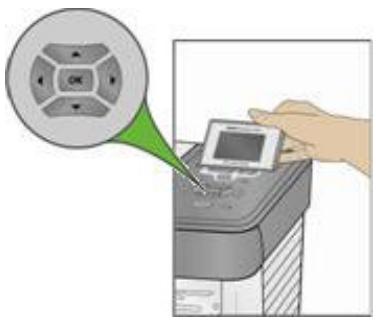
The LCD screen displays photos, messages, instructions, and menu parameters. Menu navigation is accomplished with the 4-way Navigation buttons. The screen is hinged at the back edge and can be positioned from flat on the control panel surface to vertical.
Instructions displayed on photos appear up to four seconds and then disappear, or disappear immediately after you start interacting with the screen. The instructions will return after fifteen seconds of inactivity.
When a second page of display text is present, it is indicated by the down arrow symbol, positioned in the lower right corner of the menu area. When the second or subsequent page of text is in view, the presence of a previous page is indicated by the up arrow symbol in the top of right corner of the menu area.
Each time you press Navigate Down (▼), you advance the highlight down 1 row. When the last row is highlighted, pressing causes page 1 to be replaced with page 2. When page 2 appears, the highlight is on the top row. The up arrow symbol appears at the right edge. If a third page of menu parameters is available, the down arrow symbol appears in the lower right corner. Until the highlight is advanced, pressing Navigate Up (▲) returns you to the previous page. Holding down any of the 4-way Navigation buttons causes them to repeat (scroll).
Default Display Settings
Default settings are provided for each option. If you make changes to the settings, the changes remain as long as you do not change modes. You can save the settings in each mode by navigating to Save Settings and pressing OK. You may reset options to the master defaults by going to the main menu and selecting Reset All Settings.
Photos
The LCD screen displays JPG images when you insert a memory card, camera, or USB device. However, the following images will not be displayed.
File size greater than 8 MB
Image size greater than 12 megapixels
Image colorspace is not sRGB or adobeRGB
Progressive JPEG images
Memory Card Slots and USB Port
Your Kodak EasyShare All-in-One can access the memory cards used in most digital cameras. You can insert the memory card into the EasyShare AiO, or connect your camera directly through one of the two USB ports on the front panel, using a USB cable. Your Kodak EasyShare AiO can read the contents of the memory card while it is still in the camera.
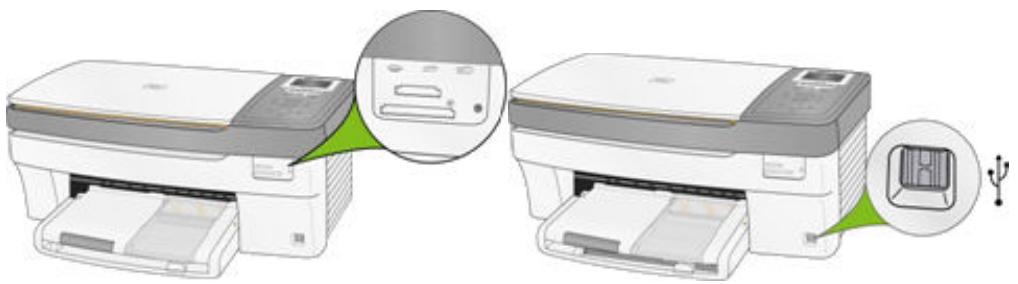
If your EasyShare AiO beeps three times when you plug a device into the USB Port, it means the device is not supported.
Supported Memory Cards
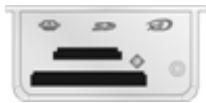
Your Kodak EasyShare AiO can read the following memory cards.
xD-Picture Card
Memory Stick
Memory Stick Pro
Secure Digital Card/MultiMediaCard
- Compact Flash type I and type II, including microdrives
Your EasyShare AiO also supports the following memory cards with Memory Stick and SD/MMC card slot adapters you can purchase.
Memory Stick Duo
miniSD
MicroSD (TransFlash)
The Memory Card light is a green LED located near the memory card slots. It lights whenever you insert a memory card, and flashes while the care is being read. The flashing serves as an indication to not remove the card while it is being read, or written to, which could potentially damage the data on the card.
Home Center Software
The EasyShare AiO Home Center software is an application that runs on the computer. It enables you to copy, scan, and configure your EasyShare AiO from the computer. You can also launch Kodak EasyShare software for transferring, viewing, and working with your digital pictures/videos.
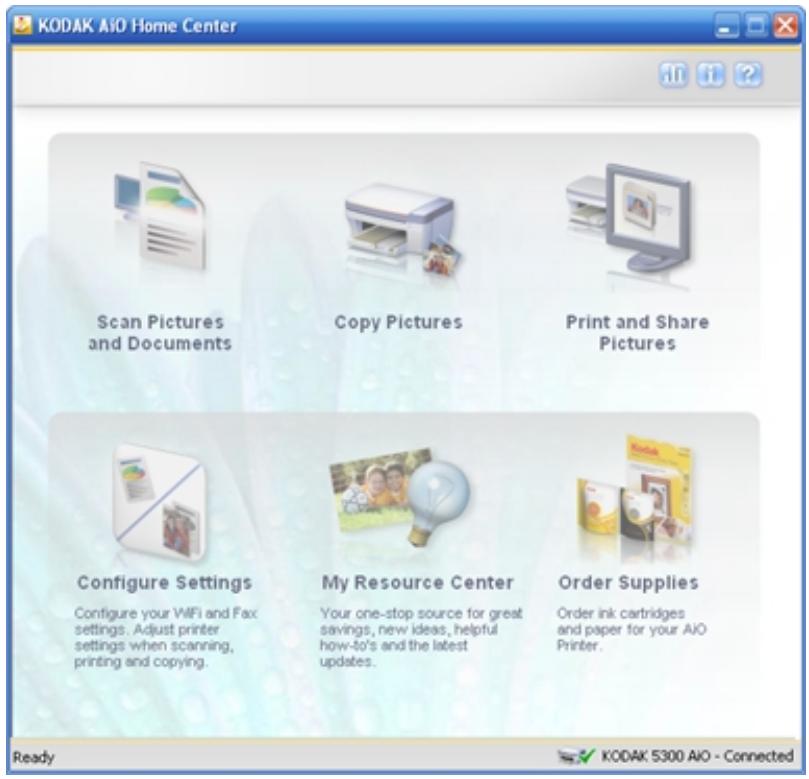
The six large icons on the AiO Home Center main window let you:
Scan Pictures and Documents
Copy Pictures
Print and Share Pictures
- Configure Settings for Printing and Scanning.
Access My Resource Center at Kodak
Order Supplies
There are three small icons in the upper right corner of the window:

Displays the Status Monitor

Displays information about the Kodak AiO Home Center

Displays a Help panel for the Home Center software

Getting Started
It is important to find a good location for your AiO Printer. Place the printer on a clean flat surface, in a dry location, and out of direct sunlight. Make sure the printer has proper ventilation.
Avoid areas where ventilation ducts, open doors, or high traffic might expose the EasyShare AiO and paper to high levels of dust and debris. Airborne particles can affect picture quality.
Allow enough space on all sides of the EasyShare AiO to let you connect and disconnect cables, change the ink cartridges, and remove and load paper.
Connect Power

RISK OF ELECTRICAL SHOCK
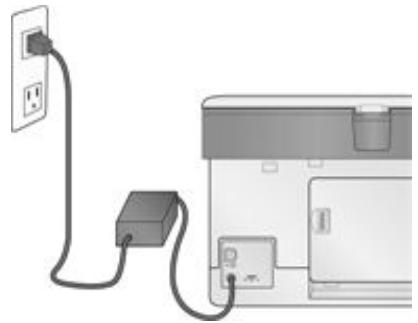
Use only the AC power adapter included with your AiO printer. Other adapters or cords could damage your printer or computer.
1 Connect the printer power cord to the AC power adapter, then to the back of the AiO printer.
2 Plug the AC adapter power cord into a power outlet.
Install the Printhead
The printhead dispenses the ink from the cartridges onto the paper.
1 Make sure the EasyShare AiO is on.
2 Open the printer access door. The carriage moves to a center position.
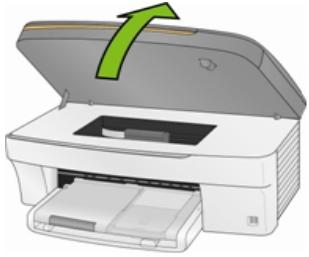
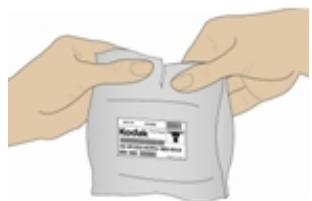
3 Remove the printhead from its bag.
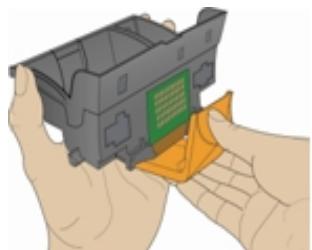
4 Remove and discard the clear plastic casing and the orange protective cap.
5 Place the printhead into the carriage.
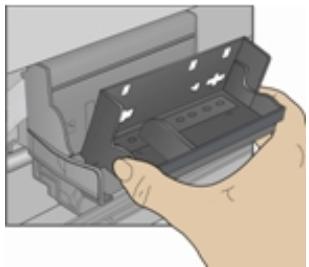
6 Push against the back wall of the printhead until it clicks into place.
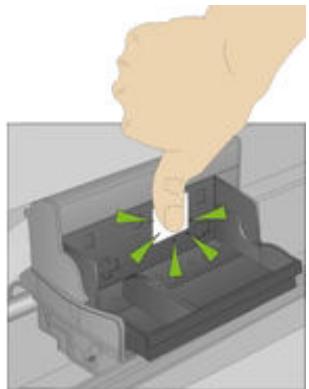
7 Install the ink cartridges.
Install Ink Cartridges
After installing the printhead, you need to install the black and color ink cartridges.
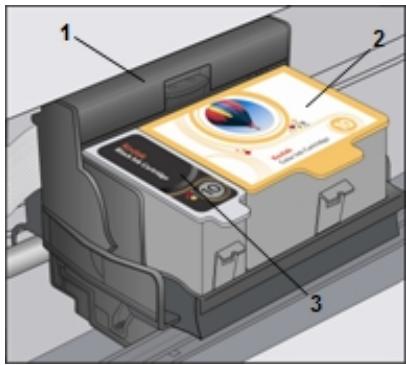
1 Printhead
2 Color ink cartridge
3 Black ink cartridge
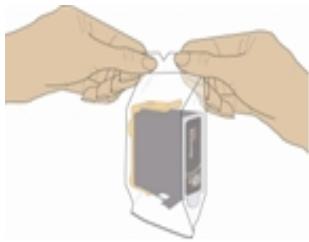
1 Tear open the black ink cartridge bag at the notch and remove the ink cartridge.
IMPORTANT: Insert the ink cartridge immediately to prevent any drying of the ink.
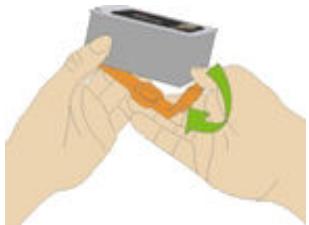
2 Remove and discard the orange cap.
IMPORTANT: Handle ink cartridge carefully to avoid ink transfer.
3 Insert the black ink cartridge into the printhead.
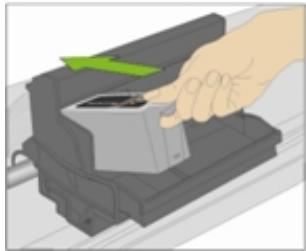
4 Press down on the ink cartridge until you hear it snap into position.
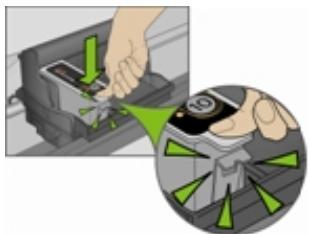
5 Tear open the color ink cartridge bag at the notch and remove the ink cartridge.
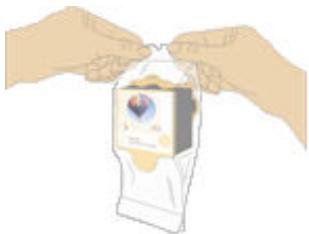
6 Remove and discard the orange cap.
7 Insert the color ink cartridge into the printhead.
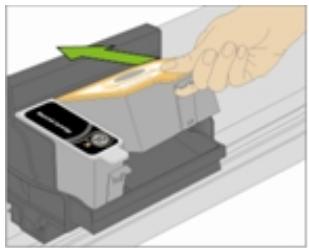
8 Press down firmly on the cartridge until you hear it snap into position.
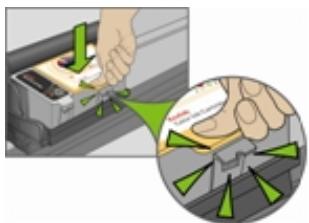
9 Close the printer access door.
NOTE: For the best quality prints, store ink cartridges in a location where the temperature does not exceed 85^ F (30^ C).
Install the Duplexer
The Kodak EasyShare AiO supports an optional duplexer (Kodak EasyShare 5000 Series Two-Sided Printing Accessory) that enables printing on both sides of the paper. When installed, the duplexer is automatically detected by the printer and computer system software.
The duplexer is limited to plain paper. The paper dimensions that can be used are from 6.9 to 8.5 inches (17.5 to 21.6cm ) wide and from 9.8 to 11.7 inches (24.9 to 29.7cm ) long.
You can purchase a duplexer and other accessories for your printer at www.kodak.com/go/accessories.
1 Remove the door on the back of the printer by pressing in on the two latches and pulling out.
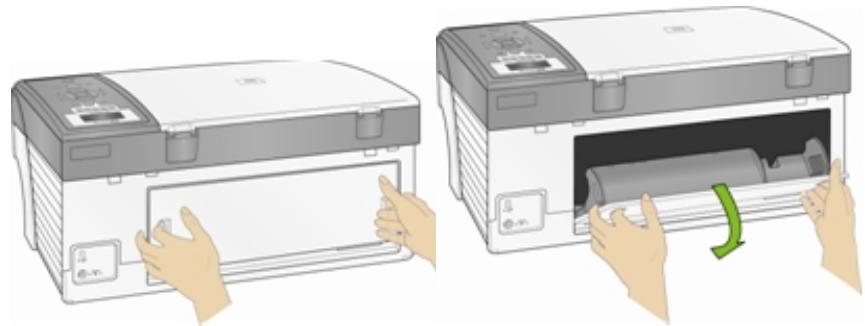
2 Insert the bottom of the duplexer into the printer and press the top in until it clicks.
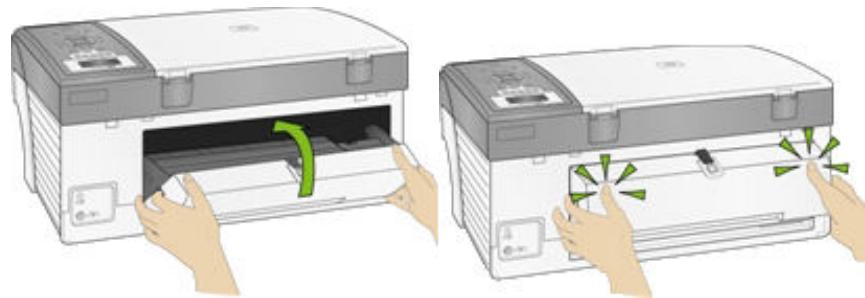
You can control how long the printer waits before a sheet is flipped by the duplexer with the AiO Home Center (See General Settings).
Startup
When you power on your Kodak EasyShare All-in-One, status information is displayed on the LCD. After the startup is complete, the EasyShare AiO enters the Copy mode, unless a photo device is attached. If a photo device is attached or memory card inserted, the EasyShare AiO enters Photo mode.
Menu
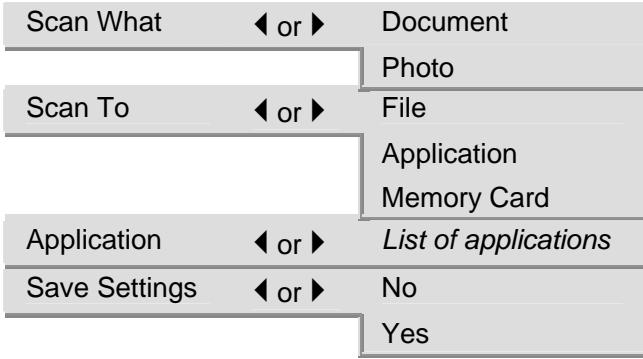
The Kodak EasyShare AiO menus are accessed by the Menu, Photo, Copy, Scan, and Help buttons.
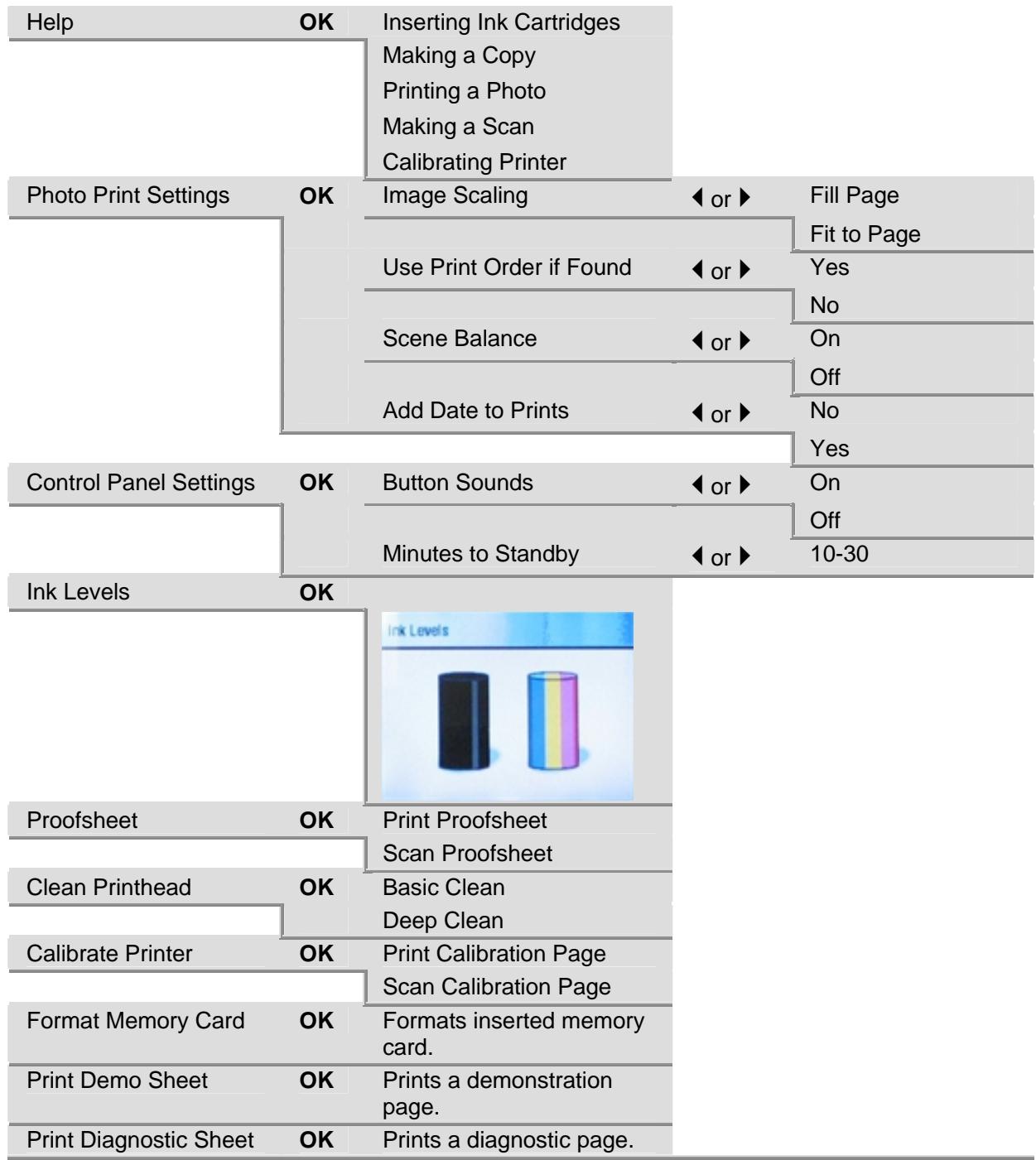
Menu Button
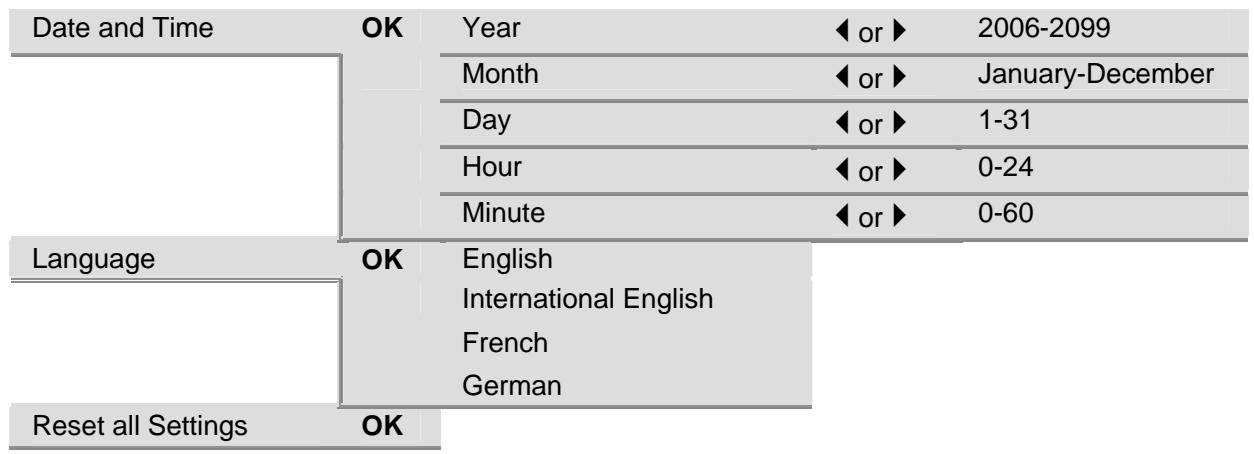
Photo Button
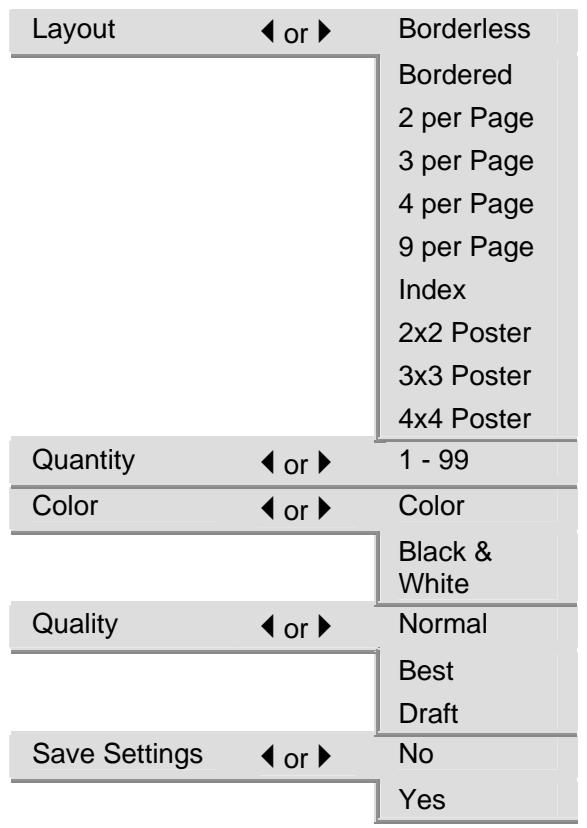
Copy Button
| Quantity | < or > | 1 - 99 |
| Color | < or > | Black & White |
| Color | ||
| Quality | < or > | Normal |
| Draft | ||
| Best | ||
| Output | < or > | Same Size |
| Fit to Page | ||
| Scale Percent | ||
| Photo Layouts | ||
| Size | < or > | Output = Scale Percent |
| 10 - 500 | ||
| Output = Photo Layouts | ||
| Borderless | ||
| Bordered | ||
| 2 per Page | ||
| 3 per Page | ||
| 4 per Page | ||
| 9 per Page | ||
| Index | ||
| 2x2 Poster | ||
| 3x3 Poster | ||
| 4x4 Poster | ||
| Brightness | < or > | -3 to +3 |
| Preview | < or > | No |
| Yes (Photo Layouts only) | ||
| Save Settings | < or > | No |
| Yes |
Scan Button
Help Button
| Installing Ink Cartridges | OK |
| Making a Copy | OK |
| Making a Photo | OK |
| Making a Scan | OK |
| Calibrating Printer | OK |
Demo Sheet
You can print a sample page on US Letter or A4 size paper to evaluate print quality. The Demo Sheet is a single sheet of paper that displays information about the features and capabilities of your EasyShare AiO printer.
You can print a Demo Sheet by pressing the Copy and Photo buttons at the same time.
or
1 Press Menu to display the main menu.
2 Press until Print Demo Sheet is selected.
3 Press OK.
4 Press Start to begin printing.
Transfer Photos
After you take photos with your digital camera, you can print them immediately or save them directly to your computer. You can transfer from memory cards, PTP cameras, and USB mass storage devices.
1 Insert a Memory Card into the appropriate slot or connect a camera to the USB Port.

WARNING:
Never attempt to remove a memory card while it is being accessed. Doing so can damage files on the card. You can safely remove a card only when the status light next to the slots is not blinking.
2 Press Transfer.
3 Press Start to transfer.
4 Complete the transfer with the Transfer dialog on your computer.
Printer Status
The Status Monitor displays printer errors, warnings, operational statuses, ink levels, and printer response.
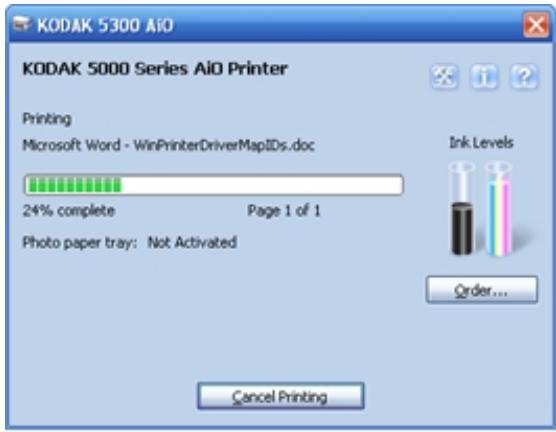
When printing from a PC, the application and name of the file printing are displayed.
Waiting to Print is displayed If a print job is started and your All-in-One is busy with another task.
When printing, a progress bar is displayed graphically showing the status of the print operation.
The percentage complete is displayed under the progress bar indicating the percentage of the print operation complete.
The page number of the current page printing and the total number of pages in the print job is displayed under the progress bar.
Photo paper tray: Status of the photo paper tray.
Ink Levels
The Ink Level icons display the ink levels of the black and color ink tanks. The level shown for the color ink cartridge is the current lowest level for the five colors within the cartridge. Clicking on either icon displays the Ink Levels dialog box.
A Warning icon is displayed over the ink level icon when a low ink condition exists. A Critical icon is displayed over the ink level icon when an out of ink condition exists.
Click Order... to buy supplies from Kodak online.
Errors
If an error occurs, the Status Monitor displays an error message, error correction instructions, and a link to the Support section of the AiO Home Center Help.
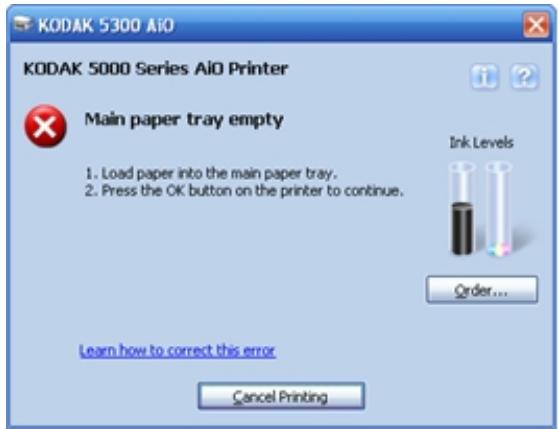
Set Options for Status Monitor

An icon is present in the Status Notification area of the Taskbar when the Status Monitor is active.

If an error occurs, the icon changes appearance.
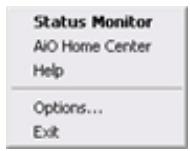
This menu is displayed when you right click on the icon.
The following options are displayed when you select Options in the menu.
Always display the Status Monitor
Only display the Status Monitor when an error occurs
Configuring Settings
You can configure settings for your Kodak EasyShare AiO using the Control Panel and the AiO Home Center software.
Image Scaling
There are two image scaling options.
Fill Page: The image is cropped or enlarged to completely fill the page. This is the default setting.
Fit to Page: The entire image is printed (no cropping). There may be white space on the sides or top/bottom depending on the difference in the aspect ratios of the image and the page size.
1 Press Menu to display the main menu.
2 Press to select Photo Print Settings.
3 Press OK.
4 Press or to change the setting.
5 Press OK.
Use Print Order if Found
The Digital Print Order Format (DPOF) is an industry-standard file that can be created by some digital cameras. Camera-selected photos are photos you tag for printing with your digital camera. When you select photos with your camera, the camera creates a DPOF file that identifies which photos have been tagged for printing. Your Kodak EasyShare AiO can read the DPOF file from the memory card in a camera so you do not have to re-select the photos to print.
NOTE: Not all digital cameras allow you to tag your photos for printing. See your digital camera documentation to see if it supports tagging (DPOF).
When you print tagged photos, the selected default layout is applied, unless your camera allows selection of sizes.
The DPOF file is stored by the digital camera on a memory card and specifies the following information:
Which photos to print
The quantity of each photo to print
Index printing (thumbnails of selected photos)
The default setting for using a detected DPOF file is Yes.
1 Press Menu to display the main menu.
2 Press to select Photo Print Settings.
3 Press OK.
4 Press to select Use Print Order if Found.
5 Press or to change the setting.
6 Press OK.
Scene Balance
Your EasyShare AiO is configurable to apply automatic scene balance improvements (brightness) for photos printed on the AiO from camera cards and USB connected devices.. The default is to apply the scene balance improvements.
1 Press Menu to display the main menu.
2 Press to select Photo Print Settings.
3 Press OK.
4 Press until Scene Balance is selected.
5 Press or to enable or disable Scene Balance.
6 Press OK.
Add Date to Prints
You can set your EasyShare AiO to print the date a picture was taken on the photo print. The default is to not print the date.
1 Press Menu to display the main menu.
2 Press to select Photo Print Settings.
3 Press OK.
4 Press until Add Date to Prints is selected.
5 Press or to enable or disable date printing.
6 Press OK.
Button Sounds
You can configure your EasyShare AiO to emit an audio feedback beep when you press a button on the Control Panel. The default setting is to beep.
1 Press Menu to display the main menu.
2 Press until Control Panel Settings is selected.
3 Press OK.
4 Press or to enable or disable button sounds.
5 Press OK.
Minutes to Standby
When the Kodak EasyShare All-in-One is idle for the standby power setting timeout period, it enters the Standby state. The On/Off indicator remains lit, but power consumption is reduced. When in the Standby state, any activity such as a single button press, or inserting camera card, brings the EasyShare AiO out of the Standby state and returns it to the Ready state.
You can set the standby timeout from 10 - 30 minutes. The default setting is 15 minutes.
1 Press Menu to display the main menu.
2 Press until Control Panel Settings is selected.
3 Press OK. The Power Settings menu is displayed with Minutes to Standby selected.
4 Press or to change the standby timeout period.
5 Press OK.
Date and Time
Your Kodak EasyShare All-in-One contains a clock for stamping the date and time on scans to a memory card.
1 Press Menu to display the main menu.
2 Press until Date and Time is selected.
3 Press OK to go to the Date and Time menu.
4 Press or to set the Year.
5 Press OK.
6 Press or to set the Month.
7 Press OK.
8 Press or to set the Day.
9 Press OK.
10 Press or to set the Hour.
11 Press OK.
12 Press or to set the Minute.
13 Press OK.
Set Language
You can select the language the EasyShare AiO uses for the LCD display.
1 Press Menu to display the Main Menu.
2 Press until Language is displayed.
3 Press OK to go to the Select Language menu.
4 Press until the language you want is selected.
5 Press OK.
Reset All Settings
You can restore the original factory settings to your Kodak EasyShare All-in-One.
NOTE: Restoring the factory defaults will not change the date and time information you set.
1 Press Menu to display the Main Menu.
2 Press until Reset All Settings is selected.
3 Press OK.
General Settings
You can specify general EasyShare AiO settings in the AiO Printer dialog.
Printer Date and Time
The EasyShare AiO date and time factory default is synchronized to the current computer. The date and time format is based on the language and country/region setting.
To enable or disable the date and time synchronization
1 On the main Home Center window, click Configure Settings to display the settings options.
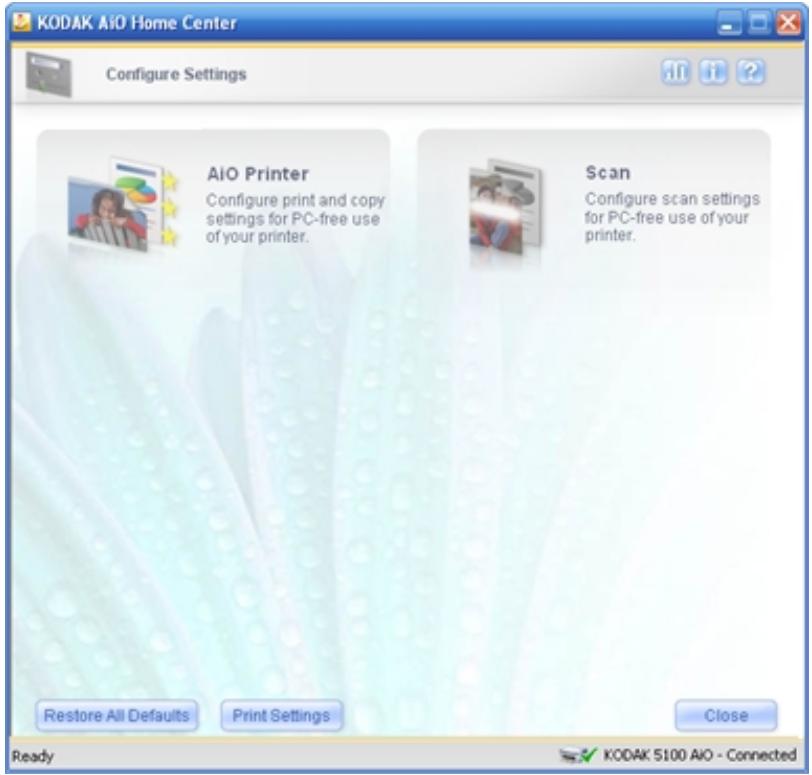
2 Click AiO Printer.
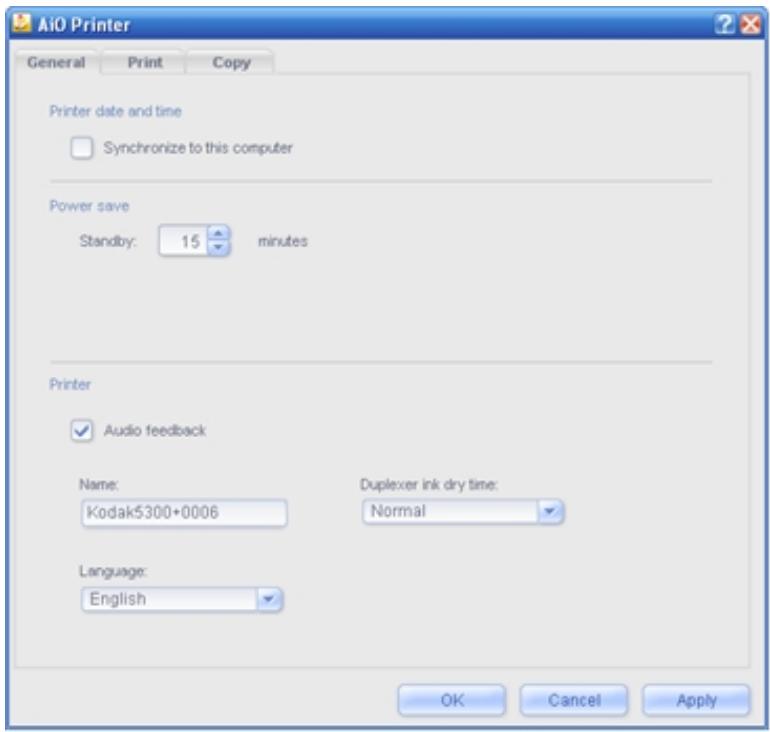
3 On the General tab, select or clear the Synchronize to this computer checkbox to enable or disable date and time synchronization.
4 Click OK or Apply.
Power
You can set your EasyShare AiO to enter Standby mode after a timeout of 1 to 60 minutes.
To change the power settings
1 On the main Home Center window, click Configure Settings to display the settings options.
2 Click AiO Printer.
3 On the General tab, select a timeout values from the Standby drop-down list.
4 Click OK or Apply.
Printer
To change printer settings
1 On the main Home Center window, click Configure Settings to display the settings options.
2 Click AiO Printer. The EasyShare AiO dialog opens with the General tab selected.
3 On the General tab, change the following options as desired.
Audio feedback: When checked, a beep generated when you press a button on the Control Panel.
Language: Select the language the EasyShare AiO uses for the LCD display and printing diagnostic pages. The factory default is English.
Name: Your EasyShare AiO has a serial number that is used to construct name for Bluetooth printing. The default name is Kodak5300+XXXX, where XXX represents the last four digits if the AiO printer's serial number. You can change this to a more user-friendly name by entering a new name in the edit box.
Duplexer ink dry time: Indicates how long to wait before a sheet is flipped by the optional duplexer.
4 Click OK or Apply.

Handling and Loading Paper
Use the following guidelines when handling paper.
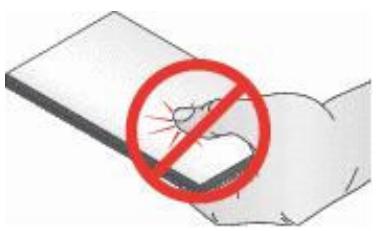
To avoid fingerprints, handle the paper by the edges as much as possible.
Avoid touching the glossy side of photo paper.
- Keep the input and 4x6 paper trays closed to keep out dust and debris.
Store paper flat.
- Keep paper away from direct sunlight, and out of high-temperature environments (such as a vehicle parked in the sun).
You can load many different types and sizes of paper in your Kodak EasyShare AiO, including letter paper, photo paper, transparencies, and envelopes (see Paper Types in the Appendix). The EasyShare AiO automatically detects the size and type of paper you load in the input tray, and then adjusts to generate the highest quality output for that paper.
The Scanner Glass
The scanner glass is where you place originals for copying or scanning.
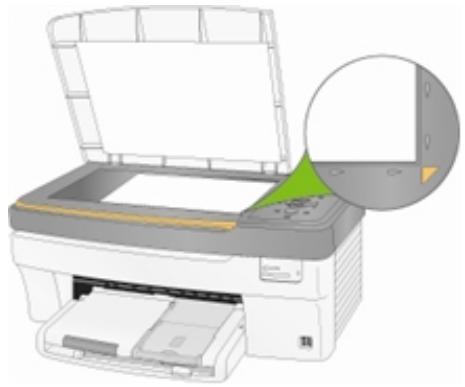
1 Lift the lid and place your original face down on the right front corner of the scanner glass.
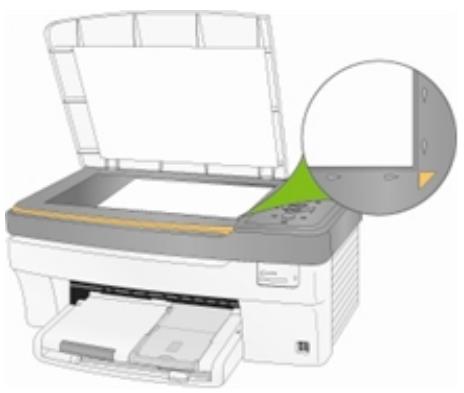
2 Close the lid.
You can copy or scan oversized originals by completely removing the lid from your EasyShare AiO. To remove the lid, lift the lid to the open position, grasp the sides of the lid, and then pull the lid upward.
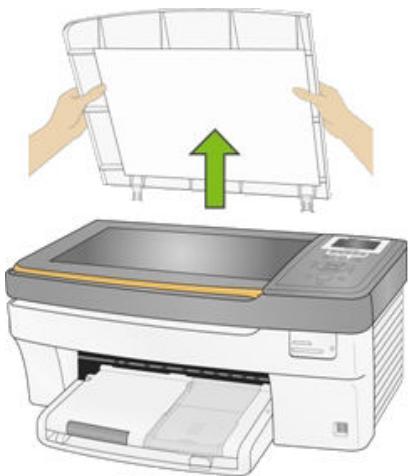
Your EasyShare AiO functions normally with the lid removed. Replace the lid by inserting the tabs on the hinge back into the appropriate slots.
Load Main Tray
You can load the main paper tray with various types of paper from 3 to 8.5 inches wide and 5 to 14 inches long, with a capacity of 100 sheets of 20 lb plain paper (clean stack of new paper).
IMPORTANT: To print from the main paper tray, make sure the photo tray is not engaged, pulled all the way out, and the lid closed.
1 Lift the output tray, and slide the paper-width and paper-length guides to their outermost positions.
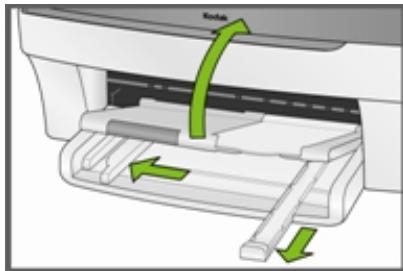
2 Align the edges of a stack of paper.
3 Insert the stack of paper into the input tray with the short edge forward and the print side down. Slide the stack of paper forward until it stops.
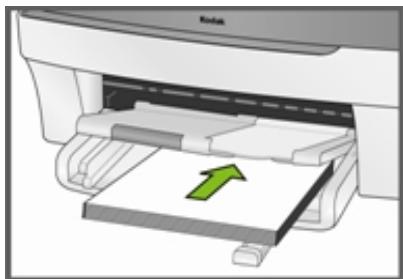
4 Slide the paper-width and paper-length guides inward until they stop at the edges of the paper.
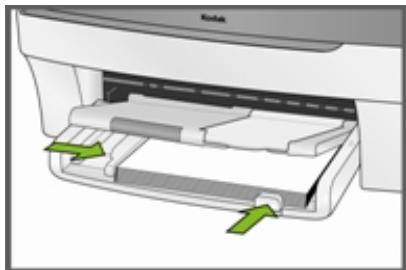
5 Lower the output tray.
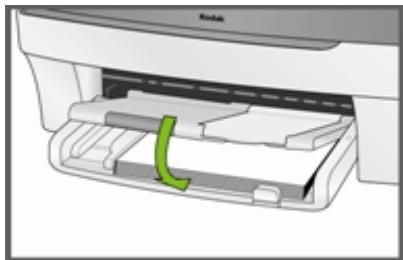
6 Pull the extender tray out.
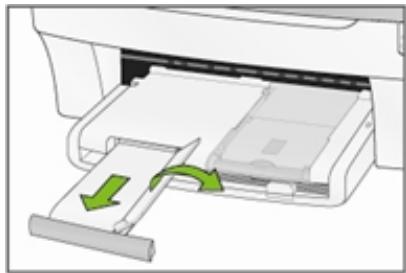
Load Photo Tray
You can load up to 20 sheets of 10 mil thick 4x6 inch (101x150 mm) photo paper into the photo tray.
TIP: To avoid fingerprints, handle the paper by the edges or by the perforated tabs. Avoid touching the glossy side of the paper.
1 Lift the photo tray lid.

2 Slide the photo tray towards you until it stops.
NOTE: When the photo tray is disengaged, the main paper tray is active.
3 Insert the stack of photo paper into the photo tray glossy side down.
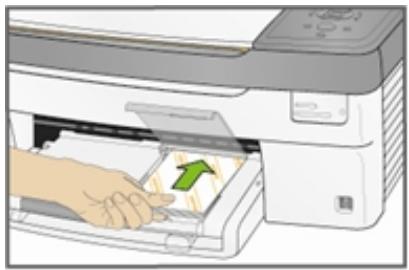
4 Slide the photo tray with the stack of photo paper in until it stops. Engaging the photo tray turns the photo tray light on.
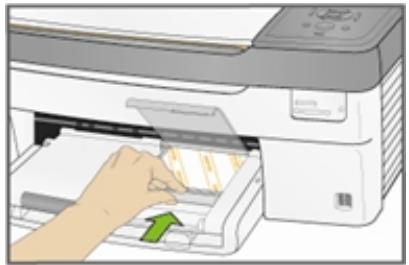
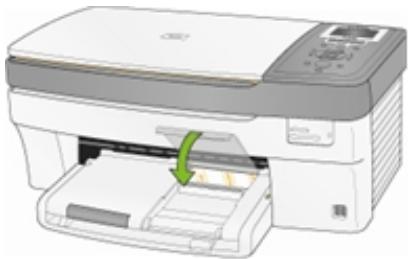
5 Close the photo tray lid.
Load Envelopes
You can load plain envelopes into the main input tray of your Kodak EasyShare AiO. Do not use envelopes with cutouts or cellophane windows.
1 Lift the output tray.
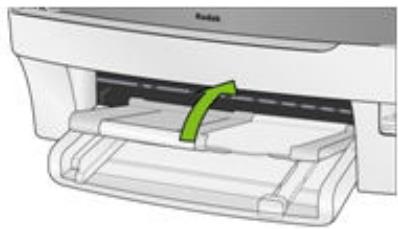
2 Remove any paper in the input tray.
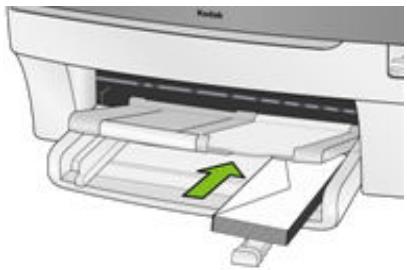
3 Insert one or more envelopes face down with the envelope flaps to the left.
4 Slide the stack of envelopes forward until it stops.
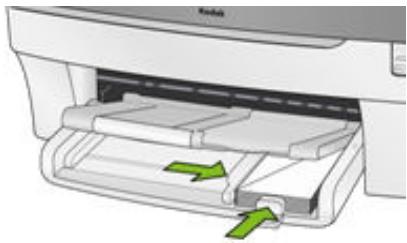
5 Slide the paper guides inward against the stack of envelopes until they stop.
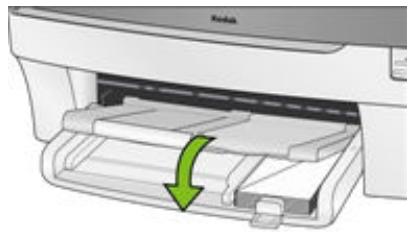
6 Close the output tray.
Load Labels
Use letter or A4 (designed for use with ink jet printers) label sheets.
1 Ensure that none of the pages are sticking together.
2 Place a stack of label sheets on top of standard paper in the input tray, label side down.

The memory card slots accept most of the popular memory cards (see Supported Memory Cards). When you insert a memory card into the card slot, connect PTP camera, or USB flash drive, the first photo is displayed on the LCD display. When you press the Photo button the Photo Print menu is displayed. The Photo button toggles between displaying photos and the Photo Print menu.

CAUTION
You can only use one device (USB or Memory card) from which to print. If both devices are engaged, the EasyShare AiO generates an error message.
When you print from an application, the EasyShare AiO printer driver provides the following features.
Non-photo Paper Print Quality
Draft Produces the fastest print speed, but the lowest quality.
Normal Delivers high-quality output and is the default setting. Normal prints faster than Best.
Best Produces the highest quality for all paper and eliminates the banding (striping) effect that sometimes occurs in solid areas. Best is the slowest print speed.
Page Size
You can select a standard page size or create a custom size.
Borderless
Prints without any margin on the printed media.
Orientation
You can print a document with the short edge of the paper at the top of the page (portrait), or with the long edge of the paper at the top of the page (landscape).
Print last page first
Causes printing to begin with the last page and end with the first page.
NOTE: There can be a delay when printing a large document while it is being spooled. Printing will begin when the last page is spooled.
Collate
You can collate pages when printing multiple copies.
Scale Layout
You can scale pages or pictures by percentage or page size.
Multi-page Layout
The driver can reduce multiple pages so that they can all be printed on one sheet of paper.
Poster Layout
This function enlarges a picture, divides it into several pages, and prints each page on a separate sheet of paper. You can paste these sheets of paper together to create a poster.
Booklet Layout
The pages are distributed and printed on both sides of the paper and arranged is sequence. When they are folded in the middle and stapled they create a booklet.
Print Mirror Image
Flips the image for iron-on printing.
Two-sided Printing
You can print on both sides of the paper.
Watermark
You can select or create a background watermark.
Print Photos from a Camera
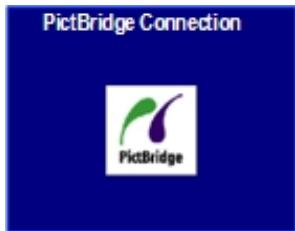
1 Connect your camera to the EasyShare AiO. The PictBridge logo is displayed on the LCD.
2 Load the photo tray with photo paper (See Load Photo Tray in Chapter 3).
3 Use your camera to select and print photos.
Print Photos from the Control Panel
The Photo Print mode is initiated by pressing the Photo button, inserting a memory card, or connecting a USB device to the Kodak EasyShare All-in-One.
1 Insert a memory card into the appropriate slot, a mass storage device into the USB port, or connect a digital camera to the USB port. The last photo is displayed.

WARNING
Never attempt to remove a memory card while it is being accessed. Doing so can damage files on the card. You can safely remove a card only when the status light next to the slots is not blinking.
2 Load the main tray (see Load Main Tray in Chapter 3) or photo tray (See Load Photo Tray in Chapter 3) with photo paper.
NOTE: The Photo Tray only supports 4x6 inch and 100x150 mm photo paper.
3 Press to select the number of prints for this photo.
4 Press to preview the next photo.
TIP: To select all the photos on a memory card or mass storage device, hold down the OK button for 2 seconds. Holding down the OK button again for 2 seconds will de-select all the photos.
5 Repeat Steps 3 and 4 until you are finished selecting photos.
6 Press Start to print the selected photos or Photo to set print options.
7 Set print options.
See Set Print Layout
See Set Number of Plints
See Set Color
See Set Print Quality
After a photo is printed, it is de-selected.
Index Print
The purpose of an index print is to catalog contents of a memory card or USB flash drive. An Index print contains the following:
■ Sequence numbers for the relative position of each photo within the defined set of photos, incrementing from 001 and continuing progressively across all pages of a multi-page index print.
- 8x10 Index prints are 7/8 inches wide with 1/8 inch white space between photos. The filename is displayed below each thumbnail image.
- 4x6 index prints are 3 / 4 inch wide with 1 / 8 inch white space between images. The filename is displayed below each thumbnail image.
1 Insert a memory card into the appropriate slot, a mass storage device into the USB port, or connect a digital camera to the USB port. The first photo is displayed.

WARNING
Never attempt to remove a memory card while it is being accessed. Doing so can damage files on the card. You can safely remove a card only when the status light next to the slots is not blinking.
2 Load the main tray (see Load Main Tray in Chapter 3) or photo tray (See Load Photo Tray in Chapter 3) with photo paper.
NOTE: The Photo Tray only supports 4x6 inch and 100x150 mm photo paper.
3 Press Photo. The Print menu is displayed with Layout selected.
4 Press the or to select Index.
5 Press Start.
Print Photos from a Proofsheet
A proofsheet is a simple and convenient way to select photos and make prints directly from a camera or memory card without the need for a computer.
Proofsheet printing is a two step process. In the first step, you connect a PTP camera or insert a memory card and print a proofsheet. In the second step, you select pictures to print from the proofsheet and then scan the proofsheet into the EasyShare AiO.
IMPORTANT: If the AiO printer goes into standby mode, power is lost, or you unplug the memory card, camera, or USB device before you scan the proofsheet, the proofsheet session number becomes invalid and you will need to re-print it.
1 Insert a memory card into the appropriate slot, a mass storage device into the USB port, or connect a digital camera to the USB port. The first photo is displayed.

WARNING
Never attempt to remove a memory card while it is being accessed. Doing so can damage files on the card. You can safely remove a card only when the status light next to the slots is not blinking.
2 Load the main tray (see Load Main Tray in Chapter 3) with letter size plain paper.
3 Press Menu.
4 Press until Proofsheet is selected.
5 Press OK.
6 Press Start to print the proofsheet.
7 Complete the four steps on the proofsheet with the memory card, storage device, or camera connected.
Tagged Photos (DPOF)
The Digital Print Order Format (DPOF) is an industry-standard file that can be created by some digital cameras. Camera-selected photos are photos you tag for printing with your digital camera. When you select photos with your camera, the camera creates a DPOF file that identifies which photos have been tagged for printing. Your Kodak EasyShare AiO can read the DPOF file from the memory card in a camera so you do not have to re-select the photos to print.
NOTE: Not all digital cameras allow you to tag your photos for printing. See your digital camera documentation to see if it supports tagging (DPOF).
When you print tagged photos, the selected default layout is applied, unless your camera allows selection of sizes.
The DPOF file is stored by the digital camera on a memory card and specifies the following information:
Which photos to print
The quantity of each photo to print
Rotation applied to a photo
- Cropping applied to a photo
Index printing (thumbnails of selected photos)
If a DPOF file is detected when you insert a memory card, the EasyShare AiO displays a message asking if you want to print tagged images.
Bluetooth Printing
Bluetooth is a short-range radio technology that enables wireless connectivity between electronic devices. This feature supports an optional Kodak USB Bluetooth Adapter that accepts JPEG/EXIF image file types from the following types of Bluetooth enabled devices.
Mobile camera phones
PDAs
Digital still cameras
You can purchase a Bluetooth Adapter directly from Kodak at www.kodak.com/go/accessories.
To enable Bluetooth wireless connectivity, plug your Kodak Bluetooth Adapter into the front USB port.
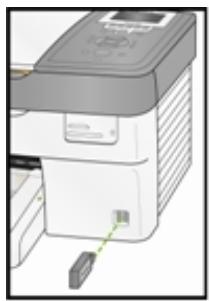
NOTE: Your EasyShare AiO supports connection to only one Bluetooth device at a time and has an 8MB file size limitation.
Range
The recommended maximum distance between Bluetooth devices for the highest transfer speed is 10 meters or 32.81 feet. However, Bluetooth will work beyond this distance.
User-friendly Name
Your EasyShare AiO has a serial number that is used to construct name for Bluetooth printing. The default name is Kodak5300+XXXX, where XXX represents the last four digits if the AiO printer's serial number. You can change this to a more user-friendly name with the AiO Home Center (See General Settings in Chapter 2).
Printing
When a Bluetooth connection is made, no other functions are available, and the LCD display indicates printing from Bluetooth. You control printing from your Bluetooth device.
Panoramic photos
Panoramic images are detected based on the aspect ratio of the image. A panoramic image is displayed in a "fit to page" manner with blank space above and below the image. The crop box is adjusted for a 300 × 100 mm (12 x 4") aspect ratio and initially encompasses the entire image.
If panoramic images are selected for printing, the AiO printer prints all of the panoramic images after all other images have printed. Before printing the panoramic images, the EasyShare AiO displays a message to allow you to insert panoramic paper then press Start again to print the panoramic images.
Print with Computer
You can print from any application that has a Print command in the File menu.
You can also print from Kodak EasyShare software (when installed). Kodak EasyShare software lets you take advantage of a wide range of features, including editing, printing options, and picture organization.
1 Click Print and Share Pictures EasyShare.
2 Make sure the My Collection tab is selected.
3 Select an album under My Albums.
4 Select the pictures you wish to print and drag them to the Picture tray.
5 Click the Print at Home tab.
6 Make sure the current printer is set to the EasyShare AiO (Click Printer Setup).
7 Change any other settings, such as paper size and print layout, then click Print.
Layouts
The photo layouts on your Kodak EasyShare AiO "snap" to the nearest standard print size whenever possible based on the combination of layout and paper size loaded. Otherwise the layouts are based on a standard 2x3 aspect ratio. The table below shows the print sizes that result from the various layouts when applied to US Letter size paper (8.5 X 11 in).
| Layout | A Paper Print Size |
| Borderless | 8.5x11" |
| Bordered | 8x10" |
| 2 per Page | 5x7" |
| 3 per Page | 4x6" |
| 4 per Page | 3.5x5" |
| 9 per Page | 2.5x3.25 (wallet) |
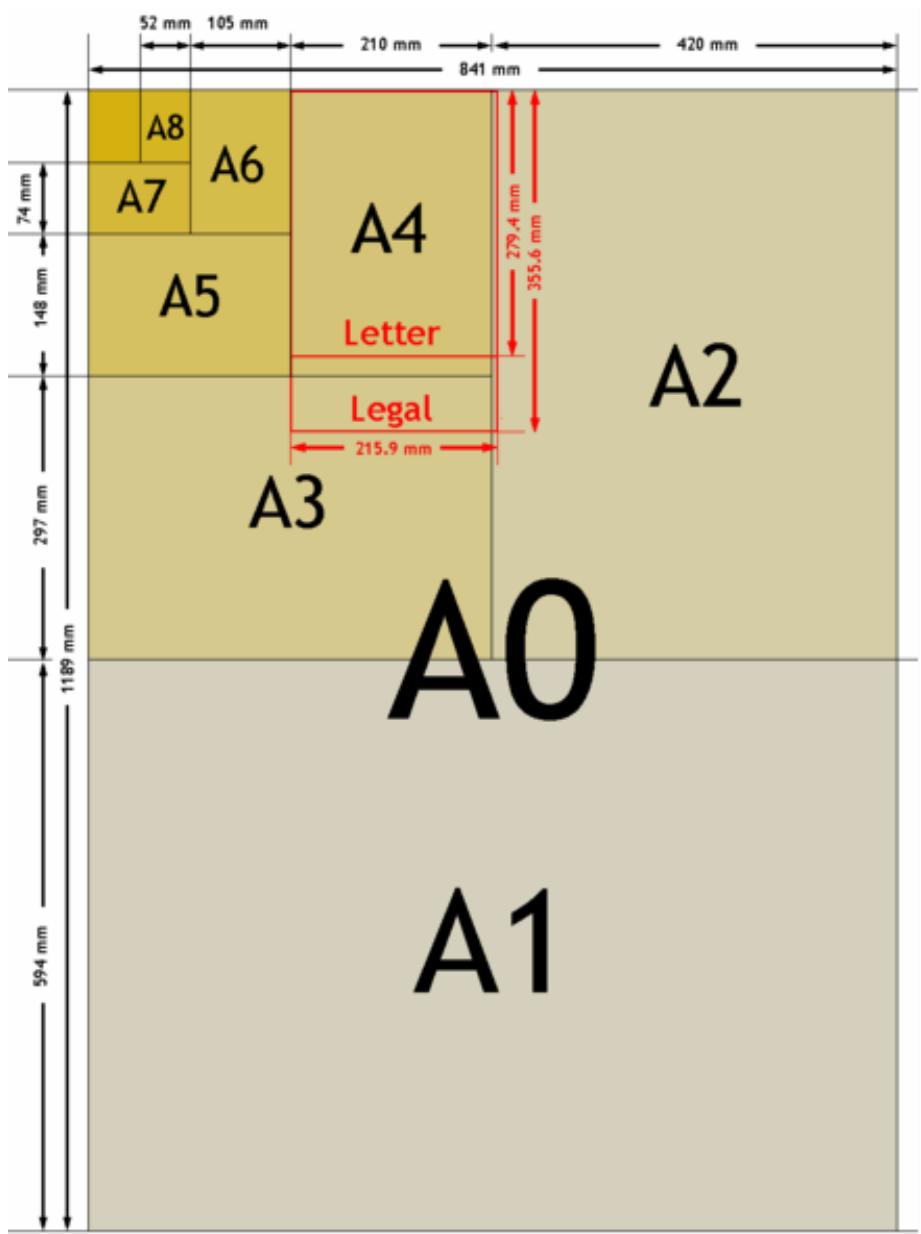
In addition to US Letter size paper, your EasyShare AiO provides photo layout support the following of US and ISO 216 paper sizes. US sizes are measured in inches and ISO 216 sizes are based on the metric system.
US photo paper sizes
3.5X5inches
4X6inches
5X7inches
8X10inches
ISO 216 paper sizes
A4 (21X30 centimeters)
A5 (15 X 21 centimeters)
A6 (10 X 15 centimeters)
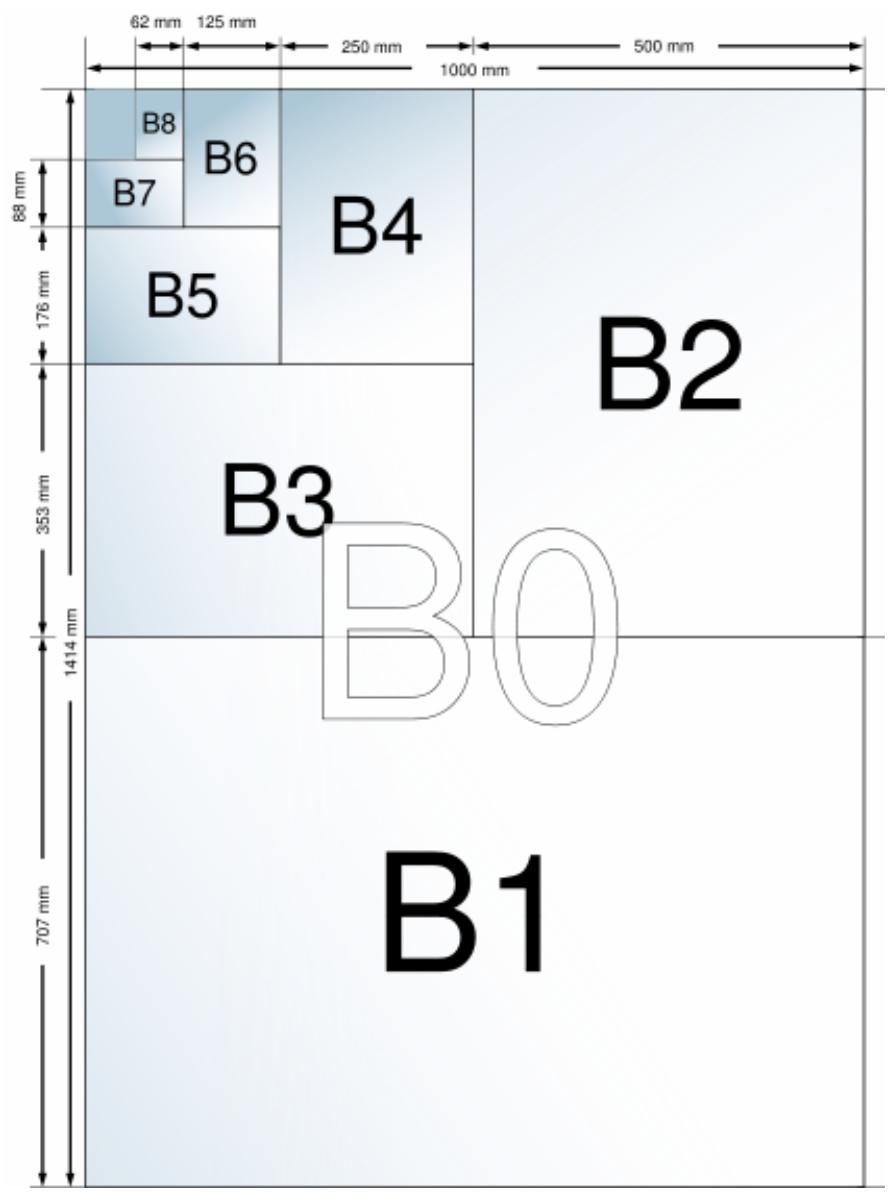
B5 (17.6 X 25 centimeters)
The international paper size standard, ISO 216, consists of an A series and a less common B series. This standard has been adopted by all countries in the world except the United States and Canada. The most widely used size in the ISO format is A4.
The charts on the following pages compare the most common paper sizes.
Set Print Layout
1 Press Photo. The Print menu is displayed with Layout selected.
2 Press or to change the print layout.
3 Press OK to set the selected layout and continue to set options, press Photo to preview, or Start to print.
3.5x5 Inch Paper
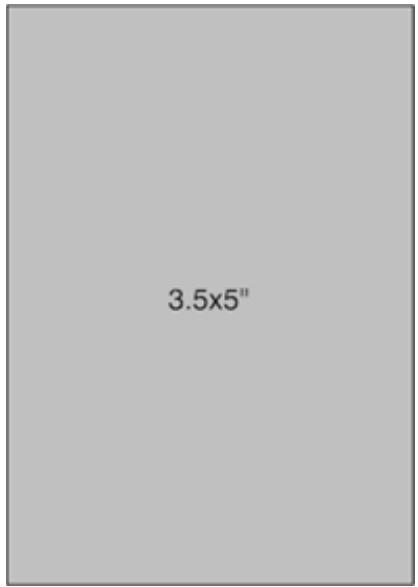
1 per page borderless
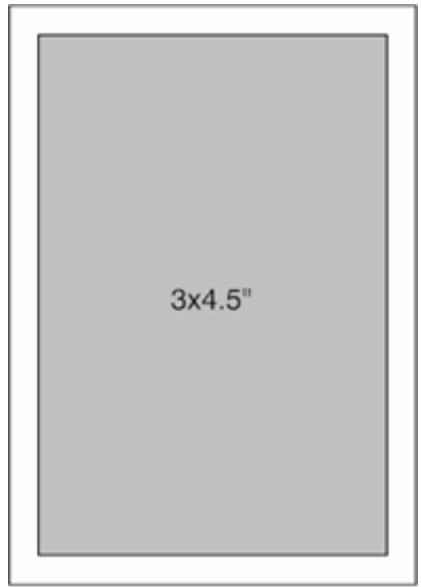
1 per page bordered
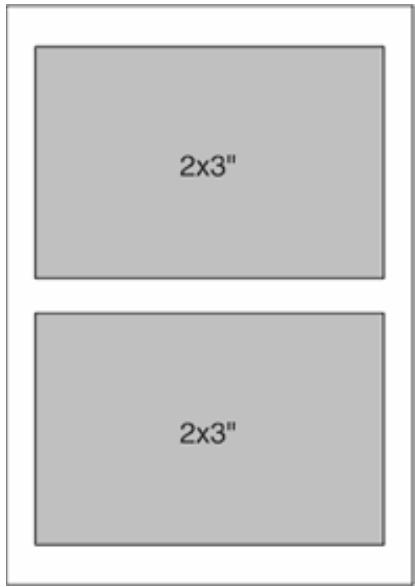
2 per page
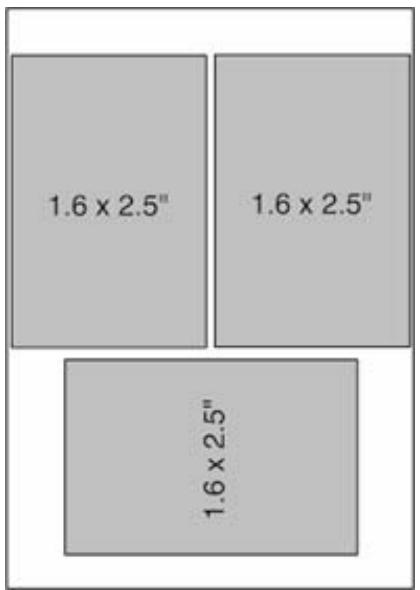
3 per page
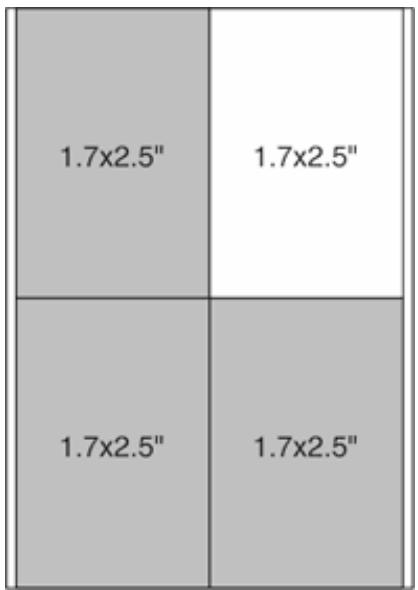
4 per page

9 per page
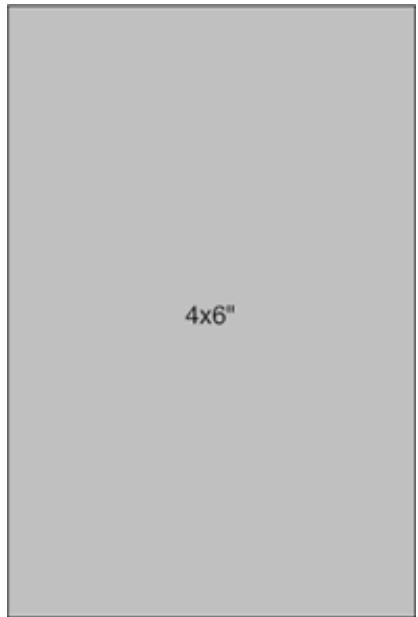
4x6 Inch Paper
1 per page borderless
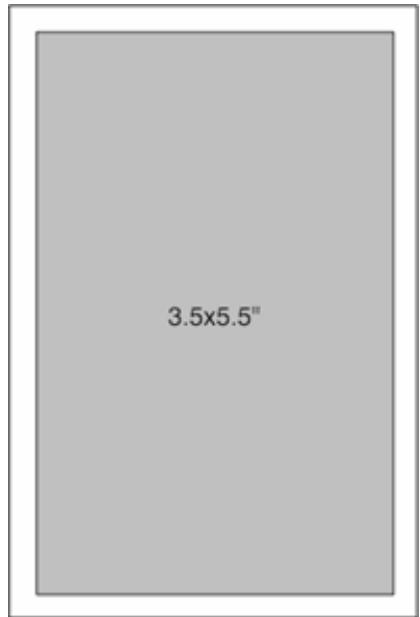
1 per page bordered
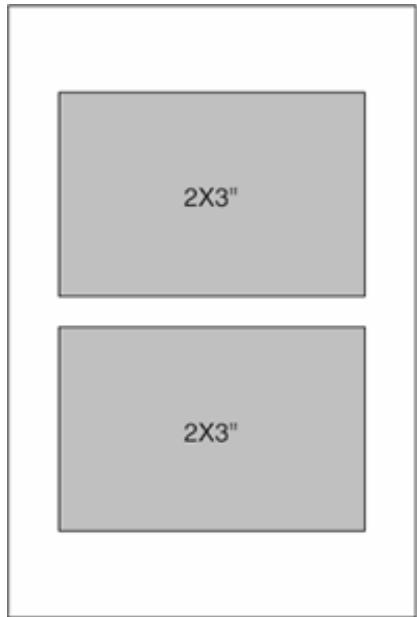
2 per page
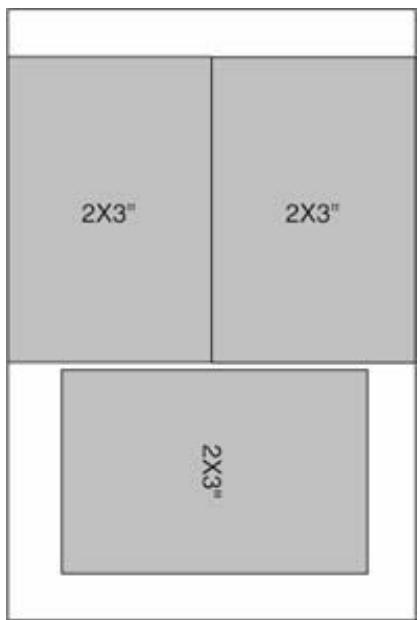
3 per page
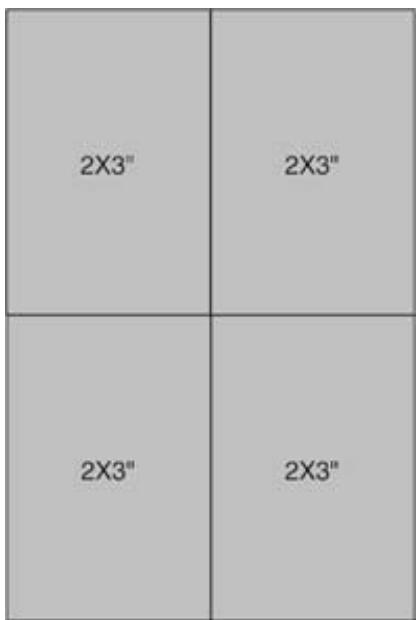
4 per page
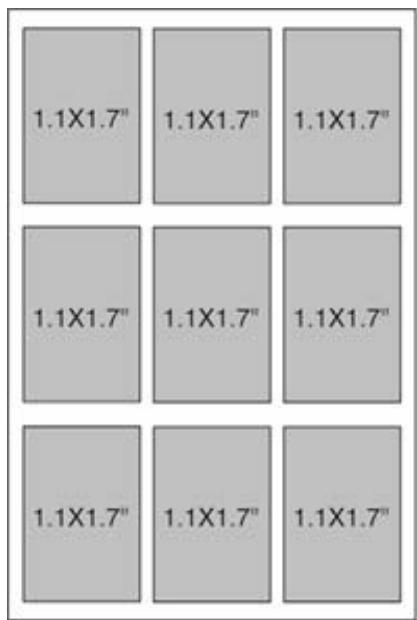
9 per page
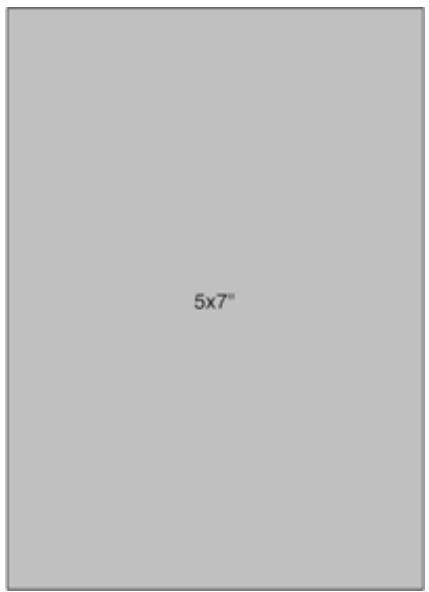
5x7 Inch Paper
1 per page borderless
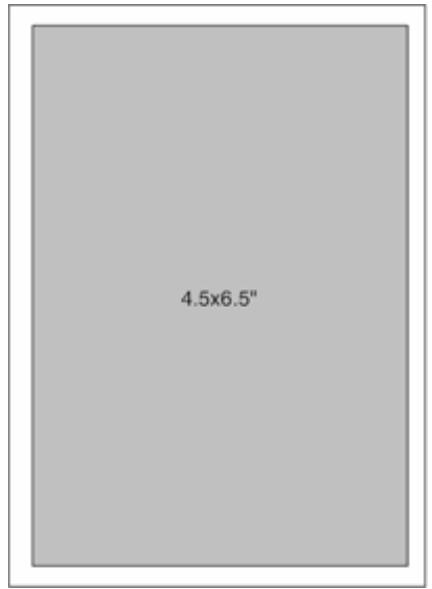
1 per page bordered
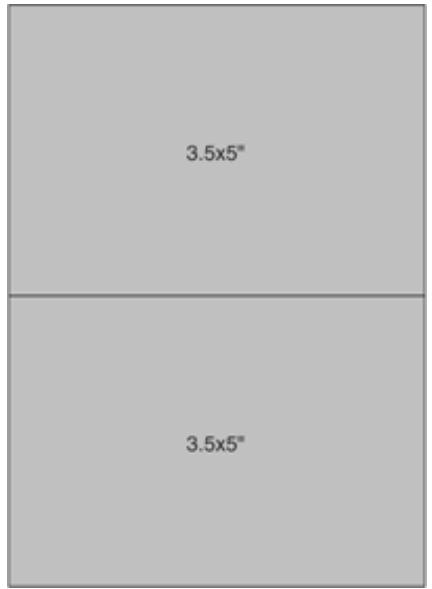
2 per page
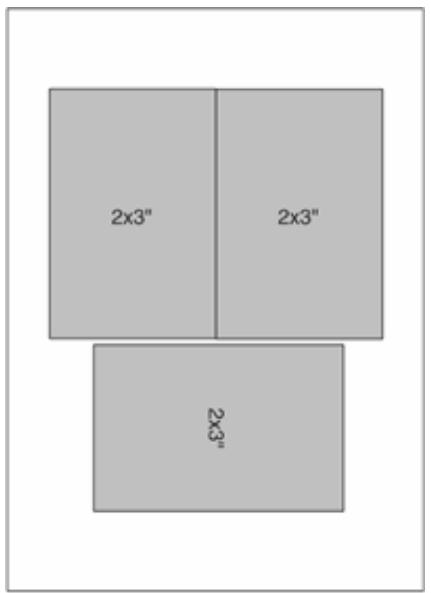
3 per page
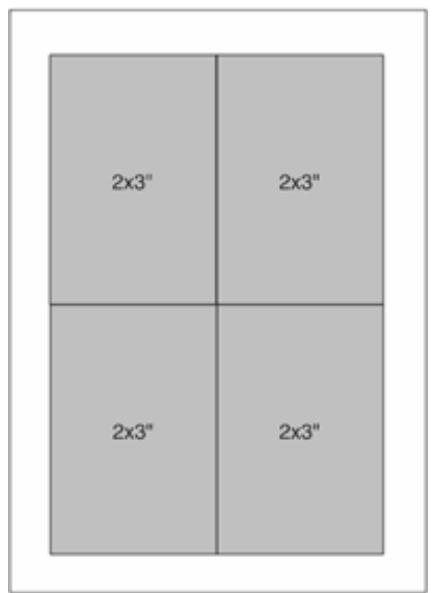
4 per page
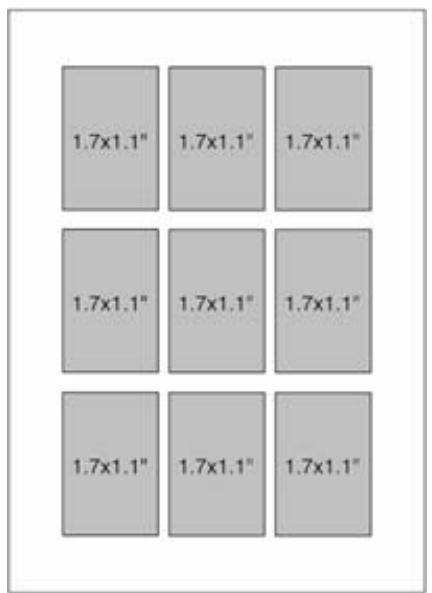
9 per page
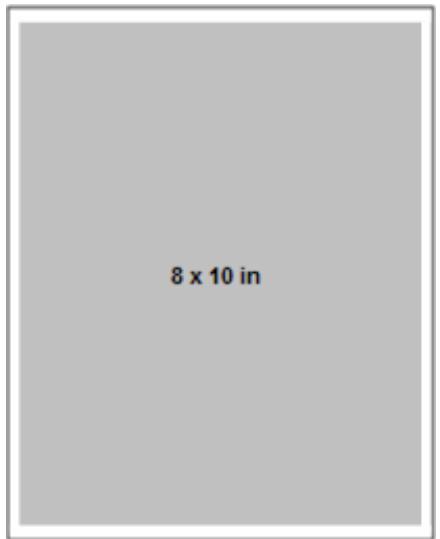
8x10 Inch Paper
1 per page borderless
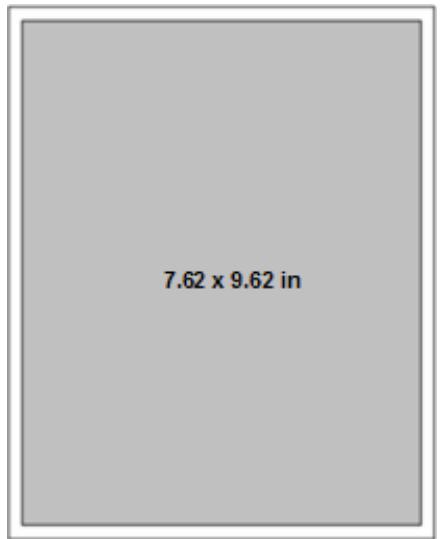
1 per page bordered
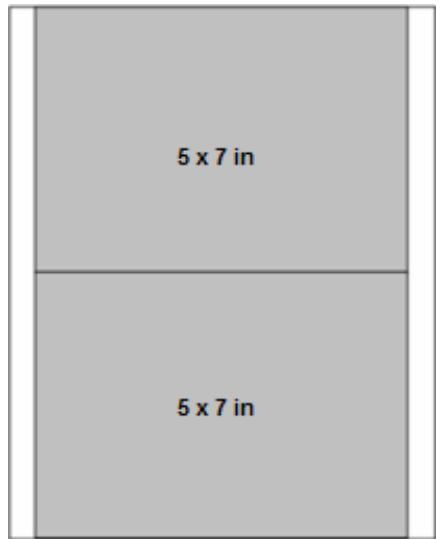
2 per page
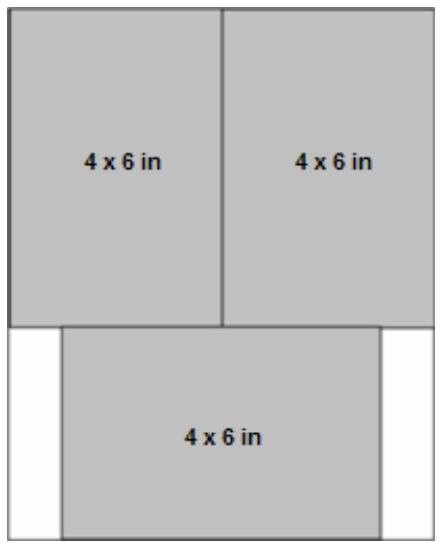
3 per page
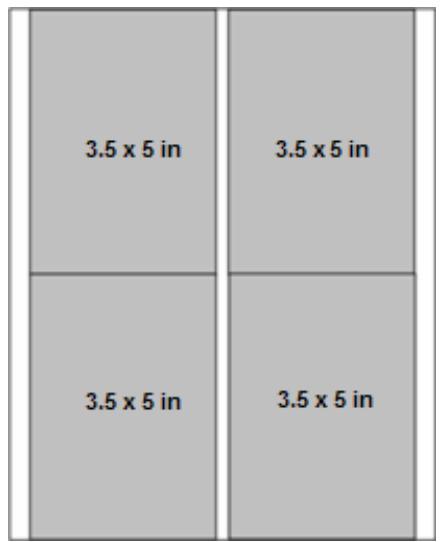
4 per page
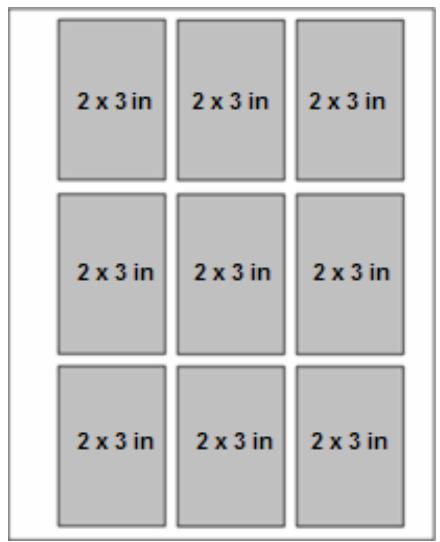
9 per page
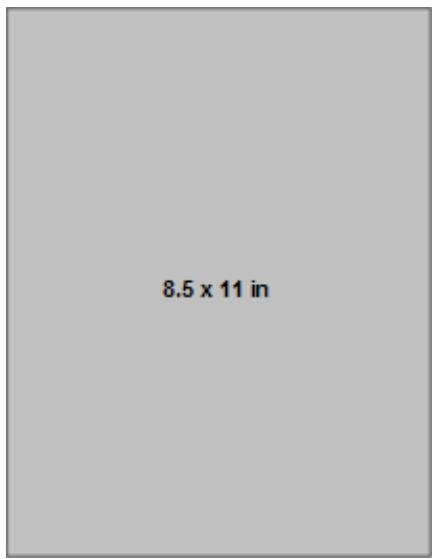
US Letter
1 per page borderless
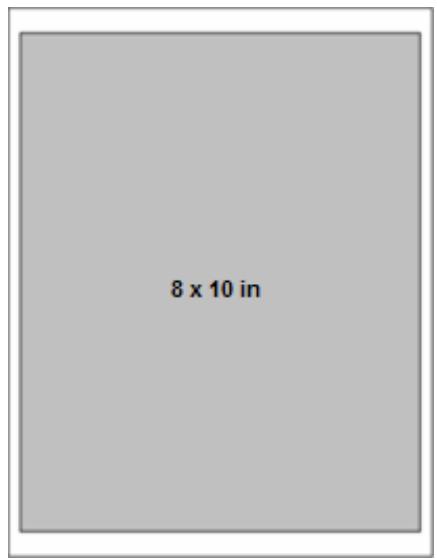
1 per page bordered
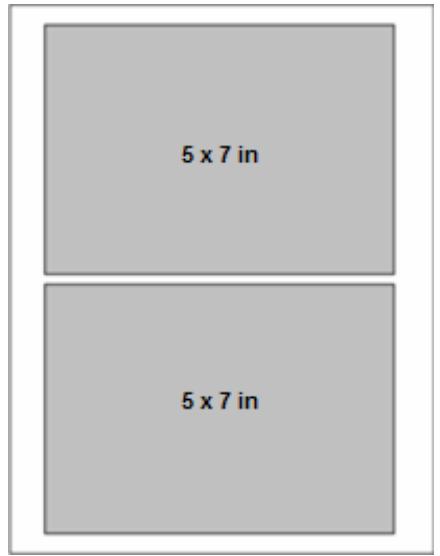
2 per page
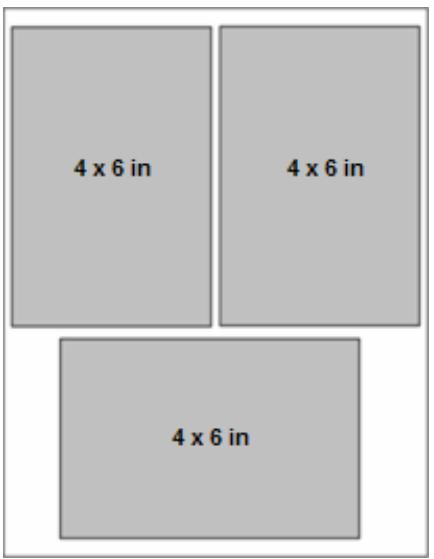
3 per page
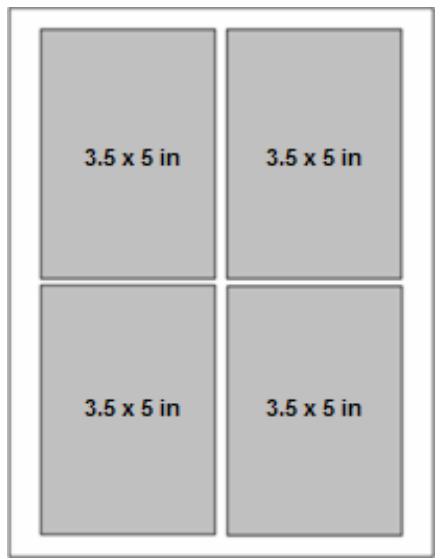
4 per page
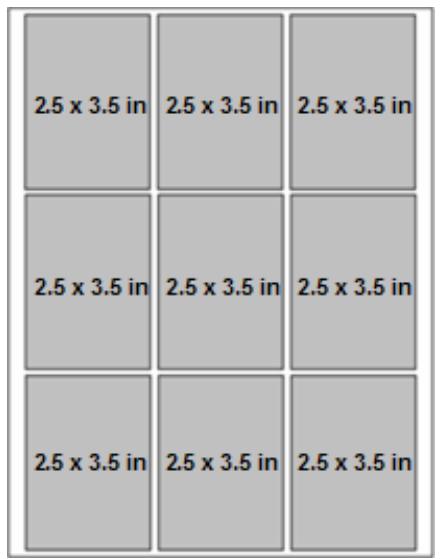
9 per page
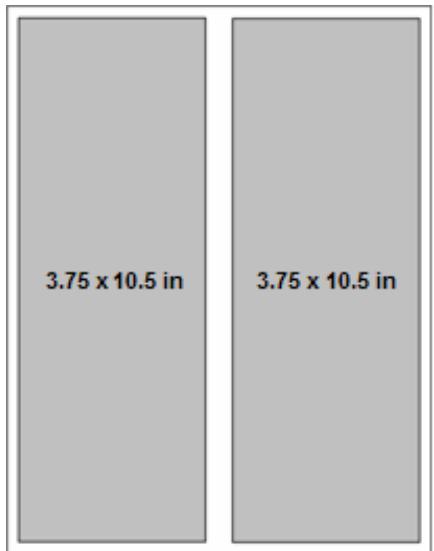
Panoramic
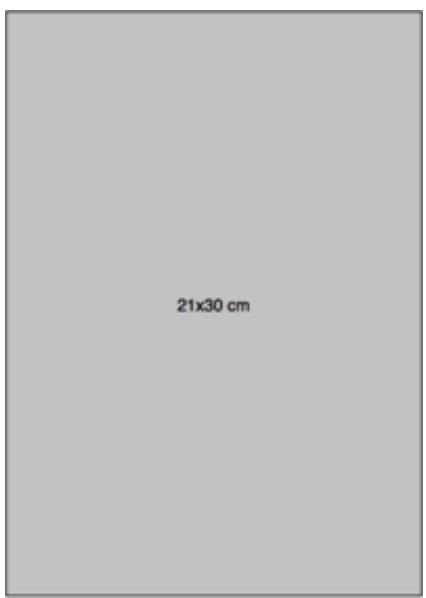
A4 Paper
1 per page borderless
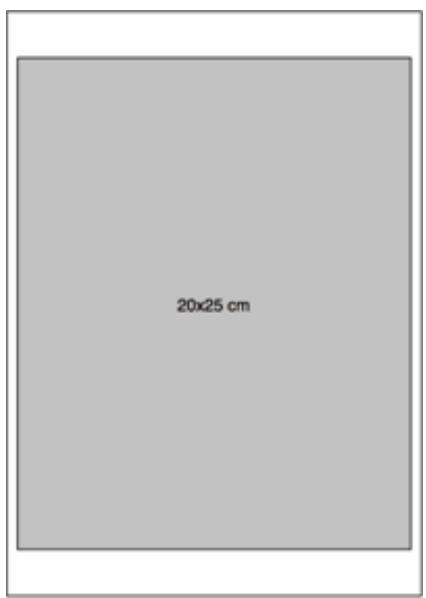
1 per page bordered
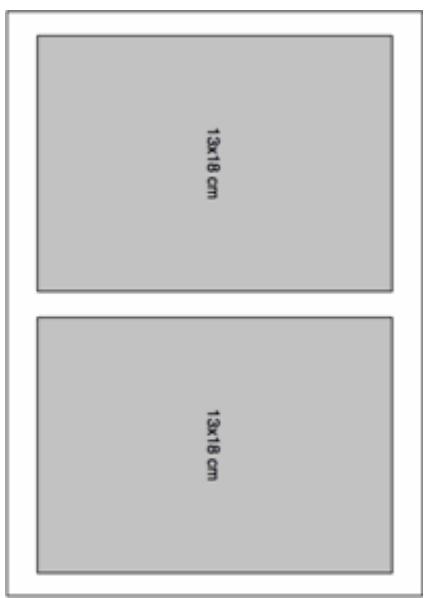
2 per page
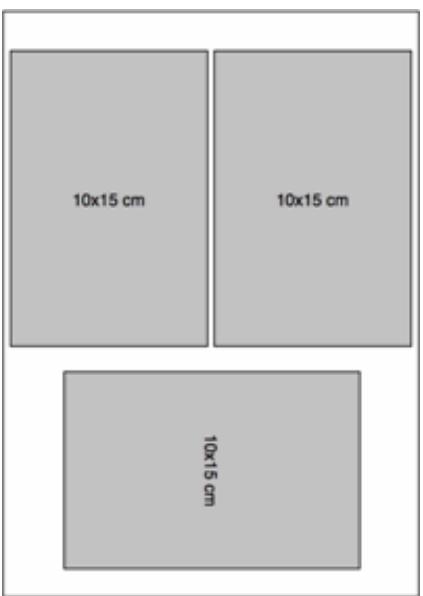
3 per page
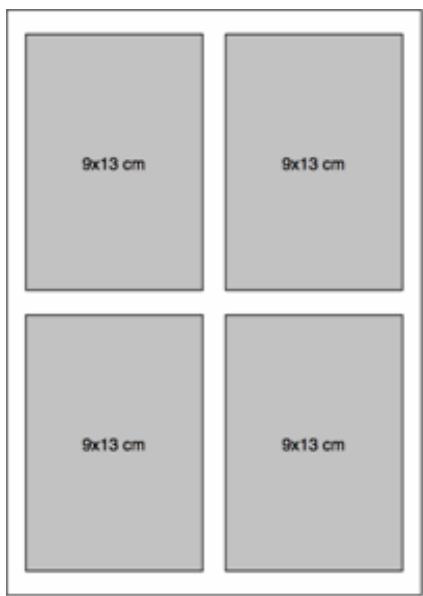
4 per page
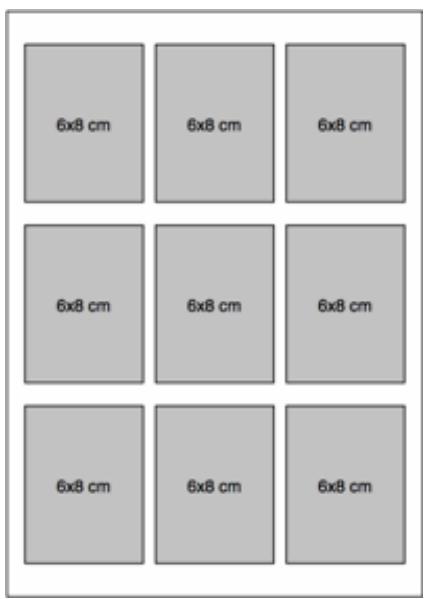
9 per page
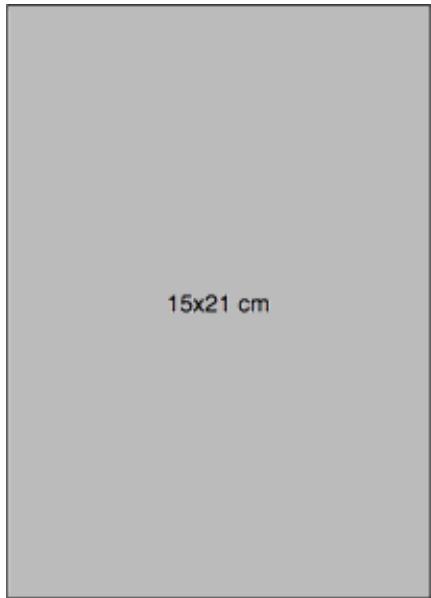
A5 Paper
1 per page borderless
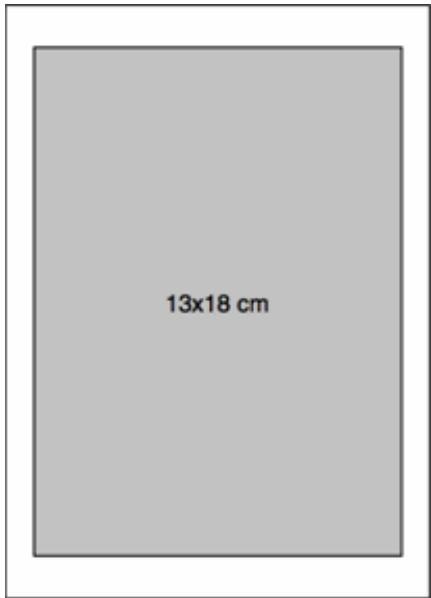
1 per page bordered
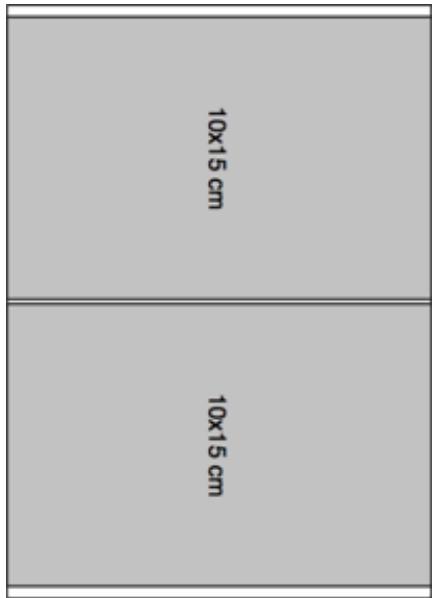
2 per page
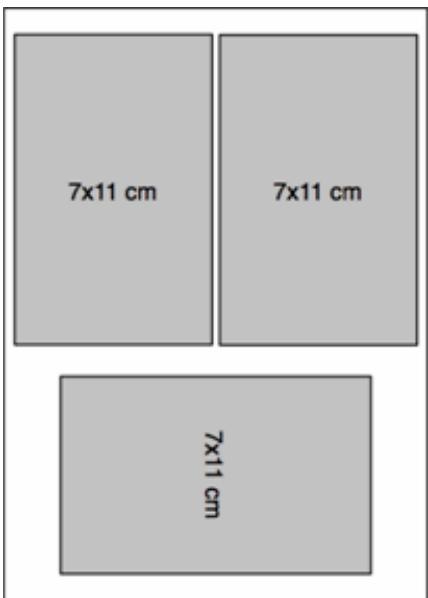
3 per page
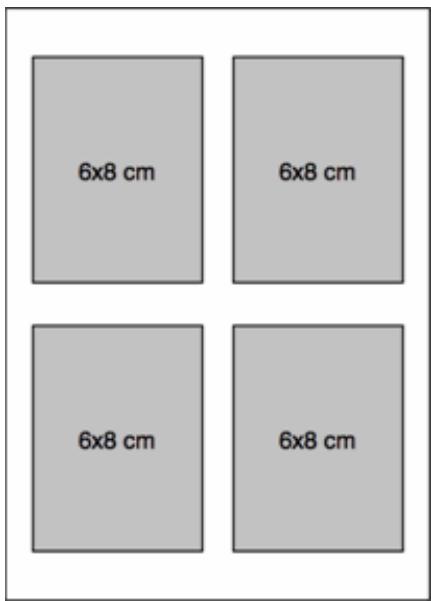
4 per page
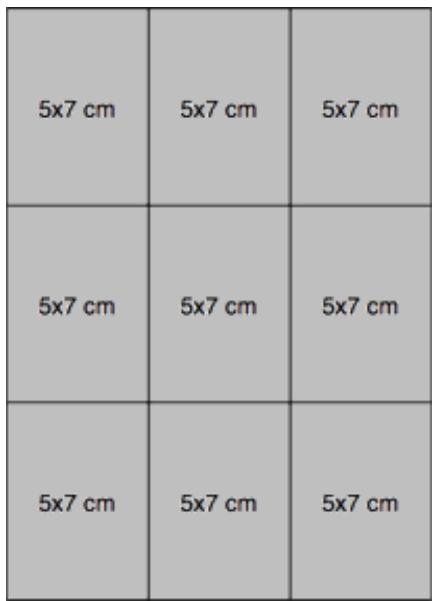
9 per page
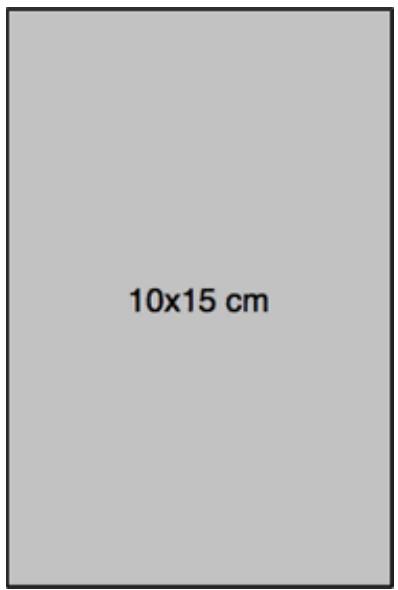
A6 Paper
1 per page borderless
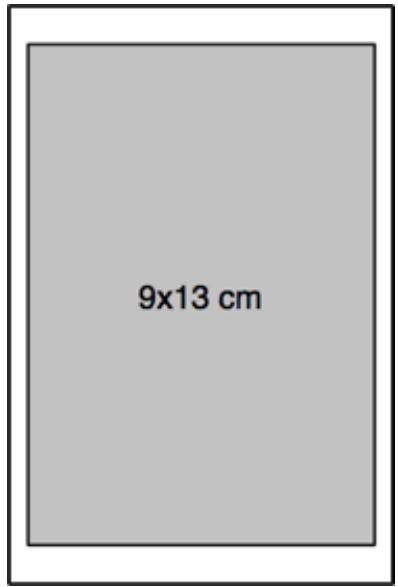
1 per page bordered
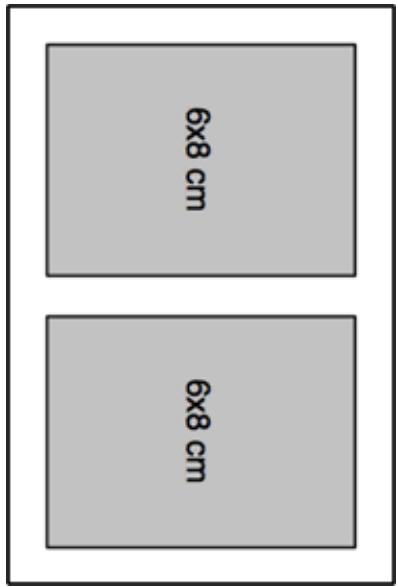
2 per page
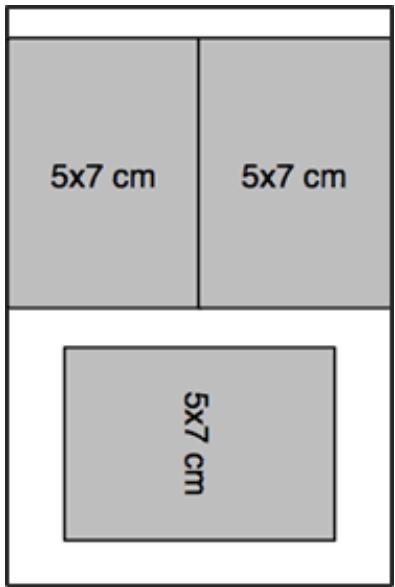
3 per page
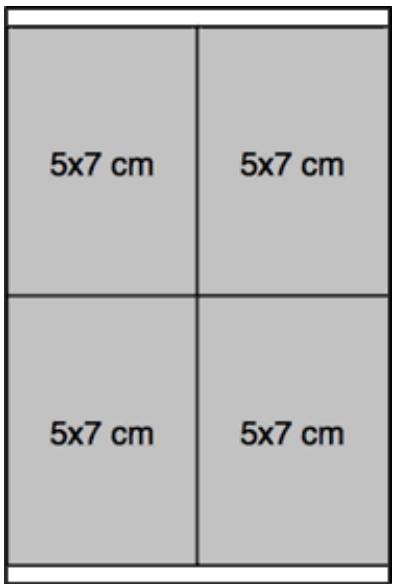
4 per page
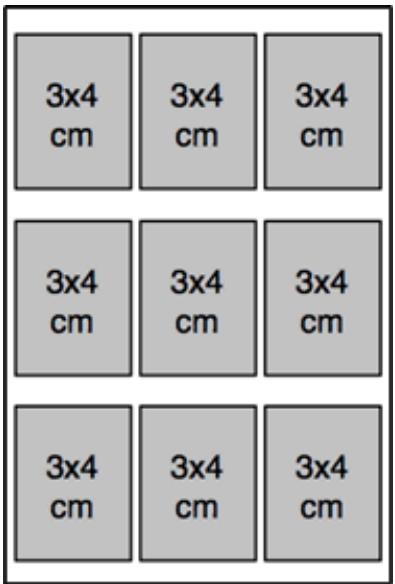
9 per page
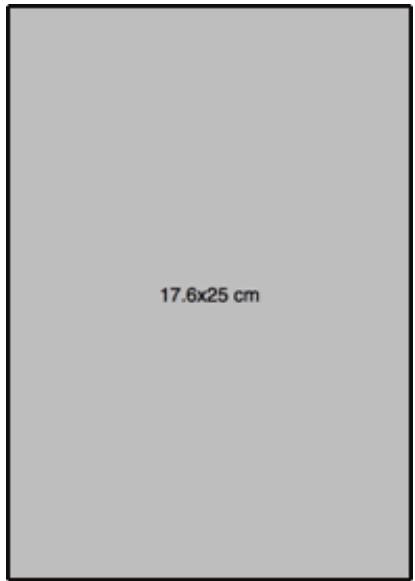
B5 Paper
1 per page borderless
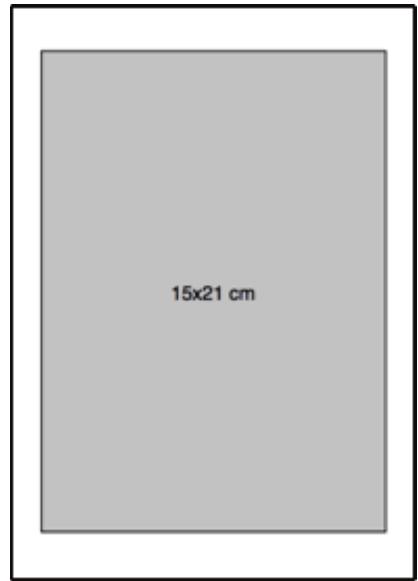
1 per page bordered
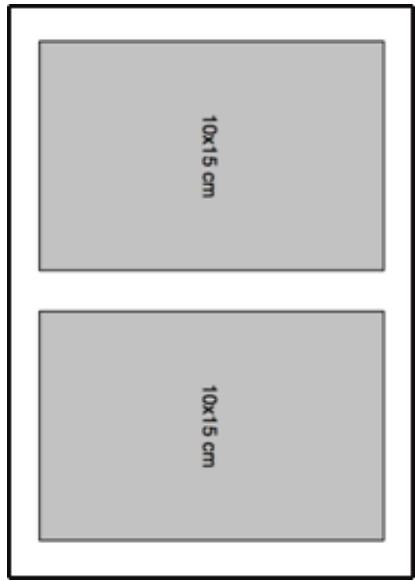
2 per page
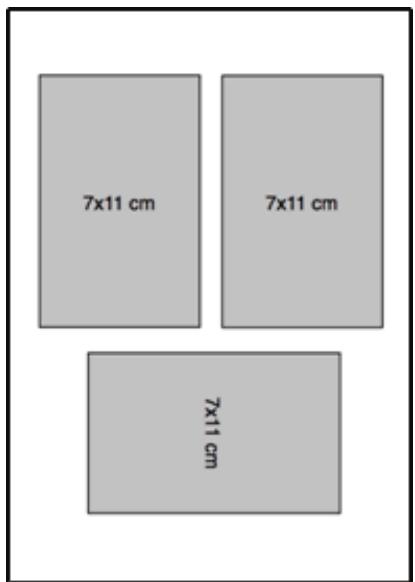
3 per page
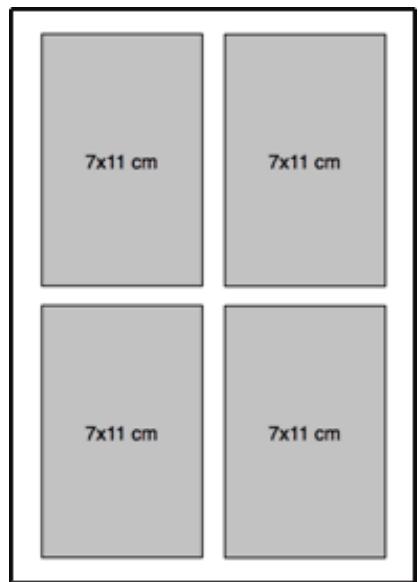
4 per page
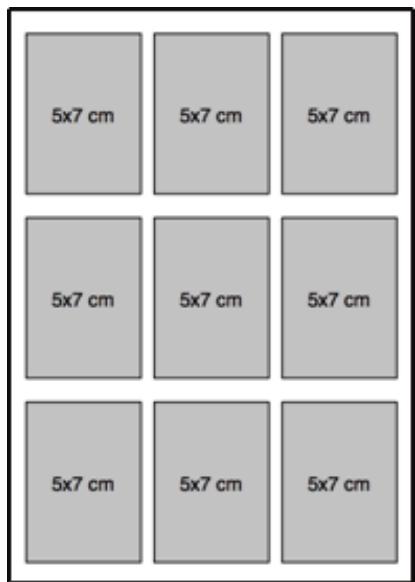
9 per page
Index Sheet
The Index Sheet layout shows thumbnail images, filenames, and sequence numbers of each photo on a memory card. It also prints a date range and the sequence numbers continue incrementing across multiple pages. Index pages can be printed on US Letter/A4 paper or 4x6 paper.
US Letter/A4 Index Sheet
Kodak
Index Sheet
Page X of XX
XXX. FILENAME.JPG

XXX. FILENAME.JPG
XXX FILENAME.JPG
XXX
FILENAME.JPG
XXX. FILENAME.JPG
XXX. FILENAME.JPG
XXX
FILENAME.JPG
XXX. FILENAME.JPG
XXX. FILENAME.JPG
XXX FILENAME.JPG
XXX FILENAME.JPG
XXX. FILENAME.JPG
XXX. FILENAME.JPG
XXX FILENAME.JPG
XXX. FILENAME.JPG
XXX. FILENAME.JPG
XXX. FILENAME.JPG
XXX
FILENAME.JPG
XXX. FILENAME.JPG
XXX. FILENAME.JPG
XXX FILENAME.JPG
XXX. FILENAME.JPG
XXX. FILENAME.JPG
XXX. FILENAME.JPG
XXX
FILENAME.JPG
XXX. FILENAME.JPG
XXX. FILENAME.JPG
XXX. FILENAME.JPG
XXX. FILENAME.JPG
XXX. FILENAME.JPG
XXX FILENAME.JPG
XXX
FILENAME.JPG
XXX. FILENAME.JPG
XXX. FILENAME.JPG
XXX FILENAME.JPG
XXX. FILENAME.JPG
XXX. FILENAME.JPG
XXX FILENAME.JPG
XXX
FILENAME.JPG
XXX. FILENAME.JPG
XXX. FILENAME.JPG
XXX FILENAME.JPG
XXX. FILENAME.JPG
XXX. FILENAME.JPG
XXX FILENAME.JPG
XXX FILENAME.JPG
XXX. FILENAME.JPG
XXX. FILENAME.JPG
XXX
FILENAME.JPG
XXX. FILENAME.JPG
XXX. FILENAME.JPG
XXX FILENAME.JPG
XXX FILENAME.JPG
XXX. FILENAME.JPG
XXX. FILENAME.JPG
XXX
FILENAME.JPG
XXX. FILENAME.JPG

XXX. FILENAME.JPG
XXX FILENAME.JPG
XXX FILENAME.JPG

XXX FILENAME.JPG
XXX. FILENAME.JPG
XXX FILENAME.JPG
XXX. FILENAME.JPG
XXX. FILENAME.JPG
XXX FILENAME.JPG
XXX
FILENAME.JPG
XXX. FILENAME.JPG
XXX. FILENAME.JPG
XXX
FILENAME.JPG
4x6 Index Sheet
Kodak
Index Sheet
Page X of XX
XXX. FILENAME.JPG
XXX. FILENAME.JPG
XXX. FILENAME.JPG
XXX. FILENAME.JPG
XXX. FILENAME.JPG
XXX. FILENAME.JPG
XXX. FILENAME.JPG

FILENAME.JPG
XXX. FILENAME.JPG
XXX. FILENAME.JPG
XXX
FILENAME.JPG
XXX FILENAME.JPG

XXX. FILENAME.JPG
XXX. FILENAME.JPG
XXX. FILENAME.JPG
Setting Print Options
Before you print photos you may want to change the following default settings.
■ Layout: Borderless
Quantity: 1 print
Color: Color print
Quality: Normal
Save Settings: No
The Photo Print menu contains parameters that allow you to specify other options.
Set Number of Prints
You can increase the number of prints of each photo from the Photo Print menu. The default is 1 print.
1 On the Print menu, select Quantity.
2 Press or to change the print quantity.
3 Press OK to set the selected layout and continue to set options, press Photo to preview, or Start to print.
Set Color
You can print in color or black-and-white. Printing in color is the default.
1 On the Print menu, select Color.
2 Press or to change the print color.
3 Press OK to set the selected layout and continue to set options, press Photo to preview, or Start to print.
Set Print Quality
The Kodak EasyShare All-in-One provides three options that affect print speed and quality for plain paper. Print quality is automatically set to Kodak Picture Quality when photo paper is detected.
Draft Produces the fastest print speed, but the lowest quality.
Normal Delivers high-quality output and is the default setting. Normal prints faster than Best.
Best Produces the highest quality for all paper and eliminates the banding (striping) effect that sometimes occurs in solid areas. Best is the slowest print speed.
1 On the Print menu, select Quality.
2 Press or to change the print quality.
3 Press OK to set the selected layout and continue to set options, press Photo to preview, or Start to print.
Save Settings
When you change print settings from the control panel, the settings apply only to the current print job. To apply print settings to all future print jobs, you can save the changes you make.
1 On the Print menu, select Save Settings.
2 Press or to set to Yes.
3 Press Photo to preview, or Start to print.
Print Settings
You can set print options for printing from the control panel with the Home Center software. When printing from a computer, use the printer driver preferences to set options.
Print Quality
Kodak picture quality is automatically selected when photo paper is detected in the main or photo input trays.
The following print quality options are available for printing on plain paper.
Draft Produces the fastest print speed, but the lowest quality.
Normal Delivers high-quality output and is the default setting. Normal prints faster than Best.
Best Produces the highest quality for all paper and eliminates the banding (striping) effect that sometimes occurs in solid areas. Best is the slowest print speed.
To set output quality for non-photo paper
1 On the main Home Center window, click Configure Settings to display the settings options.
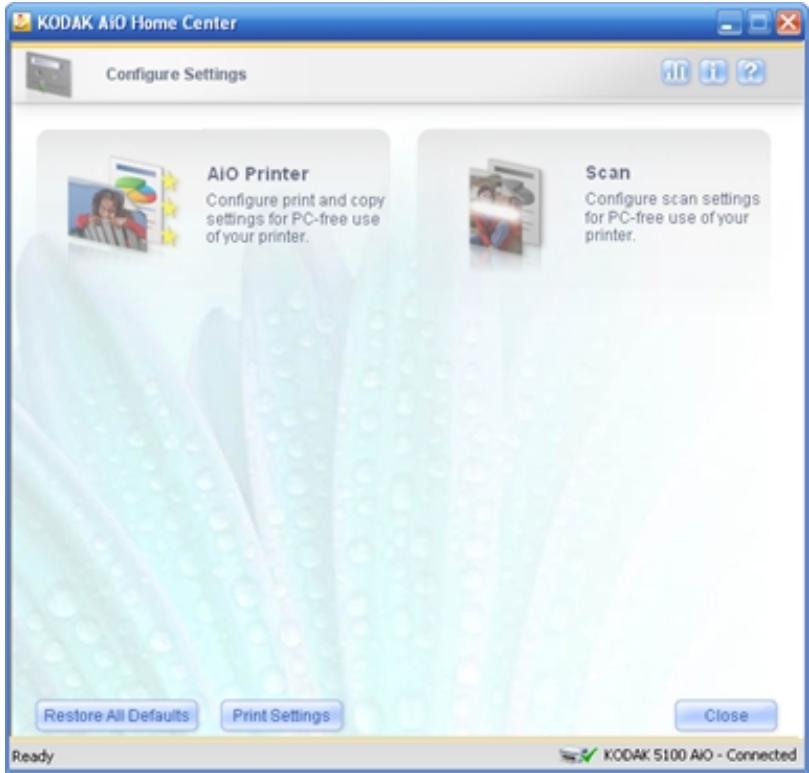
2 Click AiO Printer to open the EasyShare AiO dialog.
3 Click the Print tab.
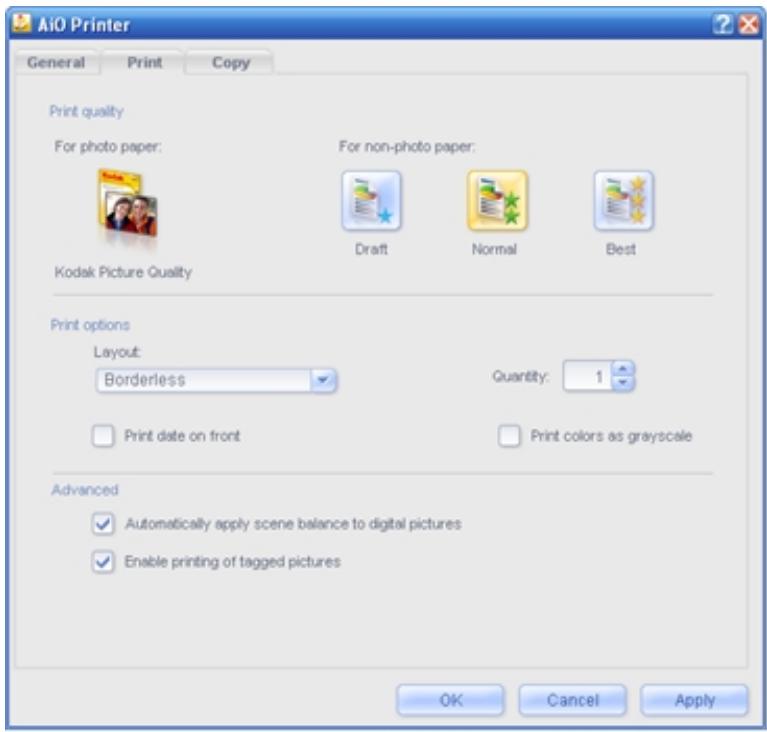
4 Select Draft, Normal, or Best.
5 Click OK or Apply.
Print Options
The photo layouts on your Kodak EasyShare AiO "snap" to the nearest standard print size based on the combination of layout and paper size loaded whenever possible. Otherwise the layouts are based on a standard 2x3 aspect ratio.
To set print options
1 On the main Home Center window, click Configure Settings to display the settings options.
2 Click AiO Printer to open the EasyShare AiO dialog.
3 Click the Print tab.
4 Set the following print options as desired.
Layout: The photo layouts on your Kodak EasyShare AiO "snap" to the nearest standard print size based on the combination of layout and paper size loaded whenever possible. Otherwise the layouts are based on a standard 2x3 aspect ratio.
Print date on front: Select to print todays date on the front of the picture.
Quantity: Select the number to print from the drop-down list.
Print colors as grayscale: Printing a color photo in grayscale makes it look like a traditional black-and-white photograph. The grayscale palette contains white, black, and 254 shades of grey. Each color in the image is replaced with a gray that matches its lightness value.
5 Click OK or Apply.
Advanced
Scene balance is the ability to adjust the color and density of digital images for brighter color and truer flesh tones.
You can set your EasyShare AiO to prompt you for print options whenever a tagged picture is detected.
To set advanced options
1 On the main Home Center window, click Configure Settings to display the settings options.
2 Click AiO Printer to open the EasyShare AiO dialog.
3 Click the Print tab.
4 Set the following advanced print options as desired.
Automatically apply screen balance to digital camera pictures: Scene balance is the ability to adjust the color and density of digital images for brighter color and truer flesh tones.
Enable printing of tagged pictures: Enables the Kodak EasyShare AiO to detect tagged photo files (DPOF) and prompt you for options.
5 Click OK or Apply.
Previewing Photos
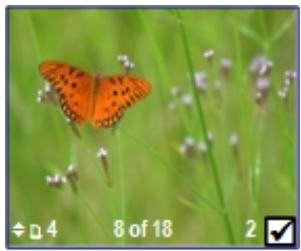
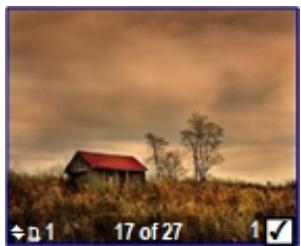
The Print Preview screen contains a crop box, displays the current photo number on the card or USB host device, and the total number of photos on the card or device. It displays a checkbox indicating whether or not the currently displayed photo has been selected for printing. A checkmark is placed in the checkbox when the photo is selected along with the number of copies to be printed. All photos selected are given the number of copies specified in the Quantity parameter on the Print menu by default. For example, if the Quantity parameter is set to 2, all selected photos are initially given a number-to-print value of 2.
Additionally, the Print Preview screen displays an icon of a printer and the total number of photos to be printed. For example if you select two photos, each set to print 2 copies, the number next to the printer icon will be 4.
For every card/USB host session, a message is displayed the first time a photo is displayed instructing you to press and to view the photos and to press OK to select the photo for printing.
For every card/USB host session, a message is displayed the first time you select a photo for printing, instructing you to use and to change the number of photos to print.
Preview Mode
Preview mode allows you to select and edit photos for printing. If you press the Start button while in Preview mode, all the selected photos are printed. If there are no photos selected, then the photo displayed is printed. Print preview mode is entered when you insert a memory card, connect a camera or mass storage device, or from Print mode by pressing Photo.
The Preview screen displays the current photo inside a crop box. The crop box aspect ratio is 1.4:1.
At the bottom of the screen, the current photo number on the card or USB host device, and the total number of photos is displayed. A checkbox indicates whether or not the currently displayed photo has been selected for printing. A checkmark is displayed in the checkbox if the photo has been selected along
with the number of copies to be printed to the left of the checkbox. All photos selected are given the number of copies specified in the Quantity parameter on the Print menu by default. For example, if the Quantity parameter is set to 2, all selected photos are initially given a number-to-print value of 2.
Additionally, the Print Preview screen displays an icon of a printer and the total number of photos to be printed. For example if you select 2 photos, each set to print 2 copies, the number next to the printer icon will be 4.
IMPORTANT: Crop, zoom, and quantity are per image, but layout is global, applying to all images.
Zoom Photos
1 Insert a memory card into the appropriate slot, a mass storage device into the USB port, or connect a digital camera to the USB port. The first photo is displayed.
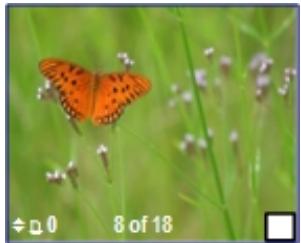
2 Press Zoom + to enlarge the photo in .25X increments up to 5X magnification. Pressing Zoom - decreases magnification in .25X increments down to 1X.

3 Use the 4-way Navigation button to display the part of the picture you want to print.

4 Press OK when finished. The photo is displayed with a crop box around the magnification and position you selected.
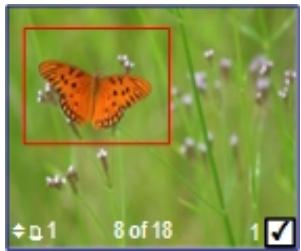
5 Press to select the number of prints, and press Start to print the area displayed in the crop box.
Multiview
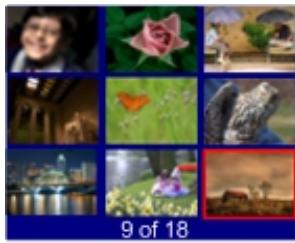
The Multiview screen shows thumbnails of nine photos. The current photo number and the total photo number are also displayed.
1 Insert a memory card into the appropriate slot, a mass storage device into the USB port, or connect a digital camera to the USB port. The last photo is displayed.

2 Press Zoom - to enter Multiview. The current photo is indicated by a red selection box.
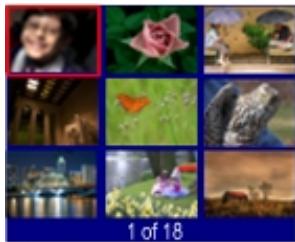
3 Use the 4-way Navigation button to move the red selection box to another photo. Pressing when in the rightmost column displays the next Multiview screen. Pressing when in the leftmost column displays the previous Multiview screen.
4 Press OK to preview the selected photo
5 Press Start to print.

Copy
The Kodak EasyShare AiO allows you to produce high-quality color and black-and-white copies on a variety of paper types, including transparencies. Once copying has started, you may at any time abort a copy operation by pressing the Cancel button.
Copy with Control Panel
Pressing Copy displays the copy menu where you can set copy options, preview copies after scanning, and make copies.
When copying from the Control Panel, you can choose from the following outputs.
Same Size: The copy is the same size as the original. Cropping will occur if the original is larger than the paper size. The copy will contain white space if the original is smaller than the paper size. Same Size is the default copy setting.
Fit to Page: The image is copied and fit to the paper size loaded. There may be cropping on the sides or top/bottom depending on the difference in the aspect ratios of the image and the page size.
Scale Percent: The default copy scale is 100% , however you can scale copies from 10% to 500% . Scaling is anchored to the upper left corner of the original.
Photo Layouts: You can set the layout for making copies of photos on your Kodak EasyShare All-in-One. The following layouts are supported.
Borderless (default)
Bordered
2 per Page
3 per Page
4 per Page
9 per Page
2x2 Poster
3x3 Poster
4x4 Poster
Same Size Copy
The copy is the same size as the original and is the default copy setting. Cropping will occur if the original is larger than the paper size. The copy will contain white space if the original is smaller than the paper size.
1 Load your original face down on the right front corner of the scanner glass.
2 Press Copy to display the Copy menu.
3 Press to select Output.
4 Press or to select Same Size.
5 If desired, make changes to the following copy options with the Copy menu.
See Set Number of Copies
See Set Color
See Set Quality
See Change Brightness
See Set Preview
6 Press Start. If you turned preview on, the EasyShare AiO enters Preview mode, otherwise it starts making copies.
Fit to Page Copy
The image is copied and fit to the paper size loaded. There may be cropping on the sides or top/bottom depending on the difference in the aspect ratios of the image and the page size.
1 Place your original face down on the right front corner of the scanner glass.
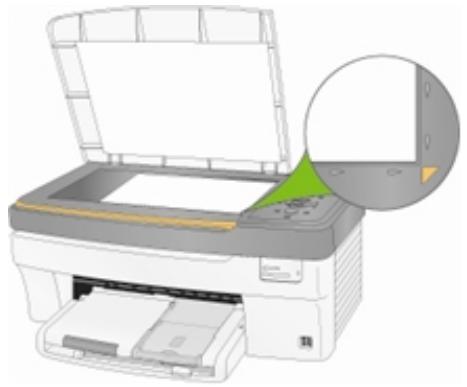
2 Press Copy to display the Copy menu.
3 Press to select Output.
4 Press or to select Fit to Page.
5 If desired, make changes to the following copy options with the Copy menu.
See Set Number of Copies
See Set Color
See Set Quality
See Change Brightness
See Set Preview
6 Press Start. If you turned preview on, the EasyShare AiO enters Preview mode, otherwise it starts making copies.
Scale Percent Copy
The default copy scale is 100% , however you can scale copies from 10% to 500% . Scaling is anchored to the upper left corner of the original.
1 Place your original face down on the right front corner of the scanner glass.
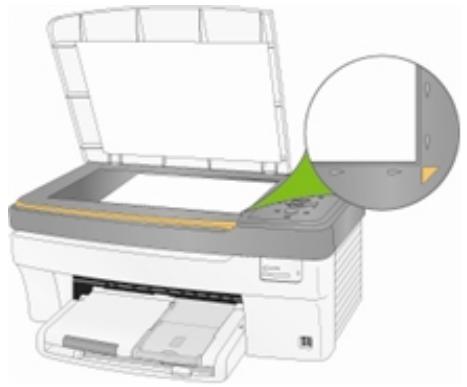
2 Press Copy to display the Copy menu.
3 Press to select Output.
4 Press or to select Scale Percent.
5 Press to select Size.
6 Press or to change the scaling.
7 If desired, make changes to the following copy options with the Copy menu.
See Set Number of Copies
See Set Color
See Set Quality
See Change Brightness
See Set Preview
8 Press Start. If you turned preview on, the EasyShare AiO enters Preview mode, otherwise it starts making copies.
Photo Layout Copy
You can set the layout for making copies of photos on your Kodak EasyShare All-in-One. The following layouts are supported.
Borderless (default)
Bordered
2 per Page
3 per Page
4 per Page
9 per Page
2x2 Poster
3x3 Poster
4x4 Poster
1 Place your original face down on the right front corner of the scanner glass.
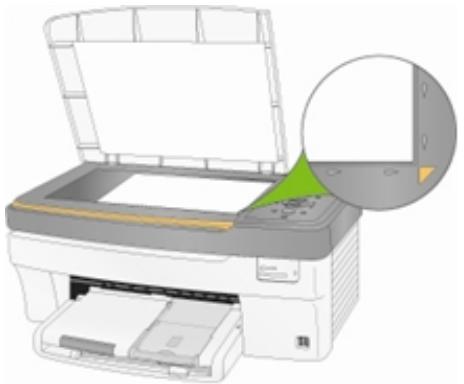
2 Press Copy to display the Copy menu.
3 Press to select Output.
4 Press or to select Photo Layouts.
5 Press to select Size.
6 Press or to change the layout.
7 If desired, make changes to the following copy options with the Copy menu.
See Set Number of Copies
See Set Quality
See Change Brightness
See Set Preview
8 Press Start. If you turned preview on, the EasyShare AiO enters Preview mode, otherwise it starts making copies.
Setting Copy Options
You can set the following copy options with the Control Panel Copy menu.
Quantity
Color
Quality
Output/Size (See Same Size Copy, Fit to Page Copy, Scale Percent Copy, or Photo Layout Copy)
Brightness
Preview
Save Settings
Set Number of Copies
You can set the number of copies to make from the copy menu. The default is 1 copy.
1 On the Copy menu, select Quantity.
2 Press or hold or to change the number of copies you want to make.
3 Press OK to set and continue setting options, or Start to copy.
Set Color
You can make copies if documents in color or black-and-white. The default is color.
1 On the Copy menu, press to select Color.
2 Press or to change the copy color.
3 Press OK to set and continue setting options, or Start to copy.
Set Quality
Kodak picture quality is automatically selected when photo paper is detected in the main or photo input trays.
The Kodak EasyShare All-in-One provides three options that affect speed and quality for copying documents to plain paper.
Best Produces the highest quality for all paper and eliminates the banding (striping) effect that sometimes occurs in solid areas.
Normal Delivers high-quality output and is the default setting. Normal copies faster than Best.
Draft Produces the fastest copy speed, but the lowest quality.
1 On the Copy menu, press until Quality is selected.
2 Press or to change the copy quality.
3 Press OK to set and continue setting options, or Start to copy.
Change Brightness
You can change the brightness of copies with -3 being the darkest and +3 the lightest.
1 If the Copy menu is not displayed, press Copy.
2 Press until Brightness is selected.
3 Press to darken or to lighten.
4 Press OK to set and continue setting options, or Start to copy.
Set Preview
Copy Preview allows you to preview your originals before making copies. The Copy Preview screen shows the scanned image that you can zoom or crop (see Zoom and Crop).
1 On the Copy menu, press until Preview is selected.
2 Press or to enable or disable Preview.
3 Press OK to set and continue setting options, or Start to copy.
Save Copy Settings
When you change copy settings from the control panel, the settings apply only to the current copy job. To apply copy settings to all future copy jobs, you can save the setting changes.
1 If the Copy menu is not displayed, press Copy.
2 Press until Save Settings is selected.
3 Press or to set save copy settings to Yes.
Previewing Copies
Previewing Copies
Copy Preview mode is entered when the following conditions exist.
The EasyShare AiO is in Copy mode.
Preview is set to Yes.
The Start button is pressed.
The Copy Preview feature can be used for photos or documents.
Zoom and Crop
To zoom and crop a photo before making a copy you must be in Preview mode (see Turning Copy Preview On).
1 With Preview set to Yes on the Copy menu, press Start to enter Preview mode. The photo on the glass is scanned and displayed with a crop box.

2 Press Zoom + to enlarge the photo in .25X increments up to 5X magnification. Pressing Zoom - decreases magnification in .25X increments down to 1X.

3 Use the 4-way Navigation button to display the part of the picture you want to copy.

4 Press OK or Start to copy.
Copy with Computer
You can make copies of pictures on your Kodak EasyShare AiO with Home Center Software.
Copy Pictures
Copying pictures with the AiO Home Center allows you to set copy options not available on the Control Panel.
To copy pictures
1 Place your original photo photos face down in the scanner glass.
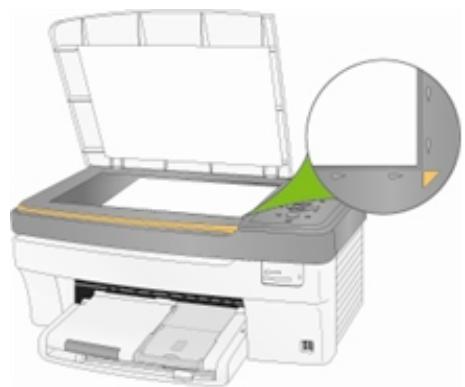
2 On the main Home Center window, click Copy Pictures to open the Basic Copy window.
3 Click Go to Advanced to open the Advanced Copy window.
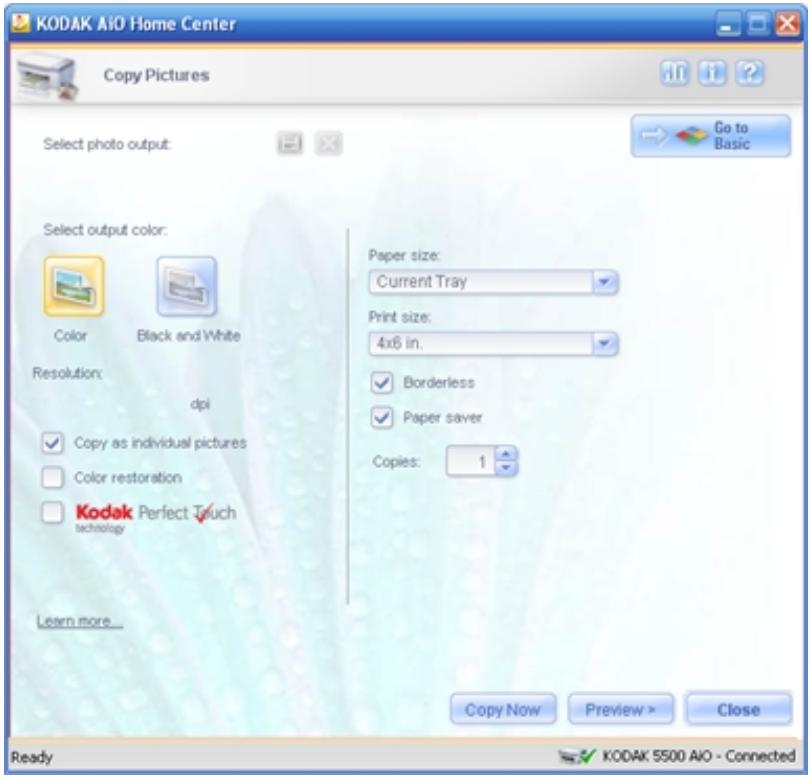
4 Select an output type from the Select photo output drop-down list.
4x6 Copy: Print individual borderless 4'' × 6'' copy(s) of each picture on the scanner glass.
8x10 Copy: Print individual borderless 8'' × 10'' copy(s) of each picture on the scanner glass.
8.5x11 Copy: Print individual borderless 8.5" x 11" copy(s) of each picture on the scanner glass.
Exact Copy: Print individual, exact size copy(s) of each picture on the scanner glass.
Collage Copy: Copy picture(s) exactly as placed on the scanner glass.
Color Restored Copy: Restores color from faded pictures.
5 Select Color or Black and White.
6 Set the following copy options as desired.
Resolution: Choose the Resolution from the drop-down list you want to use for the copy. Use 300 dpi when the print size selected is Original. Use a higher resolution when the print size is larger than the original, and a lower resolution when the print size is smaller than the original.
Copy as individual pictures: Copies all pictures on scanner glass to separate sheets of photo paper. When this check box is not selected, the entire scanner glass is copied.
Color restoration: Select to restore color on old faded photos.
Kodak Perfect Touch: Automatically corrects for common image flaws and "mistakes," such as shadows, and backlighting. Kodak Perfect Touch technology also enhances the desirable qualities of photos, for vibrant color and richer detail.
NOTE: Color restoration and Kodak Perfect Touch can be used together to enhance pictures.
Paper size: Select the paper size loaded. The default selection is Current Tray. When the Photo Tray is engaged, it becomes the current tray. When the Photo Tray is not engaged, the Main Tray is the current tray.
Print size: Select the size you want printed when making a copy to the Main Tray.
Borderless: Select to output a print with no border.
Paper saver: This feature automatically lays out your photos using the least amount of space so less paper is wasted when you cut out the photos. The pictures on the scanner glass are un-skewed and printed on the same sheet of paper. This checkbox is disabled when the photo tray is engaged.
Copies: Select the number of copies to make of the original.
7 If desired, click to save the options you selected as a shortcut.
8 If desired, click Preview > to preview the scanned photos.
9 Click Copy Now to start the copy. The picture(s) are scanned and copy progress information appears that shows the progress of the copy.
Copy Settings
The copy settings on this tab affect making copies from the control panel. The settings you make or shortcut you select on the Copy Pictures window controls the copies you make from the Home Center (see Copy Pictures).
Output Quality
Kodak picture quality is automatically selected when photo paper is detected in the main or photo input trays.
The following print quality options are available for printing on non-photo paper.
Draft Produces the lowest quality, but the fastest copy speed.
Normal Delivers high-quality output and is the default setting. Normal copies faster than Best.
Best Produces the highest quality for all paper and eliminates the banding (striping) effect that sometimes occurs in solid areas. Best is the slowest copy speed.
To set output quality for non-photo paper
1 On the main Home Center window, click Configure Settings to display the settings options.
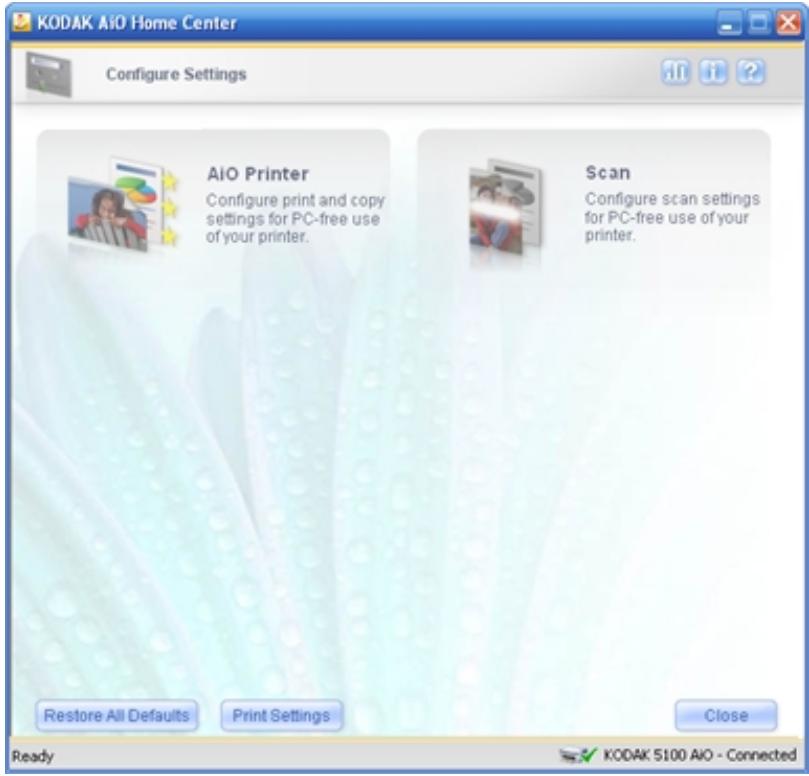
2 Click AiO Printer to open the AiO Printer dialog.
3 Click the Copy tab.
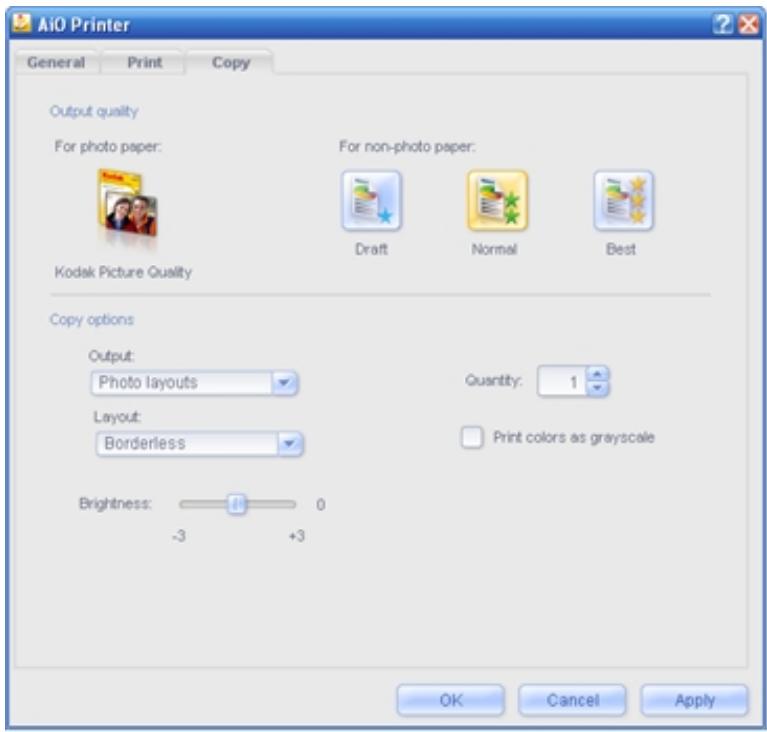
5 Select Draft, Normal, or Best.
6 Click OK or Apply.
Copy Options
1 On the main Home Center window, click Configure Settings to display the settings options.
2 Click AiO Printer to open the AiO Printer dialog.
3 Click the Copy tab.
4 Set the following options as desired.
Output: Select Same Size, Fit to Page, Scale Percentage, or Photo Layouts from the drop-down list.
Size: Enabled when you select Scale Percentage in the Output drop-down list. Use this drop-down list to set the percentage you want to scale your copies.
Layout: Enabled when you select Photo Layouts from the Output pop-up list. Select your preferred layout to print one of more photos on the size paper loaded (see Layouts).
Brightness: Use the slide-bar to increase or decrease the brightness of copies.
Quantity: Sets the default number of copies to the value you select.
Print colors as grayscale: Copying a color photo in grayscale makes it look like a traditional black-and-white photograph. The grayscale palette contains white, black, and 254 shades of grey. Each color in the image is replaced with a gray that matches its lightness value.
5 Click OK or Apply.

Scan
You can start a scan from the Kodak AiO Control Panel or your computer.
Scan with Control Panel
Pressing Scan places the Kodak EasyShare AiO in Scan mode and displays the Scan menu on the screen.
Save Scan Settings
When you change scan settings from the control panel, the settings apply only to the current scan job. To apply scan settings to all future scan jobs, you can save your changes.
1 Press Scan to display the Scan menu.
2 Change the desired Scan settings.
3 Press until Save Settings is selected.
4 Press or to set save scan settings to Yes.
Scanning Photos
With the Control Panel Scan menu, you can scan photos to a file, application, or memory card.
Scan to File
1 Place a photo or photos face down on the scanner glass.
2 Press Scan to display the Scan menu.
3 Press or to select Photo.
4 Press until Scan To is selected.
5 Press or to select File.
6 Press Start.
The document is scanned and saved based on the Kodak AiO Home Center scan picture settings (see Scan Picture Settings).
Scan to Application
The Home Center software enables you to maintain a list of scan destination applications.
1 Place a photo or photos face down on the scanner glass.
2 Press Scan to display the Scan menu.
3 Press or to select Photo.
4 Press to select Scan To.
5 Press to select Application.
6 Press to until Application is selected.
7 Press or to select another application.
8 Press Start.
Scan to Memory Card
1 Insert a Memory Card into the appropriate card slot.

WARNING:
Never attempt to remove a memory card while it is being accessed. Doing so can damage files on the card. You can safely remove a card only when the status light next to the slots is not blinking.
2 Place a photo or photos face down on the scanner glass.
3 Press Scan to display the Scan menu.
4 Press or to select Photo.
5 Press to select Scan To.
6 Press or to select Memory Card.
7 Press Start.
Scanning Documents
With the Control Panel Scan menu, you can scan documents to a file, application, or memory card.
Scan to File
1 Load your original face down on the right front corner of the scanner glass.
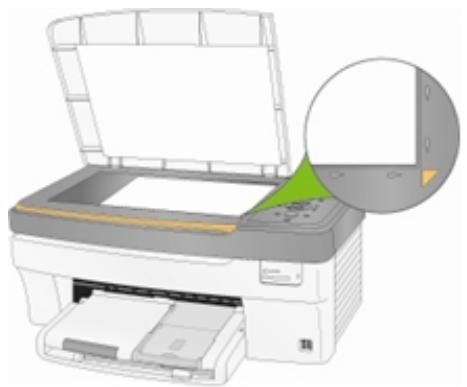
2 Press Scan to display the Scan menu.
3 Press or to select Document.
4 Press Start.
The document is scanned and saved based on the Kodak AiO Home Center scan document settings (see Scan Document Settings).
Scan to Application
1 Load your original face down on the right front corner of the scanner glass.
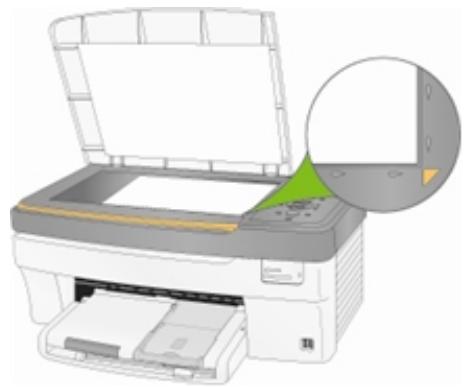
2 Press Scan to display the Scan menu.
3 Press or to select Document.
4 Press to select Scan To.
5 Press or to select Application.
6 Press to until Application is selected.
7 Press or to select another application.
8 Press Start.
Scan to Memory Card
1 Insert a Memory Card into the appropriate card slot.

WARNING:
Never attempt to remove a memory card while it is being accessed. Doing so can damage files on the card. You can safely remove a card only when the status light next to the slots is not blinking.
2 Load your original face down on the right front corner of the scanner glass.
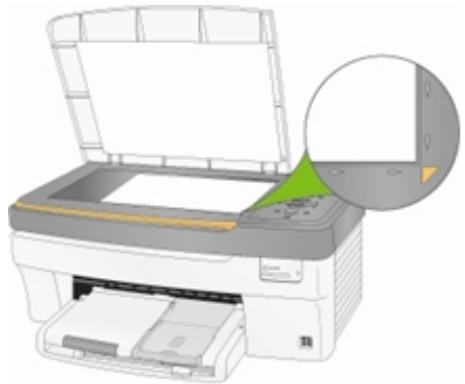
3 Press Scan to display the Scan menu.
4 Press or to select Document.
5 Press to select Scan To.
6 Press or to select Memory Card.
7 Press Start.
Scan with Computer
Scanning is the process of converting text and pictures into an electronic format for your computer. The Scan mode becomes active when you click Scan Pictures and Documents. The Scan status light is always on when the EasyShare AiO is in Scan mode. After loading your original onto the scanner glass, you click Scan Now to initiate a scan operation. If you select Color, the EasyShare AiO performs a color scan. If you select Grayscale or Black & White, then the EasyShare AiO scans for black and white with grayscale. The Scan status light blinks during data transfer.
To use the scan features, your EasyShare AiO and computer must be connected and turned on. The Kodak AiO Home Center software must also be installed and running on your computer prior to scanning.
Scanning Pictures
The AiO Home Center software allows you to scan pictures to a file or an application.
Scan to File
1 Place your photo or photos face down on the scanner glass. Your Kodak All-in-One Printer can detect multiple photos.
2 On the main Home Center window, click Scan Pictures and Documents to open the Basic Scan window.
3 Click Go to Advanced to open the Advanced Scan window.
4 Select Picture.
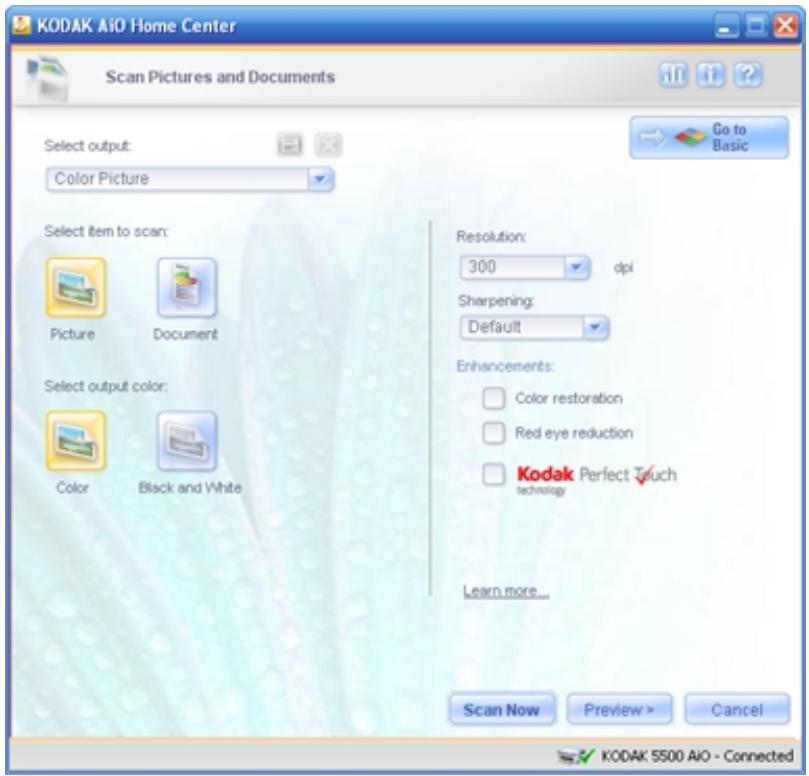
5 Select Color or Black & White.
6 If desired, set the following options.
Resolution: Choose the Resolution from the drop-down list you want to use for the scan. 300 dpi is the default and is fine for 4x6 pictures. 600 dpi should be used for smaller pictures. The higher the resolution, the larger the file size and the slower the scan.
Sharpening: This drop-down list is available when scanning color pictures. It contains a list of supported sharpen levels for enhancing fuzzy images; None, Default, High, and Maximum.
Color restoration: Select to restore color on old faded photos. This check-box is available when scanning pictures.
Red Eye reduction: Select to automatically minimize red eye in flash photos. This check-box is available when scanning color pictures.
Kodak Perfect Touch: Automatically corrects for common image flaws and "mistakes," such as shadows, and backlighting. Kodak Perfect Touch technology also enhances the desirable qualities of photos, for vibrant color and richer detail. This check-box is enabled when scanning pictures.
7 If desired, save the options you selected as a scan shortcut.
8 If desired, click Preview > to view of the scanned image (see Scan Preview).
9 Click Scan Now to start the scan.
The picture is scanned and scan progress information appears that shows the progress of the scan. When the scan is completed, scan complete information and controls appear.
10 If you have more pictures to scan, place the next one on the scanner glass and click Scan Next or Preview>.
11 When you have finished scanning, you can enhance your scanned pictures before selecting an output option by clicking Edit (see Enhance Picture).
12 Click Continue to select output options.
13 Make sure File is selected in the Destinations list box.
14 Select a folder for saving the file from the Location drop-down list, or click Browse to select a folder from the Open dialog.
15 Enter a name for the file in the Filename edit box.
16 Select a graphic file format from the File type drop-down list.
17 If you selected JPEG (.jpg) as the File type, select the quality of the output file from the Quality drop-down list. The higher the quality the larger the file size.
18 Click Send to Destination to save the scanned picture(s) to the selected location. If you select all the scanned pictures, they are saved in separate files.
Scan to Printer
1 Place your photo or photos face down on the scanner glass. Your Kodak All-in-One Printer can detect multiple photos.
2 On the main Home Center window, click Scan Pictures and Documents to open the Basic Scan window.
3 Click Go to Advanced to open the Advanced Scan window.
4 Select Picture.
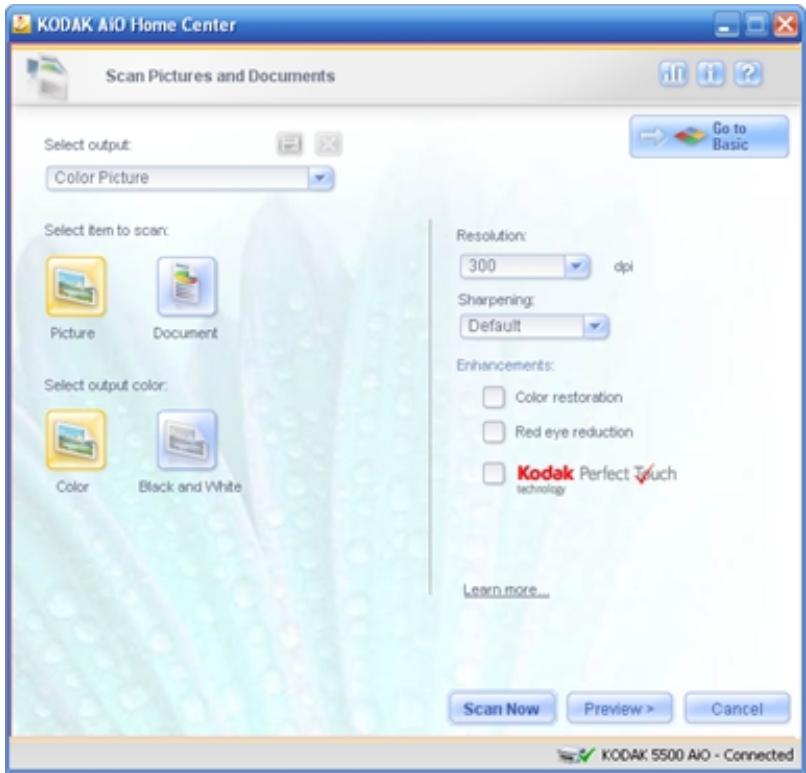
5 Select Color or Black & White.
6 If desired, set the following options.
Resolution: Choose the Resolution from the drop-down list you want to use for the scan. 300 dpi is the default and is fine for 4x6 pictures. 600 dpi should be used for smaller pictures. The higher the resolution, the larger the file size and the slower the scan.
Sharpening: This drop-down list is available when scanning color pictures. It contains a list of supported sharpen levels for enhancing fuzzy images; None, Default, High, and Maximum.
Color restoration: Select to restore color on old faded photos. This checkbox is available when scanning pictures.
Red Eye reduction: Select to automatically minimize red eye in flash photos. This checkbox is available when scanning color pictures.
Kodak Perfect Touch: Automatically corrects for common image flaws and "mistakes," such as shadows, and backlighting. Kodak Perfect Touch technology also enhances the desirable qualities of photos, for vibrant color and richer detail. This checkbox is enabled when scanning pictures.
7 If desired, save the options you selected as a scan shortcut.
8 If desired, click Preview to view of the scanned image (see Scan Preview).
9 Click Scan Now to start the scan.
The picture is scanned and scan progress information appears that shows the progress of the scan. When the scan is completed, scan complete information and controls appear.
10 If you have more pictures to scan, place the next one on the scanner glass and click Scan Next or Preview>.
11 When you have finished scanning, you can enhance your scanned pictures before selecting an output option by clicking Edit (see Enhance Picture).
12 Click Continue to select output options.
13 Select Printer in the Destinations list box.
14 Click Print to print the scanned picture(s) to your EasyShare AiO.
Scan to EasyShare
1 Place your photo or photos face down on the scanner glass. Your Kodak All-in-One Printer can detect multiple photos.
2 On the main Home Center window, click Scan Pictures and Documents to open the Basic Scan window.
3 Click Go to Advanced to open the Advanced Scan window.
4 Select Picture.
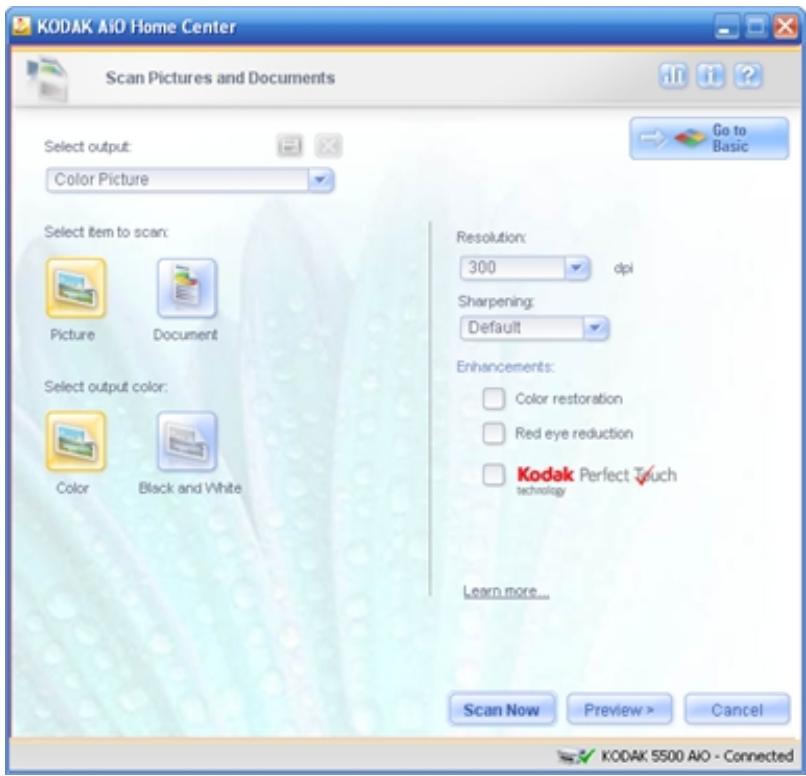
5 Select Color or Black & White.
6 If desired, set the following options.
Resolution: Choose the Resolution from the drop-down list you want to use for the scan. 300 dpi is the default and is fine for 4x6 pictures. 600 dpi should be used for smaller pictures. The higher the resolution, the larger the file size and the slower the scan.
Sharpening: This drop-down list is available when scanning color pictures. It contains a list of supported sharpen levels for enhancing fuzzy images; None, Default, High, and Maximum.
Color restoration: Select to restore color on old faded photos. This checkbox is available when scanning pictures.
Red Eye reduction: Select to automatically minimize red eye in flash photos. This checkbox is available when scanning color pictures.
Kodak Perfect Touch: Automatically corrects for common image flaws and "mistakes," such as shadows, and backlighting. Kodak Perfect Touch technology also enhances the desirable qualities of photos, for vibrant color and richer detail. This checkbox is enabled when scanning pictures.
7 If desired, save the options you selected as a scan shortcut.
8 If desired, click Preview to view of the scanned image (see Scan Preview).
9 Click Scan Now to start the scan.
The picture is scanned and scan progress information appears that shows the progress of the scan. When the scan is completed, scan complete information and controls appear.
10 If you have more pictures to scan, place the next one on the scanner glass and click Scan Next or Preview>.
11 When you have finished scanning, you can enhance your scanned pictures before selecting an output option by clicking Edit (see Enhance Picture).
12 Click Continue to select output options.
13 Select Kodak EasyShare in the Destinations list box.
14 Select an album from the drop-down list or enter the name of a new album
15 Enter a base filename in the edit box.
16 If desired, select Open EasyShare software.
17 Click Send to Destination to send the scanned picture(s) to Kodak EasyShare.
Scan to Application
1 Place your photo or photos face down on the scanner glass. Your Kodak All-in-One Printer can detect multiple photos.
2 On the main Home Center window, click Scan Photos and Documents to open the Basic Scan window.
3 Click Go to Advanced to open the Advanced Scan window.
4 Select Picture.
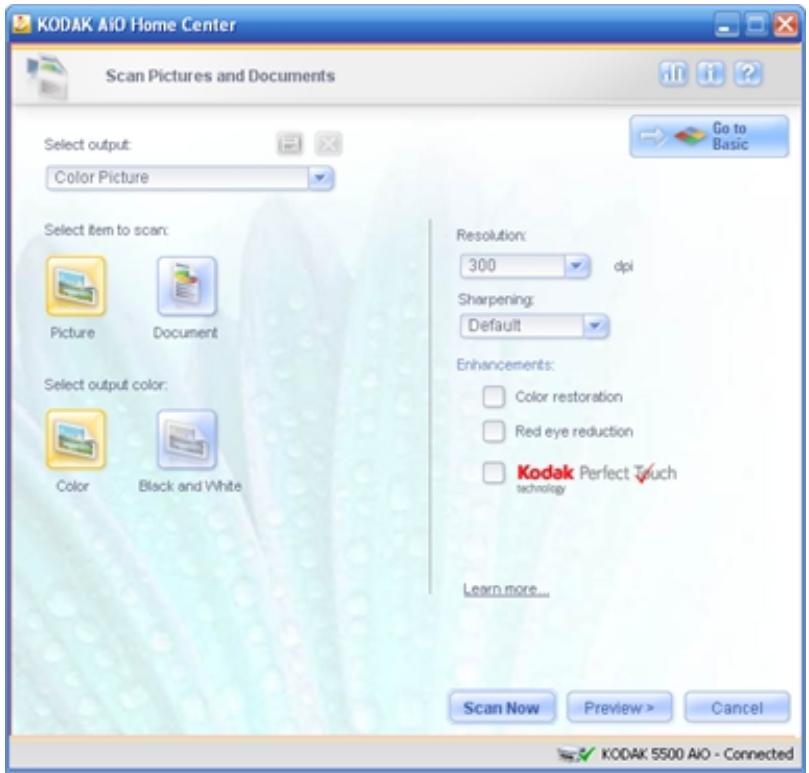
5 Select Color or Black & White.
6 If desired, set the following options.
Resolution: Choose the Resolution from the drop-down list you want to use for the scan. 300 dpi is the default and is fine for 4x6 pictures. 600 dpi should be used for smaller pictures. The higher the resolution, the larger the file size and the slower the scan.
Sharpening: This drop-down list is available when scanning color pictures. It contains a list of supported sharpen levels for enhancing fuzzy images; None, Default, High, and Maximum.
Color restoration: Select to restore color on old faded photos. This checkbox is available when scanning pictures.
Red Eye reduction: Select to automatically minimize red eye in flash photos. This checkbox is available when scanning color pictures.
Kodak Perfect Touch: Automatically corrects for common image flaws and "mistakes," such as shadows, and backlighting. Kodak Perfect Touch technology also enhances the desirable qualities of photos, for vibrant color and richer detail. This checkbox is enabled when scanning pictures.
7 If desired, save the options you selected as a scan shortcut.
8 If desired, click Preview > to view of the scanned image (see Scan Preview).
9 Click Scan Now to start the scan.
The picture is scanned and scan progress information appears that shows the progress of the scan. When the scan is completed, scan complete information and controls appear.
10 When you have finished scanning, you can enhance your scanned pictures before selecting an output option by clicking Edit (see Enhance Picture).
11 Click Continue to select output options.
12 Select an application from the Destinations list box. To add or delete applications from the list, click Modify List (see Scan Pictures Settings).
13 Click Send to Destination to save the scanned picture(s) to the selected application. If you select all the scanned pictures, they are inserted as separate pictures.
Scan Preview
Pictures
Picture controls are enabled if you are scanning pictures.
Automatically detect multiple pictures: Select to have the EasyShare AiO detect how photos are positioned on the scanner glass.
Manually select pictures: Select to use selection boxes in the Preview area to select the areas to scan.
Selection Box Size: The drop-down list and button are enabled when you select Manually select pictures. Choose a selection box size from the list and click to add it to the Preview area. Use the mouse to move and resize the selection boxes in the Preview area to manually select the areas to scan.
Properties
Size: The size of the selected selection box's corresponding item, in the format of width and height units selected for the ruler.
Estimated.jpg file size: The size based on the resolution selected.
Quality prints up to: The maximum size you can print this image without losing quality.
Selection Box

Delete Selection Box: Enabled if a selection box is selected in the Preview area. Clicking deletes the selected selection box from the Preview area.

Rotate Selection Box: Enabled if a selection box is selected in the Preview area. Clicking rotates the selected selection box 90 degrees clockwise in the Preview area.
Zoom

To zoom the preview, grab the slider with the mouse and slide it to the right.
Preview Display
The preview display area shows the results of a preview scan and any adjustments you make to the scanned item. The preview display area is re-sized.
Ruler Units

Click to select ruler units from menu; inches or centimeters.
Edit Picture
The Enhance Picture dialog opens with the Enhancements options shown. Click to hide options and to show options. The results of the selected checkboxes are reflected on the photo in the preview area.



Rotate: Rotates the picture 90 degrees clockwise in the Preview area.
Zoom: To zoom the picture, grab the slider with the mouse and slide it to the right.
Enhancements
Sharpening: This drop-down list is available when scanning color pictures. It contains a list of supported sharpen levels for enhancing fuzzy images; None, Normal, High, and Exaggerated.
Kodak Perfect Touch technology: Automatically corrects for common image flaws and "mistakes," such as shadows, and backlighting. Kodak Perfect Touch technology also enhances the desirable qualities of photos, for vibrant color and richer detail. This checkbox is disabled when scanning black and white pictures.
Red Eye Reduction: Select to automatically remove red eye in flash photos. This checkbox is available when scanning color pictures.
Color Restoration: Select to restore color on old faded photos. This checkbox is available when scanning color pictures.
Adjustments
Brightness: Move the slider with the mouse, or enter a number between -10 and +10 in the text box to adjust brightness.
Contrast: Move the slider with the mouse, or enter a number between -10 and +10 in the text box to adjust contrast.
Saturation: Move the slider with the mouse, or enter a number between -10 and +10 in the text box to adjust saturation.
Kodak Perfect Touch technology: Automatically corrects for common image flaws and "mistakes," such as shadows, and backlighting. Kodak Perfect Touch technology also enhances the desirable qualities of photos, for vibrant color and richer detail. This checkbox is disabled when scanning black and white pictures.
Shadows: Move the slider with the mouse, or enter a number between -10 and +10 in the text box to adjust shadows.
Midtones: Move the slider with the mouse, or enter a number between -10 and +10 in the text box to adjust midtones.
Highlights: Move the slider with the mouse, or enter a number between -10 and +10 in the text box to adjust highlights.
Crop
Picture Size Crop: Allows you to select crop sizes from the drop-down list, rotate the crop box, and move and resize the crop box with the mouse.
Free Form: Allows you to move and resize the crop box with the mouse.
NOTE: A "Crop selection is below the minimum cropping size" message is displayed if you crop too much of the picture. The minimum cropping size is not fixed values, but depends on picture size and resolution.
Scanning Documents
The AiO Home Center software allows you to scan documents to a file, Email, or an application.
Scan to File
1 Place your original face down on the right front corner of the scanner glass.
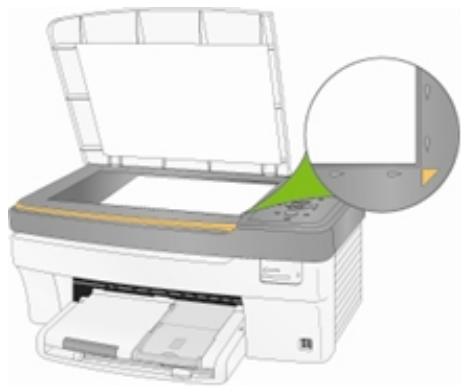
2 On the main Home Center window, click Scan Photos and Documents to open the Basic Scan window.
3 Click Go to Advanced to open the Advanced Scan window.
4 Select Document.
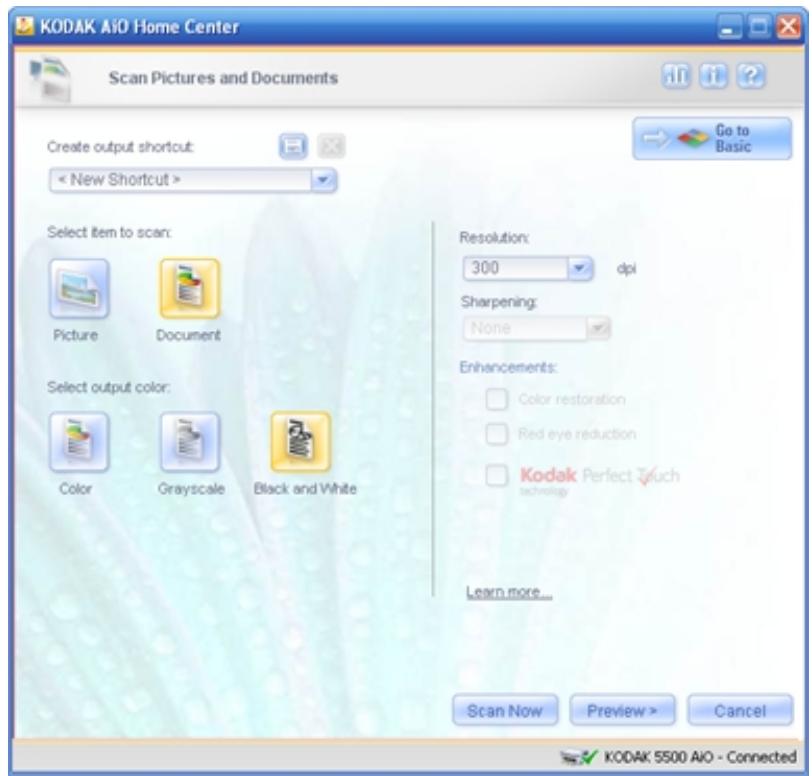
5 Select Color, Grayscale, or Black & White.
6 If desired, change the Resolution.
7 If you changed the Resolution, you can save it as a scan shortcut.
8 Click Scan Now to start the scan.
The page on the scanner glass is scanned and scan progress information appears that shows the progress of the scan. When the scan is completed, scan complete information and controls appear.
9 If you have more pages to scan, place the next page on the scanner glass and click Scan Next or Preview>.
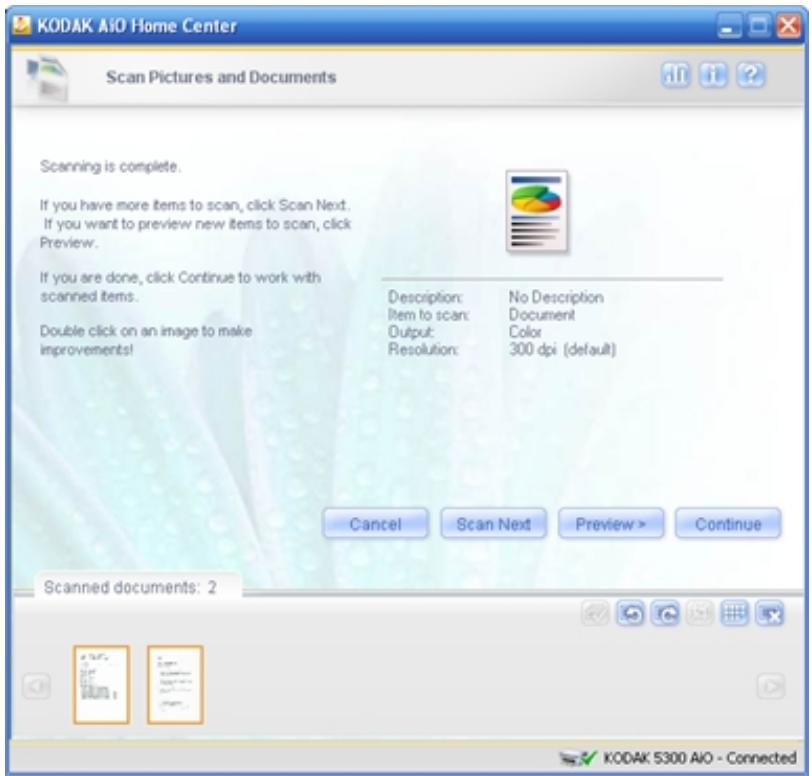
10 When you have finished scanning, click Continue to select output options.
11 Make sure File is selected in the Destinations list box.
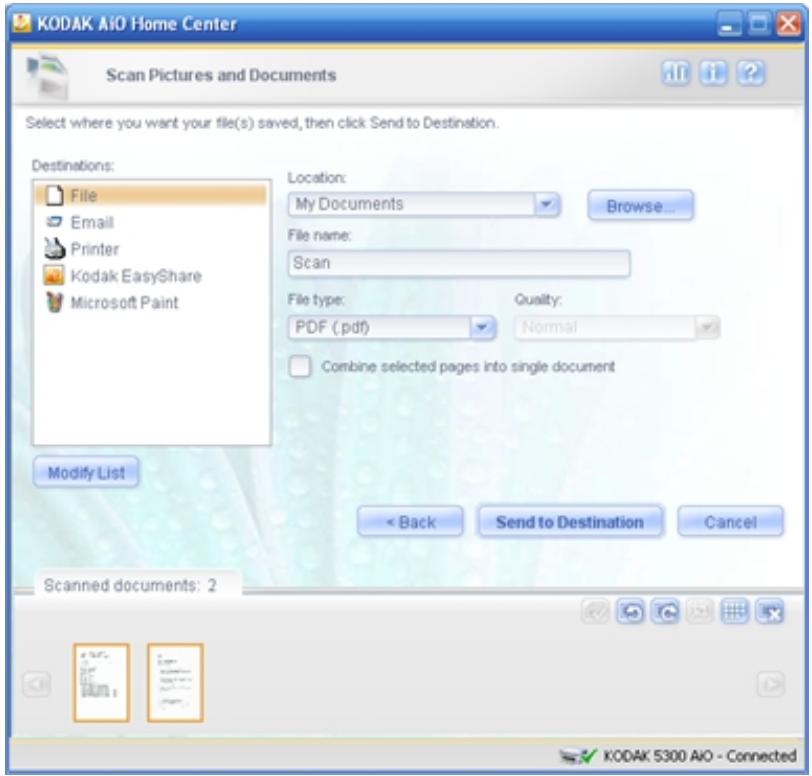
12 Select a folder for saving the file from the Location drop-down list, or click Browse to select a folder from the Open dialog.
13 Enter a name for the file in the Filename edit box.
14 Select a file format from the File type drop-down list. To produce a file that can be edited, select RTF (.rtf).
15 If you selected JPEG (.jpg) as the File type, select the quality of the output file from the Quality drop-down list. The higher the quality the larger the file size.
16 If desired, select Combine selected pages into single document.
17 Click Send to Destination to save the scanned page(s).
Scan to Email
1 Place your original face down on the right front corner of the scanner glass.
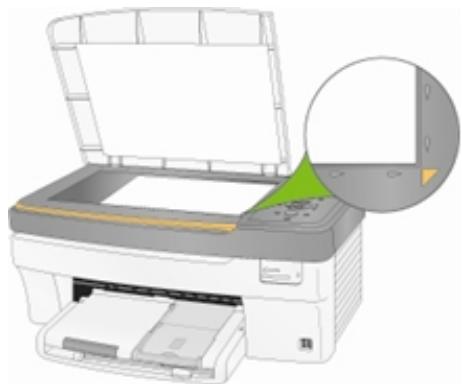
2 On the main Home Center window, click Scan Photos and Documents to open the Basic Scan window.
3 Click Go to Advanced to open the Advanced Scan window.
4 Select Document.
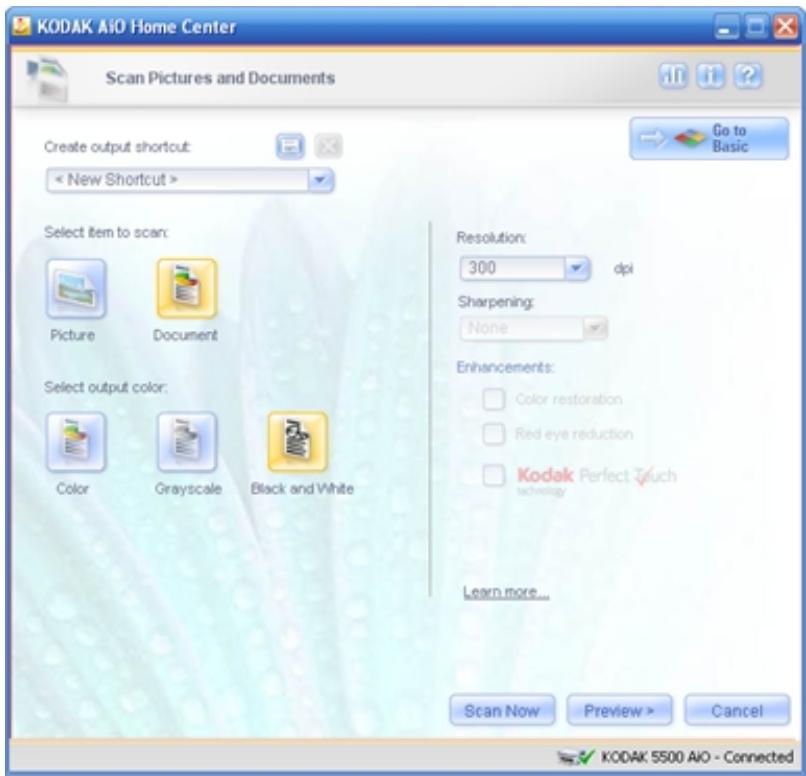
5 Select Color, Grayscale, or Black & White.
6 If desired, change the Resolution.
7 If you changed the Resolution, you can save it as a scan shortcut.
8 Click Scan Now to start the scan.
The page on the scanner glass is scanned and scan progress information appears that shows the progress of the scan. When the scan is completed, scan complete information and controls appear.
9 If you have more pages to scan, place the next page on the scanner glass and click Scan Next or Preview>.
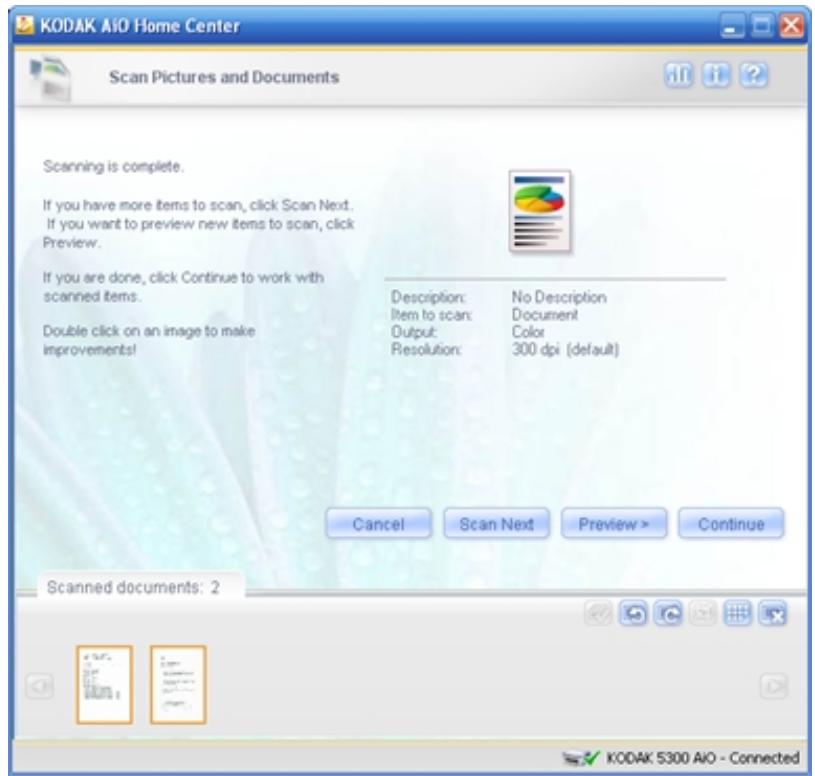
10 When you have finished scanning, click Continue to select output options.
11 Select Email n the Destinations list box.
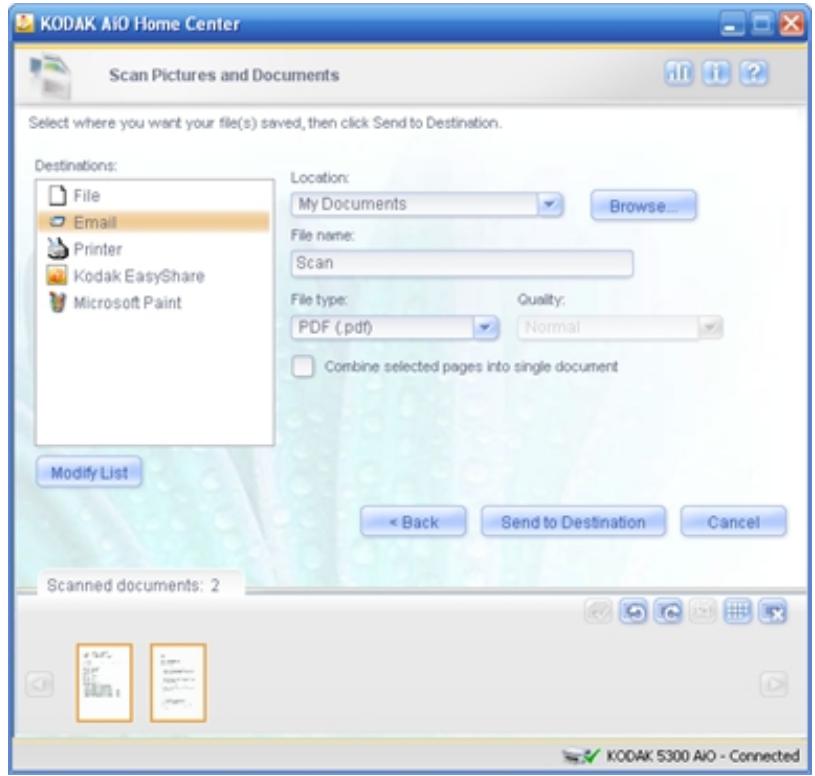
12 Select a folder for saving the file from the Location drop-down list, or click Browse to select a folder from the Open dialog.
13 Enter a name for the file in the Filename edit box.
14 Select a graphic file format from the File type drop-down list.
15 If you selected JPEG (.jpg) as the File type, select the quality of the output file from the Quality drop-down list. The higher the quality the larger the file size.
16 If desired, select Combine selected pages into single document.
17 Click Send to Destination to save the scanned page(s) to the selected location.
Scan to Printer
1 Place your original face down on the right front corner of the scanner glass.
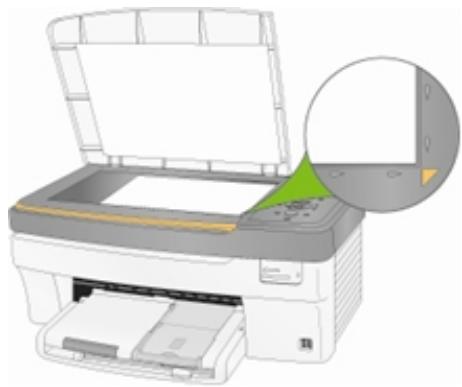
2 On the main Home Center window, click Scan Pictures and Documents to open the Basic Scan window.
3 Click Go to Advanced to open the Advanced Scan window.
4 Select Document.
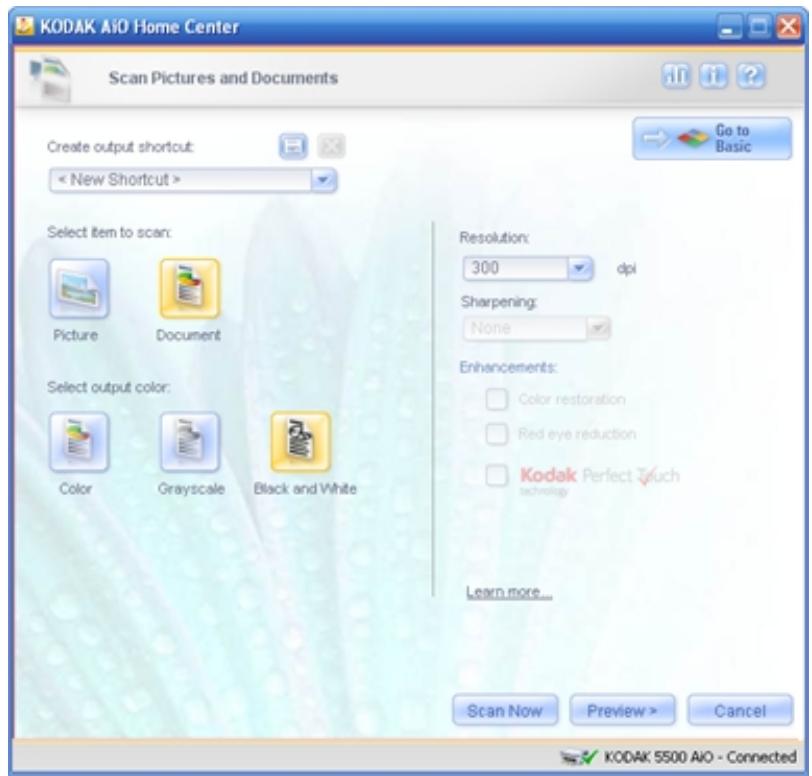
5 Select Color, Grayscale, or Black & White.
6 If desired, change the Resolution.
7 If you changed the Resolution, you can save it as a scan shortcut.
8 Click Scan Now to start the scan.
The picture is scanned and scan progress information appears that shows the progress of the scan. When the scan is completed, scan complete information and controls appear.
9 If you have more pages to scan, place the next page on the scanner glass and click Scan Next or Preview>.
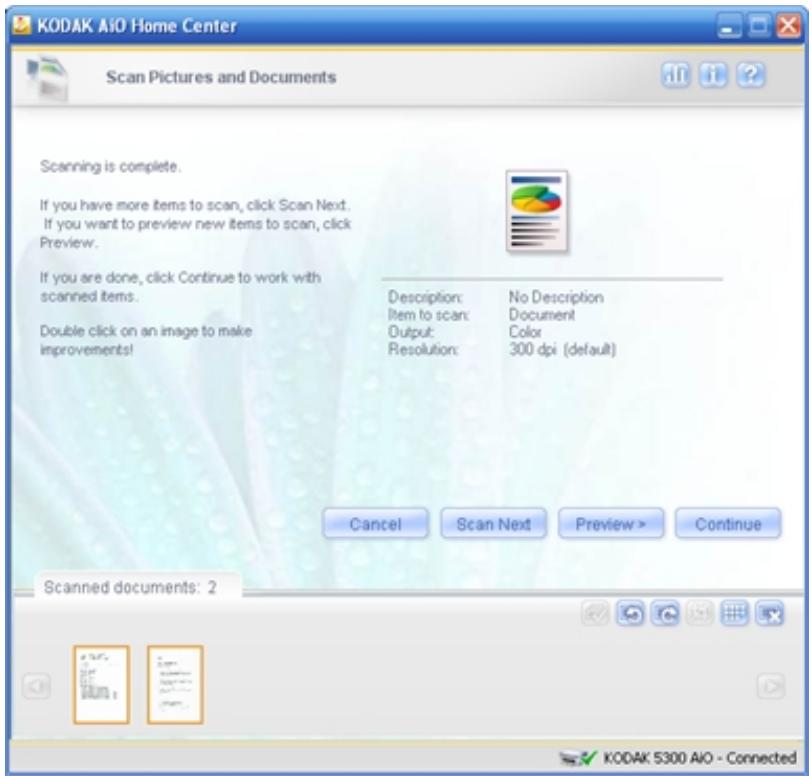
10 When you have finished scanning, click Continue to select output options.
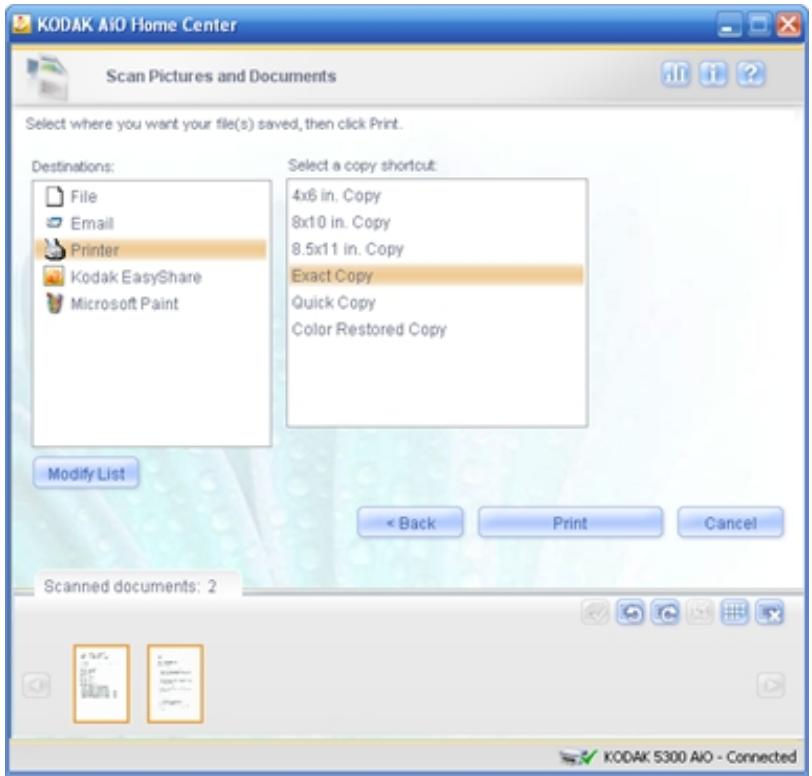
11 Select Printer in the Destinations list box.
12 Click Print to print the scanned picture(s) to your EasyShare AiO.
Scan to EasyShare
1 Place your original face down on the right front corner of the scanner glass.
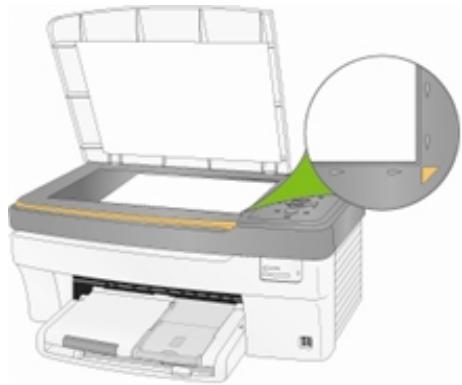
2 On the main Home Center window, click Scan Pictures and Documents to open the Basic Scan window.
3 Click Go to Advanced to open the Advanced Scan window.
4 Select Document.
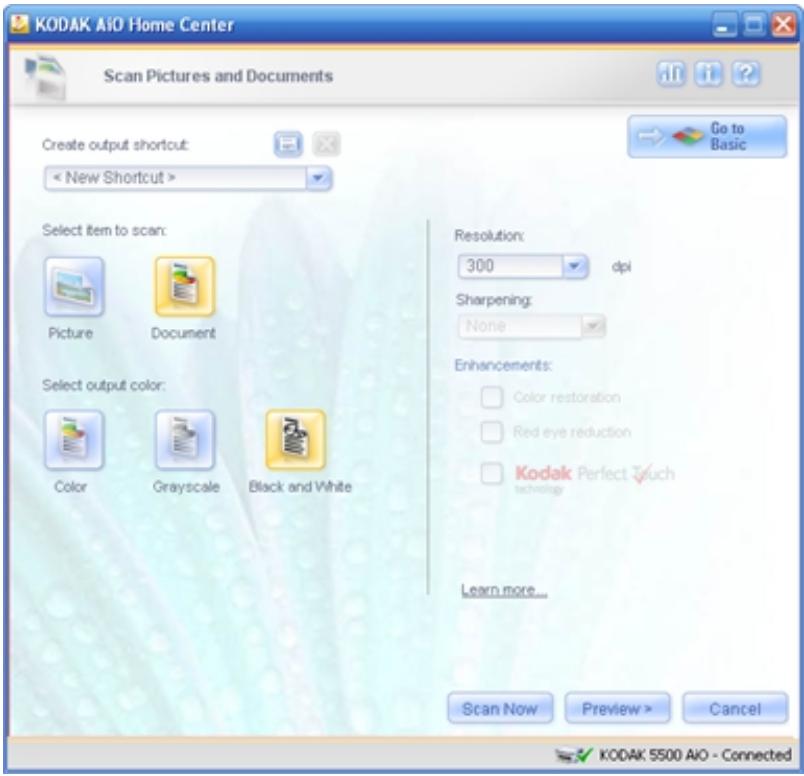
5 Select Color, Grayscale, or Black & White.
6 If desired, change the Resolution.
7 If you changed the Resolution, you can save it as a scan shortcut.
8 Click Scan Now to start the scan.
The document is scanned and scan progress information appears that shows the progress of the scan. When the scan is completed, scan complete information and controls appear.
9 If you have more pictures to scan, place the next one on the scanner glass and click Scan Next or Preview>.
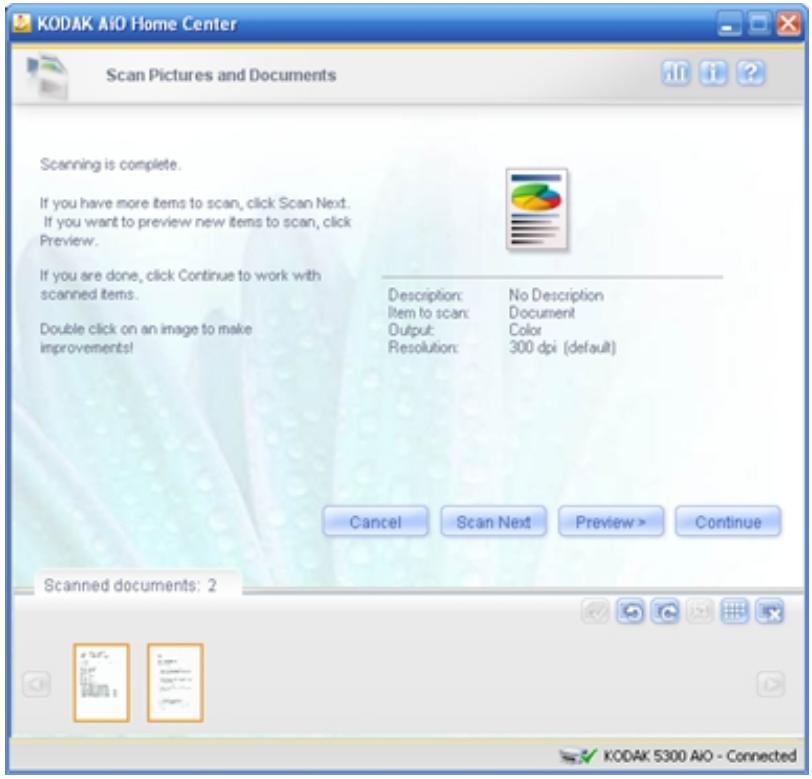
10 Click Continue to select output options.
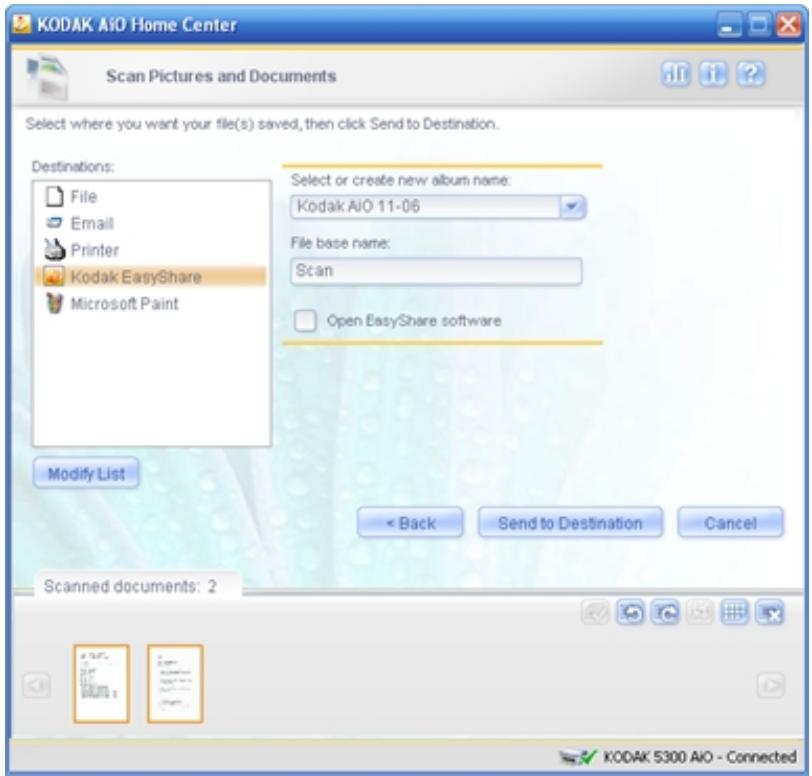
11 Select Kodak EasyShare in the Destinations list box.
12 Select an album from the drop-down list or enter the name of a new album.
13 Enter a base filename in the edit box.
14 If desired, select Open EasyShare software.
15 Click Send to Destination to send the scanned page(s) to Kodak EasyShare.
Scan to Application
1 Place your original face down on the right front corner of the scanner glass.
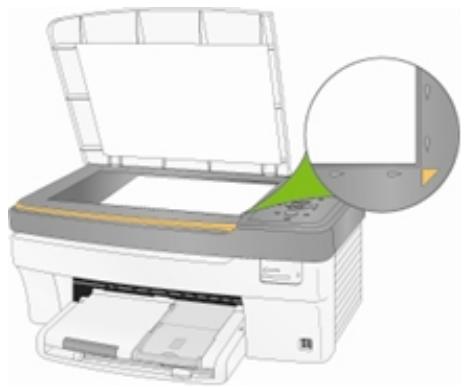
2 On the main Home Center window, click Scan Photos and Documents to open the Basic Scan window.
3 Click Go to Advanced to open the Advanced Scan window.
4 Select Document.
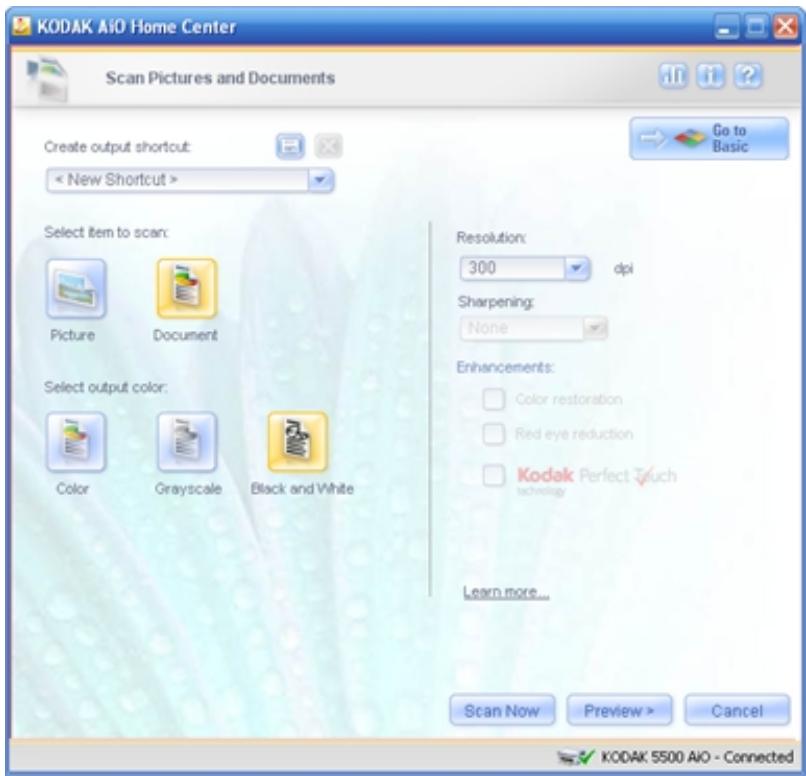
5 Select Color, Grayscale, or Black & White.
6 If desired, change the Resolution.
7 If you changed the Resolution, you can save it as a scan shortcut.
8 Click Scan Now to start the scan.
The page on the scanner glass is scanned and scan progress information appears that shows the progress of the scan. When the scan is completed, scan complete information and controls appear.
9 If you have more pages to scan, place the next page on the scanner glass and click Scan Next or Preview>.
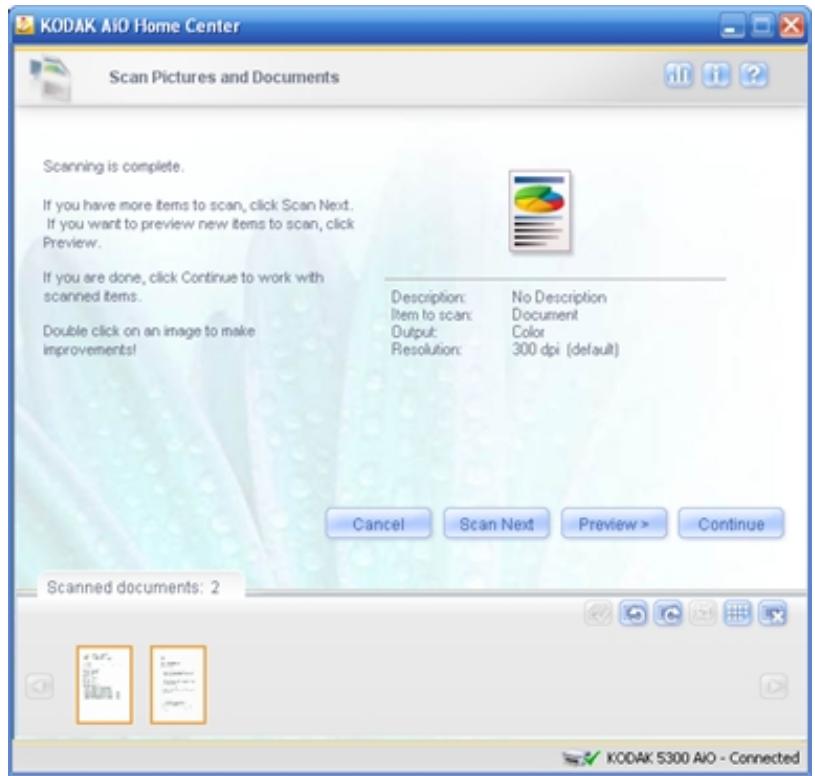
10 When you have finished scanning, click Continue to select output options.
11 Select an application from the Destinations list box. To add or delete applications from the list, click Modify List (see Scan Documents Settings).
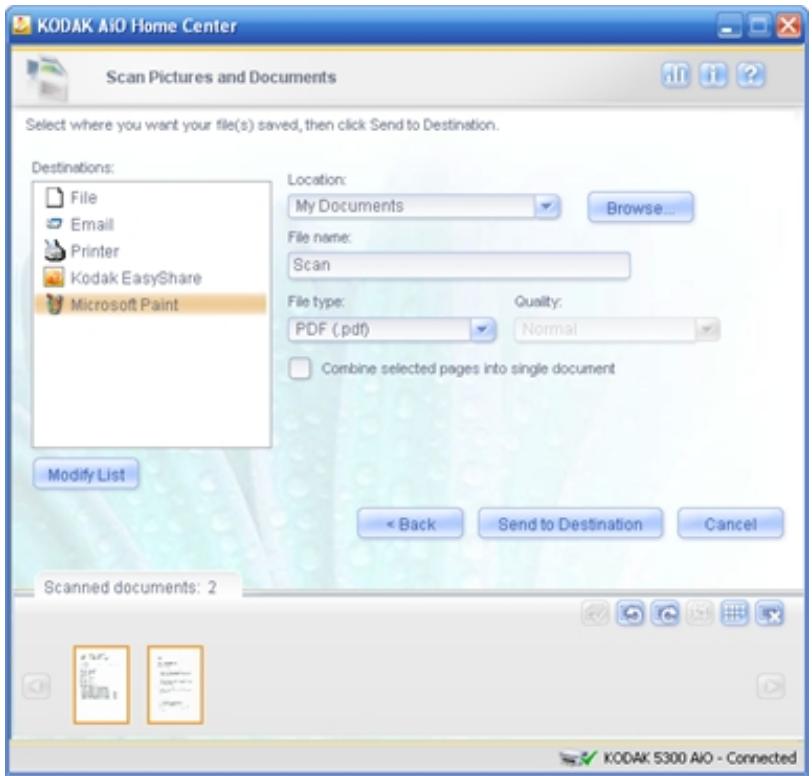
12 Click Send to Destination to save the scanned page(s) to the selected application.
Scan Settings
You can use the AiO Home Center to change the default scan settings and establish applications for scanning.
Scan General Settings
1 On the Home Center main window, click Configure Settings.
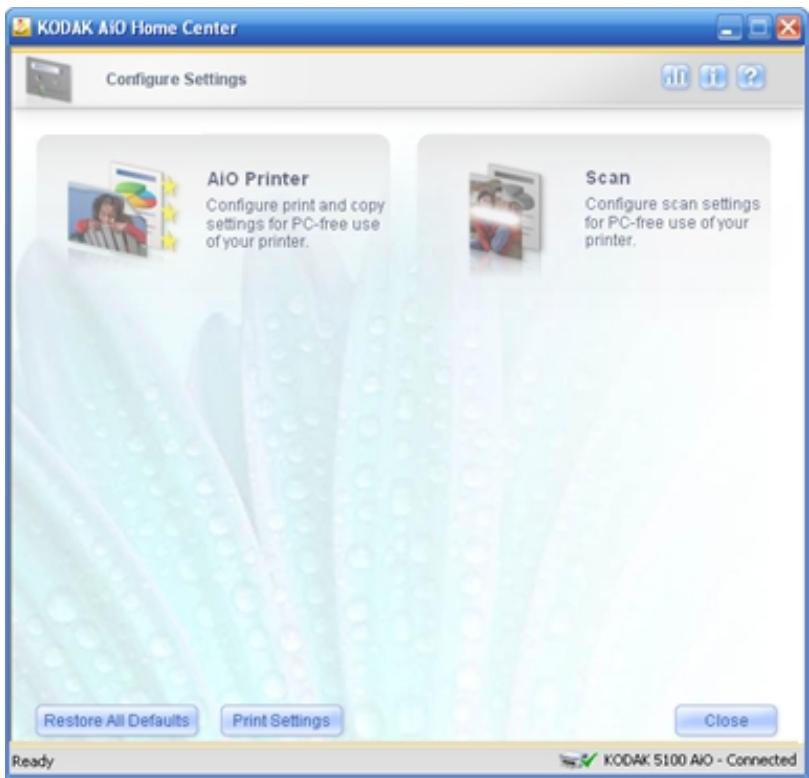
2 Click Scan.
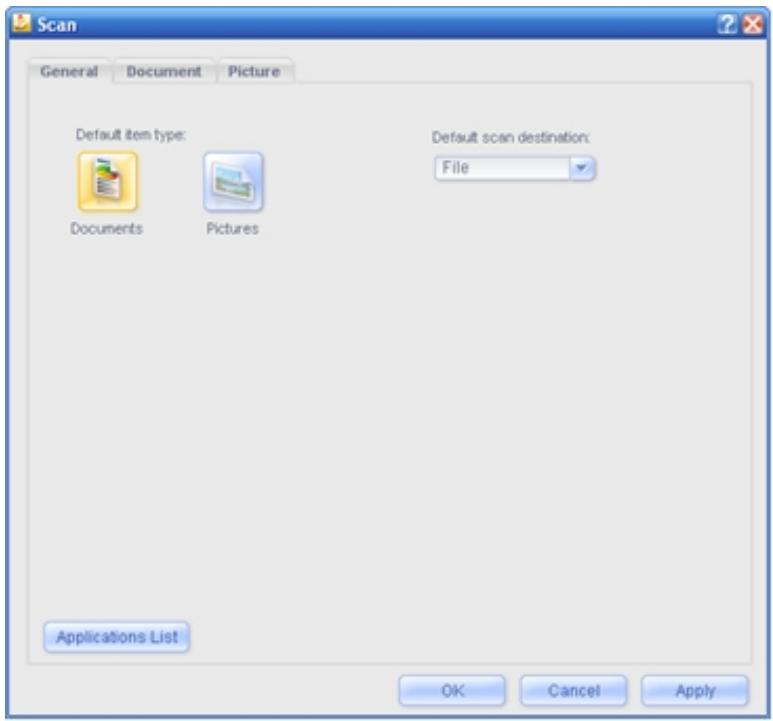
3 On the General tab, set the following options as desired.
Default item type: Click the appropriate icon to set the default scan mode to Documents or Pictures.
Default scan destination: You can set the default to scan to a file, application, or memory card.
Application List: Opens a dialog where you can add and remove applications from the destination list for scanned items.
4 Click OK or Apply.
Scan Document Settings
Basic Settings
1 On the Home Center main window, click Configure Settings.
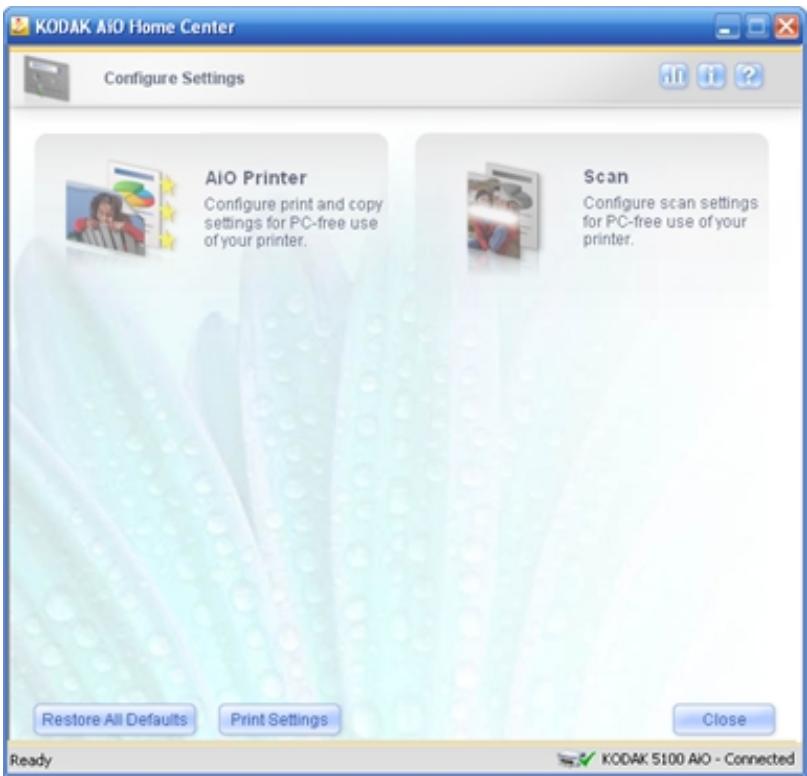
2 Click Scan.
3 Click the Document tab.
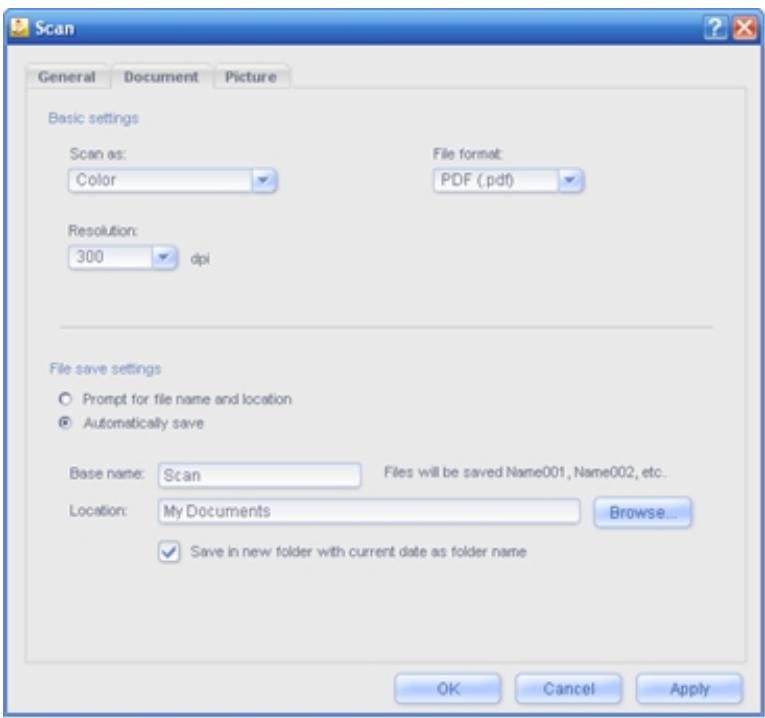
4 Set the following options as desired.
Scan as: Select a color from the drop-down list.
Color Sets the AiO to scan a color photo in color.
Grayscale Sets the AiO to scan a black and white photo and convert it to grays.
Black & White Sets the AiO to scan in black and white.
Resolution: You can choose a resolution you want to use for scanning. The resolutions supported are 75, 150, 300, 600, and 1200 dpi.
File: When scanning to a file, you can save the scanned image as a PDF, RTF, JPEG, or TIFF file. Select a format from the drop-down list.
5 Click OK or Apply.
File Save Settings
When you initiate a scan to file operation, you can have the AiO Home Center prompt you for the filename and location to save the file, or save the file automatically to the name and location you specify.
1 On the Home Center main window, click Configure Settings.
2 Click Scan.
3 Click the Document tab.
4 Set the following options as desired.
Prompt for filename and location: Select to have the AiO Home Center prompt you for the filename and location to save the file.
Automatically save: Select to automatically save scans to the name and location you specify. The default filename base is Scan appended with a three digit integer that increments sequentially as photos are scanned and saved.
Base name: Edit field for entering your base filename.
Location: Edit field and Browse button for choosing a folder.
Save into new folder with current date as file name: Select to save scanned files to the base name and location you specified.
5 Click Apply or OK.
Scan Picture Settings
Basic Settings
1 On the Home Center main window, click Configure Settings.
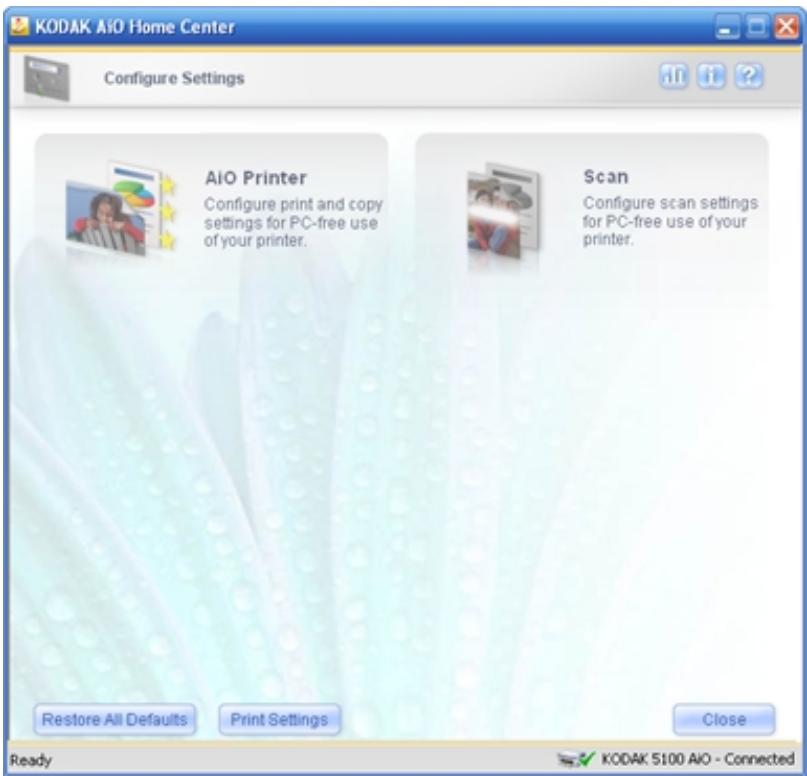
2 Click Scan.
3 Click the Picture Tab.

4 Set the following options as desired.
Scan as: Select a color from the drop-down list.
Color Sets the AiO to scan a color photo in color.
Black & White Sets the AiO to scan in black and white.
Automatically detect picture: When this checkbox is selected, your EasyShare AiO automatically detects how you arranged pictures on the scanner glass. When it is unchecked, the entire glass is scanned as one picture.
Resolution: You can choose a resolution you want to use for scanning. The resolutions supported are 75, 150, 200, 300, 600, and 1200 dpi.
File format: When scanning to a file, you can save the scanned image as a BMP, JPEG, or TIFF file. Select a format from the drop-down list.
Quality: When scanning to a file and the selected file format is JPEG, you can select the compression quality of the saved file. A higher quality means the compression will be lower, resulting in a larger file size.
5 Click OK or Apply.
File Save Settings
When you initiate a scan to file operation, you can have the AiO Home Center prompt you for the filename and location to save the file, or save the file automatically to the name and location you specify.
1 On the Home Center main window, click Configure Settings.
2 Click Scan.
3 Click the Picture Tab.
4 Set the following options as desired.
Prompt for filename and location: Select to have the AiO Home Center prompt you for the filename and location to save the file.
Automatically save: Select to automatically save scans to the name and location you specify. The default filename base is Scan appended with a three digit integer that increments sequentially as photos are scanned and saved.
Base name: Edit field for entering your base filename.
Location: Edit field and Browse button for choosing a folder.
Save into new folder with current date as file name: Select to save scanned files to the base name and location you specified.
5 Click OK or Apply.

Maintenance
The Kodak EasyShare All-in-One requires little maintenance. However, you should clean the glass and lid backing to remove dust and fingerprints.
Fingerprints and other debris on the glass or lid backing could slow down performance and affect the accuracy of scanning.
This section covers the Settings menu, printhead installation, printhead calibration, checking ink levels, and changing ink cartridges.
General Care
IMPORTANT: Always disconnect the power before cleaning. Do not use harsh or abrasive cleaners or organic solvents on the EasyShare AiO or any of its parts.

WARNING:
Do not leave items on the scanner glass. The heat of the scanning lamp may cause them to stick.
To clean, wipe the outside of the EasyShare AiO and LCD with a clean, dry cloth.
- Keep the surrounding area vacuumed and litter-free.
Protect the EasyShare AiO from tobacco smoke, dust, sand, and liquid spills.
Avoid placing objects on the EasyShare AiO.
- Keep the EasyShare AiO, accessories, and supplies away from direct sunlight and out of high-temperature environments.
- Do not allow chemicals, such as suntan lotion, to come into contact with the painted surface of the EasyShare AiO.
If the EasyShare AiO has been subjected to inclement weather or you suspect water has gotten inside the EasyShare AiO, turn it off and let it dry out. If this does not resolve the problem, contact customer support (see Telephone Customer Support).
Service agreements are available in some countries. Contact a dealer of Kodak products for more information.
- The EasyShare AiO and the AC power adapter contain a small amount of lead in the circuit board. Disposal of this material may be regulated due to environmental considerations.
For more disposal or recycling information, contact your local authorities. In the US, visit the Electronics Industry Alliance Web site at www.eiae.org.
Clean the Scanner Glass
To ensure that your copies and scans remain clear, keep the scanner glass and lid backing clean and dust the exterior.
1 Turn off the EasyShare AiO and raise the lid.
2 Clean the glass with a soft cloth or sponge slightly moistened with a nonabrasive glass cleaner.

WARNING:
Do not use abrasives, acetone, benzene, or carbon tetrachloride on the glass, since they can damage it. Do not place or spray liquid directly on the glass. The liquid might seep under the glass and damage the device.
3 Dry the glass with a lint fee cloth.
Clean the Scanner Lid
Minor debris can accumulate on the document backing located underneath the scanner lid of the Kodak EasyShare AiO.
1 Turn off the EasyShare AiO and raise the lid.
2 Clean the lid underside with a soft cloth or sponge slightly moistened with a mild soap and warm water.
3 Wipe the underside gently to loosen debris. Do not scrub.
4 Dry the underside with a chamois or soft cloth.

WARNING
Do not use paper-based wipes, as these might scratch the underside.
5 If further cleaning is needed, repeat the previous steps using isopropyl (rubbing) alcohol, and wipe the underside thoroughly with a damp cloth to remove any residual alcohol.
Format Memory Card
Formatting will erase all the data on a memory card.
1 Insert a memory card into the appropriate slot.
2 Press Menu.
3 Press until Format Memory Card is selected.
4 Press OK.
5 Press Start to begin formatting.
Print Diagnostic Sheet
The Diagnostic Page contains information about your printer that can be useful when contacting Kodak support.
1 Press Menu.
2 Press until Print Diagnostic Sheet is selected.
3 Press OK.
4 Press Start to begin printing.
Firmware Upgrade
You can update the firmware in your EasyShare AiO with the most recent available from the Home Center software. This requires an internet connection.
1 Click the Help button to open the Help panel.
2 Under General Links, click Maintenance.
3 Click Firmware Upgrade.
Ink Cartridges
Your Kodak EasyShare AiO uses separate black and color ink cartridges. The ink levels are displayed on the Control Panel and the printer software. When replacing, use genuine Kodak ink cartridges to ensure best results and avoid printhead damage not covered under warranty.
Check Ink Levels
You can easily check the ink levels to determine how soon you might need to replace an ink cartridge. The ink level supply screen shows the amount of ink remaining in the ink tanks.
1 Press Menu to display the main menu.
2 Press until Ink Levels is selected.
3 Press OK to display the Ink Levels screen.
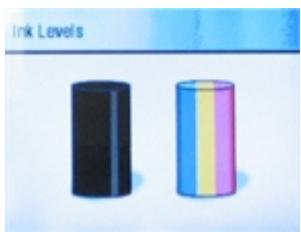
The Ink Levels screen shows ink levels in a vertical gauge format with one gauge for the Black Ink cartridge and one gauge for the Color Ink cartridge.
Replace Ink Cartridges
A Low Ink warning message is displayed when one of the ink levels drops below 20 percent.
NOTE: For the best quality prints, store ink cartridges in a location where the temperature does not exceed 85^ F ( 30^ C ).

WARNING:
Use genuine Kodak ink cartridges to ensure best results and avoid printhead damage not covered under warranty. Third party ink cartridges may not contain the necessary Smart Chip information to notify you before the ink cartridge is empty.
1 Open the printer access door by lifting from the front center of the unit. The ink tanks are located in the print head.
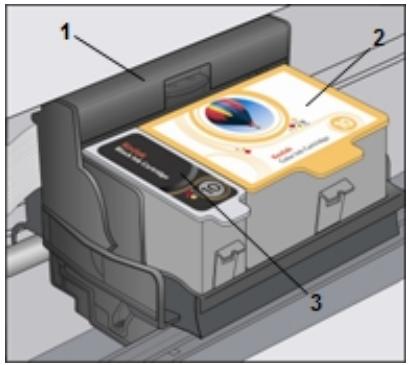
1 Print head
2 Color ink cartridge
3 Black ink cartridge
2 Wait until the printhead is idle and silent, then pinch the pinch latch on the old ink cartridge with your thumb and forefinger and lift it out of the print head.
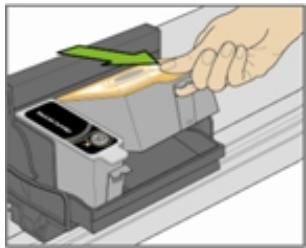
3 Open the box of the new ink cartridge.
4 Remove the bagged ink cartridge from the box and tear open the bag at the notch and remove the ink cartridge.
IMPORTANT: Insert the ink cartridge immediately to prevent any drying of the ink.
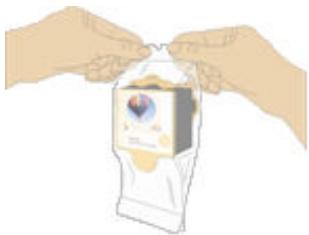
5 Remove the orange cap from the cartridge by grasping the top edge and pulling/rotating it off the ink cartridge.
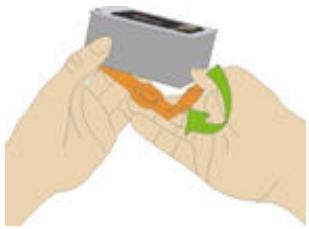
6 Slide the ink cartridge into the printhead.
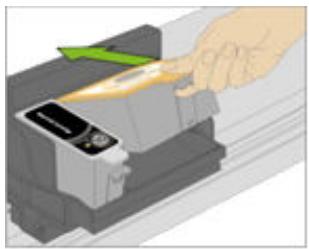
7 Press down on the tab until you hear a click and feel the latch snap into position.
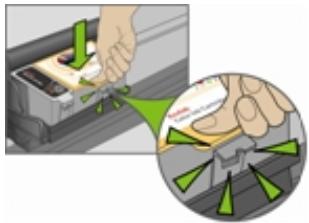
8 Close the printer access door.
Printhead
The printhead dispenses the ink from the ink cartridges onto the paper. Printer maintenance involves:
Calibration
Clean the printhead
Calibration
The Kodak EasyShare AiO performs a calibration every time you install or replace a printhead. However, you can run a calibration if you are seeing changes in the image quality. Calibration aligns the printheads and performs a nozzle health check to enable high-quality prints.
To calibrate from computer
1 Load the main tray or photo tray with photo paper.
IMPORTANT: If you don't have any photo paper, you can use plain paper, but photo paper is highly recommended for calibrations.
2 Start the AiO Home Center.
3 Click to open the Help panel.
4 Under General Links, click Maintenance.
5 Click Calibration to make a calibration print.
6 Follow the instructions on the calibration print to calibrate the printer.
To calibrate from control panel
1 Load the main tray or photo tray with photo paper.
IMPORTANT: If you don't have any photo paper, you can use plain paper, but photo paper is highly recommended for calibrations.
2 Press Menu.
3 Press until Calibrate Printer is selected.
4 Press OK. A new screen appears with Print Calibration Page selected.
5 Press Start and follow the instructions on the LCD screen to complete the calibration.
Clean Printhead
If you notice a degradation in the quality of prints, the printhead may need cleaning.
To clean printhead from computer
1 Start the AiO Home Center.
2 Click to open the Help panel.
3 Under General Links, click Maintenance.
4 Click Printhead Cleaning.
To clean printhead from control panel
1 Press Menu to display the Main Menu.
2 Press until Clean Printhead is selected.
3 Press OK to go to the Clean Printhead menu.
4 Press OK to perform a Basic Clean.
or
Press to select Deep Clean and press OK to perform a Deep Clean.
Replace Printhead
1 Make sure the EasyShare AiO is on.
2 Open the printer access door. The carriage moves to a center position.
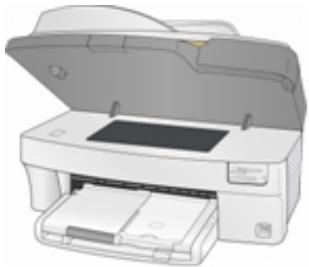
3 Wait until the printhead is idle and silent, then pinch the pinch latch on the ink cartridge with your thumb and forefinger and lift it out of the print head. Remove both ink cartridges.
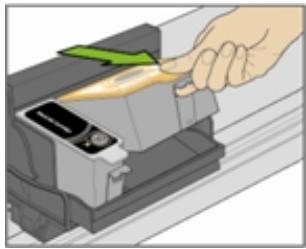
4 Unlatch the printhead by pressing the button in the upper-left corner of the carriage.
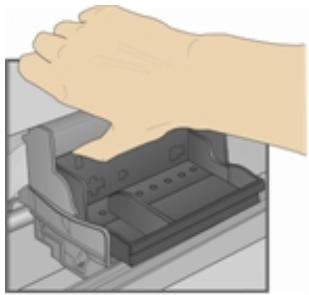
5 Remove the old printhead.

6 Remove the printhead from its bag.
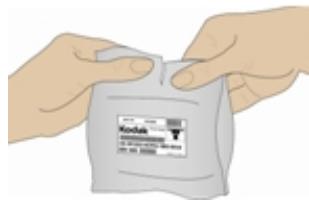
7 Remove and discard the clear plastic casing and the orange protective cap.
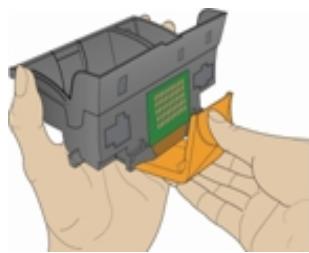
8 Place the printhead into the carriage.
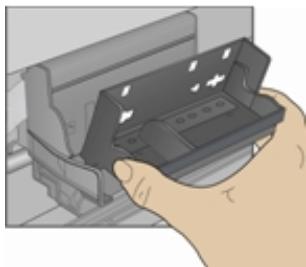
9 Push against the back wall of the printhead until it clicks into place.
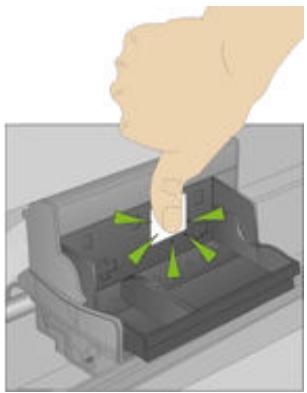
10 Reinstall the ink cartridges.
If you have a problem with your AiO printer, refer to the Troubleshooting topics in this book. Additional technical information is available in the ReadMe file located on the Kodak EasyShare software CD. For online support, visit www.kodak.com/go/support.
Contact Kodak
| Kodak | Resource Center | www.kodak.com/go/resourcescenter |
| Printer | Get support for your product (FAQs, troubleshooting information, etc.). | www.kodak.com/go/sfupport |
| Purchase full range of digital camera and printer accessories. | www.kodak.com/go/accessories | |
| Download latest printer software, firmware and drivers. | www.kodak.com/go/downloads | |
| Online tutorials. | www.kodak.com/go/howto | |
| Software | Get information on EasyShare software. | www.kodak.com/go/easysharesw (or click the Help button in the EasyShare software) |
| Get help with the Windows operating system and working with digital pictures. | www.kodak.com/go/pcbasics | |
| Other | Get support for Kodak printers, cameras, software, accessories, more. Print a Diagnostics Page before contacting Kodak support (see Print Diagnostic Sheet in the Maintenance chapter). | www.kodak.com/go/support |
| Optimize your printer for truer, more vibrant colors. | www.kodak.com/go/onetouch | |
| Register your printer. | www.kodak.com/go/register |
Limited Warranty
Kodak warrants Kodak consumer electronic products and accessories ("Products"), excluding batteries, to be free from malfunctions and defects in both materials and workmanship for one year from the date of purchase.
Retain the original dated sales receipt. Proof of the date of purchase will be required with any request for warranty repair.
Limited Warranty Coverage
Warranty service is only available from within the country where the Products were originally purchased. You may be required to ship Products, at your expense, to the authorized service facility for the country where the Products were purchased.
Kodak will repair or replace Products if they fail to function properly during the warranty period, subject to any conditions and/or limitations stated herein. Warranty service will include all labor as well as any necessary adjustments and/or replacement parts. If Kodak is unable to repair or replace a Product, Kodak will, at its option, refund the purchase price paid for the Product provided the Product has been returned to
Kodak along with proof of the purchase price paid. Repair, replacement, or refund of the purchase price are the sole remedies under this warranty.
If replacement parts are used in making repairs, those parts may be remanufactured. or may contain remanufactured materials. If it is necessary to replace the entire Product, it may be replaced with a remanufactured Product. Remanufactured Products, parts and materials are warranted for the remaining warranty term of the original Product, or 90 days after the date of repair or replacement, whichever is longer.
Limitations
This warranty does not cover circumstances beyond Kodak's control. This warranty does not apply when failure is due to shipping damage, accident, alteration, modification, unauthorized service, misuse, abuse, use with incompatible accessories or attachments (such as third party ink or ink tanks), failure to follow Kodak's operation, maintenance or repacking Instructions, failure to use items supplied by Kodak (such as adapters and cables), or claims made after the duration of this warranty.
KODAK MAKES NO OTHER EXPRESS OR IMPLIED WARRANTY FOR THIS PRODUCT, AND DISCLAIMS THE IMPLIED WARRANTY OF MERCHANTABILITY AND FITNESS FOR A PARTICULAR PURPOSE. In the event that the exclusion of any implied warranty is ineffective under the law, the duration of the implied warranty will be one year from the purchase date or such longer period as required by law.
The option of repair, replacement, or refund is Kodak's only obligation. Kodak will not be responsible for any special, consequential or incidental damages resulting from the sale, purchase, or use of this product regardless of the cause. Liability for any special, consequential or incidental damages (including but not limited to loss of revenue or profit, downtime costs, loss of the use of the equipment, cost of substitute equipment, facilities or services, or claims of your customers for such damages resulting from the purchase use or failure of the Product), regardless of cause or for breach of any written or implied warranty is expressly disclaimed.
Your Rights
Some states or jurisdictions do not allow exclusion or limitation of incidental or consequential damages, so the above limitation or exclusion may not apply to you. Some states or jurisdictions do not allow limitations on how long an implied warranty lasts, so the above limitation may not apply to you.
This warranty gives you specific rights. and you may have other rights which vary from state to state or by jurisdiction.
Outside the United States and Canada
In countries other than the United States and Canada, the terms and conditions of this warranty may be different. Unless a specific Kodak warranty is communicated to the purchaser in writing by a Kodak company, no warranty or liability exists beyond any minimum requirements imposed by law, even though defect, damage, or loss may be by negligence or other act.
EASTMAN KODAK COMPANY
Rochester, NY 14650
U.S.A.
© Eastman Kodak Company, 2006. MC/MR/TM: Kodak Printed in China.
Telephone Customer Support
If you have questions concerning the operation of your EasyShare software, Home Center software, or EasyShare AiO, you may speak with a customer support representative. When you call, please have the following information available.
Computer model, operating system
Processor type and speed (MHz)
Amount of memory (MB) and free hard disk space
Printer serial number
Version of Kodak EasyShare software
Version of Kodak Home Center software
Print a Diagnostics Page
Exact error message you received
Your unit's Kodak Service Number (under the printer access door).
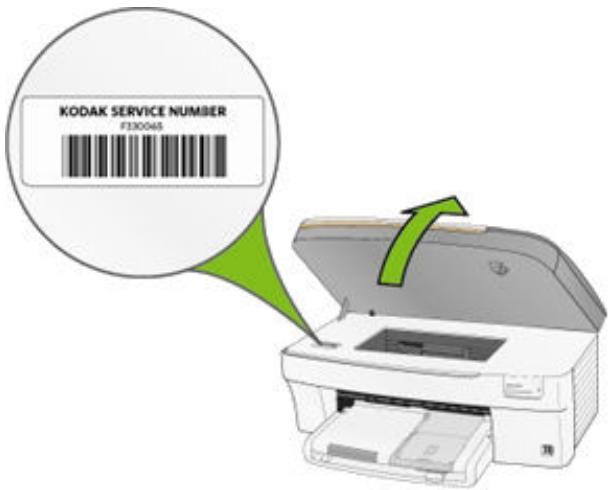
Customer Support Phone Numbers
| Australia | 1800 147 701 |
| Austria | 0179 567 357 |
| Belgium | 02 713 14 45 |
| Canada | 1 800 465 6325 |
| Denmark | 3 848 71 30 |
| Finland | 0800 1 17056 |
| France | 01 55 1740 77 |
| Germany | 069 5007 0035 |
| International Toll Fax | +44 131 458 6962 |
| International Toll Line | +44 131 458 6714 |
| Ireland | 01 407 3054 |
| Italy | 02 696 33452 |
| Japan | 03 5540 9002 |
| Netherlands | 020 346 9372 |
| New Zealand | 0800 440 786 |
| Norway | 23 16 21 33 |
| Portugal | 021 415 4125 |
| Spain | 91 749 76 53 |
| Sweden | 08 587 704 21 |
| Switzerland | 01 838 53 51 |
| UK | 0870 243 0270 |
| US (toll-free) / (toll) | 1 800 235 6325 / 1 800 23 KODAK |
Visit www.kodak.com/go/dfiswwcontacts.
Messages
The following tables explain the EasyShare AiO printer messages.
| Color Ink Messages | ||
| Message | Cause | Action/Solution |
| Color ink cartridge is low. Please take the time to order more ink. | Ink remaining in color tank is less than 20 percent. | Check the ink levels. You will need a replacement Ink cartridge soon. |
| Color ink cartridge needs replacing. | The color ink cartridge has reached its end of life and needs to be replaced. | Install a new Kodak approved Ink Cartridge for best results. |
| Color ink cartridge not recognized. | Ink Cartridge has an Invalid Manufacturer Code. | Install a new Kodak approved Ink Cartridge for best results. |
| New updates are available to optimize your print quality. Use the Home Center to upgrade your printer. | Better performance can be achieved with the currently installed ink cartridges if a firmware upgrade is performed. | Upgrade your printer's firmware for best results. |
| Color ink cartridge is not inserted properly. | An improper electrical connection to the ink cartridge was detected. | Reinstall the color ink cartridge. |
| Color ink cartridge is not installed. | An Ink Cartridge is not installed or an incorrect or damaged ink cartridge is installed. | Install a new Kodak approved Ink Cartridge for best results. |
| Black Ink Messages | ||
| Message | Description | Action/Solution |
| Black ink cartridge is low. Please take the time to order more ink. | Ink remaining in black tank is less than 20 percent. | Check the ink levels. You will need a replacement Ink cartridge soon. |
| Black ink cartridge not recognized. | Ink Cartridge has an Invalid Manufacturer Code. | Install a new Kodak approved Ink Cartridge for best results. |
| New updates are available to optimize your print quality. Use the Home Center to upgrade your printer. | Better performance can be achieved with the currently installed ink cartridges if a firmware upgrade is performed. | Upgrade your printer's firmware for best results. |
| Black ink cartridge needs replacing. | The black ink cartridge has reached its end of life and needs to be replaced. | Install a new Kodak approved Ink Cartridge for best results. |
| Black ink cartridge is not inserted properly. | An improper electrical connection to the ink cartridge was detected. | Reinstall the black ink cartridge. |
| Black ink cartridge is not installed. | An Ink Cartridge is not installed or an incorrect or damaged ink cartridge is installed. | Install a new Kodak approved Ink Cartridge for best results. |
| Paper Messages | ||
| Message | Cause | Action/Solution |
| Paper jam 1. Clear the paper jam. 2. Press the OK button on the printer. | The printer has detected an error condition that indicates that paper may be jammed in the printer or failed to feed from the input tray. | IMPORTANT: For best result, use only Kodak ink cartridges & paper for your printer. 1 Disengage the photo paper tray if engaged. 2 Turn the AiO off for 5 seconds, and then turn it back on. 3 Any paper stuck in the printer should automatically eject. 4 If the paper does not automatically eject, disconnect the power from the printer and carefully remove any paper stuck in the printer including paper pieces. Important Check the paper access on the back of the printer for jammed paper. 5 Remove the paper supply from the paper tray(s). Carefully fan the paper to keep the sheets from sticking together. 6 Reload the paper tray(s). Do not overfill. 7 Reconnect the power to the printer. 8 Re-engage the photo paper tray, if desired, then press Start to resume printing for a computer print job. You will have to start a local print job over. 9 If the problem persists, call Kodak service for assistance. |
| Paper is loaded incorrectly. | Photo paper was loaded upside down. | Load photo paper print-side down. |
| Print carriage jam. | For some reason, most likely a paper jam, the carriage cannot travel freely. | Clear paper and press OK to continue.. |
| Kodak paper not recognized. Using default photo paper settings. To avoid this message in the future, upgrade printer firmware. | The Kodak paper loaded needs a later version of firmware. | Upgrade your printer's firmware. |
| Proofsheet no longer valid. Print a new proofsheet, select pictures, and place it on the scanner glass. | The device used to print the proofsheet was removed. A new session number is assigned each time a Proofsheet is printed. When the printer scans | Print a new proofsheet. |
| the Proofsheet it must match the current session number. | ||
| Load plain paper for duplexing. | Wrong paper type for duplexing loaded. | Load plain paper in the main tray. |
| Print Messages | ||
| Message | Cause | Action/Solution |
| Printhead missing or not installed correctly. | The printer has detected that a Printhead is not installed. | Install the printhead. |
| Printer requires calibration. | The printer has detected that you have installed a new Printhead and now it must be calibrated. | Press Start to continue. |
| Calibration unsuccessful | Calibration sheet not inserted correctly. | Check calibration sheet placement and press OK to continue. |
| Cannot read calibration sheet. | The printer detected a calibration sheet, but can not read it. | Press the OK button on the printer. |
| Some photos may not be visible. Maximum number of photos exceeded. | A device was attached that contained more than the supported maximum of 1000 images. Memory Card or PTP Camera, USB Thumbdrive. | None. |
| Ink overflow container is full. | Press the OK button to continue. | |
| Printer error. Print job unsuccessful. | The printer failed to finish printing a swath successfully. | Press the OK button on the printer. |
| There was an error reading the tagged pictures on your input device. | There is a DPOF file on the card which the user has requested to be used but the file is unusable. Cannot read the file, formatting of the data is not readable, file could be corrupt. | None. |
| Rear Access Door Messages | ||
| Message | Cause | Action/Solution |
| Replace the rear access door. | The Rear Access Door on the back of the printer is off or not properly installed. | Install the Rear Access door. |
| Print job stopped. Replace rear access door. Press OK to restart job. | During printing the printer detected that the Rear Access Door is latched. | Latch the Rear Access door. |
| Printer Access Door Message | ||
| Message | Cause | Action/Solution |
| Printer access door open Close the printer access door. | The Printer access Door on the top of the printer is open while printing. | Close the Printer Access Door. |
| Scanner Message | ||
| Message | Cause | Action/Solution |
| Scan operation failed. Please try again. | Scan operation initiated from the printer fails to communicate with the computer within a timeout period. The computer was supposed to start the scan operation. | Retry the scan operation. |
| Bluetooth Message | ||
| Message | Cause | Action/Solution |
| Bluetooth connection lost. Check connection and resend. | Bluetooth communication/connection dropped while downloading a file to the printer. | Check the connection and resend. |
Troubleshooting
AiO Fails to Power On
The power supply is not properly connected.
1 Make sure the power cord is connected to the power supply and plugged into a grounded power outlet or power strip.
2 If you are using a power strip, make sure it is turned on.
3 If you are using a switched power outlet, make sure the switch is on.
4 Make sure the power outlet is supplying power.
5 If none of the above corrects the problem, contact Kodak support.
Bluetooth Device not Recognized
Probable Cause 1
The internal Bluetooth radio in the device may be turned off.
Corrective Action
Make sure the device is on and within range of the Bluetooth radio signal (30 ft., or 10 meters).
NOTE: The Bluetooth technology enabled device must use an BIP, OPP, or FTP profile.
Probable Cause 2
Sending device requires a PIN.
Corrective Action
Enter a PIN of 1111 into the sending device.
Device not Recognized
Any of the following can cause the prevent your Kodak EasyShare AiO from reading a connected digital camera or memory card.
The camera is turned OFF.
The USB connector from the camera is not fully inserted in the port.
The memory card is not completely inserted.
The memory card is in backwards.
The memory card file system is corrupt.
Correct any connection problems and try again.
If the memory card file system is corrupt, reformat it in your camera.
Ink Cartridge
Color/Black Cartridge Not Recognized
The ink cartridge installed was not recognized. Generic ink cartridges can potentially damage the printhead if the actual ink level is lower than that indicated.
To correct the problem, install a genuine Kodak ink cartridge.
Ink Cartridge out of Ink
One of the ink cartridges has reached the end of its life and needs to be replaced.
To correct the problem, replace the expired ink cartridge.
Multiple Paper Feed
Multiple sheets of paper are pulled through printer.
1 Disengage the Photo tray.
2 Remove the paper from the paper tray(s). Carefully "fan" the paper to keep the sheets from sticking together.
3 Reload the paper tray(s). Do not overfill.
4 Re-engaged the Photo tray, then press Start to resume printing.
No Communication with Computer
Your EasyShare AiO is not connected to your computer.
1 Make sure you are using the proper USB Cable.
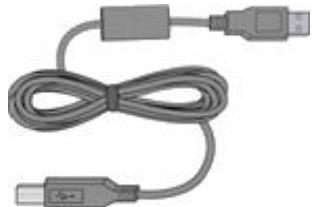
2 Check the connection from your computer to your AiO printer. Ensure that the square end of the USB cable is plugged in to the USB port on the back of your AiO printer, and the flat end into a USB port on your computer.
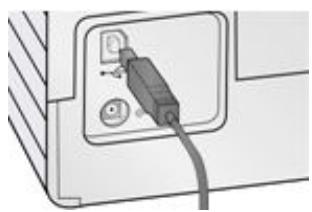
3 You may need to disconnect other printers or scanners from your computer.
4 After checking connections, restart your computer.
5 Make sure your computer meets the minimum system requirements. Upgrade your system if necessary.
For more information on connecting your Kodak AiO printer to your computer, see the Setup Poster that came with your unit.
No Paper Feed
Paper does not feed. You may have a message on the display on the printer and/or in the Status Monitor on your computer.
IMPORTANT: For best result, use only Kodak Ink cartridges and paper for your printer.
The paper tray(s) may be empty. Load paper into the paper tray(s), then press Start.
Check the paper
1 Disengage the Photo tray.
2 Inspect the paper and make sure paper no sheets are damaged in any way. Reload with new paper if necessary.
3 Carefully "fan" the paper to keep the sheets from sticking together.
4 Reload the paper tray(s). Do not overfill.
5 Engage the Photo tray, if printing 4 × 6 Photo's, then press Start to resume printing.
Paper Jam
The paper did not advance or was not picked properly from the paper tray.
1 Open the paper trays and remove the paper supply.
2 Press in the latches on the rear access door and remove it.
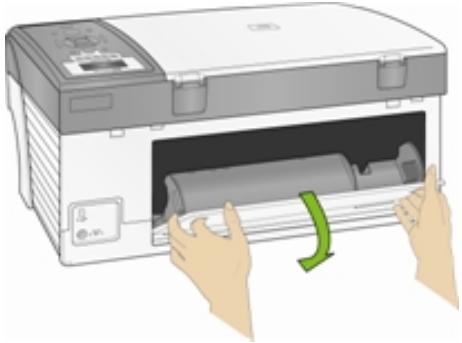
3 Pull the paper out from the rollers without tearing it.
IMPORTANT: If the paper tears while removing it, check inside the AiO for torn pieces of paper and remove them. More jams are likely to occur if all the torn pieces are not removed.
4 Replace the rear access door by pressing it in until it latches into place.
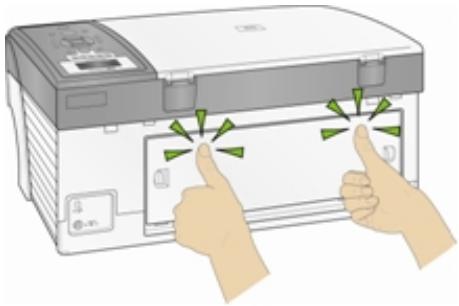
5 Reload the paper tray(s). Do not overfill.
6 Re-engage the Photo tray if desired.
Printer not Responding
If you receive a Printer not Responding message
1 Turn the printer off and turn it back on.
2 If the problem still persists, unplug the power cord from power supply and plug it back in.
3 If the problem continues to persist, restart your computer.
Transfer Pictures Failure
Nothing happens when you try to transfer pictures to the computer.
1 Press the Transfer button, on the printer.
2 Check the power and USB connections from the printer to the computer.
3 If you are trying to transfer pictures from a memory card and a PictBridge camera is connected, remove it.
4 Close unnecessary software applications, and minimize remaining application windows. Follow any messages on the screen that may have been hidden by other windows.
5 Disconnect then reconnect the USB cable from the printer to the computer.
6 Make sure you are using the USB cable included with your printer.
7 Make sure Kodak EasyShare software is installed. Install if necessary. If you choose Custom installation, make sure to install the printer driver.
8 Un-install, and then reinstall Kodak EasyShare software.
9 Make sure your computer meets the minimum system requirements. Upgrade your system if necessary.
NOTE: The Kodak AiO printer is compatible with the Kodak 8-in-1-card reader (sold separately). Other Kodak USB card readers may work with the printer; however, other manufacturers' card readers are not supported.
Wrong Paper Size
The paper you selected does not match the active paper tray. The paper selected may be too large or too small than the paper found in the paper tray.
1 Replace the paper in the paper tray with the correct type.
2 Press OK to continue or Cancel to exit.
Print Troubleshooting
Envelope Printing Incorrect
The envelopes are not loaded correctly.
1 Remove the envelopes from the main paper tray.
2 Straighten the stack of envelopes against a flat surface, and reload it into the main paper tray.
3 Slide the paper-width and paper-length guides inward until they stop at the edges of the envelopes.
Multiple-page Document in Reverse Order
The printing settings are set to print the first page of your document first.
Print the document in reverse order so the pages will be in the correct order when printing finishes.
1 Click the Properties button on the Print dialog.
2 Select Print last page first on the General tab.
Photo Print Smudged
Fingerprints may be on glossy side of paper.
Handle paper by the edges.
PictBridge Camera not Detected
1 Check the USB connections from the PictBridge compatible camera or device to the printer.
2 If disconnected, reconnect the USB cable from the PictBridge compatible camera or device to the printer.
3 Make sure there is at least one picture in the PictBridge compatible camera or device's internal memory or memory card.
4 Make sure the connected camera or device is PictBridge compatible. See your camera or device user's guide for details.
Picture Will Not Print
A selected picture does not print.
The image file may be corrupt. Review the picture on the camera or computer and delete if necessary.
The image file may not be JPEG format. The printer can only print JPEG files in standalone mode. Connect to a computer and use EasyShare software to print BMP and TIFF formats.
Pictures Cropped
Change the picture quality setting (or resolution) on your digital camera to 3:2. See your camera user's guide for details.
Adjust cropped pictures using Kodak EasyShare software on your computer.
If you are printing from an application on your computer, select the proper paper size in print options.
NOTE: Cropping may vary depending on the selected picture size.
Poor Print Quality
1 Clean the printhead.
2 Run a calibration.
If the problem persists, repeat as often as necessary.
Print Skewed or Slanted
Probable Cause 1
The paper is not properly loaded in the tray.
1 Remove the stack of paper from the main paper tray, and slide the paper guides to the outermost position.
2 Remove the paper and check for wrinkles and tears.
3 Straighten the stack of paper against a flat surface, and reload it into the main paper tray.
4 Slide the paper-width and paper-length guides inward until they stop at the edges of the paper.
See Also: Load Main Tray
Probable Cause 2
More than one type of paper is loaded.
Load only one type of paper.
Print Spotted
Paper may be dirty.
Use a dry, lint-free cloth to wipe clean. For excessive dirt or debris, thoroughly clean the paper tray, and load new paper.
NOTE: Keep paper tray covers closed to keep dust and debris from collecting on the paper or inside the printer.
Print Too Dark
Try re-taking the picture with the flash on, or move within the flash range of the camera. See your camera user's guide for details.
- Adjust the exposure compensation on your camera, and try re-taking the picture. See your camera user's guide for details.
Edit the picture using Kodak EasyShare software on your computer. See the EasyShare software Help for details.
Make sure the printer is not placed in direct sunlight or is not operating in a high-temperature environment.
Print Too Light
IMPORTANT: For best result, use only Kodak Ink cartridges and paper for your printer.
Make sure the paper is loaded with the Kodak logo facing up. Reload if necessary.
Try re-taking the picture with the flash off. See your camera user's guide for details.
- Adjust the exposure compensation on your camera, and try re-taking the picture. See your camera user's guide for details.
Edit the picture using Kodak EasyShare software on your computer. See the EasyShare software Help for details.
Printing Stops
Printing stops during mid-print. Paper stops feeding, and Status light may blink.
IMPORTANT: For best result, use only Kodak Ink cartridges and paper for your printer.
Check the paper
1 Disengage the photo tray if engaged.
2 Check the paper access on the back of the printer.
3 Remove any loose paper from the printer.
4 Inspect the paper supplies and reload with new paper if necessary.
5 Carefully "fan" the paper to keep the sheets from sticking together.
6 Reload the paper trays. Do not overload.
7 Re-engage the photo tray, if desired, and then press Start to resume printing.
Slow Printing
NOTE: When printing a large number of prints, printing may slow down to prevent the print head from overheating.
Make sure the printer is not placed in direct sunlight or is not operating in a high-temperature environment (higher than 95^ F, or 35^ C).
- Close unnecessary software applications.
Make sure your computer meets the minimum system requirements. Upgrade your system if necessary.
White Edges on Borderless Prints
Probable Cause
White edges can appear when there are slight misalignments between the printer and paper. Some software applications are able to "hide" these small misalignments so that the prints look borderless like they are supposed to.
Corrective Action
Use the application's Fit to Page/Fill Page option, or resize the picture so it is slightly larger than the paper size.
Copy Troubleshooting
Copies Faded or Dull Colors
Probable Cause 1
The copy quality is set to Draft.
Set the copy quality to Normal or Best.
See Set Copy Quality or Copy Settings.
Probable Cause 2
The brightness setting for copies is set too light.
Adjust the brightness setting to darker.
See Change Brightness or Copy Settings.
Copies too Light or Dark
The brightness setting for copies is set too light or dark.
Adjust the brightness setting for copies
See Change Brightness or Copy Settings.
Copy Cut Off
The original is larger than the paper loaded.
When the original is larger than the paper loaded, use the Fit to Page option to reduce your original to the size of the paper loaded.
Scan Troubleshooting
Scan Fails
Probable Cause 1
Your computer is not turned ON.
Turn on your computer.
Probable Cause 2
Your EasyShare AiO is not connected to your computer.
Connect your EasyShare AiO to your computer with a standard USB cable.
Probable Cause 3
The EasyShare AiO Home Center software is not installed.
Insert the Kodak EasyShare 5000 All-in-One Printer installation CD and install the software.
Probable Cause 4
Your computer system resources may be low.
1 Turn off your computer and EasyShare AiO and then turn them back on.
2 If the problem still persists, try scanning at a lower resolution.
Scanned Image Blank
Your original is not placed correctly on the scanner glass.
Place your original face down on the right front corner of the scanner glass.
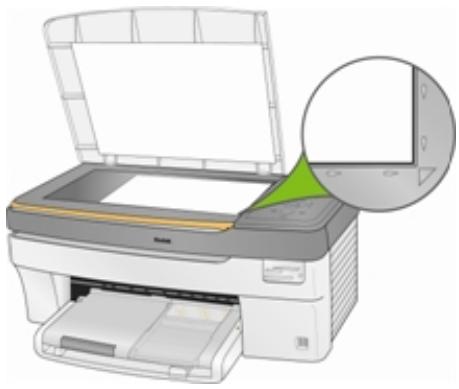
Proofsheet Scan Unsuccessful
Probable Cause 1
The scanner glass is dirty.
Make sure the scanner glass is completely clean or the proofsheet might not scan properly (see Clean the Scanner Glass).
Probable Cause 2
Memory Card or Camera Changed
Make sure the same memory card inserted or camera connected you used to print the proofsheet.
Probable Cause 3
Proofsheet not place correctly on scanner glass.
Place the proofsheet on the front right of the scanner glass.
Computer Requirements
| Requirement | Minimum | Recommended |
| Operating System | XP SP1 | XP SP2, XP 64, Vista |
| CPU | Celeron | Pentium 4 |
| Clock Speed | 1.2 GHz | 3 GHz |
| Memory | 128 MB | 512 MB |
| Available Disk Space | 200 MB | 200 MB |
| Monitor Resolution | 800 x 600 pixels | 1024 x 768 pixels |
| Color Depth | 16 bit | 24 bit |
| Interface | USB 1.1 | USB 2.0 |
| Removable Drive | CD-ROM | CD-ROM |
Paper Types
The following tables show the paper types and sizes the Kodak EasyShare AiO supports for copying and printing.
| Supported Paper Types | |
| Plain paper | 20 to 24 lb (64 to 90 gsm) |
| Photo paper | 10 mils |
| Card Stock | 110 lb index max (200 gsm) |
| Envelopes | 20 to 24 lb (75 to 90 gsm) |
| Transparency | All commercially available inkjet varieties (with or without a widestripe.) |
| Labels | All commercially available inkjet varieties on 8.5 x 11 and A4 size sheets |
| Iron-on Transfer | All commercially available inkjet varieties on 8.5 x 11 and A4 size sheets |
| Supported Paper Sizes | ||
| Usage | Size | Tray |
| Document page sizes Labels | A4 (210x297 mm) A5 (148x210 mm) A6 (105x148 mm) US Executive (7.25x10.5 in.) (184x266 mm) US Legal (8.5x14 in.) (216x356 mm) US Letter (8.5x11 in.) (216x280 mm) Custom sizes | Main |
| Index Card Stock | 3x5 in. index cards (76.2x127 mm) 4x6 in. index cards (101x152 mm) 5x7 in. index cards (127x178 mm) | Main |
| Transparency Iron-on Transfers | A4 (210x297 mm) US Letter (8.5x11 in.) (216x280 mm) | Main |
| Envelopes | B5 (6.92x9.84 in.) (176x250 mm) C5 (6.38x9 in.) (162x299 mm) C6 (4.49x6.38 in.) (114x162 mm) A2 (4.37x5.75 in.) (111x146 mm) DL (designated long) (4.33x8.66 in.) (110x220 mm) US #7 (7x9 in.) (178x127 mm) US #9 (9x12 in.) (127x305 mm) US #10 (4.12x9.5 in) (105x241 mm) | Main |
| Photo | 3.5x5 in. (89x127 mm) 100x150 mm 4x6 in. (101x152 mm) 4x8 in. (101x203 mm) 4x12 in. (101x305 mm) 5x7 in. (127x178 mm) 6x9 in. (152x229 mm) 8x10 in. (203x254 mm) 8.5x11 in. (216x280 mm) A4 210x297 mm | Main Photo Photo Main Main Main Main Main Main |
| Greeting Card | 3.5x5.25 in. (89x133 mm) 3.5x7.25 in. (89x184 mm) 4x5.5 in. (101x140 mm) 4x8 in. (101x203 mm) Hagaki (100x148 mm) | Main |
Safety
Read and follow these cautions and warnings before using KODAK products.
Always follow basic safety procedures.
Follow all warnings and instructions marked on the equipment.
Parts

CAUTION
Do not disassemble this product; there are no user-serviceable Part(s) inside. Refer servicing to Kodak qualified service personnel.

WARNING
Keep out of reach of children.
Ink is harmful if swallowed.
Power

CAUTION
Unplug your EasyShare AiO from the power outlet and refer servicing to qualified service personnel if the power cord or plug is frayed or damaged, the equipment gets wet, or the equipment does not operate normally when the operating instructions are followed.

CAUTION
The AC adapter power supply is equipped with 3-wire grounding type plugs. If you cannot insert the plug into the power outlet, contact an electrician to check or replace the power outlet.

CAUTION
Do not plug the AC adapter into a household extension cord.

CAUTION
For added protection from damage during a lightning storm, or any time when your EasyShare AiO and its associated AC adapter will be left unused for long periods of time, unplug the AC adapter from the power outlet and the phone line from the modem.

WARNING
The use of an accessory attachment that is not recommended by Kodak, such as an AC adapter, could cause fire, electric shock, or injury.

WARNING
Pushing objects through the equipment openings can result in an electric shock or risk of fire.
Location

CAUTION
To prevent your EasyShare AiO from overheating do not block or cover the slots and openings in the equipment, place it near a heat register, or install it in a cabinet without proper ventilation.

CAUTION
Do not use your EasyShare AiO near water, or spill liquid on it.

WARNING
Do not place your EasyShare AiO on an unstable cart, stand, bracket, or table. Injury to persons and damage to the equipment may occur.
Environment

CAUTION
Excessive dust levels may damage internal parts.

CAUTION
Unplug the equipment from the wall outlet before cleaning.

CAUTION
Dropping your EasyShare AiO may damage the housing and result in extensive damage that will require repair by a qualified technician to restore normal operation.

WARNING
Do not expose this product to liquid, moisture, or extreme temperatures. KODAK AC adapters are intended for indoor use only. The use of controls, adjustments, or procedures other than those specified herein may result in exposure to shock and/or electrical or mechanical hazards.
For more information, go to www.Kodak.com/go/MSDS.
Regulatory Compliance
FCC Compliance and Advisory

Kodak EasyShare 5300 AiO Printer
This equipment has been tested and found to comply with the limits for a Class B digital device, pursuant to Part 15 of the FCC Rules. These limits are designed to provide reasonable protection against harmful interference in a residential installation.
This equipment generates, uses, and can radiate radio frequency energy and, if not installed or used in accordance with the instructions, may cause harmful interference to radio communications. However, there is no guarantee that interference will not occur in a particular installation.
If this equipment does cause harmful interference to radio or television reception, which can be determined by turning the equipment off and on, you are encouraged to try to correct the interference by one or more of the following measures: 1) reorient or relocate the receiving antenna; 2) increase the separation between the equipment and the receiver; 3) connect the equipment to an outlet on a circuit different from that to which the receiver is connected; 4) consult the dealer or an experienced radio/TV technician for additional suggestions.
Any changes or modifications not expressly approved by the party responsible for compliance could void the user's authority to operate the equipment. Where shielded interface cables have been provided with the product or specified additional components or accessories elsewhere defined to be used with the installation of the product, they must be used in order to ensure compliance with FCC regulation.

CAUTION
When using the wireless interface with an EasyShare AiO, this equipment should be installed and operated with a minimum distance of 7.9 in. (20 cm) for 2.4 GHz operations between the radiator and your body. This transmitter must not be collocated or operate in conjunction with any other antenna or transmitter.
FCC and Industry Canada
This device complies with Industry Canada RSS-210 and FCC Rules. Operation is subject to the following two conditions: (1) this device may not cause harmful interference, and (2) this device must accept any interference received, including interference that may cause undesired operation.
Canadian DOC statement
DOC Class B Compliance - This Class B digital apparatus complies with Canadian ICES-003.
Waste Electrical and Electronic Equipment labeling

In the European Union, this symbol indicates that when the last user wishes to discard this product, it must be sent to appropriate facilities for recovery and recycling. Contact your local Kodak representative or refer to www.kodak.com/go/recycle for additional information on the collection and recovery programs available for this product
Notice to Users in the European Economic Area
The Kodak EasyShare All-in-One is designed to function with analogue telephone networks in the following countries.
| Austria | Germany | Portugal |
| Belgium | Ireland | Spain |
| Denmark | Italy | Sweden |
| Finland | Netherlands | Switzerland |
| France | Norway | United Kingdom |
Network compatibility depends on customer selected settings, which must be reset to use the equipment on a telephone network in a country other than where the product was purchased. Contact the vendor or Eastman Kodak Company if additional product support is necessary.
This equipment has been certified by the manufacturer in accordance with Directive 1999/5/EC (Annex II) for Pan-European single-terminal connection to the public switched telephone network (PSTN). However, due to differences between the individual PSTNs provided in different countries, the approval does not, of itself, give an unconditional assurance of successful operation on every PSTN network termination point.
In the event of problems, you should contact your equipment supplier in the first instance.
This equipment is designed for DTMF tone dialing and loop disconnect dialing. In the unlikely event of problems with loop disconnect dialing, it is recommended to use this equipment only with the DTMF tone dial setting.
Glossary
A
ADF: Automatic Document Feeder
AES: Advanced Encryption Standard
C
CHAP: Challenge Handshake Authentication Protocol
D
dBa: Decibel measured with a "weighting filter"
dBm: A measured power level in decibels relative to 1mW.
Dongle: A small electronic device that plugs into a USB port.
DPOF: Digital Print Order File - An ASCII order file that you can generate in a camera that supports DPOF.
DPOF files enable you to request simple reprints of the photos in the file.
E
EAP: Extensible Authentication Protocol
EXIF: EXIF stands for Exchangeable Image File Format, and is a standard for storing interchange information in image files, especially those using JPEG compression. Most digital cameras now use the EXIF format.
J
JPEG: The term stands for "Joint Photographic Experts Group," because that is the name of the committee that developed the format. JPEG is a compressed image file format. JPEG is a "lossy" format, which means some quality is lost when the image is compressed.
K
KPT: Kodak Perfect Touch
P
PictBridge: A Camera and Imaging Products Association standard that enables direct printing between any PictBridge compliant digital cameras and any PictBridge compliant printer.
Picture Transfer Protocol (PTP): A standard for transferring pictures from a digital camera.
PPP: Point-to-Point Protocol
PTP: Picture Transfer Protocal - A standard for transferring pictures from a digital camera.
T
TKIP: Temporal Key Integrity Protocol
W
WEP: Wired Equivalent Privacy
Wi-Fi: Wireless Fidelity
WLAN: Wi-Fi Local Area Network
WPA: Wi-Fi Protected Access
Index
2
2-Sided Printing Accessory 16
4
4x6 Copy 73
8
8.5x11 Copy 73
8x10 Copy 73
A
A6 Paper 54
Audio Feedback 25
B
B5 Paper. 55
Bluetooth 41, 126
Borderless 133
Brightness 71
C
Calibration. 114
Clean. 114
Cleaning. 109, 110
Color 58
Communication 128
Computer 128, 137
Control Panel. 2, 38
Copy. 70, 71
Copy Options 74
Copy Pictures 73
Copy Problems. 134
Cropped Pictures 131
Current Tray 73
Customer Support. 121
D
Dark Print 132
Date 25, 26
Diagnostic Sheet 110
DPOF 24, 40, 58
Duplexer 16
E
Enhanced Picture 87
Envelopes 35
Exact Copy 73
F
Fill Page 24
Firmware Upgrade 111
Fit to Page 24,67
Format 110
1
Index Print 39
Index Sheet. 55
Ink Cartridge 15, 112, 127
Ink Levels 111
J
Jam 129
L
Labels. 36
Language 27
Layout 45
LCD display 8
Letter Paper. 50
Light Print 132
M
Main Tray 32
Maintenance. 109
Memory Card 110
Memory card slots. 9
18
Messages 123
0
Originals. 31
Output Quality. 74
P
Panoramic. 42
Paper. 130, 137
Paper Feed. 127, 128
Paper Jam. 129
Photo Layout. 46, 47, 48, 49
Photo Layouts. 69
Photo Print 131
Photo Tray 34
Photos. 62
PictBridge 9,38,131
Power 13, 126
Preview 61,71,86
Print. 38, 40, 45, 58
Print Order 24
Print Picture. 131
Print Problems 130, 132
Print Quality 58,131
Print Spotted 132
Printhead 115
Printhead. 13, 114
Printing 42
Printing Problems 130
Printing Stops. 133
Proofsheet 40,135
Q
Quality 58, 70
Quantity 57, 70
Quick Copy 73
R
Red Eye Reduction. 80, 82, 84, 85
Requirements. 137
Reset 27
s
Safety 139
Same Size 66
Sample Page 21
Scale Percent 68
Scan. 86, 87, 135
Scan Destination. 103
Scan Document (Computer)..... 88, 91, 94, 97, 99
Scan Document (Control Panel) 79, 80
Scan Photo 77, 78
Scan Picture. 80, 82, 84, 85
Scan Problems 134, 135
Scan Settings. 77, 103, 105, 107
Scanner Glass 109
Scanner Lid 110
Scene Balance 25
Settings 27,58,71
Sleep 26
Slow Printing 133
Standby 26
Startup 17
Status 22
Support 119
T
Tagged Images 24
Tagged Photos. 40
Time 26
Transfer 22,130
U
USB Port 9
W
White Edges 133
Z
Zoom 62
Zoom and Crop 72
- Table of Contents
- Product Overview 1
- Getting Started 13
- Handling and Loading Paper 31
- Print 37
- Copy 65
- Scan 77
- Maintenance 109
- Support 119
- Appendix 137
- Glossary 143
- Index 145
- Product Overview
- Main Components
- Status Lights
- LCD Display Screen
- Default Display Settings
- Photos
- Memory Card Slots and USB Port
- Supported Memory Cards
- Home Center Software
- Getting Started
- Connect Power
- RISK OF ELECTRICAL SHOCK
- Install the Printhead
- Install Ink Cartridges
- Install the Duplexer
- Startup
- Menu
- Photo Button
- Copy Button
- Scan Button
- Help Button
- Demo Sheet
- Transfer Photos
- WARNING:
- Printer Status
- Ink Levels
- Errors
- Set Options for Status Monitor
- Configuring Settings
- Image Scaling
- Use Print Order if Found
- Scene Balance
- Add Date to Prints
- Button Sounds
- Minutes to Standby
- Date and Time
- Set Language
- Reset All Settings
- General Settings
- Printer Date and Time
- To enable or disable the date and time synchronization
- Click AiO Printer.
- Power
- To change the power settings
- Printer
- To change printer settings
- Handling and Loading Paper
- The Scanner Glass
- Load Main Tray
- Load Photo Tray
- Close the photo tray lid.
- Load Envelopes
- Lift the output tray.
- Slide the paper guides inward against the stack of envelopes until they stop.
- Load Labels
- CAUTION
- Non-photo Paper Print Quality
- Page Size
- Borderless
- Orientation
- Print last page first
- Collate
- Scale Layout
- Multi-page Layout
- Poster Layout
- Booklet Layout
- Print Mirror Image
- Two-sided Printing
- Watermark
- Print Photos from a Camera
- Print Photos from the Control Panel
- WARNING
- Index Print
- Print Photos from a Proofsheet
- Tagged Photos (DPOF)
- Bluetooth Printing
- Range
- User-friendly Name
- Printing
- Panoramic photos
- Print with Computer
- Layouts
- US photo paper sizes
- ISO 216 paper sizes
- Set Print Layout
- 3.5x5 Inch Paper
- Index Sheet
- US Letter/A4 Index Sheet
- Kodak
- 4x6 Index Sheet
- Setting Print Options
- Set Number of Prints
- Set Color
- Set Print Quality
- Save Settings
- Print Settings
- Print Quality
- To set output quality for non-photo paper
- Click the Print tab.
- Print Options
- To set print options
- Click OK or Apply.
- Advanced
- To set advanced options
- Previewing Photos
- Preview Mode
- Zoom Photos
- Multiview
- Copy
- Copy with Control Panel
- Same Size Copy
- Fit to Page Copy
- Scale Percent Copy
- Photo Layout Copy
- Setting Copy Options
- Set Number of Copies
- Set Quality
- Change Brightness
- Set Preview
- Save Copy Settings
- Previewing Copies
- Zoom and Crop
- Copy with Computer
- Copy Pictures
- To copy pictures
- Copy Settings
- Output Quality
- Click the Copy tab.
- Copy Options
- Scan
- Scan with Control Panel
- Save Scan Settings
- Scanning Photos
- Scan to File
- Scan to Application
- Scan to Memory Card
- Scanning Documents
- Scan with Computer
- Scanning Pictures
- Scan to Printer
- Scan to EasyShare
- Scan Preview
- Pictures
- Properties
- Selection Box
- Zoom
- Preview Display
- Ruler Units
- Edit Picture
- Enhancements
- Adjustments
- Crop
- Select Document.
- Scan to Email
- Scan Settings
- Scan General Settings
- Click Scan.
- Scan Document Settings
- Basic Settings
- File Save Settings
- Scan Picture Settings
- Maintenance
- General Care
- Clean the Scanner Glass
- Clean the Scanner Lid
- Format Memory Card
- Print Diagnostic Sheet
- Firmware Upgrade
- Ink Cartridges
- Check Ink Levels
- Replace Ink Cartridges
- Printhead
- Calibration
- To calibrate from computer
- To calibrate from control panel
- Clean Printhead
- To clean printhead from computer
- To clean printhead from control panel
- Replace Printhead
- Contact Kodak
- Limited Warranty
- Limited Warranty Coverage
- Limitations
- Your Rights
- Outside the United States and Canada
- Telephone Customer Support
- Messages
- Troubleshooting
- AiO Fails to Power On
- Bluetooth Device not Recognized
- Probable Cause 1
- Corrective Action
- Probable Cause 2
- Device not Recognized
- Ink Cartridge
- Color/Black Cartridge Not Recognized
- Ink Cartridge out of Ink
- Multiple Paper Feed
- No Communication with Computer
- No Paper Feed
- Check the paper
- Paper Jam
- Printer not Responding
- Transfer Pictures Failure
- Wrong Paper Size
- Print Troubleshooting
- Envelope Printing Incorrect
- Multiple-page Document in Reverse Order
- Photo Print Smudged
- PictBridge Camera not Detected
- Picture Will Not Print
- Pictures Cropped
- Poor Print Quality
- Print Skewed or Slanted
- Print Spotted
- Print Too Dark
- Print Too Light
- Printing Stops
- Slow Printing
- White Edges on Borderless Prints
- Probable Cause
- Copy Troubleshooting
- Copies Faded or Dull Colors
- Copies too Light or Dark
- Copy Cut Off
- Scan Troubleshooting
- Scan Fails
- Probable Cause 3
- Probable Cause 4
- Scanned Image Blank
- Proofsheet Scan Unsuccessful
- Computer Requirements
- Paper Types
- Safety
- Parts
- Location
- Environment
- Regulatory Compliance
- FCC Compliance and Advisory
- Kodak EasyShare 5300 AiO Printer
- FCC and Industry Canada
- Canadian DOC statement
- Waste Electrical and Electronic Equipment labeling
- Notice to Users in the European Economic Area
- Glossary
- A
- C
- D
- E
- J
- K
- P
- T
- W
- Index
- Q
- R
- s
- U
- Z
Brand : KODAK
Model : EASYSHARE 5300
Category : All-in-One Printer