NFX150 - Router Juniper - Free user manual and instructions
Find the device manual for free NFX150 Juniper in PDF.


Pick your language and provide your email: we'll send you a specifically translated version.
| Product Type | Network Services Platform (Router) |
| Brand | Juniper Networks |
| Model | NFX150 |
| Dimensions (W x D x H) | 17.3 x 10.5 x 1.7 in (440 x 267 x 43 mm) |
| Weight | 7.5 lb (3.4 kg) |
| Power Supply | AC 100-240V, 50-60 Hz |
| Power Consumption | Typical 30W, Max 50W |
| Operating System | Juniper Junos OS |
| Processor | Quad-core ARM Cortex-A72 |
| Memory (RAM) | 4 GB DDR4 |
| Storage | 16 GB eMMC |
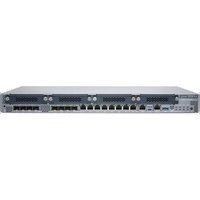
| Network Interfaces | 4 x 1GbE RJ45, 2 x 10GbE SFP+ |
| Management Ports | 1 x Console (RJ45), 1 x USB 3.0 |
| Cooling | Fanless, passive cooling |
| Operating Temperature | 0°C to 40°C (32°F to 104°F) |
| Operating Humidity | 5% to 90% (non-condensing) |
| Mounting | 19-inch rack, 1U |
| Key Functions | Routing, switching, firewall, VPN, SD-WAN, QoS |
| Security | Juniper SRX firewall features, IPsec VPN |
| Maintenance & Cleaning | Clean with a dry, soft cloth; do not use liquids |
| Repairability & Spare Parts | Contact Juniper support; no user-serviceable parts |
Frequently Asked Questions - NFX150 Juniper
How to reset the NFX150 to factory defaults?
Press and hold the reset button on the front panel for 10 seconds until the status LED flashes. The device will reboot with default settings.
What is the default IP address of the management interface?
The default IP address is 192.168.1.1 with subnet mask 255.255.255.0.
How to access the device for initial configuration?
Connect a console cable to the console port (RJ45) and use a terminal emulator with settings 115200 baud, 8 data bits, no parity, 1 stop bit. Alternatively, connect to the management port with default IP.
How to update the firmware on the NFX150?
Download the latest Junos OS image from Juniper support. Use the CLI command request system software add or upload via J-Web interface.
What do the LED indicators mean?
Power LED: solid green when on. Status LED: green for normal, amber for warning. Port LEDs: left indicates link (green), right indicates activity (blinking).
How to configure VLANs on the NFX150?
Create VLANs using the set vlans command in Junos. Assign interfaces to VLANs with set interfaces ge-0/0/x unit 0 family ethernet-switching vlan members.
Is the NFX150 rack-mountable?
Yes, it comes with rack-mount brackets and fits in a standard 19-inch rack, occupying 1 rack unit (1U).
What is the power consumption of the NFX150?
Typical power consumption is around 30 watts, with a maximum of 50 watts under full load.
Does the NFX150 support VPN?
Yes, it supports IPsec VPN tunnels, including site-to-site and remote access VPN configurations.
How to check the device status and health?
Use CLI commands such as show system uptime, show interfaces terse, and show chassis environment to monitor system health.
User questions about NFX150 Juniper
0 question about this device. Answer the ones you know or ask your own.
Ask a new question about this device
No questions yet. Be the first to ask one.
Download the instructions for your Router in PDF format for free! Find your manual NFX150 - Juniper and take your electronic device back in hand. On this page are published all the documents necessary for the use of your device. NFX150 by Juniper.
USER MANUAL NFX150 Juniper
Manual assistant
Powered by Anthropic
Waiting for your message
Product information
Brand : Juniper
Model : NFX150
Category : Router