
CEHCBR511 - Media player CONTINENTAL EDISON - Free user manual and instructions
Find the device manual for free CEHCBR511 CONTINENTAL EDISON in PDF.



| Product Type | Blu-ray/DVD Player |
| Brand | CONTINENTAL EDISON |
| Model | CEHCBR511 |
| Compatible Disc Formats | BD, DVD, CD |
| Blu-ray Video Resolution | 720p, 1080i, 1080p |
| HDMI Output | Yes |
| Composite Video Output (RCA) | Yes (cable included) |
| Component Video Output | Yes (cable not included) |
| Stereo Audio Output RCA | Yes (cable included) |
| Coaxial Digital Audio Output | Yes (cable not included) |
| 5.1 Channel Audio Output | Yes |
| USB Port | Yes (front) |
| Ethernet Connection | Yes |
| Network Functions | BD-Live, software updates |
| LED Display | Yes (NTSC/PAL display) |
| Remote Control | Supplied |
| Power Supply | AC (integrated power cord) |
| Standby Consumption | STANDBY indicator (red/green) |
| Cleaning | Damp cloth, unplug before cleaning |
| Laser Safety | Class 1, do not open the casing |
| Replacement Parts | Use only parts recommended by the manufacturer |
| Repairability | Refer to a qualified technician |
| Blu-ray Region Code | B (Europe, Africa, Middle East) |
| DVD Region Code | 2 (Europe, Japan, Middle East) |
| Included Accessories | Remote control, RCA audio/video cable, user guide |
Frequently Asked Questions - CEHCBR511 CONTINENTAL EDISON
User questions about CEHCBR511 CONTINENTAL EDISON
0 question about this device. Answer the ones you know or ask your own.
Ask a new question about this device
Download the instructions for your Media player in PDF format for free! Find your manual CEHCBR511 - CONTINENTAL EDISON and take your electronic device back in hand. On this page are published all the documents necessary for the use of your device. CEHCBR511 by CONTINENTAL EDISON.
USER MANUAL CEHCBR511 CONTINENTAL EDISON
Operating Instructions
Blu-ray Disc Player
Model No. CEHCBR511

Read all of the instructions before using this bluray player and keep the instruction manual in a safe place for future reference.
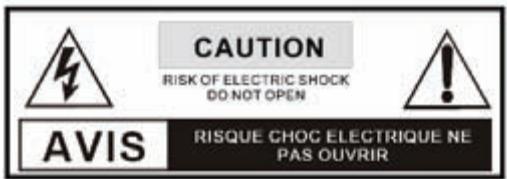

THE LIGHTNING FLASH WITH APPROWHEAD SYMBOL WITHIN AN EQUILATERAL TRIANGLE IS IN TENDED TO ALERT THE USER TO THE PRESENCE OF UNINSULATED « DANGEROUS VOLTAGE »
WITHIN THE UNIT'S CABINET THAT MAY BE OF SUFFICIENT MAGNITUDE TO CONSTITUTE A RISK OF ELECTRIC SHOCK TO PERSONS.

THE EXCLAMATION POINT WITHIN AN EQUILATERAL TRIANGLE IS INTENDED TO ALERT THE USER TO THE PRESENCE OF IMPORTANT OPERATING AND
MAINTENANCE (SERVICING) INSTRUCTIONS IN THE MANUAL ACCOMPANYING THE UNIT.

THE MAINS PLUG USED AS THE DISCONNECT DEVICE, THE DISCONNECT DEVICE SHALL REMAIN READILY OPERABLE.

THE APPARATUS SHALL NOT BE EXPOED TO DRIPPING OR SPLASHING AND THAT ON OBJECTS FILLED WITH LIQUIDS, SUCH AS VASES, SHALL BE PLACED THE APPARATUS.

THE APPLIANCE COUPLER IS USED AS THE DISCONNECT DEVICE, THE DISCONNECT DEVICE SHALL REMAIN READILY OPERABLE.

ALWAYS REMEMBER TO REMOVE THE PLUG FROM THE MAINS SOCKET BEFORE DISCONNECTING THE POWER LEAD FROM THE BACK OF THE UNIT.
WARNING
TO PREVENT FIRE OR ELECTRIC SHOCK, DO NOT EXPOSE THE UNIT TO RAIN OR MOISTURE. NEVER ATTEMPT TO OPEN THE CABINET, DANGEROUS HIGH VOLTAGES ARE PRESENTED IN THE UNIT. REFER SERVICING TO QUALIFIED SERVICE PERSONNEL.
CAUTION
TO PREVENT ELECTRIC SHOCK, MATCH WIDE-BLADE PLUG WITH WIDE SLOT AND FULLY INSERT.
THE APPARATUS SHALL NOT BE EXPOSED TO WATER AND NO OBJECTS FILLED WITH LIQUID SUCH AS VASES SHALL BE PLACED ON THE APPARATUS.
CAUTION
THE UNIT EMPLOYS A LASER SYSTEM. TO ENSURE THE PROPER USE OF THE UNIT, READ THEIS MANUAL CAREFULLY AND KEEP IT FOR FUTURE REFERENCE.
IF THE UNIT REQUIRES SERVICING, CONTACT THE SELLER OR SEE "TROUBLESHOOTING".
TO PREVENT DIRECT EXPOSURE TO THE LASER RADIATION, DO NOT OPEN THE CABINET. VISIBLE LASER MAY RADIATE WHEN THE CABINET IS OPENED OR THE INTERLOCK ARE DEFEATED. DO NOT STARE INTO THE LASER BEAMS.
CAUTION
THIS PLAYER IS A CLASS 1 LASER PRODUCT. USE OF CONTROLS OR ADJUSTMENTS OR PERFORMANCE OF PROCEDURES OTHER THAN THOSE SPECIFIED HEREIN MAY REULT IN HAZARDOUS RADIATION EXPOSURE. AS THE LASER BEAM USED IN THIS DVD VIDEO PLAYER IS HARMFUL TO THE EYES, DO NOT ATTEMPT TO DISASSEMBLE THE CABINET. REFER SERVICING TO QUALIFIED PERSONNEL ONLY.
WARNING
FCC REGULATIONS STATE THAT ANY CHANGE OR MODIFICATION TO THE EQUIPMENT, NOT EXPRESSLY APPROVED BY MAKER OR ITS AUTHORIZATION PARTIES, COULD VOID USER'S AUTHORITY TO OPERATE THIS EQUIPMENT.

This symbol indicates that this product incorporates double insulation between hazardous mains voltage and user accessible parts. When servicing use only identical replacement parts.
WARNING: To reduce the risk of fire or electric shock, do not expose this apparatus to rain or cords.
1. Read Instructions
All the safety and operating instructions should be read before the product is operated.
2. Retain Instructions
The safety and operating instructions should be retained for future reference.
3. HeadWarnings
All warnings on the product and in the operating instructions should be adhered to.
4. Follow Instructions
All operating instructions should be followed.
5. Cleaning
Unplug this product from the wall outlet before cleaning. Do not use liquid cleaners or aerosol cleaners. Use a damp cloth for cleaning.
6. Attachments
Do not use attachments not recommended by the product manufacturer as they may cause hazards.
7. Water and Moisture
Do not use this product near water for example, near a bathtub, wash bowl, kitchen sink, or laundry tub; in a wet basement; or near a swimming pool; and the lake.
8. Accessories
Do not place this product on an unstable cart, stand, tripod, bracket, or table. The product may fall, causing serious injury to a child or adult, and serious damage o the product. Use only with a cart, stand, tripod, bracket, or table recommended by the manufacturer, or sold with the product. Any mounting of the product should follow the manufacturer's instructions, and should use a mounting accessory recommended by the manufacturer.
9. Portable Cart Warning
(Symbol provided by RETAC)
A product and cart combination should be moved with care. Quick stop, excessive force, and uneven surface may cause the product and cart combination to overturn.
10. Ventilation.
Slots and openings in the cabinet are provided for ventilation and to ensure reliable operation of the product and to protect if from overheating, and these openings must not be blocked or covered. The openings should never be blocked by placing the product on a bed, sofa, rug, or other similar surface. This product should not be placed in a built-in installation such as a bookcase or rack unless proper ventilation is provided or the manufacturer's instructions have been adhered to.
11. Power Sources
This product should be operated only from the type of power source indicated on the marking label. If you are not sure of the type of power supply to your home, consult your product dealer or local power company. For
products intended to operate from battery power or other sources, refer to the operating instructions.
12. Power Cord Protection
Power supply cords should be routed so that they are not likely to be walked on or pinched by items placed upon or against them, paying particular attention to cords at plugs, convenience receptacles, and the point where they exit from the product.
13. Power Lines
An outside antenna system should not be located in the vicinity of overhead power lines or other electric light or power circuits, o where it can fall into such power lines or circuits. When installing an outside antenna system, extreme care should be taken to keep from touching such power lines or circuits as contact with them might be fatal.
14. Overloading
Do not overload wall outlets, extension cords, or integral convenience receptacles, as this can result in a risk of fire or electric shock.
15. Object and Liquid Entry
Never push objects of any kind into this product through openings as they may touch dangerous voltage points or short-out parts that could result in a fire or electric shock. Never spill liquid of any kind to the product.
16. Servicing
Do not attempt to service this product yourself as opening or removing covers may expose you to dangerous voltage or other hazards. Refer all servicing to qualified service personnel.
17. Damage Requiring Service
Unplug this product from the wall outlet and refer servicing to qualified service personnel under the following conditions:
A) When the power supply cord or plug is damaged, B) If liquid has been spilled, or objects have fallen into the product.
C) If the product has been exposed to rain or water,
D) If the product does not operate normally by following the operating instructions. Adjust only those controls that are covered by the operating instructions as an improper adjustment of other controls may result in damage and will often required extensive work by a qualified technician to restore the product to its normal operation, E) If the product has been dropped or damaged in any way.
F) When the product exhibits a distinct change in performance this indicates a need for service.
18. Replacement Parts
When replacement parts are required, be sure the service technician has used replacement parts specified by the manufacturer or have the same characteristics as the original part. Unauthorized substitutions may result in fire, electric shock, or other hazards.
19. Safety Check
Upon completion of any service or repairs to this product, ask the service technician to perform safety checks to determine that whether the product is in proper operating condition.
20. Heat
The product should be situated away from heat sources such as radiators, heat registers, stoves, or other products (including amplifiers) that product heat.
Blu-Ray DVD Player
Features
- Blu-ray DVD player: BD,DVD,CD
- Blu-Ray playback: 720p, 1080i, 1080p
LED display
NTSC/PAL
HDMI output -
Component video output
Composite video output
Digital coaxial output
RCA stereo audio output
USB port
AC power: built-in AC power cable -
Once the Blu-ray system is operated abnormally, it will be damaged up due to the circuit protection. Please unplug the power cord and plug it in again to start operation. Then, thesystem can be recovered to normal working.
- STANDBY button light change the colour from red to green will be delay about 10 seconds when turn on the Blu-ray player.
- About the User Guide for Touch Screen, all Blue LEDs will be turned on at the first pressing. After then, Function Keys can be operated at the second pressing.
- Specification and design are subject to change without notice.
Included
Remote control
1 RCA video.audio cable
User's guide
Region Codes
DVD and Blu-ray players and discs are coded for a specific region. The disc and player code must match in order for the disc to play in that player.
The region code for this player is located on the rear panel of the player.
| Region Code | Area/Country | |
| BLU-RAY DISCS | A | North America, Central America, South America, Korea, Japan, Taiwan, Hong Kong, South East Asia |
| B | Europe, Greenland, French territories, Middle East, Africa, Australia, and New Zealand | |
| C | India, China, Russia, Central Asia, and South Asia | |
| DVD DISCS | 1 | The U.S.A., U.S.A. territories, and Canada |
| 2 | Europe, Japan, the Middle East, Egypt, South Africa, Greenland | |
| 3 | Taiwan, Korea, the Philippines, Indonesia, and Hong Kong | |
| 4 | Mexico, South America, Central America, Australia, New Zealand, Pacific Islands, and Caribbean | |
| 5 | Russia, Eastern Europe, India, North Korea, Mongolia, and most of Africa | |
| 6 | China |
TABLE OF CONTENTS
SafetyPrecaution 2
Important Safety Instructions 3
Blu-Ray DVD Player. 4
- Features
- Accessories
Region Codes
Introduction 6
Player Setup 9
- Player Power
Remote Battery Power
Blu-Ray, DVD, and CD 10
- Loading a Disc
- Playing a Disc
- On-Screen Control
- Creating and Using Bookmarks
Blu-Ray, DVD, and CD 11
- Programming a Disc (DVD and CD ONLY)
- Cancelling a Program (DVD and CD ONLY)
BD-LiveTM
Bonus View
Setup/Home Menu . 12
- Accessing the Setup Menu
Basic Menu Operation - General Settings
- Display Settings
Audio Settings
System Information
Connecting a Television 14
Composite Video Output
- Component Video Output
HDMI Output
Audio Outputs. 15
RCA Stereo Audio Output
Coaxial Digital Audio Output
5.1CH Audio Output
Ethernet 17
- Ethernet Connection
USB Port 17
- Playing or Viewing for USB Drive
Introduction
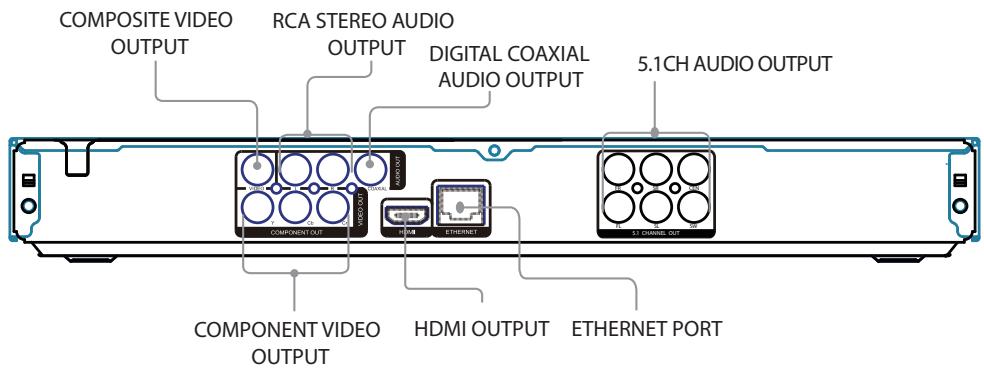
Introduction
Speakers
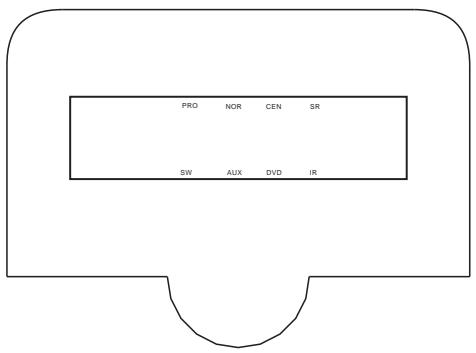
PRO- Pro-logic function key indicator lamp.
NOR- -Normal function key indicator lamp.
CEN- Channel Center
SR——Channel SR
SW- Channel SW
AUX-----AUX function key indicator lamp.
DVD- DVD function key indicator lamp.
IR- The remote sensor to receive the window way.
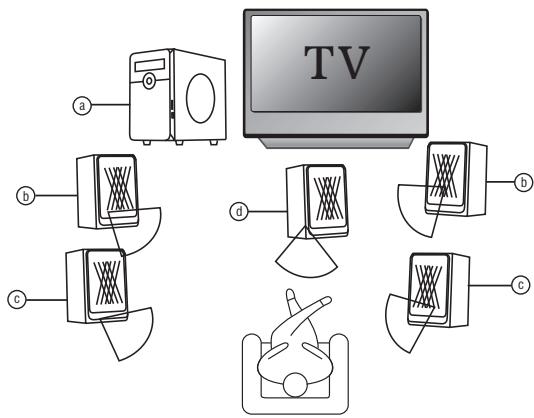
a. Sub-woofer
Place the sub-woofer any place on the floor.
(There is no directional requirement for the Bass effect.)
b. Front Speakers
c. Surround Speakers
Place the surround speakers directly to the side of a slightly being the listening area.
Align them horizontally, about 1 meter above ear height.
d. Center Speaker
Place in the center of the two front speakers in addition position on or below the TV set.
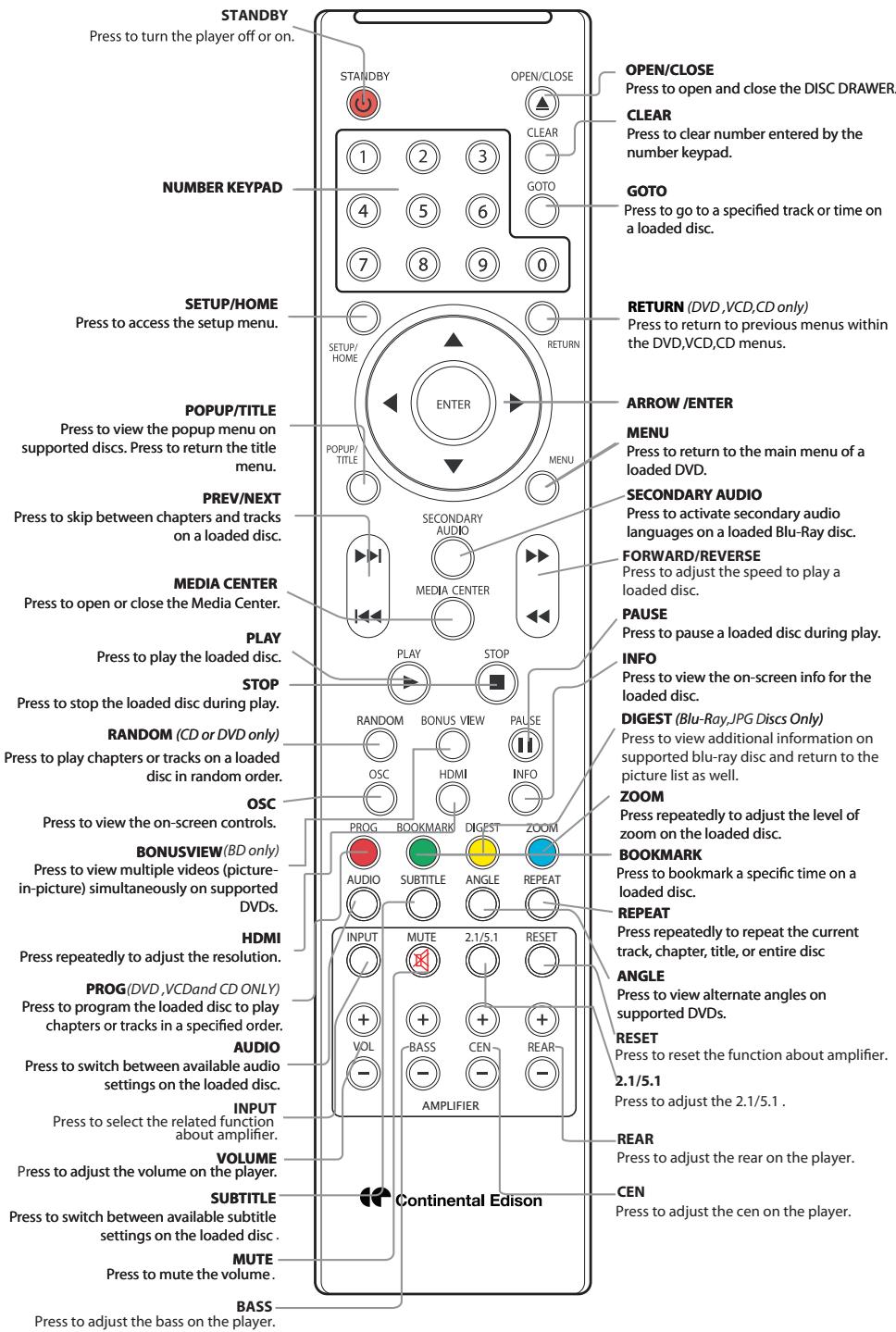
Player Setup
Player Power
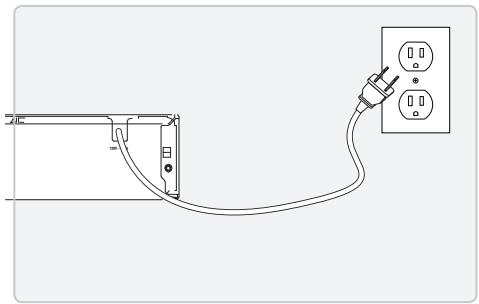
Plug the attached AC cord into a standard AC power outlet to power the unit.
Remote Battery Power
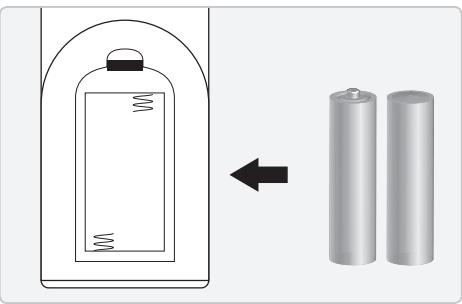
Requires 2, AAA size, batteries
Blu-Ray, DVD, and CD
Loading a Disc
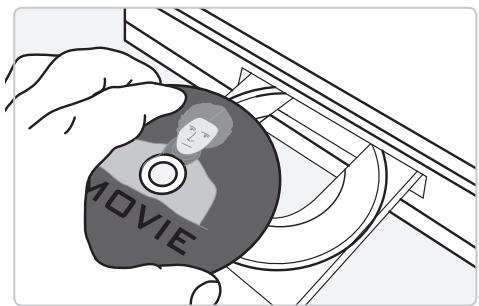
- Press the POWER button to turn the player on.
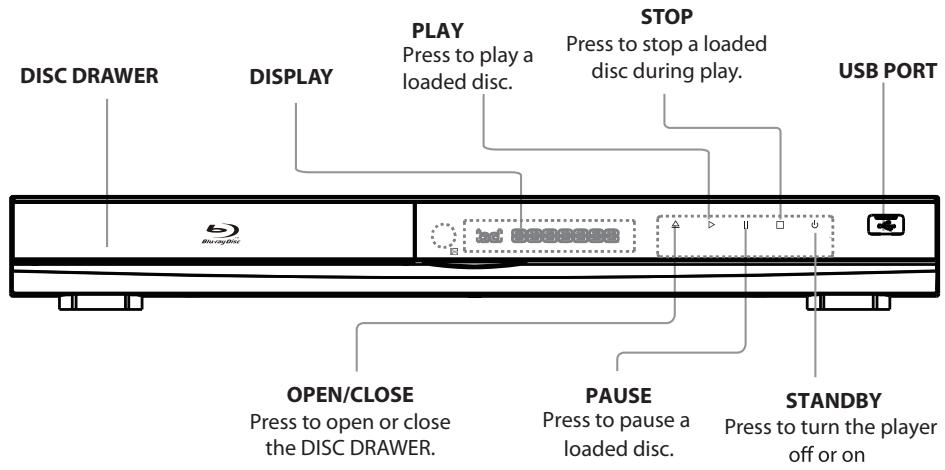
- Press the OPEN/CLOSE button to open the DISC DRAWER.
- Load a disc into the DISC DRAWER, label side facing up.
- Press the OPEN/CLOSE button to close the DISC DRAWER.
Playing a Disc
- Follow the instructions for Loading a Disc.
After the disc is loaded, it will begin playing automatically. - If the disc doesn't begin playing automatically, press the PLAY button.
On-Screen Control
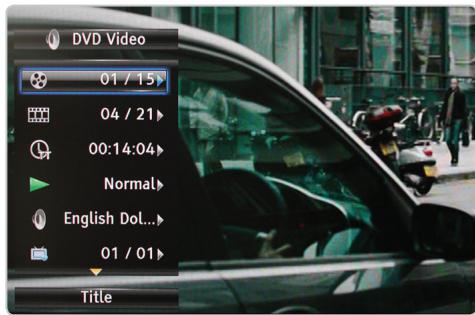
To activate the on-screen control, press the OSC button on the remote while a loaded disc is playing.
Using the on-screen control, you can quickly skip to a title, chapter, or even time on the loaded disc.
You can also adjust the audio language, subtitle settings, angle view, and bitrate.
Creating and Using Bookmarks
The bookmark feature works for DVD and Blu-Ray DVD's only.
- Follow the instructions for Loading a Disc and Playing a Disc.
- Press the BOOKMARK button to bookmark the current point in the playing disc.
You can create up to 12 bookmarks.
- To access saved bookmarks, press and hold the BOOKMARK button for 5 seconds.
The on-screen bookmark menu will appear.
- Use the ARROW/ENTER buttons on the remote to select and view a saved bookmark.
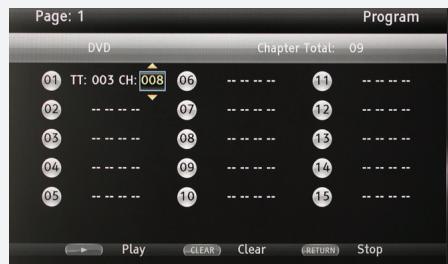
Programming a Disc (DVD and CD ONLY)
- Follow the instructions for Loading a Disc and Playing a Disc.
- While the disc is playing, press the PROGRAM button on the remote.
A program menu will appear on the television.
- Press the ENTER button.
- Use the ARROW buttons to select a title and chapter. Press the ENTER button.
- Press the PLAY button to begin playing the programmed disc.
Cancelling a Program (DVD and CD ONLY)
- While the disc is playing, press the PROGRAM button.
- Press the RETURN button on the remote to clear the set program.
BD-LiveTM
BD-Live is an advanced Blu-ray disc feature that allows you to view and download additional content provided by the disc manufacturer.
BD-Live features can be accessed through the main menu of a loaded Blu-ray disc that supports this feature.
BD-Live requires an internet connection and a Blu-ray disc that supports this feature.
BD-Live may sometimes require additional storage space. Connect a 2GB or larger USB thumb drive to the USB port if you are experiencing issues with BD-Live.
Bonus View
On supported Blu-ray discs, press the BONUSVIEW button the remote to view additional video content while the movie is playing.
Bonus view requires a Blu-ray disc that supports this feature.
Setup/Home Menu
Accessing the Setup Menu
- Press the SETUP/HOME button to access the setup menu.
Some options in the setup menu are only available if the player is in full-stop mode. To enter full-stop mode, press the STOP button on the remote twice.
Basic Menu Operation
- Press the ARROW buttons to navigate the setup menu.
- Press the ENTER button on the remote to make selections within the setup menu.
- Press the SETUP/HOME button to exit the setup menu.
General Settings
System
Screen Saver
Disc Auto Playback
Load Default
- Use to restore the player's system settings to it's original settings.
Upgrade
Disc
- USB Storage
Easy Setup
- Use to run a basic setup wizard that will help adjust the player's settings specifically for your television.
BUDA
- Use select your default storage for BD Live downloads and cache. The internal memory can also be formatted from here.
Language
OSD
Menu
Audio
Subtitle
Playback
Closed Caption
Angle Mark
PIP Mark
Secondary Audio Mark
Security
Parental Control
- Enter to set the parental control. the password is 0000.
Network
Internet Connection
Information
View network information.
Connection Test
- Use to test the player's internet connection.
IP Setting
Proxy Setting
BD-Live Connection
- Adjust permission for BD-Live connections.
Display Settings
TV
TV Screen
Resolution
TV System
Color Space
HDMI Deep Color
HDMI 1080P 24Hz
Video Process
Sharpness
Motion Video Process
Video Mode
Audio Settings
Audio Output
Spdif
HDMI
Down_samp
DRC
Speaker Setting
Configuration
Test Tone
Post Process
UpMix
System Information
Details the current software version of the player as well as the player's MAC (Media Access Control) address.
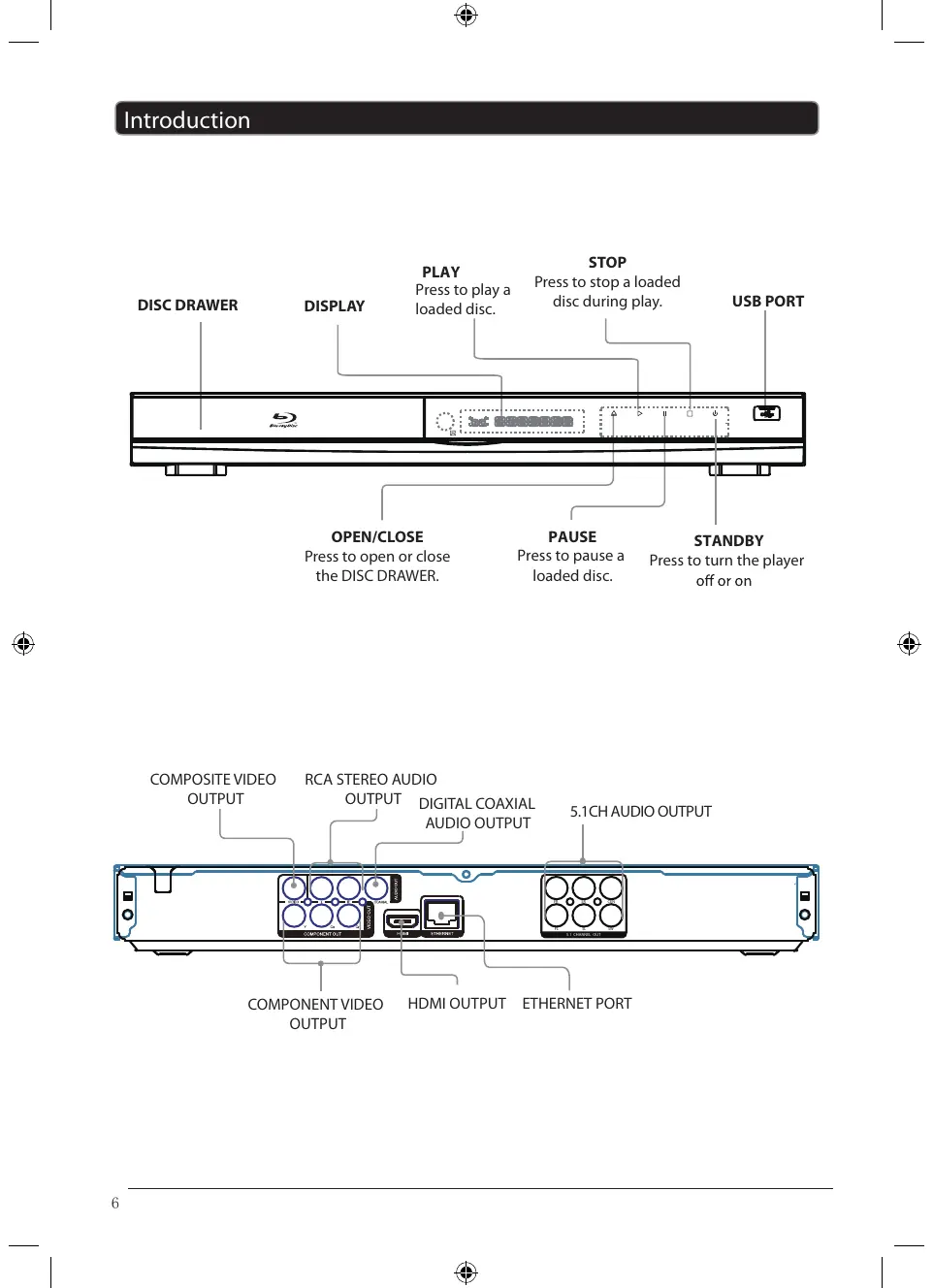
Connecting a Television

Good Video Quality
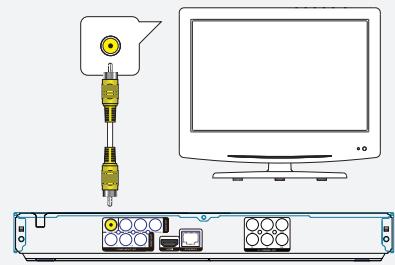
Composite Video Output
Requires an RCA video cable (included)

Better Video Quality
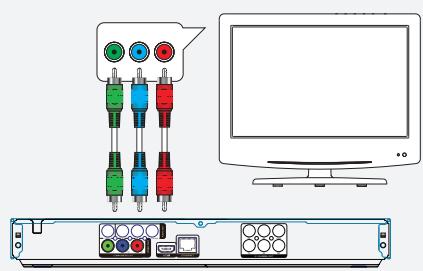
Component Video Output
Requires an RCA component video cable (not included)
- Plug the RCA video cable into the COMPOSITE VIDEO OUTPUT on the player and a composite video input on a television.
The standard color for composite video ports is yellow.
- Adjust the connected television to the input source used in step #1.
- This will allow video from the player to show on the connected television.
To play audio from the player through your television, follow the instructions for RCA Stereo Audio Output or Digital Coaxial Audio Output..
- Plug the RCA component video cable into the COMPONENT VIDEO OUTPUT on the player and a component video input on a television.
The standard colors for component video ports are green, blue, and red.
- Adjust the connected television to the input source used in step #1.
- This will allow video from the player to show on the connected television.
To play audio from the player through your television, follow the instructions for RCA Stereo Audio Output or Digital Coaxial Audio Output.

Best Video Quality
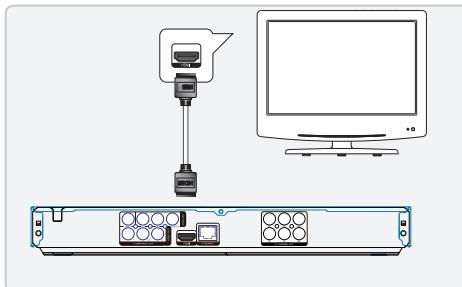
HDMI Output
Requires an HDMI cable (not included)
Audio Outputs

Good Audio Quality
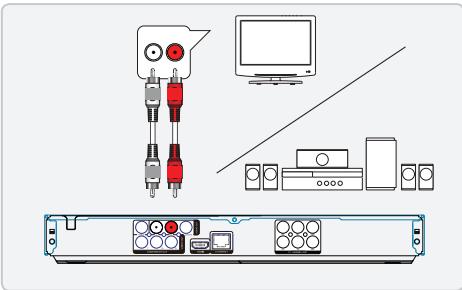
RCA Stereo Audio Output
Requires an RCA stereo audio cable (included)
- Plug the HDMI cable into the HDMI OUTPUT on the player and an HDMI input on a television.
- Adjust the connected television to the input source used in step #1.
-
This will allow video and audio from the player to play through the connected television.
-
Plug the RCA stereo audio cable into the RCA STEREO AUDIO OUTPUT on the player and a RCA stereo audio input on a television or home theater system.
The standard color for RCA stereo audio ports is red and white.
- Adjust the connected television or home theater system to the input source used in step #1.
- This will allow audio from the player to play on the connected television or home theater system.
To play video from the player through your television, follow the instructions for Composite Video Output, Component Video Output, or HDMI Output.
Audio Outputs

Better Audio Quality
Coaxial Digital Audio Output
Requires an coaxial digital audio cable (not included)

Better Audio Quality
5.1 CH Audio Output
Requires an 5.1CH audio cable (not included)
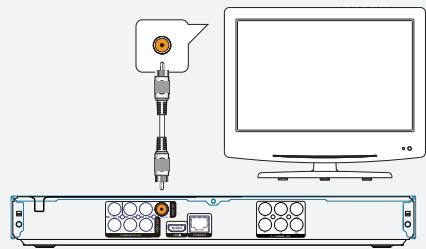
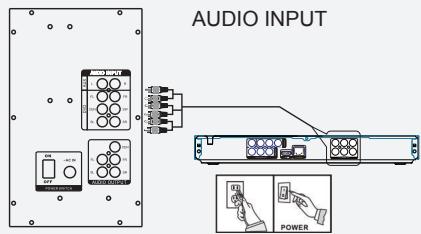
- Plug the coaxial digital audio cable into the COAXIAL DIGITAL AUDIO OUTPUT on the player and a coaxial digital audio input on a television.
The standard color for coaxial digital audio ports is orange. - Adjust the connected television to the input source used in step #1.
- This will allow audio from the player to play on the connected television.
To play video from the player through your television, follow the instructions for Composite Video Output, Component Video Output, or HDMI Output.
- Plug the 5.1CH audio cable into the 5.1CH AUDIO OUTPUT on the player and a 5.1CH audio input on a subwoofer.
- This will allow audio from the player to play on the connected home theater system.
To play video from the player through your television, follow the instructions for Composite Video Output, Component Video Output, or HDMI Output.
Ethernet
Ethernet Connection
This player allows you to connect to network based services such as BD-Live™, and receive software updates.
Requires an ethernet cable (not included)
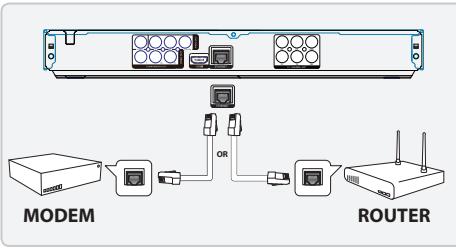
- Plug the ethernet cable into the ETHERNET PORT on the player and an ethernet port on a router or modem with an internet connection.
After connecting the player to a router or modem, the player will automatically connect to the internet.
You can access your network settings in the player's setup menu.
BD-Live may sometimes require additional storage space. Connect a 2GB or larger USB thumb drive to the USB port if you are experiencing issues with BD-Live.
USB Port
Playing or Viewing for USB Drive
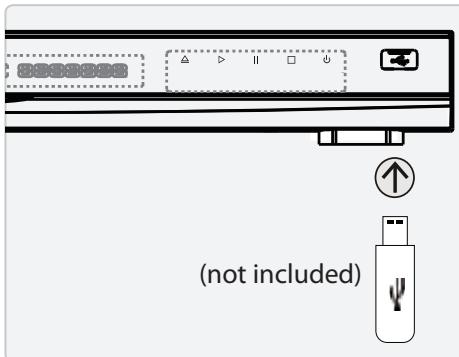
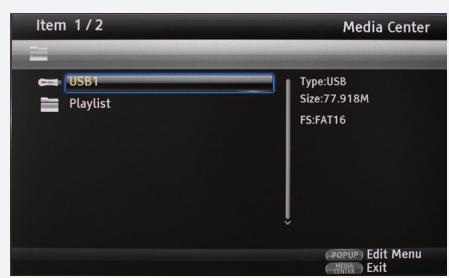
- Connect a USB drive to the USB PORT on the front of the player.
The USB drive will only fit into the port one way. - Press the MEDIA CENTER button on the remote.
- Use the ARROW buttons to select the connected USB drive.
- Press the ENTER button.
- Use the ARROW buttons to navigate the connected USB and press the ENTER button to make selections, view photos, or play music.

Note on environmental protection:
After the implementation of the European Directive 2002/96/EU in the national legal system, the following applies: Electrical and electronic devices may not be disposed of with domestic waste. Consumers are obliged by law to return electrical and electronic devices at the end of their service lives to the public collecting points set up for this purpose or point of sale. Details to this are defined by the national law of the respective country. This symbol on the product, the instruction manual or the package indicates that a product is subject to these regulations. By recycling, reusing the materials or other forms of utilizing old devices, you are making an important contribution to protecting our environment.
Guide d'utilisation

(Symbol provided by RETAC)

(Symbol provided by RETAC)
10. Proteccion Del Cable De Alimentacion
c. Altavoces surround
- OPERATING INSTRUCTIONS
- WARNING
- CAUTION
- READ INSTRUCTIONS
- RETAIN INSTRUCTIONS
- HEADWARNINGS
- FOLLOW INSTRUCTIONS
- CLEANING
- ATTACHMENTS
- WATER AND MOISTURE
- ACCESSORIES
- PORTABLE CART WARNING
- (SYMBOL PROVIDED BY RETAC)
- VENTILATION
- POWER SOURCES
- POWER CORD PROTECTION
- POWER LINES
- OVERLOADING
- OBJECT AND LIQUID ENTRY
- SERVICING
- DAMAGE REQUIRING SERVICE
- REPLACEMENT PARTS
- SAFETY CHECK
- HEAT
- BLU-RAY DVD PLAYER
- FEATURES
- INCLUDED
- REGION CODES
- TABLE OF CONTENTS
- INTRODUCTION
- SPEAKERS
- PLAYER SETUP
- PLAYER POWER
- REMOTE BATTERY POWER
- BLU-RAY, DVD, AND CD
- LOADING A DISC
- PLAYING A DISC
- ON-SCREEN CONTROL
- CREATING AND USING BOOKMARKS
- PROGRAMMING A DISC (DVD AND CD ONLY)
- CANCELLING A PROGRAM (DVD AND CD ONLY)
- BD-LIVETM
- BONUS VIEW
- SETUP/HOME MENU
- ACCESSING THE SETUP MENU
- BASIC MENU OPERATION
- GENERAL SETTINGS
- SYSTEM
- LANGUAGE
- PLAYBACK
- SECURITY
- NETWORK
- DISPLAY SETTINGS
- AUDIO SETTINGS
- SYSTEM INFORMATION
- CONNECTING A TELEVISION
- COMPOSITE VIDEO OUTPUT
- COMPONENT VIDEO OUTPUT
- BEST VIDEO QUALITY
- HDMI OUTPUT
- AUDIO OUTPUTS
- RCA STEREO AUDIO OUTPUT
- COAXIAL DIGITAL AUDIO OUTPUT
- 5.1 CH AUDIO OUTPUT
- ETHERNET
- ETHERNET CONNECTION
- USB PORT
- PLAYING OR VIEWING FOR USB DRIVE
- NOTE ON ENVIRONMENTAL PROTECTION
- GUIDE D'UTILISATION
- PROTECCION DEL CABLE DE ALIMENTACION
Brand : CONTINENTAL EDISON
Model : CEHCBR511
Category : Media player