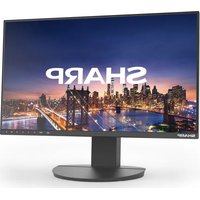
PN-R606 - Monitor SHARP - Free user manual and instructions
Find the device manual for free PN-R606 SHARP in PDF.


Pick your language and provide your email: we'll send you a specifically translated version.
| Product Type | Professional LCD Monitor |
| Brand | Sharp |
| Model | PN-R606 |
| Screen Size | 60 inches (diagonal) |
| Resolution | 1920 x 1080 (Full HD) |
| Brightness | 450 cd/m² (typical) |
| Contrast Ratio | 4000:1 (typical) |
| Response Time | 8 ms |
| Viewing Angles (H/V) | 178° / 178° |
| Panel Type | VA (Vertical Alignment) |
| Input Ports | HDMI (x2), DVI-D, VGA, DisplayPort, Composite, Component, RS-232C |
| Output Ports | RS-232C, LAN (Ethernet), Audio Line Out |
| Power Consumption | 280 W (typical), standby < 0.5 W |
| Dimensions (W x H x D) with Stand | 1364 x 804 x 108 mm |
| Weight with Stand | 45 kg |
| VESA Mounting | 400 x 400 mm |
| Operating Temperature | 0°C to 40°C |
| Features | Redundant power supply (optional), Daisy chain (RS-232C), OSD lock, Anti-glare coating |
| Included Accessories | Power cord, remote control, batteries, user manual, clamp (optional) |
| Cleaning | Use a soft, dry cloth; do not use liquid cleaners or abrasive pads |
| Safety | Do not block vents; use only with grounded outlet; avoid extreme temperatures |
Frequently Asked Questions - PN-R606 SHARP
How do I connect my computer to the Sharp PN-R606 monitor?
Use a compatible cable such as HDMI, DVI-D, or DisplayPort. Connect one end to your computer’s output and the other to the corresponding input port on the monitor. Then, select the correct input source using the remote control or OSD buttons.
What is the recommended resolution for optimal display?
The native resolution is 1920 x 1080 (Full HD). For best image quality, set your computer’s output to this resolution. The monitor also supports lower resolutions but may not fill the screen without scaling.
Can I mount the monitor on a wall?
Yes, the monitor supports VESA 400 x 400 mm mounting. Use a compatible wall mount bracket rated for at least 45 kg. Remove the stand and follow the installation instructions provided with the mount.
How do I clean the screen without damaging it?
Turn off the monitor and unplug it. Use a soft, dry microfiber cloth to gently wipe the screen. For stubborn smudges, slightly dampen the cloth with water (not wet). Do not use alcohol, ammonia, or abrasive cleaners.
What should I do if the monitor does not turn on?
Check that the power cord is securely connected to both the monitor and a working grounded outlet. Ensure the power switch on the monitor (if present) is in the ON position. If using a power strip or UPS, verify it is powered on. If the issue persists, try a different power cord or contact Sharp support.
How can I adjust the brightness and contrast?
Press the MENU button on the remote control or monitor to open the OSD (On-Screen Display). Navigate to Picture settings and adjust Brightness and Contrast using the arrow keys. Press EXIT to save changes.
Does the monitor have built-in speakers?
No, the Sharp PN-R606 does not have built-in speakers. You can connect external speakers via the Audio Line Out port or use an HDMI audio extractor if needed.
What is the purpose of the RS-232C port?
The RS-232C port allows for remote control and daisy chaining of multiple monitors. You can connect a computer or control system to send commands for power, input switching, and settings adjustments. This is useful for digital signage and commercial installations.
How do I enable the OSD lock to prevent unauthorized changes?
Press the MENU button, go to Setup or Lock settings, and select OSD Lock or Button Lock. Confirm to enable. To unlock, press and hold the MENU button for several seconds until the lock icon disappears.
What is the expected lifespan of the backlight?
The LED backlight has a typical lifespan of about 50,000 hours depending on usage and environmental conditions. When the backlight dims or fails, contact Sharp for replacement options.
User questions about PN-R606 SHARP
0 question about this device. Answer the ones you know or ask your own.
Ask a new question about this device
No questions yet. Be the first to ask one.
Download the instructions for your Monitor in PDF format for free! Find your manual PN-R606 - SHARP and take your electronic device back in hand. On this page are published all the documents necessary for the use of your device. PN-R606 by SHARP.
USER MANUAL PN-R606 SHARP

Manual assistant
Powered by Anthropic
Waiting for your message
Product information
Brand : SHARP
Model : PN-R606
Category : Monitor