
43BDL3751T - Monitor PHILIPS - Free user manual and instructions
Find the device manual for free 43BDL3751T PHILIPS in PDF.


User questions about 43BDL3751T PHILIPS
0 question about this device. Answer the ones you know or ask your own.
Ask a new question about this device
Download the instructions for your Monitor in PDF format for free! Find your manual 43BDL3751T - PHILIPS and take your electronic device back in hand. On this page are published all the documents necessary for the use of your device. 43BDL3751T by PHILIPS.
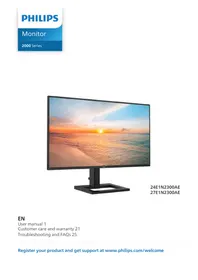
USER MANUAL 43BDL3751T PHILIPS
使用手册(繁體中文)
目錄
連接插頭的方法
主電源的電線,皆依照下列規定標示顏色:
藍色 - 「中性」(N)
棕色 - 「通電」(L)
綠色與黃色 - 「接地」(E)
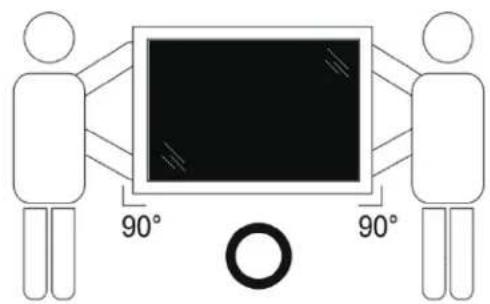
- 用於不含把手的顯示器:
LCD 顯示器

遙控器和 AAA
(4號) 電池
快速入門指南
* 隨附的電源線依銷售地區而有所不同。

電源線

觸控 USB
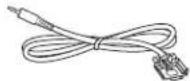
RS232 傳輸線
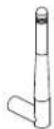
偶極天線×2件

AC 開關護蓋

Philips 標誌牌
① [山検鈕]
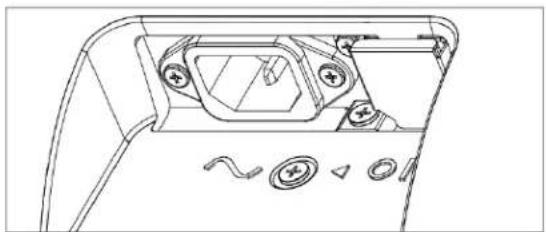
① AC 電源輸入
來自牆面插座的 AC 電源輸入。
② 主電源開關
開啟與關閉主電源。
③ IR 輸入 / ④ IR 輸出
IR 訊號輸入/輸出,可用於直通功能。
註:
3.6. 遥控器
3.6.1. 一般功能
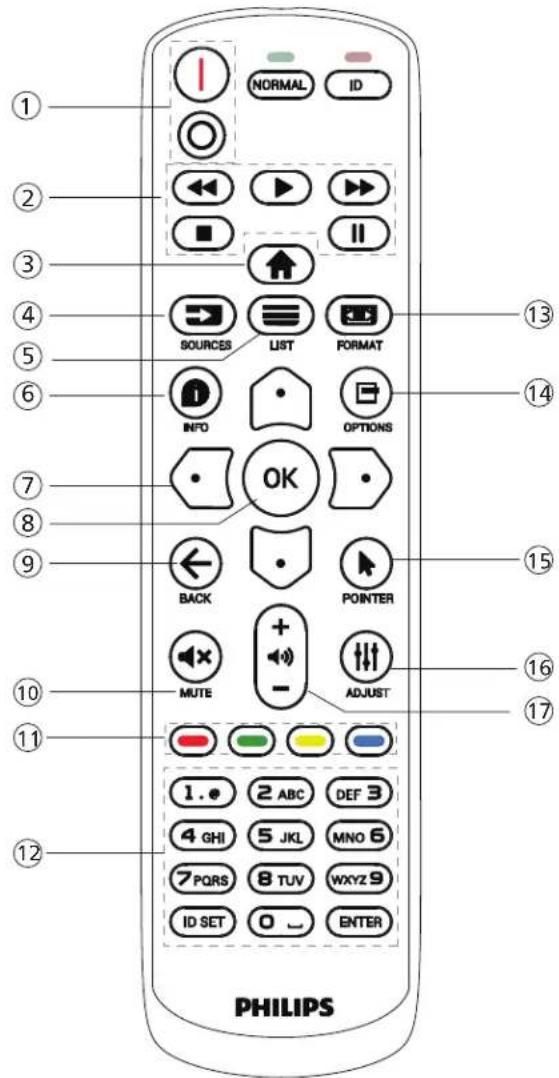
① [I/O] 電源按鈕
[1] 開啟電源。
[○] 關閉電源。
② [播放] 按鈕

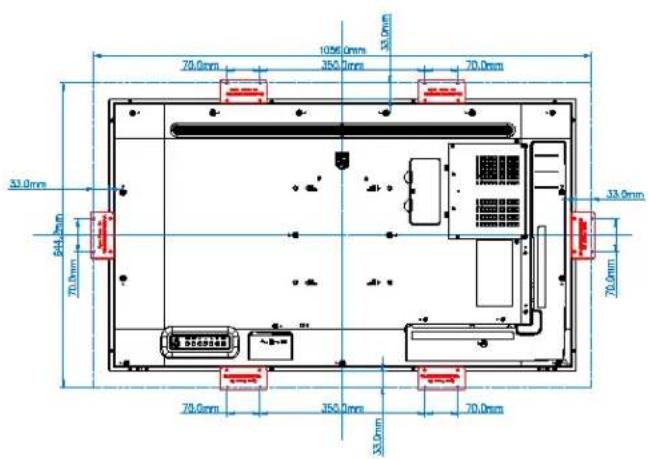
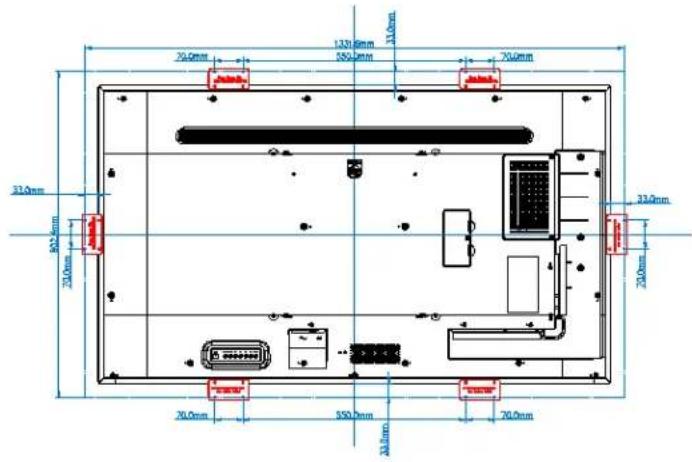
3.8. 開放式框架套件 (選用)
43BDL3751T55BDL3751T
4. 連接外部設備
4.1. 連接外部設備(多媒體播放器)
4.1.1. 使用 HDMI 視訊輸入
![[USB-B] [USB] PC [HDMI 輸入] [HDMI 输出]](/content/2026/07/1489876/images/8383dc10ce85278a2e8d41dd48791a53754719f8073d9ed4835eee1c75472f55.jpg)
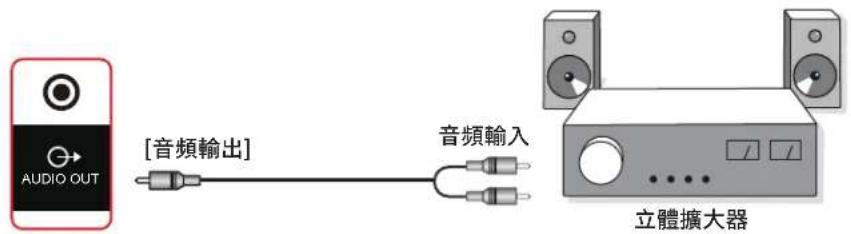
4.3. 連接音訊設備
4.3.1. 連接外部音訊裝置
滑動
輕拂
放大
縮小
觸碰並按住
- 應用程式頁面
7-1 以下功能可從側選單列使用:
- 媒體播放器匯入文字檔案
步驟 1. 建立媒體播放器純文字檔。
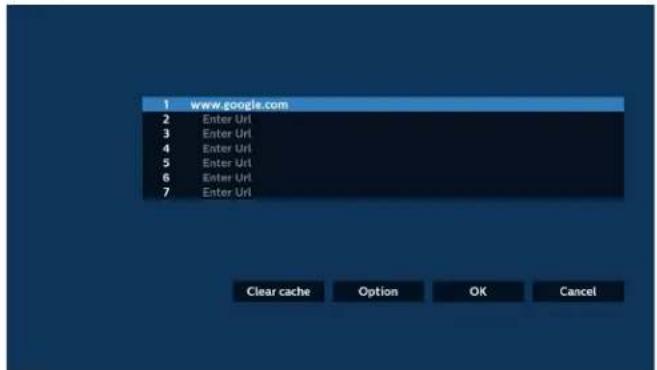
4.1 Import (匯入)
- 選擇 Import(匯入)。
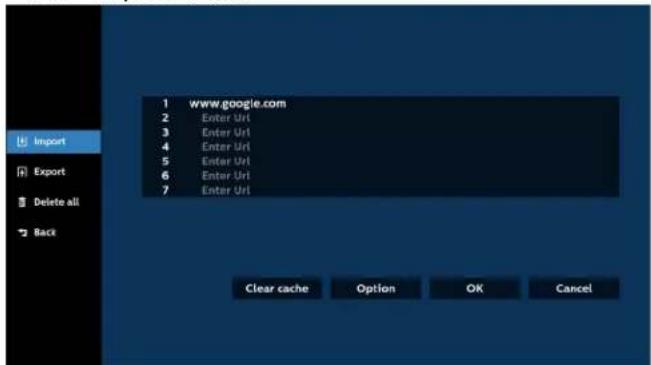
- 選擇將匯入檔案的儲存裝置。
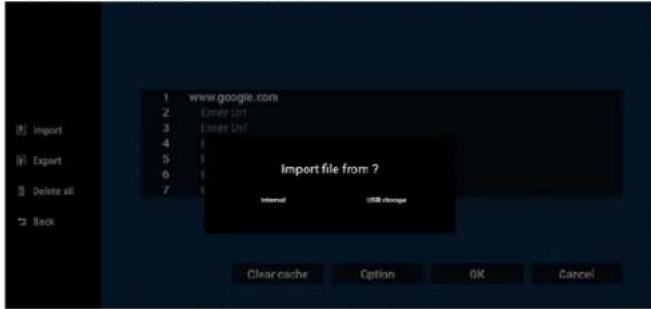
- 選擇瀏覽器檔案。
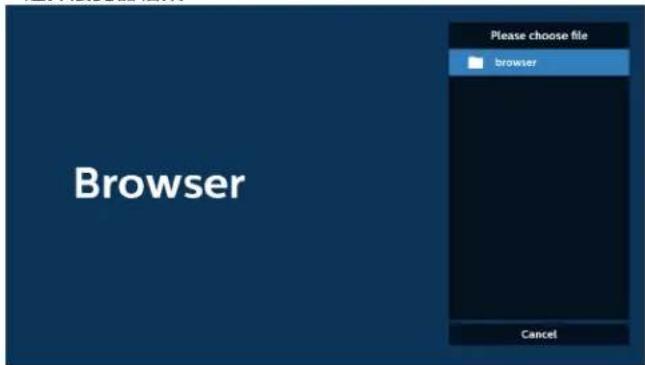
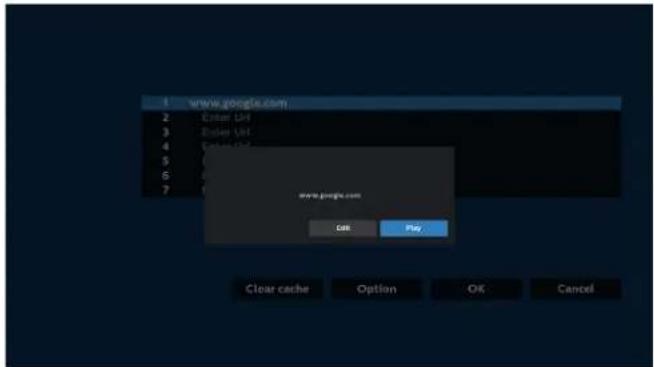
7.1 Incognito (無痕)
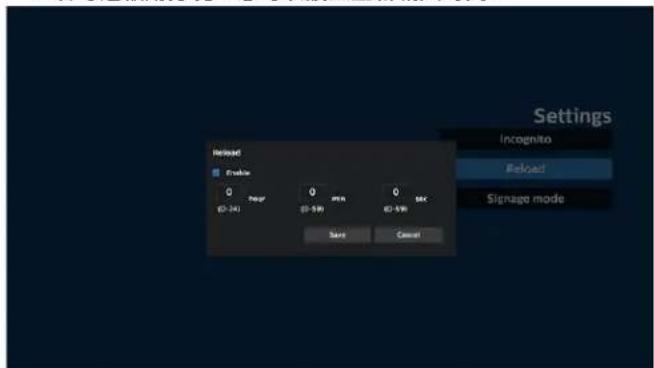
註:
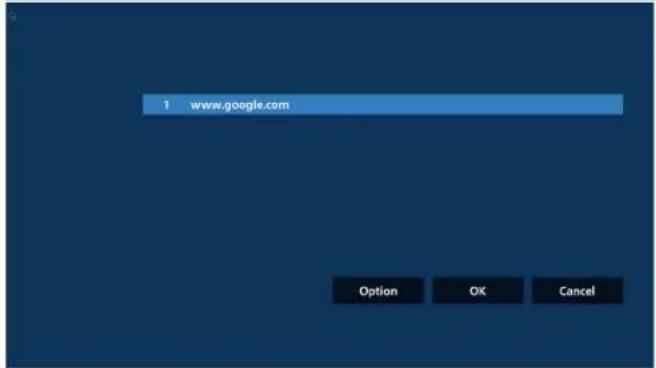
6-1. 匯入
a. 按一下匯入
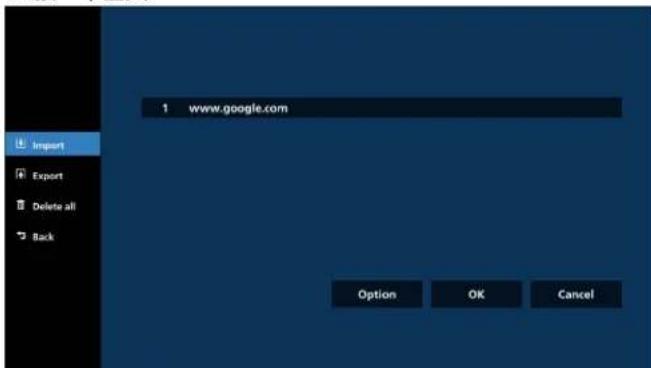
b. 選擇儲存裝置
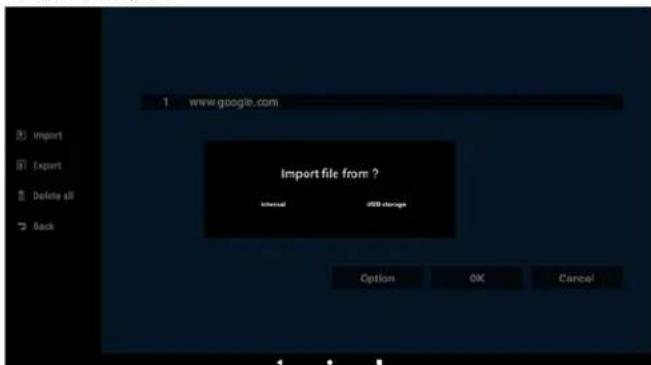
c. 選擇含有網址的檔案。
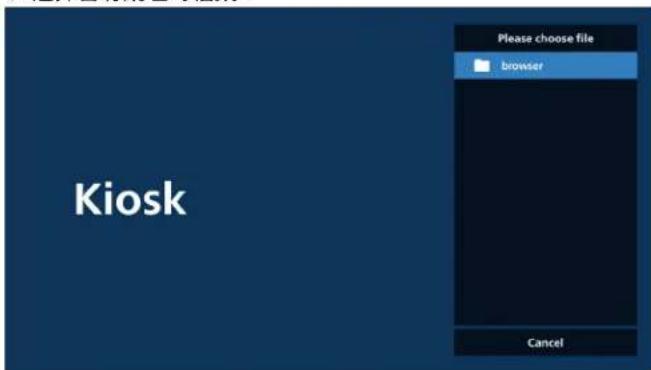
b. 選擇儲存裝置
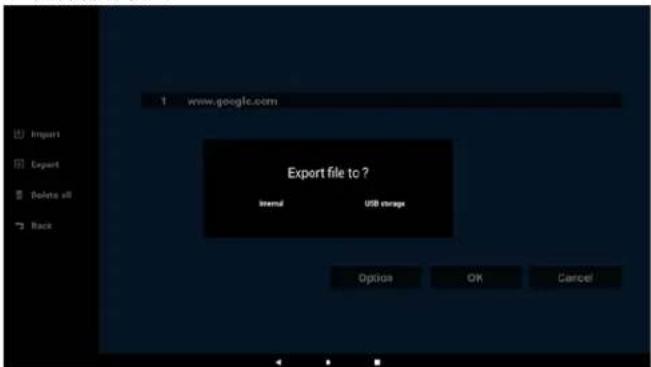
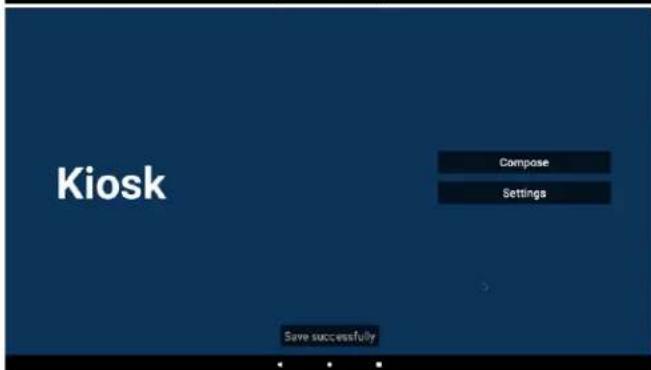
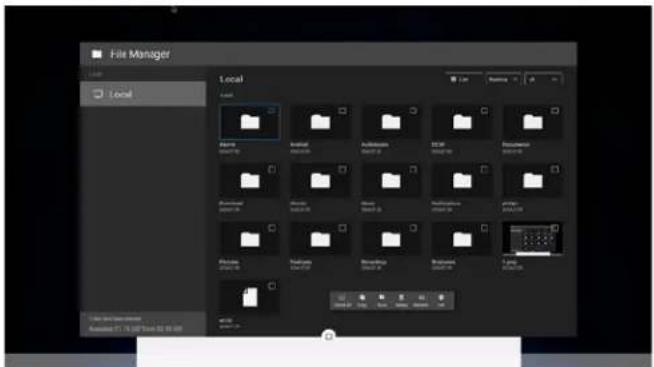
6.1. 檔案管理員
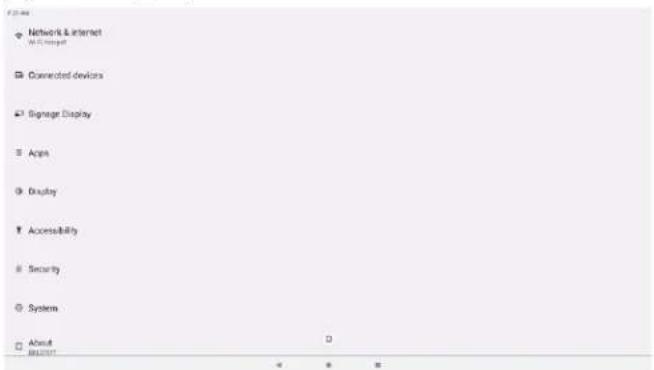
設定選單包含下列項目:
(1). Network & Internet (網路及網際網路)
(2). Connected Devices (已連線裝置)
(3). Signage Display (看板顯示器)
(4). Apps(應用程式)
(5). Display (顯示器)
(6). Accessibility (可及性)
(7). Security (安全性)
(8). System (系統)
(9). About (關於)
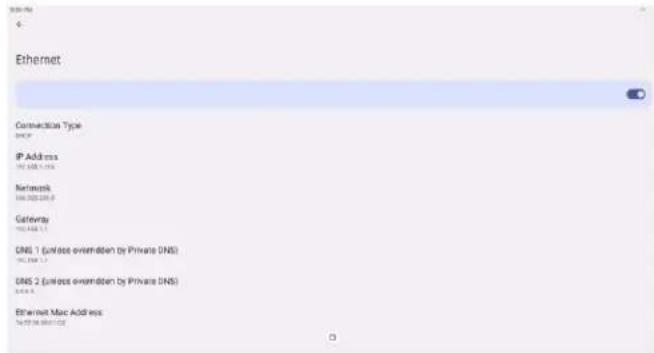
A. IP Address (IP 位址)
B. Gateway (閘道)
C. Netmask(網路遮罩)
D. DNS 1
E. DNS 2
F. Ethernet Mac Address (乙太 MAC 位址)
7.1.2.1. Wi-Fi 熱點
使用 Wi-Fi 熱點

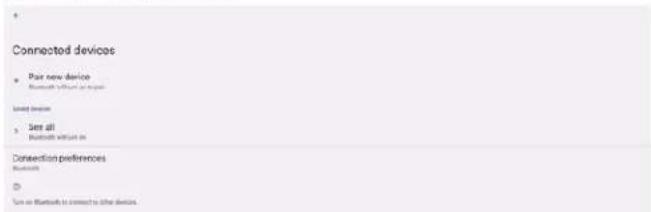
7.2. Connected devices (已連線裝置)
顯示透過藍牙連接的裝置。
Start Time(開始時間)
設定當日截圖功能開始時間。
(4). Save to (儲存至)
(5). Purge Screenshots (清除截圖)
(6). Send screenshots via email (透過電子郵件傳送截圖)
| Pricing items |
| Settings |
| Customization |
| Coordination factor |
| (0.1mm) |
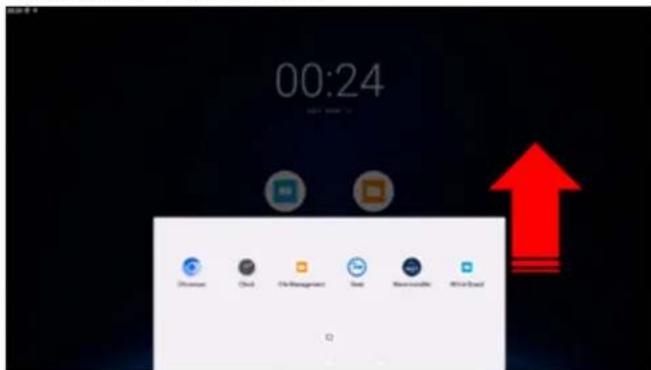
所有應用程式:在首頁向上撥動
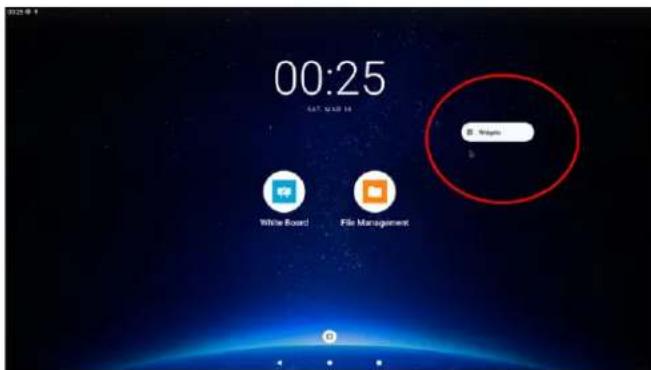
小工具:在首頁長按
SMTP
步驟 2 - 設定兩步驟驗證
步驟 3 - 使用電話完成配置
Google Account
← 2-Step Verification
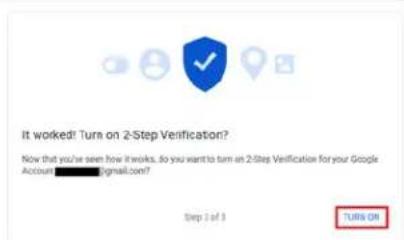
步驟 4 - 建立應用程式密碼
步骤 5 - 新增新的應用程式名稱
App passwords let you sign in to your Google Account from app or on Devices that don't support 2-Sep verification. You'll only need to enter it once as you don't need to remember it Learn more
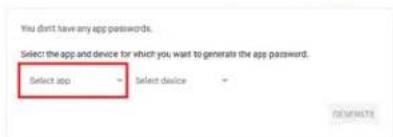
App passwords let you sign in to your Google Account from apps on devices that don't support 2-Step Verification. You'll only need to enter it once so you don't need so reminder it. Learn more
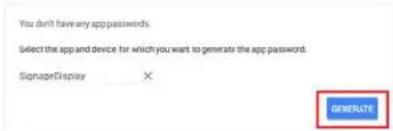
Google Account
← App passwords
App passwords let you sign in to your Google Account from apps on devices that don't support 2-Step Verification. You'll only need to enter it once so you don't need to remember it. Learn more
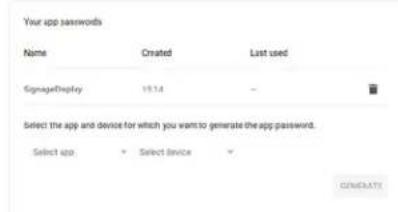
Test (測試)
Media Player(媒體播放器)
Browser(瀏覽器)
| PSF player |
| Edit Play List |
| Edit Effect Settings |
Custom app(自訂應用程式)
Select App(選擇應用程式)
針對自訂應用程式來源選擇特定應用程式。

| Network application |
| Price |
| SCPnetwork port |
Proxy
| Speaker needs |
| Clear storage |
| Alt. |
| Internal storage |
| USB storage |
Reset (重置)
Clone(複製)
Security(安全性)
Security
External Storage Lock
註:
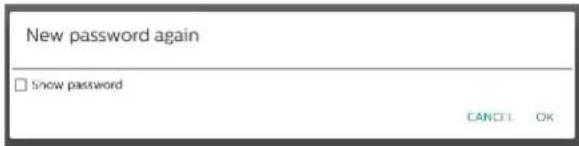
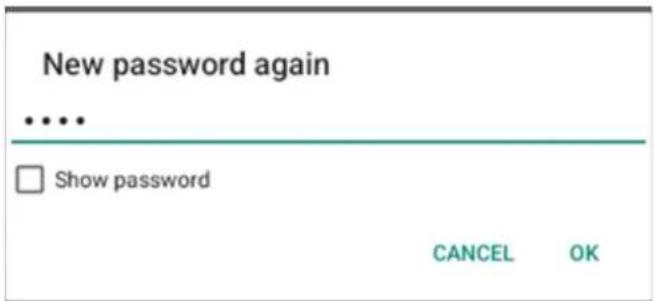
(3). 再次輸入新密碼。
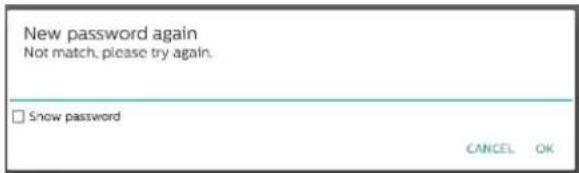
若新密碼不正確,請再試一次。
(+) Not passed
Next Starting Update
Mostly Passacted
Next Passacted
再次輸入新密碼。
7.3.6. Misc. (更多)
TeamViewer support (TeamViewer 支援)
若停用登入,所有資料將儲存至壓縮檔,像是:{root directory of USB storage}/philips/Log/xxBDL3751T-Log-{yyyy-MM-dd-HH-mm-ss}.zip
或 {root directory of internal storate}/ philips/Log/xxBDL3751T-Log-{yyyyMMdd-HH-mm-ss}.zip
Enable 4K(啟用 4K)
7.3.7. System updates (系統更新)
從儲存裝置升級系統
Local update(本機更新)
Display
Appearance
Display size and text
7.5.1. Font size (字型大小)
設定系統的預設字型大小。
Display
Appearance
Display size and text
Font size(字型大小)
Font size:
Make text bigger than other
顯示大小
Display skin
Rubber, red, blue, green, gray, and white
Security
Unknown sources
More security settings
Engagement, presentation and review
7.7.1. Unknown sources (未知來源)
啟用此選項,以進行第3方應用程式安裝。
Unknown categories
More security settings
Device admin apps
No active apps
Encryption & credentials
Evaloped
Device admin apps
©
No device admin apps available.
Encryption & credentials
Credential range
Trusted credentials
Database-based certificate
User credentials
Use and write credentials
Install a certificate
Install certificate from (2) card
Clear credentials
7.8. System (系統)
以下選項列於設定 -> 系統中。
(1). Languages & input (語言與輸入)
Languages & input
Keyboard
Current Keyboard
Kua Keyboard
On-screen keyboard
Kua Keyboard
Physical keyboard
Not connected
7.8.1.1. Keyboards (鍵盤)
Languages & input
Textbooks
Current Keyboard
Blue Keyboard
On-screen keyboard
Blue Keyboard
Physical keyboard
cupping
Choose input method
Show virtual keyboard
Keep it on screen while physical keyboard is active
Kika Keyboard F
7.8.1.2. On-Screen keyboard (螢幕鍵盤)
7.8.1.3. Physical keyboard (實體鍵盤)
7.9. About (關於)
設定 -> 關於
7.9.2. Model (機型)
顯示本產品的機種名稱。
| Model |
| Model |
| 000037117 |
| Serial number |
| AAT472000467 |
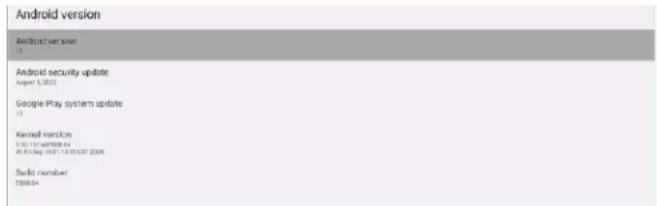
7.9.3. Android version (Android 版本)
顯示本產品的 Android 版本。
7.9.4. Up time (開機時間)
HDMI with One Wire Power off
僅在「HDMI with One Wire」開啟時可用
- {關 } - 停用系統待機。
- {開} - 啟用系統待機。(預設)
支援
三個相鄰且亮起的次像素(一個白色像素)
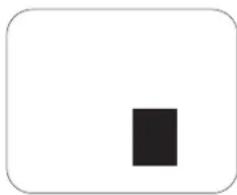
11.4. 暗點缺陷
一個暗點 兩個相鄰的暗點
最小距離
11.5. 像素缺陷的相近程度

- 使用手册(繁體中文)
- 目錄
- 連接插頭的方法
- 遥控器
- 開放式框架套件 (選用)
- 連接外部設備
- 連接外部設備(多媒體播放器)
- 使用 HDMI 視訊輸入
- 連接音訊設備
- 連接外部音訊裝置
- 滑動
- 輕拂
- 放大
- 縮小
- 觸碰並按住
- 6-1. 匯入
- 按一下匯入
- 選擇儲存裝置
- 選擇含有網址的檔案。
- 檔案管理員
- WI-FI 熱點
- 使用 WI-FI 熱點
- CONNECTED DEVICES (已連線裝置)
- 顯示透過藍牙連接的裝置。
- (4). SAVE TO (儲存至)
- (5). PURGE SCREENSHOTS (清除截圖)
- (6). SEND SCREENSHOTS VIA EMAIL (透過電子郵件傳送截圖)
- SMTP
- BROWSER(瀏覽器)
- CUSTOM APP(自訂應用程式)
- SELECT APP(選擇應用程式)
- PROXY
- RESET (重置)
- MISC. (更多)
- SYSTEM UPDATES (系統更新)
- FONT SIZE (字型大小)
- FONT SIZE(字型大小)
- 顯示大小
- UNKNOWN SOURCES (未知來源)
- SYSTEM (系統)
- KEYBOARDS (鍵盤)
- ON-SCREEN KEYBOARD (螢幕鍵盤)
- PHYSICAL KEYBOARD (實體鍵盤)
- ABOUT (關於)
- MODEL (機型)
- ANDROID VERSION (ANDROID 版本)
- UP TIME (開機時間)
- 暗點缺陷
- 像素缺陷的相近程度
Brand : PHILIPS
Model : 43BDL3751T
Category : Monitor