
PARTY-BLACK - Bluetooth speaker PARROT - Free user manual and instructions
Find the device manual for free PARTY-BLACK PARROT in PDF.


| Product type | Portable Bluetooth speaker |
| Brand | Parrot |
| Model | PARTY-BLACK |
| Dimensions (approx.) | 20 x 10 x 10 cm |
| Weight (approx.) | 1 kg |
| Power supply | Mains adapter 15V / 1.2A (supplied) and 4 rechargeable batteries included |
| Output power | 20 W RMS |
| Battery life | Up to 8 hours |
| Bluetooth version | 4.0 |
| Bluetooth range | 10 meters |
| Auxiliary input | Yes (3.5mm jack) |
| Built-in microphone | Yes (for hands-free calls) |
| Main functions | Wireless audio playback, hands-free calls, volume control, auxiliary input |
| Maintenance and cleaning | Clean with a soft, dry cloth. Do not use abrasive products. |
| Safety | Do not expose to water or moisture. Use only the supplied adapter. |
| Spare parts and repairability | Mains adapter and batteries available. For any repairs, contact after-sales service. |
| General information | Designed for portable listening. Suitable for indoor use. |
Frequently Asked Questions - PARTY-BLACK PARROT
User questions about PARTY-BLACK PARROT
0 question about this device. Answer the ones you know or ask your own.
Ask a new question about this device
Download the instructions for your Bluetooth speaker in PDF format for free! Find your manual PARTY-BLACK - PARROT and take your electronic device back in hand. On this page are published all the documents necessary for the use of your device. PARTY-BLACK by PARROT.
USER MANUAL PARTY-BLACK PARROT
15V/ 1.2A mains adapter / Rechargeable battery pack
Carry case / Wrist strap
Housse de transport / Dragonne
Funda de transporte / Correa
User guide
The Bluetooth wireless technology enables audio information and data to be sent via a short-distance radio link. Parrot draws on its long years of experience in the Bluetooth technology to offer you an innovative system, the Parrot PARTY.
This compact, easy-to-fit system will enable you to listen to the tracks on your audio player (mobile phone, PC, etc.), even when on the move, by means of a Bluetooth link or an audio cable (jack / jack).
#
The use of some of these functions depends solely on your phone. Visit the Support section of our website at www.parrot.com for further information.
Content
Using the Parrot PARTY for the 1st time.06
Use cases. 06
Setting up the Parrot PARTY. 06
Meaning of the LEDs 07
Connecting the Parrot PARTY to an audio player. 08
Connecting a phone to the Parrot PARTY. 08
Connecting the Parrot PARTY to a computer. 08
Connecting the Parrot PARTY using the Toshiba Bluetooth software. 09
Connecting the Parrot PARTY using the Mac ® Bluetooth software. 09
Using an audio player with a Jack audio cable. 10
Using several Bluetooth audio players 10
Using the Audio Streaming function.11
Listening to music files via your Parrot PARTY. 11
Controlling the volume. 11
Using audio effects. 11
Parrot Audio Configuration Tool. 12
Troubleshooting 12
Software Update by Bluetooth. 13
Using the PARROT PARTY for the 1st time
Use cases
- You can listen to your music tracks stored on your mobile phone / PDA / smartphone via the Parrot PARTY. Your mobile phone must be able to support the Bluetooth® A2DP profile (Advanced Audio Distribution Profile).
- You can also listen to your music tracks stored on your PC via the Parrot PARTY. Your PC must support the Bluetooth A2DP profile (Advanced Audio Distribution Profile).
- If you want to find out which devices are equipped with this technology, visit the Support section on our website at www.parrot.com.
Setting up the PARROT PARTY
The batteries are neither fully charged nor fitted when you unpack the Parrot PARTY. You have to insert and charge them before using the Parrot PARTY for the first time.
- Remove the cover from the battery compartment underneath the device.
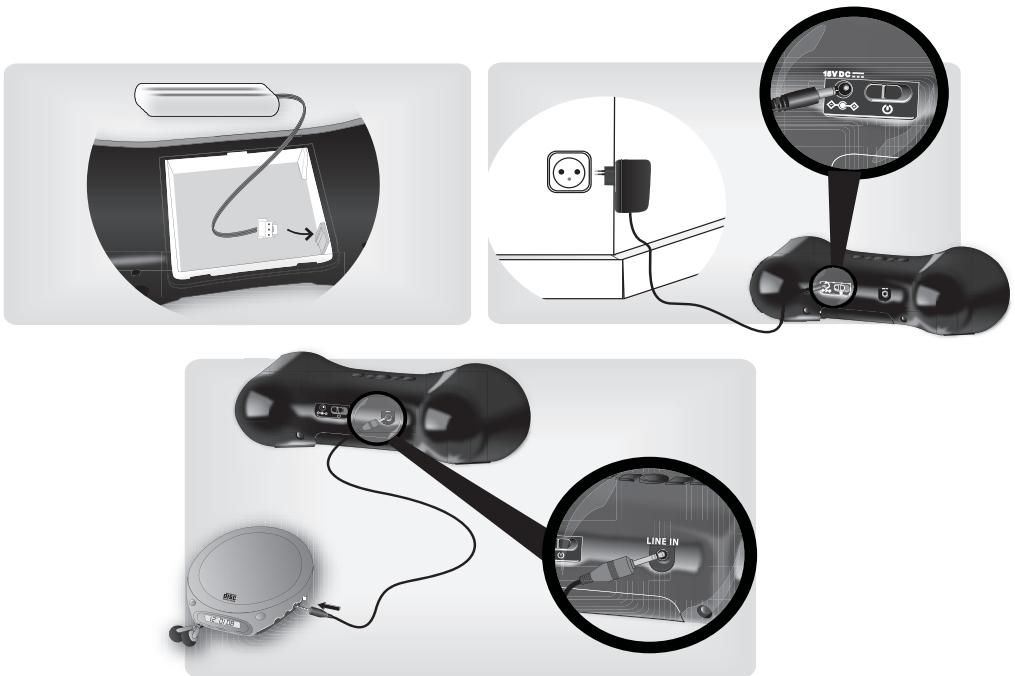
- Insert and connect the batteries into the compartment as shown in the diagram p.3.
-
Replace the cover.
-
Connect the supplied power lead to the Parrot PARTY, making sure that it is fully inserted, and then plug the lead into the mains supply.
- Turn on the Parrot PARTY using the ON/OFF switch on the back of the device.
The centre LED on the Parrot PARTY flashes red/blue and then turns violet: this colour means that the device is charging.
The LED turns blue when the batteries are fully recharged.
- Blast risks may occur if the battery is replaced with an incorrect battery type.
- Throw used batteries in the garbage in compliance with the provided instructions.
The battery charging time is approximately 2 hours 30 minutes.
- The Parrot PARTY can be used while the batteries are being recharged.
- You can use the Parrot PARTY for up to 8 hours on fully charged batteries.
- When the batteries are almost flat, the LED on the Parrot PARTY turns red. You have about 15 minutes' listening left.
- Make sure the Parrot PARTY is not exposed to a high temperature while being charged.
Meaning of the LEDs
| COLOURS MEANING | ||
| Flashing red/ blue | The Parrot PARTY is automatically setting up. > Wait a few seconds. | |
| Red | Low battery level: listening time less than 15 min. > Plug the Parrot PARTY into the mains. | |
| Purple | The Parrot PARTY is charging, but can still be used. | |
| Blue | The Parrot PARTY is in active mode. | |
| The meanings are the same, regardless of the LED colour. | Flashing quickly | The Parrot PARTY is detectable and ready to be paired. |
| Flashing slowly | Streaming is in progress, but the system has been muted (no sound). > Press + or - to return to active mode. | |
| Bright | The audio player is connected to the Parrot PARTY (Bluetooth or line-in connection). | |
| Weak | No device is connected. | |
| LED off | The Parrot PARTY is switched off. >Use the ON/OFF switch on the back of the device. Or The Parrot PARTY is in power saver mode. >Start the connection from your audio player or press any button. | |
Connecting an audio player

Before you start, make sure there is no sound transfer processing on your Parrot PARTY.
Connecting a phone to the PARROT PARTY
Before using the Parrot PARTY with your phone, you first have to connect both devices. But if it is the first time you are using this phone with the Parrot PARTY, you will have to pair both devices before connecting them. The pairing process is only required once.

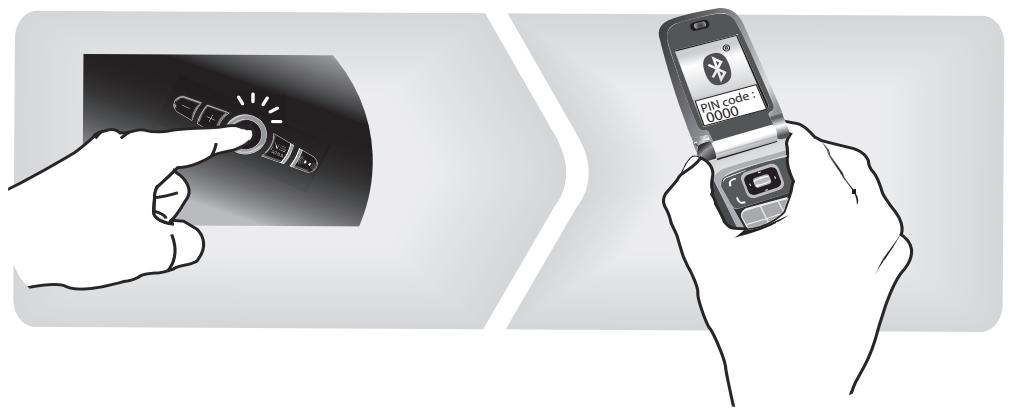
If you are using your Parrot PARTY for the first time, the device puts itself in a pairable mode as you turn it on.
- Press the

button.
The Parrot PARTY LED starts flashing: the device is ready to be paired.
- From your Bluetooth phone, search for Bluetooth peripherals (refer to your phone user guide for more information).
The list of the available Bluetooth peripherals is displayed.
-
Select "Parrot PARTY".
You are prompted to enter a PIN.
-
Enter the PIN code « 0000 » on your source device once you are prompted to do so.

If your PC doesn't have any Bluetooth technology, connect a Bluetooth dongle after having installed the necessary drivers (refer to the user guide of the dongle for further information).
The connection process between your computer and your Parrot PARTY may change depending on the Bluetooth version you have on your computer. Refer to your computer's documentation to see which Bluetooth software your computer is equipped with.
- If your computer is equipped with the Microsoft or the Widcomm Bluetooth software, connect the Parrot PARTY to your PC using the Parrot Audio Configuration Tool software. This program is available on the CD-ROM supplied or on our website www.parrot.com, in the Support section. Refer to the user guide of the Parrot Audio Configuration Tool software for further information.
-
If you have a Windows computer and the icon appears on the status bar, refer to the "Connecting the Parrot PARTY using the Toshiba Bluetooth software" section.
-
If you have a MAC® computer, refer to the "Connecting the Parrot PARTY using the Mac Bluetooth software" section.
Connecting the PARROT PARTY using the Toshiba Bluetooth software
If your PC is equipped with the Toshiba Bluetooth software, you have to connect the Parrot device to your computer before connecting your device with the Parrot Audio Configuration Tool software. This step is only necessary at the first use.
- Double-click on the icon located at the bottom of your screen.
The Bluetooth Settings window is displayed.
- Press the button of the Parrot PARTY.
- Click on New Connection.
The list of the detected peripherals is displayed.
- Select your Parrot PARTY and click on Next.

If your Parrot PARTY is not listed, click on Refresh.
- Select Express Mode and click on Next.
-
Enter 0000 as the Bluetooth PIN code in the displayed window, and click OK.
-
Click on OK in the Bluetooth configuration window.
A new window is displayed allowing you to enter a name for your device. This step is optional you can click on Next.
- Select your Parrot PARTY and click on Next.

If you are prompted to connect yourself to Windows Update, click on No.
- Follow the prompts to finalize the connection process and click on Finish.
Your devices are connected and ready to be used.
Connecting the PARROT PARTY using the Mac Bluetooth software

The following procedure only applies to the Leopard (TM) version
If you use the Mac Bluetooth software, you have to connect the Parrot device to your computer before connecting your device with the Parrot Audio Configuration Tool software. This step is only necessary at the first use.
- Click on the Apple icon located up left of your screen.
- Select System preferences and click on the Bluetooth icon.
The Bluetooth configuration window is displayed.
- Press the button of the Parrot PARTY.
- Click on Set up New Devices then on Continue.
- Select « Headset » then click on Continue.
The computer looks for available peripherals.
- Select the Parrot PARTY and click on Continue.
- Click on Quit to finalize the connection process.
Your devices are connected and ready to be used.
Using an audio player with a Jack audio cable
You can connect your audio player to the Parrot PARTY via a Jack / Jack audio cable to stream music through.

Make sure that the connectors are inserted properly to avoid any disruption.
Using several Bluetooth audio players
The Parrot PARTY can be paired to 10 audio players.
However, if an audio player is already streaming music, the other devices will not be able to play their music through the Parrot PARTY at the same time. To do so, you must stop the player currently streaming.

Some audio players prevent other devices from being connected to the Parrot PARTY at the same time, even if music is not currently being streamed. You must first disconnect the device from the Parrot PARTY, so that you can use another audio player.
Using the Audio Streaming function
Listening to music files via your PARROT PARTY
- Before you start streaming music from your audio player to the Parrot PARTY, both devices must be connected to each other. Once they have been connected, simply start playing the track on your audio player and the sound will come through the Parrot PARTY.
- You can establish a connection between the two devices via the Bluetooth menu on your audio player, or you will be prompted to select the Parrot PARTY once you have started playing a track.
- To save battery life, the Parrot PARTY switches to power saver mode (the LEDs switch off) if no Bluetooth connection is detected for two minutes or if there is no streaming for 5 minutes.

To exit the power saver mode, start a connection from your audio player or press any button.
Controlling the volume
The Parrot PARTY offers different possibilities for adjusting the volume:
- The buttons on top of the Parrot PARTY allow you to control the volume directly from the device.
| Button | Functions |
| + | Increase the volume |
| - | - Short press : Decrease the volume - Long press : Mute the sound |
- If this function is supported by your audio player you can control the volume remotely.
- If you are using a computer running Windows XP or Windows Vista, you can then use the Parrot Audio Configuration Tool software to adjust the volume settings.
Using audio effects
You can take advantage of the VSBass and Stereo Widening functions by pressing the corresponding buttons.
| Button | Function |
| VSBass | Bass amplification |
| Stereo Widening | Widening of the sound field |
Parrot Audio Configuration Tool
The Parrot Audio Configuration Tool, which is part of the Parrot Audio Suite on the CD-ROM supplied with the Parrot PARTY, allows you to configure the Parrot PARTY on a computer running Windows XP or Windows Vista. You can use Microsoft's Bluetooth software or Broadcom's Widcomm software on these computers.
Prior to launch the Parrot Audio Configuration Tool, you must ensure that no music is currently being streamed to the Parrot PARTY. Once you have started the application, you need to select your Parrot PARTY before you can configure it.
Once the Bluetooth connection has been established with your Parrot PARTY, you can :
Control the volume of your Parrot PARTY.
- Adjust the music settings via the equaliser function and the audio effects (VS Bass and Stereo Widening).
- Enable the volume ramp option, which gradually increases the volume when you switch on the Parrot PARTY.
- Adjust the time delay of the Parrot PARTY. This option is used to synchronise your audio system with your PC.
Find out the software version used by your Parrot PARTY
Troubleshooting
| Problem | Solution |
| No sound is coming through the Parrot PARTY. | - Ensure that the device is switched on (ON/OFF switch on the back of the device) and sufficiently powered. - Check that your device supports the Bluetooth A2DP profile and the source role. |
| I cannot connect my audio player to the Parrot PARTY. | - Hold down the Bluetooth button on the Parrot PARTY for two seconds, then restart the search and connect. |
| The centre LED on the Parrot PARTY is red. | - The red colour means that the battery level is low (battery life is less than 15 min). Plug the Parrot PARTY into the mains: the LED turns violet to indicate that the device is being charged and then turns blue once the battery has been fully recharged. |
| I used a Jack audio cable to connect my audio player, but I get no sound. | - Check that the jack audio cable is properly plugged in to the Parrot PARTY and audio player. - Check that there is no Bluetooth connection with an audio player. The Bluetooth connection will take priority over the Jack connection. |
| My Parrot PARTY makes a noise when I use a jack audio cable. | - Check that the jack audio cable is properly plugged in to the Parrot PARTY and audio player. |
| I am using my PC as a Bluetooth audio player, but there is no sound coming from my Parrot PARTY. | - Check that the «Sound playback» option is set to «High-quality Bluetooth Audio». You can find this option by selecting Start/Settings/Control panel/Sound and Audio Devices/Audio on your computer. |
| When I watch a video, the sound from the Parrot PARTY is not synchronised with the image. | - Use the Parrot Audio Configuration Tool to check that your system's audio delay is correctly configured for this type of use. |
Software update via Bluetooth
You can update the software of your Parrot PARTY by Bluetooth. Upgrading offers you new features and improves compatibility with a larger number of phones. This operation is carried out via Bluetooth using a PC equipped with Bluetooth technology.
Updates are performed via the Parrot Software Update Tool. You will find this software, along with instructions on how to use it in the Support section of our website at www.parrot.com
Technical specification / Spécifications techniques / Especillasiones技术水平
| Output power / Puisance de sortie / Potencia de salsa de audio / Ausgangsleistung / Potenza di uscita / Uitgangsvermogen / Potência de saía | 2 x 3 W (RMS) 2 x 6 W (Peak) |
| Frequency range / Plage de fréquence / Banda de Frequência / Frequenzbereich / Gamma di fréquence / Frequentiebereik / Gama de frequência | 150Hz - 20kHz |
| Power supply / Alimentation / Alimentación / Spannungsvorsorgung / Alimentazione / Netvoeding / Alimentação | - Input: 100-240 V~, 50-60 Hz, 0.2 A - Output: 15V / 1.2A |
| Battery / Batteries / Bateria / Akku / Batteria / Batterij / Bateria | 4,8V / 2100mAh NiMH |
| Play time / Autonomie / Autonomia / Betriebsdauer / Autonomia / Autonomy / Autonomia | 8 h |
| Charging time / Temps de charge / Tempo de cargo / Ladedauer / Durata di ricarica / Laadtijd | 2 h 30 |
| Dimensions / Medidas / Abmessungen / Dimensioni / Afmetingen / Dimensões | 228 x 79 x 85 mm |
| Bluetooth PIN Code / Code PIN Bluetooth / Código PIN del Bluetooth / PIN Code /:Código PIN | 0000 |
General Information
Warranty
Without prejudice of legal warranty, Parrot products are warranted during 1 year from the date of purchase for defects in materials and workmanship, provided that no deterioration to the product has been made, and upon presentation of proof of purchase (date of purchase, location of sale and product serial number) to the retailer or Parrot directly.
Warranty does not cover: upgrading of the software items of the Parrot products with Bluetooth® cell phones for compatibility purpose, data recovery, deterioration of the external aspect due to normal use of the product, any damage caused by accident, misuse, misapplication, or non-Parrot products. Parrot is not responsible for storage, loss or damaged to data during transit or repair.
Any product wrongfully declared to be defective will be returned to sender and inspection, process and carriage
costs will be invoiced to him.
Correct disposal of This Product (Waste Electrical & Electronic Equipment)
This marking shown on the product or its literature, indicates that it should not be disposed
with other household wastes at the end of its working life. To prevent possible harm to the environment or human health from uncontrolled waste disposal, please separate this from other types of wastes and recycle it responsibly to promote the sustainable reuse of material resources.
Household users should contact either the retailer where they purchased this product, or their local government office, for details of where and how they can take this item for environmentally safe recycling. Business users should contract their supplier and the terms and conditions of the purchase contract. This product should not be
mixed with other commercial wastes for disposal.
Modifications
The explanations and specifications in this guide are given for information purposes only and may be modified without prior notice. They are deemed to be correct at time of going to press. The utmost care has been taken when writing this guide, as part of the aim to provide you with accurate information. However, Parrot shall not be held responsible for any consequences arising from any errors or omissions in the guide, nor for any damage or accidental loss of data resulting directly or indirectly from the use of the information herein. Parrot reserves the right to amend or improve the product design or user guide without any restrictions and without any obligation to notify users. As part of our ongoing concern to upgrade and improve our products, the product that you have
purchased may differ slightly from the model described in this guide. If so, a later version of this guide might be available in electronic format at Parrot's website at www.parrot.com.
FCC Compliance Statement
This device complies with part 15 of the FCC rules. Operation is subject to the following two conditions:
(1). this device may not cause harmful interference, and
(2). this device must accept any interference received, including interference that may cause undesired operation.
Note: The manufacturer is not responsible for any radio or tv interference caused by unauthorized modifications to this equipment. Such modifications could void the user's authority to operate the equipment.
This equipment has been tested and found to comply with the limits for a Class B digital device, pursuant to Part 15 of the FCC Rules. These limits
are designed to provide reasonable protection against harmful interference in a residential installation. This equipment generates, uses and can radiate radio frequency energy and, if not installed and used in accordance with the instructions, may cause harmful interference to radio communications. However, there is no guarantee that interference will not occur in a particular installation. If this equipment does cause harmful interference to radio or television reception, which can be determined by turning the equipment off and on, the user is encouraged to try to correct the interference by one or more of the following measures:
- Reorient or relocate the receiving antenna.
- Increase the separation between the equipment and receiver.
- Connect the equipment into an outlet on a circuit different from that to which the receiver is connected.
- Consult the dealer or an experienced radio/TV technician for help.
Declaration of Conformity
We, Parrot S.A. of 174 quai de Jemmapes, 75010 Paris, France, declare under our sole responsibility that our product, the Parrot PARTY to which this declaration relates is in conformity with appropriate standards EEN300328, EN301489-1, IEC60065 following the provision of Radio Equipment and Telecommunication Equipment directive, with requirements covering EMC directive 89/336/EEC and Low Voltage directive 73/23/EEC. Identification N. 394 149 496 R.C.S. PARIS
Parrot S.A.
Protection and personal safety
Carefully read the user guide and follow the indicated procedure when setting up the device. Do not dismantle or open the device and do not touch the electronic components or the drivers. Do not attempt to dismantle or modify either of the speakers.
Never introduce any metal object to avoid the risks of electric shocks, fire, short circuits or dangerous emissions. If your device shows signs of faulty operation, call the approved Parrot technical support centre or an approved retailer. Never leave the Parrot PARTY exposed to rain or chemical products; do not place them in a damp area or where they are likely to be splashed with water. Never place your device on a recipient containing any type of liquid, which might seep inside the device. Doing so will reduce the risks of electric shocks, short circuits, fire and injury.
Copyrights
Copyright © 2007 Parrot. All rights reserved. The total or even partial reproduction, transmission or storage of this guide in any form or by any process whatsoever (electronic, mechanical, photocopy, recording or otherwise) is strictly prohibited without prior consent from Parrot.
Registered Trademarks
The Bluetooth® word mark and logos are owned by the Bluetooth SIG, Inc. and any use of such marks by Parrot S.A. is under license.
Mac, Apple and Leopard are trademarks of Apple Computer, Inc., registered in the U.S. and other countries.
Other trademarks and trade names are those of their respective owners.
Bluetooth QDID: B012425, B012423, B012424
Important safety instructions
The exclamation point within an equilateral triangle is intended to alert the user to the presence of important operating and maintenance (servicing) instructions in the literature accompanying the product.

An equilateral triangle, is intended to alert the user to the presence of uninsulated
"dangerous voltage" within the product's enclosure that may be of sufficient magnitude to constitute a risk of electric shock to persons.
- This apparatus shall not be exposed to dripping or splashing and no object filled with liquid, such as vases, shall be placed on the apparatus.
- The AC/DC adaptor which provides disconnection from mains supply shall remain readily operable.
Unplug this apparatus when unused for long periods of time. - Read these instructions
- Keep these instructions
- Heed all warnings
- Follow all instructions
- Do not use this apparatus near water
- Clean only with dry cloth.
- Do not block any ventilation openings. Install in accordance with the manufacturer's instructions.
- Do not install near any heat as radiators. Heat registers, stoves or other apparatus (including ampli
fiers) that produce heat.
- Do not defeat the safety purpose of the polarized or grounding type plug. A polarized plug has two blades with one wider than the other. A grounding type plug has two blades and a third grounding prong. The wide blade or the third prong are provided for your safety. If the provided plug does not fit into your outlet, consult an electrician for replacement of the obsolete outlet.
- Only use attachments/accessories specified by the manufacturer.
- Unplug this apparatus during lightning storms or when unused for long periods of time.
- Refer all servicing to qualified service personnel. Servicing is required when the apparatus has been damaged in any way, such as power supply cord or AC/DC adaptor is damaged, liquid has been spilled or objects have fallen into the apparatus, the apparatus has been spilled or objects have fallen into the apparatus, the apparatus has been exposed to rain or moisture, does not operate normally, or has been dropped.
- WARNING: To reduce the risk of fire or electric shock, do not expose this apparatus to rain or moisture and objects filled with liquids, such as
vases, should not be placed on this apparatus.. This apparatus is designed for indoor use only.
Do not expose the Parrot PARTY system to outside temperatures below 5^ or above 55^ . The system could be damaged or the cabinet warped.
Avoid placing the system near a source of heat or exposing it to sunlight (even through a window).
Similarly, excessively low temperatures and humidity could damage the device.
Caution: Wireless technology
Interference can be caused by devices that emit waves. Devices such as Wi-Fi routers and microwave ovens can affect audio transmissions with your Parrot PARTY and also degrade your system's audio quality.
Hotline
Our hotline is at your disposal from Monday to Friday between 9 am and 6 pm (GMT + 1)
Hot-line@parrot.com
Italy: [+39] 02 86 39 14 63
Spain : [+34] 902 404 202
UK: [+44] (0)870 112 5872
Germany:09001727768
USA: [+1] (877) 9 Parrot (toll free)
China: [+86] (0)21 6460 1944
Hong Kong: [+852] 2736 1169
France:0148036069
Europe: [+33] 1 48 03 60 69 (Spoken languages: French, English, Spanish and German)


Parrot
move wireless
Parrot S.A. - 174, quai de Jemmapes - 75010 Paris - France
Fax +33 1 48 03 06 66 / Phone +33 1 48 03 60 60
www.parrot.com