
MAP 2.0 - Gps MIO - Free user manual and instructions
Find the device manual for free MAP 2.0 MIO in PDF.


User questions about MAP 2.0 MIO
0 question about this device. Answer the ones you know or ask your own.
Ask a new question about this device
Download the instructions for your Gps in PDF format for free! Find your manual MAP 2.0 - MIO and take your electronic device back in hand. On this page are published all the documents necessary for the use of your device. MAP 2.0 by MIO.
USER MANUAL MAP 2.0 MIO
The information contained herein may be changed at any time without prior notification. This manual nor any parts thereof may not be reproduced for any purpose whatsoever without the express written consent of Mio Technology Europe, nor transmitted in any form either electronically or mechanically, including photocopying and recording.
Hotline: +49 01805-60 51 69
© Copyright 2005, Mio Technology Europe
Copyright 2005, NAVIGON
Data Source © 2004, Tele Atlas N.V.
based upon:
Austria: ©BEV, GZ 1368/2003
Denmark: ©DAV
France: ©IGN France
Great Britain: Ordnance Survey data with permission of Her Majesty's Stationery Office
© Crown Copyright
Italy: ©Geonext/DeAgostini
Northern Ireland: ©Ordnance Survey of Northern Ireland
Norway: ©Norwegian Mapping Authority, Public Roads Administration / Map solutions
Switzerland: ©Swisstopo
The Netherlands: Topografische ondergrond
1.1 Search facilities and conventions 4
1.2 Liability 4
1.3 Support 5
1.4 Trademarks 5
2 Before you begin. 7
2.1 The basic principle of navigation 8
2.2 Important safety information 9
2.2.1 Safety information on navigation 9
2.2.2 Safety information on handling the device 10
2.2.3 Safety information on the installation in the vehicle 10
3 Operating the navigation software. 11
3.1 Hardware keys 12
3.2 Software keyboard 13
3.3 Command buttons 14
3.3.1 Command buttons with caption 18
3.4 Lists 19
4 User modes 23
4.1 Two different user modes 24
4.2 Changing the user mode 24
4.3 Standard mode 26
4.4 Extended mode 26
5 Navigation 27
5.1 General information on navigation 28
5.2 Starting MioMap 29
5.2.1 Extended mode 29
5.2.2 Standard mode 31
5.3 Basic settings 32
5.4 Indicating a destination 34
5.4.1 Entering an address 35
5.4.2 Selecting a point of interest 36
5.4.3 Entering the geographic coordinates of a destination 44
5.4.4 Indicating destinations on the map 47
5.4.5 Favourites 49
5.4.6 Recent destinations 51
5.4.7 Using your home address 52
5.5 Destination management 52
5.5.1 Saving a destination 53
5.5.2 Renaming a destination 54
5.5.3 Deleting a destination 55
5.6 Indicating several destinations (Itinerary with stages) 55
5.6.1 Indicating route points 56
5.6.2 Editing, saving and managing itineraries 57
5.6.3 Calculating the route 63
5.6.4 Displaying the itinerary on the map 66
5.6.5 Simulating the route 67
5.7 Starting navigation 68
5.7.1 Navigating to a destination the coordinates for which have been stated 71
5.8 Starting navigation in linear distance mode 72
5.9 Bad GPS reception 73
6 Working with the map 75
6.1 Selecting a map 76
6.2 Operating the map 77
6.3 Representation of the map in navigation mode 82
6.4 Navigation in linear distance mode 84
6.5 Displaying additional information on the map 85
7 Useful functions 89
7.1 Functions on GPS reception 90
7.1.1 Saving the current position 90
7.1.2 Setting the current position as home address 92
7.2 Functions in navigation mode 93
7.2.1 Adding a stage point during navigation 93
7.2.2 Next destination 93
7.2.3 Blocking a route section 94
7.2.4 Using TMC functionality 95
8 Configuring MioMap 99
8.1 Settings 100
8.1.1 User mode 101
8.1.2 Map information 101
8.1.3 Route information 102
8.1.4 Signpost information 103
8.1.5 Speed limit 104
8.1.6 Volume 105
8.1.7 Representation 105
8.1.8 Automode 106
8.1.9 Routing options 107
8.1.10 Itinerary 108
8.1.11 Format 108
8.1.12 TMC 109
8.1.13 Home address 109
8.1.14 Handsfree options 109
8.1.15 Product information 109
9 Glossary 111
10 Index 113
1 Introduction
Topics covered in this chapter:
1.1 Search facilities and conventions page 4
1.2Liability page 4
1.3 Support page 5
1.4 Trademarks page 5
1.1 Search facilities and conventions
Find information quickly
This manual offers the following search facilities:
In the footnote at the bottom of the page, you may check which chapter and which section you are actually reading.
A glossary at the end of the manual contains explanations on the technical terms used in this manual.
An index at the end of the manual allows precise search for the information contained in this manual.
Conventions
This manual uses different font styles and symbols to highlight important paragraphs and to ease its use.
| Font | Use |
| bold | Buttons, icons, names of entry fields, and elements of the software's user interface. Also used for highlighting warnings and notices. |
| bold italic | Registered names and trademarks. |
| SMALL CAPITALS | Window and dialogue box titles. |
| underlined italic | The name of the user mode which is concerned by the current section. You need not reed sections that don't concern the user mode you are currently working with. |
| Symbol | Use |
| Indicates hints and notes that may ease the use of MioMap. | |
| Indicates additional information. | |
| Warns against dangers that might cause damage to objects and persons. |
1.2 Liability
Limitation of liability
The software and the manual are subject to change without notice. Mio Technology Europe may not be liable for the correctness of the information contained in this manual nor for damages resulting from the use of this manual.
To improve the quality of our products and our services, we appreciate all suggestions for improvement and all error notices.
1.3 Support
Customer Care, Hotline
| UK | 0207 294 0074 |
| Austria | 01 36027 72066 |
| Belgium | 02 620 0097 |
| Denmark | 08233 3109 |
| Finland | 09 8171 0253 |
| France | 01 4993 2253 |
| Germany | 069 95 307174 |
| Italy | 02 3859 1184 |
| Luxemburg | 027 30 21 50 |
| The Netherlands | 020 654 5559 |
| Norway | 02350 0063 |
| Portugal | 021 316 4190 |
| Spain | 091 375 3020 |
| Sweden | 08 5199 2352 |
| Switzerland | 022 567 5133 |
1.4 Trademarks
Registered trademarks
All brands and trademarks mentioned in this document are possibly registered by third party and subject to the current legislation and to the rights of their respective owners without reservation. All mentioned names of products, societies, or brands may be registered trademarks of their respective owners. Every right that is not explicitly accorded is reserved.
The absence of an explicit labelling of registered trademarks does not allow the conclusion that this brand was not subject to the rights of third party.
Windows and ActiveSync are trademarks of the Microsoft Corporation.
Navigon is a registered trademark of the NAVIGON Company.
2 Before you begin
Topics covered in this chapter:
2.1 The basic principle of navigation
page 8
2.2 Important safety information
page 9
Safety information on navigation
Safety information on handling the device
Safety information on the installation in the vehicle
2.1 The basic principle of navigation
MioMap
The time of complicated and frustrating inquiries on the right way in folded maps is over. From now on MioMap, your navigation system, will guide you, based on satellite information, quickly and safely to your destination.
GPS-based navigation
The Global Positioning System (GPS) has originally been developed in the 70ies, as a weapon guidance system for the American forces.
The GPS is based on 24 satellites, which are in orbit round the earth and which are permanently emitting signals. The GPS receiver receives these signals and calculates, based on the runtime of the signals, his distance from the respective satellites. This information serves for calculation your current geographic position.
The signals of at least three satellites are needed to determine the longitude and the latitude. With the signals of at least four satellites the elevation may be calculated, too. The determination has an accuracy of about 3 yards.
Navigation with GPS
The delivered maps contain the geographic coordinates of the points of interest, streets and towns they represent. Thus the navigation system can calculate a route from a given start point to a given destination point.
In case your navigation system receives the signals of at least three satellites it may determine your current position and represent it on the map. This position may then serve as start point for navigation purposes.
As the determination and representation of your position is carried out once a second, you may watch your movements on the map.
Traffic information with TMC)
The Traffic Message Channel (TMC) provides the navigation system with the latest traffic information. An external TMC receiver, which is connected to your device receives these signals broadcasted by radio stations.
TMC Operating mode
The Traffic Message Channel (TMC) is based on a news system. Traffic information is recorded continually this is done automatically by sensors on the motorways and by the police. This information is then forwarded to the radio stations without delay. It is digitally coded, differentiated according to routes and driving directions and transmitted inaudibly.
The TMC-receiver extracts the TMC data from the RDS signal and provides the navigation software with them. Current traffic obstructions may then be displayed.
The reported obstructions may be considered for route calculation. In case of obstructions on the computed itinerary, they may be used for computing an alternative route, which evades the obstruction.
MioMap features dynamic navigation, which is well adapted to the current traffic situation.
2.2 Important safety information
Note
In your own interest, read the following notices and safety information carefully before starting up your navigation system.
2.2.1 Safety information on navigation
| Use of MioMap is executed at your own risk. | |
| Caution: To protect yourself and others from accidents please do not operate the navigation system while driving! | |
| Caution: You must not look at the display except when it is absolutely safe to do so! | |
| Caution: The road layout and the traffic signs are absolutely prior to the instructions of the navigation system. | |
| Caution: You must not follow the instructions of MioMap except when the circumstances and the road traffic regulations allow doing so. MioMap will guide you to your destination even when you have left your planned itinerary. | |
| Note: We recommend effecting route planning before beginning the journey. If you are on the road and you want to establish a new itinerary, please drive to the next parking site! | |
| Note: If you have not understood the instructions or if you are not sure about what to do next you may quickly refer to the map or arrow view of your navigation system. |
2.2.2 Safety information on handling the device

Caution: As it is neither splash proof nor waterproof, do not expose your navigation device to water! For example, protect it from rain, snow or hail when you are on your way by bike or on foot.

Caution: Disconnect the navigation device from the power supply when you are leaving the car parked for a long period of time. Failure to do so might result in a dead battery since the internal GPS receiver constantly consumes electricity.

Note: Do not use any harsh solvents for cleaning the device. A damp, lint-free cloth is sufficient!

Note: Do not unplug by pulling the cable. This might damage the cable!
2.2.3 Safety information on the installation in the vehicle

Caution: Do not fix the holder within the deployment zone of airbags.

Caution: When you install the holder, please check that it may not constitute any safety risk, even in case of an accident.
3 Operating the navigation software
Topics covered in this chapter:
3.1 Hardware keys page 12
3.2 Software keyboard page 13
3.3 Command buttons page 14
Command buttons with caption
3.4 Lists page 19
3.1 Hardware keys
Hardware keys
On your device, there are the following hardware keys which allow to accede quickly the most important functions:

On/Off
Turns the device on / off. This key is located on the left of the device.

Back
Opens the precedent screen.

Loudspeaker
Switches the loudspeaker on/off.

Navigate home
Initiates navigation to the entered home address.

Destination
Opens the DESTINATION screen.

Zoom out
Works only in map view mode.

Zoom in
Works only in map view mode.
Volume control wheel
The volume control wheel is located on the left of the device.
Turn the wheel upwards to increase the loudness.
Turn the wheel downwards to reduce the loudness.
3.2 Software keyboard
Survey
A software keyboard appears at the bottom of the screen when text entries are necessary. After that you can type in all entries using your fingers. Only capital letters can be used.
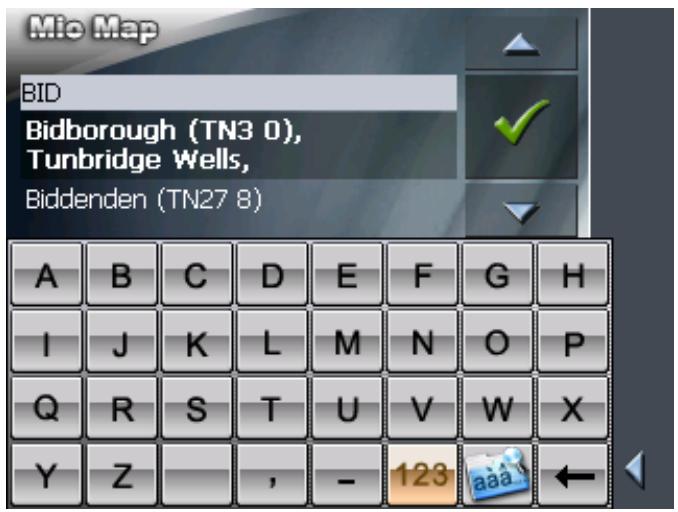
You need not enter small letters or special characters when entering a destination's town or street name. MioMap replaces these characters automatically. When you are looking for, e.g., a French town called "Héroînes", simply type "HEROINES".
Entering a space,
deleting a
character...
Switching between character and number entry...
Tap the icon to enter a space character.
Tap the icon to delete the character at the left of the cursor.
Tap the 123 icon to enter numbers, e.g. for a postcode.
Tap the ABC icon to return to the character entry mode.
Special characters

icon to enter a special character.
When you tap a character key now, a line above the software keyboard appears which lists all characters that may be entered by this key. The active character is highlighted.
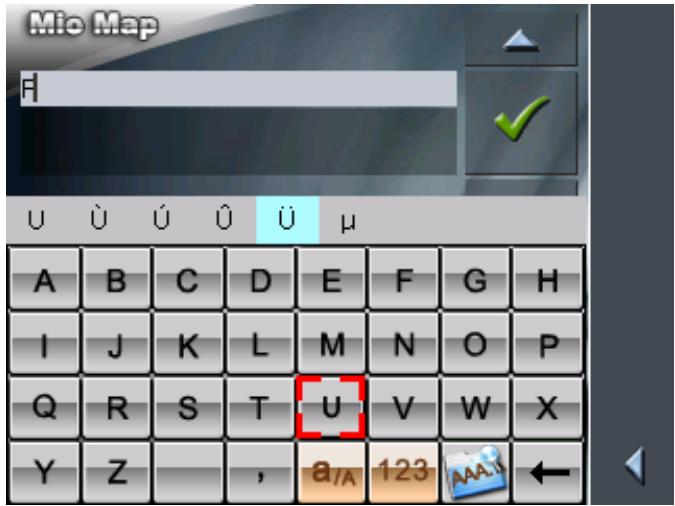
If, e.g., you want to type "U", tap the "U" key repeatedly until "U" is highlighted in the line above the software keyboard.
You need not enter special characters when entering a destination's town or street name but they may be helpful for entering names for saved destinations and itineraries.
Moving the cursor
If you want to delete another character than the one to the left of the cursor position, or if you want to insert a character at another place than at the end of the text, you have to move the cursor to the respective place.
Just tap the place where you want to have the cursor.
3.3 Command buttons
Icons
The following buttons appear at the right margin of every MioMap screen:

Return
Tap this icon to return to the previous screen. This icon is not available on the MAIN SCREEN.

Main screen
Tap this icon to open the main screen. This icon is not available on the MAIN SCREEN.
GPS
The GPS symbol is placed at the middle of the right margin of the screen. The figure on the GPS symbol shows how many GPS satellites are being received. The different GPS-icons have the following significance:
| Symbol | Significance | |
| D | No GPS | The GPS receiver is switched off - OR - an external GPS receiver is not connected correctly. |
| D | No signal | A GPS receiver is connected, but the received signals are not convenient for navigation purposes (e.g. because you are in a closed building). |
| 8 | GPS ready | The signals are convenient. Navigation may begin. |
Tap the GPS icon to display the current GPS status:
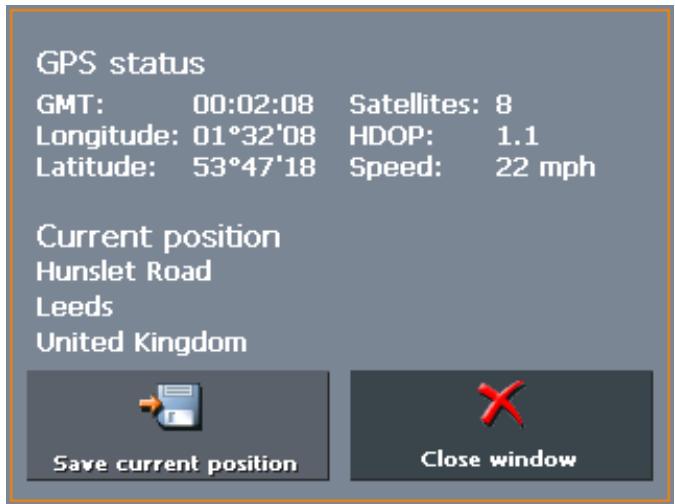
| Entry | Significance |
| GMT | Greenwich Mean Time Time of London ignoring daylight saving time. |
| Longitude / Latitude | Current position: Indication of east longitude and north latitude. |
| Satellites | Number of received satellites. At least three satellites must be received for navigation purposes. |
| HDOP | Horizontal Dilution of Precision: Indicates the quality of position determination. Theoretically any value from 0 to 50 may occur. The smaller the value, the more accurate is the position determination (value 0 = no deviation from the real position). Values up to 8 are convenient for navigation purposes. |
| Speed | Indicates your current speed. |
| Position | Indicates the address of your current position. |
| Save | Tap this button to add the current address to the FAVOURITES. |
| Quit | Tap this button to quit the GPS screen. |
Energy
The Energy icon is placed at the bottom right corner of the screen. The colour of the icon and the symbol displayed on it have the following significance:
| Colour/Symbol | Significance |
| S | The device is connected to an external power supply. The battery is charged. The LED on the device shines green. |
| The device is connected to an external power supply. The battery is being charged. The LED on the device shines red. | |
| The device is being supplied by its internal battery. The charge state of the battery is sufficient. The number of green segments on the battery indicates its charge state (2 or 3 segments). | |
| The device is being supplied by its internal battery. The charge state of the battery is weak. The number of green segments on the battery indicates its charge state (0 or 1 segment). A message window informs you when the charge state of the battery becomes insufficient. |
Switching the GPS receiver on / off
The GPS receiver consumes energy. This is of significance when the system is operated in battery mode, e.g. when you are on your way on foot or by bike. Switch therefore the GPS receiver off when you do not need it for a certain time.
- Tap the Energy icon on the lower right corner of any screen.
The ENERGY screen opens:
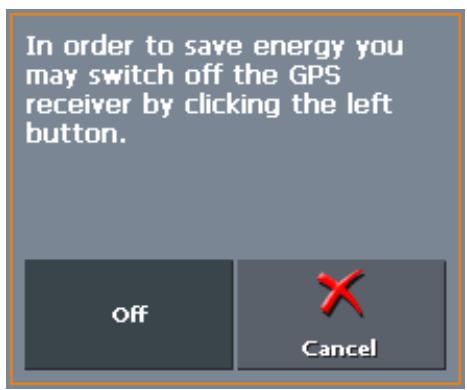
- Tap the Off button to switch the GPS receiver off.
- When the GPS-symbol in the upper right corner becomes red, tap the Cancel button.

Note: Switching the GPS receiver on works the same way.
TMC
The TMC symbol is placed at the right margin of the screen. The figure on the TMC symbol shows how many valid traffic announcements have been received. The different TMC-icons have the following significance:
| Symbol | Significance |
| No TMC | No TMC receiver connected -OR- The TMC receiver is turned off or not connected correctly. |
| Searching for broadcast station | The TMC-receiver is ready but cannot receive TMC signals. This is the case when, e.g., you are in an area where TMC is not available. |
| TMC ready | TMC signals are being received. |

TMC
Tap this icon to display TMC information.
For details on the TMC functionality, please refer to "Using TMC functionality", page 95.

3.3.1 Command buttons with caption
Command buttons
You will find command buttons with captions on almost every screen of MioMap. There is three groups of command buttons:
- Command buttons with a defined functionality.
These buttons are designed to execute a functionality, which is indicated by their caption. They are normally buttons like Save, OK, Cancel, Select map, Navigation etc.
- Buttons to select one of two possibilities.
These buttons are designed to select one of two possibilities. Normally, the current state is indicated by the caption of the button. They are normally buttons like User mode, Yes-No, On-Off.
When you tap one of these buttons, the caption switches to the other possibility. This change must be confirmed by clicking another button (normally OK or Save) before the current screen closes.
- Buttons to enter data.
Subsequently, these buttons will be referred to as entry fields. The caption either your last entry or
When you tap an entry field, another screen with a software keyboard, a list, or with both of them opens where you can make your entries. This entry must be confirmed by clicking another button (normally OK or Save) before the entry screen closes. Your entry becomes then the caption of the entry field.
For information on the use of the keyboard, please refer to "Software keyboard", page 13.
For information on working with lists, please refer to "Lists", page 19.

3.4 Lists
Survey
There are many cases where you have to select an entry from a list.
If, for example, you have not completely entered the name of a town before tapping OK, a list appears which contains all towns beginning with your entry or having it into their names. The postcode of the towns is also indicated in order to allow you to choose the correct one if there is more than one town with the same name.
Entry with focus
One of the entries has the focus. This entry is written in bold. Moreover, there is often some additional information on that entry in a 2^nd or 3^rd line. In a list of towns, there is indicated the county the respective town belongs to.
Icons
At the right hand side of lists, there are three icons:
OK: Tap this icon to confirm the selection of the entry with the focus (which is placed directly at the left of the OK icon).
Up: Tap this icon to scroll the list one item up.
Down: Tap this icon to scroll the list one item down.
Example
Search for BICKNOR.
- In the MAIN MENU tap Navigation. The DESTINATION screen opens.
- Tap Address.
The ADDRESS screen opens.
- Tap the Town or Postcode entry field. The software keyboard appears.
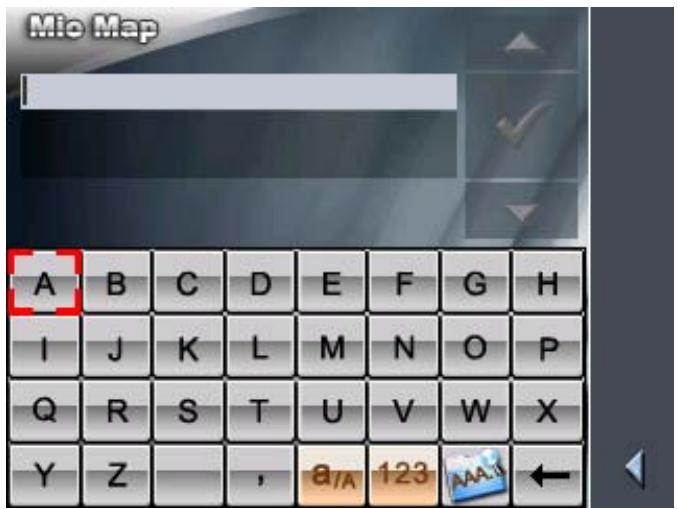
- Enter the letters BICK.
All towns beginning with BICK or having BICK in their names are listed.
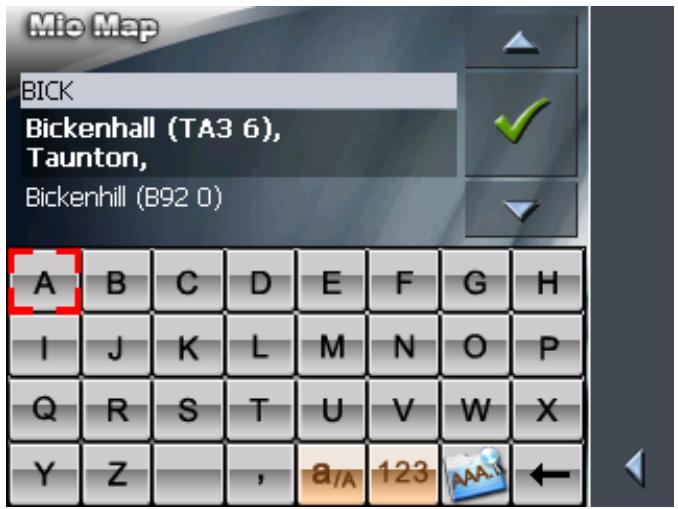
When the list is very long, you may enter one more letter in order to shorten the list.
- Enter N.
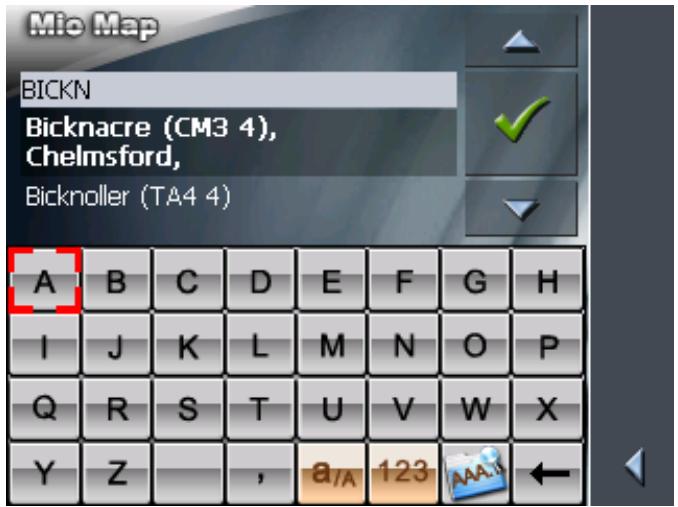
All towns beginning with BICKN or having BICKN in their names are listed.
- Tap the Down icon repeatedly until BICKNOR appears directly under the white entry field.
The entry BICKNOR has the focus.
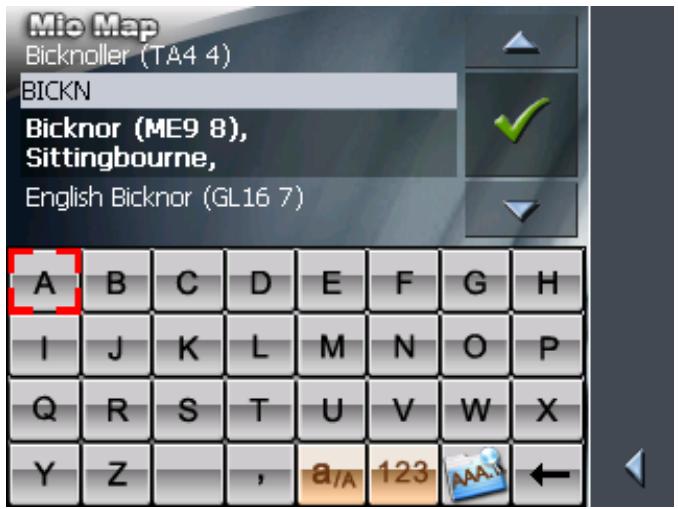
7. Tap

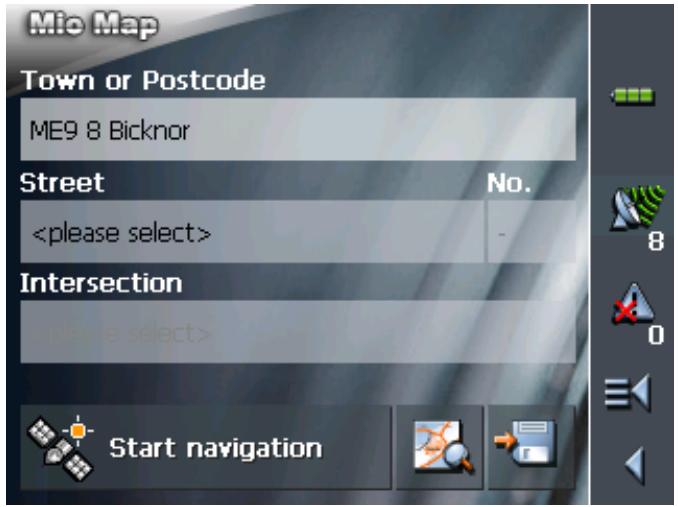
The ADDRESS screen reappears. BICKNOR is entered into the Town or Postcode field.
4 User modes
Topics covered in this chapter:
4.1 Two different user modes page 24
4.2 Changing the user mode page 24
4.3 Standard mode page 26
4.4 Extended mode page 26
4.1 Two different user modes
Survey
MioMap can be operated in two different user modes: Standard and Extended. This grants an optimum of usability for each user: Less experienced users and users who do not need using the complete functionality of the software work in standard mode. Experienced users who are ready to spend some time in getting used to operate the complete functionality word in extended mode.
Some configuration settings have an effect on the work in standard mode but can only be changed in extended mode. For further information, please refer to "Configuring MioMap", page 99.
4.2 Changing the user mode
You may at any time switch to the other user mode.
- In the MAIN MENU, tap Settings.
The SETTINGS screen opens:
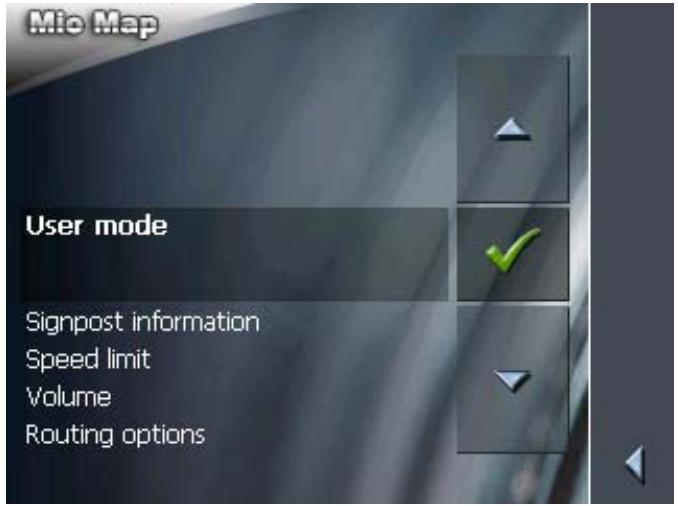
The User mode entry is at the top of the list. If it is not selected, tap the Up icon repeatedly until User mode is selected.
2. Tap

The USER MODE screen opens:
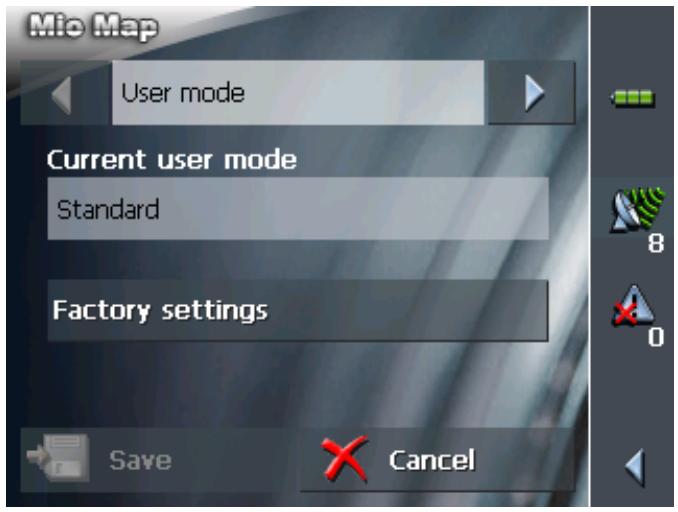
Your current user mode is indicated on the Current user mode field.
- Tap Current user mode to switch to the other user mode.
The name of the user mode you want to switch to becomes the caption of the entry field.
- Tap Save to save the changes.
Note: When you switch to standard mode, a dialog window asks you whether you want to keep the configuration changes you have made in extended mode. This dialog window appears even when you have not made any configuration changes. Tap Yes if you want to keep these changes.
The USER MODE screen closes and you are in the Main menu of the user mode you have just switched to.

4.3 Standard mode
Survey
In standard mode, the software is easier to operate. As it offers reduced functionality, functions may be accessed quicker. So, if you do not need functions like Route planning or indicating a destination on the map, we recommend working in standard mode.
Functionality
In standard mode, you can:
Select another map
Enter a destination to navigate to (Address, POI)
Navigate home
Select a saved destination
Save destinations
Select a destination from the recent destinations list
Change some configuration settings
4.4 Extended mode
Survey
In extended mode, you dispose of the complete functionality of MioMap. You may for example indicate and navigate to more than one destination (route planning with stages). You may change all configuration settings. If you want to use the complete functionality, work in extended mode.
Functionality
In addition to the functions of the standard mode, the extended mode enables you to:
\Leftrightarrow Indicate a direction directly on the map
Plan and save routes with several stages
Adjust the route options before each navigation
Change all configuration settings
5 Navigation
Topics covered in this chapter:
5.1 General information on navigation page 28
5.2 Starting MioMap page 29
Extended mode
Standard mode
5.3 Basic settings page 32
5.4 Indicating a destination page 34
Entering an address
Selecting a point of interest
Entering the geographic coordinates of a destination
Indicating destinations on the map
Favourites
Recent destinations
Using your home address
5.5 Destination management page 52
Saving a destination
Renaming a destination
Deleting a destination
5.6 Indicating several destinations (Itinerary with stages) page 55
Indicating route points
Editing, saving and managing itineraries
Calculating the route
Displaying the itinerary on the map
Simulating the route
5.7 Starting navigation page 68
Navigating to a destination the coordinates for which have been stated
5.8 Starting navigation in linear distance mode page 72
5.9 Bad GPS reception page 73
5.1 General information on navigation
| Use of MioMap is executed at your our risk. | |
| Caution: To protect yourself and others from accidents, do not program the navigation system while driving. Enter or select your destination and activate the navigation system before you begin to drive! | |
| Caution: Do not look at the display unless it is absolutely safe to do so! Safe driving is the first priority! | |
| Caution: The rules of the road and traffic signs must be obeyed prior to following instructions from the navigation system. | |
| Caution: Do not follow the instructions of MioMap unless circumstances and the road traffic regulations allow doing so. MioMap will guide you to your destination even when you have gone off course from your route. | |
| Obstructed GPS reception | When you turn off the GPS receiver or when the reception of GPS-signals is obstructed MioMap does not close but navigation is interrupted. As soon as the GPS receiver works again the navigation system notices a possible change of your current position and recalculates the route. You may simply continue navigation. |
| Quitting navigation mode | When you quit navigation mode by command the MAIN MENU opens. You may then indicate another destination or reassume the by selecting the former destination from the Recent destinations list. |
| Arriving at your destination | When you have reached your destination the system pronounces the message "You have reached your destination!" The map is no more presented in navigation mode. A small green arrow indicates your current position. |
5.2 Starting MioMap
Starting the navigation software...
- Turn your device on.
- On the Mio Technology start screen, tap Navigation. At the first start (and each time you had terminated MioMap via the Quit icon), the following message appears:
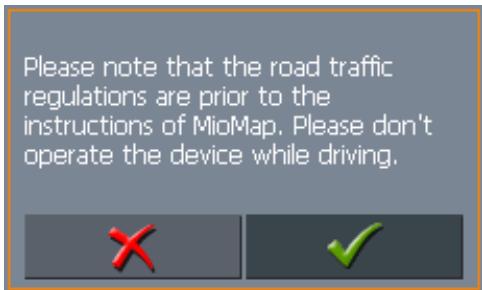
- Tap the button. If you do not accept and if you tap the × button, the software terminates.
5.2.1 Extended mode
Main screen
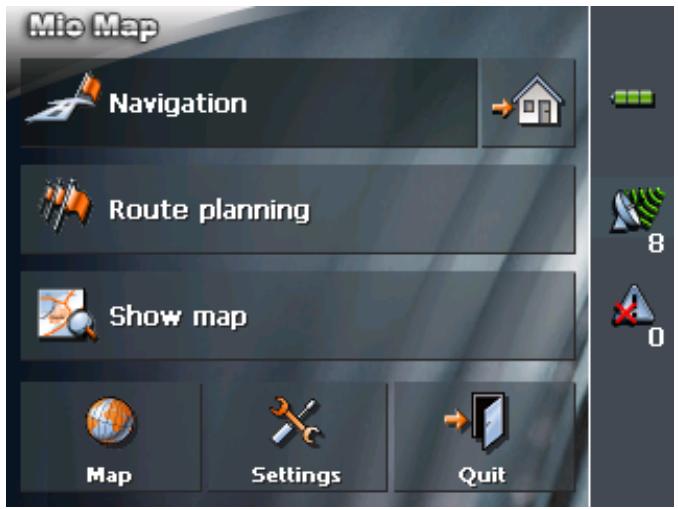
The MAIN SCREEN opens:
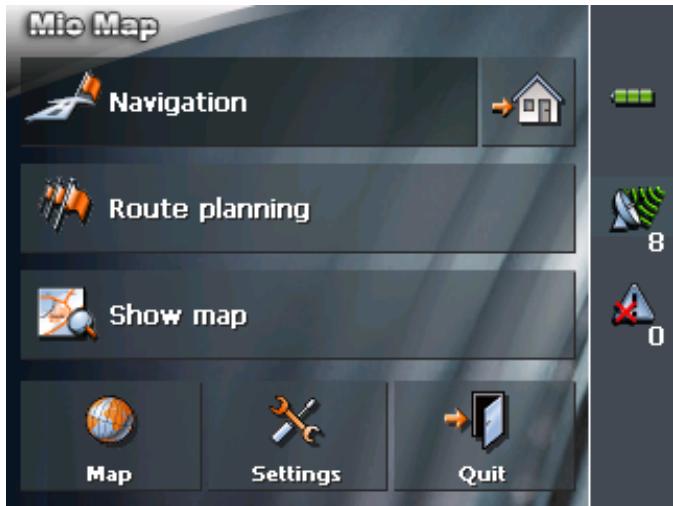
All functions of the program are accessible via the MAIN SCREEN.

Note: When you turn your device on it shows the screen which was displayed when it was turned off. Nevertheless, you may access the Main screen from all other screens by tapping

One destination
Tap the Navigation button to indicate a destination for navigation (one stage).

Navigation
Navigation homewarrants
For details, please refer to "Indicating a destination", page 31.
Route planning
Tap the Home icon to navigate to your home address.
m - 1 0 ;
For details, please refer to "Using your home address", page 52.
Tap the Route planning button for itinerary planning purposes.

Route planning
Display the map
For details, please refer to "Indicating several destinations (Itinerary with stages)", page 55.
Tap the Show map button to display the map which is currently in use..

Show map
Select map
Tap the Select map button to select another map from the memory card which is currently inserted.
Settings
For details, please refer to "Working with the map", page 75.
Tap the Settings button to modify the settings of MioMap.
Quit
For details, please refer to "Settings", page 100.
Tap the Quit button to quit MioMap.
5.2.2 Standard mode
The MAIN SCREEN opens:
Main screen
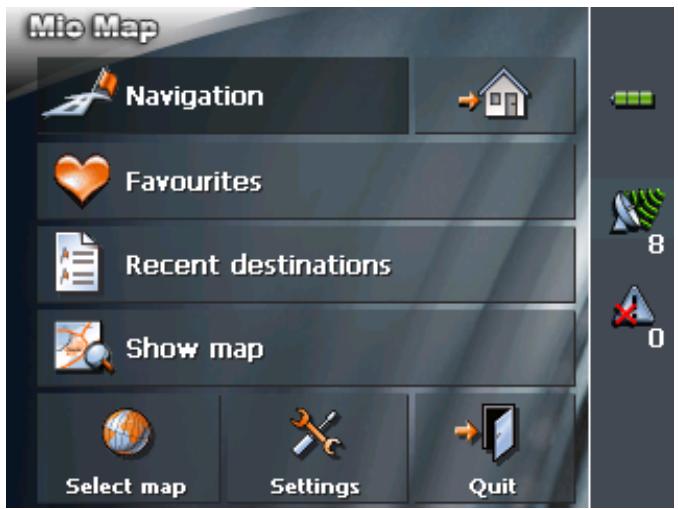

Note: When you turn your device on it shows the screen which was displayed when it was turned off. Nevertheless, you may access the Main screen from all other screens by tapping

One destination
Tap the Navigation button to indicate a destination for navigation (one stage).

Navigation
Navigation homewarrants
For details, please refer to "Indicating a destination", page 34.
Tap the Home icon to navigate to your home address.
Favourites
For details, please refer to "Using your home address", page 52.
Tap the Favourites button to navigate to a favourite.

Favourites

For details, please refer to "Favourites", page 49.
Recent destinations
Tap the Recent destinations button to select a destination entered previously.

Recent destinations

For details, please refer to "Recent destinations", page 51.
Display the map
Tap the Show map button to display the map which is currently in use..

Show map
Select map
Tap the Select map button to select another map from the memory card which is currently inserted.
Settings
For details, please refer to "Working with the map", page 75.
Tap the Settings button to modify the settings of MioMap.
Quit
For details, please refer to "Settings", page 100.
Tap the Quit button to quit MioMap.
5.3 Basic settings
Basic settings
Before working with MioMap, we recommend
entering the home address. You may then easily start navigation homewards from anywhere.
- On the MAIN SCREEN, tap Configuration.
The CONFIGURATION screen opens.
Saving your home address...
- Via the arrow buttons, select the HOME ADDRESS screen.
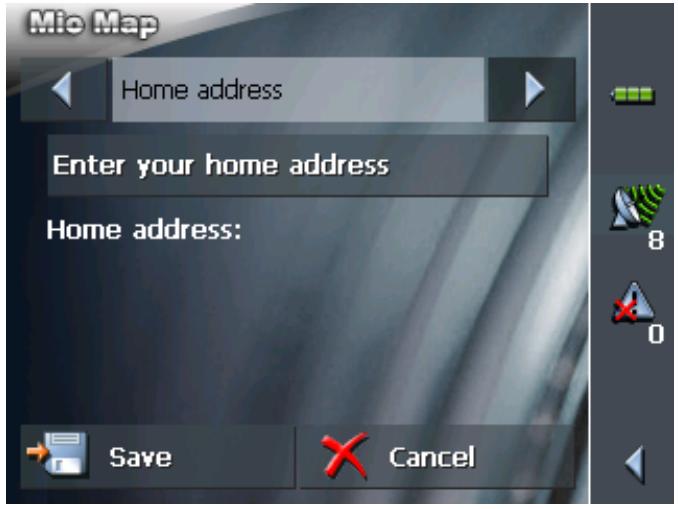
- Tap Enter your home address.
The DESTINATION screen opens.
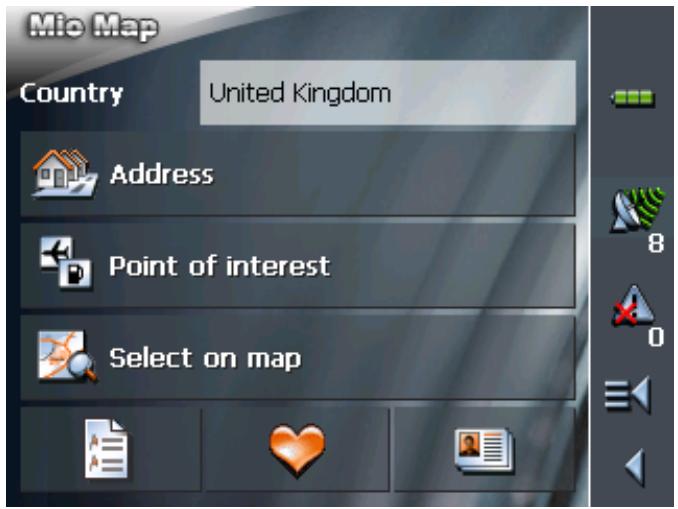
- Tap the Address button and enter your home address as described in "Entering an address", page 35.
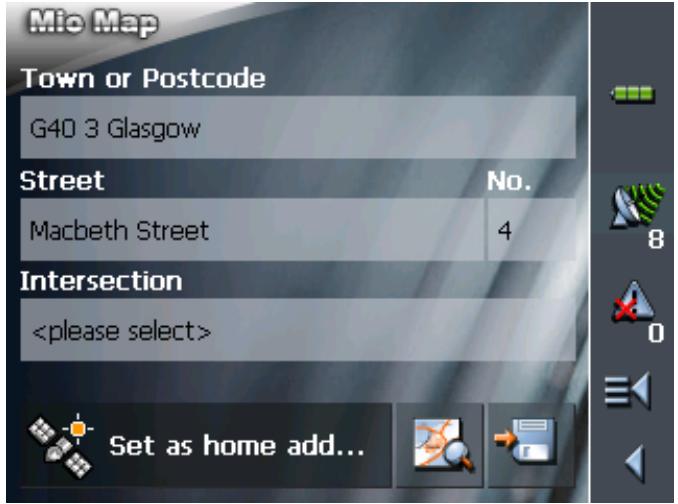
- Tap the Set as home address button.
The address is indicated on the HOME ADDRESS screen.
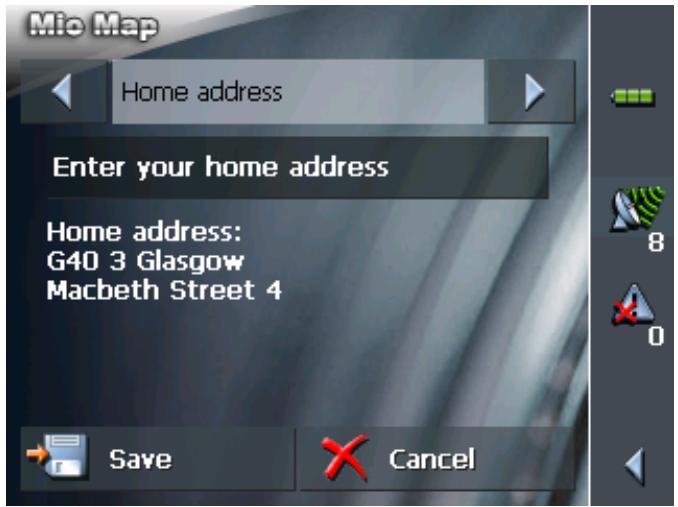
- Tap Save.
The MAIN SCREEN opens.
5.4 Indicating a destination
Basic principle of navigation
Indicating a destination
In this chapter you will learn about the possibilities for indicating and managing destinations in MioMap.
For details on how to start navigation to a destination, please refer to "Starting navigation", page 68.
In MioMap there are several possibilities to enter or to select destinations:
Entering an address, see page 35
Selecting a point of interest, see page 36
Entering the geographic coordinates of a destination, see page 44
Indicating destinations on the map, see page 47
Favourites, see page 49
Recent destinations, see page 51
Using your home address, see page 52.
5.4.1 Entering an address
Extended mode
- In the MAIN MENU, tap Navigation.
The DESTINATION screen opens.
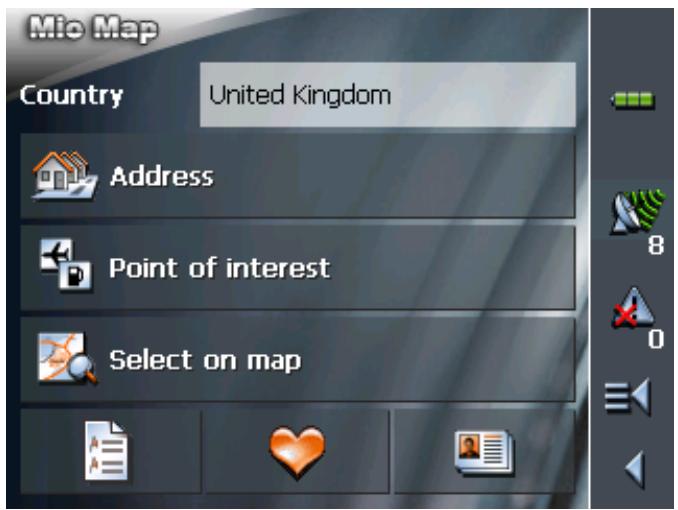
Tap the Country entry field and select the destination country if it is not yet indicated.

Note: Only countries of which at least a part is represented on the currently loaded map may be selected.
1b On the DESTINATION screen, tap Address.
Standard mode
- In the MAIN MENU, tap Navigation.
The DESTINATION screen opens.
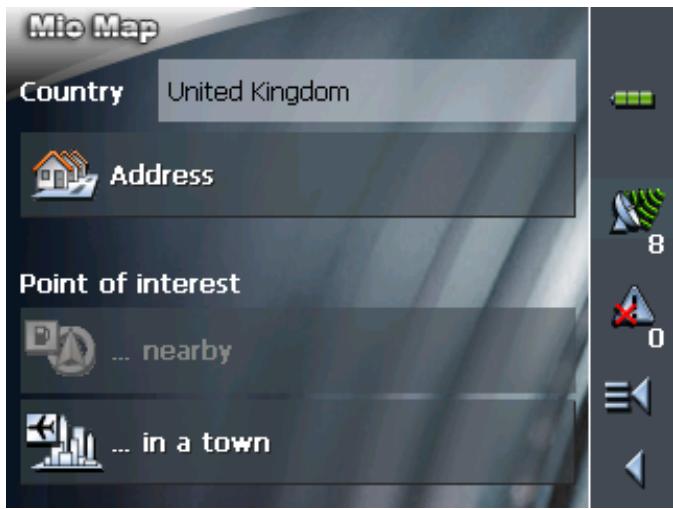
Tap the Country entry field and select the destination country if it is not yet indicated.

Note: Only countries of which at least a part is represented on the currently loaded map may be selected.
1b On the DESTINATION screen, tap Address.
Indicating an address...
The ADDRESS screen opens.
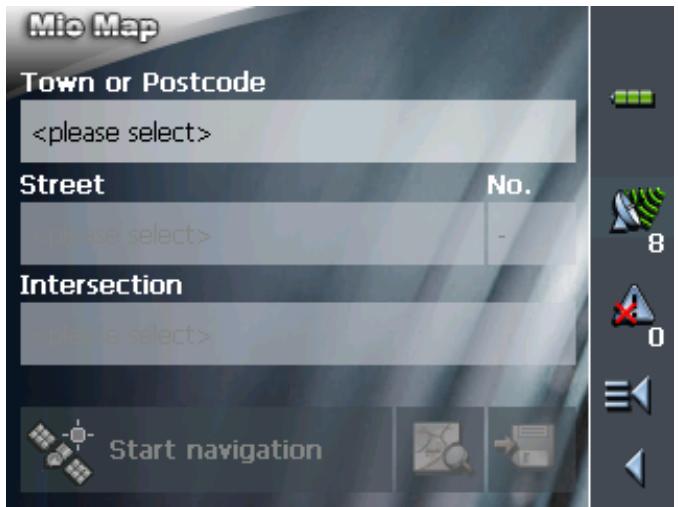

- Enter the destination town into the Town or Postcode entry field. Enter either its name or its postcode.
For information on working with lists, please refer to "Lists", page 19.
- Enter the destination street into the Street entry field.
- Enter the house number of your destination into the Nr. field, if you know it.

Note: If the house numbers of the respective street are stored in the database of places, you may tap the field besides the Street field.
If no house numbers are stored, the respective field is deactivated. The software navigates to the respective street
- Enter the name of a crossroad into the Intersection entry field if you want to define an intersection as destination point (e.g. because the house number is not available).

For information on saving destinations, please refer to "Saving a destination", page 53.
5.4.2 Selecting a point of interest
Points of interest
Points of Interest, also referred to as POIs, are stored in the database of places and may be displayed on the map. Ports, airports, restaurants, hotels, petrol stations, public buildings, and others belong to the special destinations. Indicate a point of interest by selecting one
Point of interest nearby

Note: You may only select Points of interest nearby when the GPS receiver is turned on and when the GPS signal strength is sufficient.
Extended mode
- In the MAIN MENU, tap Navigation.
The DESTINATION screen opens.
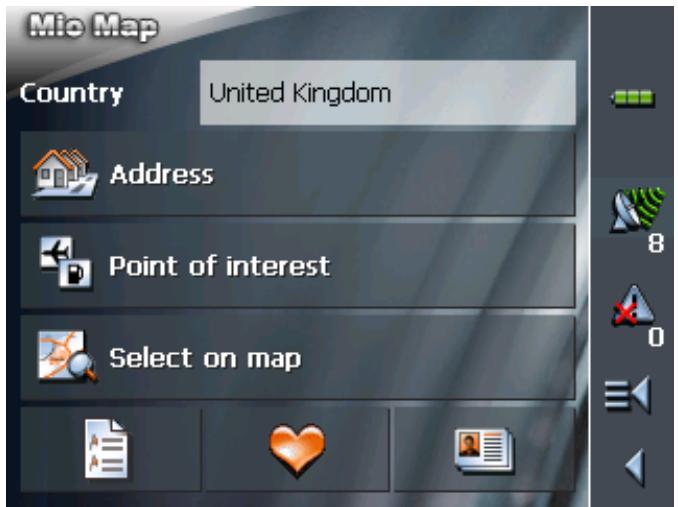
Tap the Country entry field and select the destination country if it is not yet indicated.

Note: Only countries of which at least a part is represented on the currently loaded map may be selected.
1b On the DESTINATION screen, tap Point of interest.
The POINT OF INTEREST screen opens:
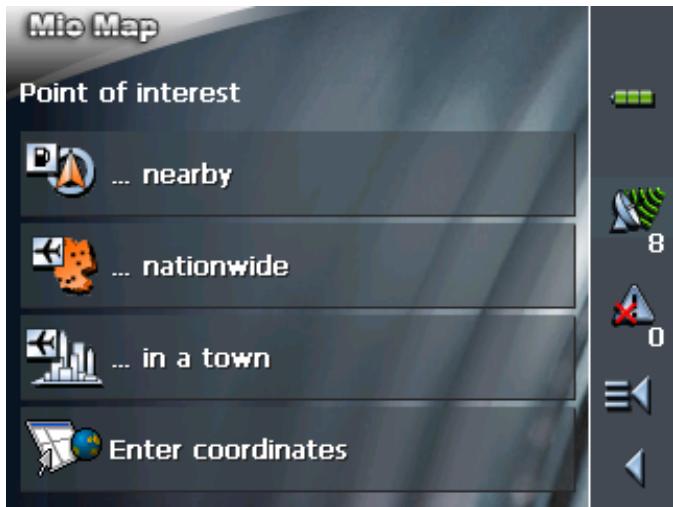
1c On the POINT OF INTEREST screen, tap ...nearby.
Standard mode
1. In the MAIN MENU, tap Navigation.
The DESTINATION screen opens.
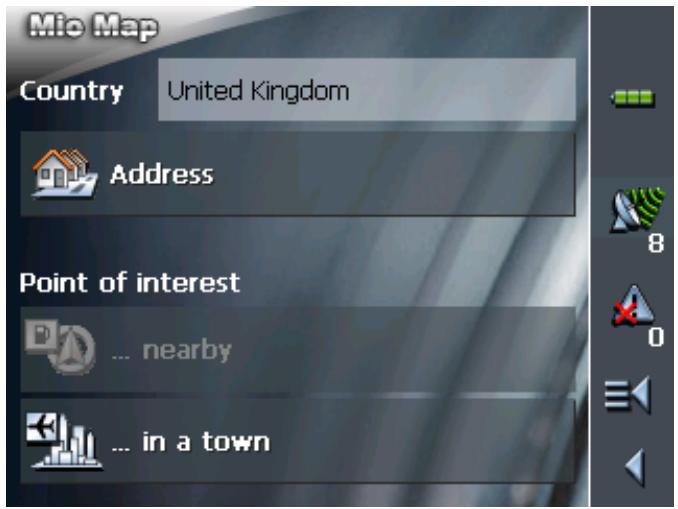
Tap the Country entry field and select the destination country if it is not yet indicated.
Note: Only countries of which at least a part is represented on the currently loaded map may be selected.
1b On the DESTINATION screen, tap ...nearby.

Selecting a Point of interest nearby...
The POI NEARBY screen opens:
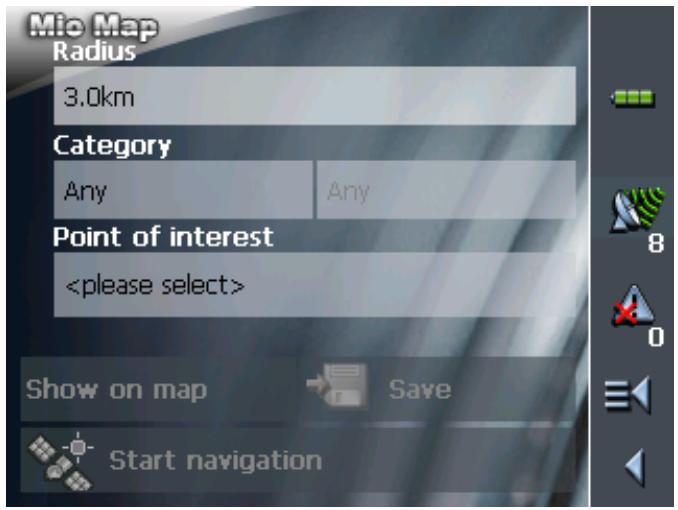
- Enter the radius around your current position within which you want to search for points of interest into the Radius entry field.
- Select the main category of points of interest to search for from the left one of the two Category list fields, e.g. "Garage". Only points of interest situated within the indicated radius will be displayed.
- Select the Subcategory of points of interest to search for from the right one of the two Category list fields, e.g. "Audi VW Seat Skoda".
For information on working with lists, please refer to "Lists", page 19.

Note: If you leave the Subcategory field empty, all points of interest matching with the selected main category will be listed in the Point of interest list field.
- Select the correct destination from the Point of interest list field.

Note: As soon as you have selected a point of interest, a telephone number is displayed beneath the destination. If it concerns, for example, a restaurant, you can then find out if there 's a free table.
The telephone number is only displayed if it is available in the data pool.
A given telephone number can also be incorrect, e.g. because it has changed.

Note: You need not make entries into the Category and Subcategory fields. Their purpose is only to shorten the Point of interest list. This list may become very extensive, especially in big towns.

For information on saving destinations, please refer to "Saving a destination", page 53.
Point of interest in a certain town
Extended mode
- In the MAIN MENU, tap Navigation.
The DESTINATION screen opens.
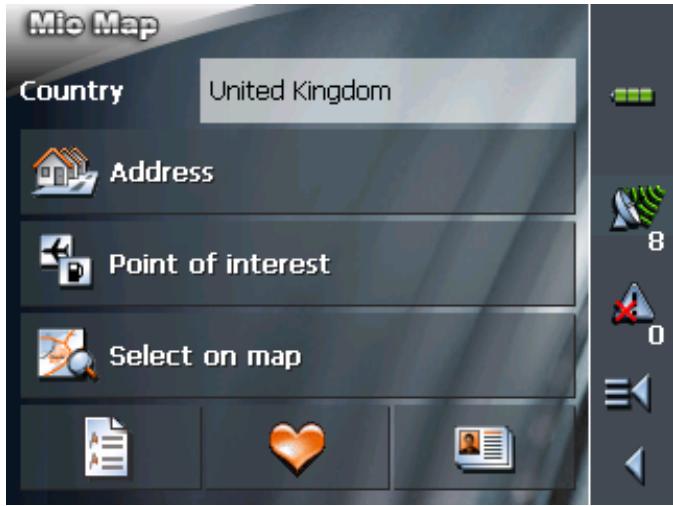
Tap the Country entry field and select the destination country if it is not yet indicated.

Note: Only countries of which at least a part is represented on the currently loaded map may be selected.
1b On the DESTINATION screen, tap Point of interest.
The POINT OF INTEREST screen opens:
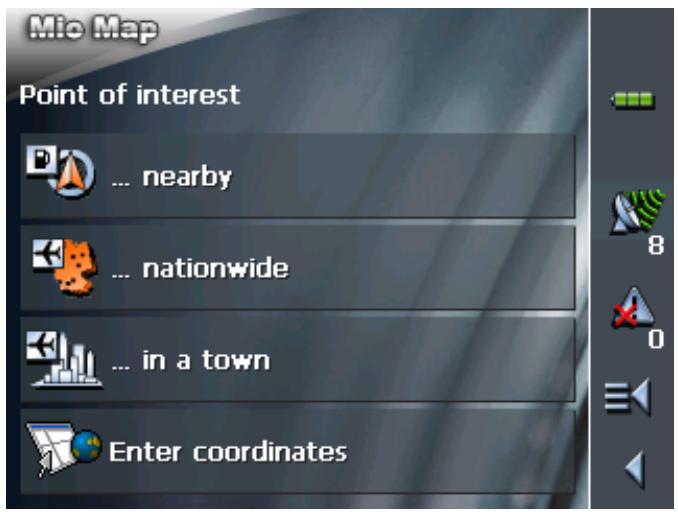
1c On the POINT OF INTEREST screen, tap ...in a town.
Standard mode
- In the MAIN MENU, tap Navigation.
The DESTINATION screen opens.
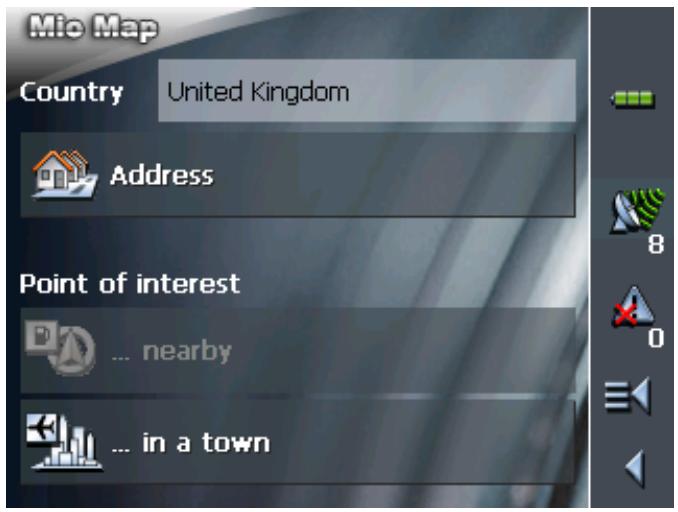
Tap the Country entry field and select the destination country if it is not yet indicated.
Note: Only countries of which at least a part is represented on the currently loaded map may be selected.
1b On the DESTINATION screen, tap ...in a town.

Selecting a Point of interest in a certain town...
The POI in a town screen opens:
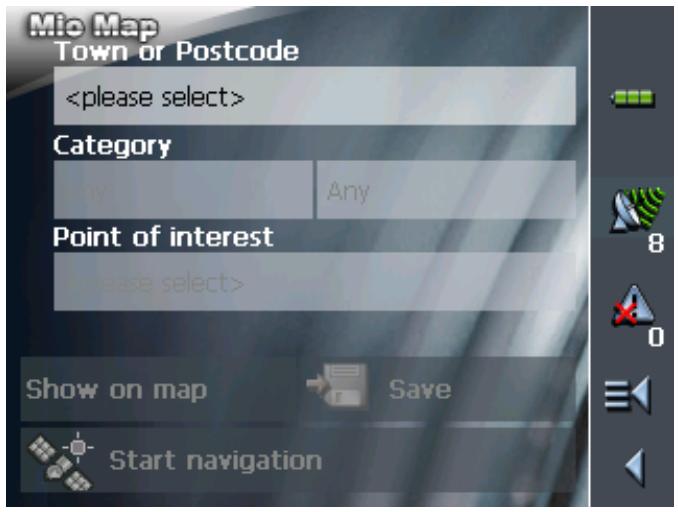
- Enter the name of the town in which you want to search for points of interest into the Town or postcode field.
- Select the main category of points of interest to search for from the Category list field (e.g. Nightlife). Only categories matching your Town entry are listed.
- Select the Subcategory of points of interest to search for from the right one of the two Category list fields (e.g. Cinema).
- Select the correct destination from the Point of interest list field.

Note: As soon as you have selected a point of interest, a telephone number is displayed beneath the destination. If it concerns, for example, a restaurant, you can then find out if there 's a free table.
The telephone number is only displayed if it is available in the data pool.
A given telephone number can also be incorrect, e.g. because it has changed.

For information on working with lists, please refer to "Lists", page 19.

Note: You need not make entries into the Category and Subcategory fields. Their purpose is only to shorten the Point of interest list. This list may become very extensive, especially in big towns.

For information on saving destinations, please refer to "Saving a destination", page 53.
Point of interest of supraregional significance

This function is only available in "Extended mode".
For information on how to change the user mode, please refer to "Changing the user mode", page 24.
Extended mode
1. In the MAIN MENU, tap Navigation.
The DESTINATION screen opens.
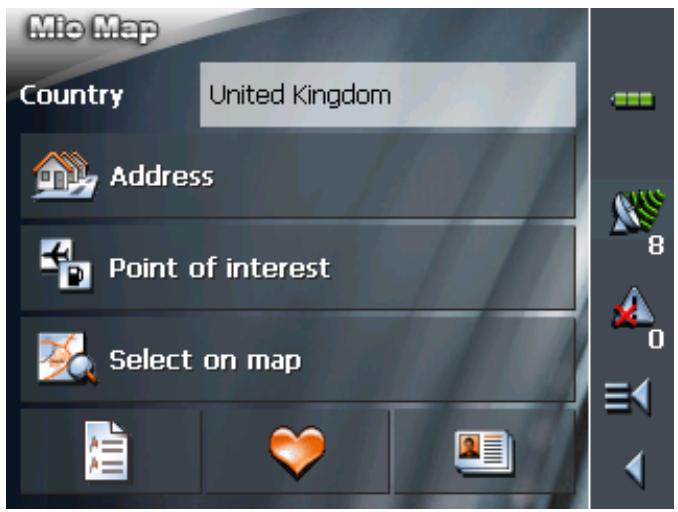
Tap the Country entry field and select the destination country if it is not yet indicated.

Note: Only countries of which at least a part is represented on the currently loaded map may be selected.
1b On the DESTINATION screen, tap Point of interest.
The POINT OF INTEREST screen opens:
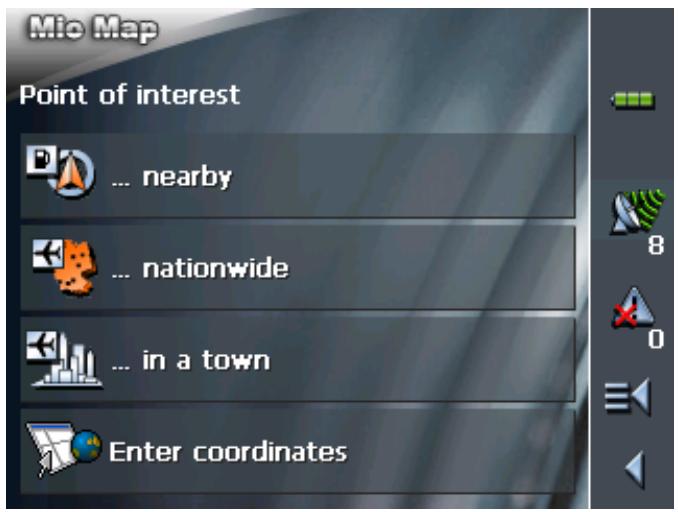
1c On the POINT OF INTEREST screen, tap ...nationwide.
Selecting a Point of interest of supraregional significance...
The POI NATIONWIDE screen opens:
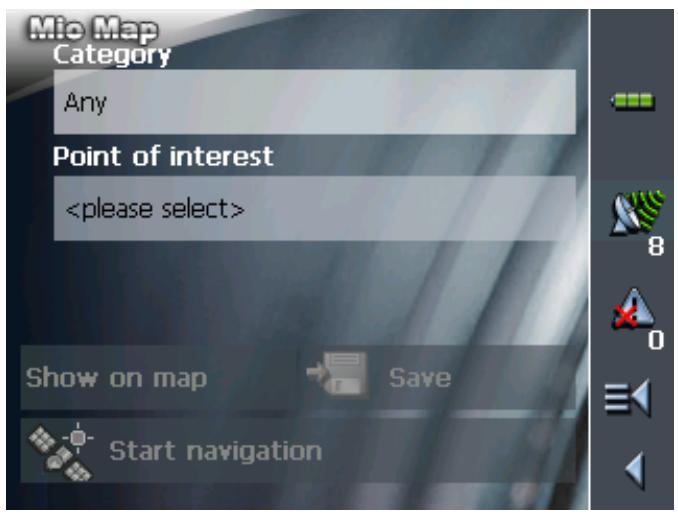
- Select the main category of points of interest to search for from the Category list field (e.g. Airports).
- Select the correct destination from the Point of interest list field.

Note: As soon as you have selected a point of interest, a telephone number is displayed beneath the destination. If it concerns, for example, a restaurant, you can then find out if there's a free table.
The telephone number is only displayed if it is available in the data pool.
A given telephone number can also be incorrect, e.g. because it has changed.
For information on working with lists, please refer to "Lists", page 19.
Note: You need not make entries into the Category field. Their purpose is only to shorten the Point of interest list. This list may become very extensive, especially in big towns.
For information on saving destinations, please refer to "Saving a destination", page 53.
5.4.3 Entering the geographic coordinates of a destination

This function is only available in "Extended mode".
For information on how to change the user mode, please refer to "Changing the user mode", page 24.

Note: The destination for which you have entered coordinates might not be located on the road network covered by the map.
In this case, the destination is correctly shown on the map, but navigation can only lead up to the nearest point on a street that is recorded in the map.
Please refer to chapter "Navigating to a destination the coordinates for which have been stated" on page 71.
Extended mode
1. In the MAIN MENU, tap Navigation.
The DESTINATION screen opens.
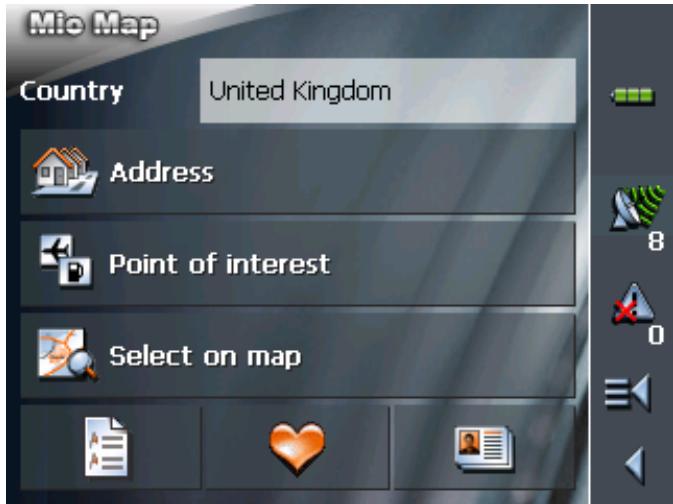
Tap the Country entry field and select the destination country if it is not yet indicated.

Note: Only countries of which at least a part is represented on the currently loaded map may be selected.
1b On the DESTINATION screen, tap Point of interest.
The POINT OF INTEREST screen opens:
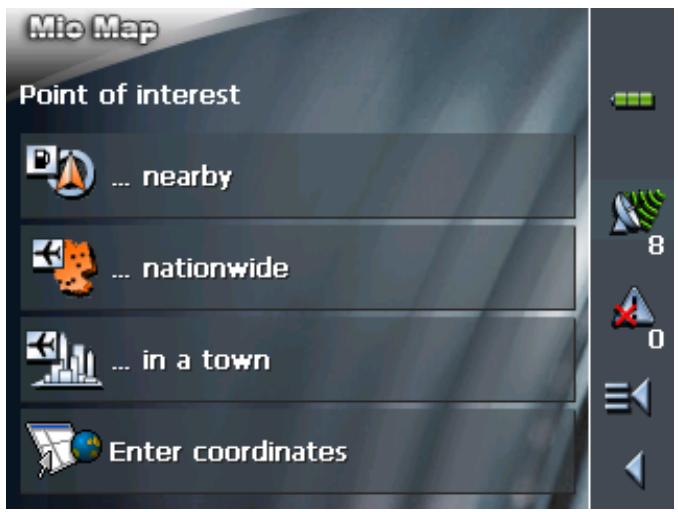
1c On the POINT OF INTEREST screen, tap Enter coordinates.
Enter the destination coordinates...
The DESTINATION COORDINATES screen opens:
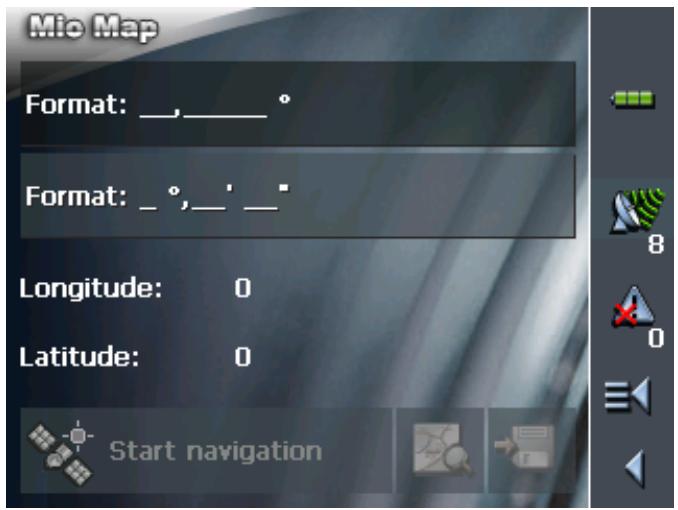
Decimal input
5a If you would like to enter the coordinates in degrees as decimals, tap Enter ______.
The Decimal Coordinate Entry screen opens.
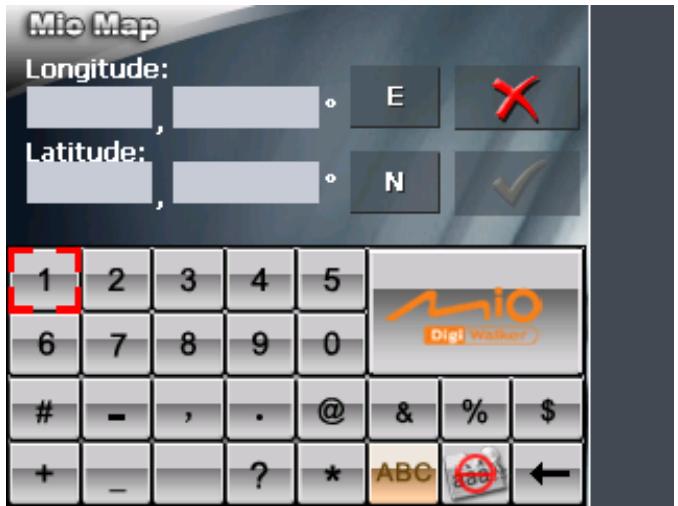
5b Enter the data in the respective fields. You can change the
point of the compass on the button behind the entry fields.
5c Tap the

button.
Entering minutes and seconds
5a If you would like to give the coordinates in degrees / minutes / seconds, tap Enter · · · ·
The MIN / SEC COORDINATE ENTRY screen opens.
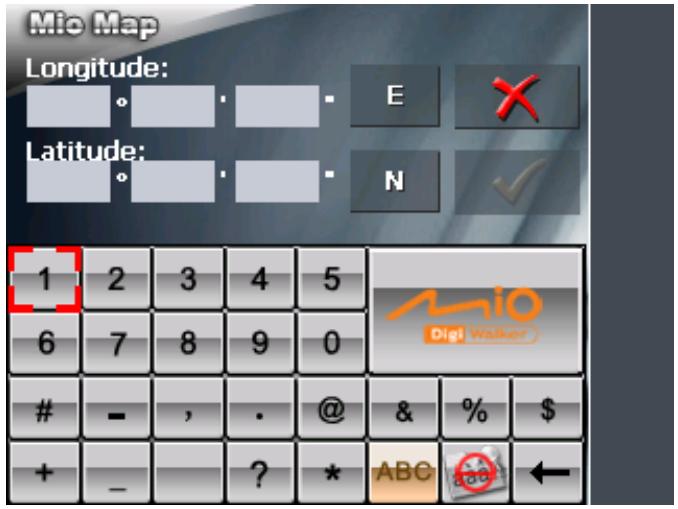
5b Enter the data in the respective field. You can change the point of the compass on the button behind the entry fields.
5c Tap on the button.
The DESTINATION COORDINATES screen opens again:
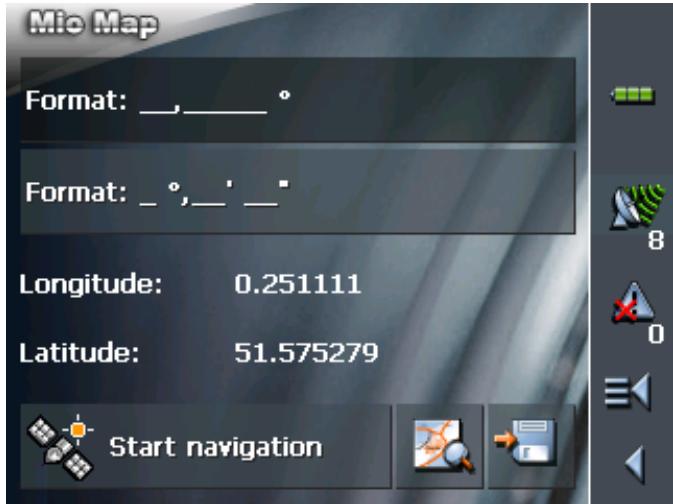
Your entries will be displayed beneath the entry fields. This display is given in degrees as decimals.
5.4.4 Indicating destinations on the map
You may indicate a destination directly on the map. In addition to towns and streets, you may also select special destinations quickly..

This function is only available in "Extended mode".
For information on how to change the user mode, please refer to "Changing the user mode", page 24.
Extended mode
- In the MAIN MENU, tap Navigation.
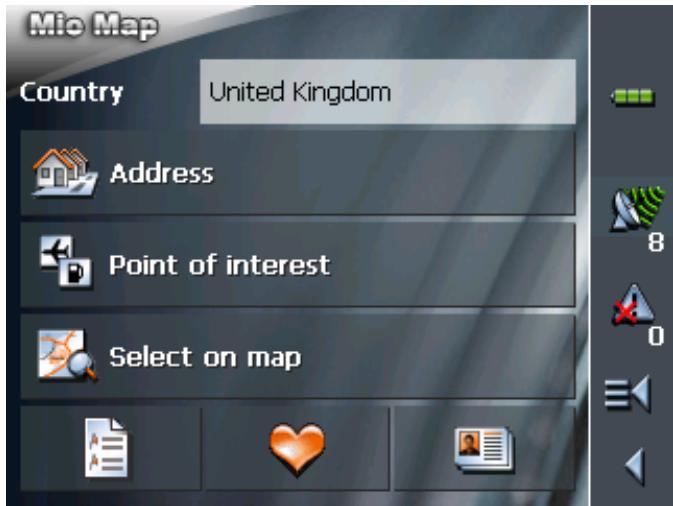
The DESTINATION screen opens.
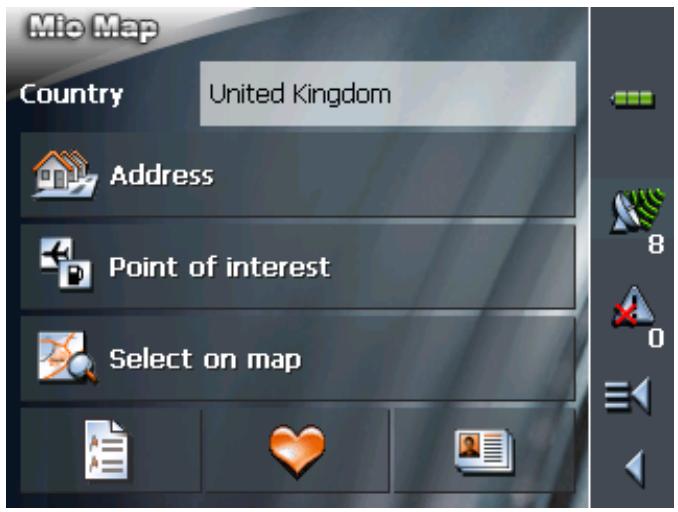
Tap the Country entry field and select the destination country if it is not yet indicated.
Note: Only countries of which at least a part is represented on the currently loaded map may be selected.

Indicating a destination on the map...
- On the DESTINATION screen, tap Select on map.
The MAP screen opens:
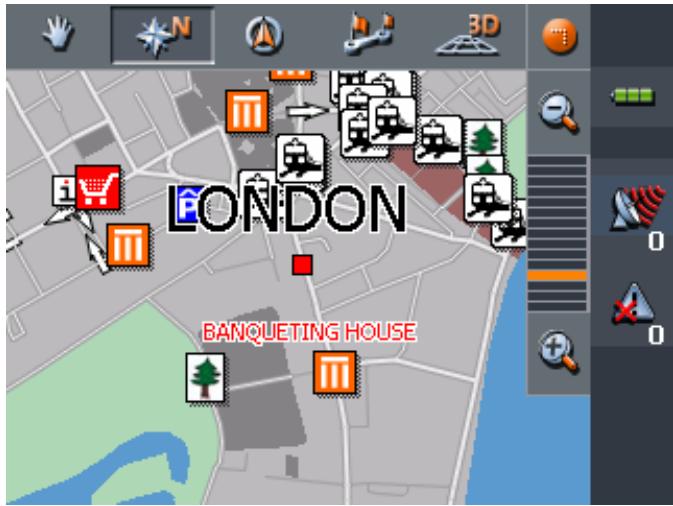
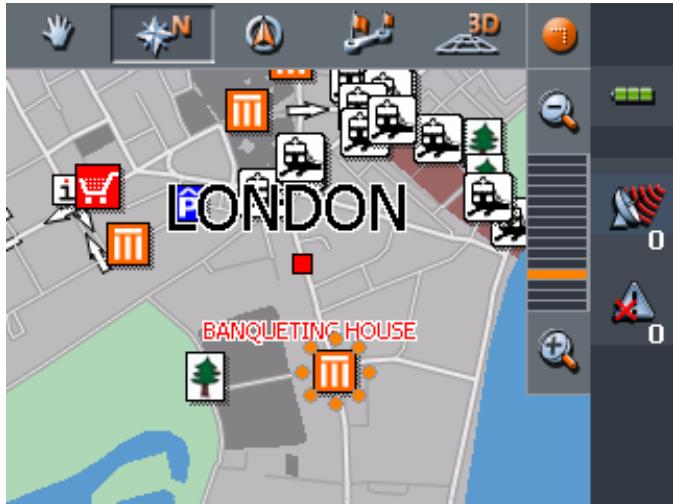
- Tap on the place you want to determine as destination and hold.
A circle of orange points appears round the selected place:
Database information on the respective place will be loaded and displayed. Below the information, there are command buttons for several functions which are available for the selected place.
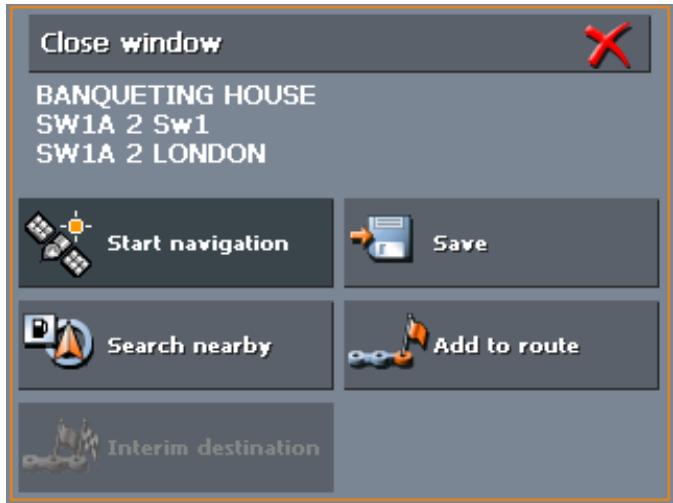
Note: If the chosen destination is a point of interest, a telephone number is displayed beneath the destination. If it concerns, for example, a restaurant, you can find out if there's a free table.
The telephone number is then only displayed if it is available in the data pool.
A given telephone number can also be incorrect perhaps because it has changed.
You have the following options:
This function is only available when GPS reception is possible (The GPS-symbol must be GPS ready).
Tap the Start navigation button to start navigation to the selected place.
Caution: Using this function while you are already navigating deletes all current destinations (stage points and destination point).


Start navigation

Tap the Save button to save the selected place. You may then at any time select this place from the FAVOURITES.
Tap the Search nearby button to search for a point of interest near the selected place.
This function is only available in "Extended mode".
Tap the Add button to add the selected place to your itinerary. The selected point will be marked by a little flag. It will also be added to the list of route points of the ROUTE PLANNING screen where it figures as destination point.
Using this function while you are already navigating causes an immediate recalculation of your route.
This function is only available in "Extended mode".
Tap the Interim destination button to make the selected point the next stage point of your itinerary. Your route will be recalculated immediately.
5.4.5 Favourites
Survey
All destinations you have saved by tapping the Save button are listed on the FAVOURITES screen. On this screen you may:
select destinations for navigation purposes,
rename destinations, and
delete destinations from the list.
Extended mode
- In the MAIN MENU, tap Navigation.
The DESTINATION screen opens.
Tap the Country entry field and select the destination country if it is not yet indicated.

Note: Only countries of which at least a part is represented on the currently loaded map may be selected.
1b On the DESTINATION screen, tap Favourites.
Standard mode
Saved destinations
- In the MAIN MENU, tap Favourites.
The FAVOURITES screen opens.
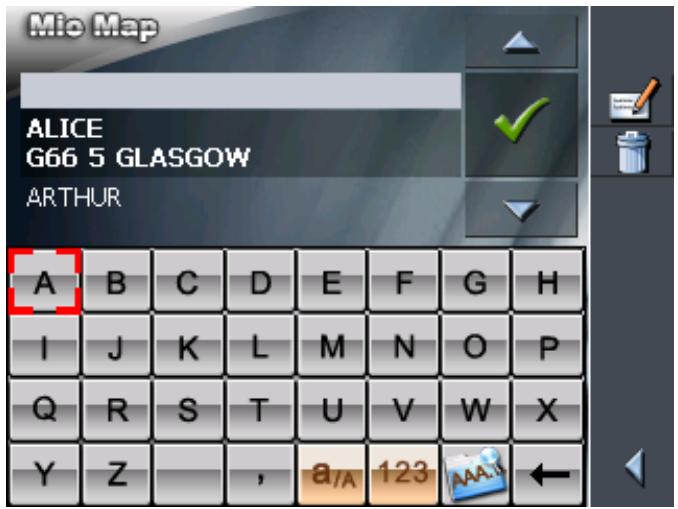
- Tap the entry of the respective destination.
Note: An asterisk behind a name indicates that a voice command for the respective destination has been stored.
For information on working with lists, please refer to "Lists", page 19.
- Tap

The ADDRESS screen opens. The address data of the selected destination is entered into the respective fields.
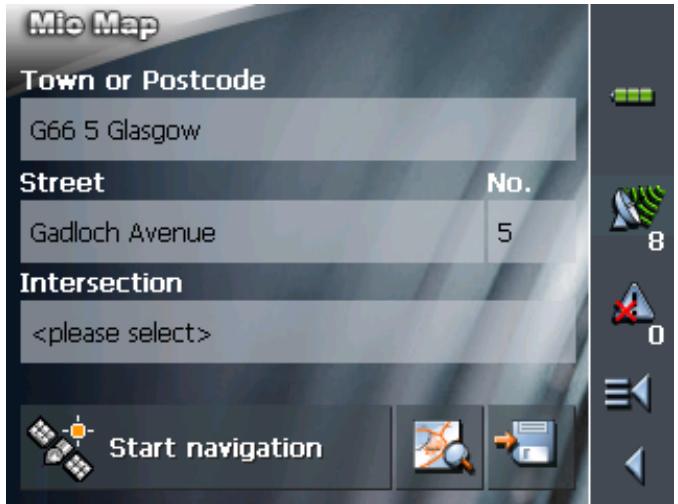
For information on deleting or renaming saved destinations, please refer to "Destination management", page 52.


5.4.6 Recent destinations
Survey
All destinations you have navigated to recently are listed on the RECENT DESTINATIONS screen. On this screen you may:
select destinations for navigation purposes,
Add destinations to the SAVED DESTINATIONS list, and
delete destinations from the RECENT DESTINATIONS list.
Extended mode
- In the MAIN MENU, tap Navigation.
The DESTINATION screen opens.

Tap the Country entry field and select the destination country if it is not yet indicated.

Note: Only countries of which at least a part is represented on the currently loaded map may be selected.
1b On the DESTINATION screen, tap Recent destinations.
Standard mode
- In the MAIN MENU, tap Recent destinations.
Recent destinations
The RECENT DESTINATIONS screen opens.
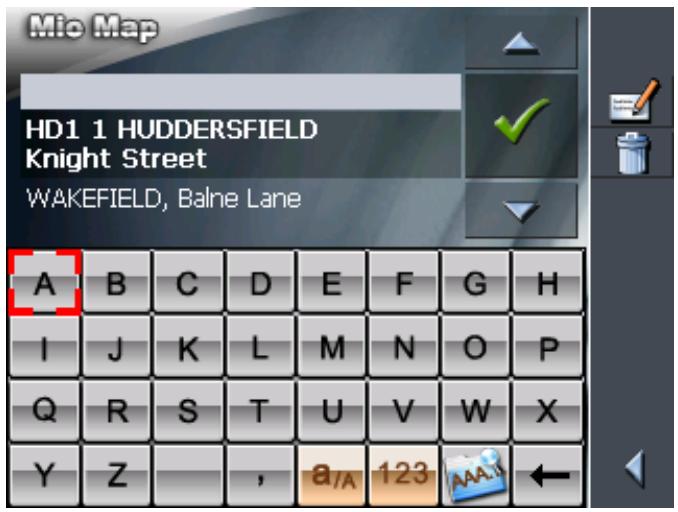
- Tap the entry of the desired destination.

For information on working with lists, please refer to "Lists", page 19.
3. Tap

The destination will be taken over. The address is entered into the respective fields.
5.4.7 Using your home address
Survey
If you have stored your home address you may quickly start navigation home at any place.
For information on saving your home address, please refer to "Home address", page 109.
Navigating homewarrants...
- On the MAIN MENU tap the Home icon.
The route is now being calculated and navigation starts.
The calculation is based on the settings you have configured in SETTINGS - ROUTE OPTIONS.

For details, please refer to "Settings", page 100.
5.5 Destination management
Survey
Destinations may be stored in two lists:
the FAVOURITES
the RECENT DESTINATIONS list
Every destination you are indicating and the destinations from the RECENT DESTINATIONS list may be added to the FAVOURITES. This makes sense if you want to navigate more often to the respective destination.
Destinations from the FAVOURITES may be renamed.
Items from both lists may be deleted.
5.5.1 Saving a destination
Precondition
You have entered a destination as described in "Indicating a destination", page 34
- OR -
You have opened the RECENT DESTINATIONS list as described in "Recent destinations", page 51.
- Tap the Save icon.

If you have opened the RECENT DESTINATIONS list, tap the Edit icon.

The NAME OF DESTINATION screen opens.
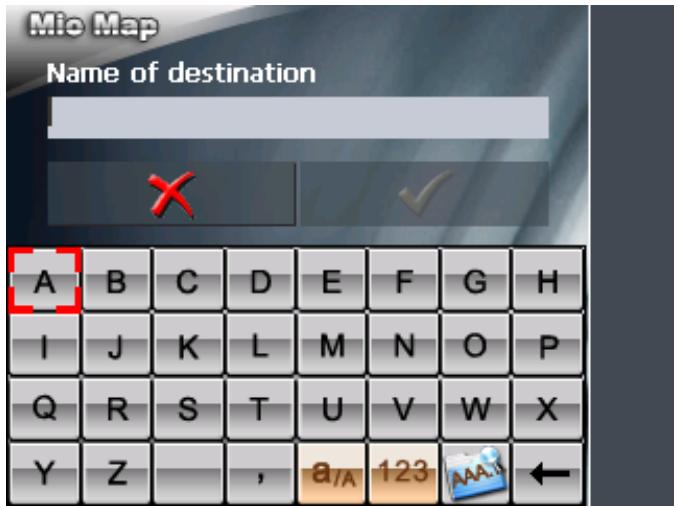
- Enter a name for the destination.
For information on the use of the keyboard, please refer to "Software keyboard", page 13.
- Tap

The destination has now been added to the FAVOURITES.
5.5.2 Renaming a destination
- On the DESTINATION screen, tap Favourites.
The FAVOURITES screen opens.
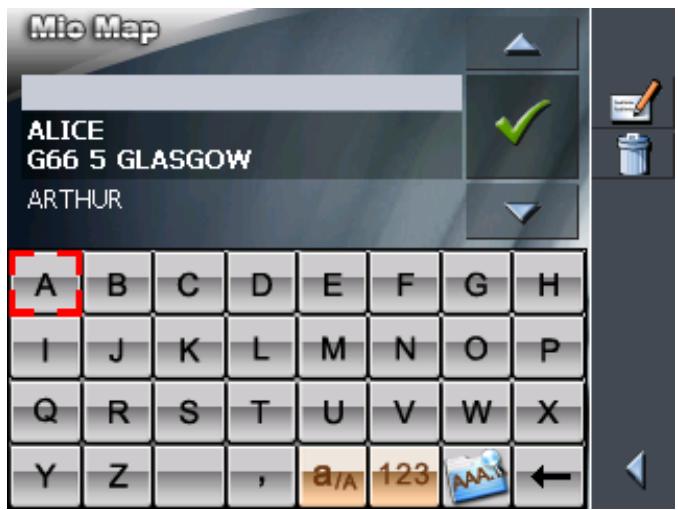
- Select the destination you want to rename.
For information on working with lists, please refer to "Lists", page 19.
- Tap the Edit icon.
The NAME OF DESTINATION screen opens.
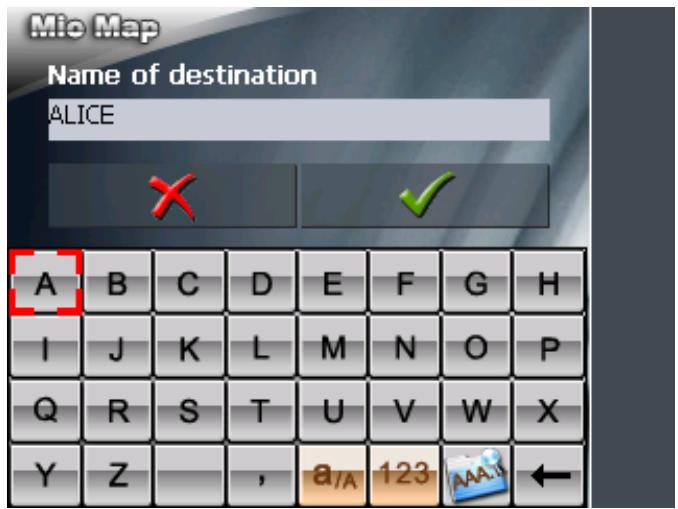
- Enter the new name of the destination.
For information on the use of the keyboard, please refer to "Software keyboard", page 13.
- Tap

The destination is now renamed.

5.5.3 Deleting a destination
Precondition
You have opened the FAVOURITES as described in "Favourites", page 49
- OR -
You have opened the RECENT DESTINATIONS list as described in "Recent destinations", page 51.

- Tap the entry of the destination to be deleted.
For information on working with lists, please refer to "Lists", page 19.
- Tap the Delete icon.
The CONFIRM screen opens.
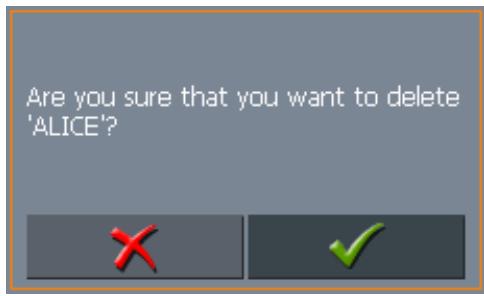
5.6 Indicating several destinations (Itinerary with stages)

- Tap to delete the destination from the list.
The destination is now deleted from the list.

This function is only available in "Extended mode".
For information on how to change the user mode, please refer to "Changing the user mode", page 24.
Itinerary planning
You may plan itineraries without receiving GPS-signals, e.g. comfortably at home. Planned itineraries may be stored. Thus you may plan as many itineraries as you want, e.g. for holidays.
5.6.1 Indicating route points
Planning itineraries...
- On the MAIN MENU, tap Route planning.
The ROUTE PLANNING screen opens:
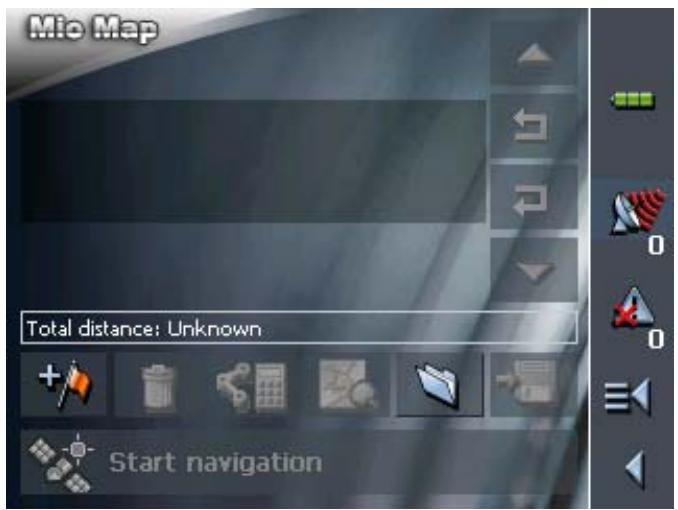

- Tap the Add route point icon to enter the first route point.
The DESTINATION screen opens.
- Indicate the destination as described in "Indicating a destination", page 34.
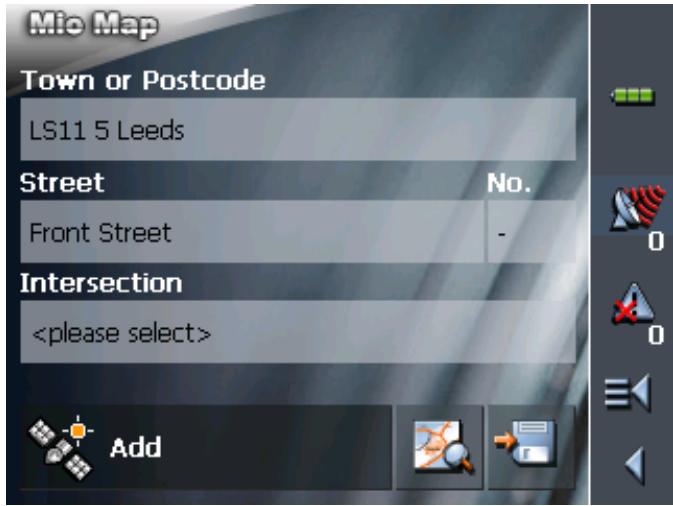
- Tap Add.
The ITINERARY PLANNING screen opens. The destination is added as stage point 1.
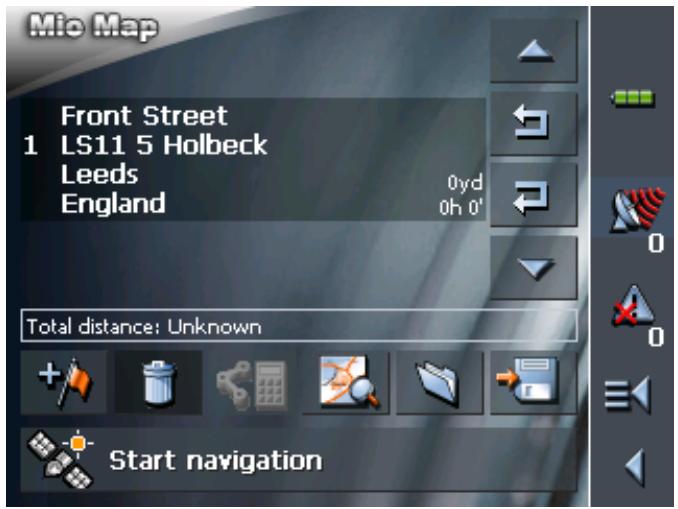
- Repeat steps 2-4 for every stage point you want to add to the itinerary.
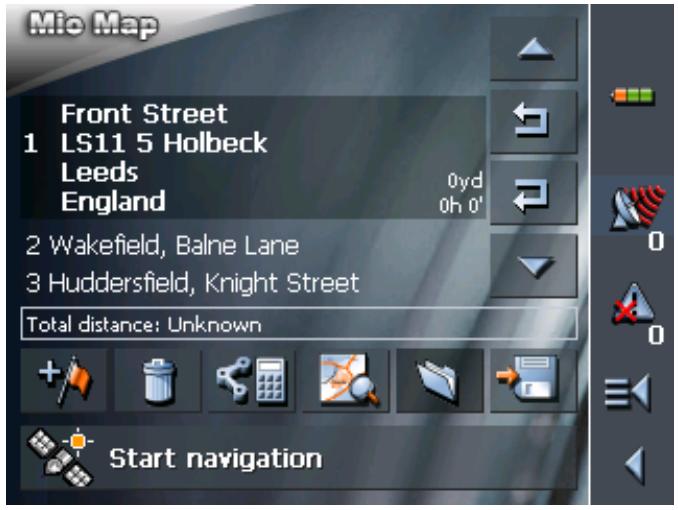
5.6.2 Editing, saving and managing itineraries
Survey
You may plan as many itineraries as you want, e.g. for holidays. You may save them and use them later for navigation purposes.
At any moment, you may add stage points, modify the order of the stages, or display the itinerary on the map.
The following commands are available on the ITINERARY PLANNING screen:
Selection
These icons are deactivated when the list does not contain any route point.
Up
Tap this icon to move the selection one route point up.

Tap this icon several times to move the selection several route points up.
Down
Tap this icon to move the selection one route point down.

Tap this icon several times to move the selection several route points down.
Changing the order
Route point up
Tap this icon to navigate to the respective stage point earlier (example: stage 3 becomes stage 2).

Route point down
Tap this icon to navigate to the respective stage point later (example: stage 2 becomes stage 3).

Deleting and adding route points
Delete route point
Tap this icon to delete the selected route point from the list.

This icon is deactivated when not route point is selected.
Add route point
Tap this icon to add a stage point. The new stage point will be added before the stage point which currently has the focus. You may shift it using the Route point up and Route point down icons.

Managing itineraries
Save itinerary

Only itineraries that contain at least one route point may be saved. Otherwise this icon is deactivated.
- Tap this icon to save the itinerary you have planned.
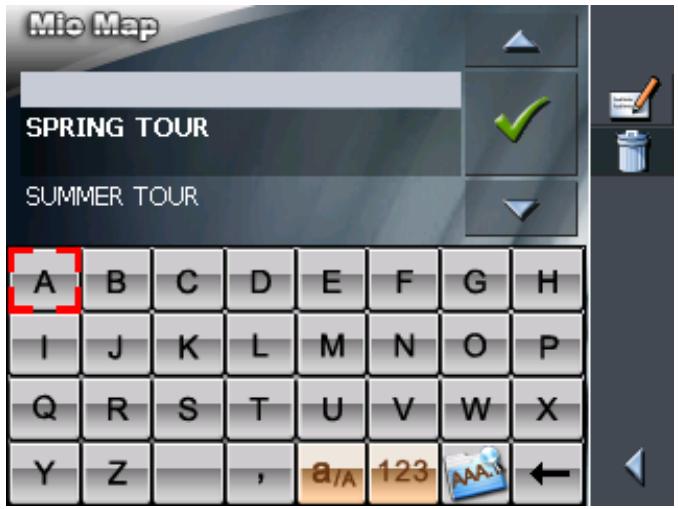
The NAME OF THE ITINERARY screen opens.
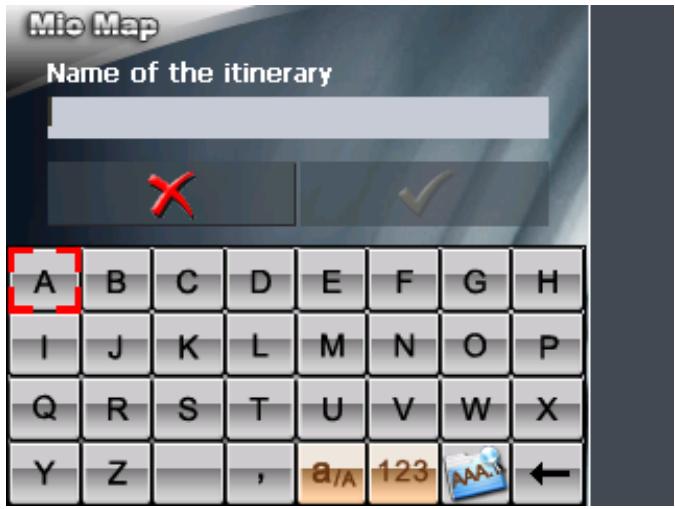
- Enter a name for the itinerary.

For information on the use of the keyboard, please refer to "Software keyboard", page 13.
- Tap OK.

Note: Only the route points will be saved. If you load an itinerary, you will have to recalculate it.
Load itinerary

This icon is deactivated if there is no saved itinerary available.
- Tap this icon to load a saved itinerary, e.g. to modify it or for navigation purposes.
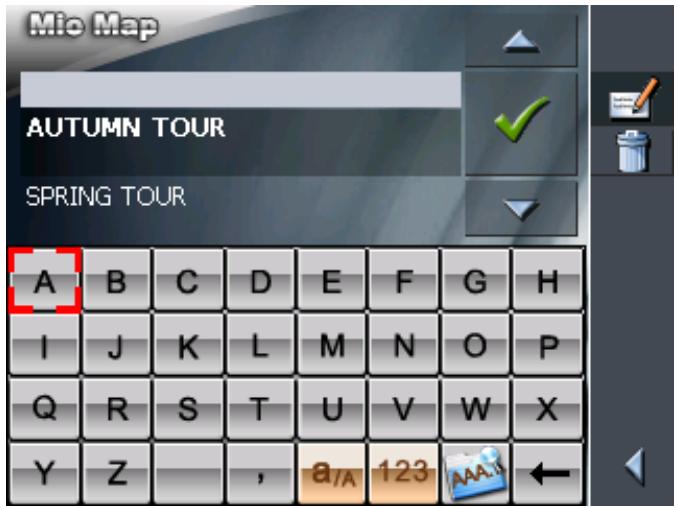
The SELECT ITINERARY screen opens:
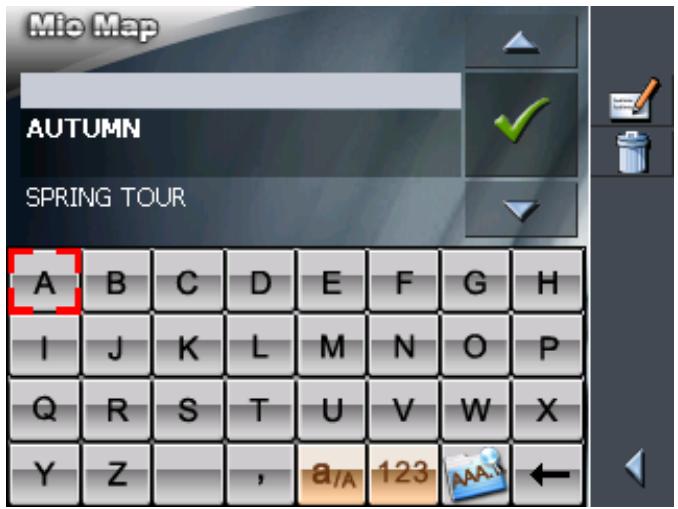
- Select the itinerary you want to load.
For information on working with lists, please refer to "Lists", page 19.
3. Tap

Rename itinerary

- Tap the Load itinerary icon. (This icon is deactivated if there is no saved itinerary available)
The SELECT ITINERARY screen opens:
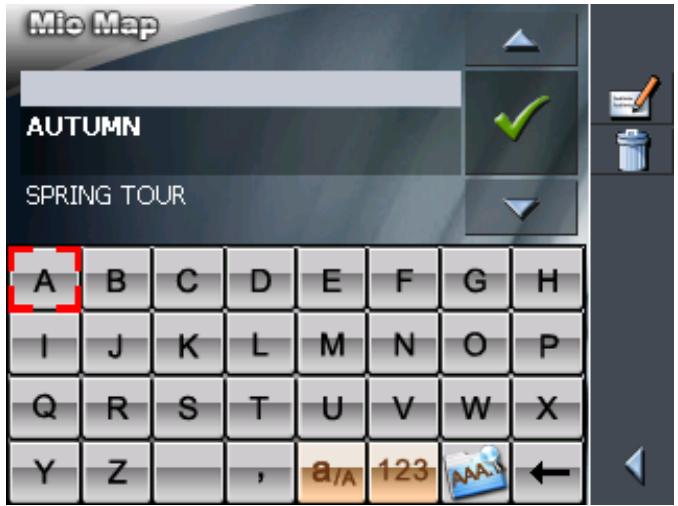

For information on working with lists, please refer to "Lists", page 19.

2. Tap the Edit icon.
The NAME OF THE ITINERARY screen opens:
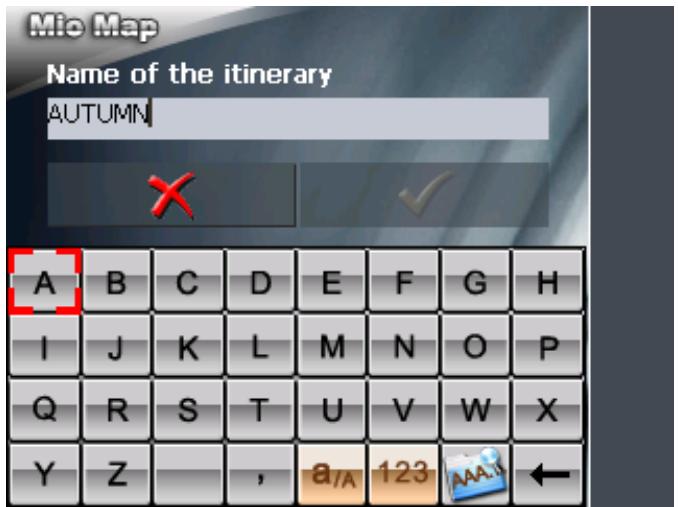
3. Enter the new name of the itinerary.
For information on the use of the keyboard, please refer to "Software keyboard", page 13.
4.

OK.
The SELECT ITINERARY screen reopens. The itinerary has been renamed.
or
5. Tap OK to load the renamed itinerary.
-OR
Tap the Back icon to open the ROUTE PLANNING screen without loading an itinerary.
Delete itinerary

- Tap the Load itinerary icon. (This icon is deactivated if there is no saved itinerary available)
The SELECT ITINERARY screen opens:
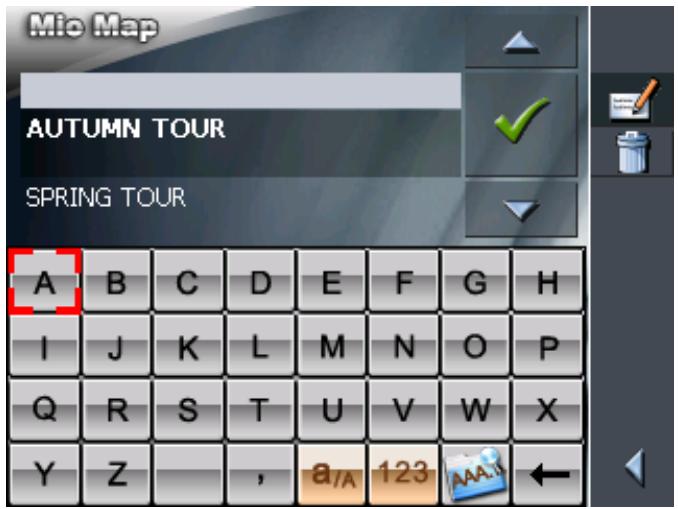

For information on working with lists, please refer to "Lists", page 19.
- Tap the Delete icon to delete the selected itinerary.
The CONFIRM screen opens.
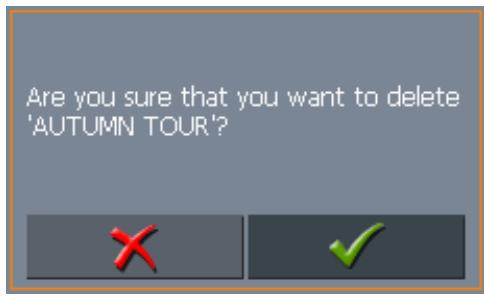
3. Tap

The SELECT ITINERARY screen reopens. The deleted route is no more listed.
5.6.3 Calculating the route
Calculating the distance
An itinerary may be calculated even without GPS reception in order to get an impression on the route.
The system assumes then the first route point to be the start point of the route.


Note: When you start navigation, the system identifies your current position and makes it the start point. The first indicated route point is then the first stage point.
- Tap this icon to calculate the distance and the estimated duration of the entire itinerary.
The ROUTE OPTIONS screen opens:
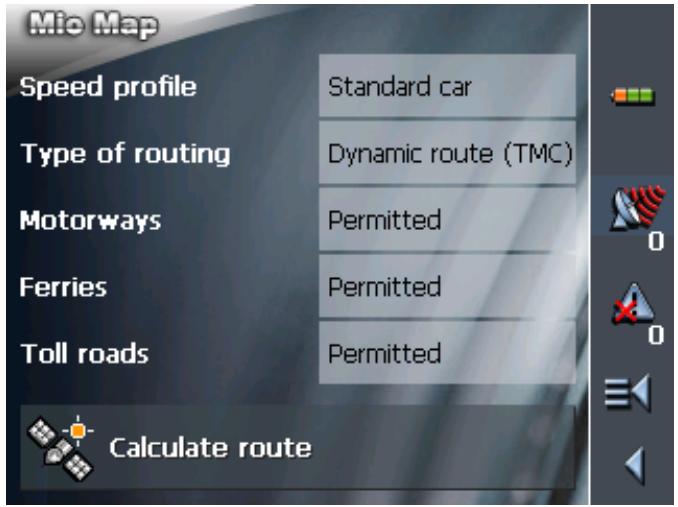
- Determine the route options.

Caution: If you wish to calculate and view the distance, do not select the entry Linear distance in the field Type of routing! Refer to chapter "Calculating the linear distance" on page 65 (next chapter) for more information on how to calculate the linear distance.

For detailed information on setting the route options, please refer to "Routing options", page 107.

Note: The standard settings for the route options may be changed on the ROUTE OPTIONS screen. For detailed information on changing the standard settings refer also to "Configuring MioMap", page 99.
3. Tap the Calculate route icon.
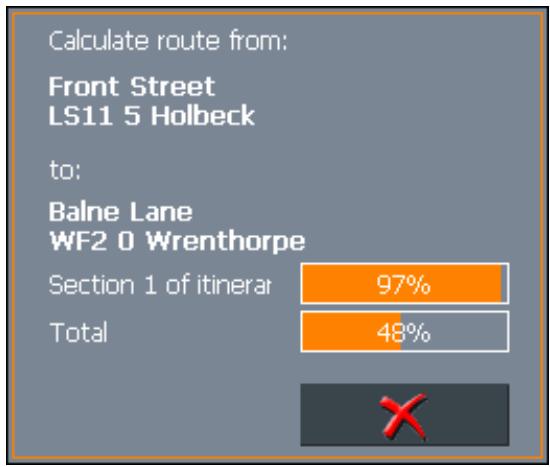
The route is being calculated. A message window informs you on the progress of calculation.
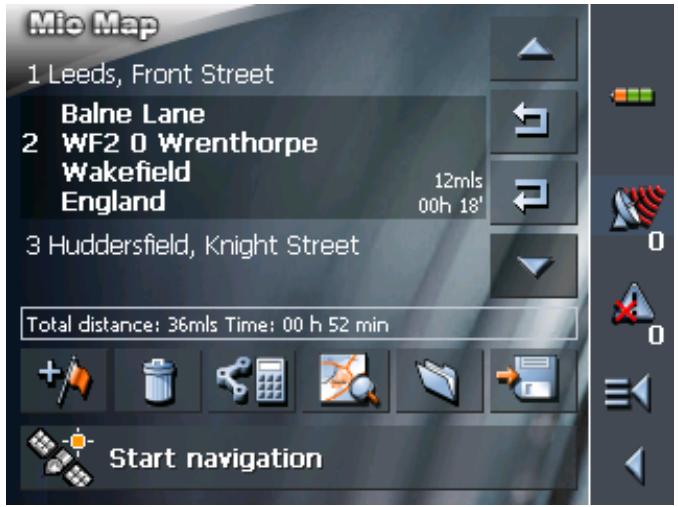
When the route is calculated, the total distance and the estimated duration from the first to the last route point are displayed below the route points list of the ITINERARY PLANNING screen.
Total distance: 36mls Time: 00 h 52 min
Furthermore, the distance and the estimated duration of each stage will be indicated with the selected route point entry.
Calculating the linear distance
You may calculate the linear distance between the individual route points and for the entire route.
The system assumes then the first route point to be the start point of the route.


Note: When you start navigation, the system identifies your current position and makes it the start point. The first indicated route point is then the first stage point.
- Tap on this button in order to calculate the linear distance between the individual route points and for the entire route.
The ROUTE OPTIONS screen opens:
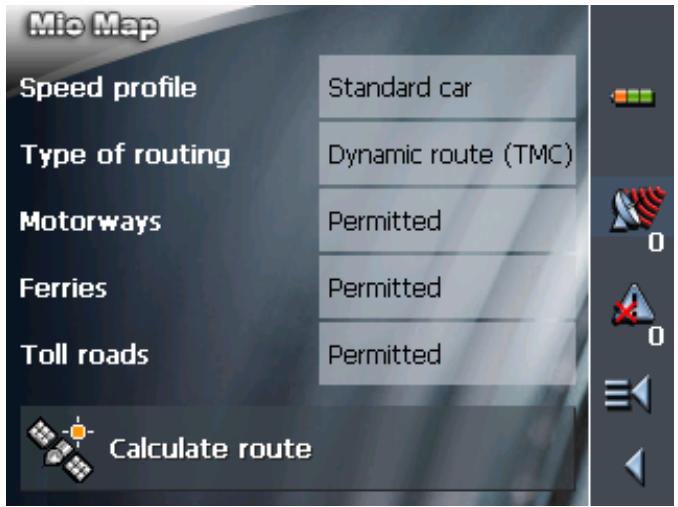
- Tap on Type of routing and select Linear distance.
- Tap the Calculate route icon.
The route is being calculated. A message window informs you on the progress of calculation.
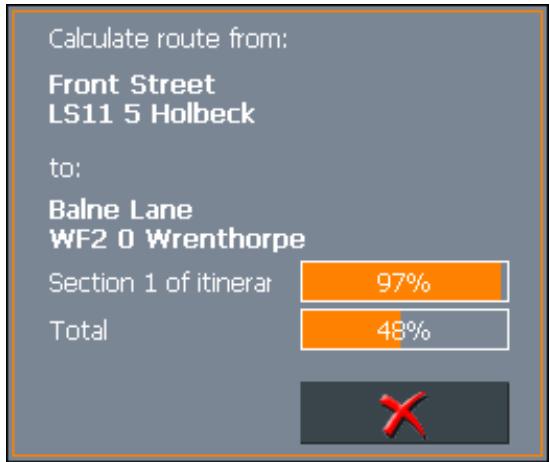
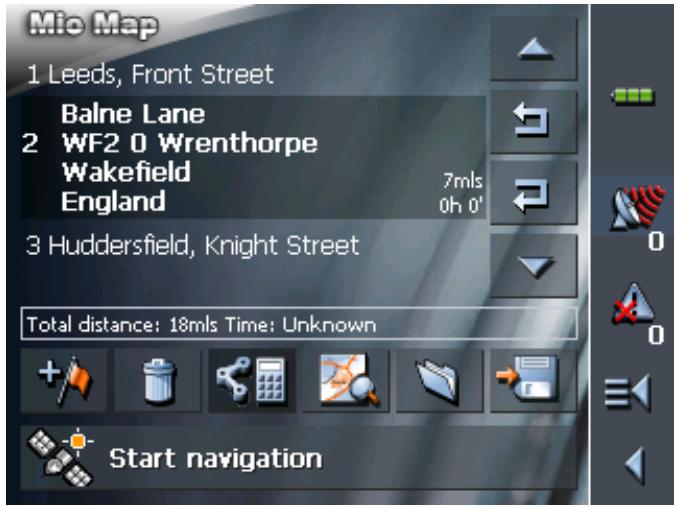
When you've carried out the calculation, on the ITINERARY screen under the route point list the total of all linear distances between the individual route points is displayed.
Total distance: 18ms Time: Unknown
The linear distance from the preceding route point is also given for the selected route points.

Note: No route is calculated! When navigating in linear distance mode you therefore cannot receive any driving instructions. Refer to chapter "Navigation in linear distance mode" on page 84.
5.6.4 Displaying the itinerary on the map
Show itinerary
Tap the Show on map button to display the entire itinerary on the map.
The map screen opens.
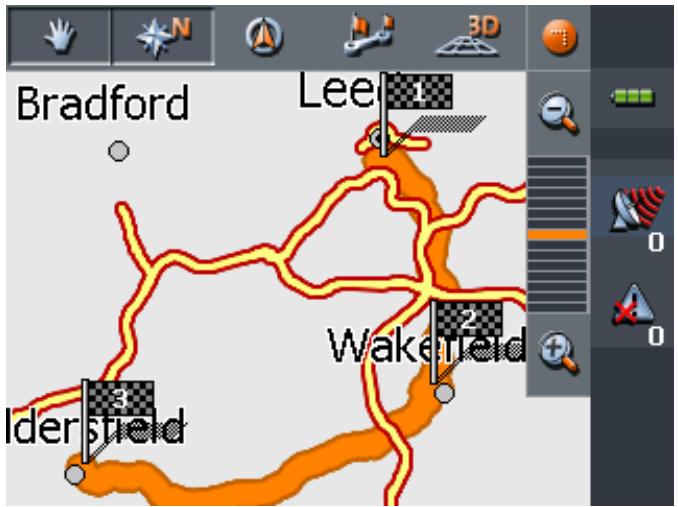
The itinerary is highlighted in orange.
The route points are marked by flags.
For information on working with maps, please refer to "Working with the map", page 75.
5.6.5 Simulating the route
Simulation
You may execute a simulated navigation along the itinerary when the route has been calculated.

Note: The reception of GPS-signals is not necessary for the simulation.
Simulation is restricted to routes of 60 miles max.
You cannot launch a simulation if you have selected Linear distance for Type of routing.
1. Tap the Show on map button.
The itinerary is displayed on the map.
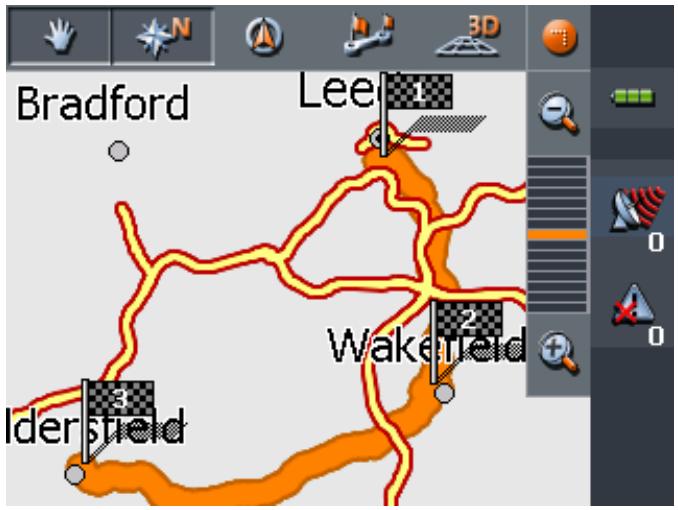
2. Tap short on any place on the map.
The ADDITIONAL FUNCTIONS screen opens.
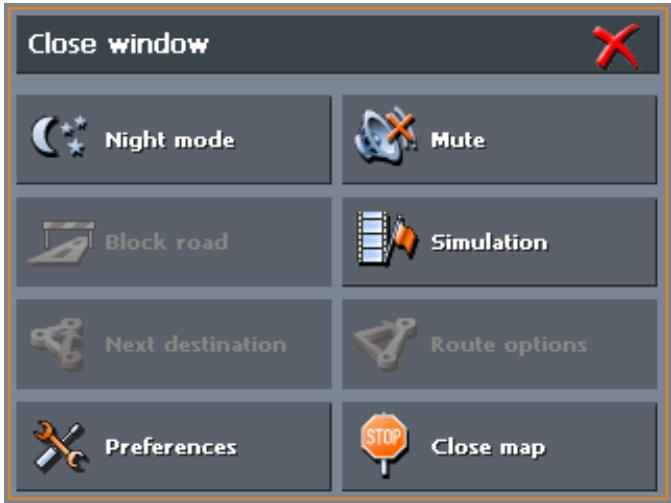
3. Tap Simulation.
The route will be recalculated for simulation purposes.
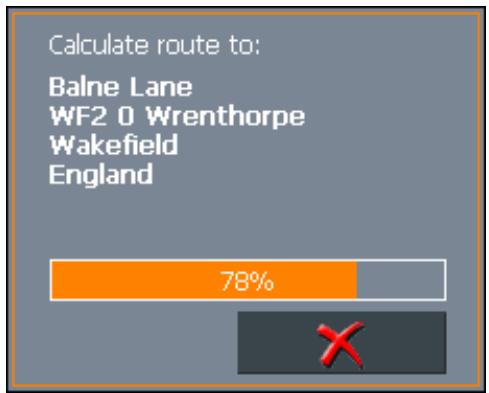
Simulation starts when calculation has finished.
Stopping the simulation
You may quit a simulation at any moment.
- Tap short on any place on the map.
The ADDITIONAL FUNCTIONS screen opens.
- Tap Stop navigation.
5.7 Starting navigation
Precondition
You have entered a destination as described in "Indicating a destination", page 34,
-OR-
You have selected a destination from the FAVOURITES as described in "Favourites", page 49,
- OR -
You have selected one of your RECENT DESTINATIONS as described in "Recent destinations", page 51,
-OR-
You have planned or loaded an itinerary as described in "Indicating several destinations (Itinerary with stages)", page 55.
Extended mode
1. Tap Start navigation.
The ROUTE OPTIONS screen opens:
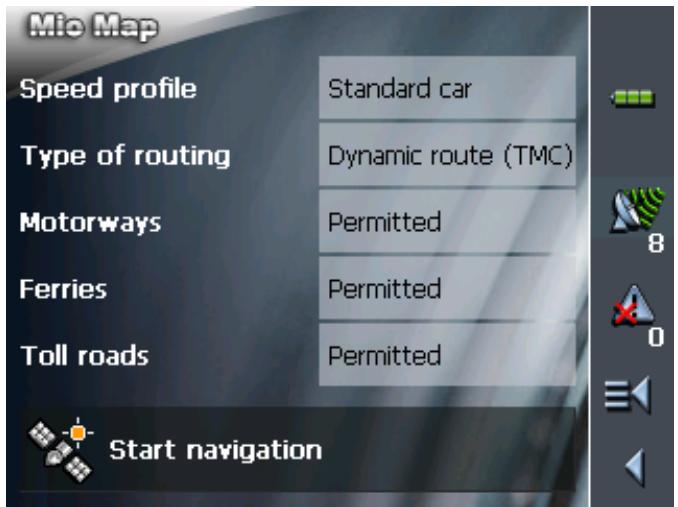
2. Determine the route options.

Caution: If you would like to launch navigation with driving instructions and route display, do not select the Linear distance entry in the Type of routing field! Refer to chapter "Starting navigation in linear distance mode" on page 72 (next chapter) to find out more about navigating in linear distance mode.

For detailed information on setting the route options, please refer to "Routing options", page 107.

Note: The standard settings for the route options may be changed in SETTINGS - ROUTE OPTIONS. For detailed information on changing the standard settings refer to "Settings", page 100.
The system calculates the route.
The map screen opens. Your current position is indicated by a green arrow. The route is highlighted in orange.
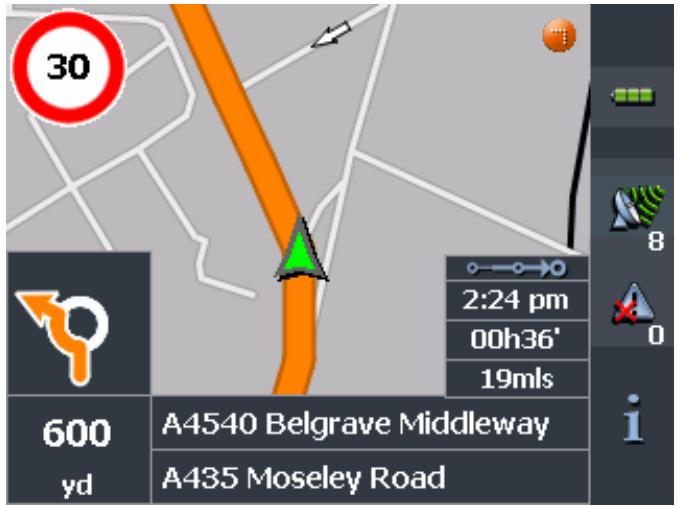

Note: When you start navigation after having planned or loaded an itinerary, then your current position is the start point of the route. The first indicated route point is then the first stage point of your route.
Standard mode
1. Tap Start navigation.
The system calculates the route.
The map screen opens. Your current position is indicated by a green arrow. The route is highlighted in orange.
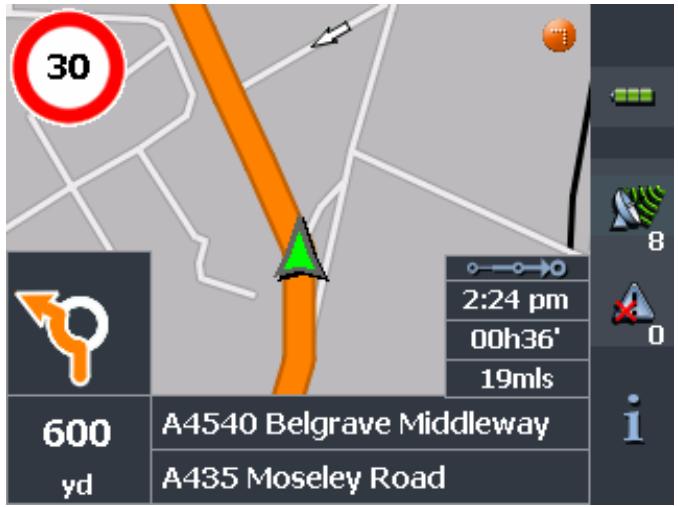

Note: The route will be calculated with regard to the current route options settings. The standard settings for the route options may be changed in SETTINGS - ROUTE OPTIONS. For detailed information on changing the settings refer to "Settings", page 100.
Arriving at your destination
When you have reached your destination the system pronounces the message "You have reached your destination!"
The map is no more presented in navigation mode. A small green arrow indicates your current position.
5.7.1 Navigating to a destination the coordinates for which have been stated
Precondition
You have given the coordinates of a destination, as described in chapter "Entering the geographic coordinates of a destination" on page 44.
Survey
The destination for which you have entered coordinates may not be located on the road network covered by the map.
In this case, the destination is correctly shown on the map, but navigation can only lead up to the nearest point on a street that is covered by the map.
This destination is shown on the map as follows:
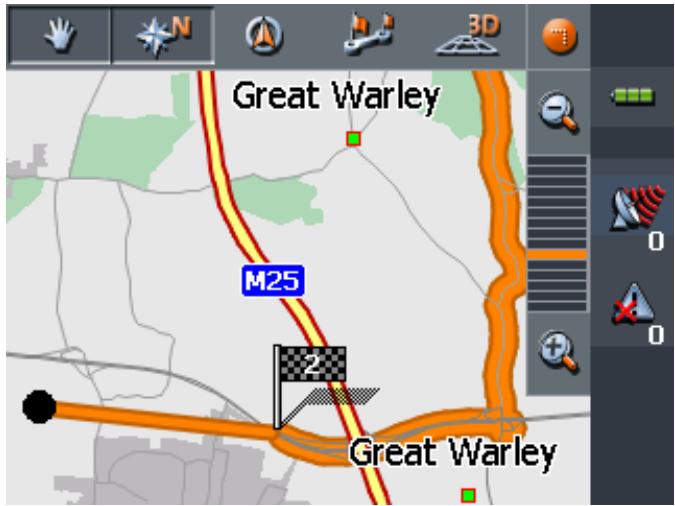
The destination is show by a coloured point. The little flag shows the nearest point on a street that is recorded in the map. Both points are linked by a coloured line.
The navigation can only take place up to the little flag.
Reaching the destination
As soon as you reach the position of the little flag, the message "You have reached your destination" is issued.
Instead of the map view so far, only your current position is now shown (green arrow).
If you now move outside the road network covered by the map, you can see from the changing position of the green triangle on the map whether or not you're moving in the direction of your destination.
No further messages are given when you reach your destination.
Note: The route to the actual destination can take place comfortably by navigating in linear distance mode.

To do this, select the destination coordinates from the RECENT DESTINATIONS (refer to "Recent destinations", page 51) and start navigating there with the route option Linear distance (refer to "Starting navigation in linear distance mode", page 72).
5.8 Starting navigation in linear distance mode

This function is only available in "Extended mode".
For information on how to change the user mode, please refer to "Changing the user mode", page 24.

Note: You can also navigate along the linear distance in
"standard mode". To do this, prior to entering the destination under CONFIGURATION - ROUTE OPTIONS you select the linear distance. Note however that, unless you change it, the setting is then valid for every subsequent navigation.
Refer to chapter "Settings" on page 100 for detailed information on changing the settings.
Precondition
You have entered a destination as described in "Indicating a destination", page 34,
-OR-
You have selected a destination from the FAVOURITES as described in "Favourites", page 49,
- OR -
You have selected one of your RECENT DESTINATIONS as described in "Recent destinations", page 51,
-OR-
You have planned or loaded an itinerary as described in "Indicating several destinations (Itinerary with stages)", page 55.
Extended mode
1. Tap Start navigation.
The ROUTE OPTIONS screen opens:
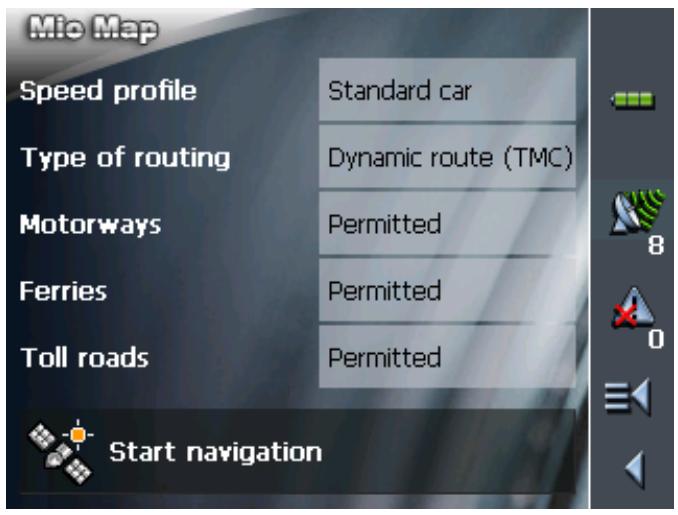
- TipTap on the Type of routing field and select the Linear distance entry.
No route calculation is carried out!
The map is displayed. Your current position is marked by a green triangle in a compass rose.
An arrow on the compass rose indicates the direction your destination is located in.
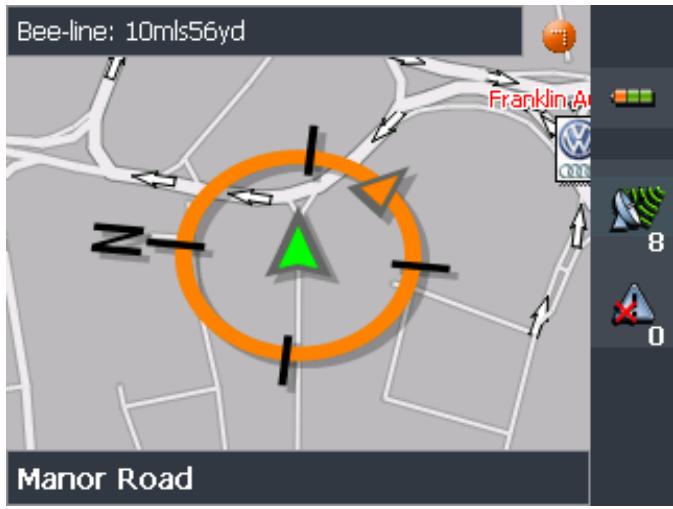

Note: When you start navigation after having planned or loaded an itinerary, then your current position is the start point of the route. The first indicated route point is then the first stage point of your route.
5.9 Bad GPS reception
No GPS reception?
When the received GPS signal is not sufficient, the following message appears:
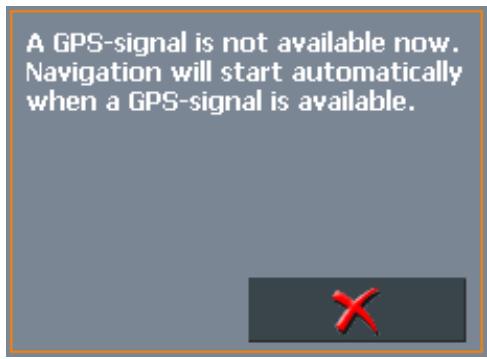
You have two possibilities:
Wait until navigation starts. This will happen as soon as the GPS reception is sufficient.
Tap Cancel and restart navigation as soon as the reception of GPS signals is convenient. You may notice that by watching the GPS symbol on the screen: it becomes GPS ready when the reception is good.
6 Working with the map
Topics covered in this chapter:
6.1 Selecting a map page 76
6.2 Operating the map page 77
6.3 Representation of the map in navigation mode page 82
6.4 Navigation in linear distance mode page 84
6.5 Displaying additional information on the map page 85
6.1 Selecting a map
Provided maps
There are additional maps included in the delivery on CD. In case you want to use one of these maps, copy it via a card reader to a memory card. Follow then the instructions given below in "Selecting a map".
Selecting a map
To load another map which is available on the currently inserted memory card, proceed as follows:
- If the desired map is on another memory card than the currently inserted one, open the MAIN SCREEN and tap the Quit button.
The initial Mio Technology screen opens.
1a Insert the memory card, which contains the map you want to work with.
1b On the initial Mio Technology screen, tap the Navigator icon to start MioMap.

Note: You need not execute steps 2 to 4 unless there is more than one map stored on the inserted memory card.
- On the MAIN SCREEN, tap the Select map button.
The AVAILABLE MAPS screen opens:

-
Tap the entry of the map you want to work with.
-
Tap

The selected map is now loaded. The MAIN SCREEN opens.
6.2 Operating the map
Survey
There are various pieces of information available on the MAP screen. Learn in this chapter about the possibilities for working with the map, which depend on whether you are in navigation mode or not.
Displaying the map
You may display the map
while planning an itinerary,
in order to show destinations on the map, or
in order to select destinations on the map.
Extended mode
In "extended mode", you may display the map
Via the Show map button on the MAIN MENU
Via the Select on map button on the DESTINATION screen
Via the Show on map button on the ADDRESS screen after having entered an address.
Standard mode
In "standard mode", you may display the map
Via the Show on map button on the ADDRESS screen after having entered an address.
The MAP screen opens.
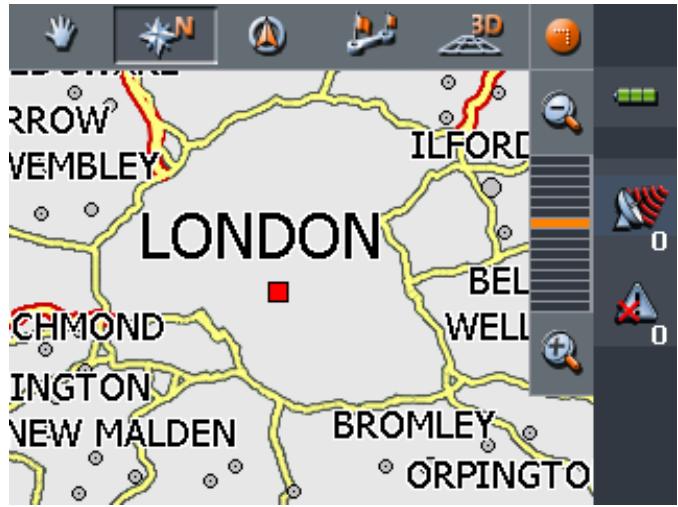
The map is being displayed automatically when you start navigating.
Tapping the map
Tapping short any place on the map makes the ADDITIONAL FUNCTIONS screen appear. Depending on whether you are in navigation mode or not this screen offers different functions.
Tapping long a certain place on the map (tap and hold) makes information on that place appear. You may then, e.g., take over the data for navigation purposes.

For details, please refer to "Indicating destinations on the map", page 47.
Icons
Survey
The Map screen disposes several icons which allow altering the representation of the map.

Hide/show icons
(When without GPS-reception)
This icon allows you to hide all other icons in order to see more of the map.

Tap this icon again to show the other icons.
(When with GPS-reception)
Automode
Tap this icon to display the standard representation of the map after you have modified the view.
The settings of north orientation and auto zoom mode will be applied. Your current position will be centred. The icons will not be displayed.
Freeze

For details, refer to "Automode", page 106.
This icon is activated in navigation mode only.
Tap the Freeze icon
to toggle between "Frozen map" and "Frozen position".
Frozen position (default)
This mode (button down) makes the map scroll continually. Your current position (green arrow) is always centred in the bottom third of the map.
Frozen map
This mode (button up) freezes the map. Your current position (green arrow) moves over the map and may even leave it.
This mode applies automatically when you scroll the map in navigation mode. Otherwise the system would always try to keep your current position in the bottom third of the map.
Select this mode when you want to select a destination from the map while navigation is in progress.
Zoom / Scroll
Map in driving direction/north oriented



Tap the Zoom/Scroll icon
to toggle between Zoom and Scroll mode.
Zoom
In Zoom mode (Button up) you may scale the map up or down. Zoom in by drawing a rectangle on the map, beginning with the upper left corner. Zoom out by beginning with the lower right corner.
Scroll
In Scroll mode (button down) you may scroll the map. Tap on the screen and drag to the desired direction.
Entire route
Tap the Itinerary icon to display the whole itinerary.
Tap the In driving direction/North oriented icon
to switch between the two available modes of map orientation. (North orientation / orientation in driving direction).
North orientation
Tap this icon (button down) to orientate the map north up.
Tap this icon (button up) to orientate the map in driving direction.
3D view
Tap this icon to display the map in 3D mode (bee flight view).
2D view
Tap this icon to return to the 2D mode (standard).
Zoom in
Tap Zoom in to scale the map down.
Zoom bar
Tap one of the zoom bar sections to modify the scale of the map.
Zoom out
Tap Zoom out to scale the map up.
Additional functions
Tapping short any place on the map makes the ADDITIONAL FUNCTIONS screen appear. Depending on whether you are in navigation mode or not this screen offers different functions.
The range of offered functionality depends also on whether you are working in standard or in extended mode.

For information on how to change the user mode, please refer to "Changing the user mode", page 24.
The ADDITIONAL FUNCTIONS screen opens:
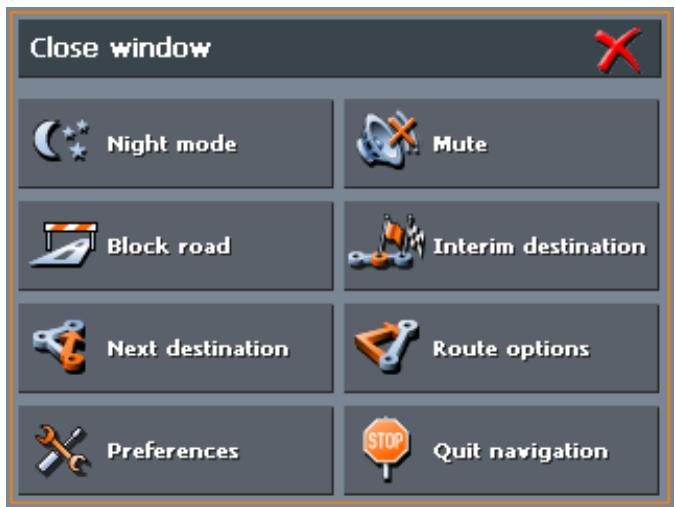

Tap this icon to toggle between "Day" and "Night" map view mode.

Tap this icon to switch the voice instructions on / off.
Preferences
Tap Preferences to display the SETTINGS screen. For details, please refer to "Settings", page 100.
Quit navigation
This function is only available in navigation mode. Tap Quit navigation to exit navigation mode.
Block road, Unblock
These functions are only available in navigation mode. For details, please refer to "Blocking a route section", page 94.

Set interim destination
This function is only available in navigation mode. Tap Set interim destination to add a new route point to your itinerary. The route will be recalculated and the newly added route point will be the first destination to navigate to. Navigation to the other route points will be executed later.

For details, please refer to "Adding a stage point during navigation", page 93.
Route options
This function is only available in navigation mode. Tap Route options to modify them.

For details, please refer to "Routing options", page 107.

Next destination
This function is only available when you are navigating a route with at least one stage point and when you are working in extended mode.
Use this function if you want to skip the next stage point.
Example: You have planned an itinerary from your office to "Company A" and then to "Company B" and you are already on your way. Before you arrive at "Company A", a mobile phone call informs you that you need not visit Company A.
Tap the Next destination button to navigate to the stage point after the next (here: "Company B").
The system recalculates the route. "Company B" will be your next destination.
If you have deactivated the automatic calculation to the next stage point in SETTINGS > ROUTE OPTIONS, you may use this function to start navigation to the next stage point.
Example: You have just reached a stage point. . Navigation to the next stage point does not continue automatically. The map is being displayed.
Tap the Next destination button to start navigation to the next stage point.

Refer also to "Next destination", page 93.
6.3 Representation of the map in navigation mode
In navigation mode, there is some assistance for navigation, some information on the itinerary and one more command button being displayed:
Assistance for navigation
The following assistance for navigation is being displayed at the left and at the bottom of the map:
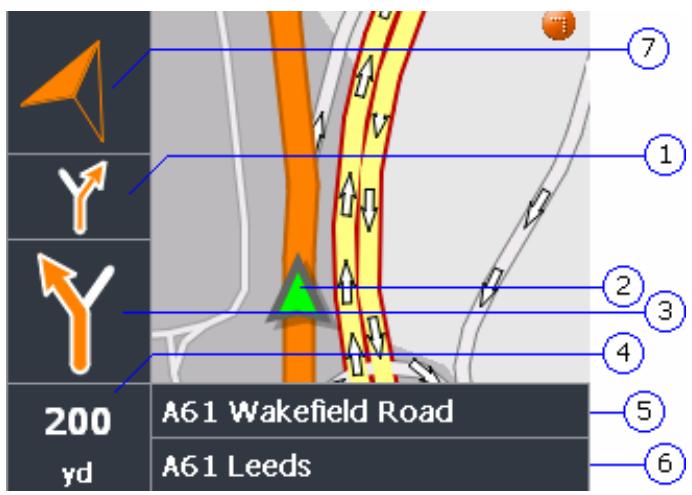
| Field | Information |
| ① | If there are two manoeuvres to be executed quickly one after the other, the small upper arrow field indicates the manoeuvre to be executed immediately after the next manoeuvre. |
| ② | The green arrow indicates your current position on the map. Since the displayed sector of the map changes continually your current position is centred on the map whenever possible (Moving Map). |
| ③ | The bigger arrow field indicates the next manoeuvre to be executed. |
| ④ | The distance field indicates the distance to the next manoeuvre. When you approach, the representations changes into a distance bar: The more yellow bars are displayed the nearer you are to the place where the next manoeuvre must be executed. |
| ⑤ | The upper street field indicates the name of the next street to turn on. |
| ⑥ | The lower street field indicates the name of the street you are currently on. |
| ⑦ | The destination direction arrow indicates in which direction your destination is located. This display is then particularly useful if you move outside of the road network included in the map material, perhaps in |
Information on the itinerary
a park.
Note: The destination direction arrow is then only available if you have selected in the ROUTE OPTIONS the speed profile Pedestrian.
For details, please refer to "Routing options", page 107.
At the right of the map, the following information on the itinerary is being displayed:
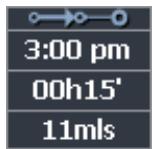
| Field | Information |
| ○→○ | This symbol means "itinerary". All information displayed below refers to the final destination. |
| ○→○-○ | This symbol means "stage". All information displayed below refers to the next stage point. |
| 3:00 pm | ETA (Estimated time of arrival). |
| 00h15' | Remaining time to arrival (estimated). |
| 11mls | Remaining distance to arrival (estimated). |
Signpost info
The upper part of the Map screen displays information on the signposts you have to follow:
M621 London
Speed limit

Note: This information can only be displayed when it is contained in the cartographic material.
The left part of the map screen shows possible speed limits:
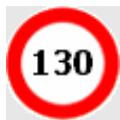
Possible restrictions of validity are shown beneath (e.g. on rain, on snow, at certain hours etc.):


Note: This information can only be displayed when it is contained in the cartographic material.

Caution: Information contained in the cartographic material can be wrong, e.g. due to road works.
Traffic situation and road traffic regulations are absolutely prior to the information given by the navigation system.

Tap this icon to repeat the last spoken instruction. All available information will be displayed.
The displayed information will be hidden after a few seconds.
6.4 Navigation in linear distance mode
If you have chosen the route type Linear distance from the ROUTE OPTIONS, the navigation takes place with minimum information.
As no route has been calculated, in linear distance navigation you cannot receive any driving instructions. Only the information is shown that is directly worked out from the received GPS data and the position of the destination.
The following information is displayed during navigation:
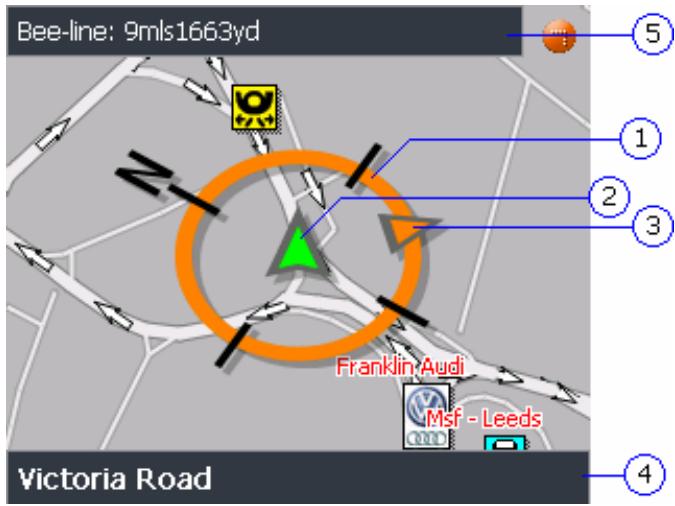
| Bereich | Information |
| ① | The green arrow indicates your current position on the map. Since the displayed sector of the map changes continually your current position is centred on the map whenever possible (Moving Map). |
| ② | The compass rose indicates the point of the compass. |
| ③ | The destination direction arrow indicates in which direction your destination is located. |
| ④ | The street field indicates the name of the street you are currently on. |
| ⑤ | The distance field shows the linear distance to the destination. |

Note: From the movement of the green triangle on the map you can ascertain if you are moving in the direction of your destination.
Note that no message is given when you have reached your destination. You can ascertain this only from the distance
information and the little destination flag.
If you navigate on a route with stages you can't automatically be forwarded to the next stage. To do this, briefly tap on the map and select the function Next destination.
6.5 Displaying additional information on the map

In MioMap you may determine which information is to be displayed on the map. Modifying any configuration begins on the SETTINGS screen.
Note: Note: The settings described in this chapter have no effect if you've chosen the route type Linear distance in the Route OPTIONS.
Configuring the display of additional information...
- Open the SETTINGS screen
by tapping the Settings button on the MAIN MENU,
or by tapping short into the map and selecting Preferences.
The SETTINGS screen opens.
- Select Map information using the arrow buttons:
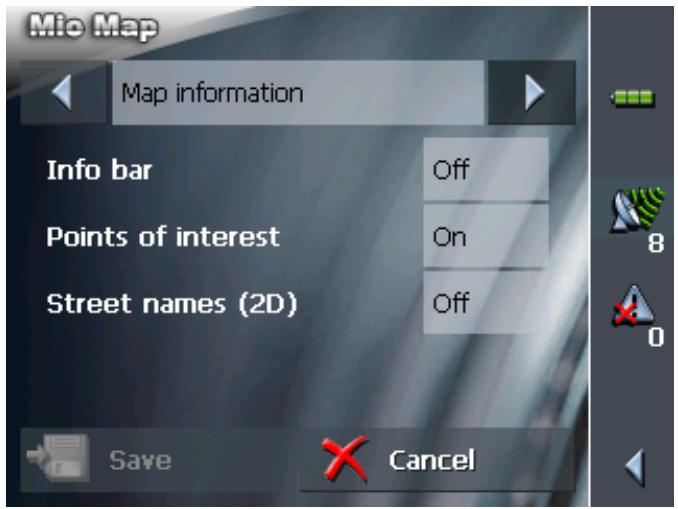
Info bar
The Info bar at the bottom of the map displays the height above sea level, the compass and the current speed.
- Tap the respective command button to display (On) or not (Off) the Info bar.
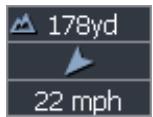
Points of Interest
Street names
- Tap the respective command button to display (On) or not (Off) Points of Interest on the map.
-
Tap the respective command button to display (On) or not (Off) Street names on the map.
-
Via the arrow buttons select Route information:
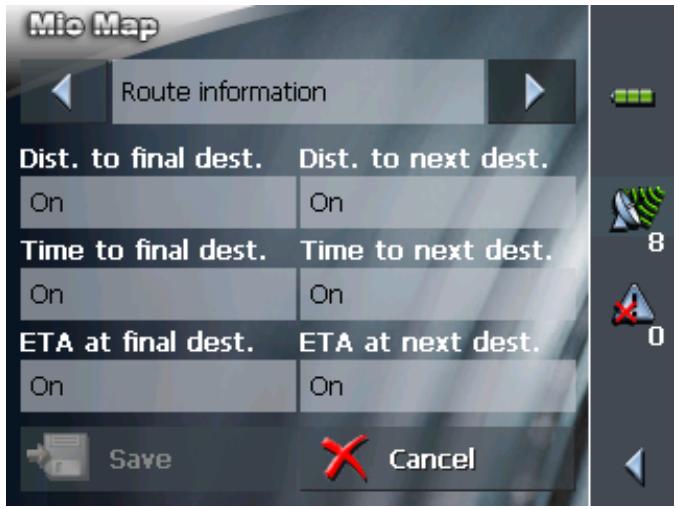
- Tap the command buttons to display (On) or not (Off) the respective information on the map.
The desired information on the entire itinerary (upper section) and on the current stage (lower section) will be displayed at the right hand side of the map.
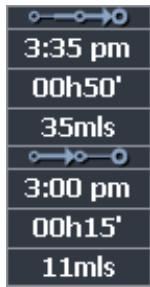
| Section | Information |
| ○→○ | This symbol means "itinerary". All information displayed below refers to the final destination. |
| ○→○→○ | This symbol means "stage". All information displayed below refers to the next stage point. This section is only available if you have indicated more than one destination to navigate to. |
| Line 2 | ETA (Estimated time of arrival). |
| Line 3 | Remaining time to arrival (estimated). |
| Line 4 | Remaining distance to arrival (estimated). |
- Via the arrow buttons select Signpost information.
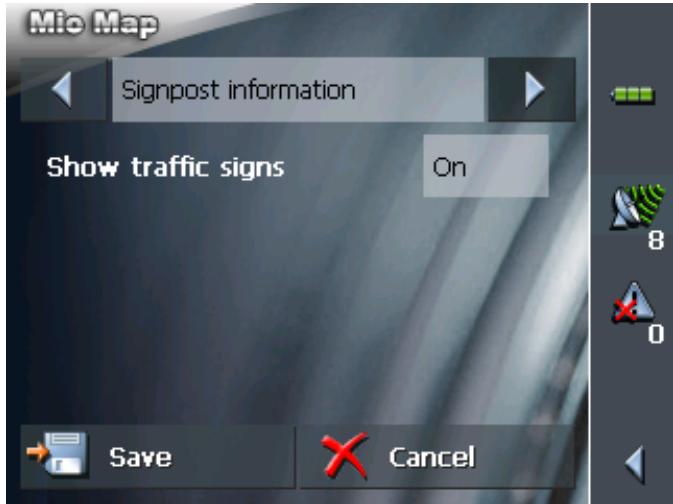
The Show traffic signs command indicates whether signposts indicating exits from motorways or highways are currently being displayed or not.
- Tap the Show traffic signs command to toggle between On and Off mode.
The new mode is now indicated on the button.
- Via the arrow buttons select Speed limit.
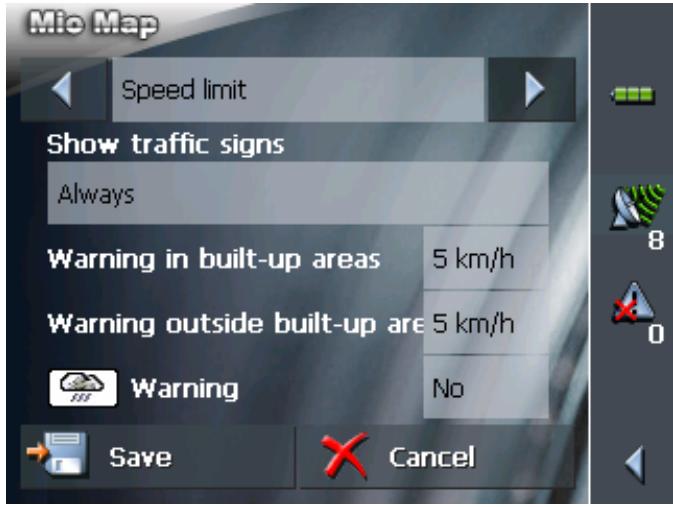
The SPEED LIMIT screen allows you to determine whether you want to display speed limits in navigation mode and whether you want to be warned acoustically on speeding.
| Setting | Significance |
| Show traffic signs | This command indicates whether signposts indicating speed limits are currently being displayed or not. Tap the Show traffic signs command and select whether speed limits should be displayed Always On speeding only or Never. |
| Warning in built-up areas | This command indicates from how much speeding on you want to be warned when driving within built-up areas. Tap the Warning in built-up areas command to select another value or to set it to Never. |
| Warning outside built-up areas | This command indicates from how much speeding on you want to be warned when driving outside built-up areas. Tap the Warning outside built-up areas command to select another value or to set it to Never. |
| Warning | This command indicates whether you want to be warned on speed limits that are valid on rain, on snow, or at certain hours. Tap the Warning command to set the value to Yes or to No. |
11. Tap Save to save the modifications.
The modifications will be taken over and displayed on the map.
7 Useful functions
Topics covered in this chapter:
7.1 Functions on GPS reception page 90 Saving the current position Setting the current position as home address
7.2 Functions in navigation mode page 93
Adding a stage point during navigation
Next destination
Blocking a route section
Using TMC functionality
Survey
Some of the functions described here are always available, others only on GPS reception, and others only in navigation mode.
7.1 Functions on GPS reception
Survey
GPS reception must be sufficient to determine the current position. The GPS symbol must be GPS ready.

7.1.1 Saving the current position
Survey
This function enables you to add the current position to the FAVOURITES. You may then at any time start navigation to this destination.
Saving the data of the current position...

- Tap on the
GPS ready symbol.
The GPS STATUS screen opens.
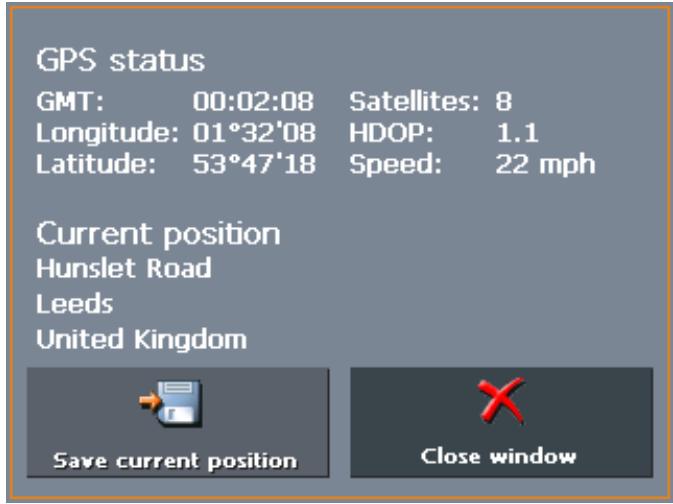
- Tap on the Save current position button.
The SAVE CURRENT POSITION AS ... screen opens.
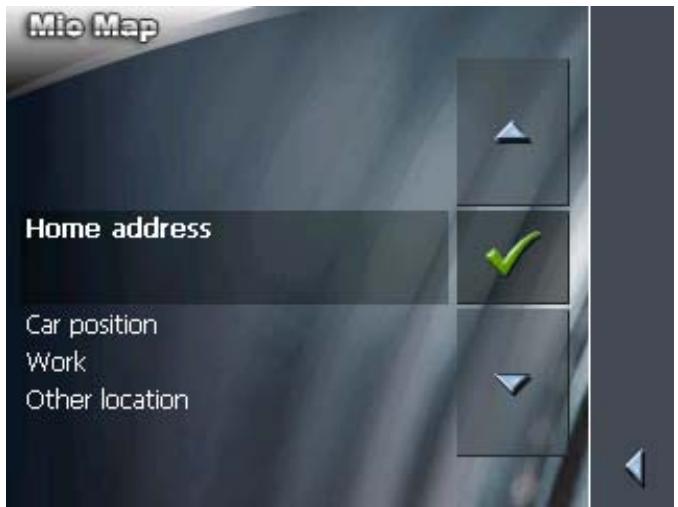
- You have the following possibilities:
Select Car position, if you've just parked and you'd like to save the position of your car under FAVOURITES.
Select Work, if you're at your place of work and wish to save this under FAVOURITES.
Select Other location, if you would like to save the current location under another name under FAVOURITES.
For information on Home address, please refer to "Setting the current position as home address", page 92 (next chapter).
The NAME OF DESTINATION screen opens.
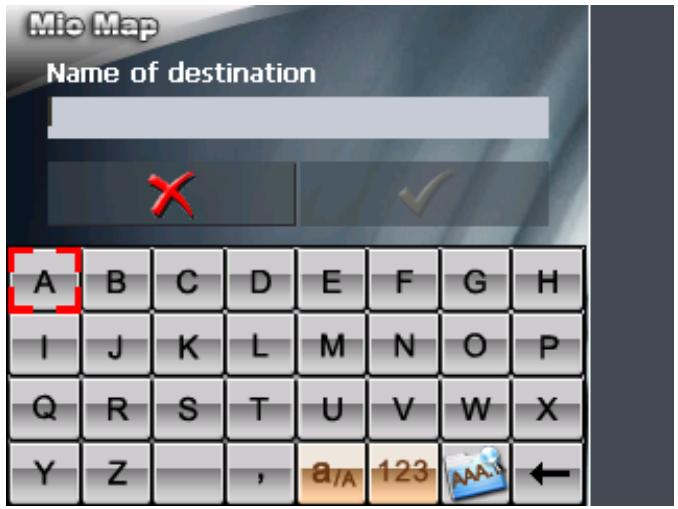
- Enter a name for the destination.
For information on the use of the keyboard, please refer to "Software keyboard", page 13.
Note: If you've chosen Car position or Work the name is already entered.
- Tap

The destination has now been added to the FAVOURITES.


7.1.2 Setting the current position as home address
Survey
This function enables you to set the current position as home address. You may then at any time start navigation to this destination by simply activating the Home button on the MAIN SCREEN.
Setting the current position as home address...

GPS ready symbol.
- Tap on the 8 GPS ready symbol.
The GPS STATUS screen opens.
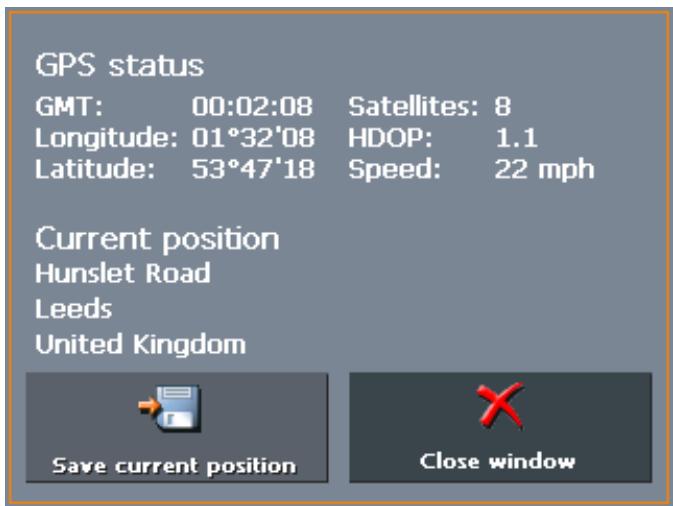
- Tap on the Save current position button.
The SAVE CURRENT POSITION AS ...screen opens.
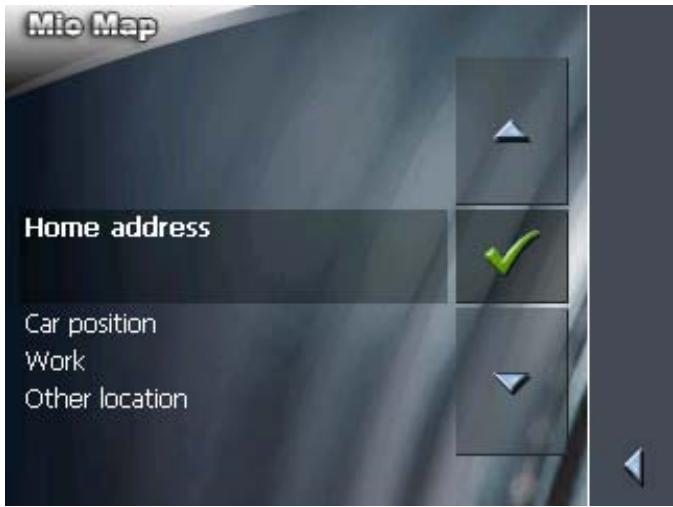
- Select Home address.
For information on Car position, Work and Other location, please refer to "Saving the current position", page 90 (previous chapter).

7.2 Functions in navigation mode
Survey
The following functions are only available in navigation mode.
7.2.1 Adding a stage point during navigation

This function is only available in "Extended mode".
For information on how to change the user mode, please refer to "Changing the user mode", page 24.
Adding a stage point during navigation...
At any moment during navigation you may add a new stage point to your itinerary. The route will be recalculated in order to make the new stage point the next destination to navigate to. The other remaining stage points will be navigated to after the new one.
Adding a stage point...
Precondition: The map is being displayed in navigation mode.
- Tap short on any place on the map.
- Tap Set interim destination
The DESTINATION screen opens.
- Indicate the new stage point as described in "Indicating a destination", page 34.
- Tap the Set as route point button.
The route will be recalculated in order to make the new stage point the next destination to navigate to.

Note: Select the new stage point directly on the map, just as described in "Indicating destinations on the map", page 47. Tap the respective place and hold. From the context menu, select Add as route point.
7.2.2 Next destination

This function is only available in "Extended mode".
For information on how to change the user mode, please refer to "Changing the user mode", page 24.
Next destination
This function is only available when you are navigating a route with at least one stage point.
Use this function if you want to skip the next stage point.
Example: You have planned an itinerary from your office to "Company A" and then to "Company B" and you are already on your way. Before you arrive at "Company A", a mobile phone call informs you that you need not visit Company A.
Tap short on the map and then on the Next destination button
to navigate to the stage point after the next (here: "Company B").
The system recalculates the route. "Company B" will be your next destination.
Next stage
If you have deactivated the automatic calculation to the next stage point in SETTINGS > ROUTE OPTIONS, you may use this function to start navigation to the next stage point.
Example: You have just reached a stage point. . Navigation to the next stage point does not continue automatically. The map is being displayed.
Tap short on the map and then on the Next destination button to start navigation to the next stage point.
7.2.3 Blocking a route section
Blocking a route section manually
You may block a route section manually in order to evade it. Manual blocking forces a recalculation of the route.
Presume that you are driving on a freeway and a radio message announces a traffic jam 4 miles ahead of your current position. With the "Block route sections" function you may instruct the navigation system to evade the announced traffic jam.
A manual blocking is only valid for the current navigation process. The respective route section will be unblocked for the next navigation or when you restart the software.
Blocking a route section...
Precondition: The navigation system is in navigation mode and the map is being displayed.
- Tap short on any place on the map.
- Tap Block road.
The BLOCKING screen opens.
- Enter how many miles (from your current position on) you want to block.
- Tap OK.
This forces a recalculation of the route. The indicated route section will be evaded. On the map, it will be highlighted in red.
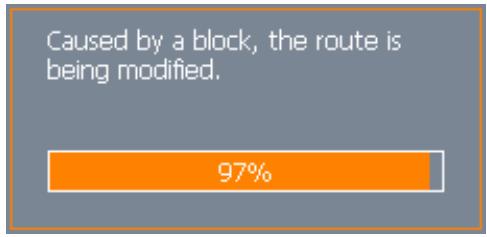
Unblocking a route section
- Tap short on any place on the map.
- Tap Unblock.
The route section is now unblocked. The navigation system uses the route, which had been calculated originally.
7.2.4 Using TMC functionality
TMC-receiver
A TMC-receiver provides the navigation system with the latest traffic information and enables dynamic route calculation in order to evade traffic jams and other obstructions. If you have connected a TMC-receiver, you may check traffic information with MioMap.

Note: This function cannot be used without an external TMC-receiver connected.
- Tap the TMC icon.
The TMC screen opens.
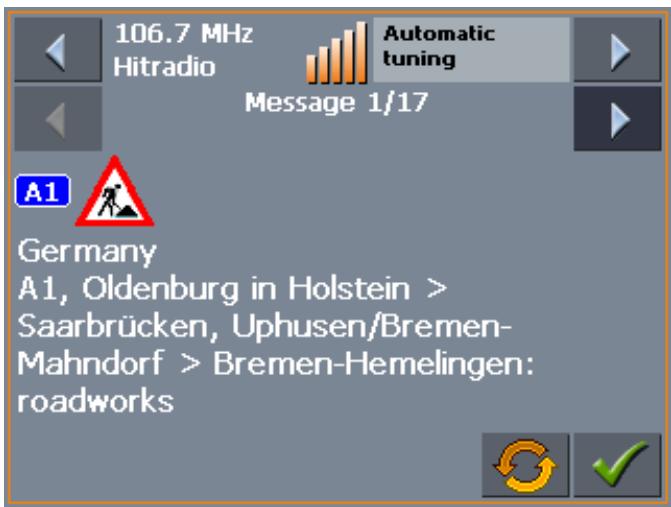
Displaying traffic information...
- Use the arrow icons of the "Messages" section to display the next / previous traffic message.
Every message contains the country, the name or number of the street (motorway, main road, country road), the concerned road section and the kind of obstruction.
Updating traffic information
- Tap the Update icon to display traffic information which has been received since the TMC screen has been opened.

Closing the TMC screen
- Tap the OK icon to close the TMC screen.

Considering TMC information for route calculation
Considering TMC information for route calculation
Configure the TMC settings to determine how TMC information concerning your route should be considered.
For details, please refer to "Settings", page 100
Automatic route modification
Precondition: You have selected "Route modification automatically" in the TMC settings (default).
If a reported obstruction concerns your route the system evades obstructions automatically.
The following message appears while the system calculates the deviation.
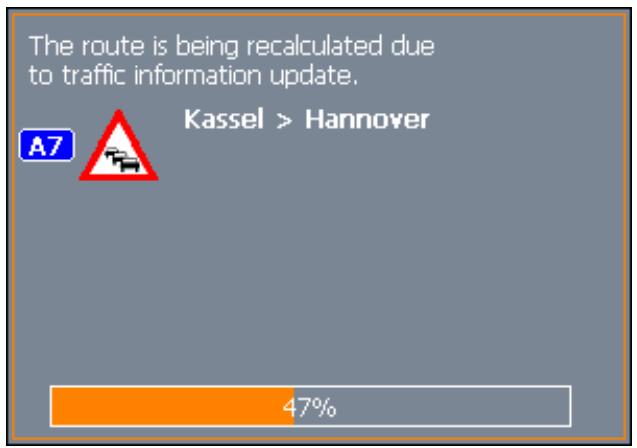
Route modification with confirmation
Precondition: You have selected "Route modification with confirmation" in the TMC settings.
The following screen informs you about a reported instruction concerning your route:
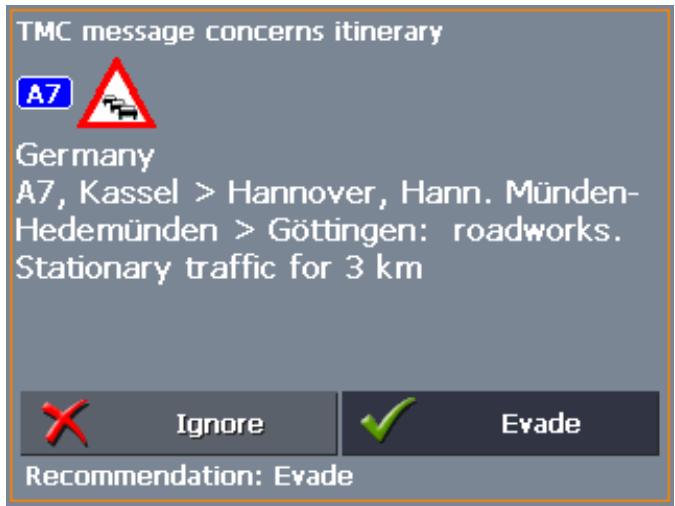
Evade
Tap the Evade button to evade the reported obstruction.
The route will be recalculated in order to evade the obstruction.
Ignore
Tap the Ignore button to ignore the reported obstruction.
Considering TMC information at a later moment

If you have selected "Route modification With confirmation", you may evade or ignore a reported obstruction at a later moment. Proceed as follows:
- Tap the TMC symbol.
The TMC screen opens:
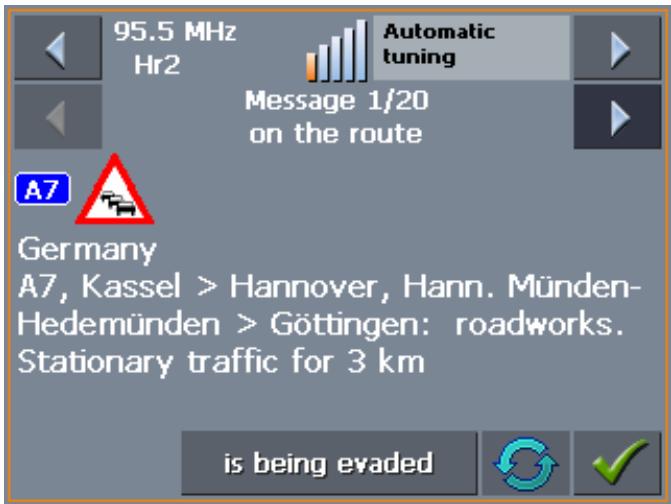

- Use the arrow icons of the "Messages" section to search for an obstruction concerning your route. These obstructions are labelled "on the route".
- Tap the Status button and select whether the respective obstruction is to be Evaded or Ignored.
- Tap the Done icon to update the route. The system recalculates the route if necessary.
Tuning
Tuning
- Tap the Tuning button to toggle between the Auto tuning, Hold station, and Frequency input modes.
Auto tuning
In Auto tuning mode, the TMC module searches continually for the station which is best received. The name and the frequency of the station are being displayed.
Use the arrow keys of the "Station" section to receive another station.
Hold station
As soon as another station has been found, its name and frequency are being displayed.
If you want to hold the sender which is currently being received, press straight on the centre of the cursor pad as often as necessary to display Hold station.
The TMC receiver holds now this station. Nevertheless, it changes the frequency when the same station is better received on another one.
The name of the station and the frequency on which it is currently being received are being displayed.
Frequency input
If you want to enter a certain frequency switch to the Frequency input mode.
Use the arrow keys of the "Station" section to modify the frequency in steps of 0.1 MHz.
If a station may be received on the currently tuned frequency its name is being displayed. The bars at the right of the frequency indicate the quality of reception.

Press the OK soft key to save the settings and to close the TMC INFORMATION screen.
8 Configuring MioMap
Topics covered in this chapter:
8.1 Settings
User mode
Map information
Route information
Signpost information
Speed limit
Volume
Representation
Automode
Routing options
Itinerary
Format
TMC
Home address
Handsfree options
Product information
page 100
8.1 Settings
Configuration
In MioMap, you may modify the following settings:
User mode, see page 101
Map information, see page 101
Route information, see page 102
Signpost information, see page 103
Speed limit, see page 104
Volume, see page 105
Representation, see page 105
Automode, see page 106
Routing options, see page 107
Itinerary, see page 108
Format, see page 108
TMC, see page 109
Home address, see page 109
Handsfree options, see page 109
Product information, see page 109
On the MAIN SCREEN, tap the Settings button to configure MioMap.
On the SETTINGS screen, tap the arrow icons to select the configuration you want to modify.
Tap the Save button to apply your modifications if you have made some.
8.1.1 User mode
User mode
On the USER MODE screen, you may effect the following modifications:
Your current user mode is indicated on the Current user mode field.
Tap Current user mode to switch to the other user mode.
The name of the user mode you want to switch to becomes the caption of the entry field.
Tap Save to save the changes.

Restoring the factory settings...
Note: When you switch to standard mode, a dialog window asks you whether you want to keep the configuration changes you have made in extended mode. This dialog window opens even when you have not made any configuration changes. Tap Yes.
- If you want to restore the factory settings, tap the Factory settings command.
- Confirm the restoration.
8.1.2 Map information

Info on the map
This function is only available in "Extended mode".
For information on how to change the user mode, please refer to "Changing the user mode", page 24.
On the MAP INFORMATION screen, you may effect the following modifications:
| Element | Signification |
| Info bar | The Info bar at the bottom of the map displays the height above sea level, the compass and the current speed. Tap the respective command button to display (On) or not (Off) the Info bar. 178yd 22 mph |
| Points of Interest | Tap the respective command button to display (On) or not (Off) Points of Interest on the map. |
| Street names | Tap the respective command button to display (On) or not (Off) Street names on the map. |
8.1.3 Route information

This function is only available in "Extended mode".
For information on how to change the user mode, please refer to "Changing the user mode", page 24.
Route info
On the ROUTE INFORMATION screen, you may effect the following modifications:
| Element | Signification |
| ETA at final dest. | ETA (Estimated time of arrival) at the final destination. |
| Time to final dest. | Remaining time to the final destination (estimated). |
| Dist. to final dest. | Remaining distance to the final destination (estimated). |
| Tap the respective command buttons to display (On) or not (Off) the respective information on the map. | |
| All information displayed below refers to the final destination. . | |
| 3:35 pm | |
| 00h50' | |
| 35mls | |
| ETA at next dest. | ETA (Estimated time of arrival) at the next stage point. |
| Time to next dest. | Remaining time to the next stage point (estimated). |
| Dist. to next dest. | Remaining distance to the next stage point (estimated). |
| Tap the respective command buttons to display (On) or not (Off) the respective information on the map. | |
| All information displayed below refers to the next stage point. | |
| 3:00 pm | |
| 00h15' | |
| 11mls | |
| This section is only available if you have indicated more than one destination to navigate to |
8.1.4 Signpost information
Signpost information
On the SIGNPOST INFORMATION screen, you may effect the following modifications:
The Show traffic signs command indicates whether signposts indicating exits from motorways or highways are currently being displayed or not.
Tap the Show traffic signs command to toggle between On and Off mode.
The new mode is now indicated on the button.

Note: This information can only be displayed when it is contained in the cartographic material.
8.1.5 Speed limit
Speed control
On the SPEED LIMIT screen, you may effect the following modifications:
| Setting | Significance |
| Show traffic signs | This command indicates whether signposts indicating speed limits are currently being displayed or not.Tap the Show traffic signs command and select whether speed limits should be displayedAlwaysOn speeding only or Never. |
| Warning in built-up areas | This command indicates from how much speeding on you want to be warned when driving within built-up areas.Tap the Warning in built-up areas command to select another value or to set it to Never. |
| Warning outside built-up areas | This command indicates from how much speeding on you want to be warned when driving outside built-up areas.Tap the Warning outside built-up areas command to select another value or to set it to Never. |
| Warning | This command indicates whether you want to be warned on speed limits that are valid on rain, on snow, or at certain hours.Tap the Warning command to set the value to Yes or to No. |


Note: This information can only be displayed when it is contained in the cartographic material.
Caution: Information contained in the cartographic material can be wrong, e.g. due to road works.
Traffic situation and road traffic regulations are absolutely prior to the information given by the navigation system.
8.1.6 Volume
Volume
On the VOLUME screen, modify the volume of the spoken indications of the navigation system.
Tap the Volume field and select another value.
8.1.7 Representation

This function is only available in "Extended mode".
For information on how to change the user mode, please refer to "Changing the user mode", page 24.
Representation
On the REPRESENTATION screen, you may effect the following modifications:
| Setting | Signification |
| Skin | Skins are made to personalize the user interface of MioMap. Tap the Skin field. Select one of the available skins and tap OK. |
| Brightness day | Tap this entry field and select a brightness degree (1 to 8) to adapt the brightness of the screen to daylight conditions. |
| Brightness night | Tap this entry field and select a brightness degree (1 to 8) to adapt the brightness of the screen to night conditions. |
8.1.8 Automode

This function is only available in "Extended mode".
For information on how to change the user mode, please refer to "Changing the user mode", page 24.
Auto mode
On the AUTO MODE screen, you may effect the following modifications:
| Setting | Signification |
| Begin with | Select the default map view: 2D or 3D. |
| 3D Autozoom | Select the default for navigation with 3D view: Autozoom or No Autozoom. With Autozoom, the system changes the scale of the map depending on your current speed: When you drive slowly, the scale becomes small. When you drive fast, the scale becomes high. The zoom depth does not change when navigating in linear distance mode. |
| 2D Autozoom | Select the default for navigation with 2D view: Low Autozoom, Standard Autozoom, High Autozoom, or No Autozoom. With Autozoom, the system changes the scale of the map depending on your current speed: When you drive slowly, the scale becomes small. When you drive fast, the scale becomes high. The lower the Autozoom, the lower the scale. The zoom depth does not change when navigating in linear distance mode. |
| 2D View | Select the default for navigation with 2D view: North oriented or In driving direction. |
8.1.9 Routing options
Routing options
On the ROUTING OPTIONS screen, indicate your speed profile. This entry will have an effect on the calculation of the remaining time and of the estimated time of arrival (ETA).
- Tap the Speed profile button. Select one of the available profiles and tap OK.
| Option | Meaning |
| Slow car | Car is standard for route calculation. The information slow, standard and fast is only important for calculating the estimated time of arrival. |
| Standard car | |
| Fast car | |
| Motorcycle | Small and average-sized country roads are preferred in order to calculate a route that's as winding as possible. |
| Lorry | Small country roads and main through roads should be avoided if possible. |
| Bike | Calculates the shortest route. The entries Type of routing and Motorways cannot be changed. |
| Pedestrian | As with bike. Also, traffic regulations that only apply to vehicles (one-way streets, no turning etc.) are not taken into consideration. The speech instruction is deactivated. |
- Tap the Type of routing field and select one of the following options:
| Option | Signification |
| Dynamic route (TMC) | This option is only available when a TMC receiver is connected. With this option, the quickest route will be calculated. Reported traffic obstructions on your route will be considered automatically. The Fast route is being calculated when TMC is not received. |
| Fast route | The quickest route will be calculated. |
| Short route | The shortest route will be calculated. |
| Linear distance | No route is calculated. The navigation takes place in linear distance mode. |

Note: If you've chosen the Linear distance entry, all other entry fields are deactivated. Information regarding the navigation in linear distance mode can be found under chapter "Navigation in linear distance mode" on page 84.
- Tap the Main through roads, Motorways, Ferries, and Toll roads fields successively and select one of the following options:
| Option | Signification |
| Permitted | The respective kind of street will be regarded for route calculation. |
| Avoid | The respective kind of street will be avoided if reasonable. |
| Forbidden | The respective kind of street will be disregarded for route calculation. (This option is not available for the Main through roads field) |
8.1.10 Itinerary

This function is only available in "Extended mode".
For information on how to change the user mode, please refer to "Changing the user mode", page 24.
Proceeding automatically to the next stage point...
On the I T I N E R A R Y s c r e e n, d e t e r m i n e w h e t h e r y u w a n t to navigate a t m o g a t a t i o n l y t o t h e n e x t s t a g e p o i n t a f t h e r h a v i n g reached a s t a g e p o i n t (Y e s) o r not (N o).
Tap the Proceed automatically to the next stage point button to toggle between Yes and No.
If you don't proceed automatically, you may proceed as follows:
- In navigation mode, tap short on any place on the map.
- Select Next destination.
8.1.11 Format
Units
On the FORMAT screen, determine which units are to be used for time and distance indications.
| Setting | Signification |
| Time | Tap the Time field to toggle between 12 hours (AM/PM) and 24 hours time format. |
| Distance | Tap the Distance field to toggle between kilometres or miles distance units. |
8.1.12 TMC
TMC
On the TMC screen, determine whether route modifications caused by TMC traffic information are to be carried out automatically or with explicit confirmation.
Tap the Route modification field to toggle between Automatically and With confirmation.
8.1.13 Home address
Home address
On the HOME ADDRESS screen, you may save your home address to quickly start navigation homewarrants from anywhere.
Tap Enter your home address.
The DESTINATION screen opens.
- Tap the Address button and enter your home address as described in "Entering an address", page 35.
- Tap the Set as home address button.
The address is indicated on the HOME ADDRESS screen.
8.1.14 Handsfree options

This function is only available in "Extended mode".
For information on how to change the user mode, please refer to "Changing the user mode", page 24.
Radio-Mute
On the HANDSFREE OPTIONS screen, you may activate the radiomute function if your hands-free kit is connected to the RADIO-MUTE jack of your car radio. Possible retardations of the hands-free kit will then have no negative effects on the spoken indications of the navigation system.
8.1.15 Product information
Product information
On the PRODUCT INFORMATION screen, the name and the version of the software are displayed.
Tap Show intro to make the system explain its most important functions.
9 Glossary
COM-port
A COM port is a connector to a communications interface, usually the serial port. The ports are numbered by a number behind "COM". A communications interface is designed to connect hardware like a mouse or a GPS receiver.
GMT
GMT (Greenwich Mean Time) is the mean solar time at the Royal Greenwich Observatory in Greenwich near London, England, which by convention is at 0 degrees geographic longitude. Theoretically, noon Greenwich Mean Time is the moment when the Sun crosses the Greenwich meridian (and reaches its highest point in the sky in Greenwich). Up to 1972, GMT was the global time standard. Because of the Earth's uneven speed in its elliptic orbit, GMT has been replaced by UTC (Universal Time Coordinated) which is an ultra stable time standard based on atomic clocks.
GPS
The GPS (Global Positioning System) is based on 24 satellites which are in orbit round the earth. They are permanently emitting the time and their current position. The GPS receiver receives this information and calculates the longitude and the latitude of its own current position.
The signals of at least three satellites are needed to determine the longitude and the latitude. With the signals of at least four satellites the elevation may be calculated, too. The determination has an accuracy of about 3 yards.
HDOP
The Horizontal Dilution of Precision (HDOP) indicates the quality of position determination. Theoretically any value from 0 to 50 is possible. The smaller the value is, the more accurate is the position determination (value 0 = no deviation from the actual position). Values up to 8 are convenient for street navigation.
POI
Point of Interest (POI). See Special destination.
RDS
Radio Data Signal (RDS) is a service offered by broadcasting stations. TMC information is broadcast via RDS.
Special destination
Special destinations, also called POI (Points of Interest), are covered by the map and may be displayed on it. Harbours, airports, restaurants, hotels, petrol stations, public buildings, and others belong to the special destinations. You may determine special destinations as itinerary points for navigation purposes.
TMC
Traffic Message Channel (TMC) supplies your navigation system with the latest traffic information. A TMC module which is available as accessory receives the signals which are broadcasted by radio stations.
10 Index
A
Additional functions 80
Assistance for navigation 82
B
Battery
Status. 16
Blocking. 94
C
Coordinates 44
Current position 82, 84
Customer Care. 5
D
Destination
Delete 55
Destination coordinates 44
Linear distance 72
Navigate to 68
Rename 54
Destination coordinates 44
E
Energy. 16
ETA (Estimated Time of Arrival) 102
Exit signposts 103
F
Favourites 49
G
GMT 15
GPS 8
GPSicon 15,17
Signals. 8
GPS receiver 28
On/Off 16
H
Hardware keys 12
HDOP 16
Home address 52, 109
1
Indication of destinations
Favourites 49
Home address 52
On the map 47
Points of interest 36
Recent destinations. 51
Saved destinations 49
Info bar 85, 101
Information
Itinerary. 83, 86
Stage. 83, 86
Interimdestination. 81,93
Itinerary 83, 86, 108
Itinerary planning. 55
K
Keyboard 13
L
Linear distance
Calculation 65
M
Main screen 29, 31
Map 77
2D view. 79
3D view. 79
Day/Night 80
Display. 30, 32, 77
Freeze 78
Hide/show icons 78
Info bar 85
Information 85
Itinerary. 79
Orientation 79
Points of Interest 85, 101
Route. 79
Scroll 79
Signposts 83
Speed limit 83
Street names 85, 101
Zoom. 79
Zoom in 79
Zoom out 79
MioMap
Quit 30, 32
Start 29
N
Navigation
Linear 72
Proceed automatically 108
Quit 80
start 68
Nextdestination. 94
P
POI 36
Points of interest 36
In certain town. 41
Nationwide 43
Nearby 37
Points of Interest 85, 101
Position
Freeze 78
Save 90
Set as home address. 92
Proceed automatically. 108
R
RDS 8
Recent Destinations 51
Remaining distance 102
Remaining time. 102
Route information 82
Route options 69, 70, 72, 81
Route planning 55
Route point
Skip 93
Route section
Block 94
Unblock. 95
Routing options. 107
s
Screen
Additional functions 80
Configuration 100
Destination 35
Destination coordinates 45
Favourites 50
Itinerary planning 56
Point of interest 37
Recent destinations. 51
Settings 100
Search facilities 4
Security information 9
Service 5
Settings
Auto mode. 106
Exit signposts. 103
Format 108
Home address 109
Info on the map 101
Itinerary. 108
Itinerary info. 102
Representation 105
Route info. 102
Routing options 107
Signposts 103
Speed control. 104
Speed profile. 107
TMC 109
User mode 101
Volume 105
Signposts 83,103
Skins 105
Software-keyboard 13
Speed control 104
Speed limit 83
Speed profile 107
Stage 86
Stage point 93
Nextdestination 94
Skip 93
Street names. 85, 101
Support 5
T
Time of arrival 102
TMC 8,95,109
Tuning 98
U
Units 108
V
Voice command. 80, 84
Volume 105
Z
Zoom bar 79