
GOPAL NAVIGATOR 2.3 ME - Gps MEDION - Free user manual and instructions
Find the device manual for free GOPAL NAVIGATOR 2.3 ME MEDION in PDF.


| Product type | Car navigation GPS |
| Brand | MEDION |
| Model | GOPAL NAVIGATOR 2.3 ME |
| Dimensions (approx.) | 12 cm × 8 cm × 2 cm |
| Weight (approx.) | 150 g |
| Power supply | Integrated rechargeable battery, 12 V adapter (cigarette lighter) |
| Screen type | Touchscreen LCD 320 × 240 pixels |
| Main functions | GPS navigation with voice and visual guidance, route calculation, points of interest search, favorites, last destinations |
| Mapping | Pre-installed digital maps (country supplied), possibility to add additional maps via memory card or CD |
| Map update | Transfer .psf files to memory card or internal memory via PC and ActiveSync |
| Route calculation modes | Car, bike, pedestrian; optimization by time or distance; economical option; avoid tolls, highways or ferries |
| Map display | 2D or 3D, north or heading up orientation, automatic day/night mode |
| Driving information | Estimated arrival time, remaining time, remaining distance, average speed, total distance |
| Destination storage | Favorites (customizable), last destinations, save current position |
| Route planning | Up to 5 destinations, customizable starting point, GPS off possible |
| Languages | Multi-language (selectable in settings) |
| Settings | Volume, brightness, touch screen calibration, standby, restore factory settings |
| Maintenance and cleaning | Clean with a soft dry cloth; avoid abrasive products |
| Safety | Do not use while driving; obey traffic laws; do not obstruct view; metallic windshields may reduce GPS reception |
| General information | User manual available for PDF download; support via online user questions |
Frequently Asked Questions - GOPAL NAVIGATOR 2.3 ME MEDION
User questions about GOPAL NAVIGATOR 2.3 ME MEDION
0 question about this device. Answer the ones you know or ask your own.
Ask a new question about this device
Download the instructions for your Gps in PDF format for free! Find your manual GOPAL NAVIGATOR 2.3 ME - MEDION and take your electronic device back in hand. On this page are published all the documents necessary for the use of your device. GOPAL NAVIGATOR 2.3 ME by MEDION.
USER MANUAL GOPAL NAVIGATOR 2.3 ME MEDION
1.1 Important information 5
1.2 Alternative installation of navigation software from a memory card 5
1.3 Further map material 5
1.4 Transferring map material to a memory card 6
1.5 Transferring installation files and map material to the internal memory 6
2 Operating the navigation software 7
2.1 Symbols 8
2.2 Map 9
2.3 Destination 10
2.3.1 Enter new destination 10
2.3.2 Search for 11
2.3.3 Favourites 11
2.3.4 Last locations 11
2.3.5 Route options 11
2.3.6 Add location to favourites 12
2.3.7 Show location 12
2.3.8 Calculating the route 12
2.3.9 Quick search 12
2.3.10 Area search 12
2.3.11 Route planning 13
2.3.12 Save current position 13
2.3.13 Stored locations 13
2.4 Route 14
2.4.1 Go to 14
2.4.2 Change route 14
2.4.3 Directions 14
2.4.4 Route options 14
2.4.5 Stop route guide 14
2.5 View 15
2.5.1 2-D or 3-D map 15
2.5.2 Turn icon view 15
2.5.3 Compass 15
2.5.4 Journey info 16
2.5.5 Other Applications 16
2.6 Settings 16
2.6.1 Settings for the unit 16
2.6.2 Display 17
2.6.3 Volume control 17
2.6.4 Language 17
2.6.5 Keyboard selection 17
2.6.6 Map selection 18
2.6.7 Preferred petrol stations 18
2.6.8 Quick search category 18
2.6.9 Info 18
3 Further notes 19
3.1 Liability 20
3.2 Trademarks 20
1. Starting up
This chapter contains information about the following subjects:
1.1 Important information
1.2 Alternative installation of navigation software from a memory card
1.3 Further map material
1.4 Transferring map material to a memory card
1.5 Transferring installation files and map material to the internal memory

1.1 Important information

For safety reasons, the driver must not make entries whilst driving. The instructions issued by the navigation system are recommendations. The road traffic regulations must be observed in all cases.

Thermally insulated glass or windscreens with metallic coating reduce the GPS reception a lot. Usually this type of coating is omitted at a special place behind which the navigation unit can be fitted. If that is not the case, a commercially available GPS aerial has to be fitted outside, e.g. on the roof of the vehicle.

1.2 Alternative installation of navigation software from a memory card
The software for your navigation system can also be directly installed from an appropriately prepared memory card. Preinstalled software may have to be de-installed first (see device manual).
On first-time set-up you will be requested to install the navigation software. Please proceed as follows:
a. Carefully remove the memory card from the packaging. Please take care not to touch contacts or allow them to become soiled.
b. Insert the memory card in the SD/MMC slot until it clicks into place.
c. Click OK to install the application.
Once all data has been copied to your navigation system, the main window will be displayed in which you can now perform the navigation settings.
Note

Please take note that a valid GPS signal must be received and the time zone needs to be set after the installation of the software, so that the correct arrival time can be calculated in future route calculations.

1.3 Further map material
Your navigation system is already supplied ex works with a digitalised map of your country in its internal memory. Further digitalised maps may be added to those in the internal memory. Depending on the version, further digitalised maps will be featured on your CD. These maps may be immediately transferred to a memory card whereby the use of an external card reader is recommended (see device manual).
Depending on the extent of the map material, memory cards with 256 MB,512 MB,1,024 MB or larger are required.
Note

Please note that some of the devices do not include memory cards in the delivery. In these units the installation and map files have already been loaded. The installation will run automatically.
Additional memory cards (MMC or SD cards) are stocked by specialist stores.

1.4 Transferring map material to a memory card
Transferring further map material to a memory card is best performed via your PC explorer. Please proceed as follows:
a. Insert the CD with the required map material.
b. Open your workplace and select your CD drive.
c. Copy the file with the .psf extension from the directory of the region you require from the CD to the directory MapRegions on your memory card.
You can transfer several files of map material to your memory card, depending on the size of the latter. Please hereby ensure that there is sufficient storage space on your memory card.
If you have copied digitalised maps of several countries or country groups to your memory card, you must select the required country map in the navigation application of your device.

1.5 Transferring installation files and map material to the internal memory
Your device features an internal, non-volatile memory Contained in the \My Flash Disk folder. Via ActiveSync® you can use the Search option to display this and further folders. Manipulations to folders and files can be performed as in an explorer.
The necessary folders must be created to make installation files and map material available to the device.
Create the INSTALL folder (\My Flash Disk\INSTALL) for the installation files. Store map material in the MapRegions (\My Flash Disk\MapRegions) folder. On naming folders please observe the writing forms specified above.
Should additional data be stored on your navigation device, please note that sufficient capacity must be available on transferring data. If this is not the case, remove files that are not required.
Note

The navigation system must be linked to the computer via ActiveSync (see device manual) for data transfer.
2. Operating the navigation software
This chapter contains information about the following subjects:
2.1 Symbols
2.2 Map
2.3 Destination
2.4 Route
2.5 View
2.6 Settings

2.1 Symbols
Symbols in menus

Use this symbol to access the menu bar.

Use this symbol to access the View menu.

Use this symbol to access the Destination menu.

Use this symbol to access the Route menu.

Use this symbol to access the Settings menu.

Use this symbol to access the Help menu.

Use this symbol to access the previous screen.

Use this symbol to confirm the entry and move to the next screen.

Use this symbol to exit the navigation software.
Symbols on map

Press this symbol to access the compass.

This symbol dispays the battery status of the device.

Use this symbol to check GPS signal quality and by clicking on the symbol you can change to Compass view.

2.2 Map
The map view contains the following information:
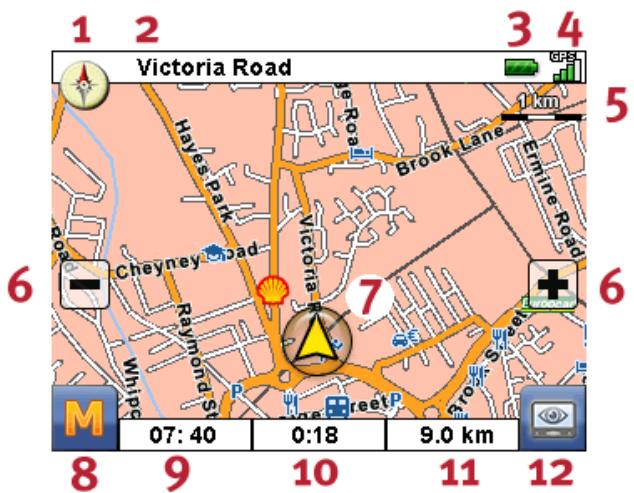
Resolution: 320 × 240 pixels
1 Compass
7 Your current position
2 Road you are currently travelling on
8 Main menu/Autozoom
3 Display of the battery status
9 Estimated arrival time
GPS reception quality
10 Remaining time to travel
5 Scale
11 Remaining distance to the destination
6 Zoom
12 View
1) During a manoeuvre distance and turn-off info are additionally displayed.
2) After zooming in or out, you can use this switch to reactivate Autozoom.
You can select a destination directly from the map. Touch the area of the map that you want to go to. If your desired destination is not in the area touched, you can use the menu bar at the bottom of the screen to switch to further areas nearby.
Use this to navigate to the previously marked section of the map.
Use this to navigate to the next marked section of the map.

Use this to select the marked area as your destination.

2.3 Destination
After starting the navigation software you can plan your route and drive off immediately after entering the destination.

2.3.1 Enter new destination
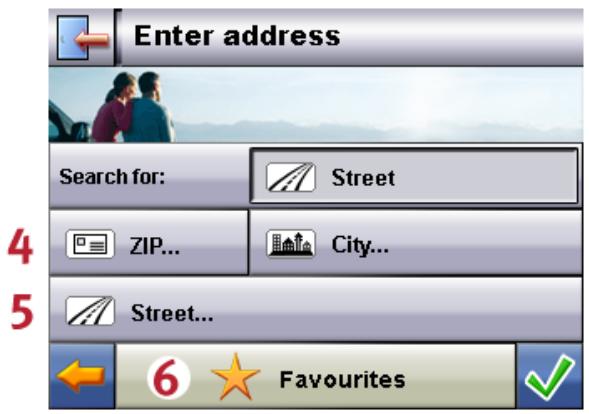
Resolution: 320 × 240 pixels
1
2
3
1 Select one of the last chosen destinations
4 Enter the postcode
2 Selecting a search category (roads or special places)
5 Enter street name or house number
3 Enter town or select country
6 Select a destination from the favourites
1) When you have selected a special place (e.g. hotel) under search category, the input boxes Street and House number are replaced by the input box Name.
Note

You can search for a place using the postcode and/or the town/city. In order to further specify the search you can enter the street and house number. If it is possible to take the house number into consideration when calculating the route, this will be indicated in the
Detailed informationen view. You can also reach the town centre without giving a street name, or reach the middle of a street without giving a house number.
When searching for a special place (e.g. a petrol station), entering the name will allow a more detailed search.
Use the keyboard to enter your destination address. The navigation software automatically completes the address when searching for a destination. After entering just a few characters, you will be shown
the three best results along with the list of all possible results. If the place you are looking for does not appear on the list, you may have to enter more detailed information for the address.

2.3.2 Search for
You can use the search category to determine the type of destination. By default, the program will search for the road/street of the entered address. But you can also select a different category and search for special places such as hotels, airports or petrol stations in a certain town.

2.3.3 Favourites
This is a list containing those destinations you have saved and that you require more frequently.

2.3.4 Last locations
The last used destination locations are saved in chronological sequence and can be reactivated as destination using this option. The last three can be selected directly from the address field, all other previous locations can be accessed via Last locations.

2.3.5 Route options
Before calculating the route you can determine the route options in the detailed information of the destination. You can use the route options to determine the way you are guided to your destination.

Route calculation and guide optimised for motor vehicles (standard option)

Route calculation and guide optimised for cyclists (possible up to a radius of 50~km )

Route calculation and guide optimised for pedestrians (possible up to a radius of 50~km )

The optimisation of the calculated route is based on the time factor (standard option).

The optimisation of the calculated route is based on the length of the journey.

Economic route: a combination of short and fast route

Toll roads are included in the route calculation (standard option).

Toll roads are avoided in the route calculation.

Motorways are included in the route calculation (standard option).

Motorways are avoided in the route calculation.

Ferries are included in the route calculation (standard option).

Ferries are avoided in the route calculation.

2.3.6 Add location to favourites
You can choose this option in the detailed information in order to save the displayed location in the favourites.

2.3.7 Show location
You can use this option to have the location displayed in the map beforehand.

2.3.8 Calculating the route
Once you have checked the destination details and selected the route options according to your preferences, you can start the route calculation. The calculation can only be done when the unit works without any faults. Faults are identified as follows:
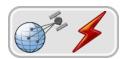
The GPS reception is faulty. Your current location can therefore not be determined.

2.3.9 Quick search
Using the quick search you can look for items in a pre-set search category (e.g.: hotels, airports or petrol stations).

2.3.10 Area search
You will be offered special places near your current location for your selection. For the identified places, the device will also display the distance as the crow flies.
Note

At first, the navigation software will search within a smaller radius. If this does not yield any results, the search is extended to a larger radius. This may cause a time delay in certain circumstances.

2.3.11 Route planning
Using this option you can plan a route (e.g. the day before going on holiday) by entering the starting point and destination, even while the GPS receiver is switched off. You can also enter multiple destinations, which are navigated one after the other.

Your starting point (as standard, the last known position is used)

You can add up to 5 destinations.

Move the selected destination upwards.

Move the selected destination downwards.

Delete a destination.

Here, you can change the starting point of your route

or adapt the route in terms of the entire journey.

After planning the route you can call up the planned route in the map view using the function Start routing. For this purpose, the GPS receiver needs to receive a signal.

2.3.12 Save current position
You can use this function to save your current position as favourite. However this will only work if you receive a GPS signal with your navigation device.

2.3.13 Stored locations
Using the Stored locations function you can rename or delete your personal favourites, or delete the last destination visited or all previous destinations.

2.4 Route
Once the route has been calculated successfully, you will be guided to the specified destination with the help of acoustic and visual instructions.
The following functions can be used during navigation:

2.4.1 Go to ...
When navigating or after planning a route you can change your view here to see an overview of your route or your destination area or return to your current location or, if planning a route, your starting point.

2.4.2 Change route
You can change your current route as described in Section 2.3.11, "Route planning".

2.4.3 Directions
The description of the route tells you what roads to take in order to reach your destination. In addition, border crossings into other countries are marked. The route description is only available once you have calculated a route.

2.4.4 Route options
You can also change your route options during navigation in order to influence the way that you reach your destination (see Section 2.3.11, "Route planning").

2.4.5 Stop route guide
Use this function to terminate the current routing and delete the route from the memory.

2.5 View
You can switch between various views when navigating:

2.5.1 2-D or 3-D map
Here you can change quickly between a 2-D and 3-D view of the map.

2.5.2 Turn icon view
The turn icon view contains the following information:
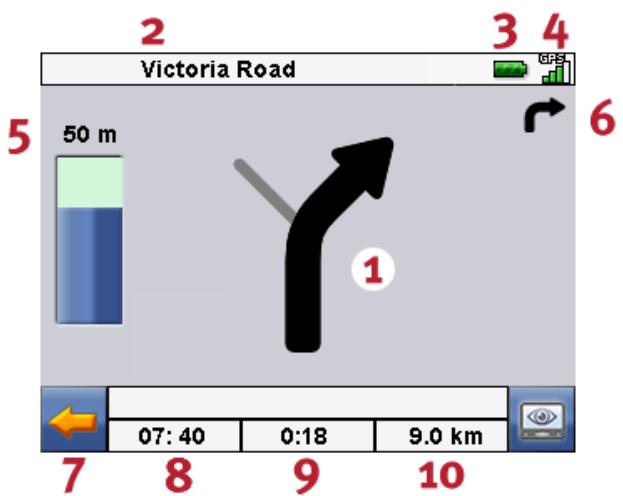
Resolution: 320 × 240 pixels
1 Next manoeuvre
6 Preview of next manoeuvre
2 Road you are currently travelling on
7 Use this symbol to access the previous screen.
3 Display of the battery status
Estimated arrival time
GPS reception quality
9 Remaining time to travel
5 Distance to the next manoeuvre
10 Remaining distance to the destination

2.5.3 Compass
In the compass you can read the speed, the current longitude and latitude as well as the GPS reception quality (HDOP value). The direction of travel is displayed reliably from a speed of approximately 3 mph.
In addition, after a GPS signal has been received once the GPS time will be displayed in Greenwich Mean Time (GMT).

2.5.4 Journey info
In this option you can view information on your current route, such as average speed, total journey time elapsed or total distance covered.

2.5.5 Other Applications
If your navigation system has other applications, these can be started directly from the navigation software.

2.6 Settings
It is possible to configure the navigation software individually using a number of setting options.

2.6.1 Settings for the unit
The following settings can be adjusted on your unit:

In order to save electricity, you can use this input template to select periods for mains and battery operation, after which the unit will switch off.

In this view you can see the charging status of the battery of your unit and also whether charging is in progress.

In this settings template you can re-calibrate the touch screen when this does not react accurately to the touch. For calibration, a cross appears in the middle of the screen. After pressing this cross it will move on across the screen. Keep pressing the cross until it is back in the centre of the screen. By pressing the touch screen again, the calibrated setting will be adopted. If you do not confirm the calibration, the view will be quit after a pre-selected period without changes.

Use this to adjust the sound volume of your unit (e.g.: key clicks).

This can be used to adjust the brightness of the screen.

Restore factory settings

2.6.2 Display
You have the following options for the display:

The map is displayed in north orientation or in the direction of travel, depending on the scale of the map (2D-map view).

The map always turns according to the direction of travel (2D-map view).

The map is displayed in north orientation (2D-map view).

The 3D map is always displayed in the direction of travel. The zoom function remains active in the 3D map, but it is no longer possible to move the map.

Display of the map view with daylight optimised design.

Display of the map view with darkness optimised design.

The design of the map is adjusted to daylight or darkness, depending on the time of day.

During the manoeuvre the map changes automatically into arrow view. After the manoeuvre the display changes back to map view.

Map view remains on display also during a manoeuvre. A small version of the manoeuvre arrow appears on the map.

2.6.3 Volume control
Use this to adjust the sound volume of the acoustic instructions issued by the navigation software. Adjust the system volume in the settings of the device under Settings.

2.6.4 Language
If your navigation device has several languages installed, you can use this to select another language. After the selection, the device reboots and uses the language selected by you.

2.6.5 Keyboard selection
Here you can choose between the standard keyboard and the telephone keypad.

2.6.6 Map selection
If you have installed more than one map area on your memory card, you can select an area here.

2.6.7 Preferred petrol stations
Enter your preferred brands of petrol here. This is particularly useful if you have a loyalty card for a particular brand of petrol and want this brand of petrol station to be shown first when searching for one.

2.6.8 Quick search category
Here you can determine search categories in the quick search for a specific place (e.g. a petrol station).

2.6.9 Info
This contains information about the software and map versions.
3. Further notes
This chapter contains information about the following subjects:
3.1 Liability
3.2 Trademarks

3.1 Liability
The software and the manual are subject to change without notice. MEDION AG may not be liable for the correctness of the information contained in this manual nor for damages resulting from the use of this manual.
To improve the quality of our products and our services, we appreciate all suggestions or improvement and all error notices.

3.2 Trademarks
All brands and trademarks mentioned in this document are possibly registered by third party and subject to the current legislation and to the rights of their respective owners without reservation. All mentioned names of products, societies, or brands may be registered trademarks of their respective owners. Every right that is not explicitly accorded is reserved.
The absence of an explicit labelling of registered trademarks does not allow the conclusion that this brand was not subject to the rights of third party.
Windows® and ActiveSync® are registered trademarks of the Microsoft® Corporation.
- Operating the navigation software 7
- Route 14
- View 15
- Settings 16
- Further notes 19
- Starting up
- Important information
- Alternative installation of navigation software from a memory card
- Note
- Further map material
- Transferring map material to a memory card
- Transferring installation files and map material to the internal memory
- Operating the navigation software
- Symbols
- Symbols in menus
- Symbols on map
- Map
- Destination
- Enter new destination
- Search for
- Favourites
- Last locations
- Route options
- Add location to favourites
- Show location
- Calculating the route
- Quick search
- Area search
- Route planning
- Save current position
- Stored locations
- Route
- Go to ...
- Change route
- Directions
- Route options
- Stop route guide
- View
- 2-D or 3-D map
- Turn icon view
- Compass
- Journey info
- Other Applications
- Settings
- Settings for the unit
- Display
- Volume control
- Language
- Keyboard selection
- Map selection
- Preferred petrol stations
- Quick search category
- Info
- Further notes
- Liability
- Trademarks
Brand : MEDION
Model : GOPAL NAVIGATOR 2.3 ME
Category : Gps