DIGITAL CAMERA LIFE E42001 MD 85962 - Digital Camera MEDION - Free user manual and instructions
Find the device manual for free DIGITAL CAMERA LIFE E42001 MD 85962 MEDION in PDF.


| Product type | Digital camera |
| Brand | MEDION |
| Model | DIGITAL CAMERA LIFE E42001 MD 85962 |
| Power supply | 2 AA alkaline batteries |
| Maximum resolution | 12 megapixels |
| Flash | Built-in flash |
| Screen | LCD screen |
| Optical zoom | 3x |
| Focus | Automatic |
| Recording mode | Photo and video |
| Storage | Memory card (SD type) |
| Connections | USB, video output |
| Tripod mount | Yes |
| Self-timer | Yes |
| Supported languages | French, German, English |
| Dimensions (W x H x D) | 95 x 62 x 28 mm |
| Weight (with batteries) | 130 g |
| Operating temperature | 0°C to 40°C |
| Included accessories | Strap, batteries, USB cable |
| Warranty | 2 years |
| Care and cleaning | Clean with a soft, dry cloth |
| Safety | Do not expose to moisture or shocks |
| Spare parts and repairability | Contact MEDION after-sales service |
Frequently Asked Questions - DIGITAL CAMERA LIFE E42001 MD 85962 MEDION
User questions about DIGITAL CAMERA LIFE E42001 MD 85962 MEDION
0 question about this device. Answer the ones you know or ask your own.
Ask a new question about this device
Download the instructions for your Digital Camera in PDF format for free! Find your manual DIGITAL CAMERA LIFE E42001 MD 85962 - MEDION and take your electronic device back in hand. On this page are published all the documents necessary for the use of your device. DIGITAL CAMERA LIFE E42001 MD 85962 by MEDION.
USER MANUAL DIGITAL CAMERA LIFE E42001 MD 85962 MEDION
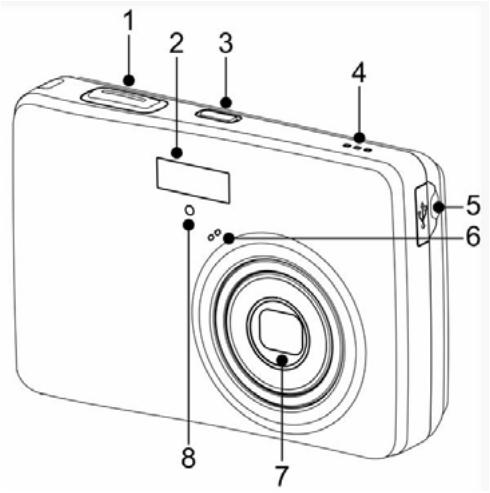
1.Shutter Button
2. Flash
3. Power Button
4. Speaker
5. USB/AV Terminal
6. Microphone
7. Lens
8. Self-timer Lamp

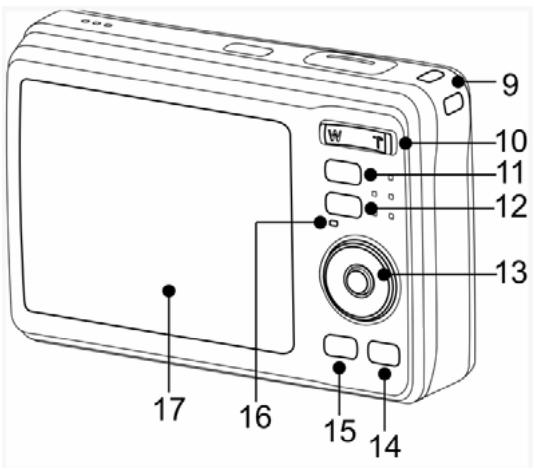
- Strap Ring
- Zoom Button
- Playback Button
- Menu Button
-
Four-way Control
-
Flash Button
Macro Button -
SET / DISP Button
-
Mode Button
- ASM/DeleteButton
- Operation Lamp
- LCD Monitor
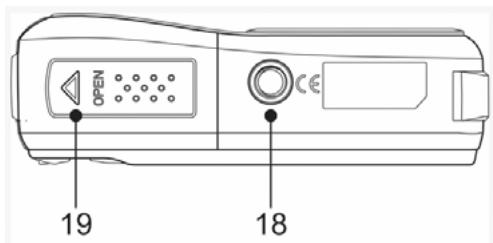
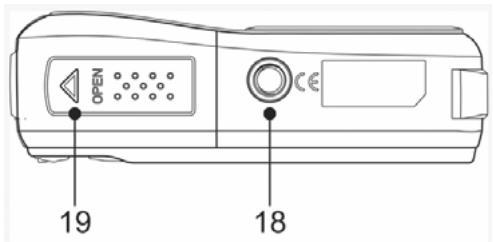
- Tripod Socket
-
Battery Cover
-
The memory card slot is located beneath the battery cover, adjacent to the battery compartment.
Inserting the Batteries
1 Open the battery cover.
- Slide the battery cover in the direction indicated by the arrow.
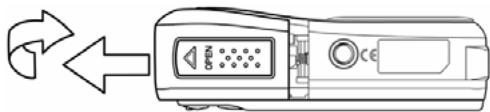
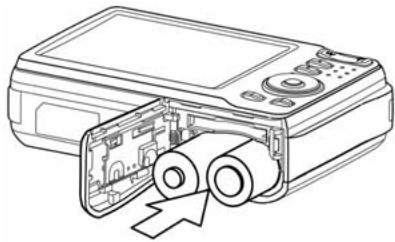
2 Insert the batteries.
- Insert two AA-size batteries with the positive (+) and negative (-) poles matching the directions indicated inside the battery room.
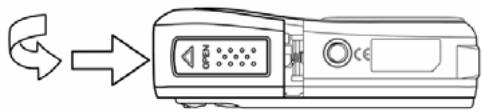
3 Close the battery cover.
Changing the Mode
You can record images and voices in the REC mode. And using the PLAYBACK mode to replay, delete, or edit images on the LCD monitor.
Switching between REC mode and PLAYBACK mode
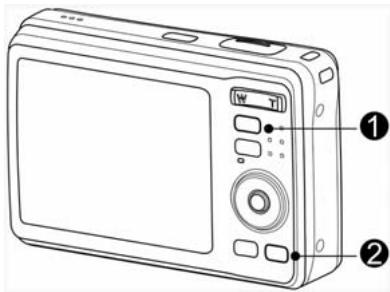
In REC mode, press the PLAYBACK button (0) to switch to the PLAY mode.
In PLAY mode, press the PLAYBACK (1) or the MODE (2) button to switch to the REC mode.
1 Set the camera to the REC mode
2 Launch the mode palette.
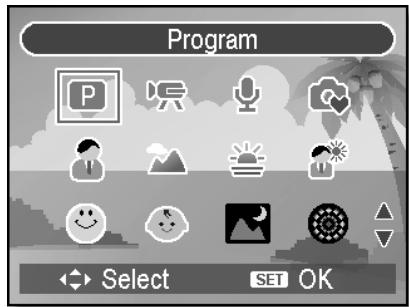
- Press the MODE button (2) to show the scene mode palette.
3 Select a mode.
Use the four-way control to select a desired mode and press the SET button to confirm the setting.
Using the Menus
When a menu is displayed, the four-way control and the SET button are used to make the desired settings.
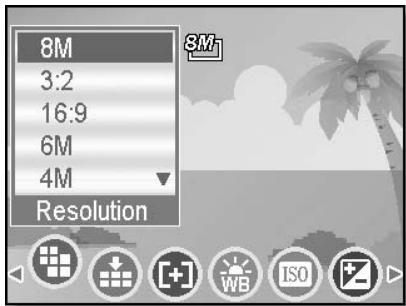
REC menu
1 Turn the power on, and set the camera to the REC mode.
2 Open the REC menu.
- Press the MENU button to display the menu.
3 Select an item.
Press or to select a menu item.
4 Change the setting.
Press or to change the setting.
Press the MENU or the SET button to save the settings and close the menu.
1 Turn the power on, and set the camera to the REC or PLAYBACK mode.
2 Press the MENU button to open the REC or PLAYBACK menu.
- The menu displays depends on whether you are in the REC mode or the PLAY-BACK mode.
Setup Menu 1/3

Sounds

Auto Review
Power Save
Date & Time

Language
3 sec.
1 min.

Select
English
MENDExit
3 Open the Setup menu.
- Press four-way control to select SETUP ( ) and then press the SET button to display the Setup menu.
4 Select an item.
- Press or to select a menu item and then press or the SET button to launch the submenu.
5 Change the setting.
- Press or to select an option and press or the SET button to apply the setting.
6 Press the MENU button to close the menu.