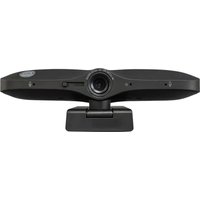
Spitfire - Video conferencing system JPL - Free user manual and instructions
Find the device manual for free Spitfire JPL in PDF.


Pick your language and provide your email: we'll send you a specifically translated version.
| Product Type | Video Conferencing System |
| Brand | JPL |
| Model | Spitfire |
| Dimensions (W x H x D) | 30 x 10 x 10 cm |
| Weight | 1.2 kg |
| Power Supply | AC 100-240V, 50/60Hz |
| Power Consumption | 15W (max) |
| Camera Resolution | 1080p Full HD |
| Microphone Type | Built-in omnidirectional |
| Speaker Output | 5W stereo |
| Connectivity | USB-C, HDMI, Wi-Fi, Bluetooth |
| Compatible Platforms | Zoom, Teams, Google Meet |
| Field of View | 90° diagonal |
| Supported Resolutions | 720p, 1080p |
| Noise Reduction | Yes, AI-based |
| Cleaning Instructions | Wipe with dry, soft cloth. Do not use liquids. |
| Safety Precautions | Keep away from water, avoid extreme temperatures. |
| Spare Parts Availability | Replacement cables and power adapters available |
| Reparability | User-replaceable components: none. Contact support. |
| Included Accessories | Remote control, USB cable, power adapter |
Frequently Asked Questions - Spitfire JPL
How do I set up the JPL Spitfire for the first time?
Connect the device to your computer via USB-C or HDMI, then plug in the power adapter. Follow on-screen prompts or download the official software from the JPL website.
Can I use the Spitfire with multiple video conferencing platforms?
Yes, the Spitfire is compatible with Zoom, Microsoft Teams, Google Meet, and other major platforms. Simply select it as your camera and microphone in the app settings.
What should I do if the camera image is blurry?
Ensure the lens is clean with a dry cloth. Check that the resolution is set to at least 720p in your conferencing software. If issue persists, restart the device.
How do I adjust the volume of the built-in speaker?
Use the remote control or the physical buttons on the device. You can also adjust the volume in your computer's sound settings.
Does the Spitfire support wireless connectivity?
Yes, the Spitfire has built-in Wi-Fi and Bluetooth for wireless connection to compatible devices.
What is the best way to clean the Spitfire?
Use a soft, dry microfiber cloth to wipe the exterior. Do not use any liquids, sprays, or abrasive cleaners.
Can I mount the Spitfire on a tripod?
Yes, the bottom of the device has a standard 1/4-inch tripod mount for secure attachment.
The microphone is not picking up sound. What can I do?
Check that the microphone is not muted in the conferencing app. Ensure the device is selected as the audio input. If using Bluetooth, try a wired connection.
How do I update the firmware on my Spitfire?
Download the latest firmware from the JPL support page. Connect the device to your computer via USB, then run the update utility following on-screen instructions.
What is the warranty period for the JPL Spitfire?
The Spitfire comes with a standard 1-year limited warranty. For details, refer to the warranty card included in the box or contact JPL support.
User questions about Spitfire JPL
0 question about this device. Answer the ones you know or ask your own.
Ask a new question about this device
No questions yet. Be the first to ask one.
Download the instructions for your Video conferencing system in PDF format for free! Find your manual Spitfire - JPL and take your electronic device back in hand. On this page are published all the documents necessary for the use of your device. Spitfire by JPL.
USER MANUAL Spitfire JPL
Manual assistant
Powered by Anthropic
Waiting for your message
Product information
Brand : JPL
Model : Spitfire
Category : Video conferencing system