
JC650LPSI2 - Educational computer LEXIBOOK - Free user manual and instructions
Find the device manual for free JC650LPSI2 LEXIBOOK in PDF.


| Product type | Educational computer for children |
| Brand | LEXIBOOK |
| Model | JC650LPSI2 |
| Dimensions (approx.) | 25 x 20 x 5 cm |
| Weight (approx.) | 500 g |
| Power supply | 3 AAA/LR03 alkaline batteries (1.5V) |
| Screen type | LCD |
| Number of activities | 50 educational activities |
| Activity categories | French, Mathematics, Logic, English, Games, Quiz |
| Languages | French and English |
| Difficulty levels | 2 levels per activity (depending on activity) |
| Virtual characters | Cuddly Cat, Funny Monkey, Sporty Dog |
| Interactive features | Webcam, chat, secret albums, music |
| Reward system | Energy units to unlock secret content |
| Included peripherals | Mouse, computer |
| Auto power-off | After 3 minutes of inactivity |
| Maintenance and cleaning | Slightly damp cloth, no detergents |
| Safety | Not suitable for children under 36 months (small parts) |
| Spare parts / Repairability | Replaceable batteries, mouse included; repair by the retailer |
| Warranty | 2 years |
Frequently Asked Questions - JC650LPSI2 LEXIBOOK
User questions about JC650LPSI2 LEXIBOOK
0 question about this device. Answer the ones you know or ask your own.
Ask a new question about this device
Download the instructions for your Educational computer in PDF format for free! Find your manual JC650LPSI2 - LEXIBOOK and take your electronic device back in hand. On this page are published all the documents necessary for the use of your device. JC650LPSI2 by LEXIBOOK.
USER MANUAL JC650LPSI2 LEXIBOOK
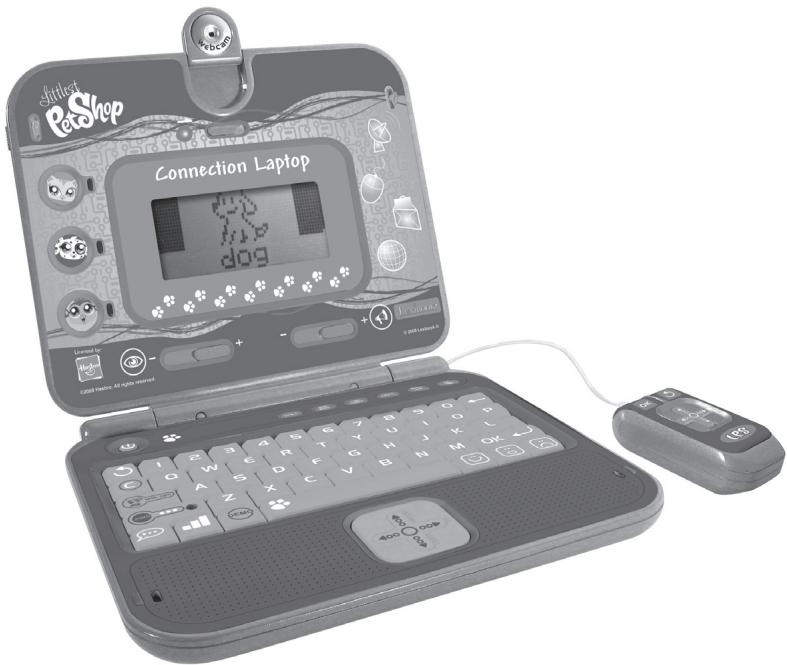
Littlest Pet Shop connection laptop


Licensed by:

www.lexibook.com
Mode d'emploi
Instruction manual
LEXIBOOK
JC650LPSi2

Sommaire
Guide de prise en main 3
©2009 Hasbro. All Rights Reserved.
©2009 LEXIBOOK®
Contents of the packaging 24
Battery information 24
Product features 25
Playing the activities 27
The three game characters. 27
Internet mode 27
Units and reward. 27
Activity list. 28
Internet mode 28
1st Language: English 30
Maths. 32
Logic 34
2nd language: Frangais (French) 35
Games 37
Quiz 39
Maintenance and warranty 41
Start-up guide
Welcome to the Littlest Pet Shop world: turn on your Littlest Pet Shop laptop and let's get started! Chat online with Cuddly Cat, Cheeky Monkey and Sporty Dog. Your 3 new Littlest Pet Shop will guide you throughout 100 activities and games in English and in French for endless hours of fun. Please read the following instructions to make the best use of your new Littlest Pet Shop laptop and ask the help of an adult to replace the batteries and read the safety markings.
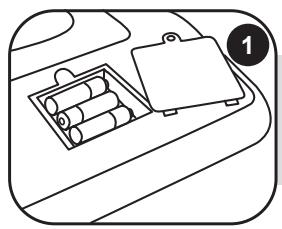
Use a screwdriver to open the battery compartment cover located under your learning laptop and install 3 x LR03/AAA size batteries (included). Close back the battery compartment cover.
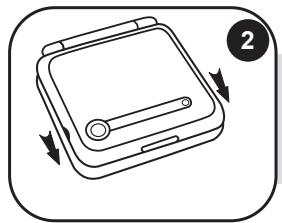
To open the laptop, push the 2 latches towards you and raise the screen.
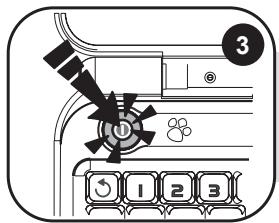
Press the ① key to switch the laptop on. Your computer is a bilingual laptop. All the activities can be played in either English or French. Press the ② key at any time to select the language in which you want to play.
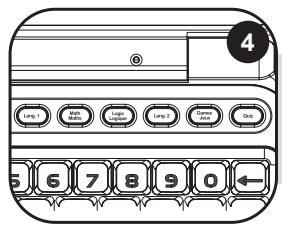
The Littlest Pet Shop laptop includes 6 activity categories waiting to be discovered: English, Math, Logic, French, Games and Quiz. To select a category, press one of the activity keys located at the top of your keyboard.
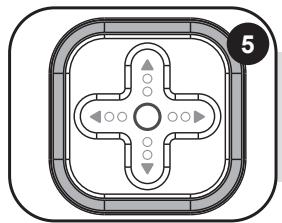
To select an activity, use the arrow keys on the mouse or the keyboard and press OK to start playing. You can also select an activity by typing its "code" directly. For example, to select the activity No. 14 "Synonyms", you can type "14" and press OK .
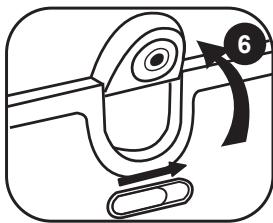
You have the option to start your Webcam as soon as you turn on your laptop. Simply use the switch located on the top of the LCD screen. For more details regarding the operation of the Internet activities, please refer to paragraph "Internet Mode" on page 28.
Contents of the packaging
1 x Littlest Pet Shop laptop
1x mouse
1 x instruction manual
WARNING: All packaging materials, such as tape, plastic sheets, wire ties and tags are not part of this toy and should be discarded for your child's safety.
Battery information
Your Littlest Pet Shop laptop operates with 3 x AAA/LR03 1,5V --- alkaline type batteries.
Note: This product is supplied with batteries for demonstration purposes. They should be replaced with new batteries before use.
- With a screwdriver, open the battery compartment cover located underneath the laptop.
- Install the 3 × AAA / LR03 alkaline type batteries (included) observing the polarity indicated at the bottom of the battery compartment, and as per the diagram shown opposite.
- Close the battery compartment and tighten the screw.
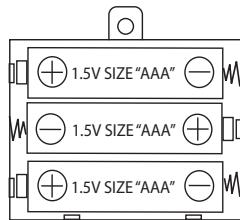
Non-rechargeable batteries are not to be recharged. Rechargeable batteries are to be removed from the toy before being charged. Rechargeable batteries are only to be charged under adult supervision. Different types of batteries or new and used batteries are not to be mixed. Only batteries of the same or equivalent type as recommended are to be used. Batteries are to be inserted with the correct polarity. Exhausted batteries are to be removed from the toy. The supply terminals are not to be short circuited. Do not throw batteries into a fire. Remove the batteries if you are not going to use the game for a long period of time.
WARNING: Mal-function or loss of memory may be caused by strong frequency interference or electrostatic discharge. Should any abnormal function occur, reset the unit or remove the batteries and insert them again.
Product features
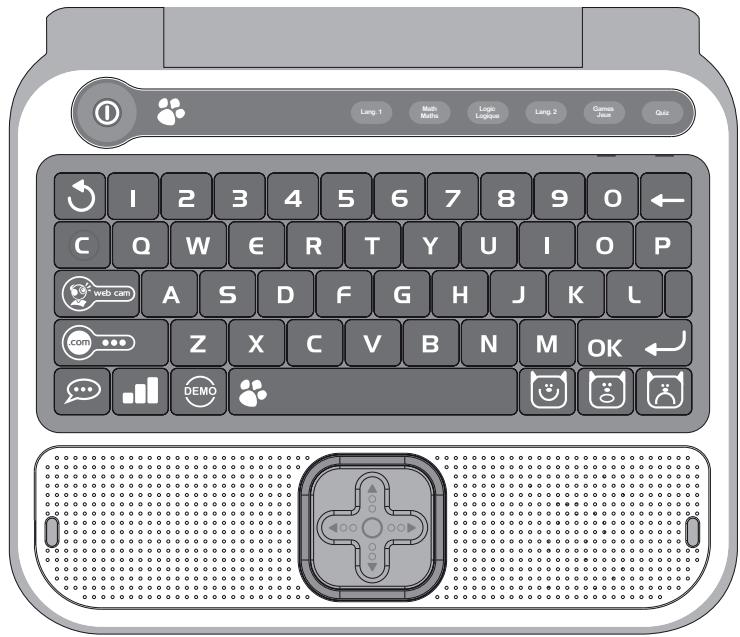

To switch the Littlest Pet Shop laptop on and off. When you press this key twice, the laptop switches off immediately without displaying the shutdown screen.
Note: After 3 minutes of inactivity, the laptop will turn off automatically.


Press one of these keys to enter the activity category of your choice.

Press the "ESC" key to exit an activity.

Press "C" (Connect) to see which Pets are online.

Press the "web cam" key to view a virtual image of the Pets connected online.

Press the ".COM" key to access the Internet activities. You can start a conversation with any character connected online, view their personal albums, and listen to music.

Press the "DEMO" key at any time to launch a short demonstration of the laptop's features or of the activity you want to play.

All activities start at level 1. Press this key to jump from level 1 to level 2 and vice versa. Note: to discover which activities can be played in 2 different levels (icon), please refer to the activity section on page 29.

Press the "Language" key to alternate between game play in English or in French.

The "OK" key is used to confirm a selection or an answer.

If you have not pressed the "OK" key yet, you will be able to change your answer by pressing this key.


Press the emoticon keys to express the feelings accompanying your answers while "chatting". They show a POSITIVE, NEUTRAL or NEGATIVE type of answer.

Press to type a space between characters. To type a dash, just press and hold the spacebar until the dash appears.
NOTE: To add accents to the letters that may require so when playing in French, press and hold the key of the selected letter until the right accent appears. This applies to the following letters:
Press the arrow keys to navigate the screen and to scroll through the different game options. Press the and keys to decrease or increase the speed of scrolling of the text displayed on the screen.
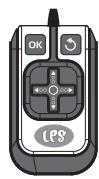
The mouse allows you to navigate through menus and activities. It includes the arrow keys, as well as the "OK" OK → and "ESC" keys. Press the and keys to scroll the messages displayed on screen to the left or to the right.

he two keys located under the LCD screen allow you to adjust the volume (mute, normal and high), and contrast levels ( dark, normal and bright).
Playing the activities
The three game characters
Discover the 3 online Littlest Pet Shop friends!
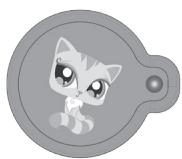
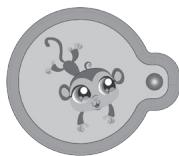
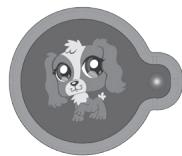
Internet mode
The Internet mode allows you to interact with Cuddly Cat, Cheeky Monkey and Sporty Dog, view their secret albums and listen to music.
Webcam
When you turn your laptop on, you will be automatically connected to the Littlest Pet Shop who is online. If your Webcam is off, the Littlest Pet Shop will ask you to turn it on, so she/he can see you. If you don't want to be seen, press the ESC key.
Units and reward
The activities are presented as questions and answers, with 10 questions being asked per round. For each question, you will have 1 or 2 attempt(s) to find the right answer. Some activities offer 2 levels of difficulty.
- By providing the right answers to the questions, you will fill up the energy reserve that will show every time your score is displayed. When the energy reserve is full, new interactive content become available (picture, video or music).
- The reserve of energy has capacity for 30 units.
- At level 1, one correct answer is worth 1 unit. So if you can give correct answers in 3 game rounds (3 series of 10 questions), you can receive 30 units and fully fill the reserve.
Note:
- If you give the right answer on your second attempt, you will receive only one half-unit.
-
If your second answer is also wrong, the right answer will appear on the screen and you will not obtain any point.
-
At level 2, 1 correct answer is worth 2 units. So if you can give correct answers in 2 rounds game (2 series of 10 questions), you can receive up to 40 units! If you exceed 30 units, the additional units will be transferred to the energy reserve of the following round.
Note:
- If you provide the right answer on your second attempt, you will receive only one unit.
-
If your second answer is also wrong, the right answer will appear on the screen and you will not obtain any point.
-
The number of units contained in the reserve of energy is kept in memory so even when you give a wrong answer, you do not lose all the units you won before. Once the reserve of energy is full, a new secret picture or video of the online Littlest Pet Shop pet becomes available.
Remember: the more points you score, the greater the number of pictures and videos you will be allowed to view!
Activity list
Internet mode
Activity 1: @Chat
If you press the key and you select the "@Chat" menu, you have the possibility by pressing OK to start a conversation with the Littlest Pet Shop online or to make some modifications to the settings such as a changing your status or identity.
Starting a conversation:
- To start a conversation, access the menu "Instant @Chat", then use the and keys to select the Littlest Pet Shop you want to communicate with. Press OK ←
- Press the relevant emoticon key to answer the comments and questions. The "chat" function ends automatically after 3 interactions. You can also press the key at any time to end the chat.
Note:
- To access directly this activity, press the key and then the and keys to make your choice.
- You can use the key to make the text scroll faster.
- The online Littlest Pet Shop may also try to contact you while you are busy completing the exercises or the games. Your activity will stop while you are "chatting". Once you have finished "chatting", the screen will return to your ongoing activity.
Settings:
If you don't want to be disturbed while playing in the activities, you can get offline.
- To change your status, access the "@Chat" menu, use the key to select the "Settings" submenu, and then press OK
- Use the and keys to select "Status" then press OK
- Use the and keys to select your status: "Online" or "Do not disturb". Press OK → to confirm. With the "Do not disturb" option, the characters will not disturb you while you play the activities.
- To change your identity, use the and keys to select "Identity" from the "Settings" submenu. Press OK ← to confirm. Enter a new identity (you can type your first name for example).
Activity 2: Cuddly Cat's secret album
- To access the album containing Cuddly Cat's secret pictures and videos, press the key and use the and keys to select "Cuddly Cat's secret album". Press OK to confirm.
- Use the and keys to select "Secret pictures" or "Secret movies" and press OK ← to view Cuddly Cat's pictures and videos.
Remember: the more points you score while playing the activities, the larger number of new pictures and videos will be accumulated for you to discover!
Activity 3: Cheeky Monkey's secret album
- To access the album containing Cheeky monkey's personal pictures, press the key and use the and keys to select "Cheeky Monkey's secret album". Press OK to confirm.
- Use the and keys to select "Secret pictures" or "Secret movies" and press OK → to view Cheeky Monkey's pictures and videos.
Remember: the more points you score while playing the activities, the larger number of new pictures and videos will be accumulated for you to discover!
Activity 4: Sporty Dog's secret album
- To access the album containing Sporty Dog's secret pictures and videos, press the key and use the and keys to select Sporty Dog's secret album". Press OK to confirm.
- Use the and keys to select "Secret pictures" or "Secret movies" and press OK ← to view Sporty Dog's pictures and videos.
Remember: the more points you score while playing the activities, the larger number of new pictures and videos will be accumulated for you to discover!
Activity 5: Music player
- Press the key and use the and keys to select "Music player". Press OK to confirm.
- Select one of your Littlest Pet Shop friend's favourite tunes using the and keys, and press OK ← . Your Littlest Pet Shop friend's favourite music will continue playing until you exit the "Music player" menu. To turn the music off manually without exiting the menu, select "Off" from the music menu and press OK ← .
1st Language: English
Activity 6: Flash word
A word is displayed on screen for a few seconds. Try to memorize it and type it on your keyboard without any mistake. Press OK → to confirm your answer.
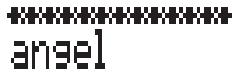
Level 1: the screen shows the exact number of letters of the word with dashes.

Level 2: the screen does not show the number of letters, only one flashing dash.
Activity 7: Missing letter
Level 1: An image is displayed on screen for a few seconds. Then, the word associated with the picture is displayed but one of its letters is missing. Complete the word by finding the missing letter. Press OK to confirm your answer.

Level 2: Same game as in level 1, but no image is displayed. Try to find the right answer by looking at the word only.
Activity 8: Plural

A word written in the singular form or in the plural form is displayed. Type the word in the corresponding plural form or singular form. Press OK to confirm your answer.
Level 1: Simple words.
Level 2: More complicated words.
Activity 9:Anagram
In the anagram activity, you are invited to find a simple anagram of the word displayed. An anagram is a word or a phrase formed by reordering the letters of another word or phrase, such as "satin" to "stain". Type in an anagram and press OK ← to confirm.
Activity 10 : Letter invasion
Try to delete the falling letters by pressing the key matching that letter. If you do not manage to delete the letter before it reaches the ground, you will lose the game.

Activity 11: Flip flop
Two words are displayed on screen. One letter of each word has been misplaced. Use the l and l keys to find the right letters, and press the OK ← key if you think that you have found the correct answer.
Level 1: Simple words.
Level 2: More complicated words.
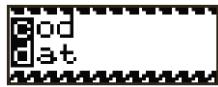
Activity 12: Scrambled word
Level 1: An image is displayed for a few seconds on the LCD screen. Then the word corresponding to the picture will be displayed on screen, but the letters will not be in
the correct order. Use the 4 and 6 keys to select the first letter of the word and press OK .Now the letter selected will be at the beginning of the word. Use the same method for the next letter and so on until the word is completed. Once you reach the end of the word, you will be told if your answer is the right one.
Level 2: Same game as in level 1, but no image is displayed. Try to find the right answer by looking only at the word.
Activity 13: Hangman
Guess the secret word. Each dash replaces a letter in the word. Type in the letters which you think might be in the word. If a letter belongs to the hidden word, it will replace the corresponding dash. If you enter a letter that is not in
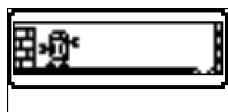
the word, the robot will be pushed off screen step-by-step. You have 10 attempts to find the word, if you do not succeed after 10 times, the robot will fall off screen. Sometimes an image will appear to give you a clue, but at all other times you will have to find it without clues.
Activity 14: Synonyms

Find the synonym of the word displayed on screen. A synonym is a word which carries the same (or very similar) meaning as another word. Use the and keys to select the correct answer between the two propositions, and press OK ←
Level 1: Simple words.
Level 2: More complicated words.

003

Activity 15: Antonyms

Find the word which has the opposite meaning of the word displayed on screen. Use the and keys to select the correct answer between the two propositions, and press OK ←
Level 1: Simple words.
Level 2: More complicated words.
Math
Activity 16: Addition

Solve the additions that appear on screen. Enter the result by pressing the numerical keys located above the letters on your keyboard. To enter a two-digit number you must type them from right to left, as you
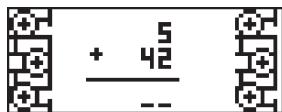
have learnt in school. For example, to enter number "15", type "5" then "1". Once you have entered your answer, press OK ← to confirm.
Level 1: Results between 0 and 50.
Level 2: Results between 0 and 250.
Activity 17: Subtraction
Solve the subtractions that appear on screen. Enter the result by pressing the numerical keys located above the letters on your keyboard. In order to enter a two-digit number you must type them from right to left,
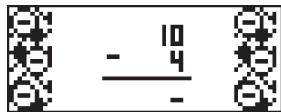
as you have learnt in school. For example, to enter number “15”, type “5” then “1”. Once you have entered your answer, press OK ← to confirm.
Level 1: Results between 0 and 50.
Level 2: Results between 0 and 250.
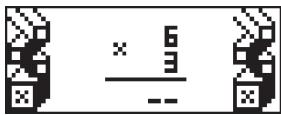
Activity 18: Multiplication

Solve the multiplications that appear on screen. Enter the result by pressing the numerical keys located above the letters on your keyboard. In order to enter a two-digit number you must type them from right to left, as you have learnt in school. For example, to enter num "1". Once you have entered your answer, press the OK
Level 1: Results between 0 and 50.
Level 2: Results between 0 and 250.
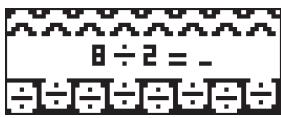
Activity 19: Division

Solve the divisions that appear on screen. Enter the result by pressing the numerical keys located above the letters on your keyboard. In order to enter a two-digit number you must type them from right to left, as you have learnt in school. For example, to enter num "1". Once you have entered your answer, press the OK
Level 1: First number no greater than 20.
Level 2: First number up to 100.
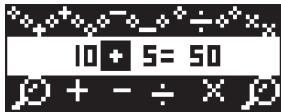
Activity 20: Missing sign

Find the correct mathematical operator in the equation shown onscreen. The operators "+" , " - ", " x" and " ÷ " scroll between the numbers. Use the and to scroll faster through the operators. When the
correct operator appears, press OK ← to confirm your selection.
Level 1: Results between 1 and 250.
Level 2: Results between 20 and 2001.
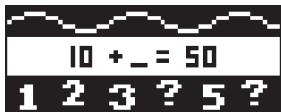
Activity 21: Equation

Insert the missing number to complete the equation.
Confirm your answer by pressing the OK key.
Level 1: Addition and subtraction only. Results between 0 and 50.
Level 2: Addition, subtraction, multiplication and division. Results between 0 and 99.
Activity 22: Comparison

Insert the missing mathematical sign to complete the equation. The mathematical signs < , > and = scroll between the numbers. Use the or to scroll faster through the signs. Confirm your answer by pressing OK
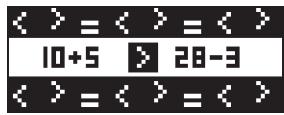
Level 1: Addition and subtraction only. Results between 0 and 51.
Level 2: Multiplication and division only. Results between 0 and 100.
Activity 23: Number spelling

Write in letters the number that appears onscreen.
Press OK ← to confirm your answer.
To write a dash, press and hold the space bar until a dash is displayed.
Level 1: Easy exercises.
Level 2: More difficult exercises.

Logic
Activity 24:Labyrinth
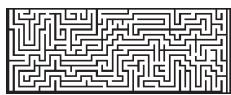
Use the , , and keys to find your way through the labyrinth. Complete the entire path in order to collect as many points as possible.
Activity 25: Puzzle
An image is briefly displayed on screen, and then it will be split into 8 pieces of a puzzle with one of them blank. In order to complete the puzzle, follow the instructions given below:

-
Any of the pieces of the puzzle may only swap places with the blank piece. To do so, the relevant piece of the puzzle must be located above, below, or besides the blank piece.
-
Press the key to swap the piece of the puzzle located above the blank piece with the latter.
- Press the key to swap the piece of the puzzle located below the blank piece with the latter.
- Press on the key to swap the piece of the puzzle located to the left of the blank piece with the latter.
- Press on the key to swap the piece of the puzzle located to the right of the blank piece with the latter.
Press the ← key to undo your last action.
The last piece of the puzzle falls automatically in its place and the game is finished.
Activity 26: Logical sequence

Which number is next in the logical sequence displayed on screen? Type in the correct number, and press OK to confirm.
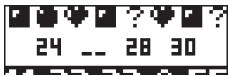
Level 1: Easy sequence.
Level 2: More difficult sequence.
Activity 27: Secret code
Find the four-digit secret code! Once you have entered a code, press OK ← You have 10 tries to find the code.
- If the number entered is in the right place, the symbol will appear in the answers to the right of the screen.
- If a number is included in the code but you not at the right place, the symbol will appear in the answers on the right of the screen.
- If the number entered is not included in the code, the symbol x will appear in the answers on the right of the screen.
Activity 28: Coins
A row with 9 to 15 boxes will appear on the screen. The boxes with a dot in the middle are coins. Coins can only be moved one by one, and only towards the left. A coin cannot overtake another one. If it's possible, coins can jump over more than one box.
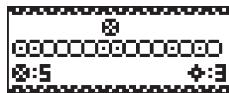
Wait your turn, use the l and l keys to move the arrow under a coin and press OK ← to select it. Use the l and l keys again to move the coin and press OK ← to place it in a box.
The one who manages to make the last possible move wins the game.
2nd language: Français (French)
Activity 29: French lesson
Use the and keys to browse through the images and associated words, and try to remember them. The words are listed in alphabetical order.


ane
Activity 30: French quiz
Use what you have learned in your French lesson. An image is displayed on screen and you must find the corresponding word. Use the and keys to scroll through the three propositions and select the correct French word. Press OK ← to confirm.
Activity 31: Translator English - French
An English word is displayed on screen. Use the and keys to select the corresponding French word. Press OK ← to confirm.
Activity 32: Translator French - English
A French word is displayed on screen. Use the and keys to select the corresponding English word. Press OK → to confirm.
Activity 33: Scrambled word
Level 1: An image is displayed for a few seconds on the LCD screen. Then the word in French corresponding to the picture will be displayed on screen, but the letters will not be in the correct order. Use the and keys to find the right letters, and press OK . Now the letter selected will be at the beginning of the word. Use the same method for the next letter and so on until the word is completed. Once you reach the end of the word, you will be told if your answer is the right one.
Level 2: Same game as in level 1, but no image is displayed. Try to find the right answer by looking only at the word.
Activity 34: Flip flop
Two words in french are displayed on screen. One letter of each word has been misplaced. Use the l and l keys to find the right letters, and press OK ← if you think that you have found the correct answer.
Games
Activity 35: Snake

The hungry snake is always looking for food. Use the 🅥, 🅥, 🅥 and 🅥 keys to control it and move towards the mice that appear onscreen. The more it eats, the more it grows in length. But be careful! The snake is not allowed to touch the walls or its own bc
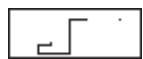
Otherwise, the game will be over.
Level 1: The snake's speed is slow.
Level 2: The snake's speed increases.
Activity 36: Rock paper scissors
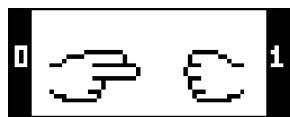
Try to beat the laptop at the "Rock-Paper-Scissors" game. To play, use the following keys:
Numeric key 1 > Rock
Numeric key 2 > Paper
Numeric key 3 > Scissors
The laptop gives you its choice at the same time and the winner is immediately known.
Rock beats scissors, scissors beat paper, and paper beats rock. If by any chance the laptop selects the same key, nobody wins, and the game continues.
Activity 37: Magician's hat
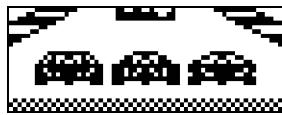
The little rabbit hides underneath one of the 3 hats display on the screen. Try to find which one! Use

the , , or keys to select a hat then press OK ← to confirm your choice.
Note: when you lose, at the "Play Again" screen, use the and keys to select "Yes" and play again or "No" to go back to the game selection screen. Press
ok → to confirm your choice.
There is only 1 level in this activity
Activity 38: Speed memo
Look carefully at the highlighting arrows. Try to memorize the sequence and follow the laptop. Use the , , and arrow keys to copy the sequence without making any mistake.

Activity 39: Racing game

Overtake your opponents without colliding with them. Use the and keys to change lanes. You have 3 lives.
Level 1: Overtake 10 cars.
Level 2: Overtake 20 cars.
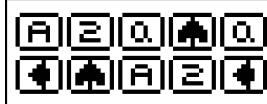
Activity 40: Memory
Find the hidden pairs. Use the , , and arrow keys to select cards and press the OK → key to flip them over. If you find a pair, it will remain face-up.
Otherwise, the cards will be turned over again. At the end of the round, the last pair of cards remaining will be automatically revealed.
Level 1: Play with 6 cards.
Level 2: Play with 10 cards.
Quiz
Activity 41: Animal facts
Learn everything about animals! Use the and keys to scroll down the word list. Press the OK → key to find more details about the desired subject. Use the key to go back to the word list.
Note: You can use the or keys to decrease or increase the scrolling speed of the text displayed on screen.
Activity 42: Pet facts
All you need to know about pets! Use the and keys to scroll down the word list. Press the OK ← key to find more details about the desired subject. Use the key to go back to the word list.
Note: You can use the or keys to decrease or increase the scrolling speed of the text displayed on screen.
Activity 43: Green facts
Learn all about protecting the environment! Use the and keys to scroll down the word list. Press the OK → key to find more details about the desired subject. Use the key to go back to the word list.
Note: You can use the or keys to decrease or increase the scrolling speed of the text displayed on screen.
Activity 44: Quotes on animals
Learn plenty of quotes and sayings about animals! For example: Busy as a bee! Use the and keys to discover the quote about the selected animal. Use the irc key to go back to the word list.
Note: You can use the or keys to decrease or increase the scrolling speed of the text displayed on screen.
Activity 45: The most.... Facts
Learn everything about the most extreme animals! For example, the whale has the biggest tongue of all animals! Use the and keys to scroll down the word list. Press the OK ← key to find more details about the desired subject. Use the key to go back to the word list.
Note: You can use the or keys to decrease or increase the scrolling speed of the text displayed on screen.
Activity 46: Animal's quiz
Did you read all the information about animals carefully? Test your knowledge by completing this quiz. A question will scroll across the screen followed by three possible answers. Use the and keys to select the correct answer and press the OK ← key to confirm. To read the question again, press ← .
Note: You can use the or keys to decrease or increase the scrolling speed of the text displayed on screen.
Activity 47: Pet's quiz
Do you know everything about pets? Test your knowledge by completing this quiz. A question will scroll across the screen followed by three possible answers. Use the and keys to select the correct answer and press the OK ← key to confirm. To read the question again, press ← .
Note: You can use the or keys to decrease or increase the scrolling speed of the text displayed on screen.
Activity 48: Green quiz
Do you know everything about protecting the environment? Test your knowledge by completing this quiz. A question will scroll across the screen followed by three possible answers. Use the and keys to select the correct answer and press the OK ← pkey to confirm. To read the question again, press ← .
Note: You can use the or keys to decrease or increase the scrolling speed of the text displayed on screen.
Activity 49: Quotes quiz
How well do you know quotes about animals? Test your knowledge by completing this quiz. A question will scroll across the screen followed by three possible answers. Use the and keys to select the correct answer and press the OK ← key to confirm. To read the question again, press ← .
Note: You can use the or keys to decrease or increase the scrolling speed of the text displayed on screen.
Activity 50: The most... quiz
Test your knowledge about the most extreme animals! A question will scroll across the screen followed by three possible answers. Use the and keys to select the correct answer and press the OK ← key to confirm. To read the question again, press ← .
Note: You can use the l or keys to decrease or increase the scrolling speed of the text displayed on screen.
Maintenance and warranty
Only use a soft, slightly damp cloth to clean the unit. Do not use detergent. Do not to expose the unit to direct sunlight or any other heat source. Do not immerse the unit in water. Do not dismantle or drop the unit. Do not try to twist or bend the unit.
NOTE: please keep this instruction manual, it contains important information.
This product is covered by our 2-year warranty.
For any claim under the warranty or after sale service, please contact your distributor and present a valid proof of purchase. Our warranty covers any manufacturing material and workmanship defect, with the exception of any deterioration arising from the non-observation of the instruction manual or from any careless action implemented on this item (such as dismantling, exposition to heat and humidity, etc.). It is recommended to keep the packaging for any further reference. Not suitable for children under 36 months old, as it contains small detachable elements which could be swallowed.
In a bid to keep improving our services, we could implement modification on the colours and the details of the product shown on the packaging.
Reference: JC650LPSi2
©2009 Hasbro. All Rights Reserved.
©2009 LEXIBOOK®
Designed and developed in Europe – Made in China
Lexibook UK Ltd,
Unit 10 Petersfield Industrial Estate,
Bedford Road, Petersfield,
Hampshire, GU32 3QA
United Kingdom.
Helpline: 0808 100 3015.
www.lexibook.com
- Littlest Pet Shop connection laptop
- Sommaire
- Start-up guide
- Contents of the packaging
- Battery information
- Product features
- Playing the activities
- The three game characters
- Internet mode
- Webcam
- Units and reward
- Note:
- Activity list
- Activity 1: @Chat
- Starting a conversation:
- Settings:
- Activity 2: Cuddly Cat's secret album
- Activity 3: Cheeky Monkey's secret album
- Activity 4: Sporty Dog's secret album
- Activity 5: Music player
- 1st Language: English
- Activity 6: Flash word
- Activity 7: Missing letter
- Activity 8: Plural
- Activity 9:Anagram
- Activity 10 : Letter invasion
- Activity 11: Flip flop
- Activity 12: Scrambled word
- Activity 13: Hangman
- Activity 14: Synonyms
- Activity 15: Antonyms
- Math
- Activity 16: Addition
- Activity 17: Subtraction
- Activity 18: Multiplication
- Activity 19: Division
- Activity 20: Missing sign
- Activity 21: Equation
- Activity 22: Comparison
- Activity 23: Number spelling
- Logic
- Activity 24:Labyrinth
- Activity 25: Puzzle
- Activity 26: Logical sequence
- Activity 27: Secret code
- Activity 28: Coins
- 2nd language: Français (French)
- Activity 29: French lesson
- Activity 30: French quiz
- Activity 31: Translator English - French
- Activity 32: Translator French - English
- Activity 33: Scrambled word
- Activity 34: Flip flop
- Games
- Activity 35: Snake
- Activity 36: Rock paper scissors
- Activity 37: Magician's hat
- Activity 38: Speed memo
- Activity 39: Racing game
- Activity 40: Memory
- Quiz
- Activity 41: Animal facts
- Activity 42: Pet facts
- Activity 43: Green facts
- Activity 44: Quotes on animals
- Activity 45: The most.... Facts
- Activity 46: Animal's quiz
- Activity 47: Pet's quiz
- Activity 48: Green quiz
- Activity 49: Quotes quiz
- Activity 50: The most... quiz
- Maintenance and warranty
Brand : LEXIBOOK
Model : JC650LPSI2
Category : Educational computer