 ManualGo.com
DJ013 - Digital Camera LEXIBOOK - Free user manual and instructions
Find the device manual for free DJ013 LEXIBOOK in PDF.



Download the instructions for your Digital Camera in PDF format for free! Find your manual DJ013 - LEXIBOOK and take your electronic device back in hand. On this page are published all the documents necessary for the use of your device. DJ013 by LEXIBOOK.
USER MANUAL DJ013 LEXIBOOK
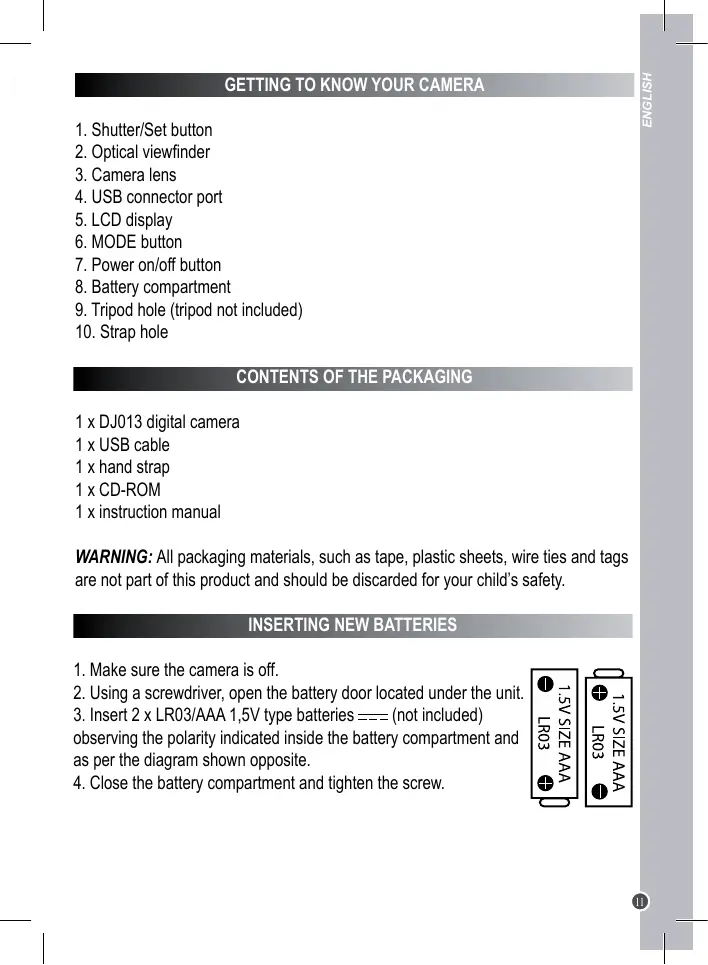
1. Shutter/Set button
2. Optical viewfinder
3. Camera lens
4. USB connector port
5. LCD display
6. MODE button
7. Power on/off button
8. Battery compartment
9. Tripod hole (tripod not included)
10. Strap hole
CONTENTS OF THE PACKAGING
1 x DJ013 digital camera 1 x USB cable 1 x hand strap 1 x CD-ROM 1 x instruction manual
WARNING: All packaging materials, such as tape, plastic sheets, wire ties and tags
are not part of this product and should be discarded for your child’s safety.
INSERTING NEW BATTERIES
1. Make sure the camera is off.
2. Using a screwdriver, open the battery door located under the unit.
3. Insert 2 x LR03/AAA 1,5V type batteries
(not included) observing the polarity indicated inside the battery compartment and as per the diagram shown opposite.
4. Close the battery compartment and tighten the screw.
ENGLISH Non-rechargeable batteries are not to be recharged. Rechargeable batteries are to be removed from the product before being charged. Rechargeable batteries are only to be charged under adult supervision. Different types of batteries or new and used batteries are not to be mixed. Only batteries of the same or equivalent type as recommended are to be used. Batteries are to be inserted with the correct polarity. Exhausted batteries are to be removed from the product. The supply terminals are not to be short circuited. Do not throw batteries into a fire. Remove the batteries if you are not going to use the product for a long period of time.
WARNING: Mal-function or loss of memory may be caused by strong frequency
interference or electrostatic discharge. Should any abnormal function occur, remove the batteries and insert them again. Important note: all the files stored into the unit’s internal memory will be lost when replacing the batteries. Make sure you transfer the files to your computer before changing the batteries. INSTALLING THE SOFTWARE AND THE CAMERA DRIVER Follow these instructions to install the “Arcsoft MediaImpression ” software and the camera driver on your computer system.
1. Insert the CD Software (included) in your CD-ROM drive. The CD will auto run,
and the installation menu will appear.
2. Click “Install Driver”, and then follow the instructions to install the camera driver.
3. You will need to reboot your computer after the driver installation. Once the installation is completed, the “Dual Mode Camera” folder will be automatically created on your desktop.
4. Click “Arcsoft MediaImpression”, select the installation language and follow the
instructions to install “Arcsoft MediaImpression ”. The “Arcsoft MediaImpression ” software offers many applications for photo editing and printing. Note : - If the CD does not auto run, click “Start”, “Run”, then type in “D:\autorun.exe” in the Run dialog text box (where D:\ is your CD-ROM drive) and press Enter. - You must install the driver before downloading pictures from the camera or using it as a webcam.
dri - Make sure the camera is not connected to your computer before installing the driver and the software.
TURNING THE CAMERA ON AND OFF
1. Press the Power on/off button to turn the camera on. The camera will make a
beep sound to confirm that it is ready for use.
2. Press and hold the Power on/off button for a few seconds again to turn it off.
3. To turn the unit off, you can also press repeatedly the MODE button until “Off” is
displayed on the LCD screen. Then press the shutter button to confirm. Note : The camera will auto power off after 30 seconds of inactivity. TAKING PHOTOS Single shooting You are already in “Single shooting” mode when you switch on the camera. Press the shutter button to take a photo. The camera will beep to confirm that a picture is taken. The number of pictures that you can take in memory is shown on the LCD screen. Continuous shooting
1. When you are in “Single shooting” mode, press the MODE button repeatedly until
the “Continuous shooting” mode icon is displayed in the upper-right corner of the screen. Press the shutter button within the next 5 seconds to take 3 pictures continuously. Note: When the camera’s built-in memory is full, the unit will play a double “beep” sound when you press the shutter button to indicate that you can’t take any new pictures. Self-timer
1. In “Single shooting” mode, press repeatedly the MODE button repeatedly until
the “Self-timer” icon appears on the LCD screen. Then press the shutter button within 5 seconds to turn on the self-timer function.
2. The digital camera will take a picture 10 seconds later.
Note: The self-timer feature is automatically turned off after the picture has been taken.
CAPTURING VIDEO CLIPS
1. Switch on the camera and press the MODE button repeatedly until the video icon
is displayed on screen.
2. Press and hold the shutter button to start shooting a video.
3. Release the shutter button to stop recording and automatically save the video in
AVI format. Note: You can use Media player and Quick time (not included on the CD software) to play AVI files on your computer.
DELETING PHOTOS ld: Deleting the last photo taken Turn on the unit then press repeatedly the MODE button until the icon is displayed on the screen. Within 5 seconds, press the shutter button to delete the last photo taken. Note: to cancel the deletion, wait for the icon to disappear from the screen. Deleting all photos Turn on the unit then press repeatedly the MODE button until the icon is displayed on the screen. Within 5 seconds, press the shutter button to delete all the photos stored in the camera’s built-in memory. Note: to cancel the deletion, wait for the icon to disappear from the screen.
SELECTING THE PHOTO RESOLUTION
In “Single shooting” mode, press repeatedly the MODE button until one of the resolution icons is displayed on the screen. Then press the shutter button within 5 seconds to change the resolution. There are 2 resolution modes: High resolution (640x480 pixels, default mode). Low resolution (320x240 pixels).
In “Single shooting” mode, press repeatedly the MODE button until one of the image quality icons hd or ld is displayed on the screen. Then press the shutter button within 5 seconds to change the image quality. ENGLISH There are 2 levels of quality: hd :high quality (default mode). ld: low quality.
SELECTING THE LIGHT SOURCE FREQUENCY
In “Single shooting” mode, press repeatedly the MODE button until one of the frequency icons 50 (50HZ) or 60(60HZ) is displayed on the screen. Then press the shutter button within 5 seconds to change the frequency.
DOWNLOADING YOUR PHOTOS AND YOUR VIDEOS
1. Connect the camera to your computer via the USB cable provided.
2. Open the “Dual Mode Camera” folder on your desktop, then double-click the “My
DSC” icon to open the photo download window.
3. You can edit your pictures (contrast, brightness..etc.) using the “Photo Editing”
4. Click the “Photo download” button
to display the images stored in your camera as thumbnails.
5. Select the pictures you want to download individually or click the “Select all”
button to select all the photos automatically.
6. Click the “Save” button
to transfer the files to the desired folder.
ENGLISH WEBCAM MODE Connected to your PC, your camera can be used as a webcam. Webcam mode
1. Connect the video camera to your computer using the USB cable provided.
2. Open the “Dual Mode Camera” folder on the desktop, then double-click the
“PCCam” icon » to view the real-time images taken by the webcam. Instant messaging (chat) You can use your camera as a webcam with your instant messaging client (Yahoo Messenger, MSN Messenger, Skype…). Ex: using MSN Messenger
1. Put your camera in webcam mode and connect it to your computer then launch
2. On the MSN interface, select “Actions”, then “Start a Video Conversation”.
3. Select the person you want to chat with, and press “OK”.
MAINTENANCE Only use a soft, slightly damp cloth to clean the unit. Do not use detergent. Do not expose the unit to direct sunlight or any other heat source. Do not immerse the unit in water. Do not dismantle or drop the unit. Do not try to twist or bend the unit.
NOTE: Please keep this instruction manual, it contains important information. This product is covered by our 1-year warranty. To make use of the warranty or the after-sales service, please contact your retailer and supply proof of purchase. Our warranty covers material or installation-related defects attributable to the manufacturer, with the exception of wear caused by failure to respect the instructions for use or any unauthorised work on the equipment (such as dismantling, exposure to heat or damp, etc). ENGLISH WARRANTY Reference: DJ013series Designed in Europe – Made in China © 2010 Lexibook® © Disney / Pixar © Disney United Kingdom & Ireland For any further information, please call 0808 100 3015 http://www.lexibook.com This product is not a toy. Environmental Protection Unwanted electrical appliances can be recycled and should not be discarded along with regular household waste! Please actively support the conservation of resources and help protect the environment by returning this appliance to a collection centre (if available).