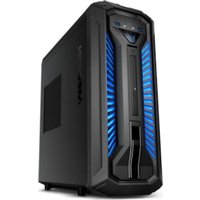
Erazer X67128 - Desktop computer MEDION - Free user manual and instructions
Find the device manual for free Erazer X67128 MEDION in PDF.


Pick your language and provide your email: we'll send you a specifically translated version.
| Product Type | Desktop Computer |
| Brand | Medion |
| Model | Erazer X67128 |
| Dimensions (W x D x H) | 200 x 450 x 450 mm |
| Weight | 10 kg |
| Power Supply | 500 W |
| Processor | Intel Core i5 (10th Gen) |
| Memory (RAM) | 16 GB DDR4 |
| Storage | 256 GB SSD + 1 TB HDD |
| Graphics | NVIDIA GeForce GTX 1650 |
| Operating System | Windows 10 Home |
| Connectivity | USB 3.2, HDMI, DisplayPort, Ethernet, Wi-Fi 6 |
| Main Functions | Gaming, streaming, productivity |
| Maintenance | Regular dust removal, ensure ventilation |
| Safety Precautions | Keep away from liquids, unplug before cleaning |
| Spare Parts & Repairability | Upgradable RAM, storage, fans; certified service centers |
| General Information | Warranty 24 months, support via Medion website |
Frequently Asked Questions - Erazer X67128 MEDION
How do I set up the desktop for the first time?
Connect the monitor, keyboard, mouse, and power cable. Press the power button and follow the on-screen Windows setup instructions.
What are the recommended settings for gaming?
Update graphics drivers via NVIDIA GeForce Experience. Set in-game graphics to medium-high for optimal performance on most titles.
Can I upgrade the RAM or storage?
Yes, the desktop has accessible slots for additional RAM and 2.5-inch drive bays for SSD/HDD upgrades. Consult the user manual for details.
How do I clean the internal components?
Power off and unplug. Open the side panel and use compressed air to remove dust from fans and heat sinks. Avoid touching internal parts.
Why is my computer running slow?
Check for background programs, run a virus scan, and ensure sufficient free disk space. Consider upgrading RAM or switching to an SSD.
How do I connect to Wi-Fi?
Click the network icon in the taskbar, select your Wi-Fi network, and enter the password. Ensure the Wi-Fi antenna is properly attached.
What should I do if the computer does not turn on?
Check power cable connections, test the outlet, and ensure the power supply switch is on. If still fails, contact Medion support.
How can I perform a factory reset?
Go to Settings > Update & Security > Recovery > Reset this PC. Choose 'Remove everything' to restore to original state.
Is the desktop compatible with virtual reality (VR)?
The GTX 1650 supports basic VR, but for demanding headsets, a more powerful GPU is recommended. Check VR system requirements.
Where can I find the user manual and drivers?
Visit the Medion support website, enter your model Erazer X67128, and download the manual and latest drivers.
User questions about Erazer X67128 MEDION
0 question about this device. Answer the ones you know or ask your own.
Ask a new question about this device
No questions yet. Be the first to ask one.
Download the instructions for your Desktop computer in PDF format for free! Find your manual Erazer X67128 - MEDION and take your electronic device back in hand. On this page are published all the documents necessary for the use of your device. Erazer X67128 by MEDION.
USER MANUAL Erazer X67128 MEDION
Manual assistant
Powered by Anthropic
Waiting for your message
Product information
Brand : MEDION
Model : Erazer X67128
Category : Desktop computer