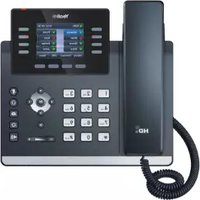
SIP-T44U - Telephone Yealink - Free user manual and instructions
Find the device manual for free SIP-T44U Yealink in PDF.


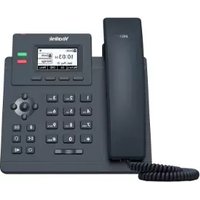
| Product Type | IP Phone |
| Brand | Yealink |
| Model | SIP-T44U |
| Display | 4.3-inch 480x272 color touch screen |
| SIP Lines | 8 |
| Connectivity | Dual-port Gigabit Ethernet (10/100/1000 Mbps) |
| Power Supply | PoE (IEEE 802.3af) or AC adapter (not included) |
| Audio Features | HD voice, full-duplex speakerphone |
| Headset Support | RJ9 headset jack, EHS support |
| Bluetooth | Bluetooth 4.2 (optional via dongle) |
| Wi-Fi | Wi-Fi via dongle (optional) |
| Dimensions (W x H x D) | Approx. 267 x 198 x 90 mm |
| Weight | Approx. 0.96 kg (unit only) |
| Maintenance | Clean with a soft, dry cloth; avoid liquids |
| Safety | Use only specified power source; avoid exposure to liquids |
| Security | TLS, SRTP encryption |
| Repairability | Not user-serviceable; contact authorized service |
| Included Accessories | Handset, handset cord, Ethernet cable, stand |
| General Information | Firmware upgrade via network; supports PoE |
Frequently Asked Questions - SIP-T44U Yealink
User questions about SIP-T44U Yealink
0 question about this device. Answer the ones you know or ask your own.
Ask a new question about this device
Download the instructions for your Telephone in PDF format for free! Find your manual SIP-T44U - Yealink and take your electronic device back in hand. On this page are published all the documents necessary for the use of your device. SIP-T44U by Yealink.
USER MANUAL SIP-T44U Yealink
Activate Bluetooth Mode
You should activate the Bluetooth mode first when you need to connect the Bluetooth device to your phone.
On T53/T53C phones, you need to use the Bluetooth USB dongle to activate the Bluetooth mode. When you insert the dongle into the USB port on the back of the phone, you can directly activate Bluetooth according to the phone screen prompt.
Procedure
Do one of the following:
- For T4X phones:
Insert the Bluetooth USB dongle into the USB port on the back of the phone.a.
The phone prompts you to scan the Bluetooth devices right now.b.
Select OK.b.
Do one of the following:c.
- For T46U/T43U/T42U/T46S/T46G/T42S/T41S phones, select On from the Bluetooth field.
■ For T46U/T43U/T42U/T46S/T46G/T42S/T41S phones, select Save.
■ The phone scans the available Bluetooth devices automatically.
- For T53X/T54W/T57W/T7X/T85W/T87W phones:
Do one of the following:a.
- Go to Menu > Basic > Bluetooth.
- Go to Menu > Settings > Basic Settings > Bluetooth.
Select On from the Bluetooth field.b.
Select Save.c.
The phone scans the available Bluetooth devices automatically.d.
• For VP59/T58A/T58W phones:
Do one of the following:a.
- Swipe down from the top of the screen.
- Swipe left or right to go to the second idle screen, go to Settings > Basic Settings > Bluetooth.
Turn on Bluetooth.b.
The phone automatically scans the available Bluetooth devices in your area.c.
The Bluetooth icon appears in the status bar.d.
SIP-T44U User Guide_Bluetooth
• For T88W (Pro)/T88V Pro phones:
Do one of the following:a.
■ Swipe down from the top of the screen.
- Swipe left or right to go to the second idle screen, and go to Settings > Bluetooth.
Turn on Bluetooth.b.
The phone automatically scans the available Bluetooth devices in your area.c.
The Bluetooth icon appears in the status bar.d.
• For CP925/CP935W phones:
Tap a.

Turn on Bluetooth.b.
The phone scans the available Bluetooth devices automatically.c.
- For CP965 phones:
Do one of the following:a.
- Swipe down from the top of the screen.
■ Select

- Go to More > Settings > Basic Settings > Bluetooth.
Turn on Bluetooth.b.
The phone automatically scans the available Bluetooth devices in your area.c.
The Bluetooth icon appears in the status bar.d.
Pair & Connect Bluetooth Headset
When you need the Bluetooth headset to handle calls, you should pair and connect it to your phone in advance.
Before You Begin
Make sure that the Bluetooth headset is discoverable.
Procedure
Do one of the following:
• For T4X/T53X/T54W/T57W/T7X/T85W/T87W phones:
Do one of the following:a.
- Go to Menu > Basic > Bluetooth.
- Go to Menu > Settings > Basic Settings > Bluetooth.
b. For T46U/T43U/T42U/T46S/T46G/T42S/T41S/T54W/T53W/T53/T53C phones, select Scan to search the Bluetooth devices.
The phone proceeds to scan the local Bluetooth devices, and the phone screen displays c. the available Bluetooth devices.
Find your Bluetooth headset, and select Connect.c.
For T48U/T48S/T48G/T57W phones, tap your Bluetooth headset.d.
The Bluetooth icon appears on the phone screen.e.
• For VP59/T58A/T58W phones:
Swipe down from the top of the screen or swipe left or right to go to the second idle a. screen.
b. Go to Settings > Basic Settings > Bluetooth.
Tap c.

Tap the desired Bluetooth headset to connect to your phone.d.
The connection will be completed successfully with a prompt that appears under the e. Bluetooth headset name.
The Bluetooth icon f.

appears in the status bar.
• For T88W (Pro)/T88V Pro phones:
Swipe down from the top of the screen or swipe left or right to go to the second idle a. screen.
Go to Settings > Bluetooth.b.
Turn on Open Detection.c.
Tap the desired Bluetooth headset to connect to your phone.d.
The connection will be completed successfully with a prompt that appears under the e. Bluetooth headset name.
The Bluetooth icon f.

appears in the status bar.
Fast Pairing
When the BH71/BH72/BH76 Bluetooth headset enters pairing mode and is within 1 meter of the T53W/T54W/T57W phones, a dialog box will automatically appear on the phone to prompt for connection.

• Make sure that the Bluetooth on the phone is enabled.
- Enter BH71/BH72/BH76 pairing mode on the Bluetooth headset.
- When the phone is in power-saving mode, the phone will not pop up a window to automatically connect to the Bluetooth headset.

Pair & Connect Bluetooth-enabled Mobile Phone
After pairing and connecting the Bluetooth-enabled mobile phone, you can use the sync feature.
Before You Begin
Make sure that the Bluetooth-enabled mobile phone is discoverable.
Procedure
Do one of the following:
• For T4X/T53X/T54W/T57W/T7X/T85W/T87W phones:
Do one of the following:a.
- Go to Menu > Basic > Bluetooth.
- Go to Menu > Settings > Basic Settings > Bluetooth.
b. For T46U/T43U/T42U/T46S/T46G/T42S/T41S/T54W/T53W/T53/T53C phones, select Scan to search the Bluetooth devices.
Find your Bluetooth-enabled mobile phone, and then select Connect.c.
For T48U/T48S/T48G/T57W phones, tap your Bluetooth-enabled headset.d.
The phone will prompt the connection passkey on the phone screen.e.
Make sure your mobile phone is showing the same passkey, and then select OK on both d. the mobile phone and phone.
e. (Optional) Select OK to enable the mobile contacts sync feature, or select Cancel to disable the mobile contacts sync feature.
• For VP59/T58A/T58W phones:
Swipe down from the top of the screen or swipe left or right to go to the second idle a. screen.
b. Go to Settings > Basic Settings > Bluetooth.
Tap c.

Tap the desired Bluetooth-enabled mobile phone to connect to your phone.d.
The connection will be completed successfully with a prompt that appears under the e. Bluetooth headset name.
The Bluetooth icon f.

appears in the status bar.
• For T88W (Pro)/T88V Pro phones:
Swipe down from the top of the screen or swipe left or right to go to the second idle a. screen.
Go to Settings > Bluetooth.b.
Turn on Open Detection.c.
Tap the desired Bluetooth-enabled mobile phone to connect to your phone.d.
The connection will be completed successfully with a prompt that appears under the e. Bluetooth headset name.
The Bluetooth icon f.

SIP-T44U User Guide_Bluetooth
appears in the status bar.
• For CP925/CP935W phones:
Tap a.

Tap b.

The phone will prompt the connection passkey on the phone screen.c.
Make sure your mobile phone is showing the same passkey, and then select OK on both c. the mobile phone and phone.
(Optional) Select OK to enable the mobile contacts sync feature, or select Cancel to d. disable the mobile contacts sync feature.
- For CP965 phones:
a. Go to More > Settings > Basic Settings > Bluetooth.
Tap b.

to search for the mobile phone.
Tap the desired Bluetooth-enabled mobile phone.c.
Select Pair on both the mobile phone and the phone.d.
The connection will be completed successfully with a prompt appearing under the e.
Bluetooth-enabled mobile phone name.
And the phone automatically assigns a Mobile Account key.f.
If you enable the mobile contacts sync feature, you also need to authorize the phone to sync the contacts temporarily on the mobile phone.
Pair & Connect two Bluetooth Devices
You can connect two Bluetooth devices to the phone at a time, for example, a Bluetooth-enabled mobile phone and a Bluetooth headset.
Before You Begin
Make sure that the Bluetooth devices are discoverable.
Procedure
Do one of the following:
• T4X/T53X/T54W/T57W/T7X/T85W/T87W phones:
a. Go to Settings > Basic Settings > Bluetooth.
Tap the Scan softkey to search for the Bluetooth devices.b.
Pair and connect the two Bluetooth devices respectively.c.
• For VP59/T58A/T58W phones:
Swipe left or right to go to the second idle screen.a.
b. Go to Settings > Basic Settings > Bluetooth.
Tap c.

to search for the Bluetooth devices.
Pair and connect the two Bluetooth devices respectively.d.
• For T88W (Pro)/T88V Pro phones:
Swipe left or right to go to the second idle screen.a.
Go to Settings > Bluetooth.b.
Tap Open Detection to search for the Bluetooth devices.c.
Pair and connect the two Bluetooth devices respectively.d.
The phone does not support connecting two Bluetooth devices of the same type at the same time.
The Bluetooth channel cannot support two devices at the same time, and a Bluetooth-enabled mobile phone has higher priority than a Bluetooth headset.
Synchronize Mobile Contacts to Phone
You can sync mobile contacts to your phone. This is a convenient way to view a contact without accessing your mobile phone.
Enable Mobile Contacts Sync Feature
To sync the mobile contacts to the phone, you should enable the sync feature in advance.
Before You Begin
Make sure that the Bluetooth-enabled mobile phone is paired and connected to your phone.
Procedure
Do one of the following:
• For T4X/T53X/T54W/T57W/T7X/T85W/T87W phones:
Do one of the following:a.
- Go to Menu > Basic > Bluetooth > Paired Bluetooth Device.
■ Go to Menu > Basic > Bluetooth. - Go to Menu > Settings > Basic Settings > Bluetooth > Paired Bluetooth Device.
Select Option > Detail.b.
For T48U/T48S/T48G/T57W phones, tap c.

after the connected Bluetooth-enabled mobile phone name.
c. Select On from the Mobile Contacts Sync field.
You need to authorize the phone to synchronize the contacts temporarily on the mobile d. phone first, and then the mobile contacts directory will appear in the phone directory list.
• For VP59/T58A/T58W phones:
Swipe down from the top of the screen or swipe left or right to go to the second idle a. screen.
b. Go to Settings > Basic Settings > Bluetooth.
Tap c.

after the desired Bluetooth-enabled mobile phone name.
Select Mobile Contacts Sync.d.
You need to authorize the phone to synchronize the contacts temporarily on the mobile e. phone first, and then the mobile contacts directory will appear in the phone directory list.
• For T88W (Pro)/T88V Pro phones:
Swipe down from the top of the screen or swipe left or right to go to the second idle a. screen.
Go to Settings > Bluetooth.b.
Tap c.

after the desired Bluetooth-enabled mobile phone name.
Select Mobile Contacts Sync.d.
You need to authorize the phone to synchronize the contacts temporarily on the mobile e. phone first, and then the mobile contacts directory will appear in the phone directory list.
• For CP925/CP935W phones:
Tap a.

Tap b.

after the desired Bluetooth-enabled mobile phone name.
The phone will prompt the connection passkey on the phone screen.c.
Select Mobile Contacts Sync.c.
You need to authorize the phone to synchronize the contacts temporarily on the mobile d. phone first, and then the mobile contacts directory will appear in the phone directory list.
- For CP965 phones:
a. Go to More > Settings > Basic > Bluetooth. Tap b.

after the desired Bluetooth-enabled mobile phone name.
The phone will prompt the connection passkey on the phone screen.c.
Select Mobile Contacts Sync.c.
You need to authorize the phone to synchronize the contacts temporarily on the mobile d. phone first, and then the mobile contacts directory will appear in the phone directory list.
View Mobile Contacts on Phones
You can view a list of mobile contacts on the phone.
Before You Begin
Make sure that the mobile contact sync feature is enabled.
Procedure
- For T4X/T53X/T54W/T57W/T7X/T85W/T87W phones, go to Menu > Directory > Mobile Contacts.
• The contacts stored in your mobile phone will display in the Mobile Contacts list.
• For VP59/T58A/T58W phones, go to

/

> Mobile Contacts.
- For T88W (Pro)/T88V Pro phones, go to Contact > Mobile Contacts.
• For CP925/CP935W phones, go to

Local Directory > Mobile Contacts.
- For CP965 phones, go to

Mobile Contacts.
Disable Mobile Contacts Sync Feature
When you no longer view and use the mobile contacts on the phone, you can disable the sync feature.
Procedure
Do one of the following:
- For T4X/T53X/T54W/T57W/T7X/T85W/T87W phones:
Do one of the following:a.
- Go to Menu > Basic > Bluetooth > Paired Bluetooth Device.
- Go to Menu > Basic > Bluetooth.
- Go to Menu > Settings > Basic Settings > Bluetooth > Paired Bluetooth Device.
Select Option > Detail.b.

SIP-T44U User Guide_Bluetooth
For T48U/T48S/T48G/T57W phones, tap c.

after the connected Bluetooth-enabled mobile phone name.
c. Select Off from the Mobile Contacts Sync field.
The mobile contacts directory disappears from the phone directory list.d.
• For CP925/CP935W/CP965 phones:
Tap a.

Tap b.

after the desired Bluetooth-enabled mobile phone name.
The phone will prompt the connection passkey on the phone screen.c.
Turn off Mobile Contacts Sync.c.
The mobile contacts directory disappears from the phone directory list.d.
• For VP59/T58A/T58W phones:
Swipe down from the top of the screen or swipe left or right to go to the second idle a.
screen.
b. Go to Settings > Basic Settings > Bluetooth.
Tap c.

after the desired Bluetooth-enabled mobile phone name.
Turn off Mobile Contacts Sync.d.
The mobile contacts directory disappears from the phone directory list.
• For T88W (Pro)/T88V Pro phones:
Swipe down from the top of the screen or swipe left or right to go to the second idle a. screen.
Go to Settings > Bluetooth.b.
Tap c.

after the desired Bluetooth-enabled mobile phone name.
Turn off Mobile Contacts Sync.d.
The mobile contacts directory disappears from the phone directory list.
View Bluetooth Device Information
You can view the Bluetooth device information when the Bluetooth mode is activated.
Before You Begin
Make sure that the Bluetooth mode is activated and the Bluetooth device has been paired with your phone.
Procedure
Do one of the following:
• For T4X/T53X/T54W/T57W/T7X/T85W/T87W phones:
Do one of the following:a.
- Go to Menu > Basic > Bluetooth > Paired Bluetooth Device.
- Go to Menu > Basic > Bluetooth.
- Go to Menu > Settings > Basic Settings > Bluetooth > Paired Bluetooth Device.
Do one of the following:b.
- On the T48U/T48S/T48G/T57W phones, view the device name, device MAC address, and the connection status from the Bluetooth Device(s) field.
Tap

to view the synchronization status with mobile contacts.
- On the T54W/T53W/T53/T53C phones, select the desired Bluetooth device.
- Select Option > Detail to view the device name, device MAC address, and the synchronization status.
• For VP59/T58A/T58W phones:
Swipe down from the top of the screen or swipe left or right to go to the second idle a. screen.
b. Go to Settings > Basic Settings > Bluetooth.
Tap a.

after the desired Bluetooth-enabled mobile phone name.
• For T88W (Pro)/T88V Pro phones:
Swipe down from the top of the screen or swipe left or right to go to the second idle a. screen.
Go to Settings > Bluetooth.b.
Tap c.

after the desired Bluetooth-enabled mobile phone name.
• For CP925/CP935W phones:
Tap a.

Tap b.

after the desired Bluetooth-enabled mobile phone name.
- For CP965 phones:
a. Go to More > Settings > Basic > Bluetooth.
Tap b.

after the desired Bluetooth-enabled mobile phone name.
Handle a Mobile Phone Call on the Phone
You can handle a mobile phone call on your phone, and the phone acts as a speaker and microphone for your mobile phone.
The call information appears on both your phone and your mobile phone screen. You can control the call's audio to go through the mobile phone or a phone on your mobile phone. For example, if you choose Bluetooth, the audio will go through the phone; if you choose Handset or Speaker, the audio will go through the mobile phone.
Before You Begin
Make sure that the Bluetooth-enabled mobile phone is paired and connected to your phone.
Procedure
Do the following on the phone:
- Place a call. Press the My Mobile key first, and then place a call or multiple calls to the mobile contact.
- Answer a call. An incoming call to your mobile phone is also shown on the phone; you can answer the call on the phone. The contacts will first be matched with those in the mobile contacts directory to present the caller's identity when receiving a mobile phone call.
- During the call, you can hold/resume, mute/unmute, or end the call on the phone.
Edit the Device Name of the Phone
You can edit the device name of your phone for easily recognizable.
Before You Begin
Make sure that the Bluetooth mode is activated.
Procedure
Do one of the following:
• For T4X/T53X/T54W/T57W/T7X/T85W/T87W phones:
Do one of the following:a.
- Go to Menu > Basic > Bluetooth > Edit My Device Information.
- Go to Menu > Settings > Basic Settings > Bluetooth > Edit My Device Information.
■ The phone screen displays the device name.
Enter the desired name in the Device Name field.b.
Select Save.c.
• For VP59/T58A/T58W phones:
Swipe down from the top of the screen or swipe left or right to go to the second idle a.
screen.
b. Go to Settings > Basic Settings > Bluetooth > Edit My Device Information.
Enter the desired name in the Device Name field.c.
Select Save.d.
- For T88W (Pro)/T88V Pro phones:
Swipe down from the top of the screen or swipe left or right to go to the second idle a.
screen.
b. Go to Settings > Bluetooth > Broadcast Name.
Enter the desired name.c.
Select Save.d.
• For CP925/CP935W phones:
Tap a.

Enter Edit My Device Information.b.
Enter the desired name in the Device Name field.c.
Select Save.d.
- For CP965 phones:
a. Go to More > Settings > Basic > Bluetooth.
Enter Edit My Device Information.b.
Enter the desired name in the Device Name field.c.
Select Save.d.
Delete Paired & Unpair Bluetooth Device
You can delete the Bluetooth device paired to your phone; the next time you activate the Bluetooth mode, the phone will not automatically connect to this device.
Procedure
Do one of the following:
• For T4X/T53X/T54W/T57W/T7X/T85W/T87W phones:
Do one of the following:a.
- Go to Menu > Basic > Bluetooth > Paired Bluetooth Device.
■ Go to Menu > Basic > Bluetooth. - Go to Menu > Settings > Basic Settings > Bluetooth > Paired Bluetooth Device.
Select Option > Delete.b.
For T48U/T48S/T48G/T57W phones, tap c.

Delete.
Select OK.c.
• For VP59/T58A/T58W phones:
Swipe down from the top of the screen or swipe left or right to go to the second idle a. screen.
b. Go to Settings > Basic Settings > Bluetooth.
Select the desired device.c.
Select Unpair.d.
• For T88W (Pro)/T88V Pro phones:
Swipe down from the top of the screen or swipe left or right to go to the second idle a. screen.
Go to Settings > Bluetooth.b.
Tap c.

after the desired Bluetooth-enabled mobile phone name.
Select Unpaired.d.
• For CP925/CP935W phones:
Tape.

Tap f.

after the desired Bluetooth-enabled device phone name.
Tap OK.g.
- For CP965 phones:
Do one of the following:a.
Tap

- Swipe down from the top of the screen, then long-tap Bluetooth.
- Go to More > Settings > Basic > Bluetooth.
■ The phone screen shows the paired and connected.
Tap b.

after the desired Bluetooth-enabled device's phone name.
Tap OK.c.
Disconnect Bluetooth Device
You can disconnect your Bluetooth device from your phone. When you disconnect a Bluetooth device, it remains paired, and you can reconnect it to your phone.
Procedure
Do one of the following:
- For T4X/T53X/T54W/T57W/T7X/T85W/T87W phones:
Do one of the following:a.
- Go to Menu > Basic > Bluetooth > Paired Bluetooth Device.
- Go to Menu > Basic > Bluetooth.
- Go to Menu > Settings > Basic Settings > Bluetooth > Paired Bluetooth Device.
Select the connected Bluetooth device and select Disconnect.b.
For T48U/T48S/T48G/T57W phones, tap the connected Bluetooth device.c.
You can quickly disconnect your Bluetooth headset by turning your headset off.
• For VP59/T58A/T58W phones:
Swipe down from the top of the screen or swipe left or right to go to the second idle a. screen.
b. Go to Settings > Basic Settings > Bluetooth.
Select the desired device, and then select Disconnect.c.
Tap OK.d.
• For T88W (Pro)/T88V Pro phones:
Swipe down from the top of the screen or swipe left or right to go to the second idle a. screen.
Go to Settings > Bluetooth.b.
Tap c.

after the desired Bluetooth-enabled mobile phone name.
Select Disconnect.d.
• For CP925/CP935W phones:
Tap a.

Tap b.

after the desired Bluetooth-enabled device phone name.
Tap OK.c.
- For CP965 phones:
Do one of the following:a.
Tap

- Swipe down from the top of the screen, then long-tap Bluetooth.
- Go to More > Settings > Basic > Bluetooth.
■ The phone screen shows the paired and connected.
Tap b.

after the desired Bluetooth-enabled device's phone name.
Tap OK.c.
Deactivate Bluetooth Mode
After you deactivate the Bluetooth mode, the Bluetooth device will disconnect from your phone, but it remains paired, and you can reconnect it to your phone.
Procedure
Do one of the following:
• For T4X/T53X/T54W/T57W/T7X/T85W/T87W phones:
Do one of the following:a.
- Go to Menu > Basic > Bluetooth.
- Go to Menu > Settings > Basic Settings > Bluetooth.
Select Off from the Bluetooth field.b.
Select Save.c.
• For VP59/T58A/T58W phones:
Swipe down from the top of the screen or swipe left or right to go to the second idle a. screen.
b. Go to Settings > Basic Settings > Bluetooth.
Turn off the Bluetooth.c.
The Bluetooth icon disappears from the status bar.d.
• For T88W (Pro)/T88V Pro phones:
Swipe down from the top of the screen or swipe left or right to go to the second idle a. screen.
Go to Settings > Bluetooth.b.
Turn off the Bluetooth.c.
The Bluetooth icon disappears from the status bar.d.
• For CP925/CP935W phones:
Tap a.

Turn off the Bluetooth.b.
The Bluetooth icon disappears from the status bar.c.
- For CP965 phones:
Do one of the following:a.
Tap

■ Swipe down from the top of the screen.
- From the home screen, go to More > Settings > Basic > Bluetooth.
Turn off the Bluetooth.b.
The Bluetooth icon disappears from the status bar.c.
Configure Phone Audio Feature
After syncing the mobile contacts to your phone, the phone acts as a hands-free device for your mobile phone. The call is made through your mobile phone, but the audio is present, and the call control is done by the phone.
If a Bluetooth headset is connected to the phone, you can choose to answer a call using the Bluetooth headset.
Procedure
Do one of the following:
• For VP59/T58A/T58W phones:
Swipe left or right to go to the second idle screen.a.
b. Go to Settings > Basic Settings > Bluetooth.
Select c.

after the desired Bluetooth device name.
Turn on Phone audio.d.
Select e.

• For T88W (Pro)/T88V Pro phones:
Swipe down from the top of the screen or swipe left or right to go to the second idle a. screen.
Go to Settings > Bluetooth.b.
Tap c.

after the desired Bluetooth-enabled mobile phone name.
Turn on Phone audio.d.
• For CP925/CP935W phones:
Tap a.

Tap b.

after the desired Bluetooth-enabled device's phone name.
Turn on Phone audio.c.
- For CP965 phones:
Do one of the following:a.
Tap

- Swipe down from the top of the screen, then long-tap Bluetooth.
- Go to More > Settings > Basic > Bluetooth.
■ The phone screen shows the paired and connected.
Tap b.

after the desired Bluetooth-enabled device's phone name.
Turn on Phone audio.c.
Configure Media Audio Feature
If a Bluetooth headset is connected to the phone, you can enable the media audio feature to stream the audio from IP phone to Bluetooth headset. The Bluetooth headset acts as the player for the SIP phone.
Procedure
Do one of the following:
• For VP59/T58A/T58W phones:
Swipe left or right to go to the second idle screen.a.
b. Go to Settings > Basic Settings > Bluetooth.
Select c.

after the desired Bluetooth device name.
Turn on the Media audio.d.
Select e.

• For T88V Pro phones:
Swipe down from the top of the screen or swipe left or right to go to the second idle a. screen.
Go to Settings > Bluetooth.b.
Tap c.

after the desired Bluetooth-enabled mobile phone name.
Turn on the Media audio.d.
• For CP925/CP935W phones:
Tap a.

Tap b.

after the desired Bluetooth-enabled device's phone name.
Turn on Media audio.c.
- For CP965 phones:
Do one of the following:a.
Tap

- Swipe down from the top of the screen, then long-tap Bluetooth.
- Go to More > Settings > Basic > Bluetooth.
■ The phone screen shows the paired and connected.
Tap b.

after the desired Bluetooth-enabled device phone name.
Turn on the Media audio.c.
Bluetooth Device Discovery Feature
You can enable or disable Bluetooth device discovery. If you make your phone discoverable to other Bluetooth devices, other Bluetooth devices can scan and find your IP phone.
Before You Begin
Make sure that the Bluetooth mode is activated.
Procedure
• For VP59/T58A/T58W phones:
Swipe down from the top of the screen or swipe left or right to go to the second idle a. screen.
b. Go to Settings > Basic Settings > Bluetooth > Edit My Device Information.
Enable/disable Open Discover.c.
Select d.

• For T88W (Pro)/T88V Pro phones:
Swipe down from the top of the screen or swipe left or right to go to the second idle a. screen.
Go to Settings > Bluetooth.b.
Enable/disable Open Detection.c.
• For CP925/CP935W/CP965 phones:
Do one of the following:a.
- Swipe down from the top of the screen.
Tap

- Go to More > Basic > Bluetooth > Edit My Device Information or More > Settings > Basic > Bluetooth > Edit My Device Information.
Enable/disable Open Discover.b.
Select c.

Rename Paired Bluetooth Device
You can rename the paired Bluetooth device to make it more easily recognized.
Procedure
Swipe left or right to go to the second idle screen.1.
- Go to Settings > Basic Settings > Bluetooth or Settings > Bluetooth.
The phone screen shows the paired and connected Bluetooth device.3.
Tap 3.

/

after the connected Bluetooth device name.
- Enter the desired device name in the Rename/Device Name field.
Tap 5.

The renamed Bluetooth name will be displayed in the PAIRED DEVICES list on your phone. The Bluetooth device name displayed in the scanning list of other devices will not be changed.
Send Files via Bluetooth
You can use the Gallery or File Manager to share pictures, videos, or audio with an available Bluetooth device in your area.

Receive Files via Bluetooth
The available Bluetooth devices in your area can share pictures, audio, videos, and documents with your phone. You can use the corresponding system application to view the files.
Procedure
Share a file from your phone to your Bluetooth device.1.
The phone will play a notification sound, and the phone prompts you whether to accept 2. the incoming file.
Tap Accept to start receiving the file.2.
The phone prompts “The file will be received. Check progress in the Notification panel.” . 3. The icon

will be displayed in the status bar.
(Optional) Swipe down from the top of the screen.3.
Tap the notification “Bluetooth share: Received files” .4.

- ACTIVATE BLUETOOTH MODE
- PROCEDURE
- PAIR & CONNECT BLUETOOTH HEADSET
- BEFORE YOU BEGIN
- FAST PAIRING
- PAIR & CONNECT BLUETOOTH-ENABLED MOBILE PHONE
- PAIR & CONNECT TWO BLUETOOTH DEVICES
- SYNCHRONIZE MOBILE CONTACTS TO PHONE
- ENABLE MOBILE CONTACTS SYNC FEATURE
- VIEW MOBILE CONTACTS ON PHONES
- MOBILE CONTACTS
- DISABLE MOBILE CONTACTS SYNC FEATURE
- VIEW BLUETOOTH DEVICE INFORMATION
- HANDLE A MOBILE PHONE CALL ON THE PHONE
- EDIT THE DEVICE NAME OF THE PHONE
- DELETE PAIRED & UNPAIR BLUETOOTH DEVICE
- DISCONNECT BLUETOOTH DEVICE
- DEACTIVATE BLUETOOTH MODE
- CONFIGURE PHONE AUDIO FEATURE
- CONFIGURE MEDIA AUDIO FEATURE
- BLUETOOTH DEVICE DISCOVERY FEATURE
- RENAME PAIRED BLUETOOTH DEVICE
- SEND FILES VIA BLUETOOTH
- RECEIVE FILES VIA BLUETOOTH
Brand : Yealink
Model : SIP-T44U
Category : Telephone