
REMOTE KEYBOARD FOR WINDOWS XP MEDIA CENTER EDITION - Wireless keyboard MICROSOFT - Free user manual and instructions
Find the device manual for free REMOTE KEYBOARD FOR WINDOWS XP MEDIA CENTER EDITION MICROSOFT in PDF.

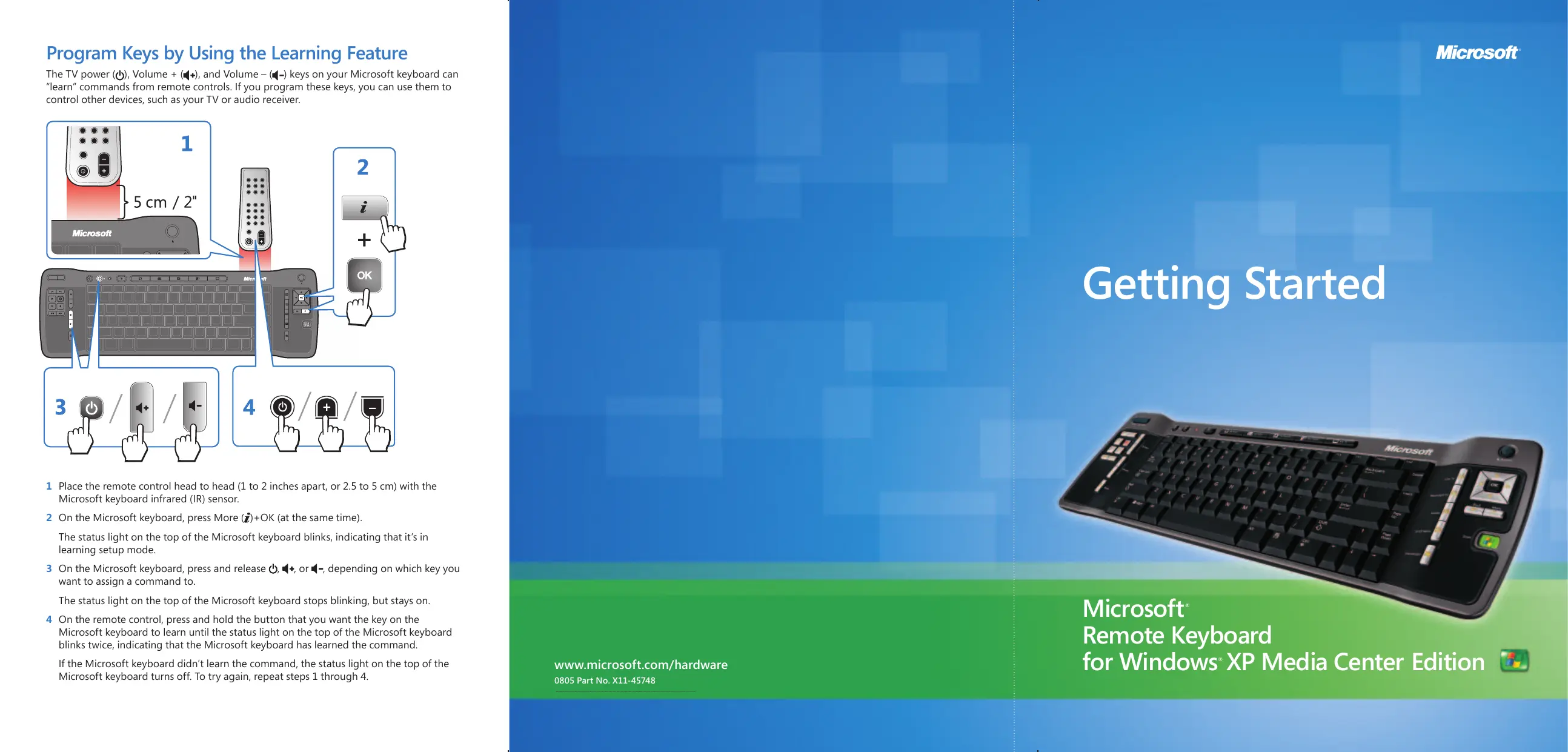

| Product type | Wireless keyboard |
| Brand | Microsoft |
| Model | Remote Keyboard for Windows XP Media Center Edition |
| Connectivity | Radio frequency (RF) 2.4 GHz |
| Range | 10 meters |
| Power source | 2 AAA batteries |
| Battery life | Approximately 6 months |
| Dimensions (L x W x H) | 380 x 150 x 25 mm |
| Weight | 400 g with batteries |
| Compatible operating systems | Windows XP Media Center Edition (also Windows 2000/XP) |
| Keyboard layout | QWERTY |
| Additional keys | Media Center control keys (volume, playback, etc.) |
| Backlighting | No |
| Standards | Class B, NMB-003, CNR-210 |
| Operating temperature | 0°C to 40°C |
| Operating humidity | 20% to 80% |
| Package contents | Keyboard, USB receiver, batteries, manual |
| Warranty | 1 year |
| Maintenance | Clean with a soft, slightly damp cloth |
| Recycling | Do not dispose of with household waste - follow local regulations |
| Safety | Do not expose to moisture or extreme temperatures |
| Spare parts and repairability | Batteries and receiver available online; repair by a professional |
Frequently Asked Questions - REMOTE KEYBOARD FOR WINDOWS XP MEDIA CENTER EDITION MICROSOFT
User questions about REMOTE KEYBOARD FOR WINDOWS XP MEDIA CENTER EDITION MICROSOFT
0 question about this device. Answer the ones you know or ask your own.
Ask a new question about this device
Download the instructions for your Wireless keyboard in PDF format for free! Find your manual REMOTE KEYBOARD FOR WINDOWS XP MEDIA CENTER EDITION - MICROSOFT and take your electronic device back in hand. On this page are published all the documents necessary for the use of your device. REMOTE KEYBOARD FOR WINDOWS XP MEDIA CENTER EDITION by MICROSOFT.
USER MANUAL REMOTE KEYBOARD FOR WINDOWS XP MEDIA CENTER EDITION MICROSOFT
Program Keys by Using the Learning Feature
The TV power (b), Volume + (c), and Volume - (d) keys on your Microsoft keyboard can "learn" commands from remote controls. If you program these keys, you can use them to control other devices, such as your TV or audio receiver.
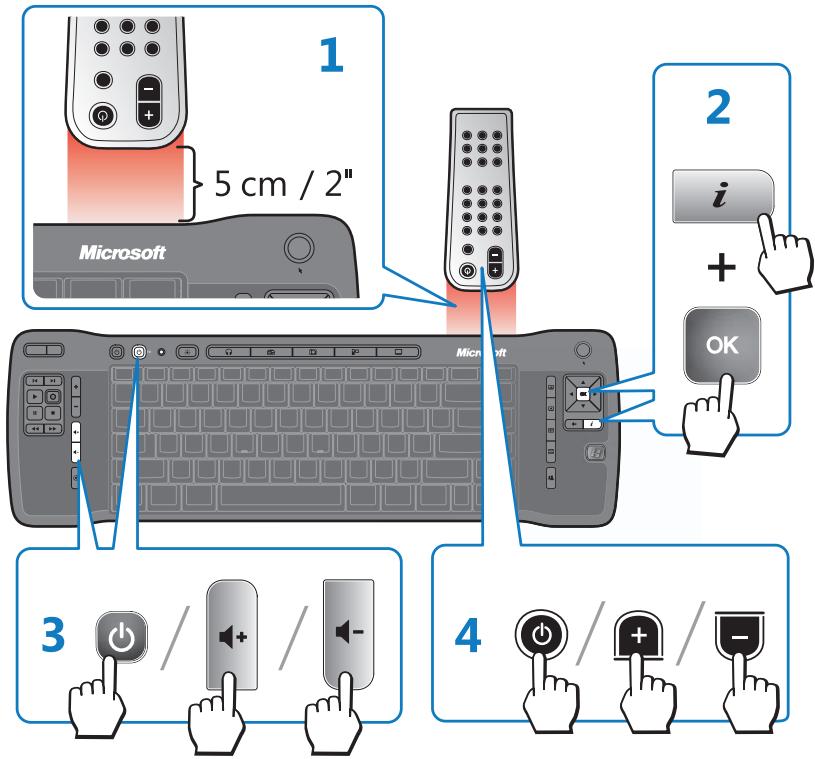
1 Place the remote control head to head (1 to 2 inches apart, or 2.5 to 5cm ) with the Microsoft keyboard infrared (IR) sensor.
2 On the Microsoft keyboard, press More (±b) + OK (at the same time). The status light on the top of the Microsoft keyboard blinks, indicating that it's in learning setup mode.
3 On the Microsoft keyboard, press and release , or , depending on which key you want to assign a command to.
The status light on the top of the Microsoft keyboard stops blinking, but stays on.
4 On the remote control, press and hold the button that you want the key on the Microsoft keyboard to learn until the status light on the top of the Microsoft keyboard blinks twice, indicating that the Microsoft keyboard has learned the command.
If the Microsoft keyboard didn't learn the command, the status light on the top of the Microsoft keyboard turns off. To try again, repeat steps 1 through 4.
www.microsoft.com/hardware
0805 Part No. X11-45748
Getting Started
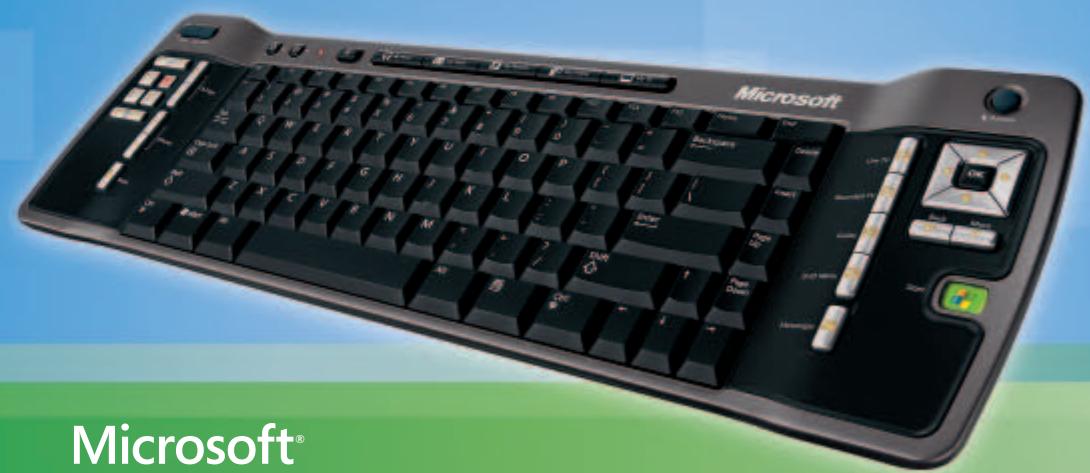
Microsoft
Remote Keyboard
for WindowsXP Media Center Edition


HEALTH WARNING
Use of a keyboard or mouse may be linked to serious injuries or disorders.
When using a computer, as with many activities, you may experience occasional discomfort in your hands, arms, shoulders, neck, or other parts of your body. However, if you experience symptoms such as persistent or recurring discomfort, pain, throbbing, aching, tingling, numbness, burning sensation, or stiffness, DO
NOT IGNORE THESE WARNING SIGNS. PROMPTLY SEE A QUALIFIED HEALTH PROFESSIONAL, even
if symptoms occur when you are not working at your computer. Symptoms like these can be associated with painful and sometimes permanently disabling injuries or disorders of the nerves, muscles, tendons, or other parts of the body. These musculoskeletal disorders (MSDs) include carpal tunnel syndrome, tendonitis, tenosynovitis, and other conditions.
While researchers are not yet able to answer many questions about MSDs, there is general agreement that many factors may be linked to their occurrence, including: overall health, stress and how one copes with it, medical and physical conditions, and how a person positions and uses his or her body during work and other activities (including use of a keyboard or mouse). The amount of time a person performs an activity may also be a factor.
Some guidelines that may help you work more comfortably with your computer and possibly reduce your risk of experiencing an MSD can be found in the "Healthy Computing Guide" installed with this device's software. If this device did not come with software, see the "Healthy Computing Guide" section of the "Getting Started" manual. You can also access the "Healthy Computing Guide" at www.microsoft.com/hardware or (in the United States only) by calling 1 (800) 360-7561 to request a CD at no charge.
If you have questions about how your own lifestyle, activities, or medical or physical condition may be related to MSDs, see a qualified health professional.

Warning
To protect against risk of fire, bodily injury, electric shock or damage to the equipment:
- Do not immerse any part of this product in water or other liquid.
- Do not spray liquid on this product or allow excess liquid to drip inside.
- Do not use this product if it has sustained any type of damage.
- Disconnect this product or remove its batteries before cleaning.
Information in this document, including URL and other Internet Web site references, is subject to change without notice. Unless otherwise noted, the example companies, organizations, products, domain names, e-mail addresses, logos, people, places, and events depicted herein are fictitious, and no association with any real company, organization, product, domain name, e-mail address, logo, person, place, or event is intended or should be inferred. Complying with all applicable copyright laws is the responsibility of the user. Without limiting the rights under copyright, no part of this document may be reproduced, stored in or introduced into a retrieval system, or transmitted in any form or by any means (electronic, mechanical, photocopying, recording, or otherwise), or for any purpose, without the express written permission of Microsoft Corporation.
Microsoft may have patents, patent applications, trademarks, copyrights, or other intellectual property rights covering subject matter in this document. Except as expressly provided in any written license agreement from Microsoft, the furnishing of this document does not give you any license to these patents, trademarks, copyrights, or other intellectual property.
Microsoft Corporation grants the purchaser of this product the right to reproduce one (1) copy of this user manual for each Hardware Device you purchased in the package.
© 2005 Microsoft Corporation. All rights reserved.
Microsoft, IntelliEye, IntelliMouse, and Windows are either registered trademarks or trademarks of Microsoft Corporation in the United States and/or other countries.
All other trademarks are property of their respective owners.
Quick Reference Guide
Microsoft Remote Keyboard for Windows XP Media Center Edition

Click
Click and double-click, just like using the left button on a mouse.

Right-Click
Display shortcut menus, just like using the right button on a mouse.

Sleep key
Put the computer into power management mode, such as standby.

TV power key
This key can "learn" to turn on your TV.

Status light
Blinks to indicate learning and general keyboard status.

Backlight
Turn the backlight functionality on and off.
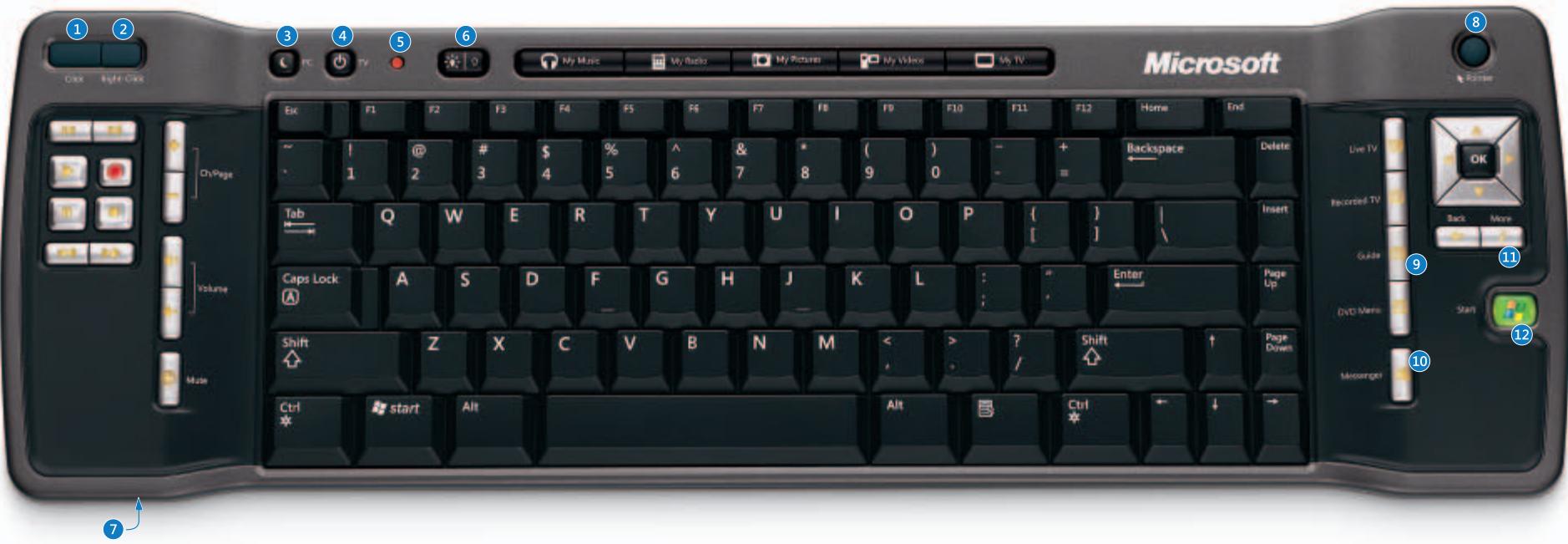

Keyboard lock switch
Lock keys to avoid accidental key presses and conserve battery power.

Pointer
Press down and move to control the on-screen pointer.

Guide
Open the Electronic Programming Guide.

Messenger
Start Media Center Messenger.

More
Show information about the selected item.

Start
Start Media Center or go to the Start menu if Media Center is already running.
Welcome
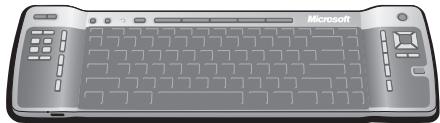
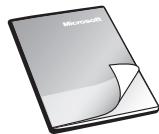
Congratulations on your purchase of a Microsoft® Remote Keyboard for Windows® XP Media Center Edition, which includes:
1

2
3
Microsoft keyboard
Batteries for the keyboard
This Getting Started manual, to help you set up your keyboard and learn about its features
For the Microsoft keyboard to work, you must use the infrared (IR) receiver that came with your Media Center PC. If the receiver isn't built into your computer, make sure that it's connected to your computer. For setup details, see the product documentation that came with the receiver.
Important Make sure that your computer meets the system requirements as specified on the keyboard packaging.
1 Download the Media Center Update
If it is not already installed, you must download a free Windows XP Media Center Edition update for the Microsoft keyboard to work (Internet access required).
To download the update
1 Go to the Microsoft Windows Update Web site at http://windowsupdate.microsoft.com
2 Click Custom Install.
3 Search for "Update Rollup 1 (or later) for eHome Infrared Receiver for Windows XP Media Center Edition," select it, and then click Go to install updates.
4 Click Install.
Important You must restart the computer for the keyboard to work properly.
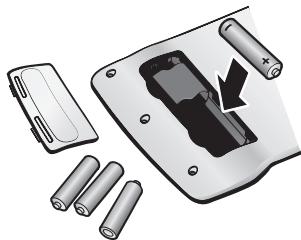
2 Insert the Batteries
The keyboard requires four batteries, which are included in the package. Whenever you insert batteries in the keyboard, always make sure that all four batteries are new. Alkaline batteries provide maximum battery life.
To insert the batteries
1 Turn the keyboard upside-down, and then remove the battery compartment cover.
2 Insert the new batteries, making sure to properly orient the positive (+) and negative (-) ends as specified by the battery compartment labels.
3 Position the Keyboard
For optimum performance, make sure that the distance between the keyboard and the receiver device (or receiver built into the computer) doesn't exceed 30 feet (10m) . Make sure that the front of the keyboard is facing the receiver device and that the keyboard isn't tilted up or down at an angle exceeding 30 degrees.
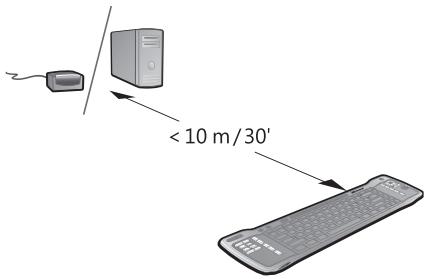
Important The keyboard's range (distance between the keyboard and the receiver) may be less than 30 feet (10m) depending on the room and other environmental factors.
4 Test the Keyboard
Try using the keyboard to make sure that it's working.
Tip To test the keyboard, press Start (B). This starts Media Center, or goes to the Start menu if Media Center is already running.
If the Microsoft keyboard doesn't work as expected, make sure that the following procedures were completed as specified earlier in these instructions:
- You have installed the free Windows XP Media Center Edition update.
- New batteries are inserted and positioned correctly.
- The keyboard is correctly positioned and there are no nearby items, such as furniture, that might cause interference.
For more troubleshooting tips, see the "Troubleshooting" section later in this manual.
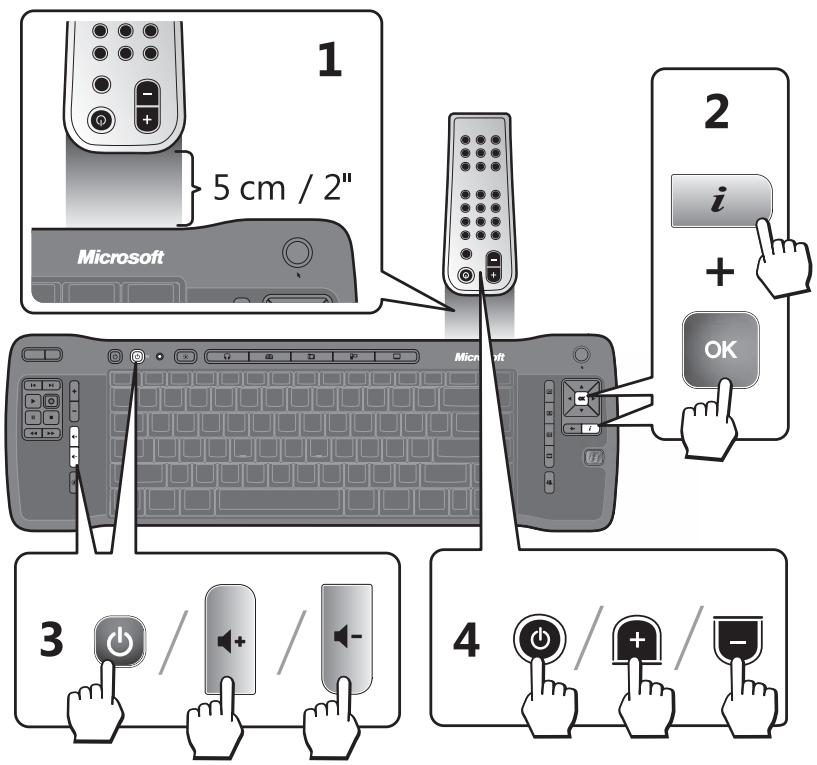
5 Use the Learning Feature to Program Keys (optional)
The TV power (D), Volume + (A+), and Volume - (A- keys on the Remote Keyboard for Windows XP Media Center Edition can "learn" commands from remote controls. This lets you use these keys to control other devices, such as your TV or audio receiver. For example, you can use on your keyboard to turn on your TV and A+ and to adjust the volume on your TV or stereo. The ,+ , and - keys can learn most remote control commands. If you don't want to use to turn on your TV, you can program it to do something else. For example, you can program it to mute the sound on your stereo.
Notes
- By default, and on the Microsoft keyboard control the volume on your computer, and has no command assigned to it until it "learns" one.
- The Microsoft keyboard saves the commands that you've programmed even if you remove the keyboard batteries to insert new ones.
- The learning feature might not support some remote controls or commands.
To program keys on the Microsoft keyboard
- Place the remote control head to head (1 to 2 inches apart, or 2.5 to 5cm ) with the Microsoft keyboard IR sensor.
2 On the Microsoft keyboard, press More () + OK (at the same time).
The status light on the top of the Microsoft keyboard blinks, indicating that it's in setup mode.
Note If you wait longer than 10 seconds to begin programming a key on the Microsoft keyboard, the keyboard will exit setup mode.
3 On the Microsoft keyboard, press and release , or , depending on which key you want to assign the command to.
The status light on the top of the Microsoft keyboard stops blinking, but stays on.
4 On the remote control, press and hold the button that you want the key on the Microsoft keyboard to learn until the status light on the top of the Microsoft keyboard blinks twice, indicating that the keyboard has learned the command.
If the Microsoft keyboard didn't learn the command, the status light on the top of the keyboard turns off. To try again, repeat steps 1 through 4.

Tip You can press SHIFT+ or SHIFT+ to bypass the learned commands and adjust the volume of the Media Center PC.
To restore the default TV, Volume +, and Volume - commands
1 Press ±bi + OK (at the same time).
The status light on the top of the Microsoft keyboard begins blinking.
2 Press the Back key (←).
The status light on the top of the Microsoft keyboard blinks twice to confirm that the commands have been reset. The key will have no command assigned to it and + and - will adjust the volume of the Media Center PC.
If the default commands weren't restored, the status light turns off. To try again, repeat steps 1 and 2.
Using the Keyboard Lock Switch
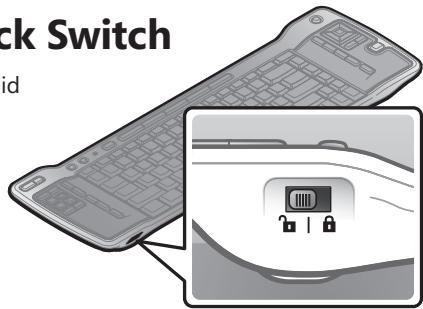
You can use the keyboard lock switch to avoid accidental key presses and conserve battery power when you aren't using the keyboard.
To lock the keyboard
- Slide the keyboard lock switch into the locked position.
About the Backlight
When you press a key on the left or right side of the keyboard, the keys on the left and right sides of the keyboard are backlit for approximately two seconds. If you want to conserve battery power, you can turn off the backlight functionality.
To turn the backlight functionality off and on
- To turn off the backlight functionality, press the Backlight toggle key (▶| o).
Press again to turn on the backlight functionality. The backlight will flash for approximately two seconds to indicate it's turned on; the backlight will flash only briefly when you turn it off.

Important If your keyboard battery power is low, the backlight won't turn on, even
if is turned on. To restore the backlight functionality, insert new batteries.
About the Integrated Pointing Device
The integrated pointing device is made up of the Pointer and the Click and Right-Click keys that you can use to move between and select items on the screen. The Click and Right-Click keys are located on the upper-left corner of the keyboard; the Pointer is located on the upper-right corner of the keyboard.
Using the Click and Right-Click Keys
- Press the Click key to click and double-click.
- Press the Right-Click key to display shortcut menus or other program-specific features, if available.
Using the Pointer
- Press down on the Pointer with your fingertip, and then move the Pointer in the direction that you want the on-screen pointer to move.
Using the Keys
You can use many of the keys on the Microsoft keyboard to interact with Windows XP Media Center Edition. No special software or setup procedure is required. Just position the keyboard, and then press the appropriate key.
| Task | Control | Key |
| Put the computer into power management mode (such as standby, suspend, or hibernation) if the computer supports power management and has it enabled. | Sleep | |
| By default, the TV power key has no command assigned to it. This key can "learn" to turn on the TV or another command that you choose. For more information, see Step 5, earlier in this manual. | TV power | |
| Indicate command key press, as well as learning and general keyboard status. For more information about the learning feature, see Step 5, earlier in this manual. | status light | |
| Turn the backlight functionality on and off. The backlight will flash for approximately two seconds to indicate it's turned on; the backlight will flash only briefly when you turn it off. The backlight turns on when you press a key on the left or right side of the keyboard. | Backlight | |
| Go to the Music page. | My Music | |
| Go to the Radio page if your system has this feature. | My Radio | |
| Go to the My Pictures page. | My Pictures | |
| Go to the My Videos page. | My Videos | |
| Go to the TV Home page. | My TV | |
| Press down and move to control the on-screen pointer. | Pointer | |
| For TV, go back five seconds. For Album or Playlist, play the previous song. For DVD, play the previous chapter. | Replay | |
| For Album or Playlist, skip to the next song. For Recorded TV, skip ahead 29 seconds. | Skip | |
| Play the selected song, Album, Playlist, recorded TV show, or video. | Play | |
| Record the TV show to disk. If pressed once while live TV is on, record the current show (if pressed twice, record the series). If pressed from the Electronic Programming Guide, record a TV show or TV series to disk. | Record | |
| Pause the currently playing media. Press Pause again to resume. | Pause | |
| Stop the currently playing media. Press Play to start the track again from the beginning. | Stop | |
| Rewind the currently playing media; if pressed repeatedly, cycles through three rewind speeds from slowest to fastest. | Rew | |
| Speed up the currently playing media; if pressed repeatedly, cycles through three fast forward speeds from slowest to fastest. | Fwd | |
| Change the channel or scroll up or down the page. | Ch/Page | |
| Adjust the volume. | Volume | |
| Mute the sound without stopping playback. Press Mute again to turn the sound back on. | Mute | |
| Switch to live TV if TV isn't currently playing. If the TV is paused, skip to live programming. | Live TV |
| Task | Control | Key |
| Go to the Recorded TV page. | Recorded TV | |
| Go to the Electronic Programming Guide. | Guide | |
| Display the DVD menu. | DVD Menu | |
| Start Media Center Messenger. | Messenger | |
| Move to the item above. | Up | |
| Move to the item below. | Down | |
| Move to the item on the left, or move to the menu. If a slide show is playing, return to the previous picture. | Left | |
| Move to the item on the right, or move from the menu to the folder items. If a slide show is playing, skip to the next picture. | Right | |
| Select the active item. | OK | |
| Go to the previous screen. | Back | |
| Show information about the selected item. | More | |
| Start Media Center, or go to the Start menu if Media Center is already running. | Start |
Troubleshooting
If you don't find the solution you're looking for in this section, see Media Center Help for additional troubleshooting information.
When I press the keys on my keyboard, nothing happens. Make sure that the following is true:
- You have installed the free Windows XP Media Center Edition update, as specified in Step 1 earlier in this manual, and you have restarted your computer.
- The keyboard lock switch is switched to the unlocked position. For more information, see "Using the Keyboard Lock Switch," earlier in this manual.
- New batteries are inserted and positioned correctly.
- The Microsoft keyboard is facing the IR receiver device (or the IR receiver built into the computer) and is positioned within 30 feet (10 m) of it.
- There isn't an object, such as a piece of furniture, between the Microsoft keyboard and the receiver device (or device built into the computer).
- The IR sensor on the receiver device (or receiver built into the computer) isn't covered up, and no natural or artificial light is shining directly on it.
No backlighting appears when I press the keys on the left and right sides of the keyboard. Try the following:
- Press 0 , and then press a key on the left or right side of the keyboard. The backlight functionality may have been turned off.
- Insert new batteries. The battery power could be low or the batteries could be inserted incorrectly.
When I press a key on the left or right side of the keyboard, backlighting appears but nothing happens. Make sure that the following is true:
- The keyboard is facing toward the receiver device (or receiver built into the computer).
- The IR sensor on the receiver device (or receiver built into the computer) isn't covered up, and no natural or artificial light is shining directly on it.
- No objects block the direct path between the keyboard and the receiver device (or device built into the computer).
- The keyboard is within 30 feet (10 m) of the receiver device (or receiver built into the computer).
- You haven't minimized or exited Media Center. To reactivate Media Center, press This starts Media Center, or goes to the Start menu if Media Center is already running.
The keyboard Pointer isn't working as expected. Try the following:
- Make sure to press down on the Pointer when moving it.
- Try adjusting the pointer settings. To do so, click Control Panel on the Windows Start menu, double-click Mouse, and then select the Pointer Options tab. Try different pointer settings to see which one works best.
My keyboard doesn't turn my TV on or off. Make sure that the following is true:
- You pressed and not some other key.
- You followed the instructions in Step 5, "Use the Learning Feature to Program Keys."
- The Power button on the TV remote control is working properly. If it isn't, the Microsoft keyboard might not receive the correct IR code.
My keyboard won't learn a command from my remote control. Please note the following:
- Make sure you don't attempt to program commands in bright natural or artificial light.
- Although , , and -can learn most commands, the learning feature may not support some commands on some remote controls.
- The learning feature may not support your remote control.
When I press the My Radio Hot Key, nothing happens. My Radio Hot Key only works if your system has this feature installed.
Healthy Computing Guide
Introduction
This guide is designed to help you be more comfortable and productive while using your computer. It may also help you reduce your risk of experiencing painful and disabling injuries or disorders described in the Health Warning earlier in this manual.
It only takes a moment to read, but the benefits can be lasting.
For information about arranging your workstation and developing habits that may help to reduce your risk of experiencing a musculoskeletal disorder (MSD), read this "Healthy Computing Guide." Because there are a variety of factors that may contribute to MSDs, this guide cannot provide everything you need to know to prevent an MSD or reduce your risk of experiencing one. For some people, following the suggestions may reduce their risk of experiencing an MSD. For others, it may not. However, many people experience greater comfort and productivity when following these suggestions. Keep in mind that this guide is not a substitute for the advice of a qualified health professional or an employer health policy or program. If you have questions about how your own lifestyle, activities, or medical or physical condition may be related to MSDs, see a qualified health professional.
Position Yourself
Whether you are working or playing, it is important to avoid awkward postures and position your body comfortably. Not only can this improve your overall productivity, it may help you avoid MSDs. Keep in mind that changing your posture during extended tasks may also help you avoid discomfort and fatigue.
When working or playing at the computer, adapt your surroundings and arrange your computing equipment to promote a comfortable and relaxed body posture. Setting up your workstation to avoid discomfort depends on your unique body size and work environment. However, the following suggestions may help to provide you with a more comfortable environment.
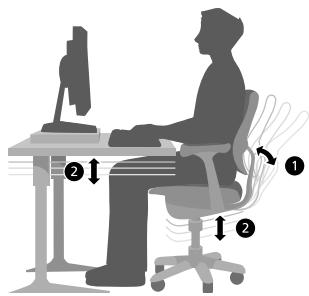
To support your back, try the following:
- Use a chair that supports your lower back (see detail 1).
- Adjust your work surface and chair height to assume a comfortable and natural body posture (see detail 2).
To promote comfortable leg postures, try the following:
- Clear away items from beneath your desk to allow comfortable leg positioning and movement.
- Use a footrest if your feet do not rest comfortably on the floor.
To minimize reaching and to promote comfortable shoulder and arm postures, try the following:
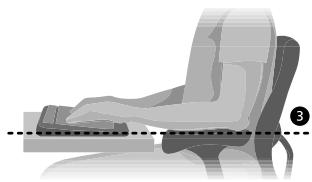
- Place your keyboard and mouse or trackball at the same height; these should be at about elbow level. Your upper arms should fall relaxed at your sides (see detail 3).
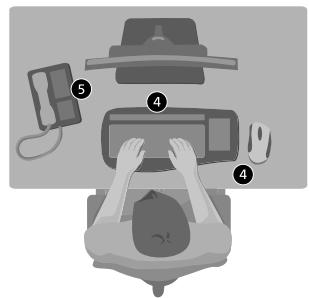
- When typing, center your keyboard in front of you with your mouse or trackball located close to it (see detail 4).
- Place frequently used items comfortably within arm's reach (see detail 5).
To promote proper wrist and finger postures, try the following:
- Keep your wrists straight while typing and while using a mouse or trackball. Avoid bending your wrists up, down, or to the sides. If your keyboard has legs, extend them if this helps you maintain a comfortable and straight wrist position.
- Type with your hands and wrists floating above the keyboard, so that you can use your whole arm to reach for distant keys instead of stretching your fingers.
To minimize neck bending and twisting, try the following:
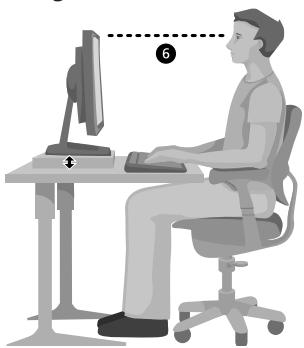
- Position the top of the screen near eye level (see detail ⑥). Bifocal wearers may need to lower the screen or talk to a qualified health professional about glasses customized for computer work.
- Center your monitor in front of you. If you refer to your documents more frequently than your monitor, consider placing your documents directly in front of you and the monitor slightly to the side.
- Consider using a document holder to position your documents near eye level.
To minimize eye strain, try the following:
- Position your monitor about an arm's length away from you when seated comfortably in front of it.
- Avoid glare by placing your monitor away from light sources that produce glare, or use window blinds to control light levels.
- Remember to clean your screen. If you wear glasses, clean them also.
- Adjust your monitor's brightness and contrast.
- Adjust onscreen font sizes to make viewing more comfortable for you, if your computer program has this feature.
Go Lightly
Physical forces continuously interact with our bodies. We may think that only high-impact forces, such as car crashes, are likely to injure our bodies. However, low-impact forces may also result in injuries, discomfort, and fatigue if they are repeated or experienced over long periods of time.
Some types of low-impact forces include:
Dynamic force: A force that you exert through movement, such as pressing the keys while typing or clicking the mouse buttons.
Static force: A force that you maintain for a period of time, such as holding your mouse or cradling the phone.
Contact force: A force that occurs when you rest on an edge or hard surface, such as resting your wrists on the edge of your desk.
To reduce the effects of low-impact forces on your body, try the following:
- Type with a light touch, keeping your hands and fingers relaxed, because it takes little effort to activate keyboard keys.
- Use a light touch when clicking a mouse button or when using a joystick or other gaming controller.
-
Hold the mouse with a relaxed hand and do not grip the mouse tightly.
-
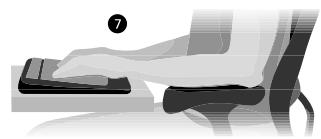
Avoid resting your palms or wrists on any type of surface while typing (see detail 7). The palm rest, if provided, should only be used during breaks from typing.
- Relax your arms and hands when you are not typing or using your mouse. Do not rest your arms and hands on edges, such as the edge of your desk.
- Adjust your chair so the seat does not press into the back of your knees (see detail ③).
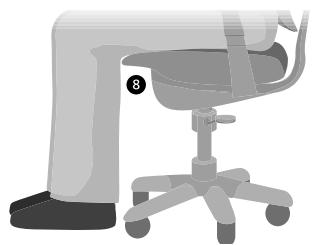
Take Breaks
Taking breaks can help your body recover from any activity and may help you avoid MSDs. The length and frequency of breaks that are right for you depend on the type of work you are doing. Stopping the activity and relaxing is one way to take a break, but there are other ways, also. For example, just changing tasks—perhaps from sitting while typing to standing while talking on the phone can help some muscles relax while others remain productive.
To vary your daily activities and to work productively, try the following:
- Plan your work and play so that you are not doing the same thing for extended periods of time (such as performing the same activity or using the same part of your body).
- Use different input devices, such as your mouse and keyboard, to accomplish the same task. For example, to perform a scrolling task, you can use the wheel on the mouse and the arrow keys on the keyboard.
- Work more efficiently by using software and hardware features to reduce your effort and increase your productivity. For example, you can press the Windows logo key to open the Windows Start menu.
- Learn about software and hardware features by reading the information that accompanied these products. For example, if you frequently highlight text, activate the mouse ClickLock feature.
Be Healthy
A healthy lifestyle can help you perform and enjoy your everyday activities, including the time spent at your computer. Also, learning more about your health is an important step in staying comfortable and productive while using your computer.
To help maintain good health, try the following:
- Eat a balanced diet and get adequate rest.
- Exercise for overall fitness and to improve the strength and flexibility of your body. Consult a qualified health professional to help you choose the stretches and exercises that are right for you.
- Learn to manage stress. One way to reduce stress at work is to plan your work area and schedule so that noise and distractions are kept to a minimum.
- See a qualified health professional if you have questions about how your medical and physical conditions may be related to MSDs. While researchers are not yet able to answer many questions about MSDs, there is general agreement that many factors may be linked to their occurrence, including previous injuries, diabetes, hormonal changes (such as pregnancy), and rheumatoid arthritis.
Conclusion
Learning more about working comfortably and productively, as well as your overall health, are important ways to help you enjoy your computing experience.
Microsoft Product Support Services
If you have a question about your Microsoft hardware device, do the following:
- Check the system requirements for your device (located on the packaging) to make sure your system is compatible.
- Read through this manual.
- For additional product information, go to the Microsoft Hardware Web site at: www.microsoft.com/hardware
- For up-to-date help about using or troubleshootinging your device, go to the Microsoft Product Support Services Web site at: http://support.microsoft.com
- See the technical support options in this section to find the appropriate support option.
Customer Support Options
Product Name: Remote Keyboard for Windows XP Media Center Edition
OEM If this product came with a new computer or device, the hardware Distributed: manufacturer provides technical support. Please contact your manufacturer directly for support.
Self-Help Search our Knowledge Base, watch videos for solving common Support: problems, and download available updates by visiting http://support.microsoft.com
Chat & E-mail Chat immediately, or send an e-mail message to a Microsoft Support Support: Professional by visiting http://support.microsoft.com Note that e-mail response may be delayed by several hours.
Phone Support: In the United States, call (866) 833-7088.
In Canada, call (800) 876-8533
For all other regions, see the International Technical Support Numbers later in this section.
TTY Users: In the United States, call (800) 892-5234.
In Canada, call (905) 568-9641.
For all other regions, see the International Technical Support Numbers later in this section.
Conditions: Microsoft support services are subject to then-current prices, terms, and conditions, which are subject to change without notice. Toll charges may apply to all non-toll-free numbers listed.
International Technical Support Numbers (partial list only):
Note For regional support policy details and more, visit http://support.microsoft.com/international.aspx and select your country or region from the list. If there is no Microsoft subsidiary office in your country or region, please contact the establishment from which you obtained your Microsoft product.
Argentina
Technical Support Phone: 13 20 58
Technical Support Fax:
(61) (2) 9023 5021
Bolivia
(33) (0) 825 827 829, followed by 0 and
code 10 20 #
Telex: MSPARIS 604322F
Germany
Standard Support (Installation and
Handling): (01805) 67 22 55
General information about Microsoft
support in central Europe:
Telephone: (01805) 25-1199
Fax: (01805) 25-1191
Japan
Microsoft Support Contact Center
TEL: (81) (3) 5354-4700
FAX: (81) (3) 5388-8253
Mexico
Technical Support: (64) (9) 357-5575
Panama
0860225567 (inside South Africa)
Technical Support Fax:
(27) (11) 257-0424
United Kingdom
Tel: 0870 60 10 100
Customers phoning from Ireland:
+353 1 706 5353.
Uruguay
Sopporté Técnico (598) 2-908-0998/1998
Atencion a Clientes: (598) 2-916-4445
Atencion a Canal: (598) 2-916-4446
Venezuela
United States and/or international patents pending.
Important Battery Information

Caution Use and replace only with AA (LR6) Alkaline, Zinc-Carbon, or Zinc-Chloride Batteries.
General Precautions
- Keep batteries out of reach of children.
- Insert the batteries in the proper direction as indicated by the positive (+) and negative (-) markings on the battery and battery compartment.
- Do not mix old and new batteries or batteries of different types (for example, carbon and alkaline batteries)
Always remove old, weak, or worn-out batteries promptly and recycle or dispose of them in accordance with Local and National Disposal Regulations. - If a battery leaks, remove all batteries and recycle or dispose of them in accordance with the battery manufacturer's instructions and Local and National Disposal Regulations. Before inserting new batteries, thoroughly clean the battery compartment with a damp paper towel, or follow the battery manufacturer's recommendations for cleanup. If fluid from the battery comes into contact with skin or clothes, flush skin with water immediately.
- Remove the batteries if your device is to be stored for an extended period of time without being used.
Special Precautions
The precautions below are to prevent the sudden release of electrolytes, which these prohibited actions can cause.
- Do not install the batteries incorrectly. Carefully observe the positive (+) and negative (-) markings on the battery for proper installation.
- Do not open, puncture, or mutilate the batteries.
- Do not heat batteries.
- Do not use a fire to dispose of batteries.
Released battery electrolyte is corrosive, can cause damage to the eyes and skin, and may be toxic if swallowed.
Regulatory Information
Tested to comply with FCC (U.S. Federal Communications Commission) Standards. For home or office use, Not intended for use in machinery, medical or industrial applications. Any changes or modifications not expressly approved by Microsoft could void the user's authority to operate this device.
This product is for use with NRTL Listed (UL, CSA, ETL, etc.), and/or IEC/EN 60950 compliant (CE marked) Information Technology equipment. No serviceable parts included.
This device is rated as a commercial product for operation at +41^ (+5^) to +95^ (+35^) .
This Class B digital apparatus complies with Part 15 of the U.S. Federal Communications Commission (FCC) rules, Canadian ICEs-003 and RSS-210. Operation is subject to the following two conditions: (1) this device may not cause interference, and (2) this device must accept any interference received, including interference that may cause undesired operation.
Information About LED Devices
This product has been evaluated to comply with International Standard IEC 60825-1:1993/A2:2001
This product uses LEDs that are inherently Class 1.
Radio and TV Interference Regulations
The Microsoft hardware device(s) can radiate radio frequency (RF) energy. If not installed and used in strict accordance with the instructions given in the printed documentation and/or onscreen help files, the device may cause harmful interference with other radio-communications devices (for example AM/FM radios, televisions, baby monitors, cordless phones, etc.). There is, however, no guarantee that RF interference will not occur in a particular installation.
To determine if your hardware device is causing interference to other radio-communications devices, disconnect the device from your computer or remove the device's batteries (for a battery operated device). If the interference stops, it was probably caused by the device. If the interference continues after you disconnect the hardware device or remove the batteries, turn the computer off and then on again. If the interference stopped when the computer was off, check to see if one of the input/output (I/O) devices or one of the computer's internal accessory boards is causing the problem. Disconnect the I/O devices one at a time and see if the interference stops.
If this hardware device does cause interference, try the following measures to correct it:
- Relocate the antenna of the other radio-communications device (for example AM/FM Radios, televisions, baby monitors, cordless phones, etc) until the interference stops.
- Move the hardware device farther away from the radio or TV, or move it to one side or the other of the radio or TV.
- Plug the computer into a different power outlet so that the hardware device and radio or TV are on different circuits controlled by different circuit breakers or fuses.
- If necessary, ask your computer dealer or an experienced radio-TV technician for more suggestions. For more information about interference issues, go to the FCC Web site at: http://www.fcc.gov/cgi/consumerfacts/interference.html You can also call the FCC at 1-888-CALL FCC to request Interference and Telephone Interference fact sheets.
Product Disposal Information
Dispose of this product in accordance with local and national disposal regulations (if any), including those governing the recovery and recycling of waste electrical and electronic equipment (WEEE).

Limited Warranty
IMPORTANT—PLEASE READ THIS LIMITED WARRANTY CAREFULLY TO UNDERSTAND YOUR RIGHTS AND OBLIGATIONS! The term "Hardware Device" means the Microsoft hardware product. The term "You" means either an individual or a single legal entity who will be referred to in this Limited Warranty as "You" and "Your".
A. WARRANTY.
- Express Warranty. Subject to the terms and conditions of this Limited Warranty and in lieu of any other (if any) express warranties, Microsoft warrants that under normal use and service, on the date of acquisition as shown on Your receipt or similar proof of payment and for the period of time stated below for the applicable Hardware Device (hereafter each defined as the "Warranty Period"), that the Hardware Device will substantially conform with the accompanying Microsoft packaging and documentation. As to any defects discovered after the Warranty Period, there is no warranty or condition of any kind.
Warranty Period:
For all Microsoft keyboard and mouse desktop sets: Three (3) years
For all Microsoft keyboard devices: Three (3) years
For Microsoft mouse devices:
Comfort Optical Mouse 3000; Wireless Optical Mouse 1000; Basic Mouse; Basic Notebook Optical Mouse; Compact Optical Mouse; Mobile Optical Mouse; Notebook Optical Mouse; Optical Mouse by Starck; Standard Wireless Optical Mouse; Wheel Mouse; Wheel Mouse Optical: Two (2) years
Laser Mouse 6000; Wireless Notebook Laser Mouse 6000; Wireless Notebook Optical Mouse 5000; Wireless Notebook Optical Mouse 4000; Wireless Optical Mouse 3000; Wireless Notebook Optical Mouse 3000; Notebook Optical Mouse 3000; Basic Optical Mouse; Cordless Wheel Mouse; IntelliMouse; IntelliMouse Explorer; IntelliMouse Trackball; Mouse 2.0; Optical Mouse; Trackball Optical; Wireless Notebook Optical Mouse; Wireless Optical Mouse; Wireless Wheel Mouse: Three (3) years
Wireless Laser Mouse 6000; Wireless Optical Mouse 5000; IntelliMouse Optical; IntelliMouse Pro; IntelliMouse with IntelliEye; Trackball Explorer; Wireless IntellMouse Explorer; IntelliMouse Explorer for Bluetooth; Wireless IntelliMouse Explorer with Fingerprint Reader: Five (5) years
For other Microsoft devices:
Microsoft Fingerprint Reader: Three (3) years
This Limited Warranty does not cover, and no warranty of any kind is provided with respect to any subjective or aesthetic aspects of the Hardware Device. The express warranty stated above is the only express warranty made to You and is provided in lieu of all other express or implied warranties and conditions (except for any non-disclaimable implied warranties that exist), including any created by any other documentation or packaging. No information or suggestions (oral or in a record) given by Microsoft, its agents, affiliates or suppliers or its or their employees or agents, shall create a warranty or condition or expand the scope of this Limited Warranty.
- Limitation on Duration of Implied Warranties. If you are a consumer, You may also have an implied warranty and/or condition under the laws of some jurisdictions, which is hereby limited to the duration of the Warranty Period. Some jurisdictions do not allow limitations on how long an implied warranty or condition lasts, so the foregoing limitation may not apply to You.
B. EXCLUSIVE REMEDY. Subject to applicable law and the following, and provided that You return the Hardware Device to Your place of acquisition (or, if that place will not accept the return, to Microsoft) with a copy of Your receipt or other bona fide proof of payment during the Warranty Period, Microsoft will, at its option and as Your exclusive remedy for breach of this Limited Warranty and any implied warranties:
repair or replace the defective Hardware Device; or
make payment to You for the allowable damages that You incurred in reasonable reliance, but only up to the amount You paid (if any) for the Hardware Device less reasonable depreciation based on actual use.
The above remedy is subject to the following:
Any repaired or replaced Hardware Device will be new or refurbished or serviceably used, comparable in function and performance to the original Hardware Device, and may include third party items;
Any Hardware Device repaired or replaced under this Limited Warranty will be warranted for the remainder of the original Warranty Period or 30 days from the date of shipment of the item back to You, whichever is longer.
Except as otherwise required by legislation in Your jurisdiction, costs associated with transport (including packaging) for warranty service shall be at Your expense; and
Microsoft, its agents, affiliates and suppliers do not provide any warranties regarding any other services provided under this Limited Warranty and disclaimer all duties (if any) of workmanlike effort or of lack of negligence regarding such services.
C. NO OTHER WARRANTYES. The express warranty stated above is the only express warranty made to You and is provided in lieu of all other express or implied warranties and conditions (if any) including any created by any other documentation or packaging. No other warranties or conditions are made with respect to the Hardware Device or the warranty services by any person, including but not limited to Microsoft, its agents, affiliates and suppliers. No information (oral or written) or suggestions given by Microsoft, its agents or suppliers or its or their employees, shall create a warranty or condition or expand the scope of this Limited Warranty. Also, there is no warranty or condition of title, quiet enjoyment, or noninfringement in the Hardware Device. You may have greater rights existing under legislation in your jurisdiction.
D. EXCLUSION OF OTHER DAMAGES.
TO THE FULL EXTENT ALLOWED BY LAW, MICROSOFT AND ITS AGENTS, AFFILIATES AND SUPPLIERS ARE NOT LIABLE FOR ANY:
(i) CONSEQUENTIAL OR INCIDENTAL DAMAGES;
(ii) DAMAGES OR LOSS OF ANY NATURE WHATSOEVER RELATING TO LOST PROFITS, BUSINESS INTERruption, LOSS OF DATA OR PRIVACY OR CONFIDENTIALITY, ANY INABILITY TO USE ALL OR PART OF THE HARDWARE DEVICE, PERSONAL INJURY, OR ANY FAILURE TO MEET ANY DUTY (INCLUDING BUT NOT LIMITED TO ANY DUTY OF NEGLIGENCE, GOOD FAITH OR OF WORKMANLIKE EFFORT); OR
(iii) INDIRECT, SPECIAL, OR PUNITIVE DAMAGE ASISING OUT OF OR RELATING IN ANY WAY TO THE HARDWARE DEVICE. THE FOREGOING APPLIES EVEN IF MICROSOFT OR ANY AGENT, AFFILIATE OR SUPPLIER HAS BEEN ADVISED OF THE POSSIBILITY OF SUCH LOSSES OR DAMAGES; AND EVEN IN THE EVENT OF FAULT, TORT (INCLUDING NEGLIGENCE), STRICT OR PRODUCT LIABILITY, MISREPRESENTATION OR OTHER REASON.
Some jurisdictions do not allow the exclusion or limitation of incidental or consequential damages, so the above limitation or exclusions may not apply to You.
E. EXCLUSIONS FROM COVERAGE. This Limited Warranty shall not apply and Microsoft, its agents, affiliates and suppliers have no liability under this Limited Warranty if the Hardware Device:
- is used for commercial purposes (including rental or lease);
- is modified or tampered with;
- is damaged by Acts of God, power surge, misuse, abuse, negligence, accident, wear and tear, mishandling, misapplication, or other causes unrelated to defects in the Hardware Device;
- is damaged by programs, data, viruses, or files, or during shipments;
- is not used in accordance with the accompanying documentation and use instructions; or
- is repaired, modified or altered by other than a Microsoft authorized repair center and the unauthorized center causes or contributes to any defect or damage.
F. REGISTRATION. You need not register Your acquisition of the Hardware Device for the Limited Warranty to be effective.
G. BENEFICIARY. To the extent allowed by applicable law, the Limited Warranty is only made to You, the first purchaser of the Hardware Device, and there are no third party beneficiaries of the Limited Warranty. It is not intended for and does not apply to anyone else (except as required by law), including anyone to whom You make any transfer of the Hardware Device.
H. GOVERNING LAW; EXCLUSIVE FORUM. If You acquired the Hardware Device in the United States of America, all parts of this Limited Warranty shall be construed under and controlled by the laws of the State of Washington, U.S.A., and You irrevocably consent to exclusive jurisdiction and venue in the federal courts sitting in King County, WA unless no federal subject matter jurisdiction exists, in which case You irrevocably consent to exclusive jurisdiction and venue in the Superior Court of King County, WA. If You acquired the Hardware Device in Canada, except where expressly prohibited by local laws, the laws in force in the Province of Ontario, Canada apply and each of the parties hereto irrevocably attorns to the jurisdiction of the courts of the Province of Ontario and further agrees to commence any litigation which may arise hereunder in the courts located in the Judicial District of York, Province of Ontario. If You acquired this Hardware Device outside of the countries listed above, then local laws may apply.
I. FURTHER INFORMATION. Microsoft is the warrantor under this Limited Warranty. To receive instructions for obtaining performance of this Limited Warranty You must either contact the Microsoft subsidiary serving your country, or write to: Microsoft Sales Information Center, One Microsoft Way, Redmond, WA 98052-6399, USA, or visit Microsoft on the World Wide Web at http://www.microsoft.com.
You must also:
- Submit proof of payment in the form of a bona fide, dated receipt, or invoice (or a copy) evidencing that You are the beneficiary of this Limited Warranty and that Your request for a remedy is made within the Warranty Period;
- Follow Microsoft's shipping and other instructions if it determines that all or part of your Hardware Device requires return. To obtain the Limited Warranty performance, you must take or deliver the item in either its original packaging or packaging that provides an equal degree of protection to the location specified by Microsoft. Except as otherwise required by legislation in your jurisdiction, costs associated with transport (including packaging) for warranty service shall be at Your expense.
Failure to follow the above instructions may result in delays, cause you to incur additional charges, or may void your warranty.
- Program Keys by Using the Learning Feature
- Getting Started
- HEALTH WARNING
- Warning
- Quick Reference Guide
- Click
- Right-Click
- Sleep key
- TV power key
- Status light
- Backlight
- Keyboard lock switch
- Pointer
- Guide
- Messenger
- More
- Start
- Welcome
- Download the Media Center Update
- To download the update
- Insert the Batteries
- To insert the batteries
- Position the Keyboard
- Test the Keyboard
- Use the Learning Feature to Program Keys (optional)
- Notes
- To program keys on the Microsoft keyboard
- To restore the default TV, Volume +, and Volume - commands
- Using the Keyboard Lock Switch
- To lock the keyboard
- About the Backlight
- To turn the backlight functionality off and on
- About the Integrated Pointing Device
- Using the Click and Right-Click Keys
- Using the Pointer
- Using the Keys
- Troubleshooting
- Healthy Computing Guide
- Introduction
- Position Yourself
- To support your back, try the following:
- To promote comfortable leg postures, try the following:
- To minimize reaching and to promote comfortable shoulder and arm postures, try the following:
- To promote proper wrist and finger postures, try the following:
- To minimize neck bending and twisting, try the following:
- To minimize eye strain, try the following:
- Go Lightly
- Some types of low-impact forces include:
- To reduce the effects of low-impact forces on your body, try the following:
- Take Breaks
- To vary your daily activities and to work productively, try the following:
- Be Healthy
- To help maintain good health, try the following:
- Conclusion
- Microsoft Product Support Services
- Customer Support Options
- Product Name: Remote Keyboard for Windows XP Media Center Edition
- International Technical Support Numbers (partial list only):
- Argentina
- Bolivia
- Germany
- Japan
- Mexico
- Panama
- United Kingdom
- Uruguay
- Venezuela
- Important Battery Information
- General Precautions
- Special Precautions
- Regulatory Information
- Information About LED Devices
- Radio and TV Interference Regulations
- Product Disposal Information
- Limited Warranty
- WARRANTY.
- Warranty Period:
Brand : MICROSOFT
Model : REMOTE KEYBOARD FOR WINDOWS XP MEDIA CENTER EDITION
Category : Wireless keyboard