
WIRELESS DESKTOP SETS - Wireless keyboard and mouse set MICROSOFT - Free user manual and instructions
Find the device manual for free WIRELESS DESKTOP SETS MICROSOFT in PDF.


| Product Type | Wireless keyboard and mouse set |
| Brand | Microsoft |
| Model | Wireless Desktop Sets |
| Connectivity | Wireless (RF 2.4 GHz) |
| Wireless range | Up to 10 meters |
| Keyboard power | 2 AAA batteries (not included) |
| Mouse power | 2 AA batteries (not included) |
| Estimated battery life | Up to 12 months for mouse, 24 months for keyboard |
| Keyboard dimensions (L x W x H) | Approximately 460 x 180 x 25 mm |
| Mouse dimensions (L x W x H) | Approximately 115 x 65 x 40 mm |
| Keyboard weight | Approximately 650 g (with batteries) |
| Mouse weight | Approximately 120 g (with batteries) |
| Number of keyboard keys | 104 keys (AZERTY layout) |
| Multimedia functions | Shortcut keys for music, volume, and browser |
| Mouse resolution | 1000 dpi (optical) |
| Scroll wheel | Yes, with click function |
| Compatible operating systems | Windows 7/8/10/11, macOS (partial) |
| Cleaning | Use a soft, slightly damp cloth. Do not use solvents. |
| Operating temperature | 0 °C to 40 °C |
| Storage temperature | -20 °C to 60 °C |
| Relative humidity | 5% to 80% (non-condensing) |
| Certifications | FCC, IC, CE |
| Package contents | Keyboard, mouse, USB receiver, quick start guide |
Frequently Asked Questions - WIRELESS DESKTOP SETS MICROSOFT
User questions about WIRELESS DESKTOP SETS MICROSOFT
0 question about this device. Answer the ones you know or ask your own.
Ask a new question about this device
Download the instructions for your Wireless keyboard and mouse set in PDF format for free! Find your manual WIRELESS DESKTOP SETS - MICROSOFT and take your electronic device back in hand. On this page are published all the documents necessary for the use of your device. WIRELESS DESKTOP SETS by MICROSOFT.
USER MANUAL WIRELESS DESKTOP SETS MICROSOFT
Microsoft Wireless Desktop Sets
1
2
3

HEALTH WARNING
Use of a keyboard or mouse may be linked to serious injuries or disorders.
When using a computer, as with many activities, you may experience occasional discomfort in your hands, arms, shoulders, neck, or other parts of your body. However, if you experience symptoms such as persistent or recurring discomfort, pain, throbbing, aching, tingling, numbness, burning sensation, or stiffness, DO NOT INCLUDE THESE WARNING SIGNS. PROMPTLY SEE A QUALIFIED HEALTH
PROFESSIONAL, even if symptoms occur when you are not working at your computer. Symptoms like these can be associated with painful and sometimes permanently disabling injuries or disorders of the nerves, muscles, tendons, or other parts of the body. These musculoskeletal disorders (MSDs) include carpal tunnel syndrome, tendonitis, tenosynovitis, and other conditions.
While researchers are not yet able to answer many questions about MSDs, there is general agreement that many factors may be linked to their occurrence, including: overall health, stress and how one copes with it, medical and physical conditions, and how a person positions and uses his or her body during work and other activities (including use of a keyboard or mouse). The amount of time a person performs an activity may also be a factor.
Some guidelines that may help you work more comfortably with your computer and possibly reduce your risk of experiencing an MSD can be found in the "Healthy Computer Guide" installed with this device's software. If this device did not come with software, see the "Healthy Computing Guide" section of the "Getting Started" manual. You can also access the "Healthy Computing Guide" at www.microsoft.com/ hardware or (in the United States only) by calling 1 (800) 360 7561 to request a CD at no charge.
If you have questions about how your own lifestyle, activities, or medical or physical condition may be related to MSDs, see a qualified health professional.
About Your Rights and Obligations
This Microsoft® wireless desktop set is comprised of a keyboard, mouse, and receiver and is sold as a single unit and may not be separated for use on more than one computer. The software with this product is licensed, not sold. You must either agree to the license contract in the software Setup screen or promptly return the Microsoft wireless desktop set, comprised of the keyboard, mouse, and receiver, along with the software, for a refund, excluding the return costs. After you install the software, you may consult the license and the Limited Warranty for the product at any time by looking in the “Legal Information” section of the software Help files. You may also print copies for your records.
Welcome
Congratulations on your purchase of a Microsoft® wireless desktop set, which includes a wireless keyboard, wireless mouse, and a dual receiver. Setting up the devices takes a few simple steps, and then you can enjoy the freedom of wireless technology and the convenience of a clutter-free desktop.

Important! Install the Software
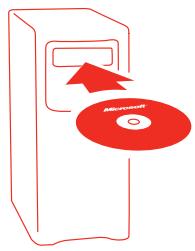
Your Microsoft wireless desktop set includes a CD with IntelliType Pro keyboard software and IntelliPoint mouse software. This software enables the unique features of your wireless devices and provides battery status information.
To install IntelliType Pro keyboard software and IntelliPoint mouse software (Windows®)
- Insert the software installation CD into your computer's CD drive.
If the Setup screen does not appear automatically, do the following:
- Click the Start button, and then click Run.
-
Type [drive]:setup. For example, if your CD drive is drive E, type e:setup.
-
On the Setup screen, click Install, and then follow the Setup Wizard instructions on the screen.
- Restart the computer, if prompted to do so.
To install IntelliType Pro keyboard software and IntelliPoint mouse software (Mac OS)
Important Not all Microsoft wireless desktop sets are compatible with Macintosh computers. For system requirements and compatibility listings, see the product packaging.
- Insert the software installation CD into your computer's CD drive.
- Double-click the Microsoft Desktop Installer icon.
- Follow the onscreen instructions, and then restart the computer, if prompted to do so.

Insert the Batteries
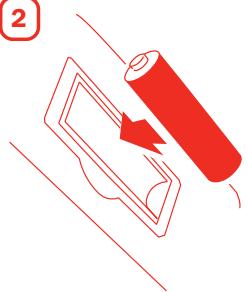
The keyboard and mouse each require batteries, which are included in the package. Whenever you insert batteries, always make sure all of them are new. Alkaline batteries provide maximum battery life.
Important Before boarding any aircraft, remove the batteries from the wireless keyboard and mouse. These devices can transmit radio frequency (RF) energy, much like a cellular telephone, whenever batteries are installed and the keyboard or mouse is activated either by touch or button press.
To insert the batteries
- Turn the device upside-down, and then remove the battery compartment cover.
- Insert new batteries, making sure to properly orient the positive (+) and negative (-) ends as specified by the battery compartment labels.
- Close the battery compartment cover.
0504 Part No. X10-42010-02

Position the Receiver, Keyboard, and Mouse
For optimum performance, position the receiver so that it is at least 8 inches (20 cm) away from the keyboard, mouse, and any items that might cause interference. Such items include computer monitors, large metal objects (such as computer cases and metal furniture), desktop fans, or fluorescent lights.
The keyboard or mouse may work up to 6 feet (1.8 m) away from the receiver. This distance varies depending on the positioning of the receiver and wireless devices, nearby items causing interference, and other factors.

Connect the Receiver to Your Computer
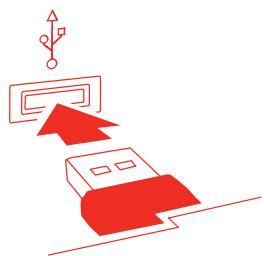
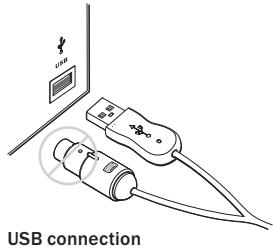
The connection procedure depends on the type of computer you are using. A USB connection is recommended.
USB connection (Windows or Macintosh)
- With your computer turned on, plug the rectangular USB connector into your computer's rectangular USB port, and leave the round PS/2 connector unplugged.
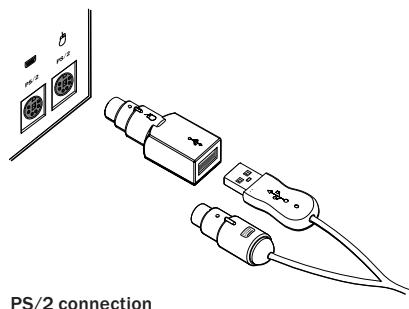
PS/2 connection (Windows)
- Shut down and turn off the computer.
- Plug the purple PS/2 connector into the computer's round PS/2 keyboard port, which may be similarly colored and labeled with a keyboard icon.
- Attach the green USB-to-PS/2 adapter to the USB connector, and then plug it into the computer's round PS/2 mouse port, which may be similarly colored and labeled with a mouse icon.

Important Before using this product, read about the potential for radio interference in the topic titled "Radio and TV interference regulations" in the onscreen Help files installed with the software.

Test the Keyboard and Mouse
Try using the keyboard and mouse to make sure that they are working. If either device does not work as expected, make sure the following procedures were completed as specified earlier in these instructions:
- New batteries were inserted and positioned correctly for each device.
- The receiver was properly connected to the computer.
- Both devices were properly positioned and there are no nearby items that might cause interference.
If the keyboard or mouse is still not working, try changing the wireless connection channel for the device. Changing the wireless connection channel may be helpful if you are experiencing interference.
To change the wireless connection channel
- Press the button on the bottom of the wireless keyboard or mouse.
If changing the channel does not solve the problem, you may need to reconnect the device to the receiver.
To reconnect the keyboard or mouse to the receiver
- Make sure that the device and receiver are positioned as specified earlier in these instructions.
- Press the button on the top of the wireless receiver. The receiver lights blink to indicate that it is connected.
- Press the button on the bottom of the device. The wireless device may not work for a few seconds until the reconnection process is completed.

Note You can only reconnect one device for each press of the receiver button, so repeat as necessary for the other device.
If reconnecting the device to the receiver does not solve the problem, see the onscreen Help files installed with the keyboard and mouse software for additional troubleshooting information.

Read the Help Files for Your Keyboard and Mouse
The onscreen Help files installed with the software provide a complete product manual and contain the following important product information in a searchable format:
- Hardware and software feature descriptions and instructions
- Troubleshooting topics and Product Support Services information
- End-User License Agreement (EULA), Limited Warranty, and regulatory information
- Healthy Computing Guide
- Battery removal and safety information
- Radio interference information
To open the Help file for your keyboard or mouse (Windows)
- Click the Start button, point to All Programs (or Programs), point to Microsoft Keyboard or Microsoft Mouse, and then click Microsoft Keyboard or Microsoft Mouse.
- Click the Help button on the IntelliType Pro Key Settings tab or any IntelliPoint tab.
To open the Help file for your keyboard or mouse (Mac OS)
- Choose Apple > System Preferences > Microsoft Keyboard or Microsoft Mouse.
- Choose Help > Microsoft Keyboard Help or Microsoft Mouse Help.

Customize your Keyboard and Mouse (Optional)
You can start IntelliType Pro keyboard software or IntelliPoint mouse software and customize your devices.
Using IntelliType Pro keyboard software, you can:
- Reassign many of the keys to perform a command, such as Find, or to open a program, file, Web page, or shortcut.
- Disable keys you sometimes press accidentally, such as CAPS LOCK.
Using IntelliPoint mouse software, you can:
- Reassign each of the mouse buttons, including the wheel button, to perform a command, such as Copy.
- Modify the mouse settings, such as the wheel scrolling rate.
To start IntelliType Pro or IntelliPoint software (Windows)
- Click the Start button, point to All Programs (or Programs), point to the Microsoft Keyboard or Microsoft Mouse folder, and then click Microsoft Keyboard or Microsoft Mouse.
To start IntelliType Pro or IntelliPoint software (Mac OS)
- Choose Apple > System Preferences > Microsoft Keyboard or Microsoft Mouse.
Adjusting the Keyboard Legs
The keyboard legs are designed to accommodate various body sizes, chairs, and desks.
- Pull out or push in the keyboard legs to a position that minimizes bending of your wrists while typing.
Connecting the Palm Rest (certain keyboard models only)
For additional comfort, the palm rest can be attached.
- On a level surface, insert the tabs on the palm rest into the slots on the front of the keyboard, and then snap them together.
About the Receiver Lights
The receiver lights indicate the status of the toggle keys, such as NUM LOCK or CAPS LOCK. For example, if NUM LOCK is on, the NUM LOCK light is on; if CAPS LOCK is off, the CAPS LOCK light is off. Certain keyboard models may use an onscreen display (rather than a light) to indicate the status of the SCROLL LOCK toggle key.
Using the F LOCK Key (certain keyboard models only)
The F LOCK toggle key gives your keyboard more functionality by providing two command modes for the top row of keys. When F LOCK is off, the enhanced commands printed on the top of the keys are enabled. When F LOCK is on, the standard commands printed on the front of the keys are enabled.
Depending on your keyboard model, you may need to turn F LOCK on to access certain system key commands labeled on the front of the keys, such as INSERT or SCROLL LOCK.
Troubleshooting
If you have a question about your wireless keyboard or mouse, try the following options:
- View the onscreen Help files, which contain product information and troubleshooting tips.
- Look in Readme.txt on the installation CD for late-breaking product information.
- Go to the Microsoft Hardware Web site at www.microsoft.com/hardware for additional product information and software updates.
- See the Product Support Services section of the User's Guides, or go to http://support.microsoft.com for information about how to contact Microsoft Product Support Services.
Product Information and Software Updates
For general product information and software updates, go to the Microsoft Hardware Web site at
www.microsoft.com/hardware
Regulatory Information
Tested to comply with FCC Standards. For home or office use. Not intended for use in machinery, medical or industrial applications. Any changes or modifications not expressly approved by Microsoft could void the user's authority to operate this device.
This product is for use with NRTL Listed (UL, CSA, ETL, etc.), and/or IEC/EN 60950 compliant (CE marked) Information Technology equipment. No serviceable parts included.
This device is rated as a commercial product for operation at +41^ (+5^) to +95^ (+35^) .
Note For detailed information on U.S. and Canadian radio interference regulations, search for "regulations" in the onscreen Help files installed with IntelliType Pro or IntellIpoint software.
This Class B digital apparatus complies with Part 15 of the U.S. Federal Communications Commission (FCC) rules, Canadian ICES-003 and RSS-210. Operation is subject to the following two conditions: (1) this device may not cause interference, and (2) this device must accept any interference received, including interference that may cause undesired operation.
The term "IC:" before the certification/registration number only signifies that the Industry Canada technical specifications were met.
RF Technical Specifications
RF output power: < 54dB V / m at 3m
Keyboard with two channels: RF frequencies: 27.095MHz (channel 1), 27.195MHz (channel 2)
Keyboard with a single channel: RF frequency: 27.195MHz
Mouse with two channels: RF frequencies: 27.045MHz (channel 1), 27.145MHz (channel 2)
Mouse with a single channel: RF frequency: 27.145MHz
Information for Optical Mouse Products Only
User-observable light is 15 microwatts in normal operation. This product has been tested to comply with International Standard IEC 60825-1:1993/A2:2001. This product uses LEDs that are inherently Class 1.
Class 1 LED Product
Important Battery Information
Caution Use and replace only with AA (LR6) alkaline batteries.
General Precautions
- Keep batteries out of reach of children.
- Insert the batteries in the proper direction as indicated by the positive (+) and negative (-) markings on the battery and battery compartment.
- Do not mix old and new batteries or batteries of different types (for example, carbon and alkaline batteries).
Always remove old, weak, or worn-out batteries promptly and recycle or dispose of them in accordance with Local and National Disposal Regulations.
If a battery leaks, remove all batteries and recycle or dispose of them in accordance with the battery manufacturer's instructions and Local and National Disposal Regulations. Before inserting new batteries, thoroughly clean the battery compartment with a damp paper towel, or follow the battery manufacturer's recommendations for cleanup. If fluid from the battery comes into contact with skin or clothes, flush skin with water immediately. - Remove the batteries if your device is to be stored for an extended period of time without being used.
Special Precautions
The precautions below are to prevent the sudden release of electrolytes, which these prohibited actions can cause:
- Do not install the batteries incorrectly. Carefully observe the positive (+) and negative (-) markings on the battery for proper installation.
- Do not open, puncture, or mutilate the batteries.
- Do not heat batteries.
- Do not use a fire to dispose of batteries.
Released battery electrolyte is corrosive, can cause damage to the eyes and skin, and may be toxic if swallowed.
Product Disposal Information
Dispose of this product in accordance with Local and National Disposal Regulations.
Warning
To protect against risk of fire, bodily injury, electric shock or damage to the equipment:
- Do not immerse any part of this product in water or other liquid.
- Do not spray liquid on this product or allow excess liquid to drip inside.
- Do not use this product if it has sustained damage, such as a damaged cord or plug.
- Disconnect this product or remove its batteries before cleaning.

Information in this document, including URL and other Internet Web site references, is subject to change without notice. Unless otherwise noted, the example companies, organizations, products, domain names, e-mail addresses, logos, people, places, and events depicted herein are fictitious, and no association with any real company, organization, product, domain name, e-mail address, logo, person, place, or event is intended or should be inferred. Complying with all applicable copyright laws is the responsibility of the user. Without limiting the rights under copyright, no part of this document may be reproduced, stored in or introduced into a retrieval system, or transmitted in any form or by any means (electronic, mechanical, photocopying, recording, or otherwise), or for any purpose, without the express written permission of Microsoft Corporation. Microsoft may have patents, patent applications, trademarks, copyrights, or other intellectual property rights covering subject matter in this document. Except as expressly provided in any written license agreement from Microsoft, the furnishing of this document does not give you any license to these patents, trademarks, copyrights, or other intellectual property.
© 1999-2004 Microsoft Corporation. All rights reserved.
Microsoft, IntellilMouse, Natural, and Windows are either registered trademarks or trademarks of Microsoft Corporation in the United States and/or other countries.
The names of actual companies and products mentioned herein may be the trademarks of their respective owners. Microsoft Corporation grants the purchaser of this product the right to reproduce one (1) copy of the enclosed "Getting Started" printed guide for each Hardware Device you purchased in the package.
Microsoft
0504 Part No. X10-42010-02
www.microsoft.com/hardware
- HEALTH WARNING
- About Your Rights and Obligations
- Welcome
- Important! Install the Software
- To install IntelliType Pro keyboard software and IntelliPoint mouse software (Windows®)
- To install IntelliType Pro keyboard software and IntelliPoint mouse software (Mac OS)
- Insert the Batteries
- To insert the batteries
- Position the Receiver, Keyboard, and Mouse
- Connect the Receiver to Your Computer
- USB connection (Windows or Macintosh)
- PS/2 connection (Windows)
- Test the Keyboard and Mouse
- To change the wireless connection channel
- To reconnect the keyboard or mouse to the receiver
- Read the Help Files for Your Keyboard and Mouse
- To open the Help file for your keyboard or mouse (Windows)
- To open the Help file for your keyboard or mouse (Mac OS)
- Customize your Keyboard and Mouse (Optional)
- To start IntelliType Pro or IntelliPoint software (Windows)
- To start IntelliType Pro or IntelliPoint software (Mac OS)
- Adjusting the Keyboard Legs
- Connecting the Palm Rest (certain keyboard models only)
- About the Receiver Lights
- Using the F LOCK Key (certain keyboard models only)
- Troubleshooting
- Product Information and Software Updates
- Regulatory Information
- RF Technical Specifications
- Information for Optical Mouse Products Only
- Important Battery Information
- General Precautions
- Special Precautions
- Product Disposal Information
- Warning
Brand : MICROSOFT
Model : WIRELESS DESKTOP SETS
Category : Wireless keyboard and mouse set