
Active - Office Furniture Aeris - Free user manual and instructions
Find the device manual for free Active Aeris in PDF.


| Product Type | Ergonomic Office Chair |
| Model | Active |
| Brand | Aeris |
| Seat Height Range | 16 – 21 inches (41 – 53 cm) |
| Seat Width | 18 inches (46 cm) |
| Seat Depth | 17 – 19 inches (43 – 48 cm) |
| Backrest Height | 22 inches (56 cm) |
| Armrest Adjustment | 3D (height, width, depth) |
| Lumbar Support | Adjustable depth and height |
| Weight Capacity | 300 lbs (136 kg) |
| Net Weight | 45 lbs (20.4 kg) |
| Base Material | Aluminum |
| Caster Type | Dual-wheel carpet casters (optional hard floor) |
| Tilt Mechanism | Synchro-tilt with tension control |
| Seat Material | Mesh or fabric (depending on variant) |
| Cleaning | Wipe with damp cloth; mild soap if needed |
| Safety Standards | ANSI/BIFMA X5.1 |
| Warranty | 10 years on frame, 3 years on mechanism |
| Spare Parts Available | Yes – seat, backrest, casters, gas lift |
| Repairability Index | 9/10 (modular design) |
Frequently Asked Questions - Active Aeris
User questions about Active Aeris
0 question about this device. Answer the ones you know or ask your own.
Ask a new question about this device
Download the instructions for your Office Furniture in PDF format for free! Find your manual Active - Aeris and take your electronic device back in hand. On this page are published all the documents necessary for the use of your device. Active by Aeris.
USER MANUAL Active Aeris
Aeris Active Desk Menu Manual
Müde vom Lesen?

■ Display
So gelangst du ins Menü:
Check the QR Code to watch every step of the Aeris Active Desk Menu Manual.
It's as easy as it looks.

EN

■ Display
+ Up - Desk Height & Menu
- Down - Desk Height & Menu
1 Memory 1
2 Memory 2
m Dial Key & Menu Confirmation Button
Control panel instructions

Memory function:
Each height (sitting or standing) can be saved to memory button 1 or 2.
How to save the desk height: Move the desk to the desired height with + and -. Press m and subsequently the desired memory button 1 or 2.
To move to the desired desk height, the memory button must be pressed and held until the stored desk height is reached.
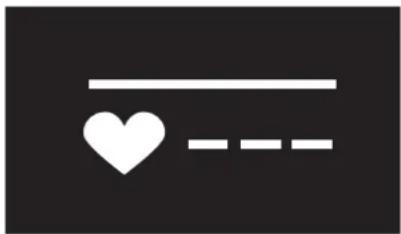
How to get to the menu:
Press and hold the m button for 5 seconds.
How to use the menu:
Use + and - to navigate through the menu. Press m once to select a menu item.
How to operate the submenu:
Use + and - to navigate through the submenu. Press m once to save a menu item.

Reminder function:
Activate or deactivate the reminder to stand up.
With + and - you can select one of the possible settings in the submenu. Press m once to save the selection.
Control panel instructions

Set upper and lower limit: Specify upper and lower limit: To adjust the lowest desk height limit, first set up the desk to the desired height.
Now select upper and lower limit in the menu. Confirm with m. Use + and - to navigate through the submenu. Choose lower limitation. Press m to save the lower height.
To adjust the upper desk height limit, first adjust the desk to the desired height. Now select upper limit in the menu. Confirm with m. Use + and - to navigate through the submenu. Choose upper limitation. Press m to save the lower limit.

Lock display: Now select locking the display in the menu. Confirm with m.
Unlock display: Press the keys that light up one after the other to unlock the control panel.
With + and - you can navigate through the submenu and select the desired setting. Press m once to save selection.
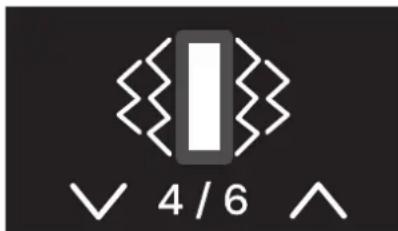
Alarm for reminder function: Now select alarm for reminder function in the menu. Confirm with m.
With + and - you can navigate through the submenu and select the desired setting. Press m once to save selection.
Control panel instructions
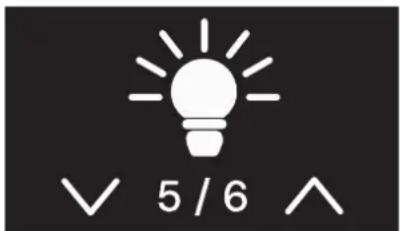
Color lighting:
Now select lighting from the color menu. Confirm with m.
With + and - you can navigate through the submenu and choose the desired color. The color is displayed on button m. Press m once to save your selection.

Exit menu:
Choose this item to exit the menu. Confirm with m.

Error - reset desk:
If an error occurs, an error notice is displayed. You can reset the desk as follows:
Press the down button - until the desk is in the lowest position.
Press the down button - again until the indicator glows red.
Press the down button - a third time to complete the reboot.
Aeris GmbH

Brand : Aeris
Model : Active
Category : Office Furniture