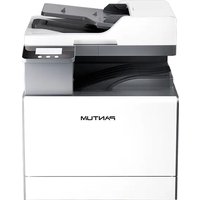
CM230ADN - Printer PANTUM - Free user manual and instructions
Find the device manual for free CM230ADN PANTUM in PDF.


Pick your language and provide your email: we'll send you a specifically translated version.
| Product Type | Color Laser Multifunction Printer |
| Functions | Print, Copy, Scan, Fax |
| Print Speed (Color/Black) | Up to 23 ppm (A4) |
| Print Resolution | 600 x 600 dpi |
| First Print Out Time (Color) | Less than 14 seconds |
| Processor | 800 MHz |
| Memory | 512 MB |
| Paper Capacity (Standard) | 250 sheets (tray 1) |
| Paper Output | 150 sheets face down |
| Duplex Printing | Automatic (A4) |
| Connectivity | USB 2.0, 10/100/1000 Ethernet, Wi-Fi (optional) |
| Mobile Printing | AirPrint, Mopria, Pantum App |
| Scanner Type | Flatbed, ADF (50 sheets) |
| Scan Resolution | Up to 1200 x 1200 dpi (optical) |
| Fax Speed | 33.6 kbps |
| Monthly Duty Cycle | Up to 40,000 pages |
| Dimensions (W x D x H) | 412 x 442 x 406 mm |
| Weight | 20.5 kg |
| Power Supply | AC 220-240 V, 50/60 Hz |
| Power Consumption (Typical) | 540 W (printing), 10 W (standby) |
| Toner Cartridges | Separate for each color (CMYK): standard and high yield |
| Operating Temperature | 10 to 32.5°C |
| Safety Standards | CE, FCC, RoHS, ENERGY STAR |
Frequently Asked Questions - CM230ADN PANTUM
How do I set up the Pantum CM230ADN for the first time?
Unbox the printer, remove all packing materials, install the toner cartridges and drum unit, load paper into the tray, connect the power cable, and turn on the printer. Follow the on-screen Setup Wizard to configure language, date, and network. Full instructions are in the User Manual.
How can I clear a paper jam?
Open the front cover, remove the drum unit and toner cartridges, then carefully pull out any jammed paper from the fuser area or paper path. Check the duplex unit and rear door. Always turn off the printer before clearing jams.
How do I replace a toner cartridge?
Open the front cover, remove the drum unit, press the lock lever on the empty toner cartridge, and pull it out. Unpack the new cartridge, shake it gently, remove the seal, and insert it until it clicks. Reinstall the drum unit and close the cover. Use only Pantum toner cartridges.
How do I connect the printer to a wireless network?
Press the Menu button, navigate to Network > Wi-Fi Setup, select your SSID, and enter the password using the keypad. Alternatively, use WPS if supported. For detailed steps, refer to the Network Configuration Guide.
Why is my printer not printing in color?
Check that all color toner cartridges have sufficient toner and are properly installed. Ensure the print driver setting is not set to Grayscale. Open the printer properties and select Color under Color Mode. Also verify that the document contains color content.
How do I scan a document to my computer?
Place the document on the flatbed or in the ADF. On the printer panel, press Scan, select Scan to Computer, choose a destination folder, and press Start. Ensure the Pantum Scan Utility is installed on your computer.
How do I enable duplex (double-sided) printing?
In the print dialog, select Properties, go to the Finishing tab, and check Print on Both Sides (or Duplex). Choose Flip on Long Edge or Short Edge. The printer will automatically flip the paper for duplex printing.
What should I do if the printer displays a 'Replace Drum Unit' message?
The drum unit has reached its life expectancy. Purchase a replacement drum unit (model: Pantum DRK-20). Follow the replacement procedure: open cover, remove old drum, unpack new drum, remove protective sheet, and insert until it locks. Reset the drum counter via the menu: Menu > Device Info > Reset Drum.
My printer is offline. How do I fix it?
Check the USB or network cable connection. Ensure the printer is powered on and not in sleep mode. On your computer, open Devices and Printers, right-click the printer, and select Use Printer Online. Restart both the printer and computer if the issue persists.
Where can I download the latest drivers and software?
Visit the Pantum support website at support.pantum.com. Enter your model CM230ADN, select your operating system, and download the appropriate driver and utilities. Installation guides are included in the downloaded package.
User questions about CM230ADN PANTUM
0 question about this device. Answer the ones you know or ask your own.
Ask a new question about this device
No questions yet. Be the first to ask one.
Download the instructions for your Printer in PDF format for free! Find your manual CM230ADN - PANTUM and take your electronic device back in hand. On this page are published all the documents necessary for the use of your device. CM230ADN by PANTUM.
USER MANUAL CM230ADN PANTUM


Manual assistant
Powered by Anthropic
Waiting for your message
Product information
Brand : PANTUM
Model : CM230ADN
Category : Printer