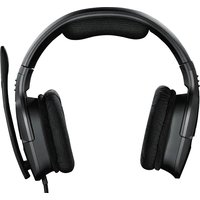
Storm Sirus 5.1 - Earphones COOLER MASTER - Free user manual and instructions
Find the device manual for free Storm Sirus 5.1 COOLER MASTER in PDF.


Pick your language and provide your email: we'll send you a specifically translated version.
| Product Type | Gaming Headset with 5.1 Surround Sound |
| Brand | Cooler Master |
| Model | Storm Sirus 5.1 |
| Driver Diameter | 40 mm |
| Frequency Response | 20 Hz - 20 kHz |
| Impedance | 32 Ω |
| Sensitivity | 110 dB |
| Connectivity | USB (for 5.1 virtual surround sound) |
| Cable Length | 2.5 m |
| Weight | 350 g |
| Microphone | Omnidirectional, detachable |
| Microphone Frequency Response | 100 Hz - 10 kHz |
| Controls | In-line remote for volume and mic mute |
| Compatibility | PC / Mac (USB audio) |
| Surround Sound | Virtual 5.1 via USB sound card |
| Ear Cushions | Memory foam with leatherette |
| Headband | Adjustable, padded |
| Lighting | None |
| Power Source | USB powered (no batteries required) |
| Operating System Support | Windows 7/8/10/11, macOS |
Frequently Asked Questions - Storm Sirus 5.1 COOLER MASTER
How do I set up the Storm Sirus 5.1 headset?
Connect the USB cable to your computer. The headset will be recognized as a USB audio device. Install any drivers if prompted or download from Cooler Master's website for full 5.1 support.
Does the headset work with Xbox or PlayStation?
No, the Storm Sirus 5.1 is designed for PC and Mac only, as it relies on USB for 5.1 virtual surround sound.
How do I enable 5.1 surround sound?
Ensure the headset is selected as the default playback device. In your sound settings, configure for 5.1 speakers. The included USB sound card will simulate surround sound.
Can I use the headset with a mobile phone?
It may work with some tablets or phones via USB OTG, but it's optimized for PC. The inline controls may not be fully functional on mobile.
How do I mute the microphone?
Press the mute button on the inline remote. A red LED indicates the mic is muted.
What should I do if there is no sound?
Check USB connection, set headset as default device, and ensure volume is turned up. Also verify that the 5.1 configuration is set correctly in sound settings.
How to clean the headset?
Wipe the ear cushions and headband with a soft, damp cloth. Do not use alcohol or abrasive cleaners. Remove ear cushions gently for deeper cleaning.
Are ear cushions replaceable?
Yes, the ear cushions are replaceable. Contact Cooler Master support or check online for compatible replacements.
Does the headset have a warranty?
Yes, Cooler Master typically offers a 2-year warranty. Keep your purchase receipt for support.
Why does the microphone sound low?
Adjust the microphone volume in your system settings. Ensure the mic is positioned near your mouth and that the boom is not obstructed.
User questions about Storm Sirus 5.1 COOLER MASTER
0 question about this device. Answer the ones you know or ask your own.
Ask a new question about this device
No questions yet. Be the first to ask one.
Download the instructions for your Earphones in PDF format for free! Find your manual Storm Sirus 5.1 - COOLER MASTER and take your electronic device back in hand. On this page are published all the documents necessary for the use of your device. Storm Sirus 5.1 by COOLER MASTER.
USER MANUAL Storm Sirus 5.1 COOLER MASTER
Manual assistant
Powered by Anthropic
Waiting for your message
Product information
Brand : COOLER MASTER
Model : Storm Sirus 5.1
Category : Earphones