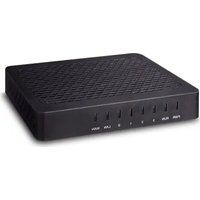
VGW-420FS - Network Equipment Planet - Free user manual and instructions
Find the device manual for free VGW-420FS Planet in PDF.


| Product Type | Managed Switch |
| Model | VGW-420FS |
| Brand | Planet |
| Dimensions (W x D x H) | 440 x 200 x 44 mm (rackmountable) |
| Weight | 2.8 kg |
| Power Supply | AC 100-240V, 50-60Hz, internal power supply |
| Power Consumption | 36W max |
| Ports | 24 x 10/100/1000Mbps RJ45, 4 x SFP+ uplinks |
| Switching Capacity | 128 Gbps |
| Forwarding Rate | 95.2 Mpps |
| MAC Address Table | 16K entries |
| VLAN Support | 802.1Q VLAN (up to 4K VLAN IDs) |
| Quality of Service (QoS) | 8 priority queues per port |
| Management | Web GUI, CLI (Telnet/SSH), SNMP v1/v2c/v3 |
| Security Features | 802.1X port-based authentication, ACL (L2/L3/L4) |
| Operating Temperature | 0°C to 50°C |
| Storage Temperature | -40°C to 70°C |
| Humidity | 10% to 90% (non-condensing) |
| Cooling | 2 x smart fans |
| Mounting | 19-inch rackmount, desktop |
| Certifications | CE, FCC, RoHS |
| Accessories Included | Power cord, rackmount kit, console cable |
| Maintenance & Cleaning | Use dry cloth; avoid liquid cleaners |
| Spare Parts & Repairability | Contact Planet support for spare parts; user-replaceable fan modules |
Frequently Asked Questions - VGW-420FS Planet
vlan database then vlan 10 name Sales.User questions about VGW-420FS Planet
0 question about this device. Answer the ones you know or ask your own.
Ask a new question about this device
Download the instructions for your Network Equipment in PDF format for free! Find your manual VGW-420FS - Planet and take your electronic device back in hand. On this page are published all the documents necessary for the use of your device. VGW-420FS by Planet.
USER MANUAL VGW-420FS Planet
User's Manual
Copyright
Copyright (C) 2025 PLANET Technology Corp. All rights reserved.
The products and programs described in this User's Manual are licensed products of PLANET Technology. This User's Manual contains proprietary information protected by copyright, and this User's Manual and all accompanying hardware, software, and documentation are copyrighted.
No part of this User's Manual may be copied, photocopied, reproduced, translated, or reduced to any electronic medium or machine-readable form by any means by electronic or mechanical including photocopying, recording, or information storage and retrieval systems, for any purpose other than the purchaser's personal use, and without the prior written permission of PLANET Technology.
Disclaimer
PLANET Technology does not warrant that the hardware will work properly in all environments and applications, and makes no warranty and representation, either implied or expressed, with respect to the quality, performance, merchantability, or fitness for a particular purpose.
PLANET has made every effort to ensure that this User's Manual is accurate; PLANET disclaims liability for any inaccuracies or omissions that may have occurred.
Information in this User's Manual is subject to change without notice and does not represent a commitment on the part of PLANET. PLANET assumes no responsibility for any inaccuracies that may be contained in this User's Manual. PLANET makes no commitment to update or keep current the information in this User's Manual, and reserves the right to make improvements to this User's Manual and/or to the products described in this User's Manual, at any time without notice.
If User finds information in this manual that is incorrect, misleading, or incomplete, we would appreciate User comments and suggestions.
CE Mark Warning
This is a class B device. In a domestic environment, this product may cause radio interference, in which case the user may be required to take adequate measures.
Energy Saving Note of the Device
This power required device does not support Standby mode operation. For energy saving, please remove the DC-plug or push the hardware Power Switch to OFF position to disconnect the device from the power circuit.
Without removing the DC-plug or switching off the device, the device will still consume power from the power circuit. In view of Saving the Energy and reducing the unnecessary power consumption, it is strongly suggested to switch off or remove the DC-plug from the device if this device is not intended to be active.
WEEE Warning

To avoid the potential effects on the environment and human health as a result of the presence of hazardous substances in electrical and electronic equipment, end users of electrical and electronic equipment should understand the meaning of the crossed-out wheeled bin symbol. Do not dispose of WEEE as unsorted municipal waste and have to collect such WEEE separately.
Trademarks
The PLANET logo is a trademark of PLANET Technology. This documentation may refer to numerous hardware and software products by their trade names. In most, if not all cases, their respective companies claim these designations as trademarks or registered trademarks.
Revision
User's Manual of 4-/8-/16-/24-/32- SIP VoIP Gateway
Model: VGW-420FS / VGW-820FS/ VGW-1620FS / VGW-2420FS / VGW-3220FS
Rev: 1.1 (June, 2025)
Part No. EM-VGW-x20_series_v1.1
Preface
Welcome
Thanks for choosing VGW-X20FS SERIES VoIP Gateway. We hope you will make optimum use of this flexible, feature-rich VoIP-to-FXS gateway. Please read this document carefully before installing the gateway.
About this manual
This manual provides information about the introduction of the gateway, and about how to install, configure or use the gateway.
For interoperability with different IPPBX/Softswitch platforms, you can refer to the relevant configuration guide to different systems.
This manual is written with reference to the default configurations of the VGW-X20FS SERIES VoIP Gateway.
Intended audience
This manual is aimed primarily at network and system engineers, who will install, configure and maintain the gateway to meet the requirements of users.
Parts of the document containing description of telephony features are aimed at users who are the persons who will actually use the gateway
Contents
Preface 4
Welcome 4
About this manual....4
Intended audience....4
1 Introduction of VGW-X20FS SERIES 8
1.1 Overview 8
1.2 Product Features....9
1.3 Function Specifications .... 10
1.4 Ports and Connectors 12
1.4.1 VGW-420FS 12
1.4.2 VGW-820FS 14
1.4.3 VGW-1620FS 15
1.4.4 VGW-2420FS.... 16
1.4.5 VGW-3220FS.... 17
2 Basic Operations 18
2.1 Methods of Number Dialing.... 18
2.2 Direct IP Calls.... 18
2.3 Call Holding 19
2.4 Call Waiting 19
2.5 Call Transfer....19
2.5.1 Blind Transfer.... 19
2.5.2 Attended Transfer 19
2.6 Three-way Calling 20
2.7 Description of Feature Codes 21
2.8 Sending and Receiving Fax 22
2.8.1 T. 38 and Pass-through 22
2.9 Local IVR Operation 23
2.9.1 Inquire IP address 23
2.9.2 Factory Reset 23
2.9.3 Configure LAN Port's IP Address.... 23
3 Configurations on Web Interface 24
3.1 Logging in Web Interface 24
3.2 Navigation Tree 25
3.3 State and Statistics....26
3.3.1 System Information 26
3.3.2 Registration Information 28
3.3.3 TCP/UDP Statistics 28
3.3.4 RTP Session Statistics....29
3.3.5 CDR Statistics 29
3.4 Quick Setup Wizard....29
3.5 Network Configuration.... 30
3.5.1 Local Network 30
3.5.2 VLAN (Virtual Local Area Network) 33
3.5.3 DHCP Server (Route Mode for VGW-420FS/820FS) 35
3.5.4 DMZ Host (Route Mode for VGW-420FS/820FS) 36
3.5.5 Forward Rule (Route Mode for VGW-420FS/820FS) 37
3.5.6 Static Route (Route Mode for VGW-420FS/820FS) 38
3.5.7 ARP 38
3.6 SIP Server 39
3.7 Port 41
3.8 Advanced 43
3.8.1 FXS/FXO Parameters 43
3.8.2 Media Parameter 45
3.8.3 SIP Parameters....46
3.8.4 Fax Parameter 51
3.8.5 Digit Map 52
3.8.6 Feature Codes 53
3.8.7 System Parameter 54
3.8.8 Action URL 56
3.9 Call & Routing 57
3.9.1 Wildcard Group 57
3.9.2 Port Group....57
3.9.3 IP Trunk....59
3.9.4 Routing Parameter....59
3.9.5 IP -> Tel Routing....60
3.9.6 Tel-IP/Tel Routing 61
3.9.7 IP – IP Routing....62
3.10 Manipulation Configuration 63
3.10.1 IP -> Tel Callee 63
3.10.2 Tel -> IP/Tel Caller 64
3.10.3 Tel-IP/Tel Callee 65
3.11 Routing rule examples 66
3.11.1 Route any calls from any IP to specific port....66
3.11.2 Route any calls from any IP to specified port group 67
3.11.3 Route any calls from any port to specific SIP IP trunk 68
3.12 Maintenance....70
3.12.1 TR069 70
3.12.2 SNMP (Simple Network Management Protocol)....70
3.12.3 Syslog 73
3.12.4 Provision 75
3.12.5 Cloud Server 76
3.13 Security 77
3.13.1 WEB ACL 77
3.13.2 Telnet ACL 77
3.13.3 Passwords....78
3.14 Tools....79
3.14.1 Firmware upload 79
3.14.2 Data Backup....81
3.14.3 Data Restore 81
3.14.4 Ping Test 82
3.14.5 Tracert Test....83
3.14.6 Outward Test....84
3.14.7 Network Capture 85
3.14.8 Factory Reset....89
3.14.9 Device Restart....89
1 Introduction of VGW-X20FS SERIES
1.1 Overview
High Quality yet Affordable for All Businesses
PLANET VGW-x20FS enterprise-class 4-/8-/16-/24-/32-port SIP VoIP Gateway Series provides added flexibility during migration to Unified Communications by supporting the traditional analog devices. These devices include analog phones, fax machines, modems, voicemail systems and speakerphones.
Enhanced, Full-Featured Business Gateway
The VGW-x20FS series, compliant with IETF SIP RFC 3261 standard, provides a total solution for integrating voice-data network with built-in SIP trunk and TLS/SRTP security, and up to 32 concurrent connections. Voice communications can be established from anywhere around the world, and it not only provides quality voice communications, but also offers secure, reliable Internet sharing capabilities for daily voice and Internet communications.
![graph TD A["3-way Conferencing"] --> B["16-32 FXS"] A --> C["T.38/T.30"] A --> D["QoS"] A --> E["Caller ID"] A --> F["TLS/SRTP"] A --> G["VLAN"] A --> H["VoIP"] A --> I["VoIP SIP"] A --> J["STUN"]](/content/2026/07/1411337/images/1738bf0473521c37c34c858b5f96b6bd202c3bc412dd24fc0266ca2b382846aa.jpg)
Distributed VoIP Network Infrastructure
The VGW-x20FS series is easy to use for all types of businesses as it offers quality voice communications and real-time fax data over IP networks. It does not need human resources to deploy a VoIP network. With the optimized SIP architecture, PLANET VGW-x20FS series is the ideal choice for P2P/SIP proxy (IP PBX) voice chat, and ITSP cost-saving solution.


- USER'S MANUAL
- COPYRIGHT
- DISCLAIMER
- CE MARK WARNING
- ENERGY SAVING NOTE OF THE DEVICE
- WEEE WARNING
- TRADEMARKS
- REVISION
- PREFACE
- WELCOME
- ABOUT THIS MANUAL
- INTENDED AUDIENCE
- CONTENTS
- PREFACE 4
- 1 INTRODUCTION OF VGW-X20FS SERIES 8
- 2 BASIC OPERATIONS 18
- 3 CONFIGURATIONS ON WEB INTERFACE 24
- 1 INTRODUCTION OF VGW-X20FS SERIES
- 1.1 OVERVIEW
- HIGH QUALITY YET AFFORDABLE FOR ALL BUSINESSES
- ENHANCED, FULL-FEATURED BUSINESS GATEWAY
- DISTRIBUTED VOIP NETWORK INFRASTRUCTURE
Brand : Planet
Model : VGW-420FS
Category : Network Equipment