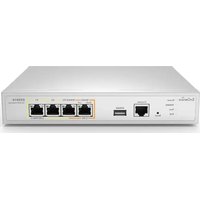
ESG620 - Router ENGENIUS - Free user manual and instructions
Find the device manual for free ESG620 ENGENIUS in PDF.


Pick your language and provide your email: we'll send you a specifically translated version.
| Product Type | Wireless Router |
| Brand | EnGenius |
| Model | ESG620 |
| Wireless Standard | IEEE 802.11ax (Wi-Fi 6) |
| Frequency Bands | 2.4 GHz and 5 GHz |
| Maximum Data Rate | Up to 1200 Mbps (2.4 GHz) + 2400 Mbps (5 GHz) |
| Ethernet Ports | 4 x Gigabit LAN, 1 x Gigabit WAN |
| USB Ports | 1 x USB 3.0 |
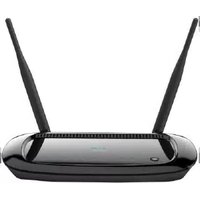
| Antennas | 4 x External Dual-Band Antennas |
| Dimensions (W x D x H) | 12.5 x 8.5 x 2.0 inches (31.8 x 21.6 x 5.1 cm) |
| Weight | 2.5 lbs (1.13 kg) |
| Power Supply | 12V DC, 2A |
| Power Consumption | 15W typical |
| Key Functions | Dual-band Wi-Fi 6, Gigabit Ethernet, VPN, QoS, Parental Control |
| Security | WPA3, SPI Firewall, DoS Protection, MAC Filtering |
| Maintenance and Cleaning | Clean with dry cloth; keep vents clear; update firmware regularly |
| Spare Parts and Repairability | Contact EnGenius support; professional repair only |
| General Information | User manual downloadable in PDF; 32 pages; English language |
Frequently Asked Questions - ESG620 ENGENIUS
How do I set up my EnGenius ESG620 router for the first time?
Connect the router to your modem via the WAN port, power it on, and follow the setup wizard in the web interface at 192.168.1.1.
What is the default SSID and password?
Default SSID is 'EnGenius-ESG620' and password is printed on the router label. It is recommended to change them during setup.
How can I reset the router to factory defaults?
Press and hold the Reset button on the back panel for about 10 seconds until the power LED blinks rapidly.
Does the ESG620 support Wi-Fi 6?
Yes, the ESG620 supports IEEE 802.11ax (Wi-Fi 6) for faster speeds and better performance in dense environments.
How do I update the firmware?
Go to Administration > Firmware Upgrade in the web interface, upload the latest firmware file from the EnGenius website, and follow the prompts.
Can I use the USB port for sharing a printer?
Yes, the USB 3.0 port supports USB storage and printer sharing. Configure it under USB Settings in the web interface.
How to set up a guest network?
Enable Guest Network under Wireless Settings. You can isolate guest traffic and set separate security and bandwidth limits.
What should I do if the internet connection drops frequently?
Check cables, reboot the modem and router, update firmware, and try changing the wireless channel. Contact your ISP if issues persist.
Is it possible to use the ESG620 as a mesh node?
No, the ESG620 is a standalone router and does not support mesh networking. For mesh solutions, consider EnGenius Mesh products.
Where can I download the user manual?
The user manual can be downloaded from the EnGenius support website or from the product page on notice-facile.com.
User questions about ESG620 ENGENIUS
0 question about this device. Answer the ones you know or ask your own.
Ask a new question about this device
No questions yet. Be the first to ask one.
Download the instructions for your Router in PDF format for free! Find your manual ESG620 - ENGENIUS and take your electronic device back in hand. On this page are published all the documents necessary for the use of your device. ESG620 by ENGENIUS.
USER MANUAL ESG620 ENGENIUS
Manual assistant
Powered by Anthropic
Waiting for your message
Product information
Brand : ENGENIUS
Model : ESG620
Category : Router