
DOCK-U3-III - Docking Station LC-Power - Free user manual and instructions
Find the device manual for free DOCK-U3-III LC-Power in PDF.


| Product Type | Docking Station (USB 3.0 Hub) |
| Brand | LC-Power |
| Model | DOCK-U3-III |
| Dimensions (approx.) | 120 x 60 x 25 mm |
| Weight (approx.) | 150 g |
| Power Supply | USB bus-powered (no external adapter required) |
| USB Ports | 4 x USB 3.0 Type-A |
| Additional Ports | 1 x USB 3.0 Micro-B (upstream), 1 x SD card reader |
| Compatibility | Windows, macOS, Linux |
| Data Transfer Rate | Up to 5 Gbps (USB 3.0) |
| LED Indicators | Power and activity LEDs |
| Cable Length | Approx. 30 cm |
| Material | Plastic casing |
| Operating Temperature | 0°C to 40°C |
| Storage Temperature | -20°C to 60°C |
| Humidity | 20% to 80% (non-condensing) |
| Maintenance | Wipe with a dry cloth; avoid liquids |
| Safety | Do not expose to water or excessive heat |
| Spare Parts / Repairability | No user-serviceable parts; contact support |
| Package Contents | Docking station, user manual |
Frequently Asked Questions - DOCK-U3-III LC-Power
User questions about DOCK-U3-III LC-Power
0 question about this device. Answer the ones you know or ask your own.
Ask a new question about this device
Download the instructions for your Docking Station in PDF format for free! Find your manual DOCK-U3-III - LC-Power and take your electronic device back in hand. On this page are published all the documents necessary for the use of your device. DOCK-U3-III by LC-Power.
USER MANUAL DOCK-U3-III LC-Power
1. Included in delivery
- USB 3.0 dual bay docking station
- USB 3.0 cable
- Power adapter
- Installation guide
2. Main features
•Supports 2,5" & 3,5" SATA HDDs/SSDs
- 2,5" up to 6TB, 3,5" up to 16TB
•Supports hardware cloning
•USB 3.0 output interface
- Easy installation, plug & play and hot- swappable
•Including LED indicator for working status
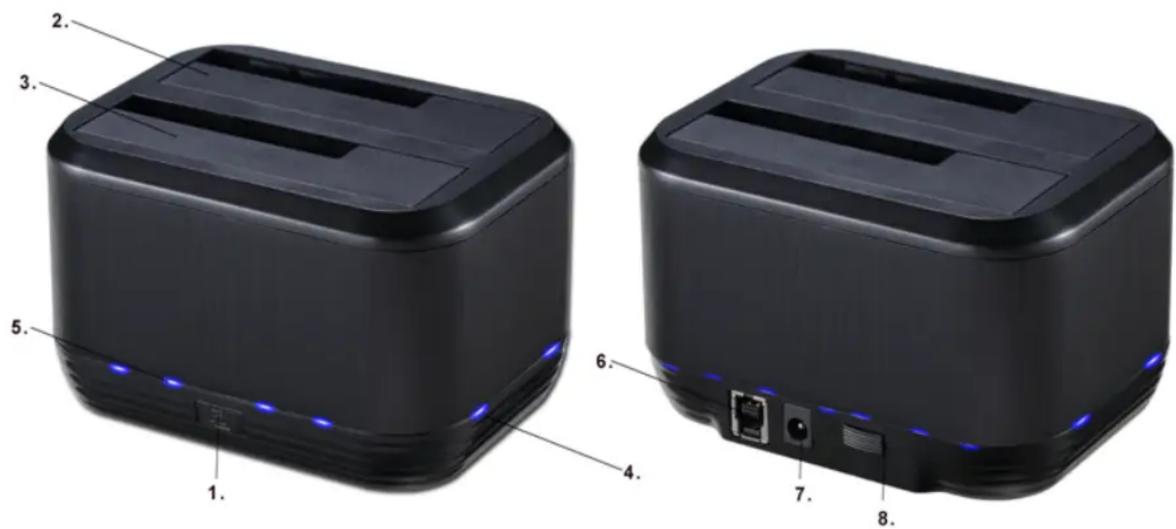
Product overview
- Hardware clone button
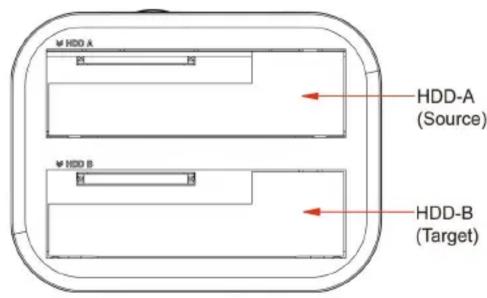
- HDD B bay (Target drive bay)
- Cloning status LEDs
-
Power socket (input DC 12V/2,5A)
-
HDD A bay (Source drive bay)
- HDD A & B LEDs
- USB 3.0 port
- Power switch
3. Information – please read carefully before using the product
We strongly advise that you make a backup of your original data before commencing the cloning process to avoid any data loss in case of a power failure during the cloning process. LC-Power cannot accept the responsibility for the loss of data or the misuse of the device. Please also check the content of the package before commencing with the use of the device.
Minimum system requirements
- Intel Pentium II 50MHz compatible or Mac G3 processor or higher
- Microsoft Windows 2000/XP/Vista/7/8/10, Mac OS 9.1, 9.2, 10.1.5, 10.2, 10.3 or higher
- Computer supporting USB 3.0
4. Formatting a hard disk drive
If you are using new/unformatted hard disk drives, you will first need to format and partition the drives before your operating system will recognize them. Please refer to the documentation included with your hard disk drive and/or operating system for more information about correctly formatting a hard drive.
5. Docking station operation
The dual bay docking station primarily functions as a 2-bay docking station that allows you to easily connect up to two hard disk drives to your computer through a single USB 3.0 connection.
- Before your power on and use the docking station, please insert your SATA hard disk drive(s) into the HDD A bay and/or HDD B bay. Be sure that the hard disk drives' SATA connectors align with the SATA connectors inside the HDD bays.
- Use the provided USB 3.0 cable to connect the docking station with a USB port on your computer.
- Press the power button located on the rear side of the docking station. The LED indicator will light up and the hard disk drives will be powered up.
- Your computer will automatically detect the newly connected device and drives. It may need one to two minutes to install the necessary drivers. The docking station uses drivers that are already built into your operating system. Additional drivers are not required.
- Once the computer has recognized the drives, they will show up under "Computer" (Windows) or on your desktop (Mac OS X).
No
d
a
ta!
6. Hardware clone function (hard disk drive duplication)
To successfully use the clone function, the capacity of the target hard disk drive must be equal to or larger than the capacity of the source hard disk drive. Please note that data cannot be cloned to a hard disk drive with a smaller capacity than the original source hard disk drive.
Hardware clone mode
Please use the one button cloning feature (from source hard disk drive to target hard disk drive) without connecting the docking station to a computer.
Importan
t
no
t
e
:

Before cloning a hard disk drive, please d
the USB 3.0
cabl
e
from the docking station. If the mentioned cable is connected during the cloning process, i
d
r
i
v
e
s.

Please make sure you put the correct hard disk drive into the correct HDD bay before cloning.
Ot

The capacity of the target hard disk drive (must be put in the target HDD bay) must be equal or larger than the capacity of the source hard disk drive.
Please follow the steps below to enable the hardware clone process:
- Install two hard disk drives into the dock. Make sure the correct drives are properly installed to source bay (HDD A) and target bay (HDD B).
- Remove the USB cable from the docking station, connect the power adapter and press the power button to power on the docking station.
- Press and hold the CLONE button for 3 seconds to start the duplication. The percentage LED indicators located next to the "Clone" button will begin to blink. If you do not hold the clone button for 3 seconds, you need to start the process again.
- As the duplication process progresses, the LED indicator will blink regarding the cloning status (25%, 50%, 75%, 100%).
- When the duplication process has completed, the percentage LED indicator will lighted continuously.
Press the power button on the rear side of the docking station to turn off the docking station. 6. You can now safely remove the hard disk drives from the docking station.
LCPOWER
Silent Power Electronics GmbH, Formerweg 8, 47877 Willich, Germany, www.lc-power.com

Brand : LC-Power
Model : DOCK-U3-III
Category : Docking Station