
AV.io 4K - Digital Camera Epiphan - Free user manual and instructions
Find the device manual for free AV.io 4K Epiphan in PDF.


| Product Type | Video Capture Device |
| Model | AV.io 4K |
| Brand | Epiphan |
| Maximum Resolution | 4K (3840 x 2160) at 30 fps |
| Video Input | HDMI, DisplayPort, DVI, VGA (via adapter) |
| Video Output | USB 3.0 (Type B) |
| Audio Input | HDMI embedded audio |
| Dimensions (W x D x H) | 5.5 x 3.5 x 1.0 inches (140 x 89 x 25 mm) |
| Weight | 8.5 oz (240 g) |
| Power Supply | USB bus-powered (no external adapter required) |
| Power Consumption | 4.5 W (typical) |
| Operating Temperature | 32°F to 104°F (0°C to 40°C) |
| Storage Temperature | -4°F to 140°F (-20°C to 60°C) |
| Supported Operating Systems | Windows, macOS, Linux (UVC compliant) |
| Main Functions | Plug-and-play 4K video capture, low latency, supports various resolutions, frame rates, and color formats |
| Cleaning Instructions | Wipe with a soft, dry cloth. Do not use liquid or abrasive cleaners. |
| Safety Warnings | Do not expose to moisture or extreme temperatures. Use only with compatible USB ports. |
| Spare Parts & Repairability | No user-serviceable parts. Contact Epiphan support for repairs or replacement. |
| Warranty | Two-year limited warranty |
| Package Contents | AV.io 4K capture device, USB 3.0 cable, quick start guide |
Frequently Asked Questions - AV.io 4K Epiphan
User questions about AV.io 4K Epiphan
0 question about this device. Answer the ones you know or ask your own.
Ask a new question about this device
Download the instructions for your Digital Camera in PDF format for free! Find your manual AV.io 4K - Epiphan and take your electronic device back in hand. On this page are published all the documents necessary for the use of your device. AV.io 4K by Epiphan.
USER MANUAL AV.io 4K Epiphan
Terms and conditions
This document, the Epiphan web site, and the information contained therein, including but not limited to the text, videos and images as well as Epiphan System Inc.'s trademarks, trade names and logos are the property of Epiphan Systems Inc. and its affiliates and licensors, and are protected from unauthorized copying and dissemination by Canadian copyright law, United States copyright law, trademark law, international conventions and other intellectual property laws.
Epiphan, Epiphan Video, Epiphan Systems, Epiphan Systems Inc., and Epiphan logos are trademarks or registered trademarks of Epiphan Systems Inc., in certain countries. All Epiphan product names and logos are trademarks or registered trademarks of Epiphan. All other company and product names and logos may be trademarks or registered trademarks of their respective owners in certain countries.
Copyright © 2016 Epiphan Systems Inc. All Rights Reserved.
THE SOFTWARE LICENSE AND LIMITED WARRANTY FOR THE ACCOMPANYING PRODUCT ARE SET FORTH IN THE INFORMATION PACKET OR PRODUCT INSTALLATION SOFTWARE PACKAGE THAT SHIPPED WITH THE PRODUCT AND ARE INCORPORATED HEREIN BY REFERENCE IF YOU ARE UNABLE TO LOCATE THE SOFTWARE LICENSESORLIMITED WARRANTY, CONTACT YOUREPIPHAN REPRESENTATIVEFORA COPY.
PRODUCT DESCRIPTIONS AND SPECIFICATIONS REGARDING THE PRODUCTS IN THIS MANUAL ARE SUBJECT TO CHANGE WITHOUT NOTICE. EPIPHAN PERIODICALLY ADDS OR UPDATES THE INFORMATION AND DOCUMENTSON ITSWEB SITE WITHOUT NOTICE. ALL STATEMENTS, INFORMATION AND RECOMMENDATIONS ARE BELIEVED TO BE ACCURATE AT TIME OF WRITING BUT ARE PRESENTED WITHOUT WARRANTY OF ANY KIND, EXPRESSOR IMPLIED. USERSMUSTTAKEFULL RESPONSIBILITY FOR THEIR APPLICATION OF ANY PRODUCTS.
LIMITATION OFLIABILITY
UNDERNO CIRCUMSTANCESSHALL EPIPHAN BELIABLEFORANYINCIDENTAL,SPECIAL,CONSEQUENTIAL, EXEMPLARYOROTHERINDIRECTDAMAGESTHATRESULTFROM THEUSEOF, ORTHEINABILITYTO USE, THISPRODUCT OR THE INFORMATION CONTAINED IN THIS DOCUMENT OR PROVIDED ON EPIPHAN'SWEB SITE, EVEN IF EPIPHAN HAS BEEN ADVISED OF THE POSSIBILITY OF SUCH DAMAGES. IN NO EVENT SHALL EPIPHAN'S TOTAL LIABILITY TO YOU FOR ALL DAMAGES, LOSSES, AND CAUSES OF ACTION RESULTING FROM YOUR USE OF THISPRODUCT,WHETHERIN CONTRACT, TORT (INCLUDING,BUTNOTLIMITED TO, NEGLIGENCE) OROTHERWISE,EXCEED THEAMOUNTSYOU PAID TO EPIPHAN DURING THEMOSTRECENT THREE-MONTH PERIOD IN CONNECTION WITH AMOUNTSWHICH YOU PAID FOR USING THISPRODUCT.
INFORMATION AND DOCUMENTS, INCLUDING PRODUCT SPECIFICATIONS, PROVIDED IN THIS DOCUMENT ORTHEEPIPHAN WEB SITEAREPROVIDED "ASIS". SPECIFICALLY, BUTNOTWITHOUTLIMITATION, EPIPHAN DOES NOT WARRANT THAT: (i) THE INFORMATION IS CORRECT, ACCURATE, RELIABLE OR COMPLETE; (ii) THE FUNCTIONSCONTAINED ON THEEPIPHAN WEB SITEWILL BEUNINTERRUPTED ORERROR-FREE; (iii) DEFECTS WILL BECORRECTED, OR(iv) THISWEB SITEORTHESERVER(S) THAT MAKESITAVAILABLEAREFREEOF VIRUSESOROTHERHARMFUL COMPONENTS. EPIPHAN SPECIFICALLYDISCLAIMSALL REPRESENTATIONS, WARRANTIES, AND CONDITIONS,EITHEREXPRESS, IMPLIED, STATUTORY,BYUSAGEOFTRADEOR OTHERWISEINCLUDING BUTNOTLIMITED TO ANYIMPLIED WARRANTIESOFMERCHANTABILITY, NON-INFRINGEMENT, TITLE, SATISFACTORYQUALITYORFITNESSFORAPARTICULARPURPOSE.
For additional terms and conditions, please refer to additional sections in this document.
Thank you for choosing Epiphan Video!
At Epiphan Video, product function and quality are our top priority. We make every effort to make sure that our products exceed your expectations.
Product feedback
Your feedback is important! We regularly contact our customers to ensure our products meet your performance and reliability requirements. We strive to continually enhance our products to accommodate your needs. Please let us know how you think we can improve our products by emailing your suggestions to info@epiphan.com.
Specifications
Go to the USB Video Grabbers page of the Epiphan Video website to get the most recent product specifications and additional information about AV.io 4K.
Warranty
All Epiphan Video products are provided with a 100% return to depot warranty for one year from the date of purchase.
Technical support
Epiphan's products are backed by our professional support team. If you are having issues with your product, please gather details about your system and contact our team by:
• E-mailing support@epiphan.com
• Live chat via the link on our support site
- Phone toll free at 1-877-599-6581 or call +1 613-599-6581
Be sure to include as much information about your problem as possible, including:
- Problem description
• Details of the video or audio source (type, resolution, refresh rate, etc.)
• Product serial number - Your operating system and version number
Copyright © 2016 Epiphan Systems Inc. All Rights Reserved
Firmware 3.1.0 release notes
Firmware 3.1.0 updates AV.io 4K with two new color spaces, and brings all Epiphan Video capture cards in line with the latest behind-the-scenes efficiency, fixes to limitations and known issues and new changes to the AV.io Config Tool. With this latest version of the firmware, each grabber will provide the same effortless, high-quality video capture experience.
Overview
AV.io 4K is the easiest 4K capture card you'll ever use. It doesn't need any special drivers installed on your computer – plug it in to your USB port and start using it right away. It's as simple as using a webcam! Windows, Mac and Linux operating systems automatically detect AV.io 4K, ensuring compatibility with your favorite software, including Skype, Wirecast and QuickTime.
What's new
This section provides detail on the main features included in firmware release 3.1.0.
1420 Color space
The I420 and YV12 color spaces give increased functionality at 4K resolutions, ensuring that AV.io 4K is compatible with a greater number of third-party softwares. Read more details in the Resolutions, capture rates and aspect ratios and Technical specifications sections.
New default resolutions
Several new default output resolutions were added, namely 1920×1200, 2048×1024, 2560×1440, 2560×1600 and 3200×1800. Read more details in the Resolutions, capture rates and aspect ratios and Technical specifications sections.
Use input signal resolution
Previous versions of AV.io Config software have allowed for you to pass through the resolution of your input source as the resolution of the output source, but 3.1.0 has some updates on how this works. See Configuration options for more details.
Custom resolution creation
You can now create a list of up to three custom resolutions that can be used as output formats. You can add these in the User modes tab of the AV.io Config software.
Significant changes to limitations, known issues and troubleshooting
Many changes have been made since the last firmware release for AV.io 4K. There have been lots of improvements to the efficiency and functionality. See Limitations and known issues and Troubleshooting for more details.
About AV.io 4K
AV.io 4K is the latest addition to Epiphan Video's industry-leading video grabbers product line, adding 4K resolution support while maintaining support for HD and SD resolutions. To use AV.io 4K, there's no software to install; simply connect the cables and go. It works on Windows, Mac and Linux and integrates seamlessly with your favorite third-party applications such as Skype, Adobe FMLE, Wirecast, VLCmedia player and Quicktime.
AV.io 4K captures resolutions up to and including 4096×2160, making it the simplest way available to capture DCI 4K and 4KUHD digital signals.
For those curious as to the difference between DCI 4K and 4K UHD, these are just different definitions of a 4K resolution. 4K UHD (3840×2160) is the standard 4K resolution available on televisions and other common display screens. The 4K resolution of 4096×2160 is referred to as Digital Cinema Initiatives (DCI) 4K, and is the resolution used almost exclusively for cinema-scale film production. It is rare to find this resolution outside of a cinematic context. AV.io 4K is capable of supporting input and output at either.

treemap
| Category | Value | |---|---| | 4K UHD | 4K | | DCI 2K | 1080p | | 720p | 720p | | DVD | | | VCD | |Registering your AV.io 4K
Why should I register my AV.io 4K?
It will allow you to activate your product warranty, give you notifications of firmware and software updates and get you our free personalized customer support.
How to register
- Go to epiphan.com/register
- Provide the required information. Your six digit serial number is found on your device. A valid e-mail address is required for product registration.
Table of contents
Thank you for choosing Epiphan Video! iv.
Firmware 3.1.0 release notes v
What's new v.
1420 Color space v
New default resolutions ____ v
Use input signal resolution ____ v
Custom resolution creation v
Significant changes to limitations, known issues and troubleshooting ____ vi
About AV.io 4K vii
Registering your AV.io 4K ......viii
Table of contents ix
Quickstart 1
Getting started 2
What's in the box? 2
System requirements 3
Technical specifications 3
Hardware 6
Hardware diagrams 6
Top cap view: 6
Bottom cap view: 6
Indicator LED details 7
Capture 8
How AV.io 4K works 9
Set up your AV.io 4K for capture 10
Resolutions, capture rates and aspect ratios 11
Automatic image scaling & audio resampling 13
Third-party applications 13
Configuration options 14
Input signal resolution (disabled by default) 14
Preserve aspect ratio (enabled by default) 15
Performance mode (enabled by default) 15.
User modes 16....
Install the AV.io Config tool 19.
Windows 19
Mac 20
Linux 21
Configure settings using AV.io Config tool 23
Identifying the input resolution on your AV.io 4K 25
Update firmware using the AV.io Config tool 26
Limitations and known issues 29
Affecting all operating systems 29
Affecting Windows 29
Affecting Ubuntu 29
Affecting Mac 29
Troubleshooting 30
Affecting all operating systems 30
Affecting Windows 30
Affecting Mac 31
Affecting Ubuntu 31
Affecting Chromebook 31
Software and documentation license 32
Quickstart
Setting up your AV.io 4K device to capture live video and audio content couldn't be easier!
Before you begin the connection process, you will require:
• An HDMI ^TM (or DVI-D) video source (with or without audio)
- Your AV.io 4K device
• A capture desktop computer, laptop or notebook
• A USB 3.0 cable (included with purchase) to connect to your AV.io 4K to your capture computer
• An HDMI cable (included with purchase) to connect your video source to your AV.io 4K
Once you have these things ready to go, you can now begin the simple process of hooking up your AV.io 4K so you can start capturing!
To connect your AV.io 4Kfor capture:
- Connect your AV.io 4K device to your video source
- Connect your AV.io 4K device to your computer
- Open your favorite third-party application, select AV.io 4K from the list of available cameras and start capturing!

flowchart
graph LR
    A["VIDEO SOURCE"] --> B["AVio 4K"]
    C["VRDA"] --> B
    D["Laptop"] --> B
    B --> E["CAPTURE STREAM RECORD"]
    B --> F["Video Stream"]
    B --> G["Video Record"]
And that's it! No drivers to install and no extensive set-up! Just connect the cables and you're ready to go!
Getting started
Welcome and thank you for buying Epiphan Video's AV.io 4K!
This guide contains all the information necessary to successfully use AV.io 4K to quickly and easily capture live video content without any configuration – simply connect the cables and you're ready to go!
This guide starts off by jumping right into it by showing you how to start capturing video, then we'll take you through how AV.io 4K works, followed with some technical reference material, and we'll conclude with a walkthrough of some optional video capture configuration.
Let'sget started!
What's in the box?
Your AV.io 4K product contains everything you need to easily capture live video content with minimal setup. Your purchase includes the following:
Table 1 Description of included purchase contents (for identification only, color and appearance of individual cables/adapters may vary).
| AV.io 4K video grabber | 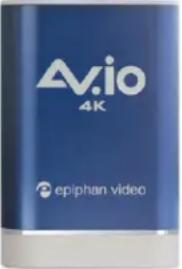 | Your video capture device! |
| HDMI connector cable (1 m / 3 ft) |  | Connects a HDMI source to your AV.io 4K'snative HDMI port. |
| USB 3.0 cable (1 m / 3 ft) |  | The USB 3.0 cable connects your AV.io 4K video grabber with your computer's USB 3.0 or 2.0 port. |
System requirements
System requirements are the barebones technical essentials your computer needs to work with AV.io 4K. System requirements to use AV.io 4K include:
| Video source | Any VESA-compatible HDMI (or DVI-D) source. |
| Video capture workstation | Any computer (laptop/desktop/other format) with:• a compatible USB 3.0 host controller for SuperSpeed operation and 4K functionality (for maximum performance, an Intel USB 3.0 host controller isneeded); or,• a USB 2.0 host controller (will limit maximum frame rate and resolution support) |
| Video capture workstation operating system | Windows 8.1, Windows 10MacOSX 10.10 and upLinux distribution with kernel 3.5.0 or higher |
| Processor frequency | Minimum recommended value: 2.4 GHz |
| RAM | Minimum recommended value: 4 GB |
Technical specifications
Technical specifications for AV.io 4K are included in the table below.
| Operating System support | Windows 8.1, Windows 10, Mac OSX 10.10 and up, Linux distribution with kernel 3.5.0 or higher |
| Drivers | Native UVC and UAC device auto-detected by OS |
| Input connector | HDMI |
| Input resolution | Standard and non-standard resolution from 640×360 up to 4096×2160 (4K DCI) |
| Output connector | USB 3.0 B-Type connector with USB 2.0 backward compatibility |
| Output scaling | Choose from: no scaling (1:1), preserve aspect ratio scaling or aspect ratio conversion scaling |
| Supported output resolutions | Color space YUY2 (4:2:2) | Color spaces NV12, YV12 and I420 (4:2:0) | |
| 640×360 | 15, 23.97, 24, 25, 29.97, 30, 50, 59.94 or 60 fps | 15, 23.97, 24, 25, 29.97, 30, 50, 59.94 or 60 fps | |
| 640×480 | |||
| 960×540 | |||
| 1024×768 | |||
| 1280×720 | |||
| 1280×1024 | |||
| 1600×1200 | |||
| 1920×1080 | |||
| 1920×1200 | |||
| 2048×1024 | 5, 10,15, 20 fps | 15, 23.97, 24, 25, 29.97, 30 fps | |
| 2560×1440 | |||
| 2560×1600 | |||
| 3200×1800 | |||
| 3840×2160 (4KUHD) | |||
| 4096×2160 (DCI 4K)* 5, 10,15, 20 fps | |||
| USB host controllers | When capturing 4K resolutions we recommend using a computer with an Intel USB host controller (this is the most common type) to achieve the best results. With other USB host controllers such as ASM, AMD, VIA, Renesas, Etron, Fresco and TI, capture will be at 79% to 96% of the expected frame rate. | ||
| HDMI audio input | Up to 96 kHz sampling rates | ||
| Audio output | 16-bit 48 kHz stereo sampling rates | ||
| Capture latency | Near-zero. However, third-party applications may contribute capture delay | ||
| HDCP | High-bandwidth digital content protection (HDCP) protected content | ||
| cannot be captured | |||
| LED LED indicatesthe statusof AV.io 4K | |||
| Dimensions | 3.54" × 2.36" × 0.91"(90 mm × 60 mm × 23 mm) | ||
* Note: For DCI 4K, the actual frame rate is limited to 24 fps for NV12/I420 and 15 fps for YUY2.
Hardware
This section describes the physical features of your AV.io 4K, including diagrams and hardware feature descriptions.
Topicscovered include:
- Hardware diagrams; and,
- Indicator LED details
Hardware diagrams
Your AV.io 4K device includes an input, an output and an indicator light.
Input/output ports and indicator lights are identified and explained in the top and bottom cap view AV.io 4K images below. Indicator light details are explained in the proceeding section.
Top cap view:
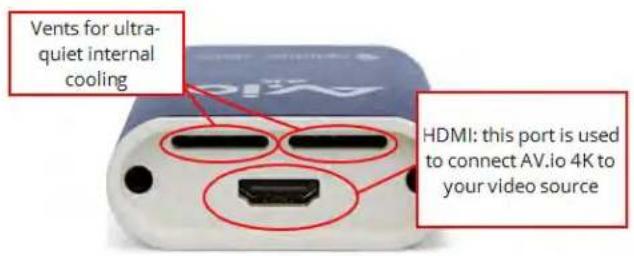
Bottom cap view:

Indicator LED details
The color and action of the indicator LED depends on whether you are connected by USB 3.0 or USB 2.0. For maximum performance, always use a USB 3.0 port and the included USB 3.0 cable. Note that frame capture rate will be reduced when connected via USB 2.0, and it is likely that any attempt to use 4K resolutions with USB 2.0 will be unstable.
From the operating system's UVC drivers, the application will receive the AV.io 4K supported color space, resolution and frame rates. If you're not sure if your controller is USB 3.0 or USB 2.0, plug AV.io 4K into the capture computer and look at the indicator LED. After initial boot up (red LED), blue is used for USB 3.0 and green is used for USB 2.0:

natural_image
Close-up of a blue and white electronic device labeled 'Aio 4.6' with internal circuit lines and a blue connector (no readable text beyond branding)Blue LED means USB 3.0

natural_image
Close-up of a blue and white electronic device labeled 'Aio' with a blue connector and indicator lights (no readable text beyond branding)Green LED means USB 2.0
| Connection type/LED color | USB 3.0 connection | USB 2.0 connection |
| Solid red | Firmware update in progressAV.io 4Kinitializing | Firmware update in progressAV.io 4Kinitializing |
| Solid green | N/A | USB 2.0 connection active |
| Blinking green | N/A | Video and/or audio transferring successfully |
| Solid blue | USB 3.0 connection active | N/A |
| Blinking blue | Video and/or audio transferring successfully | N/A |
Capture
Setting up your AV.io 4K device to capture live video content couldn't be easier!
Before you begin the connection process, you will require:
• An HDMI (or DVI-D) video source
- Your AV.io 4Kdevice
- Acapture computer, laptop or notebook
- A USB 3.0 cable (included with purchase) to connect to your AV.io 4K to your capture computer
- An HDMI cable (included with purchase) to connect your video source to your AV.io 4K
Once you have these things ready to go, you can now begin the simple process of hooking up your AV.io 4K so you can start capturing!
How AV.io 4K works
Once you're ready to start capturing, you'll need either a built-in or third-party application to capture video and audio content with AV.io 4K.
The application communicates with AV.io 4K and negotiates a color format (the range of available colors), frame rate (frequency at which frames in a video sequence are displayed) and frame resolution (size of a single video frame in pixels). Higher frame rate means smoother video capture while resolution determines the aspect ratio of the video output as well as its resolution and degree of definition.
With the help of AV.io 4K, the content from your video source is automatically configured and captured on your computer through your selected application. If the application requests a frame size that is smaller or larger than your video source, AV.io 4K automatically scales the video for you. For consistent and widely compatible output, audio is automatically resampled to 16-bit 48 kHz stereo audio.
No configuration required!
Set up your AV.io 4K for capture
Connecting your AV.io 4K to your capture computer is simple and is accomplished in three easy steps.
To connect your AV.io 4Kfor capture:
- Connect your AV.io 4K device to your video source
- Connect your AV.io 4K device to your desktop computer, laptop or notebook
- Open your favorite third-party application, select AV.io 4K from the list of available input sources and start capturing!

flowchart
graph LR
    A["VIDEO SOURCE"] --> B["1"]
    C["Laptop"] --> D["2"]
    E["Capture"] --> F["3"]
    G["STREAM"] --> H["4"]
    I["RECORD"] --> J["5"]
    B --> K["Avio"]
    D --> K
    F --> K
    H --> K
And that's it! No drivers to install and no extensive set-up! Just connect the cables and you're ready to go!
Resolutions, capture rates and aspect ratios
The resolution (also known as frame size or display mode) of a video signal, digital image, TV screen, computer monitor or other display device is a count of the number of pixels displayed horizontally and vertically. For example the resolution 1920×1080 (which is 1080p) creates an image that is 1920 pixels wide and 1080 pixels tall.
The aspect ratio of an image describes the proportional relationship between its pixel width and height. The resolution 1920 × 1080 (1080p) is quite a bit wider than it is tall. The ratio of its width to height is 16 to 9, represented as an aspect ratio 16:9.
AV.io 4K outputs resolutions in commonly supported aspects ratios. The table below is a color-coded legend for interpreting the two tables of product resolutions below it:
| Aspect Ratio | Common Use |
| 4:3 | Standard TV (NTSC/PAL) display and non-widescreen computer displays |
| 16:9 | Widescreen (HD) TV displays (1080p, 1080i, 720p etc), and 4K-capable displays |
| 16:10 (8:5) | Widescreen computer displays, and 4K-capable displays |
| 5:4 | Sometimes used in larger format computer monitors |
| 1.90:1 | Digital Cinema Initiatives standard resolution for 4K or 2K video projection |
AV.io 4K accepts the following inputs by default:
| 640×480 | 1024×768 | 1280×720 | 1280×800 |
| 1280×1024 | 1440×900 | 1600×1200 | 1920×1080 |
| 1920×1200 | 2048×1080 | 3840×2160 | 4096×2160 |
If you're using an input resolution that is not on this list, it might still be possible to capture. However, the video might be stretched, or scaled to a different size and surrounded by black letter-boxing, based on the software and your configuration settings. Read Configure settings using AV.io Config tool for more detail.
AV.io 4K generates a list of the following possible resolutions for your capture application to select for output display:
| 640×360 | 640×480 | 960×540 | 1024×768 |
| 1280×720 1280×1024 1600×1200 | 1920×1080 | |
| 1920×1200 2048×1024 2560×1440 | 2560×1600 | |
| 3200×1800 3840×2160 4096×2160 |
Captured video content is output to your application, depending on your resolution and color space, at 5, 10, 15, 20, 23.97, 24, 25, 29.97, 30, 50, 59.94 or 60 frames per second (your application chooses one of these frame rates) when captured over USB 3.0.
When capturing 4K resolutions we recommend using a computer with an Intel USB host controller (this is the most common type) to achieve the best results. With other USB host controllers such as ASM, AMD, VIA, Renesas, Eltron, Fresco and TI, capture will be at 79% to 96% of the expected frame rate.
Automatic image scaling & audio resampling
If your source content is larger or smaller than the frame size chosen by the application, AV.io 4K automatically scales your source to match the desired frame size! No user configuration required!
AV.io 4K also automatically performs audio resampling, meaning that no matter the bit depth or frequency of audio through an HDMI audio source, AV.io 4K automatically resamples your audio so that your application gets a consistent audio sample rate and bit depth, even if you change the video source!
Third-party applications
AV.io 4K uses pre-installed drivers on your OS(called UVC drivers and UAC drivers) to communicate with third-party applications and capture content. Due to AV.io 4K's use of UVC/UAC technology, there is no need for driver installation. Just like a webcam, your AV.io 4K device is immediately recognized as a camera device (like a web cam) and can be used to capture content via any UVC-compatible third-party application.
Third-party applications that work with AV.io 4K include, but are not limited to the following list. Try your favorite capture application!
Zero-install applications (included with your OS)

Skype
(with Windows 8.1 and Windows 10)

Windows Camera app
(with Windows 8.1 and Windows 10)

QuickTime
(with Mac OSX)
Popular applications available for download

Skype

Wirecast

QuickTime

Adobe FMLE

VLC media player
Configuration options
Your AV.io 4K device is ready to use right out of the box; however, there is support for additional configuration should you need it.
Firmware updates and changes to default capture settings can be applied to your AV.io 4K using Epiphan's AV.io Config tool.
Detailed instructions on how to use AV.io Config can be found using the links below:
• Install the AV.io Config tool
- Configure settings using AV.io Config tool
- Update firmware using the AV.io Config tool
- Identify input details using the AV.io Config tool
The AV.io Config tool allows you to change several settings to make changes to your video capture experience if necessary. Most users won't need to use this utility for anything other than firmware updates, but advanced users may find these tweaks help them get the most out of their AV.io 4K.
These settings include:
- input signal resolution
- aspect ratio preservation
• performance mode
Input signal resolution (disabled by default)
There are two key descriptors used in the process of video capture using a UVC-based device:
Extended Display Identification Data (EDID): The EDID describes to the video source, video player or computer which standard video formats (resolutions, frame rates, etc.) are supported by the capture device as video input.
UVC Descriptor: The UVC describes to the capture host computer which formats are available at the capture device USB port.
AV.io 4K does not enforce a direct relationship between the input and output signals. The list of EDID and UVC descriptions are identical so that if the input and output formats are the same, the signal can pass through without scaling. However, if input and output are set to different formats, AV.io 4K will automatically upscale or downscale video to the format requested as output by the capture software.
The Use Input Signal Resolution option allows you to use a video format that is not included on the EDID or UVC descriptors. When Use Input Signal Resolution is selected in the AV.io config tool, the input signal format is added to the UVC descriptor, which allows a 1:1 capture from the input video source. If the program you are using is compatible with the signal, you can capture your source in its original format.
For example, if your video resolution was 1680×1200, a resolution which is not on the EDID or UVC descriptor list, normally you would have to select the closest possible resolution from the provided output descriptor list in your capture application, and then AV.io 4K would automatically scale the video up or down to that format. However, if you select the Use Input Signal Resolution option, your capture application's list will have 1680×1200 as an option for output format.
There are two scenarios in which this feature will not perform as expected.
- Not all third-party applications are able to support custom resolutions. AV.io 4K will send the custom resolution to the application, but if it is unable to use the resolution, the application will override any AV.io 4Kcustom capture settings.
- In a Windows environment, due to restrictions set by Microsoft's Windows Hardware Quality Labs certification, most graphics adapters or drivers will not output resolutions not included in the EDID file of the connected display device. In the scenario where a resolution that is not included in the AV.io 4K standard resolution is requested, the Graphics adapter and driver will apply the resolution requested and then upscale it to AV.io 4K's default resolution. This means the Use input signal resolution feature will not add a custom resolution to the UVC descriptor and the capture software will be limited to the pre-defined resolutions.
Outside of these restrictions, the feature is recommended in any scenario where you wish the resolution of your captured video to be identical to the original video source.
Preserve aspect ratio (enabled by default)
When enabled, your AV.io 4K preserves the aspect ratio of your input signal by adding black bars to the sides or top and bottom of the frame (only for cases when the application using the signal requests a frame size with a different aspect ratio). For example, with this option enabled, a 4:3 input signal gets black bars added to the sides of the image when viewed in an application that requests a 16:9 aspect ratio. With this option disabled, the 4:3 image is instead stretched to fit the full 16:9 size.
Performance mode (enabled by default)
When enabled, your AV.io 4K enters and exits system suspend mode (i.e. sleep) faster by disabling support for the Suspend/U3 USB power state. This means AV.io 4K starts working again faster after your computer wakes from a system suspend state, at the cost of increased power consumption. Disabling this setting is ideal in situations where power consumption needs to be monitored, such as battery preservation in laptops.
Now that you've learned what these configuration settings do, you may want to Configure settings using AV.io Config tool or Update firmware using the AV.io Config tool.
User modes
The AV.io Config tool gives users the ability to specify custom resolutions. You can make use of up to three at one time, so you don't have to worry about changing the list every time you change which source you have connected.
To change the custom resolutions with the AV.io Config tool:
- If needed, install the AV.io Config tool. For details specific to your OS, see Install the AV.io Config tool.
- Connect your AV.io 4K device to your computer, laptop or notebook.
- Open the AV.io Config tool.
![AV.io Config Av.io Devices: AV.io 4k HD Video (500003, 3.1.0) [2b77:3641] Firmware Settings User Modes Firmware: UPDATE Input signal: HDMI 1920x1080p@60, RGB](/content/2026/06/1397028/images/5a0ec6e64a6b46a5423b97f8ddda932e2c0844663d2592f8625ee7e70bbfb151.jpg)
- Select your AV.io 4K device from the list under the Devices heading.

If your video grabber is not displayed, press the Refresh icon to refresh the list of connected devices.
![Devices: AV.io 4k HD Video (500013, 3.1.0) [2b77:3641]](/content/2026/06/1397028/images/e13156c6322d7271d1db20e74d60fc7aa9b079e3080eb85b64d24ba83969086f.jpg)
- Click the User modes tab; the User modes page appears.
![AV.io Config Devices: AV.io 4k HD Video (500008, 3:1.0) [2b77/3641] Firmware Settings User Modes User mode 1 User mode 2 User mode 3 Width: 720 Width: 999 Width:999 Height: 720 Height: 999 Height:999 Apply Input signal: HDMI 1920x1080p@60, RGB](/content/2026/06/1397028/images/831e1948daaff573e1bc3ef045d2e5fd1ad7cf6ec7ea085c50f06d6783897282.jpg)
- To create a custom resolution, click the check box for one of the user modes. The grayed-out area becomes open for changes.
- Select the text box labeled Width, erase the number that is currently in the box, and type out the width of the custom resolution you wish to use. Then do the same for the resolution height in the text box labeled Height.
- Click Apply: The custom resolution you defined will now be added to the list of output resolutions that you are allowed to select from the settings menu from the third-party application of your choice.
![AV.io Config Devices: AV.io 4k HD Video (50003, 3:1.0) [2b72:5641] Firmware Settings User Modes User mode 1 User mode 2 User mode 3 Width: 720 Width: 561 Width: 620 Height: 720 Height: 321 Height: 110 Apply Input signal: HDMI 1920x1080p@60, RGB](/content/2026/06/1397028/images/f1cc7e15fea85809a21902b9cfbabea60d2f944cfca1a0e8a428718c814e11f2.jpg)
- If needed, you may follow the same process for User mode 2 and User mode 3. If all three are checked and applied, all three custom resolutions selected will appear in the list of resolutions. You may change the definition of any of these three resolutions at any time.
There are two scenarios in which this feature will not perform as expected.
- Not all third-party applications are able to support custom resolutions. AV.io 4K will send the custom resolution to the application, but if it is unable to use the resolution, the application will override any AV.io 4Kcustom capture settings.
- In a Windows environment, due to restrictions set by Microsoft's Windows Hardware Quality Labs certification, most graphics adapters or drivers will not output resolutions not included in the EDID file of the connected display device. In the scenario where a resolution that is not included in the AV.io 4K standard resolution is requested, the Graphics adapter and driver will apply the resolution requested and then upscale it to AV.io 4K's default resolution. This means the User modes feature will not add the custom resolutions to the UVC descriptor and the capture software will be limited to the predefined resolutions.
Outside of these restrictions, the feature is recommended in any scenario where you wish to use a custom output resolution.
Install the AV.io Config tool
Epiphan's AV.io Config tool is used for loading firmware updates on your AV.io 4K and for advanced settings changes.

You may install AV.io Config on the same computer(s) where you use AV.io 4K, or only on one computer for configuration. All firmware updates and settings changes are saved to the device and work without any software installed on the computer.
To install the AV.io Config tool, follow the directions below for your computer's operating system.
Windows
- Download the AV.io Config package under the Windows heading on the AV.io 4K Downloads page on Epiphan's web site.
http://www.epiphan.com/support/avio-4k-drivers-documentation/ - Extract all the files from the zip file (remember the location you're unzipping to).
- Browse to the unzip folder and open the AV.io Config tool by double-clicking on AVioConfig.exe. (Depending on your local security settings, you may need to right-click and choose to run the file as an administrator).
- AV.io Config starts! If you video grabber is connected to the computer by USB, it is detected.
![AV.io Config Av.io Devices: AV.io 4k HD Video (500003, 3.1.0) [2b77:3641] Firmware Settings User Modes Firmware: UPDATE Input signal: HDMI 1920x1080p@60, RGB](/content/2026/06/1397028/images/ffaac61f2749c5e8a2046ec71b8ba81d0ce9f23f8a0330620083c835387e4523.jpg)
Mac
- Download the AV.io Config package under the Mac OS X heading on the AV.io 4K Downloads page on Epiphan's web site.
http://www.epiphan.com/support/avio-4k-drivers-documentation/
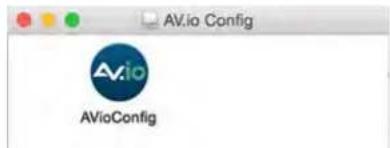
- Double-click the downloaded file to open the disk imagepackage.
-
If desired, drag the AVioConfig application to your desktop or another location where you will find it for future use.
-
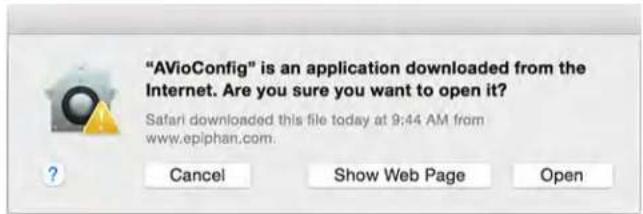
Double-click the AVioConfig application icon to launch AV.io Config; a warning box appears.
-
Click Open.
-
AV.io Config starts! If you video grabber is connected to the computer by USB, it is detected.

Linux
- Download the AV.io Config package under the Linux heading on the AV.io 4K Downloads page on Epiphan's web site.
http://www.epiphan.com/support/avio-4k-drivers-documentation/
-
Untar and unzip the contents of the .tar.bz2 file (tar -xjvf can be used to untar and unzip in one command).
-
Browse (or change directories) to the unzip folder.
-
Ether: Double-click the AV.io Config application icon or execute the AV.io Config application from the command line to launch AV.io Config (/AVioConfig).
-
AV.io Config starts! If you video grabber is connected to the computer by USB, it is detected.

Configure settings using AV.io Config tool
Epiphan's AV.io Config tool gives advanced users the ability to change several settings to their video capture experience. The settings that can be changed include: Re-numerate input signal resolution, aspect ratio preservation and performance mode. See Configuration options for more details.
To change the configurable settings with the AV.io Config tool:
- If needed, install the AV.io Config tool. For details specific to your OS, see Install the AV.io Config tool.
- Connect your AV.io 4K device to your computer, laptop or notebook.
- Open the AV.io Config tool.
![AV.io Config Av.io Devices: AV.io 4k HD Video (500003, 3.1.0) [2b77:3641] Firmware Settings User Modes Firmware: UPDATE Input signal: HDMI 1920x1080p@60, RGB](/content/2026/06/1397028/images/12c40faeadbc43436c89ce61a589f9e10607bb738f18f81681445fdb6903f72a.jpg)
- Select your AV.io 4K device from the list under the Devices heading.

If your video grabber is not displayed, press the Refresh icon to refresh the list of connected devices.
![Devices: AV.io 4k HD Video (500013, 3.1.0) [2b77:3641]](/content/2026/06/1397028/images/6f7dd9678d71780d398c400ad5a7feefafcbf71d16d20aa8bc90d75e461b031a.jpg)
- Click the Settings tab; the settings page appears.
![AV.io Config Devices: AV.io 4k HD Video (500003, 3.1.0) [2b7713641] Firmware Settings User Modes Use input signal resolution Preserve aspect ratio Performance mode Audio selector for multichannel inputs Apply Input signal: HDMI 1920x1080p@60, RGB](/content/2026/06/1397028/images/c528ba265c74c2a4b2084616b66b47e6a0363df7bf62be79a1b2c6d0b42cd7f6.jpg)
- Enable or disable the individual settings by clicking each checkbox according to your needs. See Configuration options for a description of each setting.
Identifying the input resolution on your AV.io 4K
The AV.io Config tool can help you figure out exactly what information your video source is sending. Plug in the source and select your device. The UI detects information about the source and presents it at the bottom of the window.
![AV.io Config Av.io Devices: AV.io 4k HD Video (500003, 3.1.0) [2b77.3641] Firmware Settings User Modes Firmware: UPDATE Input signal: HDMI 1920x1080p@60, RGB](/content/2026/06/1397028/images/0d8877a44ccd49e25e9a909faefa813d0595564a59eadc9f01ca7b3dfd6994c6.jpg)
The line tells you what connector the video source is using (in this case, HDMI), the exact resolution of the source (1920×1080p), the frame rate the source is outputting (60 fps) and the color model (RGB).
Update firmware using the AV.io Config tool
From time-to-time Epiphan Video releases firmware updates for our video grabbers. If you register your product and agree to be notified of product updates, you'll receive an email when there is an AV.io 4K update available for download.
When new firmware is available, you can load this firmware onto your AV.io 4K using the AV.io Config tool and the steps below.

Attempting to update firmware while running virtual machines will result in firmware upgrade failure.
To update firmware using the AV.io Config tool:
- If you haven't already done so, download and install the AV.io Config tool. See Install the AV.io Config tool.
- Download the firmware update file from the Epiphan website, as described in your firmware update notification email or discussion with your vendor.
- Connect your AV.io 4K device to your computer, laptop or notebook.
- Open the AV.io Config tool.
![AV.io Config Av.io Devices: AV.io 4k HD Video (500003, 3.1.0) [2677:3641] Firmware Settings User Modes Firmware: UPDATE Input signal: HDMI 1920x1080p@60, RGB](/content/2026/06/1397028/images/001256e7a552a60fc0eefdc065a055b9e8ec3d8ce31dfce5b628d9fe0d612382.jpg)
- Select your AV.io 4K device from the list under the Devices heading.

If your AV.io 4K device is not displayed, press the Refresh icon to refresh the list of connected devices.
![Devices: AV.io 4k HD Video (500013, 3.1.0) [2b77:3641]](/content/2026/06/1397028/images/9f97eaceb1c0685c7f3a26150b83f541889fabe1926884662a92eb504e7a3e97.jpg)
-
Using the diagram below, check the current firmware version of your AV.io 4K. If it is the same version as the new firmware you downloaded, there is no need to do the firmware update.
-
Click the Firmware tab
![AV.io Config Check current firmware version. This shows firmware 3.1.0. AV.io 4k HD Video (500003 3.1.0) [2b77:3641] Firmware Settings User Modes Firmware: UPDATE Input signal: HDMI 1920x1080p@60, RGB](/content/2026/06/1397028/images/6eb9bc542702e30ec5f73b710e327a9928e00e5f4a6cad75439802fd3c6f3c7e.jpg)
- Click the folder icon to navigate to the saved location of the firmware, and click Update to update your video grabber to the selected firmware; an update bar appears and displays the progress of the update.

Do not disconnect your AV.io 4K at any point during the update process! Doing so may cause irrevocable errors and/or permanently damage the device.
- When the update is finished the progress bar turns green and displays "Update Completed" (Note the firmware update will not be automatically reflected in the Devices list unless the Refresh icon is clicked). You may now safely disconnect your AV.io 4K if needed.
![AV.io Config Devices: AV.io 4k HD Video (500003, 3.1.0) [2b77:3641] Firmware Settings User Nodes Firmware: -uvc-3.1.0+35H3/firmware-dv2usb3_4k-uvc-3.1.0+35H3.fw UPDATE update Completed Input signal: HDMI 1920x1080p@60, RGB](/content/2026/06/1397028/images/53e8dbb969559d9381579a5297dc7cae8645c140f596ea5bbf93ce3620bf0c71.jpg)

When updating firmware on a Mac, the "Update Completed" text will not be displayed. The firmware upgrade is complete when the progress bar fills the width of the AV.io Config window and the window contents are no longer greyed out.
Limitations and known issues
This section includes known issues or limitations that affect functionality or usability and ways that you can work around these limitations.
Affecting all operating systems
- UVC-314: With the exception of the first capture after system reboot, the very first captured frame is always green.
- Workaround: Remove the green frame in post-production editing. If streaming the captured video, begin streaming after the initial green frame has already been captured.
- UVC-438: When capturing from a source at 720p, 50 fps will occasionally detect as 51 fps, and when capturing at 1600×1200, 60 fps will occasionally detect as 61 fps.
- Workaround: None necessary. This often occurs due to inherent inaccuracies in rounding decimal point fps rate to whole numbers. The reading is still accurate to your expected rate.
Affecting Windows
- UVC-270: Windows 10: Sometimes, Windows 10 will not recognize the grabber properly when connected by a Fresco FL1100 USB 3.0 controller.
- Workaround: Press the refresh icon to refresh the device list or unplug and reconnect the USB. If neither of these work, a different USB 3.0 host controller might be required.
Affecting Ubuntu
• UVC-454: When saving settings, device does not seem to save changes.
- Workaround: The most likely cause is caching. After saving changes, wait 10-15 seconds before rebooting, turning off or unplugging your device.
Affecting Mac
- UVC-450: Device does not boot when connected to Mac USB 3.0 port with USB 2.0 cable.
- Workaround: Wait for 20-30 seconds. If device sill does not boot, it will be necessary to use the USB 3.0 cable.
Troubleshooting
Use the follow table for help if you are experiencing problems or unexpected behavior from your AV.io 4K.
Affecting all operating systems
| Symptom(s) Action(s) to resolve | |
| Frame rates lower than 30 fps at 4Kresolutions | 1) Optimize performance by using an Intel USB host controller.2) Use your application to change the color space you are using. At 4K resolutions, NV12 and I420 (4:2:0) are available at 15,23.97, 24, 25, 29.97, or 30 fps, and YUY2 (4:2:2) is available at 5, 10, 15, or 20 fps. |
Affecting Windows
| Symptom(s) Action(s) to resolve | |
| Incorrect input resolutions detected | If using Windows 8.1 or 10 with VLC Media Player 2.2.1, downgrade to an earlier version of VLCor use a different capture application, such as Adobe FMLE. |
| Not able to capture UHD resolutions at 30 fps when using VLC | VLCdoes not support the NV12 (4:2:0) colorspace. 4Kmust be captured in either the YUY2 (4:2:2) colorspace,which will reduce the frame rate to 20 fps, or I420 (4:2:0) which will allow you to capture at speeds of up to 30 fps. |
| Captured video file displays black screen when opened. | If capturing on Windows 8.1 using Windows Movie Maker with your AV.io 4K connected to an Etron EJ188H USB 3.0/2/0 host controller, switch to a different capture application,connect to a different USB port,or upgrade to Windows 10. |
| Firmware update fails | If updating on a computer running Windows 8.1 or 10 with your AV.io 4K connected to an Etron3.0 host controller, perform the firmware update on another computer (without an Etron USB host controller) or using another USB port on the same computer. Note that USB 2.0 can be used for firmware updates. |
Affecting Mac
| Symptom(s) Action(s) to resolve | |
| Recorded file does not have audio. | If using VLC Media Player 2.2.1,downgrade to an earlier version or use a different capture application,such asQuicktime. |
Affecting Ubuntu
| Symptom(s) Action(s) to resolve | |
| Video cannot be resumed if stopped during a Skype call. | If capturing on Ubuntu 14.04 LTSwith your AV.io 4K connected to an Etron EJ168A USB 3.0 controller, switch to a different USB port or simply avoid stopping the Skype call. If it isnot possible to stop the Skype call or if it stops accidentally, disconnect and reconnect the device. You may need to restart the video call. |
Affecting Chromebook
| Symptom(s) Action(s) to resolve | |
| AV.io 4K is not detected as a valid audio device. | If capturing usingChromebook Apps Clipchamp andWebRTCon Google Chrome OS v43.0.2357.125 (64 bit), use a different Chromebook app to capture both video and audio, such as Screencastify or MediaCore Capture. |
Software and documentation license
ATTENTION: THESOFTWAREAND DOCUMENTATION PROVIDED UNDERTHISAGREEMENTAREBEING LICENSED TO YOU BY EPIPHAN SYSTEMS INC. ("LICENSOR") AND ARE NOT BEING SOLD. THIS AGREEMENT CONTAINS LIMITATIONS ON REPRESENTATIONS, WARRANTIES, CONDITIONS, REMEDIES, AND LIABILITIES THAT ARE APPLICABLE TO THESOFTWAREAND DOCUMENTATION.
Epiphan Systems Inc. Software License
IMPORTANT: BEFOREDOWNLOADING, INSTALLING, ORUSING THESOFTWARE AND DOCUMENTATION, PLEASECAREFULLYREAD THISAGREEMENTWHICH CONTAINSTHETERMSAND CONDITIONSUNDERWHICH YOU ARE ACQUIRING A LICENSE TO USE THE SOFTWARE AND DOCUMENTATION. IF YOU DO NOT ACCEPT THETERSAND CONDITIONSOFTHISAGREEMENTPLEASEDO NOTDOWNLOAD, INSTALL, ORUSETHE SOFTWARE AND DOCUMENTATION AND PROMPTLYRETURN OR DESTROY THE SOFTWARE AND DOCUMENTATION. IF YOU DOWNLOAD, INSTALL, ORUSETHE SOFTWARE AND/OR DOCUMENTATION, YOU WILL HAVE ACCEPTED AND AGREED TO THESE TERMS AND CONDITIONS. THE SOFTWARE AND DOCUMENTATION ARE ALSO PROTECTED BY COPYRIGHTLAWSAND INTERNATIONAL COPYRIGHTTREATIES, ASWELL AS OTHER INTELLECTUAL PROPERTY LAWS. IF YOU ARE AN AGENT OR EMPLOYEE OF AN ENTITY, YOU REPRESENTAND WARRANTYTHAT(I) THEINDIVIDUAL ACCEPTING THISAGREEMENTISDULY AUTHORIZED TO ACCEPT THIS AGREEMENT ON SUCH ENTITY'S BEHALF AND TO BIND SUCH ENTITY, AND (II) SUCH ENTITY HASFULLPOWER, CORPORATEOROTHERWISE, TO ENTERINTO THISAGREEMENT AND PERFORM ITS OBLIGATIONS UNDER THIS AGREEMENT.
1. Definitions: In this Agreement:
"Agreement" means this Epiphan Software License;
"Documentation" means the technical publications delivered to You with the Software relating to the installation and operation of the Software, such as reference, user, installation and technical guides and release notes;
"Epiphan" means Epiphan Systems Inc.;
“Software” means the Licensor binary and/or bytecode software programs that (i) are made available to You for download after acceptance of this Agreement, (ii) are packaged with this Agreement, or (iii) pre-installed on Epiphan products, or (iv) embed this Agreement in their installer(s) and which are installed after acceptance of this Agreement, and which binary and/or bytecode software programs include any Documentation; and
"You" or "Your" means the individual acquiring the Software license or any entity on whose behalf such individual is acting. In the case of an entity, "You" includes any entity that by majority voting interest controls, is controlled by, or is under common control with You.
-
Grant of Software License: Subject to the terms and conditions of this Agreement, Licensor grants You a non-exclusive, non-transferable, non-sublicensable, internal license to use a reasonable number of copies of the Software. All copies of the Software made by You shall include all trademarks, copyright notices, restricted rights legends, proprietary markings and the like exactly as they appear on the copy of the Software originally provided to You. No other rights in the Software or Documentation are granted to You.
-
Open Source Software: Binary, bytecode and source code versions of certain open source software packages may be embedded in or distributed with the Software ("Open Source Software"). If a separate license agreement for an item of open source software is: delivered to You with the Software; included in the download package for the Software; referenced in any material (including the Documentation) that is included in the download or distribution package for the Software; or listed at www.epiphan.com/opensource, then such open source software shall be Open Source Software and such separate license agreement shall govern Your use of that item or version of such open source software. The Open Source Software may include free software (i.e. software licensed under the GNU Lesser General Public License or other free software licenses) for which the applicable free software license may also require that the source code for such free software be made available to those receiving only executable versions of such free software. If the source code for any free software distributed with the Software is not provided with the Software, then upon request, within a three (3) year period from the original receipt of such Open Source Software from Licensor, for a fee that shall not exceed Licensor's costs associated with the shipping of the source code for such free software, Licensor will provide a copy of the source code for such free software to You.
-
Restrictions: The terms set forth in this Section 4 shall constitute conditions to the licenses granted in Section 2. You shall not reverse engineer, disassemble, reverse translate, decompile or in any other manner decode the Software except to the extent the Software is distributed with any Open Source Software that prohibits the imposition of such a restriction or to the extent the foregoing restriction is expressly prohibited by applicable law notwithstanding a contractual obligation to the contrary. You acknowledge and agree that no rights in respect to the source code of the Software are granted to You. You acknowledge and agree that the rights in respect to use of the Software and Documentation are granted only for use in conjunction with Epiphan hardware. You shall not distribute, lease, rent, grant a security interest in, assign, or otherwise transfer the Software except as expressly provided in this Agreement. You shall not modify or create any derivatives works of the Software or merge all or any part of the Software with another program. You shall not use the Software or make the Software available to any third parties as part of any service bureau, time sharing service, application service provider offering, software-as-a-service offering or any other managed service offering. You shall not disclose any performance, benchmarking, or feature-related information about the Software. You further agree not to disclose, transfer or otherwise provide to any third party any portion of the Software, except aexpressly permitted herein.
-
Disclaimer of Warranties: Licensor does not make any representations or provide any warranties or conditions in respect to the Software. EXCEPT FOR ANY WARRANTIES THAT MAY BE PROVIDED IN ANY COMMERCIAL AGREEMENT BETWEEN YOU AND LICENSOR, THE SOFTWARE AND DOCUMENTATION ARE PROVIDED "AS IS", WITHOUT ANY REPRESENTATIONS, CONDITIONS, OR WARRANTIES OF ANY KIND. WITHOUT LIMITATION, LICENSOR AND ITS LICENSORS, SUPPLIERS, SUBCONTRACTORS AND DISTRIBUTORS DISCLAIM ANY EXPRESSOR IMPLIED REPRESENTATIONS, CONDITIONS, AND/OR WARRANTIES OF MERCHANTABILITY, MERCHANTABILITY, OR FITNESS FOR A PARTICULAR PURPOSE WHETHER ARISING BY STATUTE, COURSEOF DEALING, USAGEOF TRADE, OR OTHERWISE. EXCEPT ASOTHERWISE EXPRESSLY PROVIDED IN ANY COMMERCIAL AGREEMENT, THE ENTIRE RISK OF THE USEOF THE SOFTWARE AND DOCUMENTATION SHALL BE BORNE BY YOU. EXCEPT AS OTHERWISE EXPRESSLY PROVIDED IN ANY COMMERCIAL AGREEMENT, NEITHER LICENSOR NOR ANY OF ITS LICENSORS, SUPPLIERS, SUBCONTRACTORS AND/OR DISTRIBUTORS MAKE ANY REPRESENTATIONS OR PROVIDE ANY CONDITIONSAND/OR WARRANTIESABOUT THESUITABILITY OF THESOFTWAREAND/OR DOCUMENTATION OR ABOUT ANY INFORMATION AND/OR DATA THAT MAY BE PROCESSED BY OR MADEAVAILABLEUSING THESOFTWARE.
-
LIMITATION OF LIABILITY: NEITHER LICENSOR NOR ANY OF ITSLICENSORS, SUPPLIERS, SUBCONTRACTORS AND/OR DISTRIBUTORS SHALL HAVE ANY LIABILITY TO YOU OR ANY OTHER PERSON OR ENTITY FOR ANY DAMAGES ARISING FROM THIS AGREEMENT, RELATING TO THE SOFTWARE OR DOCUMENTATION, OR RELATING TO ANY SERVICES PROVIDED TO YOU BY LICENSOR (INCLUDING ITS LICENSORS, SUPPLIERS, SUBCONTRACTORS AND/OR DISTRIBUTORS) IN RELATION TO THE SOFTWARE AND/OR DOCUMENTATION FOR ANY INDIRECT, RELIANCE, INCIDENTAL, SPECIAL, PUNITIVE, EXEMPLARY OR CONSEQUENTIAL DAMAGES, INCLUDING, BUT NOT LIMITED TO, LOSS OF REVENUE OR PROFIT, LOSS OF OR DAMAGE TO DATA, BUSINESS INTERRUPTION, LOSS OF DATA, REPLACEMENT OR RECOVERY COSTS, OR OTHER COMMERCIAL OR ECONOMICLOSS, WHETHER ARISING FROM CONTRACT, EQUITY, TORT (INCLUDING NEGLIGENCE OR STRICT LIABILITY) OR ANY OTHER THEORY OF LIABILITY, EVEN IF LICENSOR (INCLUDING ITS LICENSORS, SUPPLIERS, SUBCONTRACTORS AND DISTRIBUTORS) HAS BEEN ADVISED OF THE POSSIBILITY OF SUCH DAMAGES, OR THEY ARE FORESEEABLE. THE LIMITATIONS IN THIS SECTION SHALL APPLY WHETHER OR NOT THE ALLEGED BREACH OR DEFAULT IS A BREACH OF A FUNDAMENTAL CONDITION OR TERM OR FUNDAMENTAL BREACH. SOME JURISDICTIONS DO NOT ALLOW THE EXCLUSION OR LIMITATION OF LIABILITY FOR CONSEQUENTIAL OR INCIDENTAL DAMAGES, SO THESE LIMITATIONS MAY NOT APPLY TO YOU. IN NO EVENT SHALL THE TOTAL CUMULATIVE LIABILITY OF LICENSOR (INCLUDING ITS LICENSORS, SUPPLIERS, SUBCONTRACTORS AND DISTRIBUTORS) TO YOU OR ANY OTHER PERSON OR ENTITY FOR ANY DAMAGES ARISING FROM THIS AGREEMENT, RELATING TO THE SOFTWARE, DOCUMENTATION AND/OR RELATING TO ANY SERVICES PROVIDED TO YOU BY LICENSOR (INCLUDING ITS LICENSORS, SUPPLIERS, SUBCONTRACTORS AND DISTRIBUTORS) IN RELATION TO THESOFTWARE AND/OR DOCUMENTATION, EXCEED THE LICENSE FEES PAID BY YOU FOR THE SOFTWARE.
THE DISCLAIMER OF REPRESENTATIONS, WARRANTIES AND CONDITIONS AND LIMITATION OF LIABILITY CONSTITUTE AN ESSENTIAL PART OF THIS AGREEMENT. YOU ACKNOWLEDGE THAT BUT FOR THE DISCLAIMER OF REPRESENTATIONS, WARRANTIES AND CONDITIONS AND LIMITATION OF LIABILITY, NEITHER LICENSOR NOR ANY OF ITS LICENSORS OR SUPPLIERS WOULD GRANT THE RIGHTSGRANTED IN THIS AGREEMENT.
-
Term and Termination: This Agreement shall continue for as long as You use the Software, however, it may be terminated sooner as provided in this Section 7. You may terminate this Agreement by destroying all copies of the Software and Documentation under Your control and providing certification of such destruction to Licensor or by returning the Software to Licensor. Licensor may terminate this Agreement immediately by providing You with written notice if: (a) You are in material breach of any provision of this Agreement, which breach, if capable of being cured, is not cured within thirty (30) days after Licensor gives You written notice thereof; or (b) You have committed a non-curable material breach of this Agreement. Upon termination You shall destroy all copies of the Software. In addition to this Section, the Sections entitled Definitions, Disclaimer of Warranties, Limitation of Liability, Title, High-Risk Activities, Intellectual Property, and General shall continue in force even after any termination of this Agreement. No termination of this Agreement will entitle You to a refund of any amounts paid by You to Licensor or affect any obligations You may have to pay any outstanding amounts owing to Licensor. Upon any termination by Licensor, You shall destroy all copies of the Software and Documentation under Your control and certify such destruction to Licensor.
-
Support and Updates: This Agreement does not grant You the right to any updates or enhancements of the Software or the right to receive any technical support for the Software. Such updates and other technical support services, if available, may be purchased separately from Licensor. Use of any updates or
enhancements to the Software provided pursuant to any technical support You may procure from Licensor shall be governed by the terms and conditions of this Agreement. Licensor reserves the right at any time not to release or to discontinue the release of any Software and to alter prices, features, specifications, capabilities, functions, licensing terms, release dates, general availability or other characteristics of the Software.
- Title: All right, title, and interest (including all intellectual property rights) in, to, and under the Software (including all copies thereof) shall remain with Licensor and its licensors.
- High-Risk Activities: The Software is not fault-tolerant and is not designed, manufactured or intended for use in or in conjunction with on-line control equipment in hazardous environments requiring fail-safe performance, such as in the operation of nuclear facilities, aircraft navigation systems, air traffic control, or direct life support machines. Licensor, its licensors, suppliers, subcontractors and distributors specifically disclaim any express or implied representations, warranties and/or conditions for such uses.
- U.S. Government End-Users: The Software and Documentation are each a "commercial item" as that term is defined at FAR2.101, consisting of "commercial computer software" and "commercial computer software documentation" as such terms are defined in FAR12.212, and are provided to the U.S. Government only as commercial end items. Government end users acquire the rights set out in this Agreement for the Software and Documentation consistent with: (i) for acquisition by or on behalf of civilian agencies, the terms set forth in FAR12.212; or (ii) for acquisition by or on behalf of units of the Department of Defense, the terms set forth in DFARS227.7202. Use of the Software and Documentation is further restricted by the terms and conditions of this Agreement. For the purposes of any applicable government use, the Software and Documentation were developed exclusively at private expense, and are trade secrets of Epiphan Systems Inc. for the purpose of any Freedom of Information legislation or any other disclosure statute, regulation or provision.
- Export Restrictions: The Software, Documentation and related information are subject to export and import restrictions. By downloading, installing, or using the Software, Documentation and/or related information, You are representing and warranting that You are not located in, are not under the control of, and are not a national or resident of any country to which the export of the Software, Documentation and/or related information would be prohibited by the laws and/or regulations of Canada or the United States. You are also representing and warranting that You are not an individual to whom the export of the Software, Documentation or related information would be prohibited by the laws and/or regulations of Canada or the United States. You shall comply with the export laws and regulations of Canada and the United States that are applicable to the Software, Documentation and related information and You shall also comply with any local laws and/or regulations in Your jurisdiction that may impact Your right to export, import, or use the Software, Documentation or related information, and You represent and warrant that You have complied with any such applicable laws and/or regulations. The Software, Documentation and related information shall not be used for any purposes prohibited by export laws and/or regulations, including, without limitation, nuclear, chemical, or biological weapons proliferation. You shall be responsible for procuring all required permissions for any subsequent export, import, or use of the Software, Documentation or related information.
- Intellectual Property: Epiphan is a trademark or a registered trademark of Epiphan Systems Inc. in certain countries. All Licensor product names and logos are trademarks or registered trademarks of Epiphan Systems Inc. in certain countries. All other company and product names and logos are trademarks or registered trademarks of their respective owners in certain countries. You shall not disclose, transfer or
otherwise provide to any third party any portion of the Software, except as expressly permitted in this Agreement.
- General: This Agreement is the entire agreement between You and Licensor in respect to the Software, superseding any other agreements or discussions, oral or written. The terms and conditions of this Agreement shall prevail over any pre-printed terms on any quotes, orders, purchase orders, or purchase order acknowledgements, and shall prevail over any other communications between the parties in relation to the Software. You may not assign this Agreement whether voluntarily, by operation of law, or otherwise without Licensor's prior written consent. Licensor may assign this Agreement at any timewithout notice. The failure of a party to claim a breach of any term of this Agreement shall not constitute a waiver of such breach or the right of such party to enforce any subsequent breach of such term. If any provision of this Agreement is held to be unenforceable or illegal, such decision shall not affect the validity or enforceability of such provisions under other circumstances or the remaining provisions of this Agreement and such remaining provisions shall be reformed only to the extent necessary to make them enforceable under such circumstances. This Agreement shall be governed by the laws of the Province of Ontario and the laws of Canada applicable therein. No choice or conflict of laws rules of any jurisdiction shall apply to this Agreement. You shall only be entitled to bring any action or proceeding arising out of or relating to this Agreement, the Software, Documentation or any services provided in respect to the Software and/or Documentation in a court in Ottawa, Ontario, Canada, and You consent to the jurisdiction of such courts for any such action or proceeding. You waive all rights that You may have or that may hereafter arise to contest the jurisdiction of such courts for any action or proceeding brought by You. You hereby waive any right. You may have to request a jury trial with respect to any action brought by You in connection with this Agreement, the Software or any services provided in respect to the Software. The application of the United Nations Convention on Contracts for the International Sale of Goods to this Agreement is expressly excluded.
March 28,2014
Environmental Information
The equipment that you bought has required the extraction and use of natural resources for its production. It may contain hazardous substances that could impact health and the environment. In order to avoid the dissemination of those substances in our environment and to diminish the pressure on the natural resources, we encourage you to use the appropriate take-back systems. Those systems will reuse or recycle most of the materials of your end life equipment in a sound way. The crossed-out wheeled bin symbol invites you to use those systems. If you need more information about collection, reuse and recycling systems, please contact your local or regional waste administration. You can also contact us for more information on the environmental performance of our products.
Important Safety Warnings
WARNING: This product has no user-serviceable parts and the battery used in this device is not replaceable. Do not attempt to disassemble. Return the device for service.
CAUTION, RISK OF ELECTRIC SHOCK: This device may have multiple AC power cords installed. All power sources shall be disconnected before servicing to avoid shock hazard.
FCC & CE Compliance Statement
This device complies with Part 15 of the FCC Rules. Operation is subject to the following two conditions:
- This device may not cause harmful interference
- This device must accept any interference received, including interference that may cause undesired operation.
Marking by the symbol C€ indicates compliance of this device with EMC directive of the European Community and meets or exceeds the following technical standard.
EN 55022 - Limits and Methods of Measurement of Radio Interference Characteristics of Information Technology Equipment.

Other Jurisdictional Issues
Epiphan makes no representation that its products or information in this document or its web site is appropriate or available for use in your jurisdiction. Those who choose to access the Epiphan web site or use Epiphan products do so on their own initiative and are responsible for compliance with local laws, if and to the extent local laws are applicable
Submissions to Epiphan and Affiliated Servers
Any information, including but not limited to remarks, suggestions, ideas, graphics, or other submissions, communicated to Epiphan through their Epiphan web site is the exclusive property of Epiphan. Epiphan is entitled to use any information submitted for any purpose, without restriction (except as stated in Epiphan's Privacy Statement) or compensation to the person sending the submission. The user acknowledges the originality of any submission communicated to Epiphan and accepts responsibility for its accuracy, appropriateness, and legality.
Third Parties and Links to Third-Party Web Sites
Mention of non-Epiphan Systems Inc. products or services on their website, or this document site is for informational purposes and does not constitute an endorsement or recommendation.
This document may contain links to non-Epiphan web sites. These links are provided to you as a convenience, and Epiphan is not responsible for the content of any linked web site. Any outside web site accessed from the Epiphan web site is independent from Epiphan, and Epiphan has no control over the content of that web site. In addition, a link to any non-Epiphan web site does not imply that Epiphan endorses or accepts any responsibility for the content or use of such a web site.
In no event shall any reference to any third party or third party product or service be construed as an approval or endorsement by Epiphan of that third party or of any product or service provided by a third party.
Miscellaneous
It is the user's responsibility to ascertain whether any information downloaded from the Epiphan web site or other websites is free of viruses, worms, trojan horses, or other items of a potentially destructive nature.
Enforcement of Terms and Conditions
These Terms and Conditions for use of this document and the associated Epiphan Product are governed and interpreted pursuant to the laws of the province of Ontario, Canada, notwithstanding any principles of conflicts of law.
All disputes arising out of or relating to these Terms and Conditions shall be finally resolved by arbitration conducted in the English language in Ottawa, Ontario, Canada under the commercial arbitration rules of the Canada. The parties shall appoint as sole arbitrator a retired judge who presided in the province of Ontario. The parties shall bear equally the cost of the arbitration (except that the prevailing party shall be entitled to an award of reasonable attorneys' fees incurred in connection with the arbitration in such an amount as may be determined by the arbitrator). All decisions of the arbitrator shall be final and binding on both parties and enforceable in any court of competent jurisdiction. Notwithstanding this, application may be made to any court for a judicial acceptance of the award or order of enforcement. Notwithstanding the foregoing, Epiphan shall be entitled to seek injunctive relief, security, or other equitable remedies from any court of competent jurisdiction.
If any part of these terms is unlawful, void, or unenforceable, that part will be deemed severable and will not affect the validity and enforceability of the remaining provisions. Epiphan may, at its sole discretion and without notice, revise these terms at any time by updating this posting.
Copyright © 2016 Epiphan Systems Inc.
All Rights Reserved.


- Terms and conditions
- LIMITATION OFLIABILITY
- Thank you for choosing Epiphan Video!
- Product feedback
- Specifications
- Warranty
- Technical support
- Firmware 3.1.0 release notes
- Overview
- What's new
- Color space
- New default resolutions
- Use input signal resolution
- Custom resolution creation
- Significant changes to limitations, known issues and troubleshooting
- About AV.io 4K
- Registering your AV.io 4K
- Why should I register my AV.io 4K?
- How to register
- Table of contents
- Quickstart
- Getting started
- What's in the box?
- System requirements
- Technical specifications
- Hardware
- Hardware diagrams
- Top cap view:
- Bottom cap view:
- Indicator LED details
- Capture
- How AV.io 4K works
- Set up your AV.io 4K for capture
- Resolutions, capture rates and aspect ratios
- Automatic image scaling & audio resampling
- Third-party applications
- Zero-install applications (included with your OS)
- Popular applications available for download
- Configuration options
- Input signal resolution (disabled by default)
- Preserve aspect ratio (enabled by default)
- Performance mode (enabled by default)
- User modes
- Install the AV.io Config tool
- Windows
- Mac
- Linux
- Configure settings using AV.io Config tool
- Identifying the input resolution on your AV.io 4K
- Update firmware using the AV.io Config tool
- Limitations and known issues
- Affecting all operating systems
- Affecting Windows
- Affecting Ubuntu
- Affecting Mac
- Troubleshooting
- Software and documentation license
- Epiphan Systems Inc. Software License
- Definitions: In this Agreement:
- Environmental Information
- Important Safety Warnings
- FCC & CE Compliance Statement
- Other Jurisdictional Issues
- Submissions to Epiphan and Affiliated Servers
- Third Parties and Links to Third-Party Web Sites
- Miscellaneous
- Enforcement of Terms and Conditions
Brand : Epiphan
Model : AV.io 4K
Category : Digital Camera