FIERY X3E FOR CF9001 (VER.2.0) - Print Controller KONICA MINOLTA - Free user manual and instructions
Find the device manual for free FIERY X3E FOR CF9001 (VER.2.0) KONICA MINOLTA in PDF.


User questions about FIERY X3E FOR CF9001 (VER.2.0) KONICA MINOLTA
0 question about this device. Answer the ones you know or ask your own.
Ask a new question about this device
Download the instructions for your Print Controller in PDF format for free! Find your manual FIERY X3E FOR CF9001 (VER.2.0) - KONICA MINOLTA and take your electronic device back in hand. On this page are published all the documents necessary for the use of your device. FIERY X3E FOR CF9001 (VER.2.0) by KONICA MINOLTA.
USER MANUAL FIERY X3E FOR CF9001 (VER.2.0) KONICA MINOLTA
Copyright © 2001 Electronics For Imaging, Inc. All rights reserved.
This publication is protected by copyright, and all rights are reserved. No part of it may be reproduced or transmitted in any form or by any means for any purpose without express prior written consent from Electronics For Imaging, Inc., except as expressly permitted herein. Information in this document is subject to change without notice and does not represent a commitment on the part of Electronics For Imaging, Inc.
The software described in this publication is furnished under license and may only be used or copied in accordance with the terms of such license.
Patents: 5,867,179; 5,835,788; 5,666,436; 5,553,200; 5,543,940; 5,537,516; 5,517,334; 5,506,946; 5,424,754; 5,343,311; 5,212,546; 4,941,038; 4,837,722; 4,500,919; D406,117
Trademarks
EFI, the EFI logo, Fiery, the Fiery logo, Fiery Driven, the Fiery Driven logo, EFICOLOR, ColorWise, and Rip-While-Print are trademarks registered in the U.S. Patent and Trademark Office. Fiery ZX, Fiery X2, Fiery X3, Fiery X4, Command WorkStation, AutoCal, Starr Compression, Memory Multiplier, NetWise, and VisualCal are trademarks of Electronics For Imaging, Inc.
Adobe, the Adobe logo, Adobe Illustrator, PostScript, Adobe Photoshop, Adobe Separator, and Adobe PageMaker are trademarks of Adobe Systems Incorporated, registered in certain jurisdictions. EPS (Encapsulated PostScript) is a trademark of Altsys Corporation. Apple, the Apple logo, AppleShare, AppleTalk, EtherTalk, LaserWriter, and Macintosh are registered trademarks, and MultiFinder is a trademark of Apple Computer, Inc. Microsoft, MS, MS-DOS, and Windows are registered trademarks of Microsoft in the US and other countries. QuarkXPress is a registered trademark of Quark, Inc. Times, Helvetica, and Palatino are trademarks of Linotype AG and/or its subsidiaries. ITC Avant Garde, ITC Bookman, ITC Zapf Chancery, and ITC Zapf Dingbats are registered trademarks of International Typeface Corporation. Ethernet is a registered trademark of Xerox Corporation. NetWare and Novell are registered trademarks and Internetwork Packet Exchange (IPX) is a trademark of Novell, Inc. UNIX is a registered trademark of UNIX System Laboratories, a wholly owned subsidiary of Novell, Inc. PANTONE is a registered trademark of Pantone, Inc. Matchprint is a trademark of Imation Corp.
All other terms and product names may be trademarks or registered trademarks of their respective owners, and are hereby acknowledged.
Legal Notices
APPLE COMPUTER, INC. ("APPLE") MAKES NO WARRANTIES, EXPRESS OR IMPLIED, INCLUDING WITHOUT LIMITATION THE IMPLIED WARRANTIES OF MERCHANTABILITY AND FITNESS FOR A PARTICULAR PURPOSE, REGARDING THE APPLE SOFTWARE. APPLE DOES NOT WARRANT, GUARANTEE, OR MAKE ANY REPRESENTATIONS REGARDING THE USE OR THE RESULTS OF THE USE OF THE APPLE SOFTWARE IN TERMS OF ITS CORRECTNESS, ACCURACY, RELIABILITY, CURRENTNESS, OR OTHERWISE. THE ENTIRE RISK AS TO THE RESULTS AND PERFORMANCE OF THE APPLE SOFTWARE IS ASSUMED BY YOU. THE EXCLUSION OF IMPLIED WARRANTIES IS NOT PERMITTED BY SOME STATES. THE ABOVE EXCLUSION MAY NOT APPLY TO YOU.
IN NO EVENT WILL APPLE, ITS DIRECTORS, OFFICERS, EMPLOYEES OR AGENTS BE LIABLE TO YOU FOR ANY CONSEQUENTIAL, INCIDENTAL OR INDIRECT DAMAGES (INCLUDING DAMAGES FOR LOSS OF BUSINESS PROFITS, BUSINESS INTERRUPTION, LOSS OF BUSINESS INFORMATION, AND THE LIKE) ARISING OUT OF THE USE OR INABILITY TO USE THE APPLE SOFTWARE EVEN IF APPLE HAS BEEN ADVISED OF THE POSSIBILITY OF SUCH DAMAGES. BECAUSE SOME STATES DO NOT ALLOW THE EXCLUSION OR LIMITATION OF LIABILITY FOR CONSEQUENTIAL OR INCIDENTAL DAMAGES, THE ABOVE LIMITATIONS MAY NOT APPLY TO YOU. Apple's liability to you for actual damages from any cause whatsoever, and regardless of the form of the action (whether in contract, tort [including negligence], product liability or otherwise), will be limited to \$50.
Restricted Rights Legends
For defense agencies: Restricted Rights Legend. Use, reproduction, or disclosure is subject to restrictions set forth in subparagraph (c)(1)(ii) of the Rights in Technical Data and Computer Software clause at 252.227.7013.
For civilian agencies: Restricted Rights Legend. Use, reproduction, or disclosure is subject to restrictions set forth in subparagraph (a) through (d) of the commercial Computer Software Restricted Rights clause at 52.227-19 and the limitations set forth in Electronics For Imaging, Inc.'s standard commercial agreement for this software. Unpublished rights reserved under the copyright laws of the United States.
Printed in the United States of America on recycled paper.
Part Number: 45024809
FCC Information
Declaration of Conformity
| Trade Name: | Printer Controller |
| Model Number: | Fiery X3e |
| Compliance Test Report Number: | M00912A1 |
| Compliance Test Report Date: | September 13, 2000 |
| Responsible Party (in USA): | Electronics for Imaging, Inc. |
| Address: | 303 Velocity Way, Foster City, CA 94404 |
| Telephone: | (650) 357-3500 |
This equipment has been tested and found to comply with the limits for a Class B digital device, pursuant to Part 15 of the FCC Rules. These limits are designed to provide reasonable protection against harmful interference in a residential installation. This equipment generates, uses, and can radiate radio frequency energy and, if not installed and used in accordance with the instructions, may cause harmful interference to radio communications. However, there is no guarantee that interference will not occur in a particular installation.
WARNING: FCC Regulations state that any unauthorized changes or modifications to this equipment not expressly approved by the manufacturer could void the user's authority to operate this equipment.
Industry Canada Class B Notice
This Class B digital apparatus complies with Canadian ICES-003.
CE Marking (Declaration of Conformity)
We declare under our sole responsibility that the copier and options to which this declaration relates is in conformity with the specifications below. This declaration is valid for the area of the European Union (EU) only.
| Product Type | Console Copier System |
| System Product Name | Fiery X3e, Options: AFR-12, ST-103, S-105, C-101, AD-7, I/F KIT G, ADF KIT |
| Compliance Report Number | M00913C1 |
| Standards | Safety *2 : EN 60 950/1992 (A1, A2, A3, A4 & A11)(Safety of information technology equipment, including electrical business equipment)EN 60825-1 / 1994 with A11 (Copier only)(Radiation safety of laser products, equipment classification, requirements, and user's guide)EMC *1 : EN55 022 (Class B)/1994 with A1 (1995) & A2 (1997)EN55 022 (Class B)/1998 (Printer Controller only)(Limits and method for measurement of radio disturbance characteristics of information technology equipment (ITE))EN61000-3-2/1995 (Electromagnetic compatibility (EMC)- Part 3: Limits, Section 2: Limits for harmonic current emissions (equipment input current ≤16A per phase))EN61000-3-3/1995 (Electromagnetic compatibility (EMC)- Part 3: Limits, Section 2: Limitation of voltage fluctuations and flicker in low-voltage supply systems for equipment with rated current ≤16A)EN55024/1998 (Information technology equipment — immunity characteristics — Limits and methods of measurement)EN61000-4-2/1995 : Electrostatic discharge immunity testEN61000-4-3/1995 : Radiated electromagnetic field immunity testEN61000-4-4/1995 : Electrical fast transient/burst immunity testEN61000-4-5/1995 : Surge immunity testEN61000-4-6/1996 : Immunity to conducted disturbance, induced by radio-frequency fieldEN61000-4-8/1993 : Power-frequency magnetic field immunity testEN61000-4-11: Voltage dips, short interruptions and voltage variations immunity testNotes: *1) EMC performance: This product was designed for operation in a typical office environment.*2) First year of labeling according to EC-directive 73/23/EEC and 93/68/EEC: 20003) This product was designed for operation in a typical office environment. |
| EC Directives | Safety: 73/23/EEC and 93/68/EECEMC: 89/336/EEC and 93/68/EEC |
This device must be used with shielded interface cables. The use of non-shielded cable is likely to result in interference with radio communications and is prohibited under EC Directives.
Software License Agreement
Before using the Software, please carefully read the following terms and conditions. BY USING THIS SOFTWARE, YOU SIGNIFY THAT YOU HAVE ACCEPTED THE TERMS OF THIS AGREEMENT. If you cannot or do not accept these terms, you may return the entire package within ten (10) days to the Distributor or Dealer from which you obtained them for a full refund.
Electronics for Imaging, Inc. grants to you a non-exclusive, non-transferable license to use the software and accompanying documentation (“Software”) included with the Fiery X3e you have purchased, including without limitation the PostScript software provided by Adobe Systems Incorporated.
You may:
a. use the Software solely for your own customary business purposes and solely with Fiery X3e;
b. use the digitally-encoded machine-readable outline and bitmap programs (“Font Programs”) provided with Fiery X3e in a special encrypted format (“Coded Font Programs”) to reproduce and display designs, styles, weights, and versions of letters, numerals, characters and symbols (“Typefaces”) solely for your own customary business purposes on the display window of the Fiery X3e or monitor used with Fiery X3e;
c. use the trademarks used by Electronics for Imaging to identify the Coded Font Programs and Typefaces reproduced therefrom ("Trademarks"); and
d. assign your rights under this Agreement to a transferee of all of your right, title and interest in and to Fiery X3e provided the transferee agrees to be bound by all of the terms and conditions of this Agreement.
You may not:
a. make use of the Software, directly or indirectly, to print bitmap images with print resolutions of 600 dots per inch or greater, or to generate fonts or typefaces for use other than with Fiery X3e;
b. make or have made, or permit to be made, any copies of the Software, Coded Font Programs, accompanying documentation or portions thereof, except as necessary for use with the Fiery X3e unit purchased by you; provided, however, that under no circumstances may you make or have made, or permit to be made, any copies of that certain portion of the Software which has been included on the Fiery X3e hard disk drive. You may not copy the documentation;
c. attempt to alter, disassemble, decrypt or reverse engineer the Software, Coded Font Programs or accompanying documentation.
d. rent or lease the Software.
Proprietary Rights
You acknowledge that the Software, Coded Font Programs, Typefaces, Trademarks and accompanying documentation are proprietary to Electronics For Imaging and its suppliers and that title and other intellectual property rights therein remain with Electronics For Imaging and its suppliers. Except as stated above, this Agreement does not grant you any right to patents, copyrights, trade secrets, trademarks (whether registered or unregistered), or any other rights, franchises or licenses in respect of the Software, Coded Font Programs, Typefaces, Trademarks or accompanying documentation. You may not adapt or use any trademark or trade name which is likely to be similar to or confusing with that of Electronics For Imaging or any of its suppliers or take any other action which impairs or reduces the trademark rights of Electronics For Imaging or its suppliers. The trademarks may only be used to identify printed output produced by the Coded Font Programs. At the reasonable request of Electronics For Imaging, you must supply samples of any Typeface identified with a trademark.
Confidentiality
You agree to hold the Software and Coded Font Programs in confidence, disclosing the Software and Coded Font Programs only to authorized users having a need to use the Software and Coded Font Programs as permitted by this Agreement and to take all reasonable precautions to prevent disclosure to other parties.
Remedies
Unauthorized use, copying or disclosure of the Software, Coded Font Programs, Typefaces, Trademarks or accompanying documentation will result in automatic termination of this license and will make available to Electronics For Imaging other legal remedies.
Limited Warranty And Disclaimer
Electronics For Imaging warrants that, for a period of ninety (90) days from the date of delivery to you, the Software under normal use will perform without significant errors that make it unusable. Electronics For Imaging's entire liability and your exclusive remedy under this warranty (which is subject to you returning Fiery X3e to Electronics For Imaging or an authorized dealer) will be, at Electronics For Imaging's option, to use reasonable commercial efforts to attempt to correct or work around errors, to replace the Software with functionally equivalent software, or to refund the purchase price and terminate this Agreement. Some states do not allow limitations on duration of implied warranty, so the above limitation may not apply to you.
Except for the above express limited warranty, Electronics For Imaging makes and you receive no warranties or conditions on the Products, express, implied, or statutory, and Electronics For Imaging specifically disclaims any implied warranty or condition of merchantability or fitness for a particular purpose.
For warranty service, please contact your authorized service/support center.
EXCEPT FOR THE ABOVE EXPRESS LIMITED WARRANTY, ELECTRONICS FOR IMAGING MAKES AND YOU RECEIVE NO WARRANTIES OR CONDITIONS ON THE SOFTWARE OR CODED FONT PROGRAMS, EXPRESS, IMPLIED, STATUTORY, OR IN ANY OTHER PROVISION OF THIS AGREEMENT OR COMMUNICATION WITH YOU, AND ELECTRONICS FOR IMAGING SPECIFICALLY DISCLAIMS ANY IMPLIED WARRANTY OR CONDITION OF MERCHANTABILITY OR FITNESS FOR A PARTICULAR PURPOSE. Electronics For Imaging does not warrant that the operation of the software will be uninterrupted or error free or that the Software will meet your specific requirements.
Limitation Of Liability
IN NO EVENT WILL ELECTRONICS FOR IMAGING OR ITS SUPPLIERS BE LIABLE FOR ANY DAMAGES, INCLUDING LOSS OF DATA, LOST PROFITS, COST OF COVER OR OTHER SPECIAL, INCIDENTAL, CONSEQUENTIAL OR INDIRECT DAMAGES ARISING FROM THE USE OF THE SOFTWARE, CODED FONT PROGRAMS OR ACCOMPANYING DOCUMENTATION, HOWEVER CAUSED AND ON ANY THEORY OF LIABILITY. THIS LIMITATION WILL APPLY EVEN IF ELECTRONICS FOR IMAGING OR ANY AUTHORIZED DEALER HAS BEEN ADVISED OF THE POSSIBILITY OF SUCH DAMAGE. YOU ACKNOWLEDGE THAT THE PRICE OF THE UNIT REFLECTS THIS ALLOCATION OF RISK. BECAUSE SOME STATES/JURISDICTIONS DO NOT ALLOW THE EXCLUSION OR LIMITATION OF LIABILITY FOR CONSEQUENTIAL OR INCIDENTAL DAMAGES, THE ABOVE LIMITATION MAY NOT APPLY TO YOU.
Export Controls
You agree that you will not export or re-export the Software or Coded Font Programs in any form without the appropriate United States and foreign government licenses. Your failure to comply with this provision is a material breach of this Agreement.
Government Use
Use, duplication or disclosure of the Software by the United States Government is subject to restrictions as set forth in subdivision (c) (1) (ii) of the Rights in Technical Data and Computer Software clause at DFARS 252.227-7013 or in subparagraphs (c) (1) and (2) of the Commercial Computer Software—Restricted Right Clause at 48 CFR 52.227-19, as applicable.
Third Party Beneficiary
You are hereby notified that Adobe Systems Incorporated, a California corporation located at 345 Park Avenue, San Jose, CA 95110-2704 (“Adobe”) is a third-party beneficiary to this Agreement to the extent that this Agreement contains provisions which relate to your use of the Fonts, the Coded Font Programs, the Typefaces and the Trademarks licensed hereby. Such provisions are made expressly for the benefit of Adobe and are enforceable by Adobe in addition to Electronics For Imaging.
General
This Agreement will be governed by the laws of the State of California.
This Agreement is the entire agreement held between us and supersedes any other communications or advertising with respect to the Software, Coded Font Programs and accompanying documentation.
If any provision of this Agreement is held invalid, the remainder of this Agreement shall continue in full force and effect.
If you have any questions concerning this Agreement, please write to Electronics For Imaging, Inc., Attn: Licensing Dept. or see Electronics For Imaging's web site at www.efi.com.
Electronics For Imaging
303 Velocity Way
Foster City, CA 94404
Contents
Introduction
About the documentation XV
Key features of ColorWise xvii
Chapter 1: Fiery X3e Color Management
Managing color on the Fiery X3e 1-1
Rendering styles 1-5
RGB Source Profile 1-6
RGB Separation 1-7
CMYK Simulation Profile 1-8
CMYK Simulation Method 1-8
Output Profile 1-9
Pure Black Text/Graphics 1-9
Black Overprint 1-11
Spot Color Matching 1-12
Printer Drivers and Print Options 1-13
What a printer driver does 1-13
PostScript printer driver for Windows 95/98/Me, Windows NT 4.0,
and Windows 2000 1-14
Adobe PostScript printer driver for Mac OS 1-18
Chapter 2: Simple and Advanced Workflows
Workflow concepts 2-1
Short-run printing versus color proofing 2-1
RGB, CMYK, and PANTONE colors 2-2
Desktop versus Fiery X3e color management 2-3
Simple workflows 2-4
Select your colors wisely 2-4
Select a short workflow 2-5
Advanced workflows 2-8
Short-run printing examples 2-8
Color proofing examples 2-12
Chapter 3: Color Calibration
Introduction 3-1
Understanding calibration 3-2
How calibration works 3-3
Scheduling calibration 3-4
Checking calibration status 3-5
Using a densitometer 3-6
Setting up the densitometer 3-6
Calibrating the densitometer 3-8
Calibrating with ColorWise Pro Tools 3-9
Expert Mode 3-14
Calibrating from the Control Panel using AutoCal2 3-16
Removing calibration 3-18
Chapter 4: ColorWise Pro Tools
Profile Manager 4-1
Setting the default profiles 4-3
Downloading profiles 4-5
Editing profiles 4-7
Managing profiles 4-7
Defining profiles 4-8
Color Editor 4-12
Editing Profiles 4-12
Undoing simulation edits 4-19
Checking edited profiles 4-21
Color Setup 4-22
Setting default ColorWise options 4-22
Chapter 5: Working with Color in Applications
Working with color 5-1
Color reference pages 5-2
Office applications 5-3
Choosing colors in office applications 5-4
PostScript applications 5-4
Choosing colors in PostScript applications 5-5
Default output profile 5-8
CMYK simulation 5-8
Chapter 6: Office Applications
Working with Office applications 6-1
Defining colors 6-1
Working with imported files 6-1
Selecting options when printing 6-2
Output profiles 6-2
Chapter 7: Adobe Photoshop
Photoshop 5.x 7-1
Photoshop 5.x color settings 7-1
ColorSync defaults 7-6
Defining colors 7-7
Saving files for importing into other documents 7-7
Tips for advanced users 7-9
Selecting options when printing 7-10
Printing tips for advanced users 7-11
Photoshop 4.x 7-13
Defining colors 7-13
Saving files for importing into other documents 7-13
Selecting options when printing 7-15
Chapter 8: Page Layout Applications
Working with page layout applications 8-1
Defining colors 8-1
Importing images 8-2
CMYK simulation 8-3
Adobe PageMaker 6.5 for Mac OS and Windows 8-4
Windows version requirement 8-4
Importing images 8-4
Selecting options when printing 8-5
Optional Color Management from PageMaker 8-6
QuarkXPress 4.x for Mac OS and Windows 8-7
Importing images 8-7
Optional Color Management from QuarkXPress 8-9
QuarkXPress 3.32 for Mac OS and Windows 8-9
Windows version requirement 8-9
Importing images 8-9
Chapter 9: Illustration Applications
Working with illustration applications 9-1
Defining colors 9-1
Importing images 9-2
CMYK simulation 9-2
Adobe Illustrator 8.x for Windows and Mac OS 9-3
Defining colors 9-3
Importing images 9-3
Optional Color Management in Illustrator 9-3
Saving files for importing into other documents 9-5
Macromedia FreeHand 8.x for Windows and Mac OS 9-5
Defining colors 9-5
Importing images 9-6
Saving files for importing into other documents 9-8
Optional Color Management in FreeHand 9-8
CorelDRAW for Windows and Mac OS 9-8
Defining colors 9-8
Importing images 9-9
Saving files for importing into other documents 9-11
Optional Color Management in CorelDRAW 9-11
Appendix A: Desktop Color Primer
The properties of color A-1
The physics of color A-1
CIE color model A-2
Hue, saturation, and brightness A-3
Additive and subtractive color systems A-3
Printing techniques A-5
Halftone and continuous tone devices A-6
Using color effectively A-6
A few rules of thumb A-7
Color wheel A-7
Color and text A-8
Raster images and vector images A-9
Optimizing files for processing and printing A-10
Resolution of raster images A-10
Scaling A-12
Appendix B: Color Management
Controlling printed color B-1
Maintaining copier consistency B-2
Print device gamut B-2
Basics of color management B-3
Color conversion B-4
Appendix C: Importing densitometer measurements
Simple ASCII Import File Format (SAIFF) C-1
Example of 1D Status T density for EFI 34 patch page C-2
Example of 1D Status T density for EFI 21 patch page C-2
Example of 1D Status T density for an arbitrary page C-3
Glossary
Bibliography
Index
Introduction
Welcome to the Color Guide. This manual introduces you to the concepts and issues associated with printing to the Fiery X3e ^™ . It outlines key workflow scenarios, provides information on calibration and color profiles, and contains application notes that explain how to print to the Fiery X3e from popular Microsoft Windows and Apple Mac OS applications.
About the documentation
The Color Guide is organized to supply you with key information about managing the color output of your Fiery X3e. Chapter 1 discusses the Fiery X3e's print options and how to get the best color results, and Chapter 2 describes several effective workflows. ColorWise Pro Tools™ are discussed in the next two chapters. Chapter 3 covers Calibrator and other methods used to calibrate the copier, and Chapter 4 takes you through the features of Profile Manager, used to manage color profiles on the Fiery X3e, and Color Editor, which lets you customize simulation and output profiles. Succeeding chapters offer tips for printing from business and graphics applications. Finally, the appendixes offer information about color theory and color management.
Words in bold, for example, output profile, are terms that appear in the glossary. The bibliography at the end of this manual provides sources for further investigation of color printing issues.
Color terms and concepts such as “RGB data,” “color space,” “spot color,” “gamut,” and “source profile” are used throughout this manual. If you are new to desktop color or if any terms are unfamiliar, be sure to read Appendixes A and B or check the glossary.
This manual is part of a set of Fiery X3e documentation that also includes the following manuals for users and system administrators:
- The Configuration Guide explains basic configuration and administration of the Fiery X3e for the supported platforms and network environments. It also includes guidelines for setting up UNIX, Windows NT 4.0, and Novell NetWare servers to provide Adobe PostScript printing services to clients.
- Getting Started describes how to install software to enable users to print to the Fiery X3e. Specifically, it describes installation of PostScript printer drivers, printer description files, and other user software provided on the User Software CD. It also explains how to connect each user to the network.
- The Printing Guide describes the printing features of the Fiery X3e for users who send jobs via remote workstations on the network.
- The Job Management Guide explains the functions of the Fiery X3e client utilities, including Command WorkStation™, and how you can use them to manage jobs. This book is intended for an operator or administrator, or a user with the necessary access privileges, who needs to monitor and manage job flow and troubleshoot problems that may arise.
- Release Notes provide last-minute product information and workarounds for some of the problems you may encounter.
All the manuals should be available at your site—refer to them for a complete description of your Fiery X3e.
Key features of ColorWise
ColorWise ^® is the color management system (CMS) built into the Fiery X3e and designed to provide both casual and expert users the best color output for a variety of purposes. The ColorWise default settings were specifically selected to provide great out-of-box color from many applications and Windows and Mac OS platforms. This enables casual users to achieve good quality output without knowing about or changing any color settings on the Fiery X3e.
To get consistent color, you should be sure that the Fiery X3e is calibrated on a regular basis. ColorWise Pro Tools include a simple-to-use calibrator, which allows you to calibrate using either the scanner that comes with the copier or the optional densitometer (see Chapter 3).
There are a number of features that can be used to modify printing results. Depending on your particular needs, you can:
- Set the behavior of CMYK printing to emulate DIC, Euroscale, and SWOP offset press standards.
- Match PANTONE colors for the best match when printed using four-color press conditions or when printed using presses with extra, custom plates.
- Select a color rendering dictionary (CRD), also called a rendering style, for RGB printing. CRDs allow for rich, saturated printing of presentation graphics; smooth, accurate printing of photographs; and relative or absolute colorimetric rendering for specialized needs.
- Define the source of incoming RGB color data for better screen matching, and you can provide for better color conversion of RGB data with no source information.
- Define whether RGB data is converted into the full gamut of the copier or whether it is first converted into the gamut of another device, such as a press standard. This feature is very helpful for making one device behave like another. It is also useful for evaluating the appearance of the RGB file under different printing conditions without having to reprocess the RGB data each time.
ColorWise offers an open color architecture, letting users customize the Fiery X3e to meet new printing needs as they arise. ColorWise supports ICC profiles, which are industry standard color profiles that define the color behavior of a device. By downloading ICC profiles to the Fiery X3e, it can simulate a custom press (or another copier) as well as accurately print colors from a particular monitor or a particular scanner. In addition, you can create customized ICC profiles for the copier.
ColorWise also lets you use any Status T densitometer by importing data in a standard file format (see Appendix C). In this case, it is important to note that the quality of the instrument used will determine the quality of the calibration.
Chapter 1: Fiery X3e Color Management
The first part of this chapter describes the options available from the ColorWise color management system and explains how you can customize the color settings for your particular needs. It provides descriptions of the preset default settings of ColorWise and covers additional options for users who need to customize ColorWise.
Beginning on page 1-13 is a detailed explanation of what a PostScript Level 2 or PostScript 3 printer driver does, as well as information on the capabilities of various printer drivers and instructions for setting color options with the PostScript drivers for Windows NT 4.0, Windows 2000, Windows 95/98, and Mac OS.
Managing color on the Fiery X3e
To modify the Fiery X3e's printing behavior, do any of the following:
- Select ColorWise options for an individual print job using menus that appear from the printer driver.
- Select most ColorWise options as server defaults from Fiery X3e Setup or from the Control Panel, as described in the Configuration Guide. These defaults will apply to all subsequent print jobs unless you override them.
- Select some ColorWise options, particularly default ICC profile settings and calibration options, from ColorWise Pro Tools. These options include default Simulation Profile (see page 1-8), Appear in Driver as (see page 4-8), default Source Profile (see page 1-6), and associated calibration set (see page 3-4).
Applications can generate color data for the Fiery X3e in many different color spaces. The most common type of color data produced from office applications is RGB, while prepress applications generally produce CMYK data. Desktop applications can also generate spot colors such as PANTONE colors. To complicate matters, a single page may contain a mix of RGB, CMYK, and spot colors. The Fiery X3e lets users control the printing of these mixed-color documents with features that apply specifically to RGB, CMYK, or spot color data.
Fiery X3e color management generates CMYK data to be sent to the copier; additional processing may then be performed before printing begins.
The following diagram illustrates the print options in the Fiery X3e color management process that affect color data conversions. You access these print options when you send a print job to the Fiery X3e. Most of these options and settings are described in subsequent sections of this chapter.
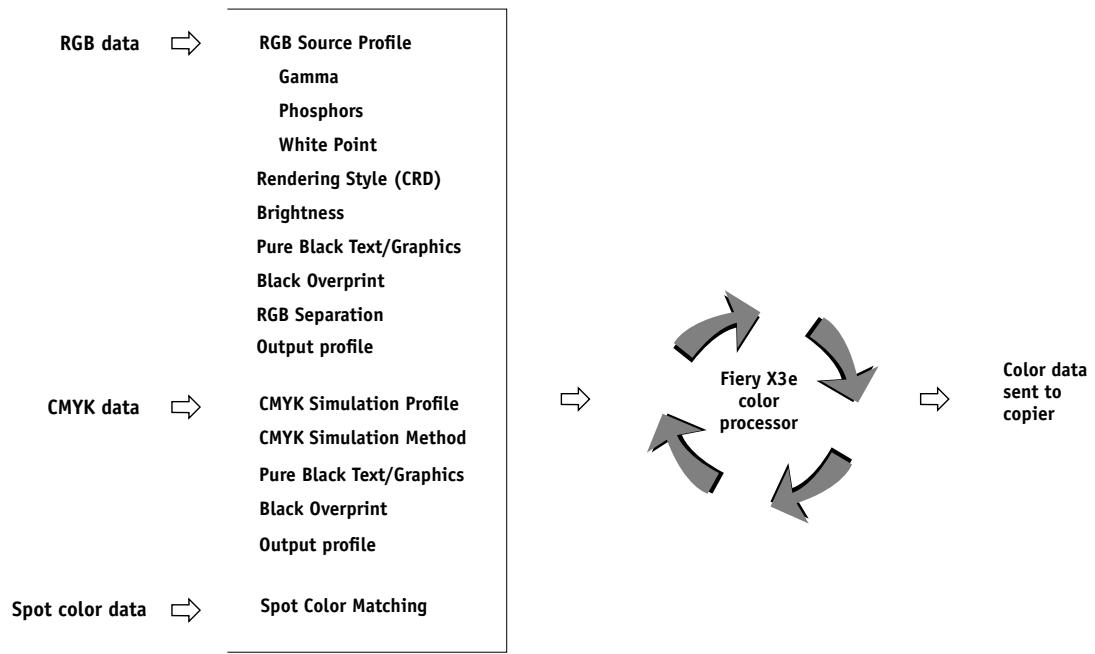
flowchart
graph LR
    A["RGB data"] --> B["RGB Source Profile"]
    B --> C["Gamma"]
    B --> D["Phosphors"]
    B --> E["White Point"]
    B --> F["Rendering Style (CRD)"]
    B --> G["Brightness"]
    B --> H["Pure Black Text/Graphics"]
    B --> I["Black Overprint"]
    B --> J["RGB Separation"]
    B --> K["Output profile"]

    L["CMYK data"] --> M["CMYK Simulation Profile"]
    M --> N["CMYK Simulation Method"]
    N --> O["Pure Black Text/Graphics"]
    N --> P["Black Overprint"]
    N --> Q["Output profile"]

    R["Spot color data"] --> S["Spot Color Matching"]

    T["Fiery X3e color processor"] --> U["Color data sent to copier"]
RGB Source Profile is the only color option that applies strictly to RGB color data. The other options that affect RGB color also affect the more rarely used Lab, XYZ, and other calibrated color spaces.
NOTE: For users who are familiar with PostScript 3.0 color, RGB Source Profile affects all CIEBasedABC color spaces (if the source space is RGB). Also, if you send CMYK data to the Fiery X3e in CIEBasedDEFG format, for example, by choosing PostScript Color Management in Adobe Photoshop, the Fiery X3e Rendering Style selection—which normally affects only RGB data—will also affect this CMYK data.
Settings for the following options can be specified via print options when you send a job to the Fiery X3e. Some can also be set as defaults by the administrator during Fiery X3e Setup. Settings specified via print options override the defaults.
| Fiery X3e color print option | What it does |
| Rendering StylePhotographic/Presentation/Relative Colorimetric/Absolute Colorimetric(Default set at Setup) | Applies a Fiery X3e color rendering style (CRD) to RGB data (see page 1-5), or to any incoming data with a PostScript source color space definition, including CMYK. |
| RGB Source ProfileEFIRGB/sRGB (PC)/Apple Standard/Other/Source 1-10/None(Default set at Setup or with ColorWise Pro Tools) | Applies an RGB source space definition to RGB data (see page 1-6). If you choose the Other setting, you can specify particular settings for gamma, phosphors, and white point. See the corresponding options in this table. This option, along with Gamma, Phosphors, and White Point, are the only ColorWise options that affect only DeviceRGB or calibrated RGB color spaces. |
| (Other) Gamma1.0/1.2/1.4/1.6/1.8/2.0/2.2/2.4/2.6/2.8/3.0 | Applies the specified gamma value to the RGB source space definition (see page 1-6). To use this print option, you must choose Other as the RGB Source setting. |
| (Other) PhosphorsHitachi EBU/Hitachi-Ikegami/NTSC/Radius Pivot/SMPTE/Trinitron | Applies the specified phosphor (monitor type) information to the RGB source space definition (see page 1-6). To use this print option, you must choose Other as the RGB Source setting. |
| (Other) White Point5000 K (D50)/5500 K/6500 K (D65)/7500 K/9300 K | Applies the specified white point value to the RGB source color space definition (see page 1-6). To use this print option, you must choose Other as the RGB Source setting. |
| RGB SeparationOutput/Simulation | Determines which CMYK color space your original RGB data will be separated into—CMYK for the copier (Output) or CMYK for a specified simulation (Simulation) (see page 1-7). It is important to note that when RGB Separation is set to Simulation, RGB colors are affected by CMYK Simulation Profile and CMYK Simulation Method. |
| CMYK Simulation ProfileSWOP-Coated/DIC/Euroscale/Simulation 1-10/Match Copy/None(Default set at Setup or in ColorWise Pro Tools) | Adjusts CMYK color data to simulate an offset press standard or a custom color gamut defined at your site. The Match Copy setting bypasses Fiery X3e calibration to match a copy made from the copier glass. Choosing None bypasses simulation (see page 1-8).NOTE: Some of the Simulation settings have slightly different names depending on the model of copier. |
| CMYK Simulation MethodQuick/Full(Default set at Setup or in ColorWise Pro Tools) | Quick simulation applies one-dimensional transfer curves that adjust output density only. Full simulation applies colorimetric transformations that adjust hue as well as output density (see page 1-8). |
| Output Profiledefault output profile/Output 1-10(Default set at Setup or in ColorWise Pro Tools) | The Output Profile is applied to all data in the print job (see page 1-9). User-defined output profiles can be downloaded to the Fiery X3e with ColorWise Pro Tools (see Chapter 4). |
| Pure Black Text/GraphicsOn/Off(Default set at Setup) | The On setting optimizes the quality of black text and line art output (see page 1-9). |
| Black OverprintOn/Off (Default set at Setup) | The On setting overprints black text placed on colored backgrounds; it automatically activates the Pure Black Text/Graphics option (see page 1-11). |
| Spot Color MatchingOn/Off(Default set at Setup or with ColorWise Pro Tools) | The On setting enables Fiery X3e matching of PANTONE colors; Off instructs the Fiery X3e to match color output to a Pantone-specified CMYK combination (see page 1-12). |
Detailed explanations of how these and other settings affect your print jobs are provided in subsequent sections of this chapter.
Rendering styles
The Rendering Style option specifies a CRD for color conversions. Designed to maintain the best possible translation of color, a CRD is used by the color management system or the copier's PostScript interpreter when converting data between color spaces.
You can modify the Rendering Style option to control the appearance of images, such as prints from office applications or RGB photographs from Photoshop. The Fiery X3e lets you select from the four rendering styles currently found in industry standard ICC profiles.
| Fiery X3e rendering style | Best used for | Equivalent ICC rendering style |
| Photographic—Typically results in less saturated output than presentation rendering when printing out-of-gamut colors. It preserves tonal relationships in images. | Photographs, including scans and images from stock photography CDs. | Image, Contrast, and Perceptual |
| Presentation—Creates saturated colors but does not match printed colors precisely to displayed colors. In-gamut colors such as flesh tones are rendered well, similar to the Photographic rendering style. | Artwork and graphs in presentations. In many cases it can be used for mixed pages that contain both presentation graphics and photographs. | Saturation, Graphics |
| Relative Colorimetric—Provides white-point transformation between the source and destination white points. For example, the bluish gray of a monitor will map to neutral gray. You may prefer this style to avoid visible borders when not printing full-bleed. | Advanced use when color matching is important but you prefer white colors in the document to print as paper white. It may also be used with PostScript color management to affect CMYK data for simulation purposes. | Relative Colorimetric |
| Absolute Colorimetric—Provides no white point transformation between the source and destination white points. For example, the bluish gray of a monitor will map to a bluish gray. | Situations when exact colors are needed and visible borders are not distracting. It may also be used with PostScript color management to affect CMYK data for simulation purposes. | Absolute Colorimetric |
RGB Source Profile
The RGB Source Profile setting allows you to define the characteristics of the RGB data in your document so that the appropriate color conversion can occur on the Fiery X3e. Commonly used monitor color spaces are available from the driver and from the ColorWise Pro Tools Profile Manager. In addition, for special needs you can use ColorWise Pro Tools to download custom monitor or scanner profiles.
When you specify a setting other than None for the RGB Source Profile, the Fiery X3e overrides source color space definitions or profiles that other color management systems may have specified. For example, if you specified a ColorSync System Profile on your Mac OS computer, the RGB Source Profile setting overrides it. In cases where you do not want this setting to override another specified source color space, choose the None setting.
When you specify a setting other than None for the RGB Source Profile—since the color space definitions are overridden—the prints from the Fiery X3e will be consistent across platforms. The Fiery X3e RGB Source Profile options are:
- EFIRGB specifies an EFI-defined color space recommended for users who have no detailed information about their RGB data.
- sRGB (PC) specifies the industry standard definition for a generic Windows PC monitor.
- Apple Standard specifies the definition of all standard Mac OS computer monitors.
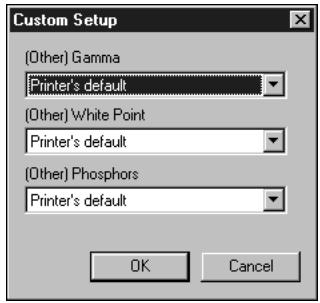
- Other allows you to specify custom RGB source settings. If you choose Other as the RGB Source setting, you can choose settings for the Gamma, Phosphors, and White Point options.
- Sources 1-10 specify the definitions you download as RGB source profiles. (For more information about downloading RGB source profiles, see Chapter 4.)
- None instructs the Fiery X3e to allow the RGB sources you defined elsewhere, such as in the application, to be used. When you set RGB Source to None, the appearance of colors will not be independent of the file type. For example, RGB EPS files will look different from RGB TIFF files.
With RGB Source set to None, PostScript RGB data that contains a source color space definition is converted using the CRD specified by the Rendering Style option (see page 1-5). Non-PostScript RGB data and PostScript RGB data that does not contain a source color space definition are converted using a general undercolor removal conversion method.
RGB Separation
The RGB Separation option determines how RGB colors (as well as Lab and XYZ colors) are converted to CMYK. The name of this option is meant to be descriptive, since the option defines the color spaces that will be used by the Fiery X3e to “separate” the RGB data into CMYK values.
The two choices available for this option determine whether RGB data is converted into the full gamut of the copier (Output) or is first converted into the gamut of another digital printer or a press standard (Simulation). This feature is helpful for making one device behave like another for RGB data. For example, if a high-quality ICC profile is available for another print device, the copier can simulate the behavior of that device.
RGB Separation is also useful for prepress applications. For example, it lets you experiment with the appearance of an RGB scan under different press printing conditions without having to convert the RGB data to CMYK data for each printing condition. When the desired printing condition is found, you can then convert the file to CMYK, if desired, using the same CMYK simulation profile that was used during the experimentation.
NOTE: The RGB Separation print option should be used in conjunction with the Output Profile or CMYK Simulation Profile print options.
- Output converts all RGB colors into the CMYK color space of your copier (when the Output Profile option is set to Printer's default), or a customized CMYK color space for your copier (when the Output Profile option is set to Output 1-10).
- Simulation converts all RGB colors into the CMYK color space for a specified simulation (make sure to select the desired simulation with the CMYK Simulation Profile print option).
CMYK Simulation Profile
The CMYK Simulation Profile print option allows you to print press proofs or simulations. This setting specifies the offset press standard or other color printing device that you want to simulate. This option affects CMYK data only.
You can view up to 10 Quick and 10 Full custom simulations from the printer driver. The number of custom simulations is limited by the disk space on the Fiery X3e.
The CMYK Simulation Profile setting you should specify depends on the press standard for which the CMYK data was separated.
- For images that were separated using a custom separation (such as a separation produced with an ICC profile), choose the corresponding profile on the Fiery X3e with the CMYK Simulation Profile setting.
- For images that were separated for SWOP, choose SWOP as the CMYK Simulation Profile setting.
NOTE: To properly simulate a printed image that was separated through the use of an ICC profile, the same profile must be present on the Fiery X3e. For more information about downloading ICC profiles to the Fiery X3e, see “Downloading profiles” on page 4-5.
- The Match Copy setting bypasses Fiery X3e calibration to simulate the color of a copy produced by the copier. Use this setting when you print images scanned with the Fiery Scan plug-in set to Match Copy.
CMYK Simulation Method
The CMYK Simulation Method setting specifies the quality of simulation to perform.
- Quick applies one-dimensional transfer curves that adjust output density only.
- Full provides a more complete and accurate simulation by applying colorimetric transformations that adjust hue as well as output density. The Full Simulation option also maintains the integrity of the black channel by adjusting it independently. This is especially important for images separated using an optimized black generation (UCR/GCR) setting, either from a scan or from within an application such as Photoshop.
Output Profile
The output profile is applied to all data in the print job, so make sure the selected profile is right for your job. The default output profile consists of both a profile for your copier, describing its color characteristics, and a calibration target that describes the expected behavior of the copier.
In certain cases, you may want to customize the default output profile using the ColorWise Pro Tools Color Editor to achieve particular color effects (see page 4-12). If so, the new customized output profile is applied to all data in the print job. Changing only the output profile does not affect its associated calibration target (since the target is based on a copier model). If you want, you can edit D-Max values of the calibration target separately (see page 4-7).
You can also use the ColorWise Pro Tools Profile Manager to download your own output profile to the Fiery X3e (see page 4-5). Downloaded output profiles are at first associated with the calibration target that is tied to the default output profile. As mentioned above, you can edit calibration target D-Max values separately.
Pure Black Text/Graphics
The Pure Black Text/Graphics option affects the printout for black text and vector graphics on a page. Under most circumstances, it is preferable to leave this option set to On. When Pure Black Text/Graphics is on, black colors generated by applications are printed using 100 percent black-only toner (for example, RGB = 0, 0, 0; CMYK = 0%, 0%, 0%, 100%; or K = 100%). This means the black text and line art will not exhibit halftone artifacts and will not be misregistered, since there is only one toner used. In addition, this setting eliminates blasting. This option is automatically set to On when the Black Overprint option is set to On.
For some jobs, it is preferable to clear this option, for example, if the page includes gradient fills that use black. The following table describes the behavior of the Pure Black Text/Graphics option with black data defined in different color spaces.
NOTE: The Pure Black Text/Graphics option can be used only when printing composites, not when printing separations.
| Input black color | Pure Black Text/Graphics | |
| On | Off | |
| RGB | Prints 100% black | With the default profile, prints a rich black using all toners. |
| CMYK | Prints only with black toner, because CMYK simulations preserve the black channel. The actual amount of toner used depends on the current simulation and the calibration state of the copier. | |
| Spot | Prints only with black toner, because spot color simulations preserve the black channel. The actual amount of toner used depends on the current simulation and the calibration state of the copier. | |
NOTE: PostScript applications, such as QuarkXPress, may convert elements defined as RGB = 0, 0, 0 to four-color CMYK black before sending the job to the Fiery X3e. These elements are not affected by the Pure Black Text/Graphics option. For details, see the application notes. Also, black text and line art defined as RGB = 0, 0, 0 in office applications (such as Microsoft Word) are converted to single-color black (CMYK = 0%, 0%, 0%, 100%) by the Microsoft PostScript Level 2 driver for Windows NT 4.0. To print this single-color black at the maximum toner density of the copier, set the Pure Black Text/Graphics option to On.
Black Overprint
The Black Overprint option lets you specify whether or not black text, defined as RGB = 0, 0, 0, or as CMYK = 0%, 0%, 0%, 100%, overprints colored backgrounds.
- On—Black text overprints colored backgrounds, eliminating white gaps and reducing halo effects or misregistration of colors. Setting Black Overprint to On automatically activates the Pure Black Text/Graphics option.
- Off—Black text knocks out colored backgrounds.
NOTE: PostScript applications may perform their own black overprint conversions before sending the print job to the Fiery X3e.
One example of how you might use this setting is with a page that contains some black text on a light blue background. The background blue color is CMYK = 40%, 30%, 0%, 0% and the black text is CMYK = 0%, 0%, 0%, 100%.
- With Black Overprint On, the final text portions of the page are overprinted, or combined with the underlying colors. This results in CMYK = 40%, 30%, 0%, 100% for the color used for the text. There is no transition in the cyan and magenta toners, and the quality of the output is improved, since it will not show artifacts near the edges of the text. The option also works with text defined in the RGB color space, that is RGB = 0, 0, 0.
- With Black Overprint Off, the border of the text is on an edge that has cyan and magenta toners on one side (outside the text) and black toner on the other side (inside the text). On many devices, this transition causes visible artifacts because of the practical limitations of the copier.
Spot Color Matching
The Spot Color Matching option provides automatic matching of PANTONE colors with their best CMYK equivalents.
- On—The Fiery X3e uses its built-in table to generate the closest CMYK matches of PANTONE colors your copier can produce. (New tables are generated when you add new output profiles.)
- Off—The Fiery X3e uses the CMYK equivalents defined by your application to print PANTONE colors.
For jobs that include PANTONE spot colors, set Spot Color Matching to On unless you are printing press simulations. In that case, set Spot Color Matching to Off and choose the appropriate CMYK Simulation setting (see page 1-8).
NOTE: You can use the Spot Color Matching option only when printing composites, not when printing separations.
Spot Color Matching and the PANTONE Coated Color Reference
The PANTONE Coated Color Reference (described on page 5-7) prints differently depending on the Spot Color Matching setting.
- On—The Fiery X3e uses its built-in table to generate the best matches of the PANTONE colors that your copier can produce. The PANTONE number is printed below each swatch.
- Off—The Fiery X3e prints swatches using the CMYK values recommended by Pantone (and used by applications that provide PANTONE color libraries). The CMYK values used to generate the color, as well as the PANTONE number of the color, are printed below each swatch. These CMYK values are printed through the selected CMYK Simulation and Output Profile settings.
Printer Drivers and Print Options
This section describes the role of the printer driver and explains how to use Windows and Mac OS printer drivers for Fiery X3e printing.
NOTE: The term “PostScript” by itself is used to refer to Adobe PostScript Level 2 or later.
What a printer driver does
To take full advantage of the features of the Fiery X3e, your print jobs must be sent as PostScript data. Since most applications cannot generate PostScript data directly, it is the function of a printer driver to interpret instructions from the application and convert them to PostScript data.
A PostScript printer driver also allows you to select print options specific to your copier. To do this, the printer driver must be matched with a PostScript printer description file (PPD) for your Fiery X3e. The PPD contains information about the particular features supported by the Fiery X3e and the copier. The PPD can be thought of as the lines of PostScript code in the file that are device-specific. When you print a job, the printer driver lets you choose among features by displaying print options.
A few PostScript applications can send PostScript data directly to the copier and present print options within the application interface. Even these applications, however, require that you use a PostScript printer driver.
Your Fiery X3e user software includes Adobe PostScript printer drivers for Windows 95/98, Windows NT 4.0, and Mac OS and the Microsoft PostScript printer driver for Windows 2000. These are the recommended printer drivers for printing to the Fiery X3e. (For information on installing printer drivers, see Getting Started.)
We recommend that you set the print options initially in Fiery X3e Setup (see the Configuration Guide). This provides you with a default configuration that is appropriate for most Fiery X3e print jobs.
PostScript printer driver for Windows 95/98/Me, Windows NT 4.0, and Windows 2000
The printer driver options described in this section can be accessed by clicking Start\Settings\Printers, right-clicking the appropriate PPD name, and selecting Properties (Windows 95/98), Document Defaults (Windows NT), or Printing Preferences (Windows 2000) from the pop-up menu. These settings are also accessible from the Print Setup or Page Setup dialog boxes of most applications.
For Window 95/98, the Fiery X3e driver interface enables you to save combinations of settings that you can later access. Additionally, you can choose different settings for individual jobs from the applications you use.
The printer driver writes a PostScript file containing the instructions generated by your application and the Fiery X3e print options you selected. The printer driver sends the PostScript file to the Fiery X3e. The Fiery X3e then performs PostScript processing and color conversions and sends raster color data to the print device.
NOTE: The following illustrations and instructions do not apply to all applications. Many applications, such as PageMaker, Photoshop, Illustrator, QuarkXPress, and CorelDRAW, have other color management options in addition to those presented in the printer driver. For information on specific applications, see Chapters 6 through 9.
Setting color management print options for Windows 95/98 and Windows NT
This section explains how to set Fiery X3e color print options with the Adobe PostScript printer driver version 4.3.x for Windows 95/98 and version 5.1 for Windows NT. Before you proceed, make sure you have completed the following procedures described in Getting Started:
- Install the Adobe PostScript Printer Driver version 4.3.x (Windows 95/98) or 5.1 (Windows NT) and the Fiery X3e PPD.
- Set up the Fiery X3e for printing.
TO SET PRINT OPTIONS FOR WINDOWS 95/98 AND WINDOWS NT 4.0
- Open the PPD as described on page 1-14.
- Click the Fiery Printing tab, and select settings from the ColorWise menu for the print options described on page 1-3.
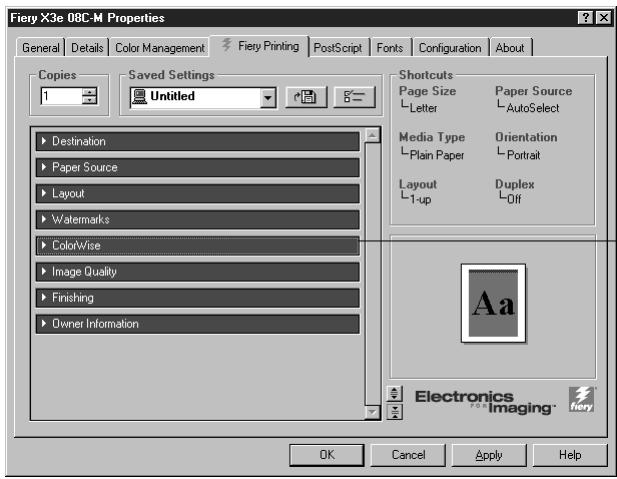
text_image
Fiery-X3e 08C-M Properties General Details Color Management Fiery Printing PostScript Fonts Configuration About Copies Saved Settings 1 Untitled Shortcuts Page Size Paper Source Letter AutoSelect Media Type Orientation Plain Paper Portrait Layout Duplex 1-up Off Destination Paper Source Layout Watermarks ColorWise Image Quality Finishing Owner Information Aa Electronics Imaging fiery OK Cancel Apply HelpClick the ColorWise menu
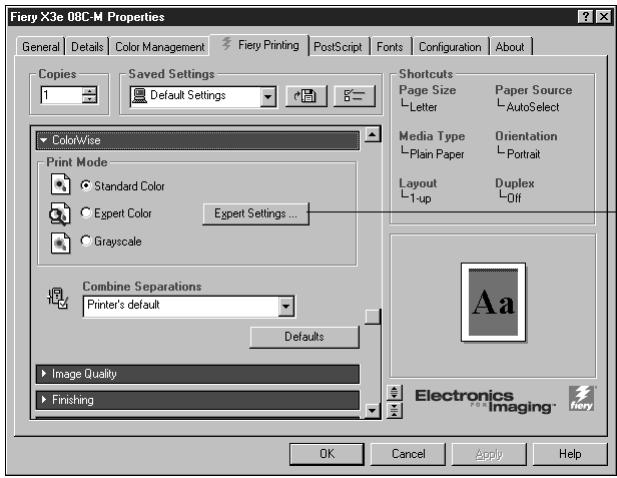
text_image
Fiery X3e 08C-M Properties General Details Color Management Fiery Printing PostScript Fonts Configuration About Copies Saved Settings Shortcuts 1 Default Settings Page Size Paper Source Media Type Orientation Plain Paper Portrait Layout Duplex L1-up LOff Color/Wise Print Mode Standard Color Expert Color Expert Settings ... Grayscale Combine Separations Printer's default Defaults Image Quality Finishing Electronics Imaging fiery OK Cancel Apply HelpClick Expert Settings to access additional ColorWise options
3. Click Expert Settings.
The Expert Color Settings flowchart appears, displaying additional color settings for the Fiery X3e. Each option includes a pop-up menu from which you can select settings for your specific job.
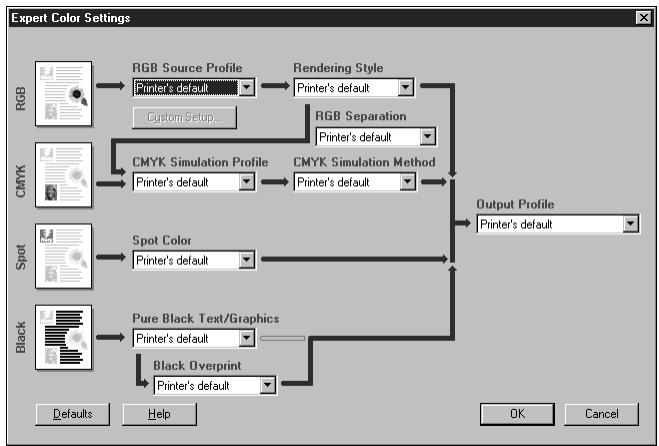
flowchart
graph TD
    A["RGB Source Profile"] --> B["Printer's default"]
    C["CMYK Simulation Profile"] --> D["Printer's default"]
    E["Spot Color"] --> F["Printer's default"]
    G["Black Overprint"] --> H["Printer's default"]
    B --> I["Rendering Style"]
    D --> J["RGB Separation"]
    F --> K["Output Profile"]
    H --> K
    I --> L["Printer's default"]
    J --> L
    K --> M["Printer's default"]
    N["Defaults"] --> O["Help"]
    P["OK"] --> Q["Cancel"]
4. Select Other from the RGB Source Profile pop-up menu.
The Custom Setup dialog box appears.
5. Specify custom RGB source settings (see page 1-6).
text_image
Custom Setup (Other) Gamma Printer's default (Other) White Point Printer's default (Other) Phosphors Printer's default OK CancelFor most users, the default settings provide the right level of color control.
For more information about individual print options, see page 1-3.
Setting color management print options for Windows 2000
This section explains how to set Fiery X3e color print options with the Microsoft PostScript Printer Driver for Windows 2000. This is a PostScript driver that can take full advantage of the color features of the Fiery X3e. Before you proceed, make sure you have completed the following procedures described in Getting Started:
• Install the Microsoft PostScript Printer Driver and Fiery X3e PPD.
- Set up the Fiery X3e for printing.
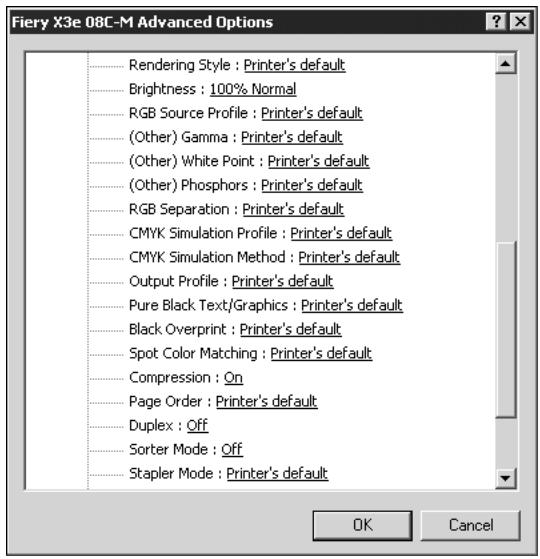
To set print options for Windows 2000
- Open the PPD, as described on page 1-14.
- Click the Advanced tab in the Printing Preferences dialog box, and choose settings for the print options described on page 1-3.
text_image
Fiery X3e 08C-M Advanced Options Rendering Style : Printer's default Brightness : 100% Normal RGB Source Profile : Printer's default (Other) Gamma : Printer's default (Other) White Point : Printer's default (Other) Phosphors : Printer's default RGB Separation : Printer's default CMYK Simulation Profile : Printer's default CMYK Simulation Method : Printer's default Output Profile : Printer's default Pure Black Text/Graphics : Printer's default Black Overprint : Printer's default Spot Color Matching : Printer's default Compression : On Page Order : Printer's default Duplex : Off Sorter Mode : Off Stapler Mode : Printer's default OK CancelAdobe PostScript printer driver for Mac OS
This section explains how to set color management print options with the AdobePS 8.6 printer driver for Mac OS, a PostScript 3 driver that takes full advantage of the color features of the Fiery X3e and lets you save a set of print option settings.
Before you continue, make sure you have completed the following:
- Install the AdobePS printer driver and the Fiery X3e PPD as described in Getting Started.
- Select the Fiery X3e in the Chooser and set it up with the Fiery X3e PPD.
NOTE: The following illustrations and instructions do not apply to all applications. Many applications, such as PageMaker, Photoshop, Illustrator, QuarkXPress, and CorelDRAW have other color management options in addition to those presented in the printer driver. For information on specific applications, see Chapters 6 through 9.
Setting color management print options
You choose print options from the various panes of the AdobePS driver dialog box. To access the initial AdobePS dialog box, choose Print from your application's File menu.
NOTE: The word “pane” is used to describe the different pages that appear in the driver’s dialog box when you make selections from the pull-down menu at the top left. Each pane presents a particular set of print options.
The AdobePS driver includes the following Color Matching options.
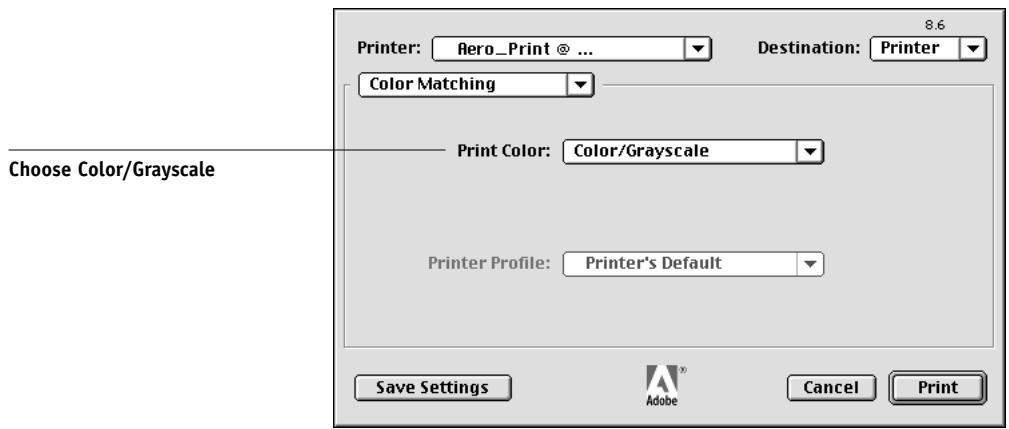
- Color/Grayscale —When this setting is used to print to the Fiery X3e, ColorWise provides all color conversions on the Fiery X3e. Typically, you should use this option when printing to the Fiery X3e.
- PostScript Color Matching —Can be used with PostScript devices such as the Fiery X3e. It provides for color conversion using a color rendering dictionary (CRD) that is downloaded with the print job. This method requires that the file is saved as an EPS with PostScript Color Management checked.
NOTE: If you use the PostScript Color Matching option, the driver may, depending on the application you are using, attach a CMYK source definition to the CMYK data in your document. In such a case, the CMYK data in your document is reseparated using a Fiery X3e CRD. The destination color space for the CRD is determined by the RGB Separation print option. By setting RGB Separation to Simulation, CMYK data is printed according to all specified CMYK Simulation Profile and CMYK Simulation Method settings. By setting RGB Separation to Output, CMYK data is converted to the selected output profile's CMYK color space.
- ColorSync Color Matching —Provides for color conversion on the host computer. This option can be used with PostScript devices such as the Fiery X3e, but it is intended for use with PostScript Level 1 devices. If you use this option, be sure to specify the Fiery X3e's ICC profile as the Printer Profile. ColorSync Color Matching is not a suggested color matching method because it does not work in conjunction with all applications and requires that you disable features of ColorWise on the Fiery X3e.
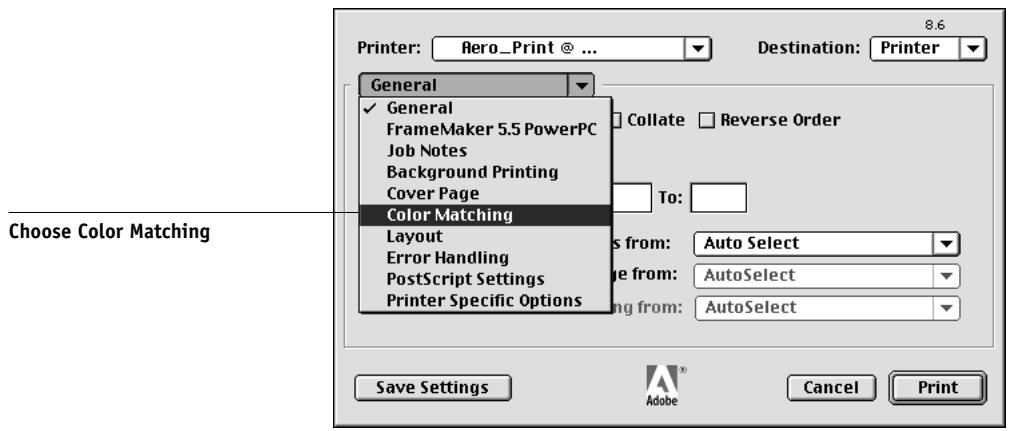
To set FIERY X3E COLOR MANAGEMENT OPTIONS
1. Choose Color Matching from the pull-down menu in the AdobePS Print dialog box.
text_image
Printer: Aero_Print @ ... General ✓ General FrameMaker 5.5 PowerPC Job Notes Background Printing Cover Page Color Matching Layout Error Handling PostScript Settings Printer Specific Options 8.6 Destination: Printer To: Auto Select AutoSelect AutoSelect Save Settings Adobe Cancel Print Choose Color Matching- Choose Color/Grayscale from the Print Color menu.
text_image
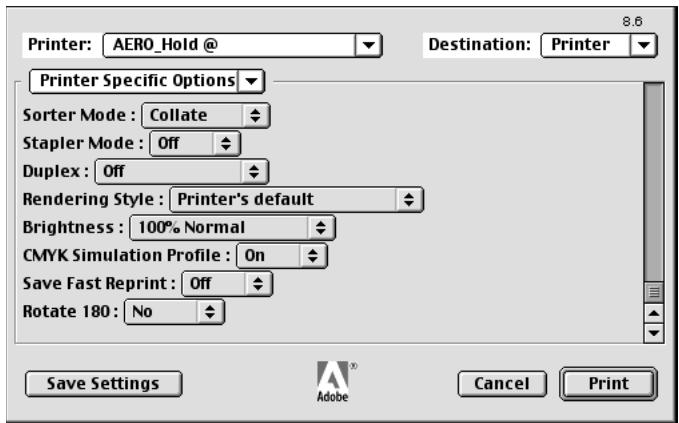
Printer: Aero_Print @ ... 8.6 Destination: Printer Color Matching Choose Color/Grayscale Print Color: Color/Grayscale Printer Profile: Printer's Default Save Settings Adobe Cancel Print- In the Printer Specific Options menus, choose settings for the print options described on page 1-3.
text_image
Printer: AERO_Hold @ 8.6 Destination: Printer Printer Specific Options Sorter Mode : Collate Stapler Mode : Off Duplex : Off Rendering Style : Printer's default Brightness : 100% Normal CMYK Simulation Profile : On Save Fast Reprint : Off Rotate 180 : No Save Settings Adobe Cancel PrintIf these settings are ones you use regularly, you can save them for subsequent jobs by clicking Save Settings.
Chapter 2: Simple and Advanced Workflows
This chapter discusses color management workflows used in short-run color printing as well as color proofing on the Fiery X3e. It also gives examples of color management in specific desktop applications and the interaction between those applications and ColorWise color management.
Workflow concepts
The term “workflow” is used to describe the path a job follows from its creation in a desktop application to final printed output. It is helpful to think of the following categories when describing workflows:
- Short-run printing versus color proofing for eventual output on an offset press
- RGB, CMYK, and PANTONE color systems
- Desktop color management within an application versus color management on the Fiery X3e, along with the notion that different versions of desktop applications handle color management differently. So it is important to pay close attention to the version of a particular application when considering the workflows in this chapter.
Short-run printing versus color proofing
Short-run color printing refers to those jobs for which the Fiery X3e is the final print device. Printing jobs to the Fiery X3e in preparation for printing on an offset press is referred to as color proofing. Both types of Fiery X3e print jobs use RGB, CMYK, and PANTONE colors.
- For short-run jobs, bright, saturated colors are often desirable. These are achieved by using the full range of colors available, referred to as the full gamut of copier, or more simply copier CMYK. For short-run printing examples, see “Advanced Workflows” on page 2-8.
- Offset jobs proofed on the Fiery X3e require the printed colors to match those from another set of CMYK printing conditions. Colors that are specified for an offset press require CMYK simulation that is optimized for proofing on the copier. For color proofing examples that simulate the gamut of another digital printer or press standard, see “Advanced Workflows” on page 2-8.
RGB, CMYK, and PANTONE colors
Colors can be defined in several different color models, the most common being RGB, CMYK, and the PANTONE color matching system. Each model requires a different color conversion at the Fiery X3e. These different color conversion workflows are as follows:
- RGB source profiles and color rendering dictionaries are used to map RGB colors through a device-independent color space to a destination space, either the full copier gamut in a short-run printing workflow or CMYK simulation in a color proofing workflow.
- CMYK colors are device-dependent. In a proofing scenario, colors specified in prepress applications are adjusted so the gamut of the Fiery X3e copier can simulate that of the press. In a short-run printing workflow, specifying CMYK colors according to the calibrated copier output eliminates the need for simulation during printing.
- PANTONE spot colors are special inks manufactured to run on an offset printing press. Spot colors can be simulated using CMYK copier toners or process color inks. Two basic workflows exist for printing PANTONE colors to the Fiery X3e:
Spot Color Matching On instructs the Fiery X3e to match the output of the copier to the PANTONE spot color.
Spot Color Matching Off instructs the Fiery X3e to match the copier output to a Pantone-specified process simulation. This CMYK combination is then printed with the CMYK Simulation setting you choose, such as SWOP or Custom, and CMYK Simulation Method set to Full.
Desktop versus Fiery X3e color management
A desktop color management system uses ICC profiles to convert colors from one device gamut to the next (see Appendix B). The color data is converted when it is passed from one application to another or when the job is sent to the copier, so the processing occurs on your computer as opposed to the Fiery X3e.
One advantage of using ColorWise color management over desktop color management is that your computer is spared the added processing chores; delaying color conversions until the color data reaches the Fiery X3e frees your computer so you can continue working, and color conversions on the Fiery X3e are in most cases much faster than similar conversions on a host computer.
Managing most or all of your color on the Fiery X3e can also eliminate the potential for undesirable color management-related conflicts, such as iterative color conversions and inconsistent color. The Fiery X3e applies global corrections to specific groups of RGB, CMYK, and PANTONE colors to avoid such conflicts.
Finally, by sending RGB files instead of larger CMYK files from applications to the Fiery X3e, network traffic is minimized and jobs generally print faster.
ColorWise uses ICC profiles to convert colors to the copier gamut or to simulate other devices such as an offset printing press. ColorWise manages color conversions for all users printing to the Fiery X3e from Windows and Mac OS computers. It lets users follow a simple workflow with minimal intervention using robust default settings, while giving advanced users the control and precision they need.
The Fiery X3e can intelligently manage the printed appearance of RGB, CMYK, and PANTONE colors. You can let the Fiery X3e manage color for most short-run color printing jobs without adjusting any settings.
Simple workflows
Every time you print a document containing colors that were not chosen for your specific copier, those colors must be converted, which requires color management. Colors can be defined or modified at any stage in the workflow. Since ColorWise is compatible with most other color management systems, you can use the workflow most familiar to you.
This section provides examples of color workflows that should meet the needs of most Fiery X3e users. For information on specific desktop applications, see Chapters 6 through 9.
Select your colors wisely
For the colors you see on your monitor to match those on your printed output, they must go through color management, including precise calibration of your monitor and copier. If you are not equipped or inclined to maintain accurate monitor color management, you may opt for an easier approach. Determine which is more important for you—printed colors or monitor displayed colors.
If displayed colors are more important, trust your eyes and your monitor. Visually select colors on your monitor, but be aware that colors will be optimized only for your monitor. When the document is opened on other monitors, the colors may look different. And even though printed colors may not match those displayed on your monitor, they will still print on the Fiery X3e with good results.
If printed colors are your priority, choose colors from printed samples. By using these sample colors, your printed output will remain consistent regardless of how the colors appear on different monitors. Print the palette of available colors from business applications and then select colors from the printed samples. The Fiery X3e comes with color reference files on the user software CD (see page 5-2). You can also print the color charts from the Control Panel and select colors by number or name from the printed samples. Advanced applications let you define colors in the easier-to-control PANTONE and CMYK color spaces. For more advice on color selection, see Chapter 5.
No matter which workflow most closely matches your own, you should calibrate your copier regularly (see Chapter 3).
Select a short workflow
Every time colors are converted, performance and color accuracy are affected. Therefore, a workflow with fewer steps minimizes the risk of error.
Workflow 1 using ColorWise calibration—minimal workflow
A minimal color workflow requires that you calibrate the copier. Select from printed colors as described above, and set the CMYK Simulation option to None, since simulation is not needed when colors are already defined using CMYK values optimized for your calibrated copier.
NOTE: CMYK Simulation set to None is also useful when you want to prepare an output profile of your calibrated copier or when you use less efficient color management from the desktop (such as ColorSync or ICM).
In this workflow, colors are modified only at the calibration stage. This is indicated by the black box in the following diagram.
Workflow 1—Colors you define in an application
Colors in output from the copier
Application CMS
File format
Printer driver
ColorWise CMS
ColorWise calibration
While this workflow lends some control over the color quality produced by the copier, you should consider additional ColorWise color management, as described in the following section.
Workflow 2 using ColorWise color management—standard workflow
Fiery X3e servers are highly optimized for the specific copier they drive, and ColorWise addresses many issues unique to your copier, including screens, individual toner response, interactions among toners, natural smoothness of blends, and the capability to render PANTONE and custom colors. The Fiery X3e distinguishes text and graphic from image elements, so the black channel information is preserved while parameters used for CMYK color separations are maintained.
Conventional color management systems typically address only color conversions, and they occupy your computer's processor. When you use ColorWise, jobs leave your computer faster to be processed more quickly on the Fiery X3e.
The recommended standard color workflow (indicated by the black boxes in the following diagram) uses ColorWise calibration and color management.
Workflow 2—Colors you define in an application
Colors in output from the copier
Application CMS
File format
Printer driver
ColorWise CMS
ColorWise calibration
The Fiery X3e comes into play near the end of the color workflow. To ensure that the colors you have selected reach the Fiery X3e and ColorWise in a usable form, you should bypass any color management from applications and printer drivers. Keep in mind, however, that color management from applications and printer drivers is fully supported by ColorWise (see “Advanced workflows” on page 2-8).
You must print with the CMYK Simulation print option set to match the CMYK color space in your application when you selected the colors. Any CMYK Simulation setting (except Match Copy) applies calibration, so the response of the copier will appear to be stable.
The recommended values for CMYK Simulation are SWOP in America, Euroscale in Europe, and DIC in Japan—choices that respect the color standard for each region. If colors have been selected specifically for your calibrated copier, set CMYK Simulation to None.
For the list and descriptions of ColorWise print options affecting CMYK, RGB, PANTONE, and other colors, see the table on page 1-3.
Workflow 3 bypassing ColorWise—not recommended
Bypassing ColorWise color management, while an option, is not a recommended workflow. When you bypass ColorWise, you must choose colors using only CMYK formulas designed specifically for your copier, and you must print with the CMYK Simulation option set to Match Copy. The Fiery X3e still prints pages using your PostScript files, and drives the copier and its accessories, but it does not perform CMYK color transformation, nor does it consider the calibration of the copier. Calibration is needed in order to get consistent output, since the color response from your copier varies significantly depending on wear, heat, humidity, and service.
The following diagram indicates that no modifications are made to colors in this workflow.
Workflow 3—Colors you define in an application
Colors in output from the copier
Application CMS
File format
Printer driver
ColorWise CMS
ColorWise calibration
Turn off color management in your application
Generally, when printing to the Fiery X3e, it is best to disable color management in the application to ensure that the Fiery X3e receives color data properly and prints it accurately.
Save your files using color-safe settings
You can take several additional steps to ensure color accuracy.
- When saving EPS files, do not include PostScript Color Management information. This minimizes the risk conflicting data and multiple color conversions. PostScript Color Management causes your CMYK and RGB colors to be interpreted by the Fiery X3e as though they were supplied in the Lab color space and, as a result, to be processed by CRDs rather than your simulation settings.
- Include ICC color information in files. ColorWise will not conflict with this information, and such data can be useful to identify the specific color space used by your files.
- Do not include halftone and transfer functions.
- Turn off color management in the printer driver.
On Windows machines, if the printer driver offers Image Color Matching options, select Printer Image Color Matching.
On Mac OS computers, set the printer driver to include no color management commands at print time (see page 1-18).
Advanced workflows
The following sections present advanced color management workflow examples for three short-run printing and three color proofing situations. Each workflow example consists of a brief description, steps for creating and manipulating the files, a list of the ColorWise settings used in the example, and a table that summarizes the workflow.
NOTE: These examples use specific software packages to represent image-editing, illustration, page-layout, and business/office applications; they are Adobe Photoshop, Adobe Illustrator, QuarkXPress, and Microsoft PowerPoint, respectively.
Short-run printing examples
The following examples illustrate short-run printing on the Fiery X3e.
Photoshop RGB workflow
This short-run workflow of printing an RGB image from Photoshop is one of the simplest Fiery X3e color workflows. In it, RGB data is sent from the application, through the printer driver, to the Fiery X3e. The RGB-to-CMYK conversion takes place on the Fiery X3e, using a CRD, rather than in the application. Use the settings in this workflow for printing photographs and artwork.
This document could be created as follows:
- Create an RGB image in Photoshop.
- Print the file directly to the Fiery X3e.
For recommended print settings from Photoshop, see Chapter 7.
- Use ColorWise to convert the RGB image to copier CMYK, or the full gamut of copier.
The ColorWise settings used in this example are:
- RGB Source Profile set to EFIRGB or another RGB source definition
- Rendering Style set to Photographic
- RGB Separation set to Output
The following diagram indicates the steps for this particular workflow in black.
Photoshop RGB workflow
Photoshop
Read Embedded Profiles
Define RGB Source
Embed Source Profiles
Convert RGB to CMYK
Convert CMYK to CMYK
Select RGB Mode
Select CMYK Mode
Select Destination Profile
Save as TIFF
Save as EPS
Save as JPEG
Printer driver
(Mac OS-Only)
Black and White
Color/Grayscale
ColorSync Color Matching
PostScript Color Matching
ColorWise print options
Define RGB Source
Select RGB Source: None
Select Rendering Style (CRD)
Select RGB Separation: Output
Select RGB Separation: Simulation
Convert Press CMYK to Press Sim.
Convert Press CMYK to Custom Sim.
Select Copier CMYK Sim.: None
Turn Spot Color Matching On
Turn Spot Color Matching Off
Select Output Profile
Select Custom Output Profile
Photoshop RGB with Illustrator and QuarkXPress CMYK and PANTONE colors
This workflow involves short-run printing of a complex page layout with images saved in Photoshop, illustrations created in Illustrator, and PANTONE spot colors. A Photoshop image is saved in an RGB color space using the EPS file format. Illustrator artwork contains objects defined as CMYK and as PANTONE spot colors selected from printed output, and they are saved using the Illustrator EPS file format. After all of these individual objects are imported into QuarkXPress, additional design elements in QuarkXPress are colored using CMYK process colors or PANTONE spot colors. Use the settings illustrated in this workflow for printing brochures, newsletters, and other layouts.
NOTE: Anytime CMYK colors are placed in a document, they should be selected from printed output (see page 2-4).
This document could be created as follows:
- Create an RGB image in Photoshop and save it as an EPS.
- Create a graphic in Illustrator using CMYK and PANTONE colors and save as Illustrator EPS.
- Use CMYK colors and a PANTONE color in a QuarkXPress document.
- Import the Illustrator EPS into QuarkXPress and place the Photoshop EPS image.
- Print the QuarkXPress document to the Fiery X3e.
- Use ColorWise to convert the RGB image to copier CMYK, to adjust the process colors for short-run printing, and to match the PANTONE spot colors using the full copier gamut.
The ColorWise settings used in this example are:
- RGB Source Profile set to EFIRGB or another RGB source definition
- Rendering Style set to Photographic
• RGB Separation set to Output
• CMYK Simulation set to None - Spot Color Matching set to On
The following diagram indicates the steps for this particular workflow in black.
Photoshop RGB workflow with Illustrator, QuarkXPress CMYK, and PANTONE colors
Photoshop
Read Embedded Profiles Define RGB Source Embed Source Profiles Convert RGB to CMYK Convert CMYK to CMYK
Select RGB Mode
Select CMYK Mode Select Destination Profile Save as TIFF
Save as EPS
Save as JPEG Print
Illustrator
Read Embedded Profile Define RGB Colors
Define CMYK Colors Define PANTONE Colors
Convert RGB to CMYK Convert PANTONE to CMYK Embed Source Profile Select Destination Profile Export as TIFF
Save as EPS
QuarkXPress
Read Embedded Profile Define RGB Colors Define CMYK Colors Define PANTONE Colors Convert RGB to CMYK Convert CMYK to CMYK Convert PANTONE to CMYK Embed Source Profile Select Destination Profile Export as TIFF Save as EPS Print
Printer driver
(Mac OS-Only) Black and White Color/Grayscale ColorSync Color Matching PostScript Color Matching
ColorWise print options
Define RGB Source
Select RGB Source: None
Select Rendering Style (CRD)
Select RGB Separation: Output
Select RGB Separation: Simulation
Convert Press CMYK to Press Sim.
Convert Press CMYK to Custom Sim.
Select Copier CMYK Simulation: None
Turn Spot Color Matching On
Turn Spot Color Matching Off
Select Output Profile
Select Custom Output Profile
Photoshop RGB with Illustrator CMYK and PANTONE and PowerPoint RGB
This workflow involves short-run printing of a complex presentation document with images saved in Photoshop, illustrations created in Illustrator, and PANTONE spot colors. All elements are imported into PowerPoint for output.
This document could be created as follows:
- Create an RGB image in Photoshop and save it as Photoshop EPS.
- Create a graphic in Illustrator using CMYK colors and a PANTONE spot color and save as Illustrator EPS.
- Create a presentation in PowerPoint using RGB colors.
- Import the Illustrator EPS graphic into the PowerPoint presentation and place the Photoshop EPS image.
- Print the PowerPoint document to the Fiery X3e.
- Use ColorWise to convert the PowerPoint RGB colors and Photoshop RGB image to copier CMYK, to adjust the process colors for more saturated short-run printing, and to match the PANTONE spot colors using the full copier gamut.
The ColorWise settings used in this example are:
- RGB Source Profile set to EFIRGB or another RGB source definition
- Rendering Style set to Presentation
- RGB Separation set to Output
• CMYK Simulation set to None - Spot Color Matching set to On
The following diagram indicates the steps for this particular workflow in black.
Photoshop RGB and Illustrator CMYK and PANTONE in PowerPoint RGB workflow
Photoshop
Read Embedded Profiles Define RGB Source Embed Source Profiles Convert RGB to CMYK Convert CMYK to CMYK
Select RGB Mode
Select CMYK Mode Select Destination Profile Save as TIFF
Save as EPS
Save as JPEG Print
Illustrator
Read Embedded Profile Define RGB Colors
Define CMYK Colors Define PANTONE colors
Convert RGB to CMYK Convert PANTONE to CMYK Embed Source Profile Select Destination Profile Export as TIFF
Save as EPS
PowerPoint
Define RGB Colors Convert CMYK to RGB Print
Printer driver
(Mac OS-Only) Black and White
Color/Grayscale ColorSync Color Matching PostScript Color Matching
ColorWise print options
Define RGB Source
Select RGB Source: None
Select Rendering Style (CRD)
Select RGB Separation: Output Select RGB Separation: Simulation Convert Press CMYK to Press Sim. Convert Press CMYK to Custom Sim.
Select Copier CMYK Simulation: None Turn Spot Color Matching On Turn Spot Color Matching Off
Select Output Profile
Select Custom Output Profile
Color proofing examples
The following examples illustrate methods for simulating the output from another printing system, such as an offset press. Each of the proofing examples uses an ICC profile to describe the destination color space. While some examples use simulation profiles built in to the Fiery X3e, others use ColorWise Pro Tools (see Chapter 4) to download custom ICC output profiles to the Fiery X3e for use as simulation profiles.
Photoshop 5.x RGB-to-CMYK conversion using a custom ICC profile
This workflow is useful for prepress environments that have integrated ICC color management and have profiles for the presses they use. In this example, an image in Photoshop 5.x is converted from RGB to CMYK using Photoshop's ICC color conversion features in the CMYK Setup option. (For more information on CMYK Setup, see your Photoshop 5.x documentation.) Using the Simulation settings available in ColorWise, the CMYK image is printed to the Fiery X3e, and the output is made to appear as if it were printed on an offset press.
This document could be created as follows:
- In Photoshop 5.x, set CMYK Model in CMYK Setup to ICC.
- In the Profile menu, select an ICC profile for the desired offset press. Click OK.
- Open an RGB image. From the Image pull-down menu select Mode>CMYK Color.
- Save the image in any file format.
• Print directly to the Fiery X3e. - Use ColorWise Pro Tools to select a simulation profile or download a custom ICC profile to the Fiery X3e for use as a CMYK Simulation Profile.
The ColorWise settings used in this example are:
- CMYK Simulation Profile set to the desired press standard or to the corresponding custom simulation (Simulation 1-10) if you downloaded your profile with ColorWise Pro Tools
• CMYK Simulation Method set to Full
The following diagram indicates the steps for this particular workflow in black.
Photoshop RGB-to-CMYK workflow using ICC profile
Photoshop 5.x
Read Embedded Profiles
Define RGB Source
Embed Source Profiles
Convert RGB to CMYK
Convert CMYK to CMYK
Select RGB Mode
Select CMYK Mode
Select Destination Profile
Save as TIFF
Save as EPS
Save as JPEG
Printer driver
(Mac OS-Only)
Black and White
Color/Grayscale
ColorSync Color Matching
PostScript Color Matching
ColorWise print options
Define RGB Source
Select RGB Source: None
Select Rendering Style (CRD)
Select RGB Separation: Output
Select RGB Separation: Simulation
Convert Press CMYK to Press Sim.
Convert Press CMYK to Custom Sim.
Select Copier CMYK Simulation: None
Turn Spot Color Matching On
Turn Spot Color Matching Off
Select Output Profile
Select Custom Output Profile
Photoshop 5.x Built-in RGB-to-CMYK workflow
This workflow is useful for prepress environments that have not integrated ICC color management and do not have profiles for the presses they use. In this example, an image is converted from RGB to CMYK using Photoshop 5.x's Built-in color conversion features in the CMYK Setup option. (For more information on CMYK Setup, see your Photoshop 5.x documentation.) Using the Simulation settings available in ColorWise, the CMYK image is printed to the Fiery X3e, and the output is made to appear as if it were printed on an offset press.
This document could be created as follows:
- Select Built-in from CMYK Setup in Photoshop 5.x Color Settings.
- Adjust the Ink Options and Separation Options to match your offset press.
- Select Tables in CMYK Setup and click Save.
This saves your settings as a CMYK ICC profile that you will later download to the Fiery X3e as a custom simulation profile.
- Click Built-in in CMYK Setup again and click OK.
- Start ColorWise Pro Tools and download your new CMYK ICC profile to the Fiery X3e as a custom Simulation profile.
For the Appear in Driver as option in Profile Settings, select Simulation-1. (For more information on downloading profiles, see page 4-5.) - Open an RGB image in Photoshop 5.x. From the Image menu, select Mode >CMYK Color. Save the image as Photoshop EPS.
- Print the image directly to the Fiery X3e and choose Simulation-1 as the CMYK Simulation Profile setting.
The ColorWise settings used in this example are:
• CMYK Simulation Profile set to Simulation-1
• CMYK Simulation Method set to Full
The following diagram indicates the steps for this particular workflow in black.
Photoshop5.x RGB-to-CMYK workflow
Photoshop 5.x
Read Embedded Profiles
Define RGB Source
Embed Source Profiles
Convert RGB to CMYK
Convert CMYK to CMYK
Select RGB Mode
Select CMYK Mode
Select Destination Profile
Save as TIFF
Save as EPS
Save as JPEG
Printer driver
(Mac OS-Only)
Black and White
Color/Grayscale
ColorSync Color Matching
PostScript Color Matching
ColorWise print options
Define RGB Source
Select RGB Source: None
Select Rendering Style (CRD)
Select RGB Separation: Output
Select RGB Separation: Simulation
Convert Press CMYK to Press Sim.
Convert Press CMYK to Custom Sim.
Select Copier CMYK Simulation: None
Turn Spot Color Matching On
Turn Spot Color Matching Off
Select Output Profile
Select Custom Output Profile
Photoshop RGB and QuarkXPress CMYK
This workflow exemplifies the use of the RGB Separation feature of ColorWise. An RGB image, originally saved in Photoshop, is printed to the Fiery X3e from QuarkXPress. To simulate how the RGB image would print on an offset press, the RGB Separation feature of ColorWise is set to Simulation. This workflow—useful for proofing brochures, newsletters, and other layouts—lets you maintain consistency by using the source RGB file for multiple purposes.
This document could be created as follows:
- Create an RGB image in Photoshop and save it as Photoshop EPS.
- Place the EPS image in a QuarkXPress document.
- Create several process-colored page elements alongside the image and print.
- Use ColorWise to convert the RGB image to simulated press CMYK and to adjust the process colors for proofing to the copier.
The ColorWise settings used in this example are:
- RGB Source Profile set to EFIRGB or another RGB source definition
- Rendering Style set to Photographic
- RGB Separation set to Simulation
• CMYK Simulation Profile set to SWOP
• CMYK Simulation Method set to Full
The following diagram indicates the steps for this particular workflow in black.
Photoshop RGB and QuarkXPress CMYK workflow
Photoshop
Read Embedded Profiles Define RGB Source
Embed Source Profiles
Convert RGB to CMYK
Convert CMYK to CMYK
Select RGB Mode
Select CMYK Mode
Select Destination Profile
Save as TIFF
Save as EPS
Save as JPEG
QuarkXPress
Read Embedded Profile
Define RGB Colors
Define CMYK Colors
Define PANTONE Colors
Convert RGB to CMYK
Convert CMYK to CMYK
Convert PANTONE to CMYK
Embed Source Profile
Select Destination Profile
Export as TIFF
Save as EPS
Printer driver
(Mac OS-Only)
Black and White
Color/Grayscale
ColorSync Color Matching
PostScript Color Matching
ColorWise
print options
Define RGB Source
Select RGB Source: None
Select Rendering Style (CRD)
Select RGB Separation: Output
Select RGB Separation: Simulation
Convert Press CMYK to Press Sim.
Convert Press CMYK to Custom Sim.
Select Copier CMYK Simulation: None
Turn Spot Color Matching On
Turn Spot Color Matching Off
Select Output Profile
Select Custom Output Profile
Chapter 3: Color Calibration
Calibrating the Fiery X3e ensures consistent, reliable color output. You can calibrate the Fiery X3e with ColorWise Pro Tools using an X-Rite DTP32 automatic scanning densitometer (available as an option that is purchased separately). By connecting the densitometer to the serial port on your computer, you can quickly measure color patches and download measurements to the Fiery X3e. You can also obtain measurements from the copier's built-in scanner and calibrate using AutoCal2™, which does not require the use of a densitometer and can be run from ColorWise Pro Tools or from the Control Panel.
This chapter explains how calibration works and provides instructions for all calibration procedures. Calibrating with ColorWise Pro Tools is described on page 3-9; calibrating from the Fiery X3e Control Panel with AutoCal2 is described on page 3-16.
For information on advanced calibration and simulation features available with ColorWise Pro Tools, such as editing profiles and creating custom profiles, see Chapter 4. A format for inputting color measurements from other densitometers is described in Appendix C.
The procedures described in Chapters 3 and 4 are fundamentally the same for Windows 95/98, Windows NT 4.0, Windows 2000, and Mac OS computers, including those running Command WorkStation software. The main differences are the interface cable and the port used to connect to the densitometer.
NOTE: The term computer is used to refer to any computer running ColorWise Pro Tools.
Introduction
Calibration generates curves that adjust for the difference between the actual toner densities (measurements) and the response expected by the output profile.
• Measurements represent the actual color behavior of the copier.
- Calibration sets are sets of measurements.
- A calibration target that describes the expected behavior of the copier is contained in each output profile.
Once you have calibrated the Fiery X3e with ColorWise Pro Tools or with AutoCal2 from the Fiery X3e Control Panel, a calibration set is stored on the Fiery X3e. This calibration set will be used when it is associated with an output profile. Every output profile has an associated calibration set. If you have not specified one, the calibration set associated with the default output profile is used.
NOTE: Changing calibration has the potential to affect all jobs for all users, so you may want to limit the number of people authorized to perform calibration. You can set an Administrator password from the Fiery X3e Control Panel or in Setup from Command WorkStation to control access to calibration.
Understanding calibration
Although most users' needs are met by the default calibration set, the Fiery X3e allows you to choose a calibration set to customize calibration for specialized jobs.
Calibration allows you to:
- Maximize the color reproduction capabilities of the Fiery X3e.
- Ensure consistent color quality over time.
- Produce consistent output across Fiery X3e servers that are connected to the same print engine.
- Achieve better color matches when reproducing spot colors such as PANTONE colors or other named color systems.
- Optimize the Fiery X3e for using ColorWise rendering styles (CRDs) and CMYK simulations, and for using ICC profiles.
How calibration works
Success in obtaining satisfactory print quality from a color server such as a Fiery X3e connected to a copier depends on many factors. Among the most important are establishing and maintaining optimal toner densities. Density is a measure of the light absorbed by a surface. By carefully regulating toner densities, you can obtain consistent printed color.
Even with a calibrated system, toner density is affected by service settings, humidity, and temperature; it also tends to drift over time. Regular measurement detects day-to-day variations in densities, and calibration corrects for them.
Calibration works by creating calibration curves on the Fiery X3e that compensate for the difference between actual (measured) and desired (target) density values.
Calibration curves are the graphic equivalent of transfer functions, which are mathematical descriptions of changes that will be made to the data you start with. Transfer functions are often graphed as input or output curves.
The Fiery X3e generates calibration curves after comparing measured values to the final target values for each of the four toner colors. The target values are based on the output profile specified.
Measurements
Measurement files contain numerical values that correspond to the toner density produced by the copier when it prints solid cyan, magenta, yellow, and black, and graduated tints of those colors.
To create a measurement file, first print a page of color patches from ColorWise Pro Tools. Then you measure the patches using an X-Rite DTP32 densitometer connected to a computer on the network or the copier's scanner. The new measurements are automatically downloaded to the Fiery X3e.
Output profiles and calibration sets
Output profiles and calibration sets define desired calibration results. One or more output profiles and one or more calibration sets are provided with the Fiery X3e. When you calibrate the Fiery X3e, you can select the calibration set that corresponds to the typical printing jobs at your site. This same calibration set can be associated with one or more output profiles. (For more information on output profiles, see page 1-9.)
Scheduling calibration
In general, you should calibrate the Fiery X3e at least once a day, depending on the volume of print jobs. If it is very important to maintain consistent color, or if the copier is subject to wide fluctuations in temperature or humidity, calibrate every few hours. To get the best performance, calibrate whenever there is a noticeable change in print quality.
If you need to split a print job into two or more batches to be printed at different times, it is especially important to calibrate before printing each batch. You should also calibrate the Fiery X3e after copier maintenance. However, because the copier may be less stable immediately after maintenance, wait until you have printed approximately 50 pages before you calibrate.
NOTE: Since printed output from the copier is very sensitive to changes in temperature and humidity, the copier should not be installed near a window or in direct sunlight, near a heater or air conditioner. Paper is sensitive to climate changes as well. It should be stored in a cool, dry, stable environment, and reams should remain sealed until they are needed.
Print color reference pages, such as the Color Charts (from the Control Panel or from Command WorkStation) and the color reference pages included with the user software (see Getting Started). All of these pages include fully saturated color patches and pale tints of cyan, magenta, yellow, and black. Images with skin tones offer a very good basis for comparison. You can save and compare pages you printed at different times. If there is a noticeable change in appearance, you should calibrate the Fiery X3e.
When you examine the Test Page, keep in mind that all color patches should be visible, even though they may be very faint in the five percent and two percent range, and each color's patch set should show uniform gradation from patch to patch as the color lightens from 100 percent to zero percent.
If the solid density patches (100% cyan, magenta, yellow, or black) look less saturated with time, show the pages to your copier service technician to find out whether adjusting the copier can improve output.
Checking calibration status
You can check whether the Fiery X3e is calibrated, which calibration set and output profile were used, and when the copier was last calibrated:
- Print a Configuration page or Test Page from the Control Panel or Command WorkStation.
- When you select a calibration set in Calibrator, the last calibration and the user who performed it are displayed.
Using a densitometer
ColorWise Pro Tools are designed to work with the X-Rite DTP32 reflection densitometer that feed color measurements to the Fiery X3e automatically.
NOTE: Measurements from other densitometers can be input using a simple ASCII file format (see page C-1).
Setting up the densitometer
Before you calibrate the Fiery X3e using the X-Rite DTP32, you need to connect, configure, and calibrate the densitometer to prepare for measuring the printed patches (see “Calibrating the densitometer” on page 3-8). For additional information about setting up and using the DTP32, see the separate documentation included with it.
TO CONNECT THE X-RITE DTP32 TO THE COMPUTER
- Turn off the computer.
- Plug the square end of the interface cable (looks like a modular phone plug) into the I/O port on the side of the X-Rite DTP32.

natural_image
Line drawing of a rectangular electronic device with a cable and connector, no text or symbols presentSquare connector
3. Attach the connector to the computer.
For a Windows computer, insert the 8-pin mini-DIN end of the interface cable into the 9-pin DB9 Connector cable adapter. Insert the 9-pin end into the COM1 or COM2 port on the computer and tighten the screws. If the available port on your computer is 25-pin, you must use the 8-pin-to-25-pin adapter.
text_image
Unused connector Connect to computer Connect to adapter Square connector Interface cableFor a Mac OS computer, connect the 8-pin mini-DIN plug directly into the serial port of the computer.
text_image
Unused connector Connect to serial portNOTE: For Macintosh computers with a USB port (for example, an iMac) you need an adapter to connect the DTP32 to your computer. For information on supported adapters, see the X-Rite, Inc. web site (www.x-rite.com).
- Use the AC adapter to provide power.
Plug the small connector on the adapter cable into the side of the X-Rite DTP32 and plug the adapter into a wall outlet.
Small connector
AC adapter
natural_image
Line drawing of a device connected to an electrical outlet (no text or symbols)-
Turn on the computer.
-
Calibrate the densitometer (see below).
-
Use ColorWise Pro Tools to calibrate the Fiery X3e (see page 3-9).
Calibrating the densitometer
You will need the black-and-white X-Rite Auto-Cal Strip included with the densitometer. Calibrating the densitometer does not require ColorWise Pro Tools.
TO CALIBRATE THE X-RITE DTP32
- Connect the densitometer to the computer and supply power (see page 3-6).
- From the Main Menu on the X-Rite DTP32 display, press the p1 key once to reach p2.
-
Press the cal key.
Calibrating motor speed appears, followed by the words INSERT CAL STRIP. -
Insert the arrow end of the X-Rite Auto-Cal Strip into the 35mm slot on the front of the X-Rite DTP32 until it stops or the roller starts pulling the strip.
Reading appears momentarily, followed by the density values and CALIBRATION OK. The densitometer automatically returns to the MAIN MENU.
If UNRECOGNIZABLE STRIP appears, repeat the process or try cleaning the strip (see the X-Rite DTP32 Operating Manual).
- Start ColorWise Pro Tools and proceed to calibrate the Fiery X3e (see the next section).
Recalibrate the densitometer at least once per month. For critical color, calibrate the densitometer every time you calibrate the Fiery X3e. The densitometer may also warn periodically that it requires calibration.
Calibrating with ColorWise Pro Tools
Using the densitometer or AutoCal2, you can quickly measure color patches and download these measurements to the Fiery X3e using ColorWise Pro Tools Calibrator.
NOTE: Multiple users can be connected to one server with ColorWise Pro Tools, but only one user at a time can use Calibrator. An error message appears if you try to calibrate when another user is already using ColorWise Pro Tools to calibrate.
ColorWise Pro Tools for Windows and Mac OS computers are fundamentally the same; differences are noted in this chapter. The windows and dialog boxes you see illustrated are the Windows version.
NOTE: Changing the calibration has the potential to affect all jobs for all users, so you may want to limit the number of people authorized to perform calibration. An Administrator password can be set from the Fiery X3e Control Panel to control access to calibration.
TO CALIBRATE THE COPIER USING CALIBRATOR
1. Start ColorWise Pro Tools and connect to the Fiery X3e.
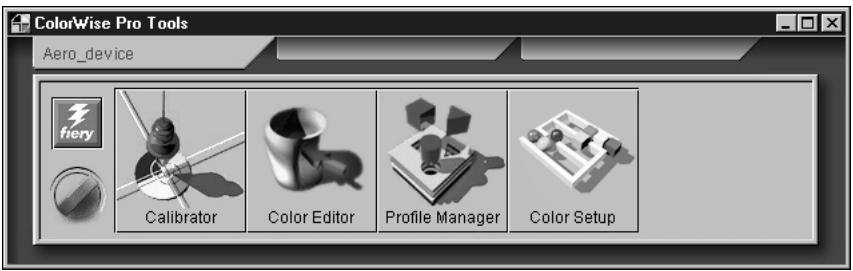
text_image
ColorWise Pro Tools Aero_device fiery Calibrator Color Editor Profile Manager Color SetupFor instructions on configuring the connection to the Fiery X3e, see Getting Started.
NOTE: If the connection to the Fiery X3e from Command WorkStation that also allows for access to ColorWise Pro Tools is not established, you can directly launch ColorWise Pro Tools independently of Command WorkStation.
2. Click Calibrator.
3. Select a measurement method.
AutoCal2 and X-Rite DTP32 should appear as the measurement methods. This information is provided to Calibrator by the Fiery X3e. If neither option appears, make sure you are connected to the Fiery X3e.
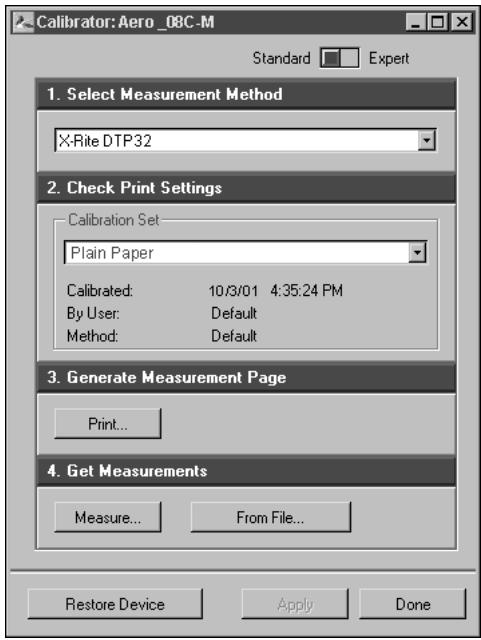
text_image
Calibrator: Aero_0BC-M Standard Expert 1. Select Measurement Method X-Rite DTP32 2. Check Print Settings Calibration Set Plain Paper Calibrated: 10/3/01 4:35:24 PM By User: Default Method: Default 3. Generate Measurement Page Print... 4. Get Measurements Measure... From File... Restore Device Apply Done4. Under Check Print Settings, choose the desired calibration set.
If there is more than one option, choose the appropriate calibration set for the type of media you will use most often.
NOTE: For this calibration to take effect, the calibration set must be associated with one or more output profiles. The default calibration set is already associated with the default output profile, so there is no need to make any new associations.
- Under Generate Measurement Page, click Print.
- In the Print Options dialog box that appears, choose the page type, paper size, and input tray to use for the measurement page and click Print.
For AutoCal2, the Page Type pop-up menu states AutoCal Page. For the densitometer method, select either 34 or 21 Sorted Patches.
In the Input Tray pop-up menu, specify the paper source.
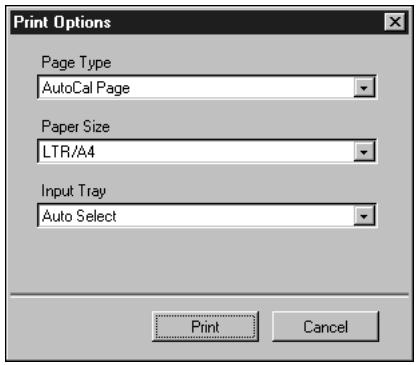
text_image
Print Options Page Type AutoCal Page Paper Size LTR/A4 Input Tray Auto Select Print Cancel- Retrieve the Measurement Page.
- Under Get Measurements, click Measure.
If you chose the AutoCal2 method, follow the directions in the dialog box that appears for placing the Gray Scale strip and measurement page on the copier glass.
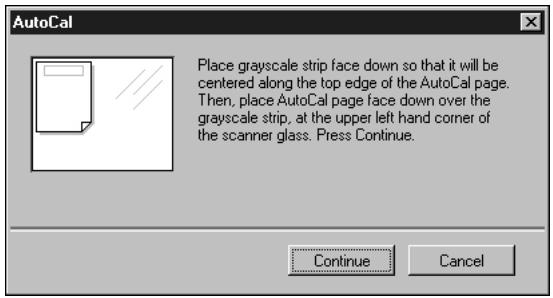
text_image
AutoCal Place grayscale strip face down so that it will be centered along the top edge of the AutoCal page. Then, place AutoCal page face down over the grayscale strip, at the upper left hand corner of the scanner glass. Press Continue. Continue CancelIf you chose the DTP32 method, select the Page Type and Paper Size options you selected for the measurements page, and click Measure.
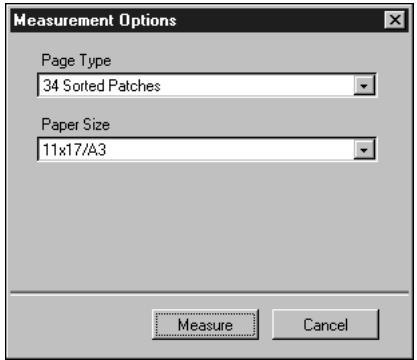
text_image
Measurement Options Page Type 34 Sorted Patches Paper Size 11x17/A3 Measure Cancel- In the Measure dialog box, click OK.
- Follow the directions for either the AutoCal2 or densitometer measurement based on your selection of measurement method.
- When you are notified that the measurements were read successfully, click OK, and then click Apply to implement the new calibration set.
TO RESTORE DEFAULT CALIBRATION MEASUREMENTS
- Start ColorWise Pro Tools and click Calibrator.
- Click Restore Device.
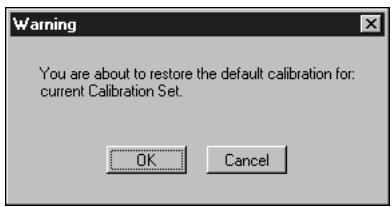
text_image
Warning You are about to restore the default calibration for: current Calibration Set. OK Cancel- Click OK to restore the preset default calibration set.
NOTE: Restore device applies only to the currently selected calibration set.
Expert Mode
Expert Mode offers two additional options: Print Pages and View Measurements.
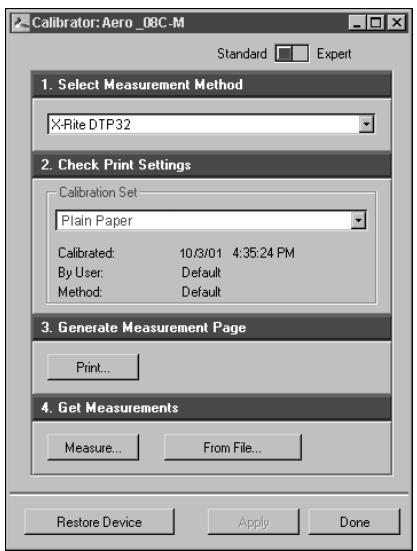
text_image
Calibrator: Aero_08C-M Standard Expert 1. Select Measurement Method X-Rite DTP32 2. Check Print Settings Calibration Set Plain Paper Calibrated: 10/3/01 4:35:24 PM By User: Default Method: Default 3. Generate Measurement Page Print... 4. Get Measurements Measure... From File... Restore Device Apply DoneWith the Print Pages option, you can print a calibration Comparison Page showing the results of the new measurements with any profile associated with the currently selected calibration set. You can also create a custom comparison page and save it as a PostScript or an Encapsulated PostScript (EPS) file called CALIB.PS. Print the file to the Hold Queue of the Fiery X3e from your application or download it to the Hold Queue with Fiery Downloader. An additional way to create the CALIB.PS file is to rename any job in the Hold Queue using Command WorkStation.
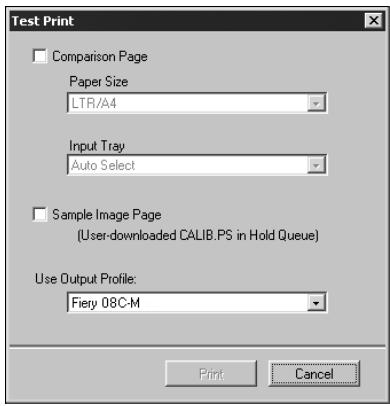
text_image
Test Print Comparison Page Paper Size LTR/A4 Input Tray Auto Select Sample Image Page (User-downloaded CALIB.PS in Hold Queue) Use Output Profile: Fiery 08C-M Print CancelWith the View Measurements option, you can view the current set of measurements as a table or as a graph that shows both the measurements and the target curves (shown below).
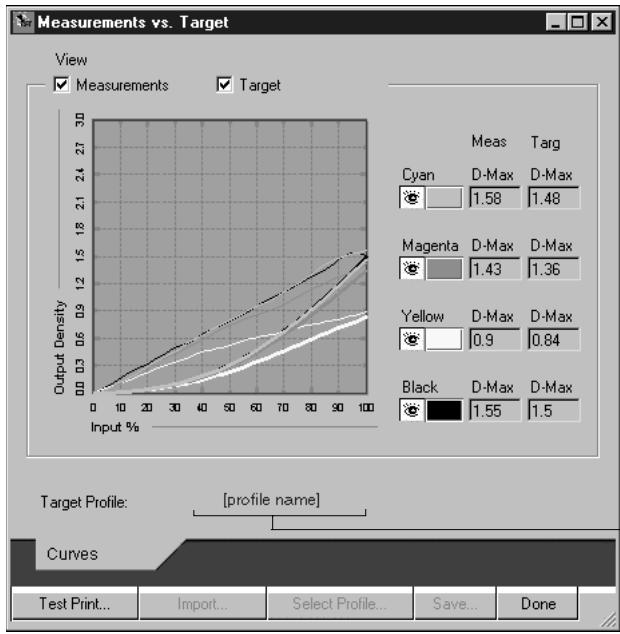
line
| Measurement Type | D-Max | | ---------------- | ----- | | Cyan | 1.58 | | Magenta | 1.43 | | Yellow | 0.9 | | Black | 1.55 |Output profile name appears here
When more than one profile use the same target, an additional menu called Plot Against appears in the upper-right corner of the dialog box. It lists all output profiles that use that same calibration set. Selecting an output profile from this menu displays the target curves associated with that profile. If each output profile contains a unique calibration target, when you switch profiles, the curves displayed also change.
Calibrating from the Control Panel using AutoCal2
You can calibrate the Fiery X3e from the Control Panel using AutoCal2, which calibrates the Fiery X3e using the copier's built-in scanner as a densitometer. If an Administrator password has been set, you will need it for calibration.
For instructions on using the Fiery X3e Control Panel, see the Configuration Guide.
For troubleshooting during the AutoCal2 procedure, see the Job Management Guide.
NOTE: To calibrate using AutoCal2, you will need the Kodak Gray Scale strip included in the customer media pack that came with your Fiery X3e.
TO ACCESS AND USE AUTOCAL2
- At the Idle screen, press Menu to enter the Functions menu.
- Choose Calibration, and choose Set Up Calibration.
If a password is set on the Fiery X3e, enter it and click OK. - For Calibration Mode, select Standard or Expert.
Expert Mode adds the option to print a Comparison Page (see page 3-14). - For Tray, choose the paper source for the patch page and press OK.
- Choose Calibrate.
-
Select the calibration set.
You can choose from the list of all calibration sets on the Fiery X3e. This screen appears only if more than one calibration set is available. -
When prompted, select Yes to print the measurement page.
This page is comprised of swatches of color that will be measured by the copier and then compared to the target color values. After the page is printed, the Measure Page screen appears.
Place grayscale strip face down
-
Select Yes in the Measure Page screen.
-
When prompted on the Control Panel, place the Kodak Gray Scale strip face down along the top of the copier glass.
Place the strip so that it will be centered along the top edge of the AutoCal page.
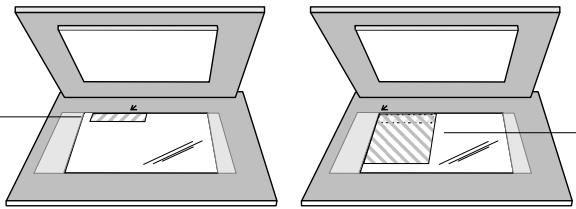
natural_image
Two open laptop cases with blank windows and a patterned diagram on the screen (no text or symbols)Place color measurement page face down over grayscale strip
- Place the color measurement page face-down over the grayscale strip.
Place the page at the upper-left corner of the copier glass. Slide the grayscale strip to the top center of the color measurement page. Make sure the patches on the grayscale strip do not overlap the color patches.
-
Close the platen glass cover, being careful not to move the grayscale strip and color measurement page.
-
Click OK.
Status messages display the progress of scanning and calculating measurements.
- When prompted to Print Comparison Page (Expert Mode only), select Yes to print a preview of the selected calibration.
Select from a list of output profiles that use the same calibration set and press OK. This option appears only in Expert Mode calibration.
-
When prompted to overwrite calibration, select Yes.
-
Select Yes to confirm.
Status messages display progress information. When calibration is complete, the LCD screen returns to the Functions menu.
Removing calibration
It is also possible to remove calibration from the Fiery X3e. In general, it is not necessary because any new calibration replaces the existing one if the same calibration set is selected.
TO REMOVE CALIBRATION FROM THE CONTROL PANEL
- From the Fiery X3e Control Panel, access the Calibration menu as described on page 3-16.
- Choose Remove Calibration.
- When prompted, verify that you want to proceed with removing calibration.
The current measurements are removed and a default calibration is restored.
Chapter 4: ColorWise Pro Tools
ColorWise Pro Tools are color management applications that give you flexible control of color printing. The four tools are:
• Calibrator (see Chapter 3)
- Color Editor
- Profile Manager
- Color Setup
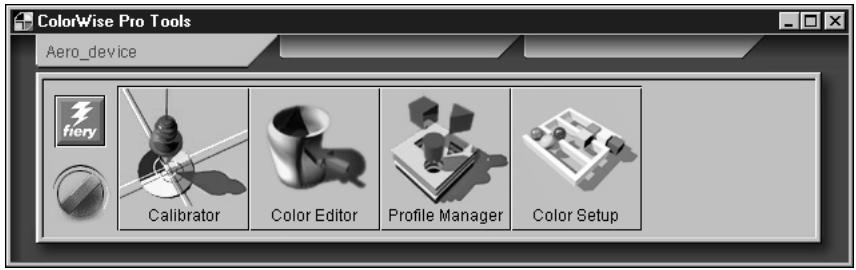
text_image
ColorWise Pro Tools Aero_device fiery Calibrator Color Editor Profile Manager Color SetupColorWise Pro Tools for Windows and Mac OS computers are fundamentally the same; differences are noted in this chapter. The windows and dialog boxes illustrated are the Windows versions. For information on installing and configuring a connection to ColorWise Pro Tools, see Getting Started.
NOTE: If the connection to the Fiery X3e from Command WorkStation (which also allows for access to ColorWise Pro Tools) is not established, you can start ColorWise Pro Tools independently of Command WorkStation.
Profile Manager
Profile Manager allows you to manage and edit ICC profiles. In the case of the Fiery X3e, these profiles are divided into RGB Source, Simulation, and Output profiles.
- RGB Source contains all monitor profiles resident on the Fiery X3e. RGB Source profiles are used to define the source color space for RGB colors processed by the Fiery X3e.
NOTE: If you use Photoshop 5.x, you can upload the profile for your selected working space to the Fiery X3e and choose that as your RGB Source profile.
- Simulation contains printer profiles used to simulate another device on the Fiery X3e.
- Output contains copier profiles that describe the attached copier. For more information on output profiles, see page 1-9.
NOTE: Changing the Fiery X3e default profiles affects all jobs for all users. You may want to limit the number of people authorized to use ColorWise Pro Tools by setting an Administrator password.
Several profiles are provided with the Fiery X3e, and you can create additional ones as needed by modifying the existing ones. You can also download profiles from any workstation to the Fiery X3e. The profiles provided are:
RGB Source:
- sRGB (PC) —source color space for a generic Windows computer monitor
- Apple Standard — standard source color space for Mac OS computer monitors with older versions of ColorSync
• EFIRGB—preset default setting for a Fiery X3e
Simulation:
• SWOP-Coated —United States press standard
• Euroscale — European press standard
• DIC—Japanese press standard
Output:
- Fiery 08C-M v1F —profile that describes the copier
Setting the default profiles
The default profiles are applied to all print jobs sent to the Fiery X3e, unless you override them using print options. Therefore, the defaults should be the most commonly used profiles.
TO SPECIFY A DEFAULT PROFILE
1. Start ColorWise Pro Tools and click Profile Manager.
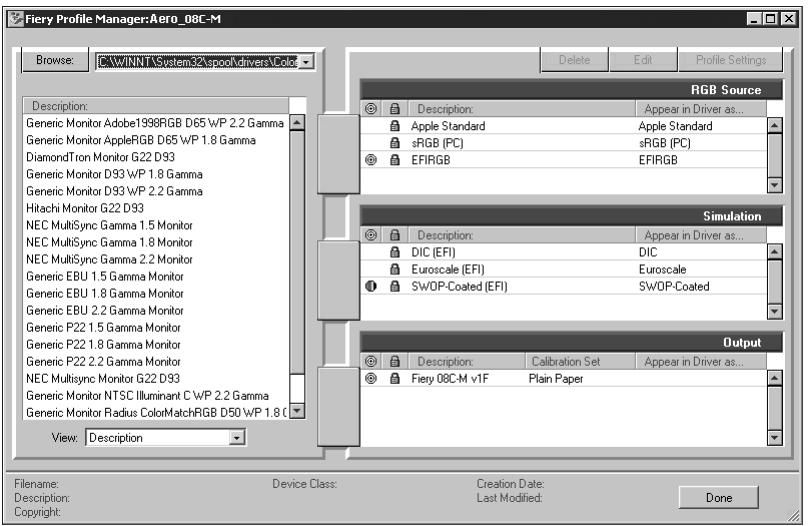
text_image
Fiery Profile Manager:Aero_08C-M Browse: C:\WINNT\System32\spool\driver\color Description: Generic Monitor Adobe1998RGB D65 WP 2.2 Gamma Generic Monitor AppleRGB D65 WP 1.8 Gamma DiamondTron Monitor G22 D93 Generic Monitor D93 WP 1.8 Gamma Generic Monitor D93 WP 2.2 Gamma Hitachi Monitor G22 D93 NEC MultiSync Gamma 1.5 Monitor NEC MultiSync Gamma 1.8 Monitor NEC MultiSync Gamma 2.2 Monitor Generic EBU 1.5 Gamma Monitor Generic EBU 1.8 Gamma Monitor Generic EBU 2.2 Gamma Monitor Generic P22 1.5 Gamma Monitor Generic P22 1.8 Gamma Monitor Generic P22 2.2 Gamma Monitor NEC Multisync Monitor G22 D93 Generic Monitor NTSC Illuminant C WP 2.2 Gamma Generic Monitor Radius ColorMatchRGB D50 WP 1.8 C View: Description Delete Edit Profile Settings RGB Source Description: Appear in Driver as... Apple Standard Apple Standard sRGB (PC) sRGB (PC) EFIRGB EFIRGB Simulation Description: Appear in Driver as... DIC (EFI) DIC Euroscale (EFI) Euroscale SW/OP-Coated (EFI) SW/OP-Coated Output Description: Calibration Set Appear in Driver as... Fiery 08C-M v1F Plain Paper Filename: Device Class: Creation Date: Last Modified: Done Copyright:On the left side of the screen are the ICC profiles in the default directory of your computer. The right side displays the three types of profiles on the Fiery X3e.
The Lock icon ( 🔍 ) to the left of a profile name indicates that the profile cannot be deleted and can be edited only if it is saved under a new name. Only Simulation and Output profiles can be edited.
A small icon to the left of a profile name indicates the default profile for each category (RGB Source, Simulation, and Output). If you designate a different profile as the default, the icon appears next to your designated profile. The icon indicating the default RGB Source and Output profiles looks like a target (☐). The icon indicating the default Simulation profile changes in appearance depending on whether the default RGB Separation setting is set to Simulation (☐) or Output (☐).
- Select the profile you want as the default for a profile type, and click Profile Settings.
- In the Profile Settings dialog box, select Default and click Apply.
Profile Settings windows for Simulation (left) and Output (right)
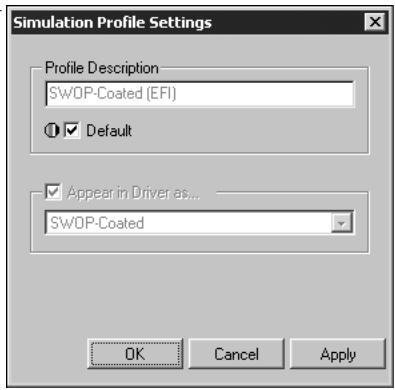
text_image
Simulation Profile Settings Profile Description SWOP-Coated (EFI) Default Appear in Driver as... SWOP-Coated OK Cancel Apply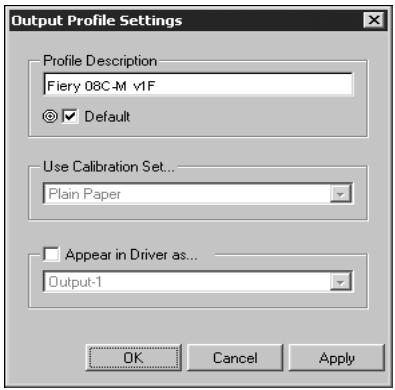
text_image
Output Profile Settings Profile Description Fiery 08C-M v1F Default Use Calibration Set... Plain Paper Appear in Driver as... Output-1 OK Cancel Apply- Click OK.
- In the main Profile Manager window, the target icon appears next to the new default profile you specified. Repeat steps 2 through 4 for each type of profile.
If no default is set for RGB Source, the RGB Source print option is set to None. If no default profile is set for Simulation, the CMYK Simulation print option is set to None. For more information on print options, see Chapter 1.
There is always a default Output profile. To change the Output default, select a preset profile you want as the default, and click Profile Settings. Or create a new default under a new name by selecting a preset profile and specifying your choice of the calibration set in the Use Calibration Set pop-up menu and a new name in the Profile Description menu.
Downloading profiles
The Fiery X3e comes with default profiles. It is possible to download additional profiles from any computer connected to the Fiery X3e.
TO DOWNLOAD A PROFILE
1. Start ColorWise Pro Tools and click the Profile Manager.
On the left side of the main Profile Manager windows are the ICC profiles in the default directory of your workstation.
For Windows 95/98, the default directory is \Windows\System\Color.
For Windows NT 4.0 and Windows 2000, the default directory is \Winnt\System32\Color.
For Mac OS, the default directory is System Folder:Preferences:ColorSync™ Profiles for ColorSync 2.0, and System Folder:ColorSync™ Profiles if you have ColorSync 2.5 or later.
2. If the desired profile does not appear, click Browse to go to a different directory.
Browse to the directory containing the profile you want to download and click OK.
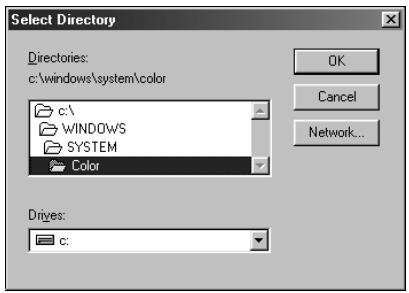
text_image
Select Directory Directories: c:\windows\system\color c:\ WINDOWS SYSTEM Color OK Cancel Network... Drives: c:3. When the profile you want to download appears in the list in the main Profile Manager window, select it.
If the profile is compatible with the Fiery X3e, a green arrow indicates that the profile is available for download. Only output device profiles are downloadable to Simulation and Output. Only input device profiles are downloadable to RGB Source.

NOTE: On Windows computers, the profiles must have an extension of .icc or .icm to be listed. On Mac OS computers, the profiles must have a file type of profile.
All ICC profiles in the selected directory on your computer are displayed in the list in the main Profile Manager window. However, because a profile is listed does not necessarily mean it can be downloaded to the Fiery X3e.
Simulation profiles should be only profiles of devices for which you want the Fiery X3e to match in terms of color output characteristics. Output profiles should be only profiles of the device to which your Fiery X3e is connected. Although CMYK printer profiles can be downloaded as Simulation or Output, consider how they will be used. If you want the Fiery X3e prints to look like another printer, download that profile as a Simulation. If you have a custom profile of the copier your Fiery X3e is connected to, download that profile as an Output profile.
4. Click the arrow to download the profile and click OK when the download is complete.
The new profile now appears on the list of profiles on the right side of the Profile Manager main window.
This profile must be associated with one of the predefined names (Source-1 through 10 for RGB Source, Simulation-1 through 10 for Simulation, or Output-1 through 10 for Output) or set as the default before it can be used. see “Defining profiles” on page 4-8.
NOTE: When an output profile is downloaded, it inherits the calibration target of the current default output profile.
Editing profiles
The profiles on the Fiery X3e can be customized to meet your specific needs and the characteristics of your copier using Color Editor either directly or through Profile Manager. For more information on how to edit profiles, see “Color Editor” on page 4-12.
Managing profiles
Profile Manager lets you back up profiles to ensure that no custom profiles are lost when the Fiery X3e software is updated. You can also upload a copy of a built-in Fiery X3e profile to your workstation in order to use it with an ICC-aware application such as Photoshop. Profile Manager also lets you delete unwanted profiles.
NOTE: You can back up and delete only those profiles that appear in the main Profile manager window without the Lock icon next to them. Locked profiles cannot be deleted, but most can be backed up.
TO BACK UP PROFILES
- Start ColorWise Pro Tools and click Profile Manager.
- Select the profile on the Fiery X3e to upload.
The arrow in the middle of the Profile Manager window turns green and points to the left, indicating the profile is available for upload.
- Click the green arrow, choose a name and location for the profile, and click Save.
The name will be the file name of the profile, but the profile description will be the original one or the one you entered in the Profile Settings dialog box.
NOTE: When saving the profile on a Windows computer, be sure to include the extension .icm. If the extension is not included, additional dialog boxes appear.
- Click OK when you are notified that the profile was successfully uploaded.
Delete profiles to make sure no one uses the wrong profile and to free up disk space on the Fiery X3e (although profiles are small and do not take up much space).
TO DELETE PROFILES FROM THE FIERY X3E HARD DISK
- Start ColorWise Pro Tools and click Profile Manager.
- Select the profile you want to delete and click Delete.
A Warning dialog box asks you to confirm the deletion.
NOTE: You cannot delete preset profiles, profiles that are currently set as default, or profiles that are linked to any of the predefined custom names, for example, Simulation-1.
- Click Yes to delete the profile.
To delete a profile that is currently set as the default or associated with a custom name, click Profile Settings and clear the default option.
Defining profiles
Before you can apply any downloaded or edited profile to a print job, that profile must be linked to one of the predefined custom names, or you can set the profile as the default for all print jobs (see setting default profiles, page 4-3). Ten names are available for custom profiles—Source-1 through 10 for RGB Source, Simulation-1 through 10 for Simulation, or Output-1 through 10 for Output.
NOTE: A custom simulation profile is used to illustrate this procedure. The same steps apply for defining custom or downloaded output profiles.
TO DEFINE A PROFILE
1. Start ColorWise Pro Tools and click Profile Manager.
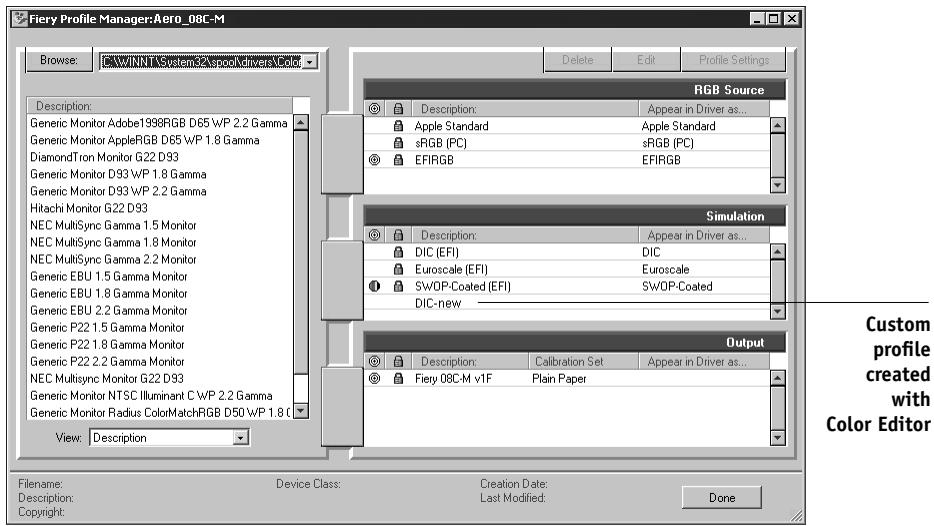
text_image
Fiery Profile Manager:Aero_08C-M Browse: C:\WINNT\System32\pool\Drivers\Color Description: Generic Monitor Adobe1998RGB D65 WP 2.2 Gamma Generic Monitor AppleRGB D65 WP 1.8 Gamma DiamondTron Monitor G22 D93 Generic Monitor D93 WP 1.8 Gamma Generic Monitor D93 WP 2.2 Gamma Hitachi Monitor G22 D93 NEC MultiSync Gamma 1.5 Monitor NEC MultiSync Gamma 1.8 Monitor NEC MultiSync Gamma 2.2 Monitor Generic EBU 1.5 Gamma Monitor Generic EBU 1.8 Gamma Monitor Generic EBU 2.2 Gamma Monitor Generic P22 1.5 Gamma Monitor Generic P22 1.8 Gamma Monitor Generic P22 2.2 Gamma Monitor NEC Multisync Monitor G22 D93 Generic Monitor NTSC Illuminant C WP 2.2 Gamma Generic Monitor Radius ColorMatchRGB D50 WP 1.8 C View: Description Delete Edit Profile Settings RGB Source Description: Appear in Driver as... Apple Standard Apple Standard sRGB (PC) sRGB (PC) EFIRGB EFIRGB Simulation Description: Appear in Driver as... DIC (EFI) DIC Euroscale (EFI) Euroscale SWOP-Coated (EFI) SWOP-Coated DIC-new Output Description: Calibration Set Appear in Driver as... Fiery 08C-M v1F Plain Paper Custom profile created with Color Editor Filename: Device Class: Creation Date: Last Modified: Done Copyright:For the purposes of this example, assume DIC-new is a custom simulation profile created with Color Editor. As you can see, DIC-new has no information under the heading “Appear in Driver as.”
2. Select DIC-new in the Simulation list, and click Profile Settings or double-click DIC-new.
- Select the "Appear in Driver as" option, choose one of the predefined custom simulation names (Simulation-1 through Simulation-10) from the pop-up menu, and click Apply.
Make sure you choose a name that is not already linked with another simulation. If you try to define two profiles with the same name, you will get an error message. For an output profile, the predefined custom names would be Output-1 through Output-10.
NOTE: While you cannot delete a preset profile, you can use a preset profile's name for your edited profile when you select the "Appear in Driver as" option. This replaces the preset profile with your own profile.
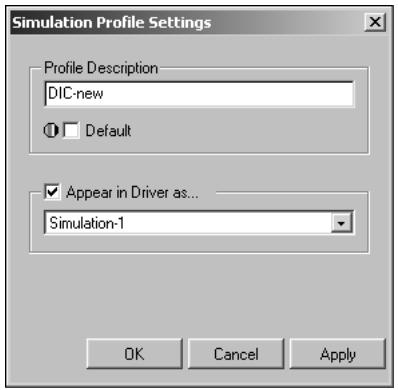
text_image
Simulation Profile Settings Profile Description DIC-new Default Appear in Driver as... Simulation-1 OK Cancel ApplyWhen you choose Profile Settings for an output profile, the Use Calibration Set option also appears. You must calibrate the Fiery X3e with this calibration set before this option has any effect. If you have never measured for this calibration set, default measurements will be used. For more information about calibration sets, see page 3-2. In Profile Settings, you can also change profile descriptions for all non-locked profiles.
4. Click OK.
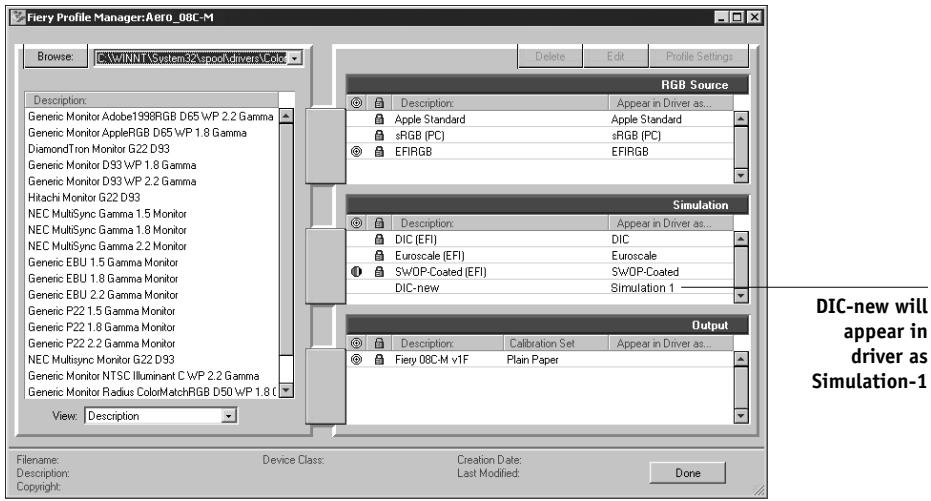
text_image
Fiery Profile Manager:Aero_08C-M Browse: E:\WINNT\System32\upockDriver\Color Description: Generic Monitor Adobe1998RGB D65 WP 2.2 Gamma Generic Monitor AppleRGB D65 WP 1.8 Gamma DiamondTron Monitor G22 D93 Generic Monitor D93 WP 1.8 Gamma Generic Monitor D93 WP 2.2 Gamma Hitachi Monitor G22 D93 NEC MultiSync Gamma 1.5 Monitor NEC MultiSync Gamma 1.8 Monitor NEC MultiSync Gamma 2.2 Monitor Generic EBU 1.5 Gamma Monitor Generic EBU 1.8 Gamma Monitor Generic EBU 2.2 Gamma Monitor Generic P22 1.5 Gamma Monitor Generic P22 1.8 Gamma Monitor Generic P22 2.2 Gamma Monitor NEC MultiSync Monitor G22 D93 Generic Monitor NTSC Illuminant C WP 2.2 Gamma Generic Monitor Radius ColorMatchRGB D50 WP 1.8 C View: Description Delete Edit Profile Settings RGB Source Description: Appear in Driver as... Apple Standard Apple Standard sRGB (PC) sRGB (PC) EFIRGB EFIRGB Simulation Description: Appear in Driver as... DIC (EFI) DIC Euroscale (EFI) Euroscale SWDP-Coated (EFI) SWDP-Coated DIC-new Simulation 1 Output Description: Calibration Set Appear in Driver as... Fiery 08C-M v1F Plain Paper DLC-new will appear in driver as Simulation-1 File name: Device Class: Creation Date: Last Modified: Done Copyright: Copyright: DoneSimulation-1 now appears under the “Appear in Driver as” column for DIC-new. Choosing Simulation-1 from the CMYK Simulation option of the printer driver applies the DIC-new simulation to the print job.
If you do not define a custom simulation profile, your job will print with CMYK Simulation Profile set to None. If you do not define a custom RGB Source or Output profile, the default profile is used.
Color Editor
Color Editor is used to customize simulation and output profiles. You can access Color Editor directly by clicking its icon in the ColorWise Pro Tools main window, or indirectly through the Profile Manager.
Editing Profiles
Color Editor allows you to create custom profiles by editing existing simulation or output profiles and saving the changes as a new profile. With Color Editor, you can fine-tune a profile on your Fiery X3e to meet your exact specifications.
NOTE: You cannot edit source profiles; only simulation and output profiles can be customized.
Color Editor has two Edit Modes for editing output profiles.
- Custom—Use Custom to edit output profiles and save customized versions of them.
- % Density — Use % Density to view the calibration target, which is one component of the output profile. You cannot make changes to the calibration target in this window, but you can import a new target (see page 3-2).
Color Editor also has three Edit Modes for editing simulations.
- Master—Use Master mode to create a custom master simulation that affects all print jobs to which it is applied, unless a linked simulation exists for the selected combination of simulation profile, simulation method, and output profile.
- Quick or Full—Use Quick or Full mode to create custom linked simulations. Linked simulations affect the print job only if the corresponding simulation profile, simulation method, and output profile are selected. If you choose an output profile and simulation method for which you have created a custom linked simulation, that simulation is applied automatically to the job. If you choose a simulation method or output profile for which there is no custom linked simulation, then the master simulation is automatically applied.
Quick applies one-dimensional transfer curves that adjust output density only, while Full provides a more complete and accurate simulation by applying colorimetric transformations that adjust hue as well as output density (see page 1-8).
NOTE: If you made edits to a master simulation after you created a linked simulation, the edits are not applied to the linked simulation.
TO EDIT A SIMULATION PROFILE IN MASTER MODE OR AN OUTPUT PROFILE IN CUSTOM MODE
- Start ColorWise Pro Tools and click Color Editor.
- Choose Simulation or Output from the View pop-up menu.
Simulation lists the simulation profiles resident on the Fiery X3e, and Output lists the output profiles resident on the Fiery X3e.
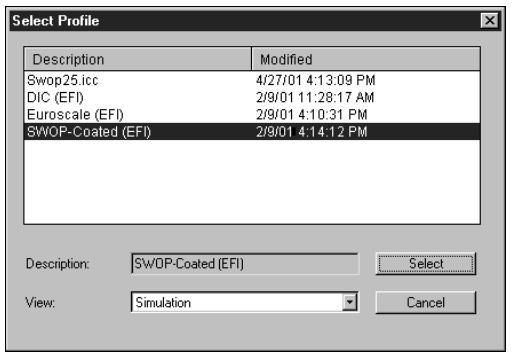
text_image
Select Profile Description Modified Swop25.icc 4/27/01 4:13:09 PM DIC (EFI) 2/9/01 11:28:17 AM Euroscale (EFI) 2/9/01 4:10:31 PM SWOP-Coated (EFI) 2/9/01 4:14:12 PM Description: SWOP-Coated (EFI) Select View: Simulation Cancel- Choose a profile to edit and click Select.
NOTE: You can also open the Profile Manager, select a profile, and click Edit.
- For a simulation profile, choose Master from the Edit Mode menu. For an output profile, choose Custom from the Edit Mode menu.
For instructions for using Quick or Full mode, see page 4-18.
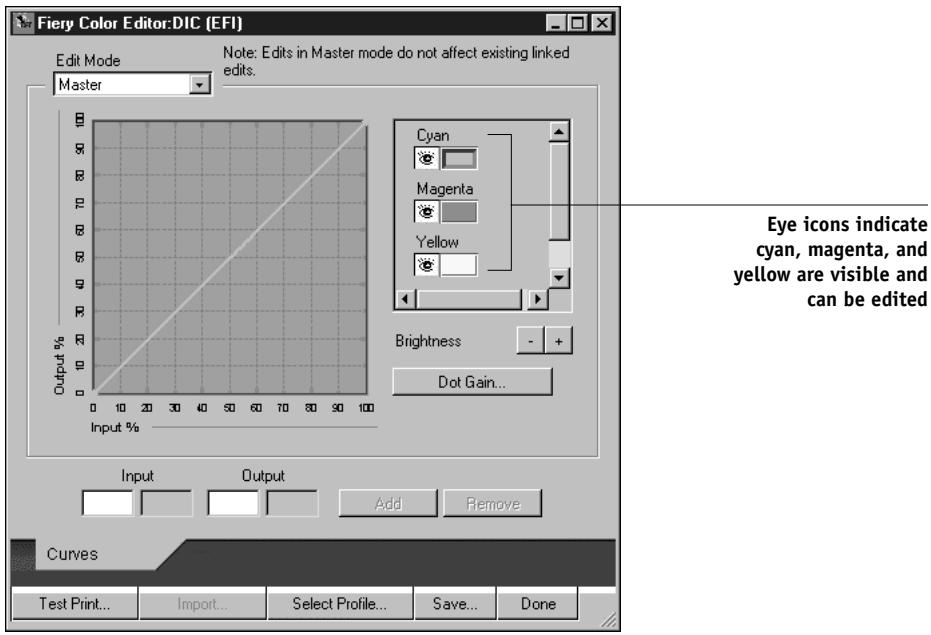
text_image
Fiery Color Editor:DIC (EFI) Edit Mode Master Note: Edits in Master mode do not affect existing linked edits. Output % Input % Cyan Magenta Yellow Brightness Dot Gain... Eye icons indicate cyan, magenta, and yellow are visible and can be edited Input Output Add Remove Curves Test Print... Import... Select Profile... Save... DoneYou can use this dialog box to view or edit profiles. The graph allows you to view and manipulate color output values.
NOTE: When editing an output profile in Custom mode, clicking Import at the bottom of the Color Editor window lets you import a calibration target file (.trg) created on another Fiery using the previous version of ColorWise. The current version of ColorWise does not allow you to save a target separately; rather, it saves the target in conjunction with an output profile.
5. Select the colors you want to edit by turning colors off and on.
The Eye icon to the left of each color indicates whether that color is visible on the graph and will be affected by changes to the curves, brightness, and dot gain controls. You can view and edit all four colors (cyan, magenta, yellow, and black) at once or any combination thereof. Working with only one or two colors at a time helps you fine-tune your adjustments. To turn off a color, click its Eye icon. In the example below, cyan and magenta are visible and can be edited.
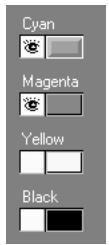
6. Click Dot Gain to adjust the dot gain value for simulating press output.
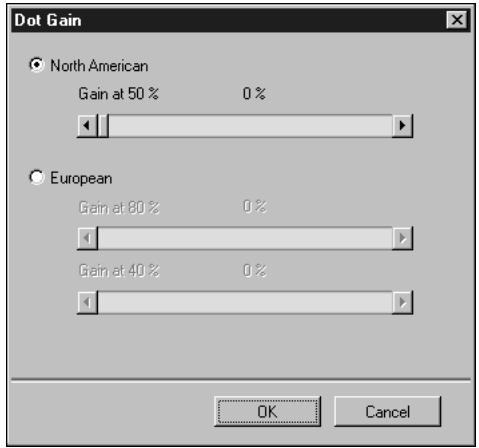
text_image
Dot Gain North American Gain at 50 % 0 % European Gain at 80 % 0 % Gain at 40 % 0 % OK CancelYou can choose either the North American or European standard, and then use the sliders to select the desired Dot Gain:
- The range of values for North American at 50% input are from 0% to 50% gain on output.
- The range of values for European at 40% input are from 0% to 59% gain on output; the range of values for European at 80% input are from 0% to 20% gain on output.
If you use Dot Gain values, apply the settings first, so that the curves are deflected from their straight-line positions. Then make edits to the new curves. When you adjust Dot Gain values, all existing points on the curve are removed. A warning dialog box gives you the chance to cancel Dot Gain settings before they are applied.
7. Use the plus and minus buttons to adjust brightness.
Changes to the brightness are reflected in the curve(s).
8. To adjust the curves directly, click and drag points on the curve or enter numbers into the input and output boxes.
The graph maps the input percentage to the output percentage. (These percentages refer to the size of the CMYK halftone dots.) The curve you selected appears, and points along the curve are marked so you can adjust them.
A curve with this shape makes a color appear lighter by reducing density in the midtones.
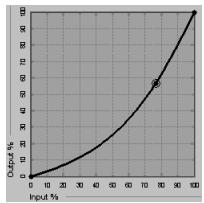
line
| Input % | Output % | |---|---| | 0 | 0 | | 10 | 5 | | 20 | 15 | | 30 | 25 | | 40 | 35 | | 50 | 45 | | 60 | 55 | | 70 | 65 | | 80 | 75 | | 90 | 85 | | 100 | 95 |A curve with this shape makes a color appear darker by adding density in the midtones.
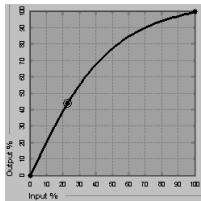
line
| Input % | Output % | | :--- | :--- | | 0 | 0 | | 10 | 20 | | 20 | 45 | | 30 | 60 | | 40 | 75 | | 50 | 85 | | 60 | 90 | | 70 | 95 | | 80 | 98 | | 90 | 99 | | 100 | 100 |A curve with this shape increases contrast.
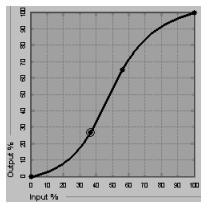
line
| Input (%) | Output (%) | |---|---| | 0 | 0 | | 10 | 5 | | 20 | 15 | | 30 | 30 | | 40 | 50 | | 50 | 70 | | 60 | 85 | | 70 | 95 | | 80 | 98 | | 90 | 99 | | 100 | 100 |NOTE: You should adjust points in this way only after you have entered the Dot Gain and Brightness values.
For greater precision, you can key in percentages in the Input and Output boxes or use the arrow keys on the keyboard to adjust the curve. To use the arrow keys, you must first click on the curve to establish an anchor point that serves as a reference.
9. For an output profile, you can set maximum densities of the C, M, Y, and K channels.
You can enter the maximum densities, called D-Max values, of individual colors for profiles that support density settings. D-Max settings are not available when editing Simulation profiles in Master mode.
10. When you are finished, click Save and enter a name for the new profile.
The new custom profile is saved to the Fiery X3e with the new name. If you edit one of the press standard targets (for example, SWOP-Coated, DIC, or Euroscale), you may want to include the original name as part of the new target name, for example, DIC-new, to help you remember the source of the new target.
NOTE: Preset default profiles are locked and must be saved with a new name.
Custom profiles must be linked to one of the 10 predefined custom profile names (Simulation-1 through 10 for simulation or Output-1 through 10 for output) in order to be accessible from the printer driver. You can create as many custom profiles as you want, but a maximum of 10 are available from the printer driver at any one time. For information on linking custom profiles to the predefined custom profile names, see “Defining profiles” on page 4-8.
NOTE: If you set a custom profile as the default, you can access it from the printer driver without linking it to one of the predefined custom names. Simply select “Printer’s default” from the printer driver.
TO EDIT A SIMULATION IN QUICK OR FULL MODE
-
Start ColorWise Pro Tools and click the Color Editor.
-
Choose Simulation from the View pop-up menu, choose the simulation profile to edit, and click Select.
NOTE: You can also open the Profile Manager, select a simulation profile, and click Edit.
- Choose Quick or Full from the Edit Mode menu, and choose an output profile with which your edited simulation will be linked from the Link with menu.
The edited simulation will be linked with the output profile you select from the “Link with” menu.
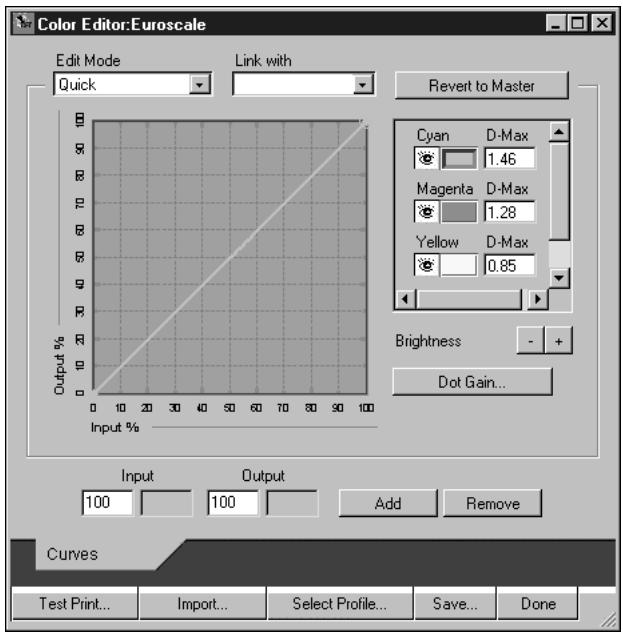
text_image
Color Editor:Euroscale Edit Mode Quick Link with Revert to Master Cyan D-Max 1.46 Magenta D-Max 1.28 Yellow D-Max 0.85 Brightness Dot Gain... Output % Input Output 100 100 Add Remove Curves Test Print... Import... Select Profile... Save... DoneNOTE: When editing a simulation profile in Quick mode, clicking Import at the bottom of the Color Editor window lets you import a custom Quick Simulation created on another Fiery using the previous version of ColorWise. The current version of ColorWise does not allow you to save custom Quick or Full Simulations independently; rather, they are saved as components of the same profile.
4. Edit and save the simulation, as described in steps 5 through 10 of the procedure that starts on page 4-15.
For this new simulation to be automatically applied to a print job, the CMYK Simulation, Simulation Method, and Output Profile settings must be the same as those used when you edited the profile. If the Simulation Method is different or a different output profile is selected, then the Master simulation is applied.
NOTE: A Simulation Profile can have a custom Master and one or more custom links—up to two links (Quick and Full) for each output profile on the system.
Undoing simulation edits
You can undo the changes you made to simulations (master and linked) in any of the following ways:
- If you have not yet saved your edits, click Done on the Color Editor menu bar, and do not save the changes.
- If you saved your edits under a new simulation name and want to delete all edits (in Master, Quick, and Full modes) to the simulation, see page 4-8.
- If you saved your edits under a new simulation name and want to undo the edits to one or more linked simulation, use the following procedure.
TO UNDO EDITS MADE TO A CUSTOM LINKED SIMULATION
- Start ColorWise Pro Tools and click either Color Editor or Profile Manager.
-
Choose Simulation from the View pop-up menu, choose the simulation for which you want to undo edits, and click Select (Color Editor) or Edit (Profile Manager).
-
Choose Quick or Full from the Edit Mode menu and choose the output profile with which your unwanted edits are linked from the Link with menu.
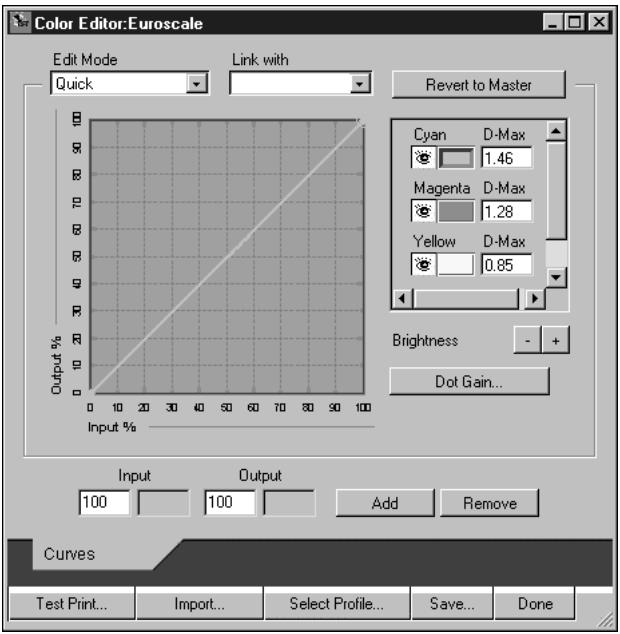
text_image
Color Editor:Euroscale Edit Mode Quick Link with Revert to Master Cyan D-Max 1.46 Magenta D-Max 1.28 Yellow D-Max 0.85 Brightness Dot Gain... Output % 0 10 20 30 40 50 60 70 80 90 100 Input % Input Output Add Remove 100 100 Curves Test Print... Import... Select Profile... Save... Done- Click Revert to Master.
NOTE: Revert to Master makes the curves for one or more linked simulations match the last saved master simulation. If you have edited and saved changes to a master simulation, your linked simulations will revert to the changed master, not the original.
- Indicate whether you want to revert the currently selected linked simulation only, or revert all links of this simulation profile, and click OK.
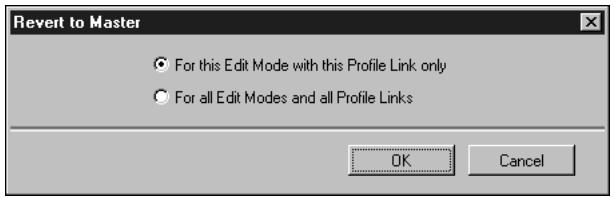
text_image
Revert to Master ○ For this Edit Mode with this Profile Link only ○ For all Edit Modes and all Profile Links OK Cancel- If you choose "For all Edit Modes and all Profile Links," a warning dialog box appears. Click OK.
text_image
Revert to Master This will reset and save all your custom curves for this simulation profile. This action can not be reversed. OK CancelThe curves for the linked simulation(s) now match the last saved master simulation exactly.
Checking edited profiles
You can view a printed sample of a profile before you save it to the Fiery X3e by printing the following:
- Comparison Page provided with ColorWise Pro Tools, which shows a comparison of images and colored patches with and without edits.
- User-defined CALIB.PS in the Hold Queue.
You can create a custom comparison page and save it as a PostScript or an Encapsulated PostScript (EPS) file called CALIB.PS and then print the file to the Hold Queue of the Fiery X3e from your application or download it to the Hold Queue with Fiery Downloader (see page 3-14).
TO CHECK A PROFILE
1. Click Test Print from the Color Editor window.
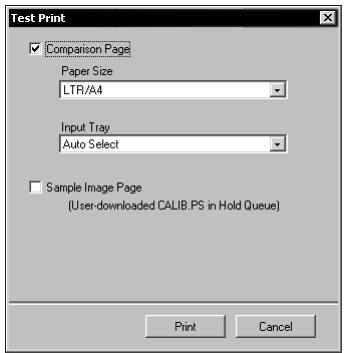
text_image
Test Print ✓ Comparison Page Paper Size LTR/A4 Input Tray Auto Select ✓ Sample Image Page (User-downloaded CALIB.PS in Hold Queue) Print Cancel2. Select a page to print, specify the paper size and input tray (Comparison Page only), and click Print.
For Comparison Page, specify the paper size (LTR/A4 or 11x17/A3) in the Paper Size pop-up menu. In the Input Tray pop-up menu, specify the paper source.
Color Setup
Color Setup is used to set the default ColorWise settings for the Fiery X3e. To access Color Setup, click its icon in the ColorWise Pro Tools main window.
Setting default ColorWise options
Color Setup allows you to configure the default color management settings for the Fiery X3e. These settings are applied to all print jobs sent to the Fiery X3e, unless a user overrides them for an individual job by changing settings in the printer driver. These default settings can also be overridden using Command WorkStation or Fiery WebSpooler. Color Setup maintains a connection to the Fiery X3e, so changes made in Profile Manager appear automatically. In addition, the defaults set in Color Setup are automatically reflected in other Fiery X3e tools that list default settings.
You can also reset the Fiery X3e to its factory default settings by clicking Factory Default in the lower-left corner of the Color Setup window.
The options in Color Setup are arranged in a pattern representing the flow of color processing that takes place on the Fiery X3e.
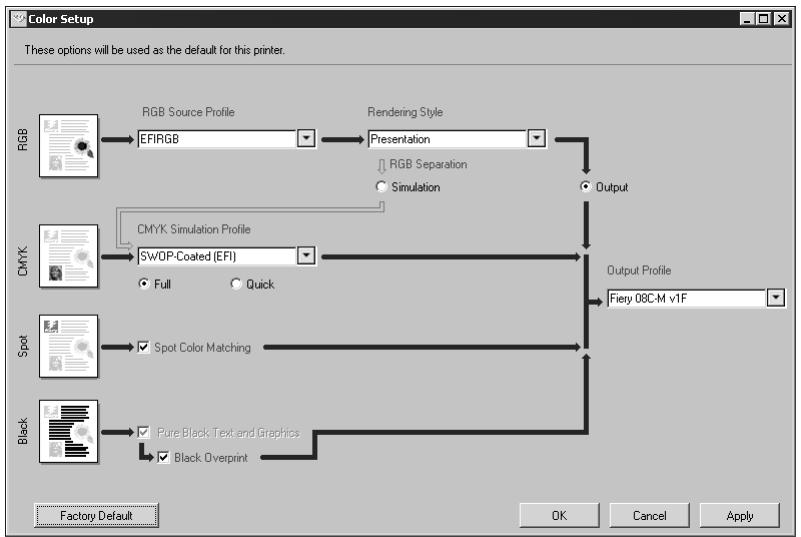
flowchart
graph TD
    A["RGB Source Profile"] --> B["EFIRGB"]
    B --> C["Presentation"]
    C --> D["Output"]
    E["CMYK Simulation Profile"] --> F["SWOP-Coated (EFI)"]
    F --> G["Full"]
    F --> H["Quick"]
    I["Spot Color Matching"] --> J["Black Overprint"]
    K["Black Text and Graphics"] --> L["Pure Black Overprint"]
    M["FIery 08C-M v1F"] --> N["Fiery 08C-M v1F"]
For those color options that offer multiple choices, click the Down arrow and make your selection from the pop-up menu that appears. For RGB Separation and CMYK Simulation Method, click the appropriate radio button. To select other options, select the check box next to the option's name. Once you have made your changes, you must click OK or Apply for the changes to take effect. Clicking OK sets the new defaults and closes the Color Setup window. Clicking Apply sets the new defaults and keeps the Color Setup window open. Clicking Cancel closes the Color Setup window without applying any changes to the default settings.
For most users, the factory defaults result in optimal color output.
Chapter 5: Working with Color in Applications
This chapter provides guidelines for defining colors in your documents to produce the results you want. The following topics are covered:
• Factors affecting how you work with color
- Choosing colors in applications that rely on GDI or QuickDraw to communicate data to the printer driver, such as presentation applications and word processing programs
- Choosing colors in applications that have the ability to write their own PostScript, such as some page-layout programs, illustration programs, and pixel-editing applications
Working with color
The two main factors that influence how you work with color in the creation of documents are the applications you use and the final print device. Applications vary in the methods they provide for choosing colors and in the way they transmit color data to the print device.
- Office applications such as presentation software, spreadsheets, and word processing programs use the RGB color model. They typically transmit only RGB data to the print device.
- Illustration applications use both the RGB and CMYK color models, but typically transmit only CMYK data to the print device.
- Pixel-editing applications use both the RGB and CMYK color models. They also transmit both RGB and CMYK data to the print device.
The type of printing you plan for the document—short-run color printing on the Fiery X3e versus color printing for eventual printing on an offset press—determines the way you define colors, as well as the print option settings you choose.
- For short-run color printing on the Fiery X3e, use any type of application and define colors in either RGB or CMYK. If your application supports it, you can also choose colors from the PANTONE color library. Placed images may be limited to the RGB color space. Choose the appropriate settings for print options affecting color output (see page 1-1).
- For color proofing, use an application that writes its own PostScript and define colors in RGB or CMYK, or choose colors from the application's PANTONE color library. Placed images can also be defined in RGB or CMYK. Choose the appropriate settings for print options affecting color output (see page 1-1).
NOTE: The Fiery X3e allows you to use RGB or CMYK data when printing proofs for an offset press run. However, sending data to an imagesetter most often requires CMYK data.
Color reference pages
Fiery X3e user software includes several types of color reference pages that let you see the range of colors that can be printed on your copier. For predictable color, use the color reference pages when defining the colors in your document.
- RGB Color Reference—a Microsoft Word file and a Microsoft PowerPoint file that let you view the colors available in the standard palettes of office applications and see how those colors print on the Fiery X3e (see page 5-4).
- CMYK Color Reference—an 11-page downloadable PostScript file of CMYK color patches (see page 5-6).
- PANTONE Coated Color Reference—a 19-page downloadable PostScript file of color patches showing CMYK equivalents of PANTONE Coated colors. This file prints differently depending on the setting of the Spot Color Matching option (see page 5-7).
In addition, you can print RGB, CMY, and PANTONE color charts from the Fiery X3e Control Panel.
Office applications
The Fiery X3e must receive PostScript instructions to print an image or a document. Many applications do not create these PostScript instructions, relying instead on the printer driver to create them. Included in this category are most word processing, spreadsheet, and presentation graphics applications. These applications use Windows Graphics Device Interface (GDI) to display and print when running under Windows and Apple QuickDraw to display and print when running on Mac OS computers. We refer to these GDI and QuickDraw applications as “office applications.”
All office applications handle color similarly, using the same RGB color model used for the color monitor. Most office applications allow you to choose colors from a palette of preselected colors; some allow you to add new colors to the palette using a color picker. Although some applications allow you to specify color using the CMY, HSL, and HSV color models, these applications always send RGB color data to the Fiery X3e. (An exception to this is a CMYK EPS file placed in the document, which is sent as CMYK data.)
When working with color in office applications, keep in mind that:
- The range of colors that can be displayed in RGB on your monitor is much larger than the range of colors that can be printed on your copier. When you print the document, out-of-gamut RGB colors are mapped to colors your copier can produce.
- These applications send only RGB data to the Fiery X3e. You control the rendering style of the color conversion with your selection of a CRD.
Each CRD uses a different color rendering style, and therefore has a different way of mapping unprintable colors to the color gamut of your copier. For more information on Fiery X3e color rendering styles, see page 1-5.
Choosing colors in office applications
Two RGB color reference pages, a Microsoft Word file and a Microsoft PowerPoint file, are provided with your Fiery X3e user software. Print these files using different CRDs to see how the colors appear when printed to the Fiery X3e. For best results, print the color reference page using the same print options you plan to use for your final document. Select the colors you want to use from the printed version of the RGB color reference page and then use those colors in your document.
RGB Color Reference (Microsoft PowerPoint)
RGB Color Reference
Print this page to use for reference when designingfiles for printing.
natural_image
Pixelated hexagonal pattern with a central white circle and a small black shape at the bottom (no text or symbols)PostScript applications
Most applications used for illustration, pixel editing, and page layout can create the PostScript information they send to PostScript copier or save in PostScript files. Illustrator, Photoshop, PageMaker, QuarkXPress, and FreeHand are all PostScript applications.
PostScript applications work with color in many different ways. Most allow you to choose process colors (by entering percentages for cyan, magenta, yellow, and black), as well as named colors from a custom color system such as PANTONE. When you print composites, these applications send process-color equivalents for named spot colors to the copier. In some applications, you can also choose colors using the RGB, HSB, HSL, or other color models.
Generally, PostScript applications send color information to the Fiery X3e as CMYK data. An exception to this is an RGB image placed in the document, which is sent directly to the Fiery X3e (unless you specify special color management settings in the application). In addition, some PostScript applications that allow you to define colors in RGB or other color models can also send data to the Fiery X3e in those color spaces.
Color controls in PostScript applications are typically designed for printing on an offset press, and some adjustments are required for printing to the Fiery X3e. Displayed versions of colors you choose in these applications may not match Fiery X3e output exactly, and named colors may not print accurately on the Fiery X3e, since these colors typically require custom inks.
Choosing colors in PostScript applications
With PostScript applications, you can create colors using any of the color models supported by the application. All PostScript applications support CMYK; some also support RGB and other color models based on monitor display values. PostScript applications also allow you to choose named colors using one or more color libraries, such as PANTONE (see page 5-7).
You should use swatch color matching to ensure predictable color printing results with the Fiery X3e or to match your Fiery X3e color output to colors produced by other print devices.
Swatch color matching
Fiery X3e user software includes several color reference pages (see page 5-2). By choosing colors from these reference pages, you can obtain the same color from your copier. For best results, calibrate the Fiery X3e before printing the reference pages.
NOTE: Swatch color matching does not match monitor colors to printed colors. For this you must use a color management system and calibrate your monitor.
Using the CMYK Color Reference
The CMYK Color Reference included with your Fiery X3e user software lets you see how various cyan, magenta, yellow, and black combinations look when printed on your copier.
CMYK Color Reference
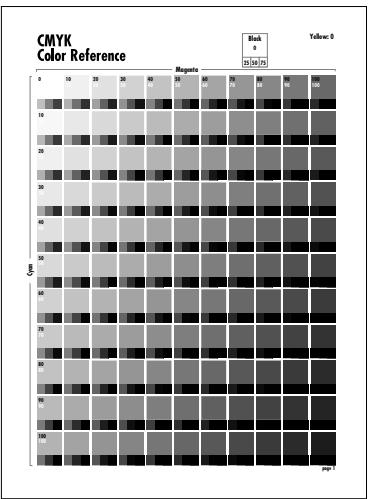
heatmap
CMYK Color Reference | Row | Blue | Black | Yellow | |---|---|---|---| | 0 | 18 | 0 | 0 | | 1 | 25 | 0 | 0 | | 2 | 30 | 0 | 0 | | 3 | 40 | 0 | 0 | | 4 | 50 | 0 | 0 | | 5 | 55 | 0 | 0 | | 6 | 60 | 0 | 0 | | 7 | 75 | 0 | 0 | | 8 | 80 | 0 | 0 | | 9 | 90 | 0 | 0 | | 10 | 100 | 0 | 0 | The image displays a grayscale color scale ranging from black (low) to white (high), with each cell representing a specific CMYK color value. The color intensity is determined by the magnitude of the CMYK color in the legend. No numerical values or trends are provided for the data.To print the CMYK Color Reference, download the file to the Fiery X3e. The printed pages display groups of color patches in graduated combinations of yellow, magenta, and cyan, and smaller patches that include 25%, 50%, and 75% black. Refer to these pages to pick colors and specify process color values in your application. For the location of the file on the User Software CD, see Getting Started.
PANTONE Coated Color Reference
The PANTONE Coated Color Reference included with your Fiery X3e user software can help ensure predictable results with colors chosen from the PANTONE color library.
The information printed by the PANTONE Coated Color Reference depends on the Spot Color Matching setting.
- On—Prints swatches of the closest equivalents of PANTONE colors your copier can produce. The equivalent PANTONE color name/number is printed below each swatch.
- Off—Prints swatches of the CMYK equivalents of PANTONE colors as defined by Pantone. (These are the same CMYK values defined in applications that include PANTONE libraries.) The CMYK values used to produce the color, as well as the PANTONE color name/number, are printed below each swatch.
To print the PANTONE Coated Color Reference, download the file to the Fiery X3e. (For the location of the file on the User Software CD, see Getting Started.) If the default Spot Color Matching setting on the Fiery X3e is not the setting you want to use for printing the PANTONE colors, download the file to the Hold queue. Then use Fiery WebSpooler, Fiery Spooler, or Command WorkStation to override the Spot Color Matching setting.
Default output profile
The default output profile consists of both a profile for your copier, describing its color characteristics, and a calibration target that describes the expected behavior of the copier. For more information on output profiles, see page 1-9.
In certain cases, you may want to customize the default output profile to achieve particular color effects (see page 4-12). If so, the new customized output profile is applied to all data in the print job. You can also use ColorWise Pro Tools to download your own output profile to the Fiery X3e (see page 4-5). Downloaded output profiles are at first associated with the default calibration target.
CMYK simulation
If you are using the Fiery X3e to print proofs for an offset press job or simulate another print device, choose the appropriate CMYK Simulation Profile and CMYK Simulation Method print option settings (see page 1-8).
Chapter 6: Office Applications
This chapter provides instructions for printing color documents from GDI and QuickDraw applications such as presentation, spreadsheet, and word processing applications. You can use these instructions with the Microsoft Office 2000, Microsoft Office 97 and Microsoft Office 95 suite of applications.
Working with office applications
Before printing from these applications, make sure the appropriate printer driver and the Fiery X3e PPD are installed on your computer, as described in Getting Started. The Fiery X3e ColorWise color management system provides complete color management for jobs printed from office applications.
Defining colors
Office applications use the RGB color model. For instructions on defining colors, see “Choosing colors in office applications” on page 5-4.
The only way to use CMYK or PANTONE colors is to define them in EPS files with an illustration or page layout application, and then place these files in MS Office documents. Colors in EPS files are preserved until they reach the Fiery X3e (assuming no PostScript Color Management information was included).
MS Office applications lack finesse when displaying EPS files, so use these files only when RGB colors are not practical in your specific workflow. EPS files are also useful when using large or complex images that need to be printed at full resolution or cannot fit some MS Office configurations with limited memory.
Working with imported files
Although your application may allow you to import a variety of file formats, EPS files are recommended for all raster images you want to import; some applications have printing problems when using file formats such as TIFF and PICT.
NOTE: You may have to perform a “custom install” of your office application if you are not able to import EPS elements.
Although there are no color management options within officeapplications, color conversions do occur when you import images or page elements that were not defined in RGB. To avoid such conversions with imported files, use the EPS file format for artwork that is to be imported into officeapplications.
All RGB images placed in a document are affected by RGB Source and Rendering Style settings.
Tip for advanced users
If you place multiple RGB images, mixed non-photographic and photographic, a single CRD may not be suitable for all the images. In this case you may want the photographic images to bypass the CRD altogether. To accomplish this, save the image in CMYK mode with a pixel-editing application such as Photoshop and perform color correction. Then save it as an EPS file and import it into the document.
Selecting options when printing
There are few differences among officeapplications with regard to Fiery X3e printing. The instructions in this chapter apply to all officeapplications. Use the instructions in Chapter 1 to specify print options and color management settings. To specify these options, you must use a PostScript Level 2 (or later) printer driver, such as an Adobe PostScript Printer Driver.
Because officeapplications send RGB data to the Fiery X3e, your choices of RGB Source and Rendering Style settings are important. Be sure to specify the appropriate CRD for the color effect you want (see “Rendering styles” on page 1-5).
Output profiles
All color data in the job is affected by the output profile on the Fiery X3e. This profile may be the one designed for your copier and shipped with the Fiery X3e, or it may be a custom profile created at your site (see page 1-9). If necessary, print the Test Page to see which profile is currently resident on the Fiery X3e.
Chapter 7: Adobe Photoshop
This chapter covers features of Adobe Photoshop versions 4.x and 5.x for Windows and Mac OS. The illustrations show only Mac OS dialog boxes, but the information and instructions apply equally to the Windows version of Photoshop.
Photoshop 5.x
Because Photoshop 5.x uses a sophisticated color management system, there are several setup steps you should take before you begin working. These steps include:
- Calibrating your monitor
- Adjusting Photoshop color settings
- Setting ColorSync defaults (Mac OS only)
For information on monitor calibration and color setup in Photoshop (version 5.02 or later), open the Adobe Color Management Assistant (Mac OS) or Adobe Color Management Wizard (Windows) by choosing Help>Color Management. (See your Adobe Photoshop 5.x documentation or the Adobe Technical Guidelines for Photoshop at www.adobe.com.)
Photoshop 5.x color settings
Photoshop 5.x has a control panel and three setup dialog boxes that control how color is managed when you open and save RGB and CMYK images. You should calibrate your monitor using the Adobe Gamma control panel and specify settings in the Photoshop Profile Setup, RGB Setup, and CMYK Setup dialog boxes before you begin working with images in Photoshop.
NOTE: The Adobe Gamma control panel performs similar functions on both Windows and Mac OS computers.
Adobe Gamma control panel
You can use the Adobe Gamma control panel to create and customize ICC profiles for your monitor. Photoshop properly displays images on your monitor by compensating between your chosen working space (see the following section on RGB Setup) and the description of your monitor defined by its profile. If you do not create a profile in the Adobe Gamma control panel that corresponds to your monitor, you may encounter poor monitor-to-print matching.
NOTE: If a profile for your particular monitor is not available, use the Adobe Gamma control panel setup Assistant (Wizard on Windows) to customize an available profile that at least has the same type of phosphors as your monitor.
To customize ICC PROFILES IN PHOTOSHOP 5.x
- To display the Adobe Gamma control panel, double-click its icon in either the Windows or Mac OS Control Panel.
- If you have not yet selected your monitor profile or want to customize your current profile, click Assistant (Wizard on Windows).
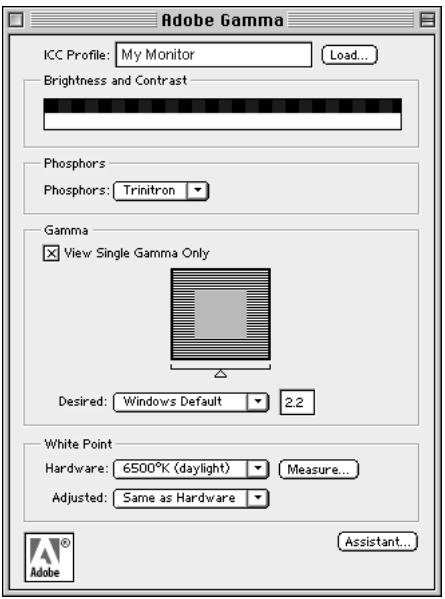
text_image
Adobe Gamma ICC Profile: My Monitor Load... Brightness and Contrast Phosphors Phosphors: Trinitron Gamma View Single Gamma Only Desired: Windows Default 2.2 White Point Hardware: 6500°K (daylight) Measure... Adjusted: Same as Hardware Adobe Assistant...- From the Photoshop 5.x File menu, choose Color Settings>Profile Setup.
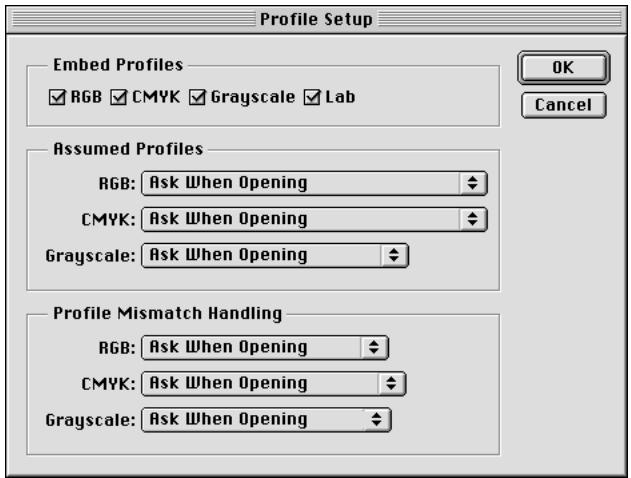
text_image
Profile Setup Embed Profiles RGB CMYK Grayscale Lab Assumed Profiles RGB: Ask When Opening CMYK: Ask When Opening Grayscale: Ask When Opening Profile Mismatch Handling RGB: Ask When Opening CMYK: Ask When Opening Grayscale: Ask When Opening- In the Embed Profiles area, select all options to embed the appropriate ICC profile when saving a file.
By embedding a profile during the saving process, Photoshop can link a color space (working space) definition with that file for future use. When you open an image that already contains a profile, Photoshop can alert you as to which color space the file was saved in. Be aware that you should avoid conversions between color spaces as much as possible (each conversion results in loss of color information).
- In the Assumed Profiles area, choose Ask When Opening from the RGB and CMYK menus.
When you open files that do not contain an ICC profile, you can convert the file to your current Photoshop working space setting or leave the file unconverted—the preferred choice, but make sure the current Photoshop working space setting matches the intended color space of the image.
- In the Profile Mismatch Handling area, choose Ask When Opening from the RGB and CMYK menus.
When you open a file that contains an ICC profile that does not match your current Photoshop working space setting, you have the choice to convert from the embedded profile or not. If you want to preserve the color integrity of the source image, do not
convert. When you open the image, immediately go to RGB or CMYK Setup to specify the working space for the image. If your working space is set to your output device, you may want to convert.
RGB Setup
Photoshop 5.x allows you to simultaneously use two RGB spaces, one for the monitor and one for the Photoshop RGB working space. The monitor RGB space setting does not affect the image data in the file; it affects only the way the image is displayed on the monitor. Even if an RGB image has been prepared with different monitor settings, it is still correctly displayed on your monitor, without changes to the original values in the file.
To Set RGB COLOR SETTINGS IN PHOTOSHOP 5.x
1. Choose Color Settings>RGB Setup from the Photoshop 5.x File menu.
Select this option
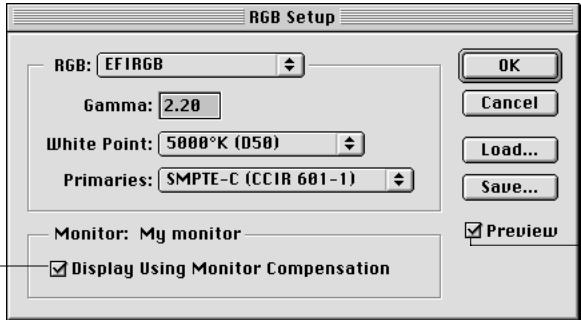
text_image
RGB Setup RGB: EFIRGB Gamma: 2.20 White Point: 5000°K (D50) Primaries: SMPTE-C (CCIR 601-1) Monitor: My monitor Display Using Monitor Compensation OK Cancel Load... Save... PreviewSelect this option
2. From the RGB menu, choose your current Photoshop RGB color space, which should reflect the color space of most RGB files you will be opening.
If you create new RGB files or if you want to standardize your RGB files, you should choose EFIRGB.
3. Click Load if the file is not visible in the RGB pop-up menu.
You can load the Calibrated RGB setup file, EFIRGB ICC ColorSync file, or EFIRGB.ICM file. All describe the same RGB space and automatically set the Gamma, White Point, and Primaries. You may consider sRGB if you usually view images on a generic PC monitor, or if you rely on a Windows operating system to manage color on your monitor. If you choose sRGB as a working space, make sure to print with the Fiery X3e RGB Source option set to sRGB.
NOTE: EFIRGB is set as the default RGB Source color space on the Fiery X3e. No matter what RGB space you select, make sure it is available on the Fiery X3e. For more information on downloading RGB Source profiles, to the Fiery X3e, see Chapter 4.
The Monitor area shows the currently selected profile in the Adobe Gamma control panel.
- Select both the Display Using Monitor Compensation and Preview options.
To Set CMYK COLOR SETTINGS IN PHOTOSHOP 5.x
- From the Photoshop 5.x File menu, choose Color Settings>CMYK Setup.
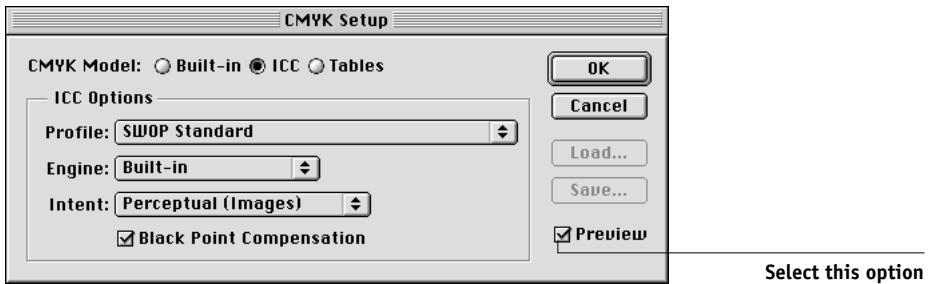
text_image
CMYK Setup CMYK Model: Built-in ICC Tables ICC Options Profile: SWOP Standard Engine: Built-in Intent: Perceptual (Images) Black Point Compensation OK Cancel Load... Save... Preview Select this option-
Select the Preview option.
-
For CMYK Model, select ICC.
Previous versions of Photoshop used Photoshop separation tables, and you can load them for Photoshop 5.x. However, you will get better results using ICC profiles and the built-in color management system.
- In the ICC Options area, choose from the Profile, Engine, and Intent menus.
- For Profile, choose your final output copier ICC profile. Prepress users should choose an ICC describing their target press, such as SWOP. Office users should choose the ICC profile describing the copier connected to the Fiery X3e. In this case, we recommend you leave images in RGB and allow the Fiery X3e to convert them to CMYK. However, if you want to use Photoshop to convert RGB images to the CMYK color space of the Fiery X3e, you must first upload one of the output profiles from the Fiery X3e to your computer (see page 4-7), and then select it in Photoshop CMYK Setup. The output profile for the Fiery X3e is also available on the User Software CD (see Getting Started).
NOTE: With the RGB Separation feature of the Fiery X3e, you can preview (print) your conversions from RGB to any simulated CMYK space by downloading the desired target profile to the Fiery X3e. For more information about downloading profiles, see Chapter 4.
- From the Engine menu, choose Built-in, so that the Photoshop engine will be used.
- From the Intent menu, choose Perceptual (Images), which is appropriate for photographs normally edited in Photoshop. The Intent setting is used only when you convert between color spaces.
It is often helpful to select the Black Point Compensation option. With many ICC profiles, this option has no effect. However, when it does, it has a dramatic effect on the dark areas of your image. If you want this effect, select Black Point Compensation; if not, clear the option.
ColorSync defaults
You should have ColorSync 2.5.x or later installed on your Mac OS computer. The ICC profiles used by ColorSync are saved in System Folder:ColorSync Profiles.
To set Colorsync defaults in Photoshop 5.x
1. Choose Control Panel >ColorSync from the Apple menu.
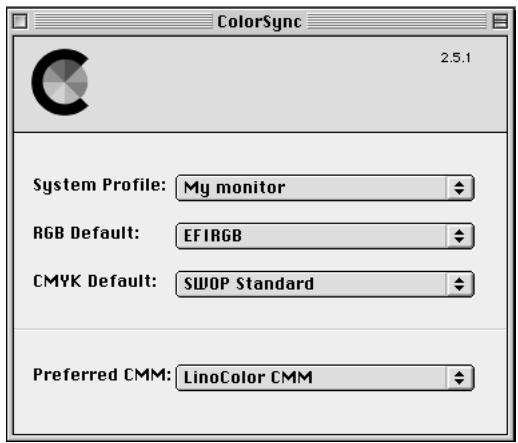
text_image
ColorSync 2.5.1 System Profile: My monitor RGB Default: EFIRGB CMYK Default: SWOP Standard Preferred CMM: LinoColor CMM2. Select the following settings:
- System Profile —Choose the customized ICC profile for your monitor. Set up the Adobe Gamma profile to ensure that your monitor profile is present (Mac OS only).
- RGB default — Choose the same RGB working color space you set in Photoshop 5.x.
NOTE: The System Profile is the same one used in your monitor calibration and in your Monitors and Sounds control panel.
- CMYK default — Choose the same CMYK color space you set in Photoshop 5.x.
- Preferred CMM — Choose LinoColor CMM (both ColorSync 2.0 and Microsoft ICM 2.0 are based on this color management module).
Defining colors
You can choose colors in Photoshop with various color models, including HSB, CIE Lab, RGB, and CMYK. You can also choose named colors from the PANTONE Coated color library. For best results, use the color definition methods described in Chapter 5.
Saving files for importing into other documents
Before saving a file, perform any necessary rotating, cropping, and resizing. This speeds processing when printing from the application in which the image is placed.
We recommend you use EPS or TIFF file formats to save RGB images that will be imported into other documents and printed to the Fiery X3e. You can import EPS and TIFF files into virtually all page layout applications.
NOTE: Although TIFF files display better when imported into other applications, their color and resolution characteristics may be altered by the application into which they are imported. EPS files are unaffected.
TO SAVE PHOTOSHOP 5.X FILES FOR IMPORTING INTO OTHER APPLICATIONS
1. Choose the appropriate file format, and click Save.
Choose Photoshop, EPS, or TIFF
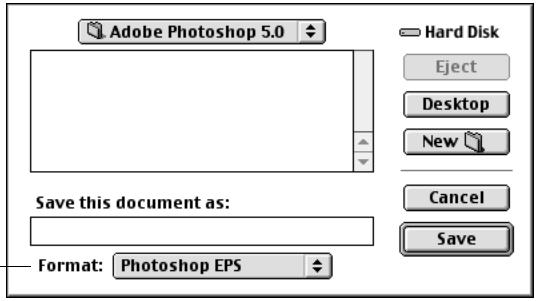
text_image
Adobe Photoshop 5.0 Save this document as: Format: Photoshop EPS Hard Disk Eject Desktop New Cancel Save2. In the EPS Options dialog box, choose Binary encoding.
Do not select PostScript Color Management (for more information on PostScript Color Management, see the following section). Do not include transfer functions or halftone screens. A TIFF preview is compatible with both Windows and Mac OS computers.
Do not select these options
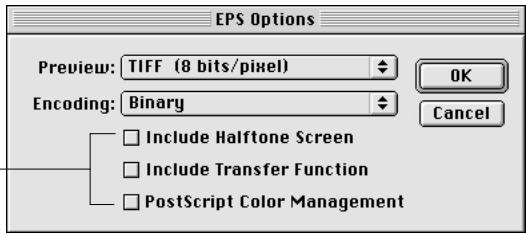
text_image
EPS Options Preview: TIFF (8 bits/pixel) Encoding: Binary Include Halftone Screen Include Transfer Function PostScript Color Management OK CancelNOTE: If you choose JPEG encoding, save a backup of the original image saved with binary encoding until you see the printed results of the JPEG file. Occasionally, the compression used for JPEG encoding produces unwanted artifacts. If you see unexpected results in the printed output of a JPEG file, revert to a binary version.
If you experience problems printing the document in which you place the image, substitute an ASCII version of the same image, and print the document again. Binary encoding is much more compact than ASCII encoding, but occasionally causes printing problems with some system configurations.
Tips for advanced users
Use the following information to implement alternate, more complex, color workflows with Photoshop.
Saving EPS Documents with PostScript Color Management
Selecting the PostScript Color Management option when saving either a CMYK or RGB EPS file prompts Photoshop to embed PostScript color information—which is independent of ICC profiles—in the resulting document. This information is intended for PostScript devices like the Fiery X3e.
Printing RGB EPS Files Saved with PostScript Color Management
When you print an RGB EPS file that contains an embedded profile to the Fiery X3e, the working space information from the embedded RGB profile can be used as an RGB source definition for Fiery X3e CRDs.
To use the source color space information from the embedded profile with Fiery X3e CRDs, choose None as the Fiery X3e RGB Source when you print. This applies when you print directly from Photoshop, or when the same RGB EPS file is output from another application.
To override the embedded profile in an EPS file using an RGB Source definition made available by the Fiery X3e, choose anything except None as the Fiery X3e RGB Source Profile.
Printing CMYK EPS files saved with PostScript Color Management
If you select the Photoshop PostScript Color Management option when you save a CMYK EPS image, Photoshop embeds PostScript color information that defines the CMYK source color space of the image. When you print a CMYK EPS file that contains PostScript color information to the Fiery X3e, CRDs are used instead of ColorWise CMYK Simulation and Simulation Method settings. Make sure to choose the appropriate setting for the Rendering Style option.
Selecting options when printing
You can print RGB or CMYK images from Photoshop.
- When you print an RGB image, you choose whether the conversion to CMYK is performed by the Fiery X3e (using a CRD), PostScript (using PostScript Color Management), or the Photoshop built-in color management engine (by choosing an Output profile from the Space menu).
- When you print a CMYK image, you can print composites or color separations.
NOTE: You cannot use the Combine Separations feature of the Fiery X3e to recombine separations printed from Photoshop.
TO PRINT RGB IMAGES FROM PHOTOSHOP 5.x
1. Choose an encoding method.
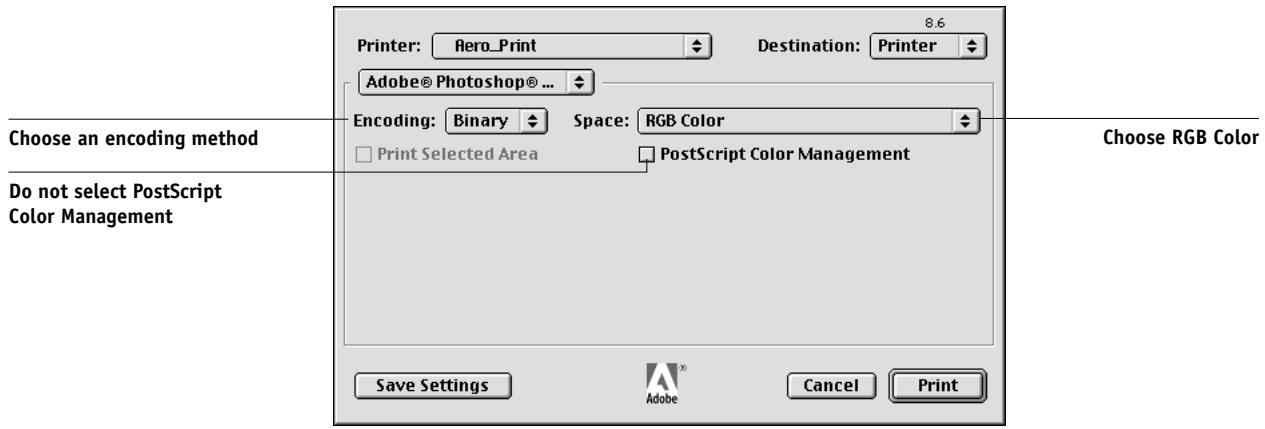
text_image
Printer: Aero_Print 8.6 Destination: Printer Adobe® Photoshop® ... Encoding: Binary Space: RGB Color Print Selected Area PostScript Color Management Choose an encoding method Do not select PostScript Color Management Choose RGB Color Save Settings Adobe Cancel Print2. Choose RGB Color from the Space pop-up menu.
Any other setting causes Photoshop to convert image data to that color space before sending it to the Fiery X3e.
NOTE: With the AdobePS 8.6 printer driver for Mac OS, these options appear in the Adobe Photoshop pane of the Print dialog box.
To PRINT CMYK IMAGES FROM PHOTOSHOP 5.x
1. Choose an encoding method in the Print dialog box.
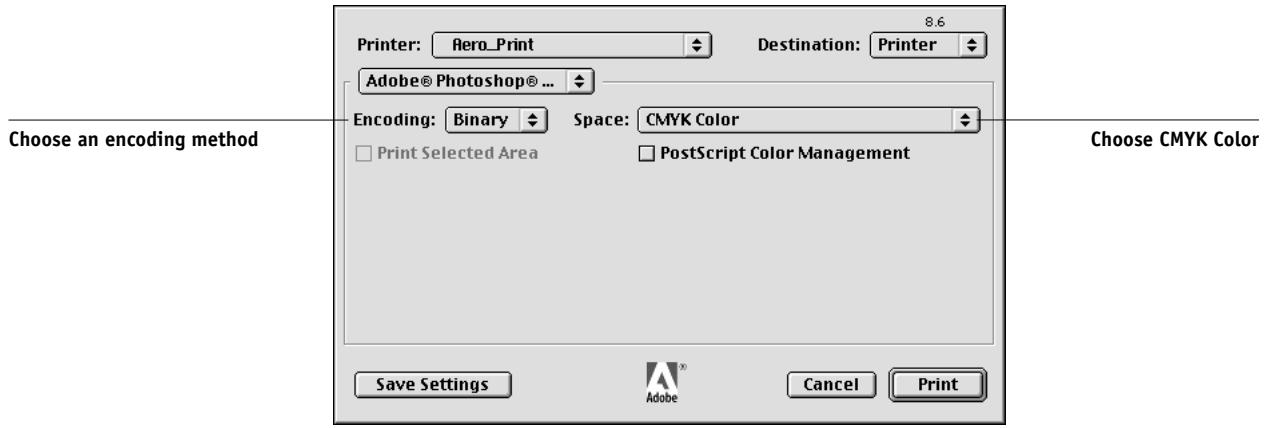
text_image
Printer: Aero_Print 8.6 Destination: Printer Adobe® Photoshop® ... Encoding: Binary Space: CMYK Color Print Selected Area PostScript Color Management Choose an encoding method Save Settings Adobe Cancel Print Choose CMYK Color2. Choose CMYK Color from the Space pop-up menu.
Any other setting causes Photoshop to convert image data to that color space before sending it to the Fiery X3e. (With the AdobePS 8.6 printer driver for Mac OS, these options appear in the Adobe Photoshop pane of the Print dialog box.)
NOTE: If you choose JPEG encoding, save a backup of the original image with binary encoding until you see the printed results of the JPEG file. Occasionally, the compression used for JPEG encoding produces unwanted artifacts. If you see unexpected results in the printed output of a JPEG file, revert to the binary version.g\Printing tips for advanced users
Printing tips for advanced users
Use the following information to implement alternate, more complex, color workflows with Photoshop.
Printing RGB images with Photoshop PostScript Color Management
If you select an RGB color space and decide to use PostScript Color Management from the Photoshop pane of the printer driver, Photoshop sends RGB data to the Fiery X3e along with PostScript color information defining this RGB color space. Remember that when you select PostScript Color Management, a CRD will be used to perform color conversions to CMYK.
NOTE: The included RGB source color space information is overridden by the Fiery X3e RGB Source option unless it is set to None. With Photoshop 5.x, the Fiery X3e Rendering Style option specified will take effect if the Fiery X3e RGB Source Profile option is set to None.
For fastest print times, choose JPEG encoding, but check printed output carefully for unwanted artifacts that can appear as a result of JPEG compression. If you see unexpected results in the printed output, print the job again using Binary or ASCII encoding.
Choose other print options you want to use (see Chapter 1).
Printing CMYK images with Photoshop PostScript Color Management
If you select a CMYK color space and decide to use PostScript Color Management from the Photoshop pane of the printer driver, Photoshop sends CMYK data to the Fiery X3e along with PostScript color information defining this CMYK color space. Remember that when you select PostScript Color Management, a CRD will be used to perform color conversions to the CMYK color space of the Fiery X3e.
The destination color space for the CRDs is determined by the RGB Separation print option. If RGB Separation is set to Simulation, the CMYK image is printed according to all specified CMYK Simulation Profile and CMYK Simulation Method settings. If RGB Separation is set to Output, the CMYK image is converted to the CMYK color space of the selected output profile.
Choose other print options (see Chapter 1). The Spot Color Matching setting has no effect because Photoshop converts PANTONE colors to CMYK values when you work in CMYK mode.
- If the image was separated for an offset press standard, apply the corresponding CMYK Simulation setting. For example, if the image is separated for SWOP, choose SWOP as the CMYK Simulation setting.
- If Photoshop is configured for a custom separation using ICC profiles, select the corresponding profile from the CMYK Simulation print option for the Fiery X3e.
NOTE: The above custom simulation setting requires that the same profile used for separation in Photoshop also resides on the Fiery X3e. For more information on downloading CMYK Simulation profiles to the Fiery X3e with ColorWise Pro Tools, see page 4-5.
Photoshop 4.x
A special feature of Photoshop allows you to save RGB EPS (PostScript) images that include independent source color space information. This feature is sometimes referred to as “PostScript Level 2 tagging” or “RGB tagging.”
You define the source color space to apply to RGB EPS images by specifying a Monitor Setup in Photoshop. However, this Photoshop-specific source color space definition is overridden by the RGB Source print option setting located in the Print dialog box under Printer Specific Options, unless you set the latter to Off (see page 1-6).
Defining colors
You can choose colors in Photoshop with various color models, including HSB, CIE Lab, RGB, and CMYK. You can also choose named colors from the PANTONE color library in Photoshop. For best results, use the color definition methods described in Chapter 5.
Saving files for importing into other documents
Before saving an RGB EPS file, check the Photoshop Monitor Setup. This setting defines the RGB source color space information that will be included in the RGB EPS image. You can override this source color space with the RGB Source setting in the Print dialog box under Printer Specific Options (see page 1-6).
Before saving a file, perform any rotating, cropping, and resizing needed. This speeds processing when printing from the application in which the image is placed.
We recommend you use the EPS or TIFF file formats to save RGB images that will be imported into other documents and printed to the Fiery X3e. EPS and TIFF files can be imported into virtually all page layout applications.
TO SAVE PHOTOSHOP 4.0 FILES FOR IMPORTING INTO OTHER APPLICATIONS
1. Select a file format and click Save.
Choose Photoshop, EPS, or TIFF
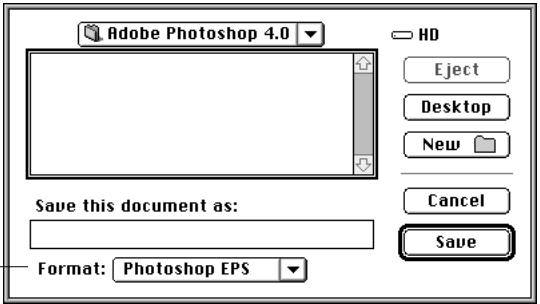
text_image
Adobe Photoshop 4.0 Save this document as: Format: Photoshop EPS2. In the EPS Format dialog box, choose Binary encoding.
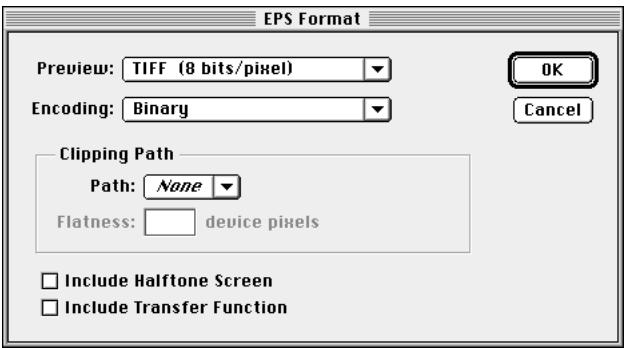
text_image
EPS Format Preview: TIFF (8 bits/pixel) Encoding: Binary OK Cancel Clipping Path Path: None Flatness: device pixels Include Halftone Screen Include Transfer FunctionDo not include transfer functions or halftone screens. A TIFF preview is compatible with both Mac OS and Windows computers.
NOTE: If you experience problems printing the document in which you place the image, substitute an ASCII-encoded version of the same image, and print the document again. Binary encoding is much more compact than ASCII encoding but occasionally causes printing problems with some system configurations.
NOTE: If you choose JPEG encoding, keep a backup of the original image saved with binary encoding until you have seen the printed results of the JPEG-encoded file. Although not often, at times the compression used for JPEG encoding may produce unwanted artifacts in the file. If you see unexpected results in the printed output of a JPEG-encoded file, use a binary-encoded version instead.
Selecting options when printing
You can print RGB or CMYK images from Photoshop.
- When you print RGB images, you choose whether the conversion to CMYK data is performed by the Fiery X3e (using a CRD), by PostScript (using PS Color Management), or by Photoshop (using Photoshop separation settings).
- When you print RGB images, you can choose whether a color conversion is performed by the Fiery X3e using a CRD or by Photoshop using Photoshop's separation settings.
- When you print CMYK images, you can print composites or color separations.
NOTE: You can not use the Combine Separations feature of the Fiery X3e to recombine separations printed from Photoshop.
TO PRINT RGB IMAGES FROM PHOTOSHOP 4.x
1. Choose an encoding method.
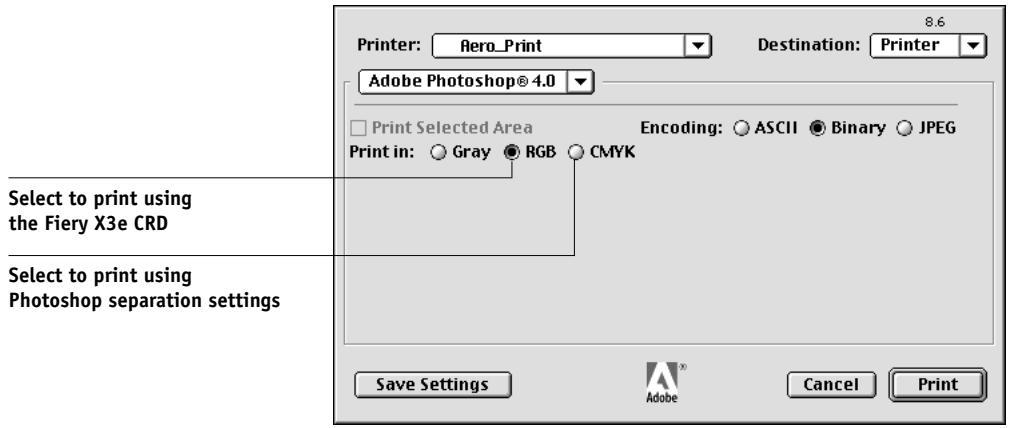
text_image
Printer: Aero_Print 8.6 Destination: Printer Adobe Photoshop® 4.0 Print Selected Area Encoding: ASCII Binary JPEG Print in: Gray RGB CMYK Select to print using the Fiery X3e CRD Select to print using Photoshop separation settings Save Settings Adobe Cancel Print2. Choose whether to print in RGB or CMYK.
With the AdobePS 8.6 printer driver for Mac OS, these options appear in the Adobe Photoshop area of the Print dialog box.
- If you select Print in RGB, Photoshop sends RGB data to the Fiery X3e and a CRD performs color conversion. Choose the appropriate print option settings for RGB data (see Chapter 1).
NOTE: The Fiery X3e Rendering Style option specified will take effect if the Fiery X3e RGB Source Profile option is set to None.
- If you select Print in CMYK, Photoshop performs a color conversion and sends CMYK data to the Fiery X3e. With this setting, RGB Source, Rendering Style, and Spot Color Matching settings have no effect.
For printing in CMYK, consider these Photoshop separation settings:
- If Photoshop is configured for separating to an offset press standard, apply the corresponding CMYK Simulation setting. For example, if Photoshop is configured for separating to SWOP, choose SWOP as the CMYK setting.
- If Photoshop is configured for a custom separation (not a press standard), choose None as the CMYK Simulation setting, or choose the corresponding custom simulation profile on the Fiery X3e if one has been downloaded with the Profile Manager. For more information on the Profile Manager and ColorWise Pro Tools, see Chapter 4.
NOTE: If you choose JPEG encoding, keep a backup of the original image saved with binary encoding until you have seen the printed results of the JPEG-encoded file. Although not often, at times the compression used for JPEG encoding may produce unwanted artifacts in the file. If you see unexpected results in the printed output of a JPEG-encoded file, revert to the a binary-encoded version.
TO PRINT CMYK IMAGES FROM PHOTOSHOP 4.X
1. Choose an encoding method.
With the AdobePS 8.6 printer driver for Mac OS, these options appear in the Adobe Photoshop pane of the Print dialog box.) For fastest print times, select JPEG encoding.
NOTE: Check the printed output carefully for unwanted artifacts that can appear as a result of JPEG compression. If you see unexpected results in the printed output when printing with JPEG encoding, print the job again using Binary encoding.
Choose other print options (see Chapter 1). RGB Source and Rendering Style settings have no effect on CMYK images. The Spot Color Matching setting is also irrelevant, because Photoshop converts PANTONE colors to CMYK values when you work in CMYK mode.
2. If the image was separated for an offset press standard, apply the corresponding CMYK Simulation setting.
For example, if the image is separated for SWOP, choose SWOP as the CMYK Simulation setting.
3. If the image was separated using a custom separation (not a press standard), choose None as the CMYK Simulation setting, or choose the corresponding custom simulation profile on the Fiery X3e if one has been downloaded with the Profile Manager.
For more information on the Profile Manager and ColorWise Pro Tools, see Chapter 4.
Chapter 8: Page Layout Applications
This chapter provides instructions for printing color documents from Adobe PageMaker 6.5, QuarkXPress 4.02, and QuarkXPress 3.32.
Before printing from these applications, make sure the appropriate printer driver and the Fiery X3e PPD are installed on your computer, as described in Getting Started.
Working with page layout applications
The following sections apply to all page layout applications.
Defining colors
Page layout applications generally use the CMYK color model. Some allow you to define colors with other color models and may be able to send that data to the Fiery X3e in those other color models. Generally, however, CRDs (which affect only RGB data) do not affect colors defined in page layout applications. For predictable results with CMYK colors, use the CMYK Color Reference when defining colors in page layout applications. See “Choosing colors in PostScript applications” on page 5-5.
NOTE: If the application allows you to define colors in RGB, you should determine whether it converts the RGB data to CMYK before sending it to the Fiery X3e. If it does, this will determine which Fiery X3e print options affect your job. For example, if the application converts RGB black (defined in the document as R0%, G0%, B0%) to four-color CMYK black when it sends the job to the Fiery X3e, the Pure Black Text/Graphics option will have no effect when you print the job.
You can also choose named colors from the PANTONE color library. See “PANTONE Coated Color Reference” on page 5-7.
Importing images
EPS and TIFF are the recommended formats for images imported into page layout documents. Support for importing other file formats may be provided by individual applications.
All RGB images placed in a document are affected by the RGB Source and Rendering Style settings. The Fiery X3e color management system applies the specified RGB Source setting to all RGB data and then uses the specified Rendering Style (CRD) to perform a color conversion. An exception to this occurs if you assign ICC profiles to RGB images using the application's color management tools. See “Tips for advanced users” in the following section. In this case, the application performs the color conversion of the image and sends CMYK data to the Fiery X3e.
NOTE: To take advantage of RGB Source and Rendering Style settings for images imported into QuarkXPress 4.02, either save images in the EPS format, or use Quark PrintRGB XTension, which outputs RGB TIFF image files without converting them to CMYK.
Tips for advanced users
If you place multiple RGB images, some non-photographic and some photographic, a single CRD may not be suitable for all the images. In this case, you may want the photographic images to bypass the CRD altogether. To accomplish this, separate the image to CMYK data with a pixel-editing application such as Photoshop and perform color correction. Save the file as an EPS or TIFF file and import it into the document.
If your application supports this feature, you can save the RGB image in TIFF format and assign it an ICC profile and rendering intent when you import it into the document.
CMYK simulation
You can specify a CMYK Simulation and a CMYK simulation method for the job with the CMYK Simulation Profile and CMYK Simulation Method print options (see page 1-8). The CMYK Simulation setting affects all CMYK color data sent by the page layout application. It can also affect RGB data if RGB Separation is set to Simulation.
- If the document contains CMYK images that were separated for an offset press standard, apply the corresponding CMYK Simulation setting. For example, for images separated for SWOP, choose SWOP as the CMYK Simulation setting.
If you print separations to the Fiery X3e and choose use the Combine Separations feature in conjunction with Full Simulation, the result may not match that of the same page printed as composite. - If the document contains CMYK images that were separated according to the color characteristics of a custom ICC profile (not a press standard profile), choose the corresponding profile as the CMYK Simulation Profile print option on the Fiery X3e.
NOTE: To achieve the workflow described above, the profile used for the separation of CMYK images in the document should also reside on the Fiery X3e. For more information on downloading CMYK Simulation profiles to the Fiery X3e with ColorWise Pro Tools, see Chapter 4.
Adobe PageMaker 6.5 for Mac OS and Windows
The Mac OS and Windows versions of PageMaker 6.5 are essentially the same. The illustrations in this section show only the Windows version, except where differences exist between the two versions.
Windows version requirement
For the Windows version of PageMaker 6.5, make sure a copy of the Fiery X3e PPD file is in both of the following folders:
• PM65\RSRC\USENGLSH\PPD4
- Windows\System
Importing images
All RGB images placed in a document are affected by your RGB Source and Rendering Style settings. For best results with placed images, follow the instructions in “Importing images” on page 8-2 and “CMYK simulation” on page 8-3.
NOTE: We recommend that you use ColorWise color management rather than the CMS options built into PageMaker. It is important that you do not use both systems for the same print job. To turn off PageMaker 6.5 color management features, choose File>Preferences>General, then click CMS Setup and choose Off from the Color Management pop-up menu. Click OK. Color management can be disabled for a specific bitmapped image by selecting the image and choosing Element>Image>CMS Source, then choosing None from the This Item Uses pop-up menu.
Selecting options when printing
All print settings are specified from the various Print dialog boxes in PageMaker 6.5. The printer driver interface described in Chapter 1 is not used.
To Select Print Options in Pagemaker 6.5
- In the Print Document dialog box, choose the Fiery X3e PPD from the PPD menu, and click Options.
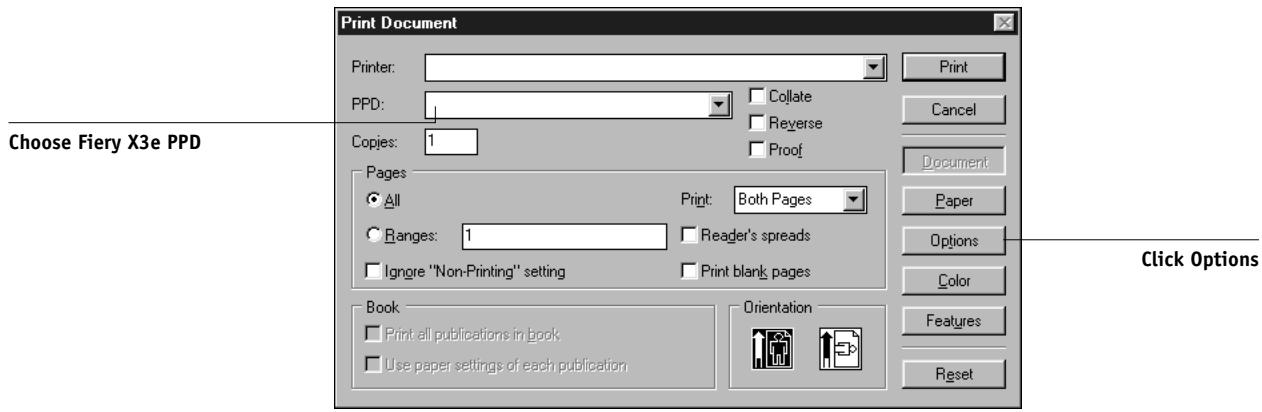
text_image
Print Document Printer: PPD: Copies: Pages All Ranges: 1 Ignore "Non-Printing" setting Print: Both Pages Reader's spreads Print blank pages Book Print all publications in book Use paper settings of each publication Orientation Print Cancel Document Paper Options Color Features Reset Choose Fiery X3e PPD Click Options- In the Print Options dialog box, choose Normal (not the Optimized Subsampling default) from the Send image data menu, to ensure that TIFF images print at their full resolution.
- Click Features.
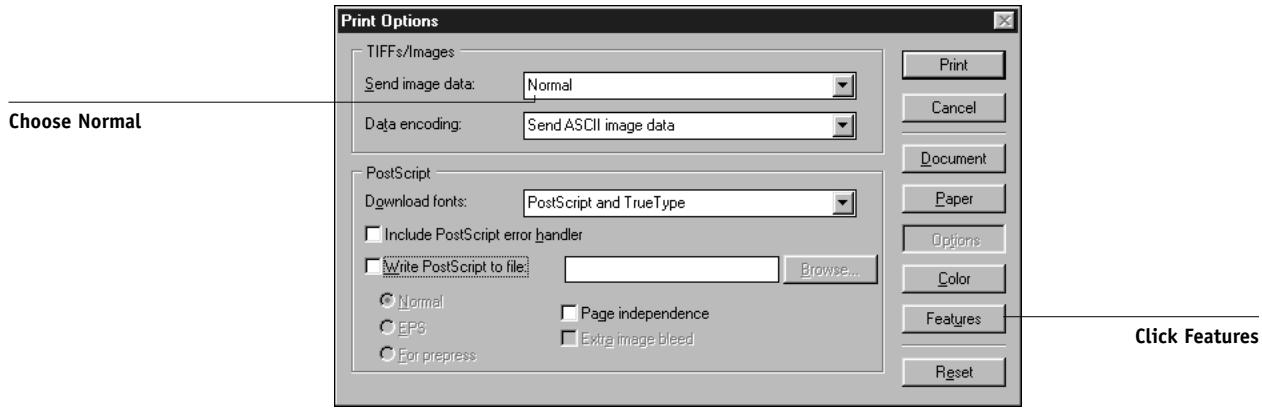
text_image
Print Options TIFFs/Images Send image data: Normal Data encoding: Send ASCII image data Choose Normal PostScript Download fonts: PostScript and TrueType Include PostScript error handler Write PostScript to file: Browse... Normal EPS For prepress Page independence Extra image bleed Print Cancel Document Paper Options Color Features Reset Click Features- If a document contains RGB placed images or colors defined in RGB that will not be separated to process colors, choose RGB Source and Rendering Style settings in the Print Features dialog box. If the document contains PANTONE colors, choose the appropriate Spot Color Matching setting.
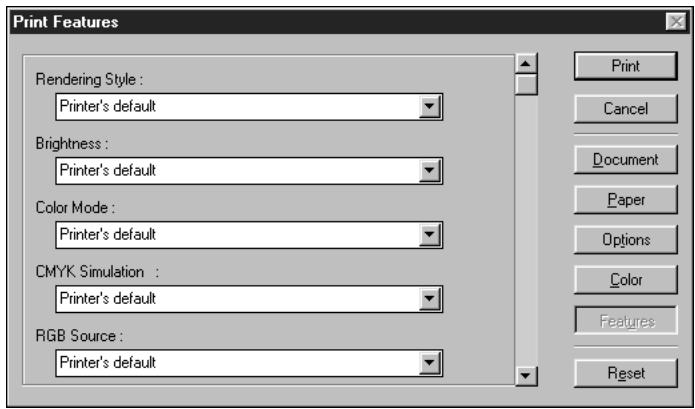
text_image
Print Features Rendering Style : Printer's default Brightness : Printer's default Color Mode : Printer's default CMYK Simulation : Printer's default RGB Source : Printer's default Print Cancel Document Paper Options Color Features Reset- Click Print from any of the PageMaker 6.5 dialog boxes, and the job is sent to the Fiery X3e.
NOTE: You do not see the printer driver dialog boxes described in Chapter 1.
Optional Color Management from PageMaker
If you have additional color management requirements not offered by ColorWise, such as managing color on non-Fiery X3e devices, you may want to consider using the color management features offered by PageMaker. For more information, see your PageMaker documentation.
QuarkXPress 4.x for Mac OS and Windows
If you have additional color management requirements not offered by ColorWise, you may want to consider using features offered by the Quark CMS XTension for QuarkXPress 4.02. These features allow advanced users to control RGB to CMYK color conversions. If you plan to use these features, make sure Quark CMS XTension is installed before starting QuarkXPress. If it is not, use the Quark XTensions Manager to install it. For instructions, see your QuarkXPress documentation.
NOTE: Quark CMS converts RGB TIFF, JPEG, and PICT images to CMYK before sending color data to the Fiery X3e. RGB Source and Rendering Style settings have no effect on this data unless you use Quark PrintRGB XTension, which outputs RGB TIFF image files without converting them to CMYK.
Importing images
With the exception of RGB images that are saved in EPS format or that use Quark PrintRGB XTension, QuarkXPress 4.02 converts all RGB data into CMYK, even when Quark CMS XTension is disabled.
Only RGB images saved in EPS format are affected by RGB Source and Rendering Style settings. For best results with placed images, use the instructions in “Importing images” on page 8-2 and “CMYK simulation” on page 8-3.
To select print options in QuarkXPRESS 4.x
1. Choose the Fiery X3e PPD from the Printer Description menu in the Print dialog box.
Mac OS
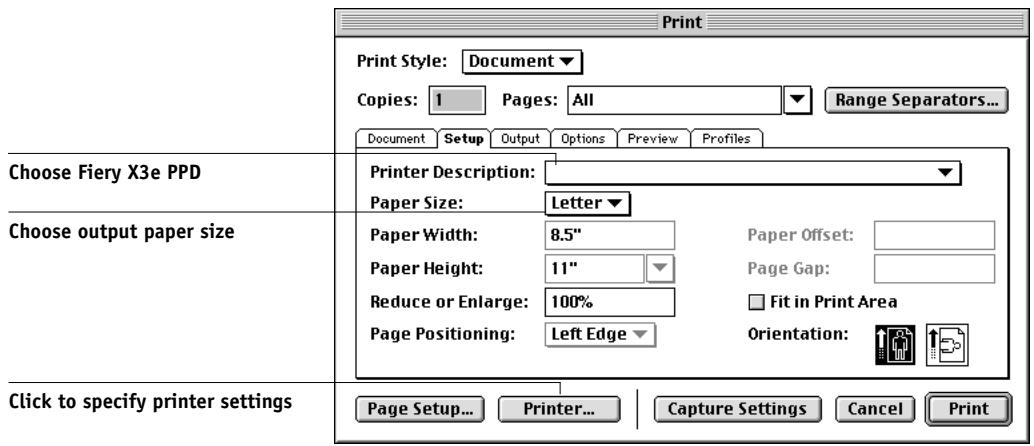
text_image
Print Print Style: Document ▼ Copies: 1 Pages: All Range Separators... Document Setup Output Options Preview Profiles Choose Fiery X3e PPD Printer Description: Paper Size: Letter ▼ Choose output paper size Paper Width: 8.5" Paper Offset: Paper Height: 11" Page Gap: Reduce or Enlarge: 100% Fit in Print Area Page Positioning: Left Edge Orientation: Click to specify printer settings Page Setup... Printer... Capture Settings Cancel PrintWindows

text_image
Choose Fiery X3e copier Print Printer: Properties... Print Style: Document Copies: 1 Pages: All Range Separators... Document Setup Output Options Preview Profiles Printer Description: Paper Size: Defined by Driver Paper Width: Paper Offset: Paper Height: Page Gap: Reduce or Enlarge: 100% Fit in Print Area Page Positioning: Left Edge Orientation: Portrait Print Cancel Capture Settings Click to specify copier settings Choose Fiery X3e PPD2. If the document contains PANTONE colors, choose the appropriate Spot Color Matching setting. For instructions on specifying print options, see Chapter 1.
Optional Color Management from QuarkXPress
If you have additional color management requirements not offered by ColorWise, such as managing color on non-Fiery X3e devices, you may want to consider using the color management features offered by QuarkXPress. For more information, see your QuarkXPress documentation.
QuarkXPress 3.32 for Mac OS and Windows
Before starting QuarkXPress 3.32, make sure the EfiColor XTension is not loaded in the XTensions folder. EFICOLOR profiles are not currently provided with Fiery X3e products. Without the correct EFICOLOR profile, the EfiColor XTension cannot perform color conversions on placed images.
Windows version requirement
For the Windows version of QuarkXPress, make sure a copy of the Fiery X3e PPD file is in the \XPRESS\PDF folder.
Importing images
All RGB images placed in a document are affected by your RGB Source and Rendering Style settings. For best results with placed images, follow the instructions in “Importing images” on page 8-2 and “CMYK simulation” on page 8-3.
To select PRINT OPTIONS IN QUARKXPRESS 3.32
- Select Fiery X3e PPD from the Printer Type menu in the Page Setup (Mac OS) or Printer Setup (Windows) dialog box.
Mac OS version
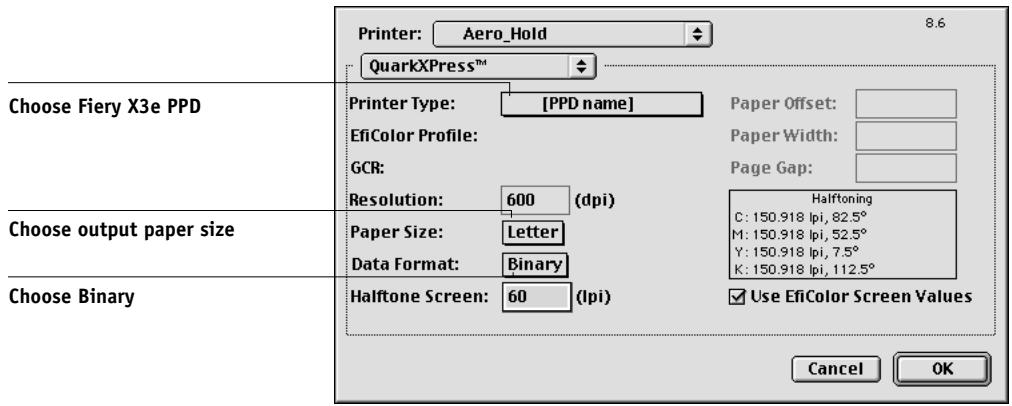
text_image
Printer: Aero_Hold QuarkXPress™ 8.6 Choose Fiery X3e PPD Printer Type: [PPD name] EfiColor Profile: GCR: Resolution: 600 (dpi) Paper Offset: Paper Width: Page Gap: Halftoning C: 150.918 lpi, 82.5° M: 150.918 lpi, 52.5° Y: 150.918 lpi, 7.5° K: 150.918 lpi, 112.5° Choose output paper size Paper Size: Letter Data Format: Binary Halftone Screen: 60 (lpi) Use EfiColor Screen Values Choose Binary Cancel OKWindows version
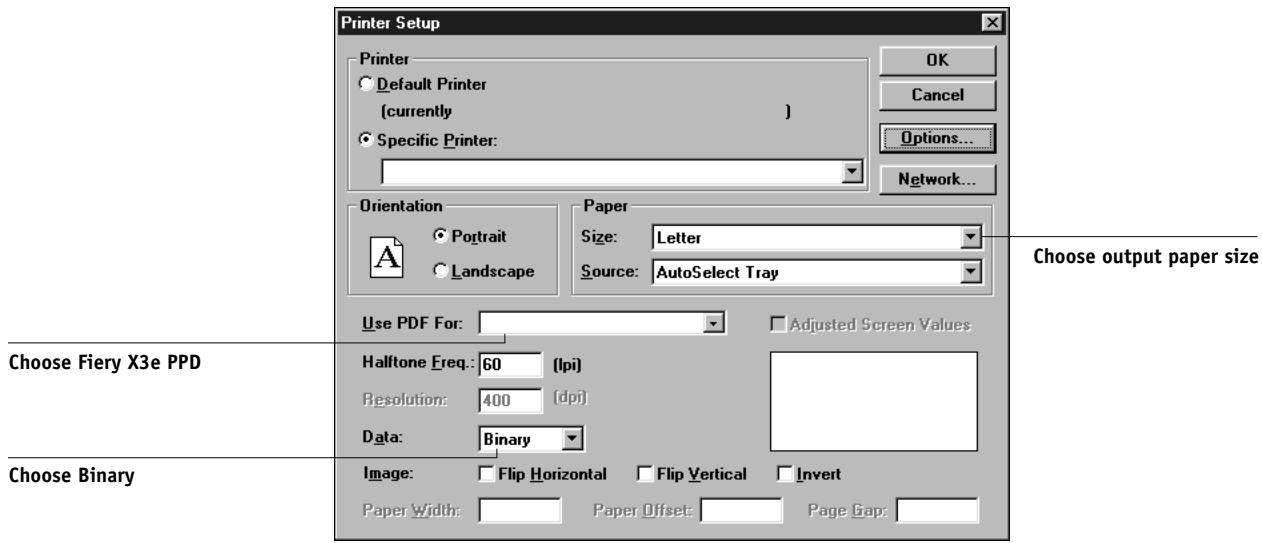
text_image
Printer Setup Printer Default Printer (currently ) Specific Printer: OK Cancel Options... Network... Orientation Portrait Landscape Paper Size: Letter Source: AutoSelect Tray Choose output paper size Use PDF For: Adjusted Screen Values Choose Fiery X3e PPD Halftone Freq.: 60 (lpi) Resolution: 400 (dpi) Data: Binary Choose Binary Image: Flip Horizontal Flip Vertical Invert Paper Width: Paper Offset: Page Gap:If a document contains RGB placed images or RGB colors that QuarkXPress will print without converting to CMYK, choose RGB Source and Rendering Style settings.
2. If the document contains PANTONE colors, choose the appropriate Spot Color Matching setting.
For instructions on specifying print options, see Chapter 1.
Chapter 9: Illustration Applications
This chapter provides instructions for using Adobe Illustrator for Windows and Mac OS, Macromedia FreeHand for Windows and Mac OS, and CorelDRAW for Windows and Mac OS.
Before printing from these applications, make sure the appropriate PostScript printer driver and the Fiery X3e PPD are installed on your computer, as described in Getting Started.
Working with illustration applications
You can print directly from an illustration application or use it to create and save files that will be imported into a page layout document. To print from an illustration application, use the printer driver and the print settings recommended in Chapter 1.
NOTE: These application notes provide instructions for printing composites only. For instructions on printing color separations, refer to the documentation for your application.
As a general rule, use the EPS file format when saving files with an illustration application.
Defining colors
All illustration applications use the CMYK color model. While some also allow you to define colors using other color models, they all send CMYK data to the Fiery X3e. Consequently, the RGB Source and Rendering Style settings in the PPD do not affect all colors printed from illustration applications. For predictable results with CMYK colors, use the CMYK Color Reference pages when defining colors (see “Choosing colors in PostScript applications” on page 5-5).
NOTE: If you define colors in RGB and print directly from the application, the application converts the RGB data to CMYK before sending it to the Fiery X3e. This conversion determines which Fiery X3e print options affect your job. For example, if the application converts RGB black (defined in your document as R0%, G0%, B0%) to four-color CMYK black when it sends the job to the Fiery X3e, the Pure Black Text/Graphics option in the PPD will have no effect when you print the job.
You can also choose named colors from the PANTONE color library. See “PANTONE Coated Color Reference” on page 5-7.
Importing images
In general, all images placed in illustration application documents should be in EPS format.
All RGB images placed in a document are affected by the RGB Source and Rendering Style settings in the PPD. The Fiery X3e color management system applies the specified RGB Source setting to all RGB data and then uses the specified Rendering Style (CRD) to perform a color conversion to CMYK. An exception to this occurs if you assign ICC profiles to RGB images using the application's color management tools (see “Tips for advanced users” below). In this case, the application performs the color conversion of the image and sends CMYK data to the Fiery X3e.
Tips for advanced users
If you place multiple RGB images, some non-photographic and some photographic, a single CRD may not be suitable for all the images. In this case, you may want the photographic images to bypass the CRD altogether. To accomplish this, separate the image to CMYK data with a pixel-editing application such as Photoshop and perform color correction. Save the file as an EPS or TIFF file and import it into the document. You can also save the RGB image in TIFF format and assign it an ICC profile and rendering intent when you import it into the document (see the individual application notes in this chapter).
CMYK simulation
You can specify a press simulation target and press simulation method for the job with print options (see Chapters 1). The CMYK Simulation setting affects all CMYK color data sent by the illustration application.
- If the document contains CMYK images that were separated for an offset press standard, apply the corresponding CMYK Simulation setting. For example, for images separated for SWOP, choose SWOP-Coated as the CMYK Simulation setting.
- If the document contains CMYK images that were separated according to the color characteristics of a custom ICC profile (not a press standard profile), select the corresponding profile from the CMYK Simulation Profile print option on the Fiery X3e.
NOTE: The workflow described above requires that the profile used for the separation of CMYK images in the document also resides on the Fiery X3e. For more information on downloading CMYK Simulation profiles to the Fiery X3e with ColorWise Pro Tools, see Chapter 4.
Adobe Illustrator 8.x for Windows and Mac OS
If you are using ColorWise color management, disable Illustrator's color management by removing the Color Conversion and Color Conversion Utilities files from the Adobe Illustrator>Plug-ins>Extensions folder.
Defining colors
Any colors defined in Illustrator are sent to the printer in CMYK—even those defined using other color models. For best results, use the color definition methods described in “Choosing colors in PostScript applications” on page 5-5.
Importing images
All RGB images placed in a document are affected by the RGB Source and Rendering Style settings you select in the PPD. For best results with placed images, follow the instructions in “Importing images” on page 9-2 and “CMYK simulation” on page 9-2.
Optional Color Management in Illustrator
If you have additional color management requirements not offered by ColorWise, such as managing color on non-Fiery X3e devices, you may want to consider using the color management features offered by Illustrator. For more information, see your Illustrator documentation.
To select print options when printing from ADOBE ILLUSTRATOR 8.x
1. For the Windows version of Illustrator, select the appropriate copier from the Name menu and select Level 2 or 3 from the PostScript menu.
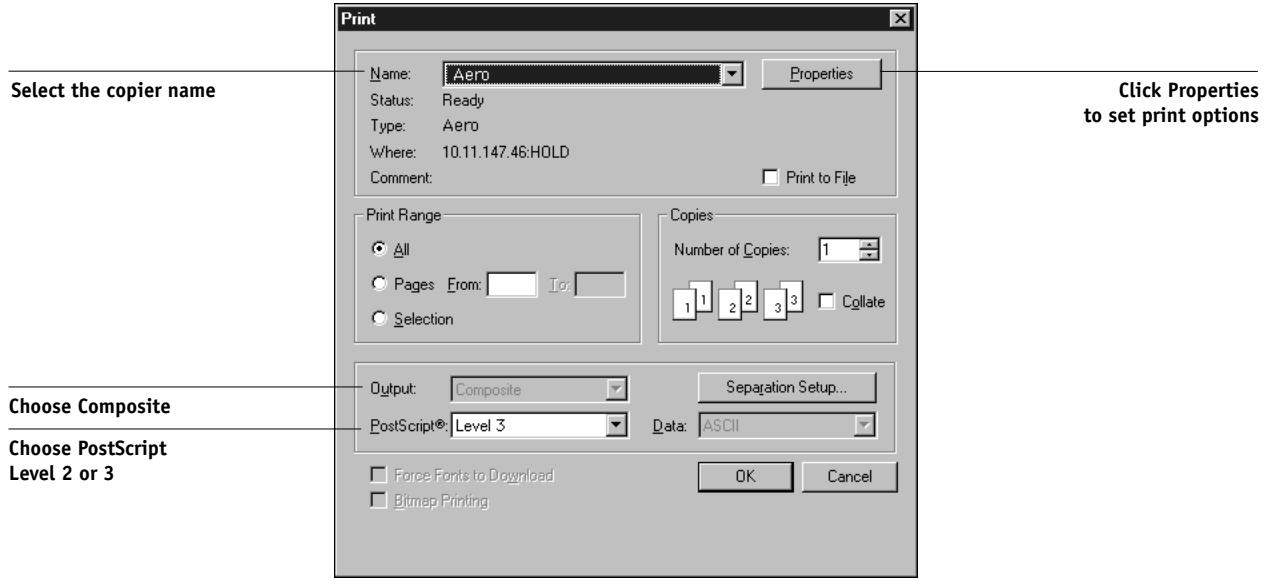
text_image
Select the copier name Name: Aero Status: Ready Type: Aero Where: 10.11.147.46:HOLD Comment: Print to File Print Range All Pages From: To: Selection Copies Number of Copies: 1 1 1 2 2 3 Collate Output: Composite Separation Setup... PostScript®: Level 3 Data: ASCII Choose Composite Choose PostScript Level 2 or 3 Force Fonts to Download Bitmap Printing OK Cancel Click Properties to set print options2. For the Mac OS version of Illustrator, choose Composite from the Output menu and select PostScript Level 3 from the PostScript menu.
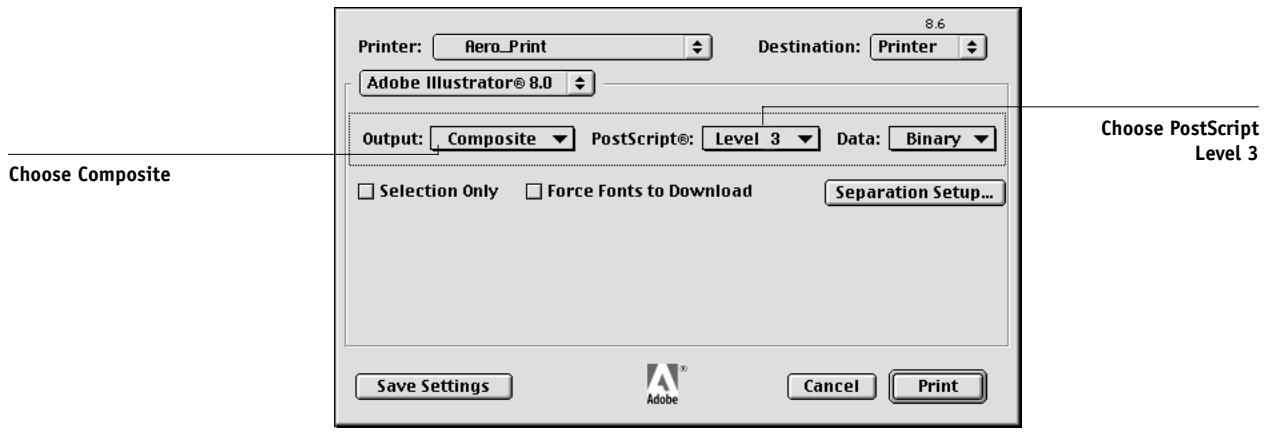
text_image
Printer: Aero_Print Destination: Printer Adobe Illustrator® 8.0 Output: Composite PostScript®: Level 3 Data: Binary Choose Composite Selection Only Force Fonts to Download Separation Setup... Save Settings Adobe Cancel Print- If a document contains placed RGB images, click Properties (Windows) or select Printer Specific Options from the pop-up menu (Mac OS).
- Choose RGB Source and Rendering Style settings for the Fiery X3e.
With the exception of placed RGB images, these settings have no effect on colors printed with Illustrator 8.x.
- If the document contains named PANTONE named colors, choose the appropriate Spot Color Matching setting.
For instructions on setting print options, see Chapter 1.
Saving files for importing into other documents
When saving files in Illustrator 8.x for importing into other types of documents, use the EPS file format. In Illustrator, you can save color information in both RGB and CMYK. The Fiery X3e's RGB Source and Rendering Style settings affect color output of RGB artwork saved in Illustrator EPS and imported into other kinds of documents (even when both RGB and CMYK artwork exists in the same file). In the case of Illustrator files imported into Photoshop, however, vector data from the Illustrator file is rasterized into bitmaps in Photoshop, and the final color space of the bitmap data is determined by the color mode you set in Photoshop.
Macromedia FreeHand 8.x for Windows and Mac OS
The information in this section applies to both the Windows and Mac OS versions of FreeHand 8.x. Only Mac OS dialog boxes are shown, but the information and instructions are identical for the Windows version of FreeHand.
NOTE: If you are using ColorWise color management, turn off FreeHand 8.x color management features by choosing None from the Colors>Color Management>Type pop-up menu.
Defining colors
Any colors defined in FreeHand are sent to the copier in CMYK—even those defined using other color models. For best results, use the color definition methods described in “Choosing colors in PostScript applications” on page 5-5.
Click Colors to access the color management settings
You can control the conversion of RGB colors defined in FreeHand by specifying settings in the Preferences dialog box under the Colors category, or by choosing Color Management in the FreeHand pop-up menu on the Print dialog box.
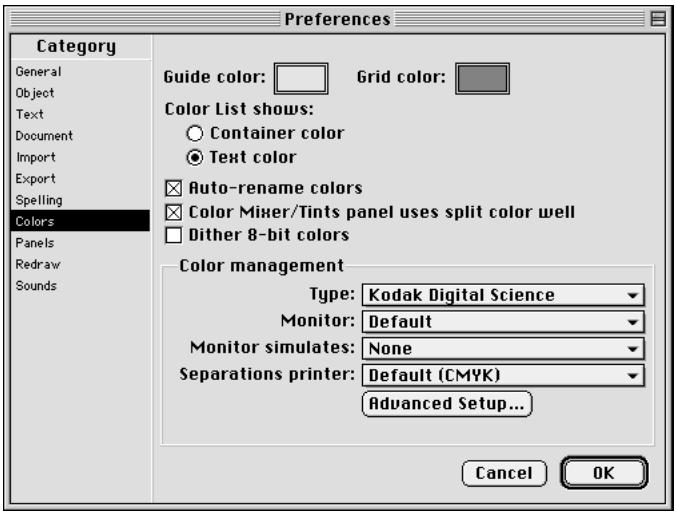
text_image
Preferences Category General Object Text Document Import Export Spelling Colors Panels Redraw Sounds Guide color: Grid color: Color List shows: Container color Text color Auto-rename colors Color Mixer/Tints panel uses split color well Dither 8-bit colors Color management Type: Kodak Digital Science Monitor: Default Monitor simulates: None Separations printer: Default (CMYK) Advanced Setup... Cancel OKImporting images
A number of file types can be imported into FreeHand 8.x, but once imported, all are treated as either EPS images, TIFF images, or editable paths. For details, see your FreeHand documentation.
When you import an EPS image into your document, FreeHand inserts a link to the image rather than embedding the original file, resulting in a smaller file size. If the image is a CMYK EPS file, the colors print just as they would from the originating application.
NOTE: Before placing a CMYK EPS file, be sure the file was saved with Desktop Color Separation (DCS) set to Off. If the file was saved with DCS set to On, FreeHand prints composites of the image at the low resolution used for screen viewing.
All RGB images placed in a document are affected by your RGB Source and Rendering Style settings in the PPD. For best results with placed images, follow the instructions in “Importing images” on page 9-2 and “CMYK simulation” on page 9-2.
TO SELECT PRINT OPTIONS WHEN PRINTING FROM FREEHAND
1. Select the Use PPD option in the Print dialog box.
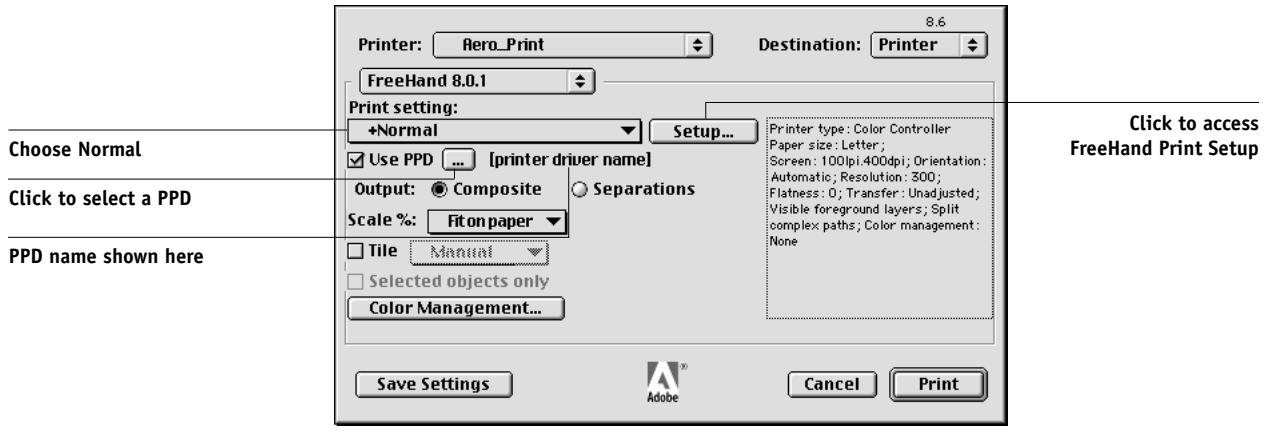
text_image
Printer: Aero_Print FreeHand 8.0.1 Print setting: +Normal Use PPD ... [printer driver name] Output: Composite Scale %: Fitonpaper Tile Manual Selected objects only Color Management... Save Settings Adobe Cancel Destination: Printer Printer type: Color Controller Paper size: Letter; Screen: 100dpi.400dpi; Orientation: Automatic; Resolution: 300; Flatness: 0; Transfer: Unadjusted; Visible foreground layers; Split complex paths; Color management: None Choose Normal Click to access FreeHand Print Setup PPD name shown here2. Choose Normal from the Print setting menu.
- If Use PPD option is selected, a plus sign (+) appears in front of the word “Normal.”
- If the PPD name for your Fiery X3e is not displayed next to the PPD button, click the button marked “...” and choose the appropriate PPD from the menu that appears.
3. To use Fiery X3e color management features, clear the "Convert RGB to process" option in the File>Output Options dialog box.
If this option is selected, FreeHand color management settings are used to convert RGB colors and RGB TIFF, PICT, and JPEG images to CMYK.
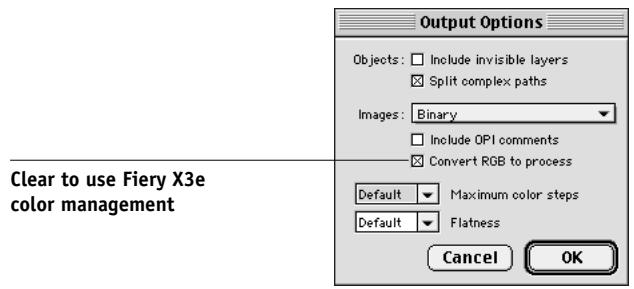
text_image
Output Options Objects: Include invisible layers Split complex paths Images: Binary Include OPI comments Convert RGB to process Clear to use Fiery X3e color management Default Maximum color steps Default Flatness Cancel OK- If a document contains placed RGB images, choose RGB Source and Rendering Style settings in the PPD.
With the exception of placed RGB images, these settings have no effect on colors printed with FreeHand. If the document contains PANTONE named colors, choose the appropriate Spot Color Matching setting in the PPD.
For information about other FreeHand print options, see your FreeHand documentation.
Saving files for importing into other documents
When saving files in FreeHand 8.x for importing into other types of documents, use the EPS file format. FreeHand saves all color information in CMYK. The RGB Source and Rendering Style print options have no effect on the color output of RGB artwork saved in FreeHand 8.x and imported into other kinds of documents. In the case of FreeHand files imported into Photoshop, however, vector data from the FreeHand file is rasterized into bitmaps in Photoshop, and the final color space of the bitmap data is determined by the color mode you set in Photoshop.
Optional Color Management in FreeHand
If you have additional color management requirements not offered by ColorWise, such as managing color on non-Fiery X3e devices, you may want to consider using the color management features offered by FreeHand. For more information, see your FreeHand documentation.
CorelDRAW for Windows and Mac OS
Defining colors
Any colors defined in CorelDRAW 9.x for Windows or CorelDRAW 8.x for Mac OS are sent to the copier in CMYK—even those defined using other color models. For the best results, use the color definition methods described in “Choosing colors in PostScript applications” on page 5-5.
You can control the conversion of RGB colors defined in CorelDRAW by specifying settings in the Color Management dialog boxes. On Windows computers, the Color Management dialog boxes are located in Tools>Color Management. On Mac OS computers, the Color Management functions are located under Edit>Preferences>Global.
NOTE: If you do not want to use color management in CorelDraw, do not select options under Color Management and Color Management/General, and choose None from the Composite Printer pop-up menu under Color Management/Profiles.
Importing images
All RGB images placed in a document are affected by your RGB Source and Rendering Style settings in the PPD. For best results with placed images, follow the instructions in “Importing images” on page 9-2 and “CMYK simulation” on page 9-2.
TO SELECT PRINT OPTIONS WHEN PRINTING FROM CORELDRAW
- On Windows computers, click the General tab in the Print dialog box, choose the correct copier and PPD, and select the Use PPD option.
- Click Properties to specify Fiery X3e print options.
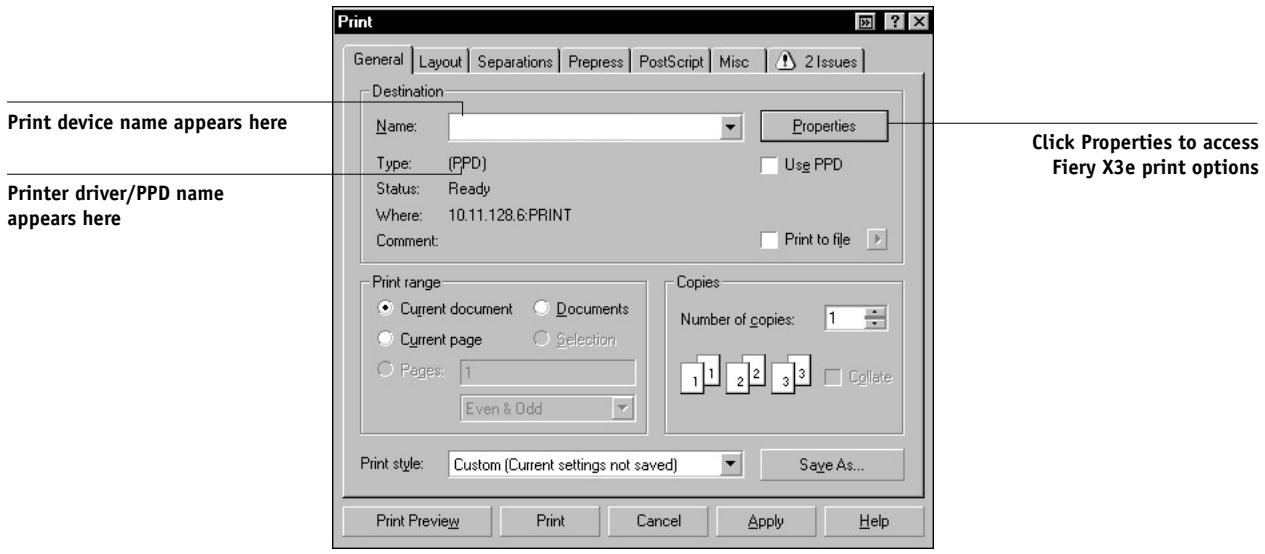
text_image
Print General Layout Separations Prepress PostScript Misc 2 Issues Destination Name: Properties Type: (PPD) Use PPD Status: Ready Where: 10.11.128.6:PRINT Comment: Print to file Printer device name appears here Printer driver/PPD name appears here Print range Current document Documents Current page Selection Pages: 1 Even & Odd Copies Number of copies: 1 1 1 2 3 3 Collate Print style: Custom (Current settings not saved) Save As... Print Preview Print Cancel Apply Help Click Properties to access Fiery X3e print options3. On Mac OS computers, click Printer in the General Print dialog box to select the copier and print options.
To use Fiery X3e color management, make sure the Use color profile option in the Misc tab of the Print dialog box is cleared. If this option is selected, CorelDRAW color management settings are used to convert RGB colors and images to CMYK.
To use Fiery X3e color management, clear this option
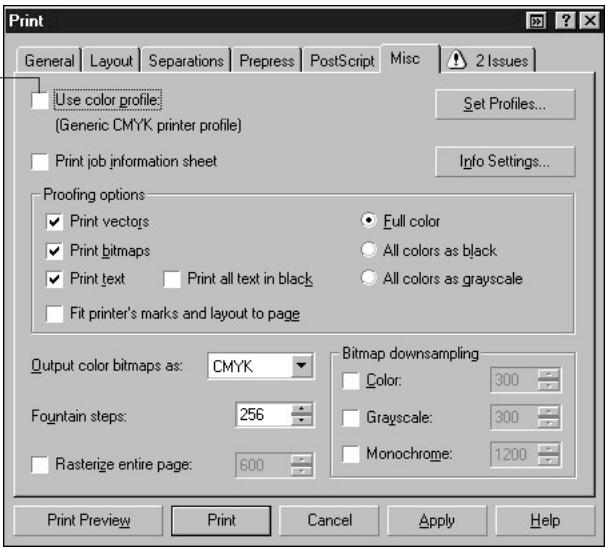
text_image
Print General Layout Separations Prepress PostScript Misc 2 Issues Use color profile: (Generic CMYK printer profile) Print job information sheet Info Settings... Proofing options ✓ Print vectors Full color ✓ Print bitmaps All colors as black ✓ Print text Print all text in black All colors as grayscale ✓ Fit printer's marks and layout to page Output color bitmaps as: CMYK Fountain steps: 256 Rasterize entire page: 600 Bitmap downsampling Color: 300 Grayscale: 300 Monochrome: 1200 Print Preview Print Cancel Apply Help4. If a document contains placed RGB images, choose RGB Source and Rendering Style settings for your copier.
With the exception of placed RGB images, these settings have no effect on colors printed with CorelDRAW.
5. If the document contains PANTONE named colors, choose the appropriate Spot Color Matching setting.
Saving files for importing into other documents
When saving files in CorelDRAW for importing into other types of documents, use the EPS file format. CorelDRAW saves all color information in CMYK, so RGB Source and Rendering Style print options have no effect on color output of artwork saved with CorelDRAW and imported into other kinds of documents. In the case of CorelDRAW files imported into Photoshop, however, vector data from the CorelDRAW file is rasterized into bitmaps in Photoshop, and the final color space of the bitmap data is determined by the color mode you set in Photoshop.
Optional Color Management in CorelDRAW
If you have additional color management requirements not offered by ColorWise, such as managing color on non-Fiery X3e devices, you may want to consider using the color management features offered by CorelDRAW. For more information, see your CorelDRAW documentation.
Appendix A: Desktop Color Primer
This appendix covers concepts that are basic to printing in color, including:
• The properties of color
- Printing techniques
• Using color effectively
- Raster images and vector images
- Optimizing files for processing and printing
If you are already familiar with color theory and digital color printing, you can skip to the last section (“Optimizing files for processing and printing” on page A-10) for tips on optimizing files for printing.
The properties of color
This section introduces concepts that are basic to color theory. You will encounter some of these concepts (such as hue, saturation, and brightness) when you work with color in applications; others provide useful background information. Color is a complex topic, so consider this a starting point for experimentation and further research.
The physics of color
The human eye can see electromagnetic radiation at wavelengths between 400 nanometers (purplish blue) and 700 nanometers (red). This range is called the visible spectrum of light. We see pure spectral light as intensely saturated or pure colors. Sunlight at midday, which we perceive as white or neutral light, is composed of light from across the visible spectrum in more or less equal proportions. Shining sunlight through a prism separates it into its spectral components, resulting in the familiar rainbow of colors (color example 1).
Like the sun, most light sources we encounter in our daily environment emit a mixture of light wavelengths, although the particular distribution of wavelengths can vary considerably. Light from a tungsten light bulb, for example, contains much less blue light than sunlight. Tungsten light appears white to the human eye, which, up to a point, can adjust to the different light sources. However, color objects appear different under tungsten light than they do in sunlight because of the different spectral makeup of the two light sources.
The mixture of light wavelengths emitted by a light source is reflected selectively by different objects. Different mixtures of reflected light appear as different colors. Some of these mixtures appear as relatively saturated colors, but most appear to us as grays or impure hues of a color.
CIE color model
In the 1930s, the Commission Internationale de l'Eclairage (CIE) defined a standard color space, a way of defining colors in mathematical terms, to help in the communication of color information. This color space is based on research on the nature of color perception. The CIE chromaticity diagram (color example 2) is a two-dimensional model of color vision. The arc around the top of the horseshoe encompasses the pure, or spectral, colors from blue-violet to red. Although the CIE chromaticity diagram is not perceptually uniform—some areas of the diagram seem to compress color differences relative to others—it is a good tool for illustrating some interesting aspects of color vision.
By mixing any two spectral colors in different proportions, we can create all the colors found on the straight line drawn between them in the diagram. It is possible to create the same gray by mixing blue-green and red light or by mixing yellow-green and blue-violet light. This is possible because of a phenomenon peculiar to color vision called metamerism. The eye does not distinguish individual wavelengths of light. Therefore, different combinations of spectral light can produce the same perceived color.
Purple colors, which do not exist in the spectrum of pure light, are found at the bottom of the diagram. Purples are mixtures of red and blue light—the opposite ends of the spectrum.
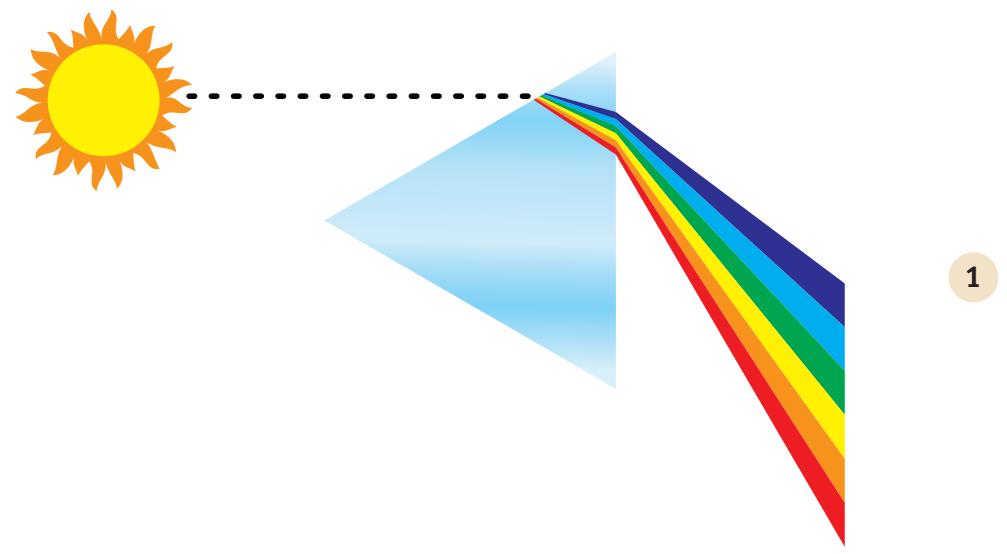
natural_image
Diagram showing a sun projecting to a triangular prism with rainbow-colored rays, labeled with number 1 (no text or symbols on the diagram itself)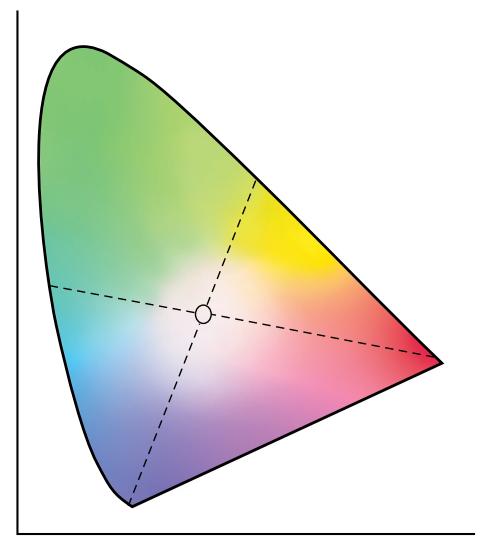
natural_image
Color gradient triangular shape with dashed lines and a central circle, no text or symbols present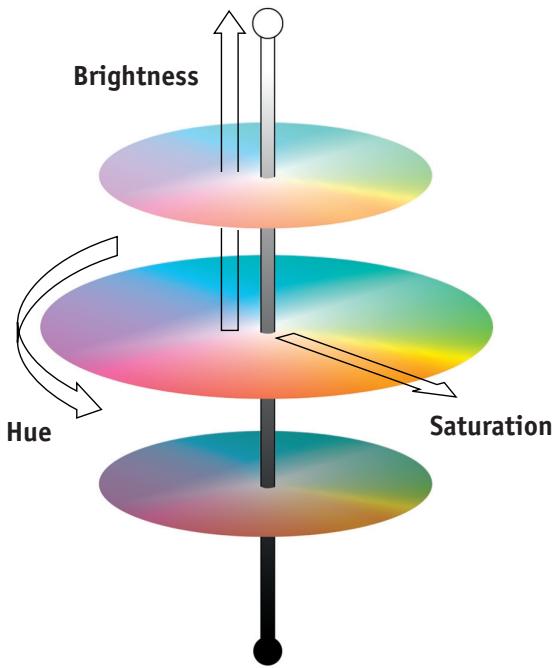
text_image
Brightness Hue Saturation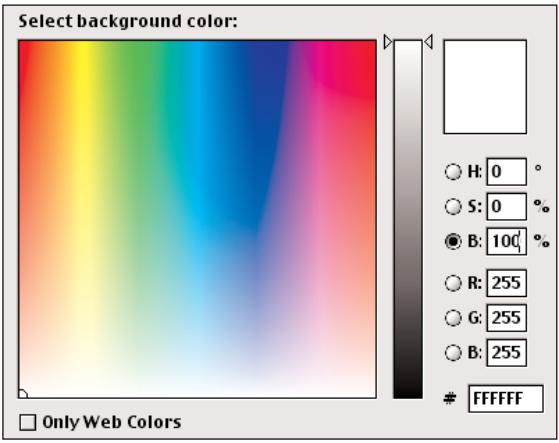
text_image
Select background color: H: 0 ° S: 0 % B: 100 % R: 255 G: 255 B: 255FFFFFFF
Only Web ColorsHue, saturation, and brightness
A color can be described in terms of three varying characteristics, called the HSB color model:
- Hue—tint (the qualitative aspect of a color—red, green, or orange)
- Saturation—the purity of the color
- Brightness—relative position between white and black
While the CIE chromaticity diagram (color example 2) conveys hue and saturation, a three-dimensional color model is required to add the brightness component (color example 3).
Many computer applications include dialog boxes in which you choose colors by manipulating hue, saturation, and brightness. For example, Photoshop uses a square Color Picker (color example 4), which can be reconfigured according to your preference.
Additive and subtractive color systems
Color devices used in desktop publishing and printing simulate the range of visible colors using a set of primary colors that are combined to create other colors. There are two methods for creating a range of colors from a set of primary colors. Computer monitors and scanners are based on the additive color model. Printing technologies, including Fiery X3es and offset presses, are based on the subtractive color model.
Additive (RGB) color
Color devices that use the additive color model make a range of colors by combining varying amounts of red, green, and blue light. These colors are called the additive primaries (color example 5). White is created by adding the maximum amount of red, green, and blue light available. Black occurs wherever all three colors are absent. Grays are created by adding equal amounts of all three color together. Combining varying amounts of any two of the additive primaries creates a third, saturated hue.
A familiar device that is based on this color model is the computer monitor (color example 6). Monitors have red, green, and blue phosphors that emit varying amounts of light to display a given color. Scanners create digital representations of colors by measuring their red, green, and blue components through colored filters.
Subtractive (CMY and CMYK) color
The subtractive color model is the basis for color printing and for color photographic prints and transparencies. While the additive color model simulates the visible spectrum of color by adding light of three primary hues, the subtractive color model starts with a “white” or neutral light source containing light of many wavelengths. Inks, toners, or other colorants are used to selectively absorb (subtract) certain wavelengths of light that otherwise would be reflected or transmitted by the media in use.
The subtractive primaries are cyan, magenta, and yellow; they absorb red, green, and blue light, respectively (color example 7). Combining any two subtractive primaries creates a new color that is relatively pure or saturated. For example, you can make red by combining magenta and yellow, which absorb green and blue light, respectively. White occurs when no colorant is applied. Combining all three subtractive primaries in theory yields black, but due to deficiencies of cyan, magenta, and yellow colorants, combining these three primaries actually yields a muddy brown. Black colorant is added to compensate for the deficiencies of cyan, magenta, and yellow colorants. Consequently, color printing uses four process colors: Cyan, Magenta, Yellow, and blacK (CMYK). The use of black toner helps in producing rich, solid blacks and allows for improved rendering of black text.
The CMYK colorants used in offset printing and by your Fiery X3e copier are to some degree transparent. When one layer of colorant is applied on top of another, you see the effect of both. To create a range of intermediary colors, a method is required for varying the amount of each colorant that is applied. A technique called halftoning is used in offset printing, while color print devices typically use a proprietary system for applying ink or toner colors that is similar to halftoning.
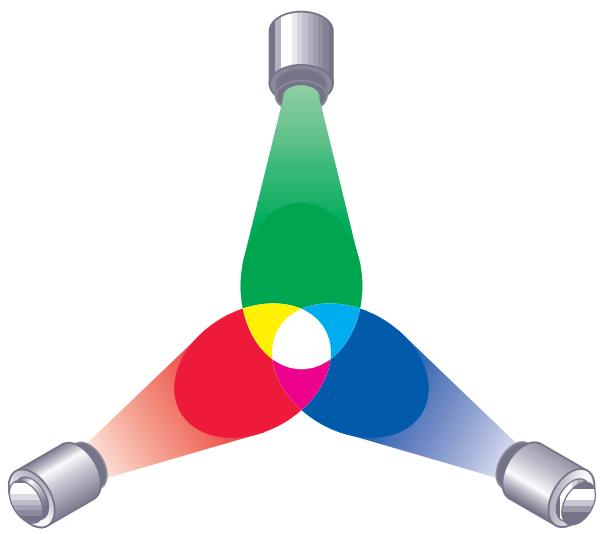
natural_image
Colorful three-light diagram showing a camera emitting colored rays (no text or symbols)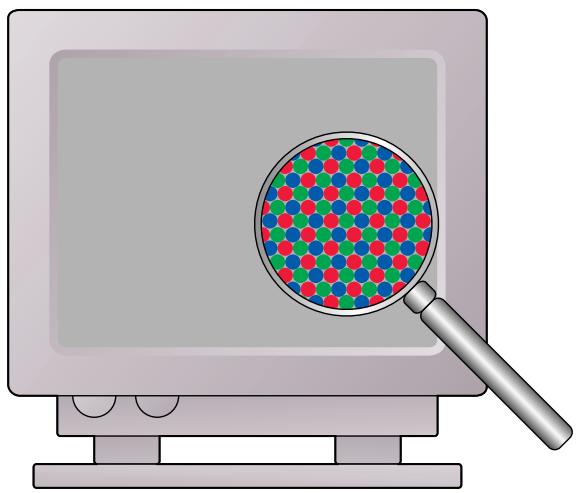
natural_image
Illustration of a computer monitor with a magnifying glass highlighting a colorful dot pattern (no text or symbols)
natural_image
Illustration of light sources and a light bulb with three colored arrows pointing upward, set against a blue circular base (no text or symbols)
natural_image
Illustration of light rays reflecting off a pink circular base with a lightbulb and an eye symbol (no text or labels)
natural_image
Illustration of light sources and a stylized eye with red, green, blue, and yellow arrows pointing upward (no text or symbols)
natural_image
Abstract illustration with colorful arrows and a lightbulb above, no text or symbols present
natural_image
Abstract illustration with lightbulb, red, green, blue, and arrow shapes (no text or symbols)
natural_image
Abstract illustration with colored arrows and a lightbulb above, no text or symbols present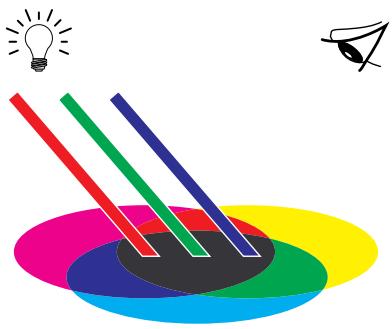
natural_image
Colorful abstract illustration with three colored pencils and a lightbulb above, no text or symbols present.Printing techniques
Until recently, most color printing was done on printing presses using one of several printing techniques—offset lithography, flexography, and gravure, to name a few. All traditional printing techniques require lengthy preparation before a print run can take place. Short-run color printing, including Fiery X3e printing, eliminates most of this preparation. By streamlining the process of color printing, the Fiery X3e makes short print runs economically feasible.
In contemporary offset lithographic printing, digital files from desktop computers are output to an imagesetter, which creates film separations. The film is used to make a prepress proof, which is an accurate predictor of the final print job and allows you to make corrections before going to press. Once the proof is approved, the printer makes plates from the film and runs the print job on the press.
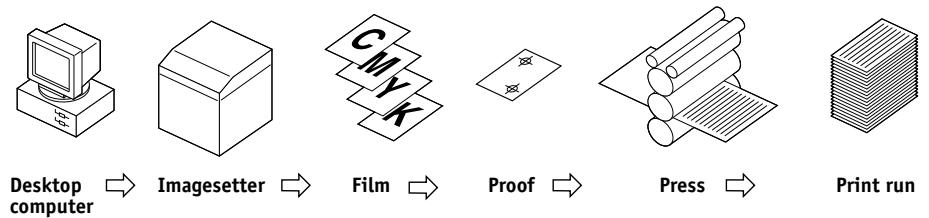
flowchart
graph LR
    A["Desktop computer"] --> B["Imagesetter"]
    B --> C["Film"]
    C --> D["Proof"]
    D --> E["Press"]
    E --> F["Print run"]
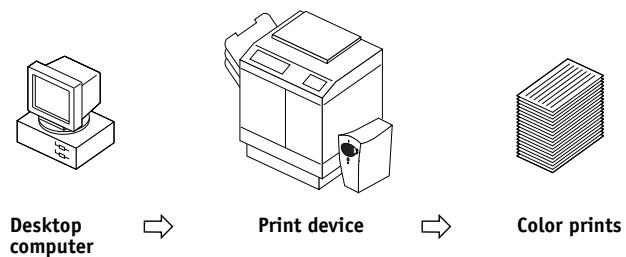
flowchart
graph LR
    A["Desktop computer"] --> B["Print device"]
    B --> C["Color prints"]
With a Fiery X3e, you simply print the file. The Fiery X3e processes the PostScript information in the file and sends four bitmaps (one each for cyan, magenta, yellow, and black) to the print engine. The ease of Fiery X3e printing makes possible experimentation that would be too costly on press, allowing unlimited fine-tuning of color and design elements.
Halftone and continuous tone devices
Halftoning is used in offset printing to print each process color at a different intensity, allowing millions of different colors to be reproduced using only the four process colors. Depending on the required intensity of a given color, toner is placed on paper in dots of different size. The grid of dots used for each toner color is called a screen. Halftone screens are aligned to unique angles designed to eliminate interference patterns called moiré that can arise with halftoning.
Some color print devices are commonly referred to as continuous tone (or “contone”) devices. They do not use traditional halftone screen patterns and angles. Contone devices are capable of varying the intensity of individual dots.
Even if your color printing is done exclusively on the Fiery X3e, you will encounter concepts from offset printing if you use high-end graphics applications. For example, color controls in illustration applications such as Illustrator are geared toward specifying color for offset printing using process and spot colors. Many applications allow you to specify the screening used for each printing plate.
Using color effectively
The ability to print in color can greatly increase the effectiveness of your message, whether you are printing a presentation or a newsletter, or proofing an ad concept that will later be printed on press. Some potential benefits of using color include:
- Conveying information rapidly by using color cues
- Making use of the emotive aspects of different colors
- Increasing impact and message retention
Color can also be a source of distraction and discord if it is used poorly. This section outlines some tips and concepts that will prove useful as you approach designing color materials.
A few rules of thumb
Try some of the following strategies for creating successful color materials:
- Rather than applying colors indiscriminately, use color to aid comprehension. In presentations, graphs, and charts, use color to highlight patterns and emphasize differences.
- In general, fewer colors work better than many colors.
- Use red as an accent color. Red is particularly effective when used in otherwise monochromatic materials.
- Consider the tastes of your target audience when choosing colors.
- Keep a file of printed color pieces that appeal to you or strike you as effective. Refer to it for ideas when designing your own documents.
Color wheel
A color wheel (color example 8) is a helpful tool for understanding the interrelation of colors. The colors on one side of the color wheel, from magenta to yellow, appear to most people to be warm colors, while those on the other side, from green to blue, appear to be cool. The distance between two colors on the color wheel can help predict how they will appear when seen side by side.
Colors opposite one another on the wheel are called complements (color example 9), and create a striking contrast side by side. This can be the basis for a bold graphical design, but it is an effect you should use with discretion since it can be visually fatiguing. Other bold combinations to consider are split complements (a color and the two colors adjacent to its complement) and triads (three colors evenly spaced on the color wheel). Colors adjacent to one another on the color wheel result in subtle harmonies.
The color wheel simplifies color relationships for the purpose of clarity, showing only saturated or pure colors. Adding the myriad variations of each hue to the palette (more or less saturated, darker or lighter) creates a wealth of possibilities. Taking a pair of complements from the color wheel and varying the saturation and brightness of one or both colors produces a very different result from the pure complements. Combining a light tint of a warm color with a darker shade of its cooler complement often gives pleasing results. Combining a darker shade of a warm color with a light tint of its cooler complement produces an unusual effect you may like.
Once you have mastered the concept of the color wheel, you have a good framework for experimenting with color combinations. Many books targeted at graphic designers show groups of preselected color combinations. Some are organized by themes or moods, and some are based on a custom color system such as PANTONE. The more you develop a critical facility for judging color combinations, the more you will be able to trust your own eye for color. The bibliography at the back of this manual includes books on design.
Color and text
It is not a coincidence that the overwhelming majority of text you see is printed in black on white paper. Text in black on white is highly legible and is not fatiguing to read for extended periods. For many color materials, using black text on a white background and confining color to graphic elements and headings is a good choice.
Color text can add flair to documents printed on paper when used skillfully. This technique is widely used in presentations. When using color text, avoid dazzling text and background combinations created from primary complements, especially red and cyan or red and blue; they are visually fatiguing and hard to read. Color text is more legible when distinguished from its background by a difference in lightness—for example, dark blue text on a light beige background. In addition, using many different colors in a string of text makes for a confused appearance and is hard to read. However, using a single highlight color is an effective way to draw the reader's eye to selected words. See color example 10 for color text samples.
When using color text, keep in mind that small font sizes typically do not print in color with the same sharpness as in black. In most applications, black text prints exclusively in black toner, while color text usually prints with two or more toners. Any misregistration between the different toners on paper causes color text to lose definition. You can make test prints to find the smallest point size at which color text prints clearly. When using high-end graphics applications that allow you to specify color as percentages of cyan, magenta, yellow, and black, you can create pure cyan or pure magenta text that prints with the same sharpness as black text. (Pure yellow text is extremely hard to read on anything but a dark or complementary background.)
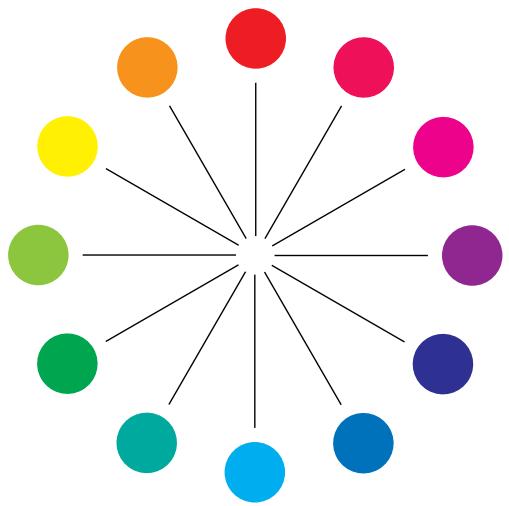
natural_image
Circular arrangement of colored circles radiating from a central point, no text or symbols present
natural_image
Illustration of a striped spherical object with red and blue sections (no text or symbols)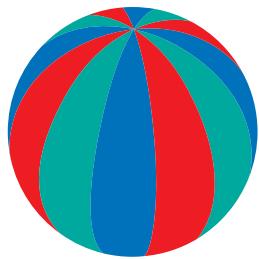
natural_image
Colorful striped spherical object with red, blue, and green segments (no text or symbols)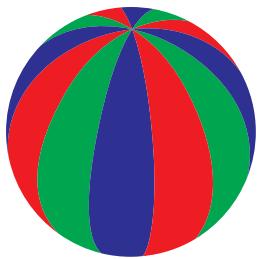
natural_image
Colorful striped spherical object with red, green, and blue segments (no text or symbols)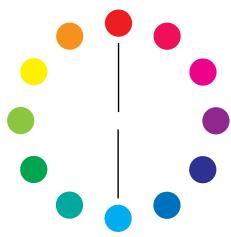
natural_image
Circular arrangement of colored dots with a central vertical line (no text or symbols)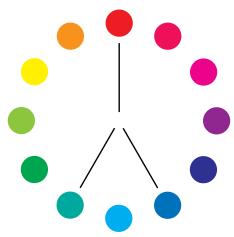
natural_image
Circular arrangement of colored circles with a central arrow pointing from top (no text or symbols)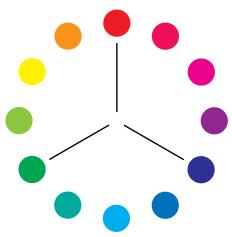
natural_image
Circular arrangement of colored dots arranged symmetrically around a central point (no text or symbols)9a
9b
9c
STOP!
STOP!
natural_image
Close-up of a metallic hexagonal bolt with threaded shaft and hexagonal base, shown with magnified inset (no text or symbols)11a
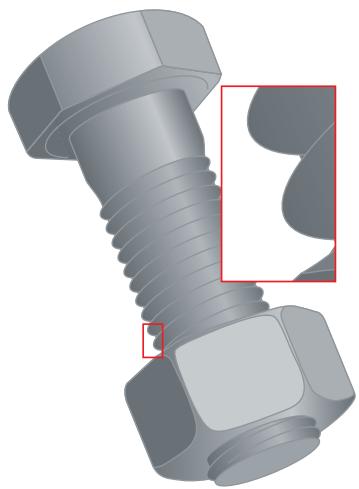
natural_image
3D rendered image of a hexagonal bolt with threaded shaft and hexagonal nut, showing internal threading (no text or symbols)11b
Raster images and vector images
Two broad categories of artwork can be printed from a personal computer to a color printer: raster and vector images (color example 11).
A raster image, also referred to as a bitmap, is composed of a grid of pixels, each assigned a particular color value. The grid, when sufficiently enlarged, resembles a mosaic made from square tiles. Examples of raster images include scans and images created in painting or pixel-editing applications, such as Photoshop and Painter.
The amount of data found in a raster image depends on its resolution and bit depth. The resolution of a raster describes the compactness of the pixels and is specified in pixels per inch (ppi). The bit depth is the number of bits of information assigned to each pixel. Black and white raster images require only one bit of information per pixel. Grayscale images require 8 bits per pixel. For photographic quality color, 24 bits of RGB color information are required per pixel, yielding 256 levels of red, green, and blue. For CMYK images, 32 bits per pixel are required.
When printing raster artwork, the quality of the output depends on the resolution of the source raster. If the raster resolution is too low, individual pixels become visible in the printed output as small squares. This effect is sometimes called “pixelation.”
In vector images, picture objects are defined mathematically as lines or curves between points—hence the term “vector.” Picture elements can have solid, gradient, or patterned color fills. Vector artwork is created in illustration and drawing applications such as Illustrator and CorelDRAW. Page layout applications such as QuarkXPress also allow you to create simple vector artwork with their drawing tools. PostScript fonts are vector-based as well.
Vector artwork is resolution-independent; it can be scaled to any size and resolution without danger of pixels becoming visible in printed output.
Optimizing files for processing and printing
The following sections provide tips on how to create image files that produce the highest possible print quality while minimizing the processing time and disk space they require.
Resolution of raster images
While a 72 ppi raster image appears sharp on a monitor, the same image would likely appear pixelated when printed to the Fiery X3e. Color print devices are capable of much greater detail than monitors, and require correspondingly higher resolution image files. However, high-resolution files can be large, and therefore cumbersome to transmit over a network, process for printing, store on disk, and edit.
Beyond a certain threshold, a higher image resolution greatly increases file size while having a minimal effect on output quality. The optimal image resolution depends on the resolution of the final print device. Aim for the resolution that optimizes both file size and output quality.
The resolution of a raster image, along with its bit depth and physical dimensions, determine its file size. The following table shows the file sizes of color raster images at different dimensions and resolutions.
| File size at: | |||||
| Image size: | 100 ppi | 150 ppi | 200 ppi | 400 ppi | 600 ppi |
| RGB/CMYK | RGB/CMYK | RGB/CMYK | RGB/CMYK | RGB/CMYK | |
| 3" x 4" | 0.4/0.5 MB | 0.8/1.0 MB | 1.4/1.8 MB | 5.5/7.3 MB | 12.4/16.5 MB |
| 5" x 7" | 1.0/1.3 MB | 2.3/3.0 MB | 4.0/5.3 MB | 16.0/21.4 MB | 36.1/48.1 MB |
| 8.5" x 11" | 2.7/3.6 MB | 6.0/8.0 MB | 10.7/14.3 MB | 42.8/57.1 MB | 96.4/128.5 MB |
| 11" x 17" | 5.4/7.1 MB | 12.0/16.1 MB | 21.4/28.5 MB | 85.6/114.1 MB | 192.7/256.9 MB |
In this table, the shaded areas indicate that 200 ppi is typically the best trade-off between image quality and file size. However, higher resolutions (for example, 250 to 300 ppi) may be needed for offset printing, when quality is of the utmost importance, or for images containing sharp diagonal lines.
To find the best image resolution for your purposes, make test prints of some raster artwork at different resolutions. Start with a high-resolution image (400 ppi) and save versions at progressively lower resolutions, down to 100 ppi, using a pixel-editing application such as Photoshop. Always save a copy of the original high-resolution version in case you need to revert to it. The high-resolution data cannot be recreated from a lower resolution version.
Print the files and examine the output. You will likely begin to see a marked deterioration in output quality at resolutions below 200 ppi, while above 200 ppi the improvement may be very subtle.
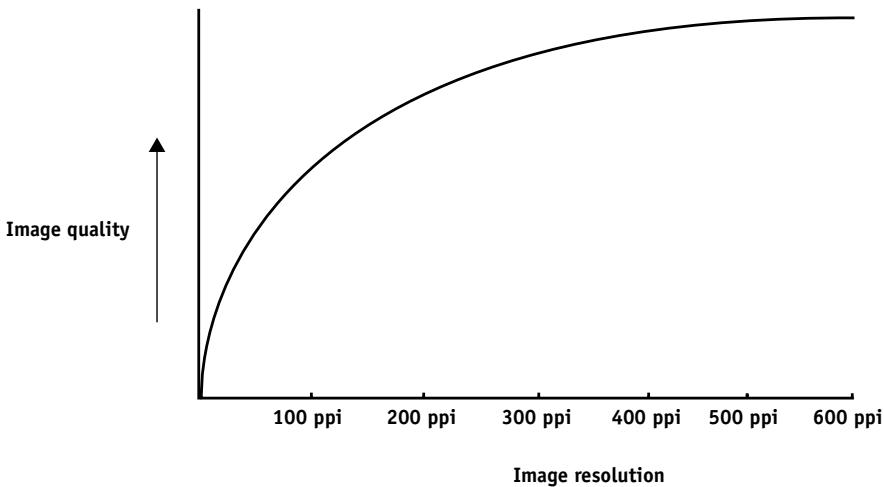
line
| Image resolution | Image quality | | ---------------- | ------------- | | 0 | 0 | | 100 ppi | Low | | 200 ppi | Medium | | 300 ppi | High | | 400 ppi | High | | 500 ppi | High | | 600 ppi | High |Raster images prepared for offset printing may need to be at higher resolutions than needed for proofing on your Fiery X3e.
Scaling
Ideally, each raster image should be saved at the actual size, and it will be placed into the document at the optimal resolution for the print device. If the image resolution is correct for the print device, there is no quality advantage to be gained by scaling an image down to a percentage of its actual size. If you scale a large image down to a percentage of its actual size, you incur unnecessary file transfer time because the image data for the entire large image is sent to the printer. If an image is placed multiple times at markedly different sizes in a document, save a separate version of the image at the correct size for each placement.
If you need to place an image at greater than 100% in a document, remember that the output image resolution is affected. For example, if you scale a 200 ppi image to 200%, the image is printed at 100 ppi.
Appendix B: Color Management
This appendix provides information on controlling and managing color output in order to achieve predictable color results. It also discusses the basics of color management.
Controlling printed color
When working with color materials, whether they be presentations, illustrations, or complicated page designs, you make aesthetic decisions about the colors you use. Once you have decided on your goal, you then need to realize it in print. Your color printing system becomes an ally in this creative process to the extent that results are predictable.
- If you designed a poster to print on the Fiery X3e, you want the printed colors to match the design specification.
- If you are printing presentations on the Fiery X3e, you want to preserve the vivid colors you see on your monitor.
- If you are working with color that will be printed on an offset press, you want the Fiery X3e output to match other prepress proofs or PANTONE color swatch books.
The type of print job and the final print device, Fiery X3e or offset press, determine the methodology you use to achieve the best results.
No matter what your goals are, two factors always impact color print output: print device consistency and the range of colors the device can print, known as its gamut. These concepts are covered briefly in this chapter. Creating successful color documents and presentations also requires an understanding of color management software as it is implemented by the Fiery X3e and on your desktop computer. Most of this chapter is devoted to discussing the various elements of color management that contribute to predictable color results.
Maintaining copier consistency
The factors described below affect print device consistency as well as color fidelity and overall output quality.
Paper stock and toner
The paper and toner used by your copier can greatly affect printed color. For best results, use the supplies recommended by the manufacturer of the copier.
Maintenance
Problems such as streaking and insufficient or excessive amounts of one or more toners arise when a copier does not receive periodic maintenance or needs major repairs. In addition to having it serviced regularly, monitor the condition of your copier by making standard test prints at regular intervals. You can do this easily by printing the Fiery X3e Test Page. Save the prints and show them to the service technician whenever output densities vary from the norm or other problems appear.
Print device gamut
Different color reproduction techniques have different color capabilities, or gamuts. Color transparency films have comparatively large gamuts, as do color monitors. The color gamut that can be produced using process inks or CMYK toners on paper is smaller. This is why some colors that can be displayed on a color monitor, especially bright saturated colors, cannot be reproduced exactly by your Fiery X3e copier—nor, for that matter, can they be reproduced on a press using process colors. Moreover, different print devices have different gamuts—some colors that your copier can produce cannot be reproduced on an offset press, and vice versa. The following illustration provides a graphical representation of this concept.
Color transparency film
RGB monitor
Offset press (white)
Other print device
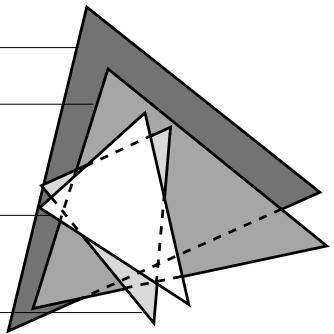
natural_image
Geometric diagram of overlapping triangles with dashed lines indicating hidden edges (no text or symbols)You need to account for the gamut of your print device when designing on a color monitor. When printed, colors that fall outside the print device gamut are “mapped” to printable colors. This process, referred to as gamut mapping, takes place when color data is converted or adjusted to meet the gamut requirements of a print device.
The Fiery X3e is specially designed to perform gamut mapping at high speed with high quality results. It provides these color management features automatically, using either built-in default settings or settings that you specify for a particular print job. For added flexibility, the Fiery X3e color management system can also be used in combination with color management systems on Windows and Mac OS computers.
Basics of color management
The past several years have seen progress toward standardization in the field of digital color management systems. Both the Windows and Mac OS operating systems now support a standard format developed by the International Color Consortium (ICC). This ICC format is implemented on Windows 95/98, Windows NT 4.0, and Windows 2000 computers in Image Color Matching (ICM) and on Mac OS computers in ColorSync. More and more software developers are also incorporating color management systems into high-end applications. The Fiery X3e color management system, ColorWise, supports this industry standard profile format.
A color management system, or CMS, is a “translator” between the color space of the source image (the monitor, or a scanner, for example) and the color space of the output device. The CMS uses a device-independent color space, such as CIELAB, as its intermediate color space. To perform its translation, the CMS needs information about the color space of the source image and the gamut of the print device. This information is provided in the form of profiles, often created by the makers of the monitor or print device. The end product of a CMS conversion is a printed document or an image file in the gamut of a particular device.
NOTE: If color matching between computer display and printed output is critical, you should calibrate your monitor as well as your printer. For most users, predictability of printed color output is adequate and monitor calibration is not necessary. For information on monitor calibration, see your Photoshop or Illustrator documentation.
Color conversion
Before a color document can be printed, the color data in it must be converted to the gamut of the print device. Whether performed by the Fiery X3e or by a host-based CMS, the process of converting color data for a print device is the same: the CMS interprets RGB image data according to a specified source profile and adjusts both RGB and CMYK data according to a specified output profile, also called a destination profile by some color management systems.
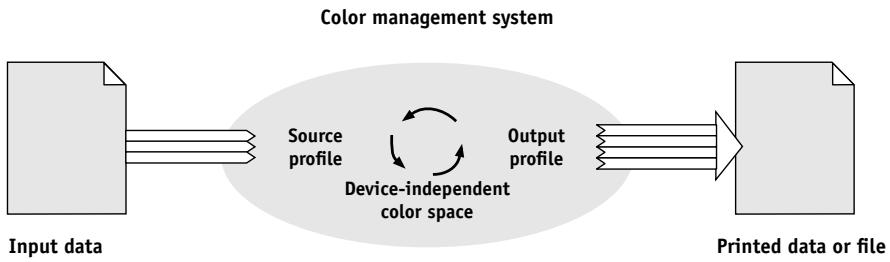
flowchart
graph LR
    A["Input data"] --> B["Source profile"]
    B --> C["Device-independent color space"]
    C --> D["Output profile"]
    D --> E["Printed data or file"]
The source profile defines the RGB color space of the image's source—characteristics such as the white point, gamma, and type of phosphors used. The output profile defines the gamut of the output device. The Fiery X3e (or the host-based CMS) uses a device-independent color space to translate between the source color space and the color space of the output device.
The Fiery X3e allows you to specify default and override settings for the source color space information and the output profile information (see page 1-1). When you use these settings, you do not need to use the features of other color management systems. Your Fiery X3e software includes ICC profiles for use with other color management systems, if you choose to use them, although conflicts may arise when the Fiery X3e CMS is used in conjunction with a host CMS.
Color management systems can also be used to adjust color data to the gamut of a print device other than the one to which you are printing. This process of simulating another print device is commonly used for proofing jobs that will print on an offset press. The Fiery X3e simulation feature is described on page 1-8.
Appendix C: Importing densitometer measurements
This appendix describes Simple ASCII File Format, which can be used to import density measurements from measurement devices. To use your own measurement data from an alternate densitometer, record your individual readings in a text file and structure it as described below.
Simple ASCII Import File Format (SAIFF)
This format describes Status T measurement data and is for import into the ColorWise Pro Tools Calibrator. There are three possible file formats:
• 1D Status T density for EFI 34 patch page
• 1D Status T density for EFI 21 patch page
• 1D Status T density for other pages (maximum of 256 patches per ink)
The file format is ASCII and has no tabs. A single space or multiple spaces are used as delimiters. Blank lines are not allowed. Each line in the file represents four patches (C, M, Y, K) of a specific ink value. Comments may be on any line in the file, and these lines start with a pound sign (#) followed by a space. A line with a pound sign followed by any character other than a space has been reserved. Comments must be on an entire line by themselves.
Each line of data contains five values. The first number is the sequential patch number (for EFI 34 and EFI 21 pages) or the ink value percentage (for other pages). The following four values are the density values of C, M, Y, and K of the corresponding patch. Lines are ordered either by increasing sequential patch numbers or by increasing the ink percentage.
For Windows computers, the file extension must be .cm1. For Mac OS computers, the file type must be 'TEXT'.
Measurement data in EFI 34 and EFI 21 are paper-relative. For other pages, if the first line corresponds to zero ink value, the Calibrator assumes that the measurement data is absolute and adjusts it to become paper-relative by subtracting the density values of the first line from the remaining patches.
Example of 1D Status T density for EFI 34 patch page
This file format is used to specify the Status T density measurements of the EFI 34 patch page. The value in the first column is the patch number. The first patch must be 1 and the last must be 34.
#!EFI 3
<h1 id="efi-colorwise-20-data">EFI ColorWise 2.0 Data</h1>
type: 1DST34
<h1 id="cyan-magent-yellow-black">Cyan    Magent    Yellow    Black</h1>
1 0.0300 0.0400 0.0200 0.0400
2 0.0600 0.0700 0.0800 0.0700
3 0.1000 0.1000 0.1000 0.1000
(...more data...)
33 1.6700 1.3400 0.8900 1.6700
34 1.7200 1.4300 0.9300 1.7500
Example of 1D Status T density for EFI 21 patch page
This file format is used to specify the Status T density measurements of the EFI 21 patch page. The value in the first column is the patch number. The first patch must be 1 and the last must be 21.
#!EFI 3
<h1 id="efi-colorwise-20-data-2">EFI ColorWise 2.0 Data</h1>
type: 1DST21
<h1 id="cyan-magent-yellow-black-2">Cyan    Magent    Yellow    Black</h1>
1 0.0300 0.0400 0.0200 0.0400
2 0.0600 0.0700 0.0800 0.0700
3 0.1000 0.1000 0.1000 0.1000
(...more data...)
20 1.6700 1.3400 0.8900 1.6700
21 1.7200 1.4300 0.9300 1.7500
Example of 1D Status T density for an arbitrary page
This file format is used to specify the Status T density measurements of a user-defined patch page. The value in the first column is the ink/toner percentage of the patch. The first percentage must be 0 and the last percentage must be 100. The percentages must increase in between.
#!EFI 3
<h1 id="efi-colorwise-20-data-3">EFI ColorWise 2.0 Data</h1>
type: 1DST
<h1 id="percnt-cyan-magent-yellow-black">percnt Cyan Magent Yellow Black</h1>
0.0000 0.0300 0.0400 0.0200 0.0400
0.3922 0.0600 0.0700 0.0800 0.0700
1.1765 0.1000 0.1000 0.1000 0.1000
(...more data...)
98.0000 1.6700 1.3400 0.8900 1.6700
100.0000 1.7200 1.4300 0.9300 1.7500
Glossary
additive color model
A system in which colors are produced by combining red, green, and blue light (the additive primaries). An RGB video monitor is based on an additive color model.
additive primaries
Red, green, and blue light that is used in additive color systems. When added together in proper amounts, these colors of light produce white.
artifact
A visible defect in an image, usually caused by limitations in the input or output process (hardware or software); a blemish or error.
banding
Visible steps between shades in a color gradient.
bit depth
Amount of information used for each pixel in a raster image. Black and white images require only one bit per pixel. Grayscale images with 256 shades of gray require 8 bits (or 1 byte) per pixel. Photographic quality color images can require 24 bits per pixel (RGB images) or 32 bits per pixel (CMYK images).
bitmap
An image comprised of small squares arranged in a grid. Each square in the grid is a pixel. The number of pixels per inch defines the resolution of a bitmap.
blasting
An undesirable effect that occurs when excess amounts of toner, possibly combined with certain types of paper stock, cause objects in an image to spread beyond its boundaries as defined in the file.
BMP
A graphics file format established by Microsoft and native to the Windows operating system.
calibration
The process of ensuring that a device behaves consistently with respect to a set of specifications.
CMS
See color management system.
CMYK
A subtractive color model that uses cyan, magenta, yellow, and black, or process colors, used in color printing; a color model used in the printing of colors in four-color process printing.
color channel
A single-color image that can be edited separately from the other color channels comprising a color space—for example, the red channel of an RGB image.
color gamut
See gamut.
color management system (CMS)
System used to match color across different input, display, and output devices.
color rendering dictionary
See CRD (color rendering dictionary).
color separation
The process of separating a color image into the color components for printing—cyan, magenta, yellow, and black. Also used to refer to the four sheets of film that result from the process of separating a color image.
color space
A model for representing color in terms of measurable values, such as the amount of red, green, and blue in an image. RGB and CMYK color spaces correspond to color devices—monitors and copiers respectively. Other color spaces, such as CIE Lab, are based on mathematical models and are device-independent. They are not based on the color response of a particular device. See gamut.
colorant
An ink, dye, toner, paint, or other pigment that modifies the color of media to which it is applied.
ColorWise color management
Fiery X3e's ICC-open color management solution, which is an easy-to-use system that addresses the needs of both casual and experienced color management users.
composite printer
Any output device that can print directly in color without first creating color separations. A composite print can be used as an early proof of an offset print job.
continuous tone (contone)
Describes a photographic image that contains gradient tones from black to white (such as a 35mm transparency or a photograph). Continuous tones cannot be reproduced in that form for printing, but must be screened to translate the image into dots.
continuous tone (contone) image
An image containing fine gradations of tones, such as a photographic image.
CRD (Color Rendering Dictionary)
A feature of color management systems and PostScript Level 2 and PostScript 3 color copiers that maintains the best possible translation of color from one color device to another. A color rendering dictionary (CRD) is used by the color management system or the copier's PostScript interpreter when converting data between color spaces. The Fiery X3e includes several CRDs, each of which provides a different color rendering style.
custom color system
A system of named color swatches that can be matched on press using process or spot colors. PANTONE and TruMatch are examples of custom color systems.
DCS (Desktop Color Separation)
A data file standard defined by Quark, Inc., to assist in making color separations with desktop publishing system; five files are created, four color files (one each for C, M, Y, and K) and a composite color preview file of the color image. It allows an image-editing application to perform color separation and pass it through to final output with its integrity intact.
density
A measurement of the light-absorbing quality of a photographic or printed image.
densitometer
An instrument commonly used in the graphic arts industry to measure density according to a specified standard.
desktop color separation
See DCS.
DIC
A Japanese standard of specifications for separations, proofs, and color printing.
EPS or EPSF (Encapsulated PostScript)
A PostScript file format designed to be embedded in another PostScript stream.
Euroscale
A European standard of specifications for separations, proofs, and color printing.
flexography
A printing technology that uses flexible raised-image plates. Flexography can be used to print on non-flat materials such as cans.
four-color printer
A printing device that uses cyan, magenta, yellow, and black ink or toner.
gamma
A numeric value representing the relationship (gamma curve) between the input and output values of a color device. If gamma equals 1, input values are mapped exactly to output values.
gamut
A range of colors. A device gamut is the range of colors that a device, such as a copier, can produce. An image gamut is the range of colors in a particular image.
gamut mapping
The conversion of color coordinates from one device's gamut to another—usually accomplished with algorithms or look-up tables.
GDI (Graphics Device Interface)
Graphics and display technology used by computers running Windows. GDI applications rely on GDI (rather than the PostScript language) to send text and pictures to copiers.
GIF (Graphics Interchange Format)
A standard developed by CompuServe for bitmap graphics of up to 256 colors and used for posting photographic images on the Internet or intranet pages; rarely used for professional printing.
gradient
A smooth transition between two different colors or between two shades of a color.
Graphics Device Interface
See GDI.
Graphics Interchange Format
See GIF.
gravure
A printing technology that uses an etched cylinder that has been immersed in ink. The ink that remains in the etched areas is applied to the paper. The non-etched surfaces of the cylinder are non-printing areas.
halftoning
A method for representing an original continuous tone image using a pattern of dots, lines or other patterns.
HSB
A color model where each color is represented by its hue, saturation, and brightness components; supported by most color applications.
ICC profile
An industry standard color profile format developed by the International Color Consortium (ICC) that describes the color capabilities, including the gamut, of a color device based on the differences between an ideal and the current device. The ideal is often provided by the manufacturer as a color reference file. ICC profiles are implemented on Mac OS computers in ColorSync and on Windows 95/98, Windows NT 4.0, and Windows 2000 computers in Image Color Matching (ICM). The Fiery X3e's color management system, ColorWise, supports ICC profiles.
imagesetter
Raster-based film output device; a high-resolution laser output device that writes bitmapped data onto photosensitive paper or film.
JPEG
A graphics file format defined by the Joint Photographic Experts Group committee of ISO (International Standards Organization); a standard for digital compression of still image graphic data.
metamerism
Phenomenon in which two colors composed of different combinations of light wavelengths appear identical under a specific light source, but may look different under other light sources. The colors are called “metamers.”
moiré
An undesirable pattern in images made using halftone screens. Moiré can be caused by the improper line frequency of the screens, improper screen angles, improper alignment of halftone screens, or by the combination of a halftone screen with patterns in the image itself.
named color
A color that is defined according to a custom color system. For example, PANTONE 107 C is a named color.
office applications
Software applications commonly used for business purposes, including presentation applications, spreadsheets, and word processing programs.
offset lithography
Printing in which ink is transferred from printing plates to a rubber blanket and then from the blanket to paper.
output profile
The output profile describes the color characteristics of a printing device. It consists of both a profile for your copier and a calibration target that defines the expected density response of the copier.
phosphor
Material used in making computer monitors; phosphors glow and emit red, green, and blue light when struck by an electron beam, thus creating an image.
photographic rendering
A color rendering style that preserves tonal relationships in images.
Unprintable colors are mapped to printable colors in a way that retains differences in lightness, sacrificing color accuracy as necessary.
pixel
The smallest distinct element of a raster image. The term is a combination of the words “picture” and “element.”
PostScript
A device-independent page description language developed by Adobe, which is used to print and display pictures and text. PostScript 3 includes many enhancements to older versions of PostScript, including improved image quality and color with Enhanced Image Technology, faster performance with Advanced Page Processing, and ease of use and setup with NetWorks System.
PPD (PostScript Printer Description file)
A file containing information about a particular PostScript print device's capabilities and restrictions. The information in the PPD is presented via the printer driver.
prepress proof
A print made from a set of film separations or other file to simulate the results of printing. A prepress proof is the last opportunity to catch problems before the print job goes to press.
presentation graphics rendering
A color rendering style that creates saturated colors but does not match printed colors precisely to displayed colors. It is appropriate for bright saturated colors used in illustrations and graphs.
process colors
The four ink colors used in printing to simulate full-spectrum color images: Cyan, Magenta, Yellow, and blacK (CMYK).
QuickDraw
Graphics and display technology built into Mac OS computers. QuickDraw applications rely on QuickDraw (rather than the PostScript language) to send text and pictures to copiers.
raster image
Electronic representation of a page or image using a grid of points called pixels.
rendering intent
The style of color rendering, or gamut mapping, designed for a particular type of color job. An example of a rendering intent is Photographic rendering—also referred to as Image rendering or Contrast rendering—which is designed for photographic images.
resolution
The number of pixels per inch (ppi) in a bitmap image or the number of dots per inch (dpi) that a device can render.
RGB
An additive color model that makes a range of colors by combining red, green, and blue light, called the additive primaries. Commonly used to refer to the color space, mixing system, or monitor in color computer graphics.
simulation profile
The simulation profile describes the color characteristics of another print device, such as a printing press, that you want the Fiery X3e to simulate.
solid color rendering
A color rendering style intended for use when color accuracy is crucial. Unprintable colors are mapped to the closest printable colors. Solid color rendering does the best job of preserving the saturation of displayed colors.
source color space
The color environment of the originating source of an image, including scanners and color monitors.
source profile
A profile used by the color management system to determine the characteristics of the color values specified in a source digital image.
spectral light
The wavelengths of electromagnetic radiation emitted by a given light source that can be seen by the human eye.
spot color
A color that is printed on its own separation plate when separations are specified. A spot color is printed using a custom ink for that color, in contrast to process colors that are printed using combinations of cyan, magenta, yellow, and black.
Status T
A spectral response for graphic arts reflection densitometers defined by ANSI (the American National Standards Institute).
subtractive color model
A system in which color is produced by combining colorants such as paint, inks, or dyes on media such as paper or transparent film or acetate. All printing devices use the subtractive color model.
subtractive primaries
Cyan, magenta, and yellow colorants used in subtractive color systems for color printing. Combining the subtractive primaries produces darker colors. Black is added to the subtractive primaries to compensate for deficiencies of the toners or inks, and for more efficient black printing.
substrate
In printing, the material upon which the job is printed.
SWOP
The abbreviation for Specifications for Web Offset Publications. A standard of specifications for separations, proofs, and color printing on a web offset press (not a sheet fed press).
undercolor removal
In areas where all three process colors (C, M, Y) overprint, the amounts of those colors are reduced and replaced by black. This improves wet ink trapping and reduces ink costs in process color printing.
vector image
Graphic illustration created on computers where picture objects are defined mathematically as lines or curves between points. These mathematical definitions are interpreted by an image language such as PostScript. Vector images include artwork created with illustration applications (such as Illustrator or FreeHand) and page layout applications (such as PageMaker).
white point
The color temperature of any white light source, typically expressed in degrees Kelvin (for example, 6500 K, typical for the white of a monitor).
workflow
The path a print job follows from creation to destination. A workflow may originate with an RGB scan imported to the client workstation and opened on the desktop in an image processing application, such as Photoshop. After adjustments are made to the scanned image, it is evaluated on a color proofing device for eventual color printing on the same device or on press.
Bibliography
Books
Adobe Print Publishing Guide. Adobe Systems Incorporated, 1995. (Comes as part of the documentation for Adobe products such as Adobe Photoshop and Adobe Illustrator, P/N 0397 0719.)
Blatner, David and Fraser, Bruce. Real World Photoshop 3: Industrial Strength Production Techniques. Berkeley: Peachpit Press, 1996.
Bruno, Michael H., ed. Pocket Pal®: A Graphic Arts Production Handbook. Seventeenth Edition. Memphis: International Paper, 1997.
Hunt, R.W.G. The Reproduction of Colour. Fifth Edition. Surrey: Fountain Press, 1996.
Kieran, Michael. The Color Scanning Success Handbook. Toronto: DPA Communications Corp., 1997.
Kieran, Michael. Understanding Desktop Color, Second Edition. Berkeley: Peachpit Press, 1994.
Margulis, Dan. Professional Photoshop: Color Correction, Retouching, and Image Manipulation with Adobe Photoshop. John Wiley & Sons, 1995.
Miller, Marc D. and Zaucha, Randy. The Color Mac. Second Edition. Hayden Books, 1995.
X-Rite Color Guide and Glossary: Communication, Measurement, and Control for Digital Imaging and Graphic Arts. X-Rite Incorporated, 1996. (Provided as part of the documentation for X-Rite densitometers, P/N XRC-550.)
World Wide Web sites
International Color Consortium: www.color.org
Graphic Arts Technical Foundation: www.gatf.org
Seybold Seminars Online: www.seyboldseminars.com
Adobe Systems Incorporated: www.adobe.com
Magazines
Adobe Magazine. Seattle: Adobe Systems Incorporated
Publish!. San Francisco: Integrated Media Inc.
Index
Numerics
8-pin DIN plug 3-7
A
Absolute Colorimetric 1-5
accent color A-7
additive color model A-3
additive primaries A-3
Adobe Illustrator, see Illustrator
Adobe PageMaker, see PageMaker
Adobe Photoshop, see Photoshop
Adobe PostScript Printer Driver Mac OS 1-18
Apple Standard setting, RGB Source option 1-6
AutoCal2 calibration 3-16, 3-18
B
bit depth, of raster images A-9, A-10
bitmaps A-5
see also raster images
Black Overprint option 1-4, 1-11
black text 1-11
line art 1-9
brightness A-1, A-3
C
CALIB.PS file 4-21
calibration
bypassing 1-3, 1-8
checking status 3-5
COM1 and COM2 port 3-7
densitometer 3-6 to 3-8
from ColorWise Pro Tools 3-2
from the Control Panel 3-2, 3-9, 3-16, 3-18
importing measurements C-1
measurements 3-1, 3-2, 3-3, 3-14
overview 3-1 to 3-5
scheduling 3-4
targets 3-1, 3-2, 3-3
see also densitometer, ColorWise Pro Tools
calibration patch page 3-3
charts, using color in A-7
CIE
chromaticity diagram A-2, A-3
color model A-2
CIELAB color space B-3
CMY color model 5-3
CMYK Color Reference 5-2, 5-6
CMYK Simulation Method option 1-4, 1-8
CMYK Simulation Profile option 1-3, 1-8 color
accent color A-7
additive model A-3
choosing in applications 5-1
CMY model 5-3
complements A-7
controlling printing results B-1
conversion by color management systems B-4
custom color systems 5-5
defining in applications 5-1
HSB model 5-5, A-3
HSL model 5-3, 5-5
HSV model 5-3
illustration applications 9-1
physics of A-1
process colors A-6
proofing examples 2-12
properties of A-1
reference pages 5-2
RGB model 5-3, 5-5
setting default print options 4-22
split complements A-7
spot colors 5-5, A-6
subtractive model A-3, A-4
subtractive primaries A-4
swatch color matching 5-6
text A-8
theory A-1
triads A-7
using effectively A-6 to A-8
wheel A-7
working with 5-1
colorants A-4
Color Charts 3-4
Colorimetric ICC rendering style 1-5
color management
basics B-3 to B-4
ColorWise 1-1 to 1-12, 2-3
color management print options for
Windows 95/98 1-14
color management system (CMS) xvii, B-3
color matching systems, see custom color systems
color monitors, see monitors
Color Reference pages 3-4
color rendering styles, see rendering styles
color space 1-1, A-2
ColorSync B-3
color theory A-1
color wheel A-7
ColorWise B-3
key features xvii, 4-22
ColorWise Pro Tools
calibration from 3-2
checking calibration status 3-5
overview 3-9 to 3-15
Commission Internationale de l'Eclairage, see CIE
Comparison Page 3-14
complements, color A-7
compression, JPEG 7-8, 7-11, 7-12, 7-15, 7-16, 7-17
computer monitors, see monitors
Configuration page
calibration status 3-5
continuous tone devices A-6
Contrast ICC rendering style 1-5
Control Panel
calibration from 3-2, 3-9
removing calibration 3-18
CorelDRAW 9-8
CRDs
bypassing 6-2, 8-2, 9-2
PostScript color matching 1-18
rendering intent 5-3
custom color systems 5-5, A-8
D
default color controls set in Setup 1-3
densitometer
calibrating 3-8, 3-9
DTP32 3-1, 3-6 to 3-8, 3-9
density patches 3-5
device profiles B-3
drivers, see printer drivers
E
EFICOLOR
profiles 8-9
XTension 8-9
EPS (Encapsulated PostScript)
color conversion of RGB EPS
images 1-6
recommended for imported images
6-1, 7-7, 7-14, 8-2, 9-1, 9-2, 9-5,
9-8, 9-11
RGB images saved with Photoshop
7-8, 7-13, 7-14
Excel, see Microsoft Office
F
Fiery Scan 1-8
file size, of raster images 2-3, A-10
flexography A-5
font size, for color text A-8
FreeHand 5-4, 9-5
G
gamma B-4
Gamma option 1-3
gamut
of monitors B-2
of photographic transparencies B-2
of print devices B-1
gamut mapping B-3
GDI applications, using color in
5-3 to 5-4
Graphics ICC rendering style 1-5
graphs, using color in A-7
gravure A-5
H
halftoning A-4, A-6
HSB color model 5-5, A-3
HSL color model 5-3, 5-5
HSV color model 5-3
hue, saturation, and brightness A-1, A-3
I
ICC profiles
assigning to RGB images 9-2
included with user software B-4
rendering styles 1-5
workflow 2-13
ICC standard for color management
systems B-3
ICM
profiles, applied to RGB
images 9-2
illustration applications 9-1
Illustrator 5-4, 9-3
Image Color Matching, see ICM
Image ICC rendering style 1-5
ink B-2
International Color Consortium, see ICC
J
JPEG 7-8, 7-11, 7-12, 7-15, 7-16, 7-17
L
light A-1 to A-2
line art, see vector images
M
Macintosh interface cable 3-7
Mac OS
printer driver 1-18
Macromedia FreeHand, see FreeHand
maintenance of print devices B-2
Match Copy setting of CMYK Simulation
option 1-3, 1-8
measurements file 3-3, 3-14
metamerism A-2
Microsoft Excel, see Microsoft Office
Microsoft Office 6-1 to 6-2
Microsoft PowerPoint, see Microsoft Office
Microsoft Printer Driver
Windows 2000 1-17
Microsoft Word, see Microsoft Office
misregistration of colors A-8
moiré A-6
monitors
calibration B-3
color model A-4
gamut of B-2
phosphors A-4
N
named colors 5-5
None setting, RGB Source option 1-6
0
office applications 5-1, 5-3 to 5-4, 6-1 to 6-2
offset lithographic printing A-5
offset press printing A-5 to A-6
offset press print jobs, workflow issues 5-2
Other setting, RGB Source option 1-6
output profile
color conversion B-4
Output Profile option 1-4
P
page layout applications 8-1
PageMaker 5-4, 8-4
painting applications A-9
PANTONE
color system 5-5
PANTONE Coated Color Reference 1-12, 5-2
paper stock B-2
passwords
for calibration 3-2, 3-9
Perceptual ICC rendering style 1-5
phosphors A-4, B-4
Phosphors option 1-3
photographic prints A-4
Photographic rendering style 1-5
photographic transparencies A-4, B-2
Photoshop 5-4, 7-1 to 7-17
physics of color A-1
pixel-editing applications A-9, A-11
pixels in raster images A-9
PostScript and non-PostScript RGB data 7-13
PostScript applications
color handling 5-5
using color in 5-4 to 5-8
PostScript printer description file, see PPD
PostScript Printer Driver
Windows 95/98 1-14
PostScript printer drivers 6-2
PowerPoint, see Microsoft Office
PPD 1-13, 1-14, 1-17, 1-18, G-5
prepress proof A-5, B-1
presentation print jobs
rendering styles appropriate for 1-5
using color in A-7
Presentation rendering style 1-5
press simulation, see CMYK Simulation option
print devices
consistency B-1
gamut B-1
maintenance B-2
printing test prints B-2
printer drivers
Mac OS 1-18
Windows 1-14 to 1-17
printing
raster images A-9
techniques A-5
prism A-1
process colors 5-6, A-4, A-6
profiles, device B-3
proofing
prepress A-5, B-1
Pure Black Text/Graphics option 1-4, 1-9
Q
QuarkXPress 5-4, 8-7
QuickDraw applications, using color in 5-3 to 5-4
R
raster images
bit depth A-9, A-10
file size A-10
for offset press printing A-11
printing A-9
resolution A-9, A-10 to A-11
scaling of A-12
registration of colors A-8
Relative Colorimetric 1-5
Rendering Style option 1-3
rendering styles 1-5, 5-3
resolution of raster images A-9, A-10 to A-11
RGB color model 5-3, 5-5
RGB Color Reference 5-2, 5-4
RGB images EPS, color conversion 1-6 PostScript and non-PostScript 1-7 RGB Separation option 1-3, 1-7 RGB source color space, see source color space RGB Source option 1-3, 1-6
S
saturation A-1, A-3 Saturation ICC rendering style 1-5 scaling of raster images A-12 scanners A-3, A-4 screens, used in halftoning A-6 Server Status option 3-5 Setup, default color controls set in 1-3 short-run color jobs, workflow issues 5-2 short-run color printing 2-1 simulation, see CMYK Simulation option Source 1–10 option 1-6 source color space B-4 source color space profile color conversion B-4 spectral colors A-2 spectral components of light A-1, A-2 split complements A-7 Spot Color Matching option 1-4, 1-12, 5 spot colors 5-5, A-6 Status T C-1 subtractive color model A-3, A-4 subtractive primaries A-4 sunlight A-1 swatch color matching 5-6
T
targets 3-3
Test Page calibration status 3-5 examining 3-5
test prints B-2 text font size A-8 using color with A-8 TIFF images assigning ICC profiles to 8-3 preview 7-8, 7-14 printing at full resolution 8-5 recommended for imported images 7-7, 7-14, 8-2 RGB 9-2 tint A-3 toner B-2 transfer functions 3-3 transparencies (photographic) A-4, B-2 triads A-7
V
vector images A-9 visible spectrum of light A-1
W
white point B-4 White Point option 1-3 Windows 2000 printer driver 1-17 Windows 95/98 color management print options 1-14 Windows 95/98 printer driver 1-14 Windows Graphics Device Interface, see GDI applications Word, see Microsoft Office workflow advanced 2-8 color proofing 2-1 ICC profiles 2-13 short-run jobs 2-1 simple 2-4 with Illustrator 2-10 with Photoshop 2-8, 2-14
303 Velocity Way
Foster City, California 94404 USA
www.efi.com
26 Cunningham Street
North Sydney NSW 2060, Australia
Alameda Santos, 234 Suites 603 to 605
01418-000 São Paulo SP, Brasil
Kaiserswerther Straße 115
Eastern Europe and Central Asia
Causeway Bay, Hong Kong
Shinjuku I-Land Wing 13F, 3-1 Nishi Shinjuku 6-chome,
Shinjuku-ku, Tokyo 160-0023, Japan
Boeing Avenue 201 - 207
60-B Peck Seah Street
Singapore 079323
Frösundaviks Allé 15 4tr
Stonebridge House, Padbury Oaks, Old Bath Road
Longford, Middlesex UB7 0EW, UK