FIERY X2E FOR CF910 - Print Controller KONICA MINOLTA - Free user manual and instructions
Find the device manual for free FIERY X2E FOR CF910 KONICA MINOLTA in PDF.


User questions about FIERY X2E FOR CF910 KONICA MINOLTA
0 question about this device. Answer the ones you know or ask your own.
Ask a new question about this device
Download the instructions for your Print Controller in PDF format for free! Find your manual FIERY X2E FOR CF910 - KONICA MINOLTA and take your electronic device back in hand. On this page are published all the documents necessary for the use of your device. FIERY X2E FOR CF910 by KONICA MINOLTA.
USER MANUAL FIERY X2E FOR CF910 KONICA MINOLTA
Copyright © 1998 Electronics for Imaging, Inc. All rights reserved.
This publication is protected by copyright, and all rights are reserved. No part of it may be reproduced or transmitted in any form or by any means for any purpose without express prior written consent from Electronics for Imaging, Inc., except as expressly permitted herein. Information in this document is subject to change without notice and does not represent a commitment on the part of Electronics for Imaging, Inc.
The software described in this publication is furnished under license and may only be used or copied in accordance with the terms of such license.
Patents: 5,666,436; 5,553,200; 5,543,940; 5,537,516; 5,517,334; 5,506,946; 5,424,754; 5,343,311; 5,212,546; 4,941,038; 4,837,722; 4,500,919
Trademarks
EFI, the EFI logo, Fiery, the Fiery logo, EFICOLOR, Rip-While-Print, and ColorWise are trademarks registered in the U.S. Patent and Trademark Office. Fiery ZX, Fiery Driven, the Fiery Driven logo, Command WorkStation, AutoCal, Starr Compression, Memory Multiplier, NetWise, and VisualCal are trademarks of Electronics for Imaging, Inc.
Adobe, the Adobe logo, Adobe Illustrator, PostScript, Adobe Photoshop, Adobe Separator, and Adobe PageMaker are trademarks of Adobe Systems Incorporated, registered in certain jurisdictions. EPS (Encapsulated PostScript) is a trademark of Altsys Corporation. Apple, the Apple logo, AppleShare, AppleTalk, EtherTalk, LaserWriter, and Macintosh are registered trademarks, and MultiFinder is a trademark of Apple Computer, Inc. Microsoft, MS, MS-DOS, and Windows are registered trademarks of Microsoft in the US and other countries. QuarkXPress is a registered trademark of Quark, Inc. Times, Helvetica, and Palatino are trademarks of Linotype AG and/or its subsidiaries. ITC Avant Garde, ITC Bookman, ITC Zapf Chancery, and ITC Zapf Dingbats are registered trademarks of International Typeface Corporation. Ethernet is a registered trademark of Xerox Corporation. NetWare and Novell are registered trademarks and Internetwork Packet Exchange (IPX) is a trademark of Novell, Inc. SyQuest is a registered trademark, in the United States and certain other countries, of SyQuest Technology, Inc. UNIX is a registered trademark of UNIX System Laboratories, a wholly owned subsidiary of Novell, Inc.
All other terms and product names may be trademarks or registered trademarks of their respective owners, and are hereby acknowledged.
Legal Notices
APPLE COMPUTER, INC. ("APPLE") MAKES NO WARRANTYES, EXPRESS OR IMPLIED, INCLUDING WITHOUT LIMITATION THE IMPLIED WARRANTYES OF MERCHANTABILITY AND FITNESS FOR A PARTICULAR PURPOSE, REGARDING THE APPLE SOFTWARE. APPLE DOES NOT WARRANTY, GUARantee, OR MAKE ANY REPRESENTATIONS REGARDING THE USE OR THE RESULTS OF THE USE OF THE APPLE SOFTWARE IN TERMS OF ITS CORRECTNESS, ACCURACY, RELIABILITY, CURRENTNESS, OR OTHERWISE. THE ENTIRE RISK AS TO THE RESULTS AND PERFORMANCE OF THE APPLE SOFTWARE IS ASSUMED BY YOU. THE EXCLUSION OF IMPLIED WARRANTYES IS NOT PERMITTED BY SOME STATES. THE ABOVE EXCLUSION MAY NOT APPLY TO YOU.
IN NO EVENT WILL APPLE, ITS DIRECTORS, OFFICERS, EMPLOYEES OR AGENTS BE LIABLE TO YOU FOR ANY CONSEQUENTIAL, INCIDENTAL OR INDIRECT DAMAGES (INCLUDING DAMAGES FOR LOSS OF BUSINESS PROFITS, BUSINESS INTERRUPTION, LOSS OF BUSINESS INFORMATION, AND THE LIKE) ASING OUT OF THE USE OR INABILITY TO USE THE APPLE SOFTWARE EVEN IF APPLE HAS BEEN ADVISED OF THE POSSIBILITY OF SUCH DAMAGES. BECAUSE SOME STATES DO NOT ALLOW THE EXCLUSION OR LIMITATION OF LIABILITY FOR CONSEQUENTIAL OR INCIDENTAL DAMAGES, THE ABOVE LIMITATIONS MAY NOT APPLY TO YOU. Apple's liability to you for actual damages from any cause whatsoever, and regardless of the form of the action (whether in contract, tort [including negligence], product liability or otherwise), will be limited to $50.
Restricted Rights Legends
For defense agencies: Restricted Rights Legend. Use, reproduction, or disclosure is subject to restrictions set forth in subparagraph (c)(1)(ii) of the Rights in Technical Data and Computer Software clause at 252.227.7013.
For civilian agencies: Restricted Rights Legend. Use, reproduction, or disclosure is subject to restrictions set forth in subparagraph (a) through (d) of the commercial Computer Software Restricted Rights clause at 52.227-19 and the limitations set forth in Electronics for Imaging, Inc.'s standard commercial agreement for this software. Unpublished rights reserved under the copyright laws of the United States.
Printed in the United States of America on recycled paper.
FCC Information
WARNING: FCC Regulations state that any unauthorized changes or modifications to this equipment not expressly approved by the manufacturer could void the user's authority to operate this equipment.
Class A Compliance
This equipment has been tested and found to comply with the limits for a Class A digital device, pursuant to Part 15 of the FCC Rules. These limits are designed to provide reasonable protection against harmful interference when the equipment is operated in a commercial environment. This equipment generates, and uses, and can radiate radio frequency energy and, if not installed and used in accordance with the instruction manual, may cause harmful interference to radio communications. Operation of this equipment in a residential area is likely to cause interference in which case the user will be required to correct the interference at his own expense.
Industry Canada Class A Notice
This digital apparatus does not exceed the Class A limits for radio noise emissions from digital apparatus as set out in the interference-causing equipment standard entitled, "Digital Apparatus" ICES-003 from Industry Canada.
Certificate by Manufacturer/Importer
This is to certify that the FC07 is shielded against radio interference in accordance with the provisions of VFG 243/1991. The German Postal Services have been advised that this device is being put on the market and that they have been given the right to inspect the series for compliance with the regulations.
RFI Compliance Notice
This equipment has been tested concerning compliance with the relevant RFI protection requirements both individually and on system level (to simulate normal operation conditions). However, it is possible that these RFI Requirements are not met under certain unfavorable conditions in other installations. It is the user who is responsible for compliance of his particular installation.
Compliance with applicable regulations depends on the use of shielded cables. It is the user who is responsible for procuring the appropriate cables.
Software License Agreement
Before using the Software, please carefully read the following terms and conditions. BY USING THIS SOFTWARE, YOU SIGNIFY THAT YOU HAVE ACCEPTED THE TERMS OF THIS AGREEMENT. If you cannot or do not accept these terms, you may return the entire package within ten (10) days to the Distributor or Dealer from which you obtained them for a full refund.
Electronics for Imaging, Inc. grants to you a non-exclusive, non-transferable license to use the software and accompanying documentation ("Software") included with the Fiery X2e you have purchased, including without limitation the PostScript software provided by Adobe Systems Incorporated.
You may:
a. use the Software solely for your own customary business purposes and solely with Fiery X2e;
b. use the digitally-encoded machine-readable outline and bitmap programs ("Font Programs") provided with Fiery X2e in a special encrypted format ("Coded Font Programs") to reproduce and display designs, styles, weights, and versions of letters, numerals, characters and symbols ("Typefaces") solely for your own customary business purposes on the display window of the Fiery X2e or monitor used with Fiery X2e;
c. use the trademarks used by Electronics for Imaging to identify the Coded Font Programs and Typefaces reproduced therefrom ("Trademarks"); and
d. assign your rights under this Agreement to a transferee of all of your right, title and interest in and to Fiery X2e provided the transferee agrees to be bound by all of the terms and conditions of this Agreement.
You may not:
a. make use of the Software, directly or indirectly, to print bitmap images with print resolutions of dots per inch or greater, or to generate fonts or typefaces for use other than with Fiery X2e;
b. make or have made, or permit to be made, any copies of the Software, Coded Font Programs, accompanying documentation or portions thereof, except as necessary for use with the Fiery X2e unit purchased by you; provided, however, that under no circumstances may you make or have made, or permit to be made, any copies of that certain portion of the Software which has been included on the Fiery X2e hard disk drive. You may not copy the documentation;
c. attempt to alter, disassemble, decrypt or reverse engineer the Software, Coded Font Programs or accompanying documentation.
d. rent or lease the Software.
Proprietary Rights
You acknowledge that the Software, Coded Font Programs, Typefaces, Trademarks and accompanying documentation are proprietary to Electronics for Imaging and its suppliers and that title and other intellectual property rights therein remain with Electronics for Imaging and its suppliers. Except as stated above, this Agreement does not grant you any right to patents, copyrights, trade secrets, trademarks (whether registered or unregistered), or any other rights, franchises or licenses in respect of the Software, Coded Font Programs, Typefaces, Trademarks or accompanying documentation. You may not adapt or use any trademark or trade name which is likely to be similar to or confusing with that of Electronics for Imaging or any of its suppliers or take any other action which impairs or reduces the trademark rights of Electronics for Imaging or its suppliers. The trademarks may only be used to identify printed output produced by the Coded Font Programs. At the reasonable request of Electronics for Imaging, you must supply samples of any Typeface identified with a trademark.
Confidentiality
You agree to hold the Software and Coded Font Programs in confidence, disclosing the Software and Coded Font Programs only to authorized users having a need to use the Software and Coded Font Programs as permitted by this Agreement and to take all reasonable precautions to prevent disclosure to other parties.
Remedies
Unauthorized use, copying or disclosure of the Software, Coded Font Programs, Typefaces, Trademarks or accompanying documentation will result in automatic termination of this license and will make available to Electronics for Imaging other legal remedies.
Limited Warranty And Disclaimer
Electronic for Imaging warrants that, for a period of ninety (90) days from the date of delivery to you, the Software under normal use will perform without significant errors that make it unusable. Electronics for Imaging's entire liability and your exclusive remedy under this warranty (which is subject to you returning Fiery X2e to Electronics for Imaging or an authorized dealer) will be, at Electronics for Imaging's option, to use reasonable commercial efforts to attempt to correct or work around errors, to replace the Software with functionally equivalent software, or to refund the purchase price and terminate this Agreement. Some states do not allow limitations on duration of implied warranty, so the above limitation may not apply to you.
Except for the above express limited warranty, Electronics for Imaging makes and you receive no warranties or conditions on the Products, express, implied, or statutory, and Electronics for Imaging specifically disclaims any implied warranty or condition of merchantability or fitness for a particular purpose.
For warranty service, please contact your authorized service/support center.
EXCEPT FOR THE ABOVE EXPRESS LIMITED WARRANTY, ELECTRONICS FOR IMAGING MAKES AND YOU RECEIVE NO WARRANTYES OR CONDITIONS ON THE SOFTWARE OR CODED FONT PROGRAMS, EXPRESS, IMPLIED, STATUTORY, OR IN ANY OTHER PROVISION OF THIS AGREEMENT OR COMMUNICATION WITH YOU, AND ELECTRONICS FOR IMAGING SPECIFICALLY DISCLAIMS ANY IMPLIED WARRANTY OR CONDITION OF MERCHANTABILITY OR FITNESS FOR A PARTICULAR PURPOSE. Electronics for Imaging does not warrant that the operation of the software will be uninterrupted or error free or that the Software will meet your specific requirements.
Limitation Of Liability
IN NO EVENT WILL ELECTRONICS FOR IMAGING OR ITS SUPPLIERS BE LIABLE FOR ANY DAMAGES, INCLUDING LOSS OF DATA, LOST PROFITS, COST OF COVER OR OTHER SPECIAL, INCIDENTAL, CONSEQUENTIAL OR INDIRECT DAMAGES ASRISING FROM THE USE OF THE SOFTWARE, CODED FONT PROGRAMS OR ACCOMPANYING DOCUMENTATION, HOWEVER CAUSED AND ON ANY THEORY OF LIABILITY. THIS LIMITATION WILL APPLY EVEN IF ELECTRONICS FOR IMAGING OR ANY AUTHORIZED DEALER HAS BEEN ADVISED OF THE POSSIBILITY OF SUCH DAMAGE. YOU ACKNOWLEDGE THAT THE PRICE OF THE UNIT REFLECTS THIS ALLOCATION OF RISK. BECAUSE SOME STATES/JURISDICTIONS DO NOT ALLOW THE EXCLUSION OR LIMITATION OF LIABILITY FOR CONSEQUENTIAL OR INCIDENTAL DAMAGES, THE ABOVE LIMITATION MAY NOT APPLY TO YOU.
Export Controls
You agree that you will not export or re-export the Software or Coded Font Programs in any form without the appropriate United States and foreign government licenses. Your failure to comply with this provision is a material breach of this Agreement.
Government Use
Use, duplication or disclosure of the Software by the United States Government is subject to restrictions as set forth in subdivision (c) (1) (ii) of the Rights in Technical Data and Computer Software clause at DFARS 252.227-7013 or in subparagraphs (c) (1) and (2) of the Commercial Computer Software—Restricted Right Clause at 48 CFR 52.227-19, as applicable.
Third Party Beneficiary
You are hereby notified that Adobe Systems Incorporated, a California corporation located at 345 Park Avenue, San Jose, CA 95110-2704 ("Adobe") is a third-party beneficiary to this Agreement to the extent that this Agreement contains provisions which relate to your use of the Fonts, the Coded Font Programs, the Typefaces and the Trademarks licensed hereby. Such provisions are made expressly for the benefit of Adobe and are enforceable by Adobe in addition to Electronics for Imaging.
General
This Agreement will be governed by the laws of the State of California.
This Agreement is the entire agreement held between us and supersedes any other communications or advertising with respect to the Software, Coded Font Programs and accompanying documentation.
If any provision of this Agreement is held invalid, the remainder of this Agreement shall continue in full force and effect.
If you have any questions concerning this Agreement, please write to Electronics for Imaging, Inc., Attn: Licensing Dept. or see Electronics for Imaging's web site at www.efi.com.
Electronics for Imaging, Inc.
2855 Campus Drive
San Mateo, CA 94403
Contents
Introduction
| About the documentation | ix |
| Specifications | x |
| User software | x |
| System requirements | xii |
| Windows | xii |
| Mac OS | xiii |
| UNIX (TCP/IP) | xiv |
| Parallel port | xiv |
| IPX (Novell) | xv |
Installing User Software on a Windows Computer
| Installing Windows software | 1 |
| Downloading printer files with the Installer WebTool | 2 |
| Setting up the Fiery X2e as a PostScript printer | 2 |
| Setting up PostScript printing with Windows 95 | 3 |
| Setting up PostScript printing with Windows 3.1x | 18 |
| Setting up PostScript printing with Windows NT 4.0 | 23 |
| Installing Fiery X2e software | 34 |
| Fiery Downloader and Fiery Print Calibrator | 34 |
| Fiery Spooler | 36 |
| Fiery Scan | 37 |
| Using the software for the first time | 38 |
| Configuring the connection to the Fiery X2e | 38 |
| Configuring the connection for Fiery Spooler | 41 |
| Copying color files from the User Software CD | 44 |
| Installing the Fiery X2e ICM printer profile for Windows 95 | 45 |
| Installing files for Adobe Photoshop | 46 |
Installing User Software on a Mac OS Computer
Installing Mac OS software 51
Downloading printer files with the Installer WebTool 52
Setting up PostScript printing with Mac OS 52
Setting up the Fiery X2e in the Chooser 53
Installing Fiery X2e software and fonts 55
Screen fonts 58
Copying color files from the User Software CD 59
61
Downloading Installers with Fiery WebTools
Setting up Fiery WebTools 67
Using the Installer WebTool 68
Troubleshooting
On a Windows computer 71
Setting up IPX (Novell) printing for Windows NT Workstation 71
71
Problems with the Fiery utilities on Windows 95 or Windows NT 71
On a Mac OS computer 72
Setting up the Fiery X2e in the Chooser 72
72
Index
Introduction
This manual describes how to install the user software for the Fiery X2e™ and set up printing from Windows and Mac OS computers. For information about setting up network servers and clients to use the Fiery X2e, see the Administrator Guide. For general information on using the color copier, your computer, your application software, or your network, see the manuals that accompany those products.
Your Fiery X2e includes a media pack containing the following:
- User Software CD
- System Software CD
- Documentation
About the documentation
This manual is part of the set of Fiery X2e documentation, which includes the following manuals for users and system administrators:
- The Administrator Guide explains basic configuration and administration of the Fiery X2e for the supported platforms and network environments. It also includes guidelines for setting up UNIX, Windows NT, and Novell NetWare servers to provide Adobe PostScript printing services to clients.
- Getting Started describes how to install software to enable users to print to the Fiery X2e. Specifically, it describes installation of PostScript printer drivers, printer description files, and other software provided on the User Software CD. It also explains how to connect each user to the network.
- The User Guide describes the printing features of the Fiery X2e for users who send jobs via remote workstations on the network or via a direct parallel port connection. It also explains how to use the Fiery WebTools™ and Fiery X2e client utilities to manage jobs and maintain color quality, and provides troubleshooting information for problems that may arise.
- Release Notes provide last-minute product information and workarounds for some of the problems you may encounter.
Specifications
The Fiery X2e has the following features:
MIPS R5000, 200 MHz CPU
- 64 or 160MB RAM
- Internal 2GB hard disk drive
Supports AppleTalk, TCP/IP, and IPX protocols simultaneously
Supports parallel port communication
Supports unshielded twisted pair (Fast Ethernet 100BaseTX or Ethernet 10BaseT)
Supports Adobe PostScript 3
- Includes 136 fonts (117 Adobe Type, 1 PostScript, and 19 TrueType)
In addition, two Adobe Multiple Master fonts are included and are used for font substitution in PDF files.
- Built-in ColorWise™ color management and NetWise™ networking features
- Fiery WebTools
- Fiery Downloader™, Fiery Print Calibrator™, and Fiery Spooler™ client utilities
- Fiery Scan™ plug-in
User software
The full set of Fiery X2e user software is provided on the User Software CD. Installers for the printer files can also be downloaded with the Installer WebTool.
Adobe PostScript Printer Driver
Enables you to print to the Fiery X2e from Windows 3.1x, Windows 95, and Mac OS computers; supports special Fiery X2e and PostScript 3 features. Windows NT 4.0 users should use the Microsoft PostScript Printer Driver provided with Windows NT 4.0.
NOTE: The Windows 3.1x and NT 4.0 printer drivers support only PostScript Level 2 features.
| PostScript Printer Description files (PPDs) | Files for use with the PostScript printer driver; they allow the Fiery X2e to appear in popular applications' Print and Page Setup dialog boxes. The Fiery X2e PPDs provide information about the Fiery X2e and your particular copier model to the application and printer driver you are using. |
| Screen Fonts (for MacOS only) | Screen fonts for the 136 printer fonts installed on the Fiery X2e (117 Adobe Type 1 and 19 TrueType). See Appendix B of the User Guide for a complete list. |
| Fiery Downloader | Enables you to print PostScript files, Encapsulated PostScript (EPS) files, and Portable Document Format (PDF) files directly to the Fiery X2e without opening the application in which they were created. Fiery Downloader also enables you to manage the printer fonts installed on the Fiery X2e. |
| Fiery Print Calibrator | Enables you to calibrate the Fiery X2e remotely from your computer. Proper calibration keeps color consistent across time. |
| Fiery Spooler | Enables you to view the order and priority of print jobs, customize printer settings for jobs, delete jobs, and move jobs between queues. You can also use it to view job accounting information. |
| Fiery Scan plug-in | A TWAIN plug-in module for Photoshop that enables you to scan images from the copier directly into Photoshop. |
| Color management files | ColorSync and ICM color management files that enable you to maintain consistent color from your original artwork to the colors displayed on your monitor to the printed output. |
| Color reference files | Reference pages that you can print to view the range of colors available on your Fiery X2e. For the most predictable color results, refer to these pages when defining colors in applications. |
System requirements
To install the Fiery X2e user software on a Windows or Mac OS computer, the computer must be equipped with a built-in or external CD-ROM drive.
Windows
To print to the Fiery X2e, you need:
- A Windows-based computer with an 80486, AMD, or Pentium processor
- Windows 95, Windows 3.1x, or Windows NT 4.0
- At least 8MB of RAM
To use Fiery utilities (Fiery Downloader, Fiery Print Calibrator, and Fiery Spooler) you also need:
- Either Windows 95 or Windows NT 4.0 with NT Service Pack 3
- At least 16MB of RAM
To use Fiery Scan, you also need Adobe Photoshop version 4.0 or later.
To use Fiery WebTools, you also need:
- Either Netscape Communicator v4.0.x with Java enabled or Microsoft Internet Explorer v3.0.2 or 4.0.x with Java enabled
NOTE: Netscape and Microsoft continue to release frequent updates to their browsers. As support cannot be guaranteed for all versions, use the versions specified above for best results.
- A monitor that supports 16-bit color at a minimum resolution of 800 × 600
- A TCP/IP enabled network and the IP address or DNS name of the Fiery X2e
Web Services enabled on the Fiery X2e
NOTE: Fiery utilities and Fiery WebTools are not supported with Windows 3.1x.
With Microsoft Windows 95, you also need:
- IPX/SPX or TCP/IP networking protocol installed
NOTE: You must have TCP/IP networking protocol installed in order to use Fiery Spooler; Fiery Spooler is not supported over IPX/SPX.
- Adobe PostScript Printer Driver for Windows version 4.2 or later (version 4.2.4 is included with the user software)
With Microsoft Windows 3.1x, you also need:
- IPX networking protocol installed
- IPX/SPX networking software for IPX/SPX communication
- MS-DOS version 5.0 or later
- Adobe PostScript Printer Driver for Windows version 3.0 or later (version 3.1.2 is included with the user software)
With Microsoft Windows NT 4.0 you also need:
- TCP/IP networking protocol installed
- The Windows PostScript Printer Driver that came with your Windows NT 4.0 system software; however, some Fiery X2e printing features may not be available. For details, see the User Guide.
Mac OS
To print to the Fiery X2e, you need:
- A Mac OS-based computer
- At least 8MB of RAM
- EtherTalk installed
- Apple System software version 7.5 or later
- Adobe PostScript Printer Driver version 8.5 or later (version 8.5.1 is included with the user software)
To use the Fiery utilities (Fiery Downloader, Fiery Print Calibrator, and Fiery Spooler), you also need:
- A Power Macintosh computer
- At least 16MB of RAM
To use Fiery Scan, you also need Adobe Photoshop version 4.0 or later.
To use Fiery WebTools, you also need:
- Netscape Communicator v4.0.x with Java enabled
NOTE: Netscape continues to release frequent updates to its browser. As support cannot be guaranteed for all versions, use the version specified above for best results.
- A TCP/IP enabled network and the IP address or DNS name of the Fiery X2e
Web Services enabled on the Fiery X2e
UNIX (TCP/IP)
To print to the Fiery X2e with a UNIX workstation, you need:
- A workstation with standard TCP/IP connectivity (for example, Sun SPARCstation or Silicon Graphics workstation with Solaris version 2.x or SunOS version 4.1.x software)
- TCP/IP printing software that conforms to RFC1179 (Berkeley lpd protocol)
Parallel port
To print to the Fiery X2e using the parallel port, you need:
- A Windows-based computer with an 80486, AMD, or Pentium processor
- At least 4MB of RAM
- The parallel cable included with the Fiery X2e
The cable has a DB-25 male connector (that connects to the computer) on one end and an MDR-36 male connector (that connects to the Fiery X2e) on the other.
IPX (Novell)
To use the Fiery X2e with an IPX (Novell) network, you need:
- A Novell server
- Novell NetWare software version 4.x or 3.x
- Support for Ethernet SNAP, Ethernet II, Ethernet 802.3, or Ethernet 802.2
Installing User Software on a Windows Computer
This chapter describes installing software and setting up printing from a Windows-based computer running Windows 95, Windows 3.1x, or Windows NT 4.0.
The general steps for installing the Fiery X2e software are:
- Install the Adobe PostScript printer driver (Windows 95 and Windows 3.1x) or Microsoft PostScript printer driver (Windows NT 4.0) and PostScript Printer Description files (PPDs) (for all Windows systems).
- Set up the printer driver to communicate with the Fiery X2e.
- Install the Fiery utilities (Fiery Downloader, Fiery Print Calibrator, and Fiery Spooler) and Fiery Scan plug-in (Windows 95 and Windows NT 4.0 only).
- Configure the connection for Fiery Downloader, Fiery Print Calibrator, and Fiery Scan.
- Configure the connection for Fiery Spooler.
- Copy additional color reference and application files from the User Software CD as needed.
Installing Windows software
The Instalrs folder on the User Software CD contains the following installer folders:
Calib-Fiery Print Calibrator installer
Download-Fiery Downloader installer
- Ps_drvr—Adobe PostScript printer driver installers for Windows 95 and Windows 3.1x, and Fiery X2e PPD files for all supported Windows systems
- Scan—TWAIN module installer, which enables you to use the Fiery Scan plug-in for Adobe Photoshop
- Spooler—Fiery Spooler installer
In addition, the User Software CD includes various color files. These files can be copied or installed from the CD and placed in the appropriate locations on your hard disk (see "Copying color files from the User Software CD" on page 44):
ICM printer profile
- Separation Tables and a monitor settings file for use with Adobe Photoshop
PostScript CMYK reference file
PostScript PANTONE Coated Color Reference file
- RGB color reference files for specifying colors from Microsoft Word and PowerPoint
NOTE: If you operate the Fiery X2e in a copy shop, quick print shop, or service bureau, you might want to provide copies of the printer driver, PPD file, separation tables, and relevant documentation to customers. This ensures that jobs they prepare are properly formatted for printing to the Fiery X2e.
Downloading printer files with the Installer WebTool
Installers for the Fiery X2e printer files can be downloaded from the Fiery X2e with the Installer WebTool (if the site administrator has enabled Internet access to the Fiery X2e). For instructions, see "Using the Installer WebTool" on page 68.
Once you download the installers, the installation process is identical to installing from the User Software CD.
Setting up the Fiery X2e as a PostScript printer
To set up the Fiery X2e as a PostScript printer, you need a PostScript printer driver and the appropriate Fiery X2e PPD file.
- For Windows 95 or Windows 3.1x, install the appropriate Adobe PostScript printer driver, included with the Fiery X2e user software. Both drivers are capable of providing access to all Fiery X2e features; in addition, the Adobe PostScript printer driver for Windows 95 supports PostScript 3.
- For Windows NT 4.0 systems, install the Microsoft PostScript printer driver that came with your Windows system software. This driver may not support all Fiery X2e features.
The following procedures are specific to each version of Windows.
Setting up PostScript printing with Windows 95
You can use the following procedure whether you are installing from the User Software CD or with installer files downloaded using the Installer WebTool.
NOTE: If you have problems setting up the Fiery X2e, install another PostScript printer such as the Apple LaserWriter, and then install the Fiery X2e.
TO INSTALL THE ADOBE POSTSCRIPT PRINTER DRIVER FOR WINDOWS 95:
- If you are installing from the CD, insert it into the CD-ROM drive and double-click the icon of the CD, and open the English\Instalrs\Ps_dvr folders.
If you are installing from the files you downloaded using the Installer WebTool, double-click the icon of your hard disk drive, and open the PrntdrvrPs_drvr folders.
- Open the Win_95 folder, and double-click the Setup.exe icon.
- Read the End User License Agreement. If you agree with the terms and conditions of the agreement, click Accept.
You must click Accept before setup can continue. If you click Decline, you are prompted to either continue with setup or exit.
- Click Read to view the README file. When you are finished, close the README file and click Next.
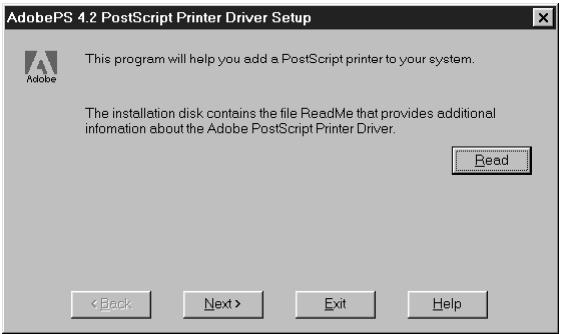
The information in this file is not specific to your Fiery X2e. You can click Next to postpone reading this file and read it later.
- If you are installing from the CD, you may see an Install Setup Program dialog box offering you the option to copy the setup program to your hard disk. Make your choice and then click Next.
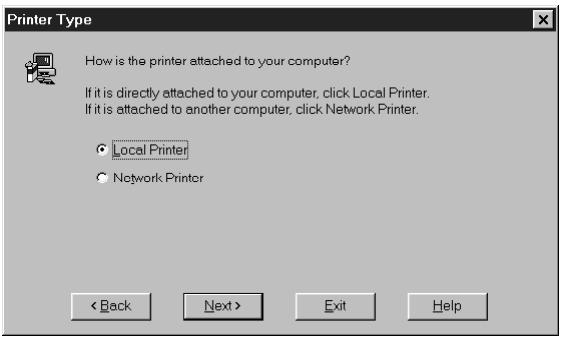
- In the Printer Type dialog box, select Local Printer and click Next.
This is a general installation. You can modify the attachment later, according to your network type.
- If you are installing from the CD, in the Directories box, open the English\Instalrs\Ps_dvr\Win_95 folders.
If you are installing from the installer files you downloaded with the Installer WebTool, in the Directories box, open the \Ps_dvr\Win_95 folders.
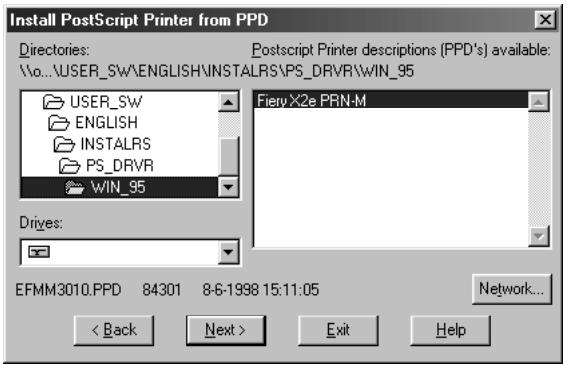
- The Fiery X2e PPD appears in the Postscript Printer descriptions (PPDs) available box. Select the Fiery X2e PPD file and click Next.
Select "Fiery X2e PRN-M."
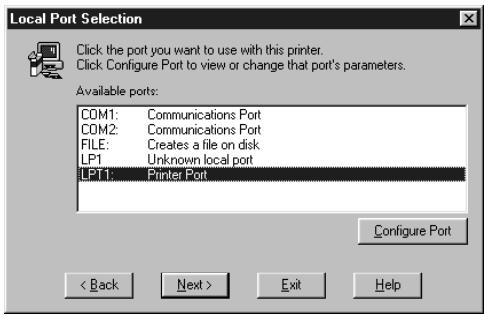
- In the Available ports box, select the LPT1 port and click Next. You will configure the port later, according to your network type.
- Using a maximum of 20 characters, enter a name for the Fiery X2e (or leave the default name) in the Printer Name box.
This name will be used in the Printers and queue windows.
Note: Entering more than 20 characters may cause printing problems with some network applications.
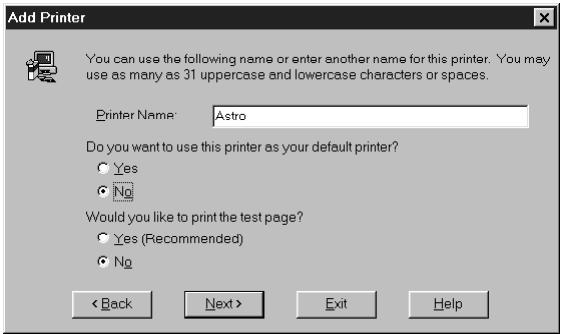
- If you want the Fiery X2e to be the default printer select Yes; if not, select No.
- Select No to printing the test page and click Next.
You will print the test page after you finish configuring the printer.
The necessary files are installed to your hard disk. When installation is complete, the Properties dialog box appears.
- Click OK.
You are notified that Setup is complete.
- Click Exit.
You are ready for the instructions for connecting to your network type (see "Completing the Windows 95 connection" below).
Completing the Windows 95 connection
To print from Windows 95 you need to:
- Set up network servers, if any
- Set up the Fiery X2e to accept print jobs from your computer
- Configure a port on each Windows 95 computer for the network or connection type
| For this type of connection: | See: |
| Parallel | below |
| IPX/SPX | page 11 |
| IPX (Novell) | page 13 |
| SMB printing | page 13 |
Completing the Windows 95 parallel port connection
Preparing a parallel port connection for Windows 95 requires specific BIOS settings on your computer, and specific port and printer settings for Windows 95. In addition, a change to one of the Fiery X2e Setup settings may be required if you choose to spool files to the Fiery X2e rather than print directly.
TO PREPARE THE FIERY X2E AND YOUR COMPUTER FOR PARALLEL PORT PRINTING:
- Connect the Fiery X2e to the parallel port on your computer. For instructions, see the Administrator Guide.
- In Network Setup>Port Setup>Parallel Port Setup, set Enable Parallel Port to Yes. For more information about Fiery X2e Setup, see the Administrator Guide.
- If you want to spool files to the Fiery X2e, set Port Timeout in Seconds to 10. If you want to print directly to the Fiery X2e, set Port Timeout in Seconds to 5. Setting this option to 10 seconds ensures that spooling is not interrupted due to timeout.
- In your computer's BIOS settings, set Parallel Port Mode to ECP. To access the BIOS settings, restart the computer and press the key indicated on your monitor as soon as the computer starts up. You may have to scroll through several screens to reach the parallel port settings. After setting the Parallel Port Mode to ECP, save your changed setting and exit.
TO PREPARE THE PRINTER FOR PARALLEL PORT PRINTING:
- Click the Start button, point to Settings, and click Printers.
- Click the Fiery X2e printer icon and choose Properties from the File menu.
- Click the Details tab, and in the "Print to the following port" menu, select LPT1: (ECP Printer Port).
NOTE: Check this selection carefully. It may read LPT1: (Printer Port), which is not equivalent to LPT1: (ECP Printer Port).
If this box does not read LPT1: (ECP Printer Port), change the port setting now, as described in "To prepare the port for parallel port printing:" on page 9, and then return to this procedure. You may need your Windows 95 system CD.
- If you changed the selection in the "Print to the following port" menu, click Apply. A Warning dialog box may appear, stating that fonts you downloaded to the previously selected port may be lost; click OK.
- Click Spool Settings.
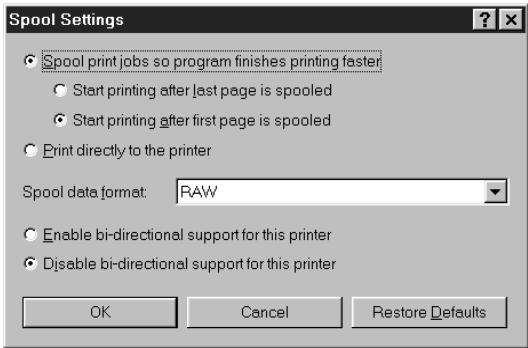
- Select either "Spool print jobs so program finishes printing faster" or "Print directly to the printer."
The selection you make depends on the action you took in step 3 on page 7:
- If you set the Port Timeout in Seconds to 10, you can select either option; however, spoofing is faster.
-
If you set the Port Timeout in Seconds to 5, select "Print directly to the printer."
-
Select "Disable bi-directional support for this printer" and click OK.
- Click Apply.
You are now ready to print from your applications to the Fiery X2e with the parallel port. To confirm the connection, print a Windows 95 test page.
- Click the General tab.
- Click Print Test Page and click OK.
Perform the following procedure only if the LPT1 port is not currently set to ECP Printer Port.
TO PREPARE THE PORT FOR PARALLEL PORT PRINTING:
- Click the Start button, point to Settings, and click Control Panel.
- Double-click System.
The System Properties window appears.
- Click the Device Manager tab.
- Double-click Ports.
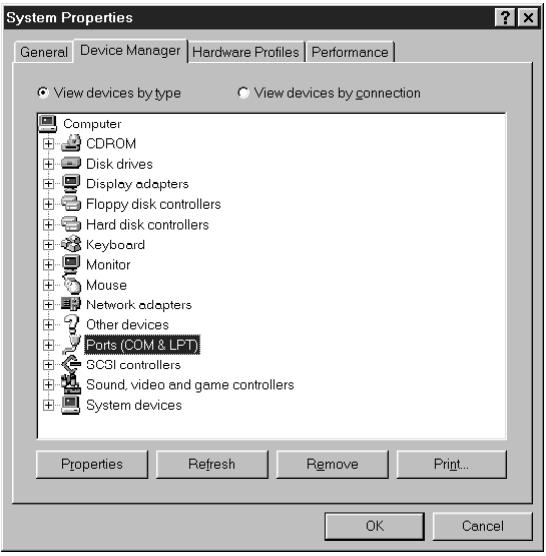
- Double-click the port with (LPT1) in its name.
- In the (LPT1) Properties dialog box click the Driver tab and then click Change Driver.
-
Select Show all devices.
-
From the Manufacturers list, select " (Standard port types)." From the Models list, select "ECP Printer Port" (not Printer Port). Click OK.
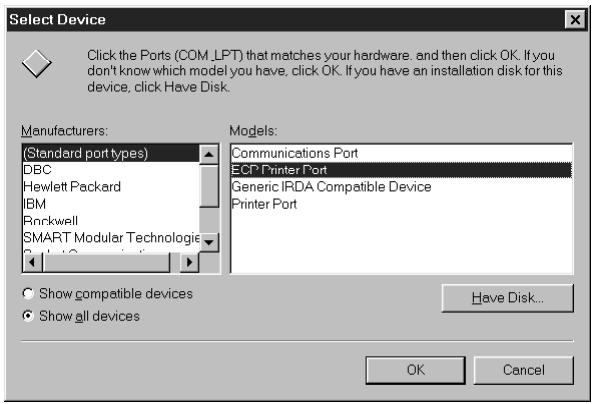
- Click OK in the (LPT1) Properties dialog box.
NOTE: You might need to insert the Windows 95 system CD to complete this step depending on whether the required files are on your hard disk.
- When prompted to restart the computer, click Yes.
After Windows 95 restarts, you can complete the procedure described in "To prepare the printer for parallel port printing:" on page 7.
Completing the Windows 95 IPX/SPX or IPX (Novell) connection
If you are printing through a Novell server, the Novell network and file server should be set up before you begin. The file server should be configured with a print server and print connection for the Fiery X2e. For details see your NetWare documentation and the Administrator Guide.
You can also use Fiery Downloader to print directly to the Fiery X2e from Windows 95 with IPX/SPX.
TO SET UP IPX/SPX PRINTING:
- Open the Windows 95 Control Panel.
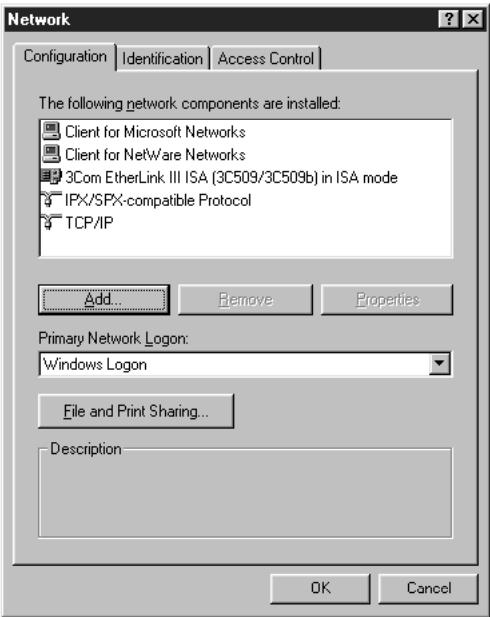
- Double-click the Network icon.
Make sure that IPX/SPX-compatible Protocol and TCP/IP protocol are both listed in the Installed Network Components section.
If they are not, see your Windows 95 documentation for instructions.
NOTE: You must enable TCP/IP printing to ensure that all files required for IPX/SPX will be installed. You can select it and click Remove after you set up IPX/SPX if you do not need to use the TCP/IP protocol.
- Double-click the IPX/SPX-compatible Protocol icon.
-
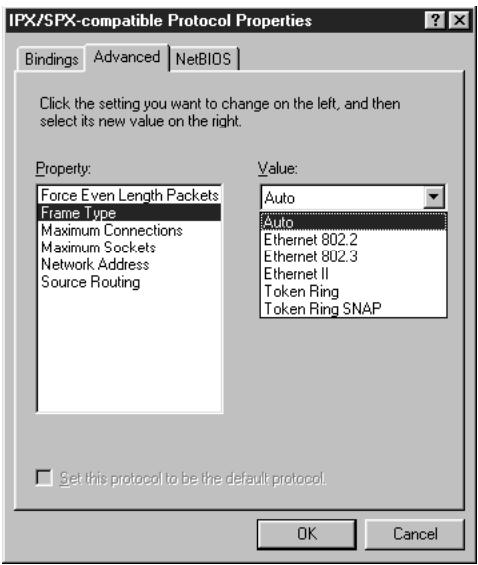
Click the Advanced tab.
-
In the Property list, click Frame Type. In the Value pop-up menu, select the Frame Type that corresponds to the one set during Fiery X2e Network Setup and click OK. If necessary, print the Configuration page from the Control Panel to check which Frame Type(s) are configured.
NOTE: Do not select Auto. Doing so may not select the Frame Type specified on the Fiery X2e.
- In the Network Control Panel, click OK.
The System Setting Change dialog box appears, prompting you to restart your computer.
- Click Yes to restart and save the settings.
TO SET UP IPX (NOVELL) PRINTING WITH WINDOWS 95:
- Click the Start button, choose Settings, and then choose Printers.
- Click the Fiery X2e icon, and choose Properties from the File menu (or right-click the icon and left-click Properties).
- Click the Details tab and click Add Port.
A list of connection options is displayed.
- In the Add Port dialog box, specify the network path, or click Browse for a display of your network environment.
- If you are using a NetWare file server, double-click the icon of the NetWare file server you want to use for printing to the Fiery X2e.
- Click the printer icon labeled with the NetWare print queue you will use and click OK.
- In the Add Port dialog box, verify that the network path is updated and click OK.
You are ready to print from the workstation.
Your print jobs will be sent to the specified print queue on the Novell file server. The Fiery X2e polls the file server and if jobs are present, they are sent to the Fiery X2e.
To confirm the connection, you can print a Windows 95 test page.
- Click the General tab, click Apply, and then click Print Test Page.
- The Job Notes window appears. Enter user and job identification information for accounting purposes, or whatever information is required at your site, and click OK.
Completing the SMB printing connection
If you don't have a Novell network, you can print via SMB printing (also known as Windows printing or WINS printing). Printing by this method allows you to print from your computer to a particular print connection (Hold, Print, or Direct) on the Fiery X2e.
To set up printing to a second or third print connection, you must install a new printer for each connection and repeat the procedure "To set up SMB printing:" on page 16. If you install more than one printer, give each a descriptive name during printer driver installation, such as Astro-Print or Astro-Hold, so you can easily identify printers.
BEFORE YOU BEGIN:
- Configure the Fiery X2e for SMB printing in Network Setup>Service Setup>Windows Setup.
SMB printing is referred to as Windows Printing in Setup, on the Menu Map, and on the Configuration page. For more information, see the Administrator Guide.
- Print the Fiery X2e Configuration page.
You need information from the Configuration page to specify settings on your computer, such as the Server Name and IP address of the WINS Name Server.
- Save any documents in open programs.
You are prompted to restart Windows after this procedure, so be sure to save any documents.
TO PREPARE YOUR COMPUTER FOR SMB PRINTING:
- Click Start, choose Settings, and click Control Panel.
-
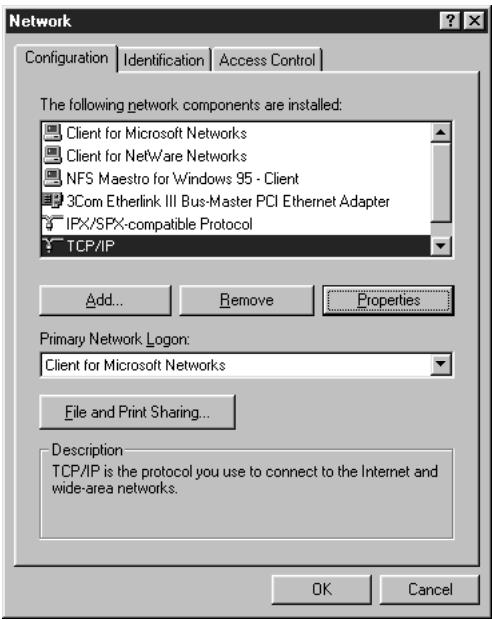
Double-click the Network icon.
-
Select TCP/IP and click Properties.
-
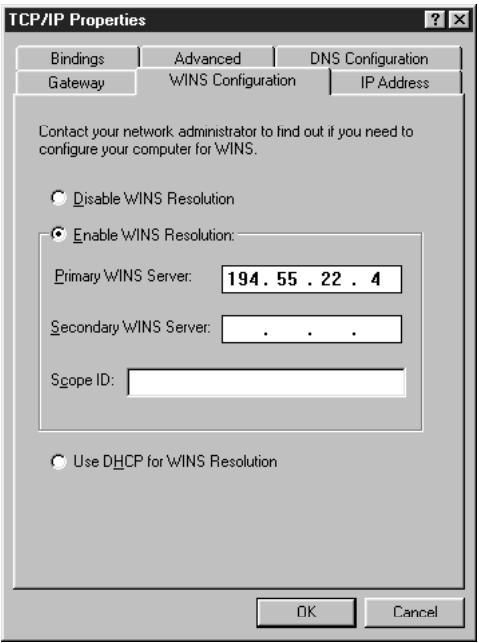
Click the WINS Configuration tab.
-
Select "Enable WINS Resolution" and enter the TCP/IP address of the WINS Name Server.
The TCP/IP address of the WINS Name Server is listed on the Configuration Page in the Network Setup section.
- Click OK, and click OK at the Network dialog box.
You are prompted to restart Windows. Click Yes, and when Windows restarts, continue with the following procedure.
TO SET UP SMB PRINTING:
- Click the Start button, choose Settings, and click Printers.
-
Click the icon for the printer and choose Properties from the File menu.
-
Click the Details tab in the Properties window and click Add Port.
A list of connection options is displayed.
- In the Add Port dialog box, click Browse to display your network environment.
- Expand the levels to locate your printer and the print connection (Print, Hold, or Direct) to which you want to print.
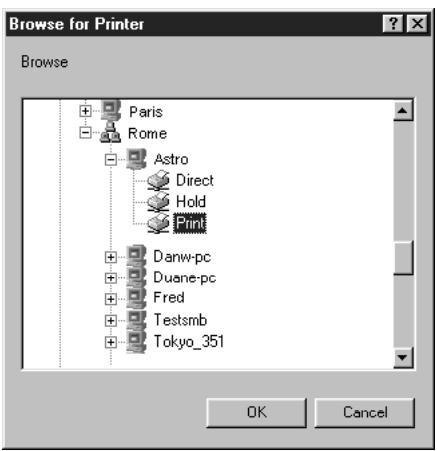
The printer name you are browsing for is the Server Name listed under Network Setup on the Configuration Page. This name may not be the same as the Server Name listed under Server Setup on the Configuration Page (which is the name displayed on the Control Panel).
The network environment and the amount of network traffic determines the amount of time required for the Browse function.
- Select the print connection under the printer and click OK.
- In the Add Port dialog box, verify that the network path is correct and click OK.
- To confirm the connection, click the General tab in the Properties dialog box.
- Click Apply, then click Print Test Page.
If the test page prints successfully, you are ready to print from the computer.
Setting up PostScript printing with Windows 3.1x
You can use the following procedure whether you are installing from the User Software CD or with installer files downloaded using the Installer WebTool.
TO INSTALL THE ADOBE POSTSCRIPT PRINTER DRIVER FOR WINDOWS 3.1X:
- In the Main window, double-click the Control Panel icon.
If there is an Adobe PostScript Printers icon in the Control Panel window, proceed to "To install the Fiery X2e PPD file for Windows 3.1x:" on page 19. Otherwise, install the Adobe PostScript printer driver from the User Software CD as described below. - Exit all applications and close all windows.
- Insert the User Software CD into the CD-ROM drive.
- In the Windows Program Manager, choose Run from the File menu, and then click Browse.
- If you are installing from the CD, in the Directories box, double-click to open the English\Instalrs\Ps_drv\Win_31 folders.
If you are installing from the installer files you downloaded with the Installer WebTool, in the Directories box, double-click to open the PrntdrvrPs_drv\Win_31 folders.
- Select the Setup.exe file, and click OK.
- Click OK in the Run dialog box.
- Click Read to view the README file. When you are finished, close the README file and click Continue.
The necessary files are installed to your hard disk. When installation is complete, the PostScript Printer Driver Setup dialog box appears.
- Click Restart Windows.
TO INSTALL THE FIERY X2E PPD FILE FOR WINDOWS 3.1x:
- In the Control Panel window, double-click the Adobe PostScript Printers icon.
The Install PostScript Printer from PPD dialog box appears.
- If you are installing from the CD, in the Drives box, select the drive containing the CD, and in the Directories box, double-click to open the English\Instalrs\Ps_dvr\Win_31 folders.
If you are installing from the installer files you downloaded with the Installer WebTool, in the Drives box, select your hard disk drive, and in the Directories box, double-click to open the Prntdrvr\Ps_dvr\Win_31 folders.
-
Select the Fiery X2e PPD from the Printer Descriptions available box and click Install. Select "Fiery X2e PRN-M."
-
Click OK when you are notified that the printer was successfully installed.
-
Click Close.
Setting the Fiery X2e as the default printer with Windows 3.1x
You can specify the Fiery X2e as the default printer. Many Windows applications use the default printer when you choose the Print command.
TO SET THE FIERY X2E AS THE DEFAULT PRINTER:
- In the Control Panel window, double-click the Printers icon.
The Printers window appears.
-
Select the Fiery X2e from the Installed Printers box.
-
Click Set As Default Printer.
The Fiery X2e appears in the Default Printer area of the Printers window.
Completing the Windows 3.1x connection
To print from Windows 3.1x you need to:
- Configure a port on each Windows 3.1x computer for the network or connection type
- Complete setup for the network type you are printing over
- Set up the Fiery X2e to accept print jobs from your computer
Selecting a printer port with Windows 3.1x
When you install a printer, Windows assigns it to a default printer port. If the Fiery X2e is connected to your computer through a network or you want to assign it to a different port, you need to change the port assignment. Check with your system administrator about which port to use.
You can also use this procedure to enable printing with the parallel port.
TO SELECT A PRINTER PORT:
- In the Control Panel window, double-click the Printers icon.
- In the Printers window, select the Fiery X2e in the Installed Printers list box.
- Click Connect.

- Connect the Fiery X2e to the same port as your network.
For parallel printing, select the port (LPT1, LPT2, or LPT3) connected to your parallel cable.
To print to a file, select FILE. Printing to a file is useful if the Fiery X2e is elsewhere or off-site. However, if you select the FILE port, you cannot print to a printer until you select a network or printer port. (In some applications, you can select the FILE port from the Print dialog box; this is preferable for temporary use since it doesn't require resetting the port in the Control Panel.)
- Click OK.
The Printers window appears again, with the selected port next to the selected printer name in the Installed Printers list box.
- When you are finished, click Close.
Setting up IPX (Novell) printing with Windows 3.1x
TO SET UP IPX (NOVELL) PRINTING:
- In the Main group of the Windows Program Manager, double-click the Windows Setup icon.
- From the Options menu, choose Change System Settings.
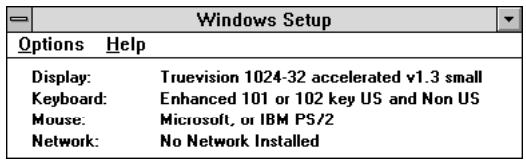
- From the Network pop-up menu, choose Novell NetWare (shell versions 3.26 and above).
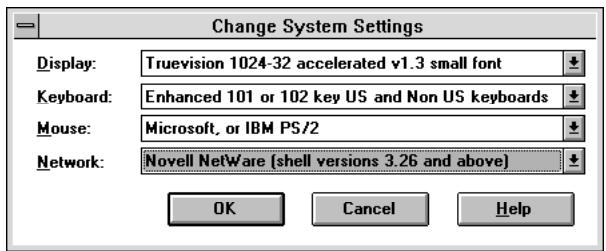
-
Click OK. When prompted, restart Windows.
-
In the Main group, double-click Control Panel, then double-click Printers.
- In the Printers window, select the Fiery X2e and click Connect.
- Click Network.
If you are printing to a file, select FILE. Printing to a file is useful if the printer is elsewhere or off-site. However, if you select the FILE port, you cannot print to a printer until you select a network or printer port. If you select Network, the next window depends on the NetWare client driver version.
- If the Network Printer Connections dialog box is displayed, select the port in the Printer connections box.
- In the Available queues list box, select the server and queue name that correspond to the Fiery X2e.
- Click the Capture button, then click the Close button.
The Connect dialog box is displayed with the network path to the Fiery X2e.
- Click OK in the Connect dialog box.
The Printers window appears again, with the selected port next to the selected printer name in the Installed Printers list box.
- Click Close in the Printers dialog box.
You are now ready to print to the Fiery X2e from Windows applications. When you select Print, jobs are routed to the print queue on the NetWare file server, and then sent to the Fiery X2e. The network administrator should verify the network connection by printing a test document from each networked computer that will use the Fiery X2e.
Setting up PostScript printing with Windows NT 4.0
To set up Windows NT 4.0 printing, install the Microsoft PostScript printer driver and configure printing for your network type. Fiery X2e printer files support Intel-based Windows NT 4.0.
Some features of the Fiery X2e may not be available when using the Microsoft PostScript printer driver. For details, see the User Guide.
You can use the following procedure whether you are installing from the User Software CD or with installer files downloaded using the Installer WebTool.
TO INSTALL THE FIERY X2E AS A LOCAL PRINTER WITH THE MICROSOFT POSTSCRIPT PRINTER DRIVER FOR WINDOWS NT 4.0:
- If you are installing from the CD, insert it into the CD-ROM drive.
- Click Start in the Windows NT taskbar, choose Settings, and then choose Printers.
- Double-click Add Printer.
- To install a printer locally, select My Computer and click Next.
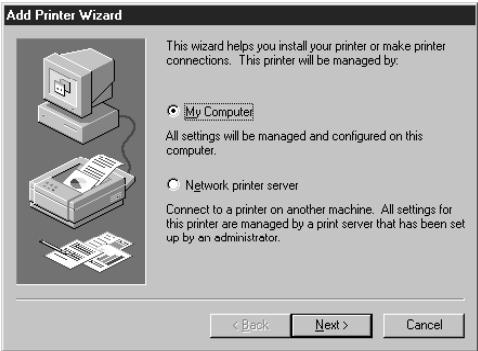
"My Computer" is available if you logged in to a computer on which you have Administrator privileges. If it is not available, you can add a network printer. The procedure is similar to adding a port (see page 30).
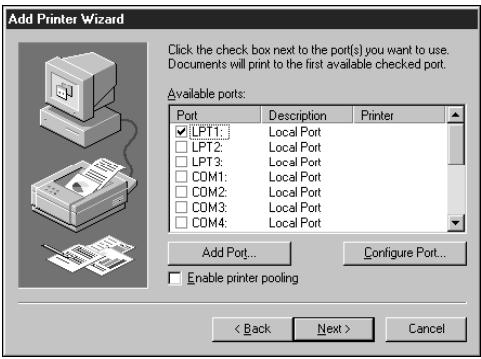
- Check LPT1: and click Next.
This is a general installation that works for the parallel port connection. You can add a network port later, according to your network type.
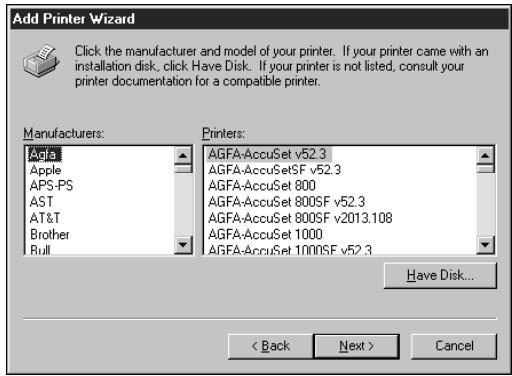
- In the dialog box displaying lists of manufacturers and printers, click Have Disk.
The Install from Disk dialog box prompts you for the disk.
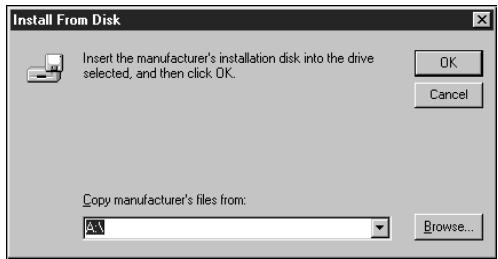
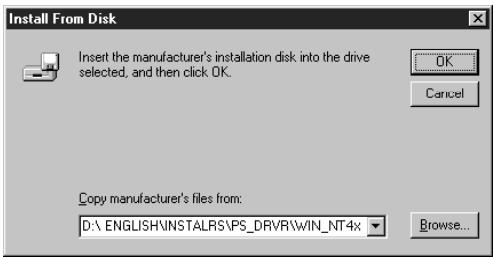
- If you are installing from the CD, type the name of the CD-ROM drive (for example, D:), and click Browse. Browse to the English\Instalrs\Ps_drv\WIN_NT4x folder and click Open.
If you are installing from the installer files you downloaded with the Installer WebTool, type the name of your hard disk drive (for example, C:), and click Browse. Browse to the Prntdrvr\Ps_dvr\WIN_NT4x folder and click Open.
Make sure "Ntprint.inf" is selected.
The path is copied to the Install from Disk dialog box.
- Verify the path is correct, and click OK.
- In the Printers box, select the Fiery X2e PPD file and click Next. Select "Fiery X2e PRN-M."
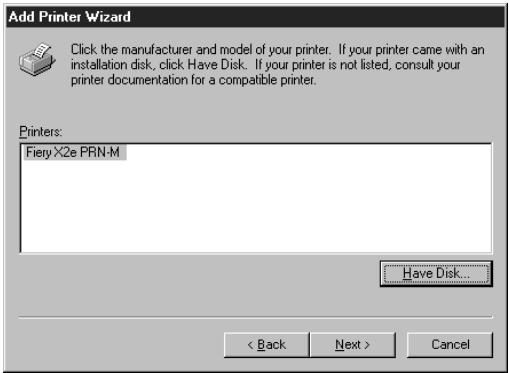
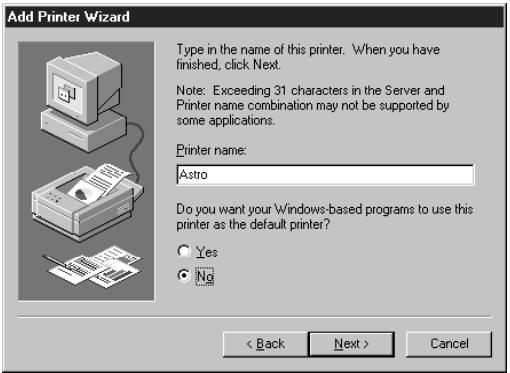
- Using a maximum of 20 characters, enter a name for the Fiery X2e (or leave the default name) in the Printer name box, and choose whether you want the Fiery X2e to be your default printer. Click Next.
NOTE: Entering more than 20 characters may cause printing problems with some network applications.
- Indicate whether you want the printer installed as a shared printer. Click Next.
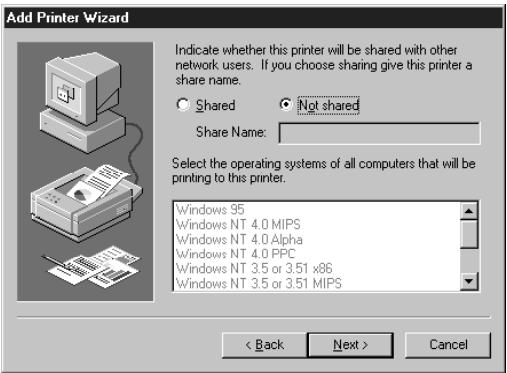
If you select Shared, you must also enter a Share Name for the printer (or leave the default name) and make selections from the list of operating systems used by client workstations. For information on shared printers, see the Administrator Guide.
- Click No in the next dialog box to postpone printing a test page, and click Finish. The Insert Disk dialog box appears.
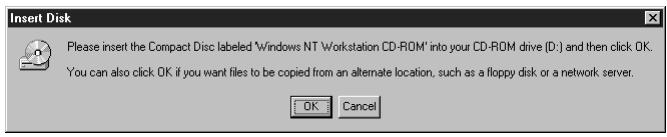
- Follow the instructions and click OK.
TO COMPLETE INSTALLATION OF THE FIERY X2E WITH THE MICROSOFT POSTSCRIPT PRINTER DRIVER FOR WINDOWS NT 4.0:
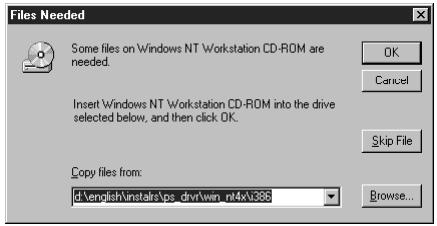
If the Files Needed dialog box appears, it prompts you to locate the Pscript.dll file.
-
If this is the first PostScript printer on your system:
-
Eject the User Software CD and insert the Windows NT Installation CD.
- In the text field, type the name of the CD-ROM drive (for example, D:), and click Browse.
- Browse to i386 (the folder containing the Pscript.dll file).
If you have already installed a PostScript printer on your system:
- In the text field, type the name of the hard drive (for example, C:), and click Browse.
-
Browse to winnt\system32\spool\drivers\w32x86 (the folder containing the Pscript.dll file).
-
Click Open, then click OK in the Files Needed dialog box.
When installation is complete, an icon for the newly installed printer will appear in the Printers window.
You are ready for the instructions for connecting to your network type (see "Completing the Windows NT 4.0 printer connection" on page 28).
Completing the Windows NT 4.0 printer connection
To print from Windows NT 4.0 you need to:
- Set up network servers, if any
- Set up the Fiery X2e to accept print jobs from your computer
- Configure a port on each Windows NT computer for the network or connection type
| To do this: | See: |
| Configure the parallel connection | “Completing the Windows NT 4.0 parallel port connection” below |
| Configure the TCP/IP (lpr port) connection | “Completing the Windows NT 4.0 TCP/IP connection” on page 29 |
| Configure the IPX (Novell) connection | “Completing the Windows NT 4.0 IPX (Novell) connection” on page 32 |
Completing the Windows NT 4.0 parallel port connection
The parallel port cable connects the Fiery X2e to a single computer.
Once you have installed the Windows NT PostScript printer driver and the Fiery X2e PPD, complete the setup for parallel port printing.
TO SET UP PARALLEL PRINTING FOR WINDOWS NT 4.0:
- Click the Start button, choose Settings, and then choose Printers.
- Double-click the Fiery X2e icon and choose Properties from the Printer menu.
In the Ports tab, confirm that LPT1 (Local Port) is checked.
The Fiery X2e is ready to accept parallel print jobs from your computer, using the Windows NT PostScript printer driver and the Fiery X2e PPD.
- Click the General tab and click Print Test Page.
- Click the Sharing tab if you want to share the Fiery X2e with network users. Select Shared, and select a share name.
Select the operating system or systems used by your network clients if you want to install a printer driver that those clients can download.
- Click OK to exit the Printer Properties dialog box.
Completing the Windows NT 4.0 TCP/IP connection
Once you have installed the Windows NT 4.0 PostScript printer driver and the Fiery X2e PPD, complete the setup for the TCP/IP and lpr connection as follows:
- Prepare the Fiery X2e to accept print jobs using TCP/IP and lpr protocols. (For details, see the Administrator Guide.)
- Configure the workstation for the TCP/IP connection.
Before you continue, ask the system administrator for the IP address assigned to the Fiery X2e, as well as the subnet mask and the gateway address, if they are used.
The TCP/IP Protocol and Microsoft TCP/IP Printing software should already be installed on the Windows NT workstation.
TO SET UP TCP/IP AND LPR PRINTING FOR WINDOWS NT 4.0:
- Open the Properties dialog box for the Fiery X2e, and click the Ports tab.
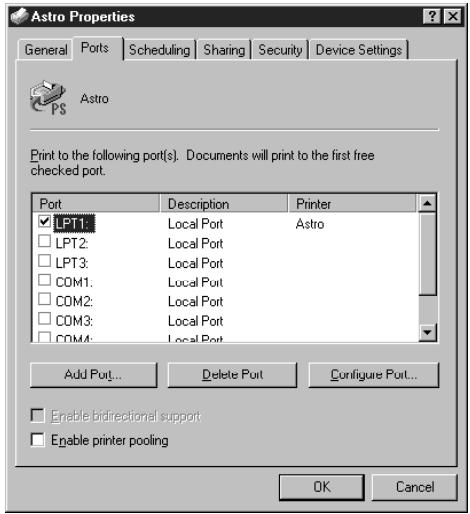
- Click Add Port.
The available port types are displayed.
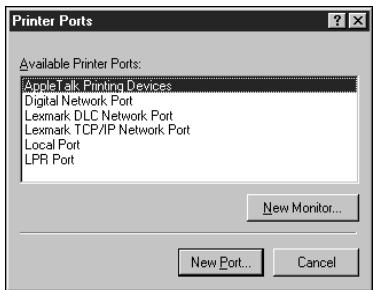
- Select LPR Port and click New Port.
If the LPR port is not listed, install the TCP/IP protocols. See the Administrator Guide or your Windows NT documentation.
- Enter the IP address of the Fiery X2e.
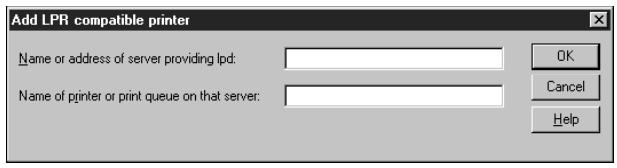
If your network uses Domain Name Services (DNS), enter the DNS name assigned to the Fiery X2e instead of the IP address.
- Press Tab and type the internal name of the Fiery X2e.
The name must be one of the following:
print_PRN-M
hold_PRN-M
Note: This name is case-sensitive; type it exactly as shown above.
- Click OK.
The workstation checks the address or DNS name you entered and notifies you if it cannot resolve the address.
- Click Close in the Printer Ports dialog box.
The new port configuration is reflected in the Ports tab. You should now print a test page to verify the connection.
- Click the General tab and click Print Test Page.
When you print, your PostScript files are sent over the LPR Port connection to the Fiery X2e.
- Click OK to close the Printer Properties dialog box.
Completing the Windows NT 4.0 IPX (Novell) connection
Complete the setup for the IPX (Novell) connection as follows:
- Configure the Novell network and file server for handling Fiery X2e print jobs.
The file server should be configured with a print server and print connection for the Fiery X2e. For details, see your NetWare documentation.
- Prepare the Fiery X2e for IPX printing.
- Set up the IPX connection on the workstation.
NetWare protocols (NWLink IPX/SPX Compatible Transport) and NetWare client services should already be installed on the Windows NT workstation.
TO SET UP IPX (NOVELL) PRINTING FOR WINDOWS NT 4.0:
- Double-click Network Neighborhood.
- Double-click NetWare or Compatible Network.
A list of NetWare servers is displayed.
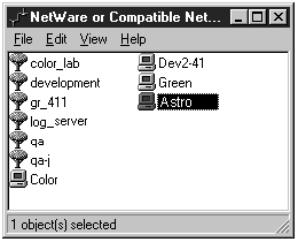
- Double-click the NetWare Tree or File Server on which the network administrator defined a print connection for the Fiery X2e.
You may have to log in to the file server as a guest to see the print connections.
- Double-click the print connection defined for the Fiery X2e.
If the NetWare server does not have a suitable driver for the Fiery X2e you may be asked if you want to set up the printer on your workstation.

- Click Yes.
The Add Printer Wizard appears.
- Specify if you print from MS-DOS programs and click Next.
If you select Yes, you will need to capture a printer port before continuing.
- Install the Fiery X2e PPD (start with step 6 on page 24)
When installation is complete, a new printer window appears, with the name of the print queue on the NetWare server.
- Choose Properties from the Printer menu and click the Ports tab.
The NetWare queue you just connected to is listed and checked as a port for the Fiery X2e.
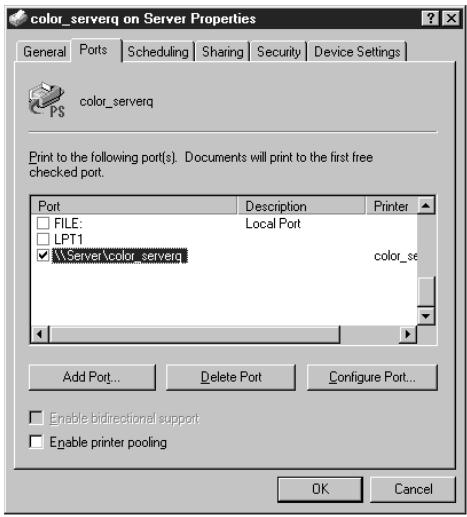
- Click the General tab and click Print Test Page.
The Fiery X2e polls the NetWare server for print jobs in the print connection defined for the Fiery X2e. When you print, your PostScript files are spooled to that connection and sent over the queue "port" to the Fiery X2e.
The test page job is listed in the queue window until it is printed.
Installing Fiery X2e software
The User Software CD includes software installers for three Fiery utilities and one Fiery plug-in. This software is supported with Windows 95 and Windows NT 4.0 only, and must be separately installed on each user's computer.
Fiery Downloader and Fiery Print Calibrator
The installers for two of the Fiery utilities (Fiery Downloader and Fiery Print Calibrator) are the same. Before you begin the installation, determine the following:
- Where do you want to install the utility on your hard disk?
By default, the installer places the utility in a folder named "Fiery" on the top level of your hard disk.
- What do you want to name the utility folder in the Windows\Start Menu\Programs folder?
By default, the installer names the folder "Fiery."
TO INSTALL FIERY DOWNLOADER AND FIERY PRINT CALIBRATOR:
-
On the User Software CD, browse to the English\InstaIrs folder.
-
If you are installing Fiery Downloader, double-click to open the Download\Disk1 folders.
If you are installing Fiery Print Calibrator, double-click to open the Calib\Disk1 folders.
- Double-click the Setup.exe icon.
- Follow the instructions in the Setup dialog boxes to complete installation.
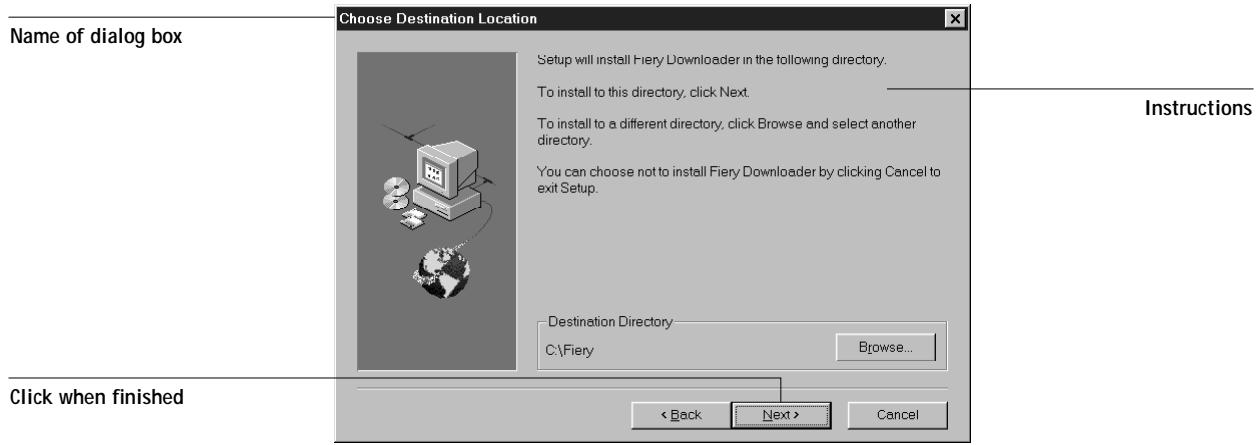
Use the table below as a guide when installing Fiery Downloader and Fiery Print Calibrator. For specific instructions, read the information in each dialog box.
| Name of dialog box: | Action: | When finished: |
| Welcome | Read the Setup program introduction. | Click Next. |
| Choose Destination Location | Specify a hard disk location for the installed utility software. | Click Next. |
| Select Program Folder | Specify a folder name for the utility software located in the Programs menu. | Click Next. |
| Start Copying Files | Verify the information in the Current Settings area. | Click Next. |
| Information | Acknowledge that the software installation is complete. | Click OK. |
Fiery Spooler
The installer for Fiery Spooler is different from the installers for the other Fiery utilities. In addition to the Fiery Spooler utility software, the installer also installs Java files necessary to use Fiery Spooler. Before you begin this installation, determine the following:
- Where do you want to install the utility on your hard disk?
By default, the installer places the utility in a folder named "FierySpooler" on the top level of your hard disk.
- What do you want to name the utility folder in the Windows\Start Menu\Programs folder?
By default, the installer names the folder "FierySpooler."
TO INSTALL FIERY SPOOLER:
- On the User Software CD, double-click to open the English\Instalrs\Spooler\disk1 folders.
- Double-click the Setup.exe icon.
- Follow the instructions in the Setup dialog boxes to complete installation of Fiery Spooler.
Use the table below as a guide when installing Fiery Spooler. For specific instructions, read the information in each dialog box.
| Name of dialog box: | Action: | When finished: |
| Welcome | Read the Setup program introduction. | Click Next. |
| Choose Destination Location | Specify a hard disk location for the installed utility software. | Click Next. |
| Select Program Folder | Specify a folder name for the utility software located in the Programs menu. | Click Next. |
| Start Copying Files | Verify the information in the Current Settings area. | Click Next. |
| Information | Read the information in the dialog box. | Click OK. |
| Java (TM) Support | Indicate if you want to install Java files onto your hard disk. These files may be necessary for using Fiery Spooler. | Click Yes. NOTE: Click Yes even if the system is running Microsoft Internet Explorer 4.01 or later. |
| Java (TM) Support | Read the License Agreement. | Click Yes. |
| Version Conflict | If this dialog box appears, read the information. Always choose to keep newer files. | Click Yes each time the dialog box appears. |
| Java Package Manager | Read the information in the dialog box. | Click Yes each time the dialog box appears. |
| Java (TM) Support | Acknowledge that the installation of Java files is complete. | Click OK. |
| Java (TM) Support | Indicate that you want to restart your computer in order to use the Fiery Spooler software. | Click Yes. |
Fiery Scan
The Scan folder contains the TWAIN Fiery Scan module installer. This installer automatically creates a folder named Twain_32 in the Windows folder on your hard disk, and then installs the Fiery Scan plug-in module into that folder.
You can access the Fiery Scan plug-in from Adobe Photoshop using the TWAIN module. For details, see the User Guide.
NOTE: Before installing the TWAIN Fiery Scan module, make sure the TWAIN plug-ins (installed with Adobe Photoshop software) are located in the correct Photoshop\Plugins subfolder. If the TWAIN plug-ins have been deleted, you must reinstall Adobe Photoshop software in order to use Fiery Scan.
TO INSTALL THE TWAIN FIERY SCAN MODULE:
- On the User Software CD, double-click to open the English\Instalrs\Scan\Disk1 folders.
- Double-click the Setup.exe icon.
- Follow the instructions in the Setup dialog boxes to complete installation of the TWAIN Fiery Scan module.
Use the table below as a guide when installing the TWAIN Fiery Scan module. For specific instructions, read the information in each dialog box.
| Name of dialog box: | Action: | When finished: |
| Welcome | Read the introduction. | Click Next. |
| Information | Acknowledge that the software installation is complete. | Click OK. |
Using the software for the first time
Before you can use the newly installed software, you must properly configure the connection to the Fiery X2e.
Configuring the connection to the Fiery X2e
The first time you use one of the Fiery utilities or Fiery Scan, you are prompted to configure the connection to the Fiery X2e. The same configuration is used for Fiery Downloader, Fiery Print Calibrator, and Fiery Scan, so any change in the configuration affects all of these. The procedure for configuring the connection with Fiery Spooler is different and is described on page 41.
BEFORE YOU BEGIN:
- If you are using IPX/SPX, print the Configuration page from the Control Panel and note the IPX address and Server Name (in Server Setup) for the Fiery X2e.
In general, you should use the Ethernet IPX address.
- If you are using TCP/IP, print the Configuration page from the Control Panel and note the IP Address of the Fiery X2e.
You can also set up a Domain Name Server (DNS) for the IP address of the Fiery X2e in the HOSTS file and use that name. See your Windows system documentation for information.
TO CONFIGURE THE CONNECTION TO THE FIERY X2E:
- Launch Fiery Downloader or Fiery Print Calibrator by double-clicking its icon or by choosing it from the Start>Programs menu.
Launch Photoshop, and open Fiery Scan (for details, see the User Guide).
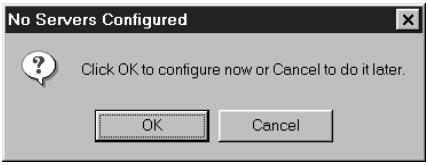
- Click OK.
- Enter the appropriate information for the Fiery X2e.
Nickname—Enter a name for the Fiery X2e. This name can be any name you wish; it does not have to match the actual Server Name of the Fiery X2e.
NOTE: The Nickname cannot contain any of the following seven characters:
[ ]_''
Protocol—Choose the type of network protocol you are using from the pop-up menu.
Server Name—If you are using the TCP/IP protocol, enter the IP address (or DNS name) of the Fiery X2e. If you are using the IPX protocol, enter the actual Server Name of the Fiery X2e as it was defined during Server Setup.
IPX Address—(This area is enabled only if you choose IPX from the Protocol pop-up menu.) Enter the IPX Address of the Fiery X2e.
New Device—Enter the name of the device that the Fiery X2e is connected to: PRN-M. This device name appears in the Printer Setup section of the Configuration page.
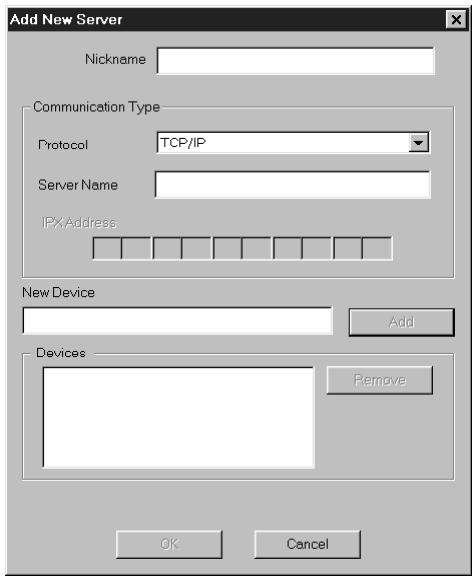
For TCP/IP networks
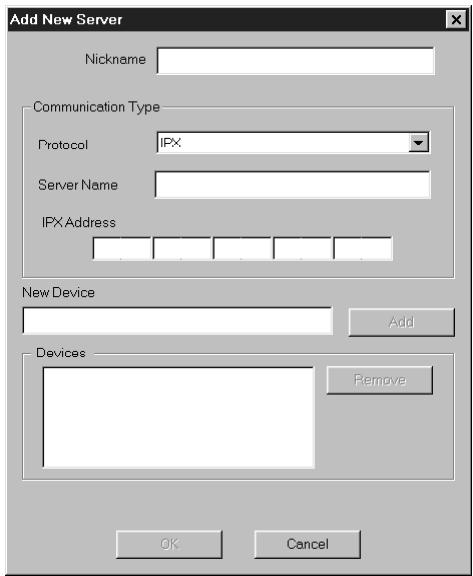
For IPX/SPX networks
- When you have entered all the information, click Add.
- With the device name (PRN-M) selected in the Devices list, click OK.
The Fiery X2e appears in the list of available servers. The first line of the entry displays the nickname you gave the server, followed by the protocol you chose. The second line displays the device name.
- With the device name (PRN-M) selected in the list of Available Servers, click OK to begin using the software.
Modifying the configuration
You should edit the configuration whenever there is any change to your Fiery X2e or network, such as a Server Name, IP Address/IPX Address, or device change. First change the specific Fiery X2e Setup information before configuring the connection.
TO MODIFY THE CONFIGURATION:
- To edit information for a Fiery X2e in the list of available servers, select the Fiery X2e by its nickname and click Modify. Edit information in the Modify Server Settings dialog box as necessary, and click OK when finished.
- To add a new Fiery X2e to the list of available servers, click Add. Configure the Add New Server dialog box as outlined in step 3 through step 5 above.
- To remove a Fiery X2e from the list of available servers, select the Fiery X2e by its nickname and click Remove; then click Yes in the Remove dialog box.
Configuring the connection for Fiery Spooler
The first time you launch Fiery Spooler, you are prompted to configure a connection to the Fiery X2e. This configuration procedure is different from that for the other Fiery utilities.
TO CONFIGURE THE CONNECTION FOR FIERY SPOOLER:
- Launch Fiery Spooler by double-clicking its icon or by choosing it from the Start\Programs menu.
- Click Option.
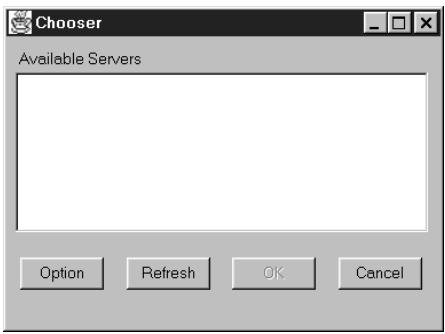
- Click Add.
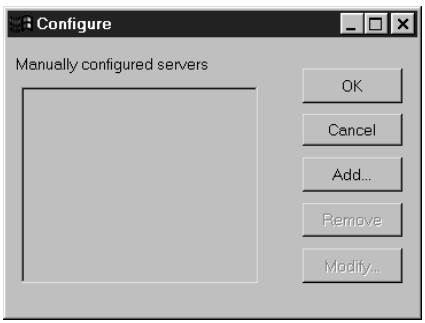
- Enter the appropriate information for the Fiery X2e.
Name—Enter the IP address (or DNS name) of the Fiery X2e.
New Device—Enter the name of the device that the Fiery X2e is connected to: PRN-M. This device name appears in the Printer Setup section of the Configuration page.
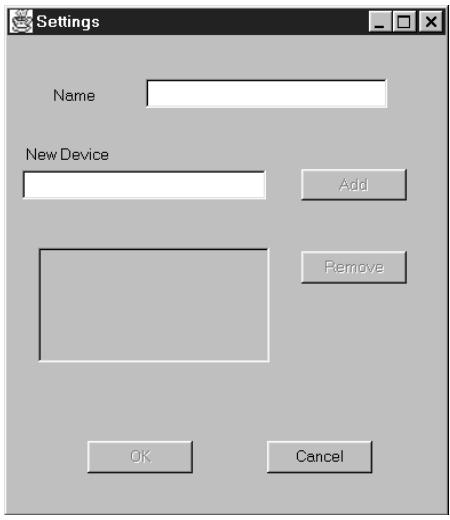
- When you have entered all the information, click Add.
-
With the device name (PRN-M) selected, click OK. The Fiery X2e appears in a list of configured servers.
-
Click OK in the Configure dialog box. The Fiery X2e appears in a list of available servers.
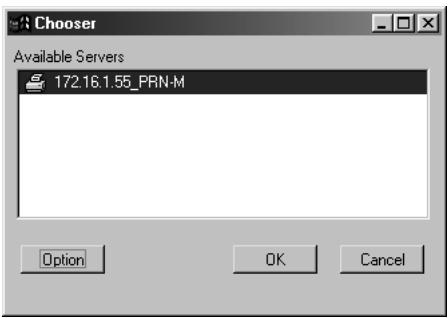
- With the Fiery X2e selected in the list of available servers, click OK to begin using Fiery Spooler.
Modifying the configuration
You should edit the configuration whenever there is any change to your Fiery X2e or network, such as an IP Address or device change. First change the specific Fiery X2e Setup information before configuring the connection.
TO MODIFY THE CONFIGURATION:
- In the Chooser dialog box, click Option.
- To edit information for a Fiery X2e, select the Fiery X2e by its IP address or DNS name and click Modify. Edit information in the Settings dialog box as necessary, and click OK when finished.
- To add a new Fiery X2e, click Add. Configure the Settings dialog box as outlined in step 4 through step 6 above.
- To remove a Fiery X2e, select the Fiery X2e by its IP address or DNS name and click Remove.
- Click OK in the Configure dialog box. The list of available servers reflects the modifications you have made.
Copying color files from the User Software CD
You can copy additional color files from the User Software CD to your hard disk.
The User Software CD contains the following color files:
Icm folder ICM printer profile specially designed for use with the Fiery X2e, your particular copier model, and the Windows color management system. For instructions on installing this profile, see "Installing the Fiery X2e ICM printer profile for Windows 95" on page 45.
Photoshop folder Separation Tables for use with Adobe Photoshop and the Fiery X2e. The Separation Tables match RGB-to-CMYK conversions performed in Photoshop to those performed on the Fiery X2e by color rendering dictionaries (CRDs). Calrgb.ams, a monitor settings file that sets the proper source color space. For instructions on installing these files, see "Installing files for Adobe Photoshop" on page 46.
Clrfiles folder Cmyk_ref.ps, an 11-page, letter-size PostScript file to use for
(inside English reference when defining CMYK colors in applications.
folder) PANTONE.ps, a 19-page, letter-size PostScript file that indicates the closest equivalent of PANTONE coated colors that the Fiery X2e and your particular copier model can produce. The method used to print the Pantone.ps file differs depending on the Spot Color Matching setting. For more information, see the User Guide. Rgb_01.doc, a file you can print from Microsoft Word 6.0 or later to view available RGB colors. Rgb_02.ppt, a file you can print from PowerPoint 4.0 or later to view available RGB colors.
Demo.mea Demo Measurement, a sample measurements file for use with Fiery Print Calibrator. This file is for demonstration purposes only and should not be used to calibrate the Fiery X2e.
| Calibrat folder | Four PostScript measurements files of color patches: |
| (inside Clrfiles | custom21.ps, custom34.ps, stand21.ps, and stand34.ps. |
| folder) | The numbers in the filenames refer to the number of patches on the page. |
| The Custom files are provided to enable you to download measurement patches that incorporate the copier's current calibration set. The Standard files are provided to enable you to download standard measurement patches that ignore the copier's current calibration set. | |
| NOTE: These files are provided for expert users and should not be used for day-to-day calibration. |
Installing the Fiery X2e ICM printer profile for Windows 95
Use the following procedure to install the Fiery X2e ICM printer profile.
NOTE: The ICM printer profile should not be installed for printing with the Microsoft Office 97 suite of applications. If you print from Microsoft Office 97 with the ICM profile installed, JPEG, BMP, and TIFF images print incorrectly.
TO INSTALL THE ICM PROFILE:
- On the User Software CD, open the Icm folder.
- Copy the ICM profile that corresponds to your copier to the Windows\System\Color folder on your hard disk.
-
In the Color folder, right-click to select the ICM profile.
-
Choose Install in Place from the menu that appears.
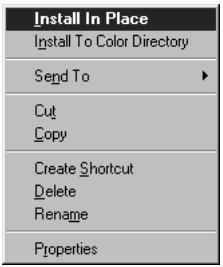
In the Windows\System\Color folder, the icon for the ICM profile is now white, indicating that it is installed.
Installing files for Adobe Photoshop
If you use Adobe Photoshop, install the Separation Tables and the Calrgb.ams monitor settings file for best color printing results. These files are found on the User Software CD in the Photoshop folder.
NOTE: The Calrgb.ams monitor settings file should be loaded before using Fiery Scan.
Loading the Separation Tables
The Separation Tables enable RGB-to-CMYK conversions within Photoshop that correspond to conversions performed by color rendering dictionaries on the Fiery X2e.
The procedure you use depends on the version of Photoshop you are using.
TO LOAD THE SEPARATION TABLES FOR PHOTOSHOP 4.0:
- On the User Software CD, open the Photoshop folder.
- Copy the files "Prn-mp AST" and "Prn-ms AST" to your Adobe Photoshop folder.
- Launch Photoshop.
-
From the File menu, choose Color Settings, and from the Color Settings submenu, choose Separation Tables.
-
In the Separation Tables dialog box, click Load.
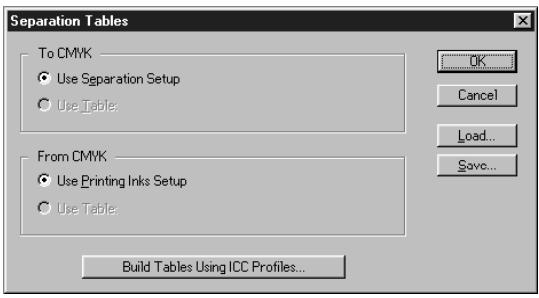
- Browse to the Adobe Photoshop folder, select the appropriate file, and click Open. Select thePrn-mp AST file for separating photographic RGB images to CMYK. Select the Prn-ms AST file for separating solid color RGB images to CMYK.
- Verify that the file you selected appears after "Use Table:" in both places and click OK.
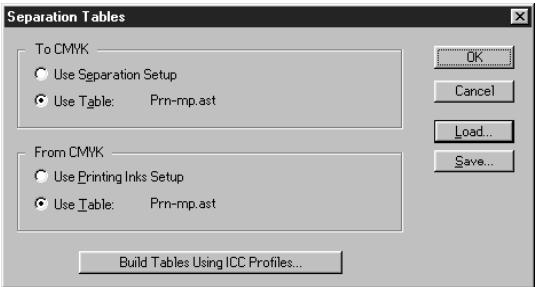
Separation tables remain loaded the next time you start Photoshop, unless you remove them.
TO LOAD THE SEPARATION TABLES FOR PHOTOSHOP 5.0:
- On the User Software CD, open the Photoshop folder.
- Copy the files "Prn-mp AST" and "Prn-ms AST" to your Adobe Photoshop folder.
- Launch Photoshop.
-
From the File menu, choose Color Settings, and from the Color Setting submenu, choose CMYK setup.
-
In the CMYK Setup dialog box, choose Tables for CMYK Model and click Load.
- Browse to the Adobe Photoshop folder, select the appropriate file, and click Open.
Select the Prn-mp AST file for separating photographic RGB images to CMYK.
Select the Prn-ms AST file for separating solid color RGB images to CMYK.
- Verify that the file you selected appears after "From CMYK Table" in both places and click OK.
Separation tables remain loaded the next time you start Photoshop, unless you remove them.
Loading the monitor settings file
The Calrgb.ams monitor settings file for Photoshop defines the source color space for printing to the Fiery X2e. The procedure you use depends on the version of Photoshop you are using.
NOTE: If you use Fiery Scan, you should install the Calrgb.ams monitor settings file.
TO LOAD THE MONITOR SETTINGS FILE FOR PHOTOSHOP 4.0:
- On the User Software CD, open the Photoshop folder.
- Copy the Calrgb.ams file to your Adobe Photoshop folder.
- Launch Photoshop.
- From the File menu, choose Color Settings, and from the Color Settings submenu, choose Monitor Setup.
- In the Monitor Setup dialog box, click Load.
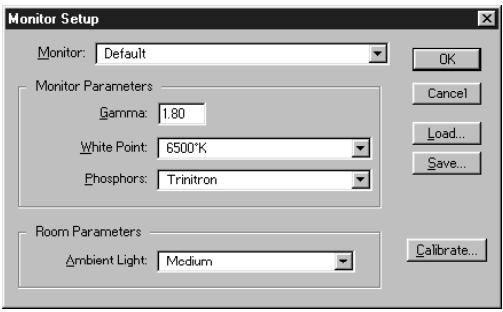
- Browse to your Adobe Photoshop folder, select the Calrgb.ams file, and click Open. The Calrgb.ams file appears as the selection in the Monitor pop-up menu of the Monitor Setup dialog box.
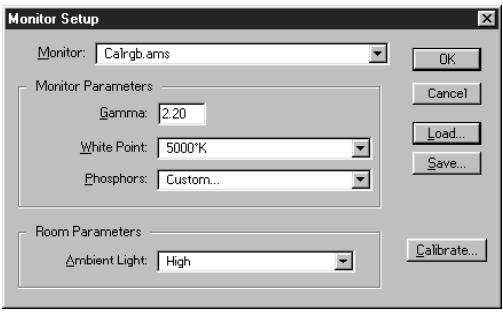
- Under Room Parameters, set Ambient Light to High and click OK.
TO LOAD THE MONITOR SETTINGSFILEFORPHOTOSHOP5.0:
- On the User Software CD, open the Photoshop folder.
- Copy the Calrgb.ams file to your Adobe Photoshop folder.
- Launch Photoshop.
- From the File menu, choose Color Settings, and from the Color Settings submenu, choose RGB Setup.
- In the RGB Setup dialog box, click Load.
- Browse to your Adobe Photoshop folder, select the Calrgb.ams file, and click Open. The Calrgb.ams file appears as the selection in the RGB pop-up menu of the RGB Setup dialog box.
- Click OK.
Installing User Software on a Mac OS Computer
The general steps for installing the Fiery X2e user software and setting up printing on a Mac OS-based computer are:
- Install the Adobe PostScript printer driver and Fiery X2e PostScript Printer Description file (PPD).
- Set up the Fiery X2e in the Chooser.
- Install the Fiery utilities (Fiery Downloader, Fiery Print Calibrator, and Fiery Spooler), and Fiery Scan plug-in.
- Install the screen fonts.
- Install the ColorSync™ profiles.
- Copy additional color-reference and application-specific files from the User Software CD as needed.
Installing Mac OS software
The Installers folder on the User Software CD contains the following installer folders:
- ColorSync™ Profiles—Fiery X2e ColorSync ICC profiles installer
- Fiery Downloader—Fiery Downloader installer
- Fiery Print Calibrator—Fiery Print Calibrator installer
- Fiery Scan—Fiery Scan installer, which installs the Fiery Scan (TWAIN) plug-in and Fiery TWAIN plug-in
- Fiery Spooler—Fiery Spooler installer
- Printer Driver—Adobe PostScript printer driver and PPD installer
NOTE: An installer is not provided for the Mac OS screen fonts; they must be copied directly from the User Software CD to the System Folder:Fonts folder on your hard disk. For instructions, see "Screen fonts" on page 58.
In addition, the User Software CD contains various color files. These files must be copied or installed from the CD and placed in the appropriate locations on your hard disk (see "Copying color files from the User Software CD" on page 59).
PostScript CMYK color reference file
PostScript PANTONE Coated color reference file
- RGB color reference files for specifying colors from Microsoft Word and PowerPoint
- Separation tables and a monitor settings file for use with Adobe Photoshop
NOTE: If you operate the Fiery X2e in a copy shop, quick print shop, or service bureau, you might want to provide copies of the printer driver, PPD file, separation tables, and relevant documentation to customers. This ensures that jobs they prepare are properly formatted for printing to the Fiery X2e.
Downloading printer files with the Installer WebTool
Installers for the Fiery X2e printer files can be downloaded from the Fiery X2e with the Installer WebTool (if the site administrator has enabled Internet access to the Fiery X2e). For instructions, see "Using the Installer WebTool" on page 68.
Once you download the installers, the installation process is identical to installing from the User Software CD.
Setting up PostScript printing with Mac OS
To set up the Fiery X2e as a PostScript printer, you must install the Adobe PostScript printer driver and the PPD file that corresponds to your copier. The AdobePS printer driver and PPD file are provided on the User Software CD.
Printer drivers provide a way to communicate information on print jobs between your applications, the Fiery X2e, and any other PostScript printer connected to your computer.
You can use the following procedures whether you are installing from the User Software CD or with installer files downloaded using the Installer WebTool.
TO INSTALL THE ADOBEPS PRINTER DRIVER AND PPD FILE:
- If you are installing from the CD, open the Installers:Printer Driver folder.
If you are installing from the installer files you downloaded with the Installer WebTool, open the Printer Driver folder on your hard disk.
- Double-click the AdobePS Installer icon.
A warning dialog box appears.

Your Macintosh needs to be restarted after installation is complete. Do you wish to continue?
No
Yes
- Click Yes to continue with installation of printer driver software, and to confirm that your computer must be restarted after installation.
The AdobePS Installer installs the Adobe PostScript printer driver, the PPD file that correspond to your copier, and the Apple Chooser.
- Click Restart when installation is complete.

Installation was successful. In order to take advantage of the new software, your Macintosh needs to be restarted.
Restart
Setting up the Fiery X2e in the Chooser
After you install the AdobePS printer driver and PPD file (see "Setting up PostScript printing with Mac OS" on page 52), you need to set up the Fiery X2e in the Chooser in order to take full advantage of its features. This section describes how to set up the Fiery X2e with the AdobePS printer driver.
TO SET UP THE FIERY X2E IN THE CHOoser:
- Select Chooser from the Apple menu.
- Click the AdobePS icon.
Make sure AppleTalk is set to Active.
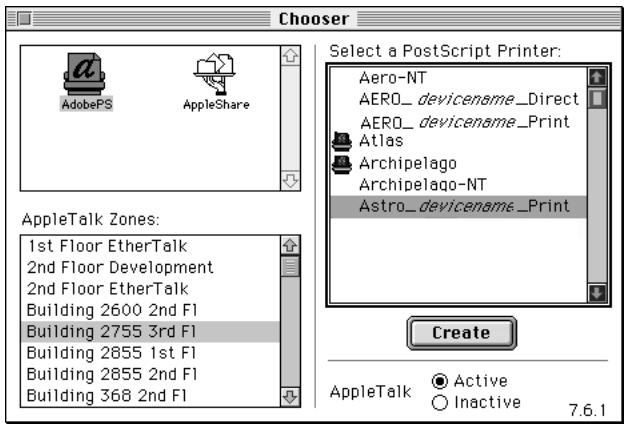
-
Select the correct AppleTalk Zone, if necessary.
-
Select the Fiery X2e from the "Select a PostScript Printer" list, and click Setup.
The Fiery X2e appears in the list in the form of
NOTE: Only the print connections that are available appear in the Chooser. Each Fiery X2e print connection (Direct, Hold, and Print) has a separate name, and you will need to set up each print connection separately. Repeat step 4 for all enabled connections.
- Close the Chooser.
Installing Fiery X2e software and fonts
Before you begin each of the following installation procedures, determine where you want to install each item on your hard disk. By default, the files are placed in the following locations:
- The ColorSync Profiles are placed in the System Folder:Preferences folder on your hard disk.
If your system uses ColorSync, you must install these profiles in the ColorSync Profiles folder inside the System Folder:Preferences folder. You should install the ColorSync profiles only if your system uses them.
- Fiery Downloader is placed in a folder named "Fiery" on the top level of your hard disk.
- Fiery Print Calibrator is placed in a folder named "Fiery" on the top level of your hard disk.
- Fiery Scan is placed on the top level of your hard disk. You are prompted to locate your Photoshop plug-ins folder.
The installer also creates a folder named TWAIN in your System Folder:Preferences folder, and then installs a Fiery Scan module and a Source Manager file into that folder. You must then install the Fiery Scan (TWAIN) plug-in module into the appropriate Photoshop folder in order to use it.
NOTE: Before installing the Fiery TWAIN module, make sure the TWAIN plug-in (installed with Adobe Photoshop software) is located in the correct Photoshop\Plugins subfolder. If the TWAIN plug-in has been deleted, you must reinstall Adobe Photoshop software in order to use Fiery Scan.
- Fiery Spooler is placed in a folder named "Fiery" on the top level of your hard disk.
NOTE: An installer is not provided for the Mac OS screen fonts; they must be copied directly from the User Software CD to the System Folder:Fonts folder on your hard disk. For instructions, see "Screen fonts" on page 58.
TO INSTALL MAC OS SOFTWARE:
- On the User Software CD or your hard disk, double-click to open the Installers folder.
| If you are installing: | Double-click: |
| ColorSync profiles | ColorSync™ Profiles Installer folder |
| Fiery Downloader | Fiery Downloader folder |
| Fiery Print Calibrator | Fiery Print Calibrator folder |
| Fiery Scan | Fiery Scan folder |
| Fiery Spooler | Fiery Spooler folder |
- Double-click the Installer icon.
- Click Install.
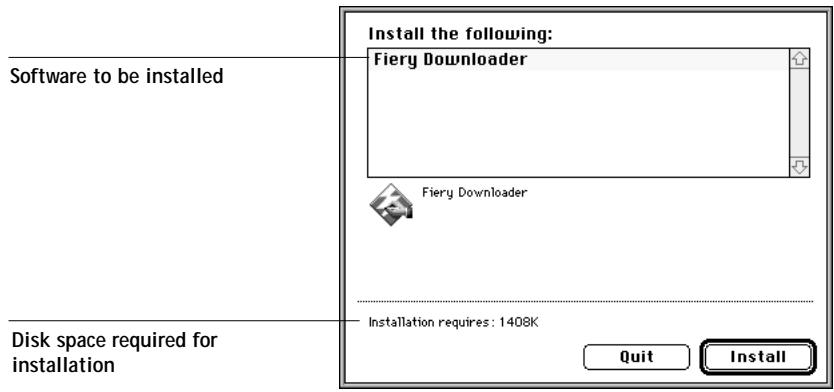
- Specify the locations into which to install each item.
Use the table below as a guide when installing software.
| If you are installing: | Action: | To install: |
| ColorSync Profiles | Browse to the System Folder: Preferences:ColorSync™ Profiles folder. Perform the steps in “To set the ColorSync system profile:” on page 57 after installation is complete. | Click “Install into ColorSync™ Profiles.” |
| Fiery Downloader | Specify a hard disk location for the installed Fiery Downloader software. | Click Install. |
| Fiery Print Calibrator | Specify a hard disk location for the installed Fiery Print Calibrator software. | Click Install. |
| Fiery Scan | Specify where to install the Fiery Scan (TWAIN) plug-in. Browse to the Photoshop:Plug-ins:Import/Export folder. | Click Install into “Import/Export.” |
| Fiery Spooler | Specify a hard disk location for the installed Fiery Spooler software. | Click Install. |
- If prompted, click Quit to close the software installer.
TO SET THE COLORSYNC SYSTEM PROFILE:
- For ColorSync Profiles, choose Control Panels>ColorSync System Profile from the Apple Menu.
-
Click Set Profile.
-
From the list of ColorSync profiles, select EFIRGB ICC and click Select.
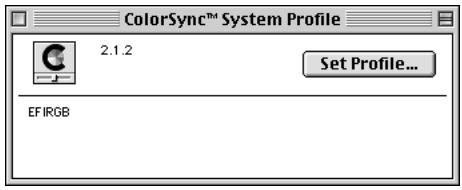
When selected as the ColorSync system profile, EFIRGB ICC sets the optimal source color space for printing to the Fiery X2e. The color space set by the EFIRGB ICC profile is the same as that set by the EFIRGB setting of the RGB Source print option.
NOTE: The RGB Source print option setting overrides the ColorSync system profile setting.
- Close the ColorSync System Profile window.
Screen fonts
The User Software CD includes screen fonts that correspond to the 136 built-in printer fonts on the Fiery X2e. In order to view and use these fonts, you must copy them from the User Software CD to your hard disk.
TO INSTALL SCREEN FONTS:
- On the User Software CD, open the Fonts folder.
- Copy the fonts that you want to install to the System Folder:Fonts folder on your hard disk.
If you have any applications open, you must quit and relaunch them before the newly installed screen fonts are available.
Copying color files from the User Software CD
You can copy additional color files from the User Software CD to your hard disk. Many of the files are PostScript files that you can download and print using Fiery Downloader.
The User Software CD contains the following color files:
Photoshop folder Separation Tables for use with Adobe Photoshop and the Fiery X2e. The Separation Tables match RGB-to-CMYK conversions performed in Photoshop to those performed on the Fiery X2e by color rendering dictionaries (CRDs). Calibrated RGB, a monitor settings file that sets the proper source color space. For instructions on installing these files, see "Installing files for Adobe Photoshop" on page 61.
Color Files folder CMYK Color Reference.ps, an 11-page, letter-size PostScript file to use for reference when defining CMYK colors in applications. PANTONE Book.ps, a 19-page, letter-size PostScript file that indicates the closest equivalent of PANTONE coated colors that the Fiery X2e and your particular copier model can produce. The method used to print the PANTONE Book.ps file differs depending on the Spot Color Matching setting. For more information, see the User Guide. RGB page 01, a file you can print from Microsoft Word 6.0 or later to view available RGB colors. RGB page 02, a file you can print from PowerPoint 4.0 or later to view available RGB colors.
| Calibration folder (inside Color Files folder) | Four PostScript measurements files of color patches: custom21.ps, custom34.ps, standard21.ps, and standard34.ps. The numbers in the filenames refer to the number of patches on the page. The Custom files are provided to enable you to download measurement patches that incorporate the copier's current calibration set. The Standard files are provided to enable you to download standard measurement patches that ignore the copier's current calibration set. NOTE: These files are provided for expert users and should not be used for day-to-day calibration. |
| Demo.mea | Demo Measurement, a sample measurements file for use with Fiery Print Calibrator. This file is for demonstration purposes only and should not be used to calibrate the Fiery X2e. |
Installing files for Adobe Photoshop
If you intend to use Adobe Photoshop, install the Separation Tables and the monitor settings file for best color printing results. These files are located on the User Software CD in the Photoshop folder.
NOTE: For best results, the monitor settings file should be installed if you use Fiery Scan.
Loading the Separation Tables
The Separation Tables enable RGB-to-CMYK conversions (in Photoshop), which correspond to conversions performed by color rendering dictionaries on the Fiery X2e. The procedure you use depends on the version of Photoshop you are using.
TO LOAD THE SEPARATION TABLES FOR PHOTOSHOP 4.0:
- On the User Software CD, open the Photoshop folder.
- Copy the files "Fiery X2e PRN-M.P" and "Fiery X2e PRN-M.S" to your Adobe Photoshop folder.
- Launch Photoshop.
- From the File menu, choose Color Settings, and from the Color Settings submenu, choose Separation Tables.
- In the Separation Tables dialog box, click Load.
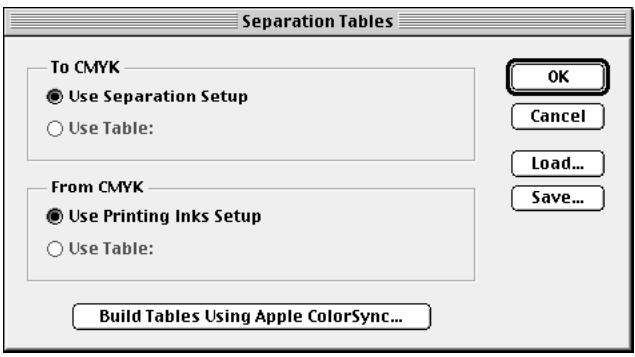
- Browse to your Adobe Photoshop folder, select the appropriate Separation Table file, and click Open.
Select the Fiery X2e PRN-M.P file for separating photographic RGB images to CMYK. Select the Fiery X2e PRN-M.S file for separating solid color RGB images to CMYK.
- Verify that the file you selected appears after "Use Table:" in both places and click OK.
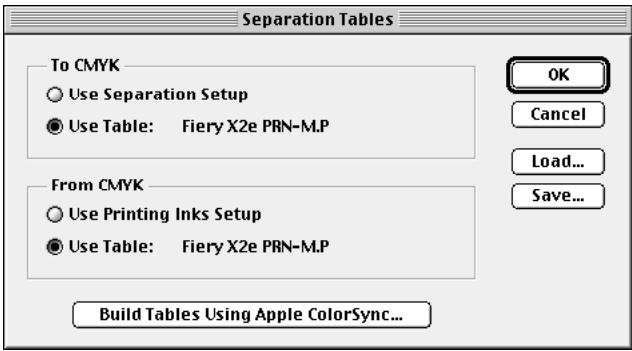
Separation tables remain loaded the next time you start Photoshop, unless you remove them.
TO LOAD THE SEPARATION TABLES FOR PHOTOSHOP 5.0:
- On the User Software CD, open the Photoshop folder.
- Copy the files "Fiery X2e PRN-M.P" and "Fiery X2e PRN-M.S" to your Adobe Photoshop folder.
-
Launch Photoshop.
-
From the File menu, choose Color Settings, and from the Color Settings submenu, choose CMYK Setup.
- In the CMYK Setup dialog box, choose Tables for CMYK Model and click Load.
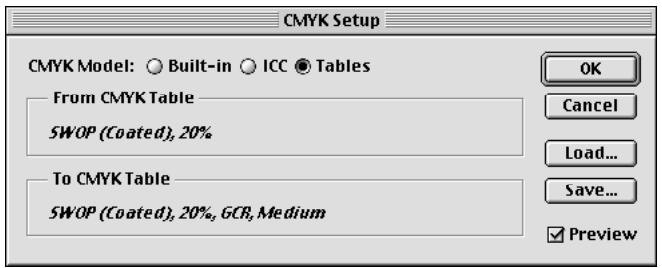
- Browse to your Adobe Photoshop folder, select the appropriate Separation Table file, and click Open.
Select the Fiery X2e PRN-M.P file for separating photographic RGB images to CMYK. Select the Fiery X2e PRN-M.S file for separating solid color RGB images to CMYK.
- Verify that the file you selected appears after "From CMYK Table" in both places and click OK.
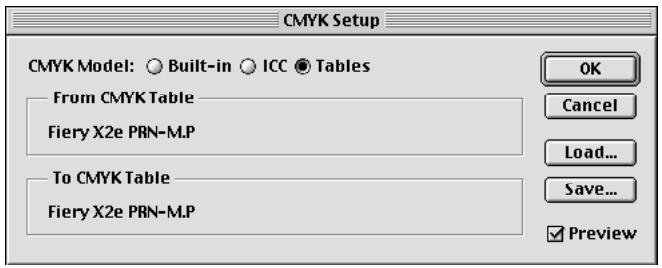
Separation tables remain loaded the next time you start Photoshop, unless you remove them.
Loading the monitor settings file
The Calibrated RGB monitor settings file for Photoshop defines the source color space for printing to the Fiery X2e. The procedure you use depends on the version of Photoshop you are using.
NOTE: For best results, the monitor settings file should be installed if you use Fiery Scan.
TO LOAD THE MONITOR SETTINGSFILEFORPHOTOSHOP4.0:
- On the User Software CD, open the Photoshop folder.
- Copy the Calibrated RGB file to your Adobe Photoshop folder.
- Launch Photoshop.
- From the File menu, choose Color Settings, and from the Color Settings submenu, choose Monitor Setup.
- In the Monitor Setup dialog box, click Load.
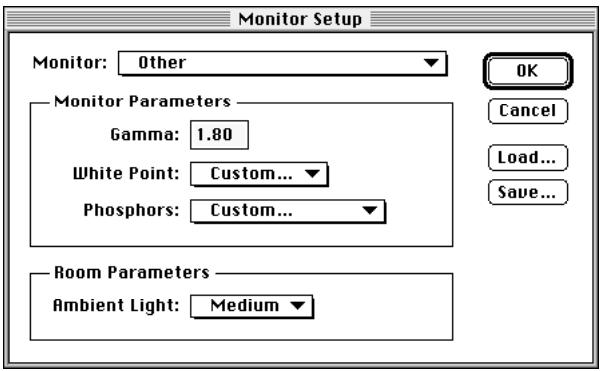
- Browse to your Adobe Photoshop folder, select the Calibrated RGB file, and click Open. The Calibrated RGB file appears as the selection in the Monitor pop-up menu of the Monitor Setup dialog box.
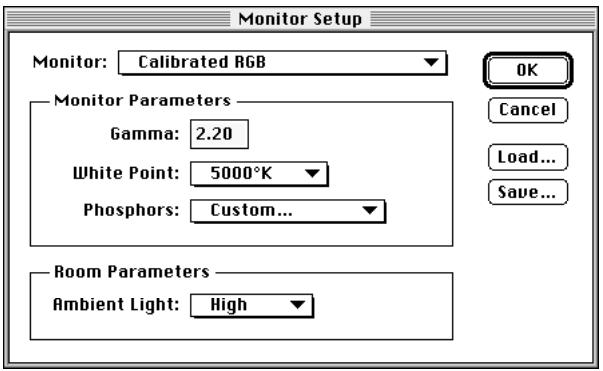
- Under Room Parameters, set Ambient Light to High and click OK.
TO LOAD THE MONITOR SETTINGSFILEFORPHOTOSHOP5.0:
- On the User Software CD, open the Photoshop folder.
- Copy the Calibrated RGB file to your Adobe Photoshop folder.
- Launch Photoshop.
- From the File menu, choose Color Settings, and from the Color Settings submenu, choose RGB Setup.
- In the RGB Setup dialog box, click Load.
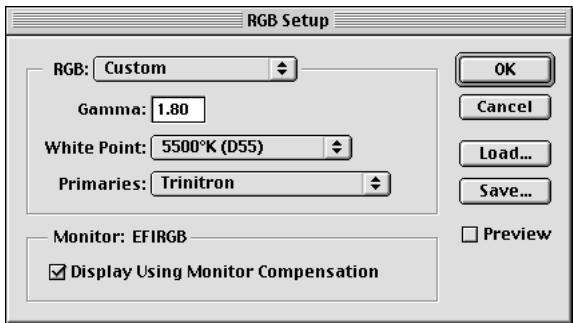
- Browse to your Adobe Photoshop folder, select the Calibrated RGB file, and click Open. The Calibrated RGB file appears as the selection in the RGB pop-up menu of the RGB Setup dialog box.
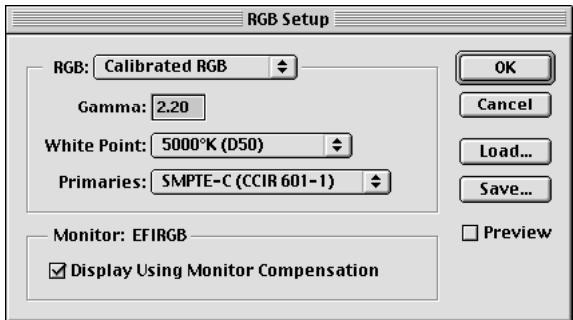
- Click OK.
Downloading Installers with Fiery WebTools
Fiery WebTools allow you to manage your Fiery X2e remotely from the Internet or from your company's intranet. The Fiery X2e has its own home page, from which you are able to select from a variety of functions including WebSetup, Status, WebSpooler, WebLink, and Installer.
For more information on using Fiery WebTools, see the User Guide.
Setting up Fiery WebTools
In order for network users to access and use Fiery WebTools, you need to set certain Fiery X2e options in Setup. You also need to prepare each user's workstation to communicate with the Fiery X2e over the Internet or intranet.
For more information about Fiery X2e Setup, see the Administrator Guide.
TO VERIFY THAT FIERY WEBTOOLS ARE SET UP ON THE FIERY X2E:
- Print the Configuration page from the Control Panel.
For instructions, see the User Guide.
-
On the Configuration page, check the following:
-
In Network Setup>Port Setup, confirm that the appropriate network type is enabled.
- In Network Setup>Protocol Setup>TCP/IP Setup, confirm that TCP/IP is enabled and that there is a valid, unique IP Address for the Fiery X2e.
-
In Network Setup>Service Setup, confirm that Web Services are enabled.
-
If all the conditions listed in Step 2 are currently set, the Fiery X2e is properly set up to use Fiery WebTools.
If any of the conditions listed in Step 2 are not currently set, you must change them (as described in the Administrator Guide) before you can use Fiery WebTools.
TO SET UP CLIENT WORKSTATIONS FOR USE OF FIERY WEBTOOLS:
- Enable TCP/IP networking.
- Make sure the workstation has a valid, unique IP address.
- Make sure the workstation is installed with one of the following Internet browsers: Windows 95 and Windows NT 4.0—Either Netscape Communicator v4.0.x or Microsoft Internet Explorer v3.0.2 or 4.0.x Mac OS—Netscape Communicator v4.0.x NOTE: Netscape and Microsoft continue to release frequent updates to their browsers. As support cannot be guaranteed for all versions, use the versions specified above for best results.
- Make sure Java is enabled in your Internet browser. For more information on setting up the Fiery X2e and your network, see the Administrator Guide.
Using the Installer WebTool
The Installer WebTool contains the same printer driver installers as the User Software CD, allowing you to easily download printer files from the Fiery X2e to your workstation.
TO DOWNLOAD PRINTER FILES INSTALLERS WITH THE INSTALLER WEBTOOL:
- Launch your Internet or intranet browser and enter the DNS name or IP address of the Fiery X2e.
-
Select a login level, enter a password if necessary, and click OK. No password is required to log in as Guest. You have full access to the Installer WebTool when logged in as Guest.
-
Click the Installer button.
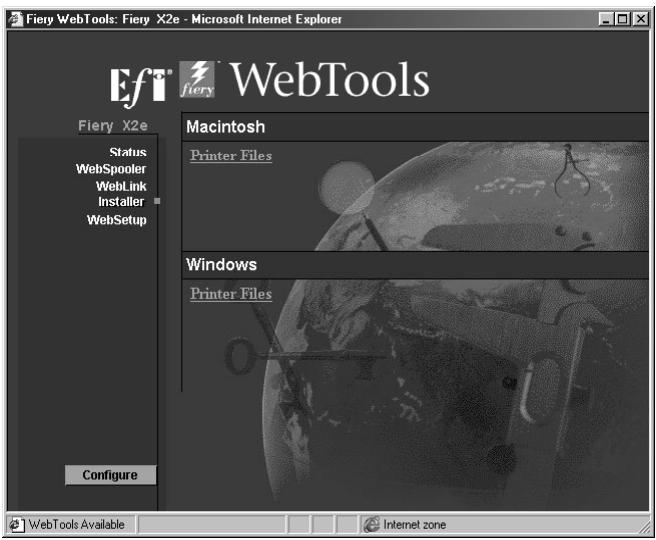
- Under the name of your operating system, click "Printer Files."
For Windows computers, a dialog box appears, prompting you to save the file "Prntdrive.exe" to the location you choose.
For Mac OS computers, a folder named "Printer Driver" is downloaded to the desktop in a BinHex-encoded, compressed format. If your internet browser is equipped with an expander utility such as StuffIt Expander, the folder will be decoded and decompressed automatically.
- For Windows computers, browse to the location where you want to save the Prntdrive.exe file and click Save.
For Mac OS computers, if the Printer Driver folder was not automatically decoded and decompressed, launch a utility that will perform that function.
- For Windows computers, double-click the Prntdrive.exe file, browse to the location where you want to install the Prntdrv folder, and click Next.
The Prntdrvr folder is installed to the location you specified.
- Install the appropriate printer files for your operating system.
| For instructions: | See: |
| Windows 95 | “Setting up PostScript printing with Windows 95” on page 3 |
| Windows 3.1x | “Setting up PostScript printing with Windows 3.1x” on page 18 |
| Windows NT 4.0 | “Setting up PostScript printing with Windows NT 4.0” on page 23 |
| Mac OS computers | “Setting up PostScript printing with Mac OS” on page 52. |
Troubleshooting
This chapter provides troubleshooting tips for some problems that may arise when performing the procedures in this manual.
On a Windows computer
Setting up IPX (Novell) printing for Windows NT Workstation
If you have problems installing the Fiery X2e with Windows NT, try installing another PostScript printer (such as the Apple LaserWriter IIg), and then install the Fiery X2e. Installing another printer insures that all files are properly installed and available. For instructions, see your Windows NT documentation.
Installing the Adobe PostScript Printer Driver
If you are reinstalling the Adobe PostScript Printer Driver, delete any previous versions and related files before installing. Search for and delete all files named Efm*. * in the Windows\System folder and the Windows\System\Color folder. See the Adobe README file included with the printer driver for more information.
Problems with the Fiery utilities on Windows 95 or Windows NT
- If you are using Windows 95, make sure that IPX/SPX and TCP/IP networking protocols are both enabled.
See "Completing the Windows 95 IPX/SPX or IPX (Novell) connection" on page 10.
- Make sure that the connection is configured correctly for your site.
To check the current configuration, launch a Fiery utility and choose Open from the File menu. Select the Fiery X2e and click Modify to see current settings. If the settings are incorrect, you can change them in this dialog box.
On a Mac OS computer
Setting up the Fiery X2e in the Chooser
If auto-setup does not work and you are prompted to select the PPD, select the Fiery X2e file in your System Folder:Extensions:Printer Descriptions folder.
Select "Fiery X2e PRN-M."
Installing screen fonts
If you experience problems installing the PostScript screen fonts from the User Software CD to the System Folder:Fonts folder, try the following:
- Quit all applications and close all windows.
- Create a new folder and name it "Uninstalled Fonts."
This folder must be located outside of the System Folder.
- Move fonts that you are not using from the System Folder:Fonts folder to the Uninstalled Fonts folder.
- Continue to copy fonts from the User Software CD to the System Folder:Fonts folder.
- Create an alias to the System Folder:Fonts folder and to the Uninstalled Fonts folder.
- Place both aliases on your desktop.
- When necessary, use the aliases to open both folders and move fonts between them. If you have any applications running, you must quit and relaunch them in order to view and use the newly installed fonts.
Alternatively, you can try combining fonts from multiple suitcases into a single suitcase.
Index
A
Adobe PostScript 3 fonts x
Adobe PostScript printer driver, see PostScript printer driver
amount of memory required xii, xiii, xiv
AppleTalk
connecting to Mac OS 53
supported by color server x
B
Berkeley lpd protocol xiv
BMP images 45
C
cable, color server x
Calibration folder 60
Calrgb.ams 46, 48 to 49
Choser
selecting the server in 53
setting up color server in 72
Clrfiles folder 44
CMYK color reference file 2, 44, 52, 59
Color Files folder 59, 60
color management files x, xi
color reference files xi, 2, 44, 52, 59
color rendering dictionaries, see CRDs
color server specifications x
ColorSync color management files xi, 51, 57
ColorWise color management files x
Configuration page 14, 39
connecting
Windows 3.1x with IPX (Novell) 21
Windows 95 with IPX/SPX or IPX
(Novell) 10
Windows 95 with parallel port 6
Windows 95 with SMB printing 13
Windows NT 4.0 with IPX (Novell) 32
Windows NT 4.0 with parallel port 28
Windows NT 4.0 with TCP/IP 29
connection, configuring 38
CRDs (color rendering dictionaries) 44
custom34.ps (Mac OS) 60
custom34.ps (Windows) 45
D
DB-25 connector xiv
Demo.mea file 45,60
device name 31, 40, 42
DNS name xii, xiv, 40, 42
Domain Name Server (DNS) 39
E
EFIRGB ICC 58
EPS files xi
Ethernet 100BaseTX cable x
Ethernet 10BaseT cable x
EtherTalk xiii
F
Fast Ethernet 100BaseTX cable x
Fiery Downloader
EPS files xi
installer for Mac OS 51
installer for Windows 1
installing for Mac OS 57
installing for Windows 34
overview xi
PDF files xi
Fiery Print Calibrator
installer for Mac OS 51
installer for Windows 1
installing for Mac OS 57
installing for Windows 34
overview xi
Fiery Scan Plug-in for Photoshop
installer for Mac OS 51
installer for Windows 1, 34
installing for Mac OS 57
installing for Windows 38
overview xi
requirements xii
system requirements xiv
Fiery Spooler
configuring the connection 41 to 43
installer for Mac OS 51
installer for Windows 1
installing for Mac OS 57
installing for Windows 36
overview xi
supported protocols xiii
Fiery TWAIN module xi, 38, 55
Fiery utilities
configuring the connection 38
installing for Mac OS 55
installing for Windows 34
problems on Windows 95 or
Windows NT 71
requirements for Mac OS xiv
requirements for Windows xii
see also Fiery Downloader, Fiery Print
Calibrator, Fiery Spooler
Fiery WebTools
Installer x, 2, 3, 68 to 70
setting up 67
system requirements xii, xiv
version of browser required xii, 68
fonts
Adobe PostScript 3 x
Adobe Type 1 xi
installing 51, 52
Multiple Master x
screen fonts 58
substituting in PDF files x
troubleshooting 72
TrueType x, xi
Fonts folder 72
Frame Type option 12
1
i386 folder 27
ICM color management files xi, 2, 44, 45
installers
Mac OS 51, 52
Windows 1, 2
Installers folder 51
installing
ColorSync Profiles 56
Fiery Downloader (Mac OS) 56
Fiery Downloader (Windows) 34
Fiery Print Calibrator (Mac OS) 56
Fiery Print Calibrator (Windows) 34
Fiery Scan Plug-in (Mac OS) 56
Fiery Scan Plug-in (Windows) 38
Fiery Spooler (Mac OS) 56
Fiery Spooler (Windows) 36, 36 to 37
ICM profile 45
PostScript printer driver (Mac OS) 53
PostScript printer driver
(Windows 95) 3 to 6
screen fonts 58
software (Mac OS) 55
software (Windows) 34
TWAIN module (Windows) 38
Instalrs folder 1
internal name 31
Internet Explorer xii, 68
IP address xii, xiv, 14, 39
IPX
system requirements XV
Windows 3.1x 21 to 22
Windows 95 13
Windows NT 4.0 32, 32 to 34
IPX address 39
IPX/SPX
configuring the connection 39
Windows 95 11
J
Java 68
JPEG images 45
M
Mac OS
copying color files 59
Installer WebTool 52
installing Fiery utilities 55
installing software 56
Power Macintosh xiv
screen fonts 58
system requirements xiii
troubleshooting 72
memory, amount required xii, xiii, xiv
memory specification x
Microsoft Office 97, see Office 97
modifying the configuration (Windows) 43
monitor settings file
Mac OS 63 to 65
Windows 48 to 49
MS-DOS, versions required xiii
N
Netscape Communicator xii, 68
NetWare
network port with Windows 3.1x 22
network port with Windows 95 13
NetWare client setup
Windows 3.1x 21
Windows 95 11, 13
NetWise networking features x
Ntprint.inf file 25
0
Office 97 45
P
PANTONE Book.ps 59
PANTONE Coated color reference file 52
PANTONE color reference files 2, 44
parallel port
system requirements xiv
Windows 3.1x 20 to 21
Windows 95 7 to 10
Windows NT 4.0 29 to 32
PDF files x, xi
Photoshop
files (Mac OS) 52, 59
files (Windows) 2, 44
plug-ins xi
version 2.5 or later required for Fiery
Scan plug-in xii
Photoshop folder 59
Photoshop Separation Tables
Mac OS 61 to 63
Windows 46 to 48
Photoshp folder (Windows) 44
PostScript
printing with Mac OS 52
printing with Windows 3.1x 18
printing with Windows 95 3
printing with Windows NT 4.0 23
PostScript Level 1 x
PostScript Printer Description file, see PPD
PostScript printer driver
downloading 68 to 70
installer for Mac OS 51
installers for Windows 1
installing for Mac OS 53
installing for Windows 95 3 to 6
version 3.0 for Windows 3.1x xiii
version 4.2 for Windows 95 xiii
version 8.5 for Mac OS xiii
PowerPoint, RGB color reference file 52, 59
PPD
Mac OS 53
overview xi
Windows 3.1x 19
Windows 95 4
Windows NT 4.0 25
Print command (Windows) 19
primer drivers, see Postscript printer drivers, Windows NT 4.0 printer drivers
printing
Mac OS 52
Windows 3.1x 18
Windows 95 3
Windows NT 4.0 28
Print Test Page option 17
Prntdrive.exe file 70
R
remote server management 67
Rgb_01.doc 44
Rgb_02.ppt 44
RGB color reference files 2
RGB page 01 59
RGB page 02 59
S
Separation Tables see Photoshop Separation Tables
Server Name 14
SMB printing, see Windows 95
Solaris, supported version xiv
specifications, color server x
Spooler, see Fiery Spooler
SunOS, support version xiv
System 7 xiii
See also Mac OS
system requirements
IPX XV
Mac OS xiii
parallel port xiv
UNIX xiv
Windows xii
T
TCP/IP
configuring the connection 39
printing software conforming to
RFC1179 xiv
supported by color server x
test page 17
thicknet cable x
thinnet cable x
TIFF images 45
troubleshooting
Mac OS computers 72
Windows computers 71
TWAIN folder 55
U
Uninstalled Fonts folder 72
UNIX workstations, system
requirements xiv
unshielded twisted pair (UTP) cable x
User Software CD
Adobe PS Printer Driver x
contents (Mac OS) 51, 52
contents (Windows) 1, 2, 34
installing from (Mac OS) 53, 59
installing from (Windows) 3, 44
overview x
troubleshooting fonts 72
W
WebSpooler, see Fiery WebSpooler
WebTools, see Fiery WebTools
Windows
copying color files 44
installers 1
installing software 34
system requirements xii
troubleshooting 71
Windows 3.1x
configuration ports on 20
connection 20
IPX printing 21 to 22
PPD 19
selecting parallel port 20 to 21
setting default printer 19
system requirements xiii
Windows 95
IPX/SPX 11
parallel port 7 to 10
PostScript printer driver 3 to 6
SMB printing 13 to 17
system requirements xiii
Windows NT 4.0
IPX 32 to 34
primer driver 2, 23
printing from parallel port 29 to 32
printing requirements 28
setting up PostScript printing 23
system requirements xiii
troubleshooting 71
Windows NT Installation CD 27
WINS Name Server 14, 17
Word, RGB color reference file 52, 59
2855 Campus Drive
San Mateo, CA 94403
USA
www.efi.com
26 Cunningham Street
North Sydney NSW 2060, Australia
Av. Ayrton Senna
Eastern Europe and Central Asia
2802-2804 Admiralty Centre
Tower 1, 18 Harcourt Road, Hong Kong
60-B Peck Seah Street
Singapore 079323
Frosundaviks Alé 15 4tr
169 70 Solna, Sweden
Stonebridge House, Padbury Oaks, Old Bath Road
Longford, Middlesex UB7 0EW, UK
45001844