BIZHUB C353P - Color multifunction printer KONICA MINOLTA - Free user manual and instructions
Find the device manual for free BIZHUB C353P KONICA MINOLTA in PDF.


User questions about BIZHUB C353P KONICA MINOLTA
0 question about this device. Answer the ones you know or ask your own.
Ask a new question about this device
Download the instructions for your Color multifunction printer in PDF format for free! Find your manual BIZHUB C353P - KONICA MINOLTA and take your electronic device back in hand. On this page are published all the documents necessary for the use of your device. BIZHUB C353P by KONICA MINOLTA.
USER MANUAL BIZHUB C353P KONICA MINOLTA
What is an ENERGY STAR® Product? 1-1
1.2 Trademarks and copyrights 1-2
License information 1-2
OpenSSL statement 1-3
NetSNMP License 1-4
Kerberos 1-6
Copyright 1-6
1.3 SOFTWARE LICENSE AGREEMENT 1-7
1.4 About Adobe Color Profile 1-8
1.5 ICC Profile for TOYO INK Standard Color on Coated paper (TOYO Offset Coated 2.0) 1-10
1.6 DIC STANDARD COLOR PROFILE LICENSE AGREEMENT 1-11
1.7 Explanation of manual conventions 1-13
Safety advices 1-13
Sequence of action 1-13
Tips 1-13
Special text markings 1-14
1.8 Descriptions of paper 1-15
1.9 User manuals 1-15
2 Installation and operation precautions
2.1 Safety information 2-3
Warning and precaution symbols. 2-3
Meaning of symbols 2-3
Disassemble and modification 2-4
Power cord 2-4
Power source 2-5
Power plug 2-5
Grounding 2-6
Installation 2-7
Ventilation 2-7
Actions in response to troubles. 2-8
Consumables 2-8
When moving the machine 2-9
Before successive holidays. 2-9
2.2 Regulation notices 2-10
CE Marking (Declaration of Conformity) for users of the European Union (EU). 2-10
User Instructions FCC Part 15 - Radio Frequency Devices (for U.S.A. users) 2-10
Interference-Causing Equipment Standard (ICES-003 ISSUE 4) (for Canada users) 2-10
Laser safety 2-10
Internal laser radiation 2-10
CDRH regulations 2-11
For European users 2-11
For Denmark users 2-11
For Finland, Sweden users. 2-12
For Norway users 2-12
Laser safety label 2-13
Ozone release. 2-13
Acoustic noise (for European users only) 2-13
For EU member states only. 2-14
2.3 Caution notations and labels 2-15
2.4 Space requirements 2-17
2.5 Operation precautions 2-18
Power source. 2-18
Operating environment 2-18
Storage of copies 2-18
3 Before using the machine
3.1 Part names and their functions 3-3
3.1.1 Options 3-3
3.1.2 Outside of machine 3-5
3.1.3 Inside of machine 3-8
3.1.4 Finisher FS-S519/Output tray OT-602/Punch kit PK-515 3-9
3.1.5 Saddle stitcher SD-505/Mailbin kit MT-502 3-11
3.1.6 Finisher FS-609/Punch kit PK-501 3-13
3.1.7 Control panel 3-15
3.1.8 Display panel 3-15
3.2 Power supply 3-16
3.2.1 Turning on the machine 3-16
3.2.2 Turning off the machine 3-16
3.2.3 Automatically clearing settings (System Auto Reset) 3-17
3.2.4 Automatically conserving energy (Low Power mode) 3-17
3.2.5 Automatically conserving energy (Sleep mode) 3-18
3.2.6 Manually switching to Power Save mode 3-18
3.2.7 Power supply 3-18
3.3 Paper 3-19
3.3.1 Possible paper sizes 3-19
3.3.2 Paper types and paper capacities 3-20
3.3.3 Special paper 3-21
3.3.4 Precautions for paper 3-22
3.3.5 Paper storage 3-22
3.3.6 Auto tray switch feature 3-22
3.3.7 Order for selecting paper trays 3-23
3.4 Loading paper 3-24
3.4.1 Loading paper into tray 1/2/3/4 3-24
3.4.2 Loading paper into the LCT 3-25
3.4.3 Loading paper into the bypass tray 3-27
3.5 Printer controller 3-31
3.5.1 Role of the printer controller 3-31
3.5.2 Printing flow 3-32
3.6 Operating environment 3-33
3.6.1 Compatible computers and operating systems 3-33
Windows 3-33
Macintosh 3-33
3.6.2 Compatible interfaces 3-34
Ethernet interface 3-34
USB interface. 3-34
Connection diagram 3-34
3.6.3 Printer drivers applicable to operating systems 3-35
3.7 Setting up the system 3-36
3.7.1 Network connection 3-36
3.7.2 Local connection 3-36
3.8 Contents of the DVD 3-37
3.9 Authentication Method 3-38
3.9.1 User authentication and account track 3-38
3.9.2 When user authentication and account track are synchronized 3-39
3.9.3 When user authentication and account track are used separately 3-39
3.10 User Box functions 3-40
3.10.1 Available User Box functions 3-40
Saving documents. 3-40
Using document data. 3-41
3.10.2 Set-up for User Box functions.. 3-41
User box registration 3-41
3.10.3 User authentication 3-42
Machine authentication 3-42
Account track 3-42
3.10.4 Limitation on user box registration 3-43
Public/personal/group user boxes 3-43
3.10.5 Authentication and accessible user boxes 3-43
When user authentication and account track settings are not specified 3-43
When only user authentication settings are specified. 3-44
When only account track settings are specified 3-44
When user authentication and account track settings are specified and synchronized. 3-45
When user authentication and account track settings are specified but not synchronized 3-46
4 Network settings
4.1 Specifying general settings for TCP/IP-based communication 4-3
TCP/IP Settings 4-3
4.2 Using PageScope Web Connection 4-5
4.2.1 TCP/IP Settings 4-5
4.2.2 PSWC Settings 4-5
4.2.3 TCP Socket Setting 4-6
4.2.4 SSL/TLS Setting 4-6
4.3 Logging in to Administrator mode of PageScope Web Connection 4-7
4.4 Specifying network print settings 4-9
4.4.1 Specifying LPR/Port9100 print settings 4-9
TCP/IP Settings 4-9
LPD Setting 4-9
RAW Port Number 4-9
4.4.2 Specifying SMB print settings 4-10
TCP/IP Settings 4-10
Print Setting. 4-11
Direct Hosting Setting 4-12
WINS Setting 4-13
4.4.3 Specifying IPP print settings 4-14
TCP/IP Settings 4-14
IPP Setting 4-15
IPP Authentication Setting 4-16
4.4.4 Specifying IPPS print settings 4-16
TCP/IP Settings 4-17
IPP Setting 4-17
SSL/TLS Setting 4-17
IPP Authentication Setting 4-17
4.4.5 Specifying Bonjour print settings 4-18
Bonjour Setting. 4-18
4.4.6 Specifying AppleTalk print settings 4-19
AppleTalk Setting 4-19
4.4.7 Specifying Web Service Function settings 4-20
TCP/IP Settings 4-20
Web Service Common Settings 4-21
Printer Settings. 4-22
5 Installing the printer driver for Windows
5.1 Connection methods selectable in each operating system 5-3
Network connection (Ethernet) 5-3
USB interface. 5-3
5.1.1 Windows 2000/XP/Server 2003 5-3
5.1.2 Windows Vista 5-4
5.1.3 Windows NT 4.0 5-5
5.2 Installation using the wizard (Windows XP/Server 2003) 5-6
5.2.1 Network connection (LPR/Port9100) 5-6
TCP/IP setting for this machine 5-6
RAW port number setting for this machine 5-6
LPD setting for this machine 5-6
Printer driver installation using the Add Printer Wizard 5-6
5.2.2 Network connection (SMB) 5-8
TCP/IP setting for this machine 5-8
SMB setting for this machine 5-8
Printer driver installation by specifying printers using the Add Printer Wizard. 5-8
5.2.3 Network connection (IPP or IPPS) 5-10
Specifying the TCP/IP setting for this machine 5-10
Specifying the IPP settings for this machine 5-10
Printer driver installation using the Add Printer wizard. 5-10
5.2.4 Local connection 5-12
5.3 Installation using the wizard (Windows Vista) 5-13
5.3.1 Network connection (LPR, Port9100, or SMB) 5-13
Specifying the TCP/IP setting for this machine 5-13
RAW port number setting for this machine 5-13
LPD setting for this machine 5-13
SMB setting for this machine 5-13
Printer driver installation by searching printers using the Add Printer Wizard 5-14
Printer driver installation by creating a port using the Add Printer Wizard. 5-15
5.3.2 Network connection (IPP or IPPS) 5-17
Specifying the TCP/IP setting for this machine 5-17
Specifying the IPP settings for this machine 5-17
Printer driver installation using the Add Printer wizard. 5-17
5.3.3 Network connection (Web Service print) 5-18
TCP/IP setting for this machine 5-18
Web Service settings for this machine 5-18
Printer installation from the Network window. 5-19
Printer driver installation by specifying the IP address using the Add Printer Wizard 5-19
5.3.4 Local connection 5-21
5.4 Installation using the wizard (Windows 2000) 5-22
5.4.1 Network connection (LPR/Port9100) 5-22
TCP/IP setting for this machine 5-22
RAW port number setting for this machine 5-22
LPD setting for this machine 5-22
Printer driver installation using the Add Printer Wizard 5-22
5.4.2 Network connection (SMB) 5-23
TCP/IP setting for this machine 5-23
SMB setting for this machine 5-23
Printer driver installation using the Add Printer Wizard 5-24
5.4.3 Network connection (IPP or IPPS) 5-25
Specifying the TCP/IP setting for this machine 5-25
Specifying the IPP settings for this machine 5-25
Printer driver installation using the Add Printer wizard. 5-25
5.4.4 Local connection 5-26
5.5 Installation using the wizard (Windows NT 4.0) 5-27
5.5.1 Network connection (LPR) 5-27
TCP/IP setting for this machine 5-27
LPD setting for this machine 5-27
Printer driver installation using the Add Printer Wizard. 5-27
5.6 Uninstalling the printer driver 5-29
6 Installing the printer driver for Macintosh
6.1 Selectable connection methods 6-3
6.2 Installing the printer driver on Macintosh OSX 10.2/10.3/10.4 6-4
6.2.1 Installing the printer driver 6-4
6.2.2 Selecting and connecting the printer (OS 10.4) 6-5
6-5
Adding a printer (Bonjour settings) 6-5
Specifying the AppleTalk settings for this machine 6-5
Specifying the AppleTalk settings for the computer 6-5
Adding a printer (AppleTalk settings) 6-6
Specifying the TCP/IP setting for this machine (LPR settings) 6-6
LPD setting for this machine (LPR settings) 6-6
Specifying the TCP/IP setting for the computer (LPR settings) 6-6
Adding a printer (LPR settings) 6-7
Specifying the TCP/IP setting for this machine (IPP settings) 6-7
IPP setting for this machine 6-7
Specifying the TCP/IP setting for the computer (IPP settings) 6-7
Adding a printer (IPP settings) 6-8
6.2.3 Selecting and connecting the printer (OS 10.2 and 10.3) 6-8
6-8
Adding a printer (Rendezvous settings) 6-8
Specifying the AppleTalk settings for this machine 6-9
6-9
Adding a printer (AppleTalk settings) 6-9
Specifying the TCP/IP setting for this machine (LPR settings) 6-9
LPD setting for this machine (LPR settings) 6-9
Specifying the TCP/IP setting for the computer (LPR settings) 6-10
Adding a printer (LPR settings) 6-10
Specifying the TCP/IP setting for this machine (IPP settings) 6-10
IPP setting for this machine 6-10
Specifying the TCP/IP setting for the computer (IPP settings) 6-11
Adding a printer (IPP settings) 6-11
6.3 Mac OS 9.2 6-12
6.3.1 Installing the printer driver 6-12
6.3.2 Selecting and connecting the printer 6-12
Specifying the AppleTalk settings for this machine 6-12
Specifying the AppleTalk settings for the computer 6-12
Selecting a printer (AppleTalk settings) 6-12
Specifying the TCP/IP setting for this machine (LPR settings) 6-13
LPD setting for this machine (LPR settings) 6-13
Specifying the TCP/IP setting for the computer (LPR settings) 6-13
Adding a printer (LPR settings) 6-13
6.4 Uninstalling the printer driver 6-14
6.4.1 For Macintosh OS X 6-14
6.4.2 For Macintosh OS 9.2 6-14
7 Print functions of the printer drivers for Windows
7.1 Printing operations 7-3
7.2 Initializing the PCL/PS printer driver.. 7-4
7.2.1 How to display the Properties screen 7-4
7.2.2 Configure tab.. 7-5
7.2.3 Settings tab 7-6
7.2.4 Registration of the default settings.. 7-7
7.3 Common settings for the PCL/PS drivers 7-8
7.4 Parameter details for the PCL/PS drivers 7-9
7.4.1 Basic tab. 7-9
7.4.2 Layout tab.. 7-11
7.4.3 Finish tab 7-13
7.4.4 Cover Mode tab. 7-14
7.4.5 Stamp/Composition tab 7-16
7-18
Editing copy protect 7-19
Editing date/time and page number 7-21
7.4.6 Quality tab 7-22
7.4.7 Other tab. 7-23
8 Print functions of the printer driver for Macintosh
8.1 Printing operations for OS X. 8-3
8.2 Default settings for the OS X printer driver 8-4
8.2.1 Options 8-4
8.2.2 Registration of the default settings.. 8-5
8.3 Common settings for the OS X printer driver 8-6
8.4 How to add a custom size for the OS X printer driver 8-7
8.5 Parameter details for the OS X printer driver 8-8
8.5.1 Page Attributes 8-8
8.5.2 Copies & Pages 8-9
8.5.3 Output Method 8-10
Checking the Output Method setting details. 8-11
8.5.4 Layout/Finish 8-13
8.5.5 Paper Tray/Output Tray 8-15
8.5.6 Cover Mode/Transparency Interleave 8-16
8.5.7 Per Page Setting 8-18
8.5.8 Stamp/Composition 8-19
8-20
8-22
8-22
Editing header/Footer 8-23
8.5.9 Quality 8-24
8.6 Printing operations for OS 9 8-25
8.7 Default settings for the OS 9 printer driver 8-26
8.7.1 Options 8-26
8.7.2 Registration of the default settings.. 8-27
8.8 Parameter details for the OS 9 printer driver.. 8-28
8.8.1 Page Attributes 8-28
8.8.2 Setting Custom Page Size 8-29
8.8.3 General 8-29
8.8.4 Layout (Pages per sheet) 8-30
8.8.5 Printer specific options (Finishing Options 1 to 5) 8-30
9 Function detail description
9.1 Proof print 9-3
9.1.1 Setting up the printer driver 9-3
For Windows 9-3
For Macintosh OS X 9-4
9.1.2 Recalling a job from the control panel 9-5
9.2 Secure print 9-6
9.2.1 Setting up the printer driver 9-6
For Windows 9-6
For Macintosh OS X 9-8
9.2.2 Recalling a job from the control panel 9-9
When "SecurePrintAccess" is set to "Mode 1" 9-10
When "SecurePrintAccess" is set to "Mode 2". 9-11
9.3 Save in User Box 9-12
9.3.1 Setting up the printer driver 9-12
For Windows 9-12
For Macintosh OS X 9-14
9.3.2 Recalling a job from the control panel 9-15
9.4 Save in Annotation User Box 9-17
9.4.1 Setting up the printer driver 9-17
For Windows 9-17
For Macintosh OS X 9-19
9.4.2 Recalling a job from the control panel 9-20
9.5 Save in Encrypted PDF Box 9-22
9.5.1 Specifying Encrypted PDF file 9-22
9.5.2 Recalling a job from the control panel 9-23
9.6 Printing on a machine with the user authentication set up 9-24
9.6.1 Setting up the printer driver 9-25
For Windows 9-25
For Macintosh OS X 9-26
9.7 Printing with the machine enabling the Account Track function 9-28
9.7.1 Setting up the printer driver 9-28
For Windows 9-28
For Macintosh OS X 9-30
9.8 Touch and Print 9-31
9.8.1 Touch and Print operation procedure 9-31
9.8.2 Recalling a job from the control panel 9-33
9.9 Specifying a user-defined encryption passphrase 9-34
9.9.1 Settings of this machine 9-34
9.9.2 Setting up the printer driver 9-35
For Windows 9-35
For Macintosh OS X 9-36
9.10 ICC profile settings 9-38
9.10.1 Setting up the printer driver 9-38
For Windows 9-38
For Macintosh OS X 9-39
9.11 Registering ICC profiles in the printer driver 9-40
9.11.1 Setting up the printer driver 9-40
For Windows 9-40
For Macintosh OS X 9-42
9.12 Banner paper printing function 9-44
9.12.1 Copy paper 9-44
Applicable paper 9-44
9.12.2 Printer drivers and supported operating systems 9-44
9.12.3 Setting up the printer driver 9-44
9.12.4 Printing 9-45
10 Settings for control panel
10.1 Control panel. 10-3
10.1.1 Basic operations 10-3
Basic menu operations 10-3
Operations for changing numeric values 10-5
10.2 List of "Utility" menu parameters 10-7
Main Menu 10-7
Job Operation Menu 10-7
Paper Setting Menu 10-8
User Setting Menu 10-8
System Setting Menu 10-10
Admin. Settings Menu 10-12
Banner Printing Menu 10-13
10.3 Parameters 10-14
10.3.1 Job Operation Menu 10-14
User name input items. 10-14
Account name input items. 10-14
Document selection items 10-14
Printing items. 10-15
10.3.2 Paper Settings Menu 10-15
10.3.3 User Settings Menu 10-16
Print Reports. 10-16
Consumables 10-16
System Settings. 10-16
Printer Settings 10-17
Font List. 10-18
10.3.4 System Settings Menu.. 10-19
System Settings. 10-19
Network Settings 10-20
Printer Settings 10-22
System Connection 10-22
10.3.5 Admin. Settings Menu 10-23
Security Settings. 10-23
User Box Settings. 10-25
AuthDeviceSetting 10-26
Expert Adjustment 10-27
11 PageScope Web Connection
11.1 Using PageScope Web Connection 11-3
11.1.1 Operating environment 11-3
11.1.2 Accessing PageScope Web Connection 11-3
11.1.3 Web browser cache 11-4
With Internet Explorer 11-4
With Netscape Navigator 11-4
With Mozilla Firefox 11-4
11.1.4 Structure of pages 11-5
11.2 Logging on and logging off 11-7
11.2.1 Login and logout operations 11-7
When user authentication and account track settings are not specified 11-7
When user authentication and account track settings are specified. 11-8
11.2.2.... 11-9
11.2.3 Login 11-10
Options that can be selected when logged on to PageScope Web Connection 11-10
Logging on as a public user 11-10
Logging on as a registered user 11-11
Logging on to Administrator mode 11-12
11.3 Overview of User mode 11-13
11.3.1 Information 11-13
11.3.2 Job 11-14
11.3.3 Box 11-15
11.3.4 Direct Print 11-16
11.4 Overview of Administrator mode 11-17
11.4.1 Maintenance 11-17
11.4.2 Security 11-19
11.4.3 Box 11-20
11.4.4 Print Setting 11-21
11.4.5 Network 11-22
11.5 Box settings 11-24
11.5.1 Changing user box settings or deleting a user box 11-24
Open User Box 11-24
11.5.2 Creating a new user box 11-25
Create User Box 11-25
11.5.3 Changing system box settings or deleting system boxes 11-27
Open System User Box 11-27
11.5.4 Creating a new system user box 11-28
Create System User Box 11-28
11.6 Importing or exporting setting information 11-29
Import/Export 11-29
11.7 Specifying the date and time on this machine 11-30
11.7.1 Manual Setting 11-31
11.7.2 TCP/IP Settings 11-31
11.7.3 Time Zone 11-31
11.7.4 Time Adjustment Setting 11-32
11.8 Limiting users using this machine (Machine authentication) 11-33
11.8.1 User Auth/Account Track 11-34
11.8.2 User Registration 11-35
11.8.3 Account Track Registration 11-37
11.9 Limiting users using this machine (Active Directory) 11-38
11.9.1 TCP/IP Settings 11-38
11.9.2 External Server Registration 11-39
11.9.3 UserAuth/AccountTrack 11-40
11.9.4 Default Function Permission 11-41
11.9.5 Date/Time Setting 11-41
11.10 Limiting users using this machine (Windows domain/workgroup) 11-42
11.10.1 TCP/IP Settings 11-42
11.10.2 External Server Registration 11-43
11.10.3 UserAuth/AccountTrack 11-44
11.10.4 Default Function Permission 11-44
11.10.5 Client Setting 11-45
11.10.6 WINS Setting 11-46
11.11 Limiting users using this machine (NDS) 11-47
11.11.1 External Server Registration 11-48
11.11.2 User Auth/Account Track 11-49
11.11.3 Default Function Permission 11-49
11.11.4 NetWare Setting 11-50
11.12 Limiting users using this machine (LDAP) 11-51
11.12.1 TCP/IP Settings 11-51
11.12.2 External Server Registration 11-52
11.12.3 User Auth/Account Track 11-53
11.12.4 Default Function Permission 11-53
11.12.5 LDAP over SSL 11-54
External Server Registration 11-54
Action for Invalid Certificate 11-54
11.13 Creating a certificate for this machine for SSL-based communication 11-55
11.13.1 Create a self-signed Certificate 11-56
11.13.2 Request a Certificate 11-58
11.13.3 Install a Certificate 11-60
11.13.4 Set an Encryption Strength 11-62
11.13.5 Set Mode using SSL 11-63
11.13.6 Remove a certificate 11-64
11.14 Using SSL communication between Vista and this machine with Web Service Function 11-65
11.14.1 Using SSL for communication from Vista to this machine with Web Service Function 11-65
11.14.2 Using SSL for communication from this machine to Vista with Web Service Function 11-66
11.14.3 TCP/IP Settings 11-66
11.14.4 SSL/TLS Setting 11-66
11.14.5 Web Service Common Settings 11-66
11.14.6 Action for Invalid Certificate 11-67
11.15 Performing IP address filtering 11-68
11.15.1 TCP/IP Settings 11-68
11.15.2 IP Filtering 11-69
11.16 Communicating using IPv6 11-70
TCP/IP Setting 11-71
11.17 Communicating using IPsec 11-73
11.17.1 TCP/IP Settings 11-73
11.17.2 IPsec 11-74
11.17.3 IKE Setting 11-75
11.17.4 SA Setting 11-75
11.17.5 Peer 11-76
11.18 Monitoring this machine using the SNMP manager 11-77
11.18.1 TCP/IP Settings 11-77
11.18.2 NetWare Setting 11-78
11.18.3 SNMP Setting 11-79
11.19 Providing notification of the status of this machine (E-mail) 11-81
11.19.1 TCP/IP Settings 11-81
11.19.2 E-mail TX (SMTP) 11-82
11.19.3 Status Notification Setting 11-84
11.19.4 SMTP over SSL/Start TLS 11-85
E-mail TX (SMTP) 11-85
Action for Invalid Certificate 11-86
11.19.5 SMTP Authentication 11-87
11.19.6 POP before SMTP 11-87
POP before SMTP 11-87
E-mail RX (POP) 11-88
11.19.7 POP over SSL 11-89
E-mail RX (POP) 11-89
Action for Invalid Certificate 11-89
11.19.8 APOP Authentication 11-90
11.20 Providing notification of the status of this machine (TRAP) 11-91
11.20.1 TCP/IP Settings 11-91
11.20.2 NetWare Setting 11-92
11.20.3 TRAP Setting 11-93
11.20.4 Status Notification Setting 11-93
11.21 Using the TCP Socket/OpenAPI/FTP server function 11-94
11.21.1 TCP/IP Settings 11-94
11.21.2 SSL/TLS Setting 11-94
11.21.3 TCP Socket Setting 11-95
11.21.4 OpenAPI Setting 11-96
11.21.5 FTP Server Setting 11-97
11.22 Other items on the Maintenance tab 11-98
11.22.1 Using the timer function 11-98
Power Save Setting 11-98
11.22.2 Resetting setting information 11-99
Network Setting Clear 11-99
Reset 11-100
11.22.3 Registering the header or footer 11-101
Header/Footer Registration 11-101
11.23 Other items on the Security tab 11-103
11.23.1 Specifying the auto logout time 11-103
AutoLogout 11-103
11.23.2 Specifying the Administrator password 11-104
Administrator Password Setting. 11-104
11.24 Print Setting tab settings 11-105
11.24.1 Specifying initial settings for the print function 11-105
Basic Setting 11-105
11.24.2 Specifying settings for PCL/PS/XPS print 11-107
PCL Settings 11-107
PS Setting 11-108
XPS Settings 11-109
11.24.3 Specifying the interface timeout 11-110
Interface Setting 11-110
12 Troubleshooting
12.1 When an error code appears 12-3
12.2 When the message "Misfeed detected. XXXX Remove paper." appears 12-4
12.2.1 Paper misfeed indications 12-4
12.2.2 Clearing a paper misfeed in the fusing unit 12-7
12.2.3 Clearing a paper misfeed in the main unit 12-10
12.2.4 Clearing a paper misfeed in the automatic duplex unit 12-13
12.2.5 Clearing a paper misfeed in the bypass tray 12-15
12.2.6 Clearing a paper misfeed in the paper transport section 12-17
12.2.7 Clearing a paper misfeed in tray 1 12-19
12.2.8 Clearing a paper misfeed in tray 2 12-22
12.2.9 Clearing a paper misfeed in paper feed cabinet (Tray 3/4) 12-24
12.2.10 Clearing a paper misfeed in the LCT 12-26
12.2.11 To clear a banner paper misfeed 12-28
12.2.12 Clearing a paper misfeed in finisher FS-519 12-32
12.2.13 Clearing a paper misfeed in the mailbin 12-35
12.2.14 Clearing a paper misfeed in the saddle stitcher 12-37
12.2.15 To clear a paper misfeed in finisher FS-609 12-38
12.3 When the message "Staple Jam Detection" appears 12-41
12.3.1 Clearing jammed staples in finisher FS-519 12-41
12.3.2 Clearing jammed staples in the saddle stitcher 12-43
12.3.3 To clear jammed staples in finisher FS-609 12-44
12.4 When the message "Replenish paper" appears 12-47
12.5 When the message "Memory Over flow" appears 12-47
12.6 When the message "Replace XXX soon." appears 12-47
12.7 When the message "Please replace XXXX." appears 12-48
12.8 When the message "Remote Operation Please do not turn off power." appears 12-48
12.9 Simple troubleshooting 12-49
12.10 Main messages and their remedies 12-52
13 Replacing consumables
13.1 Replacing the toner cartridge 13-3
13.1.1 To replace the toner cartridge 13-4
13.2 Replacing the waste toner box.. 13-6
13.2.1 To replace the waste toner box.. 13-7
13.3 Replacing an imaging unit 13-9
13.3.1 To replace the imaging unit 13-10
13.4 Replacing the staple cartridge 13-14
13.4.1 To replace the staple cartridge in the finisher FS-519. 13-14
13.4.2 To replace the staple cartridge in saddle stitcher 13-16
13.4.3 To replace the staple cartridge for finisher FS-609 13-18
13.5 Emptying the punch scrap box. 13-21
13.5.1 To empty the punch scrap box in the finisher FS-519 13-21
13.5.2 To empty the punch scrap box in the finisher FS-609 13-23
14 Care of the machine
14.1 Cleaning 14-3
14.1.1 Housing. 14-3
14.1.2 Control panel 14-3
14.1.3 Electrostatic charger wire 14-4
14.1.4 Print head 14-5
14.2 When the message "Time for periodic device check." appears 14-6
15 Specifications
15.1 Main unit 15-3
15.2 Automatic duplex unit 15-5
15.3 Paper feed cabinet PC-104 15-5
15.4 Paper feed cabinet PC-204 15-5
15.5 Paper feed cabinet PC-405 15-6
15.6 Finisher FS-519 15-6
15.7 Punch kit PK-515 15-7
15.8 Saddle stitcher SD-505 15-7
15.9 Output tray OT-602 15-7
15.10 Mailbin kit MT-502 15-8
15.11 Finisher FS-609 15-8
15.12 Punch kit PK-501 15-9
16 Authentication unit (Biometric type AU-101)
16.1 Safety information 16-3
16.1.1 Important information 16-3
16.1.2 For safe use 16-3
16.1.3 Regulation notices 16-3
USER INSTRUCTIONS FCC PART 15 - RADIO FREQUENCY DEVICES
(For U.S.A. Users) 16-3
16.2 Product features 16-4
16.3 Part names and their functions 16-4
16.4 Using authentication unit (Biometric type) AU-101 16-5
16.4.1 Positioning your finger 16-5
16.4.2 Machine settings 16-7
16.4.3 Registering users 16-10
Setup 16-10
Registering users 16-11
16.5 Care of authentication unit (Biometric type) AU-101 16-17
Care of the housing 16-17
Care of the cover. 16-17
16.6 Specifications 16-18
16.7 Troubleshooting 16-19
17 Authentication unit (IC card type AU-201)
17.1 Safety information 17-3
17.1.1 Important information 17-3
17.1.2 For safe use 17-3
17.1.3 Regulation notices.. 17-3
USER INSTRUCTIONS FCC PART 15 - RADIO FREQUENCY DEVICES
(For U.S.A. Users) 17-3
INTERFERENCE-CAUSING EQUIPMENT STANDARD (ICES- 003 ISSUE 4)
(For Canada Users) 17-4
17.2 Product features 17-4
17.3 Part names and their functions 17-4
17.4 Using authentication unit (IC card type) AU-201 17-5
17.4.1 Positioning the IC card 17-5
17.4.2 Multifunctional product settings 17-5
17.4.3 Registering users 17-7
Setup 17-8
Registering users. 17-9
17.5 Care of authentication unit (IC card type) AU-201 17-15
17.6 Specifications 17-16
17.7 Troubleshooting 17-16
18 Appendix
18.1 Configuration page 18-3
18.2 Font list.. 18-4
18.2.1 PCL Font List. 18-4
18.2.2 PS Font List.. 18-5
18.2.3 Demo page 18-6
18.3 PPD driver (for Linux and applications) 18-7
18.3.1 PPD driver types 18-7
18.3.2 About the PPD driver for Linux 18-7
To register the PPD driver for Linux 18-7
To set up the PPD driver for Linux 18-7
To register the PPD driver for OpenOffice 18-7
To print with OpenOffice 18-8
18.3.3 About the PPD driver for applications 18-8
To print 18-8
18.4 NetWare 18-9
18.4.1 Connection methods selectable for NetWare 18-9
18.4.2 NetWare Setting 18-9
For Remote Printer mode with NetWare 4.x bindery emulation 18-10
For the print server mode with NetWare 4.x bindery emulation 18-10
For NetWare 4.x Remote Printer mode (NDS) 18-11
For NetWare 4.x/5.x/6 Print Server mode (NDS). 18-11
For NetWare 5.x/6 Novell Distributed Print Service (NDPS) 18-12
18.4.3 NetWare Status 18-13
18.4.4 Windows Client Setting 18-13
19 Index
1 Introduction
Thank you for choosing this machine.
This manual contains details on the operation of the various functions of the machine, precautions on its use, and basic troubleshooting procedures. In order to ensure that this machine is used correctly and efficiently, carefully read this manual as needed.
In order to operate the machine safely and properly, be sure to read the chapter "Safety information" on page 2-3.
The illustrations used in this manual may appear slightly different from views of the actual equipment.
1.1 Energy Star®
As an ENERGY STAR® Partner, we have determined that this machine meets the ENERGY STAR® Guidelines for energy efficiency.
What is an ENERGY STAR® Product?
An ENERGY STAR® product has a special feature that allows it to automatically switch to a "low-power mode" after a period of inactivity. An ENERGY STAR® product uses energy more efficiently, saves you money on utility bills and helps protect the environment.

ENERGY STAR
1.2 Trademarks and copyrights
KONICA MINOLTA, the KONICA MINOLTA logo, and The essentials of imaging are registered trademarks of KONICA MINOLTA HOLDINGS, INC.
PageScope and bizhub are registered trademarks or trademarks of KONICA MINOLTA BUSINESS TECHNOLOGIES INC.
Netscape is a registered trademark of Netscape Communications Corporation in the United States and other countries.
Mozilla and Firefox are trademarks of the Mozilla Foundation.
Novell and Novell NetWare are registered trademarks of Novell, Inc. in the United States and other countries.
Microsoft, Windows, and Windows NT are either registered trademarks or trademarks of Microsoft Corporation in the United States and/or other countries.
PowerPC is a trademark of IBM Corporation in the United States, or other countries, or both.
In regard to the Citrix access Partner Network Premier
KONICA MINOLTA BUSINESS TECHNOLOGIES, INC. is a member of the Citrix access Partner Network.
The Citrix access Partner Network is a program that, in combination with a solution of Citrix, promotes and develops solutions to provide the customers with better solutions.

The Global Network of Citrix Partners
Apple, Macintosh and Mac OS are registered trademarks of Apple Computer, Inc. Safari is a trademark of Apple Computer, Inc.
Adobe, the Adobe logo, Acrobat and PostScript are either registered trademarks or trademarks of Adobe Systems Incorporated in the United States and/or other countries.
Ethernet is a registered trademark of Xerox Corporation.
PCL is a registered trademark of Hewlett-Packard Company Limited.
CUPS and CUPS logo are registered trademark of Easy Software Products.
This machine and PageScope Box Operator are based in part on the work of the Independent JPEG Group.
Compact-VJE
Copyright 1986-2003 VACS Corp.
RC4^® is a registered trademark or trademark of RSA Security Inc. in the United States and/or other countries.
RSA^® is a registered trademark or trademark of RSA Security Inc. RSA BSAFE® is a registered trademark or trademark of RSA Security Inc. in the United States and/or other countries.
License information
This product includes RSA BSAFE Cryptographic software from RSA Security Inc.
All other product and brand names are trademarks or registered trademarks of their respective companies or organizations.

OpenSSL statement
OpenSSL license
Copyright © 1998-2004 The OpenSSL Project. All rights reserved.
Redistribution and use in source and binary forms, with or without modification, are permitted provided that the following conditions are met:
- Redistributions of source code must retain the above copyright notice, this list of conditions and the following disclaimer.
- Redistributions in binary form must reproduce the above copyright notice, this list of conditions and the following disclaimer in the documentation and/or other materials provided with the distribution.
- All advertising materials mentioning features or use of this software must display the following acknowledgment:
"This product includes software developed by the OpenSSL Project for use in the OpenSSL Toolkit. (http://www.openssl.org/" - The names "OpenSSL Toolkit" and "OpenSSL Project" must not be used to endorse or promote products derived from this software without prior written permission. For written permission, please contact openssI-core@openssI.org.
- Products derived from this software may not be called "OpenSSL" nor may "OpenSSL" appear in their names without prior written permission of the OpenSSL Project.
- Redistributions of any form whatsoever must retain the following acknowledgment:
"This product includes software developed by the OpenSSL Project for use in the OpenSSL Toolkit (http://www.openssl.org/"
THIS SOFTWARE IS PROVIDED BY THE OpensSL PROJECT "AS IS" AND ANY EXPRESSED OR IMPLIED WARRANTY, INCLUDING, BUT NOT LIMITED TO, THE IMPLIED WARRANTY OF MERCHANTABILITY AND FITNESS FOR A PARTICULAR PURPOSE ARE DISCLAIMED. IN NO EVENT SHALL THE OpensSL PROJECT OR ITS CONTRIBUTORS BE LIABLE FOR ANY DIRECT, INDIRECT, INCIDENTAL, SPECIAL, EXEMPLARY, OR CONSEQENTIAL DAMAGES (INCLUDING, BUT NOT LIMITED TO, PROCEDURE OF SUBSTITUTE GOODSOR SERVICES;LOSS OF USE,DATA,OR PROFITS;OR BUSINESS INTERRUPTION) HOWEVER CAUSED AND ON ANY THEORY OF LIABILITY,WHETHER INCONTRACT,STRICT LIABILITY, OR TORT (INCLUDING NEGLIGENCE OR OTHERWISE)ARISING IN ANY WAY OUT OF THE USE OF THIS SOFTWARE, EVEN IF ADVISED OF THE POSSIBILITY OF SUCH DAMAGE.
This product includes cryptographic software written by Eric Young (eay@crypt-Soft.com). This product includes software written by Tim Hudson (tjh@cryptsoft.com).
Original SSLeay license
Copyright © 1995-1998 Eric Young (eay@cryptsoft.com) All rights reserved.
This package is an SSL implementation written by Eric Young (eay@cryptsoft.com).
The implementation was written so as to conform with Netscapes SSL
This library is free for commercial and non-commercial use as long as the following conditions are ahead to. The following conditions apply to all code found in this distribution, be it the RC4, RSA, Ihash, DES, etc., code; not just the SSL code.
The SSL documentation included with this distribution is covered by the same copyright terms except that the holder is Tim Hudson (tjh@cryptsoft.com).
Copyright remains Eric Young's, and as such any Copyright notices in the code are not to be removed. If this package is used in a product, Eric Young should be given attribution as the author of the parts of the library used. This can be in the form of a textual message at program startup or in documentation (online or textual) provided with the package.
Redistribution and use in source and binary forms, with or without modification, are permitted provided that the following conditions are met:
- Redistributions of source code must retain the copyright notice, this list of conditions and the following disclaimer.
- Redistributions in binary form must reproduce the above copyright notice, this list of conditions and the following disclaimer in the documentation and/or other materials provided with the distribution.
- All advertising materials mentioning features or use of this software must display the following acknowledgement:
"This product includes cryptographic software written by Eric Young (eay@crypt-soft.com)"
The word 'cryptographic' can be left out if the routines from the library being used are not cryptographic related. - If you include any Windows specific code (or a derivative thereof) from the apps directory (application code) you must include an acknowledgement:
"This product includes software written by Tin Hudson (tjh@cryptsoft.com)"
THIS SOFTWARE IS PROVIDED BY ERIC YOUNG "AS IS" AND ANY EXPRESS OR IMPLIED WARRANTY, INCLUDING, BUT NOT LIMITED TO, THE IMPLIED WARRANTY OF MERCHANTABILITY AND FITNESS FOR A PARTICULAR PURPOSE ARE DISCLAIMED. IN NO EVENT SHALL THE AUTHOR OR COLLABOR BE LIABLE FOR ANY DIRECT, INDIRECT, INCIDENTAL, SPECIAL, EXEMPLARY, OR CONSEQUENTIAL DAMAGES (INCLUDING, BUT NOT LIMITED TO, PROCEDUREMENT OF SUBSTITUTE TUNE GOODS OR SERVICES; LOSS OF USE, DATA, OR PROFITS; OR BUSINESS INTERRUsION) HOWEVER CAUSED AND ON ANY THEORY OF LIABILITY, WHETHER IN CONTRACT, STRICT LIABILITY, OR TORT (INCLUDING NEGLIGENCE OR OTHERWISE) ARISING IN ANY WAY OUT OF THE USE OF THIS SOFTWARE, EVEN IF ADVISED OF THE POSSIBILITY OF SUCH DAMAGE.
The licence and distribution terms for any publicly available version or derivative of this code cannot be changed. i.e. this code cannot simply be copied and put under another distribution licence [including the GNU Public Licence.]
NetSNMP License
Part 1: CMU/UCD copyright notice: (BSD like)
Copyright 1989, 1991, 1992 by Carnegie Mellon University Derivative Work - 1996, 1998-2000
Copyright 1996, 1998-2000 The Regents of the University of California All Rights Reserved
Permission to use, copy, modify and distribute this software and its documentation for any purpose and without fee is hereby granted, provided that the above copyright notice appears in all copies and that both that copyright notice and this permission notice appear in supporting documentation, and that the name of CMU and The Regents of the University of California not be used in advertising or publicity pertaining to distribution of the software without specific written permission.
CMU AND THE REGENTS OF THE UNIVERSITY OF CALIFORNIA DISCLAIM ALLWARRANTIES WITH REGARD TO THIS SOFTWARE, INCLUDING ALL IMPLIED WARRANTYES OF MERCHANTABILITY AND FITNESS. IN NO EVENT SHALL CMU OR THE REGENTS OF THE UNIVERSITY OF CALIFORNIA BE LIABLE FOR ANY SPECIAL, INDIRECT OR CONSEQUENTIAL DAMAGES OR ANY DAMAGES WHATSOEVER RESULTING FROM THE LOSS OF USE, DATA OR PROFITS, WHETHER IN AN ACTION OF CONTRACT, NEGLIGENCE OR OTHER TORTIOUS ACTION, ARISING OUT OF OR IN CONNECTION WITH THE USE OR PERFORMANCE OF THIS SOFTWARE.
Part 2: Networks Associates Technology, Inc copyright notice (BSD)
Copyright © 2001-2003, Networks Associates Technology, Inc
All rights reserved.
Redistribution and use in source and binary forms, with or without modification, are permitted provided that the following conditions are met:
- Redistributions of source code must retain the above copyright notice, this list of conditions and the following disclaimer.
- Redistributions in binary form must reproduce the above copyright notice, this list of conditions and the following disclaimer in the documentation and/or other materials provided with the distribution.
- Neither the name of the Networks Associates Technology, Inc nor the names of its contributors may be used to endorse or promote products derived from this software without specific prior written permission.
THIS SOFTWARE IS PROVIDED BY THE COPYRIGHT HOLDERS AND COLNTRIBUTORS "AS IS" AND ANY EXPRESS OR IMPLIED WARRANTY, INCLUDING, BUT NOT LIMITED TO, THE IMPLIED WARRANTY OF MERCHANTABILITY AND FITNESS FOR A PARTICULAR PURPOSE ARE DISCLAIMED. IN NO EVENT SHALL THE COPYRIGHT HOLDERS OR COLNTRIBUTORS BE LIABLE FOR ANY DIRECT, INDIRECT, INCIDENTAL, SPECIAL, EXEMPLARY, OR CONSEQUENTIAL DAMAGES (INCLUDING, BUT NOT LIMITED TO, PROCEDURE OF SUBSTITUTE GOODSOR SERVICES; LOSS OF USE, DATA, OR PROFITS;OR BUSINESS INTERRUPTION) HOWEVER CAUSED AND ON ANY THEORY OF LIABILITY, WHETHER IN CONTRACT, STRICT LIABILITY, OR TORT (INCLUDING NEGLIGENCE OR OTHERWISE) ARISING IN ANY WAY OUT OF THE USE OF THIS SOFTWARE, EVEN IF ADVISED OF THE POSSIBILITY OF SUCH DAMAGE.
Part 3: Cambridge Broadband Ltd. copyright notice (BSD)
Portions of this code are copyright © 2001-2003, Cambridge Broadband Ltd.
All rights reserved.
Redistribution and use in source and binary forms, with or without modification, are permitted provided that the following conditions are met:
- Redistributions of source code must retain the above copyright notice, this list of conditions and the following disclaimer.
- Redistributions in binary form must reproduce the above copyright notice, this list of conditions and the following disclaimer in the documentation and/or other materials provided with the distribution.
The name of Cambridge Broadband Ltd. may not be used to endorse or promote products derived from this software without specific prior written permission.
THIS SOFTWARE IS PROVIDED BY THE COPYRIGHT HOLDER "AS IS" AND ANYEXPRESS OR IMPLIED WARRANTY, INCLUDING, BUT NOT LIMITED TO, THE IMPLIED WARRANTY OF MERCHANTABILITY AND FITNESS FOR A PARTICULAR PURPOSE ARE DISCLAIMED. IN NO EVENT SHALL THE COPYRIGHT HOLDER BE LIABLE FOR ANY DIRECT, INDIRECT, INCIDENTAL, SPECIAL, EXEMPLARY, OR CONSEQUENTIAL DAMAGES (INCLUDING, BUT NOT LIMITED TO, PROCEDUREMENT OF SUBSTITUTE GOODS OR SERVICES; LOSS OF USE, DATA, OR PROFITS; OR BUSINESS INTERRUsION) HOWEVER CAUSED AND ON ANY THEORY OF LIABILITY, WHETHER IN CONTRACT, STRICT LIABILITY, OR TORT (INCLUDING NEGLIGENCE OR OTHERWISE) ARISING IN ANY WAY OUT OF THE USE OF THIS SOFTWARE, EVEN IF ADVISED OF THE POSSIBILITY OF SUCH DAMAGE.
Part 4: Sun Microsystems, Inc. copyright notice (BSD)
Copyright © 2003 Sun Microsystems, Inc., 4150 Network Circle, Santa Clara, California 95054, U.S.A. All rights reserved.
Use is subject to license terms below.
This distribution may include materials developed by third parties.
Sun, Sun Microsystems, the Sun logo and Solaris are trademarks or registered trademarks of Sun Microsystems, Inc. in the U.S. and other countries.
Redistribution and use in source and binary forms, with or without modification, are permitted provided that the following conditions are met:
- Redistributions of source code must retain the above copyright notice, this list of conditions and the following disclaimer.
- Redistributions in binary form must reproduce the above copyright notice, this list of conditions and the following disclaimer in the documentation and/or other materials provided with the distribution.
- Neither the name of the Sun Microsystems, Inc. nor the names of its contributors may be used to endorse or promote products derived from this software without specific prior written permission.
THIS SOFTWARE IS PROVIDED BY THE COPYRIGHT HOLDERS AND COLNTRIBUTORS "AS IS" AND ANY EXPRESS OR IMPLIED WARRANTY, INCLUDING, BUT NOT LIMITED TO, THE IMPLIED WARRANTY OF MERCHANTABILITY AND FITNESS FOR A PARTICULAR PURPOSE ARE DISCLAIMED. IN NO EVENT SHALL THE COPYRIGHT HOLDERS OR COLNTRIBUTORS BE LIABLE FOR ANY DIRECT, INDIRECT, INCIDENTAL, SPECIAL, EXEMPLARY, OR CONSEQUENTIAL DAMAGES (INCLUDING, BUT NOT LIMITED TO, PROCUREMENT OF SUBSTITUTE GOODS OR SERVICES; LOSS OF USE, DATA, OR PROFITS;OR BUSINESS INTERRUPTION) HOWEVER CAUSED AND ON ANY THEORY OF LIABILITY, WHETHER IN CONTRACT, STRICT LIABILITY, OR TORT (INCLUDING NEGLIGENCE OR OTHERWISE) ARISING IN ANY WAY OUT OF THE USE OF THIS SOFTWARE, EVEN IF ADVISED OF THE POSSIBILITY OF SUCH DAMAGE.
Part 5: Sparta, Inc copyright notice (BSD)
Copyright © 2003-2004, Sparta, Inc All rights reserved.
Redistribution and use in source and binary forms, with or without modification, are permitted provided that the following conditions are met:
- Redistributions of source code must retain the above copyright notice, this list of conditions and the following disclaimer.
- Redistributions in binary form must reproduce the above copyright notice, this list of conditions and the following disclaimer in the documentation and/or other materials provided with the distribution.
- Neither the name of Sparta, Inc nor the names of its contributors may be used to endorse or promote products derived from this software without specific prior written permission.
THIS SOFTWARE IS PROVIDED BY THE COPYRIGHT HOLDERS AND COLNTRIBUTORS "AS IS" AND ANY EXPRESS OR IMPLIED WARRANTY, INCLUDING, BUT NOT LIMITED TO, THE IMPLIED WARRANTY OF MERCHANTABILITY AND FITNESS FOR A PARTICULAR PURPOSE ARE DISCLAIMED. IN NO EVENT SHALL THE COPYRIGHT HOLDERS OR COLNTRIBUTORS BE LIABLE FOR ANY DIRECT, INDIRECT, INCIDENTAL, SPECIAL, EXEMPLARY, OR CONSEQUENTIAL DAMAGES (INCLUDING, BUT NOT LIMITED TO, PROCEDURE OF SUBSTITUTE GOODS OR SERVICES; LOSS OF USE, DATA, OR PROFITS;OR BUSINESS INTERRUPTION) HOWEVER CAUSED AND ON ANY THEORY OF LIABILITY, WHETHER IN CONTRACT, STRICT LIABILITY, OR TORT (INCLUDING NEGLIGENCE OR OTHERWISE) ARISING IN ANY WAY OUT OF THE USE OF THIS SOFTWARE, EVEN IF ADVISED OF THE POSSIBILITY OF SUCH DAMAGE.
Part 6: Cisco/BUPTNIC copyright notice (BSD)
Copyright © 2004, Cisco, Inc and Information Network Center of Beijing University of Posts and Telecommunications. All rights reserved.
Redistribution and use in source and binary forms, with or without modification, are permitted provided that the following conditions are met:
- Redistributions of source code must retain the above copyright notice, this list of conditions and the following disclaimer.
- Redistributions in binary form must reproduce the above copyright notice, this list of conditions and the following disclaimer in the documentation and/or other materials provided with the distribution.
- Neither the name of Cisco, Inc, Beijing University of Posts and Telecommunications, nor the names of their contributors may be used to endorse or promote products derived from this software without specific prior written permission.
THIS SOFTWARE IS PROVIDED BY THE COPYRIGHT HOLDERS AND COLNTRIBUTORS "AS IS" AND ANY EXPRESS OR IMPLIED WARRANTY, INCLUDING, BUT NOT LIMITED TO, THE IMPLIED WARRANTY OF MERCHANTABILITY AND FITNESS FOR A PARTICULAR PURPOSE ARE DISCLAIMED. IN NO EVENT SHALL THE COPYRIGHT HOLDERS OR COLNTRIBUTORS BE LIABLE FOR ANY DIRECT, INDIRECT, INCIDENTAL, SPECIAL, EXEMPLARY, OR CONSEQUENTIAL DAMAGES (INCLUDING, BUT NOT LIMITED TO, PROCEDURE OF SUBSTITUTE GOODSOR SERVICES; LOSS OF USE, DATA, OR PROFITS;OR BUSINESS INTERRUPTION) HOWEVER CAUSED AND ON ANY THEORY OF LIABILITY, WHETHER IN CONTRACT, STRICT LIABILITY, OR TORT (INCLUDING NEGLIGENCE OR OTHERWISE) ARISING IN ANY WAY OUT OF THE USE OF THIS SOFTWARE, EVEN IF ADVISED OF THE POSSIBILITY OF SUCH DAMAGE.
Kerberos
Copyright © 1985-2005 by the Massachusetts Institute of Technology. All rights reserved.
permission notice
WITHIN THAT CONSTRAINT, permission to use, copy, modify, and distribute this software and its documentation for any purpose and without fee is hereby granted, provided that the above copyright notice appear in all copies and that both that copyright notice and this permission notice appear in supporting documentation, and that the name of M.I.T. not be used in advertising or publicity pertaining to distribution of the software without specific, written prior permission. Furthermore if you modify this software you must label your software as modified software and not distribute it in such a fashion that it might be confused with the original MIT software.
M.I.T. makes no representations about the suitability of this software for any purpose. It is provided "as is" without express or implied warranty.
THIS SOFTWARE IS PROVIDED "AS IS" AND WITHOUT ANY EXPRESS OR IMPLIED WARRANTY, INCLUDING, WITHOUT LIMITATION, THE IMPLIED WARRANTY OF MERCHANTIBILITY AND FITNESS FOR A PARTICULAR PURPOSE.
THIS SOFTWARE IS NOT ORIGINAL MIT SOFTWARE, MODIFIED BY KONICA MINOLTA BUSINESS TECHNOLOGIES, INC.
Copyright
© 2007 KONICA MINOLTA BUSINESS TECHNOLOGIES, INC. All Rights Reserved.
Note
- User manual may not be reproduced in part or in full without permission.
- KONICA MINOLTA BUSINESS TECHNOLOGIES, INC. will not be held liable for any incidents caused by using this printing system or user manual.
Information included in this user manual is subject to change without notice.
KONICA MINOLTA BUSINESS TECHNOLOGIES, INC. maintains the copyright of the printer drivers.
1.3 SOFTWARE LICENSE AGREEMENT
This package contains the following materials provided by KONICA MINOLTA BUSINESS TECHNOLOGIES, INC. (KMBT): software included as part of the printing system, the digitally-encoded machine-readable outline data encoded in the special format and in the encrypted form ("Font Programs"), other software which runs on a computer system for use in conjunction with the Printing Software ("Host Software"), and related explanatory written materials ("Documentation"). The term "Software" shall be used to describe Printing Software, Font Programs and/or Host Software and also include any upgrades, modified versions, additions, and copies of the Software.
The Software is being licensed to you under the terms of this Agreement.
KMBT grants to you a non-exclusive sublicense to use the Software and Documentation, provided that you agree to the following:
- You may use the Printing Software and accompanying Font Programs for imaging to the licensed output de-vice(s), solely for your own internal business purposes.
- In addition to the license for Font Programs set forth in Section 1 ("Printing Software") above, you may use Roman Font Programs to reproduce weights, styles, and versions of letters, numerals, characters and symbols ("Typefaces") on the display or monitor for your own internal business purposes.
- You may make one backup copy of the Host Software, provided your backup copy is not installed or used on any computer. Notwithstanding the above restrictions, you may install the on any number of computers solely for use with one or more printing systems running the Printing Software.
- You may assign its rights under this Agreement to an assignee of all of Licensee's right and interest to such Software and Documentation ("Assignee") provided you transfer to Assignee all copies of such Software and Documentation Assignee agrees to be bound by all of the terms and conditions of this Agreement.
- You agree not to modify, adapt or translate the Software and Documentation.
- You agree that you will not attempt to alter, disassemble, decrypt, reverse engineer or decompile the Software.
- Title to and ownership of the Software and Documentation and any reproductions thereof shall remain with KMBT and its licensor.
- Trademarks shall be used in accordance with accepted trademark practice, including identification of the trademark owner's name. Trademarks can only be used to identify printed output produced by the Software. Such use of any trademark does not give you any rights of ownership in that trademark.
- You may not rent, lease, sublicense, lend or transfer versions or copies of the Software Licensee does not use, or Software contained on any unused media, except as part of the permanent transfer of all Software and Documentation as described above.
- IN NO EVENT WILL KMBT OR ITS LICENSOR BE LIABLE TO YOU FOR ANY CONSEQUENTIAL, INCIDENTAL INDIRECT, PUNITIVE OR SPECIAL DAMAGES, INCLUDING ANY LOST PROFITS OR LOST SAVING, EVEN IF KMBT HAS BEEN ADVISED OF THE POSSIBILITY OF SUCH DAMAGES, OR FOR ANY CLAIM BY ANY THIRD PARTY. KMBT OR ITS LICENSOR DISCLAIMS ALL WARRANTYES WITH REGARD TO THE SOFTWARE, EXPRESS OR IMPLIED, INCLUDING, WITHOUT LIMITATION IMPLIED WARRANTYES OF MERCHANTABILITY, FITNESS FOR A PARTICULAR PURPOSE, TITLE AND NON-INFRINGEMENT OF THIRD PARTY RIGHTS. SOME STATES OR JURISDICTIONS DO NOT ALLOW THE EXCLUSION OR LIMITATION OF INCIDENTIAL, CONSEQUENTIAL OR SPECIAL DAMAGES, SO THE ABOVE LIMITATIONS MAY NOT APPLY TO YOU.
- Notice to Government End Users: The Software is a "commercial item," as that term is defined at 48 C.F.R.2.101, consisting of "commercial computer software" and "commercial computer software documentation," as such terms are used in 48 C.F.R. 12.212. Consistent with 48 C.F.R. 12.212 and 48 C.F.R. 227.7202-1 through 227.7202-4, all U.S. Government End Users acquire the Software with only those rights set forth herein.
- You agree that you will not export the Software in any form in violation of any applicable laws and regulations regarding export control of any countries.
1.4 About Adobe Color Profile
ADOBE SYSTEMS INCORPORATED COLOR PROFILE LICENSE AGREEMENT
NOTICE TO USER: PLEASE READ THIS CONTRACT CAREFULLY. BY USING ALL OR ANY PORTION OF THE SOFTWARE YOU ACCEPT ALL THE TERMS AND CONDITIONS OF THIS SOFTWARE YOU ACCEPT ALL THE TERMS AND CONDITIONS OF THIS AGREEMENT. IF YOU DO NOT AGREE WITH THE TERMS OF THIS AGREEMENT, DO NOT USE THE SOFTWARE.
- DEFINITIONS In this Agreement, "Adobe" means Adobe Systems Incorporated, a Delaware corporation, located at 345 Park Avenue, San Jose, California 95110. "Software" means the software and related items with which this Agreement is provided.
- LICENSE Subject to the terms of this Agreement, Adobe hereby grants you the worldwide, non-exclusive, nontransferable, royalty-free license to use, reproduce and publicly display the Software. Adobe also grants you the rights to distribute the Software only (a) as embedded within digital image files and (b) on a standalone basis. No other distribution of the Software is allowed; including, without limitation, distribution of the Software when incorporated into or bundled with any application software. All individual profiles must be referenced by their ICC Profile description string. You may not modify the Software. Adobe is under no obligation to provide any support under this Agreement, including upgrades or future versions of the Software or other items. No title to the intellectual property in the Software is transferred to you under the terms of this Agreement. You do not acquire any rights to the Software except as expressly set forth in this Agreement.
- DISTRIBUTION If you choose to distribute the Software, you do so with the understanding that you agree to defend, indemnify and hold harmless Adobe against any losses, damages or costs arising from any claims, lawsuits or other legal actions arising out of such distribution, including without limitation, your failure to comply with this Section 3. If you distribute the Software on a standalone basis, you will do so under the terms of this Agreement or your own license agreement which (a) complies with the terms and conditions of this Agreement; (b) effectively disclaims all warranties and conditions, express or implied, on behalf of Adobe; (c) effectively excludes all liability for damages on behalf of Adobe; (d) states that any provisions that differ from this Agreement are offered by you alone and not Adobe and (e) states that the Software is available from you or Adobe and informs licensees how to obtain it in a reasonable manner on or through a medium customarily used for software exchange. Any distributed Software will include the Adobe copyright notices as included in the Software provided to you by Adobe.
- DISCLAIMER OF WARRANTY Adobe licenses the Software to you on an "AS IS" basis. Adobe makes no representation as to the adequacy of the Software for any particular purpose or to produce any particular result. Adobe shall not be liable for loss or damage arising out of this Agreement or from the distribution or use of the Software or any other materials. ADOBE AND ITS SUPPLIERS DO NOT AND CANNOT WARRANTY THE PERFORMANCE OR RESULTS YOU MAY OBTAIN BY USING THE SOFTWARE, EXCEPT FOR ANY WARRANTY, CONDITION, REPRESENTATION OR TERM TO THE EXTENT TO WHICH THE SAME CANNOT OR MAY NOT BE EXCUSED OR LIMITED BY LAW APPLICABLE TO YOU IN YOUR JURISDICTION, ADOBE AND ITS SUPPLIERS MAKE NO WARRANTIES, CONDITIONS, REPRESENTATIONS OR TERMS, EXPRESS OR IMPLIED, WHETHER BY STATUTE, COMMON LAW, CUSTOM, USAGE OR OTHERWISE AS TO ANY OTHER MATTERS, INCLUDING BUT NOT LIMITED TO NONINFRINGEMENT OF THIRD PARTY RIGHTS, INTEGRATION, SATISFACTORY QUALITY OR FITNESS FOR ANY PARTICULAR PURPOSE. YOU MAY HAVE ADDITIONAL RIGHTS WHICH VARY FROM JURISDICTION TO JURISDICTION. The provisions of Sections 4, 5 and 6 shall survive the termination of this Agreement, howsoever caused, but this shall not imply or create any continued right to use the Software after termination of this Agreement.
- LIMITATION OF LIABILITY IN NO EVENT WILL ADOBE OR ITS SUPPLIERS BE LIABLE TO YOU FOR ANY DAMAGES, CLAIMS OR COSTS WHATSOEVER OR ANY CONSEQUENTIAL, INDIRECT, INCIDENTAL DAMAGES, OR ANY LOST PROFITS OR LOST SAVINGS, EVEN IF AN ADOBE REPRESENTATIVE HAS BEEN ADVISED OF THE POSSIBILITY OF SUCH LOSS, DAMAGES, CLAIMS OR COSTS OR FOR ANY CLAIM BY ANY THIRD PARTY. THE FOREGOING LIMITATIONS AND EXCLUSIONS APPLY TO THE EXTENT PERMITTED BY APPLICABLE LAW IN YOUR JURISDICTION. ADOBE'S AGGREGATE LIABILITY AND THAT OF ITS SUPPLIERS UNDER OR IN CONNECTION WITH THIS AGREEMENT SHALL BE LIMITED TO THE AMOUNT PAID FOR THE SOFTWARE. Nothing contained in this Agreement limits Adobe's liability to you in the event of death or personal injury resulting from Adobe's negligence or for the tort of deceit (fraud). Adobe is acting on behalf of its suppliers for the purpose of disclaiming, excluding and/or limiting obligations, warranties and liability as provided in this Agreement, but in no other respects and for no other purpose.
-
TRADEMARKS Adobe and the Adobe logo are the registered trademarks or trademarks of Adobe in the United States and other countries. With the exception of referential use, you will not use such trademarks or any other Adobe trademark or logo without separate prior written permission granted by Adobe.
-
TERM This Agreement is effective until terminated. Adobe has the right to terminate this Agreement immediately if you fail to comply with any term hereof. Upon any such termination, you must return to Adobe all full and partial copies of the Software in your possession or control.
- GOVERNMENT REGULATIONS If any part of the Software is identified as an export controlled item under the United States Export Administration Act or any other export law, restriction or regulation (the "Export Laws"), you represent and warrant that you are not a citizen, or otherwise located within, an embargoed nation (including without limitation Iran, Iraq, Syria, Sudan, Libya, Cuba, North Korea, and Serbia) and that you are not otherwise prohibited under the Export Laws from receiving the Software. All rights to use the Software are granted on condition that such rights are forfeited if you fail to comply with the terms of this Agreement.
- GOVERNING LAW This Agreement will be governed by and construed in accordance with the substantive laws in force in the State of California as such laws are applied to agreements entered into and to be performed entirely within California between California residents. This Agreement will not be governed by the conflict of law rules of any jurisdiction or the United Nations Convention on Contracts for the International Sale of Goods, the application of which is expressly excluded. All disputes arising out of, under or related to this Agreement will be brought exclusively in the state Santa Clara County, California, USA.
- GENERAL You may not assign your rights or obligations granted under this Agreement without the prior written consent of Adobe. None of the provisions of this Agreement shall be deemed to have been waived by any act or acquiescence on the part of Adobe, its agents, or employees, but only by an instrument in writing signed by an authorized signatory of Adobe. When conflicting language exists between this Agreement and any other agreement included in the Software, the terms of such included agreement shall apply. If either you or Adobe employs attorneys to enforce any rights arising out of or relating to this Agreement, the prevailing party shall be entitled to recover reasonable attorneys' fees. You acknowledge that you have read this Agreement, understand it, and that it is the complete and exclusive statement of your agreement with Adobe which supersedes any prior agreement, oral or written, between Adobe and you with respect to the licensing to you of the Software. No variation of the terms of this Agreement will be enforceable against Adobe unless Adobe gives its express consent, in writing, signed by an authorized signatory of Adobe.
1.5
ICC Profile for TOYO INK Standard Color on Coated paper (TOYO Offset Coated 2.0)
This ICC Profile (TOYO Offset Coated 2.0) characterizes Japanese offset press on Coated paper and is fully compatible with ICC profile format.
About "TOYO INK Standard Color on Coated paper"
This is the standard for color reproduction of sheet-fed offset press on Coated paper made by TOYO INK MFG.CO., LTD. ("TOYO INK").
This standard is made from printing test with using TOYO INK's sheet-fed offset printing inks and TOYO INK's own printing conditions.
"TOYO INK Standard Color on Coated paper" is compatible with "JAPAN COLOR".
Agreement
- The reproduction of images on a printer or a monitor using this ICC Profile do not completely match the TOYO INK Standard Color on Coated paper.
- Any and all copyrights of this ICC Profile shall remain in TOYO INK; therefore you shall not transfer, provide, rent, distribute, disclose, or grant any rights in this ICC Profile to any third party without the prior written consent of TOYO INK.
- In no event will TOYO INK its directors, officers, employees or agents be liable to you for any consequential or incidental, either direct or indirect, damages (including damages for loss of business profits, business interruption, loss of business information, and the like) arising out of the use or inability to use this ICC Profile.
- TOYO INK shall not be responsible for answering any question related to this ICC Profile.
- All company names and product names used in this document is the trademarks or registered trademarks of their respective holder.
This ICC Profile made by GretagMacbeth ProfileMaker and granted TOYO INK certain license to distribute by GretagMacbeth AG.
TOYO Offset Coated 2.0 © TOYO INK MFG. CO., LTD. 2004
1.6 DIC STANDARD COLOR PROFILE LICENSE AGREEMENT
IMPORTANT: PLEASE READ THIS STANDARD COLOR PROFILE LICENSE AGREEMENT ("LICENSE AGREEMENT") CAREFULLY BEFORE USING THE DIC STANDARD COLOR PROFILE, INCLUDING THE DIC STANDARD COLOR SFC1.0.1, DIC STANDARD COLOR SFC1.0.2, DIC STANDARD COLOR SFM1.0.2, DIC STANDARD COLOR SFU1.0.2, PROVIDED BY DIC HEREWITH, AND ANY CORRESPONDIMG ONLINE OR ELECTRONC DOCUMENTATION AND ALL UPDATES OR UPGRADES OF THE ABOVE THAT ARE PROVIDED TO YOU (COLLECTIVELY, THE "PROFILE").
THIS LICENSE AGREEMENT IS A LEGAL AGREEMENT BETWEEN YOU (EITHER AN INDIVIDUAL OR, IF ACQUIRED BY OR FOR AN ENTITY, AN ENTITY) AND DAINIPPON INK & CHEMICALS, INC., A JAPANESE COMPANY ("DIC"). THIS LICENSE AGREEMENT PROVIDES A LICENSE TO USE THE PROFILE AND CONTAINS WARRANTY INFORMATION AND LIABILITY DISCLAIMERS. IF YOU DO NOT AGREE TO BE BOUND BY ALL OF THESE TERMS, YOU MAY NOT USE THE PROFILE.
- License Grant
DIC grants you a gratis non-exclusive and non-transferable license to use the Profile and to allow your employees and authorized agents, if any, to use the Profile, solely in connection with their work for you, subject to all of the limitations and restrictions in this License Agreement.
- Ownership
The foregoing license gives you limited license to use the Profile. You will own the rights in the media containing the recorded Profile, but DIC retains all right, title and interest, including all copyright and intellectual property rights, in and to, the Profile and all copies thereof. All rights not specifically granted in this License Agreement, including all copyrights, are reserved by DIC.
- Term
a. This License Agreement is effective until terminated.
b. You may terminate this License Agreement by notifying DIC in writing of your intention to terminate this License Agreement and by destroying, all copies of the Profile in your possession or control.
c. DIC may terminate this License Agreement without prior notice to you if you fail to comply with any of the terms and conditions of this License Agreement (either directly or through your employees or agents), retroactive to the time of such failure to comply. In such event, you must immediately stop using the Profile and destroy all copies of the Profile in your possession or control.
d. All provisions in this License Agreement relating to warranty disclaimers (Section 5) and the limitation of liability (Section 6) shall survive any termination of this License Agreement.
- License Method and Restrictions
a. You may install and use the Profile on a single desktop computer; provided, however, that,
notwithstanding anything contrary contained herein, you may not use the Profile on any network system or share, install or use the Profile concurrently on different computers, or electronically transfer the Profile from one computer to another or over a network.
b. You may not make or distribute copies, fix, alter, merge, modify, adapt, sublicense, transfer, sell, rent, lease, gift or distribute all or a portion of the Profile, or modify the Profile or create derivative works based upon the Profile.
c. You acknowledge that the Profile is not intended for any usage which may cause death or physical injury or environmental damage and agree not to use the Profile for such usage.
d. You shall not use the Profile to develop any software or other technology having the same primary function as the Profile, including but not limited to using the Profile in any development or test procedure that seeks to develop like software or other technology, or to determine if such software or other technology performs in a similar manner as the Profile.
e. DIC and other trademarks contained in the Profile are trademarks or registered trademarks of DIC in Japan and/or other countries. You may not remove or alter any trademark, trade names, product names, logo, copyright or other proprietary notices, legends, symbols or labels in the Profile. This License Agreement does not authorize you to use DIC's or its licensors' names or any of their respective trademarks.
- WARRANTY DISCLAIMER
a. THE PROFILE IS PROVIDED TO YOU FREE OF CHARGE, AND ON AN "AS-IS" BASIS, IN ACCORDANCE WITH THE TERMS AND COONDITIONS OF THIS LICENSE AGREEMENT. DIC PROVIDES NO TECHNICAL SUPPORT, WARRANTY OR REMEDIES FOR THE PROFILE.
b. DIC DISCLAIMS ALL WARRANTYES AND REPRESENTATIONS, WHETHER EXPRESS, IMPLIED, OR OTHERWISE, INCLUDING BUT NOT LIMITED TO, THE WARRANTYES OF MERCHANTABILITY OR FITNESS FOR A PARTICULAR PURPOSE, NON-INFRINGEMENT, TITLE AND QUIET ENJOYMENT. YOU SHALL ASSUME AND BE FULLY LIABLE AND RESPONSIBLE FOR ALL RISKS IN CONNECTION WITH YOUR USE OF THE PROFILE. DIC DOES NOT WARRANTY THAT THE PROFILE IS FREE OF DEFECTS OR FLAWS OR WILL OPERATE WITHOUT INTERRUPTION, AND IS NOT RESPONSIBLE FOR CORRECTING OR REPAIRING ANY DEFECTS OR FLAWS, FOR FEE OR Gratis. NO RIGHTS OR REMEDIES WILL BE CONFERRED ON YOU UNLESS EXPRESSLY GRANTED HEREIN.
6. LIMITATION OF LIABILITY
DIC SHALL NOT BE LIABLE TO YOU OR ANY THIRD PARTY FOR ANY DIRECT, INDIRECT, SPECIAL, INCIDENTAL, PUNITIVE, COVER OR CONSEQUENTIAL DAMAGES (INCLUDING, BUT NOT LIMITED TO, DAMAGES FOR THE INABILITY TO USE EQUIPMENT OR ACCESS DATA, LOSS OF BUSINESS, LOSS OF PROFITS, BUSINESS INTERRUPTION OR THE LIKE), ARISING OUT OF THE USE OF, OR INABILITY TO USE, THE PROFILE AND BASED ON ANY THEORY OF LIABILITY INCLUDING BREACH OF CONTRACT, BREACH OF WARRANTY, TORT (INCLUDING NEGLIGENCE), PRODUCT LIABILITY OR OTHERWISE, EVEN IF DIC OR ITS REPRESENTATIVES HAVE BEEN ADVISED OF THE POSSIBILITY OF SUCH DAMAGES.
THE FOREGOING LIMITATIONS ON LIABILITY SHALL APPLY TO ALL ASPECTS OF THIS LICENSE AGREEMENT.
7. General
a. This License Agreement shall be governed and construed in accordance with the laws of Japan, without giving effect to principles of conflict of laws. If any provision of this License Agreement shall be held by a court of competent jurisdiction to be contrary to law, that provision will be enforced to the maximum extent permissible, and the remaining provisions of this License Agreement will remain in full force and effect. You hereby consent to the exclusive jurisdiction and venue of Tokyo District Court to resolve any disputes arising under this License Agreement.
b. This License Agreement contains the complete agreement between the parties with respect to the subject matter thereof, and supersedes all prior or contemporaneous agreements or understandings, whether oral or written. You agree that any varying or additional terms contained in any written notification or document issued by you in relation to the Profile licensed hereunder shall be of no effect.
c. The failure or delay of DIC to exercise any of its rights under this License Agreement or upon a breach of this License Agreement shall not be deemed a waiver of those rights or of the breach.
1.7 Explanation of manual conventions
The marks and text formats used in this manual are described below.
Safety advices

DANGER
Failure to observe instructions highlighted in this manner may result in fatal or critical injuries in fact of electrical power.
Observe all dangers in order to prevent injuries.

WARNING
Failure to observe instructions highlighted in this manner may result in serious injuries or property damage.
Observe all warnings in order to prevent injuries and to ensure safe use of the machine.

CAUTION
Failure to observe instructions highlighted in this manner may result in slight injuries or property damage.
Observe all cautions in order to prevent injuries and to ensure safe use of the machine.
Sequence of action
1 The number 1 as formatted here indicates the first step of a sequence of actions.
2 Subsequent numbers as formatted here indicate subsequent steps of a sequence of actions.
? Text formatted in this style provides additional assistance.
Text formatted in this style describes the action that will ensure the desired results are achieved.
An illustration inserted here shows what operations must be performed.
Tips

Note
Text highlighted in this manner contains useful information and tips to ensure safe use of the machine.

Reminder
Text highlighted in this manner contains information that should be reminded.

Detail
Text highlighted in this manner contains references for more detailed information.
Special text markings
[Stop] key
The names of keys on the control panel are written as shown above.
MACHINE SETTING
Display texts are written as shown above.

Note
The machine illustrations shown in this manual can vary and depend on the machine configuration.
1.8 Descriptions of paper
The descriptions used in this manual for paper is explained below.
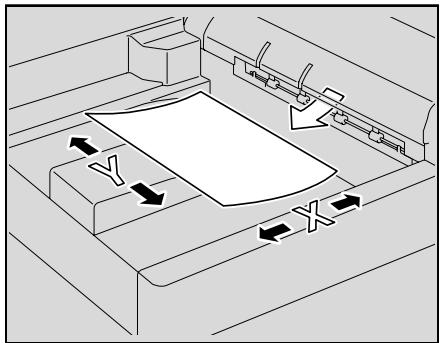
Whenever paper dimension is mentioned in this manual, the value shown as Y in the illustration refers to the width, and the value shown as X refers to the length.
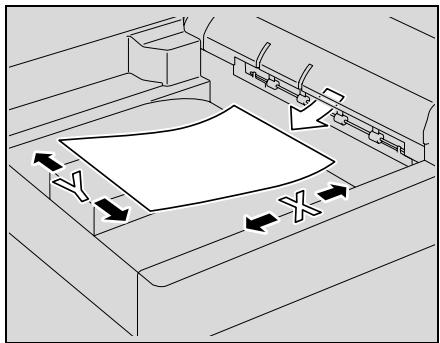
Lengthwise (□)
If the width (Y) of the paper is shorter than the length (X) , the paper has a vertical or portrait orientation, indicated by .
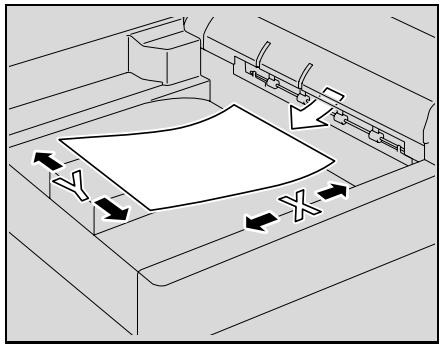
Crosswise (
If the width (Y) of the paper is longer than the length (X) , the paper has a horizontal or landscape orientation, indicated by .
1.9 User manuals
This machine is provided with a printed user manual.
2
Installation and operation precautions
2 Installation and operation precautions
2.1 Safety information
This section contains detailed instructions on the operation and maintenance of this machine. To achieve optimum utility of this device, all operators should carefully read and follow the instructions in this manual.
Please read the following section before connecting the machine to the supply. It contains important information related to user safety and preventing equipment problems.
Please keep this manual in a handy place near the machine.
Make sure you observe all of the precautions appear in each section of this manual.
KM_Ver.01E_C

Note
Some parts of the contents of this section may not correspond with the purchased product.
Warning and precaution symbols
The following indicators are used on the warning labels or in this manual to categorize the level of safety warnings.

WARNING
Ignoring these warnings could cause serious injury or even death.
Do not ignore these safety advices.

CAUTION
Ignoring this cautions could cause injury or damage to property.
Do not ignore these safety advices.
Meaning of symbols
| Symbol | Meaning | Example | Meaning |
| A triangle indicates a danger against which you should take precaution. | This symbol warns against possible causes of burns. | ||
| A diagonal line indicates a prohibited course of action. | This symbol warns against dismantling the device. | ||
| A black circle indicates an imperative course of action. | This symbol indicates you must unplug the device. |
Disassemble and modification

WARNING
Ignoring these warnings could cause serious injury or even death.
Do not ignore these safety advices.
| Warning | Symbol |
| ·Do not attempt to remove the covers and panels which have been fixed to the product. Some products have a high-voltage part or a laser beam source inside that could cause an electrical shock or blindness. | # |
| ·Do not modify this product, as a fire, electrical shock, or breakdown could result. If the product employs a laser, the laser beam source could cause blindness. | # |
Power cord

WARNING
Ignoring these warnings could cause serious injury or even death.
Do not ignore these safety advices.
| Warning | Symbol |
| ·Use only the power cord supplied in the package. If a power cord is not supplied, only use the power cord and plug that is specified in POWER CORD INSTRUCTION. Failure to use this cord could result in a fire or electrical shock. | ● |
| ·Use the power cord supplied in the package only for this machine and NEVER use it for any other product. Failure to observe this precaution could result in a fire or elec- trical shock. | ● |
| ·Do not scratch, abrade, place a heavy object on, heat, twist, bend, pull on, or damage the power cord. Use of a damaged power cord (exposed core wire, broken wire, etc.) could result in a fire or breakdown. Should any of these conditions be found, immediately turn OFF the power switch, un- plug the power cord from the power outlet, and then call your authorized service rep-resentative. | ● ● ● ● |
Power source

WARNING
Ignoring these warnings could cause serious injury or even death.
Do not ignore these safety advices.
| Warning | Symbol |
| ·Use only the specified power source voltage. Failure to do that could result in a fire or electrical shock. | ! |
| ·Connect power plug directly into wall outlet having the same configuration as the plug. Use of an adapter leads to the product connecting to inadequate power supply (volt- age, current capacity, grounding), and may result in fire or shock. If proper wall outlet is not available, the customer shall ask qualified electrician for the installation. | ! |
| ·Do not use a multiple outlet adapter nor an extension cord in principle. Use of an adapter or an extension cord could cause a fire or electrical shock. Contact your authorized service representative if an extension cord is required. | × |
| ·Consult your authorized service representative before connecting other equipment on the same wall outlet. Overload could result in a fire. | ! |

CAUTION
Ignoring this cautions could cause injury or damage to property.
Do not ignore these safety advices.
| Caution | Symbol |
| ·The outlet must be near the equipment and easily accessible. Otherwise you can not pull out the power plug when an emergency occurs. | ! |
Power plug

WARNING
Ignoring these warnings could cause serious injury or even death.
Do not ignore these safety advices.
| Warning | Symbol |
| ·Do not unplug and plug in the power cord with a wet hand, as an electrical shock could result. | |
| ·Plug the power cord all the way into the power outlet. Failure to do this could result in a fire or electrical shock. |

CAUTION
Ignoring this cautions could cause injury or damage to property.
Do not ignore these safety advices.
| Caution | Symbol |
| ·Do not tug the power cord when unplugging. Pulling on the power cord could damage the cord, resulting in a fire or electrical shock. | ∅ |
| ·Remove the power plug from the outlet more than one time a year and clean the area between the plug terminals. Dust that accumulates between the plug terminals may cause a fire. | ! |
Grounding

WARNING
Ignoring these warnings could cause serious injury or even death.
Do not ignore these safety advices.
| Warning | Symbol |
| ·Connect the power cord to an electrical outlet that is equipped with a grounding ter- minal. |  |
Installation

WARNING
Ignoring these warnings could cause serious injury or even death.
Do not ignore these safety advices.
| Warning | Symbol |
| ·Do not place a flower vase or other container that contains water, or metal clips or other small metallic objects on this product. Spilled water or metallic objects dropped inside the product could result in a fire, electrical shock, or breakdown. Should a piece of metal, water, or any other similar foreign matter get inside the product, immediately turn OFF the power switch, unplug the power cord from the power outlet, and then call your authorized service representative. | ⊗ ⊗ ⊗ |

CAUTION
Ignoring this cautions could cause injury or damage to property.
Do not ignore these safety advices.
| Caution | Symbol |
| ·After installing this product, mount it on a secure base. If the unit moves or falls, it may cause personal injury. | ● |
| ·Do not place the product in a dusty place, or a site exposed to soot or steam, near a kitchen table, bath, or a humidifier. A fire, electrical shock, or breakdown could result. | ◎ |
| ·Do not place this product on an unstable or tilted bench, or in a location subject to a lot of vibration and shock. It could drop or fall, causing personal injury or mechanical breakdown. | ◎ |
| ·Do not let any object plug the ventilation holes of this product. Heat could accumulate inside the product, resulting in a fire or malfunction. | ◎ |
| ·Do not use flammable sprays, liquids, or gases near this product, as a fire could result. | ◎ |
Ventilation

CAUTION
Ignoring this cautions could cause injury or damage to property.
Do not ignore these safety advices.
| Caution | Symbol |
| • Always use this product in a well ventilated location. Operating the product in a poorly ventilated room for an extended period of time could injure your health. Ventilate the room at regular intervals. | ! |
Actions in response to troubles

WARNING
Ignoring these warnings could cause serious injury or even death.
Do not ignore these safety advices.
| Warning | Symbol |
| ·Do not keep using this product, if this product becomes inordinately hot or emits smoke, or unusual odor or noise. Immediately turn OFF the power switch, unplug the power cord from the power outlet, and then call your authorized service representative. If you keep on using it as is, a fire or electrical shock could result. | →C |
| ·Do not keep using this product, if this product has been dropped or its cover damaged. Immediately turn OFF the power switch, unplug the power cord from the power outlet, and then call your authorized service representative. If you keep on using it as is, a fire or electrical shock could result. | →C |

CAUTION
Ignoring this cautions could cause injury or damage to property.
Do not ignore these safety advices.
| Caution | Symbol |
| ·The inside of this product has areas subject to high temperature, which may cause burns. When checking the inside of the unit for malfunctions such as a paper misfeed, do not touch the locations (around the fusing unit, etc.) which are indicated by a "Caution HOT" caution label. |
Consumables

WARNING
Ignoring these warnings could cause serious injury or even death.
Do not ignore these safety advices.
| Warning | Symbol |
| ·Do not throw the toner cartridge or toner into an open flame. The hot toner may scatter and cause burns or other damage. | ⊗ |

CAUTION
Ignoring this cautions could cause injury or damage to property.
Do not ignore these safety advices.
| Caution | Symbol |
| ·Do not leave a toner unit or drum unit in a place within easy reach of children. Licking or ingesting any of these things could injure your health. | ◇ |
| ·Do not store toner units and PC drum units near a floppy disk or watch that are susceptible to magnetism. They could cause these products to malfunction. | ◇ |
When moving the machine

CAUTION
Ignoring this cautions could cause injury or damage to property.
Do not ignore these safety advices.
| Caution | Symbol |
| ·Whenever moving this product, be sure to disconnect the power cord and other cables. Failure to do this could damage the cord or cable, resulting in a fire, electrical shock, or breakdown. | →C |
| ·When moving this product, always hold it by the locations specified in the user manual or other documents. If the unit falls it may cause severe personal injury. The product may also be damaged or malfunction. | ! |
Before successive holidays
When the optional Fax Kit FK-502 is not installed:

CAUTION
Ignoring this cautions could cause injury or damage to property.
Do not ignore these safety advices.
| Caution | Symbol |
| ·Unplug the product when you will not use the product for long periods of time. |
2.2 Regulation notices
CE Marking (Declaration of Conformity) for users of the European Union (EU)
This product complies with the following EU directives: 2006/95/EC, 2004/108/EC and 1999/5/EC directives.
This declaration is valid for the area of the European Union.
This device must be used with a shielded network cable. The use of non-shielded cables is likely to result in interference with radio communications and is prohibited under CISPR rules and local rules.
Optional Authentication Unit AU-201 (IC Card Reader/Writer):
This product is wireless system equipment (Short-Range Device) which the R & TTE directive (1999/5/EC) covers. Frequency of operation is 13.56 MHz.
User Instructions FCC Part 15 - Radio Frequency Devices (for U.S.A. users)
This equipment has been tested and found to comply with the limits for a Class B digital device, pursuant to Part 15 of the FCC Rules.
These limits are designed to provide reasonable protection against harmful interference when the equipment is operated in a residential installation. This equipment generates, uses and can radiate radio frequency energy and, if not installed and used in accordance with the instructions, may cause harmful interference to radio communications. However, there is no guarantee that interference will not occur in a particular installation.
If this equipment does cause harmful interference to radio or television reception, which can be determined by turning the equipment off and on, the user is encouraged to try to correct the interference by one or more of the following measures:
Reorient or relocate the receiving antenna.
- Increase the separation between the equipment and receiver.
- Connect the equipment into an outlet on a circuit different from that to which the receiver is connected.
- Consult the dealer or an experienced radio/TV technician for help.

WARNING
The design and production of this unit conform to FCC regulations, and any changes or modifications must be registered with the FCC and are subject to FCC control.
Any changes made by the purchaser or user without first contacting the manufacturer will be subject to penalty under FCC regulations.
This device must be used with a shielded network (10 Base-T/100 Base-TX) cable and a shielded parallel cable. The use of non-shielded cables is likely to result in interference with radio communications and is prohibited under FCC rules.
Interference-Causing Equipment Standard (ICES-003 ISSUE 4) (for Canada users)
This Class A digital apparatus complies with Canadian ICES-003.
This is a digital machine which operates using a laser. There is no possibility of danger from the laser provided the machine is operated according to the instructions in this manual.
Since radiation emitted by the laser is completely confined within protective housing, the laser beam cannot escape from the machine during any phase of user operation.
This machine is certified as a Class 1 laser product: This means the machine does not produce hazardous laser radiation.
Internal laser radiation
| Specification | |
| Maximum average radiation power | 11.6 μW at the laser aperture of the print head unit |
| Wavelength | 775-800 nm |

WARNING
This product employs a Class 3B laser diode that emits an invisible laser beam.
The laser diode and the scanning polygon mirror are incorporated in the print head unit.
The print head unit is NOT A FIELD SERVICE ITEM: Therefore, the print head unit should not be opened under any circumstances.
Laser Aperture of the Print Head Unit
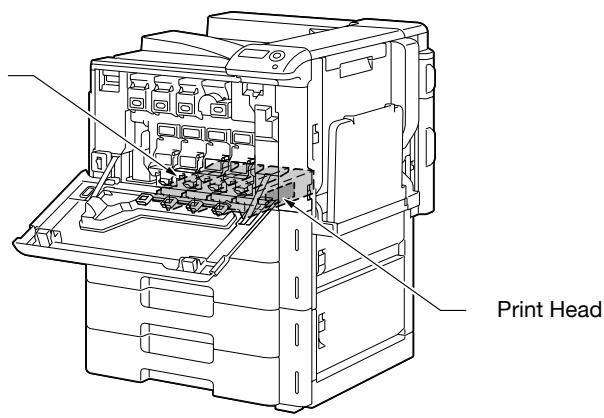
CDRH regulations
This machine is certified as a Class 1 Laser product under Radiation Performance Standard according to the Food, Drug and Cosmetic Act of 1990. Compliance is mandatory for Laser products marketed in the United States and is reported to the Center for Devices and Radiological Health (CDRH) of the U.S. Food and Drug Administration of the U.S. Department of Health and Human Services (DHHS). This means that the device does not produce hazardous laser radiation.
The label shown on page 2-13 indicates compliance with the CDRH regulations and must be attached to laser products marketed in the United States.

CAUTION
Use of controls, adjustments or performance of procedures other than those specified in this manual may result in hazardous radiation exposure.
This is a semiconductor laser. The maximum power of the laser diode is 30mW and the wavelength is 775-800 nm.
For European users

CAUTION
Use of controls, adjustments or performance of procedures other than those specified in this manual may result in hazardous radiation exposure.
This is a semiconductor laser. The maximum power of the laser diode is 30mW and the wavelength is 775-800 nm.
For Denmark users

ADVARSEL
KCLASS 1 LASER APPARAT

VAROITUS
A laser safety label is attached to the outside of the machine, as shown below.
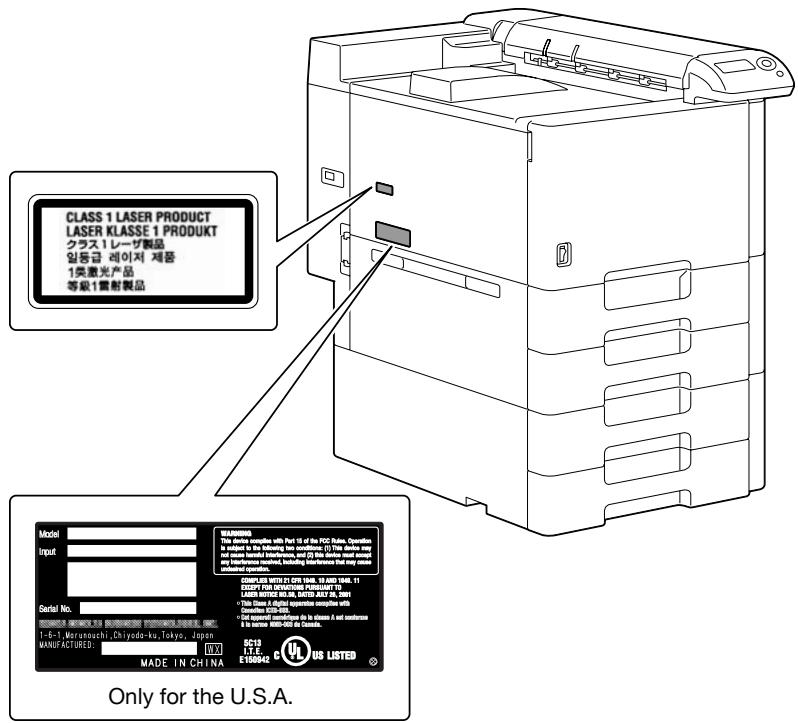
Ozone release

CAUTION
Locate the machine in a well ventilated room
A negligible amount of ozone is generated during normal operation of this machine. An unpleasant odor may, however, be created in poorly ventilated rooms during extensive machine operations. For a comfortable, healthy, and safe operating environment, it is recommended that the room well ventilated.

ATTENTION
Acoustic noise (for European users only)
For EU member states only
This symbol means: Do not dispose of this product together with your household waste!
Please refer to the information of your local community or contact our dealers regrading the proper handling of end-of-life electric and electronic equipments. Recycling of this product will help to conserve natural resources and prevent potential negative consequences for the environment and human health caused by inappropriate waste handling.
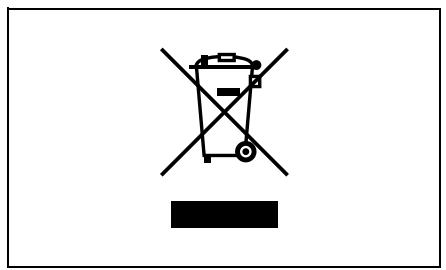
This product complies with RoHS (2002/95/EC) Directive.
This device is not intended for use at a video workstation in compliance with BildscharbV.
2.3 Caution notations and labels
Safety precaution notations and labels appear on this machine at the following positions.
Be very careful that an accident does not occur when operations such as removing paper misfeeds are performed.
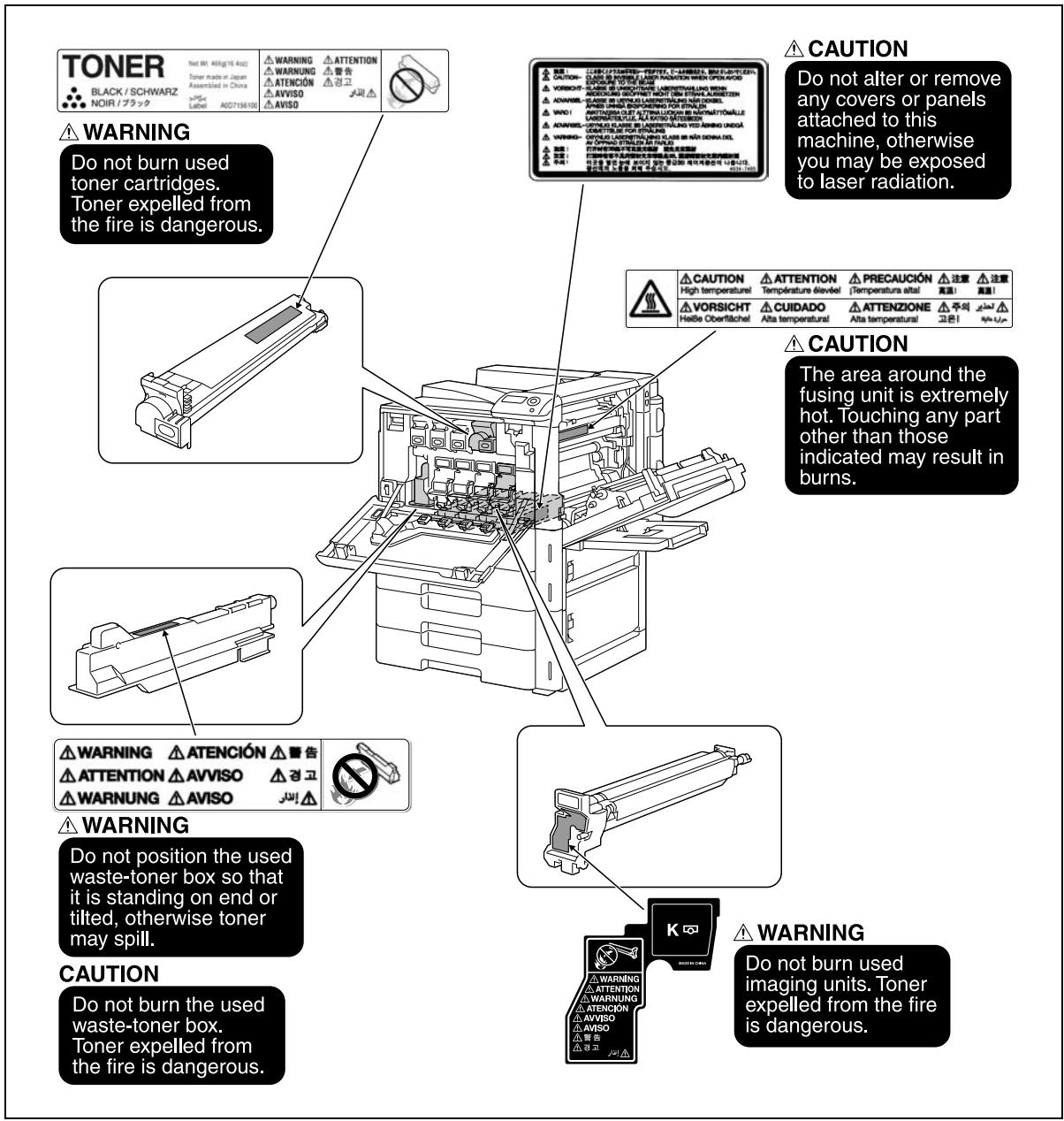
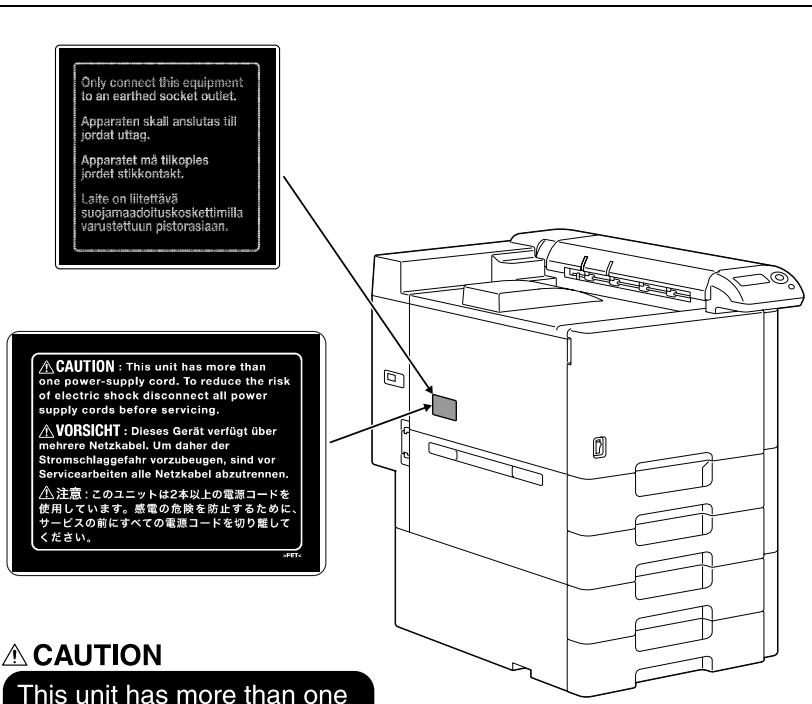
CAUTION
This unit has more than one power-supply cord. To reduce the risk of electric shock disconnect all power supply cords before servicing.
2.4 Space requirements
To ensure that machine operation, consumables replenishing, part replacement, and regular maintenance can easily be performed, adhere to the recommended space requirements detailed below.
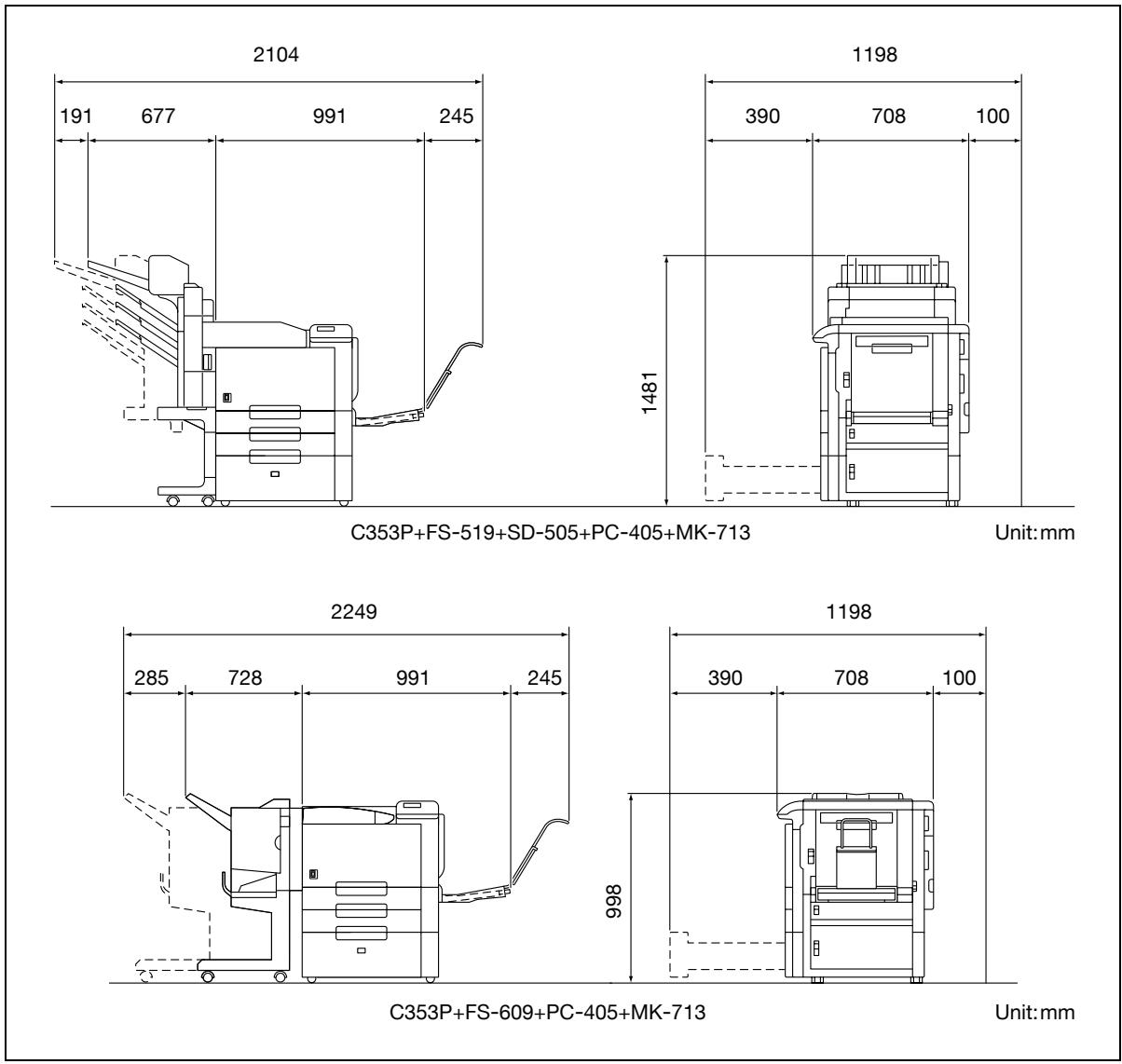

Reminder
When the option is not installed, be sure to allow a clearance of 100mm or more at the back of this machine for the ventilation duct.
2.5 Operation precautions
To ensure the optimum performance of this machine, observe the precautions described below.
Power source
The power source requirements are as follows.
Voltage fluctuation: Maximum ± 10% (at 110 V/120 V/127 V/110 to 127 V/220 to 240 V AC)
Frequency fluctuation: Maximum ± 3Hz (at 50Hz / 60Hz )
- Use a power source with as little voltage or frequency fluctuations as possible.
Operating environment
The environmental requirements for correct operation of the machine are as follows.
- Temperature: 10^ C ( 50^ F ) to 30^ C ( 86^ F ) with fluctuations of no more than 10^ C ( 18^ F ) within an hour
Humidity: 15% to 85% with fluctuations of no more than 10% within an hour
Storage of copies
To store copies, follow the recommendation listed below.
- Copies that are to be kept for a long time should be kept where they are not exposed to light in order to prevent them from fading.
- Adhesive that contains solvent (e.g., spray glue) may dissolve the toner on copies.
Color copies have a thicker layer of toner than normal black-and-white copies. Therefore, when a color copy is folded, the toner at the fold may peel off.
3
Before using the machine
3 Before using the machine
3.1 Part names and their functions
3.1.1 Options
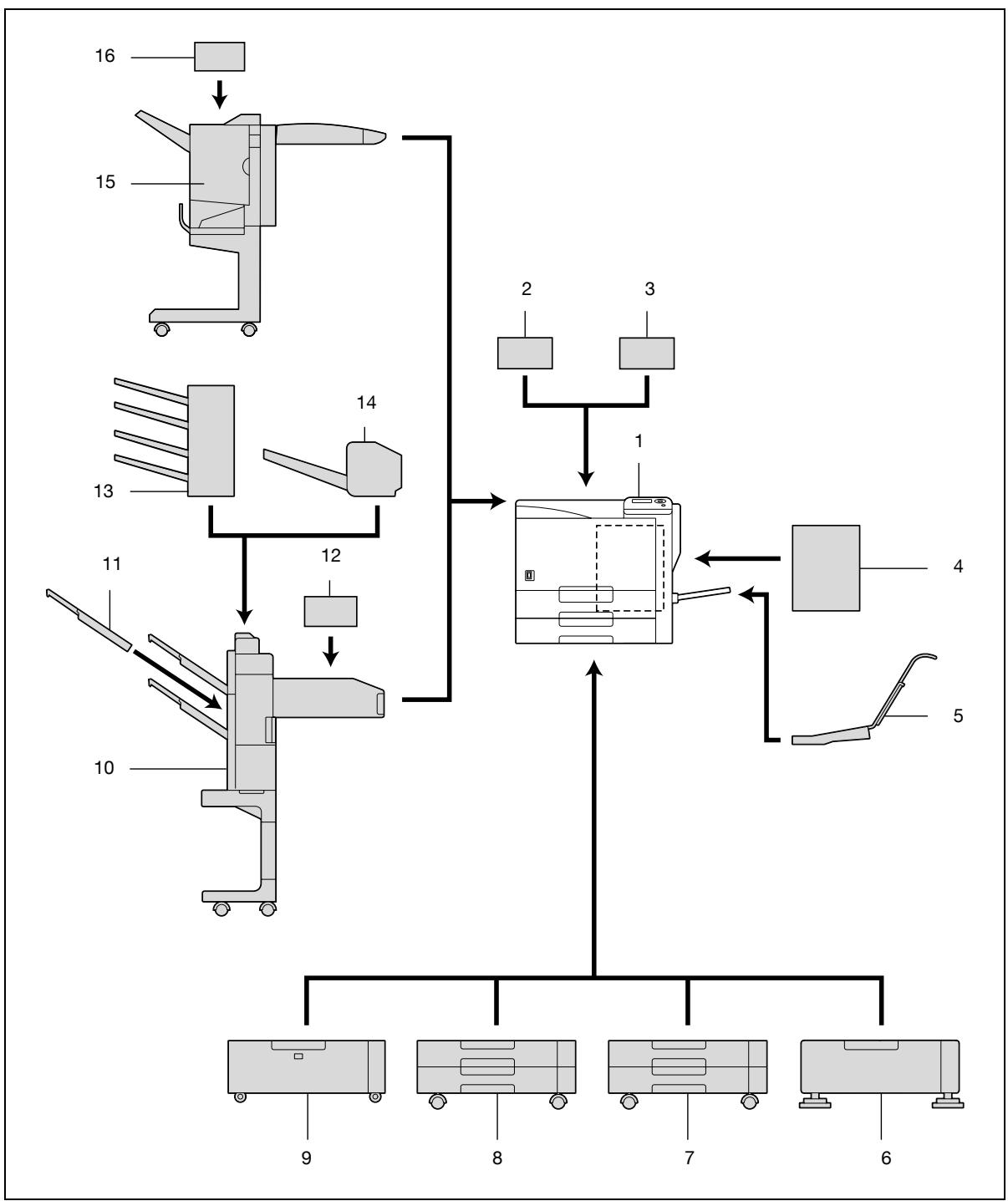
| No. | Part name | Description |
| 1 | Main unit | The data sent from the computer is printed.Referred to as the "machine", the "main unit", or the "C353P" throughout the manual. |
| 2 | Authentication unit (biometric type) AU-101 | Performs user authentication by scanning vein patterns in the finger.To use the authentication unit (biometric type), an optional hard disk drive HD-508 and local interface kit EK-603 must be installed. |
| 3 | Authentication unit (IC card type) AU-201 | Performs user authentication by reading the information registered on IC cards.To use the authentication unit (IC card type), an optional hard disk drive HD-508 and local interface kit EK-603 must be installed. |
| 4 | Mount kit MK-711 | Used for installing, local interface kit. |
| 5 | Mount kit MK-713 | Used for banner printing. |
| 6 | Desk DK-504 | Allows this machine to be set up on the floor.Referred to as the "desk" throughout the manual. |
| 7 | Paper feed cabinet PC-104 | The top tray can be loaded with up to 500 sheets of paper, and the bottom tray can be used as storage.Referred to as the "single paper feed cabinet" throughout the manual. |
| 8 | Paper feed cabinet PC-204 | Both the top and bottom trays can each be loaded with up to 500 sheets of paper.Referred to as the "double paper feed cabinet" throughout the manual. |
| 9 | Paper feed cabinet PC-405 | Can be loaded with up to 2,500 sheets of paper.Referred to as the "LCT" throughout the manual. |
| 10 | Finisher FS-519 | Feeds out finished printed pages. The "Collate" setting (separating by copy set), "Offset" setting (separating by pages), Staple settings ("Corner" and "2 position"), Center Staple setting, and Half-Fold setting are available. |
| 11 | Output tray OT-602 | Installed onto finisher FS-519 to divide printed pages.Referred to as the "output tray" throughout the manual. |
| 12 | Punch kit PK-515 | Installed onto finisher FS-519 to allow hole punching to be used. |
| 13 | Mailbin kit MT-502 | Installed onto finisher FS-519 to divide printed pages (only with computer printing) and feed them into the appropriate tray assigned to a specific individual or group. Collects printed pages.Referred to as the "mailbin kit" throughout the manual. |
| 14 | Saddle stretcher SD-505 | Installed onto finisher FS-519 so that prints can be bound or folded at the center.Referred to as the "saddle stretcher" throughout the manual. |
| 15 | Finisher FS-609 | Feeds out finished printed pages. The "Collate" setting (separating by copy set), "Offset" setting (separating by pages), and Staple settings ("Corner" and "2 position") are available.In order to install the finisher, the main unit must be installed on the desk, on the LCT, on the single paper feed cabinet, or on the double paper feed cabinet. |
| 16 | Punch kit PK-501 | Installed onto finisher FS-609 to allow hole punching to be used. |
| 17 | Local interface kit \(EK-603^{+1}\) | Used for connecting the authentication unit (biometric type) and the authentication unit (IC card type). |
| 18 | Security kit \(SC-503^{+2}\) | Installed to encode the data saved on the hard disk so that the hard disk can be used more safely. |
| 19 | Hard disk drive HD-508*2 | Operations using the "Secured Print" and "Save in User Box" settings can be used if the hard disk drive is installed.Referred to as the "HDD" throughout the manual. |
1 Parts marked with an asterisk are to be installed to the mount kit, and therefore are not shown in the illustration.
2 Parts marked with an asterisk are internal options and therefore are not shown in the illustration.

Reminder
To keep the features and quality of the machine, use the desk or paper feed cabinet to place the machine on the floor.
3.1.2 Outside of machine
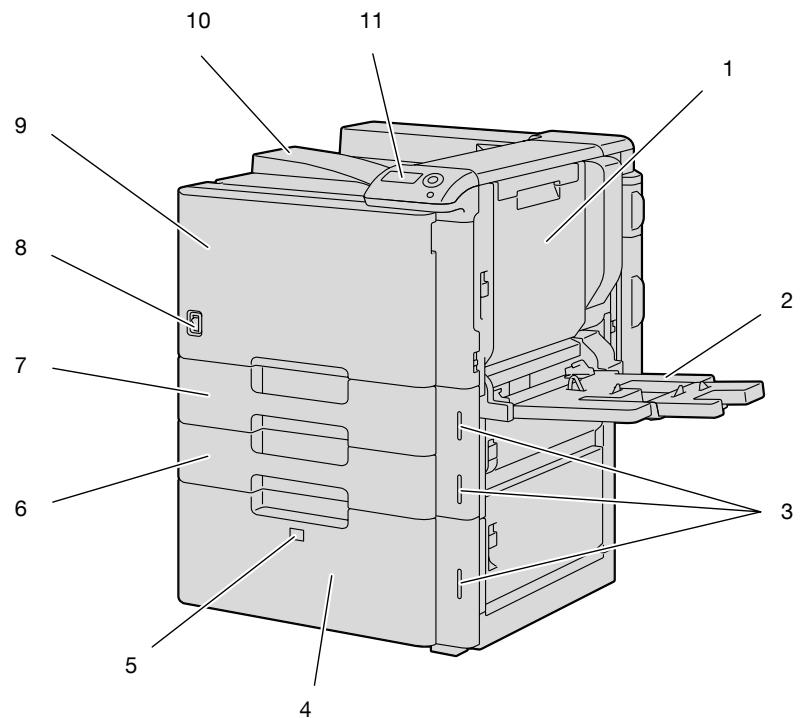
*The illustration above shows the main unit with the optional LCT installed.
| No. | Part name | Description |
| 1 | Automatic duplex unit | Turns over the paper for double-sided printing. |
| 2 | Bypass tray | Used when printing onto paper with a size not loaded into a paper tray or onto thick paper, OHP transparencies, postcards, envelopes, label sheets or banner paper. Can be loaded with up to 150 sheets of plain paper, 20 sheets of thick paper 1, thick paper 2, thick paper 3, thick paper 4, OHP transparencies, postcards, or label sheets, 10 envelopes, or 10 sheets of banner paper. |
| 3 | Paper-empty indicator | Flashes in orange when very few pages remain in the paper tray, and lights up when the tray is empty. |
| 4 | LCT | Can be loaded with up to 2,500 sheets of plain paper. Can be loaded with up to 1,000 sheets of thick paper 1, thick paper 2 or thick paper 3. |
| 5 | Tray release button | Press this button to pull out the LCT. |
| 6 | Tray 2 | Can be loaded with up to 500 sheets of plain paper. Can be loaded with up to 150 sheets of thick paper 1, thick paper 2 or thick paper 3. |
| 7 | Tray 1 | Can be loaded with up to 500 sheets of plain paper. Can be loaded with up to 150 sheets of thick paper 1, thick paper 2 or thick paper 3. |
| 8 | Power switch | Used to turn the machine on and off. |
| 9 | Front door | Opened when replacing the toner cartridge, waste toner box, or imaging unit, or when cleaning the print head. |
| 10 | Output tray | Collects printed pages. |
| 11 | Control panel | Used to specify the various machine settings. |

*The illustration above shows the main unit with the optional double paper feed cabinet installed.
| No. | Part name | Description |
| 12 | Automatic duplex unit release lever | Used to open the automatic duplex unit door when clearing paper misfeeds. |
| 13 | Automatic duplex unit door | Opened when clearing paper misfeeds in the automatic duplex unit. |
| 14 | Upper right-side door release lever | Used to open the upper right-side door. |
| 15 | Center right-side door | Opened when clearing paper misfeeds from the paper transport section of tray 2. |
| 16 | Center right-side door release lever | Used to open the centerright-right door. |
| 17 | Lower right-side door | Opened when clearing paper misfeeds from the paper transport section of tray 3 or 4. |
| 18 | Lower right-side door release lever | Used to open the Lower right-side door. |
| 19 | Tray 4/storage box | Used as the storage box when the single paper feed cabinet is installed. Can be loaded with up to 500 sheets of plain paper when the double paper feed cabinet is installed. Can be loaded with up to 150 sheets of thick paper 1, thick paper 2 or thick paper 3. |
| 20 | Tray 3 | Can be loaded with up to 500 sheets of plain paper. Can be loaded with up to 150 sheets of thick paper 1, thick paper 2 or thick paper 3. |
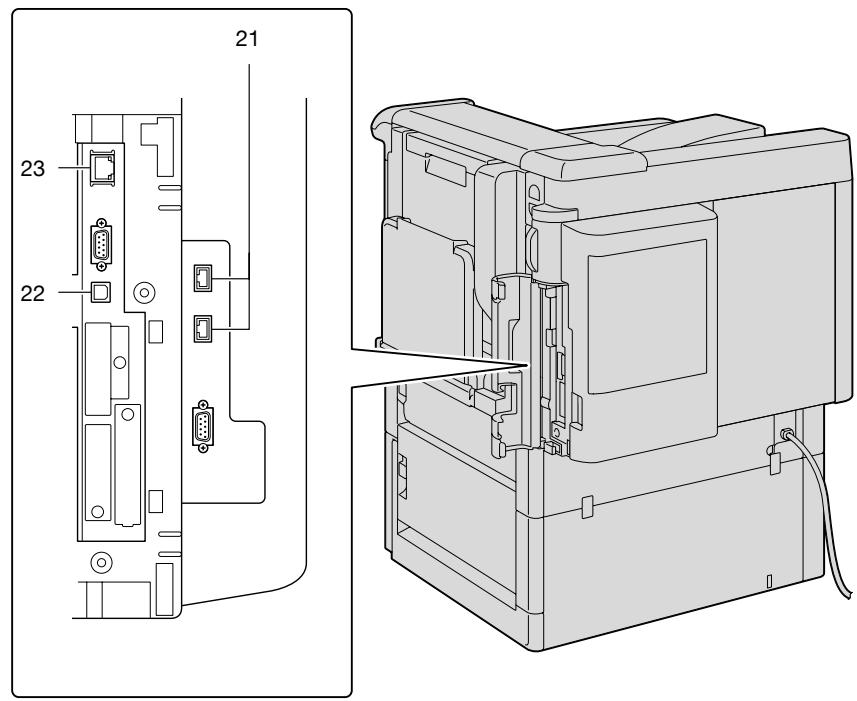
*The illustration above shows the main unit with the optional LCT and mount kit (local interface kit) installed.
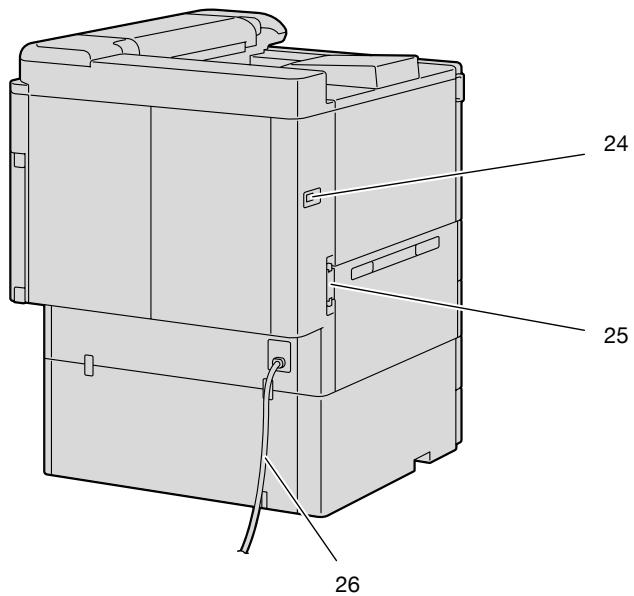
*The illustration above shows the main unit with the optional double paper feed cabinet installed.
| No. | Part name | Description |
| 21 | USB port (type A) USB 2.0/1.1 | Used for connecting the USB cable for the authentication unit (biometric type) or the authentication unit (IC card type). |
| 22 | USB port (type B) USB 2.0/1.1 | Used for making connections when the machine is used as a USB printer. |
| 23 | Network connector (10Base-T/100Base-TX/1000Base-T) | Used for connecting the network cable when this machine is used for network printing. |
| 24 | Finisher connector | Used for connecting the finisher hookup cord. |
| 25 | Ozone filter | Collects the ozone generated in the machine. |
| 26 | Power cord | Supplies power to the machine. |
3.1.3 Inside of machine

| No. | Part name | Description |
| 1 | Fusing unit upper cover | Opened when cleaning paper misfeeds in the fusing unit. |
| 2 | Fusing cover lever M2 | Opened when cleaning paper misfeeds in the fusing unit. |
| 3 | Upper right-side door | Opened when clearing paper misfeeds from inside the main unit. |
| 4 | Unlock lever | Used when removing an imaging unit. |
| 5 | Imaging unit | Creates the print image. |
| 6 | Charger-cleaning tool | Used to clean the electrostatic charger wire, for example, when incorrect cop-ies are produced. |
| 7 | Print head glass cleaning tool | Used to clean the surface of the print head glass, for example, when replacing the imaging unit. |
| 8 | Waste toner box | Collects used waste toner. |
| 9 | Total counter | Shows the total number of pages that have been printed. |
| 10 | Lock tub | Used when removing the toner cartridge. |
| 11 | Toner cartridges | There are four toner cartridges: cyan (C), magenta (M), yellow (Y) and black (K). The combination of the four toners generates full-color images. |
3.1.4 Finisher FS-S519/Output tray OT-602/Punch kit PK-515
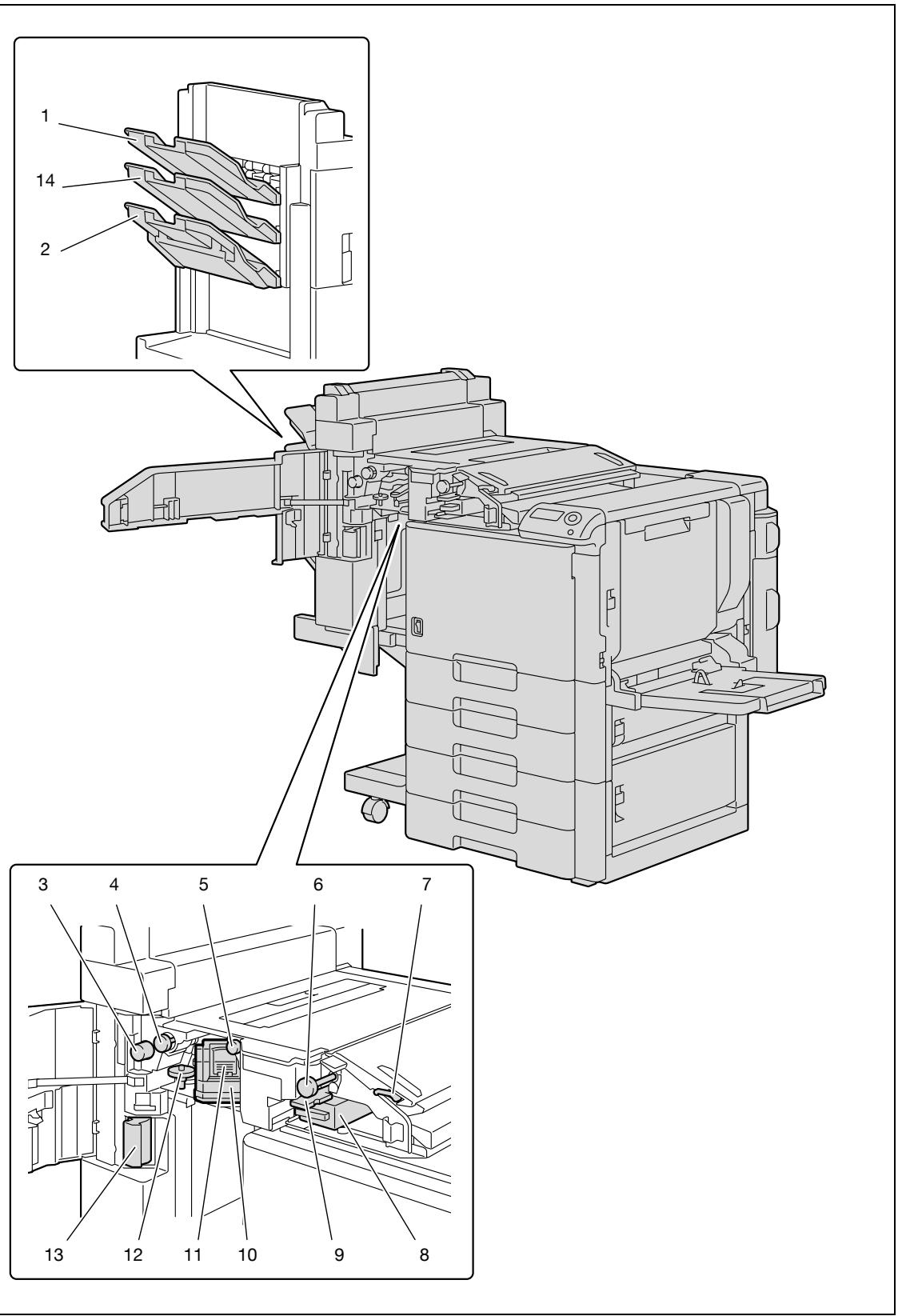
Finisher FS-519
| No. | Part name | Description |
| 1 | Output tray 1 | Collects printed pages. |
| 2 | Output tray 2 | Collects printed pages. |
| 3 | Misfeed-clearing dial FN6 | Turned when clearing paper misfeeds within the finisher. |
| 4 | Misfeed-clearing dial FN5 | Turned when clearing paper misfeeds within the finisher. |
| 5 | Misfeed-clearing dial FN4 | Turned when clearing paper misfeeds within the finisher. |
| 6 | Misfeed-clearing dial FN2 | Turned when clearing paper misfeeds within the finisher. |
| 7 | Guide lever FN1 | Raised when clearing paper misfeeds within the finisher. |
| 8 | Punch scrap box FN3.1 | Removed when emptying punch scraps that have accumulated from using the Punch settings. |
| 9 | Guide lever FN3 | Raised when clearing paper misfeeds within the finisher. |
| 10 | Stapler | Moved to the front when clearing jammed staples. |
| 11 | Staple cartridge holder | Removed from the stapler when replacing the staple cartridge or clearing jammed staples. |
| 12 | Dial | Turned to move the stapler to the front when clearing jammed staples. |
| 13 | Finisher release lever 1 | Used to disconnect the finisher and move it from the main unit when clearing paper misfeeds. |
Output tray OT-602
| No. | Part name | Description |
| 14 | Optional output tray | Collects printed pages. |
Punch kit PK-515
| No. | Part name | Description |
| 15 | Punch kit* | Punches holes for filing printed pages when the punch kit is installed onto fin-isher FS-519. |
- Parts marked with an asterisk are internal options and therefore are not shown in the illustration.
3.1.5 Saddle stitcher SD-505/Mailbin kit MT-502
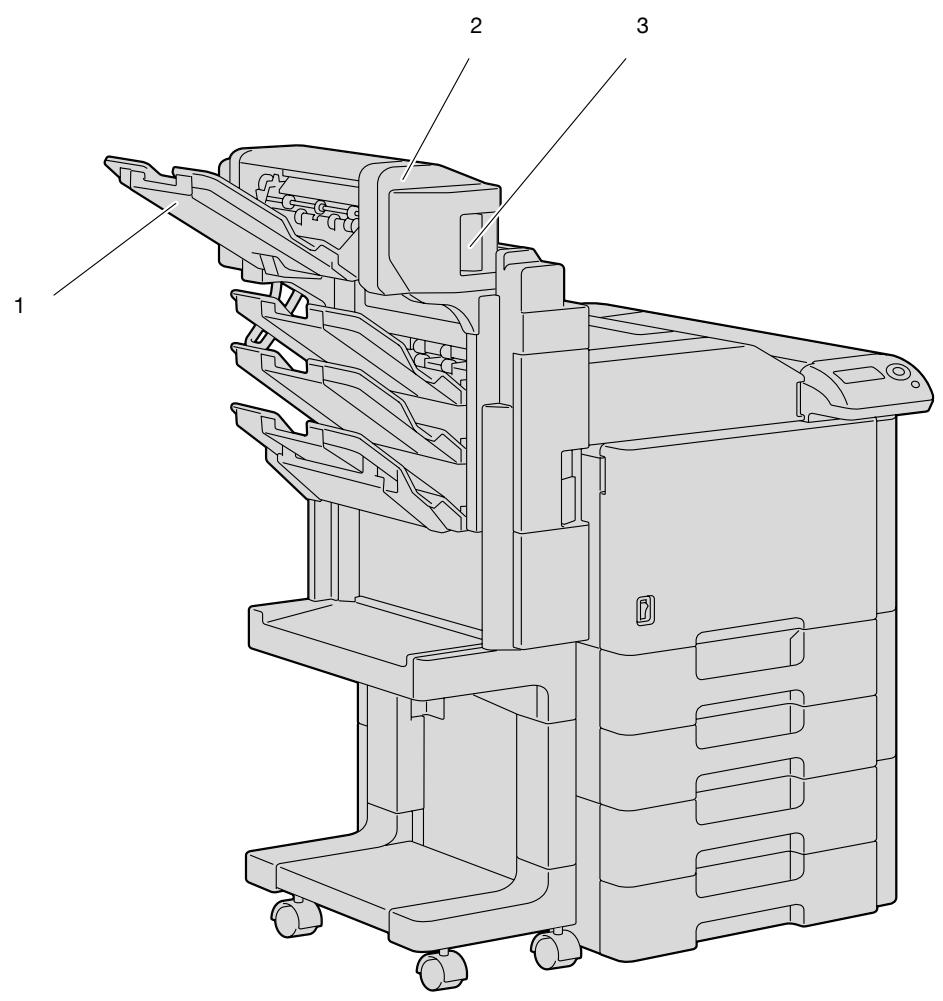
Saddle stitcher SD-505
| No. | Part name | Description |
| 1 | Output tray | Collects printed pages. |
| 2 | Misfeed-clearing door | Opened when clearing paper misfeeds within the saddle stretcher. |
| 3 | Misfeed-clearing door release lever | Used to open the Misfeed-clearing door. |
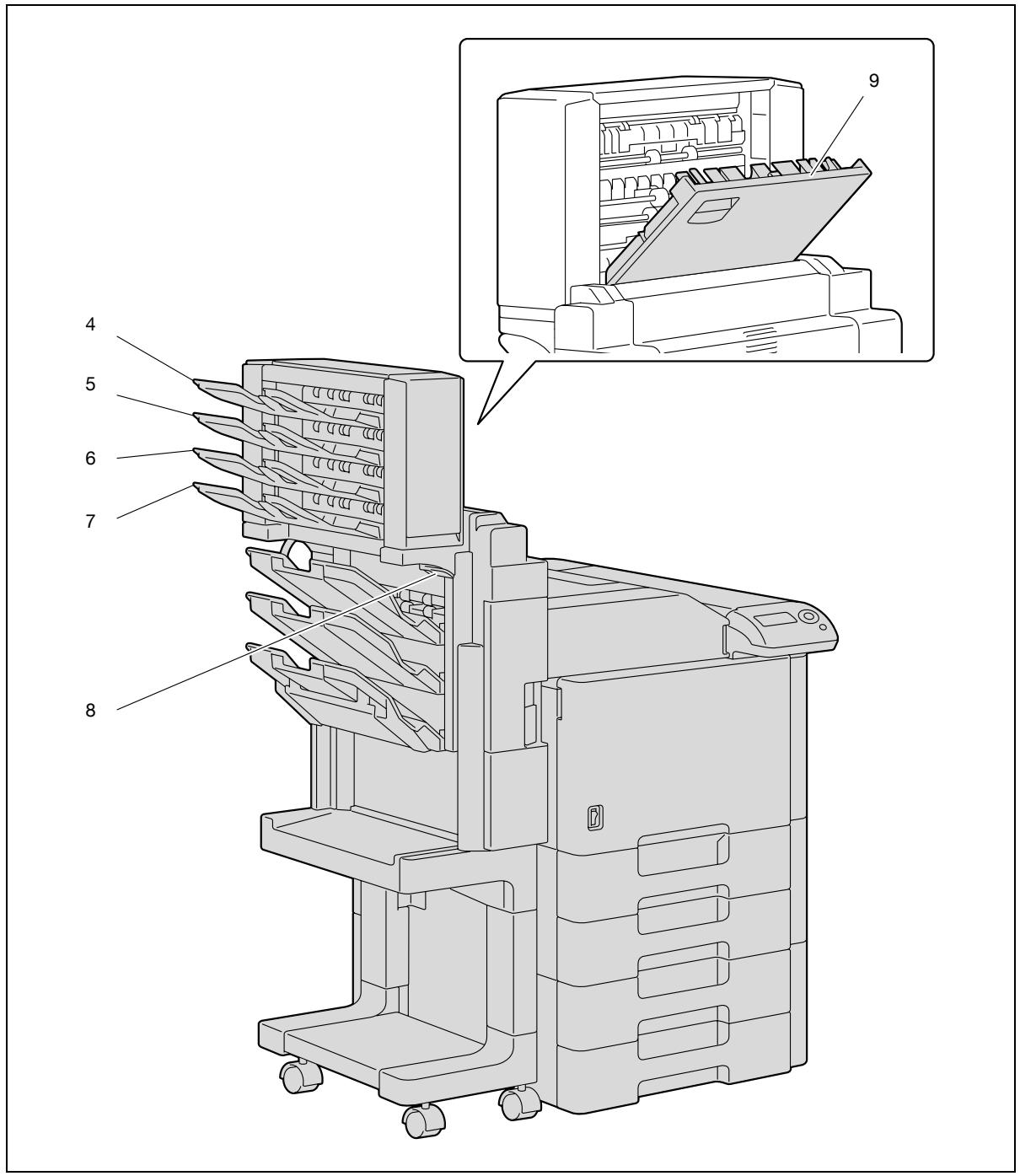
Mailbin kit MT-502
| No. | Part name | Description |
| 4 | Bin 4 | Collects printed pages. |
| 5 | Bin 3 | Collects printed pages. |
| 6 | Bin 2 | Collects printed pages. |
| 7 | Bin 1 | Collects printed pages. |
| 8 | Guide lever FN7 | Moved when clearing paper misfeeds within the mailbin kit. |
| 9 | Misfeed-clearing door | Opened when clearing paper misfeeds within the mailbin kit. |
3.1.6 Finisher FS-609/Punch kit PK-501
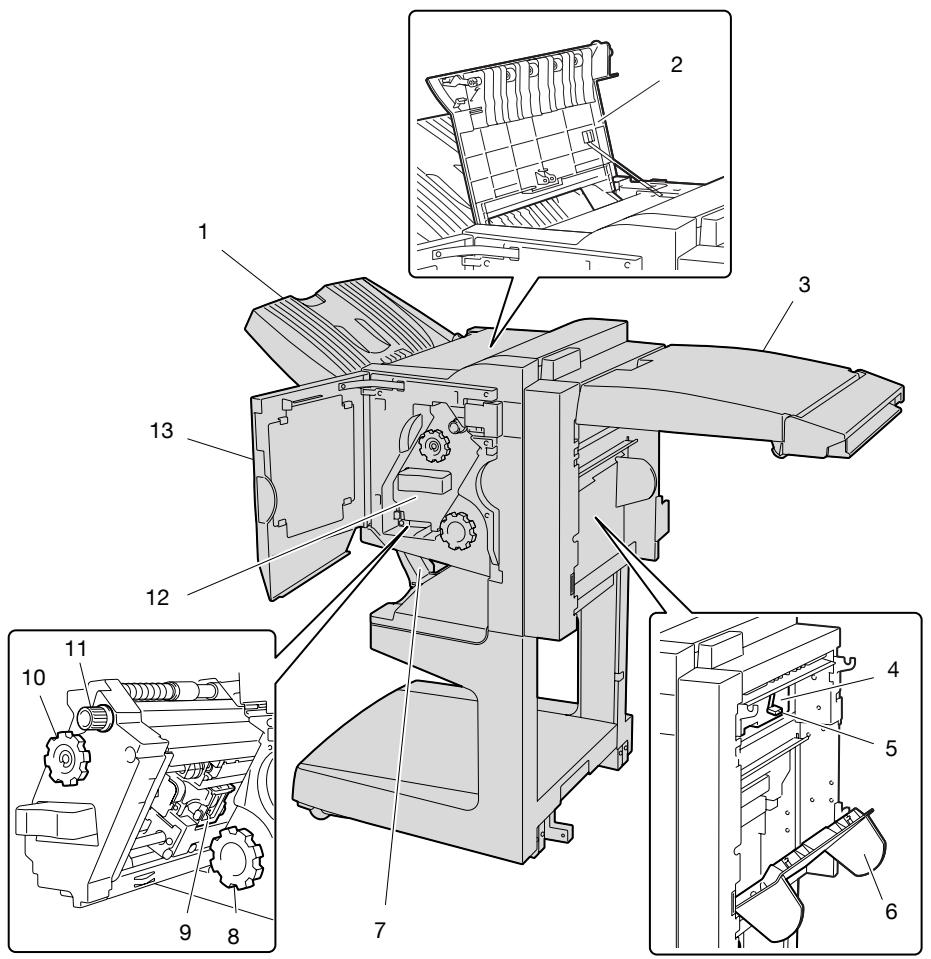
Finisher FS-609
| No. | Part name | Description |
| 1 | Output tray 1 | Collects printed pages |
| 2 | Upper cover | Opened when clearing paper misfeeds |
| 3 | Horizontal transport unit cover | Opened when clearing paper misfeeds from the horizontal transport unit |
| 4 | Punch scrap box | Removed when emptying hole-punch waste that has accumulated from using the Punch settings |
| 5 | Misfeed-clearing guide | Opened when clearing paper misfeeds within the finisher |
| 6 | Right-side door | Opened when clearing paper misfeeds within the finisher |
| 7 | Output tray 2 | Collects copies printed using the "Fold & Staple" setting |
| 8 | Misfeed-clearing dial in folding section | Turned when clearing paper misfeeds in the folding section |
| 9 | Staple cartridge holder | Removed from the stapler unit when clearing jammed staples or replacing the staple cartridge |
| 10 | Misfeed-clearing dial 1 | Turned when clearing paper misfeeds within the finisher |
| 11 | Misfeed-clearing dial 2 | Turned when clearing jammed staples or replacing the staple cartridge, or for moving the staple cartridge holder out to the front |
| 12 | Stapler unit | Pulled out when clearing jammed staples or replacing the staple cartridge |
| 13 | Front door | Opened when clearing paper misfeeds or jammed staples or when replacing the staple cartridge |
Punch kit PK-501
| No. | Part name | Description |
| 14 | Punch kit* | Punches holes for filing printed pages when punch kit is installed onto finisher FS-609. |
- Parts marked with an asterisk are internal options and therefore are not shown in the illustration.
Precautions for using the finisher:
- Do not place objects on top of the finisher and below the paper output trays, otherwise the machine may be damaged.
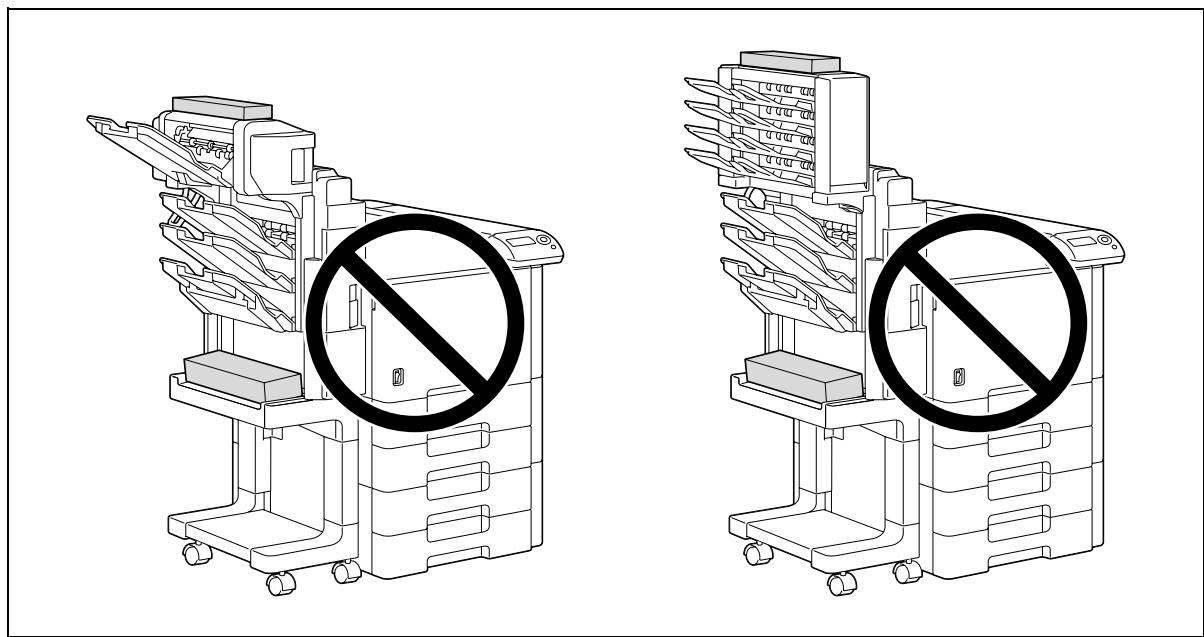
- Do not place your hand below or rest your foot on top of the output trays for finisher.
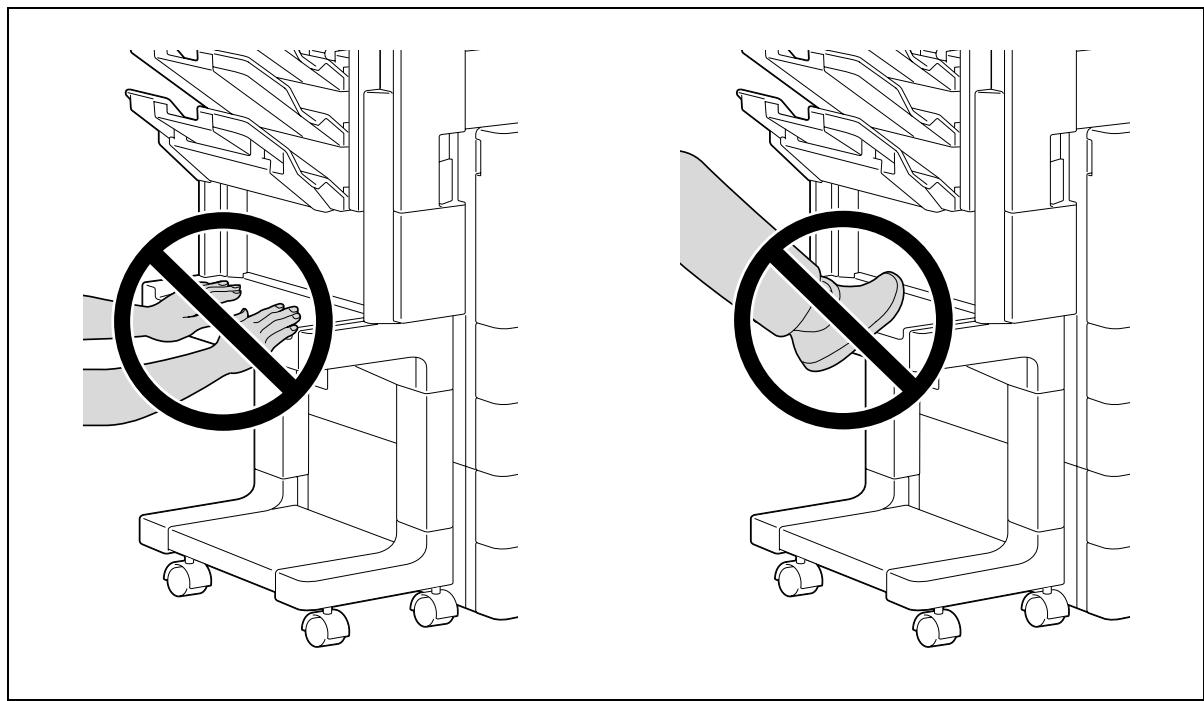
3.1.7 Control panel
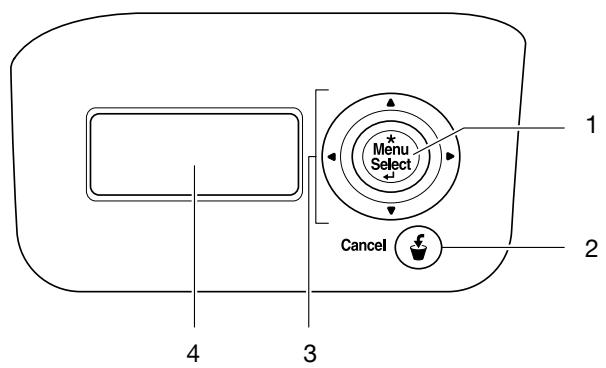
| No. | Part name | Description |
| 1 | [Menu/Select] key | While the machine is waiting to receive data, press this key to display the settings menu. If this key is pressed while a setting is displayed, that setting is selected. |
| 2 | [Cancel] key | Press this key to quit changing the settings in the menu. |
| 3 | Cursor keys ([▲], [▼], [▲], [▼]) | The [▲] and [▼] keys switch among parameters of the "Utility" menu. During character entry, they switch between characters and numeric values. The [▲] and [▼] keys move the hierarchy of each Menu screen. During numeric value entry, they move the position of changeable digit. |
| 4 | Display panel | Displays various screens and messages. |
3.1.8 Display panel
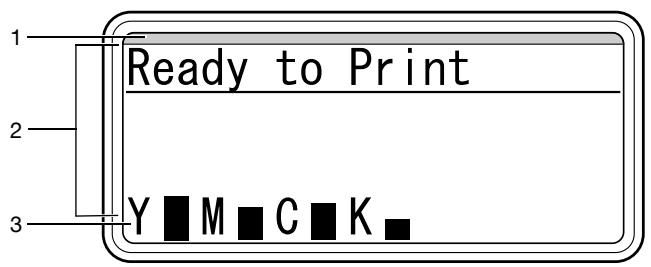
| No. | Part name | Description |
| 1 | LED line | The machine's current status is indicated by the color and lighting/flashing of the indicator. Flashing in blue: Printing normally Flashing in orange: Warning Lit in orange: Stopping operating |
| 2 | Message area | Displays the status of the machine, setting, and warnings. |
| 3 | Toner supply indicators | Displays the amount of toner remaining. |
3.2 Power supply
3.2.1 Turning on the machine
1 Set the power switch to I.
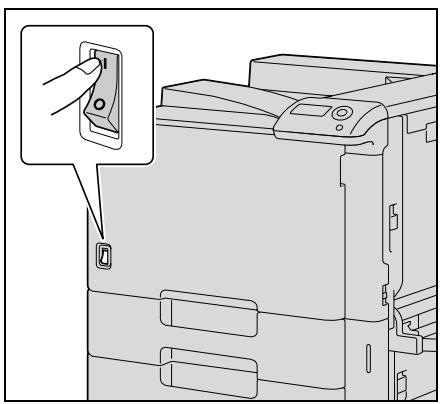
2 Check that the display panel is turned on.

Detail
When the machine is turned on, the printer starts up and the message "Now warming up" appears. After the message "Ready to Print" appears, a print job can be received.
The default settings, which are those that are selected immediately after the machine is turned on, can be changed. For details, refer to "Settings for control panel" on page 10-3.
The factory defaults settings are the settings that were selected when this machine was sent from the factory.

Note
Warming-up time is within 75 seconds at an ambient temperature of 73.4^ (23 °C).
3.2.2 Turning off the machine
1 Set the power switch to
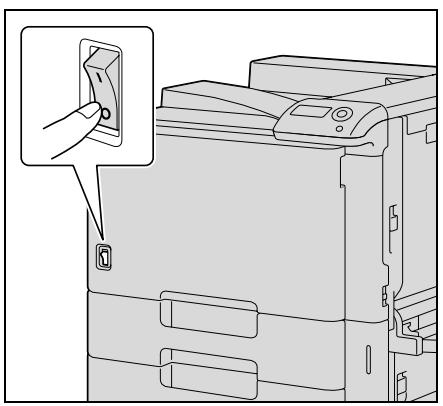
2 Chack that the display panel is turned off.

Reminder
When the power switch is turned off, then on again, wait at least 10 seconds to turn it on after turning it off. If there is no wait period between turning the power switch off, then on again, the machine may not function properly.
Do not turn off the machine with the power switch while it is making printing, otherwise a paper misfeed may occur.
Do not turn off the machine with the power switch while a queued job or stored data is waiting to be printed, otherwise the jobs will be deleted.

Detail
The following are cleared when the power switch is turned off.
Settings that have not been programmed
Jobs queued to be printed.
3.2.3 Automatically clearing settings (System Auto Reset)
If no operation is performed for a specified length of time while settings are being changed, settings that have not been programmed are cleared and return to their defaults.
This is the system auto reset operation.
As the factory default, the system auto reset operation is performed after 1 minute.

Detail
The length of time until the system auto reset operation is performed and whether or not it is performed can be set from "System Setting" menu. For details, refer to "System Settings" on page 10-19.
3.2.4 Automatically conserving energy (Low Power mode)
If no operation is performed for a specified length of time the machine automatically enters a mode where it conserves energy.
This is the Low Power mode.
The machine can receive jobs even while it is in Low Power mode.
As the factory default, the machine enters Low Power mode after 15 minutes.

Note
When a print job is received, the machine recovers from Low Power mode and begins printing after it has finished warming up.
The Low Power mode can also be canceled by pressing any key in the control panel.

Detail
The length of time until the machine enters Low Power mode can be changed. For details, refer to "System Settings" on page 10-16.
3.2.5 Automatically conserving energy (Sleep mode)
If no operation is performed for a specified length of time, the machine automatically enters a mode where it conserves energy.
This is the Sleep mode.
Although the machine conserves more energy in Sleep mode than in Low Power mode, the machine must warm up when Sleep mode is canceled to begin printing again, therefore taking more preparation time than Low Power mode.
As the factory default, the machine enters Sleep mode after 20 minutes.

Note
When a print job is received, the machine recovers from Low Power mode and begins printing after it has finished warming up.
The Sleep mode can also be canceled by pressing any key in the control panel.

Detail
The length of time until the machine enters Sleep mode can be changed. For details, refer to "System Settings" on page 10-16.
3.2.6 Manually switching to Power Save mode
Power Save mode can be manually specified from the control panel.
If "Immediately" is specified for "Entering Power Save" on the control panel, this machine stops all the functions. However, the machine automatically returns from the Power Save mode when the control panel is operated or data is being sent.
3.2.7 Power supply
Be sure to turn off the machine if it is not to be used for a long period of time, for example, overnight. In order to ensure that no energy is being consumed, unplug the machine.
3.3 Paper
Use paper that meets the following specifications.
3.3.1 Possible paper sizes
Non-standard-sized paper:
| Paper source | Paper width | Paper length |
| Bypass tray* | 90.0mm to 311.1mm | 139.7mm to 1200.0mm |
| Tray 1 | - | - |
| Tray 2 | ||
| Single/Double paper feed cabinets | ||
| LCT | ||
| Double-sided prints | 139.7mm to 311.1mm | 148mm to 457.2mm |
* Banner paper
Paper width: 210mm to 297mm
Paper length: 457.3mm to 1200mm
Standard-sized paper:
| Paper source | Paper size |
| Bypass tray*1 | 12 × 18 □*2 to 5-1/2 × 8-1/2 □/□ (A3 □ to B6 □, A6 □, 8 × 13 □*3, 16K □/□, 8K □) |
| Tray 1 | 11 × 17 □ to 8-1/2 × 11 □/□, 5-1/2 × 8-1/2 □*4 (A3 □ to B5 □/□, A5 □*5, 8 × 13 □*3, 16K □, 8K □) |
| Tray 2 | 12 × 18 □*2 to 8-1/2 × 11 □/□, 5-1/2 × 8-1/2 □*4 (A3 □ to B5 □/□, A5 □*5, 8 × 13 □*3, 16K □, 8K □) |
| Single/Double paper feed cabinets | 11 × 17 □ to 8-1/2 × 11 □/□, 5-1/2 × 8-1/2 □*4 (A3 □ to B5 □/□, A5 □*5, 8 × 13 □*3, 16K □, 8K □) |
| LCT | 8-1/2 × 11□ (A4 □) |
| Double-sided prints | 12 × 18 □*2 to 5-1/2 × 8-1/2, 12-1/4 × 18 □, 4 × 6 □ (A3 □ to A5 □/□, 8 × 13 □*3, 16K □/□, 8K □) |
1 For thick paper 4, only A3 , A4 , 11 × 17 and 8 - 1/2 × 11 are available for printing.
2 12 × 18 is equivalent to 304.8mm × 457.2mm , which is one size larger than A3.
3 There are five Foolscap sizes: 220 × 330mm , 8-1/2 × 13 , 8-1/4 × 13 , 8-1/8 × 13-1/4 , and 8 × 13 . Any one of these sizes can be selected. For details, contact your service representative.
4 5-1/2 × 8-1/2 □ can be used with the North American (inch) model only.
^*5 A5 can be used with the European (metric) model only.
| Loaded equipment | Paper sizes that can be loaded |
| Finisher FS-519 | Output tray 1, 2 and optional Output Tray 11 × 17 □, 8-1/2 × 11 □/□, 5-1/2 × 8-1/2 □/□, 12-1/4 × 18 □ (A3 □ to B6 □, A6 □, 12-1/4 × 18 □) "Group"/"Sort" settings: 11 × 17 □ to 8-1/2 × 11 □/□ (A3 □ to A5 □) Staple settings: 11 × 17 □ to 8-1/2 × 11 □/□ (A3 □ to A5 □) Punch settings*: 2-hole: 11 × 17 □ to 8-1/2 × 11 □/□ 3-hole: 11 × 17 □, 8-1/2 × 11 □ 4-hole: A3 □, A4 □, B5 □ |
| Optional output tray OT-602 | |
| Saddle stretcher SD-505 | Fold & staple: 11 × 17 □, 8-1/2 × 11 □ (A3 □, B4 □, A4 □, B5 □) |
| Mailbin kit MT-502 | 8-1/2 × 11 □, 5-1/2 × 8-1/2 □ (A4 □, B5 □, A5 □) |
| Finisher FS-609 | Output tray 1: "Group" setting: 11 × 17 □ to 5-1/2 × 8-1/2 □/□, 12-1/4 × 18 □ (A3 □ to B5 □/□, 12-1/4 × 18 □) "Sort" setting: 11 × 17 □ to 5-1/2 × 8-1/2 □ (A3 □ to A5 □) Staple setting: 11 × 17 □ to 8-1/2 × 11 □/□ (A3 □ to B5 □/□) Punch settings*: 2-hole: 11 × 17 □ to 8-1/2 × 11 □/□ 3-hole: 11 × 17 □, 8-1/2 × 11 □ 4-hole: A3 □, A4 □ Output tray 2: 11 × 17 □, 8-1/2 × 11 □ (A3 □ to A4 □) |
- Can be used when the optional punch kit is installed on the finisher.
3.3.2 Paper types and paper capacities
| Paper type | Plain paper | Thick paper 1 | Thick paper 2 | Thick paper 3 | Thick paper 4 |
| Weight | 60g/m2to 90g/m2 | 91 g/m2to 150g/m2 | 151 g/m2to 209g/m2 | 210g/m2to 256g/m2 | 257g/m2to 271g/m2 |
| Paper source | |||||
| Bypass tray | 150 sheets | 20 sheets | 20 sheets | 20 sheets | 20 sheets |
| Tray 1 and tray 2 | 500 sheets | 150 sheets | 150 sheets | 150 sheets | - |
| Single/Double paper feed cab-inet | 500 sheets | 150 sheets | 150 sheets | 150 sheets | - |
| LCT | 2,500 sheets | 1,000 sheets | 1,000 sheets | 1,000 sheets | - |
| Paper type | Transparencies | Postcards | Envelopes | Label sheets | Banner paper |
| Paper source | 127g/m2to 210g/m2 | ||||
| Bypass tray | 20 sheets | 20 sheets | 10 sheets | 20 sheets | 10 sheets |
| Tray 1 and tray 2 | - | - | - | - | - |
| Single/Double paper feed cab-inet | - | - | - | - | - |
| LCT | - | - | - | - | - |
3.3.3 Special paper
Paper other than plain paper, such as OHP transparencies and colored paper, is called special paper. Be sure to select a special paper setting for paper trays loaded with media such as OHP transparencies and colored paper. If the paper type is not correctly selected, paper misfeeds may occur.
| Paper type | Descriptions |
| Single Side Only | Select this setting when paper that should not be used with double-sided copying (for example, when one side has already been printed on) is loaded as plain paper with a weight of 60g/m2to 90g/m2.A paper tray with the "Single Side Only" setting selected is given priority when the "Au-to" Paper setting is specified.A paper tray with this setting is not automatically selected during double-sided print-ing. |
| Special Paper | Select this setting when special paper, for example, high-quality paper, is loaded as plain paper with a weight of 60g/m2to 90g/m2.A paper tray with this setting is not automatically selected when the "Auto" Paper set-ting is specified. |
| Letterhead | Select this setting when paper already printed with a company name or preset text is loaded as plain paper with a weight of 60g/m2to 90g/m2.A paper tray with this setting is not automatically selected when the "Auto" Paper set-ting is specified. |
| Colored Paper | Select this setting when colored paper is loaded as plain paper with a weight of 60g/m2to 90g/m2.A paper tray with this setting is not automatically selected when the "Auto" Paper set-ting is specified. |
| Transparency | Select this setting when OHP transparencies are loaded.A paper tray with this setting is not automatically selected when the "Auto" Paper set-ting is specified. When selecting OHP transparencies, select the "Gray Scale" Color setting, and then select the paper type. |
| Thick 1 | Select this setting when the thick paper that is loaded has a weight of 91 g/m2to 150g/m2.A paper tray with this setting is not automatically selected when the "Auto" Paper set-ting is specified. |
| Thick 2 | Select this setting when the thick paper that is loaded has a weight of 151 g/m2to 209g/m2.A paper tray with this setting is not automatically selected when the "Auto" Paper set-ting is specified. |
| Thick 3 | Select this setting when the thick paper that is loaded has a weight of 210g/m2to 256g/m2.A paper tray with this setting is not automatically selected when the "Auto" Paper set-ting is specified. |
| Thick 4 | Select this setting when the thick paper that is loaded has a weight of 257 g/m2to 271 g/m2.A paper tray with this setting is not automatically selected when the "Auto" Paper set-ting is specified. |
| Envelope | Select these settings when envelopes are loaded.A paper tray with this setting is not automatically selected when the "Auto" Paper set-ting is specified. |
| Plain-2nd Side | Select these settings when loading paper that has already been printed on one side."2nd Side" can be selected only if plain paper, thick paper 1, thick paper 2, thick paper 3 or thick paper 4 is loaded in the bypass tray. |
| Thick 1-2nd Side | |
| Thick 2-2nd Side | |
| Thick 3-2nd Side | |
| Thick 4-2nd Side |
3.3.4 Precautions for paper
Do not use the following types of paper.
Otherwise, decreased print quality, paper misfeeds or damage may result.
- OHP transparencies that have already been fed through the machine (even if the transparency is still blank)
- Paper that has been printed on with a heat-transfer printer or an inkjet printer
- Paper that is either extremely thick or extremely thin
- Folded, curled, wrinkled, or torn paper
- Paper that has been left unwrapped for a long period of time
Damp paper, perforated paper, or paper with punched holes - Extremely smooth or extremely rough paper, or paper with an uneven surface
- Paper that has been treated, such as carbon-backed, heat-sensitive or pressure-sensitive paper
- Paper that has been decorated with foil or embossing
- Paper of a non-standard shape (not rectangular)
- Paper that is bound with glue, staples or paper clips
- Paper with labels attached
- Paper with ribbons, hooks, buttons, etc., attached
3.3.5 Paper storage
Store paper in a cool, dark location with little humidity.
If the paper becomes damp, paper misfeeds may occur.
Paper that has not been loaded should be kept wrapped or placed in a plastic bag and stored in a cool, dark location with little humidity.
Store the paper laying flat, not standing on its edge. Curled paper may cause paper misfeeds.
Keep paper out of the reach of children.
3.3.6 Auto tray switch feature
If the selected paper tray runs out of paper while a job is being printed and a different paper tray is loaded with paper meeting the following conditions, the other paper tray is automatically selected so printing can continue. If the optional LCT is installed, a maximum of 3,650 copies (with 8 - 1 / 2 × 11 (A4) paper) can be made continuously. (The paper tray is automatically switched only if the "Auto Tray Switch" parameter in the "User Settings" menu is set to "ON".)
Operating conditions
The paper is the same size.
The paper is positioned in the same orientation.
The paper is the same type.
The paper trays are selected when the paper tray is automatically switched.

Detail
For details on the specifying the paper trays that are selected when the paper tray is automatically switched, refer to "System Settings" on page 10-16.
3.3.7 Order for selecting paper trays
As a factory default, when a different paper tray is automatically selected, the next paper tray in the following list is chosen.
When paper feed cabinet and LCT are not installed:
T1 (Tray 1) T2 (Tray 2) BP (Bypass tray)
When single paper feed cabinet is installed:
T1 (Tray 1) T2 (Tray 2) T3 (Tray 3) BP (Bypass tray)
When double paper feed cabinet is installed:
T1 (Tray 1) T2 (Tray 2) T3 (Tray 3) T4 (Tray 4) BP (Bypass tray)
When LCT is installed:
T1 (Tray 1) T2 (Tray 2) T3 (Tray 3) BP (Bypass tray)

Detail
To change the order in which the paper trays are selected, refer to "System Settings" on page 10-16.
3.4 Loading paper
3.4.1 Loading paper into tray 1/2/3/4
The paper loading method is the same for trays 1, 2, 3, and 4.
The following describes the paper loading procedure for tray 1.
Tray 3/4 is an option.
1 Pull out tray 1.
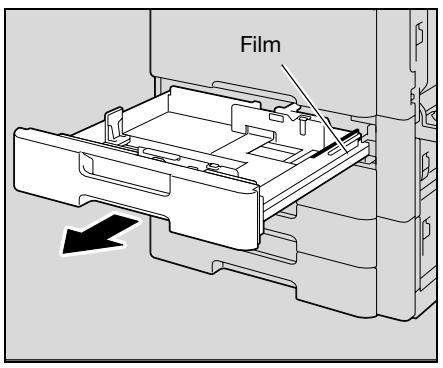
2 Slide the lateral guides to fit the size of paper to be loaded.
- If the lateral guides are not positioned correctly for the loaded paper, the paper size will not be correctly detected. Be sure to adjust the lateral guides to the size of the loaded paper.
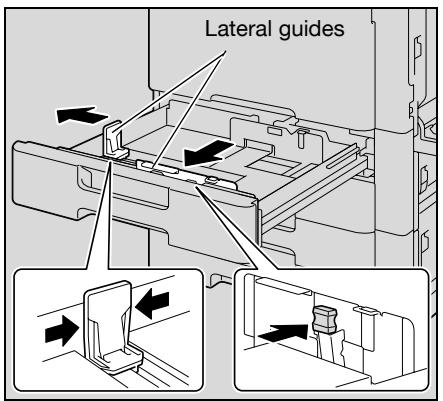
3 Load the paper into the tray so that the side of the paper to be printed on (the side facing up when the package was unwrapped) faces up.

- Load letterhead paper so that the side to be printed on faces down.
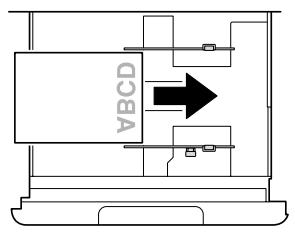
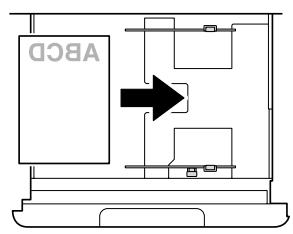
How is curled paper loaded?
Flatten the paper before loading it.
How many sheets of paper and other media can be loaded?
Do not load so many sheets of plain paper that the top of the stack is higher than the mark.
4 Close tray 1.

Detail
If special paper is loaded, the paper type setting must be specified. For details, refer to "Paper Settings Menu" on page 10-15.

#
Reminder
Be careful not to touch the film.
For details on selecting the size and type of paper loaded in tray 1/2/3/4, refer to "Paper" on page 3-19.
To print on OHP transparencies, envelopes or postcards, use the bypass tray.
3.4.2 Loading paper into the LCT
If the [Power] is turned off, the LCT cannot be pulled out, even after the tray release button is pressed. Be sure that the machine is turned on with the [Power].
LCT is an option.
1 Press the tray release button.
The LCT slides out from the main unit slightly.
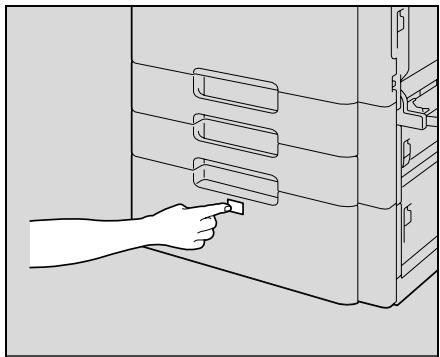
2 Pull out the LCT.
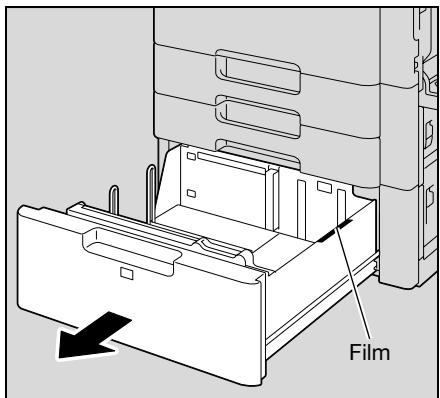
3 Load the paper into the right side of the LCT so that the side of the paper to be printed on (the side facing up when the package was unwrapped) faces up.
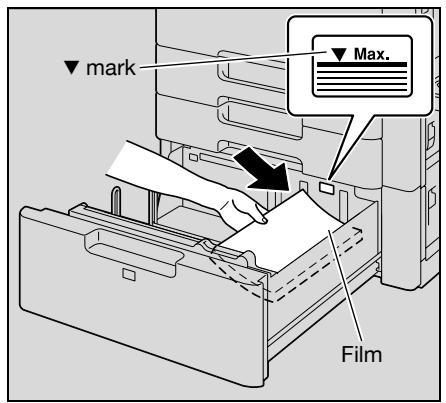
- Load letterhead paper so that the side to be printed on faces down.
- To print on OHP transparencies, thick paper 4, envelopes or postcards, use the bypass tray.
How is curled paper loaded?
Flatten the paper before loading it.
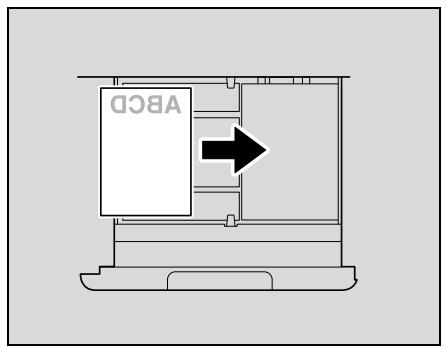
4 Load the paper into the left side of the LCT so that the side of the paper to be printed on (the side facing up when the package was unwrapped) faces up.
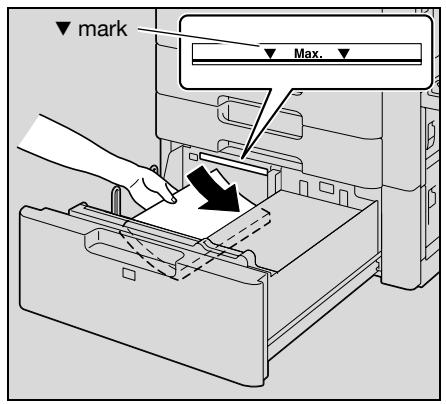
5 Close the LCT.
- If special paper is loaded, the paper type setting must be specified. For details, refer to "Paper Settings Menu" on page 10-15.

Reminder
Be careful not to touch the film.
Do not load so many sheets of paper that the top of the stack is higher than the mark.
For details on the paper that can be loaded into the LCT, refer to "Paper" on page 3-19.

Note
If the machine has entered Low Power mode or Sleep mode, the LCT cannot be pulled out, even after the tray release button is pressed. Be sure to first cancel Low Power mode or Sleep mode.
3.4.3 Loading paper into the bypass tray
Paper can be fed manually through the bypass tray if you wish to print onto paper that is not loaded into a paper tray, or if you wish to print onto thick paper 4, postcards, envelopes, OHP transparencies or label sheets.

Detail
For thick paper 4, only A3 , A4 , 11 × 17 and 8 - 1/2 × 11 are available for printing.
1 Open the bypass tray.
- When loading large-sized paper, pull out the tray extension.
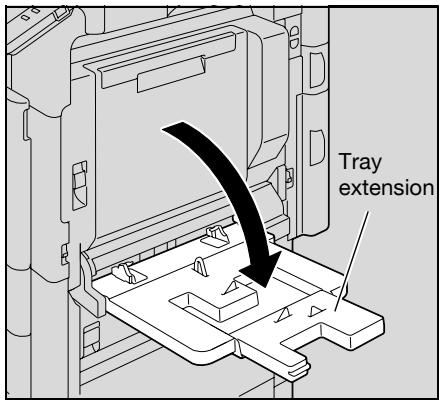
2 With the side to be printed on facing down, insert the paper as much as possible into the feed slot.
3 Slide the lateral guides to fit the size of paper being loaded.
How is curled paper loaded?
Flatten the paper before loading it.
How many sheets of paper and other media can be loaded?
Do not load so many sheets of plain paper that the top of the stack is higher than the mark.
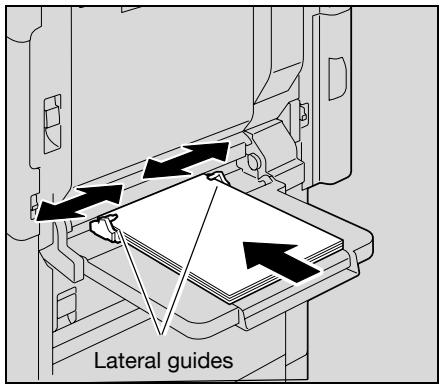

#
Note
If necessary, specify the paper size and paper type.
For details, refer to "Paper Settings Menu" on page 10-15.

Reminder
Push the paper guides firmly up against the edges of the paper.
When loading postcards, load them in the orientation, as shown in the illustration. Do not load postcards in the orientation.
If postcards are loaded, select "Thick 3".
If label sheets are loaded, select "Thick 1".
Printing on OHP transparencies is possible only in black. When selecting OHP transparencies, select the "Gray Scale" from "Select Color" in "Quality" tab.
A maximum of 20 postcards can be loaded into the bypass tray.
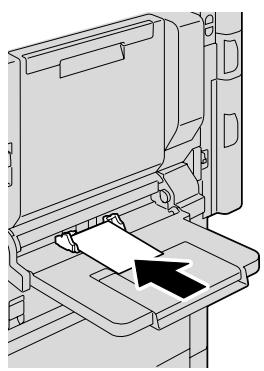
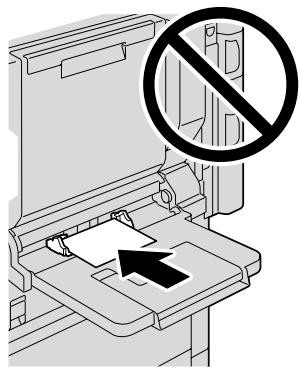
When loading OHP transparencies, load them in the orientation, as shown in the illustration. Do not load OHP transparencies in the orientation.
A maximum of 20 OHP transparencies can be loaded into the bypass tray.
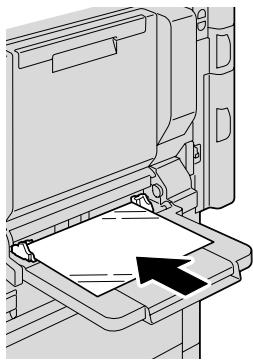
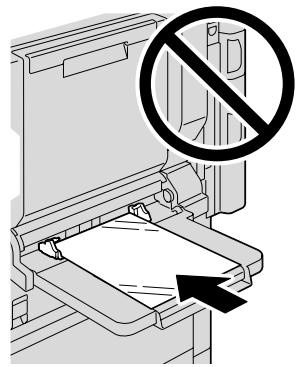
Before loading envelopes, press them down to make sure that all air is removed, and make sure that the folds of the flaps are firmly pressed, otherwise the envelopes may become wrinkled or a paper misfeed may occur.
When loading envelopes, load them with the flap side up, as shown in the illustration. If the envelopes are loaded with the flap side down, a paper misfeed may occur. The flap side of envelopes cannot be printed on.
A maximum of 10 envelopes can be loaded into the bypass tray.
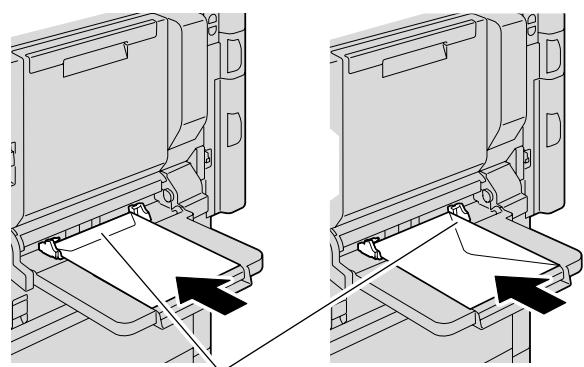
Flap side
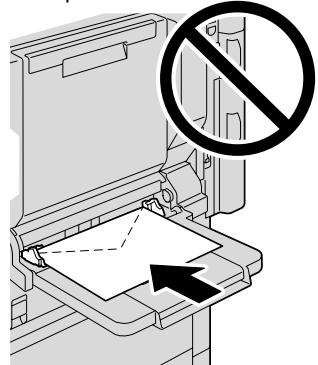
When loading label sheets, load them in the orientation, as shown in the illustration. Do not load label sheets in the orientation.
A maximum of 20 label sheets can be loaded into the bypass tray.
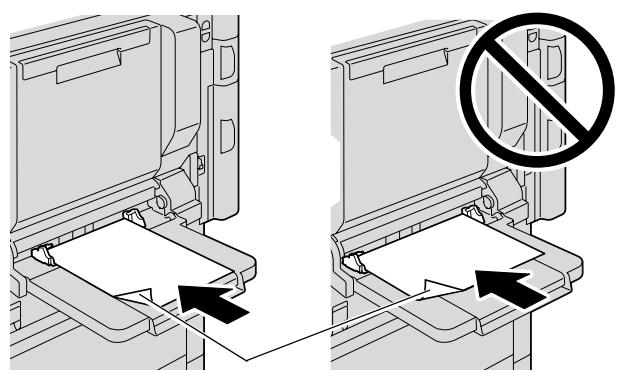
Side to be printed on
Be sure to load letterhead paper so that the side to be printed on faces up.
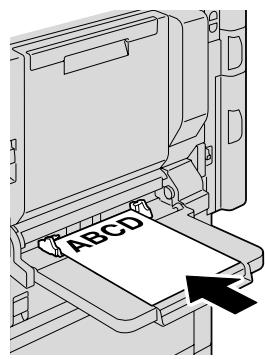
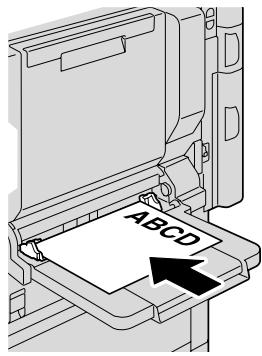

Note
The image will be printed on the surface of the paper facing down when the paper is loaded into the bypass tray.

Detail
For details on the paper sizes, refer to "Paper" on page 3-19.
3.5 Printer controller
The printer controller is a device for performing printing functions and network printing functions with this machine.
3.5.1 Role of the printer controller
The printer controller processes printing data in this machine, which plays an important role in the printing system. The computer provides connections through the printer controller, allowing printing from applications. When using this machine as a network printer, you can print from applications on the computer.
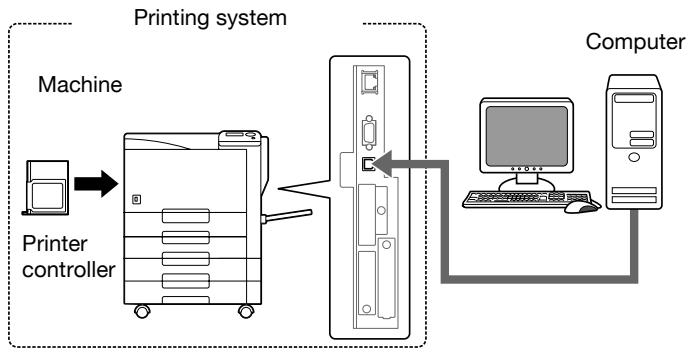
The printer controller provides the following functions:
- Printing data being sent from a printer driver on a computer
Support of network protocols including TCP/IP (IPv4/IPv6), IPX/SPX, and AppleTalk - Direct printing over a network using Web Service Printing (Windows Vista), SMB (Windows), LPR, and IPP printing
- Access to settings for this machine and the printer controller from a client computer over the network (using a Web browser)
Control of the number of pages printed (the User Authentication and Account Track functions)
3.5.2 Printing flow
The following outlines the flow of operations for using this printing system.
The printer driver receives print commands from applications.
Data is transmitted to this machine over a USB interface when this machine is used via a USB connection, or over an Ethernet interface (TCP/IP, IPX/SPX, or AppleTalk) when this machine is used via an Ethernet connection. The data is then delivered from this machine to the printer controller that performs image rasterization (development of output characters and images to bitmap data) and printed by the printing mechanism of this machine.
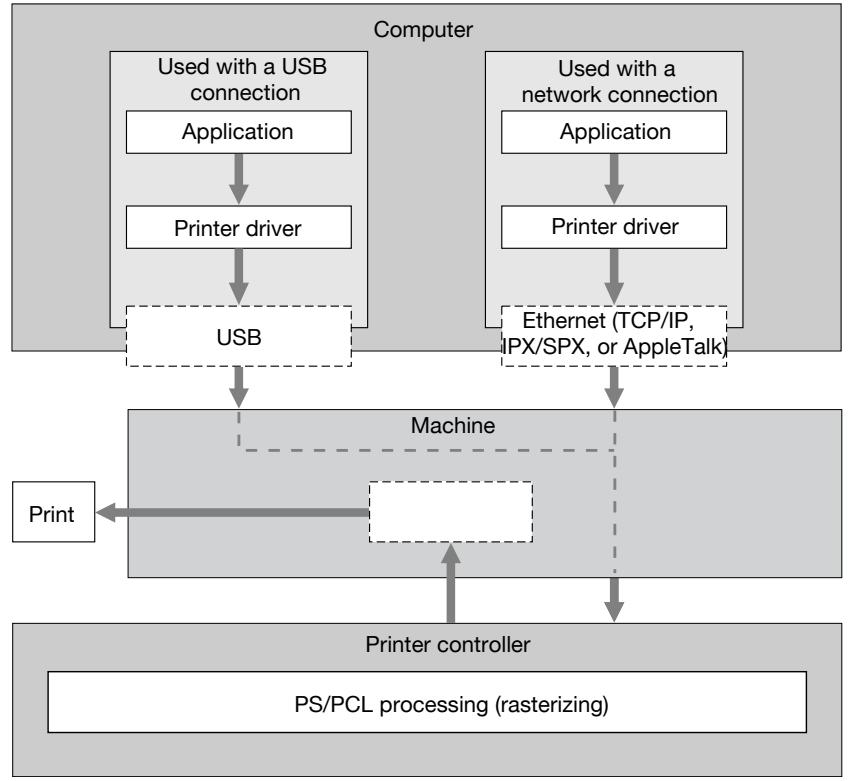
3.6 Operating environment
The following descriptions the system requirements for using this printing system and the interfaces used for connection.
3.6.1 Compatible computers and operating systems
Check that the computer being connected meets the following conditions.
Windows
| Item | Operating environment |
| Operating System | Windows NT Workstation/Server Version4.0 (Service Pack 6 or later), Windows 2000 Professional/Server (Service Pack 3 or later), Windows XP Home Edition/Windows XP Professional, Windows XP Professional x64 Edition, Windows Vista Home Basic/Home Premium/Ultimate/Business/Enterprise, Windows Vista Home Basic/Home Premium/Ultrate-Business/Enterprise x64 Edition, Windows Server 2003 Standard Edition, Windows Server 2003 x64 Edition |
| Processor | Processor recommended for the operating system or higher |
| Memory | Capacity recommended for the operating systemWith sufficient memory resources in the operating system and application being used |
| Drive | DVD |
| Web Browser (when using PageScope Web Connection) | Microsoft Internet Explorer Ver. 6 or later (JavaScript and Cookies enabled)Netscape Navigator Ver. 7.02 or later (JavaScript and Cookies enabled)Mozilla Firefox Ver. 1.0 or later (JavaScript and Cookies enabled)Adobe® Flash® (plug-in ver. 7.0 or later required if Flash is selected as the display format) |
Macintosh
| Item | Operating environment |
| Operating System | Mac OS 9.2, Mac OS X 10.2.8, Mac OS X 10.3, or Mac OS X 10.4 |
| Processor | PowerPC, Intel Processor (Intel Processor for Mac OS X 10.4 only) |
| Memory | Capacity recommended for the operating system |
| Drive | DVD |
| Web Browser (when using PageScope Web Connection) | Netscape Navigator Ver. 7.02 or later (JavaScript and Cookies enabled)Mozilla Firefox Ver. 1.0 or later (JavaScript and Cookies enabled)Adobe® Flash® (plug-in ver. 7.0 or later required if Flash is selected as the display format) |
3.6.2 Compatible interfaces
The following interfaces can be used to connect this printing system to a computer.
Ethernet interface
Select to use this printing system via a network connection.
Supports 10Base-T, 100Base-TX, and 1000Base-T standards. In addition, the Ethernet interface supports the TCP/IP (LPD/LPR, IPP, SMB), Web Service, IPX/SPX (NetWare), and AppleTalk (EtherTalk) protocols.
USB interface
Select to use this printing system via a USB connection.
The USB interface can be connected to a computer running Windows. A USB cable is required for connection. Use a type A (4 pin, male) or type B (4 pin, male) USB cable. A USB cable measuring three meters or less is recommended.
Connection diagram
The printer cables are connected to each port on this machine.
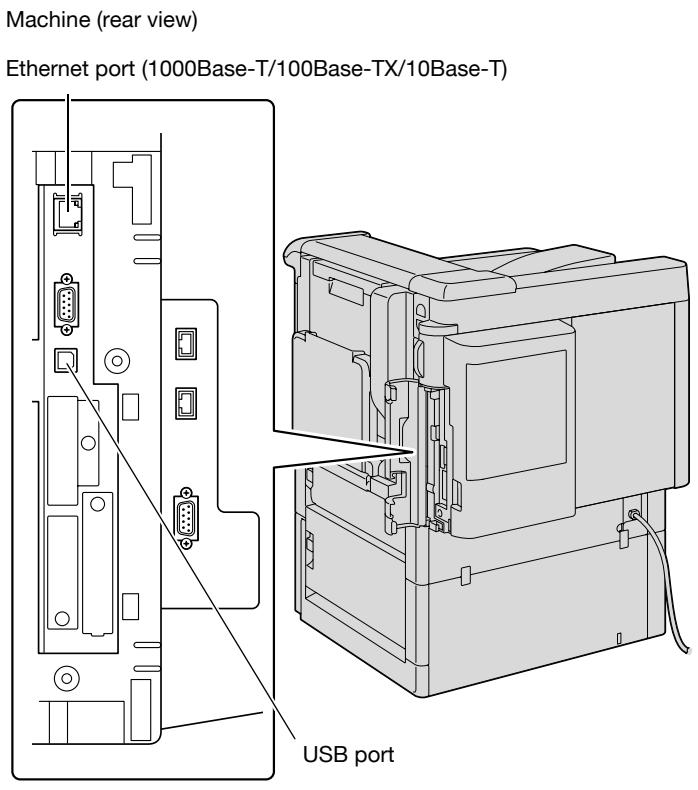
3.6.3 Printer drivers applicable to operating systems
In order to use this printing system, the printer driver must be installed.
The following lists the printer drivers included on the DVD and the supported computer operating systems. Select the required printer driver.
| Printer driver | Page description language | Supported operating systems |
| Konica Minolta PCL Driver (PCL driver) | PCL6 | Windows NT Workstation/Server Version4.0 (Service Pack 6 or later) Windows 2000 Professional/Server (Service Pack 3 or later), Windows XP Home Edition/Windows XP Professional, Windows XP Professional x64 Edition, Windows Vista Home Basic/Home Premium/Ultimate/Business/Enterprise, Windows Vista Home Basic/Home Premium/Ultrate/Business/Enterprise x64 Edition, Windows Server 2003 Standard Edition, Windows Server 2003 x64 Edition |
| Konica Minolta PostScript Driver (PS driver) | PostScript3 Emulation | Windows 2000 Professional/Server (Service Pack 3 or later), Windows XP Home Edition/Windows XP Professional, Windows XP Professional x64 Edition, Windows Vista Home Basic/Home Premium/Ultimate/Business/Enterprise, Windows Vista Home Basic/Home Premium/Ultrate/Business/Enterprise x64 Edition, Windows Server 2003 Standard Edition, Windows Server 2003 x64 Edition |
| PostScript PPD driver (PS-PPD) | Mac OS 9.2 or later Mac OS X 10.2.8, Mac OS X 10.3, or Mac OS X 10.4 |

Note
Select the page description language according to the application used for printing.
3.7 Setting up the system
In order to use this printing system, it must first be set up.
The setup procedure refers to a series of steps for connecting this machine to a computer and installing the printer driver on the computer.
The setup procedure consists of the following steps.
3.7.1 Network connection
1 Connect this machine to a computer.
2 Make sure the computer is connected to the network.
3 Specify the IP address of the machine to connect it to the network.
4 Depending on the connection method and protocol, change the network settings of this machine.
- LPR: Enable LPD print in the LPD Setting screen.
- Port9100: Enable the RAW port number (9100 at default), in the TCP/IP Setting screen.
- SMB: Specify "Print Setting" in the SMB Setting screen.
- IPP/IPPS: Enable IPP print in the IPP Setting screen. For IPPS print, install the certificate in advance.
- Web Service: Enable the print function in the Web Service Settings screen.
- Bonjour: Enable Bonjour in the Bonjour Setting screen.
- AppleTalk: Enable AppleTalk in the AppleTalk Setting screen.
5 Install the printer driver.
- Specify the network port of the printer driver according to the connection method and protocol.
6 Install the screen fonts.
- The DVD contains the Latin TrueType fonts as screen fonts. The ScreenFont or Screen Fonts folder in the DVD contains the screen fonts.
- Install the screen fonts after adding the operating system standard fonts. For details, refer to Help of the operating system.
- Macintosh fonts are compressed. Decompress them before installing.
3.7.2 Local connection
1 Connect this machine to a computer.
2 Install the printer driver.
3 Install the screen fonts.
- The DVD contains the Latin TrueType fonts as screen fonts. The ScreenFont or Screen Fonts folder in the DVD contains the screen fonts.
- Install the screen fonts after adding the operating system standard fonts. For details, refer to Help of the operating system.

Reminder
After installing the printer driver, perform test print to make sure that the connections are made properly.

Detail
For details on applicable interfaces, refer to "Compatible interfaces" on page 3-34.
For details on network settings, refer to "Network settings" on page 4-3.
The procedure for installing the printer driver differs depending on the connection method, operating system of the computer, and printer driver. For details, refer to "Installing the printer driver for Windows" on page 5-3.

Note
To update an existing printer driver, delete the existing printer driver first. For details, refer to "Uninstalling the printer driver" on page 5-29.
If necessary, specify the interface timeout settings in the Utility mode on the control panel. For details, refer to "Printer Settings" on page 10-22.
Installation of screen fonts is available only if the optional HDD is installed.
3.8 Contents of the DVD
On the DVD you find the drivers for this machine and different PageScope applications and utilities.
3.9 Authentication Method
Specify user authentication and account track settings in order to control the use of this machine.
User authentication settings are specified to manage individuals, and account track settings are specified to manage groups and multiple users.
By specifying both user authentication and account track settings, the number of prints made by each account can be managed for each individual user.

Note
On this machine, a total of 1,000 users and accounts can be registered if the optional HDD is installed, or a total of 30 users and accounts can be registered if not.
When an authentication method is specified, the authentication information is required when printing. To print with the user authentication or account track specified, the user name and password must be entered. For details, refer to "Printing on a machine with the user authentication set up" on page 9-24 and "Printing with the machine enabling the Account Track function" on page 9-28.
When an authentication method is specified, the authentication screen appears when you attempt to use the "Job Operation" function of this machine. To print with the user authentication or account track specified, the user name and password must be entered to login. For details, refer to "Job Operation Menu" on page 10-14.
When an optional authentication unit is installed, login via the authentication unit is available.
User authentication and account track can be specified without synchronizing.
3.9.1 User authentication and account track
User authentication and account track can be used to specify the following settings.
- User Authentication
- Limits on the available functions
- Counters for printing by each user
Limits on using color or black printing and on the number of copies that can be set
Management of group user boxes and personal user boxes for each owner - Delete jobs of other users
- Account Track
- Counters for printing from each account
Limits on using color or black printing and on the number of copies that can be set - Operates the group box
3.9.2 When user authentication and account track are synchronized
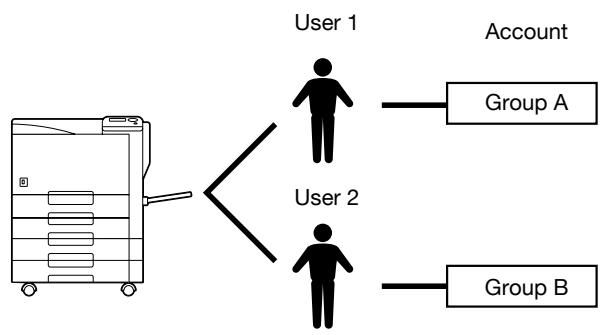
This setup is used when the machine is used by multiple departments and the use by each employee is managed by each department. With this setup, statistics can be maintained on each employee (each user) and on each department (each account).
To manage the use of this machine in this way, specify the following authentication settings.
| Parameter on Authentication Method screen | Settings |
| User Authentication | Select "ON (External Server)" or "ON (MFP)". |
| Account Track | Select "ON", and then specify the account name and password. |
| Synchronize User Authentication & Account Track | Select "Synchronize". |
| Account Name (on User Registration screen) | Select an account name if "ON (MFP)" was selected. |
3.9.3 When user authentication and account track are used separately
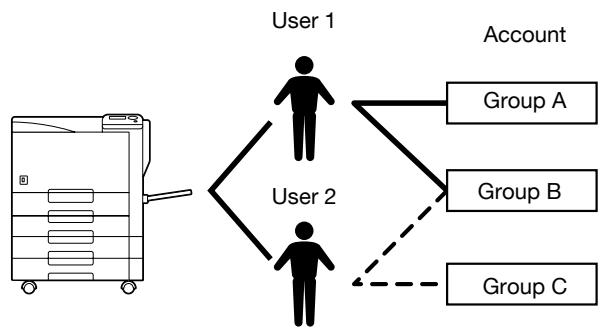
This setup is used when the machine is used by multiple employees with each employee performing multiple duties, which are to be totaled separately. With this setup, statistics can be maintained for each employee (each user) and on each duty of the employee (each account). In addition, totals can be maintained on each employee (each user) and each duty (each account) even if the same duty is performed by two different employees.
To manage the use of this machine in this way, specify the following authentication settings.
| Parameter on Authentication Method screen | Settings |
| User Authentication | Select "ON (External Server)" or "ON (MFP)". |
| Account Track | Select "ON", and then specify the account name and password. |
| Synchronize User Authentication & Account Track | Select "Do Not Synchronize". |
3.10 User Box functions
The User Box functions allow print data to be saved on the internal hard disk of the machine and printed later. To save data to a box, create the box according to the purpose, and then save the data to the specified box.

Note
The User Box function is available only if a hard disk is installed on this machine.
3.10.1 Available User Box functions
Saving documents
Data can be saved to the following box:
| User box | Description | Reference |
| Public User Box/Personal User Box/Account User Box | To save document data, print the data by specifying a user box with the Save in User Box function in the printer driver from the computer on the network. Based on user authentication or account track settings, access to some boxes, such as personal and group user boxes, can be limited to particular users. | p. 9-12 |
| Annotation User Box | To save document data, print the data by specifying a user box with the Save in User Box function in the printer driver from the computer on the network. Saved document data can be saved for later printing, with an image of the date/time or an annotation number added. | p. 9-17 |
| Secure Print Box | To save document data, print the data by selecting "Secure Print" in the printer driver from the computer on the network. | p. 9-6 |
| Encrypted PDF Box | To save document data, download the password-protected PDF file using the Direct Print function of PageScope Web Connection. | p. 9-22 |
| Touch & Print Box | To save document data, print the data after correctly specifying the User Authentication settings from the printer driver with the optional authentication unit AU-101 or 201 installed and with Touch & Print User Box enabled. | p. 9-31 |
Computers
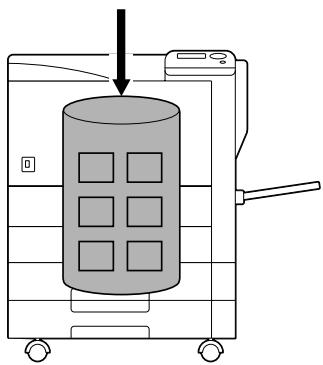
Using document data
Documents saved in user boxes can be loaded by the "Job Operation" function of this machine.
The document saved in boxes can be used as follows:
| User box | Description | Reference |
| Public/personal/group user boxes | Saved documents can be printed. Multiple documents can be selected for printing. Depending on user authentication and account track settings, use of some boxes, such as personal and group user boxes, can be limited to a particular user. | p. 9-15 |
| Secure Print Box | Saved documents can be printed. To print the data, enter an ID and password. | p. 9-9 |
| Annotation user box | Document data saved can be printed or transmitted with an image of the date/time or an annotation number. | p. 9-20 |
| Encrypted PDF Box | Saved documents can be printed. To print documents, the preset password is necessary. | p. 9-23 |
| Touch & Print Box | This box appears when the optional authentication unit (AU-101/AU-201) is installed and Touch&PrintUserBox is enabled. By touching the authentication unit and logging on, documents being sent for print jobs by the printer driver are printed. | - |
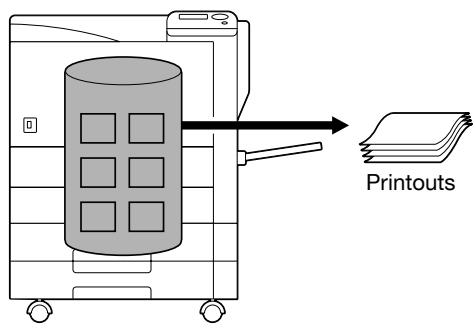
3.10.2 Set-up for User Box functions
Before using the User Box functions, the following settings should be specified.
User box registration
Create and register the user boxes where documents will be saved. User boxes that can be specified from a computer on the network using PageScope Web Connection are as follows.
Public/personal/group user boxes (p. 11-25)
- Annotation user box (p. 11-28)
3.10.3 User authentication
This machine can be specified so that an account or user name and a password must be entered in order to use the "Job Operation" function of this machine.
Contact the administrator for authorized account or user name.
Machine authentication
Enter the user name and password to log in.
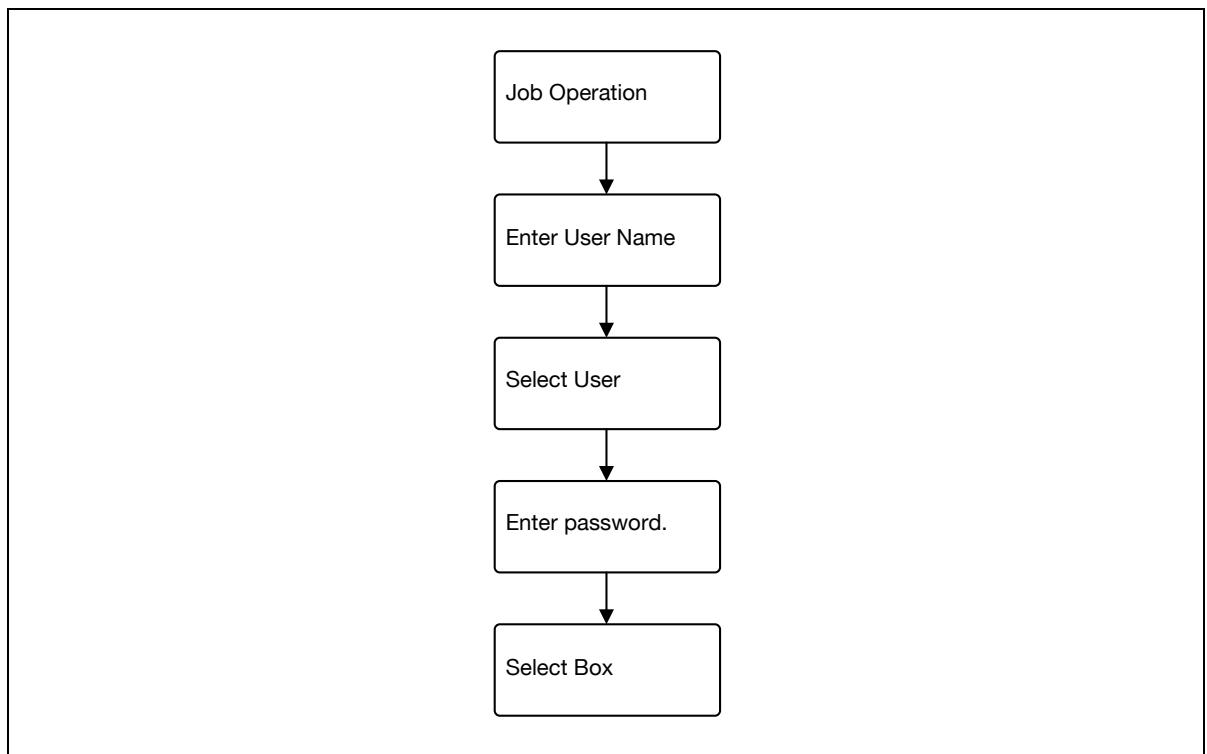
Account track
Enter the account name and password to log in.
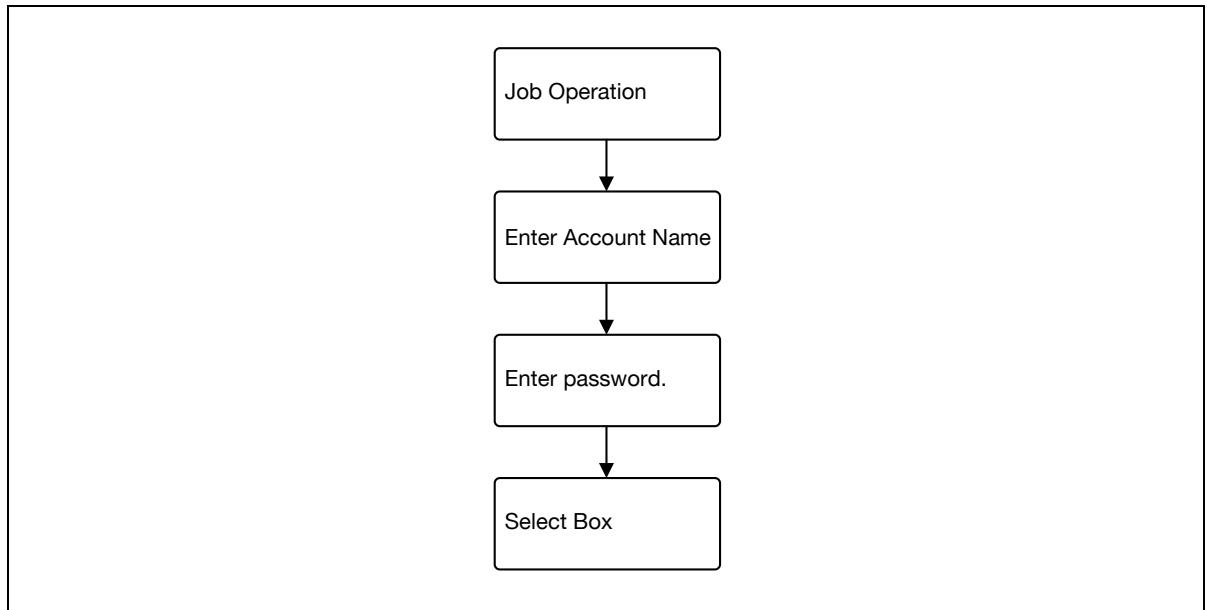

Detail
With user authentication, the only boxes that are displayed are those accessible by the user that is logged on. For details, refer to "Authentication and accessible user boxes" on page 3-43.
If "Prohibit Functions" in [Admin. Settings] is set to "Mode 2" and a user enters an incorrect password the specified number of times, that user is locked out and can no longer use the machine. Contact the administrator to cancel operation restrictions.
3.10.4 Limitation on user box registration
Public/personal/group user boxes
There are "public" user boxes, which can be used by more than one person, "personal" user boxes, which can be used only by a single person, and group user boxes, which can be used only by authorized users in the account track settings.
The followings are limitations for each box.
- Before document data can be saved, a user box must be created for saving the data.
Up to 1,000 user boxes can be created. - Up to 200 documents can be saved in a single user box.
A total of 10,000 pages can be saved in all user boxes.
A total of 3,000 documents can be saved in all user boxes.
3.10.5 Authentication and accessible user boxes
When user authentication and account track settings have been applied, the accessible user boxes and the access permissions change as shown below. Specify the user authentication and account track settings according to the desired functions.
When user authentication and account track settings are not specified

Create and access
Users can access all public user boxes.
User boxes created by users and the administrator are "public" user boxes.
When only user authentication settings are specified
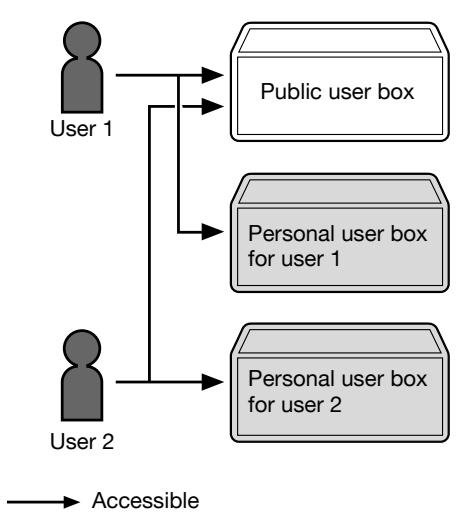
Users can access all public user boxes and only personal user boxes that the user has created.
Personal user boxes cannot be accessed by other users.
If user authentication settings are canceled or if authentication method is changed, all personal user boxes become public user boxes.
When only account track settings are specified
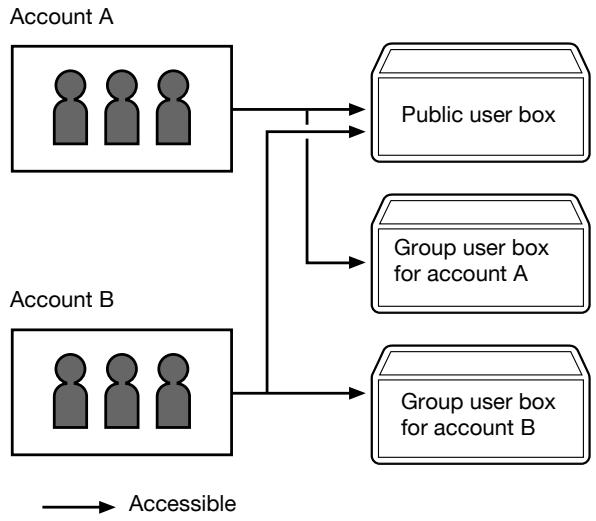
Users can access all public user boxes and only group user boxes for the account that the user belongs to. If account track settings are canceled or if authentication method is changed, all group user boxes become public user boxes.
When user authentication and account track settings are specified and synchronized
User 1
User 2
Since account name is synchronized with user names, group user boxes for accounts that the user does not belong to cannot be accessed.
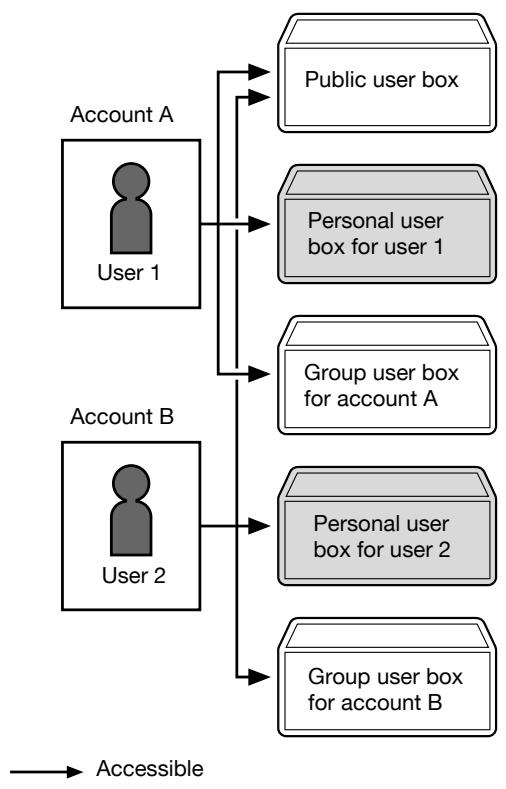
Users can access all public user boxes, only group user boxes for the account that the user belongs to, and only personal user boxes that the user has created.
Personal user boxes cannot be accessed by other users.
If user authentication settings are canceled or if authentication method is changed, personal user boxes and all group user boxes become public user boxes.
When user authentication and account track settings are specified but not synchronized
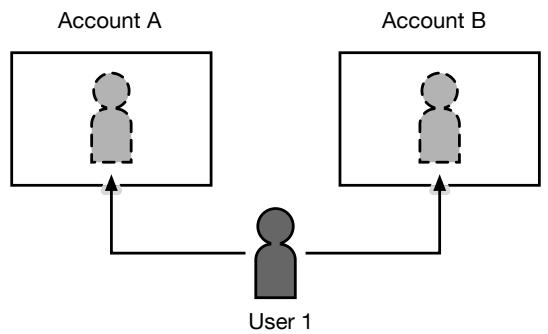
Since account name is not synchronized with user names, the account name and password must be entered when logging on. A user can use different account name at each login, and therefore can access to each group user box for the account.
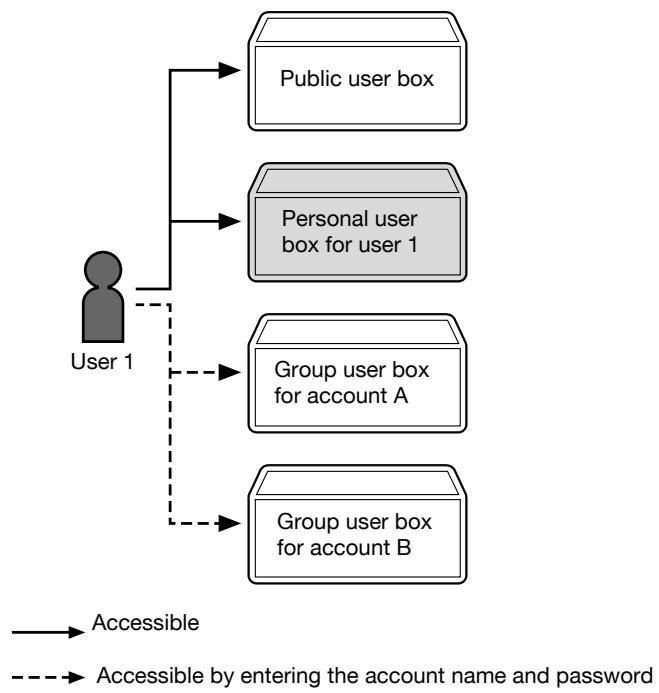
Users can access all public user boxes and only personal user boxes that the user has created.
Personal user boxes cannot be accessed by other users.
A user can access to a particular group user box by entering the relevant account name and password when logging on.
If user authentication settings are canceled or if authentication method is changed, personal user boxes and all group user boxes become public user boxes.
4
Network settings
4 Network settings
4.1 Specifying general settings for TCP/IP-based communication
Specify settings to use this machine in a TCP/IP network environment. To use this machine by connecting to the network, specify these settings in advance.

Reminder
In order to apply all changes to the network settings, turn off this machine, then on again.
When turning off the power switch and turning it on again, wait for 10 seconds or longer after poweroff, and then turn on the power again. The machine may not operate correctly if it is turned on immediately after being turned off.
TCP/IP Settings
1 On the "Utility" menu of the control panel, select "System Settings" - "Network Settings" - "TCP/IP".
2 Specify the following settings.

Note
For details on the "Utility" menu operations, refer to "Control panel" on page 10-3.
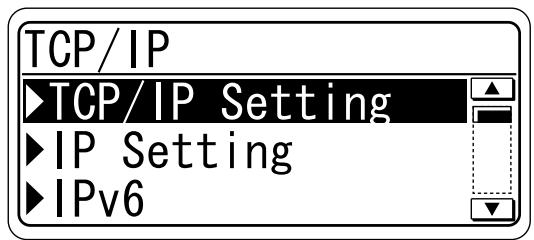
| Item | Definition | Prior confirmation |
| TCP/IP Settings | Select [ON]. | |
| IP Setting / Application Method | Select whether the IP address is automatically acquired or directly specified. | IP application method to be used |
| IP Address | To directly specify the IP address, specify the IP address of this machine. | IP address of this machine |
| Subnet Mask | To directly specify the IP address, specify the subnet mask of the network to be connected. | Subnet mask of this machine |
| Default Gateway | To directly specify the IP address, specify the default gateway of the network to be connected. | Default gateway of this machine |
| Dynamic DNS Settings | To automatically register the host name specified with [Host Name] for the DNS server that supports the Dynamic DNS function, select [ON]. | Whether Dynamic DNS is used |
| DNS Host Name | Specify the host name of this machine (up to 63 characters). | |
| DNS Domain Name Auto Retrieval | Select whether to automatically acquire the name of the DNS domain. This item is enabled when the DHCP is enabled. | Whether automatic ac-quisition is available with DHCP |
| Default DNS Domain Name | If not acquiring the DNS domain name automatically, specify the domain name to which this machine belongs (up to 255 characters including the host name). | Default Domain Name |
| DNS Search Domain Name 1 to 3 | Specify the DNS search domain name (up to 253 characters). | |
| DNS Server Auto Obtain | Specify whether to automatically acquire the DNS server address. This item is enabled when the DHCP is enabled. | Whether automatic ac-quisition is available with DHCP |
| Priority DNS Server | If not automatically acquiring the DNS server address, speci-ify the address of the priority DNS server. | Address of the server |
| Secondary DNS Server 1 and 2 | Specify the address of an alternate DNS server. | Address of the server |
4.2 Using PageScope Web Connection
Specify settings for using PageScope Web Connection. This manual describes how to specify settings required for each operation using PageScope Web Connection.
PageScope Web Connection is a device management utility supported by the HTTP server integrated into the printer controller. Using a Web browser on a computer connected to the network, machine settings can be specified and the status of the machine can be checked. Some settings can be specified from the computer instead of from the machine control panel.
Specify the settings according to the following flowchart.
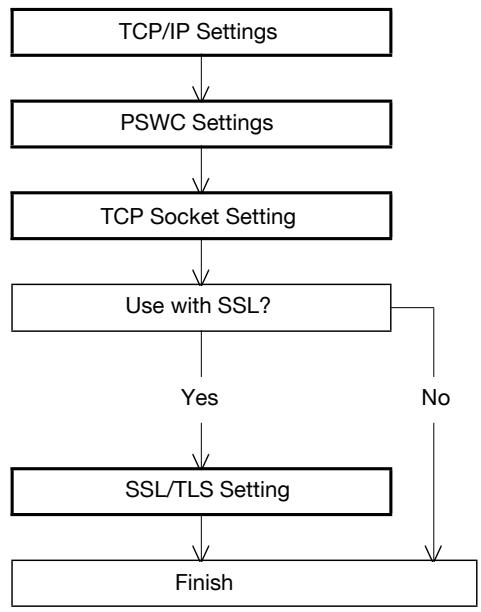
4.2.1 TCP/IP Settings
Specify settings to use this machine in a TCP/IP network environment.
For details, refer to "Specifying general settings for TCP/IP-based communication" on page 4-3.
4.2.2 PSWC Settings
1 On the "Utility" menu of the control panel, select "System Settings" - "Network Settings" - "HTTP Server".
2 Specify the following setting.

Note
For details on the "Utility" menu operations, refer to "Control panel" on page 10-3.
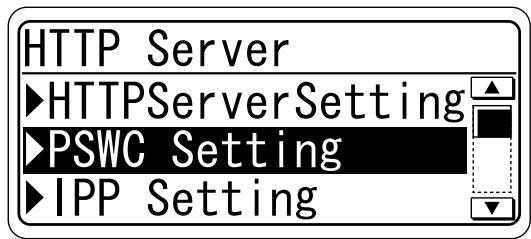
| Item | Definition | Prior confirmation |
| PSWC Settings | Select [ON]. |
4.2.3 TCP Socket Setting
1 In Administrator mode of PageScope Web Connection, select the Network tab - "TCP Socket Setting".
2 Specify the following settings.

Note
For details on logging in to Administrator mode of PageScope Web Connection, refer to "Logging in to Administrator mode of PageScope Web Connection" on page 4-7.
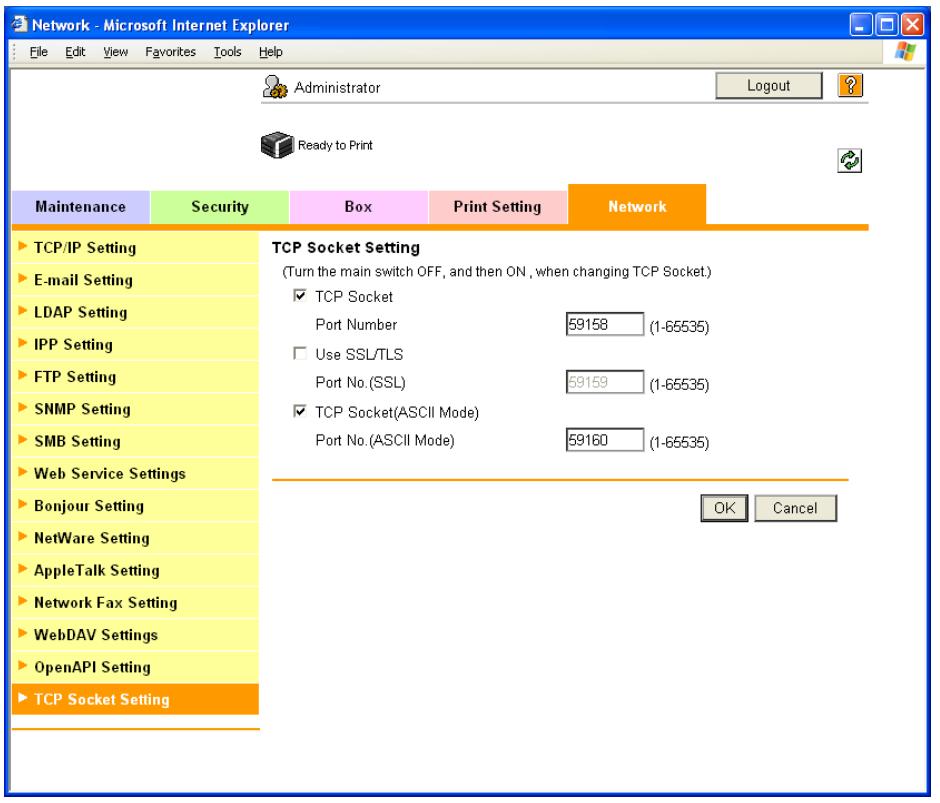
4.2.4 SSL/TLS Setting
Specifying settings for SSL-based communication
For details, refer to "Creating a certificate for this machine for SSL-based communication" on page 11-55.
4.3 Logging in to Administrator mode of PageScope Web Connection
To specify settings for this machine with PageScope Web Connection, Administrator mode must be logged in. The following shows how to log in to Administrator mode.

Detail
When logged in to Administrator mode, the control panel of the machine is locked and cannot be used.
Depending on the status of the machine, you may not be able to log in to Administrator mode.
1 In the login page, select "Administrator", and then click the [Login] button.
- If necessary, select the display language and format. If "When in warning, the dialog is displayed." check box is selected, warning messages appear during operation after logging in.
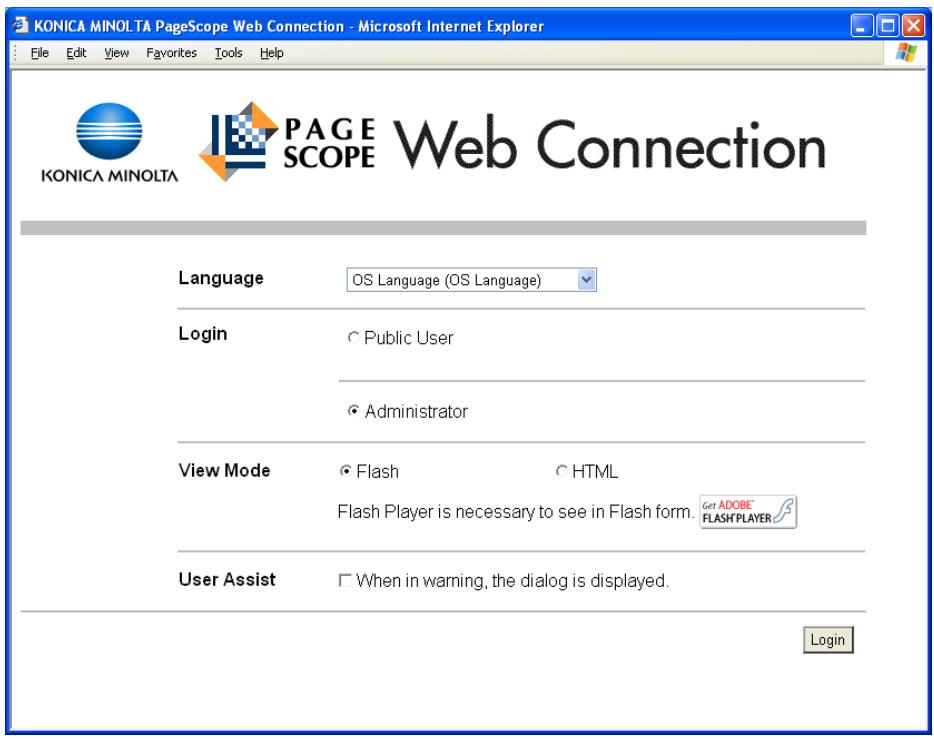
2 Enter the password for the machine's administrator.
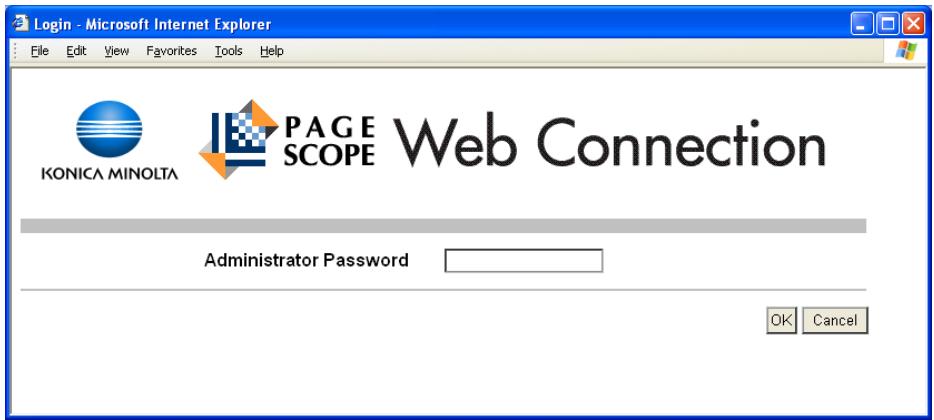
3 Click the [OK] button.
The Administrator mode page appears.

Reminder
If "ProhibitFunctions" in [Admin. Settings]-[Security Details] is set to "Mode 2" and an incorrect password is entered the specified number of times, it is no longer possible to log in to Administrator mode. For details on authentication settings, refer to "Admin. Settings Menu" on page 10-23.
4.4 Specifying network print settings
4.4.1 Specifying LPR/Port9100 print settings
Specify settings for printing by using LPR or Port9100.
LPR printing is performed via the network using the LPR protocol. LPR printing is used in the UNIX-like OS.
Port9100 printing is performed via the network by directly specifying the RAW port (Port9100) of this machine connected to the TCP/IP network as a printer of the print destination.
Specify the settings according to the following flowchart.
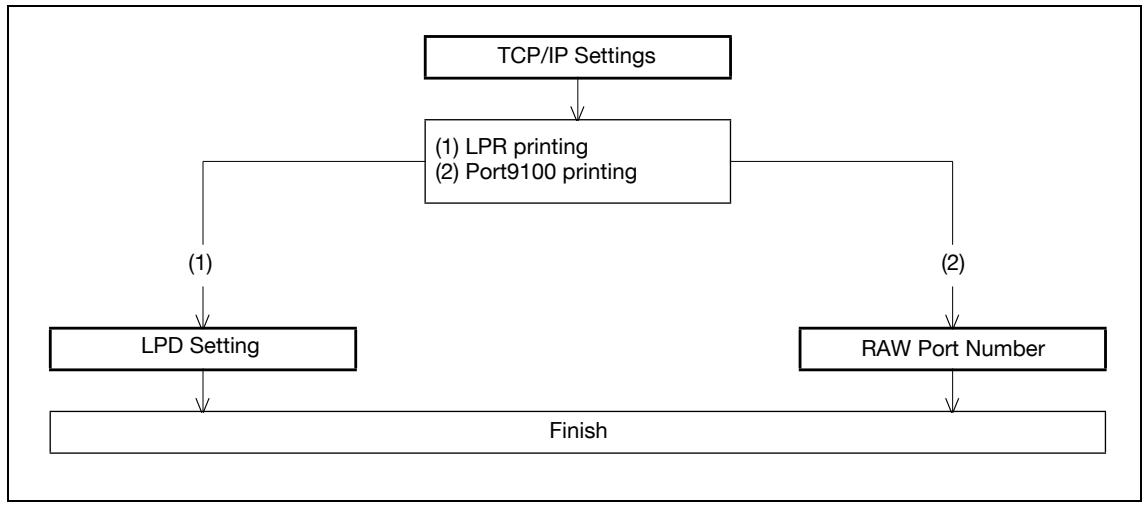

Detail
To print data using LPR or Port9100, settings for the printer driver must be specified after these settings. For details, refer to the "Installing the printer driver for Windows" on page 5-3.
TCP/IP Settings
Specify settings to use this machine in a TCP/IP network environment.
For details, refer to "Specifying general settings for TCP/IP-based communication" on page 4-3.
LPD Setting
1 In Administrator mode of PageScope Web Connection, select the Network tab - "TCP/IP Setting" - "TCP/IP Setting".
2 Specify the following setting.
| Item | Definition | Prior confirmation |
| LPD | Select "Enable". |
RAW Port Number
1 In Administrator mode of PageScope Web Connection, select the Network tab - "TCP/IP Setting" - "TCP/IP Setting".
2 Specify the following setting.
| Item | Definition | Prior confirmation |
| RAW Port Number | Select the check box for the port to be used, and then spec-ify the RAW port number. |
4.4.2 Specifying SMB print settings
Specify settings for printing by using SMB.
The printer is sharable on the Windows network by using the SMB protocol. SMB printing is performed by directly specifying this machine on the Windows network from the computer.
To specify a computer on another network using Windows name (NetBIOS name), a WINS server must be used.
This machine supports the direct hosting service. To use SMB printing in the IPv6 environment, the Direct Hosting setting must be enabled.
Specify the settings according to the following flowchart.
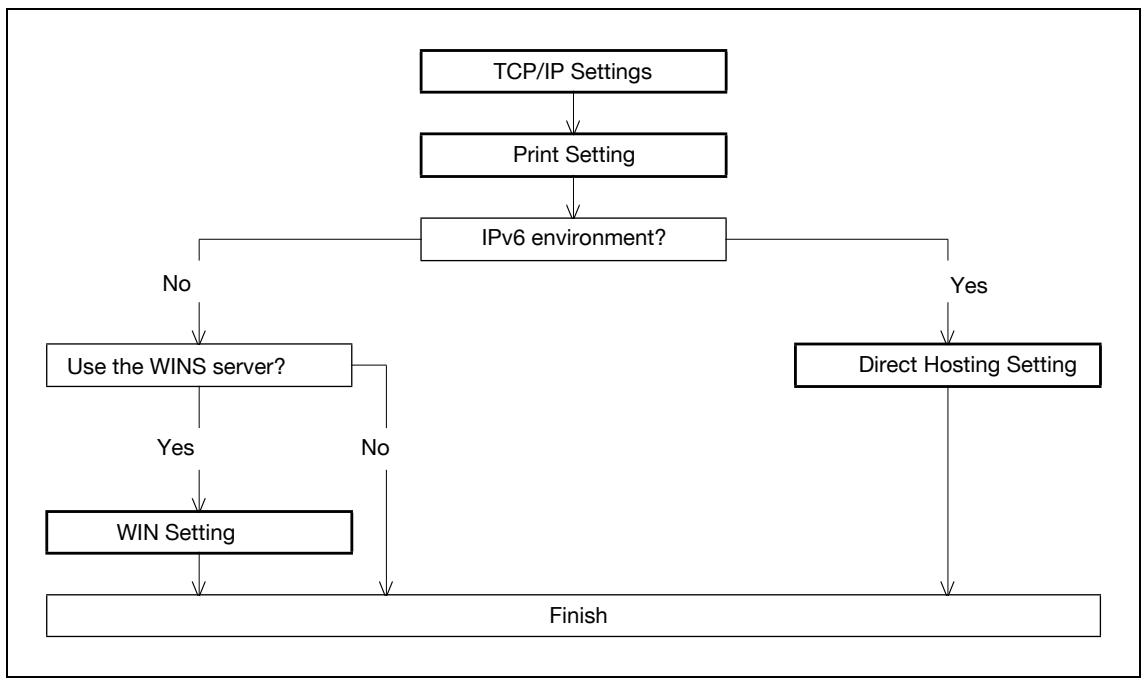

Note
For details on installing the printer driver, refer to "Installing the printer driver for Windows" on page 5-3.
TCP/IP Settings
Specify settings to use this machine in a TCP/IP network environment.
For details, refer to "Specifying general settings for TCP/IP-based communication" on page 4-3.
Print Setting
1 In Administrator mode of PageScope Web Connection, select the Network tab - "SMB Setting" - "Print Setting".
2 Specify the following settings.
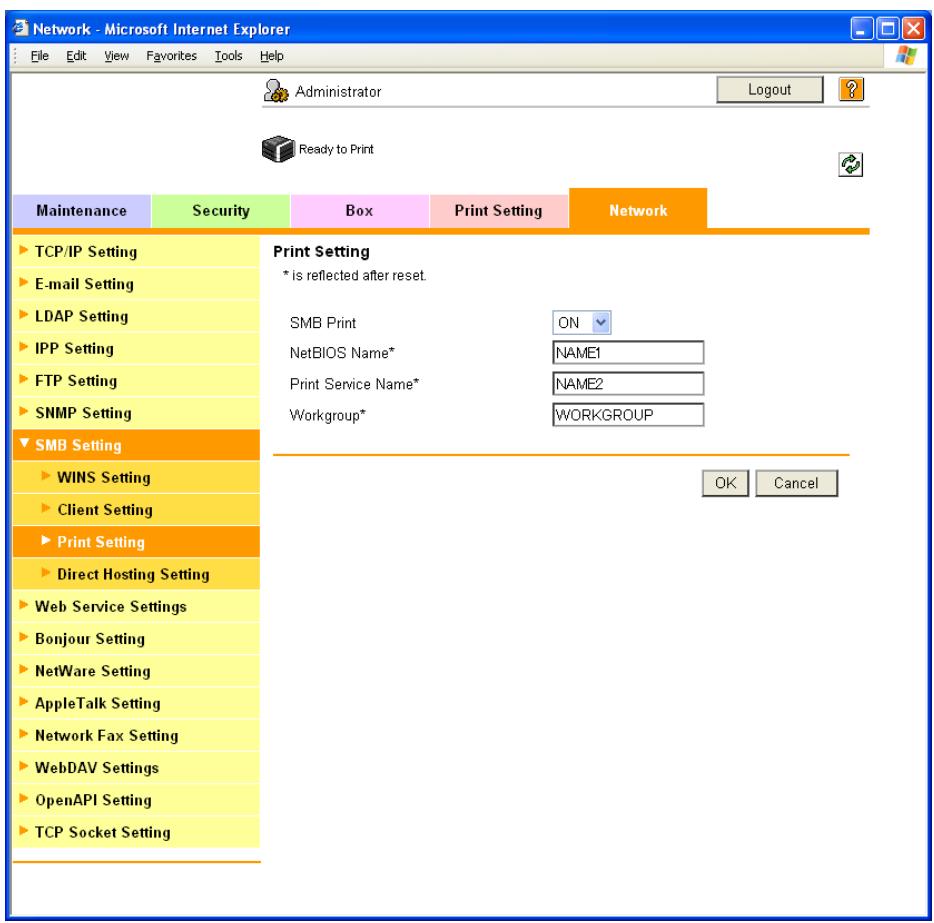
| Item | Definition | Prior confirmation |
| SMB Print | Select "ON". | |
| NetBIOS Name | Specify the NetBIOS name with uppercase letters (up to 15 characters). | |
| Print Service Name | Specify the print service name with uppercase letters (up to 12 characters). | |
| Workgroup | Specify the workgroup name with uppercase letters (up to 15 characters). | Workgroup to which you belong |
Direct Hosting Setting
1 In Administrator mode of PageScope Web Connection, select the Network tab - "SMB Setting" - "Direct Hosting Setting".
2 Specify the following setting.
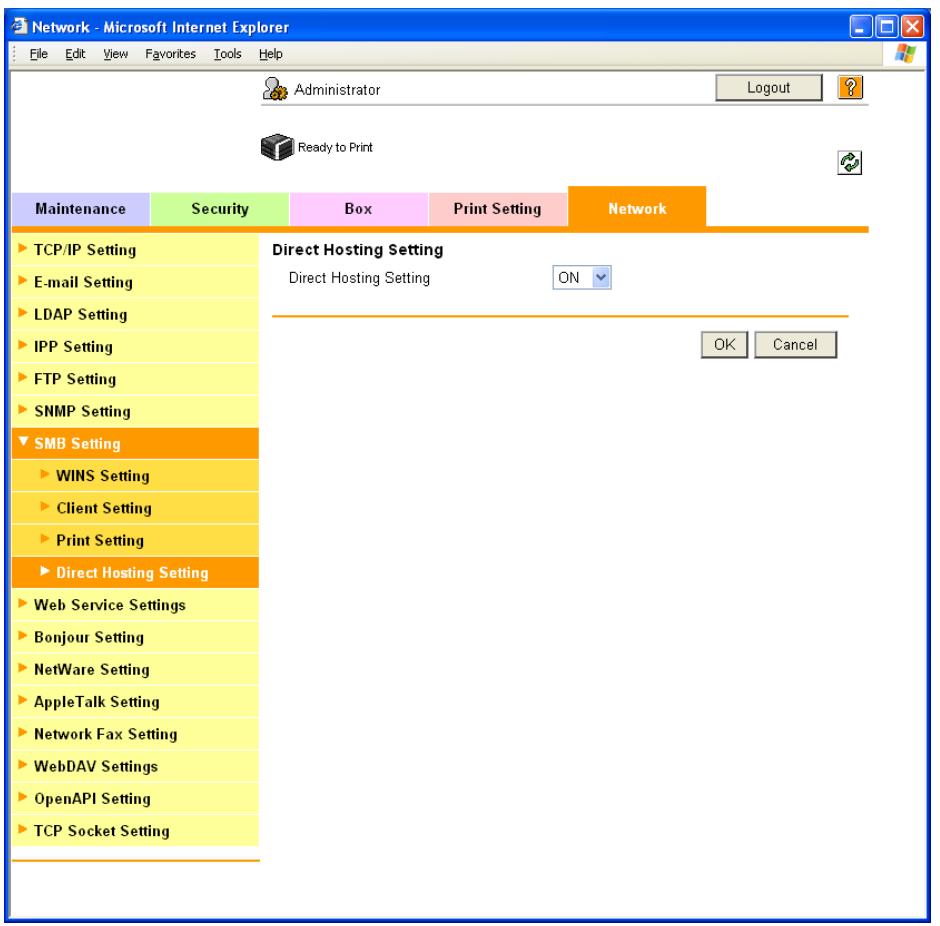
| Item | Definition | Prior confirmation |
| Direct Hosting Setting | To use the direct hosting service, select "ON". To communicate with the destination using an IPv6 address, select "ON". | Whether the IPv6 environment is available |
WINS Setting
1 In Administrator mode of PageScope Web Connection, select the Network tab - "SMB Setting" - "WINS Setting".
2 Specify the following settings.
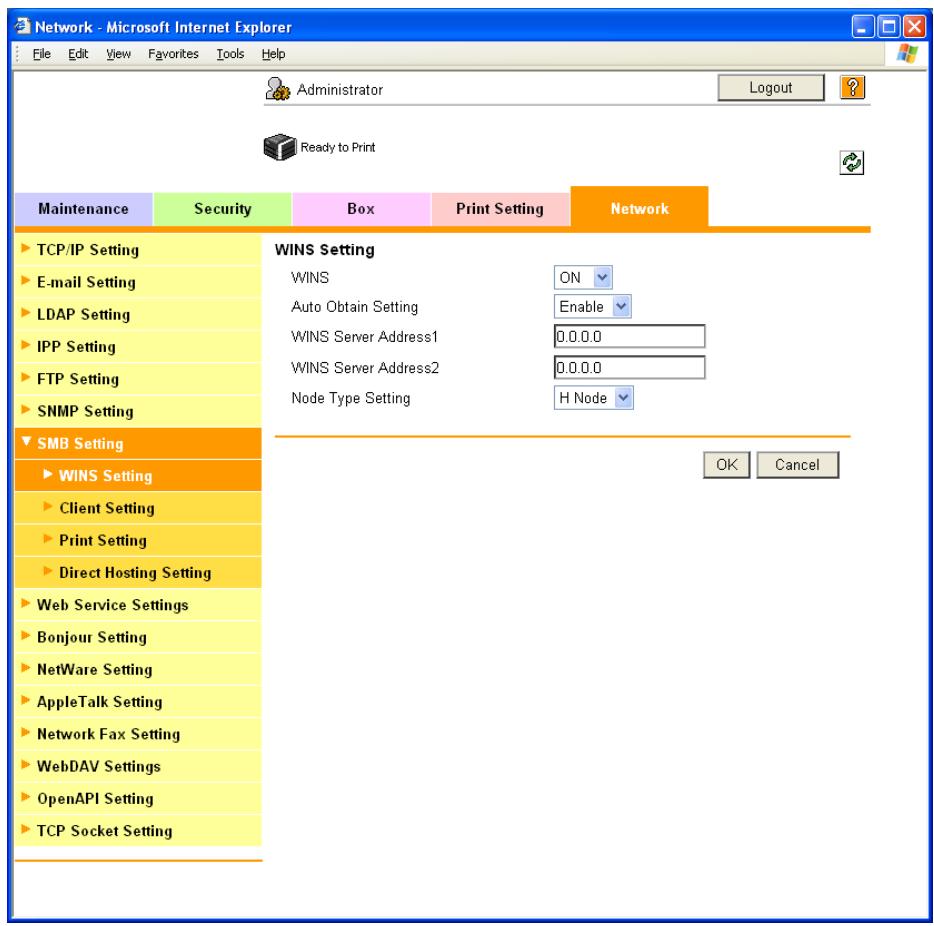
| Item | Definition | Prior confirmation |
| WINS | To use the WINS server, select "ON". | |
| Auto Obtain Setting | To automatically obtain the WINS server address, select "Enable".This item is enabled when the DHCP is enabled. | Whether automatic ac-quisition is available with DHCP |
| WINS Server Address 1 and 2 | Specify the WINS server address. (Format: "***.***.***", Range for ***: 0 to 255) | Address of the server |
| Node Type Setting | Specify the name resolution method.B Node: Query by broadcastP Node: Query to WINS serverM Node: Query in the order of broadcast, then WINS serverH Node: Query in the order of WINS server, then broad-cast |
4.4.3 Specifying IPP print settings
Specify settings for printing using IPP.
IPP printing is performed via the network using the IPP protocol. Using the HTTP protocol can transfer print data to the printer on the network, and therefore also enabling output to a remote printer via the Internet.
Specify the settings according to the following flowchart.
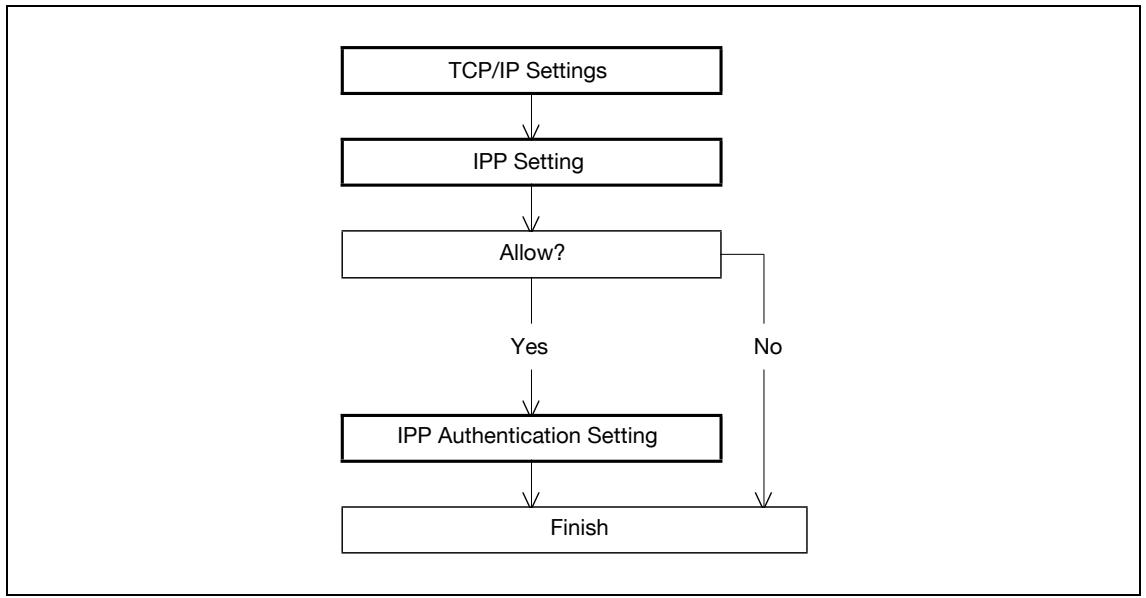

Note
For details on installing the printer driver, refer to "Installing the printer driver for Windows" on page 5-3.
TCP/IP Settings
Specify settings to use this machine in a TCP/IP network environment.
For details, refer to "Specifying general settings for TCP/IP-based communication" on page 4-3.
IPP Setting
1 In Administrator mode of PageScope Web Connection, select the Network tab - "IPP Setting".
2 Specify the following settings.
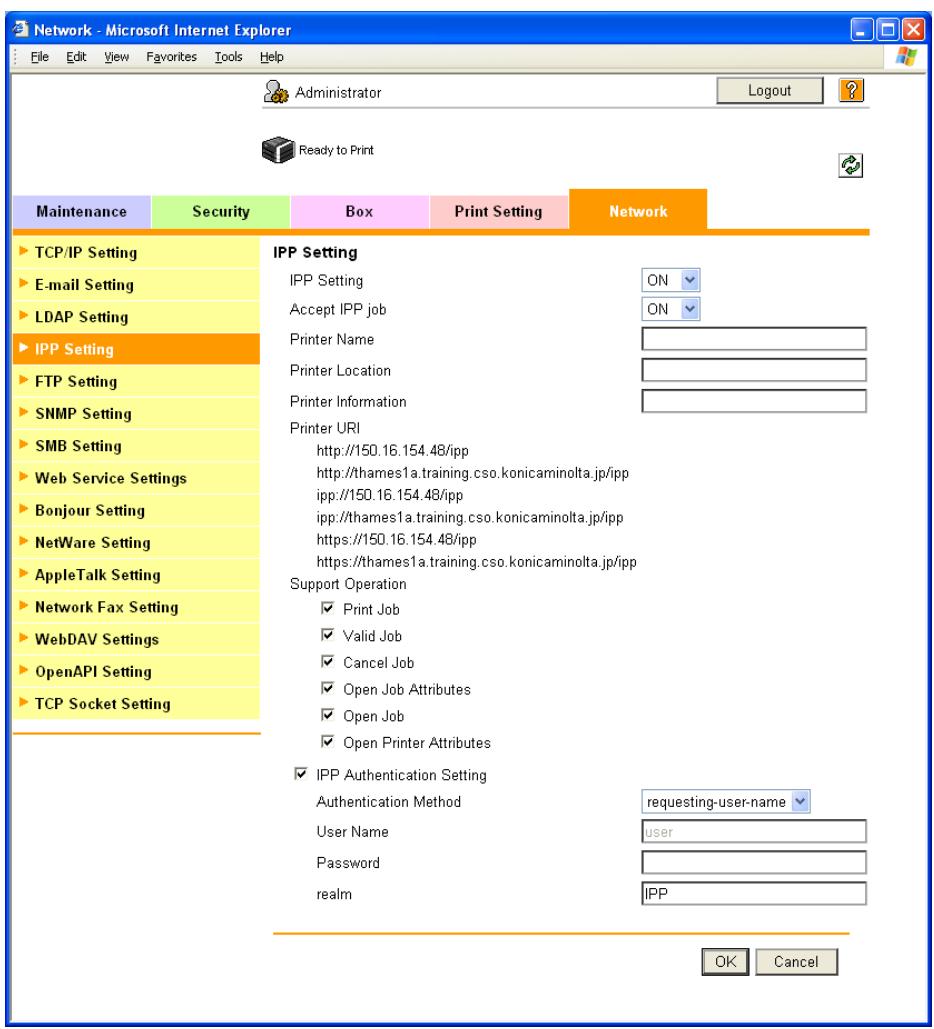
| Item | Definition | Prior confirmation |
| IPP Setting | Select "ON". | |
| Accept IPP job | Select "ON". | |
| Printer Name | Specify the printer name (up to 127 characters). | |
| Printer Location | Specify the printer location (up to 127 characters). | |
| Printer Information | Specify the printer information (up to 127 characters). | |
| Printer URI | Displays the URI of the printer that can use IPP when printing. | |
| Support Operation | Specify the print operations supported by IPP. |
IPP Authentication Setting
1 In Administrator mode of PageScope Web Connection, select the Network tab - "IPP Setting".
2 Specify the following settings.
| Item | Definition | Prior confirmation |
| IPP Authentication Setting | To perform IPP printing, select the "IPP Authentication Setting" check box. | |
| Authentication Method | Specify the authentication method. | |
| User Name | Specify the user name (up to 20 characters). | |
| Password | Enter the password (up to 20 characters). | |
| realm | Specify realm (up to 127 characters).If the authentication method is digest, realm must be speci-fied. | Authentication method |
4.4.4 Specifying IPPS print settings
Specify settings for printing using IPPS.
When performing IPP printing with this machine, communication between the computer and this machine is encrypted using SSL. Encrypting communication using SSL improves security when printing using IPP.
Specify the settings according to the following flowchart.
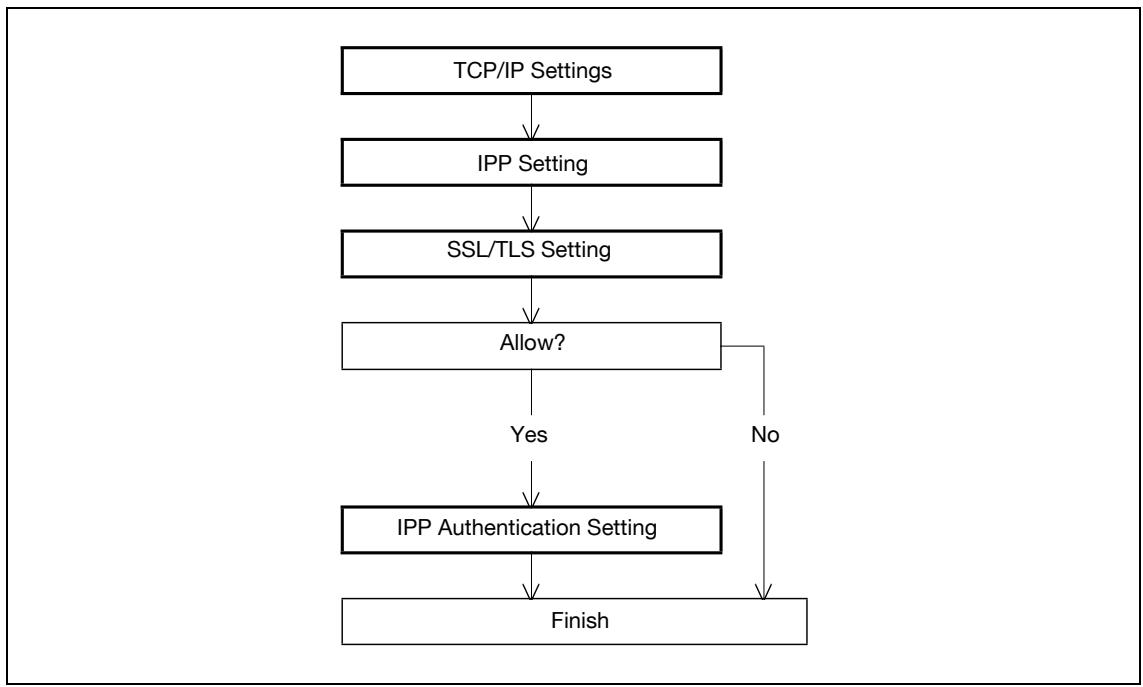

Note
For details on installing the printer driver, refer to the "Installing the printer driver for Windows" on page 5-3.
When specifying to use IPP printing in Windows Vista, enter "https://[Host Name].[Domain Name]/ipp". For [Host Name] and [Domain Name], use the names specified in the DNS Host Name and Default DNS Domain Name in the TCP setting. For details on the procedure, refer to "Specifying general settings for TCP/IP-based communication" on page 4-3. Also, it is necessary that the computer is able to resolve the names for this machine using DNS. Register this machine to the DNS server in advance, and specify settings for DNS at the computer side.
When the certificate of this machine is not published by certificate authority, register the certificate of this machine to Windows Vista as a certificate of "Trusted Root Certification Authorities" for "Local Computer" in advance.
Before creating a certificate, correctly specify the DNS Host Name and Default DNS Domain Name registered in the DNS server to this machine. Otherwise, IPPS connection cannot be established.
TCP/IP Settings
Specify settings to use this machine in a TCP/IP network environment.
For details, refer to "Specifying general settings for TCP/IP-based communication" on page 4-3.
IPP Setting
Specify settings for printing by using IPP.
For details, refer to "IPP Setting" on page 4-15.
SSL/TLS Setting
Encrypt communication with this machine using SSL.
For details, refer to "Creating a certificate for this machine for SSL-based communication" on page 11-55.
IPP Authentication Setting
Specify settings when authentication is used when printing using IPP.
For details, refer to "IPP Authentication Setting" on page 4-16.
4.4.5 Specifying Bonjour print settings
Specify settings for printing by connecting this machine to a Macintosh computer using Bonjour. When connecting this machine to a Macintosh computer using Bonjour, the Bonjour settings must be specified.

Note
For details on installing the printer driver, refer to the "Installing the printer driver for Macintosh" on page 6-3.
Bonjour Setting
1 In Administrator mode of PageScope Web Connection, select the Network tab - "Bonjour Setting".
2 Specify the following settings.
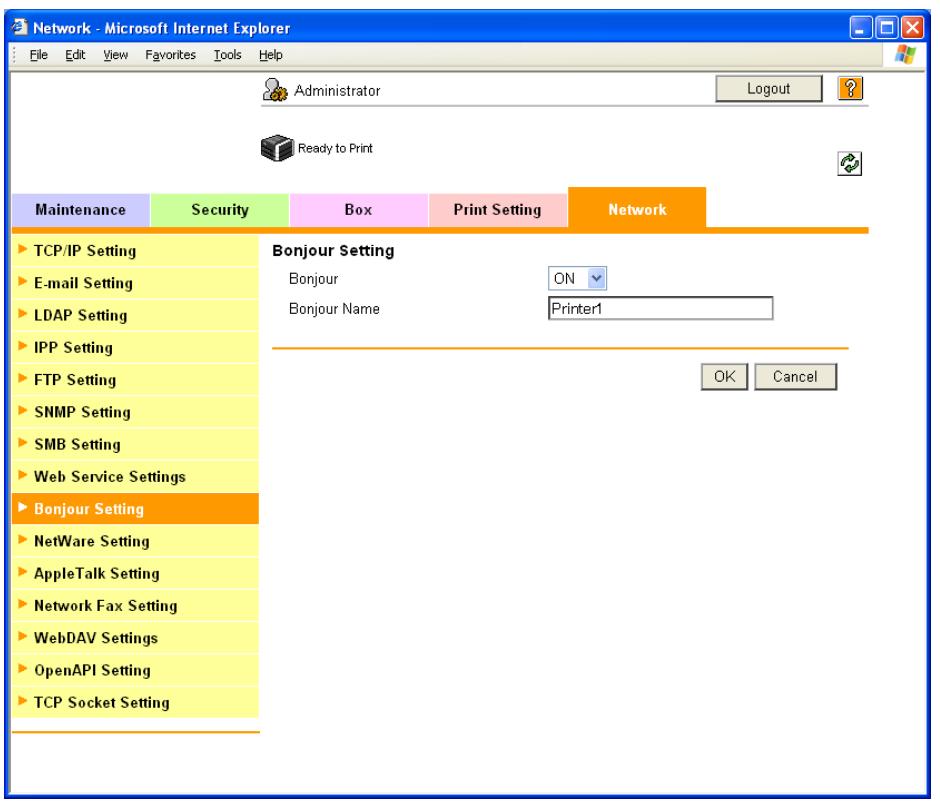
| Item | Definition | Prior confirmation |
| Bonjour | Select "ON". | |
| Bonjour Name | Specify the Bonjour name that appears as the name of the connected device (up to 63 characters). |
4.4.6 Specifying AppleTalk print settings
Specify settings for printing by connecting this machine to a Macintosh computer using AppleTalk. When connecting this machine to a Macintosh computer using AppleTalk, the AppleTalk settings must be specified.

Note
For details on installing the printer driver, refer to "Installing the printer driver for Macintosh" on page 6-3.
AppleTalk Setting
1 In Administrator mode of PageScope Web Connection, select the Network tab - "AppleTalk Setting".
2 Specify the following settings.
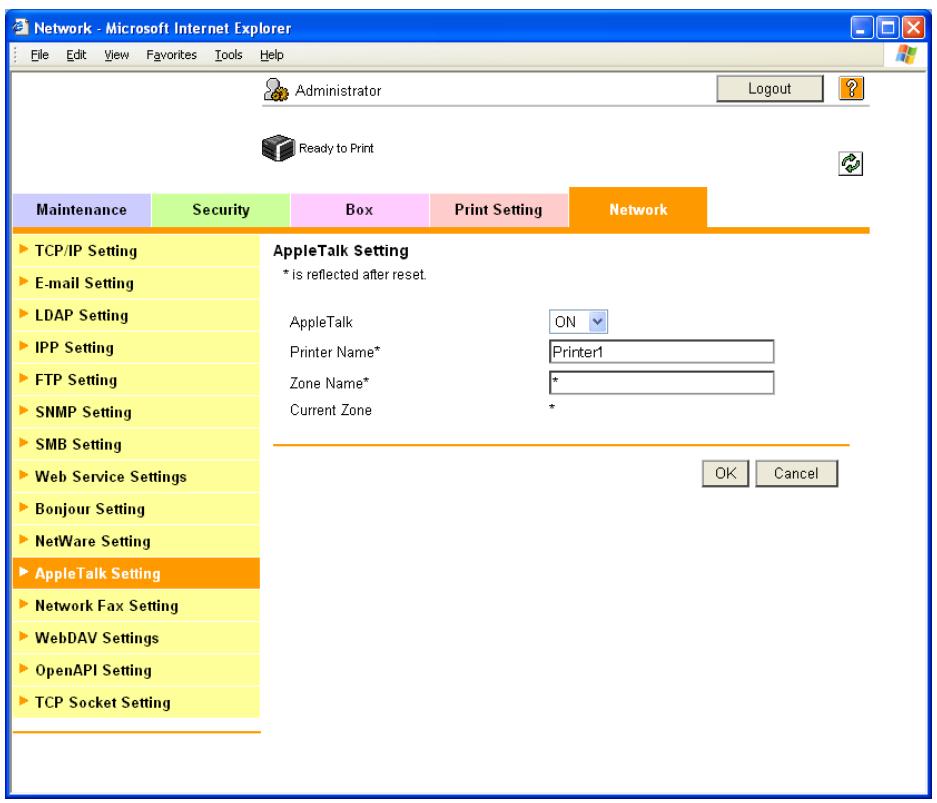
| Item | Definition | Prior confirmation |
| AppleTalk | Select "ON". | |
| Printer Name* | Specify the printer name that appears on the selector (up to 31 characters). | |
| Zone Name* | Specify the zone name to which this machine belongs (up to 31 characters). | |
| Current Zone | Displays the current zone name. |
4.4.7 Specifying Web Service Function settings
Specify settings for printing by using Web Service Function.
Printing is possible using the Web Service function newly installed in Windows Vista. The Web Service Function detects this machine connected to the network, and then installs it as a WS-Printer. Specifying this machine installed as a WS-Printer when printing from Windows Vista allows printing using HTTP for communication.
Specify the settings according to the following flowchart.
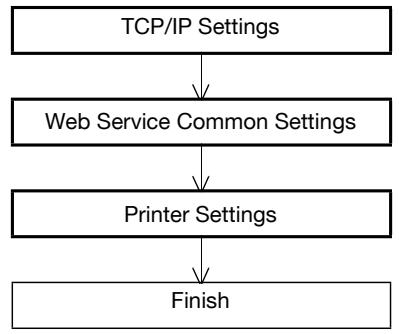

Note
For details on installing the printer driver, refer to "Installing the printer driver for Windows" on page 5-3.
TCP/IP Settings
Specify settings to use this machine in a TCP/IP network environment.
For details, refer to "Specifying general settings for TCP/IP-based communication" on page 4-3.
Web Service Common Settings
1 In Administrator mode of PageScope Web Connection, select the Network tab - "Web Service Settings" - "Web Service Common Settings".
2 Specify the following setting.
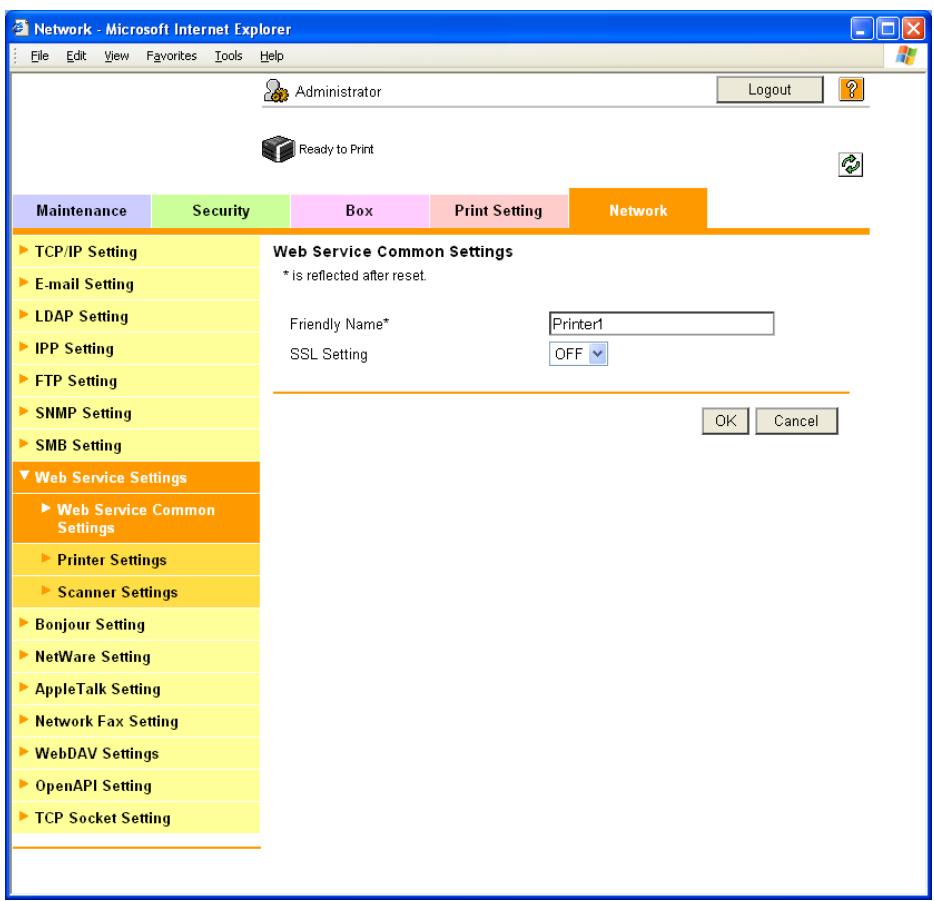
| Item | Definition | Prior confirmation |
| Friendly Name | Specify setting for Friendly Name (up to 62 characters). |
Printer Settings
1 In Administrator mode of PageScope Web Connection, select the Network tab - "Web Service Settings" - "Printer Settings".
2 Specify the following settings.
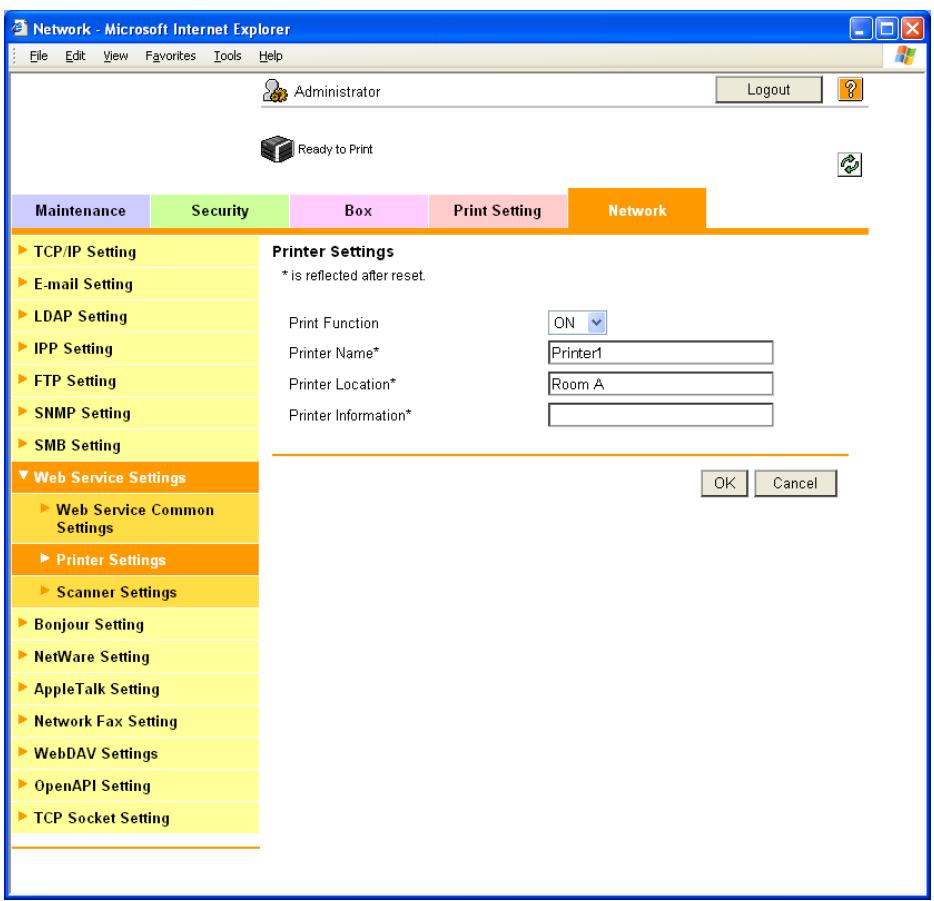
| Item | Definition | Prior confirmation |
| Print Function | Select "ON". | |
| Printer Name* | Specify the printer name (up to 63 characters). | |
| Printer Location* | Specify the printer location (up to 63 characters). | |
| Printer Information* | Specify the printer information (up to 63 characters). |
5
Installing the printer driver for Windows
5 Installing the printer driver for Windows
5.1 Connection methods selectable in each operating system
The connection method for this machine differs depending on the operating system of the computer. The printer driver installation method also differs depending on the connection method.
This machine can be connected via a network or a USB interface. In network connection, the printer driver installation method differs depending on the protocol to be used.
Network connection (Ethernet)
This machine is connected as a network printer.
This printing system supports 10Base-T, 100Base-TX, and 1000Base-T standards. In addition, the Ethernet interface supports the TCP/IP (LPD/LPR, IPP, SMB), IPX/SPX (NetWare), and AppleTalk (EtherTalk) protocols.
The applicable protocols differ depending on the operating system of the computer.
USB interface
This machine is connected as a local printer. The USB interface can be connected to a computer Windows-compatible computer.
5.1.1 Windows 2000/XP/Server 2003
| Setup method | Connection method | Refer to | |
| Connection method that can be set up with an installer | Port9100 | A network connection using the PORT9100 print service. It uses a TCP/IP protocol and the RAW printing port. | * Select the connection method in the course of installation. Select "Normal Printing" for Port 9100 or USB connection, "Internet Printing" for IPP connection, or "Secure Print-ing" for IPPs connection. |
| IPP/IPPS | A network connection using the IPP (In-ternet Printing Protocol) print service. Printing via the Internet is possible with the HTTP (HyperText Transfer Protocol) of the TCP/IP protocol. IPPs is an IPP for SSL encrypted communication. | ||
| USB | A connection using a USB port. | ||
| Connection method that can be set up with the Add Printer wizard | LPR | A network connection using the LPR (Line Printer Remote) print service. It uses a TCP/IP protocol and the LPR printing port. | "Installation using the wizard (Windows XP/Server 2003)" on page 5-6 |
| Port9100 | A network connection using the PORT9100 print service. It uses a TCP/IP protocol and the RAW printing port. | ||
| SMB | A network connection using SMB (Server Message Block) for sharing files or printers in Windows. It supports the TCP/IP protocol. | ||
| IPP/IPPS | A network connection using the IPP (In-ternet Printing Protocol) print service. Printing via the Internet is possible with the HTTP (HyperText Transfer Protocol) of the TCP/IP protocol. IPPs is an IPP for SSL encrypted communication. | ||
| USB | A connection using a USB port. | ||
| Connection method that can be set up with plug-and-play | USB | A connection using a USB port. | For Windows XP/Server 2003: "Local connection" on page 5-12 For Windows 2000: "Local connec-tion" on page 5-26 |

Note
Before using this machine in a network environment, the network settings must be specified for this machine. For details, refer to the "Network settings" on page 4-3.
To install the printer driver under Windows 2000, XP, or Server 2003, log on using a user name that is authorized by the administrator.
This manual describes the setup method of USB connection only using the Plug and Play.
5.1.2 Windows Vista
| Setup method | Connection method | Refer to | |
| Connection method that can be set up with an installer | Port9100 | A network connection using the PORT9100 print service. It uses a TCP/IP protocol and the RAW printing port. | * Select the connection method in the course of installation. Select "Normal Printing" for Port 9100 or USB connection, or "Internet Printing" for IPP connection. |
| IPP | A network connection using the IPP (In-ternet Printing Protocol) print service. Printing via the Internet is possible with the HTTP (HyperText Transfer Protocol) of the TCP/IP protocol. | ||
| USB | A connection using a USB port. | ||
| Connection method that can be set up with the Add Printer Wizard | LPR | A network connection using the LPR (Line Printer Remote) print service. It uses a TCP/IP protocol and the LPR printing port. | "Installation using the wizard (Windows Vista)" on page 5-13 |
| Port9100 | A network connection using the PORT9100 print service. It uses a TCP/IP protocol and the RAW printing port. | ||
| SMB | A network connection using SMB (Server Message Block) for sharing files or printers in Windows. It supports the TCP/IP protocol. | ||
| IPP/IPPS | A network connection using the IPP (In-ternet Printing Protocol) print service. Printing via the Internet is possible with the HTTP (HyperText Transfer Protocol) of the TCP/IP protocol. IPPS is an IPP for SSL encrypted communication. | ||
| Web Service print | A connection supports Web Service Function of Windows Vista, detects the printer on the network automatically and connects. | ||
| USB | A connection using a USB port. | ||
| Connection method that can be set up with plug-and-play | USB | A connection using a USB port. | For Windows Vista: "Local connection" on page 5-21 |

Note
Before using this machine in a network environment, the network settings must be specified for this machine. For details, refer to "Network settings" on page 4-3.
To install the printer driver under Windows Vista, log on as the Administrator.
Either of the installer or Add Printer Wizard can be used to install the PCL driver and PS driver.
When using Windows Vista, the IPPS connection can not be setup using the installer. For using IPPS connection, setup the connection using the Add Printer Wizard. For details, refer to "Network connection (IPP or IPPS)" on page 5-17.
5.1.3 Windows NT 4.0
| Setup method | Connection method | Refer to | |
| Connection method that can be set up with the Add Printer wizard | LPR | A network connection using the LPR print service. | "Installation using the wizard (Windows NT 4.0)" on page 5-27 |

Note
Before using this machine in a network environment, the network settings must be specified for this machine. For details, refer to the "Network settings" on page 4-3.
To install the printer driver under Windows NT 4.0, log on using a user name that is authorized by the administrator.
5.2 Installation using the wizard (Windows XP/Server 2003)
5.2.1 Network connection (LPR/Port9100)
When using the LPR/Port9100 printing, specify the port during the printer driver installation process.
TCP/IP setting for this machine
Specify the IP address on TCP/IP Setting of this machine.

Detail
For details on specifying the IP address of this machine, refer to "Network settings" on page 4-3.
RAW port number setting for this machine
To use Port9100 printing, enable the RAW port number (9100 at default), in the TCP/IP Setting screen of this machine.

Detail
For details on specifying the RAW port number of this machine, refer to the "Network settings" on page 4-3.
LPD setting for this machine
To use LPR printing, enable LPD print on "LPD Setting" of this machine.

Detail
For details on the LPD settings of this machine, refer to the "Network settings" on page 4-3.
Printer driver installation using the Add Printer Wizard

Bai
When installing on Windows XP or Server 2003, administrator permissions are required.
1 Insert the printer driver DVD into the DVD drive of the computer.
2 Click the [Start] button, and then click "Printers and Faxes".
- If "Printers and Faxes" does not appear in the Start menu, open Control Panel from the Start menu, select "Printers and Other Hardware", and then click "Printers and Faxes".
3 For Windows XP, click "Add a printer" on the "Printer Tasks" menu.
For Windows Server 2003, double-click the "Add Printer" icon.
The Add Printer Wizard starts.
4 Click the [Next] button.
5 Select "Local printer attached to this computer", and then click the [Next] button.
- Clear the "Automatically detect and install my Plug and Play printer" check box.
The Select a Printer Port dialog box appears.
6 Click "Create a new port", and select "Standard TCP/IP Port" for "Type of port:"
7 Click the [Next] button.
The Add Standard TCP/IP Printer Port Wizard starts.
8 Click the [Next] button.
In the "Printer Name or IP address" box, enter the IP address for this machine, and then click the [Next] button.
- If the Additional Port Information Required dialog box appears, go to step 10.
If the Finish dialog box appears, go to step 13.
10 Select "Custom", and then click the [Settings] button.
11 Change the settings according to the port, and then click the [OK] button.
- For an LPR connection, select "LPR", and then enter "Print" in the "Queue name" box.
- For a Port9100 connection, select "RAW", and then enter the RAW port number (9100 at default) in the "Port Number" box.
The information entered here is case-sensitive.
12 Click the [Next] button.
13 Click the [Finish] button.
The Add Printer Wizard appears.
14 Click the [Have Disk] button.
15 Click the [Browse] button.
16 Specify the desired folder on the DVD that contains the printer driver, and then click the [Open] button.
- Select the specified folder according to the printer driver to be used, the operating system, and the language.
Printer drivers that can be selected:
Windows XP/Server 2003: PCL driver, PS driver
17 Click the [OK] button.
The "Printers" list appears.
18 Click the [Next] button.
19 Follow the on-screen instructions.
- If the Windows Logo Testing or Digital Signature dialog box appears, click the [Continue] or [Yes] button.
- When using a network connection, perform a test print after the network settings have been specified.
20 Click the [Finish] button.
21 When installation is complete, make sure that the icon of the installed printer appears in the Printers and Faxes window.
22 Remove the DVD from the DVD drive.
This completes the printer driver installation.
5.2.2 Network connection (SMB)
When using the SMB printing, specify the port by specifying the printer during the printer driver installation process. Printers can be specified either by searching printers on the network, or by entering the printer name.
TCP/IP setting for this machine
Specify the IP address in the TCP/IP Setting screen of this machine.

Detail
For details on specifying the IP address of this machine, refer to "Network settings" on page 4-3.

Note
To use SMB printing in the IPv6 environment, the "Direct Hosting Setting" must be enabled. For details, refer to "Network settings" on page 4-3.
SMB setting for this machine
In "Print Setting" in the SMB Setting screen of this machine, specify the NetBIOS name, print service name, and workgroup.

Detail
For details on the SMB settings of this machine, refer to "Network settings" on page 4-3.
Printer driver installation by specifying printers using the Add Printer Wizard

Reminder
When installing on Windows XP or Server 2003, administrator permissions are required.
1 Insert the printer driver DVD into the DVD drive of the computer.
2 Click the [Start] button, and then click "Printers and Faxes".
- If "Printers and Faxes" does not appear in the Start menu, open Control Panel from the Start menu, select "Printers and Other Hardware", and then click "Printers and Faxes".
3 For Windows XP, click "Add a printer" on the "Printer Tasks" menu.
For Windows Server 2003, double-click the "Add Printer" icon.
The Add Printer Wizard starts.
4 Click the [Next] button.
5 Select "Local printer attached to this computer", and then click the [Next] button.
- Clear the "Automatically detect and install my Plug and Play printer" check box.
The Select a Printer Port dialog box appears.
6 Click "Create a new port", and select "Local Port" for "Type of port:"
7 In the "Enter a port name" box, enter "\NetBIOS name\print service name".
- Enter the same NetBIOS name and print service name those appear in "Print Setting" in the SMB Setting screen of this machine.
8 Click the [OK] button.
The Add Printer Wizard appears.
9 Click the [Have Disk] button.
10 Click the [Browse] button.
11 Specify the desired folder on the DVD that contains the printer driver, and then click the [Open] button.
- Select the specified folder according to the printer driver to be used, the operating system, and the language.
Printer drivers that can be selected:
Windows XP/Server 2003: PCL driver, PS driver
12 Click the [OK] button.
The "Printers" list appears.
13 Click the [Next] button.
14 Follow the on-screen instructions.
- If the Windows Logo Testing or Digital Signature dialog box appears, click the [Continue] or [Yes] button.
- When using a network connection, perform a test print after the network settings have been specified.
15 Click the [Finish] button.
16 When installation is complete, make sure that the icon of the installed printer appears in the Printers and Faxes window.
17 Remove the DVD from the DVD drive.
This completes the printer driver installation.
5.2.3 Network connection (IPP or IPPS)
For IPP printing, specify the port during the printer driver installation process.
Specifying the TCP/IP setting for this machine
Specify the IP address of this machine.

Detail
For details on specifying the IP address of this machine, refer to "Network settings" on page 4-3.
**Specifying the IPP settings for this machine**
Enable IPP printing in "IPP Setting" of this machine.

Detail
For details on the IPP settings of this machine, refer to the "Network settings" on page 4-3.
To use IPPS printing, the certificate must be registered to this machine. For details, refer to "Specifying IPP print settings" on page 4-14.
Printer driver installation using the Add Printer wizard

.
Reminder
When installing on Windows XP or Server 2003, administrator permissions are required.
1 Insert the printer driver DVD into the DVD drive of the computer.
2 Click the [Start] button, and then click "Printers and Faxes".
- If "Printers and Faxes" does not appear in the "Start" menu, open the Control Panel from the "Start" menu, select "Printers and Other Hardware", and then click "Printers and Faxes".
3 For Windows XP, click "Add a printer" on the "Printer Tasks" menu. For Windows Server 2003, double-click the "Add Printer" icon.
"Add Printer wizard" starts.
4 Click the [Next] button.
In the Local or Network Printer dialog box, select "Network printer", and then click the [Next] button.
In the Specify a Printer dialog box, select "Connect to a printer on the Internet or on a home or office network".
7 In the "URL" field, enter the URL for this machine in the following format, and then click the [Next] button.
http:// (IP_address_of-machine) /ipp Example: If the IP address of this machine is 192.168.1.20, enter http://192.168.1.20/ipp.
- When setting this machine for IPPS printing, enter "https:// (IP_address_of-machine) /ipp".
8 When the confirmation dialog box appears, click the [OK] button.
9 Click the [Have Disk] button.
10 Click the [Browse] button.
11 Specify the desired folder on the DVD that contains the printer driver, and then click the [Open] button.
- Select the specified folder according to the printer driver to be used, the operating system, and the language. Printer drivers that can be selected: Windows XP/Server 2003: PCL driver, PS driver
12 Click the [OK] button.
The "Printer" list appears.
13 Click the [Next] button.
14 Follow the on-screen instructions.
- If the Windows Logo Testing or Digital Signature dialog box appears, click the [Continue] or [Yes] button.
15 Click the [Finish] button.
16 When the installation is completed, make sure that the icon of the installed printer appears in the Printers and Faxes window.
17 Remove the DVD from the DVD drive.
This completes the printer driver installation.
Once the settings for the printer have been specified, you can use the printer in the same way as a default local printer.
5.2.4 Local connection
When this machine is connected via a USB port, the printer driver can be installed with plug-and-play.

Note
When a USB connection is used, the printer driver is installed easily with the Plug and Play feature. However, it can be installed using the Add Printer Wizard. When using the Add Printer Wizard, select the USB port to be connected in the Select a Printer Port dialog box.
1 Connect this machine to a computer using a USB cable, and then start up the computer.
- Do not disconnect or connect the cable while the computer is starting up.
2 Insert the printer driver DVD into the DVD drive of the computer.
3 Turn on the power switch of this machine. The Found New Hardware Wizard dialog box appears.
If the Found New Hardware Wizard does not start up, turn off this machine, then on again.
- When turning off the power, then on again, wait at least 10 seconds before turning it on again. Otherwise, this machine may not function properly.
4 Select "Install from a list or specific location (Advanced)", and then click the [Next] button.
- If the Windows connect to Windows Update dialog box appears, select "NO".
5 From "Search for the best driver in these locations," select "Include this location in the search", and then click the [Browse] button.
6 Specify the desired folder on the DVD that contains the printer driver, and then click the [Open] button.
- Select the specified folder according to the printer driver to be used, the operating system, and the language. Windows XP/Server 2003: PCL driver, PS driver
7 Click the [Next] button, and then follow the on-screen instructions.
- If the Windows Logo Testing or Digital Signature dialog box appears, click the [Continue] or [Yes] button.
8 Click the [Finish] button.
9 When the installation is completed, make sure that the icon of the installed printer appears in the Printers and Faxes window.
10 Remove the DVD from the DVD drive.
This completes the printer driver installation.
5.3 Installation using the wizard (Windows Vista)
5.3.1 Network connection (LPR, Port9100, or SMB)
In Windows Vista, the printer driver can be installed either by searching printers on the network, or by creating a new printer port.
Specifying the TCP/IP setting for this machine
Specify the IP address of this machine.

Detail
For details on specifying the IP address of this machine, refer to "Network settings" on page 4-3.
RAW port number setting for this machine
To use Port9100 printing, enable the RAW port number (9100 at default), in the TCP/IP Setting screen of this machine.

Detail
For details on specifying the RAW port number of this machine, refer to "Network settings" on page 4-3.
LPD setting for this machine
To use LPR printing, enable LPD print in the LPD Setting screen of this machine.

Detail
For details on the LPD settings of this machine, refer to the "Network settings" on page 4-3.
SMB setting for this machine
In "Print Setting" in the SMB Setting screen of this machine, specify the NetBIOS name, print service name, and workgroup.

Detail
For details on the SMB settings of this machine, refer to the "Network settings" on page 4-3.

···
Note
To use SMB printing in the IPv6 environment, the "Direct Hosting Setting" must be enabled. For details, refer to "Network settings" on page 4-3.
Printer driver installation by searching printers using the Add Printer Wizard

Note
When installing on Windows Vista, administrator permissions are required.
Printers will be found during installation. Connect this machine to the network, and then turn on the power.
1 Insert the printer driver DVD into the DVD drive of the computer.
2 Click the [Start] button, and then click "Control Panel".
3 From "Hardware and Sound", click "Printer".
- If Control Panel is displayed with Classic View, double-click "Printers".
The Printers window appears.
4 Click "Add a printer" from the toolbar.
The Add Printer window appears.
5 Click "Add a network, wireless or Bluetooth printer".
If the printer is not detected, turn off this machine, then on again.
- When turning off the power, then on again, wait at least 10 seconds before turning it on again. Otherwise, this machine may not function properly.
The connected printers are detected.
6 Select this machine from the list, and then click the [Next] button.
- When using the LPR/Port9100 protocol, select the printer having its IP address.
- When using an SMB connection, select the printer having its "\NetBIOS name\print service name".
- It may take some time to finish searching the entire list of printers.
7 Click the [Have Disk] button.
8 Click the [Browse] button.
9 Specify the desired folder on the DVD that contains the printer driver, and then click the [Open] button.
- Select the specified folder according to the printer driver to be used, the operating system, and the language. Printer drivers that can be selected: Windows Vista; PCL driver, PS driver
10 Click the [OK] button.
The "Printer" list appears.
11 Click the [Next] button.
12 Follow the on-screen instructions.
- If the "User Account Control" window appears, click the [Continue] button.
- If the Verify the publisher dialog box of Windows Security appears, click "Install this driver software anyway".
13 Click the [Finish] button.
14 When the installation is completed, make sure that the icon of the installed printer appears in the Printers window.
15 Remove the DVD from the DVD drive.
This completes the printer driver installation.
Printer driver installation by creating a port using the Add Printer Wizard

··
Reminder
When installing on Windows Vista, administrator permissions are required.
Printers will be found during installation. Connect this machine to the network, and then turn on the power.
1 Insert the printer driver DVD into the DVD drive of the computer.
2 Click the [Start] button, and then click "Control Panel".
3 From "Hardware and Sound", click "Printer".
- If Control Panel is displayed with Classic View, double-click "Printers".
The Printers window appears.
4 Click "Add a printer" from the toolbar.
The Add Printer window appears.
5 Click "Add a local printer".
The Select a Printer Port dialog box appears.
6 Click "Create a new port", and select the port type.
- When using an LPR/Port9100 connection, select "Standard TCP/IP Port".
- When using an SMB connection, select "Local Port".
7 Click the [Next] button.
8 Specify the IP address and port.
- When using an LPR/Port9100 connection, select "TCP/IP Device", and then enter the IP address. When both LPR and Port9100 are enabled for this machine, the printer driver and the machine is connected with LPR.
- When using an SMB connection, enter "\NetBIOS name\print service name" in the "Enter a port name" box. Enter the same NetBIOS name and print service name those appear in "Print Setting" in the SMB Setting screen of this machine.
9 Click the [Next] button.
- If the Additional Port Information Required dialog box appears, go to step 10.
- If the Install the printer driver dialog box appears, go to step 13.
10 Select "Custom", and then click the [Settings] button.
11 Change the settings according to the port, and then click the [OK] button.
- For an LPR connection, select "LPR", and then enter "Print" in the "Queue name" box.
- For a Port9100 connection, select "RAW", and then enter the RAW port number (9100 at default) in the "Port Number" box.
The information entered here is case-sensitive.
12 Click the [Next] button.
The Install the printer driver dialog box appears.
13 Click the [Have Disk] button.
14 Click the [Browse] button.
15 Specify the desired folder on the DVD that contains the printer driver, and then click the [Open] button.
- Select the specified folder according to the printer driver to be used, the operating system, and the language.
Printer drivers that can be selected:
Windows Vista: PCL driver, PS driver
16 Click the [OK] button.
The "Printers" list appears.
17 Click the [Next] button.
18 Follow the on-screen instructions.
- If the User Account Control window appears, click the [Continue] button.
- If the Verify the publisher dialog box of Windows Security appears, click "Install this driver software anyway".
19 Click the [Finish] button.
20 After installation is completed, make sure that the icon of the installed printer appears in the Printers window.
21 Remove the DVD from the DVD drive.
This completes the printer driver installation.
5.3.2 Network connection (IPP or IPPS)
For IPP printing, specify the network setting before installing the printer driver.
Specifying the TCP/IP setting for this machine
Specify the IP address of this machine.

Detail
For details on specifying the IP address of this machine, refer to "Network settings" on page 4-3.
**Specifying the IPP settings for this machine**
Enable IPP printing in "IPP Setting" of this machine.

Detail
For details on the IPP settings of this machine, refer to "Network settings" on page 4-3.
To use IPPS printing, the certificate must be registered to this machine. For details, refer to "Specifying IPP print settings" on page 4-14.
Printer driver installation using the Add Printer wizard

#
Reminder
When installing on Windows Vista, administrator permissions are required.
1 Insert the printer driver DVD into the DVD drive of the computer.
2 Click the [Start] button, and then click "Control Panel".
- If Control Panel is displayed with Classic View, double-click "Printers".
3 From "Hardware and Sound", click "Printer".
The Printers window appears.
4 Click "Add a printer" from the toolbar.
The Add Printer window appears.
5 Click "Add a network, wireless or Bluetooth printer".
The connected printers are found.
In the window showing the search results, click "The printer that I want isn't Listed".
7 In the "Select a shared printer by name" box, enter the URL for this machine in the following format, and then click the [Next] button.
http:// (IP_address_of-machine) /ipp Example: If the IP address of this machine is 192.168.1.20, enter http://192.168.1.20/ipp.
- When specifying to use IPPS printing, enter "https://
-
When the certificate of this machine is not published by certificate authority, register the certificate of this machine to Windows Vista as a certificate of "Trusted Root Certification Authorities" for "Local Computer" in advance.
-
When registering a certificate to this machine, confirm that
. is displayed as the common name of the certificate.
8 Click the [Have Disk] button.
9 Click the [Browse] button.
10 Specify the desired folder on the DVD that contains the printer driver, and then click the [Open] button.
- Select the specified folder according to the printer driver to be used, the operating system, and the language. Printer drivers that can be selected: Windows Vista; PCL driver, PS driver
11 Click the [OK] button.
The "Printer" list appears.
12 Click the [Next] button.
13 Follow the on-screen instructions.
- If the "User Account Control" window appears, click the [Continue] button.
- If the Verify the publisher dialog box of Windows Security appears, click "Install this driver software anyway".
14 Click the [Finish] button.
15 When the installation is completed, make sure that the icon of the installed printer appears in the Printers window.
16 Remove the DVD from the DVD drive.
This completes the printer driver installation.
5.3.3 Network connection (Web Service print)
In Windows Vista, Web Service print-supporting printers on the network can be located and installed.

Note
When the different kind of printer driver install after installing the printer driver, delete the installed printer driver in advance.
For details, refer to "Uninstalling the printer driver" on page 5-29.
TCP/IP setting for this machine
Specify the IP address in the TCP/IP Setting screen of this machine.

Detail
For details on specifying the IP address of this machine, refer to "Network settings" on page 4-3.
Web Service settings for this machine
To use the Web Service print, enable the print function in the Web Service Settings screen of this machine.

Detail
For details on the Web Service settings of this machine, refer to "Network settings" on page 4-3.
Printer installation from the Network window

···
Reminder
When installing on Windows Vista, administrator permissions are required.
1 Turn on the power of the machine while it is connected to the network.
- To allow printers to be detected during installation, the machine must be connected to the network.
2 To use the Web Service print, check that "Network discovery" is enabled in "Network and Sharing Center" on the computer.
3 Insert the printer driver DVD into the DVD drive of the computer.
4 Click the [Start] button, and then click "Network".
The Network window appears, showing the computers and devices on the network.
5 Select the device name of this machine, and then click "Install" from the toolbar.
The selected printer that supports the Web Service function is found, and then the Found New Hardware Wizard dialog box appears.
- If the User Account Control window appears, click the [Continue] button.
6 Follow the on-screen instructions.
- The steps performed in the New Hardware Wizard dialog box are the same as those described in "Printer driver installation by specifying the IP address using the Add Printer Wizard". For details, refer to Steps 11 through 20 of "Printer driver installation by specifying the IP address using the Add Printer Wizard" on page 5-19.
- If the User Account Control window appears, click the [Continue] button.
- If the Verify the publisher dialog box of Windows Security appears, click "Install this driver software anyway".
Printer driver installation by specifying the IP address using the Add Printer Wizard

Reminder
When installing on Windows Vista, administrator permissions are required.
Printers will be found during installation. Connect this machine to the network, and then turn on the power.
1 Turn on the power of the machine while it is connected to the network.
- To allow printers to be detected during installation, the machine must be connected to the network.
2 To use the Web Service print, check that "Network discovery" is enabled in "Network and Sharing Center" on the computer.
3 Insert the printer driver DVD into the DVD drive of the computer.
4 Click the [Start] button, and then click "Control Panel".
5 From "Hardware and Sound", click "Printer".
The Printers window appears.
- If Control Panel is displayed with Classic View, double-click "Printers".
6 Click "Add a printer" from the toolbar.
The Add Printer window appears.
7 Click "Add a local printer".
The Select a Printer Port dialog box appears.
8 Click "Create a new port", and select the port type.
- Select "Standard TCP/IP Port".
9 Click the [Next] button.
10 Select "Web Services Device" and enter the IP address.
The Web Service print-supporting printer corresponding to the entered IP address is found, and then the Found New Hardware Wizard dialog box appears.
11 Click "Locate and install driver software (recommended)".
12 If a message appears, requesting confirmation to search online, click "Do not search online".
13 Click "Browse my computer for driver software (advanced)".
14 Click the [Browse] button.
15 Specify the desired folder on the DVD that contains the printer driver, and then click the [Open] button.
- Select the specified folder according to the printer driver to be used, the operating system, and the language.
Printer drivers that can be selected:
Windows Vista: PCL driver, PS driver
16 Click the [Next] button.
17 Follow the on-screen instructions.
- If the User Account Control window appears, click the [Continue] button.
- If the Verify the publisher dialog box of Windows Security appears, click "Install this driver software anyway".
18 Click the [Close] button.
19 After installation is completed, make sure that the icon of the installed printer appears in the Printers window.
20 Remove the DVD from the DVD drive.
This completes the printer driver installation.
5.3.4 Local connection
When this machine is connected via a USB port, the printer driver can be installed with plug-and-play.

Note
When a USB connection is used, the printer driver is installed easily with the Plug and Play feature. However, it can be installed using the Add Printer Wizard. When using the Add Printer Wizard, select the USB port to be connected in the Select a Printer Port dialog box.
1 Connect this machine to a computer using a USB cable, and then start up the computer.
- Do not disconnect or connect the cable while the computer is starting up.
2 Turn on the power switch of this machine.
The Found New Hardware Wizard dialog box appears.
If the Found New Hardware Wizard dialog box does not appear, turn off this machine, then on again.
- When turning off the power, then on again, wait at least 10 seconds before turning it on again. Otherwise, this machine may not function properly.
3 Click "Locate and install the driver software (recommended)".
- If the disk is not available, click "I don't have the disk. Show me other options". In the next window, select "Browse my computer for driver software (advanced)", and then specify the desired printer driver folder.
The dialog box prompting you to insert the disk appears.
4 Insert the printer driver DVD into the DVD drive of the computer.
The information on the disk is retrieved. A list of software supporting this machine appears.
5 Specify the name of the desired printer driver, and then click the [Next] button.
- Printer drivers that can be selected: PCL driver, PS driver
6 Follow the on-screen instructions.
- If the "User Account Control" window appears, click the [Continue] button.
- If the dialog box of Windows Security appears, click "Install this driver software anyway".
7 When the installation is completed, click the [Close] button.
8 When the installation is completed, make sure that the icon of the installed printer appears in the Printers window.
9 Remove the DVD from the DVD drive.
This completes the printer driver installation.
5.4 Installation using the wizard (Windows 2000)
5.4.1 Network connection (LPR/Port9100)
When using the LPR/Port9100 printing, specify the port during the printer driver installation process.
TCP/IP setting for this machine
Specify the IP address in the TCP/IP Setting screen of this machine.

Detail
For details on specifying the IP address of this machine, refer to "Network settings" on page 4-3.
RAW port number setting for this machine
To use Port9100 printing, enable the RAW port number (9100 at default), in the TCP/IP Setting screen of this machine.

Detail
For details on specifying the RAW port number of this machine, refer to "Network settings" on page 4-3.
LPD setting for this machine
To use LPR printing, enable LPD print in the LPD Setting screen of this machine.

Detail
For details on the LPD settings of this machine, refer to "Network settings" on page 4-3.
Printer driver installation using the Add Printer Wizard

#
Reminder
When installing on Windows 2000, administrator permissions are required.
1 Insert the printer driver DVD into the DVD drive of the computer.
2 Click the [Start] button, point to "Settings", and then click "Printers".
3 Double-click "Add Printer".
The Add Printer Wizard starts.
4 Follow the on-screen instructions.
5 In the dialog box for specifying the connection method, select "Local printer", and then click the [Next] button.
- Clear the "Automatically detect and install my Plug and Play printer" check box.
The Select a Printer Port dialog box appears.
6 Click "Create a new port", and select "Standard TCP/IP Port" for "Type of port:"
7 Click the [Next] button.
The Add Standard TCP/IP Printer Port Wizard starts.
8 Click the [Next] button.
In the "Printer Name or IP address" box, enter the IP address for this machine, and then click the [Next] button.
- If the Additional Port Information Required dialog box appears, go to step 10.
- If the Finish dialog box appears, go to step 13.
10 Select "Custom", and then click the [Settings] button.
11 Change the settings according to the port, and then click the [OK] button.
- For an LPR connection, select "LPR", and then enter "Print" in the "Queue name" box.
- For a Port9100 connection, select "RAW", and then enter the RAW port number (9100 at default) in the "Port Number" box.
The information entered here is case-sensitive.
12 Click the [Next] button.
13 Click the [Finish] button.
The Add Printer Wizard appears.
14 Click the [Have Disk] button.
15 Click the [Browse] button.
16 Specify the desired folder on the DVD that contains the printer driver, and then click the [Open] button.
- Select the specified folder according to the printer driver to be used, the operating system, and the language.
Printer drivers that can be selected:
Windows 2000: PCL driver, PS driver
17 Click the [OK] button.
The "Printers" list appears.
18 Click the [Next] button.
19 Follow the on-screen instructions.
- When the Digital Signature dialog box appears, click the [Yes] button.
20 Click the [Finish] button.
21 After installation is completed, make sure that the icon of the installed printer appears in the Printers window.
22 Remove the DVD from the DVD drive.
This completes the printer driver installation.
5.4.2 Network connection (SMB)
When using the SMB printing, specify the port by specifying the printer during the printer driver installation process.
TCP/IP setting for this machine
Specify the IP address in the TCP/IP Setting screen of this machine.

Detail
For details on specifying the IP address of this machine, refer to "Network settings" on page 4-3.
SMB setting for this machine
In "Print Setting" in the SMB Setting screen of this machine, specify the NetBIOS name, print service name, and workgroup.

Detail
For details on the SMB settings of this machine, refer to "Network settings" on page 4-3.
Printer driver installation using the Add Printer Wizard

Reminder
When installing on Windows 2000, administrator permissions are required.
1 Insert the printer driver DVD into the DVD drive of the computer.
2 Click the [Start] button, point to "Settings", and then click "Printers".
3 Double-click "Add Printer".
The Add Printer Wizard starts.
4 Follow the on-screen instructions.
In the dialog box for specifying the connection method, select "Local printer", and then click the [Next] button.
- Clear the "Automatically detect and install my Plug and Play printer" check box.
The Select a Printer Port dialog box appears.
6 Click "Create a new port", and select "Local Port" for "Type of port:"
7 Click the [Next] button.
8 In the "Port Name" box, enter "\NetBIOS name\print service name".
- Enter the same NetBIOS name and print service name those appear in "Print Setting" in the SMB Setting screen of this machine.
9 Click the [OK] button.
The Add Printer Wizard appears.
10 Click the [Have Disk] button.
11 Click the [Browse] button.
12 Specify the desired folder on the DVD that contains the printer driver, and then click the [Open] button.
- Select the specified folder according to the printer driver to be used, the operating system, and the language.
Printer drivers that can be selected:
Windows 2000: PCL driver, PS driver
13 Click the [OK] button.
The "Printers" list appears.
14 Click the [Next] button.
15 Follow the on-screen instructions.
- When the Digital Signature dialog box appears, click the [Yes] button.
16 Click the [Finish] button.
17 After installation is completed, make sure that the icon of the installed printer appears in the Printers window.
18 Remove the DVD from the DVD drive.
This completes the printer driver installation.
5.4.3 Network connection (IPP or IPPS)
For IPP printing, specify the network setting before installing the printer driver.
Specifying the TCP/IP setting for this machine
Specify the IP address of this machine.

Detail
For details on specifying the IP address of this machine, refer to "Network settings" on page 4-3.
**Specifying the IPP settings for this machine**
Enable IPP printing in "IPP Setting" of this machine.

Detail
For details on the IPP settings of this machine, refer to "Network settings" on page 4-3.
To use IPPS printing, the certificate must be registered to this machine. For details, refer to "Specifying IPP print settings" on page 4-14.
Printer driver installation using the Add Printer wizard

#
Reminder
When installing on Windows 2000, administrator permissions are required.
1 Insert the printer driver DVD into the DVD drive of the computer.
2 Click the [Start] button, and then click "Setup" - "Printer".
3 Double-click "Add Printer".
"Add Printer wizard" starts.
4 Click the [Next] button.
In the Local or Network Printer dialog box, select "Network printer", and then click the [Next] button.
In the Locate Your Printer dialog box, select "Connect to a printer on the Internet or on your intranet".
7 In the "URL" field, enter the URL for this machine in the following format, and then click the [Next] button.
- http:// (IP_address_of-machine)/ipp Example: If the IP address of this machine is 192.168.1.20, enter http://192.168.1.20/ipp.
- When setting this machine for IPPS printing, enter "https:// (IP_address_of-machine) /ipp".
8 When the confirmation dialog box appears, click the [OK] button.
9 Click the [Have Disk] button.
10 Click the [Browse] button.
11 Specify the desired folder on the DVD that contains the printer driver, and then click the [Open] button.
- Select the specified folder according to the printer driver to be used, the operating system, and the language. Printer drivers that can be selected: Windows 2000: PCL driver, PS driver
12 Click the [OK] button.
The "Printer" list appears.
13 Click the [OK] button.
14 Follow the on-screen instructions.
- When the "Digital Signature" dialog box appears, click the [Yes] button.
15 Click the [Finish] button.
16 When the installation is completed, make sure that the icon of the installed printer appears in the Printers and Faxes window.
17 Remove the DVD from the DVD drive.
This completes the printer driver installation.
Once the settings for the printer have been specified, you can use the printer in the same way as a default local printer.
5.4.4 Local connection
When this machine is connected via a USB port, the printer driver can be installed with plug-and-play.

Note
When a USB connection is used, the printer driver is installed easily with the Plug and Play feature. However, it can be installed using the Add Printer Wizard. When using the Add Printer Wizard, select the USB port to be connected in the Select a Printer Port dialog box.
1 Connect this machine to a computer using a USB cable, and then start up the computer.
- Do not disconnect or connect the cable while the computer is starting up.
2 Insert the printer driver DVD into the DVD drive of the computer.
3 Turn on the power switch of this machine. The Found New Hardware Wizard dialog box appears.
If the Found New Hardware Wizard does not start up, turn off this machine, then on again.
- When turning off the power, then on again, wait at least 10 seconds before turning it on again. Otherwise, this machine may not function properly.
4 Select "Search for a suitable driver for my device (recommended)", and then click the [Next] button.
5 Select "Specify location", and then click the [Next] button.
6 Specify the desired folder on the DVD that contains the printer driver, and then click the [Open] button.
- Select the specified folder according to the printer driver to be used, the operating system, and the language. Windows 2000: PCL driver, PS driver
7 Click the [OK] button, and then follow the on-screen instructions.
- When the "Digital Signature" dialog box appears, click the [Yes] button.
8 Click the [Finish] button.
9 When the installation is completed, make sure that the icon of the installed printer appears in the Printers and Faxes window.
10 Remove the DVD from the DVD drive.
This completes the printer driver installation.
5.5 Installation using the wizard (Windows NT 4.0)
5.5.1 Network connection (LPR)
When using the LPR printing, specify the port during the printer driver installation process.
TCP/IP setting for this machine
Specify the IP address in the TCP/IP Setting screen of this machine.

Detail
For details on specifying the IP address of this machine, refer to "Network settings" on page 4-3.
LPD setting for this machine
To use LPR printing, enable LPD print in the LPD Setting screen of this machine.

Detail
For details on the LPD settings of this machine, refer to "Network settings" on page 4-3.
Printer driver installation using the Add Printer Wizard

#
Reminder
When installing on Windows NT 4.0, administrator permissions are required.
To use the LPR port in Windows NT 4.0, Microsoft TCP/IP Print Services must be installed on the computer.
1 Insert the printer driver DVD into the DVD drive of the computer.
2 Click the [Start] button, point to "Settings", and then click "Printers".
3 Double-click "Add Printer".
The Add Printer Wizard starts.
4 Follow the on-screen instructions.
In the dialog box for specifying the connection method, select "This computer", and then click the [Next] button.
6 Click the [Next] button.
A screen for specifying ports appears.
7 Click the [Add Port] button.
8 In the "Available Printer Ports" list, select "LPR Port", and then click the [New Port] button.
9 Enter the IP address of this machine in the "Address" box and "Print" in the "Queue Name" box, and then click the [OK] button.
The information entered here is case-sensitive.
10 Select the created port, and then click the [Next] button.
11 Click the [Have Disk] button.
12 Click the [Browse] button.
13 Specify the desired folder on the DVD that contains the printer driver, and then click the [Open] button.
- Select the specified folder according to the printer driver to be used, the operating system, and the language.
Printer drivers that can be selected:
Windows NT 4.0: PCL driver
14 Click the [OK] button.
The "Printers" list appears.
15 Click the [Next] button.
16 Follow the on-screen instructions.
17 Click the [Finish] button.
18 After installation is completed, make sure that the icon of the installed printer appears in the Printers window.
19 Remove the DVD from the DVD drive.
This completes the printer driver installation.
5.6 Uninstalling the printer driver
If the printer driver was installed without using an installer, manually delete the printer driver.
1 Open the Printers window or Printers and Faxes window.
2 Select the icon of the printer to be deleted.
3 Press the [Delete] key on the computer keyboard to delete the printer driver.
4 Follow the on-screen instructions.
When the driver has been deleted, the icon disappears from the Printers window or the Printers and Faxes window.
For Windows NT 4.0, this completes the driver uninstallation.
For Windows 2000/XP/Vista/Sever 2003, delete the printer driver in "Server Properties".
5 Open "Server Properties".
- For Windows 2000/XP/Server 2003, click the "File" menu, and then click "Server Properties".
- For Windows Vista, right-click space in the Printers window and click "Run as administrator", then click "Server Properties".
- If the User Account Control window appears, click the [Continue] button.
6 Click the Driver tab.
7 Select the printer driver to be deleted from the "Installed printer drivers" list, and then click the [Remove] button.
- For Windows 2000/XP/Server 2003, continue with step 9.
- For Windows Vista, continue with step 8.
8 Select "Remove driver and driver package" on the deletion confirmation screen and then click the [OK] button.
9 Click the [Yes] button on the deletion confirmation screen.
- For Windows Vista, when the deletion confirmation screen is additionally displayed, click the [Delete] button.
10 Close the opened screen and restart the computer.
- Be sure to restart the computer.
This completes the printer driver uninstallation.

Note
Even if the printer driver is deleted using the preceding method, the model information file will remain in the computer for Windows 2000/XP/Server 2003. Therefore, when reinstalling the same version of the printer driver, the driver may not be able to be overwritten. In this case, delete the following files.
"C: |WINDOWS|system32|spool|drivers|w32x86"
When you check folders and find a folder of the applicable model, delete it. However, if multiple drivers are installed including the Konica Minolta driver and PostScript Konica Minolta driver, the model information of all drivers is deleted. If other drivers are remaining, do not delete it.
"C:" Delete "oem.inf" and "oem.PNF" in "\WINDOWS\inf" folder (the asterisk "+" in the file name indicates a number, and the number varies according to the environment of the computer).
Before deleting the files, open the INF file, check that the model name is described in the last several lines, and then check that the file of the corresponding model is available. The PNF file is the same number as the INF file.
In Windows Vista, when you have deleted a file using "Remove driver and driver package", this operation is not required.
6
Installing the printer driver for Macintosh
6 Installing the printer driver for Macintosh
6.1 Selectable connection methods
Macintosh OS can be used via a network connection. The following protocols are available.
| Setup method | Connection method | Refer to | |
| Connection method that can be set up with an installer | Bonjour | A network connection using Bonjour and Rendezvous. | "Installing the printer driver on Mac-intosh OSX 10.2/10.3/10.4" on page 6-4 "Mac OS 9.2" on page 6-12 * Specify the connection method when selecting the printer. |
| AppleTalk | A network connection using AppleTalk. | ||
| LPR | A network connection using the LPR print service. | ||
| IPP | A network connection using the IPP print service. | ||

Detail
Before using this machine in a network environment, the network settings must be specified for this machine. For details, refer to "Network settings" on page 4-3.
6.2 Installing the printer driver on Macintosh OSX 10.2/10.3/10.4
6.2.1 Installing the printer driver
1 Start up the Macintosh computer.
2 Insert the printer driver DVD into the DVD drive of the computer.
- Exit all running applications, if any.
3 Open the folder on the DVD that contains the desired printer driver.
- Select the specified folder according to the printer driver to be used, the operating system, and the language.
4 Copy the driver file for the Mac OS version on the desktop.
- OS X 10.2: KONICAMINOLTA_C353_102 pkg
- OS X 10.3: KONICAMINOLTA_C353_103 pkg
OSX10.4:KONICAMINOLTA_C353_103 pkg
5 Double-click the file copied on the desktop.
- As prompted, enter the administrator name and password.
- For the administrator name and password, contact your network administrator.
- To quit the installation, click the [Cancel] button.
6 Click the [Continue] button and follow the on-screen instructions until the Easy Install dialog box appears.
7 In the Easy Install dialog box, click the [Install] button.
- When the printer driver is installed for the second and subsequent times, the [Install] button may appear as the [Upgrade] button.
The printer driver is installed to the Macintosh computer. When the installation is completed, a message appears.
8 Click the [Close] button.
This completes the printer driver installation.
Next, select a printer.
6.2.2 Selecting and connecting the printer (OS 10.4)
In OS 10.4, this machine can be connected with Bonjour, AppleTalk, LPR (LPD), or IPP.
After specifying the network setting for this machine, selecting this machine as the printer in Printer Setup Utility or Print Center enables printing.
**Specifying the Bonjour settings for this machine**
Enable Bonjour in "Bonjour Setting", and then enter the Bonjour name.

Detail
For details on the Bonjour settings of this machine, refer to the "Network settings" on page 4-3.
Adding a printer (Bonjour settings)
1 Select "HDD" - "Applications" - "Utility" where the driver was installed, and then double-click "Printer Setup Utility" or "Print Center" to open it.
2 When the Add Printer dialog box appears, click the [Add] button. When the printer list appears, click the [Add] button.
- If available printers have already been set up, the Add Printer dialog box does not appear.
If the printer is not detected, turn off this machine, then on again. - When turning off the power, then on again, wait at least 10 seconds before turning it on again. Otherwise, this machine may not function properly.
The connected printers are detected.
3 From the "Printer Name" list, select the desired model name and connection (Bonjour).
4 Select "KONICA MINOLTA" in "Print Using", select the desired model from the list of models, and then click the [Add] button.
If the selected printer is registered in the printer list, the setting procedure is completed.

Note
If the Installable Options window appears, proceed to change the option settings as necessary. For details, refer to "Options" on page 8-4.
Specifying the AppleTalk settings for this machine
EnableAppleTalk in"AppleTalk Setting",and then enter the printer name.

Detail
For details on the AppleTalk settings of this machine, refer to "Network settings" on page 4-3.
Specifying the AppleTalk settings for the computer
Specify the AppleTalk settings for the Macintosh computer connected to this machine.
1 On the "Apple" menu, select "System Preferences".
2 Click the "Network" icon.
3 From "Show", select "Built-in Ethernet".
4 Click the AppleTalk tab, and then select the "Make AppleTalk Active" check box.
5 Click the close button at the upper left corner of the dialog box.
- When the "Apply configuration changes?" message appears, click the [Apply] button.
Adding a printer (AppleTalk settings)
1 Select "HDD" - "Applications" - "Utilities" where the driver was installed, and then double-click "Printer Setup Utility" or "Print Center" to open it.
2 When the Add Printer dialog box appears, click the [Add] button. When the printer list appears, click the [Add] button.
- If available printers have already been set up, the Add Printer dialog box does not appear.
If the printer is not detected, turn off this machine, then on again. - When turning off the power, then on again, wait at least 10 seconds before turning it on again. Otherwise, this machine may not function properly.
The connected printers are detected.
3 From the "Printer Name" list, select the desired model name and connection (AppleTalk).
4 Select "KONICA MINOLTA" in "Print Using", select the desired model from the list of models, and then click the [Add] button.
If the selected printer is registered in the printer list, the setting procedure is completed.

Note
If the Installable Options window appears, proceed to change the option settings as necessary. For details, refer to "Options" on page 8-4.
Specifying the TCP/IP setting for this machine (LPR settings)
Specify the IP address of this machine.

Detail
For details on specifying the IP address of this machine, refer to "Network settings" on page 4-3.
LPD setting for this machine (LPR settings)
To use LPR printing, enable LPD print in the LPD Setting screen of this machine.

Detail
For details on the LPD settings of this machine, refer to "Network settings" on page 4-3.
Specifying the TCP/IP setting for the computer (LPR settings)
Specify the TCP/IP setting for the Macintosh computer connected to this machine.
1 On the "Apple" menu, select "System Preferences".
2 Click the "Network" icon.
3 From "Show", select "Built-in Ethernet".
4 Click the TCP/IP tab.
5 Select "Configure" items according to the settings for the network to which the Macintosh computer is connected, and then specify the IP address and subnet mask.
6 Click the close button at the upper left corner of the dialog box.
- When the "Apply configuration changes?" message appears, click the [Apply] button.
Adding a printer (LPR settings)
1 Select "HDD" - "Applications" - "Utility" where the driver was installed, and then double-click "Printer Setup Utility" or "Print Center" to open it.
2 When the Add Printer dialog box appears, click the [Add] button. When the printer list appears, click the [Add] button.
- If available printers have already been set up, the Add Printer dialog box does not appear. The "Printer Browser" appears.
3 Click the [IP Printer] button.
4 From "Protocol", select "LPD".
5 In "Address", enter the IP address of this machine.
6 Select "KONICA MINOLTA" in "Print Using", select the desired model from the list of models, and then click the [Add] button.
If the selected printer is registered in the printer list, the setting procedure is completed.

Note
If the Installable Options window appears, proceed to change the option settings as necessary. For details, refer to "Options" on page 8-4.
Specifying the TCP/IP setting for this machine (IPP settings)
Specify the IP address of this machine.

Detail
For details on specifying the IP address of this machine, refer to "Network settings" on page 4-3.
IPP setting for this machine
Enable IPP print in the IPP Setting screen of this machine.

Detail
For details on the IPP settings of this machine, refer to "Network settings" on page 4-3.
Specifying the TCP/IP setting for the computer (IPP settings)
Specify the TCP/IP setting for the Macintosh computer connected to this machine.
1 On the "Apple" menu, select "System Preferences".
2 Click the "Network" icon.
3 From "Show", select "Built-in Ethernet".
4 Click the TCP/IP tab.
5 Select "Configure" items according to the settings for the network to which the Macintosh computer is connected, and then specify the IP address and subnet mask.
6 Click the close button at the upper left corner of the dialog box.
- When the "Apply configuration changes?" message appears, click the [Apply] button.
Adding a printer (IPP settings)
1 Select "HDD" - "Applications" - "Utility" where the driver was installed, and then double-click "Printer Setup Utility" or "Print Center" to open it.
2 When the Add Printer dialog box appears, click the [Add] button. When the printer list appears, click the [Add] button.
- If available printers have already been set up, the Add Printer dialog box does not appear.
The "Printer Browser" appears.
3 Click the [IP Printer] button.
4 From "Protocol", select "IPP".
5 In "Address", enter the IP address of this machine. In "Queue", enter "ipp".
6 Select "KONICA MINOLTA" in "Print Using", select the desired model from the list of models, and then click the [Add] button.
If the selected printer is registered in the printer list, the setting procedure is completed.

Note
If the Installable Options window appears, proceed to change the option settings as necessary. For details, refer to "Options" on page 8-4.
6.2.3 Selecting and connecting the printer (OS 10.2 and 10.3)
In OS 10.2/10.3, this machine can be connected with Rendezvous, AppleTalk, LPR (LPD), or IPP.
After specifying the network setting for this machine, selecting this machine as the printer in Printer Setup Utility or Print Center enables printing.
Specifying the Bonjour settings for this machine (Rendezvous settings)
Enable Bonjour in "Bonjour Setting", and then enter the Bonjour name.

Detail
For details on the Bonjour settings of this machine, refer to "Network settings" on page 4-3.
Adding a printer (Rendezvous settings)
1 Select "HDD" - "Applications" - "Utility" where the driver was installed, and then double-click "Printer Setup Utility" or "Print Center" to open it.
2 When the Add Printer dialog box appears, click the [Add] button. When the printer list appears, click the [Add] button.
- If available printers have already been set up, the Add Printer dialog box does not appear.
3 Select "Rendezvous" for the connection method.
If the printer is not detected, turn off this machine, then on again.
- When turning off the power, then on again, wait at least 10 seconds before turning it on again. Otherwise, this machine may not function properly.
The connected printers are detected.
4 From the "Name" list, select the desired model name.
5 Select "KONICA MINOLTA" in "Printer Model", select the desired model from the list of model names, and then click the [Add] button.
If the selected printer is registered in the printer list, the setting procedure is completed.
Specifying the AppleTalk settings for this machine
EnableAppleTalk in"AppleTalk Setting",and then enter the printer name.

Detail
For details on the AppleTalk settings of this machine, refer to "Network settings" on page 4-3.
Specifying the AppleTalk settings for the computer
Specify the AppleTalk settings for the Macintosh computer connected to this machine.
1 On the "Apple" menu, select "System Preferences".
2 Click the "Network" icon.
3 From "Show", select "Built-in Ethernet".
4 Click the AppleTalk tab, and then select the "Make AppleTalk Active" check box.
5 Click the close button at the top left of the dialog box.
- When the "Apply configuration changes?" message appears, click the [Apply] button.
Adding a printer (AppleTalk settings)
1 Select "HDD" - "Applications" - "Utility" where the driver was installed, and then double-click "Printer Setup Utility" or "Print Center" to open it.
2 When the Add Printer dialog box appears, click the [Add] button. When the printer list appears, click the [Add] button.
- If available printers have already been set up, the Add Printer dialog box does not appear.
3 Select "AppleTalk" for the connection method, and then select the zone to which this machine is connected.
- If the printer is not detected, turn off this machine, then on again.
- When turning off the power, then on again, wait at least 10 seconds before turning it on again.
Otherwise, this machine may not function properly.
The connected printers are detected.
4 From the "Name" list, select the desired model name.
5 Select "KONICA MINOLTA" in "Printer Model", select the desired model from the list of model names, and then click the [Add] button.
If the selected printer is registered in the printer list, the setting procedure is completed.
Specifying the TCP/IP setting for this machine (LPR settings)
Specify the IP address of this machine.

Detail
For details on specifying the IP address of this machine, refer to "Network settings" on page 4-3.
LPD setting for this machine (LPR settings)
To use LPR printing, enable LPD print in the LPD Setting screen of this machine.

Detail
For details on the LPD settings of this machine, refer to "Network settings" on page 4-3.
**Specifying the TCP/IP setting for the computer (LPR settings)**
Specify the TCP/IP setting for the Macintosh computer connected to this machine.
1 On the "Apple" menu, select "System Preferences".
2 Click the "Network" icon.
3 From "Show", select "Built-in Ethernet".
4 Click the TCP/IP tab.
5 Select "Configure" items according to the settings for the network to which the Macintosh computer is connected, and then specify the IP address and subnet mask.
6 Click the close button at the upper left corner of the dialog box.
- When the "Apply configuration changes?" message appears, click the [Apply] button.
Adding a printer (LPR settings)
1 Select "HDD" - "Applications" - "Utility" where the driver was installed, and then double-click "Printer Setup Utility" or "Print Center" to open it.
2 When the Add Printer dialog box appears, click the [Add] button. When the printer list appears, click the [Add] button.
- If available printers have already been set up, the Add Printer dialog box does not appear.
3 Select "IP Printing" for the connection method.
4 For OS 10.3, from "Printer Type", select "LPD/LPR".
5 In "Printer Address", enter the IP address of this machine.
6 Select "KONICA MINOLTA" in "Printer Model", select the desired model from the list of model names, and then click the [Add] button.
If the selected printer is registered in the printer list, the setting procedure is completed.
**Specifying the TCP/IP setting for this machine (IPP settings)**
Specify the IP address of this machine.

Detail
For details on specifying the IP address of this machine, refer to "Network settings" on page 4-3.
IPP setting for this machine
Enable IPP print in the IPP Setting screen of this machine.

Detail
For details on the IPP settings of this machine, refer to "Network settings" on page 4-3.
Specifying the TCP/IP setting for the computer (IPP settings)
Specify the TCP/IP setting for the Macintosh computer connected to this machine.
1 On the "Apple" menu, select "System Preferences".
2 Click the "Network" icon.
3 From "Show", select "Built-in Ethernet".
4 Click the TCP/IP tab.
5 Select "Configure" items according to the settings for the network to which the Macintosh computer is connected, and then specify the IP address and subnet mask.
6 Click the close button at the upper left corner of the dialog box.
- When the "Apply configuration changes?" message appears, click the [Apply] button.
Adding a printer (IPP settings)
1 Select "HDD" - "Applications" - "Utility" where the driver was installed, and then double-click "Printer Setup Utility" or "Print Center" to open it.
2 When the Add Printer dialog box appears, click the [Add] button. When the printer list appears, click the [Add] button.
- If available printers have already been set up, the Add Printer dialog box does not appear.
3 Select "IP Printing" for the connection method.
4 For OS 10.3, from "Printer Type", select "IPP".
5 In "Printer Address", enter the IP address of this machine.
- Leave "Queue Name" blank.
6 Select "KONICA MINOLTA" in "Printer Model", select the desired model from the list of model names, and then click the [Add] button.
If the selected printer is registered in the printer list, the setting procedure is completed.
6.3 Mac OS 9.2
6.3.1 Installing the printer driver
After connected to a computer, this machine can be used as a printer by selecting a PostScript printer and by specifying the printer description (PPD) file.
First, copy the printer description (PPD) file to the Macintosh computer.
1 Insert the printer driver DVD into the DVD drive of the computer.
2 Open the folder on the DVD that contains the desired printer driver.
- Select the specified folder according to the printer driver to be used, the operating system, and the language.
3 Select PPD file KONICAMINOLTAC353UVxxx.ppd, and then copy it into the Printer Descriptions folder in "System Folder" - "Extensions" of "Hard Disk".
This completes the printer driver installation.
6.3.2 Selecting and connecting the printer
In OS 9, this machine can be connected with AppleTalk or LPR (LPD).
Specify the network settings for this machine, and then select the printer.
**Specifying the AppleTalk settings for this machine**
EnableAppleTalk in"AppleTalk Setting",and then enter the printer name.

Detail
For details on the AppleTalk settings of this machine, refer to "Network settings" on page 4-3.
**Specifying the AppleTalk settings for the computer**
Specify the AppleTalk settings for the Macintosh computer connected to this machine.
1 On the "Apple" menu, select "Control Panel" - "AppleTalk".
2 From the "Connect via" drop-down list, select "Ethernet".
3 Click the close button at the upper left corner of the dialog box.
- When the "Save changes to the current configuration?" message appears, click the [Save] button.
Selecting a printer (AppleTalk settings)
1 On the "Apple" menu, select "Chooser".
2 Make sure that "AppleTalk" is set to "Active", and then click the "LaserWriter" icon.
3 From the "Select a PostScript Printer" list, click the desired model name, and then click the [Create] button.
A window for selecting a PostScript printer description (PPD) file appears.
4 Select the applicable PPD file, and then click the [Select] or [Open] button.
- If a different PPD file has already been selected, click the [Setup] button in step 3, and then click the [Select PPD] button from the window that is already displayed.
A window for specifying options appears.
5 Select options installed on this machine on the "Options Installed 1" and "Options Installed 2" windows.
6 Click the [OK] button.
The "selector" window appears again.
7 Close the "selector" window.
**Specifying the TCP/IP setting for this machine (LPR settings)**
Specify the IP address of this machine.

Detail
For details on specifying the IP address of this machine, refer to "Network settings" on page 4-3.
LPD setting for this machine (LPR settings)
To use LPR printing, enable LPD print in the LPD Setting screen of this machine.

Detail
For details on the LPD settings of this machine, refer to "Network settings" on page 4-3.
Specifying the TCP/IP setting for the computer (LPR settings)
Specify the TCP/IP setting for the Macintosh computer connected to this machine.
1 On the "Apple" menu, select "Control Panel" - "TCP/IP".
2 From the "Connect via" drop-down list, select "Ethernet".
3 Select "Configure" items according to the settings for the network to which the Macintosh computer is connected, and then specify the IP address and subnet mask.
4 Click the close button at the upper left corner of the dialog box. - When the "Save changes to the current configuration?" message appears, click the [Save] button.
Adding a printer (LPR settings)
1 Select "HDD" - "Applications" - "Utility", and then double-click "Desktop Printer Utility" to open it. The New Desktop Printer window appears.
2 From "Printer", select "LaserWriter".
3 From "Create Desktop", select "Printer (LPR)". The Untitled window appears.
4 Click the [Change] button for "PostScriptTM Printer Description (PPD) File". A window for selecting a PostScript printer description (PPD) file appears.
5 Select the applicable PPD file, and then click the [Select] button. The Untitled window appears again.
6 Click the [Change] button for "LPR Printer Selection". A window for entering the IP address appears.
7 In "Printer Address", enter the IP address of this machine, and then click the [OK] button. The Untitled window appears again.
8 Click the [Create] button. A window for saving the setting appears.
9 Enter a desktop printer name, and then click the [Save] button. An icon for the LPR printer is created on the desktop.
6.4 Uninstalling the printer driver
If it becomes necessary to delete the printer driver, for example, when you want to reinstall the printer driver, delete the driver according to the following procedure.
6.4.1 For Macintosh OS X
1 Open the [Printer Setup Utility] (or [Print Center]) located in "Applications" - "Utilities" of "Hard Disk".
2 Select the printer name to be deleted, and then click the [Delete] button. The selected printer is deleted.
3 Close the printer list.
4 Drag the following file, which is located in "Library" - "Printers" - "PPDs" - "Contents" - "Resources" - "en.lproj" of "Hard Disk", to the "Trash" icon.
- "KONICAMINOLTAC353.gz"
5 Delete the unnecessary files from "Library" - "Printers".
- Drag the "C353" folder, which is located in "Library" - "Printers" - "KONICA MINOLTA", to the "Trash" icon.
- For Mac OS 10.2, drag all the "KONICA MINOLTA C353" folders, which are located in "Library" - "Printers" - "PPDPlugins", to the "Trash" icon.
6 Restart the computer.
This completes the printer driver uninstallation.
6.4.2 For Macintosh OS 9.2
1 Drag the printer icon on the desktop to the "Trash" icon.
2 Drag PPD file "KONICA MINOLTAC353UVxxx.ppd", which is located in "System Folder" - "Extensions" - "Printer Descriptions" of "Hard Disk", to the "Trash" icon.
The related printer driver files are deleted.
3 Restart the computer.
This completes the printer driver uninstallation.
7
Print functions of the printer drivers for Windows
7 Print functions of the printer drivers for Windows
7.1 Printing operations
Print jobs are specified from the application software.
1 Open the data in the application, click the [File] button, and then click "Print" from the menu.
- If the menu is not available, click the [Print] button.
2 Check that the printer name has been selected in "Printer Name" or "Select Printer".
- If the printer is not selected, click to select the printer.
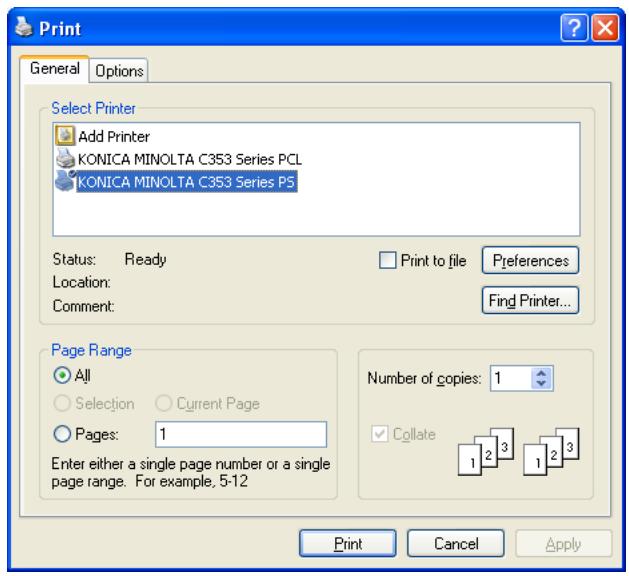
- The Print dialog box differs depending on the application.
3 Specify the print range and the number of copies to be printed.
4 Click the [Properties] or the [Preferences] button to change the printer driver settings as necessary.
- By clicking the [Properties] button or the [Preferences] button in the Print dialog box, you can specify the settings of each model in the printer driver dialog box that appears. For details, refer to "Parameter details for the PCL/PS drivers" on page 7-9.
- If the changed settings are not saved in the Print dialog box, the original settings are restored when the application is quit.
5 Click the [Print] button. The data indicator of this machine flashes.
7.2 Initializing the PCL/PS printer driver
When you have installed the printer driver, you need to change the initialization condition such as options, user authentication and account track functions and enable functions of the machine from the printer driver.

Reminder
If the model name, installed options, the User Authentication and Account Track functions are not specified on the Configure tab, the option functions cannot be used from the printer driver. When installing options, be sure to make the proper settings.
7.2.1 How to display the Properties screen
1 Open the Printers window or Printers and Faxes window.
- For Windows 2000/NT 4.0, click the [Start] button, click "Settings", and then click "Printers".
- For Windows XP/Server 2003, click the [Start] button, and then click "Printers and Faxes".
- For Windows XP/Server 2003, if "Printers and Faxes" does not appear in the [Start] menu, open the "Control Panel" from the [Start] menu, select "Printers and Other Hardware", and then click "Printers and Faxes".
- For Windows Vista, click the [Start] button to open the "Control Panel", select "Hardware and Sound", and then click "Printers".
- In Windows Vista, if Control Panel is displayed with Classic View, double-click "Printers".
2 Right-click the icon of the installed printer, and then click "Properties".
7.2.2 Configure tab

The functions of this machine can be used from the printer driver if the model name used, installed options, the User Authentication and Account Track functions are specified.

Reminder
Be sure to select a model and options from the "Device Option".
Match the "Encrypt. Passphrase" to that specified by "Driver Password Encryption Setting" of this machine.
| Item | Description |
| Device Option | Specifies the model name of this machine, options that are installed on this machine and the status of the User Authentication and Account Track functions. Specify the status of each item from the "Setting" dropdown list. |
| Paper Tray Information | Indicates the paper type specified for each tray. Click the [Paper Tray Settings] button to specify the settings for each paper tray. |
| Acquire Device Information | Communicates with this machine to read the status of the installed options. |
| Acquire Settings | Specifies the conditions of the connection destination to execute Acquire Device Information. |
| Encrypt. Passphrase | Enter the encryption passphrase when it is defined by the user through communication with this machine. |
| Software Tools | Starts up software tools such as PageScope Web Connection. |

Note
The [Acquire Device Information] function cannot be used unless you are connected and able to communicate with this machine.

Detail
For the procedure for specifying "Encrypt. Passphrase" to be defined by the user, refer to "Specifying a user-defined encryption passphrase" on page 9-34.
7.2.3 Settings tab
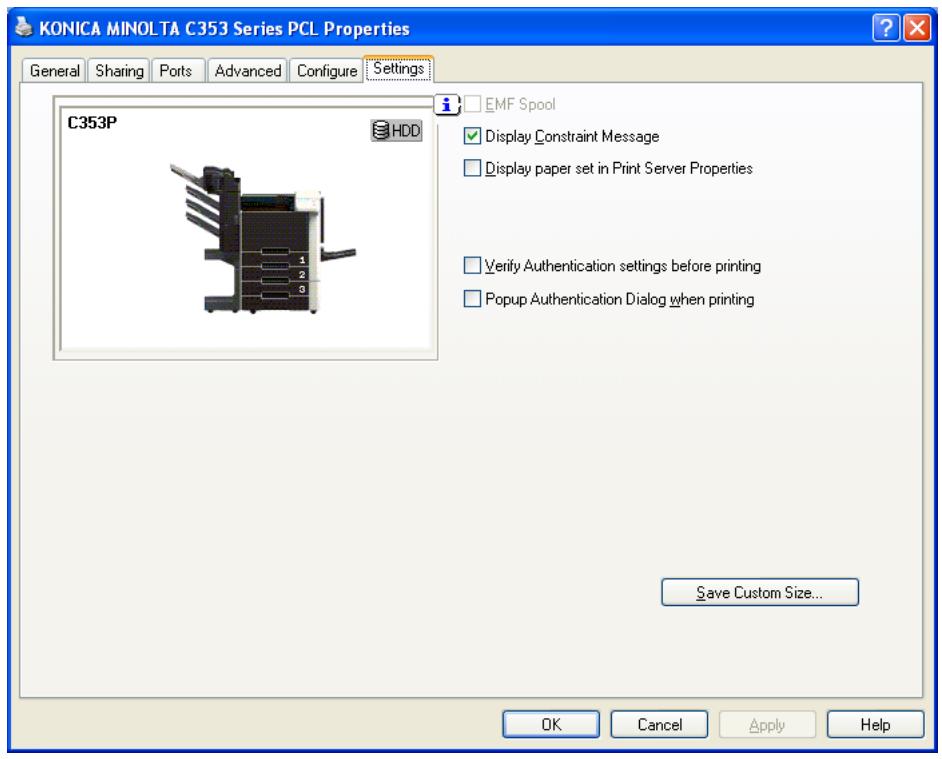
The default settings for displaying the confirmation messages or the dialog box for entering the authentication settings can be changed.
| Item | Description |
| EMF Spool | Select this check box when meta file (EMF) spool is required for use in its own system environment. |
| Display Constraint Message | Displays a message when functions that cannot be specified at the same time were enabled from the printer driver. |
| Display paper set in Print Server Properties | Uses the paper that was added in [Server Properties] of the printer folder. |
| Verify Authentication settings before printing | Verifies the authentication settings for this machine before printing and displays a message if the settings are not compatible. |
| Popup Authentication Dialog when printing | Displays the User Authentication/Account Track dialog box when a print job is specified to enter a user name or a department name. |
| Save Custom Size | Saves the custom paper sizes. |

Note
"EMF Spool" and "Save Custom Size" are functions only for the PCL driver.
7.2.4 Registration of the default settings
The settings specified for the functions of this machine when printing can only be applied while using the application. When the application is quit, the settings return to their default settings.
When registering the settings, change the printer driver basic settings (default settings).
1 Open the Printers window or Printers and Faxes window.
- For Windows 2000/NT 4.0, click the [Start] button, click "Settings", and then click "Printers".
- For Windows XP/Server 2003, click the [Start] button, and then click "Printers and Faxes".
- For Windows XP/Server 2003, if "Printers and Faxes" does not appear in the [Start] menu, open the "Control Panel" from the [Start] menu, select "Printers and Other Hardware", and then click "Printers and Faxes".
- For Windows Vista, click the [Start] button to open the "Control Panel", select "Hardware and Sound", and then click "Printers".
- In Windows Vista, if Control Panel is displayed with Classic View, double-click "Printers".
2 Right-click the icon of the installed printer, and then click "Printing Preferences".
- For Windows NT 4.0, right-click the icon of the installed printer, and then click "Document Defaults". The Printer Driver Preference dialog box appears.
3 Change the settings of the function, and then click the [OK] button to exit from the function.
The changed settings are applicable when the printer is used by all of the application software.

Detail
For the function and settings of the printer driver, refer to "Parameter details for the PCL/PS drivers" on page 7-9.
The printer driver has the function to save the setting as "Favorite Setting". For details, refer to "Common settings for the PCL/PS drivers" on page 7-8.
7.3 Common settings for the PCL/PS drivers
The following describes the common settings and buttons that are displayed on all tabs.
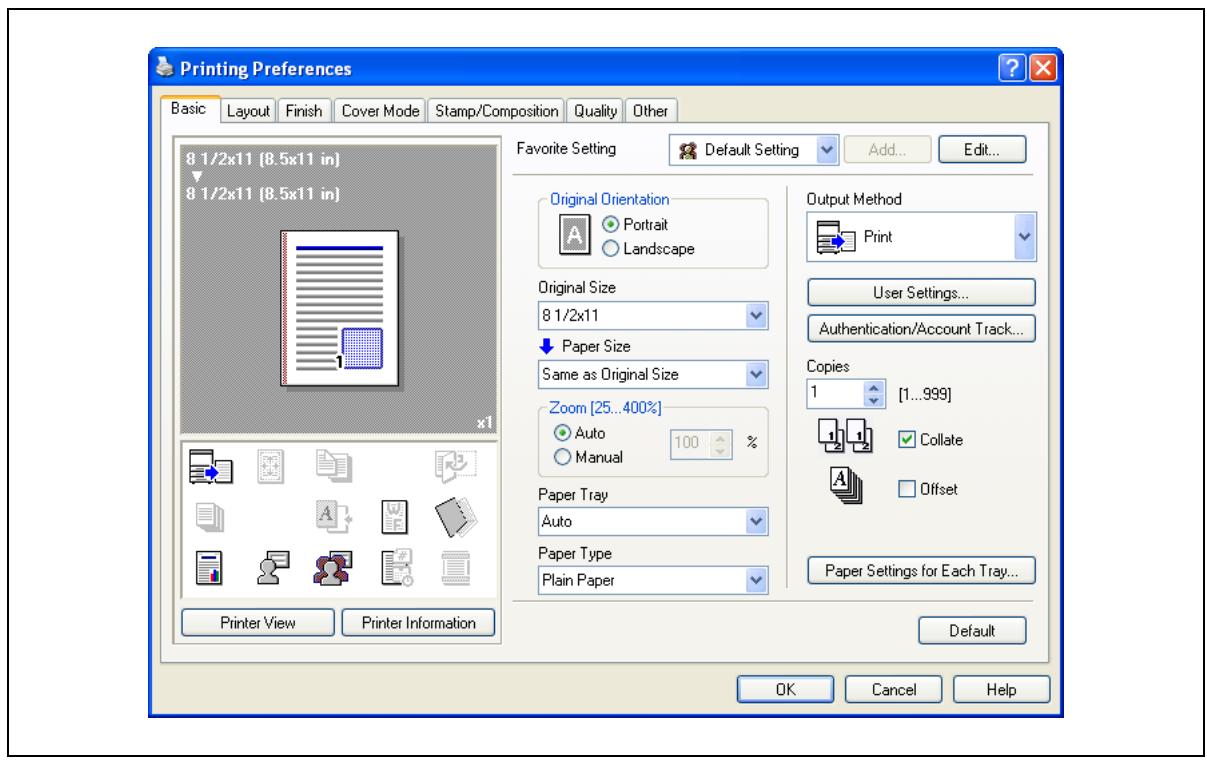
| Item | Description |
| OK | Click this button to close the dialog box and apply any settings that have been changed. |
| Cancel | Click this button to cancel any settings that have been changed and close the dialog box. |
| Help | Click this button to display the help for each item on the currently displayed dialog box. |
| Add (Favorite Setting) | Click this button to save the current settings and to view them at a later time. |
| Edit (Favorite Setting) | Click this button to change the saved settings. |
| Default | Click this button to return the default setting. |
| View | When the "Paper View" button is selected, a preview of the page layout as specified in the current settings is displayed and a preview image of the print job can be checked. When the "Printer View" button is selected, a printer figure is displayed showing any options, such as the paper tray, that are installed on this machine. |
| 81/2x11 [8.5x11 in] 81/2x11 [8.5x11 in] Paper x1 C353P HDD Printer | |
| Printer Information | Starts up the PageScope Web Connection to confirm the printer information. This is available when communication with this machine is enabled. |
7.4 Parameter details for the PCL/PS drivers
The print setting screen is the screen to set printer driver functions.
Click the [Properties] or [Preferences] button on the Print dialog box, or right-click the printer icon of the "Printers" window or the "Printers and Faxes" window, and then specify "Print Setting" ("Document Defaults" for Windows NT 4.0) to open it.
7.4.1 Basic tab
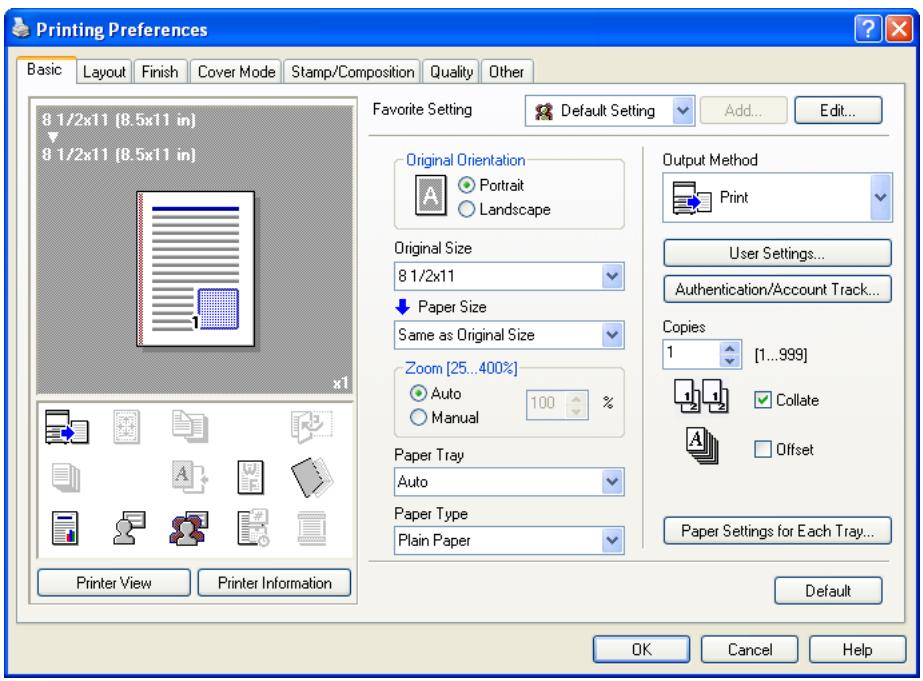
| Function name | Option | Description |
| Original Orientation | Portrait, Landscape | Specifies the orientation of the original. |
| Original Size | Paper size registered as the standard paper size and non-standard paper size. | Specifies the size of the original document. |
| Custom Size | Register the size. | |
| Paper Size | Paper size registered as the standard paper size and non-standard paper size available on this machine. | Specifies the output paper size. The original is automatically enlarged or reduced to the size specified here when it differs from the "Original Size" setting and "Zoom" is set to "Auto". |
| Custom Size | Custom sizes can be registered. | |
| Zoom | 25 to 400% | Specifies the enlargement and reduction ratio. |
| Paper Tray | Auto, Tray1-4, LCT, Bypass Tray | Selects the paper tray to be used. The selectable items differ depending on the options that are installed. |
| Paper Type | Paper type available on this machine. | Selects the paper type for printing. Can be changed only when the paper tray is set to "Auto". When the paper tray is not set to "Auto", the paper type registered by "Paper Settings for Each Tray" is effective. |
| Output Method | Prints immediately. | |
| Secure Print | Saves the document to be printed in "Secure Print User Box" of this machine. When printing, entering the ID and password is required in the control panel of this machine. Select this option when printing highly confidential documents. | |
| Save in User Box | Saves the document to be printed in the user box on this machine. | |
| Save in User Box/Print | Saves the document in a box and prints at the same time. | |
| Proof Print | After one copy of the document has been printed, this machine stops printing temporarily. Select this option to avoid misprinting a large volume of print jobs. | |
| [User Settings] | - | Specifies the ID and password, or the file name and box number when performing "Secure Print" or "Save in User Box". |
| [Authentication/Ac-count Track] | - | Specifies the user name and password when performing user authentication, and the department name and password when performing account track on this machine. |
| Copies | 1 to 999 | Specify the number of copies to be printed. |
| Collate | ON/OFF | Specifies whether to print multiple copies by collating them. |
| Offset | ON/OFF | When printing multiple copies, shifts the output position of each set. |
| [Paper Settings for Each Tray] | Paper Type Setting | Selects the paper tray to be specified. The selectable items differ depending on the installed options. |
| Paper Type | Selects the type of paper to be loaded onto the paper tray. |

Note
The paper size "12 × 18" is equivalent to 304.8 × 457.2mm which is slightly larger than A3.
To print on paper sizes other than the standard sizes, be sure to set the custom paper sizes first. You can register a non-standard size by selecting "Custom Size" from the paper size option or original size option.
When "W" is selected for each standard paper size, the data can be centered and printed.
For example, if you want to center and print 8 - 1 / 2 × 11 size data on 11 × 17 size paper, specify "8 1/2 × 11W" as the paper size and "Bypass Tray" as the paper tray with the printer driver. To print, set 11 × 17 size paper on the specified tray of the machine ("Bypass Tray"), select [Paper Settings] - [Bypass] on the operation panel, specify "8-1/2 × 11W" for [Paper Size], and then specify "11 × 17" for [X Size] and [Y Size].
Specify "Duplex Side 2" to print on the back side of a page.
For details on Output Method, refer to "Function detail description" on page 9-3.
7.4.2 Layout tab
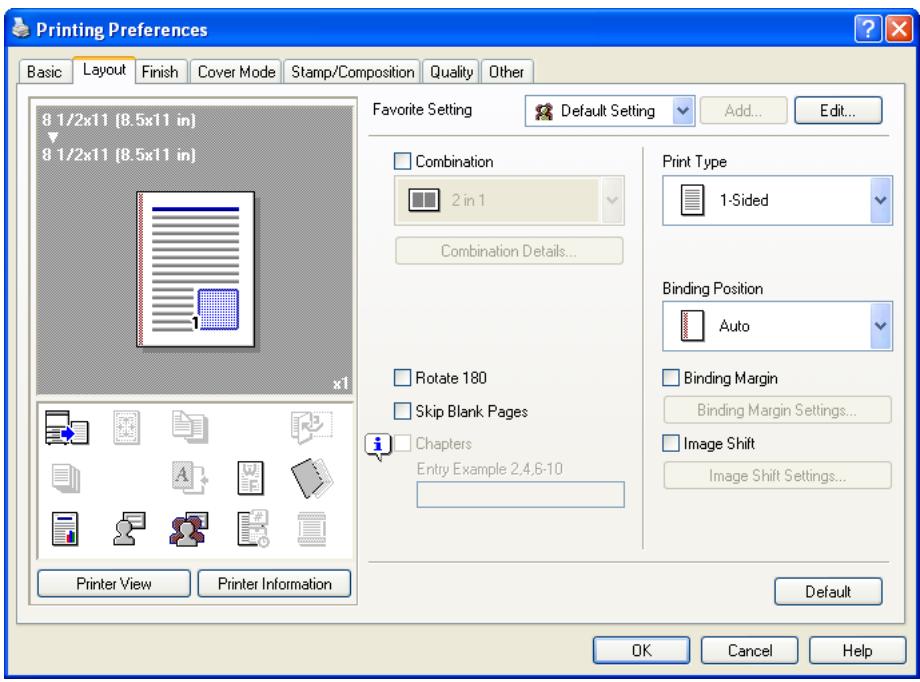
| Function name | Option | Description |
| Combination | 2 in 1, 4 in 1, 6 in 1, 9 in 1, 16 in 1, 2 × 2, 3 × 3, 4 × 4 | Prints multiple pages on one page, or prints one sheet of an original document divided on multiple pages. [Combination Details] allows you to specify the page order and the presence of the border frame. |
| [Combination De-tails] | Combination | Selects the combination conditions. |
| Layout Order | Specifies the layout order. The layout order can be specified when N in 1 is specified in "Combination". | |
| Border | Specifies the presence and type of border lines. The layout order can be specified when N in 1 is specified in "Combination". | |
| Overlap width line | Specifies the presence of a poster mode overlap. You can specify it when N × N is specified in "Combina-tion". | |
| Rotate 180 | ON/OFF | Rotates 180° to print. |
| Skip Blank Pages | ON/OFF | Does not print blank pages in the data. |
| Chapters | ON/OFF | Specifies the page to be printed on the front side. You can specify it when the print type is "2-Sided" or "Booklet". |
| Entry (Page Number) | — | Specifies the page to be printed on the front side when "Chapters" is ON. |
| Print Type | 1-Sided, 2-Sided, Booklet | Specifies duplex printing and booklet printing. |
| Binding Position | Auto, Left Bind, Right Bind, Top Bind | Specifies the binding position. |
| Binding Margin | ON/OFF | Specifies the binding margin. Click the [Binding Mar-gin Settings] button to specify the margin values. |
| [Binding Margin Settings] | Shift Mode | Selects how to process the image to prepare the bind-ing margin. |
| Front Side/Back Side | Specifies the binding margin values. For 2-sided print-ing, clearing the "Same value for front and back sides" check box allows you to set different values between the front and back sides. | |
| Unit | Selects the measurement unit that specifies the size. | |
| Image Shift | ON/OFF | Prints by shifting the entire print image. Click the [Image Shift Settings] button to specify the image shift values. |
| [Image Shift Settings] | Units | Selects the measurement unit that specifies the size. |
| Front Side/Back Side | Specifies the shift direction and values. For 2-sided printing, clearing the "Same value for front and back sides" check box allows you to set different values between the front and back sides. |

Note
"Combination" provides options "2 × 2, 3 × 3, 4 × 4" to print a sheet of document into multiple sheets of paper. The function is only for the PCL driver.
The "Skip Blank Pages" function is only for the PCL driver.
The positions of binding margins vary according to the "Binding Position" setting.
7.4.3 Finish tab
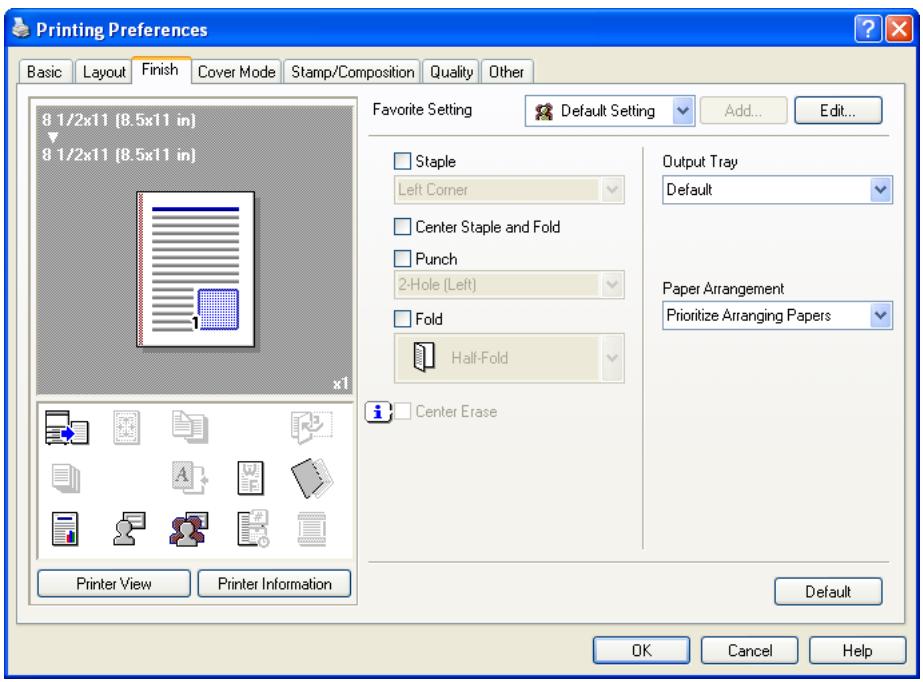
| Function name | Option | Description |
| Staple | ON/OFF | Specifies stapling.From the drop-down list, specify the number of sta- ples and the stapling position. |
| Center Staple and Fold | ON/OFF | Specifies to saddle stitch a printed document. |
| Punch | ON/OFF | Specifies hole punching.From the drop-down list, specify the number of punches and the position. |
| Fold | ON/OFF | Specifies folding. |
| Center Erase | ON/OFF | Does not print on the center fold line with Center Sta- ple and Fold. |
| Output Tray | Default, Tray1-3, Bin 1-6 | Specifies the tray where to output the printed pages. The selectable items differ depending on the options that are installed. |
| Paper Arrangement | Prioritize Arranging Papers, Priori- tize Productivity | Specifies the method for adjusting the binding posi- tion for 2-sided print. The biding position is adjusted after receiving all data for finishing priority. The data is received and printed for productivity priority. |

Note
"Staple", "Center Staple and Fold", and "Fold" functions are available only if the optional finisher is installed.
The "Punch" function is available only when the punch kit is installed on the optional finisher.
The "fold" function is available only when optional finisher FS-519 and saddle kit are installed.
The "Center Erase" function is available only when optional finisher FS-609 is installed and the "Center Staple and Fold" function is specified.
7.4.4 Cover Mode tab
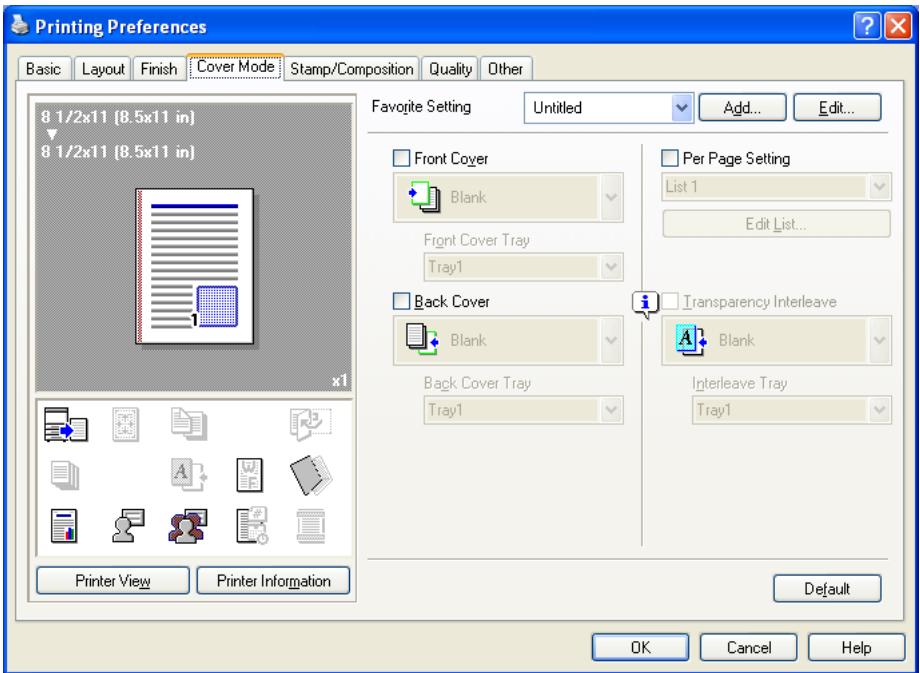
| Function name | Option | Description |
| Front Cover | ON/OFF, Blank/Print | Attaches a front cover page. You can specify it when "Auto" is not selected for the paper tray. |
| Front Cover Tray | Tray1-4, LCT, Bypass Tray | Selects the paper tray for the cover. The selectable items differ depending on the options that are installed. |
| Back Cover | ON/OFF, Blank/Print | Attaches a back cover page. You can specify it when "Auto" is not selected for the paper tray. |
| Back Cover Tray | Tray1-4, LCT, Bypass Tray | Selects the paper tray for the back cover. The selectable items differ depending on the options that are installed. |
| Per Page Setting | ON/OFF | Inserts paper between pages and switches the paper and tray for each page. [Edit List] allows you to create a list by setting conditions by page. |
| [Edit List] | List Name | Selects the name of the list to be edited. The settings are listed. |
| [Edit List Name..] | Renames a list. | |
| [Up]/[Down] | Moves the selected condition row up or down. Move the rows so that the page numbers are arranged in ascending order. | |
| [Add] | Adds a condition. Conditions are specified in "Add/Delete". | |
| [Delete] | Deletes the selected condition row. | |
| Page Number | Specifies the page numbers. To specify multiple pages, separate each page number with a comma or specify the range using a hyphen. | |
| Print Type | Specifies the print type from the "Change Setting" drop-down list. | |
| Paper Tray | Specifies the paper tray used for printing from the "Change Setting" drop-down list. | |
| Staple | Specifies the number of staples and the stapling position from the "Change Setting" drop-down list. | |
| Transparency Inter-leave | ON/OFF, Blank | Outputs and inserts interleaves when printing over-head projector transparencies. You can specify it when "Transparency" is selected for the paper type. |
| Interleave Tray | Tray1-4, LCT | Selects the paper tray for the transparency inter-leaves. The selectable items differ depending on the options that are installed. |
7.4.5 Stamp/Composition tab
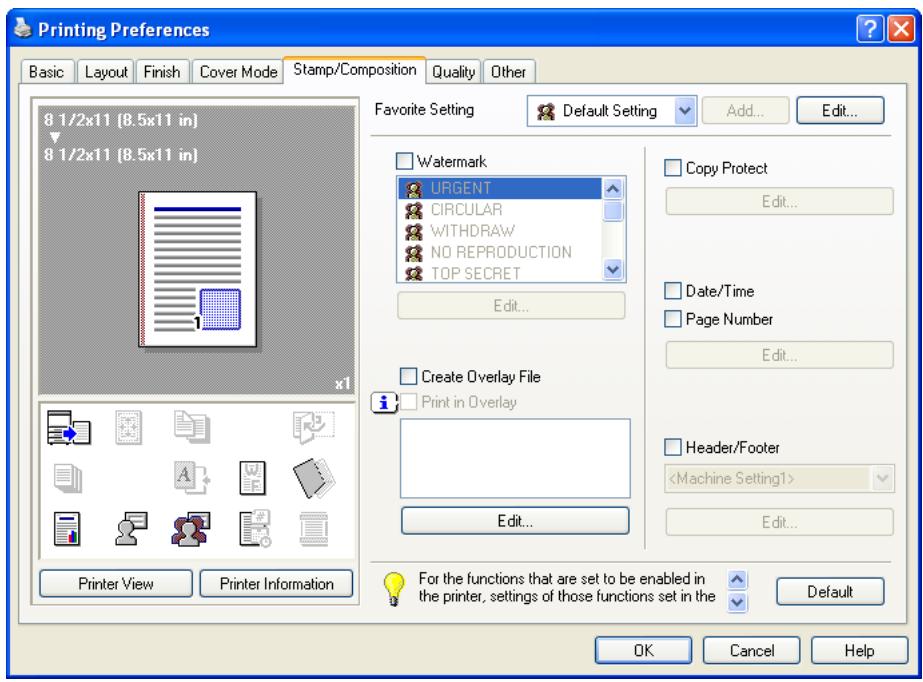
| Function name | Option | Description |
| Watermark | ON/OFF | Prints a watermark (text stamp) on the page being printed. [Edit] allows you to add, change and delete Watermarks. |
| [Edit] | — | For details, refer to "Editing watermark" on page 7-18. |
| Create Overlay File | ON/OFF | Create overlay data by checking this to print the original. |
| Print in Overlay | ON/OFF | Prints an original document on top of an overlay data that was created separately. [Edit] allows you to change the overlay printing method. |
| [Edit] | [Browse Files..] | Loads an overlay file. |
| [Delete] | Deletes the selected overlay. | |
| Pages | Specifies the pages to be printed. | |
| Overwrite | Specifies the sequence for printing the overlay on top of the original document. | |
| Copy Protect | ON/OFF | Prints a special pattern to prevent copying. [Edit] allows you to specify items, positions and the composition to be printed. |
| [Edit] | — | For details, refer to "Editing copy protect" on page 7-19. |
| Date/Time | ON/OFF | You can print the date and time on a document. [Edit] allows you to specify items, pages and positions to be printed. |
| Page Number | ON/OFF | Prints the page number. [Edit] allows you to specify items, pages and positions to be printed. |
| [Edit] | — | For details, refer to "Editing date/time and page number" on page 7-21. |
| Header/Footer | Machine Setting 1-20 | Print the header and footer. Select header/Footer information from the list of the printer setting. [Edit] allows you to specify items and pages to be printed. |
| [Edit] | Distribution Control Number | Prints the number of copies in the header and footer when printing multiple copies. |
| [Edit] | Specifies the distribution control number conditions. | |
| Pages | Specifies the pages to be printed. | |
| Text Color | Specifies the text color used for printing. |

Note
For Windows Vista x64, "Watermark" cannot be selected with any of the following functions at the same time.
[User Authentication]
[Account Track]
[Per Page Setting]
[Verify Authentication settings before printing]
[Popup Authentication Dialog when printing]
Editing watermark
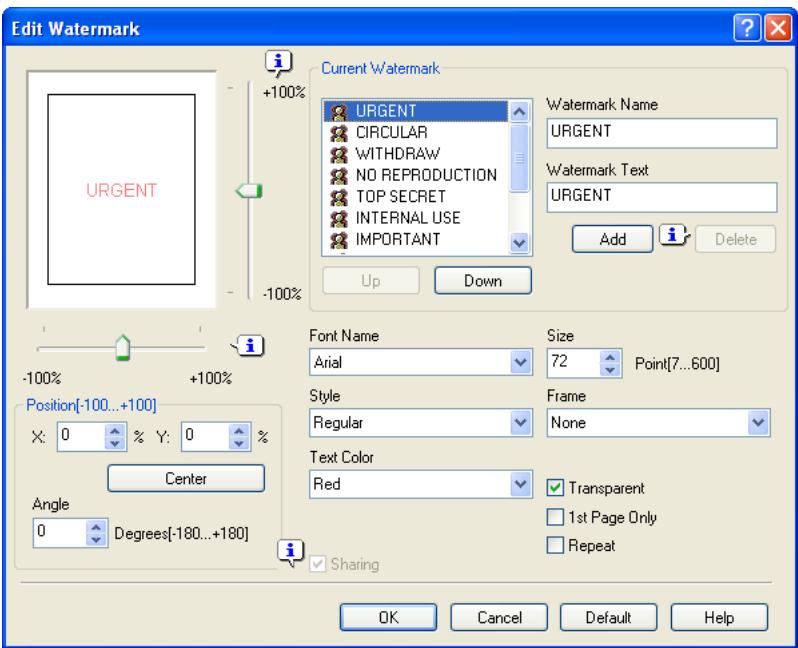
| Item | Description |
| Watermark Name | Enter the name of the watermark. |
| Watermark Text | Enter the text to be printed as the watermark. |
| [Add] | Click to create a new watermark. |
| [Delete] | Click to delete the selected watermark. |
| Position | Specifies the vertical and horizontal positions. The watermark position can also be specified by using the horizontal and vertical sliders in the dialog box. |
| Angle | Specifies the watermark print angle. |
| Font Name | Specifies the font. |
| Size | Specifies the size. |
| Style | Specifies the font style. |
| Frame | Specifies the frame style. |
| Text Color | Specifies the watermark text color. |
| Transparent | Prints the watermark as a transparent image. |
| 1st Page Only | Prints the watermark on the first page only. |
| Repeat | Prints the watermark repeatedly on a single page. |
| Sharing | Specifies whether to register the watermark as public or private. |
Editing copy protect
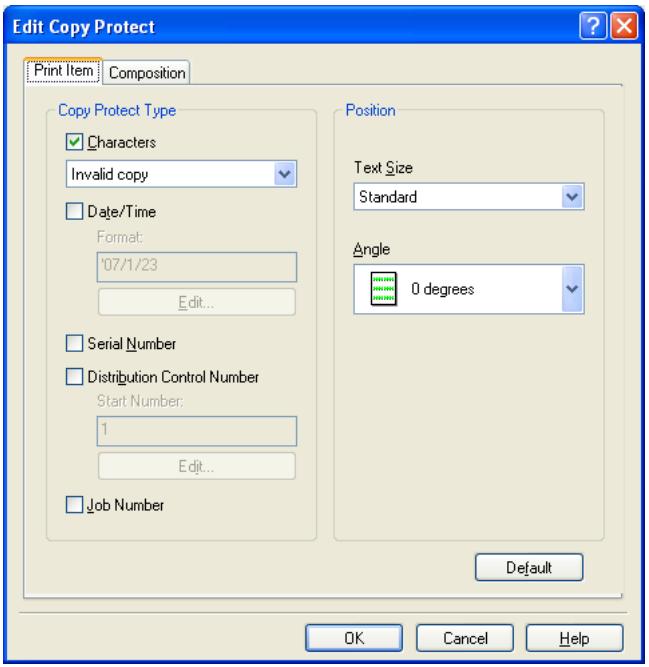
| Item | Description |
| Characters | Embeds the selected character string in a pattern. A preregistered character string (common stamp) or a character string registered on this machine (registered stamp) can be specified. |
| Date/Time | Embeds the selected date and time in a pattern. By clicking the [Edit] button under "Format", you can specify the display type or the time format. |
| Serial Number | Embeds the serial number of this machine in a pattern. |
| Distribution Control Number | Embeds the copy number in a pattern when printing multiple copies. By clicking the [Edit] button under "Start Number", you can specify the start number or the display type. |
| Job Number | Embeds the print job number in a pattern for documents that are automatically paginated. |
| Text Size | Specifies the text size of a pattern. |
| Angle | Specifies the pattern angle. |
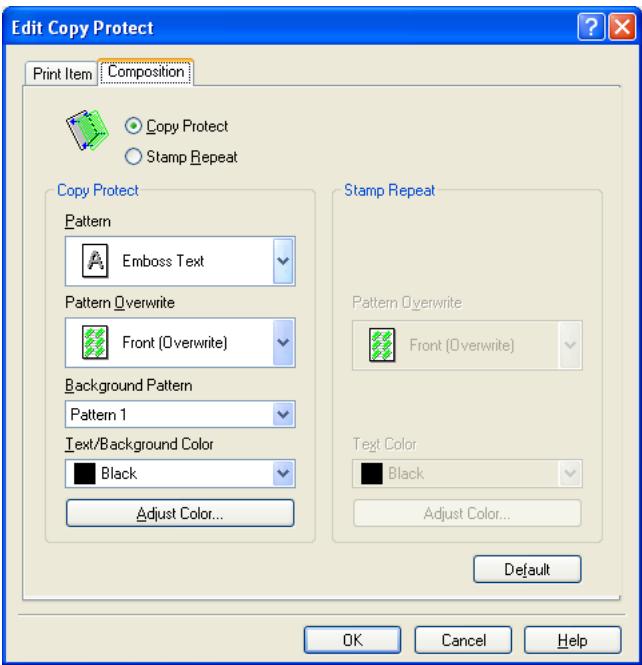
| Item | Description |
| Copy Protect | Embeds a hidden pattern that appears on copies. |
| Stamp Repeat | Prints a text pattern. |
The following settings are available when "Copy Protect" is selected.
| Item | Description |
| Pattern | Specifies the embedding method of a pattern. |
| Pattern Overwrite | Specifies the order for printing a pattern on the original. |
| Background Pattern | Specifies the pattern background. |
| Text/Background Color | Specifies the color of the pattern. The density and color contrast can be specified by clicking the [Adjust Color] button. |
The following settings are available when "Stamp Repeat" is selected.
| Item | Description |
| Pattern Overwrite | Specifies the order for printing a pattern on the original. |
| Text Color | Specifies the color of the pattern. The density and color contrast can be specified by clicking the [Adjust Color] button. |

Note
"Copy Protect" and "Stamp Repeat" cannot be selected at the same time.
Different setting items are available for "Copy Protect" and "Stamp Repeat".
Editing date/time and page number
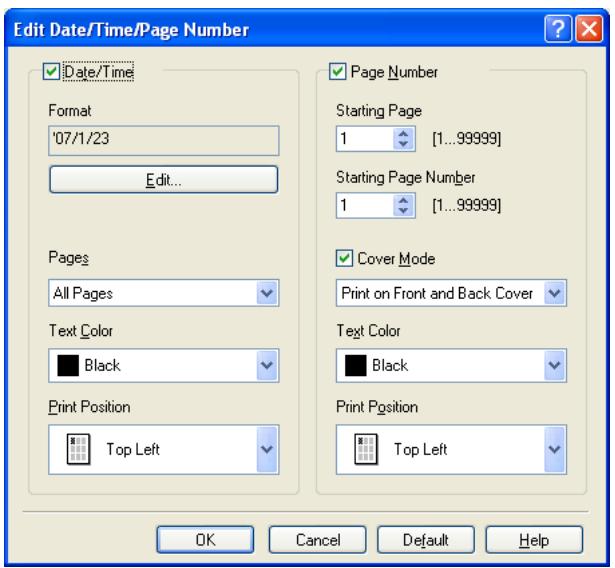
| Item | Description |
| Format | Displays the format for the date and time to be printed. The display type or the time format can be specified by clicking the [Edit] button. |
| Pages | Specifies the pages to print the date and time. |
| Text Color | Specifies the text color used for printing. |
| Print Position | Specifies the print position. |
| Starting Page | Specifies the page to start printing the page number. |
| Starting Page Number | Specifies the start number for printing the page number. |
| Cover Mode | If cover pages are attached, specifies whether to print the page number on the front cover page or the back cover page. |
| Text Color | Specifies the text color used for printing. |
| Print Position | Specifies the print position. |
7.4.6 Quality tab
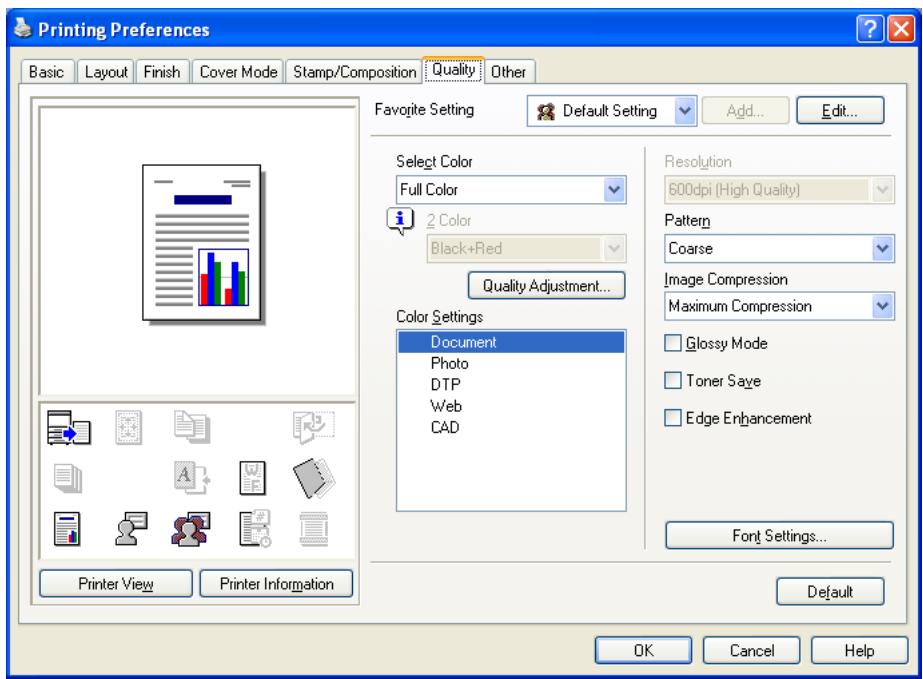
| Function name | Option | Description |
| Select Color | Full Color, Gray Scale, 2 Color | Specifies the color to be printed. |
| Quality Adjustment | - | Adjusts the image quality. You can select "Simple" to adjust entire documents or "Detail" to adjust the text, photos, figures, tables, and graphs in the original. |
| Color Settings | Document, Photo, DTP, Web, CAD | Prints with a quality suitable for the selected original document. Document: Prints with a quality suitable for documents with many characters. Photo: Prints with a quality suitable for photos. DTP: Prints with a quality suitable for documents produced using DTP. Web: Prints with a quality suitable for Web page printing. CAD: Prints with a quality suitable for CAD data printing. |
| Resolution | - | Indicates the resolution. You may not change this item. |
| Pattern | Fine, Coarse | Specifies the graphic pattern details. |
| Image Compression | Best Quality (quality priority), Maximum Compression (speed priority) | Specifies the compression ratio for a graphic image. |
| Glossy Mode | ON/OFF | Prints using a gloss finish. |
| Toner Save | ON/OFF | Controls the print density and saves the toner consumption. |
| Edge Enhancement | ON/OFF | Highlights the edge of characters, graphics and images to make small characters more visible. You can specify it when "Gray Scale" is selected for the color. |
| Font Settings | - | Selects whether to use TrueType fonts or the printer fonts when printing. Selects whether the fonts are down-loaded to the printer as bitmap or outline. |

Note
"2 Color" option of the "Select Color" is only for the PCL driver. "2 Color" option allows you to specify a combination of two colors.
The "Pattern" and "Image Compression" functions are only for the PCL driver.
The PS driver allows you to manage the profile through "Quality Adjustment". For details, refer to "ICC profile settings" on page 9-38.
7.4.7 Other tab
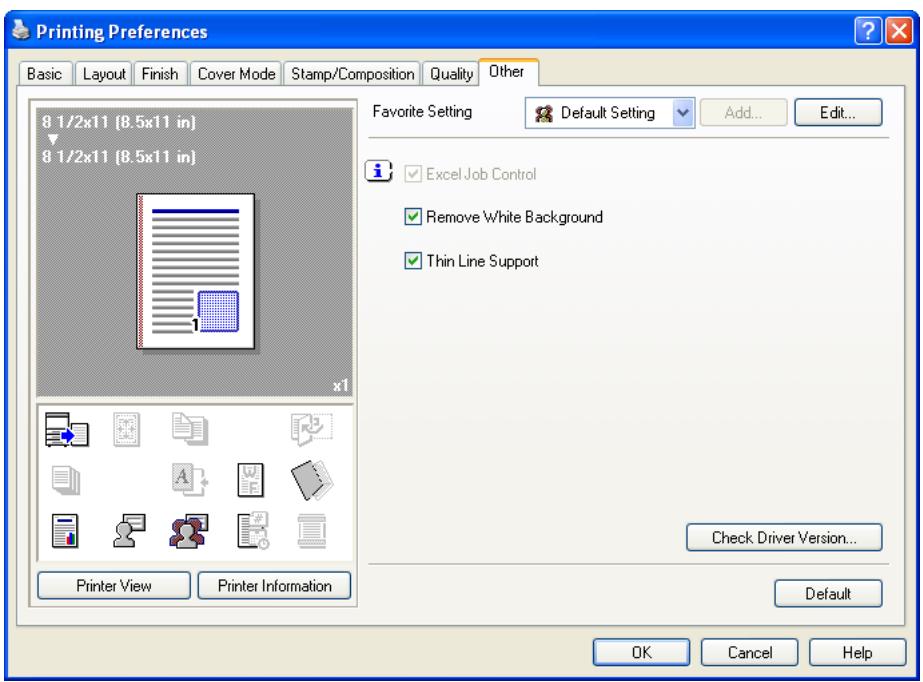
| Function name | Option | Description |
| Excel Job Control | ON/OFF | When multiple Microsoft Excel sheets with different page settings are printed at one time, the sheets may be separated into single-sheet jobs depending on the data they contain. When this function is selected, job separation is minimized. |
| Remove White Background | ON/OFF | When an overlay file is printed on top of Microsoft PowerPoint data, white areas are removed so that the white background of the PowerPoint data does not hide the overlay file. When the check is cleared, the background is not removed and is printed as is in the original data. |
| Thin Line Support | When printing the document reduced, thin line may be blurred. Select this function to prevent disappearing the thin line. | |
| Check Driver Version | — | Displays the printer driver version information. |

Note
"Remove White Background" and "Thin Line Support" functions are is only for the PCL driver.
"Excel Job Control" and "Remove White Background" settings are not available for Windows XP Professional x64, Windows Vista x64 and Windows Server 2003 x64.
"Excel Job Control" can be changed only when the printer driver setting dialog is displayed in the "Printers" ("Printers and Faxes" for Windows XP/Server 2003) window.
8
Print functions of the printer driver for Macintosh
8 Print functions of the printer driver for Macintosh
8.1 Printing operations for OS X
Print jobs are specified from the application software.
1 Open the data in the application, click the [File] button, and then click "Print" from the menu.
- If the menu is not available, click the [Print] button.
The Print dialog box appears.
2 Check that an appropriate printer name has been selected by the "Printer".
- If the selected printer is not appropriate, select an appropriate printer.
- If the printer does not appear, select the printer with [Printer Setup Utility] or [Print Center]. For details, see "Selecting and connecting the printer (OS 10.4)" on page 6-5, and "Selecting and connecting the printer (OS 10.2 and 10.3)" on page 6-8.
- The Print dialog box differs depending on the application.
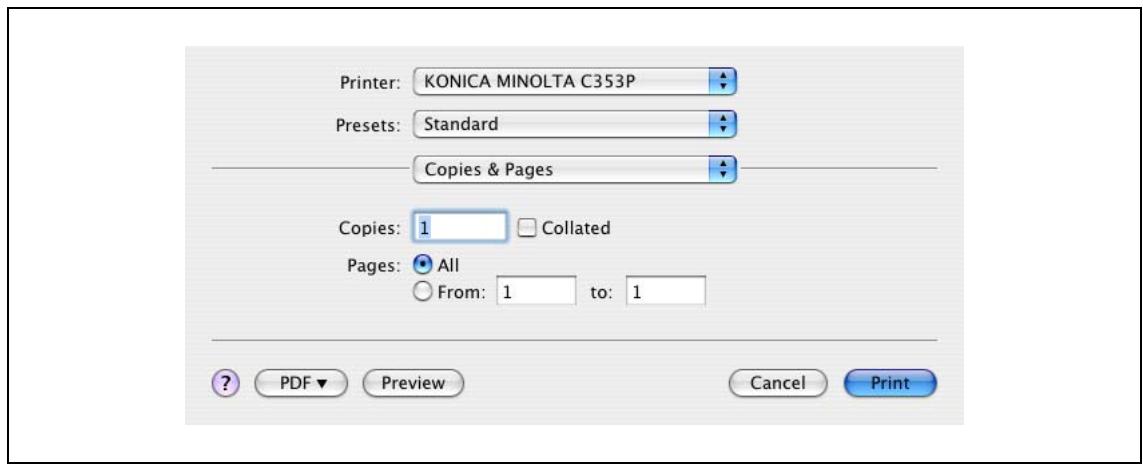
3 Specify the print range and the number of copies to print.
- When you change the "Copies & Pages" menu, another setting dialog box of the printer driver appears and allows you to specify various functions. For details, refer to "Parameter details for the OS X printer driver" on page 8-8.
4 Change the setting dialog box to change the printer driver settings as necessary.
5 Click the [Print] button.
The data indicator of this machine flashes.

Note
The printer driver setting changed on the Print dialog box is not saved and the original settings are restored when the application is quit.
8.2 Default settings for the OS X printer driver
When you have installed the printer driver, you need to change the initialization condition such as options before daily printing and enable functions of this machine from the printer driver.

Reminder
If the model name and installed options are not specified on the Printer Info dialog box, the option functions cannot be used from the printer driver. When installing options, be sure to make the proper settings.
8.2.1 Options
1 Open the [Printer Setup Utility] (or [Print Center]) located in "Applications" - "Utilities" of "Hard Disk", and then select this machine.
2 From the [Printer] menu, select "Show Info".
The "Printer Info" dialog box appears.
3 Select "Installable Options".
4 Select the model name and options that are installed on this machine.
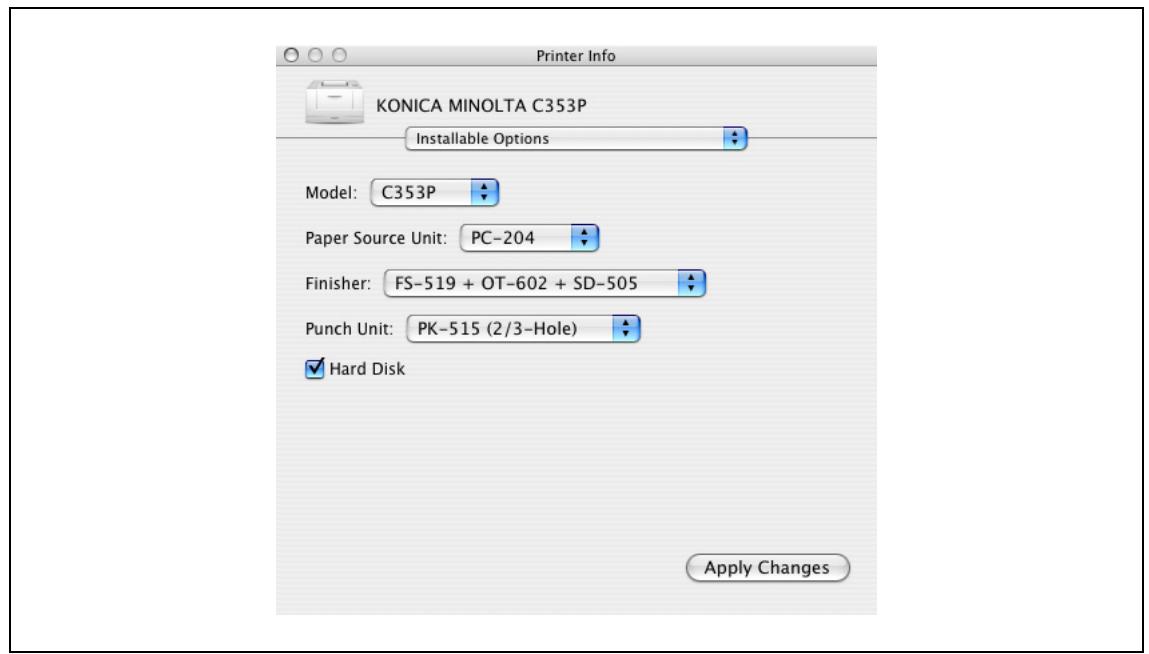
5 Click the [Apply Changes] button, and then close the "Printer Info" dialog box.
8.2.2 Registration of the default settings
The settings specified for the functions of this machine when printing can only be applied while using the application. When the application is quit, the settings return to their default settings.
To register the settings, save the settings in the printer driver setting.
- For Mac OS X, you can register the paper setting as the default setting. To set other print functions, save the setting with the "Presets" function and use them by calling them as required.
- In the "Page Setup" dialog box, select "Settings" and save the settings by selecting "Save as Default".
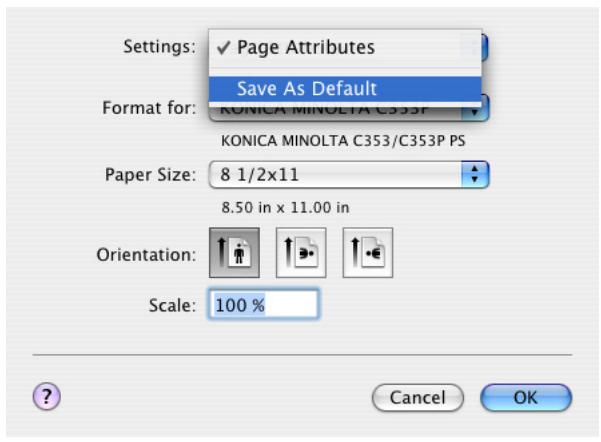
- In the "Print" dialog box, select "Presents" and save the printer driver functions by selecting "Save As".
- When use this setting, select from "Presets".
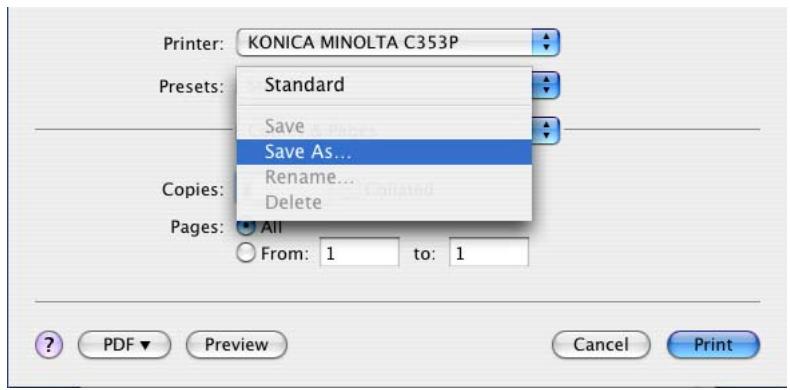

Detail
For the function and settings of the printer driver, refer to "Parameter details for the OS X printer driver" on page 8-8.
8.3 Common settings for the OS X printer driver
The following describes the common settings that are displayed by the specific operations (Output Method, Layout/Finish, Paper Tray/Output Tray, Cover Sheet/OHP Interleave, Per Page Setting, Stamp/Composition and Quality) for this machine specified in the Print dialog box.
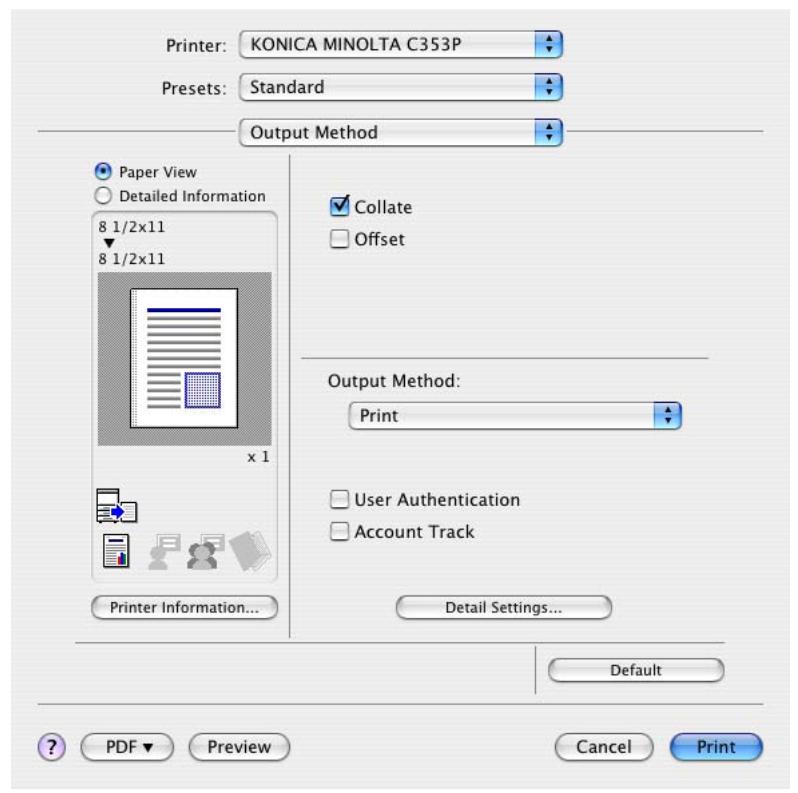
| Item | Description |
| Paper View | A preview of the page layout as specified in the current settings is displayed and a preview image of the print job can be checked. |
| Detailed Information | Shows the current settings with text. |
| Printer Information | Displays the status of the installed options. |
| Default | Click this button to return to the default setting. |
| ? (Help) | Click this button to display the help for each item on the currently displayed dialog box. |
| Cancel | Click this button to cancel any settings that have been changed and close the dialog box. |
| Click this button to enable the changed settings for printing. |

Detail
Click the [Acquire Device Information] button on the Printer Info dialog box to communicate with this machine and read the status of the settings specified on this machine. This function is not available unless the connection is enabled for communications with the machine.
8.4 How to add a custom size for the OS X printer driver
To print on paper sizes other than the standard sizes, register the custom paper size.
1 In the [File] menu, select "Page Setup" (or "Paper Setup").
2 For Mac OS 10.4, select "Manage Custom Sizes" from the "Paper Size" list.
- For Mac OS 10.2/10.3, select "Custom Paper Sizes" from "Settings".
3 Click the [+] button (OS 10.4) or the [Add] button (OS 10.2/10.3).
4 Enter the paper size name.
5 Specify settings for the following:
Page size (paper size): Specifies the paper size.
- Printer Margins: Specifies the paper margins.
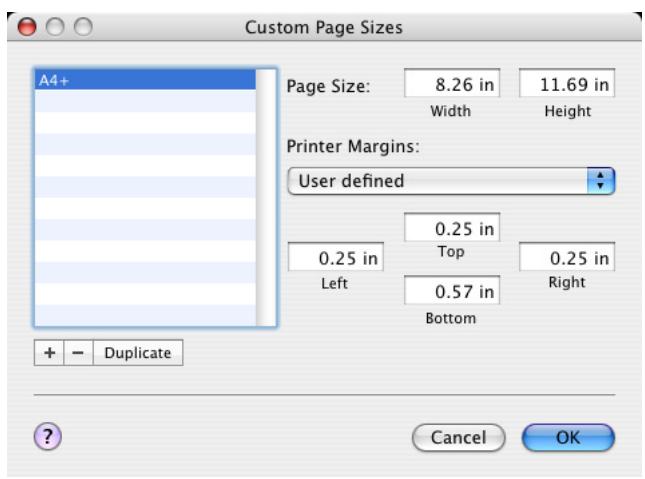
6 For Mac OS 10.4, continue with step 7.
- For Mac OS 10.2/10.3, click the [Save] button.
7 Click the [OK] button.
This saves the custom paper size, which can be selected from the Paper Size drop-down list that is displayed when "Page Attributes" is selected.
8.5 Parameter details for the OS X printer driver
The printer driver functions are specified in the following dialog boxes: In "Page Attributes" from the Page Setup dialog box; In "Output Method", "Layout/Finish", "Paper Tray/Output Tray", "Cover Sheet/OHP Interleave", "Per Page Setting", "Stamp/Composition", and "Quality" from the Print dialog box.
8.5.1 Page Attributes
In the [File] menu, select "Page Setup" (or "Paper Setup").
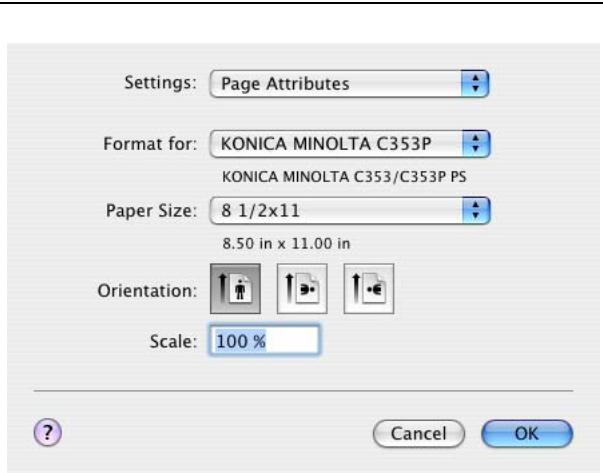
| Function name | Option | Description |
| Paper Size | Paper size registered as the standard paper size and custom paper size available on this machine. | Specifies the output paper size. |
| Orientation | Portrait, Landscape | Specifies the orientation of the original. |
| Scale | 1 to 400% | Specifies the enlargement and reduction ratio. |

Note
The paper size "12 × 18" is equivalent to 304.8 × 457.2mm which is slightly larger than A3.
To print on paper sizes other than the standard sizes, be sure to set the custom paper sizes in "Custom Size Settings" first. For details on registering a non-standard paper size, refer to "How to add a custom size for the OS X printer driver" on page 8-7.
When "W" is selected for each standard paper size, the data can be centered and printed. For example, if you want to center and print 8 - 1 / 2 × 11 size data on 11 × 17 size paper, specify "8 1/2 × 11W" as the paper size and "Bypass Tray" as the paper tray with the printer driver. To print, set 11 × 17 size paper on the specified tray of the machine ("Bypass Tray"), select [Paper Settings] - [Bypass] on the operation panel, specify "8-1/2 × 11W" for [Paper Size], and then specify "11 × 17" for [X Size] and [Y Size].
8.5.2 Copies & Pages
In the [File] menu, select "Print".
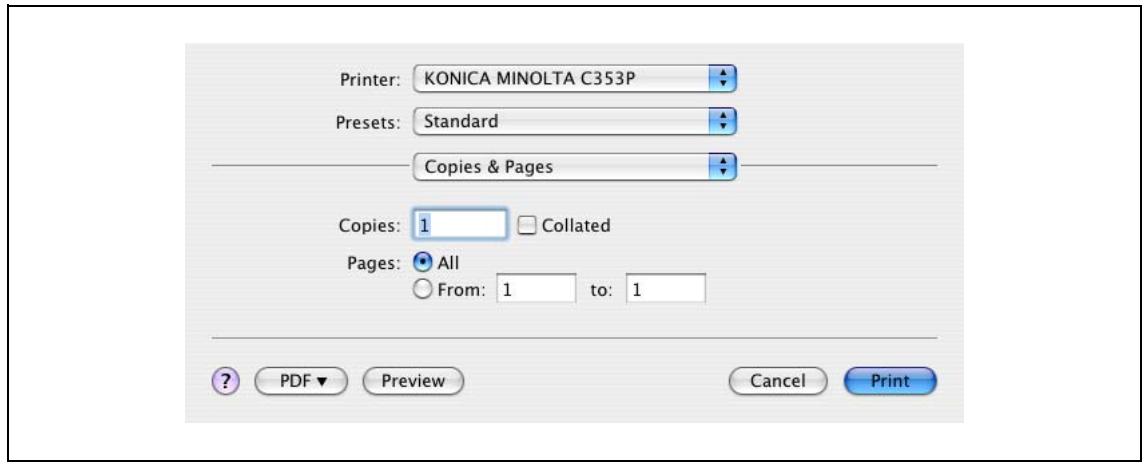
| Function name | Option | Description |
| Copies | 1 to 999 | Specifies the number of copies to be printed. |
| Collated | ON/OFF | Do not specify this function. Select "Output Method", and then specify "Collate". |
| Pages | — | Specifies the print range to print. |
8.5.3 Output Method
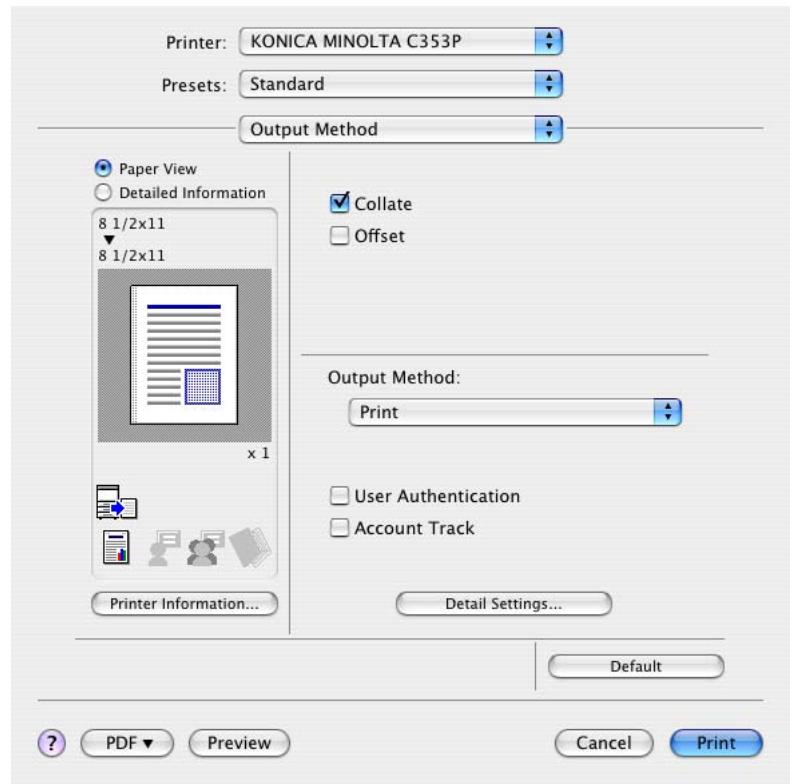
| Function name | Option | Description |
| Collate | ON/OFF | Specifies whether to print multiple copies by collating them. |
| Offset | ON/OFF | When printing multiple copies, shifts the output position of each set. |
| Output Method | Print: | Prints immediately. |
| Secure Print | Saves the document to be printed in "Secure Print User Box" of this machine. When printing, entering the ID and password is required in the control panel of this machine. Select this option when printing highly confidential documents. | |
| Save in User Box | Saves the document to be printed in the user box on this machine. | |
| Save in User Box and Print | Saves the document in a box and prints at the same time. | |
| Proof Print | After one copy of the document has been printed, this machine stops printing temporarily. Select this option to avoid misprinting a large volume of print jobs. | |
| [User Authentication] | - | If the "User Authentication" settings have been specified on this machine, you must specify a user name and password. |
| [Account Track] | - | If the "Account Track" settings have been specified on this machine, you must specify a division name and password. |
| [Detail Settings] | - | Displays the functions for which the setting details have been specified. |

Detail
For details on Output Method, refer to "Function detail description" on page 9-3.
Checking the Output Method setting details
By clicking the [Detail Settings] button, the "Output Method"functions for which detail settings have been specified are shown.
The settings can be shown by clicking the [Expand All] button.
By selecting a function and clicking the [Settings] button, the dialog box for specifying the detailed settings for the selected function appears.
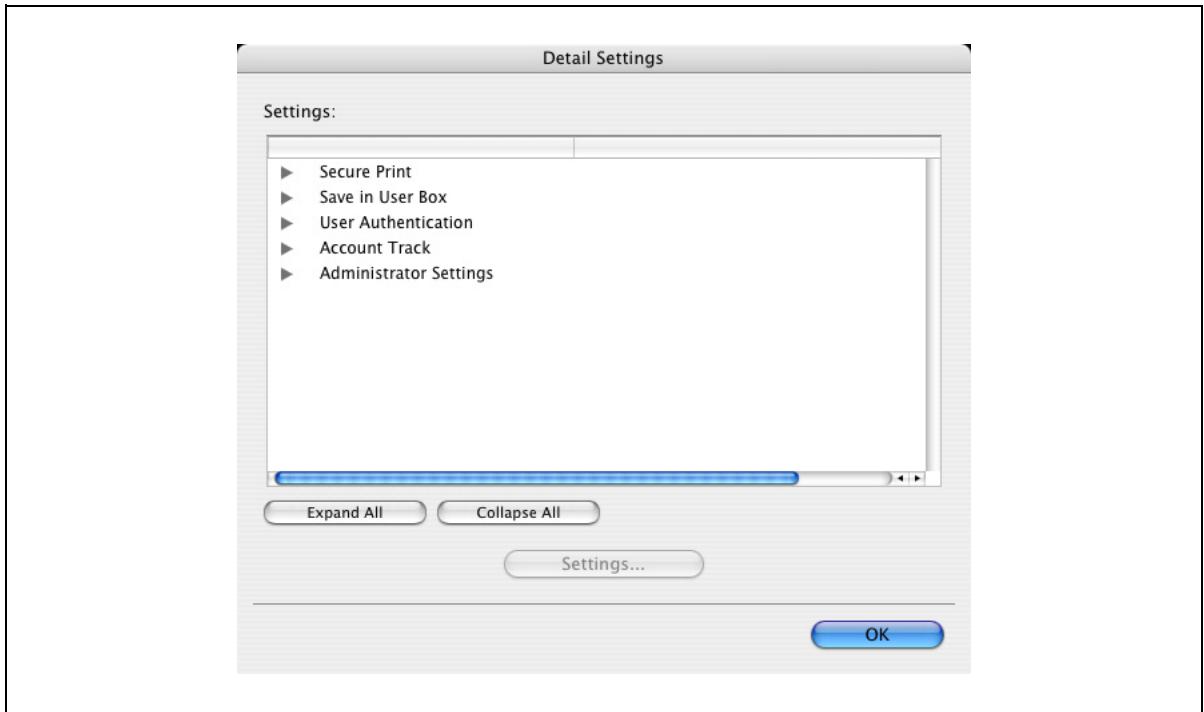
| Item | Description |
| Secure Print | This is the same dialog box that appears when you select "Output Method" and specify "Secure Print". |
| Save in User Box | This is the same dialog box that appears when you select "Output Method" and specify "Save in User Box" or "Save in User Box and Print". |
| User Authentication | This is the same dialog box that appears when you select "Output Method" and select "User Authentication" checkbox. |
| Account Track | This is the same dialog box that appears when you select "Output Method" and select "Account Track" checkbox. |
| Administrator Settings | Displays a dialog box to set an input dialog for authentication setting and change the encryption key. |
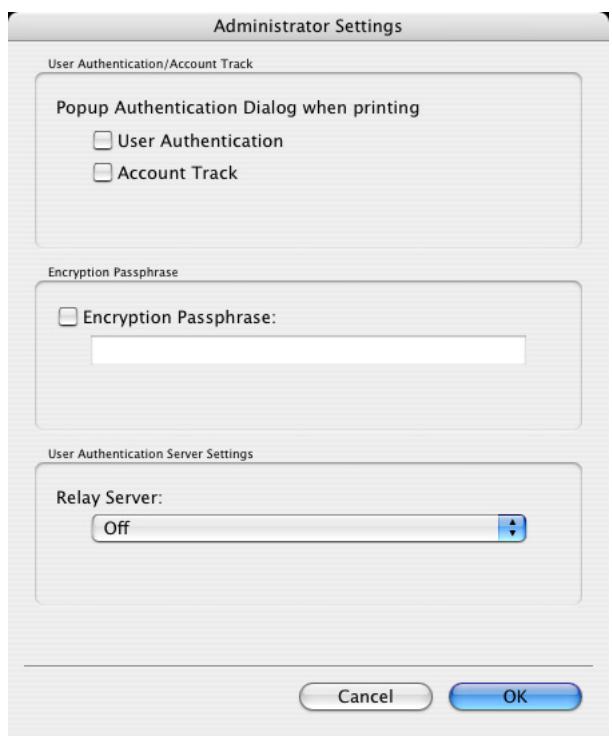
| Item | Description |
| Popup Authentication Dialog when printing | Displays the User Authentication and Account Track dialog box when a print job is specified and checks entry of a user name and a department name each time. |
| Encryption Pass-phrase | Specifies an encryption passphrase to use user-defined key to communicate with this machine. The encryption key for the entered characters is automatically created, which is to be used for communication with this machine. |

Note
Match the "Encryption Passphrase" to that specified by "Driver Password Encryption Setting" of this machine.

Detail
For the procedure for specifying "Encryption Passphrase" to be defined by the user, refer to "Specifying a user-defined encryption passphrase" on page 9-34.
8.5.4 Layout/Finish
You can switch between the Layout dialog box and the Finish dialog box.
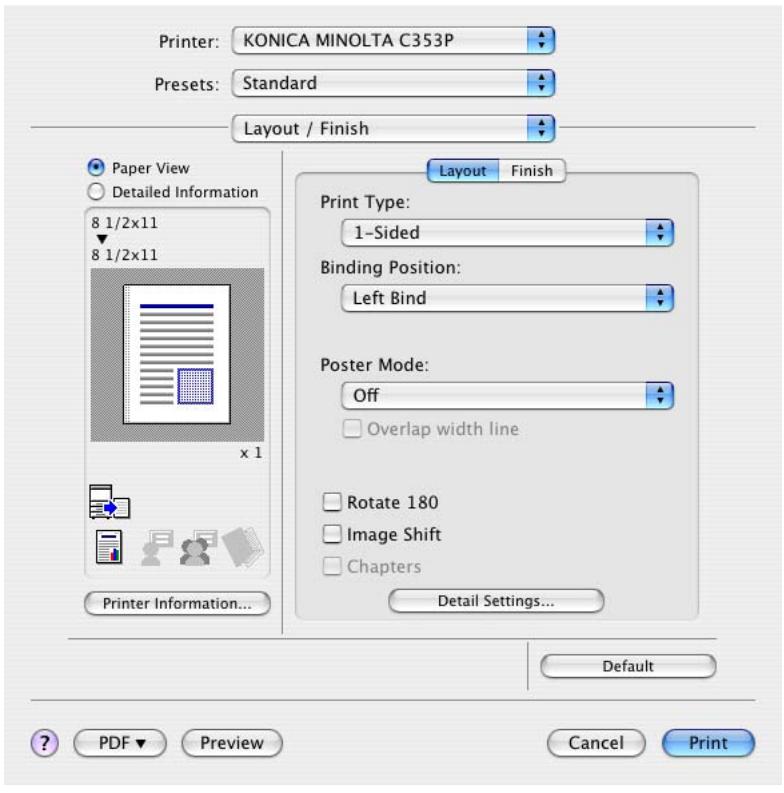
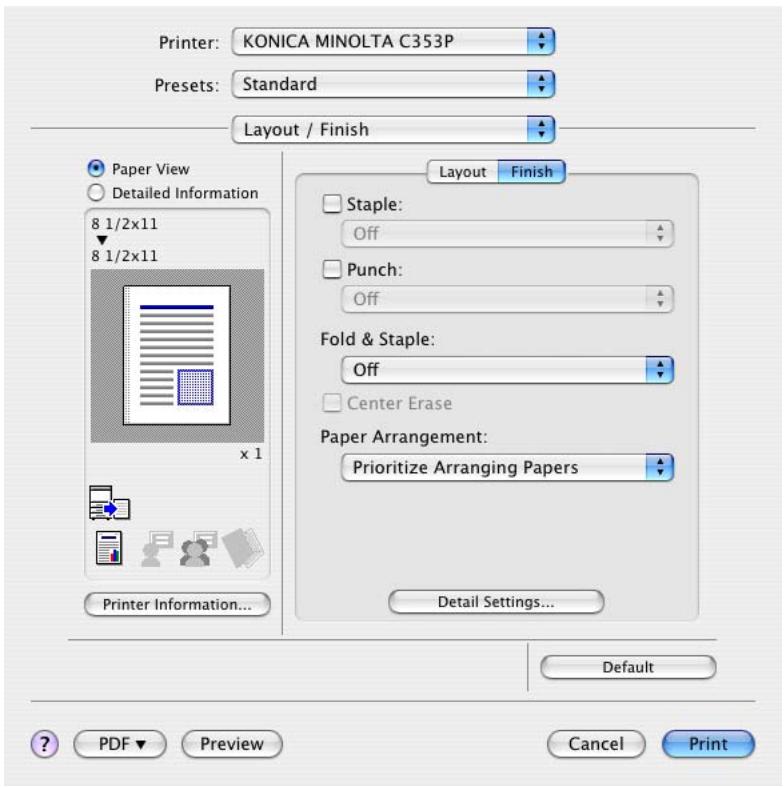

Note
When printing a job that contains pages of different sizes and orientations with the "Poster Mode" setting specified, images may be missing or overlapping when the document is printed.
| Function name | Option | Description |
| Print Type | 1-Side, 2-Sided, Booklet | Specifies duplex printing and booklet printing. |
| Binding Position | Left stitch, right stitch, top stitch | Specifies the binding position. |
| Poster Mode | 2 × 2, 3 × 3, 4 × 4 | Prints one sheet of an original divided on multiple pag-es. "Poster Mode Overlap" allows you to specify the presence of the border frame. |
| Overlap width line | ON/OFF | Specifies the presence of a poster mode overlap. This setting can be specified when the "Poster Mode" set-ting is other than "OFF". |
| Rotate _180 | ON/OFF | Rotates 180° to print. |
| Image Shift | ON/OFF | Prints by shifting the entire print image. The screen is displayed when the setting is enabled and allows you to set the detail of the shift length. |
| Front Side/Back Side | Specifies the shift direction and values. For 2-sided printing, clearing the "Same Value for Front and Back Sides" check box allows you to set different values between the front and back sides. | |
| Chapters | ON/OFF | Specifies the page to be printed on the front side. The screen is displayed when the setting is enabled and alows you to set the page.You can specify it when the print type is "2-sided" or "Booklet". |
| Page Number | Specifies the page to be printed on the front side when "Chapters" is selected. | |
| Staple | ON/OFF | Specifies stapling.From the drop-down list, specify the number of sta-plies and the stapling position. |
| Punch | ON/OFF | Specifies hole punching.From the drop-down list, specify the number of punches and the position. |
| Fold & Staple | Off, Center Staple & Fold, Half-Fold | Specifies to half fold and center staple. |
| Center Erase | ON/OFF | Does not print on the center fold line with Center Sta-ple and Fold. |
| Paper Arrangement | Finishing Priority, productivity prior-ity | Specifies the method for adjusting the binding posi-tion for 2-sided print. The biding position is adjusted after receiving all data for finishing priority. When Pro-ductivity Priority is specified, the machine processes data reception and printing concurrently. |

Note
"Staple" and "Saddle Stitch/Fold" functions are available only if the optional finisher is installed.
The "punch" function is available only if the punch kit is installed on the optional finisher.
The "Center Erase" function is available only when optional finisher FS-609 is installed and the "Center Staple and Fold" function is specified.
8.5.5 Paper Tray/Output Tray
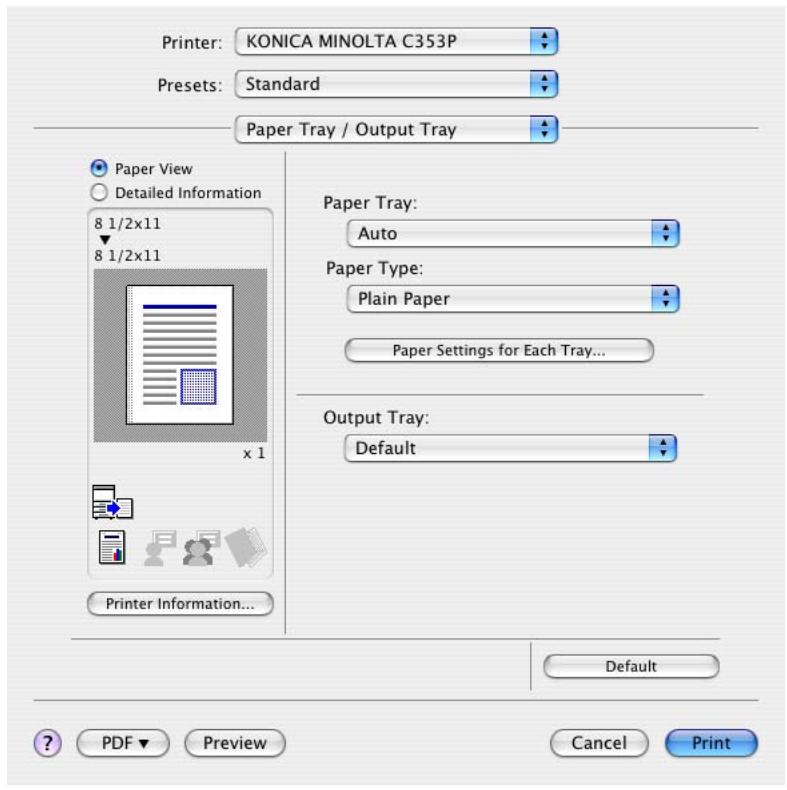
| Function name | Option | Description |
| Paper Tray | Auto, Tray 1-4, LCT, Bypass Tray | Selects the paper tray to be used. The selectable items differ depending on the options that are installed. |
| Paper Type | Paper type available on this machine. | Selects the paper type for printing. Can be changed only when the paper tray is set to "Auto". When the paper tray is not set to "Auto", the paper type registered by "Paper Settings for Each Tray" is effective. |
| [Paper Settings for Each Tray] | Paper Tray | Selects the paper tray to be specified. The selectable items differ depending on the installed options. |
| Paper Type | Selects the type of paper to be loaded onto the paper tray. | |
| Output Tray | Default, tray 1-3, bin 1-6 | Specifies the tray where to output the printed pages. The selectable items differ depending on the options that are installed. |

Note
Specify "Duplex Side 2" to print on the back side of a page.
8.5.6 Cover Mode/Transparency Interleave
You can switch between the Cover Mode dialog box and the Transparency Interleave dialog box.
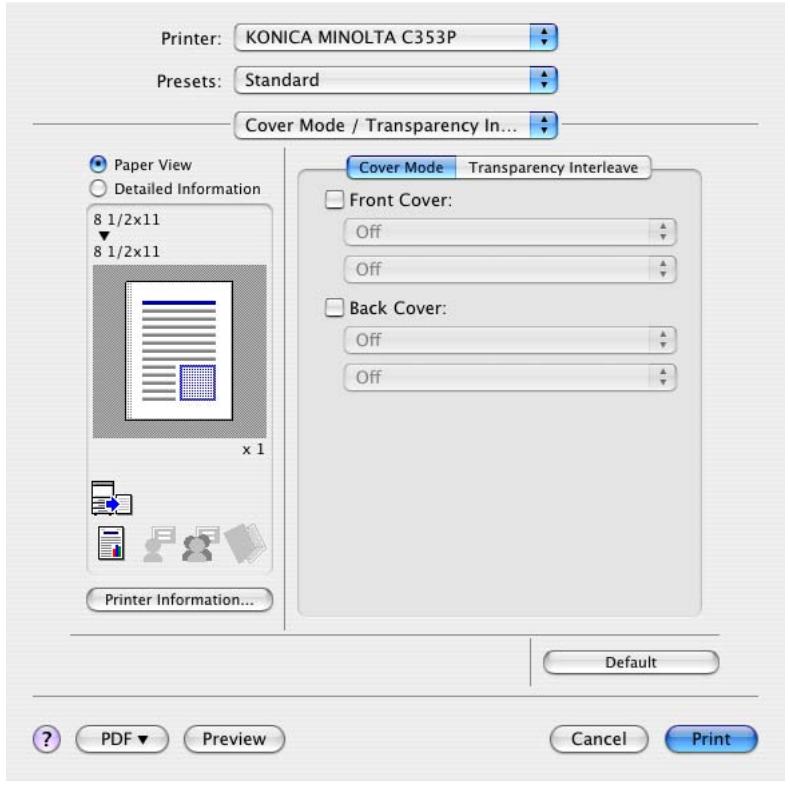
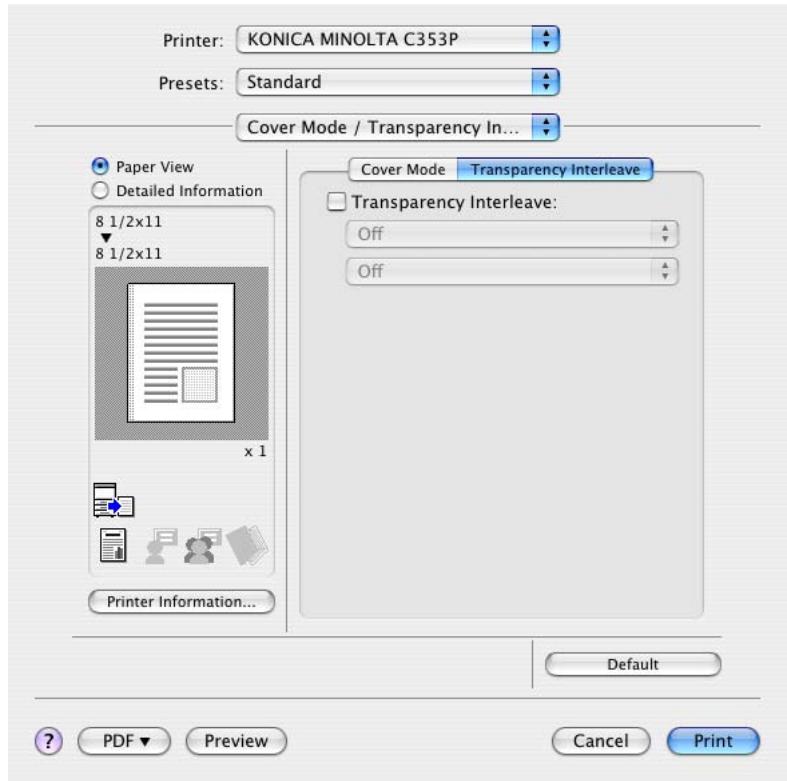
| Function name | Option | Description |
| Front Cover | Off, Print, Blank | Attaches a front cover page. You can specify it when "Auto" is not selected for the paper tray. |
| Tray 1-4, LCT, Bypass Tray | Selects the paper tray for the cover page. The selectable items differ depending on the options that are installed. | |
| Back Cover | Off, Print, Blank | Attaches a back cover page. You can specify it when "Auto" is not selected for the paper tray. |
| Tray 1-4, LCT, Bypass Tray | Selects the paper tray for the back cover page. The selectable items differ depending on the options that are installed. | |
| Transparency Inter-leave | ON/OFF | Outputs and inserts interleaves when printing over-head projector transparencies. You can specify it when "Transparency" is selected for the paper type. |
| Tray 1-4, LCT | Selects the paper tray for the transparency inter-leaves. The selectable items differ depending on the options that are installed. |
8.5.7 Per Page Setting
The print type and paper tray can be specified for each page. This function is convenient when changing the paper tray during a print job to print multiple pages. The settings are added to the Per Page Setting list and can be used as necessary.
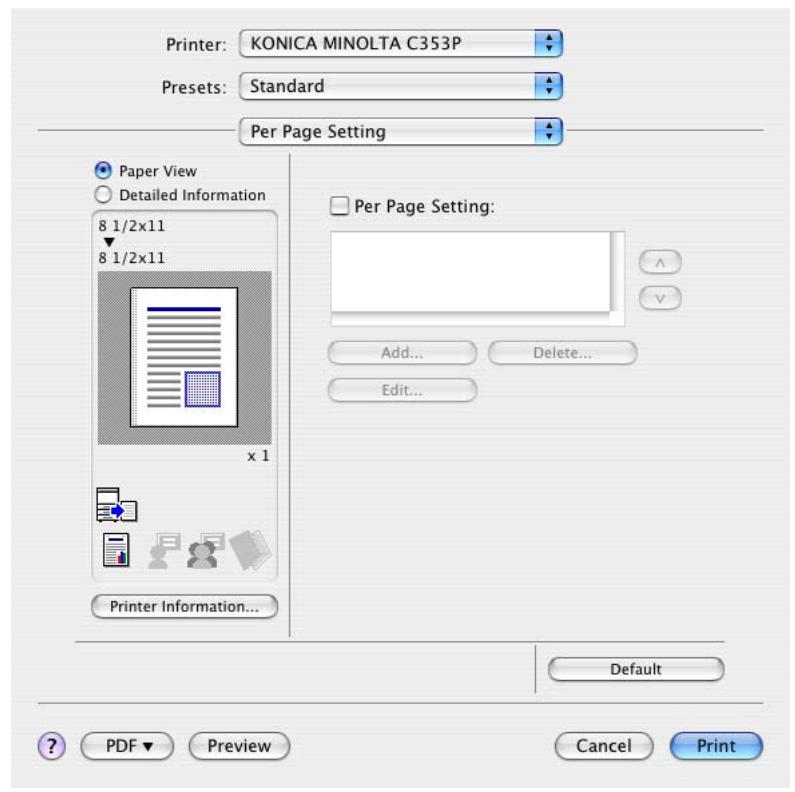
| Function name | Option | Description |
| Per Page Setting | ON/OFF | Inserts paper between pages and switches the paper and tray for each page. |
| [Add] | — | Creates a conditioned list. |
| [Delete] | — | Deletes the list. |
| [Edit] | — | Edits the conditioned list. |
8.5.8 Stamp/Composition
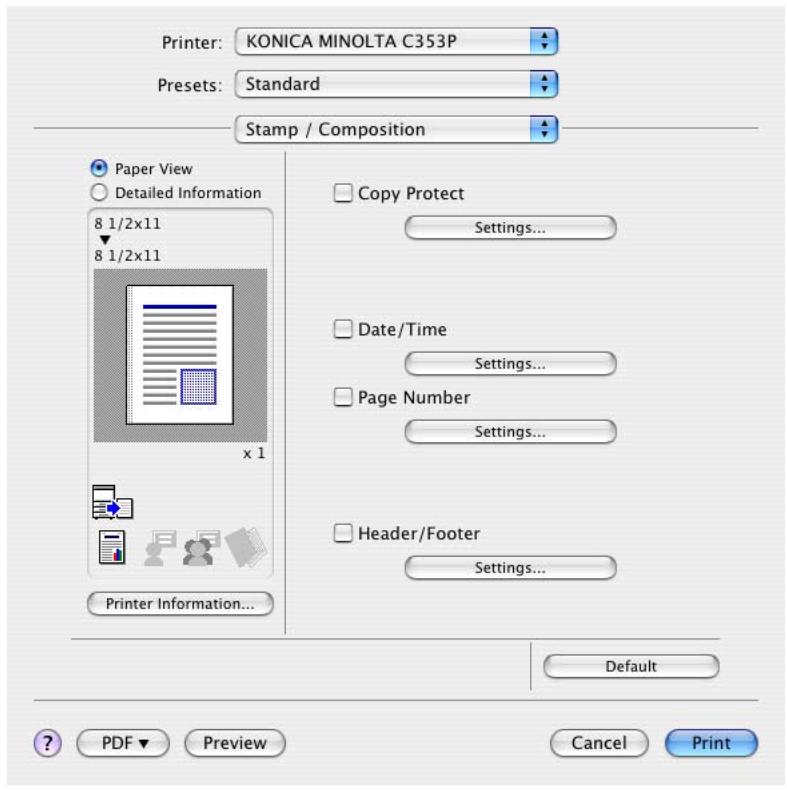
| Function name | Option | Description |
| Copy Protect | ON/OFF | Prints a special pattern to prevent copying. You can specify items, positions and the composition to be printed by clicking the [Settings] button. |
| [Settings] | — | For details, refer to "Editing copy protect" on page 8-20. |
| Date/Time | ON/OFF | You can print the date and time on a document. You can specify items, pages and positions to be printed by clicking the [Settings] button. |
| [Settings] | — | For details, refer to "Editing date/time" on page 8-22. |
| Page Number | ON/OFF | Prints the page number. You can specify items, pages and positions to be printed by clicking the [Settings] button. |
| [Settings] | — | For details, refer to "Editing page number" on page 8-22. |
| Header/Footer | Machine Setting 1-20 | Prints the header and footer. Select header/Footer information from the list specified in the printer. You can specify items and pages to be printed by clicking the [Settings] button. |
| [Settings] | — | For details, refer to "Editing header/Footer" on page 8-23. |
Editing copy protect
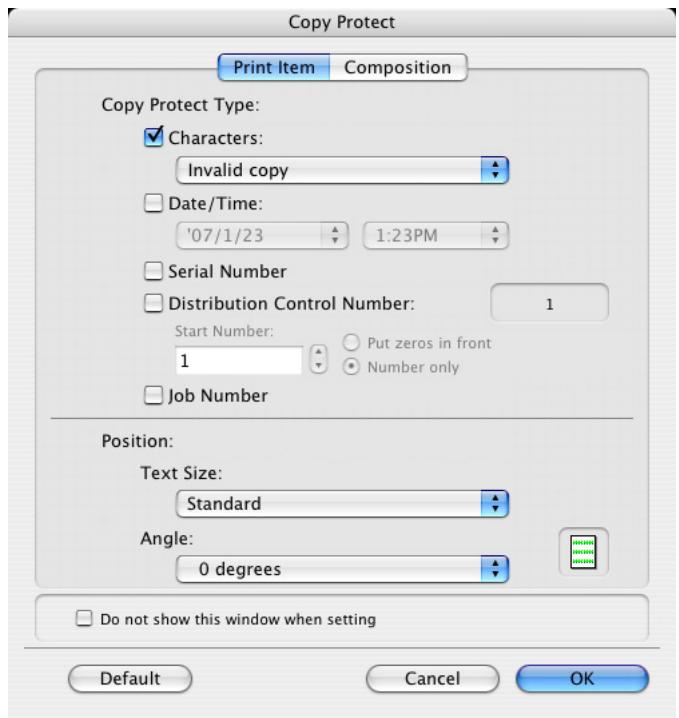
| Item | Description |
| Characters | Embeds the selected character string in a pattern. A preregistered character string (common stamp) or a character string registered on this machine (registered stamp) can be specified. |
| Date/Time | Embeds the selected date and time in a pattern. By clicking the [Edit] button under "Format", you can specify the display type or the time format. |
| Serial Number | Embeds the serial number of this machine in a pattern. |
| Distribution Control Number | Embeds the copy number in a pattern when printing multiple copies. The start number or the display type can be specified. |
| Job Number | Embeds the print job number in a pattern for documents that are automatically paginated. |
| Text Size | Specifies the text size of a pattern. |
| Angle | Specifies the pattern angle. |
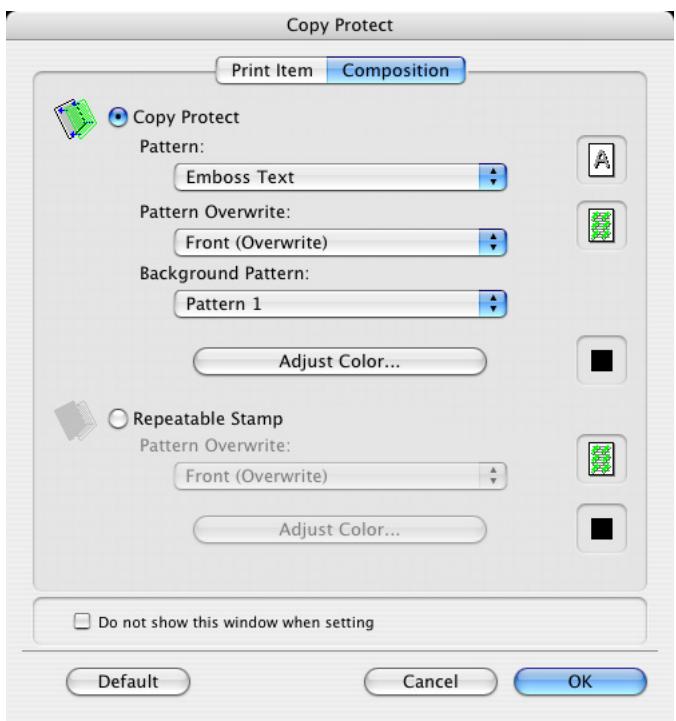
The following settings are available when "Copy Protect" is selected.
| Item | Description |
| Copy Protect | Embeds a hidden pattern that appears on unauthorized copies. |
| Pattern | Specifies the embedding method of a pattern. |
| Pattern Overwrite | Specifies the order for printing a pattern on the original. |
| Background Pattern | Specifies the pattern background. |
| Adjust Color | Specifies the color of the pattern. |
The following settings are available when "Repeatable Stamp" is selected.
| Item | Description |
| Repeatable Stamp | Prints a text pattern. |
| Pattern Overwrite | Specifies the order for printing a pattern on the original. |
| Adjust Color | Specifies the color of the pattern. |

Note
"Copy Protect" and "Repeatable Stamp" cannot be selected at the same time.
Different setting items are available for "Copy Protect" and "Repeatable Stamp".
Editing date/time
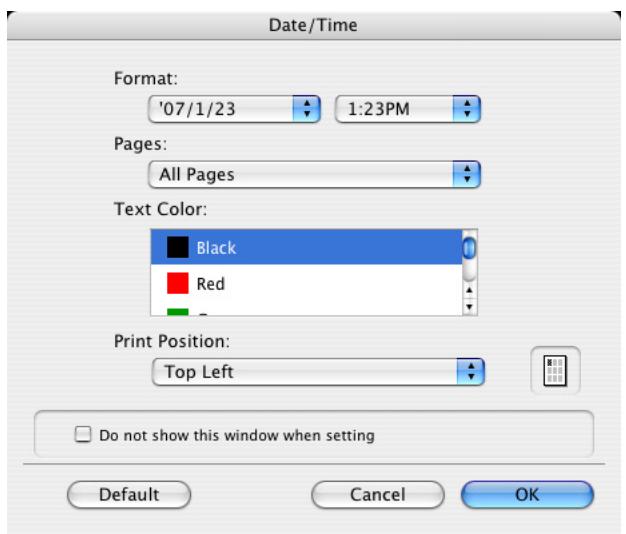
| Item | Description |
| Format | Displays the format for the date and time to be printed. |
| Pages | Specifies the pages to print the date and time. |
| Text Color | Specifies the text color used for printing. |
| Print Position | Specifies the print position. |
Editing page number
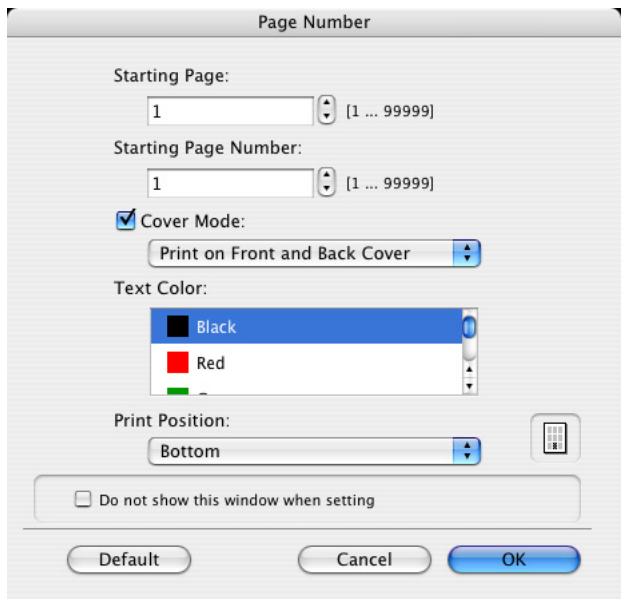
| Item | Description |
| Starting Page | Specifies the page to start printing the page number. |
| Starting Page Number | Specifies the start number for printing the page number. |
| Cover Mode | If cover pages are attached, specifies whether to print the page number on the front cover page or the back cover page. |
| Text Color | Specifies the text color used for printing. |
| Print Position | Specifies the print position. |
Editing header/Footer
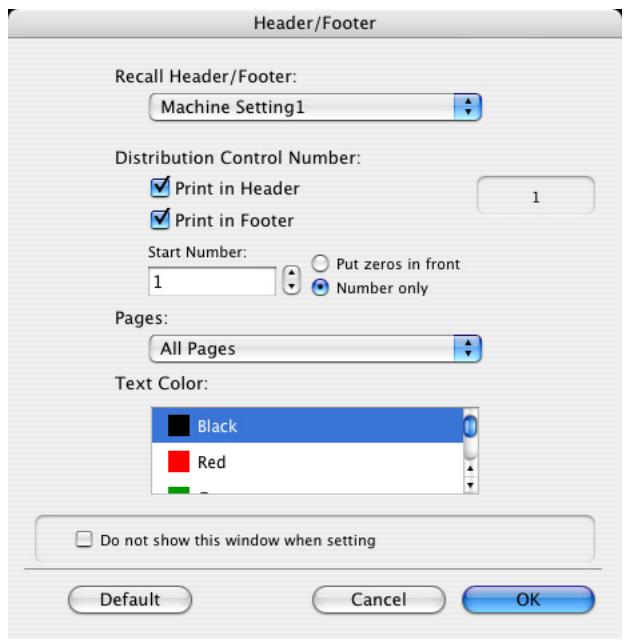
| Item | Description |
| Recall Head-er/Footer | Selects the header/Footer settings registered in this machine. |
| Distribution Control Number | Prints the number of copies in the header and footer when printing multiple copies. The start number or the number of digits displayed can be specified. |
| Pages | Specifies the pages to print the header and footer. |
| Text Color | Specifies the text color used for printing. |
8.5.9 Quality
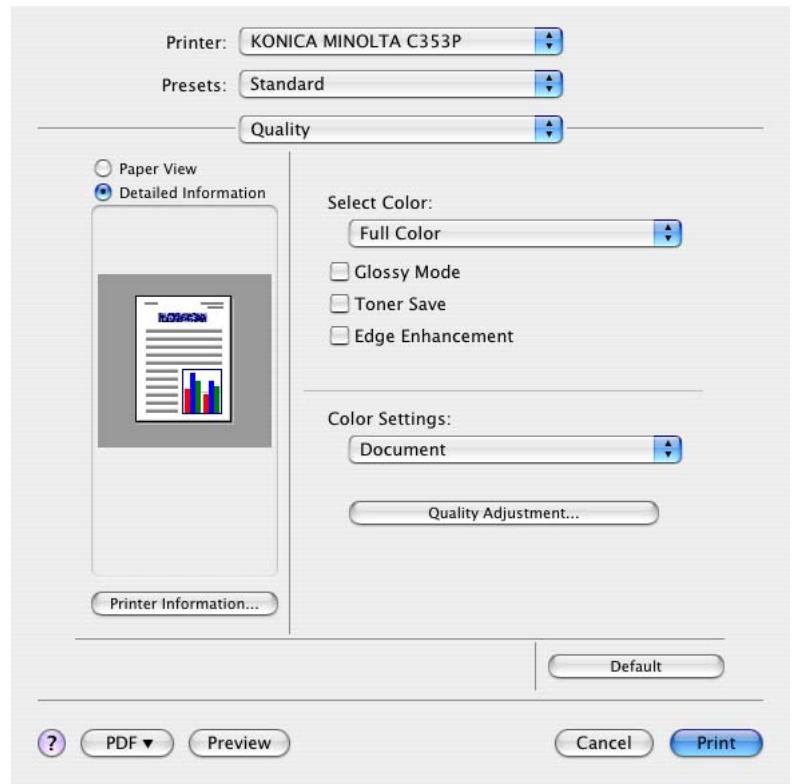
| Function name | Option | Description |
| Select Color | Full Color, Gray Scale | Specifies the color to be printed. |
| Glossy Mode | ON/OFF | Prints using a gloss finish. |
| Toner Save | ON/OFF | Controls the print density and saves the toner consumption. |
| Edge Enhancement | ON/OFF | Highlights the edge of characters, graphics and images to make small characters more visible. You can specify it when "Gray Scale" is selected for the color. |
| Color Settings | Document, photo, DTP, Web, CAD | Prints with a quality suitable for the selected original document. Document: Prints with a quality suitable for documents with many characters. Photo: Prints with a quality suitable for photos. DTP: Prints with a quality suitable for documents produced using DTP. Web: Prints with a quality suitable for Web page printing. CAD: Prints with a quality suitable for CAD data printing. |
| Quality Adjustment | - | Adjusts the image quality. You can select "Simple" to adjust entire documents or "Detail" to adjust the text, photos, figures, tables, and graphs in the original. You can also manage the profile. |

Detail
For details on profile management, refer to "ICC profile settings" on page 9-38.
8.6 Printing operations for OS 9
Print jobs are specified from the application software.
1 Open the data in the application, click the [File] button, and then click "Print" from the menu.
- If the menu is not available, click the [Print] button.
The Print dialog box appears.
2 Check that an appropriate printer name has been selected by the "Printer".
- If the selected printer is not appropriate, click to select an appropriate printer.
- If the printer does not appear, select a printer from "Chooser". For details, refer to "Selecting and connecting the printer" on page 6-12.
The Print dialog box differs depending on the application.
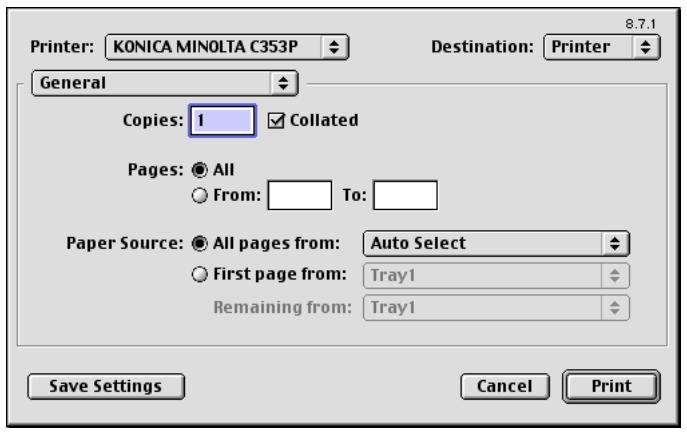
3 Specify the print range and the number of copies to print.
4 Change the setting screen to change the printer driver settings as necessary.
- When you change the "General" menu, other setting screens of the printer driver appear and allows you to specify various functions. For details, refer to "Parameter details for the OS 9 printer driver" on page 8-28.
5 Click the [Print] button.
The data indicator of this machine flashes.

Detail
The printer driver setting changed on the Print dialog box is not saved and the original settings are restored when the application is quit.
8.7 Default settings for the OS 9 printer driver
When you have installed the printer driver, you need to change the initialization condition such as options before daily printing and enable functions of this machine from the printer driver.

Reminder
If the model name and installed options are not specified, the option functions cannot be used from the printer driver. When installing options, be sure to make the proper settings.
8.7.1 Options
1 On the "Apple" menu, select "Chooser".
2 Select the printer name.
3 Click the [Setup] button.
4 Click the [Configure] button.
- When the machine is specified as the LPR printer, double-click the LPR printer icon on the desktop, select the "Printer" menu, and then click "Change Setup" to display the dialog box for option settings.
The dialog box for option settings appears.
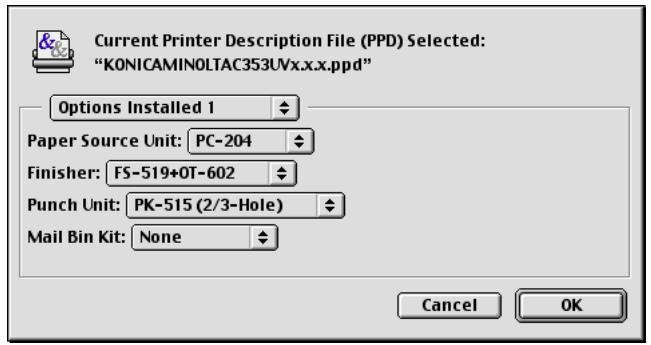
5 Set options installed on this machine in the Options Installed 1 and Options Installed 2 dialog boxes.
6 Click the [OK] button.
The Chooser dialog box appears again.
7 Close the Chooser dialog box.

Note
The option settings are displayed automatically the first time the printer driver is selected. For details, refer to "Selecting and connecting the printer" on page 6-12.
8.7.2 Registration of the default settings
The settings specified for the functions of this machine when printing can only be applied while using the application. When the application is quit, the settings return to their default settings.

Detail
For the function and settings of the printer driver, refer to "Parameter details for the OS 9 printer driver" on page 8-28.
To register the settings, save the settings in the printer driver setting.
- For OS 9.2, select the Print dialog box and click the [Save Settings] button to save it.
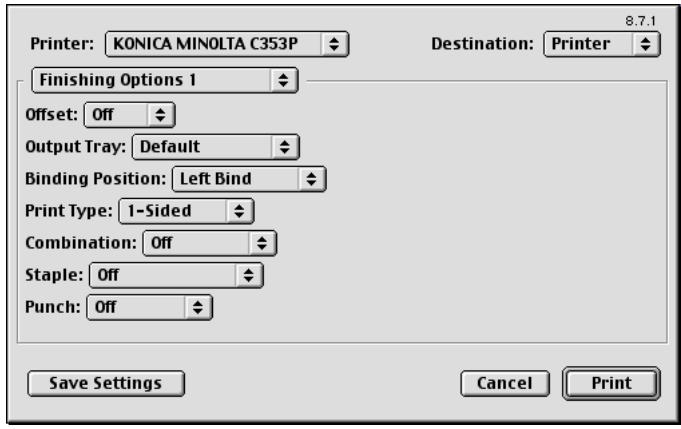

Note
The settings cannot be saved from the Page Setup dialog box.
The "General" settings on the Print dialog box cannot be saved.
8.8 Parameter details for the OS 9 printer driver
The printer driver functions are specified in the Page Attributes dialog box called from the Page Setup dialog box or the Layout/Finish dialog boxes called from the Print dialog box.
8.8.1 Page Attributes
In the [File] menu, select "Page Setup" (or "Paper Setup").
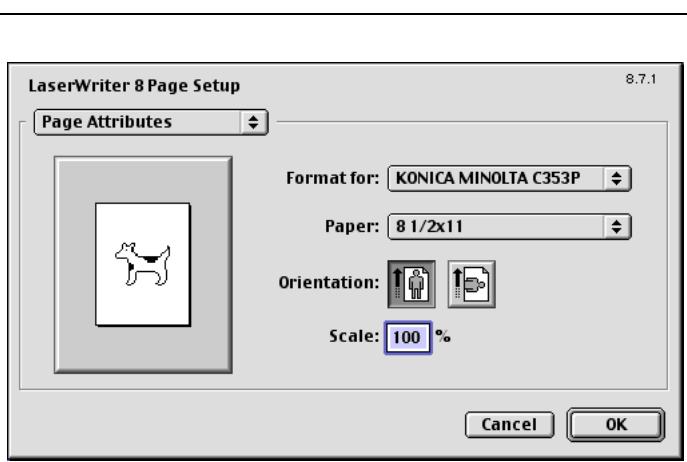
| Item | Description |
| Paper | Specifies the output paper size. |
| Orientation | Specifies the orientation of the original. |
| Scale | Specifies the enlargement and reduction ratio. |

Note
To print on paper sizes other than the standard sizes, be sure to set the custom paper sizes in "Custom Size Settings" first. For details on registering a non-standard paper size, refer to "Setting Custom Page Size" on page 8-29.
8.8.2 Setting Custom Page Size
Select "Custom Paper Size" on the Page Setting dialog box.
1 In the [File] menu, select "Paper Setup" (or "Page Setup").
2 Select "Custom Page Sizes".
3 Click the [Add] button.
4 Specify settings for the following:
- Paper size: Specifies the intended paper size.
- Printer Margins: Specifies the paper margins.
- Custom Page Size Name: Enter the registered name for the specified paper size and margins, and then click the [OK] button.
- Unit: Selects the specified unit.
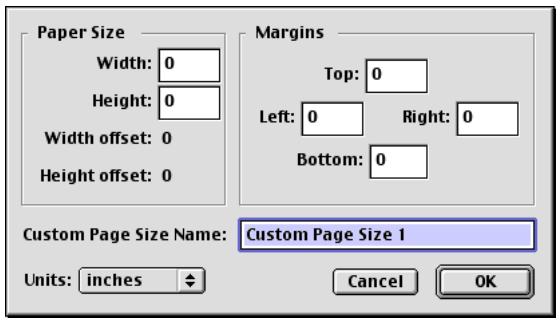
5 Click the [OK] button.
This saves the custom page size, which can be selected from the "Paper" drop-down list in the Page Attributes dialog box.
8.8.3 General
In the [File] menu, select "Print".
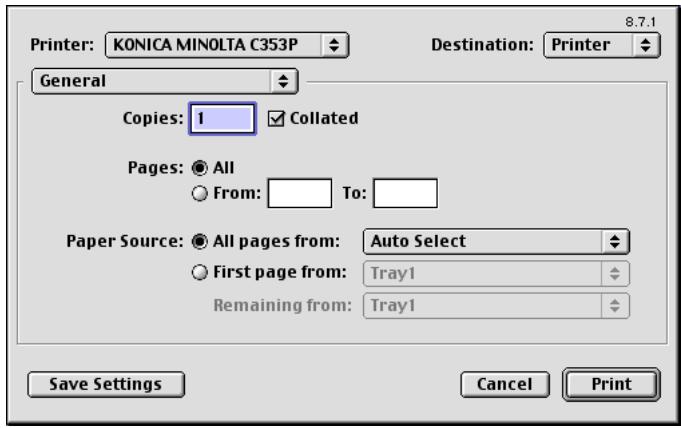
| Item | Description |
| Copies | Specifies the number of copies to be printed. |
| Collated | Specifies whether to print multiple copies by collating them. |
| Pages | Specifies the print range to print. |
| Paper Source | Selects the paper tray to be used. |
8.8.4 Layout (Pages per sheet)
Specify to print multiple pages on one page.
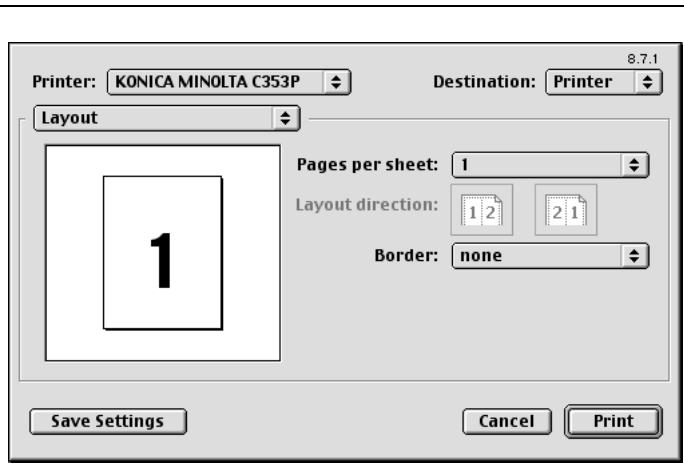
| Item | Description |
| Pages per sheet | Allocates multiple pages in one page. |
| Layout direction | Specifies the document page order. |
| Border | Specifies the borders around pages. |
8.8.5 Printer specific options (Finishing Options 1 to 5)
Specifies the printer specific options. These options are specified when functions of this machine such as staple and punch are to be used.

| Item | Description |
| Offset | Specifies offset. |
| Output Tray | Selects the output tray. |
| Binding Position | Selects the binding direction. |
| Print Type | Performs duplex printing. |
| Combination | Performs booklet printing. |
| Staple | Performs stapling. |
| Punch | Performs hole punching. |
| Fold | Performs folding. |
| Image Shift | Prints by shifting the entire print image. |
| Front Cover | Attaches a front cover page. |
| Front Cover Tray | Selects the paper tray for the front cover. |
| Back Cover | Attaches a back cover page. |
| Back Cover Tray | Selects the paper tray for the back cover. |
| Transparency Inter-leave | Inserts interleaves between transparencies. |
| Interleave Tray | Selects the paper tray for the transparency interleaves. |
| Output Method | Specifies whether to stop printing temporarily after one copy of the document has been printed, so that the proof print can be checked. |
| Resolution | Specifies the resolution. |
| Select Color | Specifies whether to print in color or gray scale. |
| Glossy Mode | Prints using a gloss finish. |
| Color Settings | Prints with a quality suitable for the original. |
| Color Matching (Text) | Adjusts the color quality of the text in a document. |
| Pure Black (Text) | Specifies whether to enable pure black of the text in a document. |
| Screen (Text) | Specifies screening of the text in a document. |
| Color Matching (Photo) | Adjusts the color quality of the photo in the original. |
| Pure Black (Photo) | Specifies whether to enable pure black of the photo in the original. |
| Screen (Photo) | Specifies screening of the photo in the original. |
| Smoothing (Photo) | Specifies smoothing of the photo in the original. |
| Color Settings (Graphic) | Adjusts the color quality of a chart and graph in the original to the text or photo settings. |
| Smoothing (Graphic) | Adjusts smoothing of a chart and graph in the original to the text or photo settings. |
| Toner Save | Controls the print density and saves the toner consumption. |
| Edge Enhancement | Highlights the edge of characters, graphics and images to make small characters more visible. It can be specified when "Gray Scale" is selected for the color. |

Reminder
The "Staple" and "Fold" functions are available only if the optional finisher is installed.
The "punch" function is available only if the punch kit is installed on the optional finisher.

Function detail description
9 Function detail description
9.1 Proof print
The proof print function is a feature used when printing out multiple copies. It allows the machine to output one copy and pause before printing the remaining number of copies. This prevents copy errors from occurring.
When printing, use the printer driver to specify Proof Print, and use the control panel to execute printing of the remaining number of copies.
9.1.1 Setting up the printer driver
The following four printer drivers support setup of this feature:
- Konica Minolta PCL Printer Driver for Windows
- Konica Minolta PostScript Printer Driver for Windows
PostScript PPD Printer Driver for Mac OS X
PostScript PPD Printer Driver for Mac OS 9.2
Print with following settings specified:
Output Method: "Proof Print"
Number of Copies: Two or more
For Windows
1 Click the Basic tab.
2 Select "Proof Print" from options under "Output Method".
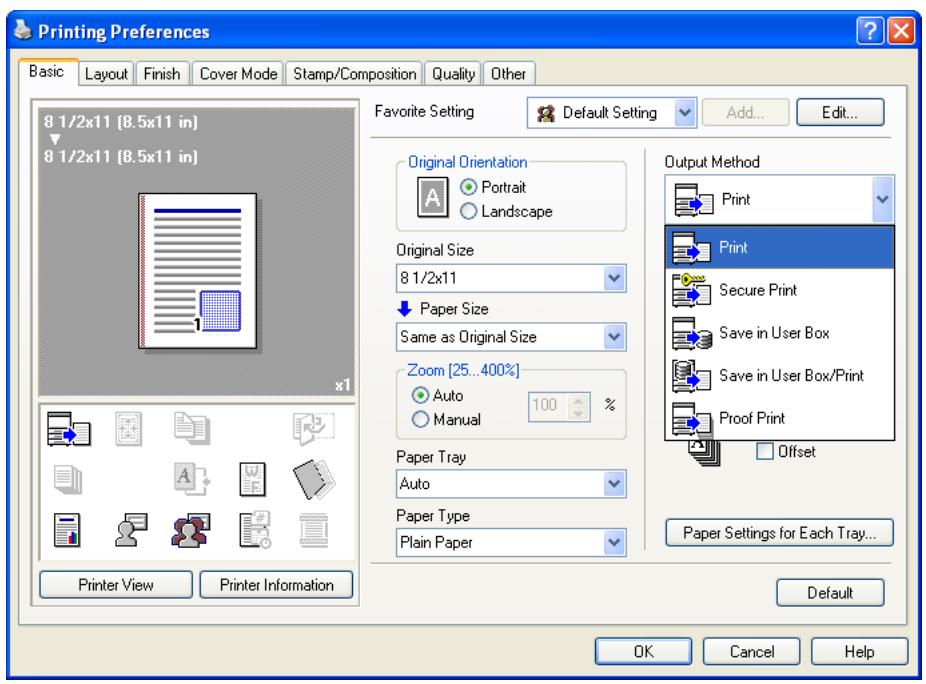
3 Specify the number of copies to be printed.
One copy is printed for checking.
For Macintosh OS X
1 Display the "Output Method" dialog box.
2 Select "Proof Print" from options under "Output Method".
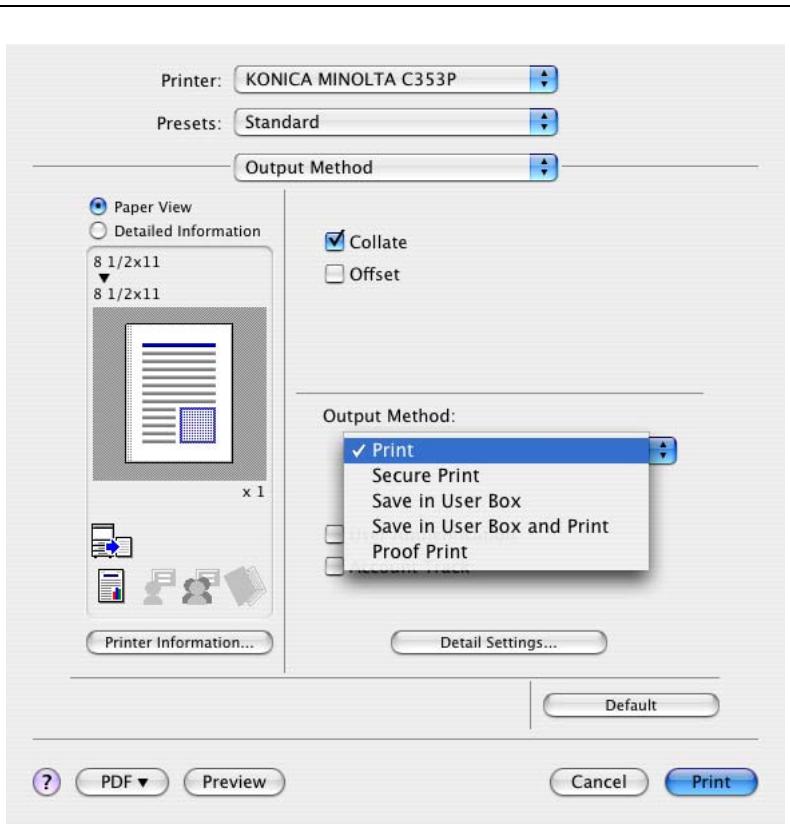
3 Specify the number of copies to be printed.
One copy is printed for checking.

Note
In OS 9.2, select "Output Method" in the "Finishing Option 3" dialog box.
9.1.2 Recalling a job from the control panel
Press the [Menu/Select] key, and then the "Utility" menu appears. From this menu, select [Job Operation] - [Proof print].

Note
For details on the "Utility" menu operations, refer to "Control panel" on page 10-3.
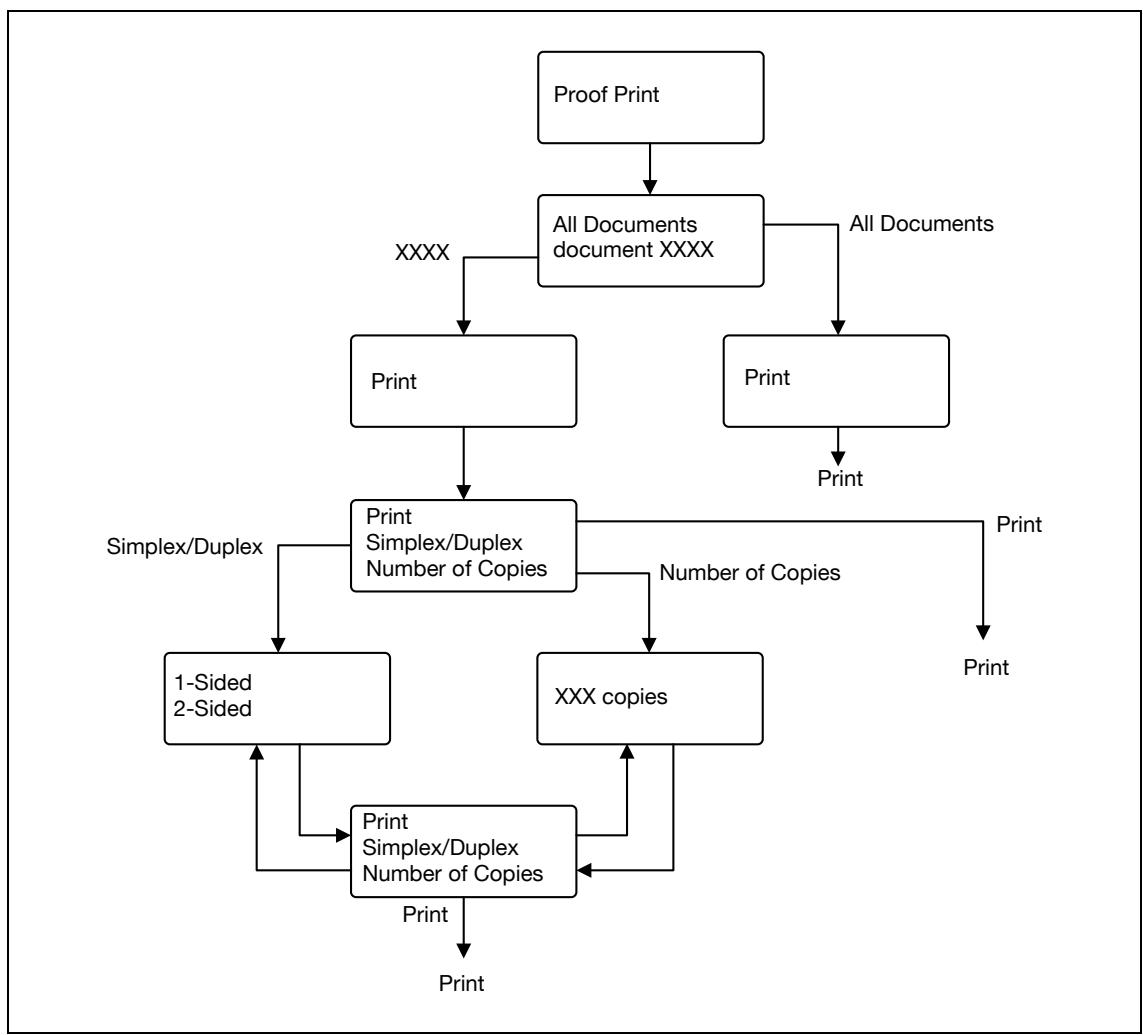

Note
If the user authentication function has been specified on the machine, the screen to input the user name appears after the Job Operation screen. Enter the user name and password.
If the Account Track function has been specified on the machine, the screen to input the department name appears after the Job Operation screen. Enter the department name and password.
9.2 Secure print
The secure print function saves print jobs in the secure print user box on the machine. As a job is output only when the ID and password are entered from the control panel, it is helpful for outputting confidential documents.
When printing, use the printer driver to specify Secure Print, and then use the control panel to execute printing.

Note
The Secure print function is available only if a hard disk is installed on this machine.
9.2.1 Setting up the printer driver
The following three printer drivers support setup of this feature:
- Konica Minolta PCL Printer Driver for Windows
- Konica Minolta PostScript Printer Driver for Windows
PostScript PPD Printer Driver for Mac OS X
Print with the following setting specified:
Output Method: "Secure Print"
For Windows
1 Click the Basic tab.
2 Select "Secure Print" from the "Output Method" drop-down list.
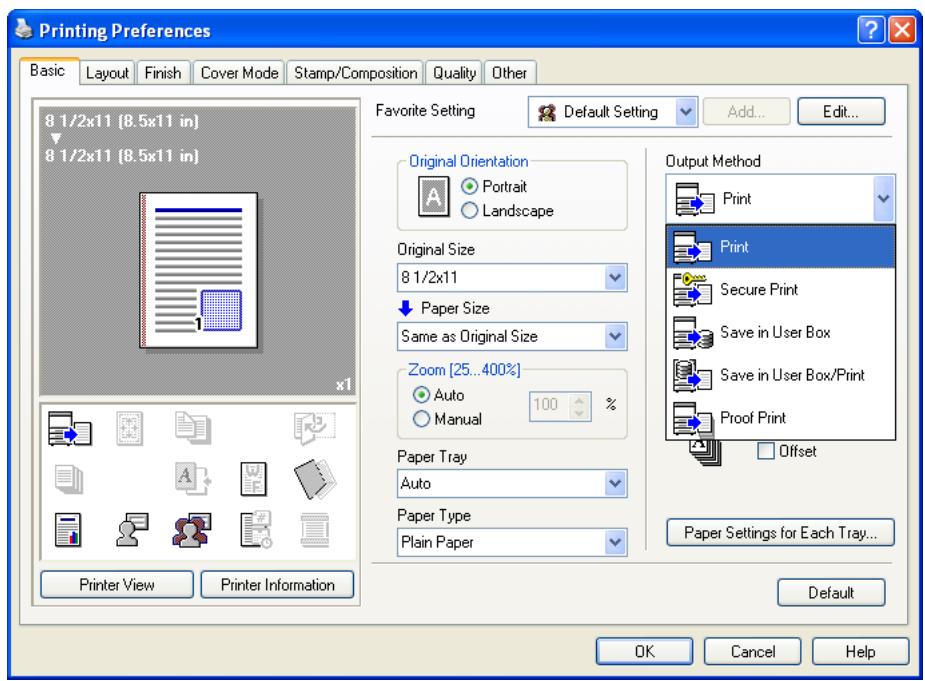
3 Enter the ID and password.
- When password rules are enabled on this machine, the passwords that can be used with Secure Print are limited and the jobs are deleted when a password that does not comply with the password rules is entered. For details on the password rules, refer to "Admin. Settings Menu" on page 10-23.
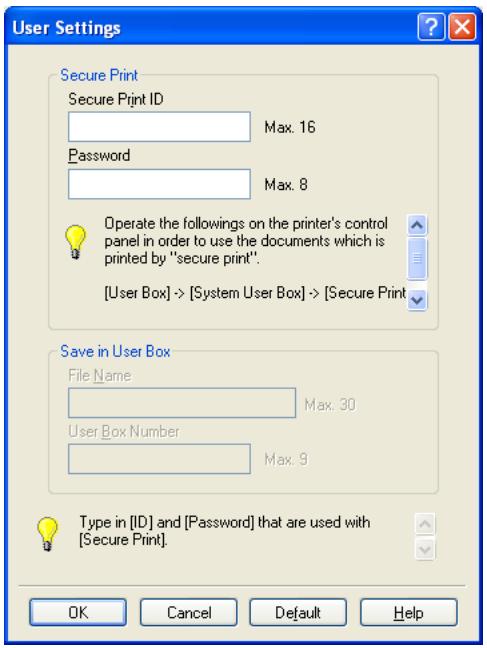
4 Print the document.

Reminder
The ID and password that are required to print a secured document can be preregistered in the User Settings dialog box on the Basic tab. If the same ID and password always used, by preregistering them, the dialog box for entering the ID and password will not appear when selecting "Secure Print".
For Macintosh OS X
1 Display the "Output Method" dialog box.
2 Select "Secure Print" from the "Output Method" drop-down list.
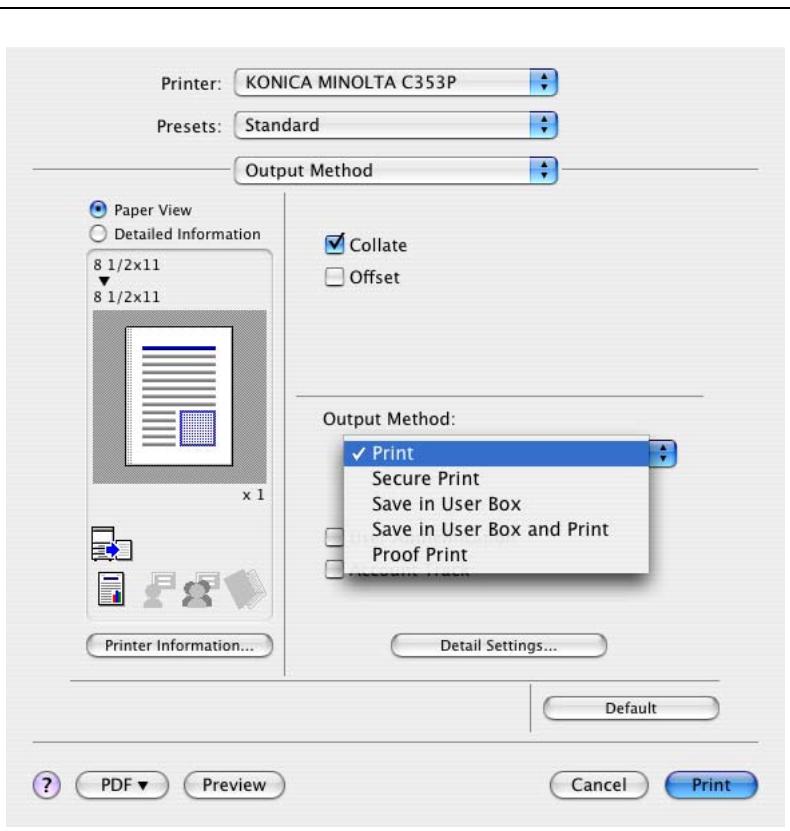
3 Enter the ID and password.
- When password rules are enabled on this machine, the passwords that can be used with Secure Print are limited and the jobs are deleted when a password that does not comply with the password rules is entered. For details on the password rules, refer to "Admin. Settings Menu" on page 10-23.
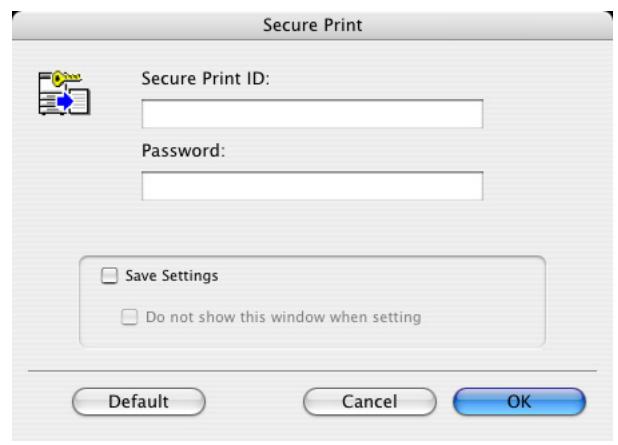
4 Print the document.

Note
Select the "Save Settings" check box to save the specified settings. In addition, if the "Do not show this window when setting" check box is selected, the dialog box does not appear when the function is specified.
9.2.2 Recalling a job from the control panel
"Secure Print" jobs are saved in the secure print user box. To print a secured document, the ID and password that were specified in the printer driver are required.
Press the [Menu/Select] key, and then the "Utility" menu appears. From this menu, select [Job Operation] - [Secure PrintBox].

Note
For details on the "Utility" menu operations, refer to "Control panel" on page 10-3.
When "Mode 1" is specified for "SecurePrintAccess", enter the ID, and then enter the password. When "Mode 2" is specified for "SecurePrintAccess", enter the ID, select a document, and then enter the password.
Secured documents are automatically deleted after a certain length of time has elapsed since their registration. The default setting for this time is specified as 1 day, and the value can be specified in the Administrator mode.
To manually delete a secured document that was printed, operate in the Administrator mode.
When "SecurePrintAccess" is set to "Mode 1"
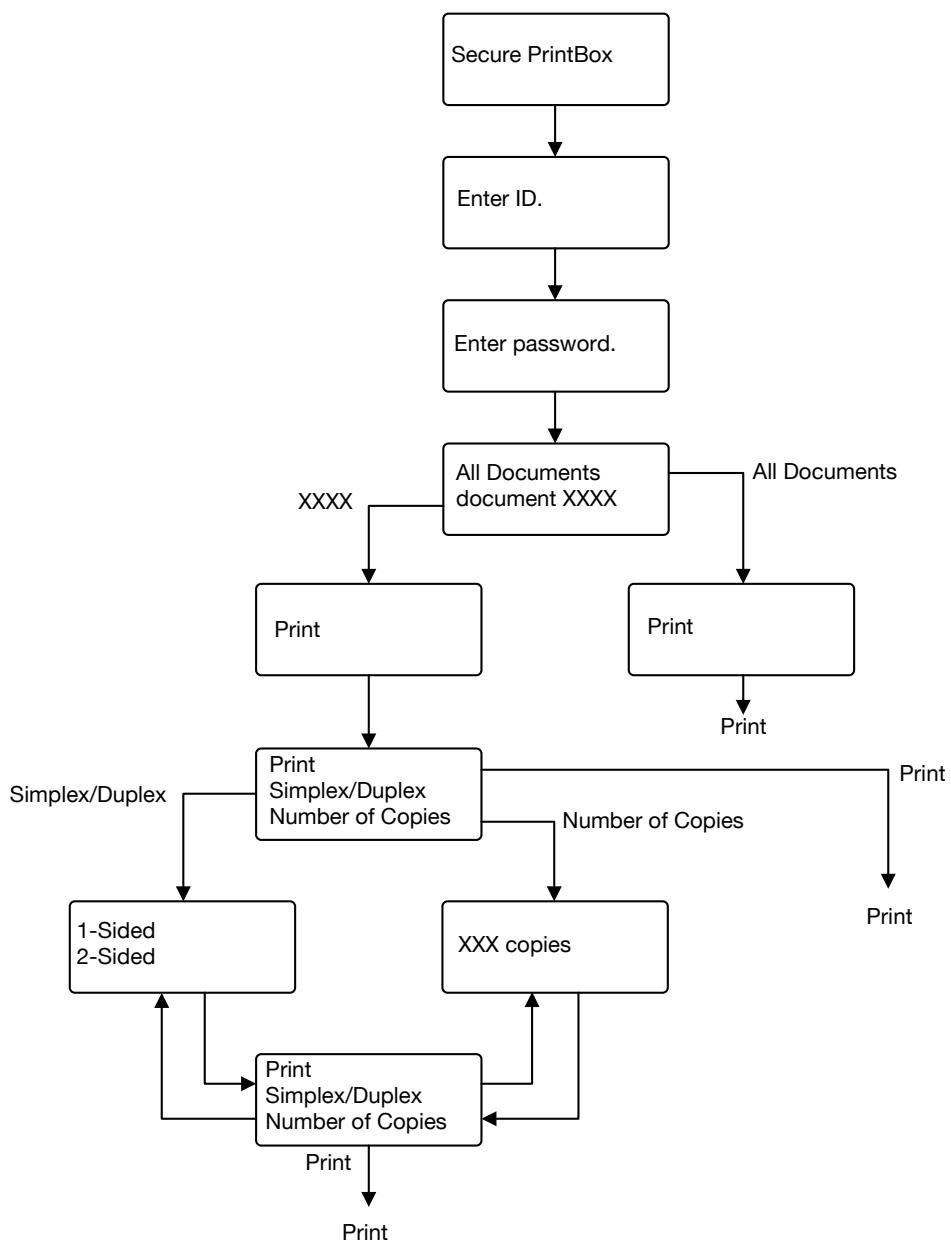

Note
If the user authentication function has been specified on the machine, the screen to input the user name appears after the Job Operation screen. Enter the user name and password.
If the Account Track function has been specified on the machine, the screen to input the department name appears after the Job Operation screen. Enter the department name and password.
When "SecurePrintAccess" is set to "Mode 2"
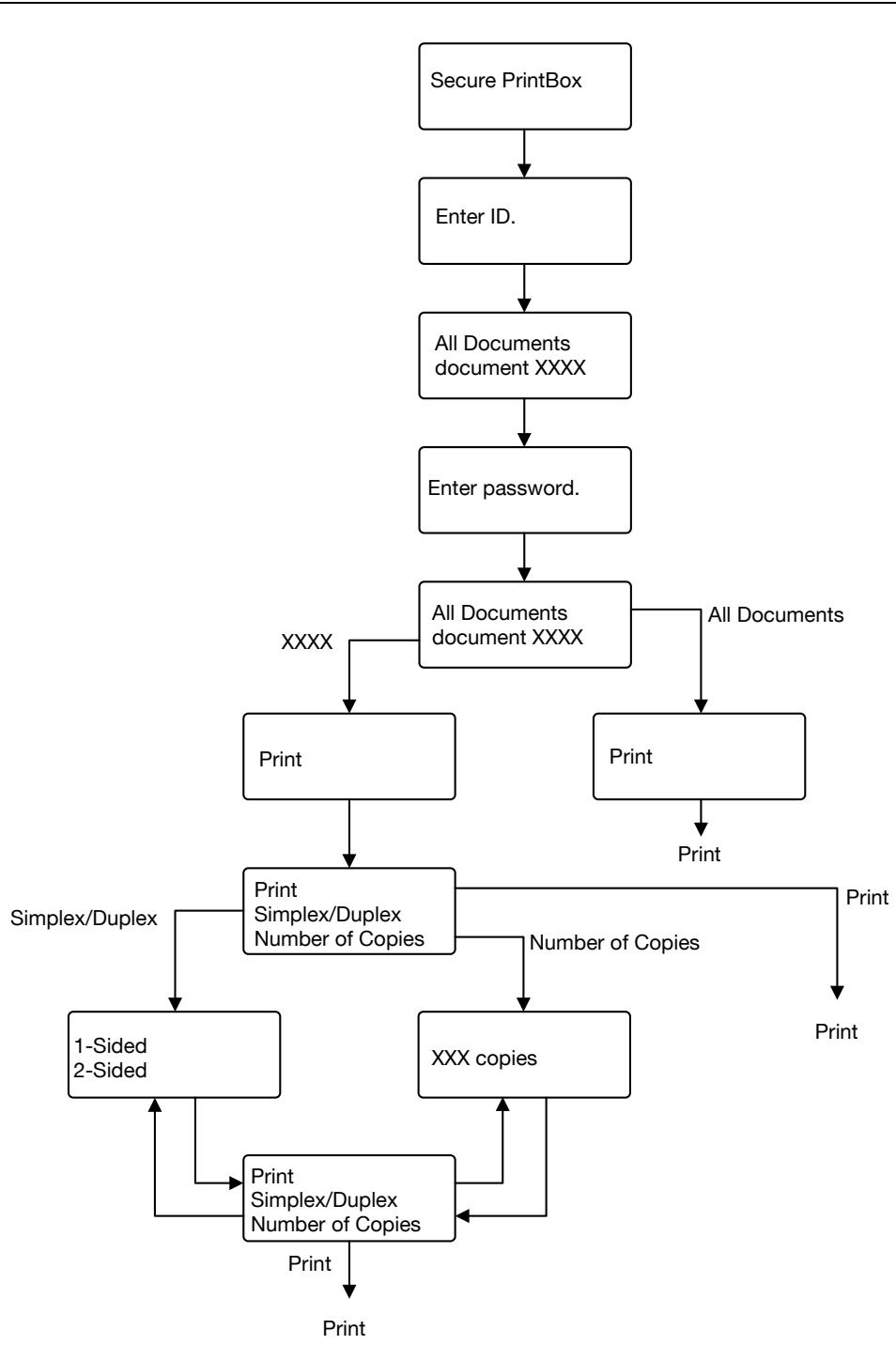

Note
If the user authentication function has been specified on the machine, the screen to input the user name appears after the Job Operation screen. Enter the user name and password.
If the Account Track function has been specified on the machine, the screen to input the department name appears after the Job Operation screen. Enter the department name and password.
9.3 Save in User Box
The Save in User Box function saves print jobs in the user box on the machine. Because a user box can be specified from the control panel to output a job. This function is also useful for document distribution.
When printing, use the printer driver to specify "Save in User Box", and then use the control panel to execute output.

Note
The User Box function is available only if a hard disk is installed on this machine.
User Box must be registered on this machine in advance. For details, refer to "Creating a new user box" on page 11-25.
9.3.1 Setting up the printer driver
The following three printer drivers support setup of this feature:
- Konica Minolta PCL Printer Driver for Windows
- Konica Minolta PostScript Printer Driver for Windows
PostScript PPD Printer Driver for Mac OS X
Print with the following settings specified:
Output Method: "Save in User Box" or "Save in User Box/Print"

Note
To save in the user box and print at the same time, select "Save in User Box/Print".
For Windows
1 Click the Basic tab.
2 Select "Save in User Box" or "Save in User Box/Print" from the "Output Method" drop-down list.
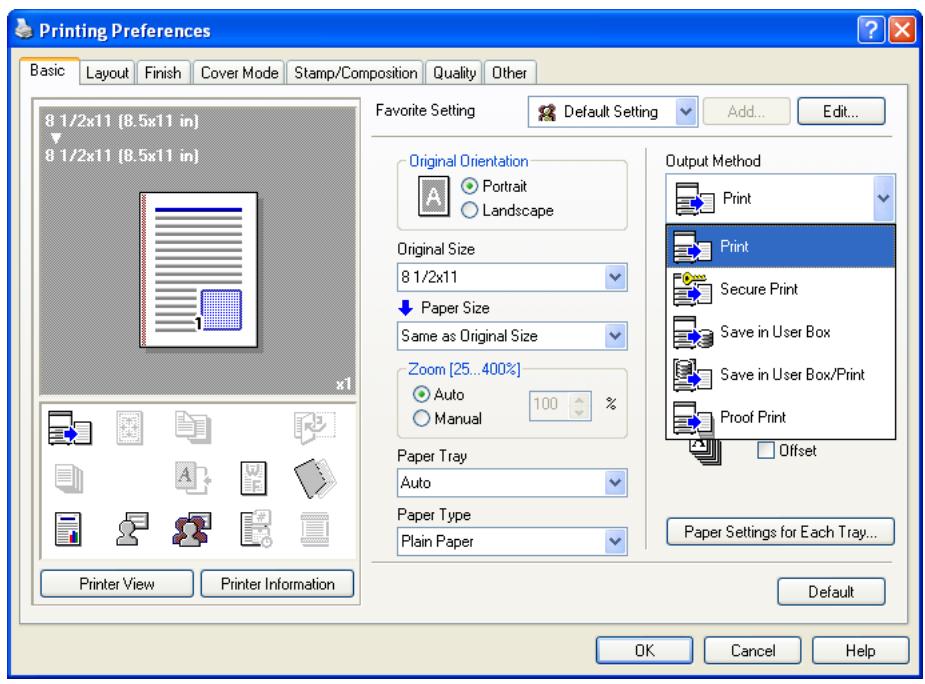
3 Enter the file name of the document and the user box number for the save location.
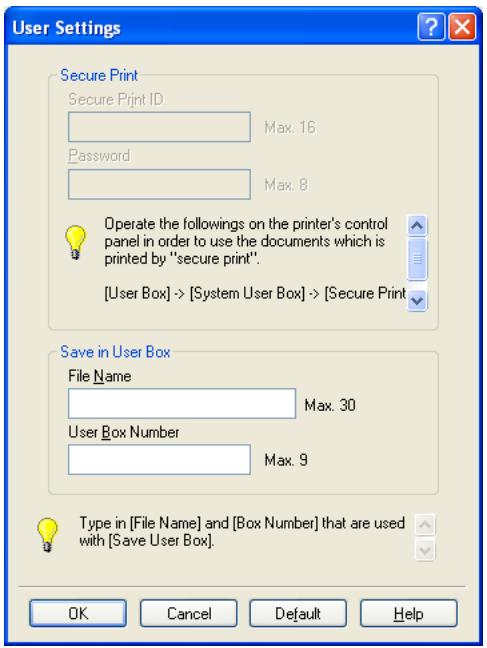
4 Print the document.

Reminder
The file name and user box number that are required to save in a user box can be preregistered in the User Settings dialog box on the Basic tab. If the same file name and user box number are always used to save document, by preregistering them, the dialog box for entering the file name and user box number will not appear when selecting "Save in User Box".
For Macintosh OS X
1 Display the "Output Method" dialog box.
2 Select "Save in User Box" or "Save in User Box/Print" from the "Output Method" drop-down list.
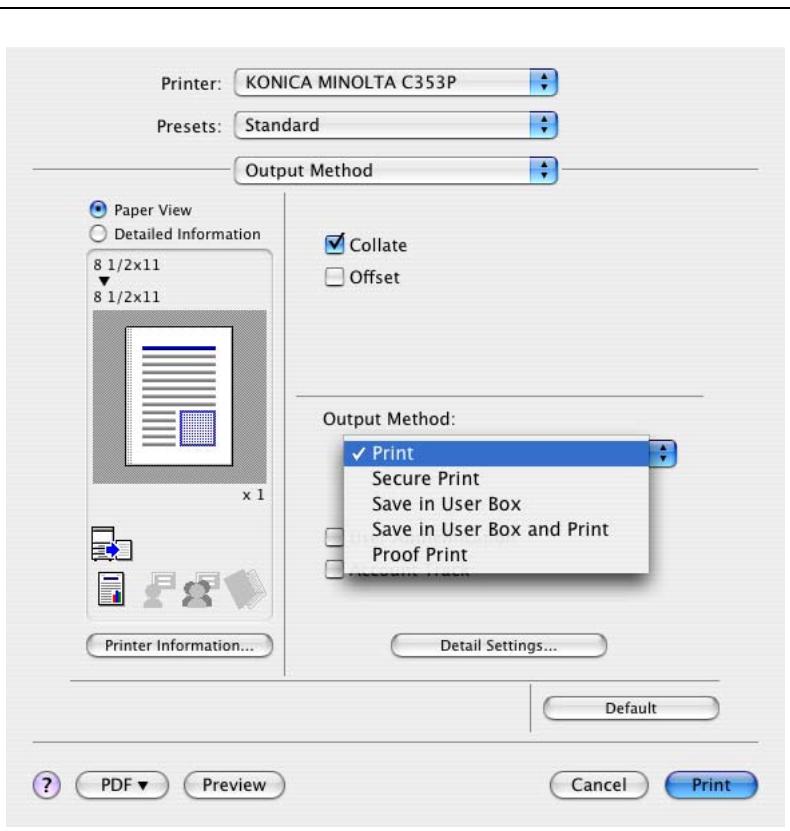
3 Enter the file name of the document and the user box number for the save location.
- Select the "Save Settings" check box to save the specified settings. In addition, if the "Do not show this window when setting" check box is selected, the dialog box does not appear when the function is specified.
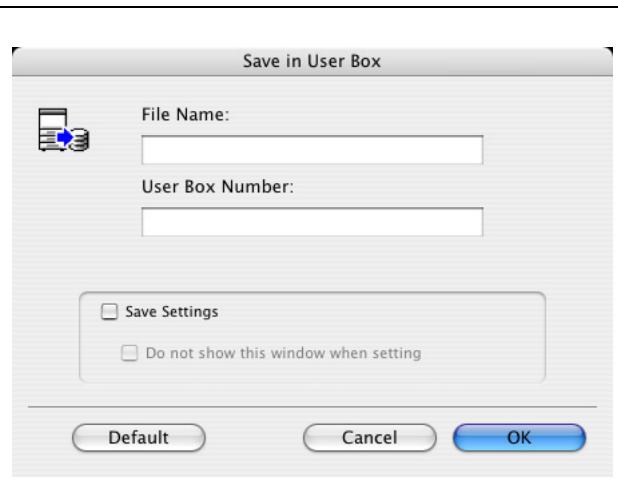
4 Print the document.
9.3.2 Recalling a job from the control panel
"Save in User Box" and "Save in User Box/Print" jobs are saved in a user box of the specified number.
To print a document saved in a user box, open the specified user box to retrieve the document. To call the user box, press the [Menu/Select] key, and then the "Utility" menu appears. From this menu, select [Job Operation]. Public User Box, Personal User Box, and Account User Box are available as user boxes. Select the box where the box to which you saved the document is registered. If a password is specified for the user box, the user box password is required.

Note
For details on the "Utility" menu operations, refer to "Control panel" on page 10-3.
Box documents are automatically deleted after a certain length of time has elapsed since their registration. The default setting of this time is specified as 1 day, and the setting can be specified when creating the user box.
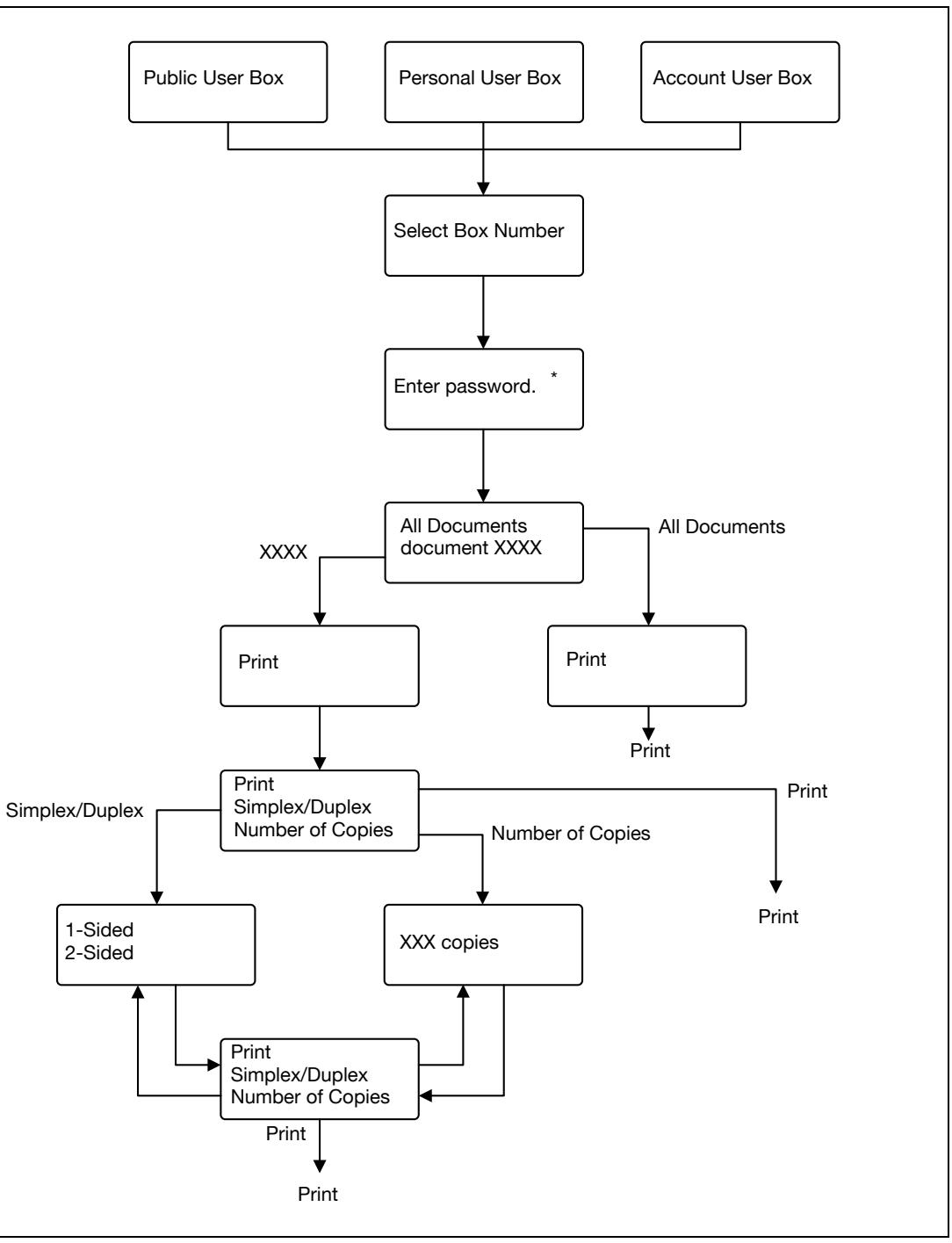
* If a password is specified for the user box.

Note
If the user authentication function has been specified on the machine, the screen to input the user name appears after the Job Operation screen. Enter the user name and password.
If the Account Track function has been specified on the machine, the screen to input the department name appears after the Job Operation screen. Enter the department name and password.
9.4 Save in Annotation User Box
Print jobs can be saved in the Annotation User Box using the Save in User Box function. The Annotation User Box is a system user box that can be used commonly by registered users.
When printing, use the printer driver to specify Save in User Box, and then use the control panel to execute output.

Note
The Annotation User Box function is available only if a hard disk is installed on this machine.
The Annotation User Box must be registered on this machine in advance. For details, refer to "Creating a new system user box" on page 11-28.
9.4.1 Setting up the printer driver
The following three printer drivers support setup of this feature:
- Konica Minolta PCL Printer Driver for Windows
- Konica Minolta PostScript Printer Driver for Windows
PostScript PPD Printer Driver for Mac OS X
Print with the following settings specified:
Output Method: "Save in User Box" or "Save in User Box/Print"

Note
To save in the user box and print at the same time, select "Save in User Box/Print".
For Windows
1 Click the Basic tab.
2 Select "Save in User Box" or "Save in User Box/Print" from the "Output Method" drop-down list.
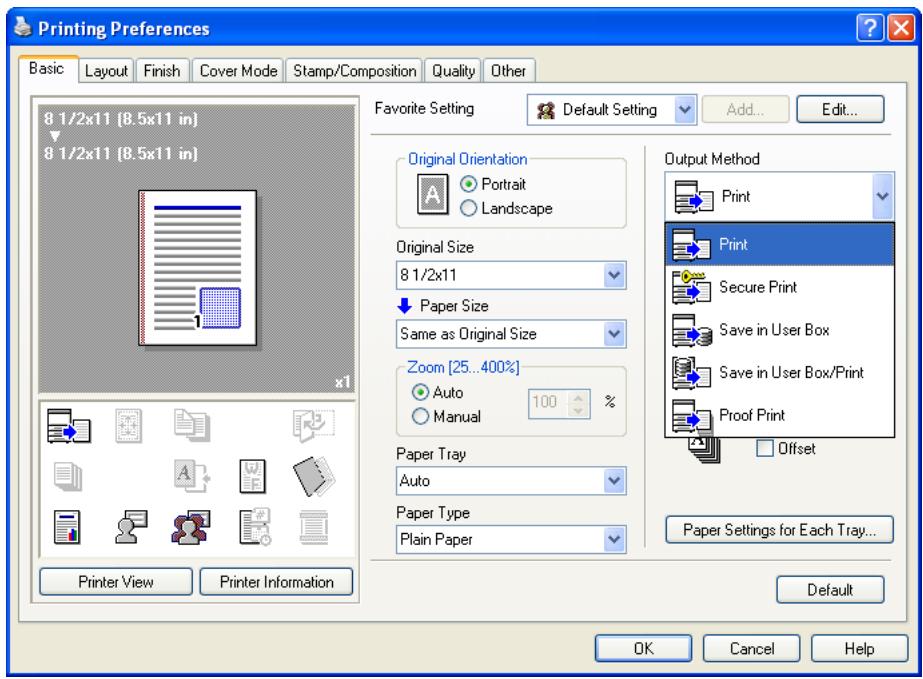
3 Enter the file name of the document and the Annotation user box number for the save location.
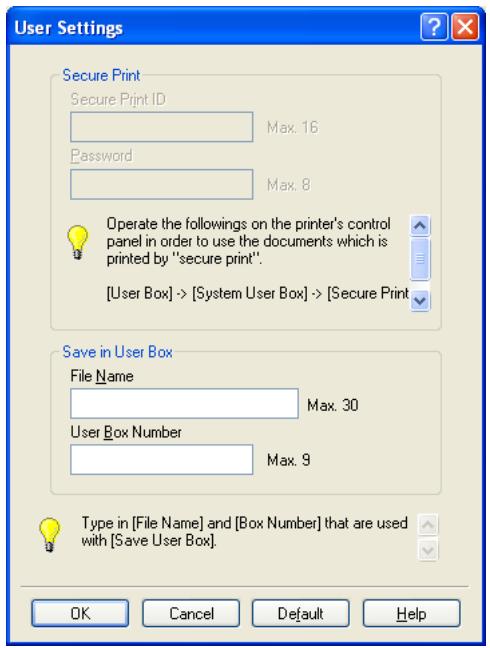
4 Print the document.

Reminder
The file name and user box number that are required to save in a user box can be preregistered in the User Settings dialog box on the Basic tab. If the same file name and user box number are always used to save document, by preregistering them, the dialog box for entering the file name and user box number will not appear when selecting "Save in User Box".
For Macintosh OS X
1 Display the "Output Method" dialog box.
2 Select "Save in User Box" or "Save in User Box/Print" from the "Output Method" drop-down list.
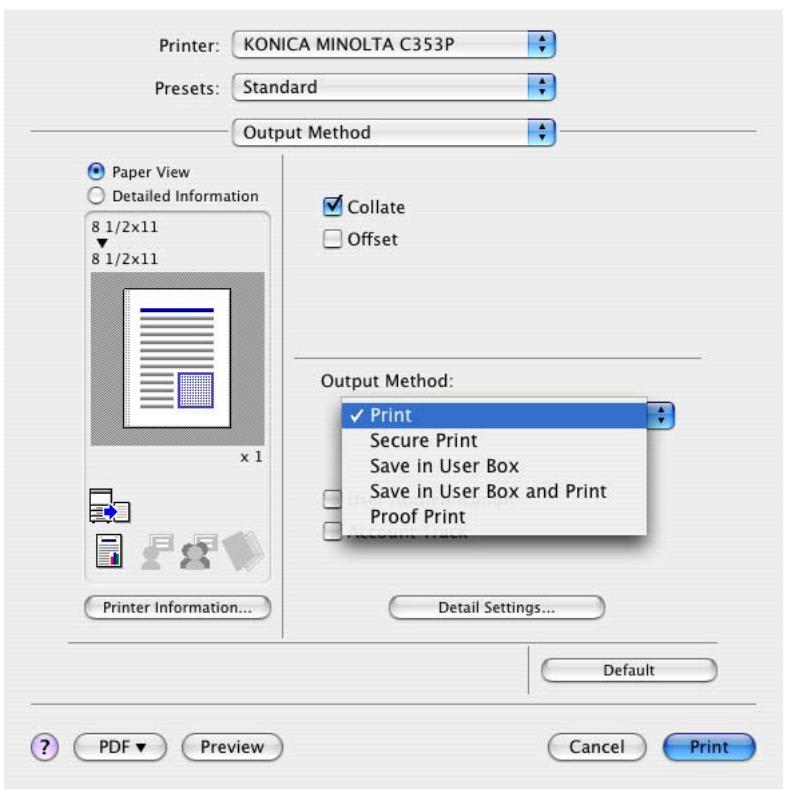
3 Enter the file name of the document and the Annotation user box number for the save location.
- Select the "Save Settings" check box to save the specified settings. In addition, if the "Do not show this window when setting" check box is selected, the dialog box does not appear when the function is specified.
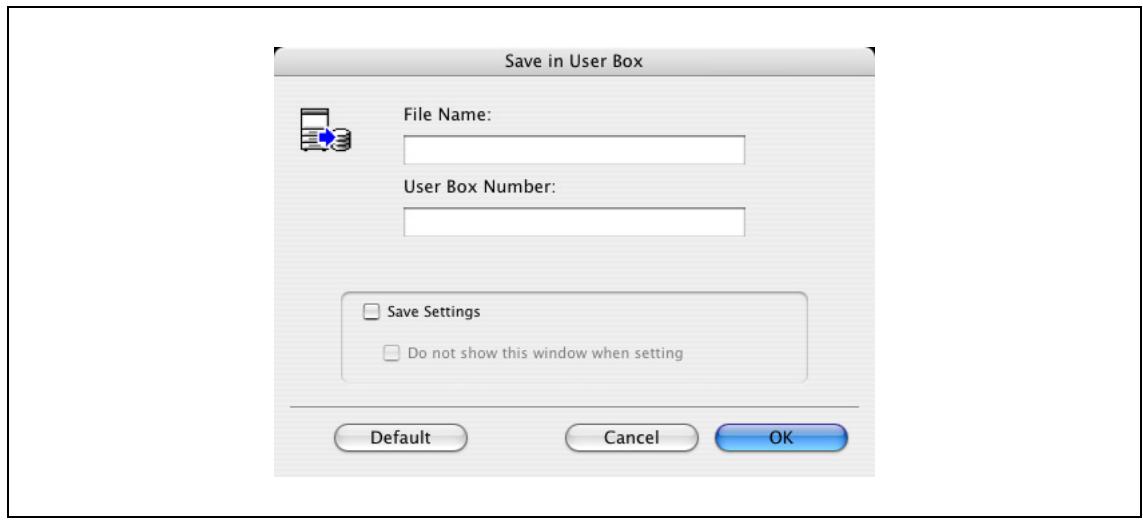
4 Print the document.
9.4.2 Recalling a job from the control panel
"Save in User Box" and "Save in User Box/Print" jobs are saved in an Annotation user box of the specified number.
To print a document saved in an Annotation user box, open the specified Annotation user box to retrieve the document. To call the user box, press the [Menu/Select] key, and then the "Utility" menu appears. From this menu, select [Job Operation] - [Annotation User Box]. Select the box where the box to which you saved the document is registered. If a password is specified for the user box, the user box password is required.

Note
For details on the "Utility" menu operations, refer to "Control panel" on page 10-3.
Box documents are automatically deleted after a certain length of time has elapsed since their registration. The default setting of this time is specified as 1 day, and the setting can be specified when creating the user box.
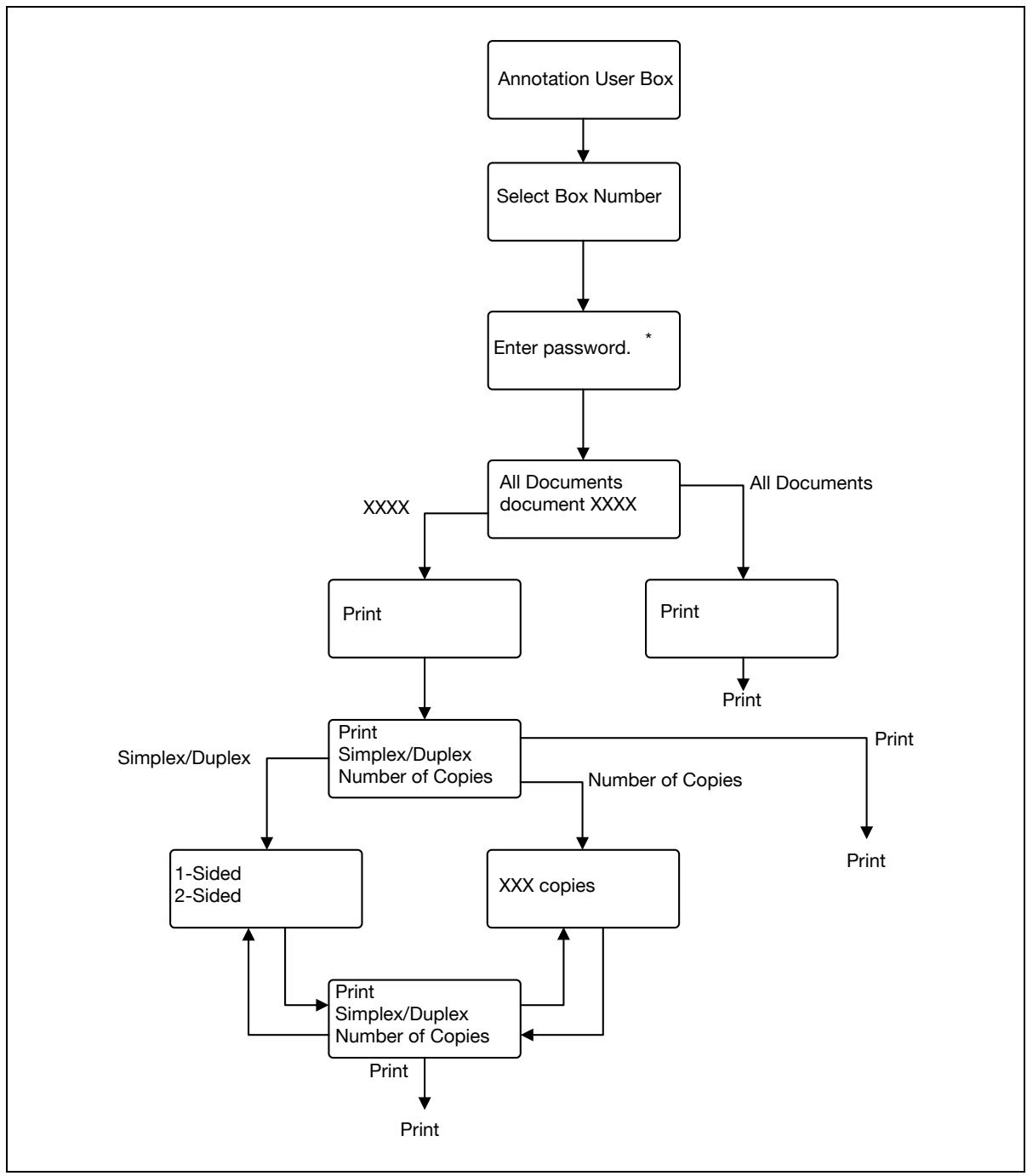
* If a password is specified for the user box.

Note
If the user authentication function has been specified on the machine, the screen to input the user name appears after the Job Operation screen. Enter the user name and password.
If the Account Track function has been specified on the machine, the screen to input the department name appears after the Job Operation screen. Enter the department name and password.
9.5 Save in Encrypted PDF Box
The Encrypted PDF Box is a function to save print jobs of the Encrypted PDF format in this machine. To save in Encrypted PDF Box, specify the desired file on the Direct Print tab of the PageScope Web Connection, and then execute output from the control panel.

Note
The Encrypted PDF Box function is available only if a hard disk is installed on this machine.
9.5.1 Specifying Encrypted PDF file
1 Save the encrypted PDF file in advance.
2 Specify the desired file in "Print" on the Direct Print tab of the PageScope Web Connection, and then click the [Print] button.
The file is sent to the machine.
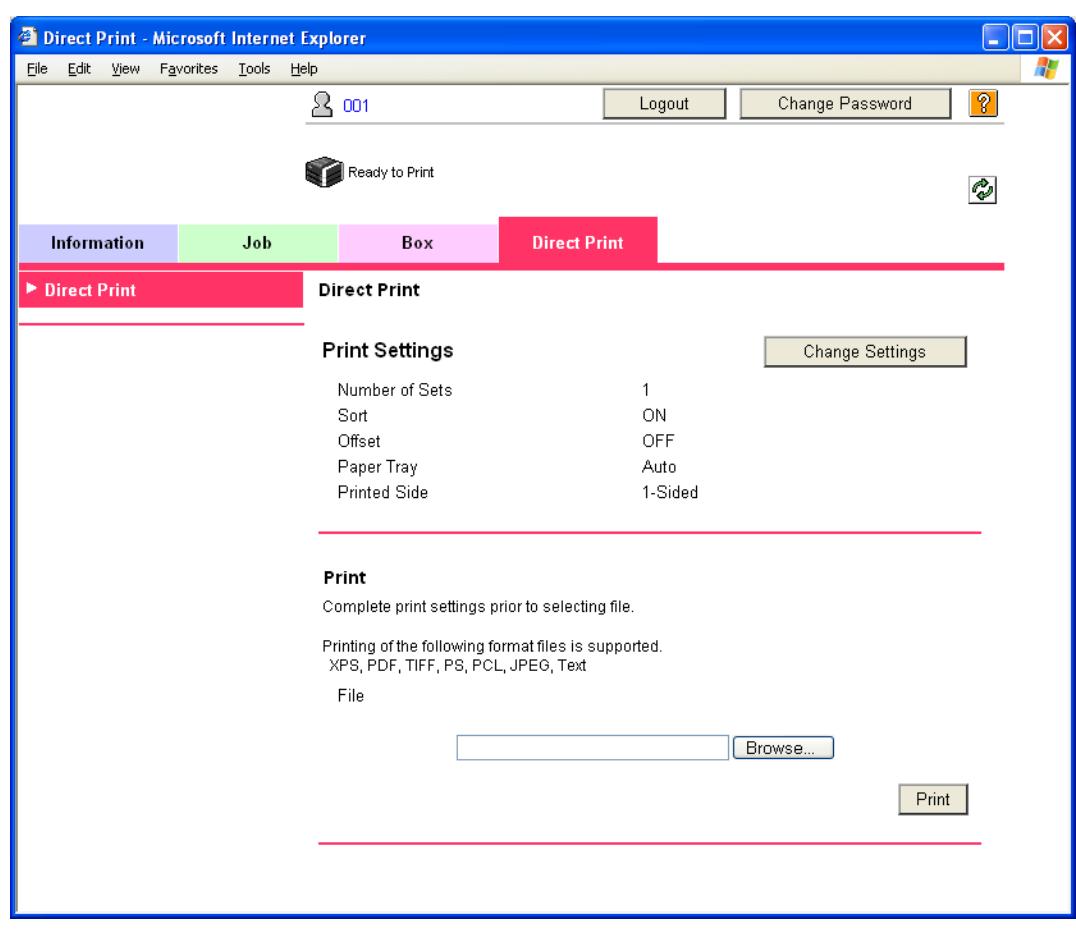
9.5.2 Recalling a job from the control panel
The Encrypted PDF file is saved in the Encrypted PDF Box on this machine.
To print a document saved in a box, open the Encrypted PDF Box to retrieve the document.
- The PDF password is required when specifying a document.

Note
For details on the "Utility" menu operations, refer to "Control panel" on page 10-3.
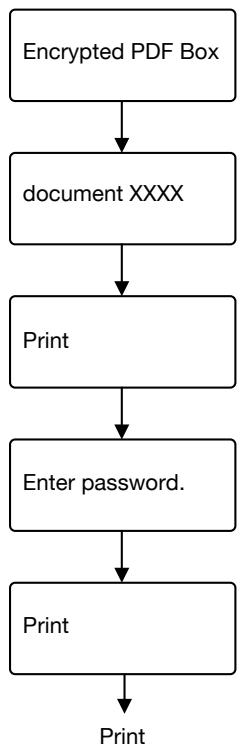

Note
The screen to input the user name appears after the Job Operation screen. Enter the user name and password.
If the Account Track function has been specified on the machine, the screen to input the department name appears after the User Password screen. Enter the department name.
9.6 Printing on a machine with the user authentication set up
When the user authentication function has been specified on the machine, a user name and password must be entered when printing.

Reminder
To use the user authentication, "User Auth/Account Track" must be specified and user must be registered in advance. For details, refer to "Limiting users using this machine (Machine authentication)" on page 11-33.
If a print job is sent using a user name or password that is not valid for "Authentication Mode" on the machine, or if a job is sent without setting up "User Authentication", the operation is not authenticated by the machine and the job is canceled.
If the user authentication function is set up on the machine and the "ProhibitFunctions" in [Admin. Settings]-[Security Details] is set to mode 2, the relevant user is locked and access may be blocked if the authentication information is not entered correctly.
The following three printer drivers support setup of this feature:
Konica Minolta PCL Printer Driver for Windows
Konica Minolta PostScript Printer Driver for Windows
PostScript PPD Printer Driver for Mac OS X

Note
If printing is not allowed, printing cannot be performed even when used by a registered user. For details on the user authentication details, consult the administrator of this machine.
If performing user authentication with an optional authentication unit, enter the user name and password. For details, refer to "Touch and Print" on page 9-31.
9.6.1 Setting up the printer driver
For Windows
1 Click the [Properties] button (or [Detail Setting] button) in the Print dialog box to display the Printing Preferences dialog box.
2 Click the Basic tab.
3 Click the [Authentication/Account Track] button.
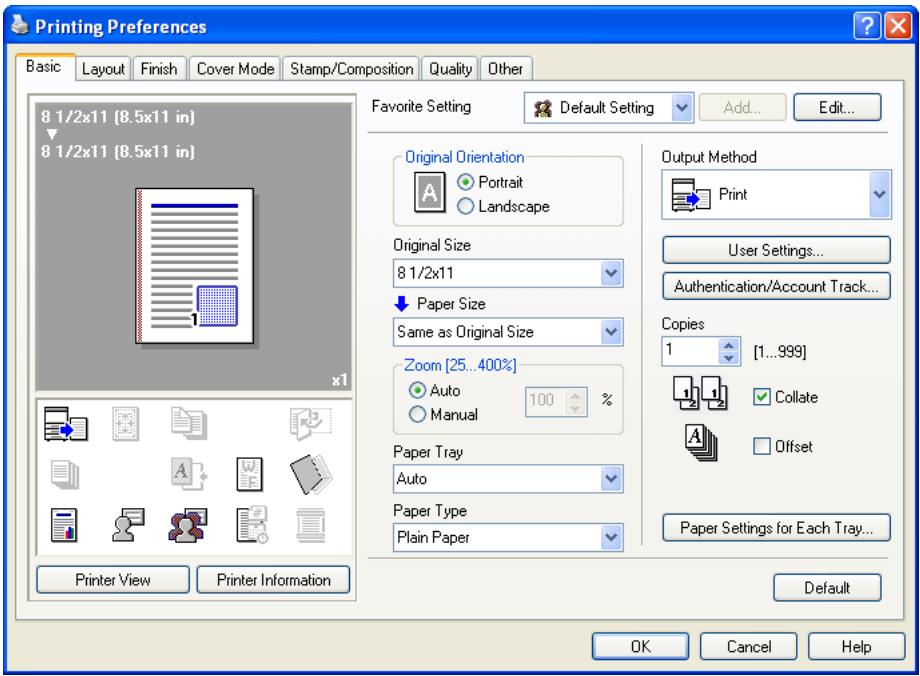
4 Select "Recipient User", and then enter the user name and password.
- If the machine has been set to permit public users, "Public User" can be selected to access the machine.
- The password can also be preset in the printer driver as a default value so that it does not have to set for each job.
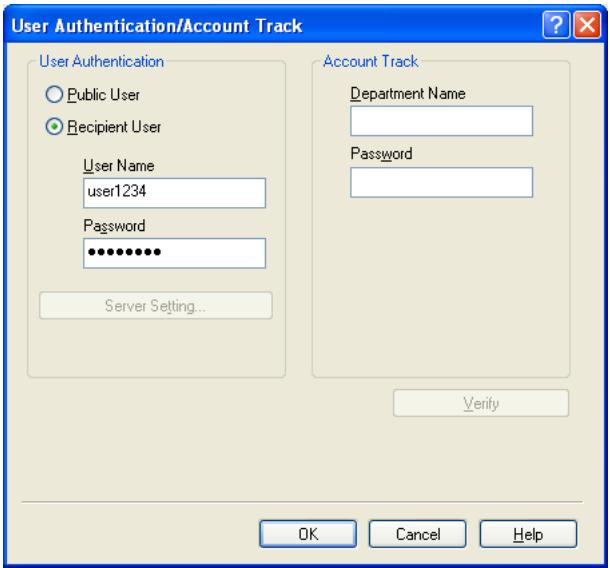
5 Click the [OK] button, and specify the desired settings, and then print the document.
- If the entered user name is a name registered on the machine, the job is printed and counted as a job for the specified user.

Reminder
If the user authentication settings are not specified on the Configure tab, user authentication cannot be performed. If using the user authentication function, be sure to specify the settings on the Configure tab. For details, refer to "Configure tab" on page 7-5.
If performing user authentication on a server, the server settings must be specified. Click the [User Authentication Server Setting] button to select the server.
Click the [Verify] button to communicate with this machine and check whether authentication can be performed with the user that was entered. This function is not available unless the connection is enabled for communications with the machine.
For Macintosh OS X
1 In the "File" menu, select "Print".
2 Select "Output Method".
3 Select the "User Authentication" check box.
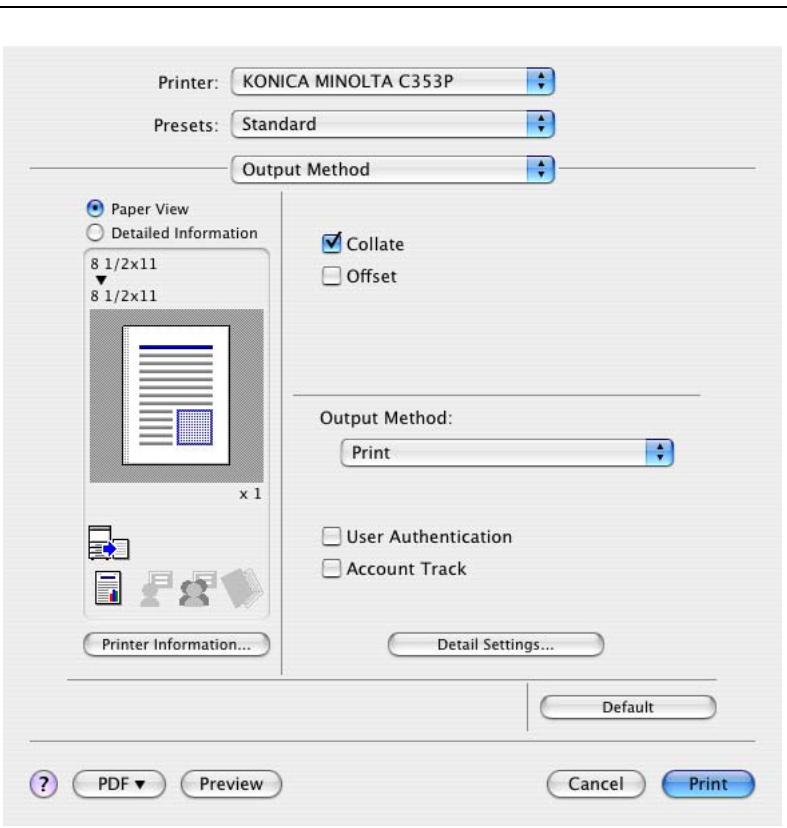
4 Select "Recipient User", and then enter the user name and password.
- If the machine has been set to permit public users, "Public User" can be selected to access the machine.
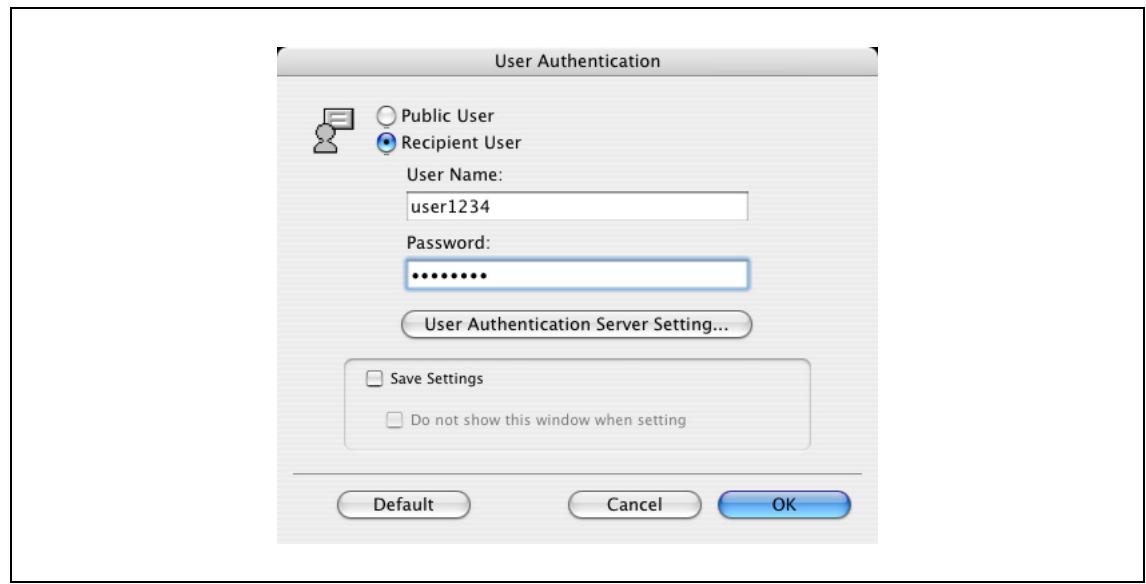

··
Note
Select the "Save Settings" check box to save the specified settings. In addition, if the "Do not show this window when setting" check box is selected, the dialog box does not appear when the function is specified.
If performing user authentication on a server, the server settings must be specified. Click the [User Authentication Server Setting] button to select the server.
9.7 Printing with the machine enabling the Account Track function
When the Account Track function is enabled on the machine, enter a department name (or a password) when printing a job.

Reminder
To use the Account Track function, "User Auth/Account Track" must be specified and Account Track must be registered in advance. For details, refer to "Limiting users using this machine (Machine authentication)" on page 11-33.
If a print job is sent using a password that is not valid for the Account Track function on the machine, or if a job is sent without specifying "Account Track", the machine does not authenticate the access and the job is canceled. When the account track settings are specified on the machine, the "ProhibitFunctions" in [Admin. Settings]-[Security Details] is set to mode 2, and the authentication information is not entered correctly, the account may be locked and access may fail.
The following three printer drivers support setup of this feature:
Konica Minolta PCL Printer Driver for Windows
Konica Minolta PostScript Printer Driver for Windows
PostScript PPD Printer Driver for Mac OS X

Note
If printing is not allowed, printing cannot be performed even for a registered account.
For the Account Track function, contact the administrator of the machine.
9.7.1 Setting up the printer driver
For Windows
1 Click the [Properties] button (or [Detail Setting] button) in the Print dialog box to display the Printing Preferences dialog box.
2 Click the Basic tab.
3 Click the [Authentication/Account Track] button.
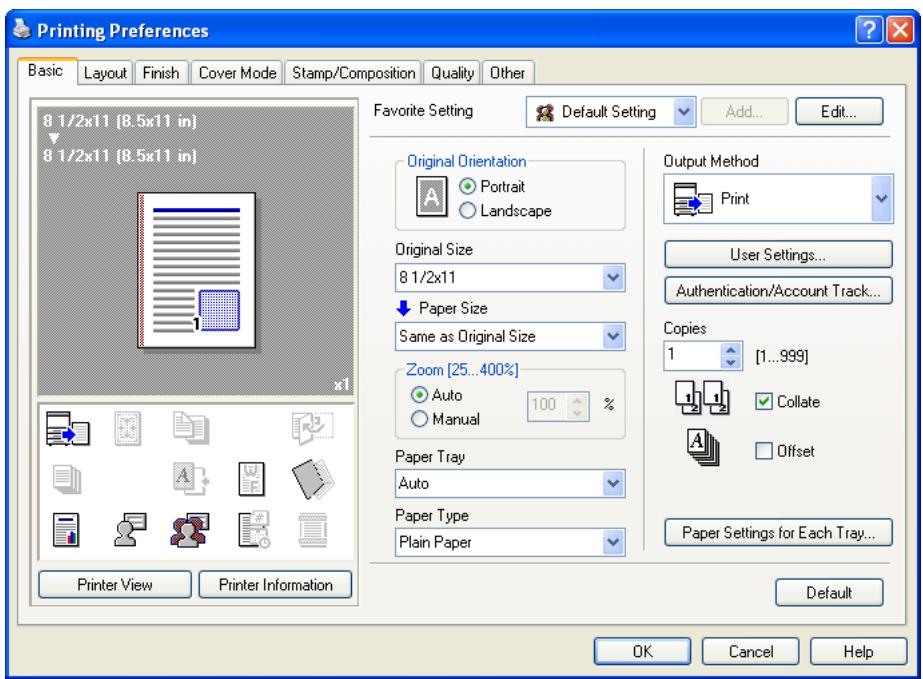
4 Enter the department name and password.
- The password can also be preset in the printer driver as a default value so that it does not have to set for each job.
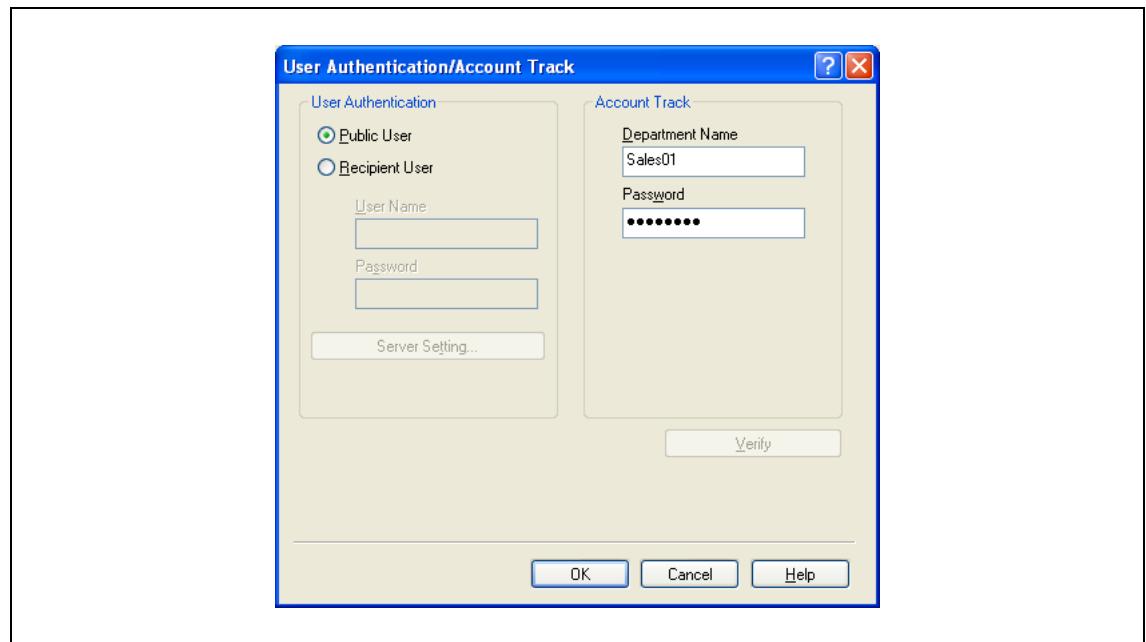
5 Click the [OK] button, and specify the desired settings, and then print the document.
If the entered password is a password registered on this machine, the job is printed and counted as a job for the account.

Reminder
If the account track settings are not specified on the Configure tab, account track cannot be performed. If using the Account Track function, be sure to specify the settings on the Configure tab. For details, refer to "Configure tab" on page 7-5.
Click the [Verify] button to communicate with this machine and check whether authentication can be performed with the account that was entered. This function is not available unless the connection is enabled for communications with the machine.
For Macintosh OS X
1 In the "File" menu, select "Print".
2 Select "Output Method".
3 Select the "Account Track" check box.
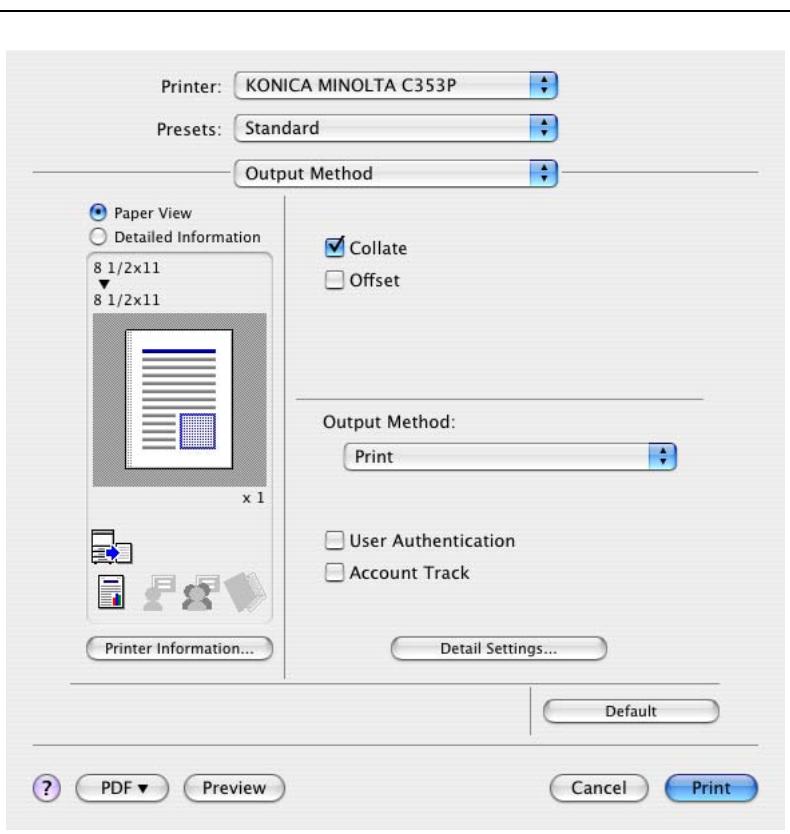
4 Enter the department name and password.
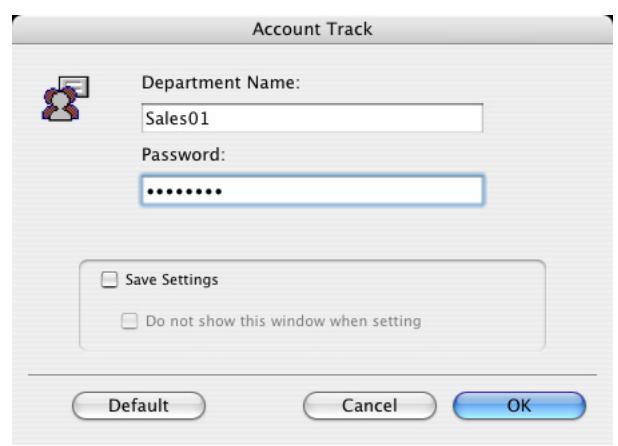

Note
Select the "Save Settings" check box to save the specified settings. In addition, if the "Do not show this window when setting" check box is selected, the dialog box does not appear when the function is specified.
9.8 Touch and Print
When an optional authentication unit (biometrics type) or authentication unit (IC card type) is used, simply touching the authentication unit with the finger or an IC card enables user authentication and printing. This function is referred to as the Touch and Print.
Also with this type of user authentication, to print via a computer, enter the user name and password in the printer driver, just like when using common user authentication.

Detail
For details, refer to "Printing on a machine with the user authentication set up" on page 9-24.

Note
To use the Touch and Print function, the Touch and Print function must be set to ON in [Admin. Settings] - [AuthDeviceSetting] - [Touch & Print] in the Utility mode accessed by pressing the [Menu/Select] key. For details, refer to "AuthDeviceSetting" on page 10-26.
9.8.1 Touch and Print operation procedure
1 Enter the user name and password in the printer driver, and then print.
For Windows:
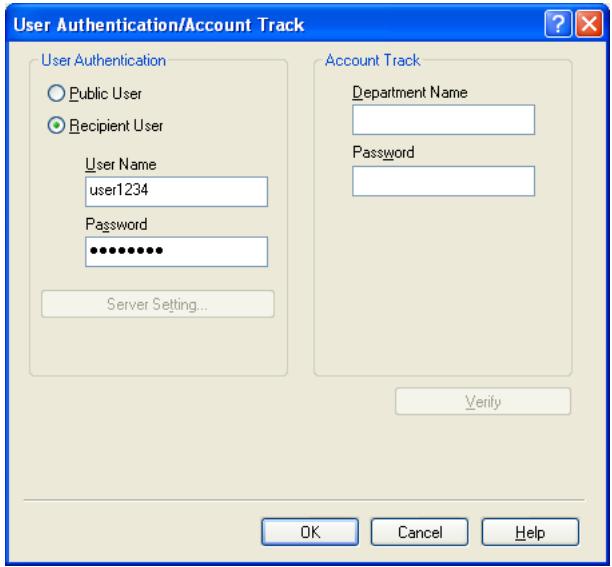
- For Macintosh OS X:
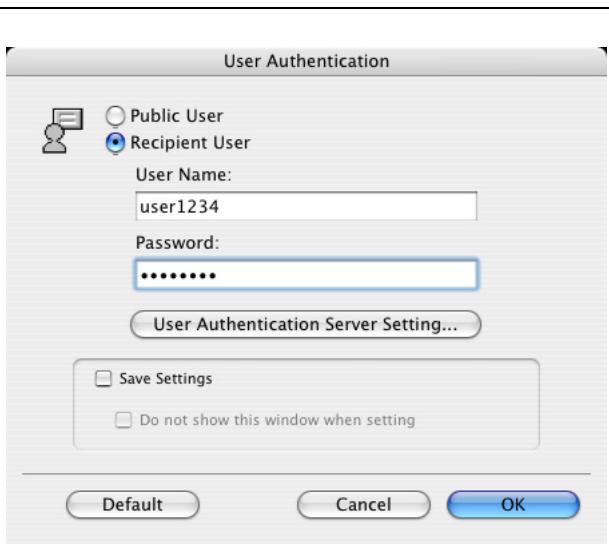
2 Touch the authentication unit of the machine.
Once the user is authenticated, the document is printed.

Detail
For details on the authentication unit, refer to "Authentication unit (Biometric type AU-101)" on page 16-3 or "Authentication unit (IC card type AU-201)" on page 17-3.
9.8.2 Recalling a job from the control panel
The jobs output by the Touch and Print function are saved in the Touch & Print Box on this machine and can be manually retrieved by opening the Touch & Print Box.
When displaying the "Job Operation" menu, user name and password are required.

Note
For details on the "Utility" menu operations, refer to "Control panel" on page 10-3.
Touch and Print documents are automatically deleted after a certain length of time has elapsed since their registration. The default setting for this time is specified as 1 day, and the value can be specified in the Administrator mode.
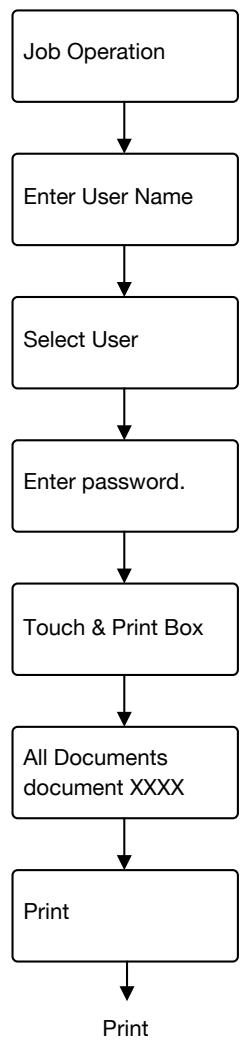
9.9 Specifying a user-defined encryption passphrase
The machine and the printer driver communicate with each other by encrypting a user password, account password or secure document password using a common encryption key.
Although an encryption passphrase for generating the encryption common key is preset as a default setting, it can also be generated with a user-defined encryption passphrase.
When specifying a user-defined encryption passphrase, specify the same encryption passphrase for the machine and the printer driver.

Note
If different values are used for the encryption passphrase for the machine and the printer driver, the machine cannot decrypt the encrypted user password, account password or secure document password. Then printing cannot be performed.
The encryption passphrase automatically generates the common encryption key. The common encryption key cannot be specified directly.
9.9.1 Settings of this machine
Press the [Menu/Select] key, and then the "Utility" menu appears. From this menu, select [Admin. Settings] - [Security Settings] - [Driver Encryption] - [Encryption Setting].
- To change the setting for "Encryption Passphrase", select "User-Defined", and then make an entry for "EncryptionPassphrase". To do without specifying a user definition for "Encryption Passphrase", select "Factory Default".

Note
For details on the "Utility" menu operations, refer to "Control panel" on page 10-3.
| Admin. Settings | |||
| Admin. Settings | Security Settings | Admin. Password | |
| Admin. Sec. Levels | |||
| Security Details | |||
| EnhancedSecurity | |||
| HDD Settings | |||
| Driver Encryption | EncryptionSetting | ||
| EncryptionPassphrase | |||

Note
When entering the encryption passphrase, use 20 alphanumeric characters. Specify the same encryption passphrase for the machine and the printer driver.
An encryption key using a series of the same character is invalid.
9.9.2 Setting up the printer driver
The following three printer drivers support setup of this feature:
- Konica Minolta PCL Printer Driver for Windows (PCL driver)
- Konica Minolta PostScript Printer Driver for Windows (PS driver)
PostScript PPD Printer Driver for Mac OS X
For Windows
1 Display the Properties screen.
- To display the Properties window, open the Printers window or the Printers and Faxes window. In that window, right-click the icon of the installed printer, and then click "Properties".
2 Click the Device Information tab.
3 Select the "Encryption Passphrase" check box and enter the encryption passphrase.
- To do without specifying a user definition for "Encryption Passphrase", clear "Encryption Passphrase".
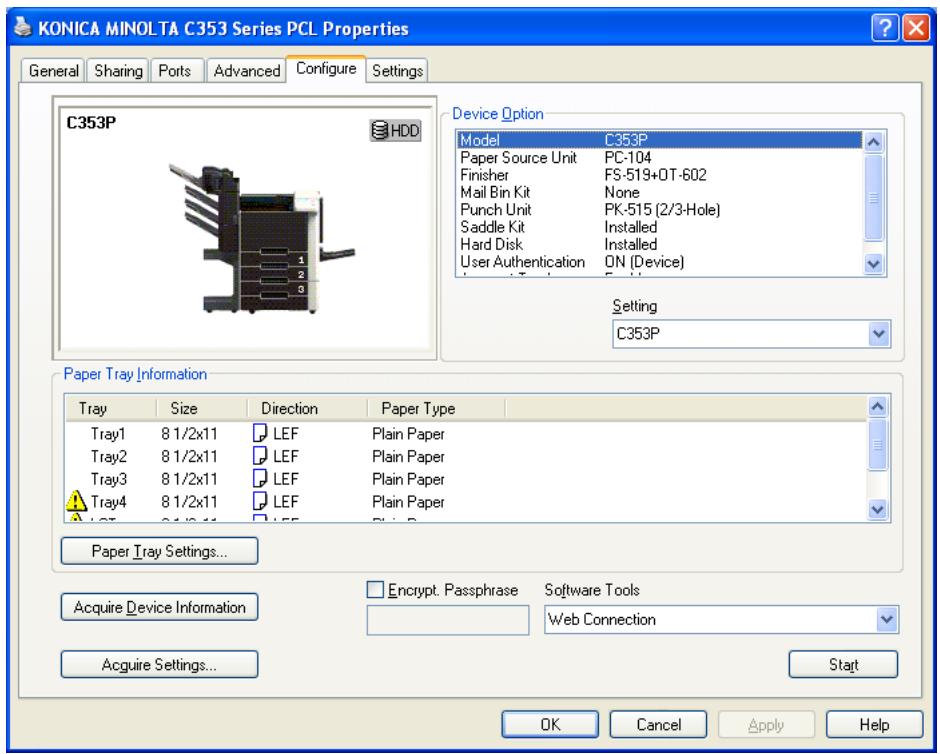
4 Click the [OK] button.

Note
When entering the encryption passphrase, use 20 alphanumeric characters. Specify the same encryption passphrase for the machine and the printer driver.
An encryption key using a series of the same character is invalid.
When SSL is enabled in OpenAPI and the printer driver can obtain the device information automatically, it is also possible to obtain the common encryption key from this machine automatically.
For Macintosh OS X
1 Display the Output Method dialog box.
2 Click the [Detail Settings] button.
The Detail Settings dialog box appears.
3 Select "Administrator Settings", and then click the [Settings] button.
The Administrator Settings dialog box appears.
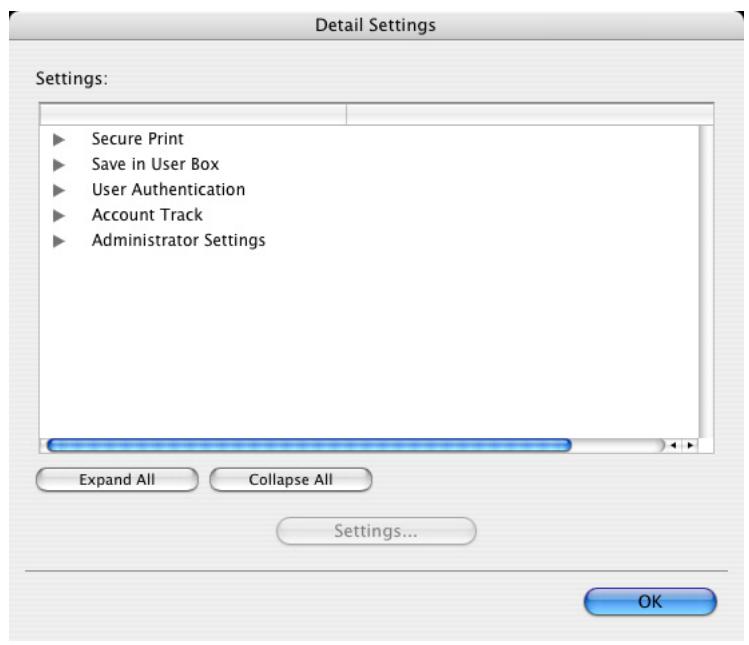
4 Select the "Encryption Passphrase" check box and enter the encryption passphrase.
- To do without specifying a user definition for "Encryption Passphrase", clear "Encryption Passphrase".
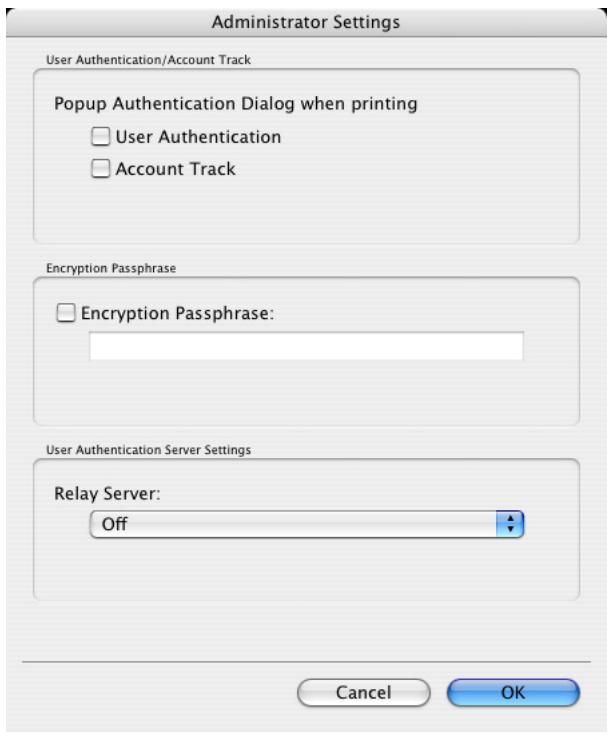
5 Click the [OK] button.

···
Note
When entering the encryption passphrase, use 20 alphanumeric characters. Specify the same encryption passphrase for the machine and the printer driver.
An encryption key using a series of the same character is invalid.
9.10 ICC profile settings
The printer driver has a function to specify ICC profiles registered on the machine when performing a print job.

Note
To specify the default setting for the ICC profile registered on the machine, go to [Set ICC Profile].
To call [Set ICC Profile], press the [Menu/Select] key, and then the "Utility" menu appears. From this menu, select [User Settings] - [Printer Settings] - [PS Settings] - [Set ICC Profile].
For details on the "Utility" menu operations, refer to "Control panel" on page 10-3.
In order to utilize the ICC profiles added to the machine, the ICC profiles on this machine must be registered in the printer driver beforehand. For details, refer to "Registering ICC profiles in the printer driver" on page 9-40.
9.10.1 Setting up the printer driver
The following two printer drivers support setup of this feature:
- Konica Minolta PostScript Printer Driver for Windows (PS driver)
PostScript PPD Printer Driver for Mac OS X
For Windows
1 Display the Quality tab.
2 Click the [Quality Adjustment] button.
The Quality Adjustment dialog box appears.
3 Click the ICC Profile tab.
4 Click the [Detail] button and select a document type.
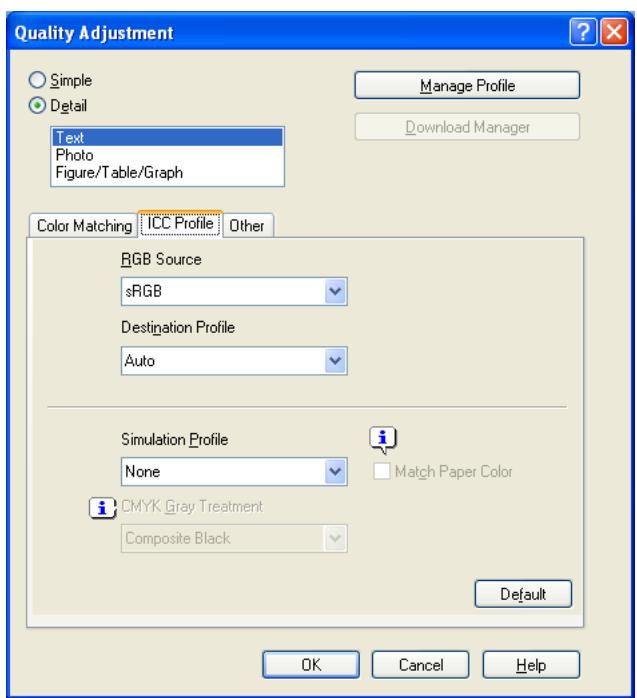
5 Select relevant items for "RGB Source", "Destination Profile", and "Simulation Profile", respectively.
- This enables to select ICC profiles registered in the printer driver.
When printing, color processing is performed according to the selected ICC profiles.
6 Click the [OK] button.
For Macintosh OS X
1 Display the Quality dialog box.
2 Click the [Quality Adjustment] button.
The Quality Adjustment dialog box appears.
3 Select relevant items for "RGB Source", "Destination Profile", and "Simulation Profile" according to the type of the document to be printed.
- This enables to select ICC profiles registered in the printer driver.
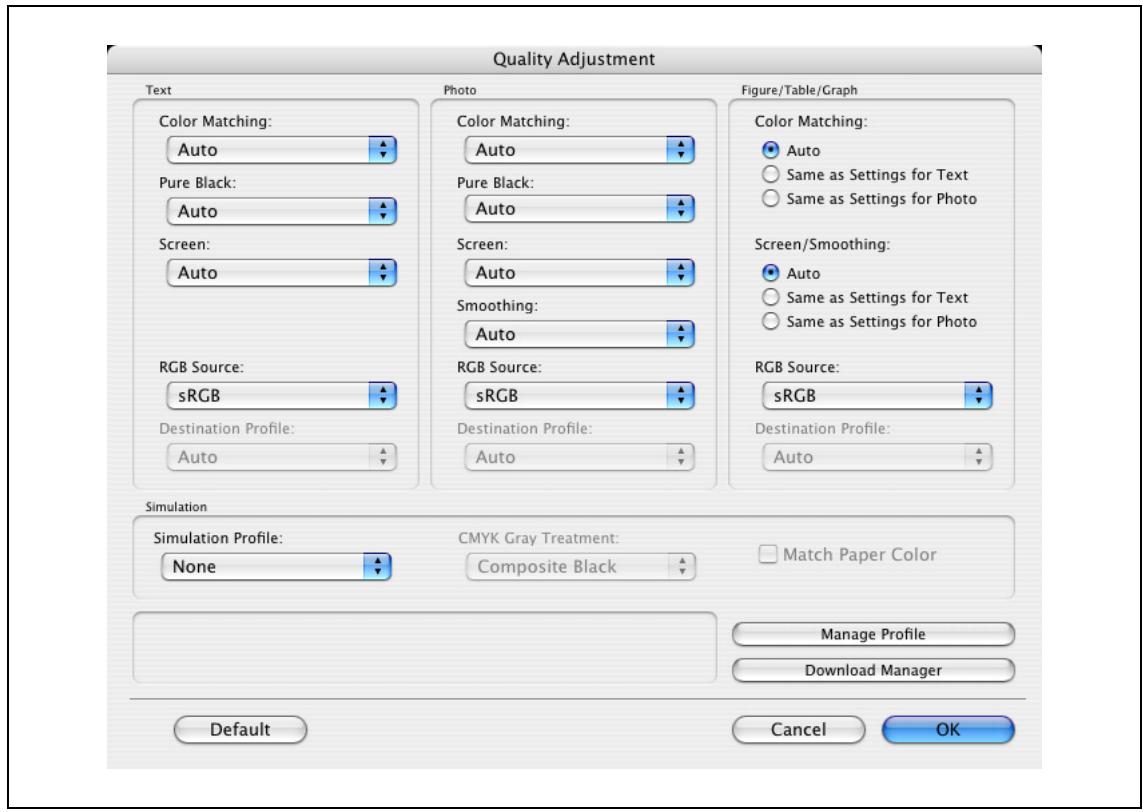
When printing, color processing is performed according to the selected ICC profiles.
4 Click the [OK] button.
9.11 Registering ICC profiles in the printer driver
Additional ICC profiles downloaded and added to the machine can be registered in the printer driver.
A registered ICC profile can be specified when printing.
9.11.1 Setting up the printer driver
The following two printer drivers support setup of this feature:
- Konica Minolta PostScript Printer Driver for Windows
PostScript PPD Printer Driver for Mac OS X

Detail
To register ICC profile in the machine, use the Download Manager (bizhub) application. For details, refer to the Help for the application software.
For Windows
1 Click the Quality tab.
2 Click the [Quality Adjustment] button.
The Quality Adjustment dialog box appears.
3 Click the [Manage Profile] button.
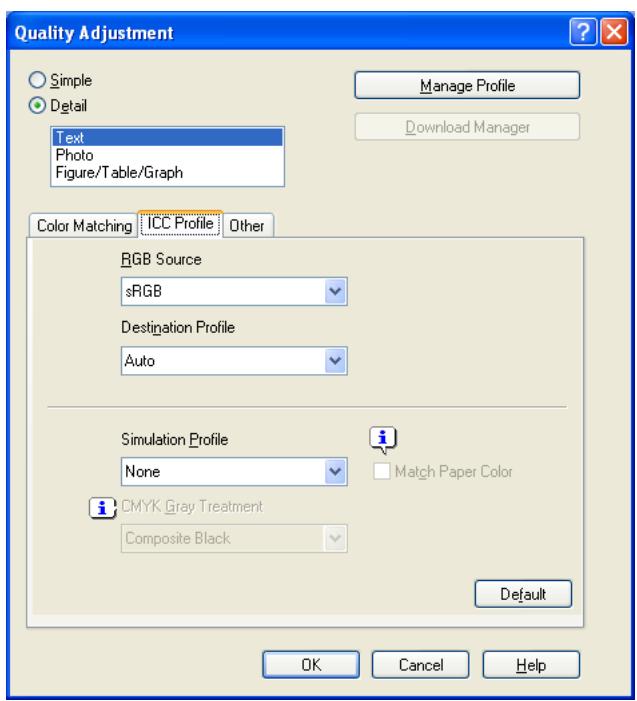
- The Color Profile Management function communicates with the machine to read ICC profiles available to the machine. This function is not available unless the connection is enabled for communications with the machine.
- If the machine is connected via the USB connector, it cannot read ICC profiles available to the machine.
- Click [Download Manager], and the Download Manager (bizhub) application starts. This function is only available when Download Manager (Bizhub) is installed.
- Downloading of ICC profile is available only if the optional HDD is installed.
The Color Profile Management dialog box appears.
4 Check that a list of available profiles that are additionally registered on the machine is displayed.
5 Click the tab and select a color profile type.
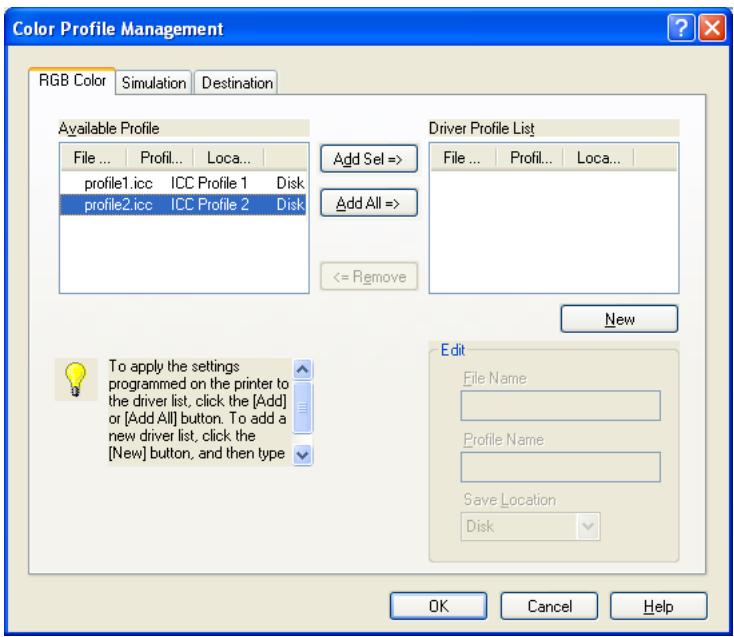
6 Select a desired profile from the "Available Profile" list, and then click the [Add] button.
- To register the current driver settings as a profile, click the [New] button, and then enter a file name and a profile name.
The profile name can be changed from "Edit".
The selected profile is added to "Driver Profile List". Then it can be selected in the Quality Adjustment dialog box from ICC Profile entries.
7 Click the [OK] button.
For Macintosh OS X
1 Display the Quality dialog box.
2 Click the [Quality Adjustment] button.
The Quality Adjustment dialog box appears.
3 Click the [Manage Profile] button.
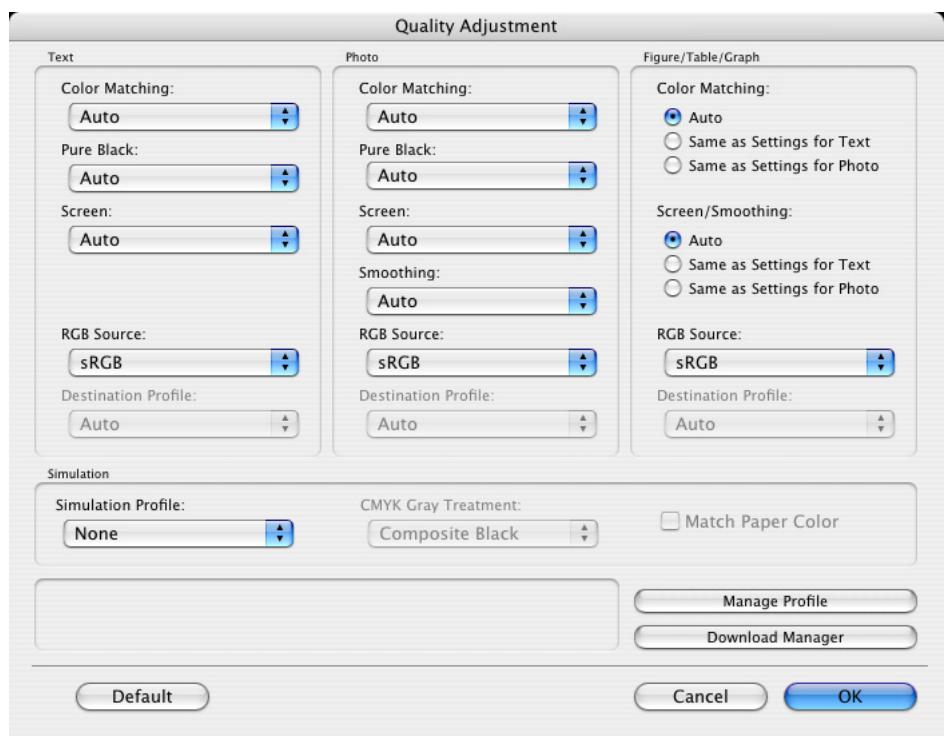
- The Color Profile Management function communicates with the machine to read profiles available to the machine. This function is not available unless the connection is enabled for communications with the machine.
- Click [Download Manager], and the Download Manager (bizhub) application starts. This function is only available when Download Manager (bizhub) is installed.
The Color Profile Management dialog box appears.
4 Check that a list of available profiles that are additionally registered on the machine is displayed.
5 Select a color profile type from the drop-down list.
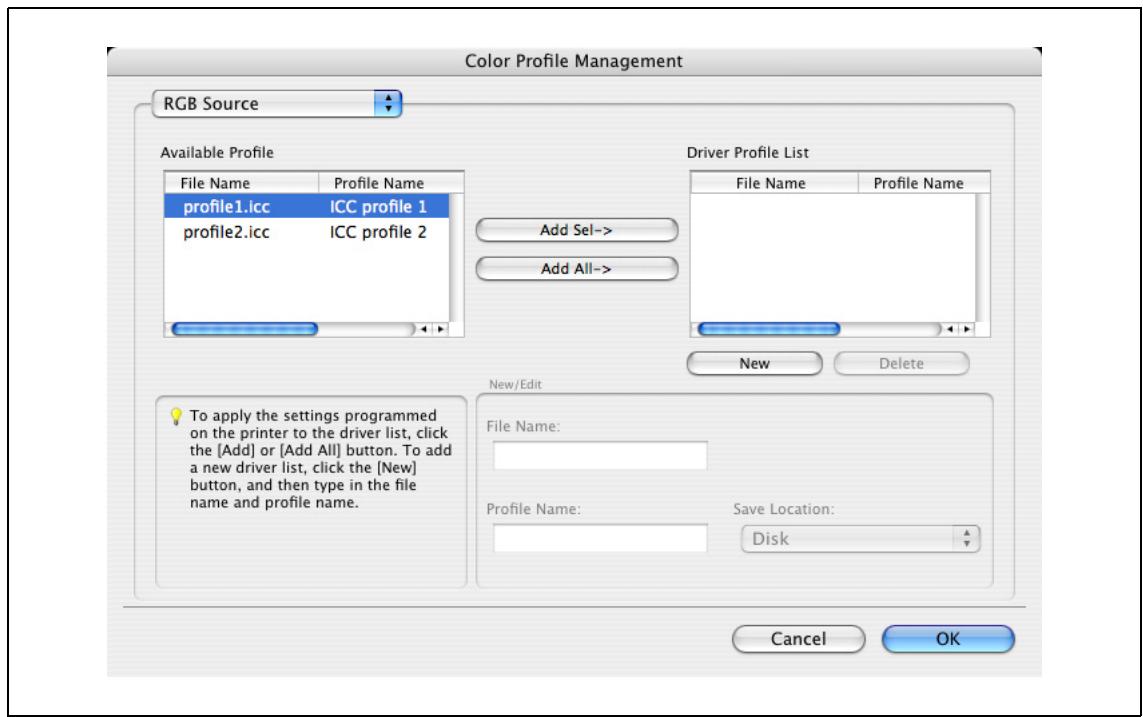
6 Select a desired profile from the "Available Profile" list, and then click the [Add ->] button.
- To register the current driver settings as a profile, click [New], and then enter a file name and a profile name.
The profile name can be changed from "New/Edit".
The selected profile is added to "Driver Profile List". Then it can be selected in the Quality Adjustment dialog box from profile entries.
7 Click the [OK] button.
9.12 Banner paper printing function
By specifying the banner print settings on the control panel, allows you to print on the paper up to 1,200mm Feeded from the bypass tray.
In the following section, setting long paper and printing on it is referred to as banner paper printing.
9.12.1 Copy paper
Applicable paper
| Paper width | Paper length | Paper type |
| 210 to 297 mm | 457.3 to 1,200.0mm | Thick paper 1, Thick paper 1 + Duplex 2nd Side, Thick paper2, Thick paper2 + Duplex 2nd Side (127 to 210 g/m2) |
9.12.2 Printer drivers and supported operating systems
The following drivers support banner paper printing:
- Konica Minolta PCL Printer Driver(PCL driver)
- Konica Minolta PostScript Printer Driver(PS driver)
9.12.3 Setting up the printer driver
Specify the output paper size as a custom paper size.
1 Click the Basic tab.
2 Select "Custom Size" from "Original Size" or "Paper Size".
The Custom Size Settings dialog box appears.
3 Specify the length and the width of the custom paper size according to the selected measurement unit.
4 Specify the paper type.
- If necessary, specify the other settings.
5 Click the [OK] button.

Note
For the Konica Minolta PCL Printer Driver, custom size setting can also be preregistered on the Initial Setting tab in the printer driver activated from the Windows "Printer" window ("Printers and Faxes" for Windows XP/Server 2003).
9.12.4 Printing
To execute the Banner paper printing, press the [Menu/Select] key, and then the "Utility" menu appears. From this menu, select [Banner Printing].
1 Press the [Menu/Select] key.
2 Select [Banner Printing], and then press the [Menu/Select] key.
3 Select [Yes], and then press the [Menu/Select] key.
Banner Printing
ON
OFF
4 When finisher FS-609 is installed, slide the finisher away from this machine, and then load the banner paper that can be used for the paper transport on the finisher.
Banner Printing
Move Finisher and Set Long Paper
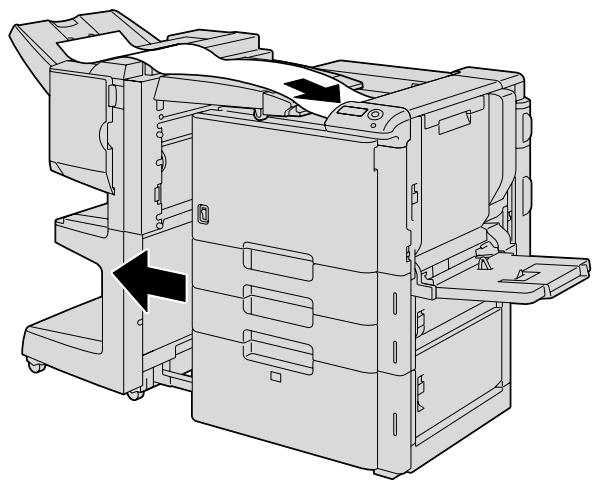
5 Send and print the document data of the banner size via the computer.
6 Open the bypass tray.
7 Install the mounting kit to the bypass tray.
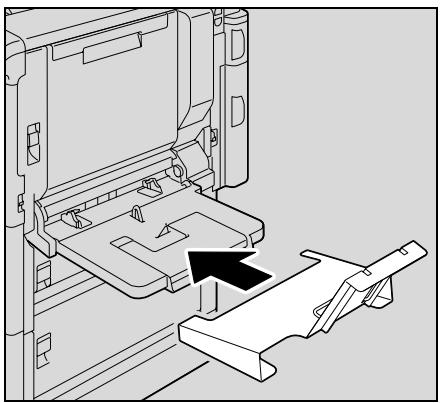
8 Erect the guide of the mounting kit.
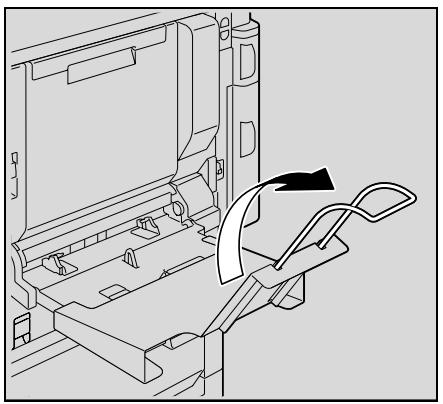
9 With the side to be printed on facing down, insert the paper as much as possible into the feed slot. Place in the tray as many sheets as the specified number of copies to be printed.
10 Slide the lateral guides of the bypass tray to fit the size of paper being loaded.
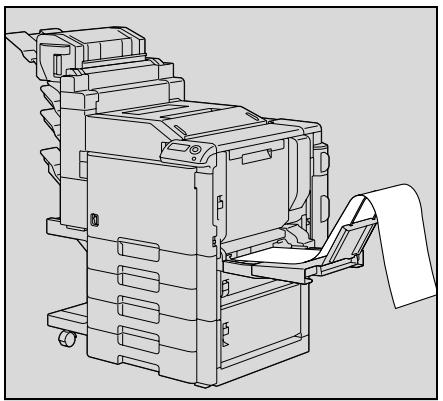
11 If the following screen appears, press the [Menu/Select] key.
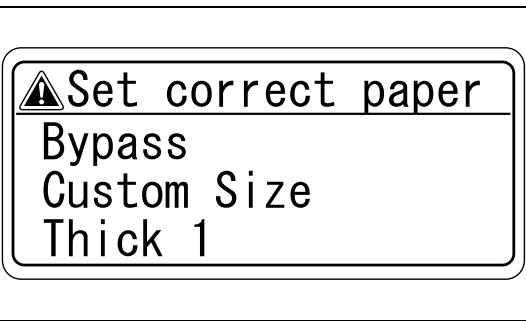
The data is printed.
To continue printing, send the document data via the computer.
12 To finish printing the job, press the [Cancel] key, select [Yes], and then press the [Menu/Select] key. Not to finish printing the job, select [No] to continue printing.
Banner Printing
OK to quit?
Yes
No
10
Settings for control panel
10 Settings for control panel
10.1 Control panel
The control panel allows you to print or delete jobs, specify default settings for paper, or change network settings.
10.1.1 Basic operations
The following shows examples of changing settings on the control panel using the following functions.
Basic menu operations -> Printing Configuration Page
Operations for changing numeric values -> Displaying the Administrator Settings screen
Basic menu operations
Example: Printing Configuration Page
1 Press the [Menu/Select] key.
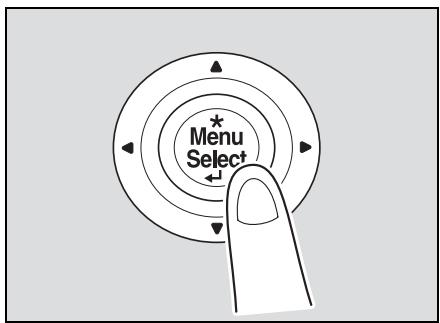
The Main Menu of the "Utility" menu appears.
2 Press the [▼] key several times to select [User Settings], and then press the [Menu/Select] key.
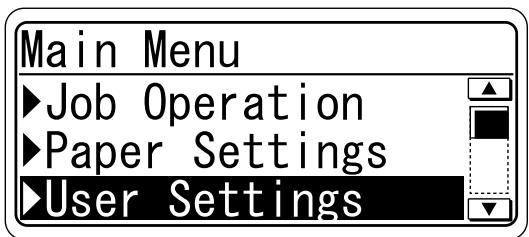
The User Setting Menu appears.
3 Press the [▼] key several times to select [Print Reports], and then press the [Menu/Select] key.
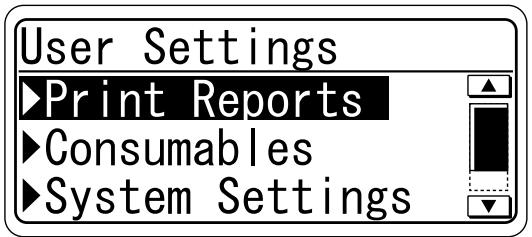
The Print Reports Menu appears.
4 Press the [▼] key several times to select [Configuration], and then press the [Menu/Select] key.
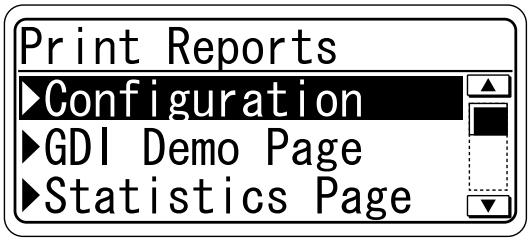
The Configuration Menu appears.
5 Press the [▼] key several times to select the side to be printed on, and then press the [Menu/Select] key.
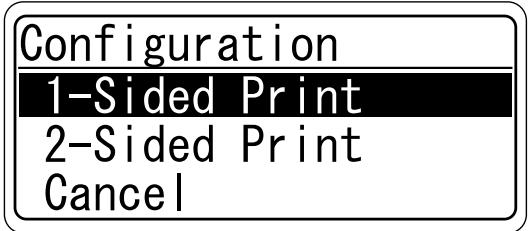
Printing starts.
…
Note
When "ON" is specified for [Admin. Sec. Levels], the password is required to display the User Setting Menu.
Specify the password in [Admin. Password] accessed by selecting [Admin. Settings] - [Security Settings].
When selecting a menu or item, you can press the [▶] key instead of the [Menu/Select] key.
Operations for changing numeric values
Example: Displaying the Administrator Settings screen
1 Press the [Menu/Select] key.
The Main Menu of the "Utility" menu appears.
2 Press the [▼] key several times to select [Admin. Settings], and then press the [Menu/Select] key.
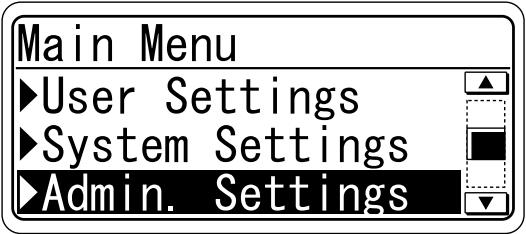
The password input screen appears.
3 Press the [A] or [V] key several times to display the character to be entered at the first character place.
Press the [▲] key to switch the display in the order of "a, b, c...".
Press the [▼] key to switch the display in the order of "9, 8, 7...".
Characters are displayed in the following order:
[▲] abcde...xyzABCDE...XYZ!$%&'(^*,-:/;<=?@[]^{_}{}~0123456789 [▼]
Admin. Settings
Enter password.

4 Press the [▶] key to move the cursor to the second character place. If an incorrect value was entered, press the [▲] key to move the cursor, and then specify the correct value.
Admin. Settings
Enter password.

5 Repeat steps 3 and 4 to specify values for all digits of the password.
Admin. Settings
Enter password.

6 After entering the password, press the [Menu/Select] key.
The Admin. Settings Menu appears where the desired Administrator Setting parameter can be changed.
Admin. Settings
Security Settings
User Box Settings
AuthDeviceSetting

Note
When selecting a menu or item, you can press the [▶] key instead of the [Menu/Select] key.
Specify the password in [Admin. Password] accessed by selecting [Admin. Settings] - [Security Settings].
10.2 List of "Utility" menu parameters
The following outlines items displayed in the "Utility" menu.
The menu to be displayed differs depending on other parameters or whether options are installed.
Main Menu
| Main Menu | ||
| Ready to Print | Meter Count | |
| Job Operation | ||
| Paper Settings | ||
| User Settings | ||
| System Settings | ||
| Admin. Settings | ||
| Service Mode | ||
| Banner Printing | ||

··
Note
[Meter Count] may be displayed depending on settings specified by the technical administrator. For details, contact your service representative.
[Service Mode] is the item that is changed by the technical administrator.
Job Operation Menu
| Job Operation Menu | ||
| Job Operation | Public User Box | |
| Personal User Box | ||
| Account User Box | ||
| Secure PrintBox | ||
| AnnotationUserBox | ||
| EncryptedPDFBox | ||
| Touch&PrintBox | ||
| ProofPrint | ||

··
Note
If user authentication or account track settings are specified for the machine, the user name, account name, and password are required to display "Job Operation Menu".
When a password is specified for each box, the password is required to display the box.
The ID and password are required to display [Secure PrintBox]. The time to enter the password differs depending on the setting for [SecurePrintAccess]. When "Mode 1" is specified for [SecurePrintAccess], enter the ID, and then enter the password. When "Mode 2" is specified for [SecurePrintAccess], enter the ID, select a document, and then enter the password.
If an incorrect password is entered, the box does not appear.
Paper Setting Menu
| Paper Setting Menu | |||
| Paper Settings | Bypass | Paper Size | |
| Paper Type | |||
| Tray1 | Wide Paper Size | ||
| Paper Type | |||
| Tray2 | Wide Paper Size | ||
| Paper Type | |||
| Tray3 | Wide Paper Size | ||
| Paper Type | |||
| Tray4 | Wide Paper Size | ||
| Paper Type | |||
| LCT | Paper Type | ||

Note
When "ON" is specified for [Admin. Sec. Levels] of [Admin. Settings], the password is required to display the Paper Setting Menu.
Specify the password in [Admin. Password] accessed by selecting [Admin. Settings] - [Security Settings].
If an incorrect password is entered, the Paper Setting Menu does not appear.
When the password became invalid due to an authentication failure and the machine enters the restrict operation status, restart the machine.
When "Custom Size" or "Wide Paper Size" is selected for [Paper Size] of [Bypass], specify a paper size using a numeric value.
The paper tray to be displayed differs depending on the installed options.
User Setting Menu
| User Setting Menu | |||
| User Settings | Print Reports | Configuration | |
| GDI Demo Page | |||
| Statistics Page | |||
| PS Font List | |||
| PCL Font List | |||
| Meter Count | |||
| Consumables | |||
| Consumables | |||
| System Settings | Language Setting | ||
| PowerSave Setting | Low Power Setting | ||
| SleepMode Setting | |||
| EnteringSleepMode | |||
| EnteringPowerSave | |||
| PaperTray Setting | AutoTraySelection | ||
| Tray Priority | |||
| AutoTray Switch | |||
| No Matching | |||
User Setting Menu
| User Settings | System Settings | Output Settings | Print Output |
| Blank Page Print | |||
| Output Tray | |||
| Shift Each Job | |||
| Bin Assignment | |||
| Printer Settings | Basic Settings | PDL Setting | |
| Number of Copies | |||
| OriginalDirection | |||
| Spool Setting | |||
| Paper Size Switch | |||
| Banner Sheet | |||
| BindingPos. Adjust | |||
| Paper Settings | Paper Tray | ||
| Paper Size | |||
| 2-Sided Print | |||
| Binding Position | |||
| Staple | |||
| Punch | |||
| Banner Paper Tray | |||
| PCL Settings | Font Setting | ||
| Symbol Set | |||
| Font Size | |||
| pitch | |||
| CR/LF Mapping | |||
| PS Settings | Print PS Errors | ||
| Set ICC Profile | |||
| XPS Setting | Verify XPS Sign. |

··
Note
When "ON" is specified for [Admin. Sec. Levels] of [Admin. Settings], the password is required to display the User Setting Menu.
Specify the password in [Admin. Password] accessed by selecting [Admin. Settings] - [Security Settings].
If an incorrect password is entered, the User Setting Menu does not appear.
When the password became invalid due to an authentication failure and the machine enters the restrict operation status, restart the machine.
[SleepMode Setting] is not displayed if [Restrict] is selected for [Don't got to Sleep] in [Service Mode]. For details, contact your service representative.
[Output Tray] and [Shift Each Job] appear when an optional finisher is installed.
[Bin Assignment] appears when the Mailbin kit is installed on the optional finisher.
System Setting Menu
| System Setting Menu | |||
| System Settings | System Settings | Date/Time Settings | Date Setting |
| Time Setting | |||
| Time Zone Setting | |||
| Time Adjust | |||
| Daylight Saving | DST Setting | ||
| Saving Time | |||
| LCD Brightness | |||
| Management List | Job Setting List | ||
| Counter List | |||
| System Auto Reset | SysAutoReset Set | ||
| SysAutoReset Time | |||
| Network Settings | TCP/IP | TCP/IP Setting | |
| IP Setting | |||
| IPv6 | |||
| DNS Server | |||
| IP Filtering | |||
| IPsec | |||
| RAW Port Number | |||
| Host Name | |||
| DNS Domain | |||
| DynamicDNSSetting | |||
| NetWare | IPX | ||
| NetWare Print | |||
| UserAuth. Set NDS | |||
| HTTP Server | HTTPSServerSetting | ||
| PSWC Setting | |||
| IPP Setting | |||
| IPP Auth. Setting | |||
| Accept IPP jobs | |||
| Support Info. | |||
| Printer Info. | |||
| SMB | Print Setting | ||
| WINS | |||
| Direct Hosting | |||
| Web Service | WebServiceSetting | ||
| Printer Setting | |||
| SNMP | SNMP Setting | ||
| SNMP v1/v2c(IP) | |||
| SNMP v3(IP) | |||
| SNMP v1(IPX) | |||
| UPD Port Number | |||
| SNMPv1v2cSetting | |||
| SNMP v3 Setting | |||
| TRAP Setting | |||
| System Settings | Network Settings | AppleTalk | AppleTalkSetting |
| Printer Name | |||
| Zone Name | |||
| Bonjour | Bonjour Setting | ||
| Bonjour Name | |||
| TCP Socket | TCP Socket | ||
| TCP Socket ASCII | |||
| Detail Settings | Network Speed | ||
| TimeAdjustmentSet | |||
| When InvalidCert. | |||
| Ping Confirmation | |||
| Printer Settings | USB Timeout | ||
| Network Timeout | |||
| Print XPS Errors | |||
| System Connection | OpenAPI Settings | Access Setting | |
| Enable SSL | |||
| Authentication | |||
| PortNumberSetting | |||
| CallRemoteCenter | |||

Note
When "ON" or "MINIMUM" is specified for [Admin. Sec. Levels] of [Admin. Settings], the password is required to display the System Setting Menu.
Specify the password in [Admin. Password] accessed by selecting [Admin. Settings] - [Security Settings].
If an incorrect password is entered, the System Setting Menu does not appear.
When the password became invalid due to an authentication failure and the machine enters the restrict operation status, restart the machine.
[Date/TimeSettings] - [Time Adjustment] are displayed when "ON" is specified for "NTP Setting" which is accessible by selecting [Network Settings] - [Detail Settings] - [TimeAdjustmentSet].
The parameters for [TCP/IP], [HTTP Server], [SNMP], [AppleTalk], and [Bonjour] are displayed when "ON" is specified for [TCP/IP Setting], [HTTPServerSetting], [SNMP Setting], [AppleTalkSetting], and [Bonjour Setting].
If the network settings are changed, restart the machine to apply changes.
When the power is turned off, then on, turn off the power, wait at least 10 seconds, and then turn it on. Otherwise, the machine may not operate correctly.
[OpenAPI Settings] - [SSL] are not displayed when the SSL certificate is not installed or "ON" is specified for [EnhancedSecurity].
[CallRemoteCenter] is not displayed if center registration performed by selecting [Service Mode] - [CS Remote Care] is not completed. For details, contact your service representative.
Admin. Settings Menu
| Admin. Settings Menu | |||
| Admin. Settings | Security Settings | Admin. Password | |
| Admin. Sec. Levels | |||
| Security Details | Password Rules | ||
| ProhibitFunctions | |||
| SecurePrintAccess | |||
| PrintDataCapture | |||
| DeleteJobHistory | |||
| Audit Log | |||
| EnhancedSecurity | |||
| HDD Settings | Format HDD | ||
| CheckHDDCapacity | |||
| OverwriteAllArea | |||
| Overwrite HDDdata | |||
| OverwritePriority | |||
| RegisterHDDLockPW | |||
| HDD EncryptionSet | |||
| Driver Encryption | EncryptionSetting | ||
| EncryptionPassphrase | |||
| User Box Settings | Delete User Box | ||
| DeleteSecurePrint | |||
| Delete Time | Secure PrintBox | ||
| EncryptedPDFBox | |||
| Touch&PrintBox | |||
| Doc. Hold Setting | |||
| AuthDeviceSetting | CardAuth. Settings | IC Card Type | |
| Operation Setting | |||
| BioAuth. Settings | Beep Sound | ||
| Operation Setting | |||
| Touch & Print | Touch&PrintUserBox | ||
| Expert Adjustment | PrinterAdjustment | Leading Edge Adj. | |
| Centering | |||
| Leading (Duplex) | |||
| Centering (Duplex) | |||
| Vertical Adj. | |||
| EraseLeadingEdge | |||
| Finisher Adjust | Center Staple Pos | ||
| Half-Fold Pos. | |||
| DensityAdjustment | Thick/Yellow | ||
| Thick/Magenta | |||
| Thick/Cyan | |||
| Thick/Black | |||
| BlackImageDensity | |||
| Admin. Settings | Security Settings | Stabilization | Initialize+Stabi. |
| StabilizationOnly | |||
| ColorRegistration | Yellow | ||
| Magenta | |||
| Cyan | |||
| Test Pattern | Gradation Pattern | ||
| Halftone Pattern | |||

Note
If an incorrect administrator password is entered, the Admin. Settings Menu does not appear.
When the password became invalid due to an administrator authentication failure and the machine enters the restrict operation status, restart the machine.
[PrintDataCapture] is displayed when "OFF" is specified for [EnhancedSecurity].
[HDD Settings] and [User Box Settings] are displayed when a hard disk drive is installed.
[OverwritePriority] and [HDD EncryptionSet] are displayed when the Security kit is installed.
[EncryptionPassphrase] is displayed when [User-Defined] is specified for [EncryptionSetting].
[AuthDeviceSetting] is displayed when the authentication unit and HDD are installed.
[Finisher Adjust] is displayed when the finisher is installed.
Banner Printing Menu
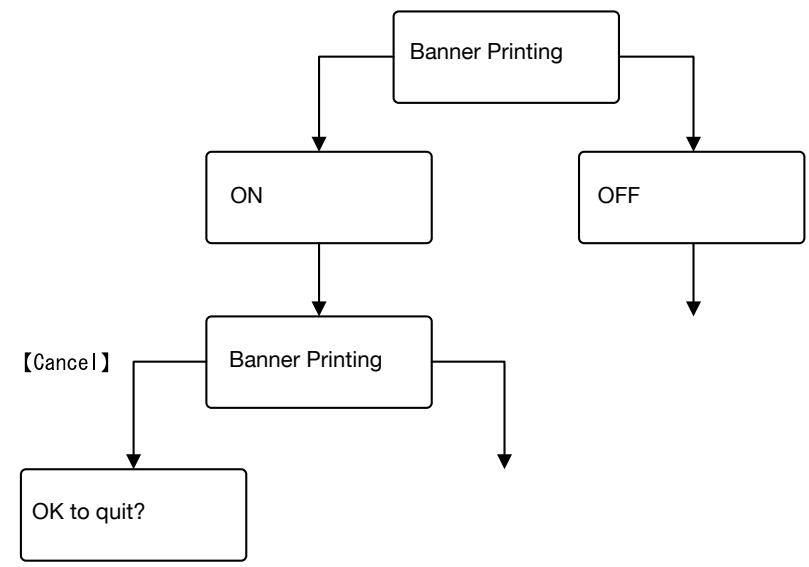

Note
When the Finisher FS-609 is installed, after setting Banner Printing to "ON", a message that prompts you to remove the finisher from the machine appears.
When a print job is sent on the Print Long Paper screen, printing is performed. When the job is sent, a message prompting you to load paper appears. Load paper of the appropriate size.
To return to the original state, press the [Cancel] key on the Banner Printing screen, and then select "Yes" for [quite] or "No" for the [Banner Printing] menu.
10.3 Parameters
10.3.1 Job Operation Menu
User name input items
| Menu | Description |
| User Name | Enter the user name. |
| User Name List | Select the user name from the user name list displayed. |
| User Password | Enter the user password. |

Note
The User name input items are displayed when using the User authentication function on the machine.
Account name input items
| Menu | Description |
| Account Name | Type in the name for the account. |
| Account Password | Type in the password for the account. |

Note
The Account name input items are displayed when using the User authentication function on the machine.
Document selection items
| Menu | Description |
| Public User Box | Select the document, and then print it.When a password is specified, the password must be entered to select the box.When there are multiple documents, select "All Documents" or individual document. |
| Personal User Box | |
| Account User Box | |
| Secure PrintBox | Select the document, and then print it. The ID and password must be entered. |
| AnnotationUserBox | Select the document, and then print it.When a password is specified, the password must be entered to select the box.When there are multiple documents, select "All Documents" or individual document. |
| EncryptedPDFBox | Select the document, and then print it. When executing printing, the password speci-fied for the PDF must be entered. |
| Touch&PrintBox | Normally printing is executed when the user is authenticated. Selection of a document in this box is not required. |
| Proof Print | Select the document, and then print it. |

Note
[Personal User Box] is displayed when using the User authentication function on the machine.
[Account User Box] is displayed when using the Account Track function on the machine.
The User Box function is available only if a hard disk is installed on this machine.
Printing items
When documents, one document from one box, are selected in the Job Operation Menu, the printing-related menu appears.
| Menu | Description | Default Setting |
| Start printing. | - | |
| Simplex/Duplex | Specify "2-Sided" or "1-Sided". | 1-Side |
| Number of Copies | Specify the number of copies. | 001 |
| Center Staple Pos | Adjust the center binding position. | 0 |
| Half-Fold Pos. | Adjust the center folding position. | 0 |

Note
[Binding Position] is displayed when "Center Staple and Fold" is specified for the printer driver.
[Fold Position] is displayed when "Fold" is specified for the printer driver.
Settings for [Center Staples Pos] and [Half-Fold Pos] vary depending on the finisher installed. When FS-609 is installed, the values for position adjustment can only be specified. When FS-519 is installed, the values for position adjustment can be specified for each paper size or paper type.
10.3.2 Paper Settings Menu
| Menu | Description | Default Setting | |
| Bypass | Paper Size | Select the size of paper loaded in Bypass. | Auto Detect |
| Paper Type | Select the type of paper loaded in Bypass. | Plain Paper | |
| Tray1-4 | Wide Paper Size | Specify when using wide paper. | OFF |
| Paper Type | Select the type of paper loaded in Tray1-4. | Plain Paper | |
| LCT | Paper Type | Select the type of paper loaded in LCT. | Plain Paper |

Note
The paper tray to be displayed differs depending on the installed options.
Among the Paper Settings value, values marked with "-R" represent that the papers are set in the transversal direction, and values marked with "W" represents the wide papers.
When "Custom Size" or "Wide Paper Size" is selected for [Paper Size] of [Bypass], specify a paper size using a numeric value.
10.3.3 User Settings Menu
Print Reports
Consumables
| Menu | Description |
| Configuration | Outputs a list of settings in the machine. |
| GDI Demo Page | Outputs a test page. |
| Statistics Page | Prints the statistics page including the number of copies. |
| PS Font List | Outputs the PS font list. |
| PCL Font List | Outputs the PCL font list. |
| Meter Count | Prints the Meter Count page. |
| Consumables | Prints the consumables information page. |
System Settings
| Menu | Description |
| Imaging Unit C | Displays the status of use. |
| Imaging Unit M | |
| Imaging Unit Y | |
| Imaging Unit K | |
| Fusing Unit | |
| TransferBelt Unit |
| Menu | Description | Default Setting | |
| Language Setting | Select the language of the panel message. | English | |
| PowerSave Setting | Low Power Setting | Specify the desired length of time (between 2 and 240 minutes) until the machine enters Power Save mode. | 15 minutes |
| SleepMode Setting | Select whether to enable the Sleep setting. | ON | |
| EnteringSleepMode | Specify the desired length of time (between 2 and 240 minutes) until the machine enters Sleep mode. | 20 minutes | |
| EnteringPowerSave | As conditions for moving to the Power Save mode, select "Normal" or "Immediately". | Immediately | |
| PaperTray Setting | AutoTraySelection | Specify the paper trays that are selected when the Auto Tray Switch feature is performed. | T1, T2, T3, T4 |
| Tray Priority | Specify the priority for selecting the paper trays when the Auto Tray Switch feature is performed. | T1, T2, T3, T4, BP | |
| AutoTray Switch | Select whether or not a paper tray loaded with paper of the same size is selected automatically when the paper tray becomes empty. | OFF | |
| No Matching Paper | Select the operation that is performed when there is no paper of the corresponding size in the specified paper tray. • Stop Printing: The machine stops operating. (Stop Printing) • Switch Trays: The specified paper trays are selected in the specified order of priority and, when the tray runs out of paper, the next paper tray is selected. (Switch Trays) | Stop Printing | |
| Output Settings | Print Output | Select whether the machine waits until the first page of a print job is received before starting to print or whether the machine waits until all data is received before starting to print. | Page Print |
| Blank Page Print | Select whether or not to print a blank page if it is included. | Do Not Print | |
| Output Tray | Specify the priority for using the output trays of the finisher. | Finisher Tray1 | |
| Shift Each Job | Select whether or not to use offset for each job. | ON | |
| Bin Assignment | The output tray 1 of the finisher FS-519 can be specified as mailbin 5, and the output tray 2 can be specified as mailbin 6. When an additional output tray is installed, the output tray 1 of the finisher FS-519 can be specified as mailbin 5 and the additional output tray can be specified as mailbin 6. | Don't Set | |

Note
[SleepMode Setting] is not displayed if [Restrict] is selected for [Don't got to Sleep] in [Service Mode]. For details, contact your service representative.
[Output Tray] and [Shift Each Job] appear when an optional finisher FS-519 is installed.
[Bin Assignment] appears when the Mailbin kit is installed on the optional finisher FS-519.
Printer Settings
| Menu | Description | Default Setting | |
| Basic Settings | PDL Setting | Specify the printer description language as "Auto", "PCL", or "PS". | Auto |
| Number of Copies | Specify the number of copies to be printed (between 1 and 999). | 001 | |
| OriginalDirection | Select the orientation of the print image. | Portrait | |
| Spool Setting | Select whether or not a spool is used. • ON: If another job is received while a job is being performed, the next job is saved on the HDD. • OFF: The print data is not saved on the HDD. | ON | |
| Paper Size Switch | Select whether or not paper size substitutions A4<=Letter and A3<=>Ledger are permitted. | OFF | |
| Banner Sheet | Select whether or not to print banner pages (front cover pages) containing the name of the sender and the subject of the print job. | OFF | |
| BindingPos. Adjust | Select whether to adjust the binding position for duplex printing. • Finishing: All pages can be processed to an optimum condition because the machine adjusts the binding positions after receiving the print data. • Productivity: Printing is performed efficiently because the machine processes data reception and printing concurrently. • ControlAdjustment: The machine follows the settings specified in the printer driver without adjusting the binding position. | Finishing | |
| Paper Settings | Paper Tray | Select the paper tray that is to be used. | Auto |
| Paper Size | Select the size of paper that is to be used. | 8-1/2 × 11 | |
| 2-Sided Print | Select whether or not pages are printed on both sides. | OFF | |
| Binding Position | Select the binding position for double-sided printing. | Left Bind | |
| Staple | Select whether or not pages are to be stapled. | OFF | |
| Punch | Select whether or not holes are to be punched in the pages. | OFF | |
| Banner PaperTray | Select the paper tray used to print banner pages. | Auto | |
| PCL Settings | Font Setting | Specifies the font with the font number. For details on font numbers and corresponding fonts, refer to the "Font List" on the following page. | 000 |
| Symbol Set | Specify the symbol set to be used. | Roman-8 | |
| Font Size | Specify the font size to be used. | Scalable Font - 12.00 point Bitmap Font - 10.00 pitch | |
| Pitch | Specify the number of lines per page. | 60Lines | |
| CR/LF Mapping | Specify the substitution method for printing text data. • CR=CR LF=LF: No substitution is performed. • CR=CRLF LF=LF: CR is substituted with CR-LF. • CR=CR LF=CRLF: LF is substituted with CR-LF. • R=CRLF LF=CRLF: Substitute with CR-LF. | CR=CR LF=LF | |
| PS Settings | Print PS Errors | Select whether or not error information is printed when an error has occurred during PS rasterization. | OFF |
| Set ICC Profile | Select the default profile setting that is displayed in the printer driver. | - | |
| XPS Setting | Verify XPS Sign. | Specify a setting to perform or not to perform digital signature verification in XPS printing. When "ON" is selected for signature verification, the document without a valid digital signature is not printed. | OFF |
Font List
| No. | Font Name | No. | Font Name |
| 0 | Courier | 40 | Helvetica BoldOblique |
| 1 | CG Times | 41 | Helvetica Narrow |
| 2 | CG Times Bold | 42 | Helvetica Narrow Bold |
| 3 | CG Times Italic | 43 | Helvetica Narrow Oblique |
| 4 | CG Times Bold Italic | 44 | Helvetica Narrow Bold Oblique |
| 5 | CG Omega | 45 | Palatino Roman |
| 6 | CG Omega Bold | 46 | Palatino Bold |
| 7 | CG Omega Italic | 47 | Palatino Italic |
| 8 | CG Omega Bold Italic | 48 | Palatino Bold Italic |
| 9 | Coronet | 49 | ITC Avant Garde Gothic Book |
| 10 | Clarendon Condensed | 50 | ITC Avant Garde Gothic Demi |
| 11 | Univers Medium | 51 | ITC Avant Garde Gothic Book Oblique |
| 12 | Univers Bold | 52 | ITC Avant Garde Gothic Demi Oblique |
| 13 | Univers Medium Italic | 53 | ITC Bookman Light |
| 14 | Univers Bold Italic | 54 | ITC Bookman Demi |
| 15 | Univers Condensed Medium | 55 | ITC Bookman Light Italic |
| 16 | Univers Condensed Bold | 56 | ITC Bookman Demi Italic |
| 17 | Univers Condensed Medium Italic | 57 | New Century Schoolbook Roman |
| 18 | Univers Condensed Bold Italic | 58 | New Century Schoolbook Bold |
| 19 | Antique Olive | 59 | New Century Schoolbook Italic |
| 20 | Antique Olive Bold | 60 | New Century Schoolbook Bold Italic |
| 21 | Antique Olive Italic | 61 | Times Roman |
| 22 | Garamond Antiqua | 62 | Times Bold |
| 23 | Garamond Halbfett | 63 | Times Italic |
| 24 | Garamond Kursiv | 64 | Times Bold Italic |
| 25 | Garamond Kursiv Halbfett | 65 | ITC Zapf Chancery Medium Italic |
| 26 | Marigold | 66 | Symbol |
| 27 | Albertus Medium | 67 | SymbolPS |
| 28 | Albertus Extra Bold | 68 | Wingdings |
| 29 | Arial | 69 | ITC Zapf Dingbats |
| 30 | Arial Bold | 70 | Courier Bold |
| 31 | Arial Italic | 71 | Courier Italic |
| 32 | Arial Bold Italic | 72 | Courier Bold Italic |
| 33 | Times New Roman | 73 | Letter Gothic |
| 34 | Times New Roman Bold | 74 | Letter Gothic Bold |
| 35 | Times New Roman Italic | 75 | Letter Gothic Italic |
| 36 | Times New Roman Bold Italic | 76 | CourierPS |
| 37 | Helvetica | 77 | CourierPS Bold |
| 38 | Helvetica Bold | 78 | CourierPS Oblique |
| 39 | Helvetica Oblique | 79 | CourierPS Bold Oblique |
| 80-89 | Line Printer 0N-12U |
10.3.4 System Settings Menu
System Settings
| Menu | Description | Default Setting | |
| Date/TimeSettings | Date Setting | Specify the date. | MM/DD/YY YY |
| Time Setting | Specify the time. | xx:xx | |
| Time Zone Setting | Specify the time zone. | 00:00 | |
| Time Adjustment | Connect to the specified server to correct the time. | - | |
| Daylight Saving | DST Setting | Select whether or not to use the daylight saving time. | OFF |
| Saving Time | Specify the correction time for the daylight saving time. | 60min | |
| LCD Brightness | Adjust the LCD brightness within the range from -3 to +3. | 0 | |
| Management List | Job Settings List | The machine settings can be printed. | - |
| Counter List | Print the counter list for every account or user belong-ing to the account. | - | |
| System Auto Reset | SysAutoReset Set | Specify whether to use the Sistem Auto Reset. | ON |
| SysAutoReset Time | Specify the setting (between 1 and 9 minutes) for the desired length of time until the automatic system reset operation is performed. | 1Minute | |

Note
[Date/TimeSettings] - [Time Adjustment] are displayed when "ON" is specified for [Network Settings] - [Detail Settings] - [TimeAdjustmentSet] - [NTP Setting].
[Management List] - [Counter List] appears when account track is enabled in this machine.
Network Settings
When changing Network Setting items, PageScope Web Connection is useful. All items can be specified using PageScope Web Connection.

Note
For details on settings for each network environment used, refer to "4 Network settings" or "11 PageScope Web Connection".
| Menu | Description | Default Setting | |
| TCP/IP | TCP/IP Setting | Select whether or not TCP/IP is used. | ON |
| IP Setting | Select whether or not DHCP is used to automatically acquire the IP address. If "Manual Input" is selected, specify settings for "IP Address", "Subnet Mask", and "Default Gateway". | Auto Setting | |
| IPv6 | Select whether or not IPv6 is used. If IPv6 is to be used, specify the address. | - | |
| DNS Server | Specify the DNS server settings. | - | |
| IP Filtering | Specify the settings for IP address filtering. | - | |
| IPsec | Specify system settings for communication using IPsec. | - | |
| RAW Port Number | Specify the RAW port number. | - | |
| Host Name | Specify the host name. | - | |
| DNS Domain | Specify the name of the DNS domain. | - | |
| DynamicDNSSetting | Select whether or not dynamic DNS is enabled when the DNS server being used is compatible with dynamic DNS functions. | OFF | |
| NetWare | IPX | Specify the IPX Setting. | - |
| NetWare Print | Specify the server conditions. | - | |
| UserAuth. Set NDS | Select whether or not the user authentication setting (NDS) is used. | ON | |
| HTTP Server | HTTPSServerSetting | Select whether or not the http server settings are used. | ON |
| PSWC Setting | Select whether or not PageScope Web Connection is used. | ON | |
| IPP Setting | Select whether or not IPP printing is used. | ON | |
| IPP Auth. Setting | Select whether or not authentication is performed. If IPP authentication is performed, select the authentication method. | Req-user-name | |
| Accept IPP jobs | Select whether or not IPP jobs are permitted. | ON | |
| Support Info. | Specify the print operations supported by IPP. | - | |
| Printer Info. | Specify the printer information. | - | |
| SMB | Print Setting | Specify the SMB print settings. | - |
| WINS | Specify the WINS function for SMB. | - | |
| Direct Hosting | Specify whether or not Direct Hosting is used. | ON | |
| Web Service | WebServiceSetting | Specify settings for using the Web service. | - |
| Printer Setting | Specify the printer information. | - | |
| SNMP | SNMP Setting | Select whether or not SNMP is used. | ON |
| SNMP v1/v2c(IP) | Select whether or not SNMP v1/v2c (IP) is used. | ON | |
| SNMP v3(IP) | Select whether or not SNMP v3(IP) is used. | ON | |
| SNMP v1(IPX) | Select whether or not SNMP v1 (IPX) is used. | ON | |
| UDP Port Number | Specify the UDP port number. | 161 | |
| SNMPv1v2cSetting | Specify the SNMP v1/v2c settings. | - | |
| SNMP v3 Setting | Specify the SNMP v3 settings. | - | |
| TRAP Settings | Specify settings for using the TRAP function. | - | |
| AppleTalk | AppleTalk Setting | Select whether or not AppleTalk is used. | OFF |
| Printer Name | Specify the name of the printer. | - | |
| Zone Name | Specify the zone name. | - | |
| Bonjour | Bonjour Setting | Select whether or not Bonjour is used. | ON |
| Bonjour Name | Specify the Bonjour name. | - | |
| TCP Socket | TCP Socket | Specify settings for using the TCP Socket function. | - |
| TCP Socket ASCII | Specify settings for using the TCP Socket (ASCII) function. | - | |
| Detail Settings | Network Speed | Select the operating speed. | Auto Setting |
| TimeAdjustmentSet | Specify settings for the NTP server for which the time is corrected. | - | |
| When InvalidCert. | Specify the operation when the validity period for the received certificate has expired. If "Continue" is selected, processing continues even if the date of the certificate is invalid. If "Delete Job" is selected, the job is deleted if the date of the certificate is invalid. | Continue | |
| Ping Confirmation | Sends a ping to confirm a response. | - | |

Note
The parameters for [TCP/IP], [HTTP Server], [SNMP], [AppleTalk], and [Bonjour] are displayed when "ON" is specified for [TCP/IP Setting], [HTTPServerSetting], [SNMP Setting], [AppleTalkSetting], and [Bonjour Setting].
If the network settings are changed, restart the machine to apply changes.
When the power is turned off, then on, turn off the power, wait at least 10 seconds, and then turn it on. Otherwise, the machine may not operate correctly.
Printer Settings
System Connection
| Menu | Description | Default Setting |
| USB Timeout | Specify the length of time until a transmission timeout occurs. | 60sec |
| Network Timeout | Specify the length of time until a transmission timeout occurs. | 60sec |
| Print XPS Errors | Specify whether to print the error message when an error occurs during XPS printing. | ON |
| Menu | Description | Default Setting | |
| OpenAPI Settings | Access Setting | Select whether or not OpenAPI access is enabled. | Allow |
| Enable SSL | Select whether or not SSL is enabled. | ON | |
| Authentication | Select whether or not user authentication is per-formed. | - | |
| PortNumberSetting | Specify the port number. | 50001 | |
| CallRemoteCenter | → | Transmits the status of the machine to the center. | |

Note
[OpenAPI Settings] - [SSL] are not displayed when the SSL certificate is not installed or "ON" is specified for [EnhancedSecurity].
[CallRemoteCenter] is not displayed if center registration performed by selecting [Service Mode] - [CS Remote Care] is not completed. For details, contact your service representative.
10.3.5 Admin. Settings Menu
Security Settings
| Menu | Description | Default Setting | |
| Admin. Password | Changes the administrator password. | 12345678 | |
| Admin. Sec. Levels | Define parameters opened to the user. OFF: The password is required for [Admin. Settings] and [Service Mode]. Minimum: The password is required for [System Setting], [Admin. Settings], and [Service Mode]. ON: The password is required for functions other than [Job Operation] and [Banner Printing]. | ON | |
| Security Details | Password Rules | Select whether or not password rules are applied. | OFF |
| ProhibitFunctions | Select the operations that are prohibited if user authentication failed.Mode 1: Operations cannot be performed for a fixed length of time.Mode 2: When authentication has failed repeatedly, the control panel can no longer be operated. The number of times of failed authentication can be set between 1 and 5.If operation of the control panel is restricted, touch [Release], and then select the items whose operation restrictions are canceled Users & Accounts: Operations for user authentication and account trackSecure File: Operations for confidential documentsUser Box: Operations for password-protected boxesSNMP: Operations for SNMP v3 Write user authenticationTime To Release: Specify the length of time until prohibited operations are automatically unlocked. The time can be set between 1 and 60 minutes. | Mode1 Time:5min | |
| SecurePrintAccess | The operation method for confidential documents can be viewed. If "Prohibited Functions" is set to "Mode 1", this parameter is set to "Mode 1". If "Prohibited Functions" is set to "Mode 2", this parameter is set to "Mode 2".Mode 1: Type in the ID and password for the confidential document, and then select the document.Mode 2: Enter the Secure Print ID, select the document, and then enter the password for authentication. | Mode1 | |
| PrintDataCapture | Select whether or not data for a print job can be captured. | Allow | |
| DeleteJobHistory | The entire job log can be cleared. | - | |
| Audit Log | Specify settings relating to handling of the Audit Log function. | - | |
| EnhancedSecurity | Settings necessary for applying enhanced security mode appear. Select whether or not to apply enhanced mode settings when the necessary settings are specified. For details, contact your service representative. | OFF | |
| HDD Settings | Format HDD | Format the hard disk. | - |
| CheckHDDCapacity | Information concerning the hard disk capacity is displayed. | - | |
| OverwriteAllArea | Select this parameter to overwrite and delete all data on the entire hard disk in the specified patterns for mode 1 through mode 8 when returning the machine from lease or disposing the machine in order to prevent disclosure of the data. Before performing this operation, contact your service representative. | Mode1 | |
| Overwrite HDDdata | Specify whether or not to overwrite the temporary image data saved on the hard disk with all operations for computer printing. By specifying a setting to overwrite temporary data, the area of the hard disk where image data is saved after printing or sending can be overwritten, and the data can be erased. This process prevents disclosure of image data on the hard disk. | OFF | |
| OverwritePriority | Select whether encryption is overridden or overwrite is overridden when data is overwritten. | Encrypt Priority | |
| RegisterHDDLock-PW | Specify the password for protecting data on the hard disk. | - | |
| HDD EncryptionSet | This setting appears when the optional Security kit is installed. Specify an encryption passphrase to encrypt data in the hard disk. When a setting is specified, all data written to the hard disk is encrypted to protect it. If the encryption key is changed, the hard disk will be reformatted. | - | |
| Driver Encryption | EncryptionSetting | The encryption password for the printer driver can be changed. | Factory Default |
| EncryptionPass-phrase | Set an encryption passphrase. Enter an encryption passphrase in 20 characters. | - | |

Note
The administrator of this machine should change the administrator password to maintain security.
If the "Password Rules" parameter is set to "Enabled", only an 8-digit administrator password can be specified.
[PrintDataCapture] is displayed when "OFF" is specified for [EnhancedSecurity].
[HDD Settings] is displayed when the hard disk drive is installed.
[OverwritePriority] and [HDD EncryptionSet] are displayed when the encryption infrastructure is installed.
[EncryptionPassphrase] is displayed when [User-Defined] is specified for [EncryptionSetting].

Detail
The operation of the "Prohibited Functions" parameter applies to the following passwords.
User passwords, account passwords, user box passwords, passwords for confidential documents, and the administrator password.
If the control panel cannot be operated even after touching [Release] from the "Prohibited Functions" parameter to specify the items whose operation restrictions are canceled or if an operation is prohibited from a failed attempt to authenticate the administrator password, restart the machine. Restart the machine, wait for the time specified in "Release Time Settings", and then perform the administrator authentication.
The overwite method operates as follows:
Mode 1: Overwritten with 0 × 00 .
Mode 2: Overwritten with random 1-byte numbers. Overwritten with random 1-byte numbers. Overwritten with 0x00 .
Mode 3: Overwritten with 0 × 00 . Overwritten with 0 × f . Overwritten with random 1-byte numbers.
Verifies.
Mode 4: Overwritten with random 1-byte numbers. Overwritten with 0x00 . Overwritten with 0xff .
Mode 5: Overwritten with 0 × 00 . Overwritten with 0 × f . Overwritten with 0 × 00 . Overwritten with 0 × f .
Mode 6: Overwritten with 0 × 00 . Overwritten with 0 × f . Overwritten with 0 × 00 . Overwritten with 0 × f . Overwritten with 0 × 00 . Overwritten with 0 × f . Overwritten with random numbers.
Mode 7: Overwritten with 0 × 00 . Overwritten with 0 × f . Overwritten with 0 × 00 . Overwritten with 0 × f . Overwritten with 0 × 00 . Overwritten with 0 × f . Overwritten with 0 × a .
Mode 8: Overwritten with 0 × 00 . Overwritten with 0 × f . Overwritten with 0 × 00 . Overwritten with 0 × f . Overwritten with 0 × 00 . Overwritten with 0 × f . Overwritten with 0 × a . Verifies.

Reminder
When the machine is turned off, then on again with the power switch, wait at least 10 seconds to turn the machine on after turning it off. The machine may not operate correctly if it is turned on immediately after being turned off.
User Box Settings
| Menu | Description | Default Setting | |
| Delete User Box | Delete the selected box. | - | |
| DeleteSecurePrint | Delete all documents stored in secure print user boxes. | - | |
| Delete Time | Secure PrintBox | Specify the length of time for secure print documents to remain in before they are automatically deleted, counting from the moment they are stored. | 1day |
| EncryptedPDFBox | Select the length of time for encrypted PDF files to remain before they are automatically deleted, counting from the moment they are stored. | 1day | |
| Touch&PrintBox | Specify the length of time from when print documents are saved in Touch & Print Box until when they are automatically deleted. | 1day | |
| Doc.Hold | Specify to retain or to delete documents automatically when they are printed. | ON | |

Note
[User Box Settings] is displayed when the hard disk drive is installed.
AuthDeviceSetting
| Menu | Description | Default Setting | |
| CardAuth.Settings | IC Card Type | Specify the type of installed IC card authentication unit. | Felica |
| Operation Setting | Select whether only the card is required for authenti-cation or password is required together with the card. | Card | |
| BioAuth.Settings | Beep Sound | Select whether a sound is made when the user is au-thenticated by the biometric authentication. | ON |
| Operation Setting | Specify the biometric authentication operation. 1-to-many Auth.: Performs authentication when the finger is placed. To use the Touch & Print function, se-lect this option. 1-to-1 Auth.: Performs authentication when the user name is entered and the finger is placed. | 1-to-many Auth. | |
| Touch & Print | Touch&PrintUser-Box | Select whether or not to use the Touch & Print function that works with the authentication unit. | ON |
| When there are multiple jobs, select whether or not to perform authentication for each job before printing or print all jobs after performing authentication one time. | Batch Print | ||

Note
[AuthDeviceSetting] is displayed when the authentication unit and HDD are installed.
[CardAuth.Settings] is displayed when the IC card authentication unit is installed.
[BioAuth.Settings] is displayed when the biometric authentication unit is installed.

Detail
To use biometric authentication, register the vein patterns in the finger in advance.
For details on specifying authentication settings for the authentication unit (biometric type) and on registering finger vein patterns, refer to "Authentication unit (Biometric type AU-101)" on page 16-3 or "Authentication unit (IC card type AU-201)" on page 17-3.
Expert Adjustment
| Menu | Description | Default Setting | |
| PrinterAdjustment | Leading Edge Adj. | Adjust the starting print position between -3.0 and 3.0mm at the leading edge of the paper (with respect to the paper feed direction). Adjustments can be specified for each paper type. | 0.0mm |
| Centering | Adjust the starting print position between -3.0 and 3.0mm at the left edge of the paper (with respect to the paper feed direction). Adjustments can be specified for each paper tray. | 0.0mm | |
| Leading (Duplex) | Adjust the starting print position between -3.0 and 3.0mm at the leading edge of the paper for the second side during automatic double-sided copying. Adjustments can be specified for each paper tray. | 0.0mm | |
| Centering (Duplex) | Adjust the starting print position between -3.0 and 3.0mm at the left edge of the paper for the second side during automatic double-sided copying. Adjustments can be specified for each paper tray. | 0.0mm | |
| Vertical Adj. | Specify a zoom in the paper feed direction within the range from -7 and +7. | 0 | |
| EraseLeadingEdge | Specify the non-printing area of the leading edge of the paper. | 4mm | |
| Finisher Adjust | Center Staple Pos | Adjust the stapling position (between -10 and 10mm) when printing with the "Center Staple & Fold" setting. | 0.0mm |
| Half-Fold Pos. | Adjust the folding position (between -10 and 12.7mm) when printing with the "Center Staple & Fold" setting. | 0.0mm | |
| DensityAdjustment | Thick/Yellow | Adjust the image density for printing on thick paper or transparencies. The density can be adjusted separately for each color (yellow, magenta, cyan and black for a color image and the black image density). The higher the setting, the darker the density. | 0 |
| Thick/Magenta | 0 | ||
| Thick/Cyan | 0 | ||
| Thick/Black | Adjust the setting for yellow, magenta, cyan and black between -5 and +5. | 0 | |
| BlackImageDensity | Adjust the setting for "Black Image Density" between -2 and +2. | 0 | |
| Stabilization | Initialize+Stabi. | Perform an image stabilization if the image is incorrect, even after the gradation levels have been adjusted. · Initialize+Stabi.: Perform a normal image stabilization. · StabilizationOnly: Select when a good result was not achieved after "Initialize+Stabi". was selected. | Initial-ize+Stabi. |
| StabilizationOnly | |||
| ColorRegistration | Yellow | Adjust the color registration if color shifts can be seen in the print result. | 0 |
| Magenta | 0 | ||
| Cyan | 0 | ||
| Test Pattern | Gradation Pattern | Print the test pattern of each color gradation. | - |
| Halftone Pattern | Print the test pattern of each halftone. | - | |

Note
If "Print" is selected for [PrinterAdjustment], test print is performed through which you can check the set value.
[Finisher Adjust] is displayed when the finisher is installed.
Settings for [Center Staples Pos] and [Half-Fold Pos] in [Finisher Adjust] vary depending on the finisher installed. When FS-609 is installed, the values for position adjustment can only be specified. When FS-519 is installed, the values for position adjustment can be specified for each paper size or paper type.
11
PageScope Web Connection
11 PageScope Web Connection
11.1 Using PageScope Web Connection
PageScope Web Connection is a device management utility supported by the HTTP server integrated into the printer controller. Using a Web browser on a computer connected to the network, machine settings can be specified and the status of the machine can be checked.
In addition to the convenience of specifying some settings from your computer instead of with the machine's control panel, text can easily be typed in.
11.1.1 Operating environment
| Network | Ethernet (TCP/IP) |
| Computer applications | Supported Web browsers: Microsoft Internet Explorer Ver. 6 or later (JavaScript and Cookies enabled) Netscape Navigator Ver. 7.02 or later (JavaScript and Cookies enabled) Mozilla Firefox Ver. 1.0 or later (JavaScript and Cookies enabled) Adobe® Flash® Player (Plug-in Ver. 7.0 or later required if "Flash" is selected as the display format) |
11.1.2 Accessing PageScope Web Connection
PageScope Web Connection can be used from a Web browser.
1 Start the Web browser.
2 In the "Address" bar, enter the IP address of this machine, and then press the [Enter] key.
http://IP_address_of-machine)/ Example: If the IP address of this machine is 192.168.1.20 http://192.168.1.20/
- If the machine is set to "use IPv6", enter an IPv6 address within [] when using a browser other than Internet Explorer.
http://[IPv6_address_of-machine]/
Example: If the IPv6 address of this machine is fe80::220:6bff:fe10:2f16
http://[fe80::220:6bff:fe10:2f16]
- If the machine is set to "use IPv6" and Internet Explorer is being used, first edit the hosts file to include "fe80::220:6bpp:fe10:2f16IPv6 IPv6_MFP_1", and then specify the URL with the domain name.
The User mode page that appears is for a user who has logged on.

Detail
If user authentication settings have been specified, the user name and password must be entered. For details, refer to "Logging on as a registered user" on page 11-11.
For details on specifying the IP address of this machine, refer to the "Specifying general settings for TCP/IP-based communication" on page 4-3.
PageScope Web Connection has Flash and HTML display formats. For details, refer to "Logging on and logging off" on page 11-7.
11.1.3 Web browser cache
The most recent information may not appear in the PageScope Web Connection pages because older versions of pages are saved in the cache for the Web browser. In addition, problems may occur when the cache is used.
When using PageScope Web Connection, disable the cache for the Web browser.

Reminder
The menus and commands may vary depending on the Web browser version. For details, refer to the Help for the Web browser.
If the utility is used with the cache enabled and Administrator mode was timed out, the timeout page may appear even when PageScope Web Connection is accessed again. In addition, since the machine's control panel remains locked and cannot be used, the machine must be restarted with the power switch. In order to avoid this problem, disable the cache.
With Internet Explorer
1 On the "Tools" menu, click "Internet Options".
2 On the General tab, click the [Settings] button under "Temporary Internet files".
3 Select "Every visit to the page", and then click the [OK] button.
With Netscape Navigator
1 On the "Edit" menu, click "Preferences".
2 Under "Category" on the left, click "Advanced", then "Cache".
3 Under "Document in cache is compared to document on network:" , select "Every time".
With Mozilla Firefox
1 On the "Tools" menu, click "Options".
2 Click "Privacy", and then click the [Settings] button at the bottom of the dialog box.
3 Select the "Cache" check box under "Private data", select the "Clear private data when closing Firefox" check box under "Settings", and then click the [OK] button.
11.1.4 Structure of pages
The pages of PageScope Web Connection are constructed as shown below.
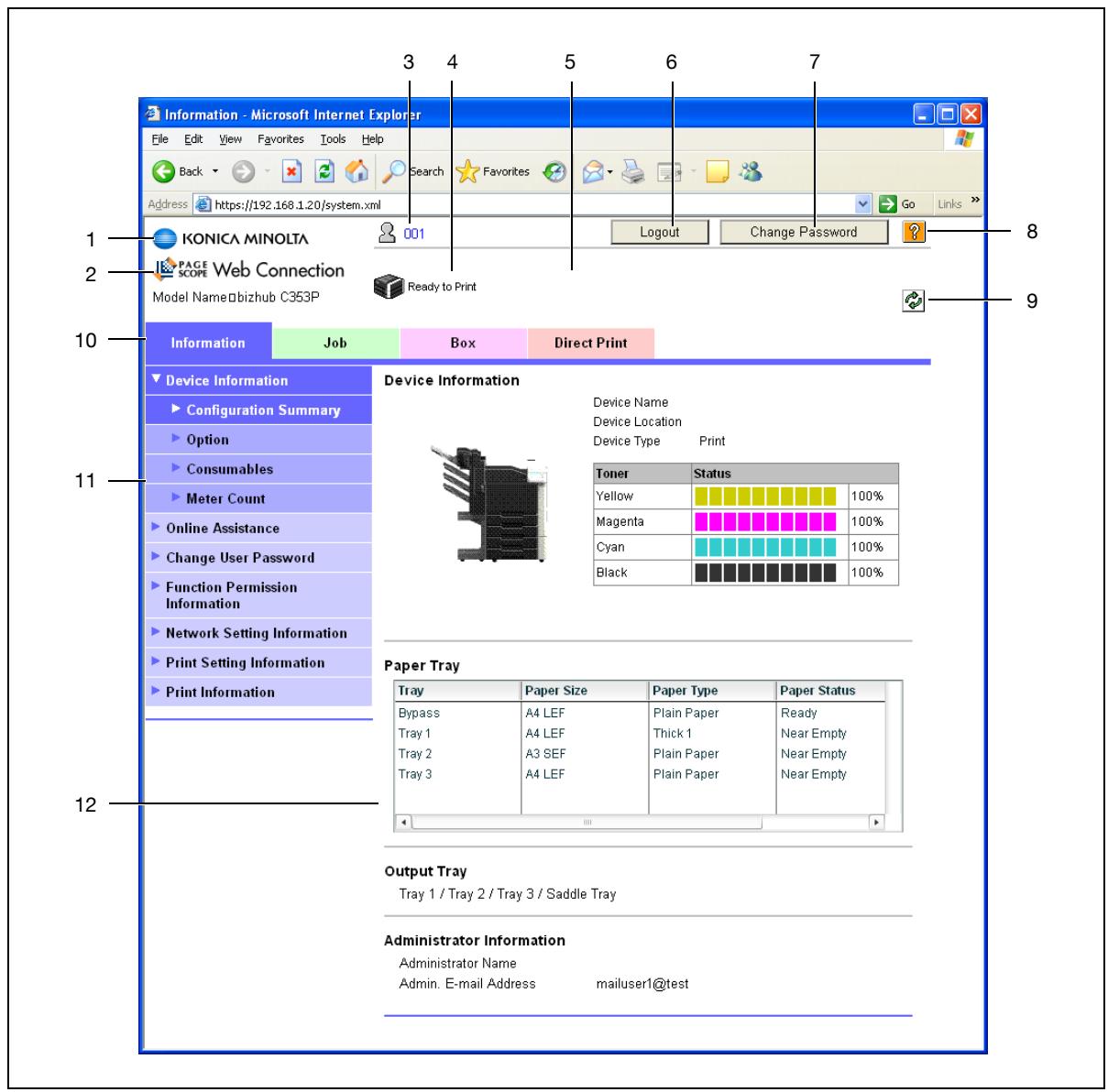
| No. | Item | Description |
| 1 | Konica Minolta logo | Click the logo to go to the Konica Minolta Web site at the following URL. http://konicaminolta.com |
| 2 | PageScope Web Connection logo | Click the logo to display the version information for PageScope Web Connection. |
| 3 | Logon user name | Displays the icon of the current mode and the name of the user who is logged on (public, administrator, registered user or account). Click the user name to display the name of the user who is logged on. |
| 4 | Status display | Displays icons and messages indicating the status of the machine. If an error occurred, click the icon to display the error information (consumables, paper trays and registered user information) so that the status can be checked. |
| 5 | Message display | Displays the operating status of the machine. |
| 6 | [Logout] button | Click to log off from the current mode. |
| 7 | [Change Password] button | Click to go to the Change User Password page. (Refer to "Information" on page 11-13.) This button appears only in User mode when a registered user is logged on. |
| 8 | [Help] button | Click to display the page specified as the online manual Web page. For details on specifying the Web page, refer to "Information" on page 11-13. |
| 9 | [Refresh] button | Click to update the displayed page. |
| 10 | Tabs | Select the category of the page to be displayed. The following tabs are displayed in User mode.InformationJob ListUser BoxDirect Print |
| 11 | Menu | Information and settings for the selected tab are listed. The menu that appears differs depending on the tab that is selected. |
| 12 | Information and settings | Displays details of the item selected in the menu. |

Detail
The page that appears immediately after accessing the machine with PageScope Web Connection is called the "User mode" page. This page appears when a user has logged on.
If user authentication settings have been specified, the user name and password must be entered. For details, refer to "Logging on as a registered user" on page 11-11.
The PageScope Web Connection pages appear differently depending on the options installed on the machine and the specified machine settings. For details on logging on as a different user or as the administrator, refer to "Logging on and logging off" on page 11-7.
11.2 Logging on and logging off
11.2.1 Login and logout operations
When the machine is accessed with PageScope Web Connection, the logon page appears if user authentication and account track settings have been specified on the machine. If user authentication and account track settings have not been specified, the page for a public user appears. In order to log on as a different user or as an administrator after logon, it is necessary to log off first, then log on again.
When user authentication and account track settings are not specified
1 The user logs in automatically as a public user.
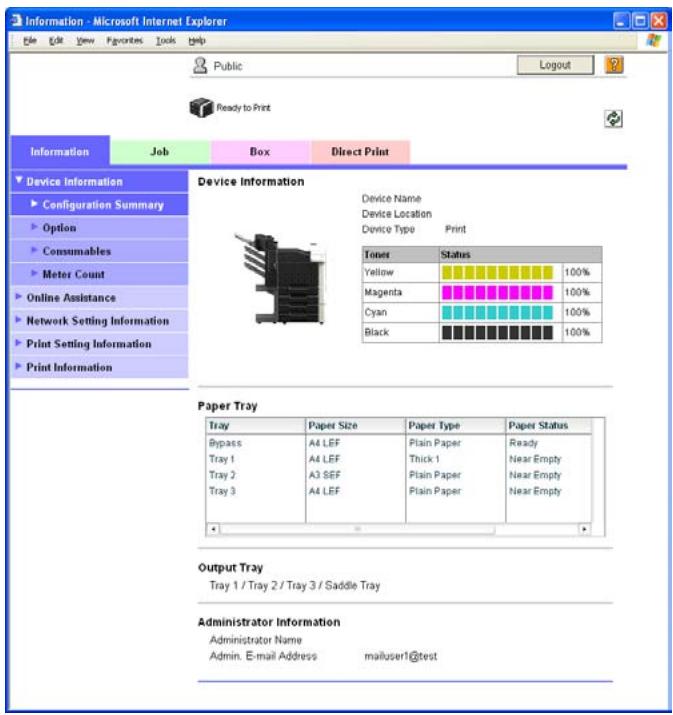
2 To log in as an administrator, log out.
3 Log in again as an administrator.
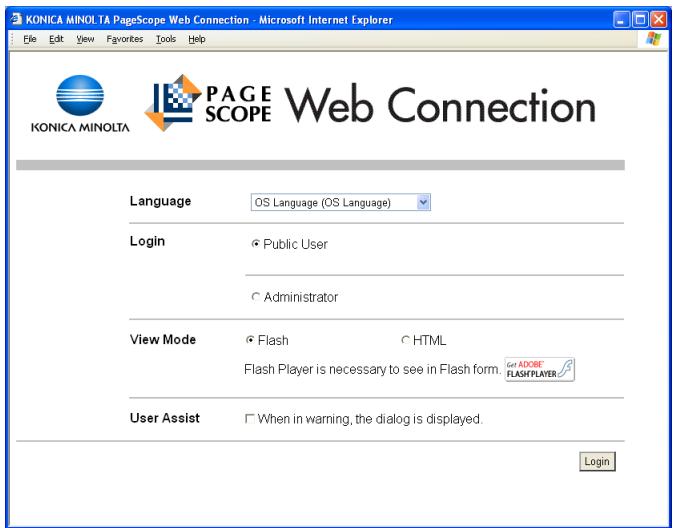
When user authentication and account track settings are specified
1 The User Authentication/Account Track screen appears. Enter the required information to log in.
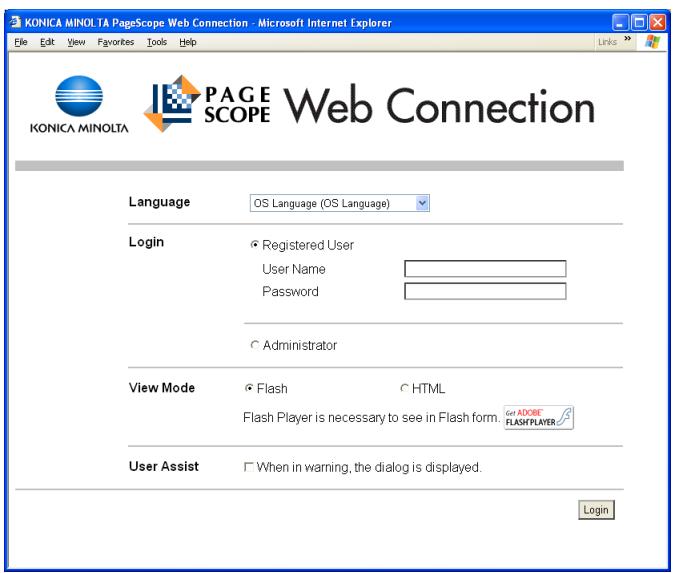
2 To log in as a different user or an administrator, log out.
3 Log in again.
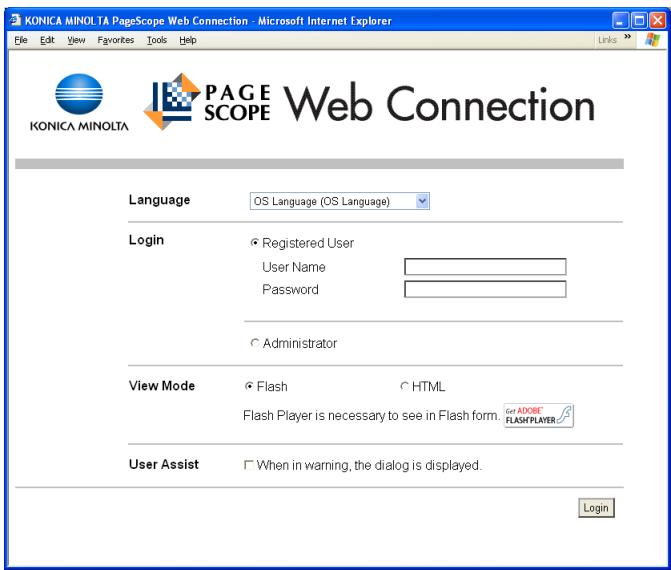
11.2.2截图
Click the [Logout] button in the upper right side of the window to display a logoff confirmation dialog box.
- To return to the logon page again, click the [OK] button.

Detail
The logon page that appears differs depending on the authentication settings specified on the machine.
If a timeout occurs because no operation is performed for a set length of time while logged on or if the authentication settings are changed from the machine's control panel while logged on to User mode, you will automatically be logged off.
For details on specifying the timeout periods for User mode and Administrator mode, refer to "Security" on page 11-19.
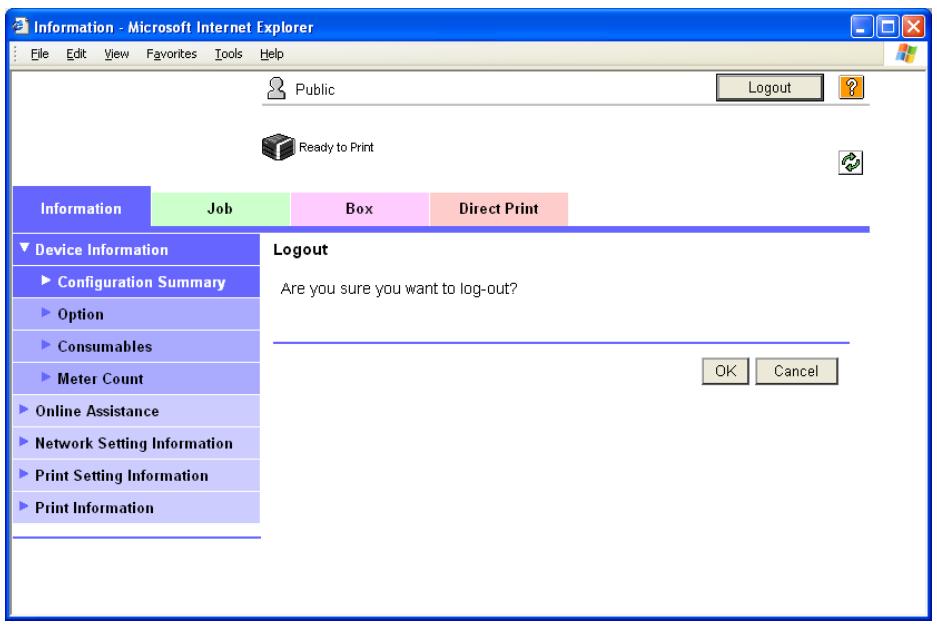
11.2.3 Login
Depending on the logon method used, PageScope Web Connection will be in User mode or Administrator mode.

Detail
If you log in to PageScope Web Connection as an administrator in the User mode, it is possible to delete jobs that cannot be done so in the Administrator mode.
Options that can be selected when logged on to PageScope Web Connection
If necessary, select the display language and format.
If "When in warning, the dialog is displayed." check box is selected, warning messages appear during operation after logon.
If "Flash" is selected as the display format, the following items are displayed using Flash.
- Status icons and messages
- Status of "Paper Tray" in the page displayed when "Device Information" is selected on the Information tab
Page display of the Job List tab
Flash Player is required in order to use the "Flash" features.
If screen reader software is used, we recommend selecting "HTML" as the display format. In an IPv6 environment, select "HTML".
Logging on as a public user
If user authentication settings have not been specified on the machine, logon will be as a public user.
In the logon page, select "Public user", and then click the [Login] button.
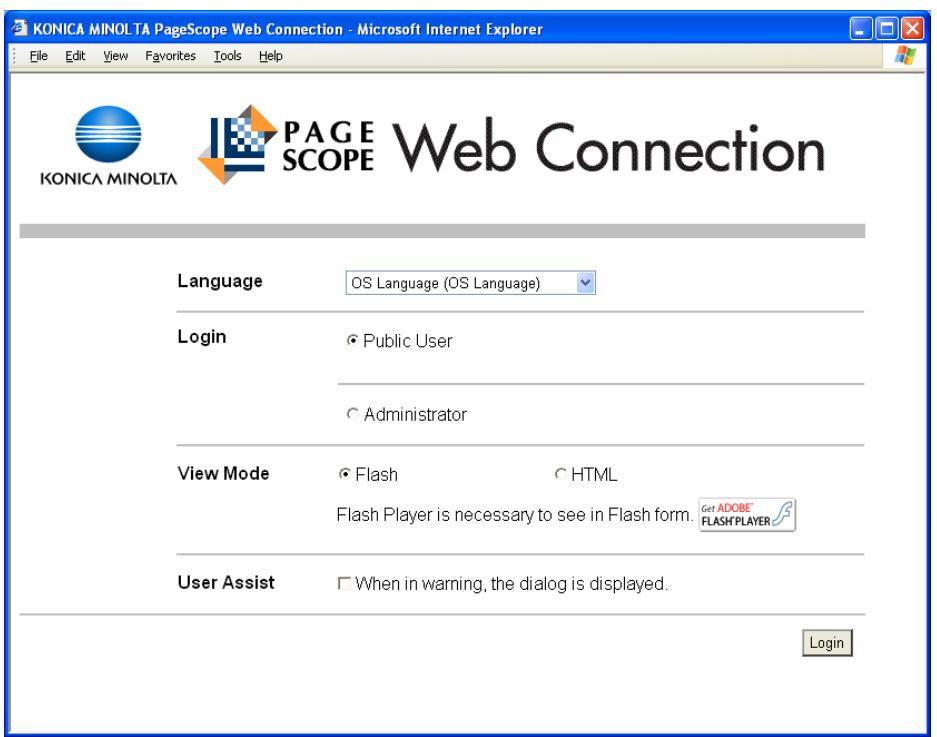
Logging on as a registered user
If user authentication settings have been specified on the machine, the name and password for a registered user is required to log on.
In the logon page, enter the user name and the password, and then click the [Login] button.
- If account track settings have been specified, type in the account name and password.
- If external server authentication was selected, select server.
-
To log on to PageScope Web Connection as the administrator in User mode, select "Administrator"
-
"Administrator (User Mode)", and then enter the administrator password.
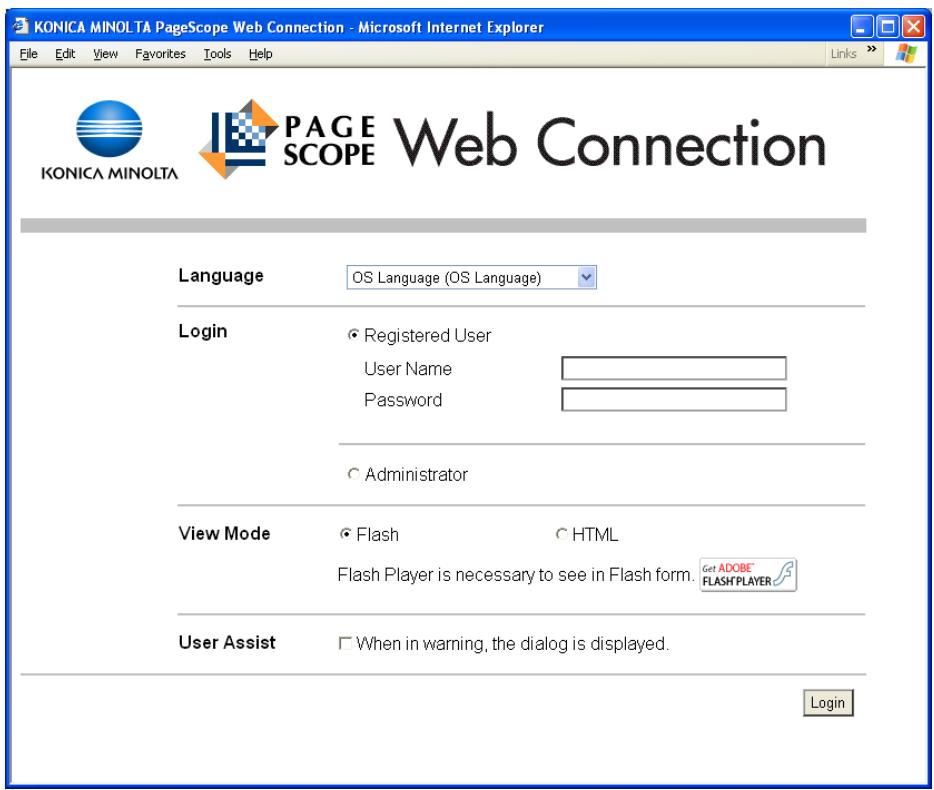

Detail
If "ProhibitFunctions" in [Admin. Settings] - [Security Details] is set to "Mode 2" and a user enters an incorrect password the specified number of times, that user is locked out and can no longer use the machine. Contact the administrator to cancel operation restrictions.
Logging on to Administrator mode
In order to specify system and network settings, log on to Administrator mode.
In the logon page, select "Administrator", type in the administrator password, and then click the [Login] button.
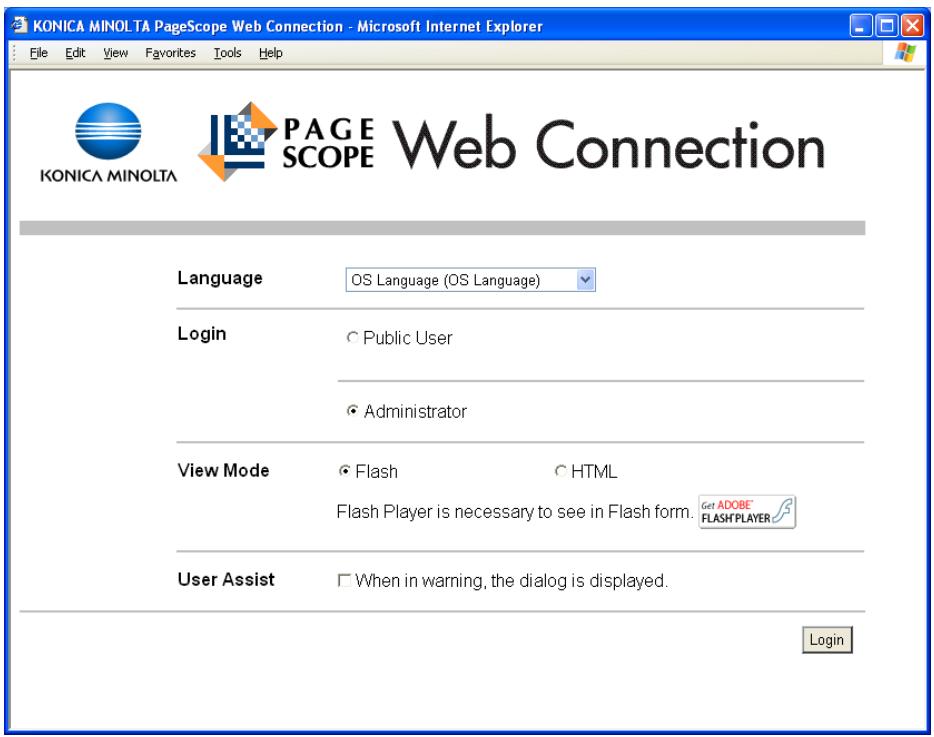

Detail
When logged on to Administrator mode, the control panel of the machine is locked and cannot be used.
Depending on the status of the machine, you may not be able to log on to Administrator mode.
If "ProhibitFunctions" in [Admin. Settings] - [Security Details] is set to "Mode 2" and an incorrect password is entered the specified number of times, it is no longer possible to log on to Administrator mode. For details on authentication settings, refer to "Admin. Settings Menu" on page 10-23.
The password input dialog box differs depending on the specified machine settings.
Specify the password in [Admin. Password] accessed by selecting [Admin. Settings] - [Security Settings].
For details on the administrator password, refer to "Admin. Settings Menu" on page 10-23.
11.3 Overview of User mode
By logging on to PageScope Web Connection in User mode, the following functions can be specified.

Note
For other details on the User mode, refer to the PageScope Web Connection Help on the PageScope Utilities DVD.
11.3.1 Information
This is the first page that appears when you access PageScope Web Connection.
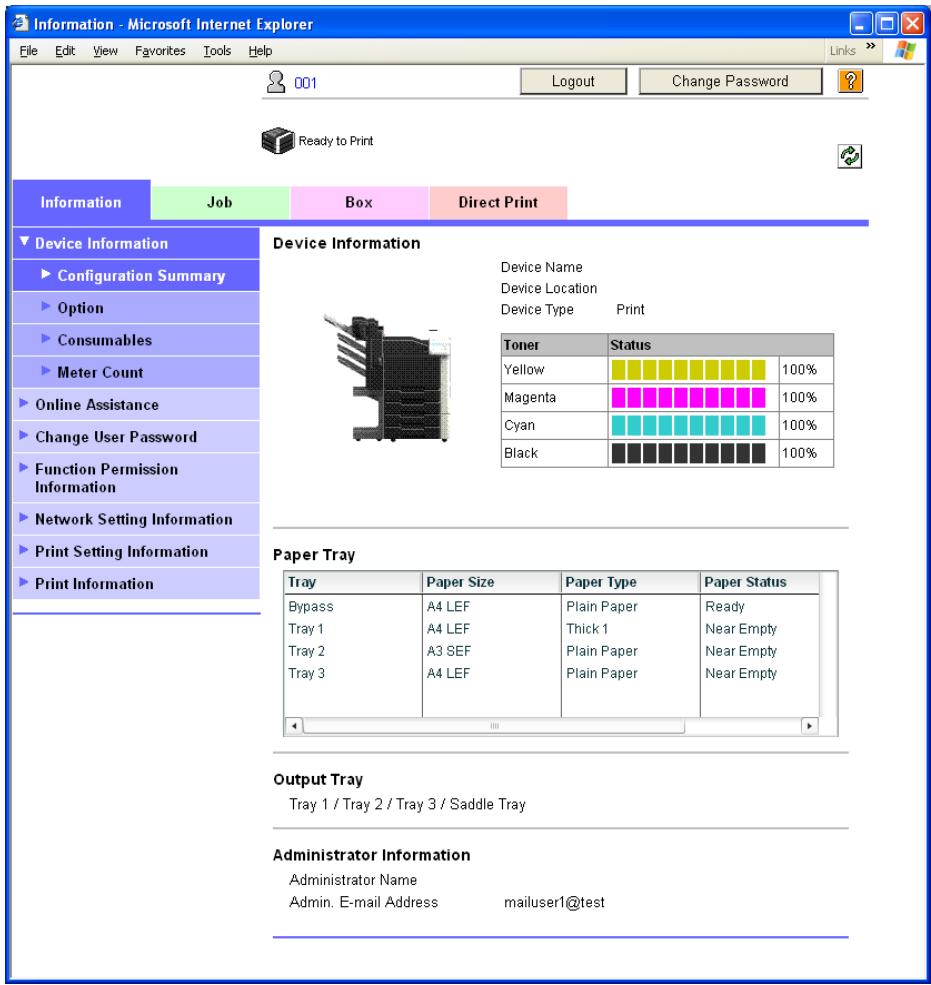
| Item | Description |
| Device Information | The current system configuration, options, consumables and counter values can be displayed. |
| Online Assistance | Support information for the machine can be displayed. |
| Change User Password | The password for the user who is logged on can be changed. |
| Function Permission Information | Information on operations permitted by users and accounts can be displayed. |
| Network Setting Information | Network settings for the machine can be displayed. |
| Print Setting Information | Settings for the printer controller of the machine can be displayed. |
| Print Information | Font and settings information can be printed. |

Note
Display items related to Copy, Scan or Fax are not available for this machine.
11.3.2 Job
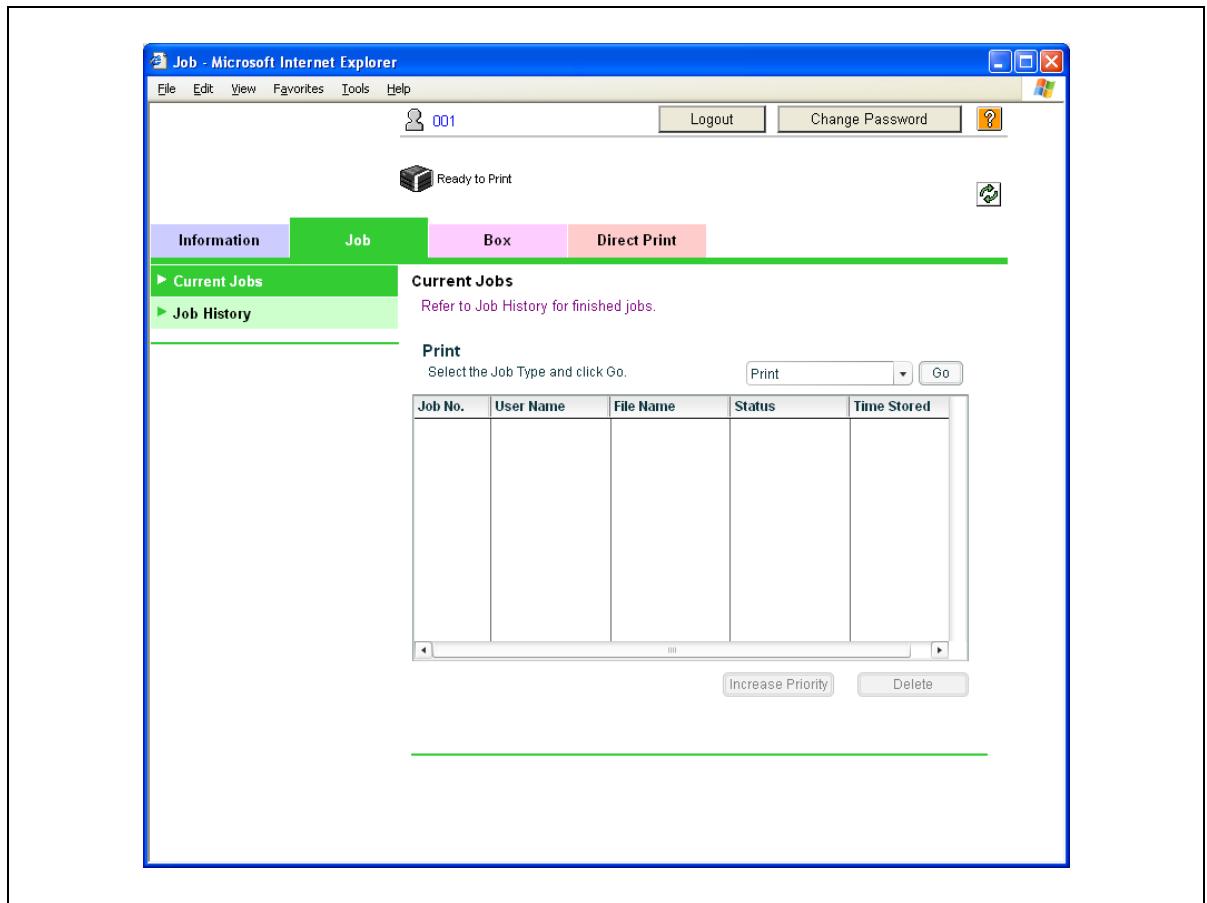
| Item | Description |
| Current Jobs | The running job and queued jobs can be displayed. |
| Job History | The completed jobs can be displayed. |
11.3.3 Box
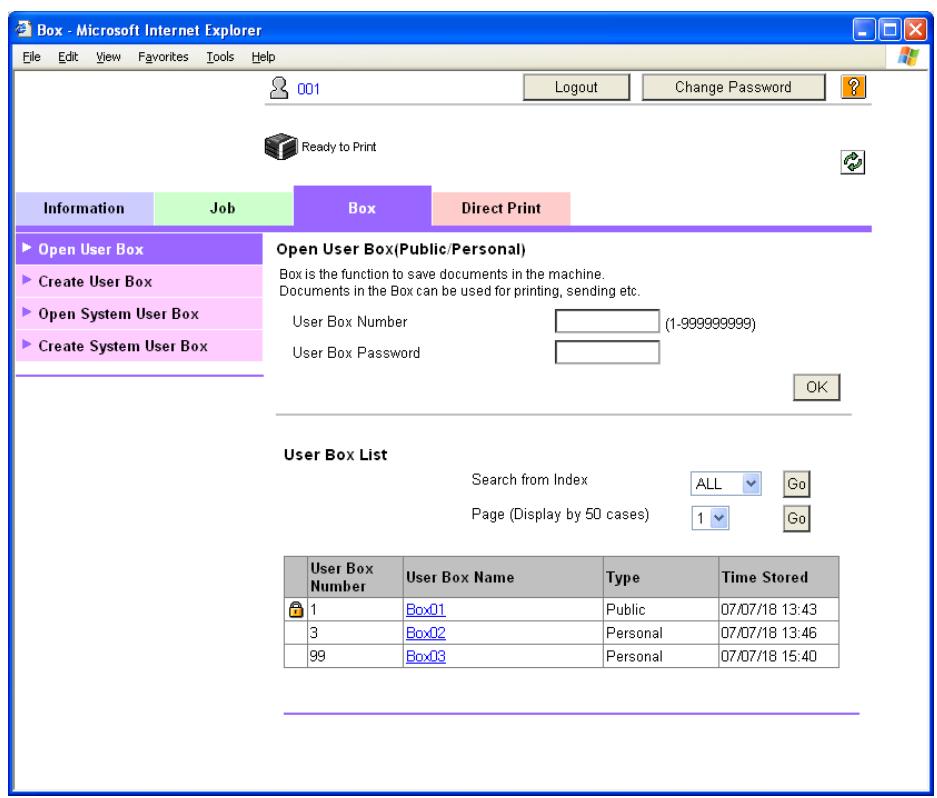
| Item | Description |
| Open User Box | A currently created public, personal or group user box can be opened to work on a saved document or to change user box settings. |
| Create User Box | New user boxes can be created. |
| Open System User Box | System user boxes can be opened to work on a saved document or to change user box settings. This item appears when you have logged in as an administrator in the User mode. |
| Create System User Box | New system user boxes can be created. This item appears when you have logged in as an administrator in the User mode. |

Note
The Box tab appears only if the optional HDD is installed.
11.3.4 Direct Print
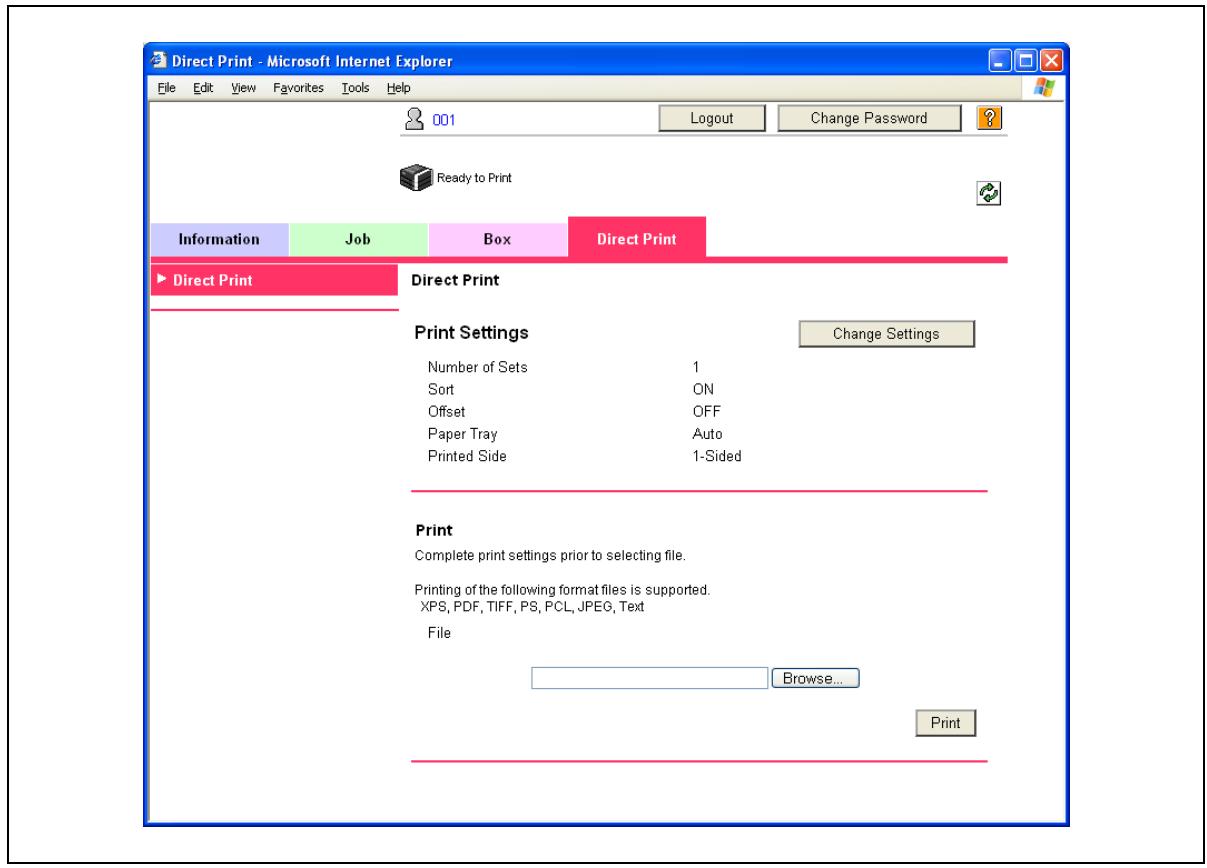
| Item | Description |
| Direct Print | Files that are saved in a computer can be specified and printed with this machine. |
11.4 Overview of Administrator mode
By logging on to PageScope Web Connection in Administrator mode, the following functions can be specified.
11.4.1 Maintenance
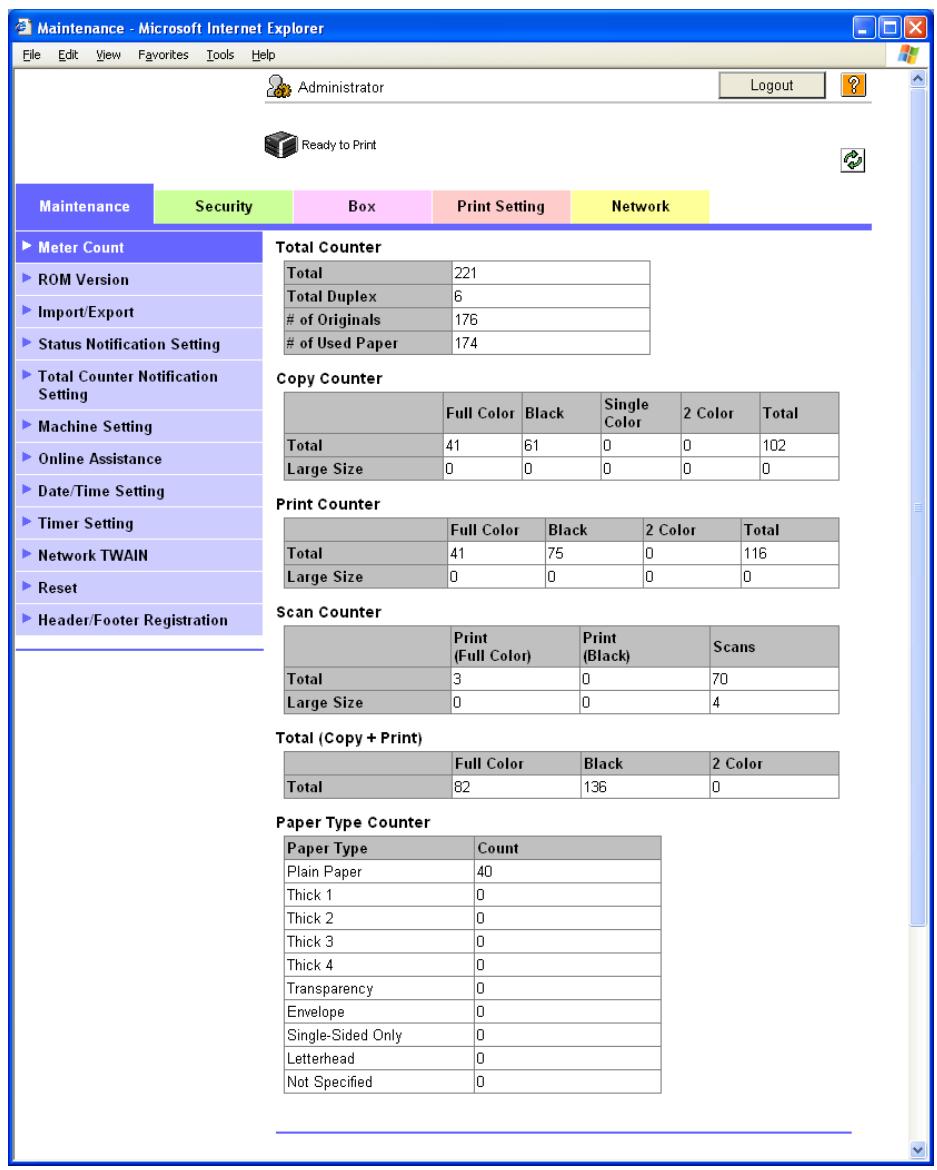
| Item | Description |
| Meter Count | Counters managed by the machine can be displayed. |
| ROM Version | The ROM version can be displayed. |
| Import/Export | Machine settings can be saved as a file (exported), or settings can be written to the machine (imported).In addition, counter information and others can be exported as text files. |
| Status Notification Setting | Specify settings for sending a notification if a machine error occurred. Settings can be specified for the destination of error notifications and the occasions when notifications are sent. |
| Total Counter Notification Setting | Specify the settings for sending notifications of the total counter by E-Mail and the E-Mail address where notifications are sent. |
| Machine Setting | The registered machine information can be changed. |
| Online Assistance | Specify the support information for the machine. To display this information, click the Information tab in User mode, and then click "Online Assistance" in the menu. |
| Date/Time Settings | Specify the date and time that are displayed on the machine. Not available for this machine. |
| Timer Settings | Specify the power save functions. |
| Network TWAIN | Not available for this machine. |
| Reset | Reset the network settings or controller settings. |
| Header/Footer Registration | The list of headers/footers can be displayed, and they can be registered or edited. |

Note
Display items related to Copy, Scan or Fax are not available for this machine.
11.4.2 Security
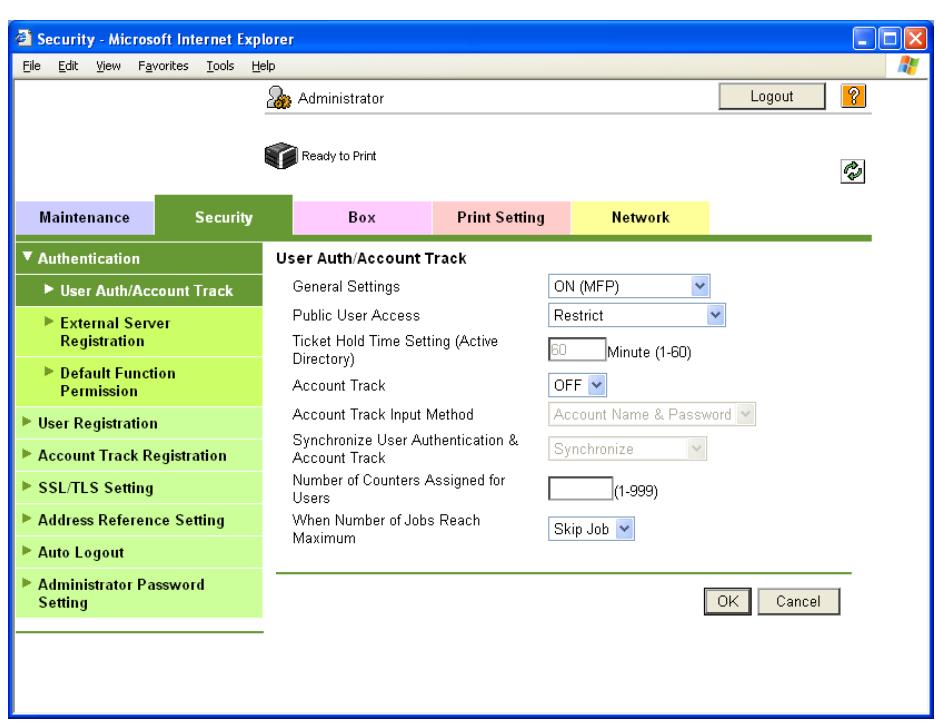
| Item | Description |
| Authentication | Specify user authentication and account track settings for the machine. To perform authentication, an external server and default function permission can also be specified. |
| User Registration | If user authentication settings are specified, users can be registered and their settings can be changed. |
| Account Track Registration | If account track is specified, accounts can be registered and their settings can be changed. |
| SSL/TLS Setting | Specify the settings for SSL/TLS. With SSL/TLS enabled, communication between this machine and a client computer is encrypted to prevent passwords and messages being leaked. |
| Address Reference Setting | Not available for this machine. |
| AutoLogout | Specify the length of time until Administrator mode or User mode is automatically logged off. |
| Administrator Password Setting | Specify the password for logging on to PageScope Web Connection in the Administrator mode. |

Note
"Administrator Password Settings" does not appear in the following cases:
No SSL certificate is installed.
The "EnhancedSecurity" Mode is enabled.
11.4.3 Box
When logged on in Administrator mode, user boxes can be used without typing in the password.
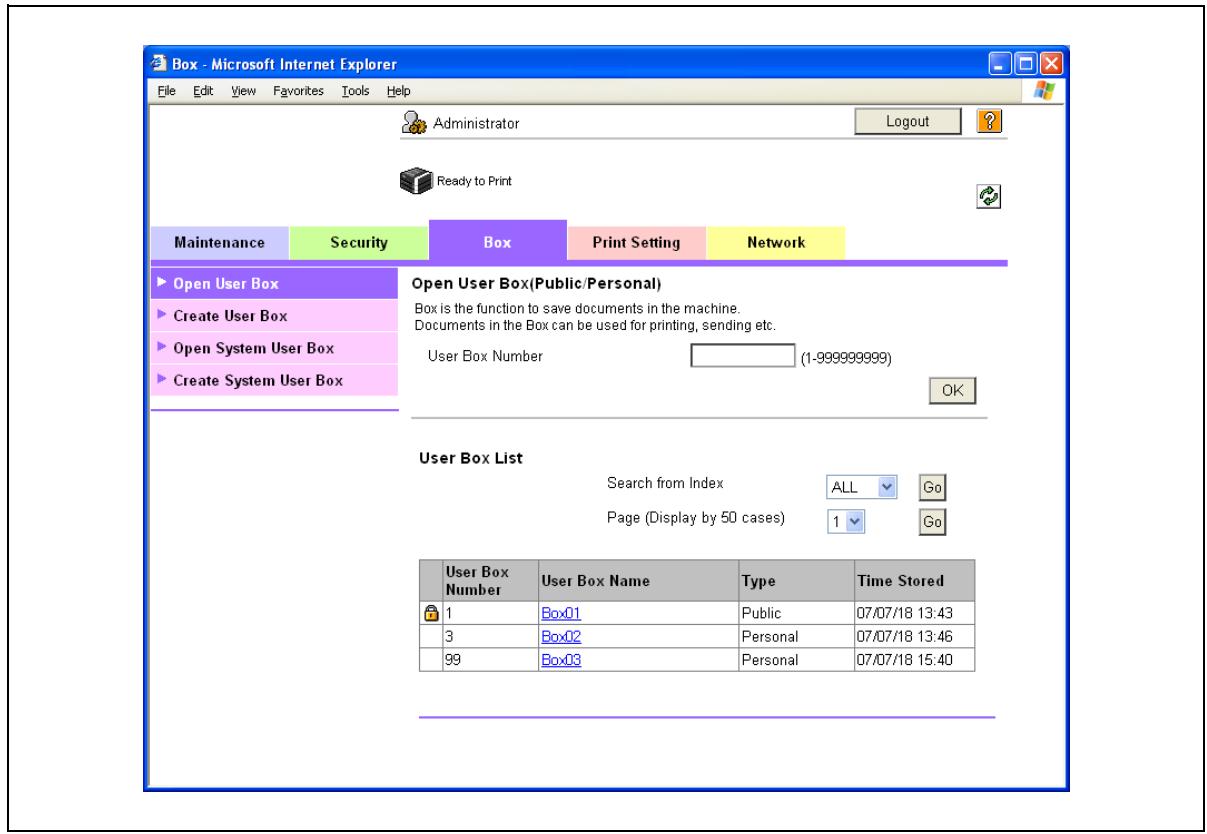
| Item | Description |
| Open User Box | A currently created public, personal or group user box can be opened to work on a saved document or to change user box settings. |
| Create User Box | New user boxes can be created. |
| Open System User Box | System user boxes (Annotation User Box) can be opened to work on a saved document or to change user box settings. |
| Create System User Box | New annotation user boxes can be created. |

Note
The Box tab appears only if the optional HDD is installed.
11.4.4 Print Setting
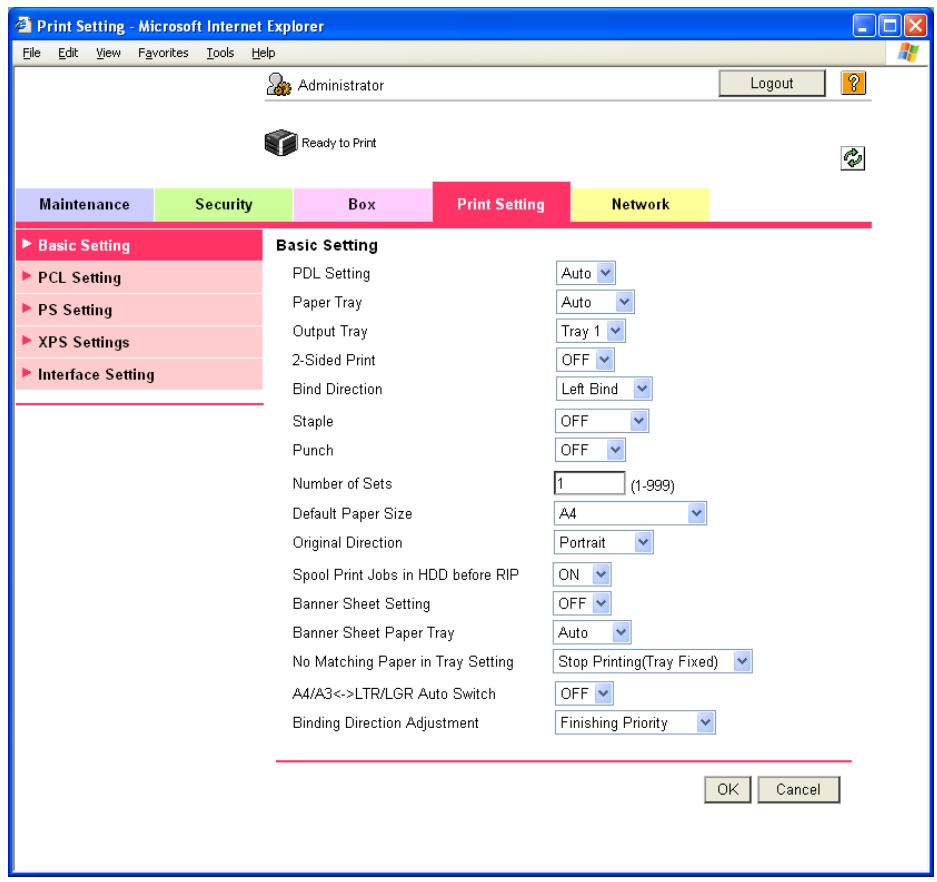
| Item | Description |
| Basic Setting | The default printer settings can be specified. |
| PCL Setting | The default settings for PCL mode can be specified. |
| PS Setting | The default settings for PS mode can be specified. |
| XPS Settings | The XPS print settings can be specified. |
| Interface Setting | The interface timeout can be specified. |
11.4.5 Network
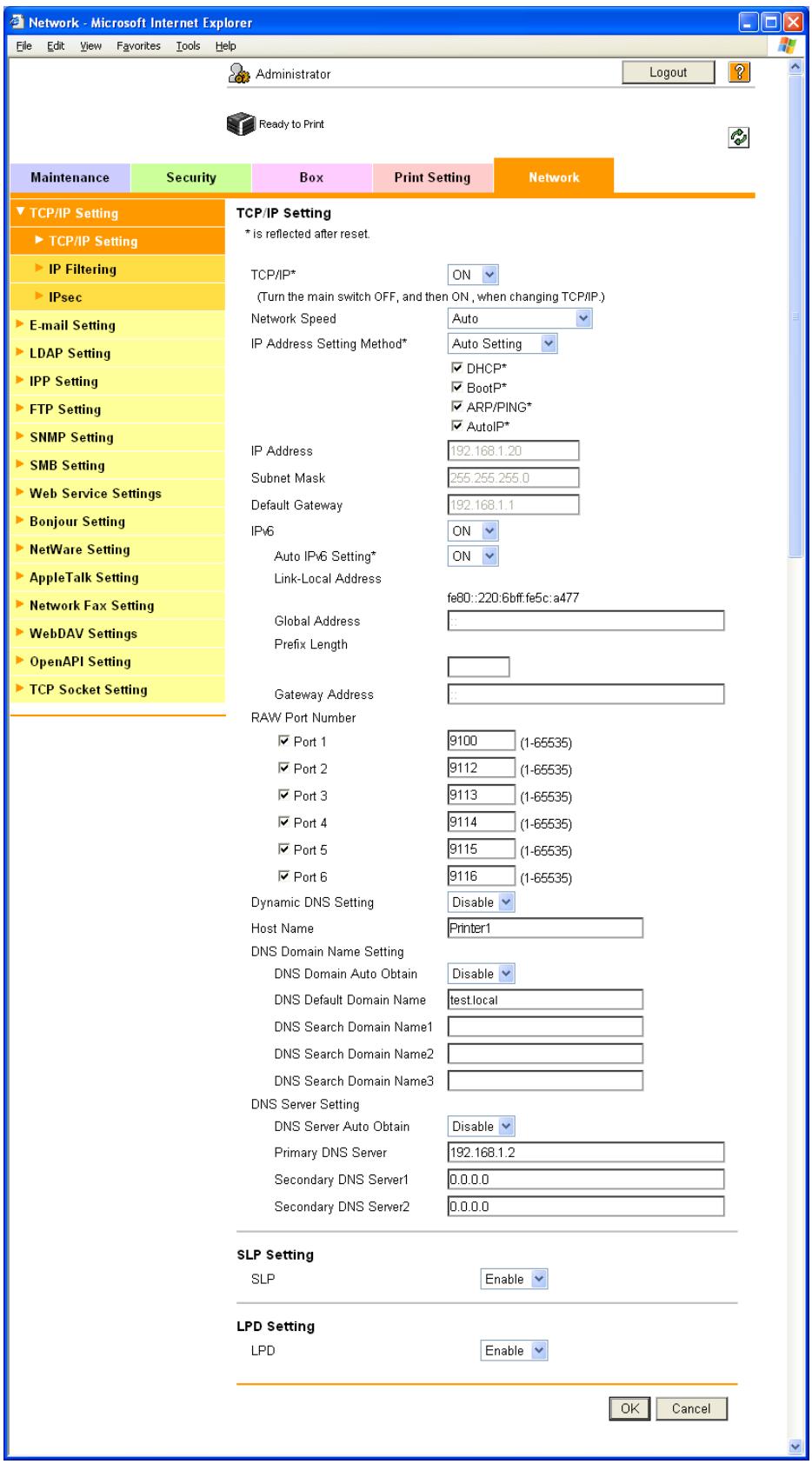
| Item | Description |
| TCP/IP Setting | Specify the TCP/IP settings to connect the machine to the network. |
| E-Mail Setting | Specify the E-Mail TX/RX setting.Display items related to the S/MIME function are not available for this machine. |
| LDAP Setting | Not available for this machine. |
| IPP Setting | Specify the settings for IPP printing. |
| FTP Setting | Specify the settings to use this machine as an FTP server."FTP TX Setting" is not available for this machine. |
| SNMP Setting | Specify the SNMP settings. |
| SMB Setting | Specify the settings for the WINS, and SMB print. |
| Web Service Settings | Specify the settings for print via the Web service."Scanner Settings" is not available for this machine. |
| Bonjour Setting | Specify the Bonjour settings. |
| NetWare Setting | Specify the NetWare settings. |
| AppleTalk Setting | Specify the AppleTalk settings. |
| Network Fax Setting | Not available for this machine. |
| WebDAV Settings | Not available for this machine. |
| Open API Setting | Specify OpenAPI settings. |
| TCP Socket Setting | Specify TCP Socket settings used for data transmissions between the computer ap-plication and this machine. |
11.5 Box settings
This section describes other items specifiable on the Box tab for the PageScope Web Connection. From the Box tab, user boxes can be created and basic user box information can be viewed.

Note
The Box tab appears only if the optional HDD is installed.
11.5.1 Changing user box settings or deleting a user box
Change created user box settings or delete a user box.

Detail
In Administrator mode, user box settings can be changed and a user box can be deleted without entering the user box password. In the user mode, files in the box can be operated.
Open User Box
1 In Administrator mode of PageScope Web Connection, select the Box tab - "Open User Box".
2 Specify the following settings.
3 Select the box to specify from the list or specify the box number, and then click the [OK] button.
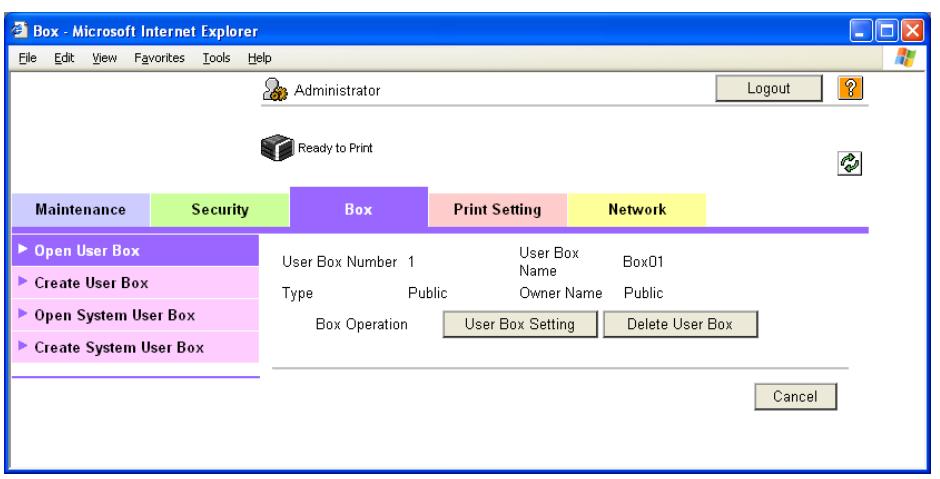
| Item | Definition |
| [User Box Setting] | Changes the user box settings. |
| [Delete User Box] | Deletes the user box. |
User Box Setting
| Item | Definition |
| User Box Number | Displays the user box number. |
| User Box Name | Specify the user box name (up to 20 characters). |
| Index | Specify the indexing characters. |
| Auto Delete Document | Specify the period during which data in the user box is saved. |
| User Box Password is changed. | To change the user box password, select the check box. Specify the current password and the new password (up to 8 characters). |
| User Box Owner is changed. | To change the user box owner, select this check box to select the box type. |
11.5.2 Creating a new user box
Create a new user box.

Detail
Public user boxes can be created only, and they cannot be changed in Administrator mode. User Boxes include Public User Boxes, Personal User Boxes for individual users that can be used when the user authentication function is enabled, and Account User Boxes for accounts that can be used when the Account Track function is enabled. Personal User Box and Account User Box can be created on the Box tab in the User Mode. To create a Personal User Box, log in to the User Mode as the desired User and create a box in the Box tab. To create an Account User Box, log in to the User Mode with the desired Account and create a box in the Box tab. Procedure to create individual user boxes is the same as in the Administrator mode.
Create User Box
1 In Administrator mode of PageScope Web Connection, select the Box tab - "Create User Box".
2 Specify the following settings.
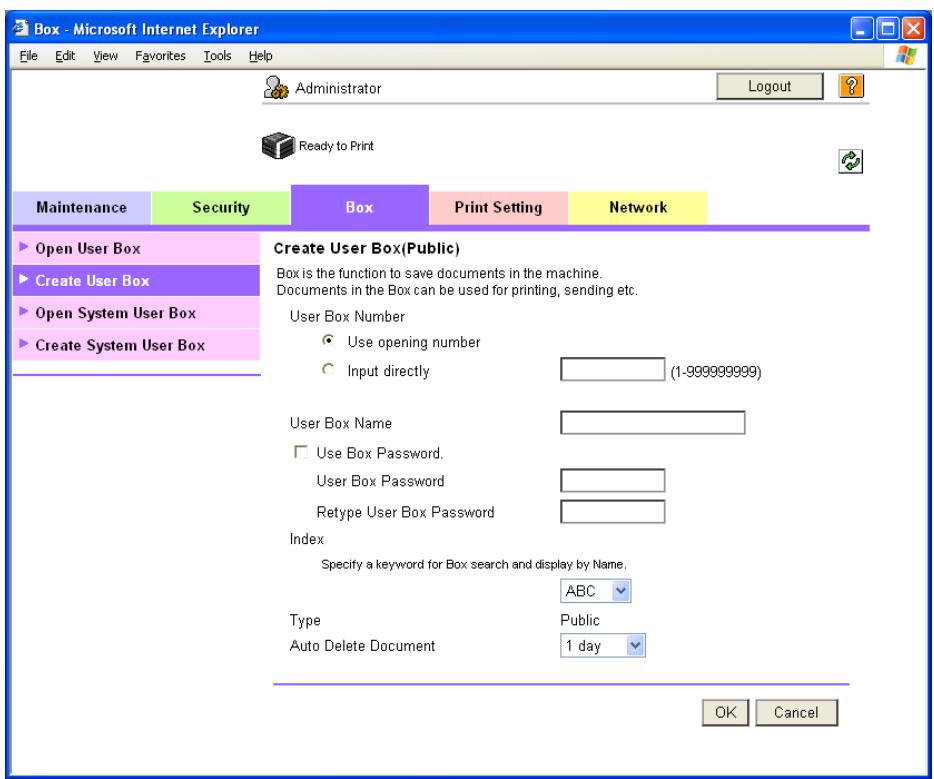
| Item | Definition |
| User Box Number | Select the registration number of the box to be created ("Use opening number" or "Direct Input"). |
| User Box Name | Specify the user box name (up to 20 characters).To specify the user box password, select the "Use Box Password" check box, and then specify the password (up to 8 characters). |
| Index | Specify the indexing characters. |
| Type | Specify the user box type. Public user boxes can be created only, and they cannot be changed in Administrator mode.The following User Box Types are available.Public User Box: Available for all users.Personal User Box: Available for an individual user. This User Box can be used when the user authentication function is available.Account User Box: Available for an individual account. This User Box can be used when the Account Track function is available. |
| Auto Delete Document | Specify the period during which data in the user box is saved. |

Detail
If "Password Rules" is enabled, no password containing less than eight characters can be registered. If you have already registered a user password containing less than eight characters, change it to one using eight characters before enabling "Password Rules". For details on the password rules, refer to "Admin. Settings Menu" on page 10-23.
11.5.3 Changing system box settings or deleting system boxes
Change the settings for created system boxes (annotation user box) or delete the boxes.

Detail
annotation user box:
This is the box to print the saved document data with an image of the date/time and an annotation number. You can set the character string added to the saved box and change it when you print a document.
Open System User Box
1 In Administrator mode of PageScope Web Connection, select the Box tab - "Open System User Box".
2 Specify the following settings.
3 Click the [OK] button, select the box to specify from the list or specify the box number, and then click the [OK] button.
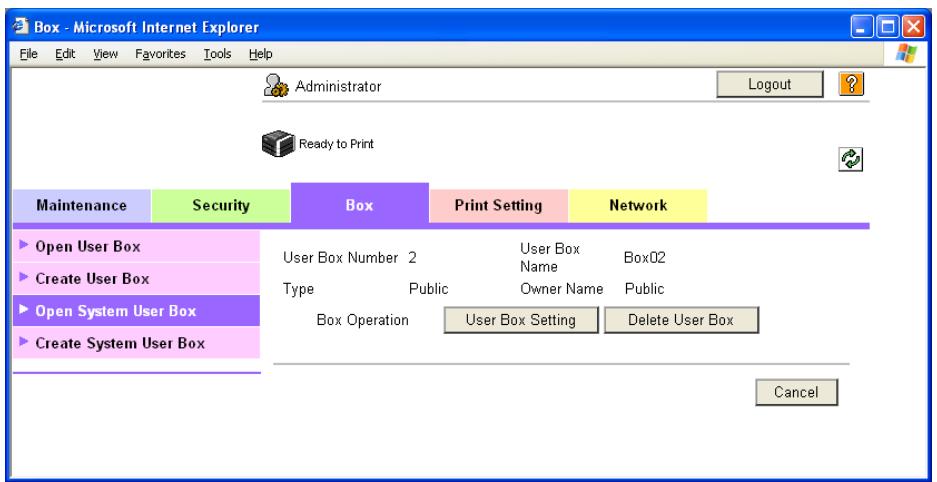
| Item | Definition |
| [User Box Setting] | Changes the user box settings. |
| [Delete User Box] | Deletes the user box. |
"Annotation User Box" settings
| Item | Definition |
| User Box Number | Displays the user box number. |
| User Box Name | Specify the user box name (up to 20 characters). |
| Auto Delete Document | Specify the period during which data in the user box is saved. |
| Change User Box Pass- word | Change the user box password. |
| Change Count Up | To change the counting method, select the check box, and then specify the counting method. If the user box contains documents, the setting cannot be specified. |
| Change Stamp Elements | To change the text, select the check box, and then specify settings for "Primary field", "Secondary Field", "Date/Time", "Print Position", "Density", and "Number Type". |
11.5.4 Creating a new system user box
Create a new system user box.
Create System User Box
1 In Administrator mode of PageScope Web Connection, select the Box tab - "Create System User Box".
2 Specify the following settings.
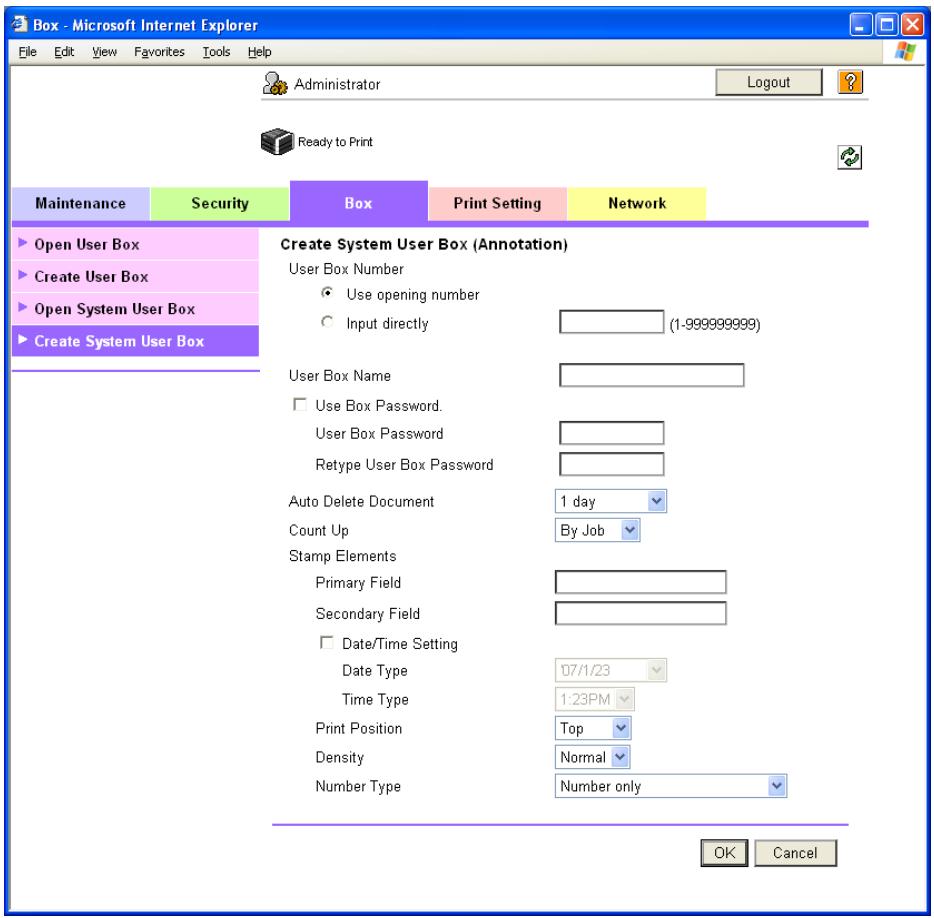
When "Annotation User Box" is selected
| Item | Definition |
| User Box Number | Specify the registration number of the box to be created ("Use opening number" or "Direct Input"). |
| User Box Name | Specify the user box name (up to 20 characters).To specify the user box password, select the "Use Box Password" check box, and then specify the password (up to 8 characters). |
| Auto Delete Document | Specify the period during which data in the user box is saved. |
| Count Up | Select the counting method. If the user box contains documents, the setting cannot be specified. |
| Stamp Elements | Specify settings for "Primary Field", "Secondary Field", "Date/Time Setting", "Print Position", "Density", and "Number Type" |

Detail
If "Password Rules" is enabled, no password containing less than eight characters can be registered. If you have already registered a user password containing less than eight characters, change it to one using eight characters before enabling "Password Rules". For details on the password rules, refer to "Admin. Settings Menu" on page 10-23.
11.6 Importing or exporting setting information
Import or export setting information of this machine.
Machine settings can be saved (exported) from this machine to the computer, or can be written from the computer to the machine (imported).
Import/Export
1 In Administrator mode of PageScope Web Connection, select the Maintenance tab - "Import/Export".
2 Specify the following settings.
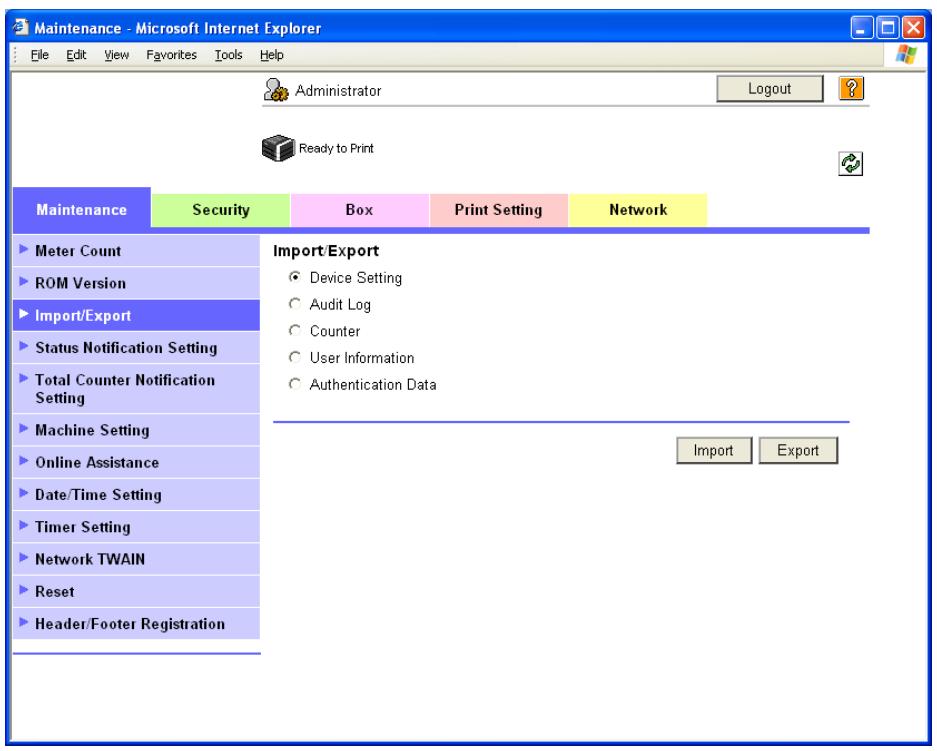
| Item | Definition |
| Device Setting | Imports or exports device settings. |
| Audit Log | Exports the audit log information. |
| Counter | Exports the counter information. |
| User Information | Imports or exports user information. When user authentication or account track is enabled, counter information for every user or account can be exported as text files. |
| Authentication Data | When using an authentication unit (biometric type) on this machine, biometrics information can be imported or exported. |

Detail
Exported files cannot be edited.
When E-mail destinations with certificates are exported and imported, the certificate information must be registered again after importing.
"Audit Log" and "Counter" are available only for exporting.
When importing or exporting authentication data, operate user registration information in the same way.
Operate the authentication data after operate the user authentication information.
"Audit Log" is available when audit log setting is enabled on this machine.
11.7 Specifying the date and time on this machine
Specify the date and time of the internal clock of this machine.
The following specification methods are available: manual specification and acquisition from the NTP server via the network.
To make this machine log in to the Active Directory, it may be necessary to specify the date and time of this machine.
Specify the settings according to the following flowchart.
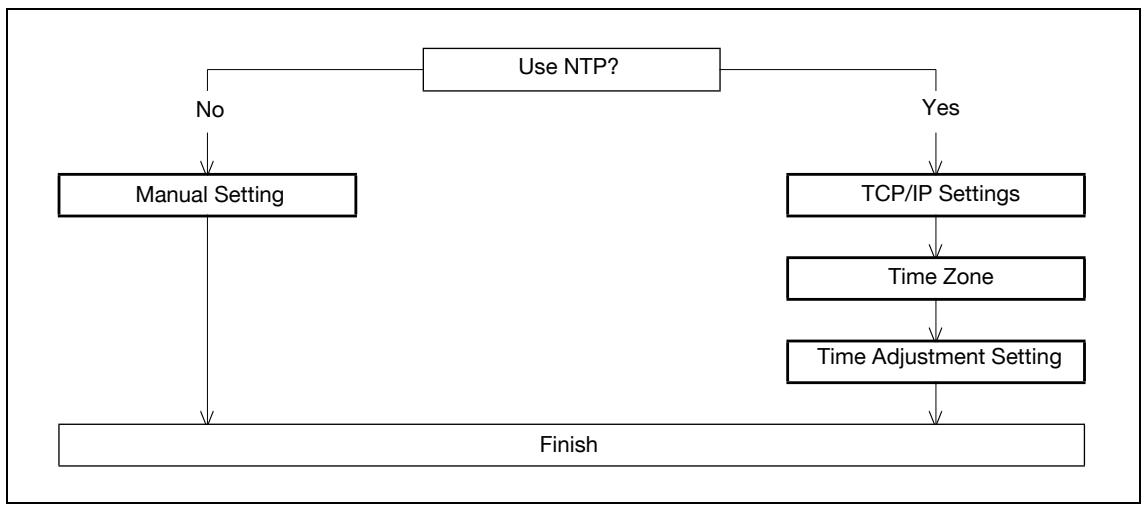

Detail
The following sections contain descriptions on the settings to make this machine log in to the Active Directory. For details, refer to the respective sections.
"Limiting users using this machine (Active Directory)" on page 11-38
11.7.1 Manual Setting
1 In Administrator mode of PageScope Web Connection, select the Maintenance tab - "Date/Time Setting" - "Manual Setting".
2 Specify the following settings.
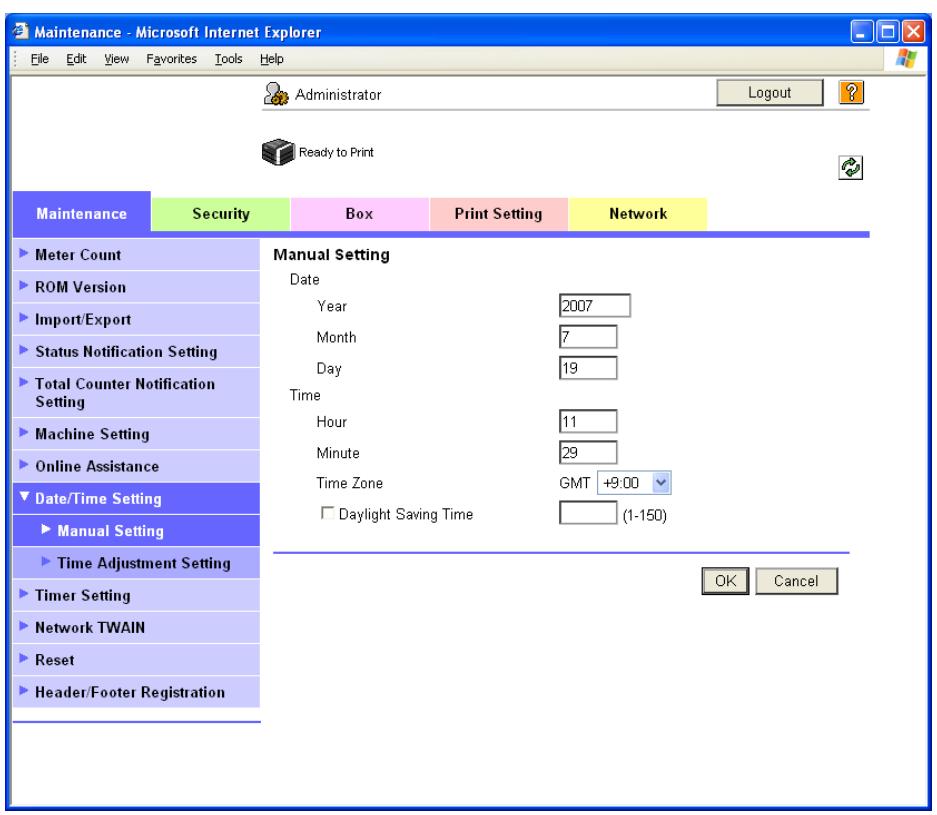
| Item | Definition | Prior confirmation |
| Year | Enter the year. | |
| Month | Enter the month. | |
| Day | Enter the day. | |
| Hour | Enter the hour. | |
| Minute | Enter the minutes. | |
| Time Zone | Select the time difference from GMT. | Time zone |
| Daylight Saving Time | If necessary, specify the daylight saving time setting. |
11.7.2 TCP/IP Settings
Specify settings to use this machine in a TCP/IP network environment.
For details, refer to "Specifying general settings for TCP/IP-based communication" on page 4-3.
11.7.3 Time Zone
On the Manual Setting screen, specify setting for "Time Zone".
For details, refer to "Manual Setting" on page 11-31.
11.7.4 Time Adjustment Setting
1 In Administrator mode of PageScope Web Connection, select the Maintenance tab - "Date/Time Setting" - "Time Adjustment Setting".
2 Specify the following settings.
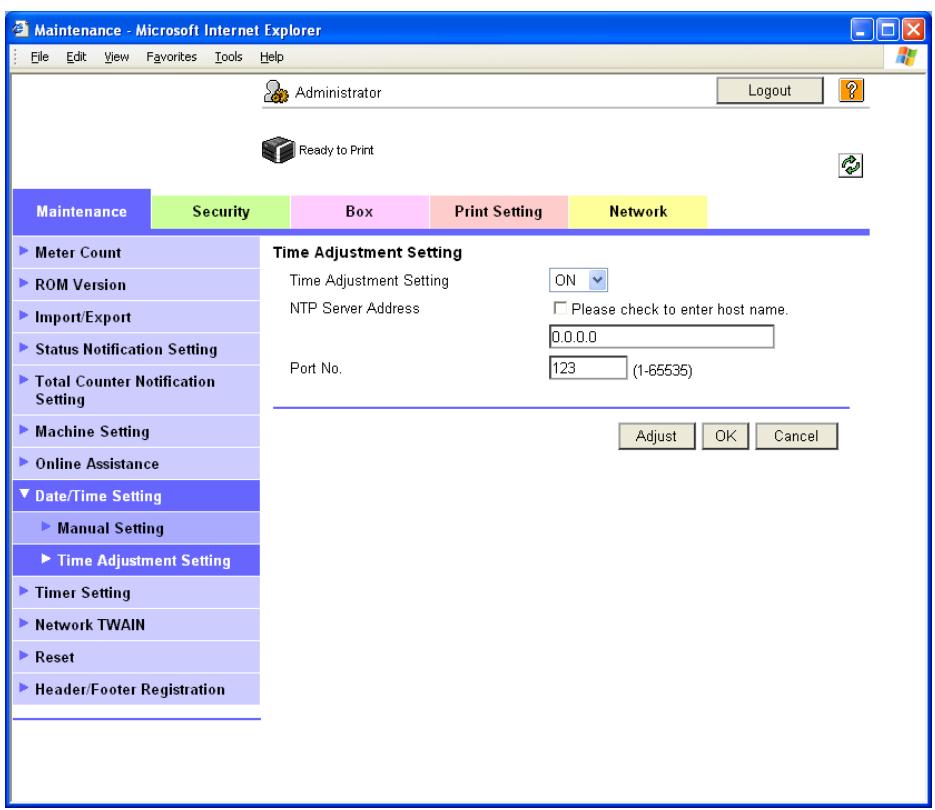
| Item | Definition | Prior confirmation |
| Time Adjustment Setting | Select "ON". | |
| NTP Server Address | Specify the NTP server address. (Format: "***.***.***", Range for **: 0 to 255)If the DNS server is specified, the address can be specified using the host name. This item can also be specified with IPv6. | Address of the server |
| Port Number | Default setting: 123Specify the port number. | Port number for the server |
| [Adjust] | Connects to the NTP server with the specified conditions to adjust the time. |
11.8 Limiting users using this machine (Machine authentication)
Specify settings for using this machine using machine authentication.
Specify user authentication and account track settings in order to control the use of this machine. User authentication settings are specified to manage individuals, and account track settings are specified to manage groups and multiple users. By specifying both user authentication and account track settings, the number of prints made by each account can be managed for each individual user.
Specify the settings according to the following flowchart.
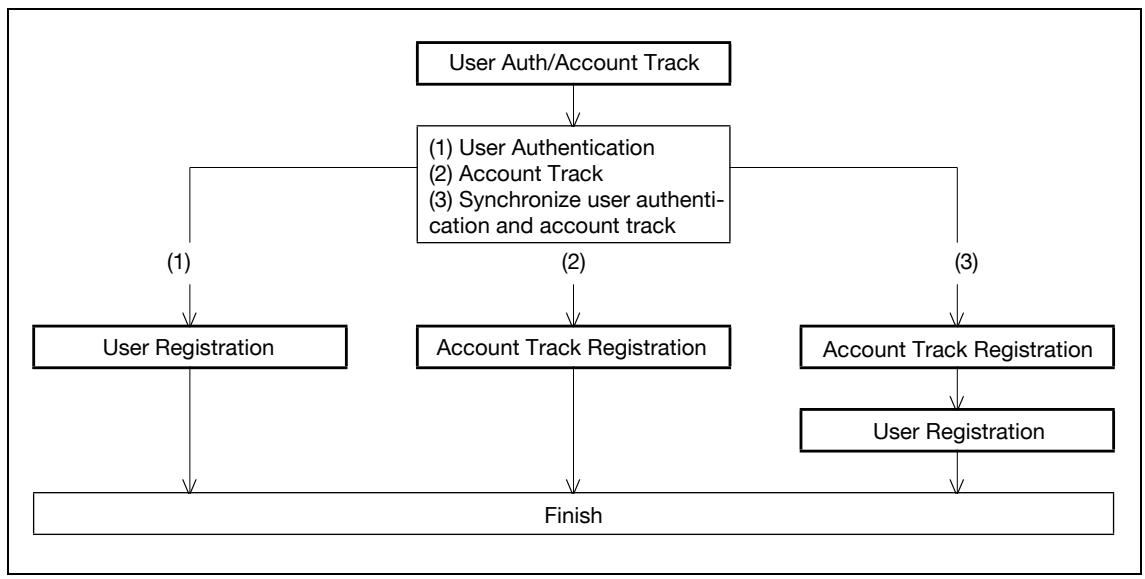

Note
For (1) User Authentication, select "ON" for "General Settings" in [User Auth/Account Track].
For (2) Account Track, select "ON" for "Account Track" in [User Auth/Account Track].
For (3) Synchronize user authentication and account track, select "ON" for both "General Settings" and "Account Track", and select "Synchronize" for "Synchronize User Authentication & Account Track".
For details, refer to "User Auth/Account Track" on page 11-34.
11.8.1 User Auth/Account Track
1 In Administrator mode of PageScope Web Connection, select the Security tab - "Authentication" - "User Auth/Account Track".
2 Specify the following settings.
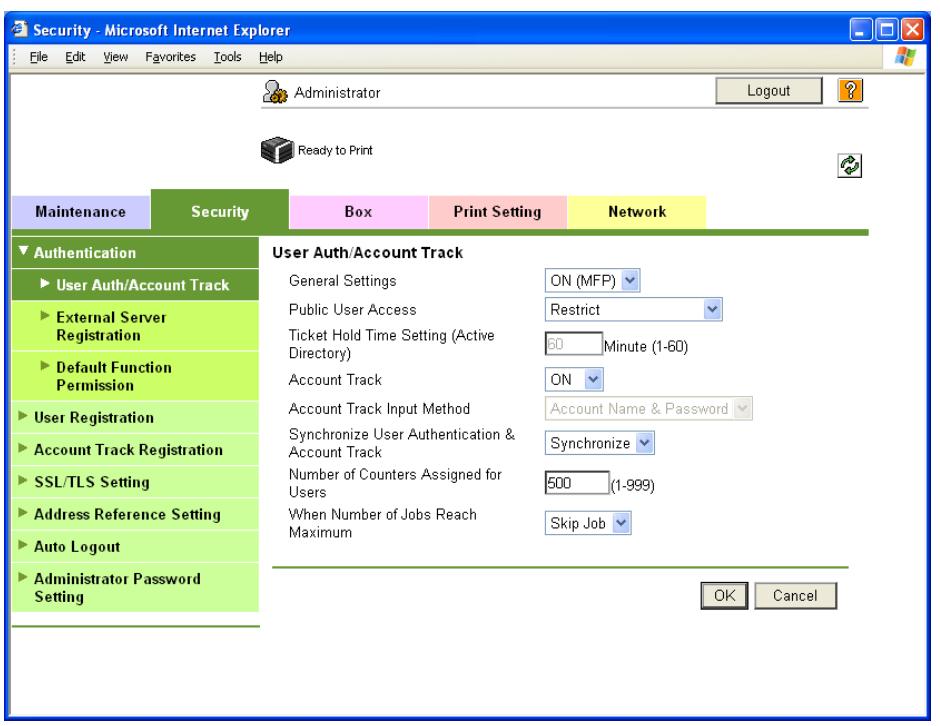
| Item | Definition | Prior confirmation |
| General Settings | Select "ON (MFP)". | |
| Public User Access | Specify whether to allow public users. | Whether to allow public users |
| Account Track | To use the account track function, select "ON". | Whether to use Account Track |
| Account Track Input Method | To use the account track function, select the desired authen-tication method. | |
| Synchronize User Au-thingication & Account Track | To synchronize user authentication and account track func-tions, select "Synchronize". | Whether to synchronize the user authentication and account track func-tions |
| Number of Counters As-signed for Users | To use the user authentication and account track, specify the number of counters assigned for users. | |
| When Number of Jobs Reach Maximum | Specify the operation that is performed when the number of copies or printouts have reached its maximum. |

Detail
If "EnhancedSecurity" is set to "ON", the authentication method cannot be set to "OFF". In addition, "Public User Access" is set to "Restrict".
11.8.2 User Registration
1 In Administrator mode of PageScope Web Connection, select the Security tab - "User Registration" - [New Registration].
2 Specify the following settings.
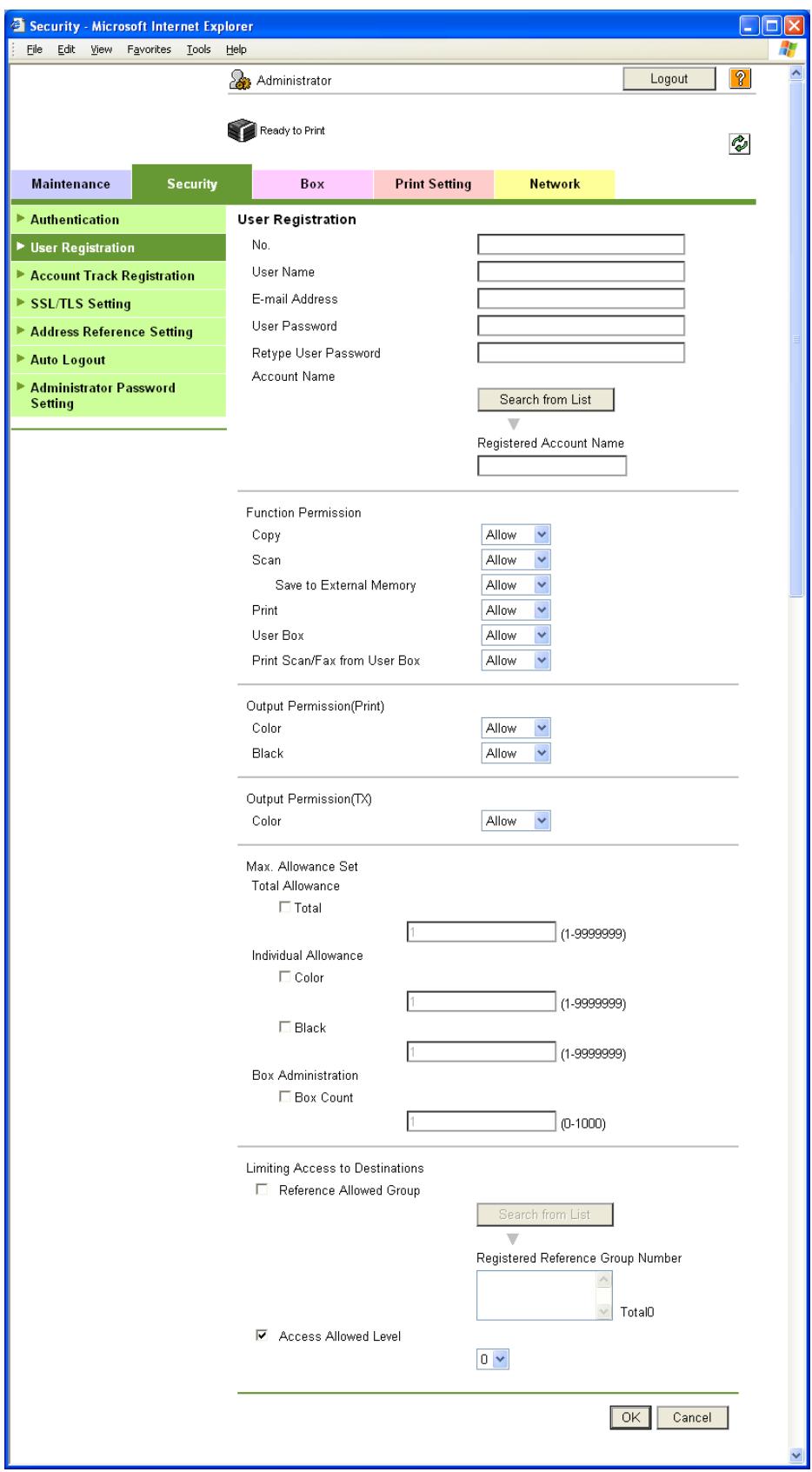
| Item | Definition | Prior confirmation |
| No. | Enter the registration number. | |
| User Name | Enter the user name. | |
| E-mail Address | Not available for this machine. | |
| User Password | Enter the password. | |
| Rotype User Password | Enter the password again. | |
| Account Name | Register the account to which the user belongs. Before selecting the account name, register the account. When "Syn-chronize" of the user authentication and account is specified, this item appears. | |
| Function Permission | Specify whether to allow printing, user box operation, and print from user box.Display items related to Copy, Scan, External Memory or Fax are not available for this machine. | |
| Output Permission (Print) | Specify whether to allow color or black output when printing. | |
| Output Permission (TX) | Not available for this machine. | |
| Max. Allowance Set | Specify whether to limit the max. allowance of output. | |
| Limiting Access to Desti-nations | Not available for this machine. |

Detail
If "Password Rules" is enabled, no password containing less than eight characters can be registered. If you have already registered a user password containing less than eight characters, change it to one using eight characters before enabling "Password Rules". For details on the password rules, refer to "Admin. Settings Menu" on page 10-23.
11.8.3 Account Track Registration
1 In Administrator mode of PageScope Web Connection, select the Security tab - "Account Track Registration" - [New Registration].
2 Specify the following settings.
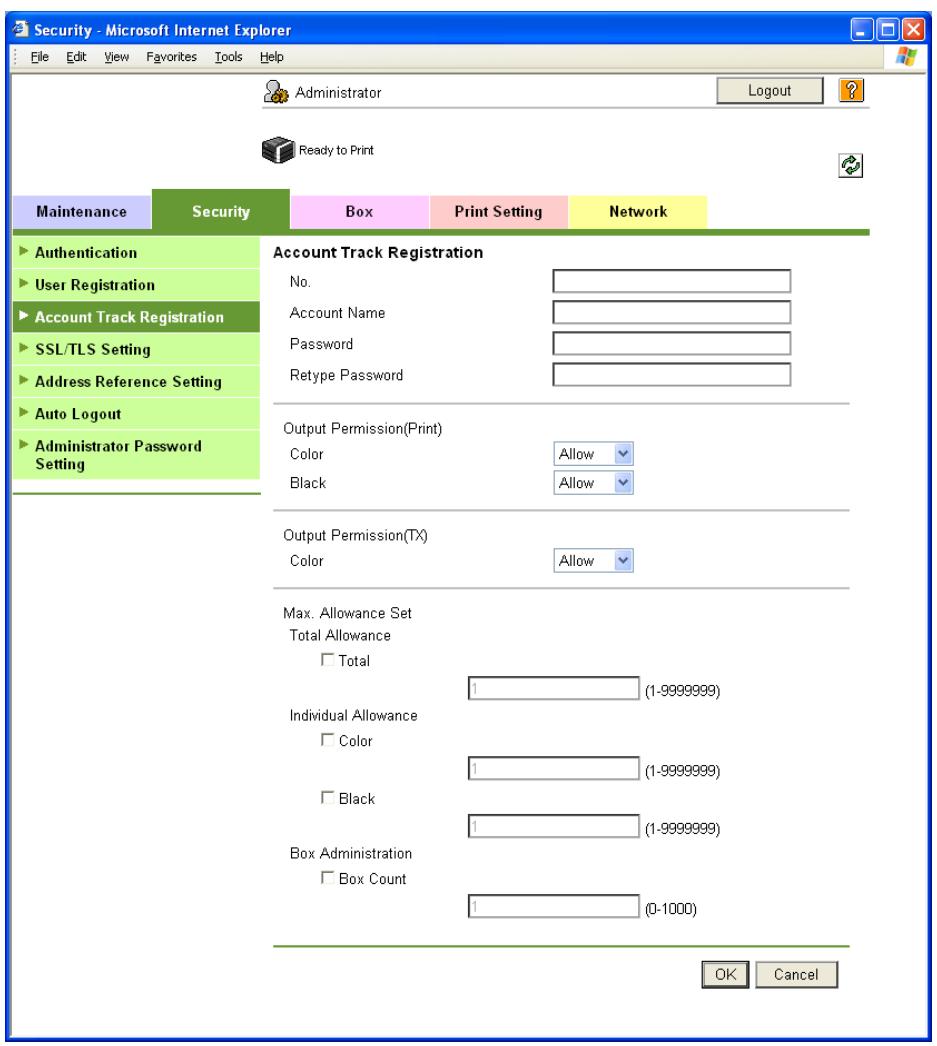
| Item | Definition | Prior confirmation |
| No. | Enter the registration number. | |
| Account Name | Enter the account name. | |
| Password | Enter the password. | |
| Rotype Password | Enter the password again. | |
| Output Permission (Print) | Specify whether to allow color or black output when printing. | |
| Output Permission (TX) | Not available for this machine. | |
| Max. Allowance Set | Displays whether to limit the max. allowance of output. |

Detail
If "Password Rules" is enabled, no password containing less than eight characters can be registered. If you have already registered a user password containing less than eight characters, change it to one using eight characters before enabling "Password Rules". For details on the password rules, refer to "Admin. Settings Menu" on page 10-23.
11.9 Limiting users using this machine (Active Directory)
Specify settings for limiting users of this machine using Active Directory.
To perform authentication using Active Directory of Windows Server, use this setting. This setting limits functions available on a user basis.
Specify the settings according to the following flowchart.
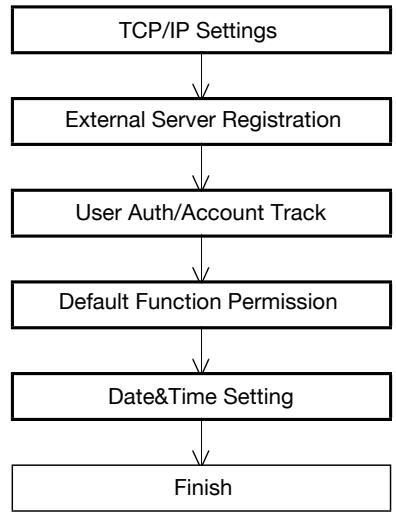
11.9.1 TCP/IP Settings
Specify settings to use this machine in a TCP/IP network environment.
When using Active Directory, specify a DNS server synchronized with Active Directory in the DNS Server Settings of this machine.
For details, refer to "Specifying general settings for TCP/IP-based communication" on page 4-3.
11.9.2 External Server Registration
1 In Administrator mode of PageScope Web Connection, select the Security tab - "Authentication" - "External Server Registration" - [Edit].
2 Specify the following settings.
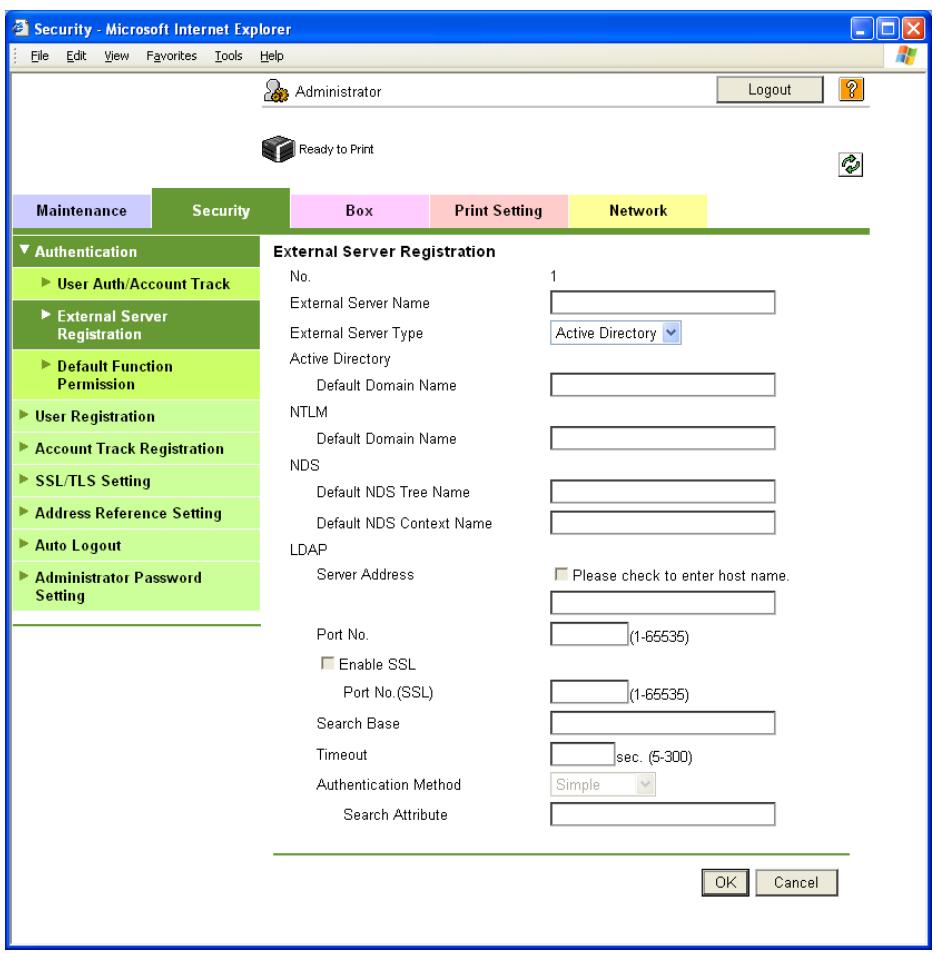
| Item | Definition | Prior confirmation |
| No. | Displays the registration number. | |
| External Server Name | Enter the name of the external authentication server (up to 32 characters). | |
| External Server Type | Select "Active Directory". | |
| Default Domain Name | Enter the default domain name. | Default domain name |
11.9.3 User Auth/Account Track
1 In Administrator mode of PageScope Web Connection, select the Security tab - "Authentication" - "User Auth/Account Track".
2 Specify the following settings.

| Item | Definition | Prior confirmation |
| General Settings | Select "ON (External Server)". | |
| Ticket Hold Time Setting (Active Directory) | Specify the ticket hold time. |
11.9.4 Default Function Permission
1 In Administrator mode of PageScope Web Connection, select the Security tab - "Authentication" - "Default Function Permission".
2 Specify the following settings.
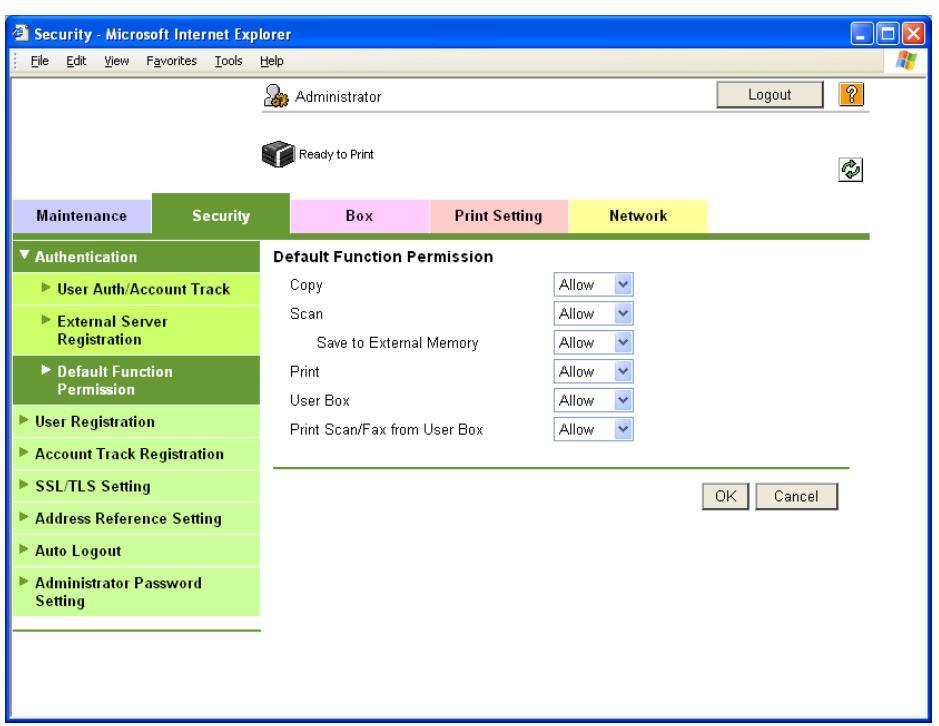
| Item | Definition | Prior confirmation |
| Copy | Limits functions available to authorized users on this machine. Specify whether to allow each function. Display items related to Copy, Scan, External Memory or Fax are not available for this machine. | |
| Scan | ||
| Save to External Memory | ||
| Fax | ||
| User Box | ||
| Print Scan/Fax from User Box |
11.9.5 Date/Time Setting
When using Active Directory, specify the date and time on this machine.
For details, refer to "Specifying the date and time on this machine" on page 11-30.
11.10 Limiting users using this machine (Windows domain/workgroup)
Specify settings for limiting users of this machine using NTLM authentication.
To perform authentication using NTLM when using Active Directory of Windows Server, use this setting. This setting limits functions available on a user basis.
Specify the settings according to the following flowchart.
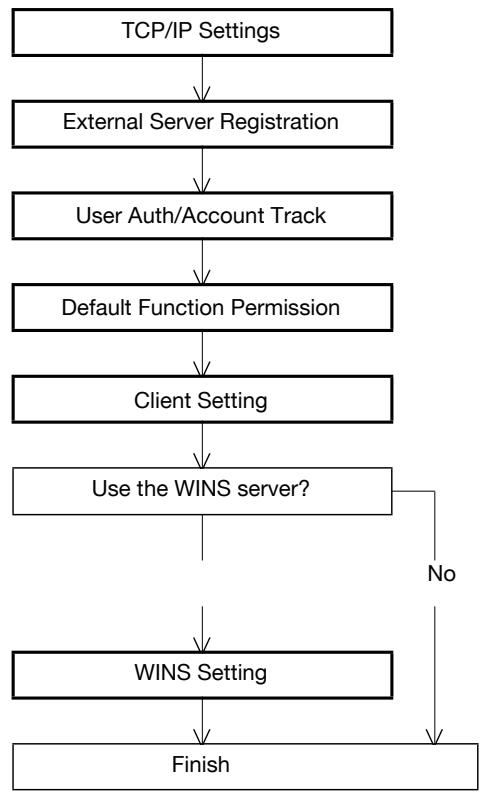

Note
To use SMB printing in the IPv6 environment, the Direct Hosting setting must be enabled. When the Direct Hosting setting is enabled, the DNS server is used for name resolution to start communication with the server name specified and the IPv6 address is acquired. For details, refer to "Direct Hosting Setting" on page 4-12.
11.10.1 TCP/IP Settings
Specify settings to use this machine in a TCP/IP network environment.
For details, refer to "Specifying general settings for TCP/IP-based communication" on page 4-3.
11.10.2 External Server Registration
1 In Administrator mode of PageScope Web Connection, select the Security tab - "Authentication" - "External Server Registration" - [Edit].
2 Specify the following settings.
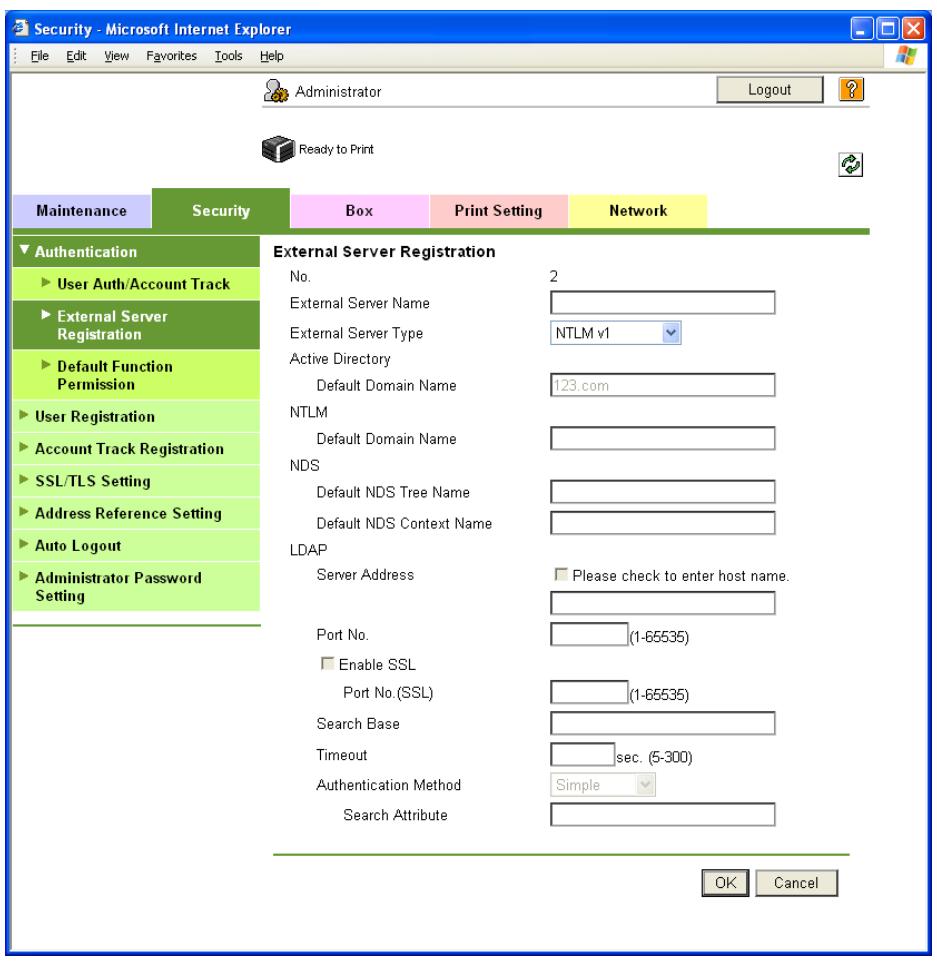
| Item | Definition | Prior confirmation |
| No. | Displays the registration number. | |
| External Server Name | Enter the name of the external authentication server (up to 32 characters). | |
| External Server Type | Select "NTLM v1" or "NTLM v2". NTLMv2 is applied from Windows NT 4.0 (Service Pack 4). | |
| Default Domain Name | Enter the default domain name. Enter the default domain name in uppercase letters. | Default domain name |
11.10.3 User Auth/Account Track
1 In Administrator mode of PageScope Web Connection, select the Security tab - "Authentication" - "User Auth/Account Track".
2 Specify the following setting.
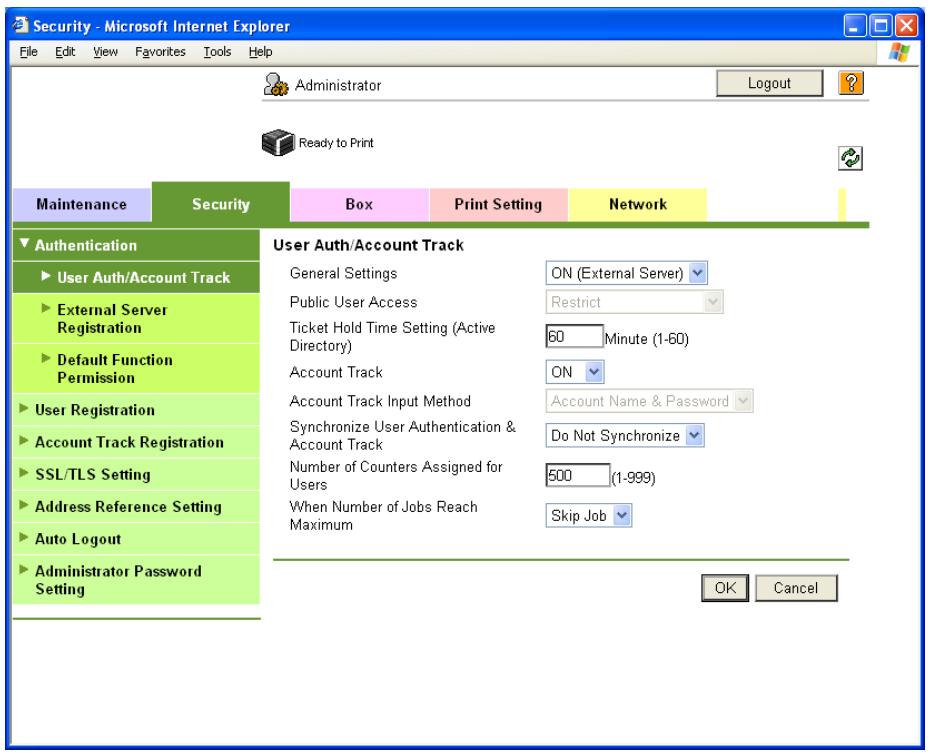
| Item | Definition | Prior confirmation |
| General Settings | Select "ON (External Server)". |
11.10.4 Default Function Permission
Limits functions available to authorized users on this machine.
For details, refer to "Default Function Permission" on page 11-41.
11.10.5 Client Setting
1 In Administrator mode of PageScope Web Connection, select the Network tab - "SMB Setting" - "Client Setting".
2 Specify the following setting.
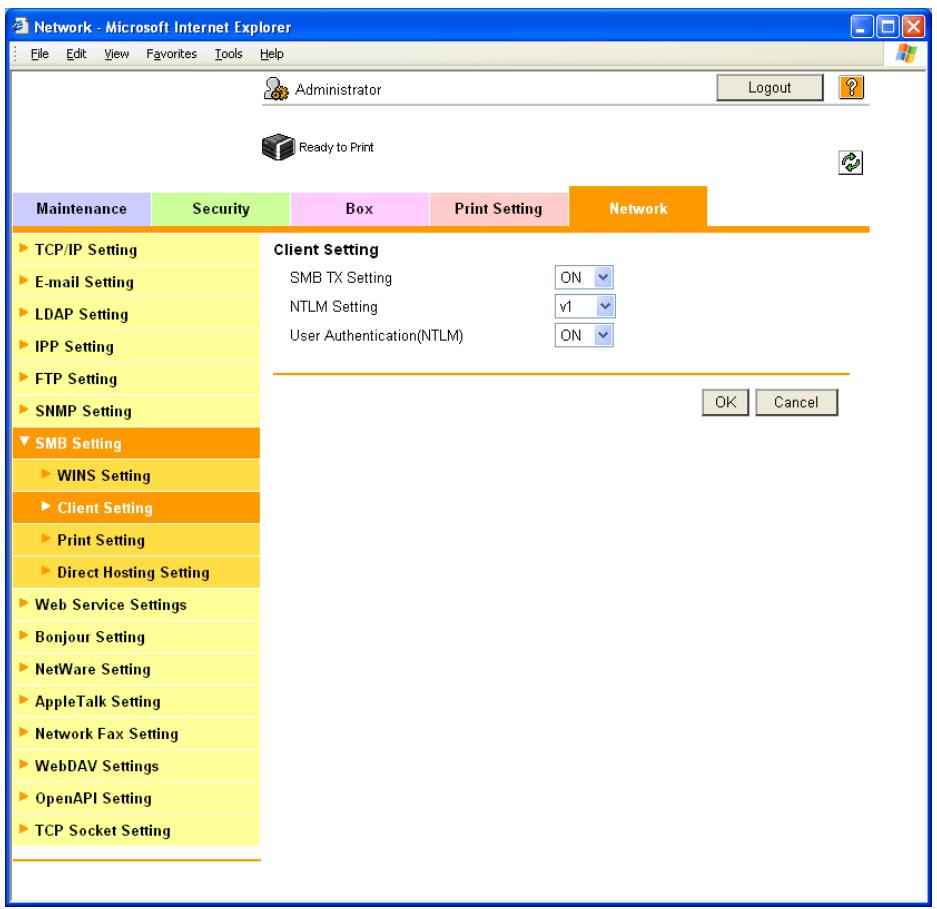
| Item | Definition | Prior confirmation |
| User Authentication (NTLM) | Select "ON". |

Detail
Specifying "OFF" for "User authentication (NTLM)" when "OFF" is specified for "User authentication (NTLM)", "NTLM v1" or "NTLM v2" cannot be selected for External Server Type.
11.10.6 WINS Setting
1 In Administrator mode of PageScope Web Connection, select the Network tab - "SMB Setting" - "WINS Setting".
2 Specify the following settings.
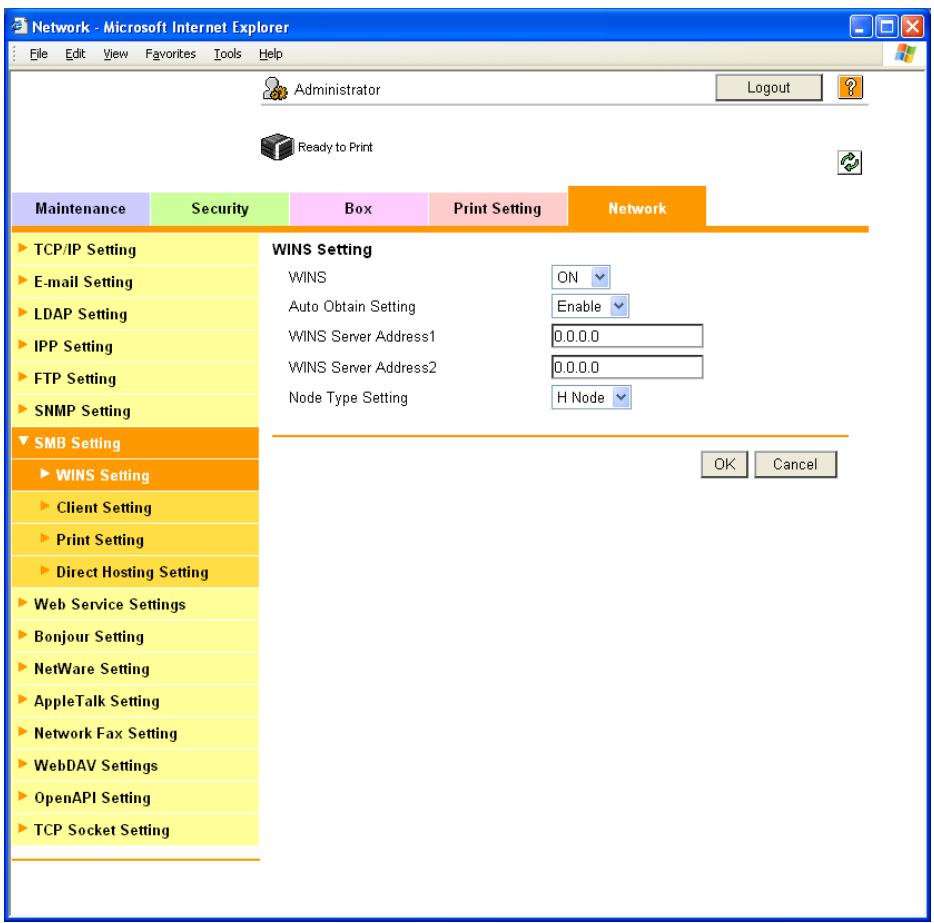
| Item | Definition | Prior confirmation |
| WINS | To use the WINS server, select "ON". | |
| Auto Obtain Setting | To automatically obtain the WINS server address, select "Enable". This item is enabled when the DHCP is enabled. | Whether automatic ac-quisition is available with DHCP |
| WINS Server Address 1 and 2 | Specify the WINS server address. (Format: "***.***.***", Range for ***: 0 to 255) | Address of the server |
| Node Type Setting | Specify the name resolution method. • B Node: Query by broadcast • P Node: Query to WINS server • M Node: Query in the order of broadcast, then WINS server • H Node: Query in the order of WINS server, then broad-cast |
11.11 Limiting users using this machine (NDS)
Specify settings for limiting users of this machine using NDS.
To perform NDS-based authentication using NetWare 5.1 or NetWare 6.0, use this setting. This setting limits functions available on a user basis.
Specify the settings according to the following flowchart.
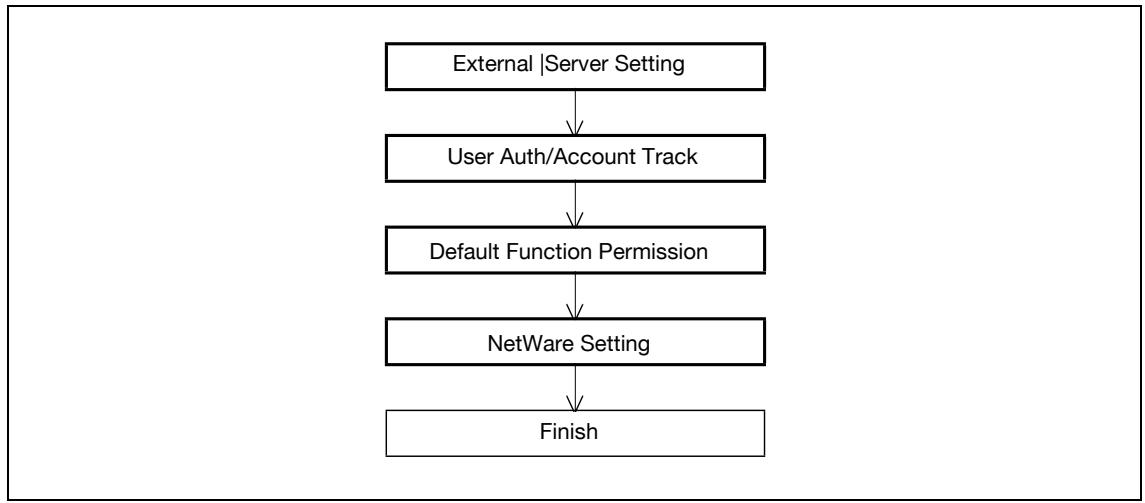

Detail
NDS is available only when IPX is used as the protocol. NDS is not available when IP is used.
11.11.1 External Server Registration
1 In Administrator mode of PageScope Web Connection, select the Security tab - "Authentication" - "External Server Registration" - [Edit].
2 Specify the following settings.
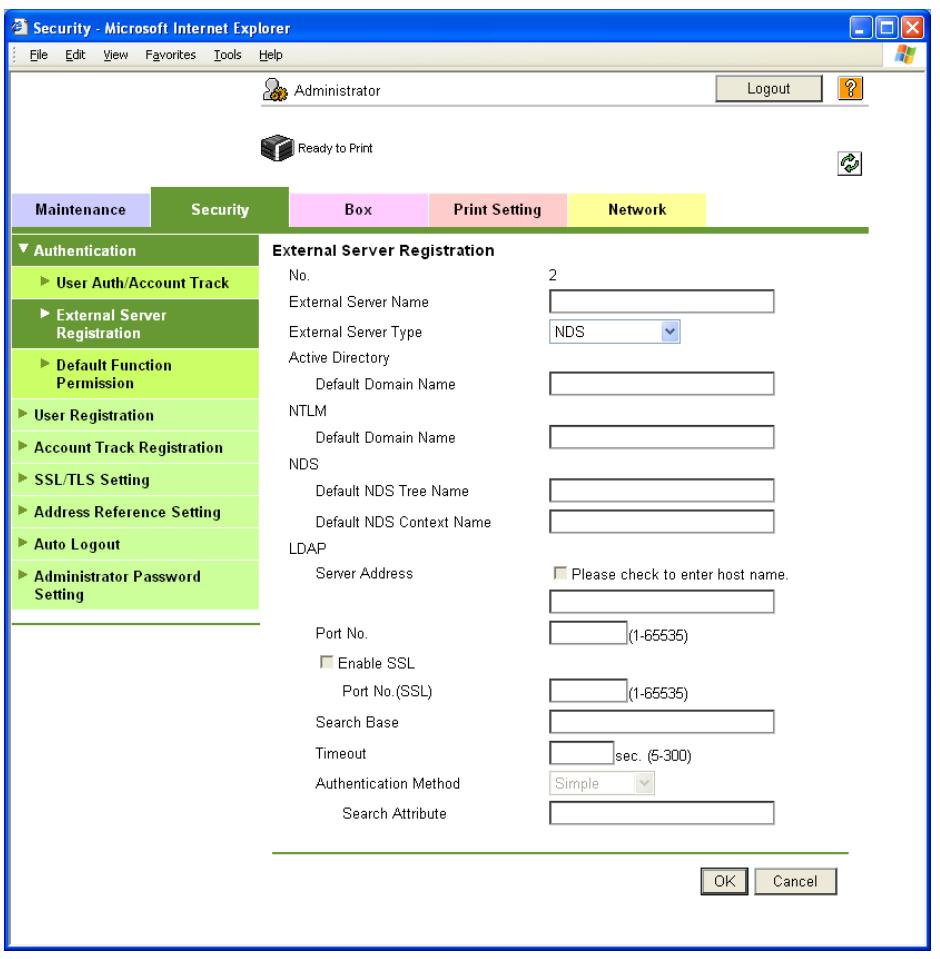
| Item | Definition | Prior confirmation |
| No. | Displays the registration number. | |
| External Server Name | Enter the name of the external authentication server (up to 32 characters). | |
| External Server Type | Select "NDS". | |
| Default NDS Tree Name | Enter the default NDS tree name. | |
| Default NDS Context Name | Enter the default NDS context name. |
11.11.2 User Auth/Account Track
1 In Administrator mode of PageScope Web Connection, select the Security tab - "Authentication" - "User Auth/Account Track".
2 Specify the following setting.
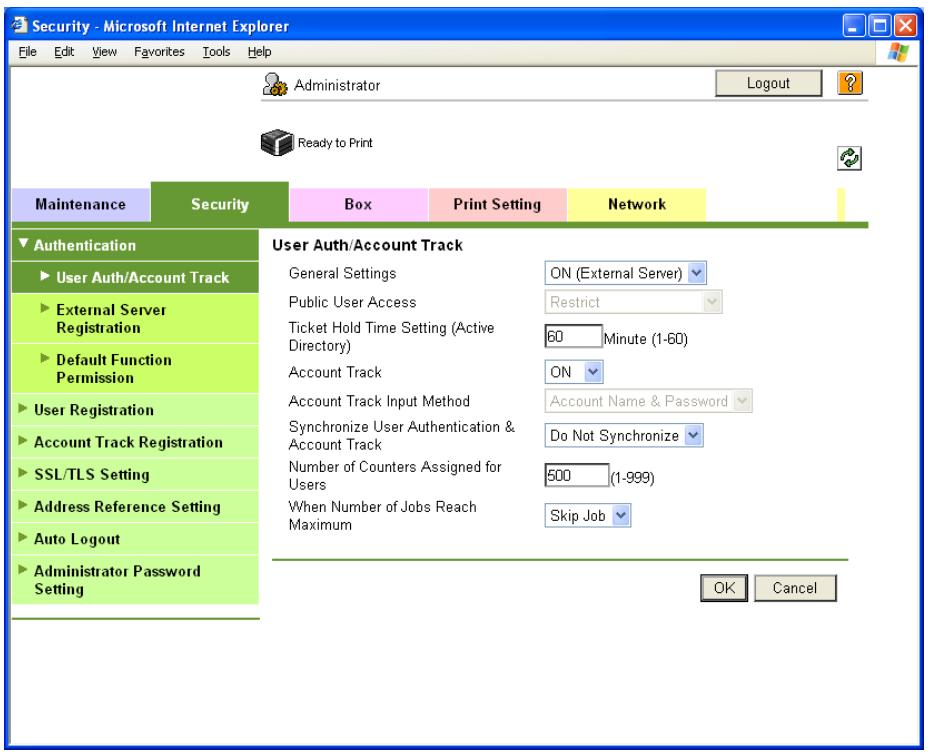
| Item | Definition | Prior confirmation |
| General Settings | Select "ON (External Server)". |
11.11.3 Default Function Permission
Limits functions available to authorized users on this machine.
For details, refer to "Default Function Permission" on page 11-41.
11.11.4 NetWare Setting
1 In Administrator mode of PageScope Web Connection, select the Network tab - "NetWare Setting" - "NetWare Setting".
2 Specify the following settings.
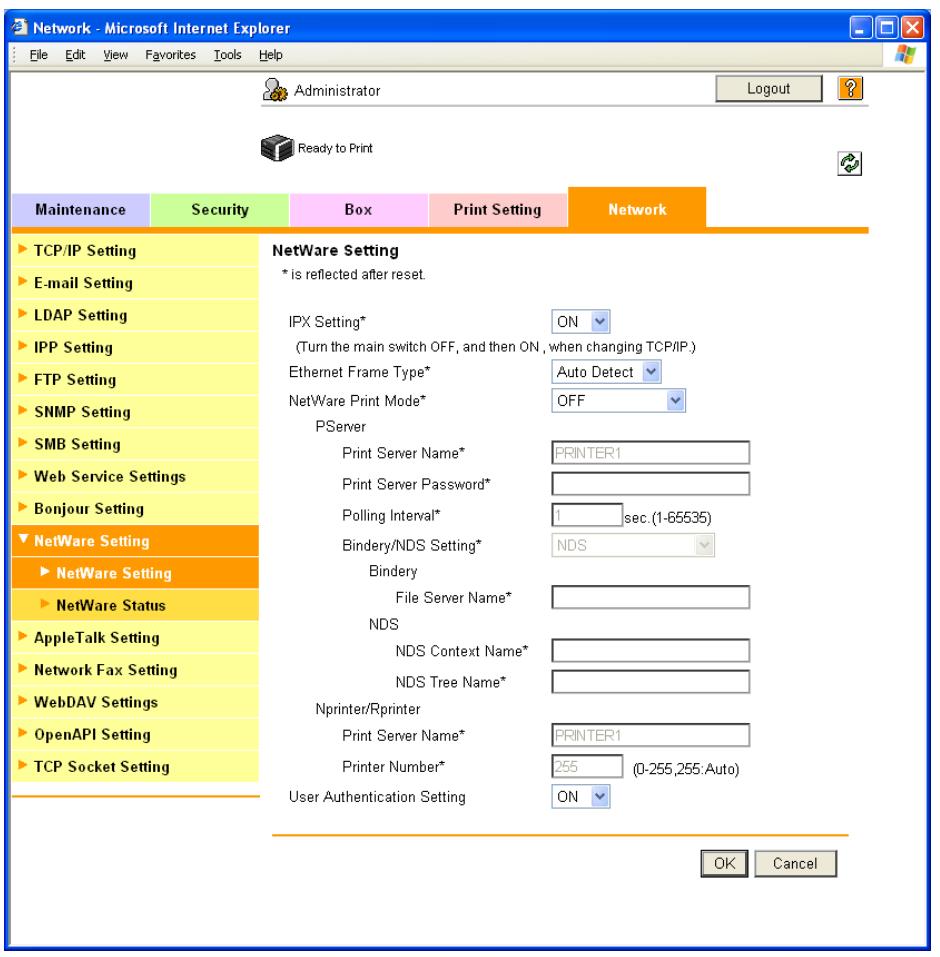
| Item | Definition | Prior confirmation |
| IPX Setting | Select "ON". | |
| Ethernet Frame Type | Specify the frame type to be used. | Frame type |
| User Authentication Setting | Select "ON". |
11.12 Limiting users using this machine (LDAP)
Specify settings for limiting users of this machine using the LDAP server.
To perform authentication using the LDAP server, use this setting. This setting limits functions available on a user basis.
Specify the settings according to the following flowchart.
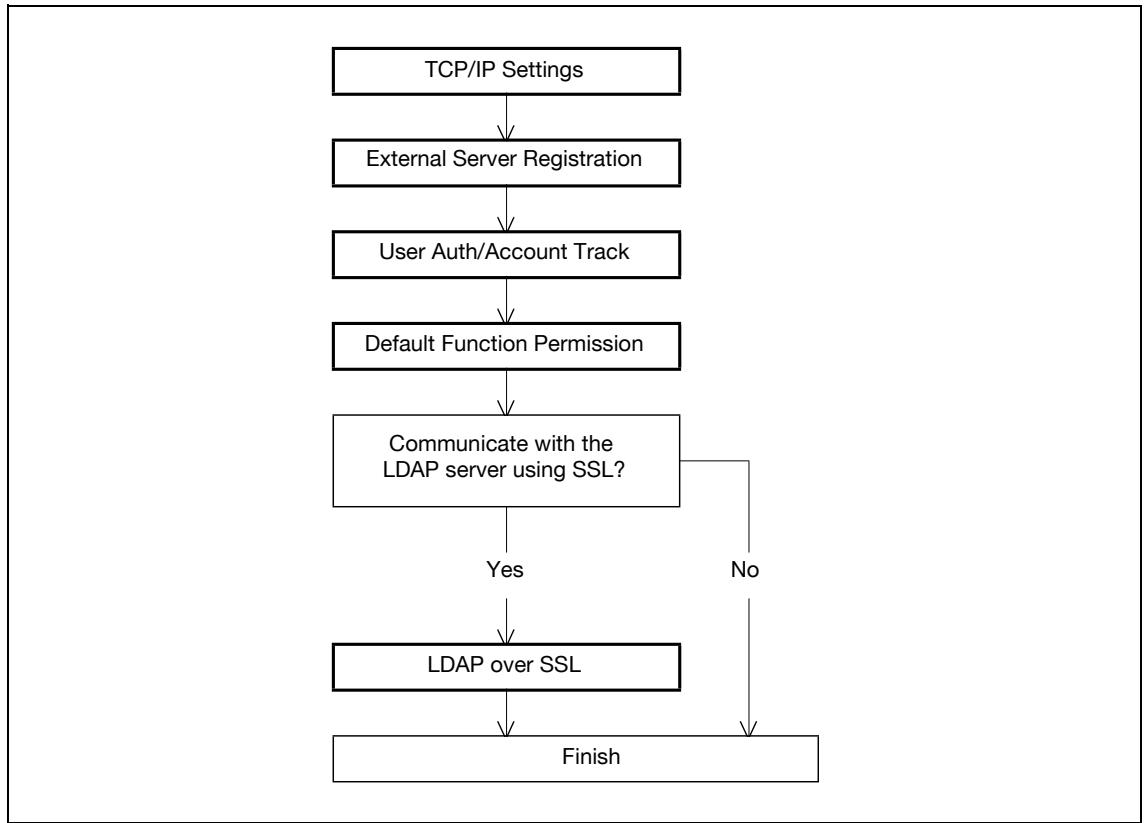
11.12.1 TCP/IP Settings
Specify settings to use this machine in a TCP/IP network environment.
For details, refer to "Specifying general settings for TCP/IP-based communication" on page 4-3.
11.12.2 External Server Registration
1 In Administrator mode of PageScope Web Connection, select the Security tab - "Authentication" - "External Server Registration" - [Edit].
2 Specify the following settings.
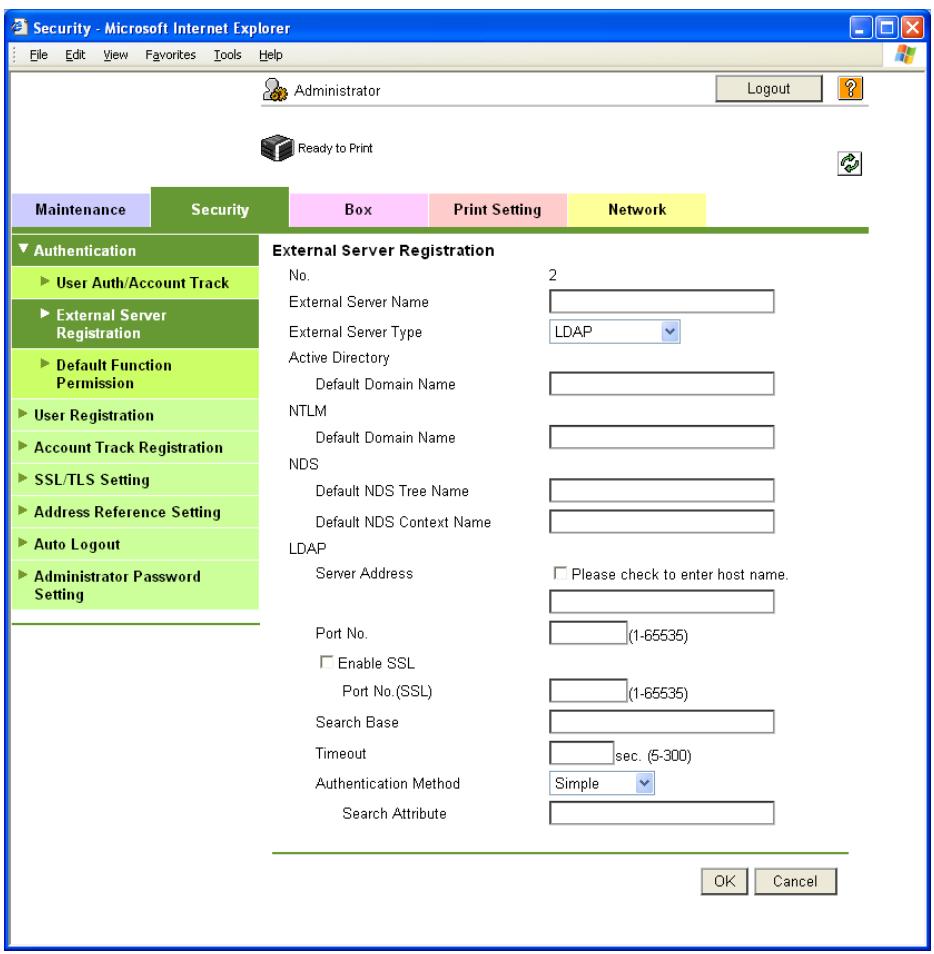
| Item | Definition | Prior confirmation |
| No. | Displays the registration number. | |
| External Server Name | Enter the name of the external authentication server (up to 32 characters). | |
| External Server Type | Select "LDAP". | |
| Server Address | Specify the LDAP server address. (Format: "***.***.***", Range for ***: 0 to 255)If the DNS server is specified, the address can be specified using the host name. This item can also be specified with IPv6. | Address of the server |
| Port No. | Specify the port number. | Port number for the server |
| Search Base | Specify the search starting point in a hierarchical structure placed on the LDAP server. Searches are performed by also including the subdirectories lower than the starting point that was specified. | |
| Timeout | Specify the maximum wait time for a search operation. | |
| Authentication Method | Select the authentication method used for logging in to the LDAP server. | Authentication method for the server |
| Search Attribute | If "Digest-MD5" is selected as the authentication method, specify the search attribute. |
11.12.3 User Auth/Account Track
1 In Administrator mode of PageScope Web Connection, select the Security tab - "Authentication" - "User Auth/Account Track".
2 Specify the following setting.
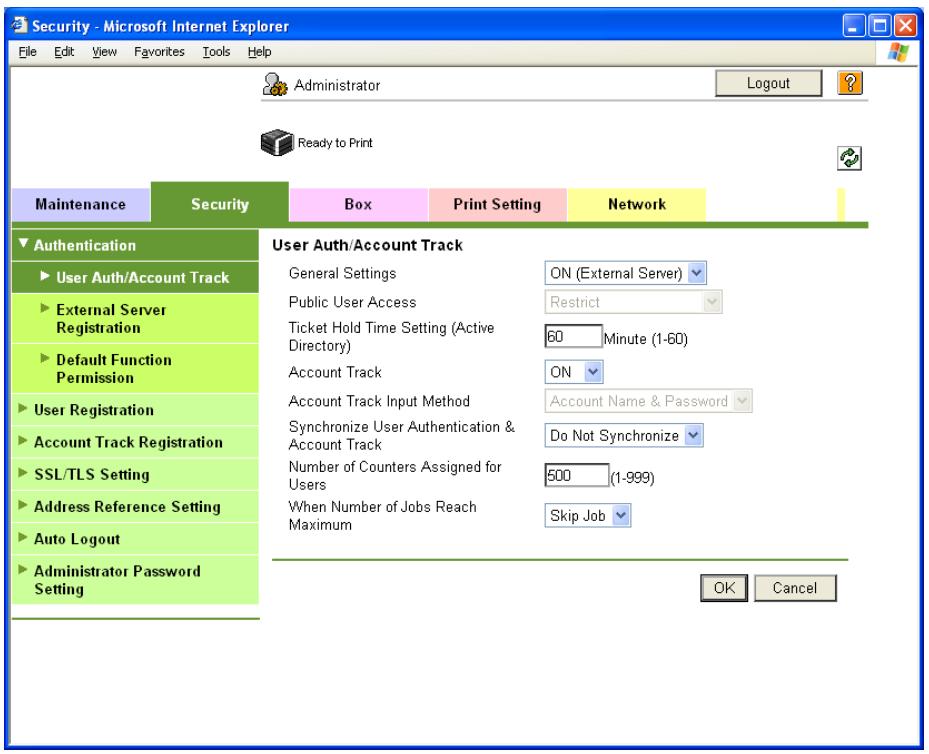
| Item | Definition | Prior confirmation |
| General Settings | Select "ON (External Server)". |
11.12.4 Default Function Permission
Limits functions available to authorized users on this machine.
For details, refer to "Default Function Permission" on page 11-41.
11.12.5 LDAP over SSL
External Server Registration
1 In Administrator mode of PageScope Web Connection, select the Security tab - "Authentication" - "External Server Registration" - [Edit].
2 Specify the following settings.
| Item | Definition | Prior confirmation |
| Enable SSL | To encrypt communication between this machine and the LDAP server using SSL, select the "Enable SSL" check box. | Whether the sever supports SSL |
| Port Number (SSL) | Specify the port number used in SSL communication. | Port number for the server |
Action for Invalid Certificate
1 In Administrator mode of PageScope Web Connection, select the Security tab - "SSL/TLS Setting" - "Action for Invalid Certificate".
2 Specify the following setting.

Detail
To specify settings for "Action for Invalid Certificate", create a certificate for this machine in advance. For details, refer to "Creating a certificate for this machine for SSL-based communication" on page 11-55.
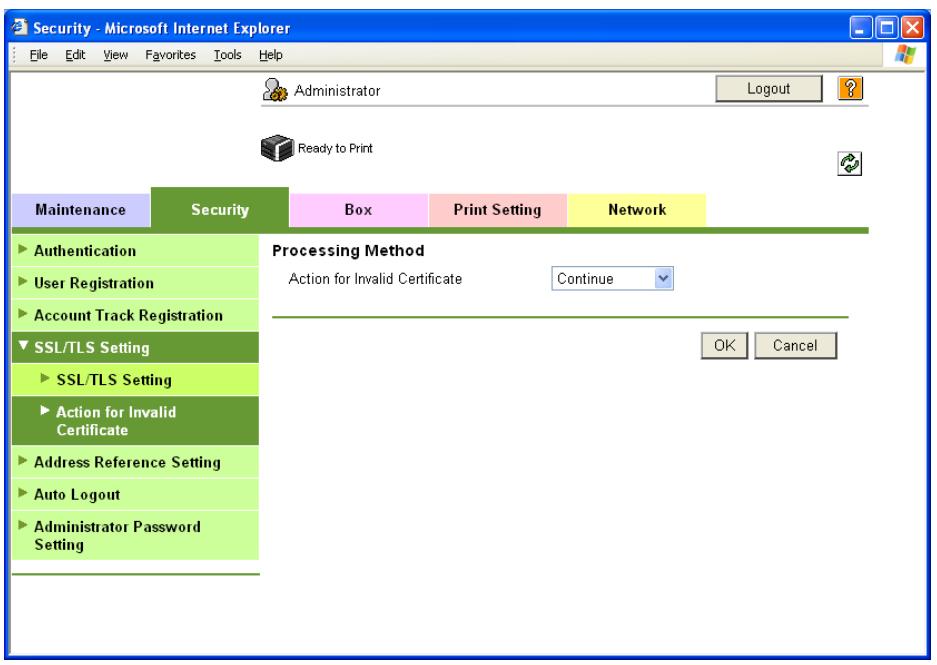
| Item | Definition | Prior confirmation |
| Action for Invalid Certificate | Specify the operation when the validity period for the received certificate has expired. If "Continue" is selected, processing continues even if the date of the certificate is invalid. If "Delete the Job" is selected, the job is deleted if the date of the certificate is invalid. |
11.13 Creating a certificate for this machine for SSL-based communication
Specify settings to create a certificate for this machine for SSL-based communication.
Creating a certificate for this machine encrypts communication from a client computer to this machine using SSL in order to prevent disclosure of communication contents and password.
Specify the settings according to the following flowchart.
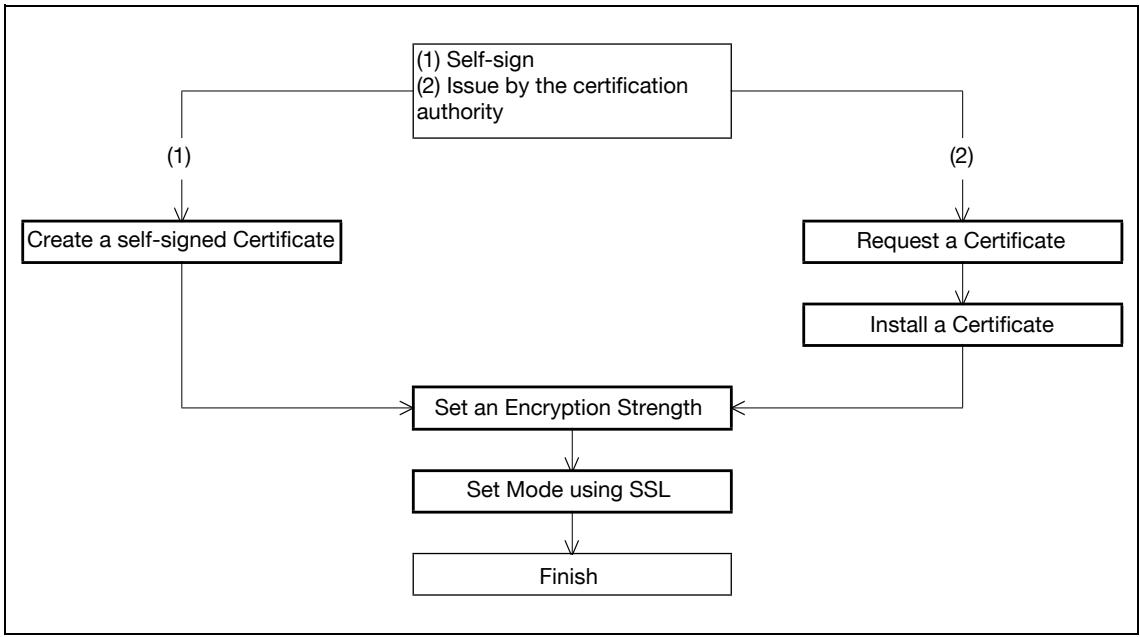

Detail
When specifying the following settings, communication from a client computer to this machine can be encrypted using SSL. For details, refer to the respective sections.
"Using PageScope Web Connection" on page 4-5
"Specifying IPP print settings" on page 4-14
"Using SSL for communication from Vista to this machine with Web Service Function" on page 11-65
"Using the TCP Socket/OpenAPI/FTP server function" on page 11-94
11.13.1 Create a self-signed Certificate
1 In Administrator mode of PageScope Web Connection, select the Security tab - "SSL/TLS Setting" - "SSL/TLS Setting" - [Setup] - "Create a self-signed Certificate".
2 Specify the following settings.
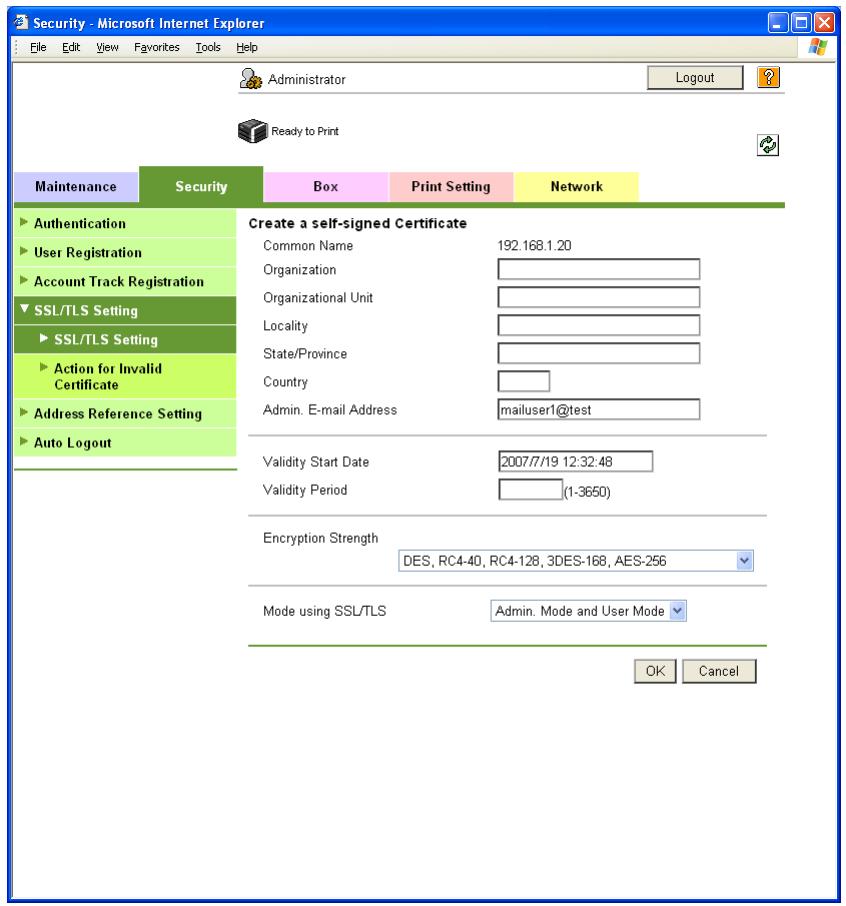
| Item | Definition | Prior confirmation |
| Common Name | Displays the IP address or domain name of the machine. | |
| Organization | Enter the name of the organization or group used for creating an organization certificate (up to 63 characters). | |
| Organizational Unit | Enter the name of the account used for creating an account certificate (up to 63 characters). | |
| Locality | Enter the name of the locality used for creating a locality certificate (up to 127 characters). | |
| State/Province | Enter the name of the state/province used for creating a state/province certificate (up to 127 characters). | |
| Country | When creating a country certificate, enter a two-character country code regulated by ISO 3166. United States: US, Great Britain: GB, Italy: IT, Australia: AU, The Netherlands: NL, Canada: CA, Spain: ES, Czech Repub-lic: CZ, China: CN, Denmark: DK, Germany: DE, Japan: JP, France: FR, Belgium: BE, Russia: RU | |
| Admin. E-mail Address | Enter the address for the administrator (up to 127 charac-ters). | Address for the adminis-trator |
| Validity Start Date | Enter the starting date for the period of validity. Displays the date and time when this page was displayed. | |
| Validity Period | Enter the number of days from the starting date for the peri- od of validity for the certificate. | |
| Encryption Strength | Specify the encryption method. | |
| Mode using SSL/TLS | Specify the mode using SSL/TLS. | |
| [OK] | Creates a self-signed certificate. It may take a few minutes to create a certificate. |
11.13.2 Request a Certificate
1 In Administrator mode of PageScope Web Connection, select the Security tab - "SSL/TLS Setting" - "SSL/TLS Setting" - [Setup] - "Request a Certificate".
2 Specify the following settings.
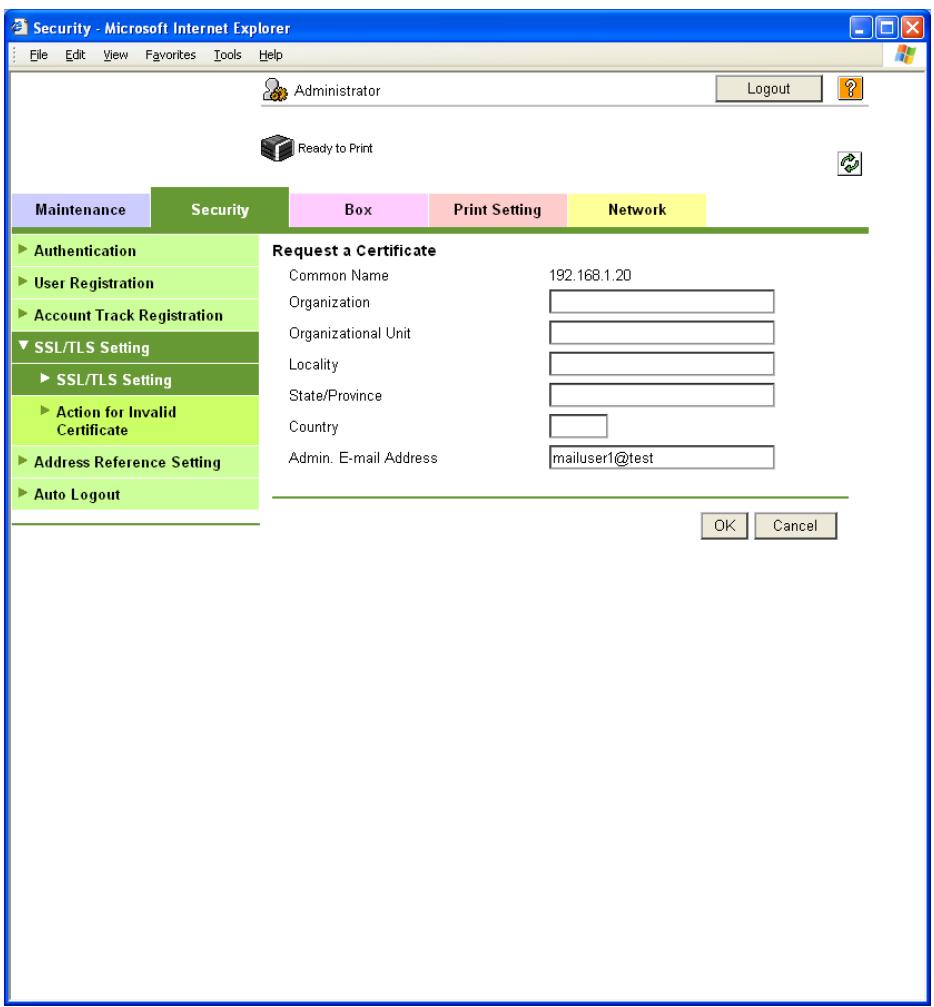
| Item | Definition | Prior confirmation |
| Common Name | Displays the IP address or domain name of the machine. | |
| Organization | Enter the name of the organization or group used for creating an organization certificate (up to 63 characters). | |
| Organizational Unit | Enter the name of the account used for creating an account certificate (up to 63 characters). | |
| Locality | Enter the name of the locality used for creating a locality certificate (up to 127 characters). | |
| State/Province | Enter the name of the state or province used for creating a state/province certificate (up to 127 characters). | |
| Country | When creating a country certificate, enter a two-character country code regulated by ISO 3166. United States: US, Great Britain: GB, Italy: IT, Australia: AU, The Netherlands: NL, Canada: CA, Spain: ES, Czech Repub- lic: CZ, China: CN, Denmark: DK, Germany: DE, Japan: JP, France: FR, Belgium: BE, Russia: RU | |
| Admin. E-mail Address | Specify the address for the administrator (up to 127 charac- ters). | Address for the adminis- trator |
| [OK] | Creates certificate signing request data. |
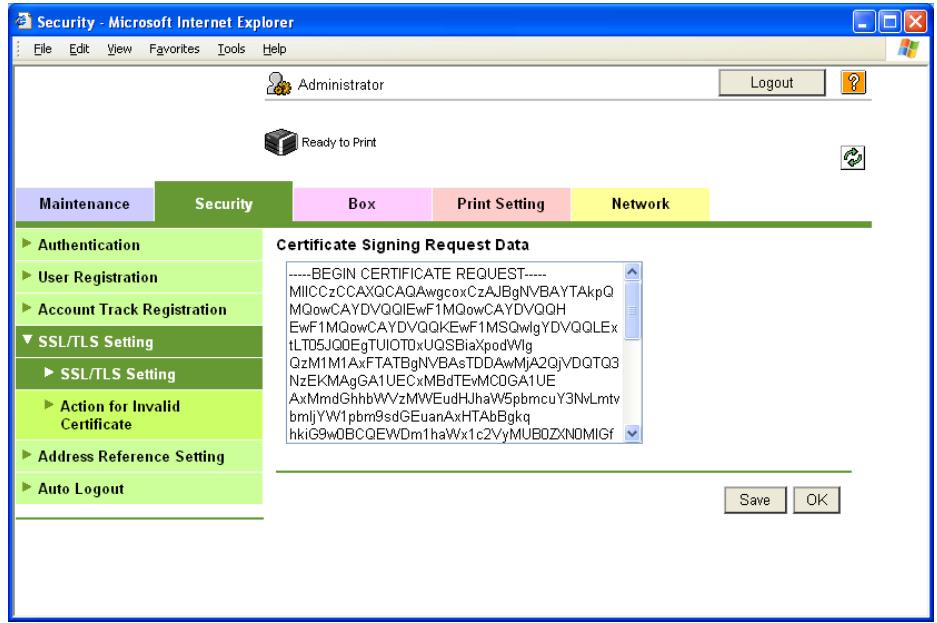
| Item | Definition | Prior confirmation |
| Certificate Signing Re-quest Data | Displays certificate signing request data. | |
| [Save] | Saves certificate signing request data in the computer as a file. |
11.13.3 Install a Certificate
1 In Administrator mode of PageScope Web Connection, select the Security tab - "SSL/TLS Setting"- "SSL/TLS Setting" - [Setup] - "Install a Certificate".
2 After requesting a certificate to the certification authority, install the certificate sent from the certification authority on this machine.
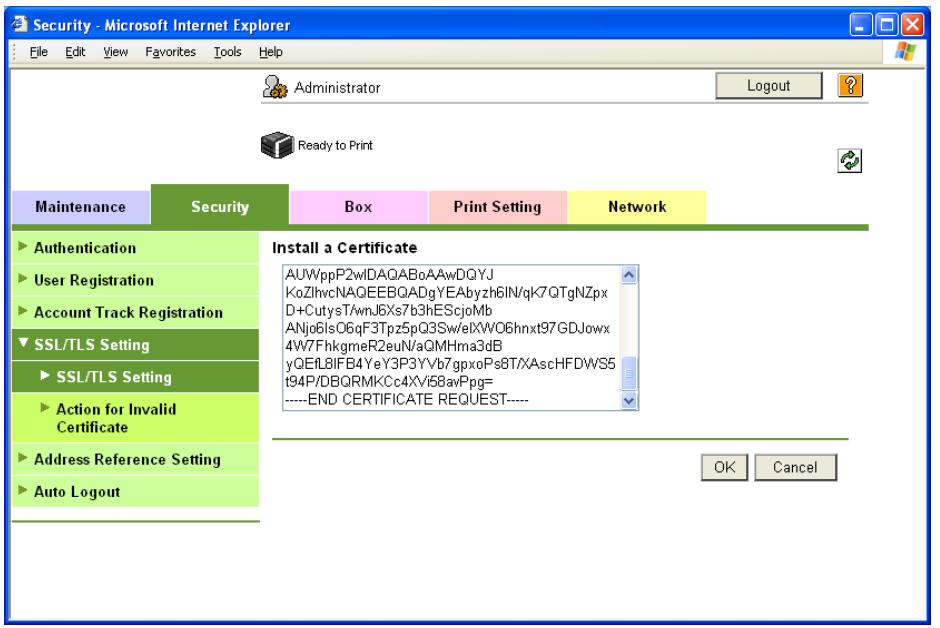
| Item | Definition | Prior confirmation |
| Install a Certificate | Paste text data sent from the certification authority. | |
| [OK] | Moves to the Set an Encryption Strength and Set Mode using SSL screen. |
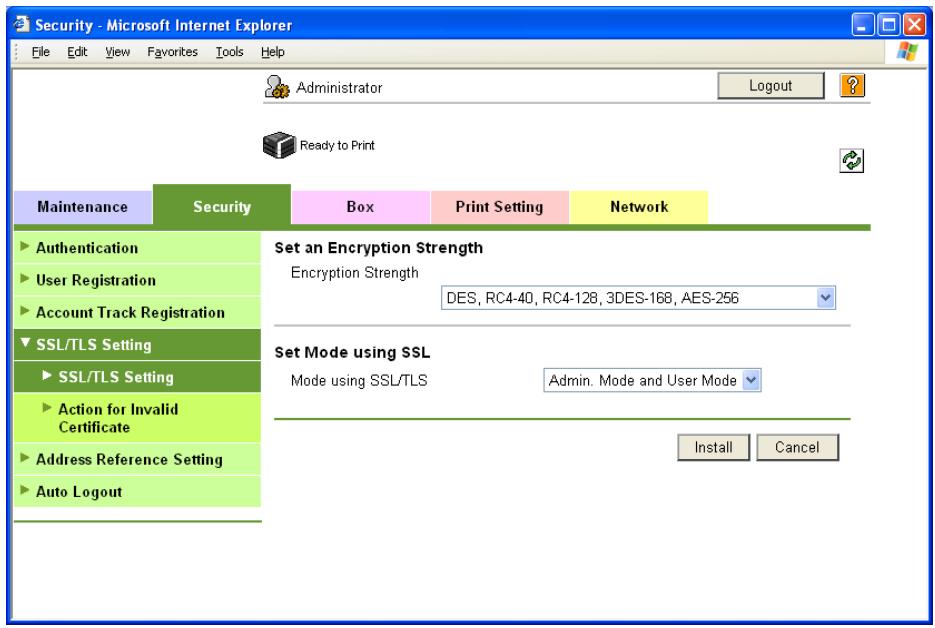
| Item | Definition | Prior confirmation |
| Encryption Strength | Specify the encryption method. | |
| Mode using SSL/TLS | Specify the SSL/TLS application range. | |
| [Install] | Installs the certificate. |
11.13.4 Set an Encryption Strength
1 In Administrator mode of PageScope Web Connection, select the Security tab - "SSL/TLS Setting" - "SSL/TLS Setting" - [Setup] - "Set an Encryption Strength".
2 Specify the following setting.
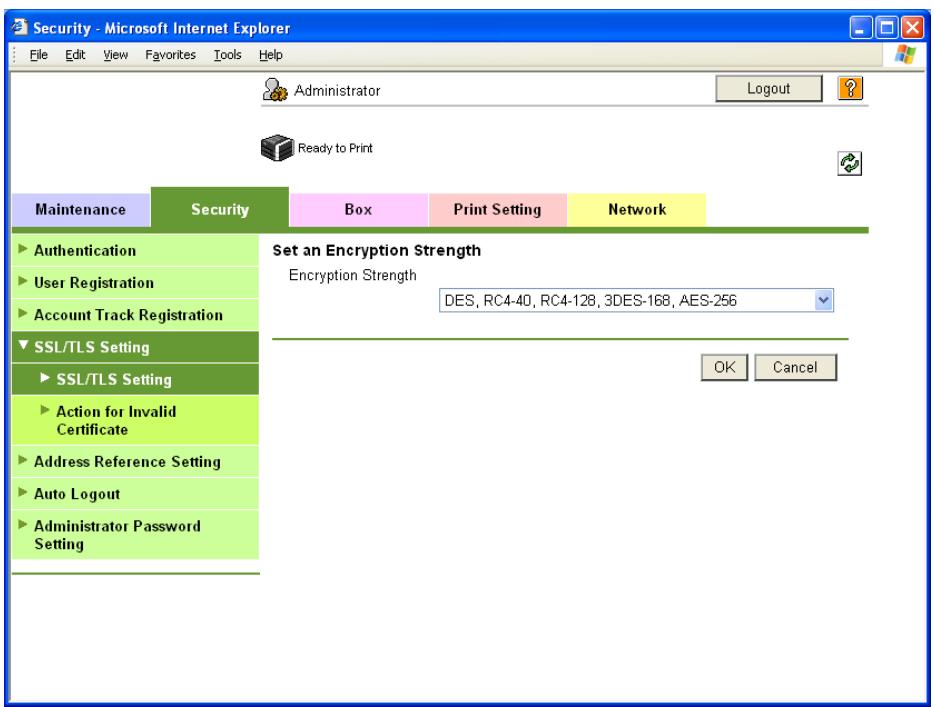
| Item | Definition | Prior confirmation |
| Encryption Strength | If necessary, change the set encryption strength. Specify the encryption strength. |
11.13.5 Set Mode using SSL
1 In Administrator mode of PageScope Web Connection, select the Security tab - "SSL/TLS Setting" - "SSL/TLS Setting" - [Setup] - "Set Mode using SSL".
2 Specify the following setting.
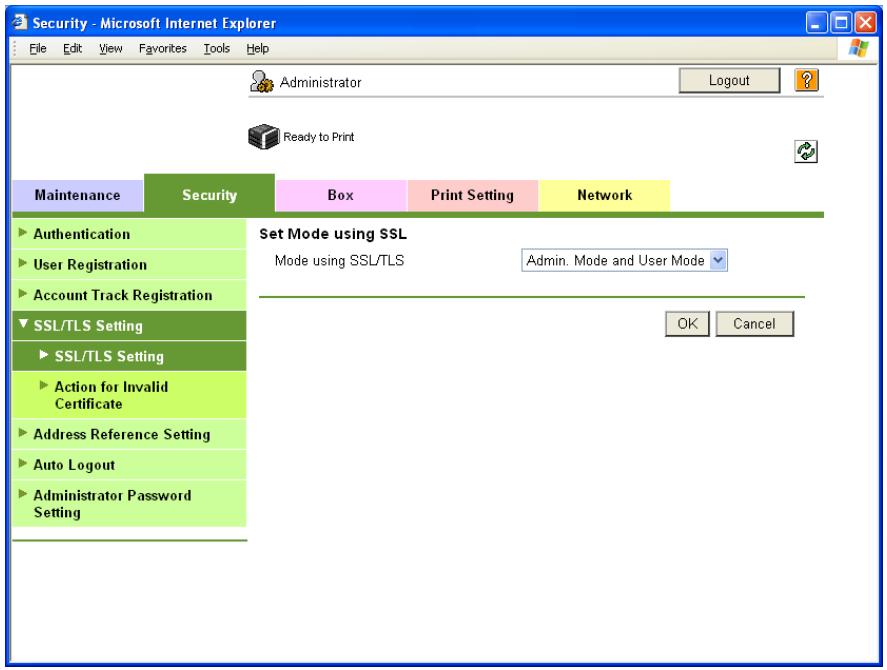
| Item | Definition | Prior confirmation |
| Mode using SSL/TLS | If necessary, change the set SSL/TSL application range. Specify the SSL/TLS application range. |
11.13.6 Remove a certificate
1 In Administrator mode of PageScope Web Connection, select the Security tab - "SSL/TLS Setting"- "SSL/TLS Setting" - [Setup] - "Remove a Certificate".
2 If necessary, remove the certificate installed on this machine. To remove the installed certificate, click [OK].
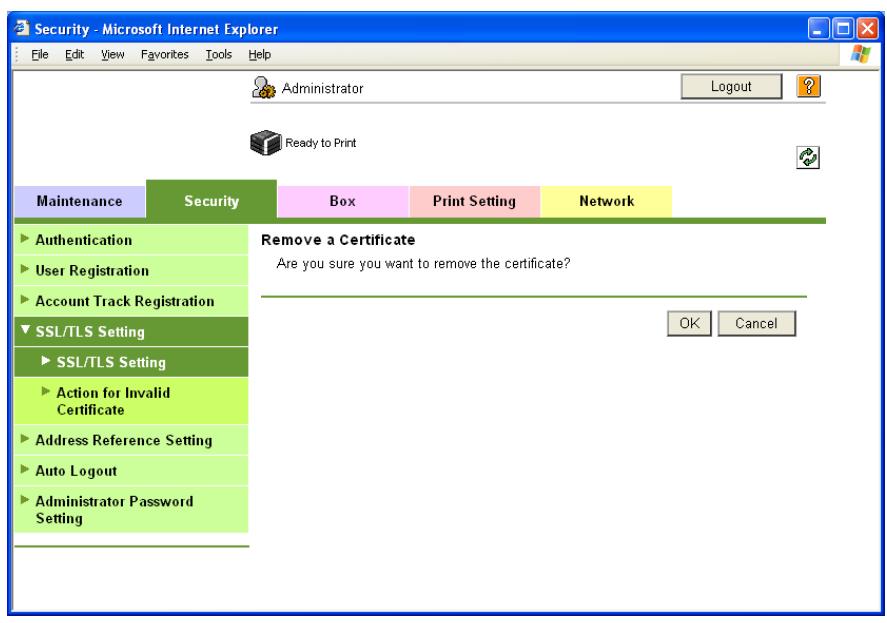

Detail
If "EnhancedSecurity" is set to "ON", the certificate cannot be removed.
11.14 Using SSL communication between Vista and this machine with Web Service Function
When using the Web Service function, execute SSL-based encryption of communication from a Windows Vista-equipped computer to this machine. To perform SSL communication, both communications from the computer to this machine and from this machine to the computer must be encrypted by SSL.
Perform settings for the following "Using SSL for communication from Vista to this machine with Web Service Function" and "Using SSL for communication from this machine to Vista with Web Service Function".
11.14.1 Using SSL for communication from Vista to this machine with Web Service Function
When using the Web Service function, specify settings for SSL-based encryption of communication from a Windows Vista-equipped computer to this machine. These settings ensure safer file transmission by encrypting Web service-based communication using SSL.
Specify the settings according to the following flowchart.
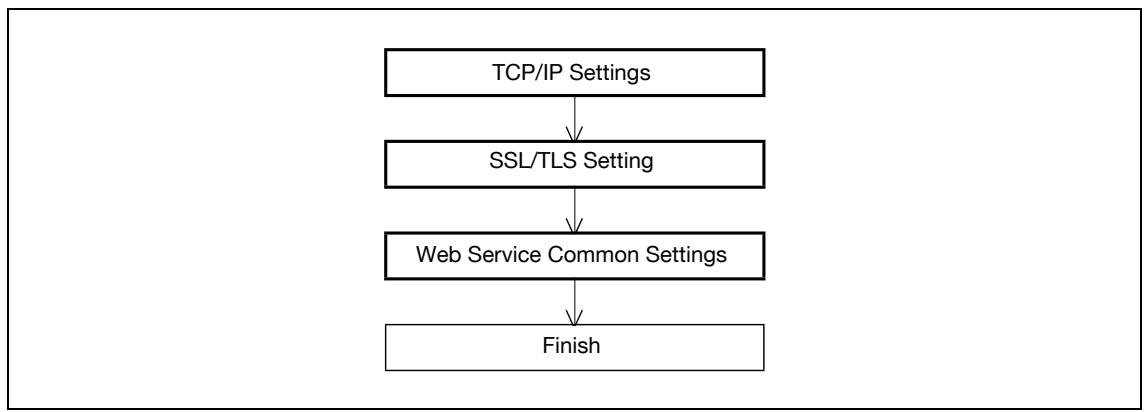

Detail
To encrypt communication from a Windows Vista-equipped computer to this machine using SSL, the computer must be able to resolve the names for this machine using the DNS server. Register this machine to the DNS server in advance, and specify settings for DNS at the computer side.
When the certificate of this machine is not published by certificate authority, register the certificate of this machine to Windows Vista as a certificate of "Trusted Root Certification Authorities" for "Local Computer" in advance.
11.14.2 Using SSL for communication from this machine to Vista with Web Service Function
When using the Web Service function, specify settings for SSL-based encryption of communication from this machine to a Windows Vista-equipped computer. These settings ensure safer file transmission by encrypting Web service-based communication using SSL.
Specify the settings according to the following flowchart.
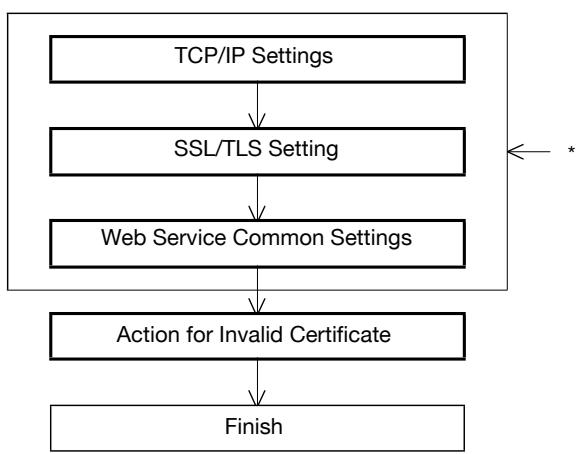
- These items are already specified in "Using SSL for communication from this machine to Vista with Web Service Function" on page 11-66.

Detail
To encrypt communication from this machine to a Windows Vista-equipped computer using SSL, create a certificate at the computer side in advance to associate communication port of the computer with the TCP/IP (Default setting: port number 5385).
11.14.3 TCP/IP Settings
Specify settings to use this machine in a TCP/IP network environment.
For details, refer to "Specifying general settings for TCP/IP-based communication" on page 4-3.
11.14.4 SSL/TLS Setting
Encrypt communication with this machine using SSL.
For details, refer to "Creating a certificate for this machine for SSL-based communication" on page 11-55.
11.14.5 Web Service Common Settings
1 In Administrator mode of PageScope Web Connection, select the Network tab - "Web Service Settings" - "Web Service Common Settings".
2 Specify the following settings.
| Item | Definition | Prior confirmation |
| Friendly Name | Specify setting for Friendly Name (up to 62 characters). | |
| SSL Setting | Select "ON". |
11.14.6 Action for Invalid Certificate
1 In Administrator mode of PageScope Web Connection, select the Security tab - "SSL/TLS Setting" - "Action for Invalid Certificate".
2 Specify the following setting.
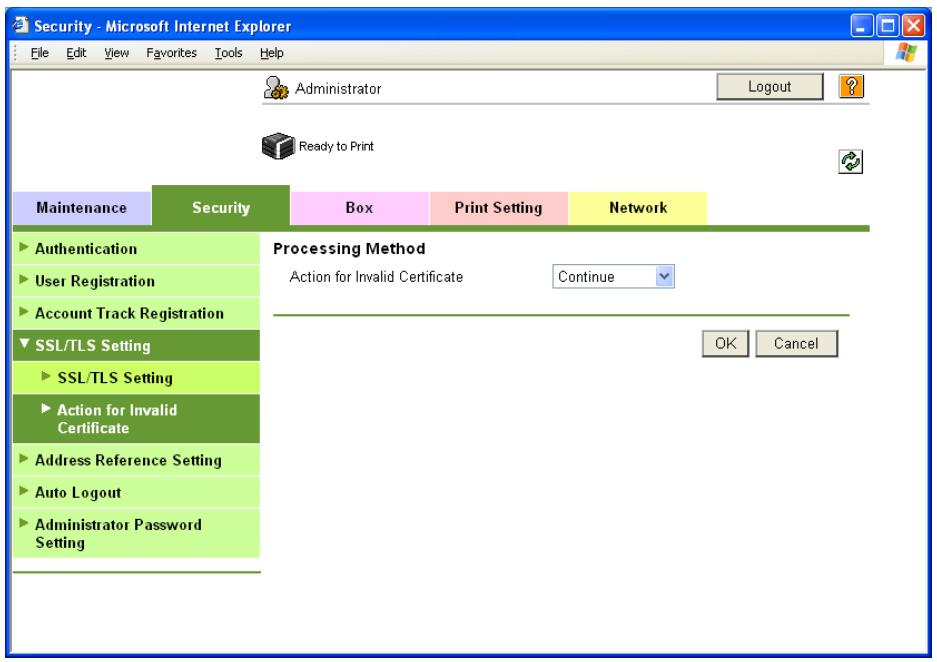
| Item | Definition | Prior confirmation |
| Action for Invalid Certificate | Specify the operation when the validity period for the received certificate has expired. If "Continue" is selected, processing continues even if the date of the certificate is invalid. If "Delete the Job" is selected, the job is deleted if the date of the certificate is invalid. |
11.15 Performing IP address filtering
Specify settings for performing IP address filtering.
Performing IP address filtering limits access from specified IP addresses. Specify addresses from which this machine is accessible and inaccessible.
Specify the settings according to the following flowchart.
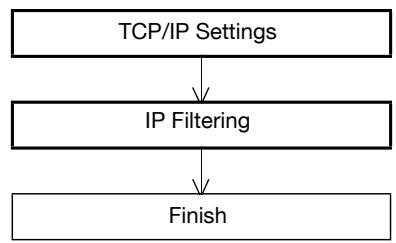
11.15.1 TCP/IP Settings
Specify settings to use this machine in a TCP/IP network environment.
For details, refer to "Specifying general settings for TCP/IP-based communication" on page 4-3.
11.15.2 IP Filtering
1 In Administrator mode of PageScope Web Connection, select the Network tab - "TCP/IP Setting" - "IP Filtering".
2 Specify the following settings.
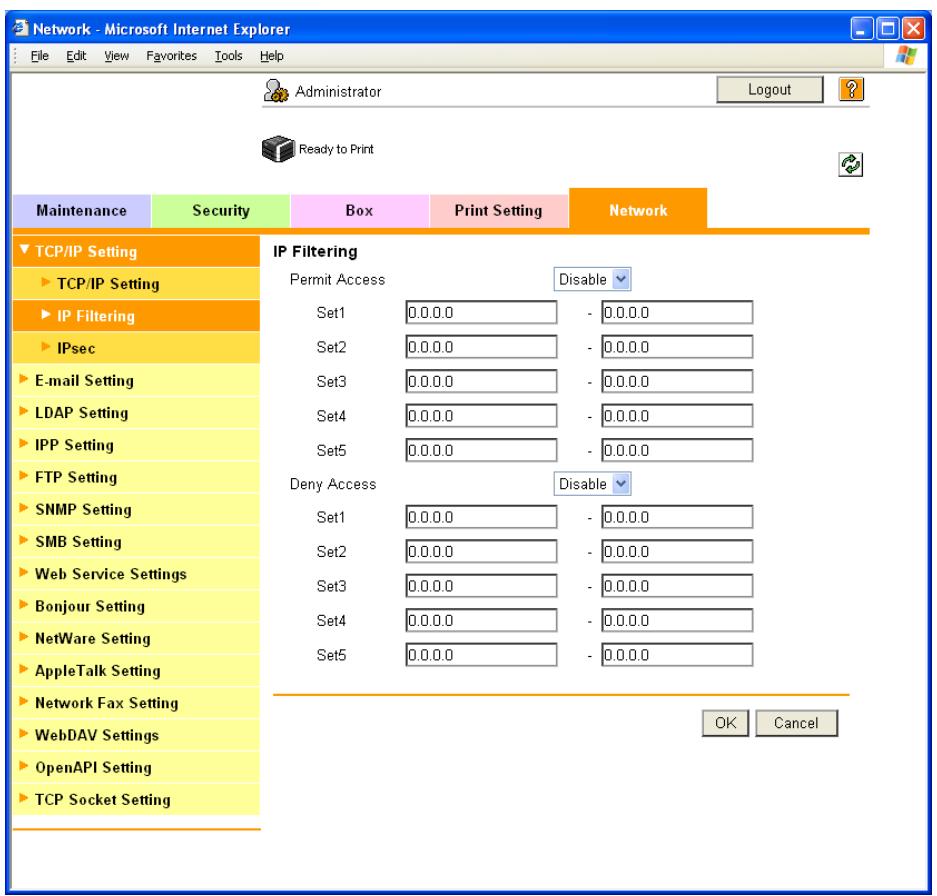
| Item | Definition | Prior confirmation |
| Permit Access | To specify permitted addresses, select "Enable". | |
| Set 1 to 5 | Specify permitted addresses. (Format: "****.***.****", Range for ***: 0 to 255) | Permitted addresses |
| Deny Access | To specify denied addresses, select "Enable". | |
| Set 1 to 5 | Specify denied addresses. (Format: "****.***.****", Range for ***: 0 to 255) | Denied addresses |
11.16 Communicating using IPv6
Specifying settings for IPv6-based communication
To allocate the IPv6 address to this machine, use this setting. IPv6 can run simultaneously with IPv4. However, Ipv6 does not run independently.
When using this machine under the IPv6 environment, there are the following restrictions.
- SMB Print and NTLM Authentication are not available.
PageScope NDPS Gateway cannot be used. - DHCPv6 cannot be used.
IP filtering is not available.
The printer driver installer cannot be used.
PageScope Web Connection cannot be displayed with Flash.

Note
For details on direct hosting service, refer to "Direct Hosting Setting" on page 4-12.
TCP/IP Setting
1 In Administrator mode of PageScope Web Connection, select the Network tab - "TCP/IP Setting" - "TCP/IP Setting".
2 Specify the following settings.
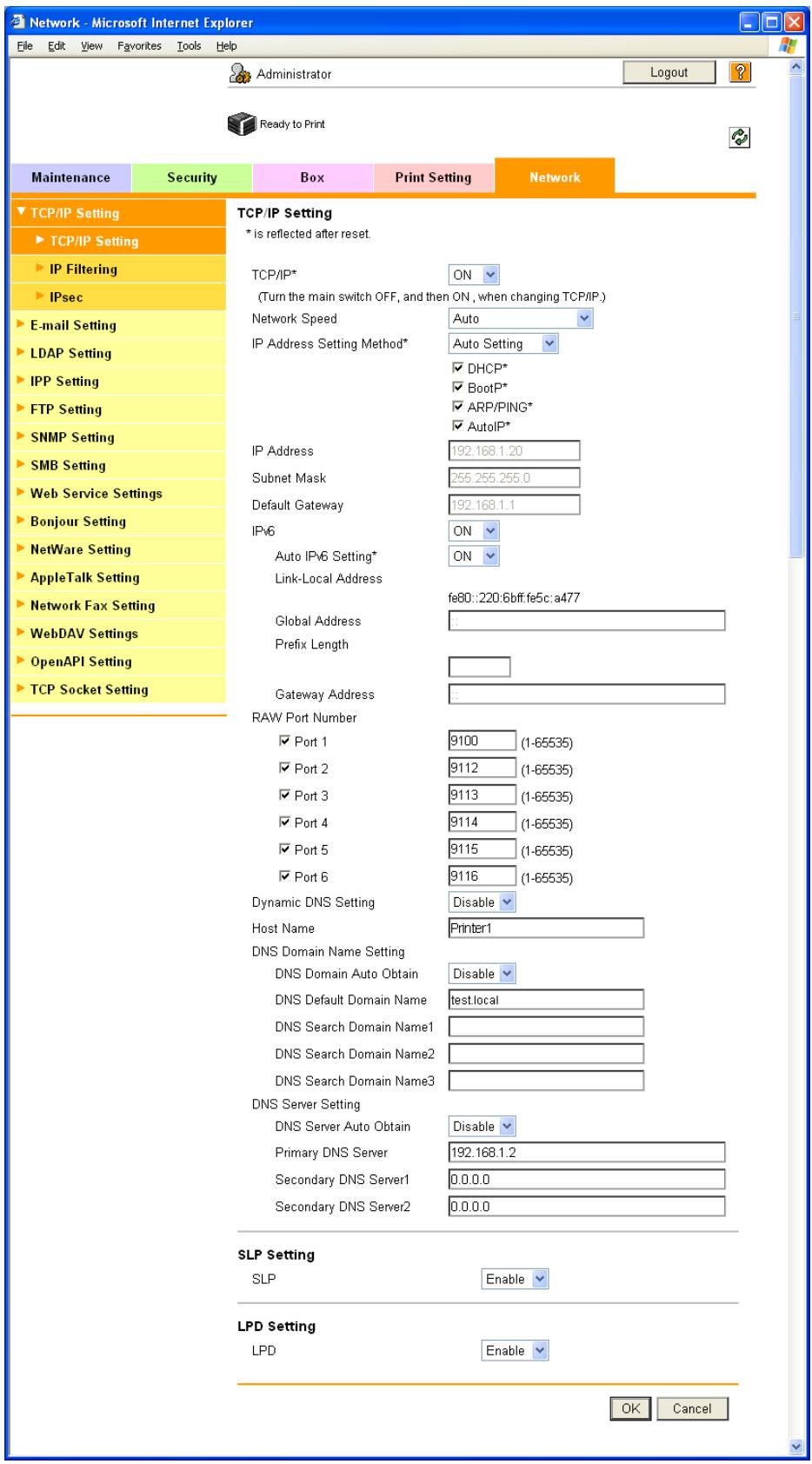
| Item | Definition | Prior confirmation |
| TCP/IP | Select "ON". | |
| IPv6 | Select "ON". | |
| Auto IPv6 Setting | To automatically obtain the IPv6 address, select "ON". | Whether to automatically obtain the IPv6 address |
| Link-Local Address | Displays the link-local address generated from the MAC address. | |
| Global Address | When not automatically obtain the IPv6 address, specify the IPv6 global address. | IPv6 address |
| Prefix Length | When not automatically obtain the IPv6 address, specify the IPv6 global address prefix length. | Prefix length |
| Gateway Address | When not automatically obtain the IPv6 address, specify the IPv6 gateway address. | Gateway address |

Detail
If necessary, specify settings for DNS. For details, refer to "Specifying general settings for TCP/IP-based communication" on page 4-3.
11.17 Communicating using IPsec
Specify settings for IPsec-based communication
Communicating using IPsec prevents falsification and disclosure of data by IP packet. This function ensures safer communication even if transport or application that does not support encryption is used
Specify the settings according to the following flowchart.
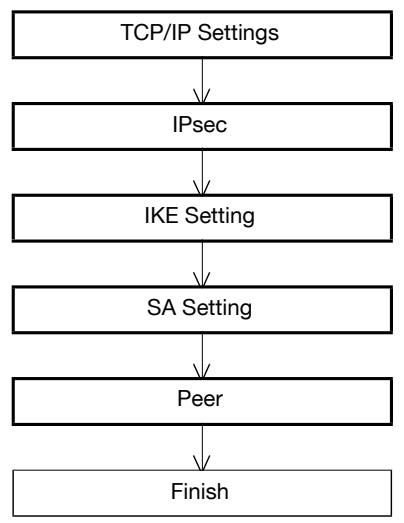
11.17.1 TCP/IP Settings
Specify settings to use this machine in a TCP/IP network environment.
For details, refer to "Specifying general settings for TCP/IP-based communication" on page 4-3.
11.17.2 IPsec
1 In Administrator mode of PageScope Web Connection, select the Network tab - "TCP/IP Setting" - "IPsec".
2 Specify the following setting.
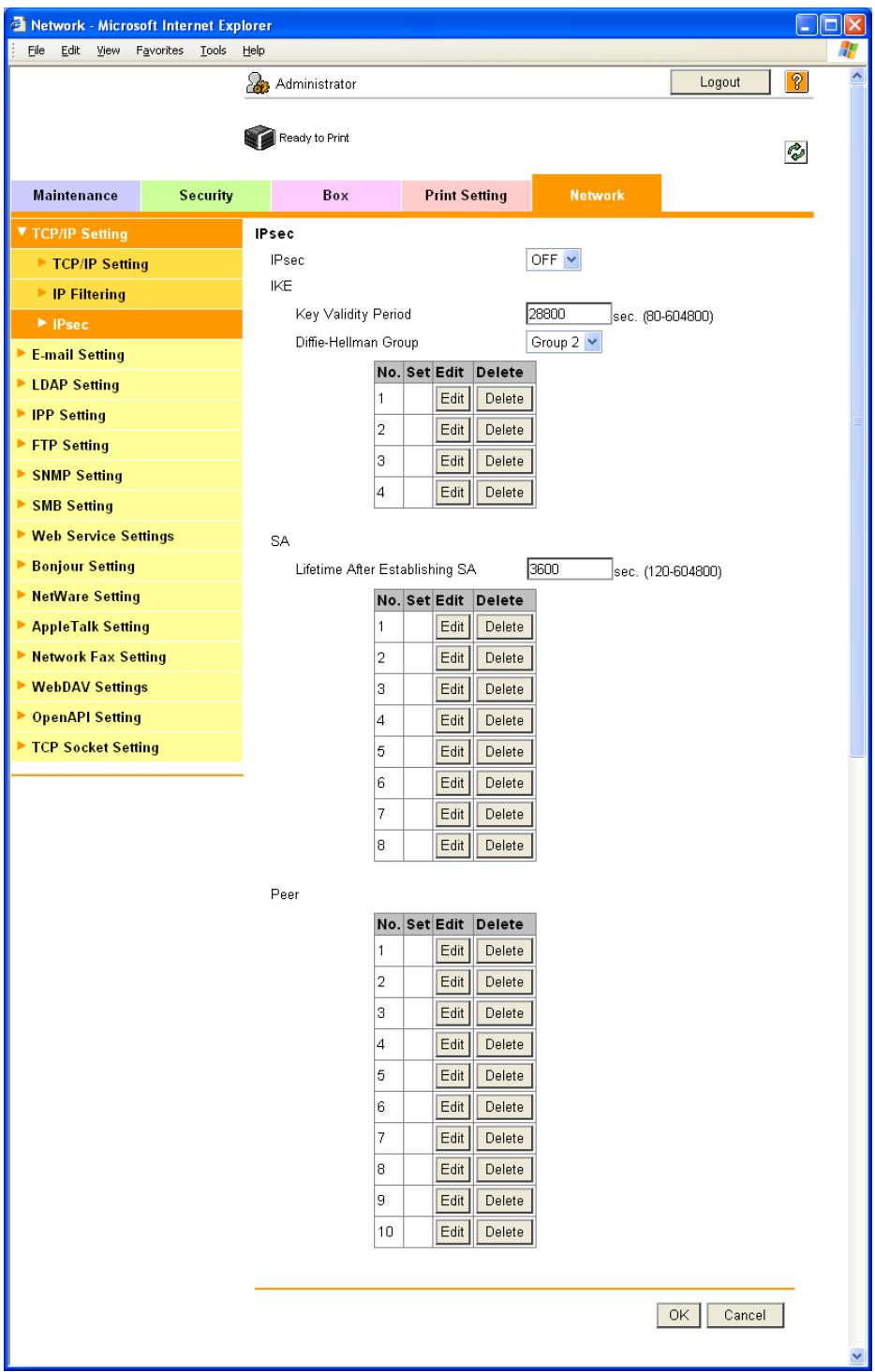
| Item | Definition | Prior confirmation |
| IPsec | Select "ON". |
11.17.3 IKE Setting
1 In Administrator mode of PageScope Web Connection, select the Network tab - "TCP/IP Setting" - "IPsec" - "IKE" - [Edit].
2 Specify the following settings. (Up to four groups can be registered in "IKE".)
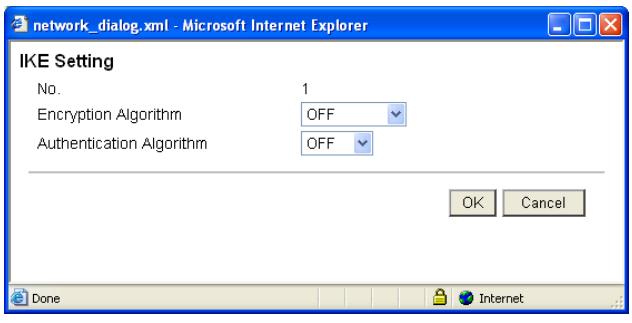
| Item | Definition | Prior confirmation |
| Key Validity Period | Specify the validity period of a key generated when creating a control tunnel. | |
| Diffie-Hellman Group | Select "Diffie-Hellman Group". | |
| Encryption Algorithm | Select the encryption algorithm to be used when creating a control tunnel. | |
| Authentication Algorithm | Select the authentication algorithm to be used when creating a control tunnel. |
11.17.4 SA Setting
1 In Administrator mode of PageScope Web Connection, select the Network tab - "TCP/IP Setting" - "IPsec" - "SA" - [Edit].
2 Specify the following settings. (Up to eight groups can be registered in "SA".)
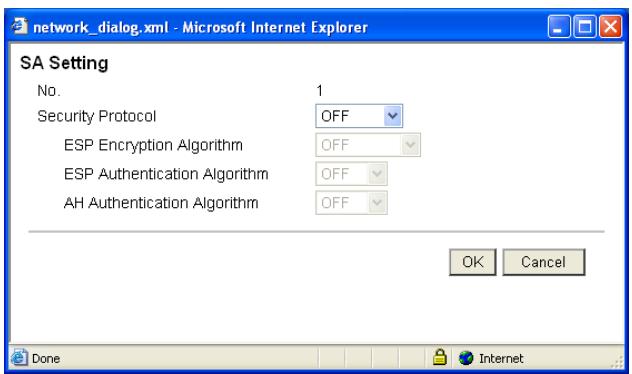
| Item | Definition | Prior confirmation |
| Lifetime After Establish-ing SA | Specify the validity period of a key generated when creating a communication tunnel. | |
| Security Protocol | Select the security protocol. | |
| ESP Encryption Algo-rithm | When "ESP" is selected for "Security Protocol", specify the ESP encryption algorithm. | |
| ESP Authentication Al-gorithm | When "ESP" is selected for "Security Protocol", specify the ESP authentication algorithm. | |
| AH Authentication Algo-rithm | When "AH" is selected for "Security Protocol", specify the AH authentication algorithm. |
11.17.5 Peer
1 In Administrator mode of PageScope Web Connection, select the Network tab - "TCP/IP Setting" - "IPsec" - "Peer" - [Edit].
2 Specify the following settings. (Up to 10 peers can be registered in "Peer".)
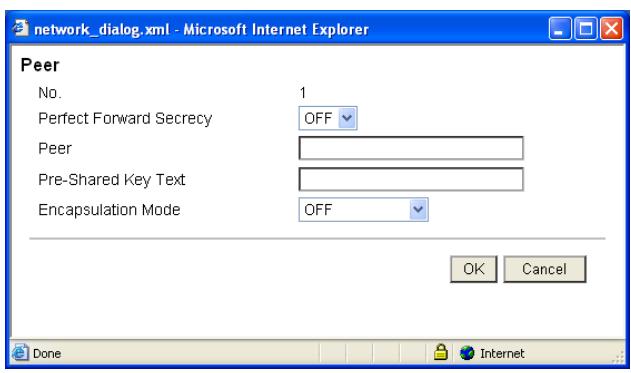
| Item | Definition | Prior confirmation |
| Perfect Forward Secrecy | To increase the IKE strength, select "ON". | |
| Peer | Specify the IP address of the peer. | IP address of the peer |
| Pre-Shared Key Text | Specify the Pre-Shared Key text shared with the peer. | |
| Encapsulation Mode | Specify the operation mode of IPsec. |
11.18 Monitoring this machine using the SNMP manager
Specify settings for monitoring this machine using a general SNMP manager.
SNMP manager-based communication with this machine allows acquisition, management, and monitoring of the information of this machine via the network. SNMP runs in a TCP/IP or IPX/SPX environment.
In addition, use of the TRAP function of SNMP allows setting for notification of the status of this machine. For details, refer to "Providing notification of the status of this machine (TRAP)" on page 11-91.
Specify the settings according to the following flowchart.
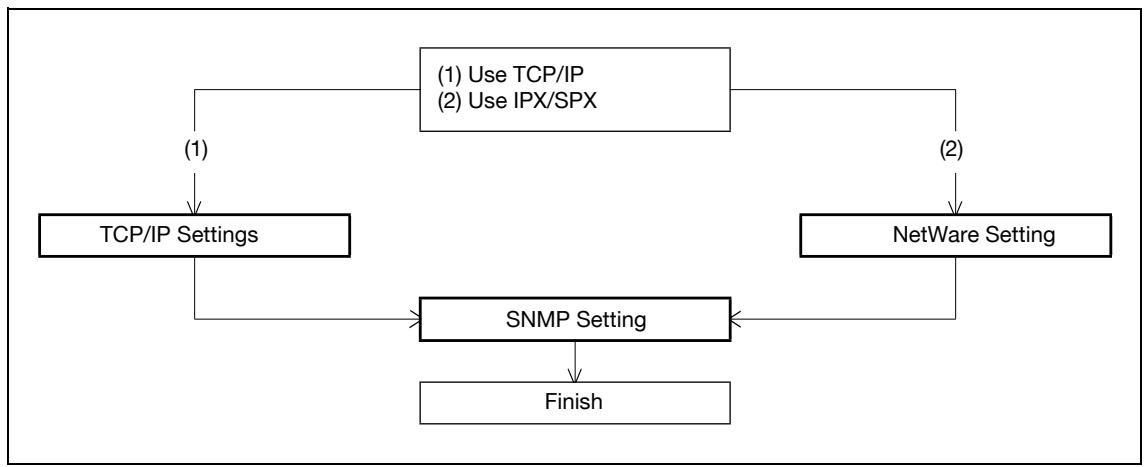
11.18.1 TCP/IP Settings
Specify settings to use this machine in a TCP/IP network environment.
For details, refer to "Specifying general settings for TCP/IP-based communication" on page 4-3.
11.18.2 NetWare Setting
1 In Administrator mode of PageScope Web Connection, select the Network tab - "NetWare Setting" - "NetWare Setting".
2 Specify the following settings.
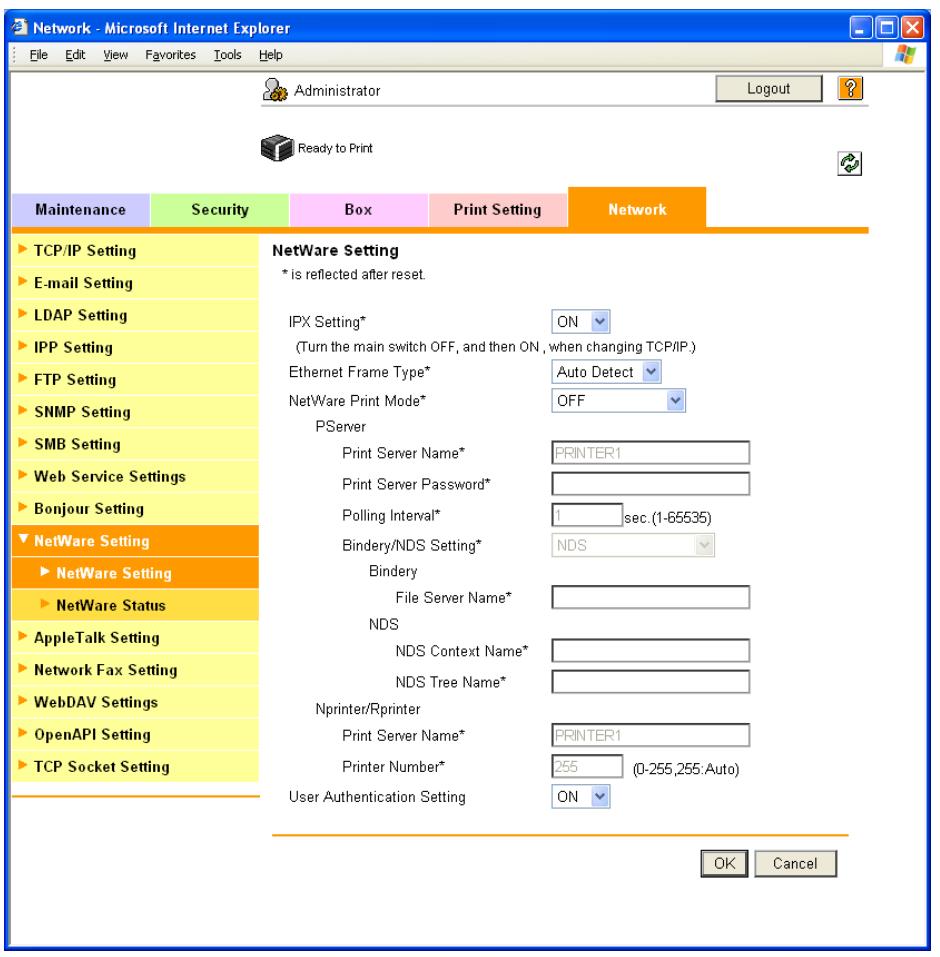
| Item | Definition | Prior confirmation |
| IPX Setting | Select "ON". | |
| Ethernet Frame Type | Specify the frame type to be used. | Frame type |
11.18.3 SNMP Setting
1 In Administrator mode of PageScope Web Connection, select the Network tab - "SNMP Setting".
2 Specify the following settings.
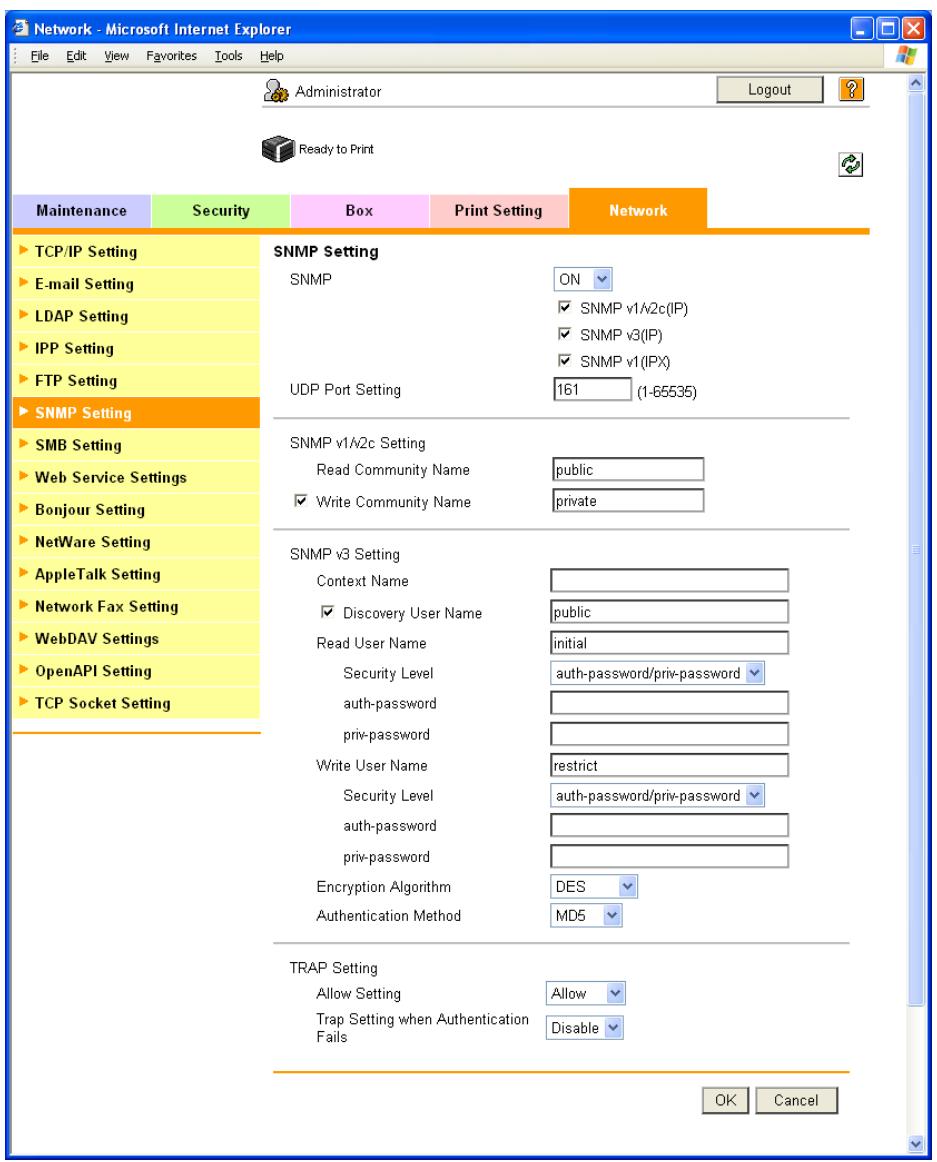
| Item | Definition | Prior confirmation |
| SNMP | Specifies whether to use the SNMP. If yes, specify whether to use SNMP v1/v2 (IP), SNMP v3, and SNMP v1 (IPX). SNMP v1 (IPX) can be specified only when IPX is enabled. | Protocol to be used (TCP/IP or IPX/SPX) |
| UDP Port Setting | Default setting: 161 Specify the UDP port number. | |
| SNMP v1/v2c Setting | Specify settings for using SNMP v1/v2c. | |
| Read Community Name | Specify the community name to be used for scanning (up to 15 characters). | |
| Write Community Name | Specify the community name to be used for reading and writing (up to 15 characters). | |
| SNMP v3 Setting | Specify settings for SNMP v3. | |
| Context Name | Specify the context name (up to 63 characters). | |
| Discovery User Name | Specify the user name for detection (up to 32 characters). | |
| Read User Name | Specify the name of read only user (up to 32 characters). | |
| Security Level | Specify the security level for read only user. | |
| auth-password | Specify the read only user authentication password to be used for authentication (up to 32 characters). | |
| priv-password | Specify the read only user privacy password to be used for privacy (encryption) (up to 32 characters). | |
| Write User Name | Specify the reading/writing user name (up to 32 characters). | |
| Security Level | Specify the security level for reading/writing user. | |
| auth-password | Specify the reading/writing user authentication password to be used for authentication (up to 32 characters). | |
| priv-password | Specify the reading/writing user privacy password to be used for privacy (encryption) (up to 32 characters). | |
| Encryption Algorithm | Specify the encryption algorithm. | |
| Authentication Method | Specify the authentication method. |
11.19 Providing notification of the status of this machine (E-mail)
Specify settings for notifying the administrator of the machine status via E-mail.
Using this function provides notification for a specified address when a warning message occurs on this machine.
Communication by combining POP before SMTP, APOP, SMTP authentication or encryption using SSL/TLS is available.
Specify the settings according to the following flowchart.
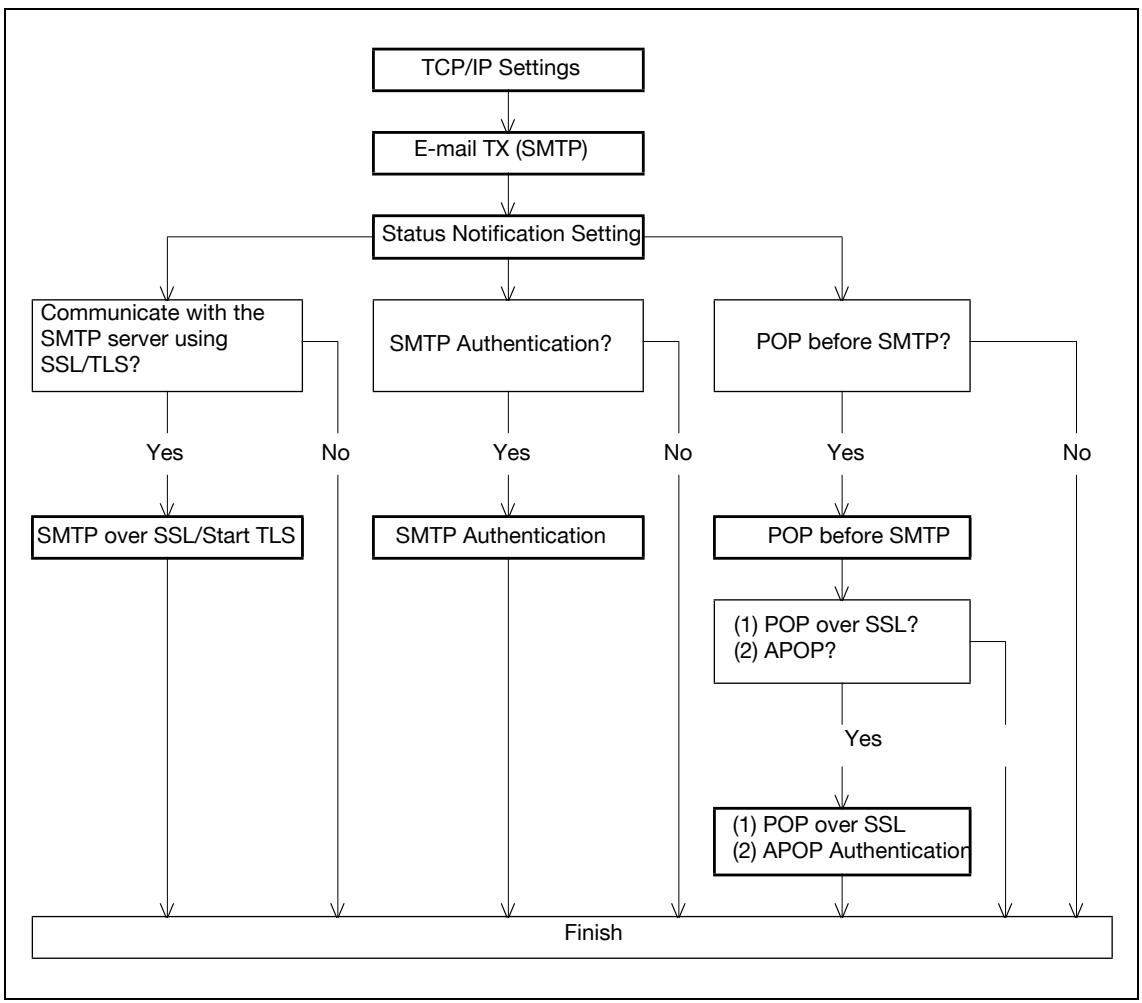
11.19.1 TCP/IP Settings
Specify settings to use this machine in a TCP/IP network environment.
For details, refer to "Specifying general settings for TCP/IP-based communication" on page 4-3.
11.19.2 E-mail TX (SMTP)
1 In Administrator mode of PageScope Web Connection, select the Network tab - "E-mail Setting" - "E-mail TX (SMTP)".
2 Specify the following settings.
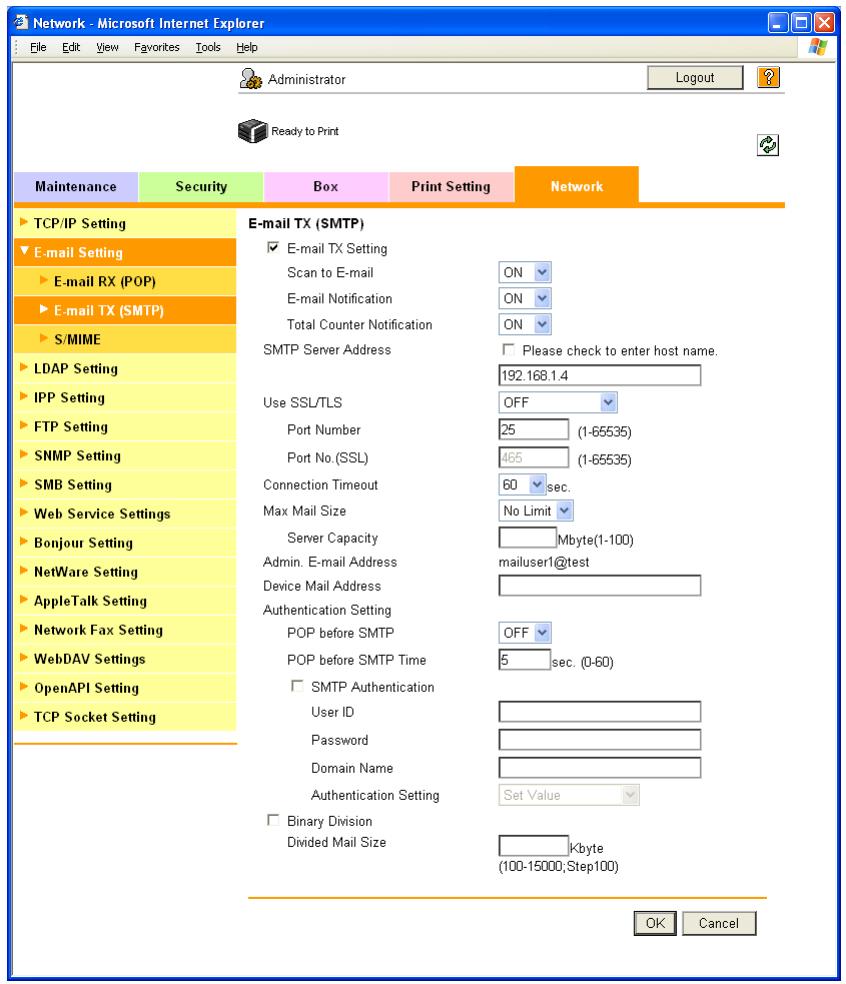
| Item | Definition | Prior confirmation |
| E-mail TX Setting | Select "ON". | |
| E-mail Notification | Select "ON". | |
| SMTP Server Address | Specify the SMTP server address. (Format: "***.***.***", Range for ***: 0 to 255)If the DNS server is specified, the address can be specified using the host name. This item can also be specified with IPv6. | Address of the server |
| Port Number | Default setting: 25Specify the port number. | Port number for the server |
| Connection Timeout | Specify the time period before the server connection times out. | |
| Max Mail Size | Select whether to limit the size of sent messages. | |
| Server Capacity | To limit the maximum mail size, specify the max. allowance of the mail size including the attached file. Mails exceeding the maximum allowance are removed. If a mail is separated, this setting is disabled. | Receiving limit of the server |
| Admin. E-mail Address | Displays the administrator address. If the administrator address is not specified, specify it at "Machine Setting". | Address for the adminis-trator |
| Binary Division | To divide the mail size, select "ON".If the mail software used for receiving mails does not have the mail restore function, the mails may not be read. | Restore function of the mail soft |
| Divided Mail Size | To divide the mail, specify a divided mail size. | Receiving limit of the server |
11.19.3 Status Notification Setting
1 In Administrator mode of PageScope Web Connection, select the Maintenance tab - "Status Notification Setting" - "E-mail Address" - [Edit].
2 Specify the following settings.
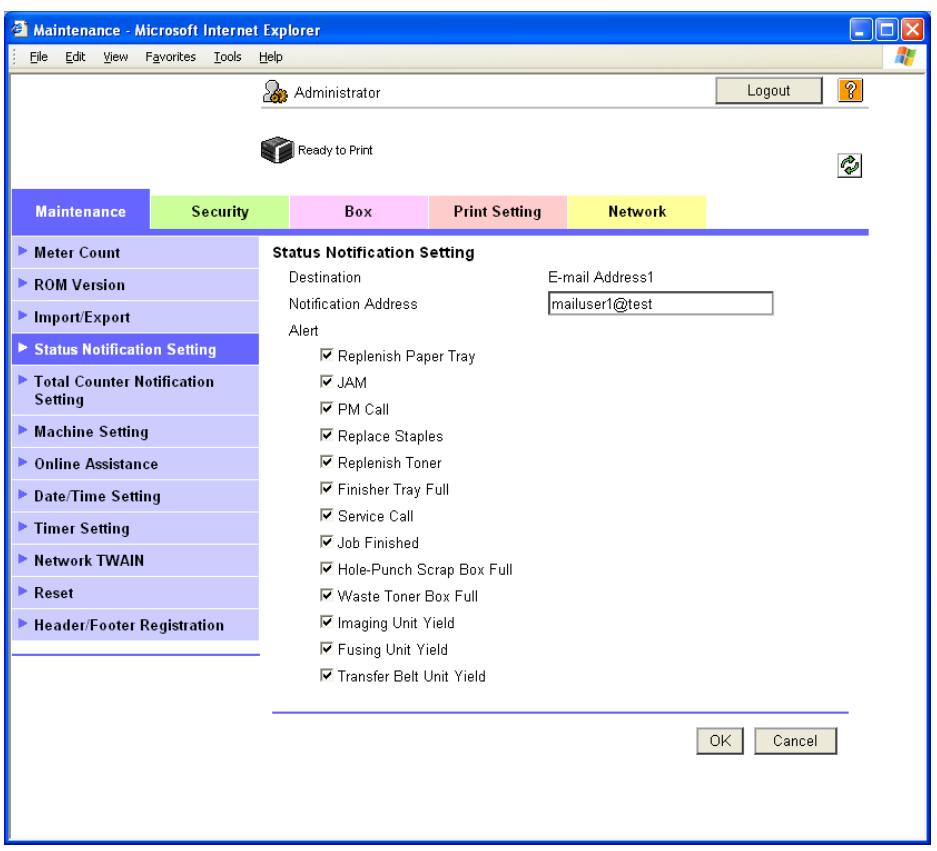
| Item | Definition | Prior confirmation |
| Notification Address | Specify the notification address. | Notification address |
| Replenish Paper Tray | Provides notification when a paper-out condition occurs. | |
| JAM | Provides notification when a paper misfeed occurs. | |
| PM Call | Provides notification when a periodic inspection is required. | |
| Replace Staples | Provides notification when a staple-out condition occurs. | |
| Replenish Toner | Provides notification when a toner-out condition occurs. | |
| Finisher Tray Full | Provides notification when the finisher tray becomes full. | |
| Service Call | Provides notification when a service call occurs. | |
| Job Finished | Provides notification when the job is completed. | |
| Hole-Punch Scrap Box Full | Provides notification when hole-punch scraps must be removed. | |
| Waste Toner Box Full | Provides notification when the waste toner box must be replaced. | |
| Imaging Unit Yield | Provides notification when the imaging unit must be replaced. | |
| Fusing Unit Yield | Provides notification when the fusing unit must be replaced. | |
| Transfer Belt Unit Yield | Provides notification when the transfer belt must be replaced. |
11.19.4 SMTP over SSL/Start TLS
E-mail TX (SMTP)
1 In Administrator mode of PageScope Web Connection, select the Network tab - "E-mail Setting" - "E-mail TX (SMTP)".
2 Specify the following settings.
| Item | Definition | Prior confirmation |
| Use SSL/TLS | To encrypt communication between this machine and the SMTP server using SSL/TTS, select "SMTP over SSL" or "Start TLS". | Whether the sever sup- ports SSL or START TLS |
| Port Number | Default setting: 25If "Start TLS" is selected, specify the port number. | Port number for the serv- er |
| Port No. (SSL) | Default setting: 465If "SMTP over SSL" is selected, specify the port number to be used for SSL communication. | Port number for the serv- er |
Action for Invalid Certificate
1 In Administrator mode of PageScope Web Connection, select the Security tab - "SSL/TLS Setting" - "Action for Invalid Certificate".
2 Specify the following settings.

Detail
To specify settings for "Action for Invalid Certificate", create a certificate for this machine in advance. For details, refer to "Creating a certificate for this machine for SSL-based communication" on page 11-55.
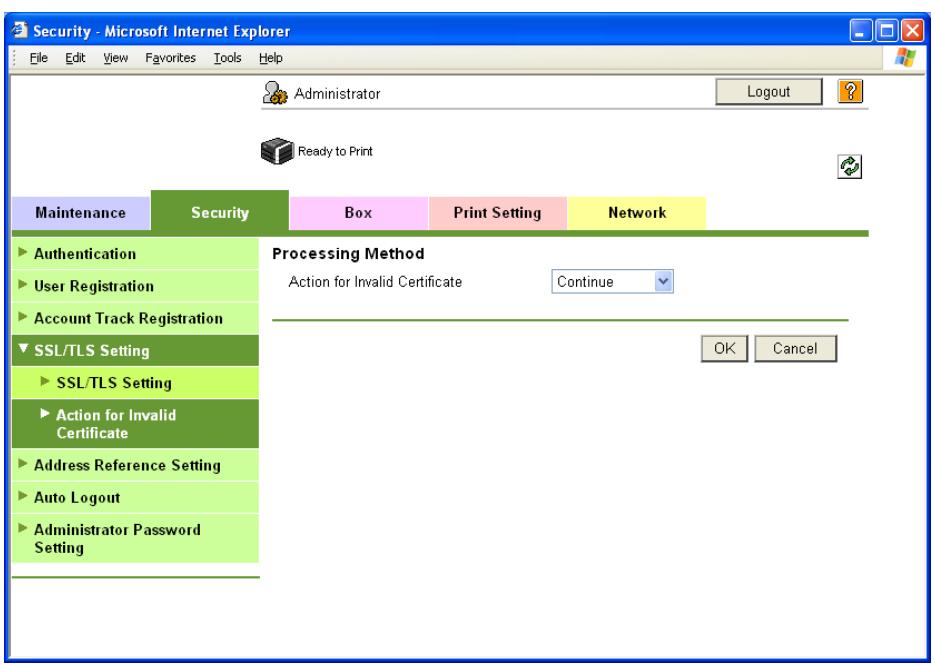
| Item | Definition | Prior confirmation |
| Action for Invalid Certificate | Specify the operation when the validity period for the received certificate has expired. If "Continue" is selected, processing continues even if the date of the certificate is invalid. If "Delete the Job" is selected, the job is deleted if the date of the certificate is invalid. |
11.19.5 SMTP Authentication
1 In Administrator mode of PageScope Web Connection, select the Network tab - "E-mail Setting" - "E-mail TX (SMTP)".
2 Specify the following settings.
| Item | Definition | Prior confirmation |
| SMTP Authentication | To perform SMTP authentication, select the "SMTP Authentication" check box. | Whether the sever re-requests SMTP |
| User ID | Specify the user ID for the SMTP authentication (up to 255 characters). | |
| Password | Specify the password for the SMTP authentication (up to 128 characters). | |
| Domain Name | Specify the domain name for the SMTP authentication (up to 255 characters).If the authentication method is Digest-MD5, the domain name must be specified. | Authentication method |
| Authentication Settings | Specify whether to synchronize with user authentication. When user authentication is performed, this item is displayed. | Whether to synchronize the user authentication |

Detail
A SMTP authentication method that is supported by the SMTP server and provided with the strongest encryption strength is automatically selected from Digest-MD5, CRAM-MD5, PLAIN, and LOGIN.
If there is just one domain (realm) to which the user belongs, it is notified from the SMTP server at the time of initial communication, and communication is automatically made using the domain name. Therefore, no domain name setting on this machine is not required. If there are two domains or more to which the user belongs, however, specify the domain name to which the user belongs.
11.19.6 POP before SMTP
POP before SMTP
1 In Administrator mode of PageScope Web Connection, select the Network tab - "E-mail Setting" - "E-mail TX (SMTP)".
2 Specify the following settings.
| Item | Definition | Prior confirmation |
| POP before SMTP | To perform POP before SMTP, select "ON". | Whether the sever requires POP before SMTP authentication |
| POP before SMTP Time | Specify the time period to access the SMTP server after logging in to the POP server. | Whether the POP server is different from the SMTP server |

Detail
If the POP server is different from the SMTP server, the POP server informs the SMTP server that it has been logged in. Therefore, if the set POP before SMTP time is too short, messages may not be sent.
E-mail RX (POP)
1 In Administrator mode of PageScope Web Connection, select the Network tab - "E-mail Setting" - "E-mail RX (POP)".
2 Specify the following settings.
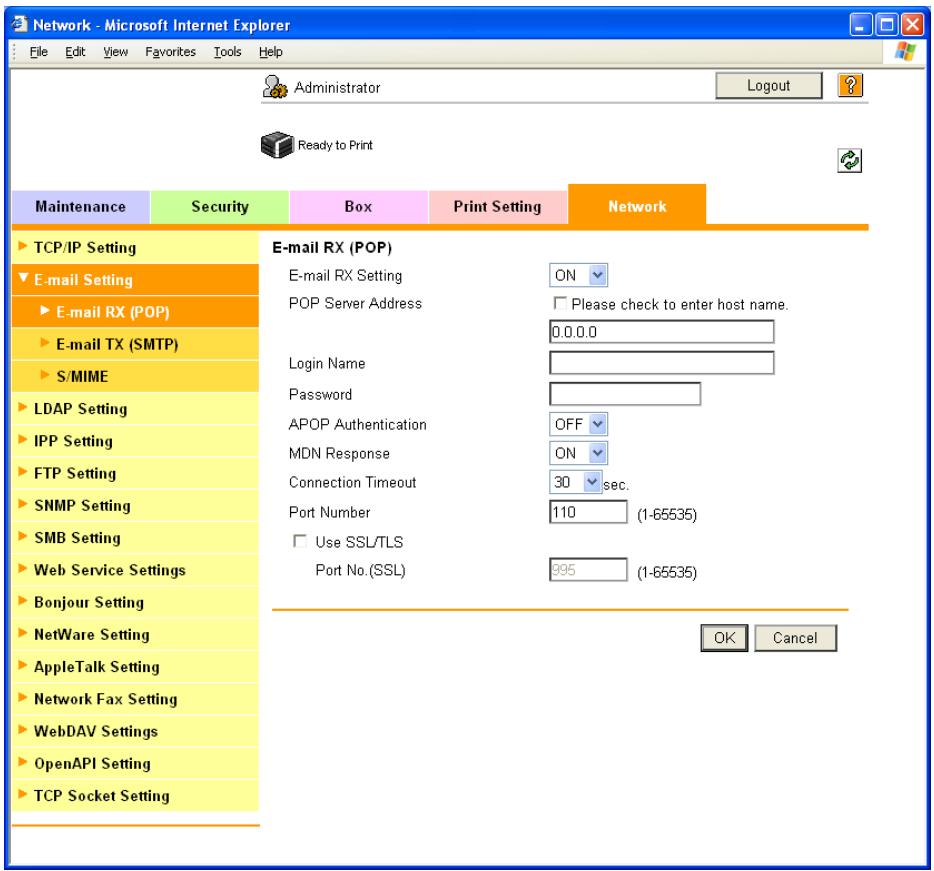
| Item | Definition | Prior confirmation |
| E-mail RX Setting | To perform POP before SMTP, select "ON". | |
| POP Server Address | Specify the POP server address. (Format: ***.***.***. Range for ***: 0 to 255)If the DNS server is specified, the address can be specified using the host name.This item can also be specified with IPv6. | Address of the server |
| Login Name | Enter the login name for the POP server (up to 63 characters). | |
| Password | Specify the password for logging in to the POP server (up to 15 characters). | |
| Connection Timeout | Specify the time period before the server connection times out. | |
| Port Number | Default setting: 110Specify the port number. | Port number for the server |
11.19.7 POP over SSL
E-mail RX (POP)
1 In Administrator mode of PageScope Web Connection, select the Network tab - "E-mail Setting" - "E-mail RX (POP)".
2 Specify the following settings.
| Item | Definition | Prior confirmation |
| Use SSL/TLS | To encrypt communication between this machine and the POPS server using SSL, select the "Use SSL/TLS" check box. | Whether the sever sup- ports SSL |
| Port No. (SSL) | Default setting: 995 Specify the port number used in SSL communication. | Port number for the serv- er |
Action for Invalid Certificate
1 In Administrator mode of PageScope Web Connection, select the Security tab - "SSL/TLS Setting" - "Action for Invalid Certificate".
2 Specify the following settings.

Detail
To specify settings for "Action for Invalid Certificate", create a certificate for this machine in advance. For details, refer to "Creating a certificate for this machine for SSL-based communication" on page 11-55.
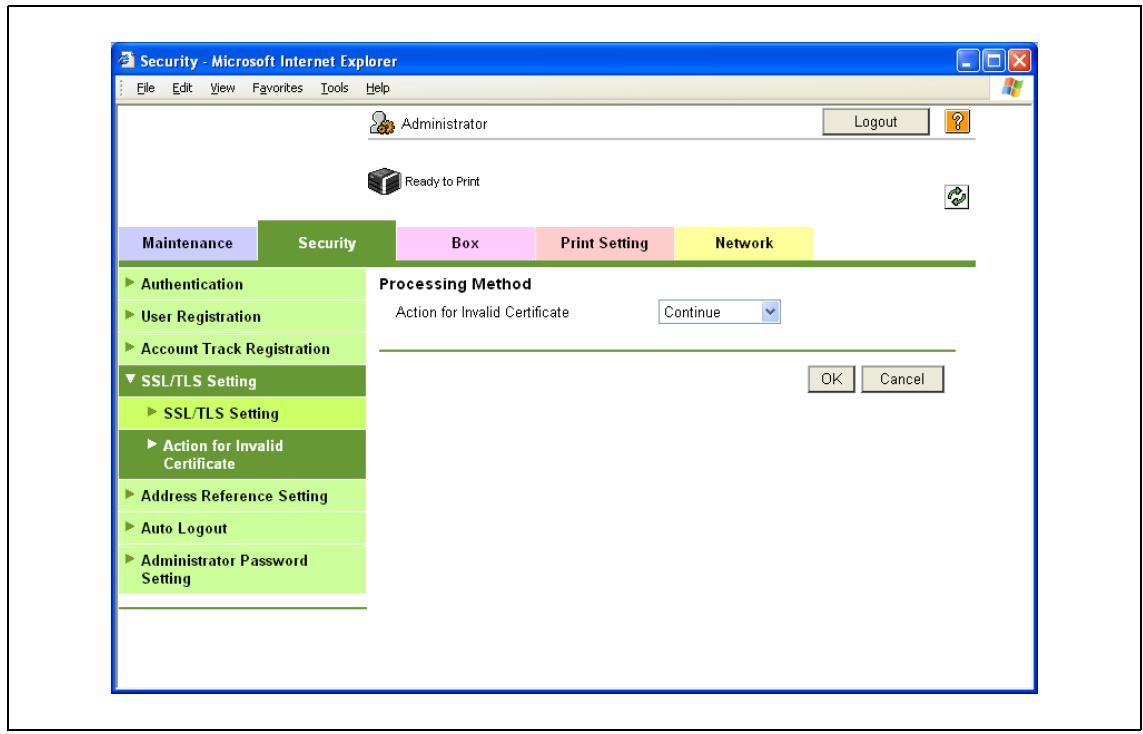
| Item | Definition | Prior confirmation |
| Action for Invalid Certificate | Specify the operation when the validity period for the received certificate has expired. If "Continue" is selected, processing continues even if the date of the certificate is invalid. If "Delete the Job" is selected, the job is deleted if the date of the certificate is invalid. |
11.19.8 APOP Authentication
1 In Administrator mode of PageScope Web Connection, select the Network tab - "E-mail Setting" - "E-mail RX (POP)".
2 Specify the following settings.
| Item | Definition | Prior confirmation |
| APOP Authentication | To encrypt the login name and password when logging in to the POP server, select "ON". | Whether the sever re-requests APOP |

Detail
When the POP server is logged in with APOP, the password is encrypted with Digest-MD5. If "ON" is specified for APOP authentication, you cannot log in to the server if the POP server does not support APOP.
11.20 Providing notification of the status of this machine (TRAP)
Specify settings for notifying the administrator of the machine status using the TRAP function of SNMP.
Using this function provides notification for a specified IP address or IPX address when a warning message occurs on this machine.
Specify the settings according to the following flowchart.
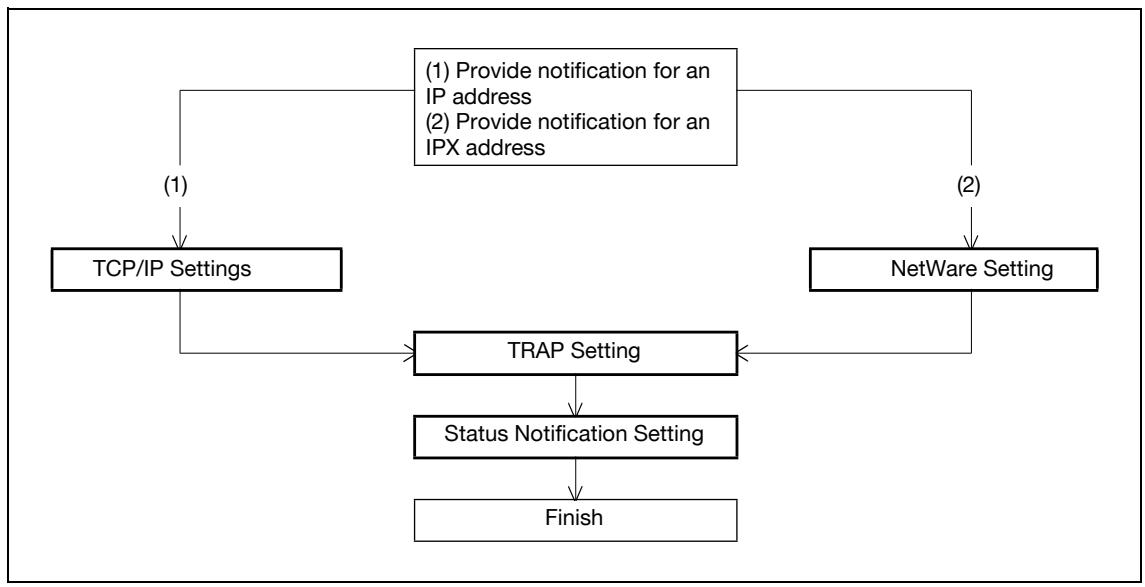

Detail
To use the TRAP function of SNMP, specify settings for SNMP in advance. For details, refer to "Monitoring this machine using the SNMP manager" on page 11-77.
11.20.1 TCP/IP Settings
Specify settings to use this machine in a TCP/IP network environment.
For details, refer to "Specifying general settings for TCP/IP-based communication" on page 4-3.
11.20.2 NetWare Setting
1 In Administrator mode of PageScope Web Connection, select the Network tab - "NetWare Setting" - "NetWare Setting".
2 Specify the following settings.

| Item | Definition | Prior confirmation |
| IPX Setting | Select "ON". | |
| Ethernet Frame Type | Specify the frame type to be used. | Frame type |
11.20.3 TRAP Setting
1 In Administrator mode of PageScope Web Connection, select the Network tab - "SNMP Setting".
2 Specify the following settings.
| Item | Definition | Prior confirmation |
| Allow Setting | Select "Allow". | |
| Trap Setting when Authentication Fails | Select whether to enable the TRAP function when authentication failed. |
11.20.4 Status Notification Setting
In Administrator mode of PageScope Web Connection, select the Maintenance tab - "Status Notification Setting" - "IP (IPX) Address" - [Edit].
For details on the settings, refer to "Status Notification Setting" on page 11-84.
11.21 Using the TCP Socket/OpenAPI/FTP server function
Specify settings for TCP Socket, OpenAPI, and FTP server of this machine.
TCP socket is used during data transmissions between the computer application and this machine.
To synchronize this machine with a different OpenAPI-based system, specify settings for OpenAPI.
This machine serves as an FTP server by specifying settings for the FTP server function of this machine. To use an application that synchronizes with this machine as an FTP client, use this setting.
Specify the settings according to the following flowchart.
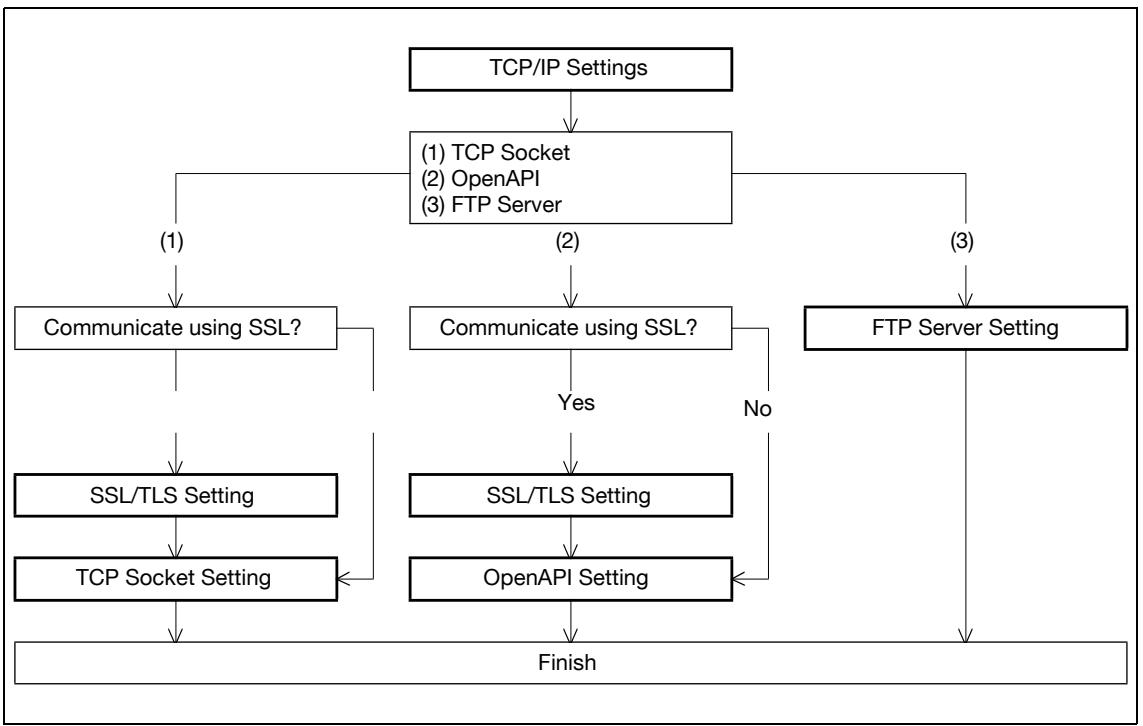
11.21.1 TCP/IP Settings
Specify settings to use this machine in a TCP/IP network environment.
For details, refer to "Specifying general settings for TCP/IP-based communication" on page 4-3.
11.21.2 SSL/TLS Setting
Specify settings for SSL-based communication.
For details, refer to "Creating a certificate for this machine for SSL-based communication" on page 11-55.
11.21.3 TCP Socket Setting
1 In Administrator mode of PageScope Web Connection, select the Network tab - "TCP Socket Setting".
2 Specify the following settings.

Detail
To use SSL/TLS, install the certificate in advance. For details, refer to "Creating a certificate for this machine for SSL-based communication" on page 11-55.
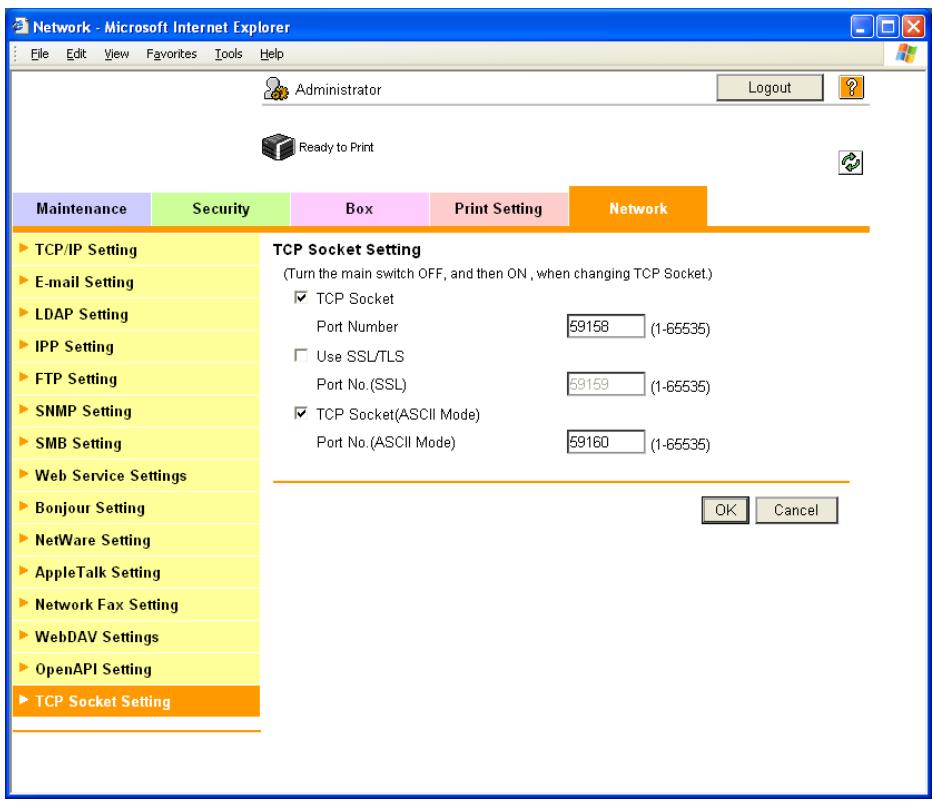
| Item | Definition | Prior confirmation |
| TCP Socket | Select the "TCP Socket" check box. | |
| Port Number | Specify the port number. | |
| Use SSL/TLS | To use SSL/TLS, select the "Use SSL/TLS" check box. | Whether to use SSL/TLS |
| Port No. (SSL) | Specify the port number used in SSL communication. |

Detail
If "EnhancedSecurity" is set to "ON", the "Use SSL/TLS" check box is selected.
11.21.4 OpenAPI Setting
1 In Administrator mode of PageScope Web Connection, select the Network tab - "OpenAPI Setting".
2 Specify the following settings.

Detail
To use SSL/TLS, install the certificate in advance. For details, refer to "Creating a certificate for this machine for SSL-based communication" on page 11-55.
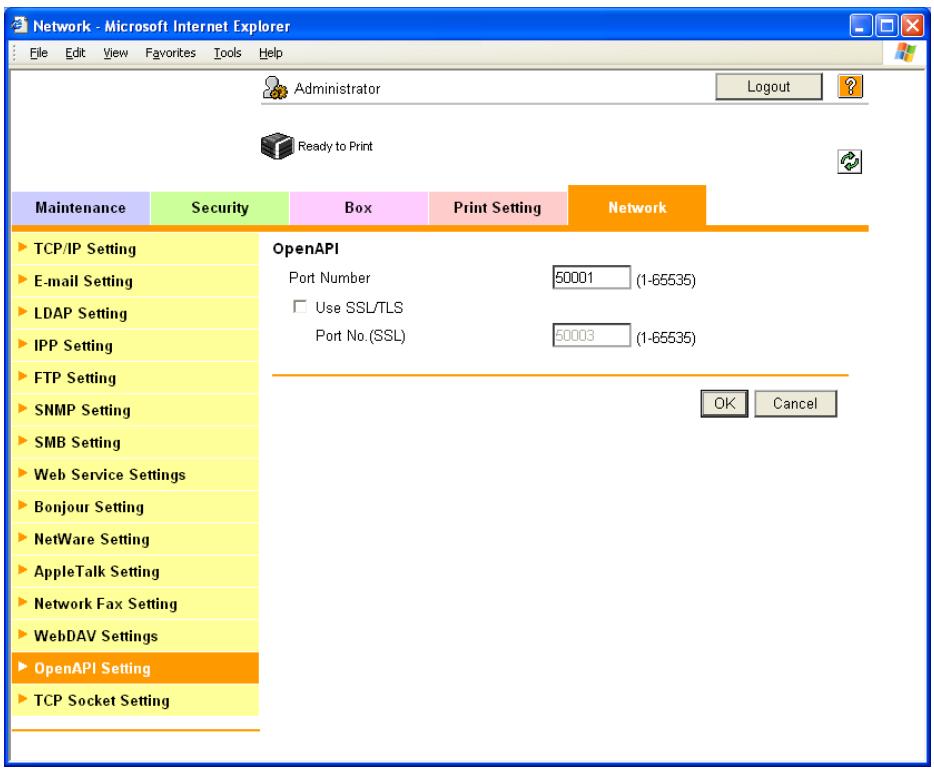
| Item | Definition | Prior confirmation |
| Port Number | Specify the port number. | |
| Use SSL/TLS | To use SSL/TLS, select the "Use SSL/TLS" check box. | Whether to use SSL/TLS |
| Port No. (SSL/TLS) | Specify the port number used in SSL communication. |

Detail
If "EnhancedSecurity" is set to "ON", the "Use SSL/TLS" check box is selected.
11.21.5 FTP Server Setting
1 In Administrator mode of PageScope Web Connection, select the Network tab - "FTP Setting" - "FTP Server Setting".
2 Specify the following setting.
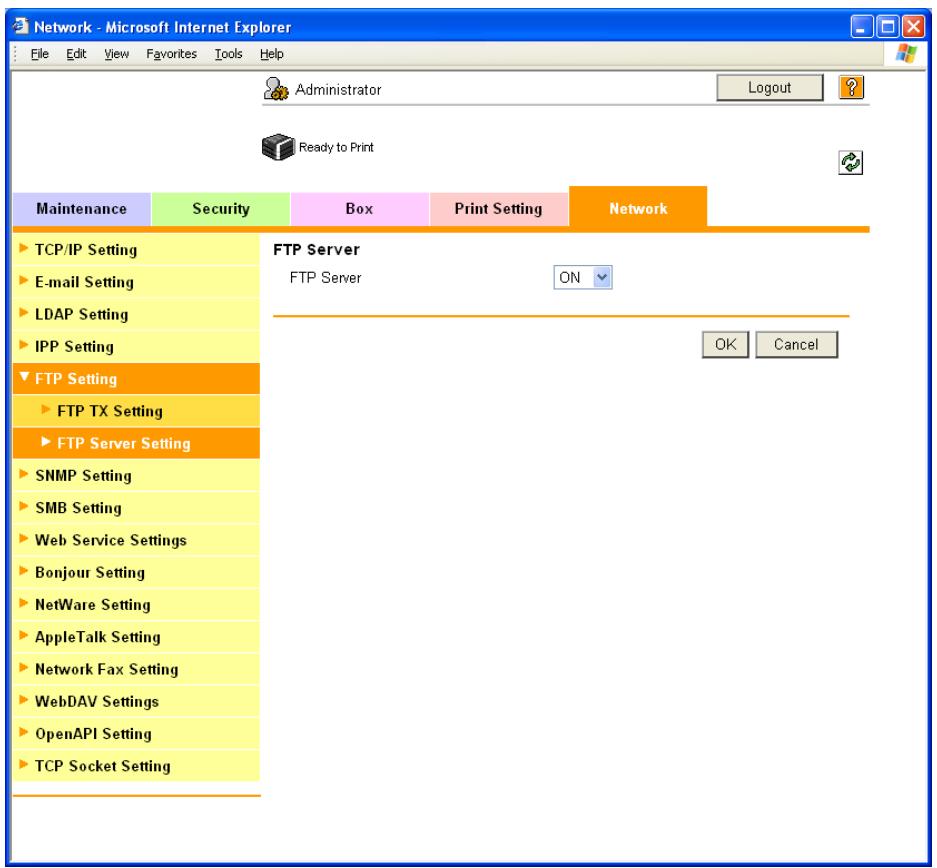
| Item | Definition | Prior confirmation |
| FTP Server | Select "ON". |

Detail
If "EnhancedSecurity" is set to "ON", "OFF" is selected.
11.22 Other items on the Maintenance tab
This section describes other items specifiable on the Maintenance tab for the PageScope Web Connection.
11.22.1 Using the timer function
Specify settings for the timer function of this machine.
Settings for the power save function can be specified.
Power Save Setting
1 In Administrator mode of PageScope Web Connection, select the Maintenance tab - "Timer Setting" - "Power Save Setting".
2 Specify the following settings.
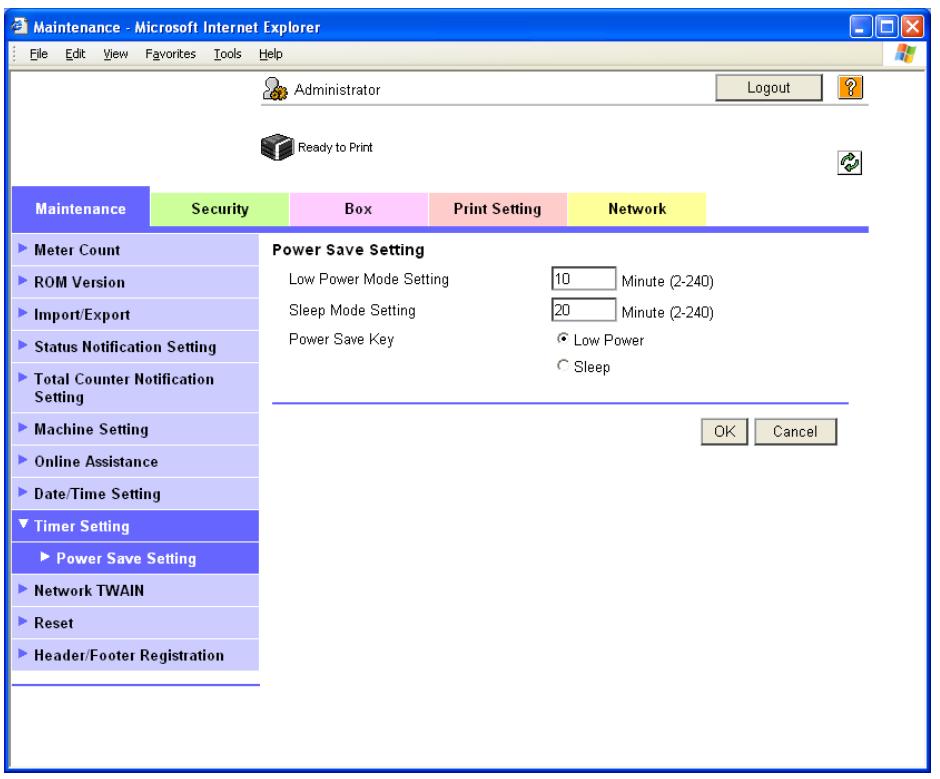
| Item | Definition |
| Low Power Mode Setting | Specify the time period before the machine enters Low Power mode. |
| Sleep Mode Setting | Specify the time period before the machine enters Sleep mode. |
| Power Save Key | Manually specify the setting for the power save function (Low Power or Sleep mode). |
11.22.2 Resetting setting information
Reset machine settings.
Network settings and controller settings can be reset.
Network Setting Clear
1 In Administrator mode of PageScope Web Connection, select the Maintenance tab - "Reset" - "Network Setting Clear".
2 To reset to the factory default network settings, click [Clear].

Detail
If "EnhancedSecurity" is set to "ON", this menu item does not appear.
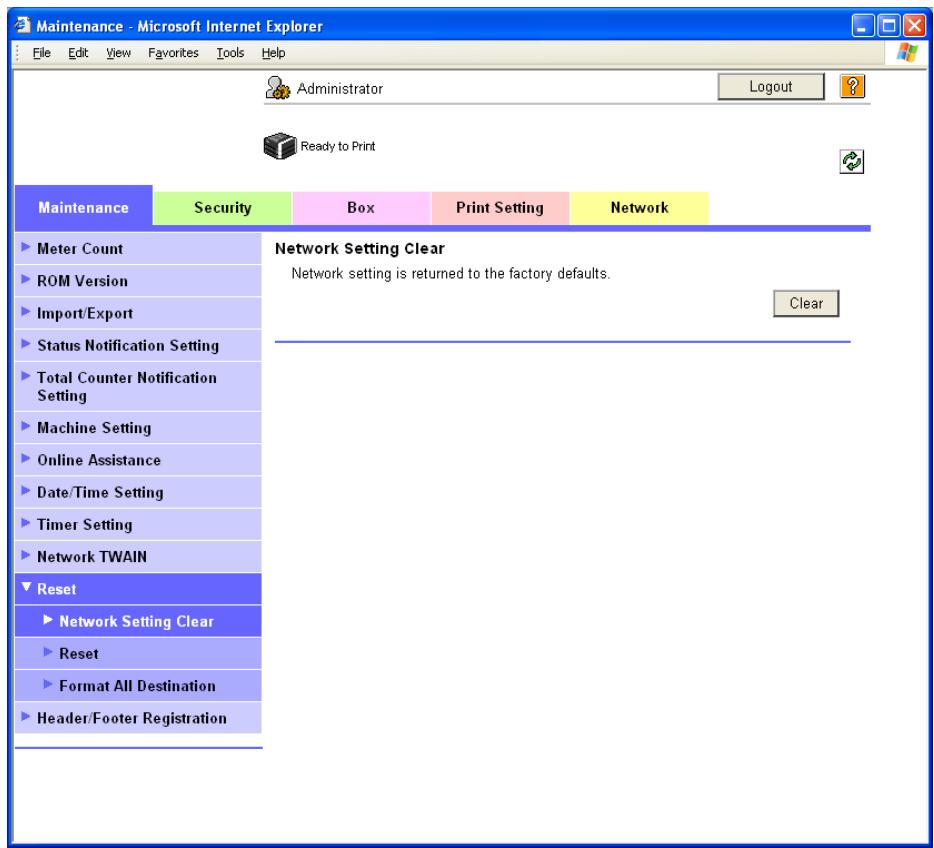
Reset
1 In Administrator mode of PageScope Web Connection, select the Maintenance tab - "Reset" - "Reset".
2 To reset the controller, click [Reset].
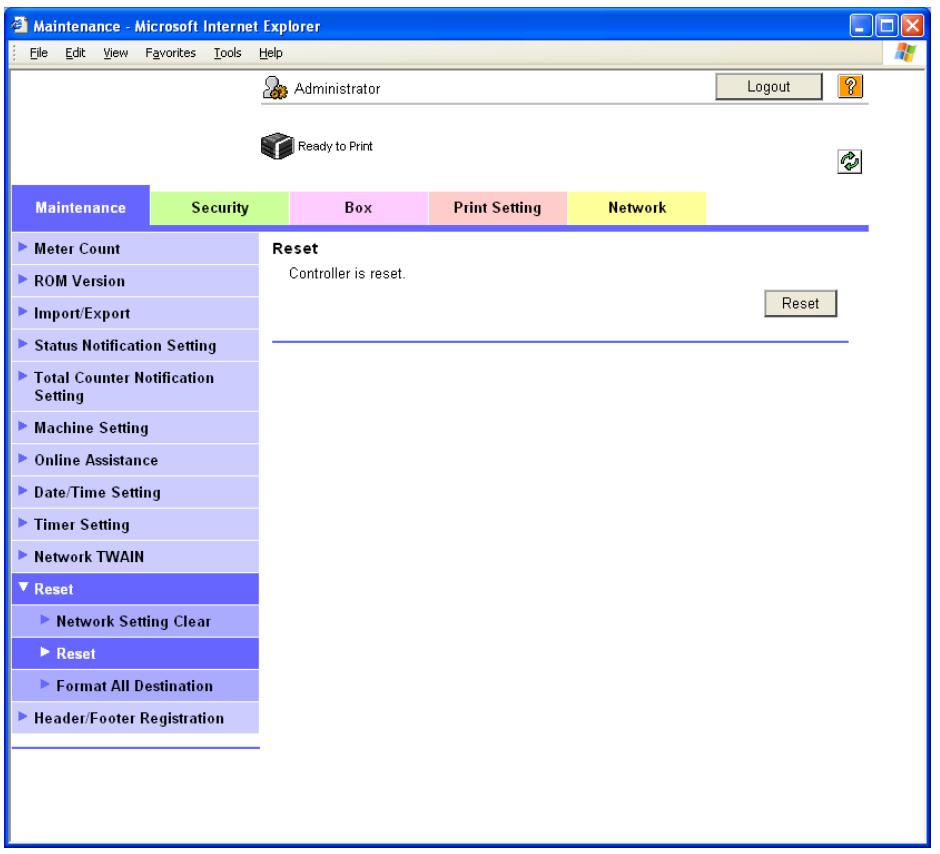
11.22.3 Registering the header or footer
To print on this machine, register a text that can be printed as a header or footer.
The header or footer registered here can be selected in the printer driver.
Header/Footer Registration
1 In Administrator mode of PageScope Web Connection, select the Maintenance tab - "Header/Footer Registration" - [Edit].
2 Specify the following settings.
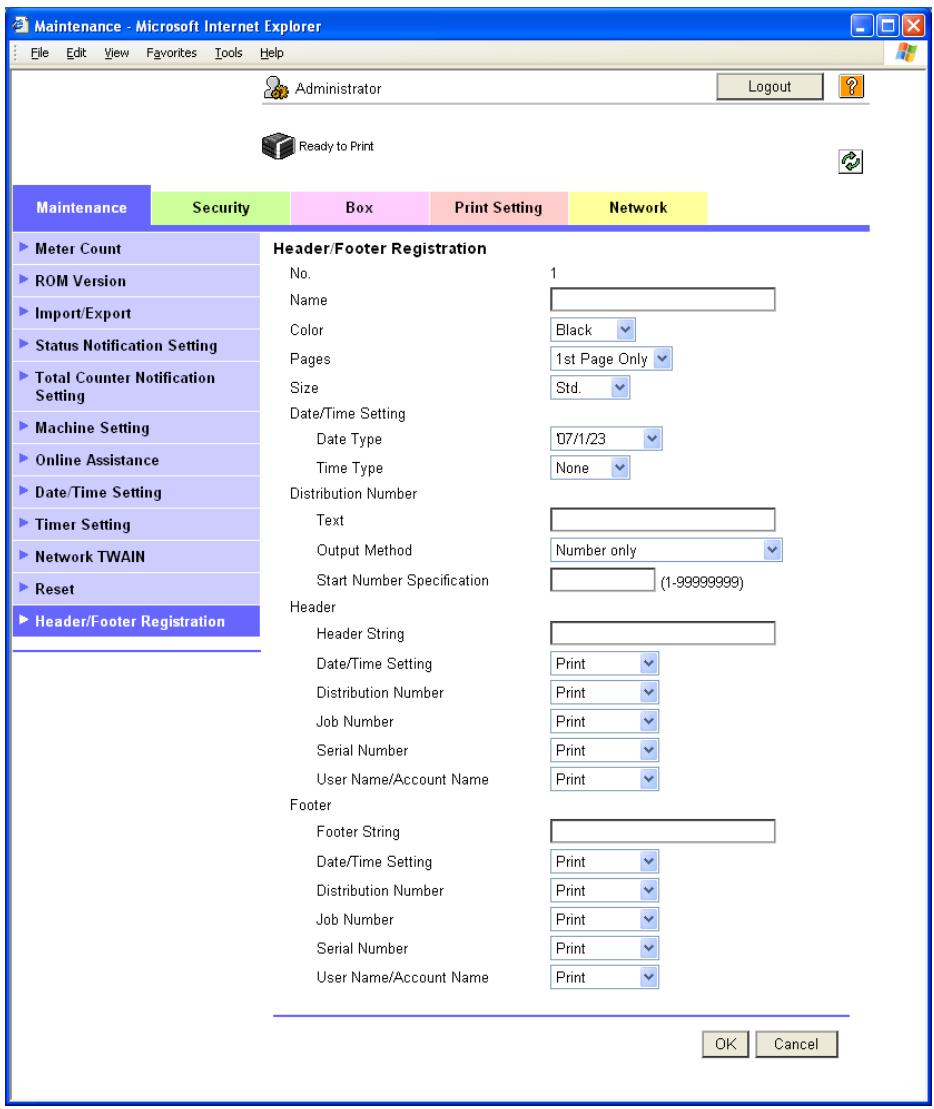
| Item | Definition |
| No. | Displays the registration number. |
| Name | Specify the registration name. |
| Color | Specify the color. |
| Pages | Select the pages to be printed. |
| Size | Specify the size. |
| Date/Time Setting | Specify the date and time formats. |
| Distribution Number | Specify the distribution number text. Select the output format, and then specify the starting number. |
| Header/Footer | Specify whether to print the following items. • Header String/Footer String (up to 40 characters each) • Date/Time Setting • Distribution Number • Job Number • Serial Number • User Name/Account Name |
11.23 Other items on the Security tab
This section describes other items specifiable on the Security tab for the PageScope Web Connection.
11.23.1 Specifying the auto logout time
Specify the length of time before Administrator mode or User mode is automatically logged out.
If no operation is performed for the length of time specified here, the user will automatically be logged out.
AutoLogout
1 In Administrator mode of PageScope Web Connection, select the Security tab - "AutoLogout".
2 Specify the following settings.
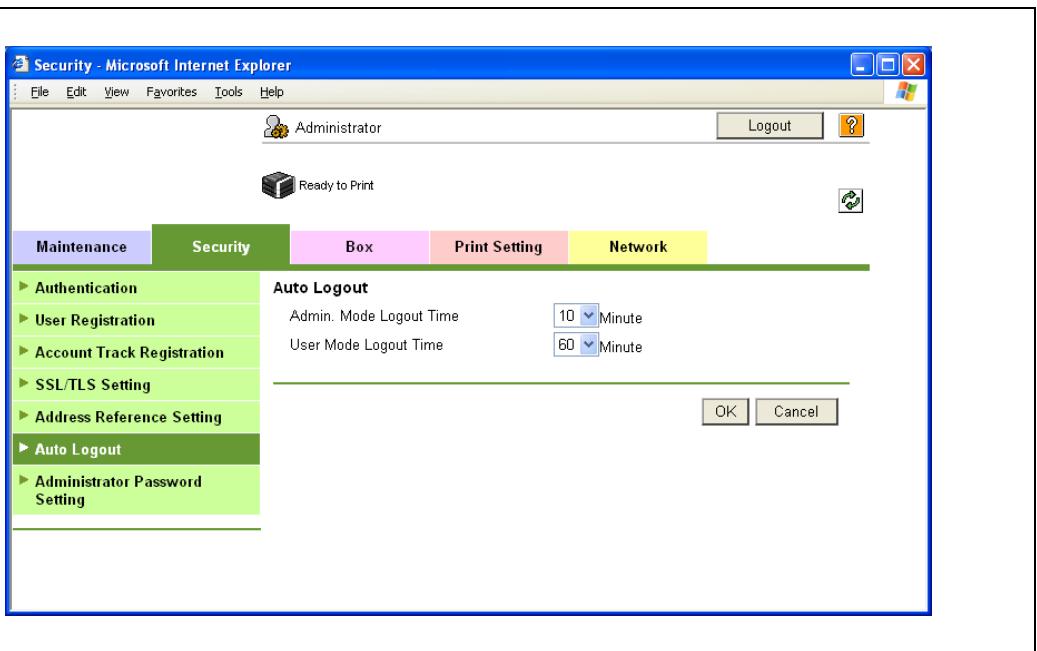
| Item | Definition |
| Admin. ModeLogoutTime | Specify the time period before the user is automatically logged out when no operation is performed for a certain period of time in Administrator mode. |
| User ModeLogoutTime | Specify the time period before the user is automatically logged out when no operation is performed for a certain period of time in the user mode. |
11.23.2 Specifying the Administrator password
Specify the password for the machine's administrator.
Administrator Password Setting
1 In Administrator mode of PageScope Web Connection, select the Security tab - "Administrator Password Setting".
2 Specify the following settings.

Detail
If "EnhancedSecurity" is set to "ON", this menu item does not appear.
If the certificate for this machine is not installed, this menu item does not appear.
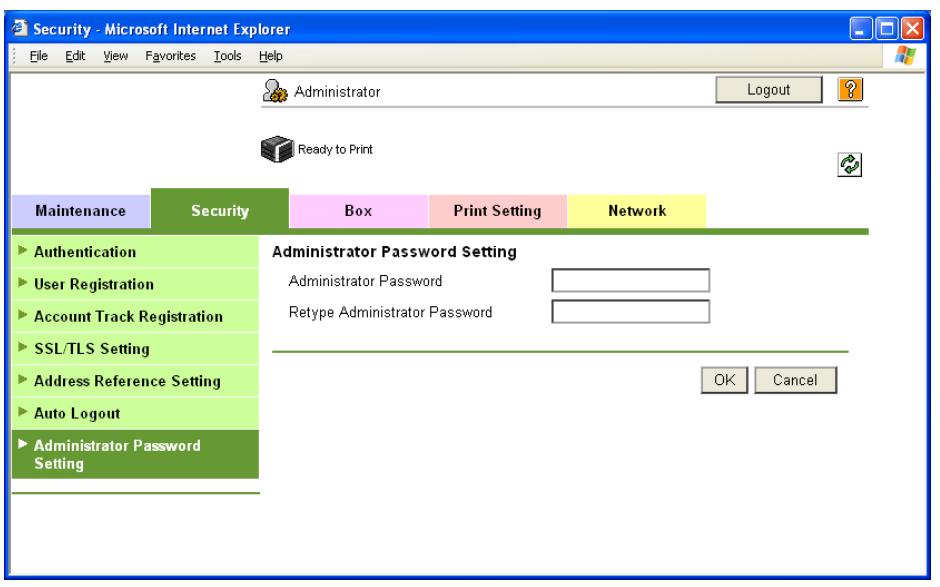
| Item | Definition |
| Administrator Password | Specify the administrator password (up to 8 characters). |
| Retype Administrator Password | Enter the administrator password again for confirmation. |

Detail
If "Password Rules" is enabled, no password containing less than eight characters can be registered. If you have already registered a user password containing less than eight characters, change it to one using eight characters before enabling "Password Rules". For details on the password rules, refer to "Admin. Settings Menu" on page 10-23.
11.24 Print Setting tab settings
This section describes other items specifiable on the Print Setting tab for the PageScope Web Connection. On the Print Setting tab, specify settings for the print function of this machine.
11.24.1 Specifying initial settings for the print function
Specify initial settings for the print function.
Basic Setting
1 In Administrator mode of PageScope Web Connection, select the Print Setting tab - "Basic Setting".
2 Specify the following settings.
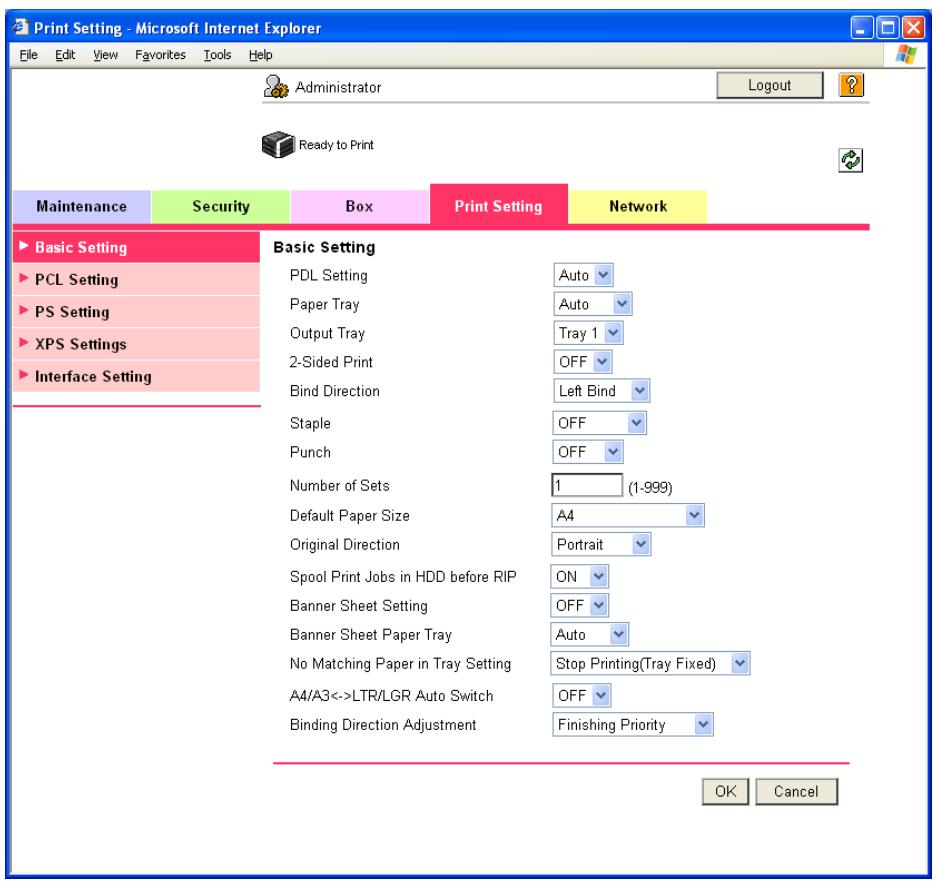
| Item | Definition |
| PDL Setting | Specify the PDL language. |
| Paper Tray | Specify the paper tray. |
| Output Tray | Specify the output tray. |
| 2-Sided Print | Specify whether to perform 2-sided print. |
| Bind Direction | Specify the binding direction. |
| Staple | Specify whether to perform staple. If yes, specify the number of staples. |
| Punch | Specify whether to perform punch. |
| Number of Sets | Specifies the number of copies to be printed. |
| Default Paper Size | Specifies the paper size. |
| Original Direction | Select the original direction. |
| Spool Print Jobs in HDD before RIP | Select whether to spool a print job to HDD. |
| Banner Sheet Setting | Specify whether to print the first page on the banner page. |
| Banner Sheet Paper Tray | Select the default paper tray used for printing the banner pages. |
| No Matching Paper in Tray Setting | Specify whether to continue printing from a different paper tray when there is no paper of the appropriate size in the specified paper tray. |
| A4/A3 <= LTR/LGR Auto Switch | Select whether to print an A4 (Letter)/A3 (Ledger) original in the same size with disregard to image missing when the Letter (A4)/Ledger (A3) paper tray is selected. |
| Binding Direction Adjustment | Specify the binding direction adjustment method. |

Detail
The staple function is available only if the optional finisher is installed.
The punch function is available only if the optional finisher and punch kit are installed.
11.24.2 Specifying settings for PCL/PS/XPS print
Specify settings for PCL/PS/XPS print
PCL Settings
1 In Administrator mode of PageScope Web Connection, select the Print Setting tab - "PCL Setting".
2 Specify the following settings.
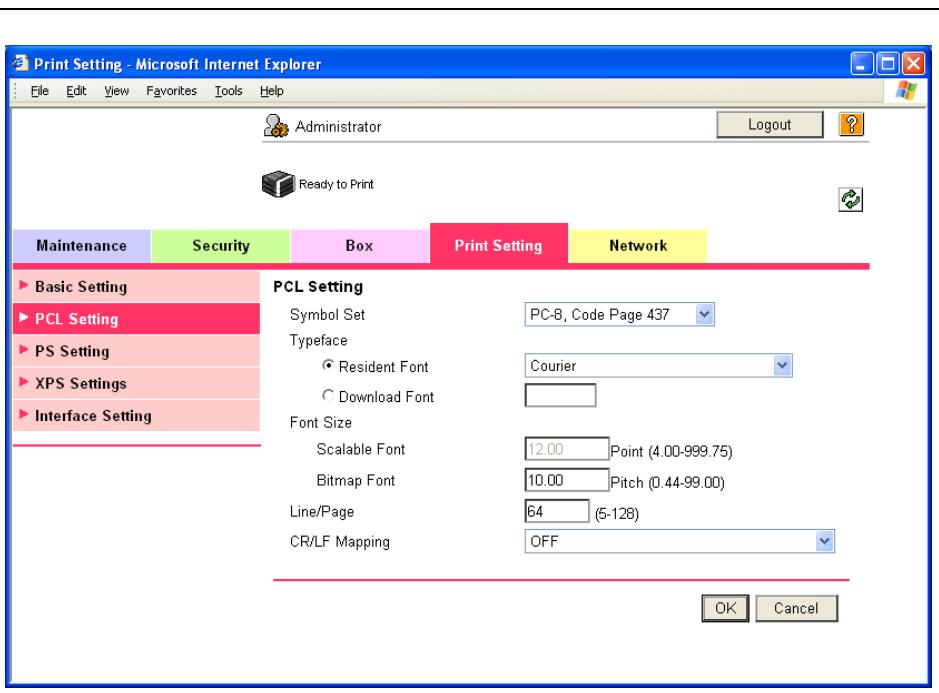
| Item | Definition |
| Symbol Set | Specify the symbol set. |
| Typeface | Select the internal font ("Resident Font") or downloaded font ("Download Font"). |
| Font Size | Specify the font size. |
| Line/Page | Specify the number of lines per page. |
| CR/LF Mapping | Specify the text data CR/LF replacement method. |
PS Setting
1 In Administrator mode of PageScope Web Connection, select the Print Setting tab - "PS Setting".
2 Specify the following settings.
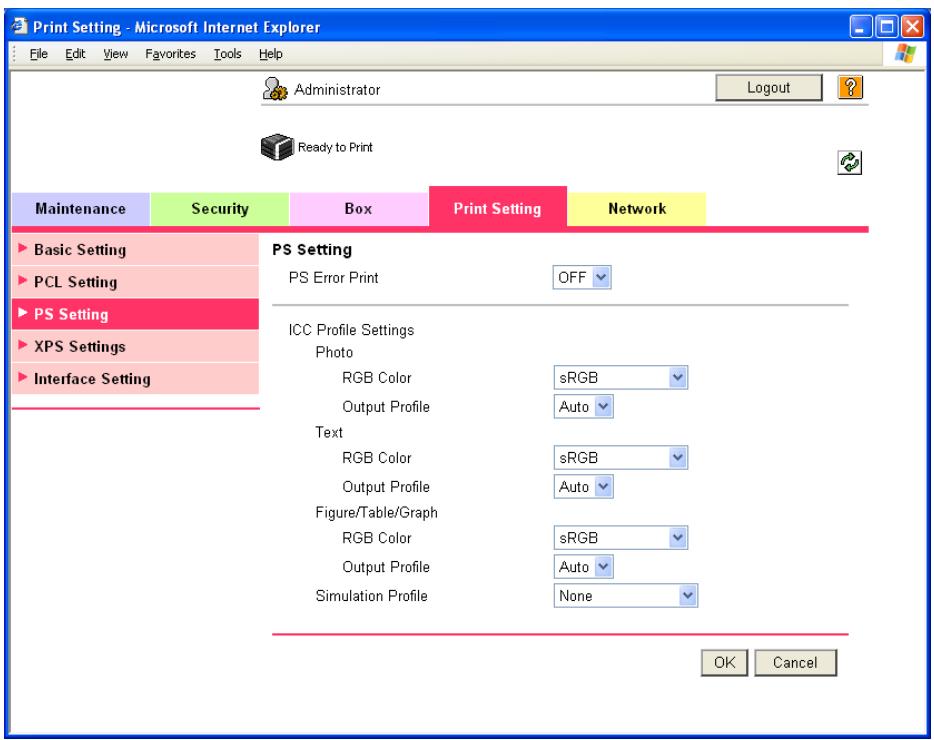
| Item | Definition |
| PS Error Print | Specify whether to print error message when an error occurs during PS rasterization. |
| ICC Profile Settings | Specify the ICC profile. |
| Photo | Specify the default value of the profile when "Photo" is selected by the printer driver. |
| Text | Specify the default value of the profile when "Text" is selected by the printer driver. |
| Figure/Table/Graph | Specify the default value of the profile when "Figure/Table/Graph" is selected by the printer driver. |
| Simulation Profile | Specify the default value of the ICC profile for simulation. |
XPS Settings
1 In Administrator mode of PageScope Web Connection, select the Print Setting tab - "XPS Settings".
2 Specify the following settings.
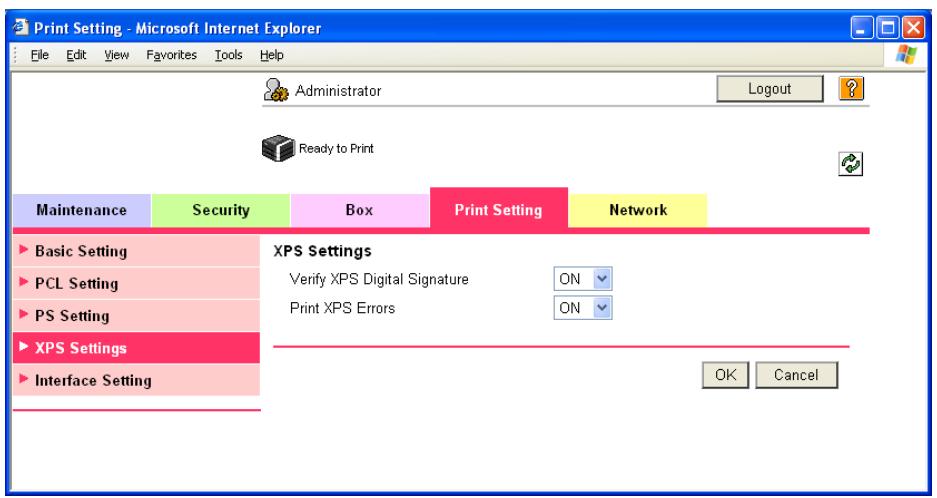
| Item | Definition |
| Verify XPS Digital Signature | Specify whether to verify digital signature. When "ON" is selected, the document without a valid digital signature is not printed. |
| Print XPS Errors | Specify whether to print error message when an error occurs during XPS print. |
11.24.3 Specifying the interface timeout
Specify the time period before the interfaced connection times out.
Interface Setting
1 In Administrator mode of PageScope Web Connection, select the Print Setting tab - "Interface Setting".
2 Specify the following settings.
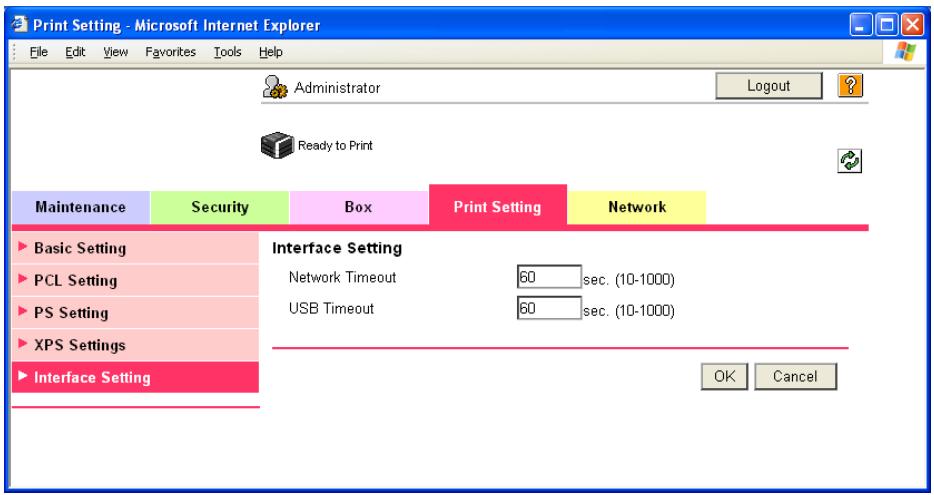
| Item | Definition |
| Network Timeout | Specify the reception timeout for the network. |
| USB Timeout | Specify the USB timeout. |
12
Troubleshooting
12 Troubleshooting
12.1 When an error code appears
There are three types of errors; errors that can be cleared by opening/closing the front door, errors that can be cleared by turning the power off/on, and errors that cannot be cleared. Clear the error by following the on-screen instructions. If the error cannot be cleared or released, contact your service representative with the error code.
Example: Error that can be cleared by turning the power off/on (C-0001)
Trouble C-0001
Turn power OFF & ON to reset.

Reminder
Since the machine may be damaged, contact the service representative according to the procedure described below as soon as the call service representative screen appears.
1 Write down the trouble code (for example, C-0001) in the call service representative screen.
2 Use the power switch to turn off the machine.
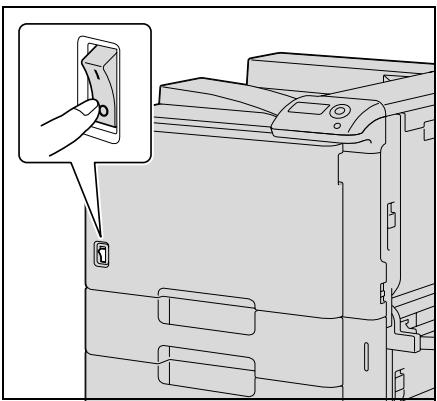
3 Unplug the machine.
4 Contact the service representative, and inform them of the trouble code.
12.2 When the message "Misfeed detected. XXXX Remove paper." appears
If a misfeed occurs during printing, the message "Misfeed detected. XXXX Remove paper." appears and the location of the misfeed is indicated in the screen. (misfeed location screen)
At this time, printing cannot continue until the misfeed is adequately cleared.
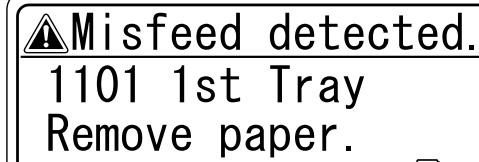


Note
The procedure for clearing misfeed paper differs depending on where the misfeed occurs. Determine the misfeed location, and then clear the misfeed according to the appropriate procedure.
12.2.1 Paper misfeed indications
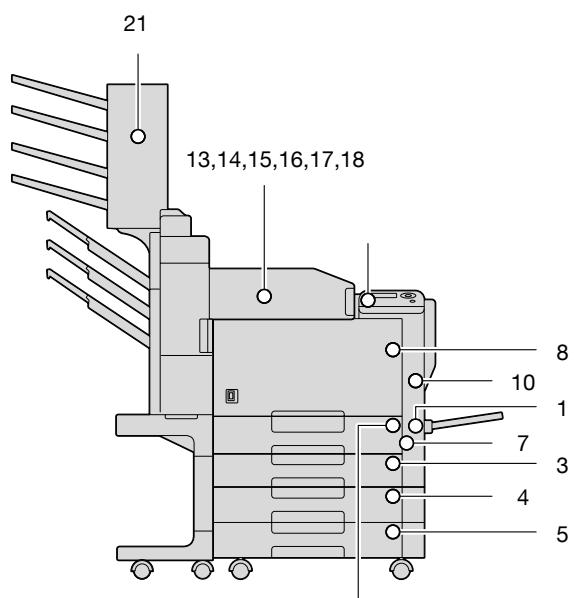
2
*The illustration above shows the main unit with optional finisher FS-519, mailbin kit and the double paper feed cabinet installed.
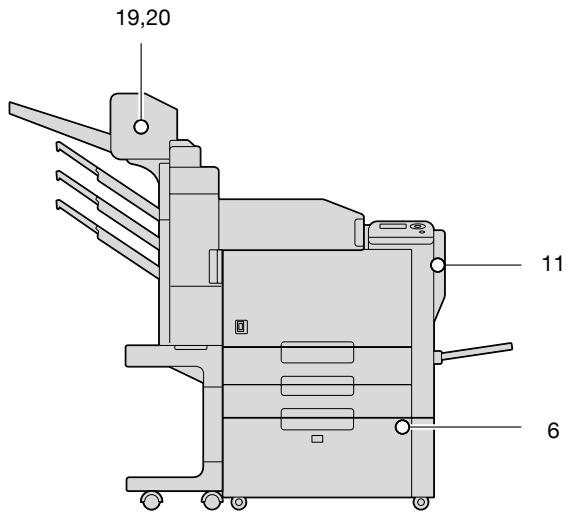
*The illustration above shows optional finisher FS-519, saddle stitcher and the LCT installed.
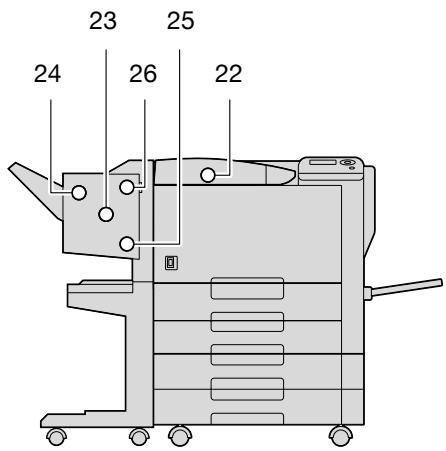
*The illustration above shows optional finisher FS-609 and the double paper feed cabinet installed.
| No. | Code | Description |
| 1 | 1001 | A paper misfeed in the bypass tray (p. 12-15) |
| 2 | 1101 | A paper misfeed in the tray 1 (p. 12-19) |
| 3 | 1201 | A paper misfeed in the tray 2 (p. 12-22) |
| 4 | 1301 | A paper misfeed in the tray 3 (p. 12-24) |
| 5 | 1401 | A paper misfeed in the tray 4 (p. 12-24) |
| 6 | 1501 | A paper misfeed in the tray LCT (p. 12-26) |
| 7 | 2001 | A paper misfeed in the paper transport section (p. 12-17) |
| 8 | 3001 | A paper misfeed in the main unit (p. 12-10) |
| 9 | 3201 | A paper misfeed in the fusing unit (p. 12-7) |
| 10 | 9201 | A paper misfeed in the main unit (p. 12-10) |
| 11 | 9301 | A paper misfeed in the automatic duplex unit (p. 12-13) |
| 12 | 9901 | A paper misfeed in the main unit (p. 12-10) |
| 13 | 7216 | A paper misfeed in the finisher FS-519 (p. 12-32) |
| 14 | 7218 | A paper misfeed in the finisher FS-519 (p. 12-32) |
| 15 | 7221 | A paper misfeed in the finisher FS-519 (p. 12-32) |
| 16 | 7225 | A paper misfeed in the finisher FS-519 (p. 12-32) |
| 17 | 7243 | A paper misfeed in the finisher FS-519 (p. 12-32) |
| 18 | 7281 | A paper misfeed in the finisher FS-519 (p. 12-32) |
| 19 | 7284 | A paper misfeed in the saddle stretcher (p. 12-37) |
| 20 | 7285 | A paper misfeed in the saddle stretcher (p. 12-37) |
| 21 | 7290 | A paper misfeed in the mailbin (p. 12-35) |
| 22 | 7216 | A paper misfeed in the finisher FS-609 (p. 12-38) |
| 23 | 7218 | A paper misfeed in the finisher FS-609 (p. 12-38) |
| 24 | 7221 | A paper misfeed in the finisher FS-609 (p. 12-38) |
| 25 | 7225 | A paper misfeed in the finisher FS-609 (p. 12-38) |
| 26 | 7281 | A paper misfeed in the finisher FS-609 (p. 12-38) |
12.2.2 Clearing a paper misfeed in the fusing unit

Detail
For details on the positions of paper misfeeds, refer to "Paper misfeed indications" on page 12-4.
1 Pull up the upper right-side door release lever, and then open the upper right-side door.
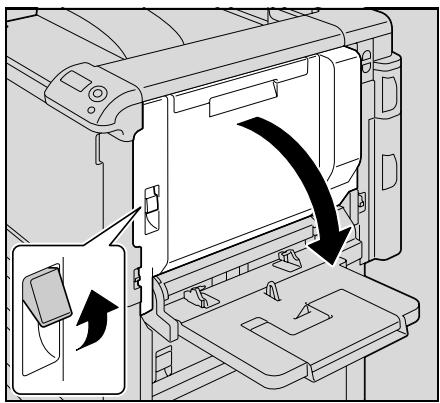
2 Slowly remove any misfed paper from the fusing unit.
Pull down any misfed paper from the fusing unit.
- Toner that did not pass through the fusing unit may get on your hands or clothes. Be extremely careful when removing the paper.
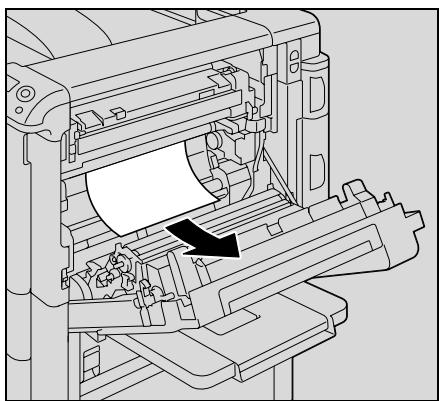
- If the paper cannot be removed by pulling it down, open the fusing unit upper cover, and then pull it up.
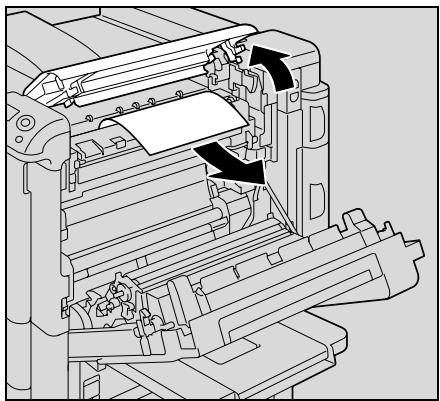
- If the paper is zigzag folded and jammed in the fusing unit, open the fusing cover, and then remove the paper.
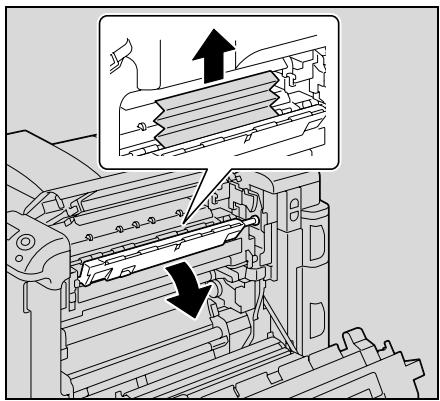
3 Close the upper right-side door.
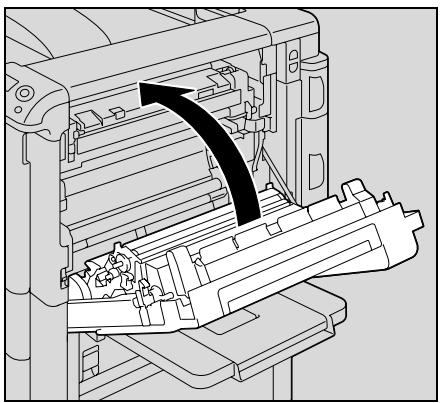
4 Pull out the tray being used.
5 Remove any misfed paper.
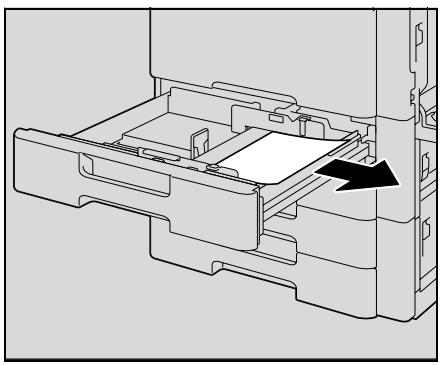
6 Close the tray.

CAUTION
The area around the fusing unit is extremely hot.

Touching anything other than the indicated levers and dials may result in burns. If you get burnt, immediately cool the skin under cold water, and then seek professional medical attention.
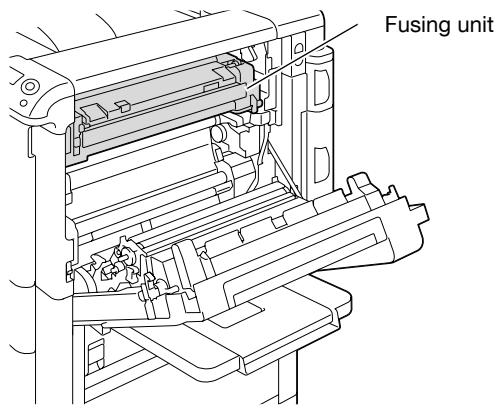

CAUTION
Precautions for toner spills
Be careful not to spill toner inside the machine or get toner on your clothes or hands.
If your hands become soiled with toner, immediately wash them with soap and water.
If toner gets in your eyes, immediately flush them with water, and then seek professional medical attention.

Reminder
If the paper is misfed as described below, contact your service representative.
The paper is wrapped around the roller in the fusing unit.
The paper is folded or shredded by the roller in the fusing unit.
The paper that was removed tore and remains in the fusing unit.
Decreased image quality may result if the surface of the transfer belt or transfer roller is touched. Be careful not to touch the surface of the transfer belt or the transfer roller.
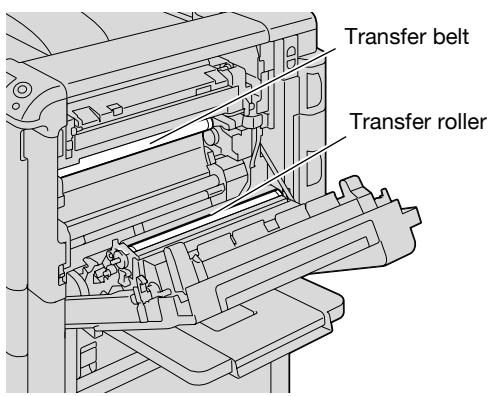
Be careful not to touch the film with your hands.
12.2.3 Clearing a paper misfeed in the main unit

Detail
For details on the positions of paper misfeeds, refer to "Paper misfeed indications" on page 12-4.
1 Pull up the upper right-side door release lever, and then open the upper right-side door.
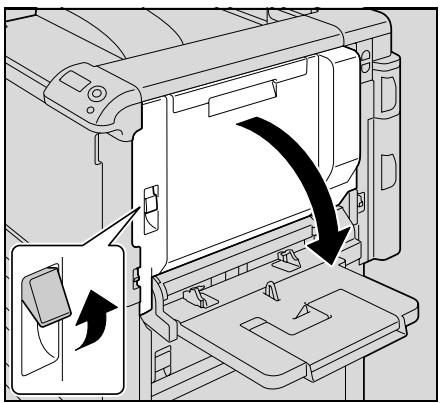
2 Slowly remove any misfed paper from the main unit.
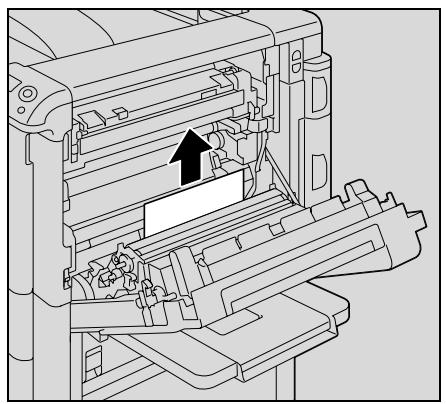
3 If the edge of the paper is around the timing roller, open the internal cover M1.

4 Slowly remove any misfed paper from the timing roller.
- Toner that did not pass through the fusing unit may get on your hands or clothes. Be extremely careful when removing the paper.
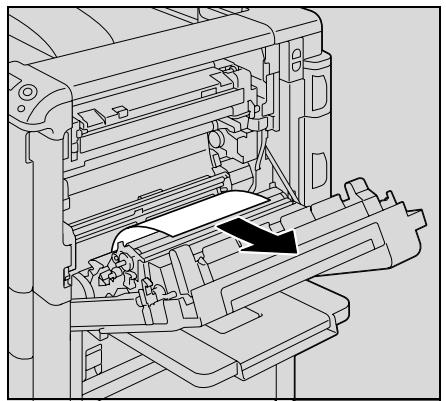
5 Close the upper right-side door.
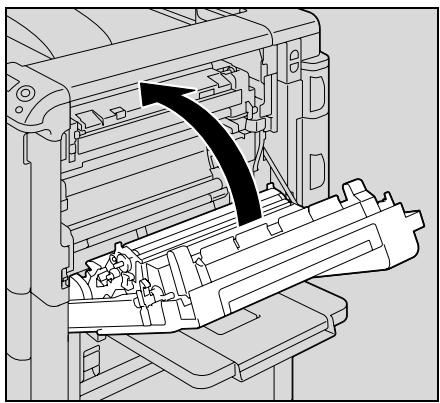
6 Pull out the tray being used.
7 Remove any misfed paper.
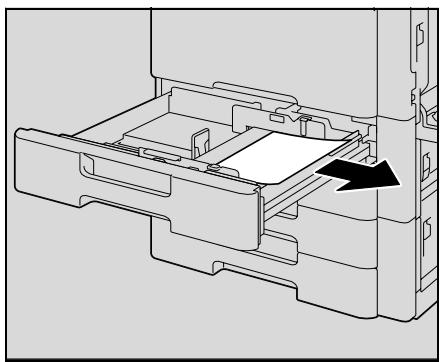
8 Close the tray.

CAUTION
The area around the fusing unit is extremely hot.

Touching anything other than the indicated levers and dials may result in burns. If you get burnt, immediately cool the skin under cold water, and then seek professional medical attention.
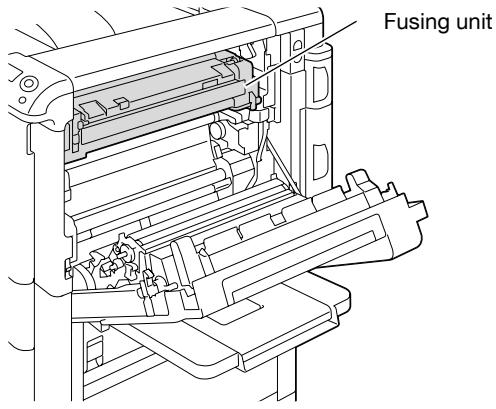

CAUTION
Precautions for toner spills
Be careful not to spill toner inside the machine or get toner on your service or hands.
If your hands become soiled with toner, immediately wash them with soap and water.
If toner gets in your eyes, immediately flush them with water, and then seek professional medical attention.

Reminder
If the paper is misfaced as described below, contact your service representative.
The paper is wrapped around the timing roller.
The paper is folded or shredded by the timing roller.
Decreased image quality may result if the surface of the transfer belt or transfer roller is touched. Be careful not to touch the surface of the transfer belt or the transfer roller.
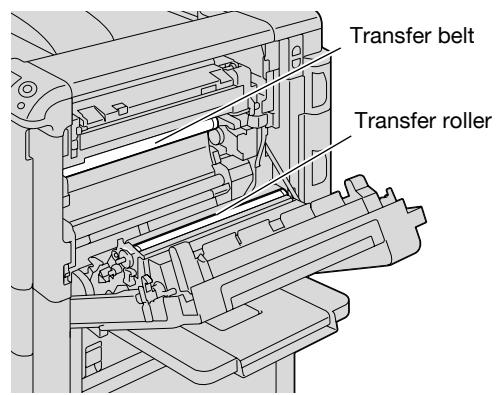
Be careful not to touch the film with your hands.
12.2.4 Clearing a paper misfeed in the automatic duplex unit

Detail
For details on the positions of paper misfeeds, refer to "Paper misfeed indications" on page 12-4.
1 Open the door of the automatic duplex unit.
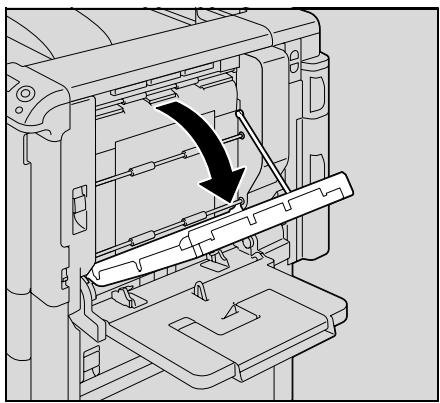
2 Slowly remove any misfed paper from the automatic duplex unit.
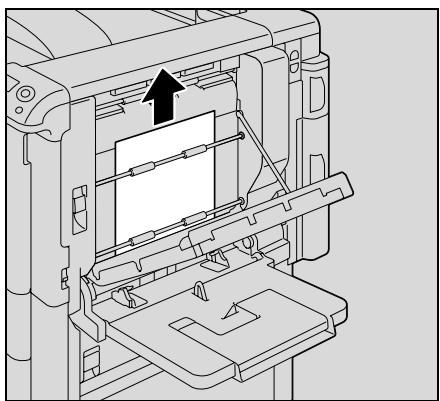
3 Close the door of the automatic duplex unit.
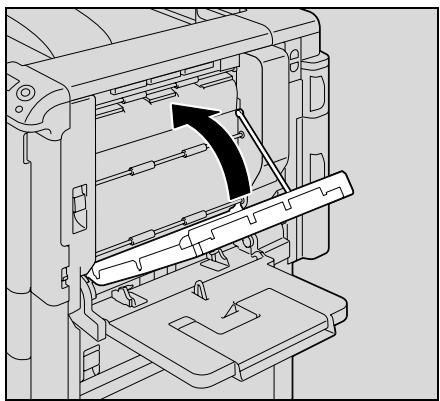
4 Pull out the tray being used.
5 Remove any misfed paper.
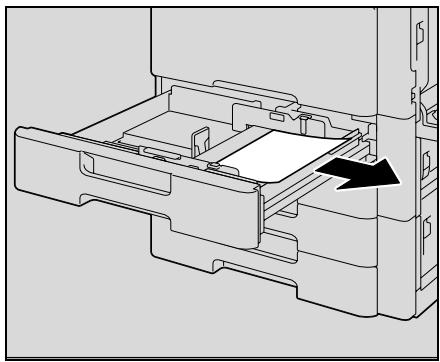
6 Close the tray.

Reminder
Be careful not to touch the film with your hands.
12.2.5 Clearing a paper misfeed in the bypass tray

Detail
For details on the positions of paper misfeeds, refer to "Paper misfeed indications" on page 12-4.
1 Remove the paper from the bypass tray.
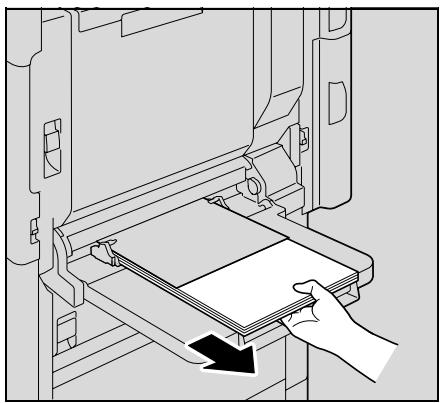
2 Open the upper right-side door.

3 Open the internal cover M1.
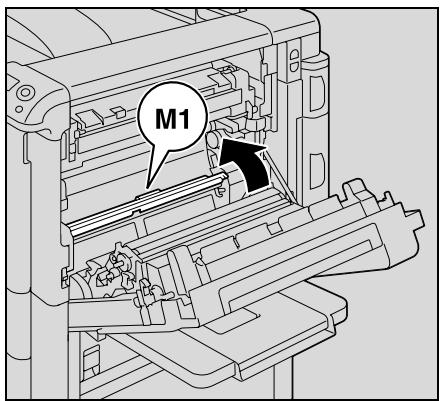
4 Slowly remove any misfeed paper.
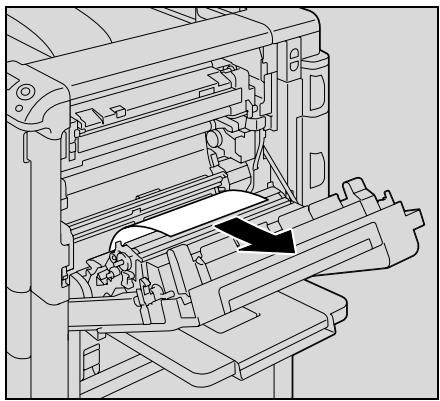
5 Close the upper right-side door.
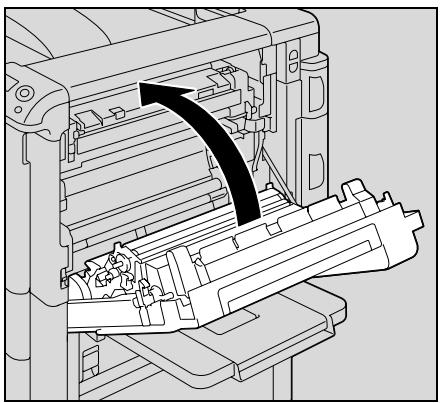
CAUTION
The area around the fusing unit is extremely hot.

Touching anything other than the indicated levers and dials may result in burns. If you get burnt, immediately cool the skin under cold water, and then seek professional medical attention.
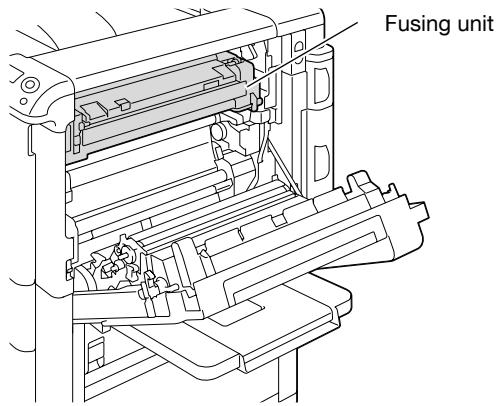
CAUTION
Precautions for toner spills
Be careful not to spill toner inside the machine or get toner on your clothes or hands.
If your hands become soiled with toner, immediately wash them with soap and water.
If toner gets in your eyes, immediately flush them with water, and then seek professional medical attention.

Reminder
Decreased image quality may result if the surface of the transfer belt or transfer roller is touched. Be careful not to touch the surface of the transfer belt or the transfer roller.
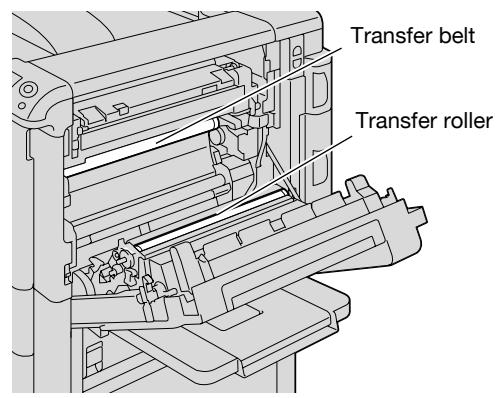
12.2.6 Clearing a paper misfeed in the paper transport section

Detail
For details on the positions of paper misfeeds, refer to "Paper misfeed indications" on page 12-4.
1 Pull up the center right-side door release lever, and then open the center right-side door.
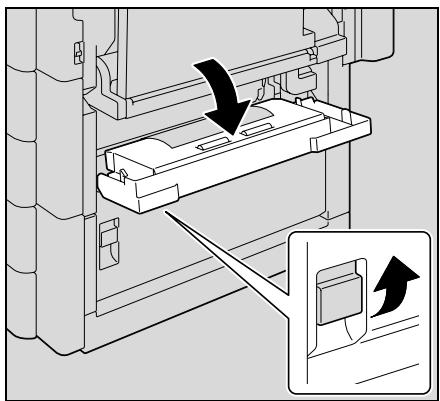
2 Carefully remove any misfed paper.
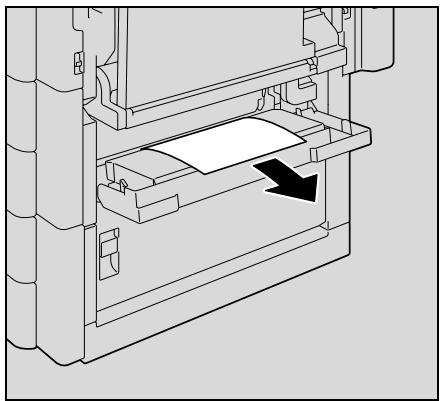
3 Close the center right-side door.
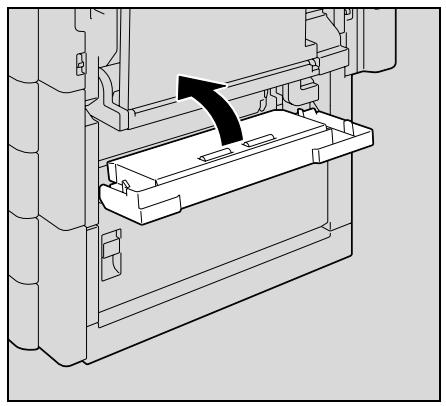
4 Pull out the tray being used.
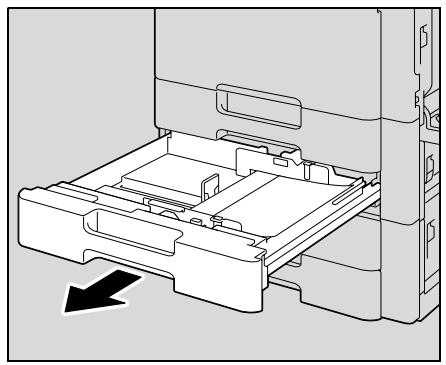
5 Remove any misfed paper.
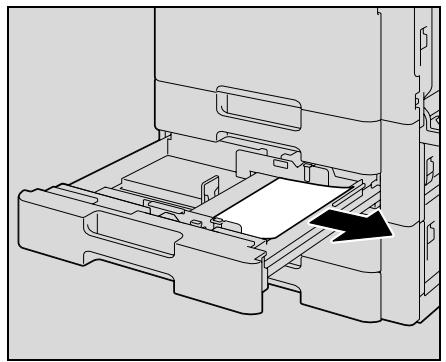
6 Close the tray.

Reminder
Be careful not to touch the film with your hands.
12.2.7 Clearing a paper misfeed in tray 1

Detail
For details on the positions of paper misfeeds, refer to "Paper misfeed indications" on page 12-4.
1 Pull up the upper right-side door release lever, and then open the upper right-side door.
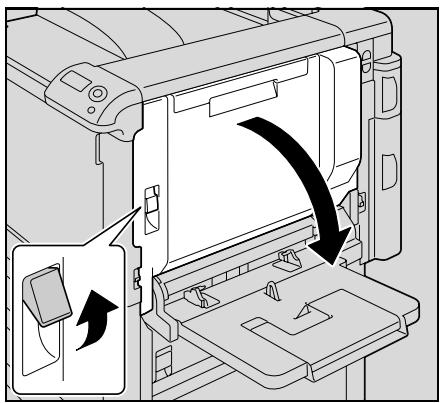
2 Open the internal cover M1.
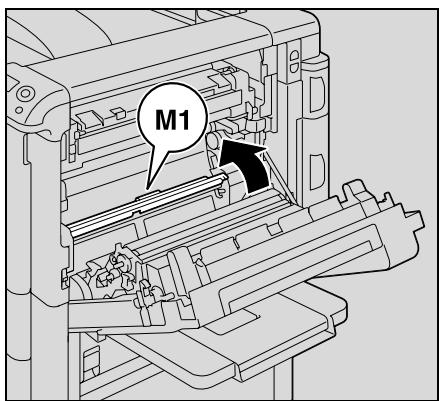
3 Carefully remove any misfed paper.
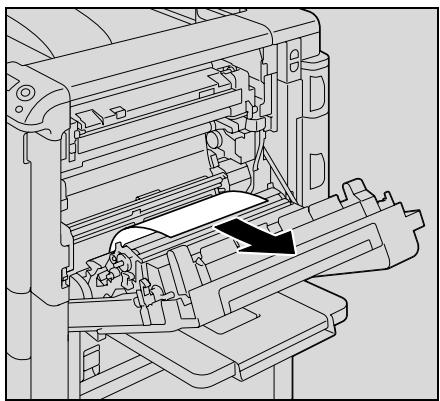
4 Close the upper right-side door.
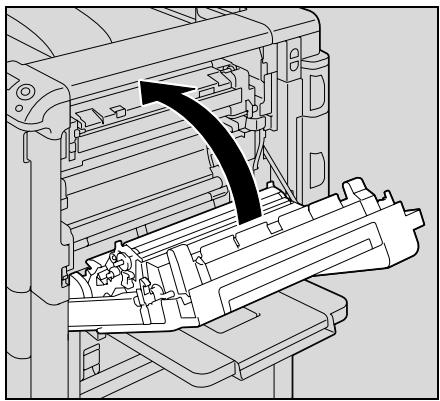
5 Pull out tray 1.
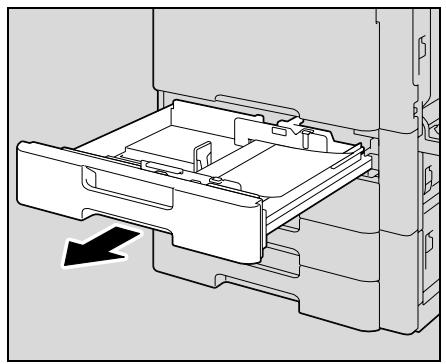
6 Remove any misfed paper.
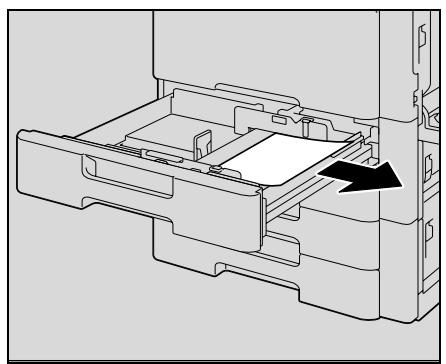
7 Close the tray.

CAUTION
The area around the fusing unit is extremely hot.

Touching anything other than the indicated levers and dials may result in burns. If you get burnt, immediately cool the skin under cold water, and then seek professional medical attention.
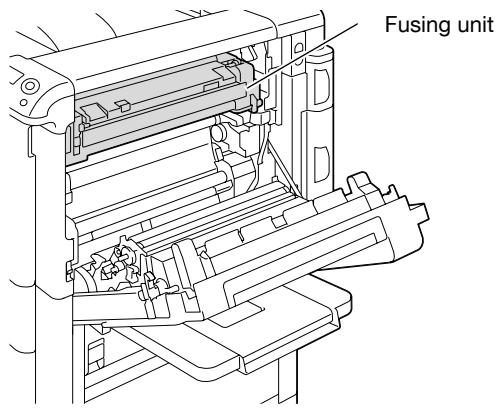

CAUTION
Precautions for toner spills
Be careful not to spill toner inside the machine or get toner on your clothes or hands.
If your hands become soiled with toner, immediately wash them with soap and water.
If toner gets in your eyes, immediately flush them with water, and then seek professional medical attention.

··
Reminder
Decreased image quality may result if the surface of the transfer belt or transfer roller is touched. Be careful not to touch the surface of the transfer belt or the transfer roller.
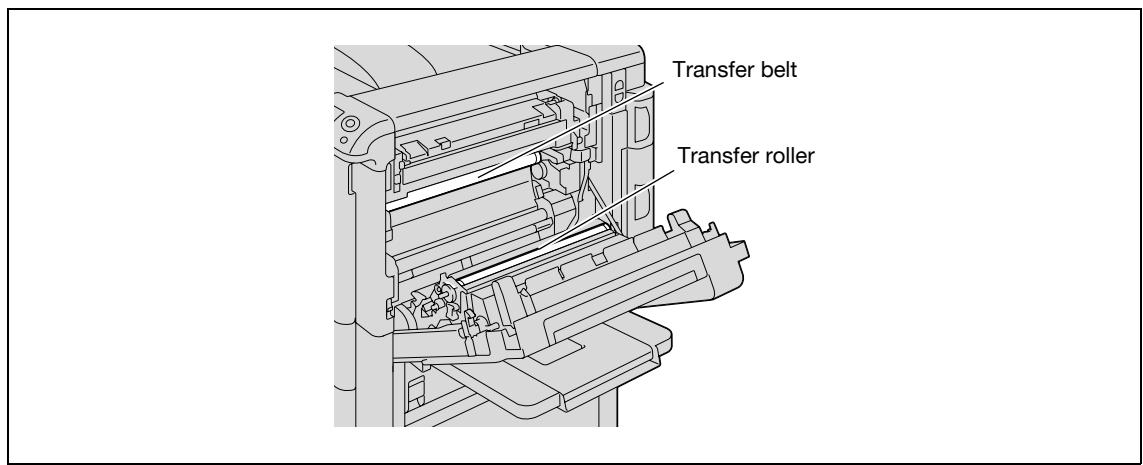
Be careful not to touch the film.
12.2.8 Clearing a paper misfeed in tray 2

Detail
For details on the positions of paper misfeeds, refer to "Paper misfeed indications" on page 12-4.
1 Pull up the center right-side door release lever, and then open the center right-side door.

2 Carefully remove any misfed paper.
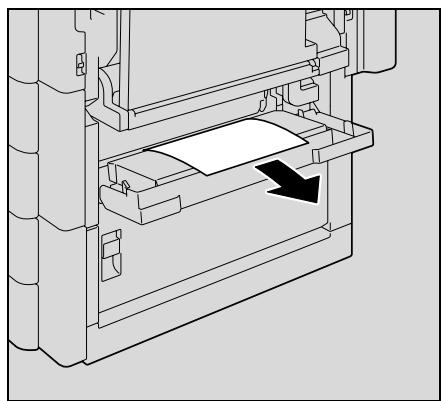
3 Close the center right-side door.
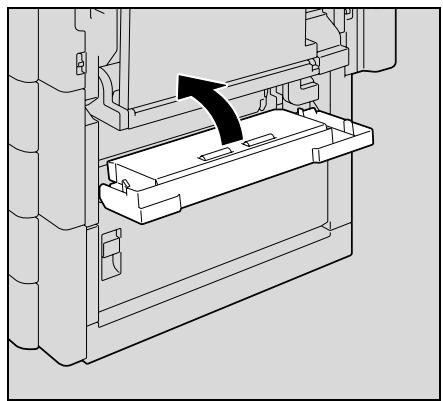
4 Pull out tray 2.
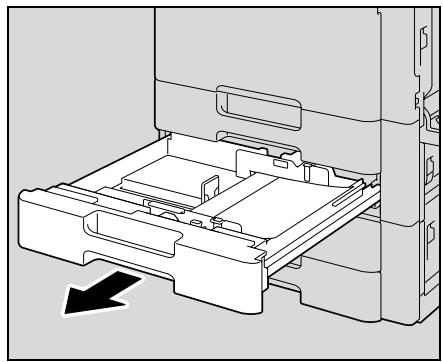
5 Remove any misfed paper.
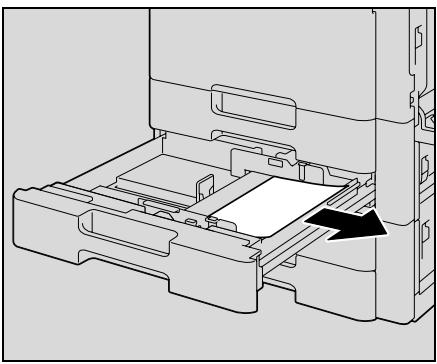
6 Close the tray.


Reminder
Be careful not to touch the film with your hands.
12.2.9 Clearing a paper misfeed in paper feed cabinet (Tray 3/4)

Detail
For details on the positions of paper misfeeds, refer to "Paper misfeed indications" on page 12-4.
1 Pull up the lower right-side door release lever, and then open the lower right-side door.
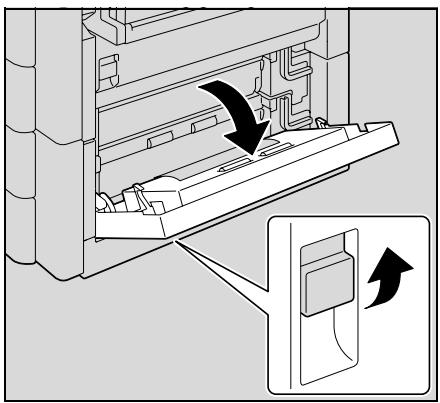
2 Carefully remove any misfed paper.
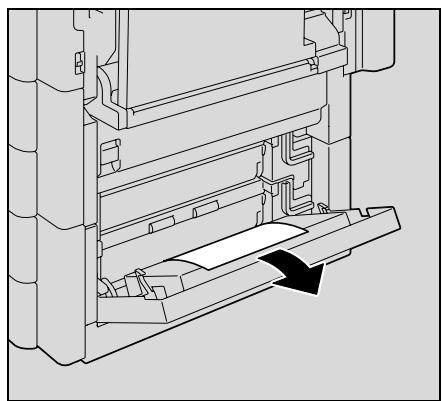
3 Close the lower right-side door.
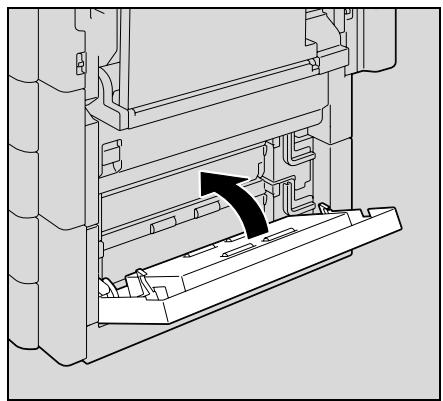
4 Pull out paper tray.
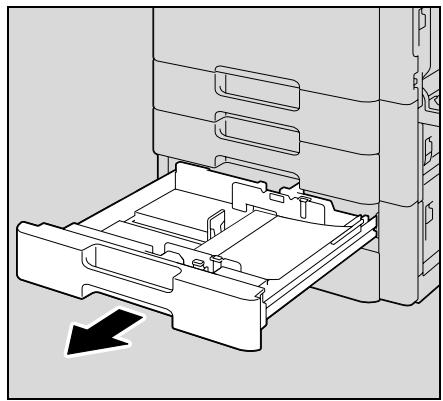
5 Remove any misfed paper.
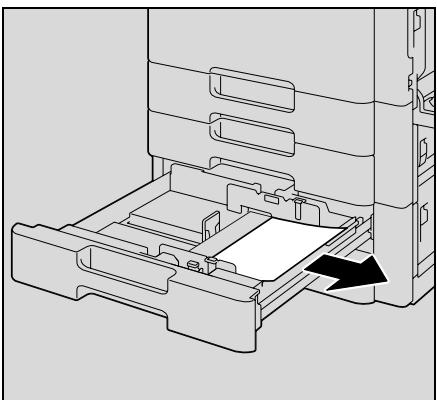
6 Close the tray.

Reminder
Be careful not to touch the film with your hands.
12.2.10 Clearing a paper misfeed in the LCT

Detail
For details on the positions of paper misfeeds, refer to "Paper misfeed indications" on page 12-4.
1 Pull up the lower right-side door release lever, and then open the lower right-side door.
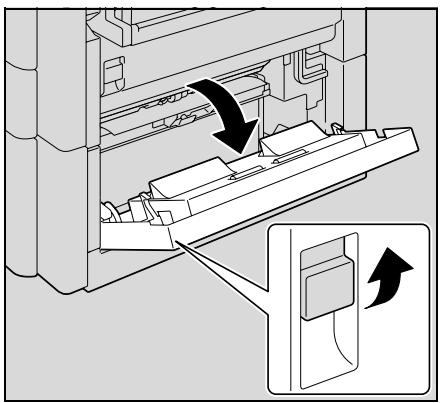
2 Carefully remove any misfed paper.
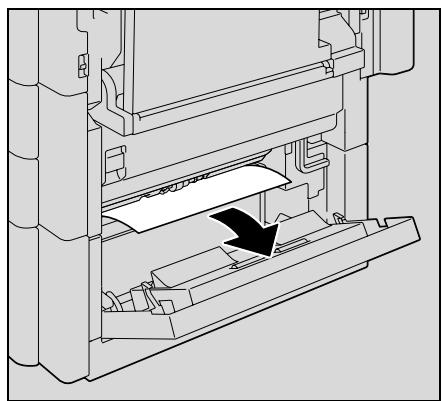
3 Close the lower right-side door.
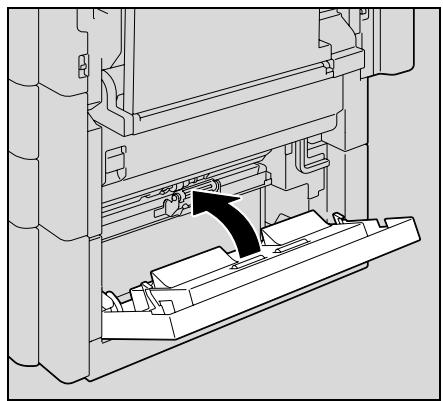
4 Press the tray release button, and then pull out the LCT.
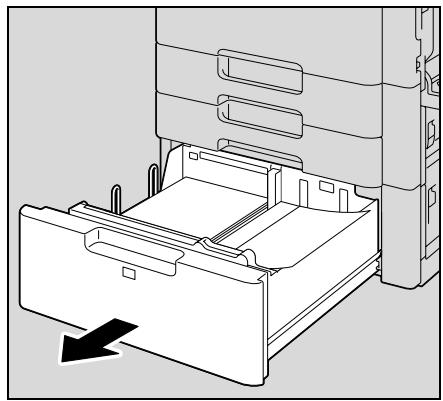
5 Remove any misfed paper.
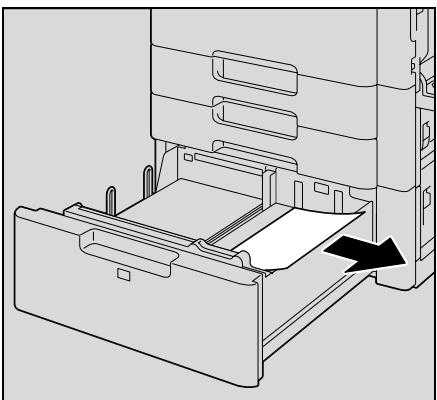
6 Close the LCT.

··
Reminder
Be careful not to touch the film with your hands.
12.2.11 To clear a banner paper misfeed
1 Pull up the upper right-side door release lever, and then open the upper right-side door.
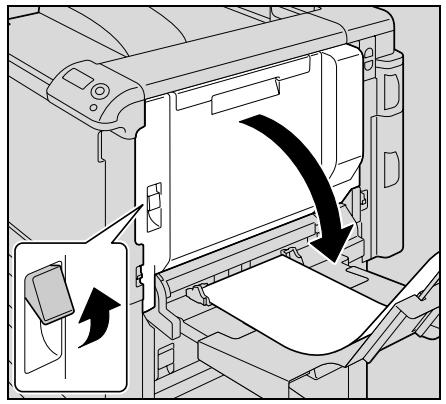
- If the end of the paper cannot be seen or cannot be grabbed, remove the paper in the direction of the arrow.
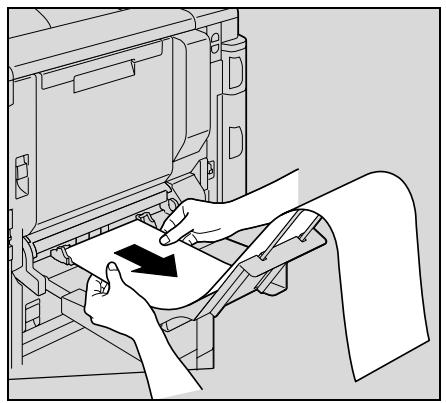
2 Open inside cover M1.
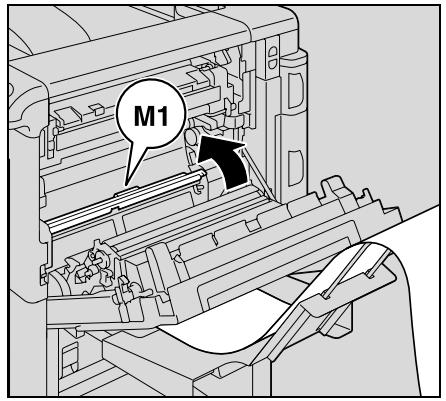
3 Remove any paper caught in the timing roller section.
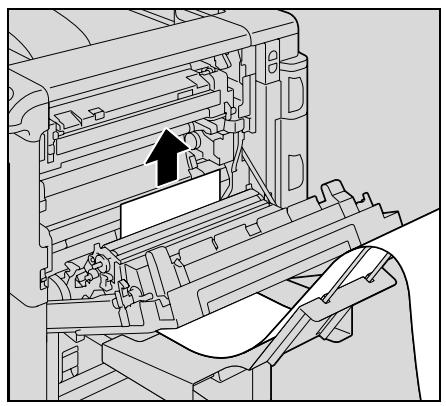
4 Push up the fusing unit upper cover, and then remove any misfed paper.
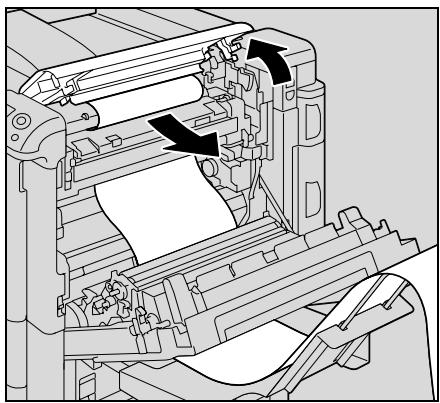
5 Open the fusing cover M2.
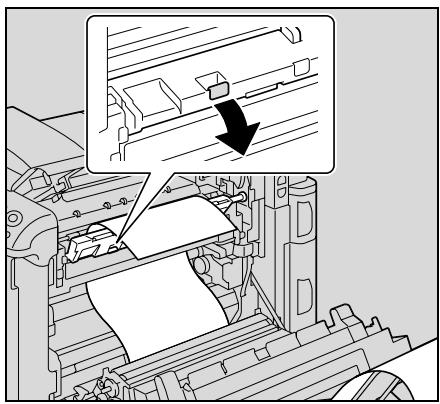
6 Remove any misfed paper.
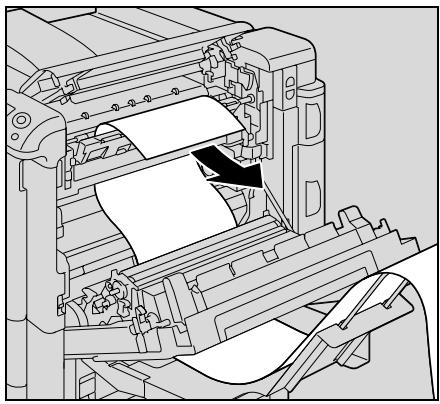
7 Remove any paper caught in the fusing unit.
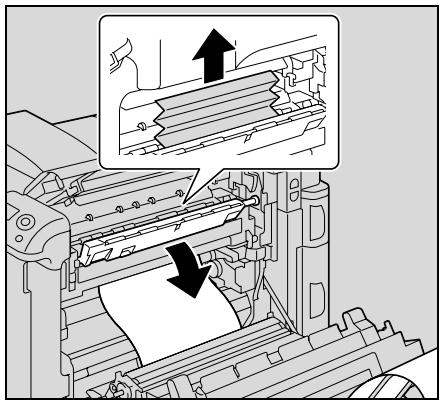
8 Close the fusing cover M2.
9 Close the fusing unit upper cover.
10 Close the upper right-side door.
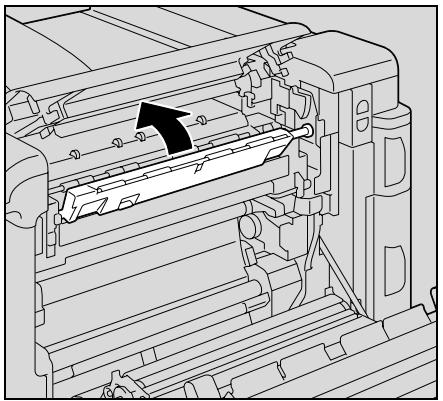
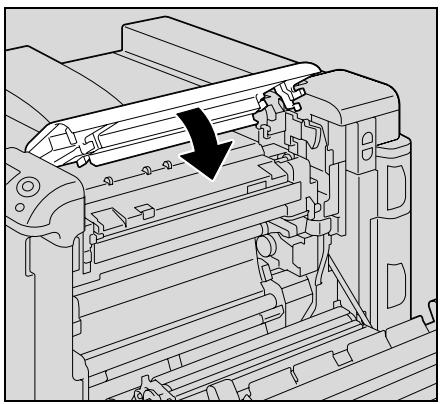
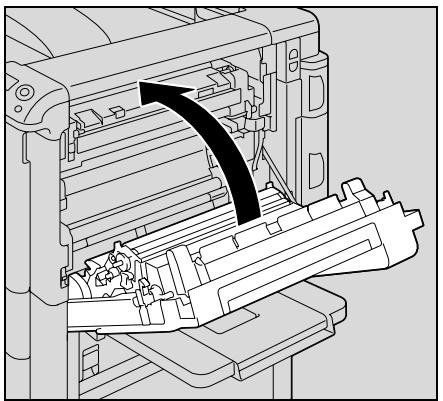

CAUTION
The area around the fusing unit is extremely hot.

Touching anything other than the indicated levers and dials may result in burns. If you get burnt, immediately cool the skin under cold water, and then seek professional medical attention.
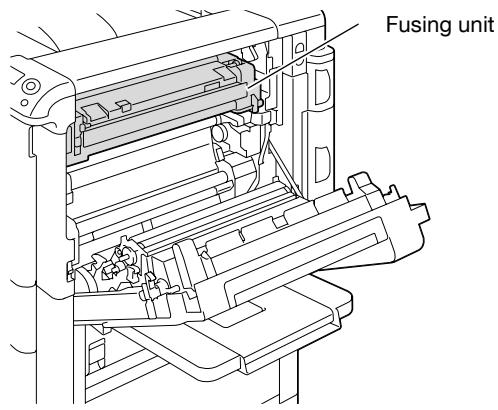

CAUTION
Precautions for toner spills
Be careful not to spill toner inside the machine or get toner on your clothes or hands.
If your hands become soiled with toner, immediately wash them with soap and water.
If toner gets in your eyes, immediately flush them with water, and then seek professional medical attention.

··
Reminder
If the paper is misfed as described below, contact your service representative.
The paper is wrapped around the timing roller.
The paper is folded or shredded by the timing roller.
Decreased image quality may result if the surface of the transfer belt or the transfer roller is touched. Be careful not to touch the surface of the transfer belt or the transfer roller.
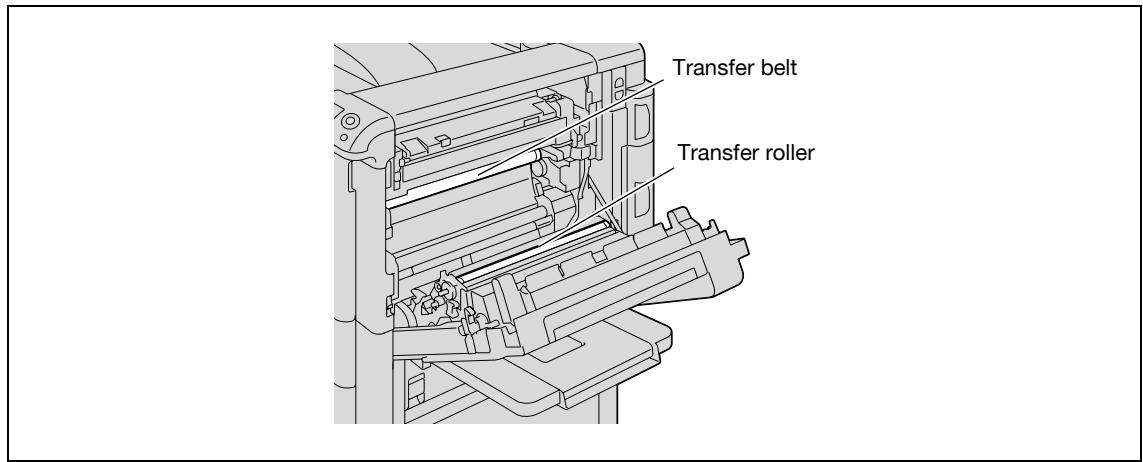
12.2.12 Clearing a paper misfeed in finisher FS-519

Detail
For details on the positions of paper misfeeds, refer to "Paper misfeed indications" on page 12-4.
Pull the finisher release lever 1 to unlock the finisher.
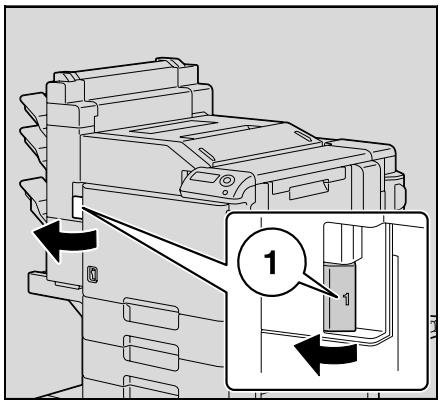
2 Grab the finisher at "2", and then slide the finisher away from the main unit.
- To move the finisher away from the main unit, be sure to grab it at "2". Do not grab the mailbins or saddle stretcher to move the finisher, otherwise they may be damaged.
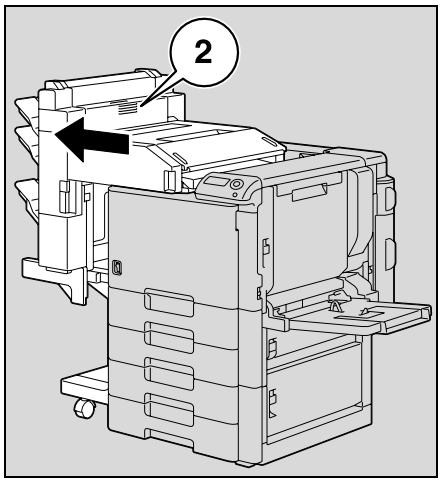
3 Open the front door.
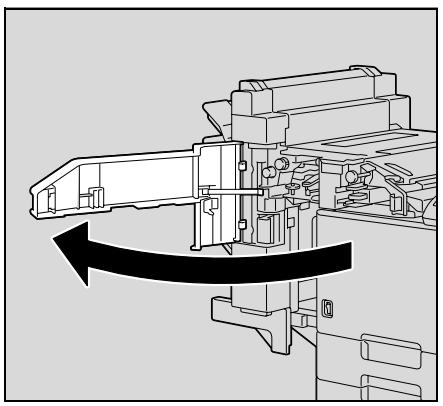
4 Raise lever FN1, turn dial FN2, and then remove any paper.
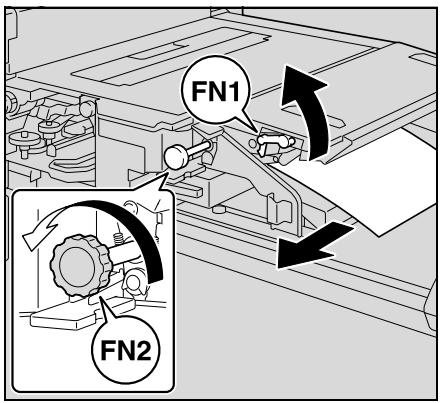
5 Lower guide FN3, and then remove any paper.
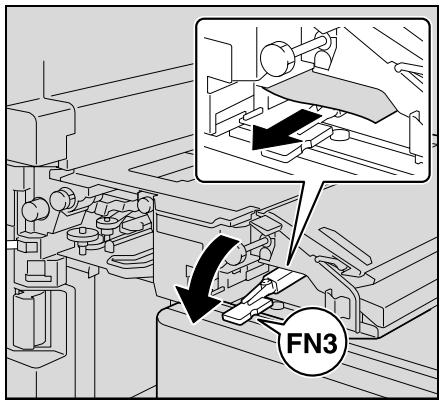
- If the punch kit is installed, pull out the punch scrap box FN3.1.
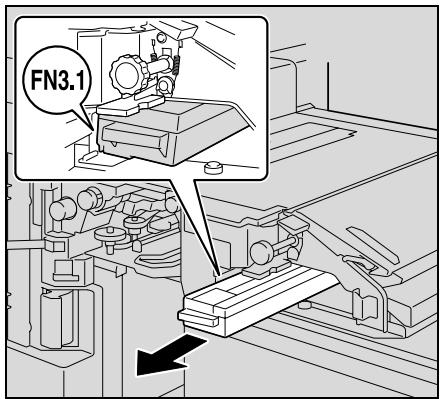
6 Return guide FN3 to its original position.
- If the punch kit is installed, insert the punch scrap box FN3.1 into its original position.
7 Turn dial FN4 to feed the paper, open the transport unit cover, and then remove any paper.
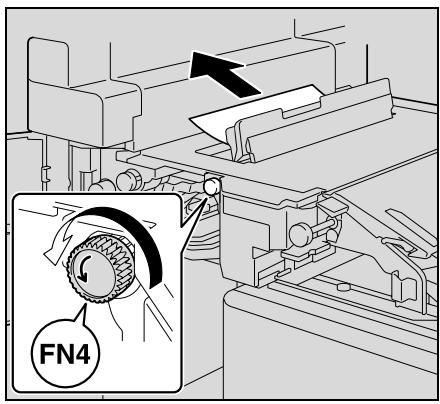
8 Turn dial FN5 or dial FN6, and then remove any paper.
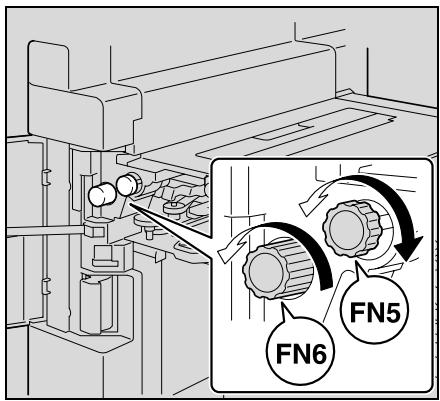
9 Close the front door.
10 Return the finisher to its original position.
- When returning the finisher to its original position, do not grab the handle on the front door, the control panel, the mail bins, or the saddle stretcher.

12.2.13 Clearing a paper misfeed in the mailbin

Detail
For details on the positions of paper misfeeds, refer to "Paper misfeed indications" on page 12-4.
1 Open the front door.
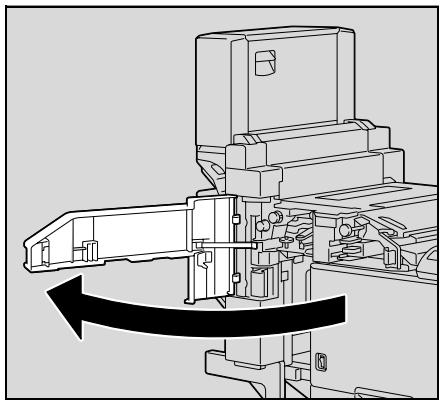
2 Turn dial FN5 or dial FN6 to feed out the paper.
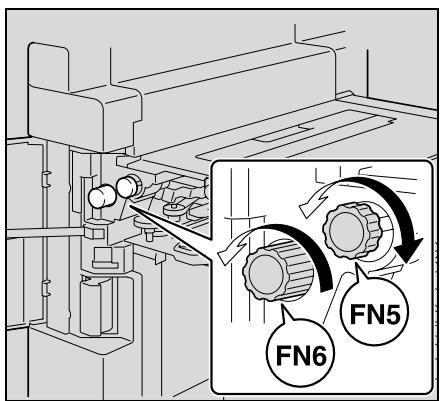
3 While pressing down lever FN7, remove any paper.
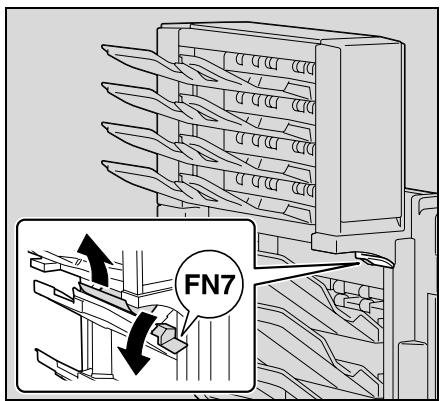
4 Pull lever FN8 to open the misfeed-clearing door.
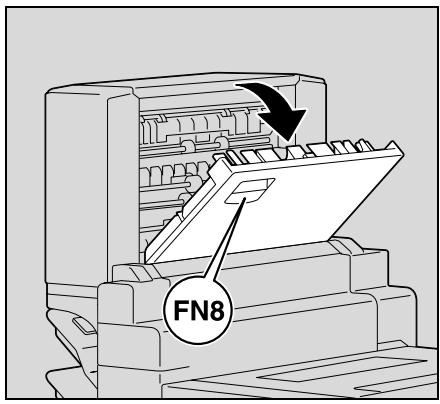
5 Remove any paper in the mailbin.
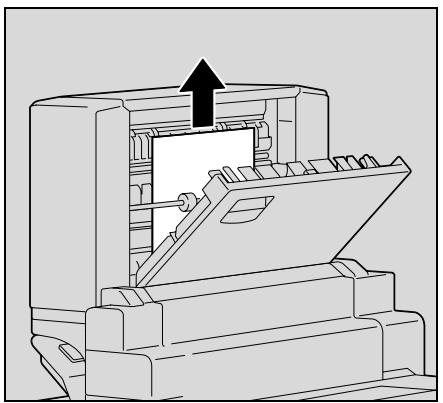
6 Close the misfeed-clearing door.
7 Close the front door.
12.2.14 Clearing a paper misfeed in the saddle stretcher

Detail
For details on the positions of paper misfeeds, refer to "Paper misfeed indications" on page 12-4.
1 Open the front door.
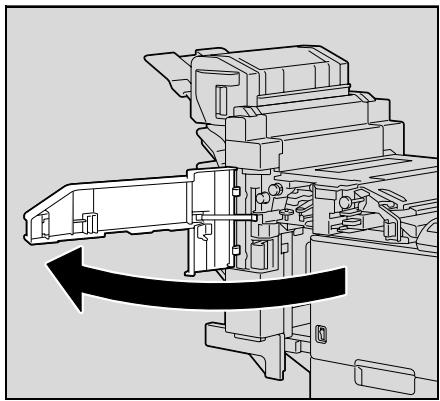
2 Turn dial FN5 or dial FN6 to feed out the paper.
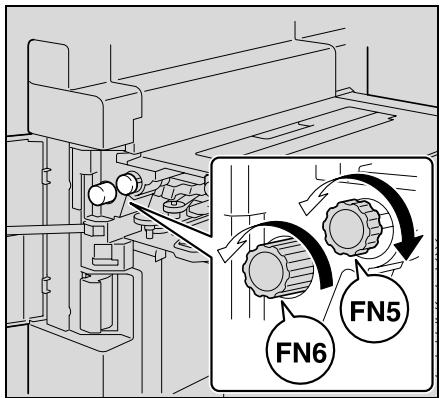
3 Remove all paper from the finishing tray.
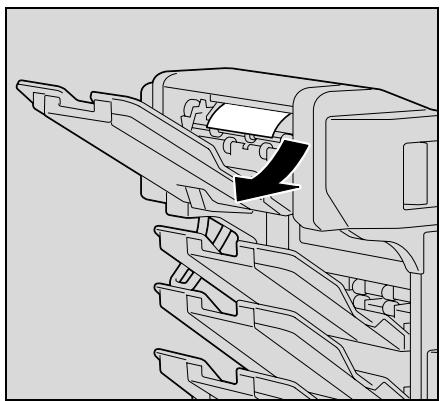
4 Open the misfeed-clearing door, and then remove any paper.
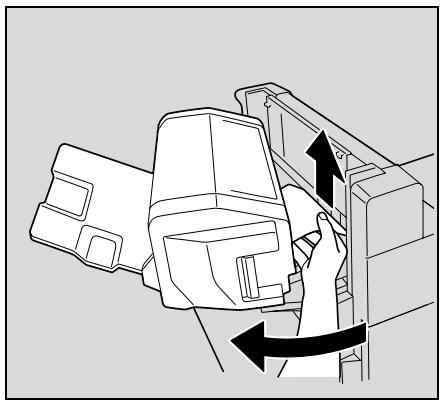
5 Close the misfeed-clearing door.
6 Close the front door.
12.2.15 To clear a paper misfeed in finisher FS-609
1 Slide the finisher away from the machine.
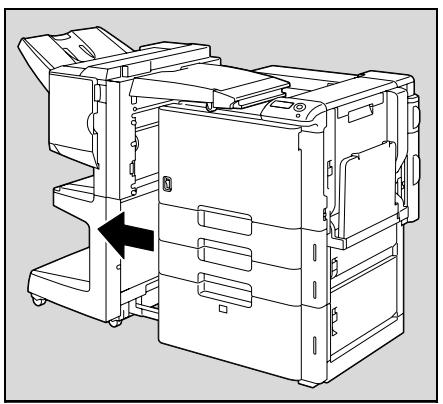
2 Open the horizontal transport unit cover, and then remove any misfed paper.
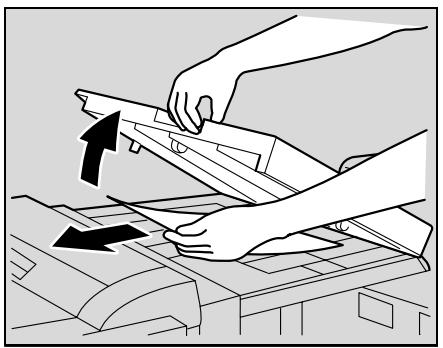
3 Close the horizontal transport unit cover.
4 Open the front door of the finisher.
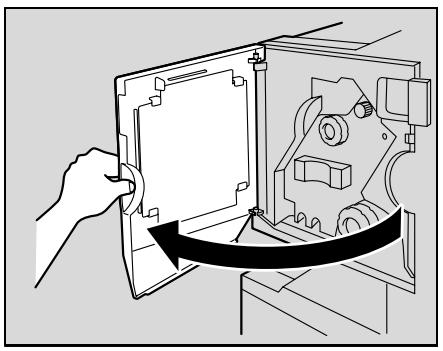
5 Turn misfeed-clearing dial 1 clockwise until the removal indicator is completely blue.
? What should be done if misfeed-clearing dial 1 is turned too far?
Turn the misfeed-clearing dial 1 counterclockwise to finely adjust it.
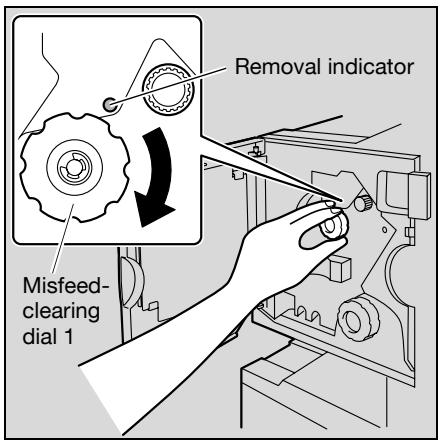
6 Open the upper cover of the finisher, and then remove any paper in the feed section.
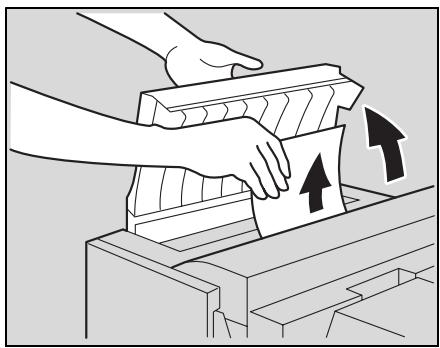
7 Close the upper cover.
8 Remove all paper fed into the output tray 1.
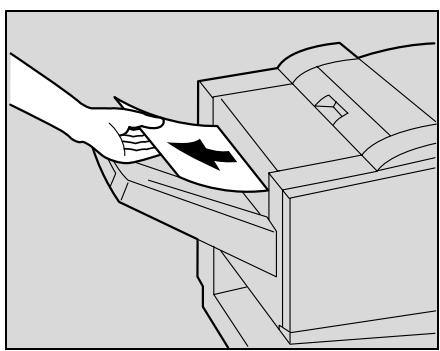
9 Open the misfeed-clearing guide for the finisher, and then remove any misfed paper.

10 Open the right-side door, and then remove any misfed paper in the transport section.
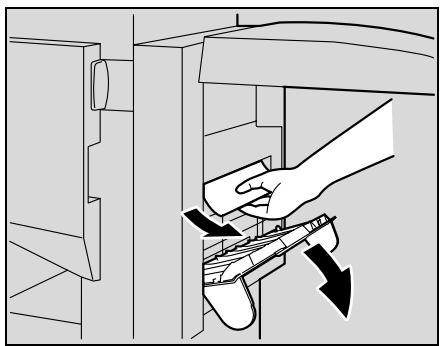
11 If the paper could not be removed in step 10, turn the misfeed-clearing dial in the folding section clockwise.
Feed the paper into the output tray 2, and then remove it.
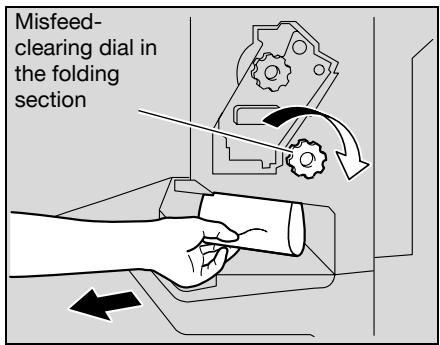
12 Close the front door of the finisher.

13 Slide the finisher back against the machine.

Reminder
If the message "Misfeed detected." appears, be sure to open the front door, turn the misfeed-clearing dial until the removal indicator is completely blue, and then remove the paper. If the paper is removed with too much force, the finisher may be damaged.
Do not remove paper remaining in the transfer unit with too much force, otherwise the folding unit may be damaged.
Be careful that your fingers are not pinched when the front door is closed.
For details on the positions of paper misfeeds, refer to "Paper misfeed indications" on page 12-4.
12.3 When the message "Staple Jam Detection" appears
If a staple jam occurs in the finisher, the message shown below appears.
StapleJamDetection Please follow label on Finisher.


Reminder
Be careful when clearing jammed staples since injuries may result.
12.3.1 Clearing jammed staples in finisher FS-519

Detail
For details on clearing misfed paper in the finisher, refer to "Clearing a paper misfeed in finisher FS-519" on page 12-32.
1 Remove all paper from the finisher.
2 Open the front door.
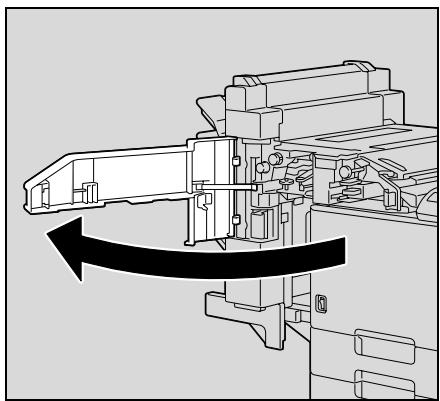
3 Turn the dial to the left to move the stapler toward the front.
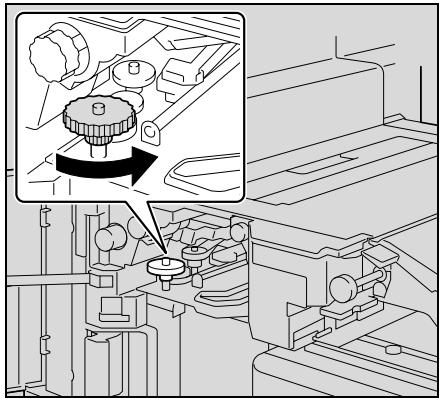
4 Remove the staple cartridge holder.
Pull the staple cartridge holder toward you to remove it.
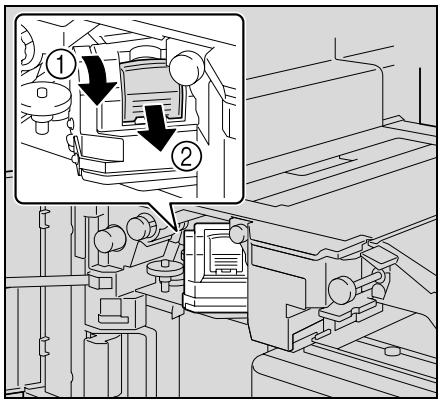
5 Raise the shutter of the staple cartridge holder, and then remove one sheet of staples.
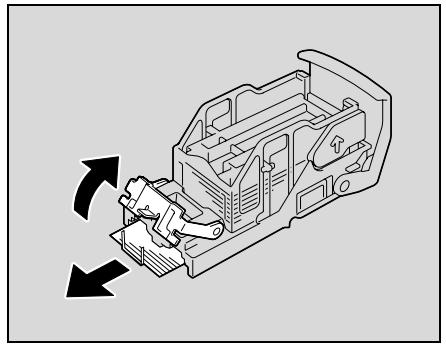
6 Return the shutter of the staple cartridge holder to its original position.
7 Insert the staple cartridge holder, sliding it along the rails in the compartment.
- Check that the staple cartridge holder is securely inserted as far as possible.
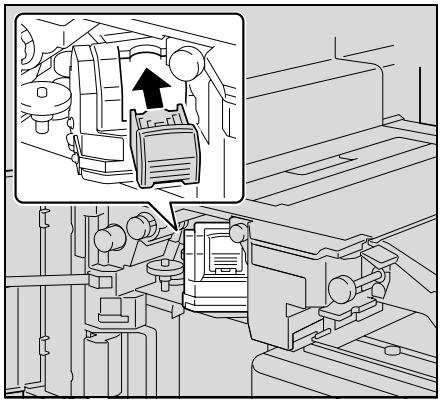
8 Close the front door.

Reminder
If stapling still cannot be resumed, even after performing the above procedure, contact your service representative.
12.3.2 Clearing jammed staples in the saddle stretcher

Detail
For details on clearing misfed paper in the finisher, refer to "Clearing a paper misfeed in finisher FS-519" on page 12-32.
For details on clearing misfed paper in the saddle stretcher, refer to "Clearing a paper misfeed in the saddle stretcher" on page 12-37.
1 Remove all paper from the finisher.
2 Raise the output tray, and then push down the staple cartridge holder to remove it.
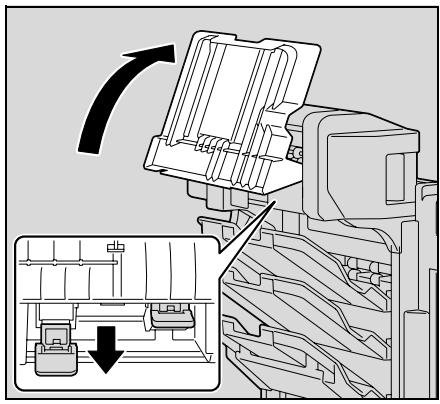
3 Raise the shutter of the staple cartridge holder, and then remove one sheet of staples.
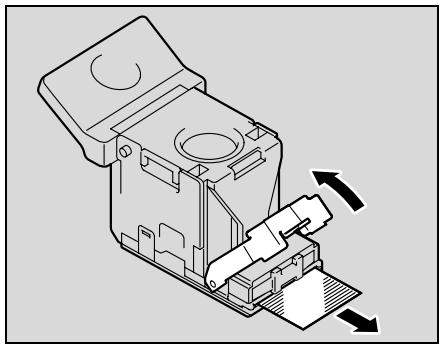
4 Return the shutter of the staple cartridge holder to its original position.
5 Insert the staple cartridge holder, and then push it up until it locks into place.
- When inserting the staple cartridge holder, be sure to insert it so that it faces the correct direction.
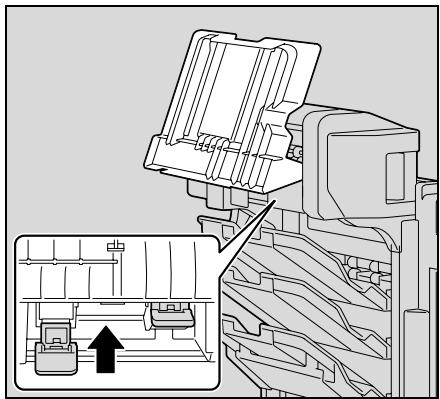
6 Return the output tray to its original position.
12.3.3 To clear jammed staples in finisher FS-609

Reminder
If the following procedure is not followed and the paper is removed with too much force, the stapler unit may be damaged.

Detail
For details on clearing misfed paper in the finisher, refer to "To clear a paper misfeed in finisher FS-609" on page 12-38.
1 Remove all paper from the finisher.
2 Open the front door of the finisher.
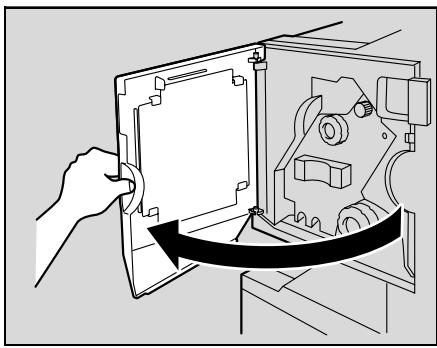
3 Slowly pull out the stapler unit as far as possible.

4 Turn misfeed-clearing dial 2 clockwise until the cartridge removal indicators are aligned.
The staple cartridge moves to a position from where it can be removed.
? What should be done if misfeed-clearing dial 2 is turned too far?
Turn the misfeed-clearing dial 2 counterclockwise to adjust it so the cartridge removal indicators are aligned.
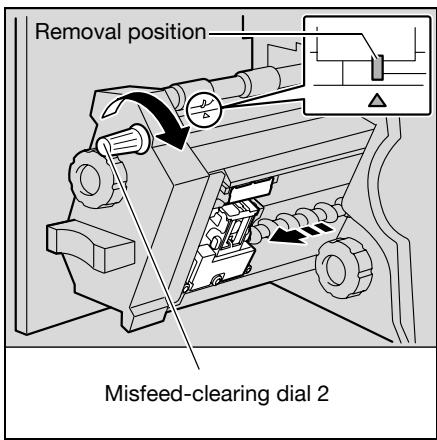
5 Grasp both sides of the staple cartridge holder, lift it up, and then pull it out.
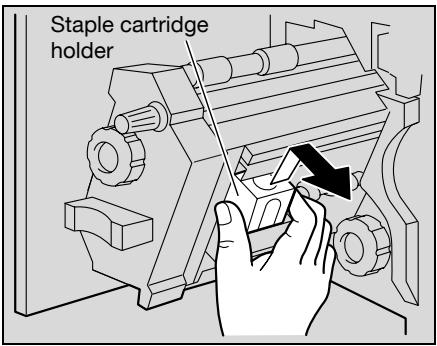
6 Swing open the shutter of the staple cartridge.
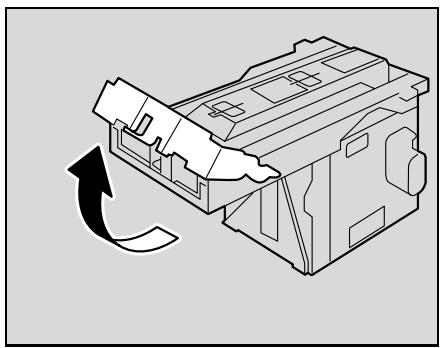
7 Pull out toward you the two staples jammed at the end of the staple cartridge.
What happens if two staples are not removed?
Stapling cannot continue correctly.
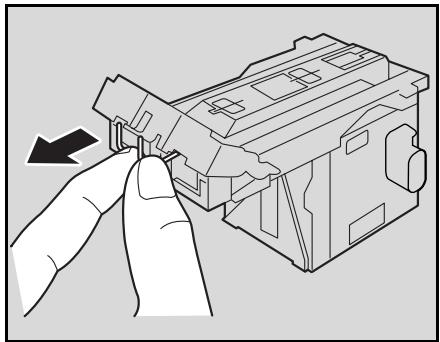
8 Return the shutter of the staple cartridge to its original position.
9 Insert the staple cartridge holder, making sure the tabs on the holder slide along the rails in the compartment.
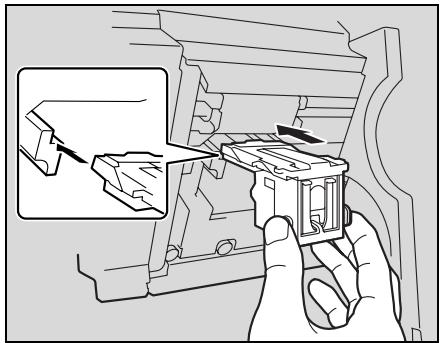
10 Insert the staple cartridge holder until it locks into place.
- Check that the staple cartridge holder is securely installed.
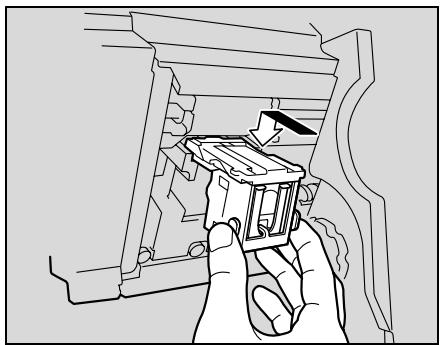
11 Carefully move the stapler unit back into its original position.
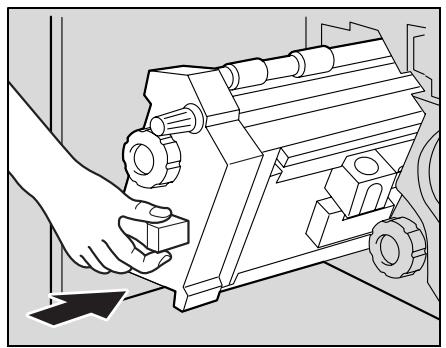
12 Close the front door.
13 Slide the finisher back against the machine.

Reminder
Do not remove paper with too much force, otherwise the folding unit may be damaged.
If stapling still cannot be resumed, even after performing the above procedure, contact your service representative.
12.4 When the message "Replenish paper" appears
If a tray has run out of paper during printing, the message "Replenish paper" appears.
Replenish paper
Tray 1
A4-R
Plain Paper

Detail
For details on loading paper, refer to "Loading paper into tray 1/2/3/4" on page 3-24, and "Loading paper into the LCT" on page 3-25, and "Loading paper into the bypass tray" on page 3-27.
12.5 When the message "Memory Over flow" appears
This message appears when memory space is not sufficient and the job being read was deleted.
Check the size of the data to be sent.
Memory Overflow
Low Memory
Capacity. Job
deleted.
12.6 When the message "Replace XXX soon." appears
When it is almost time to replace consumables or a part within this machine, a message similar to the one shown below appears, warning about the replacement period.
Ready to Print
Replace WasteToner
Box soon.
Y M C K

Detail
When the message appears, replace the specified consumables or part according to your maintenance agreement.
After the message "Replace XXX soon." appears, the message "Please replace XXX." appears and the machine stops operating.
The number of pages that can be printed after the message "Replace XXXX soon." appears and before the message "Please replace XXXX." appears differs depending on the printing conditions, the consumables and the part to be replaced.
12.7 When the message "Please replace XXXX." appears
When it is time to replace consumables or a part within this machine, a message similar to the one shown below appears.
WasteTonerBoxFull Please replace the Waste Toner Box.

Note
When the message appears, replace the specified consumables or part according to your maintenance agreement.

Detail
Do not throw away used consumables or parts. Instead, keep them in their boxes to be collected by your service representative.
12.8 When the message "Remote Operation Please do not turn off power." appears
This message appears when the machine is being accessed in Administrator mode of PageScope Web Connection.
Remote Operation Please do not turn off power.

Reminder
Do not turn off the machine while this message is displayed. After access to the machine with PageScope Web Connection has ended, the Basic screen appears again.
12.9 Simple troubleshooting
| Symptom | Possible cause | Remedy | |
| Main unit | The machine does not start up when the power switch is turned on. | Is no power supplied from the elec-trical outlet? | Correctly insert the power supply plug into the electrical outlet. |
| The machine does not start printing. | Is the right-side door of the machine open? | Securely close the right-side door of the machine. | |
| Is there no paper that matches the document? | Load paper of the appropriate size into the paper tray. | ||
| The printed output is too light. | Was the print density changed from the printer driver? | Check the printer driver setting. | |
| Is the paper damp? | Replace the paper with new paper.(See p. 3-24, p. 3-25 and p. 3-27.) | ||
| The printed output is too dark. | Was the print density changed from the printer driver? | Check the printer driver setting. | |
| The printed output is blur-ry. | Is the paper damp? | Replace the paper with new paper.(See p. 3-24, p. 3-25 and p. 3-27.) | |
| There are dark specks or spots throughout the print-ed output.There are streaks in the printed output. | Is the electrostatic charger wire dirty? | Use the charger-cleaning tool to clean the electrostatic charger wire.(See p. 14-4.) | |
| The image is not aligned properly on the paper. | Are the lateral guides incorrectly positioned against the edges of the paper? | Slide the lateral guides against the edges of the paper. | |
| Was curled paper loaded into the paper tray? | Flatten the paper before loading it. | ||
| The printed page is curled. | Was paper that curls easily (as with recycled paper) used? | Remove the paper from the paper tray, turn it over, and then load it again. | |
| Replace the paper with paper that is not damp. | |||
| Even though the paper misfeed was cleared, prints cannot be pro-duced. | Are there paper misfeeds at other locations? | Check the control panel for other paper misfeed indications, and then remove any misfed paper at all other locations.(See p. 12-4.) | |
| Printing is not possible even though the password is entered on a machine with user authentica-tion/account track set. | Did the message "Over Max Allow-ance Total Ctr for User Please de-lose job." appear? | Contact your administrator. | |
| Finisher | The finisher cannot be used. | Is no power supplied to the con-nector? | Check that the cord is correctly in-serted into the connector. |
| The pages cannot be sta-pled. | Have the staples run out? | Replace the staple cartridge.(See p. 13-14.) | |
| The pages that were fed out were not uniformly loaded and the punched holes or staples are incor-rectly positioned. | Is the paper curled? | Remove the paper from the paper tray, turn it over, and then load it again. | |
| Is there a gap between the lateral guides in the paper tray and the side of the paper? | Slide the lateral guides in the paper tray against the side of the paper so that there is no gap. | ||
| Even though a Punch set-ting was selected, holes are not punched. (when Punch Kit is installed on Finisher) | Did the message "Punch Scrap Box Full." appear? | Empty the punch scrap box. |
If any message other than those listed above appears, perform the operation described in the message. If the problem is not corrected after the described operation is performed, contact your technical representative.
| Symptom | Possible cause | Remedy | |
| Printer driver | The message "No printers are connected." or "Print error" appears. | The printer driver selected for printing is not compatible with the printer controller. | Check the printer name selected. |
| The network cable, parallel cable, or USB cable is disconnected. | Check that the cable is connected properly. | ||
| Available memory space is not sufficient. | Perform a test print to check whether printing is possible. | ||
| An error has occurred in this machine. | Check this machine's control panel. | ||
| A postscript error appears. | Available computer memory space is not sufficient. | Perform a test print to check whether printing is possible. | |
| There is an error in the application software settings. | Refer to the user's manual of the application software to check the settings. | ||
| The file printing settings are incorrect. | Change the settings and try to print again. | ||
| The machine does not start printing although the print job was completed on the computer. | The printer driver selected for printing is not compatible with the printer controller. | Check the printer name selected. | |
| The network cable, or USB cable is disconnected. | Check that the cable is connected properly. | ||
| An error has occurred in this machine. | Check this machine's control panel. | ||
| A print job is queued in this machine, delaying printing. | Check the job order on the Active Jobs list of the machine's control panel. | ||
| "Save in User Box" was selected for the print job. | Check if the print job is stored on the Box screen of this machine's control panel. | ||
| "Secure Print" was selected for the print job. | Check if the print job is held on the Secure Print User Box screen of this machine's control panel. | ||
| If the account track settings have been applied, an unregistered account name (or password) may have been entered. | Enter the correct account name (or password). | ||
| Available computer memory space is not sufficient. | Perform a test print to check whether printing is possible. | ||
| The connection of this machine to the network is not yet established (while connecting to a network). | Consult with the network administrator. | ||
| A printer driver setting cannot be selected. | Some functions cannot be combined. | Do not try to select settings that are not available. | |
| The "Conflicts" message with "Unable to Select" or "Function Canceled" appears. | An incorrect combination of functions has been specified. | Check the settings and specify the functions correctly. | |
| Printing is not performed as specified. | Incorrect settings are specified. | Check each setting in the printer driver. | |
| A combination of functions, although possible in the printer driver, is not possible with this machine. | |||
| The paper size, orientation, and other settings specified in the application have priority over those specified in the printer driver. | Enter the correct settings in the application. | ||
| The watermark cannot be printed. | The watermark is not correctly set. | Check the watermark settings. | |
| The watermark density is set to a level that is too low. | Check the density settings. | ||
| Watermarks cannot be printed in graphics applications. | No watermark can be printed in this case. | ||
| The staple function cannot be specified. | Stapling is not possible if "Paper Type" is set to "Thick" or "Trans-parency". | Check each setting in the printer driver. | |
| For stapling, an optional finisher must be installed. | Install the required optional finisher and enable it using the printer driver. | ||
| Stapling cannot be performed. | Stapling is not possible if the document contains pages of different sizes. | Check the document. | |
| The stapling position is not as expected. | The orientation setting is not correct. | Check the stapling position in the printer driver setup dialog box. | |
| The hole punch function cannot be specified. | Hole punching cannot be specified if "Booklet" is selected or paper not compatible with the finisher is used. | Check each setting in the printer driver. | |
| The punch kit must be installed on optional finisher FS-519 or FS-609. | Install the required optional finisher and enable it using the printer driver. | ||
| The pages are not punched. | Printed pages may be fed out without being punched if the paper is loaded into the paper source with an incorrect orientation. | Check the orientation setting. | |
| The hole punch position is not as expected. | The orientation setting is not correct. | Check the punch position on the Layout tab of the printer driver setup up dialog box. | |
| The form is not printed properly. | Available computer memory space is not sufficient. | Simplify the form to reduce the data size. | |
| The image is not printed properly. | Available computer memory space is not sufficient. | Simplify the image to reduce the data size. | |
| Paper is not fed from the specified paper source. | Paper will not be fed from the specified paper source if that paper source is loaded with paper of a different size or orientation. | Load the paper source with paper of the appropriate size and orientation. | |
| The access number cannot be specified. | To specify access numbers, a HDD must be added in the Option tab of the printer driver. | Add a HDD in the Option tab of the printer driver. |
12.10 Main messages and their remedies
| Message | Cause | Remedy |
| Set correct paperCheck paper SizeCheck paper Type | Paper of a suitable size is not loaded in a paper tray. | Either select a different size or feed paper of a suitable size from the by-pass tray. |
| Capacity Over XXX Remove Pa-per | Since the maximum amount of pa- pers for the indicated finisher output tray has been exceeded, the machine is unable to make prints. | Remove all papers from the indicated tray. |
| Account Name | Account track settings have been specified. Prints cannot be made un- less an account name and its correct password are entered. | Type in your account name and pass- word. (See p. 9-28.) |
| Over Max Allowance Total Ctr for UserPlease delete job. | The limit on the number of prints that can be made has been reached. | Contact your administrator. |
| Door openPlease close. | Since a machine door or cover is open or an option is not installed cor- rectly, the machine is unable to make prints. | Make sure that all doors and covers are closed and that all options are in- stalled correctly. |
| IU not installedPlease set IU. [X] | The imaging unit is not installed cor- rectly. | Reinstall the supplies or parts, or contact your technical representa- tive. |
| Toner Not InstalledPlease set Toner Cartridge. [X] | The indicated toner cartridge is not installed correctly. | |
| No Waste Toner BoxPlease install Waste Toner Box. | The waste-toner box is not installed correctly. | |
| Replenish paper | The indicated tray has run out of pa- per. | Load paper into the indicated tray. (See p. 3-24, p. 3-25 and p. 3-27.) |
| Toner low. Replace when indicate [X] | The toner for the indicated color is about to run out. | Prepare to replace the toner cartridge according to your maintenance agreement. |
| Replace Toner & Clean Elec. Charg- er W [X] | Since the toner for the indicated color has run out, the machine is unable to make prints. | Replace the toner cartridge accord- ing to your maintenance agreement. |
| Replace Staple cartridge | The staples have run out. | Replace the staple cartridge. (See p. 13-14.) |
| Misfeed detected.XXX Remove paper. | Since a paper misfeed occurred, the machine is unable to make prints. | Clear the paper misfeed. (See p. 12-4.) |
| HDD Password Error | The password is incorrect. | Register the correct password. |
| Encryption pass Err | The encryption key is incorrect. | Register the correct encryption key, or format the HDD. |
| Trouble C-xxxx | The machine malfunctioned and is unable to make prints. | Inform your service representative of the code displayed on the display panel. |
If any message other than those listed above appears, perform the operation described in the message.
13
Replacing consumables
13 Replacing consumables
13.1 Replacing the toner cartridge
When the toner is about to run out, an advanced warning message similar to the one shown below appears.
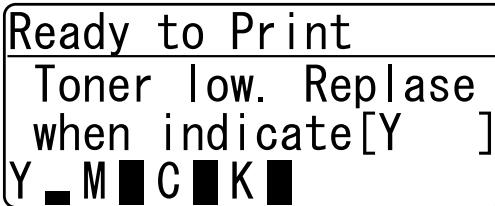

Detail
When the message appears, prepare to replace the toner cartridge according to your maintenance agreement.
When the toner is empty, a message similar to the one shown below appears, warning that the toner cartridge should be replaced.
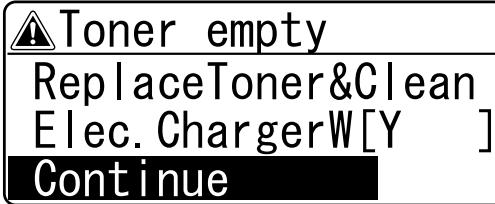

Note
After the message appears, the machine stops operating. Replace the toner cartridge according to your maintenance agreement. Do not replace the toner cartridge for any color not indicated in the message.
If toner other than black is empty, printing can continue in black.
Select [Continue], and then touch [Menu/Select].

Detail
For details on replacing the toner cartridge, refer to "To replace the toner cartridge" on page 13-4.

CAUTION
Handling toner and the toner cartridges
Do not throw toner or the toner cartridge into a fire.
Toner expelled from the fire may cause burns.

CAUTION
Precautions for toner spills
Be careful not to spill toner inside the machine or get toner on your clothes or hands.
If your hands become soiled with toner, immediately wash them with soap and water.
If toner gets in your eyes, immediately flush them with water, and then seek professional medical attention.
13.1.1 To replace the toner cartridge
The procedure for replacing any of the toner cartridges (yellow (Y), magenta (M), cyan (C) or black (K)) is the same.
Example: Replacing the black toner cartridge

Note
Be careful about the installation location of the toner cartridges, since it is different for other colors.
The shape of the black toner cartridge is different from the shapes of the toner cartridges for the other colors.
1 Open the machine's front door.
- Check that a toner cartridge of the same color as the one to be replaced has been prepared.
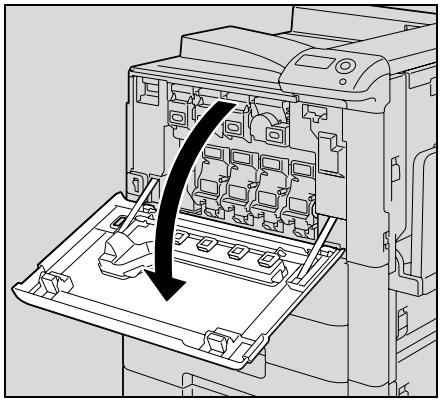
2 Pull up the locking tab of the empty toner cartridge to unlock it. Pull out the toner cartridge as far as possible, and then pull it up to remove it.
How are used toner cartridges disposed of?
- Do not throw away used toner cartridges. Instead, keep them in their boxes to be collected by your service representative.
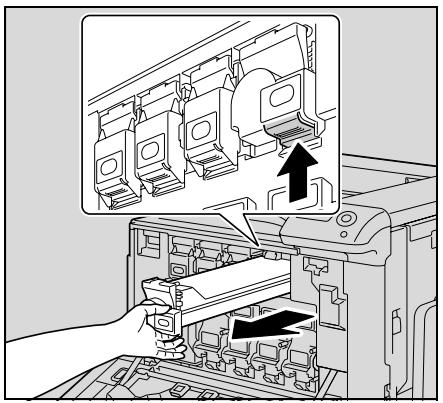
3 Prepare the new toner cartridge.
- Make sure that the toner cartridge is the same color as the label in the cartridge compartment.
Can a toner cartridge of a different color be installed?
The toner cartridge of a color different than the one that was removed cannot be installed. If the wrong toner cartridge is installed with extreme force, the machine may be damaged.
4 Remove the new toner cartridge from its packaging, and then shake the cartridge up and down 5 to 10 times.
- The toner within the toner cartridge may have become compacted. If it has, be sure to shake the toner cartridge until the toner is mostly broken up before installing the cartridge.
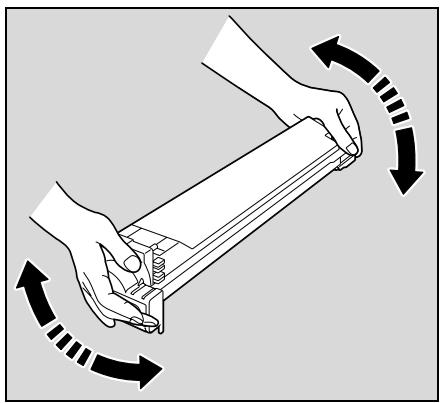
5 Align the toner cartridge with the slots in the machine, and then insert the cartridge until the locking tab locks into place.
- When inserting the new toner cartridge, fully insert it until it snaps into place.
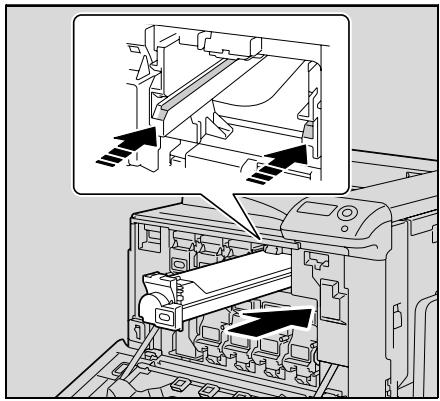
6 Slowly pull out the charger-cleaning tool as far as possible. Next, slowly push in the charger-cleaning tool as far as possible.
Repeat the above operations three times.
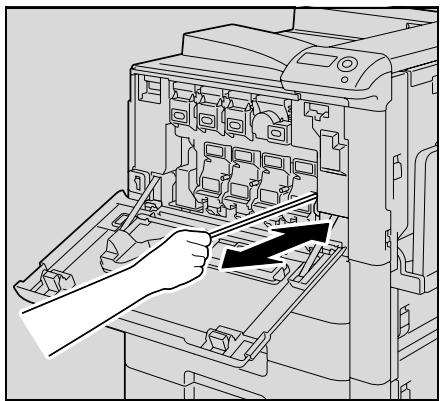
7 Close the front door.
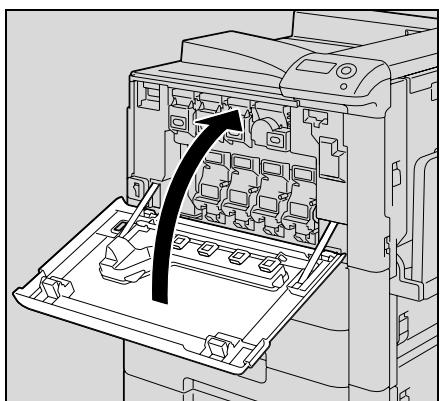


Reminder
When replacing a toner cartridge, be sure to clean the electrostatic charger wire corresponding to the color of the replaced toner cartridge.
13.2 Replacing the waste toner box
When it is almost time to replace the waste toner box, the message shown in the following illustration appears, warning about the replacement period.
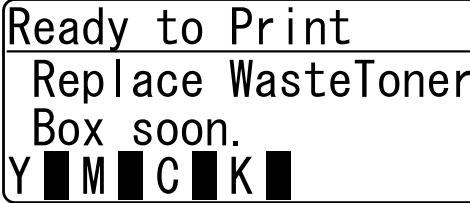

Note
When the message appears, prepare to replace the waste toner box according to your maintenance agreement.

Detail
The number of prints that can be made from the time that the message "Replace Waste Toner soon." appears until the time that the message "Waste Toner Box Full Please replace the Waste Toner Box." appears differs depending on the specified print settings and the consumables/parts.
When it is time to replace the waste toner box (and if it is replaceable by the user), the message "Wasre Toner Box Full Please replace the Waste Toner Box." appears and the machine stops operating.
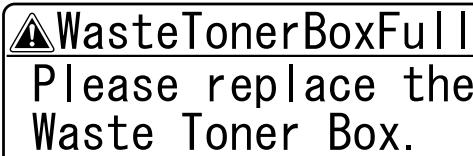
13.2.1 To replace the waste toner box
1 Open the machine's front door.
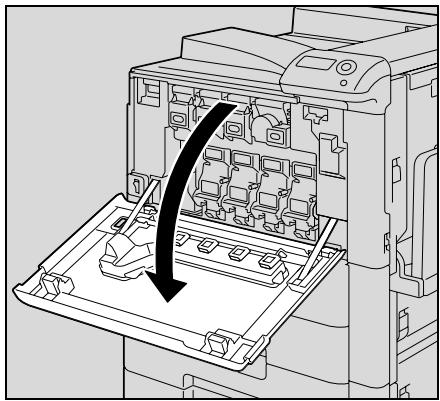
2 Lift up and remove the waste toner box.
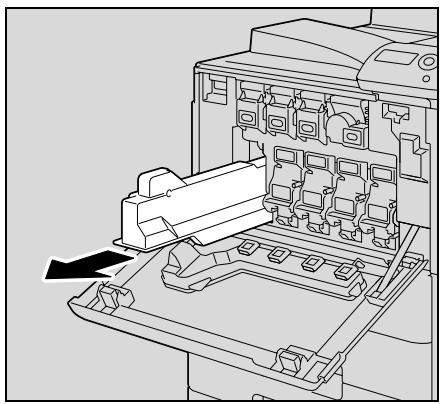
3 Install the new waste toner box.
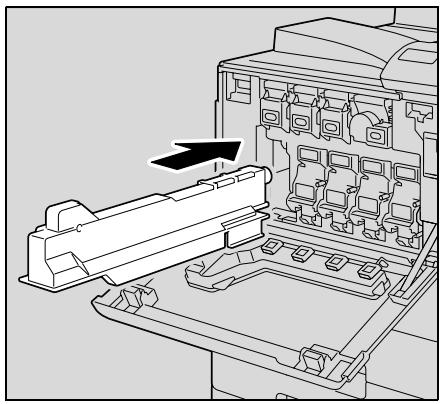
4 Close the front door.
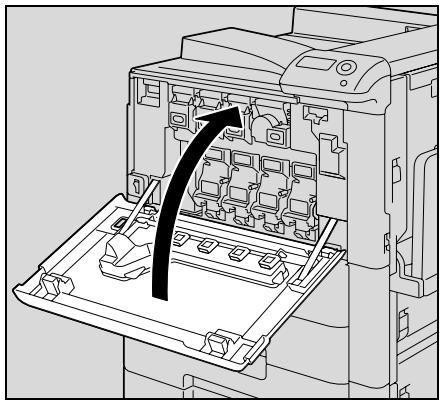

CAUTION
Handling toner and the waste toner box
Do not throw toner or the waste toner box into a fire.
Toner expelled from the fire may cause burns.

CAUTION
Precautions for toner spills
Be careful not to spill toner inside the machine or get toner on your clothes or hands.
If your hands become soiled with toner, immediately wash them with soap and water.
If toner gets in your eyes, immediately flush them with water, and then seek professional medical attention.

Reminder
Do not tilt the removed waste toner box, otherwise waste toner may spill.
Do not throw away used waste toner boxes. Instead, keep them in their boxes to be collected by your service representative.
13.3 Replacing an imaging unit
When it is almost time to replace an imaging unit, an advanced warning message similar to the one shown below appears.
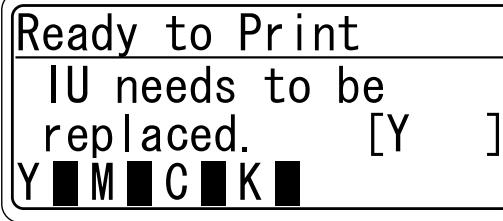

Note
When the message appears, prepare to replace the imaging unit according to your maintenance agreement.
When the time to replace the imaging unit is reached, an advanced warning message similar to the one shown below appears.
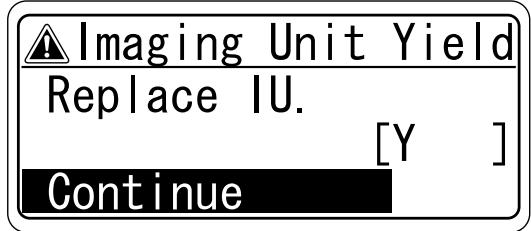

Note
If it is time to replace an imaging unit other than the black imaging unit, printing can continue in black. Select [Continue], and then touch [Menu/Select].

Detail
For details on replacing the imaging unit, refer to "To replace the imaging unit" on page 13-10.

Reminder
Be sure to replace the imaging unit only after the message "IU needs to be replaced. [x]" appears. In addition, do not replace the imaging unit of any color other than the one indicated in the message on the message window.
13.3.1 To replace the imaging unit
1 Set the power switch to
Check that the control panel is turned off.
2 Open the front door.
- Check that an imaging unit of the same color as the one to be replaced has been prepared.
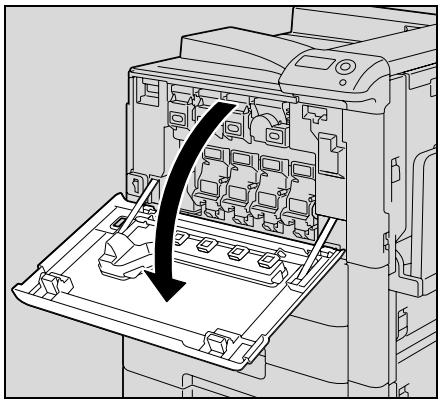
3 Press down to release the unlock lever of the imaging unit to be replaced.
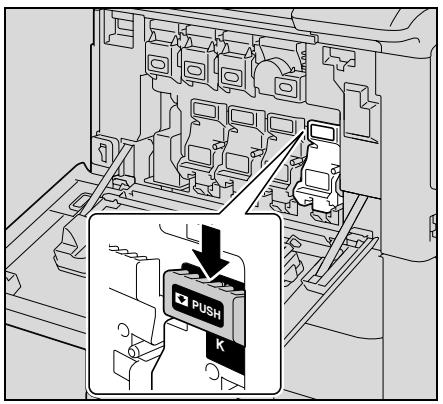
4 Pull the imaging unit towards you to remove it.
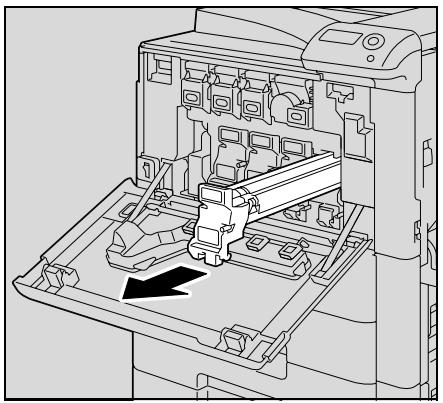
5 Remove the imaging unit from its packaging.
- The imaging unit can easily be damaged by light. Leave the imaging unit in the black protective bag until immediately before it is to be installed.
- Do not hold the top part of the imaging unit, otherwise the PC drum may be damaged, resulting in decreased image quality.
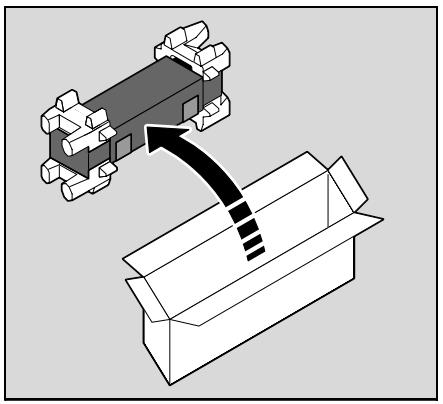
6 Peel off the tape, and then remove the packing material.
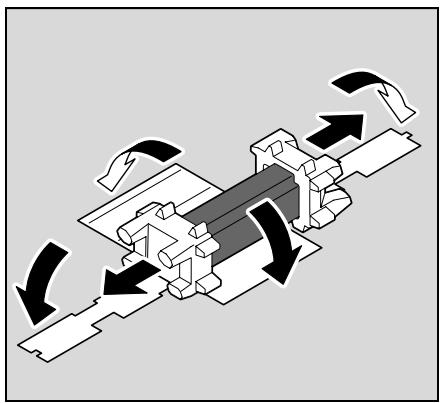
7 Remove the imaging unit from the black protective bag.
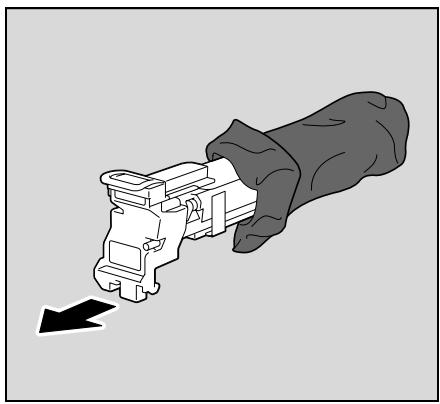
8 Tilt the imaging unit to the left and lightly shake it twice in the direction of the tilt, and then tilt the unit to the right and lightly shake it twice in the direction of the tilt.
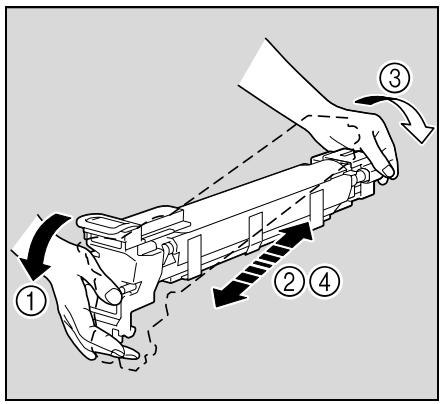
9 Peel off the tape.
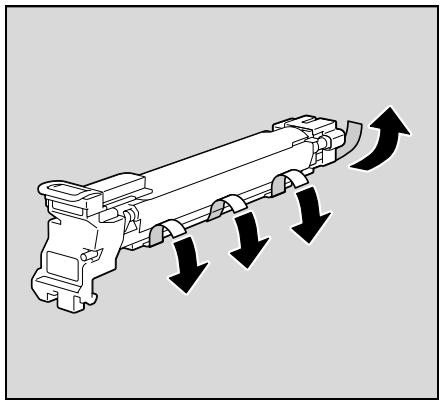
10 Remove the packing material and securing material.
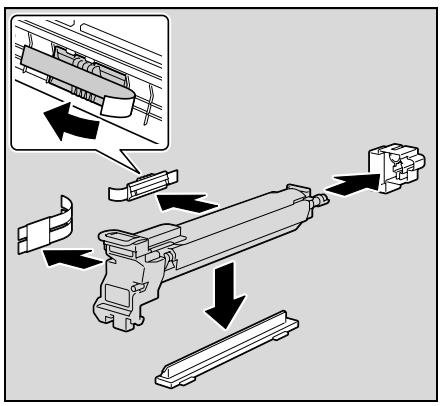
11 Align the mark of the imaging unit and the mark of the machine. Insert the imaging unit into the machine.
- Make sure that the imaging unit is the same color as the label on the imaging unit compartment.
- Do not insert the imaging unit into its compartment at an angle.
- Make sure that the imaging unit is fully inserted into its compartment.
12 Lift up and slowly pull out the handle of the protective sheet for the PC drum.
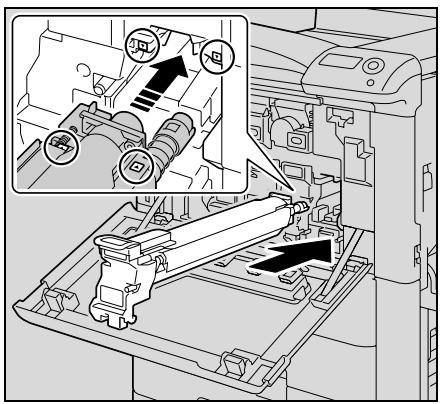
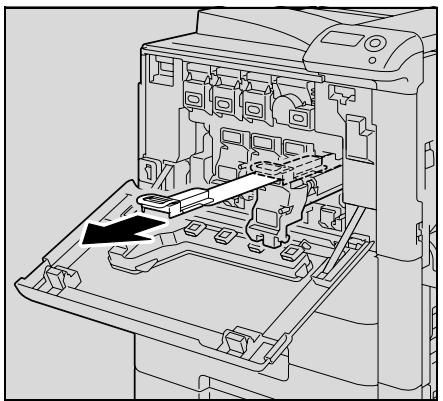
13 Push the imaging unit until it bottoms.
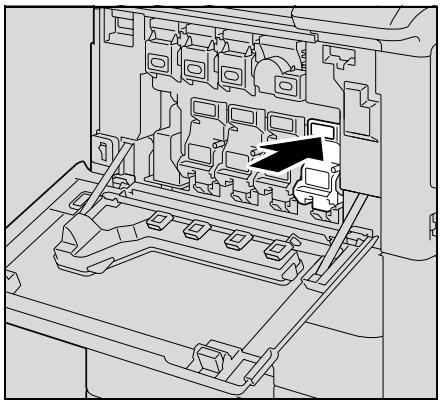
14 Close the front door.
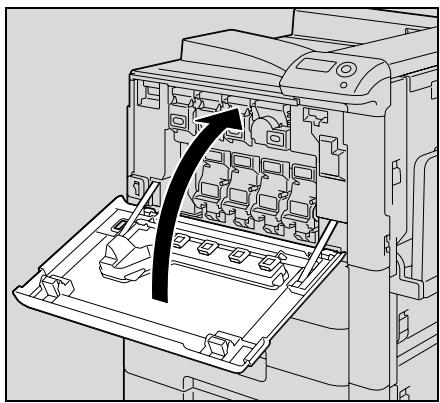
15 Insert the used imaging unit into the empty black protective bag and box of the new imaging unit.
How are used imaging units disposed of?
- Do not throw away used imaging units. Instead, keep them in their boxes to be collected by your service representative.
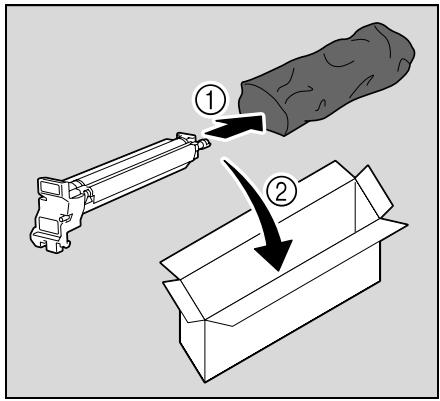
16 Set the power switch I.
17 Adjust the image stabilization.
- For details on adjusting the image stabilization, refer to "Expert Adjustment" on page 10-27.
CAUTION
Precautions for toner spills
Be careful not to spill toner inside the machine or get toner on your clothes or hands.
If your hands become soiled with toner, immediately wash them with soap and water.
If toner gets in your eyes, immediately flush them with water, and then seek professional medical attention.

Reminder
Be careful not to touch the PC drum.
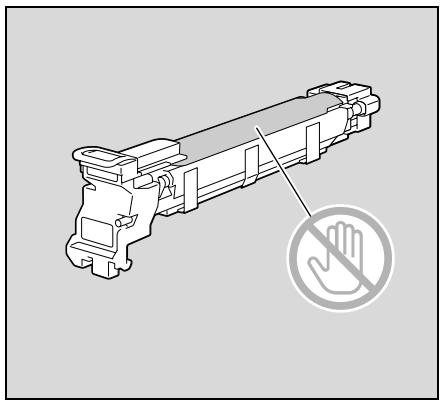
13.4 Replacing the staple cartridge
When the staple cartridge is empty, the message "Replace Staple Cartridge" appears.
Replace the staple cartridge.
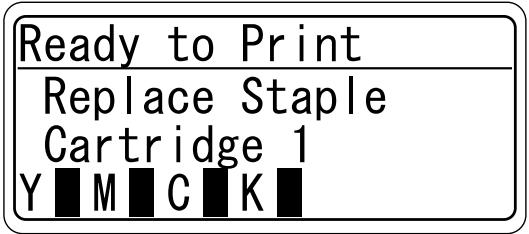

Reminder
Be sure to replace the staple cartridge only after the message appears, otherwise the machine may be damaged.
13.4.1 To replace the staple cartridge in the finisher FS-519
1 Open the front door.
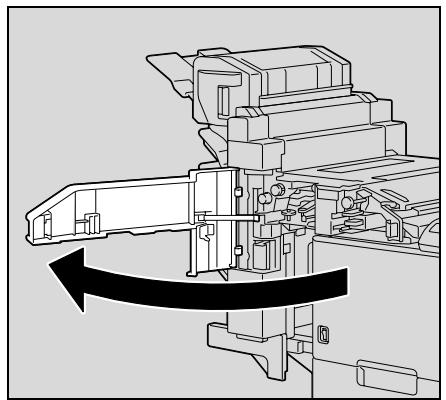
2 Remove the staple cartridge holder.
Pull the staple cartridge holder toward you to remove it.
Only touch the blue parts of the staple cartridge.
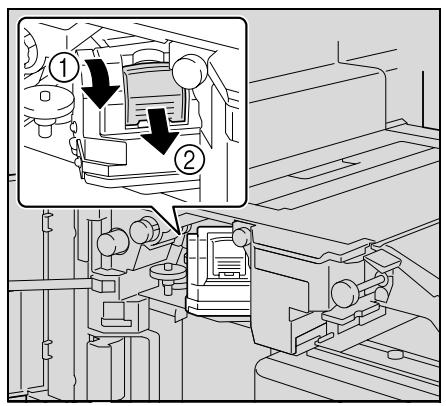
3 Remove the empty cartridge from the staple cartridge holder.
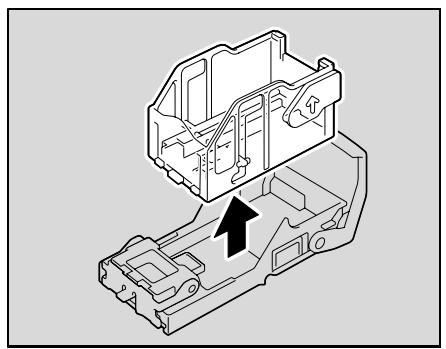
4 Load the new staple cartridge into the staple cartridge holder.
- Do not remove the remaining staples, otherwise the machine will not be able to staple after the cartridge is replaced.
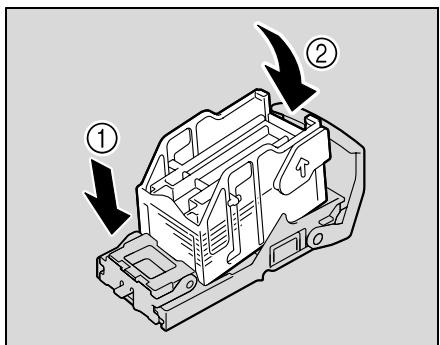
5 Insert the staple cartridge holder along the rails in the compartment until it snaps into place.
- Check that the staple cartridge holder is securely installed.
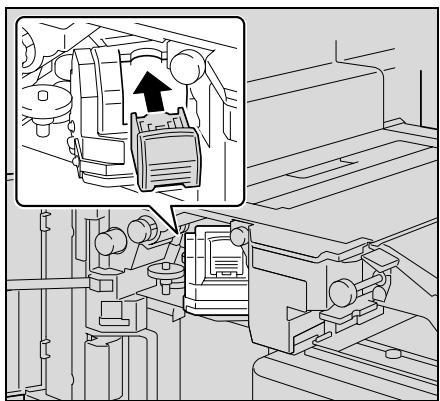
6 Close the front door.

··
Reminder
Replace the staple cartridge only after the message has appeared.
If the staple cartridge is replaced before the message appears, the machine may be damaged.
13.4.2 To replace the staple cartridge in saddle stitcher
1 Raise the output tray, and then push down the staple cartridge holder and remove it.
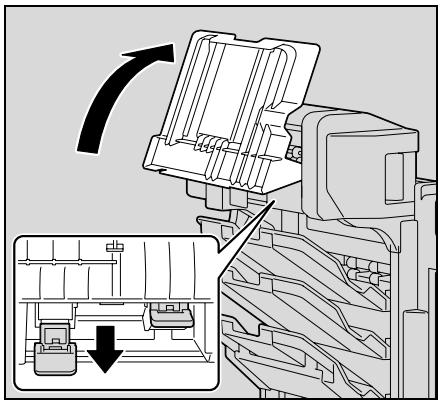
2 Press in the area marked "PUSH" to unlock the staple cartridge holder.
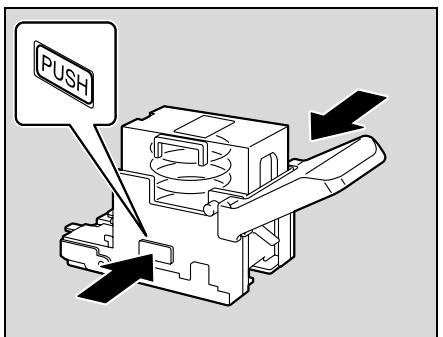
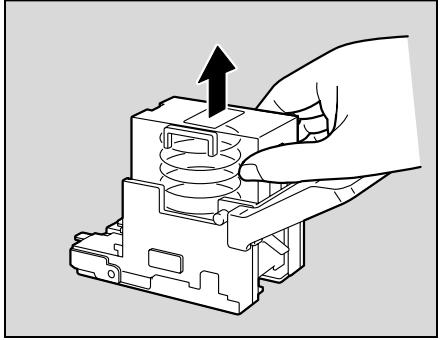
3 Remove the empty staple cartridge from the staple cartridge holder.
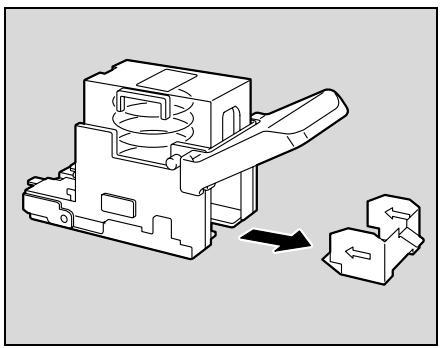
4 Load the new staple cartridge into the staple cartridge holder.
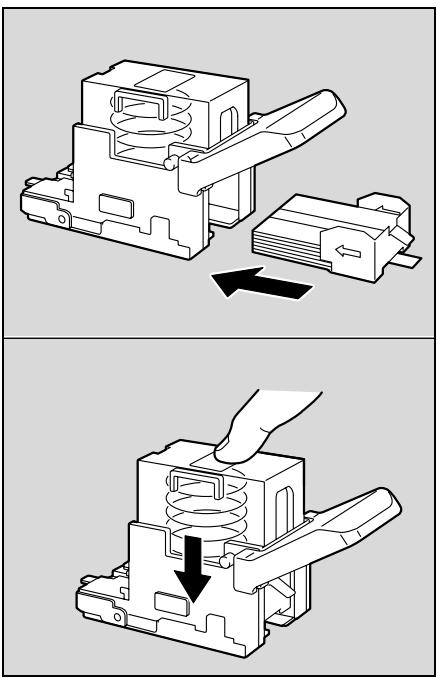
5 Slowly pull off the seal.
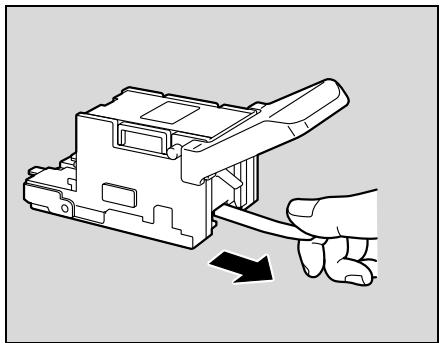
6 Insert the staple cartridge holder, and then push it up until it locks into place.
- When inserting the staple cartridge holder, be sure to insert it so that it faces the correct direction.
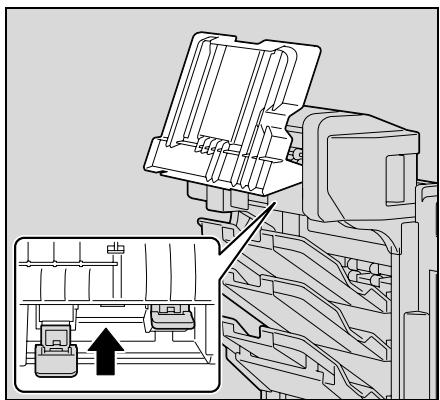
7 Return the output tray to its original position.
8 Pull the handle of the misfeed-clearing door to open it, and then close it.
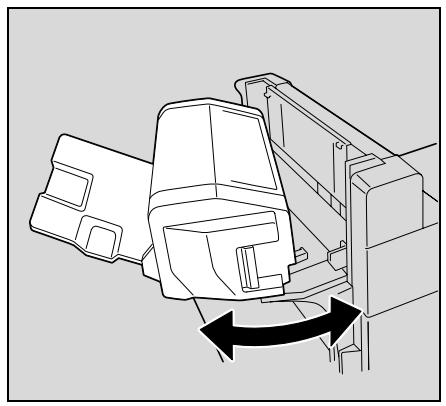
13.4.3 To replace the staple cartridge for finisher FS-609
1 Open the front door of the finisher.
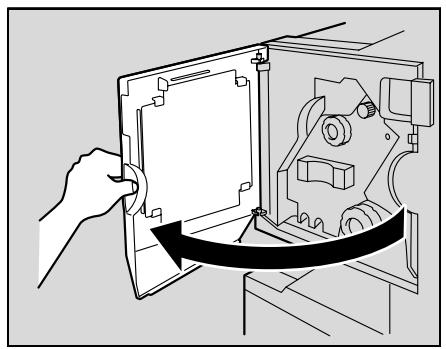
2 Slowly pull out the stapler unit as far as possible.
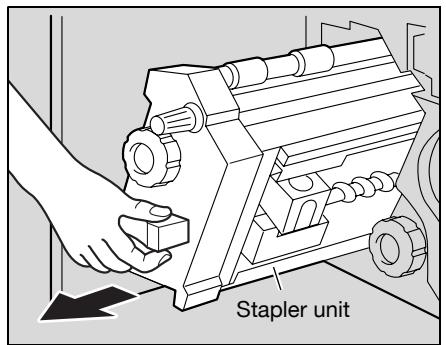
3 Grasp both sides of the staple cartridge holder, lift it up, and then pull it out.
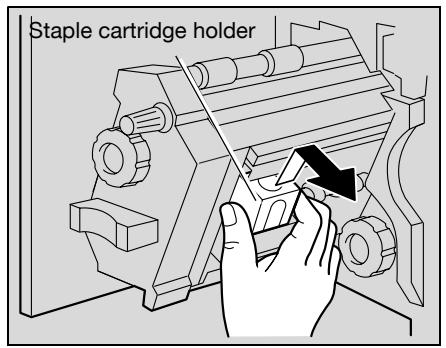
4 Press the button marked "PUSH" on the side of the staple cartridge holder.
The staple case is released.
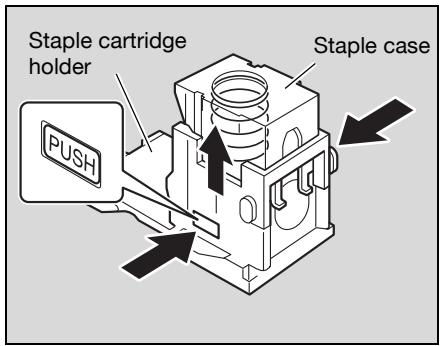
5 Pull up the staple case.
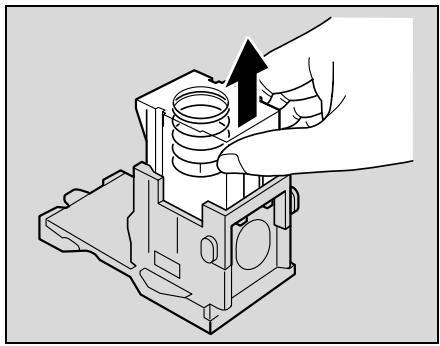
6 Remove the staple cartridge from the staple case.
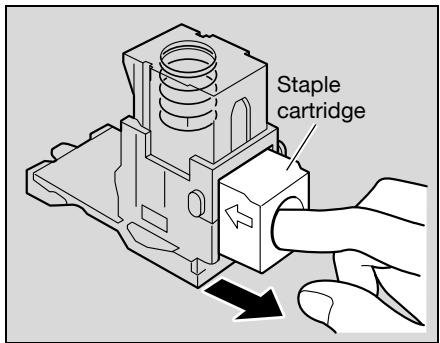
7 Load the new staple cartridge into the staple cartridge holder. - Fully insert the staple cartridge as far as possible.
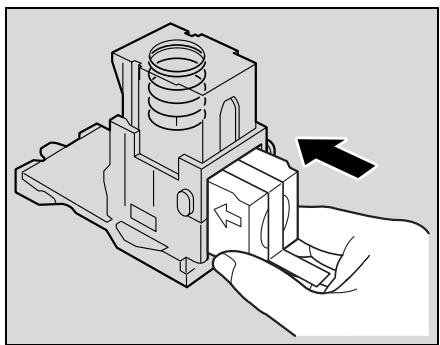
8 Press the staple case down.
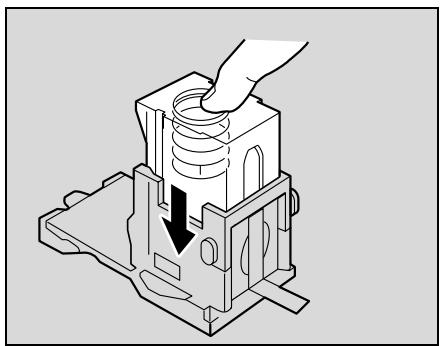
9 Peel the tape off of the staple cartridge.
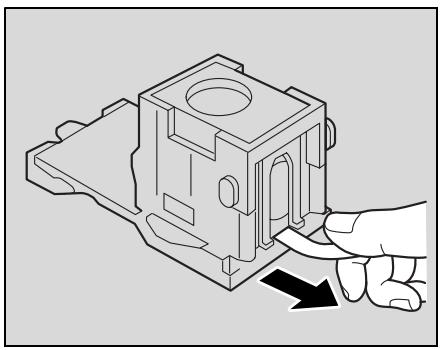
10 Insert the staple cartridge holder, making sure the tabs on the holder slide along the rails in the compartment.
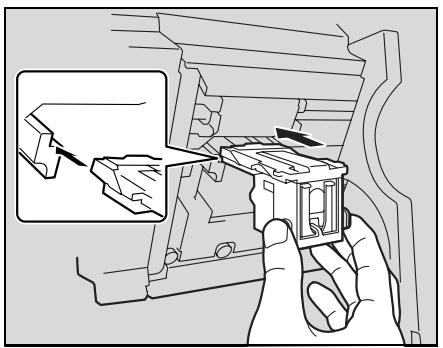
11 Insert the staple cartridge holder until it locks into place.
- Check that the staple cartridge holder is securely installed.
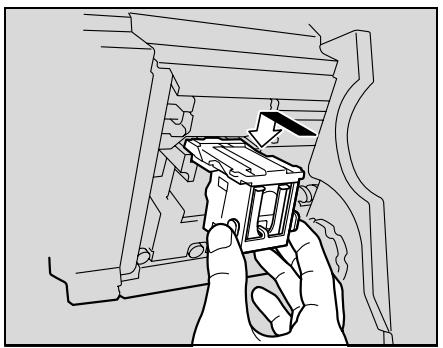
12 Carefully move the stapler unit back into its original position.
13 Close the front door.

Reminder
Replace the staple cartridge only after the message has appeared.
If the staple cartridge is replaced before the message appears, the machine may be damaged.
13.5 Emptying the punch scrap box
If the punch scrap box in the punch kit installed on the finisher becomes full, the message shown below appears.
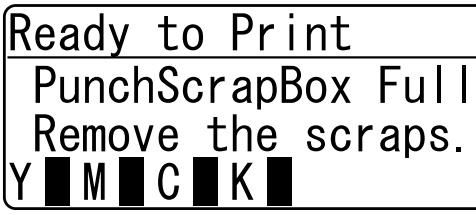

Note
The setting for emptying the punch scrap box should be specified by the service representative. For details, contact the service representative.
The default setting is "Service". If a message appears, immediately contact the service representative.
13.5.1 To empty the punch scrap box in the finisher FS-519
Follow the procedure described below to empty the punch scrap box.
1 Open the front door.
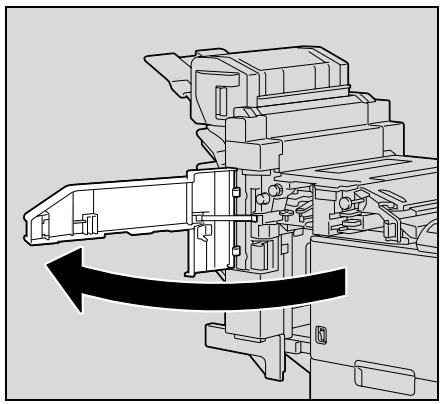
2 Pull out the punch scrap box FN3.1.
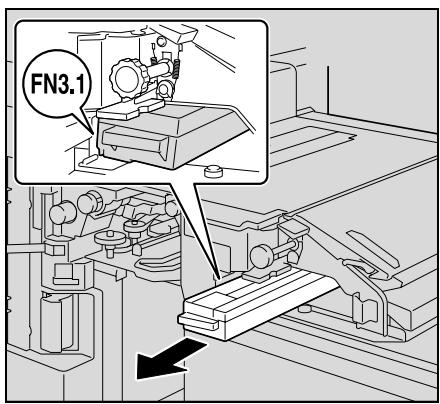
3 Empty the punch scrap box.
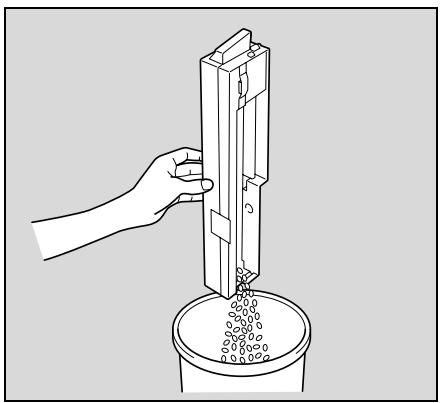
4 Insert the punch scrap box into its original position.
5 Close the front door.
13.5.2 To empty the punch scrap box in the finisher FS-609
Follow the procedure described below to empty the punch scrap box.
1 Slide the finisher away from the machine.
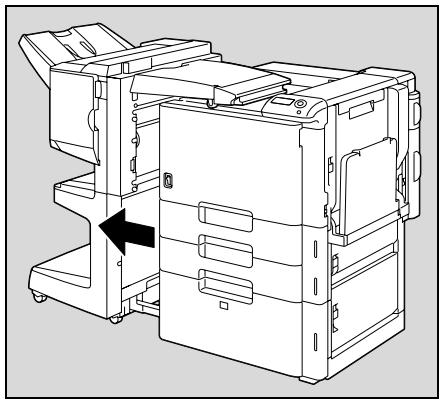
2 Pull out the punch scrap box.
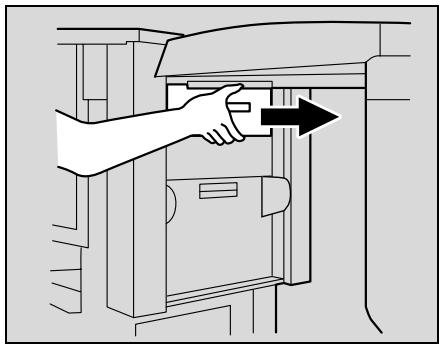
3 Empty the punch scrap box.
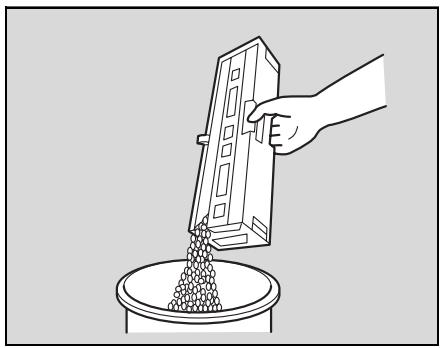
4 Insert the punch scrap box into its original position.
5 Slide the finisher back against the machine.
14
Care of the machine
14 Care of the machine
14.1 Cleaning
This section describes the procedures for cleaning each part.
14.1.1 Housing
Clean the surface of the housing by wiping it with a soft cloth dampened with a mild household detergent.
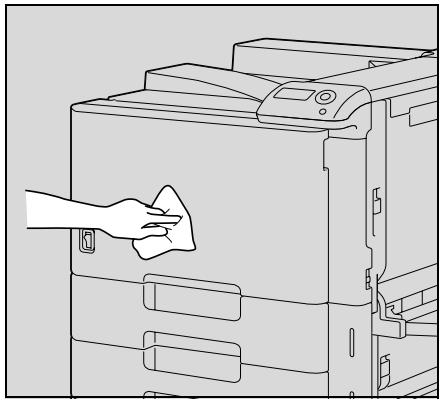

Reminder
Be sure to turn off the machine (set the power switch to ) before cleaning it. For details on how to turn off the machine, refer to "Turning off the machine" on page 3-16.
Never use solvents, such as benzene or thinner, to clean the housing.
14.1.2 Control panel
Clean the control panel by wiping it with a soft, dry cloth.
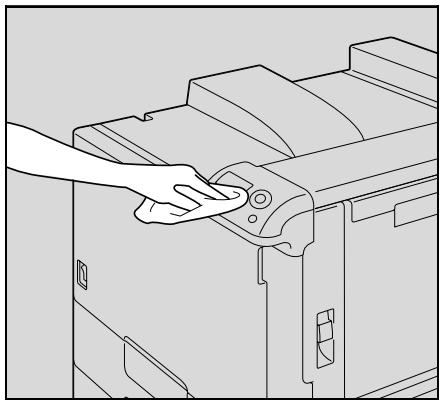

Reminder
Pressing too hard on a key in the control panel may damage it. In addition, never use a mild household detergent, glass cleaner, benzene or thinner to clean the control panel.
14.1.3 Electrostatic charger wire
If the electrostatic charger wire is dirty, streaks will appear though the printed images. If this occurs, follow the procedure described below to clean the electrostatic charger wire.
1 Open the machine's front door.
2 Slowly pull out the charger-cleaning tool as far as possible. Next, slowly push in the charger-cleaning tool as far as possible.
Repeat the above operations three times.
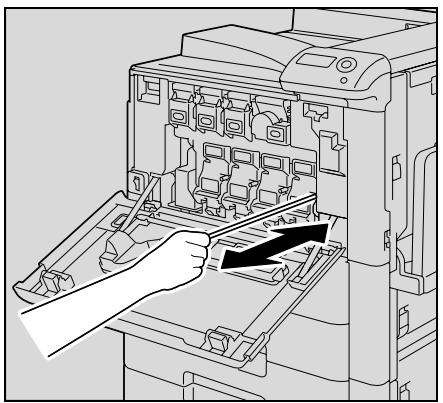
3 Securely insert the charger-cleaning tool, and then close the front door.
14.1.4 Print head
If the print head becomes dirty, decreased print quality may result. If this occurs, clean the print head according to the following procedure.
1 Open the machine's front door.
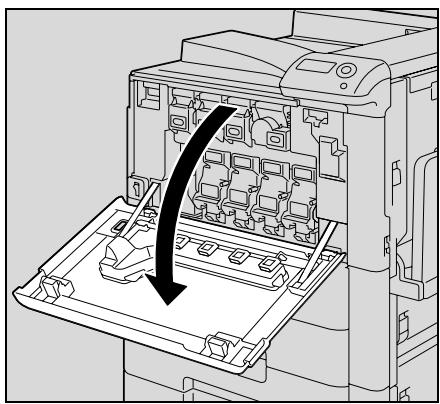
2 Remove the print head glass cleaning tool from the front door of the machine.
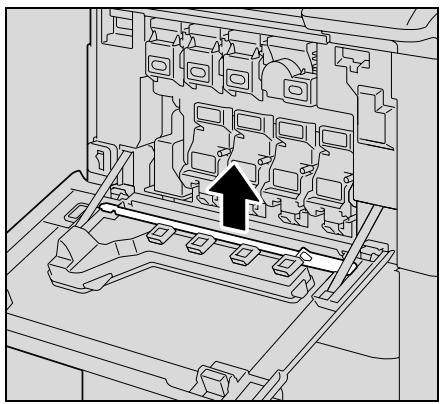
3 Insert the print head glass cleaning tool into the print head cleaning opening, pull it out, and then repeat this back-and-forth movement twice or three times.
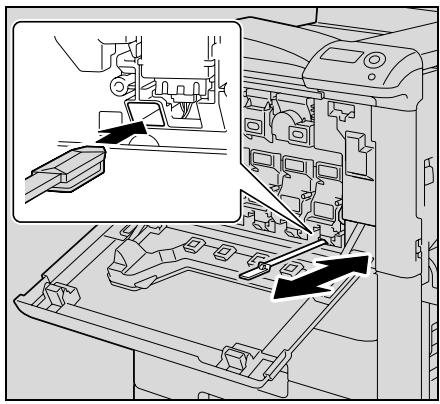
14.2 When the message "Time for periodic device check." appears
If the message "Time for periodic device check." appears, contact Technical support and request a periodic maintenance inspection.
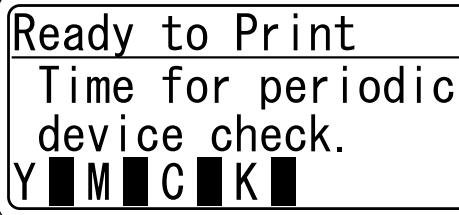
15
Specifications
15 Specifications
15.1 Main unit
| Specifications | |
| Type | Desktop/Freestanding printer |
| Photoconductor | OPC |
| Copying system | Laser electrostatic copy method |
| Developing system | Dry-type dual-component HMT developing method |
| Fusing system | Roller fixing |
| Paper types | Plain paper 60g/m2to 90g/m2, thick paper 1 91g/m2to 150g/m2, thick paper 2 151g/m2to 209g/m2, thick paper 3 210g/m2to 256g/m2, thick paper 4 257g/m2to 271g/m2*, OHP transparencies*, postcards*, letterheads, colored paper, envelopes*, label sheets*, banner paper 127g/m2to 210g/m2* Duplex: Plain paper 64g/m2to 90g/m2, thick paper1/2/3 91g/m2to 256g/m2* Can only be fed through the bypass tray. |
| Print sizes | Tray 1: 11 × 17 to 8-1/2 × 11 to 1/2, 5-1/2 × 8-1/2 to 1, A3 to B5 to 1/2, A5 to 2, 8 × 13 to 3, 16K to 8K to 16K to 8K to 12 × 18 to 4 to 8-1/2 × 11 to 1/2, 5-1/2 × 8-1/2 to 1, A3 to B5 to 1/2, 8 × 13 to 3, 16K to 8K to 12 × 18 to 4 to 5-1/2 × 8-1/2 to 1, 4 × 6 to A3 to B6 to A6 to banner paper, 8 × 13 to 1, 16K to 8K to Width: 90mm to 311.1mm; length: 139.7mm to 1,200mm*For thick paper 4, only A3 to A4, 11 × 17 and 8-1/2 × 11 are available for printing. |
| Paper tray capacity | Tray 1 and tray 2: Plain paper: 500 sheets; thick paper 1/2/3: 150 sheets Bypass tray: Plain paper: 150 sheets; thick paper 1/2/3/4, OHP transparencies, postcards, label sheets: 20 sheets; envelopes: 10 sheets; banner paper: 10 sheets |
| Print output tray capacity | Plain paper: 250 sheets Thick paper: 10 sheets OHP transparencies: 1 sheet |
| Warm-up time | The time from when the power switch is turned on, until the machine is ready to begin making prints (at room temperature 73.4 °F (23 °C)). 75 seconds or less |
| Image loss width | Leading edge: 4.2mm; trailing edge: 3mm; rear edge: 3mm; front edge: 3mm |
| First Print time | 5.9 seconds or less (monochrome and 8-1/2 × 11 (A4) paper) |
| Print speed | Full color: 35 ppm (single-sided), 35 sides/min. (double-sided) Black: 35 ppm (single-sided), 35 sides/min. (double-sided) (when printing on 8-1/2 × 11 (A4)) |
| RAM | 1,024 MB |
| Hard disk | 60 GB |
| Interface | Ethernet port (1,000Base-T/100Base-TX/10Base-T) USB 2.0 |
| Frame type | Ethernet 802.2 Ethernet 802.3 Ethernet II Ethernet SNAP |
| Supported protocols | TCP/IP (IPv4/IPv6), BOOTP, ARP, ICMP, DHCP, AutoIP, SNMP, LPR/LPD, RAW Socket, SMB over TCP/IP, IPP, HTTP, POP, SMTP, LDAP, NTP, SSL, IPX/SPX, Ap-pleTalk, Bonjour, NetBEUI, DPWS, IPsec, DNS, DynamicDNS |
| Specifications | ||
| Printer language | PCL5e/c Emulation PCL XL ver 2.1 Emulation PostScript 3 Emulation (3016) XPS ver.1.0 | |
| Operating environment condi- tions | Temperature 50 to 86 °F (10 to 30 °C) Humidity 15% to 85% RH | |
| Resolution | Data processing | 600 × 600 dpi |
| Printing | 1800 dpi equivalent × 600 dpi | |
| Printer fonts | < PCL> Latin 80 Fonts < Postscript 3 Emulation> Latin 137 Fonts | |
| Compatible computers | IBM PC or compatible, and Macintosh (PowerPC or Intel Processor) (Intel Processor is Mac OS X 10.4 only) | |
| Printer driver | Konica Minolta PCL Driver (PCL driver) | Windows NT Workstation /Server Version4.0 (Service Pack 6 or later) Windows 2000 Professional /Server (Service Pack 3 or later) Windows XP Home Edition/Professional, Windows XP Professional x64 Edition Windows Vista Home Basic/Home Premium/Ultimate/Business/Enterprise, Windows Vista Home Basic/Home Premium/Ultimate/Business/Enterprise x64 Edition Windows Server 2003 Standard Edition, Windows Server 2003 x64 Edition |
| Konica Minolta PostScriptDriver (PS driver) | Windows 2000 Professional /Server (Service Pack 3 or later) Windows XP Home Edition/Professional, Windows XP Professional x64 Edition Windows Vista Home Basic/Home Premium/Ultimate/Business/Enterprise, Windows Vista Home Basic/Home Premium/Ultimate/Business/Enterprise x64 Edition Windows Server 2003 Standard Edition, Windows Server 2003 x64 Edition | |
| PostScript PPD driver (PS-PPD) | Mac OS 9.2 or later Mac OS X 10.2.8, Mac OS X 10.3, or Mac OS X 10.4 (Intel Processor for Mac OS X 10.4 only) | |
| Utility | PageScope Web Connection Compatible Web browsers: Microsoft Internet Explorer Ver. 6 or later (JavaScript and Cookies enabled) Netscape Navigator Ver. 7.02 or later (JavaScript and Cookies enabled) Mozilla Firefox Ver. 1.0 or later (JavaScript and Cookies enabled) Adobe Flash® (Plug-in Ver. 7.0 or later required if "Flash" is selected as the display format) | |
| Operating environment for MetaFrame | The operation of this driver has been confirmed only in the following environments. Server OS: Windows 2000 Advanced server/ Windows 2003 Enterprise Server MetaFrame: Citrix® MetaFrame® Presentation Server 3.0 Citrix® MetaFrame® Presentation Server 4.0 Client OS: Windows 2000/Windows XP ICAClient: ICA32bit * For operating in an environment other than those described, contact your service representative. | |
| Power requirements | AC120 V, 12 A, 60 Hz AC220-240 V, 8 A, 50/60 Hz | |
| Power consumption | 1,500 W or less | |
| Dimensions | 643 mm (W) × 708 mm (D) × 637 mm (H) | |
| Space requirements*5 | When finisher FS-519 and saddle stitcher are installed 1668 mm (W) × 1178 mm (D) When finisher FS-608 is installed 1719 mm (W) × 1178 mm (D) | |
| Weight | Approx. 79 kg | |
^1 5-1/2 × 8-1/2 □ can be used with the North American (inch) model only.
^2 A5 can be used with the European (metric) model only.
3 There are five Foolscap sizes: 220 × 330mm ☐, 8-1/2 × 13 ☐, 8-1/4 × 13 ☐, 8-1/8 × 13-1/4 ☐ and 8 × 13 ☐. Any one of these sizes can be selected. For details, contact your service representative.
4 12 × 18 is equivalent to 304.8mm × 457.2mm , which is one size larger than A3.
*5 The indicated space requirements represent the space required to open the paper trays.
In order to incorporate improvements, these product specifications are subject to change without notice.
15.2 Automatic duplex unit
| Specifications | |
| Paper types | Plain paper 64g/m2to 90g/m2, thick paper 1 91 g/m2to 150 g/m2, thick paper 2 151g/m2to 209g/m2, thick paper 3 210g/m2to 256g/m2 |
| Paper sizes | 12 × 18 □*1 to 5-1/2 × 8-1/2 □, 12-1/4 × 18 □, A3 □ to A5 □/□, 8 × 13 □*2, 8K □, 16K □/□Width: 139.7 mm to 311.1 mm; length: 148mm to 457.2 mm |
| Power requirements | Supplied from main unit |
1 12 × 18 is equivalent to 304.8 mm × 457.2 mm ,which is one size larger than A3.
2 There are five Foolscap sizes: 220 × 330 mm ,8-1/2 × 13 ,8-1/4 × 13 ,8-1/8 × 13-1/4 and 8 × 13 . Any one of these sizes can be selected. For details,contact your service representative.
15.3 Paper feed cabinet PC-104
| Specifications | |
| Paper types | Plain paper 60g/m2to 90g/m2Thick paper 1 91g/m2to 150g/m2Thick paper 2 151g/m2to 209g/m2Thick paper 3 210g/m2to 256g/m) |
| Paper sizes | 11 × 17☐ to 8-1/2 × 11☐/☐, 5-1/2 × 8-1/2☐*1, A3☐ to B5☐/☐, A5☐*2, 8 × 13☐*3, 16K☐, 18K☐ |
| Tray paper capacity | Tray 3; Plain paper: 500 sheets, thick paper 1/2/3: 150 sheets |
| Power requirements | Supplied from main unit |
| Power consumption | Less than 15 W |
| Dimensions | 600mm (W) × 578mm (D) × 301 mm (H) |
| Weight | Approx. 24 kg |
| Unit structure | 1 paper tray |
^1 5-1/2 × 8-1/2 can be used with the North American (inch) model only.
^2 A5 can be used with the European (metric) model only.
*3 There are five Foolscap sizes: 220 × 330mm , 8 - 1/2 × 13 , 8 - 1/4 × 13 , 8 - 1/8 × 13 - 1/4 and 8 × 13 . Any one of these sizes can be selected. For details, contact your service representative.
15.4 Paper feed cabinet PC-204
| Specifications | |
| Paper types | Plain paper 60g/m2to 90g/m) Thick paper 1 91g/m2to 150g/m) Thick paper 2 151g/m2to 209g/m2 Thick paper 3 210g/m2to 256g/m2 |
| Paper sizes | 11 × 17 □ to 8-1/2 × 11 □/□, 5-1/2 × 8-1/2 □*1, A3 □ to B5 □/□, A5 □*2, 8 × 13 □*3, 16K □, 18K □ |
| Tray paper capacity | Upper tray (Tray 3); Plain paper: 500 sheets, thick paper 1/2/3: 150 sheets Lower tray (Tray 4); Plain paper: 500 sheets, thick paper 1/2/3: 150 sheets |
| Power requirements | Supplied from main unit |
| Power consumption | Less than 15 W |
| Dimensions | 600mm (W) × 578mm (D) × 301 mm (H) |
| Weight | Approx. 28 kg |
| Unit structure | 2 paper trays |
^1 5-1/2 × 8-1/2 can be used with the North American (inch) model only.
^2 A5 can be used with the European (metric) model only.
*3 There are five Foolscap sizes: 220 × 330mm , 8 - 1/2 × 13 , 8 - 1/4 × 13 , 8 - 1/8 × 13 - 1/4 and 8 × 13 . Any one of these sizes can be selected. For details, contact your service representative.
15.5 Paper feed cabinet PC-405
| Specifications | |
| Paper types | Plain paper 60g/m2to 90g/m2Thick paper 1 91g/m2to 150g/m2Thick paper 2 151g/m2to 209g/m2Thick paper 3210g/m2to 256g/m2 |
| Paper sizes | 8-1/2 × 11 , A4 |
| Tray paper capacity | Plain paper: 2,500 sheets, thick paper 1/2/3: 1,000 sheets |
| Power requirements | Supplied from main unit |
| Power consumption | Less than 45 W |
| Dimensions | 600mm (W) × 578mm (D) × 301mm (H) |
| Weight | Approx. 28 kg |
15.6 Finisher FS-519
| Specifications | |
| Finishing trays | Finishing tray 1, finishing tray 2 |
| Feed settings | "Sort (each set of prints)", "Group (each page of prints)", "Offset/Sort", "Offset/Group", and "Staple" |
| Paper types | Finishing tray 1, finishing tray 2: "Sort", "Group": Plain paper 60g/m2to 90g/m2, thick paper 91g/m2to 271g/m2, OHP, postcards, envelopes, label sheets, letter heads "Offset /Sort", "Offset /Group": Plain paper 60g/m2to 90g/m2, thick paper 91g/m2to 271g/m2 "Staple" settings: Plain paper 160g/m2to 90g/m2, thick paper 91g/m2to 209g/m2 |
| Paper sizes | 11 × 17 □, 8-1/2 × 11 □/□, 5-1/2 × 8-1/2 □/□, 12-1/4 × 18 □, A3 □ to B6 □, A6 □ |
| Paper capacity | Output tray 1: Plain paper 60g/m2to 90g/m2: 200 sheets Thick paper 91g/m2to 271g/m2, OHP, postcards, envelopes, or label sheets, letterheads: 20 sheets Output tray 2: Plain paper 60g/m2to 90g/m2: 1,000 sheets of 8-1/2 × 11 □ (A4 □) or smaller, or 500 sheets of 8-1/2 × 14 □ (B4 □) or larger Thick paper 91g/m2to 271g/m2, OHP, postcards, envelopes, or label sheets, letterheads: 20 sheets |
| Amount of shift | 30mm |
| Staple settings | Paper sizes (no. of bound pages): 11 × 17 □ to 8-1/2 × 11 □/□, A3 □ to A5 □ (Plain paper: 2 sheets to 50 sheets) |
| Power requirements | Supplied from main unit |
| Power consumption | Less than 66 W |
| Dimensions | 352mm (W) × 471mm (D) × 573mm (H) When the tray is pulled out: 435mm (W) |
| Weight | Approx. 33.2 kg |
| Consumables | Staples SK-602 (containing 5,000 staples) × 1 |
15.7 Punch kit PK-515
| Specifications | |
| Punched holes | 2, 3, 4 |
| Paper types | Plain paper 60g/m2to 90g/m2, thick paper 91g/m2to 256g/m2 |
| Paper sizes | 2-hole: 11 × 17 ☐ to 8-1/2 × 11 ☐/☐3-hole: 11 × 17 ☐, 8-1/2 × 11 ☐4-hole: A3 ☐, A4 ☐, B5 ☐ |
| Power requirements | Supplied from finisher |
| Dimensions | 114mm (W) × 461mm (D) × 106mm (H) |
| Weight | Approx. 1.9 kg |
15.8 Saddle stretcher SD-505
| Specifications | |
| Number of bins | 1 bin |
| Paper types | Plain paper 60g/m2to 90g/m2, thick paper 91g/m2to 209g/m2 |
| Paper sizes | 11 × 17 □, 8-1/2 × 11 □, A3 □, B4 □, A4 □, B5 □ |
| Paper capacity | Plain paper 60g/m2to 90g/m2: Maximum 200 sheets or 20 sets |
| Staple settings | Number of bound pages: 2 to 15 sheets |
| Dimensions | 445mm (W) × 478mm (D) × 203mm (H) When the tray is pulled out: 576mm (W) × 281 mm (H) |
| Weight | 7.4 kg |
| Consumables | MS-2C cartridge (for 2,000) × 1 |
| Power requirements | Supplied from finisher |
15.9 Output tray OT-602
| Specifications | |
| Number of bins | 1 bin |
| Paper type | Finishing tray 1, finishing tray 2: "Sort", "Group": Plain paper 60g/m2to 90g/m2, thick paper 91g/m2to 271g/m2, OHP, postcards, envelopes, label sheets, letter heads "Offset /Sort", "Offset /Group": Plain paper 60g/m2to 90g/m2, thick paper 91g/m2to 271g/m2 "Staple" settings: Plain paper 60g/m2to 90g/m2, thick paper 91g/m2to 209g/m2 |
| Paper size | 11 × 17 □, 8-1/2 × 11 □/□, 5-1/2 × 8-1/2 □/□, 12-1/4 × 18 □, A3 □ to B6 □, A6 □ |
| Paper capacity | Plain paper 60g/m2to 90g/m2: 200 sheets Thick paper 91g/m2to 271g/m2, postcards, envelopes, OHP, or label sheets, letterheads: 20 sheets |
| Dimensions | 282mm (W) × 368mm (D) × 57 mm (H) |
| Weight | 0.7 kg |
15.10 Mailbin kit MT-502
| Specifications | |
| Number of bins | 4 bins |
| Paper types | Plain paper 60g/m2to 90g/m2 |
| Paper sizes | 8-1/2 × 11 □, 5-1/2 × 8-1/2 □, A4 □, B5 □, A5 □ |
| Paper capacity | Maximum 125 sheets per bin |
| Dimensions | 340mm (W) × 509mm (D) × 387 mm (H) |
| Weight | Approx. 8 kg (unit weight) |
| Power requirements | Supplied from finisher |
15.11 Finisher FS-609
| Specifications | |
| Output trays | Output tray 1, output tray 2 |
| Settings | Normal settings: "Group", "Sort", "Offset/Group", "Offset/Sort", "Offset/Staple", and "Saddle Staple" |
| Paper types | Output tray 1: "Group/Sort" setting: Plain paper 60g/m2 to 90g/m2, thick paper 91g/m2 to 256g/m2, envelopes, OHP, label sheets "Offset/Sort" setting, "Offset/Group" setting: Plain paper 60g/m2 to 90g/m2 Staple: Plain paper 60g/m2 to 90g/m2 Output tray 2: Plain paper 60g/m2 to 90g/m2 |
| Paper sizes | Output tray 1: "Group" setting:11 x 17 □ to 5-1/2 x 8-1/2 □/□, 12 x 18 □, A3 □ to B5 □/□ "Sort" setting:11 x 17 □ to 5-1/2 x 8-1/2 □, A3 □ to A5 □ "Staple" setting: 11 x 17 □ to 8-1/2 x 11 □/□, A3 □ to A5 □ Output tray 2: 11 x 17 □, 8-1/2 x 11 □, A3 □, B4 □, A4 □ |
| Paper capacity | Output tray 1: Plain paper 60g/m2 to 90g/m2: 1,000 sheets of 8-1/2 x 11 □ (A4 □) size paper or smaller, or 500 sheets of 8-1/2 x 14 □ (B4 □) size paper or larger Thick paper 91g/m2 to 256g/m2, envelopes, OHP, label sheets: 20 sheets Output tray 2: 10 prints (6 to 15 bound pages)* 20 prints (2 to 5 bound pages) |
| Amount of shift | 20mm |
| Staple settings | Output tray 1: Paper sizes (no. of bound pages): 8-1/2 x 11 □/□ (A4 □/□, B5 □/□) (2 to 50 pages), 11 x 17 □, 8-1/2 x 14 □ (A3 □, B4 □) (2 to 25 pages) Output tray 2: Paper sizes (no. of bound pages): 11 x 17 □, 8-1/2 x 11 □ (A3 □, B4 □, A4 □) (2 to 15 pages) |
| Power requirements | Supplied from main unit |
| Power consumption | Less than 65 W |
| Dimensions | 601 mm (W) x 603mm (D) x 933mm (H) |
| Weight | Approx. 4.2 kg (including the horizontal transport unit) |
| Consumables | Staples MS-5D (5,000 staples for stapling 50 sheets) x 1 |
- The number of pages that can be bound together differs depending on the paper weight. If 64g / m^2 paper is used, 6 to 15 pages can be bound together. If 80g / m^2 paper is used, 6 to 10 pages can be bound together.
15.12 Punch kit PK-501
| Specifications | |
| Number of punched holes | 2, 3, 4 |
| Paper types | Plain paper 60g/m2to 90g/m2, thick paper 91g/m2to 209g/m2 |
| Power requirements | Supplied from finisher |
| Dimensions | 90mm (W) × 560mm (D) × 170mm (H) |
| Weight | Approx. 3 kg |
16
Authentication unit (Biometric type AU-101)
16 Authentication unit (Biometric type AU-101)
16.1 Safety information
16.1.1 Important information
When using the authentication unit (biometric type), observe the following precautions in addition to "Safety information" on page 2-3.
Authentication unit (biometric type) is optional. It is sold or permitted to use as it is.
- This product is designed, manufactured and intended for general business use. Do not use it for applications requiring high reliability and which may have an extreme impact on lives and property. (Applications requiring high reliability: Chemical plant management, medical equipment management and emergency communications management)
- Use with other authentication devices is not guaranteed.
- In order to incorporate improvements in the product, the specifications concerning this product are subject to change without notice.
16.1.2 For safe use

CAUTION
When using the authentication unit (biometric type), observe the following precautions.
Do not this product near water, otherwise it may be damaged.
Do not cut, damage, modify or forcefully bend the USB cable. A malfunction may occur as a result of a damaged or cut USB cable.
Do not disassembly this device, otherwise it may be damaged.
16.1.3 Regulation notices
USER INSTRUCTIONS FCC PART 15 - RADIO FREQUENCY DEVICES (For U.S.A. Users)
| FCC: Declaration of Conformity | |
| Product Type | Authentication Unit (Biometric Type) |
| Product Name | AU-101 |
| This device complies with Part 15 of the FCC Rules Operation is subject to the following two conditions: · This device may not cause harmful interference, and this device must accept any interference received, including interference that may cause undesired operation. | |


Note
This equipment has been tested and found to comply with the limits for a Class B digital device, pursuant to Part 15 of the FCC Rules.
These limits are designed to provide reasonable protection against harmful interference in a residential installation. This equipment generates, uses and can radiate radio frequency energy and, if not installed and used in accordance with the instructions, may cause harmful interference to radio communications. However, there is no guarantee that interference will not occur in a particular installation. If this equipment does cause harmful interference to radio or television reception, which can be determined by turning the equipment off and on, the user is encouraged to try to correct the interface by one or more of the following measures:
Reorient or relocate the receiving antenna.
Increase the separation between the equipment and receiver.
Connect the equipment into an outlet on a circuit different from that to which the receiver is connected.
Consult the dealer or an experienced radio/TV technician for help

WARNING
The design and production of this unit conform to FCC regulations, and any changes or modifications must be registered with the FCC and are subject to FCC control.
Any changes made by the purchaser or user without first contacting the manufacturer will be subject to penalty under FCC regulations.
16.2 Product features
This device is a biometric authentication system that performs user authentication by scanning vein patterns in a finger. Print job operations can be authenticated with finger vein patterns when using machines with user authentication settings specified.
16.3 Part names and their functions
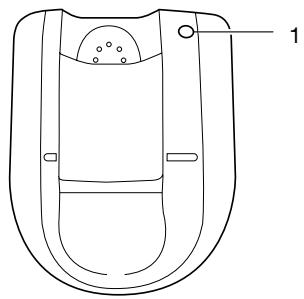
Top view
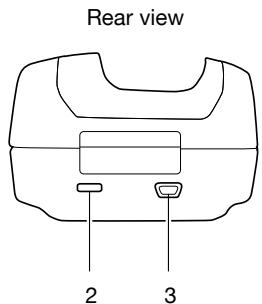
| No. | Part name | Description |
| 1 | Status indicator | Indicates this device’s status. |
| 2 | Security slot | Used for connecting the security cable to prevent thefts. (complies with the security cable standards of the Kensington Computer Prod-ucts Group) |
| 3 | USB port (type mini-B) | Used to connect a USB cable (mini-B plug). |
The status of this device is indicated by a status indicator and tone.
| Status indicator | Device status |
| Lit (green) | Standing by/authentication completed |
| Flashing (green) | Authenticating/scanning |
| Lit (red) | Authentication failed/scanning failed |
| Off | This device is not detected. |
| Tone | Device status |
| One short beep | Starting to scan |
| One short beep | Retrying after authentication failed |
| One short beep | Authentication completed |
| Two short_beeps | Authentication failed |
16.4 Using authentication unit (Biometric type) AU-101
In order to use this device, user finger vein patterns must first be registered with the machine. A registered user can print a print job after completing authentication with their finger vein patterns. The following procedures describe how to specify the necessary settings on the machine and register users.

Note
Align the index finger with the indentation and notch in the scanner, and then position the finger so that the tip lightly touches the edge of the scanner. Place your thumb and middle finger down to hold this device in place on both sides, and avoid moving the index finger being used for authentication.

Reminder
Do not place any object other than your finger in the scanner of this device while scanning, otherwise the device may malfunction.
Do not disconnect the cable connecting the device to the computer while scanning, otherwise the system may become unstable.
16.4.1 Positioning your finger
1 Lightly stretch out your fingers, and then position the finger to be registered or authenticated on this device.
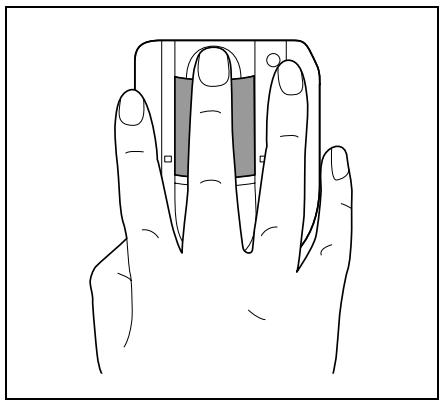
2 Align the tip of the finger with the notch, and lightly position the finger so that the tab can be felt at the tip of the finger.
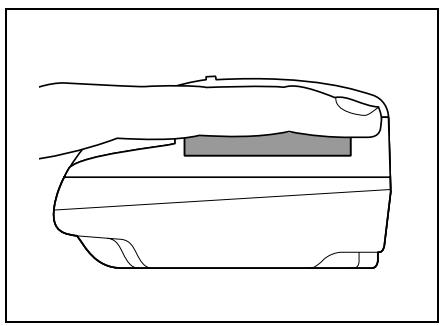

Note
If registration or authentication is not possible, check for the following. Remove the finger from this device, and then reposition it correctly.
The finger should not be positioned too far forward or backward.
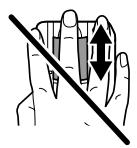
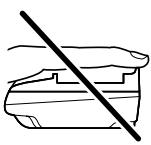
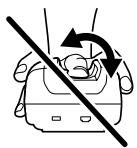
The finger should not be positioned at an angle.
The finger should not be positioned out of line to the left or right.
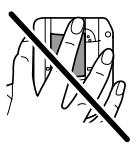
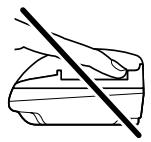
The middle section of the finger is not positioned off the scanner.
16.4.2 Machine settings
To use the authentication unit (biometric type), an optional HDD and local interface kit must be installed.
1 From the "Main Menu" on the control panel, display the Admin. Settings screen.
- For details on displaying the Admin. Settings screen, refer to "Operations for changing numeric values" on page 10-5.
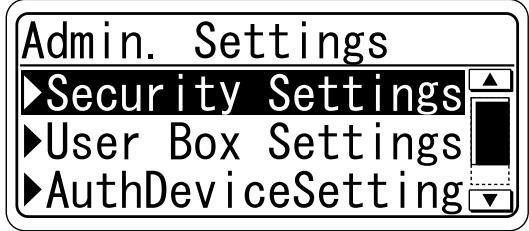
2 From the Auth Device Setting screen, select "Bio Auth. Setting", and then press the [Menu/Select] key.
AuthDeviceSetting
BioAuth.Settings
▶Touch & Print
3 Specify the settings for "Beep Sound" and "Operation Setting".
BioAuth.Settings
Beep Sound
Operation Setting
- For "Beep Sound", specify whether or not to raise an electric sound when scan of the vein patterns in the finger is successfully completed.
Beep Sound
ON
OFF
- For "Operation Setting", specify the print method after registration.
Operation Setting
-1-to-many Auth.
1-to-1 Auth.
1-to-many Auth.: Documents can be printed by specifying the user name and password in the printer driver, and placing the finger on the authentication unit.
1-to-1 Auth.: Documents can be printed if the specified user name and password in the printer driver are correct. If "1-to-1 Auth." is selected, the Touch & Print function cannot be used.
4 Press the [key twice.
The Auth Device Setting screen appears again.
5 Select [Touch & Print], and then press the [Menu/Select] key.
AuthDeviceSetting
BioAuth. Settings
▶Touch & Print
6 Specify the settings for "Touch & Print User Box" and "Print".
Touch & Print
TouchPrintUserBox
- If "OFF" is selected for "Touch & Print User Box", the Touch & Print function cannot be used.
- If "ON" is selected for "Touch & Print User Box", "1-to-1 Auth." cannot be selected.
Touch&PrintUserBox
ON
OFF
- For "Print", specify the printing method for the Touch & Print function.
Print All Jobs.
Print Each Job.
Print All Jobs.:Select this setting to print all documents after completed authentication once when multiple documents are saved in the Touch & Print user box.
Print Each Job.:Select this setting to print one document saved in the Touch & Print user box each time authentication is completed.
16.4.3 Registering users
To register users, connect this machine to a computer, and use PageScope Data Administrator.

Detail
Registered user data is stored on the hard disk of the machine. If the user authentication method on the machine is changed or the hard disk is reformatted, the registered user data is erased.

··
In order to use PageScope Data Administrator, settings must be specified on the machine and the setup procedure must be performed. The setup procedure includes installing this device's BioDriver(USBDriver), then installing PageScope Data Administrator Bio Plugin.

Pomin
PageScope Data Administrator ver. 3.0 or later must first be installed on the computer. For details on the operating environment and installation procedure for PageScope Data Administrator, refer to the user manual for the PageScope Data Administrator.
Setup
1 Turn off the machine with the power switch, and then disconnect this device from the machine.
2 Install BioDriver(USB-Driver).
Plug the cable from this device into the USB port on the computer.
The Found New Hardware Wizard starts.
3 Select "Yes, now and every time I connect a device", and then click [Next].
4 Insert the application DVD included with this device into the DVD drive of the computer.
5 Select "Install from a list or specific location (Advanced)", and then click [Next].
6 Select the "Include this location in the search" check box, check that the application DVD appears as a location to be searched, and then click [Next].
- If the application DVD does not appear as a location to be searched for the driver, click [Browse], select the BioDriver (USB-Driver) folder on the DVD, and then click [OK].
The installation begins.
7 Click [Finish].
8 Repeat steps 5 through 7.
The installation of BioDriver (USB-Driver) is completed.
9 Install PageScope Data Administrator Bio Plugin.
Open the DA_Bio_Plugin folder on the application DVD, and then click "setup.exe".
10 Select the language, and then click [OK].
The installer starts up.
11 Follow the instructions that appear on the screen to complete the installation.
12 Click [Next].
13 Select "I accept the terms of the license agreement", and then click [Next].
14 Click [Install].
15 Click [Finish].
PageScope Data Administrator Bio Plugin is installed, and the setup is completed.
Registering users

Detail
In order to register users with PageScope Data Administrator, this device must be connected to the USB port of the computer, and the computer and the machine must be connected over a network.
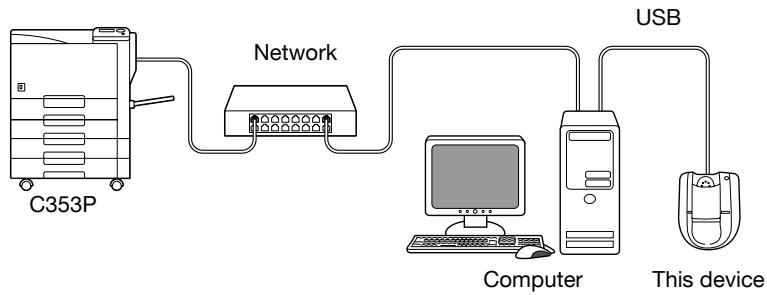

Note
When the machine is turned off, then on again with the power switch, wait at least 10 seconds to turn the machine on after turning it off. The machine may not operate correctly if it is turned on immediately after being turned off.
Hold the plug when plugging and unplugging the USB cable, otherwise the cable may be damaged.

··
Reminder
Do not connect other USB devices to the same port where this device is connected. If enough USB power is not provided, this device may not operate correctly.
When using a USB hub, be sure to use a self-powered USB hub that can provide 500 mA or more.
After connecting this device, wait at least 5 seconds before operating it.
If this device is connected to the machine, turn off the machine with the power switch, and then disconnect this device.
- If this device is connected to the computer, continue with step 4.
2 Turn on the machine with the power switch.
3 Connect this device to the USB port of the computer installed with PageScope Data Administrator.
4 Start up PageScope Data Administrator, and then import the device information for the machine.
- For details on importing the device information, refer to the user manual for PageScope Data Administrator.
The Device information pane appears.
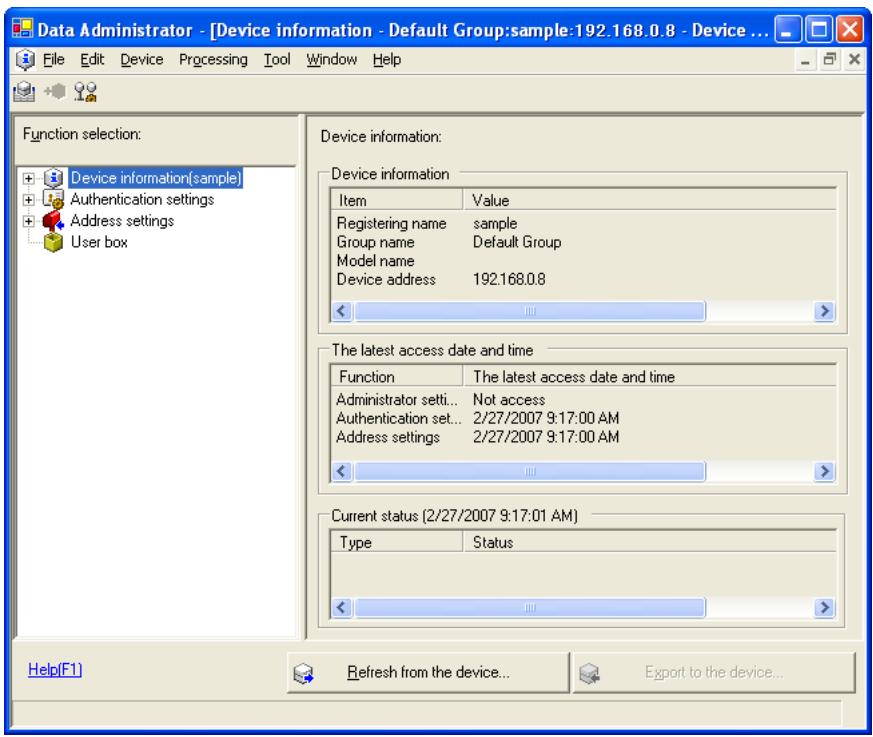
5 Select "User authentication settings" in the Function selection pane, and then click [Add].
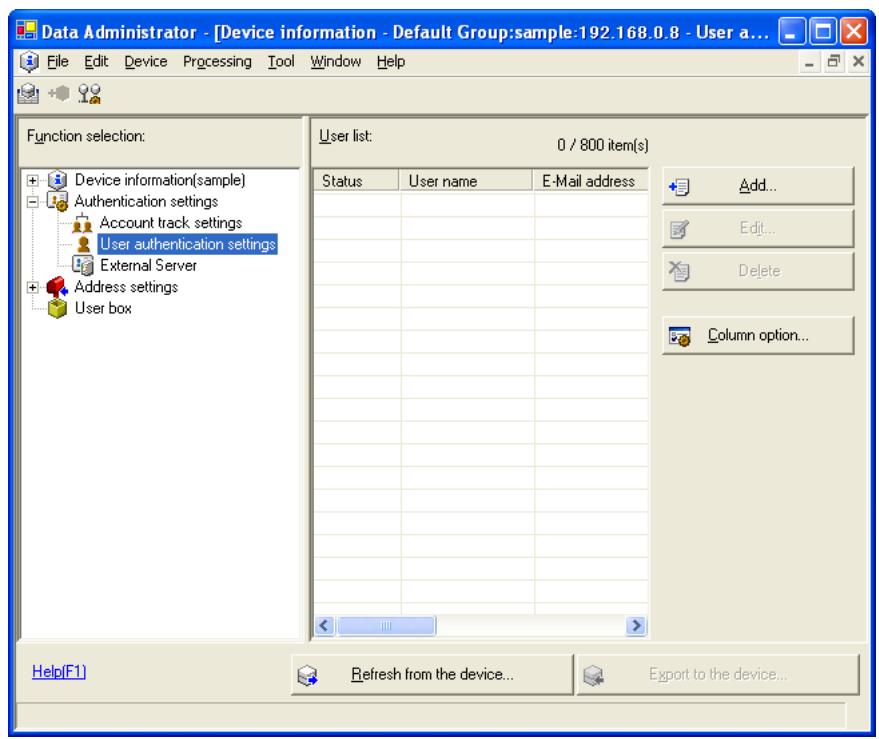
6 Select a template, and then click [OK].
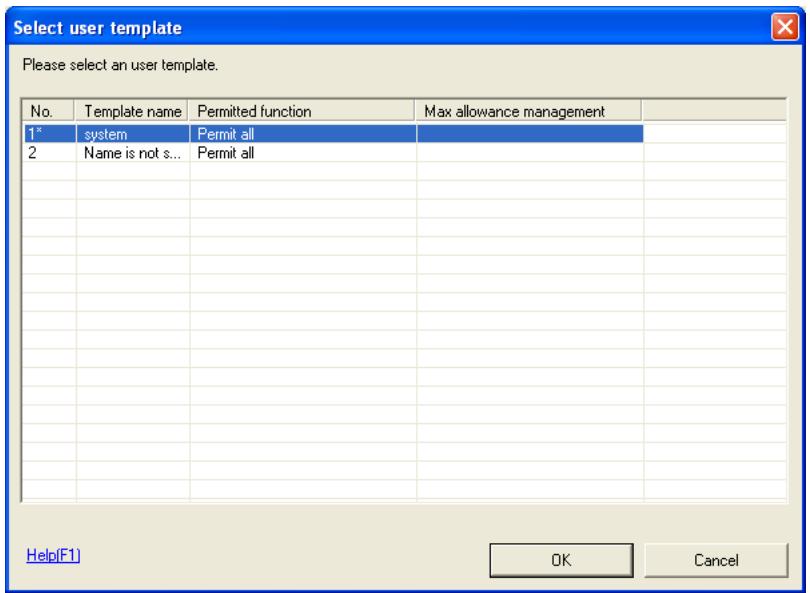
The User settings dialog box appears.
7 Type in the user name and password, click the Vein Authentication tab, and then click [Import]. If desired, type in the e-mail address.
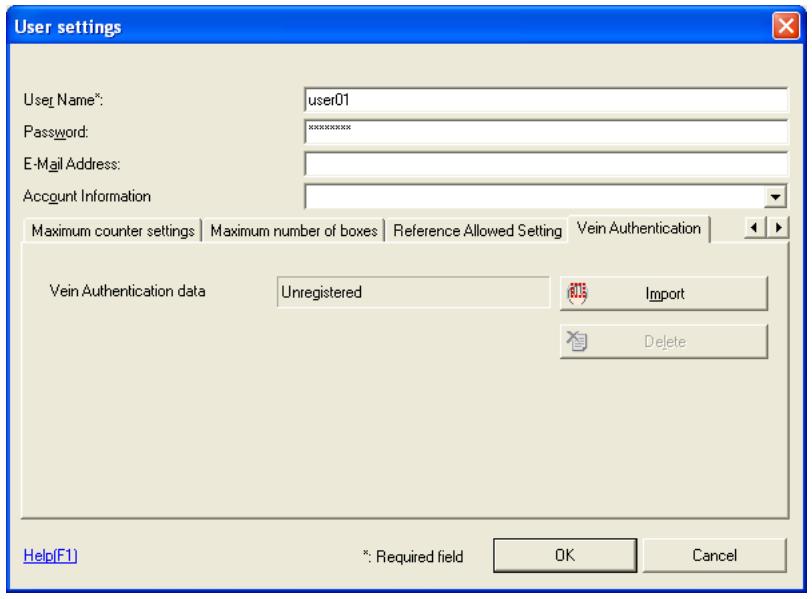
8 Position the finger on this device, and then click [Start reading].
- Scan the finger vein pattern three times, removing and repositioning the same finger each time.
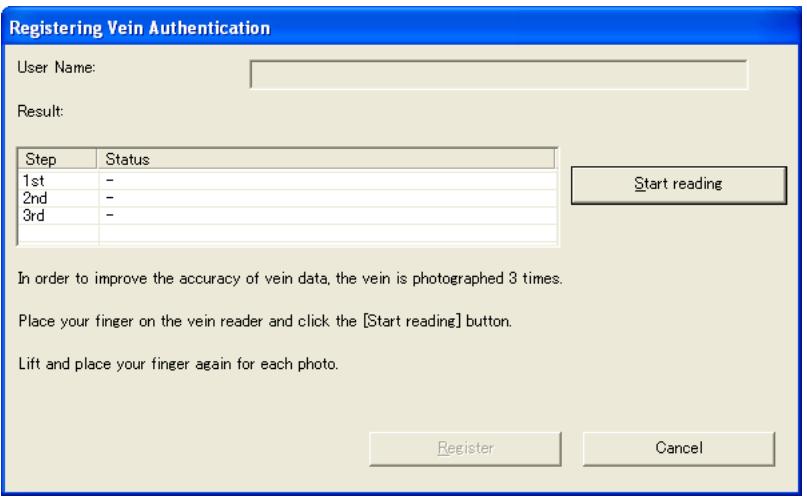
9 Click [Register].
10 Click [OK].
- Repeat steps 5 through 10 until all users have been registered.
![KONICA MINOLTA BIZHUB C353P - Click [OK]. - 1](/content/2025/01/139634/images/23ec0266ae2b0c9f40fc77d3f2eeb8c0b78c9e173ac82186215fc1cd68fa4135.jpg)
11 Click [Export to the device].
![KONICA MINOLTA BIZHUB C353P - Click [Export to the device]. - 1](/content/2025/01/139634/images/b2f92571908bac119369b95e0c7dd05efc789db8c66bad604c8abb956c0222dc.jpg)
- To change the registered data, select the user name, and then click [Edit].
12 Click [Write].
![KONICA MINOLTA BIZHUB C353P - Click [Write]. - 1](/content/2025/01/139634/images/e962a0a5ce01d6239509cf378faa2c466c651f0ea0e8fca6d668ac781324f30d.jpg)
The registered user data is specified on the machine.
13 Click [OK].
![KONICA MINOLTA BIZHUB C353P - Click [OK]. - 1](/content/2025/01/139634/images/9df950fbbdf2623e549855503608beca2e6b94bba59de410a2da6f46be9fdfcc.jpg)
14 Disconnect this device from this USB port of the computer.
15 Turn off the machine with the power switch, connect this device, and then turn on the machine with the power switch.
![KONICA MINOLTA BIZHUB C353P - Click [OK]. - 2](/content/2025/01/139634/images/89ce9188e43e29ebe329cce10688848e78d357fa20de0cddae328ef78ff717f7.jpg)
Detail
PageScope Data Administrator is equipped with a batch copy feature that allows the registered user data to be specified on multiple machines specified to be used with this device.

Note
When the machine is turned off, then on again with the power switch, wait at least 10 seconds to turn the machine on after turning it off. The machine may not operate correctly if it is turned on immediately after being turned off.
Hold the plug when plugging and unplugging the USB cable, otherwise the cable may be damaged.
16.5 Care of authentication unit (Biometric type) AU-101

Reminder
Before cleaning this device, disconnect it from the machine. If a force is applied to the USB port, it may be damaged.
When cleaning this device, do not allow water to enter the device, otherwise the system may be damaged.
Never use organic solvents, such as benzene or alcohol, to clean this device, otherwise it may be damaged.

Note
When disconnecting or connecting this device, turn off the machine with the power switch, and then wait at least 10 seconds before turning it on again. The machine may not operate correctly if it is turned on immediately after being turned off.
Hold the plug when plugging and unplugging the USB cable, otherwise the cable may be damaged.
Care of the housing
Frequency: Once a month, or when it is dirty
Wipe the housing with a soft, dry cloth. If the housing cannot be cleaned by wiping it, wash it with a cloth dampened with a mild detergent and wrung out well. After the housing is cleaned, rinse the cloth and wring it out well before wiping off the detergent.
Care of the cover
Frequency: Once a month, or when it is dirty or covered with fingerprints
Clean the scanner with a soft cloth. If it is extremely dirty, remove the dirt before cleaning it.
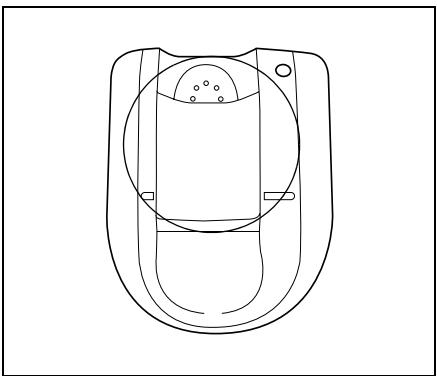
16.6 Specifications
| Specifications | ||
| Product name | Authentication unit (Biometric type) AU-101 | |
| Compatible finger width | 10mm to less than 25mm | |
| Interface | USB 2.0 | |
| Dimensions | Approx. 78mm (W) × 95mm (D) × 55mm (H) | |
| Weight | Approx. 150 g (not including the USB cable) | |
| Power consumption | DC 5 V, 500 mA | |
| Environment conditions (when operating) | Temperature | 50 to 86 °F (10 to 35 °C) |
| Humidity | 10 to 80 % (Must be no condensation) | |
| Environment conditions (when not operating) | Temperature | 14 to 140 °F (-10 to 60 °C) |
| Humidity | 10 to 80 % (Must be no condensation) | |
| Computer | Processor | PC/AT compatible, 1 GHz or more |
| Memory | 128 MB or more | |
| Hard disk drive | Available hard disk space: 100 MB or more | |
| Monitor | 800 × 600 pixels, 16-bit color or more | |
| Network | TCP/IP protocol | |
| Application | Microsoft Internet Explorer 6.0 (Service Pack 1) or later Microsoft .NET Framework (Service Pack 1) or later | |
| Interface | USB 1.1 or later | |
| Supported operating systems | Windows 2000 Professional (Service Pack 4) Windows XP Professional Edition (Service Pack 2) | |
16.7 Troubleshooting
If a problem occurs while running the system, refer to the following.
| Condition | Possible cause | Remedy |
| The USB cable is connected between this device and the machine, but the status indicator is not lit in green. | The USB port of the machine may be malfunctioning. | Turn the machine off with the power switch and temporarily disconnect the USB cable from this device or the machine before connecting it again and waiting 10 seconds before turning on the machine with the power switch. |
| The USB cable is connected between this device and the computer, but the status indicator is not lit in green. | The USB port of the computer may be malfunctioning. | Restart the computer. |
| Is the driver for this device correctly installed? | Refer to "Registering from Page-Scope Data Administrator", and check if the driver is correctly installed on the computer. (p. 16-10) | |
| A tone does not sound from the machine when scanning begins and when authentication is completed. | Has the tone setting on the machine been set to "OFF"? | Refer to "Registering users", and set the tone setting to "ON". (p. 16-7) |
| The message "Failed to Auth." appears on the machine. | With this device, the scanning time is limited for each scan. This message appears if scanning is not possible within the limited period of time. For details on the scanning time, consult with the technical representative. | Refer to "Positioning your finger" on page 16-5 and check how to position the finger for authentication and scanning in order to complete scanning within the limited period of time. Correctly position the finger to be scanned on the scanner, and do not move the finger until the scanning results are received. If the area of the finger to be scanned is dirty or chapped, a correct image cannot be created and scanning may not be completed. Wash your hands and try scanning again, or try to correct chapped fingers. If the area of the finger to be scanned is too wide or too thin (outside of the finger width range of 10mm to 25mm, a correct image cannot be created and scanning may not be completed. Try widening your finger or inserting it deeper or less deep into the scanner. |
| The message "Failed to read data. Place your finger once again and click the [Start reading] button." appears on a computer where registration failed. | With this device, the scanning time is limited to five seconds for each scan. This message appears if scanning is not possible within the five-second time period. | |
| Scanning does not begin. | Is the finger correctly positioned? | Refer to "Positioning your finger" on page 16-5 and check how to position the finger for authentication and scanning. Correctly position the finger to be scanned on the scanner, and do not move the finger until the scanning results are received. If the area of the finger to be scanned is dirty or chapped, a correct image cannot be created and scanning may not be completed. Wash your hands and try scanning again, or try to correct chapped fingers. If the area of the finger to be scanned is too wide or too thin (outside of the finger width range of 10mm to 35mm, a correct image cannot be created and scanning may not be completed. Try widening your finger or inserting it deeper or less deep into the scanner. |
| Was the machine restarted after this device was connected to it? | Turn the machine off with the power switch and temporarily disconnect the USB cable from this device or the machine before connecting it again and waiting 10 seconds before turning on the machine with the power switch. | |
| The Add New Hardware Wizard starts when this device is connected to the computer. | Is this device connected to the same USB port used when the driver was installed? | If this device is connected to a USB port different from the one used when the driver was installed, the Add New Hardware Wizard may start. Use the same USB port used when the driver was installed. |
If the problem is not corrected after the described operation is performed, contact your technical representative.
17
Authentication unit (IC card type AU-201)
17 Authentication unit (IC card type AU-201)
17.1 Safety information
17.1.1 Important information
When using the authentication unit (IC card type), observe the following precautions in addition to "Safety information" on page 2-3.
Authentication unit (IC card type) is optional. It is sold or permitted to use as it is.
- This product is designed, manufactured and intended for general business use. Do not use it for applications requiring high reliability and which may have an extreme impact on lives and property. (Applications requiring high reliability: Chemical plant management, medical equipment management and emergency communications management)
Use with other authentication devices is not guaranteed.
- In order to incorporate improvements in the product, the specifications concerning this product are subject to change without notice.
- Do not store the IC card within 1-1/2(40mm) of the card scanning area.
17.1.2 For safe use

CAUTION
When using the authentication unit (IC card type), observe the following precautions
Do not this product near water, otherwise it may be damaged.
Do not cut, damage, modify or forcefully bend the USB cable. A malfunction may occur as a result of a damaged or cut USB cable.
Do not disassembly this device, otherwise it may be damaged.
17.1.3 Regulation notices
USER INSTRUCTIONS FCC PART 15 - RADIO FREQUENCY DEVICES (For U.S.A. Users)
FCC: Declaration of Conformity
| Product Type | Authentication Unit (Biometric Type) |
| Product Name | AU-201 |
(This device complies with Part 15 of the FCC Rules.) Operation is subject to the following two conditions: (1) this device may not cause interference, and (2) this device must accept any interference, including interference that may cause undesired operation of this device.

Note
This equipment has been tested and found to comply with the limits for a Class B digital device, pursuant to Part 15 of the FCC Rules.
These limits are designed to provide reasonable protection against harmful interference in a residential installation. This equipment generates, uses and can radiate radio frequency energy and, if not installed and used in accordance with the instructions, may cause harmful interference to radio communications. However, there is no guarantee that interference will not occur in a particular installation. If this equipment does cause harmful interference to radio or television reception, which can be determined by turning the equipment off and on, the user is encouraged to try to correct the interface by one or more of the following measures:
Reorient or relocate the receiving antenna.
Increase the separation between the equipment and receiver.
Connect the equipment into an outlet on a circuit different from that to which the receiver is connected.
Consult the dealer or an experienced radio/TV technician for help

WARNING
The design and production of this unit conform to FCC regulations, and any changes or modifications must be registered with the FCC and are subject to FCC control.
Any changes made by the purchaser or user without first contacting the manufacturer will be subject to penalty under FCC regulations.
INTERFERENCE-CAUSING EQUIPMENT STANDARD (ICES- 003 ISSUE 4) (For Canada Users)
(This device complies with RSS-Gen of IC Rules.) Operation is subject to the following two conditions: (1) this device may not cause interference, and (2) this device must accept any interference, including interference that may cause undesired operation of this device.
This Class B digital apparatus complies with Canadian ICES-003.
17.2 Product features
This device is an IC card authentication system that performs user authentication by IC cards. Print job operations can be authenticated with IC cards when using machines with user authentication settings specified.
17.3 Part names and their functions
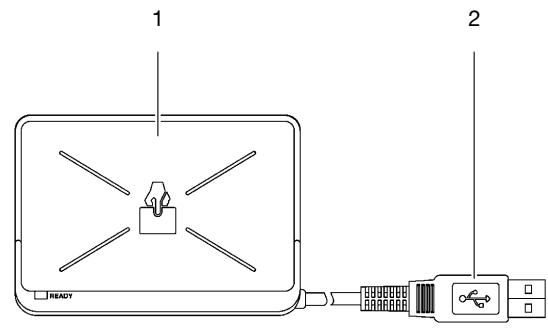
| No. | Part name | Description |
| 1 | Card scanning area | Position the IC card on this area. |
| 2 | USB cable | Used for connecting this device to the machine. |
17.4 Using authentication unit (IC card type) AU-201
In order to use this device, user IC card IDs must first be registered with the machine. A registered user can print a print job after completing authentication with their IC card IDs. The following procedures describe how to specify the necessary settings on the machine and register users.

Reminder
Do not disconnect the USB cable while this device is being used, otherwise the system may become unstable.
17.4.1 Positioning the IC card
Place the IC card horizontally on the card scanning area.

Reminder
Do not store the IC card within 40mm of the card scanning area.
17.4.2 Multifunctional product settings
To use the authentication unit (IC card type), an optional HDD and local interface kit must be installed.
1 From the "Main Menu" on the control panel, display the Admin. Settings screen.
- For details on displaying the Admin. Settings screen, refer to "Operations for changing numeric values" on page 10-5.
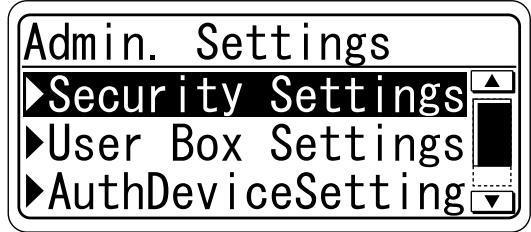
2 From the Auth Device Setting screen, select [Card Auth. Setting], and then press the [Menu/Select] key.
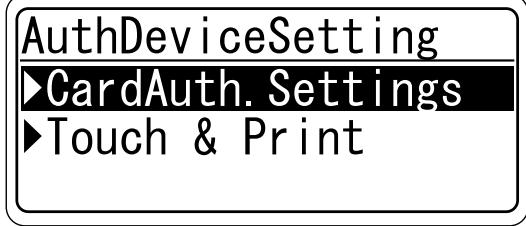
3 Specify the settings for "IC Card Type" and "Operation Setting".
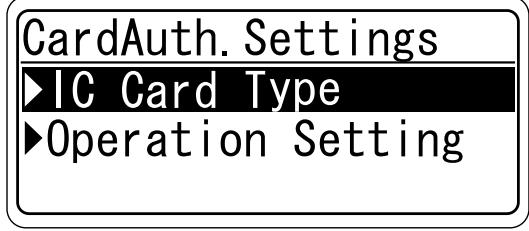
- For "IC Card Type", specify the IC card type to be used.
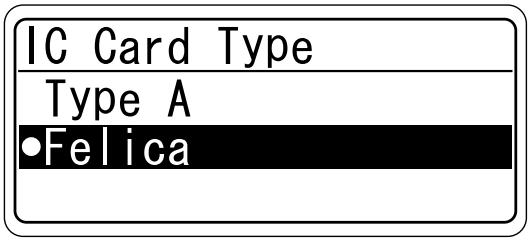
- For "Operation Setting", specify the print method after registration.
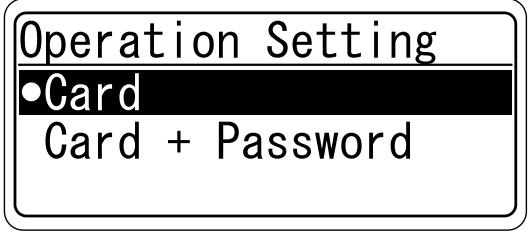
Card: Documents can be printed by specifying the user name and password in the printer driver, and placing the card on the authentication unit.
Card + Password: Documents can be printed if the specified user name and password in the printer driver are correct. If "Card + Password" is selected, the Touch & Print function cannot be used.
4 Press the [key twice.
The Auth Device Setting screen appears again.
5 Select [Touch & Print], and then press the [Menu/Select] key.
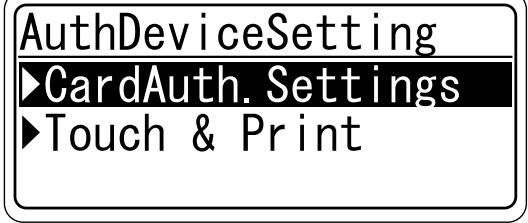
6 Specify the settings for "Touch & Print User Box" and "Print".
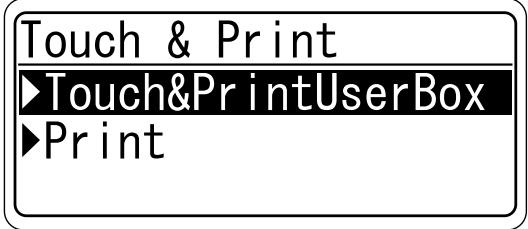
- If "OFF" is selected for "Touch & Print User Box", the Touch & Print function cannot be used.
- If "ON" is selected for "Touch & Print User Box", "Card + Password" cannot be selected.
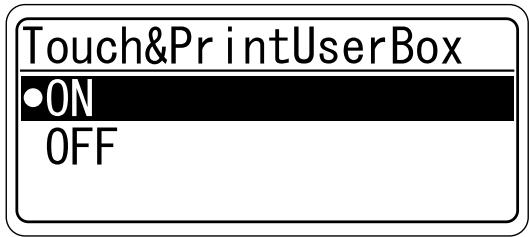
- For "Print", specify the printing method for the Touch & Print function.
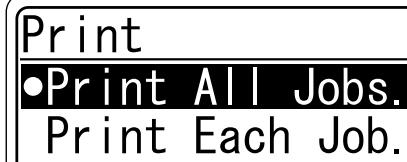
Print All Jobs::Select this setting to print all documents after completed authentication once when multiple documents are saved in the Touch & Print user box.
Print Each Job.:Select this setting to print one document saved in the Touch & Print user box each time authentication is completed.
17.4.3 Registering users
To register users, connect this machine to a computer, and use PageScope Data Administrator.

Detail
Registered user data is stored on the hard disk of the machine. If the user authentication method on the machine is changed or the hard disk is reformatted, the registered user data is erased.

.
Note
In order to use PageScope Data Administrator, settings must be specified on the machine and the setup procedure must be performed. The setup procedure includes installing this device's IC Card Driver (USB-Driver), then installing PageScope Data Administrator IC Card Plugin.

#
Reminder
PageScope Data Administrator ver. 3.0 or later must first be installed on the computer. For details on the operating environment and installation procedure for PageScope Data Administrator, refer to the user manual for the PageScope Data Administrator.
Setup
1 Turn off the machine with the power switch, and then disconnect this device from the machine.
2 Install IC Card Driver (USB-Driver).
Plug the cable from this device into the USB port on the computer.
The Found New Hardware Wizard starts.
3 Select "Yes, now and every time I connect a device", and then click [Next].
4 Insert the application DVD included with this device into the DVD drive of the computer.
5 Select "Install from a list or specific location (Advanced)", and then click [Next].
6 Select the "Include this location in the search" check box, check that the application DVD appears as a location to be searched, and then click [Next].
- If the application DVD does not appear as a location to be searched for the driver, click [Browse], select the IC Card Driver (USB-Driver) folder on the DVD, and then click [OK].
The installation begins.
7 Click [Finish].
The installation of IC Card Driver (USB-Driver) is completed.
8 Install PageScope Data Administrator IC Card Plugin.
Open the IC_Card~,Plugin folder on the application DVD, and then click "setup.exe".
9 Select the language, and then click [OK].
The installer starts up.
10 Follow the instructions that appear on the screen to complete the installation.
11 Click [Next].
12 Select "I accept the terms of the license agreement", and then click [Next].
13 Click [Install].
14 Click [Finish].
Data Administrator IC Card Plugin is installed, and the setup is completed.
Registering users

Detail
In order to register users with PageScope Data Administrator, this device must be connected to the USB port of the computer, and the computer and machine must be connected over a network.
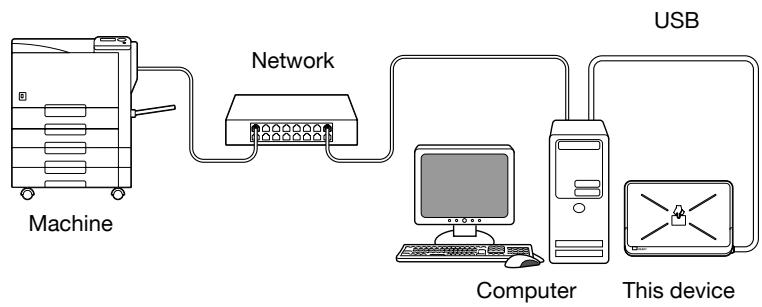

Note
When the machine is turned off, then on again with the power switch, wait at least 10 seconds to turn the machine on after turning it off. The machine may not operate correctly if it is turned on immediately after being turned off.
Hold the plug when plugging and unplugging the USB cable, otherwise the cable may be damaged.

Reminder
Do not connect other USB devices to the same port where this device is connected. If enough USB power is not provided, this device may not operate correctly.
When using a USB hub, be sure to use a self-powered USB hub that can provide 500 mA or more.
After connecting this device, wait at least 5 seconds before operating it.
If this device is connected to the machine, turn off the machine with the power switch, and then disconnect this device.
- If this device is connected to the computer, continue with step 4.
2 Turn on the machine with the power switch.
3 Connect this device to the USB port of the computer installed with PageScope Data Administrator.
4 Start up PageScope Data Administrator, and then import the device information for the machine.
- For details on importing the device information, refer to the user manual for PageScope Data Administrator.
The Device information pane appears.
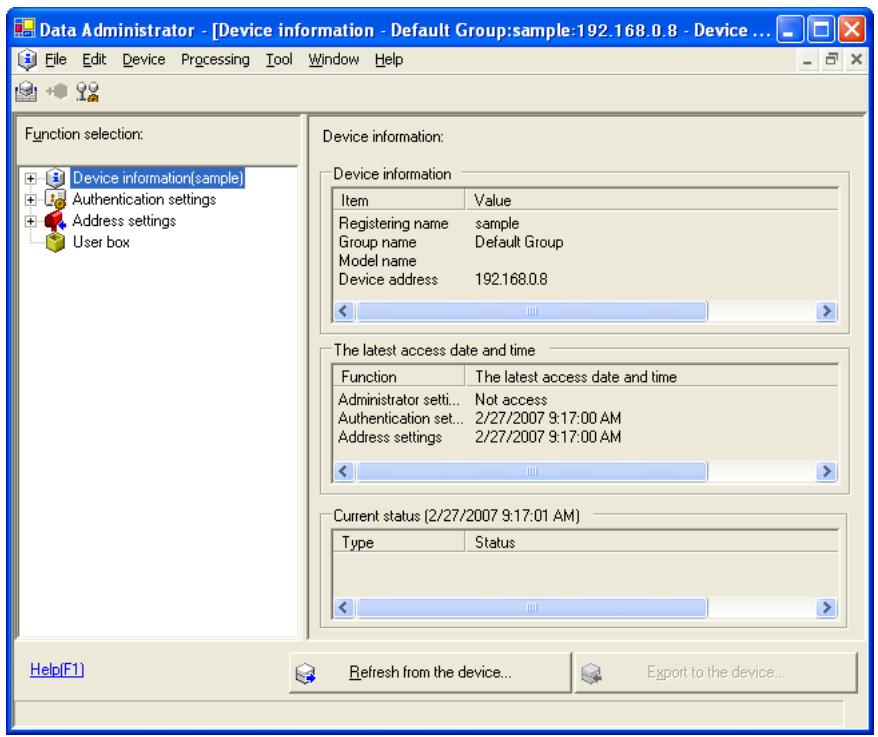
5 Select "User authentication settings" in the Function selection pane, and then click [Add].
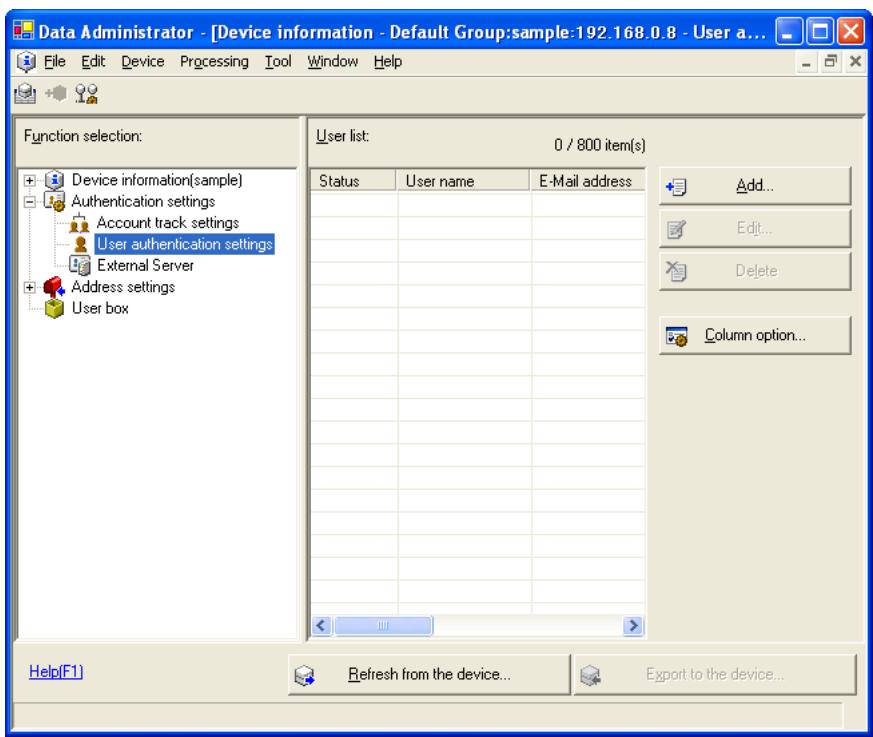
6 Select a template, and then click [OK].
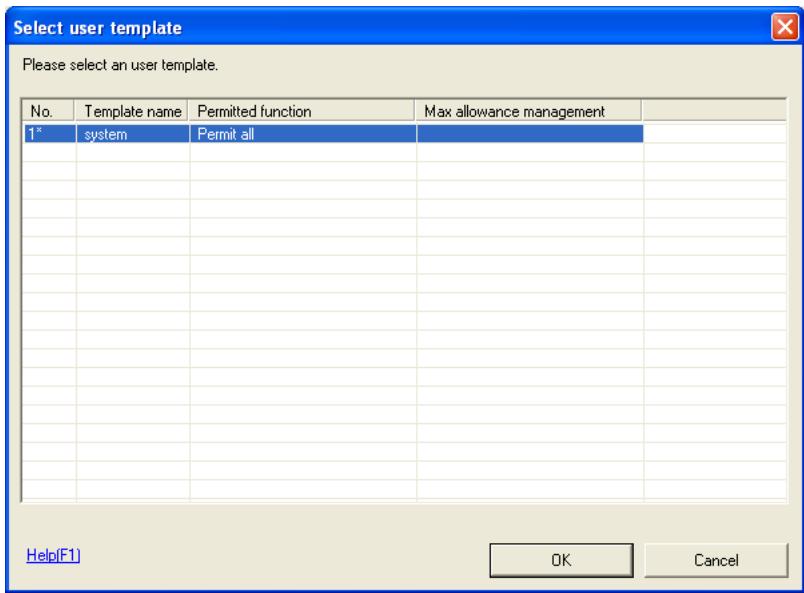
The User settings dialog box appears.
7 Type in the user name and password, and then click the IC card authentication tab. If desired, type in the e-mail address.
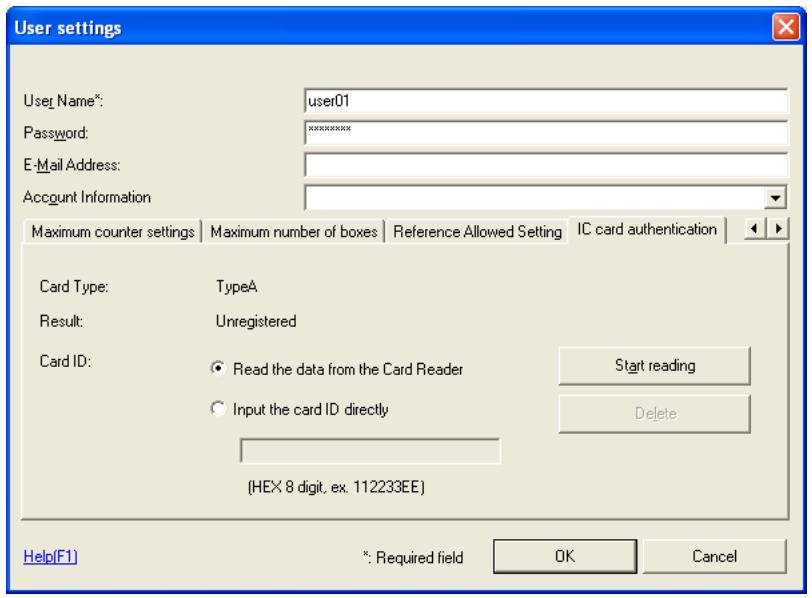
8 Position the IC card on this device, and then click [Start reading].
- The card ID can also be registered by selecting "Input the card ID directly".
9 Click [OK].
- Repeat steps 5 through 9 until all users have been registered.
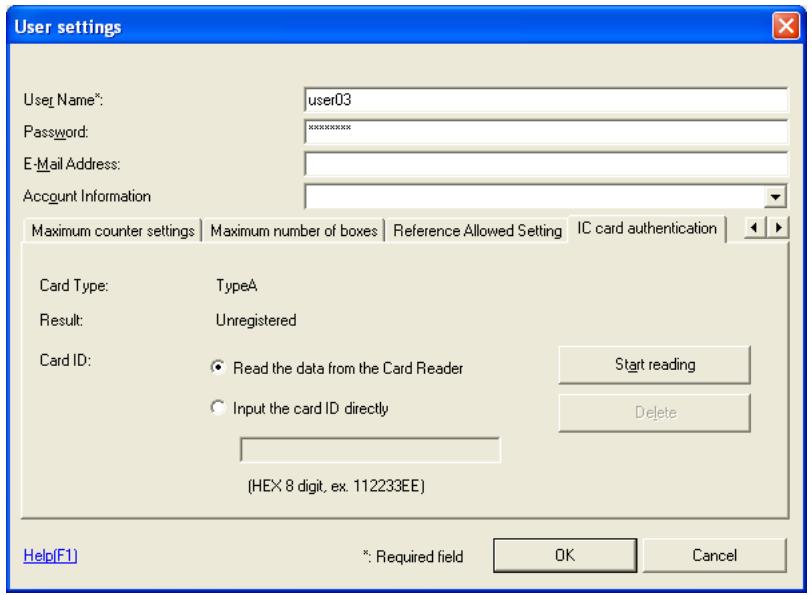
10 Click [Export to the device].
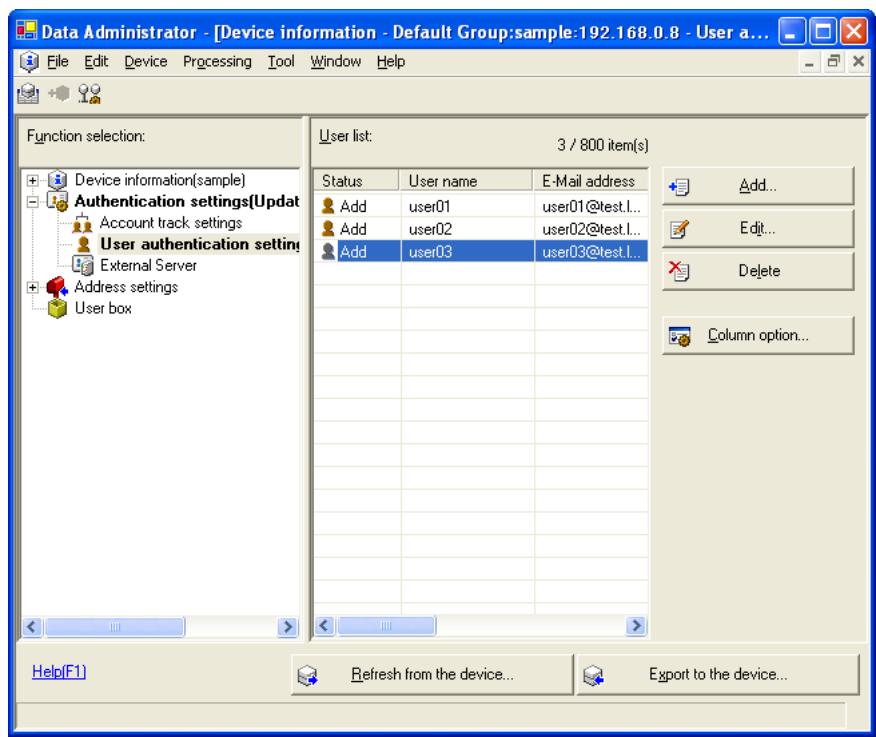
- To change the registered data, select the user name, and then click [Edit].
11 Click [Write].
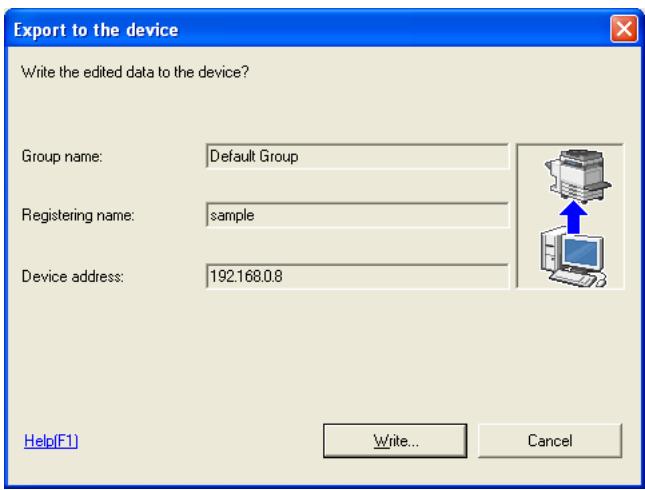
The registered user data is specified on the machine.
12 Click [OK].
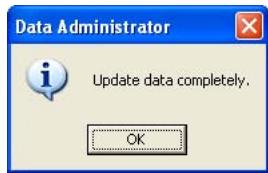
13 Disconnect this device from this USB port of the computer.
14 Turn off the machine with the power switch, connect this device, and then turn on the machine with the power switch.

Detail
PageScope Data Administrator is equipped with a batch copy feature that allows the registered user data to be specified on multiple machines specified to be used with this device.

#
Note
When the machine is turned off, then on again with the power switch, wait at least 10 seconds to turn the machine on after turning it off. The machine may not operate correctly if it is turned on immediately after being turned off.
Hold the plug when plugging and unplugging the USB cable, otherwise the cable may be damaged.
17.5 Care of authentication unit (IC card type) AU-201

Reminder
Before cleaning this device, disconnect it from the machine. If a force is applied to the USB port, it may be damaged.
When cleaning this device, do not allow water to enter the device, otherwise the system may be damaged.
Never use organic solvents, such as benzene or alcohol, to clean this device, otherwise it may be damaged.

Note
When disconnecting or connecting this device, turn off the machine with the power switch, and then wait at least 10 seconds before turning it on again. The machine may not operate correctly if it is turned on immediately after being turned off.
Hold the plug when plugging and unplugging the USB cable, otherwise the cable may be damaged.
Frequency: Once a month, or when it is dirty
Wipe this device with a soft, dry cloth. If this device cannot be cleaned by wiping it, wash it with a cloth dampened with a mild detergent and wrung out well. After this device is cleaned, rinse the cloth and wring it out well before wiping off the detergent.
17.6 Specifications
| Specifications | ||
| Product name | Authentication unit (IC card type) AU-201 | |
| Dimensions | Approx. 92mm (W) × 64mm (D) × 16mm (H) | |
| Weight | Approx. 120 g | |
| Power requirements | Through USB port | |
| Environment conditions (when operating) | Temperature | 32 to 104 °F (0 to 40 °C) |
| Humidity | 20 to 85% (Must be no condensation) | |
| Environment conditions (when not operating) | Temperature | -4 to 122 °F (-20 to 50 °C) |
| Humidity | 20 to 85% (Must be no condensation) | |
| Radio waves classification | Induced reading/writing communication equipment | |
| Compatible card | Contactless IC card compliant with ISO 14443 Type A and Felica | |
| Computer | Processor | PC/AT compatible, 1 GHz or more |
| Memory | 128 MB or more | |
| Hard disk drive | Available hard disk space: 100 MB or more | |
| Monitor | 800 × 600 pixels, 16-bit color or more | |
| Network | TCP/IP protocol | |
| Application | Microsoft Internet Explorer 6.0 (Service Pack 1) or later Microsoft .NET Framework (Service Pack 1) or later | |
| Interface | USB 1.1 or later | |
| Supported operating systems | Windows 2000 Professional (Service Pack 4) Windows XP Professional Edition (Service Pack 2) | |
17.7 Troubleshooting
If a problem occurs while running the system, refer to the following.
| Condition | Possible cause | Remedy |
| The message appears on a computer where registration failed. | With this device, the scanning time is limited to 10 seconds. This message appears if scanning was not possible within the limited period of time. | Refer to "Positioning the IC card" on page 17-5 and check how to position the IC card in order to complete scanning within the limited period of time. |
| The message "Failed to Auth." appears on the machine. | If "Card Authentication + Password" was selected: Is the password typed in correctly? | Check the password, and type it in correctly. |
| Scanning does not begin. | Was the machine restarted after this device was connected to it? | Turn the machine off with the power switch and temporarily disconnect the USB cable from this device or the machine before connecting it again and waiting 10 seconds before turning on the multifunctional product with the power switch. |
| The Add New Hardware Wizard starts when this device is connected to the computer. | Is this device connected to the same USB port used when the driver was installed? | If this device is connected to a USB port different from the one used when the driver was installed, the Add New Hardware Wizard may start. Use the same USB port used when the driver was installed. |
If the problem is not corrected after the described operation is performed, contact your technical representative.
18
Appendix
18 Appendix
18.1 Configuration page
KONICA MINOLTA C353P
Configuration Page
Print Operation Menu Map
Basic Setting
Default Paper Size = A4
Paper Tray = Auto
Output Tray = Tray 1
Binding Position Left Binding
Double-Sided = Off
Staple = Off
Hole-Punch = Of
Orientation = Portrait
of Sets 1
No Matching Paper in Tray Setting
= Stop Printing (Tray Fixed)
Spool Setting = On
Convert = Off
PDL Setting = Auto
Banner Setting = Disable
Banner Paper Tray = Auto
PCL Setting
Font Source
Font Number = 0
Font Point = 12.00
Font Pitch = 10.00
Symbol Set PC-8,Code Page 437
Line/Page = 64 [Line / Page]
CR/LF Mapping = Off
PS Setting
Print Reports = Disable
Text RGB Source
Text Destination Profile = Auto
Image RGB Source = 4
Image Destination Profile = Auto
Graphics RGB Source = 4
Graphics Destination Profile = Auto
Simulation Profile = None
XPS Settings
Verify XPS Digital Signature = Enable
Test Print
Configuration
PCL Font List
PS Font List
Demo Page
I/F Setting
Network Rx Timeout = 60 [sec.]
USB Timeout = 60 [sec.]
Print XPS Errors = Enable
Installed
Printer HDD = Installed
Printer Memory = 320 [MByte]
Printer Information
Installed Tray
Tray 1 = A4
Tray 2 = A3
Tray 3 = A4
Tray 4 None
LCT = None
Option
Duplex Unit = Installed
Finisher = Available
Punch Unit = Available
Fold Unit = Available
Fax Unit = Not Ava
Mailbin Unit = Not Available
Firmware Version
Printer Controller = A02E0Y0-3000-G00-15
Network
MAC Address
MAC Address = 00:20:6B:5C:A4:77
TCP/IP
TCP/IP = Enable
IP Address = 150.16.154.48
Subnet Mask = 255.255.255.0
Default Gateway = 150.16.154.1
RAW Port 0 =9100
RAW Port 1 = 9112
RAW Port 2 = 9113
RAW Port 3 =9114
RAW Port 4 =9115
RAW Port 5 = 9116
Netware
Netware = Disable
Appletalk
Appletalk = Enable
SMB
SMB = Enable
18.2 Font list
18.2.1 PCL Font List
KONICA MINOLTA C353P
| PCL Font List Resident Fonts | |||
| Font | Pitch/Point | Escape Sequence | Font # Font ID |
| Courier | Scalable | <esc>(01X<esc>(s0p10h0s0b4099T | 00000 |
| CG Times | Scalable | <esc>(01X<esc>(slp12v0s0b4101T | 00001 |
| CG Times Bold | Scalable | <esc>(01X<esc>(slp12v0s3b4101T | 00002 |
| CG Times Italic | Scalable | <esc>(01X<esc>(slp12v1s0b4101T | 00003 |
| CG Times Bold Italic | Scalable | <esc>(01X<esc>(slp12v1s3b4101T | 00004 |
| CG Omega | Scalable | <esc>(01X<esc>(slp12v0s0b4113T | 00005 |
| CG Omega Bold | Scalable | <esc>(01X<esc>(slp12v0s3b4113T | 00006 |
| CG Omega Italic | Scalable | <esc>(01X<esc>(slp12v1s0b4113T | 00007 |
| CG Omega Bold Italic | Scalable | <esc>(01X<esc>(slp12v1s3b4113T | 00008 |
| Coronet | Scalable | <esc>(01X<esc>(slp12v1s0b4116T | 00009 |
| Clarendon Condensed | Scalable | <esc>(01X<esc>(slp12v4s3b4140T | 00010 |
| Univers Medium | Scalable | <esc>(01X<esc>(slp12v0s0b4148T | 00011 |
| Univers Bold | Scalable | <esc>(01X<esc>(slp12v0s3b4148T | 00012 |
| Univers Medium Italic | Scalable | <esc>(01X<esc>(slp12v1s0b4148T | 00013 |
| Univers Bold Italic | Scalable | <esc>(01X<esc>(slp12v1s3b4148T | 00014 |
| Univers Condensed Medium | Scalable | <esc>(01X<esc>(slp12v4s0b4148T | 00015 |
| Univers Condensed Bold | Scalable | <esc>(01X<esc>(slp12v4s3b4148T | 00016 |
| Univers Condensed Medium Italic | Scalable | <esc>(01X<esc>(slp12v5s0b4148T | 00017 |
| Univers Condensed Bold Italic | Scalable | <esc>(01X<esc>(slp12v5s3b4148T | 00018 |
| Antique Olive | Scalable | <esc>(01X<esc>(slp12v0s0b4168T | 00019 |
| Antique Olive Bold | Scalable | <esc>(01X<esc>(slp12v0s3b4168T | 00020 |
| Antique Olive Italic | Scalable | <esc>(01X<esc>(slp12v1s0b4168T | 00021 |
| Garamond Antiqua | Scalable | <esc>(01X<esc>(slp12v0s0b4197T | 00022 |
| Garamond Halbfett | Scalable | <esc>(01X<esc>(slp12v0s3b4197T | 00023 |
| Garamond Kursiv | Scalable | <esc>(01X<esc>(slp12v1s0b4197T | 00024 |
18.2.2 PS Font List
KONICA MINOLTA C353P
PS Font List
P.1
Resident Fonts
| Font | Color | Font # |
| Albertus MT | AlbertusMT | 00000 |
| Albertus MT Italic | AlbertusMT-Italic | 00001 |
| Albertus MT Light | AlbertusMT-Light | 00002 |
| Antique Olive Roman | AntiqueOlive-Roman | 00003 |
| Antique Olive Italic | AntiqueOlive-Italic | 00004 |
| Antique Olive Bold | AntiqueOlive-Bold | 00005 |
| Antique Olive Compact | AntiqueOlive-Compact | 00006 |
| Apple Chancery | Apple-Chancery | 00007 |
| Arial | ArialMT | 00008 |
| Arial Italic | Arial-ItalicMT | 00009 |
| Arial Bold | Arial-BoldMT | 00010 |
| Arial Bold Italic | Arial-BoldItalicMT | 00011 |
| TC Avant Garde Gothic Book | AvantGarde-Book | 00012 |
| TC Avant Garde Gothic Book Oblique | AvantGarde-BookOblique | 00013 |
| TC Avant Garde Gothic Demi | AvantGarde-Demi | 00014 |
| TC Avant Garde Gothic Demi Oblique | AvantGarde-DemiOblique | 00015 |
| Bodoni Roman | Bodoni | 00016 |
| Bodoni Italic | Bodoni-Italic | 00017 |
| Bodoni Bold | Bodoni-Bold | 00018 |
| Bodoni Bold Italic | Bodoni-BoldItalic | 00019 |
| Bodoni Poster | Bodoni-Poster | 00020 |
| Bodoni Poster Compressed | Bodoni-PosterCompressed | 00021 |
| TC Bookman Light | Bookman-Light | 00022 |
| TC Bookman Light Italic | Bookman-LightItalic | 00023 |
| TC Bookman Demi | Bookman-Demi | 00024 |
| TC Bookman Demi Italic | Bookman-Demiltalic | 00025 |
| Chicago | Carta | 00026 |
| Clarendon Roman | Clarendon | 00027 |
| Clarendon Bold | Clarendon-Bold | 00028 |
18.2.3 Demo page
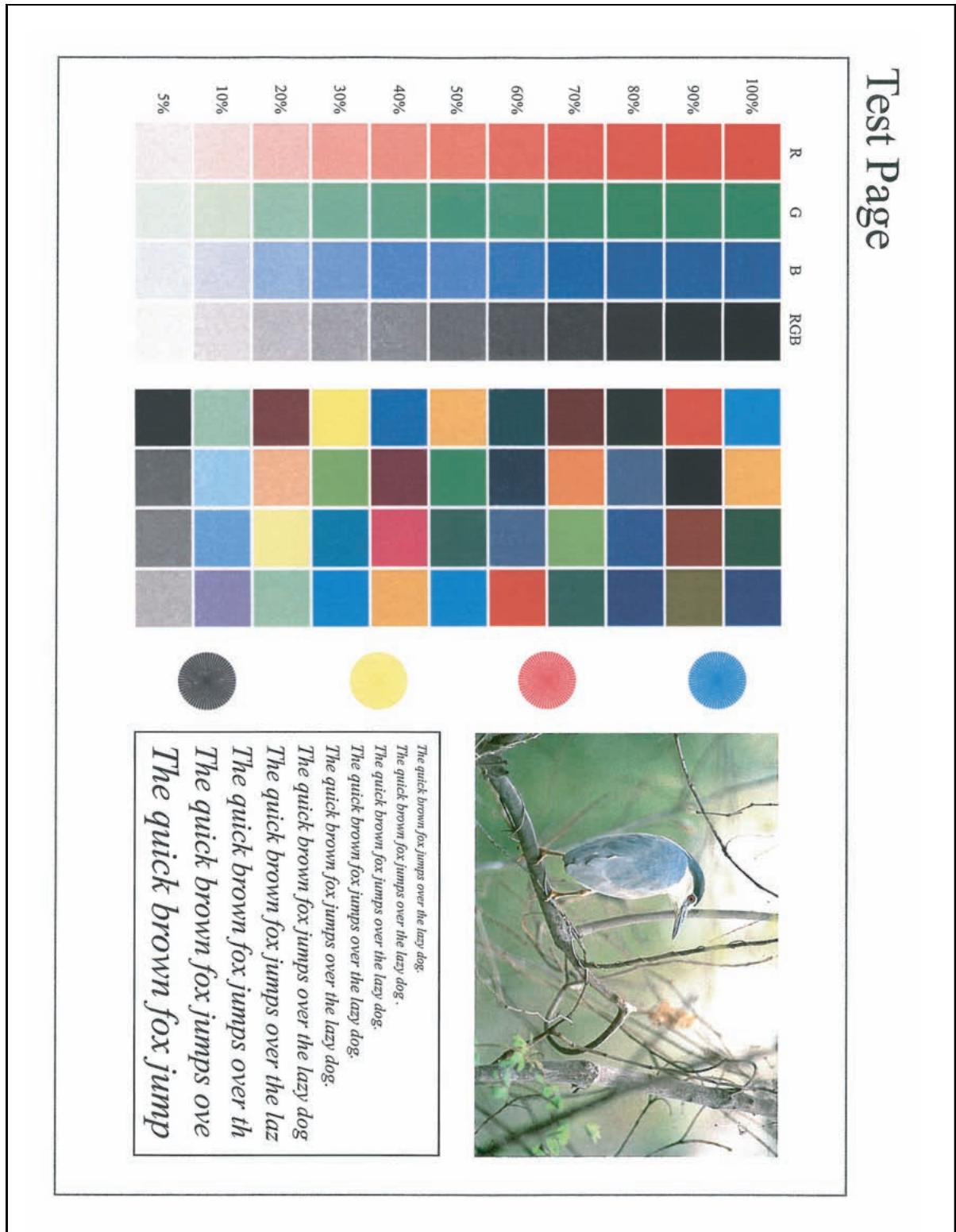
18.3 PPD driver (for Linux and applications)
18.3.1 PPD driver types
The PPD driver contains the PPD information for Mac OS 9, Linux, and applications.
Driver for Linux: Install for use with Linux (Contains PPD for Linux and PPD for OpenOffice)
Driver for applications: Install the driver when using applications such as Adobe PageMaker that require the PPD driver.
18.3.2 About the PPD driver for Linux
Operating environment
Supported operating systems: Red Hat Linux 9/SuSE Linux 8.2
Supported PostScript level: 3.0
CUPS: 1.1.17
To register the PPD driver for Linux
1 Copy the PPD file to the CUPS model directory. (/usr/share/cups/model when mainly Linux)
2 In CUPS Printing System, click the [Add Printer] button, and then specify PPD to add this machine.

Note
For details on CUPS, click the [Help] button in the CUPS Web management page.
To set up the PPD driver for Linux
Specify the functions by clicking the [Configure Printer] button in CUPS Printing System.
To register the PPD driver for OpenOffice
1 In CUPS Printing System, click the [Add Printer] button, and then specify PPD to add this machine.
2 Open the OpenOffice Printer Administrator tool.
3 Click the [New Printer] button.
4 In the Choose a device type dialog box, select "Add a printer", and then click the [Next] button.
5 In the Choose a driver dialog box, click the [Import] button.
6 Select "KONICA MINOLTA C353 OpenOffice PPD", and then click the[OK] button.
7 From the "Please Select a Suitable driver." list, select "KONICA MINOLTA C353 OpenOffice PPD", and then click the [Next] button.
8 In the Choose a command line dialog box, select the printer that was added to CUPS, and then click the [Next] button.
9 Click the [Finish] button.
To print with OpenOffice
1 From the [File] menu in OpenOffice, select "Print".
2 Select "KONICA MINOLTA C353 OpenOfficePPD" in "Printer name".
3 Click the [Properties] button.
4 Select the desired setting from the "Page size" drop-down list, and then click the [OK] button. To specify settings other than the page size, click the [Configure Printer] button in CUPS Printing System.
5 To print, click the [OK] button in the OpenOffice print dialog box.
18.3.3 About the PPD driver for applications
PPD registration destination (example: Adobe PageMaker)
For PageMaker 6.0
Copy the PPD file to RSR\CPPD4, which is under the folder to which PageMaker is installed.
For PageMaker 6.5/7.0
Copy the PPD file to RSRC\
To print
1 Select [File], then [Print].
2 From the "Model" box in the print dialog box, select this machine.
3 Specify "Paper Setting" or "Features" for the printer.
4 To print, click the [Print] button.
18.4 NetWare
18.4.1 Connection methods selectable for NetWare
The following protocols are available for NetWare.
| NetWare version | Protocol used | Connection method |
| NetWare 4.x | IPX | Bindery Pserver Nprinter/Rprinter |
| NetWare 5.x | IPX | NDS Pserver Nprinter/Rprinter |
| TCP/IP | NDPS | |
| NetWare 6.x | IPX | NDS Pserver |
| TCP/IP | NDPS |

Note
For details on the NetWare functions, refer to the NetWare operation manual of the NetWare.
Before using this machine in a NetWare environment, the network settings must be specified for this machine. For details, refer to "NetWare Setting" on page 18-9.
18.4.2 NetWare Setting
Specify settings for printing in a NetWare environment. Before printing in the NetWare environment, settings for using this machine in the NetWare environment must be specified.
In Administrator mode of PageScope Web Connection, select the Network tab - "NetWare Setting" - "NetWare Setting".
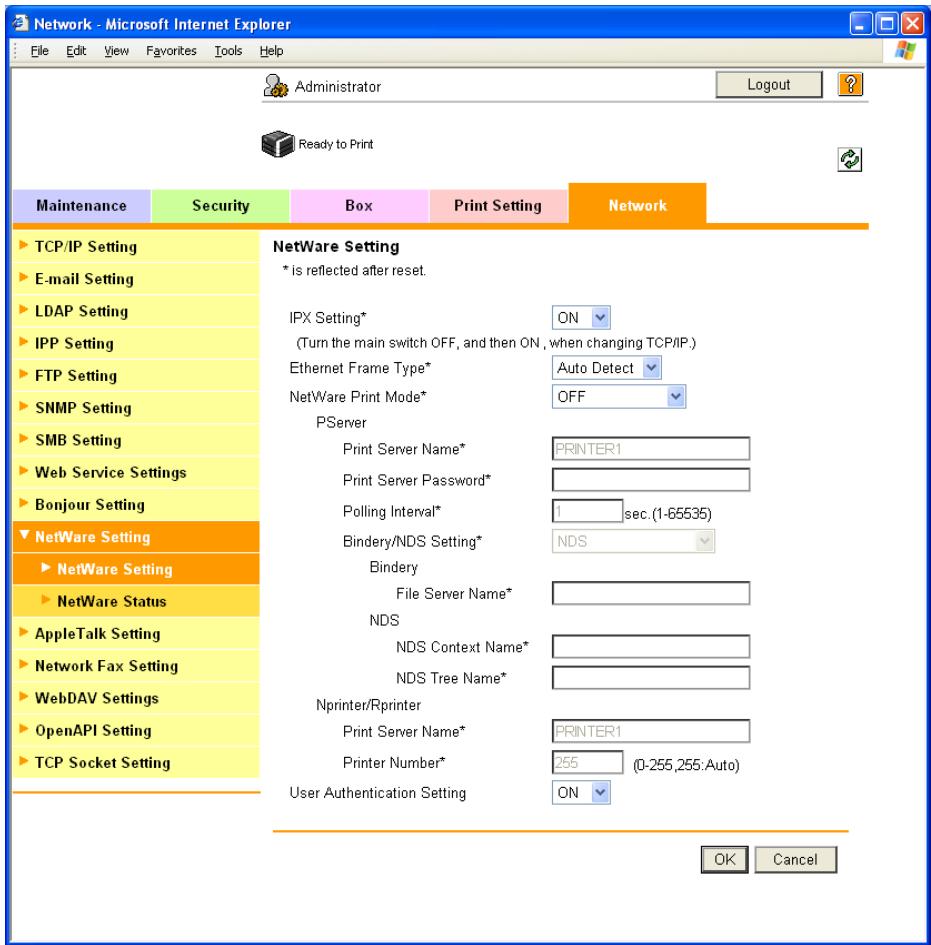
Settings are different depending on the environment used. Specify the settings according to the following procedures.
For Remote Printer mode with NetWare 4.x bindery emulation
Before using bindery emulation, check that bindery emulation is compatible with the NetWare server.
1 From a client computer, log in to NetWare with the Administrator permission as Bindery.
2 Start up Pconsole.
3 From the "Available Options" list, select "Quick Setup", and then press the [Enter] key.
4 Enter the appropriate names in the "Print Server Name", "Printer Name", and "Print Queue Name" fields, select "Other/Unknown" from the "Printer type" field, and then save the specified settings.
5 Press the [Esc] key to quit Pconsole.
6 Use the NetWare server console to load PSERVER.NLM.
Next, specify the following settings for "NetWare Setting".
| Item | Definition | Prior confirmation |
| IPX Setting* | Select "ON". | |
| Ethernet Frame Type* | Specify the frame type to be used. | Frame type |
| NetWare Print Mode* | Select "NPrinter/R printer". | |
| Print Server Name* | Specify the printer server name to allow it to serve as Nprint- er/R printer (up to 63 characters). | Print server name regis- tered in step 4 |
| Printer Number* | Enter the Nprinter/R printer printer number. |
For the print server mode with NetWare 4.x bindery emulation
Before using bindery emulation, check that bindery emulation is compatible with the NetWare server.
To use the printer server mode, the IPX protocol must be loaded on the NetWare server.
1 From a client computer, log in to NetWare with the Administrator permission as Bindery.
2 Start up Pconsole.
3 From the "Available Options" list, select "Quick Setup", and then press the [Enter] key.
4 Enter the appropriate names in the "Print Server Name", "Printer Name", and "Print Queue Name" fields, select "Other/Unknown" from the "Printer type" field, and then save the specified settings.
5 Press the [Esc] key to quit Pconsole.
Next,specify the following settings for "NetWare Setting".
| Item | Definition | Prior confirmation |
| IPX Setting* | Select "ON". | |
| Ethernet Frame Type* | Specify the frame type to be used. | Frame type |
| NetWare Print Mode* | Select "PServer". | |
| Print Server Name* | Specify the printer server name to allow it to serve as Pserver (up to 63 characters). | Print server name registered in step 4 |
| Print Server Password* | If necessary, specify the password for the printer server (up to 63 characters). | |
| Polling Interval* | Specify an interval to make queries for jobs. | |
| Bindery/NDS Setting | Select "NDS/Bindery". | |
| File Server Name | Specify the priority file server name for Bindery mode (up to 47 characters). |
For NetWare 4.x Remote Printer mode (NDS)
1 Log in to NetWare as an administrator from a client computer.
2 Start up NWadmin.
3 Select either the organization or organizational unit container that offers the print service, and then click "Print Services Quick Setup" on the "Tools" menu.
4 Enter the appropriate names in the "Print Server Name", "Printer Name", "Print Queue Name", and "Print Queue Volume" fields, select "Other/Unknown" from the "Printer type" field, and then save the specified settings.
5 Use the NetWare server console to load PSERVER.NLM.
Next, specify the following settings for "NetWare Setting".
| Item | Definition | Prior confirmation |
| IPX Setting* | Select "ON". | |
| Ethernet Frame Type* | Specify the frame type to be used. | Frame type |
| NetWare Print Mode* | Select "NPrinter/R printer". | |
| Print Server Name* | Specify the printer server name to allow it to serve as Nprint- er/R printer (up to 63 characters). | Print server name regis- tered in step 4 |
| Printer Number* | Enter the Nprinter/R printer printer number. |
For NetWare 4.x/5.x/6 Print Server mode (NDS)
To use the printer server mode, the IPX protocol must be loaded on the NetWare server.
1 Log in to NetWare as an administrator from a client computer.
2 Start up NWadmin.
3 Select either the organization or organizational unit container that offers the print service, and then click "Print Services Quick Setup (non-NDPS)" on the "Tools" menu.
4 Enter the appropriate names in the "Print Server Name", "Printer Name", "Print Queue Name", and "Print Queue Volume" fields, select "Other/Unknown" from the "Printer type" field, and then click [Create].
Next, specify the following settings for "NetWare Setting".
| Item | Definition | Prior confirmation |
| IPX Setting* | Select "ON". | |
| Ethernet Frame Type* | Specify the frame type to be used. | Frame type |
| NetWare Print Mode* | Select "PServer". | |
| Print Server Name* | Specify the printer server name to allow it to serve as PServ-er (up to 63 characters). | Print server name regis-tered in step 4 |
| Print Server Password* | If necessary, specify the password for the printer server (up to 63 characters). | |
| Polling Interval* | Specify an interval to make queries for jobs. | |
| Bindery/NDS Setting | Select "NDS". | |
| NDS Context Name | Specify the NDS context name connected with the print server (up to 191 characters). | |
| NDS Tree Name | Specify the NDS tree name connected with the printer server (up to 63 characters). |
For NetWare 5.x/6 Novell Distributed Print Service (NDPS)
Before specifying settings for NDPS, check that the NDPS broker and NDPS manager have been created and loaded.
Also, check that the TCP/IP protocol is specified in the NetWare server, the IP address is specified for this machine, then this machine is running.
1 Log in to NetWare as an administrator from a client computer.
2 Start up NWadmin.
3 Right -click "Organization" or "Organizational unit" container where a printer agent is created, and then select "NDPS Printer" on the "Create" submenu.
4 In the "NDPS Printer Name" box, enter the "printer name".
In the "Printer Agent Source" column, select "Create a New Printer Agent", and then click "Create".
6 Check the printer agent name, and then in the "NDPS Manager Name" box, browse through the NDPS manager names, and register it.
7 In "Gateway Types", select "Novell Printer Gateway", and then register it.
In the "Configure Novell DPS for Printer Agent" window, select "(None)" for the printer type and "Novell Port Handler" for the port handler type, and then register the settings.
9 In "Connection type", select "Remote (LPR on IP)", and then register it.
10 Enter the IP address set for this machine as the host address, enter "Print" as the printer name, and then click the "Finish" button to register the settings.
11 The printer driver registration screen appears. Select "None" for each operating system to complete the registration.
18.4.3 NetWare Status
In Administrator mode of PageScope Web Connection, select the Network tab - "NetWare Setting" - "NetWare Status".
- NetWare connection status can be checked, if necessary.
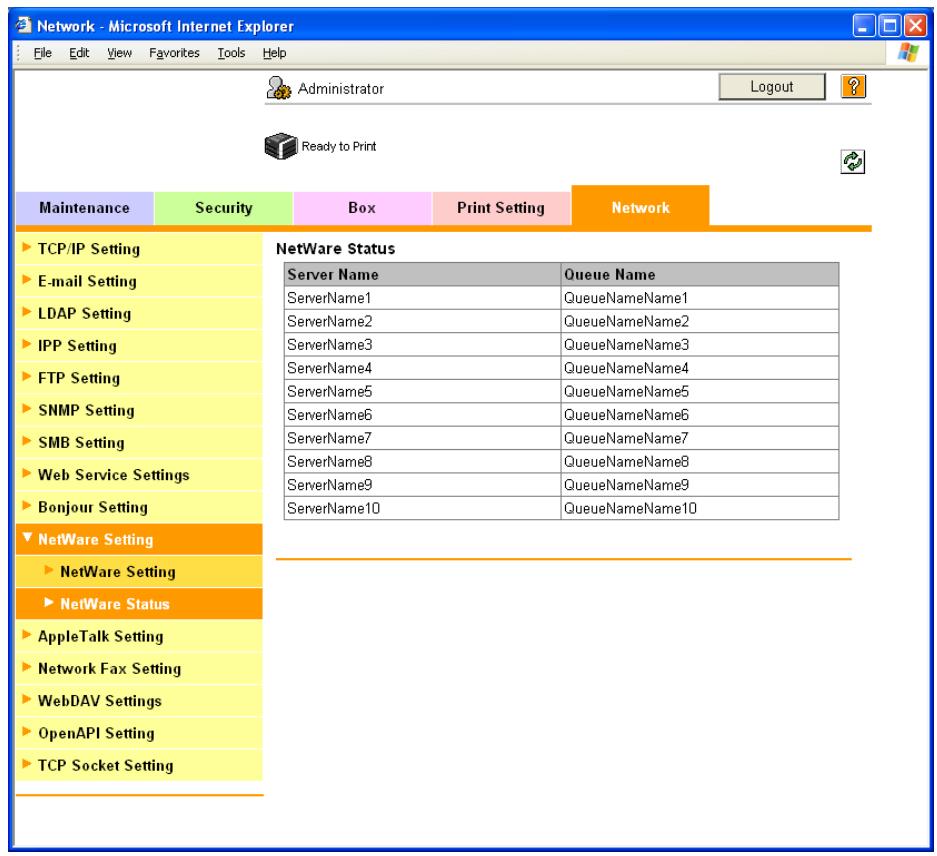
18.4.4 Windows Client Setting
Install the printer driver using the Add Printer Wizard for an Window client who uses a printer.

Reminder
When installing on NT4.0/2000/XP/Vista/Server 2003, administrator permissions are required.
1 Insert the printer driver DVD into the DVD drive of the computer.
2 Open the Printers window or Printers and Faxes window.
3 Perform "Add a printer" or "Add Printer".
Add Printer Wizard starts.
4 In the port settings, browse the network, and specify the name of the created queue (or NDPS printer name).
From the printer model list, specify the desired folder on the DVD that contains the printer driver.
- Select the specified folder according to the printer driver to be used, the operating system, and the language. Printer drivers that can be selected: Windows 2000/XP/Vista/Server 2003: PCL driver, PS driver Windows NT4.0: PCL driver
6 Follow the on-screen instructions to complete the installation.
19
Index
19 Index
Numerics
2-Sided Print 10-17
A
Accept IPP jobs 10-20
Access Setting 10-22
Accessing 11-3
Account name 10-14
Account Track 7-10,8-10,9-28,11-34
Account track 3-43, 11-8
Account Track Registration 11-37
Account User Box 9-15, 10-14
Action for Invalid Certificate 11-54
Active Directory 11-38
Add Printer 5-6, 5-8, 5-10, 5-14, 5-15, 5-17, 5-19, 5-22, 5-24, 5-25, 5-27
Admin. Password 10-23
Admin. Sec. Levels 10-23
Admin. Settings Menu 10-12, 10-23
Administrator mode 4-7, 11-12, 11-17
Administrator password 11-12, 11-104
Annotation User Box 9-17
Annotation user box 11-27
AnnotationUserBox 10-14
APOP Authentication 11-90
AppleTalk 6-3, 6-5, 6-9, 6-12, 10-21
AppleTalk Setting 4-19, 10-21
Audit Log 10-23
AuthDeviceSetting 10-26
Authentication 7-10, 10-22
Authentication unit 9-31
Authentication unit (Biometric type AU-101) 16-3
Authentication unit (IC card type AU-201) 17-3
AutoLogout 11-103
Auto tray switch 3-22
Automatic duplex unit 3-5, 12-13, 15-5
AutoTray Switch 10-16
AutoTraySelection 10-16
B
Back Cover 7-14, 8-17
Banner paper 3-19, 12-28
Banner paper printing 9-44
Banner PaperTray 10-17
Banner Printing Menu 10-13
Banner Sheet 10-17
Basic operations 10-3
Basic Setting 11-105
Basic Settings 10-17
Basic tab 7-9
Beep Sound 10-26
Bin Assignment 10-17
Binding Margin 7-11
Binding Position 7-11, 8-14, 8-30, 10-15, 10-17
BindingPos. Adjust 10-17
BioAuth.Settings 10-26
Blank Page Print 10-17
Booklet printing 7-11, 8-14, 8-30
Border 8-30
Box 11-15, 11-20
Bypass 10-15
Bypass tray 3-27, 12-15
C
Call service representative 12-3
CallRemoteCenter 10-22
CardAuth.Settings 10-26
Caution notations and labels 2-15
Center Erase 7-13, 8-14
Center Staple and Fold 7-13
Center Staple Pos 10-27
Centering 10-27
Certificate 11-55
Changing numeric values 10-5
Chapters 7-11, 8-14
CheckHDDCapacity 10-24
Cleaning 14-3
Client Setting 11-45, 18-13
Collate 7-10, 8-10
Collated 8-9, 8-29
Color Matching 8-31
Color Settings 7-22, 8-24, 8-31
ColorRegistration 10-27
Combination 7-11, 8-30
Common settings 7-8, 8-6
Compatible computers 3-33
Configuration 10-16
Configuration page 18-3
Configure tab 7-5
Connection diagram 3-34
Connection methods 5-3
Consumables 10-16, 13-3
Control panel 3-15, 10-3, 14-3
Copies 7-10, 8-9, 8-29
Copies & Pages 8-9
Copy Protect 7-16, 8-19
Counter List 10-19
Cover Mode tab 7-14
Cover Mode/Transparency Interleave 8-16
CR/LF Mapping 10-18
Create a self-signed Certificate 11-56
Create Overlay File 7-16
Create System User Box 11-28
Create User Box 11-25
Custom Page Size 8-29
Custom paper size 8-7
Custom Size 7-9, 9-44
Custom size 8-7
D
Date and time 11-30
Date Setting 10-19
Date/Time 7-16,8-19
Date/time 7-21,8-22
Date/TimeSettings 10-19
Daylight Saving 10-19
Default Function Permission 11-41
Default settings 7-7, 8-4, 8-26
Delete Time 10-25
Delete User Box 10-25
DeleteJobHistory 10-23
DeleteSecurePrint 10-25
Demo page 18-6
DensityAdjustment 10-27
Detail Settings 10-21
Device Option 7-5
Direct Hosting 10-20
Direct Hosting Setting 4-12
Direct Print 9-22, 11-16
Display panel 3-15
DNS Domain 10-20
DNS Server 10-20
Doc.Hold 10-25
Driver Encryption 10-24
DST Setting 10-19
Duplex printing 7-11, 8-14, 8-30
DynamicDNSSetting 10-20
E
Edge Enhancement 7-22, 8-24, 8-31
Editing copy protect 7-19, 8-20
Editing header/Footer 8-23
Editing watermark 7-18
Electrostatic charger wire 14-4
E-mail RX (POP) 11-88
E-mail TX (SMTP) 11-82, 11-85
Enable SSL 10-22
Encrypt.Passphrase7-5
Encrypted PDF Box 9-22
EncryptedPDFBox 10-14, 10-25
Encryption Passphrase 8-12
Encryption passphrase 9-34
EncryptionPassphrase 10-24
EncryptionSetting 10-24
EnhancedSecurity 10-23
EnteringPowerSave 10-16
EnteringSleepMode 10-16
EraseLeadingEdge 10-27
Ethernet 3-34
Expert Adjustment 10-27
Exporting 11-29
External Server Registration 11-39
F
Finish tab 7-13
Finisher Adjust 10-27
Finisher FS-519 3-9, 12-32, 12-41, 13-14, 13-21, 15-6
Finisher FS-609 3-13, 12-38, 12-44, 13-18, 13-23, 15-8
Finishing Options 8-30
Finishing Priority 8-14
Fold 7-13,8-30
Fold & Staple 8-14
Fold Position 10-15
Font List 10-18
Font list 18-4
Font Setting 10-18
Font Settings 7-22
Font Size 10-18
Format HDD 10-24
Front Cover 7-14, 8-17, 8-30
FTP server 11-94
FTP Server Setting 11-97
Fusing unit 12-7
Fusing unit area 3-8
G
GDI Demo Page 10-16
General 8-29
Glossy Mode 7-22, 8-24, 8-31
H
Half-Fold Pos. 10-27
HDD EncryptionSet 10-24
HDD Settings 10-24
Header/Footer 7-16, 8-19
Header/Footer Registration 11-101
Host Name 10-20
Housing 14-3
HTTP Server 10-20
HTTPServerSetting 10-20
1
IC Card Type 10-26
ICC profile 9-38
ICC profiles 9-40
IKE Setting 11-75
Image Compression 7-22
Image Shift 7-12, 8-14, 8-30
Imaging unit 13-9
Importing 11-29
Information 11-13
Initial settings 11-105
Initializing 7-4
Inside of machine 3-8
Install a Certificate 11-60
Installing 6-4, 6-12
Interface Setting 11-110
Interfaces 3-34
IP address filtering 11-68
IP Filtering 10-20, 11-69
IP Setting 10-20
IPP 4-14, 5-3, 5-10, 5-17, 5-25, 6-3, 6-7
IPPAuth.Setting10-20
IPP Authentication Setting 4-16
IPP Setting 4-15, 10-20
IPPS 4-16, 5-3, 5-10, 5-17, 5-25
IPsec 10-20, 11-73, 11-74
IPv6 10-20, 11-70
IPX 10-20
J
Job 11-14
Job Operation Menu 10-7, 10-14
Job Settings List 10-19
L
Language Setting 10-16
Layout (Pages per sheet) 8-30
Layout direction 8-30
Layout tab 7-11
Layout/Finish 8-13
LCD Brightness 10-19
LCT 3-5, 3-25, 10-15, 12-26
LDAP 11-51
LDAP over SSL 11-54
Leading 10-27
Leading Edge Adj. 10-27
Linux 18-7
List of "Utility" menu parameters 10-7
Local connection 3-36, 5-12, 5-21, 5-26
Login 11-7, 11-10
Logout 11-7, 11-9
Low Power mode 3-17
Low Power Setting 10-16
LPD 5-6, 5-13, 5-22, 5-27, 6-6, 6-9, 6-13
LPD Setting 4-9
LPR 4-9, 5-3, 5-6, 5-13, 5-22, 5-27, 6-3, 6-6, 6-9, 6-13
M
Machine authentication 11-33
Macintosh 3-33, 6-3
Mailbin kit MT-502 3-11, 12-35, 15-8
Main Menu 10-7
Main unit 12-10, 15-3
Maintenance 11-17
Maintenance tab 11-98
Manage Profile 9-40
Manage the profile 7-23, 8-24
Management List 10-19
Manual conventions 1-13
Manual Setting 11-31
Memory 12-47
Menu operations 10-3
Menu/Select 10-3
Message 12-47, 12-48, 12-52
Meter Count 10-16
Misfeed 12-4
N
NDS 11-47
NetBIOS Name 4-11
NetWare 10-20, 18-9
NetWare Print 10-20
NetWare Setting 11-50, 18-9
Network 11-22
Network connection 3-36, 5-6, 5-8, 5-10, 5-13, 5-17, 5-18, 5-22, 5-23, 5-25, 5-27
Network print 4-9
Network Setting Clear 11-99
Network Settings 10-20
Network settings 4-3
Network Speed 10-21
Network Timeout 10-22
Network window 5-19
No Matching Paper 10-16
Notification 11-81, 11-91
Number of Copies 10-15, 10-17
0
Offset 7-10, 8-10, 8-30
OpenAPI 11-94
OpenAPI Setting 11-96
OpenAPI Settings 10-22
Operating environment 2-18, 3-33, 11-3
Operating System 3-33
Operation Setting 10-26
Options 3-3, 8-4, 8-26
Orientation 8-8, 8-28
Original Orientation 7-9
Original Size 7-9
OriginalDirection 10-17
OS 9 8-25
OS 9.2 6-12
OS X 8-3
OS X 10.2 6-4
OS X 10.3 6-4
OS X 10.4 6-4
Other tab 7-23
Output Method 7-10, 8-10, 8-31
Output Settings 10-17
Output Tray 7-13, 8-15, 8-30, 10-17
Output tray OT-602 3-9, 15-7
Overlap width line 8-14
OverwriteAllArea 10-24
OverwritePriority 10-24
Ovewrite HDDdata 10-24
P
Page Attributes 8-8, 8-28
Page Number 7-16, 8-19
Page number 7-21, 8-22
Pages 8-9, 8-29
Pages per sheet 8-30
PageScope Web Connection 4-5, 11-3
Paper 1-15, 3-19, 3-24, 3-25, 3-27, 8-28, 12-47
Paper Arrangement 7-13, 8-14
Paper capacities 3-20
Paper feed cabinet PC-104 15-5
Paper feed cabinet PC-204 15-5
Paper feed cabinet PC-405 15-6
Paper Setting Menu 10-8
Paper Settings 10-17
Paper Settings for Each Tray 7-10, 8-15
Paper Size 7-9, 8-8, 10-17
Paper Size Switch 10-17
Paper Source 8-29
Paper storage 3-22
Paper Tray 7-9, 8-15, 10-17
Paper Tray Information 7-5
Paper Tray/Output Tray 8-15
Paper Type 7-9, 8-15
Paper types 3-20
PaperTray Setting 10-16
Parameter detail 8-28
Parameter details 7-9, 8-8
Parameters 10-14
Part name 3-3
Password Rules 10-23
Pattern 7-22
PCL 3-35
PCL driver 3-35, 7-4
PCL Font List 10-16, 18-4
PCL Settings 10-18, 11-107
PDL Setting 10-17
Peer 11-76
Per Page Setting 7-14, 8-18
Periodic device 14-6
Personal User Box 9-15, 10-14
Ping Confirmation 10-21
Pitch 10-18
Plug-and-play 5-12, 5-21, 5-26
POP before SMTP 11-87
Port9100 4-9, 5-3, 5-6, 5-13, 5-22
PortNumberSetting 10-22
Poster Mode 8-14
PostScript 3-35
Power Save mode 3-18
Power Save Setting 11-98
Power source 2-18
Power supply 3-16
PowerSave Setting 10-16
PPD 6-12
PPD driver 3-35, 18-7
Print 7-10, 8-10, 10-15, 10-26
Print head 14-5
Print in Overlay 7-16
Print Output 10-17
Print PS Errors 10-18
Print Reports 10-16
Print Service Name 4-11
Print Setting 10-20, 11-21
Print Setting tab 11-105
Print Type 7-11, 8-14, 8-30
Print XPS Errors 10-22
PrintDataCapture 10-23
Printer cables 3-34
Printer controller 3-31
Printer description 6-12
Printer driver 3-35
Printer driver for Macintosh 8-3
Printer drivers for Windows 7-3
Printer Info 8-4
Printer Info. 10-20
Printer Setting 10-20
Printer Settings 10-17, 10-22
PrinterAdjustment 10-27
Printing flow 3-32
Printing operations 7-3, 8-3, 8-25
Productivity priority 8-14
ProhibitFunctions 10-23
Proof Print 7-10, 8-10, 10-14
Proof print 8-31, 9-3
Properties screen 7-4
PS driver 3-35, 7-4
PS Font List 10-16, 18-5
PS Setting 11-108
PS Settings 10-18
PSWC Setting 10-20
PSWC Settings 4-5
Public user 11-10
Public User Box 9-15, 10-14
Punch 7-13, 8-14, 8-30, 10-17
Punch kit PK-501 3-13, 15-9
Punch kit PK-515 3-9, 15-7
Punch scrap 13-21
Pure Black 8-31
Q
Quality 8-24
Quality Adjustment 7-22, 8-24
Quality tab 7-22
R
RAW Port Number 4-9, 10-20
Recalling a job 9-5, 9-9, 9-15, 9-20, 9-23, 9-33
Registered user 11-11
RegisterHDDLockPW 10-24
Registering the header or footer 11-101
Regulation notices 2-10
Remove a certificate 11-64
Rendezvous 6-3, 6-8
Request a Certificate 11-58
Reset 11-100
Resetting setting information 11-99
Resolution 7-22, 8-31
Rotate_180 8-14
Rotate 180 7-11
S
SA Setting 11-75
Saddle stitcher SD-505 3-11, 12-37, 12-43, 13-16, 15-7
Safety information 2-3
Save in User Box 7-10, 8-10, 9-12
Save in User Box and Print 8-10
Save in User Box/Print 7-10, 9-12
Saving Time 10-19
Scale 8-8, 8-28
Screen 8-31
Secure Print 7-10, 8-10
Secure print 9-6
Secure print user box 9-9
SecurePrintBox9-9,10-14,10-25
SecurePrintAccess 9-10, 9-11, 10-23
Security 11-19
Security Details 10-23
Security Settings 10-23
Security tab 11-103
Select Color 7-22, 8-24, 8-31
Selecting the printer 6-5, 6-8, 6-12
Set an Encryption Strength 11-62
Set ICC Profile 10-18
Set Mode using SSL 11-63
Setting information 11-29
Setting up 3-36
Settings tab 7-6
Setup method 5-3
Shift Each Job 10-17
Simplex/Duplex 10-15
Skip Blank Pages 7-11
Sleep mode 3-18
SleepMode Setting 10-16
SMB 4-10, 5-3, 5-8, 5-13, 5-23, 10-20
Smoothing 8-31
SNMP 10-21
SNMP manager 11-77
SNMP Setting 11-79
Space requirements 2-17
Special paper 3-21
Spool Setting 10-17
SSL communication 11-65
SSL-based communication 11-55
Stabilization 10-27
Stamp/Composition 8-19
Stamp/Composition tab 7-16
Staple 7-13, 8-14, 8-30, 10-17, 12-41
Staple cartridge 13-14
Staple jam 12-41
Statistics Page 10-16
Status Notification Setting 11-84
Structure of pages 11-5
Support Info. 10-20
Symbol Set 10-18
SysAutoReset Set 10-19
SysAutoReset Time 10-19
System Auto Reset 3-17, 10-19
System box 11-27
System Connection 10-22
System Setting Menu 10-10
System Settings 10-16, 10-19
System Settings Menu 10-19
T
TCP Socket 10-21
TCP Socket Setting 4-6, 11-95
TCP/IP 10-20
TCP/IP Setting 10-20
TCP/IP Settings 4-3
Test Pattern 10-27
Thin Line Support 7-23
Time Adjustment 10-19
Time Adjustment Setting 11-32
Time Setting 10-19
Time Zone 11-31
Time Zone Setting 10-19
TimeAdjustmentSet 10-21
Timeout 11-110
Timer 11-98
Toner cartridge 13-3
Toner Save 7-22, 8-24, 8-31
Touch & Print 10-26
Touch and Print 9-31
Touch&PrintBox 10-14, 10-25
Touch&PrintUserBox 10-26
Transparency Interleave 7-15, 8-17, 8-31
TRAP 11-91
TRAP Settings 10-21
Tray 10-15
Tray 1 3-5, 3-24, 12-19
Tray 2 3-5, 3-24, 12-22
Tray 3 3-5, 3-24, 12-24
Tray 4 3-5, 3-24, 12-24
Tray Priority 10-16
Trouble code 12-3
Troubleshooting 12-49
U
UDP Port Number 10-21
Uninstalling 5-29, 6-14
USB 3-34, 5-3, 5-21
USB Timeout 10-22
User Auth 11-34
User Authentication 8-10
User authentication 3-42, 3-43, 9-24, 11-8
User box 11-24
User Box Settings 10-25
User mode 11-13
User name 10-14
User Registration 11-35
User Setting Menu 10-8
User Settings Menu 10-16
UserID. Set NDS 10-20
User-defined 9-34
Using the TCP Socket 11-94
Utility menu 10-7
V
Verify XPS Sign. 10-18
Vertical Adj. 10-27
W
Waste toner box 13-6
Watermark 7-16
Web browser 11-3
Web Service 10-20
Web Service Common Settings 4-21
Web Service Function 4-20, 11-65
WebServiceSetting 10-20
When InvalidCert. 10-21
Windows 3-33
Windows 2000 5-22
Windows NT 4.0 5-27
Windows Server 2003 5-6
Windows Vista 5-13
WINS 10-20
WINS Setting 4-13, 11-46
Workgroup 4-11
X
XPS Setting 10-18
XPS Settings 11-109
Z
Zone Name 10-21
Zoom 7-9