
Halo Swing HSP5100G - Smart Home ACER - Free user manual and instructions
Find the device manual for free Halo Swing HSP5100G ACER in PDF.
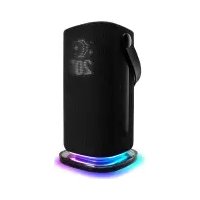


| Product Type | Smart Speaker with LED Display |
| Brand | Acer |
| Model | Halo Swing HSP5100G |
| Dimensions (W x H x D) | 4.5 x 7.1 x 4.5 inches (114 x 180 x 114 mm) |
| Weight | 1.1 lbs (500 g) |
| Power Supply | DC 5V / 2A via USB-C |
| Connectivity | Wi-Fi 802.11 b/g/n/ac, Bluetooth 5.0 |
| Voice Assistant | Google Assistant |
| Display | LED dot-matrix clock display with customizable clock faces |
| Audio | 3W full-range speaker, 360-degree sound |
| Main Functions | Music streaming, alarms, timers, news, weather, smart home control, ambient lighting |
| Lighting | RGB LED ring with customizable colors and brightness |
| Microphone | Far-field dual microphones with echo cancellation |
| Control | Touch controls on top, voice control, Acer Halo app (iOS/Android) |
| Compatibility | Google Home, Works with Google Assistant, Spotify Connect |
| Power Consumption | 3W typical, 0.5W standby |
| Cleaning and Maintenance | Wipe with soft dry cloth, avoid liquids |
| Safety | Do not expose to water or excessive heat |
| Spare Parts and Repairability | Not user-serviceable; contact Acer support for assistance |
| General Information | Manufacturer: Acer Inc.; Country of Origin: China; Warranty: 1 year limited |
Frequently Asked Questions - Halo Swing HSP5100G ACER
User questions about Halo Swing HSP5100G ACER
0 question about this device. Answer the ones you know or ask your own.
Ask a new question about this device
Download the instructions for your Smart Home in PDF format for free! Find your manual Halo Swing HSP5100G - ACER and take your electronic device back in hand. On this page are published all the documents necessary for the use of your device. Halo Swing HSP5100G by ACER.
USER MANUAL Halo Swing HSP5100G ACER
Acer Halo Swing Smart Speaker
Take your assistant & music everywhere
User's Manual
MODEL: HSP5100G
Important:
This manual contains proprietary information that is protected by copyright laws. The information contained in this manual is subject to change without notice. Some features described in this manual may not be supported depending on the Operating System version. Images provided herein are for reference only and may contain information or features that do not apply to your device. Acer Group shall not be liable for technical or editorial errors or omissions contained in this manual.
Table of Contents
Introducing Acer Halo Swing Smart Speaker 5
Package Contents 5
Closer Look 5
Set up Acer Halo Swing Smart Speaker....6
What you need to Get Started....6
Power On and Off....7
Charging....7
Connect to a Wi-Fi Network 8
Download the Google Home App 8
Get Started 9
Bluetooth Pairing 10
Adaptive LED Lighting on Your Speaker 11
Lights on the LED Dispaly and RGB LED base 11
Smart lighting control....11
Learn About the Images on Your Speaker....11
Explore Features on Google Home App....13
Use Google Assistant 13
Attach and Detach Handle.... 13
Manage Volume and LED Brightness with Night Mode....14
Play Music....14
USB Playback Function.... 14
Cast Audio Function 14
Bluetooth Function 14
Power Saving Mode 15
Auto Energy Saving Function....15
Waterproof....16
Factory Reset Your Smart Speaker....16
Demo Mode 16
Using the Acer Halo App.... 17
Pairing Device 17
Main Screen Overview 18
Image Cloud 18
Edit Image 19
Learn About the Drawing Features .... 19
Upload Image to the Speaker 20
Create Static Image 20
Create Animated Image 21
Generate Text....22
Generate Text to Animated Image.... 23
Import and Export LED Files 24
Device Settings.... 25
Recommendations.... 27
Cleaning the Speaker 27
Limited Warranty 27
Speci cations 27
Troubleshooting....28
FAQ 28
Need More Help 29
Introducing Acer Halo Swing Smart Speaker
The Acer Halo Swing Smart Speaker is the perfect addition to your home with DTS Sound™ projects rich, clear vocals and distinctive sound from musical instruments with wide bass extension, smart lighting control and Google Assistant. Manage your day, control your entertainment, and set timers and alarms with a simple, "Hey Google."
Want more control? With the Acer Halo app, you can customize the LED display and Halo light, make it truly unique by creating your own design.
Package Contents
Carefully unpack the box and check if the following items are included. If any of the items is damaged or missing, contact your retailer immediately.
√ Acer Halo Swing Smart Speaker – HSP5100G
√ Charging base
√ USB Type-C cable
√ AC power adapter
√ Quick start guide
√ Warranty booklet
Closer Look

Top / Front / Side View
- Microphone on/off*
- Play/Pause
- Light sensor
- Volume up/down
- LED display**
- Leather handle
- Quick release knob
- USB Type-C port (charging + music playback)
- RGB LED base
* The microphone is ON by default.
** The LED display function depends on the different mode.

Bottom View
- Bluetooth on/off
- Charging port
- Power on/off (with indicator)

Charging Base
- USB Type-C port (charging only)
- Pogo pin
Accessories:
- USB Type-C cable
- AC power adapter
Set up Acer Halo Swing Smart Speaker
What you need to Get Started
• An Acer Halo Swing Smart Speaker
• The latest version of the Google Home app
- Acer Halo app
• A Google Account
• A compatible mobile phone or tablet:
√ Android 6.0 or later / iOS 13.0 or later
√ Works with 2.4 GHz and 5 GHz Wi-Fi network (a WPA-2 Enterprise network won't work)
√ Bluetooth turned on
- An internet connection and secure wireless network
- If you already use Duo for voice calls, make sure to use the same Google Account in Duo and the Google Home app.
Power On and Off
Press the power button ⬆ on the bottom of the smart speaker to power it on. Meanwhile the power indicator and RGB LED base light up. The LED display may show the battery level for a few seconds.
To power off, just press and hold the power button again.
Charging
Before charging, make sure that you have placed the smart speaker on a flat and stable surface near a wall outlet and power on. There are two ways to charge the smart speaker - using USB-C port or charging base (see the figures below).
The smart speaker has a built-in rechargeable battery, which currently provides up to 8 hours of continuous playback on a single charge (varies by volume level and audio content). To avoid depleting the battery, power off the smart speaker if you will not use it for long periods of time.
Charge through the USB-C port Charge through the base

NOTE:
» The plug type may vary by region.
» Use a compatible USB Type-C charger for charging on the go.
» Press and hold ▶ button for 3 seconds to check the remaining battery charge on the display.
Connect to a Wi-Fi Network
Open your Wi-Fi settings on your mobile device. Your mobile device must connect to the Wi-Fi network that you would like to use with your smart speaker.
Download the Google Home App
You'll need to download the Google Home app, as all of the settings and controls during the setup process are carried out here.
Search for and install "Google Home" on your phone's app store. Both Android and iOS devices support the Google Home app. As an example, this document uses the Android system.


Get Started
Launch the Google Home app and tap "Get started." Choose your Google account that you would like to use with the Google Home app. Tap "OK" to continue.
You'll hear a sound confirming you're connected to your Acer Halo Swing Smart Speaker. Select a location from the list provided or create your own. Follow the in-app steps.
Remember to select the same Wi-Fi network you're already on to use with your smart speaker. Follow the remaining steps to finish the setup.
The Google Home app will begin a tutorial. Tap 'Finish setup" when you're ready. Your Acer Halo Swing Smart Speaker is set up and ready to go!


NOTE
» You'll be able to opt-out of some settings, like Voice Match or Personal results. You can change these settings at any time after you complete the setup. Learn more about Voice Match and personal results at: https://support.google.com/assistant/answer/9071681#vm_pr
» The languages you can use depend on the device. Learn which languages work on your device at: https://support.google.com/assistant/answer/7394513
Bluetooth Pairing
Before starting the pairing process, make sure that smart speaker has been connected to Wi-Fi through the Google Home app. When the smart speaker is on, press ✕ button on the bottom of the smart speaker or say "Hey Google, Bluetooth pairing" to enter Bluetooth pairing mode. Open the Bluetooth settings on your mobile device and connect the smart speaker.
• From the Google Home app
- Open the Google Home app
- Tap Devices.
- Select Acer Halo Swing Smart Speaker.
- At the top right, tap Settings) > Audio > Paired Bluetooth devices > Enable pairing mode.
- From your mobile device's Bluetooth settings
- On your mobile device:
Swipe down from the top of the screen. Then touch and hold Bluetooth.
Or
Go to Settings > Bluetooth.
- Turn on Bluetooth.
- Tap Acer Halo Swing > Pair.
Once your mobile device is paired and connected to your smart speaker, a ✕con shown on the LED display.
To unpair your mobile device and smart speaker, do the following:
- Open the Google Home app
- Tap Devices.
- Select Acer Halo Swing Smart Speaker.
- At the top right, tap (Settings) > Audio > Paired Bluetooth devices.
- Tap the "X" next to the device you want to unpair and then Unpair.
Or
- On your mobile device, go to Settings > Bluetooth.
- Tap next to Acer Halo Swing > Unpair.
Adaptive LED Lighting on Your Speaker
Lights on the LED Dispaly and RGB LED base
The exclusive LED display and RGB LED base bring more fun when you interact with your smart speaker.
| LED Display RGB LED base What this means | ||
 | Solid orange light | The microphone is off. |
 | Pulsing blue light | Google Assistant is thinking or responding. |
| — RGB light effect animation | The speaker is turning on. | |
| — Solid red light | An error has occurred. | |
 | Pulsing green light | Battery level reaches 100% |
| Solid green light | 60% ≤ Battery level < 100% | |
| Solid yellow light | 20% < Battery level < 60% | |
| Solid red light | Battery level is under 20% | |
For more information on "Light Settings", please access "Device Settings" on Acer Halo app.
Smart lighting control
The speaker has built-in adaptive LED lighting control, which responds to the ambient light around Speaker to adjust brightness of the LED display and RGB LED base automatically. It's smart to keep your eyes comfortable and save energy.
Learn About the Images on Your Speaker
The speaker has plenty of preset LED icon designs in response to the following cases:
- Special day images
| Image How it works | ||
 | New Year | On special holidays, relevant icons will be displayed. |
 | Valentine's Day | |
 | Halloween | |
 | Christmas | |
 | Birthday | On the user's birthday, requesting the voice assistant to sing "Happy Birthday" will display a birthday icon. |
• System and information images
| Image How it works | |
 | The LED display shows "Hi" icon when the speaker is turning on. |
 | In standby mode, the LED display will show an always-on clock by default. |
 | Using the Acer Halo app, you can customize the LEDs and present your design at one of the following two moments:1) When the speaker in standby mode.2) When Google Assistant is thinking or responding. |
 | The LED display shows the corresponding volume icon when you change the volume level. |
 | At volume level 0, all media will be muted, but your Google Assistant will still speak at a minimum level. It doesn't adjust the volume of alarms and timers. |
 | |
 | The LED display shows this icon when it's in Bluetooth pairing mode. |
 | The LED display shows the icon during setup mode. |
- Reminder images
| Image How it works | |
 | The LED display shows the countdown timer when you set up a timer. |
 | The LED display shows this icon when an alarm is ringing. |
Explore Features on Google Home App
Your smart speaker makes life easier by helping you do things like access media, manage your tasks, and plan your day using your voice.
The Google Home app helps you set up and control your smart speaker and manage Google Assistant settings and preferences.
Open the Google Home app. Tap on your smart speaker > ⚙️Settings) at the top right corner to access its settings. Here, you can change settings that are most applicable to your needs.
To learn more about the Google Home app and manage device settings, please visit https://support.google.com/
Use Google Assistant
Enjoy music, plan your day, and find answers hands-free. Just say, "Hey Google." Learn more about what Google Assistant can do at: https://assistant.google.com/learn/
Attach and Detach Handle
How to detach:
- Grasp the quick release knob carefully and turn clockwise until the white circle align the unlock symbol.
- Untie the leather handle.
How to attach:
- Grasp the quick release knob and align the white circle with unlock symbol.
- Attach the knob into engaged position.
- Turn counterclockwise until you feel it's locked.


Manage Volume and LED Brightness with Night Mode
You can lower the volume of your Google Assistant's responses and dim the brightness of both the LED display and the Google Assistant LEDs during specified times to avoid being disturbed.
- Open the Google Home app.

-
Select Acer Halo Swing Smart Speaker.
-
At the top right, tap (Settings) > Enable night mode.
Notifications & digital wellbeing > Night mode
- Edit the time and day(s) of the week you want Night mode on according to your needs. When Night mode is enabled, you can dim the LED brightness and adjust volume at night. Furthermore, turn on "Do not disturb" to mute notifications and boot up sounds. Timers and alarms will still ring.
Play Music
USB Playback Function
You can connect mobile device or PC to smart speaker via USB-C port on the side and play music on smart speaker.
- Mute the microphone.
- Press and hold the "Bluetooth" button, and then press volume (+) button for about 3 seconds.
- The USB Playback function will be turned on. Now you can stream audio from mobile device or PC to the smart speaker by USB connection.
To turn it off, redo step 2 above.
Cast Audio Function
Cast all of your favorite music, playlists and more from your mobile device to your smart speaker.
- Open the Google Home app.

-
Select Acer Halo Swing Smart Speaker.
-
Tap 📋 Cast my audio and then Cast audio.
Bluetooth Function
Once your mobile device is paired up with your smart speaker, you can start using it just like any ordinary Bluetooth speaker. Learn how to pair Bluetooth, see Bluetooth Pairing for details.
Power Saving Mode
Power Saving Mode reduces the amount of power that your smart speaker uses. When it's on, you'll see an eco-power icon on the LED display, then all lights and Wi-Fi connection will be off. It turns your smart speaker into a pure Bluetooth speaker in order to extend battery life for music playback.
There are two ways to turn Power Saving Mode on and off.
-
Mute the microphone.
-
Press and hold ▶ and volume (+) button simultaneously for about 3 seconds to enter Power Saving Mode.
To disable it, redo step 2 above.
Or
-
Open the Acer Halo app and tap 🙏
-
Tap the toggle button next to the "Power Saving Mode" option to activate or deactivate it. See Device Settings for details.
NOTE
» Power Saving Mode can't be turned on while the smart speaker is charging or battery is full.
» Power Saving Mode turns off while your smart speaker charges.
Auto Energy Saving Function
Built-in energy-saving feature are incorporated to conserve power when devices are operating on battery.
This feature automatically turns off when the device is charging.
| Mode | Entering Standby(Display/Light Effect Off) | Wake Speaker Up(Display/Light Effect On) | Entering Sleep |
| Default | After 15 minutes of no music playing or interaction with the speakers, the system will go into standby. | Press any button/play music through BT/WiFi or talk to Google assistant to wake up the speaker from standby | After 15 minutes of being in standby without playing music or interacting with the speaker, the system will automatically fall into sleep. |
| Power Saving | After 10 minutes of no music playing or interaction with the speakers, the system will go into standby. | After 10 minutes of being in standby without playing music or interacting with the speaker, the system will automatically fall into sleep. |
Waterproof
The smart speaker has an IPX5 water-resistant rating that offers protection against water jets from any angle.
To reduce the risk of fire or electric shock, don't expose your smart speaker to a soaking rainstorm.
Factory Reset Your Smart Speaker
A factory reset will reset your smart speaker to its default settings. To do this:
-
Mute the microphone.
-
Press and hold both volume buttons (+/-) simultaneously for about 10 seconds until you hear a sound confirming the smart speaker is resetting.
NOTE
» This action will clear your data from the smart speaker and can't be undone.
» You can't use your voice or the Google Home app to factory reset Acer Halo Swing Smart Speaker.
» You will have to set up your smart speaker and relink any previously linked home control smart devices again.
Demo Mode
The demo mode will show template LED designs and RGB effects. To turn it on:
-
Mute the microphone.
-
Press and hold both volume (+/-) and ▶buttons simultaneously for about 3 seconds to turn on Demo Mode. When it's on, the LED displays a series of slideshows.
To turn it off, redo step 2 above.
NOTE
» When demo mode is on, you can still talk to Google Assistant as long as you switch the micro to on. The LED display and RGB effects will continue the slideshow and will not respond to your voice command until you turn off the demo mode.
» The Google Assistant isn't available in certain languages and countries.
Using the Acer Halo App
The Acer Halo app gives you full control of your speaker.
Whether adjusting the always-on display or creating your own animated LED icons from the canvas creator, you can do it all in one place. Simple.
- More Control
Control the LED Panel, Halo Light, and Night Light
- Canvas
Create and animate your custom icon designs
• My Image Gallery
Store and manage your icon designs
- Image Cloud
Download pre-made icon designs
Pairing Device
- Download the Acer Halo app from the Play Store and launch it.
- The app will search for nearby Acer Halo Swing speakers and list them on the screen.
- Tap the speaker you want to pair.
- Follow the on-screen steps to finish pairing.


NOTE
» A three-digit verification code is required while pairing process. It will be shown on the LED display once you tap on the smart speaker to be paired.
Main Screen Overview

Image Cloud
The Acer Halo app has numerous pre-made icon designs & basic shapes in Image Cloud. They will be updated periodically to give you more and better choices.
Select one and download it to Gallery for further use and editing.


Edit Image
- Go to Gallery, tap an image.
- Tap, select the brush color to sketch over with your finger.
- Tap to save.


Learn About the Drawing Features
| Feature How it works | |
 | Generate texts on the canvas. |
 | Undo or redo a single or multiple editing actions. |
 | Copy or paste the content. |
 | Select the different brush colors. |
 | Move the content up/down/left/right. |
Upload Image to the Speaker
- Go to Gallery, tap an image.
- Tap, select Stand By or Assistant.
- StandBy: it will replace the "Always On Clock" image on the LED display.
- Assistant: it will pop up on the LED display when you interact with the smart speaker.


NOTE
» If the smart speaker is not connected or paired, the upload feature will be disabled.
Create Static Image
- Go to Canvas to open a new canvas.
- Select the brush color and sketch with your finger over the canvas.
- Enter a new name and tap to save it in Gallery.


Create Animated Image
- Go to Canvas to open a new canvas.
- Select the brush color and sketch with your finger over the canvas.
- Tap to copy the content.
- Tap to create a new canvas and then tap 📄 to paste the previous copied content.
- Use to adjust the position.
- Repeat steps 3 to 5 above to create multiple canvases.
Alternatively, you can quickly duplicate or delete the canvas, and change sequence with dragging function.
a. Press and hold the canvas you want to duplicate or delete, then drag it toward the copy icon or delete icon. When the icon becomes blue, release the selected canvas to duplicate or delete.
b. Press and hold the canvas you want to change sequence. Drag it to the position where you want to place and then release.


- Return to the first canvas to preview the animation.
- Enter a new name and tap to save it in Gallery.
NOTE
» If only one canvas exists, you can just drag it toward delete icon to clean up the canvas content.
Generate Text
- Go to Canvas to open a new canvas.
- Tap to open the on-screen keyboard.
- Enter texts and then select the font size and adjust the position.
- Apply one of the animation effects: None, Marquee, Waterfall or Blink and see how it runs.
- Tap to discard or tap when you finish.
- Enter a new name and tap to save it in Gallery.


NOTE
» Texts can only be English alphabet and Arabic numerals.
Generate Text to Animated Image
- Go to Gallery and select an existing animated image, or go to Canvas to create a new one.
- Select a single canvas which you want to generate text. If you like to generate text after the animation ends, then tap +
- Tap to open the on-screen keyboard.
- Enter texts and then select the font size and adjust the position.
- Apply one of the animation effects: None, Marquee, Waterfall or Blink and see how it runs.
- Tap ✗ to discard or tap √ when you finish.
- Tap ☐ to overwrite the existing file, or enter a new name and tap ☐ to save it in Gallery.


Import and Export LED Files
You can share custom LED files with others by using importing and exporting function at any time.
How to import:
- Download the LED file.
- Go to Gallery and tap
- Search the LED file and import it to Gallery.
- Enter a new name (if necessary) and tap to save it in Gallery.


How to export:
- Go to Gallery and select an image.
- Tap to share file via email, social media and messaging apps.


Device Settings
Tap the ⚙ on the main screen to enter Device Settings.
- Battery: Show the current status and power level of battery.
- Power Saving Mode: Turn on and off Power Saving Mode. See "Power Saving Mode" for details.
- Light Settings:
- LEDPanel: Turn on and off the LED display.
- Effect (Stand By)/Effect (Assistant): Select and apply effects to the selected Stand By and Assistant images.
» If LED Panel is turned off, the Effect function is disabled as well.
- HaloLight: Turn on and off the light of RGB LED base.
• Color (Stand by): Select and apply a color effect for Stand mode.
- Effect (Play Music): Select and apply an effect when playing music.
• Color (Night Light): Select and apply a color effect for Night Light.
» If Halo Light is turned off, the Effect function is disabled as well.


In addition, you can also define custom color effects as you like for Color (Stand by) and Color (Night Light) features:
- Click .+
- Choose Single color or Dual color.
- Tap or drag inside the color spectrum from which you can visually select color.
- Drag the color slider or tap inside the color slider to adjust color intensity.
- Enter a new name and tap to save. If you want to delete it, just tap on the color pattern.


» The preexisting color patterns cannot be deleted.
- NightLight: Turn on and off the Night Light feature. If the Night Light is enabled, RGB LED base will light up when Night mode turns on. See "Manage Volume and LED Brightness with Night Mode" for details.
- DeviceInfo: View hardware, software and system information. If you encounter any issues or bugs while using Acer Halo app, please report us via "Contact Acer", the device information and log file will be used for trouble shooting.
- Unbind: Unpair the Acer Halo app from your mobile device to the smart speaker.
| Device Info |
| Model NameAcer Halo Swing HSP5100G |
| SN NumberHSP5100G20230000 |
| System Firmware Version1.0.0.1 |
| Speaker Firmware version1.56.310669 |
| Contact Acer |
NOTE
» The Acer Halo app only allows for one mobile device to be paired with Acer Halo Swing Smart Speakers. You must unbind the existing mobile device first, and then pair to a new one again if necessary. For more information, please read the FAQ.
To work with the Acer Halo app, the speaker system firmware version has to be updated to 1.0.0.2 or later. Normally the speaker will check and update the online firmware automatically to keep your device firmware up-to-date. You can also execute "power cycle" to trigger the firmware update immediately.
Recommendations
For best performance, follow these recommendations when placing the speaker:
- Do NOT place any objects on top of the speaker or in front of the speaker.
- Place the speaker on a stable and level surface.
- Make sure there is an AC (mains) outlet nearby.
Cleaning the Speaker
- Clean the surface of the speaker with a damp or dry soft cloth.
- Do NOT use any sprays near the speaker.
- Do NOT use any solvents, chemicals, or cleaning solutions containing ammonia or abrasives.
- Do NOT allow liquids to spill into any openings.
- If there is a need for disinfection, it is recommended alcohol at a concentration of 50% or less for use as a disinfectant. This value may be raised to 75% once the test is passed (test report provided by Zylux).
Limited Warranty
The speaker is covered by a limited warranty. Please check the warranty booklet inside the product package for details.
Specifications
• Model Name: HSP5100G
• Power supply: 100-240 V \~ 50/60 Hz
• Output power: 20W
- Bluetooth version: BT 5.3
• Wireless network: 802.11 AC (2.4 GHz/5 GHz)
• Display: 17*22 pixels LED Panel
- Speaker: 2.25" Fullrange, Passive Radiator *2
• Water Resistance: IPX5
- Dimensions (W x H x D): 95 x 95 x 185 mm (without charging base)
• Weight: About 947g (without charging base)
- Battery type: Lithium-ion Polymer (5100 mAh)
- Battery charge time: 3 \~ 3.5 hours (vary depending on the charging device and cable used)
• Music play time: up to 8 hours (vary by volume level and audio content)
Troubleshooting
FAQ
| Symptom Solution | |
| The speaker doesn’t turn on | Plug the power adapter into a different power outlet.Unplug the power adapter from your speaker.Leave it unplugged for 1 minute, and then plug it back in. |
| The speaker doesn’t respond during setup | Make sure your mobile device is connected to the same Wi-Fi network and linked to the same account as your speaker.Make sure you are using the Google Home app for setup.If the Google Home app doesn’t prompt you to set up your speaker, tap Devices + Add button in the bottom-right corner. Tap New device to add your speaker.Try to remove the device in the Google Home app and set it up again. |
| The Google Home app doesn’t work on a mobile device | Make sure your mobile device is compatible with the Google Home app. For more information, refer to the app store on your mobile device.Uninstall and reinstall the Google Home app. |
| The Acer Halo app doesn’t work on a mobile device | Make sure your mobile device is compatible with the Acer Halo app. For more information, refer to the app store on your mobile device.Uninstall and reinstall the Acer Halo app. |
| The speaker doesn’t connect to a Bluetooth device | On your mobile device, turn the Bluetooth feature off and then on again.Remove the speaker from the Bluetooth device list and connect it again.Connect a different mobile device.Make sure you’re using a compatible Bluetooth mobile device. |
| Your Google Assistant doesn't respond | Make sure the microphone is on.Make sure your mobile device is connected to the same Wi-Fi network and linked to the same account as your speaker.Make sure you're in a country where Google Assistant is available.Make sure you are using the most up-to-date version of the Google Home app.Your Google Assistant may not support your request. New features are added periodically. For additional support, visit:https://support.google.com/assistant |
| Alarms and timers are too quiet | The volume settings for alarms and timers are different from the volume settings for Google Assistant and the media it plays.Go into the Google Home appon the mobile device.Tap on the Acer Halo Swing Smart Speaker icon, tapSettings) in the top-right corner of the screen to enterDevice settings.Then tapAudioAlarms & timerto enter theAlarms & timer volumetsetting. Drag the volume slider to adjust the volume to your preferred level. |
| Can't find/pair speaker through the Acer Halo app | Check speaker system firmware version which has to be updated to 1.0.0.2 or later.If you've paired speaker before, you must unpair the existing mobile device first.If you uninstall the Acer Halo app but forget to unpair speaker first, you have to do factory reset on speaker to clean the key pair. |
| A white screen appears when uploading an image to the speaker | Please do the following:Edit the image.Do nothing and just save it.Reload the image to the speaker again. |
Need More Help
If you are unable to resolve your issue, contact Acer customer service. Or visit Acer website for up-to-date information, help and downloads: www.acer.com
NOTICE AND TRADEMARKS
- All images in this document are for reference only. Actual product may vary from image.
- Google, Google Photos, Android, Google Play, Google Home, Chromecast and YouTube Music are trademarks of Google LLC.
- Google Assistant is not available in certain languages and countries.
- Apple and iPhone are trademarks of Apple Inc., registered in the U.S. and other countries.
- For DTS patents, see http://patents.dts.com. Manufactured under license from DTS, Inc. DTS, DTS Sound, and the DTS logo are registered trademarks or trademarks of DTS, Inc. in the United States and other countries.
• © 2023 DTS, Inc. ALL RIGHTS RESERVED. - The Bluetooth® word mark and logos are registered trademarks owned by Bluetooth SIG, Inc. Any use of such marks by Acer Inc. is under license. Other trademarks and tradenames are those of their respective owners.



- ACER HALO SWING SMART SPEAKER
- IMPORTANT
- TABLE OF CONTENTS
- INTRODUCING ACER HALO SWING SMART SPEAKER
- PACKAGE CONTENTS
- CLOSER LOOK
- TOP / FRONT / SIDE VIEW
- BOTTOM VIEW
- CHARGING BASE
- ACCESSORIES
- SET UP ACER HALO SWING SMART SPEAKER
- WHAT YOU NEED TO GET STARTED
- POWER ON AND OFF
- CHARGING
- NOTE
- CONNECT TO A WI-FI NETWORK
- DOWNLOAD THE GOOGLE HOME APP
- GET STARTED
- BLUETOOTH PAIRING
- ADAPTIVE LED LIGHTING ON YOUR SPEAKER
- LIGHTS ON THE LED DISPALY AND RGB LED BASE
- SMART LIGHTING CONTROL
- LEARN ABOUT THE IMAGES ON YOUR SPEAKER
- EXPLORE FEATURES ON GOOGLE HOME APP
- USE GOOGLE ASSISTANT
- ATTACH AND DETACH HANDLE
- HOW TO DETACH
- HOW TO ATTACH
- MANAGE VOLUME AND LED BRIGHTNESS WITH NIGHT MODE
- PLAY MUSIC
- USB PLAYBACK FUNCTION
- CAST AUDIO FUNCTION
- BLUETOOTH FUNCTION
- POWER SAVING MODE
- AUTO ENERGY SAVING FUNCTION
- WATERPROOF
- FACTORY RESET YOUR SMART SPEAKER
- DEMO MODE
- USING THE ACER HALO APP
- MORE CONTROL
- CANVAS
- MY IMAGE GALLERY
- IMAGE CLOUD
- PAIRING DEVICE
- EDIT IMAGE
- LEARN ABOUT THE DRAWING FEATURES
- UPLOAD IMAGE TO THE SPEAKER
- CREATE STATIC IMAGE
- CREATE ANIMATED IMAGE
- GENERATE TEXT
- GENERATE TEXT TO ANIMATED IMAGE
- IMPORT AND EXPORT LED FILES
- HOW TO IMPORT
- HOW TO EXPORT
- DEVICE SETTINGS
- RECOMMENDATIONS
- CLEANING THE SPEAKER
- LIMITED WARRANTY
- SPECIFICATIONS
- TROUBLESHOOTING
- NEED MORE HELP
- NOTICE AND TRADEMARKS
Brand : ACER
Model : Halo Swing HSP5100G
Category : Smart Home