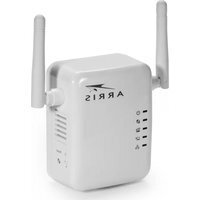
Touchstone WR2100 - Wi-Fi repeater Arris - Free user manual and instructions
Find the device manual for free Touchstone WR2100 Arris in PDF.


| Product Type | Wi-Fi Repeater / Range Extender |
| Model | Touchstone WR2100 |
| Brand | Arris |
| Dimensions (W x D x H) | 4.5 x 2.8 x 1.2 inches (11.4 x 7.1 x 3.0 cm) |
| Weight | 0.33 lbs (150 g) |
| Power Supply | AC 100-240V, 50-60Hz; DC output 5V/2A |
| Wi-Fi Standards | IEEE 802.11 a/b/g/n/ac |
| Frequency Bands | Dual-band: 2.4 GHz (up to 300 Mbps) and 5 GHz (up to 867 Mbps) |
| Ethernet Ports | 1 x Gigabit Ethernet port |
| Wireless Security | WPA/WPA2-PSK, WEP |
| Antennas | 2 internal antennas |
| LED Indicators | Power, WPS, Signal Strength, Ethernet |
| Buttons | Reset, WPS, Power On/Off |
| Main Functions | Extends Wi-Fi coverage, Access Point mode, WPS button for easy pairing, Signal strength monitoring |
| Setup | Easy setup via web interface or WPS button |
| Operating Temperature | 32°F to 104°F (0°C to 40°C) |
| Storage Temperature | -4°F to 158°F (-20°C to 70°C) |
| Humidity | 10% to 85% non-condensing |
| Certifications | FCC, CE, RoHS |
| Spare Parts Availability | Power adapter and Ethernet cable included; spare parts available from manufacturer |
| Repairability | Professional repair recommended; no user-serviceable parts inside |
| Maintenance | Keep clean and dry; avoid exposure to liquids; reboot periodically |
| Safety Instructions | Read user manual before use; do not disassemble; use only supplied adapter; place in ventilated area |
| General Information | Wi-Fi repeater for home use; supports up to 32 devices |
Frequently Asked Questions - Touchstone WR2100 Arris
User questions about Touchstone WR2100 Arris
0 question about this device. Answer the ones you know or ask your own.
Ask a new question about this device
Download the instructions for your Wi-Fi repeater in PDF format for free! Find your manual Touchstone WR2100 - Arris and take your electronic device back in hand. On this page are published all the documents necessary for the use of your device. Touchstone WR2100 by Arris.
USER MANUAL Touchstone WR2100 Arris
Touchstone® WR2100 Wireless Repeater

natural_image
White ARVIS wireless router with two antennas and control buttons (no visible text or symbols on body)Quick Installation Guide
Package Contents
The following items should be included: If any of these items are damaged or missing, please contact your service provider immediately.
- The WR2100 Wireless Repeater

- Quick Installation Guide


- End User License Agreement

What You Need
If you chose to configure the WR2100 Wireless Repeater using a PC and a web browser, you will need an Ethernet cable long enough to connect the WR2100 Wireless Repeater to your PC.
Chapter 1 Introduction

This Chapter provides details of the WR2100 Wireless Repeater's features, components and capabilities.
Overview
The Touchstone® WR2100 Wireless Repeater is designed to enhance and extend the wireless network coverage, range, and connectivity by repeating and boosting the wireless signal between the existing Wireless Gateway/Router and hard to reach wireless client devices (e.g. IP camera, laptop computer) and mobile devices in the home. This provides consumers with an improved wireless experience on tablets, smartphones, and other wireless client devices. With its easy setup and operation, this high-speed 802.11n device works seamlessly with all ARRIS Wireless Gateways and most other wireless routers and access points.
Features
- Easy Setup. Use either push button WPS (Wi-Fi Protected Setup) or your PC and web browser for configuration.
Wireless Features
- Supports 11n Wireless Stations: Provides backward compatibility with the 802.11b and 802.11g standards, so 802.11n, 802.11b and 802.11g wireless clients can be used simultaneously.
- WPS Support: WPS (Wi-Fi Protected Setup) can simplify the process of connecting any device to the wireless network by using the WPS configuration button on the device.
- Security Support: Full WEP (64/128 Bit), WPA and WPA2 Personal standards are supported on the wireless interface, allowing advanced encryption of wireless data.
Location Considerations
For best performance, locate the WR2100 Wireless Repeater away from known interfering devices such as microwave ovens and baby monitors.
Chapter 2
Basic Setup

This Chapter provides details on how to setup the WR2100 Wireless Repeater.
System Requirement
- To use the wireless interface on the WR2100 Wireless Repeater, other wireless devices must be compliant with the IEEE 802.11b, IEEE 802.11g or IEEE 802.11n specifications. All wireless stations must use compatible settings.
Physical Details
Front Panel
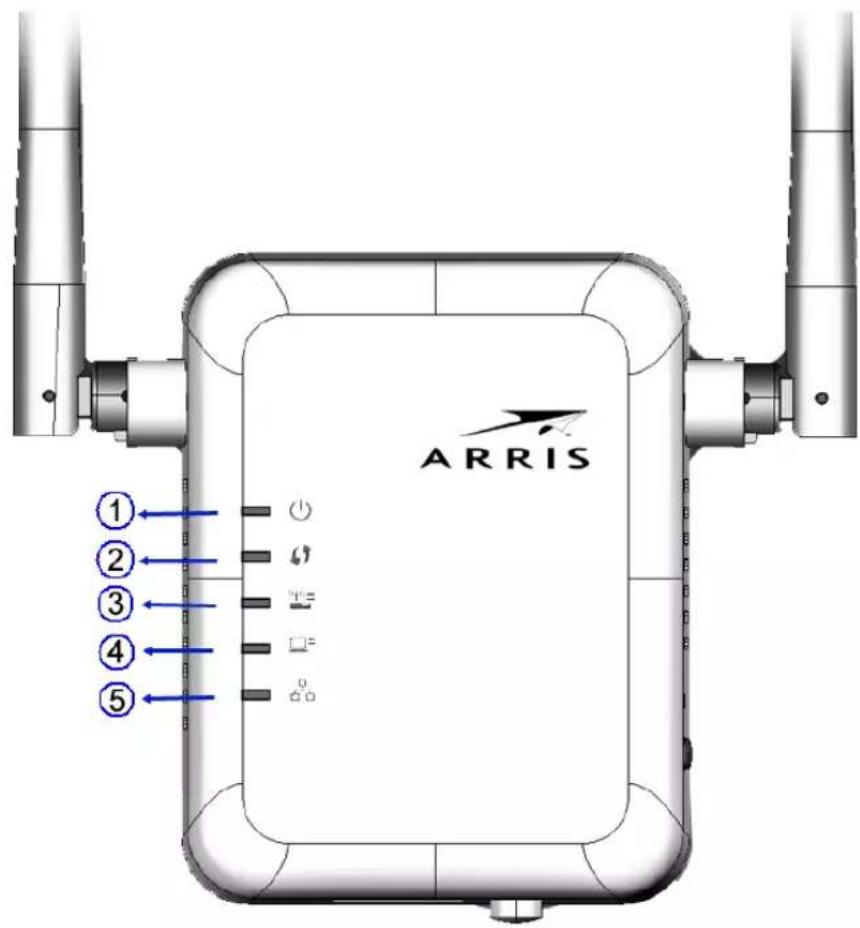
1.  Power LED(Green/Amber) Power LED(Green/Amber) | On (Green) - Power on.Off - No power.Blinking (Green) - The Power LED will blink during start up. This will take 15 to 20 seconds.On (Amber) - System failure. |
| 2. WPS LED (Green) | On (Green) - When WPS button is pressed, the LED will be on for 2 minutes.Off - WPS feature is not in use.Slow Blinking (Green) - WPS is activating.Quick Blinking (Green) - WPS failure. |
3.  Access Point/Repeater LED(Green/Red) Access Point/Repeater LED(Green/Red) | On (Green) – Access Point connection is available and the signal strength is good.Off – Access Point connection is not established.On (Amber) - The signal strength is normal.On (Red) - The signal strength is poor.Note: if the LED indicator shows red, you need to install the device in a better location. |
| 4. [77SW]Repeater/Client LED (Green) | On (Green) - Client connection is available and the signal strength is good.Off - Client connection is not established. |
5.  Ethernet LED(Green) Ethernet LED(Green) | On (Green) - LAN connection is available.Off - LAN is not connected.Blinking (Green) - Data is being transmitted or received via the LAN connection. |
Bottom & Side Panel
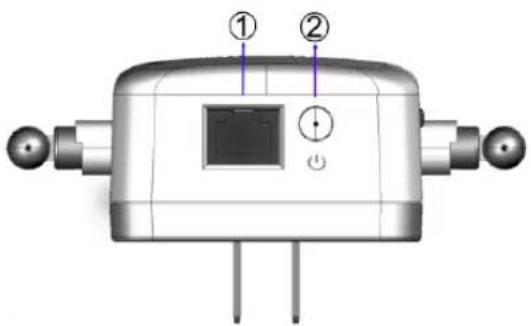
| 1. LAN port | Use a standard Ethernet cable to connect your WR2100 Wireless Repeater to a PC. |
| 2.Power On/Off Switch | Press this button to turn on/off the WR2100 Wireless Repeater. |

| 3.WPS Button | Press the WPS button on the device and on your other wireless device to perform WPS setup that easily creates an encryption-secured wireless connection automatically.Access Point Connection. When pressed and held over 3 seconds, the WR2100 Wireless Repeater performs WPS setup with the wireless router/access point.Client Connection. When pressed and released (less than 3 seconds), the WR2100 Wireless Repeater will perform WPS setup with the client devices. |
| 4. Reset Button | This button is recessed. Use a pointed non-metallic object to press this button. It can be activated at any time the WR2100 Wireless Repeater is in the "ready" mode.Reset to manufacturer default values and reboot. When pressed and held for over 10 seconds, the settings of the WR2100 Wireless Repeater will be reset to their default values. |
Setting Up the WR2100 Wireless Repeater
The installation allows the WR2100 Wireless Repeater to directly connect to a wireless router (or Wireless Access Point). You can extend the range of your wireless network without running cables and reduce “dead spots” in the house where the router/access point signal is weak.
Automatic Configuration Using WPS

Step 1: Locate the WR2100 Wireless Repeater near the Wireless Access Point while doing the configuration.
Step 2: Make sure the Wireless Access Point is on and working properly and with good signal strength to WR2100 Wireless Repeater.
Step 3: Plug the WR2100 Wireless Repeater into the power outlet and press the Power button to power it on.
Step 4: The LED stays on for a few seconds then starts blinking. Wait for the Power LED to be static on again. The WR2100 Wireless Repeater is now ready for use.
Step 5: Press the WPS button on the Wireless Access Point and make sure the Wireless Access Point is in WPS mode. (The LED on the access point will blink for 2 minutes.)
Step 6: Press and hold the WPS button on the WR2100 Wireless Repeater for MORE than 3 seconds. The WPS LED on the device will blink for 2 minutes. The WR2100 Wireless Repeater will automatically associate to the Wireless Access Point on which you initiated WPS and make connection. Make sure to press the button within 120 seconds (2 minutes) after pressing the Wireless Access Point WPS button.
Step 7: The connection of the WR2100 Wireless Repeater and
Wireless Access Point is successfully established after the LED remains on.
Step 8: Now you can select a suitable location for the WR2100 Wireless Repeater. It's preferable to place the device near the center of your wireless coverage area. Check the LED color and make sure it's not red. Next go to "Setting Up Your Client Devices".

Locate the WR2100 Wireless Repeater in another place for better wireless reception and performance if the signal strength is weak (the LED is red).
Manual Configuration with a PC

flowchart
graph TD
    A["Internet"] --> B["Desktop"]
    B --> C["Router"]
    C --> D["Computer"]
    D --> E["Laptop"]
    E --> F["Monitor"]
    F --> G["Wireless Link"]
    style A fill:#cce5ff,stroke:#333
    style B fill:#99ccff,stroke:#333
    style C fill:#ccffcc,stroke:#333
    style D fill:#ffffff,stroke:#333
    style E fill:#ffffff,stroke:#333
    style F fill:#ffffff,stroke:#333
    style G fill:#ffffff,stroke:#333
Step 1: Make sure the PC is connected to the Wireless Access Point with a good signal.
Step 2: Prepare an Ethernet cable. It should be long enough to connect the WR2100 Wireless Repeater to your PC.
Step 3: Plug the WR2100 Wireless Repeater into the power outlet and press the Power button to power it on.
Step 4: The LED stays on for a few seconds then starts blinking. Wait for the Power LED to be static on again. The WR2100 Wireless Repeater is now ready for use.
Step 5: Connect the Ethernet cable to the WR2100 Wireless Repeater and the PC.
Step 6: Launch the browser and enter http://www.mywifirepeater.net/ in the Address box.
Step 7: You will then be prompted for a username and password. If using the default values, enter admin for the username, and password for the password.
Step 8: Choose the Wireless page and click the "Site Survey" button. The WR2100 Wireless Repeater will start to search the existing wireless networks.

Step 9: Select the desired SSID that you want to connect to. Click Next. If you can't find the SSID, make sure the Wireless Access Point SSID is being advertised. (You can enter the SSID manually if necessary.)

Step 10: The Security Settings screen will be prompted automatically if the security is on. Enter the required encryption keys. Click Save.

Screen content may be different based on access point settings.
(The PSK should match the configured PSK in your wireless router.)
Step 11: The connection of the WR2100 Wireless Repeater and
Wireless Access Point is successfully established after the LED remains on. Next go to "Setting Up Your Client Devices".

Locate the WR2100 Wireless Repeater in another place for better wireless reception and performance if the signal strength is weak (the LED is red).
Setting Up your Client Devices
You must next configure your client devices to access the repeater.
Configuring Client Devices without WPS
PCs and laptops typically do not have a WPS function. However, if previously configured to your wireless router/access point, they should automatically access the network through the WR2100 Wireless Repeater without any additional configuration.
If your client was NOT previously configured for your router/access point, perform the following steps:
Step 1: Configure the client device (e.g. PC or laptop) with the same SSID and encryption keys using your operating system's network utility.
Step 2: The connection is successfully established after the LED remains on.
Step 3: The client device can then access the wireless network.
Configuring WPS Enabled Client Devices
Step 1: Power on the WPS enabled client device (e.g. IP Camera) and make sure it is in wireless mode
Step 2: Press the WPS button on the WR2100 Wireless Repeater for LESS than 3 seconds. The WPS LED will blink for 2 minutes. Then press the WPS button on the client device. Make sure to press the button within 120 seconds (2 minutes) after pressing the WR2100 Wireless Repeater WPS button.
Step 3: Wait for the WPS LEDs to be solid on both WR2100 Wireless
Repeater and the client device. Then check the LED again.
Step 4: If the LED remains on the client device can now access the wireless network.
Troubleshooting
Devices that do Not Support the Block ACK Feature
Wireless access points and wireless routers that use the older IEEE 802.11g or 802.11b specifications may not support the Block ACK speed accelerator feature.
If you are using one of these devices and experience issues with transfer speeds or sporadic connections with the WR2100 Wireless Repeater, you should disable the AutoBA feature, as follows.
Step 1: Follow the procedure under Manual Configuration with a PC to access the WR2100 Wireless Repeater configuration screens.
Step 2: Select the Wireless page and uncheck the AutoBA Enable checkbox.

Step 3: Click Save to save your new configuration, and then click Exit to close the session.
Appendix A Specifications

WR2100 Wireless Repeater
| Model | 802.11N Wireless Repeater 2.4GHz 2x2:2 MIMO |
| Dimensions | 67mm (W) x 85mm (H) x 36mm (D) |
| Operating Temperature | 0°C to 40°C (32°F to 104°F) |
| Antenna | External antenna x 2 |
| Storage Temperature | -20°C to 70°C (-4°F to 158°F) |
| Network Interface | 1 Ethernet 10/100BaseT (RJ45) LAN connection |
| Wireless interface | 802.11b: 20 dBm@11Mbps802.11g: 18 dBm@54Mbps802.11n: 18 dBm@130Mbps and 270Mbps |
| LEDs | 5 |
| Power | 100~240V AC (Build-in Power) |
Regulatory Approvals
FCC Statement
This equipment has been tested and found to comply with the requirements for a Class B digital device under Part 15 of the Federal Communications Commission (FCC) rules. These requirements are intended to provide reasonable protection against harmful interference in a residential installation.
This equipment generates, uses, and can radiate radio frequency energy and, if not installed and used in accordance with the instructions, may cause harmful interference to radio communications. However, there is no guarantee that interference will not occur in a particular installation. If this equipment does cause harmful interference to radio or television reception, which can be determined by turning the equipment off and on, the user is encouraged to try to correct the interference by one of the following measures:
- Reorient or relocate the receiving antenna.
- Increase the separation between the equipment and receiver.
- Connect the equipment into an outlet on a circuit different from that to which the receiver is connected.
- Consult the dealer or an experienced radio/TV technician for help.
Warning: To assure continued compliance, any changes or modifications not expressly approved by the party responsible for compliance could void the user's authority to operate this equipment. (Example - use only shielded interface cables when connecting to computer or peripheral devices).
FCC Radiation Exposure Statement
This equipment complies with FCC RF radiation exposure limits set forth for an uncontrolled environment. This equipment should be installed and operated with a minimum distance of 7.9 inches (20 centimeters) between the radiator and your body.
This device complies with Part 15 of the FCC Rules. Operation is subject to the following two conditions:
(1) This device may not cause harmful interference, and
(2) This device must accept any interference received, including interference that may cause undesired operation.
This transmitter must not be co-located or operating in conjunction with any other antenna or transmitter.
Copyright © 2012. All Rights Reserved.
All information contained in this document is subject to change without notice.
ARRIS reserves the right to make changes to equipment design or program components, as progress in engineering, manufacturing methods, or other circumstances may warrant.
ARRIS, the ARRIS logo, and Touchstone are trademarks or registered trademarks of ARRIS. All other trademarks are the property of their respective holders.
ARSVD01455 Standard 2.1 October 2012

- Touchstone® WR2100 Wireless Repeater
- Quick Installation Guide
- Package Contents
- What You Need
- Chapter 1 Introduction
- Overview
- Features
- Wireless Features
- Location Considerations
- Chapter 2
- Basic Setup
- System Requirement
- Physical Details
- Bottom & Side Panel
- Setting Up the WR2100 Wireless Repeater
- Manual Configuration with a PC
- Setting Up your Client Devices
- Configuring Client Devices without WPS
- Configuring WPS Enabled Client Devices
- Troubleshooting
- Devices that do Not Support the Block ACK Feature
- Appendix A Specifications
- Regulatory Approvals
- FCC Statement
- FCC Radiation Exposure Statement
Brand : Arris
Model : Touchstone WR2100
Category : Wi-Fi repeater