EXN100 - Hi-Fi System CAMBRIDGE - Free user manual and instructions
Find the device manual for free EXN100 CAMBRIDGE in PDF.


| Product Type | Network Audio Player/Streamer |
| Brand | Cambridge Audio |
| Model | EXN100 |
| Dimensions (W x H x D) | 430 x 85 x 305 mm |
| Weight | 4.8 kg |
| Power Supply | AC 100-240V, 50/60 Hz |
| Power Consumption | 25 W (standby < 0.5 W) |
| Audio Formats Supported | WAV, FLAC, ALAC, AIFF, DSD, MP3, AAC |
| Wireless Connectivity | Wi-Fi 802.11 a/b/g/n/ac, Bluetooth 4.2 (aptX HD) |
| Wired Connectivity | Ethernet, USB Type A (x2), USB Type B (for PC), Optical In, Coaxial In, RCA Line In, Trigger In/Out |
| Outputs | RCA Line Out, XLR Balanced Out (optional) |
| Streaming Services | Spotify Connect, Tidal, Qobuz, Deezer, Internet Radio |
| Control Options | Front Panel, IR Remote, App (iOS/Android), RS232 |
| Display | 4.0-inch color TFT LCD |
| DAC Chip | ESS Sabre ES9038Q2M |
| Supported Sample Rates | Up to 32-bit / 768 kHz PCM, DSD512 |
| Frequency Response | 20 Hz - 20 kHz (+/- 0.1 dB) |
| Total Harmonic Distortion | < 0.001% (1 kHz, 0 dBFS) |
| Signal-to-Noise Ratio | > 115 dB (A-weighted) |
| Operating Temperature | 5°C to 35°C |
| Cleaning Instructions | Wipe with a soft, dry cloth. Do not use solvents or abrasive cleaners. |
| Safety Precautions | Do not expose to moisture. Ensure adequate ventilation. Use only included power cord. |
| Spare Parts Availability | Contact Cambridge Audio support or authorized service centers for spare parts. |
| Reparability | Repairs should be carried out by qualified personnel. Some components may be user-replaceable (e.g., fuse). |
| General Information | Designed in the UK. Manufactured in China. CE, FCC, RoHS compliant. |
Frequently Asked Questions - EXN100 CAMBRIDGE
User questions about EXN100 CAMBRIDGE
0 question about this device. Answer the ones you know or ask your own.
Ask a new question about this device
Download the instructions for your Hi-Fi System in PDF format for free! Find your manual EXN100 - CAMBRIDGE and take your electronic device back in hand. On this page are published all the documents necessary for the use of your device. EXN100 by CAMBRIDGE.
USER MANUAL EXN100 CAMBRIDGE
How to configure a basic system
natural_image
Simple line drawing of two rectangular objects with circular holes and dot patterns, no text or symbols present.
natural_image
Two types of electrical plugs tied with coiled wires, no text or symbols visible
natural_image
Line drawing of a cord with two leads, no text or symbols present
natural_image
Line drawing of a cord with two connectors (no text or symbols)


1

2

natural_image
Line drawing of a wall-mounted air conditioner unit with a cable inserted (no text or symbols)3

4


MANUAL
To get the best performance from your EX products, please read the online manual. For more information, visit our website https://www.cambridgeaudio.com

www.cambridgeaudio.com/download-streammagic
To setup the EXN100, please first download the StreamMagic app from the Apple app store or Google Playstore. The app will assist you in setting up the EXN100.
If you have questions about your Cambridge Audio product visit https://support.cambridgeaudio.com where you will find FAQs and guides to assist you.
Support
SUPPORT
Support
For further information about Cambridge Audio, our products, news, reviews and support, please visit: WWW.CAMBRIDGEAUDIO.COM
Cambridge Audio is a brand of Audio Partnership Plc.
Registered office: Gallery Court, Hankey Place, London SE1 4BB. Reg. No. 2953313. All rights reserved.
EU Importer: Cambridge Audio (EU) Limited. 1st Floor, 6 Lapp's Quay, Cork, T12 VY7W, Ireland
EXN100
Manual Generated: 31/10/2024 - 10:14

Table of Contents
EXN100 3
Introduction 3
What's included with the EXN100? 4
Front panel controls 5
Rear panel connections 6
Display 8
Remote Control 10
Getting connected 11
Control Bus 13
Connecting to a network 15
StreamMagic app - Setup 17
Google Home / Google Cast 18
Internet radio 19
Bluetooth 20
AirPlay 21
Built-in streaming services 22
USB Audio 24
USB Media 27
Streaming your local digital music collection 28
MQA (Master Quality Authenticated) 29
Settings 30
Info screen 32
Technical specifications 33
Source quality matrix 35
Troubleshooting 36
Frequently asked questions 38
EXN100
Last updated: October 9, 2024 11:37. Revision #14096
natural_image
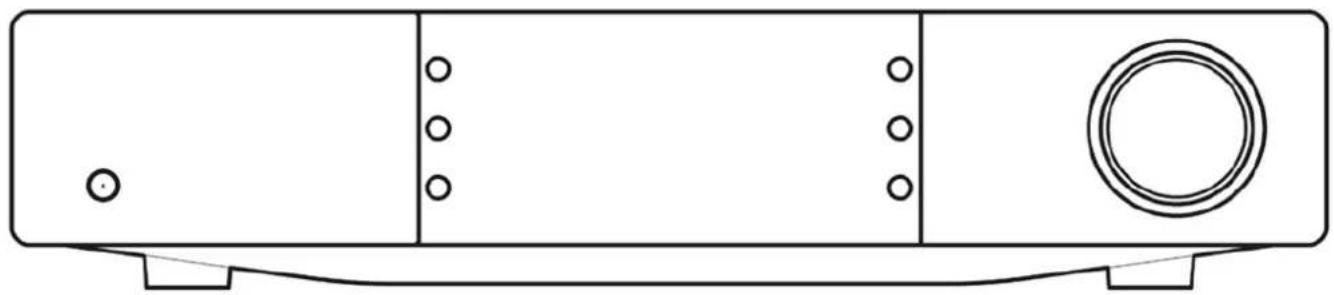
Line drawing of a rectangular electronic device with a circular button and three vertical slots, no text or symbols present.Introduction
Last updated: October 1, 2024 12:10. Revision #14080
This guide is designed to make installing and using this product as easy as possible. Information in this document has been carefully checked for accuracy at the time of publishing; however, Cambridge Audio's policy is one of continuous improvement, therefore design and specifications are subject to change without prior notice.
This document contains proprietary information protected by copyright. All rights are reserved. No part of this manual may be reproduced by any mechanical, electronic or other means, in any form, without prior written permission of the manufacturer. All trademarks and registered trademarks are the property of their respective owners.
The Bluetooth® word mark and logos are registered trademarks owned by the Bluetooth SIG, Inc. and any use of such marks by Audio Partnership Plc is under license. Other trademarks and trade names are those of their respective owners.
Qualcomm is a trademark of Qualcomm Incorporated, registered in the United States and other countries. aptX is a trademark of Qualcomm Technologies International, Ltd., registered in the United States and other countries.
Qualcomm aptX is a product of Qualcomm Technologies, Inc. and/or its subsidiaries.
StreamMagic is a trademark of Audio Partnership Plc and is registered in the European Community and other countries.
This product contains software licensed under version 2 of the GNU Public License and version 2.1 of the GNU Lesser Public License. The source code for this software is available from: https://gpl.stream-magic.com/
This product includes technology owned by Microsoft Corporation and under a licence from Microsoft Licensing GP. Use or distribution of such technology outside of this product is prohibited without a license from Microsoft Corporation and/or Microsoft Licensing, GP as applicable.
The Spotify Software is subject to third party licenses found here: https://www.spotify.com/connect/third-party-licenses
To use AirPlay with EXN100, the latest version of iOS, iPadOS, or macOS is recommended.
Apple, AirPlay, Apple Home, Apple TV, Apple Watch, HomeKit, HomePod, HomePod mini, iPad, iPad Air, iPhone, and tvOS are trademarks of Apple Inc., registered in the U.S. and other countries and regions.
Use of the Works with Apple AirPlay badge means that an accessory has been designed to work specifically with the technology identified in the badge and has been certified by the developer to meet Apple performance standards.
Android, Google Play and the Chromecast built-in are trademarks of Google LLC.
TIDAL and TIDAL logo are registered trademarks of Aspiro AB in the European Union and other countries.
MQA and the Sound Wave Device are registered trademarks of MQA Limited © 2016.
© Copyright Cambridge Audio Ltd
For upcoming news on future products, software updates and exclusive offers, make sure you register your product at https://whttps://www.cambridgeaudio.com/registerww.cambridgeaudio.com/register
What's included with the EXN100?
Last updated: September 27, 2024 03:43. Revision #14079

Inside the box of your EXN100 you will receive:
- EXN100 Network Player
- Safety Guide
- Quick Start Guide
- Control Bus Cable
- 3x Wi-Fi/Bluetooth Antennas (affixed to the unit)
- Regional Power Cable
Front panel controls
Last updated: October 1, 2024 12:19. Revision #14078
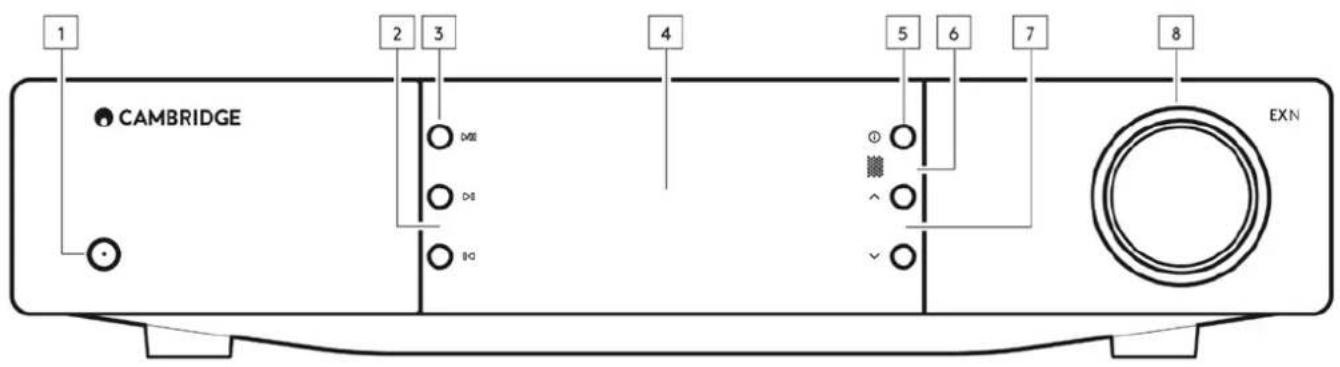
1. Standby/On
Switches the unit between Standby Mode (indicated by dim power LED) and On (indicated by bright power LED).
2. Skip
Skip to next track during playback.
3. Play/Pause
Play or pause current track.
4. Display
5. Info
During playback, pressing this button will cycle through the different 'Now Playing' screens. Press and hold to display the product info, as well as options for updating the firmware, network setup mode and factory reset. Different "Now Playing" screens are saved for each source.
6. Infrared sensor
IR sensor that receives IR commands from the compatible EX series 2 remote control.
Note: The EXN100 does not have its own remote control and does not come with one included.
7. Source Selector
Scroll through sources enabled in the StreamMagic app.
8. Volume Control
When Pre-amp mode is enabled, this will control volume via the analogue outputs.
Rear panel connections
Last updated: October 1, 2024 02:11. Revision #14077

1. AC Power socket
Once you have completed all connections to the amplifier, plug the AC power cable into an appropriate mains socket then switch on.
2. Wi-Fi Antenna
Ensure antenna is connected securely before use.
3. USB Media
For connecting local media storage. Note that the USB ports are not intended for connection to mobile devices; no functionality, charging or otherwise is supported.
4. Service Port
For servicing use only.
Note: Connecting any other device here may result in damage.
5. Ethernet
Use to connect the EXN100 directly to a network router. Use a wired connection for seamless playback of high-resolution 352.8kHz, 384kHz, and DSD 256.
6. Control Bus
RCA sockets used to send and receive power and volume commands from other connected EX Series products. For more information on the Control Bus, see Control Bus section.
7. USB Audio In
A USB B type socket to enable connection to PC, Mac and some Linux computers.
Note: For Class 2 USB audio, Windows-based PCs require a Cambridge Audio USB driver to be installed before connection. You can find the latest USB driver here.
USB Ground Switch
Note: The ground switch position should be set to lifted as default. Use another position if a humming noise occurs.
Lifted - Normal/default position. The main unit audio ground is lifted from chassis earth.
Chassis earthed - USB Audio ground is lifted from the main unit audio ground, which is also lifted from chassis earth. This may be useful to reduce hum and noise that can occur with some USB Audio setups.
8. Wi-Fi Antenna
Ensure antenna is connected securely before use.
9. Signal Ground Switch
Lifted - Normal/default position. The main unit audio ground is lifted from chassis earth.
Chassis earthed - Main unit audio ground is connected directly to chassis ground. For some setups, this can reduce hum or noise when certain TVs, Turntables, and other equipment are connected to the EXN100 unit.
10. Triggers
Trigger Out - Use a link wire between the EXN and a product that has a trigger input. This will synchronise the power state of both products when powering the EXN on/standby.
Trigger/IR In
Trigger In - Use a link wire between a product that has a trigger output and the EXN IR In - Receives modulated IR commands from an IR repeater or custom install systems.
11. Enhanced Audio Return Channel (eARC)
A connection from a TV that supports eARC and ARC via HDMI connection.
12. Digital Inputs (Coax and Optical)
TOSLINK and S/P DIF coaxial digital inputs.
Coaxial - Use a high quality 75 ohm digital RCA Phono interconnect cable (This is different from an analogue audio phono interconnect). This input is suitable for 16-24 bit content up to 192kHz .
TOSLINK Optical - Use a high quality TOSLINK fibre optic interconnect cable designed specifically for audio use. This input is suitable for 16-24 bit content up to 96kHz (TOSLINK is not recommended at 192kHz sampling rates).
Note: If a digital input is connected to a TV, you can enable TV mode in the sources settings of the StreamMagic app. This mode minimises lip-sync delays on the audio path by bypassing MQA decoding and also reduces the chance of dropouts and glitches from some TVs.
13. Digital Outputs
TOSLINK and S/P DIF coaxial digital outputs.
14. Bluetooth Antenna
Bluetooth functionality won't be possible if this antenna is not connected.
15. Line Output
Line Output (fixed or variable) used to provide a signal to another amplifier or a recording device.
16. Balanced Audio Output
For use with balanced XLR connections. The balanced connection is the higher quality option and can reject noise and interference in the cable when used with other equipment that supports this function.
Note: XLR connectors should be wired as follows: Pin 1: Ground, Pin 2: Hot (in-phase) and Pin 3: Cold (phase-inverted).
Display
Last updated: January 18, 2024 09:46. Revision #14076

1. Album/Source artwork
Displays the album artwork. Alternatively, if no artwork is available this will display the source input icon.
2. Track title, artist and album
For Internet Radio, this will display the radio station name and the current playback.
3. Format info
Displays the streaming sample rate. For Internet Radio, this will display the bitrate the station is streaming.
4. Source input
Displays the currently selected source input.
5. Progress bar
When available, this will display the current track progression during playback.
6. Track time
When available, this will display the elapsed track time during playback.
7. Clock
8. Network connection
Displays the current network connection.

Wireless network connection

Wireless connection with no internet access

Wired network connection

Wired connection with no internet access

No network connection
9. Speaker output
Displays the currently selected speaker output on relevant network streamers.
10. Mute volume
Displays when the network streamer is muted.
11. Firmware update
This indicates when new firmware is available. Press the 'Info' button on the front panel or use the StreamMagic app to update the network streamer's firmware.
12. MQA indicator
See the MQA section for more details.
13. Shuffle, Repeat and Repeat +1
Remote Control
Last updated: September 27, 2024 03:42. Revision #14075
Note: The EXN100 does not come with a remote control, it supports infrared control using the remote control of the EX series. In addition, EXN100 can also be controlled in more detail through the StreamMagic App

1. Standby/On
Switches the EXN100 between On and Standby mode.
2. Brightness
Alters the brightness of the EXN100 display. There are two brightness levels and an option to switch off the backlight. Note: When the brightness is switched to 'off', selecting any of the functions will briefly switch on the lights to show the change.
3. Mute
Press to mute or un-mute the audio. This can only be used with Pre-amp mode enabled.
4. Random
Play random track within queue.
5. Info
Tapping will toggle between display information. Holding will display the 'info' screen.
6. Volume
Volume level adjust. This can only be used with Pre-amp mode enabled when connected via the analogue outputs.
7. Skip
Skips between previous and next tracks.
8. Play/Pause
Play or Pause current track.
9. Source Selector
Scroll through sources enabled in the StreamMagic app.
10. Presets
Recalls stored 1 - 8 presets.
If the remote control will not function, please check that the batteries have not expired, and that there is nothing blocking the front panel IR sensor.
Getting connected
Last updated: September 27, 2024 03:41. Revision #14074
Basic Analogue Connections
Important Note: Switch the power off before making any connections. There are two analogue connection options for the EXN100.
Line Output Connection (RCA)
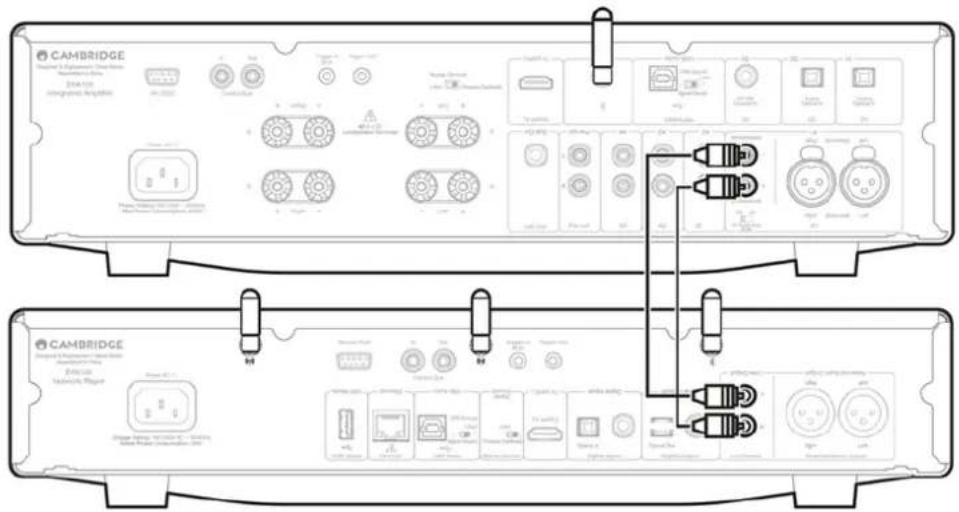
Balanced Audio Connection (XLR)
The balanced connection is the higher quality option and can reject noise and interference in the cable when used with other equipment that supports this function.
Note: XLR connectors should be wired as follows: Pin 1: Ground, Pin 2: Hot (in-phase) and Pin 3: Cold (phase-inverted).

Digital Connections
There are two digital connection options for the EXN100.
Note: If using either of the digital outputs of the EXN100, the digital signal will bypass the DAC in EXN100 and will instead be processed by the unit connected to the digital output, E.g., EXA
Digital Coaxial Output
Digital Coaxial connections are commonly used with CD players and amplifiers and are recommended for use as they have a higher bandwidth.
TOSLINK Optical Output
Whilst having lower bandwidth than coaxial cables, TOSLINK Optical connections are commonly found on televisions, DVD players and A/V units.
Control Bus
Last updated: October 9, 2024 09:03. Revision #14081
The Control Bus lets you control your other EX series units. See the following diagrams when connecting the EXN100 using the provided Control Bus cable.
Another added feature with Control Bus is the use of the StreamMagic app. You can use the StreamMagic app to control other EX series units via the EXN100.
EXN100 with EXA (via StreamMagic app)
When using the app to turn the EXN100 on/off, this will also turn the EXA on/off. The app can also be used to control the volume of the EXA. Connect the EXN100 Control Bus Out to EXA Control Bus In.
If you wish to control the volume of your EXA via the app, ensure that the 'Pre-amp' mode is disabled and 'Control Bus' has been set to 'Amplifier' in the app device settings.

EXA with EXN100
Note: Without using the StreamMagic app to control the EXA.
When turning the EXA on/off, this will also turn the EXN on/off. Connect the EXA control bus out to EXN in.
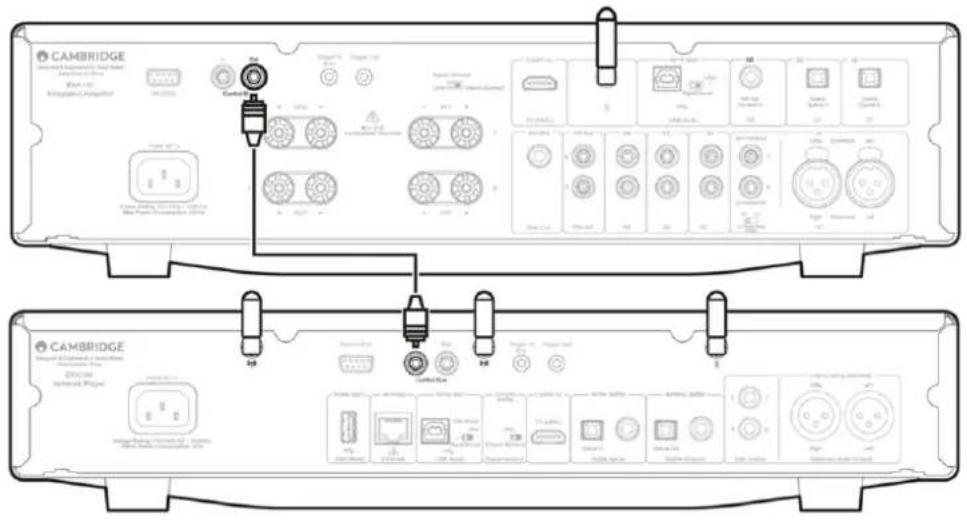
EXA with EXN100 and CXC
When turning the EXN on/off, this will turn the EXA and CXC on/off.
With all three EX devices, connect the EXN Control Bus out to EXA Control Bus in. Then connect the EXA Control Bus out to CXC Control Bus in.
Note: Do not loop back from the CXC Control Bus out to the EXN Control Bus in.
Control Bus will also need to be enabled and set to 'Amplifier' within the EXN device settings in the StreamMagic app once the app has been connected to the EXN.

Note: The EXA, EXN and CXC all have an Auto Power Down (APD) function. If APD is enabled and one of the devices is switched on but inactive, the device will automatically power down after the selected APD time. This will then switch off all the other connected devices, due to the Control Bus connection.
If you don't want the devices to go into standby automatically, we would recommend disabling the APD feature on each device.
Connecting to a network
Last updated: October 1, 2024 12:36. Revision #14073
Important Note: It is vitally important that your Network Player remains connected to an internet network as often as possible, either via Wi-Fi or Ethernet. This will ensure that the unit is regularly updated to meet essential security protocols, third party compatibility.
Firmware upgrading is highly recommended. It enhances stability, improves performance, and adds new features for a better user experience.
Note: Your player is not compatible with captive portal networks. Where possible, avoid the use of powerline adapters and Wi-Fi signal boosters/extenders, as these can disrupt the reliability of the network connection.
Connecting to a Wired Network
- Connect a network cable between your device and your router.
- Your device will now automatically connect to the network.

Connecting to a wireless network
iOS:
- Connect both of the supplied Wi-Fi antennas to the rear of the unit, and ensure that it's in range of your wireless router. Then power on your unit.
Note: If you are setting up your device for the first time or after a factory reset, you will first need to follow the on screen instructions to select your preferred language after powering on your unit. - Go to the Wi-Fi settings on your iOS device and under 'SETUP NEW AIRPLAY SPEAKER' select the name of your Network Player.
Note: Some iOS devices won't show an option for 'AirPlay Speaker'. In this instance still select the name of your Network Player. - Once connected, complete unit setup by downloading and installing the StreamMagic app from the Apple App store.
Android:
- Connect both of the supplied Wi-Fi antennas to the rear of the unit, and ensure that it's in range of your wireless router. Then power on your unit.
Note: If you are setting up your device for the first time or after a factory reset, you will first need to follow the on screen instructions to select your preferred language after powering on your unit.
- Download and install the StreamMagic app from the Google Play store.
- Open the StreamMagic app and select 'Connect'.
- Under Choose a device select 'Set up a new device' and then select the name of your Network Player.
- Select 'Wireless Connection' and then 'Continue'.
- Your Android device will now show all available Wi-Fi devices in range. Select the name of your Network Player.
- Once connected, you will be prompted to enter your Wi-Fi network password. Enter the password and select 'Continue'.
- Your device will now connect to your Wi-Fi network, this may take up to a minute.
- Once connected, complete the initial setup of your unit within the StreamMagic app.
StreamMagic app - Setup
Last updated: August 9, 2024 09:07. Revision #14091
Your player is network connected, not only can you listen to devices connected to the inputs on the product but you can also stream music from many different sources both on your home network and from the internet.
To set up your player, please first download the StreamMagic app from the Apple app store or Google Play store.

Set up
- Switch on your player and follow the on screen instructions to select your preferred language.
- Open the StreamMagic app and follow the instructions provided to complete setting up your player on your network. This process will also apply any new updates that may be pending.
Note: During the set up process you will be asked to give your player a name, please make sure this is unique to your player. This will make it easier to find when using streaming and smart home services.
Once your player is connected to your home network you'll have full control of your sources, including internet radio, streaming services, network and USB drives and more.
For more information on our StreamMagic app, please visit: https://www.cambridgeaudio.com/gbr/en/products/streammagic
Google Home / Google Cast
Last updated: June 27, 2024 11:47. Revision #14090
Your player features Google Cast and can be incorporated in to your Google Home. To set up your player, download the Google Home app on your smart phone or tablet.


With Google Cast built in to your player, your phone becomes your remote. Simply tap the Cast button from apps you already know and love to stream music, podcasts and playlists from your phone, tablet or laptop to your player.
Google Cast
Your phone is your remote
- Simply tap the Cast button from apps you already know and love. No new logins or downloads required.
- Use your phone to search, play, pause and turn up the volume from anywhere in the home.
- While you're streaming, you can keep using your phone for other things - scroll through social media, send a text, and even accept calls.
- Enjoy music throughout your house when you use multi-room casting with Google Cast-enabled speakers.
- Just say "Hey Google" to cast to your player
Unlimited entertainment, all on your schedule
- Works with hundreds of apps and new apps are being added all the time.
- Choose from millions of songs from popular music services like Pandora, Spotify, and Youtube Music.
Note: When first setting up your Player via the StreamMagic app or after a factory reset, please ensure that you accept Google's terms and conditions when prompted to enable Google Cast functionality.
Android, Google Play and the Google Cast-enabled logo are trademarks of Google Inc.
Full Google Cast-enabled features may not be available in some territories.
Internet radio
Last updated: October 3, 2024 09:36. Revision #14089
You can browse and play a wide variety of Internet Radio stations in the StreamMagic app Radio tab. You can also assign up to 99 of your favourite Internet Radio stations and other media as presets on your player, which can then be recalled using the StreamMagic app. A limited amount of presets can be recalled via the remote control if your player includes one.
You can search and assign a preset via the StreamMagic app:
- Within the StreamMagic app navigate to the Radio tab.
- Use the Search for Radio search tab at the top of the page or enter a Custom URL link by selecting URL.
- Once you have located the station you wish to store, select and you will be prompted with the option to Play now or Add to presets.
- Add station to the desired preset for your player between 1-99.
- You will then receive confirmation that the station is saved to the chosen preset.
Note: Please ensure that the custom URL stream is one of the following supported file types: ALAC, WAV, FLAC, AIFF, DSD (x256), WMA, MP3, AAC, HE AAC AAC+, OGG Vorbis.
To remove a preset (iOS):
- Within the StreamMagic app navigate to the Home tab.
- Scroll to the bottom of the page where you find your player's Presets, and select EDIT.
- To remove a station from preset, tap the red circle icon and then press Delete.
To remove a preset (Android):
- Within the StreamMagic app navigate to the Home tab.
- Scroll to the bottom of the page where you find your players Presets, and select EDIT.
- Tap on the station you wish to remove.
Note: You may also assign a preset using a remote control if your player includes one, by pressing and holding a number on the remote whilst a station is playing.
Bluetooth
Last updated: October 3, 2024 09:37. Revision #14088
The Bluetooth source allows your player to receive wireless Bluetooth audio from most phones, tablets and laptops.
Pairing
To begin streaming high-quality music from your chosen media source it will first need to be paired with your player.
- Within the StreamMagic App navigate to the Home tab.
- Use the "Edit" option of the source to add the Bluetooth source.
- Return to the Home tab and select the Bluetooth source.
- Open your mobile device or laptop's Bluetooth settings.
- Select your player from the list of available devices.
- Your device should now connect to your player.
Once paired you should be able to connect to your player at any time by selecting the Bluetooth source on your player and then choosing your player from the list of previously connected devices.
Note:
Your Bluetooth device can only be connected to your player while the Bluetooth source is selected.
AirPlay
Last updated: October 3, 2024 09:38. Revision #14087
AirPlay is an Apple technology designed to control home audio systems and speakers in any room — with a tap or by just asking Siri — right from iPhone, iPad, HomePod, or Apple TV. Play a song in the living room and kitchen at the same time or adjust the volume in any room, all in sync.
After installing your player, add it to the Apple Home app with a few simple steps using your iPhone or iPad
How to use AirPlay from iPhone or iPad
- Ensure your player is connected to your network.
-
Open the app that you want to AirPlay from.
-
Tap


- Select your player as your AirPlay device.
How to use AirPlay from Control Center
To switch the audio on your device from Control Center:
Swipe down from the top right side of the screen on your device to open Control Center.
Touch and hold

e upper-right corner, then select your player.
This product supports AirPlay 2 and requires iOS 11.4 or later.
Apple and AirPlay are trademarks of Apple Inc., registered in the U.S. and other countries.
Use of the Works with Apple badge means that an accessory has been designed to work specifically with the technology identified in the badge and has been certified by the developer to meet Apple performance standards.
Built-in streaming services
Last updated: October 3, 2024 09:34. Revision #14086
Your player has the following built-in streaming services:
- Spotify Connect
• TIDAL
• Qobuz - Deezer
Note: It is essential that the device you are streaming from (smartphone, tablet, computer, etc.) is on the same Wi-Fi network as your player, to ensure that the units can communicate with each other.
Spotify Connect
Use your phone, tablet or computer as a remote control for Spotify.
Go to spotify.com/connect to learn more.
TIDAL (Connect)
- Open the TIDAL app and choose the playlist, album, song, etc. that you wish to stream to your player.
- Select the Sound Output devices icon within TIDAL and select your player from the list.
- TIDAL Connect should now be streaming your chosen content to your player.
Go to tidal.com/connect to learn more
TIDAL (via StreamMagic)
- Open the StreamMagic app and navigate to the Library tab, and then select TIDAL.
Note: Please ensure that you sign into your TIDAL account when prompted to do so. This will only be required on the first instance of use to link the account to the StreamMagic app. - Choose the playlist, album, song, etc. that you wish to stream to your player.
- TIDAL should now be streaming your chosen content to your player.
Qobuz (via Google Cast)
- Open the Qobuz app and choose the playlist, album, song, etc. that you wish to stream to your player.
- Select the Google Cast icon within Qobuz and select your player from the Qobuz Connect list.
- Qobuz should now be casting your chosen content to your player.
Qobuz (via StreamMagic)
- Open the StreamMagic app and navigate to the Library tab, and then select Qobuz.
Note: Please ensure that you sign into your Qobuz account when prompted to do so. This will only be required on the first instance of use to link the account to the StreamMagic app.
-
Choose the playlist, album, song, etc. that you wish to stream to your player.
-
Qobuz should now be streaming your chosen content to your player.
Deezer (via Google Cast)
- Open the Deezer app and choose the playlist, album, song, etc. that you wish to stream to your player.
- Select the speaker icon within Deezer, then select 'Google Cast'. Select your player from the list.
- Deezer should now be casting your chosen content to your player.
Deezer (via StreamMagic)\*
- Open the StreamMagic app and navigate to the Library tab, and then select Deezer.
Note: Please ensure that you sign into your Deezer account when prompted to do so. This will only be required on the first instance of use to link the account to the StreamMagic app.
- Choose the playlist, album, song, etc. that you wish to stream to your player.
- Deezer should now be streaming your chosen content to your player.
*Deezer is only available within the StreamMagic app when running firmware version 129-b-004 or later and StreamMagic app version 2.9.0 or later.
USB Audio
Last updated: September 27, 2024 03:41. Revision #14085
Important note: Before setting up your device for the first time, please make sure that the USB Audio connection is unplugged. USB Audio can be re-connected once any firmware updates are applied.

PC Setup
Note: Before connecting your PC to the Network Player, ensure you install the required Cambridge Audio Windows 2.0 USB driver on your PC. Please find information on the most recent USB Audio driver here, and a link to download the latest driver here.
- Connect your device to your PC.
- After installing the correct driver, using a USB Audio cable (Type A to Type B), connect the USB Audio In on your device to a USB port on the PC.
- Select the USB Audio source.
- This can be done using the source selector on the front of the device, or by going to the Home tab and then selecting USB Audio within the Sources section of the StreamMagic app.
- Navigate to the CA Control Panel which should now be installed in your Windows taskbar. This will show any connected Cambridge Audio USB Audio device and current sample rate.
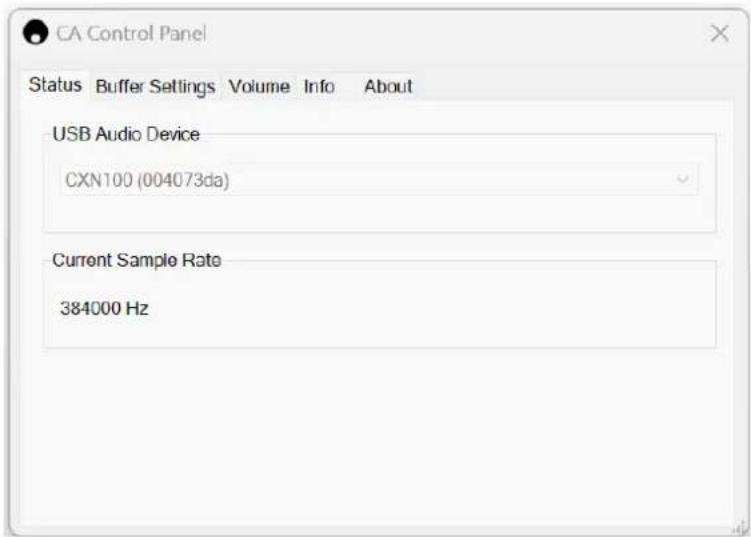
- On your PC, navigate to Settings > System > Sound. Select your Network Player as your output device from the drop-down menu.
- Within this same window under Related Settings on the right-hand side, select Sound Control Panel. Alternatively, scroll down and select More Sound Settings.
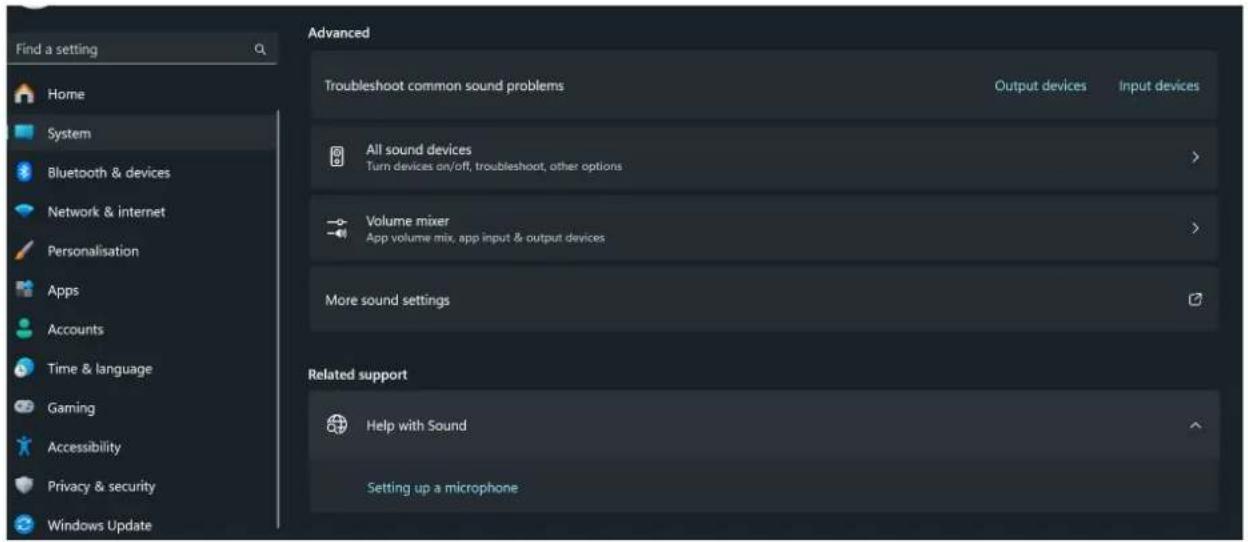
- On the Playback tab, ensure that the device is the default output device, then select Properties.
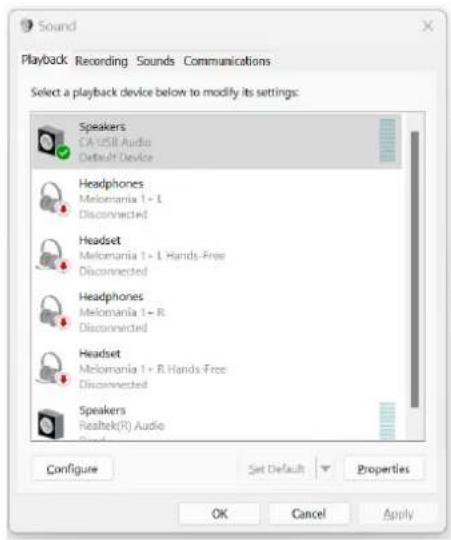
- Within Speaker Properties, navigate to the Advanced tab. Select the desired bit depth and sample rate preference. (This step is optional.)

Note: Not all Windows versions support playback at sample rates greater than 384kHz. If you experience issues please set the default Windows playback format to 384kHz or lower, then restart your Network Player.
- Your PC's output will now playback via your Network Player.
Mac Setup
Note: No extra drivers are required when using a Mac.
- Connect your device to your Mac.
- Using a USB Audio cable (Type A to Type B), connect the USB Audio In on your device to a USB port on the Mac.
Note: If using a Mac without a USB Type A port, you may also use USB Type C (Thunderbolt 3) to USB Type B connection.
- Select the USB Audio source.
- This can be done using the source selector on the front of the device, or by going to the Home tab and then selecting USB Audio within the Sources section of the StreamMagic app.
- Within the System Preferences of the Mac, locate the Sound settings. Select your Network Player as the output sound device.

- On the Mac navigate to Applications > Utilities > Audio MIDI Setup. Select the device as the output sound device on the left column, and then using the drop-down options select the desired bit depth and sample rate preference.
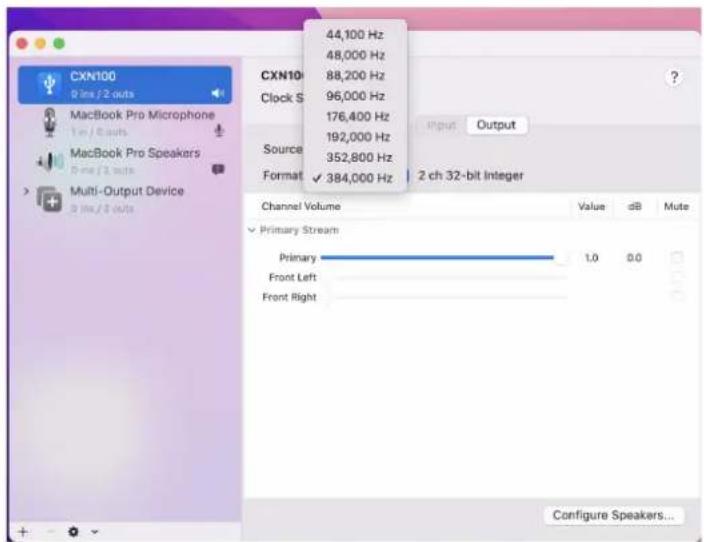
Note: This step is optional.
- Your Mac's output will now playback via your Network Player.
USB Media
Last updated: October 3, 2024 09:39. Revision #14084
You may connect a USB SSD, USB HDD or flash drive to your player via the USB Media input located on the rear of the unit for playback. Once connected, the following formats are supported: ALAC, WAV, FLAC, AIFF, DSD, WMA, MP3, AAC, HE AAC, AAC+, OGG Vorbis
Note: your player will read large capacity hard drives connected to the USB input. However, some larger capacity drives will require you to use their own power supply.
Your player only supports USB hard drives which are formatted to FAT32, exFAT, NTFS and Ext4.
The primary function of your player is as a network music player. The USB ports are intended for convenient connection of USB thumb drives. As such, we cannot guarantee compatibility with all USB HDD's.
USB Media Playback (via StreamMagic app)
- Connect a USB SSD, HDD or flash drive to rear panel USB Input.
- Navigate to the Library tab of the StreamMagic app.
-
Under USB Drives, locate your USB Media device and open.
-
Upon selecting a track you will have the option to 'PLAY FROM HERE', 'PLAY TRACK NOW', 'PLAY TRACK NEXT' or 'QUEUE TRACK'.
Playback Options:
PLAY FROM HERE - Playback of album/folder will begin from this point onwards.
PLAY TRACK NOW - Selected track will playback immediately.
PLAY TRACK NEXT - Selected track will be added to queue and playback next.
QUEUE TRACK - Selected track will be added to playback queue.
Streaming your local digital music collection
Last updated: May 14, 2024 03:09. Revision #14083
Your player can play content from many different physical sources and this section will explain what you need to do to access and play your locally stored digital music collection. 'Locally Stored' means the digital music files you have on your PC, Mac or Network Attached Storage devices (NAS).
To stream local content, you will need the following hardware and software running in your network:
- Your Cambridge Audio Network Player.
- A mobile device such as a smartphone or tablet on which you can run the StreamMagic app, or by accessing your collection via the front panel controls.
- A hard drive, computer or NAS containing your compatible digital music files.
- An active UPnP music or media server.
- A router which is configured to allow the UPnP service.
Note: The above items must be correctly connected and configured, and it is important to note that depending on the server, NAS, computer, etc. you're using, this will differ from setup to setup. To help you with this we have created best practice guide which should get you up and running with minimal fuss and effort. This can be found here.
MQA (Master Quality Authenticated)
Last updated: October 3, 2024 09:40. Revision #14082
Your player includes MQA technology, which enables you to play back MQA audio files and streams, delivering the sound of the original master recording.

The front panel will display MQA green or blue to indicate that the unit is decoding and playing an MQA stream or file, and denotes provenance to ensure that the sound is identical to that of the source material. It displays MQA blue to indicate it is playing an MQA Studio file, which has either been approved in the studio by the artist/producer or has been verified by the copyright owner.
Settings
Last updated: October 1, 2024 12:40. Revision #14092
Device Name
This is how your player will appear in your StreamMagic app and on your home network when using services like Spotify, Chromecast built-in and TIDAL Connect.
Giving your player a unique name makes it easier to distinguish when using streaming and smart home services.
AirPlay Name
This is how your player will appear when using AirPlay or the Apple Home app.
Standby Mode
This selects what type of standby mode your player will use.
Network Standby means your player will still be controllable by the StreamMagic app and other network services while in standby.
If ECO mode is chosen, your player will use even less power in standby but will need to be switched on either by the front panel or the remote control. It will not be controllable via the app or other network services while in standby.
Automatic Power Down
This sets how long your player will wait while inactive before switching to standby.
Display Brightness
This sets the brightness of your player's display. If set to 'Off' the display will show for a few seconds after any change and then switch off.Roon
Ready DSD
This will allow you to choose how Roon provides DSD content.
Use DoP for digital output – If your device does support native DSD in DoP format. Use PCM for digital output – If your device doesn't support native DSD.
Control Bus
If your device is connected to a Cambridge Audio amplifier using a control bus connector, volume commands can be sent directly to the amplifier. For more information, please refer to the Getting Connected section of this manual under 'Control Bus' here.
Pre-Amp
With Pre-Amp mode enabled, the volume of the device's analogue outputs can be controlled using the app or rotary dial.
Note: Pre-Amp mode and volume control can only be enabled when connected via the analogue outputs.
Volume Limit
This sets the maximum volume that other streaming services like AirPlay, Spotify, TIDAL Connect and Google Cast and set. The front panel, remote control and StreamMagic app volume controls can override this setting.
Early Update
Setting this to 'On' will let you try out the latest firmware ahead of general release.
Firmware
This will check for and apply any new firmware available for your player.
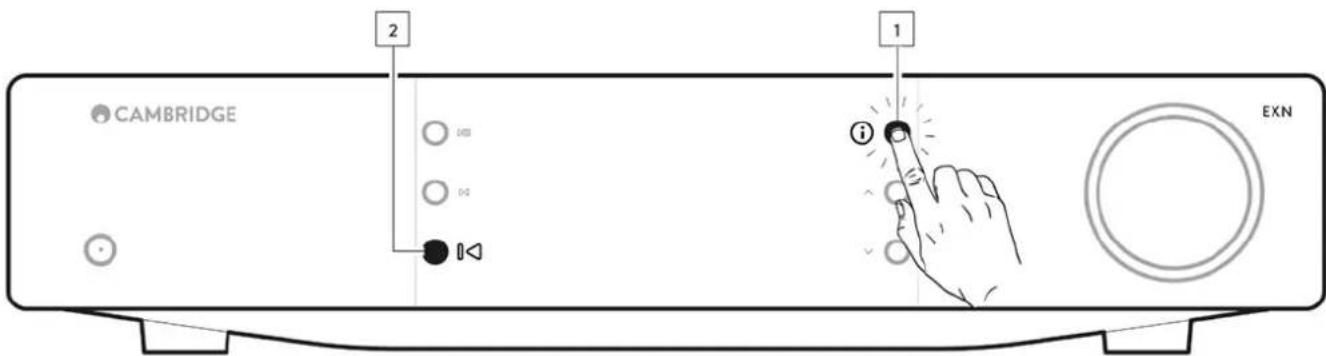
You can also check for new updates on the info screen and manually update the unit's firmware by following the steps below:
- Hold down the 'i' (Info) button on the front panel
- As instructed on the display, press the 'play/pause' button to check for new firmware. The new firmware version will now update if there is one available.

When left in network standby overnight your player will check and apply any new updates.
Note: Your network player must be connected to the internet to carry out firmware updates. You should keep your network player connected to ensure optimal performance.
Restart
This will restart your device and it will briefly lose connection with your network and the app.
Factory Reset
This will return your player to its factory settings.
You can also do this from the info screen by following the steps below:
- Hold down the 'i' (Info) button on the front panel.
- As instructed on the display, hold down the 'reverse skip' button to perform the factory reset.
Info screen
Last updated: September 27, 2024 03:40. Revision #14093
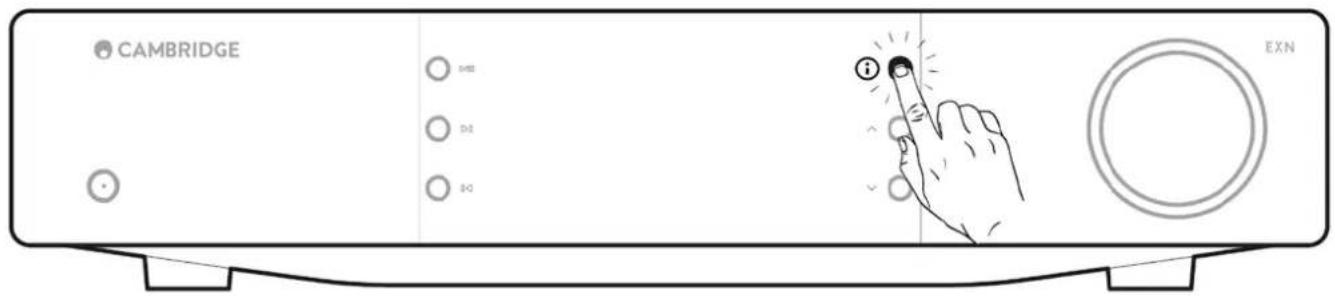
The info screen shows useful information about your player, it also allows you to carry out some actions to help resolve problems with your player.
To access the info screen, hold the button on the front panel for 2 seconds.
Technical specifications
Last updated: September 27, 2024 03:40. Revision #14094
D/A converters
ESS ES9028Q2M
THD @ 1kHz 0dBFs
< 0.0005 %
THD @ 20kHz 0dBFs
< 0.0005 %
Frequency response
20Hz-20kHz +/- 0.1dB
Signal to noise ratio (REF 1W)
120dB
Crosstalk @ 1kHz
<-120dB
Digital outputs
S/PDIF Coaxial
16/24-bit, 32-192kHz
TOSLINK Optical
16/24-bit, 32-96kHz
AUDIO FORMATS
WAV containing uncompressed, PCM 16-32 bit 32-768kHz, FLAC containing losslessly compressed, PCM 16-32 bit 32-768kHz, Apple Lossless (ALAC) containing losslessly compressed PCM 16-24 bit 32-192kHz, AIFF containing uncompressed, PCM 16-32 bit 32-768kHz, Microsoft® Windows Media TM Audio (WMA 9 Standard) 32-320kbps, MP3 (CBR or VBR) 16-320kbps, AAC, HE AAC and AAC+, (CBR or VBR) 16-320kbps, OGG Vorbis 32-320kbps.
Native DSD64 to DSD512 support.
Streaming protocols
RTSP (Real Time Streaming Protocol), MMS (Microsoft Media Server Protocol), HTTP (Hyper Text Transfer Protocol).
Bluetooth
5.0 A2DP/AVRCP supporting SBC, aptX and aptX HD codecs
Connectivity
UPnP, Local USB media, Airplay, Google Cast, Internet Radio, Spotify Connect, TIDAL, Qobuz, Deezer, Roon Ready.
Playlist
ASX (Microsoft® playlist format) M3U, PLS
Wi-Fi
IEEE 802.11 b/g/n or AC (2.4GHz and 5GHz)
Wi-Fi encryption
WEP, WPA, WPA2
Ethernet
IEEE 802.3, 10 Base-T or 100 Base-T
USB
1 x USB 2.0 current limited to 1A
File systems
FAT32, NTFS, Ext4, ExFAT
Mains inlet voltage
100-240 VAC (switch mode) standby consumption
ECO Mode
<0.5W
Network Standby Mode
2W
Max power consumption
30W
Dimensions
89 x 430 x 325mm (3.5 x 16.9 x 12.8")
Weight
4.15kg (9.1lbs)
Source quality matrix
Last updated: February 20, 2024 04:30. Revision #14097
| SOURCE | DELIVERY METHOD | MAXIMUM RESOLUTION |
| Spotify Connect | Mobile/Desktop App | 320kbps |
| Spotify AirPlay | Mobile/Desktop App | 320kbps |
| Spotify Chromecast | Mobile/Desktop App | 320kbps |
| Spotify Bluetooth | Mobile/Desktop App | aptX HD |
| TIDAL Connect | Mobile/Desktop App | 24bit / 192 kHz |
| TIDAL (via StreamMagic app) | StreamMagic App | 24bit / 192 kHz |
| TIDAL AirPlay | AirPlay 2 | 16bit / 44kHz |
| TIDAL Chromecast | Chromecast | 24bit / 48 kHz |
| TIDAL Bluetooth Bluetooth | aptX HD | |
| TIDAL Roon | Roon Endpoint | 24bit / 192 kHz |
| TIDAL Roon | USB Class 2 | 24bit / 192 kHz |
| TIDAL Desktop App | USB Class 2 | 24bit / 192 kHz |
| Qobuz (via StreamMagic app) | StreamMagic App | 24bit / 192 kHz |
| Qobuz AirPlay | AirPlay 2 | 16bit / 44kHz |
| Qobuz Chromecast | Chromecast | 24bit / 48 kHz |
| Qobuz Bluetooth | Bluetooth | aptX HD |
| Qobuz Roon | Roon Endpoint | 24bit / 192 kHz |
| Qobuz Roon | USB Class 2 | 24bit / 192 kHz |
| Qobuz Desktop App | USB Class 2 | 24bit / 192 kHz |
| Third Party App (via AirPlay) | AirPlay 2 | 16bit / 44kHz |
| Third Party App (via Chromecast) | Chromecast | 24bit / 48 kHz |
| Third Party App (via Bluetooth) | Bluetooth | aptX HD |
Troubleshooting
Last updated: October 1, 2024 12:49. Revision #14095
If you have trouble connecting the Network Player to your network, these steps may help to resolve the problem:
- Ensure that you have followed the 'Connecting to a network' steps in the manual here.
- Ensure both Wi-Fi antennas are securely connected to the rear of the unit.
- Ensure your mobile device is connected to the same network you wish to connect your Network Player to.
- Remove any VPN or Anti-Virus app you may have downloaded on your mobile device, as they can sometimes prevent the app from 'seeing' other devices on the network.
- Remove any network switches/extenders etc. that are part of your network set up.
- Connect the unit directly to your router via an Ethernet cable.
- Perform a factory reset on your unit, and then attempt the network set up steps again.
- Check that a DHCP server is available, or that you have configured a static IP address on your Player. You can configure a static IP address on the unit via the 'Network' settings in the StreamMagic app.
- Reboot and/or factory reset your router.
If you have trouble connecting the StreamMagic app to your Network Player, these steps may help to resolve the problem:
- Ensure your mobile device is connected to the same network you wish to connect your Network Player to.
- Remove any VPN or Anti-Virus app you may have downloaded on your mobile device, as they can sometimes prevent the app from 'seeing' other devices on the network.
- Ensure that you have allowed the StreamMagic app to have access to devices on your network. You can check this via your mobile devices' app settings.
- Ensure both Wi-Fi antennas are securely connected to the rear of the unit.
- Check whether other apps and sources on your device are able to 'see' the unit. If they are, this would suggest that something on your device is preventing the StreamMagic app from 'seeing' the Network Player.
- Download the StreamMagic app on to another mobile device.
- Remove any network switches, extenders, boosters etc. that may be part of your network set up
If your Network Player is experiencing audio dropouts during playback from a network source, these steps may help to resolve the problem:
- Ensure both Wi-Fi antennas are securely connected to the rear of the unit.
- Remove any network switches, extenders, boosters etc. that may be part of your network set up.
- Connect the unit directly to your router via an Ethernet cable.
- Reset your network router.
- Perform a factory reset on your Network Player by following the steps in the manual here.
If your Network Player can connect to the network successfully but is unable to play particular Internet Radio stations, it may be due to one of the following causes:
- The station is not broadcasting at this time of the day (remember it may be in a different time zone).
- The station is not broadcasting anymore.
- The link in our database is simply out of date. (You can request that a radio station is added or updated by following the steps in the following FAQ.)
- The Internet connection between the server (often located in a different country) and you is slow.
- Try deleting and then re-installing the StreamMagic app on your device.
- If you are playing a radio preset, try deleting and then re-installing the preset in the StreamMagic app.
If you have problems with UPnP playback check the following:
- Ensure your chosen UPnP server software can serve the file type you are trying to access. Some servers do not serve FLAC for instance.
- This Network Player can only play non-DRM files. Files that have DRM controls cannot be played by the EXN100.
- If attempting to play 24-bit WAV or FLAC content, note a wired Ethernet connection is normally preferred for reliable operation due to bandwidth considerations
- Check the Network Player can play back the file type you are trying to access. WMA, AAC, HE AAC, AAC+, MP3, OGG Vorbis, FLAC, WAV, ALAC, AIFF can currently be played.
- Ensure your PC/NAS drive are connected to the same network as your Network Player.
- Ensure you have followed the required steps for PC/NAS drive configuration with a Network Player. You can find out more about this in the following FAQ.
If you have problems with USB Media playback check the following:
- Check the Network Player can play back the file type you are trying to access. WMA, AAC, HE AAC, AAC+, MP3, OGG Vorbis, FLAC, WAV, ALAC, AIFF can currently be played.
- This Network Player can only play non-DRM files. Files that have DRM controls cannot be played by the EXN100. Check that your device does not require more than 1A if it is powered from the USB socket itself.
- Check your device is formatted in FAT32/NTFS/exFAT/Ext4 format.
- The way you organise your USB media can affect the size of the internal database the Network Player needs to scan dynamically as you browse content. It is good practice to create folders for Artists, within which should be a sub folder for each album containing the tracks for that album. Libraries with thousands of tracks in one folder will progressively slow down the Player's media browsing.
If you have problems connecting a Bluetooth device to the Network Player, check the following:
- Ensure the Bluetooth source has been selected via the app or the front panel source selector. You will be unable to pair a Bluetooth device to the Player unless the Bluetooth source has been selected.
- Ensure the supplied Bluetooth antenna has been connected to the rear of the Player.
- Ensure your device is not already connected to another Bluetooth speaker/headphones.
- Ensure the Player is not already connected to another Bluetooth device.
There is no sound:
- Ensure the unit is not in Standby mode.
- Check that your amplifier/DAC is properly connected.
- Check that your speakers are properly connected to the amplifier.
- Check that your connected amplifier/DAC is not in mute mode.
- If Pre-Amp mode has been enabled, ensure the Player is not in mute mode.
- Ensure the correct source has been selected via the app or the front panel source selector.
There is no audio when connecting a Mac/PC to the USB Audio input:
- Ensure that all the steps within the USB Audio section of the manual have been followed.
- Ensure that the USB Audio source has been selected via the app or the front panel source selector. Ensure that your PC/Mac is connected to the USB Audio input with a USB A to B cable.
- If you are connecting a PC, make sure that the correct USB driver is downloaded. The driver is available from https://www.cambridgeaudio.com/gbr/en/driver-updates.
There is no sound from a TV connected to the eARC input:
- Follow the steps in the troubleshooting guide on our support site here.
Frequently asked questions
Last updated: October 1, 2024 12:52. Revision #14072
Can I play files from a connected USB HD when the EXN100 is not connected to a network?
This is not possible as the use of the StreamMagic app is required to be able to play local files from a connected USB HD. Please note that it is strongly recommended that the EXN100 is connected to a network at all times.
Does the EXN100 come with a remote control?
No, the EXN100 does not have its own remote control and does not come with one included. The unit can be fully controlled, and the settings can be adjusted via the StreamMagic app.
If you wish to use a remote control with your device, the EX series remote control is compatible with the EXN100 and can be purchased from our website.
Can I access features such as Internet Radio and streaming services via the front panel?
It is not possible to access services and features via the front panel of the EXN100. You will be able to access many features via the StreamMagic app, as well as integrated services such as TIDAL, Spotify etc. via their respective apps.
How do I change the volume of the EXN100?
With Pre-Amp mode enabled within the StreamMagic app device settings, the volume of the device's analogue outputs can be controlled using the app or rotary dial.
Note: Pre-Amp mode and volume control can only be enabled when connected via the analogue outputs.
Do I need to connect both of the supplied Wi-Fi antennas for the EXN100 to work?
Yes, if you are connecting your EXN100 to your network wirelessly, you will need to connect both of the supplied antennas to enable full Wi-Fi functionality and the strongest possible wireless network connection.
Bluetooth functionality will also only be possible when one of the antennas is connected to the port with the Bluetooth symbol.
Can I use more than one of the EXN100's outputs at once?
Yes, If you wish to connect the EXN100 to one single device, you can use any output, digital or analogue, that you wish. If, however, you would like to connect the EXN100 to more than one device at a time, you can connect up to four devices and play simultaneously, as all outputs remain active at all times.
Please note that if you wish to control the volume via the EXN100, you will need to enable Pre-Amp mode in the StreamMagic app. Volume control does not apply to the digital outputs,
How do I stop the EXN100 from powering down when not in use?
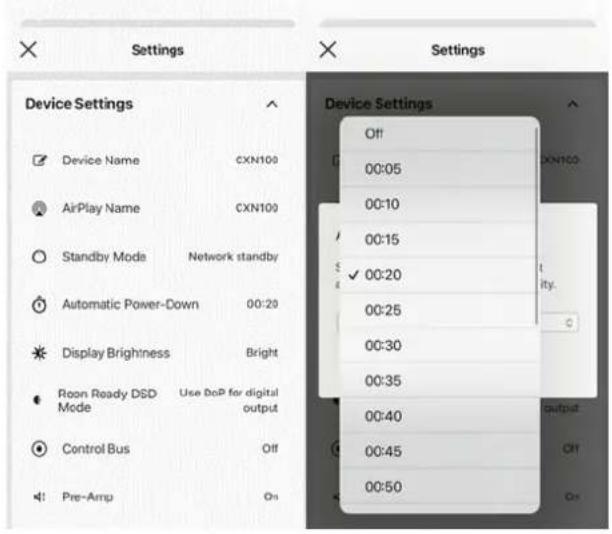
The EXN100 will automatically switch to standby mode after 20 minutes of inactivity. This Automatic Power-Down (APD) feature can be disabled, by navigating to the device settings within the StreamMagic app.
You can either disable this feature or edit the length of time it takes for APD to be triggered, by selecting 'Automatic Power-Down'.
What USB HDs will the EXN100 support?
The primary function of the EXN100 is as a network music player and the USB port is intended for convenient connection of USB HDDs and SSDs. As such, we cannot guarantee compatibility with all USB HDDs and SSDs.
The EXN100 will read large capacity hard drives connected to the USB Media input. Some larger capacity drives, however, may require their own power supply, as the player's USB port may not provide enough power for the drive to function.
The EXN100 will support USB hard drives which are formatted to FAT32, exFAT, NTFS and Ext4.
IMPORTANT SAFETY INSTRUCTIONS
For your own safety please read the following important safety instructions carefully before attempting to prompt the unit to the main power supply. They will also enable you to get the best performance from and prolong the life of the unit
-
Fixed Data Instructions
-
Keep these instructions.
-
Need all warnings.
-
Followed instructions
-
Do not use this apparatus near water
-
Clean safety with dry filter
-
2x the stock any volatility measures include in accordance with the manufacturer's marketable
-
Do not install new any heat sources such as radiators, heat registers, stoves, or other applications (including amplifiers)
that produce needs. 6. This will default the offer to reserve of the customer's revenue from that. A payment aid is how they deliver with one wider
- The total cost of the company's operating expenses and other provisions for non-controlling interest plans are projected to exceed 3 million dollars, which will be required by the company with a similar amount. This company is that what would
man that is there. A groundbreaking pipe has two flasks and a third grouting pipe. The wipe tape of the third being am mounted for your safety. If the provided shop does not fill into your outlets, consult an electrician for replacement of
Pre chocolate salt
- Protect the lower cord from hands-welted on or anchored, particularly at slugs, convenience receptacles and the cord
where they sell from the apprentices.
1.1. Only use attachment accessories specified by the manufacturer.
- Use with only the next, sheet, front, handset, or table classified by the manufacturers, or said with the
apparatus. When a card is used, case caution when reducing the card's apparatus overmation to avoid injury
Burm Top-ovac
-
Overlap this apparatus during lighting storms or when unused for long periods of time.
-
Refer all services to qualified service personnel. Services is required when the apenitus has been damaged in any
was such as the server supply card or also having been damaged. Could have been spilled or obtests have taken into
The apparatus, the apparatus has been exposed to rain or moisture, does not operate normally, or has been dropped.
6/4康乐网络
WARNING:
- On the place the unit in an enclosed space, it you want to place the firm on a bond, use the top firm to arrive toward consideration. For each of the countries we find all this work. For each site it has a fine boundary with a flower bed the best occasion
VERIFICATION: LTO-100 joint anti-adherence on first day for 2nd July, LTO-100 stimulus is on a flag for other 80% biodeous and use first device to communicate its first referral. The initial referral that Coefficiency could be 100 billion USD to the next manufacturer's cellular/other activities are
are all kinds of other grades. LAD-Kit cover the ventilation grinds with metals such as newspapers, biochemical containers, etc. To reduce the use of the air pollutants, do not expect this assumption to win or finish. This will need not be used
- A. Pessuque 2016, 37th st. 50% of Meninga Sichovia, and the Enggade 2016, 48th St. 2016. The 2016 St. 2016.
The data is reported as undergoing the monitoring process of error equations, the statistical errors are given by means as estimates based on the market data.
- Figures of expansion if battery is irregularly protected. Western poly with the same or non-fuelent heat
- Change in brightness is better at the lower boundary boundary. Reflectivity with the surface of requirement cycle. - This function: Brightness, radius, and height of each side and its increase to decrease in back work as a portion. The other line
The Australian Department of Association has registered a general rule that is not sufficient to ensure the best results are sufficient. The air air quality,
- The unit must be obtained in a manner that moves backconnection of the main plug from the main socket outlet (or sequence investors from the use of the will open). Where the drain was used on the developed device, the
applicator conventional train, the rail of the heavy dependence system and main group is used as the subcoherent device, the corresponding customer brand manufacturer machine connection.
Please refer to the information on the website may result for electrical and safety information values offering or providing
Please refer to the information on the website. We please for additional information about the website following or operating the transaction.
- Only uses the street roof supplied with the wall
Use of the perspective in medical circulation. The environment shall be used at a maximum 25-degree (1) metered temperature as
Case of the applications in biografts membranes - The biografts biosafety solution as a combination of degrees to detection and identification. This case is on/above 5 (unknown) rather than as of the context for the process and use of what to produce an important construction
The results of Grama + construction and use can be controlled to a march another shall meet a protection benchmark criterion.

CAUTION ARS ACHTONG
[Unreadable]
The broadband flash with the wireless channel offers an autonomous travel is intended to start the user to the presence of
Undeveloped "discourse universe" within the newark's architecture that read the use of sufficient knowledge to construct a real of
on behalf of persons who are having a meeting that may be in accordance with the same law or the above stock to persons.
The unification result within an actulated tranuary is intended to alert the case to the presence of important screening and
maintenance instructions in the service literature relevant to this appliance
WEDD SHUANG
WEE SYMBOL
The created-out allowed pin is the European Union symbol for indicating separate correction for electrical and
7-8. electronic equipment, the product contains electrical and electronic equipment which should be used.
or recovered and would not be disordered or with unworked regular waste. Please return the unit at contact the
. authorised dealer from whom also purchased the product for more information.
This product is in conformity with Effective 2011/09/03 Restriction of Hazardous substances in electrical and electronic

CE MARK
This reported company with European Union Insurance 2014/05/01 & Electronic Commodity Securities 2014/05/01 and
• The product consists of European basic architecture and 14 sectors, electronic infrastructure companies and 14 sectors and Environmental friendly devices of European Market Products 0006/125/835. Deutsche when spent and invested
according to this instruction manual. For continued compliance only, Cambridge Audio accounts should be
used with this product and services must be referred to qualified service personnel
L. B. L. WCA MARK
UK
This product consists with an Regulator Controller Equipment Company, Regulator Units, and E-commerce Systems Connectivity Solutions 2016 and the Sroderspace for Energy-Industrial Corporate Regulations 2005 when consent and
Incorpority Registered with and the majority for strategic products requirements which are based on the information for the overall health issue of the associated recommendations from Planckhuis & Co. (2016) as well as the
- In addition, the company's shareholding of its subsidiaries from Meritans. For each subsidiary, Meritans will be a member of Meritans, and Meritans will not be a member of Meritans. The current shareholding will not be distributed to any other entities or otherwise.
EC & UKLA DECLARATION OF CONFORMITY
Heiretho Audio Partnership PLC declares that this product is in compliance with Directive 2014/53/EU & UK Radio Equipment
Regulatora 2017, the full result of the CE & LRCA declaration of conformity is available at the following internal address:
https://www.cambridgeaudio.com/Del
Bluetooth Radio Frequency:2 ADOSPHD 1.48 GHz The Man, transmit power: 10dBm

CHI (REGULATORY COMPLIANCE MARK)
120 AOM (REGULATORY COMPLIANCE MARK)
This product meets the Safety, EMC and Radio Communications requirements at the ERAC and ACMA.
VENTILATION
客服回复: www.
ENERGYAN: Enel gmb, EMB, DABOME FOR INTERIN VASE, AND NOT BEACH MUSEUM STRE IN TOP OF EACH ORDER, OR NOT GOURN IN AN CONFIRMED ONE WORLD ON TRANSMERATE PER A LOWER SELLER TO DIFFERENT HOLDINGS.
We believe that useful objects do not fall through any sanitization profile. If this means, matches off immediately, discongested from
Figure 2. The best results of the bar through any friction grims: In the gauges, there can be a goodening (degrading) tool for the more words and content used to date for officers.
(see text) display and contact your order for market. Please you see these in simple ventilation in level 2001: Impression on the low side, next year. Do not add any attention to low of
Please refer to the following instructions for this application: (1) Use a file or print in the case of the following instructions. For all files, there are no further information that is available at the same time. But not reason that
The data are not estimated to be a ring of orders. This is also noted that our otherwise any other or similar group has no current valuation unless otherwise not necessary. Although, we also
转股或配股吸收合并
POSTICURING
Choose the installation location carefully. Avoid placing it in direct sunlight or close to a source of heat. No asked flame
sources, such as lighted cardiers, should be placed on the unit. Also award locations subject to migration and excessive duty.
CARS or moisture. The one can be used in a moderate capsule.
This would not be installed on a starchy, level surface. Do not place to a wellable area such as a landscape for in-line clothes. Do not
prawn it's until on an overlusive surface or shelf. This until may fall, causing seminum injury to a trial on adult as well as bacterial
damage to the product, do not place other equipment on top of the unit.
Due to stray magnets, fuses, turnbless or CRT. This should not be located nearby due to possible interference.
Electronic audio components have a running in period of round a week (if used several hours per day). This will allow the
demi-contrapartents, to denote obtain and the logic parameters will improve over the time.
POWER SOURCES
The unit should be repeated only from the type of power source indicated via the mounting label. If you are not same of the flytie
of power subsidy to your home, consult your product dealer or local power companies.
This unit can be left to streamful inside when not on use and will draw off a lot in this state. If you are next forward to use this unit
for a long period of time, would it from the mains socket.
OVERLOADING
Overloading Do not availued until a delta or extension term as this may result in a risk of fine optimization risks. Overloaded 82 auditors
Lay and the following must state or state of state of state as: State can limit it in a state of state of state. The following is
abstefers course, Alpha gamin course, damage on Okkonda with infection and death groups are dangerous. They may make it a blind or bad model
In a short of first hazard. The sum to invest each other next year was: "It would turn and convert, do not invest the intangible assets with the power
The S&P 500 index trading floor (2016-2020) is a growth fund and has, so the index is interquartile range with the power of the market.
(四) 2017年1月1日
CLEANING
To clean the unit, wipe its case with a dry, 1/3-free cloth. Do not use any clearing fluids containing alcohol, ammonia or
tension. Do not spray an inertial at or near the unit.
BATTERY DISPOSAL
Balfaster state resident substance must be the agent. Please disuse of new martensart bacteria with this
In addition, may be necessary to understand the results of the implementation. However, the results of the implementation and its assumptions and in accordance with local environmental measures are subject to differences.
5.17.01.2017
STRYLINKA
These units are not used in-service. Never attempt to repair, disassemble or reconstruct the unit if there means to be a
problem: A serious sector. Stock could result in the precautionary measure is expected. In the event of a prospect or failure.
Please contact your email.
SUPPLIER'S DECLARATION OF CONFORMITY (SDGC)
Monthly CASH EQUITY Equivalent Adjusted Avollers
Modulus (260812) Einkapower, USA 300 Integrated Services
Tracheiroki Carrakutus Aucto
This device carries with Part. 15 of the EOC Rules. Operation is subject to the following two conditions: (1) this device may 198
(1) In the case that is to find it, the home operation is made to not receiving any interference in the device help us again harmful interferous, and (2) this device must accept any interferous received, including interference that may cause undeated
operadora:
- Tax reimbursement payments to L20
Company name: Audio-Rampware(1) C
Address: 2057 Rd, Rockwell St, Box 5, 612, Ste. 201, Chicago, IL 80818
(1) 本公司名称
(1) 本报告书摘要概要
Large Representative Focus I, Mail Nowakowas

do a in
FEDERAL COMMUNICATIONS COMMISSION NOTICE
This enactment takes longer tested and bound to comply with the terms for a Clame B clinical decision, pursuant to Part 15 of
The FOC Review. These terms are desired to receive maximized protection against harmful interference in a metastatic
(四)审议通过
This replacement generates, uses, and can reduce radio frequency energy, and if not installed and used it, accordance with
the instructions may cause harmful interference to false communications. However, there is no guarantee that interference
I will not occur at a particular translation. If this assessment does cause harmful interference to radio or television reception.
which can be determined by turning the equipment off and on; the user is encouraged to try and correct the interfered by
one or much of the following consensus
- Excellent, so relocate the receiving authority.
• Increase the distance between the equipment and the reception.
- Connect the equipment to an outlet on a circuit different from that to which the receiver is connected.
- Consult the dealer or an experienced radio/Tc technician for help.
POC Caution: Any changes or modifications not expressly approved by the party responsible for compliance could void the
U.S. law's authority to oversee this enactment
RE EXPOSURE STATEMENT
RF EXPOSURE STATEMENT:
To claimant compliance with FCL's IP- exposure guidelines. This equipment should be installed and operated with a
(1) In the following of this definition the valuation and your status: Use only the equipment companies.
MODIFICATIONS
The IEC requires the user to be certified that any violations or ramifications to this device that are not extremely approved by
The first corporate law is to be governed by doing its rights in accordance with the above written lines and not explicitly approved by Cambodian laws. We are based on this law's authority to establish this amendment.
This Class is digital aspectus complete with Canadian standard ICOS-003
This device consists with Industry Canada License exempt RSS standardized. Operation is subject to the following two
in millions.
(1) This device may not cause interference and (2) this device must accept any interference, including interference that may
cause undeemed operation of the device.
This equipment complies with RDSG-102 limits set fourth for an uncontrolled environment. This equipment should be installed
and operated with a minimum distance of 20cm between the radiator and your body.
The transmitted must not be on-house or operating in conjunction with any other arteries or transmitters.
INDUSTRIE CANADA (UK)
INDUSTRIE CANADA (IC)
Registered office: Gallery Court, Hooley Place
London sati klot. Neg. No. 2054315. All rights reserved.
EU Importer Cambridge Audio [EU] Limited 1st Floor, & Lapp's Quay, Delhi, T2 V7W, Ireland
WWW.CAHBRIDGEAUDIO.COM
AFT易478的
Register Your Product
Scan the QR code to register your product and receive product enhancing firmware/app updates, as well as join our growing community to be first in line for new product releases and exclusive offers.

- Support
- EXN100
- Table of Contents
- Introduction
- What's included with the EXN100?
- Front panel controls
- Standby/On
- Skip
- Play/Pause
- Display
- Info
- Infrared sensor
- Source Selector
- Volume Control
- Rear panel connections
- AC Power socket
- Wi-Fi Antenna
- USB Media
- Service Port
- Ethernet
- Control Bus
- USB Audio In
- USB Ground Switch
- Wi-Fi Antenna
- Signal Ground Switch
- Triggers
- Trigger/IR In
- Enhanced Audio Return Channel (eARC)
- Digital Inputs (Coax and Optical)
- Digital Outputs
- Bluetooth Antenna
- Line Output
- Balanced Audio Output
- Display
- Album/Source artwork
- Track title, artist and album
- Format info
- Source input
- Progress bar
- Track time
- Clock
- Network connection
- Speaker output
- Mute volume
- Firmware update
- MQA indicator
- Shuffle, Repeat and Repeat +1
- Remote Control
- Brightness
- Mute
- Random
- Volume
- Skip
- Play/Pause
- Source Selector
- Presets
- Getting connected
- Basic Analogue Connections
- Line Output Connection (RCA)
- Balanced Audio Connection (XLR)
- Digital Connections
- Digital Coaxial Output
- Control Bus
- EXN100 with EXA (via StreamMagic app)
- EXA with EXN100
- EXA with EXN100 and CXC
- Connecting to a network
- Connecting to a Wired Network
- Connecting to a wireless network
- iOS:
- Android:
- StreamMagic app - Setup
- Set up
- Google Home / Google Cast
- Google Cast
- Your phone is your remote
- Unlimited entertainment, all on your schedule
- Internet radio
- You can search and assign a preset via the StreamMagic app:
- To remove a preset (iOS):
- To remove a preset (Android):
- Bluetooth
- Pairing
- Note:
- AirPlay
- How to use AirPlay from iPhone or iPad
- How to use AirPlay from Control Center
- Built-in streaming services
- Spotify Connect
- TIDAL (Connect)
- TIDAL (via StreamMagic)
- Qobuz (via Google Cast)
- Qobuz (via StreamMagic)
- Deezer (via Google Cast)
- Deezer (via StreamMagic)\*
- USB Audio
- PC Setup
- Mac Setup
- USB Media
- USB Media Playback (via StreamMagic app)
- Playback Options:
- Streaming your local digital music collection
- MQA (Master Quality Authenticated)
- Settings
- Device Name
- AirPlay Name
- Standby Mode
- Automatic Power Down
- Display Brightness
- Ready DSD
- Pre-Amp
- Volume Limit
- Early Update
- Firmware
- Restart
- Factory Reset
- Info screen
- Technical specifications
- AUDIO FORMATS
- Streaming protocols
- Connectivity
- Playlist
- Wi-Fi
- Wi-Fi encryption
- Ethernet
- USB
- File systems
- Mains inlet voltage
- ECO Mode
- Network Standby Mode
- Max power consumption
- Dimensions
- Weight
- Source quality matrix
- Troubleshooting
- There is no sound:
- There is no audio when connecting a Mac/PC to the USB Audio input:
- There is no sound from a TV connected to the eARC input:
- Frequently asked questions
- Can I play files from a connected USB HD when the EXN100 is not connected to a network?
- Does the EXN100 come with a remote control?
- Can I access features such as Internet Radio and streaming services via the front panel?
- How do I change the volume of the EXN100?
- Do I need to connect both of the supplied Wi-Fi antennas for the EXN100 to work?
- Can I use more than one of the EXN100's outputs at once?
- How do I stop the EXN100 from powering down when not in use?
- What USB HDs will the EXN100 support?
- IMPORTANT SAFETY INSTRUCTIONS
- Register Your Product
Brand : CAMBRIDGE
Model : EXN100
Category : Hi-Fi System