
CAPLIO GX100 - Digital Camera RICOH - Free user manual and instructions
Find the device manual for free CAPLIO GX100 RICOH in PDF.


| Product type | Compact digital camera |
| Brand | RICOH |
| Model | CAPLIO GX100 |
| Sensor resolution | 10.1 megapixels |
| Lens focal length | 24-72 mm (35mm equivalent) |
| Maximum aperture | f/2.5 - f/4.4 |
| LCD screen | 2.5 inches, 230,000 dots |
| Viewfinder | Real-image optical viewfinder |
| Internal storage | 26 MB |
| Memory media | SD/SDHC card |
| Power source | Rechargeable battery DB-60 (3.6 V, 1100 mAh) |
| Dimensions (W x H x D) | 111.6 x 58.0 x 25.0 mm |
| Weight (with battery and card) | 220 g (approx.) |
| Connectivity | USB 2.0, AV output |
| Main functions | Manual mode, image stabilization, burst, macro, panorama, VGA video recording |
| Maintenance and cleaning | Clean the lens with a soft, dry cloth. Avoid moisture and shocks. |
| Safety | Do not expose to water or extreme temperatures. Use only the recommended battery and charger. |
| Spare parts and repairability | Available from RICOH after-sales service. Repairs should be carried out by a professional. |
| General information | Manual available in French at notice-facile.com. |
Frequently Asked Questions - CAPLIO GX100 RICOH
User questions about CAPLIO GX100 RICOH
0 question about this device. Answer the ones you know or ask your own.
Ask a new question about this device
Download the instructions for your Digital Camera in PDF format for free! Find your manual CAPLIO GX100 - RICOH and take your electronic device back in hand. On this page are published all the documents necessary for the use of your device. CAPLIO GX100 by RICOH.
USER MANUAL CAPLIO GX100 RICOH
The serial number of this product is given on the bottom face of the camera.
Basic Operations
If you are using the camera for the first time, read this section.
This section provides a basic overview of how to turn on the camera, take pictures and play back pictures.
Advanced Operations
Read this section when you want to learn more about the different camera functions.
This section provides more detailed information about the functions used to take pictures and play back pictures, as well as information on how to customize the camera settings, print pictures, and use the camera with a computer.
Note
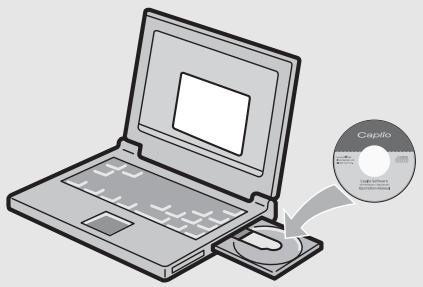
Do not connect the USB cable yet!
If you connect the camera to a computer through the USB cable before installing the provided software on the computer, the software required for connection between camera and computer may not be installed correctly. Be sure to connect the camera to your computer after installing the provided software. (P.164)
Preface
This manual provides information on how to use the shooting and playback functions of this product, as well as warnings on its use.
To make the best use of this product's functions, read this manual thoroughly before use. Please keep this manual handy for ease of reference.
Ricoh Co., Ltd.
| Safety Precautions | For the safe use of your camera, be sure to read the safety precautions thoroughly. |
| Test Shooting | Please be sure to do some test shooting to make sure it is recording properly before normal use. |
| Copyright | Reproduction or alteration of copyrighted documents, magazines, music and other materials, other than for personal, home or similarly limited purposes, without the consent of the copyright holder is prohibited. |
| Exemption from Liability | Ricoh Co., Ltd. assumes no liability for failure to record or play back images caused by malfunction of this product. |
| Warranty | This product is manufactured to local specifications and the warranty is valid within the country of purchase. Should the product fail or malfunction while you are abroad, the manufacturer assumes no responsibility for servicing the product locally or bearing the expenditure incurred thereof. |
| Radio Interference | Operating this product in the vicinity of other electronic equipment may adversely affect the performance of both devices. In particular, operating the camera close to a radio or television may lead to interference. If interference occurs, follow the procedures below. ·Move the camera as far away as possible from the TV, radio or other device. ·Reorient the TV or radio antenna. ·Plug the devices into separate electrical outlets. |
This publication may not be reproduced in whole or in part without the express written permission of Ricoh. © 2007 RICOH CO., LTD. All rights reserved.
The contents of this document may be changed in the future, without prior notice.
This booklet was created with thorough attention to its content. If, however, you have a question, spot an error, or find a description lacking, please refer to the end of this booklet for information on how to contact us.
Microsoft, MS, Windows, and Windows Vista are registered trademarks of Microsoft Corporation in the United States of America and other countries.
Macintosh, Power Macintosh, and Mac OS are registered trademarks of Apple Inc. in the United States of America and other countries.
Adobe and Adobe Acrobat are trademarks of Adobe Systems Incorporated.
All trademarked company and product names mentioned in this manual are the property of their respective owners.
Using These Manuals
The following two manuals are included with your Caplio GX100/ Caplio GX100 VF KIT.
| “Camera User Guide” (This booklet) | |
| This guide explains the usage and functions of the camera. It also explains how to install the provided software on your computer. * The “Camera User Guide” (English edition) is available from the provided CD-ROM as a PDF file. | |
| “Software User Guide” (PDF file) | |
| This guide explains how to download images from the camera to your computer and display and edit them on your computer. The “Software User Guide” is available in the following folders on the provided CD-ROM. Capiio CD-ROM (D): Capiio Software CD-ROM (D): Chinese_Simplified Chinese_Traditional English English_Camera_Manual French German Italian Japanese Korean Spanish | |
| “Camera User Guide” (English edition) (PDF file) Each language has its own “Software User Guide” in the respective folder. To copy the Software User Guide onto your hard disk, copy the PDF file from the respective folder directly to your hard disk. |
The camera is provided with the Irodio Photo & Video Studio software that allows you to display and edit images on your computer. For how to use Irodio Photo & Video Studio, see the displayed "Help".
For more information on Irodio Photo & Video Studio, contact the Customer Support Center below.
North America (U.S.) TEL: (Toll Free) +1-800-458-4029
Europe
UK, Germany, France and Spain: TEL: (Toll Free) +800-1532-4865
Other Countries: TEL: +44-1489-564-764
Asia TEL: +63-2-438-0090
China TEL: +86-21-5450-0391
Business hours: 9:00 AM to 5:00 PM
Key Features
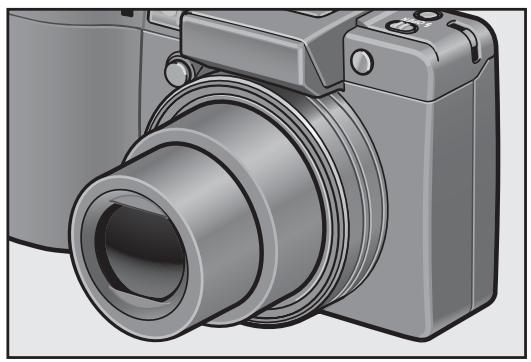
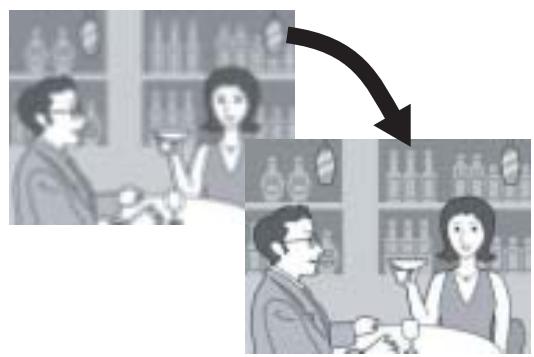
Wide-angle zoom lens can capture wide-angle pictures
This camera has a compact body only 25 mm thick, featuring a 24-mm (Wide-angle) to 72-mm (Telephoto) 3 × optical zoom lens that covers a wide range of shooting. The wide-angle lens is great for capturing buildings, landscape scenes, group photos, and more.
*Equivalent to that on a 35mm camera
Camera shake correction function reduces blurring (P.106)
The camera comes with a camera shake correction function to allow you to take clearer pictures with minimized blurring even indoors, at night and in other situations where camera shake may occur.
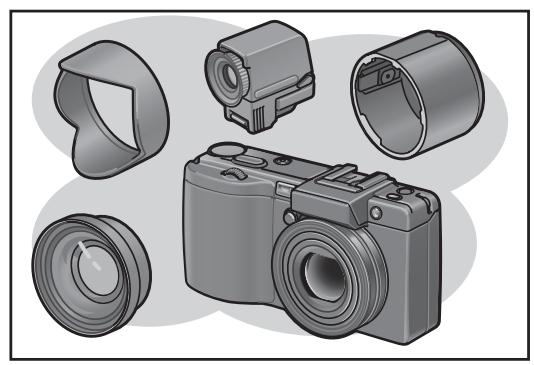
Variety of accessories for greater creative expression (P.16)
Use the camera with the optional hood & adapter and 19-mm wide conversion lens to capture even wider angles. Enhance your photographic experience with a variety of optional accessories, including an LCD viewfinder and cable switch. The camera is equipped with a hot shoe to allow you to use an external flash.
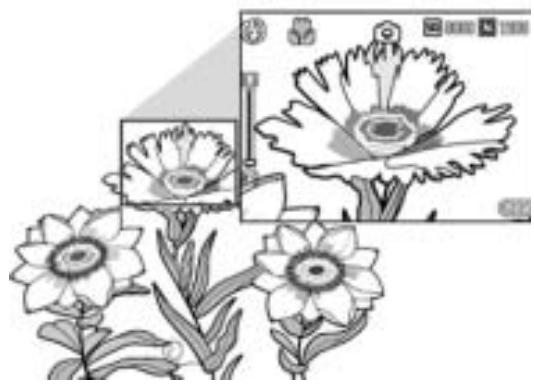
Macro shooting at 1 cm (P.43) and close-up flash shooting at 15 cm (Telephoto) or 20 cm (Wide-angle) (P.44)
The unsurpassed macro shooting function allows you to capture details from a very close distance at only 1 cm. The camera also has a built-in flash for close-up shots at 15 cm (Telephoto) or 20 cm (Wide-angle).
This combination gives you clear macro shots even under low light conditions.
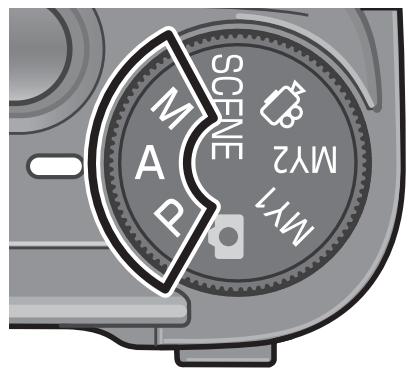
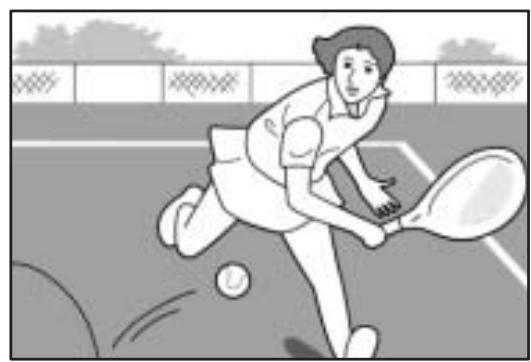
Aperture priority mode, manual exposure mode, and program shift mode for fine-tuned adjustments
You can manually set the aperture value and shutter speed. This small, compact, and lightweight camera has advanced modes that rival those of digital SLR cameras.
Power your camera in one of three ways (P.25)
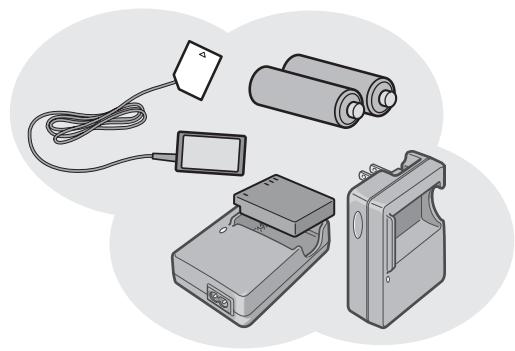
You can power the camera in one of three ways for convenient shooting anytime, anywhere. Use the supplied large-capacity rechargeable battery for long periods of shooting and playback. Use commercially available alkaline batteries when traveling with your camera. Use the convenient AC adapter for transferring data to a computer.
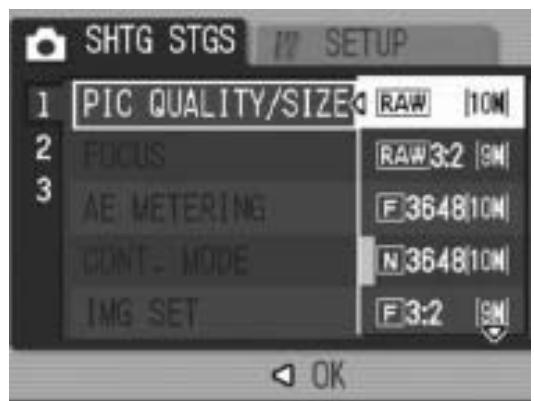
10.01 megapixel CCD and RAW mode for high-quality shooting (P.80)
The camera has a CCD with 10.01 million effective pixels to ensure high-resolution images. In addition, you can use RAW mode to save the raw picture data (as a .DNG file). This provides less image quality deterioration than JPEG files and easier image processing on a computer. A JPEG file based on the DNG file is recorded at the same time.
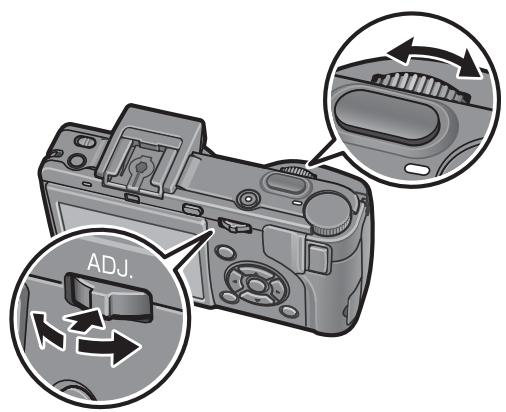
Up-down dial and ADJ. lever for faster and easier operations (P.20)
You can use the up-down dial and ADJ. lever to quickly and easily make the shooting settings and various menu operations.
You can also press the ADJ. lever to easily select ADJ. mode (P.64) and make various shooting settings.
30 fps or 15 fps high-quality movies with sound (P.109)
Record high-quality movies with 640 × 480 pixels at 30 frames per second and with full sound.
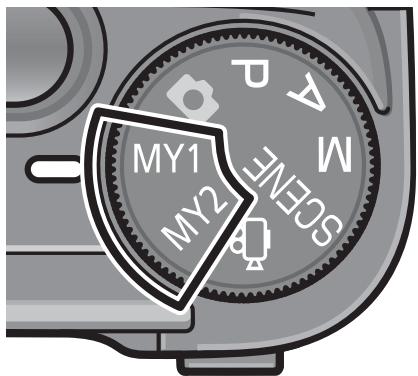
Easily customize your favorite shooting settings with my settings mode (P.76)
You can customize two groups of settings, and then turn the mode dial to MY1 or MY2 to shoot with those registered settings.
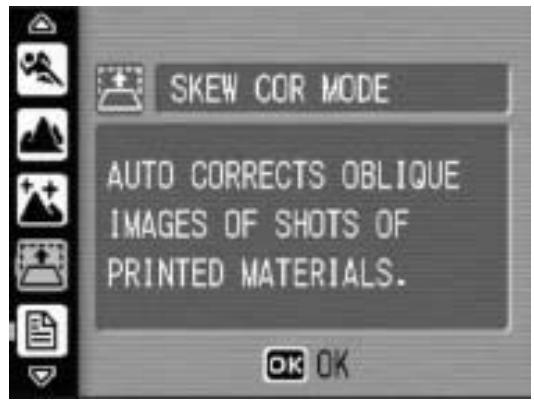
Skew correction mode helps straighten skewed images (P.46)
In skew correction mode, a rectangular object shot at an angle can be straightened to look as if it were shot squarely. With the simple touch of a button, you can straighten skewed images of objects such as a message board, a display panel, or a name card.
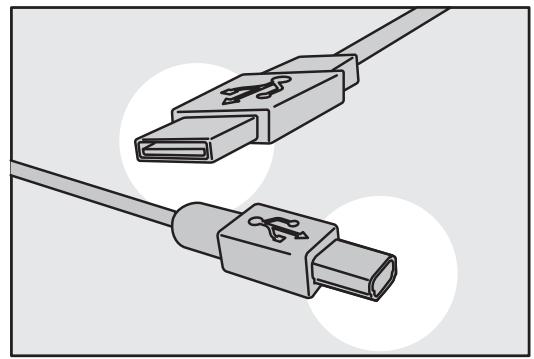
USB cable enables instant transfer of camera data to a computer
Install the provided software on your computer and then simply connect the camera to your computer with the provided USB cable to automatically transfer images to your computer. The camera is compatible with USB 2.0 for high-speed data transfers. (Your computer must also be compatible with USB 2.0 to take advantage of this feature.)
Irodio Photo & Video Studio software for browsing, viewing, and editing still images and movies (P.166)
This bundled software enables you to view, organize, and edit shot images. You can also use the video editor function to create movies using still images, video clips, audio, and music files.
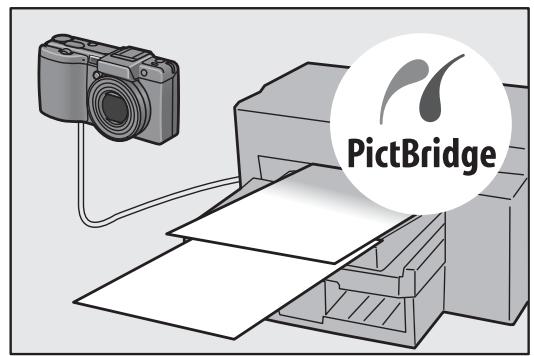
Direct printing without the use of a computer (P.128)
A direct print-compatible printer can be connected to the camera with the USB cable to directly transfer images to the printer. This allows for easy printing without using a computer.
You can also print reports.
Contents
Using These Manuals. 1
Key Features 2
Contents 5
Basic Operations
11
If you are using the camera for the first time, read this section.
Packing List 12
Optional Accessories 14
Camera System and Accessories 16
Names of Parts 17
How to Use the Mode Dial. 19
How to Use the Up-down Dial and ADJ. Lever 20
LCD Monitor Display 22
Getting Ready 25
About the Battery 25
SD Memory Card (available in stores) 27
Charging the Rechargeable Battery 29
Loading the Battery and SD Memory Card 30
Turning the Power On/Off 32
Setting the Language 34
Setting the Date and Time 35
Basic Shooting 36
Holding the Camera 36
Shooting 38
Using the Zoom Function 42
Shooting Close-Ups (Macro Shooting). 43
Using the Flash 44
Shooting with Optimal Settings According to Shooting Conditions. 46
Using the Self-Timer 50
Playing Back Images 51
Reviewing the Image You Just Took (Quick Review) 51
Viewing Your Images 52
Three-frame View/Grid View (Thumbnail Display) 53
Magnifying Images 55
Deleting Files. 56
Deleting a File 56
Deleting All Files 57
Deleting Multiple Files at One Time 57
Changing the Display with the DISP. Button 59
Maximizing the LCD Monitor Brightness 61
61
Advanced Operations
63
Read this section when you want to learn more about the different camera functions.
1 Various Shooting Functions
64
Using the ADJ. Lever 64
ADJ.Mode 64
Changing the Text Density (Scene Mode) 65
Shifting the AF Target (Macro). 66
Using the Function Button 67
Settings by Mode 68
Switching Between Auto Focus and Manual Focus (AF/MF) 69
Locking the Exposure (AE LOCK) 70
Shooting with a Set Aperture Value
(A: Aperture Priority Mode) 71
Shooting with a Set Aperture Value and Shutter Speed
(M: Manual Exposure Mode) 72
Shooting with an Combined Aperture Value and Shutter Speed
(P: Program Shift Mode) 74
Shooting with Custom Settings
(MY1, MY2: My Settings Mode) 76
Shooting Setting Menu
Using the Menu 79
Choosing Picture Quality Mode/Image Size
(PIC QUALITY/SIZE) 80
Changing the Focusing Mode (FOCUS) 83
Manual Focus Shooting (MF) 84
Changing the Light Metering (AE METERING) 86
Shooting with Multi-Shot (CONT./S-CONT/M-CONT) 87
Viewing an S-CONT or M-CONT Still Image in Enlarged Display Mode 90
Setting the Picture Quality (IMG SET) 91
Customizing the Picture Quality (SETTING1, SETTING2) 92
Shooting Consecutively with Different Exposures
(AUTO BRACKET) 93
Shooting Consecutively with Different White Balance (WB-BKT) 94
Shooting Pictures Automatically at Set Intervals (INTERVAL).... 96
Shooting a Still Image with Sound (IMAGE WITH SOUND) 98
Inserting the Date into a Still Image (DATE IMPRT) 99
Changing the Exposure (EXPOSURE COMP.) 100
Using Natural and Artificial Lighting (WHITE BALANCE) 101
Setting the White Balance Manually (MANUAL SETTINGS) 103
Changing the Sensitivity (ISO SETTING) 104
Using the Camera Shake Correction Function to Prevent Camera Shake (CAMERA SHAKE COR) 106
Returning the Shooting Setting Menu Settings to their Defaults (RESTORE DEFAULTS) 108
2 Shooting/Playing Back Movies 109
Shooting Movies 109
Setting the Frame Rate (FRAME RATE) 110
Playing Back Movies 112
3 OtherPlayback Functions 113
Playback Setting Menu 113
Using the Menu 113
Displaying Photos in Order Automatically (SLIDE SHOW) 114
Write-Protecting Files (PROTECT) 115
Protecting a File 115
Protecting All Files 116
Protecting Multiple Files at Once 117
Using a Printing Service (DPOF) 118
Setting DPOF for the Displayed Still Image 118
Setting DPOF for All Still Images 119
Setting DPOF for Multiple Still Images 120
Changing the Image Size (RESIZE) 121
Copying the Contents of the Internal Memory to an SD Memory Card (COPY TO CARD) 123
Straightening Skewed Images (SKEW CORRECTION) 124
Viewing on a Television 126
4 Direct Printing 128
Direct Print Function 128
Connecting the Camera to a Printer 129
Printing Still Images 130
Printing One or All Still Images 130
Printing Several Still Images 132
5 Changing Camera Settings
SETUP Menu 134
Using the SETUP Menu 135
Preparing the SD Memory Card (FORMAT [CARD]) 137
Formatting the Internal Memory (FORMAT [INT. MEM.]) 138
Adjusting the Brightness of the LCD Monitor (LCD BRIGHTNESS) 139
Registering Custom Settings (REG. MY SETTINGS) 140
Changing the Step Zooming Setting (STEP ZOOM) 142
Changing the ISO AUTO-HIGH Setting (ISO AUTO-HIGH)..... 143
Changing the Auto Power Off Setting (AUTO POWER OFF) ... 144
Changing the Beep Sound Setting (BEEP SOUND) 145
Changing the Beep Sound Volume (VOL. SETTINGS) 146
Changing Image Confirmation Time (LCD CONFIRM.) 147
Assigning a Function to the ADJ. Lever (ADJ LEVER SET.) .... 148
Changing the Shutter Release Button Setting (ADJ SHTR BTN SET) 149
Assigning a Function to the Function Button (FNCTN. BTN. SET.) 150
Changing the AF Auxiliary Light Setting (AF AUX. LIGHT) 151
Changing the RAW Mode JPEG Image Setting (RAW/JPEG SETTING) 152
Using the Auto Resize Zoom (DIGITAL ZOOM IMG) 153
Displaying a Settings Change Warning (SHTG STGS WARNING.) 155
Enlarging Icon Display (ENLGE PHOTO ICON) 156
Changing the USB Setting (USB CONNECTION) 157
Changing File Name Settings (SEQUENTIAL NO.) 159
Setting the Date and Time (DATE SETTINGS) 161
Changing the Display Language (LANGUAGE/言語) 162
Changing the Playback Method for Viewing on TV (VIDEO OUT MODE) 163
6 Downloading Images to Your Computer
For Windows 164
Using the Caplio Software CD-ROM 165
System Requirements for Using Caplio Software CD-ROM 169
Installing the Software Required for Handling the Camera and Images 170
Installing the DesktopBinder Lite 173
Installing Other Software on Your Computer 175
Uninstalling the Software 176
Downloading Images to Your Computer 178
Downloading Images Without Using the Caplio Software 179
Using the Original Driver to Download Images 181
Disconnecting the Camera from Your Computer 183
For Macintosh 184
Downloading Images to Your Computer 184
Disconnecting the Camera from Your Computer 185
7 Appendices 186
Troubleshooting 186
Error Messages 186
Camera Troubleshooting 187
Software and Computer Troubleshooting 193
Specifications 195
Number of Images That Can be Stored in Internal Memory/ SD Memory Card 197
Optional Accessories 198
Using the AC Adapter (sold separately) 199
Using the External Flash 201
Functions Whose Defaults are Restored When Camera is Turned Off 203
About Scene Mode 205
Shooting Setting Menu Items by Scene Mode 206
Using Your Camera Abroad 207
Cautions on Use 208
Care and Storage 209
Warranty and Servicing 210
Index 212
Basic Operations
If you are using the camera for the first time, read this section.
Packing List. 12
Camera System and Accessories 16
Names of Parts 17
How to Use the Mode Dial 19
How to Use the Up-down Dial and ADJ. Lever 20
LCD Monitor Display 22
Getting Ready 25
Basic Shooting 36
Playing Back Images 51
Deleting Files 56
Changing the Display with the DISP. Button 59
Packing List
Open the package and make sure all the items are included.
Caplio GX100
The serial number of the camera is provided on the bottom face of the camera.
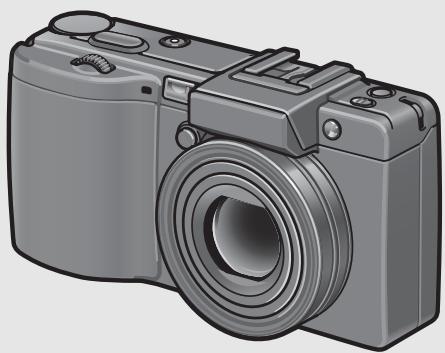
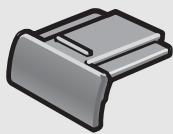
Hot Shoe Cover
Included with the camera.
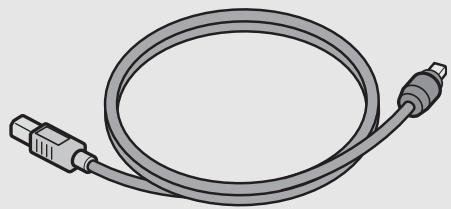
USB Cable
Used to connect the camera to a computer or direct print-compatible printer.
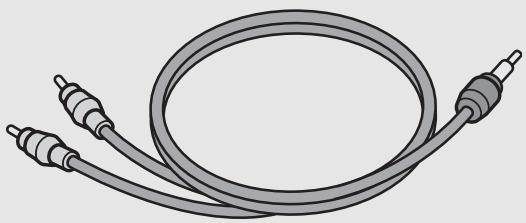
AV Cable
Used to view your images on a TV.
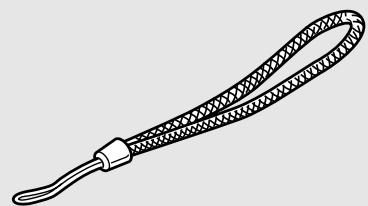
Handstrap
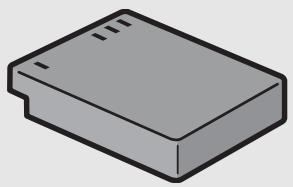
Rechargeable Battery
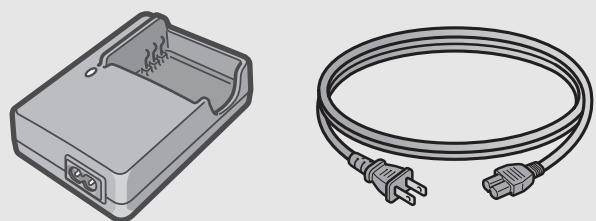
Battery Charger
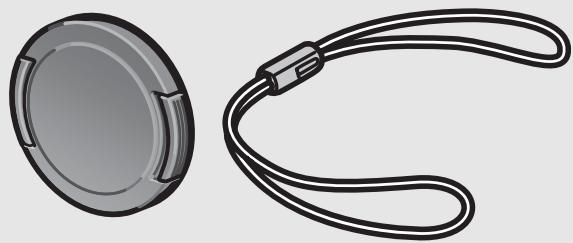
Lens Cap
Lens Cap Strap
Camera User Guide
(This booklet)
Safety Precautions
Caplio Software CD-ROM
The provided software and the "Software User Guide" are included on this CD-ROM.

Note
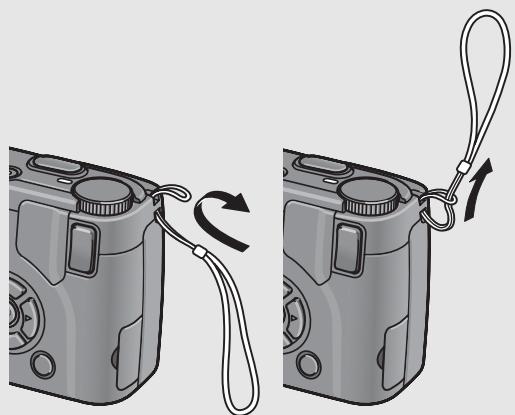
Attaching the handstrap to the camera Thread the small end of the strap through the strap eyelet on the camera and loop the ends as shown.
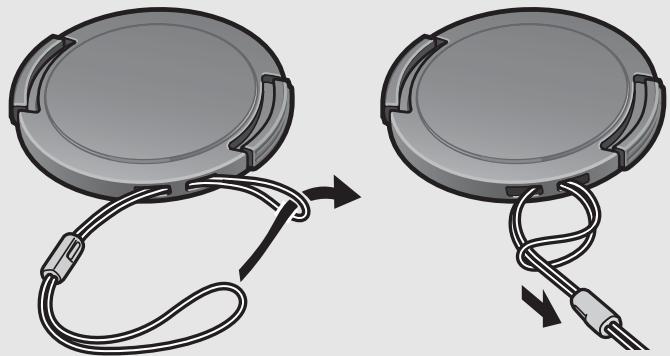
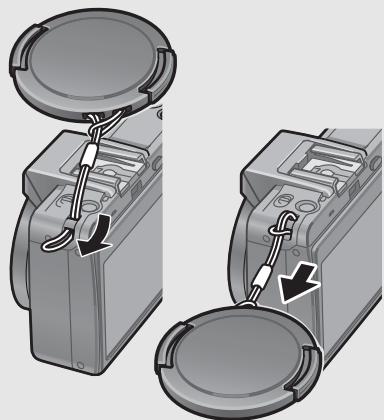
Attaching the lens cap strap to the camera

About Caplio GX100 VF KIT
-
Caplio GX100 VF KIT also comes with the following accessories.
-
LCD Viewfinder (VF-1)
Case -
VF-1 user guide
Warranty -
Make sure the camera is off before attaching the LCD viewfinder.
Optional Accessories
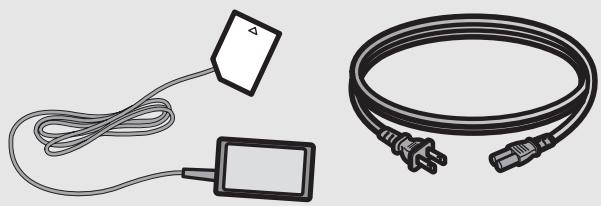
AC Adapter (AC-4c)
Used for power supply from a household outlet to the camera. Use this adapter for long periods of playback or when transferring images to a computer.
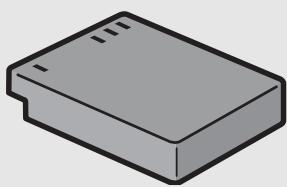
Rechargeable Battery (DB-60)
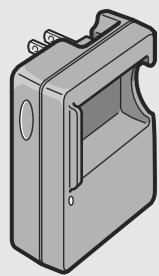
Battery Charger (BJ-6)
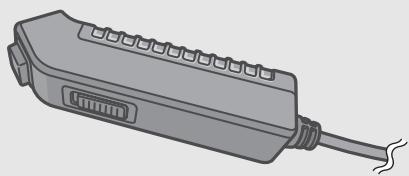
Cable Switch (CA-1)
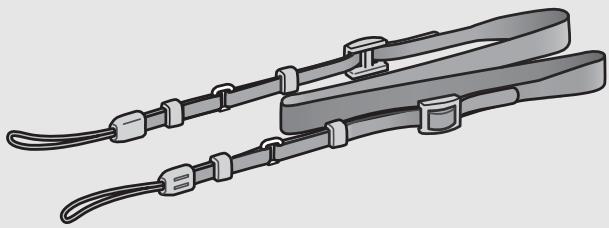
Neck Strap (GS-1)
ST-1 cannot be used.
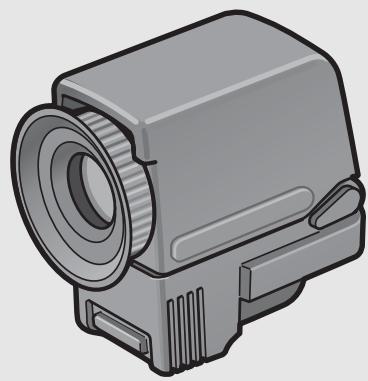
LCD Viewfinder (VF-1)
Caplio GX100 VF KIT is supplied with an LCD viewfinder (VF- 1). For details on using the LCD viewfinder, see the documentation that came with the LCD viewfinder.
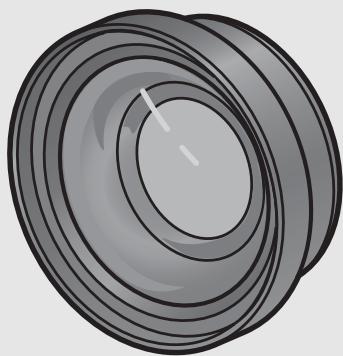
Wide Conversion Lens (DW-6)
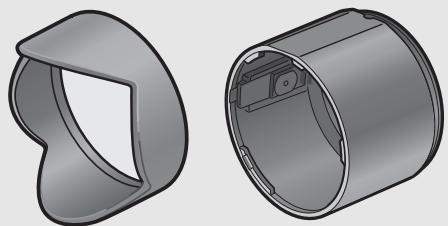
Hood & Adapter (HA-2)
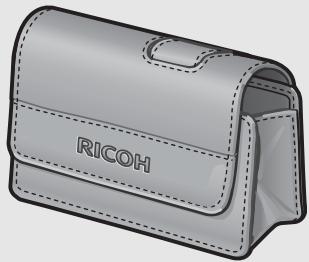
Soft Case (SC-45)
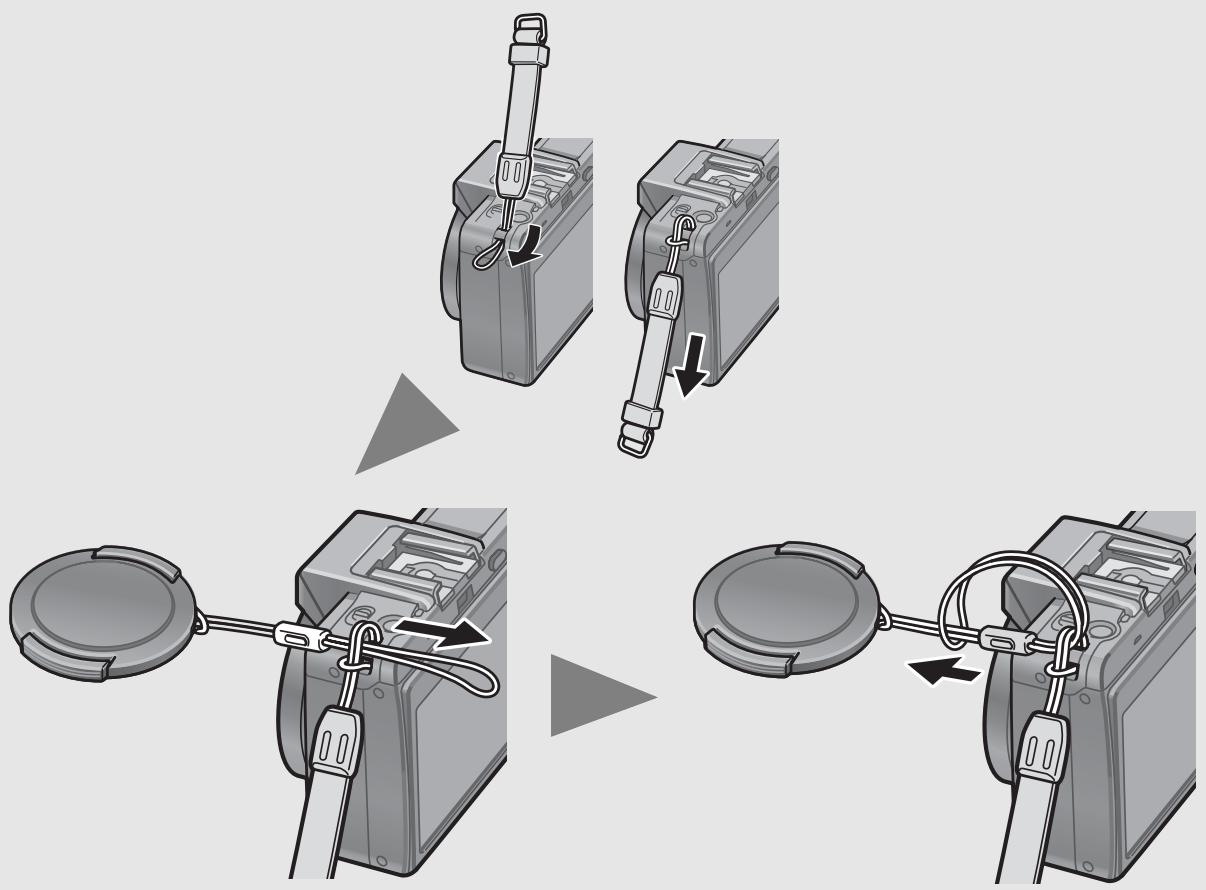
Attaching the neck strap and lens cap to the camera
Remove the end of the neck strap (GS-1) from the connector and attach it as shown in the figure.

Note
- For information on optional accessories, see P.198.
- For the latest information on optional accessories, see the Ricoh website (http://www.ricohpmmc.com).

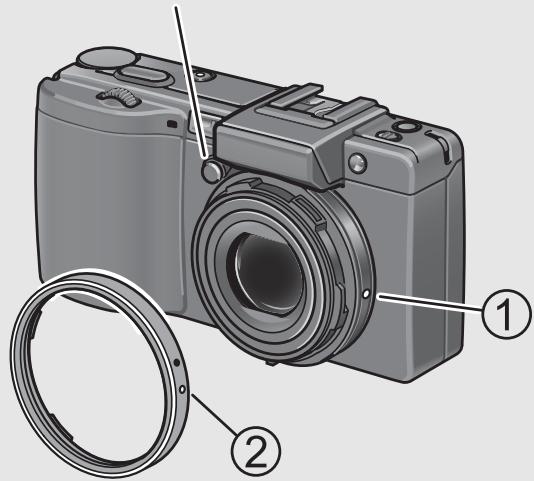
Removing/attaching the ring cap
Remove the ring cap when using the wide conversion lens or hood & adapter.
Removing the ring cap
With the ring cap removal button pressed, turn the ring cap counterclockwise (in the direction of the arrow) while the camera turned off and remove from the camera body.
Attaching the ring cap
With the camera turned off, align the marking on the ring cap (②) with the marking on the camera body (①) and turn the ring cap clockwise until it clicks.
Ring cap
removal button
Camera System and Accessories
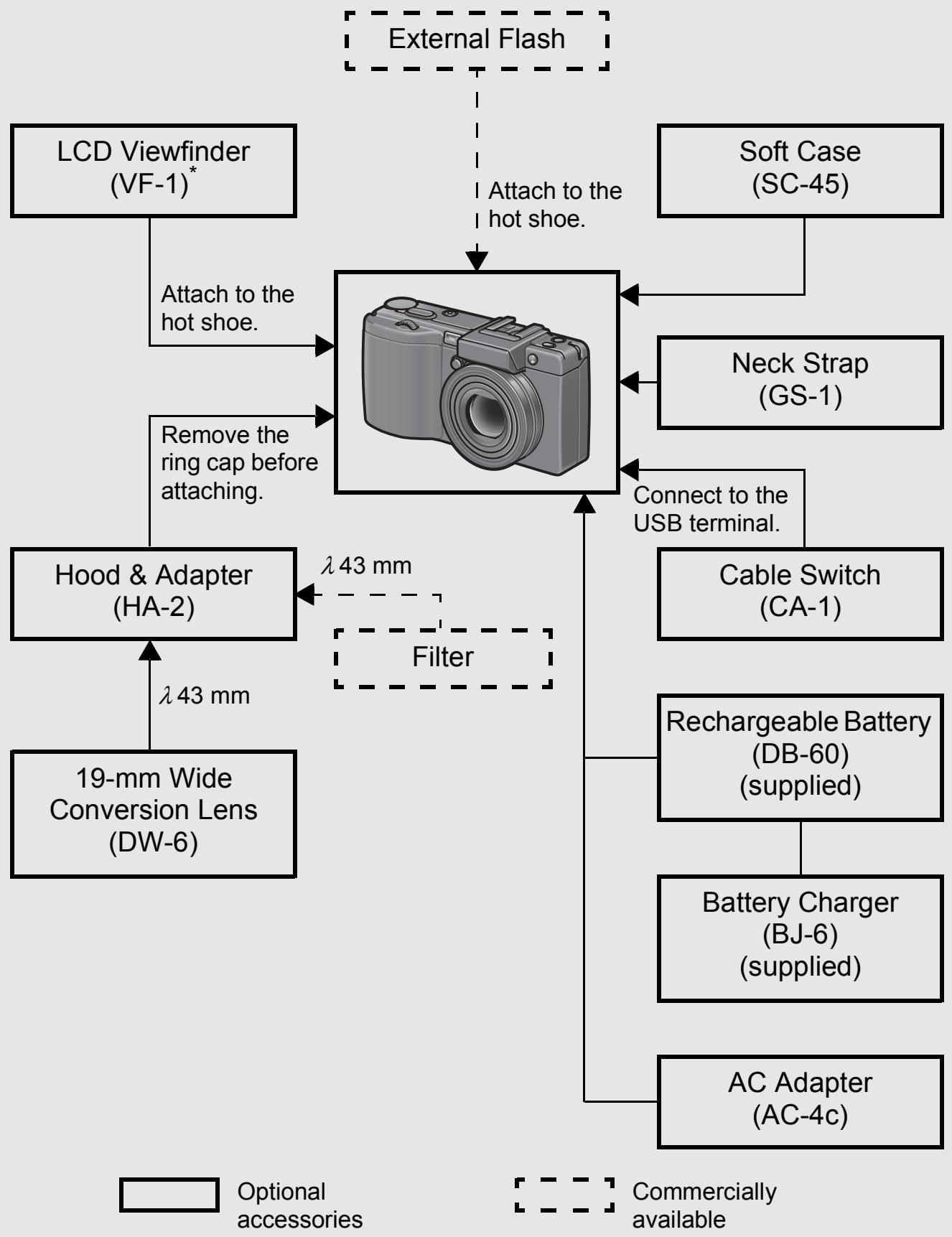
* Caplio GX100 VF KIT is supplied with an LCD viewfinder (VF-1). For details on using the LCD viewfinder, see the documentation that came with the LCD viewfinder.
Names of Parts
Camera
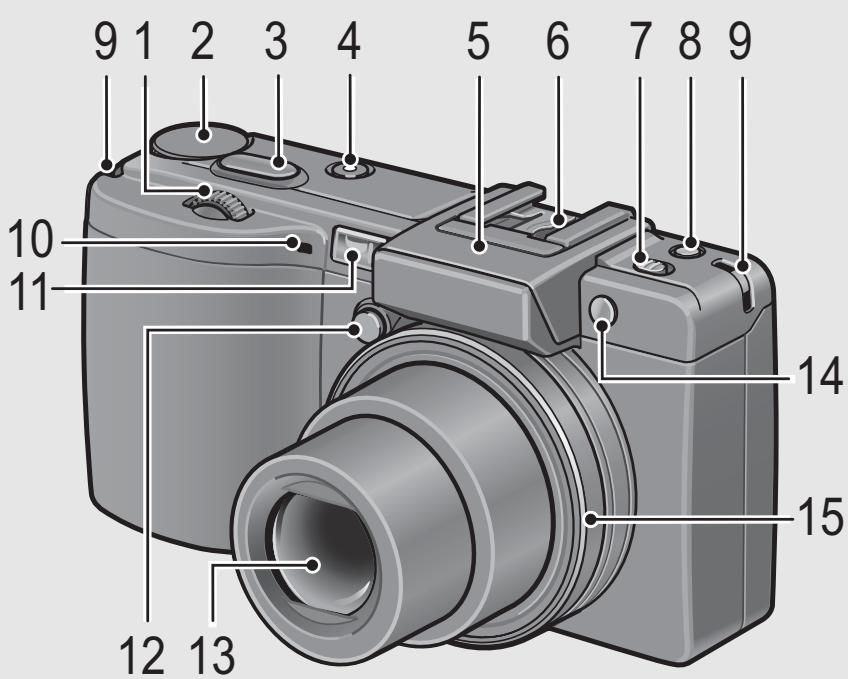
Front View
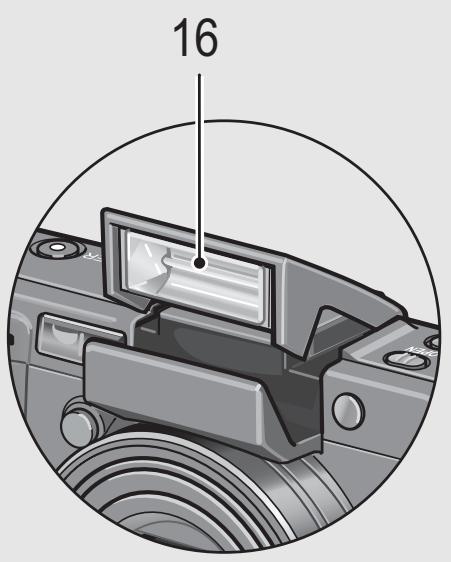
| Item Name | Refer to | |
| 1 | Up-down Dial | P.20 |
| 2 | Mode Dial | P.19 |
| 3 | Shutter Release Button | P.36 |
| 4 | POWER Button | P.32 |
| 5 | Flash Cover | P.44 |
| 6 | Hot Shoe | P.16, 198 |
| 7 | (Flash) OPEN Switch | P.44 |
| 8 | Fn (Function) Button | P.67 |
| 9 | Strap Eyelet | P.13 |
| 10 | Microphone | - |
| 11 | AF Window | - |
| 12 | Ring Cap Removal Button | P.15 |
| 13 | Lens | P.36 |
| 14 | AF auxiliary light | P.50, 151 |
| 15 | Ring Cap | P.15 |
| 16 | Flash | P.44 |
Rear View
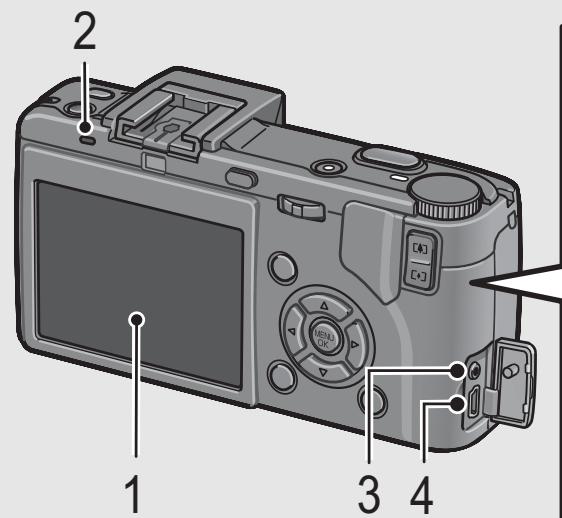
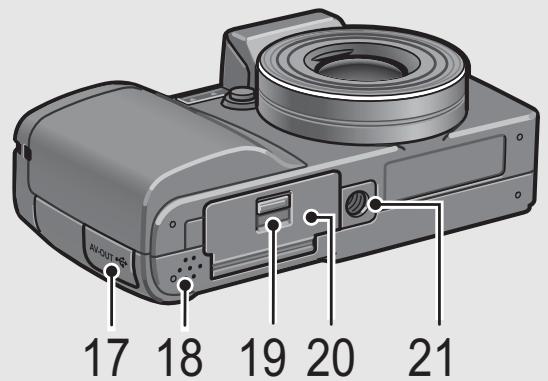
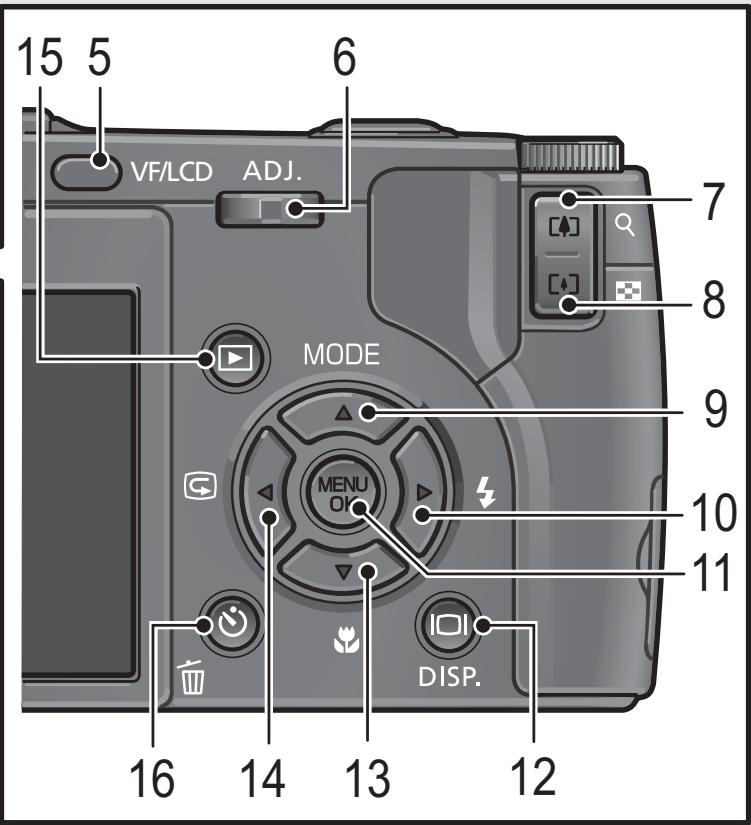
| Item Name | Refer to | |
| 1 | LCD Monitor | P.22 |
| 2 | Auto Focus/Flash Lamp | P.38, 42 |
| 3 | AV Output Terminal | P.126 |
| 4 | USB Terminal | P.129, 178 |
| 5 | VF/LCD Button | P.59 |
| 6 | ADJ. Lever | P.64 |
| 7 | (Telephoto)/Q (Enlarged View) Button | P.42, 53 |
| 8 | (Wide-angle)/B (Thumbrail Display) Button | P.42, 53 |
| 9 | ▲/MODE Button | P.46 |
| 10 | ▶/↓ (Flash) Button | P.44 |
| 11 | MENU/OK Button | P.79, 113, 135 |
| 12 | I☐I (DISP.) Button | P.59 |
| 13 | ▼/▲ (Macro) Button | P.43 |
| 14 | (Quick Review) Button | P.51 |
| 15 | Playback (Playback) Button | P.52 |
| 16 | (Delete)/S (Self-timer) Button | P.56, 50 |
| 17 | Terminal Cover | P.126, 129 |
| 18 | Speaker | P.112 |
| 19 | Release Lever | P.30, 199 |
| 20 | Battery/Card Cover | P.30, 199 |
| 21 | Tripod Screw Hole | P.195 |
How to Use the Mode Dial
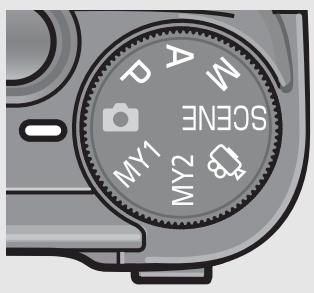
Set the mode dial to the desired mode before shooting still images or movies.
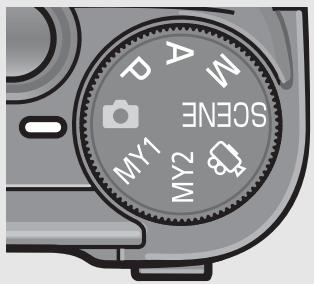
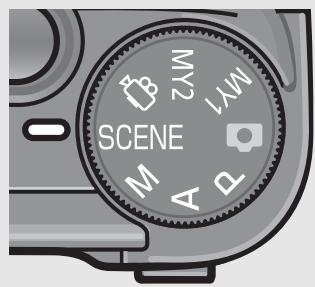
1 Turn the mode dial to the symbol of the function you want to use.
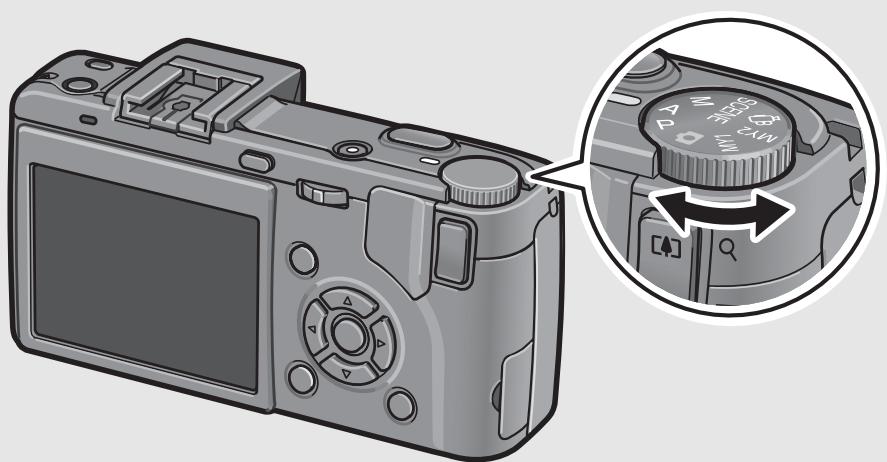
Mode Dial Symbols and Descriptions
| Symbol | Function | Description |
| ○ | Auto Shooting Mode | Automatically sets the optimal aperture value and shutter speed depending on the subject. |
| P | Program Shift Mode | Allows you to adjust the combination of aperture value and shutter speed. |
| A | Aperture Priority Mode | Allows you to set the aperture value, and then the camera automatically sets the optimal shutter speed. |
| M | Manual Exposure Mode | Allows you to manually set the aperture value and shutter speed. |
| SCENE | Scene Mode | Allows you to shoot with settings optimized for the shooting scene. |
| ◎ | Movie Mode | Allows you to shoot movies with sound. |
| MY1, MY2 | My Settings Mode | Allows you to shoot using the settings registered in [REG. MY SETTINGS]. |
How to Use the Up-down Dial and ADJ. Lever
You can use the up-down dial and ADJ. lever to easily perform various operations that are usually done using the buttons.
You can rotate the Up-down dial as shown here.
You can press the ADJ. lever to the left and right and press the center.
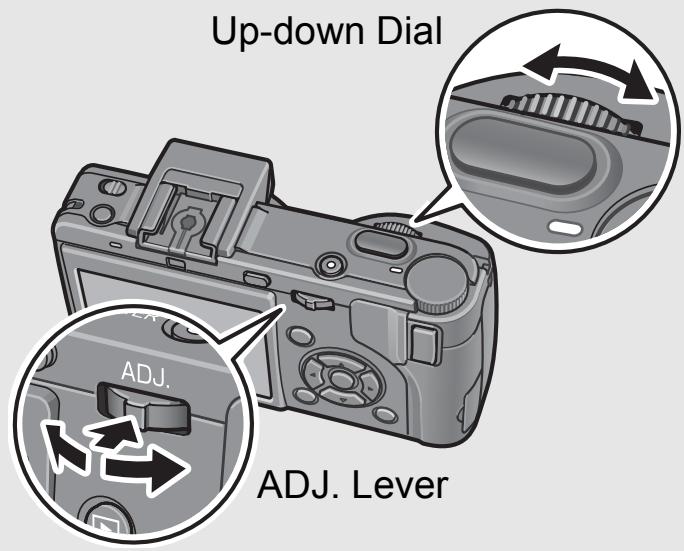
You can use the up-down dial and ADJ. lever to perform the following operations.
| Mode/Display | Description | Refer to | |
| Up-down Dial | ADJ. Lever | ||
| Select ADJ. mode | - | Press the center to select ADJ. mode. | P.64 |
| ADJ. mode | Same as ▲▼ buttons | • Push to the left and right: Same as ↘ buttons. • Press to set: Same as MENU/OK button. | P.64 |
| Aperture Priority Mode (A) | Allows you to change the aperture value. | - | P.71 |
| Manual Exposure Mode (M) | Allows you to change the aperture value. | Allows you to change the shutter speed. | P.72 |
| Program Shift Mode (P) | Allows you to adjust the combination of aperture value and shutter speed. | - | P.74 |
| Shooting Setting/Playback Setting/SETUP Menu | Same as ▲▼ buttons | Same as ↘ buttons | P.77, 113, 134 |
| Scene Mode (Scene Mode selection screen) | Same as ▲▼ buttons | - | P.46 |
| Playback Mode (Normal playback screen) | Same as <▲> buttons | Same as <▲> buttons | P.52 |
| Playback Mode (Three-frame view) | Same as <▲> buttons | Same as <▲> buttons | P.53 |
| Playback Mode (Grid view) | Same as ▲▼ buttons | Same as <▲> buttons | P.53 |
| Playback Mode (Enlarged view) | Allows you to change the display magnification. | Displays the previous or next image. (When displaying the previous or next image during enlarged view, the image is displayed at normal magnification (100%).) | P.55 |
LCD Monitor Display
Example of LCD Monitor Display when Shooting Pictures
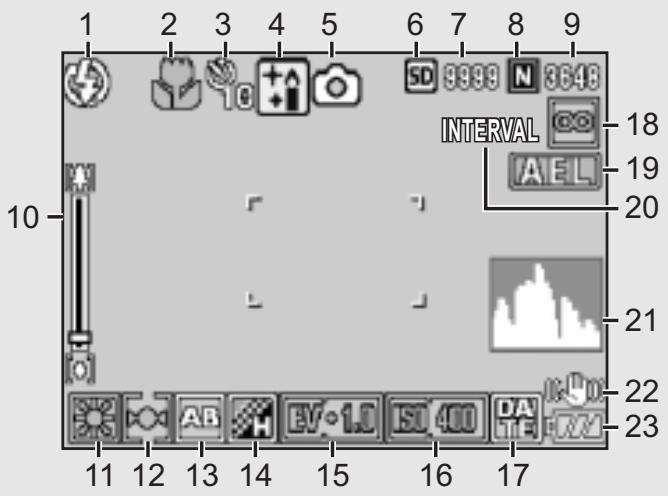
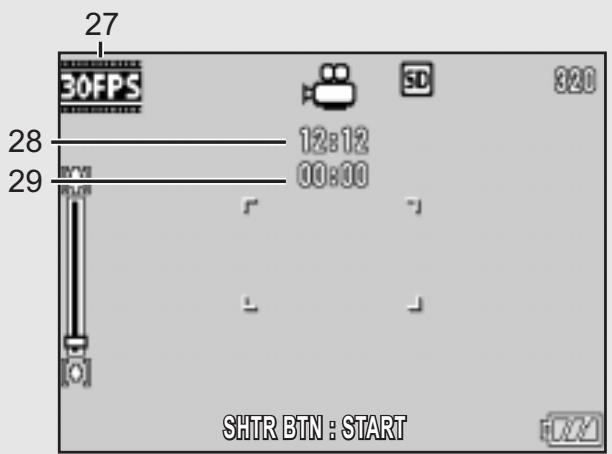
Movie Mode
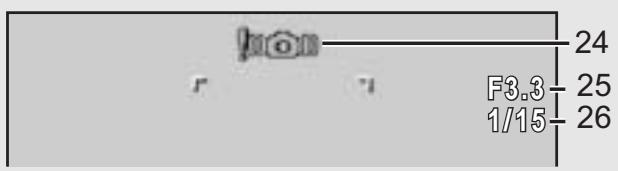
Still Image Mode
| Item Name | Refer to | Item Name | Refer to | ||
| 1 | Flash | P.44 | 16 | ISO Setting | P.104 |
| 2 | Macro Shooting | P.43 | 17 | Date Imprint | P.99 |
| 3 | Self-timer | P.50 | 18 | Focus | P.83 |
| 4 | Scene Modes | P.46 | 19 | AE Lock | P.70 |
| 5 | Mode Types | P.19, 46 | 20 | Interval | P.96 |
| 6 | Recording Destination | P.27 | 21 | Histogram | P.61 |
| 7 | Remaining Number of Still Images | P.197 | 22 | Camera Shake Correction | P.106 |
| 8 | Picture Quality | P.80 | 23 | Battery Mark | P.24 |
| 9 | Image Size | P.80 | 24 | Camera Shake Warning Mark | P.37 |
| 10 | Zoom Bar | P.42 | 25 | Aperture Value | P.195 |
| 11 | White Balance | P.101 | 26 | Shutter Speed | P.72, 74 |
| 12 | AE Metering | P.86 | 27 | Frame Rate | P.110 |
| 13 | Auto Bracket | P.93 | 28 | Remaining Recording Time | P.197 |
| 14 | Image Settings | P.91 | 29 | Recording Time | P.197 |
| 15 | Exposure Compensation | P.100 | |||
- The number of remaining shots available may differ from the actual number of shots, depending on the subject.
- Movie recording time and the maximum number of still pictures may vary depending on the capacity of the recording destination (internal memory or SD memory card), shooting conditions, and the type and manufacturer of the SD memory card.
- When the number of remaining shots is 10,000 or more, "9999" is displayed.
Example of LCD Monitor Display During Playback
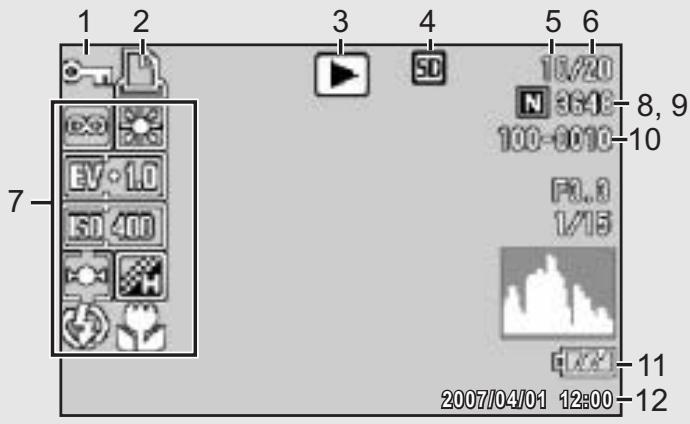
Still Image Mode
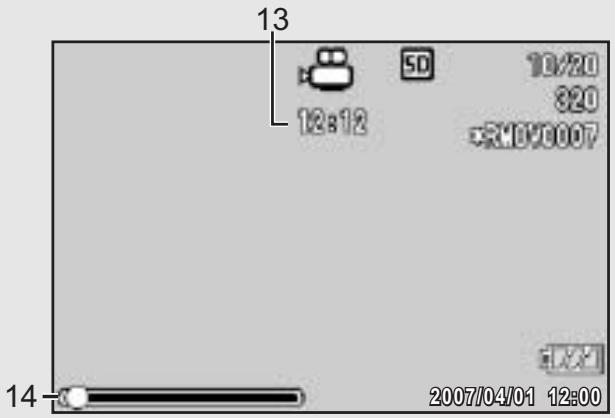
Movie Mode
| Item Name | Refer to | Item Name | Refer to | ||
| 1 | Protect | P.115 | 8 | Picture Quality | P.80 |
| 2 | DPOF | P.118 | 9 | Image Size | P.80 |
| 3 | Mode Types | - | 10 | File No. | - |
| 4 | Playback Data Source | P.52 | 11 | Battery Mark | P.24 |
| 5 | Number of Playback Files | - | 12 | Date at Shooting | P.99, 161 |
| 6 | Total Number of Files | - | 13 | Recording Time or Lapsed Time | - |
| 7 | Setting at Shooting (Recording) | - | 14 | Indicator | - |

Note
The LCD monitor may display messages to inform you of operational instructions or the camera's status while in use.
Battery Level Indication
A battery mark appears at the lower right of the LCD monitor to indicate the battery level. Recharge the battery before it is depleted.
| Battery Mark | Description |
| Green | The battery is sufficiently charged. |
| Green | The battery level begins to drop. Recharging the battery or exchanging with new batteries is recommended. |
| Orange | The battery level is low. Recharge the battery or exchange with new batteries. |

Caution
- If you are using AAA nickel-hydrogen batteries or AAA Oxyride batteries, depending on the type of batteries and usage conditions, may not appear, or or may instantaneously appear. Check your batteries beforehand.
- If you are using the AC adapter, may appear. This does not indicate a malfunction and you can continue to use the camera.
Turn the power on and get ready to shoot.

Note
- If you have already used this camera, make sure it is turned off before inserting or removing the battery.
- For information on how to turn the camera off, see P.32.
About the Battery
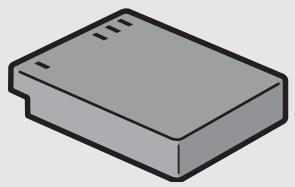
Rechargeable Battery DB-60 (supplied)
This is a lithium-ion battery. It is economical because you can recharge it using the battery charger and use it over and over again. The battery lasts a long time, so it is convenient when traveling.

Note
You can also use the following types of batteries.
- AAA Alkaline Batteries (available in stores)
You can obtain them anywhere, so they are convenient for travel.
However, in a low-temperature environment, the number of shots you can take will decrease. Warm the batteries before use. It is recommended that you use the rechargeable battery when using the camera for a long time.
- AAA Oxyride Batteries (available in stores)
These are not rechargeable batteries, but they can be used longer in a digital camera than AAA alkaline batteries.
- AAA Nickel-Hydrogen Batteries (available in stores)
These batteries are economical because you can recharge and reuse them over and over again. Please use a battery charger available in stores.
- Approximate number of shots you can take on a single battery charge
| Battery Type | Number of Shots (Normal Mode) |
| Rechargeable Battery (DB-60) | Approx. 340*1 |
| AAA Alkaline Batteries (available in stores) | Approx. 30*2 |
1 Approximately 290 shots can be taken when using the LCD viewfinder.
2 Approximately 25 shots can be taken when using the LCD viewfinder.
- Based on CIPA standard (Temperature: 23 degrees Celsius, LCD monitor on, 30 seconds between shots, changing the zoom setting from telephoto to wide-angle or wide-angle to telephoto for each shot, 50% flash usage, turning the power off after each 10 shots).
- The number of shots when using AAA alkaline batteries is based on the use of AAA alkaline batteries manufactured by Matsushita Battery Industrial Co., Ltd.
- The number of shots is for reference only. If the camera is used for long periods of time for setting and playback, the shooting time (the number of shots) will decrease.

Caution
- The nickel-hydrogen batteries available in stores are not factory-charged. Charge them before use.
- The nickel-hydrogen batteries may be inert and consequently may not supply power immediately after they are purchased or when left unused for more than a month. In such a case, recharge the batteries two or three times before use. The batteries self-discharge with time even if the camera is not used, so recharge them before use.
- The life of an AAA alkaline battery depends on the brand and the storage time from the date of production. In addition, the life of an alkaline battery becomes shorter at low temperatures.
- Other batteries, such as manganese dry cell and Ni-Cd batteries, cannot be used.
- The battery may become very hot immediately after operation. Turn the camera off and leave it to cool down sufficiently before removing the battery.
- Please remove the batteries if you are not going to use the camera for a long period of time.
- When using a lithium-ion battery, use only the specified rechargeable lithium-ion battery (DB-60). Do not use other rechargeable lithium-ion batteries.
SD Memory Card (available in stores)
You can store still images you have taken either in the camera's internal memory or on an SD memory card (available in stores). The internal memory capacity is 26 MB.
To record a lot of still images or movies at high resolutions, use a high-capacity SD memory card.

Where images are recorded
When no SD memory card is loaded, the camera records images to the internal memory; when an SD memory card is loaded, it records images to the SD memory card.
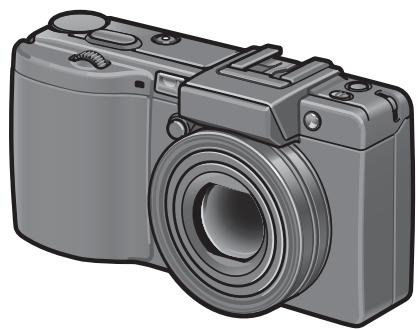
When no SD memory card is loaded
Records to the internal memory
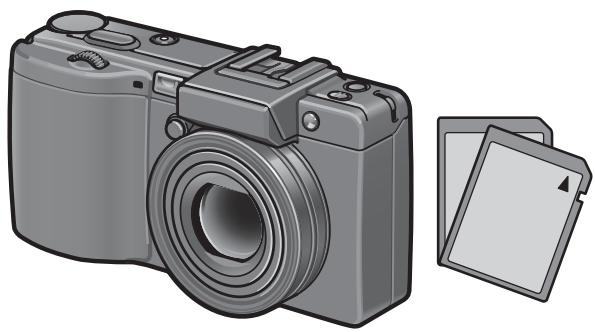
When an SD memory card is loaded
Records to the SD memory card

Caution
- If an SD memory card is loaded, the camera does not record to the internal memory, even if the card is full.
- Take care not to get the contacts of the card dirty.

Write-protecting your images
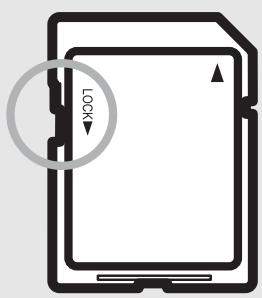
Move the write-protection switch on the SD memory card to LOCK to prevent your still images from being accidentally erased or the card from being formatted. If you unlock the card (by returning the switch to its original position), it is once again possible to erase images and format the card.
It is recommended to move the write-protection switch to LOCK when you have some important data recorded.
Note that you cannot shoot images on a locked card because no data can be recorded to the card. Unlock the card before shooting.

Note
- For information on switching between the SD memory card and internal memory during playback, see P.52.
- Movie recording time and the maximum number of still pictures varies depending on the capacity of the SD memory card. (P.197)
- Before using a new SD memory card, be sure to format it with this camera. (P.137)
- When using an SD memory card previously used with another camera, be sure to back up any necessary data on the card before formatting it. (P.137)
- SDHC memory card (4 GB) can also be used.
Charging the Rechargeable Battery
The rechargeable battery needs to be charged before use. The battery is not charged at the time of purchase.
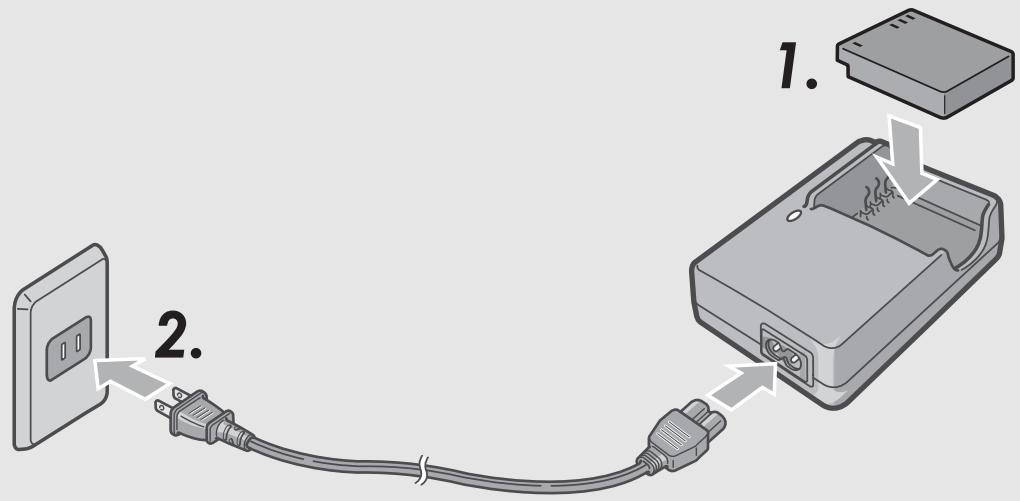
1 Insert the battery into the battery charger, making sure that the and markings on the battery match those on the battery charger.
- The battery label should face up.

Caution
Be careful not to reverse the and sides.
2 Plug the battery charger into an outlet.
- Use the battery charger (BJ-6) to recharge the battery.
- Charging starts, and the charger lamp indicates the progress, as shown below. Once charging has finished, unplug the battery charger from the power outlet.
| Charger Lamp | Description |
| Lit | Charging started |
| Off | Charging complete |
| Flashing | Battery charger or battery may be faulty (unplug the battery charger from the power outlet and remove the battery from the battery charger). |
- Depending on the battery level, the charging time differs.
| Rechargeable battery charging time | |
| DB-60 | About two hours (25°C) |
Loading the Battery and SD Memory Card
The rechargeable battery (DB-60) can be used to power this camera. This battery is convenient because the battery power lasts long and it can be used over and over again by recharging. If you have already used this camera, make sure it is turned off before loading the battery and card.
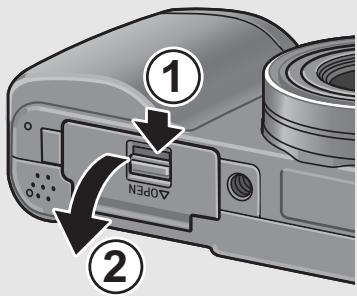
1 Slide the release lever toward OPEN to open the battery/ card cover.
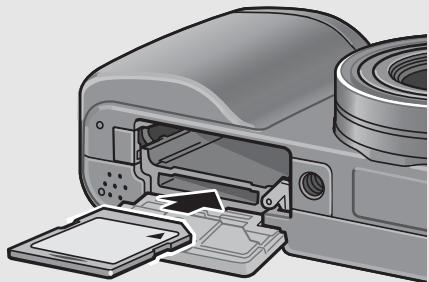
2 Make sure the SD memory card is facing the right way and then push the card all the way in until it clicks.
- The rechargeable battery may be inserted first.
3 Insert the rechargeable battery.
- Press the latch with the battery and insert the battery all the way into the battery compartment.
- When the rechargeable battery is loaded in place, it is locked with the latch.
4 Close the battery/card cover and slide the release lever in the opposite direction of OPEN to lock it in place.
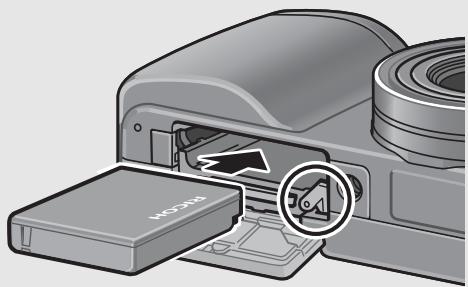
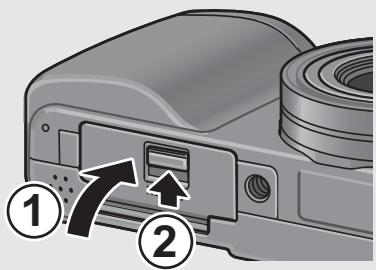
Loading AAA Alkaline Batteries (Available in Stores)
Insert the batteries in the direction shown.
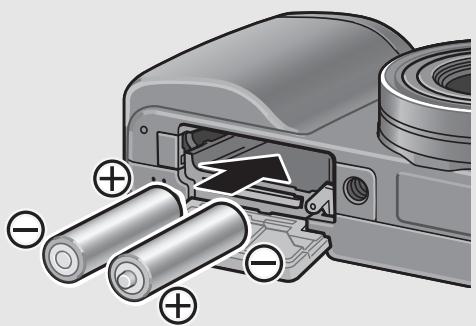
Close the battery/card cover by sliding the release lever while pressing close the battery/card cover with your finger.
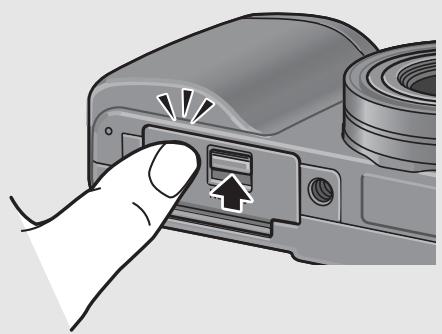
Removing the SD Memory Card
Slide the release lever toward OPEN to open the battery/card cover. Push in the SD memory card and gently release to eject it. Pull the card out of the camera.
Removing the Rechargeable Battery
Slide the release lever toward OPEN to open the battery/card cover. Press and release the latch. The battery is ejected. Pull the battery out of the camera. Be careful not to drop the battery when removing it from the camera.
Removing the AAA Alkaline Batteries
Slide the release lever toward OPEN to open the battery/card cover, and then remove the alkaline batteries. Be careful not to drop the alkaline batteries when removing them from the camera.

Caution
- When closing the battery/card cover, slide the release lever and be sure to lock it in place.
- Remove the batteries if you are not going to use the camera for a long period of time. Store the removed batteries in a dry cool place.
Turning the Power On/Off
To turn the power on:
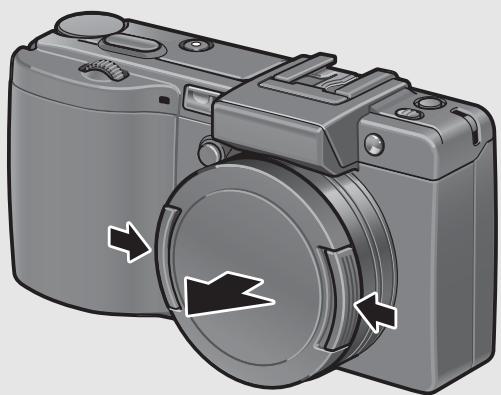
1 Press the tabs on both sides of the lens cap, and remove the lens cap.
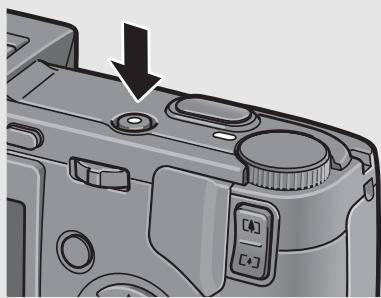
2 Press the POWER button.
After the start sound, the auto focus/flash lamp blinks for several seconds.
Using the Camera inPlayback Mode
- Pressing the (Playback) button for more than one second turns on the camera in playback mode, allowing you to start playback at once.
- When the camera is turned on with the (Playback) button, pressing the (Playback) button again switches playback mode to recording mode.
To turn the camera off:
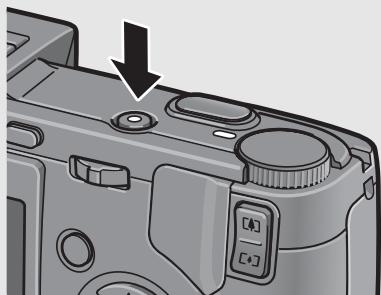
1 Press the POWER button.
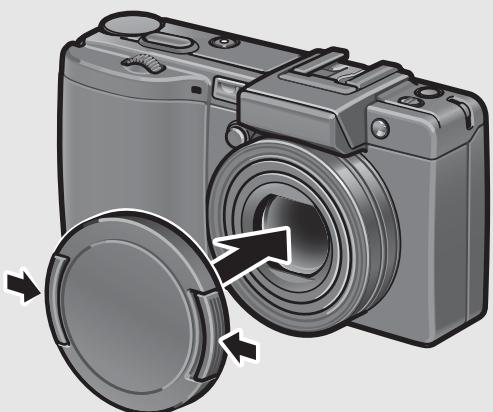
2 Press the tabs on both sides of the lens cap, and attach the lens cap to the camera lens.

Caution
- Remove the lens cap before turning on the camera. If you turn on the camera before removing the lens cap, a message is displayed. Follow the message instruction to operate.
- After the camera is turned on, it may takes longer for the camera to become ready for shooting when using the flash than when not using the flash.

Auto power off
- If the camera goes unused for a set period of time, it automatically turns itself off to save power. (Auto Power Off)
- The auto power off setting can be changed. (P.144)
Setting the Language
When the power is turned on for the first time, the language setting screen appears (for the LCD monitor display language)
After setting the language, go on to the date/time setting (for printing the date and time on your photos).
You can shoot without these settings. However, be sure to set the language, and the date/time later. Use the SETUP menu for these settings.
1 Turn the power on for the first time after purchase.
- The language selection screen appears.
- To skip language setting, press the MENU/OK button.
- When the MENU/OK button is pressed, the language setting is cancelled and the video signal format-setting screen appears.
2 Press the buttons to select a language.
3 Press the MENU/OK button.
- The display language is set, and the date/time setting screen appears.
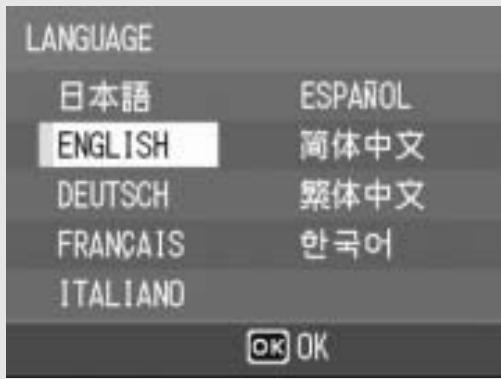

For how to set the display language and date/time on the SETUP menu, see “Changing the Display Language (LANGUAGE/言語)” (P.162) and “Setting the Date and Time (DATE SETTINGS)” (P.161) in this guide.
Setting the Date and Time
When the power is turned on for the first time, the date/time setting screen appears.
1
Press the buttons to set the year, month, date and time.
- Change the value with and move the frame with .
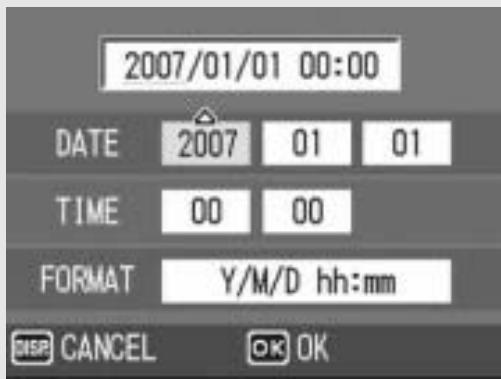
Setting at shipping
2
In [FORMAT], choose the date and time format.
- Select the date and time format with .
3
Check the information on the screen and then press the MENU/OK button.
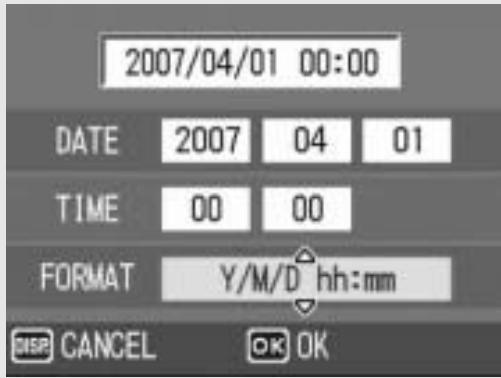
- The date is set.
- Pressing the DISP. button on this screen allows you to cancel the setting.

Note
- If the battery is removed for more than one week, the date and time settings will be lost. These settings must be made again.
- To retain the date and time settings, load a battery with adequate remaining power for more than two hours.
- The set date and time can be changed later. (P.161)
- The date and time can be inserted into images. (P.99)
Basic Shooting
Now you are ready.
Holding the Camera
Hold the camera as shown below for best results.
1 Hold the camera with both hands and lightly press both elbows against your body.
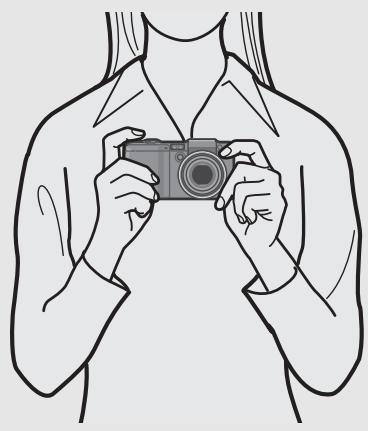
2 Put your finger on the shutter release button.
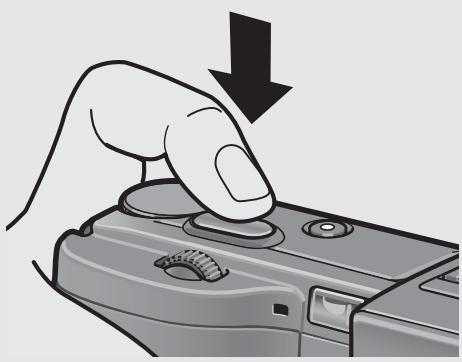

Caution
When you are shooting, be careful not to obstruct the lens or flash with your fingers, hair, or the strap.
If you move the camera when pressing the shutter release button, the still image might not come out clearly due to camera shake.
Camera shake tends to occur in the following cases:
- When shooting in a dark place without using the flash
- When using the zoom function
- When shooting with a long exposure time (P.72)
When the symbol appears on the LCD monitor, this indicates that camera shake may occur. To prevent camera shake, try any of the following.
Using the camera shake correction function (P.106)
- Setting the flash to [AUTO] or [FLASH ON] (P.44)
- Raising the ISO setting (P.104)
Using the self-timer (P.50)
Shooting
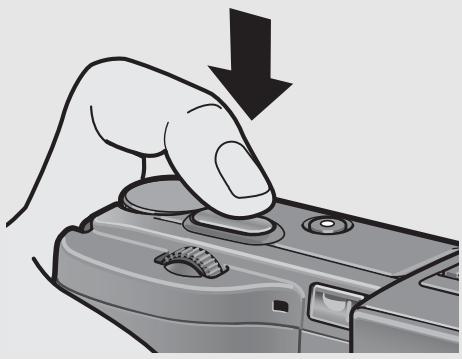
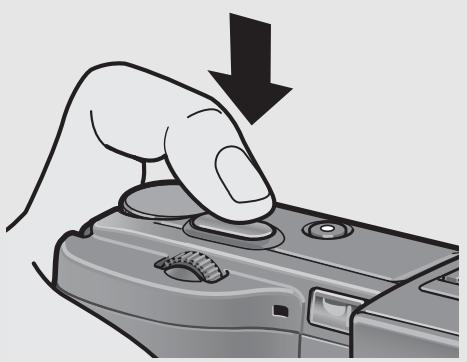
The shutter release button works in two steps. You can press the shutter release button halfway down (half-press) and press it all the way down (full-press).
Quickly Shooting Pictures (Full-press)
Full-press the shutter release button for quick focusing, so as not to miss a shooting opportunity.
1 Press the POWER button to turn the camera on, and turn the mode dial to
2 Compose your shot by looking at the LCD monitor, make sure the subject is centered, and gently press the shutter release button fully.
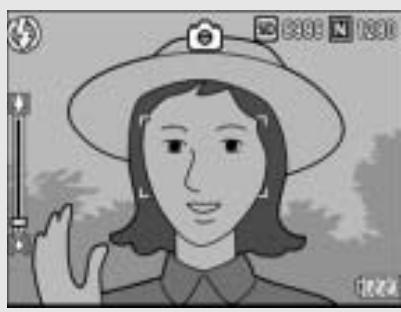
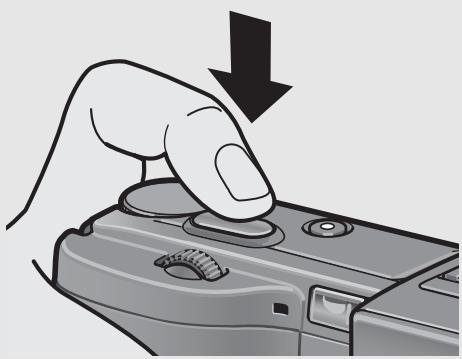
- The still image you have taken appears momentarily on the LCD monitor and is recorded to the internal memory or SD memory card.
Caution
Full-press is likely to cause the camera to shake. Hold the camera firmly with both hands and shoot. Turning the camera shake correction function on minimizes blurring due to camera shake. (P.106)
Note
You can set the time the still image you have taken appears on the LCD monitor. You can also set the image not to appear after it is taken. (P.147)
Checking the Focus and Shooting (Half-press/ Focus Lock)
When you press the shutter release button halfway (Half-press), the auto-focus function is triggered to determine the focal distance. Next, press it all the way down (Full-press) to shoot. When your subject is not in the center of your composition, compose your photo after focusing. (Focus Lock)
1 Press the POWER button to turn the camera on, and turn the mode dial to 0.
2 Put the subject of your photo in the center of the screen and press the shutter release button halfway.
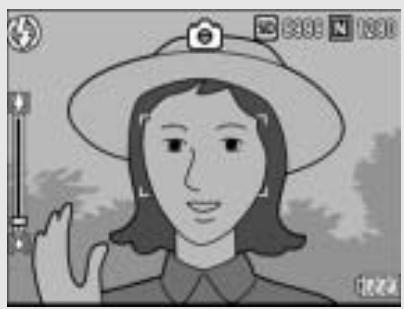
- The camera focuses on the subject and the exposure and white balance are fixed.
- If automatic focusing fails, the frame in the center of the LCD monitor flashes red and the auto focus/flash lamp blinks green.
- The focal distance is measured at a maximum of five points. Green frames appear to indicate the positions that are in focus.
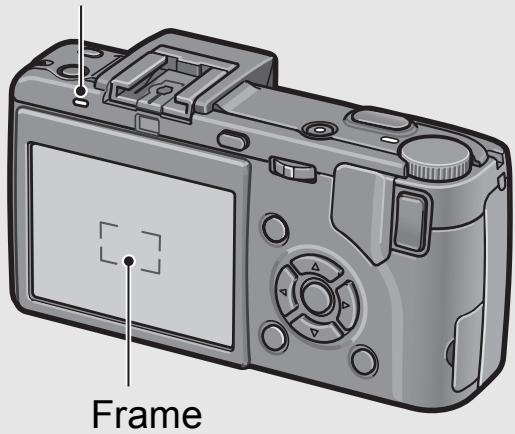
Auto Focus/Flash Lamp
3 To take a picture with the subject in the foreground in focus against a background, half-press the shutter release button to focus on the subject, and then compose your shot.
Subject to be focused on
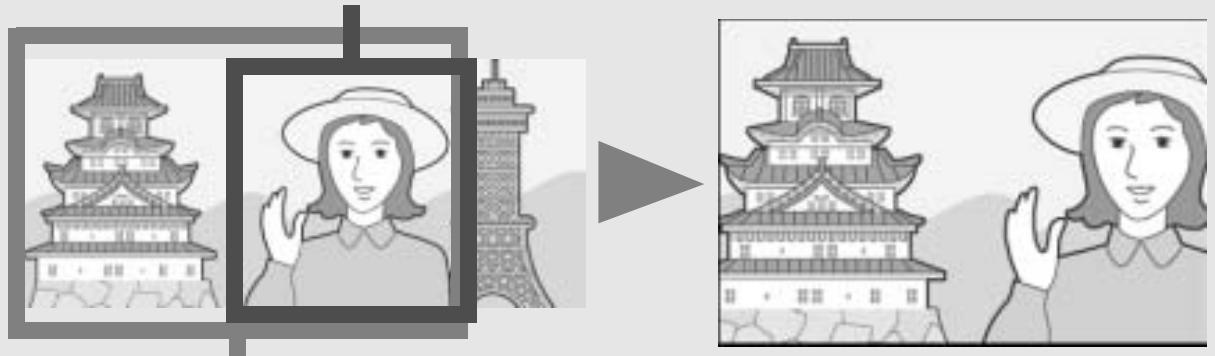
Shooting range
4 Gently press the shutter release button all the way.
- The still image you have taken appears momentarily on the LCD monitor and is recorded to the internal memory or SD memory card.

Focusing
- The color of the frame in the center of the LCD monitor and the auto focus/flash lamp indicate whether the subject is in or out of focus.
| Focus Status | Frame Color | Auto Focus/Flash Lamp |
| Before focusing | White | Off |
| Subject in focus | Green | Lights (green) |
| Subject not in focus | Flashes (red) | Blinks (green) |
-
It may be impossible to bring the following subjects into focus.
-
Subjects lacking contrast (the sky, a white wall, the hood of a car, etc.)
- Flat two-dimensional objects with only horizontal lines and no significant protrusions.
- Quickly moving objects.
- Things in poorly lit places.
- Areas with strong backlighting, or reflections.
- Things that flicker, such as fluorescent lights.
When you want to shoot subjects like this, first focus on an object the same distance as your subject and then shoot.
Note
- Press the shutter release button gently to prevent camera shake.
- The symbol indicates that camera shake may occur. Hold the camera still and focus the camera again. You can also turn on the camera shake correction function to minimize blurring. (P.106)
- The flash fires a pre-flash to increase the AE accuracy.
Using the Zoom Function
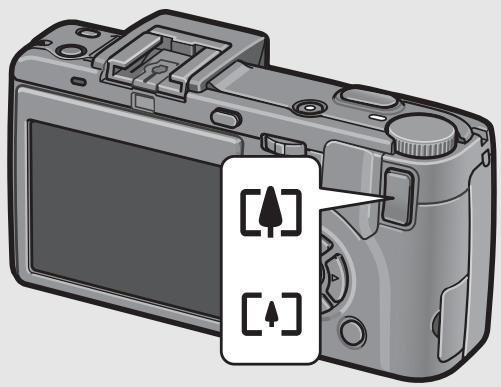
Pressing the [4] (Telephoto) button allows you to take a close-up picture of the subject.
Pressing the [4] (Wide-angle) button allows you to take a wide-angle picture.
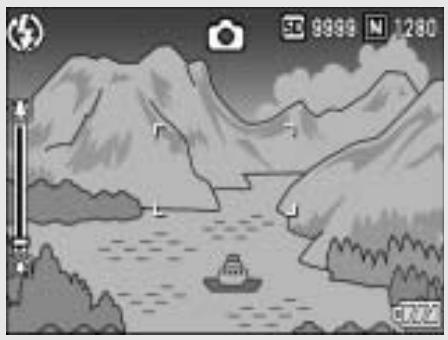
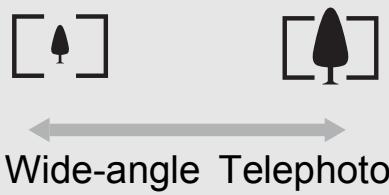
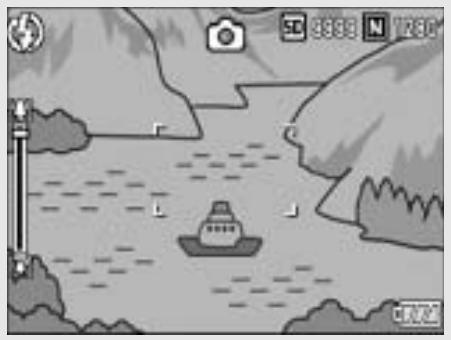
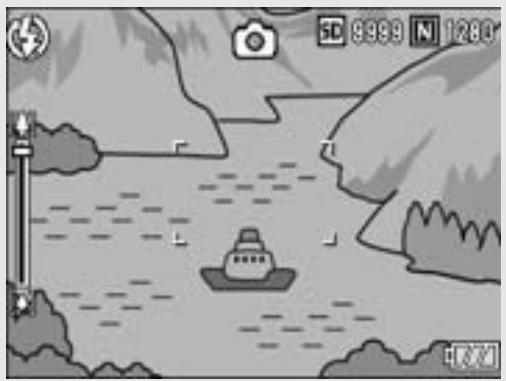
1 With the camera ready to shoot, press the [4] (Telephoto) or [4] (Wide-angle) button.
- You can check the zoom status on the zoom bar of the LCD monitor.
2 Compose your picture and half-press the shutter release button.
3 Full-press the shutter release button.

Using the Digital Zoom
Digital zooming enables you to enlarge the subject more than the maximum magnification of the optical zoom (3.0×) specified by pressing the [4] (Telephoto) button (up to 4.0× ).
To use digital zooming, press and hold the [A] (Telephoto) button until the maximum magnification is reached on the zoom bar, then momentarily release the button, and then press the [A] (Telephoto) button again.
You can also set [DIGITAL ZOOM IMG] to [AUTO RSZ]. (P.153)
This function is not available when [PIC QUALITY/SIZE] is set to RAW mode.
(P.80)
Shooting Close-Ups (Macro Shooting)
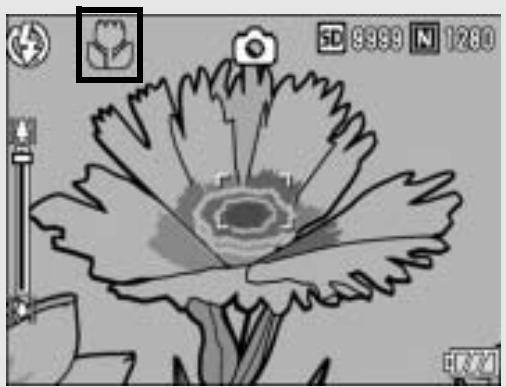
Using the (Macro) button allows you to take a tight close-up of the subject. (Macro shooting)
This is good for shooting small subjects because you can shoot up to approximately 1cm (0.4in.) away from the front edge of the lens.
1 With the camera ready to shoot, press the (Macro) button.
- is displayed momentarily at the center of the LCD monitor and then is displayed at the top of the screen.
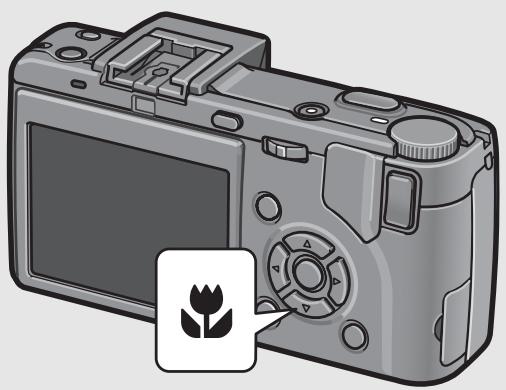
2 Compose your picture and half-press the shutter release button.
3 Full-press the shutter release button.
- To cancel macro mode, press the (Macro) button again.

Note
- When using the zoom, you can shoot close-ups within the following distances:
| Distance | Shooting Range | |
| Wide-Angle | Approx. 1 cm (from the front edge of the lens) | Approx. 29 mm × 22 mm |
| Telephoto | Approx. 4 cm (from the front edge of the lens) | Approx. 25 mm × 19 mm (when digital zoom is not used) |
| Approx. 6.3 mm × 4.0 mm (when 4.0× digital zoom is used) |
- The AF target shift function enables you to lock the focus for macro shooting with the simple touch of a button without moving the camera. This function is useful for shooting on a tripod. (P.66)
- To take a further close-up picture during macro shooting, use [ZOOM MACRO] in scene mode. (P.47)
Using the Flash
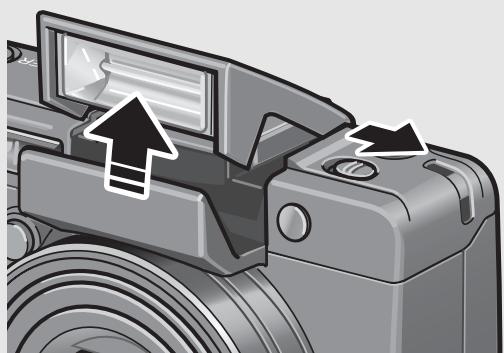
To use the flash, slide the (Flash) OPEN switch to the outside to raise the flash cover and open the flash. The flash does not fire if it is not open.
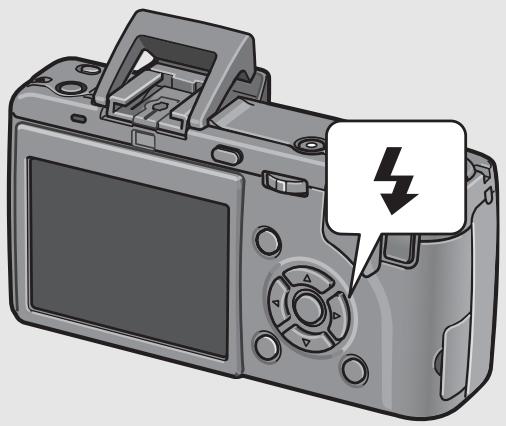
With the flash open, press the (Flash) button to change the flash mode. The default setting is [AUTO] when the flash is open.
From the front edge of the lens, the flash light reaches about 0.2 to 5.0 ~m (7.9 in. to 16.4 ft.) (Wide-angle) or about 0.15 to 3.0 ~m (5.9 in. to 9.8 ft.) (Telephoto) when the ISO setting is set to [AUTO].
Flash Modes
| FLASH OFF | The flash will not fire. |
| AUTO | The flash fires automatically when the subject is poorly lit or backlit. |
| RED-EYE FLASH | Reduces the red-eye phenomenon, in which people's eyes appear red in pictures. |
| FLASH ON | The flash fires regardless of the lighting conditions. |
| FLASH SYNCHRO. | The flash fires with the shutter speed slowed. This is useful when taking portrait pictures in a nightscape. Camera shake may occur, so the use of a tripod is recommended. |
| SOFT FLASH | Reduces the amount of light fired by the flash. This is useful when using macro shooting to shoot close-ups. |
1 Slide the (Flash) OPEN switch to the outside to raise the flash cover.
2 Turn the mode dial to .
3
Press the (Flash) button to change the flash mode.
- The flash mode mark is displayed momentarily at the center of the LCD monitor and then a smaller mark is displayed at the upper left of the screen.
- The auto focus/flash lamp blinks while the flash charges. Once the flash is charged, the lamp turns off and the camera is ready to shoot.

Note
- When you are finished using the flash, press the center of the flash cover down with your finger.
- The flash mode setting is saved until you press the (Flash) button again.
- The flash does not fire when shooting movies or in multi-shot mode.
- When using AAA alkaline batteries, Oxyride batteries, or nickel-hydrogen batteries, the LCD monitor turns off when the flash is charging.
- The flash fires a pre-flash to increase the AE accuracy.
- You cannot use the internal flash when using the external flash. (P.201)

Caution
- You cannot use the internal flash when using the wide conversion lens or hood.
- To use the internal flash with the LCD viewfinder attached, reposition the angle of the LCD viewfinder.
Shooting with Optimal Settings According to Shooting Conditions
You can use scene mode to select from among eight still image modes and shoot with settings automatically optimized for shooting conditions.
Scene Modes
| PORTRAIT | Use when taking portrait pictures. |
| SPORTS | Use when taking pictures of moving objects. |
| LANDSCAPE | Use when taking scenery pictures with abundant greenery or blue sky. |
| NIGHTSCAPE | Use when shooting night scenes. You can also shoot with night scenes with people in the frame. In Nightscape Mode, the flash fires when all of the following conditions are satisfied: (When the flash is open) • The flash is set to [AUTO]. • The flash is determined to be necessary because it is dark. • There is a figure or another object nearby. |
| SKEW COR MODE | Use to straighten a rectangular object, such as a message board or business card, shot at an angle to make it look as if it were shot squarely. For detailed operations, see P.48. Report In skew correction mode, select [N1280] or [N640] for [PIC QUALITY/SIZE]. (P.80) |
| TEXT MODE | Use when capturing text images, for example notes written on a whiteboard at a meeting. Images are captured in black and white. You can also change the shading of text. (P.65) You can set the image size to either 3648 × 2736 or 2048 × 1536 pixels. (P.80) |
| ZOOM MACRO | Use when taking a further close-up picture during macro shooting. Using the digital zoom allows you to take a larger close-up than with normal macro shooting. For detailed operations, see P.49. The optical zoom cannot be used in this mode. |
| HIGH SENS | Use when taking pictures in dimly lit places. The LCD monitor also becomes brighter. |

Note
For information on shooting setting menu items and function restrictions in scene mode, see "Appendices". (P.205)
1
Turn the mode dial to SCENE.
- The camera is ready to shoot and the selected scene mode is displayed at the top of the LCD monitor.
2
Press the MODE button to change the scene mode.
- The scene mode selection screen appears.
3
Press the buttons to select the scene mode.
4
Press the MENU/OK button.
- The scene mode type is displayed at the top of the LCD monitor.
5
Press the shutter release button to shoot the picture.
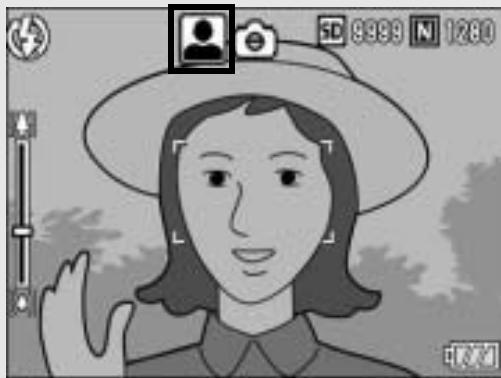
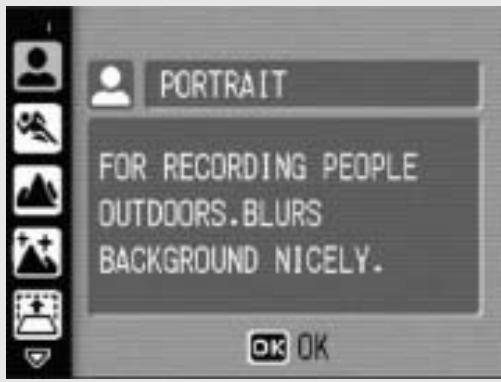
Returning to Normal Shooting Mode
1 Turn the mode dial to
Using the Skew Correction Mode
1 Turn the mode dial to SCENE.
- The camera is ready to shoot and the selected scene mode is displayed at the top of the LCD monitor.
2 Press the MODE button.
- The scene mode selection screen appears.
3 Press the buttons to select [SKEW COR MODE].
4 Press the MENU/OK button.
Press the shutter release button to shoot the picture.
- The display indicates that the image is being processed, and then the area recognized as the correction range is displayed with an orange frame. Up to five areas can be recognized.
- If the target area cannot be detected, an error message appears. The image before correction remains recorded.
• To select another correction area, move the orange frame to the target area by pressing the button.
• To cancel skew correction, press the button. Even if you cancel skew correction, the image before skew correction remains recorded.
6 Press the MENU/OK button.
- The display indicates that the image is being corrected, and then the corrected image is recorded. The image before correction is also recorded.

Caution
When [SKEW COR MODE] is selected, note the following:
- To shoot the subject as large as possible, position it so that the entire portion of the subject is visible on the LCD monitor.
-
The camera may fail to recognize the subject in the following cases:
-
When the image is out of focus
- When four edges of the subject are not clearly visible
- When it is hard to distinguish between the subject and background
-
When the background is complicated
-
Two images, one before correction and the other after correction, are recorded. If the number of remaining shots is less than two, you cannot shoot the subject.
-
When [SKEW COR MODE] is selected, the digital zoom is activated even when [AUTO RSZ] is set to [DIGITAL ZOOM IMG] on the SETUP menu.
-
You can also correct the skew of a previously shot still image. (P.124)
- For images shot in RAW mode (P.80), the skew is corrected in the JPEG file recorded at the same time as the raw data. No skew is corrected in the DNG file.
Shooting in Zoom Macro Mode
1 Turn the mode dial to SCENE.
- The camera is ready to shoot and the selected scene mode is displayed at the top of the LCD monitor.
2 Press the MODE button.
- The scene mode selection screen appears.
3 Press the buttons to select [ZOOM MACRO].
4 Press the MENU/OK button.
5 With the camera ready to shoot, press the [4] (Telephoto) or [4] (Wide-angle) button.
- The zoom level appears on the LCD monitor.
6 Compose your picture and half-press the shutter release button.
7 Full-press the shutter release button.

Caution
- You can shoot close-ups within the following distances:
| About 1cm | Shooting range: Approx. 17 mm × 13 mm (when digital zoom is not used) |
| Shooting range: Approx. 4.2 mm × 3.2 mm (when 4.0× digital zoom is used) |
- When [DIGITAL ZOOM IMG] is set to [AUTO RSZ], the auto resize zoom is activated. (P.153)

Using the Self-Timer
You can set the Self-timer to shoot after either two or ten seconds. A setting of two seconds is useful for preventing camera shake.

Turn the mode dial to .

Press the (Self-timer) button.
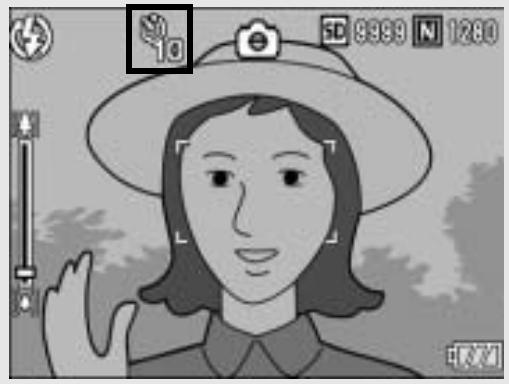
- The Self-timer symbol appears on the screen.
- The [10] to the right of the symbol indicates the number of seconds. In this case, if you press the shutter release button, the camera shoots after 10 seconds.
- Each press of the (Self-timer) button changes the self-timer setting in the following order: 10sec, 2sec, and Self-timer Off.

Press the shutter release button.
- The focus is locked, and the AF auxiliary light lights when the self-timer starts.

Note
- The camera remains in self-timer mode even after the image is shot. To cancel the self-timer, press the (Self-timer) button and change the self-timer setting to [SELF-TIMER OFF].
- When the self-timer is set to 2 seconds, the AF auxiliary light does not light.
Reviewing the Image You Just Took (Quick Review)
You can view the image you just took on the LCD monitor. If you are not pleased with the way the photo came out, you can delete it then and there.
1 In shooting mode, press the (Quick Review) button.
- The last image you took is displayed on the LCD monitor.
| In Quick Review | |
| Button | Returns to shooting mode. |
| Q Button | Enlarges the displayed still image. You can move the displayed still image by pressing the▲▼▲→buttons. |
| Button | Reduces the displayed still image enlarged by pressing the Q button. |
| MENU/OK Button | Enlarges at maximum magnification the displayed still image enlarged by pressing the Q button. Pressing this again returns the still image to its original size. |
| Button | Deletes the currently displayed file. When the button is pressed, a warning message about deleting the file appears. Select [DELETE] and press the MENU/OK button. |
| DISP. Button | Displays the white saturation highlights display screen. Press the DISP. button again to display the quick review screen. |

Note
- Once the power is turned off, the image you took cannot be displayed in shooting mode even if you press the (Quick Review) button.
- If you use Quick Review to view the image taken in [TEXT MODE] of scene mode (P.46), the displayed image may have a slightly lower quality than the recorded one.
Viewing Your Images
In playback mode, you can check still images you have taken. You can also delete or zoom in on the images.

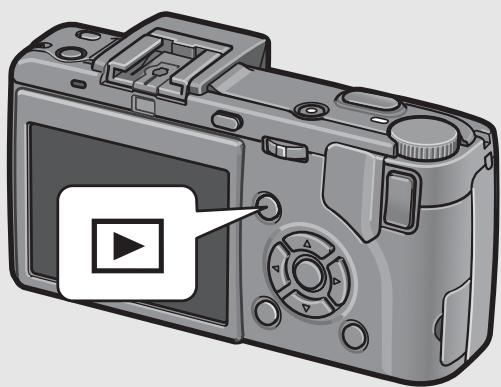
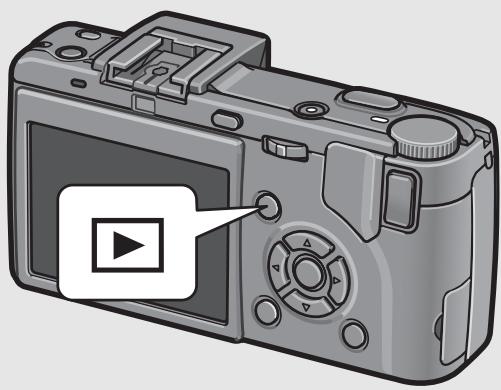
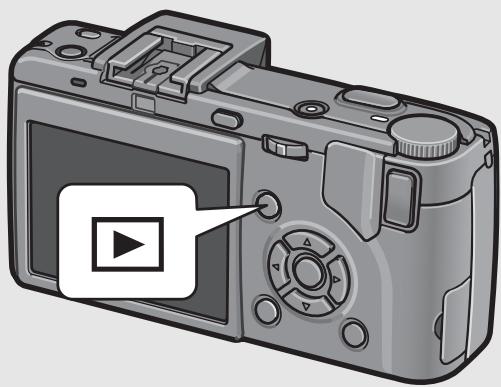
Press the (Playback) button.
- The camera switches to playback mode and the last still image you took is displayed.
• You can view your pictures in order by using the buttons. - To switch the camera from playback mode to shooting mode, press the (Playback) button again.
To previous image

To next image

Caution
When shooting with [PIC QUALITY/SIZE] set to RAW mode (P.80), a JPEG file associated with the DNG file is recorded at the same time. If the JPEG file is deleted on a computer, for example, a thumbnail of the DNG file can be displayed, but the thumbnail cannot be enlarged.

Note
- When playing back an image (RAW3648/RAW3:2) shot with [PIC QUALITY/SIZE] set to RAW mode, the JPEG file recorded at the same time as the DNG file is displayed. A symbol appears on the screen indicating RAW mode.
- When the LCD viewfinder is attached to the camera, pressing the (Playback) button displays the image on the LCD monitor of the camera. Pressing the (Playback) button again displays the image on the LCD viewfinder.

Turning on the camera in playback mode
When the camera is off, pressing the (Playback) button for more than one second turns the camera on. (The camera starts up in playback mode.)
When the camera has been turned on with the (Playback) button, pressing the (Playback) button again switches playback mode to shooting mode.

Where images are played back from
When no SD memory card is loaded, the camera plays back from the internal memory. When an SD memory card is loaded, it plays back from the SD memory card.
Three-frame View/Grid View (Thamburger Display)
When playing back images on the LCD monitor, the playback screen can be divided into three frames (three-frame view) or 12 frames (grid view). The three-frame view and grid view allow you to select a still image to enlarge or delete.
The playback screen changes as follows:
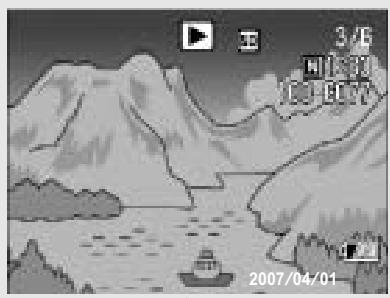
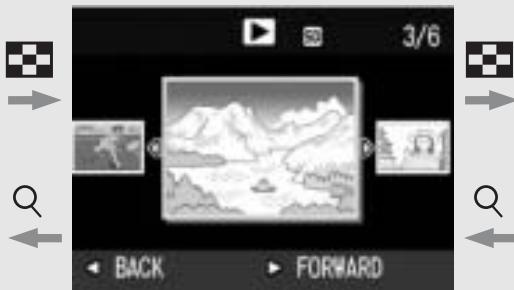
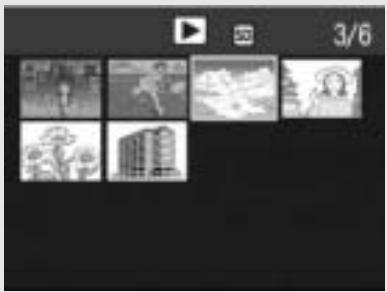
MENU/OK
1 Press the (Playback) button.
- The last image you took is displayed.
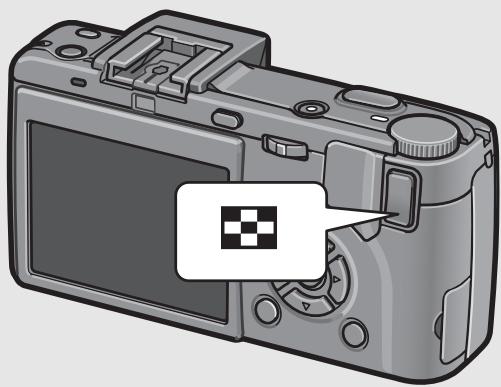
2 Press the (Thumbnail Display) button.
- The screen changes to three-frame view. The large frame at the center of the screen displays the currently selected still image.
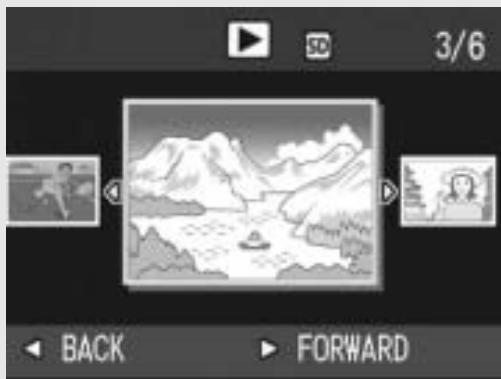
3 Press the (Thumbnail Display) button again during three-frame view.
- The screen is divided into 12 frames.
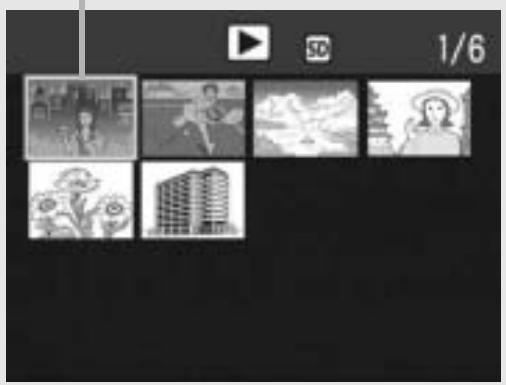
Selected still image
Switching to Single-Picture Display
In three-frame view
1 Press the buttons to select a still image.
2 Press the (Enlarged View) button or the MENU/OK button.
In grid view
1 Press the buttons to select a still image.
2 Press the (Enlarged View) button twice.

Note
If any of the following operations is performed in the three-frame view, the display returns to the ordinary playback screen (single-picture display) and the operation is executed.
- Deletion (P.56)
- Menu display (P.113)
- Movie playback (P.112)
Magnifying Images
You can enlarge a still image displayed on the LCD monitor.
| Image Size | Enlarged View (maximum magnification) |
| 3648 × 2736, 3648 × 2432, 2736 × 2736, 3264 × 2448, 2592 × 1944, 2048 × 1536 | 16 times |
| 1280 × 960 | 6.7 times |
| 640 × 480 | 3.4 times |
1 Press the (Playback) button.
- The last image you took is displayed.
2 Press the buttons to display the still image you want to enlarge.
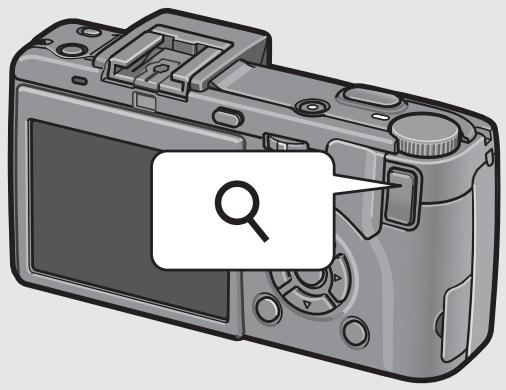
Press the (Enlarged View) button.
- The still image is enlarged.
| In Enlarged View | |
| Q Button | Enlarges the displayed still image. You can move the displayed still image by pressing the▲▼◇ buttons. |
| ■ Button | Returns the enlarged still image to its original size. |
| MENU/OK Button | Pressing this in enlarged view displays the still image at the maximum magnification. Pressing this again returns the still image to its original size. |

Note
- Enlarged view is also available in the quick review mode.
- Movies cannot be enlarged.
Deleting Files
You can delete unwanted or failed files from the SD memory card or internal memory.
Deleting a File
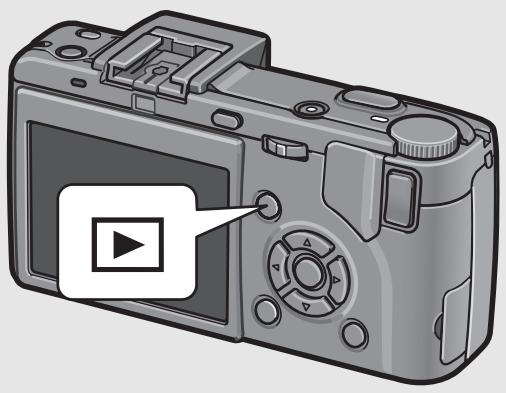
1 Press the (Playback) button.
2 Press the buttons to display the file you want to delete.
Press the (Delete) button.
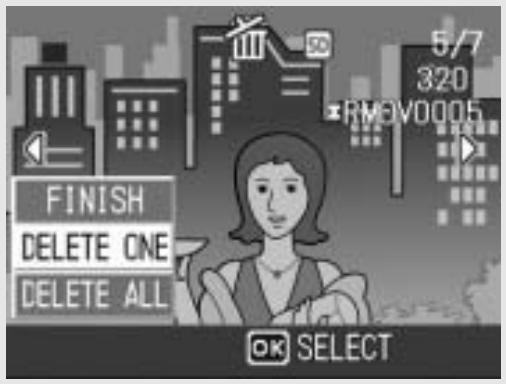
4 Press the buttons to select [DELETE ONE].
- You can change the image for deletion with the buttons.
5 Press the MENU/OK button.
- The display indicates that the files are being deleted; once finished, it returns to the screen in Step 4.
Deleting All Files
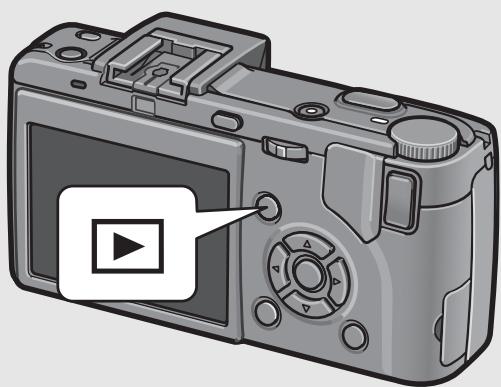
1 Press the l (Playback) button.
2 Press the (Delete) button.
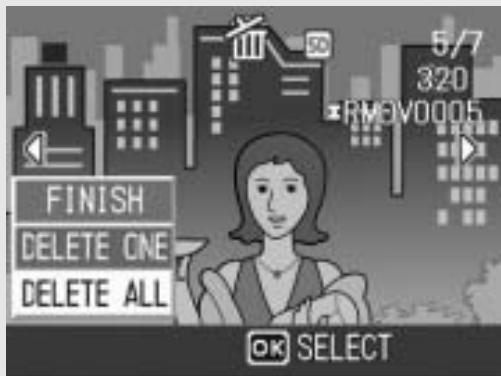
3 Press the buttons to select [DELETE ALL].
4 Press the MENU/OK button.
• You are prompted to confirm that you want to delete all images. If so, press the button to select [YES], and then press the MENU/OK button.

Note
You can also delete files by pressing the (Delete) button during three-frame view. (P.53)
Deleting Multiple Files at One Time
1 Press the (Playback) button.
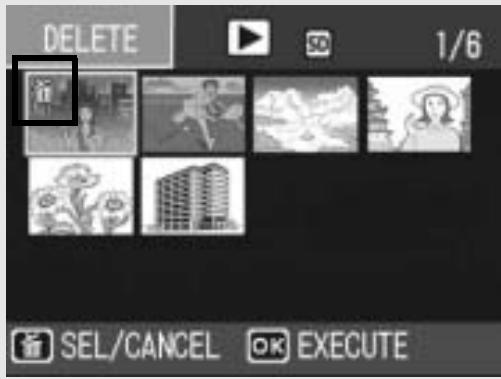
2 Press the (Thumbnail Display) button twice.
- The screen is divided into 12 frames.
3 Press the buttons to select the file you want to delete and press the (Delete) button.
- The trash symbol is displayed in the upper left corner of the file.
4 Repeat Step 3 to select all the files you want to delete.
• If you selected a file by mistake, you can deselect it by selecting the file and pressing the (Delete) button.
5 Press the MENU/OK button.
6 Press the buttons to select [YES] and then press the MENU/OK button.
- The display indicates that the files are being deleted; once finished, it returns to the thumbnail display screen.
![RICOH CAPLIO GX100 - Press the buttons to select [YES] and then press the MENU/OK button. - 1](/content/2025/01/136419/images/3ba3b5e6d16ca4cd7eb6276ce82ee7b526af1b3463fea3022e52cc861b2fa95f.jpg)
Changing the Display with the DISP. Button
Pressing the DISP. button allows you to change the screen display mode and toggle the information displayed on the LCD monitor.
- Shooting Mode
Each time you press the DISP. button, the display changes in the following order: Histogram, Grid Guide, No Display, and Normal Symbol Display.
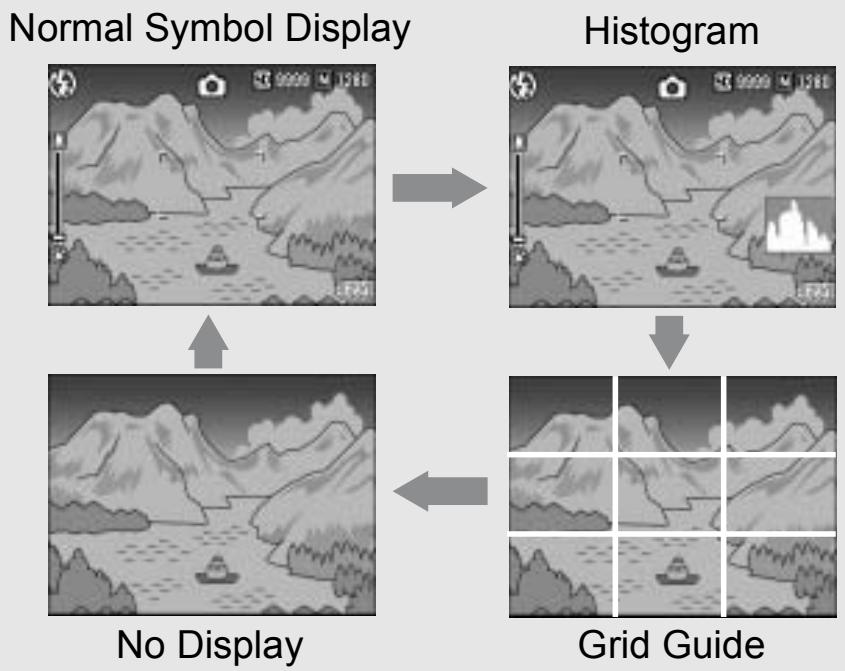
Press the DISP. button to change the display.

Grid guide
This displays auxiliary lines on the LCD monitor to help you compose your picture. These lines are not recorded with images.

Turning the LCD monitor on/off
- Pressing the VF/LCD button while the LCD monitor is on turns the LCD monitor off. Some camera operations are not available when the LCD monitor is off. Pressing the VF/LCD button again turns the LCD monitor on.
When a LCD viewfinder is mounted, pressing the VF/LCD button switches between the LCD viewfinder and the LCD monitor.

Note
When [ENLGE PHOTO ICON] is turned on (P.156), the following are not displayed in normal symbol display.
Zoom bar/Focus bar, Date imprint, Sharpness, Color depth
- During Quick Review
Pressing the DISP. button switches to the white saturation highlights display. On the white saturation highlights display, the white saturation areas of the image flash in black. Pressing the DISP. button again returns to the quick review screen.
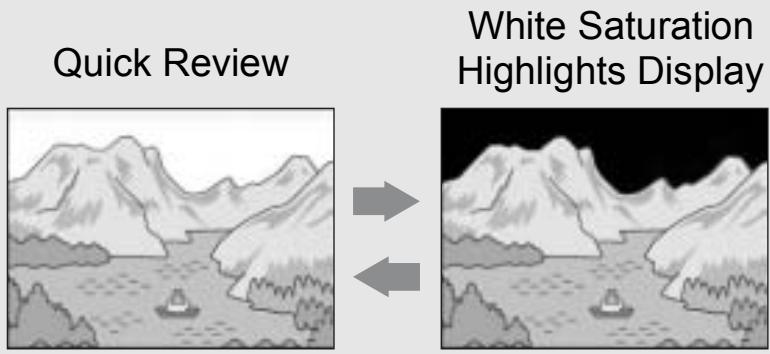
Press the DISP. button to change the display.
- DuringPlayback Mode
Each time you press the DISP. button, the display changes in the following order: Histogram, White Saturation Highlights Display, No Display, and Normal Symbol Display.
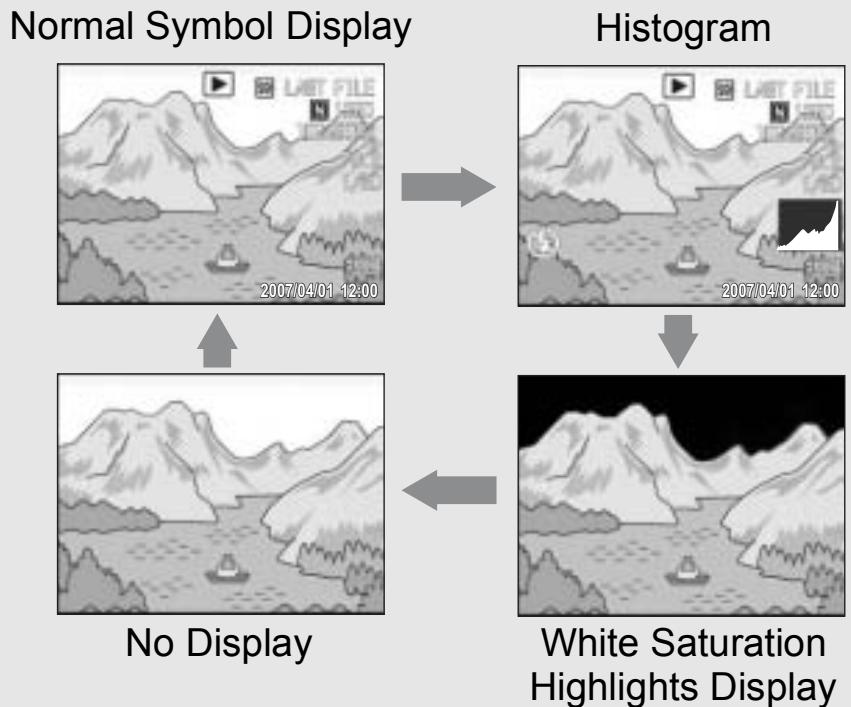
Press the DISP. button to change the display.

White saturation highlights display
The white saturation areas of the image flash in black. White saturation is the loss of grayscale that indicates the color shading in an image in which very bright areas of the subject are rendered in white. An image with a loss of grayscale cannot be edited later. It is recommended that you shoot another image while avoiding direct sunlight and setting the exposure level lower (-). (P.100)

Note
The white saturation highlights display is for reference only.
Maximizing the LCD Monitor Brightness
Hold the DISP. button down to maximize the display brightness. When the brightness is at the maximum setting, holding the DISP. button down returns the brightness to the level set in [LCD BRIGHTNESS]. (P.139)
Histogram
When Histogram is on, a histogram appears in the lower right corner on the LCD monitor. A histogram is a graph indicating the number of pixels on the vertical axis and the brightness on the horizontal axis (from left to right, shadows (dark areas), midtones, and highlights (bright areas)).
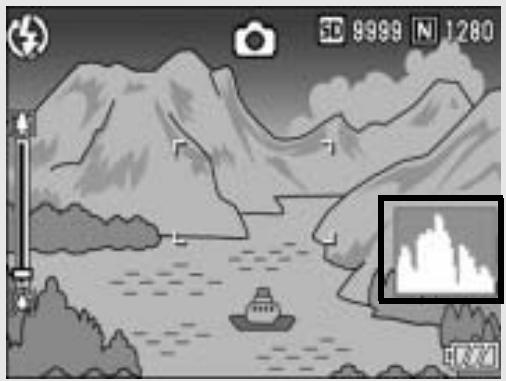
By using the histogram, you can determine the brightness of an image without being affected by the brightness around the LCD monitor. This also helps you correct for areas that are overly bright or dark.
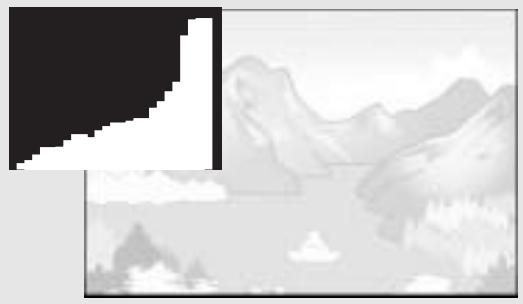
If the histogram has only peaks on the right side without anything else, this picture is over-exposed with too many pixels only for highlight sections.
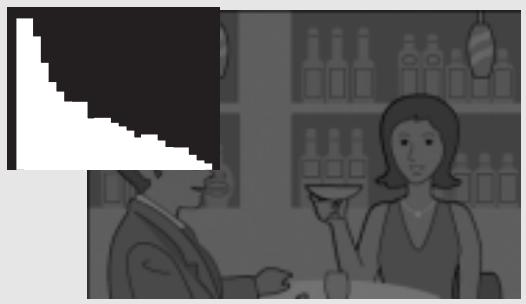
If the histogram has only peaks on the left side without anything else, this picture is under-exposed with too many pixels only for shadow sections. Correct the exposure to an appropriate level.

Note
- The histogram displayed on the LCD monitor is for reference only.
- Depending on the shooting conditions (use of the flash, dark surrounding light, etc.), the exposure level indicated in the histogram may not correspond to the brightness of the shot image.
- Exposure compensation has its limitation. It does not necessarily achieve the best possible result.
- A histogram with peaks in the center may not necessarily provide the best result to suit your particular requirements.
For example, an adjustment is required if you want to underexpose or overexpose the image.
- For information on how to correct the exposure compensation, see P.100.
Advanced Operations
Read this section when you want to learn more about the different camera functions.
1 Various Shooting Functions ....64
2 Shooting/Playing Back Movies 109
3 OtherPlayback Functions.....113
4 Direct Printing 128
5 Changing Camera Settings. 134
6 Downloading Images to Your Computer 164
7 Appendices. 186
Using the ADJ. Lever
ADJ. Mode
You can press the ADJ. lever to easily select ADJ. mode and make various shooting settings. In ADJ. mode, you can register four functions. Use the SETUP menu to assign functions to the ADJ. lever. (P.134) By assigning a frequently used function to the ADJ. lever, you can easily set that function with fewer operations.
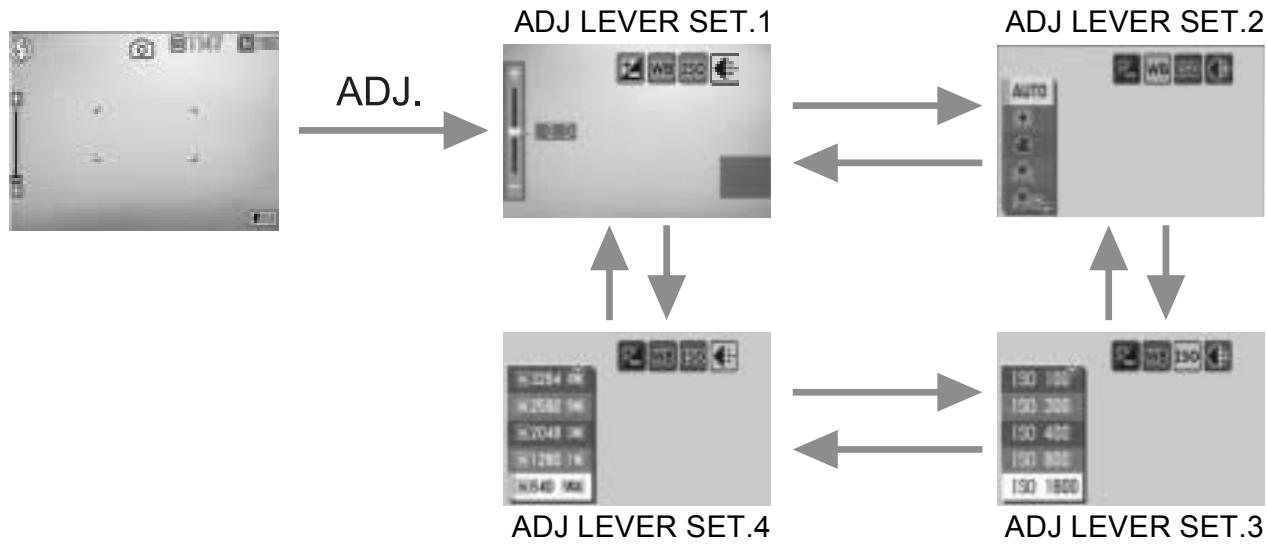
The screenshots above are examples of the screen display when [EXPOSURE COMP.], [WHITE BALANCE], [ISO], and [QUALITY] are assigned to [ADJ LEVER SET.1] to [ADJ LEVER SET.4]. Press the ADJ. lever left or right to display the screen of the function you want to set. Use the buttons to select and press the MENU/OK button or the ADJ. lever to make the setting.
Settings by Mode
The settings that can be made with the ADJ. lever differ among scene mode, movie mode and still image mode. The following settings can be made with the ADJ. lever.
| Mode | Available Settings |
| Still Image Mode | Functions assigned to [ADJ LEVER SET] |
| Movie Mode | White balance |
| Scene Mode ([TEXT MODE]) | Text density |
| Scene Mode (other than [TEXT MODE]) | Exposure compensation, white balance |
Functions That Can Be Assigned to [ADJ LEVER SET]
EXPO.CMP., WHT.BAL, ISO, QUALITY, FOCUS, IMG SET, AE METER, CONT MDE, AUTO BKT, WITH SND
Changing the Text Density (Scene Mode)
You can change the shading of text for shooting with [TEXT MODE] (P.46) in scene mode.
You can select from [DEEP], [NORMAL] and [LIGHT].
To change the setting, use the shooting setting menu or the ADJ. lever. This section explains easy ways to change the shading setting with the ADJ. lever.
To use the shooting setting menu, see "Using the Menu" (P.79) and "Shooting Setting Menu Items by Scene Mode". (P.206)
1 Turn the mode dial to SCENE.
2 Press the MODE button.
- The scene mode selection screen appears.
3 Press the buttons to select [TEXT MODE] and then press the MENU/OK button.
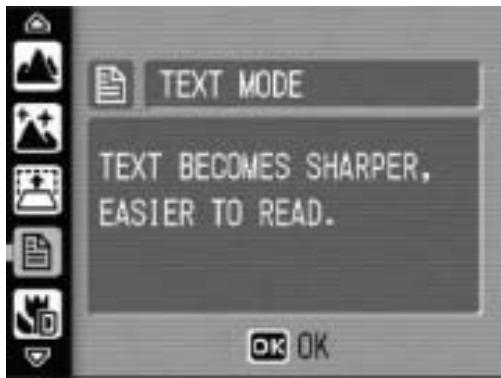
4 Press the ADJ. lever.
- The text density menu appears.
Press the buttons to select the desired density setting.
- You can also press the shutter release button to take a picture.
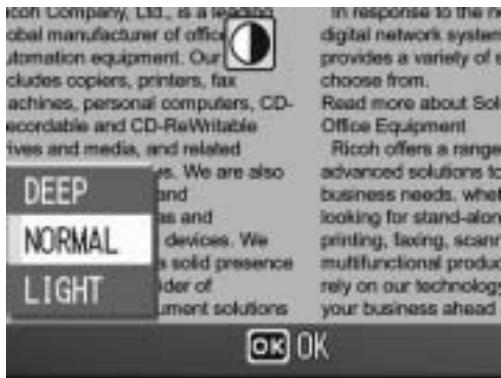
6 Press the MENU/OK button.
- The text density setting does not appear on the screen.
Shifting the AF Target (Macro)
During macro shooting, pressing the ADJ. lever allows you to shift the AF target by using the buttons on the camera without moving the camera. You can lock the focus (P.39) at the position where the AF target is shifted and shoot the picture. This function is useful for shooting on a tripod.
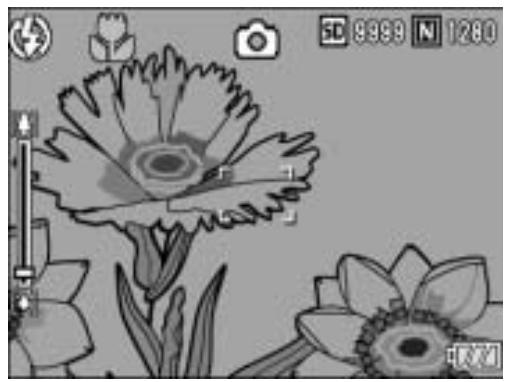
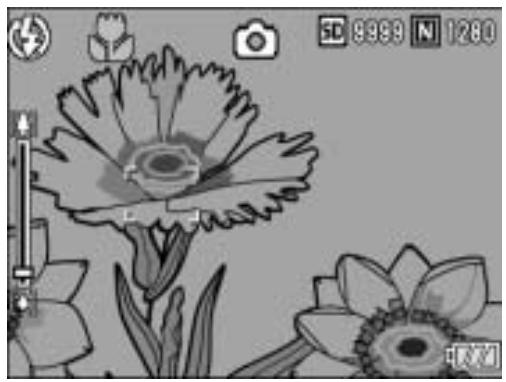
When the AF target is shifted to the left with the
1 With the camera ready to shoot, press the (Macro) button.
- The macro symbol appears on the screen.
2 Press the ADJ. lever.
3 Press the ADJ. lever to the left or right until the AF target shift function screen (cross-mark in the middle of the screen) appears.
4 Shift the cross-mark to the subject you want the camera to focus on with the buttons.
5 Press the MENU/OK button.
6 Half-press the shutter release button.
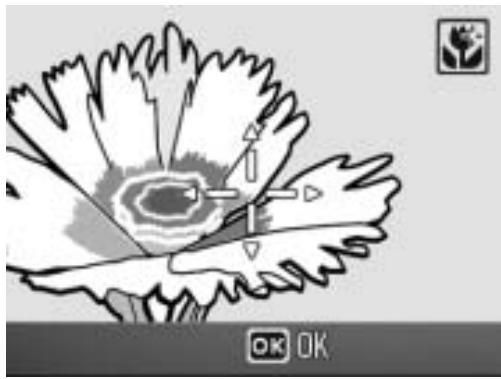
- The camera focuses on the area at the position of the cross-mark.
7 Gently press the shutter release button all the way.
- The AF target shift function automatically focuses the camera on the set position until macro mode is cancelled.
Using the Function Button
You can assign one of the following functions to the Fn (Function) button. Use the SETUP menu to assign a function to the Fn (Function) button. (P.150)
- Switching between auto focus and manual focus (AF/MF)
- Locking the exposure (AE LOCK)
- Shooting setting menu function (P.64)
1 Press the Fn (Function) button.
- When the Fn (Function) button is assigned to [AF/MF], see P.69.
- When the Fn (Function) button is assigned to [AE LOCK], see P.70.
- When the Fn (Function) button is assigned to a setting other than [AF/MF] or [AE LOCK], the screen that appears
when the ADJ. lever is pressed appears. For the operating procedure, see P.64.
Settings by Mode
The settings that can be made with the Fn (Function) button differ among scene mode, movie mode and still image mode. The following settings can be made with the Fn (Function) button.
- AE LOCK does not work in manual exposure mode even if the Fn (Function) button is assigned to [AE LOCK]. When the Fn (Function) button is pressed, the value is automatically set closer to the appropriate exposure (closer to the center of the exposure value indicator). This is useful when, for example, you want to change/adjust the exposure value from closer to the center of the exposure value indicator (the appropriate exposure).
Switching Between Auto Focus and Manual Focus (AF/MF)
Assigning the Fn (Function) button (P.150) to [AF/MF] and then pressing the Fn (Function) button during shooting allows you to switch between auto focus (AF) and manual focus (MF). Pressing the Fn (Function) button switches between auto focus and manual focus depending on the [FOCUS] setting on the shooting setting menu, as shown below.
| [FOCUS] setting | Pressing the Fn (Function) button |
| MULTI AF | Switches between MF and MULTI AF |
| SPOT AF | Switches between MF and SPOT AF |
| MF | Switches between MULTI AF or SPOT AF* and MF |
- The last selected AF mode (MULTI AF or SPOT AF) is selected.
1 With the camera ready to shoot, press the Fn (Function) button.
- When the focus mode changes to manual focus, the [MF] symbol appears at the upper right of the screen.
- When the focus mode changes to auto focus (MULTI AF or SPOT AF), the [MF] symbol disappears.
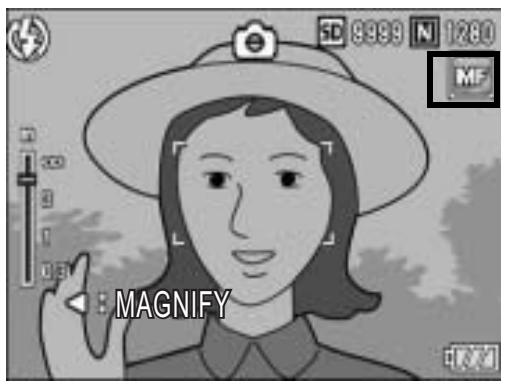
Caution-
When [FOCUS] is set to [SNAP] or [] , pressing the Fn (Function) button does not switch AF/MF.
- For information on how to use manual focus, see P.84.
- You can also use the shooting setting menu to make the [FOCUS] setting. (P.83)
- Use the SETUP menu to assign functions to the Fn (Function) button. (P.150)
- You can press the Fn (Function) button to switch AF/MF and lock the focus at the focus lock position (AF Lock). Use the following operating procedure.
1 With the camera set to auto focus, half-press the shutter release button to focus on the subject. (Focus Lock)
2 Release the shutter release button and press the Fn (Function) button.
3 The camera is set to MF and the shooting distance is fixed at the focus lock position.
- To return to auto focus mode, press the Fn (Function) button again.
Locking the Exposure (AE LOCK)
Assigning the Fn (Function) button (P.150) to [AE LOCK] and then pressing the Fn (Function) button during shooting allows you to lock or cancel the exposure.
1 Check that the camera is ready to shoot.
2 Put the subject of your photo in the center of the screen and press the Fn (Function) button.
- The exposure is locked and AEL mark, aperture value, and shutter speed appear on the screen.
- Pressing the Fn (Function) button again cancels the AE lock.
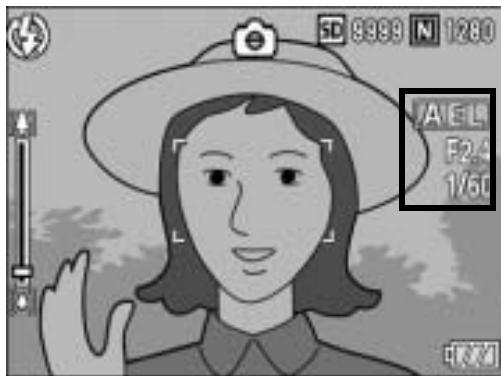

Note
- The exposure continues to remain locked even after you shoot a picture.
- AE LOCK does not work in manual exposure mode even if the Fn (Function) button is assigned to [AE LOCK]. When the Fn (Function) button is pressed, the value is automatically set closer to the appropriate exposure (closer to the center of the exposure value indicator). This is useful when, for example, you want to change/adjust the exposure value from closer to the center of the exposure value indicator (the appropriate exposure).
- Use the SETUP menu to assign functions to the Fn (Function) button. (P.150)
Shooting with a Set Aperture Value (A: Aperture Priority Mode)
Setting the mode dial to A (aperture priority mode) allows you to manually set the aperture value. Once the aperture value is set, the camera automatically sets the optimal shutter speed.
The selectable aperture depends on the zoom position.
Aperture values at wide-angle: from 2.5 to 9.1
Aperture values at telephoto: from 4.4 to 15.8
Selecting a lower aperture value (opening the aperture) allows you to blur the background and capture a sharp portrait of the foreground subject. Selecting a higher aperture value (closing the aperture) allows you to capture an image with everything from the foreground to the background in focus.
Use the up-down dial to set the aperture priority mode.
1 Turn the mode dial to A.
- The mode symbol appears on the LCD monitor, and the current aperture value is displayed in orange on the right edge of the screen.
2 Rotate the up-down dial to change the aperture value.
3 Half-press the shutter release button.
- The shutter speed is set and displayed on the screen.
4 Gently press the shutter release button all the way.
- You can also shoot the picture without half-pressing the shutter release button.
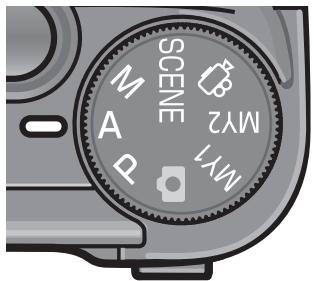

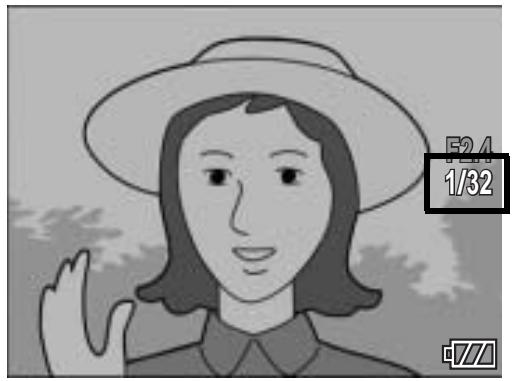
Note
The aperture opens or closes once the shutter release button is pressed.
Shooting with a Set Aperture Value and Shutter Speed (M: Manual Exposure Mode)
Setting the mode dial to M (manual exposure mode) allows you to manually set the aperture value and shutter speed.
For information on the available aperture values, see P.71.
You can select from the following shutter speeds.
| 1/2000 | 1/1600 | 1/1250 | 1/1000 | 1/800 | 1/640 |
| 1/500 | 1/400 | 1/320 | 1/250 | 1/200 | 1/160 |
| 1/125 | 1/100 | 1/80 | 1/60 | 1/50 | 1/40 |
| 1/30 | 1/25 | 1/20 | 1/15 | 1/13 | 1/10 |
| 1/8 | 1/6 | 1/5 | 1/4 | 1/3 | 1/2.5 |
| 1/2 | 1/1.6 | 1/1.3 | 1 | 2 | 4 |
| 8 | 15 | 30 | 60 | 120 | 180 |

Note
Depending on the aperture value, some shutter speeds may not be available.
Faster shutter speeds allow to capture a sharp image of a fast-moving subject. Slower shutter speeds allow you to capture an image with a flowing effect and emphasize the movement of the subject.
Use the up-down dial to set the aperture value.
Use the ADJ. lever to set the shutter speed.
1 Turn the mode dial to M.
- The mode symbol appears on the LCD monitor, and the current aperture value, shutter speed, and exposure value indicator are displayed on the right edge of the screen.
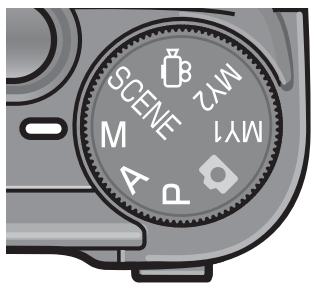
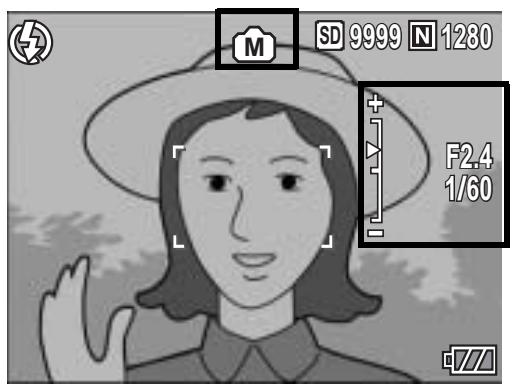
- When the exposure value is between -2EV and +2EV, the brightness of the LCD monitor changes according to the exposure value.
- When the exposure value exceeds the range of -2EV to +2EV, the indicator lights orange and the brightness of the LCD monitor does not change.
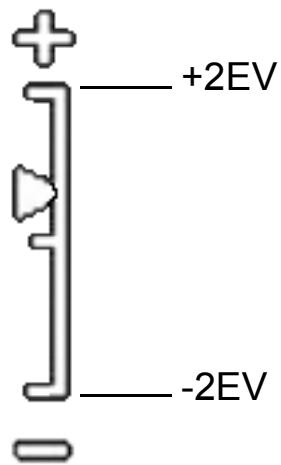
2 Rotate the up-down dial to change the aperture value.
3 Press the ADJ. lever to the left or right to change the shutter speed.
4 Half-press the shutter release button.
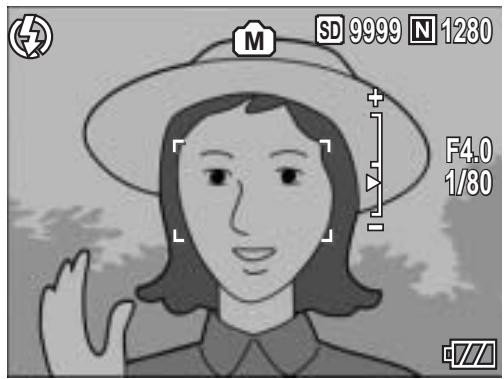
Gently press the shutter release button all the way.
Note
- To increase the exposure time, lower the shutter speed. In this case, camera shake may occur. Hold the camera steady with two hands or use a tripod when shooting.
- While shooting with a slow shutter speed, the LCD monitor turns off.
- When the ISO setting is set to [AUTO] or [AUTO-HI] in manual exposure mode, the ISO is fixed at ISO 100.
- AE LOCK does not work in manual exposure mode even if the Fn (Function) button is assigned to [AE LOCK]. When the Fn (Function) button is pressed, the value is automatically set closer to the appropriate exposure (closer to the adjust of the exposure value indicator). This is useful when, for example, you want to change/adjust the exposure value from closer to the center of the exposure value indicator (the appropriate exposure).
Caution
- When the shutter speed is set to 15 or more seconds, the function to remove noise from images operates. Therefore, the time until image recording is complete is about twice the set shutter speed plus about 8 seconds.
- When the shutter speed is set to 1 or more seconds, the camera shake correction function cannot be used. When the shutter speed is set to 1 or more seconds while the camera shake correction function is turned on, changes to
Shooting with an Combined Aperture Value and Shutter Speed (P: Program Shift Mode)
Setting the mode dial to P (program shift mode) allows you to shoot with a set combination of the aperture value and shutter speed. Use the up-down dial to set the program shift mode.
1 Turn the mode dial to P.
- The mode symbol appears on the LCD monitor.
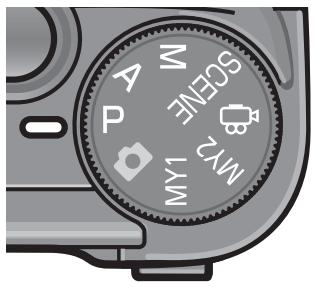
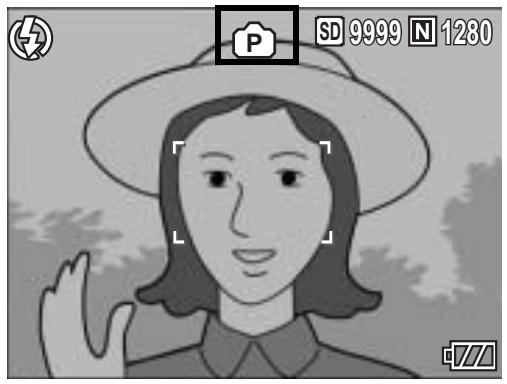
2 Half-press the shutter release button.
- The current combination of the aperture value and shutter speed appear on the screen.
3 Release your finger from the shutter release button.
4 Rotate the up-down dial to select the combination of the aperture value and shutter speed.
- The combination of the aperture value and shutter speed are displayed for 10 seconds. Rotate the up-down dial during that time to change the combination of the aperture value and shutter speed.
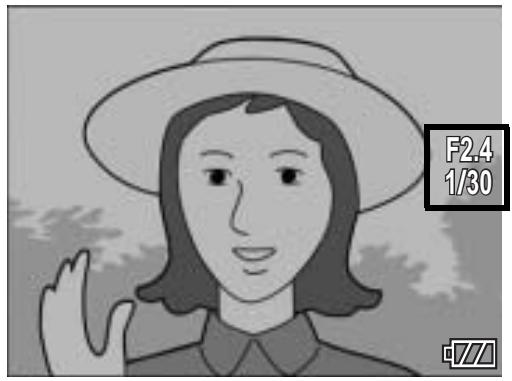
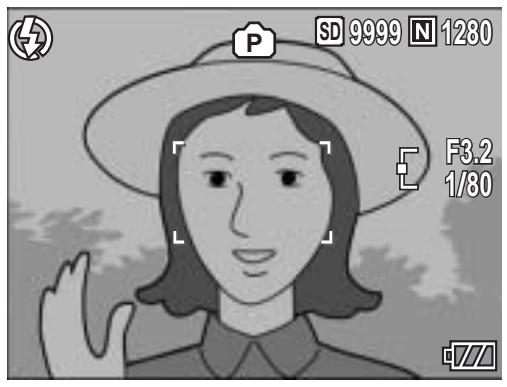
5 Half-press or full-press the shutter release button to shoot a picture.

Note
- The following is the program diagram.
- In this example, the flash mode is set to [FLASH OFF], and the ISO setting is set to [ISO 100].
- The aperture value and shutter speed can be shifted within the area indicated in gray. This changes depending on the exposure value (Ev).
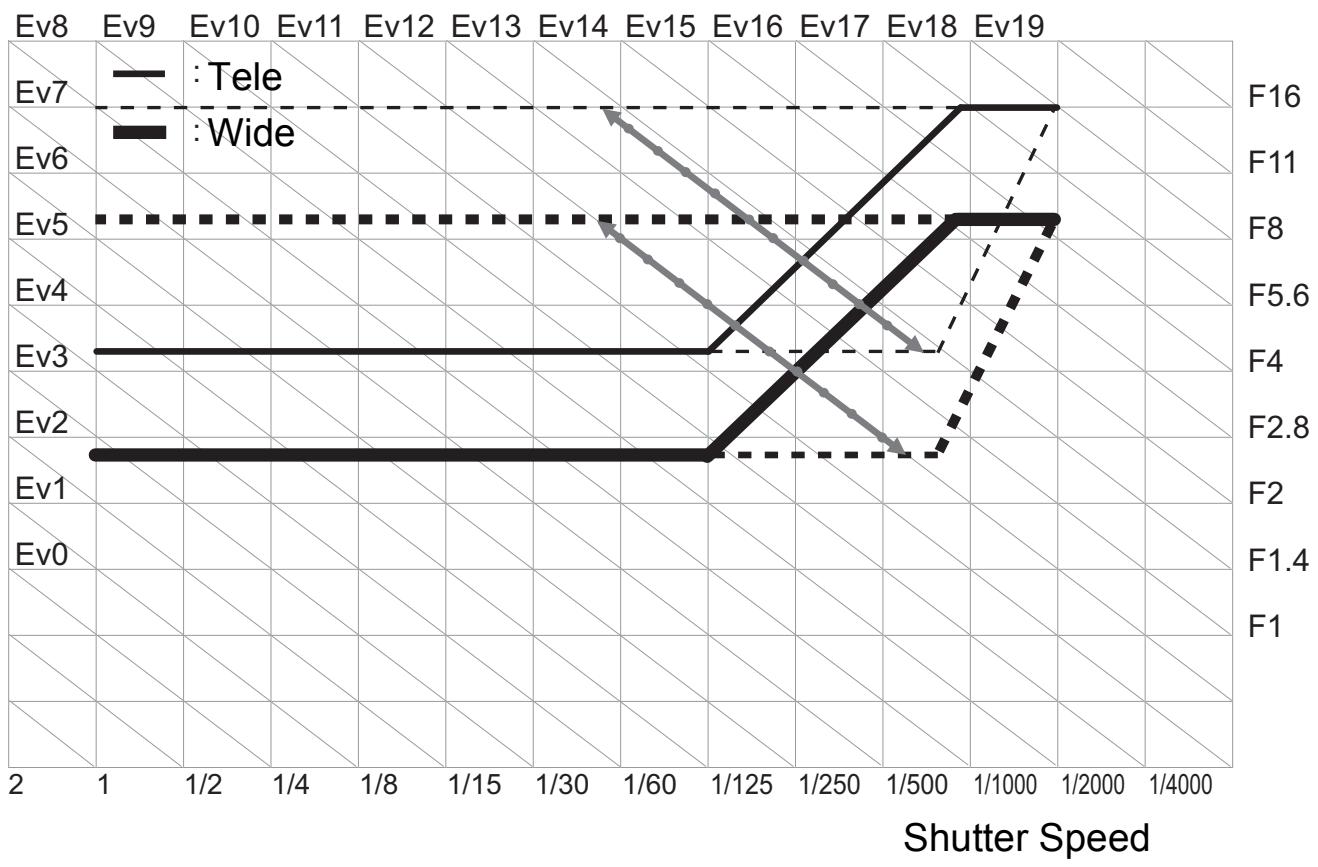
Shooting with Custom Settings
(MY1, MY2: My Settings Mode)
Setting the mode dial to MY1 or MY2 allows you to shoot with preset settings. Use [REG. MY SETTINGS] on the SETUP menu to make the MY1 and MY2 settings. (P.140)
1 Turn the mode dial to MY1 or MY2.
- Turn the mode dial to MY1 to make the settings for [SETTING1] in [REG. MY SETTINGS].
- Turn the mode dial to MY2 to make the settings for [SETTING2] in [REG. MY SETTINGS].
2 Half-press or full-press the shutter release button to shoot a picture.
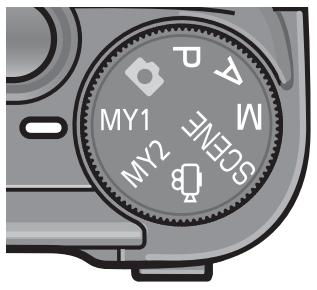
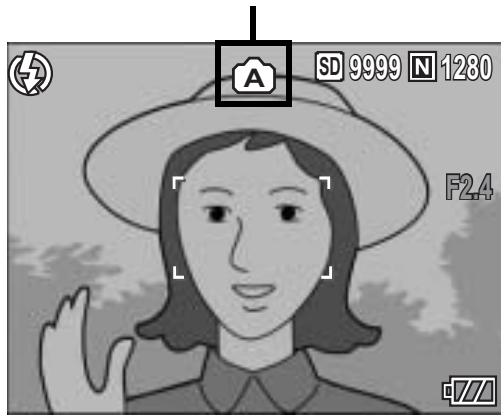
Symbol of shooting mode setting registered to [REG. MY SETTINGS]

Note
You can change the camera settings set in my settings mode. Changing the mode or turning the camera off returns the settings to the original MY1 and MY2 settings.
Shooting Setting Menu
Press the MENU/OK button in shooting mode to display the shooting setting menu. The shooting setting menu can be used to set the following shooting settings.
When Mode Dial is Set to / / / / CENE/My1/MY2
- When the mode dial is set to SCENE, the settings that can be selected are restricted. (P.206)
| Setting | Options [Default Settings] | Refer to |
| PIC QUALITY/SIZE | RAW(10M), RAW3:2(9M), F3648(10M), [N3648(10M)], F3:2(9M), N3:2(9M), F1:1(7M), N3264(8M), N2592(5M), N2048(3M), N1280(1M), N640(VGA) | P.80 |
| FOCUS | [MULTI AF], SPOT AF, MF, SNAP, ∞ | P.83 |
| AE METERING | [MULTI], CENTER, SPOT | P.86 |
| CONT. MODE | [OFF], CONT., S-CONT, M-CONT | P.87 |
| IMG SET | HARD, [NORMAL], SOFT, B&W, SEPIA, SETTING1, SETTING2 | P.91 |
| AUTO BRACKET | [OFF], ON ±0.3, ON ±0.5, WB-BKT | P.93 |
| INTERVAL | [0 s], 5 seconds to 3 hours | P.96 |
| IMAGE WITH SOUND | [OFF], ON | P.98 |
| DATE IMPRT | [OFF], DATE, TIME | P.99 |
| EXPOSURE COMP.* | -2.0 to +2.0 | P.100 |
| WHITE BALANCE | [AUTO], (OUTDOORS), (CLOUDY), (INCANDESCENT LAMP), (FLUORESCENT LAMP), (MANUAL SETTINGS) | P.101 |
| ISO SETTING | [AUTO], AUTO-HI, ISO 80, ISO 100, ISO 200, ISO 400, ISO 800, ISO 1600 | P.104 |
| CAMERA SHAKE COR | OFF, [ON] | P.106 |
| RESTORE DEFAULTS** | P.108 |
* This setting cannot be selected when the mode dial is set to M. ** This setting can be selected only when the mode dial is set to 0
When Mode Dial is Set to
| Setting | Options [Default Settings] | Refer to |
| MOVIE SIZE | 640, [320] | P.80 |
| FRAME RATE | [30FPS], 15FPS | P.110 |
| FOCUS | [MULTI AF], SPOT AF, MF, SNAP, ∞ | P.83 |
| WHITE BALANCE | [AUTO], (OUTDOORS), (CLOUDY), (INCANDESCENT LAMP), (FLUORESCENT LAMP), (MANUAL SETTINGS) | P.101 |

Note
The SETUP menu can be accessed from within the shooting setting menu. (P.134)
Using the Menu
This explains how to make the settings.
Use the buttons and MENU/OK button to select and set an item.
1 Press the MENU/OK button in shooting mode.
- The shooting setting menu is displayed.
The menu items are provided on three screens.
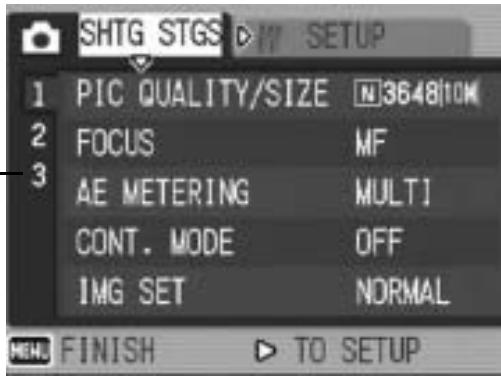
2 Press the buttons to select the desired item.
- Press the button at the bottom item to display the next screen.
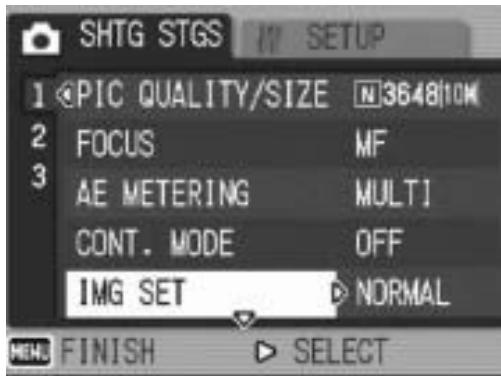
3 Press the button.
- The menu item settings are displayed.
4 Press the buttons to select the setting.
5 Press the MENU/OK button, or press the button and then the MENU/OK button.
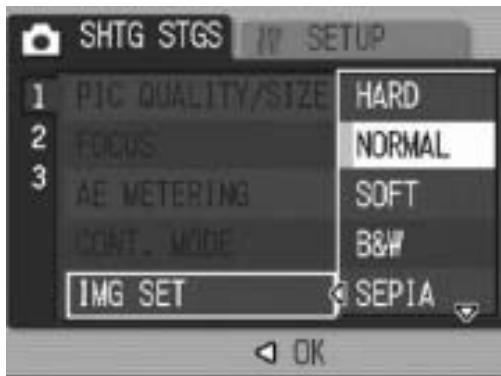
- The setting is set.
- The shooting setting menu disappears and the camera is ready to shoot.

Changing the display
You can select a screen by the screen number:
1 Press the button to select a screen number on the left of the screen.
2 Press the buttons to change screens.
3 Press the button to return to menu item selection.
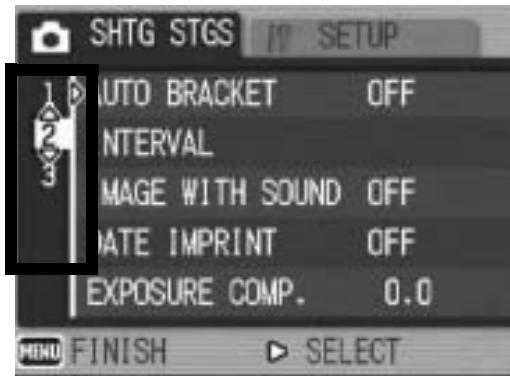
Choosing Picture Quality Mode/ Image Size (PIC QUALITY/SIZE)
The file size of a shot still image depends on the picture quality mode and image size settings. For movies, choose the movie size. Figures inside the bold frame indicate those shown on the screen.
Still Images
| Image Size | Picture Quality Mode | PIC QUALITY/ SIZE | Remarks |
| 3648 × 2736 | RAW | RAW (10M) | • For creating images with little deterioration. • For downloading to a computer for advanced image editing. |
| 3648 × 2432 | RAW3:2 (9M) | ||
| 3648 × 2736 | F (Fine) | F3648(10M) | • For downloading and editing images on your computer. |
| N (Normal) | N3648(10M) | ||
| 3648 × 2432 | F (Fine) | F3:2(9M) | • For creating large prints. |
| N (Normal) | N3:2(9M) | ||
| 2736 × 2736 | F (Fine) | F1:1(7M) | |
| 3264 × 2448 | N (Normal) | N3264(8M) | |
| 2592 × 1944 | N (Normal) | N2592(5M) | • For creating prints. |
| 2048 × 1536 | N (Normal) | N2048(3M) | |
| 1280 × 960 | N (Normal) | N1280(1M) | • For shooting a large number of pictures. |
| 640 × 480 | N (Normal) | N640(VGA) | • For shooting a large number of pictures. • For attaching to e-mail. • For posting on a website. |
- When scene mode is set to [SKEW COR MODE], you can select 1280 × 960 or 640 × 480 .
- When scene mode is set to [TEXT MODE], you can select 3648 × 2736 or 2048 × 1536 .
- When the image size is set to [RAW3:2], [F3:2] or [N3:2], a black border is added to the top and bottom of the image on the LCD monitor in accordance with the shooting range.
- When the image size is set to [F1:1], a black border is added to the left and right sides of the image on the LCD monitor in accordance with the shooting range.
Movies
| Image Size | Movie Size |
| 640 × 480 | 640 |
| 320 × 240 | 320 |
-
You can also choose the number of frames for movies. (P.110)
-
The number of images that can be stored in the internal memory or SD memory card depends on the [PIC QUALITY/SIZE] setting. (P.197)
- There are three picture quality modes: Normal mode (N), Fine mode (F), and RAW mode.
Normal mode: The compression ratio is high, resulting in a small file. Normally, shooting is done in this mode.
Fine mode: The compression ratio is low, resulting in a large file, but the picture quality is better than in Normal mode.
RAW mode: The raw image data is saved as a RAW format file (.DNG file). A JPEG file is also recorded at the same time. This allows you to use image editing software to edit the image while retaining the high quality at the time the image was shot.

Shooting with RAW mode
Normally, a shot image is processed and compressed by the camera and then saved as a small JPEG file. To make a JPEG file small, the image data is compressed and the image quality is lowered.
When shooting in RAW mode, shot images are not processed by the camera. The raw data loaded from the camera's sensor is stored in the DNG file created when shooting in RAW mode. A DNG file is a raw image format designed by Adobe Systems. You can use image editing software compatible with the DNG file format to edit the near-original image data on a computer. You can use the provided Irodio Photo & Video Studio to edit DNG files on Windows. However, you cannot use the Irodio Photo & Video Studio to edit DNG files on a Macintosh. Use a commercially-available software that can edit DNG files.
When shooting in RAW mode, note the following:
- You cannot use CONT. MODE, AUTO BRACKET, DIGITAL ZOOM, or IMAGE WITH SOUND in RAW mode.
- No date is added to the DNG file even if [DATE IMPRINT] is set. The date is added to the JPEG file recorded at the same time as the DNG file.
- [IMG SET] settings on the Shooting menu apply only to the JPEG file recorded at the same time.
- You can use [RAW/JPEG SETTING] on the SETUP menu to change the picture quality and image size of the JPEG recorded at the same time. (P.152)
1 With the camera ready to shoot, press the MENU/OK button.
- The shooting setting menu is displayed.
2 Press the button to select [PIC QUALITY/SIZE] and press the button.
3 Press the buttons to select the desired setting.
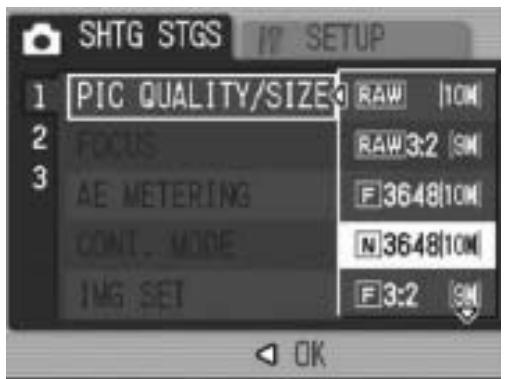
Still Images
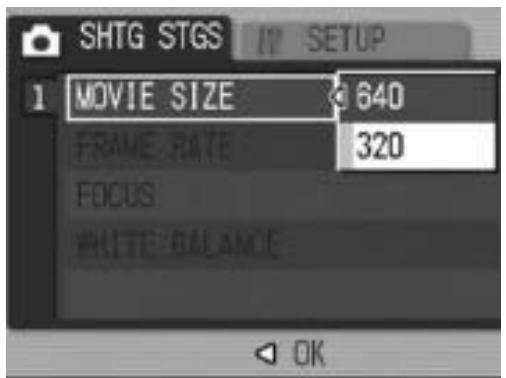
Movies
4 Press the MENU/OK button, or press the button and then the MENU/OK button.
- The setting appears on the screen.
Changing the Focusing Mode (FOCUS)
When you shoot the subject in the default focusing mode, the camera focuses automatically with Auto Focus (AF).
Select from the following five focusing modes.
Focusing Modes
| Symbol | Mode | Description |
| None | MULTI AF | Automatically measures the distances to a maximum of five AF areas from among 17 AF areas and focuses to the nearest AF area. This prevents the center of the LCD monitor from becoming out of focus and enables you to shoot with a minimum number of out-of-focus pictures. |
| None | SPOT AF | Selects one AF area at the center of the picture to allow the camera to focus on this area automatically. |
| MF (Manual Focus) | Enables you to adjust the focus manually. | |
| SNAP | Fixes the shooting distance to a short distance (about 2.5 m (8.2 ft.). | |
| ∞ (Infinity) | Fixes the shooting distance to infinity. Infinity is useful for shooting distant scenes. |
1 With the camera ready to shoot, press the MENU/OK button.
- The shooting setting menu is displayed.
2 Press the button to select [FOCUS] and press the button.
3 Press the buttons to select the desired setting.
4 Press the MENU/OK button, or press the button and then the MENU/OK button.
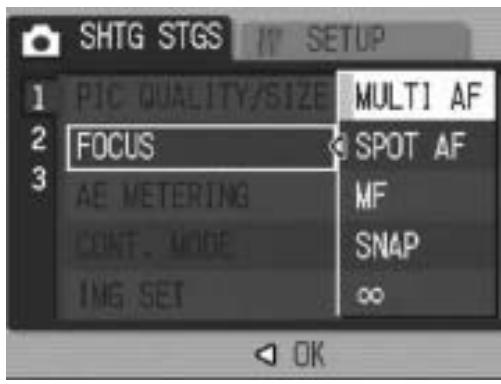

Assigning the Fn (Function) button (P.150) to [AF/MF] allows you to switch between auto focus and manual focus by pressing the Fn (Function) button. (P.67)
Manual Focus Shooting (MF)
If the camera fails to focus automatically, you can focus manually (MF: Manual Focus).
Manual focus enables shooting at a fixed distance.

Note
- In scene mode, manual focus can be used only when [ZOOM MACRO] or [SKEW COR MODE] is selected.
- You can also use manual focus to focus on objects within the macro shooting range.
- Assigning the Fn (Function) button (P.150) to [AF/MF] allows you to switch between auto focus and manual focus by pressing the Fn (Function) button. (P.67)
1 With the camera ready to shoot, press the MENU/OK button.
- The shooting setting menu is displayed.
2 Press the button to select [FOCUS] and press the button.
3 Press the buttons to select [MF].
![RICOH CAPLIO GX100 - Press the buttons to select [MF]. - 1](/content/2025/01/136419/images/f323f3447304f9d6d16cc3d88619f2a3c8d02fcc8f7bf2102824d43a2a0e787d.jpg)
4 Press the MENU/OK button.
- [MF] and the focus bar are displayed on the screen.
- The numbers indicated on the focus bar are for reference only.
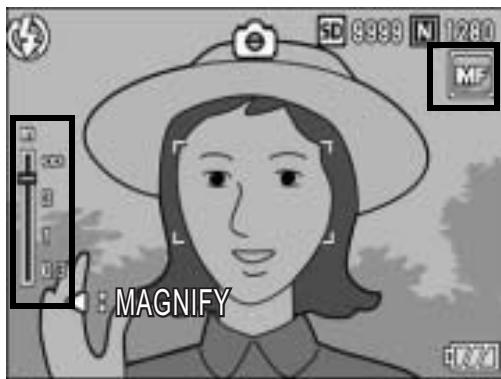
5 Press the button as required.
- Pressing the button enlarges the display for easy focusing.
6 Press the buttons to adjust the focus.
- Pressing the button adjusts the focus to farther objects. Pressing the button adjusts the focus to closer objects.
7 Press the shutter release button to shoot the picture.
Changing the Light Metering (AE METERING)
You can change the metering method (the range to use for metering) used to determine the exposure value.
There are three light metering modes.
Light Metering Modes
| Symbol | Mode | Description |
| None | MULTI | The entire shooting range is divided into 256 partitions, and each is metered to determine the overall exposure value. |
| CENTER | The entire image is metered, with emphasis on the center, to determine the exposure value. Use this when the brightness of the center and surroundings are different. | |
| SPOT | Only the center of the image is metered to determine the exposure value. Use this setting when you want to use the brightness at the center. This is useful if there is a marked difference in contrast or backlighting. |
1 Turn the mode dial to P/A/M/SCENE.
2 Press the MENU/OK button.
- The shooting setting menu is displayed.
3 Press the button to select [AE METERING] and press the button.
4 Press the buttons to select the desired setting.
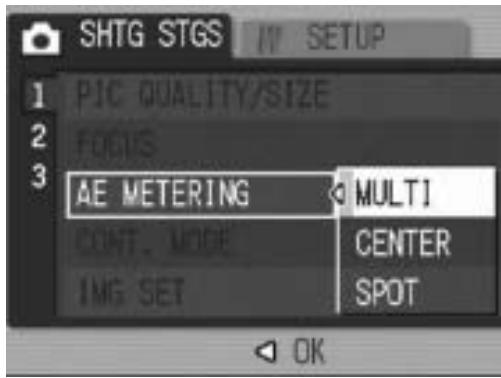
Press the MENU/OK button, or press the button and then the MENU/OK button.
- The symbol appears on the screen.
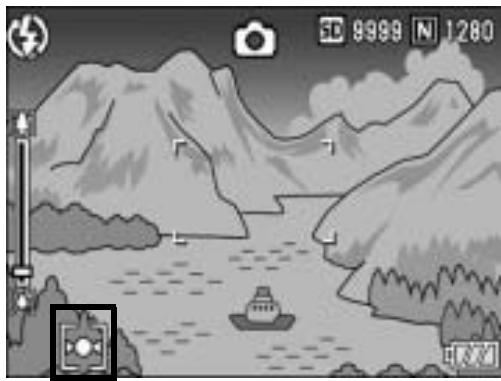
Shooting with Multi-Shot
(CONT./S-CONT/M-CONT)
With Multi-shot, you can shoot consecutive images.
Multi-shot has the following three modes:
CONT.
Pictures continue to be taken for as long as you hold down the shutter release button.
Still images are recorded one at a time, just as in normal shooting.
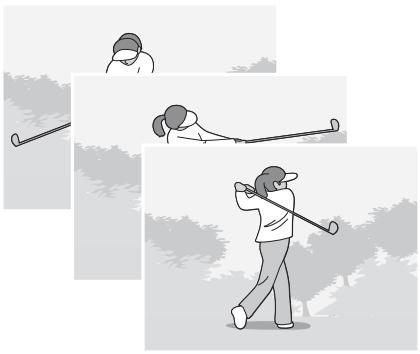
S (Stream)-CONT
With just one full-press of the shutter release button, you can take 16 consecutive shots at intervals of 1/7.5 seconds in about 2 seconds.
The 16 still images are grouped together as a set and are recorded as one image file (3648 × 2736 pixels).
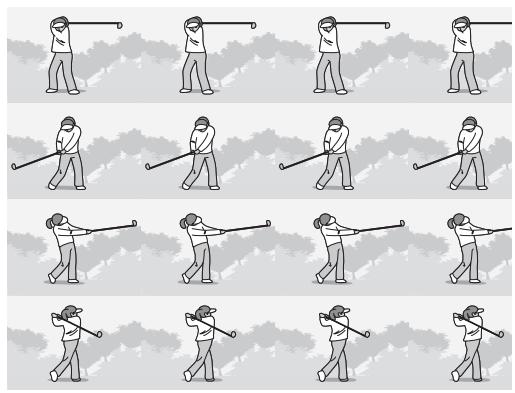
M (Memory-reversal)-CONT
The camera memorizes the scene while you hold down the shutter release button, and once you release it, the previous 2 seconds of shots are recorded.
The 16 still images are grouped together as a set and are recorded as one image file (3648 × 2736 pixels).
(2) The camera records the previous (approx.) 2 seconds
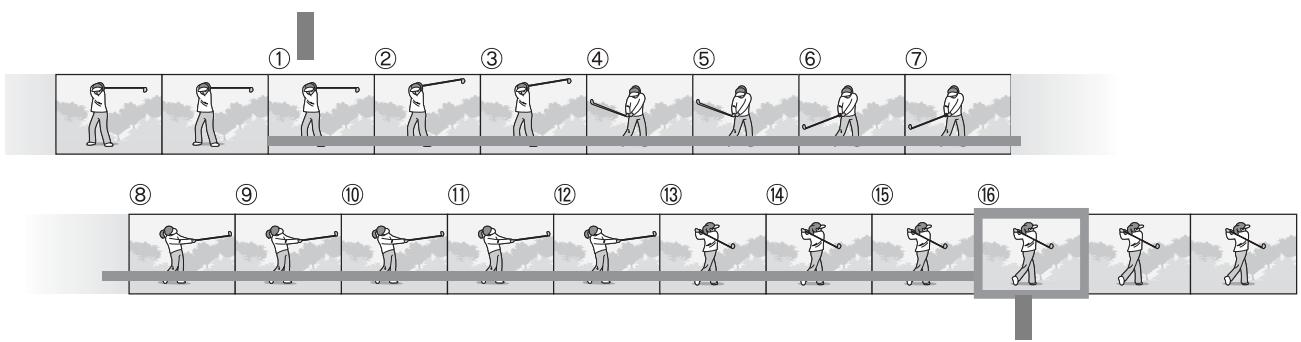
(1) If you release the shutter release button here...

Caution
- This function is not available when [PIC QUALITY/SIZE] is set to RAW mode.
- During Multi-shot, the digital zoom is activated even when [DIGITAL ZOOM IMG] is set to [AUTO RSZ] on the SETUP menu.

Note
- If you are using the LCD viewfinder (VF-1), the image you took does not appear during CONT./S-CONT/M-CONT.
- If you are using the LCD monitor, the image you took appears only when shooting with CONT. The image does not appear during S-CONT and M-CONT.
- When shooting with S-CONT or M-CONT, the ISO setting is fixed at [AUTO] even if it is set to [ISO 80] or [ISO 100].
- The maximum number of images that can be shot in the multi-shot mode depends on the image size setting.
- The numbers of images that can be shot in the multi-shot mode with the internal memory are as shown in the table below.
| Image Size | Number of Multi-shot Mode Shots |
| 3648 × 2736, 3648 × 2432, 2736 × 2736, 3264 × 2448, 2592 × 1944, 2048 × 1536 | 4 |
| 1280 × 960, 640 × 480 | 10 |
1 Turn the mode dial to P/A/M/SCENE.
2 Press the MENU/OK button.
- The shooting setting menu is displayed.
3 Press the button to select [CONT. MODE] and press the button.
4 Press the buttons to select [CONT], [S-CONT], or [M-CONT].
![RICOH CAPLIO GX100 - Press the buttons to select [CONT], [S-CONT], or [M-CONT]. - 1](/content/2025/01/136419/images/b8ddc31671eebb22f3a1a1e5f245e64681da78135c389d593e30db907288da6e.jpg)
Press the MENU/OK button, or press the button and then the MENU/OK button.
- The symbol appears on the screen.
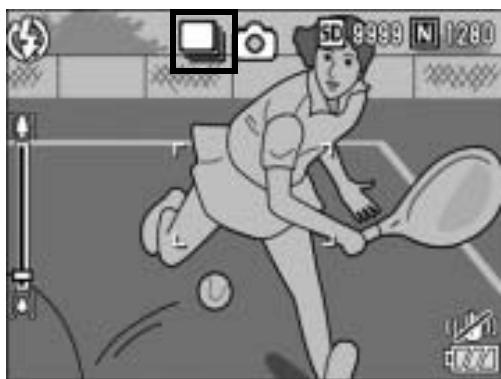
6 Compose your picture and then press and hold the shutter release button.
- Pictures continue to be taken for as long as you hold down the shutter release button.
7 Release your finger from the shutter release button to stop taking pictures.
- To playback consecutive images shot in multi-shot mode, switch the camera to playback mode (P.52) and select the still image you want to play back with the buttons.

S-CONT (S Multi-Shot)
6 Compose your picture and then press the shutter release button.
16 pictures are taken automatically.

M-CONT (M Multi-Shot)
6 Compose your picture and then press and hold the shutter release button.
- The camera memorizes the scene while you hold down the shutter release button.
7 Release your finger from the shutter release button.
- The camera stops shooting and the 16 still images (in the previous 2 seconds) are recorded as one still image.

Note
- To return to normal single-image shooting, follow Steps 1 to 3, select [OFF] in Step 4, and press the MENU/OK button.
- In M-CONT mode, if you release the shutter release button within 2 seconds from the time you first pressed it, the shots from the time you pressed the shutter until you released it are recorded and the number of consecutive shots will be less than 16.
The flash is turned off. - The camera shake correction function cannot be used during Multi-shot shooting. If Multi-shot shooting is set while the camera shake correction function is turned on, changes to P.106
Viewing an S-CONT or M-CONT Still Image in Enlarged Display Mode
While a still image (16 frames in an image file) taken with S-CONT or M-CONT is displayed, you can enlarge any one of the 16 frames. You can also switch between frames while viewing the image in enlarged display mode.
To view a frame from an S-CONT or M-CONT still image in enlarged display mode, follow the steps below.
1 Press the (Playback) button.
- The last shot taken is displayed.
2 Press the buttons to display an S-CONT or M-CONT still image.
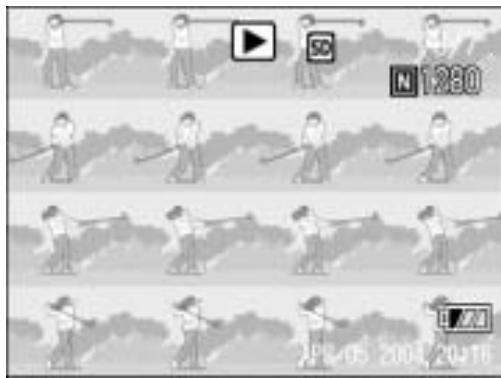
3 Press the (Enlarged View) button.
- The first frame of the consecutive images is displayed in enlarged display mode. The frame position bar appears at the bottom of the screen.
- Press the buttons to switch frames. To return to the 16-frame display, press the MENU/OK button.
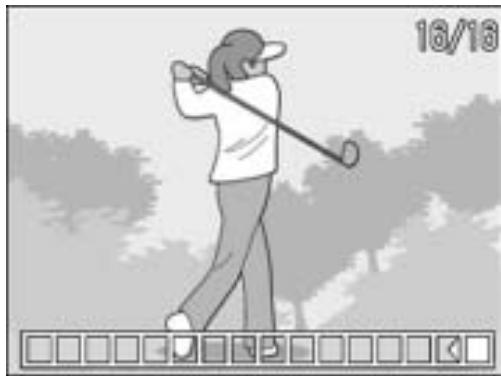

Note
Press the DISP. button to switch between displaying the bar at the bottom of the screen, displaying the grid guide, and hiding the display. (P.59)
Setting the Picture Quality (IMG SET)
You can change the picture quality of an image, including the contrast, sharpness, and color depth.
You can select from the following picture quality settings.
Picture Quality Modes
| Type | Description |
| HARD | The contrast, sharpness, and color depth are increased to create a stronger, sharper image. |
| NORMAL | Normal picture quality |
| SOFT | The contrast, sharpness, and color depth are decreased to create a softer image. |
| B&W | Creates a black and white picture. |
| SEPIA | Creates a picture with sepia tones. |
| SETTING1 | You can customize the contrast, sharpness, and color depth to any of five levels, as required. |
| SETTING2 |
1 Turn the mode dial to P/A/M/SCENE.
2 Press the MENU/OK button.
- The shooting setting menu is displayed.
3 Press the button to select [IMG SET] and press the button.
4 Press the buttons to select the desired picture quality.
- For [SETTING1] or [SETTING2], set the contrast, sharpness, and color depth. (P.92) If [SETTING1] or [SETTING2] is already programmed, you can set the picture quality by selecting [SETTING1] or [SETTING2].
Press the MENU/OK button, or press the button and then the MENU/OK button.
- If you selected a setting other than [NORMAL], the symbol appears on the screen.
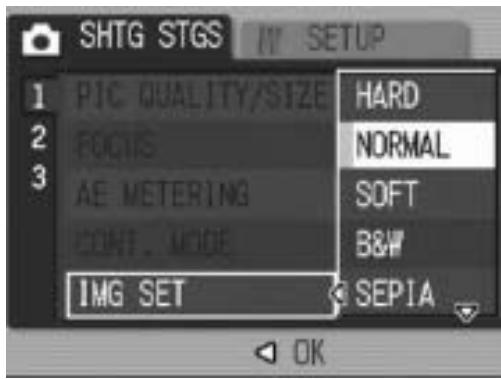
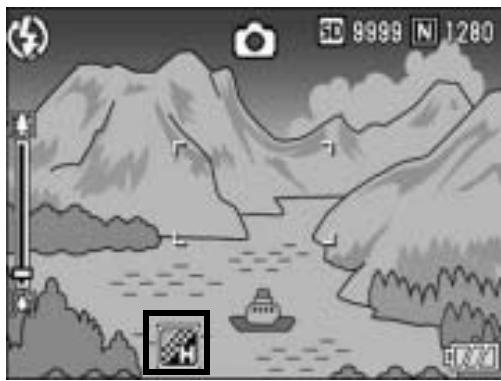
Customizing the Picture Quality (SETTING1, SETTING2)
1 Turn the mode dial to P/A/M/SCENE.
2 Press the MENU/OK button.
- The shooting setting menu is displayed.
3 Press the button to select [IMG SET] and press the button.
4 Press the buttons to select [SETTING1] or [SETTING2].
Press the button.
- The [IMG SET] screen appears.
6 Press the buttons to select [CONTRAST], [SHARPNESS], and [COLOR DEPTH], and press the buttons to adjust the settings.
7 Press the MENU/OK button.
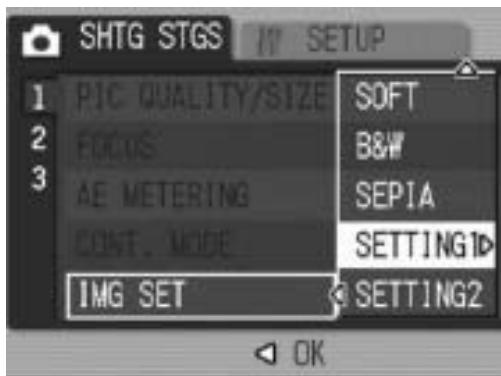
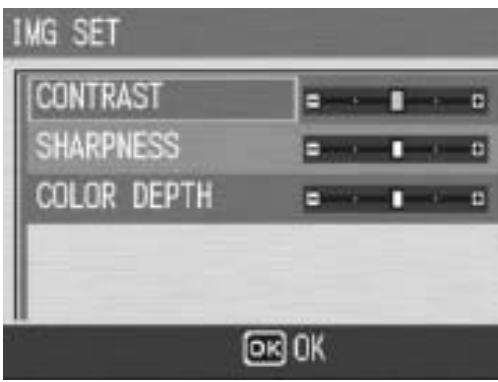
- The settings for [SETTING1] or
[SETTING2] are saved, and the display returns to the shooting setting menu.
Press the MENU/OK button, or press the button and then the MENU/OK button.
- The symbol appears on the screen.
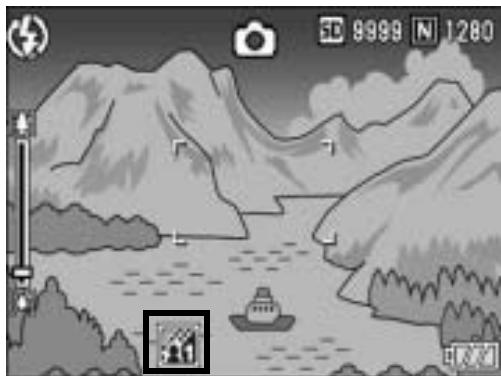
Shooting Consecutively with Different Exposures (AUTO BRACKET)
The auto bracketing function automatically shoots three consecutive shots at three exposure levels based on the set exposure level. Select from [-0.3EV, ± 0, +0.3EV] or [-0.5EV, ± 0, +0.5EV] for the difference in exposure level.

Note
- This function is not available when shooting with sound.
- This function is not available when [PIC QUALITY/SIZE] is set to RAW mode.
1 Turn the mode dial to P/A/M/SCENE.
2 Press the MENU/OK button.
- The shooting setting menu is displayed.
3 Press the button to select [AUTO BRACKET] and press the button.
4 Press the buttons to select [ON ± 0.3 ] or [ON ± 0.5 ].
5 Press the MENU/OK button, or press the button and then the MENU/OK button.
- [AB] appears on the screen.
6 Press the shutter release button to shoot the subject.
- The screenshot to the right shows the images shot with the [ON ±0.5] setting. Three consecutive shots are taken at -0.5EV, ±0, and +0.5EV based on the set exposure compensation setting. When shooting is completed, three still images are displayed on the LCD
monitor. They are, from left to right, at -0.5EV (darker), standard exposure compensation setting, and +0.5EV (brighter).
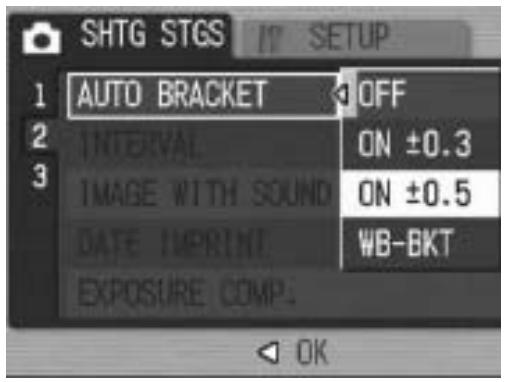
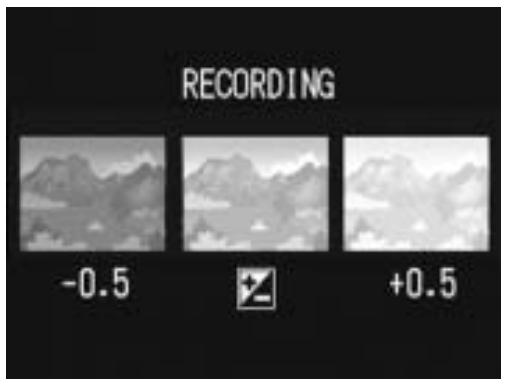

Note
The exposure compensation can be changed using the shooting setting menu.
(P.100)
Shooting Consecutively with Different White Balance (WB-BKT)
The white balance bracket function automatically records three images - a reddish image, a bluish image, and an image of the current white balance.
This is useful if you cannot determine the appropriate white balance.
1 Turn the mode dial to P/A/M/SCENE.
2 Press the MENU/OK button.
- The shooting setting menu is displayed.
3 Press the button to select [AUTO BRACKET] and press the button.
4 Press the buttons to select [WB-BKT].
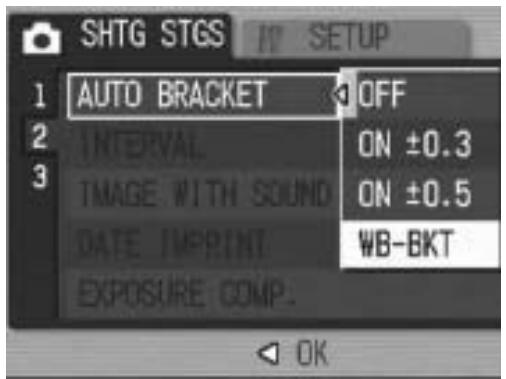
Press the MENU/OK button, or press the button and then the MENU/OK button.
- The symbol appears on the screen.

6 Press the shutter release button to shoot the subject.
- Three images (a reddish image, an image equal to the current white balance, and a bluish image) are automatically recorded.
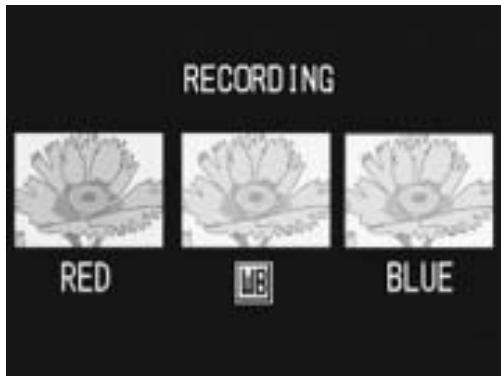
- This function is not available when [PIC QUALITY/SIZE] is set to RAW mode.
- This function is not available for Multi-shot (P.87) or auto bracket shooting. (P.93)
- The flash cannot be used.
- If [IMG SET] is set to [B&W], the white balance bracket function can be set but it does not operate.
- The white balance can be changed using the shooting setting menu. (P.101)
Shooting Pictures Automatically at Set Intervals (INTERVAL)
You can set the camera to automatically take pictures at fixed intervals.
You can set the shooting interval from 5 seconds to 3 hours in increments of 5 seconds.
1 Turn the mode dial to P/A/M/SCENE.
2 Press the MENU/OK button.
- The shooting setting menu is displayed.
3 Press the button to select [INTERVAL] and press the button.
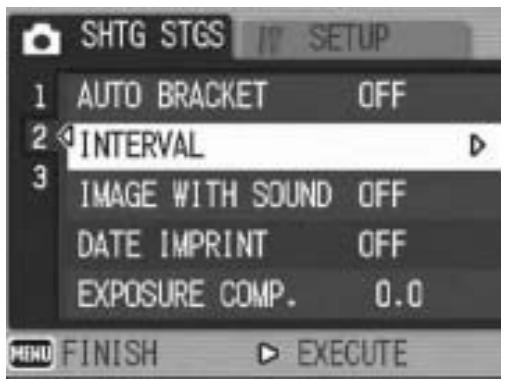
4 Press the buttons to set the hours.
Press the button to move to the minutes setting, then use the buttons to set the minutes.
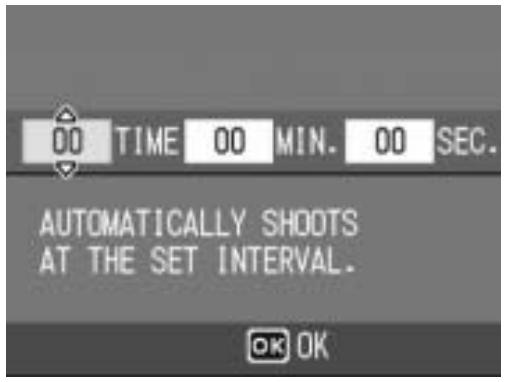
• You can press and hold either the buttons to quickly raise or lower the minute setting.
6 Press the button to move to the seconds setting, then use the buttons to set the seconds.
7 Press the MENU/OK button.
- [INTERVAL] appears on the screen.
Press the shutter release button to shoot the picture.
- A picture is taken every time the fixed interval elapses.
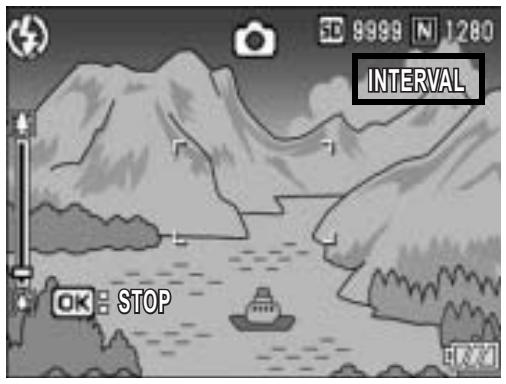
To stop shooting, press the MENU/OK button.

Caution
- The interval shooting setting is cleared when the camera is turned off.
- The time until the next picture can be taken according to the shooting menu setting may be longer than the time set for interval shooting. In this case, the shooting interval becomes longer than the set time.

Note
- Depending on the remaining battery level, the battery may become depleted during interval shooting. Use of the AC adapter (sold separately) is recommended.
- If you press the shutter release button during interval shooting, the camera shoots as usual. However, the interval shooting setting is unaffected. After shooting, once the time specified in interval shooting elapses, the next shot is taken.
- When interval shooting is turned on, Multi-shot is automatically set to [OFF] even if it had been set to [CONT.] or [M-CONT].
Shooting a Still Image with Sound (IMAGE WITH SOUND)
You can shoot a still image with a voice memo of up to eight seconds.
1 Turn the mode dial to P/A/M/SCENE.
2 Press the MENU/OK button.
- The shooting setting menu is displayed.
3 Press the button to select [IMAGE WITH SOUND] and press the button.
4 Press the buttons to select [ON].
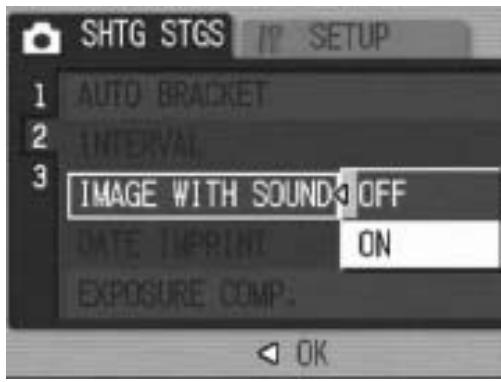
Press the MENU/OK button, or press the button and then the MENU/OK button.
- The symbol appears on the screen.
6 Press the shutter release button to shoot the picture.
- The camera starts recording after shooting.
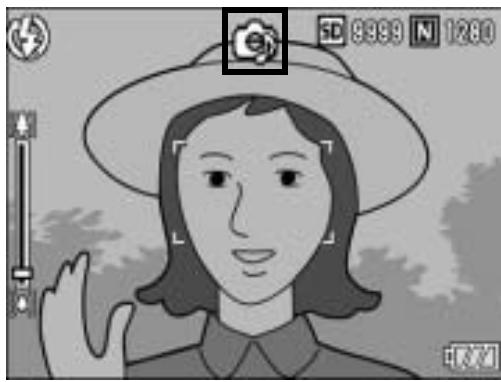
7 Press the shutter release button to finish recording.
- Even if the shutter release button is not pressed, recording automatically stops after 8 seconds.
Note
- This function is not available when [PIC QUALITY/SIZE] is set to RAW mode.
- To play back a still image with sound, display the still image in the same way as a still image without sound (P.52) and press the ADJ. lever to play back the sound.
- Press the buttons during sound playback to display the volume adjustment bar. You can adjust the volume with the buttons.
Inserting the Date into a Still Image (DATE IMPRINT)
You can insert the date (YY/MM/DD) or the date and time (YY/MM/DD hh:mm) at the lower right of a still image.
1 Turn the mode dial to P/A/M/SCENE.
2 Press the MENU/OK button.
- The shooting setting menu is displayed.
3 Press the button to select [DATE IMPRT] and press the button.
4 Press the buttons to select the desired setting.
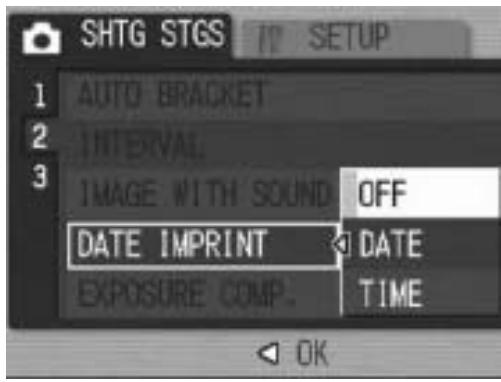
Press the MENU/OK button, or press the button and then the MENU/OK button.
- The symbol appears on the screen.
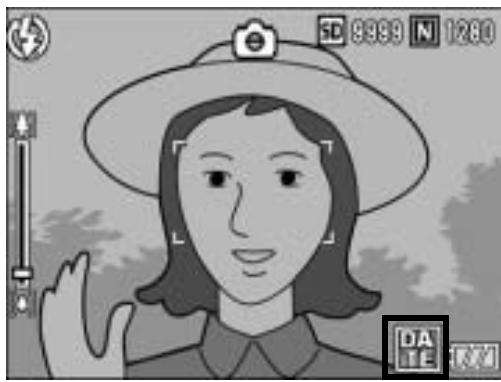
Note
- If the date and time have not been set, [DATE IMPRT] cannot be used. First make the date and time settings. (P.161)
- [DATE IMPRT] cannot be used with movies.
- When shooting in RAW mode, the date cannot be imprinted on the DNG file. The date is added to the JPEG file recorded at the same time as the DNG file.
Changing the Exposure
(EXPOSURE COMP.)
The exposure setting enables you to select the brightness level for your picture. Normally, if your subject is centered, backlight compensation is automatically activated, and you can shoot with the correct exposure. In the following cases, or when you intentionally want to change the exposure, you can adjust the exposure setting. Exposure can be specified in the range from -2.0 to +2.0. Setting the level higher (+) makes the picture brighter and lower (-) makes the picture darker.
For backlighting
When the background is particularly bright, the subject will appear dark (underexposed). In this case, set the exposure level higher (+).
When your subject is whitish
The entire picture will turn out dark (underexposed). Set the exposure level higher (+).
When your subject is darkish
The entire picture will turn out bright (overexposed). Set the exposure level lower (-).
The same happens when you take a photo of a subject in a spotlight.
To change the setting, use the shooting setting menu or the ADJ. lever. This section explains easy ways to change the setting with the ADJ. lever. You can also change the function assigned to the ADJ. lever. (P.148)
To use the shooting setting menu, see "Using the Menu". (P.79)
1 Turn the mode dial to P/A/SCENE.
Press the ADJ. lever and then press the buttons until the exposure compensation bar appears.
3 Press the buttons to set the exposure setting.
- You can also press the shutter release button to take a picture.
4 Press the MENU/OK button.
- The setting appears on the screen.
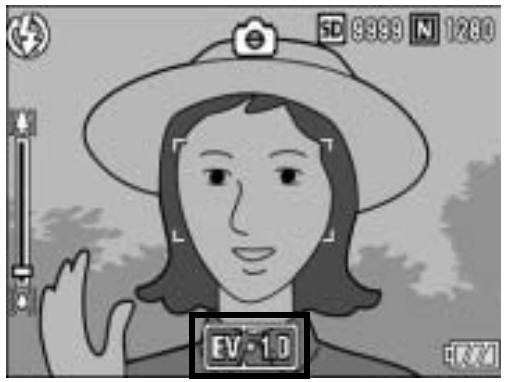
Caution-
- This function is not available in manual exposure mode.
- When shooting in particularly bright places, you may not be able to correct the exposure level. In that case, the [!AE] symbol appears on the screen.
Using Natural and Artificial Lighting (WHITE BALANCE)
Adjust the white balance so that a white subject will appear white. At purchase, the white balance is set to [AUTO]. Normally you do not need to change the setting, but if the camera is having difficulty determining the white balance when shooting an object of a single color or when shooting under multiple light sources, you can change the setting.
White Balance Modes
| Symbol | Mode | Description |
| AUTO | AUTO | Adjusts the white balance automatically. |
| OUTDOORS | Select this when shooting outdoors (sunny) and white balance fails to adjust properly. | |
| CLOUDY | Select this when shooting in cloudy weather or shade and the white balance fails to adjust properly. | |
| INCANDESCENT LAMP | Select this when shooting under incandescent light and white balance fails to adjust properly. | |
| FLUORESCENT LAMP | Select this when shooting under fluorescent light and white balance fails to adjust properly. | |
| MANUAL SETTINGS | Adjust the white balance manually. |
To change the setting, use the shooting setting menu or the ADJ. lever. This section explains easy ways to change the setting with the ADJ. lever. You can also change the function assigned to the ADJ. lever. (P.148) To use the shooting setting menu, see "Using the Menu". (P.79)
1 Turn the mode dial to P/A/SCENE.
2 Press the ADJ. lever and then press the buttons until the white balance menu appears.
3 Press the buttons to select a setting other than [M]. You can also press the shutter release button to take a picture.
4 Press the MENU/OK button.
- The symbol appears on the screen.
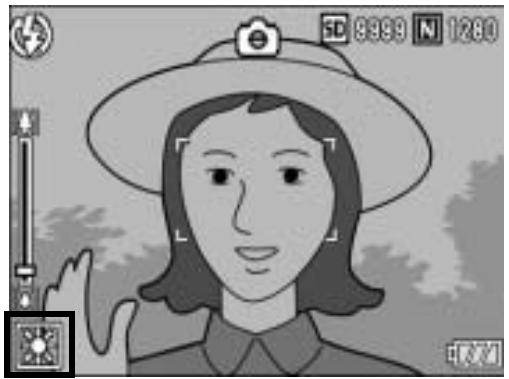

Note
- The white balance may not be adjusted correctly for a subject that is mostly dark. In this case, add something white to the subject.
- When shooting with the flash, the white balance may not be adjusted correctly if [AUTO] is not selected. In this case, switch to [AUTO] to shoot with the flash.
Setting the White Balance Manually (MANUAL SETTINGS)
1 Turn the mode dial to P/A/SCENE.
2 Press the ADJ. lever and then press the buttons until the white balance menu appears.
3 Press the buttons to select [M].
4 Point the camera at a piece of paper or something white under the lighting conditions for your picture.
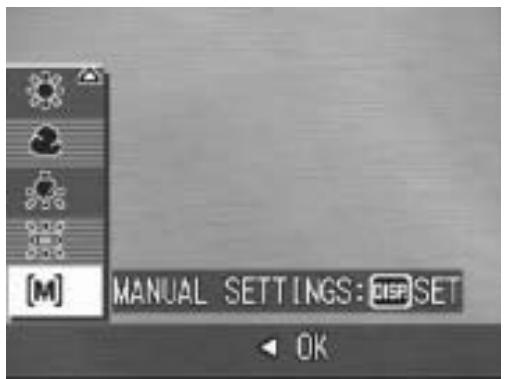
5 Press the DISP. button.
- The white balance is set.
6 Press the MENU/OK button.
- The symbol appears on the screen.
- The screen is displayed with the white balance set in Step 5. If the result is not as expected, repeat Steps 4 and 5 to change the settings as many times as required.
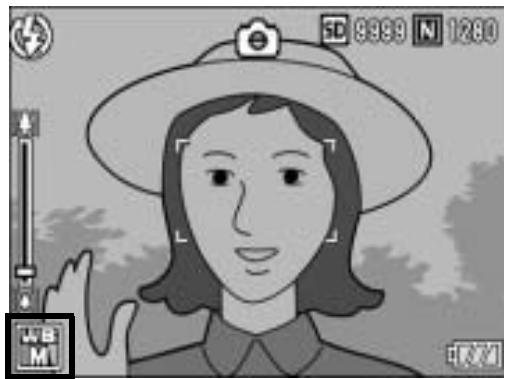

Note
To cancel [MANUAL SETTINGS], select a setting other than [M] in Step 3.
Changing the Sensitivity (ISO SETTING)
ISO sensitivity indicates how sensitive film is to light. A greater value means higher sensitivity. High sensitivity is suitable for shooting an object in a dark place or a fast-moving object while minimizing blurring.
You can select from the following ISO settings:
[AUTO], AUTO-HI, ISO 80, ISO 100, ISO 200, ISO 400, ISO 800, ISO 1600
When ISO setting is set to [AUTO], the camera automatically changes the sensitivity according to the distance, brightness, zoom, macro settings, and picture quality/size. Usually, use the camera in the [AUTO] mode.
When the ISO setting is set to [AUTO-HI] (auto high sensitivity), the sensitivity is automatically set according to the shooting conditions but at a higher sensitivity than in [AUTO]. When shooting a dark subject, the shutter speed set in [AUTO-HI] is faster than in [AUTO], which may reduce camera shake or blurring of the subject. In [AUTO-HI], the sensitivity is automatically increased to the ISO sensitivity set in the SETUP menu. (P.143)
If you do not want to allow the camera to change the ISO sensitivity, select an ISO setting other than [AUTO] or [AUTO-HI].
To change the setting, use the shooting setting menu or the ADJ. lever. This section explains easy ways to change the setting with the ADJ. lever. You can also change the function assigned to the ADJ. lever. (P.148) To use the shooting setting menu, see "Using the Menu". (P.79)
1 Turn the mode dial to P/A/SCENE.
2 Press the ADJ. lever and then press the buttons until the ISO menu appears.
3 Press the buttons to select the desired setting.
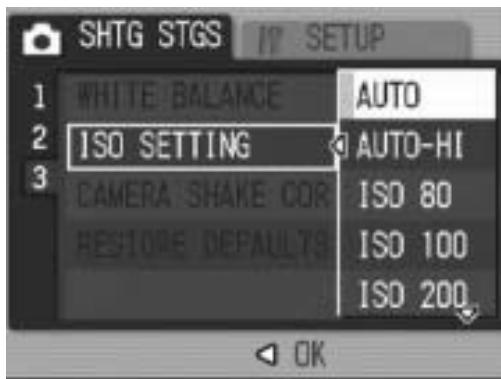

Press the MENU/OK button, or button and press the MENU/ OK button.
- The setting appears on the screen.
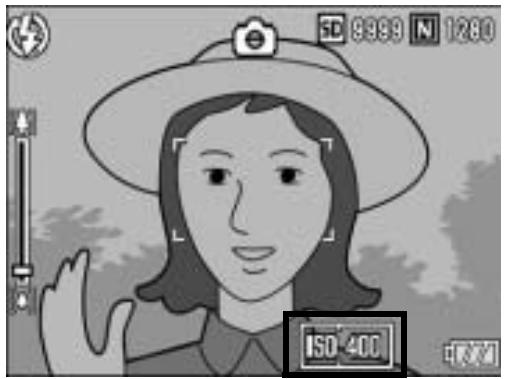

Note
- When the ISO setting is set to [AUTO], the sensitivity is equivalent to ISO 160 if the flash is used. When the image size is 3648 × 2736 , the sensitivity is equivalent to ISO 100 if the flash is not used.
- Images shot with a higher sensitivity may appear grainy.
- When the ISO setting is set to [AUTO], the range of the ISO sensitivity is shown below.
Flash off
| Pixels | Default sensitivity | Minimum sensitivity | Maximum sensitivity |
| 640 | 100 | 80 | 283 |
| 1280 | 100 | 80 | 238 |
| 2048 | 100 | 80 | 176 |
| 2592 | 100 | 80 | 154 |
| 3264 | 100 | 80 | 154 |
| 3648 | 100 | 80 | 154 |
Flash on
| Zoom | Default sensitivity | Minimum sensitivity | Maximum sensitivity |
| Wide | 100 | 100 | 400 |
| Tele | 308 | 100 | 400 |
Using the Camera Shake Correction Function to Prevent Camera Shake (CAMERA SHAKE COR)
You can prevent camera shake by turning on the camera shake correction function.
At the time of purchase, the camera shake correction function is turned on.
1 Turn the mode dial to P/A/M/SCENE.
2 Press the MENU/OK button.
- The shooting setting menu is displayed.
3 Press the button to select [CAMERA SHAKE COR] and press the button.
4 Press the buttons to select [ON].
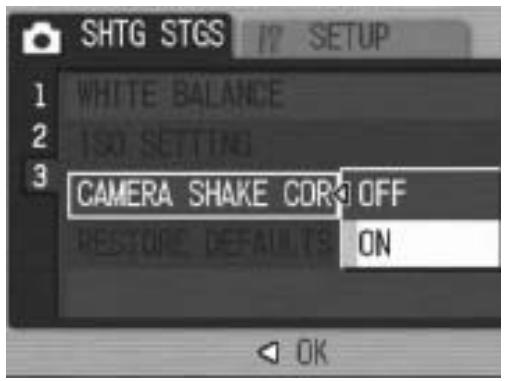
Press the MENU/OK button, or press the button and then the MENU/OK button.
- The symbol appears on the screen.
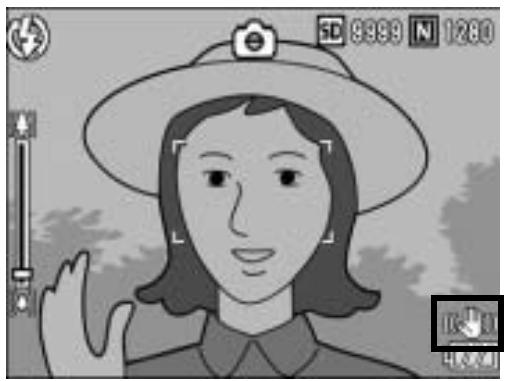

Caution
- In multi-shot mode or manual exposure mode, when the shutter speed is set to 1 or more seconds, the camera shake correction function cannot be used. When the camera shake correction function is turned on in multi-shot mode or the shutter speed is set to 1 or more seconds in manual exposure mode, changes to
- The camera shake correction function does not work in movie mode. When the mode dial is set to (movie mode) while the camera shake correction function is on, disappears from the LCD monitor.
- The camera shake correction function cannot prevent movement of the shooting subject (caused by wind, etc.).
- Effects of the camera shake correction function vary depending on the surroundings.

Note
The symbol appears when camera shake is likely to occur. (P.37)
Returning the Shooting Setting Menu Settings to their Defaults (RESTORE DEFAULTS)
To return the shooting setting menu settings to their defaults, follow the steps below.
1 Turn the mode dial to .
2 Press the MENU/OK button.
- The shooting setting menu is displayed.
3 Press the button to select [RESTORE DEFAULTS] and press the button.
- A confirmation message appears.
4 Make sure that [YES] is selected, and then press the MENU/OK button.
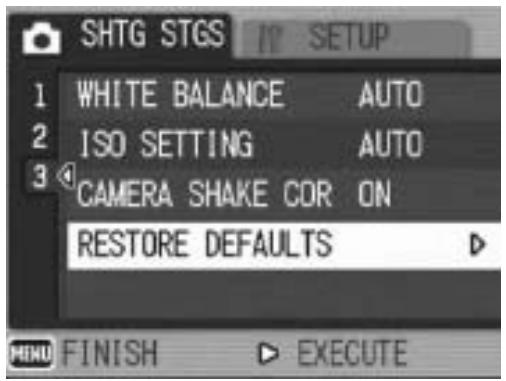
- The display indicates the camera is restoring the initial settings. Once it is finished, the display returns to the shooting mode screen.
Note
For a list of functions whose settings are saved when the camera is turned off, see "Appendices". (P.203)
2 Shooting/Playing Back Movies

Shooting Movies
You can shoot movies with sound.
You can set the image size to 640 × 480 or 320 × 240 pixels.
You can set the number of frames shot per second (frame rate) to either 30 or 15.
Each movie you shoot is recorded as an AVI file.
1 Turn the mode dial to (movie mode).
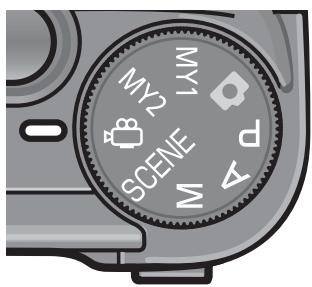
2 Press the shutter release button.
- The camera starts recording. Recording continues until you press the shutter release button again.
3 Press the shutter release button to finish recording the movie.
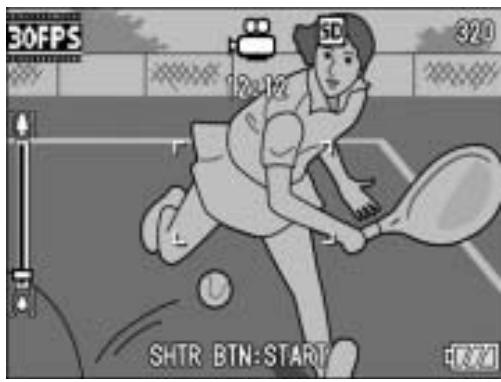
Caution
- While shooting movies, operation sounds may be recorded.
- The maximum recording time per shooting depends on the size of your SD memory card. (P.111) Even if you are within the maximum recording time, recording may end depending on your card.
- The camera shake correction function does not work in movie mode. When the mode dial is switched to 品 (movie mode) while the camera shake correction function is on, 品 disappears from the LCD monitor.

Note
- The flash cannot be used.
While shooting movies, only digital zoom can be used. (P.42) - When the shutter release button is pressed in Step 2, the camera focuses on the subject.
- The remaining recording time may not change uniformly because it is recalculated from the remaining memory capacity during movie recording.
- Use the shooting setting menu to set the image size (P.80) and frame rate (P.110) of movies.
- The shooting setting menu items for movie mode differ from those in still image mode. (P.78)
- A high speed memory card is recommended when shooting for long periods.
Setting the Frame Rate (FRAME RATE)
You can select the number of shot frames per second (frame rate) in movie mode.
1 Turn the mode dial to (movie mode).
2 Press the MENU/OK button.
- The shooting setting menu is displayed.
3 Press the button to select [FRAME RATE] and press the button.
4 Press the buttons to select [30FPS] or [15FPS].
5 Press the MENU/OK button, or press the button and then the MENU/OK button.
- The setting appears on the screen.
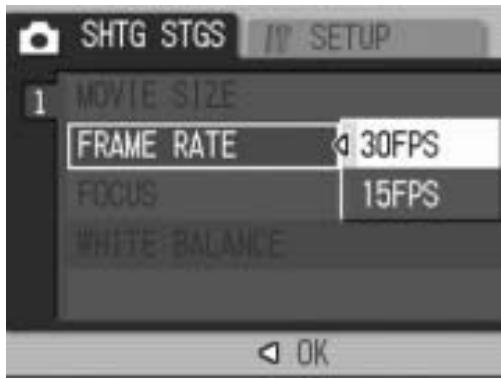

Movie frames
Movies consist of many frames whose images appear to be moving when displayed at high speed.
- Movie recording time may vary depending on the capacity of the recording destination (internal memory or SD memory card), shooting conditions, and the type and manufacturer of the SD memory card.
- The table below shows the approximate recording time.
| Internal Memory | 64 MB | 128 MB | 256 MB | 512 MB | 1 GB | 2 GB | 4 GB | |
| 640 × 480 (15 FPS) | 24 s | 57 s | 1 min | 3 min | 7 min | 14 min | 30 min | 59 min |
| 56 s | 51 s | 46 s | 57 s | 24 s | 42 s | |||
| 640 × 480 (30 FPS) | 12 s | 28 s | 58 s | 1 min | 3 min | 7 min | 15 min | 30 min |
| 56 s | 55 s | 31 s | 19 s | 4 s | ||||
| 320 × 240 (15 FPS) | 1 min | 2 min | 5 min | 11 min | 24 min | 46 min | 94 min | 184 min |
| 16 s | 58 s | 59 s | 57 s | 5 s | 19 s | 11 s | 57 s | |
| 320 × 240 (30 FPS) | 39 s | 1 min | 3 min | 6 min | 12 min | 23 min | 48 min | 94 min |
| 31 s | 4 s | 7 s | 19 s | 42 s | 13 s | 40 s |
Playing Back Movies
To playback movies, follow the steps below.
1 Press the (Playback) button.
- The last shot taken is displayed.
- The first frame of the movie is displayed as a still image.
2 Select the movie you want to view using the buttons.
- Press the button to display the next file.
- Press the button to display the previous file.
3 Press the ADJ. lever.
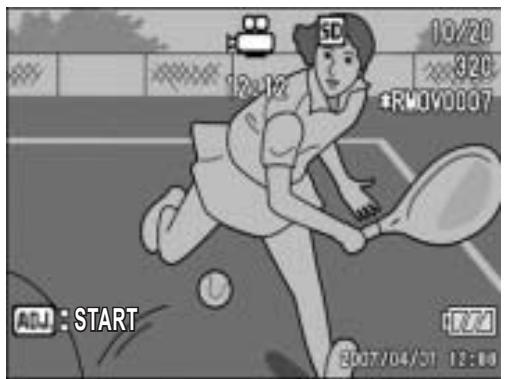
- Playback begins.
The elapsed playback indicator or the elapsed time is displayed on the screen.
| Fast Forward | Press the [A] button during playback. |
| Rewind | Press the [A] button during playback. |
| Pause/Playback | Press the ADJ. lever. |
| Slow Playback | Press and hold the [A] button during pause. |
| Slow Rewind | Press and hold the [A] button during pause. |
| Next Frame | Press the [A] button during pause. |
| Previous Frame | Press the [A] button during pause. |
| Volume Adjustment | Press the ▲▼ buttons during playback. |
Playback Setting Menu
Press the MENU/OK button in playback mode to display the playback setting menu. The playback setting menu allows you to make the settings for the following functions.
| Setting | Options | Refer to |
| SLIDE SHOW | P.114 | |
| PROTECT | Select/Cancel 1 FILE, Select/Cancel ALL FILES, Select Multi-files | P.115 |
| DPOF | Select/Cancel 1 FILE, Select/Cancel ALL FILES, Select Multi-files | P.118 |
| RESIZE | 1280, 640 | P.121 |
| COPY TO CARD | P.123 | |
| SKEW | P.124 | |
| CORRECTION |

Note
The SETUP menu can be accessed from within the playback setting menu. (P.134)
Using the Menu
This explains how to make the settings.
1 Press the (Playback) button to select the playback mode.
2 Press the MENU/OK button.
- The playback setting menu appears.
3 Press the buttons to select the desired item.
4 Press the button.
- The screen for the selected menu item appears.
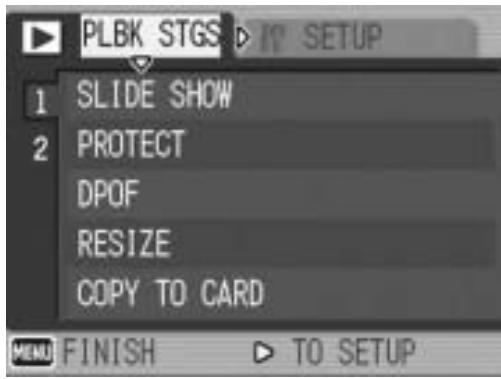
Displaying Photos in Order Automatically (SLIDE SHOW)
You can display the recorded still images and movie files sequentially on the screen. This is called a slide show. To view a slide show, follow the steps below.
1 Press the (Playback) button.
- The last shot taken is displayed.
2 Press the MENU/OK button.
- The playback setting menu appears.
3 Press the button to select [SLIDE SHOW] and press the button.
- The slide show starts and files are played back in order.
- If you want to stop the slide show in progress, press any button on the camera.
The slide show repeats itself until stopped.
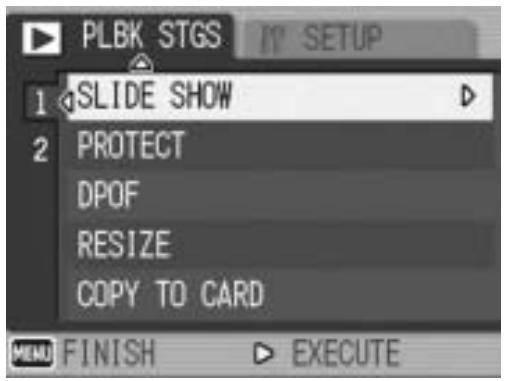

Note
Each still image is displayed for three seconds.
- For movies, not just one frame, but the entire movie you shot is played back.
- If a still image has a voice memo, the voice memo is also played back.
Write-Protecting Files (PROTECT)
You can protect files from being accidentally deleted.

Caution
Protected files cannot be deleted normally. However, they will be deleted if you format the memory where the files are stored.
Protecting a File
1 Press the (Playback) button.
- The last shot taken is displayed.
2 Press the buttons to display the file you want to protect.
3 Press the MENU/OK button.
- The playback setting menu appears.
4 Press the button to select [PROTECT] and press the button.
5 Make sure that [1 FILE] is selected, and then press the MENU/OK button.
- The selected file is protected and the symbol appears on the screen.
![RICOH CAPLIO GX100 - Make sure that [1 FILE] is selected, and then press the MENU/OK button. - 1](/content/2025/01/136419/images/4873e3c26ab9442977fef7f7d53589085e91ccc9f97aa0ad43b79df26a86fdff.jpg)
![RICOH CAPLIO GX100 - Make sure that [1 FILE] is selected, and then press the MENU/OK button. - 2](/content/2025/01/136419/images/e922e72fd362f5abdff6c3a8cc0e66805c25f3c7172247f21fd6d6409ac5f96d.jpg)
![RICOH CAPLIO GX100 - Make sure that [1 FILE] is selected, and then press the MENU/OK button. - 3](/content/2025/01/136419/images/94905f343a122e93cdffe0c013d8aa2da9197d3382e2a293d892790da21c500a.jpg)
![RICOH CAPLIO GX100 - Make sure that [1 FILE] is selected, and then press the MENU/OK button. - 4](/content/2025/01/136419/images/62b0b39042fa4a4068c74cdaf98a72b8e0650ab284a14b00bc04184baef4249d.jpg)
Note
To unprotected a file, display the file you want to unprotected and perform Steps 3 to 5.
Protecting All Files
To protect all your files, follow the steps below.
1 Press the (Playback) button.
2 Press the MENU/OK button.
- The playback setting menu appears.
3 Press the button to select [PROTECT] and press the button.
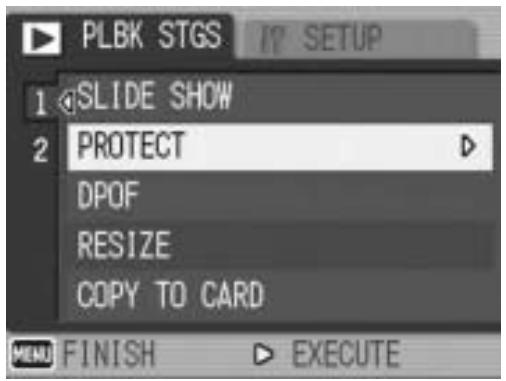
4 Press the buttons to select [ALL FILES].
5 Make sure that [SELECT] is selected, and then press the MENU/OK button.
- All files are protected and the symbol appears on the screen.
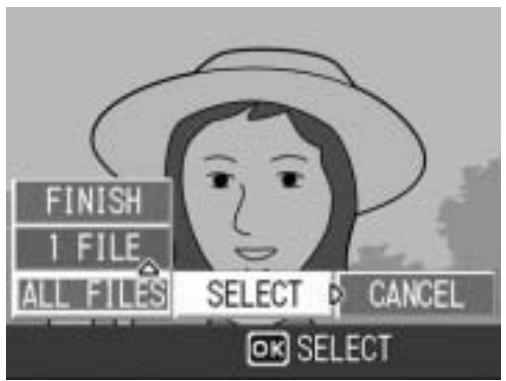

Note
To cancel protection for all protected files, select [CANCEL] in Step 5.
Protecting Multiple Files at Once
To protect selected files all at once, follow the steps below.
1 Press the (Playback) button.
2 Press the (Thumbnail Display) button twice.
- The screen is divided into 12 frames and thumbnails are displayed (Grid view).
3 Press the buttons to select the first file you want to protect.
4 Press the MENU/OK button.
- The playback setting menu appears.
Press the button to select [PROTECT] and press the button.
- The Protect symbol appears in the upper-right corner of the file.
6 Press the buttons to select the next file you want to protect, and then press the MENU/OK button.
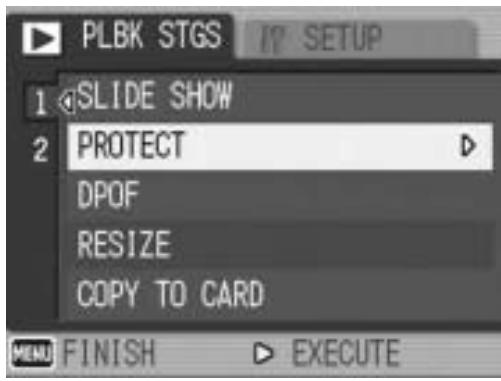
7 Repeat Step 6 to select all the files you want to protect.
- If you selected a file by mistake, you can deselect by selecting the file and pressing the MENU/OK button again.
Press the DISP. button.
- The display indicates that the selected images are being processed; once finished, the display returns to the thumbnail display screen (Grid view).
Note
- To unprotect multiple files, follow the same steps described above to select the files to unprotect, and then press the DISP. button.
- You can also unprotect all files at once. (P.116)
- For information on thumbnail display, see P.53.
Using a Printing Service (DPOF)
The still images recorded on an SD memory card can be printed out if you take them to a store that offers a digital camera print service. To use a print service, you must make print settings on your camera. These settings are called Digital Print Order Format (DPOF) settings. The DPOF setting specifies one print per still image. When making DPOF settings in grid view, you can also specify the number of copies to print. (P.120)
Setting DPOF for the Displayed Still Image
1 Press the (Playback) button.
2 Press the buttons to display the still image for which you want to make the DPOF setting.
3 Press the MENU/OK button.
- The playback setting menu appears.
4 Press the button to select [DPOF] and press the button.
5 Make sure that [1 FILE] is selected, and then press the MENU/OK button.
- Once the DPOF setting is made, the DPOF symbol appears on the screen.
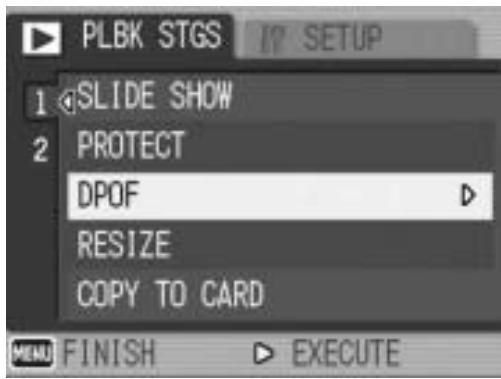
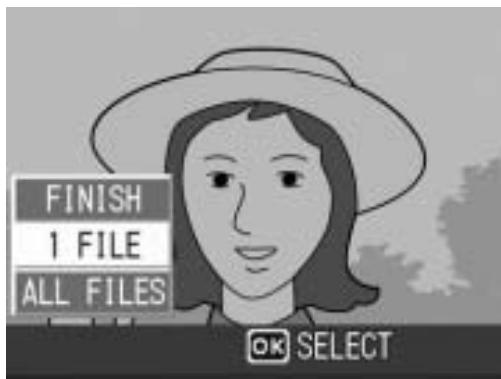
Note
- To remove the DPOF setting, display the still image with the DPOF setting and perform Steps 3 to 5.
- When you make DPOF settings for images shot in RAW mode, DPOF settings are only made for JPEG files.
Setting DPOF for All Still Images
To apply DPOF settings to all your still images, follow the steps below.
1 Press the (Playback) button.
2 Press the MENU/OK button.
- The playback setting menu appears.
3 Press the button to select [DPOF] and press the button.
4 Press the buttons to select [ALL FILES].
5 Make sure that [SELECT] is selected, and then press the MENU/OK button.
- Once the DPOF setting is made, the DPOF symbol appears on the screen.
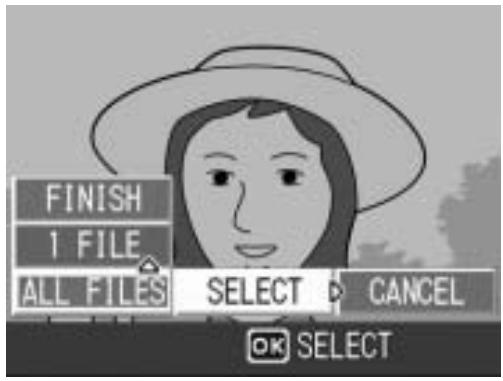

Note
To cancel the DPOF settings for all still images with DPOF settings, select [CANCEL] in Step 5.
Setting DPOF for Multiple Still Images
To make the DPOF settings for selected still images all at once, follow the steps below.
1 Press the (Playback) button.
2 Press the (Thumbnail Display) button twice.
- The screen is divided into 12 frames and thumbnails are displayed (Grid view).
3 Press the buttons to select the first still image for which you want to make the DPOF setting.
4 Press the MENU/OK button.
- The playback setting menu appears.
Press the button to select [DPOF] and press the button.
6 Press the buttons to set the number of copies to print.
- Press the button to increase the number of copies, or press the button to decrease the number of copies.
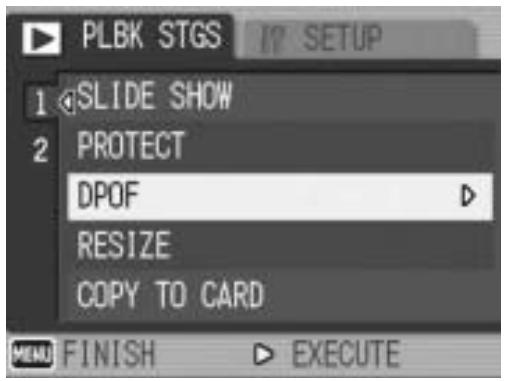
7 Press the buttons to select the next still image for which you want to make the DPOF setting.
Press the buttons to set the number of copies to print.
-
Press the button to increase the number of copies, or press the button to decrease the number of copies.
9 Repeat Steps 7 and 8 to select all the still images for which you want to make the DPOF setting.
10 Press the MENU/OK button. -
The display indicates that the selected images are being processed; once finished, the display returns to the thumbnail display screen.
Note
- To remove the DPOF settings for multiple still images, follow the same steps described above to set the number of copies to print to [0] for each image, and then press the MENU/OK button.
- You can also cancel the DPOF settings for all still images at once. (P.119)
Changing the Image Size (RESIZE)
You can reduce the image size of a shot still image to create a new file with a different image size.
| Original | Resized | |
| F3648/N3648/F3:2/N3:2/F1:1/N3264/N2592/N2048 | N1280 | N640 |
| N1280 | N640 | |

Caution-
- You can resize only still images and still images with voice memos. Movies cannot be resized.
- You cannot change the image size of images shot in RAW mode.

Note
- The ratio of width to height of [F3:2] and [N3:2] images are 3:2. When an image of this type is resized, it is reduced to a 4:3 image with black borders at the top and bottom.
- The ratio of width to height of [F1:1] images is the same (1:1). When an image of this type is resized, it is reduced to a 4:3 image with black borders on the left and right.
- You can also change the image size during shooting. (P.80)
To change the image size, follow the steps below.
1 Press the (Playback) button.
2 Press the buttons to display the file with the image size you want to change.
3 Press the MENU/OK button.
- The playback setting menu appears.
4 Press the button to select [RESIZE] and press the button.
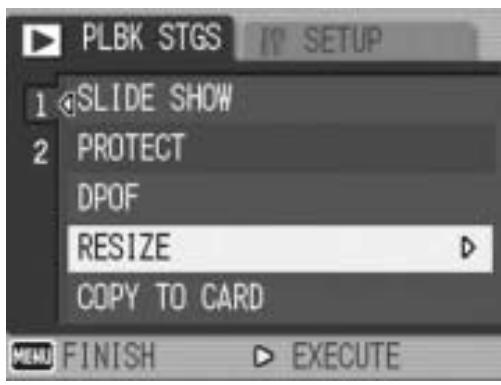
Press the buttons to select [1280] or [640].
6 Press the MENU/OK button.
- The display indicates that the image is being processed, and then the still image with the changed image size is recorded. The image before the image size is changed is also recorded.
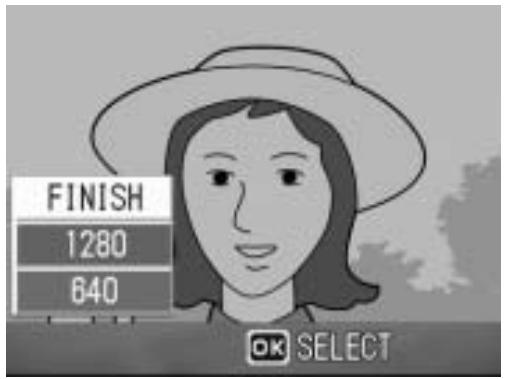
Copying the Contents of the Internal Memory to an SD Memory Card (COPY TO CARD)
You can copy all movies, still images, and sound data stored in the internal memory onto an SD memory card at once.
1 Turn the camera off.
2 Insert an SD memory card.
3 Turn the camera on.
4 Press the (Playback) button.
Press the MENU/OK button.
- The playback setting menu appears.
6 Press the button to select [COPY TO CARD] and press the button.
- The display indicates copying is in progress; once finished, the display returns to the playback screen.
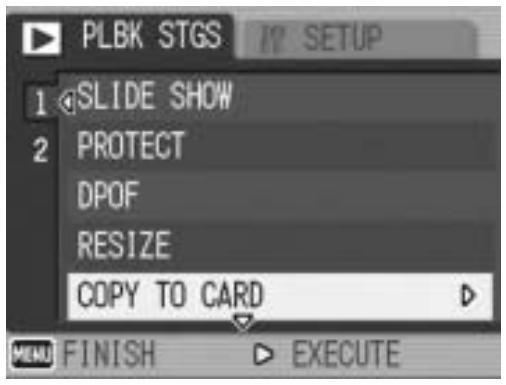

Note
- If the capacity of the SD memory card to which you are copying is insufficient, a message will be displayed indicating there is not enough capacity. To copy only the number of shots that will fit into the available capacity, select [YES] and then press the MENU/OK button. To cancel copying, select [NO] and then press the MENU/OK button.
- It is not possible to copy the contents of an SD memory card to the internal memory.
Straightening Skewed Images (SKEW CORRECTION)
You can straighten rectangular objects, such as a message board or business card, shot at an angle, to make them look as if they were shot squarely.
1 Press the (Playback) button.
2 Press the buttons to display the file you want to straighten.
3 Press the MENU/OK button.
- The playback setting menu appears.
4 Press the button to select [SKEW CORRECTION] and press the button.
- The display indicates that the image is being processed, and then the area recognized as the correction range is displayed with an orange frame. Up to five areas can be recognized.
- If the target area cannot be detected, an error message appears. The image before correction remains recorded.
- To select another correction area, move the orange frame to the target area by pressing the button.
- To cancel skew correction, press the button. Even if you cancel skew correction, the image before skew correction remains recorded.
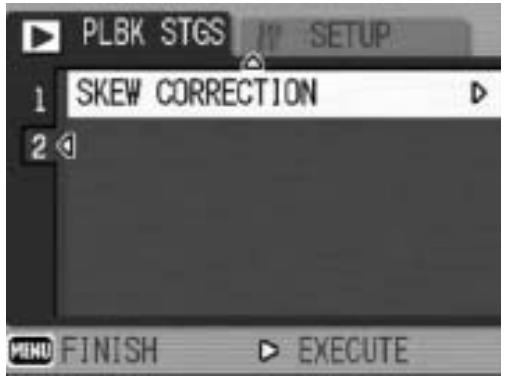
5 Press the MENU/OK button.
-
The display indicates that the image is being corrected, and then the corrected image is recorded. The image before correction is also recorded.
-
Skew correction mode does not work with movies.
- For images shot in RAW mode (P.80), the skew is corrected in the JPEG file recorded at the same time as the raw data. No skew is corrected in the DNG file.

Note
- The image size does not change for skew corrected images.
- If the image size is large, skew correction will take time. Resize the image (P.121) before performing skew correction to speed up the process.
- The following table shows the approximate time required for skew correction.
| Image Size | Correction time |
| 3648 × 2738 | Approx. 52 seconds |
| 3264 × 2448 | Approx. 41 seconds |
| 2592 × 1944 | Approx. 26 seconds |
| 2048 × 1536 | Approx. 15 seconds |
| 1280 × 960 | Approx. 6 seconds |
| 640 × 480 | Approx. 2 seconds |
- When scene mode is set to [SKEW COR MODE], you can shoot an image and then immediately correct any skew in the image. (P.46)
Viewing on a Television
You can view files you have taken on a TV screen. The camera displays everything on the TV screen just as it would on the LCD monitor.
To use your television for viewing, connect your camera to the television with the AV cable that came with your camera. To view files on a television, follow the steps below.
1 Securely connect the AV cable to the Video In terminal on the television.
- Connect the white plug of the AV cable to the audio input terminal (white) of the TV unit and the yellow plug to the video input terminal (yellow).
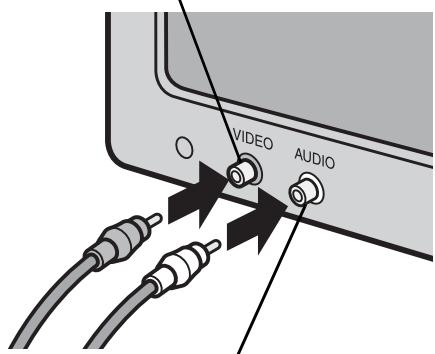
Video input terminal (yellow)
Audio input terminal (white)
2 Make sure that the camera is off.
3 Open the terminal cover.
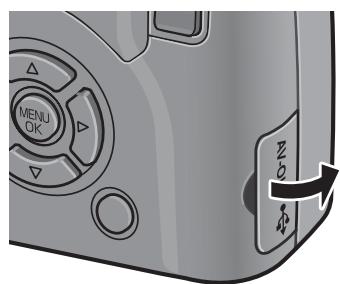
4 Securely connect the AV cable to the AV output terminal on the camera.
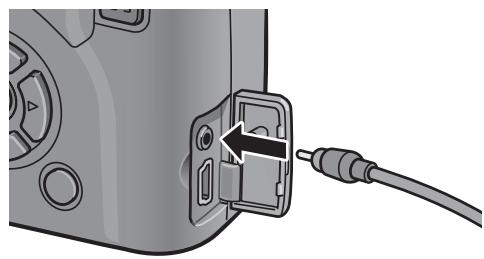
5 Set the television to Video mode. (Set the input to Video)
- For details, see the documentation that came with the television.
6 Press the POWER button or the (Playback) button for more than one second to turn the camera on.
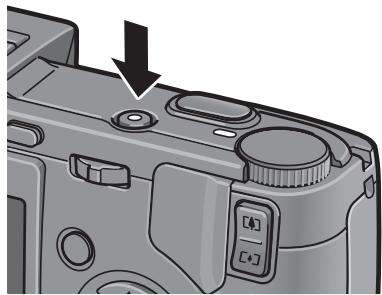
When the AV cable is connected to the camera, the indicators on LCD monitor and LCD viewfinder disappear and the speaker output turns off.

Note
- You can connect the AV cable to the Video In terminal on your video recorder and record what you have shot to a video recorder.
- Your camera is set to NTSC playback format (used in Japan and other countries/ regions) for use with television equipment and other audiovisual equipment. If the equipment you want to connect to uses PAL format (used in Europe and elsewhere), then switch your camera to PAL format before connecting. (P.163)
- The default setting varies depending on where you purchased the camera.
Direct Print Function
The direct print standard enables direct printing from a camera to a printer by connecting them via a USB cable. Photos can be printed quickly and easily from your digital camera without using a computer.

Caution
- You cannot print movies (AVI files) with this function. For still images with sounds (JPG files with WAV files), only the still images (JPG files) are printed.
- For images shot in RAW mode, the JPEG file recorded at the same time as the raw data is printed. The DNG file is not printed.

Note
- This camera uses PictBridge, an industry standard for direct printing.
- Your printer must be compatible with PictBridge to use the direct print function. For support information, see the documentation that came with the printer.
- For some printers, direct print may not be available when [MASS STR] is selected for [USB CONNECTION] (P.157) in the SETUP menu of the camera. In such cases, select [ORIGINAL] instead.

Connecting the Camera to a Printer
Connect your camera to a printer using the USB cable provided.
1 Make sure that the camera is off.
2 Open the terminal cover.
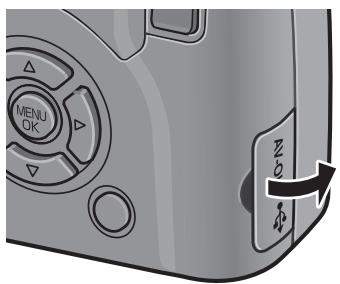
3 Connect your camera to a printer using the USB cable provided.
- Turn on the printer if it is not already on.
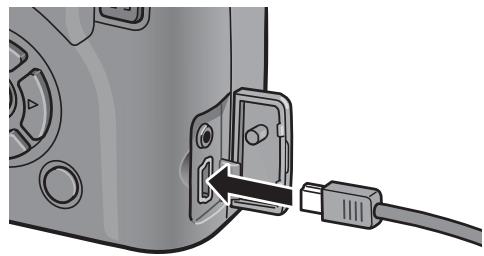

Note
To disconnect the camera from the printer, check that the power is off on both units before disconnecting the USB cable between them.
Printing Still Images
You can print still images from the camera with a PictBridge-compatible printer.
Still images are sent from the internal memory when no SD memory card is loaded or from an SD memory card when one is loaded.

Caution
Do not disconnect the USB cable during printing.

Note
If a [PRINTER ERROR] message appears during image transfer, check the printer status and take the appropriate action.
Printing One or All Still Images
1 Check that the printer is ready to print.
- The [CONNECTING...] screen appears.
2 Press the ADJ. lever.
- The direct print playback mode screen appears.
Press the buttons to select an image for printing.
4 Press the ADJ. lever.
5 Press the buttons to select [1 FILE] or [ALL FILES].
6 Press the MENU/OK button.
- The direct print menu appears.
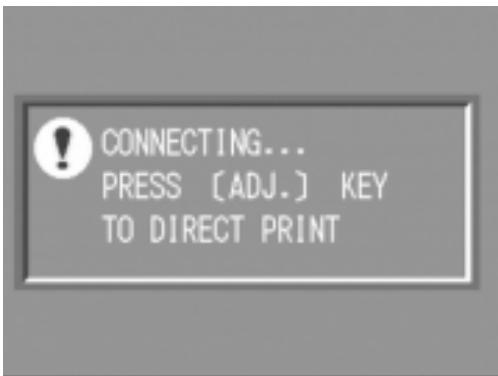
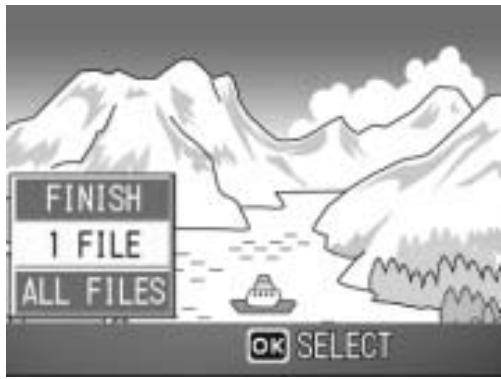
7 Press the buttons to select an item, and then press the button to display the detailed options screen.
- When [CONNECTING...] is displayed, the connection to the printer is not yet established. When a connection is established, [CONNECTING...] disappears and [DIRECT PRINT]
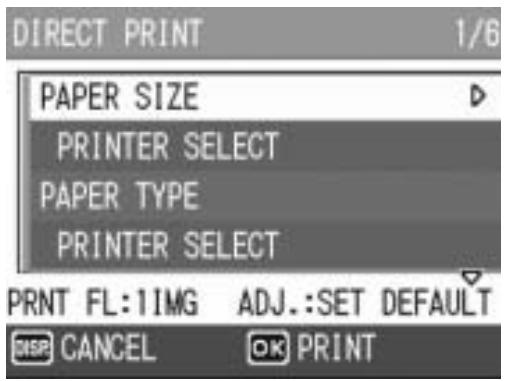
appears. Proceed with this step after the connection is established.
- The following items can be selected. Each item appears only when supported by the printer connected to the camera.
- The items marked with an asterisk (*) appear only when [REPORT PRINT] is supported by a Ricoh printer connected to the camera.
| Item Name | Description |
| PAPER SIZE | Sets the paper size. |
| PAPER TYPE | Sets the paper type. |
| LAYOUT | Sets the number of images printed on a sheet of paper. The number of images that can be laid out on a sheet of paper varies depending on the connected printer. |
| DATE PRINT | Selects whether to print the date (shooting date). The date format can be set using the date/time option in the SETUP menu. |
| FILE NAME PRINT | Selects whether to print the file name. |
| OPTIMIZE IMAGE | Selects whether to optimize the image data (still image) prior to printing on the printer. |
| PRINT SIZE | Sets the print image size. |
| PRINT QUALITY | Sets the print quality. |
| REPORT PRINT* | Prints on forms. |
Press the buttons to select the setting, and then press the MENU/OK button.
- The display returns to the direct print menu.
9 Repeat Steps 7 and 8 to change other settings as required.
- To specify the settings as the default settings next time the camera is connected to the printer, press the ADJ lever when the screen in Step 7 is displayed. When the screen at the right appears, press the buttons to select [SET] and press the MENU/OK button.
- To use the settings last set the next time the camera is connected to the printer, select [CANCEL].
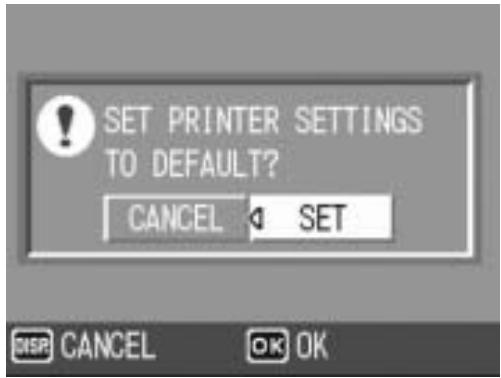
10 Press the MENU/OK button.
- The selected still images are sent to the printer and the [SENDING...] screen appears.
- Pressing the DISP. button cancels the operation.
- When the images have been sent to the printer, the display returns to the direct print playback mode screen and printing starts.
Printing Several Still Images
1 Check that the printer is ready to print.
- The [CONNECTING...] screen appears.
2 Press the ADJ. lever.
- The direct print playback mode screen appears.
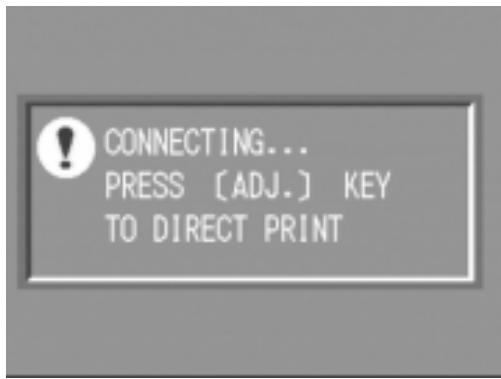
Press the (Thumbnail Display) button.
- The screen is divided into 12 frames and thumbnails are displayed (Grid view).
4 Press the buttons to select an image for printing.
5 Press the MENU/OK button.
6 Press the buttons to set the number of copies to print.
- Press the button to increase the number of copies, or press the button to decrease the number of copies.
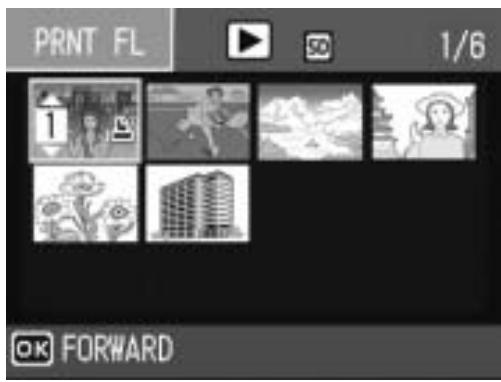
7 Press the buttons to select the next image for printing.
Press the buttons to set the number of copies to print.
9 Repeat Steps 7 and 8 to select all the still images to be printed and the number of copies for each.
10 Press the MENU/OK button.
- The direct print menu appears.
11 Press the buttons to select an item, and then press the button to display the detailed options screen.
- When [CONNECTING...] is displayed, the connection to the printer is not yet established. When a connection is established, [CONNECTING...] disappears and [DIRECT PRINT]
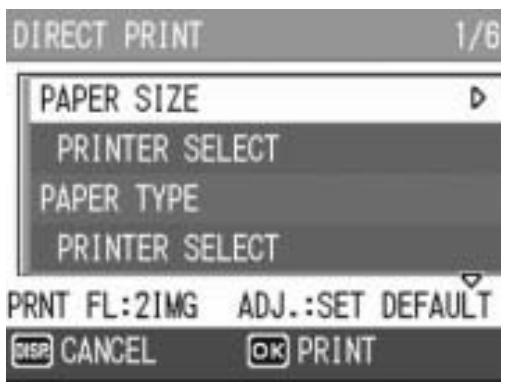
appears. Proceed with this step after the connection is established.
- For available settings, see P.131.
12 Press the buttons to select the setting, and then press the MENU/OK button.
- The display returns to the direct print menu.
13 Repeat Steps 11 and 12 to change other settings as required.
14 Press the MENU/OK button.
- The selected still images are sent to the printer and the [SENDING...] screen appears.
- Pressing the DISP. button cancels the operation.
- When all the selected still images have been sent from the camera to the printer, the camera display returns to the direct print playback mode screen.

Note
- Only images with a printer mark ( ) are printed. If you cancel printing and then try to print again, make sure that the printer mark is on the images you want to print.
- The same still image can also be printed several times on a single sheet.
- The available items vary depending on the functions of the printer.
- To print images using the printer's default settings, select [PRINTER SELECT] on the detailed options screen.
SETUP Menu
You can change the camera settings by displaying the SETUP menu from the shooting setting menu (P.77) or playback setting menu. (P.113)
The SETUP menu enables you to set the items listed in the table below.
| Setting | Options [Default Settings] | Refer to |
| FORMAT [CARD] | —— | P.137 |
| FORMAT [INT. MEM.] | —— | P.138 |
| LCD BRIGHTNESS | —— | P.139 |
| REG. MY SETTINGS | [SETTING1], SETTING2 | P.140 |
| STEP ZOOM | ON, [OFF] | P.142 |
| ISO AUTO-HIGH | [AUTO 400], AUTO 800, AUTO1600 | P.143 |
| AUTO POWER OFF | OFF, [1 MIN.], 5 MIN., 30MIN. | P.144 |
| BEEP SOUND | [ALL], SHUTTER | P.145 |
| VOL. SETTINGS | □ □ □ (Mute), ■ □ □ (Small), [■ ■ □] (Medium), [■ ■ ■ (Large) | P.146 |
| LCD CONFIRM. | OFF, [0.5SEC.], 1 SEC., 2 SEC., 3 SEC., 30 SEC. | P.147 |
| ADJ LEVER SET.1*1 | [OFF]*4, [EXPO.CMP]*1, [WHT.BAL.]2, [ISO]*3, QUALITY, FOCUS, IMG SET, AE METER, CONT MDE, AUTO BKT, WITH SND | P.148 |
| ADJ LEVER SET.2*2 | ||
| ADJ LEVER SET.3*3 | ||
| ADJ LEVER SET.4*4 | ||
| ADJ SHTR BTN SET | ON, [OFF] | P.149 |
| FNCTN. BTN. SET. | OFF, [AF/MF], AE LOCK, EXPO.CMP, WHT.BAL., ISO, QUALITY, FOCUS, IMG SET, AE METER, CONT MDE, AUTO BKT, WITH SND | P.150 |
| AF AUX. LIGHT | [ON], OFF | P.151 |
| RAW/JPEG SETTING | [FINE], NORMAL, N640 | P.152 |
| DIGITAL ZOOM IMG | [NORMAL], AUTO RSZ | P.153 |
| SHTG STGS WARNING. | [ON], OFF | P.155 |
| ENLGE PHOTO ICON | ON, [OFF] | P.156 |
| USB CONNECTION | [MASS STR], ORIGINAL | P.157 |
| SEQUENTIAL NO. | [ON], OFF | P.159 |
| DATE SETTINGS | —— | P.161 |
| LANGUAGE/言語* | 日本語, ENGLISH, DEUTSCH, FRANÇAIS, ITALIANO, ESPÁÑOL, 简体中文, 繁体中文,港澳台 | P.162 |
| VIDEO OUT MODE* | NTSC, PAL | P.163 |
- The default setting varies depending on where you purchased the camera.
Using the SETUP Menu
This explains how to make the settings.
Use the buttons and MENU/OK button to select and set an item.
1 Press the MENU/OK button.
- The shooting setting menu (or the playback setting menu) appears.
2 Press the button.
- The SETUP menu appears.
The menu items are provided on six screens.
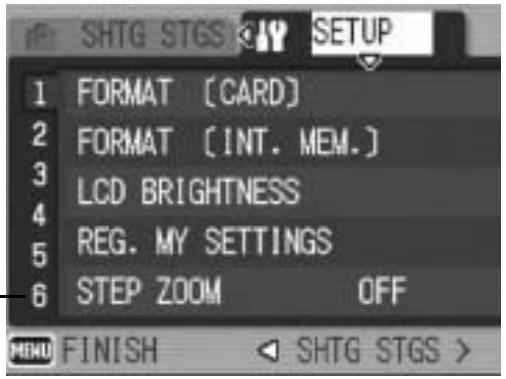
3 Press the buttons to select the desired item.
- Press the button at the bottom item to display the next screen.
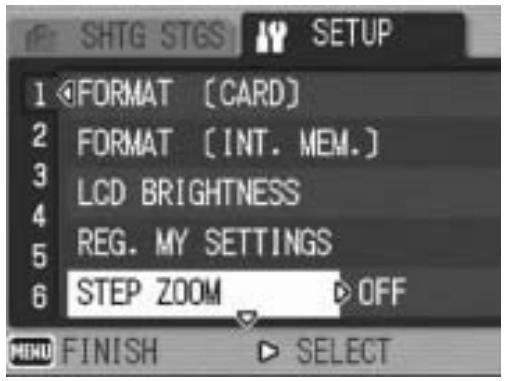
4 Press the button.
- The menu item settings are displayed.
Press the buttons to select the setting.
6 Press the MENU/OK button, or press the button and then the MENU/OK button.
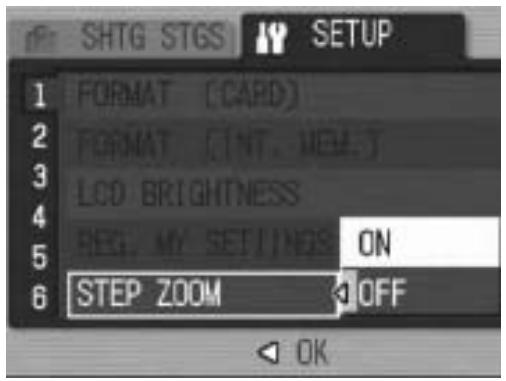
- The SETUP menu disappears and the camera is ready for shooting or playback.
- The SETUP menu may appear depending on the setting. In this case, press the MENU/OK button again to return to the shooting or playback screen.

Note
For some functions, the setting selection method may differ from what is explained here. For detailed operation, see the explanation of each function.
You can select a screen by the screen number:
1 Press the button to select a screen number on the left of the screen.
2 Press the buttons to change screens.
3 Press the button to return to menu item selection.
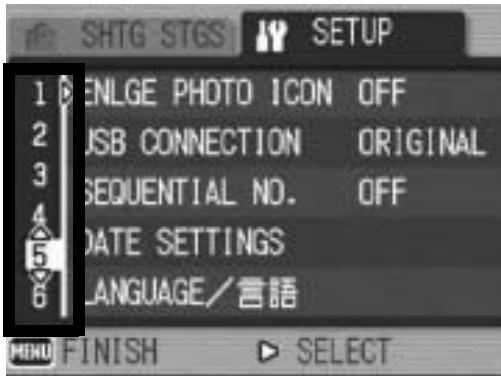
Preparing the SD Memory Card (FORMAT [CARD])
If the error message [CARD ERROR] is displayed when an SD memory card is loaded into the camera or the card has been used with a computer or other device, you must format the card prior to use with this camera.
Formatting is the process of preparing a card so image data can be written on it.
![RICOH CAPLIO GX100 - Preparing the SD Memory Card (FORMAT [CARD]) - 1](/content/2025/01/136419/images/765cfa40a8d84464f7c7cd596b6cf1a2f155979ed8062052fbe32998d2f58af8.jpg)
Caution
If you format a card that still has images stored on it, the images will be lost.
To format a card, follow the steps below.
1 Display the SETUP menu.
- For the operating procedure, see P.135.
2 Press the button to select [FORMAT [CARD]] and press the button.
- A screen appears to confirm formatting.
3 Press the buttons to select [YES] and then press the MENU/OK button.
![RICOH CAPLIO GX100 - Press the buttons to select [YES] and then press the MENU/OK button. - 1](/content/2025/01/136419/images/dc61a7e9cb1e3134ebf28681f1f0bb9fd5b8700ce608c28a6ff91c515ae189a4.jpg)
- Formatting starts. When it is done, the display returns to the SETUP menu.
- If no SD memory card is loaded, a message will be displayed. After turning the power off, load an SD memory card and repeat the formatting process again.
4 Press the MENU/OK button.

Protecting your images from being deleted
- Move the write-protection switch on the SD memory card to “LOCK” to prevent your still images from being accidentally erased or the card from being formatted. (P.27)
- If you unlock the card (by returning the switch to its original position), it is once again possible to erase images and format the card.
Formatting the Internal Memory (FORMAT [INT. MEM.])
If the error message [FORMAT INTERNAL MEMORY] is displayed, you must format the internal memory prior to use.
![RICOH CAPLIO GX100 - Formatting the Internal Memory (FORMAT [INT. MEM.]) - 1](/content/2025/01/136419/images/500d98cf5b6c4f01857f928bd202f9d13b8cb793735e670c16568474b4075fba.jpg)
Caution
Formatting the internal memory deletes all of the data recorded in the memory. If you have images in the internal memory that you do not want to delete, copy the images to the SD memory card before formatting the internal memory. (P.123)
To format the internal memory, follow the steps below.
1 Display the SETUP menu.
- For the operating procedure, see P.135.
2 Press the button to select [FORMAT [INT. MEM.] and press the button.
- A screen appears to confirm formatting.
3 Press the buttons to select [YES] and then press the MENU/OK button.
- Formatting starts. When it is done, the display returns to the SETUP menu.
4 Press the MENU/OK button.
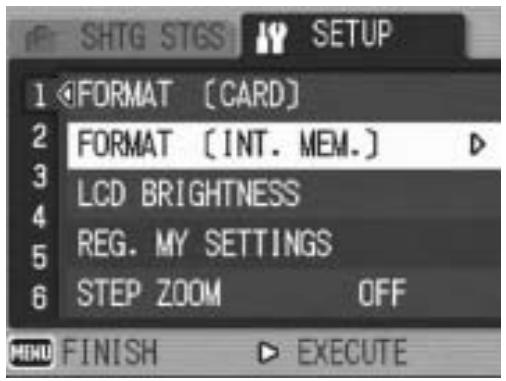
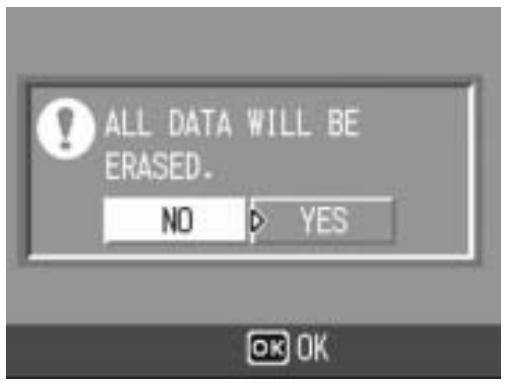
Adjusting the Brightness of the LCD Monitor (LCD BRIGHTNESS)
To adjust the brightness of the LCD monitor, follow the steps below.
1 Display the SETUP menu.
- For the operating procedure, see P.135.
2 Press the button to select [LCD BRIGHTNESS] and press the button.
- The screen for setting the brightness appears.
![RICOH CAPLIO GX100 - Press the button to select [LCD BRIGHTNESS] and press the button. - 1](/content/2025/01/136419/images/b4a349a7d334b1377ebacb1a9260778ff1747cfbde4252c86afd47832b791b70.jpg)
3 Press the buttons to adjust the brightness.
- Move the slider on the LCD brightness adjustment bar down to make the LCD monitor darker and up to make it brighter. The brightness of the LCD monitor changes as the slider is moved along the bar.
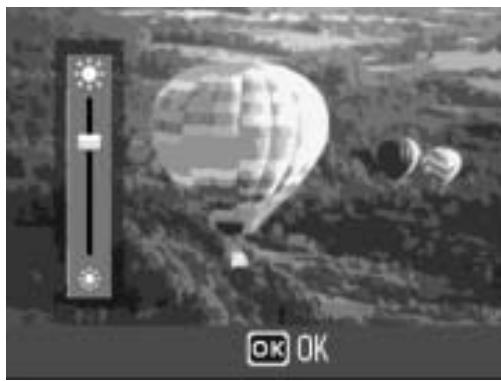
4 When you reach the desired brightness, press the MENU/OK button.
- The display returns to the SETUP menu.
5 Press the MENU/OK button.
Caution
When the LCD viewfinder is attached to the camera, you cannot adjust the brightness of the LCD monitor.

Using the DISP. button to adjust the brightness
When shooting, press and hold down the DISP. button to maximize the LCD brightness. When the brightness is at the maximum setting, holding the DISP. button down returns the brightness to the level set in [LCD BRIGHTNESS].
Registering Custom Settings (REG. MY SETTINGS)
The My Settings function allows you to easily shoot with your desired settings.
You can register two groups of settings as “My Settings”. Setting the mode dial to MY1 or MY2 allows you to shoot with the settings set in [SETTING1] or [SETTING2], respectively. (P.76)
To register the current camera settings as My Settings, follow the steps below.
1 Change the camera settings to the values you want to register as My Settings.
2 Display the SETUP menu.
- For the operating procedure, see P.135.
3 Press the button to select [REG. MY SETTINGS] and press the button.
- A confirmation message appears.
4 Select [SETTING1] or [SETTING2] and press the MENU/OK button.
- The current camera settings are registered and the display returns to the SETUP menu.
- If you do not want to register them, press the DISP. button.
5 Press the MENU/OK button.
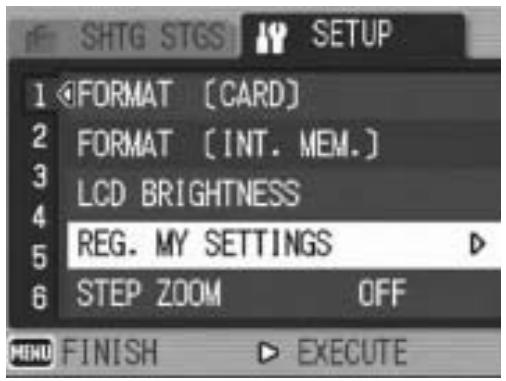
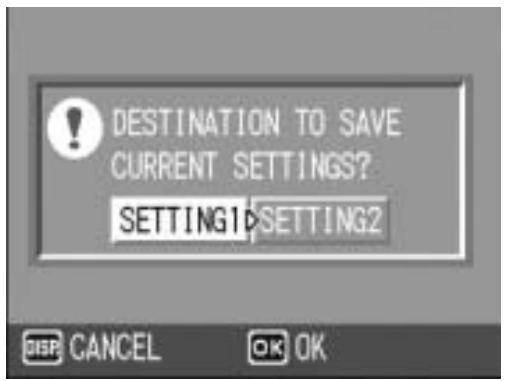
Settings Saved in by My Setting Function
| Shooting mode (P/A/M/SCENE/) |
| PIC QUALITY/SIZE |
| FOCUS |
| Focal distance used in manual focus |
| AE METERING |
| CONT. MODE |
| EXPOSURE COMP. |
| IMAGE WITH SOUND |
| DATE IMPRT |
| WHITE BALANCE |
| ISO SETTING |
| CAMERA SHAKE COR |
| Zoom position |
| Macro |
| Flash |
| Self-timer |
| DISP. Mode |
| STEP ZOOM |
| DIGITAL ZOOM IMG |
| ENLGE PHOTO ICON |
Changing the Step Zooming Setting (STEP ZOOM)
Step zooming is the setting of the focal length with optical zooming, which can be fixed to any of five levels (24, 28, 35, 50, 72 mm, equivalent to that on a 35 mm camera).
Available Settings
ON (Step zooming on)
OFF (Step zooming off) *Default setting
To set step zooming, follow the steps below.
1 Display the SETUP menu.
- For the operating procedure, see P.135.
2 Press the button to select [STEP ZOOM] and press the button.
3 Press the buttons to select the desired setting.
4 Press the MENU/OK button, or press the button and then the MENU/OK button.
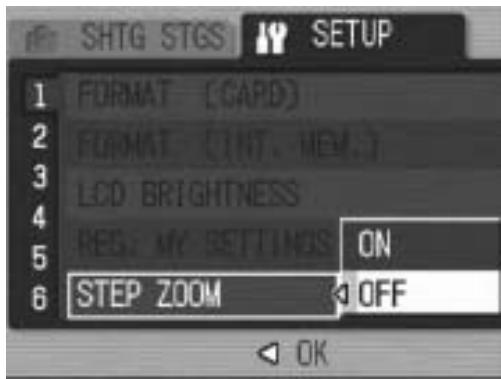
Note
When using the wide conversion lens, the available focal lengths with optical zooming are 19, 22, 28, 40, and 57~mm .
Changing the ISO AUTO-HIGH
Setting (ISO AUTO-HIGH)
You can change the upper limit of the ISO setting for [AUTO-HI] (Auto high sensitivity) (P.104) in [ISO SETTING] on the shooting setting menu.
Available Settings
AUTO 400 *Default setting
AUTO 800
AUTO1600
To change the auto high sensitivity setting, follow the steps below.
1 Display the SETUP menu.
- For the operating procedure, see P.135.
2 Press the button to select [ISO AUTO-HIGH] and press the button.
3 Press the buttons to select the desired setting.
4 Press the MENU/OK button, or press the button and then the MENU/OK button.
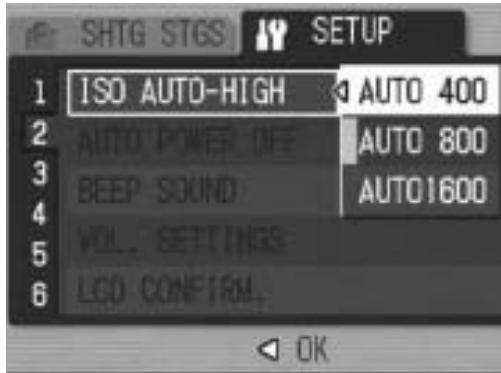

Images shot with a higher sensitivity may appear grainy.
Changing the Auto Power Off Setting (AUTO POWER OFF)
If you do not operate the camera for a set period of time, it shuts off automatically to conserve battery power (Auto Power Off).
By default, auto power off is set to one minute, but you can change this setting.
Available Settings
OFF (Auto Power Off is turned off)
1 MIN. *Default setting
5 MIN.
30MIN.
To change the auto power off setting, follow the steps below.
1 Display the SETUP menu.
- For the operating procedure, see P.135.
2 Press the button to select [AUTO POWER OFF] and press the button.
3 Press the buttons to select the desired setting.
4 Press the MENU/OK button, or press the button and then the MENU/OK button.
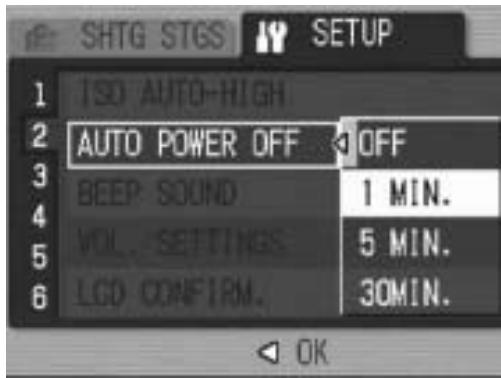
Note
- To continue using the camera after auto power off turned the camera off, press the POWER button to turn the camera on again. You can also press and hold the (Playback) button for more than one second to turn on the camera in playback mode.
- Auto power off does not work when the camera is connected to a computer or printer.
- When using interval shooting, the [AUTO POWER OFF] setting is not valid and auto power off does not work.
Changing the Beep Sound Setting (BEEP SOUND)
During operation, the camera generates four types of sounds: start sound, shutter release sound, focus sound, and beep sound.
Start sound
Sound when the camera is turned on.
Shutter release sound
Sound when the shutter release button is pressed.
Focus sound
: Sound when the shutter release button is half-pressed and the camera focuses on the subject.
Beep sound
: Error sound indicating an operation that cannot be performed.
Available Settings
ALL (All sounds on) *Default setting
SHUTTER (Shutter release sound and beep sound only)
To change the beep sound settings, follow the steps below.
1 Display the SETUP menu.
- For the operating procedure, see P.135.
2 Press the button to select [BEEP SOUND] and press the button.
3 Press the buttons to select the desired setting.
4 Press the MENU/OK button, or press the button and then the MENU/OK button.
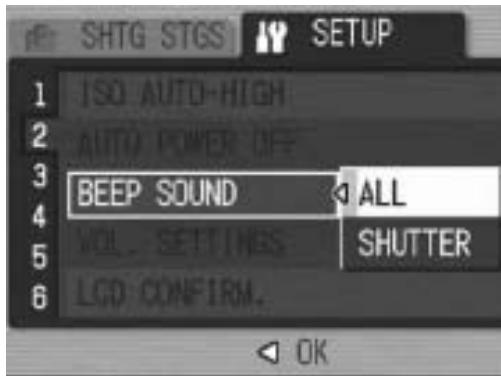
Changing the Beep Sound Volume (VOL. SETTINGS)
The beep sound volume can be changed.
Available Settings
Mute)
(Small)
Medium*Default setting
Large)
To change the beep sound volume, follow the steps below.
1 Display the SETUP menu.
- For the operating procedure, see P.135.
2 Press the button to select [VOL. SETTINGS] and press the button.
3 Press the buttons to select the desired setting.
4 Press the MENU/OK button, or press the button and then the MENU/OK button.
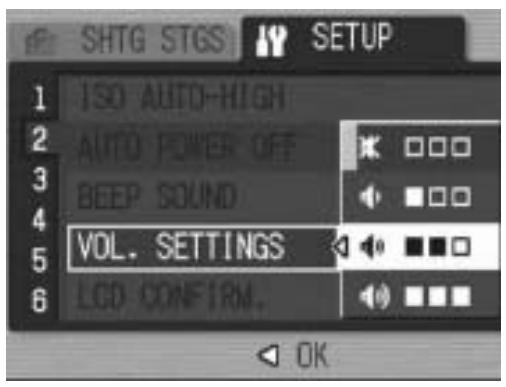
Changing Image Confirmation Time (LCD CONFIRM.)
Immediately after you press the shutter release button, the still image taken is displayed on the screen for a moment so you can check it. By default, the image confirmation time is set to 0.5 second, but this can be changed.
Available Settings
OFF (Image not displayed for confirmation)
0.5SEC. *Default setting
1 SEC.
2 SEC.
3 SEC.
30 SEC.
To change the image confirmation time, follow the steps below.
1 Display the SETUP menu.
- For the operating procedure, see P.135.
2 Press the button to select [LCD CONFIRM.] and press the button.
3 Press the buttons to select the desired setting.
4 Press the MENU/OK button, or press the button and then the MENU/OK button.
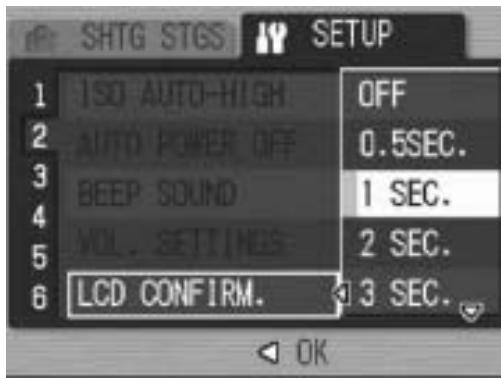
Caution
When [LCD CONFIRM.] is set to 0.5 seconds, symbols such as the zoom bar may remain on the monitor while the image is displayed.
Note
It is convenient to set the image confirmation time to [30SEC.] to allow enough time to view the image. This is particularly useful when using an LCD viewfinder. Even if you set the image confirmation time to [30SEC.], you can half-press the shutter release button to return to shooting mode and shoot a picture.
Assigning a Function to the ADJ. Lever (ADJ LEVER SET.)
When any of a number of shooting functions is assigned to the ADJ lever, you can display the screen for that function with fewer button operations and without displaying the shooting setting menu.
You can also use [ADJ LEVER SET.1] to [ADJ LEVER SET.4] to assign a camera function that can be activated by pressing the ADJ lever.
| Available Settings | Refer to | |
| OFF | *Default setting for [ADJ LEVER SET.4] | - |
| EXPO.CMP | *Default setting for [ADJ LEVER SET.1] | P.100 |
| WHT.BAL. | *Default setting for [ADJ LEVER SET.2] | P.101 |
| ISO | *Default setting for [ADJ LEVER SET.3] | P.104 |
| QUALITY | P.80 | |
| FOCUS | P.83 | |
| IMG SET | P.91 | |
| AE METER | P.86 | |
| CONT MDE | P.87 | |
| AUTO BKT | P.93 | |
| WITH SND | P.98 | |
To assign a function to [ADJ LEVER SET.1] to [ADJ LEVER SET.4], follow the steps below.
1 Display the SETUP menu.
- For the operating procedure, see P.135.
2 Press the button to select [ADJ LEVER SET.1], [ADJ LEVER SET.2], [ADJ LEVER SET.3], or [ADJ LEVER SET.4], and then press the button.
3 Press the buttons to select the desired setting.
4 Press the MENU/OK button, or press the button and then the MENU/OK button.
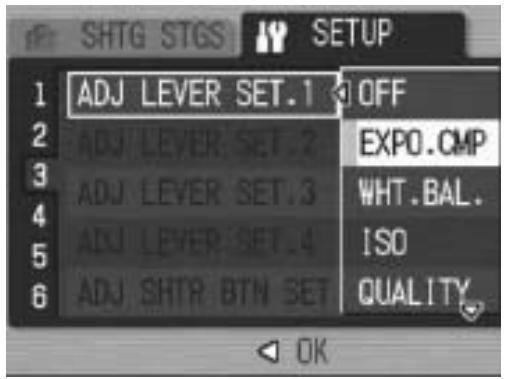
Changing the Shutter Release Button Setting (ADJ SHTR BTN SET)
In ADJ. mode (P.64), you usually press the MENU/OK button or the ADJ. lever to set a setting.
When [ADJ SHTR BTN SET] is set to [ON], you can also set a setting by half-pressing the shutter release button.
| Available Settings | Description |
| ON | Press the MENU/OK button or half-press the shutter release button to set the setting. |
| OFF *Default setting | Press the MENU/OK button to set the setting. |
To change the shutter release button setting, follow the steps below.
1 Display the SETUP menu.
- For the operating procedure, see P.135.
2 Press the button to select [ADJ SHTR BTN SET.] and press the button.
3 Press the buttons to select the desired setting.
4 Press the MENU/OK button, or press the button and then the MENU/OK button.
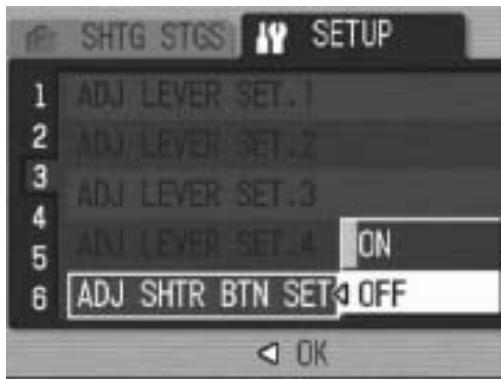
Assigning a Function to the Function Button (FNCTN. BTN. SET.)
When a function is assigned to the Fn (Function) button, you can perform the assigned function, such as switching to auto focus or manual focus, or locking the exposure, simply by pressing the Fn (Function) button. You can also display the setting screen for the assigned function without displaying the shooting setting menu.
| Available Settings | Refer to |
| OFF | - |
| AF/MF *Default setting | P.69 |
| AE LOCK | P.70 |
| EXPO.CMP | P.100 |
| WHT.BAL. | P.101 |
| ISO | P.104 |
| QUALITY | P.80 |
| FOCUS | P.83 |
| IMG SET | P.91 |
| AE METER | P.86 |
| CONT MDE | P.87 |
| AUTO BKT | P.93 |
| WITH SND (IMAGE WITH SOUND) | P.98 |
To assign a function to the Fn (Function) button, follow the steps below.
1 Display the SETUP menu.
- For the operating procedure, see P.135.
2 Press the button to select [FNCTN. BTN. SET.] and press the button.
3 Press the buttons to select the desired setting.
4 Press the MENU/OK button, or press the button and then the MENU/OK button.
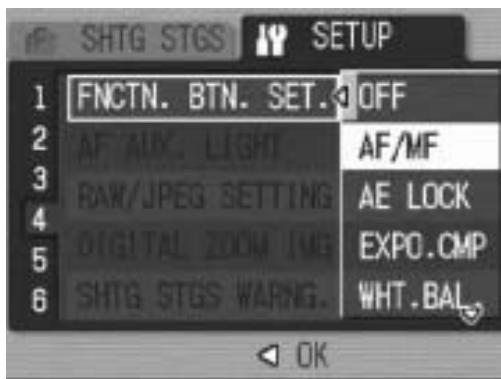

Note
For information on how to use the Fn (Function) button, see P.67.
Changing the AF Auxiliary Light Setting (AF AUX. LIGHT)
You can set whether to use the AF auxiliary light when shooting with auto focus.
When [AF AUX. LIGHT] is set to [ON], the AF auxiliary light lights as required during shooting, and the auto focus distance is measured.
To change the AF auxiliary light setting, follow the steps below.
1 Display the SETUP menu.
- For the operating procedure, see P.135.
2 Press the button to select [AF AUX. LIGHT] and press the button.
3 Press the buttons to select the desired setting.
4 Press the MENU/OK button, or press the button and then the MENU/OK button.
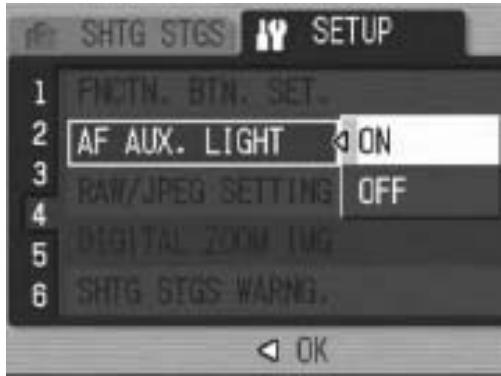

Note
- When [AF AUX. LIGHT] is set to [ON], the AF auxiliary light lights when shooting in dark surroundings and when it is difficult for the camera to measure the auto focus distance.
- When you full-press the shutter release button with [AF AUX. LIGHT] set to [ON], the AF auxiliary light may not light even when shooting in dark surroundings.
Changing the RAW Mode JPEG Image Setting (RAW/JPEG SETTING)
When shooting with [PIC QUALITY/SIZE] set to RAW mode (P.80), a JPEG file associated with the RAW format file (.DNG file) is recorded at the same time. You can change the picture quality and image size of this JPEG file.
| Available Settings | Description |
| FINE | Picture quality: Fine mode; |
| *Default setting | Image size: Recorded at the same size as the RAW format file. |
| NORMAL | Picture quality: Normal mode; |
| Image size: Recorded at the same size as the RAW format file. | |
| N640 | Recorded at the same picture quality and image size as [N640] (P.80) in [PIC QUALITY/SIZE]. |
To change the picture quality and image size settings of the JPEG file, follow the steps below.
1 Display the SETUP menu.
- For the operating procedure, see P.135.
2 Press the button to select [RAW/JPEG SETTING] and press the button.
3 Press the buttons to select the desired setting.
4 Press the MENU/OK button, or press the button and then the MENU/OK button.
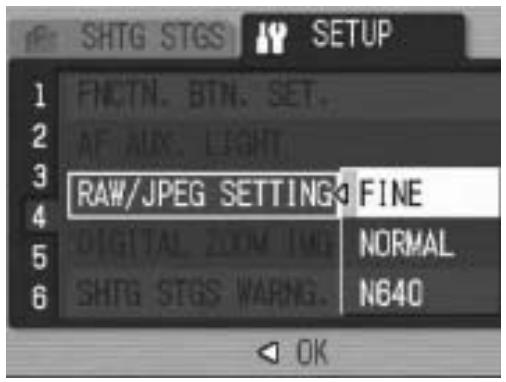
Note
When [RAW/JPEG SETTING] is set to [N640] with [PIC QUALITY/SIZE] set to [RAW3:2], black borders are added to the top and bottom of the JPEG image.
Using the Auto Resize Zoom (DIGITAL ZOOM IMG)
This function allows you to crop and record a shot image. Conventional digital zoom enlarges a portion of an image to a set magnification. Whereas, auto resize zoom saves the cropped portion of the image, the image quality is not decreased, however the image size may become smaller. The image recording size changes depending on the auto resize zoom magnification. This function is available only when [PIC QUALITY/SIZE] is set to 3648 × 2736 . (P.80)
Available Settings
| Available Settings | Description |
| NORMAL | Records the image at the image size set with [PIC QUALITY/ SIZE]. |
| AUTO RSZ (Auto resize) | Automatically resizing and then records the image. |

Note
The digital zoom is enabled when [PIC QUALITY/SIZE] is set to a size other than 3648 × 2736 .
Zoom Magnification and Recorded Image Size
| Zoom Magnification | Image Size |
| 3.0 times | 3648 × 2736 (10M) |
| 3.0 × approx. 1.1 times | 3264 × 2448 (8M) |
| 3.0 × approx. 1.4 times | 2592 × 1944 (5M) |
| 3.0 × approx. 1.8 times | 2048 × 1536 (3M) |
| 3.0 × approx. 2.9 times | 1280 × 960 (1M) |
| 3.0 × approx. 5.7 times | 640 × 480 (VGA) |
1 Display the SETUP menu.
- For the operating procedure, see P.135.
2 Press the button to select [DIGITAL ZOOM IMG] and press the button.
3 Press the buttons to select [AUTO RSZ].
4 Press the MENU/OK button, or press the button and then the MENU/OK button.
5 Press and hold the [4] (Telephoto) button until the maximum magnification is reached on the zoom bar, then momentarily release the button, and then press the [4] (Telephoto) button again.
![RICOH CAPLIO GX100 - Press the button to select [DIGITAL ZOOM IMG] and press the button. - 1](/content/2025/01/136419/images/2846c24ee208977fe02d72c88fd8da530dfad95fbd34723a5f3697a88b74a98b.jpg)
![RICOH CAPLIO GX100 - Press the button to select [DIGITAL ZOOM IMG] and press the button. - 2](/content/2025/01/136419/images/6f84353f7d5ee5ae500242ee4f43b386ac3bbd29209a0e158ccba52d257a44bc.jpg)
- Press the [ ] (Telephoto) button to change the image size one factor and record the image.
- The size at which the image is recorded is displayed above the zoom bar.
Caution
- This function is not available when shooting with multi-shot mode or when scene mode is set to [SKEW COR MODE]. If [AUTO RSZ] is set in these situations, the digital zoom is activated instead.
- This function is not available when [PIC QUALITY/SIZE] is set to RAW mode.
Displaying a Settings Change Warning (SHTG STGS WARNG.)
If the initial settings are changed for the following functions, you can set the camera to have the icon of that function blink and to display a warning message about the function with the changed setting for a few seconds when the camera is turned on.
White balance, Focus, ISO setting, Exposure compensation If you operate a camera button while an icon is blinking, the icon stops blinking and lights steadily. If you operate a camera button while the warning message is displayed, the message disappears.
Available Settings
ON (Enable warnings) *Default setting
To set the settings change warning, follow the steps below.
1 Display the SETUP menu.
- For the operating procedure, see P.135.
2 Press the button to select [SHTG STGS WARNING.] and press the button.
3 Press the buttons to select the desired setting.
4 Press the MENU/OK button, or press the button and then the MENU/OK button.
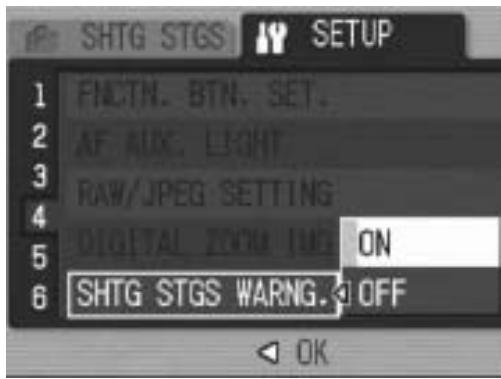
Enlarging Icon Display (ENLGE PHOTO ICON)
The following icons are enlarged in normal symbol display.
(P.59)
Flash, Macro Shooting, Self-timer, White balance, Focus,
Exposure compensation, ISO setting
When the icons are enlarged, the following items are not displayed:
Zoom bar/Focus bar, Date imprint, Image settings
To enlarge the icons on the screen, follow the steps below.
1 Display the SETUP menu.
- For the operating procedure, see P.135.
2 Press the button to select [ENLGE PHOTO ICON] and press the button.
3 Press the buttons to select the desired setting.
4 Press the MENU/OK button, or press the button and then the MENU/OK button.
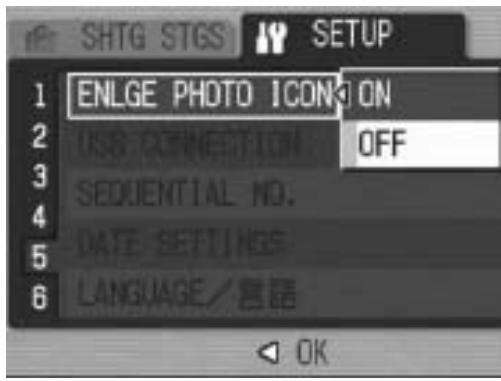
Note
The icons only on those screens with normal symbol displays (P.59) are enlarged. The icons on histogram screens (P.59) are not enlarged.
Changing the USB Setting
(USB CONNECTION)
To transfer images to your computer using software, change the [USB CONNECTION] setting depending on the software. By setting [USB CONNECTION] to [MASS STR] on the SETUP menu, you can view files in the camera and transfer files from the camera to your computer using the USB cable without installing the supplied software or USB driver.
| Software used for transfer | [USB CONNECTION] setting |
| Instead of using software, the computer recognizes the SD memory card or internal memory of the camera as a drive. | MASS STR* *Default setting |
| RICOH Gate La | MASS STR *Default setting /ORIGINAL* (Either setting can be used.) |
| Auto Document Link | ORIGINAL |
- For Windows 98SE, set [USB CONNECTION] to [ORIGINAL]. When set to [ORIGINAL], the maximum size for a transferable SDHC memory card is 4 GB.
Caution
- Images in the camera cannot be deleted when [USB CONNECTION] is set to [MASS STR].
- Do not format the SD memory card or internal memory from your computer when connected via mass storage mode. Be sure to format using the camera.
- Be sure to stop the connection before removing the USB cable when connected in mass storage mode.
- Files will not be properly transferred if the USB cable is removed while transferring images from an SD memory card inserted in the camera to your computer before stopping the connection.
Also, transferring to the internal memory is not available with this camera.
To change the USB setting, follow the steps below.
1 Display the SETUP menu.
- For the operating procedure, see P.135.
2 Press the button to select [USB CONNECTION] and press the button.
3 Press the buttons to select the desired setting.
4 Press the MENU/OK button, or button and press the MENU/ OK button.
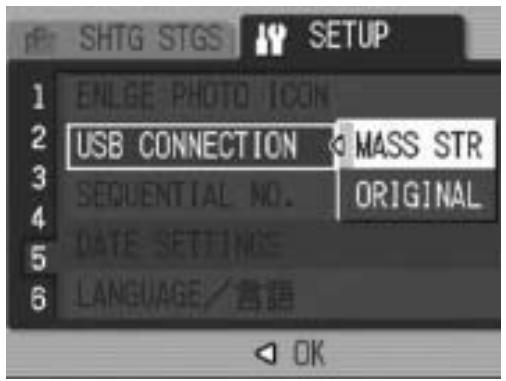
Note
For how to download images from the camera to a computer using the USB cable, see P.179-183.
Changing File Name Settings
(SEQUENTIAL NO.)
When you shoot a still image, it is stored on an SD memory card or in the internal memory with a consecutively numbered file name that is automatically assigned.
When you switch SD memory cards, you can set your camera to continue consecutive numbering from the previously loaded card.
| Available Settings | |
| ON (Continue numbering) *Default setting | File names are automatically assigned to still images you take, in the format of “R” followed by seven digits, from R0010001.jpg to R9999999.jpg. With this setting, file numbering is continued from one card to the next. |
| OFF (Do not continue numbering) | File numbering is assigned, from RIMG0001.jpg to RIMG9999.jpg, for each SD memory card. When file name RIMG9999 is reached, no more data can be recorded to that card. |
To change the file name setting, follow the steps below.
1 Display the SETUP menu.
- For the operating procedure, see P.135.
2 Press the button to select [SEQUENTIAL NO.] and press the button.
3 Press the buttons to select the desired setting.
4 Press the MENU/OK button, or press the button and then the MENU/OK button.
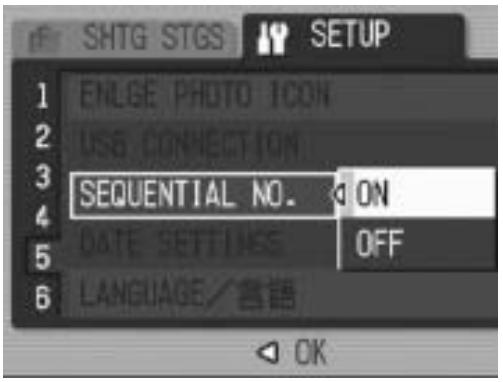

Note
- When data is recorded to the internal memory, files are assigned consecutively numbered file names, just as if [SEQUENTIAL NO.] is set to [OFF].
- When images are transferred to a computer using RICOH Gate La (P.181), the file being transferred is renamed and saved. The file is saved with the name “RIMG****.jpg” (where *** indicates a number) even if [SEQUENTIAL NO.] is set to [ON].

Caution
When RIMG9999 is reached, no more files can be saved. In this case, move image data from the SD memory card to the memory of the computer or a storage medium, and then format the SD memory card.
Setting the Date and Time (DATE SETTINGS)
You can shoot still images with the time or date stamped onto the picture.
The date/time setting on the SETUP menu is explained here.
1 Display the SETUP menu.
- For the operating procedure, see P.135.
2 Press the button to select [DATE SETTINGS] and press the button.
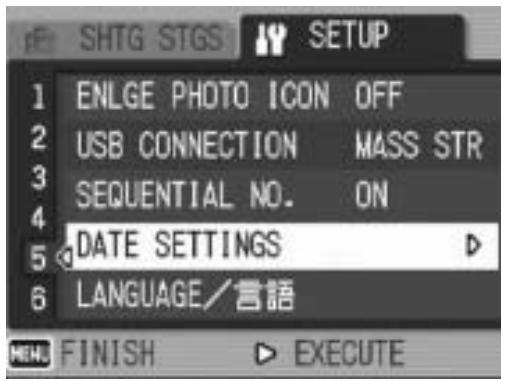
3 Press the buttons to set the year, month, date and time.
• You can press and hold down the buttons to quickly raise or lower the setting.
- Press the buttons to move to the next item.
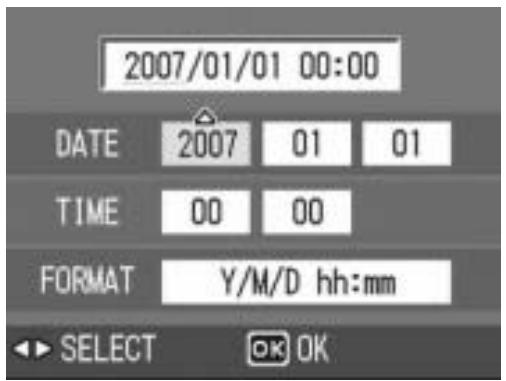
4 In [FORMAT], choose the date and time format.
5 Check the information on the screen and then press the MENU/OK button.
- Once you have set the date and time, the display returns to the SETUP menu.
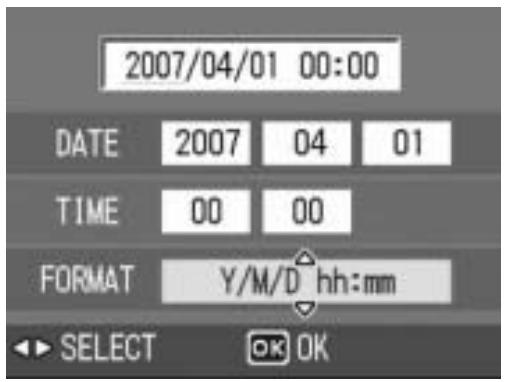
6 Press the MENU/OK button.
Note
- If the battery is removed for more than one week, the date and time settings will be lost. These settings must be made again.
- To retain the date and time settings, load a battery with adequate remaining power for more than two hours.
Changing the Display Language
(LANGUAGE/言語)
You can change the language displayed on the screen.
The default setting varies depending on where you purchased the camera.
Available Settings
日本語 (Japanese)
ENGLISH
DEUTSCH (German)
FRANÇAIS (French)
ITALIANO (Italian)
ESPANOL (Spanish)
简体中文 (Simplified Chinese)
繁体中文 (Traditional Chinese)
Korean
To change the display language, follow the steps below.
1 Display the SETUP menu.
- For the operating procedure, see P.135.
2 Press the button to select [LANGUAGE/言語] and press the button.
- The language selection screen appears.
3 Press the buttons to select the desired setting.
4 Press the MENU/OK button.
- Once you have set the language, the display returns to the SETUP menu.
5 Press the MENU/OK button.
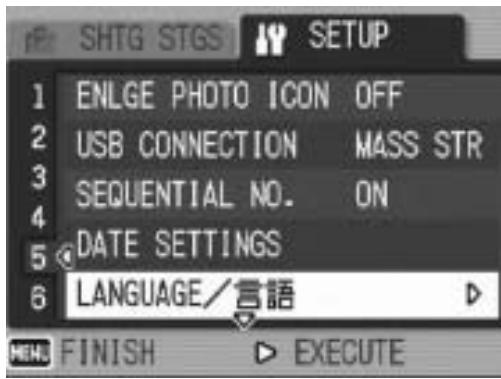
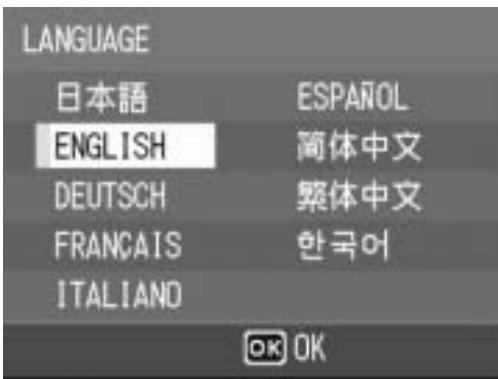
Changing the Playback Method for Viewing on TV (VIDEO OUT MODE)
You can view your still images and movies on a television screen by connecting your camera to a television with the AV cable that came with your camera. (P.126)
Your camera is set to NTSC video format (used in North America and other countries/regions) for use with television equipment and other audiovisual equipment. If the equipment you want to connect to uses PAL format (used in Europe and elsewhere), then switch your camera to PAL format before connecting.
The default setting varies depending on where you purchased the camera.
Available Settings
NTSC
PAL
To change the video format, follow the steps below.
1 Display the SETUP menu.
- For the operating procedure, see P.135.
2 Press the button to select [VIDEO OUT MODE] and press the button.
3 Press the buttons to select the desired setting.
4 Press the MENU/OK or button.
- Once you have set the video format, the display returns to the SETUP menu.
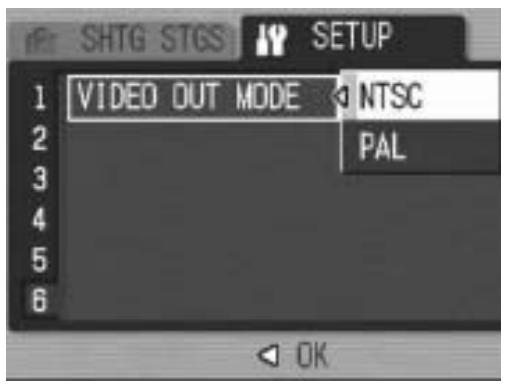
5 Press the MENU/OK button.
6 Downloading Images to Your Computer
The screen images shown here may differ from the images displayed on your computer depending on your computer OS.
For Windows
Refer to P.184 for Macintosh.
You need to install software for transferring images to your computer before you can download images from the camera. Software installation is necessary for automatic image downloading from the camera to your computer.

Caution
Be sure to install the software before you connect the camera to your computer. (P.170)
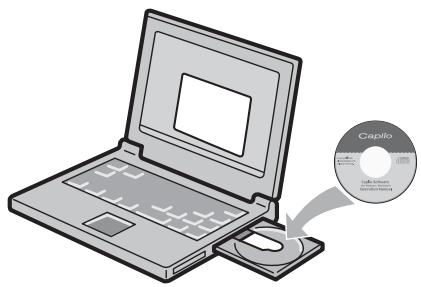

Note
- When [MASS STR] is selected for [USB CONNECTION] of the camera's SETUP menu, you can view the files in the camera without installing the supplied software or USB driver. (P.179) At the time of purchase, [MASS STR] is selected.
- For how to download images from the camera to your computer, see the "Software User Guide" available from the Caplio Software CD-ROM. For how to display the "Software User Guide", see P.168.
Using the Caplio Software CD-ROM
Once you insert the Caplio Software CD-ROM in the CD-ROM drive, the installer screen appears automatically.
| Item Name | Description | Refer to |
| Installing the Software | Use this button to install software required for handling the camera and images. | P.170 |
| Installing DesktopBinder Lite | Use this button to install software required for handling the camera and images. | P.173 |
| Browse User's Manual (Software Version) | Click this to display the “Software User Guide” (PDF). | P.168 |
| Browse CD-ROM Content | Click this to display the list of files contained on the CD-ROM. | P.168 |
| Go to Adobe Digital Imaging web site | Displays the home page of Adobe Systems Inc. (if connectable to Internet). | - |
When [Installing the software] is clicked: (P.170)
The following software is installed:
| Software | Windows | Description | |
| XP | 98 | ||
| RICOH Gate La | O | O | Downloads images collectively. |
| Irodio Photo & Video Studio | O | O | Shot images can be displayed or edited and video CDs can be created. |
| USB Driver | - | O | Used to connect the camera to your computer when [USB CONNECTION] is set to [ORIGINAL]. |
| WIA Driver | O | - | Used to connect the camera to your computer when [USB CONNECTION] is set to [ORIGINAL]. |
XP: Windows XP/Vista
98: Windows 98SE/Me/2000
![RICOH CAPLIO GX100 - When [Installing the software] is clicked: (P.170) - 1](/content/2025/01/136419/images/9cdf341e953ac8557e1ba51a6c946f285887420f839e62a6b236612b0e9beed4.jpg)
Note
The camera is provided with Irodio Photo & Video Studio software that allows you to display and edit images from your computer. For how to use Irodio Photo & Video Studio, see the displayed "Help".
For the latest information about Irodio Photo & Video Studio, access the Web page of Pixela Co., Ltd. (http://www.pixla.co.jp/oem/ricoh/e/index.html).
When [Installing DesktopBinder Lite] is clicked: (P.173)
The following software is installed:
| Software | Windows | Description | |
| XP | 98 | ||
| DeskTopBinder Lite | O | O | Software used to manage business documents. Images in the camera can be downloaded to DeskTopBinder Lite using the Auto Document Link that monitors document updating. |
| USB Driver | O | O | Used to connect the camera to the computer. |
| WIA Driver | O | - | Used to download images. |
XP: Windows XP/Vista
98: Windows 98SE/Me/2000
![RICOH CAPLIO GX100 - When [Installing DesktopBinder Lite] is clicked: (P.173) - 1](/content/2025/01/136419/images/089a896970daf712b8348db82a6aac477fe64d219deef0804d16fd800281d499.jpg)
Caution
DesktopBinder Lite is compatible with Windows 98SE but not Windows 98.

Note
- For details about the DesktopBinder Lite, refer to the Introduction Guide, Setup Guide, Auto Document Link Guide, and Help supplied with the DesktopBinder Lite.
- For details about the Auto Document Link, refer to the Auto Document Link Guide.
When [Browse User's Manual (Software Version)] is clicked:
The "Software User Guide" (PDF file) on the Caplio Software CD-ROM is displayed on your computer screen.
If you have Acrobat Reader installed on your computer, simply click [Browse User's Manual (Software Version)]. Acrobat Reader must be installed to view the PDF file. (P.175)
When [Browse CD-ROM Content] is clicked:
You can check folders and files on the CD-ROM. The CD-ROM contains not only the software installed by clicking [Installing the software] but also Acrobat Reader software. This software product runs on Windows.
For the installation of Acrobat Reader, see P.175.
![RICOH CAPLIO GX100 - When [Browse CD-ROM Content] is clicked: - 1](/content/2025/01/136419/images/a9ecf30c308ece1c6fed2ae28e02b8b56ceb555da247b7897ae650750aacae08.jpg)
Note
- For details about Acrobat Reader, see Help for Acrobat Reader.
- To install Irodio Photo & Video Studio alone, double-click "Irodio Photo & Video Studio.exe" in the Irodio Photo & Video Studio folder.
System Requirements for Using Caplio Software CD-ROM
The following environments are necessary for using Caplio Software CD-ROM.
Please check your computer, or the computer's user manual.
| Operating Systems Supported | Windows 98 Second Edition Windows 2000 Professional Windows Me Windows XP Home Edition/Professional Windows Vista |
| CPU | Windows 98SE/2000/Me/XP: Pentium® III 500 MHz or faster Windows Vista: Pentium® III 1 GHz or faster |
| Memory | Windows 98SE: 256 MB or more Windows 2000: 256 MB or more Windows Me: 256 MB or more Windows XP: 256 MB or more Windows Vista: 512 MB or more |
| Hard drive space required for installation | Windows 98SE: 160 MB or more Windows 2000: 160 MB or more Windows Me: 160 MB or more Windows XP: 160 MB or more Windows Vista: 160 MB or more |
| Display Resolution | 1024 × 768 pixels or greater |
| Display Colors | 65,000 colors or greater |
| CD-ROM Drive | A CD-ROM drive compatible with the above-mentioned computer |
| USB Port | A USB port compatible with the above-mentioned computer |

Caution
- If your computer has an upgraded OS, the USB function may not work normally, so it cannot be supported.
- The provided software may not operate properly if changes are made to the operating system, such as with patches and service package releases.
- The camera does not support connection to a USB port added by using an extension function (PCI bus or other).
- If used in conjunction with a hub or other USB devices, the software may not work properly.
- When dealing with movies and other large files, a larger memory environment is recommended.
- When using Windows 98SE, the USB setting must be changed to [ORIGINAL]. (P.157)
Installing the Software Required for Handling the Camera and Images
Install the required software on your computer before connecting the camera.

Caution
- Do not install the software when the camera is connected to your computer with a USB cable.
- If you happened to connect your camera to the computer (resulting in the [Add New Hardware Wizard] screen appearing on your computer screen), simply click [Cancel], and after disconnecting your camera, install the software on your computer.
- If software is already installed from a Caplio Software CD-ROM from a previous model, a message stating that the old software must be uninstalled before installing the new one is displayed.
Follow the message instructions and uninstall the old software before installing the new software. Functions of the old model can still be used as before.
If DU-10 is installed, it is replaced by Caplio Viewer (an upgraded version of DU-10). If the old software is uninstalled before the message is displayed, Caplio Viewer is not installed even if the new software is installed. (For how to uninstall the software, see P.176.)
- For Windows Vista, Windows XP or Windows 2000, administrator privileges are required to install the software.
- Ricoh Gate La is not network-compatible. Use as a stand-alone application.
Here is an example of the Windows XP screen.
1 Start your computer and insert the Caplio Software CD-ROM in the CD-ROM drive.
Operating systems other than Windows Vista
- The installer screen appears automatically.
Windows Vista
- The Autorun screen appears automatically.
- Select [Run Autorun.exe]. The installer screen appears automatically.
2 Click [Installing the software].
Operating systems other than Windows Vista
- After a while, the [Choose Setup Language] screen appears.
Windows Vista
- A screen appears to confirm user account management.
- Select [Allow] for the access request to the computer. After a while, the [Choose Setup Language] screen appears.
3 Confirm the language, and then click [OK].
- The [Welcome to the InstallShield Wizard for Caplio Software] screen appears.
4 Click [Next].
- The [Choose Destination Location] screen appears.
![RICOH CAPLIO GX100 - Click [Next]. - 1](/content/2025/01/136419/images/4c3ff82d097d8155429e93670d3da3b2ccf9d010037bb5159c517f6d2a16b0e3.jpg)
5 Confirm where you want to install and then click [Next].
- The [Select Program Folder] screen appears.
![RICOH CAPLIO GX100 - Confirm where you want to install and then click [Next]. - 1](/content/2025/01/136419/images/921d3d99927388775cfe0d346e8faf25dd76b3e2abab98a5da05436757941b94.jpg)
6 Confirm the destination location and then click [Next].
- The Irodio Photo & Video Studio installer starts. Install Irodio Photo & Video Studio following the messages displayed on the screen. Depending on your computer, it may take some time until the next screen is displayed.
![RICOH CAPLIO GX100 - Confirm the destination location and then click [Next]. - 1](/content/2025/01/136419/images/791965724c1eb1f839bbf0a1288006db9f4b488afc5307e064d0ab03fe8ab3d4.jpg)
- When installation of Irodio Photo & Video Studio is completed, a dialog box appears, indicating that all software applications have been installed.
![RICOH CAPLIO GX100 - Confirm the destination location and then click [Next]. - 2](/content/2025/01/136419/images/17c07e32e3cd611e7ddfcd3b77c0d6e58c7aab108c0dd4954bdff1f5ae58f58d.jpg)
7 Click [Finish].
- A dialog box indicating that installation of Caplio Software is complete appears.
Click [Finish].
9 Restart your computer.
Note
You can remove (uninstall) the software. (P.176)
Installing the DesktopBinder Lite
DeskTopBinder Lite is used for managing business documents. As well as still images captured with a digital camera, you can manage a variety of documents, including documents input by scanner, documents created with various applications and image files. You can also store files with different formats in a single document. Images downloaded from the camera can be saved to DeskTopBinder Lite using the Auto Document Link for monitoring document updating.

Note
For how to use DesktopBinder Lite, refer to the Introduction Guide, the Setup Guide, and the DesktopBinder Lite - Auto Document Link Guide that are installed with DesktopBinder Lite.

Caution
- If you happened to connect your camera to the computer (resulting in the [Add New Hardware Wizard] screen appearing on your computer screen), simply click [Cancel], and after disconnecting your camera, install the software on your computer.
- For Windows XP or Windows 2000, administrator privileges are required to install the software.
- To download images from the camera using the Auto Document Link of DeskTopBinder Lite, install the Caplio Software before installing DeskTopBinder Lite. (P.170) The driver included in the Caplio Software is required to use the Auto Document Link.
- If [Caplio Digital Camera] is set as the monitoring destination of the Auto Document Link, select [ORIGINAL] for [USB CONNECTION] on the camera menu. (P.157)
Here is an example of the Windows XP screen.
1 Start your computer and insert the Caplio Software CD-ROM in the CD-ROM drive.
- The installer screen appears automatically.
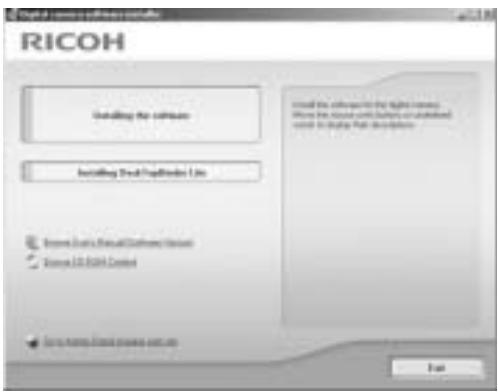
2 Click [Installing DesktopBinder Lite].
- After a few moments, the [Welcome to the InstallShield Wizard for Caplio Software S] screen appears.
3 Click [Next].
- After a few moments, the [Choose Destination Location] screen appears.
4 Confirm where you want to install and then click [Next].
- The [Select Program Folder] screen appears.
5 Confirm the destination location and then click [Next].
Click [OK].
![RICOH CAPLIO GX100 - Click [OK]. - 1](/content/2025/01/136419/images/8baae24333d0acbb098cb203c46dc5f25fd07c1d8de2fd2f0f3e82c6111edb3c.jpg)
7 Click [DesktopBinder Lite].
- The DesktopBinder Lite installer starts.
- Install DesktopBinder Lite following the messages displayed on the screen.
- When the screen where you verify digital ID is displayed, click [OK].
Caution
- DesktopBinder Lite cannot coexist with a different version of DesktopBinder Lite, DesktopBinder Professional, or Job Binding. Before installing DesktopBinder Lite, uninstall these applications. The data used in the previous application can be saved and inherited by DesktopBinder Lite. However, when the previous application is DesktopBinder Professional, some functions will no longer be available.
- When capturing images from the camera using the Auto Document Link of the DesktopBinder Lite, deselect the [Saves automatically when connected to USB] check box in the [Option settings] dialog box displayed by selecting [Option settings] on the [RICOH Gate La Settings] menu. (Refer to the "Software User Guide".) Before capturing images from the camera, set the date and time using the [DATE SETTINGS] option of the camera. (P.161)
- If you turned the camera off and then on again while connected to the computer with DesktopBinder Lite open, reboot the computer with the camera connected.
Installing Other Software on Your Computer

Caution
- Do not install the software when the camera is connected to your computer with a USB cable.
- For Windows Vista, Windows XP or Windows 2000, administrator privileges are required to install the software.
Acrobat Reader
Acrobat Reader is required to display the operation manual (PDF file).
If the computer is running under Windows, Acrobat Reader can be installed. Acrobat Reader need not be installed if already installed on your computer.
1 Start your computer, and insert the included Caplio Software CD-ROM into the CD-ROM drive.
- The installer screen appears automatically.
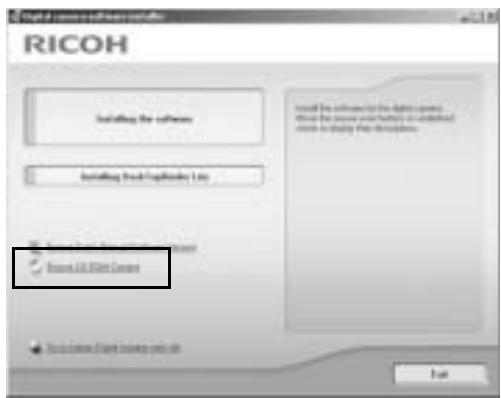
2 Click [Browse CD-ROM Content].
-
The files on the CD-ROM are listed.
3 Double-click the [Acrobat] folder.
4 Double-click the [English] folder.
5 Double-click [ar500enu] (ar500enu.exe). -
A screen appears to confirm user account management for Windows Vista. Select [Continue].
6 Install Acrobat Reader by following the messages displayed.
Caution-
- For Windows Vista, Windows 2000/XP, administrator privileges are required to uninstall the software.
- If any other program is active or unsaved data remains, save the data and terminate the program before uninstalling.
- If you install both Irodio Photo & Video Studio and the DesktopBinder Lite and then uninstall either one, camera connection to the computer may fail. In this case, uninstall both [Caplio Software] and [Caplio Software S] and then install only the required one.
Caplio Software
1 Click [Start] on the Windows task bar.
2 Select [Settings]-[Control Panel] ([Control Panel] for XP).
3 Double-click the [Add/Remove Programs] icon (or the [Add or Remove Programs] icon in Windows XP).
4 Select [Caplio Software] (select [Caplio Software S] if you have installed the DesktopBinder Lite), and then click the [Change/Remove] button.
5 Confirm file deletion and click [OK].
- The [Shared File Detected] dialog box appears.
6 Select the [Don't display this message again.] check box, and then click [Yes].
- The uninstallation process begins. When it is finished, close the displayed window.
Irodio Photo & Video Studio
1 Click [Start] on the Windows task bar.
2 Select [Settings]-[Control Panel] ([Control Panel] for XP).
3 Double-click the [Add/Remove Programs] icon (or the [Add or Remove Programs] icon in Windows XP).
4 Select [Irodio Photo & Video Studio] and then click [Change/Remove].
5 Confirm file deletion and click [OK].
- The uninstallation process begins. When it is finished, close the displayed window.
6 Restart your computer.
Downloading Images to Your Computer
After installing the software on your computer, connect your camera to the computer.
Depending on the software you are using, change the [USB CONNECTION] setting on the SETUP menu of the camera.
(P.157)
1 Make sure the camera power is off.
2 Connect the USB cable to the USB port of your computer.
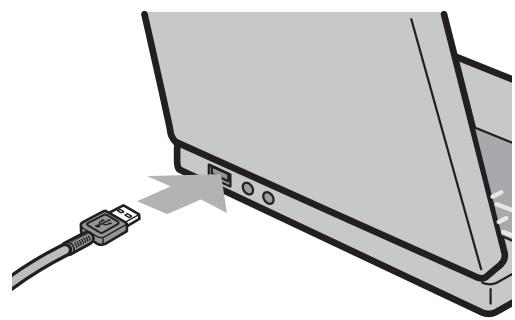
3 Connect the USB cable to the USB terminal of your camera.
- Your camera turns on and the computer automatically reads the necessary files.
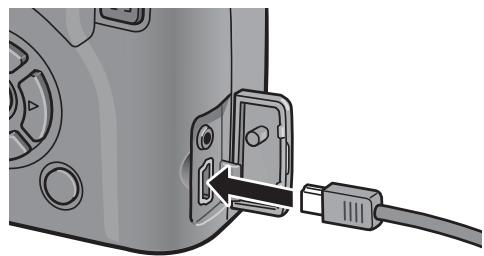
4 RICOH Gate La starts and image transfer begins automatically.
5 When image transfer is completed, disconnect the camera and the computer. (P.183)
Note
- For how to use RICOH Gate La, refer to the "Software User Guide" (PDF file) contained in the provided CD-ROM. (P.165)
- If image transfer does not begin, re-start your computer and perform steps 3 to 5 again.
Downloading Images Without Using the Caplio Software
You can download images from the camera to a computer without having to use software.
1 Change [USB CONNECTION] to [MASS STR] on the SETUP menu. (P.157)
2 Make sure that the camera power is off.
3 Connect the accessory USB cable to a USB port of your computer.
4 Connect the USB cable to the USB terminal of your camera.
RICOHDCX (O)
- Your camera turns on.
- Your computer automatically reads a file necessary for recognizing the camera as a drive.
- After this preparation, the camera is displayed as a drive at [My Computer] (Windows) or Desktop (Macintosh).
5 From the displayed drive, copy a file to the desired location.
- The figure at right shows the folder configuration in the drive.
- When the contents of the internal memory are displayed, the drive name is [RICOHDCI].
RICOHDCX
100RICOH
RIMG0001.jpg
RIMG0002.jpg
Example of the display in Windows XP
Caution
- Mass storage mode is not available on this camera if you are using Windows 98SE. Set to [ORIGINAL]. (P.157)
- Do not turn off the camera or disconnect the USB cable during image transfer.
- If a file with the same name already exists at the destination, it is overwritten. If you do not want the file to be overwritten, rename the file or transfer data to another folder.

Note
When an SD memory card is loaded, its files are displayed. Otherwise, files in the internal memory are displayed.

Downloading images from an SD memory card
It is possible to download images from an SD memory card to the computer via a PC card slot or card reader. Depending on the type of PC card slot or card reader, a memory card adapter may be required when using an SD memory card. If the SD memory card can be used in the PC card slot, no memory card adapter is required.
- Images are stored in an SD memory card in the hierarchy shown below.
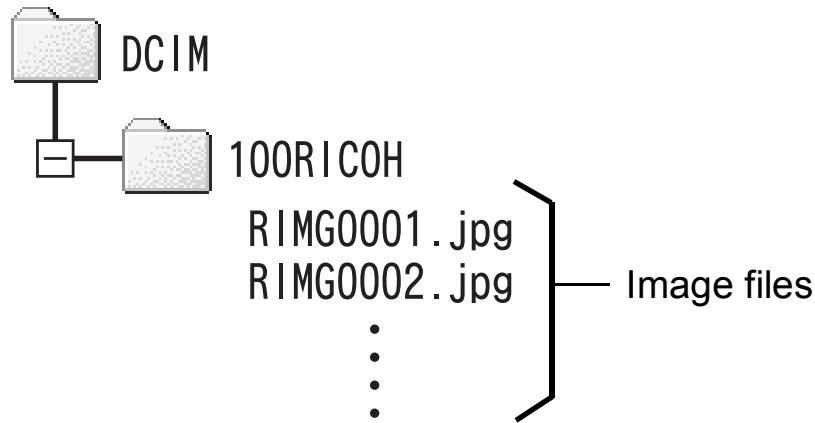
Example of the display in Windows XP
Card Reader
This is a device connected to a computer to read the contents of cards. In addition to the memory card adapter-type, there are card readers compatible with various types of cards, into which you can directly load an SD memory card.
Use a card reader that is compatible with your computer's operating system and the size of the SD memory card.

Caution
Images downloaded to your computer using [Import pictures] in Windows Vista cannot be displayed with this camera.
Using the Original Driver to Download Images
The Original Driver is used to download images when [USB CONNECTION] on the camera is set to [ORIGINAL]. (When using Windows 98SE or Auto Document Link)
Connecting the Camera to the Computer for the First Time
The first time you connect your camera to the computer using a USB cable, the [Found New Hardware Wizard] screen appears. (Does not appear on Macintosh, Windows 98SE/2000.) Here is an example of the Windows XP screen.
1 Select [Install the software automatically (Recommended)].
2 Insert the Caplio Software CD-ROM into the CD-ROM drive on your computer.
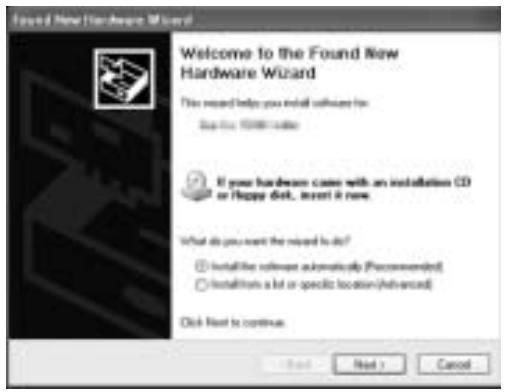
- Installation of the WIA driver automatically starts. If the CD-ROM is already on your computer when the [Found New Hardware Wizard] screen is displayed, simply click [Next] to start installation.
3 If the subsequent screen is displayed, click the [Next] button.
- This product has been sufficiently tested at our company and has been confirmed to function correctly.
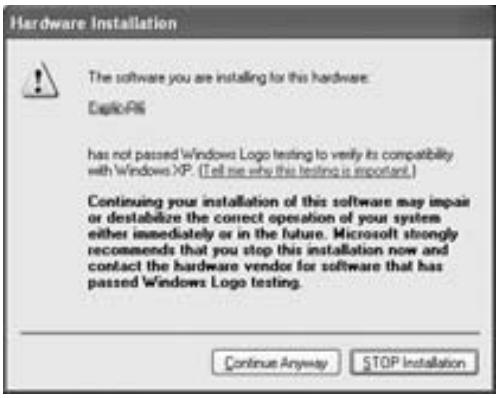
- Screens to confirm security and user accounts appear for Windows Vista. However, screens are mostly the same as the ones of Windows XP.
- By default, the WIA driver is installed in the following location: Specify the folder if the CD-ROM is not available.
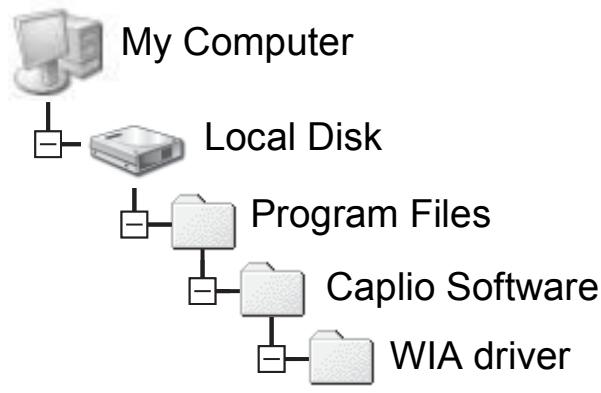
4
Select [RICOH Gate La], check [Always use this program for this action] check box, and then click [OK].
- To load images from the camera with assistance from the Windows XP "Scanner and Camera Wizard", select [Microsoft Scanner and Camera Wizard].
- Leaving the [Always use this program for this action] check box unchecked
![RICOH CAPLIO GX100 - Select [RICOH Gate La], check [Always use this program for this action] check box, and then click [OK]. - 1](/content/2025/01/136419/images/6b219d27b4075a8c689fda4e14a9396f9ef146a274be70f2e5683f3b3e4e0bef.jpg)
causes the [Caplio GX100] screen to be displayed each time you transfer images from the camera, thereby allowing you to choose whether to use [RICOH Gate La] or the [Microsoft Scanner and Camera Wizard] for image transfers.
- If your PC is installed with Windows XP Service Pack 2 and a warning message is displayed, see P.193.
![RICOH CAPLIO GX100 - Select [RICOH Gate La], check [Always use this program for this action] check box, and then click [OK]. - 2](/content/2025/01/136419/images/a11830b8904b7a89b810b1f0d86dd5f4ac5d9bcc06a7edc4c2bbd612fda833d9.jpg)
Note
- If the computer does not recognize the camera, uninstall the software (P.176) and install it again.
- When downloading images from your camera, load a battery with adequate remaining power in the camera. Use of the AC adapter (sold separately) is recommended.
- When transferring images to a computer using RICOH Gate La, the file being transferred is renamed and saved.
Disconnecting the Camera from Your Computer
If images are downloaded using RICOH Gate La or the [Scanner and Camera Wizard], turn the camera off after downloading images and disconnect the USB cable.
Perform the following operations when disconnecting the camera from your computer. (The display shown below is when connected to Windows XP in [MASS STR]. The terms are different for other operating systems but the operations are the same.)
1 Double-click the [Safely Remove Hardware] icon at the right end of the task bar.
2 Select [USB Mass Storage Device] and click [Stop].
3 Check that [USB Mass Storage Device] is selected and click [OK].
4 Click [Close].
5 Disconnect the USB cable.

Note
- If the USB cable is disconnected without disabling the connection, the Unsafe Removal of Device screen may be displayed.
- Be sure to stop the connection before removing the USB cable when connected in mass storage mode.
- Do not disconnect the USB cable during image downloading. Make sure that downloading has completed, disable the connection, and then disconnect the cable.
For Macintosh
Refer to P.164 for Windows.
This camera supports the following Macintosh operating systems.
Mac OS 9.0 to 9.2.2
Mac OS X 10.1.2 to 10.4.8
This function is not available on this camera if you are using Mac OS 8.6.
Downloading Images to Your Computer
1 Set [USB CONNECTION] to [MASS STR] on the SETUP menu.
2 Make sure that the camera power is off.
3 Connect the accessory USB cable to a USB port of your computer.
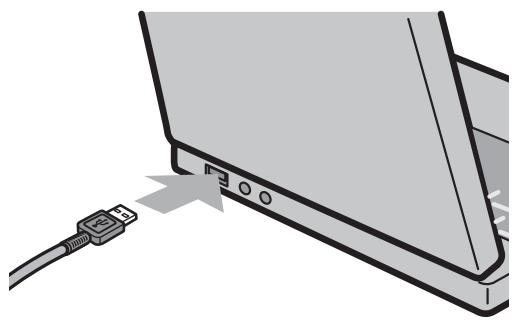
4 Connect the USB cable to the USB terminal of your camera.
- Your camera turns on.
- Your computer automatically reads the file necessary for recognizing the camera as a drive.
- After this preparation, the camera is displayed as a drive on the Desktop.
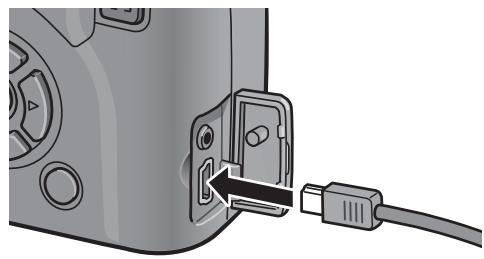
5 From the displayed drive, copy a file to the desired location.
- The figure below shows the folder configuration in the drive.
- When the contents of the internal memory are displayed, the drive name is [RICOHDCI].
RICOHDCX


DCIM


100RICOH
Disconnecting the Camera from Your Computer
1 Drag and drop the displayed drive or the volume icon to the “Trash”.
- If a screen appears prompting you to enter the administrator's password, enter the password.
2 Disconnect the USB cable.

Note
- You can also click [Eject] on the [Special] menu in Mac OS 9 or the [File] menu in Mac OS X to cancel the connection.
- If the USB cable is disconnected without disabling the connection, the Unsafe Removal of Device screen may be displayed.
- Be sure to stop the connection before removing the USB cable when connected in mass storage mode.
- Do not disconnect the USB cable during image downloading. Make sure that downloading has completed, disable the connection, and then disconnect the cable.
Troubleshooting
Error Messages
If an error message is displayed on the screen, take the corresponding action.
| Error Message | Cause and Action | Refer to |
| INSERT CARD | No card is loaded. Insert a card. | P.30 |
| USE THE SETUP MENU TO SET THE DATE. | The date is not set. Set the date. | P.161 |
| FILE NUMBER OVER LIMIT | The file number limit has been exceeded. Use another card. | P.159 P.160 |
| UNMATCHED FILE | The camera cannot display this file. Check the file contents on your computer, and then delete the file. | - |
| INSUFFICIENT MEMORY. CONTINUE? | Because there is not sufficient capacity on the card, all the files cannot be copied. Use another card. | P.27 |
| PROTECTED | You are trying to delete a protected file. | P.115 |
| CARD IS WRITE-PROTECTED. | The card is “Locked (write-protected)”. Unlock the card. | P.27 |
| PRINT SETTINGS CANNOT BE SET FOR THIS FILE. | This file (movie or other file) cannot be selected for printing. | - |
| INSUFFICIENT MEMORY | Files cannot be stored. Make sure there is enough free space or delete unwanted files. | P.56 P.137 P.138 |
| The image print number limit has been exceeded. Select an image and set the number to 0. | - | |
| FORMAT INTERNAL MEMORY | You must format the internal memory. | P.138 |
| INITIALIZE THE CARD. | The card is not formatted. Format the card with this camera. | P.137 |
| CARD ERROR | Reformat the card. If, after doing so, the error message still appears, the card may be faulty. Do not use the card. | P.137 |
| WRITING TO DATA | Writing file to memory. Wait until writing finishes. | - |
| NO FILE | There are no files that can be played back. | - |
| CANNOT RECORD | The number of remaining shots is 0. Switch to another card or the internal memory. | P.27 |
| REMOVE LENS CAP. | The camera does not start because the lens cap is still on the camera. Remove the lens cap. | P.32 |
| REMOVE LENS CAP AND PRESS PLAYBACK BUTTON. | The camera does not start because the lens cap is still on the camera. Remove the lens cap and press the▶ (PLAYBACK) button or the POWER button to turn on the camera. | P.32 |
Power Supply
| Problem | Cause | Solution | Refer to |
| The camera does not turn on. | Battery is not loaded or is exhausted. | Load the rechargeable battery correctly or charge the battery as required. Use the AC adapter as required. Replace the alkaline batteries with new batteries. | P.29 P.30 P.199 |
| A (manganese dry cell or other) unacceptable battery is used. | Use the dedicated rechargeable battery or alkaline batteries. | P.25 | |
| The AC adapter is not connected correctly. | Reconnect it properly. | P.199 | |
| The camera is automatically turned off by auto power off. | Turn the camera back on. | P.32 | |
| The battery is loaded in wrong direction. | Load correctly. | P.30 | |
| The camera turns off during use. | The camera was left unattended and unused, so auto power off turned it off. | Turn the camera back on. | P.32 |
| Battery is running low. | Charge the rechargeable battery or use the AC adapter. Replace the alkaline batteries with new batteries. | P.29 P.30 P.199 | |
| A (manganese dry cell or other) unacceptable battery is used. | Use the dedicated rechargeable battery or alkaline batteries. | P.25 | |
| The camera does not turn off. | Camera malfunction. | Remove the battery and load it again. Reconnect the AC adapter cable properly, if using. | P.30 P.199 |
| The battery has been fully charged, but: • The battery mark is displayed, indicating a low battery level. • The camera turns off. | A (manganese dry cell or other) unacceptable battery is used. | Use the dedicated rechargeable battery or alkaline batteries. | P.25 |
| Cannot charge the battery. | Battery has reached the end of its useful life. | Replace with a new battery. | P.30 |
| Battery runs out quickly. | It is being used at extreme high or low temperatures. | - | - |
| Many shots are being taken in dark places or other location requiring extensive use of flash. | - | - |
Shooting
| Problem | Cause | Solution | Refer to |
| The camera does not shoot even if you press the shutter release button. | Battery is exhausted. | Charge the rechargeable battery or use the AC adapter. Replace the alkaline batteries with new batteries. | P.29 P.30 P.199 |
| The camera is not on or it is not in the shooting mode. | Press the POWER button to turn the camera on or press the Playback) button to select the shooting mode. | P.32 P.52 | |
| The camera is in playback mode. | Press the Playback) button to select the shooting mode. | - | |
| The shutter release button is not pressed all the way. | Press the shutter release button all the way. | P.38 P.39 | |
| The SD memory card is not formatted. | Format the card. | P.137 | |
| The SD memory card is full. | Load a new card, or delete unwanted files. | P.30 P.56 | |
| The SD memory card has reached the end of its useful life. | Load a new SD memory card. | P.30 | |
| The flash is charging. | Wait until the Auto Focus/Flash lamp stops blinking. | P.44 | |
| The SD memory card is locked. | Unlock the card. | P.27 | |
| The contact surface of the SD memory card is dirty. | Wipe with a soft, dry cloth. | - | |
| Unable to view the shot image. | The image confirmation time is too short. | Lengthen the image confirmation time. | P.147 |
| Images do not appear on the LCD monitor. | The camera is not on or the LCD monitor is dark. | Turn the camera on or adjust the brightness of the LCD monitor. | P.32 P.139 |
| The LCD monitor is off. | Press the VF/LCD button to turn the LCD monitor on. | P.59 | |
| The LCD viewfinder is selected. | Press the VF/LCD button to switch to the LCD monitor. | P.59 | |
| The VIDEO/AV cable is connected. | Disconnect the VIDEO/AV cable. | P.126 | |
| Images do not appear on the LCD viewfinder. | The LCD viewfinder is not properly attached to the camera. | Make sure the LCD viewfinder is properly attached to the camera. | - |
| Although the camera is set to auto focus, it is unable to focus. | The lens or AF window is dirty. | Wipe clean with a soft, dry cloth. | P.17 |
| The subject is not in the center of the shooting range. | Shoot with focus lock. | P.39 | |
| It is a hard-to-focus subject. | Shoot with focus lock or manual focus. | P.39 P.84 | |
| The picture is blurred. | You moved the camera when pressing the shutter release button. | Hold the camera with your elbows pressed against your body.Use a tripod.Use the camera shake correction function. | P.36P.106 |
| When shooting in a dark place (such as indoors), the shutter speed slows down and pictures become easily blurred. | Use the flash.Raise the ISO setting.Use the camera shake correction function. | P.44P.104P.106 | |
| The flash does not fire or the flash cannot charge. | The flash is not open. | Slide the Flash (Flash) OPEN switch to the outside to open the flash. | P.44 |
| The flash cover is not fully raised. | Do not press or cover the flash cover. Alternatively, reposition the angle of the LCD viewfinder to allow the flash to open. | P.44 | |
| The flash cannot be used in the following cases:· When white balance bracket is set· In multi-shot mode· In movie modeIn scene modes, the flash is disabled by default. | To shoot with the flash, change the settings or mode. | P.44P.87P.94P.109P.205 | |
| The flash is set to flash off. | Open the flash. Use the Flash) button to cancel flash off. | P.44 | |
| Battery is running low. | Charge the rechargeable battery or use the AC adapter. Replace the alkaline batteries with new batteries. | P.29P.30P.199 | |
| Even though the flash fired, the picture is dark. | The distance to the subject is greater than 3.0 meters in telephoto or greater than 5.0 meters in wide-angle. | Get closer to your subject and shoot. | P.44 |
| The subject is dark. | Correct the exposure. (Exposure compensation also changes the light intensity of the flash.) | P.100 | |
| The flash cover is not fully raised. | Do not press or cover the flash cover. Alternatively, reposition the angle of the LCD viewfinder to allow the flash to open. | P.44 | |
| The image is too bright. | The light intensity of the flash is not appropriate. | Move a little away from the subject or illuminate the subject with another light source instead of using the flash. | P.44 |
| Subject is overexposed. | Correct the exposure.Decrease the exposure time. | P.72P.100 | |
| The brightness of the LCD monitor is not appropriate. | Adjust the brightness of the LCD monitor. | P.139 | |
| The image is too dark. | The shot was taken in a dark place while set to flash off. | Open the flash. Use the Flash) button to cancel flash off. | P.44 |
| The subject is underexposed. | Correct the exposure.Increase the exposure time. | P.72P.100 | |
| The brightness of the LCD monitor is not appropriate. | Adjust the brightness of the LCD monitor. | P.139 | |
| The image lacks natural color. | The picture was shot in conditions that made it difficult for auto white balance to adjust the white balance. | Add a white object to the composition or use a white balance setting other than auto. | P.101 |
| The date or recording information does not appear on the screen. | The screen display function is set to no display. | Press the DISP. button to change the display. | P.59 |
| The brightness of the LCD monitor changes during AF. | You are using AF in a dark place or when the auto focus range and surrounding brightness are different. | This is normal. | - |
| There is a vertical smear on the image. | This is a phenomenon that occurs when a bright subject is shot. It is called the smear phenomenon. | This is normal. | - |
Playback/Deleting
| Problem | Cause | Solution | Refer to |
| Cannot play back, or the playback screen does not appear. | The camera is not in playback mode. | Press the▶(Playback) button. | P.52 |
| The VIDEO/AV cable is not connected properly. | Reconnect it properly. | P.126 | |
| TheVIDEO OUT MODE setting is incorrect. | Set it to the correct format. | P.163 | |
| The contents of the SD memory card cannot be played back, or the playback screen does not appear. | No SD memory card is loaded, or an SD memory card with no stored images is loaded. | Load a card with stored images. | P.30 |
| You played back an SD memory card that was not formatted with this device. | Load a card that was formatted and recorded with this device. | P.30 P.137 | |
| You played back an SD memory card that was not recorded normally. | Load a normally recorded card. | - | |
| The contact surface of the SD memory card is dirty. | Wipe with a soft, dry cloth. | - | |
| There is something wrong with the SD memory card. | Play back images from another card and if there is nothing wrong with the card, the camera is okay. There may be something wrong with the card, so do not use it. | - | |
| The LCD monitor turned off. | Battery is running low. | Charge the rechargeable battery or use the AC adapter. Replace the alkaline batteries with new batteries. | P.29 P.30 P.199 |
| The camera was left unattended and unused, so auto power off turned it off. | Turn the camera back on. | P.32 | |
| A file cannot be deleted. | The file is protected. | Unprotect the file. | P.115 |
| The SD memory card is locked. | Unlock the card. | P.27 | |
| Cannot format the SD memory card. | The SD memory card is locked. | Unlock the card. | P.27 |
Other Problems
| Problem | Cause | Solution | Refer to |
| Cannot load the SD memory card. | The card is facing the wrong way. | Load correctly. | P.30 |
| The camera does not operate even when the buttons are pressed. | Battery is running low. | Charge the rechargeable battery or use the AC adapter. Replace the alkaline batteries with new batteries. | P.29 P.30 P.199 |
| Camera malfunction. | Press the POWER button to turn the camera off, and then press the POWER button to turn the camera on again. | P.32 | |
| Remove the battery and load it again. Reconnect the AC adapter cable properly, if using. | P.30 P.199 | ||
| The date is incorrect. | The correct date/time are not set. | Set the correct date/time. | P.161 |
| The set date disappeared. | The battery was removed. | If the battery is removed for about one week, the date setting will be lost. Make the settings again. | P.161 |
| Auto power off does not work. | Auto power off is set to [OFF]. | Set the time for auto power off. | P.144 |
| The beep sound cannot be heard. | The beep sound volume is turned off. | Use [VOL. SETTINGS] to set the volume to a setting other than mute. | P.146 |
| Images do not appear on the TV. | The VIDEO OUT MODE setting is incorrect. | Set it to the correct format. | P.163 |
| The AV cable is not connected. | Connect the AV cable properly. | P.126 | |
| The TV is not correctly set to VIDEO IN. | Check that the TV is correctly set to VIDEO IN. | - |
Software and Computer Troubleshooting
For details about the software, refer to the "Software User Guide" (PDF file).
Warning Messages Under Windows XP Service Pack 2
When software for your Ricoh digital camera is used on a computer with Windows XP Service Pack 2 installed, the following warning message may appear at software activation or USB connection. With this in mind, refer to the following:
When this warning message is displayed:
1 Check the information provided on the message screen to make sure that it comes from a reputable source, and then click the [Unblock] button.
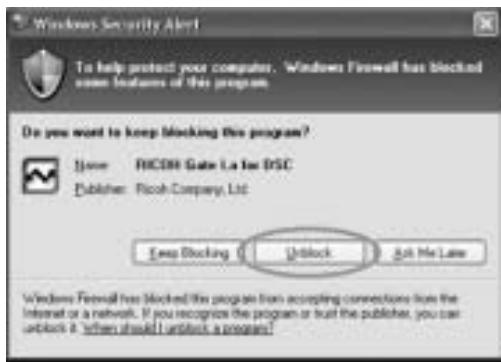
Caution
If you do not recognize the program, you should block it because it may be a virus. Click the [Keep Blocking] button to prevent the program from connecting to the Internet.
If you clicked the [Keep Blocking] button:
Follow the steps below to check the Windows Firewall settings.
1 Click [Start] and then [Control Panel].
2 Double-click [Windows Firewall].
- If [Windows Firewall] is not displayed, click [Switch to Classic View] at the top left of the window.
![RICOH CAPLIO GX100 - If you clicked the [Keep Blocking] button: - 1](/content/2025/01/136419/images/4f3ff3a39f1344c83de999df17db9bd15e853c7e3d6624715496f954399a53ed.jpg)
Windows Firewall
3 Click the [Exceptions] tab.
4 Check that the software is in [Programs and Services].
5 Click the [Add Program] button to add software that uses the network.
![RICOH CAPLIO GX100 - If you clicked the [Keep Blocking] button: - 2](/content/2025/01/136419/images/ee63b0d799245501043e6f2524926fbbc93e7ac0e8fbd8dd019bfc26bb570d97.jpg)
If you clicked the [Ask Me Later] button:
Each time the program is activated, the [Windows Security Alert] dialog box appears. Then you can select [Unblock].
Specifications
General
| Video Signal Format | NTSC, PAL |
| Power Source Voltage | Rechargeable Battery DB-60 (3.7 V) × 1 |
| AAA Dry Alkaline Battery, Nickel-Hydrogen Battery, Oxyride Battery × 2 | |
| External (AC adapter): 3.8 V | |
| External Dimensions | 111.6 mm (W) × 58.0 mm (H) × 25.0 mm (D) (excluding projecting parts) |
| Weight | Camera: Approximately 220 g (excluding battery, strap) Accessories: Approximately 30 g (battery, strap) |
| Tripod Hole Shape | 1/4-20UNC |
| Operating Temperature Range | 0 °C to 40 °C |
| Operating Humidity Range | 85% or less |
| Storage Temperature Range | -20 °C to 60 °C |
Camera Parts
| Effective Pixels | 10.01 million pixels |
| Image Pickup Element | 1/1.75" primary-color CCD (Total 10.3 million pixels) |
| Lens | |
| Lens | 3.0× Optical Zoom Aperture: F2.5 (Wide-angle) to 4.4 (Telephoto) |
| Focal Length | 5.1 to 15.3 mm (equivalent to 24 to 72 mm on a 35mm camera) |
| Shooting Distance | Approximately 0.3 m to ∞ (Wide-angle) or 0.3 m to ∞ (Telephoto) |
| Macro Shooting Distance (from the front edge of the lens) | Approximately 0.01 m to ∞ (Wide-angle), 0.04 m to ∞ (Telephoto) or 0.01 m to ∞ (Zoom macro mode) |
| Digital Zoom | 4.0 times |
| Monitor Display Parts | |
| Screen Size | 2.5" |
| Type | Transparent Amorphous Silicon TFT LCD |
| Pixel Count | Approx. 230,000 |
| White Balance | AUTO/Fixed (OUTDOORS, CLOUDY, INCAND., FLUORES., MANUAL) |
| Exposure Adjustment | |
| Light Metering Sensitivity Distribution | Multi Light Metering (256 segments), Center-weighted Light Metering, Spot Metering |
| Exposure Compensation | Manual exposure compensation +/-2.0EV (1/3EV Steps) |
| Metering Method | TTL-CCD Metering Method |
| Flash AE | Yes (In Daylight Synchro: On) |
| Shutter Speed | Still image: 180, 120, 60, 30, 15, 8, 4, 2, 1 to 1/2000 seconds; The upper and lower limits differ for each scene mode and flash mode. Movie: 1/30 to 1/2000 seconds |
| ISO Sensitivity (Standard Output Sensitivity) | AUTO, AUTO-HI, ISO 80/ISO 100/ISO 200/ISO 400/ISO 800/ISO 1600 |
| Distance Control | |
| AF Method | Normal Shooting: External Passive/CCD method, Macro: CCD method |
| AF Measurement Range | Normal: approx. 0.3 m to ∞, Macro: approx. 0.01 m (W), 0.02 m (M), 0.04 m (T) to ∞ |
| Internal Flash | |
| Method | Flashmatic and pre-flash method |
| Shooting Distance | Approx. 0.2 to 5.0 m (Wide-angle), Approx. 0.15 to 3.0 m (Telephoto) (ISO: AUTO) |
| Operating Modes | Flash Off/Auto/Red-eye reduction/Forced Flash/Flash synchro/Soft Flash |
| Date Maintain Time | Approx. 1 week |
Image Data Record/Playback Part
| Pixels | |
| Still Image | 3648 × 2736, 3648 × 2432, 2736 × 2736, 3264 × 2448, 2592 × 1944, 2048 × 1536, 1280 × 960, 640 × 480 |
| Text | 3648 × 2736, 2048 × 1536 |
| Movie | 640 × 480, 320 × 240 |
| File Formats | |
| Still Image | JPEG (Exif Ver.2.21) |
| Text | JPEG (Exif Ver.2.21) |
| Movie | AVI (Open DML Motion JPEG Format Compliant) |
| Sound | WAV (Exif Ver.2.21 μ law) |
| Camera File System Standard | DCF ("Design rule for Camera File system", a JEITA standard) |
| Compression Format | JPEG Baseline Format Compliant (Still image, movie) |
| Image Size | |
| 3648 × 2736 | N: approx. 2073 KB/Screen, F: approx. 3608 KB/Screen, RAW: approx. 14.4 KB/Screen |
| 3648 × 2432 | N: approx. 1846 KB/Screen, F: approx. 3210 KB/Screen, RAW: approx. 12.8 KB/Screen |
| 2736 × 2736 | F: approx. 2713 KB/Screen |
| 3264 × 2448 | N: approx. 1665 KB/Screen |
| 2592 × 1944 | N: approx. 1060 KB/Screen |
| 2048 × 1536 | N: approx. 672 KB/Screen |
| 1280 × 960 | N: approx. 356 KB/Screen |
| 640 × 480 | N: approx. 83 KB/Screen |
I/O Terminals
| DC In | 3.8 V (AC adapter) |
| Video Out | 1.0 Vp-p (75T) |
| USB Terminal | USB2.0 High-Speed (mini B cable) |
Memory Cards for Recording and Playback
| Memory Type | SD memory card, SDHC memory card, Multi media card |
Number of Images That Can be Stored in Internal Memory/SD Memory Card
The following table shows the approximate number of images that can be recorded in the internal memory and onto an SD memory card at various image size and picture quality settings.
| Mode | Picture Quality | Image Size | Internal Memory | 64 MB | 128 MB | 256 MB | 512 MB | 1 GB | 2 GB | 4 GB |
| Still Image | RAW | 3648 × 2736 | 1 | 3 | 6 | 13 | 26 | 51 | 105 | 206 |
| F | 3648 × 2736 | 6 | 15 | 31 | 63 | 127 | 244 | 495 | 973 | |
| N | 3648 × 2736 | 11 | 27 | 55 | 109 | 221 | 425 | 865 | 1699 | |
| RAW | 3648 × 2432 | 1 | 3 | 7 | 15 | 30 | 58 | 118 | 232 | |
| F | 3648 × 2432 | 7 | 17 | 35 | 70 | 142 | 274 | 558 | 1097 | |
| N | 3648 × 2432 | 13 | 30 | 61 | 122 | 247 | 476 | 960 | 1885 | |
| F | 2736 × 2736 | 8 | 20 | 42 | 83 | 169 | 325 | 660 | 1297 | |
| N | 3264 × 2448 | 14 | 33 | 68 | 136 | 275 | 530 | 1078 | 2117 | |
| N | 2592 × 1944 | 22 | 53 | 107 | 213 | 430 | 828 | 1661 | 3261 | |
| N | 2048 × 1536 | 35 | 83 | 169 | 338 | 682 | 1313 | 2671 | 5246 | |
| N | 1280 × 960 | 62 | 147 | 300 | 599 | 1208 | 2323 | 4726 | 9282 | |
| N | 640 × 480 | 276 | 644 | 1303 | 2598 | 5236 | 10071 | 20476 | 40206 | |
| TEXT MODE | 3648 × 2736 | 11 | 27 | 55 | 109 | 221 | 425 | 865 | 1699 | |
| 2048 × 1536 | 35 | 83 | 169 | 338 | 682 | 1313 | 2671 | 5246 | ||
| Movie | 640 × 48015FPS | 24 s | 57 s | 1 min56 s | 3 min51 s | 7 min46 s | 14 min57 s | 30 min24 s | 59 min42 s | |
| 640 × 48030FPS | 12 s | 28 s | 58 s | 1 min56 s | 3 min55 s | 7 min31 s | 15 min19 s | 30 min4 s | ||
| 320 × 24015FPS | 1 min16 s | 2 min58 s | 5 min59 s | 11 min57 s | 24 min5 s | 46 min19 s | 94 min11 s | 184 min57 s | ||
| 320 × 24030FPS | 39 s | 1 min31 s | 3 min4 s | 6 min7 s | 12 min19 s | 23 min42 s | 48 min13 s | 94 min40 s | ||

Note
- The number of remaining shots displayed on the LCD monitor may differ from the actual number of shots, depending on the subject.
- Movie recording time and the maximum number of still pictures may vary depending on the capacity of the recording destination (internal memory or SD memory card), shooting conditions, and the type and manufacturer of the SD memory card.
- A high speed memory card is recommended when shooting for long periods.
Optional Accessories
The Caplio GX100 can be used with the items (sold separately) listed below.
| Item | Model | Remarks |
| AC Adapter | AC-4c | Used for power supply from a household outlet to the camera. |
| Rechargeable Battery | DB-60 | Rechargeable battery for use with this camera. |
| Battery Charger | BJ-6 | Used to charge the rechargeable battery (DB-60). |
| LCD Viewfinder | VF-1 | An electrical viewfinder that attaches to the hot shoe (case included). This offers viewfinder coverage of 100% and can be adjusted up to 90° without any parallax, and enables easy low-angle shooting. The LCD viewfinder (VF-1) is supplied with Caplio GX100 VF KIT. |
| Wide Conversion Lens | DW-6 | A wide conversion lens that enables wide-angle shooting at a lens magnification of 0.79 times (equivalent to a 19-mm wide-angle lens on a 35mm camera). Use with the hood & adapter (case included). |
| Hood & Adapter | HA-2 | Includes a hood to protect the lens from sunlight and an adapter for 43-mm general-use filters. These can be used to enhance the shooting quality when the subject is backlit. |
| Cable Switch | CA-1 | Used to release the camera shutter. You can perform half-press and full-press operations. |
| Neck Strap | GS-1 | A double-loop neck strap. |
| Soft Case | SC-45 | Used to store your camera. |
- Before using an optional accessory, see the documentation that came with the product.
- You cannot use the internal flash when using the wide conversion lens or hood.
- You cannot use the internal flash when the LCD viewfinder is tilted.
- This camera cannot be used with the ST-1 neck strap.
Using the AC Adapter (sold separately)
When shooting or viewing still images for a long time, or when connecting to your computer, use of the AC adapter (sold separately) is recommended.
If you have already used this camera, make sure it is turned off before loading the AC adapter coupler.
1 Slide the release lever toward OPEN to open the battery/card cover.
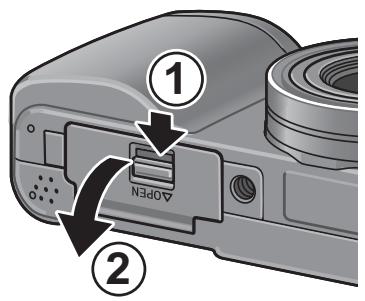
2 Insert the AC adapter coupler.
- When the AC adapter coupler is loaded in place, it is locked with the hook shown in the figure.
3 Open the power (DC input) cable cover and place the cable outside.
4 Close the battery/card cover and slide the release lever in the opposite direction of OPEN to lock it in place.
5 Plug the power cord into an outlet.
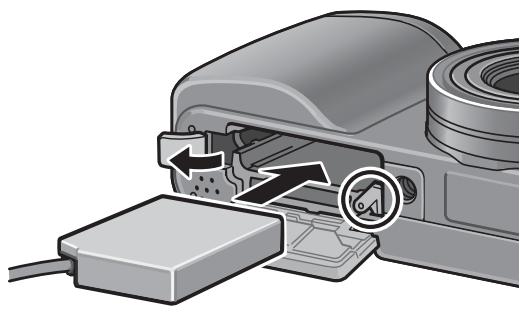
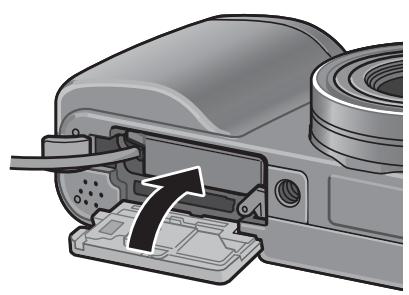
Caution
- When closing the battery/card cover, slide the release lever and be sure to lock it in place.
- Be sure to attach the AC cable and plug the power cord into the outlet firmly.
- When you are not using the camera, unplug the AC adapter from the camera and the power outlet.
- If you disconnect the AC adapter from the camera or the plug from the outlet while the camera is in use, data may be lost.
- When using the AC adapter, the battery level indication may not reach the full area.
Disconnecting the AC Adapter
Make sure the camera is turned off before disconnecting the AC adapter.
1 Unplug the power plug from the outlet.
2 Slide the release lever toward OPEN to open the battery/card cover.
3 Remove the AC adapter coupler from the camera.
4 Close the battery/card cover and slide the release lever in the opposite direction of OPEN to lock it in place.
Using the External Flash
The camera has a hot shoe, allowing you to attach an external flash (available in stores).
When using an external flash, follow the steps below.
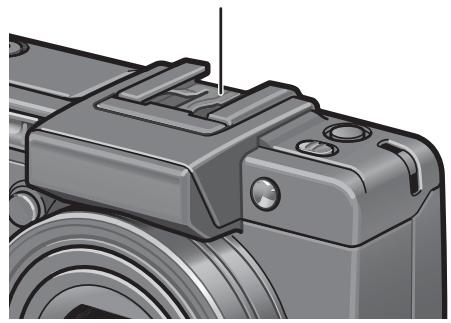
X contact
1 Close the flash cover. (P.17)
2 With the camera and external flash powered off, attach the external flash to the hot shoe.
3 Turn on the camera, turn the mode dial to A or M, and set the aperture value. (P.71, P.72)
4 Set the ISO sensitivity to a value other than [AUTO].
5 Turn on the external flash, turn its mode to "Auto", and set the F-value and ISO sensitivity to the camera-set values.
- Be sure to turn off the external flash before detaching the external flash from the camera.
Caution
Camera shake may occur when using slower shutter speeds.

Caution
- You cannot use the internal flash when an external flash is attached as this can cause injury or damage.
- Irrespective of flash setting, a flash ON signal is output to the X contact of the hot shoe. To stop an external flash, use a switch on the flash.
- Exposure may not be appropriate even when the F-value and ISO sensitivity of the external flash are the same as those of the camera. If so, change the f-number and ISO sensitivity of the flash.
- As the flash ON signal, the camera outputs a positive pulse to the X contact.
- A flash on the market rarely have an X contact of the opposite polarity. This kind of flash may not only not work but also cause a problem to the camera. For the terminal specifications, contact the manufacturer of the external flash.
- Use an external flash of a lighting angle covering the angle of view of the shooting lens.
- Use an external flash basically at a distance where the internal flash is not adequate (long distance). Shooting at a short distance may end in over-exposure.
- Do not use an external flash having a special signal pin. Using such a flash may cause inappropriate exposure or damage of the camera circuit.
- You cannot use an LCD viewfinder when an external flash is attached.
Functions Whose Defaults are Restored When Camera is Turned Off
Turning the camera off may reset some function settings to their defaults.
The table below indicates whether or not the function is reset to its default when the camera is turned off.
O : setting is saved × : setting is restored
| Type | Function | Default Settings | |
| Shooting options | PIC QUALITY/SIZE | O | N3648(10M) |
| FOCUS | O | MULTI AF | |
| AE METERING | O | MULTI | |
| CONT. MODE | × | OFF | |
| IMG SET | O | NORMAL | |
| AUTO BRACKET | × | OFF | |
| INTERVAL | × | 0s | |
| IMAGE WITH SOUND | × | OFF | |
| DATE IMPRT | O | OFF | |
| EXPOSURE COMP. | O | 0.0 | |
| WHITE BALANCE | O | AUTO | |
| ISO SETTING | O | AUTO | |
| CAMERA SHAKE COR | O | ON | |
| Macro shooting | O | MACRO OFF | |
| Flash | O | FLASH OFF | |
| Self-timer | × | SELF-TIMER OFF | |
| Maximum brightness | O | - | |
| DENSITY (TEXT MODE) | O | NORMAL | |
| SIZE (TEXT MODE) | O | 2048(3M) | |
| MOVIE SIZE (movie mode) | O | 320 | |
| FRAME RATE | O | 30FPS | |
| Playback options | Volume setting for movies and still pictures with sound | O | - |
O:setting is saved × :setting is restored
| Type | Function | Default Settings | |
| Items to set from the setup menu | LCD BRIGHTNESS | ○ | - |
| REG. MY SETTINGS | ○ | SETTING1 | |
| STEP ZOOM | ○ | OFF | |
| ISO AUTO-HIGH SET | ○ | AUTO 400 | |
| AUTO POWER OFF | ○ | 1 MIN. | |
| BEEP SOUND | ○ | ALL | |
| VOL. SETTINGS | ○ | ■ □ (Medium) | |
| LCD CONFIRM. | ○ | 0.5 SEC. | |
| ADJ LEVER. SET.1 | ○ | EXPO.CMP | |
| ADJ LEVER. SET.2 | ○ | WHT.BAL. | |
| ADJ LEVER. SET.3 | ○ | ISO | |
| ADJ LEVER. SET.4 | ○ | OFF | |
| ADJ SHTR BTN SET | ○ | OFF | |
| FNCTN. BTN. SET. | ○ | AF/MF | |
| AF AUX. LIGHT | ○ | ON | |
| RAW/JPEG SETTING | ○ | FINE | |
| DIGITAL ZOOM IMG | ○ | NORMAL | |
| SHTG STGS WARNING. | ○ | ON | |
| ENLGE PHOTO ICON | ○ | OFF | |
| USB CONNECTION | ○ | MASS STR | |
| SEQUENTIAL NO. | ○ | ON | |
| DATE SETTINGS | ○ | - | |
| LANGUAGE/言語 | ○ | * | |
| VIDEO OUT MODE | ○ | * |
- The default setting varies depending on where you purchased the camera.
About Scene Mode
Depending on the scene mode, the operation of functions may differ from when in normal shooting mode. Refer to the table below.
| Scene Mode | Flash | Macro Shooting |
| PORTRAIT | Initial setting: FLASH OFF | Disabled |
| SPORTS | Initial setting: FLASH OFF | Disabled |
| LANDSCAPE | Fixed to [FLASH OFF] | Disabled |
| NIGHTSCAPE | [FLASH ON] is disabled | Disabled |
| Initial setting: AUTO | ||
| SKEW COR MODE | Initial setting: FLASH OFF | Enabled |
| TEXT MODE | Initial setting: FLASH OFF | Enabled |
| ZOOM MACRO | Initial setting: FLASH OFF | Macro shooting only |
| HIGH SENS | Initial setting: FLASH OFF | Enabled |
Shooting Setting Menu Items by Scene Mode
O Available, - Not available
For details about options, see P.77.
Using Your Camera Abroad
AC Adapter (Model AC-4c)
This AC adapter can be used in regions with a current of 100-240V, 50Hz/60Hz.
If you are going to travel to a country that uses a different shaped wall outlet/plug, please consult your travel agent on a plug adapter suitable for wall outlets in your country of destination.
Warranty
This product was manufactured for use in the country in which it was purchased. The warranty is only valid in the country in which the camera was purchased.
Should the product fail or malfunction while you are abroad, the manufacturer assumes no responsibility for servicing the product locally or bearing the expenditure incurred therefore.
Playback on Television in Other Regions
Playback is possible on televisions (or monitors) equipped with a video input terminal. Please use the AV cable provided.
This camera is compatible with both NTSC and PAL television formats. Set the video format on the camera to match that of the television you are using.
When you go abroad, set your camera to the local video format.
Cautions on Use
Cautions on Use
- This product was manufactured for use in the country in which it was purchased. The warranty is only valid in the country in which the camera was purchased.
- Should the product fail or malfunction while you are abroad, the manufacturer assumes no responsibility for servicing the product locally or bearing the expenditure incurred therefore.
- Be sure not to drop or apply any sudden force to the camera.
- Firing the flash consecutively may heat the firing unit. Do not fire it consecutively more than necessary.
- Do not touch the flash and keep foreign objects away from the firing unit. Doing so can cause burns and fires.
- Do not fire the flash near eyes. It could cause visual impairment (particularly for infants).
- Do not fire the flash near the driver of a vehicle to avoid causing accidents.
- The batteries may become hot after extended use. Touching the batteries immediately after use could result in burns to your fingers.
- If the LCD monitor or panel is exposed to sunlight, they may become washed out and images may become hard to view.
- The LCD monitor and panel may contain some pixels that do not remain lit up continually in part or at all. Also, the brightness may become uneven because of the characteristics of LCDs. These are not failures.
- Do not forcefully press the surface of the LCD monitor.
- While you are carrying the camera, be careful not to hit it against other objects.
- In an environment where the temperature changes suddenly, condensation may occur in the camera, resulting in troubles such as fogging of the glass surface or malfunctions of the camera. If this occurs, place the camera in a bag to slow the temperature change as much as possible. Take it out of the bag after the temperature difference from the atmosphere has decreased to a fairly small amount.
- To avoid damaging the connectors, do not put any objects into the camera's microphone or speaker holes.

Conditions in which condensation may easily occur:
- When the camera is moved to an environment where the temperature differs greatly.
In humid places. - In a room immediately after being heated, or when the camera is exposed directly to cooled air from an air-conditioner or another similar appliance.
Care and Storage
Care
- Please note that if fingerprints, dirt, etc. get onto the lens, picture quality will suffer.
- When dust or dirt does get on the lens, do not touch it directly with your fingers, and either use a blower (available in stores) to blow it off, or a soft cloth to gently dust it off.
- After use at the beach or around chemicals, wipe it off particularly carefully
- In the unlikely event that your camera fails to work properly, please consult your Ricoh Repair Center.
- There are high voltage circuits in this camera. As this is dangerous, do not dismantle this camera under any circumstances.
- Do not get volatile substances, such as thinner, benzene, or pesticides on your camera. This may cause a change in quality, paint to peel, etc.
- As the surface of the LCD monitor is easily scratched, do not rub hard objects against it.
- Clean the surface of the LCD monitor by wiping gently with a soft cloth containing a small amount of display cleaner sold in stores.
Use and Storage
- Please avoid using or storing your camera in the following kinds of places, as this may damage the camera.
In high heat and humidity, or where there is severe change in temperature or humidity.
Places with a lot of dust, dirt or sand.
Places with severe vibration.
Places where it is in direct contact with vinyl or rubber products or chemicals, including mothballs or other insect repellent, for long periods of time.
Places with strong magnetic fields (near a monitor, transformer, magnet, etc.).
- Remove the batteries if you are not going to use the camera for a long period of time.
Precautions regarding care of your camera
- Be sure to turn the power off.
- Remove the batteries or AC adapter before caring for your camera
Warranty and Servicing
- This product is backed by a limited warranty. During the warranty period mentioned in the Warranty supplied with your camera, any defective parts will be repaired free of charge. In the event of a camera malfunction, contact the dealer from which you purchased the camera or your nearest Ricoh Repair Center. Please note that you will be not be reimbursed for the cost of bringing the camera to the Ricoh Repair Center.
- This warranty does not cover any damage resulting from:
(1) failure to follow the instructions in the instruction manual;
(2) repair, modification or overhaul not conducted by an authorized service center listed in the instruction manual;
(3) fire, natural disaster, act of God, lightning, abnormal voltage, etc.;
④ improper storage (noted in the "Camera User Guide"), leaking of battery and other fluids, mold, or otherwise insufficient care of the camera.
(5) submergence in water (flooding), exposure to alcohol or other beverages, infiltration of sand or mud, physical shock, dropping of the camera, or pressure on the camera, and other unnatural causes.
- After the warranty period has passed, you will be liable for all repair fees, including those incurred at an authorized service center.
- You will be liable for all repair fees, even within the warranty period, if the warranty card is not attached or if the distributor's name or the purchase date have been changed or are not indicated on the card.
- Expenses for overhaul and thorough inspection by special request of the customer will be charged to the customer, whether or not they are incurred during the warranty period.
- This warranty only applies to the camera and not to the accessories, such as the case and strap, nor does it apply to the battery and other consumables provided.
- Any consequential damages arising from failure of the camera, such as expenses incurred in taking pictures or loss of expected profit, will not be reimbursed whether they occur during the warranty period or not.
-
The warranty is only valid in the country in which the camera was purchased.
-
The above provisions refer to repairs offered free of charge, and do not limit your legal rights.
-
The intention of the above provisions is also described in the warranty card provided with this camera.
-
Parts essential to the servicing of the camera (that is, components required to maintain the functions and quality of the camera) will be available for a period of five years after the camera is discontinued.
- Please note that if the camera is seriously damaged by flooding, submergence, infiltration of sand or mud, violent shocks or dropping, it may not be repairable, and restoration to its original condition may be impossible.

Note
- Before sending the camera in for repair, check the battery and read the instruction manual again to ensure proper operation.
- Some repairs require a significant amount of time to be completed.
- When sending the camera to a service center, please include a note which describes the defective part and the problem as precisely as possible.
- Remove all accessories not related to the problem before sending the camera to the service center.
- Before taking any important pictures (such as at weddings, on trips abroad, etc.), test the camera to check operation and ensure proper functioning. We recommend that you keep this manual and spare battery on hand.
- This warranty does not apply to data stored on an SD memory card or in internal memory.
INFORMATION TO THE USER
USA FCC Part15 Class B
The equipment has been tested and found to comply with the limits for a Class B digital device, pursuant to part 15 of the FCC Rules. These limits are designed to provide reasonable protection against harmful interference in a residential installation. This equipment generates, uses, and can radiate radio frequency energy and if not installed and used in accordance with the instructions, may cause harmful interference to radio communications. However, there is no guarantee that interference will not occur in a particular installation. If this equipment does cause harmful interference to radio or television reception, which can be determined by turning the equipment off and on, then user is encouraged to try to correct the interference by one or more of the following measures:
- Reorient or relocate the receiving antenna.
- Increase the separation between the equipment and receiver.
- Connect the equipment to an outlet on a circuit different from that to which the receiver is connected.
- Consult the dealer or an experienced radio/TV technician for help. (FCC 15.105B) Changes or modifications not expressly approved by the party responsible for compliance could void the user's authority to operate the equipment. (FCC 15.21)
Properly shielded and grounded cables and connectors must be used for connection to a host computer in order to comply with FCC emission limits. (FCC 15.27)
An AC adapter with a ferrite core must be used for RF interference suppression.
COMPLIANCE INFORMATION STATEMENT
Product Name: DIGITAL CAMERA
Model Number: Caplio GX100
This device complies with Part 15 of the FCC Rules.
Operation is subject to the following two conditions:
(1) This device may cause harmful interference, and
(2) This device must accept any interference received, including interference that may cause undesired operation.
RICOH CORPORATION
5 Dedrick Place, West Caldwell NJ, 07006 Tel.: 1-800-225-1899
Note to Users in Canada
Note: This Class B digital apparatus complies with Canadian ICES-003
IMPORTANT SAFETY INSTRUCTIONS-SAVE THESE INSTRUCTIONS DANGER-TO REDUCE THE RISK OF FIRE OR ELECTRIC SHOCK, CAREFULLY FOLLOW THESE INSTRUCTIONS.
Index
A
ACadapter 14,199
Acrobat Reader 175
ADJ LEVER SET.1, 2 148
ADJ SHTR BTN SET 149
ADJ. lever 18, 20, 64, 112
ADJ. mode 64
AE LOCK 70
AE METERING 86
AF AUX. LIGHT 151
AF auxiliary light 17, 50
AF target shift 66
AF window 17
Alkaline batteries 25, 31
Aperture priority mode (A) .... 19, 71
AUTO BRACKET 93
Auto focus (AF) 83
Auto focus/Flash lamp 18, 39, 45
Auto focus/Manual focus (AF/MF) 69
AUTO POWER OFF 33, 144
AUTO RSZ (Auto resize) 153
Auto shooting mode 19, 38
AV cable 12, 126
AV output terminal 18, 126
AVI file 109
B
Backlighting 100
Battery 25
Battery charger 12, 29
Battery level indication 24
Battery/Card cover 18, 30, 199
BEEP SOUND 145
C
Cable switch 14, 16, 198
Camera shake 37, 106
CAMERA SHAKE COR. 106
Caplio Software CD-ROM ... 13, 165
Card reader. 180
CONT. 87
COPY TO CARD. 123
D
DATE IMPRINT. 99
DATE SETTINGS 35,161
Delete. 56
Delete/ Self-timer button ... 18, 50, 56
DesktopBinder Lite 167, 173
Digital zoom 42
DIGITAL ZOOM IMG 153
Direct print. 128
DISP. button 18, 59
DPOF 118
E
Enlarged view 55
Enlarged view/Thumbnail display button 18, 42, 53
ENLGE PHOTO ICON 156
Error messages. 186
EXPOSURE COMP. 100
External flash 16, 201
F
Flash 17, 44
Flash button 18, 44
Flash OPEN switch 17, 44
Fn (Function) button...... 17, 67, 150
FNCTN. BTN. SET 150
FOCUS 83
Focus lock. 39
FORMAT [CARD] 137
FORMAT [INT. MEM.] 138
FRAME RATE 110
Full-press 38
G
Grid guide 59
Grid view 53
H
Half-press. 39
Handstrap 12
HIGH SENS 47
61
Hood & adapter 14, 198
Hot shoe 17, 201
1
IMAGE WITH SOUND 98
IMG SET 91
Internal memory 27, 52
INTERVAL 96
Irodio Photo & Video Studio 166, 168, 177
ISO AUTO-HIGH 143
ISO SETTING. 104
L
LANDSCAPE 46
LANGUAGE/言語 34,162
LCD BRIGHTNESS 139
LCD CONFIRM. 147
LCD monitor 18, 22
LCDviewfinder 14,198
Lens 17
Lens cap. 12, 32
M
M (Memory-reversal)-CONT...... 87
Macro button 18, 43
Manual exposure mode (M) .. 19, 72
Manual focus (MF) 84
Mass storage mode (MASS STR) 157, 179
MENU/OK button... 18, 79, 113, 135
Microphone 17
MODE button 18,47
Mode dial. 17, 19
Movie mode 19, 109
MOVIE SIZE 80
My settings mode (MY1, MY2) 19, 76
N
Nickel-Hydrogen batteries 25
NIGHTSCAPE 46
Number of images that can be stored 197
Number of shots you can take..... 26
0
ORIGINAL 157
Oxyride batteries 25
P
PIC QUALITY/SIZE. 80
PictBridge 128
Playback button 18,52
Playback mode 32,52
Playback setting menu. 113
PORTRAIT 46
POWER button 17
Printing 128
Program shift mode (P) 19, 74
PROTECT 115
Q
Quick review button 18, 51
R
RAW format file 80
RAW/JPEG SETTING. 152
Rechargeable battery 12, 25, 29, 30
Recharging. 29
REG. MY SETTINGS 140
Release lever. 18, 30, 199
RESIZE 121
RESTORE DEFAULTS 108
RICOH Gate La. 166, 181
s
S (Stream)-CONT 87
Scene mode (SCENE) 19, 46
SD memory card. 27, 30, 52
Self-timer. 50
SEQUENTIAL NO. 159
SETUP menu 134
Shooting setting menu 77
SHTG STGS WARNING. 155
Shutter release button. 17, 36
SKEW COR MODE 46, 48
SKEW CORRECTION 124
SLIDE SHOW 114
Speaker 18
SPORTS 46
STEP ZOOM 142
Still image mode 22, 23, 46
T
Telephoto/Wide-angle button 18,42,54
Terminal cover. 18, 126, 129
Text density 65
TEXT MODE 46
Three-frame view 53
Tripod screw hole 18
U
Up-down dial 17, 20
USB cable 12, 128
USB CONNECTION 157
USB driver 166, 167
USB terminal 18, 129, 178
V
VIDEO OUT MODE 163
VOL. SETTINGS 146
W
WHITEBALANCE 101
White balance bracket (WB-BKT) 94
White saturation highlights display 60
WIA driver. 166, 167
Wide conversion lens 14, 198
Z
Zoom 42
ZOOM MACRO 47, 49
Telephone Support Numbers in Europe
| UK | (from within the UK) | 02073 656 580 |
| (from outside of the UK) | +44 2073 656 580 | |
| Deutschland | (innerhalb Deutschlands) | 06331 268 438 |
| (außerhalb Deutschlands) | +49 6331 268 438 | |
| France | (à partir de la France) | 0800 91 4897 |
| (en dehors de la France) | +49 6331 268 409 | |
| Italia | (dall'Italia) | 02 696 33 451 |
| (dall'estero) | +39 02 696 33 451 | |
| España | (desde España) | 91 406 9148 |
| (desde fuera de España) | +34 91 406 9148 |
http://www.service.ricohpmmc.com/
From environmental friendliness to environmental conservation and to environmental management
Ricoh is aggressively promoting environment-friendly activities and also environment conservation activities to solve the great subject of management as one of the citizens on our precious earth.
To reduce the environmental loads of digital cameras, Ricoh is also trying to solve the great subjects of "Saving
energy by reducing power consumption" and "Reducing environment-affected chemical substances contained in products".
If a problem arises
First of all, see "Troubleshooting" (P.186) in this manual. If the issues still persist, please contact a Ricoh office.
| Ricoh Offices | |
| RICOH COMPANY, LTD. | 3-2-3, Shin-Yokohama Kouhoku-ku, Yokohama City, Kanagawa 222-8530, Japan http://www.ricoh.co.jp/r.dc |
| RICOH AMERICAS CORPORATION | 5 Dedrick Place, West Caldwell, New Jersey 07006, U.S.A. 1-800-22RICOH http://www.ricoh-usa.com |
| RICOH INTERNATIONAL B.V. (EPMMC) | Oberrather Str. 6, 40472 Düsseldorf, GERMANY (innerhalb Deutschlands) 06331 268 438 (außerhalb Deutschlands) +49 6331 268 438 http://www.ricohpmmc.com |
| RICOH UK LTD. (PMMC UK) | (from within the UK) 02073 656 580 (from outside of the UK) +44 2073 656 580 |
| RICOH FRANCE S.A.S. (PMMC FRANCE) | (à partir de la France) 0800 91 4897 (en dehors de la France) +49 6331 268 409 |
| RICOH ESPANA, S.A. (PMMC SPAIN) | (dese España) 91 406 9148 (dese fuera de España) +34 91 406 9148 |
| RICOH ITALIA S.p.A. (PMMC ITALY) | (dall'Italia) 02 696 33 451 (dall'estero) +39 02 696 33 451 |
| RICOH HONG KONG LIMITED | 12/F, One Kowloon, 1 Wang Yuen Street, Kowloon Bay, Hong Kong |
| RICOH AUSTRALIA PTY. LTD. | 8 Rodborough Road, Frenchs Forest, NSW 2086, Australia http://www.ricoh.com.au |
| About Irodio Photo & Video Studio | |
| North America (U.S.) | (Toll Free) +1-800-458-4029 |
| Europe | UK, Germany, France and Spain: (Toll Free) +800-1532-4865 Other Countries: +44-1489-564-764 |
| Asia | +63-2-438-0090 |
| China | +86-21-5450-0391 |
| Business hours: 9:00 AM to 5:00 PM | |
Ricoh Company, Ltd.
Ricoh Building, 8-13-1, Ginza, Chuo-ku, Tokyo
104-8222, Japan
2007 June
- Basic Operations
- Advanced Operations
- Note
- Do not connect the USB cable yet!
- Preface
- Using These Manuals
- Key Features
- Wide-angle zoom lens can capture wide-angle pictures
- Camera shake correction function reduces blurring (P.106)
- Variety of accessories for greater creative expression (P.16)
- Macro shooting at 1 cm (P.43) and close-up flash shooting at 15 cm (Telephoto) or 20 cm (Wide-angle) (P.44)
- Aperture priority mode, manual exposure mode, and program shift mode for fine-tuned adjustments
- Power your camera in one of three ways (P.25)
- megapixel CCD and RAW mode for high-quality shooting (P.80)
- Up-down dial and ADJ. lever for faster and easier operations (P.20)
- fps or 15 fps high-quality movies with sound (P.109)
- Easily customize your favorite shooting settings with my settings mode (P.76)
- Skew correction mode helps straighten skewed images (P.46)
- USB cable enables instant transfer of camera data to a computer
- Irodio Photo & Video Studio software for browsing, viewing, and editing still images and movies (P.166)
- Direct printing without the use of a computer (P.128)
- Contents
- 11
- 63
- Various Shooting Functions
- 64
- Shooting/Playing Back Movies 109
- OtherPlayback Functions 113
- Direct Printing 128
- Changing Camera Settings
- Downloading Images to Your Computer
- Appendices 186
- Packing List
- Caplio GX100
- Hot Shoe Cover
- USB Cable
- AV Cable
- Handstrap
- Rechargeable Battery
- Battery Charger
- Lens Cap
- Lens Cap Strap
- Camera User Guide
- Safety Precautions
- Caplio Software CD-ROM
- About Caplio GX100 VF KIT
- Optional Accessories
- AC Adapter (AC-4c)
- LCD Viewfinder (VF-1)
- Attaching the neck strap and lens cap to the camera
- Removing/attaching the ring cap
- Removing the ring cap
- Attaching the ring cap
- Camera System and Accessories
- Names of Parts
- Camera
- Rear View
- How to Use the Mode Dial
- How to Use the Up-down Dial and ADJ. Lever
- LCD Monitor Display
- Example of LCD Monitor Display when Shooting Pictures
- Example of LCD Monitor Display During Playback
- Battery Level Indication
- Caution
- About the Battery
- Rechargeable Battery DB-60 (supplied)
- SD Memory Card (available in stores)
- Where images are recorded
- Write-protecting your images
- Charging the Rechargeable Battery
- Insert the battery into the battery charger, making sure that the and markings on the battery match those on the battery charger.
- Plug the battery charger into an outlet.
- Loading the Battery and SD Memory Card
- Loading AAA Alkaline Batteries (Available in Stores)
- Removing the SD Memory Card
- Removing the Rechargeable Battery
- Removing the AAA Alkaline Batteries
- Turning the Power On/Off
- To turn the power on:
- Press the POWER button.
- Using the Camera inPlayback Mode
- To turn the camera off:
- Auto power off
- Setting the Language
- Turn the power on for the first time after purchase.
- Press the buttons to select a language.
- Press the MENU/OK button.
- Setting the Date and Time
- 1
- Press the buttons to set the year, month, date and time.
- 2
- In [FORMAT], choose the date and time format.
- 3
- Check the information on the screen and then press the MENU/OK button.
- Basic Shooting
- Holding the Camera
- Shooting
- Quickly Shooting Pictures (Full-press)
- Checking the Focus and Shooting (Half-press/ Focus Lock)
- To take a picture with the subject in the foreground in focus against a background, half-press the shutter release button to focus on the subject, and then compose your shot.
- Gently press the shutter release button all the way.
- Focusing
- Using the Zoom Function
- Using the Digital Zoom
- Shooting Close-Ups (Macro Shooting)
- With the camera ready to shoot, press the (Macro) button.
- Compose your picture and half-press the shutter release button.
- Full-press the shutter release button.
- Using the Flash
- Flash Modes
- Press the (Flash) button to change the flash mode.
- Shooting with Optimal Settings According to Shooting Conditions
- 4
- 5
- Returning to Normal Shooting Mode
- Turn the mode dial to
- Using the Skew Correction Mode
- Turn the mode dial to SCENE.
- Press the MODE button.
- Press the buttons to select [SKEW COR MODE].
- Press the MENU/OK button.
- Press the shutter release button to shoot the picture.
- Press the MENU/OK button.
- Shooting in Zoom Macro Mode
- Press the buttons to select [ZOOM MACRO].
- With the camera ready to shoot, press the [4] (Telephoto) or [4] (Wide-angle) button.
- Compose your picture and half-press the shutter release button.
- Full-press the shutter release button.
- Using the Self-Timer
- Turn the mode dial to .
- Press the (Self-timer) button.
- Press the shutter release button.
- Reviewing the Image You Just Took (Quick Review)
- In shooting mode, press the (Quick Review) button.
- Viewing Your Images
- Press the (Playback) button.
- Turning on the camera in playback mode
- Where images are played back from
- Three-frame View/Grid View (Thamburger Display)
- Press the (Playback) button.
- Press the (Thumbnail Display) button.
- Press the (Thumbnail Display) button again during three-frame view.
- Switching to Single-Picture Display
- Magnifying Images
- Press the (Playback) button.
- Press the buttons to display the still image you want to enlarge.
- Press the (Enlarged View) button.
- Deleting Files
- Deleting a File
- Deleting All Files
- Deleting Multiple Files at One Time
- Press the buttons to select the file you want to delete and press the (Delete) button.
- Repeat Step 3 to select all the files you want to delete.
- Press the MENU/OK button.
- Press the buttons to select [YES] and then press the MENU/OK button.
- Changing the Display with the DISP. Button
- - Shooting Mode
- Grid guide
- Turning the LCD monitor on/off
- - During Quick Review
- - DuringPlayback Mode
- White saturation highlights display
- Maximizing the LCD Monitor Brightness
- Histogram
- Using the ADJ. Lever
- Mode
- Settings by Mode
- Changing the Text Density (Scene Mode)
- Shifting the AF Target (Macro)
- Using the Function Button
- Press the Fn (Function) button.
- Switching Between Auto Focus and Manual Focus (AF/MF)
- With the camera ready to shoot, press the Fn (Function) button.
- Caution-
- Locking the Exposure (AE LOCK)
- Check that the camera is ready to shoot.
- Put the subject of your photo in the center of the screen and press the Fn (Function) button.
- Shooting with a Set Aperture Value (A: Aperture Priority Mode)
- Turn the mode dial to A.
- Rotate the up-down dial to change the aperture value.
- Half-press the shutter release button.
- Shooting with a Set Aperture Value and Shutter Speed (M: Manual Exposure Mode)
- Turn the mode dial to M.
- Press the ADJ. lever to the left or right to change the shutter speed.
- Half-press the shutter release button.
- Gently press the shutter release button all the way.
- Shooting with an Combined Aperture Value and Shutter Speed (P: Program Shift Mode)
- Turn the mode dial to P.
- Half-press the shutter release button.
- Release your finger from the shutter release button.
- Rotate the up-down dial to select the combination of the aperture value and shutter speed.
- Half-press or full-press the shutter release button to shoot a picture.
- Shooting with Custom Settings
- (MY1, MY2: My Settings Mode)
- Turn the mode dial to MY1 or MY2.
- Half-press or full-press the shutter release button to shoot a picture.
- Shooting Setting Menu
- When Mode Dial is Set to O / P / A / M / S CENE/My1/MY2
- When Mode Dial is Set to
- Using the Menu
- Press the MENU/OK button in shooting mode.
- Press the buttons to select the desired item.
- Press the button.
- Press the buttons to select the setting.
- Press the MENU/OK button, or press the button and then the MENU/OK button.
- Changing the display
- Choosing Picture Quality Mode/ Image Size (PIC QUALITY/SIZE)
- Still Images
- Movies
- Shooting with RAW mode
- Changing the Focusing Mode (FOCUS)
- Focusing Modes
- Manual Focus Shooting (MF)
- With the camera ready to shoot, press the MENU/OK button.
- Press the button to select [FOCUS] and press the button.
- Press the buttons to select [MF].
- Changing the Light Metering (AE METERING)
- Light Metering Modes
- Shooting with Multi-Shot
- (CONT./S-CONT/M-CONT)
- CONT.
- S (Stream)-CONT
- M (Memory-reversal)-CONT
- Turn the mode dial to P/A/M/SCENE.
- Press the MENU/OK button.
- Press the button to select [CONT. MODE] and press the button.
- Press the buttons to select [CONT], [S-CONT], or [M-CONT].
- Press the MENU/OK button, or press the button and then the MENU/OK button.
- Compose your picture and then press and hold the shutter release button.
- Release your finger from the shutter release button to stop taking pictures.
- S-CONT (S Multi-Shot)
- Compose your picture and then press the shutter release button.
- M-CONT (M Multi-Shot)
- Release your finger from the shutter release button.
- Viewing an S-CONT or M-CONT Still Image in Enlarged Display Mode
- Press the buttons to display an S-CONT or M-CONT still image.
- Press the (Enlarged View) button.
- Setting the Picture Quality (IMG SET)
- Picture Quality Modes
- Customizing the Picture Quality (SETTING1, SETTING2)
- Shooting Consecutively with Different Exposures (AUTO BRACKET)
- Press the button to select [AUTO BRACKET] and press the button.
- Press the buttons to select [ON ± 0.3 ] or [ON ± 0.5 ].
- Press the shutter release button to shoot the subject.
- Shooting Consecutively with Different White Balance (WB-BKT)
- Shooting Pictures Automatically at Set Intervals (INTERVAL)
- To stop shooting, press the MENU/OK button.
- Shooting a Still Image with Sound (IMAGE WITH SOUND)
- Inserting the Date into a Still Image (DATE IMPRINT)
- Changing the Exposure
- (EXPOSURE COMP.)
- For backlighting
- When your subject is whitish
- When your subject is darkish
- Using Natural and Artificial Lighting (WHITE BALANCE)
- Setting the White Balance Manually (MANUAL SETTINGS)
- Changing the Sensitivity (ISO SETTING)
- Press the MENU/OK button, or button and press the MENU/ OK button.
- Using the Camera Shake Correction Function to Prevent Camera Shake (CAMERA SHAKE COR)
- Returning the Shooting Setting Menu Settings to their Defaults (RESTORE DEFAULTS)
- Shooting/Playing Back Movies
- Shooting Movies
- Setting the Frame Rate (FRAME RATE)
- Movie frames
- Playing Back Movies
- Select the movie you want to view using the buttons.
- Press the ADJ. lever.
- Playback Setting Menu
- Displaying Photos in Order Automatically (SLIDE SHOW)
- Write-Protecting Files (PROTECT)
- Protecting a File
- Press the buttons to display the file you want to protect.
- Press the button to select [PROTECT] and press the button.
- Make sure that [1 FILE] is selected, and then press the MENU/OK button.
- Protecting All Files
- Protecting Multiple Files at Once
- Using a Printing Service (DPOF)
- Setting DPOF for the Displayed Still Image
- Setting DPOF for All Still Images
- Setting DPOF for Multiple Still Images
- Changing the Image Size (RESIZE)
- Press the buttons to select [1280] or [640].
- Copying the Contents of the Internal Memory to an SD Memory Card (COPY TO CARD)
- Straightening Skewed Images (SKEW CORRECTION)
- Viewing on a Television
- Securely connect the AV cable to the Video In terminal on the television.
- Make sure that the camera is off.
- Open the terminal cover.
- Securely connect the AV cable to the AV output terminal on the camera.
- Set the television to Video mode. (Set the input to Video)
- Press the POWER button or the (Playback) button for more than one second to turn the camera on.
- Direct Print Function
- Connecting the Camera to a Printer
- Printing Still Images
- Printing One or All Still Images
- Press the buttons to select an item, and then press the button to display the detailed options screen.
- Press the buttons to select the setting, and then press the MENU/OK button.
- Repeat Steps 7 and 8 to change other settings as required.
- Press the MENU/OK button.
- Printing Several Still Images
- Check that the printer is ready to print.
- Press the ADJ. lever.
- Press the (Thumbnail Display) button.
- Press the buttons to select an image for printing.
- Press the buttons to set the number of copies to print.
- Press the buttons to select the next image for printing.
- SETUP Menu
- Using the SETUP Menu
- Press the MENU/OK button.
- Press the button.
- Press the buttons to select the desired item.
- Press the button.
- Press the buttons to select the setting.
- Press the MENU/OK button, or press the button and then the MENU/OK button.
- Preparing the SD Memory Card (FORMAT [CARD])
- Display the SETUP menu.
- Press the button to select [FORMAT [CARD]] and press the button.
- Press the buttons to select [YES] and then press the MENU/OK button.
- Protecting your images from being deleted
- Formatting the Internal Memory (FORMAT [INT. MEM.])
- Press the button to select [FORMAT [INT. MEM.] and press the button.
- Adjusting the Brightness of the LCD Monitor (LCD BRIGHTNESS)
- Press the button to select [LCD BRIGHTNESS] and press the button.
- Press the buttons to adjust the brightness.
- When you reach the desired brightness, press the MENU/OK button.
- Using the DISP. button to adjust the brightness
- Registering Custom Settings (REG. MY SETTINGS)
- Settings Saved in by My Setting Function
- Changing the Step Zooming Setting (STEP ZOOM)
- Changing the ISO AUTO-HIGH
- Setting (ISO AUTO-HIGH)
- Press the button to select [ISO AUTO-HIGH] and press the button.
- Press the buttons to select the desired setting.
- Press the MENU/OK button, or press the button and then the MENU/OK button.
- Changing the Auto Power Off Setting (AUTO POWER OFF)
- Changing the Beep Sound Setting (BEEP SOUND)
- Changing the Beep Sound Volume (VOL. SETTINGS)
- Available Settings
- Changing Image Confirmation Time (LCD CONFIRM.)
- Press the button to select [LCD CONFIRM.] and press the button.
- Assigning a Function to the ADJ. Lever (ADJ LEVER SET.)
- Changing the Shutter Release Button Setting (ADJ SHTR BTN SET)
- Press the button to select [ADJ SHTR BTN SET.] and press the button.
- Assigning a Function to the Function Button (FNCTN. BTN. SET.)
- Changing the AF Auxiliary Light Setting (AF AUX. LIGHT)
- Changing the RAW Mode JPEG Image Setting (RAW/JPEG SETTING)
- Using the Auto Resize Zoom (DIGITAL ZOOM IMG)
- Press the button to select [DIGITAL ZOOM IMG] and press the button.
- Displaying a Settings Change Warning (SHTG STGS WARNG.)
- Enlarging Icon Display (ENLGE PHOTO ICON)
- Changing the USB Setting
- (USB CONNECTION)
- Changing File Name Settings
- (SEQUENTIAL NO.)
- Setting the Date and Time (DATE SETTINGS)
- Changing the Display Language
- (LANGUAGE/言語)
- Press the button to select [LANGUAGE/言語] and press the button.
- Press the buttons to select the desired setting.
- Changing the Playback Method for Viewing on TV (VIDEO OUT MODE)
- For Windows
- Using the Caplio Software CD-ROM
- When [Installing the software] is clicked: (P.170)
- When [Installing DesktopBinder Lite] is clicked: (P.173)
- When [Browse User's Manual (Software Version)] is clicked:
- When [Browse CD-ROM Content] is clicked:
- System Requirements for Using Caplio Software CD-ROM
- Installing the Software Required for Handling the Camera and Images
- Start your computer and insert the Caplio Software CD-ROM in the CD-ROM drive.
- Operating systems other than Windows Vista
- Windows Vista
- Click [Installing the software].
- Confirm the language, and then click [OK].
- Click [Next].
- Confirm where you want to install and then click [Next].
- Confirm the destination location and then click [Next].
- Installing the DesktopBinder Lite
- Click [Installing DesktopBinder Lite].
- Click [Next].
- Confirm where you want to install and then click [Next].
- Confirm the destination location and then click [Next].
- Click [OK].
- Click [DesktopBinder Lite].
- Installing Other Software on Your Computer
- Acrobat Reader
- Caplio Software
- Irodio Photo & Video Studio
- Downloading Images to Your Computer
- Downloading Images Without Using the Caplio Software
- Downloading images from an SD memory card
- Card Reader
- Using the Original Driver to Download Images
- Connecting the Camera to the Computer for the First Time
- Select [RICOH Gate La], check [Always use this program for this action] check box, and then click [OK].
- Disconnecting the Camera from Your Computer
- For Macintosh
- Drag and drop the displayed drive or the volume icon to the “Trash”.
- Disconnect the USB cable.
- Troubleshooting
- Error Messages
- Other Problems
- Software and Computer Troubleshooting
- Warning Messages Under Windows XP Service Pack 2
- When this warning message is displayed:
- If you clicked the [Keep Blocking] button:
- If you clicked the [Ask Me Later] button:
- Specifications
- Image Data Record/Playback Part
- I/O Terminals
- Memory Cards for Recording and Playback
- Number of Images That Can be Stored in Internal Memory/SD Memory Card
- Using the AC Adapter (sold separately)
- Disconnecting the AC Adapter
- Using the External Flash
- Functions Whose Defaults are Restored When Camera is Turned Off
- About Scene Mode
- Using Your Camera Abroad
- AC Adapter (Model AC-4c)
- Warranty
- Playback on Television in Other Regions
- Cautions on Use
- Conditions in which condensation may easily occur:
- Care and Storage
- Care
- Use and Storage
- Precautions regarding care of your camera
- Warranty and Servicing
- INFORMATION TO THE USER
- USA FCC Part15 Class B
- COMPLIANCE INFORMATION STATEMENT
- Note to Users in Canada
- Index
- A
- B
- C
- D
- E
- F
- G
- H
- L
- M
- N
- 0
- P
- Q
- R
- s
- T
- U
- V
- W
- Z
- Telephone Support Numbers in Europe
- From environmental friendliness to environmental conservation and to environmental management
- If a problem arises
Brand : RICOH
Model : CAPLIO GX100
Category : Digital Camera