
AFICIO GX 3000 - Inkjet Printer RICOH - Free user manual and instructions
Find the device manual for free AFICIO GX 3000 RICOH in PDF.


| Product Type | Color inkjet multifunction printer |
| Brand | RICOH |
| Model | AFICIO GX 3000 |
| Dimensions (L × W × H) | 416 × 491 × 263 mm |
| Weight | 14.5 kg (with consumables) |
| Power supply | 220-240 V AC, 50/60 Hz, 0.5 A |
| Power consumption (printing) | Up to 38 W |
| Power consumption (standby) | Less than 6 W (energy saving mode) |
| Max. print resolution | 3600 × 1200 dpi (equivalent) |
| Print speed (black & color, draft) | 29 ppm |
| Supported paper types | Plain paper, inkjet paper, glossy paper, overhead transparencies, envelopes, thick paper |
| Paper sizes (tray 1) | A4, B5, A5, A6, Legal, Letter, Executive, custom sizes (length 139.7-356 mm, width 90-216 mm) |
| Tray 1 capacity | 250 sheets of plain paper (80 g/m²) |
| Multifunction tray capacity (optional) | 100 sheets of plain paper (or 20 sheets of glossy paper) |
| Paper weight supported (tray 1) | 60-157 g/m² |
| Paper weight supported (multifunction tray) | 60-255 g/m² |
| Automatic duplex printing | Yes, with built-in duplex unit |
| Connectivity | USB 2.0 Hi-Speed, Ethernet 10/100 Base-TX (RJ-45), optional network interface (Type GX2) |
| Supported operating systems | Windows 98/Me/2000/XP/Server 2003, Windows NT 4.0 |
| Print languages | RPCS Raster |
| Number of nozzles | 192 nozzles per color (black, cyan, magenta, yellow) |
| Ink cartridge types | Black, cyan, magenta, yellow pigment cartridges (separate) |
| Black cartridge yield | Approximately 1500 pages (5% coverage, A4) |
| Color cartridge yield | Approximately 1000 pages each (5% coverage, A4) |
| Waste ink collector unit | Yes, replaceable |
| Maintenance | Print head cleaning, nozzle check, head alignment, paper feed adjustment |
| Security | Unauthorized copy control (pattern printing), SSL for network communication, authentication |
| Operating temperature | 10 to 32 °C |
| Operating humidity | 15 to 80% RH |
| Noise level (quality mode) | Less than 51 dB |
Frequently Asked Questions - AFICIO GX 3000 RICOH
User questions about AFICIO GX 3000 RICOH
0 question about this device. Answer the ones you know or ask your own.
Ask a new question about this device
Download the instructions for your Inkjet Printer in PDF format for free! Find your manual AFICIO GX 3000 - RICOH and take your electronic device back in hand. On this page are published all the documents necessary for the use of your device. AFICIO GX 3000 by RICOH.
USER MANUAL AFICIO GX 3000 RICOH
About This Product 11
Introduction 11
Trademarks 11
Disclaimer 12
Manuals for This Printer 12
How to Read This Manual 13
Screen Navigation 13
Useful Functions. 14
Symbols 15
Removing the User Guide 16
Guide to Components 17
Printer Body 17
Printer Rear 18
Control Panel 19
Option 20
Network Interface Board Type GX2 20
Multi Bypass Tray Type BY1000 21
Detaching and Reattaching the Multi Bypass Tray (Optional) 21
Recommended Functions 23
Paper
Compatible Paper Types 25
Loadable Paper Sizes and Quantities 26
Paper Handling Precautions 28
Loading Precautions 28
Paper Storage Precautions 29
Paper Type Precautions 29
Non-compatible Paper 30
Printable Area 31
Loading Paper 32
Loading Paper into Tray 1 32
Loading Paper Larger than A4/Letter (Tray1) 34
Loading Paper into Bypass Tray (optional) 37
Replacing Consumables
Replacing a Print Cartridge 39
Checking the Remaining Ink 39
Replacing a Print Cartridge 41
Handling Print Cartridges 43
Making Printer Settings
Making Printer Settings Using the Control Panel 46
Paper Input Menu 47
Changing the Paper Input Menu 48
List/Test Print Menu 48
Printing a Configuration Page 49
Interpreting the Configuration Page 49
Maintenance Menu 50
Nozzle Check. 51
Head-clearing. 52
Head-flushing 53
Head Position 55
Adj.Paper Feed 57
Registration 59
System Menu 61
Changing the System Menu 63
Host Interface Menu 64
Changing the Host Interface Menu 66
Language Menu 66
Changing the Language Menu 66
Maintaining the Printer Using Utilities 68
Nozzle Check 68
Head-cleaning 69
Head-flushing 70
Adjust Print-head Positions 70
Registration 72
Adjust Paper Feed 73
Restore Defaults/Other Settings 75
Restoring the Settings to Their Defaults 75
75
Troubleshooting
Printing Will Not Start 79
PowerCannotBeTurnedOn 79
Paper Will Not Feed Even When the Power Is On 79
An Error Occurs 79
Points to Remember when Printer Sharing under Windows 98/Me 80
Paper Is Not Fed or Delivered Normally 81
Paper Jam 82
Removing Paper Jammed in the Paper Tray (Tray 1) 82
Removing Paper Jammed in the Bypass Tray (optional) 83
Removing Paper Jammed under the Top Cover 86
Removing Paper Jammed around the Guide Board 87
Removing Paper Jammed in the Duplex Unit 89
Removing Paper Jammed in the Output Tray 90
Print Results Are Not Satisfactory 92
Checking the Condition of the Printer 92
Printing Is Uneven, Too Heavy, or Too Light 92
Dirty or Blotted Prints 93
Checking the Printer Driver Setting 93
Changing the Printer Driver Setting 93
Colours Do Not Match the Displayed Image 95
Positions Do Not Match the Displayed Image 96
Error & Status Messages on the Control Panel 97
Status Monitor Errors 101
Status Monitor Does Not Open 101
No Response from Printer 101
No Paper/Tray Not Detected (Tray 1) 101
Printing by Form Feed 102
Canceling the Print Job. 103
No Paper/Tray Not Detected (Bypass Tray) 103
Press the [#Enter] key. 104
Paper Size Mismatch/Paper Type Mismatch (Tray 1) 104
Printing by Form Feed 104
Canceling the Print Job. 105
Paper Size Mismatch/Paper Type Mismatch (Bypass Tray) 106
Printing by Form Feed 106
Canceling the Print Job. 107
Paper Size Mismatch/Paper Type Mismatch (AutoTray Select) 107
Printing by Form Feed 108
Canceling the Print Job 109
Cover Open 109
Duplex Unit Not Detected 110
Cover Open / Print Cartridge(s) Not Detected 111
Cartridge End 113
Cartridge/Print-head Tank Empty. 114
When the Ink Collector Unit is Almost Full/Full 115
Ink Collector Unit Not Detected 115
Out of Printable Temperature Range 116
Printer Error 116
Network Interface Board Error 117
Adjusting the Printer 118
Inquiries and Consumables
Where to Inquire 120
Recommended Consumables 121
Option and Consumables 122
Maintaining
Cleaning 124
Moving 125
Moving a Short Distance 125
Moving a Long Distance 125
Disposing 127
When Not Using for a Long Period of Time 128
Preparing for Printing
Confirming the Connection Method 130
Local Connection 130
Network Connection 130
Using this Printer as the Windows Printing Port 130
Using as a Network Printer 131
Installing the Printer Driver (USB) 132
Sharing the Printer 134
Setting Up a Server 134
Setting Up a Client Computer 134
Using the SmartDeviceMonitor for Client Port 136
Installing SmartDeviceMonitor for Client 136
Installing the Printer Driver (TCP/IP) 136
Installing the Printer Driver (IPP) 137
Changing the Port Settings for SmartDeviceMonitor for Client 139
Windows 98: 139
Windows 2000 / Windows NT 4.0: 139
Windows XP, Windows Server 2003: 139
Using the Standard TCP/IP Port 141
Installing the Printer Driver 141
Using the LPR Port. 143
Installing the Printer Driver 143
Using as the Windows Network Printer 144
Installing the Printer Driver 144
Using as the NetWare Print Server/Remote Printer 146
Form Feed 147
Banner Page 147
Printing after Resetting the Printer 147
If a Message Appears during Installation 148
Making Option Settings for the Printer 149
Conditions for Bidirectional Communication 149
If Bidirectional Communication is Disabled 149
Printer Driver
Two Types of Printer Properties Dialog Box 152
Opening the Printer Properties Dialog Box 153
Opening from the Start Menu 153
For Windows 98/Me 153
For Windows 2000,Windows NT 4.0 153
For Windows XP, Windows Server 2003 153
Opening from an Application 154
Printing
Printing on Various Paper Types 157
Printing on Plain Paper 157
Printing on Inkjet Plain Paper 157
Printing on Inkjet Transparency 158
Printing on Glossy Paper 160
Printing on Envelopes 163
Printing on Thick Paper 165
Canceling Printing 167
Canceling Printing from the Status Monitor 167
Canceling Printing Using the [Job Reset] Key of the Printer 167
Canceling Printing from the Taskbar 168
Adjusting Print Quality 169
Printing Using Preset Print Quality Settings 169
Printing in Black and White 169
Saving Colour Ink When Printing. 170
Printing with Print Quality Settings You Want 170
Changing Image Printing Method 170
Correcting the Hue of Digital Photos 171
Printing Low Resolution Images Smoothly 171
Changing the Dither Pattern 172
Using Error Diffusion 172
Changing the Colour Profiling Pattern 173
Printing Grayscale Images Using Black or CMYK 173
Printing Text in Black 174
Using ICM. 175
Adjusting Brightness, Contrast, and Saturation 175
Adjusting Colour Balance 176
Printing a Whole Page as an Image 177
Changing the Image Data Process 177
Printing with Particular CMYK Colours 178
Emphasizing Bold Type According to the Font Size 179
Changing the Method of Extracting TrueType Fonts 179
Printing Images Vividly 180
Various Print Functions 181
Printing Multiple Document Sets 181
Collating. 181
Printing Web Pages 182
Reducing and Enlarging to Fit the Paper Size (Fit to paper size) 183
Reducing and Enlarging by a Specified Ratio (Scale, Directional magnification) 183
Reducing to A4/Letter Automatically 184
Rotating the Image by 180 Degrees 185
Printing on Registered Custom Size Paper 185
Printing on Unregistered Custom Size Paper 186
Printing on Both Sides of Paper 187
Printing Multiple Document Pages per Sheet (Layout) 188
Splitting the Document Image across Multiple Sheets (Poster) 188
Printing from the Last Page 189
Creating a Binding Margin 189
Printing Documents with a Header and Footer 190
Printing with a Layout Suitable for Making Booklets 191
Printing Images or Text Superimposed on Plints 191
Creating a New Watermark 192
Printing Documents with an Overlay Image Superimposed (Overlay) 192
Creating a New Overlay Image File. 193
Deleting an Overlay Image File 194
Creating a New Overlay Set 194
Unauthorized Copy Control 195
Using [Data security for copying]. 195
Specifying Data Security for Copying 196
Using [Mask type:] 197
Specifying [Mask type:] 197
Important Notice 198
Displaying the Preview before Printing 198
Custom Settings 199
Printing 199
Registering 199
Changing the Name 200
200
Changing the Custom Settings Display Order 201
Saving a Registered Custom Setting in a File 201
Registering a Custom Setting Using a Custom Setting File 202
Updating Custom Settings According to the Current Printer Configuration 202
Supporting Multi-Languages 204
Monitoring and Configuring the Printer
Using the Status Monitor 206
Receiving Notification of Print Job Status via the Status Monitor 206
Using SmartDeviceMonitor for Client 207
Monitoring Printers 208
Using Notification via SmartDeviceMonitor for Client 208
Specifying the Print Server 208
Specifying the Client Computer Settings 209
Specifying the Settings for Monitoring the Printer 209
Displaying the Printer Status 210
When Using IPP with SmartDeviceMonitor for Client 211
Changing the Printer Settings 214
Notifying the Printer Status by E-mail 214
215
E-mail Transmission Function Group 1-4 217
Recipient Setup 217
Email Transmission Function Alerts 217
About the Web Browser Help 218
Remote Maintenance via Telnet (mshell) 219
Procedure 219
Telnet Setting Items 219
Display Status Information 222
SNMP 224
Using a Printer Server
Preparing Printer Server 226
Printing notification via SmartDeviceMonitor for Client 226
Setting the Print Server 226
Setting a Client 227
Using NetWare 228
Using Print Sever (NetWare 5.1, NetWare 6.5) 228
Using Print Sever (NetWare 5.1, NetWare 6.5 Pure IP Environment) 229
Using as a Remote Printer (NetWare 5.1, NetWare 6.5) 231
Additional Information
Checking the Current Printer Driver Version 235
Software on the CD-ROM 236
Files. 236
RPCS Raster Printer Drivers 236
SmartDeviceMonitor for Client 237
Manuals (HTML files) 237
Cautions to Take When Using in a Network 238
Connecting a Dial-up Router to a Network 238
Configuring the Router 238
Using DHCP 238
Configuring SSL Encryption 240
SSL (Secure Sockets Layer) Encryption 240
User Settings for SSL (Secure Sockets Layer) 240
Installing the Certificate Using SmartDeviceMonitor for Client 241
Specifications 242
Printer Body 242
Option (Bypass tray) 244
Option (Network Interface Board) 244
Electromagnetic Interference 245
Information about Installed Applications 246
expat 246
JPEG LIBRARY 246
NetBSD 246
Authors Name List. 247
Samba(Ver 2.2.2-1.1) 248
RSA BSAFE 248
OpenSSL 248
OpenSSL License 249
Read This First
About This Product 11
Introduction 11
Trademarks 11
Disclaimer 12
Manuals for This Printer 12
How to Read This Manual 13
Screen Navigation 13
Useful Functions. 14
Symbols 15
Removing the User Guide 16
Guide to Components 17
Printer Body. 17
Printer Rear 18
Control Panel 19
Option 20
Network Interface Board Type GX2 20
Multi Bypass Tray Type BY1000 21
Detaching and Reattaching the Multi Bypass Tray (Optional) 21
Recommended Functions 23
About This Product
This section tells you about the product.
Introduction
This manual describes detailed instructions on the operation and notes about the use of this machine. To get maximum versatility from this machine, all operators are requested to read this manual carefully and follow the instructions. Please keep this manual in a handy place near the machine.
For safe and correct use, please be sure to read the Safety Information in the Setup Handbook that comes with this machine before using the machine.
Trademarks
Adobe and Acrobat are either registered trademarks or trademarks of Adobe Systems Incorporated in the United States and/or other countries.
Microsoft, Windows, Windows NT are registered trademarks of Microsoft Corporation in the United States and/or other countries.
Novell, NetWare are registered trademarks of Novell, Inc.
UNIX is a registered trademark in the United States and other countries, licensed exclusively through X/Open Company Limited.
Citrix® and MetaFrame® are registered trademarks of Citrix Systems, Inc.
UPnP is a trademark of the UPnP Implementers Corporation.
IPS-PRINT Printer Language Emulation Copyright © 1999-2000 Oak Technology, Inc., All rights reserved.
Pentium is a registered trademark of Intel Corporation.
Netscape is a registered trademark of Netscape Communication Corporation in the U.S. and/or other countries.
Macromedia and Flash are either registered trademarks or trademarks of Macromedia, Inc. in the U.S. and/or other countries.
Microsoft, Windows, Windows NT are either registered trademarks or trademarks of Microsoft Corporation in the U.S. and/or other countries.
Other product names used herein are for identification purposes only and might be trademarks of their respective companies. We disclaim any and all rights to those marks.
- The product name of Windows® 98 is Microsoft® Windows® 98.
- The product name of Windows® Me is Microsoft® Windows® Millennium Edition (Windows Me).
The product names of Windows® 2000 are as follows:
Microsoft® Windows® 2000 Professional
Microsoft® Windows® 2000 Server
Microsoft® Windows® 2000 Advanced Server
The product names of Windows XP are as follows:
Microsoft® Windows® XP Home Edition
Microsoft® Windows® XP Professional
The product names of Windows ServerTM 2003 are as follows:
Microsoft® Windows Server™ 2003 Standard Edition
Microsoft® Windows Server™ 2003 Enterprise Edition
Microsoft® Windows Server™ 2003 Web Edition
The product names of Windows NT® 4.0 are as follows:
Microsoft® Windows NT® Workstation 4.0
Microsoft® Windows NT® Server 4.0
Disclaimer
- Contents of this manual are subject to change without prior notice.
- In no event will the company be liable for direct, indirect, special, incidental, or consequential damages as a result of handling or operating the machine.
Manuals for This Printer
Read the appropriate manual according to what you want to do.
Quick Installation Guide
This guide explains how to unpack the printer, set it up, and install options. It also explains basic settings and operations.
Setup Handbook
This handbook explains how to install and use the User Guide. It also contains troubleshooting procedures to follow if the installation fails.
User Guide (HTML)
This guide, which is on the "Driver, Manual & Utility" CD-ROM, explains in detail how to use the printer.
The guide explains how to make network and printer driver settings, and how to make and check printer settings using a Web browser and other utilities.
The guide also contains troubleshooting procedures, such as those related to printing and paper jams, and important information about types of paper and replacing consumables.
We recommend you install this guide on your computer so you can refer to it easily.
How to Read This Manual
Be sure to read this section before anything else.
Screen Navigation
Read this manual carefully before you use this product and keep it handy for future reference. For safe and correct use, please be sure to read the Safety Information in the Setup Handbook before using the machine.
This section describes the items that appear in the User Guide.

Important
- The content of this manual is subject to change without prior notice. In no event will the company be liable for direct, indirect, special, incidental, or consequential damages as a result of handling or operating this machine.
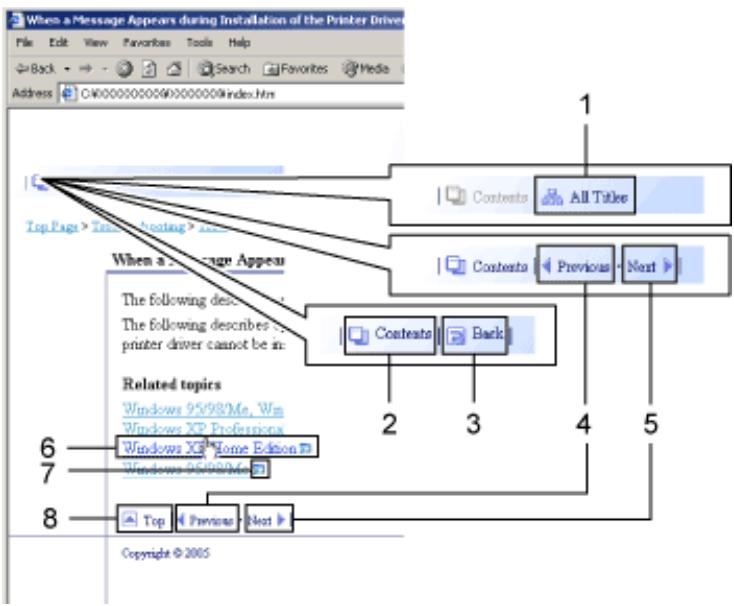
- All Titles
Displays a list including the manual's all titles.
- Contents
Displays the manual's contents.
- Back
Returns you to the preceding page.
- Previous
Takes you to the previous page (according to title order).
- Next
Takes you to the next page (according to title order).
- Jump to the linked page.
Takes you to the corresponding HTML page. (Underlines indicate hyperlinks.)
- Open another window to display the linked page.
Opens the corresponding page in a new window.
8. Top
Takes you to the top of the current page.
If the page contains references, they appear at the bottom of the page.

Note
- This User Guide describes procedures using Windows 2000 as an example. Procedures under other operating systems may differ. Screens vary according to the operating environment.
- Two kinds of size notation are employed in this manual. With this machine refer to the metric version.
- Some illustrations in this manual might be slightly different from the machine.
Certain options might not be available in some countries. For details, please contact your local dealer.
Useful Functions
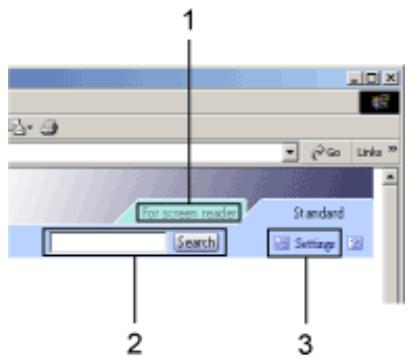
1. For screen reader
Click this tab to use screen reader functions, which are optimized for reading the manuals.
2. Search
Use keywords to search for items you want to query. Combined searching via multiple keywords is not possible. Search results including a keyword's synonyms are also displayed.
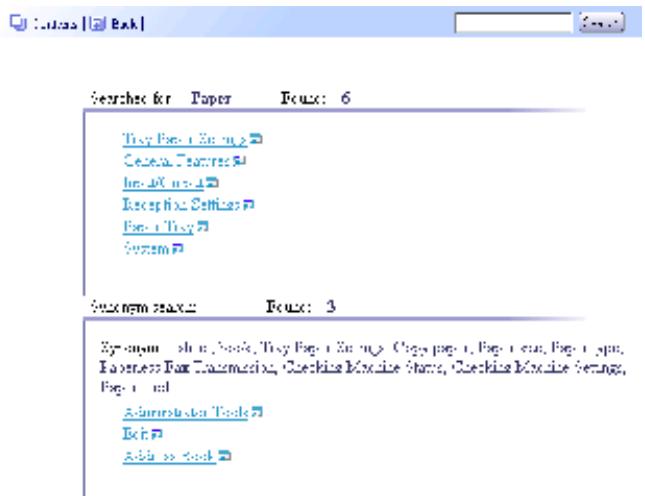
3. Settings
You can change the color of the display screen and hide procedure illustrations.
Click [OK] to apply changes.
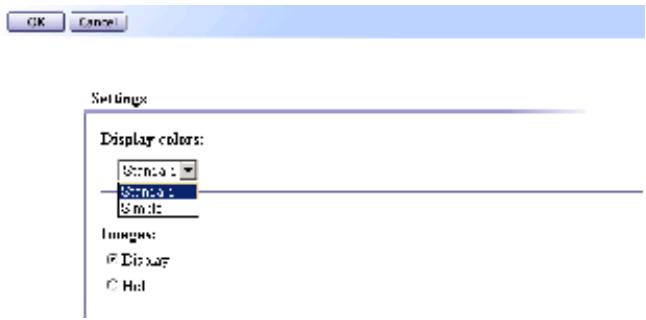
Symbols
The following set of symbols is used in this manual.

WARNING
Indicates important safety notes.
Ignoring these notes could result in serious injury or death. Be sure to read these notes.
They can be found in the "Safety Information" section of Setup Handbook.

CAUTION
Indicates important safety notes.
Ignoring these notes could result in moderate or minor injury, or damage to the machine or to property. Be sure to read these notes.
They can be found in the "Safety Information" section of Setup Handbook.

Important
Indicates points to pay attention to when using the machine, and explanations of likely causes of paper misfeeds, damage to originals, or loss of data. Be sure to read these explanations.

Note
Indicates supplementary explanations of the machine's functions, and instructions on resolving user errors.

Reference
This symbol is located at the end of sections.
It indicates where you can find further relevant information.
[ ]
Indicates the names of keys and buttons.
Removing the User Guide
Follow the procedure below to remove the User Guide installed on your computer.
Removing the User Guide using its [Uninstall] function
- Click [Start], and then point to [Programs].
- Point to the installed [Product name], and then click [Uninstall User Guide].
- Follow the instructions that appear to remove the User Guide.
Removing the User Guide using [Add/Remove Programs]
- Open [My Computer], and then open [Control Panel].
- Double-click [Add/Remove Programs].
- Select the installed [Product name User Guide], and then click [Change/Remove].
- Follow the instructions that appear to remove the User Guide.
Guide to Components
The names and functions of parts of the printer body, control panel, and options are explained.
Printer Body
This is a front view of the printer.
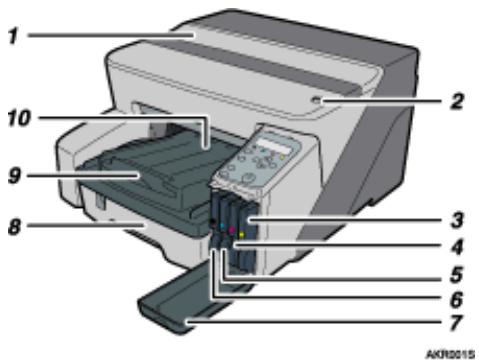
- Top cover
Keep this cover closed during printing. If you cannot locate paper jams, or jammed paper cannot be removed easily, you can check the condition of paper from the top of the printer.
- Envelope selector
For envelopes, set the lever to the rear position; for everything else, set the lever to the forward position.
- Print cartridge (yellow)
- Print cartridge (magenta)
- Print cartridge (cyan)
- Print cartridge (black)
- Right front cover
Keep this cover closed during printing. Open to install or replace Print cartridges.
- Tray 1
Load paper here.
- Output tray extension
Pull out when using paper larger than A4/Letter to keep the printed paper from falling.
- Output tray
Prints are delivered to this tray.
When using paper larger than A4/Letter, pull out the output tray extension.
When using paper larger than Letter, pull out the output tray extension.
Printer Rear
This is a rear view of the printer.
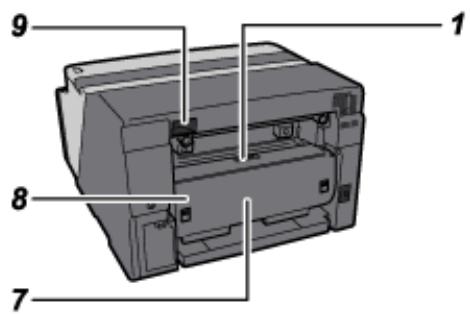
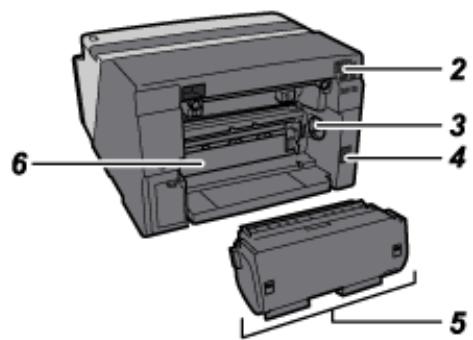
AKT1778
- Duplex unit cover button
Press to open the duplex unit cover.
- Vent
Air is vented here to prevent the inside of the printer from getting too warm. Do not lean anything against the vent or block it in any way. If the inside of the printer gets too warm, a breakdown could occur.
- Paper feed wheel
Use to wind out paper jammed around the guide board.
- Power cord
Plug the power cord into a wall outlet.
Plug one end of the power cord into the printer's power inlet and the other end into a wall socket.
Connect the grounding wire attached to the power plug directly to a grounding terminal.
- Duplex unit
Turns the paper over when performing duplex printing.
- Guide board
Open to remove paper jammed inside the printer.
- Duplex unit cover
Open to remove paper jammed inside the duplex unit.
- Duplex unit locks
Use to lock or unlock the duplex unit when attaching or detaching it.
- USB slot
Connect the USB cable from the computer here.
Control Panel
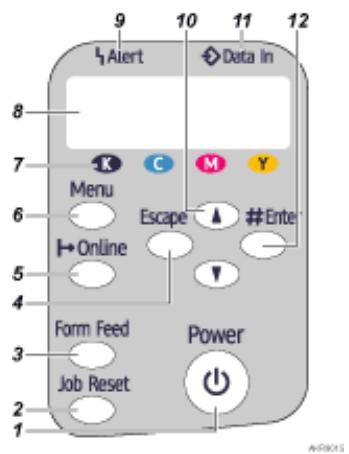
1. [Power] key
- Press to turn the power on and off.
To turn the power on, press the key for one second until it lights.
After the power is turned on, the [Power] key will blink until the printer is ready for printing at which point the key will stop blinking and stay lit. - The [Power] key will also blink when the printer is processing data.
- When the power is turned off, the key will blink slowly until the printer has completely shut down at which point the key will be dark.
- ① means "standby".
2. [Job Reset] key
When the printer is online, press this key to cancel an ongoing print job.
3. [Form Feed] key
When the printer is offline, press this to print all data left in the printer's input buffer.
You can use this to force the printer to print data received in the online status when the paper size or type does not match the actually set size or type.
4. [Escape] key
Press this key to return to the previous condition on the display.
5. [Online] key
Indicates whether the printer is online or offline. Press this to switch between online and offline.
When the lamp is lit, the printer is online, enabling data reception from the host computer.
When the lamp is unlit, the printer is offline, disabling data reception from the host computer.
Press to return to the ready condition.
6. [Menu] key
Press this key to make and check the current printer settings.
7. Print Cartridge End LED
Each LED corresponds to a print cartridge. From the left, the LEDs show the status of the black (K), cyan (C), magenta (M), and yellow (Y) cartridges.
8. Display
Displays current printer status and error messages.
9. Alert indicator
Lights up whenever a printer error occurs. A red light indicates an error has occurred that makes printing impossible; the yellow light indicates a potential error during printing.
If the red light is on, follow the instructions that appear on the display.
10. [A] [v] keys
Use these keys to increase or decrease values on the display when making settings.
Keep the key pressed to quicken scrolling, and increase or decrease values on the display in units of 10.
11. Data In indicator
Blinks when the printer is receiving data from a computer. The Data In indicator is lit if there is data to be printed.
12. [#Enter] key
Press this key to execute menu items selected on the display.
Reference
- For details about switching to Energy Saver mode, see p.61 "System Menu".
Option
Network Interface Board Type GX2
By installing this optional network interface board in the machine, you can print over the network.
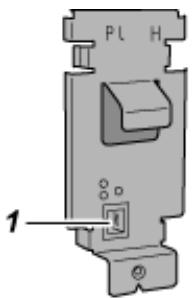
AKR1275
1. Ethernet Port
Use a network interface cable to connect the printer to a network.
Multi Bypass Tray Type BY1000
Use this tray to feed in sheets manually.
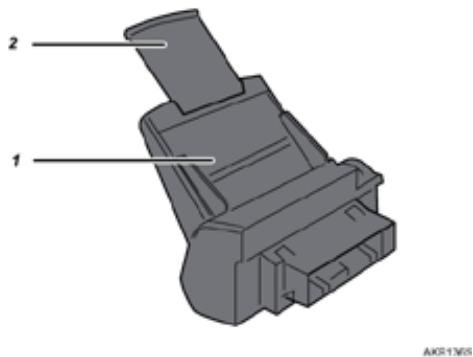
- Bypass tray
Load paper here.
- Bypass tray extension
You can pull this bypass tray extension out by 2 clicks. Pull this out according to the paper size.
Detaching and Reattaching the Multi Bypass Tray (Optional)
To clear a paper jam, you might have to detach the multi bypass tray.
This section explains how to detach and reattach the multi bypass tray.
- Remove any paper in the bypass tray.
- Push the bypass tray extension in.
- Detach the multi bypass tray.
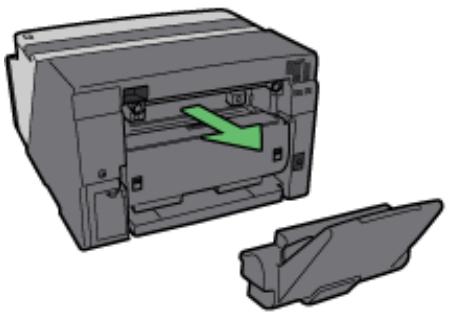
AOR28
- Reattach the multi bypass tray.
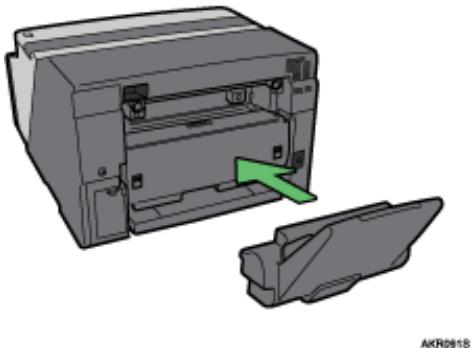
- Pull the bypass tray extension out.
- Load paper in the bypass tray.
Recommended Functions
This section lists useful and recommended functions.
Copy-guard of printed documents for preventing information leaks
See p.195 "Unauthorized Copy Control".
Automatically selecting the tray for printing
See p.46 "Making Printer Settings Using the Control Panel".
Notifying the printer status by e-mail on an occasion such as if the printer runs out or paper or paper is jammed
See p.214 "Notifying the Printer Status by E-mail".
Paper
Compatible Paper Types 25
Loadable Paper Sizes and Quantities 26
Paper Handling Precautions 28
Loading Precautions 28
Paper Storage Precautions 29
Paper Type Precautions 29
Non-compatible Paper 30
Printable Area 31
Loading Paper 32
Loading Paper into Tray 1 32
Loading Paper Larger than A4/Letter (Tray1) 34
Loading Paper into Bypass Tray (optional) 37
Compatible Paper Types
You can use various types of paper.
Plain paper
This paper is normally used for copying and printing. Unlike inkjet plain paper or glossy paper, it is uncoated.
- Inkjet plain paper
This extra-white plain paper makes the printed colours appear more vivid. Since it does not have an ink-absorbent coating, you can write on it and use it for photocopying, just like regular plain paper.
Glossy paper
This machine prints best on reduced-reflection glossy photo paper.
Paper for dye inks is not recommended because the machine's pigmented inks may not take properly to it or may smear or rub off. Glossy photo paper can be used in this machine provided it is compatible with pig-mented inks.
- Inkjet transparency
Transparency film for equipment such as overhead projectors is designed for the pigmented inks used by the machine. Film for plain paper copiers cannot be used because it does not absorb ink. Film for dye inks is not recommended because the machine's pigmented inks may not take properly to it or may smear or rub off. Transparency film can be used in this machine provided it is compatible with pigmented inks.
- Envelopes
For details about the types of envelope that can be used, see Paper Handling Precautions.
Thick paper
For details about the types of thick paper that can be used, see Paper Handling Precautions.

Note
- All types of paper besides thick paper can be loaded in tray 1.

Reference
p.157 "Printing on Various Paper Types"
p.28 "Paper Handling Precautions"
Loadable Paper Sizes and Quantities
You can load in each tray the paper of the following size and number.
Tray 1
| Type | Size | Paper capacity |
| Plain / Inkjet Plain Paper | A4 (210 × 297 mm) | Maximum paper capacity: |
| A5 (148 × 210 mm) | 250sheets | |
| A6 (105 × 148 mm) | Maximum paper output capacity: | |
| B5 (182 × 257 mm) | 150sheets | |
| Letter (8 1/2" × 11") | ||
| Legal (8 1/2" × 14") | ||
| 5 1/2" × 8 1/2" | ||
| Executive (7 1/4" × 10 1/2") | ||
| Custom paper sizes | ||
| 139.7-356mm(length), 90-216mm(width) | ||
| Glossy Paper | A4 (210 × 297 mm) | Maximum paper capacity: |
| 20sheets | ||
| Maximum paper output capacity: | ||
| 20sheets | ||
| Inkjet Transparency | A4 (210 × 297 mm) | Maximum paper capacity: 1 sheet |
| Maximum paper output capacity: | ||
| 1 sheet | ||
| Envelope | Com10 Env.(4 1/8" × 9 1/2") | Maximum paper capacity: |
| Monarch Env.(3 7/8" × 7 1/2") | 20sheets | |
| DL Env. (110 × 220 mm) | Maximum paper output capacity: | |
| C6 Env. (114 × 162 mm) | 20sheets | |
| C5 Env. (162 × 229 mm) |
Bypass Tray Unit
| Type | Size | Paper capacity |
| Plain / Inkjet Plain Paper | A4 (210 × 297 mm) | Maximum paper capacity: |
| A5 (148 × 210 mm) | 100sheets | |
| A6 (105 × 148 mm) | Maximum paper output capacity: | |
| B5 (182 × 257 mm) | 150sheets | |
| Letter (8 1/2" × 11") | ||
| Legal (8 1/2" × 14") | ||
| 5 1/2" × 8 1/2" | ||
| Executive (7 1/4" × 10 1/2") | ||
| 8K (267 × 390 mm) | ||
| 16K (195 × 267 mm) | ||
| Custom paper sizes | ||
| 127-356mm(length), 90-216mm(width) | ||
| Glossy Paper | A4 (210 × 297 mm) | Maximum paper capacity: |
| 20sheets | ||
| Maximum paper output capacity: | ||
| 20sheets | ||
| Inkjet Transparency | A4 (210 × 297 mm) | Maximum paper capacity: 1 sheet |
| Maximum paper output capacity: | ||
| 1 sheet | ||
| Envelope | Com10 Env.(4 1/8" × 9 1/2") | Maximum paper capacity: |
| Monarch Env.(3 7/8" × 7 1/2") | 10sheets | |
| DL Env. (110 × 220 mm) | Maximum paper output capacity: | |
| C6 Env. (114 × 162 mm) | 20sheets | |
| C5 Env. (162 × 229 mm) | ||
| Thick | Maximum paper capacity: | |
| 20sheets | ||
| Maximum paper output capacity: | ||
| 20sheets |

Note
- Load all custom-sized paper in the portrait orientation.
Paper Handling Precautions
To ensure optimum print results, take care when handling paper before and after printing.
Loading Precautions
Use compatible paper.
- Load paper with the print side face down in the paper trays.
- Load paper with the paper grain parallel to the feed direction.
- Do not load paper of different types at the same time.
- To load a different type of paper than that already loaded, first remove all currently loaded paper.
- Do not stack paper over the limit mark.

AK36128
- Curled paper may jam. Straighten any curls before loading.
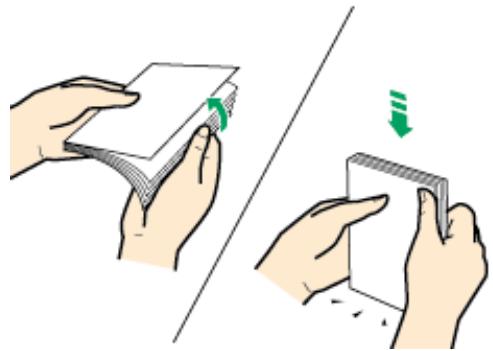
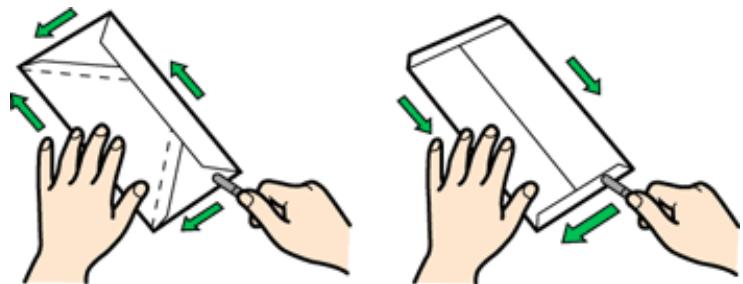
- Before loading envelopes, make sure their edges are sharply creased by rubbing the edges with a pen or similar object.
Paper Storage Precautions
- Do not store paper in humid places.
- Do not store paper in direct sunlight.
- Store paper flat.
- Store unused paper in the original package.
Paper Type Precautions
Plain paper
- Use the bypass tray to print on paper heavier than 157g / m^2 (297.6 lb.).
- The only type of A6 (105 × 148 mm(4.2 × 5.9 inches)) paper that can be loaded in tray 1 is that of 157g / m^2 (297.6 lb.).
- After printing, some types of paper take longer than others to dry. With duplex printing, the ink may smear or rub off. Using the printer driver, specify how long to wait for the prints to dry between printing each side of a duplex sheet. For details, see the printer driver Help.
Inkjet plain paper
- When printing on inkjet plain paper, in the printer properties dialog box, click [Inkjet Plain Paper]. This allows printing at higher quality.
- In the printer properties dialog box, when [Inkjet Plain Paper] is selected, only one-sided printing is possible. To print on both sides of a sheet, click [Plain].
- Use as soon as possible after opening the package.
Glossy paper
- The glossy side (or the pearl side) of the paper is the printing surface.
- Handle paper by the edges so as not to dirty or leave fingerprints on the print side.
- Make sure that sheets are not badly bent or scratched, and the print side is not damaged.
- Only one-sided printing is possible.
- Before handling, make sure printed sheets have fully dried.
- If you want to stack prints soon after they are printed, we recommend inserting a moisture-absorbent sheet, like copy paper, between prints.
- Make sure that the output tray has no more than twenty sheets stacked on it.
Glossy paper is designed for photograph printing. For graphics, we recommend plain or inkjet plain paper. - When using these sheets, see the instructions supplied with them.
- To print photographs or other high-resolution images, set [Print Quality] to [Quality priority].
Inkjet transparency
- Identify the print side by orientating the sheet vertically, so that the notched corner is at the bottom left. The side facing you is the print side.
- Load one sheet at a time. If multiple sheets are loaded, the leading edge of transparencies may get scratched.
- Handle sheets by the edges so as not to dirty or leave fingerprints on the print side.
-
Make sure that sheets are not badly bent or scratched, and the print side is not damaged.
-
Only one-sided printing is possible.
- Remove sheets from the output tray individually, as they come out.
- Before handling, make sure printed sheets have fully dried.
- If you want to stack prints soon after they are printed, we recommend inserting a moisture-absorbent sheet, like copy paper, between prints.
- Ink takes time to dry. To prevent sheets from sticking together, remove them from the output tray individually, as they come out.
- If printing comes out streaked, adjust the paper feed level..
Use at 15 - 25^ (59-77°F) and 30-70% humidity. - Use as soon as possible after opening the package.
- When using these sheets, see the instructions supplied with them.
Envelopes
- Up to 20 envelopes can be loaded in tray 1.
If the envelopes bulge, flatten them. - Load envelopes carefully, because the printable area depends on the orientation.
- Set the lever to the rear position before printing.
Thick paper
- Use tray 1 to load paper lighter than 157g / m^2 (297.6 lb.).
- You can insert paper with weights up to 255g / m^2 (485.0 lb.) into the bypass tray.
- Insert paper with the print side face up into the bypass tray.
Cautions to Observe After Printing
Depending on the paper type, the ink may take a while to dry. Before handling, make sure printed sheets have fully dried. otherwise, the ink may smudge.

Note
- The ink may smear depending on the type of image. If this happens, set the envelope selector to the rear position
Non-compatible Paper
Check if the paper is compatible.
Do not use paper that is:
- wrinkled, folded, or damaged
- wavy at the ends
- curled
absorbent - dry and conducive to static buildup
- already printed on (such as the back of preprinted paper)
- preprinted (unless specified)
heat sensitive/non-carbon
too thick or thin - pre-stitched
- glued or tacked
stapled or clipped together
dark in places
- irregular in length and proportion

Note
Even if compatible paper types are used, print quality may be lower than usual or paper jams may occur if the paper was improperly stored.
Printable Area
Printable and unprintable areas
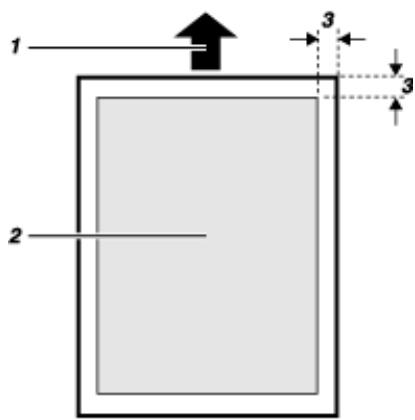
- Feed Direction
- Printable Area
- 3 mm (0.12 inches)

Note
- When printing on envelopes, the following print area limitations apply.
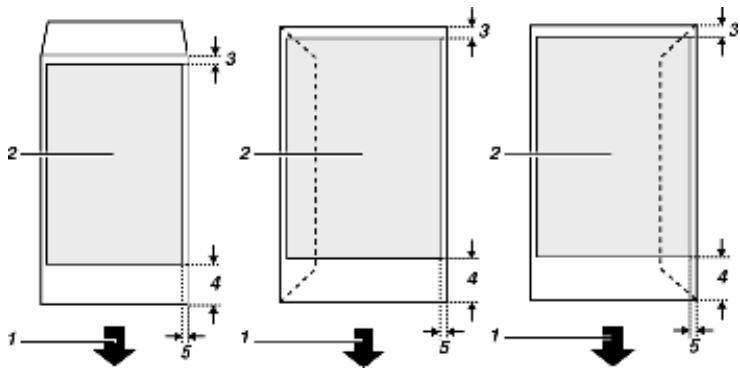
- Feed Direction
- Printable Area
- 8 mm (0.4 inches)
- 38 mm (1.5 inches)
- 5 mm (0.2 inches)
Loading Paper
Load paper into the paper tray.
Normally, load paper into tray 1.
Note
- Load paper with the paper grain parallel to the feed direction.
Reference
p.165 "Printing on Thick Paper"
Loading Paper into Tray 1
Follow the procedure below to load paper into tray 1.
A4/Letter size paper is loaded here.
Load A4/Letter size paper in orientation.
- Lift the output tray.
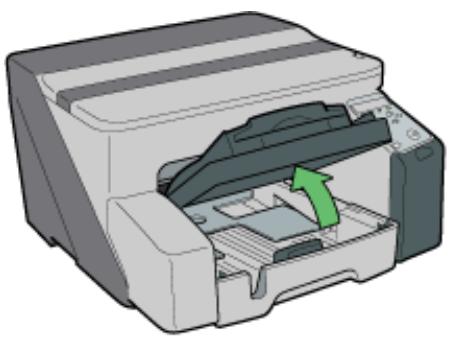
AK0008
- Hold the Tray 1 grip, pull the tray halfway out, lift it slightly, and then pull it out further.
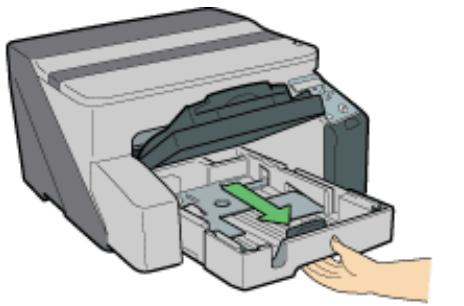
A010155
Pull tray 1 completely out. Take care not to drop it.
- Squeeze the paper guides on both sides, and then adjust them according to the paper size.
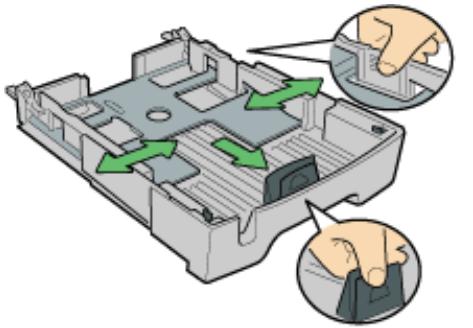
AK80118
Beforehand, make sure to squeeze the front end paper guide, and then expand the guide.
- Load paper with the print side face down but not over the limit mark.
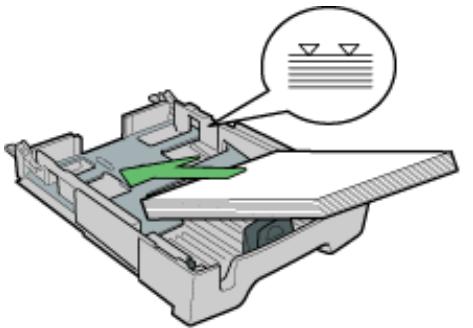
AK80128
- Squeeze the front end paper guide, and then slide it to meet the edge of the paper.
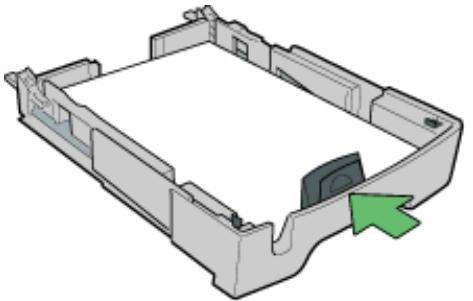
AK250135
- Push tray 1 gently in until it stops.

AK06148
7. Lower the output tray.
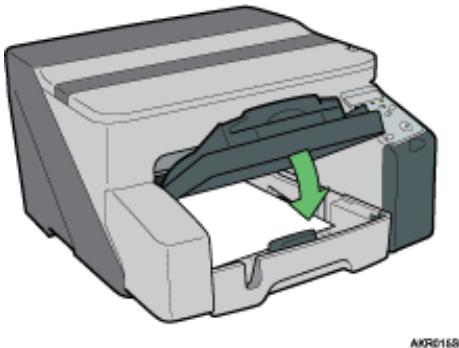
Loading Paper Larger than A4/Letter (Tray1)
Follow the procedure below to use the paper tray extension for paper larger than A4/Letter size, such as Legal size paper.
A Legal size paper is loaded here.
Load Legal size paper in orientation.
1. Lift the output tray.
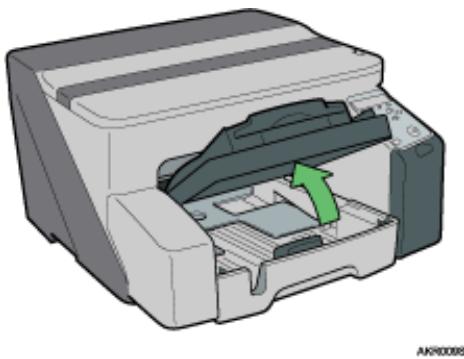
2. Pull out tray 1.
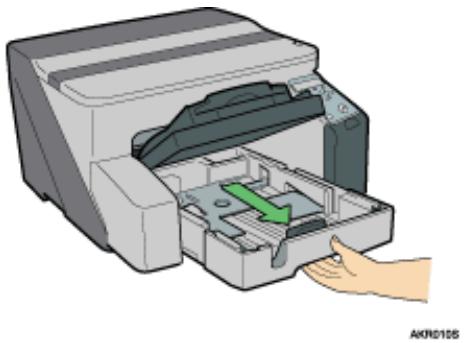
Pull tray 1 completely out. Take care not to drop it.
- Slide the tabs on both sides of the tray's interior to the unlocked position.
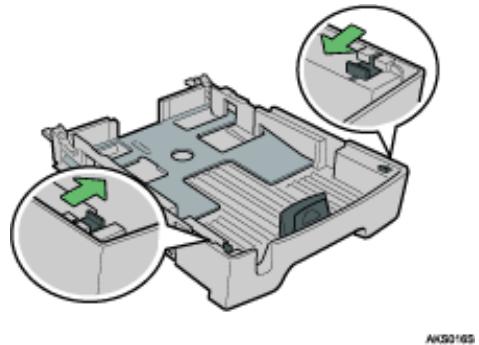
- Pull out the paper tray extension.
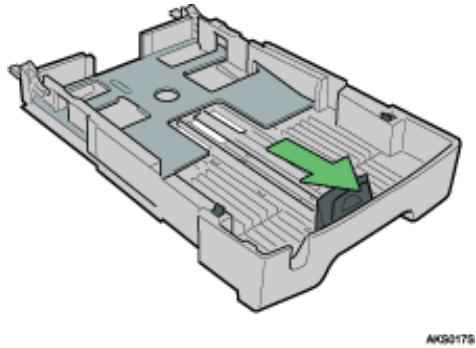
- Slide the tabs back into place to lock the paper tray extension into position.
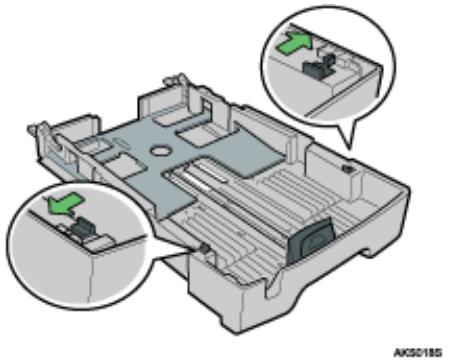
- Squeeze the paper guide release, and then slide the paper guides into position according to the paper size.
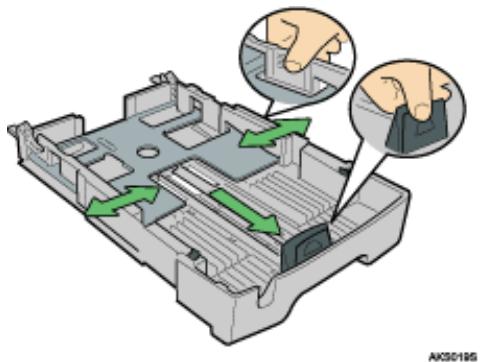
Do not use the paper tray extension for A4 (Letter) size paper or smaller paper. Use it only for long paper.
- Load paper with the print side face down but not over the limit mark.
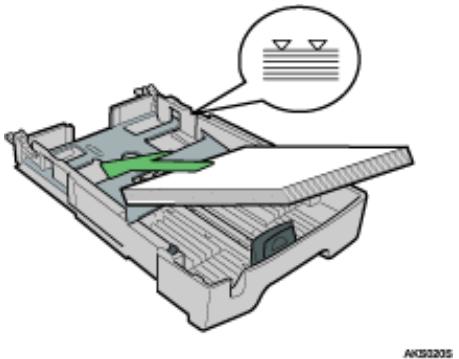
- Squeeze the front end paper guide, and then slide it to meet the edge of the paper.
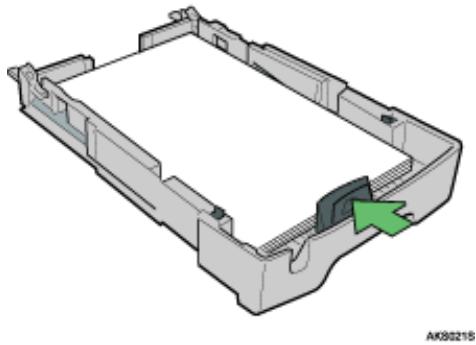
- Push tray 1 gently in until it stops.
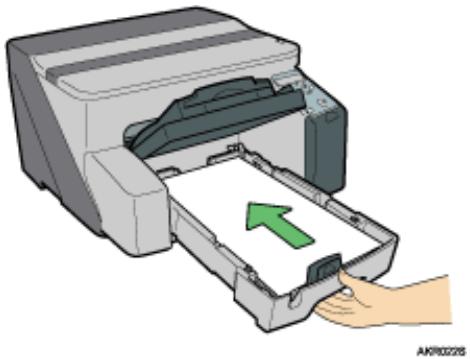
- Pull out the output tray, and then lower it.
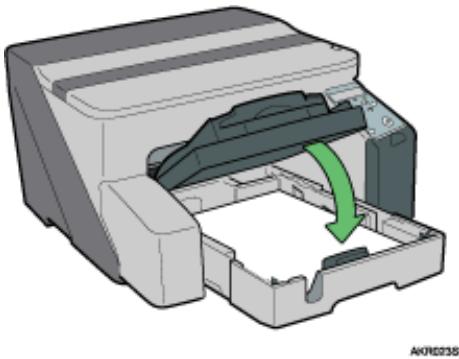
- Pull out the output tray extension.
Loading Paper into Bypass Tray (optional)
Follow the procedure below to load paper into bypass tray.
A4/Letter size paper is loaded here.
- Pull the bypass tray extension out all the way.
- Load paper in the bypass tray with the side to be printed on facing up.
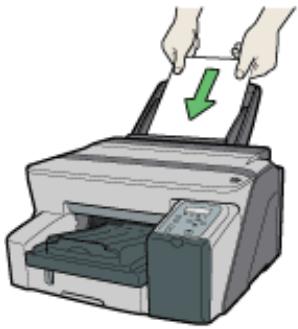
A03265
Replacing Consumables
Replacing a Print Cartridge 39
Checking the Remaining Ink 39
Replacing a Print Cartridge 41
Handling Print Cartridges 43
Replacing a Print Cartridge
Follow the procedure below to replace a Print cartridge.
Checking the Remaining Ink
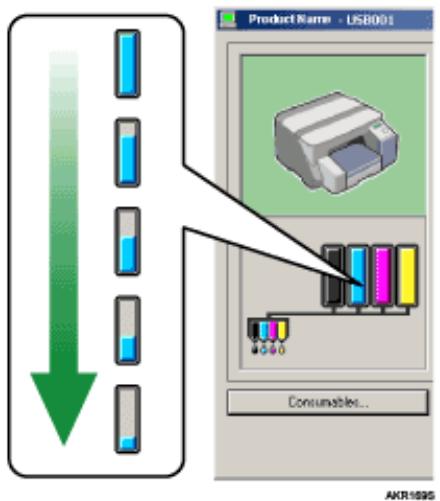
Follow the procedure below to check when to replace Print cartridges using the Status monitor or the cartridge replacement indicators.
Checking the cartridge replacement indicators of the printer control panel
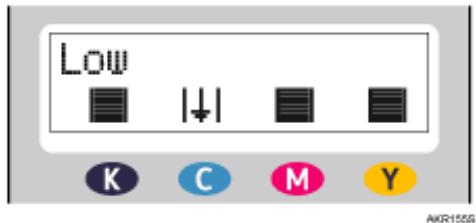
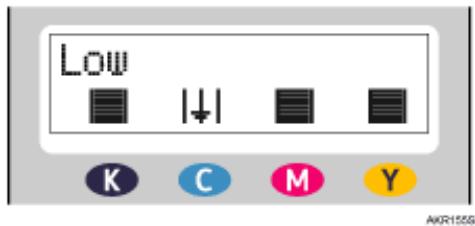
In the above diagram, the control panel is indicating that the cyan print cartridge is almost empty.
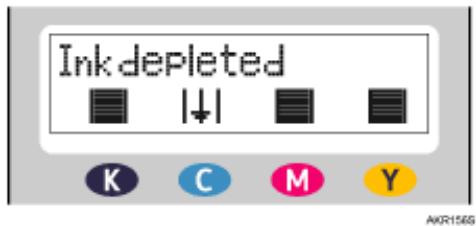
In the above diagram, the control panel is indicating that the cyan print cartridge is empty.
Checking Using the Status Monitor
- Open the printer properties dialog box.
- Click the [Maintenance] tab.
- Click [Display Status Monitor].
The Status monitor dialog box appears.
4. Check the cartridge status.
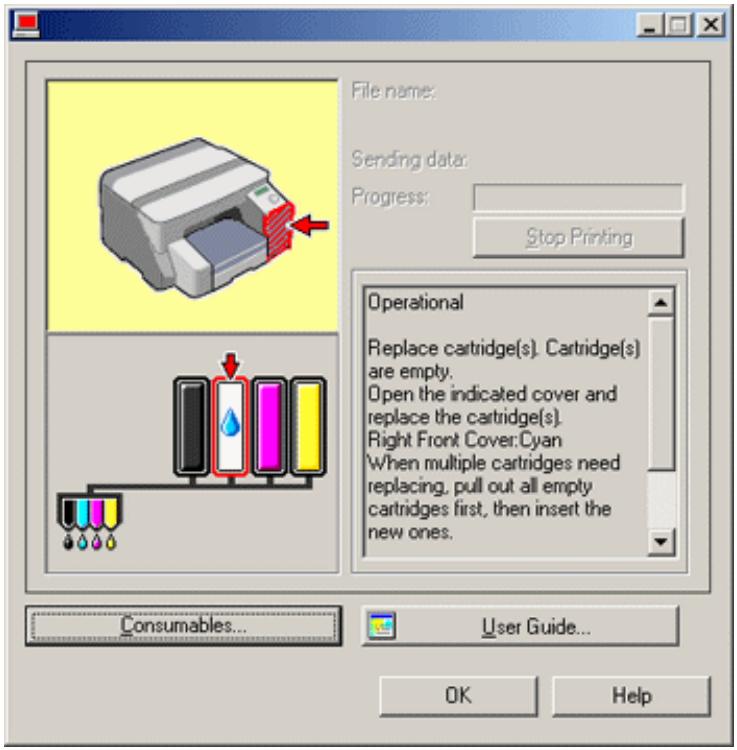
In the illustration above, the cyan Print cartridge is empty.
If the background of the image in the top left corner of dialog box is yellow, the indicated cartridge is empty. Replace the cartridge.
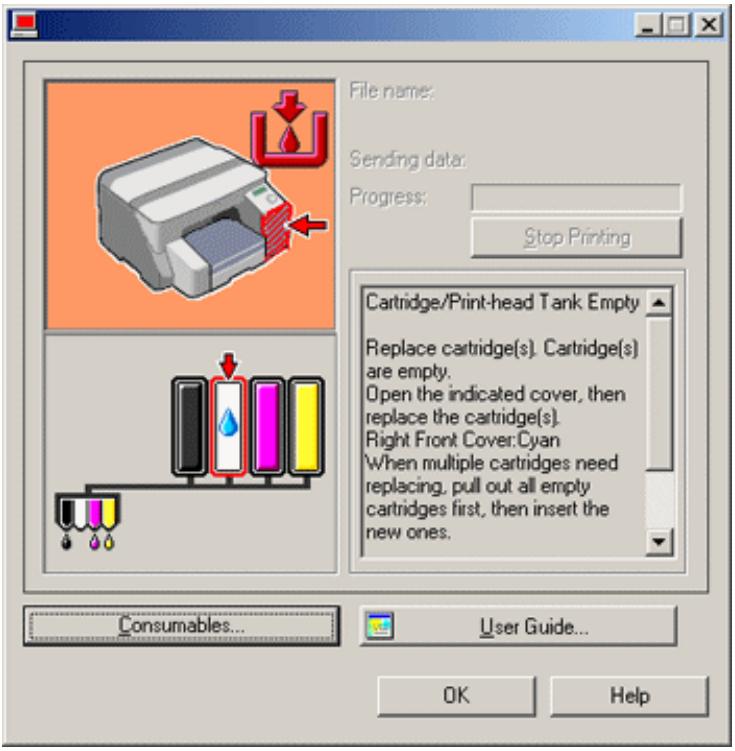
In this illustration, the cyan ink has completely run out.
If the background of the image in the top left corner of dialog box is red, the printer has run out of the indicated ink. Replace the cartridge.
From left to right, the cartridge replacement indicators display the status of the black (K), cyan (C), magenta (M), and yellow (Y) Print cartridges.

Note
- The cartridge status can be used for determination of cartridge change. If cartridge status is not monitored, visual indication of the cartridge may not be correct.
- A message indicating to replace a print cartridge can be also checked on the control panel.
Replacing a Print Cartridge
Follow the procedure below to replace an empty Print cartridge.
Clear any errors, such as when there is a paper jam or when no paper is loaded, before replacing a Print cartridge.

CAUTION
If ink comes into contact with your eyes, rinse immediately in running water. For other symptoms, consult a doctor.
- If ink is ingested, induce vomiting by drinking a strong saline solution. Consult a doctor immediately.
If your skin comes into contact with ink, wash the affected area thoroughly with water or soap and water.

CAUTION
- Keep the ink or ink container out of reach of children.

Important
Take care to install the cartridges in the correct position.
- Remove the Print cartridges' packaging.
If multiple cartridges are empty, replace all the empty cartridges. You can shorten the time for needed replacement.
- Open the right front cover.
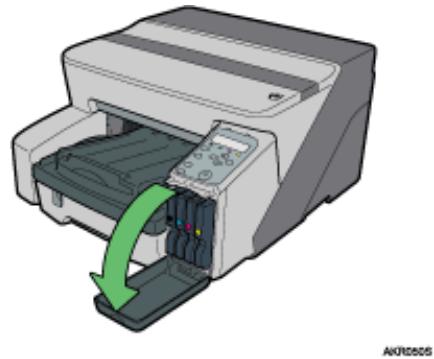
- Take out the empty cartridges.
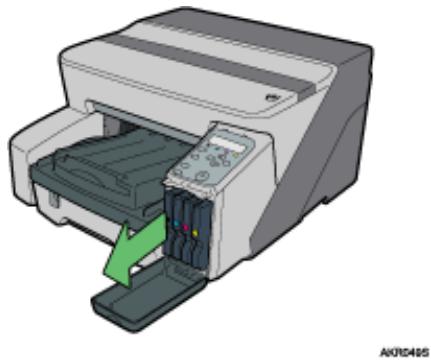
- Check the cartridges' orientation, and then install them gently. Install in the following order from the left: black, cyan, magenta, and yellow.
- Push in the cartridge using the PUSH area.
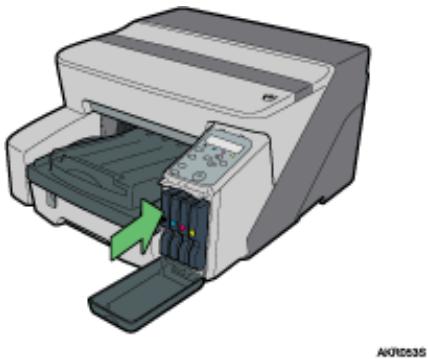
- Close the right front cover.
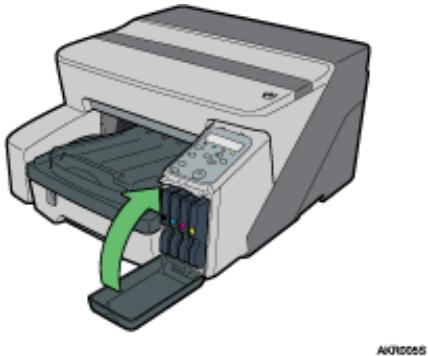

Reference
p.121 "Recommended Consumables"
Handling Print Cartridges
Important points about handling Print cartridges are explained.

CAUTION
- If ink comes into contact with your eyes, rinse immediately in running water. For other symptoms, consult a doctor.
- If ink is ingested, induce vomiting by drinking a strong saline solution. Consult a doctor immediately.
If your skin comes into contact with ink, wash the affected area thoroughly with water or soap and water.

CAUTION
- Keep the ink or ink container out of reach of children.
About Print cartridges
- Print cartridges comply with the manufacturer's safety specifications. To ensure safety and reliability, use genuine Print cartridges.
- When using the printer for the first time, install the Print cartridges supplied with the printer.
Using Print cartridges
- Print cartridges should be opened before their expiration date and used within six months of being opened.
- Do not open the package of a Print cartridge until the cartridge will be installed in the printer.
- Do not touch the ink supply port of Print cartridges.
- Do not shake Print cartridges strongly. Ink may leak out.
- Do not take apart Print cartridges.
- Do not open the right front cover except when installing Print cartridges. Do not turn off the power or unplug the power cord during the process of installing the cartridges.
- Always confirm the colour of a Print cartridge before installing it.
-
Do not remove a Print cartridge once it has been installed unless necessary.
-
Do not remove a Print cartridge while printing is being performed. Printing will stop.
- Black and white printing also consumes colour ink.
- Printing stops if one of the print cartridges becomes empty. If a cartridge containing a colour ink such as cyan, yellow, or magenta becomes empty, you cannot print, even in black/white.
Storing Print cartridges
- Avoid storing Print cartridges in hot or freezing places.
Ink consumption
- In addition to printing, ink is consumed when the power is turned on, head cleaning is performed, or Print cartridges are installed.
- The amount of ink consumed during cleaning depends on the cartridge size.
Making Printer Settings
Making Printer Settings Using the Control Panel 46
Paper Input Menu 47
Changing the Paper Input Menu 48
List/Test Print Menu 48
Printing a Configuration Page 49
Interpreting the Configuration Page 49
Maintenance Menu 50
Nozzle Check. 51
Head-clearing 52
Head-flushing 53
Head Position 55
Adj.Paper Feed 57
Registration 59
System Menu 61
Changing the System Menu 63
Host Interface Menu 64
Changing the Host Interface Menu 66
Language Menu 66
Changing the Language Menu 66
Maintaining the Printer Using Utilities 68
Nozzle Check 68
Head-cleaning 69
Head-flushing 70
Adjust Print-head Positions 70
Registration 72
Adjust Paper Feed 73
Restore Defaults/Other Settings 75
Restoring the Settings to Their Defaults 75
Specifying an I/O Timeout 75
Making Printer Settings Using the Control Panel
This section explains how to change the default settings of the printer and provides information about the parameters included in each menu.
Paper Input
| Menu |
| Tray Paper Size |
| Paper Type |
| Aut.Tray Select |
| Tray Priority |
List/Test Print
| Menu |
| Config. Page |
Maintenance
| Menu |
| Nozzle Check |
| Head-cleaning |
| Head-flushing |
| Head Position |
| Adj.Paper Feed |
| Registration |
| Key Repeat |
| Paper Feed Test |
| De-condensation |
System
| Menu |
| Auto Continue |
| Sub Paper Size |
| Unit of Measure |
| Energy Saver |
| Notify by Email |
| Page Size |
| Ink CU Replace |
Host Interface
| Menu |
| I/O Timeout |
| Network Setup |
| USB Setting |
Language
| Menu |
| English |
| German |
| French |
| Italian |
| Dutch |
| Swedish |
| Norwegian |
| Danish |
| Spanish |
| Portuguese |
Paper Input Menu
This section explains the settings you can specify in the Paper Input menu, such as those for the size and type of the paper loaded in each tray.
Tray Paper Size
You can specify the size of the paper loaded in the paper feed tray.
Paper Type
You can specify the type of the paper loaded in the paper feed tray.
Aut.Tray Select
You can specify whether or not to automatically select the tray according to the paper size and paper type.
Tray Priority
You can specify the prioritized paper feed tray. This setting is factory-preset to "tray 1".
Note
"Aut.Tray Select" can be specified only if the optional bypass tray is attached.
- If you select "Aut.Tray Select", the tray is automatically selected according to the paper size set for the trays in "Tray Paper Size".
Reference
p.25 "Compatible Paper Types"
p.26 "Loadable Paper Sizes and Quantities"
Changing the Paper Input Menu
The following procedure is an example of setting the Tray Paper Size.
- On the control panel, press the [Menu] key.
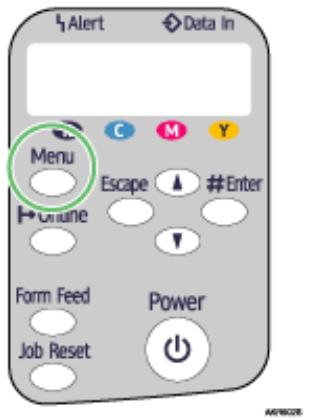
- Press [▲] or [▼] to scroll to "Paper Input" on the display, and then press the [#Enter] key.
Menu: Paper Input
- Press [▲] or [▼] to scroll to "Tray Paper Size" on the display, and then press the [#Enter] key.
Paper Input: Tray Paper Size
- Press [A] or [▼] to scroll to the tray you want to specify, and then press the [#Enter] key.
Tray Paper Size:
Tray 1
- Press [▲] or [▼] to scroll to the appropriate paper size, and then press the [#Enter] key.
Tray 1: A4 (297 x 210)
The setting is applied, and then, the Paper Input menu reappears.
- Press the [Online] key.
The operating screen appears.
List/Test Print Menu
You can print lists of configurations on printer or the paper printings.
Config. Page
You can print the current configuration of the printer.
Printing a Configuration Page
Follow the procedure below to print the configuration page.
Important
-
The configuration page is printed on A4 or Letter (812 × 11) size paper, so load them in the same paper tray.
-
Press the [Menu] key.
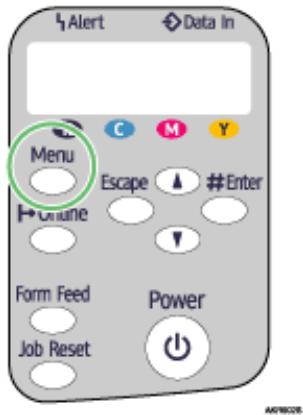
- Press the [▼] or [▲] key to display [List/Test Print], and then press the [#Enter] key.
Menu: List/Test Print
- Press the [▼] or [▲] key to display [Config. Page], and then press the [#Enter] key.
List/Test Print: Config. Page
The configuration page is printed. The test print menu screen returns on completion of printing.
- Press the [Online] key.
The initial screen appears.
Interpreting the Configuration Page
System Reference
Information such as the printer's version, attached options, printer language name, and remaining amount of ink are printed in this area.
Paper Input
The specified [Tray Priority] setting and the specified settings in the Paper Input Menu, such as the size and type of paper loaded in each tray, are printed in this area.
Host Interface, Interface Information
The specified settings in the Host Interface Menu are printed in this area.
Maintenance Menu
Using the Maintenance menu, you can specify printer maintenance settings for adjusting settings such as gradation and density.
Nozzle Check
You can print a test pattern to check whether the inks are being correctly ejected from the print head nozzles.
Head-cleaning
You can clean the print head.
Clean the head if certain colours are not printed or are printed faintly.
Head cleaning consumes ink.
Head-flushing
You can clean the print head more thoroughly.
Because head flushing consumes more ink than head cleaning, do it only if the print head cannot be cleaned properly by head cleaning.
Head Position
If bidirectionally printed lines are vertically misaligned, or if printed images are blurred, print the test pattern and adjust the print head alignment.
Adj.Paper Feed
If printed lines are horizontally misaligned or if images are printed unevenly, print the test pattern and adjust the paper feed setting.
Registration
Print the test pattern and align the point where printing starts for each paper feed tray.
Key Repeat
You can enable or disable repetition of an operation if a key on control panel is pressed continuously.
Paper Feed Test
To remove moisture from inside the machine, you can eject a sheet of paper without printing anything on it.
De-condensation
To remove moisture from inside the machine, you can eject three sheets of paper without printing anything on them.
Nozzle Check
Follow the procedure below to check whether the print-head nozzles are clogged up or not by printing a nozzle check test pattern.
- Press the [Menu] key.
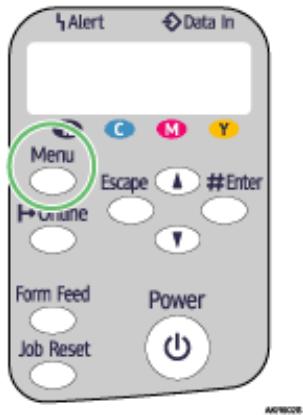
- Press the [▼] or [▲] key to display [Maintenance], and then press the [#Enter] key.
Menu:
Maintenance
- Press the [] or [] key to display [Nozzle Check], and then press the [#Enter] key.
M assistantance :Nozzle Check
- Press the [#Enter] key.
Press # to print pattern
A test pattern is printed.
- Press the [Online] key.
The initial screen appears.
- Check the printed test pattern.
Normal
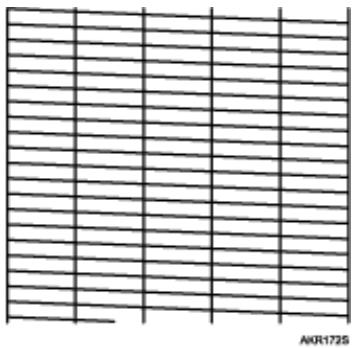
When print-heads are clogged
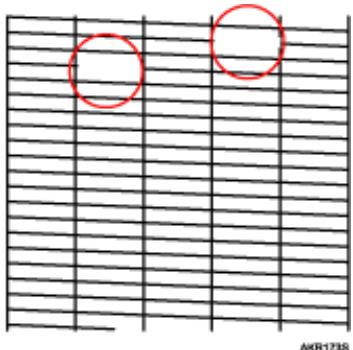
Head-clearing
Follow the procedure below to perform a normal print-head cleaning. Perform a head cleaning when a particular color cannot be printed or print images are blurred. Head cleaning consumes ink.
When the Print cartridge is empty, replace it instead of performing a print-head cleaning. After a Print cartridge is replaced, a print-head cleaning will be automatically performed.
- Slide the envelope selector to the forward position.
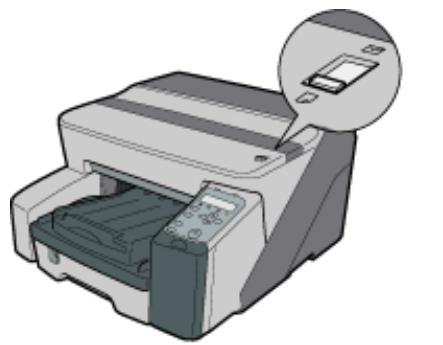
AKR0245
- Press the [Menu] key.
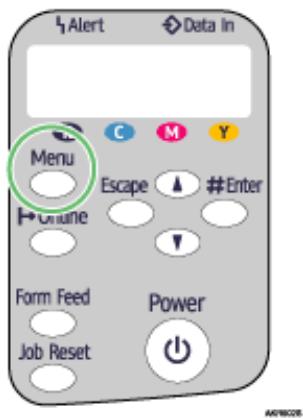
- Press the [▼] or [▲] key to display [Maintenance], and then press the [#Enter] key.
Menu :
Maintenance
- Press the [] or [] key to display [Head-cleaning], and then press the [#Enter] key.
M ainit enance:Head - c l e a n i n g
- Press the [▼] or [▲] key to select a color, and then press the [#Enter] key.
He a d - c l e a n i n g : A l l H e a d s
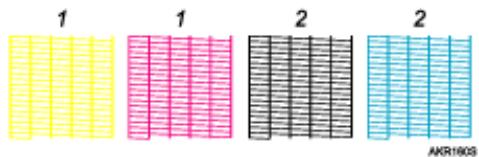
- Head 1
-
Head 2
-
Press the [#Enter] key.
Press #t o clean heads
Head cleaning starts.
- Press the [Online] key.
The initial screen appears.
Head-flushing
Follow the procedure below to perform a thorough print-head cleaning. Since this consumes more ink than a normal head cleaning does, perform this when the problem persists after performing a normal head cleaning.
When the Print cartridge is empty, replace it instead of performing a print-head cleaning. After a Print cartridge is replaced, a print-head cleaning will be automatically performed.
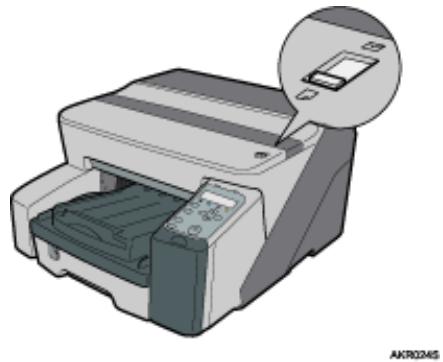
- Slide the envelope selector to the forward position.
- Press the [Menu] key.
- Press the [▼] or [▲] key to display [Maintenance], and then press the [#Enter] key.
Menu:
Maintenance
- Press the [] or [] key to display [Head-flushing], and then press the [#Enter] key.
M a i n t e n a n c e: Head - f l u s h i n g
- Press the [] or [] key to select a color, and then press the [# Enter] key.
Head-flushing: A11 Heads
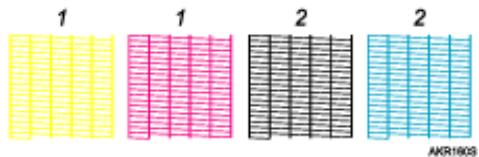
- Head 1
-
Head 2
-
Press the [#Enter] key.
Press # to flush heads
Head flushing starts.
- Press the [Online] key.
The initial screen appears.
Reference
p.152 "Two Types of Printer Properties Dialog Box"
Head Position
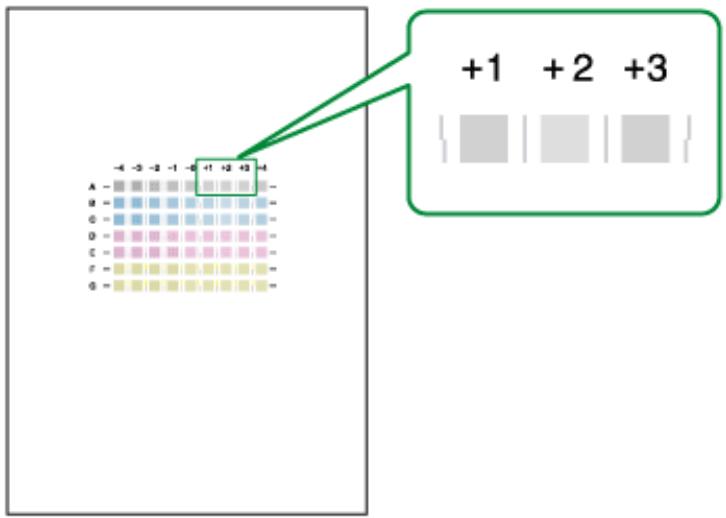
Follow the procedure below to print a test pattern and adjust the print-head positions if vertical lines are printed unaligned or printed colors look blurred.
- Press the [Menu] key.
- Press the [▼] or [▲] key to display [Maintenance], and then press the [#Enter] key.
Menu:
Maintenance
- Press the [▼] or [▲] key to display [Head Position], and then press the [#Enter] key.
Maignenance:Head Position
- Press the [] or [] key to display [Pr.Test Pattern], and then press the [#Enter] key.
Head Position: Pr.Test Pattern
- Press the [] or [] key to select a test pattern, and then press the # Enter key.
Pr.Test Pattern: High Speed
To adjust print-head positions for all resolutions, repeat this procedure selecting the other resolution.
A test pattern to adjust print-head positions is printed.
- Check the optimal adjustment values on the printed test pattern.
The optimal adjustment value is the column number that appears above the lightest gray square with straight vertical lines on both sides. When the column number is "+" for the "A" line, the optimal adjustment value is "+" for "A".
- Press the [] or [] key to display [Adjustment], and then press the [#Enter] key.
- Press the [] or [] key to select a resolution from step 5, and then press the # Enter key.
A dj u s t m e n t : H i g h S p e e d
- Press the [] or [] key to select a line, and then press the [# Enter] key.
A djusment: 1.A
- Enter the optimal adjustment values from step 6, and then press the [#Enter] key.
A:(-4,+4) 0
- Press the [Online] key.
The initial screen appears.
Adj.Paper Feed
If horizontal lines are printed unaligned, print images are patchy, or a black or white line is printed at regular intervals, print a test pattern, and then adjust the paper feed setting.
- Press the [Menu] key.
- Press the [▼] or [▲] key to display [Maintenance], and then press the [#Enter] key.
Menu:
Maintenance
- Press the [▼] or [▲] key to display [Adj.Paper Feed], and then press the [#Enter] key.
M a i n t e n a n c e:
A d j. P a p e r F e e d
- Press the [] or [] key to display [Pr.Test Pattern], and then press the [#Enter] key.
Adj . Paper Feed :Pr . Test Pattern
A test pattern to adjust paper feed is printed.
- Check the optimal adjustment values on the printed test pattern.
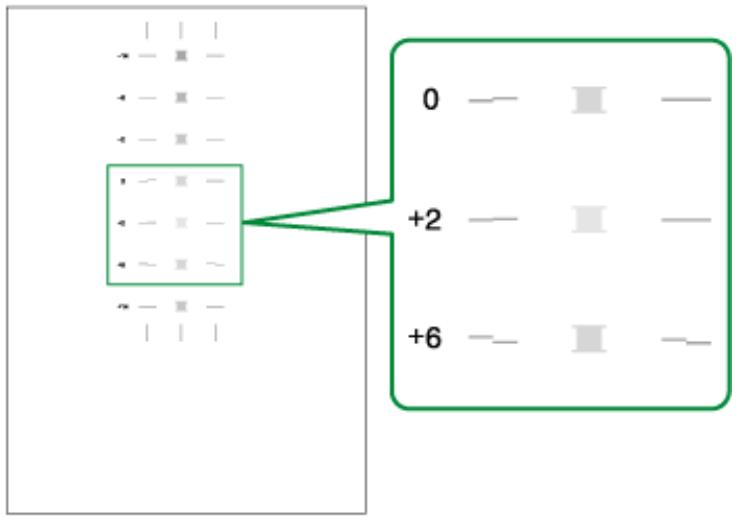
The optimal adjustment value is the number that appears on the left of the lightest gray square with straight horizontal lines on both sides. When this number is +2 , the optimal adjustment value is +2 .
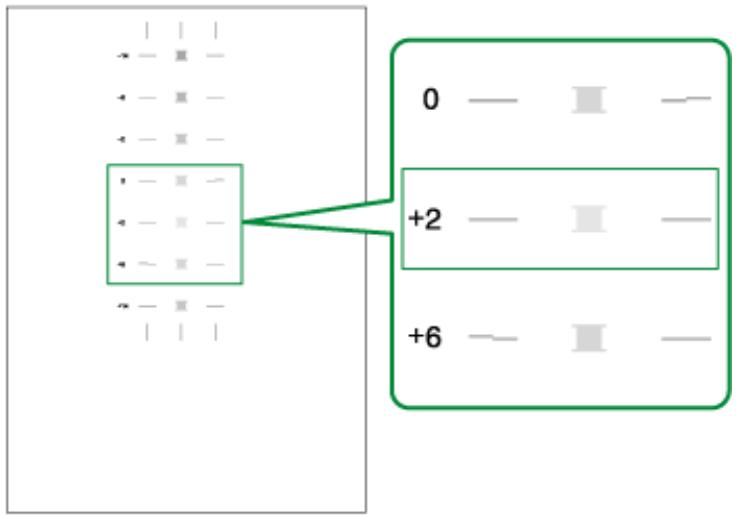
When horizontal lines beside the lightest gray square are broken, select the optimal adjustment value by referring to the lines broken in the opposite direction. When the "+"2" square is the lightest gray square and the "+"6" horizontal lines are broken in the opposite direction, the optimal adjustment value is between "+"3" and "+"5". After adjustment, check the adjustment result.
- Press the [▼] or [▲]key to display [Adjustment], and then press the [#Enter] key.
Adj.Paper Feed: Adjustment
- Press the [] or [] key to enter the adjustment value (-14 to +14) from step5, and then press the [#Enter] key.
A:(-14,+14) 0
- Press the [Online] key.
The initial screen appears.
Registration
Follow the procedure below to adjust where to start printing on paper loaded in each paper tray after checking the test pattern printed.
- Press the [Menu] key.
- Press the [▼] or [▲] key to display [Maintenance], and then press the [#Enter] key.
Menu:
Maintenance
- Press the [] or [] key to display [Registration], and then press the [#Enter] key.
Maintenance: Registration
- Press the [▼] or [▲] key to display [Prt. Test Sheet], and then press the [#Enter] key.
Regi strati on: Prt. Test Sheet
- Press the [] or [] key to select a paper tray, and then press the [#Enter] key.
Prt. Test Sheet: Tray 1
- Press the [] or [] key to select a paper type, and then press the [#Enter] key.
Prt. Test Sheet: *plain Paper
A test pattern to adjust the print start position is printed.
-
Check the optimal adjustment values on the printed test pattern.
-
Fold the test pattern sheet in half lengthwise.
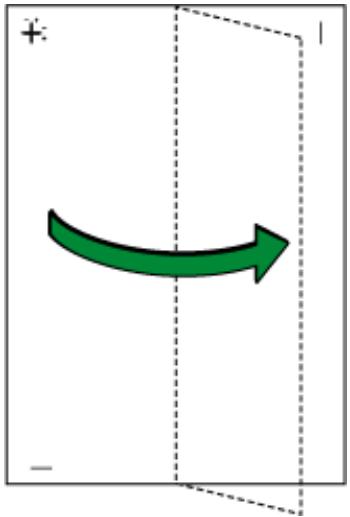
- The optimal adjustment value is the difference between the single vertical line and the cross's vertical line that you can see when the folded paper is held up to light. When the difference is one calibration mark in the "+" direction, the optimal adjustment value for the [Read Direction] is "+"1.0".
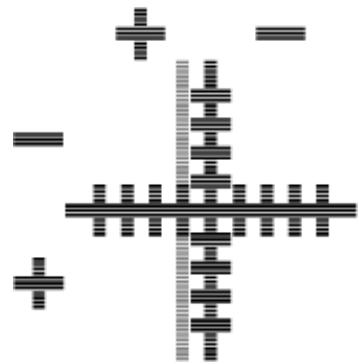
- Fold the test pattern sheet in half widthwise, and then check the adjustment value for the [Feed Direction]
Adjustment values are in 0.1 increments.
- Press the [] or [] key to display [Adjustment], and then press the [#Enter] key.
Registration: Adjustment
- Press the [] or [] key to select a paper tray, and then press the [#Enter] key.
Adjustment: Tray 1
- Press the [] or [] key to select a paper type, and then press the [# Enter] key.
Adjustment: *Plain Paper
- Press the [] or [] key to enter the adjustment values (-4.0 to +4.0) in the [Read Direction] from stepZ, and then press the [#Enter] key.
Read Direction: (-4, +4) 0.0
- Press the [] or [] key to enter the adjustment values (-4.0 to +4.0) in the [Feed Direction] from stepZ, and then press the [#Enter] key.
F e e d D i r e c t i o n: (-4, +4) 0.0
- Press the [Online] key.
The initial screen appears.
System Menu
You can set basic functions required to use the printer. The printer can be used on factory default, but the configuration can be changed depending on the condition of the user. The changed condition holds even if the printer is turned off.
Auto Continue
You can specify how the printer handles a print job if it does not have a tray containing paper of the size and type specified in the printer driver.
·Off
The printer does not print until a tray containing paper of the size and type required for the print job is inserted.
On
The printer prints even if the paper size or paper type is different from that specified.
Default: Off
Sub Paper Size
You can specify whether to print on A4 paper if the printer is not equipped with a paper tray that can feed Letter (8^1 / 2 × 11) paper specified on the printer driver, and vice versa.
- Auto
·Off
Default: Off
Energy Saver
Use Energy Saver mode to reduce the printer's power consumption.
E.Saver ON/OFF
You can select whether or not the printer switches to Energy Saver mode when idle.
On
·Off
Default: Off
E.Saver Timer
To use Energy Saver mode, you must specify how long the printer remains idle before it switches to Energy Saver mode. When the printer is in Energy Saver mode, it requires time to start up when it receives a print job.
- 5 minutes
15 minutes
30 minutes
45 minutes
60 minutes
Default: 15 minutes
Notify by Email
You can specify whether or not to send notification that a printer error has occurred to a particular e-mail address.
After changing this setting, turn the printer off and then back on.
·Off
On
Default: On
Unit of Measure
You can switch the measurement between "mm" and "inch".
mm
- inch
Default: mm
Page Size
You can select the default paper size.
A3(297x420)
B4JIS(257x364)
A4 (297 x 210)
A4 (210 x 297)
B5JIS(257x182)
B5JIS(182x257)
A5 (210× 148)
A5(148×210)
A6 (105 x 148)
11x17
81/2x14
11x81/2
81/2x11
- 51 / 2 × 81 / 2
71 / 4× 101 / 2
10 1/2 x 7 1/4
8× 13
81/2x13
81/4x13
8K(267x390)
16K (195 x 267)
16K (267 x 195)
41/8×91/2
37/8×71/2
C5Env(162x229)
C6Env(114x162)
- DL Env (110x220)
- Custom Size
Default: A4 (210 x 297)
Ink CU Replace
You can reset the ink storage counter when replacing the ink collector unit.
Changing the System Menu
This section gives an example of changing a setting in the System menu.
- Press the [Menu] key.
- Press [▲] or [▼] key to display [System], and then press the [#Enter] key.
Menu: System
- Press [▲] or [▼] key to display [Energy Saver], and then press the [#Enter] key.
System: Energy Saver
- Press the [] or [] key to display [E.Saver Timer], and then enter [#Enter] Key
Energy Saver: E. Saver Timer
- Press [▲] or [▼] key to select the lead time needed to switch to the Energy Saver mode.
E. Saver Timer:
-
15 minutes
-
Press the [#Enter] key.
The [System] screen appears.
- Press the [Online] key.
The initial screen appears.
Host Interface Menu
In the Host Interface menu, you can make network settings and settings for the computer to printer USB connection (if used). Settings made using the Host Interface menu remain effective even if you turn the printer off.
I/O Timeout
Specify how long the printer waits for the currently-connected interface to respond. When the specified time elapses, the printer can receive data from another interface.
If you make the [I/O Timeout] period too short, timeout might occur while data transfer is in progress. If this happens, the print job will be interrupted by a new job from another interface.
10 seconds
15 seconds
20 seconds
25 seconds
60 seconds
Default: 15 seconds
Network Setup
You can make network-related settings.
DHCP
You can specify the DHCP.
On
·Off
Default: On
IP Address
You can specify the IP address.
When DHCP is set to on, the IP address cannot be changed. To change it, set DHCP to off.
Contact your network administrator for information about the network configuration.
Default: 0.0.0.0
Subnet Mask
You can specify the subnet mask.
When DHCP is set to on, the subnet mask cannot be changed. To change it, set DHCP to off. Contact your network administrator for information about the network configuration.
Default: 0.0.0.0
Gateway Address
You can specify the gateway address.
When DHCP is set to on, the gateway address cannot be changed. To change it, set DHCP to off.
Contact your network administrator for information about the network configuration.
Default: 0.0.0.0
Frame Type (NW)
You can select the frame type for NetWare.
- Auto Select
- Ethernet II
- Ethernet 802.2
- Ethernet 802.3
- Ethernet SNAP
Default: Auto Select
Active Protocol
You can select the active protocol.
TCP/IP
- NetWare
SMB
Default: All Active
Ethernet Speed
You can select the network speed to operate the printer.
- Auto Select
10Mbps Half D.
10Mbps Full D.
100Mbps Half D.
100Mbps Full D.
Default: Auto Select
USB Setting
You can specify the settings related to communication when the computer and printer are connected via USB. Usually, you do not need to change these settings.
USB Speed
Full Speed
- Auto
Default: Auto
Port
On
·Off
Default: Off

Note
To use NetBEUI, enable [SMB].
Changing the Host Interface Menu
This section gives an example of changing a setting in the Host Interface menu.
- Press the [Menu] key.
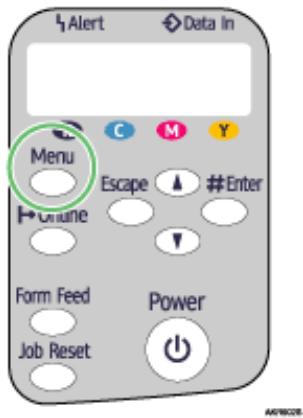
- Press the [] or [] key to display [Host Interface], and then press the [#Enter] key.
Menu: Host Interface
- Press the [▲] or [▼] key to display [I/O Timeout], and then press the [#Enter] key.
Host Interface: I/0 Timeout
- Press the [A] or [▼] key to display the [20 seconds], and then press the [#Enter] key.
I/0 Timeout: 20 seconds
The [Host Interface] menu appears.
- Press the [Online] key.
The initial screen appears.
Language Menu
You can set language displayed on the menu.
Changing the Language Menu
You can select the language you use. Available languages are as follows:
English, German, French, Italian, Dutch, Swedish, Norwegian, Danish, Spanish, and Portuguese.
Default: English
Follow the procedure below to change the language.
- Press the [Menu] key.
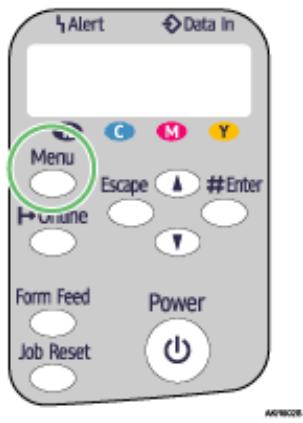
- Press the [] or [] key to display [Language], and then press the [#Enter] key.
Menu: Language
- Press the [▲] or [▼] key to select the language, and then press the [#Enter] key.
Language: English
The [Menu] screen appears.
- Press the [Online] key.
The initial screen appears.
Maintaining the Printer Using Utilities
If you repeatedly print, print-heads will get dirty and print quality may degrade. Perform printer maintenance from the [Maintenance] tab in the printer properties dialog box.
Nozzle Check
Follow the procedure below to check whether the print-head nozzles are clogged up or not by printing a nozzle check test pattern.
To check the printed test pattern, proceed to step Z.
- Open the printer properties dialog box.
- Click the [Maintenance] tab.
- Click [Nozzle Check].
- Click [Next >].
- Check that A4/Letter size paper is loaded in the paper tray.
- Click [Next >].
- Check the printed test pattern.
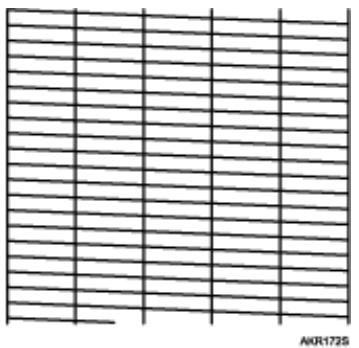
Normal
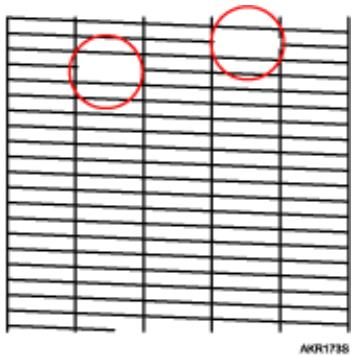
When print-heads are clogged
- Click [Finish].
If the printed test pattern is not clear, select the [Head-cleaning] check box, and then click [Next >].

Reference
p.152 "Two Types of Printer Properties Dialog Box"
Head-cleaning
Follow the procedure below to perform a normal print-head cleaning. Perform a head cleaning when a particular colour cannot be printed or print images are blurred. Head cleaning consumes ink.
When the Print cartridge is empty, replace it instead of performing a print-head cleaning. After a Print cartridge is replaced, a print-head cleaning will be automatically performed.
- Slide the envelope selector to the forward position.
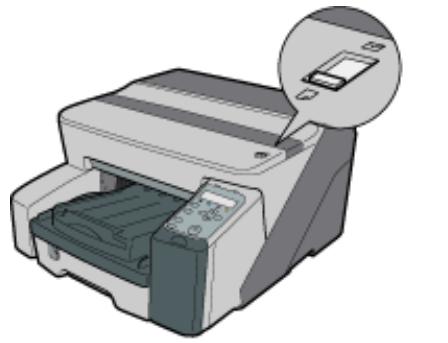
AKR2A5
- Open the printer properties dialog box.
- Click the [Maintenance] tab.
- Click [Head-cleaning].
- In the [Select print-head(s)] area, select a colour.
- Click [Next >].
- Click [Next >].
Do not perform another operation before cleaning is complete.
- Click [Finish].

Note
- If the condition of the print-heads is not satisfactory, perform head cleaning again. However, the heads may remain clogged and the printer may not print properly even if you clean the heads multiple times. If this happens, perform a full print head cleaning. If there is still no improvement, turn the printer off, and then leave it turned off for at least 8 hours. This may solve the problem.

Reference
p.153 "Opening from the Start Menu"
p.152 "Two Types of Printer Properties Dialog Box"
p.68 "Nozzle Check"
Head-flushing
Follow the procedure below to perform a thorough print-head cleaning. Since this consumes more ink than a normal head cleaning does, perform this when the problem persists after performing a normal head cleaning.
When the Print cartridge is empty, replace it instead of performing a print-head cleaning. After a Print cartridge is replaced, a print-head cleaning will be automatically performed.
- Slide the envelope selector to the forward position.
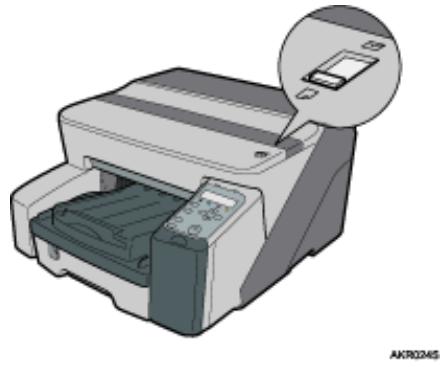
- Open the printer properties dialog box.
- Click the [Maintenance] tab.
- Click [Head-flushing].
- In the [Select print-head(s)] area, select a colour.
- Click [Next >].
- Select the [Head-flushing] check box.
- Click [Next >].
Head cleaning starts.
Do not perform another operation before cleaning is complete.
- Click [Finish].
To check the condition of print-heads after cleaning, select the [Print nozzle check test pattern] check box, and then click [Next >]. The nozzle check starts.

Note
- A full print-head cleaning consumes a lot of ink. Perform it only when necessary.
- A full print-head cleaning may deplete the ink before the Print cartridge is expected to need to be changed.

Reference
p.152 "Two Types of Printer Properties Dialog Box"
Adjust Print-head Positions
Follow the procedure below to print a test pattern and adjust the print-head positions if vertical lines are printed unaligned or printed colours look blurred.
To check the printed test pattern, proceed to step 8.
When the envelope selector is not at the correct position, the colours may be printed unaligned.
- Open the printer properties dialog box.
- Click the [Maintenance] tab.
- Click [Adjust Print-head Positions].
- In the [Select a test pattern:] list, select a test pattern.
Select a resolution. To adjust print-head positions for all resolutions, repeat this procedure selecting the other resolution.
[Quality priority/Speed Priority] is selected here as an example.
- Click [Next >].
- Check that A4/Letter size paper is loaded in the paper tray.
- Click [Next >].
A test pattern to adjust print-head positions is printed.
Do not perform other operations during printing.
The "High quality" test pattern differs from the "High Speed" test pattern.
- Check the optimal adjustment values on the printed test pattern.
The optimal adjustment value is the column number that appears above the lightest gray square with straight vertical lines on both sides. When the column number is "+" for the "A" line, the optimal adjustment value is "+" for "A".
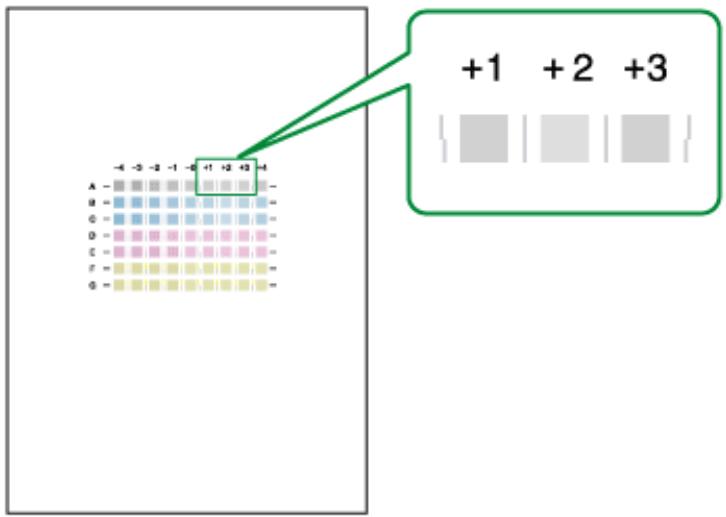
- Enter the optimal adjustment values.
- Click [Finish].
Reference
p.152 "Two Types of Printer Properties Dialog Box"
Registration
Follow the procedure below to adjust where to start printing on paper loaded in each paper tray after checking the test pattern printed.
To check the printed test pattern, proceed to step 8.
- Open the printer properties dialog box.
- Click the [Maintenance] tab.
- Click [Registration].
- In the [Paper source tray:] list, select a paper tray. In the [Paper type:] list, select a paper type.
- Click [Next >].
- Check that A4/Letter size paper is loaded in the paper tray.
- Click [Next >].
A test pattern to adjust the print start position is printed.
Do not perform other operations during printing.
- Check the optimal adjustment values on the printed test pattern.
- Fold the test pattern sheet in half lengthwise.
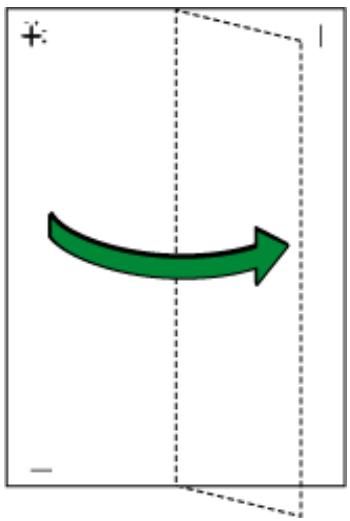
- The optimal adjustment value is the difference between the single vertical line and the cross's vertical line that you can see when the folded paper is held up to light. When the difference is one calibration mark in the "+" direction, the optimal adjustment value for the [Printing direction:] is "+"1.0".
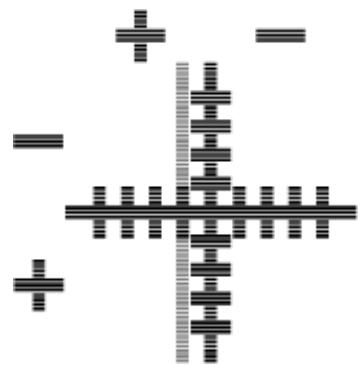
- Fold the test pattern sheet in half widthwise, and then check the adjustment value for the [Paper feed direction:]
Adjustment values are in 0.1 increments.
- In the [Printing direction:] and [Paper feed direction:] boxes, enter the adjustment values (-4.0 to +4.0) from step 8.
- Click [Finish].
If a test pattern does not print or the image is not clear, select the [Print a test pattern and return to this screen] check box, and then click [Next >]. A registration test pattern is printed and the dialog box displayed in step 12.
Reference
p.152 "Two Types of Printer Properties Dialog Box"
Adjust Paper Feed
If horizontals are misaligned, images are patchy, or a black or white lines appear at regular intervals, print a test pattern, and then adjust the paper feed setting.
To check the printed test pattern, proceed to step Z.
- Open the printer properties dialog box.
- Click the [Maintenance] tab.
- Click [Adjust Paper Feed].
- Click [Next >].
- Check that A4/Letter size paper is loaded in the paper tray.
- Click [Next >].
A test pattern to adjust paper feed is printed.
Do not perform other operations during printing.
7. Check the optimal adjustment values on the printed test pattern.
The optimal adjustment value is the number that appears on the left of the lightest gray square with straight horizontal lines on both sides. When this number is +2 , the optimal adjustment value is +2 .

When horizontal lines beside the lightest gray square are broken, select the optimal adjustment value by referring to the lines broken in the opposite direction. When the "+"2" square is the lightest gray square and the "+"6" horizontal lines are broken in the opposite direction, the optimal adjustment value is between "+"3" and "+"5". After adjustment, check the adjustment result.
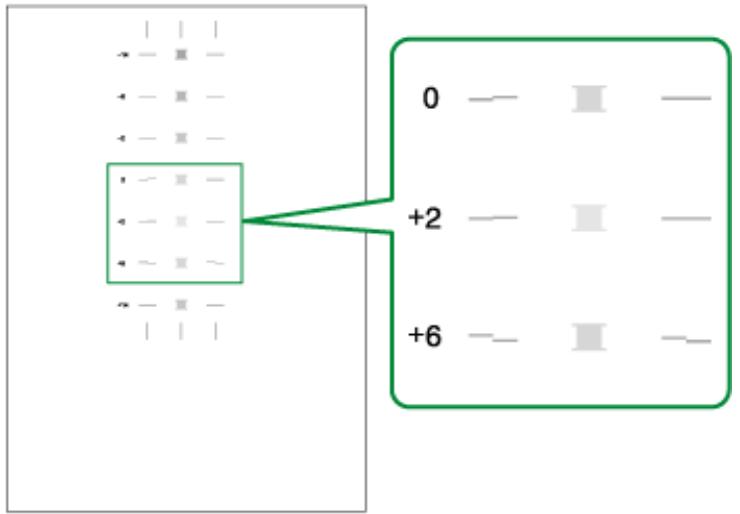
- In the [Paper feed value:] box, enter the adjustment value (-14 to +14) from step Z.
- Click [Finish].
If a test pattern is not printed or the image is not clear, select the [Print a test pattern and return to this screen] check box, and then click [Next >].
Reference
p.152 "Two Types of Printer Properties Dialog Box"
Restore Defaults/Other Settings
Follow the procedure below to restore the settings to their defaults or specify the amount of time the printer will wait for more information from the computer sending the print data before it times out (I/O timeout).
- Open the printer properties dialog box.
- Click the [Maintenance] tab.
- Click [Restore Defaults/Other Settings].
The [Restore Defaults/Other Settings] dialog box appears.
Reference
p.152 "Two Types of Printer Properties Dialog Box"
Restoring the Settings to Their Defaults
Follow the procedure below to restore the settings for [Adjust Print-head Positions], [Registration], [Adjust Paper Feed], and [I/O Timeout:] to their defaults.
- Open the printer properties dialog box.
- Click the [Maintenance] tab.
- Click [Restore Defaults/Other Settings].
- Click [Restore Defaults]
A confirmation message appears.
- Click [OK].
The settings currently made for [Adjust Print-head Positions], [Registration], [Adjust Paper Feed], and [I/O Timeout:] will be lost. These settings cannot be restored.
Reference
p.152 "Two Types of Printer Properties Dialog Box"
p.70 "Adjust Print-head Positions"
p.72 "Registration"
p.73 "Adjust Paper Feed"
p.75 "Specifying an I/O Timeout"
Specifying an I/O Timeout
Follow the procedure below to specify the amount of time the printer will wait for more information from the computer sending the print data before it times out.
- Open the printer properties dialog box.
- Click the [Maintenance] tab.
- Click [Restore Defaults/Other Settings].
The [Restore Defaults/Other Settings] dialog box appears.
- In the [Select a time period] area, select the amount of time in the [I/O Timeout:] list.
- Click [OK].
Even if you change the [I/O Timeout:] setting, the displayed setting remains unchanged.

Reference
p.152 "Two Types of Printer Properties Dialog Box"
Troubleshooting
Printing Will Not Start 79
PowerCannotBeTurnedOn 79
Paper Will Not Feed Even When the Power Is On 79
An Error Occurs 79
Points to Remember when Printer Sharing under Windows 98/Me 80
Paper Is Not Fed or Delivered Normally 81
Paper Jam 82
Removing Paper Jammed in the Paper Tray (Tray 1) 82
Removing Paper Jammed in the Bypass Tray (optional) 83
Removing Paper Jammed under the Top Cover 86
Removing Paper Jammed around the Guide Board 87
Removing Paper Jammed in the Duplex Unit 89
Removing Paper Jammed in the Output Tray 90
Print Results Are Not Satisfactory 92
Checking the Condition of the Printer 92
Printing Is Uneven, Too Heavy, or Too Light 92
Dirty or Blotted Plints 93
Checking the Printer Driver Setting 93
Changing the Printer Driver Setting 93
Colours Do Not Match the Displayed Image 95
Positions Do Not Match the Displayed Image 96
Error & Status Messages on the Control Panel 97
Status Monitor Errors 101
Status Monitor Does Not Open 101
No Response from Printer 101
No Paper/Tray Not Detected (Tray 1) 101
Printing by Form Feed 102
Canceling the Print Job. 103
No Paper/Tray Not Detected (Bypass Tray) 103
Press the [#Enter] key. 104
Paper Size Mismatch/Paper Type Mismatch (Tray 1) 104
Printing by Form Feed 104
Canceling the Print Job 105
Paper Size Mismatch/Paper Type Mismatch (Bypass Tray) 106
Printing by Form Feed 106
Canceling the Print Job. 107
Paper Size Mismatch/Paper Type Mismatch (AutoTray Select) 107
Printing by Form Feed 108
Canceling the Print Job. 109
Cover Open 109
Duplex Unit Not Detected 110
Cover Open / Print Cartridge(s) Not Detected 111
Cartridge End 113
Cartridge/Print-head Tank Empty 114
When the Ink Collector Unit is Almost Full/Full 115
Ink Collector Unit Not Detected 115
Out of Printable Temperature Range 116
Printer Error 116
Network Interface Board Error 117
Adjusting the Printer 118
Printing Will Not Start
If printing will not start, check whether the power of the printer is on or whether the power can be turned on or not.
If an error occurs when you try printing, change the computer or printer driver settings.
Power Cannot Be Turned On
If the [Power] key does not light or does not blink when it is pressed, check if there is something wrong with the power cord or wall outlet.
Check the following:
- Make sure that the power plug is firmly inserted into the wall outlet.
- Check if there is something wrong with the wall outlet. Do this by connecting another electronic product whose operation you are familiar with.
If the above steps do not solve the problem, turn the power off, pull out the power cable, and contact your sales or service representative. See p.120 "Where to Inquire".
Paper Will Not Feed Even When the Power Is On
If printing will not start even when the power is on, check if an error has occurred using the indicators or Status monitor.
An indicator is lit or blinking
Only the [Power] key is blinking.
The printer may be receiving data or replenishing its ink. Wait momentarily for the blinking [Power] key to stop and stay lit.
The [Resume] key or a cartridge replacement indicator is blinking or lit.
An error has occurred.
An error message is displayed on the Status monitor.
Click [User Guide...] to display the page corresponding to the error where you can check how to solve the problem in more detail. See p.101 "Status Monitor Errors".
An Error Occurs
If an error occurs when you try printing, change the computer or printer properties settings.
Do the following:
- Check the printer icon name does not exceed 32 alphanumeric characters.
(If it does, shorten it.)
- Check whether other applications are operating.
Close all other applications because these could be interfering with the installation. Be sure to close all resident programs also.
- Check the printer properties settings.
In the [Change User Settings] dialog box, on the [Misc.] tab, select the [Change data processing] check box.
For details, see p.177 "Changing the Image Data Process".
- Check whether the latest printer driver is being used. see p.235 "Checking the Current Printer Driver Version".
If the printer driver being used is not the latest one, update it with the latest version. see p.97 "Error & Status Messages on the Control Panel".
Points to Remember when Printer Sharing under Windows 98/Me
When running printer sharing from a print server and connecting to a printer from a Windows 98/Me computer, there is a risk of printer driver installation failure on the client side. If this occurs, make the following settings on both the print server and the client:
Details of Problems that can Occur
Printer sharing is not displayed on the client computer, and when you attempt to print, print does not start and an "Error Message" appears.
Printer Server Settings
On the print server, from the Printers icon, open Printer Properties. On the [General] tab, delete [Comment].
Try the following if you cannot get out of "Printer Server Settings":
- On the [Sharing] tab, enter the [Share Name] using less than seven letters.
- On the [Sharing] tab, delete [Comment].
- Enter the server machine name (computer name) using less than seven letters.
To Reset a Client Computer
- Delete the client computer's printer driver, and then restart Windows.
- On the print server, make the necessary settings under "Print Server Settings".
- Reinstall the printer driver on the client computer.
Paper Is Not Fed or Delivered Normally
If the printer is operating but paper will not feed or paper jams multiple times, check the condition of the printer and paper.
Paper does not feed smoothly.
Paper guides are not adjusted properly.
- The paper guides of the paper tray do not match the paper loaded. Adjust the paper guides and load the paper again. See p.32 "Loading Paper".
Paper is not loaded properly.
- The paper is not loaded properly. Load the paper correctly. See p.32 "Loading Paper".
Paper is curled.
- Remove the loaded paper and check if it is curled. If it is, straighten the curl.
Paper that is not compatible is loaded.
- Remove the loaded paper and replace it with compatible paper. See p.30 "Non-compatible Paper".
Paper jams multiple times.
The guide board is not closed.
- Make sure that the guide board is closed. Remove the duplex unit and press both sides of the guide board until it clicks closed.
Printing densely coloured images on both sides.
- When printing images containing areas of solid colour that consume a lot of ink, we recommend single-sided printing.
Multiple sheets of paper are fed at one time.
Load the paper again. Remove the paper from the paper tray, fan it well, and tap it on a flat surface such as a desk to even the edges. Check the position of the paper guides of the paper tray, and then load the paper again.
Though a paper jam is cleared, paper does not feed.
When a paper jam occurs, clear the paper jam, and then press the [Resume] key. See p.82 "Paper Jam".
Note
If an error is displayed on the Status monitor, follow the instructions to solve the problem. p.101 "Status Monitor Errors".
Paper Jam
This explains how to remove a paper jam. When a paper jam error appears in the Status monitor, remove the paper from the location indicated.
If you cannot locate paper jams or jammed paper cannot be removed easily, you can check the condition of paper from the top of the printer.
Reference
p.21 "Detaching and Reattaching the Multi Bypass Tray (Optional)"
Removing Paper Jammed in the Paper Tray (Tray 1)
Follow the procedure below to remove paper jammed in tray 1.
- Lift the output tray.
- Pull out tray 1.
Pull tray 1 completely out. Take care not to drop it.
- Remove jammed paper.
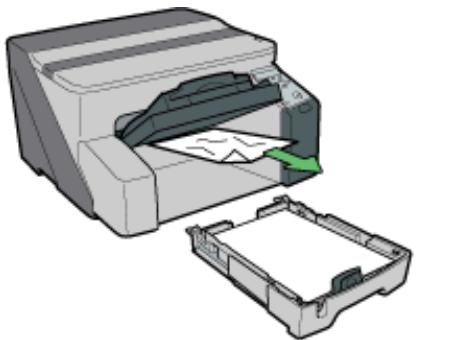
AK0225
If you cannot remove the jammed paper or it is difficult to remove, the paper may be jammed inside the printer. Examine the paper carefully and remove.
If you cannot locate jammed paper, it may be jammed inside the printer.
- Push tray 1 gently in until it stops.
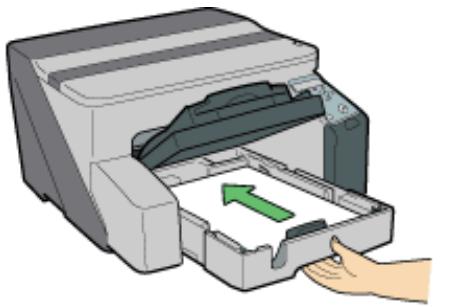
AK00148
5. Lower the output tray.
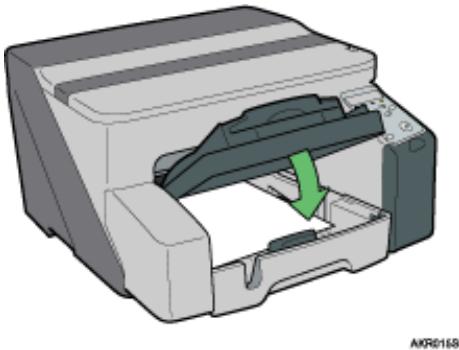
Printing starts.
Blank paper may be delivered after printing resumes.

Note
- Make sure to unfold the output tray before printing.

Reference
p.87 "Removing Paper Jammed around the Guide Board"
p.81 "Paper Is Not Fed or Delivered Normally"
Removing Paper Jammed in the Bypass Tray (optional)
Follow the procedure below to remove paper jammed in the bypass tray.
- Remove any paper in the bypass tray.
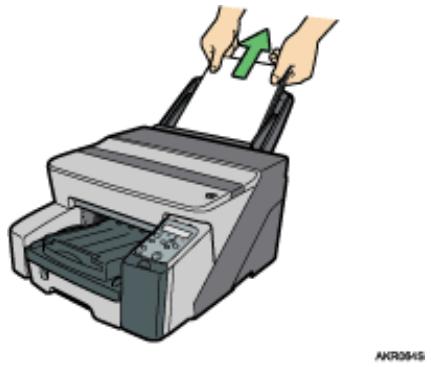
- Remove jammed paper.
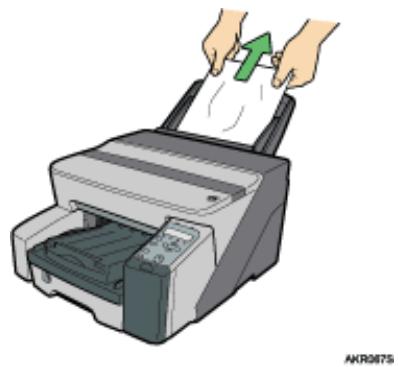
- Load paper in the bypass tray with the side to be printed on facing up.
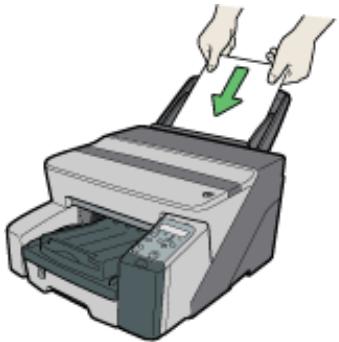

Printing cannot start until the machine finishes cleaning its head. Load the paper in the bypass tray when cleaning finishes.
Insert the sheet straight into the bypass tray.
If it is difficult to remove jammed paper, follow the procedure below to remove it.
- Remove any paper in the bypass tray.
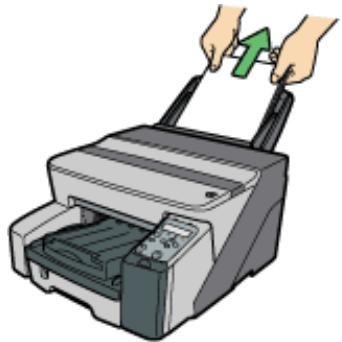

- Push the bypass tray extension in.
- Detach the multi bypass tray.
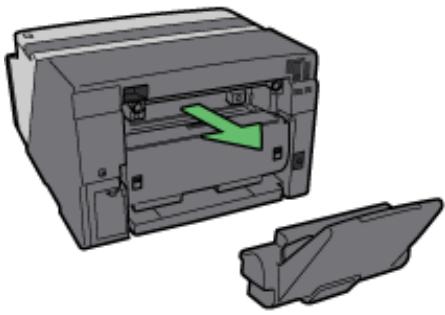

- Remove the jammed paper from the rear of the printer.
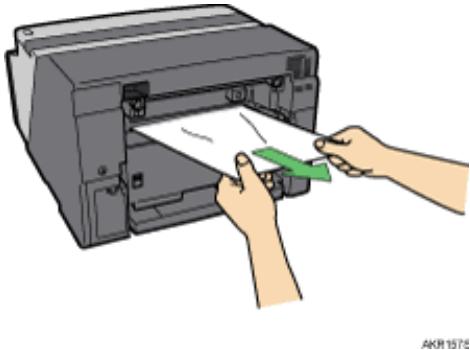
- Reattach the multi bypass tray.
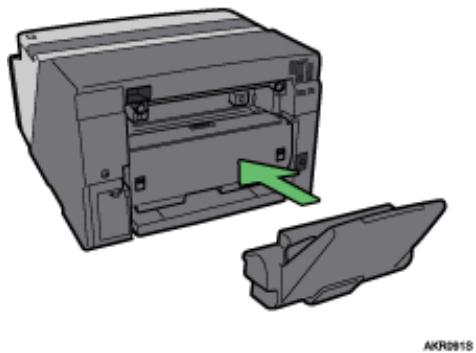
- Pull the bypass tray extension out.
- Load paper in the bypass tray with the side to be printed on facing up.
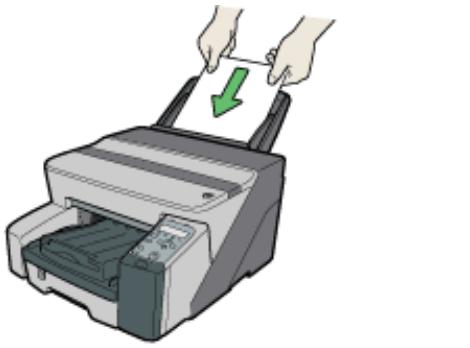
AKR2B5
Printing cannot start until the machine finishes cleaning its head. Load the paper in the bypass tray when cleaning finishes.
Insert the sheet straight into the bypass tray.

Note
- If you cannot remove the jammed paper using the above procedure, clear the jam from the multi bypass tray.
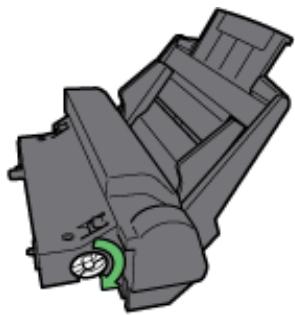
AKR1685
- Turn the knob on the multi bypass tray clockwise to eject the jammed paper.
If this does not eject the paper, turn the knob one-turn counterclockwise, and then turn it clockwise. This will eject the paper.

Reference
p.81 "Paper Is Not Fed or Delivered Normally"
Removing Paper Jammed under the Top Cover
Follow the procedure below to remove paper jammed under the top cover.
- Open the top cover.
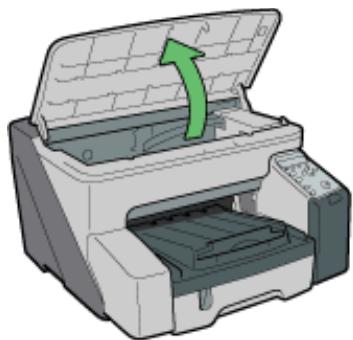
AKT80345
- Remove jammed paper.
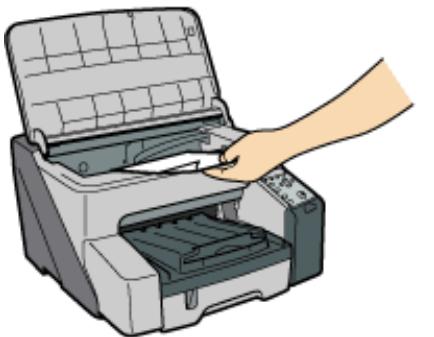
AKR355
Take care not to snag the sleeves of your clothing on the cord.
Do not touch the feed belt.
3. Close the top cover.
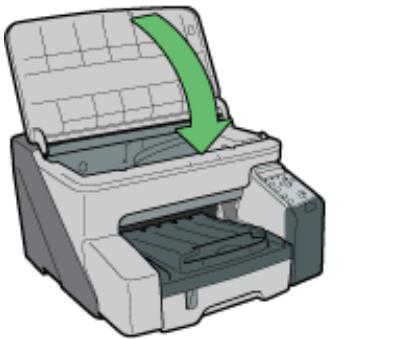
A07085
Printing starts.

Note
- Depending on how the paper was jammed, printing may resume from the next page, not the one jammed.
Removing Paper Jammed around the Guide Board
Follow the procedure below to remove paper jammed around the guide board.

Important
If the multi bypass tray is attached to the printer, detach it.
- Unlock the duplex unit at the back of the machine by raising the levers on its sides. Then, detach the duplex unit.
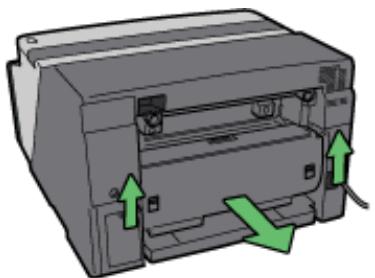
AKR1768
- Unlock the guide board by moving the tabs on both sides toward the middle, and then open the guide board.
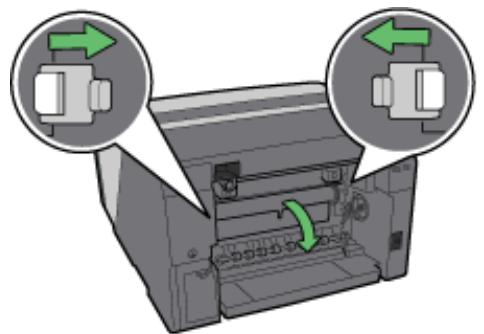
AK00375
- Turn the paper feed wheel to release paper from the feed belt.
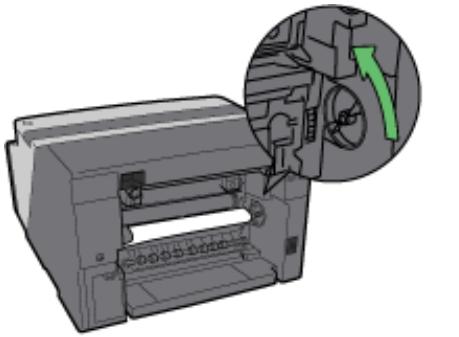

Release paper from the roller to make it removable.
- Insert your finger between the paper and the roller, and then remove the paper slowly.
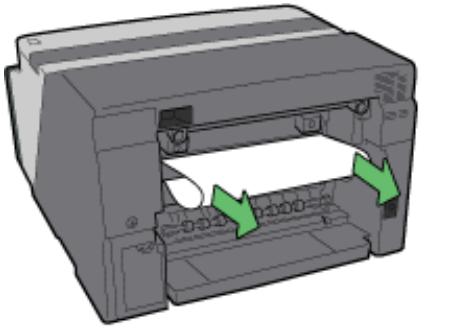

Do not touch the feed belt.
- Close the guide board.
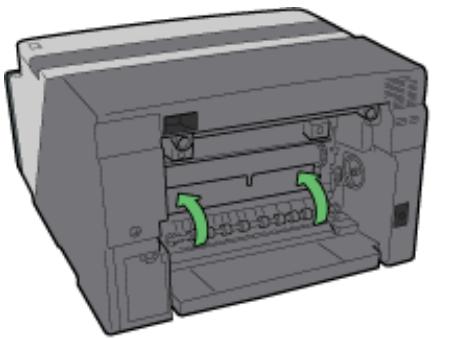

Push the PUSH area on both sides of the guide board until it firmly closes.
- Reinstall the duplex unit in its original position, and then lower the levers on its sides.
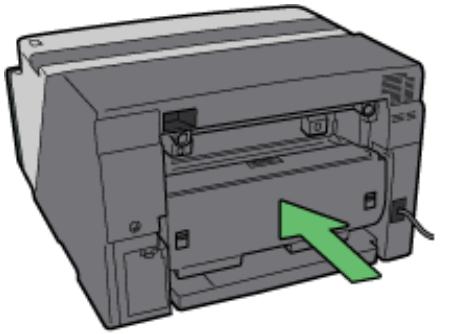
AKR1768
- Lock the lever for attaching the duplex unit.
Printing starts.

Note
Depending on how the paper was jammed, printing may resume from the next page, not the one jammed.

Reference
p.81 "Paper Is Not Fed or Delivered Normally"
p.21 "Detaching and Reattaching the Multi Bypass Tray (Optional)"
Removing Paper Jammed in the Duplex Unit
Follow the procedure below to remove paper jammed in the duplex unit.

Important
If the multi bypass tray is attached to the printer, detach it.
- Press the duplex unit cover button at the centre of the bypass tray, and then open the duplex unit cover.
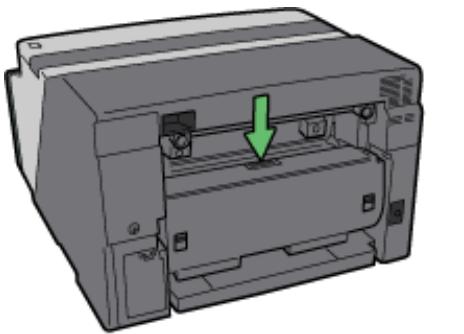
AK12425
- Remove jammed paper.
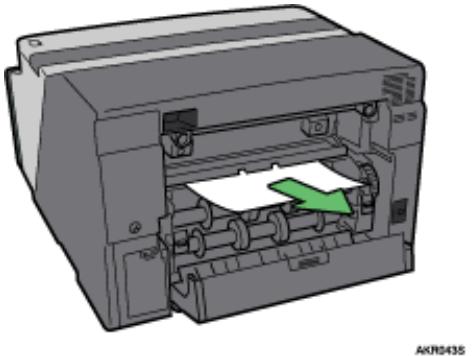
- Close the duplex unit cover.
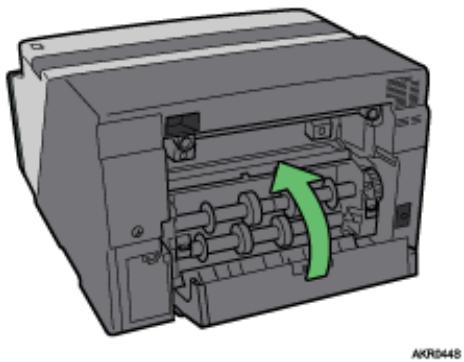
Printing starts.

Note
- Depending on how the paper was jammed, printing may resume from the next page, not the one jammed.

Reference
p.21 "Detaching and Reattaching the Multi Bypass Tray (Optional)"
Removing Paper Jammed in the Output Tray
Follow the procedure below to remove paper jammed in the output tray.
- Remove jammed paper.
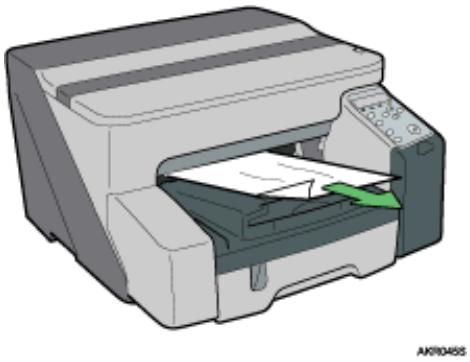
Printing starts.

Note
- Depending on how the paper was jammed, printing may resume from the next page, not the one jammed.
Print Results Are Not Satisfactory
If there is a problem with the quality of the printing such as dirty or faint and patchy prints, first check the condition of the printer.
Checking the Condition of the Printer
Have you printed the nozzle check test pattern?
Print the nozzle check test pattern to check whether the print head nozzles are all ejecting ink properly, and, if necessary, carry out head cleaning or head-flushing. The procedure is as follows:
- Print the nozzle check test pattern.
- If the printed test pattern has defects, carry out head cleaning, and then print the nozzle check test pattern again.
- Repeat the steps of head cleaning and printing the nozzle check test pattern several times, and then check whether the defects in the printed test pattern have gone.
- If the printed test pattern still has defects, carry out head-flushing, and then print the nozzle check test pattern again.
See p.68 "Nozzle Check" and p.69 "Head-cleaning".
Does the envelope selector setting match?
Set the envelope selector according to the type of paper. For envelopes, set the lever to the rear position l for everything else, set the lever to the forward position l . See p.157 "Printing on Various Paper Types".
Has the printer not been used for a long time?
The ink may be dry or the nozzles of the print-heads may be clogged. Print the nozzle check test pattern and clean the print-heads as necessary. See p.68 "Nozzle Check" and p.69 "Head-cleaning".
Have the print-heads been aligned?
If the image is fuzzy or lines are doubled, align the print-heads. If the problem persists, print the nozzle check test pattern and clean the print-heads as necessary. See p.70 "Adjust Print-head Positions", p.68 "Nozzle Check", and p.69 "Head-cleaning".
Is there a problem with the printer's location?
Make sure that the printer is level. Place the printer in a location where it will not be subject to shaking or excessive force.
Printing Is Uneven, Too Heavy, or Too Light
If there is a problem with the quality of the printing such as uneven printing or an inappropriate amount of ink being used, the following questions should be addressed.
Is an old Print cartridge being used?
Print cartridges should be opened before their expiration date and used within six months of being opened.
Does the paper type setting match?
Make sure that the paper type setting of the printer driver matches the type of paper loaded. See p.157 "Printing on Various Paper Types".
Are you printing on the wrong side of the paper?
Check which side should be printed on when using inkjet plain paper. If you print on the wrong side, the quality of the printing may be lower and the inside of the printer may get dirty. See p.28 "Paper Handling Precautions".
Dirty or Blotted Plints
If prints are dirty or blotted, the following questions should be addressed.
Is the paper being used too thick or thin?
Check if the paper is compatible. If extremely thick or thin paper is used, the print-heads will rub the paper and ink will leak. See p.26 "Loadable Paper Sizes and Quantities".
Have you touched the printed side of paper?
Avoid touching the printed side of paper. Particularly, avoid touching glossy paper and inkjet transparency that have just been printed because these require longer than normal to dry. Remove them one at a time from the output tray without touching the printed side, and then let them dry fully. See p.28 "Paper Handling Precautions".
Is the paper loaded in the correct orientation?
Some paper cannot be loaded lengthwise depending on the size of the paper. Check the orientation in which the paper is loaded. See p.26 "Loadable Paper Sizes and Quantities".
Is a genuine Print cartridge being used?
Using a cartridge other than a genuine Print cartridge or using a cartridge refilled with ink will lower the print quality and could cause a breakdown. Use a genuine Print cartridge. See p.121 "Recommended Consumables".
Are you printing densely coloured images on both sides of paper?
When a large amount of ink is used to completely cover a side, one-sided printing is recommended.
Checking the Printer Driver Setting
If the condition of your printer is no problem, check the printer driver settings.
Changing the Printer Driver Setting
You may eliminate certain problems by changing the printer driver settings as described below:
Cannot print certain data properly when using a certain application, or cannot print image data properly.
In the [Print Quality] area, select [Quality priority], and then print. See p.169 "Printing Using Preset Print Quality Settings".
In the [Change User Settings] dialog box, on the [Image Adjustments] tab, under [Dithering], deselect the [Use error diffusion] check box. See p.172 "Using Error Diffusion".
Set [Spool format:] to [RAW] or [EMF] in the [Printer Configuration] tab.
In the [Change User Settings] dialog box, on the [Image Adjustments] tab, under [Image processing priority], deselect the [Adjust photos and images] and [Smooth low resolution images] check boxes. See p.171 "Correcting the Hue of Digital Photos" and p.171 "Printing Low Resolution Images Smoothly".
In the [Change User Settings] dialog box, on the [Misc.] tab, select the [Print as bitmap] check box. See p.177 "Printing a Whole Page as an Image".
On the [Printer Configuration] tab, set [Adjust Color Density] to [Darker] or [Lighter], and then print.
In the [Print Quality-User settings] dialog box, on the [Color Settings] tab, specify [Gray reproduction (Text/Line Art):].
Some characters are garbled or missing.
In the [Change User Settings] dialog box, on the [Misc.] tab, select the [Change methods to extract TrueType fonts] check box. See p.179 "Changing the Method of Extracting TrueType Fonts".
In the [Printer Configuration] tab, set [Spool format:] to [EMF]. In the [Change User Settings] dialog box, on the [Misc.] tab, select the [Print as bitmap] check box. See p.177 "Printing a Whole Page as an Image".
Some characters are printed faintly or not printed.
In the [Print Quality] area, select [Quality priority], and then print. See p.169 "Printing Using Preset Print Quality Settings".
In the [Change User Settings] dialog box, on the [Image Adjustments] tab, under [Dithering], deselect the [Use error diffusion] check box. See p.172 "Using Error Diffusion".
On the [Printer Configuration] tab, set [Spool format:] to [RAW] or [EMF].
On the [Printer Configuration] tab, select the [Increase bold with font size] check box.
In the [Print Quality-User settings] dialog box, on the [Color Settings] tab, specify [Gray reproduction (Text/Line Art):].
To print text in black, in the [Print Quality-User settings] dialog box, on the [Color Settings] tab, select the [K (Black) for text only] check box.
Printing is slow and takes time, which delays release of the application.
In the [Print Quality] area, select [Speed priority] or [High speed], and then print. See p.169 "Printing Using Preset Print Quality Settings".
In the [Printer Configuration] tab, set [Spool format:] to [EMF].
In the [Change User Settings] dialog box, on the [Image Adjustments] tab, under [Image processing priority], deselect the [Adjust photos and images] and [Smooth low resolution images] check boxes. See p.171 "Correcting the Hue of Digital Photos".
Close the resident application.
Printing stops halfway.
View the status monitor to check whether an error has occurred. See p.101 "Status Monitor Errors".
To print on preprinted or prepunched paper, select the [Use preprinted/prepunched paper] check box in the [Printer Configuration] tab.
Cannot carry out Layout print for Excel sheets.
In the printer properties dialog box, on the [Advanced Options] tab, select the [Increase auto-keep settings for applications] check box.
How can I make the Print mode change automatically according to the status of envelope selector?
To automatically do single-sided printing when the envelope selector is set to the envelope position, on the [Printer Configuration] tab, select the [When the envelope selector is set to Envelope Mode, use uni-directional printing only] check box.
How can I prevent ink transfer between printed sheets during duplex printing?
On the [Printer Configuration] tab, in the [Sheet-dry Print Delay...] dialog box, change [Print delay time]:.
Colours Do Not Match the Displayed Image
If there are differences between colours of the print results and the displayed image, the following questions should be addressed.
Has the hue of colours been adjusted?
Since printed colours and screen colours are produced by different methods, a colour printed and a colour displayed on a screen can have different hues even though they are the "same" colour. Use the colour matching function to make the hue of printed colours and displayed colours closer. See p.173 "Changing the Colour Profiling Pattern".
Has the nozzle check been performed?
The print-heads may be clogged and the amount of ink may not be able to be regulated. Print the nozzle check test pattern and clean the print-heads as necessary. See p.69 "Head-cleaning" and p.68 "Nozzle Check".
Was printing done in black and white?
Check the colour setting of the application and the colour print setting of the printer driver. See p.169 "Printing in Black and White".
Have the print quality settings been made?
In the [Print Quality] area, select [Quality priority], or [Speed priority], and then print. See p.169 "Printing Using Preset Print Quality Settings".
Does the paper type setting match?
Make sure that the paper type setting of the printer driver matches the type of paper loaded. See p.157 "Printing on Various Paper Types".
Have you tried printing with inkjet plain paper?
Try printing with inkjet plain paper. The print results should be clearer. See p.157 "Printing on Various Paper Types".
Is bidirectional communication enabled?
If bidirectional communication is not enabled, the tone of printed images might differ from that of displayed images. Establish bidirectional communication.
See p.149 "If Bidirectional Communication is Disabled". For details about bidirectional communication settings, see the printer driver Help.
Positions Do Not Match the Displayed Image
If the position of printed items differs from the position of displayed items, the following questions should be addressed.
Have the settings for page layout been made?
Check whether page layout settings have been made with the application.
Does the paper size setting match?
Make sure that the paper size selected in the [Printout paper size:] list of the printer properties dialog box matches the size of the paper loaded.
Does the envelope selector setting match?
Set the envelope selector according to the type of paper. For envelopes, set the lever to the rear position for everything else, set the lever to the forward position . See p.157 "Printing on Various Paper Types".
Have the print-heads been aligned?
When bidirectional printing is performed, and lines and characters are blurred, align the print-heads. If the problem persists, print the nozzle check test pattern and clean the print-heads as necessary. See p.70 "Adjust Print-Head Positions", p.68 "Nozzle Check", and p.69 "Head-cleaning".
Have you changed Printable area?
The problem may be solved by changing [Printable area:] in the printer properties dialog box. On the [Printer Configuration] tab, set [Printable area:] to [Maximum].
Have you changed Print Quality?
In the [Print Quality] area, select the [Uni-directional printing only] check box. Note, however, that this will slow printing down.
Is Binding Margins set correctly?
On the [Edit] tab, in the [Header/Footer/Adjust image position/Binding margins] dialog box, specify [Adjust Image Position] correctly.
Error & Status Messages on the Control Panel
This section explains what the messages that appear on the control panel mean and what to do when a particular message appears.
Hardware Problem Ethernet
An error in the network interface board (ethernet board) network function has occurred.
See p.117 "Network Interface Board Error".
Ink Collector is full/Replace Ink Collector Unit
The ink collector unit is full. Replace the ink collector unit.
Ink Collector almost full
The ink collector unit is almost full. Make sure you have a new ink collector on hand.
Low Ink
The ink runs out. Change the print cartridge.
See p.39 "Replacing a Print Cartridge".
Loading Ink...
Ink is being supplied. Wait a moment.
Ink depleted
The ink in the indicated print cartridge has run out. Change the indicated print cartridge.
See p.39 "Replacing a Print Cartridge".
Printing...
The printer is printing.
Ready
The printer is able to print.
Close Top Cover or reset the Duplex Unit correctly
The top cover is open or the duplex unit isn't set correctly. Close the top cover or reset the duplex unit correctly.
See p.109 "Cover Open".
Power Off On / Call Service if error reoccurs
An error has occurred.
Switch the printer off and then on. If the message reappears, contact your service representative.
Offline
The printer is offline. To print, put the printer online.
Temp. alert Please wait...
The printer is too hot or cold at start-up. Wait until "Ready" appears on the control panel.
Guide Board is open/Close the Guide Board
The guide board is open. Close the guide board.
Reset Cartridge
No print cartridge has been installed. Install the print cartridge correctly.
See p.111 "Cover Open / Print Cartridge(s) Not Detected".
Dry Waiting...
The ink on the printed OHP transparency is being allowed to dry.
Waiting...
Wait a moment.
Energy Saver
The printer is in Energy Saver mode. The printer is ready for use.
Cannot use High Temp./Power Off On
The temperature is abnormally high.
Switch the printer off and then on. If the message reappears, contact your service representative.
See p.116 "Out of Printable Temperature Range".
Cannot use Low Temp./Power Off On
The temperature is abnormally low.
Switch the printer off and then on. If the message reappears, contact your service representative.
See p.116 "Out of Printable Temperature Range".
Resetting Job...
The printer is reinitializing a print job.
Wait a moment.
Setting change
The printer is changing its settings. Wait a moment.
Load Paper: Tray# or Form Feed
The selected tray has run out of paper.
Reload the tray. Alternately, press the [Form Feed] key, select a different tray, and then print. To cancel the print job, press the [Job Reset] key.
See p.101 "No Paper/Tray Not Detected (Tray 1)", p.103 "No Paper/Tray Not Detected (Bypass Tray)".
Change Setting Tray #/
The size of paper in the selected tray does not match the specified paper size.
Load the tray with paper of the specified size, and then change the paper size setting for the tray on the control panel. Alternately, press the [Form Feed] key, select a tray containing paper of the specified size, and then print. To cancel the print job, press the [Job Reset] key.
See p.104 "Paper Size Mismatch/Paper Type Mismatch (Tray 1)", p.106 "Paper Size Mismatch/Paper Type Mismatch (Bypass Tray)".
Change Settings Tray #/
The type of paper in the selected tray does not match the specified paper type.
Load the tray with paper of the specified type, and then change the paper type setting for the tray on the control panel. Alternately, press the [Form Feed] key, select a tray containing paper of the specified type, and then print. To cancel the print job, press the [Job Reset] key.
See p.104 "Paper Size Mismatch/Paper Type Mismatch (Tray 1)", p.106 "Paper Size Mismatch/Paper Type Mismatch (Bypass Tray)".
Maintenance in process...
The printer is cleaning or flushing its print head. Wait a moment.
Right Front Cover is open/Close Right Front Cover
The right front cover is open. Close the print cartridge cover.
See p.111 "Cover Open / Print Cartridge(s) Not Detected".
Remove Misfeed Tray 1
Paper has jammed in Tray 1. Clear the jam.
See p.82 "Removing Paper Jammed in the Paper Tray (Tray 1)".
Remove Misfeed Bypass
Paper has jammed in the bypass tray. Clear the jam.
See p.83 "Removing Paper Jammed in the Bypass Tray (optional)".
Remove Misfeed Guide Board
Paper has jammed in the Guide Board. Clear the jam.
See p.87 "Removing Paper Jammed around the Guide Board".
Remove Misfeed Top Cover
Paper has jammed under the top cover. Clear the jam.
See p.86 "Removing Paper Jammed under the Top Cover".
Remove Misfeed Duplex
Paper has jammed in the duplex unit. Clear the jam.
See p.89 "Removing Paper Jammed in the Duplex Unit".
Remove Misfeed Output
Paper has jammed in the output tray. Clear the jam.
See p.90 "Removing Paper Jammed in the Output Tray".
Close Duplex Unit Cover
The duplex unit cover is open. Close the duplex unit cover.
See p.109 "Cover Open".
Reset Duplex Unit correctly/Reset Duplex Unit correctly
The duplex unit has not been installed correctly. Reset the duplex unit correctly.
See p.110 "Duplex Unit Not Detected".

Note
- If this does not eliminate the problem, contact your service representative.
Status Monitor Errors
If an error occurs with the printer, Status Monitor displays an error message. Click [User Guide...] to display the page corresponding to the error where you can check how to solve the problem in more detail.
Status Monitor Does Not Open
If the Status monitor does not open for a shared printer, the following questions should be addressed.
Are the share settings correct?
Check the share settings of the printer. The printer driver must also be installed on the client computer. See p.134 "Setting Up a Server" and p.134 "Setting Up a Client Computer".
Does your Web browser support Status Monitor?
Internet Explorer version 4.0 or later is required to display Status Monitor.
No Response from Printer
Follow the procedure below to check the port settings and the connection between the printer and computer.
- Check that the power of the printer is on.
- Make sure that the computer and printer are properly connected using a USB cable.
- Open the printer properties dialog box.
- Click the [Ports] tab.
- Check that USB is selected in the [Print to the following port:] list.
↓ Note
- Under Windows 98/Me, check that USB is selected in the list on the [Details] tab.
If you want to connect the printer to the network, check the operating environment, and then change the port setting. For details about configuring the port, see p.136 "Using the SmartDeviceMonitor for Client Port", p.141 "Using the Standard TCP/IP Port", and p.143 "Using the LPR Port".
Reference
p.153 "Opening from the Start Menu"
No Paper/Tray Not Detected (Tray 1)
Tray 1 is empty or the paper in it is not loaded properly. Do one of the following:
- Load the tray.
- Change the tray.
- Print by Form Feed.
- Cancel the print job.
Reference
To load the tray, see p.32 "Loading Paper".
To change the tray, see p.47 "Paper Input Menu".
Printing by Form Feed
Press the [Form Feed] key, select the tray, and then print by Form Feed.
- Press the [Form Feed] key.
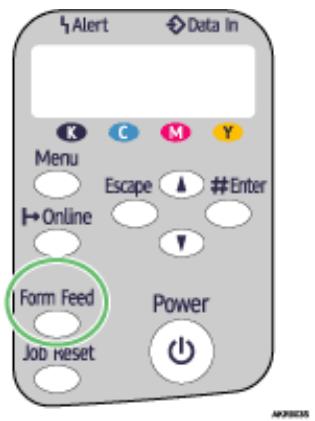
- Select the tray.
Print: Tray 1 ? : A4 (297 x 210)
Print: Tray 1 ? : P l a i n P a p e r
- Press the [#Enter] key.
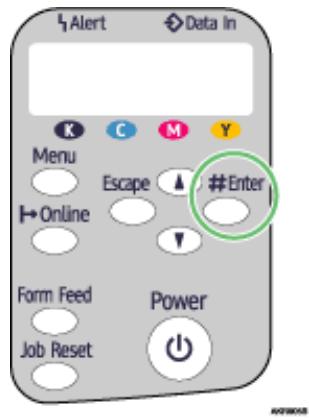
Canceling the Print Job
Cancel the print job.
- Press the [Job Reset] key.
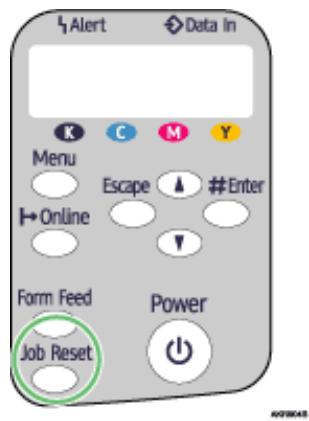
- Press the [#Enter] key.
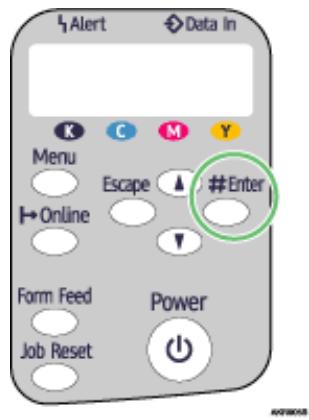
- Press the [#Enter] key.
No Paper/Tray Not Detected (Bypass Tray)
There is no paper in the bypass tray or the paper is not loaded properly. Do one of the following:
- Load the tray.
- Press the [#Enter] key.
Reference
To load the tray, see p.32 "Loading Paper".
Press the [#Enter] key
Press the [#Enter] key.
- Press the [#Enter] key.
![RICOH AFICIO GX 3000 - Press the [#Enter] key - 1](/content/2025/01/136322/images/28d1c7916ee704b6c086b6fb7d95f906423d724c6abedf25b61ba2dedf2f43e0.jpg)
Paper Size Mismatch/Paper Type Mismatch (Tray 1)
The tray is not loaded with paper of the correct size or type. Do one of the following:
- Change the tray.
- Print by Form Feed.
- Cancel the print job.

Reference
To change the tray, see p.47 "Paper Input Menu".
Printing by Form Feed
Press the [Form Feed] key, select the tray, and then print by Form Feed.
- Press the [Form Feed] key.
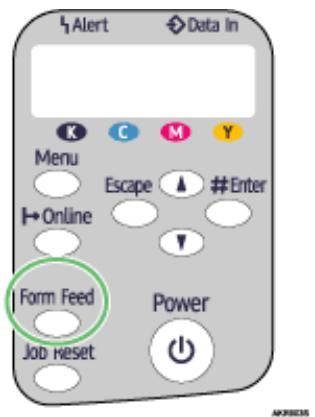
- Select the tray.
Print: Tray 1 ? :
A4 (297 x 210)
Print:Tray 1 ? : P l a i n P a p e r
- Press the [#Enter] key.
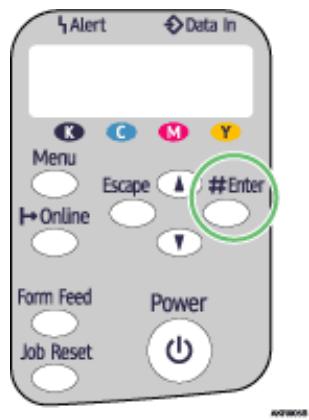
Canceling the Print Job
Cancel the print job.
- Press the [Job Reset] key.
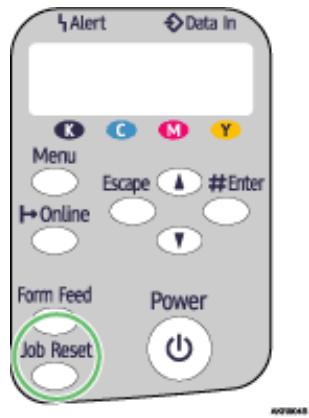
- Press the [#Enter] key.
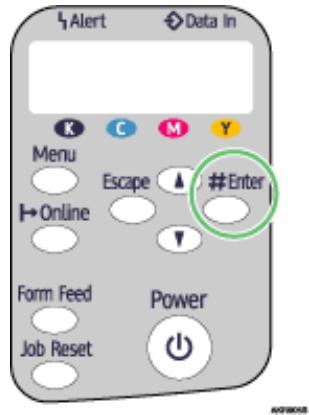
- Press the [#Enter] key.
Paper Size Mismatch/Paper Type Mismatch (Bypass Tray)
The tray is not loaded with paper of the correct size or type. Do one of the following:
- Change the tray.
- Print by Form Feed.
- Cancel the print job.
Reference
To change the tray, see p.47 "Paper Input Menu".
Printing by Form Feed
Press the [Form Feed] key, select the tray, and then print by Form Feed.
- Press the [Form Feed] key.
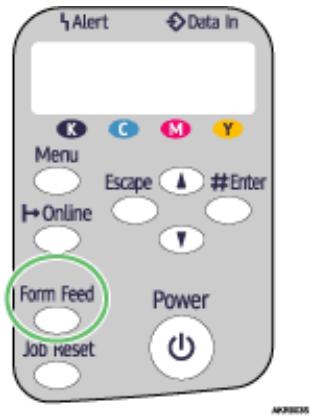
- Select the tray.
- Press the [#Enter] key.
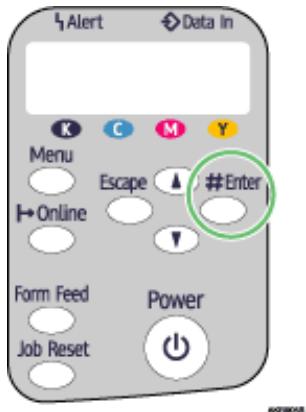
Canceling the Print Job
Cancel the print job.
- Press the [Job Reset] key.
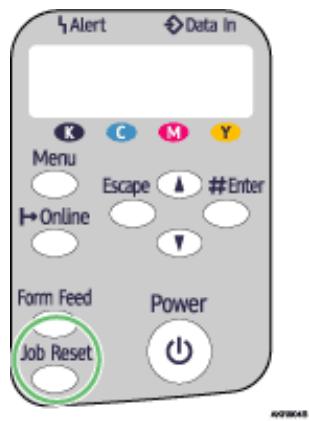
- Press the [#Enter] key.
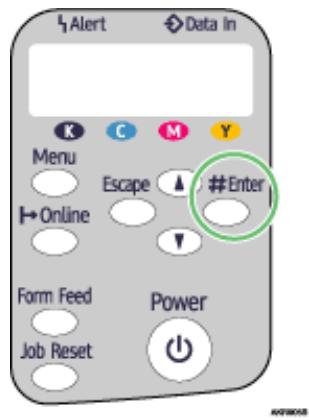
- Press the [#Enter] key.
Paper Size Mismatch/Paper Type Mismatch (AutoTray Select)
The automatically detected tray is not loaded with paper of the correct size or type. Do one of the following:
- Change the tray.
- Print by Form Feed.
- Cancel the print job.
Reference
To change the tray, see p.47 "Paper Input Menu".
Printing by Form Feed
Press the [Form Feed] key, select the tray, and then print by Form Feed.
- Press the [Form Feed] key.
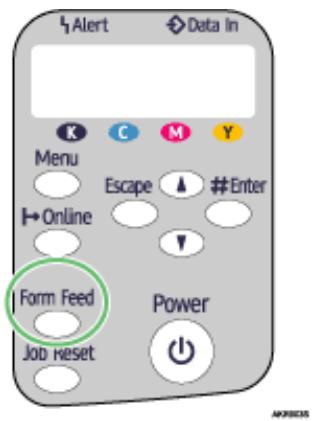
- Select the tray.
Print: Tray 1 ? : A4 (297 x 210)
Print: Tray 1 ? : P l a i n P a p e r
- Press the [#Enter] key.
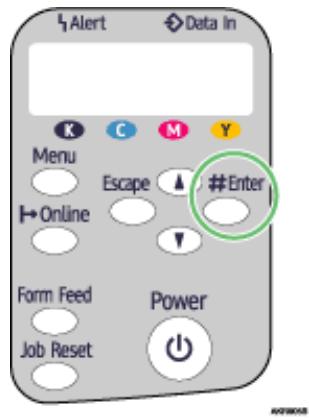
Canceling the Print Job
Cancel the print job.
- Press the [Job Reset] key.
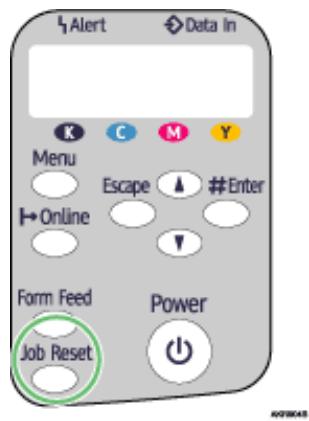
- Press the [#Enter] key.
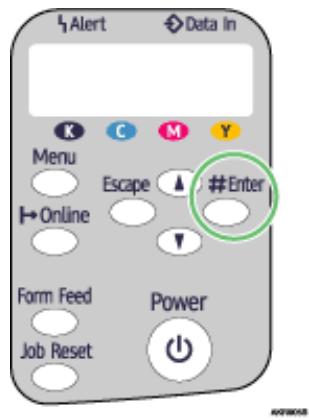
- Press the [#Enter] key.
Cover Open
A cover is open. Close the cover.
Close the top cover or duplex unit cover. If the cover is already closed, open and then reclose it.
Follow the procedure below to close the top cover or duplex unit cover.
Important
If the bypass tray is attached to the printer, detach it.
- Close the cover.
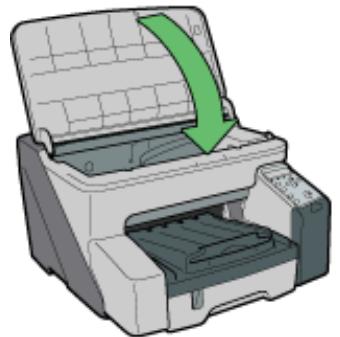
AKT035
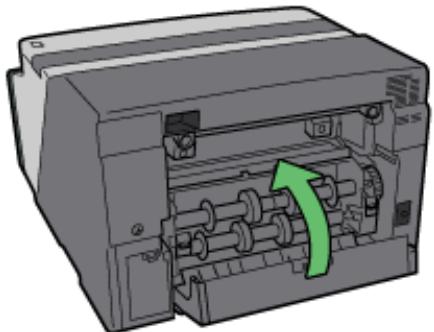
AKR0448
Check that the duplex unit is correctly attached and the duplex unit cover is closed.

Reference
p.21 "Detaching and Reattaching the Multi Bypass Tray (Optional)"
Duplex Unit Not Detected
The duplex unit is not attached correctly. Follow the procedure below to attach the duplex unit correctly.

Important
If the bypass tray is attached to the printer, detach it.
- Lock the lever for attaching the duplex unit.
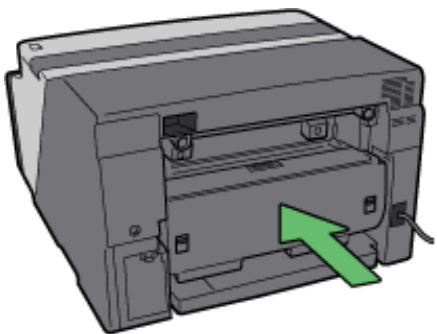
AKR1768
Even if you are not duplex printing, the duplex unit must be attached. Otherwise printing will not start.

Reference
p.21 "Detaching and Reattaching the Multi Bypass Tray (Optional)"
Cover Open / Print Cartridge(s) Not Detected
The right front cover is open. Close the right front cover. Alternatively, the print cartridges are not installed or are installed incorrectly. Install the print cartridges correctly.
If the cover is open:
- Close the right front cover.
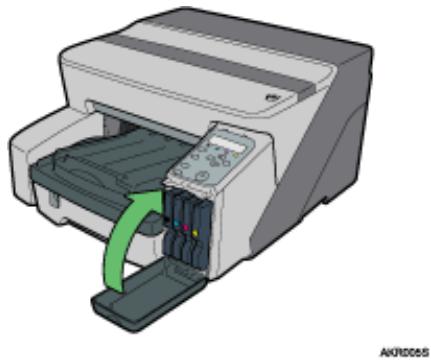
If the print cartridges are not installed or are installed incorrectly:
- Open the right front cover.
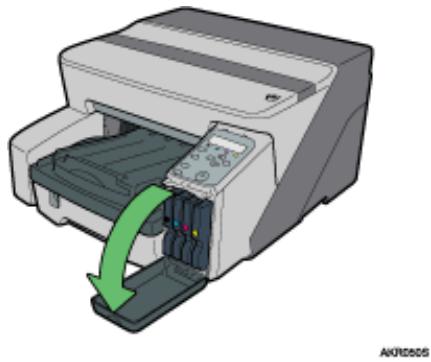
- Push in the cartridge using the PUSH area.
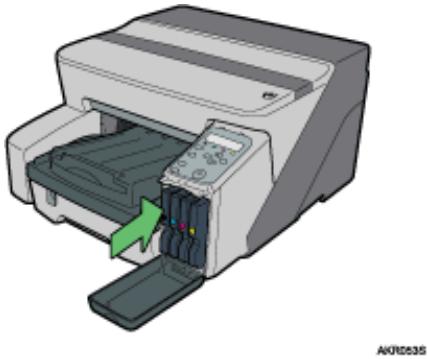
3. Close the right front cover.
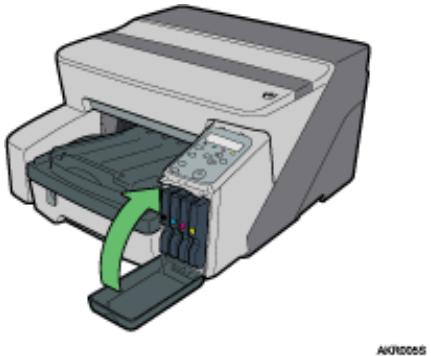

Note
If the error persists, take the Print cartridge out once, and then install it again. The procedure above should be performed only once.
Cartridge End
A Print cartridge is empty. Printing can continue using ink remaining in the printer; however, no ink is left in the Print cartridge. Check which colour of cartridge needs to be replaced, and then replace it.
Checking ink colour
- Checking using the Status monitor
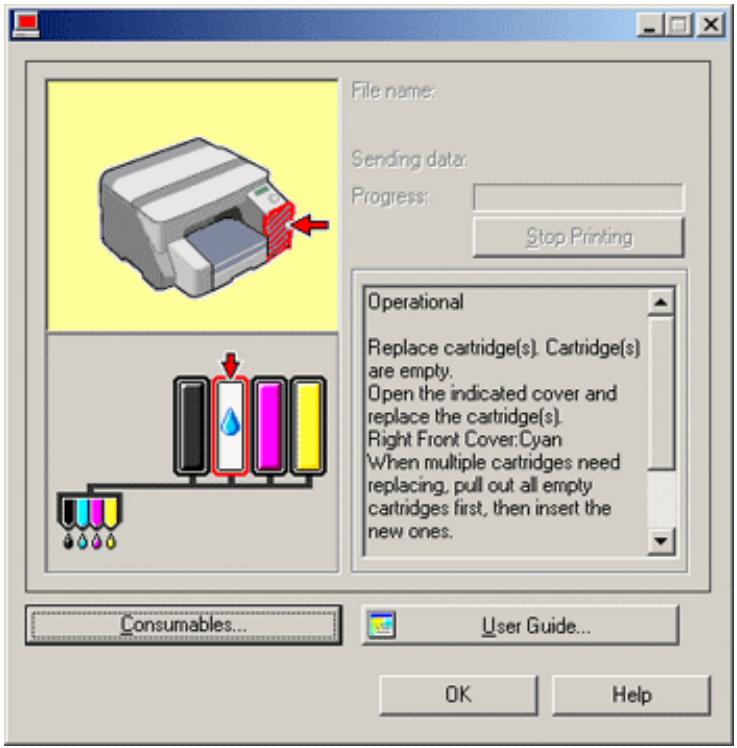
- In the illustration above, the cyan Print cartridge is empty.
Checking the cartridge replacement indicators of the printer control panel
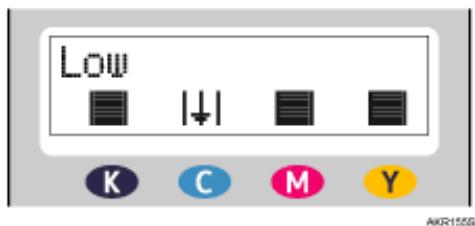
In the above illustration, the control panel is indicating that the cyan Print cartridge is empty.

Note
- From left to right, the cartridge replacement indicators display the status of the black (K), cyan (C), magenta (M), and yellow (Y) Print cartridges.

Reference
p.41 "Replacing a Print Cartridge"
p.206 "Using the Status Monitor"
Cartridge/Print-head Tank Empty
The ink is completely depleted. Printing cannot be performed. Replace the Print cartridge.
Checking ink colours
- Checking using the Status monitor
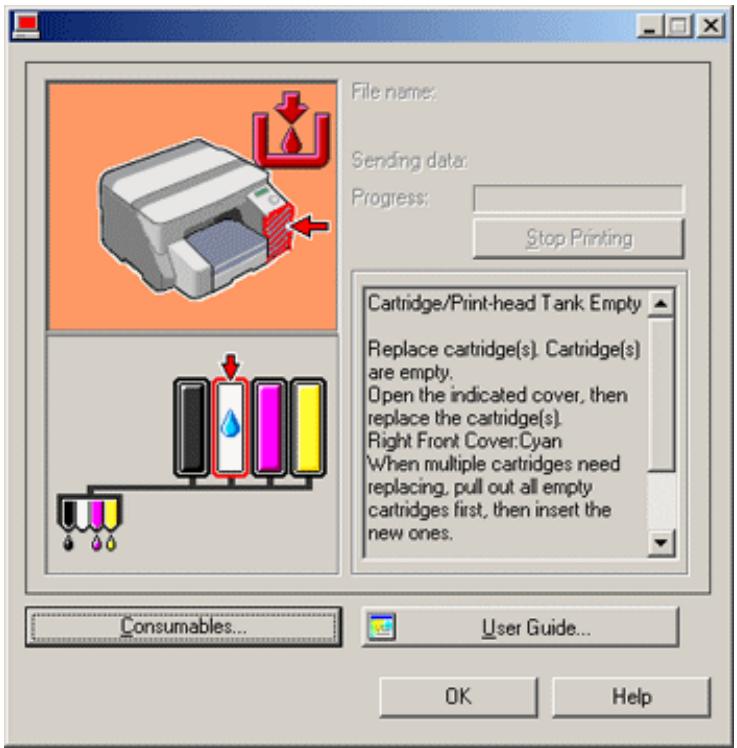
- In this illustration, the cyan Print cartridge has completely run out.
Checking the cartridge replacement indicators of the printer control panel
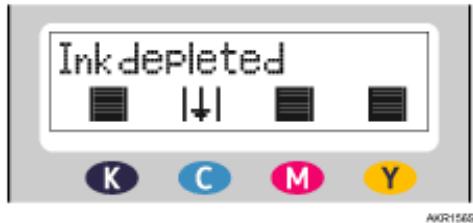
In the above illustration, the control panel is indicating that the cyan Print cartridge has completely run out.

Note
- From left to right, the cartridge replacement indicators display the status of the black (K), cyan (C), magenta (M), and yellow (Y) Print cartridges.

Reference
p.41 "Replacing a Print Cartridge"
p.206 "Using the Status Monitor"
When the Ink Collector Unit is Almost Full/Full
The Ink Collector Unit is almost full. Make sure you have a new ink collector unit on hand.
The Ink Collector Unit is full. Replace it.
Depending on your printing document, the ink collector unit may fill up sooner than normal. An "Ink Collector almost full" message appears shortly before the ink collector unit is full.
Contact your service representative as soon as possible for a replacement ink collector unit (charge incurred).
Ink Collector Unit Not Detected
The ink collector unit is not attached correctly. Follow the procedure below to attach the ink collector unit correctly.
- Open the ink collector unit cover slowly.
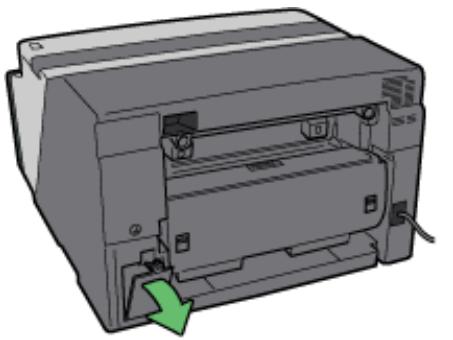
AKR1768
- Attach the ink collector unit by pushing it in until it clicks. Take care not to spill the ink.
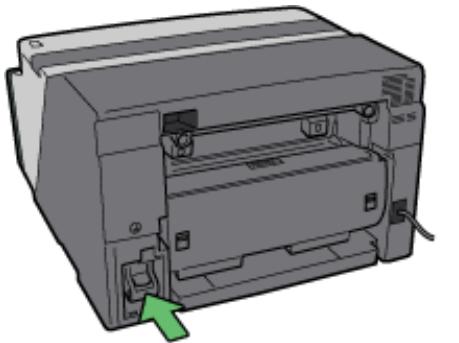
AKR1768
- Close the ink collector unit cover slowly.
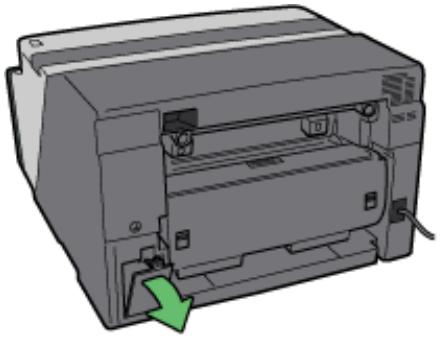
AKR1808
If the message reappears, contact your service representative.

Reference
p.120 "Where to Inquire"
Out of Printable Temperature Range
Follow the procedure below to relocate the printer when the temperature inside the printer is inappropriate, extremely high or low, for printing.
- Turn off the power of the printer.
- Place the printer in a 10 to 32^ (50 to 89.6^ ) environment.
- Turn on the power of the printer.

Note
If humidity is more than 54% the high end of the appropriate temperature range will be lower than usual.
- Even after the power is turned on, the printer may remain in the standby mode until it acclimates to the room temperature. If this happens, wait until the [Power] key stops blinking and stays lit.

Reference
- For details about what conditions the printer can be used under (ambient temperature and humidity range), see "Checking the Installation Area", Setup Handbook.
Printer Error
An error has occurred in the printer. Turn the power off once, and then turn it back on.

Note
- If the printer is relocated from a cold area to a warm area or the printer is placed in a room where the temperature varies greatly, condensation may form inside the printer causing errors. If this happens, an error might not clear if the power is turned off and then on. Wait until the printer acclimates and the condensation disappears. This should take about one hour.

Reference
If the error still does not clear after the printer acclimates to room temperature and the power is turned back on, contact your sales or service representative.
Network Interface Board Error
An error in the network interface board network function has occurred. Do the following:
- Turn the printer off.
- Turn the printer on.
If the message reappears, do the following:
- Turn the printer off.
- Turn the network interface board's screw counterclockwise with a coin and remove the board.
- Plug the network interface board in securely, and then secure it by turning the screw.
- Turn the printer on.
If the message reappears, contact your service representative.
Reference
p.120 "Where to Inquire"
Adjusting the Printer
Adjust the printer from the [Maintenance] tab in the printer properties dialog box.
Reference
p.69 "Head-cleaning"
p.70 "Head-flushing"
p.70 "Adjust Print-head Positions"
p.72 "Registration"
p.73 "Adjust Paper Feed"
Inquiries and Consumables
Where to Inquire 120
Recommended Consumables 121
Option and Consumables 122
Where to Inquire
For inquiries, contact your sales or service representative.
Recommended Consumables
Consumables recommended for this printer are listed.
Purchase necessary consumables before your supply runs out.
For information about consumables, contact your sales or service representative.
- Print cartridges
Option and Consumables
The following options can be used with the printer:
Multi Bypass Tray Type BY1000
You can also feed paper from the bypass tray.
Network Interface Board Type GX2
You can print over the network.

Note
- For information about options and consumables, contact your service representative.
Maintaining
Cleaning 124
Moving 125
Moving a Short Distance 125
Moving a Long Distance 125
Disposing 127
When Not Using for a Long Period of Time 128
Cleaning
Clean the outside of the printer regularly to maintain the condition of the printer.

WARNING
- To avoid hazardous electric shock, do not remove any covers or screws other than those specified in this manual. When the machine needs to be checked, adjusted, or repaired, contact your service representative.
- Do not take apart or attempt any modifications to this machine. There is a risk of fire, electric shock, explosion or loss of sight.
To clean the exterior of the printer, wipe it with a soft, dry or damp cloth. If the dirt does not come off, wipe the printer first with a cloth moistened with a neutral detergent, then with a damp cloth, and finally with a dry cloth.

Important
- Do not use volatile chemicals like benzene or thinner, or insecticides on the printer. Using these chemicals could deform, crack, or change the colour of the printer.
- When wiping the printer with a cloth moistened with detergent, be sure to wipe only the exterior.
Moving
The precautions when moving the printer a short distance or long distance are explained.
Moving a Short Distance
The precautions when moving the printer a short distance or long distance are explained.
CAUTION
- The Machine weighs approximately 14.5kg (32.0 lb.).
- When moving the machine, hold the machine by the bottom below the two indentations. Lift the machine slowly in order to avoid straining your body. Lifting the machine without sufficient strength or assistance or handling it roughly and dropping it could cause an injury.
CAUTION
- Unplug the power cord from the wall outlet before you move the machine. While moving the machine, you should take care that the power cord will not be damaged under the machine.
CAUTION
-
When you disconnect the power plug from the wall outlet, always pull the plug (not the cable).
-
Turn the power off, disconnect the USB cable, and then unplug the power cord from the wall outlet.
- Lift the printer using the indents on the printer's sides near the base, and then slowly lift and move the printer without tilting.
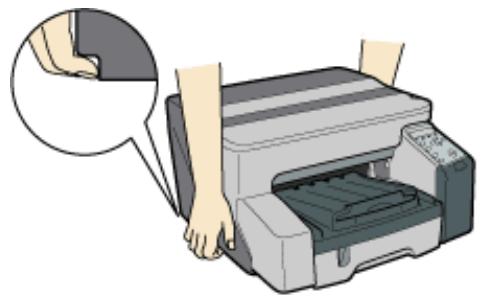
AKR968
Moving a Long Distance
- Turn the power off, disconnect the USB cable, and then unplug the power cord from the wall outlet. Do not remove the print cartridges. Remove the paper.
- Pack the printer for transport when moving it a long distance such as when changing office or residence. Disconnect all cables, place the printer in the box it was in when purchased, and transport in a level manner. After moving the printer, first remove and then reattach the network interface board.
Contact sales or service representative for details.

Note
- The inside of the printer may become dirty if the printer is not level when transported.
Disposing
Consult with an authorized dealer to dispose of the printer.
When Not Using for a Long Period of Time
If the printer will not be used for a long time, turn its power off, disconnect the USB cable, and then unplug the power cable from the wall outlet.
Be careful of the following:
- The nozzles of the print-heads may dry out and become clogged. To prevent this, periodically print something. Even if you do not print anything, turn the printer on for a few minutes once a month.
- If you do not use the printer for a long period of time, always check if the nozzles are clogged by printing a nozzle check test pattern. Clean the print-heads as necessary, and then begin printing.
- If you do not use the printer at least for 8 hours, printing may not be performed normally even if head cleaning is performed multiple times. If this happens, turn the power off and leave the printer alone for a while. Then, turn the power on again and perform the nozzle check and head cleaning.

Note
After head cleaning is performed multiple times, clogged ink will dissolve over time, and normal printing may become possible.
- If there is no improvement after performing the steps above, contact sales or service representative.

Reference
p.120 "Where to Inquire"
p.68 "Nozzle Check"
p.69 "Head-cleaning"
Preparing for Printing
Confirming the Connection Method 130
Local Connection 130
Network Connection 130
Using this Printer as the Windows Printing Port 130
Using as a Network Printer 131
Installing the Printer Driver (USB) 132
Sharing the Printer 134
Setting Up a Server 134
Setting Up a Client Computer 134
Using the SmartDeviceMonitor for Client Port. 136
Installing SmartDeviceMonitor for Client 136
Installing the Printer Driver (TCP/IP) 136
Installing the Printer Driver (IPP) 137
Changing the Port Settings for SmartDeviceMonitor for Client 139
Windows 98: 139
Windows 2000 / Windows NT 4.0: 139
Windows XP, Windows Server 2003: 139
Using the Standard TCP/IP Port 141
Installing the Printer Driver 141
Using the LPR Port. 143
Installing the Printer Driver 143
Using as the Windows Network Printer 144
Installing the Printer Driver 144
Using as the NetWare Print Server/Remote Printer 146
Form Feed 147
Banner Page 147
Printing after Resetting the Printer 147
If a Message Appears during Installation 148
Making Option Settings for the Printer 149
Conditions for Bidirectional Communication 149
If Bidirectional Communication is Disabled 149
Confirming the Connection Method
This printer supports local and network connection.
Before installing the printer driver, check how the printer is connected. Follow the driver installation procedure that is appropriate to the connection method.
Local Connection
Local connection can be established via USB connection.
Windows operating system version determines the available connection methods.
Reference
- See the explanation of how to install the printer driver for each method of connection.
p.132"Installing the Printer Driver (USB)".
Network Connection
This printer can be used as a Windows printing port or network printer.
Reference
Reference See Quick Installation Guide.
p.136 "Using the SmartDeviceMonitor for Client Port"
p.141 "Using the Standard TCP/IP Port"
p.143 "Using the LPR Port"
p.144 "Using as the Windows Network Printer"
Using this Printer as the Windows Printing Port
Network connections can be established through Ethernet.
Available ports are determined based on the combination of Windows operating system version and connection method used.
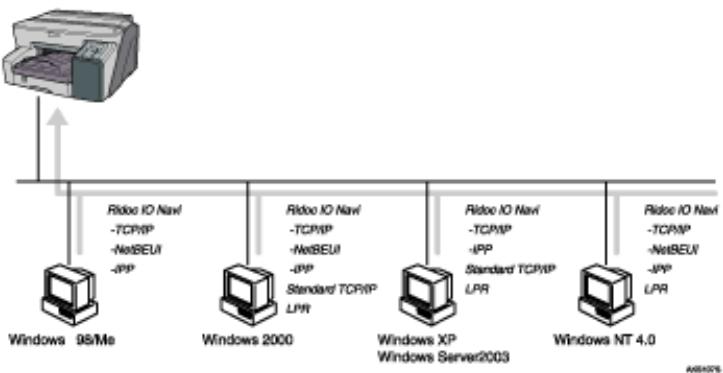
Windows 98/Me
| Connection Method | Available Ports |
| Ethernet | SmartDeviceMonitor for Client port |
Windows 2000/XP, Windows Server 2003
| Connection Method | Available Ports |
| Ethernet | SmartDeviceMonitor for Client port Standard TCP/IP LPR port |
Windows NT 4.0
| Connection Method | Available Ports |
| Ethernet | SmartDeviceMonitor for Client port LPR port |
Using as a Network Printer
This printer can be used as the Windows network printer, the NetWare print server, or the NetWare remote printer.
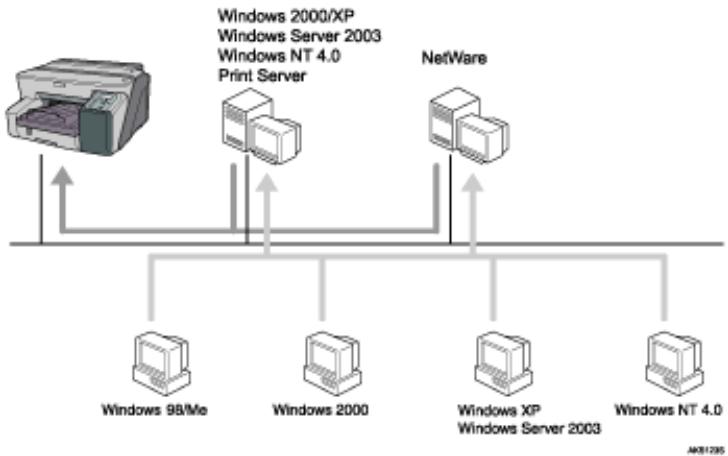

Reference
- See the explanation of how to install the printer driver for each type of network printer.
p.144 "Using as the Windows Network Printer"
p.146 "Using as the NetWare Print Server/Remote Printer"
Installing the Printer Driver (USB)
Follow the procedure below to install the printer driver only.
If you installed the printer driver when performing Quick Install for USB, there is no need to install it again here.
Important
To install the printer driver under Windows 2000/XP or Windows Server 2003, you must log on as a user with administrator rights.
- Do not turn on the power at this point.
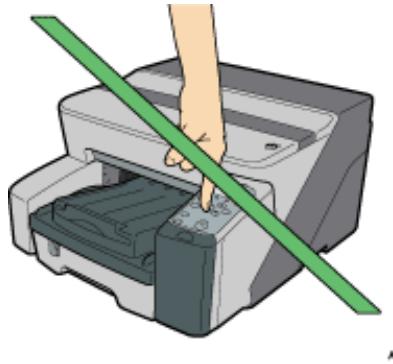
The following explanation uses Windows 2000 as an example. Procedures under other operating systems may differ.
Screens vary according to the operating environment.
- Start Windows, and insert the provided "Driver, Manual & Utility" CD-ROM into the CD-ROM drive.
Quit all other applications currently running.
When you start Windows, the Add New Hardware Wizard may appear. If this happens, click [Cancel]. Check again that the power is off, and then proceed to step 2.
After inserting the CD-ROM, the [Driver, Manual & Utility] dialog box appears. If it does not, doubleclick the CD-ROM drive icon under [My Computer] or [Explorer], and then double-click [SETUP.EXE].
If the [Driver, Manual & Utility] screen does not appear even when you double-click the [SETUP.EXE] icon, or if an error occurs during installation, access the CD-ROM drive from [My Computer] or [Explorer], double-click the [English] icon, and then install the printer driver by following the instructions that appear on the screen.
- Select a language for the interface, and then click [OK].
The following languages are available:
Dansk (Danish), Deutsch (German), English (English), Espanol (Spanish), Francais (French), Italiano (Italian), Nederlands (Dutch), Norsk (Norwegian), Portugues (Portuguese), Svenska (Swedish)
The default interface language is English.
- Click [Printer Driver].
- Read the license agreement, click [I accept the agreement.], and then click [Next >].
- Click [Connected with USB cable], and then click [Next >].
- Check again that the power of the printer is off, and then click [Next >].
Check that the dialog box below appears.
- Make sure that the computer and printer are properly connected, and then press the [Power] key.
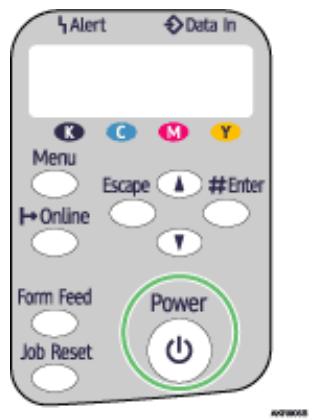
Installation starts.
- Select whether or not to open the Status monitor automatically, and then click [Next >].
- Check the installation result, and then click [Finish].
Note
- You cannot select [Connected with USB cable] under Windows NT 4.0.
- If the message "Digital Signature Not Found" or the [Found New Hardware Wizard] or [Hardware Installation] dialog box appears, see "Notes on the Installation", Quick Installation Guide. See p.148 "If a Message Appears during Installation".
- If the message prompting you to restart the computer appears, restart the computer.
- Confirm the printer driver is correctly installed by checking that the [Power] key of the printer is lit and performing a test print. See Quick Installation Guide.
Reference
- For details about installing User Guide only, see Setup Handbook.
p.134 "Sharing the Printer"
Sharing the Printer
Setting Up a Server
Follow the procedure below to set up a print server so that the printer can be shared by users.
Important
For Windows 2000/XP, Windows Server 2003, and Windows NT 4.0, log on as an administrator (a user with an administrator right).
Configure a computer connected to the printer as the print server.
The print server is a computer used to manage the shared printer on the network.
- On the [Start] menu, point to [Settings], and then click [Control Panel].
- Double-click [Network and Dial-up Connections].
- Click [Local Area Connection] to highlight it, and then, in the [File] menu, click [Properties].
- Select the [Client for Microsoft Networks] check box.
- Click [OK].
- Install the printer driver.
- On the [Start] menu, point to [Settings], and then click [Printers].
- Click the icon of the printer, and then click [Sharing...] on the [File] menu.
- Click [Shared as:], and then enter a name in the [Shared as:] box.
- Click [OK].
↓ Note
- Configure a computer connected to the network, where the print server is connected, as a client computer.
Reference
- For details about installing the printer driver, see "Installing the Printer Driver", Setup Handbook.
p.134 "Setting Up a Client Computer"
Setting Up a Client Computer
Follow the procedure below to configure a computer as a client computer and connect it to the shared printer. Make this setting when installing the printer driver from the CD-ROM provided.
Important
For Windows 2000/XP, Windows Server 2003, and Windows NT 4.0, log on as an administrator (a user with an administrator right).
Configure a computer connected to the network where the print server is connected.
- Start Windows, and then insert the "Driver, Manual & Utility" CD-ROM into the CD-ROM drive.
Quit all other applications currently running.
When starting Windows, a wizard for adding new hardware may open. If this happens, click [Cancel]. Check again that the power is off, and then proceed to step 2.
When the CD-ROM is inserted, the [Driver, Manual & Utility] dialog box appears. If it does not, double-click the CD-ROM drive icon under [My Computer] or [Explorer], and then double-click [SETUP.EXE].
- Select a language for the interface, and then click [OK].
The following languages are available:
Deutsch (German), English (English), Espanol (Spanish), Français (French), Italiano (Italian), Nederlands (Dutch) The default interface language is English.
- Click [Printer Driver].
- Read the license agreement, and then click [I accept the agreement].
- Click [Next >].
- Click [Connected via LAN].
- Click [Next >].
- Click the plus mark next to a printer name.
- Click [Port:< LPT1:>] under [Printer name:].
- Click [Add].
- Click [Network Printer].
- Click [OK].
- Select a shared printer.
- Click [OK].
- Check that [<\servername\sharedprintname>] appears after [Port:].
- Click [Continue].
Installation starts.
- Select whether or not to open the Status monitor automatically.
- Click [Next >].
- Check the installation result, and then click [Finish].

Note
- If the message prompting you to restart the computer appears, restart the computer.
Using the SmartDeviceMonitor for Client Port
This section explains how to set up the SmartDeviceMonitor for Client.
Installing SmartDeviceMonitor for Client
This section explains how to install the SmartDeviceMonitor for Client.

Important
- To install SmartDeviceMonitor for Client under Windows 2000/XP Professional, Windows Server 2003, and Windows NT 4.0, you must have an account that has Manage Printers permission. Log on as an Administrator.
-
Install SmartDeviceMonitor for Client before installing the printer driver when using the SmartDeviceMonitor for Client port.
-
Quit all applications currently running.
- Insert the CD-ROM into the CD-ROM drive.
The installer starts.
Auto Run may not work with certain operating system settings. If this happens, launch "SETUP.EXE" on the CD-ROM root directory.
- Select an interface language, and then click [OK].
The default interface language is English.
- Click [DesktopBinder - SmartDeviceMonitor for Client].
- Select the language to be used for installation, and then click [Next >].
- Click [Next >].
- The software license agreement appears in the [
] dialog box. After reading through its contents, click [Yes] to accept it. - Follow the instructions on the display to install SmartDeviceMonitor for Client.
The SmartDeviceMonitor for Client installer starts.
- Click [Complete].
If you are required to restart the computer after installing SmartDeviceMonitor for Client, restart the computer.
Installing the Printer Driver (TCP/IP)
This section explains how to install the Printer Driver (TCP/IP).

Important
To install this printer driver under Windows 2000/XP Professional, Windows Server 2003, and Windows NT 4.0, you must have an account that has Manage Printers permission. Log on as an Administrators or Power Users group member.
- Quit all applications currently running.
- Insert the CD-ROM into the CD-ROM drive.
The installer starts.
Auto Run may not work with certain operating system settings. If this happens, launch "Setup.exe" on the CD-ROM root directory.
- Select an interface language, and then click [OK]. The default interface language is English.
- Click [Printer Driver].
- The software license agreement appears in the [
] dialog box. After reading the agreement, click [I accept the agreement], and then click [Next >]. - Click [Connected via LAN].
- Double-click the printer name to display the printer settings. The details shown in [Comment:], [Driver:], and [Port:] vary depending on the operating system, printer model, and port.
- Click [Port:], and then click [Add].
- Click [SmartDeviceMonitor], and then click [OK].
- Click [TCP/IP], and then click [Search]. A list of printers using TCP/IP appears.
- Select the printer you want to use, and then click [OK]. Only printers that respond to a broadcast from the computer appear. To use a printer not listed here, click [Specify Address], and then enter the IP address or host name of the printer. Under Windows 98/Me, you cannot add an IP address partially similar to the one already used. For example, if "192.168.0.2" is in use, "192.168.0.2xx" cannot be used. Similarly, if "192.168.0.20" is in use, "192.168.0.2" cannot be used.
- Check that the port of the selected printer is displayed in [Port:].
- Select the [Default Printer] check box to configure the printer as default.
- Click [Continue] Installation starts.
- Select whether or not to open the Status monitor automatically.
- Click [Next >].
- Click [Finish] in the installation completion dialog box. A message about restarting the computer may appear. Restart the computer to complete installation.

Note
- A message about restarting the computer may appear. Restart the computer to complete installation.
- If the message "Digital Signature Not Found" or the [Found New Hardware Wizard] or [Hardware Installation] dialog box appears, see "Notes on the Installation", Quick Installation Guide.

Reference
- A message appears if there is a newer version of the printer driver already installed. If there is, you cannot install the printer driver using Auto Run. If you still want to install the printer driver, use [Add Printer]. See p.148 "If a Message Appears during Installation".
Installing the Printer Driver (IPP)

Important
To install printer driver under Windows 2000/XP Professional, Windows Server 2003, and Windows NT 4.0, you must have an account that has Manage Printers permission. For this, log on as an Administrators or Power Users group member.
- Quit all applications currently running.
- Insert the CD-ROM into the CD-ROM drive.
The installer starts.
Auto Run may not work with certain operating system settings. If this happens, launch "Setup.exe" on the CD-ROM root directory.
- Select an interface language, and then click [OK].
The default interface language is English. - Click [Printer Driver].
- The software license agreement appears in the [
] dialog box.
After reading the agreement, click [I accept the agreement.], and then click [Next].
- Click [Connected via LAN].
- Double-click the printer name to display the printer settings.
The details shown in [Comment:], [Driver:], and [Port:] vary depending on the operating system, printer model, and port.
- Click [Port:], and then click [Add].
-
Click [SmartDeviceMonitor], and then click [OK].
-
Click [IPP].
- In the [Printer URL] box, enter "http:// printer's address/ipp" as the printer's address.
When setting SSL, a protocol for encrypted communication, under environment which server authentication is issued, enter "https://(printer's address)/ipp".
Internet Explorer must be installed on your computer. Use the highest version. Internet Explorer 6.0 or higher is recommended.
- Enter a name for identifying the printer in [IPP Port Name]. Use a name different from the one of any existing port.
If a name is not specified here, the address entered in the [Printer URL] box becomes the IPP port name.
- Click [Detailed Settings] to make necessary settings.
For information about the settings, see SmartDeviceMonitor for Client Help.
- Check that the port of the selected printer is displayed in [Port:].
- Select the [Default Printer] check box to configure the printer as default.
- Click [Continue].
Installation starts.
- Select whether or not to open the Status monitor automatically.
- Click [Next >].
- Click [Finish] in the installation completion dialog box.

Note
- A message about restarting the computer may appear. Restart the computer to complete installation.
- If the message "Digital Signature Not Found" or the [Found New Hardware Wizard] or [Hardware Installation] dialog box appears, see "Notes on the Installation", Quick Installation Guide.

Reference
- A message appears if there is a newer version of the printer driver already installed. If there is, you cannot install the printer driver using Auto Run. If you still want to install the printer driver, use [Add Printer]. See p.148 "If a Message Appears during Installation".
p.240"SSL (Secure Sockets Layer) Encryption
p.240 "User Settings for SSL (Secure Sockets Layer)"
p.241 "Installing the Certificate Using SmartDeviceMonitor for Client"
Changing the Port Settings for SmartDeviceMonitor for Client
Follow the procedure below to change the SmartDeviceMonitor for Client settings, such as TCP/IP timeout, recovery/parallel printing, and printer groups.

Important
- If you via a print server connected to the printer are using the SmartDeviceMonitor port, Recovery Printing and Parallel Printing cannot be used from the client.
Windows 98:
- Open [Printers] window from [Start] menu.
- In the [Printers] window, click the icon of the printer you want to use. On the [File] menu, click [Properties].
- Click the [Details] tab, and then click [Configure Port].
The [Port Configurarion] dialog box appears.
Windows 2000 / Windows NT 4.0:
- Open [Printers] window from [Start] menu.
- In the [Printers] window, click the icon of the printer you want to use. On the [File] menu, click [Properties].
- On the [Ports] tab, click [Configure Port].
The [Port Settings] dialog box appears.
Windows XP, Windows Server 2003:
- On the [Start] menu, point to [Settings], and then click [Printers].
- In the [Printers] window, click the icon of the printer you want to use. On the [File] menu, click [Properties].
- Click the [Details] tab, and then click [Configure Port].
The [Port Settings] dialog box appears.
- For TCP/IP, timeout setting can be configured.

Note
-
If no settings on the [Recovery/Parallel Printing] tab are available, follow the procedure below.
-
Click [Cancel] to close the [Port Configurarion] dialog box.
- Start SmartDeviceMonitor for Client, and then right-click the SmartDeviceMonitor for Client icon on the taskbar.
- Click [Extended Features Settings], and then select the [Set Recovery/Parallel Printing for each port] check box.
- Click [OK] to close the [Extended Features Settings] dialog box.
- User, proxy, and timeout settings can be configured for IPP.

Reference
- For information about these settings, see SmartDeviceMonitor for Client Help.
Using the Standard TCP/IP Port
Installing the Printer Driver

Important
To install printer driver under Windows 2000/XP Professional, and Windows Server 2003, you must have an account that has Manage Printers permission. Log on as an Administrators or Power Users group member.
- Quit all applications currently running.
- Insert the CD-ROM into the CD-ROM drive.
The installer starts.
Auto Run may not work with certain operating system settings. If this happens, launch "SETUP.EXE" on the CD-ROM root directory.
- Select an interface language, and then click [OK].
The default interface language is English. - Click [Printer Driver].
- The software license agreement appears in the [
] dialog box.
After reading the agreement, click [I accept the agreement], and then click [Next >].
- Click [Connected via LAN].
- Double-click the printer name to display the printer settings.
The details shown in [Comment:], [Driver:], and [Port:] vary depending on the operating system, printer model, and port.
- Click [Port:], and then click [Add].
- Click [Standard TCP/IP], and then click [OK].
Configure the Standard TCP/IP port settings, and then see Windows Help if [Standard TCP/IP Port] does not appear.
- Click [Next >] in the [Add Standard TCP/IP Printer Port Wizard] dialog box.
- Enter the printer name or IP address in the [Printer Name or IP Address] box.
The [Port Name] text box automatically obtains a port name. Change this name if necessary.
When screen for Device selection appears, select "RICOH NetworkPrinter Driver C Model".
- Click [Finish] in the [Add Standard TCP/IP Printer Port Wizard] dialog box.
The installation start dialog box reappears.
- Check that the port of the selected printer is displayed in [Port:].
- Configure the default printer as necessary.
- Click [Continue].
The printer driver installation starts.
- Select whether or not to open the Status monitor automatically.
- Click [Next >].
- Click [Finish] in the installation completion dialog box.
A message about restarting the computer may appear. Restart the computer to complete installation.

Note
- If the message "Digital Signature Not Found" or the [Found New Hardware Wizard] or [Hardware Installation] dialog box appears, see "Notes on the Installation", Quick Installation Guide.
- A message about restarting the computer may appear. Restart the computer to complete installation.

Reference
- A message appears if there is a newer version of the printer driver already installed. If there is, you cannot install the printer driver using Auto Run. If you still want to install the printer driver, use [Add Printer]. See p.148 "If a Message Appears during Installation".
Using the LPR Port
Installing the Printer Driver

Important
To install this printer driver under Windows 2000/XP Professional, Windows Server 2003, and Windows NT 4.0, you must have an account that has Manage Printers permission. Log on as an Administrators or Power Users group member.
- Quit all applications currently running.
- Insert the CD-ROM into the CD-ROM drive.
The installer starts.
Auto Run may not work with certain operating system settings. If this happens, launch "SETUP.EXE" on the CD-ROM root directory.
- Select an interface language, and then click [OK].
The default interface language is English. - Click [Printer Driver].
- The software license agreement appears in the [
] dialog box.
After reading the agreement, click [I accept the agreement], and then click [Next >].
- Click [Connected via LAN].
- Double-click the printer name to display the printer settings.
The details shown in [Comment:], [Driver:], and [Port:] vary depending on the operating system, printer model, and port.
- Click [Port:], and then click [Add].
- Click [LPR Port], and then click [OK].
If [LPR Port] does not appear, see Windows Help and install it.
- Enter the printer's IP address in the [Name or address of server providing lpd] box.
- Enter "Ip" in the [Name or address of server providing lpd] box, and then click [OK]. The port is added.
- Check that the port of the selected printer is displayed in [Port:].
- Configure the default printer as necessary.
- Click [Continue].
The printer driver installation starts
- Select whether or not to open the Status monitor automatically.
- Click [Next >].
- Click [Finish] in the installation completion dialog box.
A message about restarting the computer may appear. Restart the computer to complete installation.

Reference
- A message appears if there is a newer version of the printer driver already installed. If there is, you cannot install the printer driver using Auto Run. If you still want to install the printer driver, use [Add Printer]. See p.148 "If a Message Appears during Installation".
Using as the Windows Network Printer
Installing the Printer Driver
To use the print server, install the printer driver by selecting "Network printer server", and then select the Windows 2000/XP, Windows Server 2003, or Windows NT 4.0 shared printer.
This section assumes that the client has already been configured to communicate with a Windows 2000/XP, Windows Server 2003, or Windows NT 4.0 print server. Do not begin the following procedure before the client is set up and configured correctly.

Important
To install printer driver under Windows 2000/XP Professional, Windows Server 2003, and Windows NT 4.0, you must have an account that has Manage Printers permission. For this, log on as an Administrators or Power Users group member.
- If you print with a print server connected to the printer using the SmartDeviceMonitor port, Recovery Printing and Parallel Printing cannot be used from the client.
If you print with a Windows XP or Windows Server 2003 print server, notification functions of SmartDeviceMonitor may not be used with the client.
If you print with a Windows NT 4.0 print server, install the printer driver before you connect the print server to the printer.
- Quit all applications currently running.
- Insert the CD-ROM into the CD-ROM drive.
The installer starts.
Auto Run may not work with certain operating system settings. If this happens, launch "Setup.exe" on the CD-ROM root directory.
- Select an interface language, and then click [OK].
The default interface language is English. - Click [Printer Driver].
- The software license agreement appears in the [
] dialog box.
After reading the agreement, click [I accept the agreement.], and then click [Next >].
- Click [Connected via LAN].
- Select the [Printer Name:] check box to select the printer models you want to use.
The printer name can be changed in the [Change settings for 'Printer Name'] box.
- Double-click the printer name to display the printer settings.
The details shown in [Comment:], [Driver:], and [Port:] vary depending on the operating system, printer model, and port. - Click [Port:], and then click [Add].
- Click [Network Printer], and then click [OK].
- Double-click the computer name you want to use as a print server in the [Browse for Printer] window.
- Select the printer you want to use, and then click [OK].
- Check that the port of the selected printer is displayed in [Port:].
- Configure the user code as necessary.
For an RPCS raster printer driver, a user code can be set after the printer driver installation. For information about user code, see the printer driver Help.
- Select the [Default Printer] check box to configure the printer as default.
- Click [Continue].
The printer driver installation starts.
If the message "Digital Signature Not Found" or the [Software Installation] or [Hardware Installation] dialog box appears, click [Yes] or [Continue Anyway] to continue the installation.
- Click [Finish] in the installation completion dialog box.
A message about restarting the computer may appear. Restart the computer to complete installation.
Reference
- A message appears if there is a newer version of the printer driver already installed. If there is, you cannot install the printer driver using Auto Run. If you still want to install the printer driver, use [Add Printer]. See p.148 "If a Message Appears during Installation".
p.134 "Setting Up a Server"
Using as the NetWare Print Server/Remote Printer
This explains how to set up the Windows computer used as the NetWare client.
Important
To install this printer driver under Windows 2000/XP Professional, Windows Server 2003, and Windows NT 4.0, you must have an account that has Manage Printers permission. Log on as an Administrators or Power Users group member.
The following explanation assumes NetWare Client is installed on the client computer and the NetWare server environment is correctly set up. Install all necessary client applications before following this procedure.
Set up the printer driver while logging on to the NetWare file server.
The following values are used in the example:
- Operating system: Windows 98
- NetWare version: 5.1
File server name: CAREE -
Queue name: R-QUEUE
-
Insert the CD-ROM into the CD-ROM drive.
The installer starts.
Auto Run may not work with certain operating system settings. If this happens, launch "SETUP.EXE" on the CD-ROM root directory.
- Select an interface language, and then click [OK].
The default interface language is English.
- Click [Printer Driver].
- The software license agreement appears in the [
] dialog box.
After reading the agreement, click [I accept the agreement.], and then click [Next >].
- Select the printer driver you want to use in the [Printer Program] dialog box.
You can select several printer drivers.
- Select the [Printer name] check box to select the printer models you want to use.
The printer name can be changed in the [Change settings for 'Printer Name'] box.
- Double-click the printer name to display the printer settings.
The details shown in [Comment:], [Driver:], and [Port:] vary depending on the operating system, printer model, and port. - Click [Port:], and then click [Add].
- Click [Network Printer], and then click [OK].
- Double-click the name of the NetWare file server on the network tree.
The created queue is displayed.
- Select the print queue, and then click [OK].
- Check that the port of the selected printer is displayed in [Port:].
- Click [Finish].
The printer driver installation starts.
- Click [Finish] in the [Component selection] dialog box.
- Click [Finish] in the [Introduction complete] dialog box.
- In the [Printers] window, open the printer properties. Under Windows XP or Windows Server 2003, open the printer properties from the [Printers and Faxes] window.
- On the [Printer Settings] tab, clear the[Form Feed] and [Enable Banner] check boxes. Under Windows 2000/XP, Windows Server 2003, or Windows NT 4.0, click the [NetWare setting] tab. Do not select these check boxes since they are automatically selected by the printer driver. If you select the check boxes, the printer may not print correctly.
- Click [OK] to close the printer properties dialog box. The protocol is set to inactive as default. Enable it using Web browser or Telnet
Form Feed
Do not use NetWare to configure form feed. Form feed is controlled by the printer driver on Windows. If NetWare form feed is configured, the printer may not print properly.
Follow the procedure below to disable form feed according to the operating system used:
- Under Windows 98/Me, clear the [Form feed] check box on the [Printer Settings] tab in the printer properties dialog box.
- Under Windows 2000/XP, Windows Server 2003, or Windows NT 4.0, clear the [Form feed] check box on the [NetWare Settings] tab in the printer properties dialog box.
Banner Page
Do not use NetWare to configure a banner page.
Follow the procedure below to disable banner pages according to the operating system used:
- Under Windows 98/Me, clear the [Enable banner] check box on the [Printer Settings] tab in the printer properties dialog box.
- Under Windows 2000/XP, Windows Server 2003, or Windows NT 4.0, clear the [Enable banner] check box on the [NetWare Settings] tab in the printer properties dialog box.
Printing after Resetting the Printer
Printer to print server connection requires 30 - 40 seconds to resume after the printer is reset. During this period, jobs may be accepted (depending on NetWare specifications) but not printed.
To print after resetting the printer as the remote printer, check on the print server that the remote printer is disconnected, or wait for two minutes before trying to print.
If a Message Appears during Installation
Message number 58 or 34 indicates the printer driver cannot be installed using Auto Run. Uninstall and then reinstall the printer driver.
Making Option Settings for the Printer
Make option settings for the printer using the printer driver when bidirectional communication is disabled.
Conditions for Bidirectional Communication
Bidirectional communication allows information about paper size and feed direction settings to be automatically sent to the printer. You can check printer status from your computer.
- Bidirectional communication is supported by Windows 98/Me/2000/XP, Windows Server 2003, and Windows NT 4.0.
- If you use the RPCS raster printer driver and bidirectional communication is enabled under Windows 2000, the [Accessories] tab is unavailable.
To support bidirectional communication, the following conditions must be met:
When connected with the network
- The printer must support bidirectional communication.
- SmartDeviceMonitor for Client included on the CD-ROM must be installed, and TCP/IP must be used.
- Under Windows 2000, [Enable bidirectional support] must be selected, and [Enable printer pooling] must not be selected on the [Port] tab with the RPCS raster printer driver.
-
In addition to the above, one of the following conditions must also be met:
-
The SmartDeviceMonitor for Client port and the TCP/IP protocol must be used.
- The standard TCP/IP port must be used without changing the default port name (for Windows 2000/XP and Windows Server 2003).
- Microsoft TCP/IP print IP address must be specified for use (for Windows NT 4.0).
- IPP port name must include the IP address when using the IPP protocol.

Note
- Install SmartDeviceMonitor for Client from the CD-ROM provided.
If Bidirectional Communication is Disabled
Set up option settings when bidirectional communications are disabled.

Important
- Under Windows 2000/XP and Windows Server 2003, Manage Printers permission is required to change the printer properties in the [Printers] folder. Log on as an Administrators or Power Users group member.
-
Under Windows NT 4.0, Full Control permission is required to change the printer properties in the [Printers] folder. Log on as an Administrators or Power Users group member.
-
On the [Start] menu, point to [Settings], and then click [Printers].
The [Printers] window appears.
- Click the icon of the printer you want to use.
- On the [File] menu, click [Properties].
- Click the [Accessories] tab.
If options in the [Accessories] tab are disabled, bidirectional connection is enabled. In this case, no change is necessary for option settings.
If you are using the RPCS raster printer driver, click the [Accessories] tab.
- Select options installed from the [Select printer options:] area, and then make the necessary settings.
- Select the appropriate size and type for the tray.
- Click [OK] to close the printer properties dialog box.
Printer Driver
Two Types of Printer Properties Dialog Box 152
Opening the Printer Properties Dialog Box 153
Opening from the Start Menu 153
For Windows 98/Me 153
For Windows 2000,Windows NT 4.0 153
For Windows XP, Windows Server 2003 153
Opening from an Application 154
Two Types of Printer Properties Dialog Box
There are two types of printer properties dialog box, namely: Custom Setting and Multi-tab. The default is Custom Setting.
- Custom Setting
This type is suitable for users who rarely need to change printer properties settings and print using generally the same settings. Custom setting may change depending on the printer's system configuration.
Multi-tab
This type is suitable for users who often need to change printer properties settings and print using a variety of settings.
To change the default Custom Setting to Multi-tab, do the following:
- Click the [Printer Configuration] tab.
- In the [Window type] area, click [Multi-tab].
- Click [OK].
Opening the Printer Properties Dialog Box
The printer properties dialog box can be opened from an application or from the [Start] menu of Windows. Depending on how you open it, the available tabs vary.
Opening from the Start Menu
All printer properties settings can be changed if the printer properties dialog box is opened from the [Printers] folder (Windows XP, Windows Server 2003: the [Printers and Faxes] folder).
For Windows 98/Me
Follow the procedure below to open the printer properties dialog box from the [Start] menu.
- On the [Start] menu, point to [Settings], and then click [Printers].
- Click the icon of the printer, and then click [Properties] on the [File] menu. The printer properties dialog box appears.
For Windows 2000, Windows NT 4.0
Follow the procedure below to open the printer properties dialog box (Windows NT 4.0: the [Default] dialog box) from the [Start] menu.
- On the [Start] menu, point to [Settings], and then click [Printers].
- Click the icon of the printer, and then click [Printing Preferences...] on the [File] menu. The printer properties dialog box (Windows NT 4.0: the [Default] dialog box) appears.
For Windows XP, Windows Server 2003
Follow the procedure below to open the printer properties dialog box from the [Start] menu.
Depending on the operating system settings, the actual procedure may differ.
Windows XP Home Edition
- On the [Start] menu, click [Control Panel].
- Click [Printers and Other Hardware].
- Click [Printers and Faxes].
- Click the icon of the printer, and then click [Printing Preferences...] on the [File] menu. The printer properties dialog box appears.
Windows XP Professional, Windows Server 2003
- On the [Start] menu, click [Printers and Faxes].
- Click the icon of the printer, and then click [Printing Preferences...] on the [File] menu.

Note
- To open the Windows printer properties, click [Properties] on the [File] menu.
The printer properties dialog box appears.
Opening from an Application
Follow the procedure below to open the printer properties dialog box from an application. The default properties settings are displayed when opened from an application. Change the settings as necessary.
Changes made here are only applicable with that application and only as long as that application stays open.
Some applications may automatically change the printer properties settings.
The procedure below is an example for Paint (included in the standard Windows package).
How to open the printer properties dialog box differs depending on the application. From most applications, the printer properties dialog box can be opened by clicking [Print...] or [Page Setup...] on the [File] menu, and then clicking [Properties] (Windows XP, Windows Server 2003: [Preferences]). For details, see Help of the application.
- On the [File] menu, click [Print...].
- In the Name list, select the name of this printer, and then click Properties (Windows XP, Windows Server 2003: Preferences).
The printer properties dialog box (Windows XP, Windows Server 2003: the [Printing Preferences] dialog box) appears.
Printing
Printing on Various Paper Types 157
Printing on Plain Paper 157
Printing on Inkjet Plain Paper 157
Printing on Inkjet Transparency 158
Printing on Glossy Paper 160
Printing on Envelopes 163
Printing on Thick Paper 165
Canceling Printing 167
Canceling Printing from the Status Monitor 167
Canceling Printing Using the [Job Reset] Key of the Printer 167
Canceling Printing from the Taskbar 168
Adjusting Print Quality 169
Printing Using Preset Print Quality Settings 169
Printing in Black and White 169
Saving Colour Ink When Printing 170
Printing with Print Quality Settings You Want 170
Changing Image Printing Method 170
Correcting the Hue of Digital Photos 171
Printing Low Resolution Images Smoothly 171
Changing the Dither Pattern 172
Using Error Diffusion 172
Changing the Colour Profiling Pattern 173
Printing Grayscale Images Using Black or CMYK 173
Printing Text in Black 174
Using ICM. 175
Adjusting Brightness, Contrast, and Saturation 175
Adjusting Colour Balance 176
Printing a Whole Page as an Image 177
Changing the Image Data Process 177
Printing with Particular CMYK Colours 178
Emphasizing Bold Type According to the Font Size 179
Changing the Method of Extracting TrueType Fonts 179
Printing Images Vividly 180
Various Print Functions 181
Printing Multiple Document Sets 181
Collating. 181
Printing Web Pages 182
Reducing and Enlarging to Fit the Paper Size (Fit to paper size) 183
Reducing and Enlarging by a Specified Ratio (Scale, Directional magnification) 183
Reducing to A4/Letter Automatically 184
Rotating the Image by 180 Degrees. 185
Printing on Registered Custom Size Paper 185
Printing on Unregistered Custom Size Paper 186
Printing on Both Sides of Paper 187
Printing Multiple Document Pages per Sheet (Layout) 188
Splitting the Document Image across Multiple Sheets (Poster) 188
Printing from the Last Page 189
Creating a Binding Margin 189
Printing Documents with a Header and Footer 190
Printing with a Layout Suitable for Making Booklets 191
Printing Images or Text Superimposed on Plnits 191
Creating a New Watermark 192
Printing Documents with an Overlay Image Superimposed (Overlay) 192
Creating a New Overlay Image File. 193
Deleting an Overlay Image File 194
Creating a New Overlay Set 194
Unauthorized Copy Control 195
Using [Data security for copying] 195
Specifying Data Security for Copying 196
Using [Mask type:] 197
Specifying [Mask type:] 197
Important Notice 198
Displaying the Preview before Printing 198
Custom Settings 199
Printing 199
Registering 199
Changing the Name 200
200
Changing the Custom Settings Display Order 201
Saving a Registered Custom Setting in a File 201
Registering a Custom Setting Using a Custom Setting File 202
Updating Custom Settings According to the Current Printer Configuration 202
Supporting Multi-Languages 204
Printing on Various Paper Types
The print method differs depending on the type of paper used for printing. Use a print method appropriate for each paper type.
Printing on Plain Paper
Follow the procedure below to print on plain paper.
- Load plain paper into tray.
- Open the printer properties dialog box from the application.
- On the [Print Settings] tab, click [Plain] in the [Paper type:] list. If the dialog box type is Multi-tab, click [Plain] in the [Paper type:] list on the [Setup] tab.
- Make the necessary settings, and then click [OK]. The printer properties dialog box closes.
- Make print settings, and then click [OK].
Reference
p.152 "Two Types of Printer Properties Dialog Box"
p.28 "Paper Handling Precautions"
p.32 "Loading Paper"
Printing on Inkjet Plain Paper
Follow the procedure below to print on Inkjet Plain Paper.
- Load Inkjet Plain Paper into tray.
- Open the printer properties dialog box from the application.
- On the [Print Settings] tab, click [Inkjet Plain Paper] in the [Paper type:] list. If the dialog box type is Multi-tab, click [Inkjet Plain Paper] in the [Paper type:] list on the [Setup] tab. Only one-sided printing is possible when [Inkjet Plain Paper] is selected. For duplex printing, click [Plain].
- Make the necessary settings, and then click [OK]. The printer properties dialog box closes.
- Make print settings, and then click [OK].
Reference
p.152 "Two Types of Printer Properties Dialog Box"
p.28 "Paper Handling Precautions"
p.32 "Loading Paper"
Printing on Inkjet Transparency
Follow the procedure below to print on inkjet transparency.
Load inkjet transparency in tray.
Printed inkjet transparencies take some time to dry. We recommend that you remove a printed inkjet transparency from the output tray before the next inkjet transparency is delivered.
The print delivery time interval can be set longer to avoid printed inkjet transparency from sticking together due to print wetness.
A4/Letter size inkjet transparency is loaded in tray 1 here.
- Lift the output tray.
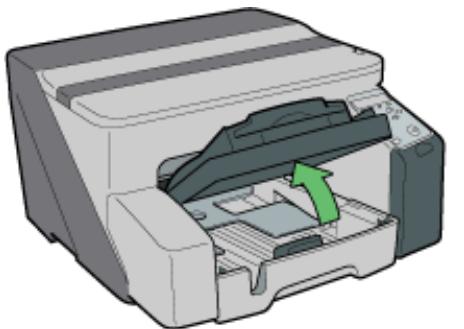
AK0008
- Pull out tray 1.
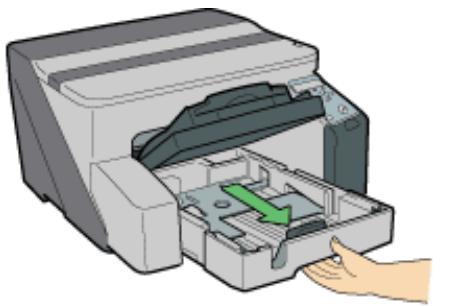
A00D158
Pull tray 1 completely out. Take care not to drop it.
- Squeeze the paper guides on both sides, and then adjust them according to the paper size.
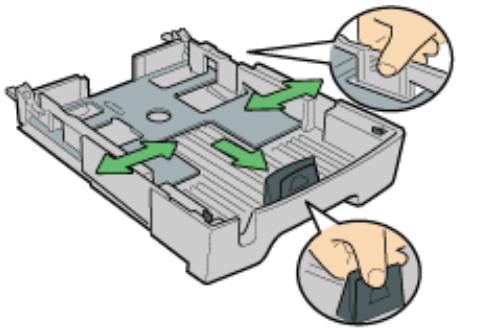
AK80118
Beforehand, make sure to squeeze the front end paper guide, and then expand the guide.
- Load inkjet transparency into tray 1 with the notched corner in the right front corner of the tray.
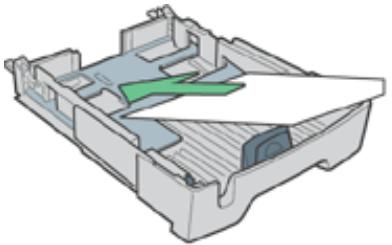
A股附注258
Curled inkjet transparency may jam. Straighten any curls before loading.
If other paper is loaded, remove it, and then load inkjet transparency.
To prevent the leading edge of transparencies from being scratched, place transparencies one at a time.
- Squeeze the front end paper guide, and then slide it to meet the edge of the inkjet transparency.
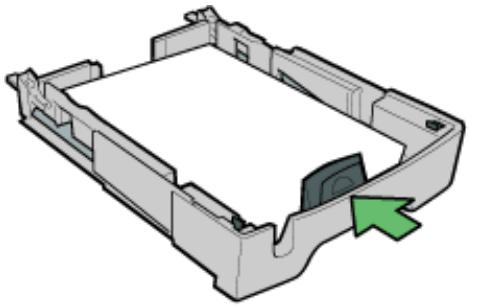
AK50615
- Push tray 1 gently in until it stops.
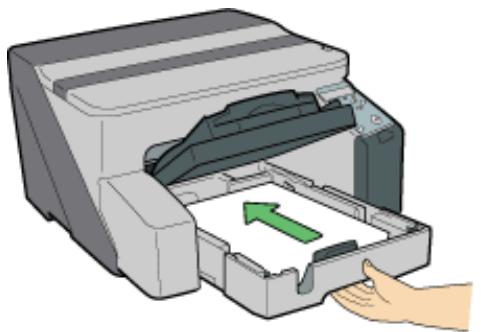
AKRD828
- Lower the output tray.
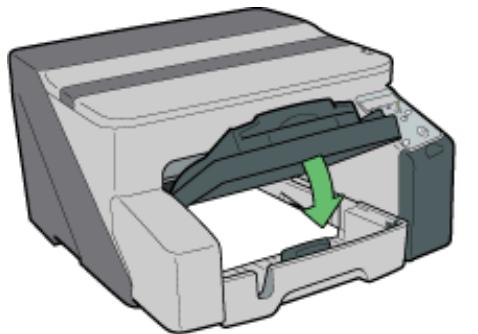
AK01635
- Slide the envelope selector to the forward position
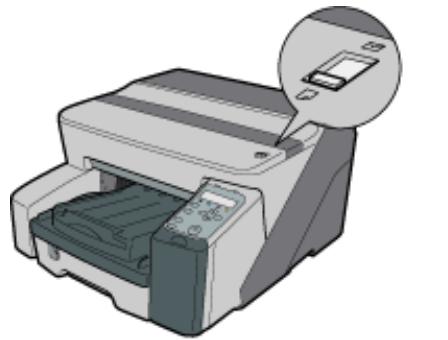
AKR2A5
- Open the printer properties dialog box from the application.
- On the [Print Settings] tab, click [Inkjet Transparency] in the [Paper type:] list. If the dialog box type is Multi-tab, click [Inkjet Transparency] in the [Paper type:] list on the [Setup] tab.
- Make the necessary settings, and then click [OK]. The printer properties dialog box closes.
- Make print settings, and then click [OK].
Reference
p.152 "Two Types of Printer Properties Dialog Box"
- For details about [Sheet-dry Print Delay...], see the printer driver Help.
p.28 "Paper Handling Precautions"
Printing on Glossy Paper
Follow the procedure below to print on glossy paper.
Load Glossy Paper in tray.
A4/Letter size paper is loaded in tray 1 here.
- Lift the output tray.
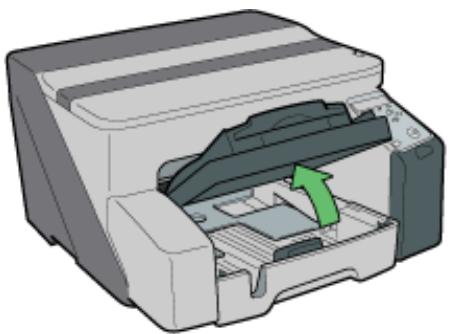
AK0008
- Pull out tray 1.
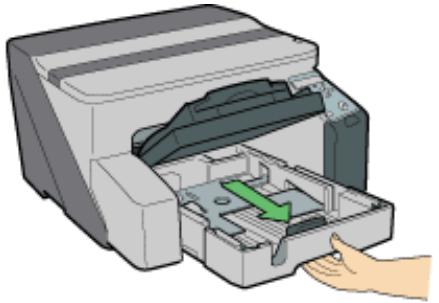
A00D158
Pull tray 1 completely out. Take care not to drop it.
- Squeeze the paper guides on both sides, and then adjust them according to the paper size.
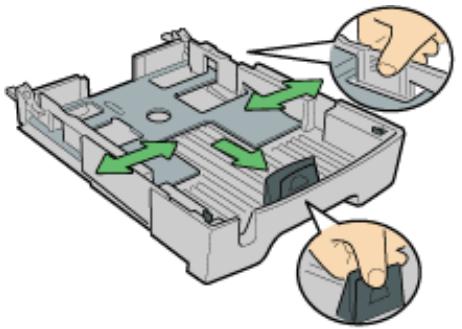
AK80118
Beforehand, make sure to squeeze the front end paper guide, and then expand the guide.
- Load glossy paper with the print side face down.
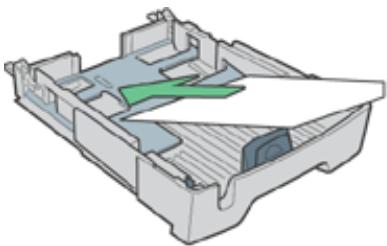
A051268
The print side is rough and white-coated.
Curled paper may jam. Straighten any curls before loading.
- Squeeze the front end paper guide, and then slide it to meet the edge of the paper.
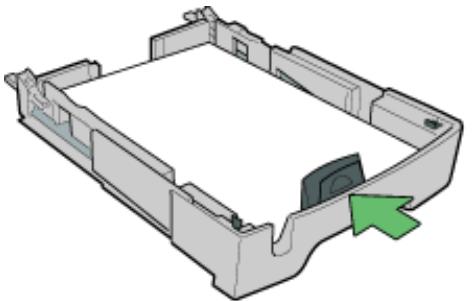
AK30135
- Push tray 1 gently in until it stops.
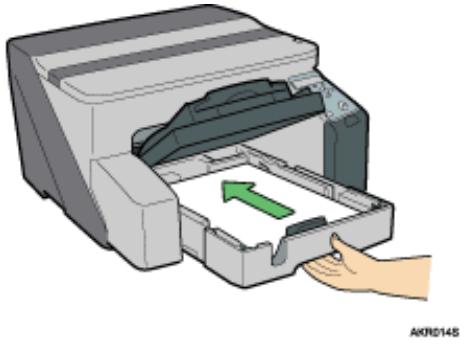
- Lower the output tray.
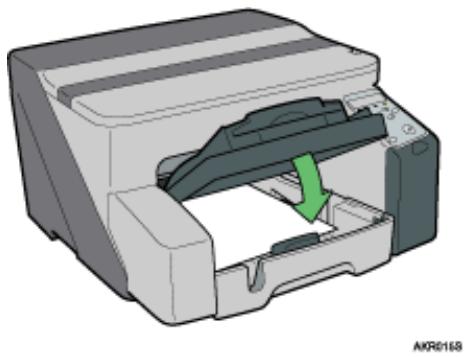
- Slide the envelope selector to the forward position
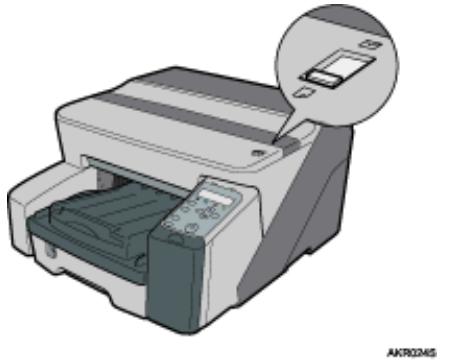
- Open the printer properties dialog box from the application.
- On the [Print Settings] tab, click [Glossy Paper] in the [Paper type:] list. If the dialog box type is Multi-tab, click [Glossy Paper] in the [Paper type:] list on the [Setup] tab.
- Make the necessary settings, and then click [OK]. The printer properties dialog box closes.
- Make print settings, and then click [OK]. The output tray can hold up to 20 sheets of glossy paper at a time.

Note
- To print photographs or other high-resolution images, set [Print Quality] to [Quality priority].

Reference
p.152 "Two Types of Printer Properties Dialog Box"
Printing on Envelopes
Follow the procedure below to print on envelopes.
Envelopes are loaded in tray 1 here.
- Lift the output tray.
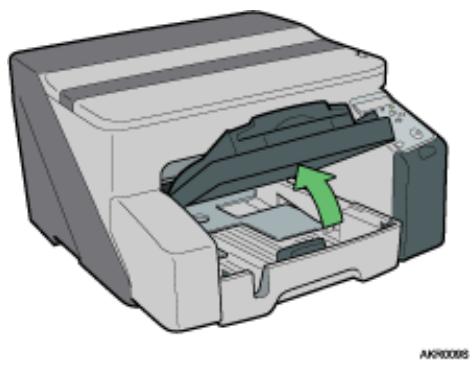
- Pull out tray 1.
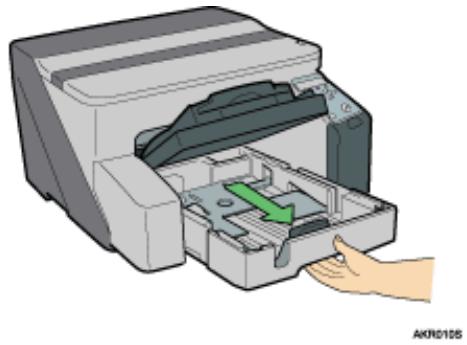
Pull tray 1 completely out. Take care not to drop it.
- When printing on an envelope that has the flap on the long edge, fold the flap, and then load the envelope with the flap to the right of the paper feed direction, print side down.
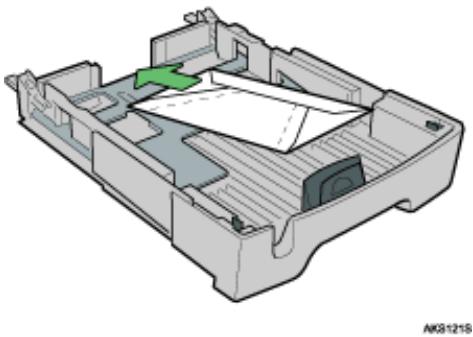
When printing on an envelope that has the flap on the short edge, leave the flap unfolded, and then load the envelope bottom-first, print side down.
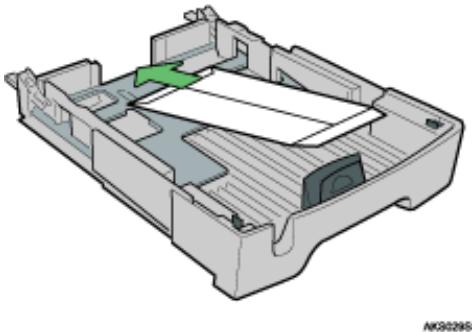
You can load up to 20 envelopes.
Before loading envelopes, make sure their edges are sharply creased by rubbing the edges with a pen or similar object.
Load envelopes carefully because the printable area depends on the orientation.
- Squeeze the paper guide release, and then slide the paper guides into position according to the paper size.
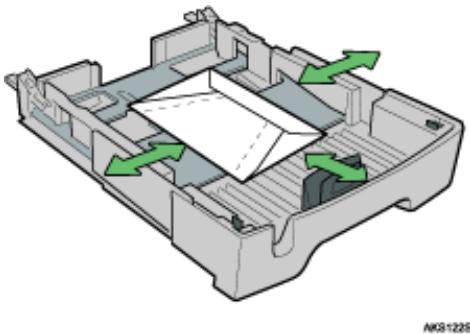
- Push tray 1 gently in until it stops.
- Lower the output tray.
- Slide the envelope selector to the rear position
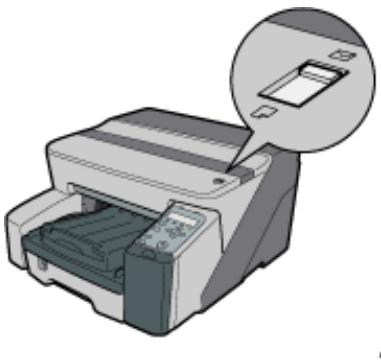
- Open the printer properties dialog box from the application.
- On the [Print Settings] tab, click [Envelope] in the [Paper type:] list. If the dialog box type is Multi-tab, click [Envelope] in the [Paper type:] list on the [Setup] tab.
- Make the necessary settings, and then click [OK].
The printer properties dialog box closes.
- Make print settings, and then click [OK].

Note
To print in reverse orientation in the printer driver settings, select the [Rotate by 180 degrees:] check box on the[Page Settings] tab.

Reference
p.152 "Two Types of Printer Properties Dialog Box"
p.28 "Paper Handling Precautions"
p.31 "Printable Area"
Printing on Thick Paper
Follow the procedure below to print on thick paper and label paper. Thick paper and label paper are fed from the bypass tray.

Important
-
Paper heavier than 157g / m^2 (297.6 lb.) is inserted into the bypass tray one sheet at a time. Paper lighter than that can be loaded into tray 1.
To use Paper lighter than 157g / m^2 (297.6 lb.), click [Plain] in the [Paper type:] list. -
Open the printer properties dialog box from the application.
- On the [Print Settings] tab, click [Thick] in the [Paper type:] list. If the dialog box type is Multi-tab, click [Thick] in the [Paper type:] list on the [Setup] tab.
- Make the necessary settings, and then click [OK].
- Check the message, and then click [OK].
- Slide the bypass tray guides into position according to the paper size.
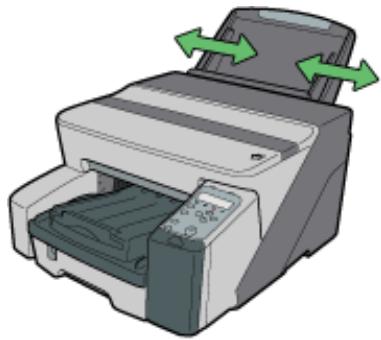
A000255
- Insert a sheet of paper into the bypass tray with the print side face up.
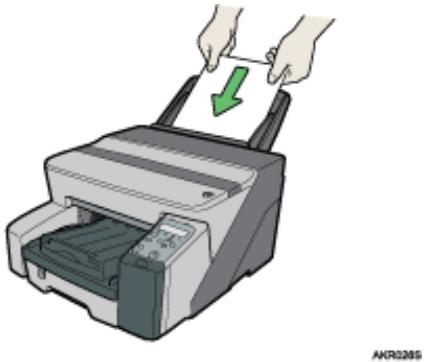
Printing starts when you push in the paper.
Printing cannot start until the machine finishes cleaning its head. Load the paper in the bypass tray when cleaning finishes.
Insert the sheet straight into the bypass tray.
- Make print settings, and then click [OK].
Reference
p.152 "Two Types of Printer Properties Dialog Box"
p.28 "Paper Handling Precautions"
Canceling Printing
Print jobs can be canceled from either a printer or computer. How to cancel print jobs differs according to their job status. Check the job status first.
Canceling a Print Job Being Printed
Cancel the print job from the Status monitor or by pressing the [Cancel] key of the printer.
Canceling a print job in queue
Cancel the print job from the taskbar of the computer.
Canceling Printing from the Status Monitor
Follow the procedure below to cancel a print job being printed.
- Check that printing and the Status monitor have started.
- Click [Stop Printing].
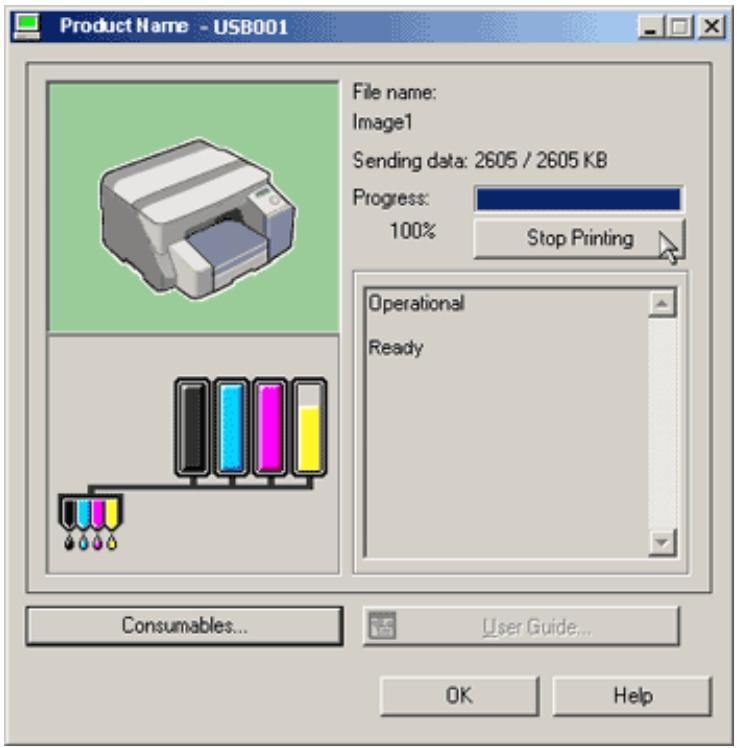
It will take a few moments for printing to stop.
Reference
p.206 "Using the Status Monitor"
Canceling Printing Using the [Job Reset] Key of the Printer
Follow the procedure below to cancel a print job being printed.
- Check that printing has started.
Not only the print job being printed but also the print jobs in queue will be canceled.
If you press the [Job Reset] key while the printer is receiving print data for a print job (the [Power] key is blinking), that print job is also canceled.
- Press the [Job Reset] key.
![RICOH AFICIO GX 3000 - Canceling Printing Using the [Job Reset] Key of the Printer - 1](/content/2025/01/136322/images/0768dff7e8d988aec63171c5f2da6c7830510c723f815c55d1afbc90ec0e5d82.jpg)
It will take a few moments for printing to stop.
Canceling Printing from the Taskbar
Follow the procedure below to cancel a print job in queue.
- Double-click the icon of the printer on the taskbar.
- Select the print job you want to cancel, and then click Cancel (Windows 98/Me: Cancel Printing) on the Document menu.
Adjusting Print Quality
Print quality and colour tone can be adjusted to suit the print data.
Printing Using Preset Print Quality Settings
With preset print quality settings, you do not have to make print quality settings every time you print. Follow the procedure below to print using a preset print quality setting.
- Open the file you want to print from the application, and then open the printer properties dialog box.
- On the [Print Settings] tab, select a print quality setting in the [Print Quality] area. If the dialog box type is Multi-tab, select a print quality setting in the [Print Quality] area on the [Setup] tab.
- Make the necessary settings, and then click [OK]. The printer properties dialog box closes.
- Make print settings, and then click [OK].
Reference
p.152 "Two Types of Printer Properties Dialog Box"
- For details about [Print Quality], see the printer driver Help.
Printing in Black and White
Follow the procedure below to print using only black.
Since black and white printing is faster than colour printing, it is efficient for printing colour documents that do not need to be printed in colour. Also, the black produced by black and white printing is a more distinct black than that produced by colour printing.
Be sure to select black and white printing if you specified black and white printing in an application.
- Open the file you want to print from the application, and then open the printer properties dialog box.
- On the [Print Settings] tab, click [Black and White] in the [Color/Black and White] area. If the dialog box type is Multi-tab, click [Black and White] in the [Color/Black and White] area on the [Setup] tab.
- Make the necessary settings, and then click [OK]. The printer properties dialog box closes.
- Make print settings, and then click [OK].
Note
Depending on the paper type, colour ink is also consumed.
Reference
p.152 "Two Types of Printer Properties Dialog Box"
Saving Colour Ink When Printing
Follow the procedure below to save colour ink by printing graphics and images with less than the usual amount of ink. Text is printed as usual so that it can remain clear and easy to read.
- Open the file you want to print from the application, and then open the printer properties dialog box.
- On the [Print Settings] tab, click [Color] in the [Color/Black and White] area. If the dialog box type is Multi-tab, click [Color] in the [Color/Black and White] area on the [Setup] tab.
- Select the [Level Color] check box.
- Make the necessary settings, and then click [OK]. The printer properties dialog box closes.
- Make print settings, and then click [OK].

Note
- Overall colour, except for text, will be lighter.
- The colour of text may be printed lighter depending on the application used.

Reference
p.152 "Two Types of Printer Properties Dialog Box"
Printing with Print Quality Settings You Want
You can make print quality settings more in details.
Changing Image Printing Method
When printing images, the higher the resolution of images, the longer the time required for printing. Follow the procedure below to print with priority on print quality or print speed.
- Open the file you want to print from the application, and then open the printer properties dialog box.
- On the [Print Settings] tab, click [User settings] in the [Print Quality] area. If the dialog box type is Multi-tab, click [User settings] in the [Print Quality] area on the [Setup] tab.
- Click [Change...].
The [Change User Settings] dialog box appears.
- On the [Image Adjustments] tab, select an image printing method in the [Image processing priority] list.
- Click [OK].
The [Change User Settings] dialog box closes.
- Make the necessary settings, and then click [OK].
The printer properties dialog box closes.
- Make print settings, and then click [OK].

Reference
p.152 "Two Types of Printer Properties Dialog Box"
- For details about [Image processing priority], see the printer driver Help.
Correcting the Hue of Digital Photos
Correct the hue of digital photos. This is effective especially for overexposed or underexposed images.
Exposure is affected by the levels of light in which the photo was taken. If there are extreme light and shade differences between object and background, the object may be underexposed (too dark) or overexposed (too light).
- Open the file you want to print from the application, and then open the printer properties dialog box.
- On the [Print Settings] tab, click [User settings] in the [Print Quality] area. If the dialog box type is Multi-tab, click [User settings] in the [Print Quality] area on the [Setup] tab.
- Click [Change...]. The [Change User Settings] dialog box appears.
- On the [Image Adjustments] tab, select the [Adjust photos and images] check box. If the [Adjust photos and images] check box is selected, the [Use ICM] check box is unavailable.
- Click [OK]. The [Change User Settings] dialog box closes.
- Make the necessary settings, and then click [OK]. The printer properties dialog box closes.
- Make print settings, and then click [OK].

Reference
p.152 "Two Types of Printer Properties Dialog Box"
Printing Low Resolution Images Smoothly
Follow the procedure below to print outlines of low resolution images, which often appear on Web pages, smoothly.
- Open the file you want to print from the application, and then open the printer properties dialog box.
- On the [Print Settings] tab, click [User settings] in the [Print Quality] area. If the dialog box type is Multi-tab, click [User settings] in the [Print Quality] area on the [Setup] tab.
- Click [Change...]. The [Change User Settings] dialog box appears.
- On the [Image Adjustments] tab, select the [Smooth low resolution images] check box.
- Click [OK]. The [Change User Settings] dialog box closes.
- Make the necessary settings, and then click [OK].
The printer properties dialog box closes.
- Make print settings, and then click [OK].
Reference
p.152 "Two Types of Printer Properties Dialog Box"
Changing the Dither Pattern
A dither pattern is a pattern of dots used to simulate a colour or shade of an image. If the pattern is changed, the characteristics of the image will also change. Follow the procedure below to select a pattern suitable for the image to be printed.
Dithering is a technique where tiny dots are printed in patterns in order to create the illusion of tones and colours that cannot be physically reproduced.
- Open the file you want to print from the application, and then open the printer properties dialog box.
- On the [Print Settings] tab, click [User settings] in the [Print Quality] area. If the dialog box type is Multi-tab, click [User settings] in the [Print Quality] area on the [Setup] tab.
- Click [Change...]. The [Change User Settings] dialog box appears.
- On the [Image Adjustments] tab, select a dither pattern in the [Dithering] list. Thin lines may break depending on the pattern used. If this happens, select another pattern.
- Click [OK]. The [Change User Settings] dialog box closes.
- Make the necessary settings, and then click [OK]. The printer properties dialog box closes.
- Make print settings, and then click [OK].
Reference
p.152 "Two Types of Printer Properties Dialog Box"
- For details about [Dithering], see the printer driver Help.
Using Error Diffusion
Error Diffusion is a type of dithering that produces halftones by printing dots densely for dark colours and diffusely for light colours. Select the appropriate pattern for the image you want print.
Important
-
Depending on the operating system or application, error diffusion may not be printed correctly.
-
Open the file you want to print from the application, and then open the printer properties dialog box.
- On the [Print Settings] tab, click [User settings] in the [Print Quality] area. If the dialog box type is Multi-tab, click [User settings] in the [Print Quality] area on the [Setup] tab.
- Click [Change...].
The [Change User Settings] dialog box appears.
- On the [Image Adjustments] tab, select the [Use error diffusion] check box.
- Select the error diffusion target from the drop-down menu.
- Click [OK].
The [Change User Settings] dialog box closes.
- Make the necessary settings, and then click [OK].
The printer properties dialog box closes.
- Make print settings, and then click [OK].
Reference
p.152 "Two Types of Printer Properties Dialog Box"
- For details about [Dithering], see the printer driver Help.
Changing the Colour Profiling Pattern
Follow the procedure below to select a colour profiling pattern to adjust the tone of colours for prints according to the colours displayed on the computer screen.
Colours on the computer screen are expressed using the three RGB colours, but colours used for printing are composed of the four CMYK colours. When printing, RGB colours are converted to CMYK colours.
- Open the file you want to print from the application, and then open the printer properties dialog box.
- On the [Print Settings] tab, click [User settings] in the [Print Quality] area. If the dialog box type is Multi-tab, click [User settings] in the [Print Quality] area on the [Setup] tab.
- Click [Change...].
The [Change User Settings] dialog box appears.
- On the [Image Adjustments] tab, select a colour profiling pattern in the [Color profile:] list.
- Click [OK].
The [Change User Settings] dialog box closes.
- Make the necessary settings, and then click [OK].
The printer properties dialog box closes. - Make print settings, and then click [OK].
Reference
p.152 "Two Types of Printer Properties Dialog Box"
- For details about [Color profile]:, see the printer driver Help.
Printing Grayscale Images Using Black or CMYK
Follow the procedure below to print black or gray parts of an image using black or CMYK.
- Open the file you want to print from the application, and then open the printer properties dialog box.
- On the [Print Settings] tab, click [User settings] in the [Print Quality] area.
If the dialog box type is Multi-tab, click [User settings] in the [Print Quality] area on the [Setup] tab.
- Click [Change...].
The [Change User Settings] dialog box appears.
- On the [Image Adjustments] tab, select a gray reproduction method in the [Gray reproduction (Text/Line Art):] list.
- Click [OK].
The [Change User Settings] dialog box closes.
- Make the necessary settings, and then click [OK].
The printer properties dialog box closes.
- Make print settings, and then click [OK].
Reference
p.152 "Two Types of Printer Properties Dialog Box"
- For details about [Gray reproduction (Text/Line Art)], see the printer driver Help.
Printing Text in Black
Follow the procedure below to print text other than black in black. This is useful when text other than black looks lighter when printed.
- Open the file you want to print from the application, and then open the printer properties dialog box.
- On the [Print Settings] tab, click [User settings] in the [Print Quality] area. If the dialog box type is Multi-tab, click [User settings] in the [Print Quality] area on the [Setup] tab.
- Click [Change...]. The [Change User Settings] dialog box appears.
- On the [Image Adjustments] tab, select the [Print all texts in black] check box.
- Click [OK]. The [Change User Settings] dialog box closes.
- Make the necessary settings, and then click [OK]. The printer properties dialog box closes.
- Make print settings, and then click [OK].
Reference
p.152 "Two Types of Printer Properties Dialog Box"
Using ICM
Follow the procedure below to correct colours using the Windows ICM (Image Colour Matching) function.
ICM is a colour management system that adjusts colours between I/O devices. Use this function to produce print results with colours as close as possible to those displayed on the computer screen. To use this function, the colour profile must be added to the printer.
You can find the colour profile in the ICM folder stored on the CD-ROM provided. For information about adding a colour profile, search for the words "colour profile" in Windows Help, and then see the appropriate topic.
This function is unavailable under Windows NT 4.0.
- Open the file you want to print from the application, and then open the printer properties dialog box.
- On the [Print Settings] tab, click [User settings] in the [Print Quality] area. If the dialog box type is Multi-tab, click [User settings] in the [Print Quality] area on the [Setup] tab.
- Click [Change...]. The [Change User Settings] dialog box appears.
- On the [Image Adjustments] tab, select the [Use ICM] check box. If the [Use ICM] check box is selected, the [Color profile:] list on the [Image Adjustments] tab is unavailable. Windows performs colour correction using the profile specified on the [Color Management] tab. If the [Use ICM] check box is selected, the [Adjust photos and images] check box is unavailable.
- In the [ICM method:] and [ICM intent:] lists, select a colour correction process.
- Click [OK]. The [Change User Settings] dialog box closes.
- Make the necessary settings, and then click [OK]. The printer properties dialog box closes.
- Make print settings, and then click [OK].
Reference
p.152 "Two Types of Printer Properties Dialog Box"
- For details about [ICM method:] and [ICM intent:], see the printer driver Help.
Adjusting Brightness, Contrast, and Saturation
Follow the procedure below to adjust brightness, contrast, and saturation for printing.
- Open the file you want to print from the application, and then open the printer properties dialog box.
- On the [Print Settings] tab, click [User settings] in the [Print Quality] area. If the dialog box type is Multi-tab, click [User settings] in the [Print Quality] area on the [Setup] tab.
- Click [Change...]. The [Change User Settings] dialog box appears.
- Click the [Balance Adjustments] tab.
- Adjust the brightness, contrast, and saturation.
Make adjustments by moving the slider or clicking [-] or [+] .
- Click [OK].
The [Change User Settings] dialog box closes.
- Make the necessary settings, and then click [OK].
The printer properties dialog box closes.
- Make print settings, and then click [OK].
Reference
p.152 "Two Types of Printer Properties Dialog Box"
- For details about [Brightness:], [Contrast:], and [Saturation:], see the printer driver Help.
Adjusting Colour Balance
Follow the procedure below to adjust colour balance by changing the mixture of red (R), green (G), and blue (B).
- Open the file you want to print from the application, and then open the printer properties dialog box.
- On the [Print Settings] tab, click [User settings] in the [Print Quality] area. If the dialog box type is Multi-tab, click [User settings] in the [Print Quality] area on the [Setup] tab.
- Click [Change...]. The [Change User Settings] dialog box appears.
- Click the [Balance Adjustments] tab.
- Adjust colour balances.
Make adjustments by moving the slider or clicking [-] or [+] . Click [▶] and [▶] to move all sliders at the same time.
Cyan (C) and red (R), magenta (M) and green (G), and yellow (Y) and blue (B) are pairs of complementary colours. - Click [OK]. The [Change User Settings] dialog box closes.
- Make the necessary settings, and then click [OK]. The printer properties dialog box closes.
- Make print settings, and then click [OK].
Complementary Colours
It is helpful to understand the concept of complementary colours when adjusting colour balance. When two primary colours of the primary colours of light (RGB) or primary colours of pigment (CMY) are mixed, the resulting colour is the complimentary colour of the remaining primary colour. Red and cyan, green and magenta, and blue and yellow are pairs of complementary colours.
Hints for Adjusting Colour Balance
The following methods are available to make a specific colour stronger: decreasing the colour's complementary colour or decreasing the other colours (that is, decreasing complementary colours relatively). A combination of both methods can be used.
For example, to make red more vivid, make red stronger (by decreasing cyan) or decrease green and blue (making magenta and yellow stronger). The more red is used, the brighter the image looks. This is useful to adjust the colour of a dark image. On the contrary, the less green and blue are used, the duller the image looks. Use this method to make a bright image dull.
Reference
p.152 "Two Types of Printer Properties Dialog Box"
- For details about [Color balance:], see the printer driver Help.
Printing a Whole Page as an Image
This section explains how to convert a print job to image data using a Windows application, and then print the image using the printer driver. Follow the procedure below to print a whole page as an image. This will allow you to get print results that resemble the display image more closely. Since more data has to be processed, printing will take much longer. Use this function if the printed image differs from the display image.
Black or gray parts will be printed with the four CMYK colours regardless of the settings made in the [Gray reproduction (Text/Line Art):] list on the [Image Adjustments] tab in the [Change User Settings] dialog box.
This setting overrides the watermark setting.
- Open the file you want to print from the application, and then open the printer properties dialog box.
- On the [Print Settings] tab, click [User settings] in the [Print Quality] area. If the dialog box type is Multi-tab, click [User settings] in the [Print Quality] area on the [Setup] tab.
- Click [Change...]. The [Change User Settings] dialog box appears.
- Click the [Misc.] tab.
- Select the [Print as bitmap] check box.
- Click [OK]. The [Change User Settings] dialog box closes.
- Make the necessary settings, and then click [OK]. The printer properties dialog box closes.
- Make print settings, and then click [OK].
Reference
p.152 "Two Types of Printer Properties Dialog Box"
p.191 "Printing Images or Text Superimposed on Plints"
Changing the Image Data Process
Depending on the application, there may be cases where printing takes a long time or colours are not printed correctly. Follow the procedure below to change the image data process to solve the problem.
Since changing the image data processing method may cause printing not to be performed correctly with some applications, you should normally leave this option unselected.
-
Open the file you want to print from the application, and then open the printer properties dialog box.
-
On the [Print Settings] tab, click [User settings] in the [Print Quality] area.
If the dialog box type is Multi-tab, click [User settings] in the [Print Quality] area on the [Setup] tab.
- Click [Change...].
The [Change User Settings] dialog box appears.
- Click the [Misc.] tab.
- Select the [Change data processing] check box.
- Click [OK].
The [Change User Settings] dialog box closes.
- Make the necessary settings, and then click [OK].
The printer properties dialog box closes.
- Make print settings, and then click [OK].
Reference
p.152 "Two Types of Printer Properties Dialog Box"
Printing with Particular CMYK Colours
Normally full colour (CMYK) is used for colour printing. Follow the procedure below to print using particular CMYK colours.
These settings are unavailable when black and white printing is specified.
- Open the file you want to print from the application, and then open the printer properties dialog box.
- On the [Print Settings] tab, click [User settings] in the [Print Quality] area. If the dialog box type is Multi-tab, click [User settings] in the [Print Quality] area on the [Setup] tab.
- Click [Change...]. The [Change User Settings] dialog box appears.
- Click the [Misc.] tab.
- In the [Separate into CMYK, then print in designated color only] area, select colours. Select colours you want to use.
- Click [OK]. The [Change User Settings] dialog box closes.
- Make the necessary settings, and then click [OK]. The printer properties dialog box closes.
- Make print settings, and then click [OK].
Reference
p.152 "Two Types of Printer Properties Dialog Box"
Emphasizing Bold Type According to the Font Size
You can emphasize bold type according to the font size.
Important
This function is not available under Windows 98/Me.
- Open the file you want to print from the application, and then open the printer properties dialog box.
- Click the [Printer Configuration] tab.
- On the [Printer Configuration] tab, select the [Increase bold with font size] check box.
- Make the necessary settings, and then click [OK]. The printer properties dialog box closes.
- Make print settings, and then click [OK].
Reference
p.152 "Two Types of Printer Properties Dialog Box"
Changing the Method of Extracting TrueType Fonts
This is useful for correcting garbled or incorrectly printed characters.
Important
If you perform [Reduce/Enlarge] together with this function, printed text may be of reduced quality.
- Open the file you want to print from the application, and then open the printer properties dialog box.
- On the [Print Settings] tab, select [User settings] in the [Print Quality] area. If the dialog box type is Multi-tab, click [User settings] in the [Print Quality] area on the [Setup] tab.
- Click [Change...]. The [Change User Settings] dialog box appears.
- Click the [Misc.] tab.
- Select the [Change methods to extract TrueType fonts] check box.
- Click [OK]. The [Change User Settings] dialog box closes.
- Make the necessary settings, and then click [OK]. The printer properties dialog box closes.
- Make print settings, and then click [OK].
Reference
p.152 "Two Types of Printer Properties Dialog Box"
Printing Images Vividly
By changing the printer properties settings or using special paper, vivid images can be printed.
Changing the printer properties settings
Prints can be made with priority on print quality. Change print quality settings in the printer properties dialog box.
Using special paper
Printing on special paper will look more vivid compared to printing on plain paper. Use inkjet plain paper or glossy paper.

Reference
p.169 "Printing Using Preset Print Quality Settings"
p.121 "Recommended Consumables"
Various Print Functions
By using various print functions, you can make prints appropriate for your purposes.
Reference
p.157 "Printing on Various Paper Types"
Printing Multiple Document Sets
Follow the procedure below to print multiple sets of the same document.
Depending on the application, this setting may not be available.
If you do not use the Collate function, prints will be delivered in page batches (P1, P1, P2, P2 ...). If you use the Collate function, prints will be delivered in document batches (P1, P2, P1, P2 ...).
- Open the file you want to print from the application, and then open the printer properties dialog box.
- On the [Print Settings] tab, enter the number of sets you want to print between 1 and 999 in the [Copies] box.
If the dialog box type is Multi-tab, click [Page Settings] tab, and enter the number of sets you want to print between 1 and 999 in the [Copies] box.
- Make the necessary settings, and then click [OK].
The printer properties dialog box closes. - Make print settings, and then click [OK].
Reference
p.181 "Collating"
p.152 "Two Types of Printer Properties Dialog Box"
Collating
Follow the procedure below to print complete sets of prints one set at a time when printing multiple sets such as for presentation materials.
Depending on the application, this setting may not be usable.
Even when using the Collate function with Layout, Poster, or Duplex, document boundaries are correctly recognized so problems like the first page and last page being printed on the same sheet do not occur.
- Open the file you want to print from the application, and then open the printer properties dialog box.
- In the [Copies] box, enter the number of sets you want to print between 1 and 999.
If the dialog box type is Multi-tab, click [Page Settings] tab, and enter the number of sets you want to print between 1 and 999 in the [Copies] box.
- In the [Copies] box, select [Collate] check box.
If the dialog box type is Multi-tab, click [Page Settings] tab, and select [Collate] check box in the [Copies] box.
- Make the necessary settings, and then click [OK].
The printer properties dialog box closes.
- Make print settings, and then click [OK].

Reference
p.152 "Two Types of Printer Properties Dialog Box"
Printing Web Pages
Use the procedures described below to make settings for printing Web pages.
When a Web page is printed, it may not fit on the paper used or it may not be printed as it looks on the screen.
Use the information below to print Web pages correctly.
Printing low resolution images smoothly
Images displayed on Web sites tend to be low resolution images to reduce data size. Before printing, be sure to make the setting to print low resolution images smoothly.
Fitting a whole Web page to the paper size
If a whole Web page cannot be printed on the paper size used, reduce it using [Fit to paper size] or [Scale] under the [Reduce/Enlarge] function.
If [A3 (297 x 420 mm)] or [B4 JIS (257 x 364 mm)] is selected for [Original size:] and [Reduce automatically to fit A4] is selected, print image is automatically reduced to fit A4 size paper.
If [11'' × 17''] or [Legal (81/2'' × 14'')] is selected for [Original size:] and [Reduce automatically to fit Letter] is selected, print image is automatically reduced to fit Letter size paper.
When a Web page is printed over multiple sheets, images or text where any two sheets are connected may not be printed.
Printing the background colour of a Web page
The background colour of a Web page may not be printed. Make the settings to print the background colour using a Web browser.
Internet Explorer
- On the [View] or [Tools] menu of the browser, click [Internet Options...].
- Click the [Advanced] tab.
- In the [Settings] list, select the [Print background colours and images] check box under [Printing].
- Click [OK].
Netscape Navigator
- On the [File] menu of the browser, click [Page Setup].
- On the [Format & Options] tab, select the [Print Background (colours & images)] check box in the [Options] area.
- Click [OK].

Reference
p.171 "Printing Low Resolution Images Smoothly"
p.183 "Reducing and Enlarging to Fit the Paper Size (Fit to paper size)"
p.183 "Reducing and Enlarging by a Specified Ratio (Scale, Directional magnification)"
Reducing and Enlarging to Fit the Paper Size (Fit to paper size)
Follow the procedure below to print document pages reduced or enlarged to fit the paper size. By specifying a document and paper size, an appropriate reduction or enlargement ratio is selected automatically. This is useful when reducing or enlarging from or to standard paper sizes such as when reducing an A3/11" × 17" document to A5/5 12 × 8 12 paper.
- Open the file you want to print from the application, and then open the printer properties dialog box.
- Click [Add/Change Custom Settings...], and click [Page Settings] tab.
If the dialog box type is Multi-tab, click [Page Settings] tab.
- Check that the document orientation and size are the same as those selected in the application.
Usually the settings made in the application are reflected here; however, it depends on the application used. If they are not reflected, make the correct settings. - Select the [Reduce/Enlarge] check box, and then click [Fit to paper size] in the list.
- In the [Printout paper size:] list, select a paper size.
Select the size of paper loaded in the paper tray.
An automatically selected ratio appears in the [Scaling(%):] box.
- Make the necessary settings, and then click [OK].
The printer properties dialog box closes. - Make print settings, and then click [OK].
Reference
p.152 "Two Types of Printer Properties Dialog Box"
Reducing and Enlarging by a Specified Ratio (Scale, Directional magnification)
Follow the procedure below to print with a reduction or enlargement ratio in the range of 20 - 300% adjustable in 1% increments. Use this to reduce the size of the print image slightly to insert a margin, for example.
Two methods are available: scale and directional magnification. Scale is used to specify the same ratio in both horizontal and vertical directions while directional magnification is used to specify a different ratio for each direction.
- Open the file you want to print from the application, and then open the printer properties dialog box.
- Click [Add/Change Custom Settings...], and click [Page Settings] tab.
If the dialog box type is Multi-tab, click [Page Settings] tab.
- Select the [Reduce/Enlarge] check box, and then click [Scale] or [Directional magnification...] in the list.
- If [Scale] is selected, enter a ratio in the [Scaling(%):] box.

Note
- Enter a number between 20 and 300.
-
In the [Printout paper size:] list, you can change the paper size.
-
If [Directional magnification...] is selected, enter ratios in the [Vertical:] and [Horizontal:] boxes, and then click [OK].
- Select the [Centering] check box to centre an image.

Note
- If [Scale] or [Directional magnification...] is selected, a wide margin may be created on the right or bottom of the paper. If this happens, select the [Centering] check box to centre an image and create margins of the same width.
-
If the [Centering] check box is not selected, the reduced or enlarged image is positioned in the upper left of the paper.
-
Make the necessary settings, and then click [Save...].
If the dialog box type is Multi-tab, make the necessary settings, and then click [OK].
- In the [Custom Setting name:] box, enter a custom name.
- Click [OK].
The custom setting is registered and added to the list.
- Select the custom setting, and click [OK].

Reference
p.152 "Two Types of Printer Properties Dialog Box"
Reducing to A4/Letter Automatically
Follow the procedure below to print a document larger than A4/Letter onto A4/Letter size paper by reducing it. For example, if a document is A3/11'' × 17'' size, it can be automatically reduced to A4/Letter and printed.
- Open the file you want to print from the application it was created in, and then open the printer properties dialog box.
- Click [Add/Change Custom Settings...], and click [Page Settings] tab.
If the dialog box type is Multi-tab, click [Page Settings] tab.
- Check the document orientation and size are the same as those selected in the application.
Normally, settings made in the application are reflected here; however, this may not be the case depending on the application used. If necessary, make the correct settings.
In the [Printout paper size:] list, [Reduce to fit A4]/[Reduce to fit Letter] appears.
If [Reduce to fit A4]/[Reduce to fit Letter] does not appear, select [Reduce automatically to fit A4 (210 x 297 mm)]/[Reduce automatically to fit Letter (8 1/2" x 11")].
- Click [OK].
- Make the necessary settings, and then click [Save...].
If the dialog box type is Multi-tab, make the necessary settings, and then click [OK].
- In the [Custom Setting name:] box, enter a custom name.
- Click [OK].
The custom setting is registered and added to the list.
- Select the custom setting, and click [OK].
↓ Note
- If you do not want to reduce images from documents larger than A4/Letter, clear the [Reduce automatically to fit A4] check box in the [Printer Configuration] tab. This is useful if you want to print document images at full size even if they run off the paper.
Reference
p.152 "Two Types of Printer Properties Dialog Box"
- For details about [Reduce automatically to fit A4]/[Reduce automatically to fit Letter], see the printer driver Help.
Rotating the Image by 180 Degrees
Follow the procedure below to print images rotated by 180 degrees. Use this function if paper loaded in the paper tray has a distinct top and bottom and printing with the paper in that orientation would otherwise make the image upside-down.
- Open the file you want to print from the application, and then open the printer properties dialog box.
- Click [Add/Change Custom Settings...], and click [Page Settings] tab. If the dialog box type is Multi-tab, click [Page Settings] tab.
- Select the [Rotate by 180 degrees:] check box.
- Make the necessary settings, and then click [Save...]. If the dialog box type is Multi-tab, make the necessary settings, and then click [OK].
- In the [Custom Setting name:] box, enter a custom name.
- Click [OK]. The custom setting is registered and added to the list.
- Select the custom setting, and click [OK].
Reference
p.152 "Two Types of Printer Properties Dialog Box"
Printing on Registered Custom Size Paper
Follow the procedure below to print on registered custom size paper.
Important
-
Register the size of the custom size paper loaded in the paper tray in the [Printer Configuration] tab.
-
Open the [Page Setup] dialog box from the application.
The [Page Setup] dialog box is usually opened by clicking [Page Setup...] on the [File] menu, but the method to open it may differ in some applications. Open the dialog box according to the application being used.
- Open the printer properties dialog box from the [Page Setup] dialog box.
- In the [Original size:] list, select a custom paper size.
Select from the sizes already registered.
If the dialog box type is Multi-tab, click the [Page Settings] tab, and select a custom paper size in the [Original size:] list.
- Click [Portrait] or [Landscape].
Select the orientation that matches the document orientation and feeding direction.
- Click the [Setup] tab.
- Check that the tray with the paper you want to print on is selected in the [Paper source tray:] list.
- Make the necessary settings, and then click [OK].
The printer properties dialog box closes.
- Check that the orientation selected in the [Setup] dialog box of the application is the same as that selected in step 4.
If it is not, make the correct setting.
- Close the [Page Setup] dialog box of the application.
- Create a file in the application.
- In the printer properties dialog box, make the print settings for the printer selected in step 2, and then click [OK].
Reference
p.152 "Two Types of Printer Properties Dialog Box"
- For details about [Custom Paper Sizes], see the printer driver Help.
Printing on Unregistered Custom Size Paper
Follow the procedure below to print on unregistered custom size paper.
- Open the [Page Setup] dialog box from the application.
The [Page Setup] dialog box is usually opened by clicking [Page Setup...] on the [File] menu, but the method to open it may differ in some applications. Open the dialog box according to the application being used.
- Open the printer properties dialog box from the [Page Setup] dialog box.
- Click the [Print Settings] tab, and click [Custom Paper Sizes...] in the [Original size:] list.
The [Custom Paper Sizes] dialog box appears.
If the dialog box type is Multi-tab, click the [Page Settings] tab, and click [Custom Paper Sizes...] in the [Original size:] list.
- In the [Long edge:] and [Short edge:] boxes, enter values.
To change the measurement unit, click [Measurement Unit...].
- In the [Paper source tray:] list, select a paper tray.
- In the [Paper Position in Tray] area, select a paper orientation.
- Click [OK].
To register the paper size as a custom paper size, click [Open [Custom Paper Sizes]...].
- Click the [Setup] tab.
-
Check that the tray with the paper you want to print on is selected in the [Paper source tray:] list.
-
Click the [Page Settings] tab.
- Click [Portrait] or [Landscape].
Select the orientation that matches the document orientation and feeding direction.
- Make the necessary settings, and then click [OK].
The printer properties dialog box closes.
- Check that the orientation selected in the [Page Setup] dialog box of the application is the same as that selected in step 11.
If it is not, make the correct setting.
- Close the [Page Setup] dialog box of the application.
- Create a file in the application.
- In the printer properties dialog box, make the print settings for the printer selected in step 2 and then click [OK].

Reference
p.152 "Two Types of Printer Properties Dialog Box"
- For details about [Custom Paper Sizes], see the printer driver Help.
Printing on Both Sides of Paper
Follow the procedure below to print on both sides of paper.
Only plain paper can be printed on both sides.
If the page size varies within a document, a page break will occur before the page where the size changes.
We recommend one-sided printing for documents containing areas of heavy, solid colour image.
If two-sided prints fail to dry fully, set a print-dry delay using the printer driver.
If two-sided prints stick or jam, use single-sided printing.
- Open the file you want to print from the application, and then open the printer properties dialog box.
- Select [Duplex] in the [Custom Setting name:]. If the dialog box type is Multi-tab, click the [Edit] tab. Select the [Duplex/Booklet] check box. If you select the [Create margin] check box when printing on plain paper, the machine automatically reduces the size of the page images and centres them on the paper.
- Click the icon representing the binding method you want to use. The icons are displayed in either landscape or portrait depending on the document orientation.
- Select the [Header/Footer/Adjust image position/Binding margins] check box to create a binding margin. Click [Details...] to specify a margin in the [Binding Margins for Duplex Printing] area.
- Make the necessary settings, and then click [OK]. The printer properties dialog box closes.
- Make print settings, and then click [OK].

Reference
p.152 "Two Types of Printer Properties Dialog Box"
p.191 "Printing with a Layout Suitable for Making Booklets"
p.189 "Creating a Binding Margin"
- For details about printing on both sides of paper, see the printer driver Help.
Printing Multiple Document Pages per Sheet (Layout)
Follow the procedure below to print multiple document pages per sheet.
When using Layout, a suitable reduction or enlargement ratio is selected automatically based on the paper size and the number of pages you want to fit on each sheet.
If the page orientation varies within a document, a page break will occur before a page where the orientation changes.
If an equivalent function is available from your application, do not use it. Use the function that can be set in the printer properties.
- Open the file you want to print from the application, and then open the printer properties dialog box.
- Click [Add/Change Custom Settings...], and click [Edit] tab.
If the dialog box type is Multi-tab, click [Edit] tab.
- Select the [Layout/Poster:] check box, and then select the number of document pages you want to fit on each sheet in the list.
Do not click [Poster] since it is a different function.
- Click the icon that matches the page flow you want to use.
The icons show the available page flows for the number of pages selected.
The icons are displayed in either landscape or portrait depending on the document orientation.
- Select the [Draw border] check box to print borders.
- Make the necessary settings, and then click [OK].
The printer properties dialog box closes. - Make print settings, and then click [OK].

Reference
p.152 "Two Types of Printer Properties Dialog Box"
Splitting the Document Image across Multiple Sheets (Poster)
Follow the procedure below to print a single document page over multiple sheets to make a poster size print.
The enlargement ratio used is based on the specified paper size and the number of sheets you want to split the image over.
Prints are made with a 15 mm (0.6 inches) overlap margin. When pasting sheets together, overlap them to hide this margin.
- Open the file you want to print from the application, and then open the printer properties dialog box.
- Click [Add/Change Custom Settings...], and click [Edit] tab. If the dialog box type is Multi-tab, click [Edit] tab.
- Select the [Layout/Poster:] check box, and then click [Poster] in the list.
- Click the icon representing the number of sheets you want to split the image over. The icons are displayed in either landscape or portrait depending on the document orientation.
- Make the necessary settings, and then click [OK]. The printer properties dialog box closes.
- Make print settings, and then click [OK].
Reference
p.152 "Two Types of Printer Properties Dialog Box"
Printing from the Last Page
Follow the procedure below to start printing from the last page of a document. Use this function when prints come out face up in the output tray. This allows a printed document to be assembled in page order.
If an equivalent function is available from your application, do not use it. Use the function that can be set in the printer properties.
- Open the file you want to print from the application, and then open the printer properties dialog box.
- Click [Add/Change Custom Settings...], and click [Page Settings] tab. If the dialog box type is Multi-tab, click [Page Settings] tab.
- Select the [Reverse order printing] check box.
- Make the necessary settings, and then click [OK]. The printer properties dialog box closes.
- Make print settings, and then click [OK].
Reference
p.152 "Two Types of Printer Properties Dialog Box"
Creating a Binding Margin
Follow the procedure below to print with a binding margin. If you create a binding margin, it is offset from the document margin set from the application.
Since the margin opposite the binding margin will be shifted toward the paper edge, be sure to make this margin wide enough when making the document.
If a binding margin is set in an application, do not make this setting in the printer properties. This would result in a binding margin twice as wide as expected.
- Open the file you want to print from the application, and then open the printer properties dialog box.
- Click [Add/Change Custom Settings...], and click [Edit] tab. If the dialog box type is Multi-tab, click [Edit] tab.
- Select the [Header/Footer/Adjust image position/Binding margins] check box.
- Click [Details...]. The [Header/Footer/Adjust image position/Binding margins] dialog box appears.
- In the [Adjust Image Position] area, select the direction in which you want to shift the print area in the [Direction:] list. Margins (top, bottom, left, right) change according to the selected direction.
- Enter a binding margin width, and then click [OK]. To change the measurement unit, click [Measurement Unit...].
- Make the necessary settings, and then click [OK]. The printer properties dialog box closes.
- Make print settings, and then click [OK].
Reference
p.152 "Two Types of Printer Properties Dialog Box"
Printing Documents with a Header and Footer
Follow the procedure below to print documents with character strings in the top and bottom margins.
Besides date, page number, and file name, text of up to 32 characters can be inserted into these areas.
If you print a document using the Reduce/Enlarge function, the header and footer will also be reduced or enlarged.
A header and footer will be printed on every page. For example, if you print several document pages on a sheet of paper (Layout), a header and footer will appear for every page.
If a header and footer are set in an application, do not make this setting in the printer properties.
- Open the file you want to print from the application, and then open the printer properties dialog box.
- Click [Add/Change Custom Settings...], and click [Edit] tab. If the dialog box type is Multi-tab, click [Edit] tab.
- Select the [Header/Footer/Adjust image position/Binding margins] check box.
- Click [Details...]. The [Header/Footer/Adjust image position/Binding margins] dialog box appears.
- In the [Header/Footer] area, make the necessary settings, and then click [OK]. If the same position is selected for the date and time, page number, or text, the printing order is as follows: date and time, text, page number.
-
Make the necessary settings, and then click [OK]. The printer properties dialog box closes.
-
Make print settings, and then click [OK].
Reference
p.152 "Two Types of Printer Properties Dialog Box"
Printing with a Layout Suitable for Making Booklets
Follow the procedure below to print on both sides of paper using a layout suitable for making booklets.
There are two kinds of booklet layout: [Booklet 1] and [Booklet 2]. With [Booklet 1], each sheet is folded in half separately, then the folded sheets are stacked and bound. With [Booklet 2], the whole stack is folded in half in a similar way to a magazine.
- Open the file you want to print from the application, and then open the printer properties dialog box.
- Click [Add/Change Custom Settings...], and click [Edit] tab.
If the dialog box type is Multi-tab, click [Edit] tab.
- Select the [Duplex/Booklet] check box.
- Click the icon representing the booklet format you want to use.
The icons are displayed in either landscape or portrait depending on the document orientation.
- Make the necessary settings, and then click [OK].
The printer properties dialog box closes. - Make print settings, and then click [OK].
Reference
p.152 "Two Types of Printer Properties Dialog Box"
p.187 "Printing on Both Sides of Paper"
Printing Images or Text Superimposed on Plints
Follow the procedure below to print an image or text superimposed on prints. The image or text is referred to as a watermark.
A watermark made up of a bitmap file (extension .bmp) is referred to as an image watermark. A watermark made up of text data is referred to as a text watermark. You cannot use both together.
Various predefined watermarks are provided. You can also create your own watermarks.
- Open the file you want to print from the application, and then open the printer properties dialog box.
- Click [Add/Change Custom Settings...], and click [Edit] tab.
If the dialog box type is Multi-tab, click [Edit] tab.
- Select the [Watermarks/Overlay:] check box, and then select a watermark in the list.
To edit the watermark, click [Edit...].
To create a new watermark, click [Add Bitmap...] or [Add Text...].
- Make the necessary settings, and then click [OK].
The printer properties dialog box closes.
- Make print settings, and then click [OK].

Note
- The last blank page of booklet or duplex-printed documents that contain uneven page numbers can also be stamped. For example, when booklet or duplex printing a fifteen-page document, the sixteenth page (blank) can also be stamped.
- To not stamp the last page, on the [Printer Configuration] tab, set [Spool format:] to [RAW].

Reference
p.152 "Two Types of Printer Properties Dialog Box"
Creating a New Watermark
Follow the procedure below to create a new watermark.
There are two kinds of watermarks: image watermarks made up of a bitmap file (extension.bmp) and text watermarks made up of text data.
- Open the printer properties dialog box.
- Click [Add/Change Custom Settings...], and click [Edit] tab.
If the dialog box type is Multi-tab, click [Edit] tab.
- Select the [Watermarks/Overlay:] check box.
- Click [Add Bitmap...] to create an image watermark, or click [Add Text...] to create a text watermark.
- Make the necessary settings in the [Add Bitmap Watermark] or [Add Text Watermark] dialog box, and then click [OK].
The watermark is registered and added to the list.

Reference
p.152 "Two Types of Printer Properties Dialog Box"
p.154 "Opening from an Application"
p.191 "Printing Images or Text Superimposed on Plints"
Printing Documents with an Overlay Image Superimposed (Overlay)
Follow the procedure below to print a document with an overlay image superimposed.
Before printing using the Overlay function, an overlay image file and overlay set must be created.
A superimposing image will be aligned with the document page at the upper left corner. If the document to be printed and superimposing image differ in size and orientation, the superimposing image may be cut or run off.
Depending on the application, you may not get the expected result.
- Open the file you want to print from the application, and then open the printer properties dialog box.
- Click [Add/Change Custom Settings...], and click [Edit] tab.
If the dialog box type is Multi-tab, click [Edit] tab.
- Select the [Watermarks/Overlay:] check box, and then select an overlay set in the list.
To edit the overlay set, click [Edit...].
To create a new overlay set, click [Add Overlay...].
- Make the necessary settings, and then click [OK].
The printer properties dialog box closes.
- Make print settings, and then click [OK].
Overlay image file:
Data saved in a format allowing it to be used as a superimposing image.
Overlay set:
An overlay image file and setting details (such as how and which page an overlay image is superimposed on) are combined, named, and registered as a set. Each set registered is called an overlay set.
When printing, select an overlay set.

Note
- The last blank page of booklet or duplex-printed documents that contain uneven page numbers can also be stamped. For example, when booklet or duplex printing a fifteen-page document, the sixteenth page (blank) can also be stamped.
- To not stamp the last page, on the [Printer Configuration] tab, set [Spool format:] to [RAW].

Reference
p.152 "Two Types of Printer Properties Dialog Box"
Creating a New Overlay Image File
Follow the procedure below to create an overlay image file.
You can create an overlay image file with any application.
When an overlay image file is created using a multiple-page document, only the first page will be saved as an overlay image.
- Open the file with which you want to create an overlay image file, and then open the printer properties dialog box.
- Click [Add/Change Custom Settings...], and click [Save as Overlay Data...] in the [Job type:] list. If the dialog box type is Multi-tab, click [Save as Overlay Data...] in the [Job type:] list..
- In the [File name:] box, enter a file name.
Enter a name using up to 32 characters.
Under Windows 98/Me, enter a name using up to eight characters.
- Click [OK].
- Make the necessary settings, and then click [OK].
The printer properties dialog box closes.
When creating an overlay image file (when [Save as Overlay Data...] is selected in the [Job type:] list), only print quality settings are available.
- Click [OK] in the [Print] dialog box.
The overlay image file is created.

Reference
p.152 "Two Types of Printer Properties Dialog Box"
Deleting an Overlay Image File
Follow the procedure below to delete an overlay image file.
- Open the printer properties dialog box.
- Click [Add/Change Custom Settings...], and click [Save as Overlay Data...] in the [Job type:] list. If the dialog box type is Multi-tab, click [Save as Overlay Data...] in the [Job type:] list.
- Select the overlay image file you want to delete.
- Click [Delete].
A confirmation message appears.
- Click [OK].
The overlay image file is deleted.

Note
- You can also delete overlay image files (extension .rpo) using Windows Explorer.

Reference
p.152 "Two Types of Printer Properties Dialog Box"
p.154 "Opening from an Application"
Creating a New Overlay Set
Follow the procedure below to combine an overlay image file and setting details (such as how and which page an overlay image is superimposed on), name it, and register it as a set. Each set registered is called an overlay set.
For printing the same overlay image with different setting details, set different combinations of setting details for the same overlay image file, and then register each set as a different overlay set.
- Open the printer properties dialog box.
- Click [Add/Change Custom Settings...], and click [Edit] tab.
If the dialog box type is Multi-tab, click [Edit] tab.
- Select the [Watermarks/Overlay:] check box.
- Click [Add Overlay....].
- In the [Add Overlay] dialog box, make the necessary settings, and then click [OK].
The overlay set is registered and added to the list.

Reference
p.152 "Two Types of Printer Properties Dialog Box"
p.154 "Opening from an Application"
Unauthorized Copy Control
To prevent unauthorized copying, you can embed patterns and text beneath the print. You do not need a special paper to use this function. If a paper with text or image patterns is copied by a copier or a multi-function printer, either the patterns are printed vividly or the copy is grayed out, so as to protect the information on the original from leaking. To print with protection against unauthorized copying, you can use [Data security for copying] and [Mask type:].

Important
This function is designed to discourage copying confidential documents; it does not prevent unauthorized use of information.

Note
- The last blank page of booklet or duplex-printed documents that contain uneven page numbers can also be stamped. For example, when booklet or duplex printing a fifteen-page document, the sixteenth page (blank) can also be stamped.
- To not stamp the last page, on the [Printer Configuration] tab, set [Spool format:] to [RAW].
Using [Data security for copying]
You can embed a pattern by setting in the printer driver.
![RICOH AFICIO GX 3000 - Using [Data security for copying] - 1](/content/2025/01/136322/images/73eb473b731d11e27ffa1228ea9abcdbc73820b54df97b174230c0d4c3b22ae6.jpg)
Setting [Data security for copying] in the Printer Driver
- Select the [Data security for copying] checkbox. You can also enter the text in the [Text:] box.
- You cannot select the [Mask type:] checkbox at the same time.
Printing a document using [Data security for copying]
![RICOH AFICIO GX 3000 - Printing a document using [Data security for copying] - 1](/content/2025/01/136322/images/aa45f8248c6f0ace5a2f0e1be9405e207008e0460e0287ff5586988ed86a59f2.jpg)
- The print preview of the pattern and the text you set is displayed.
- The document is copied to the machine that the Copy Data Security unit is installed.
- The document is blanked by gray overprint.
![RICOH AFICIO GX 3000 - Printing a document using [Data security for copying] - 2](/content/2025/01/136322/images/50151baf8593cd145752fa47f7774e956980fb7a6031839a99dfa9fe6f8d0142.jpg)
Note
Only the RPCS raster printer driver is supported.
- You cannot partially embed a pattern and text in a document.
- Use 182 × 257 mm (7^1 /4 × 10^1 /2) or larger paper.
- Use ordinary or recycled paper that has at least 70% whiteness.
- Duplex printing may interfere with the function due to text and patterns being visible through the paper.
Specifying Data Security for Copying
If a document printed with data security for copying is copied by or stored in the Document Box of a copier or multi-function printer with the copy data security unit, the copy or stored file is grayed out.
This section explains how to specify the printer driver setting for printing using [Data security for copying].
- Open the printer properties dialog box.
- Click [Add/Change Custom Settings...], and click [Edit] tab.
If the dialog box type is Multi-tab, click [Setup] tab.
- Select the [Unauthorized copy...] check box.
- Click [Control Settings...].
- Select the [Data security for copying] check box, and then click [OK].
Using [Mask type:]
You can embed patterns and text in a document by setting in the printer driver to prevent unauthorized copying.
![RICOH AFICIO GX 3000 - Using [Mask type:] - 1](/content/2025/01/136322/images/4b225805533ecd83d2f7b813a81ddaed6d0da483a10de6f9bed41e677ca6ad5b.jpg)
Setting [Mask type:] in the Printer Driver
- Select a pattern from [Mask type:], and then enter text in the [Text:] box.
- You can set only [Text:], but [Mask type:] and [Text:] must be set together.
Printing a Document Using [Mask type:]
![RICOH AFICIO GX 3000 - Setting [Mask type:] in the Printer Driver - 1](/content/2025/01/136322/images/9d24018dd4627743109ec633a4878e8d87a3fba6c9807d93c9d225c886f3c6f2.jpg)
- The print preview of the pattern and the text you set is displayed.
- The document is copied to the copier or the multifunction machine.
- The pattern and the text you set appear.
![RICOH AFICIO GX 3000 - Setting [Mask type:] in the Printer Driver - 2](/content/2025/01/136322/images/78530e5ca95cc8f0a016bcc584cc73b5841276de80802cb6c750dc7b46f7833f.jpg)
Note
- You cannot partially embed patterns and text strings in a document.
- Copy results vary according to machine model and settings.
- Printing with background patterns and text may be slower than normal printing.
- To print a file with [Data security for copying], select [Quality priority] in the [Print Quality] area.
Specifying [Mask type:]
This section explains how to specify the printer driver setting for printing using [Mask type:].
-
Open the printer properties dialog box.
-
Click [Add/Change Custom Settings...], and click [Edit] tab. If the dialog box type is Multi-tab, click [Setup] tab.
- Select the [Unauthorized copy...] check box.
- Click [Control Settings...].
- Select the [Mask type:] check box, and specify mask type.
- Additionally, specify the settings in the [Unauthorized copy prevention: Text] area, and then click [OK].
Important Notice
- The supplier does not provide warranty regarding the appearance of print patterns and other copy protection features. The appearance of the print patterns and the performance of Unauthorized Copy Control may vary depending on the quality of paper used and the machine model and settings.
- The supplier takes no responsibility for any damages sustained in connection with use of or inability to make use of Unauthorized Copy Control print patterns.
Displaying the Preview before Printing
You can display and check a document before printing it.
Important
-
To use [Display Preview and Print screen:], DeskTopBinder must be installed on the computer.
-
Open the printer properties dialog box.
- On the [Print Settings] tab, select the [Display Preview and Print screen:] check box. If the printer properties dialog box appears as Multi-tab, click the [Setup] tab, and then select the [Display Preview and Print screen:] check box.
- Specify other printer properties settings if necessary, and then click [OK].
- The printer properties dialog box closes.
- Click [OK].
[Preview and Print] appears. - Check the print job displayed [Preview]. If you are happy with it, you can then print it out.
Custom Settings
Frequently used printer properties settings can be registered as a custom setting.
Since custom settings can be saved in a file and recalled from that file, multiple users can share that file to print with the same printer properties settings.
Printing
Follow the procedure below to print with the registered custom settings.
The printer configuration settings must be made beforehand.
- Open the file you want to print from the application, and then open the printer properties dialog box.
- On the [Print Settings] tab, select a setting in the [Custom Setting name:] list.
Click [No setting] to print with the standard settings.
- On the [Print Settings] tab, check that the document orientation and size are the same as those selected in the application.
Usually the settings made in the application are reflected here; however, it depends on the application used. If they are not reflected, make the correct settings.
- To print multiple sets, enter the number of sets in the [Copies] box.
- On the [Print Settings] tab, click [Normal Print] in the [Job type:] list.
A paper tray and paper type are included in a registered custom setting. If you want to print on paper that is different from the one in the selected custom setting, you can select the paper tray and paper type you want to use on the [Setup] tab.
- Make the necessary settings, and then click [OK].
The printer properties dialog box closes. - Make print settings, and then click [OK].
Reference
- For details about specifying the installed options, see the printer driver Help.
p.152 "Two Types of Printer Properties Dialog Box"
Registering
Follow the procedure below to register a new custom setting.
Up to 16 custom settings can be registered.
- Open the printer properties dialog box.
- In the [Custom Setting name:] list, select the custom setting on which you want to base the new custom setting.
To base the new setting on the default settings, click [No setting].
When creating a new custom setting based on an existing custom setting, select the custom setting from which you can make the new setting with the least changes.
- Click [Add/Change Custom Settings...].
- Make the settings on the [Setup], [Page Settings], and [Edit] tabs.
Settings not included in a custom setting are as follows: [Job type:] on the [Setup] tab, [Original orientation:], [Original size:], [Printout paper size:], and [Copies] on the [Page Settings] tab, and all settings in the [Printer Configuration] tab.
- Click [Save...].
The [Save New Custom Setting] dialog box appears.
- In the [Custom Setting name:] box, enter a custom setting name.
Up to 36 characters can be entered.
- Click [OK].
The custom setting is registered and added to the list.
- Click [OK].
The printer properties dialog box closes.
Changing the Name
Follow the procedure below to change a name of a registered custom setting.
- Open the printer properties dialog box.
- Click
The [Manage Custom Settings] dialog box appears.
- Select the custom setting whose name you want to change.
[No setting] cannot be changed.
- In the [Custom Setting name:] box, enter a new name.
Up to 36 characters can be entered.
- Click [Close].
The custom setting name is changed.
- Click [OK].
The printer properties dialog box closes.
Deleting
Follow the procedure below to delete a registered custom setting.
- Open the printer properties dialog box.
- Click
The [Manage Custom Settings] dialog box appears.
- Select the custom setting you want to delete.
[No setting] cannot be deleted.
- Click [Delete Custom Setting].
A confirmation message appears.
- Click [OK].
- Click [Close].
- Click [OK].
The printer properties dialog box closes.

Note
- If you delete the custom settings that were registered automatically during installation of the printer driver, they will reappear when the custom settings display is updated.
Changing the Custom Settings Display Order
Follow the procedure below to change the display order in the [Custom Setting] list. For optimal ease-of-use, change the order according to the setting type and how often you use them.
- Open the printer properties dialog box.
- Click
The [Manage Custom Settings] dialog box appears.
- Select the custom setting you want to move.
[No setting] cannot be moved.
- Click [Move Up] or [Move Down].
- Click [Close].
- Click [OK].
The printer properties dialog box closes.
Saving a Registered Custom Setting in a File
Follow the procedure below to save a registered custom setting in a custom setting file. Under Windows 2000/ XP, Windows Server 2003, or Windows NT 4.0, this function is unavailable.
- Open the printer properties dialog box.
- Click
The [Manage Custom Settings] dialog box appears.
- Select the custom setting you want to save.
- Click [Save Custom Setting...].
The [Save Custom Setting] dialog box appears.
- In the [File name:] box, enter a file name.
Up to eight characters can be entered.
The extension is .rst.
- Click [OK].
The [Save Custom Setting] dialog box closes. The custom setting is saved in a custom setting file.
Registering a Custom Setting Using a Custom Setting File
Follow the procedure below to register a custom setting from a custom setting file. This file would be provided by an administrator, for example.
The custom settings file name can be up to eight characters.
- Open the printer properties dialog box.
- Click
The [Manage Custom Settings] dialog box appears.
- Click [Load Custom Setting].
The [Load Custom Setting...] dialog box appears.
- Select the file containing the custom setting you want to register.
- Click [OK].
The custom setting is imported and registered.
- Click [Close].
- Click [OK].
The printer properties dialog box closes.
Updating Custom Settings According to the Current Printer Configuration
There are two kinds of custom settings displayed in the printer properties dialog box: those registered automatically during installation of the printer driver and custom settings added later by the user. Since these custom settings are not deleted automatically, depending on the installed options, some custom settings that cannot be used to print may remain.
To keep only custom settings that can be used with the options installed, follow the procedure below to update custom settings after you install or uninstall options. The following is how each kind of custom settings will be updated:
- Custom settings registered automatically during printer driver installation
Custom settings that can still be used remain registered. Custom settings that cannot be used are deleted.
- Custom settings registered by user
Custom settings that cannot be used are deleted. Deleted custom settings cannot be recovered.
- Open the printer properties dialog box.
- Click
The [Manage Custom Settings] dialog box appears.
- Click [Refresh Printer Information].
If bidirectional communication is working, printer configuration settings in the [Accessories] area and custom settings in the [Custom Setting] list are updated.
If bidirectional communication is not working, custom settings in the [Custom Setting] list are updated according to the current printer configuration settings in the [Accessories] area.
- Click [Close].
- Click [OK].
The printer properties dialog box closes.

Reference
- For details about [Printer Configuration], see the printer driver Help.
p.149 "Conditions for Bidirectional Communication"
Supporting Multi-Languages
Even if the operating systems of the print server and client computer differ, you can use the Windows' Point and Print function to automatically detect the language being used and display the printer driver's [Printing Preferences] dialog box in that language.
Available languages are as follows:
English, German, French, Italian, Dutch, Swedish, Norwegian, Danish, Spanish, and Portuguese.
When using the machine with an operating system supporting multi-languages, you can change the language for displaying the [Printing Preferences] dialog box.
To change the language, in the printer properties dialog box, click the [Printer Configuration] tab, select [Environment Settings], and then specify the settings.

Note
- For details about the requirements and restrictions for using this function, see the Readme file attached to the printer driver.
Monitoring and Configuring the Printer
Using the Status Monitor 206
Receiving Notification of Print Job Status via the Status Monitor 206
Using SmartDeviceMonitor for Client 207
Monitoring Printers 208
Using Notification via SmartDeviceMonitor for Client 208
Specifying the Print Server 208
Specifying the Client Computer Settings 209
Specifying the Settings for Monitoring the Printer 209
Displaying the Printer Status 210
When Using IPP with SmartDeviceMonitor for Client 211
Using Web Browser 212
Displaying Top Page 212
Menu 213
Checking the Printer Status 214
Changing the Printer Settings 214
Notifying the Printer Status by E-mail 214
Specifying Notification the Printer Status by E-mail 215
E-mail Transmission Function Group 1-4. 217
Recipient Setup 217
Email Transmission Function Alerts 217
About the Web Browser Help 218
Remote Maintenance via Telnet (mshell) 219
Procedure 219
Telnet Setting Items 219
Display Status Information 222
SNMP 224
Using the Status Monitor
Using the Status monitor, you can check the print job status, error messages amount of remaining ink, and other printer status information.

Reference
p.39 "Replacing a Print Cartridge"
p.101 "Status Monitor Errors"
p.167 "Canceling Printing from the Status Monitor"
Receiving Notification of Print Job Status via the Status Monitor
You can specify how to receive notification of print job status via the Status monitor.
This function is supported only by RPCS Raster printer driver.
- Open the printer properties dialog box.
- Click the [Maintenance] tab.
- Click [Status Monitor Settings].
- From the list in the [Status Monitor display settings] area, select a method for launching the Status monitor.
- Press [OK].
- Press [OK].
Using SmartDeviceMonitor for Client
SmartDeviceMonitor for Client is an application that has functions such as the peer-to-peer printing machine monitoring. We recommend you install this application on the client computer. SmartDeviceMonitor for Client is required if you need to print over a network in a Windows 98/Me environment.
- Operating System: Windows 98/Me
Protocol Stack
TCP/IP protocol supplied with Windows 98/Me
NetBEUI protocol supplied with Windows 98/Me
- Operating System: Windows 2000
Protocol Stack
TCP/IP protocol supplied with Windows 2000
NetBEUI protocol supplied with Windows 2000
IPX/SPX transport protocol supplied with Windows 2000
- Operating System: Windows Server 2003
Protocol Stack
TCP/IP protocol supplied with Windows Server 2003
IPX/SPX transport protocol supplied with Windows Server 2003
- Operating System: Windows XP
Protocol Stack
TCP/IP protocol supplied with Windows XP
IPX/SPX transport protocol supplied with Windows XP
- Operating System: Windows NT 4.0
Protocol Stack
TCP/IP protocol supplied with Windows NT 4.0
NetBEUI protocol supplied with Windows NT 4.0
IPX/SPX transport protocol supplied with Windows NT 4.0
What can you do with it?
Using SmartDeviceMonitor for Client, you can do the following:
-
Peer-to-peer printing
-
Send print jobs directly to the network printer without going through a print server.
- Print using a substitute printer if there are too many jobs waiting on the specified printer, or if an error disables printing (Recovery Printing).
- Allocate multiple print jobs to multiple printers (Parallel Printing).
-
Preregister groups of printers specified for Recovery Printing or Parallel Printing.
-
Receive error message notification if an error occurs in the machine while it is printing or sending a job.
Monitoring function
- Check the printer status such as the remaining amount of paper while printing.
-
Simultaneously monitor multiple printers in use.
-
Check the printer's network settings and system configuration.
-
Be notified of print completion.
View up to 100 print jobs that belong to you.
Monitoring Printers
Follow the procedure below to monitor the printer using SmartDeviceMonitor for Client.
- Launch SmartDeviceMonitor for Client.
The SmartDeviceMonitor for Client icon appears in the task tray.
- Right-click the SmartDeviceMonitor for Client icon, and check that the printer appears on the pop-up menu.
- Click [Properties] on the pop-up menu if the printer does not appear on the pop-up menu.
The [SmartDeviceMonitor for Client - Options] dialog box appears.
- Click the printer you want to monitor, and then select the [To be Monitored] check box in the [Monitoring Information Settings] area.
To display the printer status in the task tray using the SmartDeviceMonitor for Client icon, select the [Displayed on Task Bar] check box.
For details about status icons, see SmartDeviceMonitor for Client Help.
- Click [OK].
The dialog box closes and the configured printer is monitored.
Using Notification via SmartDeviceMonitor for Client
This section explains how to use the Notification function in SmartDeviceMonitor for Client.
If a client computer uses SmartDeviceMonitor for Client to access a network printer, you can specify the Notification setting to allow the computer to receive print job status notification.
Important
To change the printer properties in the [Printer] folder under Windows 2000, Windows XP Professional, or Windows Server 2003, you must have access to "Printer Management access authentication". Under Windows NT 4.0, you must have access to "Full Control access authentication". To make this possible, log on as a member of the Administrators or Power Users group.
Reference
p.134 "Sharing the Printer"
Specifying the Print Server
Important
-
To change the print server setting under Windows 2000, Windows XP Professional, or Windows Server 2003, you must have access to "Printer Management access authentication". Under Windows NT 4.0, you must have access to "Full Control access authentication". To make this possible, log on as a member of the Administrators or Power Users group.
-
From the [Start] menu, point to [Program], [DesktopBinder], [SmartDeviceMonitor for Client], and then click [Print Server Setting].
The Print Server Setting dialog box appears.
- Select the [Notify client PCs of printout/data-transmission] check box, and then click [OK].
Depending on the print server setting, a dialog box appears. Read the message in the dialog box, and then click [OK].
By clicking [Cancel], the changed setting is cancelled.
- A dialog box about specifying the client computer setting appears. Click [OK].
The print server setting has been changed. However, you still need to specify the Notification setting on each client computer.

Note
- When the spooler stops, the print job in progress is completely reprinted.
- If [Extended Features] was not used, it is automatically enabled.
Specifying the Client Computer Settings
- From the [Start] menu, point to [Program], [DesktopBinder], [SmartDeviceMonitor for Client], and then click [Extended Features].
The Extended Features dialog box opens.
- Select the [Notify of printout/data-transmission when using print server] check box in "Notification".
- Click [OK].
The Extended Features dialog box closes.
Specifying the client computer settings is now complete.
**Specifying the Settings for Monitoring the Printer**
Use SmartDeviceMonitor for Client to monitor the status of the printer.
To use SmartDeviceMonitor for Client, you must make the following settings:
- Launch SmartDeviceMonitor for Client.
The SmartDeviceMonitor for Client icon appears in the taskbar's system tray.
This will not appear if you click [Do not show this message again].
- Right-click the SmartDeviceMonitor for Client icon, and then, in the pop-up menu, look for the printer you want to monitor.
- If the printer you want to monitor does not appear, select [Properties]from the pop-up menu.
The SmartDeviceMonitor for Client- Settings dialog box opens.
- Select the printer you want to monitor, and then select the [To be Monitored] check box in [Settings].
If you select the [Display task bar icon while printing] check box, you can reflect the printer status in the SmartDeviceMonitor for Client icon in the taskbar system tray.
- Click [OK].
The SmartDeviceMonitor for Client- Settings dialog box closes and the selected printer is monitored.

Note
- For details about how the icon indicates the printer status, see the SmartDeviceMonitor for Client Help.

Reference
If you are using the printer in a DHCP environment, see p.238 "Using DHCP".
Displaying the Printer Status
You can display the printer status.
- Launch SmartDeviceMonitor for Client.
- Right-click the SmartDeviceMonitor for Client icon.
The printer status is reflected in the SmartDeviceMonitor for Client icon in the taskbar system tray.
- To monitor the status in more detail, right-click the SmartDeviceMonitor for Client icon, and then select the printer you want to monitor.
- Click [Printer].
A dialog box displaying the printer status opens.

Note
- For details about the items in the dialog box, see the SmartDeviceMonitor for Client Help.
- For details about how the icon indicates the printer status, see the SmartDeviceMonitor for Client Help.
When Using IPP with SmartDeviceMonitor for Client
When using IPP with SmartDeviceMonitor for Client, note the following:
- The network printer can only receive one print job from SmartDeviceMonitor for Client at a time. While the network printer is printing, another user cannot access it until the job is finished. In this case, SmartDeviceMonitor for Client tries to access the network printer until the retry interval expires.
- If SmartDeviceMonitor for Client cannot access the network printer and times out, it will stop sending the print job. In this case, you should cancel the paused status from the print queue window. SmartDeviceMonitor for Client will resume access to the network printer. You can delete the print job from the print queue window, but canceling a print job printed by the network printer might cause the next job sent from another user to be incorrectly printed.
- If a print job sent from SmartDeviceMonitor for Client is interrupted and the network printer cancels the job because something went wrong, send the print job again.
- Print jobs sent from another computer do not appear in the print queue window, regardless of protocol.
- If various users send print jobs using SmartDeviceMonitor for Client to network printers, the printing order might not be the same as that in which the jobs were sent.
- An IP address cannot be used for the IPP port name because the IP address is used for the SmartDeviceMonitor for Client port name.
- When setting SSL, a protocol for encrypted communication, under environment which server authentication is issued, enter "https://(printer's address)/ipp". Internet Explorer must be installed on your computer. Use the highest version. Internet Explorer 6.0 or higher is recommended.
- If the [Security Alert] dialog box appears when accessing the printer using IPP to create or configure an IPP port, or when printing, install the certificate. To select the certificate store location when using Certificate Import Wizard, click [Place all certificates in the following store], and then click [Local Computer] under [Trusted Root Certification Authorities].

Reference
p.240 "SSL (Secure Sockets Layer) Encryption"
p.240 "User Settings for SSL (Secure Sockets Layer)"
p.241 "Installing the Certificate Using SmartDeviceMonitor for Client"
Using Web Browser
Using Web browser, you can check the printer status and change settings.
Available operations
The following operations can be remotely performed using Web browser from a client computer.
- Displaying printer status or settings
- Resetting the printer
- Making printer settings
- Making e-mail notification settings
- Making network protocol settings
- Making security settings
Configuring the printer
To perform the operations from Web browser, TCP/IP is required. After the printer is configured to use TCP/IP, operations from Web browser become available.
Recommended Web browser
- Windows:
Internet Explorer 5.5 or higher

Note
- If the previous versions of the Web browser above are used or JavaScript and cookies are not enabled with the Web browser used, display and operation problems may occur.
If you are using a proxy server, change the Web browser settings. Contact your network administrator for information about the settings. - The previous page may not appear even after the back button of a Web browser is clicked. If this happens, click the refresh button of a Web browser.
- Updating the printer information is not automatically performed. Click [Refresh] in the display area to update the printer information.
Displaying Top Page
This section explains the Top Page and how to display Web browser.
- Launch the Web browser.
- In the Web browser's address bar, enter "http://(printer's IP address)/" to access the printer.
If a DNS or WINS server is in use and the printer's host name has been specified, you can enter the host name instead of the IP address.
If a server certificate has been issued and SSL encryption enabled, enter "https://(printer's IP address)/".
The displayed Web page is split into the following areas:
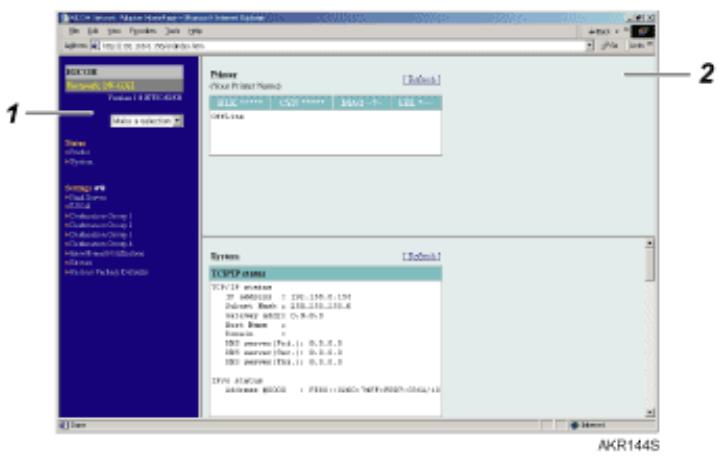
1. Menu Area
A menu appears.
When you click an item in the menu area, a sub-menu is displayed or information about the item appears.
2. Work Area
Information about an item selected in the menu area appears here.
Information displayed in the work area does not update automatically.
To update the information, click [Apply] in the upper-right corner of the work area.
To refresh the entire Web browser window, click [Refresh] on the Web browser toolbar.
Menu
This section explains the items in the Web browser menu.
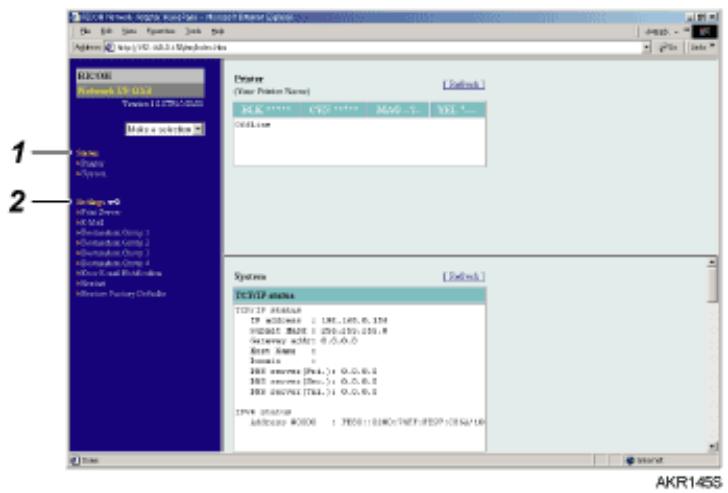
1. Status
Information such as the amount of ink remaining, printer status, and system configuration is displayed here.
2. Settings
Use this to change the printer's network settings.
To change the settings, you must have the printer privileges.
Checking the Printer Status
You can check the printer status.
- Launch the Web browser.
- In the address bar, enter "http:///(printer's IP address or host name)/".
The printer's top page appears.
If SSL encryption has been enabled, enter "https:///(printer's IP address or host name)/".
- In the menu area, click the item you want to check.
Changing the Printer Settings
You can change the printer settings.
- Launch the Web browser.
- In the address bar, enter "http:///(printer's IP address or host name)/".
If SSL encryption has been enabled, enter "https:///(printer's IP address or host name)/".
- Click [Settings].
A dialog box for entering the user name and password opens.
- Enter the user name and password, and then click [OK].
If this is the first time to do this, enter "admin" as the user name and leave the password blank.
To ensure security, it is important you change the password.
- Specify the printer settings.
- Click [Apply].
The specified settings are transmitted to the printer.
Notifying the Printer Status by E-mail
You can be notified of the printer status by e-mail on an occasion such as if the printer runs out or paper or paper is jammed.
The e-mail notifying the printer status will be sent to the e-mail address specified as the destination in advance.
You can also specify the timing and status to notify.
The following status can be notified:
The printer error has occurred.
The ink has run out.
The ink will run out soon.
- The Ink Collector Unit must be replaced now.
- The Ink Collector Unit must be replaced soon.
The paper has run out.
The paper has been jammed.
The paper type is wrong.
The paper size is wrong.
The paper size and type are wrong.
A cover is open.
The paper has been loaded incorrectly.
- The machine is out of its operational temperature range.
Flowchart showing how to specify notification by e-mail
Specify the printer setting.
Specify the network interface board setting (using the Web browser or telnet).
To specify the network interface board setting, use the Web browser or telnet. This section explains how to specify the network interface board setting using the Web browser.

Reference
- For details about specifying the printer setting, see p.61 "System Menu".
For details about specifying the network interface board setting using the Web browser, see p.214 "Changing the Printer Settings".
For details about telnet, see p.219 "Telnet Setting Items".
Specifying Notification the Printer Status by E-mail
In [Error E-mail Notification], you can specify the basic and authentication settings for sending e-mails.
Specifying General Settings
You can specify whether to use SMTP, and specify the SMTP server name and SMTP port number. The administrator's e-mail address will appear in the e-mail message. The printer's e-mail address will appear in the "From" box.
| Functions | Selectable value | Default |
| SMTP | Enable Disable | Disable |
| SMTP Server Name | 127 characters max. (1-byte al-phonuematics) | None |
| SMTP Port Number | 1-65535 | 25 |
| Device E-mail Address | 127 characters max. (1-byte al-phonuematics) | None |
| Administrator E-mail Address | 127 characters max. (1-byte al-phonuematics) | None |
| Text in E-mail | 255 characters max. (1-byte al-phonuematics) | None |
Specifying SMTP Authentication
By specifying the SMTP authentication setting, you can send e-mails to destinations where the e-mail server carries out SMTP authentication.
By specifying the SMTP authentication setting, you can log on to SMTP servers which require authentication. The supported authentication protocols are: CRAM MD5, PLAIN, and LOGIN.
If you set [SMTP Authentication] to [Auto], the printer will try logging on using CRAM MD5, PLAIN, and then LOGIN.
If you set [SMTP Authentication] to [On], the printer will try logging on using only CRAM MD5. If you set [SMTP Authentication] to [Off], the printer will try logging on using PLAIN and then LOGIN.
| Functions | Selectable value | Default |
| SMTP Authentication | Enable Disable | Disable |
| SMTP Authentication Name | 191 characters max. (1-byte al- phanumeric) | None |
| SMTP Authentication Password | 63 characters max. (1-byte al- phanuematics) | None (No Password) |
| SMTP Authentication Encryption | Auto On Off | Auto |
Specifying POP before SMTP
By specifying the SMTP authentication setting, you can send e-mails to destinations where the e-mail server carries out SMTP authentication.
By using POP before SMTP, you can log on to an SMTP server supporting POP before SMTP.
You can specify whether to use POP before SMTP, and specify the POP server name, POP port number, POP user name, and POP password.
If you set [POP Authentication Encryption] to [Auto], the printer will try logging on by APOP login, and then in plain text.
If you set [POP Authentication Encryption] to [On], the printer will try logging on only by APOP login. If you set [POP Authentication Encryption] to [Off], the printer will try logging on only in plain text.
In standby time following POP authentication (in milliseconds), you can specify how long the printer can wait for logging on to the SMTP server after logging on to the POP server.
| Functions | Selectable value | Default |
| POP before SMTP | Enable Disable | Disable |
| POP Server Name | 127 characters max. (1-byte al-phonuematics) | None |
| POP Port Number | 1-65535 (1-byte numeric char-acters) | 110 |
| POP User Name | 127 characters max. (1-byte al-phonuematics) | None |
| POP Password | 63 characters max. (1-byte al-phonuematics) | None (no password) |
| POP Authentication Encryption | Auto On Off | Auto |
| Wait Time after POP Authentica-tion | 0-10000 | 300 |
E-mail Transmission Function Group 1-4
Transmission function group 1-4
| Functions | Selectable value | Default |
| Group Name | 19 characters max. (1-byte alphanumeric)(2-byte characters available) | None |
| E-mail Language | English Japanese | English |
| Subject | 31 characters max. (1-byte alphanumeric)(2-byte characters available) | None |
| Text | 255 characters max. (1-byte alphanumeric)(2-byte characters available) | None |
Recipient Setup
Recipient address 1-10
| Functions | Selectable value | Default |
| Name | 19 characters max. (1-byte alphanumeric) (2-byte characters available) | None |
| E-mail Address | 127 characters max. (1-byte alphanumeric) | None |
Email Transmission Function Alerts
This section lists the settings for notification by e-mail.
| Functions | Selectable value | Default |
| Printer Error | ONOFF | On |
| Notify when error | OccursOccurs & Fixed | Occurs |
| Notify within (min.) | 051015202530 | 5 |
| Remaining | 10 | 10 |
| 20 | ||
| 30 |
About the Web Browser Help
Using "Settings", you can view help on the things you can do through the Web browser.
- Launch the Web browser.
- In the address bar, enter "http://(printer's IP address or host name)/". If SSL encryption has been enabled, enter "https://(printer's address or host name)/".
- Click [Settings]. A dialog box for entering the user name and password opens.
- Enter the user name and password, and then click [OK]. If this is the first time to do this, enter "admin" as the user name and leave the password blank. To ensure security, it is important you change the password.
- Click [Help]. Help on the things you can do through the Web browser appears.
Remote Maintenance via Telnet (mshell)
You can use telnet to make and check the printer's settings, and check the printer's settings

Note
- You must set a password so that only the network administrator can perform remote maintenance (mshell).
- You must enter this password to make or change network interface board settings using the Web browser.
Procedure
The following procedure explains how to use telnet, from launch to exit.
-
- Using the printer's IP address or host name as the command line argument, launch telnet. %telnet (printer's IP address or host name)
- Enter the user name and password you use to log on to the printer. The first time you do this, enter "admin" for the user name and leave the password blank.
- Enter the number of the setting you want to specify.
-
Exit from the specified setting.
If you changed any settings, a message prompting you to confirm the changes appears.
Exit
1: Save and Restart
2: Save and Exit
3: Exit without Saving
99: Back to prior menu -
To save the changed settings and restart, enter "1", and then press the Enter key.
To save the changed settings and exit, enter "2", and then press the Enter key.
To exit without saving the changed settings, enter "3", and then press the Enter key.
To return to the prior menu, enter "99", and then press the Enter key. -
Quit telnet.
msh> logout

Note
- Only one user at a time can perform Remote maintenance.
- If you save the changed settings, the network interface board resets automatically.
- Following a reset, interrupted and waiting print jobs are completed.
- However, print jobs waiting but not yet sent to the printer are cancelled.
Telnet Setting Items
This section explains telnet setting items.
1: Configure General
2: Configure TCP/IP
4: Configure SMB
5: Configure SNMP
6: Configure SMTP
7: Configure SMTP (Group 1)
8: Configure SMTP (Group 2)
9: Configure SMTP (Group 3)
10: Configure SMTP (Group 4)
96:Display Status
97: Reset Settings to Defaults
98: Restart Print Server
99:Exit
Configure General
Configure TCP/IP
| Settings | Description |
| Change root Password | You can change the administrator's password. |
| LAN Interface | You can specify which interface to use. |
| Settings | Description |
| DHCP/BOOTP | You can select whether or not to use the DHCP/BOOTP protocol. |
| RARP | You can select whether or not to use the RARP protocol. |
| IP Address | You can specify the static IP address. |
| Subnet Mask | You can specify the subnet mask. |
| Default Gateway | You can specify the gateway address. |
| Host Name | You can specify the host name. |
| Use DHCP Domain Option | You can select whether or not to use the DHCP domain option. |
| Domain | You can specify the domain name. |
| IPv6 Function | You can select whether or not to use IPv6. |
| DNS | You can specify the DNS setting. |
| IP Filter Config - Filter Mode | You can specify the IP filter operating mode. |
| IP Filter Config - Filter #0 Start Address | You can specify the IP filter's start address. |
| IP Filter Config - Filter #0 End Address | You can specify the IP filter's end address. |
| IP Filter Config - Filter #1 Start Address | You can specify the IP filter's start address. |
| IP Filter Config - Filter #1 End Address | You can specify the IP filter's end address. |
| IP Filter Config - Filter #2 Start Address | You can specify the IP filter's start address. |
| IP Filter Config - Filter #2 End Address | You can specify the IP filter's end address. |
| IP Filter Config - Filter #3 Start Address | You can specify the IP filter's start address. |
| IP Filter Config - Filter #3 End Address | You can specify the IP filter's end address. |
Configure SMB
| Settings | Description |
| SMB | You can select whether or not to use the SMB protocol. |
| Computer Name | You can specify the computer name. |
| Workgroup | You can specify the workgroup. |
| Comment | You can enter a comment. |
| Printing Complete Message | You can select whether or not to issue the Printing Complete message. |
| Browse Master | You can select whether or not to use the Browse Master. |
Configure SNMP
| Settings | Description |
| Authentic Community | You can specify the SNMP authentic community name. |
| Trap Community | You can specify the SNMP trap community name. |
| Trap Address (IP) | You can specify the IP address of the SNMP trap destination. |
| SysContact | You can specify SysContact. |
| SysName | You can specify SysName. |
| SysLocation | You can specify SysLocation. |
| Enable Authen Trap | You can enable or disable Enable Authen Trap. |
Configure SMTP (Group 1)
| Settings | Description |
| SMTP | You can select whether or not to use the SMTP protocol. |
| SMTP Server Name | You can specify the name of the SMTP server. |
| SMTP Port Number | You can specify the SMTP port. |
| Device E-mail Address | You can specify the printer's e-mail address. |
| Administrator E-mail Address | You can specify the administrator's e-mail address. |
| Text in E-mail | You can enter a shared comment. |
Configure SMTP (Group 2)
| Settings | Description |
| SMTP | You can select whether or not to use the SMTP protocol. |
| SMTP Server Name | You can specify the name of the SMTP server. |
| SMTP Port Number | You can specify the SMTP port. |
| Device E-mail Address | You can specify the printer's e-mail address. |
| Administrator E-mail Address | You can specify the administrator's e-mail address. |
| Text in E-mail | You can enter a shared comment |
Configure SMTP (Group 3)
Configure SMTP (Group 4)
| Settings | Description |
| SMTP | You can select whether or not to use the SMTP protocol. |
| SMTP Server Name | You can specify the name of the SMTP server. |
| SMTP Port Number | You can specify the SMTP port. |
| Device E-mail Address | You can specify the printer's e-mail address. |
| Administrator E-mail Address | You can specify the administrator's e-mail address. |
| Text in E-mail | You can enter a shared comment |
| Settings | Description |
| SMTP | You can select whether or not to use the SMTP protocol. |
| SMTP Server Name | You can specify the name of the SMTP server. |
| SMTP Port Number | You can specify the SMTP port. |
| Device E-mail Address | You can specify the printer's e-mail address. |
| Administrator E-mail Address | You can specify the administrator's e-mail address. |
| Text in E-mail | You can enter a shared comment |
Display Status
| Settings | Description |
| prn l | You can check the printer status. |
| system | You can check the printer's system configuration. |
Reset Settings to Defaults
You can select whether or not to initialize the printer to its default settings.
Restart Print Server
You can select whether or not to restart the print server.
Exit
You can exit from specifying printer settings.
Display Status Information
Use the Display Status command to check the printer status and current settings.
Cover Open
The duplex unit cover is open.
The right front cover is open.
Energy Saver Mode
The printer is in Energy Saver mode.
Printing...
The printer is printing.
No Paper
Tray 1 has no paper.
Bypass tray has no paper.
Unit Not Detected
Bypass tray is not correctly attached.
The duplex feed unit is not correctly attached.
Offline
The printer is off-line.
Replace Ink Collector Unit
The ink collector unit is full.
Replace Ink Collector Unit Soon
The ink collector unit is almost full
SNMP
The Ethernet interface includes the Simple Network Management Protocol (SNMP) agent for UDP and IPX.
Using the SNMP manager, you can obtain printer data.
The default community name is "public". Using this community name, you can obtain MIB data.
Supporting MIB (SNMP v1/v2)
MIB-II
- PrinterMIB
- HostResourceMIB
- RicohPrivateMIB
Using a Printer Server
Preparing Printer Server 226
Printing notification via SmartDeviceMonitor for Client 226
Setting the Print Server 226
Setting a Client 227
Using NetWare 228
Using Print Sever (NetWare 5.1, NetWare 6.5) 228
Using Print Sever (NetWare 5.1, NetWare 6.5 Pure IP Environment) 229
Using as a Remote Printer (NetWare 5.1, NetWare 6.5) 231
Preparing Printer Server
This section explains how to configure the printer as a Windows network printer. The printer is configured to enabling network clients to use it. When the network printer is connected via SmartDeviceMonitor for Client, you can set the printing notification function to notify clients of the results of their print jobs.
Important
-
Under Windows 2000, Windows XP Professional, or Windows Server 2003, to change printer properties in the [Printer] folder, you need Printer Management access authentication; under Windows NT 4.0, Full Control access authentication. Log on to the file server as an Administrator or member of the PowerUsers group.
-
Open the [Printers] window from the [Start] menu.
The [Printers] window appears.
- Click the icon of the printer you want to use. On the [File] menu, click [Properties]. The printer properties appear.
- On the [Sharing] tab, click [Shared as:].
- To share the printer with users using a different version of Windows, click [Additional Drivers...]. If you have installed an alternative driver by selecting [Shared as:] during the printer driver installation, this step can be ignored.
- Click [OK]. Close the printer properties.
Printing notification via SmartDeviceMonitor for Client
Follow the procedure below to configure the printer to use the printing notification function of SmartDeviceMonitor for Client.
Setting the Print Server
Important
-
Under Windows 2000, Windows XP Professional, or Windows Server 2000, to change printer properties in the [Printer] folder, you need Printer Management access authentication; under Windows NT 4.0, Full Control access authentication. Log on to the file server as an Administrator or member of the PowerUsers group.
-
From the [Start] button on the task bar, point to [Program], point to [SmartDeviceMonitor for Client], and then click [Print Server Setting].
The print server setting dialog box appears.
- Select the [Notify Client of Printing] check box, and click [OK].
After print server setting is made, a dialog box appears. Confirm the dialog box content, and click [OK].
Click [Cancel] to interrupt the procedure.
- A dialog box appears for client setting. Click [OK].
The print server setting is complete. Each client must be set to receive print notification.
Note
- Current printing jobs restart from the beginning after the spooler pauses briefly.
- When the expansion function is not used, the function is automatically set as available.
Setting a Client
- From the [Start] button on the task bar, point to [Program], point to [SmartDeviceMonitor for Client], and then click [Setting Expansion Function].
A dialog box for setting the expansion function appears.
- Select the [Use the expansion function] check box in [Notify Printing].
- Select the [Notify when using the print server] check box.
- Click [OK].
The dialog box for setting the expansion function closes. The client setting is completed.

Note
- Set the printing notification function on the printer driver as well as on SmartDeviceMonitor for Client.
Using NetWare
This section explains setting procedures for network printers in the NetWare environment. In the Netware environment, you can connect the printer as a "print server" or as "remote printer". Network interface board supports NetWare 5.1/6.5.
The network interface board is setup with a Web browser or with telnet.
Setting procedure with a Web browser is described here.
Setting Procedure
-
To use the printer as a print server
-
Configure the network interface board (by Web browser)
-
Turn the printer off and then back on
-
When using the printer as a remote printer
-
To use the network interface board (by Web browser)
- Configure NetWare
- Start the print server
Using Print Sever (NetWare 5.1, NetWare 6.5)
Follow the procedure below to connect the printer as a print server using NetWare 5.1/6.5.

Important
-
To use the printer as a print server in NetWare 5.1/6.5, set it to the NDS mode.
To use NetWare 5.1/6.5, set the printer as a print server. -
Launch the Web browser.
- In the address bar, enter "http:///(printer's IP address or host name)/".
Web browser top page is displayed.
If SSL encryption has been enabled, enter "https:///(printer's address or host name)/".
-
- Click [Settings].
A dialog box for entering a user name and password appears.
- Enter your user name and password, and then click [OK].
If this is the first time to do this, enter "admin" as the user name and leave the password blank.
Password " " (blank) is the factory default.
- Change the password.
- Click [NetWare Settings].
Setup items are as follows.
- Netware: Set Netware to enable or disable.
- IPX Protocol: Set IPX Protocol to enable or disable.
Network Frame Type: Select the frame type to be used. -
Operation mode: Select whether the network interface board is to be used as a print server or as a remote printer.
-
Print Server Name: Enter the NetWare print server name.
To use network interface board as a print server, enter the name of a print server that is not active on the file sever. Use up to 47 single-byte characters.
- Login Password: Use same password as for NetWare login.
Use up to 31 single-byte characters.
- Job Polling Interval (sec.): Set job polling interval.
Enter from 2-255 seconds.
- NDS Tree: To use in NDS Mode, enter the NDS tree name to which you will be logging on.
Use up to 31 single-byte characters.
- NDS Context Name: To use in NDS mode, enter print server context.
Use up to 77 single-byte characters.
- Change the setting and click [Apply].
- Setup is complete.
To check whether the printer is operating as set, enter the following from a command prompt.
F: > NLIST USER /A/B
When operating correctly, the print sever name will be displayed as connected user name.
If you cannot identify the printer you want to configure from the displayed printer name, check the printer name against a "system summary" page printed from the printer to find required printer.
Using Print Sever (NetWare 5.1, NetWare 6.5 Pure IP Environment)
Follow the procedure below to connect the printer as a print server in a pure IP environment of NetWare 5.1/6.5.

Important
To create a queued print server in a pure IP environment of NetWare 5/5.1 or NetWare 6.0, create a print queue on the file server using NetWare Administrator.
- This printer is not available as a remote printer for use in a pure IP environment.
- To use the printer in a pure IP environment, set it to TCP/IP.
Setting up the Network Interface Board.
- Launch the Web browser.
- In the address bar, enter "http:///(printer's IP address or host name)/".
Web browser top page is displayed.
If SSL encryption has been enabled, enter "https:///(printer's address or host name)/".
- Click [Settings].
A dialog box for entering a user name and password appears.
- Enter your user name and password, and then click [OK].
- If this is the first time to do this, enter "admin" as the user name and leave the password blank.
- Password "" (blank) is the factory default.
Change the password.
7. Click [NetWare Settings].
Setup items are as follows.
- Netware: Set Netware to enable or disable.
- IPX Protocol: Set IPX Protocol to enable or disable.
Network Frame Type: Select the frame type to be used. - Operation Mode: Select whether the network interface board is to be used as a print server or as a remote printer.
- Print Server Name: Enter the NetWare print server name. To use network interface board as a print server, enter the name of a print server that is not active on the file sever. Use up to 47 single-byte characters.
- Login Password: Use same password as for NetWare login.
Use up to 31 single-byte characters.
- Job Polling Interval (sec.): Set job polling interval.
Enter from 2-255 seconds.
- NDS Tree: To use in NDS Mode, enter the NDS tree name to which you will be logging on.
Use up to 31 single-byte characters. - NDS Context Name: To use in NDS mode, enter the print server context.
Use up to 77 single-byte characters.
8. Change the setting and click [Apply].
9. Setup is complete.
To check whether the printer is operating as setup, enter the following from a command prompt.
F: > NLIST USER /A/B
When operating correctly, the print sever name will be displayed as connected user name.
If you cannot identify the printer you want to configure from the displayed printer name, check the printer name against a "system summary" page printed from the printer to find required printer.
Setting up Using NWadmin
- From Windows, start NWadmin.
- Create a print queue. Select a print object, which produces a section object, or an organization object from the directory tree, and click [Create] on the [Object] menu.
- In the [Class of new object] box, click [Print Queue] to be highlighted, and then click [OK].
- In the [Print Queue name] box, enter the name of the print queue.
- In the [Print Queue Volume] box, click [Browse].
- In the [Available objects] box, click the volume in which print queue was created, and then click [OK].
- Check the setting, and then click [Create].
- Create a printer. Select section or organization object, and then click [Create...] on the [Object] menu.
- In the [Class of new object] box, click [Printer] to be highlighted, and then click [OK].
-
In the [Printer name] box, enter the printer name.
-
Select the [Define additional properties] check box, and then click [Create].
- Assign a print queue to the created printer. Click [Assignments], and then click [Add...] in the [Print queues] area.
- In the [Available objects] box, click the previously created queue to be highlighted, and then click [OK].
- Click [Configuration], select [Parallel] from the [Printer type] box drop-down menu, and then click [Communication].
- Click [Manual load] in the [Connection type] area, and then click [OK].
- Check the setting, and then click [OK].
- Create a print server. Select section or organization object, and then click [Create...] on the [Object] menu.
- In the [Class of new object] ox, click [Print Server] to be highlighted, and then click [OK].
- In the [Print Server name] box, enter the print server name.
- Select the [Define additional properties] check box, and then click [Create].
- Assign a printer to the created print server. Click [Assignments], and then click [Add...] in the [Printers] area.
- In the [Available objects] box, click the previously created printer to be highlighted, and then click [OK].
- Check the setting, and then click [OK].
- Start the print server by entering the following from the console of the NetWare server. If the print server is in operation, quit and then restart it.
To exit
CAREE: unload pserver.
To start
CAREE: load pserver.
If you cannot identify the printer you want to configure from the displayed printer name, check the printer name against a "system summary" page printed from the printer to find required printer.
Using as a Remote Printer (NetWare 5.1, NetWare 6.5)
Follow the procedure below to connect the printer as a remote printer in NetWare 5.1/6.5.

Important
- To use as a remote printer in a NetWare 5.1/6.5 environment, use in NDS mode.
This printer is not available as a remote printer for use in a pure IP environment
Setting up the Network Interface Board.
- Launch the Web browser.
- In the address bar, enter "http://(printer's IP address or host name)/".
Web browser top page is displayed.
If SSL encryption has been enabled, enter "https:///(printer's address or host name)/".
- Click [Settings].
A dialog box for entering a user name and password appears.
- Enter your user name and password, and then click [OK].
If this is the first time to do this, enter "admin" as the user name and leave the password blank.
Password " " (blank) is the factory default.
- If this is the first time to do this, enter "admin" as the user name and leave the password blank.
- Change the password.
- Click [NetWare Settings].
Setup items are as follows.
- IPX Protocol: Set IPX Protocol to enable or disable.
- Frame type: Select the frame type to be used.
Operation mode: Select whether the network interface board is to be used as a print server or as a remote printer. - Print Server Name 1-8: enter the NetWare print server name. To use the network interface board as a print server, enter the name of a print server that is not active on the file sever.
Use up to 47 single-byte characters.
Device Name: Setup a name for the printer.
Use up to 31 single-byte characters.
- Job Timeout (sec.): Since the printer cannot judge when a job has ended, while running as a NetWare remote printer, a print job is ended when a certain period of time has passed (When it has not received print data for a certain period of time) after receiving final print data.
Enter that time period here. Enter from 4-255 seconds. 10. Setup is complete.
- Click [Apply].
- To check whether the printer is operating as set, enter the following from a command prompt.
F: > NLIST USER /A/B
When operating correctly, the print sever name will be displayed as connected user name. Login into the server as "Admin."
Setting up using NWadmin
- From Windows, start NWadmin.
- Create a print queue. Select a print object, which produces a section object, or an organization object from the directory tree, and click [Create] on the [Object] menu.
- In the [Class of new object] box, click [Print Queue] to be highlighted, and then click [OK].
- In the [Print Queue name] box, enter the name of the print queue.
- In the [Print Queue Volume] box, click [Browse].
- In the [Available objects] box, click the volume in which print queue was created, and then click [OK].
- Check the setting, and then click [Create].
-
Create a printer. Select section or organization object, and then click [Create...] on the [Object] menu.
-
In the [Class of new object] box, click [Printer] to be highlighted, and then click [OK].
- In the [Printer name] box, enter the printer name.
- Select the [Define additional properties] check box, and then click [Create].
- Assign a print queue to the created printer. Click [Assignments], and then click [Add...] in the [Print queues] area.
- In the [Available objects] box, click the previously created queue to be highlighted, and then click [OK].
- Click [Configuration], select [Parallel] from the [Printer type] box drop-down menu, and then click [Communication].
- Click [Manual load] in the [Connection type] area, and then click [OK].
- Check the setting, and then click [OK].
- Create a print server. Select section or organization object, and then click [Create...] on the [Object] menu.
- In the [Class of new object] ox, click [Print Server] to be highlighted, and then click [OK].
- In the [Print Server name] box, enter the print server name.
- Select the [Define additional properties] check box, and then click [Create].
- Assign a printer to the created print server. Click [Assignments], and then click [Add...] in the [Printers] area.
- In the [Available objects] box, click the previously created printer to be highlighted, and then click [OK].
- Check the setting, and then click [OK].
- Start the print server by entering the following from the console of the NetWare server.
If the print server is in operation, quit and then restart it.
To exit
CAREE: unload pserver.
To start
CAREE: load pserver.
If you cannot identify the printer you want to configure from the displayed printer name, check the printer name against a "system summary" page printed from the printer to find required printer.
Additional Information
Checking the Current Printer Driver Version 235
Software on the CD-ROM 236
Files. 236
RPCS Raster Printer Drivers 236
SmartDeviceMonitor for Client 237
Manuals (HTML files) 237
Cautions to Take When Using in a Network 238
Connecting a Dial-up Router to a Network 238
Configuring the Router 238
Using DHCP 238
Configuring SSL Encryption 240
SSL (Secure Sockets Layer) Encryption 240
User Settings for SSL (Secure Sockets Layer) 240
Installing the Certificate Using SmartDeviceMonitor for Client 241
Specifications 242
Printer Body 242
Option (Bypass tray) 244
Option (Network Interface Board) 244
Electromagnetic Interference 245
Information about Installed Applications 246
expat 246
JPEG LIBRARY 246
NetBSD 246
Authors Name List. 247
Samba(Ver 2.2.2-1.1) 248
RSA BSAFE 248
OpenSSL 248
OpenSSL License 249
Checking the Current Printer Driver Version
Follow the procedure below to check the version of the printer driver currently installed.
- Open the printer properties dialog box.
- Click the [Setup] tab.
- Click [About].
The [About] dialog box appears.
- Check the version.
Reference
p.152 "Two Types of Printer Properties Dialog Box"
p.154 "Opening from an Application"
Software on the CD-ROM
This section describes the "Driver, Manual & Utility" CD-ROM supplied with the printer.
Files
The following is a list of the files on the "Driver, Manual & Utility" CD-ROM.
| File Name |
| SETUP.EXE |
| Printer Driver for Windows 98/Me |
| Printer Driver for Windows NT 4.0 |
| Printer Driver for Windows 2000/XP and Windows Server 2003 |
| SmartDeviceMonitor for Client |
| ICM Colour Profiles for Printer |
| Manuals (HTML files) |
RPCS Raster Printer Drivers
This section gives the file locations of the different RPCS raster printer drivers and their system requirements.
File Location
The drivers are in the following folders on the supplied CD-ROM.
RPCS raster printer driver for Windows 98/Me
DRIVERS\RPCR\WIN9X_ME
- RPCS raster printer driver for Windows 2000/XP and Windows Server 2003
DRIVERS\RPCR\WIN2K_XP
RPCS raster printer driver for Windows NT 4.0
DRIVERS\RPCR\NT4
System Requirements for the Printer Drivers
Computer
PC/AT-compatible computer or NEC PC-9821 series computer that supports the operating system.
-
The Windows NT 4.0 printer driver is incompatible with any version of Windows NT 4.0 designed to run on a RISC processor (MIPS R series, Alpha AXP, or Power PC processors).
-
Operating Systems
Windows 98/Me
Windows 2000/XP or Windows Server 2003
Windows NT 4.0
Display Resolution
Minimum SVGA 800 × 600 pixels

Note
- The machine does not support by Windows XP 64-Bit Edition or Windows Server 2003 64-Bit Edition.
- The printer drivers do not support clustering technology under Windows 2000 and Windows Server 2003.
- For details about using the printer driver, see the printer driver Help.

Reference
- For details about installing the RPCS raster printer driver, see "p.132" "Installing the Printer Driver (USB)".
SmartDeviceMonitor for Client
This section explains the functions and location of SmartDeviceMonitor for Client.
SmartDeviceMonitor for Client is software with the following functions. It is recommended that you install it on any computer you wish to use the printer with.
- Under Windows 98/Me, Windows 2000/XP, Windows Server 2003, and Windows NT 4.0, you can print over a peer-to-peer TCP/IP or IPP network. Under Windows 98/Me, Windows 2000, and Windows NT 4.0, you can also print over a peer-to-peer NetBEUI network.
- You can monitor the printer status over a TCP/IP or IPX/SPX network.
File Location
SmartDeviceMonitor for Client is in the following folder on the supplied CD-ROM.
NETWORK\DEVMON\CUSTOM\DISK1

Note
- See "Using the SmartDeviceMonitor for Client". or the SmartDeviceMonitor for Client Help.

Reference
- For details about installing SmartDeviceMonitor for Client, see p.136 "Installing SmartDeviceMonitor for Client".
Manuals (HTML files)
This section gives the location of the manuals (HTML files).
File Location
The manuals are in the following folders on the supplied CD-ROM.
MANUAL
Cautions to Take When Using in a Network
Connecting a Dial-up Router to a Network
When the NetWare file server and printer are on opposite sides of a router, packets are sent back and forth, causing communication charges to be incurred. Because packet transmission is a specification of NetWare, you need to change the configuration of the router. If the network you are using does not allow you to configure the router, configure the printer instead.
Configuring the Router
Filter packets so that they do not pass over the dial-up router.
- Launch the Web browser.
- In the address bar, enter "http:///(printer's IP address or host name)/".
Web browser top page is displayed.
If SSL encryption has been enabled, enter "https:///(printer's address or host name)/".
- Click [Settings].
A dialog box for entering a user name and password appears.
- Enter your user name and password, and then click [OK].
If this is the first time to do this, enter "admin" as the user name and leave the password blank.
Password " " (blank) is the factory default.
- If this is the first time to do this, enter "admin" as the user name and leave the password blank.
- Change the password.
- Click [NetWare Settings].
- Select the [Network Frame Type] you are using.
- Click [Apply].
- Close the Web browser.

Note
- The MAC address of the printer doing the filtering is printed on the printer configuration page. For details about printing a configuration page, see p.48 "List/Test Print Menu".
- For details about configuring the printer if the router cannot be configured, see the instructions below.
- For details about the password, consult your network administrator.
Using DHCP
This printer can be used in a DHCP environment. In a WINS server environment, the printer name can simultaneously be registered with a WINS server.

Note
Supported DHCP server operating systems are: Windows 2000 Server, Windows NT 4.0 Server Service Pack 4 or higher, NetWare, and UNIX standard.
- The IP address acquired from DHCP can be checked on the configuration page. For information about printing a configuration page.
- Under the WINS server, host names can be used for remote network printer ports.
If you are not using the WINS server, reserve the printer's IP address in the DHCP server so the same IP address is assigned every time. - When there are multiple DHCP servers, make the same reservation for all. This printer uses information from the DHCP server that responds first.
Reference
p.48 "List/Test Print Menu"
Configuring SSL Encryption
This section describes how to configure SSL (secure sockets layer) encryption.
SSL (Secure Sockets Layer) Encryption
To protect the communication path and establish encrypted communication, create and install the server certificate.
There are two ways of installing a server certificate: create and install a self-certificate using the machine, or request a certificate from a certificate authority and install it.
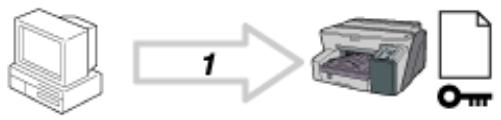
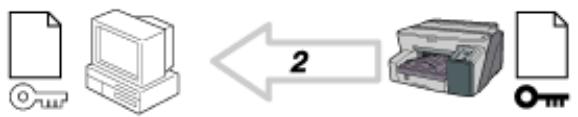
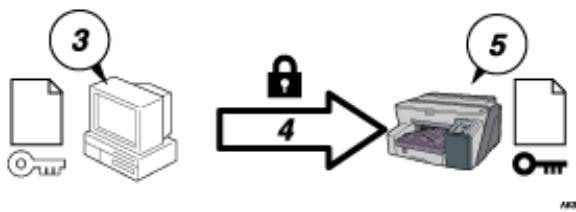
Configuration flow (self-signed certificate)
- To access the printer from a user's computer, request for the SSL server certificate and public key.
- The server certificate and public key are sent from the machine to the user's computer.
- Using the public key, encrypt the data for transmission.
- The encrypted data is sent to the machine.
- The encrypted data is decrypted using the private key.
User Settings for SSL (Secure Sockets Layer)
If you have installed a server certificate and enabled SSL (Secure Sockets Layer), you need to install the certificate on the user's computer.
The administrator must explain the procedure for installing the certificate to users.
If a warning dialog box appears while accessing the machine using the Web browser or IPP, start the Certificate Import Wizard and install a certificate.
- When the [Security Alert] dialog box appears, click [View Certificate].
The [Certificate] dialog box appears.
To be able to respond to inquiries from users about such problems as expiry of the certificate, check the contents of the certificate.
- On the [General] tab, click [Install Certificate...].
Certificate Import Wizard starts.
- Install the certificate by following the Certificate Import Wizard instructions.

Note
- For details about how to install the certificate, see the Web browser Help.
If a certificate issued by a certificate authority is installed in the printer, confirm the certificate store location with the certificate authority.
Installing the Certificate Using SmartDeviceMonitor for Client
If the [Security Alert] dialog box appears when accessing the printer using IPP to create or configure an IPP port, or when printing, install the certificate.

Important
To select the certificate store location when using Certificate Import Wizard, click [Place all certificates in the following store], and then click [Local Computer] under [Trusted Root Certification Authorities].
- Internet Explorer must be installed on your computer. Use the latest version. Internet Explorer 6.0 or later is recommended.
- When [Security Alert] appears, click [View Certificate].
The [Certificate] dialog box appears.
- On the [General] tab, click [Install Certificate...].
Certificate Import Wizard starts.
- Click [Place all certificates in the following store], and then click [Browse...].
The [Select certificate store] dialog box appears.
- Click [Next].
- Select the [Show physical stores] check box, and then click [Local Computer] under [Trusted Root Certification Authorities].
- Click [OK].
The certificate store location appears under [Certificate store]:
- Click [Next].
- Click [Finish].
- Click [OK].
The certificate is installed.

Note
- When you create or change an IPP port using SmartDeviceMonitor for Client, enter "http://(printer's-address)/ipp" in [Printer URL] to access the printer.
Specifications
Specifications of the printer and options are listed.
Printer Body
Print speed
Measurements according to the manufacturer's measurement system
Black draft: 29 ppm
Colour draft: 29 ppm
Depending on the operating environment, printing may take longer than normal.
Print direction
Supports bidirectional, minimum distance printing
Print resolution
Max 3600 × 1200 dpi equivalent
Nozzles
Black: 192 nozzles
Cyan, magenta, and yellow: 192 nozzles per colour
Paper sizes (Tray 1: standard)
Standard paper size: A4D, B5D, A5D, A6D, LegalD, LetterD, ExecutiveD (184.2 mm × 266.7 mm (7.3 ×
10.5 inches)), F (203.2 mm × 330.2 mm (8.0 × 13.0 inches)), Foolscap (F4) (215.9 mm × 330.2 mm
(8.5× 13.0 inches)), Folio (209.5 mm × 330.2 mm (8.3 × 13.0 inches)), 16K (195 × 267mm(7.7 ×
10.6 inches)), Com10 (104.8 mm × 241.3 mm (4.2 × 9.5 inches)), Monarch (98.4 mm × 190.5 mm
(3.9× 7.5 inches)),C6D(114 mm × 162 mm (4.5 × 6.4 inches)), C5D(162 mm × 229 mm (6.4 × 9.1
inches)], DL EnvD(110 mm × 220 mm (4.4 × 8.7 inches))
Custom paper sizes: 139.7-356 mm (length) × 90-216 mm (width)
Paper sizes (Duplex unit)
Standard paper size: A4D, B5D, A5D, A6D, LegalD, LetterD, 5 ^1 /2 ^1 × 8 ^1 /2 ^1 , ExecutiveD, 16K
Paper type
Plain paper
Recycled paper
Colour paper
Inkjet plain paper
Glossy paper
Inkjet transparency
Envelope
Paper weight
Tray 1: 60-157 g/m² (114.7-297.6 lb.)
Paper capacity
Tray 1:250 sheets
Maximum paper capacity
350 sheets (with the optional tray installed)
Output tray capacity
150 sheets
The capacity may be less depending on the images printed.
Power supply
220-240 V, 50/60 Hz, 0.5 A or more (when fully equipped)
Power consumption
Average power consumption while printing: 38 W or less (not including options)
Energy Saver mode: less than 6 W
To avoid any power consumption, disconnect the power plug from the wall outlet.
(Disconnect the power plug after turning the power off with the [Power] key.)
Operating environment
Temperature: 10 to 32^ (50 to 89.6^))
Humidity: 15 - 80% RH (maximum wet-bulb temperature: 25^ (77^) )
Printing may stop to protect the printer for conditions outside those described above.
Storage environment
Temperature: 1 to 40^ (33.8 to 104^ )
Humidity: 5 - 80% RH
External dimensions
(W × D × H) 416 × 491 × 263 mm (16.4 × 19.3 × 10.4 inches)
Weight
Approximately 14.5kg (32.0 lb.) (printer body with consumables)
Noise emission
Less than 51dB (high quality mode)
Interface
USB 2.0 high speed
Printer language
RPCS Raster
Print cartridges
Types and yields measured using A4 (Letter) 5% chart printed in standard (speed priority) mode.
Print cartridge black: approximately 1500 sheets
Print cartridge cyan: approximately 1000 sheets
Print cartridge magenta: approximately 1000 sheets
Print cartridge yellow: approximately 1000 sheets
The printing yields of Print cartridges vary depending on the number of times print-head cleaning is performed. Also, the printing yields of the Print cartridges packaged with the printer are lower than the yields of the Print cartridges available for purchase separately.
Option (Bypass tray)
Multi Bypass Tray Type BY1000
Paper sizes
A4□, A5□, A6□, B5□, Legal□, Letter□, 5^1/2" × 8^1/2" , Active□, F/GL□, Foolscap□, 16K□, COM10□, Monarch□, C6□, C5□, DL Env□
□127-1295.4mm×□55-216mm
Paper type
- Plain paper
- Recycled paper
- Colour paper
- Inkjet plain paper
- Glossy paper
- Inkjet transparency
- Envelope
Paper weight 60-255 g/m2 (114.7-485.0 lb.)
Paper capacity 100
Option (Network Interface Board)
Network Interface Board Type GX2
Interface Connector: Ethernet (10BASE-T, 100BASE-TX)
Data Transmission Speed: 10Mbps, 100Mbps
Protocol: TCP/IP, IPX/SPX, SMB
Electromagnetic Interference
If another electronic device is placed next to the printer, each will influence the other negatively. In the case of a television or radio, noise may be generated. If this happens, do the following:
- Move the television or radio as far as possible from the printer.
- Change the position of the antenna of the television or radio.
- Use a different wall outlet on a different circuit.
Information about Installed Applications
expat
Use of the software installed on this product, including the controller (hereinafter "software") and the expat Version 1.95.2 application software (hereinafter "expat 1.95.2"), is subject to the following conditions:
The product manufacturer provides warranty and support to the software of the product including expat 1.95.2 and the product manufacturer allows the initial developer of expat 1.95.2 to be free from these obligations.
Copyright © 1998, 1999, 2000 Thai Open Source Software Center Ltd
and Clark Cooper
Permission is hereby granted, free of charge, to any person obtaining a copy of this software and associated documentation files (the "Software"), to deal in the Software without restriction, including without limitation the rights to use, copy, modify, merge, publish, distribute, sublicense, and/or sell copies of the Software, and to permit persons to whom the Software is furnished to do so, subject to the following conditions:
The above copyright notice and this permission notice shall be included in all copies or substantial portions of the Software.
THE SOFTWARE IS PROVIDED "AS IS", WITHOUT WARRANTY OF ANY KIND, EXPRESS OR IMPLIED, INCLUDING BUT NOT LIMITED TO THE WARRANTY OF MERCHANTABILITY, FITNESS FOR A PARTICULAR PURPOSE AND NONINFRINGEMENT. IN NO EVENT SHALL THE AUTHORS OR COPYRIGHT HOLDERS BE LIABLE FOR ANY CLAIM, DAMAGES OR OTHER LIABILITY, WHETHER IN AN ACTION OF CONTRACT, TORT OR OTHERWISE, ARISING FROM, OUT OF OR IN CONNECTION WITH THE SOFTWARE OR THE USE OR OTHER DEALINGS IN THE SOFTWARE.

Note
Information on expat 1.95.2 is available at:
http://expat.sourceforge.net/
JPEG LIBRARY
- The software installed on this product is based in part on the work of the Independent JPEG Group.
NetBSD
Copyright Notice of NetBSD
For all users to use this product:
This product contains NetBSD operating system:
For the most part, the software constituting the NetBSD operating system is not in the public domain; its authors retain their copyright.
The following text shows the copyright notice used for many of the NetBSD source code. For exact copyright notice applicable for each of the files/binaries, the source code tree must be consulted.
A full source code can be found at http://www.netBSD.org/.
Copyright © 1999, 2000 The NetBSD Foundation, Inc.
All rights reserved.
Redistribution and use in source and binary forms, with or without modification, are permitted provided that the following conditions are met:
- Redistributions of source code must retain the above copyright notice, this list of conditions and the following disclaimer.
- Redistributions in binary form must reproduce the above copyright notice, this list of conditions and the following disclaimer in the documentation and/or other materials provided with the distribution.
- All advertising materials mentioning features or use of this software must display the following acknowledgment:
This product includes software developed by the NetBSD Foundation, Inc. and its contributors.
- Neither the name of The NetBSD Foundation nor the names of its contributors may be used to endorse or promote products derived from this software without specific prior written permission.
THIS SOFTWARE IS PROVIDED BY THE NETBSD FOUNDATION, INC. AND COLNTRIBUTORS "AS IS" AND ANY EXPRESS OR IMPLIED WARRANTY, INCLUDING, BUT NOT LIMITED TO, THE IMPLIED WARRANTY OF MERCHANTABILITY AND FITNESS FOR A PARTICULAR PURPOSE ARE DISCLAIMED. IN NO EVENT SHALL THE FOUNDATION OR COLNTRIBUTORS BE LIABLE FOR ANY DIRECT, INDIRECT, INCIDENTAL, SPECIAL, EXEMPLARY, OR CONSEQUENTIAL DAMAGES (INCLUDING, BUT NOT LIMITED TO, PROCEDURE OF SUBSTITUTE GOODSOR SERVICES; LOSS OF USE, DATA, OR PROFITS; OR BUSINESS INTERRUPTION) HOWEVER CAUSED AND ON ANY THEORY OF LIABILITY, WHETHER IN CONTRACT, STRICT LIABILITY, OR TORT (INCLUDING NEGLIGENCE OR OTHERWISE) ARISING IN ANY WAY OUT OF THE USE OF THIS SOFTWARE, EVEN IF ADVISED OF THE POSSIBILITY OF SUCH DAMAGE.
Authors Name List
All product names mentioned herein are trademarks of their respective owners.
The following notices are required to satisfy the license terms of the software that we have mentioned in this document:
This product includes software developed by the University of California, Berkeley and its contributors.
- This product includes software developed by Jonathan R. Stone for the NetBSD Project.
This product includes software developed by the NetBSD Foundation, Inc. and its contributors.
- This product includes software developed by Manuel Bouyer.
This product includes software developed by Charles Hannum.
This product includes software developed by Charles M. Hannum.
This product includes software developed by Christopher G. Demetriou.
- This product includes software developed by TooLs GmbH.
This product includes software developed by Terrence R. Lambert.
This product includes software developed by Adam Glass and Charles Hannum.
This product includes software developed by Theo de Raadt.
This product includes software developed by Jonathan Stone and Jason R. Thorpe for the NetBSD Project.
This product includes software developed by the University of California, Lawrence Berkeley Laboratory and its contributors.
This product includes software developed by Christos Zoulas.
This product includes software developed by Christopher G. Demetriou for the NetBSD Project.
- This product includes software developed by Paul Kranenburg.
- This product includes software developed by Adam Glass.
- This product includes software developed by Jonathan Stone.
- This product includes software developed by Jonathan Stone for the NetBSD Project.
This product includes software developed by Winning Strategies, Inc. - This product includes software developed by Frank van der Linden for the NetBSD Project.
This product includes software developed for the NetBSD Project by Frank van der Linden - This product includes software developed for the NetBSD Project by Jason R. Thorpe.
- The software was developed by the University of California, Berkeley.
This product includes software developed by Chris Provenzano, the University of California, Berkeley, and contributors.
Samba(Ver 2.2.2-1.1)
Copyright © Andrew Tridgell 1994-1998
This program is free software; you can redistribute it and/or modify it under the terms of the GNU General Public License as published by the Free Software Foundation; either version 2 of the License, or (at your option) any later version. This program is distributed in the hope that it will be useful, but WITHOUT ANY WARRANTY; without even the implied warranty of MERCHANTABILITY or FITNESS FOR A PARTICULAR PURPOSE. See the GNU General Public License for more details. You should have received a copy of the GNU General Public License along with this program; if not, write to the Free Software Foundation, Inc., 675 Mass Ave, Cambridge, MA 02139, USA.
RSA BSAFE®
This product includes RSA BSAFE® cryptographic or security protocol software from RSA Security Inc.
- RSA is a registered trademark and BSAFE is a registered trademark of RSA Security Inc. in the United States and/or other countries.
- RSA Security Inc. All rights reserved.
OpenSSL
- This product includes software developed by the OpenSSL Project for use in the OpenSSL Toolkit (http://www.openss.org/).
This product includes cryptographic software written by Eric Young (eay@cryptsoft.com).
- This product includes software written by Tim Hudson (tjh@cryptsoft.com).
OpenSSL License
LICENSE ISSUES
The OpenssL toolkit stays under a dual license, i.e. both the conditions of the OpenssL License and the original SLeay license apply to the toolkit. See below for the actual license texts. Actually both licenses are BSD-style Open Source licenses. In case of any license issues related to OpenssL please contact openssI-core@openssI.org.
OpenSSL License
Copyright (c) 1998-2005 The OpenSSL Project. All rights reserved.
Redistribution and use in source and binary forms, with or without modification, are permitted provided that the following conditions are met:
- Redistributions of source code must retain the above copyright notice, this list of conditions and the following disclaimer.
- Redistributions in binary form must reproduce the above copyright notice, this list of conditions and the following disclaimer in the documentation and/or other materials provided with the distribution.
- All advertising materials mentioning features or use of this software must display the following acknowledgment: "This product includes software developed by the OpenSSL Project for use in the OpenSSL Toolkit. (http://www.openss.org/)
- The names "OpenSSL Toolkit" and "OpenSSL Project" must not be used to endorse or promote products derived from this software without prior written permission. For written permission, please contact openssllcore@openssll.org.
- Products derived from this software may not be called "OpenSSL" nor may "OpenSSL" appear in their names without prior written permission of the OpenSSL Project.
- Redistributions of any form whatsoever must retain the following acknowledgment: "This product includes software developed by the OpenSSL Project for use in the OpenSSL Toolkit (http://www.openss1.org/)".
THIS SOFTWARE IS PROVIDED BY THE OpensSLS PROJECT ` AS IS" AND ANY EXPRESSED OR IMPLIED WARRANTY, INCLUDING, BUT NOT LIMITED TO, THE IMPLIED WARRANTYES OF MERCHANTABILITY AND FITNESS FOR A PARTICULAR PURPOSE ARE DISCLAIMED. IN NO EVENT SHALL THE OpenssLS PROJECT OR ITS CONTRIBUTORS BE LIABLE FOR ANY DIRECT, INDIRECT, INCIDENTAL, SPECIAL, EXEMLARY, OR CONSEQUENTIAL DAMAGES (INCLUDING, BUT NOT LIMITED TO, PROCEDUREM OF SUBSTITUTE GOODSOR SERVICES;LOSSOFUSE,DATA,OR PROFITS;OR BUSINESSINTERRUPTION)HOWEVER CAUSEDAND ONANYTHEORYOFLIABILITY,WHETHERINCONTRACT,STRICTLIABILITY,ORTORT (INCLUDING NEGLIGENCEOROTHERWISE)ARISINGINANYWAYOUTOFTHEUSEOF THIS SOFTWARE,EVENIFADVISEDOFTHEPossibilityOFSUCHDAMAGE.
This product includes cryptographic software written by Eric Young (eay@cryptsoft.com). This product includes software written by Tim Hudson (tjh@cryptsoft.com).
Original SSLeay License
Copyright (C) 1995-1998 Eric Young (eay@cryptsoft.com) All rights reserved.
This package is an SSL implementation written by Eric Young (eay@cryptsoft.com).
The implementation was written so as to conform with Netscapes SSL.
This library is free for commercial and non-commercial use as long as the following conditions are ahead to. The following conditions apply to all code found in this distribution, be it the RC4, RSA, lhash, DES, etc., code; not just the SSL code. The SSL documentation included with this distribution is covered by the same copyright terms except that the holder is Tim Hudson (tjh@cryptsoft.com).
Copyright remains Eric Young's, and as such any Copyright notices in the code are not to be removed.
If this package is used in a product, Eric Young should be given attribution as the author of the parts of the library used.
This can be in the form of a textual message at program startup or in documentation (online or textual) provided with the package.
Redistribution and use in source and binary forms, with or without modification, are permitted provided that the following conditions are met:
- Redistributions of source code must retain the copyright notice, this list of conditions and the following disclaimer.
- Redistributions in binary form must reproduce the above copyright notice, this list of conditions and the following disclaimer in the documentation and/or other materials provided with the distribution.
- All advertising materials mentioning features or use of this software must display the following acknowledgement:
"This product includes cryptographic software written by Eric Young (eay@cryptsoft.com)" The word 'cryptographic' can be left out if the routines from the library being used are not cryptographic related :-).
- If you include any Windows specific code (or a derivative thereof) from the apps directory (application code) you must include an acknowledgement: "This product includes software written by Tim Hudson (tjh@crypt-soft.com)"
THIS SOFTWARE IS PROVIDED BY ERIC YOUNG "AS IS" AND ANY EXPRESS OR IMPLIED WARRANTY, INCLUDING, BUT NOT LIMITED TO, THE IMPLIED WARRANTYES OF MERCHANTABILITY AND FITNESS FOR A PARTICULAR PURPOSE ARE DISCLAIMED. IN NO EVENT SHALL THE AUTHOR OR COLLABORORS BE LIABLE FOR ANY DIRECT, INDIRECT, INCIDENTIAL, SPECIAL, EXEMPLARY, OR CONSEQUENTIAL DAMAGES (INCLUDING, BUT NOT LIMITED TO, PROCEDURE OF SUBSTITUTE GOODS OR SERVICES; LOSS OF USE, DATA, OR PROFITS; OR BUSINESS INTERRUsION) HOWEVER CAUSED AND ON ANY THEORY OF LIABILITY, WHETHER IN CONTRACT, STRICT LIABILITY, OR TORT (INCLUDING NEGLIGENCE OR OTHERWISE) ASING IN ANY WAY OUT OF THE USE OF THIS SOFTWARE, EVEN IF ADVISED OF THE POSSIBILITY OF SUCH DAMAGE.
The licence and distribution terms for any publicly available version or derivative of this code cannot be changed. i.e. this code cannot simply be copied and put under another distribution licence [including the GNU Public Licence.]
- Paper
- Replacing Consumables
- Making Printer Settings
- Troubleshooting
- Inquiries and Consumables
- Maintaining
- Preparing for Printing
- Printer Driver
- Printing
- Monitoring and Configuring the Printer
- Using a Printer Server
- Additional Information
- Read This First
- About This Product
- Introduction
- Trademarks
- Disclaimer
- Manuals for This Printer
- Quick Installation Guide
- Setup Handbook
- User Guide (HTML)
- How to Read This Manual
- Screen Navigation
- Important
- Top
- Note
- Useful Functions
- For screen reader
- Search
- Settings
- Symbols
- WARNING
- CAUTION
- Reference
- [ ]
- Removing the User Guide
- Removing the User Guide using its [Uninstall] function
- Removing the User Guide using [Add/Remove Programs]
- Guide to Components
- Printer Body
- Printer Rear
- Control Panel
- [Power] key
- [Job Reset] key
- [Form Feed] key
- [Escape] key
- [Online] key
- [Menu] key
- Print Cartridge End LED
- Display
- Alert indicator
- [A] [v] keys
- Data In indicator
- [#Enter] key
- Option
- Network Interface Board Type GX2
- Ethernet Port
- Multi Bypass Tray Type BY1000
- Detaching and Reattaching the Multi Bypass Tray (Optional)
- Recommended Functions
- Compatible Paper Types
- Loadable Paper Sizes and Quantities
- Paper Handling Precautions
- Loading Precautions
- Paper Storage Precautions
- Paper Type Precautions
- Plain paper
- Inkjet plain paper
- Glossy paper
- Inkjet transparency
- Envelopes
- Thick paper
- Cautions to Observe After Printing
- Non-compatible Paper
- Printable Area
- Loading Paper
- Loading Paper into Tray 1
- Lower the output tray.
- Loading Paper Larger than A4/Letter (Tray1)
- Lift the output tray.
- Pull out tray 1.
- Loading Paper into Bypass Tray (optional)
- Replacing a Print Cartridge
- Checking the Remaining Ink
- Checking Using the Status Monitor
- Check the cartridge status.
- Handling Print Cartridges
- About Print cartridges
- Using Print cartridges
- Storing Print cartridges
- Ink consumption
- Making Printer Settings Using the Control Panel
- Host Interface
- Language
- Paper Input Menu
- Tray Paper Size
- Paper Type
- Aut.Tray Select
- Tray Priority
- Changing the Paper Input Menu
- List/Test Print Menu
- Config. Page
- Printing a Configuration Page
- Interpreting the Configuration Page
- System Reference
- Paper Input
- Host Interface, Interface Information
- Maintenance Menu
- Nozzle Check
- Head-cleaning
- Head-flushing
- Head Position
- Adj.Paper Feed
- Registration
- Key Repeat
- Paper Feed Test
- De-condensation
- Head-clearing
- System Menu
- Auto Continue
- Sub Paper Size
- Energy Saver
- Notify by Email
- Unit of Measure
- Page Size
- Ink CU Replace
- Changing the System Menu
- Host Interface Menu
- I/O Timeout
- Network Setup
- DHCP
- IP Address
- Subnet Mask
- Gateway Address
- Frame Type (NW)
- Active Protocol
- Ethernet Speed
- USB Setting
- USB Speed
- Port
- Changing the Host Interface Menu
- Language Menu
- Changing the Language Menu
- Maintaining the Printer Using Utilities
- Adjust Print-head Positions
- Adjust Paper Feed
- Check the optimal adjustment values on the printed test pattern.
- Restore Defaults/Other Settings
- Restoring the Settings to Their Defaults
- Specifying an I/O Timeout
- Printing Will Not Start
- Power Cannot Be Turned On
- Paper Will Not Feed Even When the Power Is On
- An Error Occurs
- Points to Remember when Printer Sharing under Windows 98/Me
- Details of Problems that can Occur
- Printer Server Settings
- To Reset a Client Computer
- Paper Is Not Fed or Delivered Normally
- Paper Jam
- Removing Paper Jammed in the Paper Tray (Tray 1)
- Lower the output tray.
- Removing Paper Jammed in the Bypass Tray (optional)
- Removing Paper Jammed under the Top Cover
- Close the top cover.
- Removing Paper Jammed around the Guide Board
- Removing Paper Jammed in the Duplex Unit
- Removing Paper Jammed in the Output Tray
- Print Results Are Not Satisfactory
- Checking the Condition of the Printer
- Printing Is Uneven, Too Heavy, or Too Light
- Dirty or Blotted Plints
- Checking the Printer Driver Setting
- Changing the Printer Driver Setting
- Colours Do Not Match the Displayed Image
- Positions Do Not Match the Displayed Image
- Error & Status Messages on the Control Panel
- Status Monitor Errors
- Status Monitor Does Not Open
- No Response from Printer
- ↓ Note
- No Paper/Tray Not Detected (Tray 1)
- Printing by Form Feed
- Canceling the Print Job
- No Paper/Tray Not Detected (Bypass Tray)
- Press the [#Enter] key
- Paper Size Mismatch/Paper Type Mismatch (Tray 1)
- Paper Size Mismatch/Paper Type Mismatch (Bypass Tray)
- Paper Size Mismatch/Paper Type Mismatch (AutoTray Select)
- Cover Open
- Duplex Unit Not Detected
- Cover Open / Print Cartridge(s) Not Detected
- If the cover is open:
- Close the right front cover.
- Cartridge End
- Checking ink colour
- Cartridge/Print-head Tank Empty
- Checking ink colours
- When the Ink Collector Unit is Almost Full/Full
- Ink Collector Unit Not Detected
- Out of Printable Temperature Range
- Printer Error
- Network Interface Board Error
- Adjusting the Printer
- Where to Inquire
- Recommended Consumables
- Option and Consumables
- Cleaning
- Moving
- Moving a Short Distance
- Moving a Long Distance
- Disposing
- When Not Using for a Long Period of Time
- Confirming the Connection Method
- Local Connection
- Network Connection
- Using this Printer as the Windows Printing Port
- Using as a Network Printer
- Installing the Printer Driver (USB)
- Sharing the Printer
- Setting Up a Server
- Setting Up a Client Computer
- Using the SmartDeviceMonitor for Client Port
- Installing SmartDeviceMonitor for Client
- Installing the Printer Driver (TCP/IP)
- Installing the Printer Driver (IPP)
- Changing the Port Settings for SmartDeviceMonitor for Client
- Windows 98:
- Windows 2000 / Windows NT 4.0:
- Windows XP, Windows Server 2003:
- Using the Standard TCP/IP Port
- Installing the Printer Driver
- Using the LPR Port
- Using as the Windows Network Printer
- Using as the NetWare Print Server/Remote Printer
- Form Feed
- Banner Page
- Printing after Resetting the Printer
- If a Message Appears during Installation
- Making Option Settings for the Printer
- Conditions for Bidirectional Communication
- When connected with the network
- If Bidirectional Communication is Disabled
- Two Types of Printer Properties Dialog Box
- Opening the Printer Properties Dialog Box
- Opening from the Start Menu
- For Windows 98/Me
- For Windows 2000, Windows NT 4.0
- For Windows XP, Windows Server 2003
- Windows XP Home Edition
- Windows XP Professional, Windows Server 2003
- Opening from an Application
- Printing on Various Paper Types
- Printing on Plain Paper
- Printing on Inkjet Plain Paper
- Printing on Inkjet Transparency
- Printing on Glossy Paper
- Printing on Envelopes
- Printing on Thick Paper
- Canceling Printing
- Canceling a Print Job Being Printed
- Canceling a print job in queue
- Canceling Printing from the Status Monitor
- Canceling Printing Using the [Job Reset] Key of the Printer
- Canceling Printing from the Taskbar
- Adjusting Print Quality
- Printing Using Preset Print Quality Settings
- Printing in Black and White
- Saving Colour Ink When Printing
- Printing with Print Quality Settings You Want
- Changing Image Printing Method
- Correcting the Hue of Digital Photos
- Printing Low Resolution Images Smoothly
- Changing the Dither Pattern
- Using Error Diffusion
- Changing the Colour Profiling Pattern
- Printing Grayscale Images Using Black or CMYK
- Printing Text in Black
- Using ICM
- Adjusting Brightness, Contrast, and Saturation
- Adjusting Colour Balance
- Complementary Colours
- Hints for Adjusting Colour Balance
- Printing a Whole Page as an Image
- Changing the Image Data Process
- Printing with Particular CMYK Colours
- Emphasizing Bold Type According to the Font Size
- Changing the Method of Extracting TrueType Fonts
- Printing Images Vividly
- Changing the printer properties settings
- Using special paper
- Various Print Functions
- Printing Multiple Document Sets
- Collating
- Printing Web Pages
- Fitting a whole Web page to the paper size
- Printing the background colour of a Web page
- Internet Explorer
- Netscape Navigator
- Reducing and Enlarging to Fit the Paper Size (Fit to paper size)
- Reducing and Enlarging by a Specified Ratio (Scale, Directional magnification)
- Reducing to A4/Letter Automatically
- Rotating the Image by 180 Degrees
- Printing on Registered Custom Size Paper
- Printing on Unregistered Custom Size Paper
- Printing on Both Sides of Paper
- Printing Multiple Document Pages per Sheet (Layout)
- Splitting the Document Image across Multiple Sheets (Poster)
- Printing from the Last Page
- Creating a Binding Margin
- Printing Documents with a Header and Footer
- Printing with a Layout Suitable for Making Booklets
- Printing Images or Text Superimposed on Plints
- Creating a New Watermark
- Printing Documents with an Overlay Image Superimposed (Overlay)
- Overlay image file:
- Overlay set:
- Creating a New Overlay Image File
- Deleting an Overlay Image File
- Creating a New Overlay Set
- Unauthorized Copy Control
- Using [Data security for copying]
- Setting [Data security for copying] in the Printer Driver
- Printing a document using [Data security for copying]
- Specifying Data Security for Copying
- Using [Mask type:]
- Setting [Mask type:] in the Printer Driver
- Specifying [Mask type:]
- Important Notice
- Displaying the Preview before Printing
- Custom Settings
- Registering
- Changing the Name
- Deleting
- Changing the Custom Settings Display Order
- Saving a Registered Custom Setting in a File
- Registering a Custom Setting Using a Custom Setting File
- Updating Custom Settings According to the Current Printer Configuration
- Supporting Multi-Languages
- Using the Status Monitor
- Receiving Notification of Print Job Status via the Status Monitor
- Using SmartDeviceMonitor for Client
- What can you do with it?
- Monitoring Printers
- Using Notification via SmartDeviceMonitor for Client
- Specifying the Print Server
- Specifying the Client Computer Settings
- **Specifying the Settings for Monitoring the Printer**
- Displaying the Printer Status
- When Using IPP with SmartDeviceMonitor for Client
- Using Web Browser
- Available operations
- Configuring the printer
- Recommended Web browser
- Displaying Top Page
- Menu Area
- Work Area
- Menu
- Status
- Settings
- Checking the Printer Status
- Changing the Printer Settings
- Notifying the Printer Status by E-mail
- Flowchart showing how to specify notification by e-mail
- Specifying Notification the Printer Status by E-mail
- Specifying General Settings
- Specifying SMTP Authentication
- Specifying POP before SMTP
- E-mail Transmission Function Group 1-4
- Recipient Setup
- Email Transmission Function Alerts
- About the Web Browser Help
- Remote Maintenance via Telnet (mshell)
- Procedure
- Telnet Setting Items
- Reset Settings to Defaults
- Restart Print Server
- Exit
- Display Status Information
- SNMP
- Supporting MIB (SNMP v1/v2)
- Preparing Printer Server
- Printing notification via SmartDeviceMonitor for Client
- Setting the Print Server
- Setting a Client
- Using NetWare
- Setting Procedure
- Using Print Sever (NetWare 5.1, NetWare 6.5)
- Using Print Sever (NetWare 5.1, NetWare 6.5 Pure IP Environment)
- Setting up the Network Interface Board.
- Click [NetWare Settings].
- Change the setting and click [Apply].
- Setup is complete.
- Setting up Using NWadmin
- Using as a Remote Printer (NetWare 5.1, NetWare 6.5)
- Checking the Current Printer Driver Version
- Software on the CD-ROM
- Files
- RPCS Raster Printer Drivers
- File Location
- System Requirements for the Printer Drivers
- SmartDeviceMonitor for Client
- Manuals (HTML files)
- MANUAL
- Cautions to Take When Using in a Network
- Connecting a Dial-up Router to a Network
- Configuring the Router
- Using DHCP
- Configuring SSL Encryption
- SSL (Secure Sockets Layer) Encryption
- Configuration flow (self-signed certificate)
- User Settings for SSL (Secure Sockets Layer)
- Installing the Certificate Using SmartDeviceMonitor for Client
- Specifications
- Print speed
- Print direction
- Print resolution
- Nozzles
- Paper sizes (Tray 1: standard)
- Paper sizes (Duplex unit)
- Paper weight
- Paper capacity
- Maximum paper capacity
- Output tray capacity
- Power supply
- Power consumption
- Operating environment
- Storage environment
- External dimensions
- Weight
- Noise emission
- Interface
- Printer language
- Print cartridges
- Option (Bypass tray)
- Option (Network Interface Board)
- Electromagnetic Interference
- Information about Installed Applications
- expat
- JPEG LIBRARY
- NetBSD
- Authors Name List
- Samba(Ver 2.2.2-1.1)
- RSA BSAFE®
- OpenSSL
- OpenSSL License
- LICENSE ISSUES
- Original SSLeay License
Brand : RICOH
Model : AFICIO GX 3000
Category : Inkjet Printer