
OT-320 - Mobile Phone ALCATEL-LUCENT - Free user manual and instructions
Find the device manual for free OT-320 ALCATEL-LUCENT in PDF.


User questions about OT-320 ALCATEL-LUCENT
0 question about this device. Answer the ones you know or ask your own.
Ask a new question about this device
Download the instructions for your Mobile Phone in PDF format for free! Find your manual OT-320 - ALCATEL-LUCENT and take your electronic device back in hand. On this page are published all the documents necessary for the use of your device. OT-320 by ALCATEL-LUCENT.
USER MANUAL OT-320 ALCATEL-LUCENT
© 2002. All rights reserved.
Alcatel reserves the right to
alter material or technical
specification of its products
without prior notice
ALCATEL
www.alcatel.com

XG1_GB_20/11 21/11/02 06:44 Page 2
320
English
ALCATEL
Contents
Use and Safety Precautions p. 3
I.Your telephone p.7
I.I.Description p.7
I.2. Keys and Indicators p. 8
2. Getting started p. 11
2.1. Battery and SIM Card p. 11
2.2. Charger p. 13
2.3. Switching your telephone on p. 14
2.4. Switching your telephone off p. 14
3.Call p.15
3.1. Making a call p. 15
3.2. Answering/Ending a call p. 15
3.3.Call your Voice Mail p.16
3.4. Other call options p. 16
3.5. Available options during a call p. 17
4.The Menu p.19
4.1. Accessing the menu p. 19
4.2. Menu structure p. 20
4.2.1. Directory p. 24
4.2.2. Messages p. 28
4.2.3. Audio Profile p. 32
4.2.4. Settings p. 34
4.2.5. Call information p. 38
4.2.6. Call Forwarding p. 40
4.2.7. Security p. 42
4.2.8. Network p. 45
4.2.9. Extra p. 46
5. Characters and symbols table p. 51
6.Warranty p.52
7.Troubleshooting p.56
8.Information p.60
Use and Safety Precautions
We recommend that you read this chapter carefully before use. The manufacturer disclaims any liability for damage which may result as a consequence of improper use or use contrary to the instructions contained herein.
TRAFFIC SAFETY:
Given recent studies, which show that using a mobile telephone while driving a vehicle constitutes a real risk, even when the hands-free kit is used (car kit, headset...), drivers are requested to refrain from using their mobile phone when the vehicle is not parked.
Your mobile phone when powered emits radiation which may interfere with the vehicle electronic systems such as anti-lock brakes (ABS, airbag). As a result, you should:
- avoid placing the phone on the dashboard and within an airbag deploying area.
- connect the phone to an external antenna. The antenna should be mounted and located away from the driver and passengers or separated from them by a metal screen (e.g. the car roof).
- check with the car manufacturer that the dashboard is adequately shielded from mobile phone RF energy.
CONDITIONS OF USE:
Switch the phone off before boarding an aircraft to avoid prosecution. Switch the phone off when you are in health care facilities, except in designated areas. As with many other types of equipment now in regular use, mobile phones can interfere with other electrical or electronic devices, or equipment using radio frequency.
When the phone is switched on, avoid placing it near a medical aid device, if you carry one, such as a pacemaker, one hearing aid or insulin pump. When using the phone you should hold it against the ear on the opposite side to the device, if any.
Do not switch the phone on when you are near gas or flammable liquids. Strictly obey all signs and instructions posted in a fuel depot, gas station, or chemical plant, or in any potentially explosive atmosphere. Do not let small children use the phone without supervision. Do not attempt to open or repair it yourself. Use only Alcatel batteries, battery chargers, and accessories that are compatible with your phone model. Alcatel will not be held responsible if this is not respected. Do not allow your phone to be exposed to unfavourable environmental conditions (humidity, rain, infiltration of liquids, dust, sea air, etc). The manufacturer's recommended operating temperature range is -10^ to +55^ . Over 55^ the legibility of the phone's display may be impaired, though this is temporary and not serious.
BATTERY:
Before removing the battery from your phone, please make sure that the phone is switched off. Take precautions with the battery and do not attempt to open the battery (chemical substances may cause burns). Do not pierce, disassemble nor cause a short-circuit in a battery. Do not burn or dispose a used battery in household waste or store it at temperatures above 60^ . Batteries must be disposed of in accordance with locally applicable environmental legislation. Batteries should not be used for any other purpose than the one intended. Never use damaged batteries.
RADIO WAVES:
Before a phone model is available for sale to the public, compliance with the International guidelines (ICNIRP) or European Directive 1999/5/EC (R&TTE) must be shown. The protection of the health and the safety for the user and any other person constitute an essential element of these guidelines or this directive.
THIS MOBILE PHONE MEETS THE INTERNATIONAL AND EU REQUIREMENTS FOR EXPOSURE TO RADIO WAVES.
Your mobile phone is a radio transmitter and receiver. It is designed and manufactured not to exceed the limits for exposure to radio-frequency (RF) energy recommended by International guidelines (ICNIRP) (1) and by the Council of the European Union (Recommendation 1999/519/EC) (2). These limits are part of comprehensive guidelines and establish permitted levels of RF energy for the general population. The guidelines were developed by independent scientific organisations through periodic and thorough evaluation of scientific studies. The limits include a substantial safety margin designed to assure the safety of all persons, regardless of age and health.
(1) ICNIRP guidelines are applicable in the following areas: Central America (except Mexico), South & North Africa, Asia Pacific (except Taiwan, Korea, and Australia).
(2) European recommendation (1999/519/EC) is applicable in the following areas: Europe, Eastern Europe, Israel.
The exposure standard for mobile phones employs a unit of measurement known as the Specific Absorption Rate, or SAR. The SAR limit stated in the International guidelines or recommended by the Council of the European Union is 2W / kg (1). Tests for SAR are conducted using standard operating positions with the phone transmitting at its highest certified power level in all tested frequency bands.
Although the SAR is determined at the highest certified power level, the actual SAR level of the phone while operating can be well below the maximum value. This is because the phone is designed to operate at multiple power levels so as to use only the power required to reach the network. In general, the closer you are to a base station antenna, the lower the power output of the phone.
The highest tested SAR value for this mobile phone for use at the ear and compliance against the standard is 0,77 W/kg. While there may be differences between the SAR levels on various phones and at various positions, they all meet the relevant International guidelines and EU requirements for RF exposure.
Your telephone is equipped with a built-in antenna. For optimal operation, you should avoid touching it or degrading it.
(1) The SAR limit for mobile phones used by the public is 2 watts/kilogram (W / kg) averaged over ten grams of body tissue. The international guidelines or European limit incorporate a substantial margin of safety to give additional protection for the public and to account for any variations in measurements.
Your telephone
1.1 Description
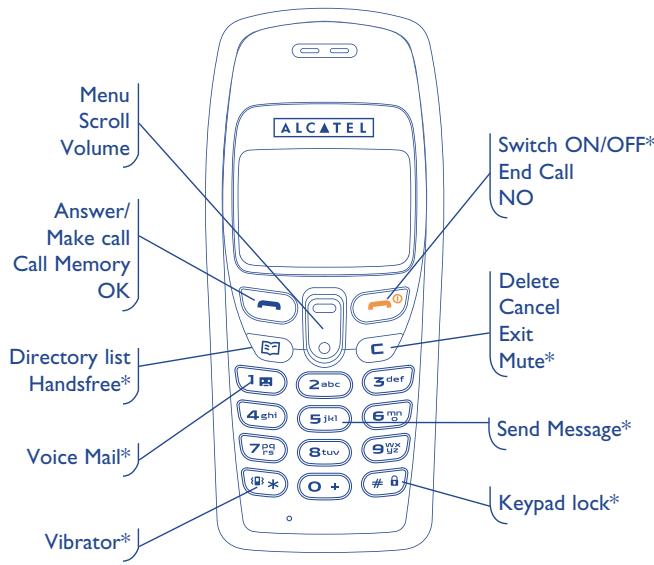
- Long keypress.
1.2 Keys and Indicators
Function Keys

Answer/make call
OK to validate an option
Call Memory (Redial)

Switch ON/OFF (long keypress)
End call
NO key to refuse an option X
Exit

Delete characters
Cancel key presses
Exit the Menu to go back to stand by mode
During a call (long keypress): activate/deactivate the muting.

Direct access to your Directories (file names classified in alphabetical order)
During a call, press to access the call options

Access to the Menu
Scroll the options
Volume adjustment

Call your voice mail (long keypress)
You must first enter the number given by the network
operator in "Menu/Messages/Setup"

In idle mode, with a long keypress you have direct access to
"SendMsg." (Enter text).
Press and hold the key to obtain “+” for the international prefix
Lock/unlock Keypad (long keypress)
Activate/Deactivate (long keypress) the vibrator
Icons and indicators (I)
The following icons will be shown on the display as different functions are activated.
Battery charge level. The bar scrolls up and down while charging.
The phone is using a roaming network.
The phone keypad is locked.
Call forward option is activated.
(1) The icons and illustrations in this guide are provided for information only.
A short message is received.
The message memory is full. To receive new messages, you must delete some old messages.
Signal strength indicator.
An alarm has been set.
Headset (if supplied) has been inserted.
No ring tone (Silent mode activated).
The vibrator has been activated.
A read message.
An unread message.
A sent message.
An unsent message.
Mute feature is activated.
Getting started

2.1 Battery and SIM Card
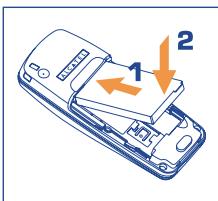
To install the battery
I. Slide the battery into the cradle as shown in the picture and press the battery down flat.
2. Place the back cover as shown in the picture and slide it into place.
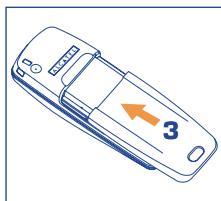
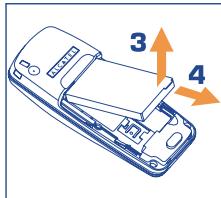
To remove the battery
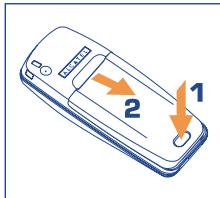
I. Press to switch off the phone.
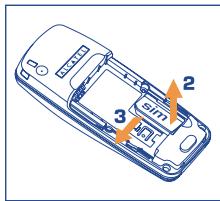
2. Press the button and slide the battery cover as shown in the picture.
3. Lift up the battery as shown below.
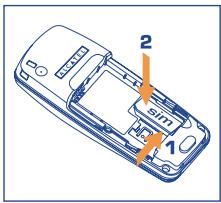
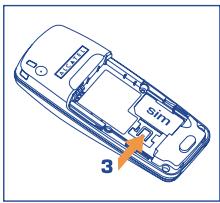
To install the SIM card, make sure that the phone is switched off.
- Remove the battery (see instructions above).
- Place the card inside the SIM holder with the golden connectors facing downwards. Push down the latch to hold the SIM card.
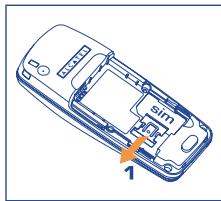
To remove the SIM card
I. Remove the battery (see instructions above).
2. Push the latch to remove the SIM card.
2.2 Charger
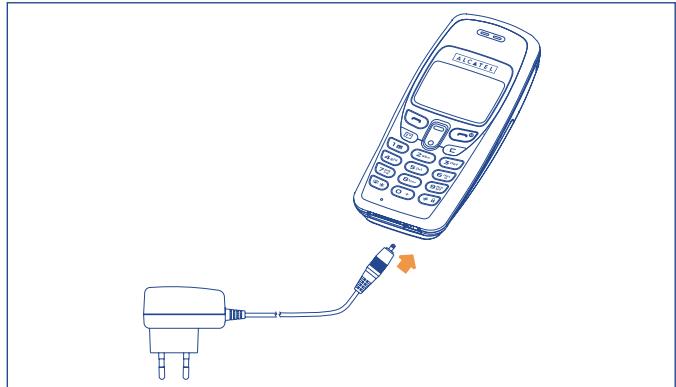
To connect the charger to the phone:
I. Install the battery (see instructions above).
2. Connect the charger to the phone as shown.
3. Be careful not to force the plug into the socket.
4. Use ONLY the charger that is supplied with your mobile phone.
5. Do not remove your battery or SIM card while charging.
6. The main socket must be close to the phone and easily accessible.
If you are charging an empty battery, the screen will take a little while before displaying the charging icon. For optimal functioning of your telephone, we recommend that you charge the battery once a day. The chargers designed for your mobile phone meet with the standard for safety of information technology equipment. They should be used for this purpose only.
2.3 Switching your telephone on
Enter PIN code
SOS
Enter PIN code
XXX
OK
I - Press the key to switch on the phone.
2- When prompted, "Enter PIN code".
3- Key in the PIN code provided with your SIM card.
4- Press

PIN and PIN2 (4 to 8 digits)
A PIN (Personal Identification Number) code is supplied to your phone and the SIM card by network providers. With your SIM card inserted, your PIN code will be required every time you switch on your phone. If a wrong PIN code is entered three consecutive times, the phone becomes locked or disabled. You must ask your network operator for the PUK code to unlock or re-enable the code. A PIN2 code is used for other functions, such as Fixed dialing (FDN) and Call barring.
PUK and PUK2 (8 digits)
To enable a locked PIN code, the PUK (Personal Unblocking Key) code is required. Check with your network provider operator for the code.
2.4 Switching your telephone off
Press the key from the main screen (long keypress) to switch the telephone off.
Call

3.1 Making a call
Key in the telephone number and the prefix, and press ("Call").
Or, if you have created contacts in the directory (See Directory menu, page 24), access the phone directory by pressing the key, select the name or number with 回 , then press ("Call").
The telephone will vibrate as soon as your correspondent answers your call.
3.2 Answering/Ending a call
A ring tone is heard upon receiving a call, press ("Accept") to answer it.
Press ("End") to end the call.
If the "Anykey answer" is activated, press any key to answer the call except the key.
3.3 Call your Voice Mail (
To access your voice mail to listen to your voice messages.
Press (long keypress)
You must first input your Voice Mail number from "Menu/Messages/Set up/VoiceMail #". (See page 29)
3.4 Other call options
Emergency Calls (SOS)
If your phone is covered by the network, dial 112 to make an emergency call or any other number provided by your operator.
Call Memory (Redial)
Press to access the numbers. Use to select the number you wish to redial. And press the "Send" key. (See page 39)
Flash Dial
Press keys 2 to (long keypress) from an idle screen to call directly the number associated to the key (this is possible if you have programmed the key in the "Menu/Extra/Keypad/Flash Dial".
Swap between calls
Press the (一) ("Hold") key to put a current call on hold while you make another call. When the second call is connected, press the (一) again ("Swap") to switch between the two calls.
Conference Call (1)
Several people can be connected together at one time.
I. The first caller makes the call.
2. Press ("Accept") to answer the call. A second call arrives, press the ("Hold") key to accept the call and put the current call on hold.
3. Press 5^det and press
4. Repeat Step 2 and 3 to allow other callers to be connected.
5. Press "End" to end the call.
A call can be connected to any single caller by pressing and and disconnected by simply pressing and
3.5 Available options during a call
To access available options during a call, press
Volume
Adjust the volume
End active
End a current call
End Hold
End call put on hold

(1) Check the availability of this service with your operator.
End one of Conference (End I of Conf)
End one of the conference calls
Handsfree
Activate/deactivate the handsfree mode.
Caution: move the handset away from your ear before activating this mode because the amplified volume could cause hearing damage.
During a call, you can directly activate the handsfree mode by a long press on key.
Conference
Add one call to the conference
Names
Access your directory list
Call Memory
Access your call memory
SendMsg
Write and send a short message
Services
Access to your operators' services (1)

(1) Check the availability of this service with your operator.
The Menu

4.1 Accessing the menu
The menu contains various functions that allow you to do fine-tuning and make adjustments.
To access the Menu, press the up/down key .
Use the up/down key to scroll through the Menu.
Press the () key to select an option in the Menu.
Press () to go back to the previous Menu.
Press to exit the Menu.
4.2 Menu structure
Directory
o VIEW
o CREATE
o DELETE
o MEMORY
o COPY ALL
o ERASE ALL
o CAPACITY
o MY NUMBER
o CALLER GROUP
Messages
o READ MSG

o SEND MSG

o FREE MEMORY
oCALLV-MAIL
Audio Profile
o NORMAL
o SILENT
o OUTDOOR
o CAR
o MEETING
o USER DEFINED
Settings
o VOLUME
o CLOCK
o LANGUAGES
oCALLWAIT.
o ANYKEY ANSWER
o AUTO REDIAL
o SHOW ID
o WELCOME MSG.
o BACKLIGHT
o CONTRAST
o INPUT METHOD
o SCREEN SAVER
o AUTO ANSWER
o RESET
Call Info
o LAST CALL
o TOTAL CALLS
o AUTO DISPLAY
o ANSWER ALERT
o I-MINUTE BEEP
o CHARGE INFO
Total charge Max credit Unit price
o CALL MEMORY
Call Forward
o FORWARD TO
o NO COVERAGE
o IF NO REPLY
o ALL CALLS
o IF BUSY
o STATUS
No coverage If no reply All calls If busy
o CANCEL ALL
Security
oCALLBARRING
Outgoing International (Inter.) Exc -> Home
Incoming
If Roaming
Status Outgoing International (Inter.) Exc -> Home
Incoming If Roaming
Cancel all
Change PWD
o FDN DIR
o CHANGE PIN
o ACTIV.PIN
o DEACT.PIN
o CHANGE PIN 2
o KEYPAD LOCK
Network
o SEARCH MODE
o NEW SEARCH
o PREFERRED
Extra
o CALCULATOR
o DIARY
o W.W.CLOCK
o GAMES
o IDLE ICON
o KEYPAD
4.2.1 Directory
You can save names and numbers in your SIM or phone directory. Press to access the Directory. Press (☑) to access the options in the Directory.
Example:
You can save and modify all the names and telephone numbers in your SIM(I) card and up to 100 files in your phone. Once your contact names and telephone numbers are saved in the Directory, from the main screen, access the list of names directly by pressing
Directory
VIEW
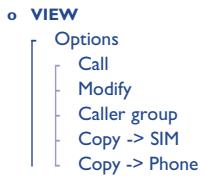
You can search a name either by scrolling with the key or by keying in the first letter of a name. To modify or edit an item, simply press (Option) to access the item.
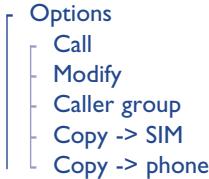
Options
- Call: To call the selected number.
- Modify: To modify, use the key to delete characters.
(1) The SIM directory's capacity depends on the operator.
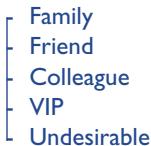
- Caller group: This menu allows you to classify your contact names into different categories (Family, Friend, ...) and assign dedicated ring tones.
Use the key to scroll through the groups, press (☑) to select the group then press to select a melody or a picture. - Copy to SIM: Copy the selected file from the phone directory to SIM
- Copy to Phone: Copy the selected file from the SIM directory to phone
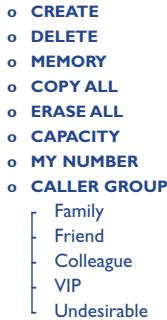
CREATE
You can create and store names and telephone numbers in the SIM or phone directory. To modify an existing number in the directory, simply key in the new number and it will automatically overwrite the previous number.
DELETE
Press to delete any item in the directory list. Press to Exit.
MEMORY (In SIM / In phone)
When "In SIM" is selected, any new directory file created will use SIM card memory. The files created are saved in the SIM memory. Otherwise they are saved in the product (phone) memory.
COPY ALL
- Phone to SIM:
Copy all directory contents from the phone memory to SIM card memory. All SIM files will be replaced by Phone files and you can choose to keep the original files or not.
- SIM to phone:
Copy all directory files from SIM card memory to the phone memory. All phone files will be replaced by SIM files and you can choose to keep the original files or not.
ERASE ALL
- In SIM:
Delete all files in SIM memory.
- In phone:
Delete all files in the product memory.
CAPACITY
This menu allows you to check the capacity of your SIM or phone directory.
MY NUMBER
You can view and modify your personal phone number.
CALLER GROUP (See page 25)
This menu allows you to classify your contact names into different categories. Caller groups are: Family - Friend - Colleague - VIP - Undesirable. You will be able to assign them with dedicated ring tones and icons.
4.2.2 Messages
You can send and receive written messages to/from other mobile phone users. Press to access the Menu options and to access the messages.
Messages
o READ MSG
Inbox Outbox
o SEND MSG
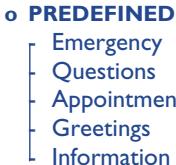
o PREDEFINED
Emergency Question Appointment Greetings Information
o DELETE Inbox Outbo
o FREE MEMORY
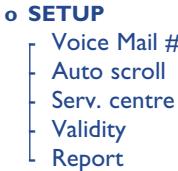
o SETUP Voice Mail# Auto scroll Serv. Centre Validity Report
oCALLV-MAIL oBROADCAST
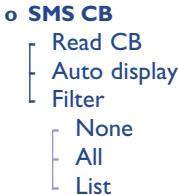
Read CB Auto display Filter
None All List
READ MSG
- Inbox: Messages received.
- Outbox: Messages sent.
Each message is identified by one of the following symbols:

1

2

3

4
(1) Read message
(2) Unread message
(3) Sent message
(4) Unsent message.
Press to display the previous screen
Press to view the complete text of the selected message.
Press to scroll through the text. Press ("Options") to access the submenu:
Inbox: -Delete
- Forward
- Reply
- Call
Outbox:-Delete -Send
SEND MSG
To create a new message, enter the recipient's number, then press to select "Send, Send & Save, Save".
Press to
to validate the option.
PREDEFINED
Instead of creating a new message, select a predefined message from a list. Any predefined message can be modified before sending.
DELETE
Delete messages in Inbox/Outbox to free up memory.
FREE MEMORY
Select the option to check the SIM card memory available for new messages (up to 10).
SETUP
The following items can be set:
Voice Mail #
Enter the number for your voice mailbox. The number will be saved in the SIM card. You may set a new or change an existing voice mail number in this menu.
- Auto scroll
This menu controls actions when reading a message. If it is activated, the message text will automatically scroll.
Serv. centre (I)
Your operator service centre call number. It may be automatically provided.
- Validity
Time during which attempts will be made to deliver the message to your correspondent in case of unsuccessful delivery. You can select a time period from a choice of predefined periods.
- Report
Request for acknowledgement of receipt for each message sent.
CALLV-MAIL
You may access your voice mailbox and listen to calls recorded in your voice mail.
SMS CB
Messages broadcast over the network are automatically displayed on the main screen.
- Read CB
This allows you to read the last broadcast message received. The phone stores this last message only when the option is activated.

(1) Check the availability of this service with your operator.
- Auto display
When the function is activated, broadcast messages will automatically be displayed. Use the key to scroll through the message.
Press or to exit. Broadcast messages automatically disappear after a short period of time.
-Filter
This allows you to select the type of cell broadcast message you want to receive. The Reception menu contains a list of codes for types of CB messages, which are defined by the network service.
- None: You can receive no message.
- All: You can receive all broadcast messages.
- List: List of all the channels where you want the messages to be received.
4.2.3 Audio Profile
Audio settings are preset in your mobile phone.
There are six environments: Normal, Silent, Outdoor, Car, Meeting, and My setup. You can choose the most suitable setting according to your environment.
To activate one, just select the environment you want and then select "Activate". To modify the settings, just select the environment and then select "Adapt".
Audio Profile
o NORMAL
o SILENT
OUTDOOR
o CAR
o MEETING
o USER DEFINED
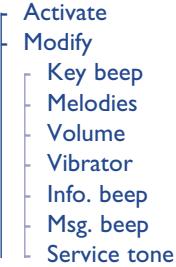
Activate
Modify Keybeep Melodies Volume Vibrator Info.beep
Msg.beep Service tone
- Modify
Keybeep
You can choose the sound of the key beeps by selecting: "Click" tone, "DTMF" tone, or "Silent".
Melodies
Select the melody from a choice of 15 different melodies available.
Volume
Adjust the volume of the ring tone using the key.
Vibrator
ate/deactivate the vibrator.
- Info. beep
Activate/deactivate this option for information such as low battery beep.
-Msg.beep
Activate/deactivate the message alert at the reception of an SMS (short text message).
Service tone
If this option is activated, the phone will generate a beep as soon as a network is available.
4.2.4 Settings
This menu allows you to set up the functions of your mobile phone.
Settings
o VOLUME
o CLOCK
o LANGUAGES
oCALLWAIT
o ANYKEY ANSWER
AUTO REDIAL
o SHOW ID
o WELCOME MSG.
o BACKLIGHT
o CONTRAST
o INPUT METHOD
o SCREENSAVER
o AUTO ANSWER
o RESET
VOLUME
To increase/decrease the earpiece volume, press the key.
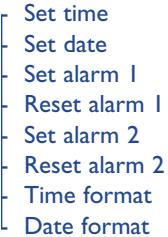
CLOCK
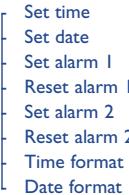
The clock contains the date and alarm functions. You set time, date, activate/deactivate alarms:
- Set time
Set the time. - Set date
Set the date. - Set alarm I
Set the alarm I. -
Reset alarm I
Reset the alarm I. -
Set alarm 2
Set the alarm 2.
- Reset alarm 2
Reset the alarm 2.
- Time format
Change the format of the time display (24 hours mode, 12 hours mode).
- Date format
Change the format of the date display.
LANGUAGES
You can switch between different languages and select a language in which texts will be displayed, if the language is available in your phone.
CALL WAIT
Activate/deactivate the signalling of a second incoming call. Press to answer the incoming call if you are already on line.
ANYKEY ANSWER
When this feature is not active or is deactivated, you can answer an incoming call only by pressing. But if this feature is active or activated, you can answer an incoming call by pressing any key of the phone, except the key.
AUTO REDIAL
Activate/deactivate the automatic callback of the last busy number. The auto-redial request can be cancelled at any time.
SHOW ID
Activate/cancel the option which makes your calls anonymous (your number is not transmitted by the network to the parties you call).
WELCOME MSG
This function allows you to create a welcome message at switch on.
BACKLIGHT
Activate/deactivate the backlight at any keypress or incoming call.
CONTRAST
Adjust the screen contrast.
INPUT METHOD (I)
The menu allows you to choose the smart input method that you wish to use.
SCREEN Saver
Activate/deactivate the animation on the main screen.
AUTO ANSWER (2)
When this function is activated, any incoming call will be accepted automatically if the headset is connected.
RESET
All settings can be reset to the factory standards.

(1) Depends on the language.
(2) Depending on your phone model and availability.
4.2.5 Call information
Management of call time and charges.
Call Info
o LAST CALL
o TOTAL CALLS
o AUTO DISPLAY
o ANSWER ALERT
o I-MINUTE BEEP
o CHARGE INFO
oCALL MEMORY
LASTCALL
Displays the duration of the last call.
TOTAL CALLS
Displays the total duration of all incoming and outgoing calls.
AUTO DISPLAY
Activate/deactivate the automatic display of the call duration after ending the call.
ANSWER ALERT
This option activates or deactivates the vibrating alert when your correspondent answers your call.
I-MINUTE BEEP
Activate/deactivate the beep to sound every minute during a call.
Check the availability of this service with your operator.
CHARGE INFO (I)
Charges will be displayed after ending a call if your network service provides information on the AoC (Advice-of-Charge).
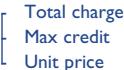
Total charge
You can display the total cost of all the calls. To reset the value, press ("Reset").
- Max credit
You can set a maximum credit allocated to your calls. Beyond this credit limit, you will not be able to make any chargeable calls.
- Unit price
You can enter the value for one telecom unit. Press to select different entry fields.
CALL MEMORY
You can save information of the last 20 calls in your phone. Scroll through these calls using the key.
For each number found, you can access the options by pressing () ("Options") for "Call" or "Save" (the number in the Directory).
(1) Check the availability of this service with your operator.
4.2.6 Call Forwarding
This function allows you to direct incoming calls from your phone number to another (the phone number is assigned to the network but not to the phone).
Call Forward
o FORWARD TO
NO COVERAGE
o IF NO REPLY
o ALL CALLS
o IF BUSY
o STATUS
o CANCEL ALL
FORWARD TO
Prior to forwarding any call, you must first enter the phone number to which you wish the calls to be forwarded.
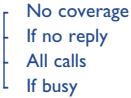
NO COVERAGE
Your incoming calls are forwarded when your phone is beyond the network service area range or when it is switched off. You can activate or deactivate this function simply by pressing ON) or OFF).
To exit the function, press C
IF NO REPLY
Incoming calls are forwarded if you don't answer them.
ALL CALLS
All incoming calls are forwarded. You can activate or deactivate this function by simply pressing or
To exit the function, press C.
IF BUSY
Incoming calls are forwarded if your phone is busy.
STATUS
Displays the list of different types of call forwarding and their status.
CANCEL ALL
This option cancels all call forwarding modes that are activated.
4.2.7 Security
This menu allows you to set up security features.
Security
oCALLBARRING
Outgoing International
Exc->Home
Incoming
If Roaming
Status
Outgoing International Exc Home
Incoming
If Roaming
Cancel all Change P
o FDN DIR
o CHANGE PIN
o ACTIV.PIN
o DEACT.PIN
o CHANGE PIN 2
o KEYPAD LOCK
CALL BARRING (I)
This option restricts incoming and outgoing calls.
-Outgoing
No outgoing calls are enabled.
- International (Inter.)
No outgoing international calls are enabled.
- Exc. -> Home
No (outgoing) international calls are enabled. Only local and to home country calls are permitted.
- Incoming
No incoming calls are enabled.
- If Roaming
No incoming calls are enabled when you are abroad (roaming).
(1) Check the availability of this service with your operator.
- Status
Displays the list of different types of call barring modes and their status.
- Cancel all
This option cancels all call barring modes that are activated.

This service may not be available on your network. To access this service, a network code is required.
FDN DIR.
This function allows to restrict outgoing calls to numbers saved in the fixed dialling directory (FDN) only (1).
CHANGE PIN
You may change the PIN code.
ACTIV.PIN
To activate the PIN code. When you switch on the phone, you will be prompted to enter the PIN code.
DEACT.PIN
To cancel the PIN activation.
CHANGE PIN2
To change the PIN2 code.
KEYPAD LOCK
To activate/deactivate the keypad lock. When activated, all the keys are automatically locked one minute after the last keypress. They can be unlocked again either by an incoming call, or by simply pressing +b .
4.2.8 Network
This menu allows you to select and register with the network your phone will use.
Network
- SEARCH MODE Depending on the option selected, the network
- NEW SEARCH search mode is:
o PREFERRED
Depending on the option selected, the network search mode is:
SEARCH MODE
Automatic: The phone looks for available networks and selects one
- Manual: The choice of connection is left up to the user.
NEW SEARCH
You can search available networks and manually select one of them.
PREFERRED
List of networks to which you wish to be connected in priority. To update the list:
- Press to access the list
- Choose the network using the key
- Press to add, delete, or modify the network in the list
4.2.9 Extra
This menu allows you to personalise your telephone.
Extra
o CALCULATOR
o DIARY
o W.W.CLOCK
o GAMES
o IDLE ICON
o KEYPAD
CALCULATOR
For basic operations, you can directly access the respective symbols by pressing the ** key.
I keypress for +
2 keypresses for -
3 key presses for x
4 keypresses for /
Add number and press for the result. Use key for decimals.
For further operations, press
Your calculator has a built-in currency converter. For initial settings, and select "Exchange rate", enter rate between local and foreign currencies.
From calculator screen, enter the amout you wish to convert and press to convert either in local or foreign.
DIARY
This function allows you to check daily and monthly diary information.
Press to access the following options:
- View day: View notes of the day.
- Make notes: reminder, birthday, call, meeting.
- Erase note: on a chosen day, one by one, all at once.
- View all: See the list of all programmed notes.
You can also set an alarm or an SMS to a written day note as a reminder.
W.W. CLOCK (WORLD WIDE CLOCK)
This function allows you to browse the clock when you are travelling around the world.
I. Select the town where you are
2. Check if the time and date are correct, if they aren't
3. Access "Menu/Settings/Clock" and set the clock for the right time and date.
GAMES
Three games are available to the players.
- Punch
Punch the mouse of each hole with the following keys:
top left
top right
5 intermediate
bottom left
bottom right
Press to end the game.
- Tetris
Place the block so it fills the gap:
4 (left)
( right)
8 (down)
(rotation)
end game)
Mine
Select a square and open it using the 5^p+1 key. The number shows the number of mines surrounding that square. Through deduction, you will be able to select a maximum number of squares in the least time while avoiding the mines.
2abc (up)
B (down)
_n + 1 (left)
(6) (right)
(open)
() (mark)
IDLE ICON
This function allows to choose an idle icon from a list.
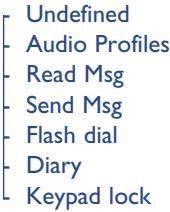
KEYPAD
You can assign keys 2-9 with a specific function or phone number. Once a key has been programmed, you will be able to access the assigned phone number or function directly by making a long keystress on the programmed key when in idle mode.
To program the key:
Pres

and s

eypad"

(√).
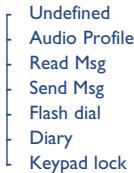
Press (for Options), you will be able to assign a different function to the key. The available functions are:
- Undefined
You do not wish to program or assign a specific function to the key.
- Audio Profiles
You can select a specified audio profile. For example, the silent mode.
- ReadMsg
Direct access to the inbox/outbox lists to read the messages.
- SendMsg
Direct access to the inbox/outbox lists to write the messages.
- Flash dial
Program a telephone number.
- Diary
Direct access to your diary details.
Characters and symbols table

| Length Digit | Upper case | Lower case |
| 18 | space, ( , ), I | space, ( , ), I |
| 2 abc | A, B, C, 2, Å, Å, A, C, C | a, b, c, 2, ā, Å, à, æ |
| 3 def | D, E, F, 3, É | d, e, f, 3, é, è |
| 4 gni | G, H, I, 4 | g, h, i, 4, i |
| 5 in | J, K, L, 5 | j, k, l, 5 |
| 6 m | M, N, O, 6, Š, Ž, Ž | m, n, o, 6, ŋ, ŏ, ŷ |
| 7 99 | P, Q, R, S, 7, β | p, q, r, s, 7, β |
| 8 buv | T, U, V, 8, Ü | t, u, v, 8, ü, ù |
| 9 92 | W, X, Y, Z, 9 | w, x, y, z, 9 |
| O + | +,-,0 | +,-,0 |
| @ * | *, ,, :, ; , ", " , @ , < , > , ! | |
| # ð | \( \# , = ,?,\,\& ,% _ - ,/,\ ,\yen ,£ \) | |
I. To enter a word, press the key corresponding to the desired letter.
2. To switch between upper and lower case letters, simply press the key with the desired character and hold it down until the letter appears in lower case.
3. All further keys will remain in lower case until you press and hold a letter key again, which will take you back to the upper case mode.
Warranty

Congratulations on choosing this mobile phone - we hope that you will be totally satisfied with it.
Notwithstanding any other applicable statutory warranties, this mobile phone and the battery are guaranteed against any manufacturing defect for a period of ONE (1) year from the date of purchase shown on your invoice. Nevertheless if the statutory warranty in force in your country exceeds one (1) year, the statutory warranty is not affected by the manufacturer's warranty. The present warranty terms also apply to the accessories but for a period of SIX (6) months from the date of purchase shown on your invoice.
Under the terms of this warranty, you must inform your dealer or any maintenance centre (see list of maintenance centres at our website - www. alcatel.com) without delay, of any defect and present the invoice given to you at the time of purchase.
The dealer will decide whether to replace or repair, as appropriate, all or any part of the equipment (telephone or accessory) found to be defective. This warranty covers the cost of parts and labour but excludes any other costs. Repair or replacement may be carried out using reconditioned components offering equivalent functionality.
Servicing under the terms of this warranty, especially repair, modification or replacement of parts shall entitle to a three month warranty unless there are statutory provisions to the contrary.
This warranty shall not apply to damage or defects (to your telephone and/or accessory) caused by:
- use not conforming with the instructions for use or installation,
- non observation of the technical and safety standards applicable in the country where the equipment is used,
- improper maintenance of batteries and other sources of energy, and of the overall electric installation,
- accidents or the consequences of theft, (of the vehicle), acts of vandalism, lightning, fire, humidity, infiltration of liquids, atmospheric influences,
- combination or integration of the equipment in hardware not supplied or not recommended by Alcatel, without express written consent for such,
- modifications, alterations, or repairs carried out by parties not authorised by Alcatel, the dealer or the approved maintenance centre,
- use of the equipment for a purpose other than that for which it was designed,
normal wear,
- deterioration caused by external causes (RF interference produced by other equipment, fluctuations in mains voltage and/or voltages on telephone lines, etc),
- modifications made to the equipment even if they are unavoidable due to changes in regulations and/or modification of network parameters,
- connection faults resulting from unsatisfactory radio transmission or caused by the absence of radio relay coverage.
Equipment on which markings or serial numbers have been removed or altered, and handsets on which labels have been removed or deteriorated shall be excluded from the warranty.
Apart from the statutory warranty, the above provisions constitute the only claims which can be made against the manufacturer and dealer on the grounds of equipment defects, this warranty excludes any other explicit or implied warranty associated with the sale of the equipment.
XG1_GB_20/11 21/11/02 0644 Page 55
Troubleshooting

Before contacting the after-sales service, we advise you to perform the following checks for solutions to equipment problems:
My mobile phone does not switch on
- Press the key for at least 3 seconds
Check the battery charge level - Check the battery contacts, remove and then reinstall your battery, then turn your telephone back on
My screen is difficult to read
Clean your screen
- Check the contrast
Activate the backlighting
- Use your mobile phone in accordance with the recommended conditions of use
My mobile phone turns off by itself
- Check that your keypad is locked when you are not using your mobile phone
- Check the battery charge level
My mobile phone does not charge properly
- Make sure that your battery is not completely discharged; the battery charge indicator can take several minutes to start flashing
Make sure charging is performed under normal conditions (-10^ + 55^)
Make sure the battery is correctly inserted - Make sure you are using an ALCATEL battery and charger
- When abroad, check that the electrical current compatibility
My mobile phone is not connected to a network
Try connecting in another location
- Verify the network coverage with your operator
- Check with your operator that your SIM card is valid
Try selecting the available network(s) manually (see page 45)
Try connecting at a later time if the network is overloaded
SIM card error
- Make sure the SIM card was correctly inserted (see page 12)
- Make sure the chip on your SIM card is not damaged or scratched
Unable to make calls
Make sure you have dialled a valid number and press the key
- For international calls, check the country and area codes
- Make sure your mobile phone is connected to a network, and that the network is not overloaded or unavailable
- Check your subscription with your operator (credit, SIM card valid, etc.)
Make sure you have not barred outgoing calls (see page 42)
Unable to receive calls
- Make sure your mobile phone is switched on and connected to a network (check for overloaded or unavailable network)
- Check your subscription with your operator (SIM card validity)
Make sure you have not forwarded incoming calls (see page 40)
Make sure that you have not barred certain calls
Your caller's name does not appear when a call is received
- Verify that you have subscribed to this service with your operator
- Check that the correspondent's number and name have been stored in your directory
- Your correspondent has concealed his/her number
The sound quality of calls is poor
- You can adjust the volume during a call by means of the key
Check the radio reception icon
When I select a number from my directory the number is not dialled
- Make sure that you have correctly recorded the number in your file
- Make sure that you have selected the country prefix when calling a foreign country
I am unable to create a file in my directory
- Make sure that your SIM card directory is not full; delete some files or save the files in the product directory
My correspondents are unable to leave messages on my voic mail
- Contact your network operator to check service availability
I can't access my voice mail
- Make sure your operator's voice mail number is correctly entered in "Messages/ Set up Menu"
Try later if the network is busy
I am unable to send short messages
- Contact your network operator to check service availability
- Verify the service centre number with your operator
The service centre may be saturated; try again later
The icon is displayed on my main screen
- You have saved too many short messages on your SIM card; delete some of them to free memory
The "searching" icon is displayed on my main screen
- You are not under coverage
I have already entered 3 incorrect PIN codes
- Contact your network operator to obtain the PUK code (Personal Unblocking Key)
Information

Web site: www.alcatel.com
WAP address: wap.alcatel.com
- Alcatel hotline No.: see "Alcatel Services" leaflet (calls charged at applicable local rate in your country).
Your telephone is designed to make and receive calls. It operates on GSM networks with 900 MHz and 1800 MHz bands.
The CE marking indicates that your telephone complies with EC directive 1999/5/EC (R&TTE) and the accessories with applicable EC directives. The entire copy of the Declaration of Conformity for your telephone can be obtained through Alcatel website: www.alcatel.com.
Your telephone is identified by an IMEI number shown on the packaging label and in the product's memory. We recommend that you note the number the first time you use your telephone by entering g 0+ 6^ *g and keep it safely. It may be requested if your telephone is stolen. This number allows your mobile telephone to be blocked preventing a third person from using it, even with a different SIM card.
April 2003