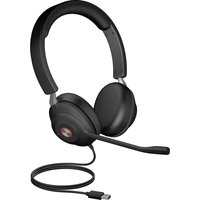
HS-2000 - Headset Cyber Acoustics - Free user manual and instructions
Find the device manual for free HS-2000 Cyber Acoustics in PDF.


| Type of Product | Headset |
| Brand | Cyber Acoustics |
| Model | HS-2000 |
| Design | Over-ear |
| Connection Type | Wired (3.5 mm jack) |
| Driver Size | 40 mm |
| Frequency Response | 20 Hz - 20 kHz |
| Impedance | 32 ohms |
| Sensitivity | 105 dB |
| Microphone | Unidirectional, boom |
| Volume Control | In-line |
| Cable Length | 2 m |
| Weight | 150 g |
| Compatibility | PC, laptop, tablet, smartphone |
| Color | Black |
| Warranty | 1 year |
| Care Instructions | Clean with dry cloth; avoid liquids |
| Safety Note | Use at moderate volume to prevent hearing damage |
| Replaceable Parts | Ear cushions, cable |
Frequently Asked Questions - HS-2000 Cyber Acoustics
User questions about HS-2000 Cyber Acoustics
0 question about this device. Answer the ones you know or ask your own.
Ask a new question about this device
Download the instructions for your Headset in PDF format for free! Find your manual HS-2000 - Cyber Acoustics and take your electronic device back in hand. On this page are published all the documents necessary for the use of your device. HS-2000 by Cyber Acoustics.
USER MANUAL HS-2000 Cyber Acoustics
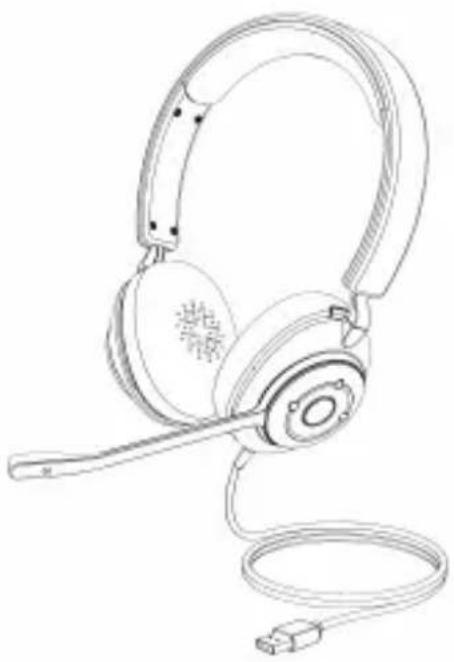
Essential USB Headset
made for calls and music
www.CyberAcoustics.com
CA P/N: HS-2000 Rev. A00
2021-01
In the Package
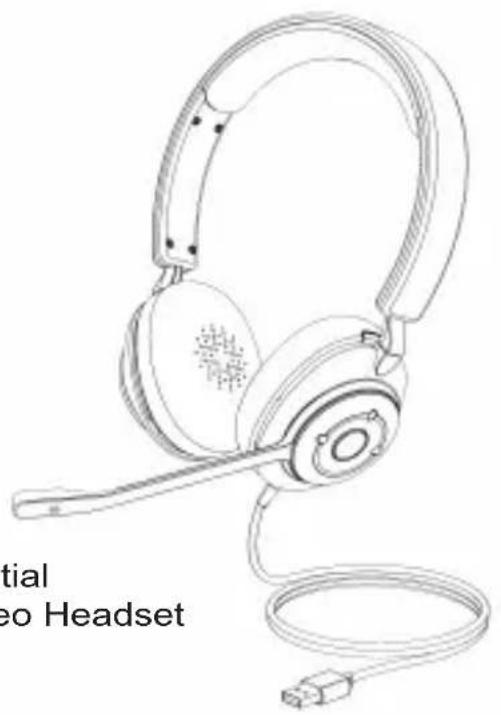

Quick-Start Guide

USB Type A to C adapter
CA Essential USB Stereo Headset

Essential USB Headset
Note: The USB Type A to C adapter is packed in the insert in the box. Pull out the top insert to locate the adapter.
Table of Contents
Pages
Connecting the Headset 1
Getting Started.... 2
Lights....3
Controls.... 4
Technical Specifications 5
Frequently Asked Questions 6 - 7
Customer Support 8
Safety and Precautions....9
Compliance Information 10
Connecting the Headset
Best for Use In
Skype, Zoom &
Other Internet Calls
Music


Getting Started
Insert the end of the USB Headset Cable into the USB Type A port on your computer as show.

The CA Essential Headset features full plug and play support for Windows, OSX / MacOS and Chromebooks. After plugging the headset into the Computer's USB Type A port, you may start any application that accepts a Headset, such as Skype and begin using your headset.
Note:
You can also use the included USB Type A to C adapter to connect the Headset to a USB Type C port on your computer.
If the computer does not automatically recognize the headset when it is plugged in to the USB Type A port, try plugging the USB Headset Cable into a different USB Type A port. If this does not work, then restart the computer. This will cause the webcam to be recognized in most instances.
Lights
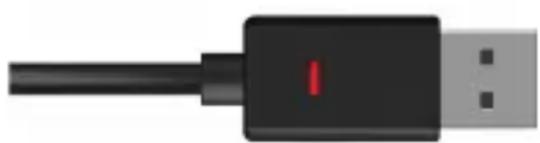
USB Plug LED Indicator
- Power On - LED is lit solid Green
- Mic Muted - LED is lit solid Red
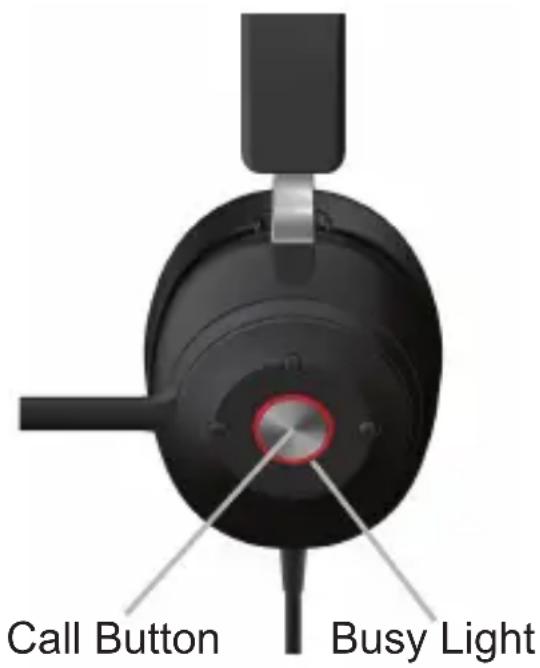
Headset Busy Light LED Indicator
- Manual Control of Busy Light
- Quickly press the Call Button twice to turn on Busy Light and it will be lit a solid Red
- Quickly press the Call Button twice again to turn off the Busy Light.
Note: During a Skype call the Skype disables the Busy Light function and the Light will not be lit when the button is pressed.
Controls
Mute / Unmute Mic
- Rotate the Mic Boom up towards the headband to less than 45 degrees to mute
- Rotate the Mic Boom down greater than 45 degrees from the headband to unmute
▶ Press to Play/Pause
Press twice to activate/deactive the Busy Light
Press to decrease the volume (A light beep sound will be heard when the volume level reaches minimum)
Press to increase the volume (A light beep sound will be heard when the volume level reaches maximum)
Press both volume up & down buttons simultaneously to mute / unmute Note: When the mic boom is raised in the Mute position, there will be no change to the mic mute mode when the buttons are pressed.
Technical Specification
| Specifications | |
| Sensitivity: | -60dBV / microbar-40dBV / Pascal +/- 4dB |
| Frequency response | Headset: 20 - 20,000HzMicrophone: 100 - 16,000Hz |
| Impedance | Headset: 32 ohmsMicrophone: 2.2k ohms |
| Recommended System Requirements | |
| Supported operating system | Windows 10, Windows 8, Windows 7, Mac OS X 10.4.11, or higher. |
| Operating temperature | Product working at ambient temperature for 0~35°C |
Frequently Asked Questions
| Frequently Asked Questions | Possible Solutions |
| Windows 7/8:Headset does not set up automatically | - Open the control panel Window.- In the upper-right corner, change "View by" to Small icons.- Double click on "Sound", then click on the "Playback" tab.- Select "CA Essential USB Headset HS-2000" then click Set Default.- Verify green circle with a check mark next to "CA Essential USB Headset HS-2000".- Double click on "Sound", then click on the "Recording" tab.- Select "CA Essential USB Headset HS-2000" then click Set Default.- Verify green circle with a check mark next to "CA Essential USB Headset HS-2000".- Click Configure.- (Optional) To adjust the headset volume, click Properties.- When finished, click "Apply" then "OK". |
| Windows 10:Headset does not set up automatically | - In the search box on the taskbar, type control panel, then select it from the results.- Select Hardware and Sound from the Control Panel, and then select Sound.- On the Playback tab, right-click "CA Essential USB Headset HS-2000",select Set as Default Device, and then select OK.- Verify green circle with a check mark next to "CA Essential USB Headset HS-2000".- On the "Recording" tab, right-click "CA Essential USB Headset HS-2000",select Set as Default Device, and then select OK.- Verify green circle with a check mark next to "CA Essential USB Headset HS-2000".- (Optional) To adjust the headset volume, click Properties.- When finished, click "Apply" then "OK". |
| Mac:Headset does not set up automatically | - Open the Finder Application, then select Applications.- Open System Preferences, then click Sound.- Select the Input tab, then select "CA Essential USB Headset HS-2000". Make sure that the mute button isn't selected.- Select the Output tab, then select "CA Essential USB Headset HS-2000". Make sure that the mute button isn't selected- When finished, close System Preferences. |
Frequently Asked Questions
| Frequently Asked Questions | Possible Solutions |
| Headset does not have sound / Microphone is not working. | - Check the computer's and headset's volume level.- Check proper seating of cable connection.- Verify the application settings you are using. Some applications have separate volume level control.- Check that the computer recognizes the headset - showing it is connected and selected within your computer OS settings. (See Page 5 for Windows and Mac setting instructions)- Verify the input / output levels within the sound / audio settings of your computer's settings.- Unplug the headset from the USB port of the computer and then re-insert into the USB port of the computer.- Restart your computer and re-verify the above steps. Restarting often helps a computer connect to the headset.If using Zoom or Microsoft Teams, further instructions for audio setting can be found on the below websites.Zoomhttps://support.zoom.us/hc/en-us/articles/201362283-Testing-computer-or-device-audioMicrosoft Teamshttps://support.microsoft.com/en-us/office/manage-your-call-settings-in-teams-456cb611-3477-496f-b31a-6ab752a7595f |
Customer Support
If you have a question about your CA Essential USB Headset, our Customer Service Team wants to assist you.
Contact us at:
www.cyberacoustics.com/support/contact
Safety and Precautions
- Read and follow all instructions – All operating and use instructions should be followed.
- Protect the Headset from being pinched, particularly at the connectors. Unplug during lightning storms or when unused for long periods of time.
- Do not place near any heat sources such as radiators, heat registers, stoves, or other apparatus (including amplifiers) that produce heat.
- Do not make alterations to the Headset.
- Do not place near naked flame sources, such as lighted candles.
- Do not expose to excessive heat (e.g. from storage in direct sunlight, fire or the like).
2021 Cyber Acoustics or its subsidiaries. All rights reserved. Cyber Acoustics and other trademarks are trademarks of Cyber Acoustics or its subsidiaries. Other trademarks may be trademarks of their respective owners
Supplier's Declaration of Conformity 47 CFR § 2.1077 Compliance Information
Responsible Party - Cyber Acoustics LLC
3109 NE 109th Ave., Vancouver, WA 98682
cyberacoustics.com

Compliance Information Statement:
FCC Part 15
This device complies with Part 15 of the FCC Rules. Operation is subject to the following two conditions:
-
This device may not cause harmful interference, and
-
This device must accept any interference received, including interference that may cause undesired operation.
This equipment has been tested and found to comply with the limits for a Class B digital device, pursuant to Part 15 of the FCC Rules. These limits are designed to provide reasonable protection against harmful interference in a residential installation. This equipment generates, uses and can radiate radio frequency energy and, if not installed and used in accordance with the instructions, may cause harmful interference to radio communications. However, there is no guarantee that interference will not occur in a particular installation. If this equipment does cause harmful interference to radio or television reception, which can be determined by turning the equipment off and on, the user is encouraged to try to correct the interference by one or more of the following measures:
• Reorient or relocate the receiving antenna
- Increase the separation between the equipment and receiving device
- Connect the equipment into an outlet on different circuit from the receiving device
- Consult the dealer or an experienced radio/TV technician for help
- Changes or modifications not expressly approved by the party responsible for compliacne could void the user's authority to operate the equipment.
产品中有害物质的名称及含量
- ESSENTIAL USB HEADSET
- IN THE PACKAGE
- TABLE OF CONTENTS
- CONNECTING THE HEADSET
- GETTING STARTED
- NOTE
- LIGHTS
- USB PLUG LED INDICATOR
- HEADSET BUSY LIGHT LED INDICATOR
- CONTROLS
- MUTE / UNMUTE MIC
- CUSTOMER SUPPORT
- SAFETY AND PRECAUTIONS
- SUPPLIER'S DECLARATION OF CONFORMITY 47 CFR § 2.1077 COMPLIANCE INFORMATION
- COMPLIANCE INFORMATION STATEMENT
- FCC PART 15
- 产品中有害物质的名称及含量
Brand : Cyber Acoustics
Model : HS-2000
Category : Headset