Pick your language and provide your email: we'll send you a specifically translated version.
This manual is not available in your language
Product type
CD player and integrated amplifier
Brand
DENON
Model
RCD-CX1
Output power
2 x 30 W RMS (4 ohms)
Speaker impedance
4 - 8 ohms
Signal-to-noise ratio (CD)
95 dB
Total harmonic distortion (CD)
0.4% (stereo)
Frequency response
10 Hz - 40 kHz (+0.5 / -3 dB)
Tone control
Bass: ±8 dB at 100 Hz, Treble: ±8 dB at 10 kHz
Inputs
PHONO (MM/MC), LINE1, LINE2
Outputs
Speakers (binding posts), Headphone (6.35 mm jack)
Power supply
Mains 230 V AC, 50/60 Hz
Power consumption
60 W
Dimensions (W x H x D)
250 x 80 x 300 mm
Weight
4.5 kg
Included accessories
Remote control, power cable, user manual
Safety
Do not block ventilation openings, avoid moisture, unplug for complete isolation
Care and cleaning
Wipe with a soft, dry cloth; do not use chemical products
Remote control batteries
Type AAA (2 x), observe polarity and recycling regulations
Frequently Asked Questions - RCD-CX1 DENON
How to connect speakers to the RCD-CX1?
Use stripped speaker cables. Plug the connectors into the corresponding terminals: left (L) and right (R), respecting polarity (+/-). Ensure speaker impedance is between 4 and 8 ohms.
How to clean the device?
Turn off and unplug the device. Use a soft, dry cloth to wipe the surface. Never use solvents, alcohol, or abrasive products.
Why is there no sound?
Check that the device is on, volume is not at zero, and the input source is correctly selected (CD, LINE, PHONO). Ensure speakers are connected and headphones are not plugged in (headphones mute the speakers).
How to use the PURE DIRECT function?
Press the PURE DIRECT button on the remote control or front panel. This disables tone control circuits for a sound that is more faithful to the original recording. The corresponding indicator lights up.
How to adjust bass and treble?
Use the BASS and TREBLE knobs on the front panel. Turn clockwise to increase, counterclockwise to decrease. The adjustment range is ±8 dB at 100 Hz for bass and at 10 kHz for treble.
Can I connect a turntable?
Yes, connect your turntable to the PHONO input. The RCD-CX1 has a phono preamp compatible with MM (Moving Magnet) and MC (Moving Coil) cartridges. Select the cartridge type via a switch (see manual).
How to change the remote control batteries?
Open the battery compartment on the back of the remote. Insert two AAA batteries respecting the indicated polarities (+/-). Do not mix old and new batteries. Recycle batteries according to local regulations.
What if the CD does not play?
Check that the disc is inserted with the printed side facing up. Clean the disc with a soft cloth from the center outward. Ensure the disc is not scratched or damaged. If the problem persists, try another CD.
How to reset the device?
Turn off the device, unplug the power cord, wait 30 seconds, then plug it back in. This resets the electronic circuits without erasing user settings.
Where to find spare parts?
Contact an authorized DENON service center or visit the official website for spare parts. Never open the device yourself; call a qualified professional for any repairs.
User questions about RCD-CX1 DENON
0 question about this device. Answer the ones you know or ask your own.
Ask a new question about this device
No questions yet. Be the first to ask one.
Download the instructions for your CD player and integrated amplifier in PDF format for free! Find your manual RCD-CX1 -
DENON and take your electronic device back in hand. On this page are published all the documents necessary for the use of your device. RCD-CX1 by DENON.
USER MANUAL RCD-CX1 DENON
The lightning flash with arrowhead symbol, within an equilateral triangle, is intended to alert the user to the presence of uninsulated "dangerous voltage" within the product's enclosure that may be of sufficient magnitude to constitute a risk of electric shock to persons.
The exclamation point within an equilateral triangle is intended to alert the user to the presence of important operating and maintenance (servicing) instructions in the literature accompanying the appliance.
WARNING:
TO REDUCE THE RISK OF FIRE OR ELECTRIC SHOCK, DO NOT EXPOSE THIS APPLIANCE TO RAIN OR MOISTURE.
Laser Class
(IEC 60825-1:2001)
CLASS 1 LASER PRODUCT
LUOKAN 1 LASERLAITE KCLASS 1 LASERAPPARA
"CLASS 1 LASER PRODUCT"
ADVARSEL: USYNLIG LASERSTRÄLING VED ÅBNING, NÄR
SIKKERHEDSAFBRYDER ERUDE AF FUNKTION. UNDGU UDSAETTELSE FOR STRALING.
WARNING: OM APPARATEN ANVÄNDS PÅ ANNAT SÄTT ÅN I DENNA
BRUKSANVISING SPECIFICERATS, KAN ANVÄNDAREN UTSÄTTAS FÜR OSYNLIG LASERSTRÄLNING SOM
ÖVERSKRIDER GRÄNSEN FÜR LASERKLASS 1.
ATTENZIONE: QUESTO APPARECCHIO E' DOTO DI DISPOSITIVO OTTICO CON Raggio LASER.
L'USO IMPROPRIIO DELL'APPARECCHIO PUO'CAUSARE
- DECLARATION OF CONFORMITY
We declare under our sole responsibility that this product, to which this declaration relates, is in conformity with the following standards: EN60065, EN55013, EN55020, EN61000-3-2 and EN61000-3-3.
Following the provisions of 2006/95/EC and 2004/108/EC Directive.
Division of D&M Germany GmbH
USE OF CONTROLS OR ADJUSTMENTS OR PERFORMANCE OF PROCEDURES OTHER THAN THOSE SPECIFIED HEREIN MAY RESULT IN HAZARDOUS RADIATION EXPOSURE.
THIS PRODUCT SHOULD NOT BE ADJUSTED OR REPAIRED BY ANYONE EXCEPT PROPERLY QUALIFIED SERVICE PERSONNEL.
NOTE ON USE / HINWEISE ZUM GEBRAUCH / OBSERVATIONS RELATIVES A L'UTILISATION / NOTE SULL'USO / NOTAS SOBRE EL USO / ALVORENSTE GEBRIKEN / OBSERVERA ANGÄENDE ANVÄNDNINGEN
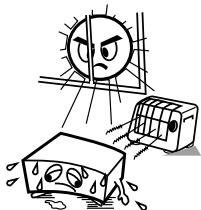
Avoid high temperatures.
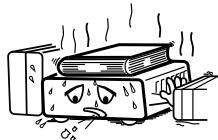
Allow for sufficient heat dispersion when installed in a rack.
Handle the power cord carefully.
Hold the plug when unplugging the cord.
* (For apparatuses with ventilation holes)
Do not obstruct the ventilation holes.
Decken Sie den Luftungsbereich nicht ab.
Ne pas obstruer les trough d'airation.
Non coprite i fori di ventilazione
No obtruya los orificios de ventilación.
De ventilatieopengingen mogen nicht wordenbeblokkeerd.
Tapp inte till ventilationsöppningarna
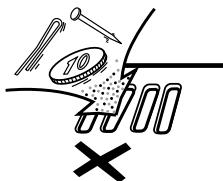
Do not let foreign objects into the unit.
Lassen Sie keine fremden Gegenstände in das Gerätkommen
Ne pas laisser des objets étrangers dans l'appareil.
Non inserte corpi estranei all'interno dell'unità.
No deje objetos extranos dentro del equipo.
Laat geen vreemde voorwerpen in dit apparaat vallen.
Se till att främande foremål inte tränger in i apparaten.
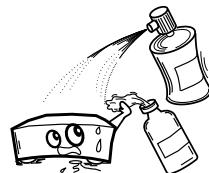
Do not let insecticides, benzene, and thinner come in contact with the unit.
Lassen Sie das Gerat nicht mit Insektiziden, Benzin oder Verdunnungsmitteln in Berührung kommt.
Ne pasmettre en contact des insecticides,du benzene et un diluant avec l'appraié.
Assicuratevi che I'unità non entri in contatto con insettici di, benzolo o solventi.
No permitted contacto de insecticidas, gasolina y diluyentes con el equipo.
Voorkom dat insecticiden, benzeen de ververdunner met dit toestel in contactkommen.
Se till ante inte insektsmedel på spraybrukt, bensen och thinnerkommen i kontakt med apparatels höje.
Never disassemble or modify the unit in any way.
Versuchen Sie niemals das Gerät auseinander zu behnem oder zu verändern.
Ne jamais démonter ou modifier l'appareil d'une manière ou d'une autre.
Non smontate né modificlate l'unità in alcun modo.
Nunca desarme o modifique el equipo de tinguna manera.
Dit toestel mag nicht gedemonteerd of aangepast worden.
Ta inte isär apparaten och försök inte byygga om den.
CAUTION:
The ventilation should not be impeded by covering the ventilation openings with items, such as newspapers, tablecloths, curtains, etc.
No naked flame sources, such as lighted candles, should be placed on the unit.
Observe and follow local regulations regarding battery disposal.
Do not expose the unit to dripping or splashing fluids.
Do not place objects filled with liquids, such as vases, on the unit.
ACHTUNG:
To completely disconnect this product from the mains, disconnect the plug from the wall socket outlet.
The mains plug is used to completely interrupt the power supply to the unit and must be within easy access by the user.
VORSICHT:
A NOTE ABOUT RECYCLING:
This product's packaging materials are recyclable and can be reused. Please dispose of any materials in accordance with the local recycling regulations.
When discarding the unit, comply with local rules or regulations.
Batteries should never be thrown away or incinerated but disposed of in accordance with the local regulations concerning battery disposal.
This product and the supplied accessories, excluding the batteries, constitute the applicable product according to the WEEE directive.
HINWEIS ZUM RECYCLING:
Cautions on Handling 2
Cautions on Installation 2
About Discs 2
Discs Usable on the RCD-CX1 2
Holding Discs 3
Loading Discs 3
Cautions on Loading Discs 3
Cautions on Handling 3
Cautions on Storing Discs 3
Cleaning Discs 4
About the Remote Control Unit 4
Inserting the Batteries 4
Operating Range of the Remote Control Unit 4
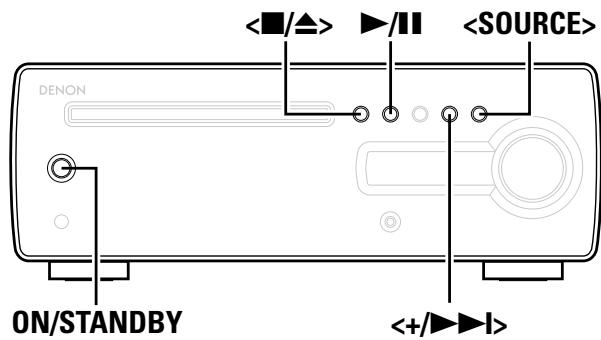
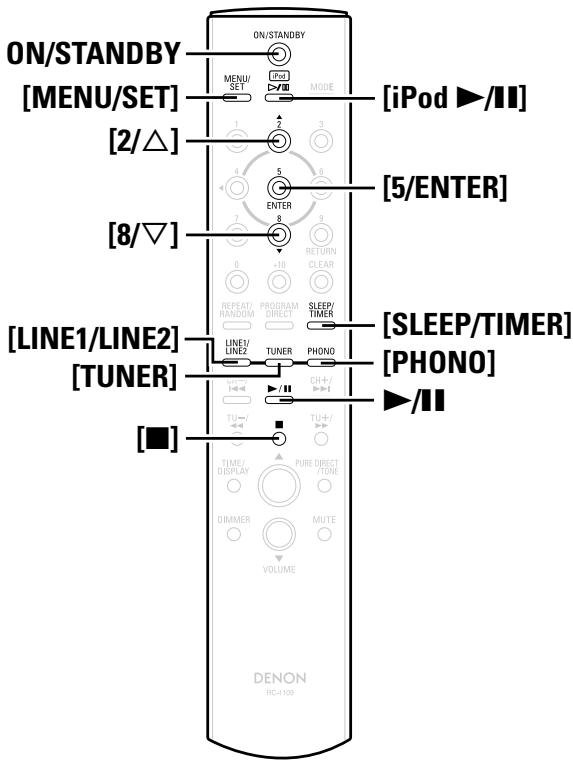
Part Names and Functions 5
Front Panel 5
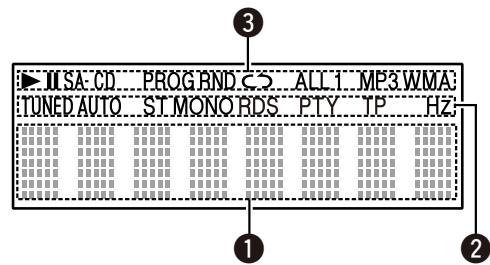
Display 5
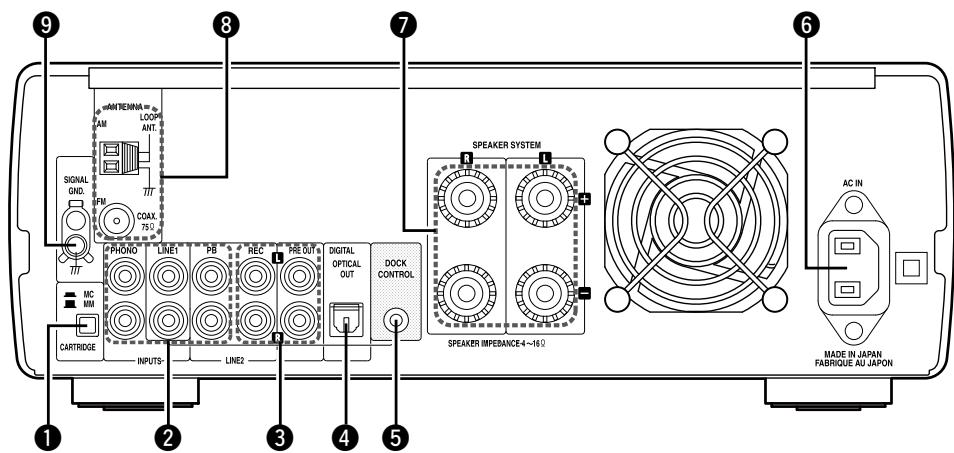
Rear Panel 5
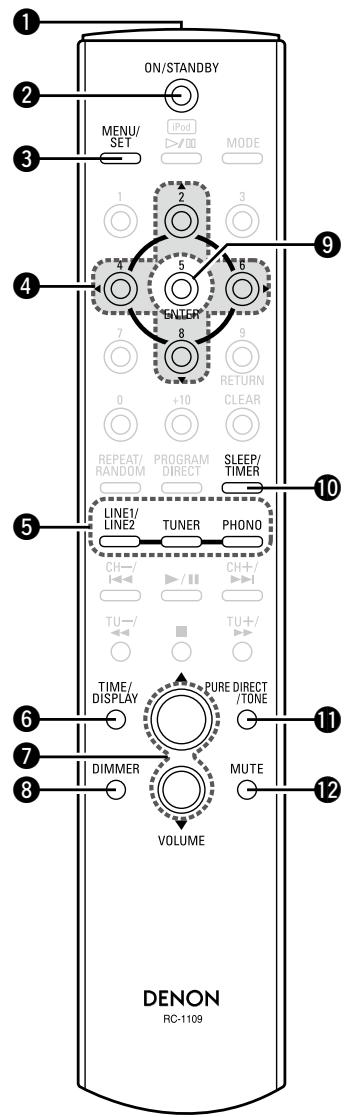
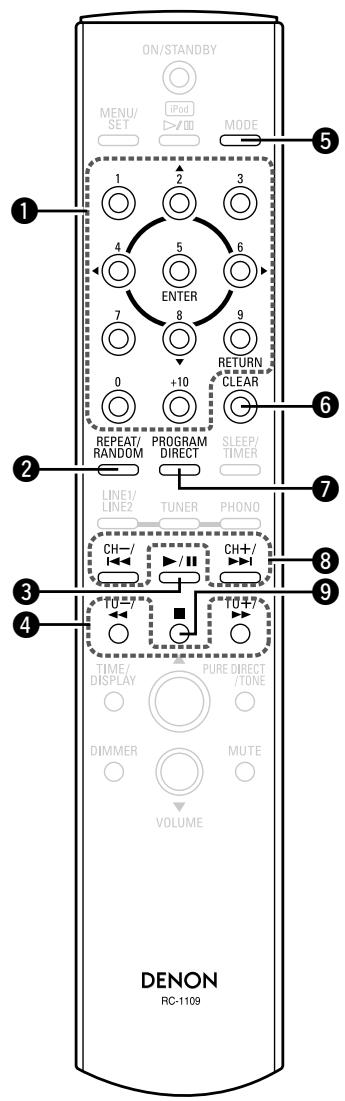
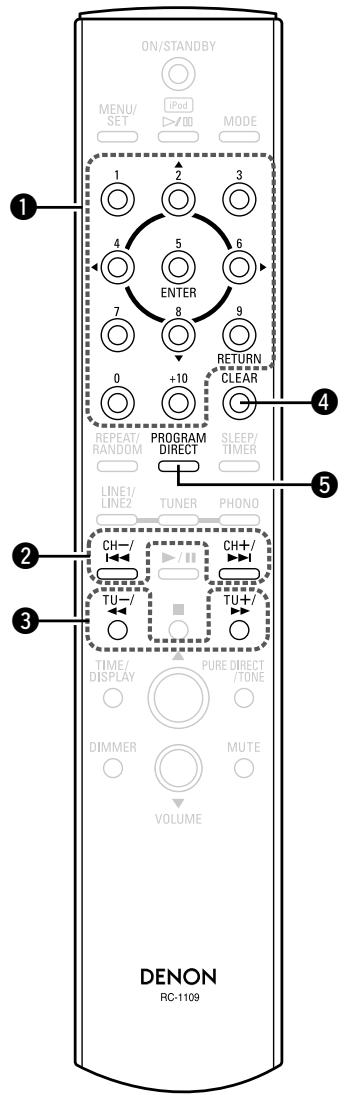
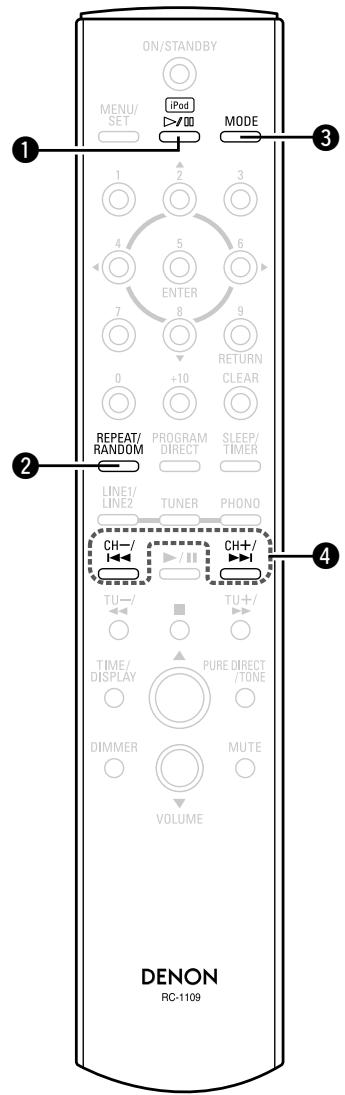
Remote Control Unit 6
Connections
Preparations 8
Cables Used for Connections 8
Using the AM Loop Antenna 8
Assembling the AM Loop Antenna 8
Speaker Connections 9
Connecting the Speaker Cables 9
Connecting thePlayback Components 10
Record Player 10
iPod® 10
Connecting a Power Amp and Subwoofer 10
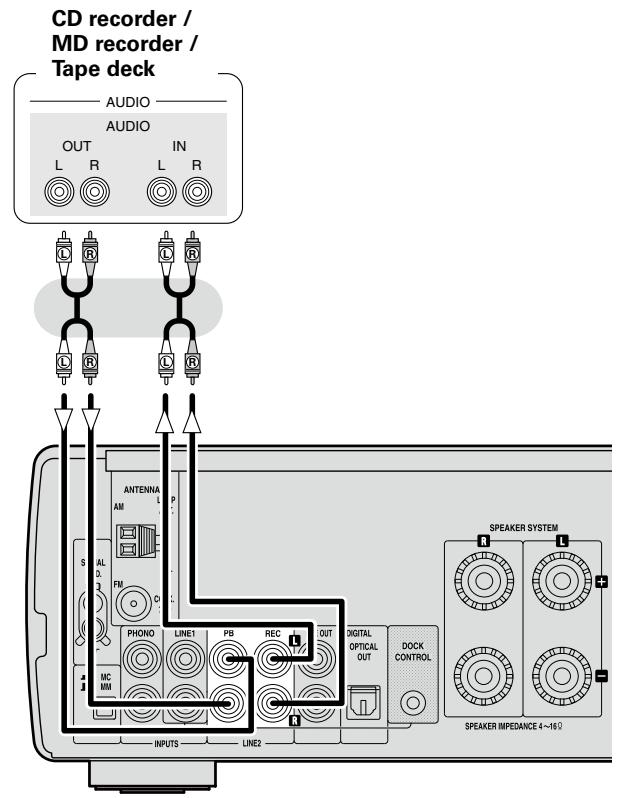
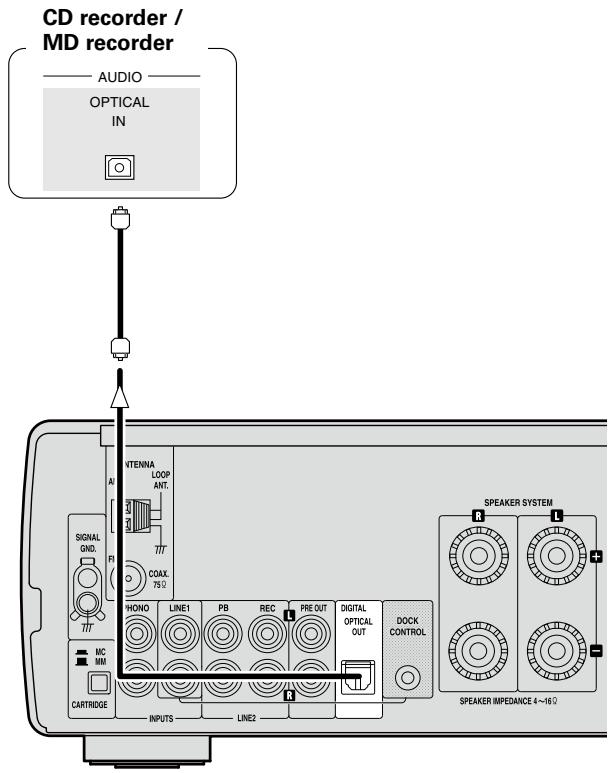
Connecting the Recording Components 11
CD Recorder / MD Recorder / Tape Deck 11
Connections to Other Devices 12
Antenna terminals 12
Connecting the Power Cord 12
Once Connections are Completed 12
Setup
Setting the Current Time (24-Hour Display) 13
Playback
Preparations 14
Turning the Power On 14
Setting the layer to be played with priority 14
Loading Discs 14
Operations During Playback 15
Adjusting the Master Volume 15
Input Source Switching 15
Listening with Headphones 15
Adjusting the Tone 15
Turning the Sound Off Temporarily (Muting) 15
Switching the Brightness of the Display 15
CDPlayback 16
Playing CDs 16
Switching the Display 16
Repeat Play or Random Play 17
Playing Tracks in the Desired Order 17
Playback of MP3 and WMA Files 18
About the MP3 and WMA Formats That Can be Played 18
Playing MP3 and WMA Files 19
Repeat Play or Random Play 19
TUNERPlayback 19
Tuning in Broadcast Stations 19
Automatically Presetting FM Stations (Auto Preset) 20
Presetting FM/AM Stations Manually 20
Listening to Preset Stations 20
Naming the Currently Tuned in Broadcast Station 20
RDS (Radio Data System) 21
RDS Search 21
PTY Search 21
TP Search 21
RT (Radio Text) 22
iPod®Playback 22
Preparations 22
Listening to Audio 23
Disconnecting the iPod 23
Recording 23
Recording on an External Device 23
Setting the Timer
TimerPlayback 24
Setting the Timer 24
Set the Timer ON/OFF 26
Setting the Sleep Timer 26
Other Functions
Convenient Functions 27
Auto Power On 27
Auto Function Selector Function 27
Last Function Memory 27
Resetting the Microprocessor 27
Troubleshooting 28
Specifications 30
Getting Started
Thank you for purchasing this DENON product. To ensure proper operation, please read this owner's manual carefully before using the product.
After reading them, be sure to keep them for future reference.
Accessories
Check that the following parts are supplied with the product.
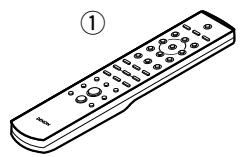
① Remote control (RC-1109) 1
② R03/AAA batteries 2
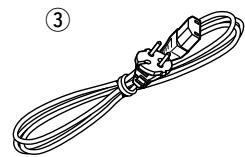
③ Power cord (Cord length: Approx. 1.6 m)
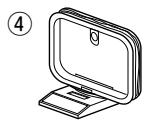
④ AM loop antenna 1
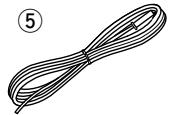
⑤ FM indoor antenna 1
⑥ Owner's manual 1
⑦ Service station list 1
Cautions on Handling
- Before turning the power switch on
Check once again that all connections are correct and that there are no problems with the connection cables.
Power is supplied to some of the circuitry even when the unit is set to the standby mode. When traveling or leaving home for long periods of time, be sure to unplug the power cord from the power outlet.
- Sufficiently ventilate the place of installation
If the unit is left in a room full of the smoke from cigarettes, etc., for long periods of time, the surface of the optical pickup could get dirty, in which case it will not be able to read the signals properly.
- About condensation
If there is a major difference in temperature between the inside of the unit and the surroundings, condensation (dew) may form on the operating parts inside the unit, causing the unit not to operate properly.
If this happens, let the unit sit for an hour or two with the power turned off and wait until there is little difference in temperature before using the unit.
- Cautions on using mobile phones
Using a mobile phone near this unit may result in noise. If so, move the mobile phone away from this unit when it is in use.
- Moving the unit
Turn off the power and unplug the power cord from the power outlet.
Next, disconnect the connection cables to other system units before moving the unit.
Note that the illustrations in these instructions may differ from the actual unit for explanation purposes.
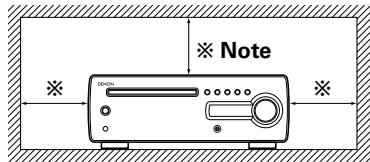
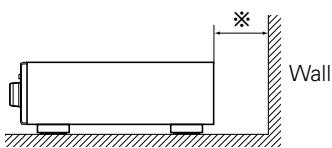
Cautions on Installation
Note:
For proper heat dispersal, do not install this unit in a confined space, such as a bookcase or similar enclosure.
About Discs
Discs Usable on the RCD-CX1
Super Audio CDs
Super Audio CDs marked with the logotypes indicated below can be played on this unit.
SUPER AUDIO CD
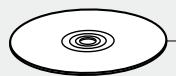
There are three types of Super Audio CDs:
① Single layer disc
Single layer Super Audio CD with only an HD layer.
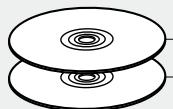
② Dual layer disc
Super Audio CD with a double HD layer, offering extended playing time and high sound quality.
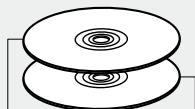
③ Hybrid disc
Two-layer Super Audio CD with an HD layer and a CD layer.
The signals on the CD layer can be played on a regular CD player.
Types of Super Audio CDs
Single layer disc
Dual layer disc
Hybrid disc
HD layer
HD layer
CD layer HD layer
※ What is the HD layer?
The HD layer is a layer of high density signals for Super Audio CDs.
※ What is the CD layer?
The CD layer is the layer of signals that can be read on a regular CD player.
This unit is not compatible with multi-channel playback.
Music CDs
Discs marked with the logotype below can be played in this unit.
CD-R/CD-RW
Some discs and some recording formats may not be playable.
Non-finalized discs cannot be played.
※ What is finalization?
Finalization is the process that makes recorded CD-R/CD-RW discs playable on compatible players.
NOTE
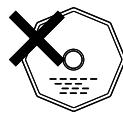
Discs with special shapes (heart-shaped discs, octagonal discs, etc.) cannot be played. Do not attempt to play them, as doing so can damage the product.
Holding Discs
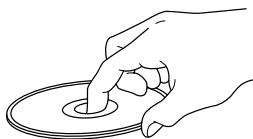
Do not touch the signal surface.
Loading Discs
Set the disc with the labeled side facing up.
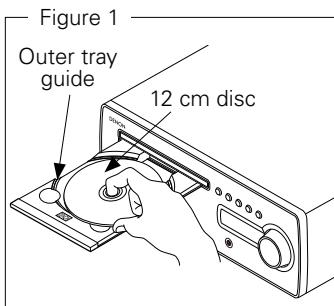
Make sure the disc tray is fully open when inserting the disc.
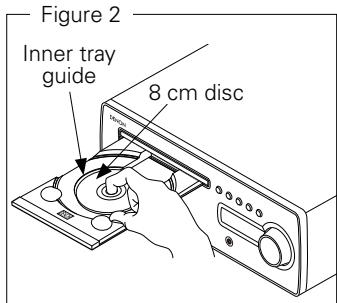
Place the discs flatly, 12cm discs in the outer tray guide (Figure 1), 8 cm discs in the inner tray guide (Figure 2).
- Place 8 cm discs in the inner tray guide without using an adapter.
"00:00" is displayed if a disc that cannot be played is loaded.
"NO DISC" is displayed if the disc is loaded upside-down or if no disc is loaded.
Cautions on Loading Discs
Only load one disc at a time. Loading two or more discs can damage the unit or scratch the discs.
Do not use cracked or warped discs or discs that have been repaired with adhesive, etc.
Do not use discs on which the sticky part of cellophane tape or labels is exposed or on which there are traces of where labels have been removed. Such discs can get caught inside the player and damage it.
Cautions on Handling
Do not get fingerprints, oil or dirt on discs.
Take special care not to scratch discs when removing them from their cases.
Do not bend or heat discs.
Do not enlarge the hole at the center.
Do not write on the labeled (printed) surface with ball-point pens, pencils, etc., or stick new labels on discs.
Water droplets may form on discs if they are moved suddenly from a cold place (outdoors for example) to a warm place, but do not try to dry them off using a hairdryer, etc.
Cautions on Storing Discs
Be sure to remove discs after using them.
Be sure to store discs in their cases to protect them from dust, scratches, warping, etc.
Do not store discs in the following places:
Places exposed to direct sunlight for long periods of time
Dusty or humid places
Places exposed to heat from heating appliances, etc.
Cleaning Discs
If there are fingerprints or dirt on discs, wipe them off before using the disc. Fingerprints and dirt can impair sound quality and cause interruptions in playback.
Use a commercially available disc cleaning set or a soft cloth to clean discs.
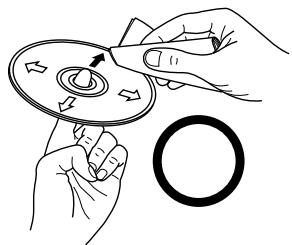
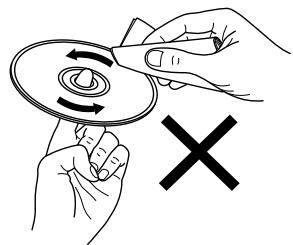
Gently wipe the disc from the inside towards the outside.
Do not wipe with a circular motion.
NOTE
Do not use record spray, antistatic agents, or benzene, thinner or other solvents.
About the Remote Control Unit
Inserting the Batteries
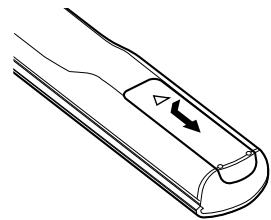
① Remove the remote control unit's rear cover.
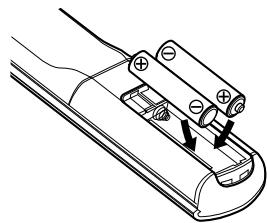
② Set two R03/AAA batteries in the battery compartment in the indicated direction.
③ Put the rear cover back on.
NOTE
Replace the batteries with new ones if the set does not operate even when the remote control unit is operated close to the unit.
The supplied batteries are only for verifying operation.
When inserting the batteries, be sure to do so in the proper direction, following the “ ” and “ ” marks in the battery compartment.
To prevent damage or leakage of battery fluid:
Do not use a new battery together with an old one.
Do not use two different types of batteries.
Do not attempt to charge dry batteries.
Do not short-circuit, disassemble, heat or dispose of batteries in flames.
If the battery fluid should leak, carefully wipe the fluid off the inside of the battery compartment and insert new batteries.
Remove the batteries from the remote control unit if it will not be in use for long periods.
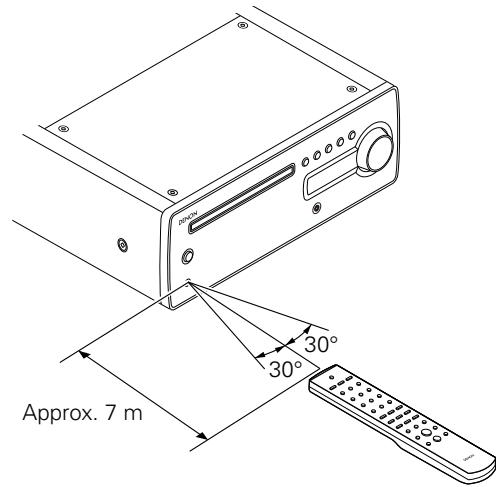
Operating Range of the Remote Control Unit
Point the remote control unit at the remote sensor when operating it.
NOTE
The set may function improperly or the remote control unit may not operate if the remote control sensor is exposed to direct sunlight, strong artificial light from an inverter type fluorescent lamp or infrared light.
Part Names and Functions
For buttons not explained here, see the page indicated in parentheses ( ).
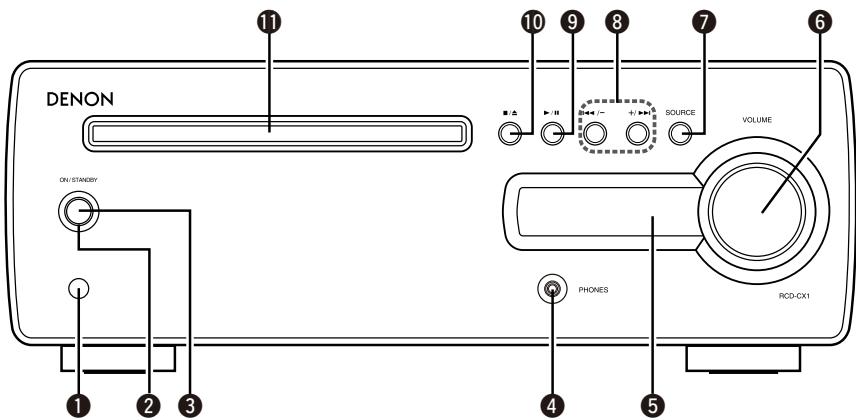
Front Panel
Remote control sensor (4)
2 Power indicator (14)
3 Power operation button (ON/STANDBY) (13, 14)
4 Headphones jack (PHONES) (15)
⑤ Display
Master volume control knob (VOLUME) (15)
Connections for all compatible audio signal format is described in this operating instructions. Please select the types of connections suited for the equipment you are connecting.
With some types of connections, certain settings must be made on the RCD-CX1. For details, refer to the instructions for the respective connection items below.
NOTE
Do not plug in the power cord until all connections have been completed.
When making connections, also refer to the operating instructions of the other components.
Be sure to connect the left and right channels properly (left with left, right with right).
Do not bundle power cords together with connection cables. Doing so can result in humming or noise.
Preparations
Cables Used for Connections
Select the cables according to the equipment being connected.
Audio cables
Optical digital connections
Optical cable
Analog connections (stereo)
(White)
(Red)
Stereo pin-plug cable
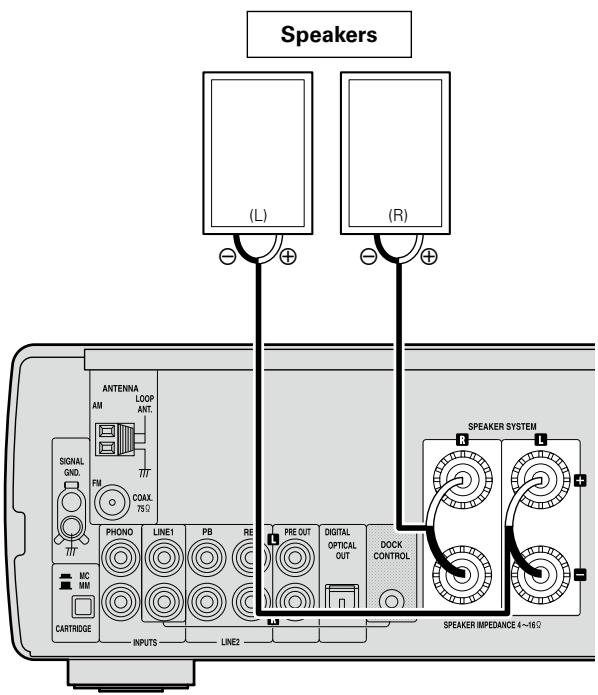
Speaker connections
Speaker cables
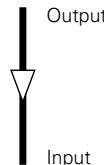
Signal direction
Audio signal:
Speaker Connections
Connecting the Speaker Cables
Carefully check the left (L) and right (R) channels and + (red) and - (black) polarities on the speakers being connected to the RCD-CX1, and be sure to interconnect the channels and polarities correctly.
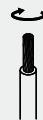
1 Peel off about 10mm of sheathing from the tip of the speaker cable, then either twist the core wire tightly or terminate it.
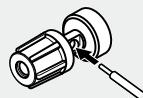
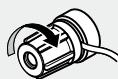
2 Turn the speaker terminal counterclockwise to loosen it.
3 Insert the speaker cable's core wire to the hilt into the speaker terminal.
4 Turn the speaker terminal clockwise to tighten it.
NOTE
Use speakers with an impedance of 4 to 16 Ω/ohms. The protection circuit may be activated if speakers with an impedance other than specified are used.
Connect the speaker cables in such a way that they do not stick out of the speaker terminals. The protection circuit may be activated if the core wires touch the rear panel or if the + and - sides touch each other ("Protection circuit").
Never touch the speaker terminals while the power supply is connected. Doing so could result in electric shock.
Protection circuit
The protection circuit will be activated in the following cases:
When the speaker cable's core wires are touching the rear panel or screws or when the speaker cable's + and - sides are touching
When the surrounding temperature is extremely high
When the internal temperature rises due to extended use with a high output
If this happens, unplug the power cord, then check the connections of the speaker cables and input cables. If the set's temperature is extremely high, wait for it to cool off and improve surrounding ventilation. After doing this, plug the power cord back in.
If the protection circuit is activated though there are no problems in ventilation around the set or in connections, the set could be damaged. Turn off the power, then contact a DENON servicing and inquiry outlet.
Connecting the Playback Components
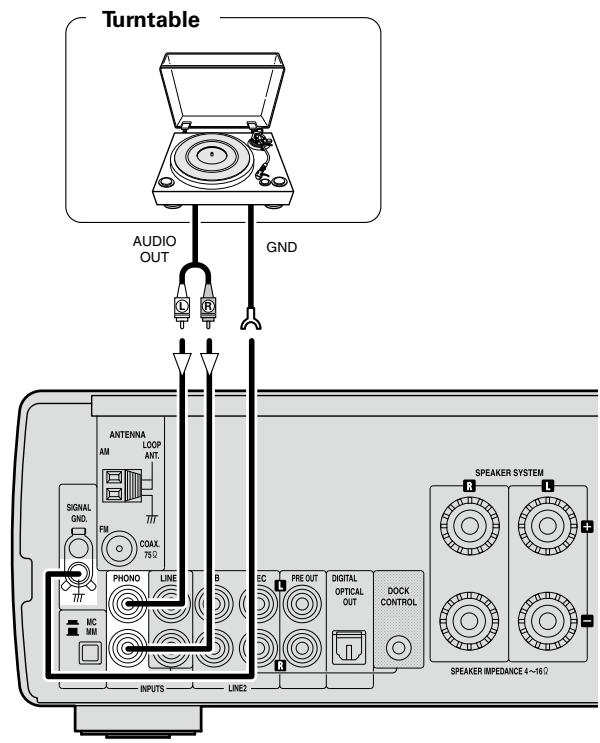
Record Player
With some record players, noise may be generated when the ground wire is connected. If so, disconnect the ground wire.
Set the CARTRIDGE selection switch to "MM" or "MC" according to the cartridge being used.
NOTE
The RCD-CX1's SIGNAL GND terminal is meant to reduce noise when a record player is connected. This is not a safety ground terminal.
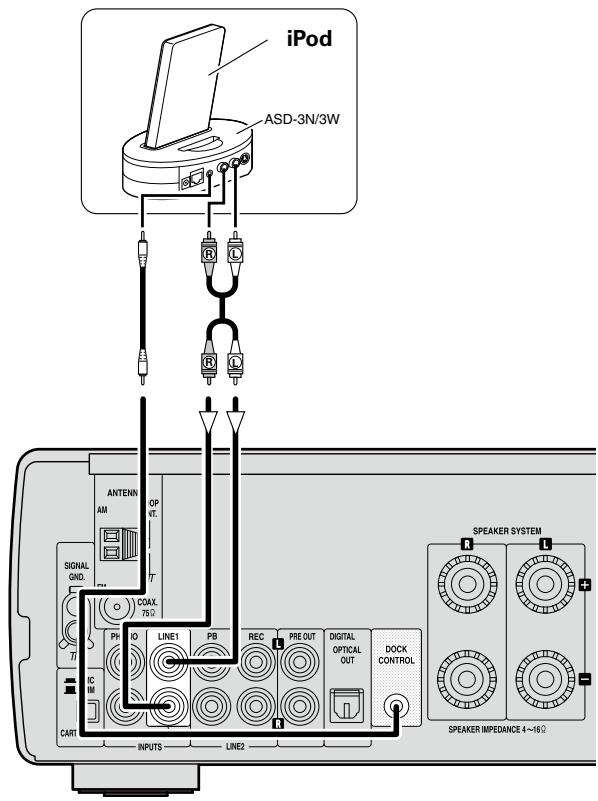
iPod®
Use a DENON control dock for iPod (ASD-1R or ASD-3N/3W, sold separately) to connect the iPod to the RCD-CX1.
When using a control dock for iPod, the Control Dock for iPod must be set. For details, refer to the operating instructions of the Control Dock for iPod.
When the control dock for iPod is connected, the function indicator switches from "LINE1" to "iPod".
To use an iPod, see "iPod® Playback" (20 page 22).
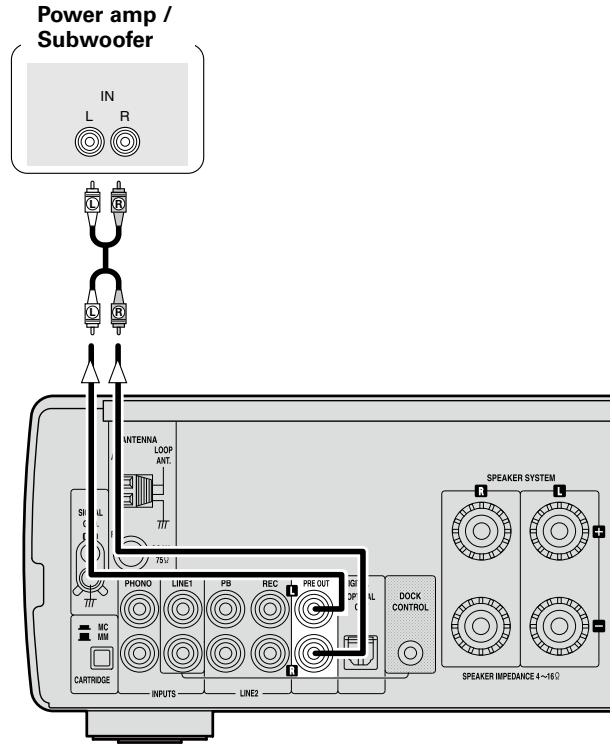
Connecting a Power Amp and Subwoofer
Use when adding a power amp, subwoofer, etc.
NOTE
DO NOT insert a short pin plug for recording output (REC) and pre-out terminals, as this may result in damage.
Connecting the Recording Components
CD Recorder / MD Recorder / Tape Deck
Analog connections
Digital connections
No digital signals are output for Super Audio CDs.
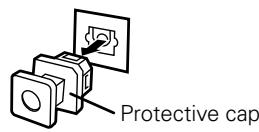
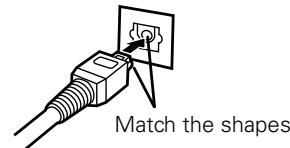
When connecting the optical digital output connector with an optical transmission cable (sold separately)
Remove the protective cap, match the shapes, then insert firmly all the way in.
Store the protective cap in a safe place so as not to lose it, and use it when not using the terminal.
Connections to Other Devices
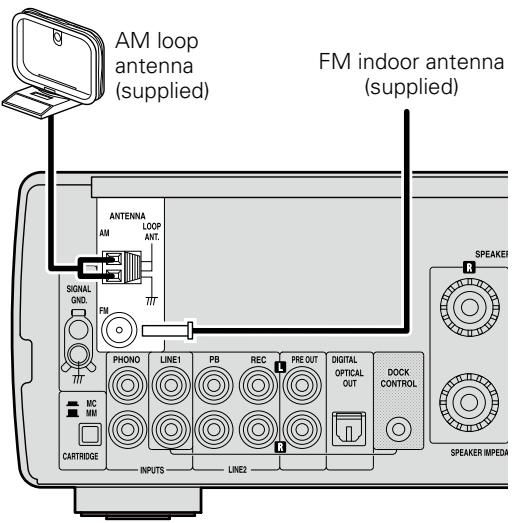
Antenna terminals
AM / FM
The AM and FM reception sensitivity depends on the place the antenna is set and the direction in which it is set. Set it so that reception is best.
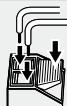
Connecting the AM loop antenna
1 Push the lever.
2 Insert the conductor.
3 Return the lever.
NOTE
Make sure the AM loop antenna lead terminals do not touch metal parts of the panel.
Do not connect two FM antennas simultaneously.
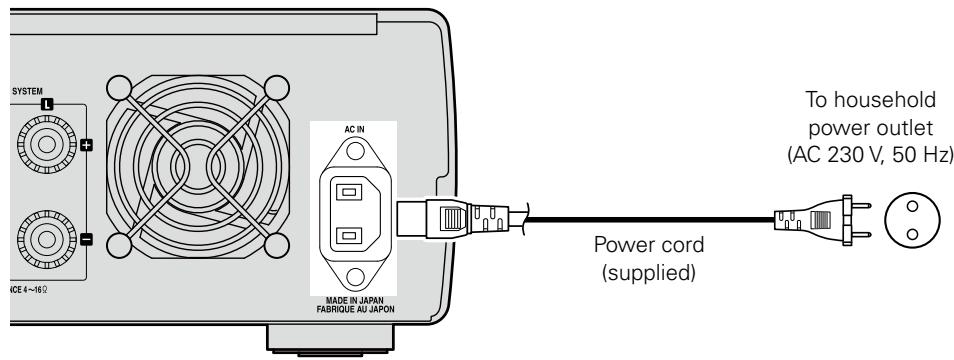
Connecting the Power Cord
Wait until all connections have been completed before connecting the power cord.
NOTE
Insert the AC plugs securely. Incomplete connections could cause noise.
When the power cord is plugged into the power outlet, the power indicator flashes orange for about 10 seconds. Do not unplug the power cord before the power indicator turns off and the RCD-CX1 enters Standby mode.
Only use the supplied power cord.
Be sure the power cord is unplugged from the power outlet before connecting or disconnecting it to the AC IN.
Once Connections are Completed
Turning the Power On ( page 14)
Setup
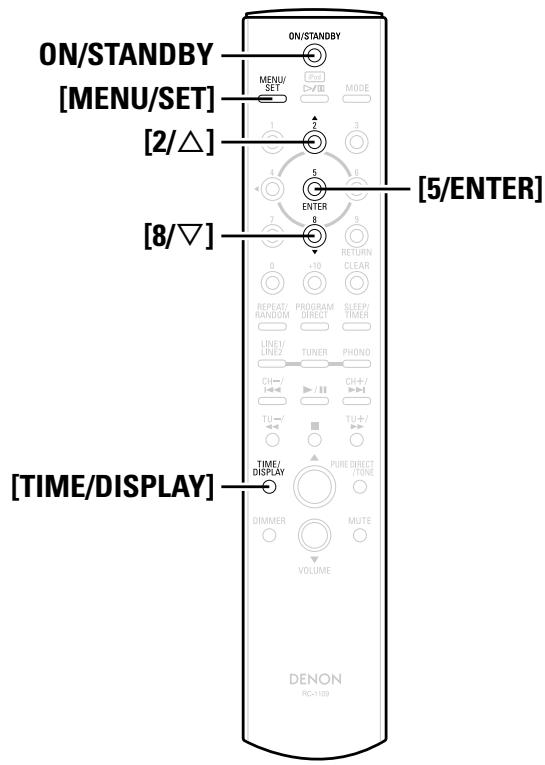
Symbols used to indicate buttons in this manual
Button located on both the main unit and the remote control unit BUTTON
Button only on the main unit
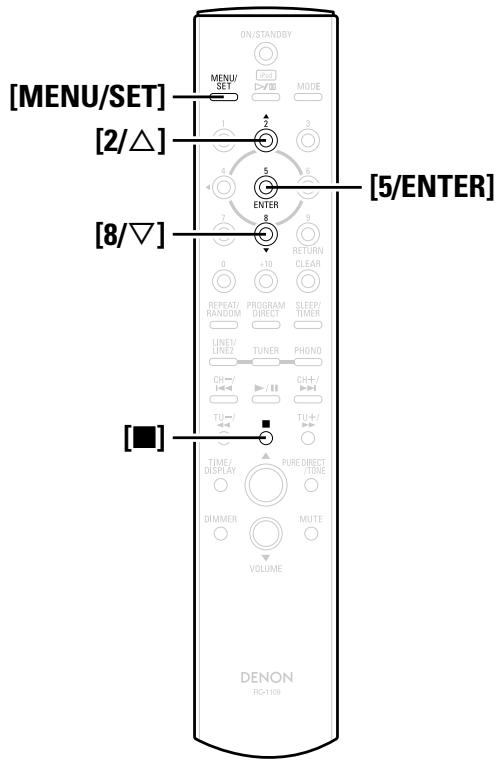
Setting the Current Time (24-Hour Display)
【Example】Setting the current time to 10:15 am
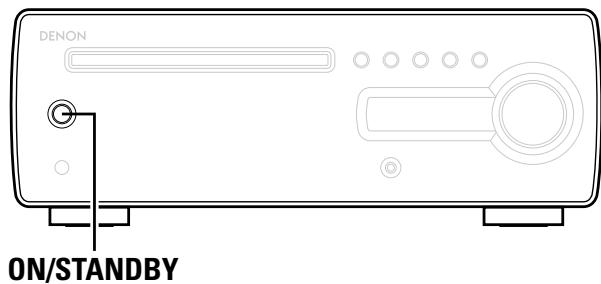
1 Press ON/STANDBY to turn the power on.
Press and hold in [TIME/DISPLAY]. The time is displayed.
Press and hold in [MENU/SET] to enter time setting mode. "TIME Adj" is displayed for about 2 seconds. TIME Adj
Use [2/△] or [8/∇] to set the “hours”.
Press [MENU/SET] or [5/ENTER]. The "minutes" display flashes.
6 Use [2/△] or [8/∇] to set the "minutes".
7 Press [MENU/SET] or [5/ENTER]. The current time is set, and the normal display reappears.
□ Checking the current time when the power is on Press and hold in [TIME/DISPLAY]. Press once more and the display returns to its original condition.
□ Checking the current time when the power is set to standby
Press [TIME/DISPLAY].
Press once more, and the standby display is resumed.
Displaying the time when the power is set to standby consumes electricity. To reduce electric consumption, turn the time display off.
NOTE
The time cannot be set when in the standby mode. Turn on the power first.
Playback
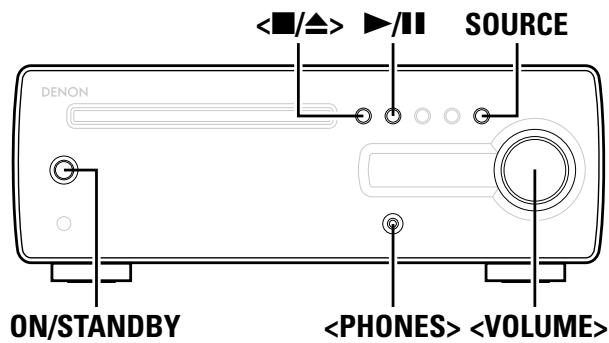
Symbols used to indicate buttons in this manual
Button located on both the main unit and the remote control unit BUTTON
Button only on the main unit [BUTTON]
Button only on the remote control unit [BUTTON]
Preparations
Turning the Power On
Press ON/STANDBY.
The power turns on. Press again to set the power to standby.
When the power is turned on, the function that was being when the power was last turned off is selected (10 page 27 function memory).
[When the last function was CD]
When no disc is loaded, "NO DISC" is displayed.
Power indicator
Standby. Off Power on Red When the timer is set.. Orange
NOTE
Power continues to be supplied to some of the circuitry even when the power is in the standby mode. When leaving home for long periods of time or when traveling, either press ON/STANDBY to turn off the power, or unplug the power cord from the power outlet.
Be sure to stop playback before turning the power off.
Completely turning off the power
Unplug the power cord from the wall outlet.
※ Note that the time setting is cleared when the power cord is unplugged from the outlet.
※ The settings made for the various functions may be cleared if the power cord is left unplugged from a power outlet for an extended period of time.
Setting the layer to be played with priority
The layer that is played with priority when the disc is loaded can be set.
Upon purchase, the priority layer is set to the "SA-CD".
1 When “NO DISC” is displayed, press and hold [MENU/SET]. The current priority layer is displayed.
Press [MENU/SET] again and select the layer to be played with priority. SA-CD CD
[Selectable items]
SA-CD : The SA-CD layer mode for Super Audio CDs.
CD :The CD layer mode for Super Audio CDs.
This setting is stored in the RCD-CX1's memory and is not canceled even when the disc tray is opened or closed or the power is turned on or off. To change the setting, perform the above procedure again.
Loading Discs
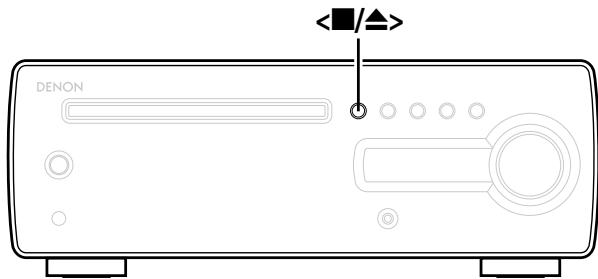
In the stop mode, press </> to open the disc tray.
※ "Loading Discs" ( page 3).
To close the disc tray
Press < / > again.
※ The disc tray also closes when / is pressed.
NOTE
The power must be on when opening and closing the disc tray.
Do not push the disc tray in by hand when the power is off. Doing so can damage it.
Do not insert foreign objects into the disc tray. Doing so will damage it.
Operations During Playback
Adjusting the Master Volume
Either turn <VOLUME> or press [VOLUME ].
The volume level is displayed.
[Variable range] -90.0dB \~ 0.0dB
※ When lowering the volume from -90.0 dB, the display shows - - - dB
Input Source Switching
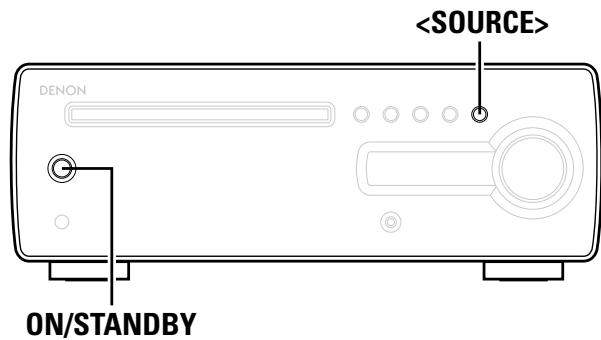
Press SOURCE to select input source.
※ The "iPod" indicator is displayed when a Control Dock for iPod is connected. ("NO iPod" is displayed if no iPod is connected to the Control Dock for iPod.)
Listening with Headphones
Plug the headphones (sold separately) into the .
※ The sound from the speakers is automatically cut off.
NOTE
Be careful not to set the volume too high when using headphones.
Adjusting the Tone
1 Press [PURE DIRECT/TONE] and select the mode you want to adjust.
2 Adjust the volume with [4/ , 6/] .
※ Thereafter, to adjust another mode, press [PURE DIRECT/TONE].
※ If no operation is performed for 3 seconds, the adjustment is retained and the normal display reappears.
[Selectable modes]
Pure D (PURE DIRECT)
: This is the mode that recreates the original sound most faithfully, providing extremely high quality sound.
[Selectable items] on off
BASS
: Adjusts the bass sound.
[Variable range] -8dB ~ +8dB
TREBLE
: Adjusts the treble sound.
[Variable range] -8dB \~ +8dB
BALANCE
: Adjusts the left/right volume balance.
[Variable range] +L10 ~ CENTER ~ +R10
Press [4/<1] when you want to adjust the left channel, and [6/>] when you want to adjust the right channel.
Settings made upon purchase:
Pure D (PURE DIRECT)……off
BASS 0dB
TREBLE 0dB
BALANCE CENTER
When "Pure D" is set to "on", digital output is switched off. What is shown on the display also goes off. (When not playing or when no disc is loaded, only part of the display is shown.)
NOTE
When "Pure D" is set to "on", you cannot set "BASS", "TREBLE" or "BALANCE".
When "Pure D" is set to "on", you cannot use [DIMMER].
Turning the Sound Off Temporarily (Muting)
Press [MUTE].
The "Mute on" is displayed.
To cancel, press [MUTE] again.
(The mute mode is also canceled when the is turned or a [VOLUME ▲▼] is pressed.)
Switching the Brightness of the Display
Press [DIMMER].
※ The display's brightness switches each time the button is pressed.
Symbols used to indicate buttons in this manual
Button located on both the main unit and the remote control unit BUTTON
Button only on the main unit [BUTTON]
Button only on the remote control unit [BUTTON]
CDPlayback
Playing CDs
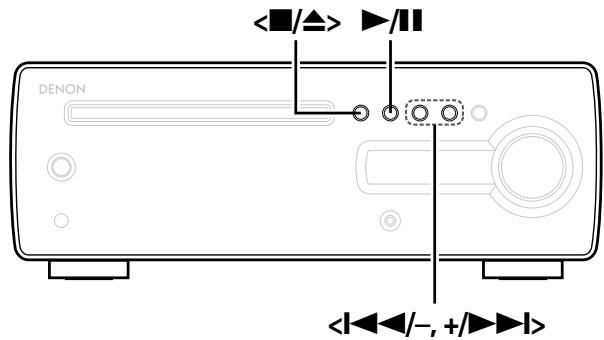
Press II.
The "▶" indicator lights and playback begins.
If the function is set to something other than "CD", press to switch the function to "CD" and start playback (page 27 "Auto Function Selector Function").
The function can also be switched to "CD" using .
NOTE
It is not possible to switch to a layer not recorded on the disc.
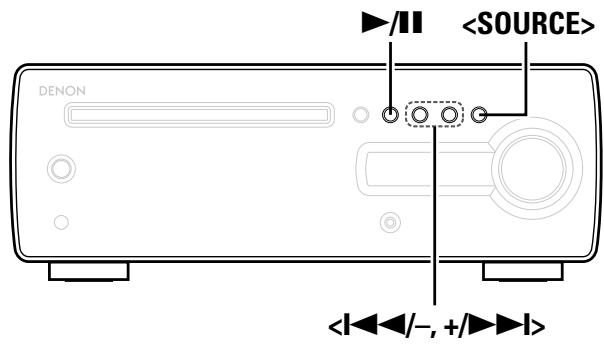
Fast-forwarding and fast-reversing (searching) During playback, press and hold in [TU-/, TU+/]. The "▶" indicator flashes.
※ Normal playback resumes when the button is released.
The sound may be interrupted for a brief moment when resuming normal playback after searching.
□ Moving to the beginning of tracks (skipping) During playback, press < / -, +/ > or [CH-/-, CH+
※ The disc is skipped the number of tracks equal to the number of times the button is pressed.
※ When pressed once in the return direction, playback returns to the beginning of the currently playing track.
To play the desired track (remote control unit only)
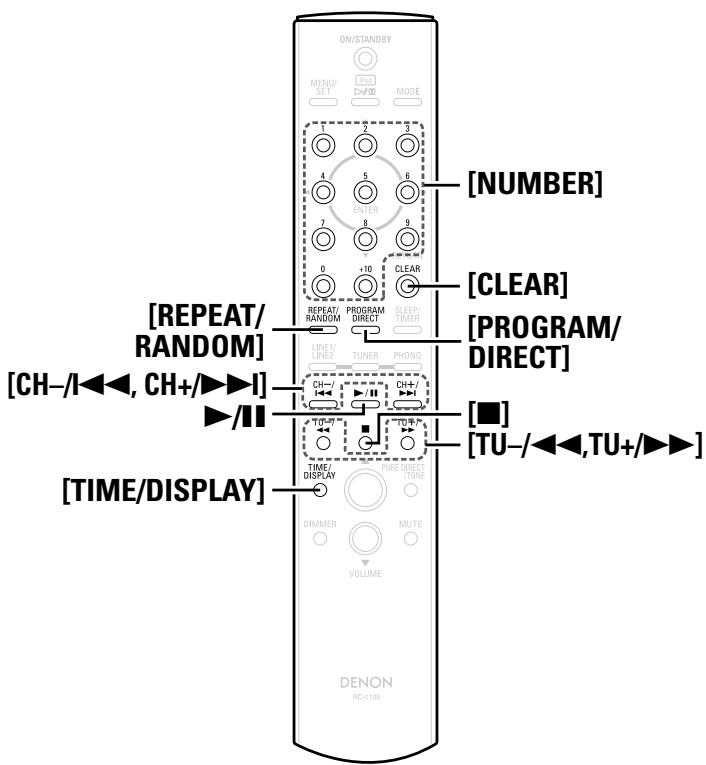
Press [NUMBER] (0 9, + 10) to select the track.
[Example]: Track 4 : [4]
[Example]: Track 12: [+10] [2]
[Example]: Track 20: [+10] [+10] [0]
Switching the Display
Press [TIME/DISPLAY].
[During Play or Pause]
[During Stop]
Displayed only when Super Audio CD is in use.
※ The display switches each time the button is pressed.
When a Super Audio CD with no recorded text information is loaded, "NOT TEXT" is displayed when you select "Title name," "Album title" or "Artist name."
Repeat Play or Random Play
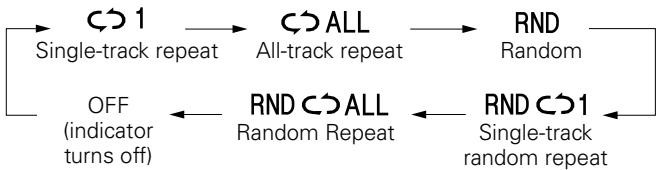
Press [REPEAT/RANDOM].
[During Stop]
When setting is completed, press to play.
[During Play]
※ The display switches each time the button is pressed.
[Selectable items]
1 (Single-track repeat)
:Only 1 track is played repeatedly.
ALL (All-track repeat)
: All tracks are played repeatedly.
Tracks are selected and played automatically in random order.
:Automatically selected single-track is played repeatedly.
: All the tracks are played once in random order, then played again repeatedly, each time in a different random order.
RND 一 ALL (Random Repeat)
: Normal playback resumes.
OFF (indicator turns off)
NOTE
Random play cannot be set or canceled during playback.
Direct searching is not possible during random playback.
To cancel random play and repeat play
During stop, press [REPEAT/RANDOM] until displays of "C>1", "C>ALL", "RND", "RND C>1", "RND C>ALL" are unlit.
※ You can cancel even if you press </> to open the disc tray.
Playing Tracks in the Desired Order
Up to 20 tracks can be programmed.
1 In the stop mode, press [PROGRAM/DIRECT]. The "PROG" indicator lights.
2 Use [NUMBER] (0 9, + 10) to select the traks.
Example: To program tracks 3, 12, 7 to play in that order: Press [PROGRAM/DIRECT], [3], [+10], [2], [7].
3 Press▶III. Playback start
- Checking the order of the programmed tracks In the stop mode, press + / or [CH + / ]. The track numbers are displayed in the programmed order time the button is pressed.
To delete programmed tracks one track at a time In the stop mode, press [CLEAR]. The last track programmed is cleared each time the button is pressed.
Clearing the all programmed track In the stop mode, press [PROGRAM/DIRECT]. The "PROG" indicator turns off.
※ You can cancel even if you press </> to open the disc tray.
"--- :- - " is displayed if the total programmed time exceeds 99 minutes, 59 seconds.
NOTE
Direct searching is not possible during programmed playback.
Programmed playback is not possible with MP3 and WMA files.
Symbols used to indicate buttons in this manual
Button located on both the main unit and the remote control unit BUTTON
Button only on the main unit
Playback of MP3 and WMA Files
There are many music distribution sites on the Internet allowing you to download music files in MP3 or WMA (Windows Media® Audio) format. The music (files) downloaded from such sites can be stored on CD-R or CD-RW discs and played on the RCD-CX1.
"Windows Media" and "Windows" are registered trademarks or trademarks in the United States and other countries of Microsoft Corporation of the United States.
About the MP3 and WMA Formats That Can be Played
CD-R and CD-RW discs created in the format described below can be played.
Writing software format
ISO9660 level 1
※ When written in other formats, it may not be possible to play the disc properly.
Maximum number of playable files and folders
Total number of folders + files : 1000
Maximum number of folders : 255
File format
MPEG-1 Audio Layer-3
WMA (Windows Media Audio)
Tag data
ID3-Tag (Ver.1x)
META-Tag (Compatible with title, artist and album names)
Playable MP3/WMA file
File format
Sampling frequency
Bit rate
Extension
MP3
32, 44.1, 48 kHz
32 ~ 320 kbps
.MP3
WMA
32, 44.1, 48 kHz
64 ~ 160 kbps
.WMA
With the RCD-CX1, the folder and file names can be displayed like titles. Up to 8 characters consisting of numbers, letters and the underscore can be displayed. Characters that cannot be displayed are replaced with asterisks.
Copyright-protected files cannot be played. Note that depending on the software used for burning and other conditions, some files may not play or display correctly.
JPEG and DivX® files are handled as files but cannot be played.
Be sure to give files the extension ".MP3" or ".WMA". Files with any other extensions or with no extensions cannot be played.
Recordings you have made should only be used for your personal enjoyment, and as per copyright laws may not be used in other ways without permission of the copyright holder.
Playing MP3 and WMA Files
1 Load a CD-R or CD-RW disc containing music files in the MP3 or WMA format into the disc tray (C@ page 3).
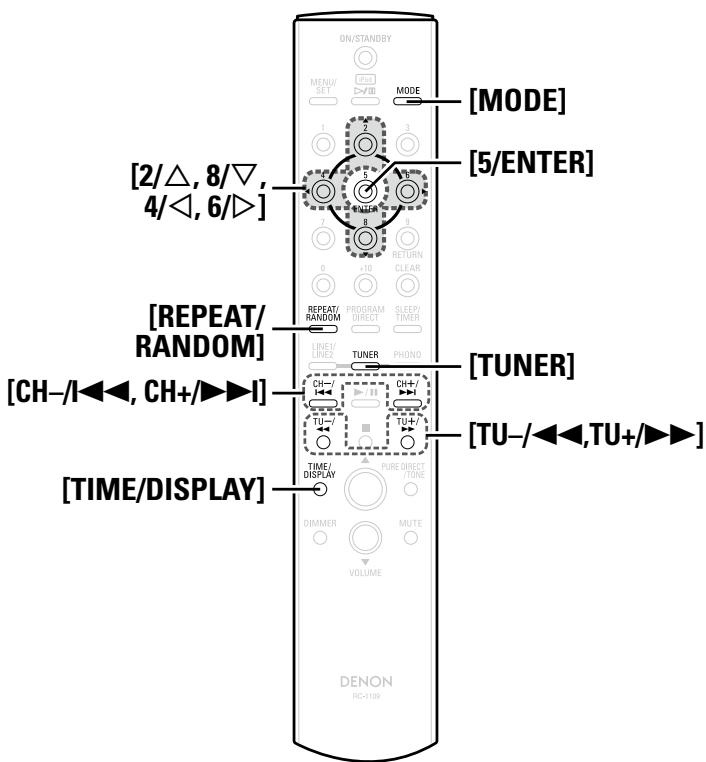
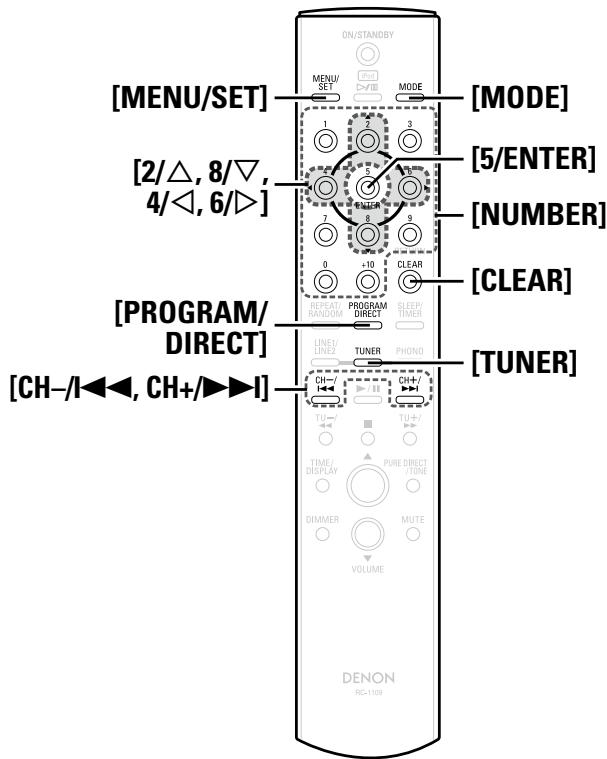
Press [MODE] and select "Folder Mode" or "Disc Mode".
Folder mode :
The "WMA" or "MP3" indicator flashes.
The files in the selected folder are played.
Disc mode :
The "WMA" or "MP3" indicator lights.
All the files on the disc are played.
3 Use [2 / , 8 / ] to select the folder to be played.
Use < / -, +/ I> , [4/, 6/] or [CH - / I CH + / I] to select the file to be played.
5 Press or [5/ENTER]. Playback starts.
To switch the folder or file during playback
Folder
Use [2 / ,8 / ] to select the folder.
※ When a folder is selected, playback switches to the first track of the selected folder.
File
Use < / -, +/ > or [CH - / , CH + / ] to select the file, or use [4/1, 6/1] to select the file number.
※ The file numbers are set automatically when the disc is loaded.
Switching the display
Press [TIME/DISPLAY] during play or pause.
※ In the stop mode, only the total number of tracks is displayed.
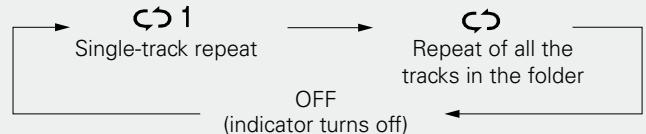
Repeat Play or Random Play
Using the folder mode
Press [REPEAT/RANDOM].
※ The display switches each time the button is pressed.
[Selectable items]
1 Single-track repeat)
(Repeat of all the tracks in the folder)
OFF (indicator turns off)
NOTE
Random playback is not possible in the folder mode.
Programmed playback is not possible with MP3/WMA discs.
Using the disc mode
Same as setting method for CD.
See "Repeat Play or Random Play" (page 17).
NOTE
Programmed playback is not possible with MP3/WMA discs.
TUNERPlayback
Tuning in Broadcast Stations
Connect the antenna beforehand (1 page 12).
1
Press [TUNER] to select the reception band.
[About the display]
When "FM AUTO" is selected... "AUTO" is displayed.
When "FM MONO" is selected ... "MONO" is displayed.
When "AM" is selected The reception mode is not displayed.
2 Use [TU -/▲, TU +/▶] to select the reception band.
When a station is received, the "TUNED" indication will light.
If the function is set to something other than "TUNER", press [TUNER] to switch the function to "TUNER" (12) page 27 "Auto Function Selector Function").
The function can also be switched to "TUNER" using .
To tune automatically
Press and hold in / - , + / or [TU-/ , TU + ] to automatically search and tune in broadcast stations.
Stations whose signal is weak cannot be tuned in.
To stop auto tuning
Press 1 1 / - , + / or [TU-/ 1 TU + 1
To tune manually
The reception frequency switches each time [TU - / , TU + / ] is pressed.
A humming sound may be heard when using a TV nearby while receiving AM programs. If this happens, move the system as far from the TV as possible.
Symbols used to indicate buttons in this manual
Button located on both the main unit and the remote control unit BUTTON
Button only on the main unit
About the FM Broadcast Reception Status Display
When the reception band mode is set to "FM AUTO", the "ST" indicator lights when a stereo broadcast is tuned in.
If the signal is weak and stable stereo reception is not possible, select "FM MONO" to receive in monaural.
Automatically Presetting FM Stations (Auto Preset)
Up to 40 stations can be preset.
Auto preset is not possible with AM broadcast stations.
Press [TUNER] to select "FM AUTO" or "FM MONO".
Press and hold in [MENU/SET]. "A.PRESET" flashes.
Press [MENU/SET] again. Broadcast stations are preset automatically.
Broadcast stations whose antenna signal are weak cannot be preset automatically. If you wish to preset such stations, tune them in manually.
Once auto presetting starts, it cannot be stopped before it is completed. (It takes about 60 seconds for auto presetting to be completed.)
Presetting FM/AM Stations Manually
Up to 40 stations (total for FM and AM) can be preset.
1 Tune in the station.
Press [PROGRAM/DIRECT]. The minimum number display “P- -” for the unregistered preset flashes.
3 Select the number to be preset using [NUMBER] (0 ~ 9, +10) or [CH -/I<\triangleleft, CH +/\triangleright \triangleright I] and press [PROGRAM/DIRECT].
The reception frequency and reception mode are preset.
Listening to Preset Stations
Use [NUMBER] (0 9, + 10) or [CH-|<, CH+/>I] to select the preset number.
Naming the Currently Tuned in Broadcast Station
Names of up to 8 characters can be input.
1 Press [MENU/SET] three times.
Press [2/△] or [8/∇]. The name input mode is set.
3 Use [2 / , 8 / ] to select the character, then press [6 / ] to set.
※ Characters that can be input.
$$
A \text {t o} 2, 0 \text {t o} 9, ^ {\wedge^ {\prime}} () ^ {*} +, -. / = (\text {s p a c e})
$$
※ Press [4/◁, 6/D] to move the cursor.
※ Press [CLEAR] to delete characters.
4 When the name has been entered, press [5/ENTER] to confirm the entry.
If a preset number has not been registered for the broadcast station you have entered, you are prompted to enter it now. Set the number to be preset using [CH - / I ,CH + / I]
Changing the Broadcast Station Name
① Call out the preset name to be changed, then press [MENU/SET] three times.
② Use [4/<, 6/>] to select the character to be changed, then press [CLEAR].
③ Perform step 3 and 4 at "Naming the Currently Tuned in Broadcast Station".
RDS (Radio Data System)
RDS (works only on the FM band) is a broadcasting service which allows a station to send additional information along with the regular radio program signal.
The following four types of RDS information can be received with this unit:
Program Type (PTY)
PTY identifies the type of RDS program.
The program types and their displays are as follows:
NEWS
News
WEATHER
Weather
AFFAIRS
Current Affairs
FINANCE
Finance
INFO
Information
CHILDREN
Children's programmes
SPORT
Sports
EDUCATE
Education
SOCIAL
Social Affairs
DRAMA
Drama
RELIGION
Religion
CULTURE
Culture
PHONE IN
Phone In
SCIENCE
Science
TRAVEL
Travel
VARIED
Varied
LEISURE
Leisure
POP M
Pop Music
JAZZ
Jazz Music
ROCK M
Rock Music
COUNTRY
Country Music
EASY M
Easy Listening
NATION M
National Music
Music
OLDIES
Oldies Music
LIGHT M
Light Classical
FOLK M
Folk Music
CLASSICS
Serious Classical
DOCUMENT
Documentary
OTHER M
Other Music
Traffic Program (TP)
TP identifies programs that carry traffic announcements.
This allows you to easily find out the latest traffic conditions in your area before leaving home.
Radio Text (RT)
RT enables RDS stations to send text messages that appear on the display. Text messages can contain the names of the song or artist, useful local information, etc.
NOTE
The operations described below when pressing [MODE] will not function in areas in which there are no RDS broadcasts or where the signal from the RDS station is too weak.
Clock Time (CT)
Use this to correct the time of the clock on the RCD-CX1.
① During CT reception, press [MENU/SET] for over 1 second.
② Press [MENU/SET] to set.
The "mm:ss" is displayed.
※ The time on the set's internal clock is updated to the currently displayed "CT" time.
Do not operate any buttons while the time is being updated. If buttons are operated, CT reception is not possible and the time is not updated.
RDS Search
Use this function to automatically tune to FM stations that provide the RDS service.
Press [TUNER] to select "FM AUTO".
Press [MODE] to select "RDS".
3 Press [4/<, 6/>]. Automatically begin the RDS search operation.
※ If no RDS station is found, "NO PROG" is displayed.
PTY Search
Use this function to find RDS stations broadcasting a designated program type (PTY).
For a description of each program type, refer to "Program Type (PTY)".
Press [TUNER] to select "FMAUTO".
2 Press [MODE] to select "PTY".
3 Use [2 / , 8 / ] to call out the desired program type.
Press [4/>, 6/>].
4 Automatically begin the PTY search operation.
※ If no program of the specified type is found, "NO PROG" is displayed.
TP Search
Use this function to find RDS stations broadcasting traffic programs (TP stations).
Press [TUNER] to select "FMAUTO".
2 Press [MODE] to select "TP".
3 Press [4/ʌ, 6/]. Automatically begin the TP search operation.
※“NO PROG” is displayed when there is no traffic information broadcast station.
Symbols used to indicate buttons in this manual
Button located on both the main unit and the remote control unit BUTTON
Button only on the main unit [BUTTON]
Button only on the remote control unit [BUTTON]
RT (Radio Text)
Press [TIME/DISPLAY] until "Radio Text" scrolls on the display.
※ The display switches as shown below each time the button is pressed.
※ When the station currently tuned in is offering the radio text message service, messages scrolls across the display.
When the RT mode is turned on while an RDS radio station not offering the RT service is tuned in, "NO TEXT" is displayed on the display, and instead the name of the station is displayed.
In the same way, the name of the station is displayed when the RT service is finished. In this case, the station name display automatically switches back to the PS mode when RT broadcasting resumes.
The RT mode cannot be used on the AM band or for FM stations not offering RDS broadcasts.
iPod®Playback
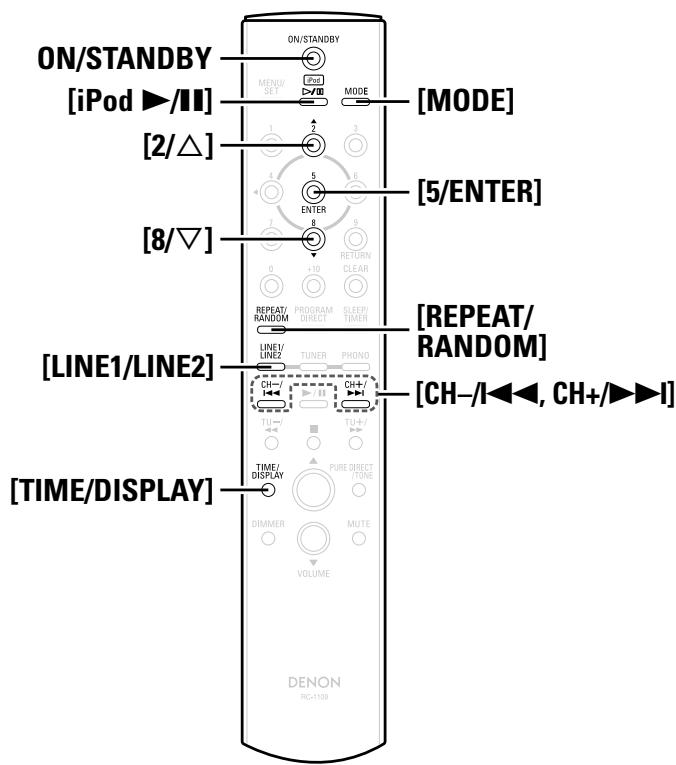
With the RCD-CX1, you can listen to music on an iPod. It is also possible to operate the iPod from the main unit or remote control unit.
iPod is a trademark of Apple Inc., registered in the U.S. and other countries.
※ The iPod may only be used to copy or play contents that are not copyrighted or contents for which copying or playback is legally permitted for your private use as an individual. Be sure to comply with applicable copyright legislation.
Preparations
1 Set the iPod on the DENON Control Dock for iPod. (See the control dock for iPod's operating instructions.)
2 Press or [LINE1/LINE2] to select "iPod".
Press [MODE] to select the display mode.
The mode switches each time the button is pressed.
[Selectable mode]
Browse mode
Remote mode
Display location
Main unit display
iPod display
Playable files
Audio file
○
○
Video file
×
○*
Active buttons
Remote control unit (RCD-CX1)
○
○
iPod
×
○
*:Video may not be output, depending on the combination of ASD-1R and iPod.
Listening to Audio
1 Use [2 / , 8 / ] to select the item, then press [5/ENTER] to select the music file to be played.
2 Press [iPod /II].Playback starts.
If the function is set to something other than "iPod", press [iPod▶/II] to switch the function to "iPod" and start playback. (12 page 27 "Auto Function Selector Function")
The function can also be switched to "iPod" using or [LINE1/LINE2].
Stopping playback temporarily
During playback, press [iPod▶/II].
Press again to resume playback.
Fast-forwarding or fast-reversing
During playback, either press and hold [CH-/I-] or [CH+/▶▶I]
To cue to the beginning of a track
During playback, press [CH-/I<] or [CH+/▶I].
To perform Repeat/Random playback
(Browse mode only)
Press [REPEAT/RANDOM]
To switch between the Browse and Remote modes Press [MODE].
Browse mode
Operating mode that shows iPod information on the RCD-CX1 display.
In this mode, it is not possible to operate the iPod directly or to perform the operations associated with the slide show function. Set the Remote mode to play slide shows.
Remote mode
This mode is for operating the iPod directly while watching the information displayed on the iPod's screen.
Also see the control dock for iPod operating manual regarding connection and operation.
NOTE
DENON will accept no responsibility whatsoever for any loss of iPod data.
Depending on the type of iPod and the software version, some functions may not operate.
To Switch the Display
During playback, press [TIME/DISPLAY].
The display switches each time the button is pressed.
Disconnecting the iPod
1 Press ON/STANDBY to set the standby mode.
2 Remove the iPod from the control dock for iPod.
Recording
Recording on an External Device
First connect the device from which you want to record to the RCD-CX1 (12 page 11).
1 Press to choose the input source to be recorded.
2 Set the recorder to the recording mode.
※ For instructions on operating, see the operating instructions of the connected component.
3 Start playback on the player.
※ For instructions on operating, see the operating instructions of the connected component.
The LINE2 input signal is not output to the recording output terminal (REC).
Adjusting the volume or tone does not affect the sound being recorded.
Setting the Timer
Symbols used to indicate buttons in this manual
Button located on both the main unit and the remote control unit BUTTON
Button only on the main unit
TimerPlayback
The everyday timer, once timer and sleep timer can be set.
Timer order of priority
The order of priority when the times set for the different timers overlap is as follows:
Sleep timer
Once timer
Everyday timer
If the current time is not set, enter timer setting mode to get time setting mode.
Setting the Timer
Everyday timer playback
Playback starts (the power turns on) and stops (the power turns off) at the set times each day.
Once timer playback
Playback starts (the power turns on) and stops (the power turns off) once only at the set times.
1 Press [MENU/SET].
The "TIMER" is displayed.
Use [2 / ,8 / ] to
ONCE EVERYDAY
EVERYDAY
Press [MENU/SET] or [5/ENTER].
Timer playback mode is set, and "FUNC" is displayed.
Use [2 / ,8 / ] to select the function to be played.
※“iPod”is displayed only when control dock for iPod is connected.
Press [MENU/SET] or [5/ENTER]. The function to be played is set.
※ In the case of functions other than tuner, "ON" is displayed and the display advances to step 7.
Only when the "TUNER" function is selected
6 -① Use [2 / , 8 / ] to select the preset number.
※ When no name has been registered for the selected preset number, the program service or frequency appears after the preset number is displayed.
② Press [MENU/SET] or [5/ENTER].
The station of the selected preset number is set, and "ON" is displayed.
7 Use [2/△, 8/∇] to set the “hours” for the timer start time.
Press [MENU/SET] or [5/ENTER].
The "hours" for the timer start time are set.
9 Use [2/△, 8/∇] to set the “minutes” for the timer start time.
10 Press [MENU/SET] or [5/ENTER].
The "minutes" for the timer start time are set and "OFF" is displayed.
11 Use [2 / , 8 / ] to set the “hours” for the timer stop time.
12 Press [MENU/SET] or [5/ENTER].
The "hours" for the timer stop time are set.
13 Use [2/△, 8/∇] to set the “minutes” for the timer stop time.
11 Press [MENU/SET] or [5/ENTER].
The "minutes" for the timer stop time are set.
15 Use [2 / , 8 / ] to turn timer playback on.
Display
Once timer
Everyday timer
1__/E__
OFF
OFF
1on / Eon
ON
ON
1__/Eon
OFF
ON
1on / E__
ON
OFF
16 Press [MENU/SET] or [5/ENTER].
The timer setting is set.
17 Set the power to standby.
Timer playback standby mode is set, and the power indicator lights orange.
To check the timer settings
① Press [MENU/SET].
The "TIMER" is displayed.
② Press [2 / , 8 / ] .
The "EVERYDAY" or "ONCE" is displayed.
③ Press [MENU/SET].
The display switches as follows each time the button is pressed:
To change the timer settings
Repeat the procedure under "Setting the Timer" (page 24).
To change the setting while setting the timer
Press / > or [ ]
Return to step 2 under "Setting the Timer" (15 page 24). Repeat the procedure.
NOTE
During setting, you can change with </> or [] up to step 14.
To clear the timer settings
① Press [MENU/SET].
The "TIMER" is displayed.
② Press [2/△, 8/∇].
The "EVERYDAY" or "ONCE" is displayed.
③ While "EVERYDAY" or "ONCE" is displayed, press </> or [ ] for at least 2 seconds.
If there is a power failure
The current time setting is canceled. Turn the power on and reset the current time (10 page 13).
The timer settings are cleared. Set the timer again.
The tuner's presettings may be cleared. If so, perform the presetting procedure again.
- When performing a timer setting with DENON control dock for iPod (ASD-3N or ASD-3W)
Pause the track you want to play, and keep the power on for DENON control dock for iPod.
Symbols used to indicate buttons in this manual
Button located on both the main unit and the remote control unit BUTTON
Button only on the main unit
Set the Timer ON/OFF
After setting with "Setting the Timer" ( page 24), you can set timer on/off for timer operations you want to perform.
1 Press [MENU/SET] twice or press and hold [SLEEP/TIMER]. The current settings are displayed.
Press [2 / , 8 / ] and select the timer for the timer operation you want.
※ In “Setting the Timer” (25 page 24), in the case of reserving Everyday Timer only, the change is as follows when you press [2/△, 8/∇].
$$
1 _ {- -} / E _ {- -} \quad \longleftrightarrow \quad 1 _ {- -} / E o n
$$
※ In “Setting the Timer” (25 page 24), in the case of reserving Once Timer only, the change is as follows when you press [2/△, 8/∇].
$$
1 _ {- -} / E _ {- -} \quad \longleftrightarrow \quad 1 o n / E _ {- -}
$$
Press [MENU/SET] or [5/ENTER] The timer setting is set.
4 Press ON/STANDBY to set the RCD-CX1 to Standby mode. The power indicator lights orange.
Setting the Sleep Timer
Use this function to automatically switch the power to the standby mode after a specific amount of time (minutes).
The sleep timer can be set to up to 90 minutes, in steps of 10 minutes.
1 Select and play the desired function.
Press [SLEEP/TIMER] and select the setting time.
After about 5 seconds, the set returns to as it was before the sleep timer was set.
Canceling the sleep timer
Either press [SLEEP/TIMER] at step 2 under "Setting the Sleep Timer" until "SLEEPOFF" is displayed, or press ON/STANDBY.
□ Checking the time remaining until the sleep timer starts
Press [SLEEP/TIMER]
Other Functions
Convenient Functions
Auto Power On
When the power is in standby, the power turns on when any of the buttons below other than ON/STANDBY is operated, and the respective operation is performed.
<■/▲> The disc tray opens.
/ for the different functions
Playback of that source starts.
[TUNER]Playback of the tuner starts.
【■】………Change the function to "CD" and switch the power on.
[PHONO]……… Change the function to "PHONO" and switch the power on.
[LINE1/LINE2] ... Change the function to the finally set "LINE" and switch the power on.
NOTE
When the iPod can be played, press [iPod /II] to start iPod playback.
Auto Function Selector Function
When one of the buttons below is pressed, the function switches to the respective function and playback of that source starts.
The function switches to "CD" and the CD starts playing.
The function switches to "CD" and the stop.
- [iPod▶/II]……The function switches to "iPod" and the iPod starts playing.
- [TUNER] The functions switch to "TUNER" and the band last set is tuned in.
Last Function Memory
This stores the settings as they were directly before the standby mode was set.
When the power is turned back on, the settings are restored to as they were directly before the standby mode was set.
Resetting the Microprocessor
Perform this procedure if the display is abnormal or if operations cannot be performed.
When the microprocessor is reset, all the settings are reset to their default values.
1 Unplug the power cord.
2 Plug the power cord into a power outlet while pressing < + / > > and simultaneously.
3 After about 15 seconds "RESET" is displayed to indicate that the microprocessor has been reset.
If "RESET" is not displayed in step 3, start over from step 1.
Troubleshooting
If a problem should arise, first check the following:
Are the connections correct?
Is the set being operated as described in the owner's manual?
Are the other components operating properly?
If this unit does not operate properly, check the items listed in the table below. Should the problem persist, there may be a malfunction.
In this case, disconnect the power immediately and contact your store of purchase.
[General]
Symptom
Cause
Countermeasure
Page
Set does not operate properly.
• External noise or interference is causing the set to malfunction.
• Reset the microprocessor.
27
When the power is turned on, the power indicator does not light and no sound is produced.
• Connection of the power cord is faulty.
• Check that the power plugs are securely inserted into the RCD-CX1's AC inlet and the wall power outlet.
12
The power indicator lights but no sound is produced.
• The speaker cables are not properly connected.
• The function (input) is incorrect.
• The volume is set too low.
• Connect securely.
• Switch to the correct function (input).
• Adjust the volume to an appropriate level.
9
15
15
No sound is produced from one side.
• The speaker cables are not properly connected.
• The input cables are not properly connected.
• The left/right balance is off.
For stereo sources, the positions of the instruments are inverted.
• The connections of the speaker cables or input cables are inverted.
• Check and remedy the connections.
9 ~ 12
[Remote Control Unit]
Symptom
Cause
Countermeasure
Page
Set does not work properly when remote control unit operated.
·Batteries are worn.
·You are operating outside of the specified range.
·Obstacle between main unit and remote control unit.
·The batteries are not inserted in the proper direction, as indicated by the polarity marks in the battery compartment.
·The set's remote control sensor is exposed to strong light (direct sunlight, inverter type fluorescent bulb light, etc.).
·Replace with new batteries.
·Operate within the specified range.
·Remove the obstacle.
·Insert the batteries in the proper direction, following the polarity marks in the battery compartment.
·Move the set to a place in which the remote control sensor will not be exposed to strong light.
4
4
4
4
4
4
4
[CD]
Symptom
Cause
Countermeasure
Page
Disc tray does not open.
The power is not on.
Turn on the power.
14
“NO DISC” is displayed even though a disc is loaded.
The disc is not properly loaded.
Reload the disc.
3
“00:00” is displayed even though a disc is loaded.
A disc other than a CD or Super Audio CD is loaded.
Load a CD or Super Audio CD.
3
Playback does not start even when the▶ button is pressed.
The disc is dirty or scratched.
Wipe the dirt off the disc or replace the disc.
3,4
No digital signals are output.
For Super Audio CDs, no digital signals are output.
Turn the pure direct mode on.
For Super Audio CDs, use the analog audio output signals.
Turn the pure direct mode off.
11
15
A specific section of the disc cannot be played properly.
The disc is dirty or scratched.
Wipe the dirt off the disc or replace the disc.
3,4
Programmed playback is not possible.
The tracks have not been programmed properly.
Program properly.
17
A CD-R or CD-RW disc cannot be played.
The disc has not been finalized.
The recording conditions are bad or the quality of the disc itself is poor.
Finalize the disc then play it.
Use a properly recorded disc.
3
-
Files recorded in MP3 or WMA format cannot be played.
You have selected a copyright-protected WMA file or a file that cannot be played normally.
Press the !< or > button to select a different file.
19
[Tuner]
Symptom
Cause
Countermeasure
Page
Buzzing noise in FM broadcasts.
• The antenna cable is not properly connected.
• Noise interference from a nearby electronic device equipped with a microprocessor, or the radio broadcast signal is weak.
• Connect the antenna properly.
• Reposition the equipment or the positions or directions of the connection cables, antenna, etc.
• Connect an outdoor antenna.
12
-
-
Hissing or buzzing noise is heard in AM broadcasts.
• Noise interference from a nearby monitor, etc., or there is interference in the broadcast signal.
• Turn off the monitor.
• Change the position or direction of the AM loop antenna.
• Connect an outdoor antenna.
-
-
Humming noise is heard in AM broadcasts.
• There is interference from current in power cords.
• Connect an outdoor antenna.
-
-
[Record Player]
Symptom
Cause
Countermeasure
Page
When playing records, a wailing noise (howling) is produced when the volume is raised.
·The player and speakers are too close together.
·The floor is soft and vibrates easily.
·Move the player and speakers as far apart as possible.
·Use cushions or spikes to absorb the vibrations of the speakers being conveyed from the floor.
- -
[iPod]
Symptom
Cause
Countermeasure
Page
iPod cannot be played.
Device you want to play and set input source do not match.
Cable is not properly connected.
Control dock for iPod's AC adapter is not connected to power outlet.
Select an appropriate input source.
Reconnect.
Plug the control dock for iPod's AC adapter into a power outlet.
22
10
-
Specifications
Receiver section
Rated output:
2-channel driving
37.5 W + 37.5 W (8 Ω/ohms, DIN, 1 kHz, T.H.D. 0.7 %)
75 W + 75 W (4 Ω/ohms, DIN, 1 kHz, T.H.D. 0.7 %)
High frequency distortion:
0.05 % (Rated output: -3 dB), 8 Ω/ohms, 1 kHz
Output terminals:
Speaker 4 ~ 16 Ω/ohms
Suited for headphones/stereo headphones
Equalizer amplifier output
Rated output : 150 mV
Input sensitivity / Input impedance:
PHONO (MM) :2.5mV/47kΩ/kohms
PHONO (MC) :0.2 mV / 100 Ω/ohms
CD, LINE1, LINE2 : 130 mV / 47 kΩ/kohms
PHONO (MM) : 20 Hz ~ 20 kHz ±0.5 dB
PHONO (MC) : 30 Hz ~ 20 kHz ±0.5 dB
FM:87.5MHz 108.0MHz AM:522kHz\~1611kHz
FM:1.5 V /75Ω/ohms AM:20 V
35 dB (1 kHz)
(A-weighted network):
Tone control:
Frequency response:
Clock/Timer section
Clock type:
Timer:
Power line frequency synchronized method (Within ± 60 seconds per month)
Everyday timer / Once timer : One system each
Sleep timer : Max. 90 minutes
CD section
[Super Audio CD]
[CD]
Analog output
Signal type:
Sampling frequency:
Usable discs:
Digital output
Optical:
Emission wavelength:
1-bit DSD
2.822 MHz
Super Audio CD
16-bit linear PCM
44.1 kHz
Compact Disc
General
Power supply:
AC 230V 50Hz
Power consumption:
50W
Maximum external dimensions:
0.3W (During power saving mode*)
Weight:
Remote control method:
Infrared pulse method
Batteries:
R03/AAA Type (two batteries)
Maximum external dimensions:
44 (W) x 233 (H) x 22 (D) mm
Weight:
165 g (including batteries)
*: The device automatically enters power saving mode after being in standby mode for 30 minutes.
Other manuals DENON
Discover other manuals and user guides for the brand DENON
💬 Hi! I'm your manual assistant.I know your DENON RCD-CX1.
How can I help you? (use, settings, error codes, maintenance, explaining a step from the manual, etc.)💡 Examples :
• How do I use it ?
• Error code E3 ?
• How do I clean it ?

























![DENON RCD-CX1 - [Selectable items] - 1](/content/2025/01/135700/images/52743c77f9a069c1e4ab7151f0032abaf0bfe69c90a65c4fe79365b2676b9a5c.jpg)


![DENON RCD-CX1 - [Selectable modes] - 1](/content/2025/01/135700/images/58e316b2e6fb8042679a2c5b171c347f1c8ca46d1031b729fd909bef41e6c521.jpg)




![DENON RCD-CX1 - [During Play or Pause] - 1](/content/2025/01/135700/images/052af600fd67a2bdb9efbcfec5690fea6141edbdcaa2e01c03d74823f1a00294.jpg)
![DENON RCD-CX1 - [During Stop] - 1](/content/2025/01/135700/images/1cf8179863c0d3f249469b8d5c2aa0645458bb241207d8d2e0ba3359121a4749.jpg)
![DENON RCD-CX1 - [During Stop] - 2](/content/2025/01/135700/images/79473c1ff33581e376f9730e0519dc06e7a75fef46c3e609fd25aede7a2514fd.jpg)
![DENON RCD-CX1 - Press [REPEAT/RANDOM]. - 1](/content/2025/01/135700/images/0157068bc979ff4673cfef047032ac886c363ddca022bfbfc9d7020cb6a4a629.jpg)
![DENON RCD-CX1 - Press [REPEAT/RANDOM]. - 2](/content/2025/01/135700/images/469468d092255121633059586769ef2684e68c4d2c4335d08ccc9b5b386ae156.jpg)
![DENON RCD-CX1 - Clearing the all programmed track In the stop mode, press [PROGRAM/DIRECT]. The "PROG" indicator turns off. - 1](/content/2025/01/135700/images/96c7b61b9ec839cdfe2f7b9bb8d76a0c6df21600e1e2203526f153201b3a1622.jpg)







![DENON RCD-CX1 - Press [MODE] to select "RDS". - 1](/content/2025/01/135700/images/9b23a2c655d4783c9998bbd1a977de4d7665547b8c44903d09f10a2501b7ca6a.jpg)
![DENON RCD-CX1 - Press [4/ʌ, 6/]. Automatically begin the TP search operation. - 1](/content/2025/01/135700/images/5392d6c76c78deadc6756230ff7766ca74daacd8d79a368850d00621ef28154a.jpg)
![DENON RCD-CX1 - Press [TIME/DISPLAY] until "Radio Text" scrolls on the display. - 1](/content/2025/01/135700/images/4e03b960ba80e2be4d47206ce8bc5075facb79cd7437c5af2498211050f12875.jpg)
![DENON RCD-CX1 - Press [TIME/DISPLAY] until "Radio Text" scrolls on the display. - 2](/content/2025/01/135700/images/7c281cb3cbb20a3838d72712ce1b1c289af01dd99895b28139f1973774ba68a4.jpg)






![DENON RCD-CX1 - Use [2 / ,8 / ] to select the function to be played. - 1](/content/2025/01/135700/images/7dd6a2eaefbcf3cf4fc944df3823b1df61e58691c9b8ad5f3b18ee1a0e5fa4fd.jpg)
![DENON RCD-CX1 - Use [2 / ,8 / ] to select the function to be played. - 2](/content/2025/01/135700/images/907cbd8c846c2d4aec577dde252c12778d2b85cbc69da04de7976c1b85f6a02a.jpg)
![DENON RCD-CX1 - -① Use [2 / , 8 / ] to select the preset number. - 1](/content/2025/01/135700/images/30ec61dd7308906e3ed6ac10da8818709108eac3cd58b63ab85509fcb6b01bfa.jpg)
![DENON RCD-CX1 - Press [MENU/SET] or [5/ENTER]. - 1](/content/2025/01/135700/images/b3e981ef733fed08d3266d36edbc3407bbe1bb3c367e22e88b90e02c7e43d6a0.jpg)
![DENON RCD-CX1 - Press [MENU/SET] or [5/ENTER]. - 1](/content/2025/01/135700/images/b16d3646bc84fcfd79a2eaabec01453a1de777fb13c6823ba4328e3e33a52ac5.jpg)
![DENON RCD-CX1 - ③ Press [MENU/SET]. - 1](/content/2025/01/135700/images/b6c4c40850b2753282e8f6edb551b9a5b502438c1947a50395faae1aae05a40b.jpg)