
AD80HW - Monitor HUAWEI - Free user manual and instructions
Find the device manual for free AD80HW HUAWEI in PDF.


| Product Type | Monitor |
| Model Number | AD80HW |
| Display Size | 23.8 inches |
| Resolution | 1920 x 1080 (Full HD) |
| Refresh Rate | 75 Hz |
| Panel Type | IPS |
| Brightness | 250 cd/m² |
| Contrast Ratio | 1000:1 |
| Viewing Angles | 178° / 178° |
| Color Support | 16.7 million colors |
| Connectivity | 1x HDMI 1.4, 1x VGA, 1x 3.5mm audio out |
| Power Consumption | ≤ 30 W (typical), ≤ 0.5 W (standby) |
| Dimensions (with stand) | 541 x 410 x 180 mm |
| Weight (with stand) | 3.5 kg |
| VESA Mount Compatible | 100 x 100 mm |
| Adjustability | Tilt -5° to 20° |
| Speakers | Built-in speakers (2 x 2W) |
| Energy Efficiency Class | A+ |
| Warranty | 3 years |
| What's in the Box | Monitor, stand, power cable, HDMI cable, quick start guide |
Frequently Asked Questions - AD80HW HUAWEI
User questions about AD80HW HUAWEI
0 question about this device. Answer the ones you know or ask your own.
Ask a new question about this device
Download the instructions for your Monitor in PDF format for free! Find your manual AD80HW - HUAWEI and take your electronic device back in hand. On this page are published all the documents necessary for the use of your device. AD80HW by HUAWEI.
USER MANUAL AD80HW HUAWEI
Connects the display to the tower
Configuring the display
FAQs
Safety information
Legal Notice
About this guide
This document only applies to associated devices. Read this document carefully before using the device.
The components listed in this document may not be included in the device. In this case, you will need to purchase them separately. The functions described in this document can only be used when they are used together with other components. The figures and UIs in this document may be different from the actual ones. All figures are for reference only.
Symbols and definitions
| i | Highlights important information and tips, and provides additional information. |
| Indicates potential problems that may arise, such as damage to the device or data loss. |
Appearance


| 1 Panel | |
| 2 Support | |
| 3 Base | |
| 4 Function buttonsAdjusts the display settings. For details, see the Configuring the display section. | |
| 5 Power button/Power indicatorTurns the display on and off.The indicator is steady white when the device is powered on.The indicator turns off when the device is powered off.The indicator flashes white in sleep mode. | |
| 6 Power portConnects the power adapter for turning on the display. | |
| 7 HDMI portConnects to an HDMI input device, such as a tower. | |
| 8 VGA portConnects to a VGA input device, such as a tower. | |
Installing the display
To avoid damaging the screen, do not press on the screen when taking the display panel out of the packaging.

1 Place the display panel on a clean and flat surface, with the front side facing down. (You can view device information including the S/N code on the nameplate on the rear side of the display panel.)
2 Use screws to connect the base to the support.
3 Tilt and insert the upper end of the base support into the slot at the rear of the display, and then press the base support downwards until you hear a clicking sound, which indicates that the base support has been installed correctly.
To remove the base, find the button above the port at the rear of the display, push the button upwards, lift the bottom of the base support, and remove the base.
Connects the display to the tower

1 Gently lift the assembled display and place it on a flat surface.
2 Use an HDMI or VGA cable to connect the display to the computer.
3 Connect the power cable to the display and connect the power supply.
4 Power on the tower and display. If images are displayed on the display, it indicates that the installation is successful. If no image is displayed on the display, see the FAQs chapter.
5 Adjust the pitch angle of the display as required.
To ensure the optimal performance of the display, you are advised to turn off the display when it is not used for a long time.
Configuring the display
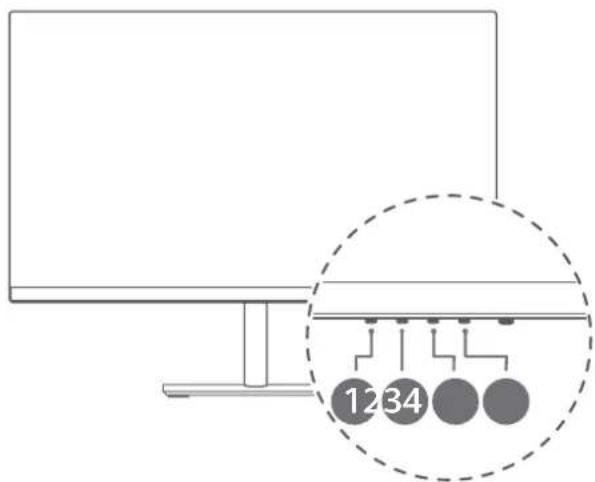
After the display and the tower are assembled and powered on, the system automatically configures and optimises the settings of the display. If you need to configure the display settings, you can also open the settings menu of the display to adjust the settings.
1 Press any button from 1 to 4 to access the display settings menu.
2 On the settings menu screen, press buttons 1 to 4 to set the parameters.
| 1 | ← | Exit/Back |
| 2 Downward/Leftward adjustment | ||
| 3 Upward/Rightward adjustment | ||
| 4 Confirm→ | ||
The default language of the display is English. You can change the language in More settings > Language, as well as configure other settings.
If you do not perform any operation within a period of time, the Settings menu is automatically closed.
Functions in the Settings menu
| Adjusts specifications such as screen brightness and contrast. | |
| Selects a video input signal. | |
| Switches between different colour temperature modes including low blue light mode or cool mode. i When reading for a long time, we recommend that you set the screen colour temperature to low blue light mode to prevent eye fatigue and make it easier on your eyes. Once Blue light mode is enabled, the screen will take on a mild yellow tint. | |
| Adjusts the display settings such as the display mode. | |
| Selects the display scenario. | |
| More settings, such as language, menu transparency, and reset settings. |
FAQs
Unable to power on the display
- Check whether the display is powered on.
- Check whether the power adapter is correctly connected to the display and the power supply.
There are no images on the display
- Check whether all of the cables are correctly connected.
- Check whether the display and the tower are powered on.
- Check whether the VGA or HDMI signal cable is damaged.
- If the preceding issues do not occur, restart the display and the tower, then check whether the images can be properly displayed on the screen.
The screen is too dark or too bright
- Open the settings menu on the display and adjust the screen brightness and contrast.
- If the keyboard comes with the and keys, you can use them to adjust the screen brightness.
The screen colour is abnormal
- Check whether the VGA or HDMI signal cable is damaged. For example, the pins may be bent.
- Open the settings menu on the display and adjust the colour temperature.
Safety information
This section contains important information about how to use your device safely and how it operates. Read this information carefully before using your device.
Areas with flammables and explosives
- Do not use the device in environments where flammables or explosives are stored, such as a petrol station, because the electronics in the device may trigger an explosion or fire. Always adhere to any warning signs or information that may be present in these environments.
- Do not store or transport the device in containers with flammable liquids, gases, or explosives.
Operating environment
- Avoid environments in which there is dust, damp, dirt, or magnetic fields. Using the device in these environments may cause it to malfunction.
- Before connecting and disconnecting cables, stop using the device and disconnect it from the power supply. Ensure that your hands are dry during operation.
- During thunderstorms, switch your device off and remove all cables connected to it to protect against lightning strikes.
- Do not use your device during thunderstorms to protect your device against any danger caused by lightning.
- Ideal operating temperatures are 0°C to 40°C. Ideal storage temperatures are -20°C to +60°C. Extreme heat or cold may damage your device or accessories.
- To protect your device or accessories from fire or electrical shock hazards, avoid rain and moisture.
- Keep the device away from sources of heat and fire, such as a heater, microwave oven, stove, water heater, radiator, or candle.
- Do not allow children or pets to bite or suck the device or accessories. Doing so may result in damage or explosion.
- The device nameplate is on the rear side of the display. It can be viewed after the display is removed from the base.
Child's safety
- Keep the device and its accessories away from children and take all necessary precautions to ensure their safety. The device includes detachable parts that may present a choking hazard.
- The device and its accessories are not intended for use by children. Children should use the device only under direct adult supervision.
Accessories
- Using an unapproved or incompatible power adapter, charger, or battery may cause a fire, explosion, or other hazards.
- Use only approved accessories. The use of unapproved accessories may void the warranty, may violate local regulations and laws, and may be dangerous. For information about the availability of approved accessories in your area, contact your retailer.
Power adapter safety
•The power plug is intended to serve as a disconnect device.
- For pluggable devices, the socket-outlet shall be installed near the devices and shall be easily accessible.
- Unplug the power adapter from electrical outlets and the device when not in use.
- If the power cable is damaged (for example, the cord is exposed or broken), or the plug loosens, stop using it at once. Continued use may lead to electric shocks, short circuits, or fire.
- Do not touch the power cord with wet hands or pull the power cord to disconnect the power adapter.
- Do not touch the device or the power adapter with wet hands. Doing so may lead to short circuits, malfunctions, or electric shocks.
Cleaning and maintenance
- Keep the device and accessories dry. Do not attempt to dry it with an external heat source, such as a microwave oven or hair dryer.
- Do not expose your device or accessories to extreme heat or cold, which may interfere with proper function and may lead to fire or explosion.
- Avoid collision, which may lead to device malfunctions, overheating, fire, or explosion.
- Before you clean or maintain the device, stop using it, close all applications, and disconnect all cables connected to it.
- Do not use chemical detergents, powders, or other agents (such as alcohol or benzene) to clean the device or accessories. These substances may cause damage to parts or present a fire hazard. Use a clean, soft, and dry cloth to clean the device and accessories.
- The power plug is used as the disconnect device. The socket-outlet shall be installed near the device and be easy to operate.
Disposal and recycling information

The symbol on the product, battery, literature, or packaging means that the products and batteries should be taken to separate waste collection points designated by local authorities
at the end of the lifespan. This will ensure that EEE waste is recycled and treated in a manner that conserves valuable materials and protects human health and the environment.
For more information, please contact your local authorities, retailer, or household waste disposal service or visit the website https://consumer.huawei.com/en/.
Reduction of hazardous substances
This device and its electrical accessories comply with local applicable rules on the restriction of the use of certain hazardous substances in electrical and electronic equipment, such as EU REACH regulation, RoHS and Batteries (where included) directive. For declarations of conformity about REACH and RoHS, please visit the website
https://consumer.huawei.com/certification.
Legal Notice
Copyright © Huawei 2021. All rights reserved.
Trademarks and Permissions

HIGH-DEFINITION MULTIMEDIA INTERFACE
The terms HDMI and HDMI High-Definition Multimedia Interface, and the HDMI Logo are trademarks or registered trademarks of HDMI Licensing Administrator, Inc. in the United States and other countries.
Other trademarks, products, services and company names mentioned herein may be the property of their respective owners.
Notice
Some features of the product and its accessories described herein rely on the software installed or the capacities and settings of the local network, and therefore may not be activated or may be limited by local network operators or network service providers.
Therefore, the descriptions herein may not exactly match the purchased product or its accessories.
Huawei reserves the right to change or modify any information or specifications contained in this document at any time without prior notice and without any liability.
DISCLAIMER
ALL CONTENTS OF THIS DOCUMENT ARE PROVIDED "AS IS". EXCEPT AS REQUIRED BY APPLICABLE LAWS, NO WARRANTIES OF ANY KIND, EITHER EXPRESS OR IMPLIED, INCLUDING BUT NOT LIMITED TO, THE IMPLIED WARRANTIES OF MERCHANTABILITY AND FITNESS FOR A PARTICULAR PURPOSE, ARE MADE IN RELATION TO THE ACCURACY, RELIABILITY OR CONTENTS OF THIS DOCUMENT.
TO THE MAXIMUM EXTENT PERMITTED BY APPLICABLE LAW, UNDER NO CIRCUMSTANCES SHALL HUAWEI BE LIABLE FOR ANY SPECIAL, INCIDENTAL, INDIRECT, OR CONSEQUENTIAL DAMAGES, OR LOSS OF PROFITS, BUSINESS, REVENUE, DATA, GOODWILL SAVINGS OR ANTICIPATED SAVINGS REGARDLESS OF WHETHER SUCH LOSSES ARE FORSEEABLE OR NOT.
THE MAXIMUM LIABILITY (THIS LIMITATION SHALL NOT APPLY TO LIABILITY FOR PERSONAL INJURY TO THE EXTENT APPLICABLE LAW PROHIBITS SUCH A LIMITATION) OF HUAWEI ARISING FROM THE USE OF THE PRODUCT DESCRIBED IN THIS DOCUMENT SHALL BE LIMITED TO THE AMOUNT PAID BY CUSTOMERS FOR THE PURCHASE OF THIS PRODUCT.
Import and Export Regulations
All applicable export or import laws and regulations must be complied with and all necessary governmental permits and licenses must be obtained before exporting or importing the product, including the software and technical data, described in this document.
Privacy Policy
To better understand how we protect your personal information, please see our privacy policy at https://consumer.huawei.com/privacy-policy.
For More Help
Visit https://consumer.huawei.com/en/support for the most up-to-date contact information for your country or region.
ALL PICTURES AND ILLUSTRATIONS IN THIS GUIDE, INCLUDING BUT NOT LIMITED TO THE DEVICE COLOUR, SIZE, AND DISPLAY CONTENT, ARE FOR YOUR REFERENCE ONLY. THE ACTUAL DEVICE MAY VARY. NOTHING IN THIS GUIDE CONSTITUTES A WARRANTY OF ANY KIND, EXPRESS OR IMPLIED.
- About this guide
- Appearance
- Installing the display
- Connects the display to the tower
- Configuring the display
- FAQs
- Unable to power on the display
- There are no images on the display
- The screen is too dark or too bright
- The screen colour is abnormal
- Safety information
- Areas with flammables and explosives
- Operating environment
- Child's safety
- Accessories
- Power adapter safety
- Cleaning and maintenance
- Disposal and recycling information
- Legal Notice
- Trademarks and Permissions
- Notice
- DISCLAIMER
- Import and Export Regulations
- Privacy Policy
- For More Help
Brand : HUAWEI
Model : AD80HW
Category : Monitor