
MDR-EX31BN - Earphones SONY - Free user manual and instructions
Find the device manual for free MDR-EX31BN SONY in PDF.
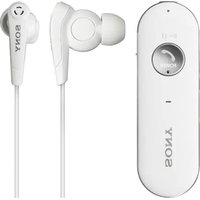


| Product Type | Wireless In-Ear Headphones |
| Brand | Sony |
| Model | MDR-EX31BN |
| Connectivity | Bluetooth 4.0 |
| Active Noise Cancellation | Yes (Digital Noise Canceling) |
| Driver Unit | 6 mm |
| Frequency Response | 20 Hz - 20,000 Hz |
| Battery Life (music playback) | Up to 7 hours |
| Battery Life (standby) | Up to 150 hours |
| Charging Time | Approx. 2.5 hours |
| Weight (each earbud) | Approx. 7.5 g |
| Dimensions (earbud) | 20 x 30 x 25 mm |
| Charging Case Weight | Approx. 45 g |
| Charging Case Dimensions | 60 x 30 x 25 mm |
| Included Accessories | USB cable, silicone ear tips (S/M/L), charging case |
| Compatible Codecs | SBC, AAC |
| Water Resistance | IPX4 (splash-proof) |
| Microphone | Built-in for calls |
| Controls | Physical buttons (play/pause, volume, track, ANC) |
| Cleaning | Wipe with a dry cloth; remove ear tips and wash with warm water |
| Repairability | Replacement ear tips available; battery not user-replaceable |
| Safety | Do not use at high volumes for extended periods |
Frequently Asked Questions - MDR-EX31BN SONY
User questions about MDR-EX31BN SONY
0 question about this device. Answer the ones you know or ask your own.
Ask a new question about this device
Download the instructions for your Earphones in PDF format for free! Find your manual MDR-EX31BN - SONY and take your electronic device back in hand. On this page are published all the documents necessary for the use of your device. MDR-EX31BN by SONY.
USER MANUAL MDR-EX31BN SONY
One-touch connection (NFC)
Music
Phone calls
Multi point connection
Troubleshooting
Important information
→ Contents list
MDR-EX31BN
Use this manual if you encounter any problems, or have any questions.
MDR-EX31BN Top >
Getting Started
BLUETOOTH
One-touch connection (NFC)
Music
Phone calls
Multi point connection
Troubleshooting
Important information
Contents list
© 2013 Sony Corporation
Getting Started
Before First Use
Before first use
Features and location of parts
Features
Location and function of parts
Power
Charging the headset
MDR-EX31BN Top >
Getting Started
BLUETOOTH
One-touch connection (NFC)
Music
Phone calls
Multi point connection
Troubleshooting
Important information
→ Contents list
BLUETOOTH
BLUETOOTH
What is BLUETOOTH wireless technology?
What you can do with BLUETOOTH function
Steps to BLUETOOTH function
BLUETOOTH connection
Pairing and connecting with an Android smartphone
Connecting with a paired Android smartphone
Pairing and connecting with an iPhone
Connecting with a paired iPhone
Pairing and connecting with other BLUETOOTH devices
Connecting with a paired BLUETOOTH device
Indications of BLUETOOTH function
MDR-EX31BN Top >
Getting Started
BLUETOOTH
One-touch connection (NFC)
Music
Phone calls
Multi point connection
Troubleshooting
Important information
Contents list
© 2013 Sony Corporation
One-touch connection (NFC)
One-touch connection (NFC)
Compatible smartphones
Preparation on the smartphone
About "NFC Easy Connect" App
One-touch connection
Connecting with a smartphone by one-touch functions
Disconnecting the smartphone by one-touch functions
Switching the device by one-touch functions
SONY
Help Guide
SEARCH

MDR-EX31BN Top >
Getting Started
BLUETOOTH
One-touch connection (NFC)
Music
Phone calls
Multi point connection
Troubleshooting
Important information
→ Contents list
© 2013 Sony Corporation
Music
Listening to music
Listening to music
Selecting the sound quality mode of music playback
Using the noise canceling
Using the AI noise canceling
Controlling the audio device
SONY
Help Guide
SEARCH

MDR-EX31BN Top >
Getting Started
BLUETOOTH
One-touch connection (NFC)
Music
Phone calls
Multi point connection
Troubleshooting
Important information
→ Contents list
© 2013 Sony Corporation
Phone calls
Phone calls
Making a call
Receiving a call
Controlling the smartphone or mobile phone
MDR-EX31BN Top >
Getting Started
BLUETOOTH
One-touch connection (NFC)
Music
Phone calls
Multi point connection
Troubleshooting
Important information
Contents list
© 2013 Sony Corporation
Multi point connection
Multi point connection
Connecting the headset with a music player and a smartphone (mobile phone)
Connecting the headset with 2 Android smartphones Connecting the headset with an Android smartphone and an iPhone
SONY
Help Guide
SEARCH

MDR-EX31BN Top >
Getting Started
BLUETOOTH
One-touch connection (NFC)
Music
Phone calls
Multi point connection
Troubleshooting
Important information
→ Contents list
© 2013 Sony Corporation
Troubleshooting
To deal with a trouble
What can I do to solve a problem?
Possible causes of symptoms
Table of contents for symptoms and possible causes
Power and charging
BLUETOOTH connection
One-touch connection (NFC)
Music
Phone calls
MDR-EX31BN Top >
Getting Started
BLUETOOTH
One-touch connection (NFC)
Music
Phone calls
Multi point connection
Troubleshooting
Important information
→ Contents list
© 2013 Sony Corporation
Important information
Important information
License and trademark notice
MDR-EX31BN Top >
Getting Started
BLUETOOTH
One-touch connection (NFC)
Music
Phone calls
Multi point connection
Troubleshooting
Important information
→ Contents list
Contents list
Getting Started
Before First Use
Before first use
Features and location of parts
Features
Location and function of parts
Power
Charging the headset
BLUETOOTH
BLUETOOTH
What is BLUETOOTH wireless technology?
What you can do with BLUETOOTH function
Steps to BLUETOOTH function
BLUETOOTH connection
Pairing and connecting with an Android smartphone
Connecting with a paired Android smartphone
Pairing and connecting with an iPhone
Connecting with a paired iPhone
Pairing and connecting with other BLUETOOTH
devices
Connecting with a paired BLUETOOTH device
Indications of BLUETOOTH function
One-touch connection (NFC)
One-touch connection (NFC)
Compatible smartphones
Preparation on the smartphone
About "NFC Easy Connect" App
SEARCH
One-touch connection
Connecting with a smartphone by one-touch functions
Disconnecting the smartphone by one-touch functions
Switching the device by one-touch functions
Music
Listening to music
Listening to music
Selecting the sound quality mode of music playback
Using the noise canceling
Using the AI noise canceling
Controlling the audio device
Phone calls
Phone calls
Making a call
Receiving a call
Controlling the smartphone or mobile phone
Multi point connection
Multi point connection
Connecting the headset with a music player and a smartphone (mobile phone)
Connecting the headset with 2 Android smartphones
Connecting the headset with an Android smartphone and an iPhone
Troubleshooting
To deal with a trouble
What can I do to solve a problem?
Possible causes of symptoms
Table of contents for symptoms and possible causes
causes
Power and charging
BLUETOOTH connection
One-touch connection (NFC)
Music
Phone calls
Important information
Important information
License and trademark notice
SEARCH
© 2013 Sony Corporation
Getting Started
BLUETOOTH
One-touch connection (NFC)
Music
Phone calls
Multi point connection
Troubleshooting
Important information
→ Contents list
Before first use
In addition to this Help Guide, read the printed manuals supplied: "Quick Start Guide" and "Reference Guide."
Quick Start Guide
This covers initial settings and basic operations.
Reference Guide
This includes information about using your wireless stereo headset safely, and specifications of your wireless stereo headset.
For information about the customer support Web site, access: http://www.sony.net/
About battery charging
See "Charging the headset" on how to charge the battery.
→ Features
Getting Started
BLUETOOTH
One-touch connection (NFC)
Music
Phone calls
Multi point connection
Troubleshooting
Important information
→ Contents list
Features
- Digital noise canceling headphones with Sony's unique DNC Software Engine. Creation of a high-precision canceling signal delivers outstanding noise canceling performance.
- Automatic AI (Artificial Intelligence) Noise Canceling function. Automatically selects the optimal noise canceling mode based on intelligent analysis of ambient noise.
- Enjoy music from BLUETOOTH Stereo-enabled music players and mobile phones.
- Embedded microphone enables hands-free conversation from BLUETOOTH-enabled mobile phone.
- Supports AAC and aptX codecs for high-quality music playback. • One-touch connection (NFC)
→ Location and function of parts
Getting Started
BLUETOOTH
One-touch connection (NFC)
Music
Phone calls
Multi-point connection
Troubleshooting
Important information
→ Contents list
Location and function of parts
Functions of buttons, indicators, and other parts on your wireless stereo headset are explained here.


1 Stereo mini jack 2 Indicator Lights up in red or blue to indicate the power or communication status of the headset. 3 POWER (▶(play/pause) button Controls various call and playback functions. 4 Microphone 5 Micro-USB port [Details] Connect a computer to this port with the supplied micro-USB
cable to charge the headset.
6 Built-in antenna
SEARCH
The BLUETOOTH antenna is built into the headset.
7 RESET button [Details]
Press the button with a pointing object, such as a pin, to reset the headset.
8 Strap hole
9 Clip
10 N mark [Details]
11 /buttons
Controls various functions when listening to music.
12 VOL (volume) +/- buttons
The + button has a tactile dot.
13 Noise canceling switch
You can set the noise canceling function [Details] or the AI noise canceling function [Details].
→ Charging the headset
Getting Started
BLUETOOTH
One-touch connection (NFC)
Music
Phone calls
Multi point connection
Troubleshooting
Important information
→ Contents list
Charging the headset
The headset contains a lithium ion rechargeable battery, which should be charged before using the headset for the first time.
System requirements for battery charge using USB
Personal Computer with pre-installed with any of the following operating systems and USB port:
Operating Systems
(when using Windows)
Windows® 8 / Windows® 8 Pro
Windows® 7
Home Basic / Home Premium / Professional / Ultimate
Windows Vista® (Service Pack 2 or later)
Home Basic / Home Premium / Business / Ultimate
Windows® XP (Service Pack 3 or later)
Home Edition / Professional / Media Center Edition 2004 / Media
Center Edition 2005
(when using Macintosh)
Mac OS X (version.10.3 or later)
Charging the headset
- Open the cover of the micro-USB port.
- Connect the supplied micro-USB cable to the headset, and then connect the other end to a computer that is turned on. Make sure that you connect the plug of the micro-USB cable in the direction as shown in the illustration below.

Charging starts when the headset and the computer are connected. Make sure that the indicator (red) lights up. Charging is completed in about 2.5 hours* and the indicator (red) goes off automatically.
* Time required to charge the empty battery to its full capacity
Notes
- Use the micro-USB cable supplied. You may not be able to charge the headset with other cables.
- If the headset is not used for a long time, the indicator (red) may not light up when you connect the micro-USB cable to charge the headset. In this case, do not disconnect the micro-USB cable from the headset and wait until the indicator (red) lights up.
Tips
- If the micro-USB cable is connected to a computer while the headset is turned on, the headset will be turned off automatically.
- The headset cannot be turned on while charging the battery.
Caution
If the headset detects a problem while charging, the indicator (red) may turn off, although charging is not complete.
Check for the following causes:
- Ambient temperature exceeds the range of 5 °C – 35 °C (41 °F – 95 °F).
- There is a problem with the battery. In this case, charge again within the above-mentioned temperature range. If the problem persists, consult your nearest Sony dealer.
Notes
- If the headset is not used for a long time, the battery may be quickly depleted, however, after a few recharges, the battery life will improve.
- Even if you do not intend to use the headset for a long time, charge the battery to its full capacity once every 6 months to maintain its performance.
- If the headset is not used for a long time, it may take longer to charge the battery.
- If the life of the built-in rechargeable battery drops to half the normal length, the battery should be replaced. Consult your nearest Sony dealer for replacement of the rechargeable battery.
- Avoid exposure to temperature extremes, direct sunlight, moisture, sand, dust or mechanical shock. Never leave the headset in a car parked in the sun.
- If the computer enters into hibernation mode while connected to
the headset, charging will not be completed properly. Check the setting of the computer before charging. The indicator (red) will go off automatically even if the computer enters into hibernation mode. Charge the headset again in this case.
- Use the supplied micro-USB cable only, and connect directly to a computer. Charging will not be completed properly by an indirect connection, such as via a USB hub.
Usage hours
| Status | Approx. usage hours | |
| NC On NC | Off | |
| Music playback time (SBC/AAC) (up to) | 9.0 hours | 10.5 hours |
| Music Playback time (aptX) (up to) | 6.0 hours | 7.0 hours |
| Communication time (up to) | 6.5 hours | 7.5 hours |
| Standby time (up to) | 30 hours | 100 hours |
Time stated above may vary, depending on ambient temperature or conditions of use.
Checking the remaining battery
When you turn on the headset by pressing the ⬇ POWER button, the indicator (red) flashes. You can check the remaining battery by the number of times the indicator (red) flashes.
| Indicator (red) | Status |
| 3 times Full | |
| 2 times Mid | |
| 1 time Low (needs to charge) | |
When the battery is almost empty
The indicator turns red. When the battery becomes empty, the headset sounds a beep and turns off automatically.
Getting Started
BLUETOOTH
One-touch connection (NFC)
Music
Phone calls
Multi point connection
Troubleshooting
Important information
→ Contents list
What is BLUETOOTH wireless technology?
Bluetooth® wireless technology is a short-range wireless technology that enables wireless data communication between digital devices, such as a computer or digital camera. BLUETOOTH wireless technology operates within a range of about 10 meters (about 30 feet).
Connecting 2 devices as necessary is common, but some devices can be connected to multiple devices at the same time.
You do not need to use a cable for connection, nor is it necessary for the devices to face one another, such is the case with infrared technology. For example, you can use such a device in a bag or pocket.
BLUETOOTH standard is an international standard supported by thousands of companies all over the world, and employed by various companies worldwide.
Communication System and Compatible BLUETOOTH Profiles of the headset
Profile is standardization of the function for each BLUETOOTH device specification. The headset supports the following BLUETOOTH version and profiles:
Communication System:
BLUETOOTH Specification Ver. 3.0
Compatible BLUETOOTH Profiles:
- A2DP (Advanced Audio Distribution Profile): Transmitting or receiving high-quality audio content.
- AVRCP (Audio Video Remote Control Profile): Controlling A/V equipment; pausing, stopping, starting playback, etc.
- HSP (Headset Profile): Talking on the phone/Operating the phone.
- HFP (Hands-free Profile): Talking on the phone/Operating the phone hands-free.
* When you use a BLUETOOTH mobile phone that supports both HFP (Hands-free Profile) and HSP (Headset Profile), set it to HFP.
Notes
SEARCH
- To use the BLUETOOTH function, the BLUETOOTH device to be connected must have the same profile as the headset. Even if the device has the same profile, functions may vary depending on the specifications.
- To use the BLUETOOTH function, the BLUETOOTH device to be connected requires the same profile as that of the headset. Even if the device has the same profile, functions may vary depending on the specifications.
- Due to the characteristics of BLUETOOTH wireless technology, the sound played on the headset is slightly delayed compared to the sound played on the BLUETOOTH device during phone calls or music playback.
- Do not use the BLUETOOTH function on an airplane. The radio waves may cause malfunction of the airplane and result in hazardous accidents.
→ What you can do with BLUETOOTH function
© 2013 Sony Corporation
Getting Started
BLUETOOTH
One-touch connection (NFC)
Music
Phone calls
Multi point connection
Troubleshooting
Important information
→ Contents list
What you can do with BLUETOOTH function
The headset uses BLUETOOTH wireless technology. You can enjoy music wirelessly from a smartphone, mobile phone, or music player. Also, you can make or receive a call by operating the headset.
Listening to music
You can enjoy music wirelessly from a smartphone, mobile phone, or music player. [Details]

Talking on the phone
You can make and receive calls hands-free while leaving your smartphone or mobile phone in your bag or pocket. [Details]

→ Steps to BLUETOOTH function
Getting Started
One-touch connection (NFC)
Music
Phone calls
Multi point connection
Troubleshooting
Important information
Contents list
Steps to BLUETOOTH function
To listen to music or make a call on a BLUETOOTH smartphone or mobile phone, you must establish a BLUETOOTH connection between the headset and the BLUETOOTH device.
There are two ways to establish a BLUETOOTH connection: One-touch connection (NFC): You can connect the headset with a device by one touch using the NFC function. [Details] Pairing the headset with a BLUETOOTH device by operating the BLUETOOTH device [Details]
In the case of the one-touch connection, you can perform steps 1 and 2 below by a one-touch operation.
- Register (pair) a BLUETOOTH device (smartphone, mobile phone, etc.) and the headset with each other.
- Use the BLUETOOTH device to make a BLUETOOTH connection.
- Listen to music played on the BLUETOOTH device, or make and receive a call by operating the headset.
The headset supports the following BLUETOOTH version and profiles:
Communication System: BLUETOOTH Specification Ver. 3.0
Compatible BLUETOOTH Profiles: A2DP (Advanced Audio Distribution Profile): Transmitting or
receiving audio content of high-quality.
- AVRCP (Audio Video Remote Control Profile): Controlling A/V equipment; pausing, stopping, starting playback, etc.
* HSP (Headset Profile): Talking on the phone/Operating the phone.
* HFP (Hands-free Profile)*: Talking on the phone/Operating the phone by hands-free.
* When you use a BLUETOOTH smartphone or mobile phone supported by both HFP (Hands-free Profile) and HSP (Headset Profile), set it to HFP.
Notes
- To use the BLUETOOTH function, the BLUETOOTH device to be connected requires the same profile as that of the headset. Even if the device has the same profile, functions may vary depending on the specifications.
- Due to the characteristic of BLUETOOTH wireless technology, the sound played on the headset is slightly delayed from the sound played on the BLUETOOTH device during talking on the telephone or listening to the music.
- Do not use the BLUETOOTH function on an airplane. The radio waves may cause malfunction of the airplane and result in hazardous accidents.
→ Pairing and connecting with an Android smartphone
Getting Started
BLUETOOTH
One-touch connection (NFC)
Music
Phone calls
Multi point connection
Troubleshooting
Important information
→ Contents list
Pairing and connecting with an Android smartphone
It is necessary to pair BLUETOOTH devices to establish a BLUETOOTH connection. When pairing the headset with a smartphone, place the smartphone within 1 meter (3 feet) of the headset.
- Enter pairing mode on the headset.
Press and hold the ⬇ POWER button for more than 7 seconds.

Make sure that the indicator flashes blue and red alternately after you release the button.

Note
- If pairing is not established within about 5 minutes, pairing mode will be cancelled and the headset will turn off. In this case, start over from step 1.
- Select the BLUETOOTH setting on the smartphone. Select [Settings] → [Bluetooth].
- Turn on the BLUETOOTH function on the smartphone. Touch the button next to [Bluetooth] to turn on [Bluetooth].

SEARCH
- Search for this headset on the smartphone.
Touch [Bluetooth] → [Search for devices].

- Touch [MDR-EX31BN].
If passkey input is required, input "0000."
A Passkey may be called a "Passcode," a "PIN code," a "PIN number," or a "Password."

The above procedure is an example. For details, refer to the manual supplied with your smartphone.
The headset and the smartphone are paired each other and connected.
If they are not connected, see step 2 of "Connecting with a paired Android smartphone."
Tip
- To delete all pairing information, see "What can I do to solve a problem?"
Note
- Once BLUETOOTH devices are paired, there is no need for pairing again, except in the following cases:
*Pairing information is deleted after repair, etc.
The headset is paired with 9 or more devices. The headset can be paired with up to 8 devices; if a new device is paired after 8 devices have been paired, the device whose latest connection time is the oldest among the 8 paired devices is replaced by the new one.
When recognition of the headset by the device to be connected is deleted.
The headset is initialized. [Details] All pairing information is deleted.
Connecting with a paired Android smartphone
Getting Started
BLUETOOTH
One-touch connection (NFC)
Music
Phone calls
Multi point connection
Troubleshooting
Important information
→ Contents list
Connecting with a paired Android smartphone
- Turn on the headset.
Press and hold the ⬇ POWER button for about 2 seconds.

Make sure that the indicator (blue) flashes after you release the button.

- If the smartphone was connected with the headset the last time, an HFP/HSP connection is made when you turn on both devices. To make an A2DP connection (music playback), press the POWER (▶) button again.
- Check the connecting status on the smartphone. If not connected, proceed to step 2.
- Make the BLUETOOTH connection from the smartphone.
Touch [Settings] → [Bluetooth]. Make sure that [Bluetooth] is set to on, then touch [MDR-EX31BN].

→ Pairing and connecting with an iPhone
Getting Started
BLUETOOTH
One-touch connection (NFC)
Music
Phone calls
Multi point connection
Troubleshooting
Important information
→ Contents list
Pairing and connecting with an iPhone
It is necessary to pair BLUETOOTH devices to establish a BLUETOOTH connection. When pairing the headset with an iPhone, place the iPhone within 1 meter (3 feet) of the headset.
- Enter pairing mode on the headset.
Press and hold the ⬇ POWER button for more than 7 seconds.

Make sure that the indicator flashes blue and red alternately after you release the button.

Note
- If pairing is not established within about 5 minutes, pairing mode will be cancelled and the headset will turn off. In this case, start over from step 1.
- Select the BLUETOOTH setting on the iPhone. Select [Settings] → [Bluetooth].

SEARCH
- Turn on the BLUETOOTH function on the iPhone.
Touch [OFF] to change it to [ON].

- Touch [MDR-EX31BN].
If passkey input is required, input "0000."
A Passkey may be called a "Passcode," a "PIN code," a "PIN number," or a "Password."

The above procedure is an example. For details, refer to the manual supplied with your iPhone.
The headset and the iPhone are paired each other and connected.
If they are not connected, see step 2 of "Connecting with a paired iPhone."
Tip
- To delete all pairing information, see "What can I do to solve a problem?"
Note
- Once BLUETOOTH devices are paired, there is no need for pairing again, except in the following cases:
Pairing information is deleted after repair, etc.
The headset is paired with 9 or more devices. The headset can be paired with up to 8 devices; if a new device is paired after 8 devices have been paired, the device whose latest connection time is the oldest among the 8 paired devices is replaced by the new one.
When recognition of the headset by the device to be connected is deleted.
The headset is initialized. [Details] All pairing information is deleted.
→ Connecting with a paired iPhone
© 2013 Sony Corporation
Getting Started
BLUETOOTH
One-touch connection (NFC)
Music
Phone calls
Multi point connection
Troubleshooting
Important information
Contents list
Connecting with a paired iPhone
1. Turn on the headset.
Press and hold the ⬇ POWER button for about 2 seconds.

Make sure that the indicator (blue) flashes after you release the button.

- If the iPhone was connected with the headset the last time, an HFP/HSP connection is made when you turn on both devices. To make an A2DP connection (music playback), press the POWER (▶) button again.
- Check the connecting status on the iPhone. If not connected, proceed to step 2.
2. Make the BLUETOOTH connection from the iPhone.
Touch [Settings] → [Bluetooth]. Make sure that [ON] is selected, then touch [MDR-EX31BN].

→ Pairing and connecting with other BLUETOOTH devices
© 2013 Sony Corporation
Getting Started
BLUETOOTH
One-touch connection (NFC)
Music
Phone calls
Multi point connection
Troubleshooting
Important information
→ Contents list
Pairing and connecting with other BLUETOOTH devices
It is necessary to pair BLUETOOTH devices to establish a BLUETOOTH connection. When pairing the headset with a BLUETOOTH device, place the BLUETOOTH device within 1 meter (3 feet) of the headset.
- Enter pairing mode on the headset.
Press and hold the ⬇ POWER button for more than 7 seconds.

Make sure that the indicator flashes blue and red alternately after you release the button.

Note
- If pairing is not established within about 5 minutes, pairing mode will be cancelled and the headset will turn off. In this case, start over from step 1.
- Perform the pairing procedure on the BLUETOOTH device to search for this headset.
"MDR-EX31BN" will be displayed on the list of detected devices on the screen of the BLUETOOTH device. If "MDR-EX31BN" is not displayed, repeat from step 1.
- Select "MDR-EX31BN" on the screen on the BLUETOOTH device to pair both devices.
If passkey input is required on the display of a BLUETOOTH
device, input "0000."
A Passkey may be called a "Passcode," a "PIN code," a "PIN
number," or a "Password."
SEARCH
- Make the BLUETOOTH connection from the BLUETOOTH device.
Depending on the BLUETOOTH device, the headset may be connected with the device automatically as soon as they are paired.
Tip
- To delete all pairing information, see "What can I do to solve a problem?"
Notes
- For details, refer to the manual supplied with the BLUETOOTH device.
- When pairing with a BLUETOOTH device that cannot display a list of detected devices or that has no display, you may pair the device by setting both the headset and the BLUETOOTH device to pairing mode. At this time, if passkey is set besides "0000" on the BLUETOOTH device, pairing cannot be done with the headset.
- Once BLUETOOTH devices are paired, there is no need for pairing again, except in the following cases:
*Pairing information is deleted after repair, etc.
The headset is paired with 9 or more devices. The headset can be paired with up to 8 devices; if a new device is paired after 8 devices have been paired, the device whose latest connection time is the oldest among the 8 paired devices is replaced by the new one.
When recognition of the headset by the device to be connected is deleted.
The headset is initialized. [Details] All pairing information is deleted.
Connecting with a paired BLUETOOTH device
Getting Started
BLUETOOTH
One-touch connection (NFC)
Music
Phone calls
Multi point connection
Troubleshooting
Important information
→ Contents list
Connecting with a paired BLUETOOTH device
- Turn on the headset.
Press and hold the ⬇ POWER button for about 2 seconds.

Make sure that the indicator (blue) flashes after you release the button.

- If the BLUETOOTH device was connected with the headset the last time, an HFP/HSP connection is made when you turn on both devices. To make an A2DP connection (music playback), press the POWER (▶) button again.
- Check the connecting status on the BLUETOOTH device. If not connected, proceed to step 2.
- Make the BLUETOOTH connection from the BLUETOOTH device.
For details, refer to the manual supplied with your BLUETOOTH device.
→ Indications of BLUETOOTH function
Getting Started
BLUETOOTH
One-touch connection (NFC)
Music
Phone calls
Multi point connection
Troubleshooting
Important information
Contents list
Indications of BLUETOOTH function
The indicator flashes in red or blue to indicate the BLUETOOTH connection status.
| Status | Flashing pattern○ : blue/ ●red |
| Pairing mode | ○●○●○●○●○●○... |
| Connectable | ○--○--○--○--○--○--○... |
| Connecting | ○○-○○-○○-○○-○○-○○-... |
| Connected (HFP/HSP or A2DP) | ○----○----... |
| Connected (HFP/HSP and A2DP) | ○-○----○-○----... |
| Playing music or During a call (Connected HFP/HSP or A2DP) | ○○----○○----... |
| Playing music or During a call (Connected HFP/HSP and A2DP) | ○○○----○○○----... |
| Incoming call | ○○○○○○○○○○○○... |
When the remaining battery power becomes low, the indicator turns from blue to red, except for pairing mode.
MDR-EX31BN
Top > One-touch connection (NFC) > One-touch connection (NFC) >
Getting Started
BLUETOOTH
One-touch connection (NFC)
Music
Phone calls
Multi point connection
Troubleshooting
Important information
Contents list
Compatible smartphones
NFC (Near Field Communication) is a technology enabling short-range wireless communication between various devices, such as mobile phones and IC tags. Thanks to the NFC function, data communication can be achieved easily just by touching the relevant symbol or designated location on NFC compatible devices. By using the NFC function, the headset is turned on automatically and then paired and connected with a BLUETOOTH device.
Compatible smartphones
- Smartphones with the NFC function built-in (OS: Android 2.3.3 or later, excluding Android 3.x)
Preparation on the smartphone
MDR-EX31BN
Top > One-touch connection (NFC) > One-touch connection (NFC) >
Getting Started
BLUETOOTH
One-touch connection (NFC)
Music
Phone calls
Multi point connection
Troubleshooting
Important information
→ Contents list
Preparation on the smartphone
- Download and install the app "NFC Easy Connect" on your smartphone.
Access the following website:
https://play.google.com/store/apps/details?
id=com.sony.easyconnect
The app may not be available in some countries and/or regions.
By the two-dimensional code:
Use a two-dimensional code reader app.

Tip
- If your smartphone has an NFC function, such as that of Android 4.1 or later, you may not need to install "NFC Easy Connect" to connect the headset with your smartphone by one touch. In that case, you do not need to perform step 1, above. The operation and specifications may be different from the description here. For details, refer to the manual supplied with your smartphone.
- Set the smartphone so that the NFC function can be used. For details, refer to the manual of the smartphone.
→ About "NFC Easy Connect" App
MDR-EX31BN
Top > One-touch connection (NFC) > One-touch connection (NFC) >
Getting Started
BLUETOOTH
One-touch connection (NFC)
Music
Phone calls
Multi point connection
Troubleshooting
Important information
→ Contents list
About "NFC Easy Connect" App
"NFC Easy Connect" is Sony's original app for Android Phone available at Google Play Store.
To find out more about the functions, search for "NFC Easy Connect" and download the free app.
The App may not be available in some countries and/or regions.
Connecting with a smartphone by one-touch functions
Getting Started
BLUETOOTH
One-touch connection (NFC)
Music
Phone calls
Multi point connection
Troubleshooting
Important information
→ Contents list
Connecting with a smartphone by one-touch functions
By touching the headset with a smartphone, the headset is turned on automatically and then proceeds to pairing and BLUETOOTH connection.
- Unlock the screen of the smartphone. If you installed the "NFC Easy Connect" App in the smartphone, start the "NFC Easy Connect" App.
- Touch the headset with the smartphone. Touch the smartphone on the N marked part of the headset. Refer to the manual of the smartphone for the designated location to be touched on the smartphone.

Follow the on-screen instructions to complete the connection.
→ Disconnecting the smartphone by one-touch functions
Getting Started
BLUETOOTH
One-touch connection (NFC)
Music
Phone calls
Multi point connection
Troubleshooting
Important information
→ Contents list
Disconnecting the smartphone by one-touch functions
You can disconnect the headset from the smartphone by touching the headset with it.
- Unlock the screen of the smartphone. If you installed the "NFC Easy Connect" App in the smartphone, start the "NFC Easy Connect" App.
- Touch the headset with the smartphone. Touch the smartphone on the N marked part of the headset.

Note
- Even if you disconnect the headset from the smartphone, the headset is not turned off. To turn off the headset, press and hold the POWER button for about 2 seconds. The indicator (blue) goes off and the headset turns off.
→ Switching the device by one-touch functions
Getting Started
BLUETOOTH
One-touch connection (NFC)
Music
Phone calls
Multi point connection
Troubleshooting
Important information
→ Contents list
Switching the device by one-touch functions
- When the headset is connected with a BLUETOOTH device, if you touch an NFC compatible smartphone on the headset, the headset is connected with the smartphone that touched on the headset most recently.
- If you touch the smartphone that is connected with the headset on another NFC compatible BLUETOOTH headset or BLUETOOTH speaker, the smartphone is disconnected from the headset, and connected with the BLUETOOTH device touched.
Note
- Unlock the screen of the smartphone beforehand. If you installed the "NFC Easy Connect" App on the smartphone, start the "NFC Easy Connect" App.
Getting Started
BLUETOOTH
One-touch connection (NFC)
Music
Phone calls
Multi point connection
Troubleshooting
Important information
→ Contents list
Listening to music
You can enjoy listening to music and basic remote control operation of a BLUETOOTH device via a BLUETOOTH connection. The BLUETOOTH device is required to support the following BLUETOOTH profiles.
- A2DP (Advanced Audio Distribution Profile): enables you to enjoy high-quality audio content wirelessly.
- AVRCP (Audio Video Remote Control Profile): enables you to enjoy basic remote control operation (play, stop, etc.) of a BLUETOOTH device.
The headset supports SCMS-T content protection. You can enjoy music, etc., from a device such as a mobile phone or portable TV that supports SCMS-T content protection.
The operation may vary depending on the BLUETOOTH device. Refer to the manual supplied with your BLUETOOTH device.
- Connect the headset with a BLUETOOTH device.
- Connect the headphones supplied.

- Clip the headset to a pocket, etc., of your clothes and then wear the headphones.
Wear the earphone marked Ⓛ in your left ear, and the one marked Ⓡ in your right ear. The Ⓢ side has a tactile dot.

Tip
- You can attach a strap (sold separately) to the headset through the strap hole.
- Play back music or video on the BLUETOOTH device.
Tip
- Depending on the BLUETOOTH device, it may be necessary to adjust the volume or set the audio output setting on the connected device.
After use
- Terminate the BLUETOOTH connection by operating the BLUETOOTH device.
- Press and hold the ⬤ POWER button for about 2 seconds. The indicator (blue) goes off and the headset turns off.
Tip
- When you finish playing music, the BLUETOOTH connection may terminate automatically, depending on the BLUETOOTH device.
Changing the earbuds
If the earbuds do not fit your ears correctly, the sound effect will not be optimal. To enjoy better sound quality, change the earbuds to another size, or adjust the earbud position to fit your ears comfortably and snugly.
 |  |  |  |
| SS (Red)(sold separately) | S (Orange)(supplied) | M (Green)(supplied) | L (Light blue)(supplied) |
To detach an earbud

SEARCH
To attach an earbud
Related topic
Pairing and connecting with an Android smartphone
Pairing and connecting with an iPhone
Pairing and connecting with other BLUETOOTH devices
→ Selecting the sound quality mode of music playback
© 2013 Sony Corporation
Getting Started
BLUETOOTH
One-touch connection (NFC)
Music
Phone calls
Multi point connection
Troubleshooting
Important information
→ Contents list
Selecting the sound quality mode of music playback
The sound quality is set to the "Standard" mode (SBC high quality mode) as the default setting.
- When using an AAC or aptX compatible device, select the "Priority on sound quality" mode.
- If the connection is unstable, such as when producing only intermittent sound, select the "Priority on stable connection" mode.
Sound quality and the indicator (blue) of each mode
When the sound quality mode is switched, the headset indicates the remaining battery capacity by flashing the indicator in red first, and then in blue to indicate the sound quality mode. You can check the current sound quality mode by the number of flashes of the indicator (blue).
| Mode Sound quality | Number of flashes (blue) | |
| Priority on sound quality | SBC (high quality), AAC or aptX selected automatically | 3 times |
| Standard SBC (high quality) Twice | ||
| Priority on stable connection | SBC Once | |
Note
- When you turn on the headset by pressing the POWER button only, the headset does not indicate the sound quality mode with flashes of the indicator (blue).
Selecting the sound quality mode
Turn on the headset by pressing the POWER button for more than 2 seconds while holding the VOL + or VOL - button down.

SEARCH
To select the "Priority on sound quality" mode
When the headset is in the "Standard" mode, turn it on while holding the VOL + button down. The "Priority on sound quality" mode is selected.
From the "Priority on stable connection" mode, turn on the headset while holding the VOL + button down. Turn off the headset once, then turn it on while holding the VOL + button down again.
To select the "Priority on stable connection" mode
When the headset is in the "Standard" mode, turn it on while holding the VOL – button down. The "Priority on stable connection" mode is selected.
From the "Priority on sound quality" mode, turn on the headset while holding the VOL – button down. Turn off the headset once, then turn it on while holding the VOL – button down again.
Notes
- The playback time may become shorter, depending on the sound quality and the conditions under which you are using the headset.
- Depending on the ambient conditions in the area where you are using the headset, intermittent sound may still occur, even if the "Priority on stable connection" mode is selected.
→ Using the noise canceling
Getting Started
BLUETOOTH
One-touch connection (NFC)
Music
Phone calls
Multi point connection
Troubleshooting
Important information
→ Contents list
Using the noise canceling
Set the noise canceling switch of the headset to NC (default setting).

When the switch is set to NC, NC Mode B is set. [Details]
Notes
- The noise canceling circuit actually senses outside noise with built-in microphones and sends an equal-but-opposite canceling signal to the headset.
- The noise canceling effect may not be pronounced in a very quiet environment, or some noise may be heard.
- The noise canceling effect may vary depending on how you wear the headset.
- The noise canceling function works primarily for noise in the low frequency band. Although noise is reduced, it is not canceled completely.
- When you use the headset in a train or a car, noise may occur depending on street conditions.
- Mobile phones may cause interference and noise. Should this occur, locate the headset further away from the mobile phone.
- Do not cover the microphones of the headphones with your hands. The noise canceling function may not work properly.

① Microphone of headphones
- You can also use other headphones than the ones supplied with this headset. When you use headphones not supplied with the headset, the noise canceling function may not work as efficiently as it is designed. If you use any headphones not supplied with this
headset, set the noise canceling switch to OFF.
SEARCH
→ Using the AI noise canceling
© 2013 Sony Corporation
Getting Started
BLUETOOTH
One-touch connection (NFC)
Music
Phone calls
Multi point connection
Troubleshooting
Important information
→ Contents list
Using the AI noise canceling
AI Noise Canceling is a useful function that automatically selects one of the noise canceling modes. This function provides the most effective noise canceling mode by immediately analyzing ambient sound components when the noise canceling switch is slid to the AI NC side.
Slide the noise canceling switch to the AI NC side.

When the headset is on, keep the noise canceling switch to the AI NC side until beep sounds come from the headphones. The headset starts analyzing ambient sound components (about 3 seconds). During analysis, sound volume from the headphones is lowered and the indicator blinks.
When analysis is completed, the most effective noise canceling mode is set automatically, and sound volume from the headphones returns to normal.
Noise canceling mode types
| NC Mode A | Reduces noise containing a large amount of middle to low frequency sounds. Ambient noise in the environment is effectively reduced. |
| NC Mode B | Reduces noise containing a large amount of super low frequency sounds. For example, background noise heard mainly on a bus or a train is effectively reduced. |
| NC Mode C | Reduces noise of relatively quiet and wide range of frequency sounds. Background noise mainly present in an office environment (PCs, copiers, etc.) is effectively reduced. |
Note
- The noise canceling mode returns to NC Mode B when: - the noise canceling switch is set to OFF, then to NC again. - the headset is turned off, then turned on again.
→ Controlling the audio device
© 2013 Sony Corporation
Getting Started
BLUETOOTH
One-touch connection (NFC)
Music
Phone calls
Multi point connection
Troubleshooting
Important information
→ Contents list
Controlling the audio device
If the BLUETOOTH device supports AVRCP, you can control it by the buttons on the headset. The functions available may vary depending on the BLUETOOTH device. Refer to the manual supplied with your BLUETOOTH device.

To play/pause
Press the ⬇ POWER (▶ button.
To adjust the volume
Press the VOL +/- button.
To skip to the next/previous song
Press the ◀◀/▶ button.
To fast-forward/fast-reverse
Press and hold the ◀ button.
Note
- If the communication condition is poor, the BLUETOOTH device may react incorrectly to the operation on the headset.
Getting Started
BLUETOOTH
One-touch connection (NFC)
Music
Phone calls
Multi point connection
Troubleshooting
Important information
→ Contents list
Making a call
You can enjoy a hands-free call with a BLUETOOTH smartphone or mobile phone that supports the BLUETOOTH profile HFP (Hands-free Profile) or HSP (Headset Profile), via a BLUETOOTH connection. If your BLUETOOTH smartphone or mobile phone supports both HFP and HSP, set it to HFP.
- Connect the headset with a BLUETOOTH smartphone or mobile phone.
- Use the buttons on your smartphone or mobile phone when making a call. If no dial tone is heard via the headset, switch the call device to the headset using your smartphone or mobile phone. With an HFP connection, you can do this by pressing the ⬤ POWER button on the headset for about 2 seconds. Refer to the manual supplied with your smartphone or mobile phone for the details of the operation.

To adjust the volume
Press the VOL +/- button.
Tips
- You cannot adjust the volume when not talking.
- Volume for a call and listening to music can be adjusted independently. Even if you change the volume while playing back the music, the volume of a call does not change.
To end a call
Press the ⬇ POWER button on the headset.
After use
- Disconnect the BLUETOOTH connection using the smartphone or mobile phone.
- Press and hold the ⬇ POWER button on the headset for about 2 seconds. The indicator (blue) goes off, and the headset turns off.
Related topic
Pairing and connecting with an Android smartphone
Pairing and connecting with an iPhone
Pairing and connecting with other BLUETOOTH devices
Receiving a call
Getting Started
BLUETOOTH
One-touch connection (NFC)
Music
Phone calls
Multi point connection
Troubleshooting
Important information
Contents list
Receiving a call
- Connect the headset with a BLUETOOTH device in advance.
- When there was a call, press the ⬤ POWER button on the headset and receive the call.

Receive a call in the same way when a call arrives while you are listening to music.
The music stops while you are talking, and resumes automatically when you end the call.
The ring tone differs in the following ways, depending on your smartphone or mobile phone.
-ring tone set on the headset
-ring tone set on the smartphone or mobile phone
- ring tone set on the smartphone or mobile phone only for a BLUETOOTH connection
Notes
- If you received a call using your smartphone or mobile phone, some smartphones or mobile phones may have handset use priority. In the case of the HFP connection, talk on the headset by pressing the POWER button on the headset for about 2 seconds, or using your smartphone or mobile phone. For details, refer to the manual supplied with your smartphone or mobile phone.
- Depending on some BLUETOOTH devices, music playback may not resume automatically after you end a call while playing back music.
To adjust the volume
Press the VOL +/- button.
Tips
- You cannot adjust the volume when not talking.
- Volume for a call and listening to music can be adjusted independently. Even if you change the volume while playing back the music, the volume of a call does not change.
To end a call
Press the ⬇ POWER button on the headset.
After use
- Disconnect the BLUETOOTH connection using the smartphone or mobile phone.
- Press and hold the ⬇ POWER button on the headset for about 2 seconds. The indicator (blue) goes off, and the headset turns off.
→ Controlling the smartphone or mobile phone
Getting Started
BLUETOOTH
One-touch connection (NFC)
Music
Phone calls
Multi point connection
Troubleshooting
Important information
Contents list
Controlling the smartphone or mobile phone
The functions available may vary depending on the profile supported by your BLUETOOTH smartphone or mobile phone. Even if the phone has the same profile, functions may vary depending on the specifications. Refer to the manual supplied with your smartphone or mobile phone.
Supported profile: HFP
| Status | POWER button |
| Outgoing call | Press once to cancel outgoing call.Press for about 2 seconds to change call device between the headset and the smartphone or mobile phone. |
| Incoming call | Press once to answer call.Press for about 2 seconds to reject call. |
| During call | Press once to finish call.Press for about 2 seconds to change call device between the headset and the smartphone or mobile phone. |
Supported profile: HSP
| Status | POWER button |
| Outgoing call | • Press once to cancel outgoing call.* |
| Incoming call | • Press once to answer call. |
| During call | • Press once to finish call.* |
* Some devices may not support this function.
© 2013 Sony Corporation
SEARCH
Getting Started BLUETOOTH
One-touch connection (NFC)
Music
Phone calls
Troubleshooting
Important information
Contents list
Connecting the headset with a music player and a smartphone (mobile phone)
To call using a BLUETOOTH smartphone or mobile phone while listening to music played on another BLUETOOTH compatible music player, the headset needs to be connected with each device with a BLUETOOTH connection.
- Pair the headset with a BLUETOOTH music player and a smartphone (mobile phone), respectively.
- Make an A2DP BLUETOOTH connection between the headset and the BLUETOOTH music player.
- Make an HFP or HSP BLUETOOTH connection between the headset and the BLUETOOTH smartphone or mobile phone.
Note
If you have previously connected this BLUETOOTH device, an HFP or HSP connection is made automatically when you turn on the headset. At the same time, an A2DP connection may also be made automatically. If this happens, disconnect the headset from the smartphone or mobile phone once using the phone, then connect the devices again by repeating the process from step 2.
To call during playback
Make a phone call by operating the smartphone or mobile phone. If no dial tone is heard via the headset, switch the call device to the headset using your smartphone or mobile phone. With an HFP connection, you can do this by pressing the POWER button on the headset for about 2 seconds.
To receive a call
When an incoming call arrives, the music playback pauses, and a ring tone is heard via the headset.
Press the POWER button on the headset and talk using the microphone.
To end a call, press the POWER button on the headset to
switch back to music playback.
Note
SEARCH
- When no ring tone is heard even if an incoming call arrives, stop music playback. When ringing, press the ⬇ POWER button and talk.
To disconnect the call
Press the ⬇ POWER button on the headset to switch back to music playback.
Related topic
Pairing and connecting with an Android smartphone
Pairing and connecting with an iPhone
Pairing and connecting with other BLUETOOTH devices
Connecting with a smartphone by one-touch functions
Connecting the headset with 2 Android smartphones
Getting Started
BLUETOOTH
One-touch connection (NFC)
Music
Phone calls
Multi point connection
Troubleshooting
Important information
→ Contents list
Connecting the headset with 2 Android smartphones
When you connect the headset with a smartphone, usually the music playback function and the phone call function are both connected automatically. To make a multi point connection with 2 smartphones separately, one for listening to music and the other for making phone calls, change the settings of the smartphones so that only one of the functions is connected for each smartphone.
- Pair the headset with both smartphones, respectively.
- Use one of the smartphones to establish a BLUETOOTH connection with the headset.
- On the smartphone connected to the headset, uncheck either [Phone audio] (HFP) or [Media audio] (A2DP). Example: To connect "Media audio" (A2DP) only Touch [Settings] → [Bluetooth] the setting icon next to [MDR-EX31BN].

On the [Paired Bluetooth device] screen, uncheck [Phone audio].

- Terminate the BLUETOOTH connection of the smartphone.
- Use the other smartphone to establish a BLUETOOTH connection with the headset.
- In the same way, uncheck the function that you did not uncheck in step 3.
- Use the first smartphone to establish a BLUETOOTH connection again. Both smartphones are connected with the headset with only one function enabled.
To call during playback
Make a phone call using the smartphone designated for making a phone call.
If no dial tone is heard via the headset, switch the call device to the headset using your smartphone or mobile phone. With an HFP connection, you can do this by pressing the POWER button on the headset for about 2 seconds.
To receive a call
When an incoming call arrives, the music playback pauses, and a ring tone is heard via the headset.
Press the ⬇ POWER button on the headset and talk using the microphone.
To end a call, press the ⬇ POWER button on the headset to switch back to music playback.
Note
- When no ring tone is heard even if an incoming call arrives, stop music playback. When ringing, press the ⬇ POWER button and talk.
To disconnect the call
Press the ⬇ POWER button on the headset to switch back to music playback.
Related topic
Pairing and connecting with an Android smartphone
Connecting with a smartphone by one-touch functions
Connecting the headset with an Android smartphone and an iPhone
© 2013 Sony Corporation
SEARCH
Getting Started
BLUETOOTH
One-touch connection (NFC)
Music
Phone calls
Multi point connection
Troubleshooting
Important information
→ Contents list
Connecting the headset with an Android smartphone and an iPhone
When you connect the headset with a smartphone, usually the music playback function and the phone call function are both connected automatically. To make a multi point connection using an Android smartphone and an iPhone separately for listening to music and making phone calls, change the settings on the Android smartphone so that only one of the functions is connected. Connect the Android smartphone first, and then connect the iPhone.
You cannot set the iPhone to connect one function only.
- Pair the headset with both smartphones, respectively.
- Use the Android smartphone to establish a Bluetooth connection with the headset.
- On the smartphone connected to the headset, uncheck either [Phone audio] (HFP) or [Media audio] (A2DP).
Example: To connect "Media audio" (A2DP) only, touch [Settings] → [Bluetooth], then the settings icon next to [MDR-EX31BN].

On the [Paired Bluetooth device] screen, uncheck [Phone audio].

- Use the iPhone to establish a Bluetooth connection with the headset.
The iPhone is connected with the headset with both functions, but you can only use the function that you did not uncheck in step 3.
To call during playback
Make a phone call using the smartphone designated for making a phone call.
If no dial tone is heard via the headset, switch the call device to the headset using your smartphone or mobile phone. With an HFP connection, you can do this by pressing the POWER button on the headset for about 2 seconds.
To receive a call
When an incoming call arrives, the music playback pauses, and a ring tone is heard via the headset.
Press the POWER button on the headset and talk using the microphone.
To end a call, press the POWER button on the headset to switch back to music playback.
Note
- When no ring tone is heard even if an incoming call arrives, stop music playback. When ringing, press the ⬇ POWER button and talk.
To disconnect the call
Press the ⬇ POWER button on the headset to switch back to music playback.
Related topic
Pairing and connecting with an Android smartphone
Pairing and connecting with an iPhone
Connecting with a smartphone by one-touch functions
Getting Started
BLUETOOTH
One-touch connection (NFC)
Music
Phone calls
Multi point connection
Troubleshooting
Important information
Contents list
What can I do to solve a problem?
If the headset does not function as expected, try the following steps to resolve the issue.
- Find the symptoms of the issue in this manual, and try any corrective actions listed. [Details]
- Connect the headset to your computer to charge the battery. [Details] You may be able to resolve some issues by charging the battery.
- Press the RESET button of the headset.
- Initialize the headset. This operation resets volume setting, etc. and deletes all pairing information.
- Look up information on the issue on the customer support Web site. http://www.sony.net/
- If the approaches listed above fail to resolve the issue, consult your nearest Sony dealer.
Initializing the headset
- Press and hold the ⬇ POWER button for about 2 seconds to turn off the headset.
- Press and hold the POWER button for about 15 seconds. The indicator (blue) flashes 4 times, and the headset is reset to the default setting. All pairing information is deleted.
Table of contents for symptoms and possible causes
Getting Started
BLUETOOTH
One-touch connection (NFC)
Music
Phone calls
Multi point connection
Troubleshooting
Important information
→ Contents list
Table of contents for symptoms and possible causes
The following topics show possible causes and remedies for symptoms. See an appropriate topic according to your problem.
• Power and charging - BLUETOOTH connection • One-touch connection (NFC) - Music - Phone calls
→ Power and charging
Getting Started
BLUETOOTH
One-touch connection (NFC)
Music
Phone calls
Multi point connection
Troubleshooting
Important information
→ Contents list
Power and charging
• The headset is not turned on.
- Charge the battery of the headset.
- The headset cannot be turned on while charging the battery. Remove the micro-USB cable from the headset, and then turn on the headset again.
- Charging cannot be done.
- Check that you are using the micro-USB cable supplied.
- Check that the micro-USB cable is connected to the headset and the computer firmly.
- Check that the computer is turned on.
- Check that the computer is not in standby, sleep or hibernation mode.
- Charging time is too long.
- Check that the headset and the computer are directly connected, not via a USB hub.
- The headset cannot be recognized by a computer.
- The micro-USB cable is not connected properly to the USB port of the computer. Connect the micro-USB cable again.
- Check that the headset and the computer are directly connected, not via a USB hub.
- A problem may have occurred with the connected USB port of the computer. Connect to another USB port if it is available.
- Try the USB connection procedure again in cases other than those stated above.
→ BLUETOOTH connection
Getting Started
BLUETOOTH
One-touch connection (NFC)
Music
Phone calls
Multi point connection
Troubleshooting
Important information
Contents list
BLUETOOTH connection
- Pairing cannot be done.
- Bring the headset and the BLUETOOTH device closer together.
- Cannot make a BLUETOOTH connection.
- Check that the headset is turned on.
- Check that the BLUETOOTH device is turned on and the BLUETOOTH function is on.
- Connection with the BLUETOOTH device may not be memorized on the headset. Make a BLUETOOTH connection from the BLUETOOTH device to the headset soon after pairing is complete.
- The headset or the BLUETOOTH device is in sleep mode.
- The BLUETOOTH connection is terminated. Make the BLUETOOTH connection again.
- Distorted sound - Make sure that the headset is not receiving interference from a wireless LAN, other 2.4 GHz wireless device, or microwave oven. - The correspondence distance is short. (Sound skips.)
- If a device that generates electromagnetic radiation, such as a wireless LAN, other BLUETOOTH device(s), or a microwave oven is nearby, move the headset away from such sources.
- Point the antenna of the headset towards the BLUETOOTH device. Make sure no obstacles block the communication.
• The headset does not operate properly.
- Reset the headset. Pairing information is not deleted by this operation. Insert a small pin, etc., into the hole, and push it until you feel a click.

SEARCH
- If you cannot use the headset even after resetting it, initialize the headset.
① Press and hold the POWER button for about 2 seconds to turn off the headset. ② Press and hold the POWER button for about 15 seconds.
The indicator (blue) flashes 4 times, and the headset is reset to the default setting. All pairing information is deleted.
→ One-touch connection (NFC)
© 2013 Sony Corporation
Getting Started
BLUETOOTH
One-touch connection (NFC)
Music
Phone calls
Multi point connection
Troubleshooting
Important information
→ Contents list
One-touch connection (NFC)
Cannot make the one-touch connection.
If the smartphone is in a case, the headset may not react to the touch. Remove the smartphone from the case.
If the smartphone does not vibrate, start the app on the smartphone, and move the designated location of the smartphone close to the N mark on the headset.
Depending on the smartphone or mobile phone you are using, the NFC sensitivity may not be strong enough to connect the headset with just one touch. In this case, follow the procedure described in "Pairing and connecting with an Android smartphone."
You cannot make a one-touch connection while charging the battery because the headset cannot be turned on. Finish charging first, and then make the one-touch connection.
→ Music
Getting Started
BLUETOOTH
One-touch connection (NFC)
Music
Phone calls
Multi point connection
Troubleshooting
Important information
Music
- No sound
- Check that both the headset and the BLUETOOTH device are turned on.
- An A2DP BLUETOOTH connection is not made between the headset and the BLUETOOTH device. Use the BLUETOOTH device and make an A2DP BLUETOOTH connection.
- Check that music is being played back by the BLUETOOTH device.
- Check that the volume of the headset is not set too low.
- Turn up the volume on the connected device if necessary.
- Pair the headset and the BLUETOOTH device again.
- Low sound level
- Turn up the volume of the headset.
- Turn up the volume on the connected device if necessary.
- Low sound quality
- Use the BLUETOOTH device and switch the BLUETOOTH connection to A2DP (Advanced Audio Distribution Profile) when HFP (Hands-free Profile) or HSP (Headset Profile) is set.
- If you have previously connected this BLUETOOTH device, only an HFP/HSP BLUETOOTH connection may be made when the headset is turned on. If this happens, use the BLUETOOTH device and make an A2DP BLUETOOTH connection.
• Sound skips frequently during playback.
- Set the headset to the "Priority on stable connection" mode.
For details, refer to "Selecting the sound quality mode of music playback."
- The noise canceling effect is not sufficient.
- Make sure that the noise canceling switch is set to NC.
- Change the earbuds to another size that fit your ears. Adjust the earbud position to fit your ears comfortably. When you change the earbuds, install them firmly on the headphones to prevent the
earbud from detaching and remaining in your ear.
- The noise canceling function is effective in low frequency ranges such as airplanes, trains, or offices (near air-conditioning, etc.) and is not as effective for higher frequencies, such as human voices.
→ Phone calls
© 2013 Sony Corporation
Getting Started
BLUETOOTH
One-touch connection (NFC)
Music
Phone calls
Multi point connection
Troubleshooting
Important information
→ Contents list
Phone calls
• The caller's voice cannot be heard.
- Check that both the headset and the BLUETOOTH smartphone or mobile phone are turned on.
- Check the connection between the headset and the BLUETOOTH smartphone or mobile phone. Use the smartphone or mobile phone and make a BLUETOOTH connection (HFP or HSP) again.
- Check that output of the BLUETOOTH smartphone or mobile phone is set for the headset.
- Check that the volume of the headset is not set too low.
- Turn up the volume on the BLUETOOTH smartphone or mobile phone if necessary.
- If you are listening to music using the headset, stop playback, press the ⬤ POWER button and talk.
- Low sound from the caller
- Turn up the volume of the headset.
- Turn up the volume on the BLUETOOTH smartphone or mobile phone if necessary.
Getting Started
BLUETOOTH
One-touch connection (NFC)
Music
Phone calls
Multi point connection
Troubleshooting
Important information
→ Contents list
License and trademark notice
- The BLUETOOTH word mark and logos are owned by the Bluetooth SIG, Inc. and any use of such marks by Sony Corporation is under license.
- The N Mark is a trademark or registered trademark of NFC Forum, Inc. in the United States and in other countries. • Android is a trademark of Google Inc.
- iPhone is a trademark of Apple Inc., registered in the U.S. and other countries.
- Microsoft, Windows and Windows Vista are registered trademarks or trademarks of Microsoft Corporation in the United States and/or other countries.
- Macintosh and Mac OS are trademarks of Apple Inc., registered in the U.S. and other countries.
- The aptX® mark and the aptX logo are trade marks of CSR plc or one of its group companies and may be registered in one or more jurisdictions.
- Other trademarks and trade names are those of their respective owners.


- MDR-EX31BN
- GETTING STARTED
- BLUETOOTH
- MUSIC
- BEFORE FIRST USE
- FEATURES AND LOCATION OF PARTS
- POWER
- BLUETOOTH CONNECTION
- ONE-TOUCH CONNECTION (NFC)
- ONE-TOUCH CONNECTION
- SONY
- HELP GUIDE
- LISTENING TO MUSIC
- PHONE CALLS
- MULTI POINT CONNECTION
- TROUBLESHOOTING
- TO DEAL WITH A TROUBLE
- POSSIBLE CAUSES OF SYMPTOMS
- IMPORTANT INFORMATION
- LICENSE AND TRADEMARK NOTICE
- CONTENTS LIST
- QUICK START GUIDE
- REFERENCE GUIDE
- ABOUT BATTERY CHARGING
- FEATURES
- LOCATION AND FUNCTION OF PARTS
- CHARGING THE HEADSET
- SYSTEM REQUIREMENTS FOR BATTERY CHARGE USING USB
- OPERATING SYSTEMS
- NOTES
- TIPS
- CAUTION
- CHECKING THE REMAINING BATTERY
- WHEN THE BATTERY IS ALMOST EMPTY
- WHAT IS BLUETOOTH WIRELESS TECHNOLOGY
- COMMUNICATION SYSTEM AND COMPATIBLE BLUETOOTH PROFILES OF THE HEADSET
- SEARCH
- TO USE THE BLUETOOTH FUNCTION, THE BLUETOOTH DEVICE TO BE CONNECTED MUST HAVE THE SAME PROFILE AS THE HEADSET. EVEN IF THE DEVICE HAS THE SAME PROFILE, FUNCTIONS MAY VARY DEPENDING ON THE SPECIFICATIONS
- WHAT YOU CAN DO WITH BLUETOOTH FUNCTION
- TALKING ON THE PHONE
- STEPS TO BLUETOOTH FUNCTION
- PAIRING AND CONNECTING WITH AN ANDROID SMARTPHONE
- NOTE
- TIP
- CONNECTING WITH A PAIRED ANDROID SMARTPHONE
- PAIRING AND CONNECTING WITH AN IPHONE
- CONNECTING WITH A PAIRED IPHONE
- TURN ON THE HEADSET
- MAKE THE BLUETOOTH CONNECTION FROM THE IPHONE
- PAIRING AND CONNECTING WITH OTHER BLUETOOTH DEVICES
- CONNECTING WITH A PAIRED BLUETOOTH DEVICE
- INDICATIONS OF BLUETOOTH FUNCTION
- COMPATIBLE SMARTPHONES
- PREPARATION ON THE SMARTPHONE
- ABOUT "NFC EASY CONNECT" APP
- CONNECTING WITH A SMARTPHONE BY ONE-TOUCH FUNCTIONS
- DISCONNECTING THE SMARTPHONE BY ONE-TOUCH FUNCTIONS
- SWITCHING THE DEVICE BY ONE-TOUCH FUNCTIONS
- AFTER USE
- CHANGING THE EARBUDS
- TO DETACH AN EARBUD
- RELATED TOPIC
- SELECTING THE SOUND QUALITY MODE OF MUSIC PLAYBACK
- SOUND QUALITY AND THE INDICATOR (BLUE) OF EACH MODE
- SELECTING THE SOUND QUALITY MODE
- TO SELECT THE "PRIORITY ON SOUND QUALITY" MODE
- TO SELECT THE "PRIORITY ON STABLE CONNECTION" MODE
- USING THE NOISE CANCELING
- USING THE AI NOISE CANCELING
- CONTROLLING THE AUDIO DEVICE
- MAKING A CALL
- TO ADJUST THE VOLUME
- TO END A CALL
- RECEIVING A CALL
- CONTROLLING THE SMARTPHONE OR MOBILE PHONE
- GETTING STARTED BLUETOOTH
- CONNECTING THE HEADSET WITH A MUSIC PLAYER AND A SMARTPHONE (MOBILE PHONE)
- TO CALL DURING PLAYBACK
- TO RECEIVE A CALL
- TO DISCONNECT THE CALL
- CONNECTING THE HEADSET WITH 2 ANDROID SMARTPHONES
- CONNECTING THE HEADSET WITH AN ANDROID SMARTPHONE AND AN IPHONE
- WHAT CAN I DO TO SOLVE A PROBLEM
- INITIALIZING THE HEADSET
- TABLE OF CONTENTS FOR SYMPTOMS AND POSSIBLE CAUSES
- POWER AND CHARGING
Brand : SONY
Model : MDR-EX31BN
Category : Earphones