
FAX-L100 - Fax machine CANON - Free user manual and instructions
Find the device manual for free FAX-L100 CANON in PDF.


| Product Type | Laser Fax Machine |
| Technology | Laser printing |
| Paper Input Capacity | 250 sheets (standard) |
| Paper Output Capacity | 100 sheets (face down) |
| Media Sizes Supported | Letter, Legal, A4 |
| Fax Transmission Speed | 33.6 kbps |
| Fax Memory | 256 pages |
| Copy Speed | 12 pages per minute |
| Print Speed | 12 pages per minute |
| Print Resolution | 600 x 600 dpi |
| Fax Resolution | 300 x 300 dpi |
| Scan Function | Yes (via PC connection) |
| Connections | Telephone line (RJ-11), USB 2.0 |
| Power Consumption | Approx. 700 W (maximum) |
| Dimensions (W x D x H) | 400 x 370 x 275 mm |
| Weight | 9.0 kg |
| Power Source | 220-240V AC, 50/60 Hz |
| Noise Level (Standby) | Less than 38 dB |
| Operating Temperature | 10-32°C |
| Operating Humidity | 20-80% RH |
| Toner Cartridge | Canon specified toner (e.g., C-EXV9) |
| Maintenance | Clean paper feed rollers, replace toner when low |
| Safety Precautions | Use only supplied power cord; avoid liquids near device |
Frequently Asked Questions - FAX-L100 CANON
User questions about FAX-L100 CANON
0 question about this device. Answer the ones you know or ask your own.
Ask a new question about this device
Download the instructions for your Fax machine in PDF format for free! Find your manual FAX-L100 - CANON and take your electronic device back in hand. On this page are published all the documents necessary for the use of your device. FAX-L100 by CANON.
USER MANUAL FAX-L100 CANON


| Back Previous Next | TOP | ||
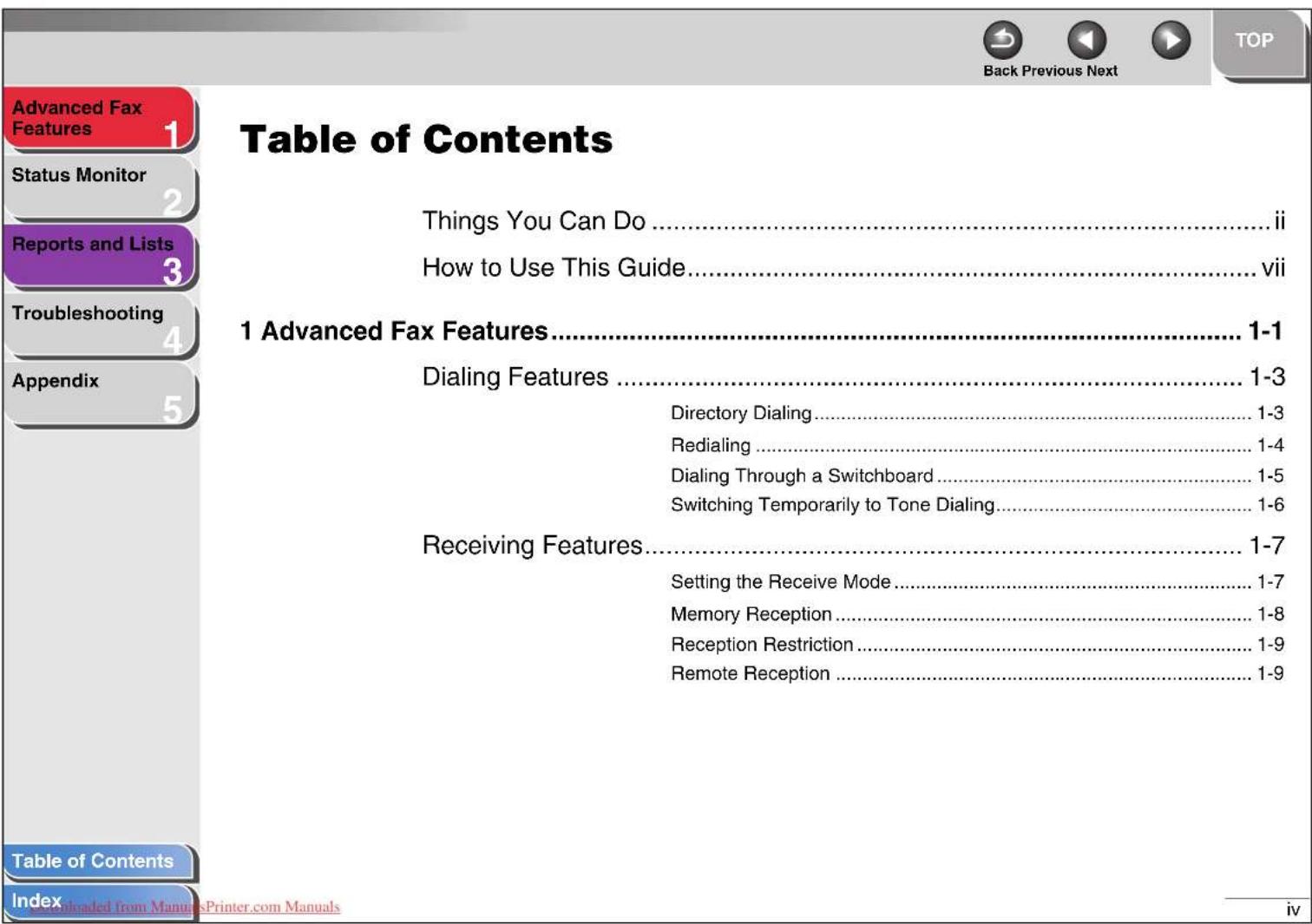
| Advanced Fax Features | 1 | Additional Fax Modes | 1-11 |
| Status Monitor | 2 | Broadcasting | 1-11 |
| Timer Sending | 1-11 | ||
| Reports and Lists | 3 | Polling Sending | 1-12 |
| Polling Receiving | 1-13 | ||
| Troubleshooting | 4 | Relay Initiation | 1-14 |
| Canceling Reservation | 1-15 | ||
| Appendix | 5 | Canceling Jobs | 1-16 |
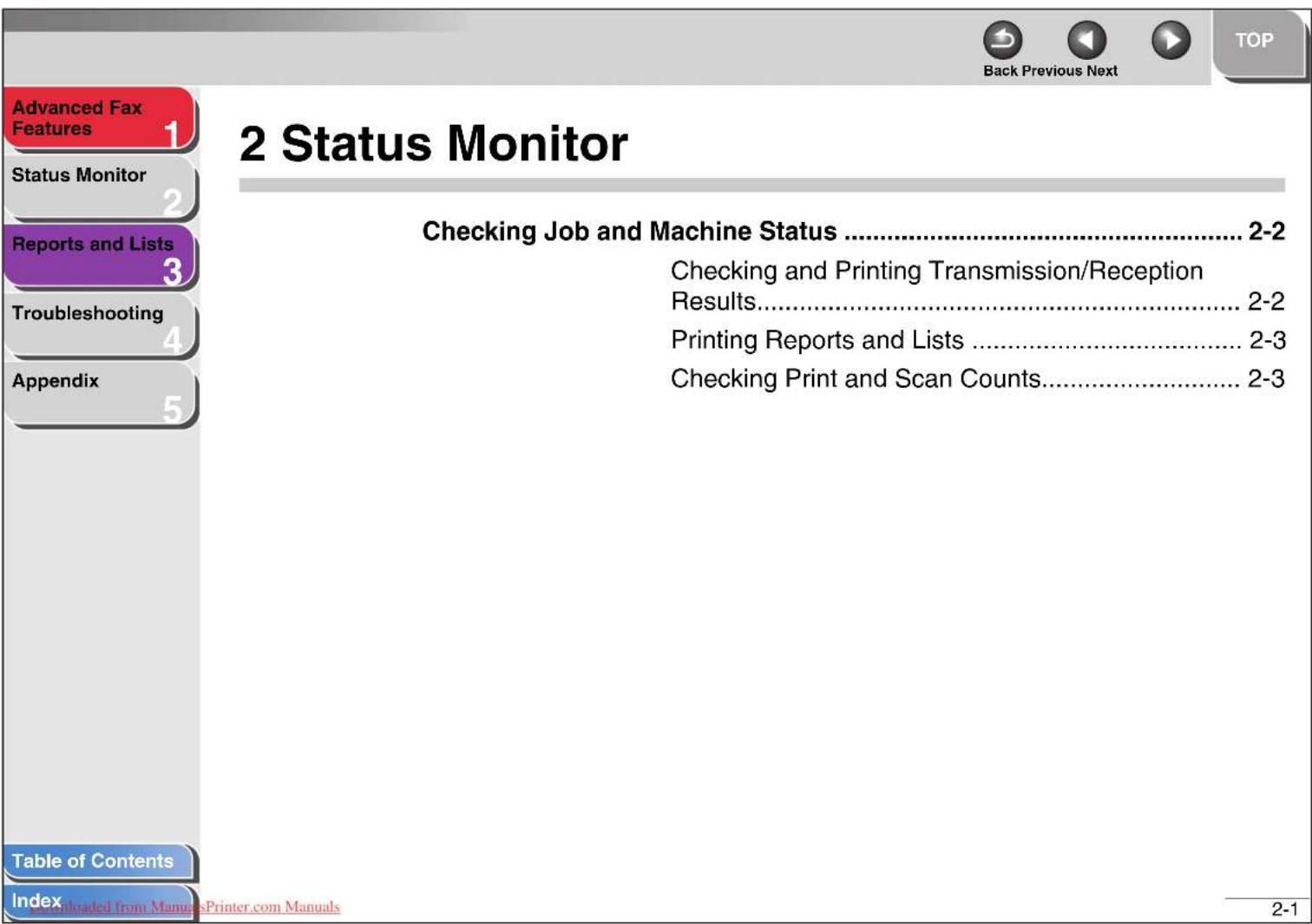
| 2 Status Monitor | 2-1 | ||
| Checking Job and Machine Status | 2-2 | ||
| Checking and Printing Transmission/Reception Results | 2-2 | ||
| Printing Reports and Lists | 2-3 | ||
| Checking Print and Scan Counts | 2-3 | ||
| 3 Reports and Lists | 3-1 | ||
| Summary of Reports and Lists | 3-2 | ||
| Printing Reports Automatically | 3-3 | ||
| TX RESULT REPORT | 3-3 | ||
| RX RESULT REPORT | 3-4 | ||
| ACTIVITY REPORT | 3-5 | ||
| Advanced Fax Features | 1 | 4 Troubleshooting......4-1 | |
| Status Monitor | 2 | General Problems......4-2 | |
| Reports and Lists | 3 | Paper Feeding Problems......4-3 | |
| Troubleshooting | 4 | Faxing Problems......4-4 | |
| Appendix | 5 | Sending Problems......4-4 | |
| Receiving Problems......4-6 | |||
| Copying Problems......4-10 | |||
| Telephone Problems......4-11 | |||
| Printing Problems......4-12 | |||
| 5 Appendix......5-1 | |||
| Glossary......5-2 | |||
| Index......5-9 | |||
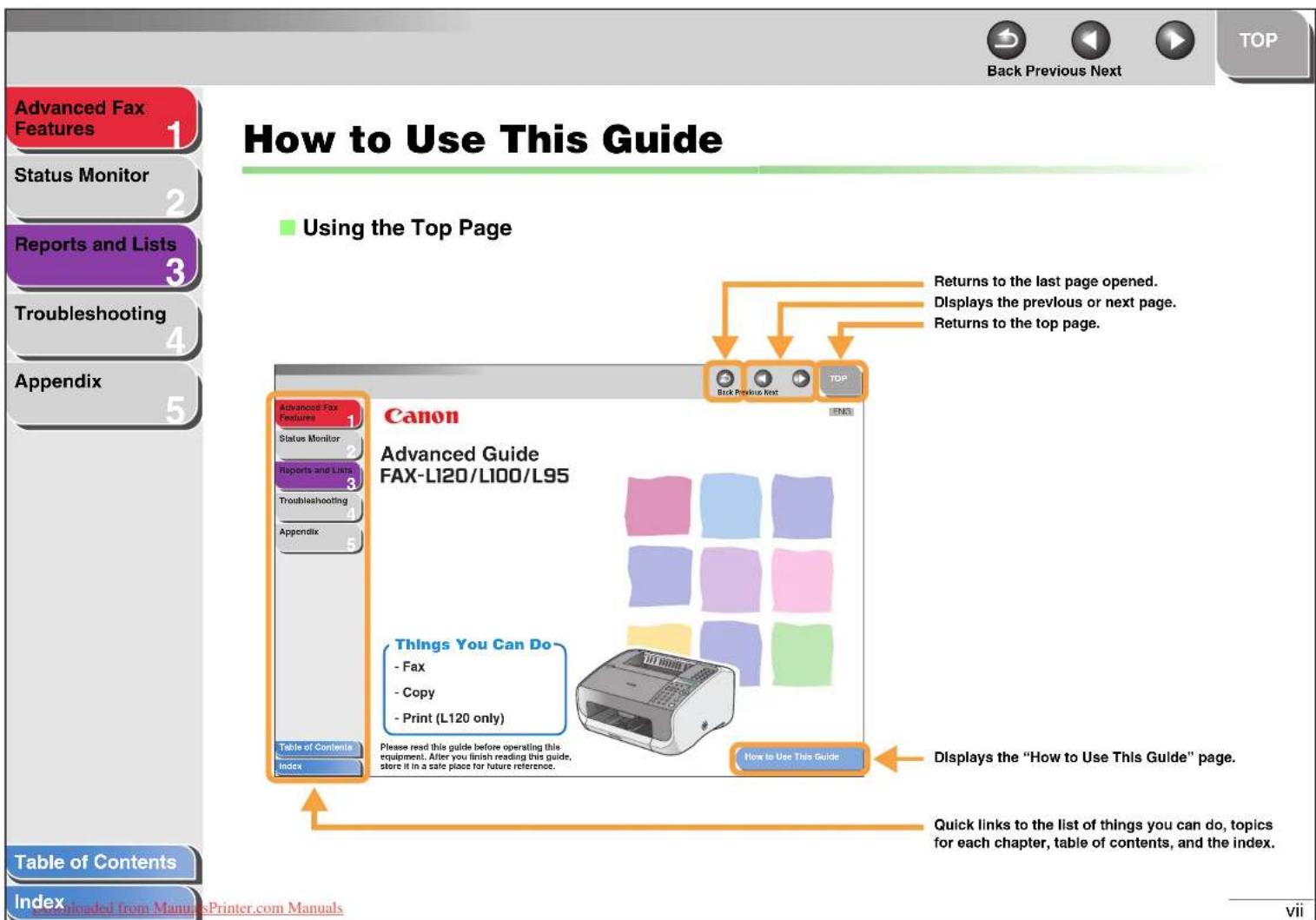



Dialing Features
The machine provides the following dialing features: directory dialing, redialing, dialing through a switchboard, and temporary tone dialing.
■ Directory Dialing
Directory dialing allows you to search for a particular recipient registered in the machine. This is useful when you lost track of which one-touch speed dialing button or coded speed dialing code the recipient you want is registered under. You can either go through all the recipients registered in the machine (LIST), or look up a particular one by their name (SEARCH).
Listing All Recipients
1. Press [Directory].
If no recipient is registered for speed dialing, is displayed.
2. Use [Left/Right] to select , then press [OK].
3. Use [Up/Down] to find the required recipient.
- The recipients are listed in the order of one-touch speed dialing buttons (01 to 15), and coded speed dialing codes (001 to 100).
- For a one-touch speed dialing button or coded speed dialing code with no recipient name registered, their fax number is displayed.
4. Press [Start] to start dialing the displayed recipient.
Press [Stop/Reset], then [OK] to cancel sending the fax.
Looking Up a Recipient
1. Press [Directory].
If no recipient is registered for speed dialing, is displayed.
2. Use [Left/Right] to select , then press [OK].
3. Use the numeric buttons to enter up to 10 first characters of the recipient's name, then press [OK].
![CANON FAX-L100 - Use the numeric buttons to enter up to 10 first characters of the recipient's name, then press [OK]. - 1](/content/2026/06/1315660/images/8569c60f0606e172aa0dd488e1b5b34bf46baf2d59fd25790d31d938df8ebb38.jpg)
- When the search is completed, the number of recipients that match the characters you entered is displayed in parentheses.
- Press [OK] to run a new search.
![Advanced Fax Features Status Monitor Reports and Lists Troubleshooting Appendix 4. Use [Up/Down] to find the required recipient. 5. Press [Start] to start dialing the displayed recipient. Press [Stop/Reset], then [OK] to cancel sending the fax. ■ Redialing Redialing can be done manually or automatic…](/content/2026/06/1315660/images/e273becaf6d82e66930cd7dded3088c04a64f575fedc9cb7c11ba0a344b649dc.jpg)
![Advanced Fax Features Status Monitor Reports and Lists Troubleshooting Appendix Table of Contents Index Back Previous Next Dialing Through a Switchboard If your machine is connected to a PBX, register the [R] button so you can easily access the outside line. Registering the [R] Button 1. Press [Menu…](/content/2026/06/1315660/images/6dd8d1617a3b4350e43e02d784d513fec9a94a464ccf16566c3584803aa363c1.jpg)
![graph TD A["Advanced Fax Features"] --> B["1"] C["Status Monitor"] --> D["2"] E["Reports and Lists"] --> F["3"] G["Troubleshooting"] --> H["4"] I["Appendix"] --> J["5"]](/content/2026/06/1315660/images/8f6eeb681f5aebd196e58b6bc211d5e3e78c1fccd2bba7155f8cad7e9f152091.jpg)
Table of Contents
Index
ded from Manua
sPrinter.com Manuals


![Advanced Fax Features Status Monitor Reports and Lists Troubleshooting Appendix Table of Contents Index Back Previous Next 1 Releasing Memory Reception 1. Press [Menu]. 2. Use [Up/Down] to select , then press [OK]. 5. If required, use the numeric buttons to enter the four-digit password, then press…](/content/2026/06/1315660/images/728322a8d754df05491eed804f539a8f460919b487ee1a9496be4f4288642610.jpg)
![Advanced Fax Features 1 Status Monitor 2 Reports and Lists 3 Troubleshooting 4 Appendix 5 Registering Remote Reception ID Follow this procedure if you want to change the default remote reception ID of 25. 1. Press [Menu]. 2. Use [Up/Down] to select , then press [OK]. 3. Use [Up/Down] to select <8 RE…](/content/2026/06/1315660/images/408ca5efd72b3210965af4b5140ec71752e9a19be2a40a2f8b834468f0012fb9.jpg)

![Advanced Fax Features Status Monitor Reports and Lists Troubleshooting Appendix 4. Use the numeric buttons to enter the time of transmission (in 24-hour format), then press [OK]. Ex. TIMER-20:00 YES=OK 5. Use the numeric buttons to enter a recipient, or press [Add. Mode] to specify the fax feature y…](/content/2026/06/1315660/images/50293b1b6cdd5f3e9c1b76c75d2d5fc37adb2e297685421e7236af5811ae9592.jpg)
![Advanced Fax Features Status Monitor Reports and Lists Troubleshooting Appendix 4. Use [Left/Right] to select or , then press [OK]. : The document will be deleted after it is sent to a recipient. : The document will be retained in memory until manually deleted. 5. Use the numeric buttons to enter th…](/content/2026/06/1315660/images/6abca0734ae9aec8535baaff6c385da1f8383aeb01e7a4f1165d7bf64c91e5d1.jpg)

![Advanced Fax Features 1 Status Monitor 2 Reports and Lists 3 Troubleshooting 4 Appendix 5 Table of Contents Index Back Previous Next Canceling Reservation You can cancel sending jobs reserved in memory. 1. Press [Add. Mode] twice. 2. Use [Up/Down] to select <6 CANCEL RESERV.?>, then press [OK]. 3. U…](/content/2026/06/1315660/images/600e4b8eb77ad07fb35198b9916bcc821ecb740663ba562d70c1eb0729d4fd93.jpg)

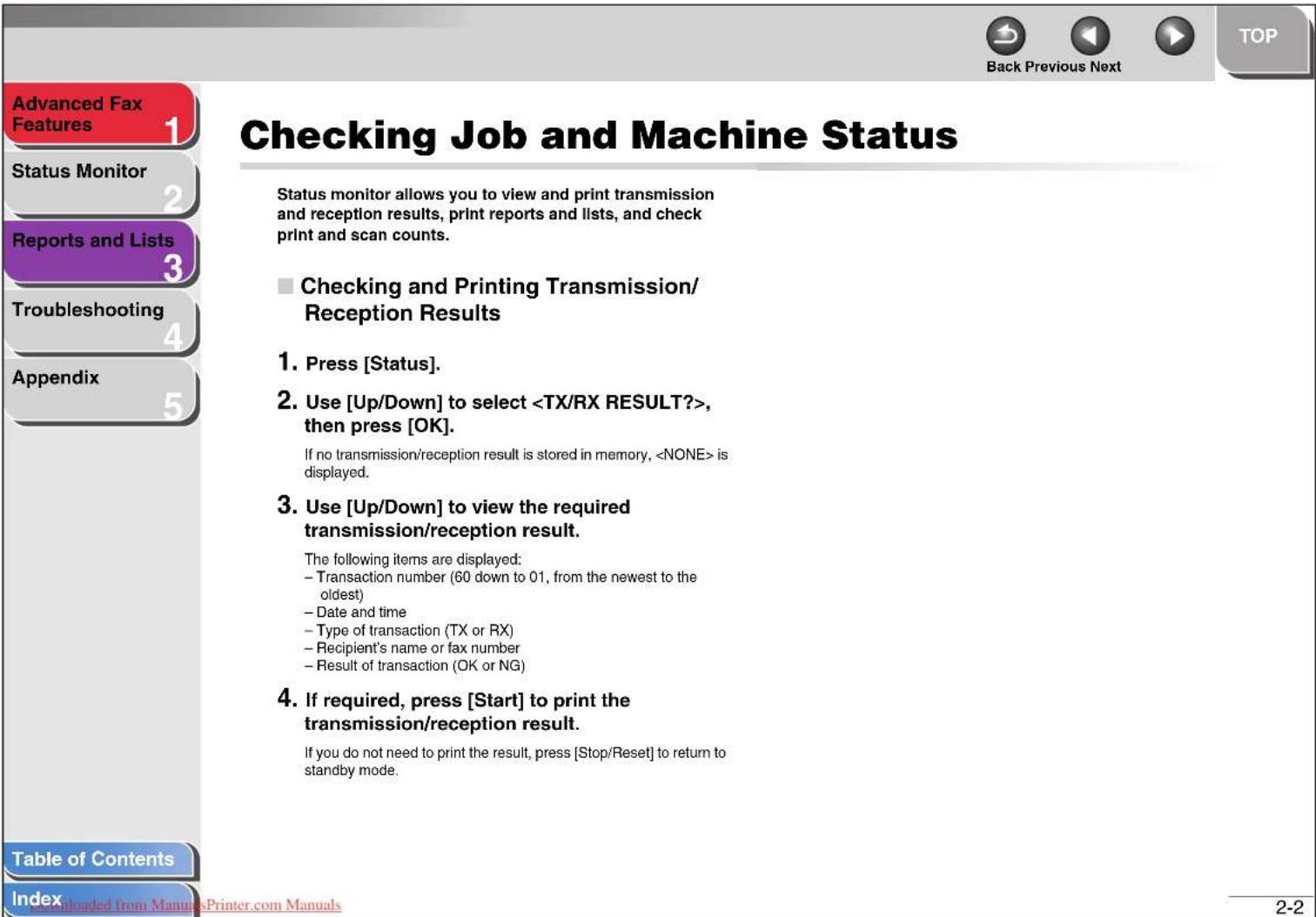
![Advanced Fax Features 1 Status Monitor 2 Reports and Lists 3 Troubleshooting 4 Appendix 5 Table of Contents Index Downloaded from ManualsPrinter.com Manuals ■ Printing Reports and Lists For information on each report or list, see "Summary of Reports and Lists," on p. 3-2. 1. Press [Status]. 2. Use […](/content/2026/06/1315660/images/b4901e6db09901bc60169fc2e0e00ec82f1386bb1f1b492fecf962b90e0e184b.jpg)


Advanced Fax Features 1
Status Monitor
Reports and Lists 3
Troubleshooting
Appendix
Summary of Reports and Lists
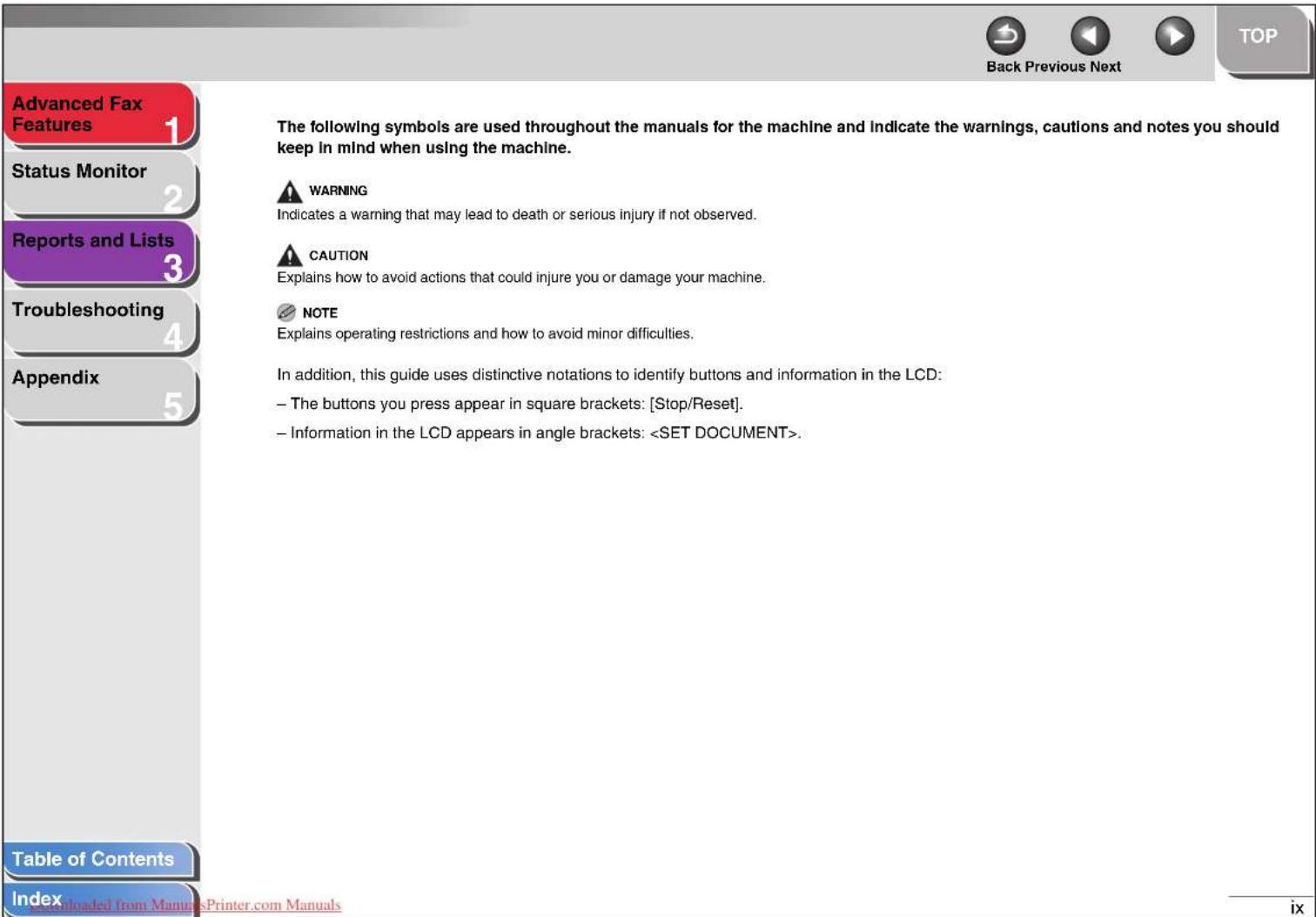
The machine can generate the following reports and lists. For how to manually print reports and lists, see "Printing Reports and Lists," on p. 2-3.
| Report/List Description | |
| TX RESULT REPORT Shows the transmission result. Can be set to print automatically. | |
| RX RESULT REPORT Shows the reception result. Can be set to print automatically. | |
| ACTIVITY REPORT Shows past 60 transmissions and receptions. Can be set to print automatically. | |
| MEMORY DATA LIST Lists reserved jobs stored in memory. | |
| MEMORY IMAGE PRINT Shows information and the first page of a reserved job. | |
| 1-TOUCH SPEED DIAL LIST | Lists the names and fax numbers of recipients registered under one-touch speed dialing buttons. Also shows subaddresses if set. |
| CODED DIAL LIST Lists the names and fax numbers of recipients registered in coded speed dialing codes. Also shows subaddresses if set. | |
| GROUP DIAL LIST Lists the names and fax numbers of recipients registered in each group dialing group. | |
| MACHINE STATUS LIST Lists current machine settings. | |
| LOST REPORT | Lists documents that were lost from memory due to power cut. Cannot be manually printed out. |
Table of Contents
Index

Advanced Fax Features 1
Status Monitor
Reports and Lists
3
Troubleshooting
4
Appendix
5
Printing Reports Automatically
TX RESULT REPORT, RX RESULT REPORT, and ACTIVITY REPORT can be set to print automatically.
TX RESULT REPORT
- Press [Menu].
- Use [Up/Down] to select , then press [OK].
- Use [Up/Down] to select <2 TX RESULT REPORT?>, then press [OK].
- Use [Left/Right] to select , , or , then press [OK].
: Printed out automatically after each transmission. : Printed out automatically only when an error occurs. : Not printed out automatically.
- Press [Stop/Reset] to return to standby mode.
Report Items
The following items are displayed in a Transmission Result Report:
- SESSION: Session number ● FUNCTION: Type of transmission
- TX: Memory transmission
- BROADCAST: Broadcasting
- POLLING TX: Polling sending
- TIMER TX: Timer sending
- RELAY INI.: Relay initiation ● NO.: Sequence number ● DESTINATION STATION: Name and number of recipient ● DATE: Date of transaction ● TIME: Time of transaction ● PAGE: Number of pages sent ● DURATION: Amount of time taken for a transaction ● MODE: Mode of transaction (G3 or ECM)
Table of Contents
Index

![Advanced Fax Features Status Monitor Reports and Lists Troubleshooting Appendix Table of Contents Index ■ ACTIVITY REPORT 1. Press [Menu]. 2. Use [Up/Down] to select , then press [OK]. 3. Use [Up/Down] to select <1 ACTIVITY REPORT?>, then press [OK]. 4. Use [Left/Right] to select or , then press [OK…](/content/2026/06/1315660/images/7a039526bbcbdc9ba5112309b3e60d59d92341222ba02e4bb9ffc15d8ed49bbc.jpg)

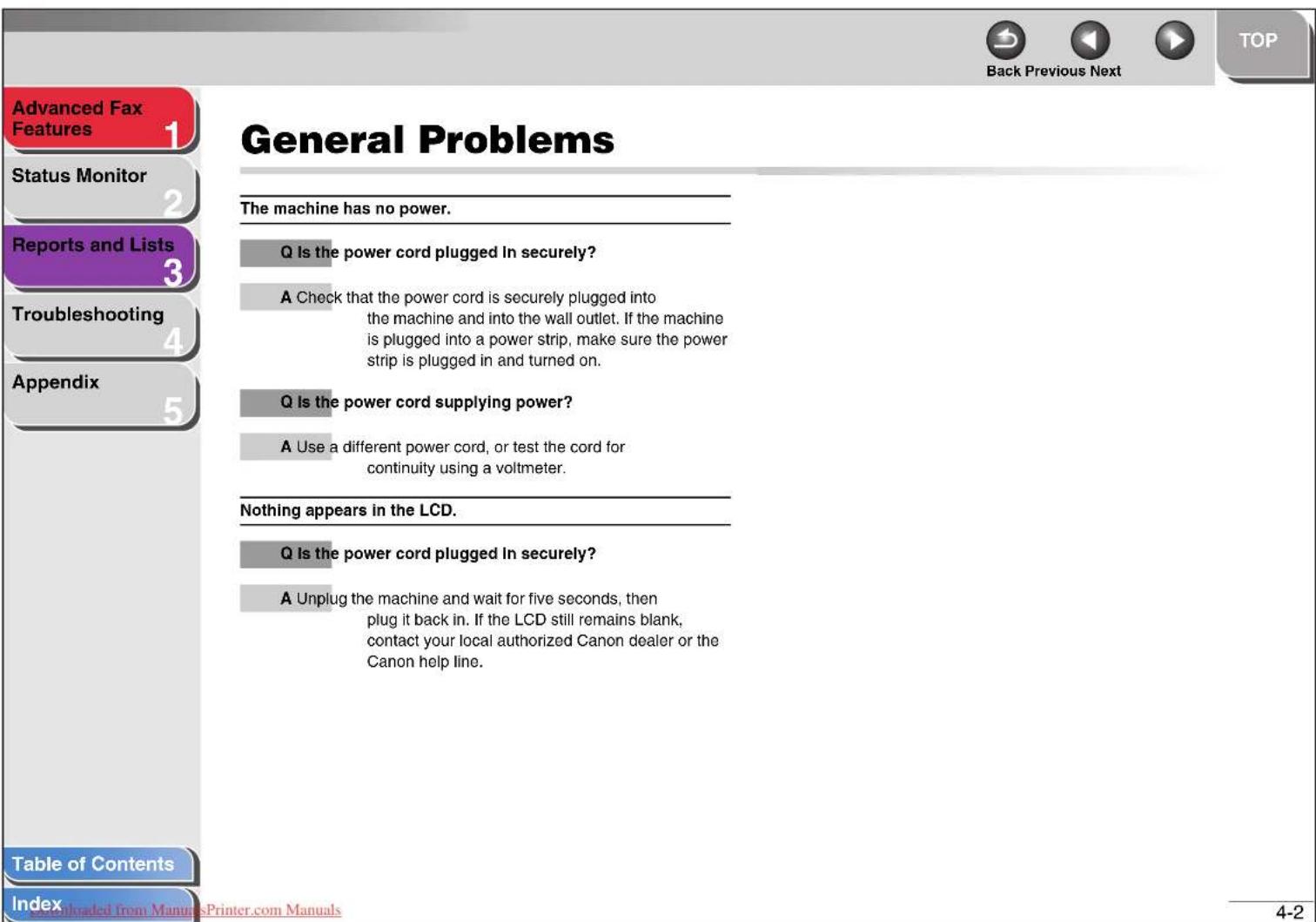


Paper Feeding Problems
Paper does not feed properly.
Q: Does the machine contain too many sheets?
A: Make sure you load the correct quantity. (See Chapter 3, "Print Media," in the Basic Guide.)
Q: Is the paper loaded correctly?
A: Make sure the paper is correctly loaded. (See "Load Paper," in the Starter Guide.)
Multiple sheets feed together into the machine.
Q: Is the paper loaded correctly?
A: Make sure the paper is correctly loaded. (See "Load Paper," in the Starter Guide.)
Q: Does the machine contain too many sheets?
A: Make sure you load the correct quantity. (See Chapter 3, "Print Media," in the Basic Guide.)
Q Are different types of paper loaded in the machine?
A Load only one type of paper.
Table of Contents
Index


![Advanced Fax Features Status Monitor Reports and Lists Troubleshooting Appendix Table of Contents Index Downloaded from ManusPrinter.com Manuals Cannot receive a document manually. Q: Have you disconnected the call by pressing [Start] or dialing the remote reception ID after hanging up? A: Always pr…](/content/2026/06/1315660/images/3f9552c5e88538deb099230ad67e067bbc20a301272099dd3f86d8ff97a63e62.jpg)


Advanced Fax Features 1
Status Monitor

Reports and Lists

Troubleshooting

Appendix

Glossary
A
AC
Alternating current. The type of electrical current available from a wall outlet.
Activity Report
A journal of the machine's fax transactions, both sent and received.
Automatic Document Feeder (ADF)
The device included in the machine that feeds the document being faxed or copied into the machine.
Automatic redialing
When the receiving fax machine is busy or does not answer, or when an error occurs while sending, the machine waits a specified time and then automatically redials the number. If the receiving fax is still busy or does not answer, the machine waits the specified time and dials again.
B
bps
Bits per second. Refers to the speed with which a fax machine sends and receives data.
Broadcasting
Transmitting documents to more than one location (through the machine's memory).
C
CNG
Calling Tone. This is a signal sent by fax machines to identify the call as an incoming document. When the receiving fax detects this signal, it automatically starts to receive the fax transmission. The majority of fax machines in use today can send and detect CNG signals.
Coded Speed Dialing
An automatic dialing method that allows you to dial a fax or telephone number by pressing [Coded Dial] and a three-digit code using the numeric buttons.
Cursor
The underline symbol you see on the LCD display when you register numbers and names in the machine.
Table of Contents
Index

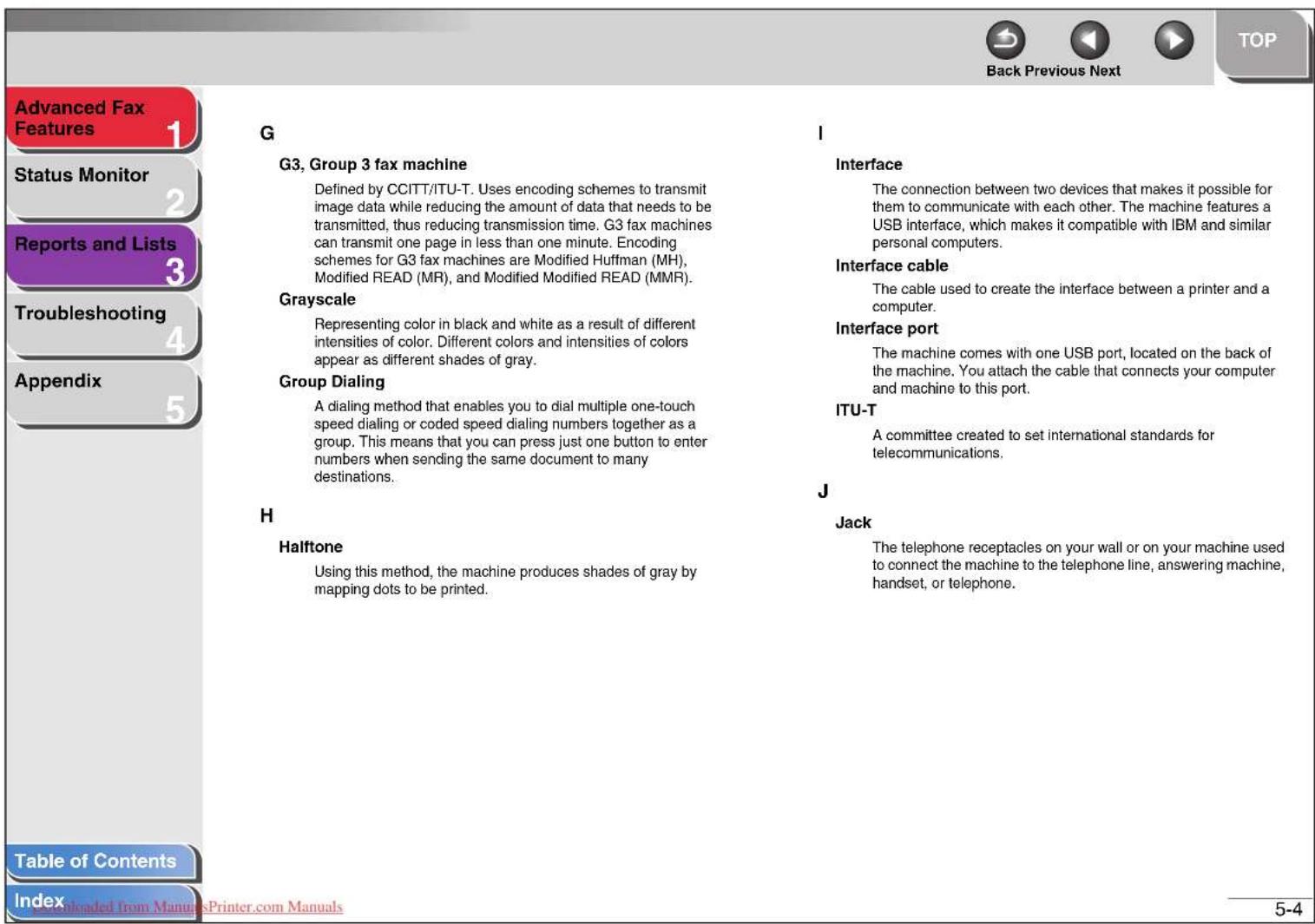


| Advanced Fax Features 1 Status Monitor 2 Reports and Lists 3 Troubleshooting 4 Appendix 5 | Index | ||
| Symbols & Numerics [ ]button 1-6 1-TOUCH SPEED DIAL LIST 3-2 | E Error correction mode (ECM) 4-6, 4-9 | O One-touch speed dialing 1-3, 1-11, 1-14 | |
| A ACTIVITY REPORT 3-2 Printing automatically 3-5 [Add. Mode] button 1-11 Additional fax modes 1-11 AnsMode 1-7 Optional settings 1-8 | F FAX ONLY 1-7 FAX/TEL 1-7 Optional settings 1-7 | P Paper jams 4-3, 4-13 Password 1-8, 1-13, 1-14 PBX 1-5 Polling receiving 1-13 Polling sending 1-12 Power cord 4-2 Prefix number 1-5 Print and scan counts 2-3 Pulse dialing 1-6 | |
| B Broadcasting 1-11 | G GROUP DIAL LIST 3-2 | H Handset 1-6, 1-9 [Hook] button 1-6 | |
| C Canceling Current job 1-16 Reserved jobs 1-15 CODED DIAL LIST 3-2 Coded speed dialing 1-3, 1-11, 1-14 | L LCD 4-2 LIST 1-3 LOST REPORT 3-2 | M MACHINE STATUS LIST 3-2 MANUAL 1-7 MEMORY DATA LIST 3-2 MEMORY IMAGE PRINT 3-2 Memory reception 1-8 | |
| D [Directory] button 1-3 Directory dialing 1-3 | |||
| Table of Contents | |||
| Index | |||
![Advanced Fax Features 1 Status Monitor 2 Reports and Lists 3 Troubleshooting 4 Appendix 5 R [R] button 1-5 Registering 1-5 Using 1-5 Reception restriction 1-9 Redialing 1-4 Automatically 1-4 Manually 1-4 Relay initiation 1-14 Relay station 1-14 Remote reception 1-9 Remote reception ID 1-10 Reports a…](/content/2026/06/1315660/images/8e0059db7676f15e825349a0a329033b8b498f4e2dcde7ca973e4c98253a8588.jpg)


- DIALING FEATURES
- DIRECTORY DIALING
- LISTING ALL RECIPIENTS
- PRESS [DIRECTORY]
- USE [LEFT/RIGHT] TO SELECT , THEN PRESS [OK]
- USE [UP/DOWN] TO FIND THE REQUIRED RECIPIENT
- PRESS [START] TO START DIALING THE DISPLAYED RECIPIENT
- LOOKING UP A RECIPIENT
- USE THE NUMERIC BUTTONS TO ENTER UP TO 10 FIRST CHARACTERS OF THE RECIPIENT'S NAME, THEN PRESS [OK]
- SUMMARY OF REPORTS AND LISTS
- PRINTING REPORTS AUTOMATICALLY
- TX RESULT REPORT
- REPORT ITEMS
- PAPER FEEDING PROBLEMS
- GLOSSARY
- A
- AC
- ACTIVITY REPORT
- AUTOMATIC DOCUMENT FEEDER (ADF)
- AUTOMATIC REDIALING
- B
- BPS
- BROADCASTING
- C
- CNG
- CODED SPEED DIALING
- CURSOR
Brand : CANON
Model : FAX-L100
Category : Fax machine