Freelance XC1500 - Telephone BT - Free user manual and instructions
Find the device manual for free Freelance XC1500 BT in PDF.


| Product Type | Cordless DECT Phone |
| Brand | BT |
| Model | Freelance XC1500 |
| Dimensions (Handset) | 16.5 x 5.0 x 3.0 cm |
| Weight (Handset) | 150 g |
| Power Supply | Base unit: 230V AC/DC adapter; Handset: 2x AAA NiMH rechargeable batteries (600 mAh) |
| Standby Time | Up to 100 hours |
| Talk Time | Up to 10 hours |
| Range (Indoor) | Up to 50 meters |
| Range (Outdoor) | Up to 300 meters |
| Display | Backlit LCD, 1.8-inch, monochrome |
| Key Features | Caller ID, call waiting, handsfree speakerphone, phonebook up to 100 contacts, redial, mute |
| Answering Machine | Digital, up to 20 minutes recording time, remote access |
| Ringtones | 10 polyphonic melodies + 5 adjustable volume levels |
| Maintenance | Clean with a soft dry cloth; avoid liquids and abrasives |
| Safety | Use only supplied power adapter; do not expose to moisture or high temperatures |
| Spare Parts & Repairability | Replacement batteries and chargers available; repair service through BT support |
| General Information | Frequency: DECT 1.88-1.90 GHz; Number of handsets expandable up to 4 |
Frequently Asked Questions - Freelance XC1500 BT
User questions about Freelance XC1500 BT
0 question about this device. Answer the ones you know or ask your own.
Ask a new question about this device
Download the instructions for your Telephone in PDF format for free! Find your manual Freelance XC1500 - BT and take your electronic device back in hand. On this page are published all the documents necessary for the use of your device. Freelance XC1500 by BT.
USER MANUAL Freelance XC1500 BT
Bringing it all together
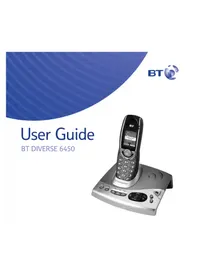
User Guide
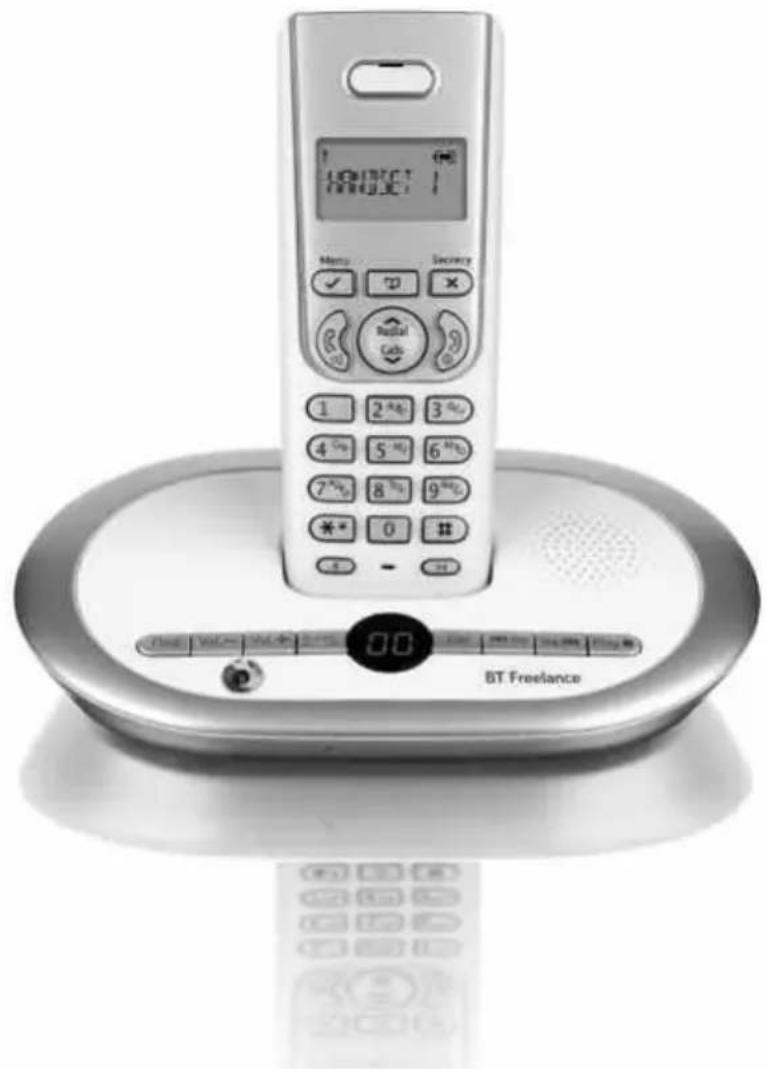
Welcome...
to your BT Freelance XC1500 Digital Cordless Telephone Answering Machine
- Up to 12 minutes digital recording time.
- Access your messages remotely from any other Touchtone™ phone.
- Caller Display shows you who's calling before you answer the phone 1 and stores a list of your last 40 callers. You can also dial numbers direct from the Calls list.
- Handsfree lets you make and receive calls using the built-in handset loudspeaker so your hands are free for other tasks during a call.
- 50 Name and number phonebook for storing your most frequently used numbers.
• 10 last number redial. - Use up to 5 handsets with one base and one phone line.
• Make internal calls and transfer external calls between handsets.
Please note: This equipment is not designed for making emergency telephone calls when the power fails. Alternative arrangements should be made for access to emergency services.
This User Guide provides you with all the information you need to get the most from your phone. Before you make your first call you will need to set up your phone.
Follow the simple instructions in ‘Getting Started’, over the next few pages.
Need help?
If you have any problems setting up or using your BT Freelance XC1500 please contact the Helpline on 0808 100 6556*.
Alternatively, you may find the answer in ‘Help’ at the back of this guide.
IMPORTANT
Only use the telephone line cord supplied.
*Calls made from within the UK mainland network are free. Mobile and international call costs may vary.
Got everything?
• BT Freelance XC1500 handset
• BT Freelance XC1500 base
- Battery compartment cover
• 2 x AAA NiMH rechargeable batteries
• Mains power adaptor (Item code: 041293)
- Telephone line cord
If you have purchased a BT Freelance XC1500 multiple pack you will also have the following for each handset:
• BT Freelance XC1500 handset
• BT Freelance XC1500 charger
Battery compartment cover
• 2 x AAA NiMH rechargeable batteries
• Mains power adaptor (Item code: 041294)
In this guide
Getting started
Location 6
Connect the base to mains power.....6
Preparing your handset 7
BT Freelance XC1500 multipack users only . 7
Connect to the telephone line 8
Set the answering machine day and time . . 9
Getting to know your phone
Handset buttons....10
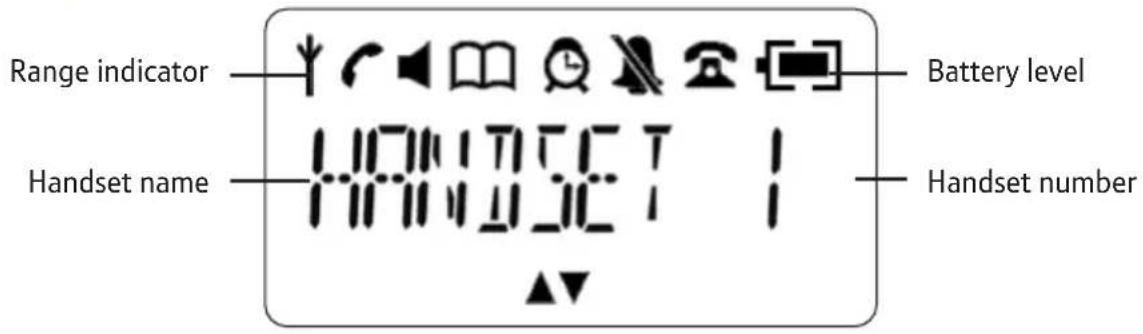
Standby screen....11
Handset display icons....11
Using the menu 12
Menu map 12
Base 13
Using your phone
Switch the handset on/off.....14
Make a call 14
Preparatory dialling ..... 14
End a call....14
Receiving calls....15
Chain dialling 15
Secrecy / Mute 16
Adjusting the earpiece/handsfree volume . . 16
Make a handsfree call .... 16
Answer a call handsfree. 17
Switch to handsfree during a call .....17
Redial a number....17
Copy a redial number to the phonebook . . . 18
Delete a number from the redial list ..... 18
Delete the entire redial list ..... 18
Keypad lock....19
Paging....19
Using the phonebook....20
Add an entry. 20
View and dial entries 21
Edit an entry....21
Delete an entry....22
Delete entire phonebook....22
Internal calls 22
Make an internal call 23
Transfer an external call 23
3 Way call 24
Caller Display and the calls list
Caller Display 25
Calls list 25
View the Calls list 26
Dial a number in the Calls list ..... 26
Copy a number to the phonebook ..... 26
Delete an entry. 27
Delete the entire Calls list .....27
Call Waiting....28
To use Call Waiting 28
Using the answering machine
Switching the answering machine on/off. . . 29
Listening to your messages 29
Play messages....29
Delete all old messages....30
Record a memo 30
Base loudspeaker volume 31
Outgoing messages....31
Select outgoing message. 32
Record your own outgoing message(s) .... 32
Play your outgoing message 33
Re-instate the pre-recorded outgoing message....33
Memory full indicator 33
Ring delay and Security PIN 34
Set ring delay and security PIN 34
Call screening 35
Remote access 36
Switch on your answering machine from another phone. 36
Operating your answering machine from another phone....36
Settings
Handset and base ringer volume ..... 38
Handset and base ringer melody ..... 38
Keypad beep on / off 39
Handset name 39
Auto answer 40
Date and time. 40
Set the date and time 40
Set the alarm 41
Change alarm time....41
Select alarm clock melody 42
Additional handsets
Register a new BT Freelance XC1500 handset to your BT Freelance XC1500 base ..... 43
Register a different manufacturer's handset to your BT Freelance XC1500 base. ..... 44
De-register a handset 44
Change master PIN 45
Reset to default 45
Help 46
General information
Safety 49
Cleaning 50
Environmental 50
Product disposal instructions ..... 50
Guarantee....51
Technical information....52
R&TTE 52
Declaration of Conformance .... 52
Connecting to a switchboard....53
Inserting a pause 53
Recall (R)....53
Getting started
WARNING
Do not place your BT Freelance XC1500 in the bathroom or other humid areas.
Handset range
Your BT Freelance XC1500 has a range of up to 300m outdoors when there is a clear line of sight between the base and the handset. When there is no clear line of sight between the handset and the base, e.g. the base is indoors and the handset is either indoors or outdoors, the range could be reduced to 50m. Thick stone walls will severely affect the range.
Signal strength
The Icon on your handset display indicates when you are in range of the base. When it flashes and you hear a warning beep, you are out of range and will need to move closer to the base.
IMPORTANT
Do not connect the telephone line to the telephone line wall socket until the handset is fully charged. The base station should be plugged into the mains power socket at all times.
Location
You need to place your BT Freelance XC1500 base within 3 metres of a mains power socket and 2 metres of the telephone wall socket so that the cables will reach.
Make sure it is at least 1 metre away from other electrical appliances to avoid interference.
Your BT Freelance XC1500 works by sending radio signals between the handset and base. The strength of the signal depends on where you position the base. Putting it as high as possible can help to provide the best signal.
Connect the base to the mains power
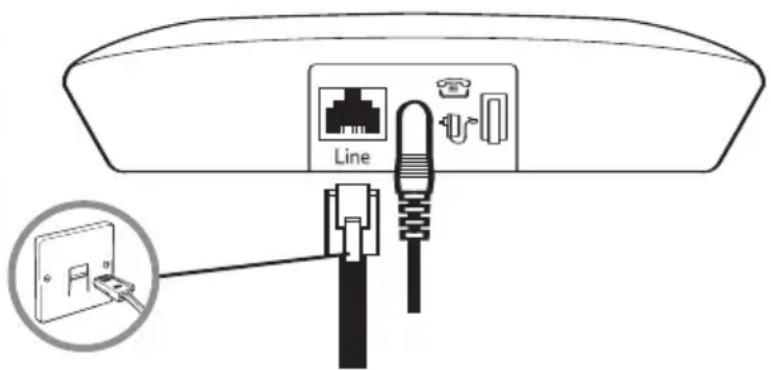
- Plug the mains power adaptor with the black connector (item code 041293) into the power socket on the back of the base and plug the other end into the mains power wall socket. The base will come on and beep and display ☐. It will default to Answer and record mode.

If you experience any problems, please call the Helpline on 0808 100 6556*
Preparing your handset
- Insert the 2 x AAA rechargeable batteries supplied, taking note of the polarity markings inside the battery compartment, then slide the battery compartment shut.
- Place the handset on the base to charge. It will beep when placed in and the battery icon on the handset will flash to indicate charging. You should let the batteries charge continuously for at least 24 hours. The batteries and case may become warm during charging, this is normal.
BT Freelance XC1500 multipack users only:
If you have purchased a BT Freelance XC1500 multiple pack, you will need to prepare any additional handsets and charger for use.
Place each BT Freelance XC1500 charger within reach of a mains power wall socket.
For each additional handset and charger:
i. Plug the mains power adaptor with the white connector (item code 041294) into the power socket on the underside of the charger and plug the other end into the mains power wall socket.
WARNING
Never use non-rechargeable batteries. Only use the approved batteries. Using unapproved batteries will invalidate your guarantee and may damage the telephone.
Talk/Standby time
Under ideal conditions, the handset batteries should give up to 10 hours talk time or 100 hours standby on a single charge.
(This does not mean you can unplug the base or leave the handset for this length of time without charge).
Please note that new NiMH rechargeable batteries do not reach full capacity until they have been in normal use for several days.
See 'Battery performance' on the following page.
Battery low warning
If the icon is flashing in the display and you hear a warning beep every minute during a call, you will need to recharge your handset before you can use it.
Battery performance
To keep the batteries in the best condition, leave the handset off the base for a few hours at a time.
Running the batteries right down at least once a week will help them last as long as possible.
After charging your handset for the first time, subsequent charging time for the batteries is approximately 6–8 hours.
The charge capacity of rechargeable batteries will reduce with time as they wear out, thus reducing the talk/standby time. Eventually they will need replacing. New batteries are available from the BT Freelance XC1500 Helpline on 0808 100 6556*.
IMPORTANT
Only use the telephone line cord supplied with the phone.
ii. Insert the 2 x AAA rechargeable batteries supplied, taking note of the polarity markings inside the battery compartment, then slide the battery compartment shut.
The display will show the handset number, 2, to show it is registered to the base.
iii. Place the handset on the charger. It will beep when placed in and the battery icon on the handset will flash to indicate charging. You should let the batteries charge continuously for at least 24 hours.
Any additional handsets supplied as part of a multipack are pre-registered to the base. So, once charged, are ready for use.
Connect to the telephone line
- Plug the telephone line cord into the socket marked on the back of the base and plug the other end into the telephone wall socket.
If you experience any problems, please call the Helpline on 0808 100 6556*
Set the answering machine day and time
Once the answering machine day and time has been set, the day and time will be announced when a message is played back.
- At the answering machine base, press and hold Vol.—The current hour setting is announced and displayed. Press Vol.+ to se Vol... hour. Press to confirm Play
- The minutes setting will be announced and displayed. Press 🐨oi.+ to se 🐨oi.-- minute. Press to confirm Play
- The current setting for PM/AM will be displayed and announced. Press Vol.+ to set A for am or P for pm. Press Play to confirm.
- The current day setting is announced. Press Vol.1 to Vol.—set the day which is announced. Press Play to confirm. The full time and day will be announced.
Your BT Freelance XC1500 is now ready for use.
Press to cancel and return to standby.
Handset date and time
Providing you have subscribed to your network's Caller ID service, the date and time on the handset will be set automatically when you receive your first call.
To set the handset date and time manually, see Date and Time, page 40.
The handset date and time needs to be set separately to the answering machine day and time.
Getting to know your phone
Handset buttons
Phonebook
Press to open the phonebook, page 20.
Redial / Volume +
Press to open the redial list and scroll back through redial numbers, page 17.
Press to raise the volume during a call, page 16.
Menu / OK
Press to open the menu, page 12.
Press to select menu options.
Talk
Press to make and receive calls, page 14-15.
During a call, press to switch handsfree loudspeaker on and off.
Calls list / Vol -
Press to open and scroll forward through the Calls list, page 25.
Press to lower the volume during a call, page 16.
*/Keypad lock
Press and hold to lock/unlock the keypad to prevent accidental dialling, page 19.
R
Recall – used with switchboard services and certain BT Calling Features.

Secrecy / Clear/ Back
During a call, mutes your voice so your caller cannot hear you, page 16.
Press to return to the previous menu.
Use to delete characters in the phonebook and calls lists.
End Call
Press to end a call.
Press and hold to switch the handset off and on, page 14.
#/P
Press and hold to insert a Pause, page 53.
Selects name/number or time/date display in the Calls list.
Int
Use to make internal calls and transfer calls to other handsets registered to the base, pages 22-23.
Standby screen
Handset display icons
| Phone off-hook. | Alarm has been set. | ||
| Indicates signal strength. | Handset ringer volume set to off. | ||
| Flashes when handset is not registered to the base. | More options available, scroll up or down. | ||
| Phonebook open. | Battery 30 – 100% charged. | ||
| Handsfree speaker in use. | Battery 10 – 30% charged. | ||
| New number(s) in Call list*. | Battery under 10% charged. Icon will flash. |
* This features requires subscription to your network provider's Caller Display service. A quarterly fee may be payable.
Using the menu
All your phone's functions and settings can be accessed through the main menu.
The menu map below shows all the menu options you can choose from.
Press to enter the menu.
Press 📄️ Red LED screw Calis through the menu options.
When you reach the end of the list, the first option is displayed again.
To select an option, press ✅
To return to the previous menu display, press Security ✗
Menu map

PHONEBOOK
(Menu only appears when phonebook is empty. When entries stored, press 📋 in to enter the menu).
ADD ENTRY
MODIFY ENTRY
DELETE ENTRY
DELETE ALL
CLOCK /ALARM
DATE / TIME
ALARM
ALARM TONE
SETTINGS
HANDSET TONE
HANDSET NAME
AUTO ANSWER
BASE TONES
ADVANCED SET
REGISTRATION
DE-REGISTER
PIN CODE
PHONE RESET
Answering machine base
Find / Page
Press to ring handsets registered to the base, page 19.
Used to register new handsets to the base, page 43.
Volume Down
Lower base loudspeaker volume, page 31.
In standby, press and hold to set the time and weekday for the answering machine.
Message indicator
Shows the number of messages.
If new messages have been received, the number of new messages will be displayed flashing. If there are no new messages, the counter will display the total number of old messages stored.
Two dots are activated next to the counter digits to indicate when the line is in use.
Skip back/
Set message alert
During playback, press once to skip back to the beginning of the message, page 30.
In standby, press to play the current OGM, page 33.
Press and hold to record a new OGM, page 32.
Play/Stop
Press to play messages and stop playback, page 29.

Volume Up
Raise base
loudspeaker volume, page 31.
In standby, press and hold to set the Ring delay, page 34.
Ans/On/Off
Switches answering machine on/off, page 29.
Delete
During playback, deletes the current message.
Press and hold to delete all messages, page 30.
Skip forward
During playback, press to play the next message, page 30.
Press and hold to record a memo, page 30.
In standby, press to set call screening on or off, page 35.
Using your phone
Out of range warning
During a call, if you start to move the handset out of range of the base, the flashes and you hear a beep in the earpiece every 3 seconds. Move closer to the base or you will lose the call.
Call timer
After the first 20 seconds of your call, the call timer is displayed.
Switch the handset on/off
-
To switch off, press and hold until the display goes off.
-
To switch the handset on, press and hold .
Make a call
- Press .When you hear the dial tone, enter the phone number using the keypad.
Preparatory dialling
-
Enter the phone number first. The number is shown in the display.
-
Press the dial the number.
If you make a mistake as you enter the number, press delete a digit.

End a call
- Press o replace the handset on the base.
Receiving calls
- When the phone rings, the display flashes CALL and the icon. Press to answer the call.
Or, you can answer the call by picking the handset up from the base or charger without having to press This is called Auto answer, see page 40.
- Press to hang up.
Chain dialling
Chain dialling is a convenient way of entering long sequences of numbers during a telephone call. This can be when trying to dial a phone number greater than 24 digits (the largest number that can be stored in a single phonebook entry) or when using automated telephone services, e.g. telephone banking.
Dial a chain number
-
Enter the first part of the number as usual using the keypad or from the phonebook. Press
-
Either enter the additional part of the number using the keypad or press 📄 to the onebook entry containing the next number sequence and press 📄 dial the number.
Caller Display
If you have subscribed to your network's Caller Display service, the caller's number (or name, if an exact number match is found in the phonebook) will also be displayed.
Important
Storing security code information in the phonebook may allow other people access to your personal details.
Secrecy / Mute
You can stop your caller from hearing you while you talk to someone else close by.
-
During a call, press the handset microphone is muted and the display shows MUTE.
-
Press a 30 in to resume your call.
Adjusting the earpiece/handsfree volume
You can adjust the earpiece or loudspeaker volume, 1-5.
- During a call, press to increase or to decline the volume.
Make a handsfree call
- Dial the number then press
- Press again. The icons displayed and you hear your call over the handset loudspeaker.
Press to switch the call between the earpiece and the loudspeaker. - Press to end the call.

Handsfree
Handsfree lets you talk to your caller without holding the handset. It also enables other people in the room to listen to your conversation over the loudspeaker.
During a handsfree call, press to change the volume.
17Using
Answer a call handsfree
When the phone rings:
- Press to answer the call then press again. The call is transferred to the loudspeaker.
Switch to handsfree during a call
- During a call: press 📄 to put the call on the loudspeaker. To switch handsfree off and return the call to the earpiece, press 📄 again.
Redial
Redial a number
The last 10 numbers dialled are stored in the redial list. Each entry can be up to 24 digits long.
-
Press the redial list. The most recently dialled number is displayed. If the number matches an entry stored in the handset phonebook, the name is displayed.
-
Scroll or Resul the number or name you want.
-
Press the redial the entry displayed.
If the redial number is longer than 12 digits, you can scroll along the number by pressing the 📄ton.
18 Using your phone
If you enter a name that already exists in the phonebook the display shows DOUBLE NAME for 2 seconds before returning to the name screen.
Copy a redial number to the phonebook
- Press the scroll or through the calls to the entry you want.
- Press One displays shows ADD ENTRY.
- Press ▶ the keypad to enter the name, then press .
- Display shows the number from the redial list. You can edit the number using ✗ to delete characters if required. Press ✅ to save.
- Press to return to the standby screen.
Delete a number from the redial list
- Press the rail scroll or to the entry call want.
- Pr Menu and Call Roll DELETEENTR
- Press to confirm or to cancel.
Delete the entire redial list
- Press to redial en the redial list.
- Press a scroll DELETEALL.
- Press ▶ display shows CONFIRM?
- Press ☑ to confirm or ☒ to cancel.
Keypad lock
You can lock the handset keypad to prevent accidental dialling while carrying it around.
You do not need to unlock the keypad to answer a call, just press 📄.
-
To lock the keypad press and how until the display shows KEYSLOCKED.
-
To unlock the keypad press and hold 📄 or replace the handset in the base.
Paging
You can alert handset users that they are wanted or locate a missing handset. Paging calls cannot be answered by a handset.
- Press a first base. All handsets registered to the base will ring with the Paging ringtone for 30 seconds. To stop the ringing, press any button on a handset or press find on the base.
IMPORTANT
You cannot call emergency numbers (999 / 112) when the keypad is locked.
Each name can be up to 12 characters long and each number up to 24 digits long.
If you enter a name that already exists the display shows DOUBLE NAME for 2 seconds.
Memory full
When the phonebook memory is full the display shows MEMORYFULL when you try to add a new entry.
Entering names
Use the keypad to enter the letters shown on each button.
For example to store TOM:
Press 3 free to enter T.
Press 6 v three times to enter 0.
Press once to enter M.
If the next letter you want to enter is on the same button, wait a moment then press the button.
Press to delete an incorrect character or digit.
To enter a space press 1
To enter a dash, press twice.
To enter 1, press 1 twice.
Using the phonebook
You can store up to 50 name and number entries on each BT Freelance XC1500 handset registered to your base.
You open the phonebook with the 📄 on.
Add an entry
- From the standby screen, press press ☑.

PHONEBOOK is displayed,
-
If there are already entries stored in the phonebook the first entry will be displayed and you will need to press 📄 in. The displays shows ADDENTRY. Press
-
The displays shows ROOM NAME Use the keypad to enter the name and press Menu
-
The displays shows ADDNUMBER. Use the keypad to enter the phone number.
-
Pr Menu to confirm.
View and dial entries
- Press first entry is displayed.
- Press a Redist scroll through the list. When the name is displayed, you can switch between the name and number by pressing #.
- Press 📷 display more digits - if there are any - or the name again.
- Press to dial the entry displayed or press to return to standby.
Edit an entry
- Press ☑ PHONEBOOK is displayed.
- Press Roll or the enter call you want to edit.
- Press ☐ menu scroll to Calls MODIFY ENTRY.
- Press ☑️. Press ☒️ to delete characters and use the keypad to edit the name.
- Press ☑️. Press ☒️ to delete digits and use the keypad to edit the number.
- Press ☑ confirm.
Delete an entry
- Phone Book is displayed.
- Press Roll or to enter call you want to edit.
- Pr Menu and Call Roll DELETEENTR
- Press ▼ play shows CONFIRM?
- Press ☐ nonfirm or to c ☐ Secrecy
Delete entire phonebook
- Pre Menu PHONEBOOK is displayed.
- Pr Menu and Call Roll DELETEALL.to
- Press □ play shows CONFIRM?
- Press t ☑ onfirm or to ca ☒ Secrecy.
You can have up to 5 GAP compatible handsets registered to your BT Freelance XC1500 base, see page 43.
Internal calls
If you have more than one handset registered to your base, you can:
• make internal calls between handsets
- transfer an external call from one handset to another
- hold a conference call between two internal handsets and an external call
• make an internal call between two handsets while a third is on an external call
Make an internal call
- Prist .
If you have two handsets, the second handset is called.
If you have more than 2 handsets, enter the handset number (1–5) you want OR press 🙏 all all handsets (the first handset to answer will take your call).
Transfer an external call
You can transfer an external call to another handset registered to your base.
- During an external call, press a door or caller is put on hold and all the other handset numbers are displayed on the screen.
- Enter the handset number you want or press Int to speak to your external caller again.
- When the other handset user answers, you can announce the incoming call.
Press to transfer the call.
If the other handset user does not answer: You can reconnect to your external caller by pressing Int
3 Way call
You can talk simultaneously with an external caller and another internal handset user.
- During an external call, press the or caller is put on hold and all the other handset numbers are displayed on the screen.
- Enter the handset number you want.
- When the other handset user answers, you can announce the incoming call.
- Press and hold 10 seconds, the display will show CONFERENCE.
Caller Display and the calls list
Caller Display
Caller Display shows who is calling and if the caller's number matches an entry stored in the phonebook, the name will be displayed as well.
Caller Display information contains the full telephone number, including the area code. So when storing numbers in the phonebook remember to include the area code, otherwise the caller's number will not match.
Calls list
The Calls list stores details of your last 40 calls received, including the phone number up to 20 digits long and date and time of the call.
The Calls list also alerts you to unanswered calls.
When you have unanswered, or 'new calls', the will be displayed.

The list is shared between all handsets registered to the base.
When the Calls list is full, the most recent calls received automatically replace the oldest calls.
You open the Calls list with the Call on.
For this feature to work you must subscribe to a Caller Display Service from you network provider. A quarterly fee may be payable.
For more information on Caller Display and BT's other Calling Features, call BT on Freefone 0800 800 150.
Call information not available
With some incoming calls, the telephone number of the caller is not available and cannot therefore be displayed. In this case some explanatory information will be displayed.
WITHHELD
The caller has withheld their number.
UNAVAILABLE
The number is unavailable.
RINGBACK
Ringback call.
INTERNATIONAL
International call.
OPERATOR
Call from operator.
If the telephone number is longer then 12 digits, press 📄 toggle between the rest of the number and the received time and date.
If the name you enter already exists in the phonebook the display shows DOUBLE NAME for 2 seconds. Enter a different name to store the entry.
View the Calls list
-
From standby, press to call when the Calls list.
-
Press a red-out scroll, cuts through the list. When you reach the end of the list, it automatically loops back to the beginning again.
-
If the name is displayed, press to display the number. Press in to see the date and time of the call.
Dial a number in the Calls list
-
Press t Cells scroll or thr Pedal the Cells to the entry you want.
-
Press to dial the displayed entry.
Copy a number to the phonebook
-
Press to Cells scroll or thr Pedal the Cells to the entry you want.
-
Press ▼The displays shows ADDENTRY. Press ▼ again.
-
Use the keypad to enter or edit the name, then press
-
Edit the number if necessary, then press to confirm. The entry is stored.
Delete an entry
- Press to call scroll or through the call to the entry you want.
- Pr Menu and Cabs Roll DELETEENTR
- Press t ☑ onfirm or to ca ☑
Delete the entire Calls list
- Pr Menu and CaS roll DELETEALL.to
- Press Play shows CONFIRM?
- Press t ☑ onfirm or to ca ☒ Secrecy.


Call Waiting
With Call Waiting, during a call, if another caller is trying to reach you, you will hear a soft beep every 5 seconds.
If you have also subscribed to a Caller Display Service, the caller's number (or name if stored in the Phonebook) will be shown on the display for 20 seconds, after this time the display will return to your first caller's details.
Instead of the engaged tone, the second caller will hear an announcement to hold as you are aware that they are waiting.
To use Call Waiting
To answer the second call, without disconnecting from your first caller:
-
Press the first caller will be put on hold.
-
Press R to return to the first caller, and then press it each time you want to switch between the two callers.
To disconnect the first call and take the waiting call:
-
Press 🔒 to end the current call. The handset will then ring.
-
Press and continue your conversation with the second caller.
Using the answering machine
Your BT Freelance XC1500 answering machine uses voice prompts to guide you simply through its operation.
You can operate your answering machine from the base and remotely, from any other Touchtone® telephone.
Before first using your answering machine you should set the correct day and time. If you have not done this already when you set up your phone, please see page 9.
Switching the answering machine on/off
- Use the 📄 on to switch the answering machine on or off. By pressing 📄 on → you can scroll around the 3 options: Answer only, Answer off and Answer and record.
Listening to your messages
When you have messages recorded on your answering machine, the number of messages will be displayed on the base message counter.
Play messages
- Press messages are played first. Your new messages are played back, the oldest message first. At the start of each message the day and time of recording is announced. After the last message, the machine announces "End of new messages."
Ready to record
The answering machine is pre-set to ON, so it's ready to record messages as soon as the base is plugged in.
(Remember to charge the handset for at least 24 hours first).
See page 31-32 for information on outgoing messages for Answer only and Answer and record.
During playback, the answering machine message indicator displays the number of the message, e.g. 01, 02, 03 etc.
You cannot delete new (unplayed) messages.
Maximum memo and incoming message length is 2 minutes.
- Press 📂 to hear all your messages, including old ones.
During playback press:
Skip to skip forward to the next message.
Skip once to replay the message, twice to play the previous message.
Del to delete the current message
Play to stop playback
If there are no messages, the machine announces "You have no messages" when you press Play
Delete all old messages
- When the machine is in standby, press and hold Del The machine will announce 'All messages deleted', or 'Message deleted'.
Record a memo
You can record memo messages for other users which can be played back just like normal messages.
-
When in standby, press and hold Skp▶. Speak your message after the long beep. Speak clearly, close to the answering machine base.
-
Press Playnd recording.
Base loudspeaker volume
There are 10 volume levels for the answering machine loudspeaker.
- Press vol. Increase volume or to de mix a volume.
Outgoing messages
The outgoing message (OGM) is the greeting a caller hears when the answering machine picks up their call.
Your BT Freelance XC1500 gives you a choice of two pre-recorded outgoing messages, one for Answer & Record and one for Answer Only.
Answer & Record
Callers hear the announcement and are able to leave a message for you. The pre-recorded message is, "Hello, your call cannot be taken at the moment, so please leave your message after the tone."
Personalise your OGM
To record your own outgoing message, see 'Record your own outgoing message', see page 32.
The answering machine is pre-set to Answer & Record mode.
To listen to the current outgoing message, press when in standby.
If you set the outgoing message to Answer only your caller cannot leave a message.
If the answering machine is set to off, the display shows --.
Your own outgoing message can be up to 1 minute long.
Answer only
Callers hear an announcement but cannot leave a message. The pre-recorded message is, “Hello, your call cannot be taken at the moment, and you cannot leave a message, so please call later.”
Select outgoing message
Set your machine to play the Answer & Record or Answer Only outgoing message.
- Keep pressing scroll between the options for your outgoing message, Answer only, Answer off or Answer and record. When the Answer Only outgoing message is set, the message counter shows R0.
Record your own outgoing message(s)
-
When in standby, press and hold 📄u_peak your message after the long beep. Speak clearly, close to the answering machine base.
-
Press Play to end recording. Your message is played back. To re-record your message, repeat these steps.
Play your outgoing message
- When in standby, press 📄r current outgoing message is played.
Re-instate the pre-recorded outgoing message
You can delete your own outgoing message and return to the pre-recorded outgoing message.
-
When in standby, press 📄r outgoing message is played.
-
During playback, press Del r own recorded outgoing message is deleted and the pre-recorded message reinstated.
Memory full indicator
If the recording memory becomes full while a message is being recorded, the machine will announce "Answering Machine Full".
When the recording memory is full, new callers will hear the Answer Only outgoing message.
Play and delete messages to free up memory space.
You cannot delete the pre-recorded outgoing messages.
What is Time Saver?
Time Saver can save you the cost of a call when you want to ring in from another phone to find out if you have new messages (see 'Remote access', page 36).
If you have new messages, your answering machine answers after 2 rings. If you do not have new messages, it answers after 6 rings. This gives you a chance to hang up before the line is connected.
To cancel and return to standby at any time, press Del
Ring delay and Security PIN
Ring delay is the number of times your BT Freelance XC1500 rings before the answering machine picks up calls and starts playing the outgoing message to callers. You can choose between 2–9 rings, or Time Saver. The default setting is 6 rings.
Your 3-digit PIN lets you access your answering machine remotely from another phone. For security reasons, it is recommended that you change the PIN from the original setting of 000.
Set ring delay and security PIN
- Press and hold Vol.+ The current setting is announced.
- Press vol. set vol. ring delay you want, 2-9 rings or tS (for Time Saver). The display shows the setting.
- Press confirm. The first digit of your remote control PIN is displayed. If you do not wish to change your remote access PIN, please leave the unit for a few seconds to time out. Your new ring delay setting will be preserved.
-
Press Vol. ch/ol the digit, then press to confirm and display the next digit. Repeat for the second and third digits.
-
After pressing poly confirm the third digit, the machine returns to standby and your ring delay and security PIN are set.
Call screening
When the answering machine is switched on, you can use the loudspeaker to listen to callers leaving their messages.
You can interrupt the caller and speak in person by pressing

on the handset.
- When your answering machine is switched on and is in standby, press screen display the current call screening mode.
Use wol.+o svvol.-- between call screening On or Off.
Display shows
CO = Call screening Off
[] = Call screening On
- Press 15v30nfirm.
The default PIN code is 000.
Remote access
You can operate your answering machine from any modern Touchtone™ phone by calling your BT Freelance XC1500 and entering a 3-digit security PIN.
Using a PIN code prevents other people from accessing your machine without permission.
Switch on your answering machine from another phone
If you forget to switch on your answering machine, you can do it from another phone.
- Dial your phone number and let it ring. After 20 rings, your answering machine will switch on.
Operating your answering machine from another phone
- Call your BT Freelance XC1500. When you hear the outgoing message, press the * button.
- The machine announces, "Please enter your security code". Use the phone's keypad to enter your 3-digit PIN (default PIN: 000). The machine announces, "You have 'x' new messages", and they are played.
- Using the phone's keypad you can replay, pause, skip or delete messages and adjust settings.
37Using
1 To hear the menu options.
2 ABC To play your messages.
3 0 To play new messages only.
4 Once to repeat the current message; twice to skip back to previous messages.
5 To delete the current message.
6 MNO Once to skip to the next message; twice to skip to the message after.
7 p0cs To stop incoming message playback.
0 To change between answer & record, answer only and answer off modes.
Settings
Handset and base ringer volume
Choose from 5 levels and Off.
- Pre Menu, Call SETTINGSto
- Pr to HANSEYONE and press scroll to BASETOMES and press Menu
- Display shows RINGVOLUME. Press ✅
- The current setting is displayed and played.
- Press or Redial select call volume (1-5 or OFF).
- Press to confirm or to return to the previous menu.
Handset and base ringer melody
Choose from 5 melodies.
- Press, Menu to Calls SETTINGS.
- Press to display HANDSETTONE and press scroll to BRSETONES and press Menu
- Scroll Calls to RINGMELOOY. Press Menu
- The current melody is played.
- Press o ReLU sele Calls e melody (1-5).
- Press to confirm or to return to the previous menu.
Keypad beep on / off
When you press a button on the handset, you hear a beep. You can switch these beeps on or off.
1.


SETTINGSto
2.

to
HAROSPLAYONE and press

3.

KEYTONES. Press

The current setting
is displayed.
4.


to ON or Select
- Press

onfirm or to re
to the previous menu.
Handset name
You can give your handset a name, up to 10 characters, eg. Michael or Kitchen. The name appears in the display.
1.


SETTINGStand press

2.

HANDSETNAME and press

e current name
is displayed.
- Press

to delete the cr

handset name and press

Auto answer
Your phone is set to answer calls by lifting the handset off the base or charger. You can switch this feature off so that calls always have to be answered by pressing 📄
1.


SETTINGStand press

2.

AUTOANSUER and press

The current setting is displayed.
3.


to ON or Selectd press

to confirm.
Date and time
Set the date and time
- Press


CLOCK/ALARM and press

- DATE,
TIME is displayed. Press

- Use t
e keypad to enter the date in the format (DD/MM),

e.g. 12/08 for 12th August. If you make a mistake press to delete.
- Press

the keypad to enter the time in the 24 hour, 17-25 for 5.25pm.
- Press

nfirm.
Set the alarm
You can set your handset to give you an alarm call.
-
Pre Menu, Call Clock/Alarm. Press Menu.
-
S (an) ALARO and press Menu
-
If required, press a Serial select Calls ALARMOFF, ALARMONCE or ALARMORAILY then press Menu
-
Use the keypad to enter the time in the 24 hour format, e.g. 0830 for 8.30am.
-
Press t ✅ onfirm or to ca ✅ el.
Change alarm time
-
Pre Menu , Ctrl Roll CLOCK/Alarm. Press Menu
-
S Call ALARO and press ✅ Menu
-
If required, press 📄 daily display, ALARMONCE or ALARM DAILY then press 📄 current setting is displayed.
-
Use the keypad to enter the new time in the 24 hour format, e.g. 07–30 for 7.30am.
-
Press t o nfirm or to cacl.
The alarm clock melodies are different from the ringer melodies.
Select alarm clock melody
There are 3 melodies to choose from.
- Pre Menu, Ctrl Bill CLOCK/RORM. Press Menu.
- S Cins ALAROTONE and press 📄 the current setting is displayed and played.
- Press o RedHat change the setting.
- Press t ☑ onfirm or to ca ☒
When the alarm is set, the icon is displayed in standby.
To switch the alarm off when it sounds, press any button on the handset.
Additional handsets
Up to 5 handsets can be registered and operated from the BT Freelance XC1500 base.
If you buy new handsets to use with your BT Freelance XC1500 they will have to be registered to the base before you can use them.
Register a new BT Freelance XC1500 handset to your BT Freelance XC1500 base
-
At the base: Press and hold find seconds until you hear continuous beeping. You now have 60 seconds to register the handset.
-
At the handset: press, ☑ call to Calls ADVANCED SET and press ☑
-
S (no) REGISTRATION and press Menu
-
Enter the 4-digit master PIN (default setting 0000) and press 🖱️ display flashes WRITING.
-
A list of available handset numbers is displayed, enter the number you require using the keypad. You will hear a beep. The handset is now registered.
If registration does not work:
- Make sure there is no other electrical equipment very close by that may interfere with the registration signal.
- Try following steps 1-5 above again.
Handsets that were supplied with your BT Freelance XC1500 base are already registered to it as HANDSET 1, HANDSET 2 etc.
Each additional handset you buy must be registered with the base.
IMPORTANT
Before registration, make sure the handset batteries are fully charged and that you are close to the base.
Cancel registration
Press
Naming additional handsets
Once you have registered additional handsets you may wish to give them a different name, see page 39.
IMPORTANT
DECT GAP Profile only guarantees that basic calling-functions will work correctly between different makes/types of handset and base. There's a possibility that certain services such as Caller Display will not work correctly.
Register a different manufacturer's handset to your BT Freelance XC1500 base
- At the base: Press and hold find seconds until you hear continuous beeping. You now have 60 seconds to register the handset.
- At the handset: Follow the registration instructions given in your handset's user guide.
De-register a handset
You can use one handset to de-register another handset. You cannot de-register the handset you are using.
- Press , call to Calls ADVANCED SET and press Menu
- Scroll Calls to OE-REGISTER and press ✅️
- Enter the PIN code (default setting: 0000) and press .
- A list of available handset numbers is displayed. Enter the number of the handset you want to de-register.
- Press t ▼ onfirm or to cancel
Change master PIN
The master PIN is used for handset registration and de-registration. The PIN is 4 digits long, with a default setting of 0000.
- Press ☑, scroll 📄 to ADVANCED SET and press ✅.
- Scroll Calls to PINCODE and press Menu.
- Enter the PIN code (default setting: 0000) and press ✅️.
- Enter the new PIN and press ✅. If you make a mistake press ✅.
- Enter the new PIN again and press ☑ to confirm or ✗ to cancel.
Reset to default
This resets your BT Freelance XC1500 to its default settings.
- Press ☑, scroll 📄 to ADVANCED SET and press ✅
- Scroll 📊 to PHONE RESET and press 🖼️ Display shows CONFIRM?
- Press ☑ to confirm or ✗ to cancel.
Default settings
H/S Ringer Volume LEVEL 5 H/S Ringer Melody MELODY 5 B/S Ringer Volume LEVEL 5 B/S Ringer Melody MELODY 5 H/S Earpiece Volume VOLUME 3 H/S Speaker Volume VOLUME 3 H/S Key Beep ON
Auto Answer ON
Handset Name "HANDSET"
Date/Time 01/01; 00-00
PIN code 0000
Redial List EMPTY
Phonebook memory UNCHANGED
Calls list EMPTY
TARM functions
Day SUNDAY Time 12.00AM Ring Delay 6 RINGS Remote access PIN 000 Messages CLEARS ALL Call screening ON Volume level 5
Help
Phone does not work
- Have you installed the batteries correctly? See page 7.
- Check that the mains power is correctly connected.
No dial tone
- Is the telephone cord of the base plugged into the phone socket?
- Check that the mains power is correctly connected.
- Only use the telephone cord supplied with the phone.
Cannot dial out or receive calls
- Check that the mains power is correctly connected.
- The batteries may need recharging.
- Has there been a power cut? If so, place the handset back on the base for 10 seconds and try again. If it still does not work disconnect the batteries and mains power for 10 minutes, then reconnect and try again.
You have a dial tone, but the phone will not dial out
- If you are connected to a switchboard, check whether you need to dial an access code.
Handset does not ring
- The ringer volume may be switched off, see page 38.
- Check that the mains power is correctly connected.
• Make sure the handset is registered to the base, see page 43.
No display
- The batteries may be flat, dead or incorrectly inserted.
- Recharge or replace the batteries
icon flashes
- Is the handset registered correctly to the base, see page 43.
- Check that the mains power is correctly connected.
- Check that the handset is within range of the base.
- The batteries are low, place the handset on the base/charger to recharge.
You hear the busy tone when you press
- Make sure the handset is in range of the base.
- Another handset registered to your BT Freelance XC1500 base may be on the line.
Answering machine does not record any messages
- The memory may be full. Play and delete old messages, see page 29-30.
- The answering machine might be switched off or set to Answer only. See page 29.
Answering machine messages have the wrong date and time
- Have you set the date and time? See page 9.
- The answering machine and handset time and date are set separately.
Cannot access your messages from another phone
- Have you changed the remote access security PIN code? See page 36. Always keep a note of the new PIN code in a safe place. Reset the remote access PIN, page 45.
No Caller Display number/name displayed
- Have you subscribed to a Caller Display service from your network provider, see page 25.
- The caller may have withheld their number.
- An exact name/number match was not found in your directory. Check that you have stored the full STD dialling code.
Cannot register a handset to a base
- You can register a total of up to 5 handsets to your BT Freelance XC1500 base. Check that you have not exceeded the limit.
- Check that you have entered the correct PIN number (default PIN 0000).
- Check that you are at least one metre away from other electrical equipment to avoid interference when registering.
Base unit does not ring, but the lights are on
- Have you connected the telephone line correctly?
• Is the base ringer set to off? - You may have a faulty line or socket. Try using another socket or line. Call BT on 151 if you still experience problems.
Buzzing noise on my phone or on other electrical equipment nearby
- Sometimes your BT Freelance XC1500 can interfere with other electrical equipment if it is placed too close. It is recommended that you place your BT Freelance XC1500 at least one metre away from electrical appliances or metal obstructions to avoid any risk of interference.
Customer Helpline
If you are still experiencing difficulties please call the BT Freelance XC1500 Helpline on 0808 100 6556*.
General information
IMPORTANT
This equipment is not designed for making emergency telephone calls when the power fails. Alternative arrangements should be made for access to emergency services.
This product is intended for connection to analogue public switched telephone networks and private switchboards in the United Kingdom.
Replacing the handset batteries
After a time, you may find that the handset batteries are running out of charge more quickly. This is a standard sign of wear and the batteries will need replacing.
- Open the battery compartment cover.
- Take out the old batteries and replace with 2 new AAA NiMH batteries.
- Push the battery compartment cover back on until it clicks into place.
New batteries should be rechargeable: Nickel Metal Hydride (NiMH), size AAA, capacity 550mAh.
For details on how to obtain spare rechargeable batteries, contact the BT Freelance XC1500 Helpline on 0808 100 6556*.
WARNING
Do not immerse batteries in water or throw them into a fire, or dispose of them with ordinary domestic refuse.
BT accepts no responsibility for damage caused to your BT Freelance XC1500 by using any other types of batteries.
Safety information
- Only use the power supply suitable for the BT Freelance XC1500 range. Using an unauthorised power supply will invalidate your guarantee and may damage the telephone. The item code for the base mains power supply is 041293.
If you have purchased a multiple pack the item code for the charger mains power supply is 041294.
- Use only the approved rechargeable batteries supplied. For details on how to obtain spare rechargeable batteries, contact the BT Freelance XC1500 Helpline on 0808 100 6556*.
- Do not open the handset (except to replace the handset batteries) or the base. This could expose you to high voltages or other risks. Contact the Helpline on 0808 100 6556* for all repairs.
- If the keylock is switched on, it is NOT possible to make calls, including to the emergency numbers (999/112).
- Radio signal transmitted between the handset and base may cause interference to hearing aids.
- It is recommended that advice from a qualified expert be sought before using this product in the vicinity of emergency/intensive care medical equipment.
- It is recommended that if you have a pacemaker fitted you check with a medical expert before using this product.
- Your product may interfere with other electrical equipment, e.g. TV and radio sets, clock/alarms and computers if placed too close. It is recommended that you place your product at least one metre away from such appliances to minimise any risk of interference.
- Never dispose of batteries in a fire. There is a serious risk of explosion and/or the release of highly toxic chemicals.
Cleaning
- Clean the handset and base (or charger) with a damp (not wet) cloth, or an anti-static wipe.
Never use household polish as this will damage the product. Never use a dry cloth as this may cause a static shock.
Environmental
- Do not expose to direct sunlight.
- The handset may become warm when the batteries are being charged or during prolonged periods of use. This is normal. However, we recommend that to avoid damage you do not place the product on antique/veneered wood.
- Do not stand your product on carpets or other surfaces which generate fibres, or place it in locations preventing the free flow of air over its surfaces.
- Do not submerge any part of your product in water and do not use it in damp or humid conditions, such as bathrooms.
- Do not expose your product to fire, explosive or other hazardous conditions.
- There is a slight chance your phone could be damaged by an electrical storm. We recommend that you unplug the power and telephone line cord during an electrical storm.
Product disposal instructions
The symbol shown here and on the product means that the product is classed as Electrical or Electronic Equipment and should not be disposed with other household or commercial waste at the end of its working life.
The Waste of Electrical and Electronic Equipment (WEEE) Directive (2002/96/EC) has been put in place to recycle products using best available recovery and recycling techniques to minimize the impact on the environment, treat any hazardous substances and avoid the increasing landfill.
Product disposal instructions for residential users
When you have no further use for it, please remove any batteries and dispose of them and the product as per your local authority's recycling processes. For more information please contact your local authority or the retailer where the product was purchased.
Product disposal instructions for business users
Business users should contact their suppliers and check the terms and conditions of the purchase contract and ensure that this product is not mixed with other commercial waste for disposal.

Guarantee
Your BT Freelance XC1500 is guaranteed for a period of 12 months from the date of purchase.
Subject to the terms listed below, the guarantee will provide for the repair of, or at BT's or its agent's discretion, the option to replace the BT Freelance XC1500 or any component thereof, (other than batteries), which is identified as faulty or below standard, or as a result of inferior workmanship or materials. Products over 28 days old from the date of purchase may be replaced with a refurbished or repaired product.
The conditions of this guarantee are:
- The guarantee shall only apply to defects that occur within the 12 month guarantee period.
• Proof of purchase is provided. - The equipment is returned to BT or its agent as instructed.
- This guarantee does not cover any faults or defects caused by accidents, misuse, fair wear and tear, neglect, tampering with the equipment, or any attempt at adjustment or repair other than through approved agents.
- This guarantee does not affect your statutory rights.
Within the 12 month guarantee period:
Prior to returning your product, please read the Help section beginning on page 46 or contact them on 0808 100 6556* for assistance. In the unlikely event of a defect occurring, please follow the Helpline's instructions for replacement or repair.
Outside of the 12 month guarantee period:
If your product needs repair after the guarantee period has ended, the repair must meet the approval requirements for connection to the telephone network.
We recommend that you contact BT's approved repair agent Helpdesk Solutions on 0870 240 5029 or a local qualified repairer.
Returning your phone
If the Helpline is unable to remedy your problem they will ask you to return the product. Where possible, pack the product in its original packaging. Please remember to include all parts, including the line cords, power supply units and the original batteries. (Please note that we cannot take responsibility for goods damaged in transit.) Please obtain and keep proof of posting from the Post Office.
Technical information
How many telephones can I have?
All items of telephone equipment have a Ringer Equivalence Number (REN), which is used to calculate the number of items which may be connected to any one telephone line. Your BT Freelance XC1500 has a REN of 1. A total REN of 4 is allowed. If the total REN of 4 is exceeded, the telephones may not ring. With different telephone types there is no guarantee of ringing, even when the REN is less than 4.
Any additional handsets and chargers that you register have a REN of 0.
Only use approved base mains power supply, item code: 041293.
If you have purchased a BT Freelance XC1500 multiple pack, the item code for the charger mains power supply is 041294.
Only use approved batteries.
For details on how to obtain these, contact the BT Freelance XC1500 Helpline on 0808 100 6556*.
R&TTE
This product is intended for use within the UK for connection to the public telephone network and compatible switchboards.
This equipment complies with the essential requirements for the Radio Equipment and Telecommunications Terminal Equipment Directive 1999/5/EC.
For your records
Date of purchase:
Place of purchase:
Serial number:
For guarantee purposes proof of purchase is required so please keep your receipt.
Declaration of Conformance
Hereby, CCT Marketing Ltd declares that this BT Freelance XC1500 is in compliance with the essential requirements and other relevant provisions of Directive 1999/5/EC.
Connecting to a switchboard
This product is intended for use within the UK for connection to the public telephone network and compatible switchboards, which support tone dialling and timed break recall. If in doubt please consult your service provider.
Inserting a pause
With some switchboards, after dialling the access code you may have to wait for a moment while the switchboard picks up an outside line so you will need to enter a pause in the dialling sequence.
Press and hold 📋 insert a pause (P) before entering the telephone number.
You may also need to enter a pause when storing international numbers or charge card numbers.
Recall (R)
You may need to use the recall function if you are connected to a switchboard/PBX (Private Branch Exchange), contact your PBX supplier for further information. The recall function is set to timed break recall and is also used for BT Calling Feature.
Offices worldwide
The services described in this publication are subject to availability and may be modified from time to time. Services and equipment are provided subject to British Telecommunications plc's respective standard conditions of contract. Nothing in this publication forms any part of any contract.
© British Telecommunications plc 2008. Registered Office: 81 Newgate Street, London EC1A 7AJ. Registered in England No. 1800000.
Designed and produced by The Art & Design Partnership Ltd. Printed in China.
BT Freelance XC1500 UG (07/08) Issue 6
BT

CE



- WELCOME
- NEED HELP
- IMPORTANT
- GOT EVERYTHING
- IN THIS GUIDE
- GETTING STARTED
- GETTING TO KNOW YOUR PHONE
- USING YOUR PHONE
- CALLER DISPLAY AND THE CALLS LIST
- USING THE ANSWERING MACHINE
- SETTINGS
- ADDITIONAL HANDSETS
- GENERAL INFORMATION
- WARNING
- HANDSET RANGE
- SIGNAL STRENGTH
- LOCATION
- CONNECT THE BASE TO THE MAINS POWER
- PREPARING YOUR HANDSET
- BT FREELANCE XC1500 MULTIPACK USERS ONLY
- FOR EACH ADDITIONAL HANDSET AND CHARGER
- TALK/STANDBY TIME
- BATTERY LOW WARNING
- BATTERY PERFORMANCE
- CONNECT TO THE TELEPHONE LINE
- SET THE ANSWERING MACHINE DAY AND TIME
- HANDSET DATE AND TIME
- HANDSET BUTTONS
- PHONEBOOK
- REDIAL / VOLUME
- MENU / OK
- TALK
- CALLS LIST / VOL
- KEYPAD LOCK
- R
- SECRECY / CLEAR/ BACK
- END CALL
- P
- INT
- USING THE MENU
- MENU MAP
- CLOCK /ALARM
- ADVANCED SET
- ANSWERING MACHINE BASE
- FIND / PAGE
- VOLUME DOWN
- MESSAGE INDICATOR
- SKIP BACK
- SET MESSAGE ALERT
- PLAY/STOP
- VOLUME UP
- ANS/ON/OFF
- DELETE
- SKIP FORWARD
- OUT OF RANGE WARNING
- CALL TIMER
- SWITCH THE HANDSET ON/OFF
- MAKE A CALL
- PREPARATORY DIALLING
- END A CALL
- RECEIVING CALLS
- CHAIN DIALLING
- DIAL A CHAIN NUMBER
- CALLER DISPLAY
- SECRECY / MUTE
- ADJUSTING THE EARPIECE/HANDSFREE VOLUME
- MAKE A HANDSFREE CALL
- HANDSFREE
- ANSWER A CALL HANDSFREE
- SWITCH TO HANDSFREE DURING A CALL
- REDIAL
- REDIAL A NUMBER
- 18 USING YOUR PHONE
- COPY A REDIAL NUMBER TO THE PHONEBOOK
- DELETE A NUMBER FROM THE REDIAL LIST
- DELETE THE ENTIRE REDIAL LIST
- PAGING
- MEMORY FULL
- ENTERING NAMES
- USING THE PHONEBOOK
- ADD AN ENTRY
- VIEW AND DIAL ENTRIES
- EDIT AN ENTRY
- DELETE AN ENTRY
- DELETE ENTIRE PHONEBOOK
- INTERNAL CALLS
- MAKE AN INTERNAL CALL
- TRANSFER AN EXTERNAL CALL
- 3 WAY CALL
- CALLS LIST
- CALL INFORMATION NOT AVAILABLE
- WITHHELD
- UNAVAILABLE
- RINGBACK
- INTERNATIONAL
- OPERATOR
- VIEW THE CALLS LIST
- DIAL A NUMBER IN THE CALLS LIST
- COPY A NUMBER TO THE PHONEBOOK
- DELETE THE ENTIRE CALLS LIST
- CALL WAITING
- TO USE CALL WAITING
- SWITCHING THE ANSWERING MACHINE ON/OFF
- LISTENING TO YOUR MESSAGES
- PLAY MESSAGES
- READY TO RECORD
- DELETE ALL OLD MESSAGES
- RECORD A MEMO
- BASE LOUDSPEAKER VOLUME
- OUTGOING MESSAGES
- ANSWER & RECORD
- PERSONALISE YOUR OGM
- ANSWER ONLY
- SELECT OUTGOING MESSAGE
- RECORD YOUR OWN OUTGOING MESSAGE(S)
- PLAY YOUR OUTGOING MESSAGE
- RE-INSTATE THE PRE-RECORDED OUTGOING MESSAGE
- MEMORY FULL INDICATOR
- WHAT IS TIME SAVER
- RING DELAY AND SECURITY PIN
- SET RING DELAY AND SECURITY PIN
- CALL SCREENING
- REMOTE ACCESS
- SWITCH ON YOUR ANSWERING MACHINE FROM ANOTHER PHONE
- OPERATING YOUR ANSWERING MACHINE FROM ANOTHER PHONE
- HANDSET AND BASE RINGER VOLUME
- HANDSET AND BASE RINGER MELODY
- KEYPAD BEEP ON / OFF
- HANDSET NAME
- AUTO ANSWER
- DATE AND TIME
- SET THE DATE AND TIME
- SET THE ALARM
- CHANGE ALARM TIME
- SELECT ALARM CLOCK MELODY
- REGISTER A NEW BT FREELANCE XC1500 HANDSET TO YOUR BT FREELANCE XC1500 BASE
- IF REGISTRATION DOES NOT WORK
- CANCEL REGISTRATION
- NAMING ADDITIONAL HANDSETS
- REGISTER A DIFFERENT MANUFACTURER'S HANDSET TO YOUR BT FREELANCE XC1500 BASE
- DE-REGISTER A HANDSET
- CHANGE MASTER PIN
- RESET TO DEFAULT
- DEFAULT SETTINGS
- TARM FUNCTIONS
- HELP
- PHONE DOES NOT WORK
- NO DIAL TONE
- CANNOT DIAL OUT OR RECEIVE CALLS
- YOU HAVE A DIAL TONE, BUT THE PHONE WILL NOT DIAL OUT
- HANDSET DOES NOT RING
- NO DISPLAY
- ICON FLASHES
- NO CALLER DISPLAY NUMBER/NAME DISPLAYED
- CANNOT REGISTER A HANDSET TO A BASE
- BASE UNIT DOES NOT RING, BUT THE LIGHTS ARE ON
- BUZZING NOISE ON MY PHONE OR ON OTHER ELECTRICAL EQUIPMENT NEARBY
- CUSTOMER HELPLINE
- REPLACING THE HANDSET BATTERIES
- SAFETY INFORMATION
- CLEANING
- ENVIRONMENTAL
- PRODUCT DISPOSAL INSTRUCTIONS
- PRODUCT DISPOSAL INSTRUCTIONS FOR RESIDENTIAL USERS
- PRODUCT DISPOSAL INSTRUCTIONS FOR BUSINESS USERS
- GUARANTEE
- THE CONDITIONS OF THIS GUARANTEE ARE
- WITHIN THE 12 MONTH GUARANTEE PERIOD
- OUTSIDE OF THE 12 MONTH GUARANTEE PERIOD
- RETURNING YOUR PHONE
- TECHNICAL INFORMATION
- HOW MANY TELEPHONES CAN I HAVE
- R&TTE
- FOR YOUR RECORDS
- DECLARATION OF CONFORMANCE
- CONNECTING TO A SWITCHBOARD
- INSERTING A PAUSE
- RECALL (R)
- OFFICES WORLDWIDE
Brand : BT
Model : Freelance XC1500
Category : Telephone