
RK-500 - Synthesizer ROLAND - Free user manual and instructions
Find the device manual for free RK-500 ROLAND in PDF.


| Product Type | Synthesizer / Versatile Digital Keyboard |
| Brand | Roland |
| Model | RK-500 (VIMA) |
| Power Supply | AC adapter (included) |
| Speakers | Built-in, stereo |
| Polyphony | 64 voices (estimated) |
| Keyboard | 61 velocity-sensitive keys |
| Main Functions | Piano, CD player, karaoke, TV display, D Beam, vocal effects, interactive score |
| Inputs | 2 microphones (VOCAL), camera input (CAM 1/2), DVD input, EXT IN input, USB (memory device) |
| Outputs | Video output (TV), audio output (RCA) |
| Display | Built-in LCD screen + TV display via video output |
| Dimensions (approx.) | 1300 x 450 x 170 mm |
| Weight (approx.) | 20 kg |
| Included Accessories | AC adapter, video cable, VIMA TUNES CD-ROM, application guide |
| Maintenance and Cleaning | Wipe with a soft, dry cloth; do not use solvents or water |
| Safety | Do not expose to moisture, shocks, or extreme temperatures; unplug before cleaning |
| Spare Parts and Reparability | Consult a Roland authorized service center; adapter and cables available as options |
Frequently Asked Questions - RK-500 ROLAND
User questions about RK-500 ROLAND
0 question about this device. Answer the ones you know or ask your own.
Ask a new question about this device
Download the instructions for your Synthesizer in PDF format for free! Find your manual RK-500 - ROLAND and take your electronic device back in hand. On this page are published all the documents necessary for the use of your device. RK-500 by ROLAND.
USER MANUAL RK-500 ROLAND
A new lifestyle with VIMA
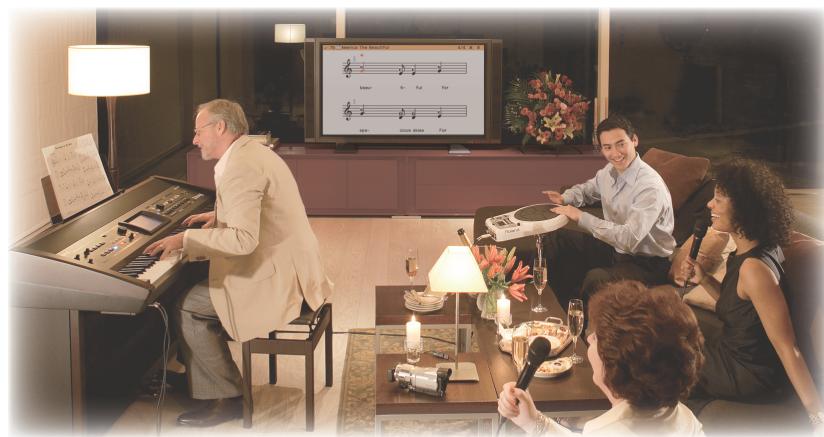
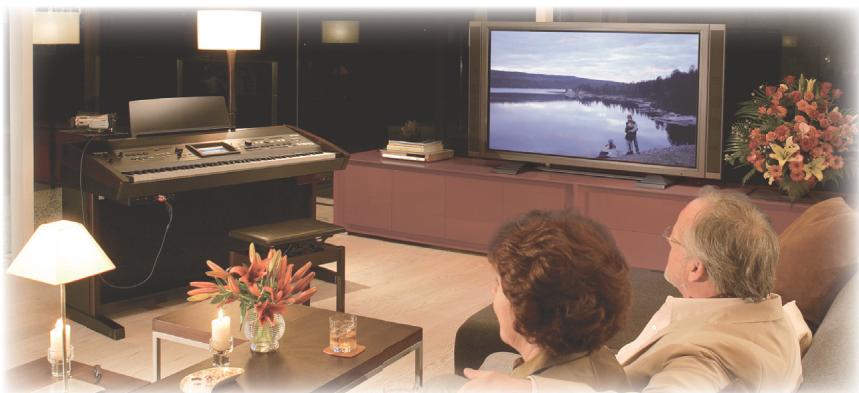
The VIMA recreational keyboard will transform your living room into a musical entertainment space that everyone can enjoy. Liven up your next get-together with your favorite images and music, and make your life just a bit richer.
This Application Guide will show you how to easily use the VIMA to play piano, connect a microphone to enjoy karaoke, or watch images from the VIMA on your television.
Experience music like never before – and VIMA makes it fun!
Let's get started!
All product names mentioned in this document are trademarks or registered trademarks of their respective owners.
Copyright © 2006 ROLAND CORPORATION All rights reserved. No part of this publication may be reproduced in any form without the written permission of ROLAND CORPORATION.
Contents
| 1 p.4 | Playing the piano | The VIMA contains the sounds of not only a piano, but also a wide range of other instruments. This chapter explains how to produce sound by playing the VIMA's keyboard. |
| 2 p.6 | Playing back songs | The VIMA contains numerous songs. It can also play back CDs. This chapter explains how to select and play songs. |
| 3 p.10 | Enjoying images | The VIMA can display a wide variety of images on your television. This chapter explains how to view the VIMA's images on your television. |
| 4 p.14 | Enjoying karaoke | You can connect a microphone to the VIMA and easily enjoy karaoke. This chapter explains how to enjoy karaoke on the VIMA. |
| 5 p.18 | Playing along with a song | The VIMA can display the musical score of a song that's playing back. This chapter explains how you can watch the musical score and play along on the keyboard with a song that's playing back. |
T
Playing the piano
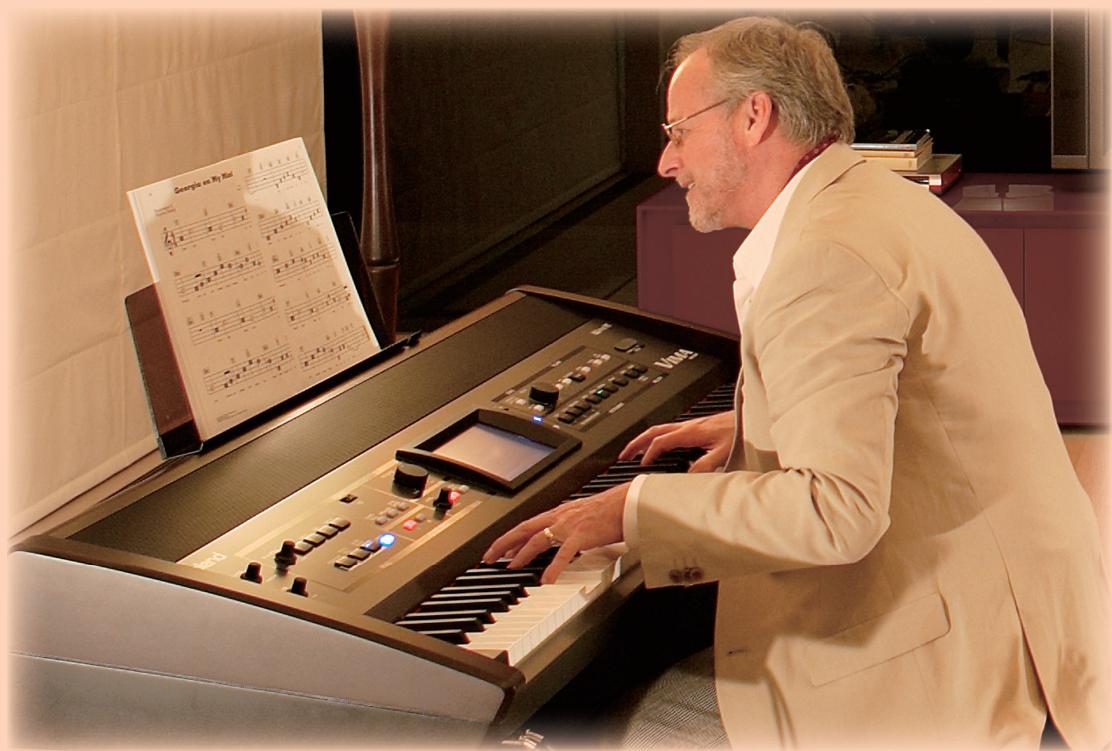
Let's start by playing the keyboard to produce sound.
The VIMA contains piano sounds as well as the sounds of many other instruments.
This chapter explains how to produce sound by playing the VIMA's keyboard.
1)
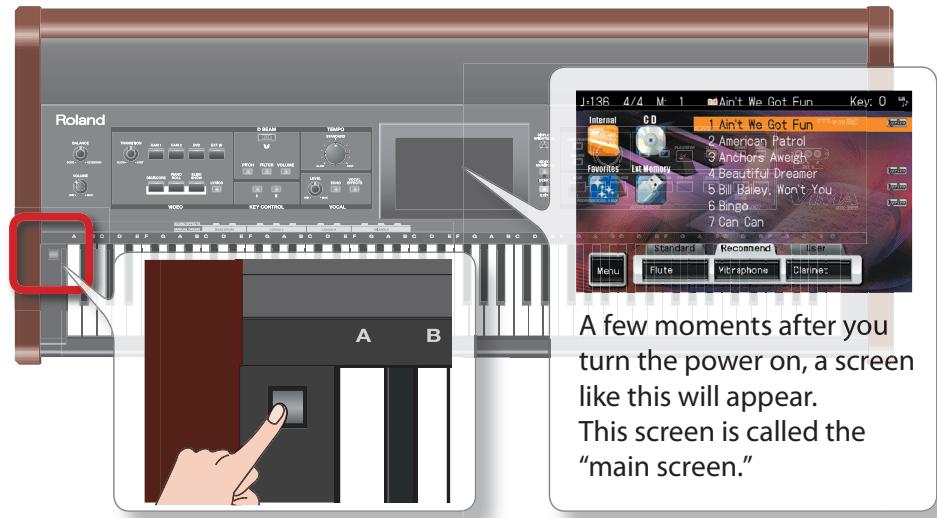
Press the [Power ON] switch to turn the power on.
2
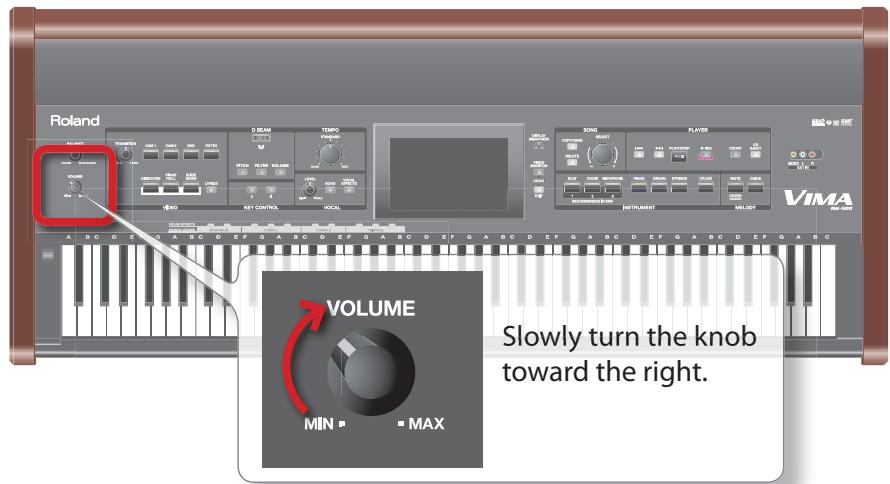
Use the [VOLUME] knob to raise the volume.

Use the INSTRUMENT buttons to select "PIANO."
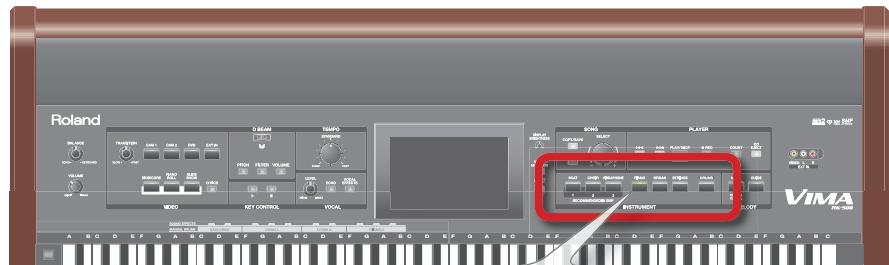
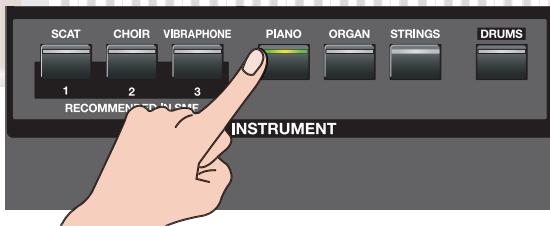
The VIMA has seven instrument buttons.
Of course you are also free to select a sound other than piano.

Play the keyboard.
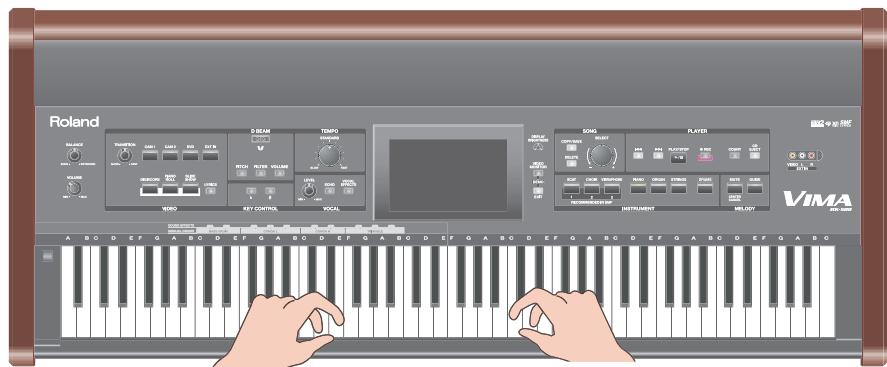
You should hear piano sounds.
Press other instrument buttons to try out other sounds.

What does "RECOMMENDED" mean?
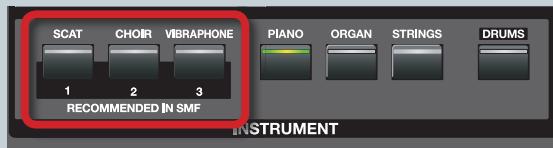
Sounds that are suitable for each song in the VIMA or on a VIMA TUNES™ (a
CD-ROM created specifically for the VIMA) are automatically assigned to "RECOMMENDED IN SMF" buttons (
You can also assign your own favorite sounds to these buttons.
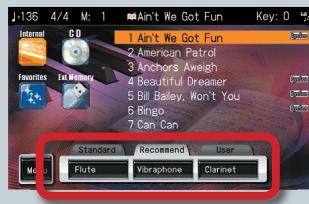
The main screen shows the "RECOMMENDED" assignments.

For more about the instrument buttons, see p. 81 in the Owner's Manual.

Use the pedals!
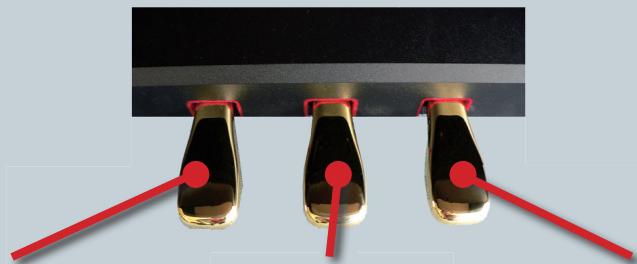
Soft pedal
If you play the keyboard while holding down this pedal, the notes will be softer.
Sostenuto pedal
The notes for keys being pressed at the moment you depress this pedal will be sustained even after you take your fingers off the keyboard.
Damper pedal
While you hold down this pedal, notes will be sustained even after you take your fingers off the keyboard.
2
Playing back songs
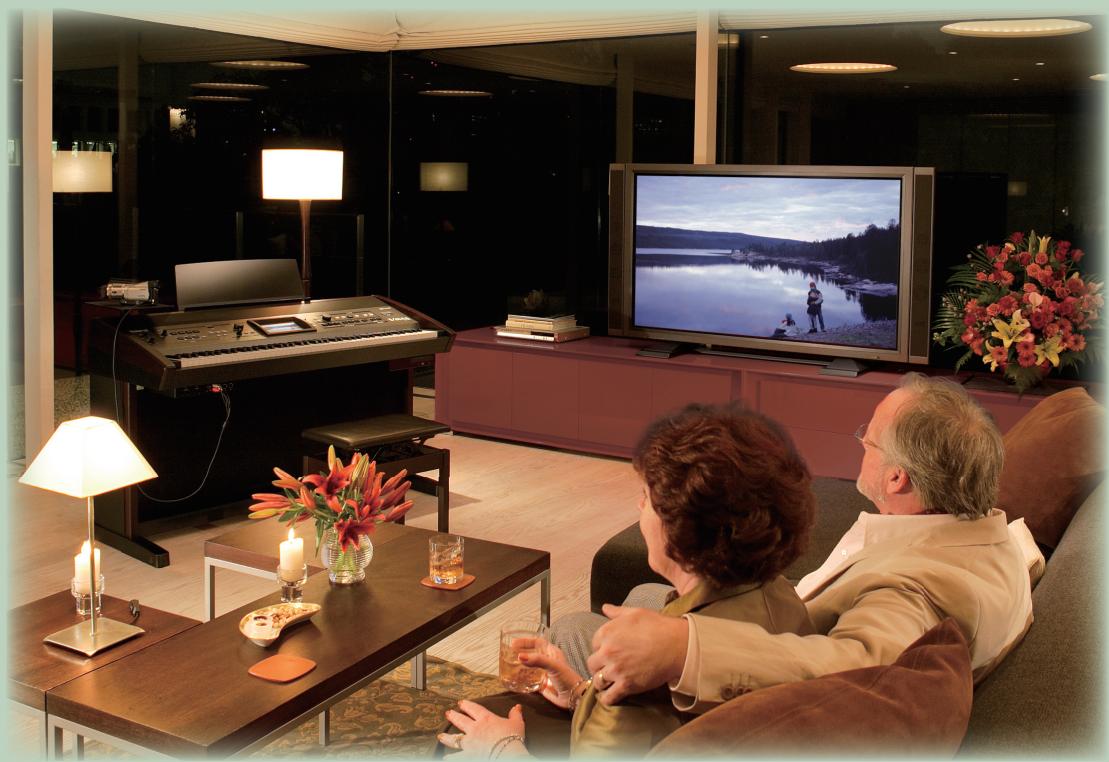
Now let's listen to the VIMA's internal songs and the songs contained on the included CD.
The VIMA contains numerous songs. It can also play back commercially available CDs.
This chapter explains how to select and play songs.
Playing back the VIMA's internal songs
1 Access the main screen.
In the main screen, touch [Internal].
![ROLAND RK-500 - In the main screen, touch [Internal]. - 1](/content/2025/01/130901/images/8c7b326e705f76015daceba102fb937246f939631f98ff733cab685e735d57e8.jpg)
* Song names and other display content may change without notice.
![ROLAND RK-500 - In the main screen, touch [Internal]. - 2](/content/2025/01/130901/images/e008d434af66f31479fca6b55ebdd8b8dc17b377b1c631353dd61f5a2f6a1c4d.jpg)
Turn the [SELECT] knob to select a song.
![ROLAND RK-500 - Turn the [SELECT] knob to select a song. - 1](/content/2025/01/130901/images/03f100d044654a30e930431c8bc8bbf23e28aca3a7cf45087f133692aac02d57.jpg)
![ROLAND RK-500 - Turn the [SELECT] knob to select a song. - 2](/content/2025/01/130901/images/2082542a5467e995298c349be0c68c6edeec160cefbdeede562591d8f4e6328a.jpg)
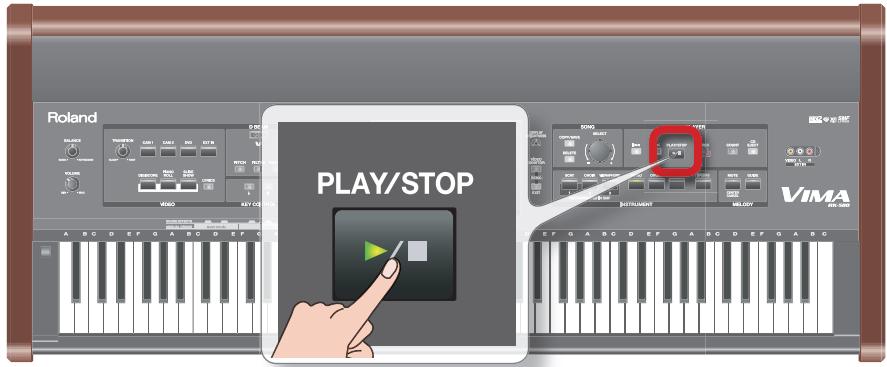
Press the [PLAY/STOP] button to play back the song.
![ROLAND RK-500 - Press the [PLAY/STOP] button to play back the song. - 1](/content/2025/01/130901/images/cd6c3f331742662e7985e3b0e520de2270a45ee414ca775ad680a8ec7ea1b683.jpg)
You should hear the song play.
Press the [PLAY/STOP] button once again to stop playback.
![ROLAND RK-500 - Press the [PLAY/STOP] button to play back the song. - 2](/content/2025/01/130901/images/1e90d1cf91cf7b37f973d8d50416958aa6f92a02d34c4bb94e83f1d0914a95f7.jpg)
Take advantage of "Favorites"!
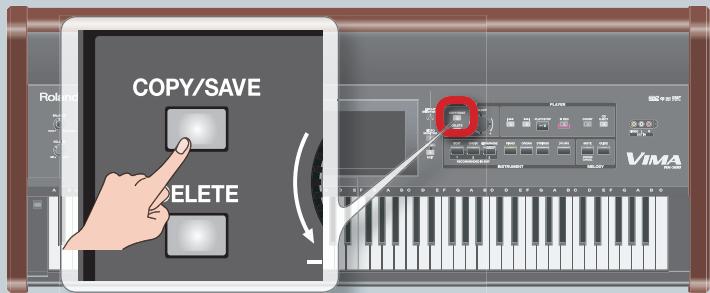
The currently selected song can be saved as one of the “Favor- ites” simply by pressing the [COPY/SAVE] button. You’ll probably want to save the songs you like to hear frequently. Of course you can also save songs from the included CD.
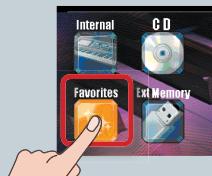
A list of the songs saved in "Favorites" will appear when you touch [Favorites] in the main screen.
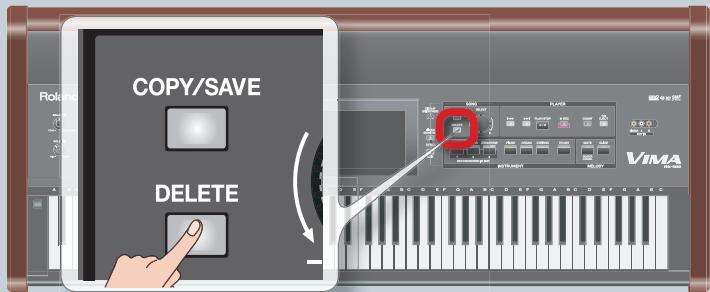
To remove a song from "Favorites," select the song in "Favorites" that you want to remove and then press the [DELETE] button.
For more about "Favorites," see p. 44 in the "Owner's Manual."
Playing back songs from a CD
Press the [CD EJECT] button to open the CD tray.
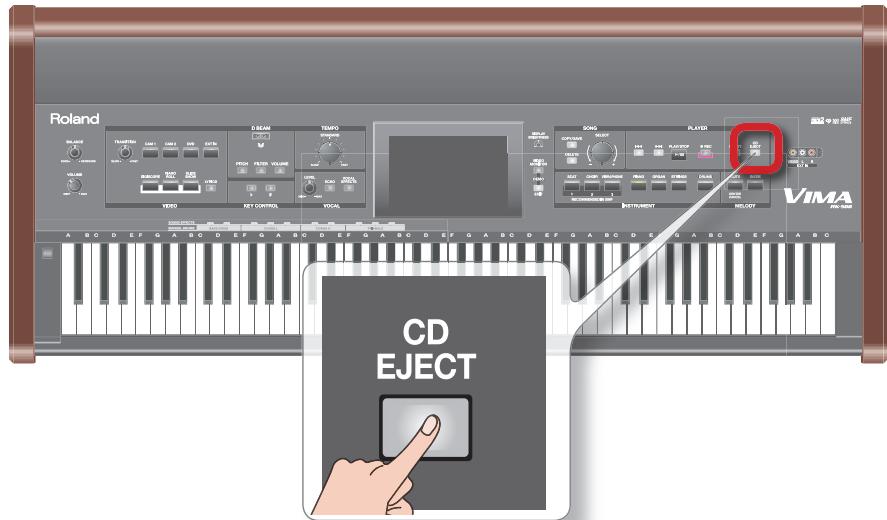
Insert the CD and close the CD tray.
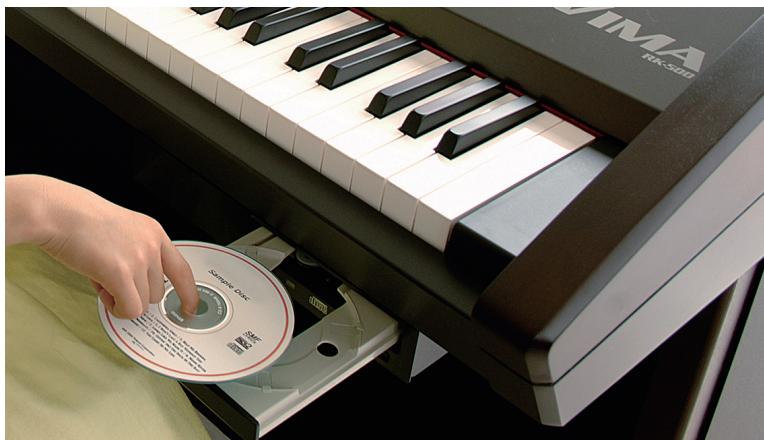
* This photograph is only for illustrative purposes. The label of the CD included with the VIMA will differ.
3 Access the main screen.
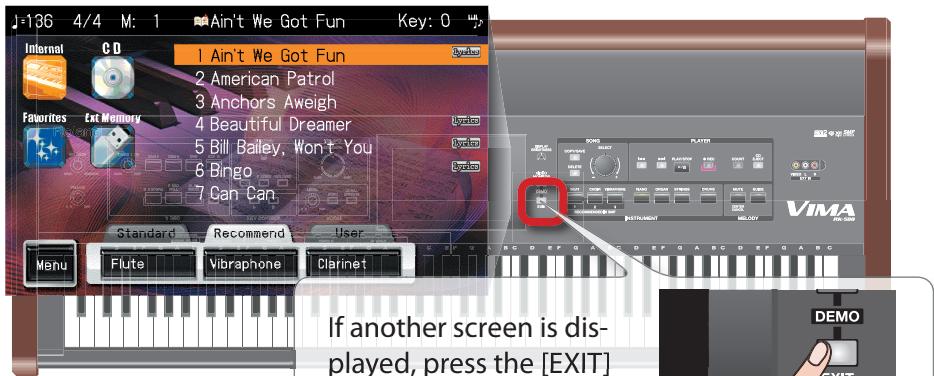
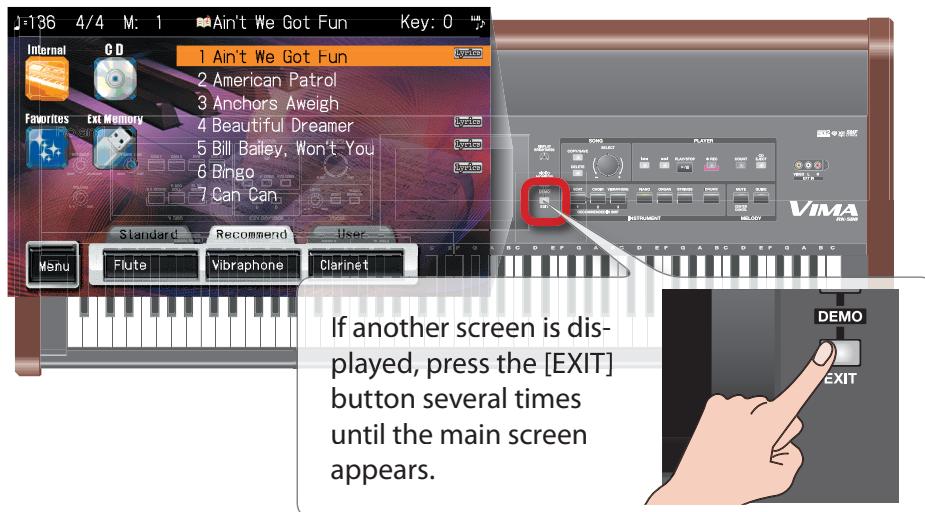
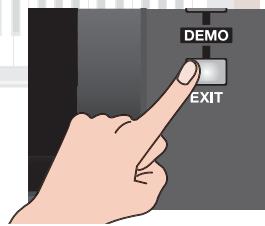
If another screen is displayed, press the [EXIT] button several times until the main screen appears.
4 In the main screen, touch "CD."
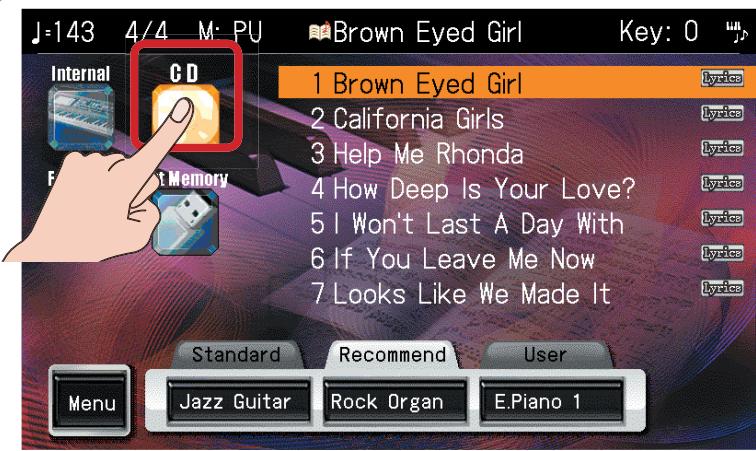
A certain amount of time is required in order to read the CD, so the screen may not change immediately when you insert the CD. Please wait before you continue.
Song names and other displayed content may change without notice.
* In the case of a commercially available music CD, the song names are not displayed.
5
Turn the [SELECT] knob to select a song.
![ROLAND RK-500 - Turn the [SELECT] knob to select a song. - 1](/content/2025/01/130901/images/ee8fe9ba46517f4872311d5c3a3d46916b3522b282ce723aca505997a7c2ae53.jpg)
6
Press the [PLAY/STOP] button to play back the song.
![ROLAND RK-500 - Press the [PLAY/STOP] button to play back the song. - 1](/content/2025/01/130901/images/0e0c6e3f73f269a81558a511e06ece834aafa203482de9ca198d5f30acbc267f.jpg)
You should hear the song play.
Press the [PLAY/STOP] button once again to stop playback.
Tip
CDs you can play on the VIMA
The VIMA can play back the following types of CDs.
CD
Explanation
VIMA TUNES™
(special CD-ROMs
created for the
VIMA)
or
the CD included
with the VIMA
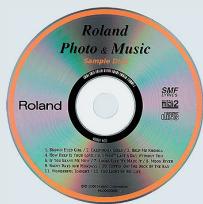
The VIMA can display lyrics, music scores, or a slide show suitable for the mood of the song.
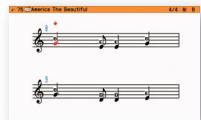
CD-ROMs that contain music data (SMF)
The VIMA can display lyrics or musical scores.
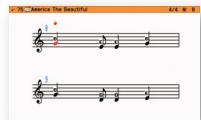
- Depending on the data, lyrics may not be displayed.
Commercially available music CDs
The VIMA can play back the songs, but cannot display lyrics or musical scores.
3
Enjoying images
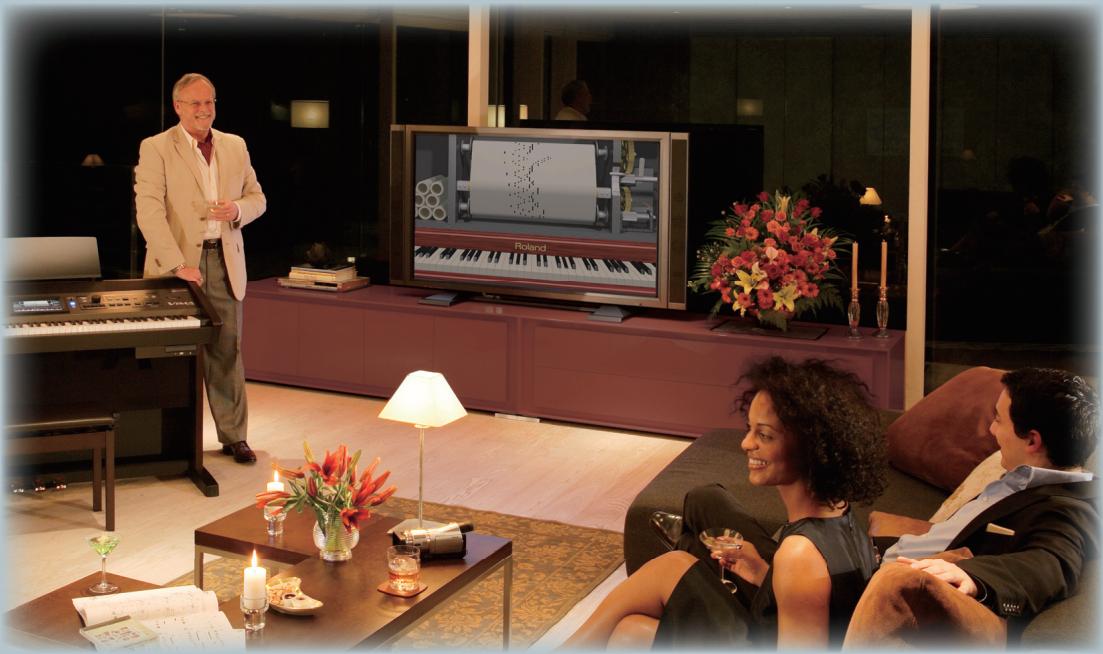
The VIMA can display a wide variety of images on your television. You can connect a camera and show the performer on the television screen, perform using images from a DVD as the background, or display lyrics or a musical score.
This chapter explains how to view the VIMA's images on your television.
7
Play back a song as described in "Playing back songs" (p. 6-9 of this application guide).
#
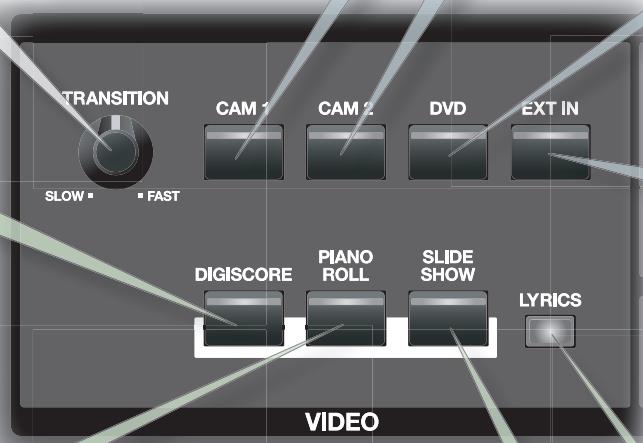
Press one of the buttons shown in the illustration to select the image you want to display on your television.
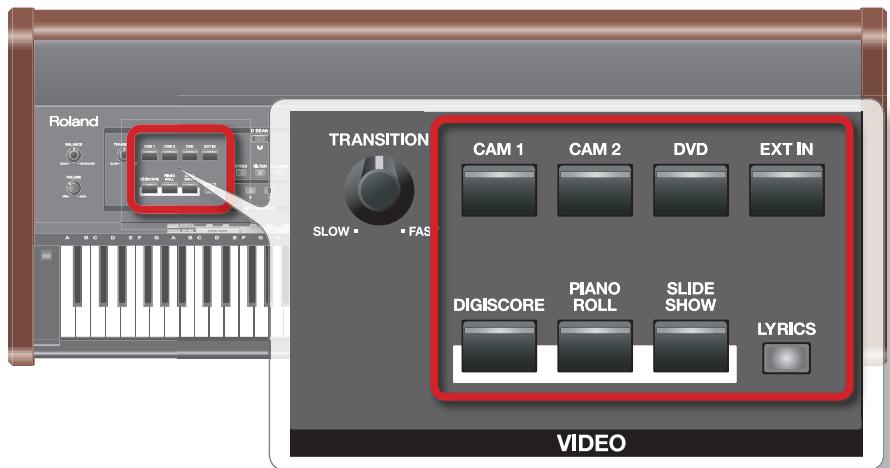
The image will appear on the television that's connected to the VIMA. Refer to the following page for an explanation of the images shown by each button. Go ahead and switch between the various screens to try them out.
Images the VIMA can display
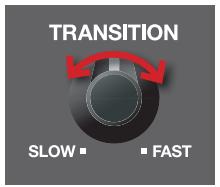
You can turn the [TRANSITION] knob to adjust the speed at which one image changes to the next. Turning the knob toward the right will produce faster transitions.
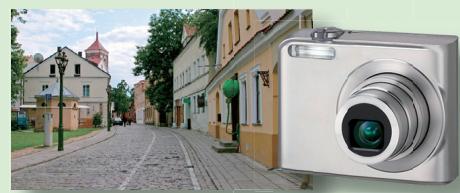
Camera image "Owner's Manual" p. 68
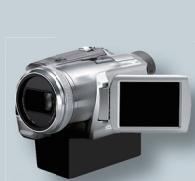
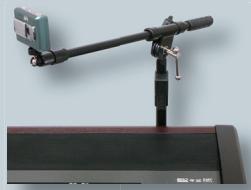
The screen will show the image from a camera connected to the VIMA's "CAM 1" or "CAM 2" connector. By attaching your camera to a separately available camera stand (BST-RK500), you can display an image of the performer on your television.
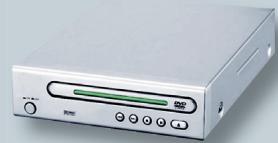
DVD video
"Owner's Manual" p. 70
The screen will display the image from a DVD player connected to the VIMA's "DVD PLAYER INPUT" connector. This allows you to enjoy karaoke or perform in front of a background created by images from the DVD.
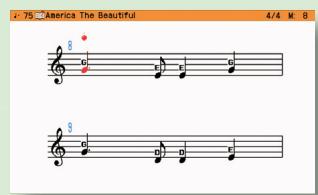
Score
"Owner's Manual" p. 64
The screen will show the musical score of the song that's playing. The type of score will change each time you press the [DIGISCORE] button.
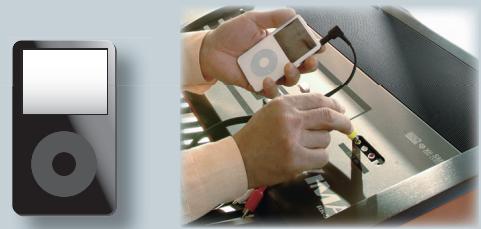
EXT IN video
"Owner's Manual" p. 72
The screen will display the image from a device connected to the VIMA's "EXT IN" connector. You can connect a portable audio/video player and perform along with a music video.
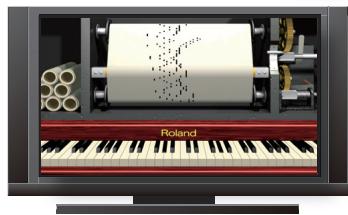
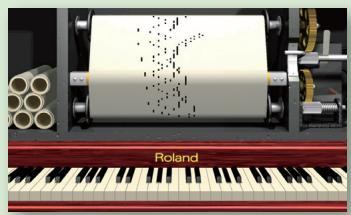
Piano roll
"Owner's Manual" p. 66
The screen will show a piano roll that changes just like a player piano. The type of screen will alternate each time you press the [PIANO ROLL] button.
Slide show
"Owner's Manual" p. 74
The screen will display a slide show of photos matching the mood of the currently playing song. If a digital camera is connected to the external memory (USB) connector, the photos stored on the camera will be displayed as a slide show.
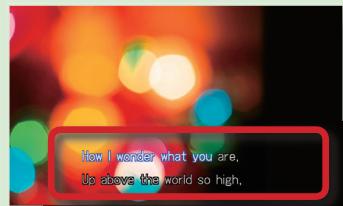
Lyrics
"Owner's Manual" p. 80
The screen will superimpose the lyrics on the currently shown image. This is ideal for karaoke.
Performing together
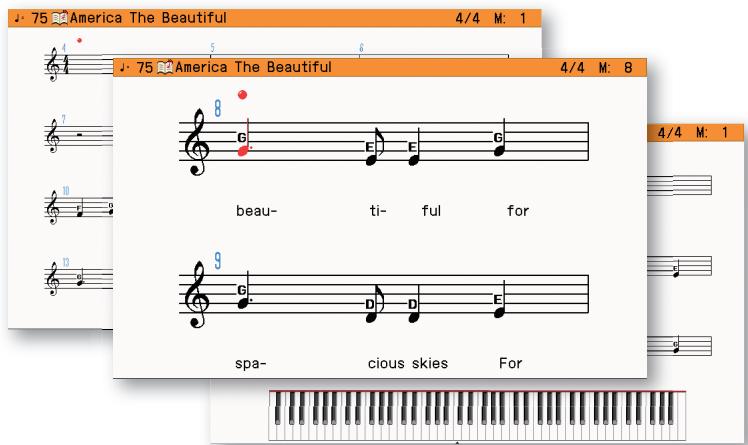
Press the [DIGISCORE] button to display a musical score on your television, and you'll all be able to enjoy performing together while watching the score. The type of score displayed will change each time you press the [DIGISCORE] button. If all of you are performing together, you'll probably want to choose the magnified display.
By pressing the [LYRICS] button, you can have the lyrics be superimposed on the screen. This is ideal for karaoke.
Relaxing with a piano roll
Modern type
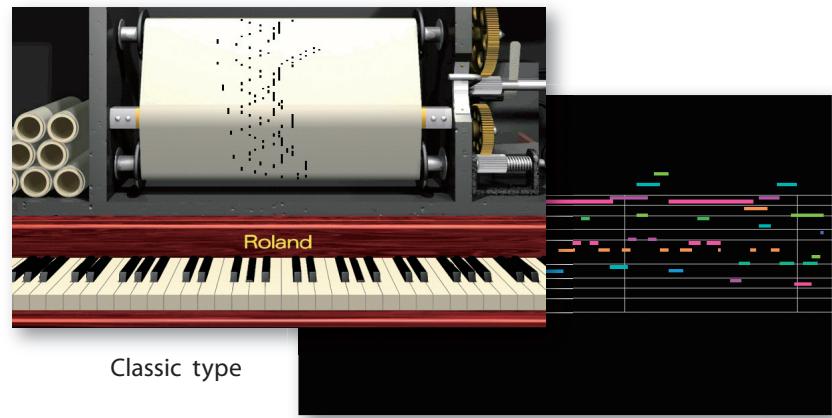
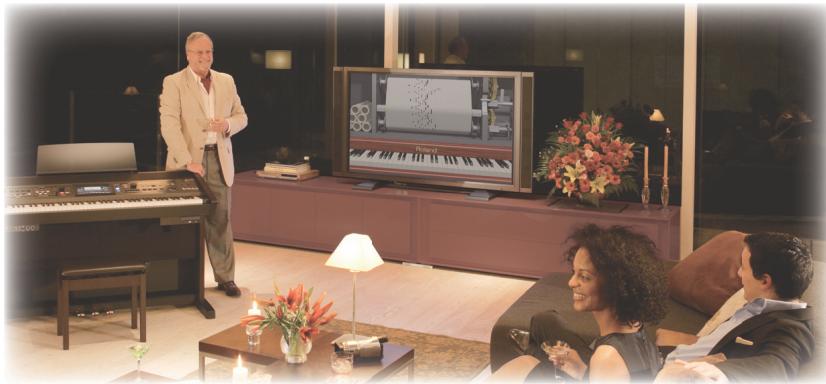
Piano rolls store key movements as holes punched in a roll of paper, and have been used in player pianos since the end of the 19th century. The VIMA can display an image that simulates these piano rolls. The piano roll shown in your television screen will move according to the music.
By pressing the [PIANO ROLL] button you can alternate between a classic piano roll and a modern type of display.
Put on a slide show
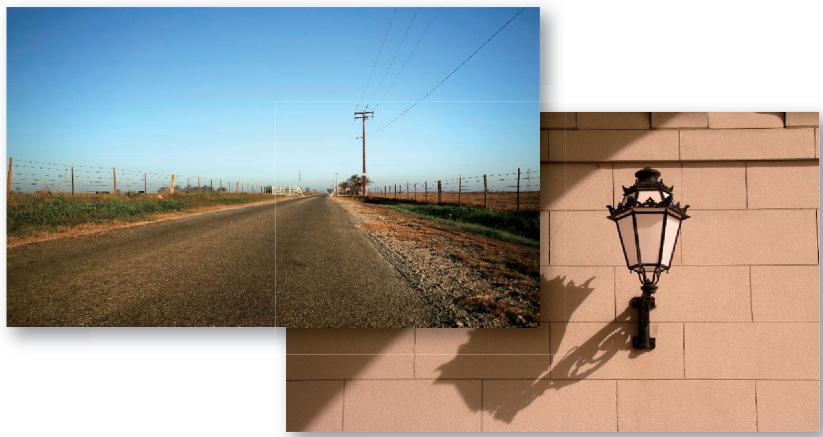
The slide show function will sequentially display photos that match the mood of the song. This is an ideal way to enjoy background video (BGV) while listening to music in your living room.
If a digital camera is connected to the external memory (USB) connector, the photos stored on the camera will be displayed as a slide show. You can enjoy your very own slide show, for example scenes from your home party or remembrances of a trip.

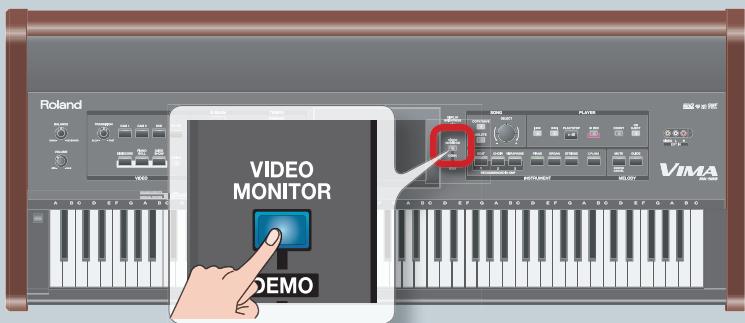
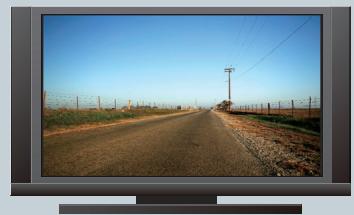
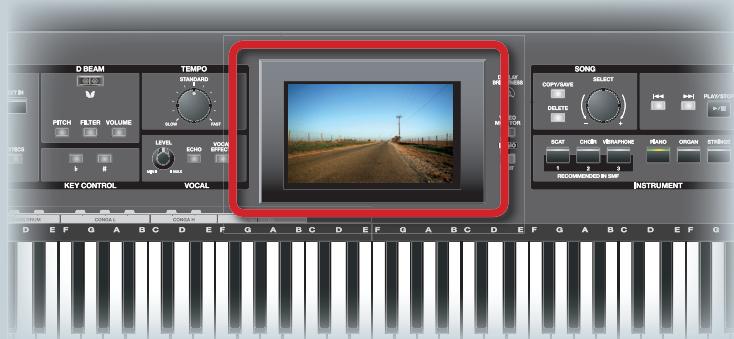
Use the VIMA to check the image shown on your television!
If you turn on the VIMA's [VIDEO MONITOR] button, the image being shown on your television will also be shown on the VIMA's own screen.
4
Enjoying karaoke
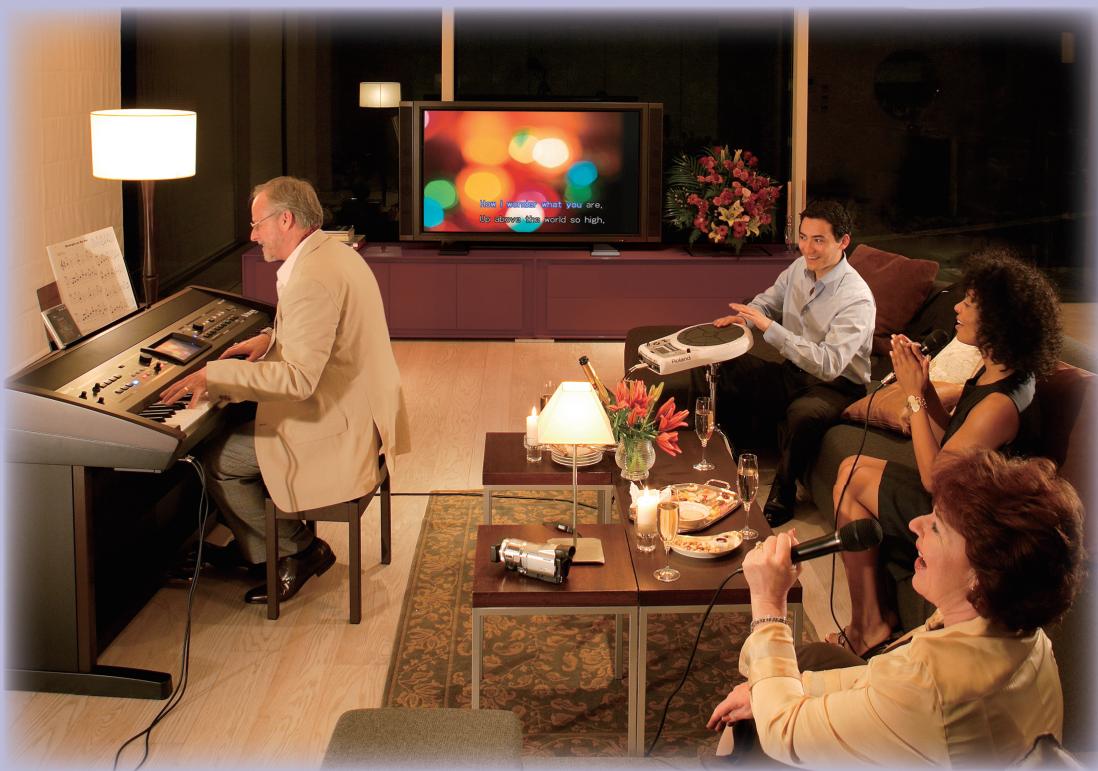
You can connect a microphone to the VIMA and easily enjoy karaoke.
This chapter explains how to enjoy karaoke on the VIMA.

Connect your microphones!
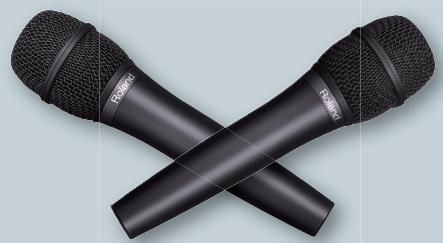
You can connect microphones to the VIMA and enjoy karaoke or sing along with your own playing. Since two microphones can be connected simultaneously to the VIMA, two people can sing together.
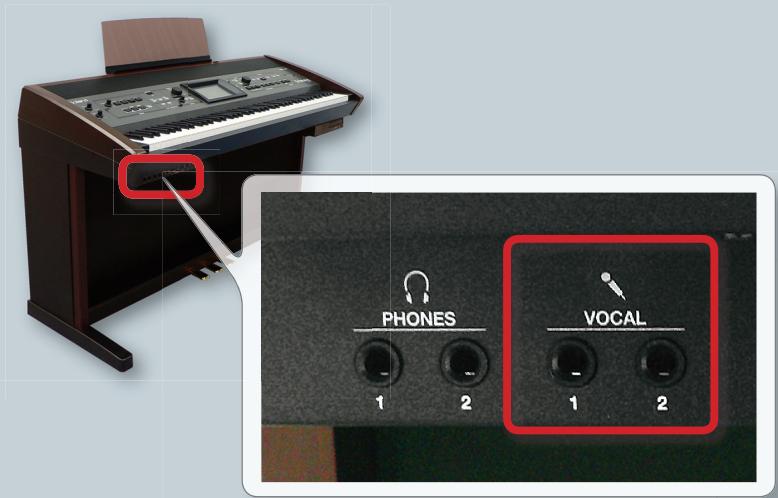
Connect your microphones to the VIMA's "VOCAL" jacks.
Play back a song as described in "Playing back songs" (p. 6-9 of this application guide).
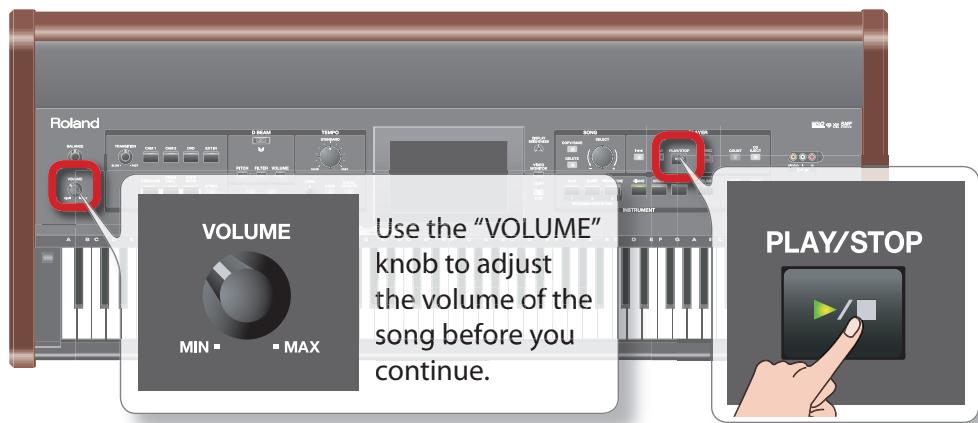
3 Turn on the [MUTE] button to eliminate the melody sounds of the song.
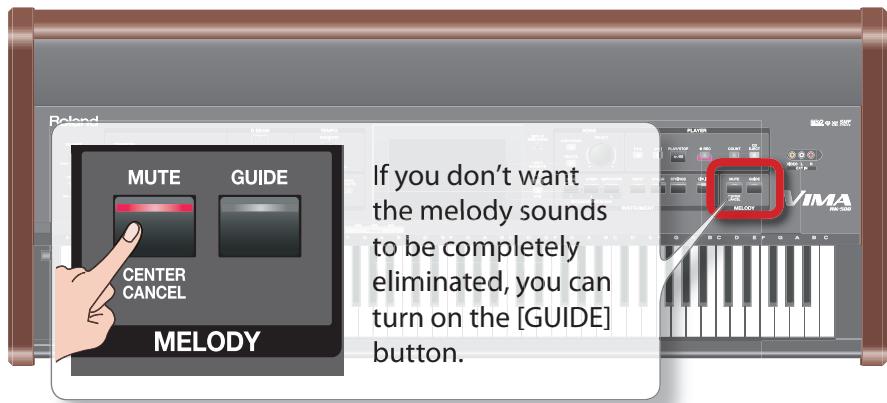
- If you're playing back a commercially available music CD, the vocal of the song will decrease in volume (the "Center Cancel" function).
2
Turn on the [SLIDE SHOW] button and the [LYRICS] button.
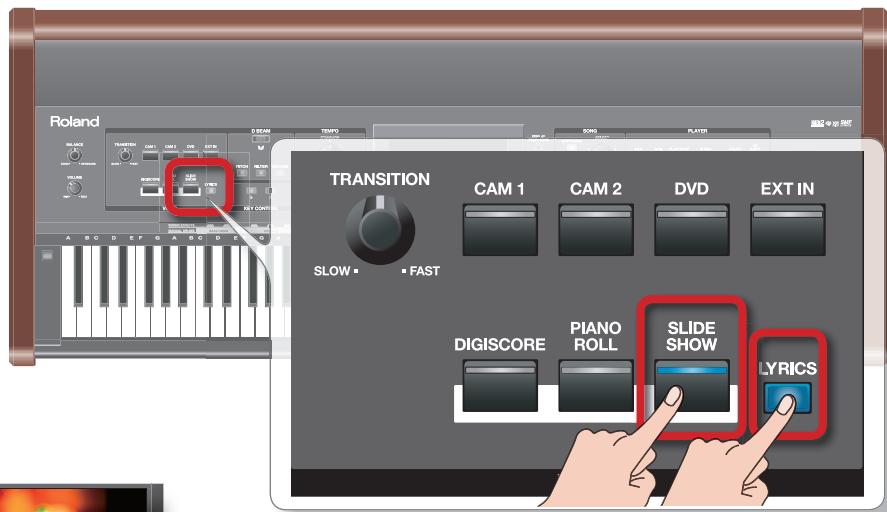
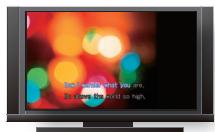
Your television will display the slide show and the lyrics.
*Lyrics are not displayed if you're playing a commercially available music CD.
4 Adjust the microphone volume while you sing.
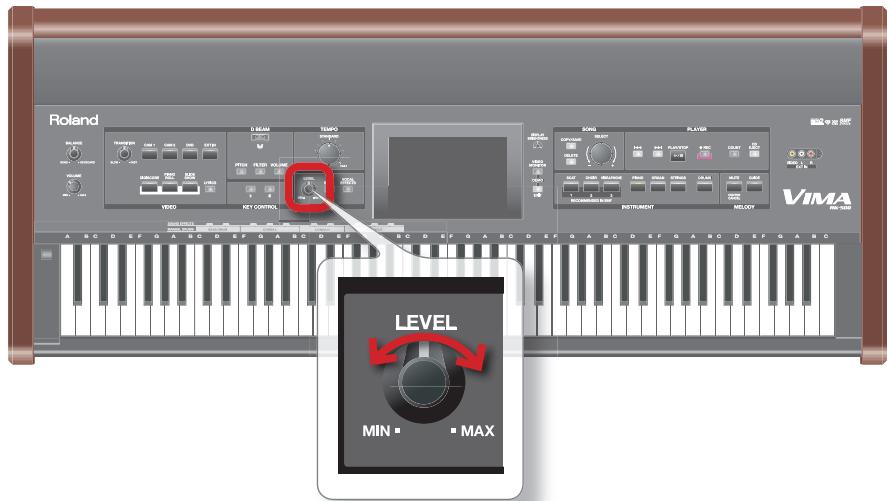
Now you're ready to enjoy karaoke. Press the

button
Applying echo to your voice
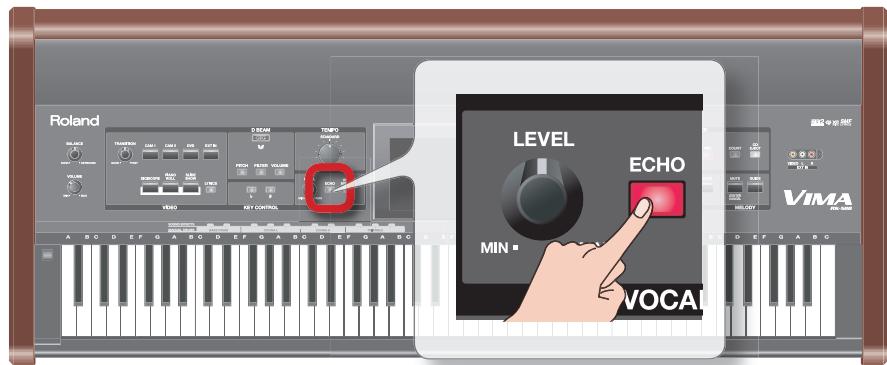
If you turn on the [ECHO] button, echo (reverberation) will be applied to your voice from the microphone. This gives a pleasant resonance to your singing.
You can select the type of echo and adjust the depth. Refer to p. 118 in the "Owner's Manual."
Applying effects to your voice
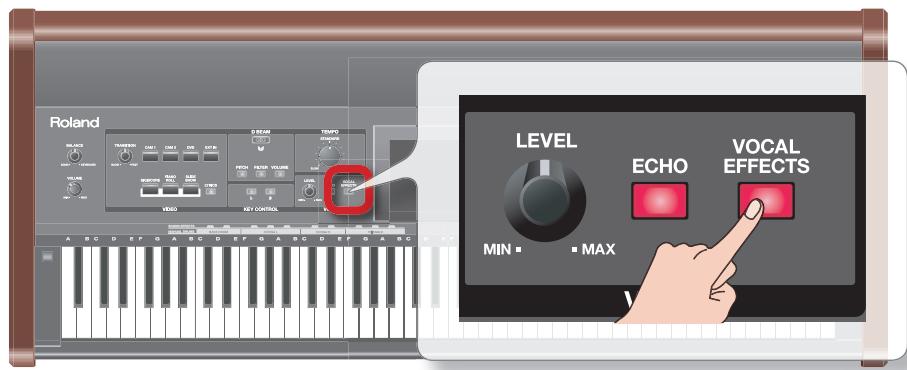
If you turn on the [VOCAL EFFECTS] button, an effect (vocal effect) will be applied to your voice from the microphone.
With the factory settings, the "Kids" effect will be applied.
You can use this to apply a variety of effects, such as transforming a male voice into a female voice, or adding harmony to your voice. For details, see p. 117 in the "Owner's Manual."
Changing the key (pitch) of the song
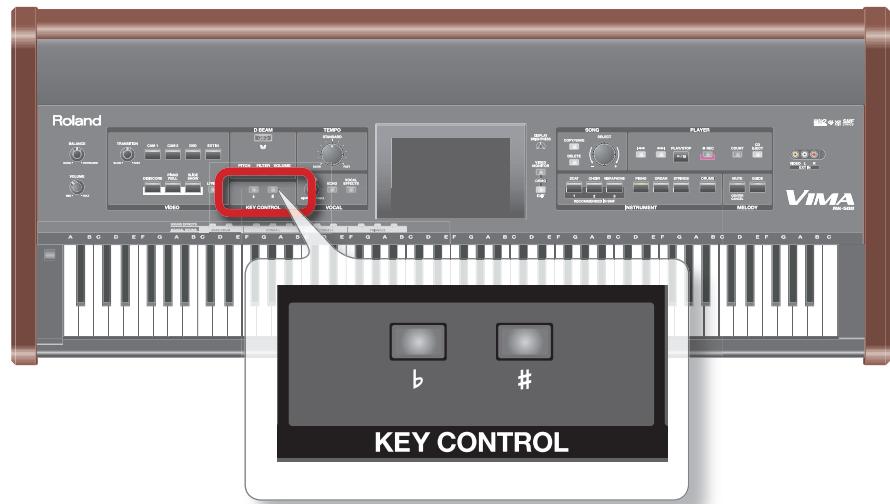
You can use the [KEY CONTROL] buttons to transpose the currently playing song in semitone steps. By changing the key in this way, you can make the song play in a key that's easier for the singer.
To restore the original key, press [b] and [#] simultaneously.
With the factory settings, the key control buttons apply to both the "song" and the "keyboard." If you want the key control buttons to apply only to the "song" or only the "keyboard," see p. 112 in the "Owner's Manual."
Changing the tempo of the song
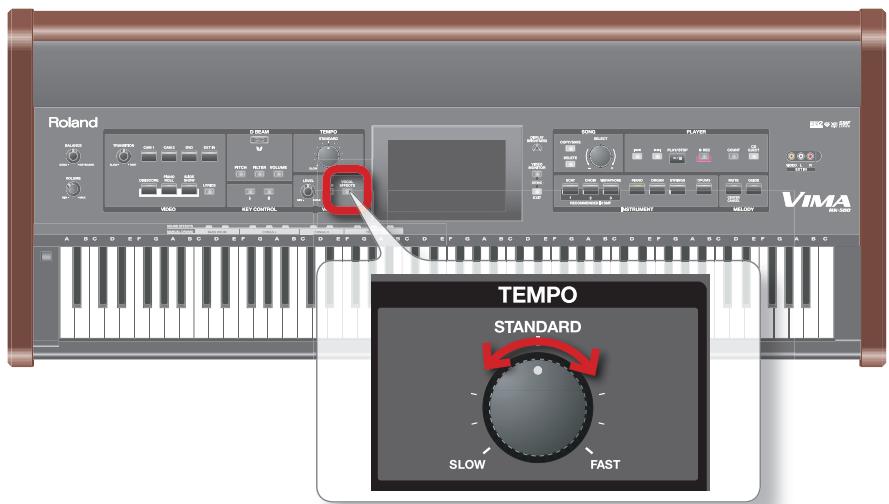
You can turn the [TEMPO] knob to change the tempo of the currently playing song. Turn the knob clockwise to speed up the tempo, or in the opposite direction to slow it down. Adjust the tempo so you can sing comfortably.
- The tempo won't change if you're playing a commercially available music CD.
For more about tempo, see p. 49 in the "Owner's Manual."

Use the D BEAM for more drama!
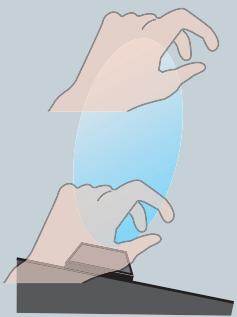
By moving your hand over the D BEAM sensor you can vary the pitch, filter, or volume of the sounds you're playing from the keyboard. You can also play sound effects such as "applause."
If you want to play an "applause" sound effect, press the [FILTER] button twice so it's blinking.
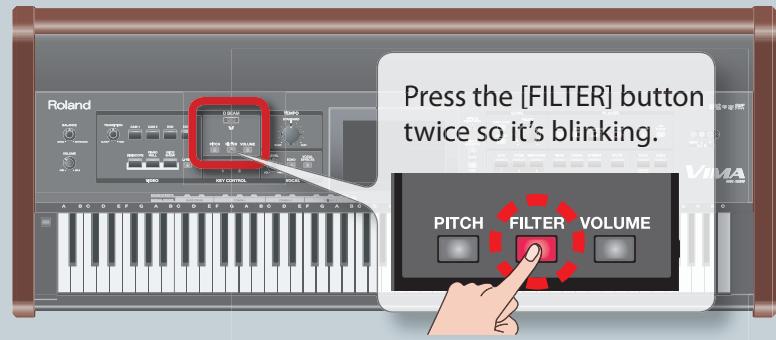
Then move your hand over the D BEAM sensor and you'll hear applause. Add some well-deserved applause at the end of your karaoke performance!
5
Playing along with a song
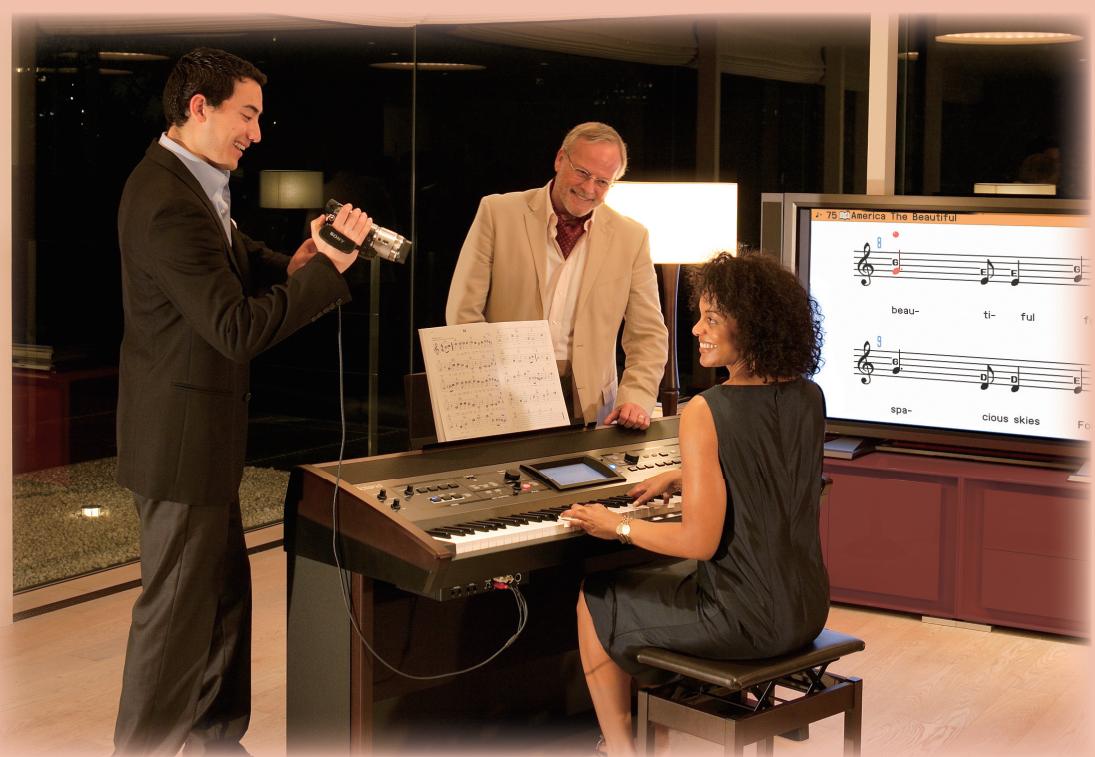
The VIMA can display the musical score of a song that's playing back.
This chapter explains how you can watch the musical score and perform on the VIMA's keyboard along with one of the VIMA's internal songs or a song from the included CD.
7
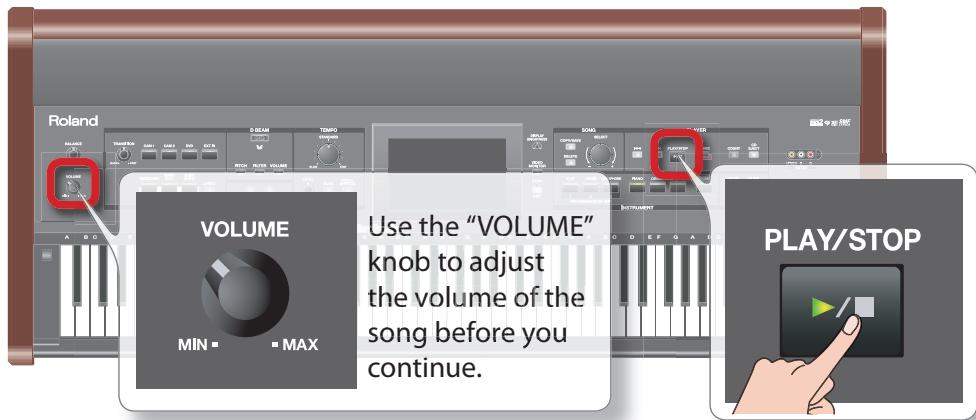
Play back a song as described in "Playing back songs" (p. 6-9 of this application guide).
#
Turn on the [DIGISCORE] button and the [VIDEO MONITOR] button.
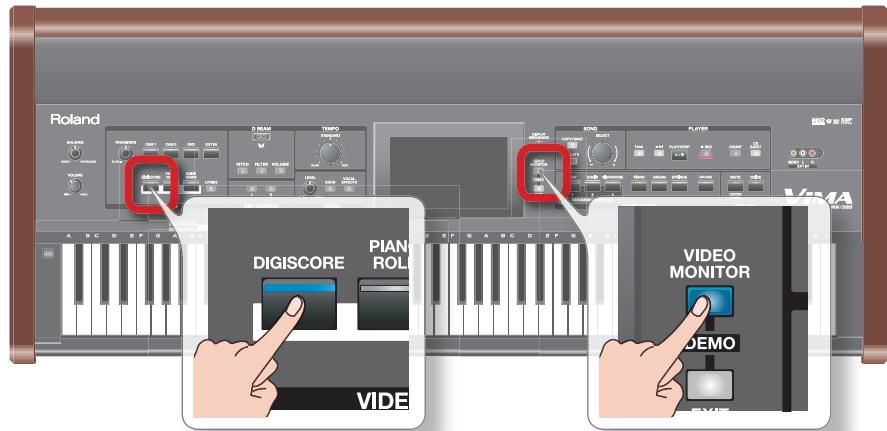
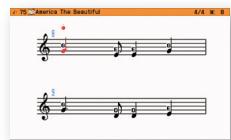
The musical score will appear on your television and in the VIMA's display. By repeatedly pressing the [DIGISCORE] button you can switch the type of score that's displayed.
- The musical score won't be displayed if you're playing a commercially available music CD.

Turn on the [MUTE] button to eliminate the melody sounds of the song.
![ROLAND RK-500 - Turn on the [MUTE] button to eliminate the melody sounds of the song. - 1](/content/2025/01/130901/images/ff4701edbb06c19e2ff9ae181bb88ca961283311cb667a83bbc6afa37450cf39.jpg)
* If you're playing back a commercially available music CD, the vocal of the song will decrease in volume (the "Center Cancel" function).
![ROLAND RK-500 - Turn on the [MUTE] button to eliminate the melody sounds of the song. - 2](/content/2025/01/130901/images/dcc8d2da1d6ec8e404c95e7088392d574ca741c519f7fe521d715061e64e4124.jpg)
Use the INSTRUMENT buttons to select the sound that you want to play from the keyboard.
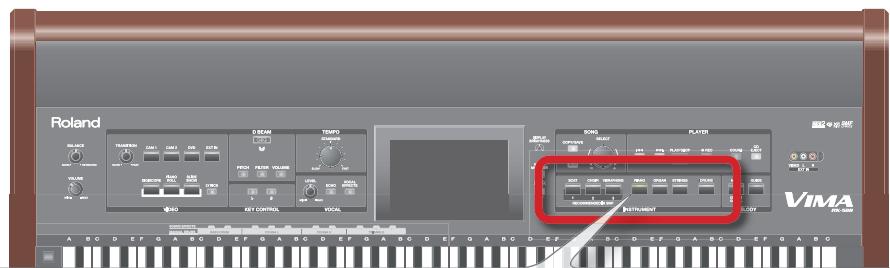
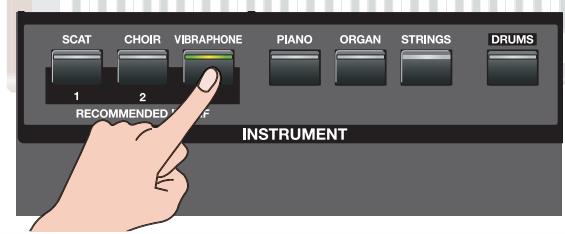
If you choose one of the RECOMMENDED buttons (1-3), a sound that's suitable for the selected song will be chosen automatically.
* If you're playing back a commercially available music CD, sounds suitable for the song will not be available for automatic selection.

Watch the musical score shown in the VIMA's screen, and play the keyboard.
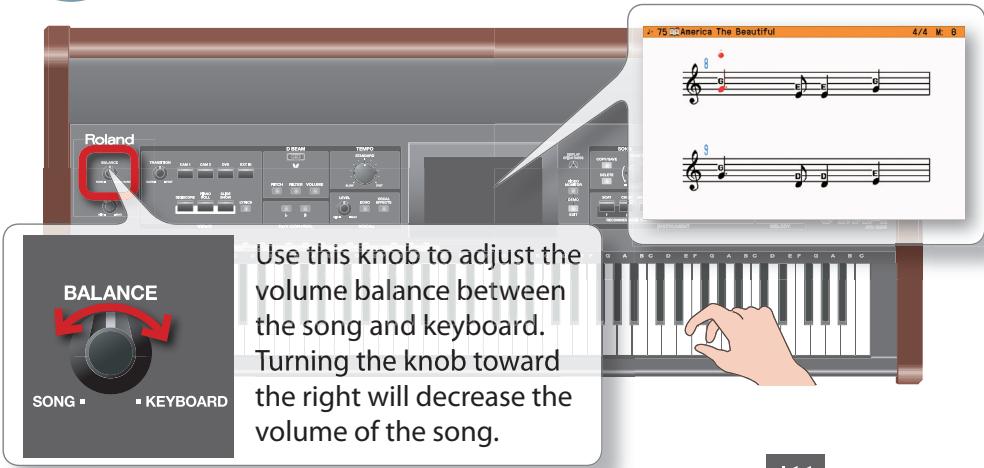
Now you're ready to play along with the song. Press the and play along from the beginning of the song.

button

Record your performance!
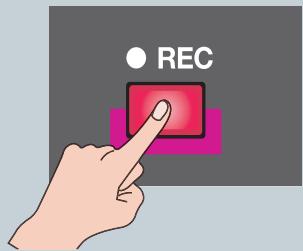
You can also press the [REC] button to record your own performance. For details on recording, see p. 96 in the "Owner's Manual."
- A new lifestyle with VIMA
- Contents
- T
- Playing the piano
- 1)
- 2
- Use the INSTRUMENT buttons to select "PIANO."
- Play the keyboard.
- What does "RECOMMENDED" mean?
- Use the pedals!
- Soft pedal
- Sostenuto pedal
- Damper pedal
- Playing back songs
- Playing back the VIMA's internal songs
- Access the main screen.
- In the main screen, touch [Internal].
- Turn the [SELECT] knob to select a song.
- Press the [PLAY/STOP] button to play back the song.
- Take advantage of "Favorites"!
- Playing back songs from a CD
- 5
- 6
- Tip
- CDs you can play on the VIMA
- CD
- Explanation
- 3
- Enjoying images
- 7
- #
- Images the VIMA can display
- Camera image "Owner's Manual" p. 68
- DVD video
- Score
- EXT IN video
- Piano roll
- Slide show
- Lyrics
- Performing together
- Relaxing with a piano roll
- Put on a slide show
- Use the VIMA to check the image shown on your television!
- 4
- Enjoying karaoke
- Connect your microphones!
- Applying echo to your voice
- Applying effects to your voice
- Changing the key (pitch) of the song
- Changing the tempo of the song
- Use the D BEAM for more drama!
- Playing along with a song
- Turn on the [MUTE] button to eliminate the melody sounds of the song.
- Use the INSTRUMENT buttons to select the sound that you want to play from the keyboard.
- Watch the musical score shown in the VIMA's screen, and play the keyboard.
- Record your performance!
Brand : ROLAND
Model : RK-500
Category : Synthesizer