
3600 - Mobile Phone HTC - Free user manual and instructions
Find the device manual for free 3600 HTC in PDF.


| Product Type | Pocket PC Mobile Phone |
| Brand | HTC |
| Model | 3600 |
| Operating System | Windows Mobile |
| Screen | Touchscreen |
| Main Camera | Yes, photo and video capture |
| Secondary Camera | Yes, front for selfies and video calls |
| Bluetooth Connectivity | Yes |
| Wi-Fi Connectivity | Yes |
| Infrared Connectivity | Yes |
| USB Port | Yes (sync and charge) |
| Headphone Jack | Yes (via sync connector) |
| Speaker | Yes |
| Microphone | Yes |
| Battery | Rechargeable, removable |
| Memory Card | Mini SD |
| SMS/MMS Functions | Yes |
| Email Functions | Yes (Outlook, POP3/IMAP4) |
| Internet Browsing | Yes (Internet Explorer Mobile) |
| Phonebook | Yes |
| Alarm | Yes |
| Security | PIN and password protection |
| Box Contents | Power adapter, USB cable, stereo headset, carrying case |
Frequently Asked Questions - 3600 HTC
User questions about 3600 HTC
0 question about this device. Answer the ones you know or ask your own.
Ask a new question about this device
Download the instructions for your Mobile Phone in PDF format for free! Find your manual 3600 - HTC and take your electronic device back in hand. On this page are published all the documents necessary for the use of your device. 3600 by HTC.
USER MANUAL 3600 HTC
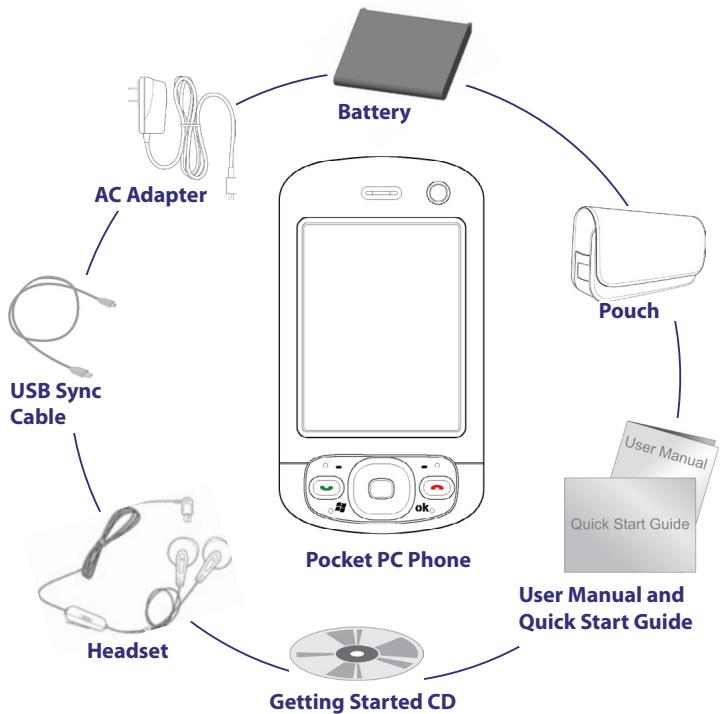
1. What's in the Box?
2. The Pocket PC Phone
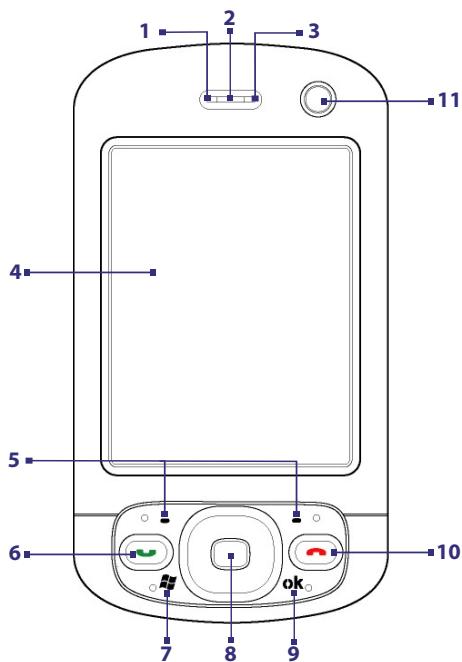
| No. | Item | Function |
| 1 | Notification LED 1 | This LED shows the following: • A blinking Blue light for Bluetooth system notification of powered-up and ready to transmit radio frequency signal. • A blinking Green light for Wi-Fi status. • When both Bluetooth and Wi-Fi are enabled, their lights blink alternately. |
| 2 | Speaker | Listen to audio media or phone call. |
| 3 | Notification LED 2 | This (bi-color) LED shows Green and Amber lights for UMTS/GSM standby, UMTS/GSM message, UMTS/GSM network status, notification, and battery charging status. |
| 4 | Touch Screen | Tap the screen with the stylus to write, draw, or make a selection. |
| 5 | Left and Right SOFT KEYS | Press to execute the command shown in the label above the button. |
| 6 | TALK Button | Press to answer an incoming call or dial a number. |
| 7 | START Button | Press to open the Start menu. |
| 8 | NAVIGATION Control/ENTER | Press this multi-directional control up, down, left, or right to move through menus and program instructions; carry out the selection by pressing the center button. |
| 9 | OK Button | Press to confirm your data entries, or to exit the program in use. |
| 10 | END Button | Press to end a call or to return to the Today screen. |
| 11 | Second Camera | Use this camera for taking self portraits and video call conversations. |
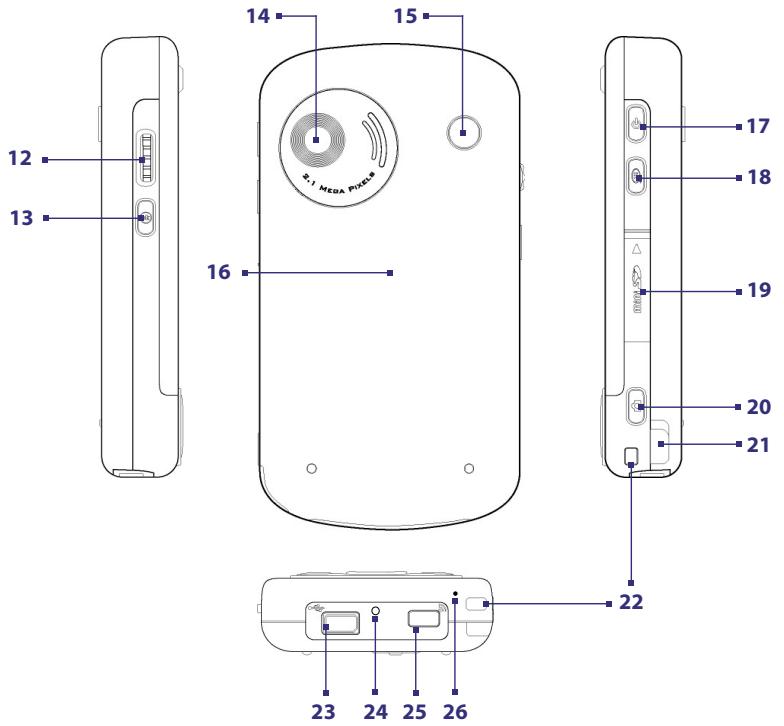
| No. | Item | Function |
| 12 | Jog Wheel | While on Today screen or using applications, scroll up or down to navigate through menus, program instructions; press the wheel to carry out a selection. During a call or while playing music, scroll up or down to adjust the sound volume. |
| 13 | OK Button | Press to confirm your data entries, or to exit the program in use. |
| 14 | Main Camera | Use the main camera to take still photos and record video clips. |
| 15 | Car Antenna Connector | Connect your device to the car antenna while in a car to have better reception quality. |
| 16 | Back Cover | Slide out to access the battery compartment and SIM card. |
| 17 | POWER Button | • Press to turn off the display temporarily. This switches your device to Sleep mode. You can still receive calls and messages when your device is in Sleep mode. • Press and hold (for about 5 seconds) to turn off the power completely. All functions including the phone will be unavailable for use. |
| 18 | VOICE COMMAND Button | Press to start Voice Speed Dial; press and hold to record a voice note. |
| 19 | Mini SD Card Slot | In this card slot, insert a Mini SD memory card for storing data, or insert a Mini SD input/output card, such as a network card. |
| 20 | CAMERA Button | Press to launch the Camera; press again to take a photo or video clip, depending on the specified capture mode. |
| 21 | Stylus | Use the stylus to write, draw, or select items on the touch screen. |
| 22 | Strap Holder | It lets you attach a strap for carrying your device. |
| 23 | Sync Connector/ Earphone Jack | Use this connector to synchronize data by connecting the provided USB Sync cable or to recharge the battery via the provided AC adapter. You can also connect the provided USB stereo headset for hands-free conversation or for listening to audio media. |
| 24 | RESET Button | With the stylus, press the RESET button to soft-reset your device. |
| 25 | Infrared Port | It lets you exchange file(s) or data with other devices wirelessly. |
| 26 | Microphone | Speak into the microphone when receiving or making a phone call or voice recording. |
| No. | Accessory | Function |
| 1 | AC adapter | Converts AC to DC for recharging the battery. |
| 2 | USB Sync cable | Connects your device to a PC and synchronize data. |
| 3 | Stereo headset | Provides a volume control slider and a Send/End button. Press the Send/End button to pick up a call or put a call on hold; press and hold the button to end the call. |
| 4 | Pouch | Acts as a protective carrying case for your phone. |
3. Getting Ready
Before you start using your device, you must install a SIM card and a charged battery. The SIM card contains your phone number and service details, and it stores phonebook entries and your messages.
If you need more storage for your device, you can also insert a mini SD memory card into the slot provided on the right side panel of the device.
Install the SIM card
- Make sure your device is turned off.
- Slide upward to open the back cover. If the battery is inside, remove by lifting it up from the upper side of the battery slot using your finger.
- Slide in the SIM card to insert it into the slot, with its gold contacts facing down. (The cut-off corner of the SIM card should match the cut-off corner in the SIM card slot).
- Replace the battery (see instructions in the next section).
- Replace the battery cover.
To remove the SIM card, open the back cover, remove the battery, and slide out the SIM card by giving a gentle upward push at its bottom using your thumb or stylus.
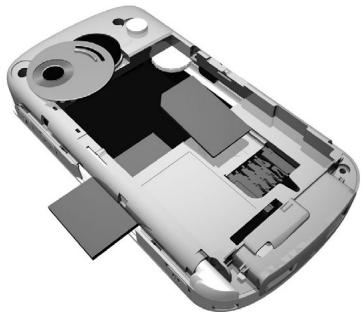
Inserting the SIM card
Install the memory card
- On the right side panel of your device, pry open the mini SD slot cover. Open from the side of the cover where it shows an arrow.
- Insert the mini SD memory card into the slot carefully. Slide the card all the way in until you hear it click securely in place.
- Close the slot by briefly pressing the cover back in place.
You are ready to use the memory card for storage on your device. To remove or replace the memory card, press the card briefly inward to release it, and then pull the card out of the slot.
Install and charge the battery
New batteries are shipped partially charged. Before you start using your device, it is recommended that you install and charge the battery.
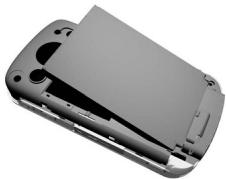
To install the battery, remove the back cover first, and then insert the battery by aligning the exposed copper part of the battery pack with the protruding copper conductor which is at the bottom of the battery slot. Insert the bottom side of the battery first, then gently push the battery into place, and replace the back cover.
Some batteries perform best after several full charge/discharge cycles. You can charge the battery in two ways:
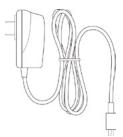
- Connect your device directly to an electrical outlet using the AC adapter.
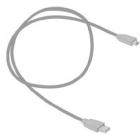
- Plug the sync cable to the USB port on your PC and to the sync connector on your device.
When your device is turned off, charging is indicated by a solid amber light on the LED indicator. When your device is turned on, charging is indicated by a solid amber light on the LED indicator as well as a charging icon ( ) on the Today screen.
After the battery has been fully charged, the LED indicator becomes green and a full battery icon ( ) appears on the Today screen.
Check the battery power
- Tap the battery level icon ( ) on the Today screen. The Power Settings screen will then open where you can see the current battery power level.
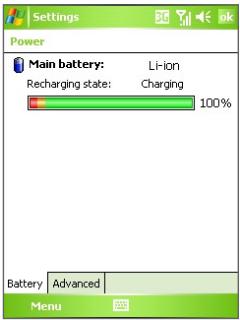
Battery power indicator
When the battery power gets very low, a warning message will be displayed. When you see this, immediately save your data by synchronizing with your PC, or save your data on a secondary storage card, and then turn off your device. Do not attempt to restart your device until you have connected it with the power adapter.
Turn on your Pocket PC Phone
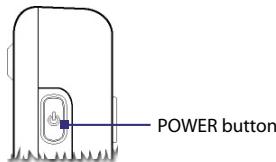
Press and hold POWER to turn on your device. When you turn on your device for the first time, a Quick Start Wizard will guide you through the screen calibration process and the setup of regional settings, date and time, password, Outlook e-mail, and POP3/IMAP4 e-mail accounts.
To turn off your device, press POWER again.
4. Making a Call
Like a standard mobile phone, you can use your device to make, receive, and keep track of phone calls and send SMS messages. In addition, you can make and receive video calls.
The Phone screen
From the Phone screen, you can access Call History, Speed Dial, and Phone settings. To open the Phone screen, do one of the following:
- Use the stylus to tap Start > Phone.
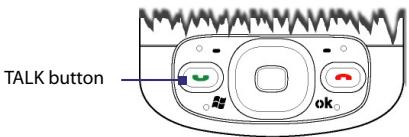
- Press TALK on the device.
Make a voice call
- On the Phone screen, tap the phone number you want to call, then tap Talk or press the TALK button.
Make a video call
- On the Phone screen, tap the phone number you want to call, then tap Video.
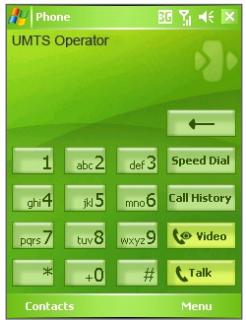
Phone screen
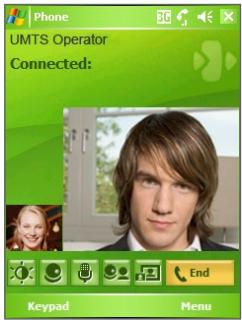
Video Call screen
Note The other party's image will appear on the screen about 3 to 5 seconds after a connection is established, depending on the signal strength. The streaming image quality may also be influenced by the signal.
5. Synchronizing Outlook Information
Using Microsoft ActiveSync, you can synchronize information on your device with information on your PC, such as Outlook content. ActiveSync is already installed on your device, but you need to install it on your PC if you don't already have it. Insert the Getting Started CD into the CD drive of your PC. Follow the instructions on the installation wizard screen to install ActiveSync. Once installation is completed, connect the sync cable to your device and plug it into your PC's USB port.
To set up a partnership between your device and the PC, turn on your device. When the PC detects a USB connection, it starts the ActiveSync Synchronization Setup Wizard. Follow the instructions on the screen and select the Outlook items you want to synchronize.
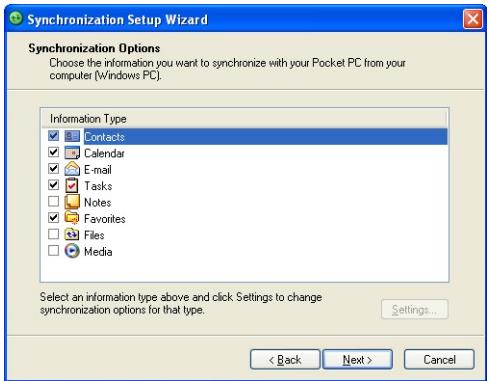
Synchronization Setup Wizard
(Synchronization Options)
PC requirement to run ActiveSync 4.x
To connect your device to the PC, you must have the Microsoft ActiveSync program installed on your PC. ActiveSync 4.x is included in the Getting Started CD, which is compatible with the following operating systems and applications:
Microsoft Windows 2000 Service Pack 4
Microsoft Windows Server 2003 Service Pack 1
Microsoft Windows Server 2003 IA64 Edition Service Pack 1
- Microsoft® Windows® Server 2003 x64 Edition Service Pack 1
Microsoft Windows XP Professional Service Packs 1 and 2
Microsoft Windows XP Home Service Packs 1 and 2
- Microsoft® Windows® XP Tablet PC Edition 2005
Microsoft Windows XP Media Center Edition 2005
Microsoft® Windows® XP Professional x64 Edition
- Microsoft® Outlook® 98, Microsoft® Outlook® 2000 and Microsoft® Outlook® XP, and Microsoft® Outlook® 2003 messaging and collaboration clients
Microsoft Office 97, excluding Outlook
Microsoft Office 2000
Microsoft Office XP
Microsoft Office 2003
- Microsoft® Internet Explorer 4.01 or later (required)
Microsoft® Systems Management Server 2.0
6. Setting Up E-mail Accounts
The E-mail Setup Wizard makes it easy and simple to set up your Outlook e-mail and POP3/IMAP4 accounts on your device.
Set up e-mail accounts using E-mail Setup Wizard
- Tap Start > Messaging.
- Tap Menu > Tools > New Account to access the E-mail Setup Wizard.
- The E-mail Setup Wizard guides you step-by-step through the setup process.
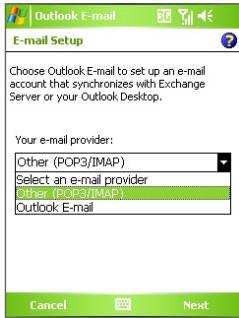
Set up Outlook e-mail
To be able to send and receive Outlook e-mail on your device, you must set up ActiveSync synchronization with your computer or the Exchange Server. For information about setting up ActiveSync synchronization, refer to the user manual.
Set up a POP3/IMAP4 e-mail account
Set up a POP3 or IMAP4 e-mail account on your device if you have an e-mail account with an Internet service provider (ISP) or an account that you access using a VPN server connection (typically a work account).
- Tap Start > Messaging.
- Tap Menu > Tools > New Account.
- On the first E-mail Setup screen, select Other (POP3/IMAP) from the Your e-mail provider list, then tap Next.
- On the next screen, enter your e-mail address, and tap Next.
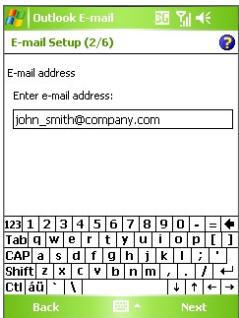
Auto configuration will help you download necessary e-mail server settings.
- Once Auto configuration has finished, tap Next.
- Enter your name (the name you want displayed when you send e-mail) and your password.
Tip Select the Save password check box if you want to save your password so that you do not need to enter it again.
7. Sending a Message
Your device is capable of sending and receiving E-mail, SMS, and MMS messages as long as it is connected to the network. Although you can send text messages (SMS) to only mobile phone numbers, MMS messages can be sent to both mobile phone numbers and e-mail addresses.
Compose and send a message
- In the message list, tap Menu > Go To and select an account.
- Tap New.
- Enter the e-mail address or mobile phone number of one or more recipients, separating them with a semicolon. To access addresses and phone numbers from Contacts, tap To.
-
Enter your message.
-
To quickly add common messages, tap Menu > My Text and tap a desired message.
- To check the spelling, tap Menu > Spell Check.
5. Tap Send.
Note SMS and MMS can only be sent if your device is connected to a UMTS/GSM/EDGE network. E-mail messages can be sent only if your device has Internet access (e.g. via UMTS/ GSM/EDGE/GPRS, USB/Bluetooth connection to computer, etc).
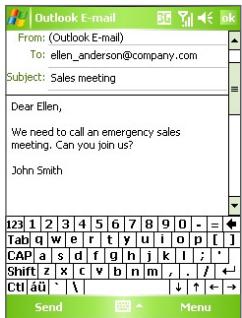
Composing Outlook e-mail message
8. Browsing the Internet
You can set up connections to the Internet or to a corporate network to browse the Internet. The pre-loaded browser, Internet Explorer Mobile, is a full-featured Internet browser, and optimized for use on your device.
Use Internet Explorer Mobile
- Tap Start > Internet Explorer.
- To go to a web site, enter the URL address of the desired web site in the address bar that appears at the top of the screen. Tap the down arrow (▼) to choose one web site from previously entered addresses.
- Tap the Go icon ( ) to go to the web address you entered.
- Tap Back to go back to the previous page.
- Tap Menu > Refresh to refresh the web page on the screen.
- Tap Menu > Home to go back to the Home page.
- Tap Menu > Favorites, and then select the favorite web site you want to visit. To add a favorite link while browsing the Internet, go to the page you want to add. Then, tap Menu > Add to Favorites, or tap and hold on the page to select Add to Favorites from the shortcut menu.
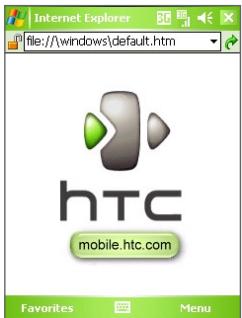
Internet Explorer Mobile
9. Using the Camera
Taking photos and recording video clips along with audio is easy with your device's built-in cameras.
Launch camera
- Tap Start > Programs > Camera.
- Tap Start > Programs > Pictures & Videos, then tap the Camera icon.
Press the CAMERA button on your device.
To exit the camera, tap the Exit icon (X) on the screen.
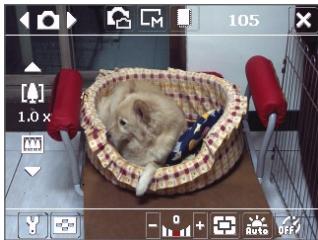
Camera screen
Capture a still image
- After launching the camera, tap or at the upper left side of the screen, or press NAVIGATION left or right to select the Photo capture mode.
- Press the CAMERA button, Jog Wheel, or the ENTER button to capture a still image.
Capture a video clip
- After launching the camera, tap or at the upper left side of the screen, or press NAVIGATION left or right to select the Video capture mode.
- Press the CAMERA button, Jog Wheel, or the ENTER button to start recording a video clip. To stop recording, press the CAMERA button, Jog Wheel, or the ENTER button again.
10. Using Pictures & Videos
The Pictures & Videos program collects, organizes, and sorts all of your captured images and video clips on your device.
You can use this program to view/play pictures, GIF images, GIF animations, and video clips. You can even view pictures as a slide show, beam them, send them via e-mail, edit them, or set them as the background on the Today screen.
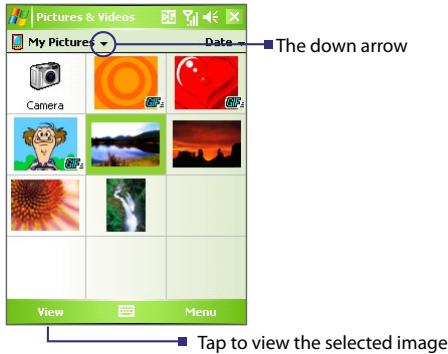
View pictures
- Tap Start > Programs > Pictures & Videos. The files in the My Pictures folder appear as thumbnails by default.
- Select a picture and tap View. To view a GIF image, simply select its thumbnail and tap View.
Play GIF animation files
- Tap Start > Programs > Pictures & Videos.
- Select a GIF animation file and tap View. The GIF Animation program then opens and plays the animation.
Play videos
- Tap Start > Programs > Pictures & Videos. By default, the contents of the My Pictures folder will be shown.
- To find the video clips that you captured, tap the down arrow (▶) next to the My Pictures folder and tap My Documents. Next, tap My Videos. Video clips are displayed as thumbnails by default, which appear with a media icon (▲).
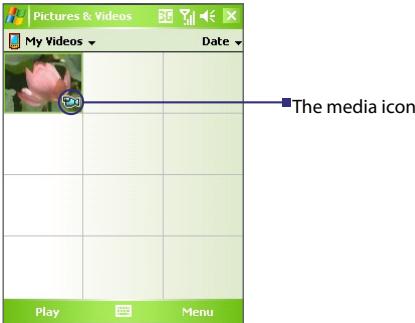
- Tap the desired thumbnail to play it with the built-in Windows Media Player.
11. Entering Information
When you start a program or select a field that requires text or numbers, the Input Panel icon becomes available on the menu bar.
Tap the Input Selector arrow (that appears next to the Input Panel icon) to open a menu where you can select a text input method and customize input options. After selecting a text input method, the corresponding Input Panel is then displayed and you can use it to enter text. To toggle between showing and hiding the Input Panel, simply tap the Input Panel icon.
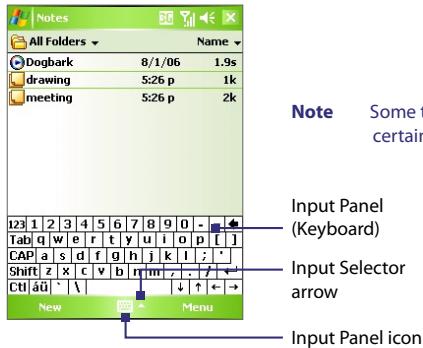
Note Some text input methods may not be available in certain language versions of the device.
Input Panel (Keyboard)
Input Selector arrow
Input Panel icon
Options...
Block Recognizer
- Keyboard Letter Recognizer Transcriber
| Icon | Input method |
| On-screen keyboard | |
| Letter Recognizer or Block Recognizer | |
| Transcriber |
12. Status Indicators
The Today screen displays important information, such as upcoming appointments and status indicators. Following are some of the status icons that you may see on your device:
| Icon | Description |
| New e-mail or text messages; SMS notification of voice mail | |
| New multimedia (MMS) message | |
| New MSN message | |
| There are more notifications. Tap the icon to view all. | |
| Speakerphone on | |
| Dialing while no SIM card is inserted | |
| Voice call in progress | |
| Calls are forwarded | |
| Call on hold | |
| Missed call | |
| Maximum signal strength | |
| No signal | |
| Phone is turned off | |
| No phone service | |
| Searching for phone service | |
| 3G | 3G UMTS network available |
| EET | 3G UMTS connecting |
| EET | 3G UMTS in use |
| G | GPRS available |
| G | GPRS connecting |
| G | GPRS in use |
| E | EDGE available |
| E | EDGE connecting |
| E | EDGE in use |
| A | Roaming |
| A | Connection is active |
| A | Connection is not active |
| t | Synchronization in progress |
| G | Synchronization error |
| G | ActiveSync notification |
| I | Wi-Fi function enabled, but device not connected to a wireless network yet |
| Wireless network(s) detected | |
| Connecting to wireless network (arrows moving); Connected to wireless network | |
| Synchronizing via Wi-Fi | |
| Vibration mode | |
| Sound on | |
| Sound off | |
| Alarm | |
| No SIM card inserted | |
| Battery is fully charged | |
| Battery power is very low | |
| Battery charging | |
| Device is locked Device is unlocked | |
| Bluetooth headset detected | |
| Serial USB connection active |
Note
The USB to PC ( 1 ) icon appears on the Today Screen when your device is connected to your computer and you enable a serial USB connection between them. For more information about USB to PC, refer to the user manual.
13. Customizing Your Pocket PC Phone
You can customize the look and feel of your device and set the time and date according to the current time zone.
Customize the Today screen
- Tap Start > Settings > Personal tab > Today.
- On the Appearance tab, select the desired theme for the background of the Today screen.
- On the Items tab, select the items you want to appear on the Today screen.
Customize the Start Menu
- Tap Start > Settings > Personal tab > Menus.
- Select the check boxes of the items you want to appear in the Start menu. You can select up to seven items.
Set the time and date
- Tap Start > Settings > System tab > Clock & Alarms.
- Select the correct time zone and change the date or time.
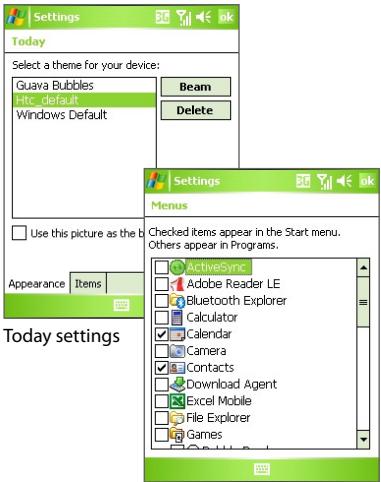
Menu settings
14. Securing Your Pocket PC Phone
There are two kinds of security on your device. You can protect your SIM card from unauthorized use by assigning a PIN (Personal Identification Number). Additionally, you can prevent unauthorized access to any part of the device by using password protection.
Protect your SIM card with a PIN
- Tap Start > Phone.
- On the Phone screen, tap Menu > Options > Phone tab.
- Tap Require PIN when phone is used. To change the PIN at any time, tap Change PIN.
Protect your device with a password
- Tap Start > Settings > Personal tab > Lock.
- Select the Prompt if device unused for check box, and in the box to the right, select how long your device must be idle before a password is required. In the Password type box, select the type of password you would like to use. Enter the password and confirm it.
- On the Hint tab, enter a phrase that will help you remember your password, but doesn't allow others to guess your password. The hint will be displayed after the wrong password is entered four times.
- Tap OK. The next time your device is turned on, you will be prompted to enter your password.
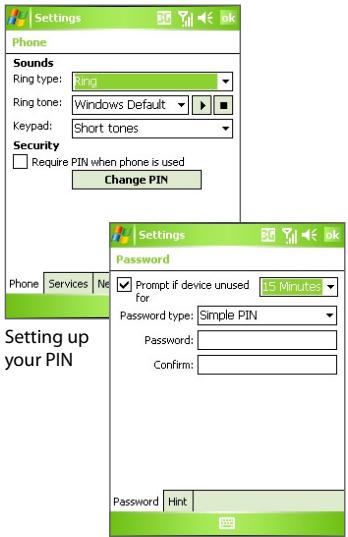
Setting up password
15. More Information
For more instructions, refer to the User Manual or contact your local dealer for assistance.
- What's in the Box?
- The Pocket PC Phone
- Getting Ready
- Install the SIM card
- Install the memory card
- Install and charge the battery
- Check the battery power
- Turn on your Pocket PC Phone
- Making a Call
- The Phone screen
- Make a voice call
- Make a video call
- Synchronizing Outlook Information
- PC requirement to run ActiveSync 4.x
- Setting Up E-mail Accounts
- Set up e-mail accounts using E-mail Setup Wizard
- Set up Outlook e-mail
- Set up a POP3/IMAP4 e-mail account
- Sending a Message
- Compose and send a message
- Tap Send.
- Browsing the Internet
- Use Internet Explorer Mobile
- Using the Camera
- Launch camera
- Capture a still image
- Capture a video clip
- Using Pictures & Videos
- View pictures
- Play GIF animation files
- Play videos
- Entering Information
- Options...
- Status Indicators
- Note
- Customizing Your Pocket PC Phone
- Customize the Today screen
- Customize the Start Menu
- Set the time and date
- Securing Your Pocket PC Phone
- Protect your SIM card with a PIN
- Protect your device with a password
- More Information
Brand : HTC
Model : 3600
Category : Mobile Phone