
ITI E 408 - Car GPS Navigation MAPPY - Free user manual and instructions
Find the device manual for free ITI E 408 MAPPY in PDF.


| Product type | Car navigation GPS |
| Brand | MAPPY |
| Model | ITI E 408 |
| Dimensions | Approximately 12 x 8 x 2 cm (estimated) |
| Weight | Approximately 150 g (estimated) |
| Power supply | Built-in rechargeable battery, charges via cigarette lighter (12 V) or USB |
| Battery life | Approximately 2 to 3 hours in normal use (estimated) |
| Screen | Color touch screen (approx. 4.3-inch diagonal) |
| GPS receiver | Built-in, receives satellite signals |
| Mapping | Pre-installed maps, free lifetime updates via mappyPlus |
| Main functions | Road navigation, route calculation, address search, points of interest |
| Connectivity | USB for PC connection and charging |
| Car mount | Suction cup and mount included |
| Included accessories | Cigarette lighter cable, USB cable, CD-ROM, stylus, quick guide |
| Maintenance and cleaning | Wipe with a soft, dry cloth. Do not use abrasive products. |
| Safety | Do not obstruct the driver's vision or airbag deployment. |
| Spare parts and repairability | Accessories available at www.support-gps.com. Repair by the retailer. |
| Warranty | 12 months from date of purchase |
| General information | Compliant with European directives R&TTE 1999/5/EC |
Frequently Asked Questions - ITI E 408 MAPPY
User questions about ITI E 408 MAPPY
0 question about this device. Answer the ones you know or ask your own.
Ask a new question about this device
Download the instructions for your Car GPS Navigation in PDF format for free! Find your manual ITI E 408 - MAPPY and take your electronic device back in hand. On this page are published all the documents necessary for the use of your device. ITI E 408 by MAPPY.
USER MANUAL ITI E 408 MAPPY

Support vehicule comple (2 parties)
This manual is designed to help you learn how to use your mappyii 408 GPS
CE
en
1) What is GPS?
GPS (Global Positioning System) is a system that captures geographical positioning information from satellites. The information received from these satellites by radio waves is used to calculate locations, making it possible to guide you as your travel.
To capture this information, your GPS must be outdoors or behind glass.
- If you are in a building, in a tunnel, or underground, you cannot receive GPS signals.
- If your vehicle has an athermic windshield, your reception may be impaired. We cannot guarantee that your device will work smoothly in such conditions. Please check with your vehicle's manufacturer.
Tip: For your GPS to receive GPS signals more quickly, stop moving your GPS for a few moments.
It is normal for your GPS to take time to capture information from satellites.
Receiving a GPS signal can take 5-10 minutes when you device has not been used recently, or even longer during its first use.
a) Package contents

Cable for the cigarette

Full vehicle support (2 parts)

CD-ROM With complete user guide

USB Cable

Your Quick Start guide

Stylus
b) Product overview
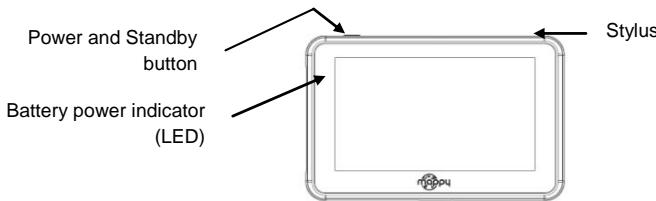
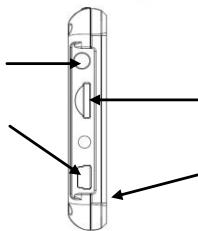
Headphone jack
PC and battery charge connection
Micro SD port (card not provided)
Reset
4) First use of mappy10
1
First, start up your vehicle. (If the device has been used for a long time with the engine turned off, the vehicle's battery may be drained.)
2
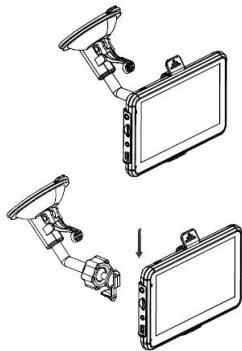
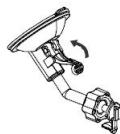
Attached the suction cup to the windshield and lock it into its base. For a stronger hold, clean the glass before attaching the suction cup.
3
Place the product on the lower part of its holder. Next, as shown in the illustration, push the device back into the car holder.
4
Connect one end of the car charger to your device and the other end to the cigarette lighter.
5
Push the lever toward your car's windshield to attach it.
6
Press the power button on the device. When te device turns on, you are brought to a home screen where you can access various functions.
Warning: Install the car holder where it does not interfere with driving, obstruct the driver's vision, or deploy the airbags.
5^ ) How do I set up my first itinerary?
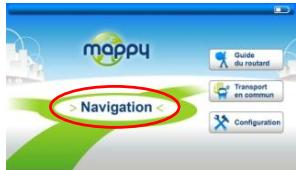
Once your mappy GPS has started up:
1 Click on "Navigation"
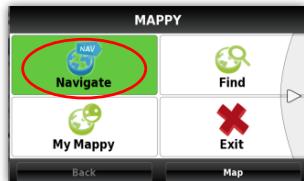
2 Click on "Navigate"
3 Next, click on "Address"
4 Enter the name or postal code for the Town, and then select your destination in the list of results.
(optional) Enter the name of your destination street name, and then select the street you want.
(6 optional) Enter the house number for your destination.
7 Click on "OK" and Go
8 Wait a few moments for your mappy to receive the GPS signal, and then let it guide you.

Power and Standby button
en
Turning on your device
To turn on the device, hold down the power button for a few seconds (about 3 seconds)
Turning off your device
To power off the device, hold down the button for a few seconds (about 5 seconds). You have two options for turning off your device: putting it in standby mode (when you turn on the device, it will restart at the same location) or powering it off completely (the device will completely restart). You have 10 seconds to decide. Otherwise, the device will automatically go to OFF mode. To cancel this operation, touch the screen (not any icons).
Note: When charging the battery, you can only put your device in standby mode, even if you click on the Off button.
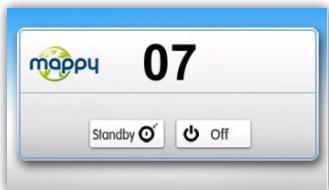
| 07 | Number of seconds remaining before the device goes into automatic standby mode. |
| Standby | For standby mode |
| Off | The power down the device |

en
Terms and Conditions :
You have an unlimited updates after activating your GPS on mappyPlus, you may update mappy maps for FREE.
Installation :
- Install mappyPlus** on your PC. It is available at: www.support-gps.com into the involved section
- Connect your GPS with the provided cable
- Wait for the software to recognize your GPS and for the server to finish analyzing the contents of your mappy GPS
- Log in and then go to "My Products", located on the left menu bar
- Once the Ready to be installed" message appears, click on "Synchronize". Do not disconnect your GPS during the installation.
Warning: You are strongly advised to back up your mappy GPS before starting the installation.
**MappyPlus is providing into the CD.
Important:
It is advisable to make a backup of your memory in case of data loss, so you can recover the original content in order to avoid intervention service.
- Connect your GPS mappy408 to your computer via the supplied USB cable. Then check if the equipment is recognized on the user's computer as a Removable Disk.
Make a copy and paste the entire contents of removable disk to your computer.
The manufacturer guarantees that this product is free of assembly and material defects under normal conditions of use.
Warranty Period
The warranty takes effect on the date of purchase. The certificate of warranty and the invoice, indicating the date on which the device was purchased, are proof of warranty. This product comes with a warranty of twelve (12) months from the date of purchase.
Warranty and Returns Assistance
If you have any problems with your product during the warranty period, you must return the product to your local dealer.
A dated proof of purchase is required. Please have the following information available before contacting customer service:
- The serial number
- The description of the problem
If the customer finds a defect or malfunction on the device due to an assembly or material defect (see "Restrictions") during the warranty period under normal use, the customer must return the device to the local dealer. The device must be packaged properly in order to be safely transported. The proof of purchase must be attached (the attached certificate of warranty and the invoice). If you have to send it by mail, it is recommended to send the product using a service that includes package tracking. The manufacturer shall not be held responsible for loss or damage to the device before the device is received.
Before Returning the Device under Warranty
en
The customer should first consult the Frequently Asked Questions (FAQ) on the www.support-gps.com website to see if there is already a solution to the problem. The customer should save all of their data and erase any information from the device that may be considered to be confidential, personal, or relating to intellectual property. The manufacturer is not responsible for damage or loss of any software or data saved on a device that is sent to customer service for repair.
Restrictions
The manufacturer accepts no responsibility if, upon receipt of the product for repair, texts and examinations of the device reveal that the alleged defect or malfunction does not exist or that it was caused by the customer or a third party, particularly in the following situations: breakage, misuse, negligence, improper maintenance, unauthorized attempts to open, repair, or modify the product, incorrect installation or use of software added by the user, a virus, or any cause unrelated to its originally intended use, an accident, fire, lightning, short circuits, power outage, or any other incident, exposure to moisture, or exposure to excessive temperatures.
The warranty does not apply if:
- The device has been tampered with or repairs have been made by unauthorized personnel.
- The device's serial number has been modified or removed.
- The warranty seal has been altered or damaged or if the warranty has expired.